«Over the past five years evaluating operational model risk, one truth remains constant: AI formula generation reduces syntax friction, but human decision-makers retain 100% of the risk.»
Marcus Hale, AI Governance and Model Risk Editorial Specialist. Marcus Hale, author.
Last updated: August 2026. Vendor pricing, free-tier caps, and AI feature availability change frequently. Verify current terms in official product documentation before procurement.
Key Takeaways for Decision-Makers
- What it does: An AI Excel formula generator translates natural-language descriptions ("sum East region sales for completed orders in 2026") into executable
SUMIFS,XLOOKUP, orLETexpressions for Microsoft Excel and Google Sheets. - How accurate it is: Specialized models reach up to 77.1% execution accuracy on the academic NL2Formula benchmark. Roughly one generated formula in four still computes an incorrect result without human review.
- Where the value sits: Formula drafting, formula explanation, and error debugging are the highest-yield use cases. Two-thirds of surveyed European spreadsheet users adopt AI mainly for formula generation rather than full automation.
- Where the risk sits: Silent logical errors, off-by-one ranges, unsupported function versions, and PII exposure when corporate workbooks are uploaded to unvetted consumer tools.
- Minimum control set: Prompt with exact column headers, validate syntax, test on boundary values, log the generated logic for audit, and only then deploy to production workbooks.
- Governance framing: Treat generated formulas as model artifacts subject to internal validation standards (NIST AI RMF 600-1 for AI risk, and for US banking institutions, Federal Reserve/OCC SR 11-7 principles for model risk management and end-user computing controls).
One line for the audit committee: the formula is fast, the evidence is what costs time.
What Is an AI Excel Formula Generator and What Tasks Does It Solve?
An ai excel formula generator is a software tool or machine learning model that translates natural-language descriptions into executable spreadsheet expressions for Microsoft Excel and Google Sheets. It removes the need to memorize function syntax, which speeds up data analysis, credit modeling support work, and operational reporting across commercial organizations.
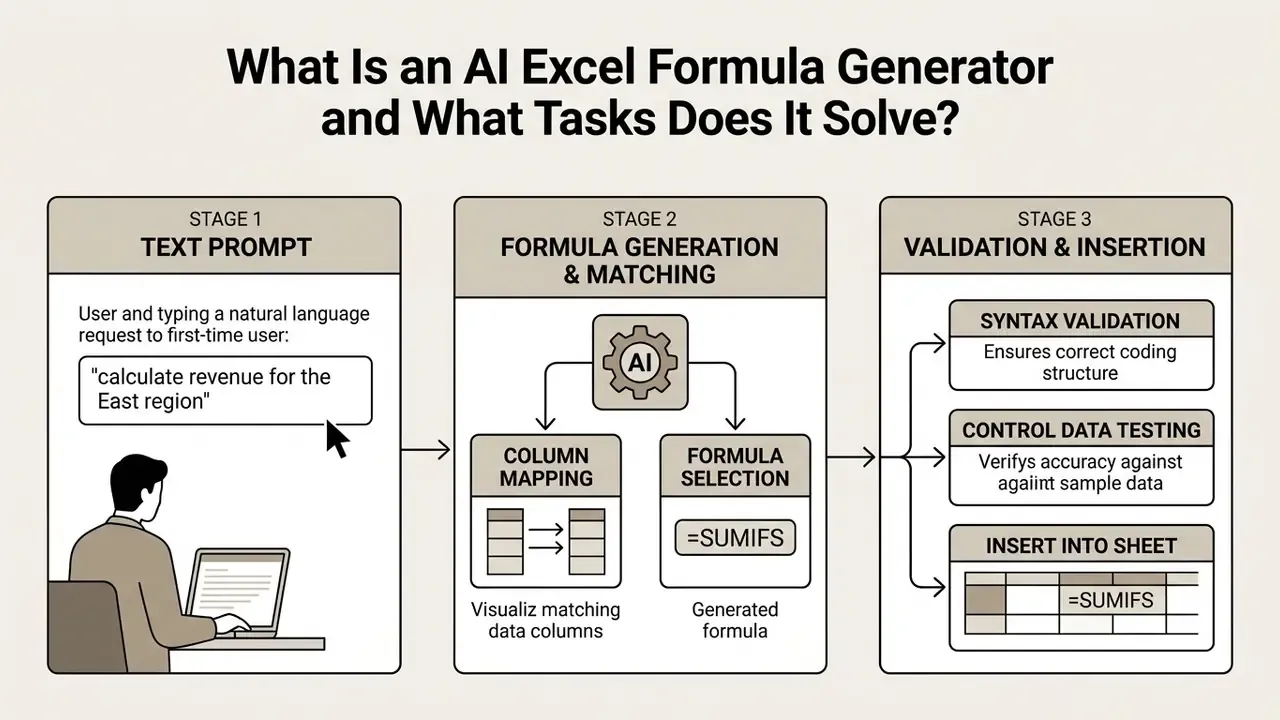
Spreadsheet research by Zhao et al. (EACL 2024, arXiv:2402.14853) formalizes this capability as the NL2Formula task. The system maps a natural-language query (N) and a tabular context (T) to an executable formula F = f(N; T). Evaluating 70,799 queries across 21,670 real-world tables showed that specialized models reach up to 77.1% execution accuracy on standard spreadsheet benchmarks.
In institutional environments these tools automate routine calculations, lookups, and conditional summaries. Adoption data confirms a pattern worth noting during procurement: formula drafting dominates, not end-to-end automation.
«66.9% of surveyed European professionals use spreadsheet AI tools primarily for formula generation, while only 37.3% apply advanced automation.»
A corporate finance team reviewing monthly ledger reconciliations introduced a structured natural-language-to-formula workflow after a series of recurring formula errors. By standardizing prompt patterns across 15 analysts, the team reported a materially shorter drafting cycle while keeping human review before production deployment. Illustrative, and worth treating with caution: internally measured savings of this type are not independently benchmarked, so establish your own baseline before claiming a productivity gain to the board. Published measurements do exist for adjacent workflows. A cross-government trial of Microsoft 365 Copilot reported an average saving of 26 minutes per participant per day, with more than 70% of users reporting less time spent on routine tasks (Microsoft 365 Copilot Experiment: Cross-Government Findings Report, UK, 2025).
Generating Excel Formulas from Natural Language Prompts
Generating excel formulas from natural language means typing plain-English instructions into an AI interface, which parses the intent and returns functional cell syntax. The model weighs column names, range constraints, and the required logical conditions, then selects matching spreadsheet functions.
Tools such as Microsoft Copilot and the native =COPILOT() function process these requests in real time (Microsoft Support, 2026). Instead of hunting through documentation for nested syntax, the user describes the target calculation, for example "sum sales where region equals West and year is 2026", and receives a recommended =SUMIFS() expression. In Excel for the web and desktop Insider builds the workflow begins by typing =, selecting "Ask Copilot for a formula", entering the request, then reviewing the suggestion before committing it to the grid.
Small habit, large effect: review before commit.
How an AI Excel Formula Generator Differs from an AI Excel Code Generator
An ai excel formula generator creates declarative cell-level expressions evaluated inside the spreadsheet's calculation tree. An ai excel code generator outputs imperative automation scripts such as Visual Basic for Applications (VBA), Google Apps Script, or SQL queries, designed for multi-step batch operations and external database connections (FormulasHQ, 2026; GPTExcel, 2026).
| Feature / Dimension | AI Excel Formula Generator | AI Excel Code Generator |
|---|---|---|
| Execution Context | Individual cell or dynamic spill range | Macro module, script editor, or SQL engine |
| Primary Language | Native Excel / Google Sheets functions | VBA, Google Apps Script, Python, SQL |
| Operational Scope | Mathematical and logical cell calculations | Multi-sheet updates, file export, batch tasks |
| Execution Trigger | Recalculated automatically on data change | Triggered by user event, button, or macro run |
| Risk Profile | High calculation and logical error risk | High system automation and execution permission risk |
Formulas stay bounded by spreadsheet expression syntax, which makes them the safer option for row-level calculations. That bounded domain also explains why compact, purpose-built models can beat general-purpose giants on formula work.
«FLAME, a 60M-parameter model trained only on Excel formulas, outperforms Codex (175B parameters) on 10 of 14 formula repair and completion tasks.»
Script generators, by contrast, cover administrative automation across whole workbooks or database pipelines. A practical boundary rule: if the logic must recalculate with every data refresh, use a formula. If it must move files, send email, rewrite sheets, or query an external database, use generated code and put it through change-control review before execution. Teams building structured teaching material and templates often pair this with an ai worksheet generator, which sits in the same document-automation family but carries a different risk profile.
How to Use AI to Create Excel Formulas
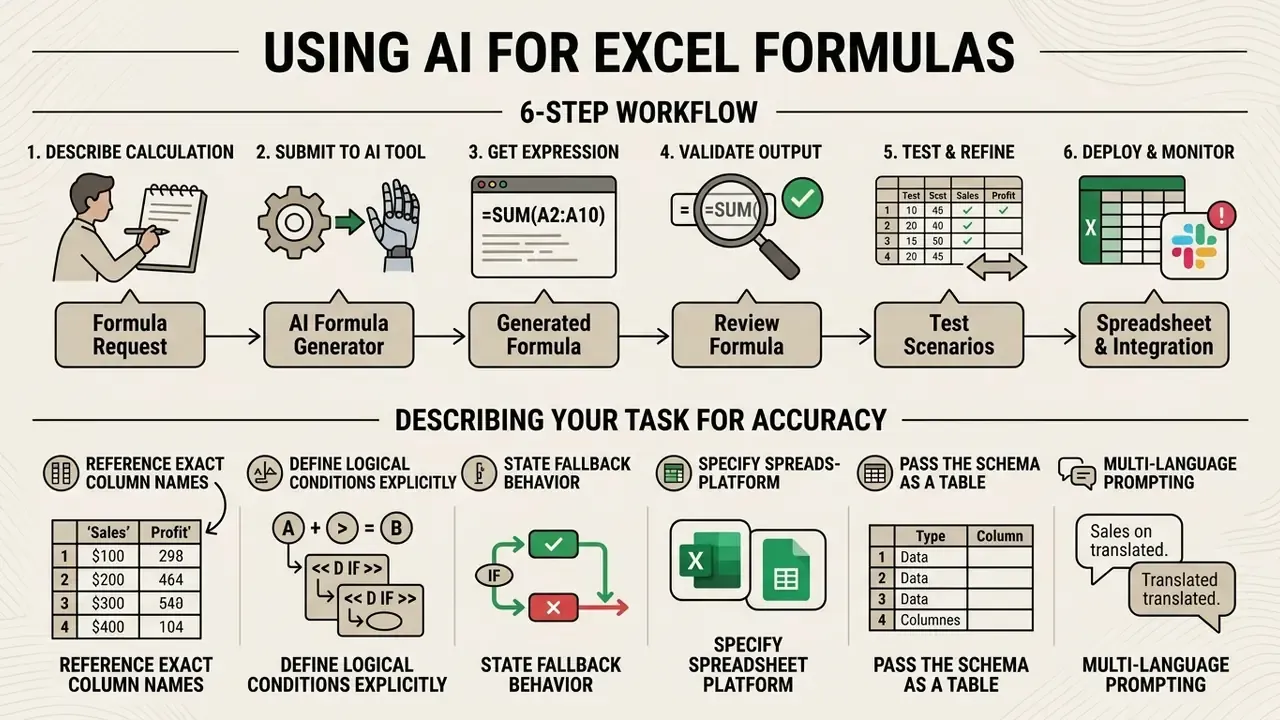
To use ai to create excel formulas, write a clear description of the intended calculation, submit it to an excel ai formula generator tool, then validate the returned expression on sample data before copying it into the live sheet. This sequence prevents invalid cell references and, more importantly, silent logical errors that never raise an error code at all.
6 steps for safely creating and deploying AI-generated formulas
Checklist0 / 6
Public-sector guidance from the California Department of Technology (Generative AI Risk Assessment, 2025) states that auto-generated formulas must undergo human verification before production datasets are updated. The same guidance recommends previewing formulas prior to insertion and preserving version history of the original dataset. A step-by-step validation checklist keeps computational integrity intact and, as a side benefit, produces the paper trail internal audit will ask for.
How to Describe Your Task So AI Creates an Accurate Formula
To make an accurate formula likely rather than lucky, write explicit prompts that specify exact column headers, numeric ranges, output target cells, and rules for missing data. Prompt guidance from OpenAI (OpenAI API Docs, 2025) and Microsoft (Microsoft Learn, 2026) both favour structured, typed inputs over conversational prose.
When drafting prompts, apply these operational practices:
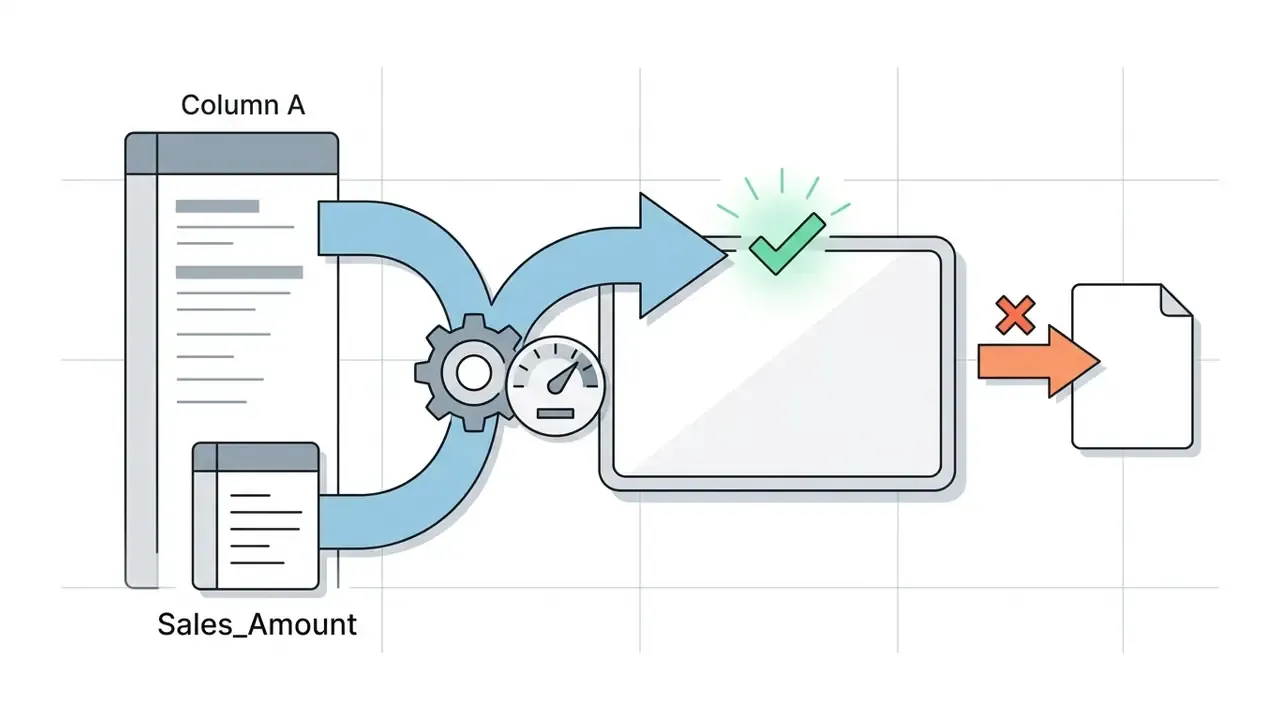
"Column A (Sales_Amount)" rather than "sales".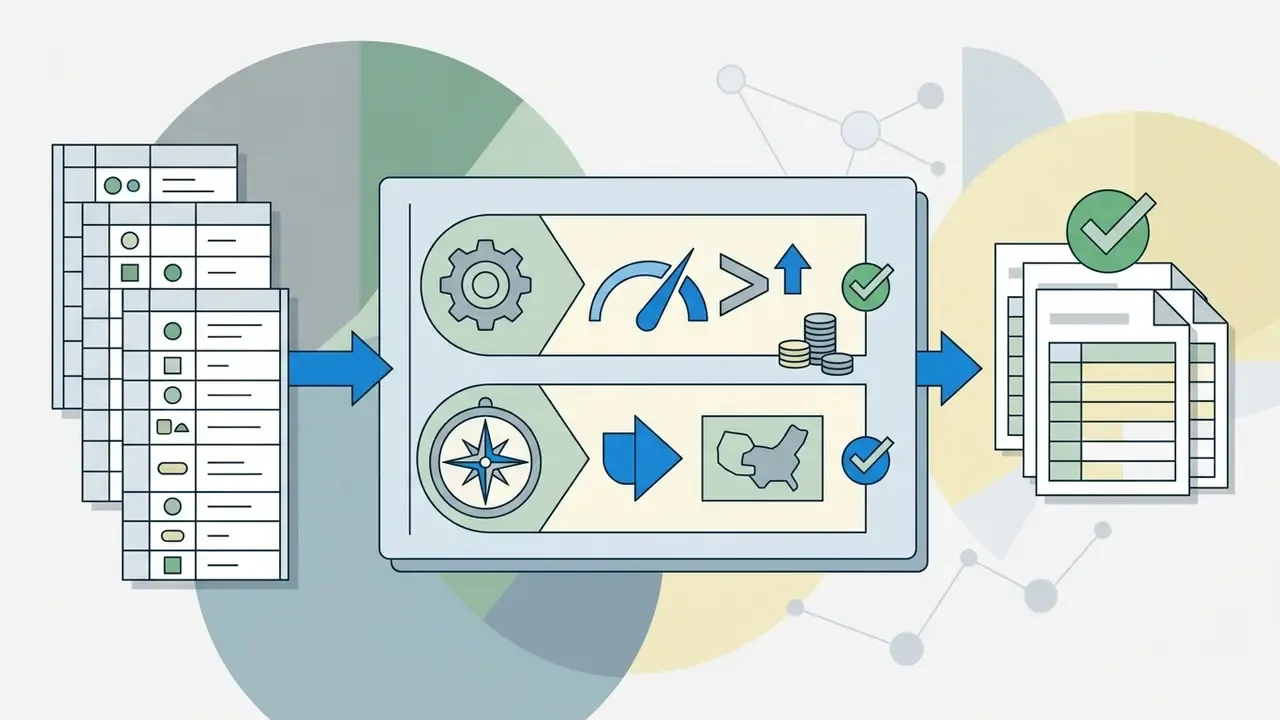
">5000" and "Region = 'East'".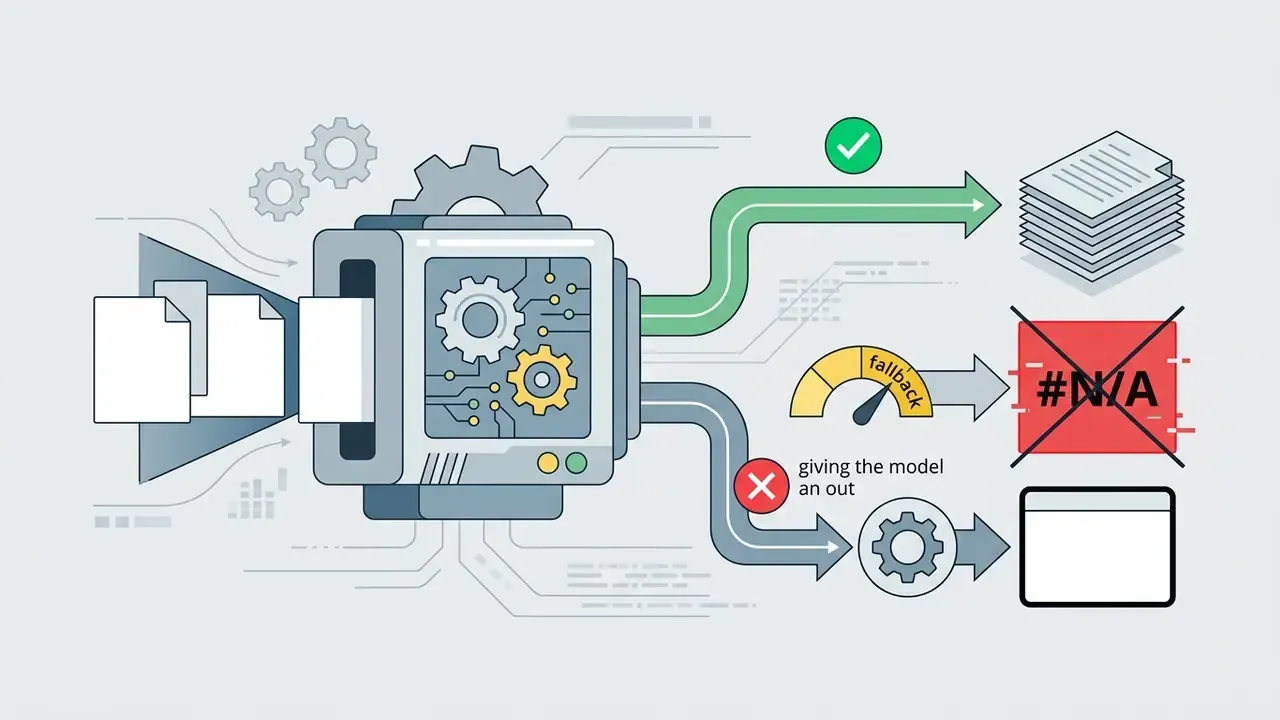
"Not Found" or 0 when conditions fail, which prevents unexpected #N/A results. Microsoft's prompt guidance calls this "giving the model an out".

Multi-language prompting. Modern LLM-based generators handle prompts in more than 20 languages (Spanish, German, French, Latvian, Russian, Hindi and others) while returning standardized English function names such as SUMIFS, XLOOKUP, and AVERAGEIFS, which international Excel builds expect. Microsoft lists Russian among supported editing languages for Copilot in Excel. Analysts can therefore describe business logic in their working language without translating spreadsheet terminology, though argument separators (comma versus semicolon) may still need adjusting to the local Excel locale.
How to Validate a Generated Formula Before Deployment
Validation means three things: reviewing syntax, executing the formula against known values, and tracing inputs back to source cells. Swiss Good Laboratory Practice (GLP) spreadsheet validation guidance (Swiss GLP Working Group, 2024) requires inspection of cell ranges, syntax boundaries, and edge cases before formulas are used in regulated operations. Finance is not a laboratory, granted, but the control logic transfers cleanly.
A complete verification process includes:
- Syntax and operator verificationconfirm that function names (
XLOOKUP,SUMIFS) exist in your installed spreadsheet version. - Controlled boundary testingrun the formula against zero values, negative numbers, empty cells, and text strings.
- Reference range auditverify that absolute references (
$B$2:$B$100) do not shift unexpectedly when copied down a column. - Execution comparison against ground truthrecompute at least three known results manually or with an independent method and compare outputs, as recommended for generative AI output assessment in NIST AI RMF 600-1 (2024).
- Audit trail capturelog the original prompt, the generated formula, the reviewer, and the review date alongside the workbook. That is the minimum evidence set internal audit will request.
«Using synthetic formula descriptions without validation can degrade model accuracy; executable formula semantics provide a reliable signal for selecting training examples.»
The same logic applies downstream. Execution results, not plausible-looking syntax, are the only trustworthy validation signal for a generated formula.
Model risk framing for regulated institutions. Where AI-generated formulas feed financial reporting, provisioning, or capital calculations, they fall inside end-user computing scope under Federal Reserve/OCC SR 11-7 model risk management principles: documented purpose, independent review of the calculation logic, evidence of testing, and ongoing output monitoring. A workable control pattern is to store each production formula with its prompt, reviewer sign-off, and test case results in a versioned register, so a validator can reproduce the calculation without re-querying the AI tool six months later. Institutions that also track regulatory and legal developments around automated decisioning can cross-reference AI Litigation and Case Timelines when setting documentation depth.
How to Debug and Fix Broken Formulas with AI
AI formula tools repair broken expressions as usefully as they write new ones. When an inserted formula returns #REF!, #N/A, #VALUE!, or #DIV/0!, paste back the original prompt, the returned formula, the exact error code, and a short description of the columns involved. Then ask the assistant to identify the failing argument rather than to "rewrite the formula". The difference matters: a rewrite gives you new logic to validate from scratch, a targeted fix gives you a diff you can review in seconds.
Worked debugging example: #REF! from an out-of-range index
=XLOOKUP(A2, Sheet2!A:A, Sheet2!C:C, "Not Found")
Debugging patterns by error code

"My formula =VLOOKUP(A2, Sheet2!A:C, 4, FALSE) returns #REF!. On Sheet2, column A contains Customer ID, column B contains Names, column C contains Emails. Fix the index syntax and return an Excel 365 version."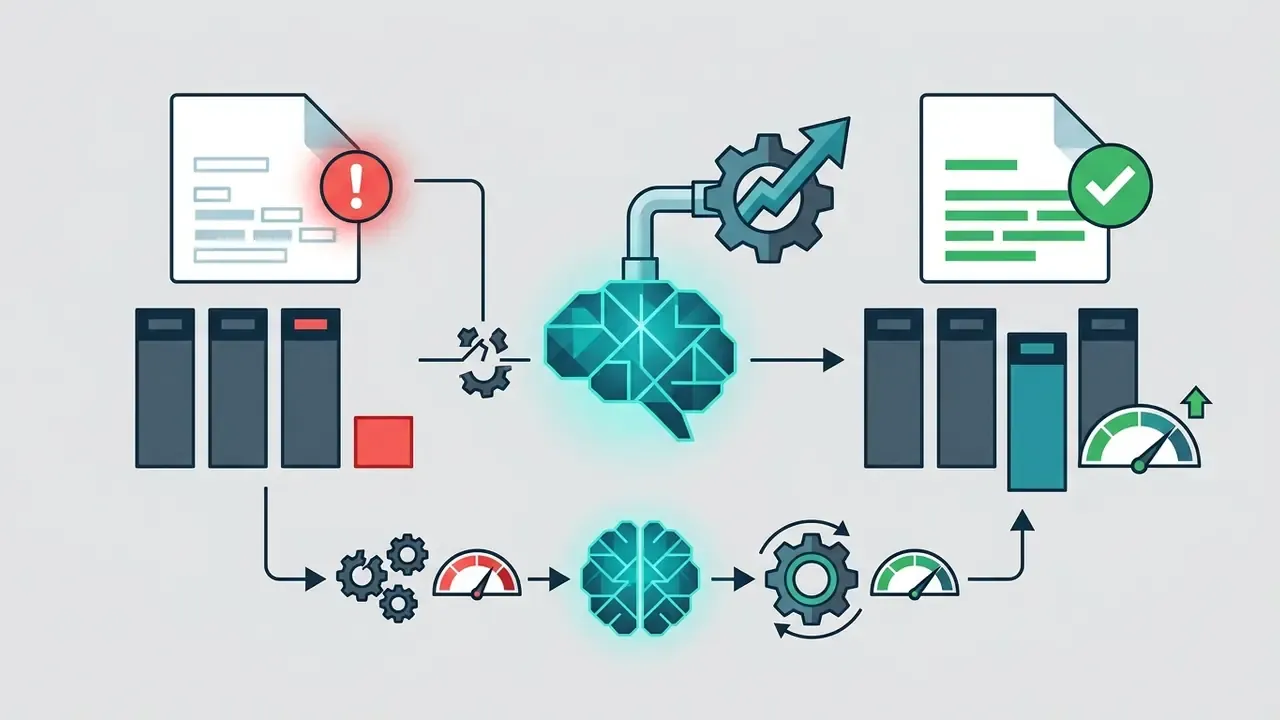
4, because the referenced range spans only three columns (A:C). Corrected Excel 365 formula:
XLOOKUP addresses the return column directly instead of counting offsets, so inserting or deleting columns no longer breaks the lookup, and the "Not Found" argument replaces a raw #N/A with a readable fallback.| Error returned | Typical root cause | Prompt to send back to the AI |
|---|---|---|
#REF! | Deleted cells, or column index larger than the referenced range | "Range spans A:C but the index is 4. Correct the reference boundaries." |
#N/A | Lookup value absent, trailing spaces, text-versus-number mismatch | "Wrap the lookup with a fallback value and add TRIM to the lookup key." |
#VALUE! | Text stored where a number is expected | "Column D contains numbers stored as text. Coerce types before summing." |
#DIV/0! | Denominator empty or zero on early rows | "Guard the division so blank denominators return 0 instead of an error." |
#SPILL! | Dynamic array blocked by occupied adjacent cells | "Constrain the output to a single cell or state the exact spill range." |
#NAME? | Function unavailable in the installed Excel version | "Rewrite using VLOOKUP and IFERROR only. This build does not support XLOOKUP." |
Purpose-built checkers follow the same loop commercially. Paste a formula that is not working, and the assistant states what is wrong and how to fix it. Sigma Computing's Formula Assistant, Grist's AI Formula Assistant, and AI-aided formula editors distributed through Microsoft Marketplace all flag the invalid expression, explain the cause, preview a corrected version, and require an explicit Apply action before the sheet changes (Sigma Docs, 2026). Never let a debugging suggestion overwrite a production formula without previewing the diff first.
How to Refine a Formula Through Interactive AI Prompts
Refinement means giving the ai formula generator follow-up feedback when a calculation fails or business conditions shift. Chat interfaces such as Sigma's Formula Assistant flag invalid syntax, accept natural-language corrections, and show preview changes before edits reach the worksheet.
If a generated formula returns #VALUE!, feed the error code and one sample source row back into the assistant. Ask it to wrap the calculation in =IFERROR() or to adjust the range criteria until output matches your benchmark result. When conditions change, a new region code, an added status value, a revised threshold, amend the existing prompt rather than opening a fresh conversation. The assistant retains the column schema that way and returns a minimal edit instead of an unfamiliar rewrite.
What Excel Formulas and Tasks AI Can Create
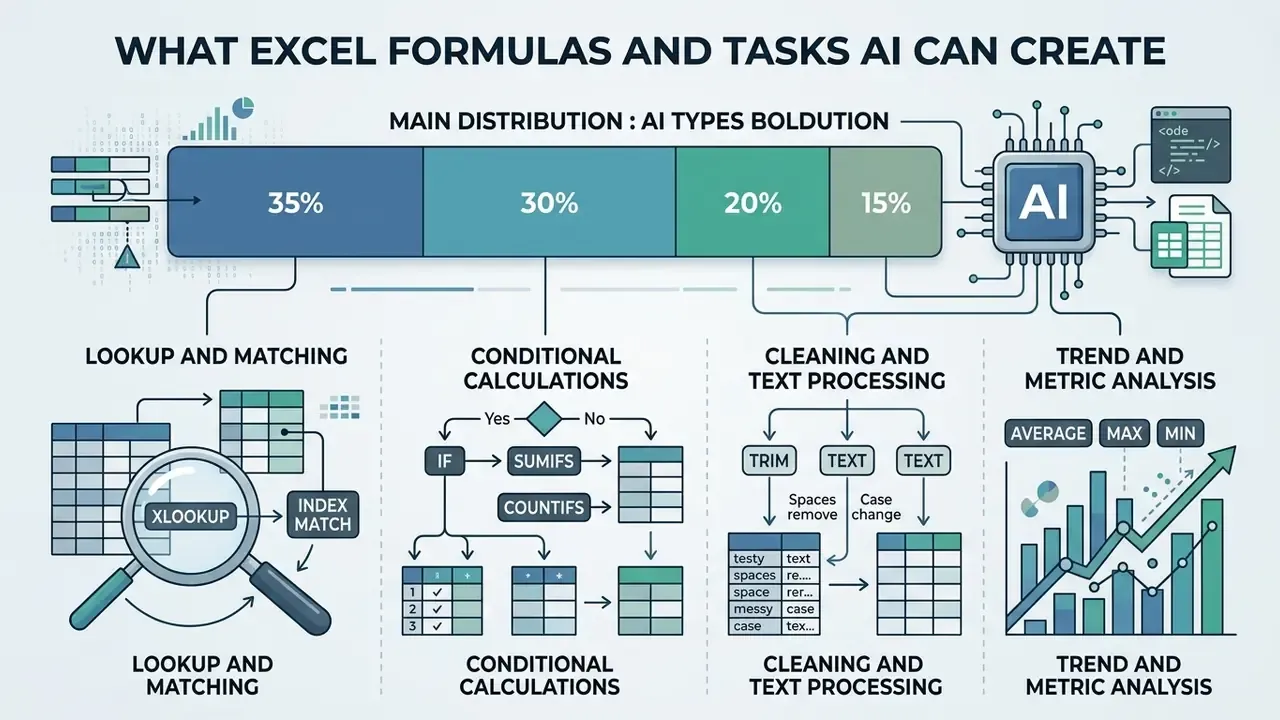
An excel formula generator ai handles a wide spectrum of spreadsheet operations, from routine string transformations to multi-condition financial aggregations. Empirical benchmarks assess model competence across formula generation, error repair, numeric reasoning, and semantic range mapping (SpreadsheetBench, 2024; WorkstreamBench, 2026).
Formulas for Lookup, Matching, and Data Standardization
AI generators build lookup and standardization formulas with XLOOKUP, INDEX/MATCH, and text functions (TRIM, TEXT, CONCATENATE) to reconcile records across separate sheets. In practice this covers mismatched customer identifiers, currency formatting, and joining tables that were never designed to be joined.
An example generated lookup formula combining matching with a readable fallback:
=XLOOKUP(A2, Customers[ID], Customers[Name], "Customer Not Found", 0)
This expression searches for the ID in A2 inside the Customers table and returns the customer name, or a clear status string when no match exists.
Syntax breakdown
For legacy builds without XLOOKUP, the Microsoft-documented equivalent combines lookup and text formatting in one expression:
="Atlanta = " & INDEX($A$2:$C$33, MATCH("Atlanta",$B$2:$B$33,0),1) & ", Invoice date: " & TEXT(INDEX($A$2:$C$33,MATCH("Atlanta",$B$2:$B$33,0),3),"m/d/yy")
Here MATCH locates the row position, INDEX retrieves values from the first and third columns, and TEXT standardizes the date format for reporting output.
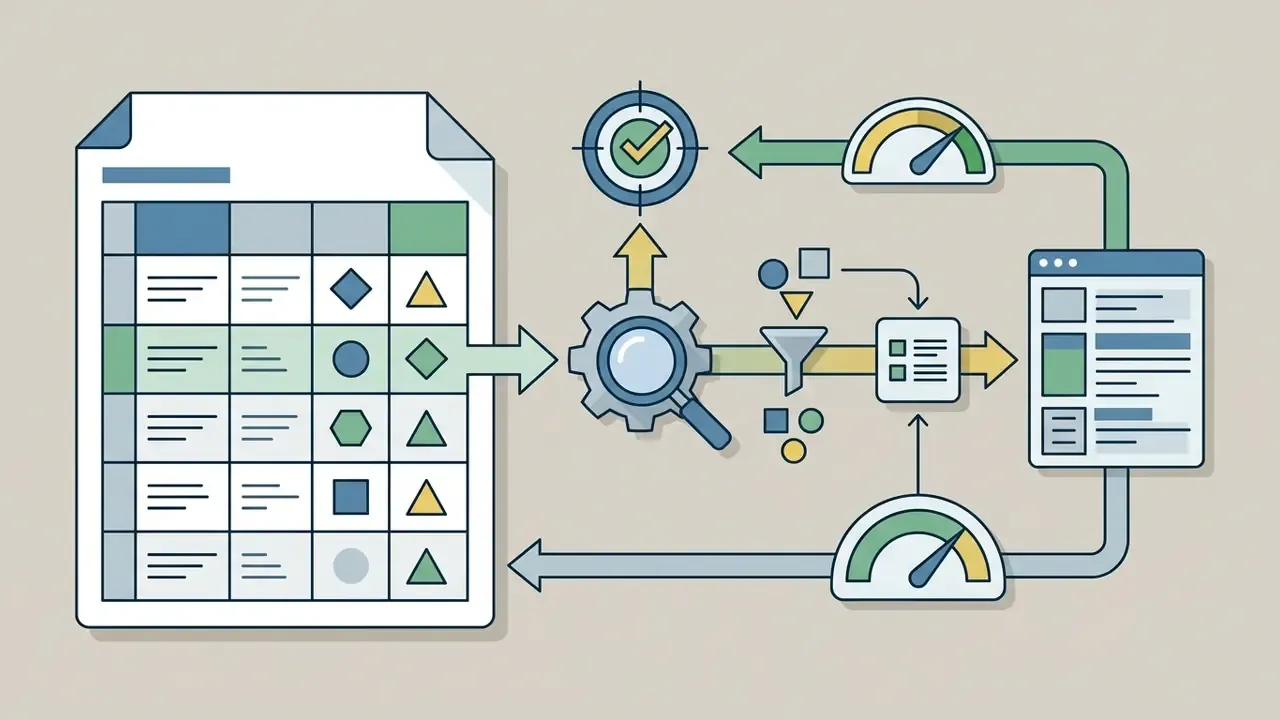
A2the lookup value taken from the current row.
Customers[ID]the lookup array, a structured table reference, so it expands automatically when new rows arrive.
Customers[Name]the return array, addressed directly, so inserting columns cannot silently break the result.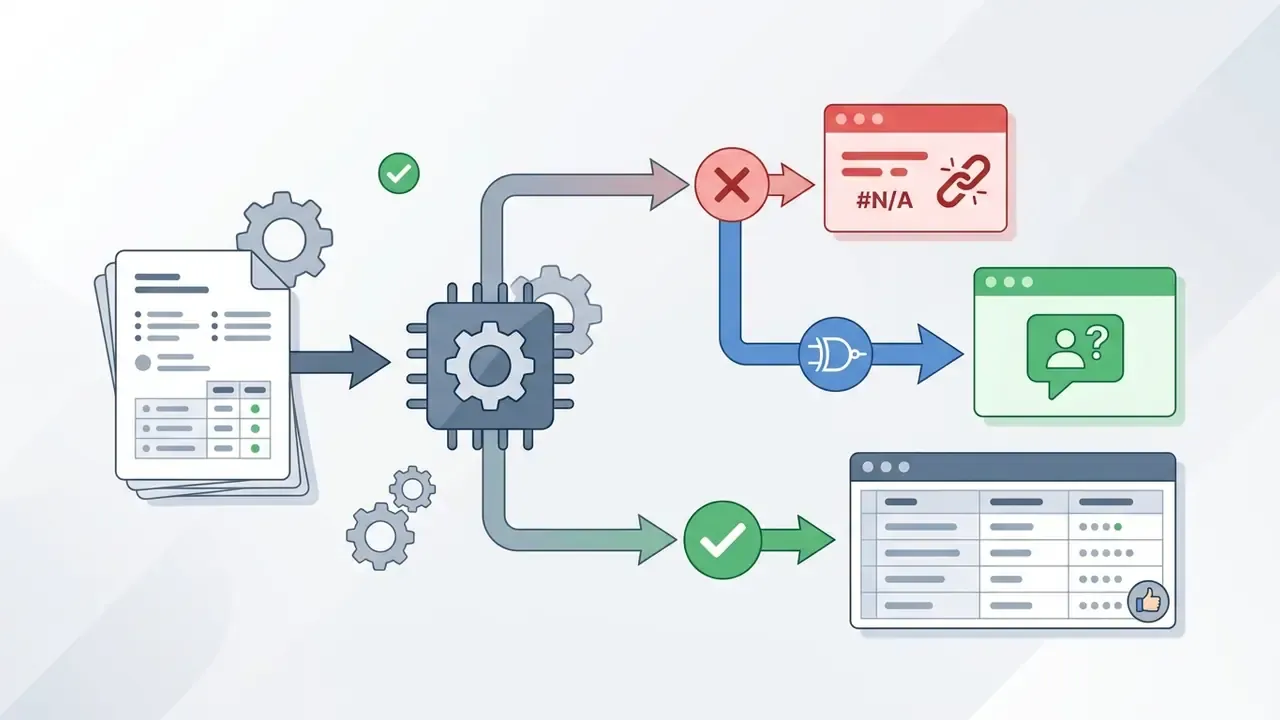
"Customer Not Found"the if_not_found argument replacing #N/A with a readable status.
0match mode requiring an exact match, which prevents silent approximate matching.Formulas for Calculations, Conditions, and Data Analysis
For deeper data analysis, AI generators assemble multi-condition formulas from SUMIFS, COUNTIFS, and nested IF statements (ElyxAI, 2026; Formula Workspace, 2026). These expressions calculate key performance indicators, track threshold breaches, and total transactions across specific date windows.
Card 1: multi-condition sales rollup
- Generated formula:
=SUMIFS(Sales[Amount], Sales[Region], "East", Sales[Date], ">=2026-01-01", Sales[Status], "Completed")
- Syntax breakdown:
Card 2: conditional average with a numeric threshold
- Generated formula:
=AVERAGEIFS(C2:C100, B2:B100, "Closed", C2:C100, ">1000")
- Syntax breakdown:
Card 3: readable KPI with named intermediates
- Generated formula:
=LET(prior, B1, current, B2, IF(prior=0, 0, current/prior-1))
- Syntax breakdown:
Readability is a control, not a preference. A formula a reviewer can read is a formula a reviewer can challenge.


Sales[Amount]the sum range (first argument).
Sales[Region], "East"first criteria pair, filtering by region.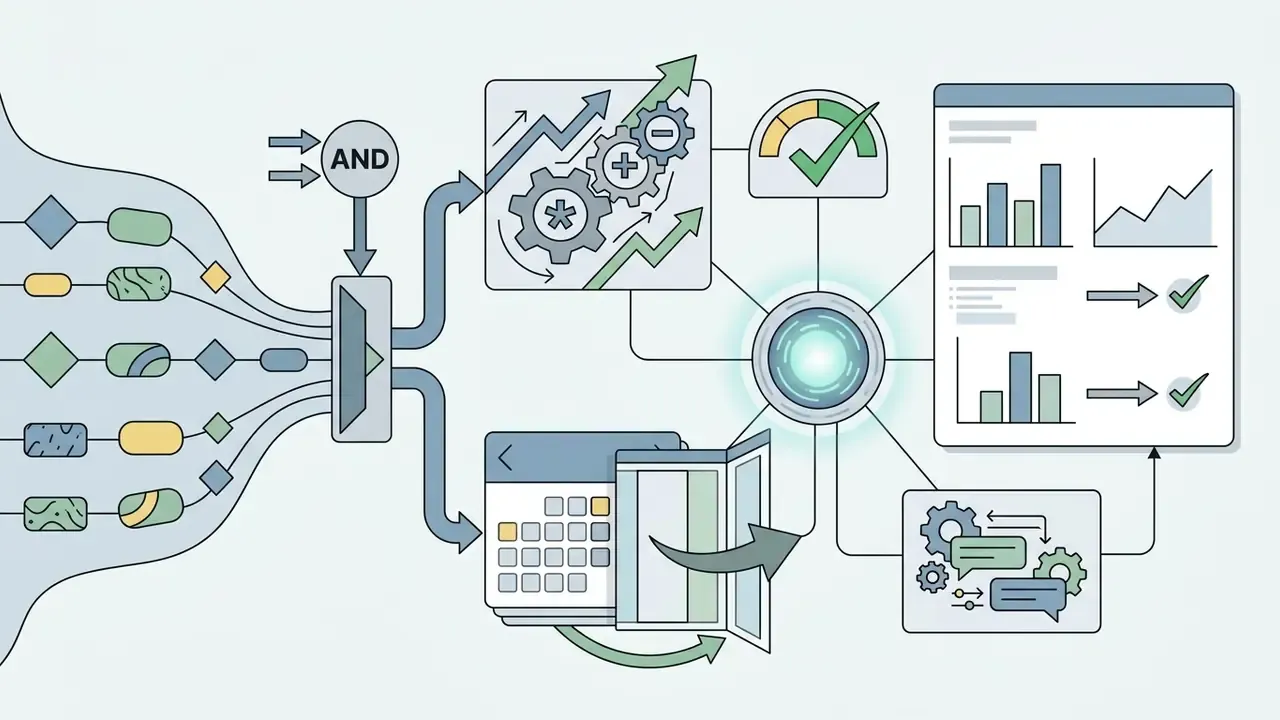
Sales[Date], ">=2026-01-01"second criteria pair, opening the date window.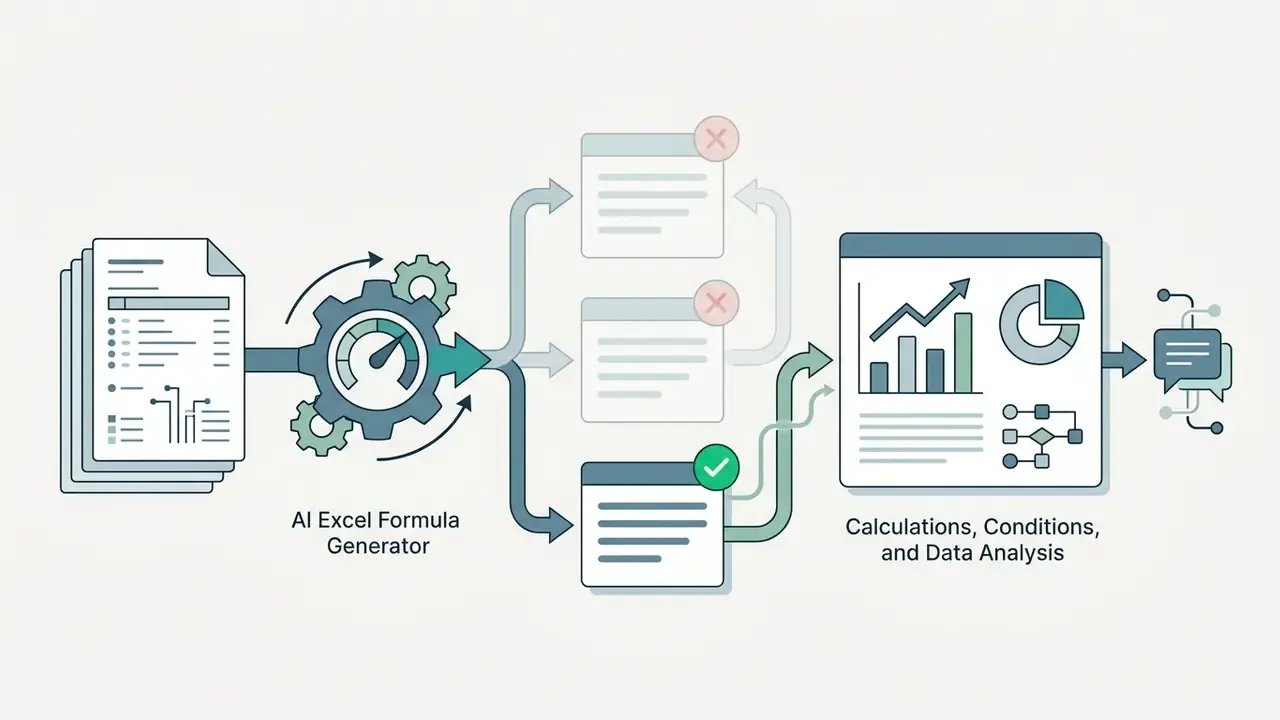
Sales[Status], "Completed"third criteria pair, excluding cancelled and pending orders.

C2:C100the averaging range (deal value).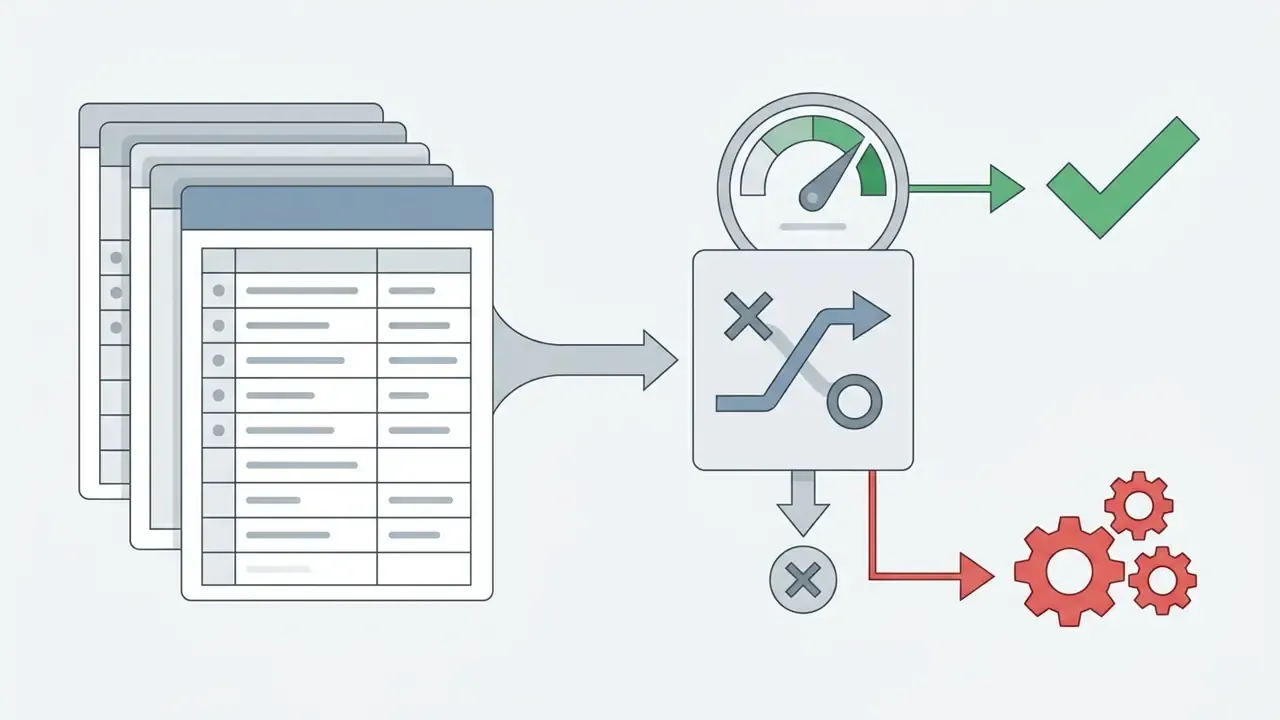
B2:B100, "Closed"first condition, deal status check.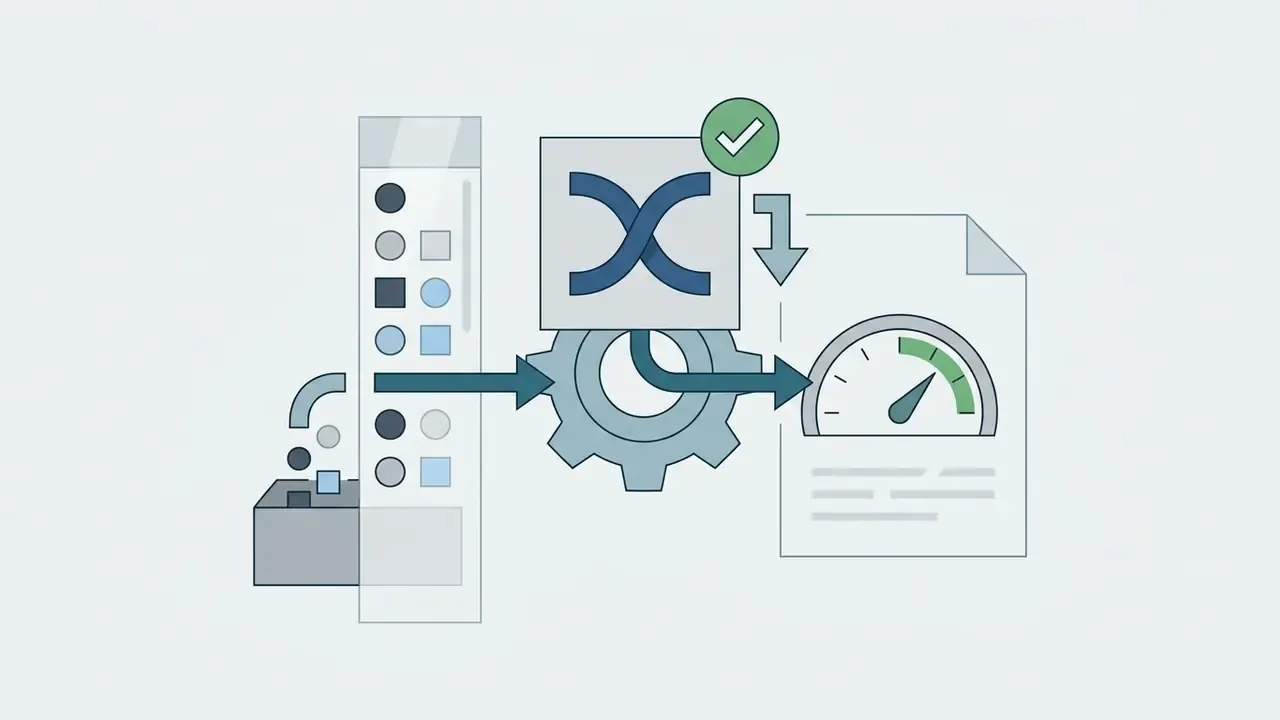
C2:C100, ">1000"second condition, filtering out values at or below 1,000 in the same column being averaged.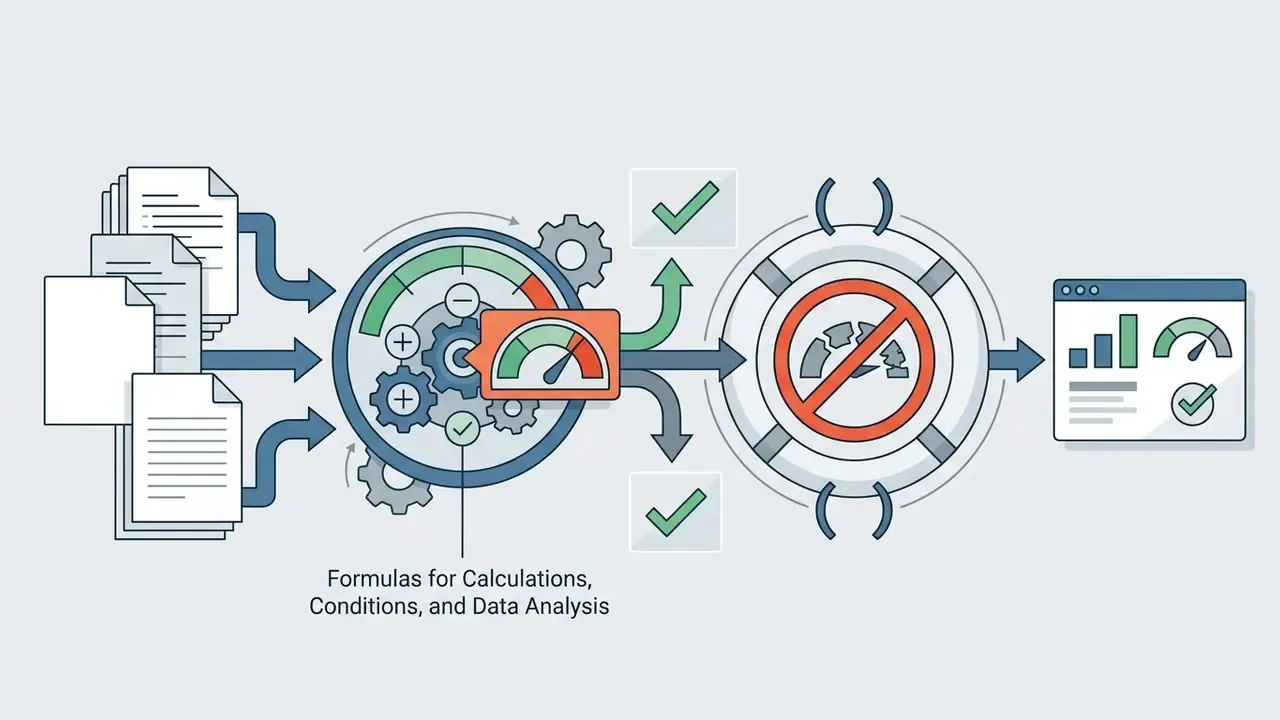
AVERAGEIFS returns #DIV/0!. Wrap it in IFERROR(...,0) before feeding a dashboard.
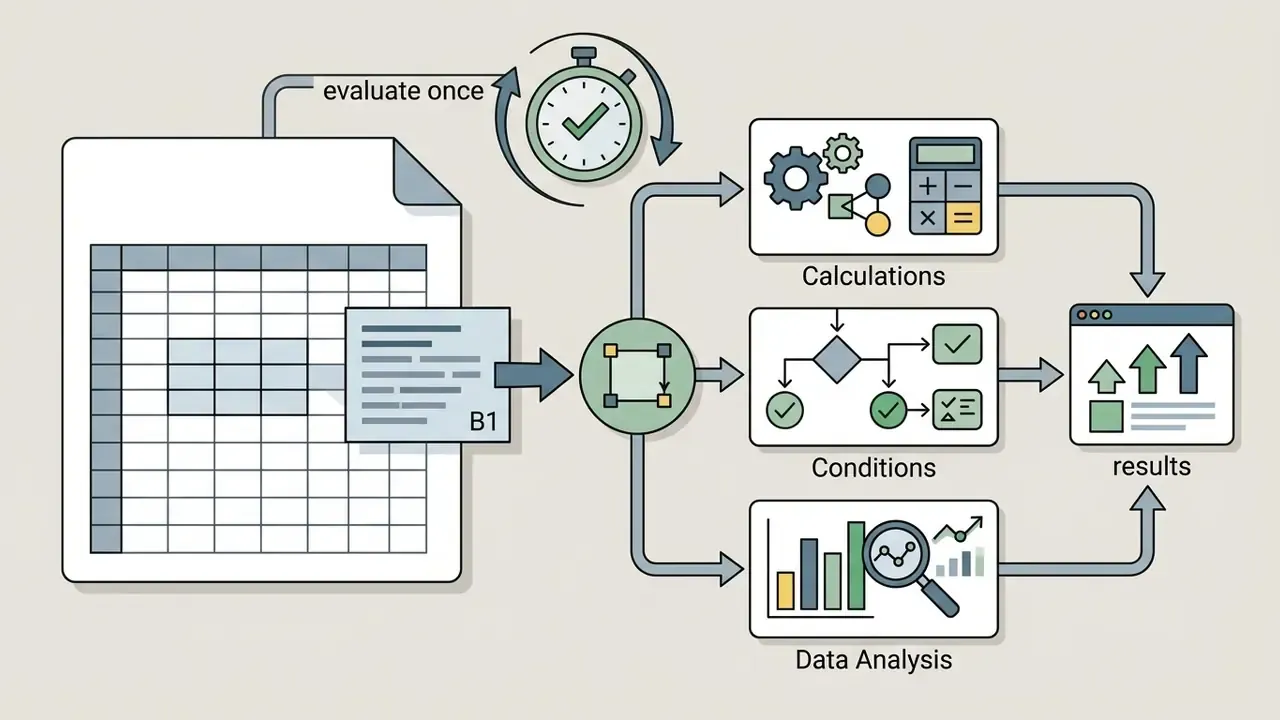
LET(prior, B1, ...)names the prior-period value, evaluated once.
current, B2names the current-period value.
IF(prior=0, 0, current/prior-1)the calculation body, guarded against division by zero.Generating Charts and Visual Summaries from Spreadsheet Data
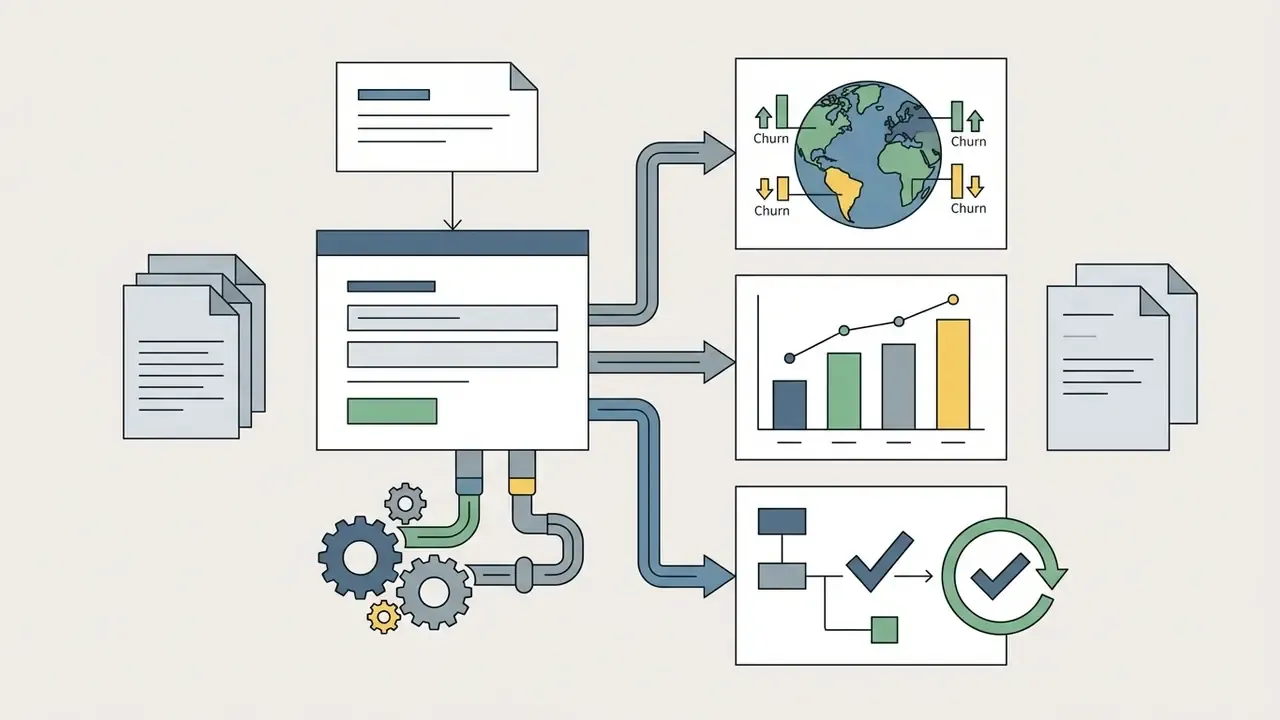
Modern generators reach beyond text formulas into visualization. Submitting a request such as "chart the quarterly sales trend by region" triggers a three-stage pipeline inside tools like Microsoft Copilot in Excel and standalone assistants:
A few caveats worth repeating in any reporting policy. Confirm the aggregation excludes duplicate rows and partial periods before circulating an auto-generated chart. Check axis units and currency scaling. And remember that a visually convincing chart built on a mis-scoped range is far more dangerous than a visibly broken formula, because nobody questions a clean-looking slide. Where the visual will be reused in board reporting, export the underlying aggregation formula too, so reviewers can trace plotted numbers back to source rows.

SUMIFS/GROUPBY expressions or a PivotTable to reduce transactional rows into plotted series.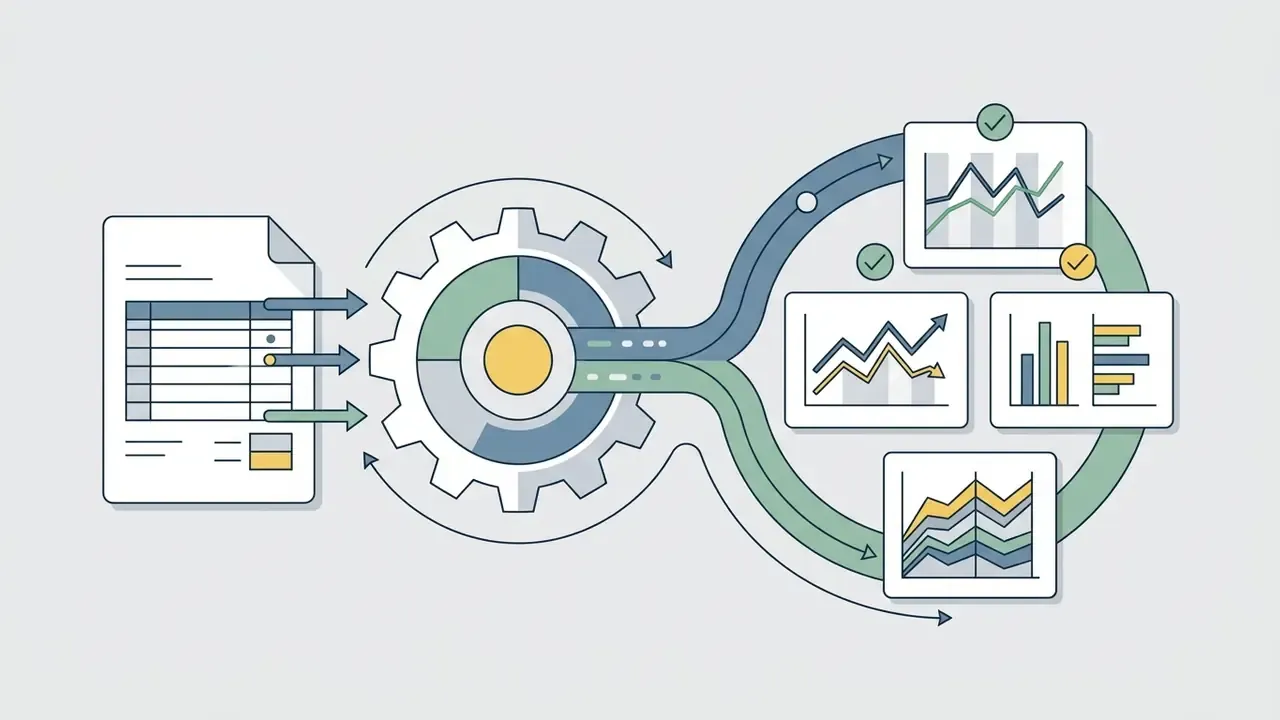
Advanced AI Tools: VBA, SQL, Charts, and Data Insights
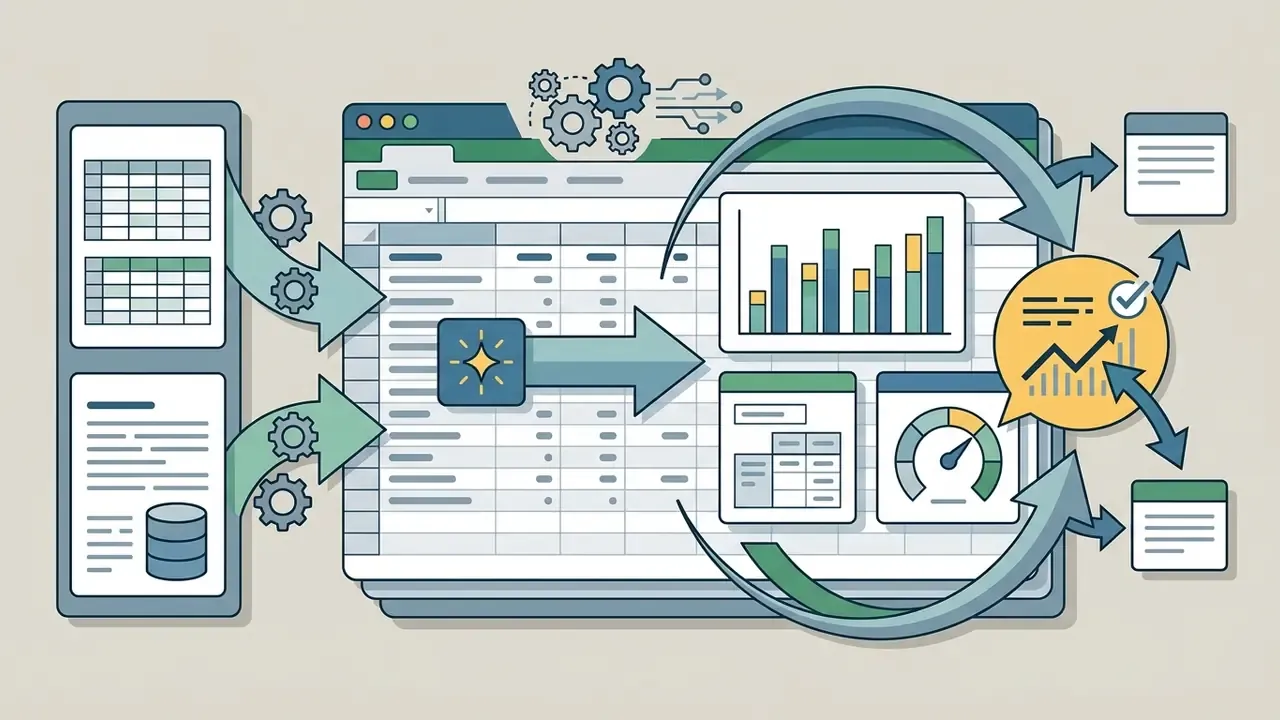
Beyond cell formulas, advanced excel ai tools offer script generation, dynamic chart creation, and automated summaries. Where a cell formula calculates local row values, a broader suite builds full administrative automation pipelines (Sourcetable Docs, 2026).
Current capabilities extend to:
- VBA and Apps Script generation macros that automate workbook formatting, batch PDF exports, and email distribution.
- SQL query generation database queries that pull external records directly into local spreadsheet tables.
- Regex and text parsing regular expressions for invoice codes, SKU patterns, and address normalization.
- Chart creation and insights analysis of numerical series producing trend visuals, pivot summaries, and outlier alerts (Microsoft Support, 2026).
- Agentic workbook navigation multi-tab traversal, dependency-aware repair, and cell-anchored explanation of existing logic.
«Agents such as Claude for Excel can navigate multi-tab workbooks, explain formulas with cell-level references, and repair errors while preserving formula dependencies.»
AI Formula Generators for Microsoft Excel and Google Sheets
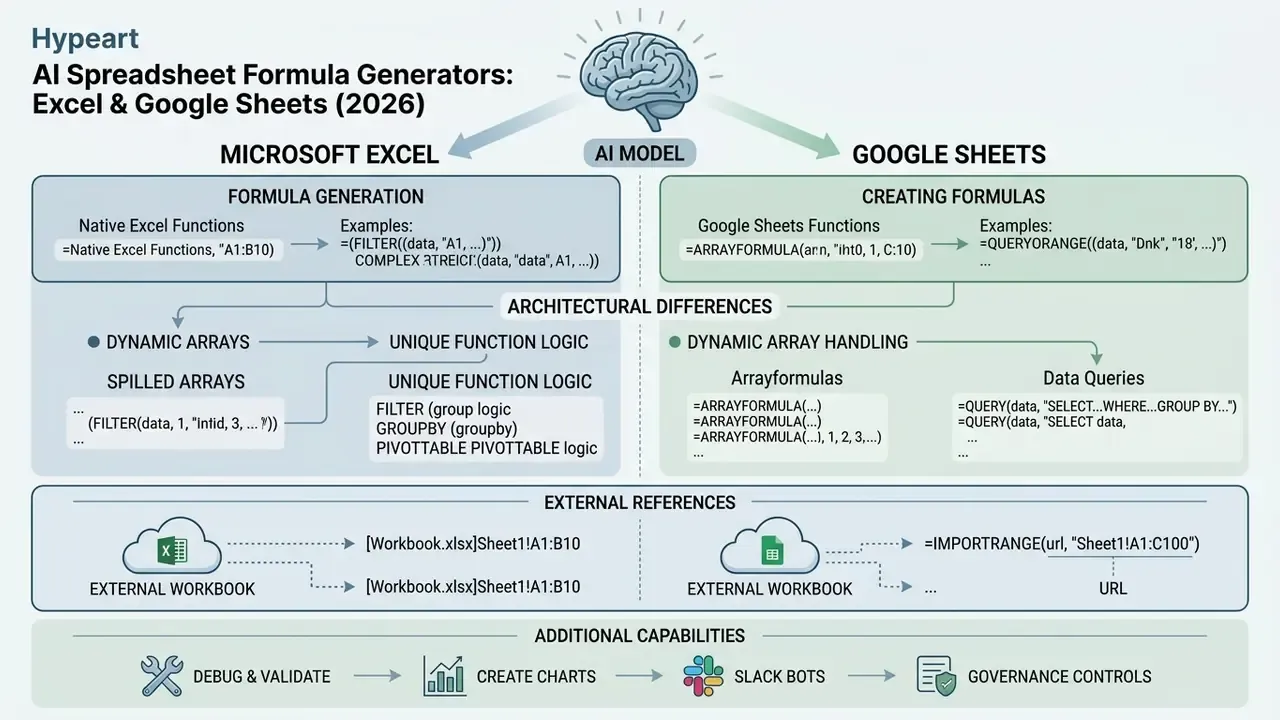
An ai spreadsheet formula generator supports both Microsoft Excel and Google Sheets, but architectural differences in function names and dynamic array handling affect compatibility. Cross-platform work means adapting generated expressions to the target environment, not copying them blindly.
Formula Generation for Microsoft Excel
Formula generation in Microsoft Excel relies on native platform models such as Microsoft 365 Copilot alongside array functions including LAMBDA, LET, and XLOOKUP (Microsoft Support, 2026). Excel dynamic arrays spill results across adjacent cells automatically, which allows more concise formula structures.
For enterprise reporting, LET lets the generator define named intermediate variables inside a single formula string. That reduces repeated calculations, improves readability, and shortens workbook recalculation time on large datasets. LAMBDA goes further by turning a validated expression into a reusable named function, which removes copy-pasted logic from dozens of sheets. A meaningful control benefit, incidentally: one reviewed definition replaces many independently drifting copies.
Two Excel-specific constraints matter operationally. Copilot formula generation expects data in a table or supported range. And workbooks labelled Confidential or Highly Confidential under sensitivity labelling may be blocked from certain Copilot actions by tenant policy, which surprises more finance teams than it should.
Creating Formulas for Google Sheets
Creating formulas for Google Sheets draws on cloud-native capabilities such as Google Gemini in Workspace plus dedicated functions like ARRAYFORMULA, QUERY, and IMPORTRANGE (Google Workspace Help, 2026). Unlike Excel, Sheets includes a built-in QUERY() function that runs SQL-like manipulation directly inside a worksheet cell, and newer builds expose an experimental AI(prompt, [range]) function that returns model output into a cell.
When moving models from Excel to Google Sheets, ai excel generation tools must translate dynamic array behaviour into explicit =ARRAYFORMULA() wrappers, because Sheets does not spill results from a plain range formula the way Excel 365 does. Three translation rules cover most migrations:
- Spilled Excel arrays become
=ARRAYFORMULA(...)applied across the whole target range. - Excel
FILTER/GROUPBY/PivotTable logic becomes=QUERY(data, "SELECT ... WHERE ... GROUP BY ..."), since Sheets consolidates SQL-style transformation into one cell function. - Excel external workbook references become
=IMPORTRANGE(url, "Sheet1!A1:C100"), which requires a one-time access authorization from the source file.
Always state the target platform in the prompt. The same natural-language request yields materially different syntax for Excel 365 versus Sheets, and locale settings may switch argument separators from commas to semicolons. A small detail that has broken more month-end models than any hallucination.
How to Choose an AI Excel Formula Generator Tool
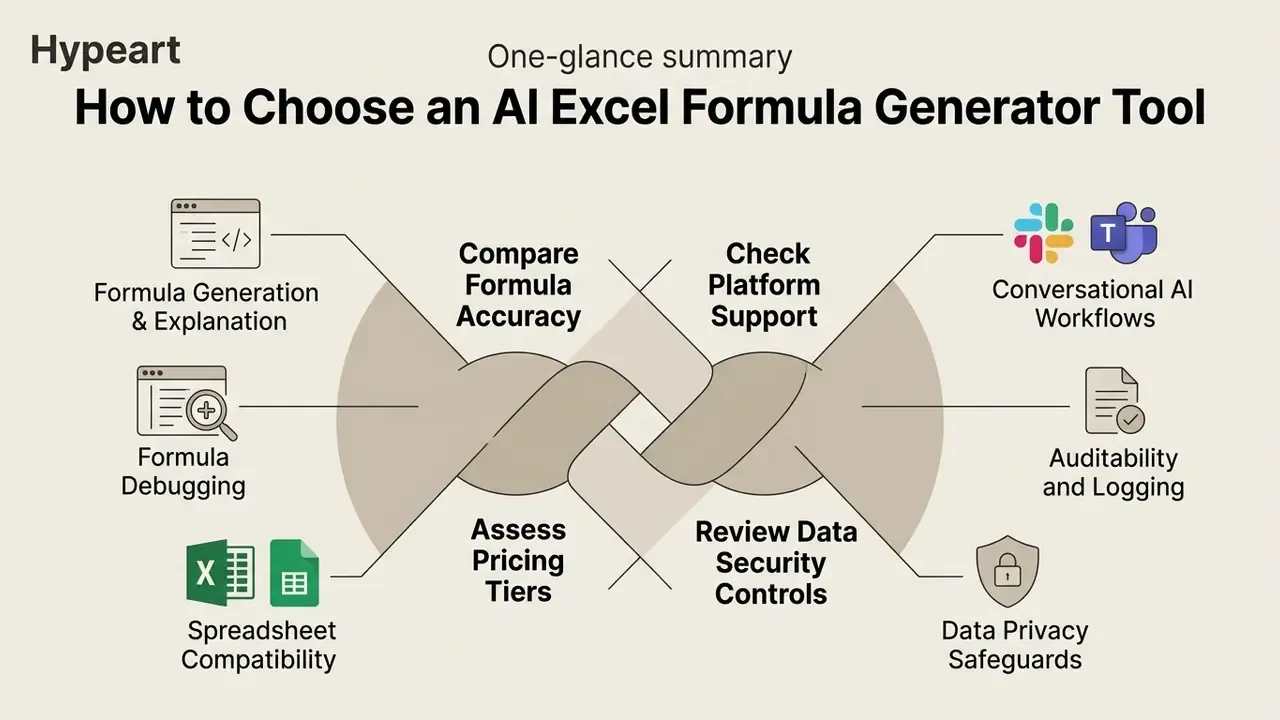
Selecting the best excel ai formula generator tool means assessing formula accuracy, platform support, pricing tiers, and data security controls together, not sequentially. Third-party AI software has to clear institutional privacy standards before it touches enterprise files.
AI governance guidance from the Australian OAIC (AI Guidance, 2024) and the UK Information Commissioner's Office (AI Risk Toolkit, 2026) expects enterprise buyers to audit data flows, access controls, and vendor training policies before commercial deployment.
«Enterprise integrations such as Copilot in Excel operate inside Microsoft 365 organizational security boundaries, which qualitatively separates them from consumer web tools.»
Key Features to Compare Before Tool Selection
When evaluating an excellyai ai excel formula generator tool or a competing product, compare six functional dimensions:
- Formula generation and explanationconverting natural text into working syntax and explaining pre-existing formulas step by step.
- Formula debuggingbuilt-in error checking that identifies broken references (
#REF!) and proposes corrections. - Spreadsheet compatibilitynative add-in support for both Microsoft Excel and Google Sheets.
- Scripting capabilitiesoptional generation of VBA, Google Apps Script, and SQL queries.
- Data privacy safeguardsexplicit contractual guarantees that prompt text and uploaded files are not used for public model training.
- Auditability and loggingtraceable activity logs recording generated logic for internal model risk review.
Two secondary criteria separate serious enterprise tools from lightweight wrappers. First, whether the assistant reads the actual uploaded file rather than only the text of the question. Second, whether it shows its work by explaining each generated expression. Logic you cannot inspect is logic you cannot validate. Buyers weighing several vendors side by side can see the overview of feature and control differences before shortlisting.
Conversational AI Workflows in Slack and Microsoft Teams
For corporate teams the fastest formula workflow often avoids window switching altogether. Integrations such as Cube's conversational apps for Slack and Microsoft Teams, and ExcellyAI's one-click company-wide Slack access, let analysts post a request straight into a channel:
@ExcelBot calculate YOY growth for Q3 using the Revenue column in the FY26 Actuals tab
The bot returns the formula plus a plain-language explanation of the business logic, visible to the whole channel. Three operational advantages follow:
The governance trade-off is real. Chat transcripts now hold calculation logic and sometimes data extracts. Restrict these bots to channels with controlled membership, confirm role-based access controls on the underlying data source, and check retention settings before enabling them tenant-wide. If in doubt, pilot in one team first.

Free AI Excel Formula Generators versus Paid Business Plans
A free ai excel formula generator, or an excel ai formula generator free online tool, typically caps usage at 2 to 10 formula generations per month or day (GPTExcel Terms, 2026; ExcellyAI Pricing, 2026). Those free tiers suit occasional individual use but lack the volume, add-in integration, and security features corporate finance teams need. Vendor documentation frames it plainly: OpenAI lists spreadsheet extension access as "Limited" on the free plan, and Anthropic positions Claude Free as "best for occasional use".
Paid tiers unlock higher request limits, native Excel and Google Sheets add-ins, priority model access, and administrative privacy controls.
| Tool / Provider | Free Tier Limits | Paid / Pro Tier Pricing | Supported Platforms | Scripting Support (VBA/SQL) |
|---|---|---|---|---|
| Microsoft 365 Copilot | Restricted trial access | Commercial M365 add-on license | Excel, Word, Teams | Native Copilot insights (no raw VBA) |
| ExcellyAI | 5 formulas / month | Custom enterprise pricing | Web app, Slack | Formulas, prompt optimization |
| GPTExcel | 4 uses / 12 hours | roughly $10 to $15 / month | Web app | Formulas, VBA, SQL, Regex |
| Ajelix | 10 requests / month | roughly $9 to $19 / month | Web, Excel and Sheets add-ins | Formulas, VBA, data analysis |
| FormulasHQ | 2 to 5 test prompts | roughly $12 / month | Web app | Formulas, VBA, Apps Script, SQL |
| Formula Bot | Free tier, no sign-up wall | Paid plans for larger files | Web app, Excel and Sheets | Formulas, analysis, auto-charts |
Pricing and free-tier caps are vendor-controlled and change without notice. Re-verify against official documentation at the time of purchase.
Company query context: no verified information is available regarding active commercial operations or registered corporate services for Hypeart.ai as of August 2026. Any market positioning below would be hypothetical, so none is claimed.
To evaluate subscription structures, managers can review enterprise subscription plans and pricing tiers before committing to annual licensing, model expected volume with the calculators, and align procurement with actual monthly formula demand rather than headline request caps. Where output will be republished or embedded in client deliverables, confirm the vendor's commercial-use terms as well. Questions about deployment support can go to AI Media Support.
Limitations of AI Formula Generators and Accuracy Control
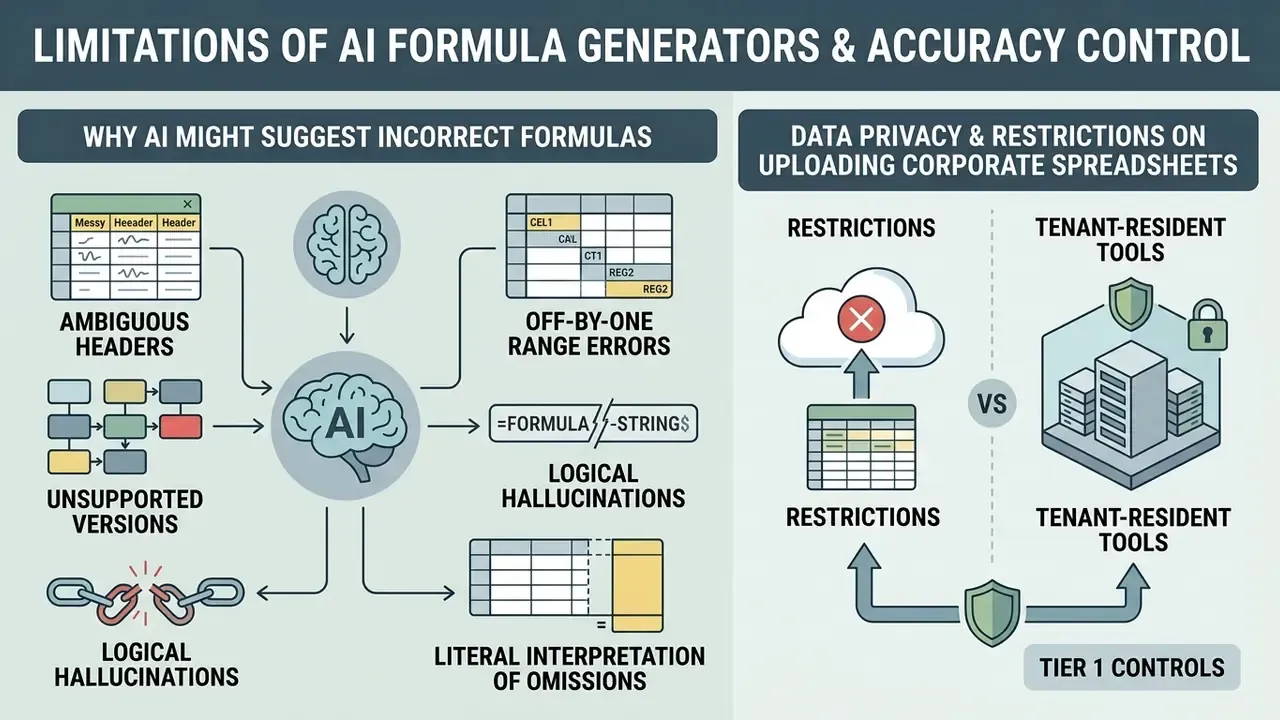
Despite rapid progress, AI formula generators carry hard limits. Benchmarks put error rates between 20% and 30% on complex, multi-step, or cross-sheet calculation tasks (Zhao et al., 2024; LLM Spreadsheet Benchmark, 2025).
«Leading models average roughly 0.636 across six categories of spreadsheet tasks, with performance dropping sharply on complex multi-step operations.»
Why AI Might Suggest an Incorrect Excel Formula
A model suggests an incorrect formula for mundane reasons: ambiguous prompts, missing context about table structure, version mismatches between Excel releases, or wrong assumptions about reference ranges (Microsoft Support, 2026).
Primary failure modes include:
- Ambiguous header names the model confuses
"Net_Sales"with"Gross_Sales"because the prompt was vague. - Off-by-one range errors selecting
$A$2:$A$99instead of$A$2:$A$100, quietly dropping the final row. - Unsupported function versions generating
=XLOOKUP()for a user on an older build that supports only=VLOOKUP(). - Logical hallucinations syntactically valid functions that compute the wrong number.
- Literal interpretation of omissions research on spreadsheet formula generation found that details left out of the prompt are treated literally, so unstated exclusions such as refunds, test rows, or partial periods slip into the calculation.
«Self-training through formula execution allows FormulaSPIN to break the accuracy ceiling of static supervised training, improving results on the NL2Formula test set.»
That research direction is instructive for practitioners too. Correctness improves when formulas are executed and compared against expected results, not merely inspected for plausible syntax.
Data Privacy and Restrictions on Uploading Corporate Spreadsheets
Uploading corporate spreadsheets that contain personal identifiable information (PII), proprietary trading data, or confidential financial records into unvetted public AI tools creates severe compliance exposure (OAIC Guidance, 2024). The Australian regulator's position is explicit: personal, and especially sensitive, information should not be entered into publicly available generative AI tools.
Joint security guidance from CISA, the NSA, and the FBI (AI Data Security Guidance, 2025) warns that data submitted to public generative AI models can leak through supply chain breaches or land in public training datasets. Policy has to be blunt here: employees do not upload sensitive files to unauthorized consumer platforms.
«Copilot operates strictly within Microsoft 365 organizational permissions and compliance policies, without moving data outside the tenant.»
A workable control hierarchy for spreadsheet AI:
A practical anonymization technique closes most of the gap. Ask for the formula using a synthetic schema ("Column A = Customer_ID, Column B = Amount") and never paste real values. The generated syntax comes back identical, while the exposure disappears. This also satisfies the data minimisation expectations in the UK ICO's AI and data protection risk toolkit, and it kills a common shadow-AI excuse: "I had to upload the file to get the formula". You did not.



FAQ About AI Excel Formula Generators
Can You Create Excel Formulas Using Natural Language?
Yes. Modern tools let users create excel formula ai expressions from plain natural-language descriptions. By parsing the prompt text and the table structure, an excel formula creator ai identifies the required functions and returns syntactically correct cell logic (Microsoft Support, 2026). Naming exact column headers and logical boundaries in the prompt maximizes accuracy. Requests can be written in more than 20 languages, including Russian, Spanish, German, and French, with English function names returned automatically.
Can AI Explain an Existing Formula?
Yes. Most AI spreadsheet tools include a formula explainer that breaks a complex expression down argument by argument. The assistant identifies nested arguments, lookup keys, and conditional operators, then translates raw syntax into plain language. Vendor documentation positions this feature for deeply nested formulas and unfamiliar functions inherited from other authors, which speeds up spreadsheet audits and legacy workbook reviews. One caveat: no peer-reviewed benchmark of explanation accuracy currently exists, so treat an explanation of business-critical logic as a hypothesis to verify against source data.
Can AI Fix a Formula That Returns an Error?
Yes. Paste the failing formula, the exact error code, and a short description of the columns into the assistant, and ask which argument is invalid. Dedicated checkers state what is wrong and propose a correction, usually with a preview step before the sheet changes. Most repairs fall into predictable categories: out-of-range column indexes causing #REF!, type mismatches causing #VALUE!, missing lookup keys causing #N/A, and unsupported functions causing #NAME?. Re-run boundary tests after every fix, because a repaired formula can be syntactically valid and still logically wrong.
Can AI Build Charts and Dashboards From Spreadsheet Data?
Yes. Microsoft documents Copilot in Excel creating charts, PivotTables, summaries, trends, and outlier detection from workbook data. Third-party assistants generate line charts for time series, column and bar charts for category comparison, and combined visuals for layered metrics. The tool selects the chart type, performs the aggregation, and inserts the object without manual range selection. Verify aggregation scope and axis units before any auto-generated visual circulates in reporting.
Is a Free AI Excel Formula Generator Sufficient for Regular Business Use?
Usually not. A free excel ai formula generator is constrained by strict request limits, typically 2 to 10 formulas per month or 4 tool uses per 12 hours, and lacks enterprise data protection controls (GPTExcel Terms, 2026). Vendors themselves describe free access as capped and intended for occasional use rather than sustained professional workloads. Regular business use points to paid commercial tiers or integrated suites such as Microsoft 365 Copilot, which provide higher request volumes, add-ins, and enterprise security safeguards.
How Should Regulated Teams Document AI-Generated Formulas?
Maintain a formula register recording the prompt, the generated expression, the target workbook and cell range, the reviewer, the test cases executed, and the approval date. This satisfies the evidence expectations of SR 11-7-style model risk validation, the code-review requirements of GLP spreadsheet guidance, and the output-monitoring controls described in NIST AI RMF 600-1. It also makes the formula reproducible months later, without re-querying the AI tool.
Open Questions and a Safe Next Step
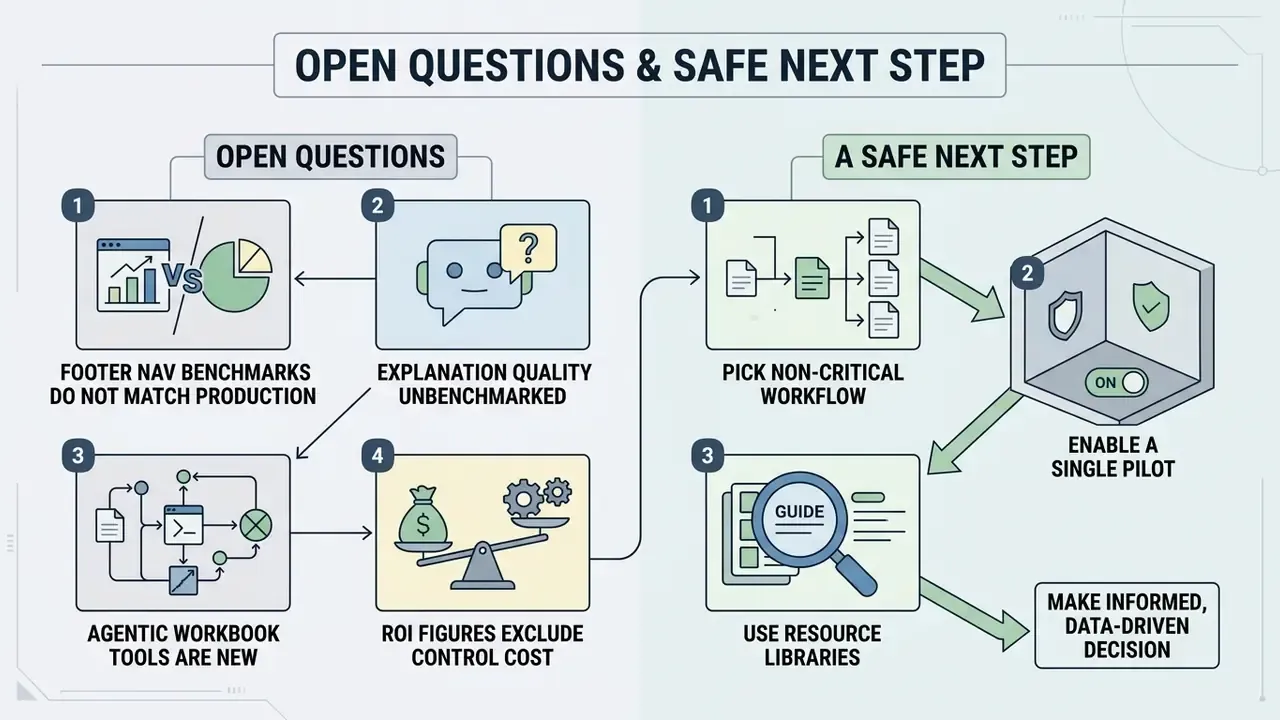
Some things remain genuinely unsettled, and pretending otherwise would be poor governance.
- Benchmarks do not match production. NL2Formula and SpreadsheetBench measure accuracy on curated tables. Your reconciliation workbook with merged cells, hidden rows, and eleven years of undocumented history is a harder instrument. Assume worse performance until measured internally.
- Explanation quality is unbenchmarked. A confident explanation of a nested formula is not verified evidence of correct logic.
- Agentic workbook tools are new. Multi-tab traversal and dependency-aware repair look promising in benchmark reports, but institutional experience is thin. Owner, scope, escalation path, and shutdown mechanism should be defined before any agent writes to a production file.
- ROI figures usually exclude control cost. Time saved on drafting is easy to count. Reviewer time, register maintenance, and residual risk are not, and they belong in the same calculation.
A safe next step, for a bank or a mature fintech alike: pick one non-critical reporting workflow, enable a tenant-resident tool only, require the formula register from day one, and measure both drafting time and review time for one full close cycle. Two numbers, one cycle. That is enough to decide whether a wider rollout is justified, and enough evidence to bring to a risk committee without overclaiming.