"Treat every visual element as an asset with defined ownership, verifiable parameters, and a clear audit trail. Embedding a watermark or overlaying corporate branding is a control decision, not just a design one."
Marcus Hale, author. Illustrative viewpoint, not the position of a real executive or firm.
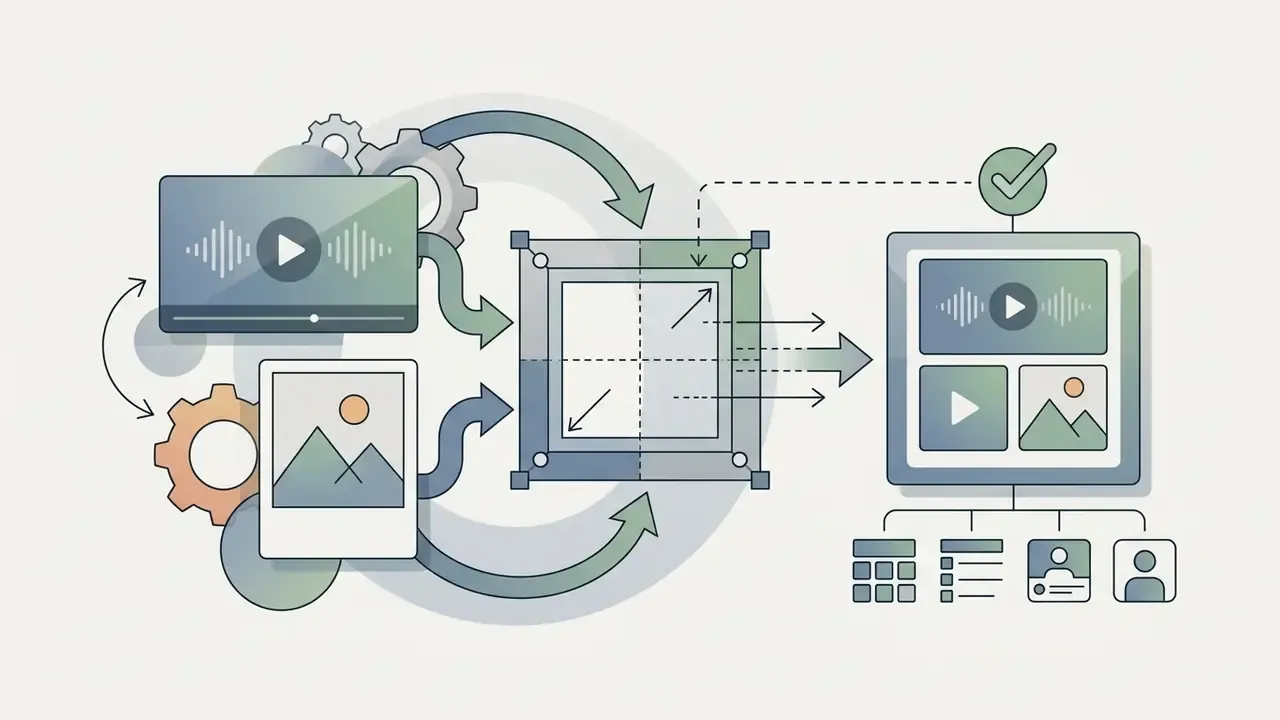
Adding a photo, logo, or graphical overlay to a video in an online editor means four things in order: upload the source footage, place the image asset on a dedicated timeline track above the video layer, adjust its visual parameters, and export the rendered file. Modern web platforms handle these compositions with browser-native technologies, either locally on the device or through cloud pipelines, and no software installation is required.
Why does this matter to a compliance or finance leader rather than only a video editor? Because the same clip that carries a brand mark may also carry client data, screen recordings of internal systems, or model output that will later be reviewed. The tool choice decides where that file travels.
«WebCodecs grants JavaScript direct access to hardware-accelerated GPU codecs, delivering near-native overlay rendering with no server upload.»
Executive Summary (Short Answers First)
| Question | Short answer |
|---|---|
| How does the workflow run? | Upload video, drop the image on a second timeline track above the video, set position, scale, opacity and in/out timestamps, then export MP4. |
| Which image file works best? | 32-bit PNG with an active alpha channel for logos and lower-thirds; JPEG or WebP for full-frame photos; GIF for looping graphics. |
| Is it genuinely free? | Yes on watermark-free tiers (Clipchamp free plan, client-side open-source tools). Kapwing and VEED.io embed platform watermarks and cap duration and resolution. |
| How large should a logo be? | Roughly 10% to 15% of the frame width, positioned inside platform-specific safe zones. |
| Is my footage uploaded to a server? | Not with client-side engines. WebCodecs and WebAssembly (ffmpeg.wasm) run decode, composite and re-encode locally on the device GPU. |
| What about auditability of the exported asset? | Corporate and synthetic media should carry provenance metadata (C2PA-style manifests) plus an invisible watermark, retained alongside the visible brand overlay. |
| Which export settings preserve quality? | Match source resolution and frame rate; keep bitrate equal to or above the source (1080p30: 8 to 12 Mbps; 1080p60: 12 to 15 Mbps; 4K30: 35 to 45 Mbps). |
| Can the output be used commercially? | Depends on the licence, not the watermark. Check the vendor terms and the view the guide reference before publishing branded output. |
How to Add an Image to a Video Online
Adding an image to a video online requires importing the primary video file into a web-based editor, dropping the image asset onto a separate timeline track above the video, adjusting spatial placement, and starting the rendering pipeline. That multi-layer compositing structure is what keeps the visual asset overlaid across the frames you designate, and nowhere else.
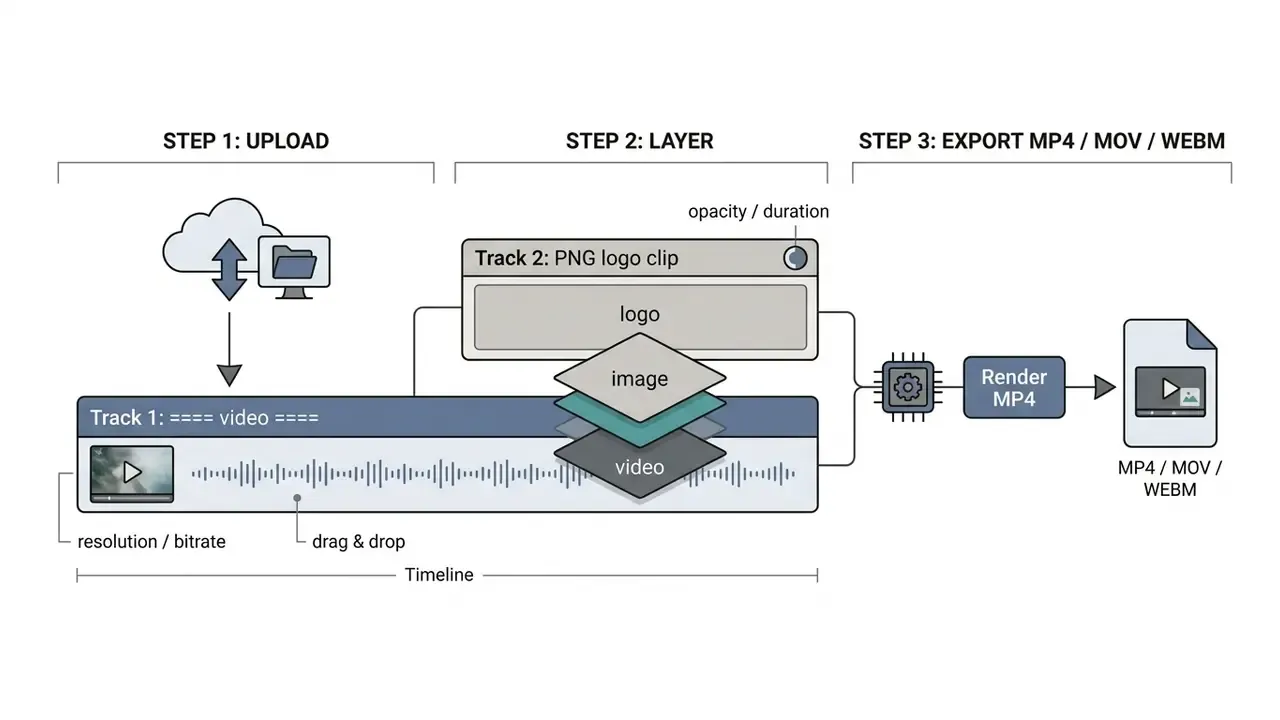
- Workflow steps:
- Upload footage: select and import the primary video file into the web editor canvas.
- Layer graphics: drag the graphic or photo onto the secondary timeline track positioned over the video stream.
- Export composition: set render parameters, compile the video file, and save the output.
Three steps. That is the whole mechanic, and every editor below is a variation on it.
Upload Your Video and Choose the Editing Project
Importing footage into a web editor begins with a compatible file format, usually MP4 or MOV, loaded into the workspace project container. Most modern editors then build a base sequence that matches the video file's native aspect ratio, frame rate, and resolution on import, so you rarely need to configure a canvas by hand.
When a team evaluates editing environments, testing performance on high-resolution files early prevents playback latency later. Comparative reviews of free video editing software clarify which engines sustain smooth scrubbing on 4K sources and which quietly fall back to proxy previews.
Upload ceilings differ sharply by vendor, and this is where projects stall first. Adobe Express documents a 1 GB per-file limit, Google Studio caps video uploads at 100 MB, and the YouTube Data API accepts video/* payloads up to 256 GB. Ingestion policy, not codec support, is often the first constraint teams hit. Most platforms accept drag-and-drop or direct cloud imports, so a new video editing project starts in seconds; if you are budgeting storage or seat costs across a department, the explore the hub resources help translate those ceilings into a monthly figure.
Add a Photo or Image to the Video Timeline
Placing a visual graphic on a video means dragging the target photo, PNG logo, or graphic file directly onto the editor canvas or media panel. Once imported, the image behaves as an independent layer on the editing timeline, sitting above the base video track.
That stacking hierarchy is what keeps the image visible over the background clip. Precise attachment relies on snapping: professional suites and browser editors alike snap a dragged image clip to the nearest timeline marker, playhead, or adjacent clip boundary, so the graphic starts on an exact frame instead of a rounded approximation. Layer count, per-track opacity control, and keyframe availability differ between free and paid tiers. Verify track limits before assembling a complex composite. Rework on a 40-layer sequence is not a pleasant afternoon.
Some teams also prepare stylised source assets upstream, whether that is a seasonal card from an ai christmas photo generator or flat vector decorations from an ai clipart library, then treat them as ordinary overlay layers once they land on the timeline.
Export and Download the Finished Video
Completing an overlay project means compiling the stacked video and image layers into a single downloadable media file. Clicking export starts local or server-side transcoding, which processes the composite frames into a standard distribution format such as MP4.
Once processing finishes, the editor generates a direct download link for the final video file. Teams standardising a production stack can review broader video editor workflows to align export presets, naming conventions, and archive formats across projects. Browser editors typically write MP4 (H.264) by default and drop the file straight into the local Downloads directory; audio-only projects export as M4A.
Customize an Image Overlay on Video
Customizing an image overlay involves modifying spatial properties, visual transparency, playback duration, and keyframe animation directly in the editing interface. Fine-tuning those parameters is how the graphical element integrates cleanly with the underlying video content without hiding essential subject matter.
Resize, Reposition and Rotate the Image
Scale and orientation are handled through bounding box handles or numeric input fields in the transformation panel. Dragging corner handles scales the picture proportionally, while rotational handles adjust alignment relative to the video frame. Holding Shift while rotating constrains movement to fixed 15 degree increments, and dedicated 90 degree rotate or flip commands fix orientation on mobile-captured assets.
Precise X and Y coordinate entry lets an operator drop graphics into defined visual quadrants, such as lower-third graphics or corner watermarks.
Pixel-perfect alignment. For exact placement, select the image layer on the canvas and use the keyboard arrow keys to nudge the graphic one pixel at a time, or Shift plus Arrow for 10-pixel jumps. Cropping the overlay itself is handled with the crop tool: drag the crop handles to trim edges, then reposition the visible area by dragging inside the faded crop region. When matching an integrated photo to the colour profile of the underlying footage, adjust the asset's brightness, contrast, saturation, and hue alongside the standard opacity control. That single step is what stops an overlaid photograph from reading as a pasted-on rectangle.
Practical size guidance: match overlay resolution to the sequence. A full-frame overlay on a 1080p clip should be roughly 1920 by 1080 pixels; corner badges can be far smaller, because upscaling a low-resolution logo produces soft, aliased edges that survive into the final encode. For specialised asset generation before video editing, creators often prepare clean, isolated elements with transparent backgrounds in a dedicated photo editor. Product and apparel shots are a common case here, and teams building lookbooks sometimes source variants through an ai clothing generator before compositing them over b-roll.
Set Transparency, Effects and Image Duration
Overlay visibility is governed by the opacity percentage, where 0% is fully transparent and 100% is fully solid. Display timing comes from trimming the start and end handles of the image clip along the timeline, which sets exact in and out timestamps.
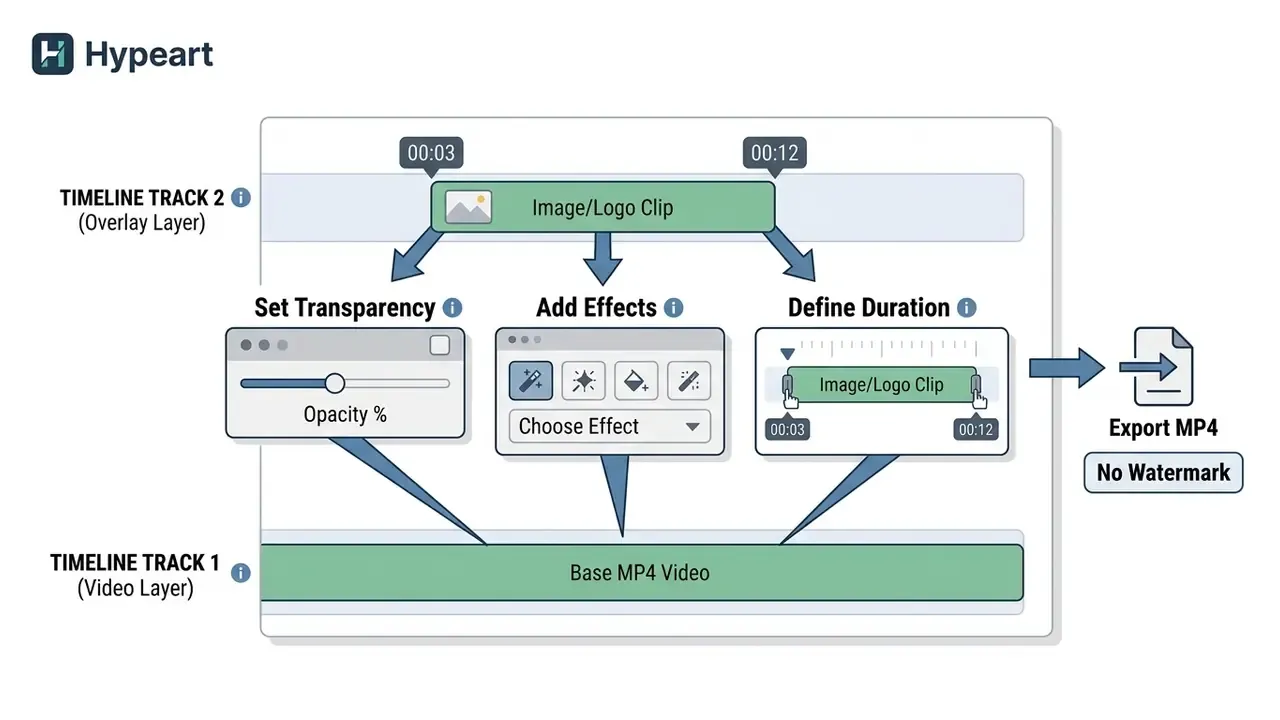
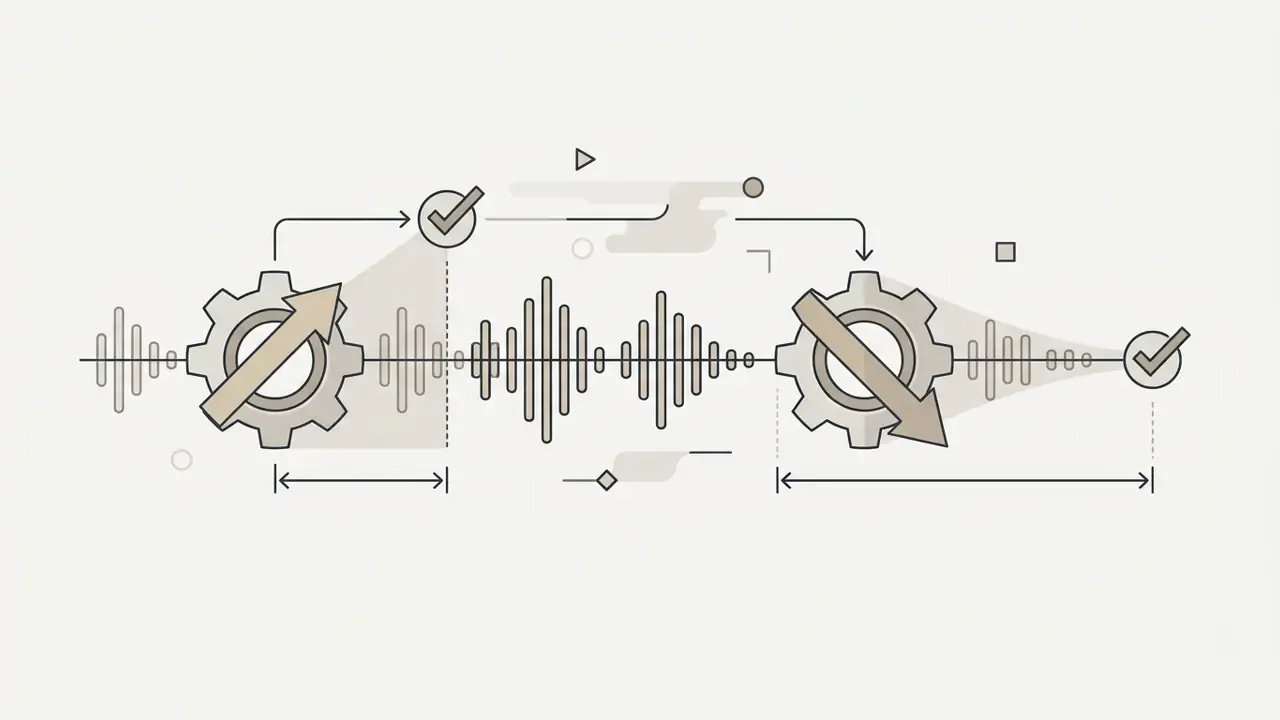
Fade-in and fade-out effects smooth the transition as the image enters and leaves the frame. Opacity keyframes are the mechanism underneath: two keyframes define the ramp, and the interval between them sets the fade duration in seconds. Setting precise alpha values and frame-accurate timing gates prevents flicker across re-encoded segments, a behaviour confirmed by watermarking research that uses content-adaptive masking.
«FlowMark embeds 128-bit messages at up to 50.08 dB PSNR, eliminating visible flicker through content-adaptive masking.»
Beyond opacity, editors expose clip-level filters and colour adjustment on the overlay layer, plus chroma-based transparency: an HSV range or a solid background colour can be keyed out so only the intended graphic survives compositing. Worth a small caveat. Aggressive keying on a compressed source will chew the edges of fine detail, so key first on the highest-quality version of the clip you have.
Add a Logo, Text or Picture-in-Picture Overlay
Add Multiple Images to One Video
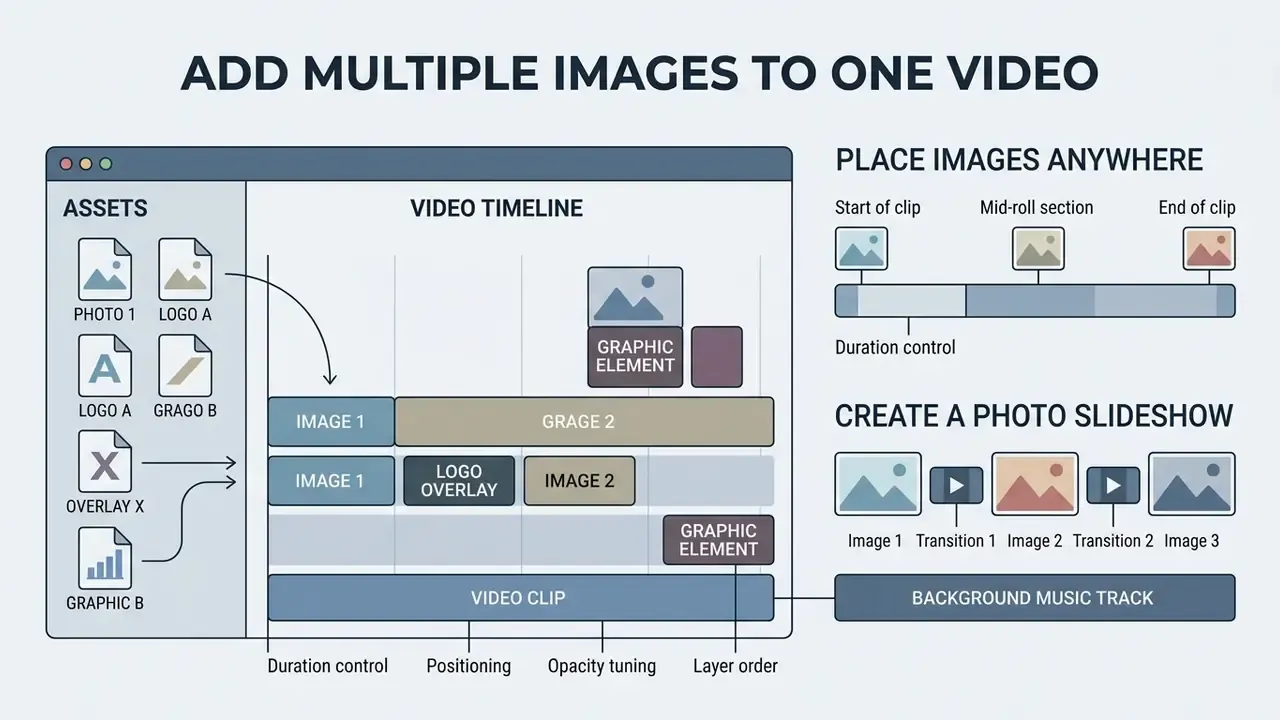
Combining several photos and graphic files inside one video project means structuring asset tracks chronologically or stacking them across parallel timeline layers. That structure supports image galleries, sequential photo montages, and timed graphical callouts inside a single video sequence.
Place Images at the Start, End or Any Moment
Positioning graphics at designated playback timestamps means aligning image clips with time markers on the editor timeline. An image asset at the beginning creates a title card; graphics at the terminal boundary form end screens or call-to-action cards.
Because every image occupies its own layer with independent in and out points, one graphic can appear for a single frame while another persists for the whole runtime. Typical placements look like this:

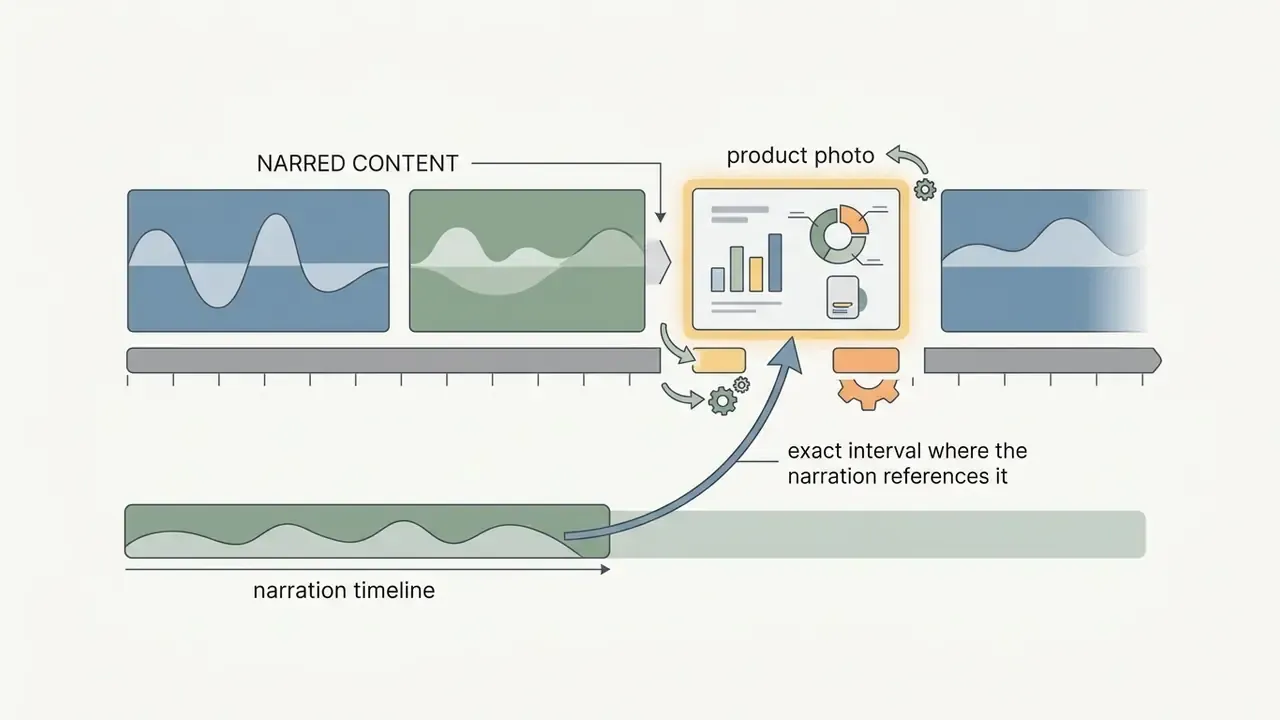
To streamline production, standardise asset naming, resolution, and colour space in advance; consistent input specifications cut per-project scaling work noticeably. In one internal training series, moving from ad hoc PNG sizes to a fixed 400 by 400 badge spec removed almost every manual resize step. Precise timeline positioning then guarantees each visual appears exactly when the audio references it. Where a mid-roll graphic cites external research, an ai citation generator keeps on-screen source lines formatted consistently across a series.
Create a Photo Slideshow with Background Music
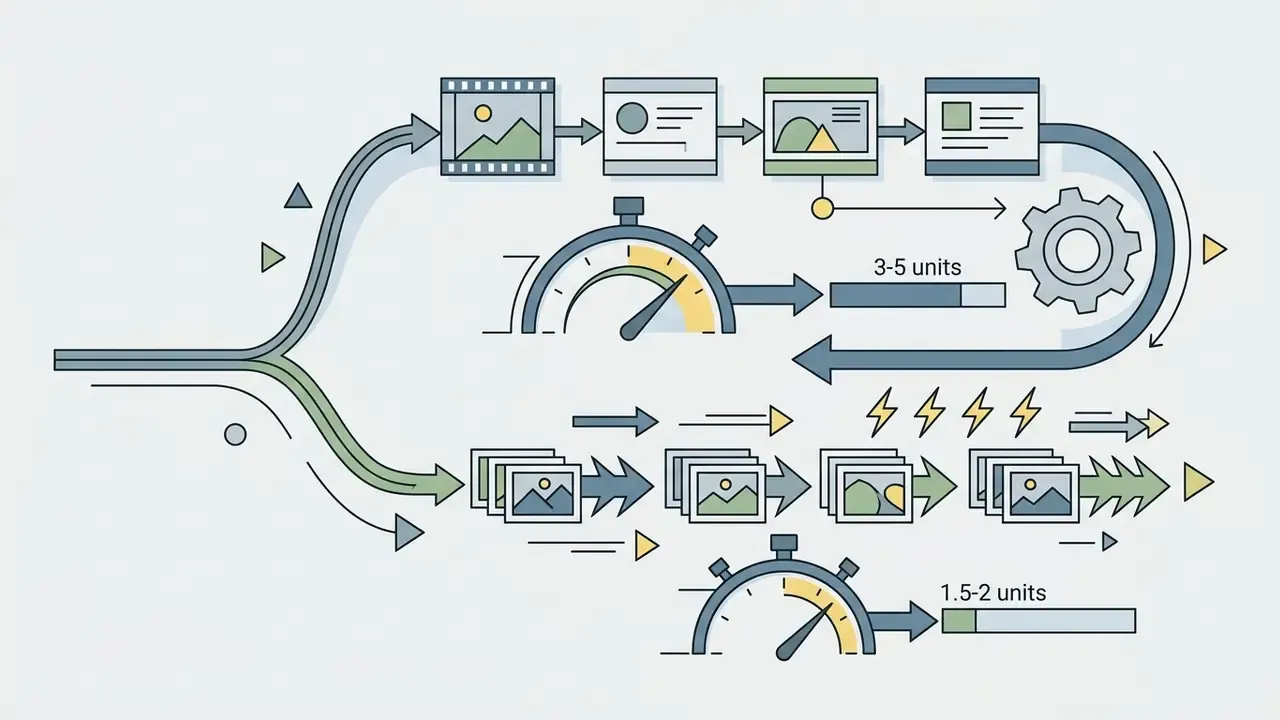
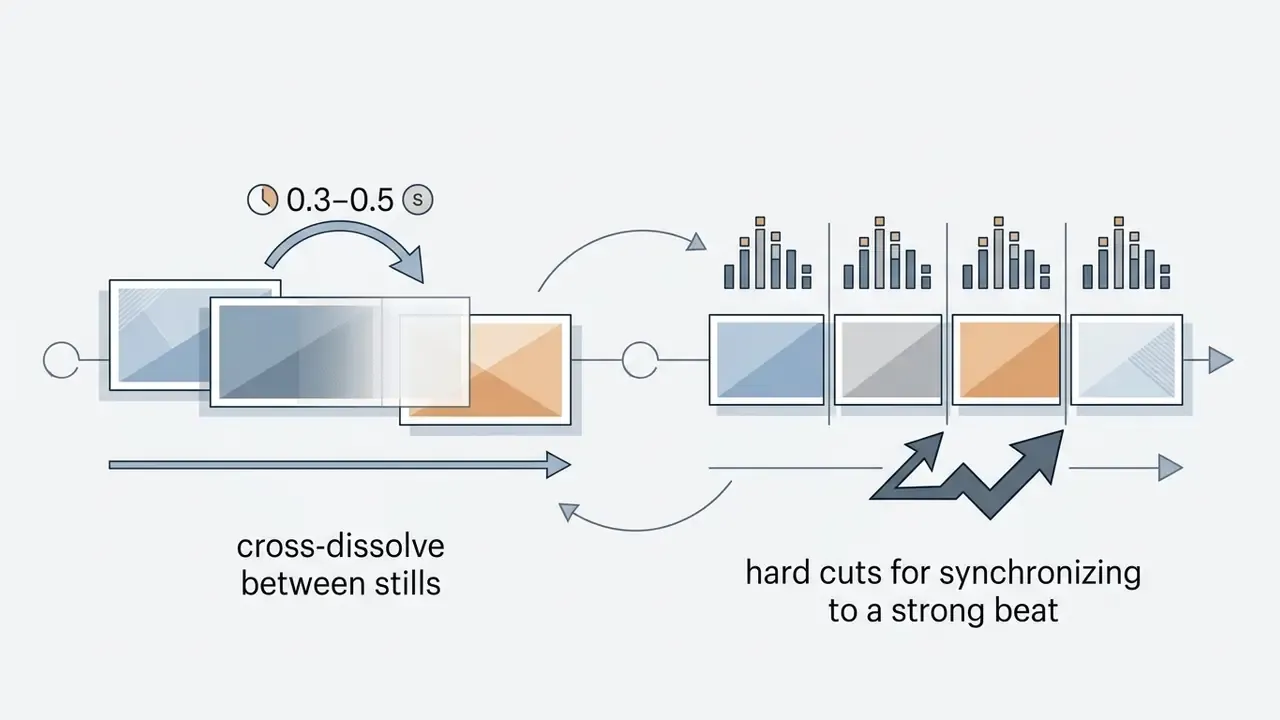
Turning a set of static photos into a video slideshow means arranging multiple image assets end-to-end on Timeline Track 1, setting uniform display durations of roughly 3 to 5 seconds each, and placing an MP3 or WAV file on an audio track underneath. Aligning image transitions with the audio beats is what separates a polished presentation from an arbitrary cadence. Most editors show the audio waveform directly on the timeline, so cut points can be snapped to visible transients.
Practical parameters for a music-backed slideshow:
Modern browser editors render these combined image-and-audio sequences into standard MP4 files, so a slideshow assembled from a phone camera roll exports in the same container as a conventional edit. For narration-driven slideshows, synthetic voice tracks produced with an AI voice generator can sit on a second audio track beneath the music bed.

Combine Photos, Images and Video Clips
Merging diverse visual media, including static JPEG photos, vector graphics, animated GIFs, and raw video clips, into one timeline produces a unified output. Modern browser editors conform disparate resolutions and frame rates into a standardised project canvas automatically.
Documented internal test. In a documented internal evaluation of client-side media assembly run by our editorial team, the task was to compile 15 graphic assets and three video segments into a single compliance training module. Using a standardised WebCodecs pipeline, the multi-format sequence rendered locally with no server round-trip, and each photo overlay held its source sharpness through the final encode. Mixed-media sequences behave best when treated as distinct visual classes: photographs and camera footage compress efficiently under interframe codecs, while text plates and flat graphics need higher-quality intra settings to avoid ringing on hard edges.
«WebCodecs decodes source frames, composites overlays on the GPU, and re-encodes the result, and the entire pipeline runs locally in the browser.»
For teams building automated content pipelines, programmatic asset generation through an api workflow accelerates multi-image assembly, and engineering groups scripting those calls often lean on an ai code generator for the first pass of the render harness. Teams evaluating automated motion output from stills can also review current image-to-video AI tools to see where generated motion replaces manual keyframing.
Supported Video and Image Formats for Export
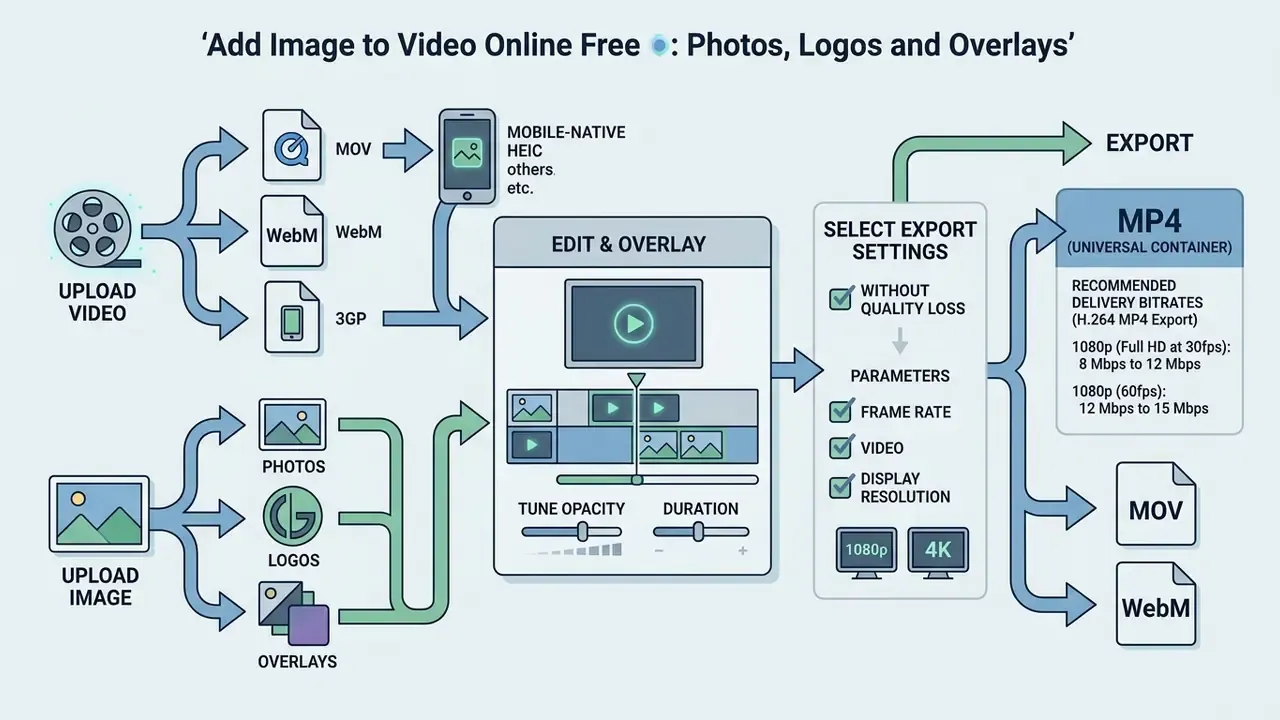
Exporting edited media means selecting containers and compression codecs that match the target playback environment. Standard web editors accept mainstream video containers such as MP4, MOV, WebM, and AVI, and support image overlay formats including PNG, JPEG, WebP, and static or animated GIF.
Beyond those, advanced browser editors auto-convert mobile-native capture formats, including Apple's HEIC photo format, TIFF images, AVIF, and JPEG XL, into processable canvas textures on upload. Legacy and high-bitrate containers such as 3GP, MKV, WMV, FLV, and VOB are demuxed locally via WebAssembly, so image overlay placement works regardless of the source media's age or encoding origin. If a browser cannot decode an exotic codec for live preview, the upload and export path often still completes, because muxing and encoding are handled by separate modules from playback.
| Asset type | Widely accepted formats | Best use in an overlay project |
|---|---|---|
| Overlay graphics | PNG (32-bit alpha), SVG, WebP | Logos, lower-thirds, badges with clean edges |
| Photos | JPEG, HEIC, TIFF, WebP, AVIF | Full-frame stills, slideshow sequences |
| Animated overlays | GIF, APNG, WebM with alpha | Looping stingers, animated brand marks |
| Base video | MP4, MOV, WebM, AVI, MKV, 3GP, WMV | Source footage for compositing |
| Export container | MP4 (H.264/H.265), WebM (VP9/AV1), MOV (ProRes) | Delivery, web embedding, editing master |
Add an Image to MP4 and Other Video Formats
MP4 remains the universal container standard for web video editing thanks to cross-platform hardware acceleration and strong compression efficiency under H.264. Adding graphics over MP4 clips involves decoding source frames, rasterizing the overlay image onto the pixel matrix, and re-encoding the composite sequence.
Editors also support MOV and WebM for web delivery, so an iPhone MOV file and an Android 3GP clip follow the identical overlay procedure before exporting back to a web-friendly MP4.
«FlowMark evaluated watermark robustness under H.264, H.265, VP9 and AV1 at progressively increasing compression levels.»
Developers building custom browser-based processing tools frequently lean on open-source modules such as ffmpeg.wasm, whose overlay filter accepts explicit overlay=x:y coordinates and time gates for frame-accurate compositing.
Choose Export Settings Without Quality Loss
Preserving fidelity means matching export parameters, including frame rate, display resolution (1080p or 4K, for example), and bitrate, to the native source properties. Exporting below the source bitrate introduces compression artifacts and pixelation, and it shows first around sharp graphic text edges.
Recommended Delivery Bitrates (H.264 MP4 Export):
- 1080p (Full HD at 30fps):  8 Mbps to 12 Mbps
- 1080p (Full HD at 60fps): 12 Mbps to 15 Mbps
- 4K (Ultra HD at 30fps):   35 Mbps to 45 Mbps
Intraframe master formats or high-bitrate targets avoid generational loss during multi-stage editing. An editing master exported to Apple ProRes 422 or ProRes 422 HQ survives repeated re-edits far better than an H.264 delivery file reopened and re-encoded. Maintaining source aspect ratios and selecting matching pixel dimensions prevents scaling distortion across composite layers, and matching bitrate to the source protects overlay edges specifically.
«Exporting below the source bitrate produces compression artefacts that are most visible along the edges of text and graphic elements.»
Where delivery file size matters more than archival fidelity, a dedicated video compressor applied after the overlay render keeps the composite intact while trimming payload for email or web embedding.
Is It Free to Add an Image to a Video Without Watermark?
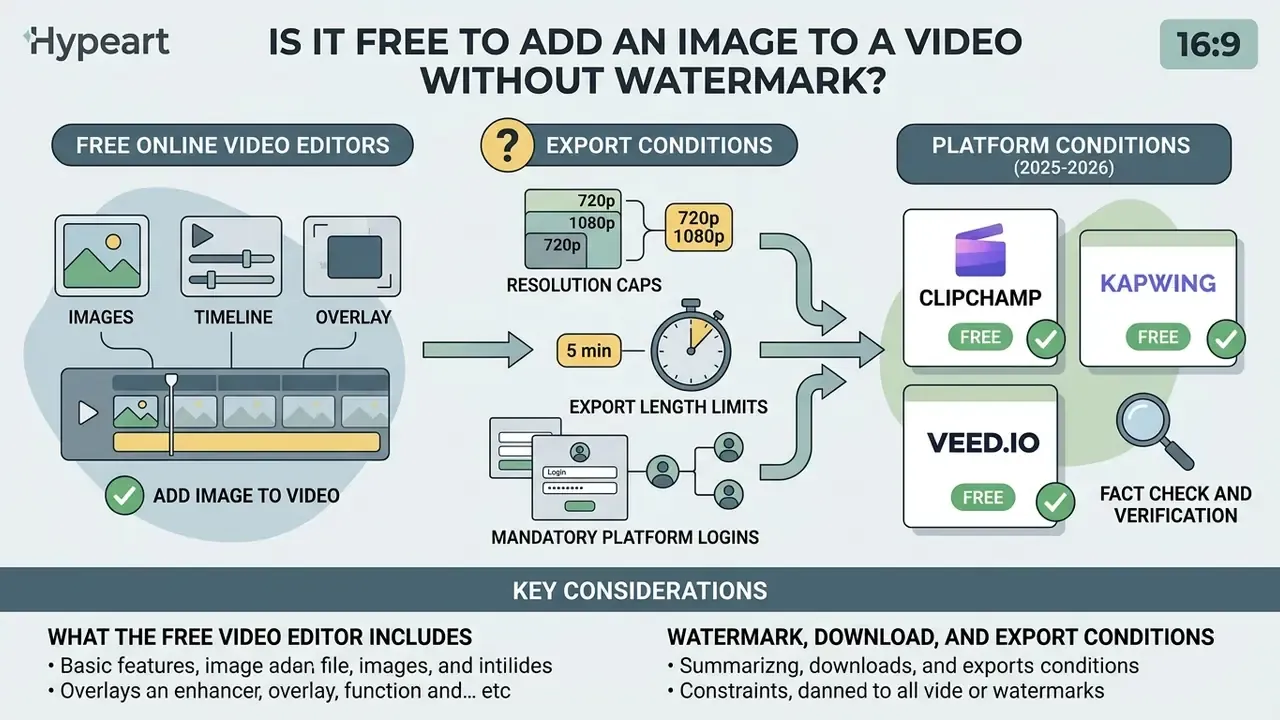
Free online video editors cover the core overlay capability, yet export conditions vary widely across vendor tiers: resolution caps, export length limits, and mandatory platform watermarks. Selecting a genuinely usable free tool comes down to one check, whether platform branding is burned into exported video files. Side-by-side reviews of free video editors make those gating rules visible before a project starts rather than at the moment of export, and the current pricing page is the only authoritative reference for paid tier limits.
Comparison of free web video editor service conditions
| Platform / tool type | Processing engine | Free tier duration limit | Export resolution | Platform watermark |
|---|---|---|---|---|
| Clipchamp (free plan) | Browser-local / hybrid | Unlimited | 1080p HD | No watermark |
| Kapwing (free tier) | Cloud rendering | 1 minute cap | 720p HD | Mandatory watermark |
| VEED.io (free plan) | Cloud rendering | 10 minutes cap | 720p HD | Mandatory watermark |
| OpenReel Video / ffmpeg.wasm | 100% client-side browser | Unlimited (device capable) | Native source resolution | No watermark (open source) |

Fact check and verification of service conditions (2025 to 2026):
What the Free Video Editor Includes
Standard free browser-based video editors ship with basic non-linear editing tools: trimming, splitting, canvas cropping, and simple text insertion. You can upload custom image files, adjust canvas scaling, set layer opacity, and position graphics anywhere in the frame. Free tiers commonly add transitions, filters, colour adjustment, stickers, stock media libraries, and automatic subtitles.
«OpenReel Video runs fully client-side via WebCodecs and WebGPU: video never leaves the device, and no platform watermark is applied.»
Core compositing tools are usually free, while advanced options sit behind a subscription: automated speech-to-text, 4K export, unlimited AI credits, or AI voiceover integration. Creators comparing gated feature sets across generative tooling can consult reviews of free AI video generators for equivalent credit and watermark comparisons, and if a tier limit blocks a specific export, the compare options resources usually list the exact workaround.
Watermark, Download and Export Conditions
Export policy governs how finished files are rendered and downloaded on free tiers. Some SaaS platforms allow free project assembly, then append a visible vendor mark across the exported frame unless the account upgrades.
Privacy-focused client-side editors and open-source browser tools behave differently, processing files locally and delivering clean, watermark-free downloads. Enterprise document platforms differ again: in permission-controlled systems, only Owner, Co-owner, or Editor roles can enable or remove a watermark, recipients cannot strip it, and a downloaded watermarked video keeps the mark. That model is useful when an organisation needs the overlay to persist beyond its own editing environment. For a broader feature-by-feature look at tiers and terms, the view the guide hub collects the current comparisons.
Privacy and Secure Video Upload Processing
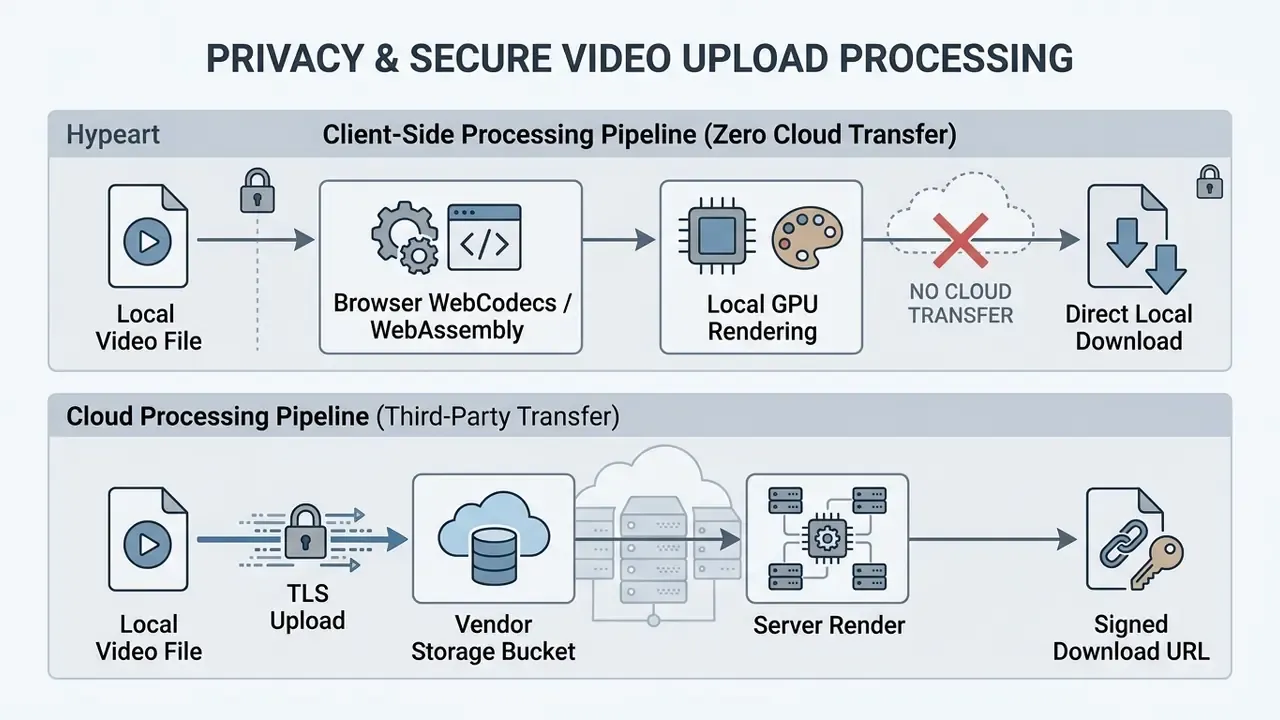
Assessing data privacy in web video editing starts with a single question: are media files transmitted to remote cloud servers, or processed entirely inside the local browser? Choosing local client-side processing removes third-party file uploads from the picture, which materially improves the security posture for sensitive media assets.
Upload and Edit Video in Your Browser
Modern browser standards, notably WebCodecs and WebAssembly (ffmpeg.wasm), let complex video compositing run inside a single browser tab. WebCodecs grants JavaScript direct access to hardware-accelerated GPU decoders and encoders, which enables frame-by-frame image overlay rendering without sending media over the internet.
«As of 2025, WebCodecs is supported by 95.5% of browsers globally, including Chrome 94+, Edge 94+, Firefox 133+ and Safari 26.1+.»
This localised approach removes bandwidth-heavy uploads and cuts processing latency, because the composite never leaves the device. In the same architecture, demuxing and muxing can be handled in JavaScript or WebAssembly while encode and decode are delegated to WebCodecs, which is precisely the split described in W3C workshop material on in-browser transcoding.
Private Processing of Video Files and Images
«NIST SP 800-88 Rev. 2 governs secure media handling and sanitisation of ephemeral storage when confidential visual assets are processed.»
Complementary controls appear in NIST SP 800-53 Rev. 5 (2020), which requires encrypted information flow protection, full-device or container-based encryption on mobile endpoints, and logging of access attempts to system media, a category that explicitly includes video recordings. Retention terms matter as much as encryption. NIST SP 800-144 requires cloud contracts to define return and expunging obligations at termination, NIST SP 800-146 expects providers to offer reliable deletion on request with evidence of completion, and major vendor policies publish operational deletion windows measured in weeks to months rather than instantly.
Security Checklist Before Uploading Corporate Video
Use the following admission criteria when approving a browser-based overlay utility for a regulated environment:
- Processing localityconfirm in vendor documentation whether rendering occurs client-side (WebCodecs or WebAssembly) or on vendor infrastructure.
- Network evidenceverify with browser developer tools that no media payload leaves the device during a test render.
- Encryption posturerequire TLS in transit and AES-256 at rest for any cloud-processing path.
- Retention and deletionobtain the documented deletion window and the mechanism for on-request erasure with confirmation.
- Access loggingconfirm that access attempts and granted access to stored media are logged and exportable for audit.
- Certificationrequest current SOC 2 Type II or ISO/IEC 27001 attestation for any vendor that stores footage.
- Sub-processorsreview the sub-processor list for downstream transcoding or AI providers.
- Shadow-AI controlpublish an approved-tool list so staff do not route confidential footage through unvetted consumer editors.
- Watermark and provenance policydefine which classes of footage require a visible mark, an invisible mark, or both.
- Export integrityverify that exported files retain expected metadata and that no vendor branding is injected.
Disclaimer: this material is general in nature and does not substitute for advice from a qualified information security or compliance specialist when processing confidential corporate data.
Enterprise Provenance, Watermarking and AI Governance
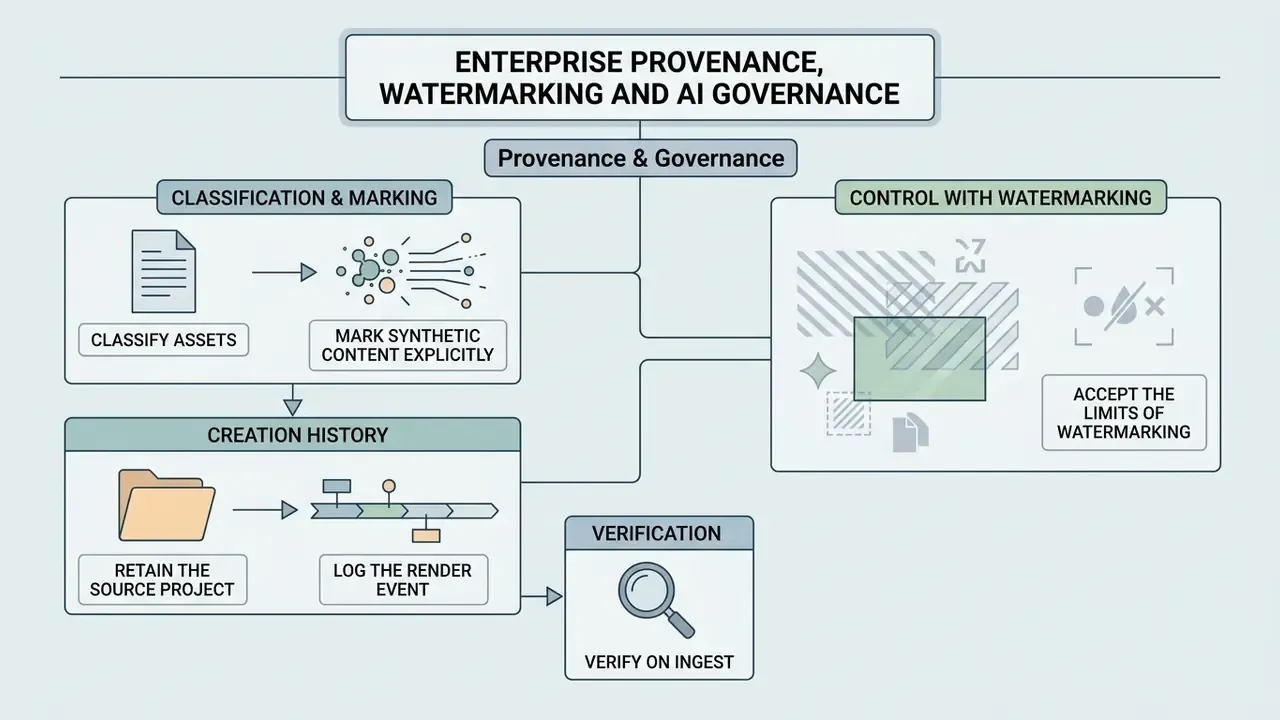
Visible branding answers a marketing question; provenance answers a control question. For a regulated organisation, an overlaid logo alone does not establish that a video is authentic, unaltered, or produced by an authorised process. Two complementary layers belong alongside the visible graphic:
- Content credentials (provenance manifests). A cryptographically signed manifest travels with the exported file, recording the capture source, the editing actions applied, whether generative tooling contributed, and the signing organisation. The result is an inspectable chain from capture to publication, which is what an audit trail actually requires.
- Invisible watermarking (steganographic marking). A perceptually hidden signal sits in the pixel data, so attribution survives when metadata is stripped by a re-upload or a screen recording. Robustness testing shows such signals persisting through platform re-encoding while remaining visually undetectable.
«FlowMark confirmed embedded-signal survival after re-encoding on live YouTube and Facebook pipelines, holding PSNR up to 50.08 dB.»
«VideoMarkBench found current video watermarking methods vulnerable to white-box removal attacks, though highly accurate in the absence of attack.»
Use Image Overlays for YouTube, TikTok and Social Content
Applying graphic overlays to social video improves brand retention, reinforces channel identity, and holds visual consistency across distribution channels. Optimising graphics for YouTube, TikTok, and Instagram means adapting placement to platform-specific display safe zones and ratio standards. Teams producing at volume often pair overlay templates with automated generation; overviews of AI video generators for social content explain where template-driven output replaces manual assembly.
Add a Logo and Branded Picture to Video Content
A brand logo or watermark badge on social video content deters unauthorised re-uploading and establishes instant attribution. Published brand toolkits converge on a small set of rules: use one approved mark, keep it inside the safe area, and hold it visible for the full duration or at minimum through the opening seconds. Corporate guidelines at large institutions specify a fixed corner (top-right or lower-left depending on the brand), prohibit alteration of scale, colour, or design, and reduce opacity so the mark reads against varying backgrounds, commonly in the 30% to 50% range.
Sizing and placement metrics. Scale watermarks to 10% to 15% of the total frame width, which keeps the mark legible without dominating the composition. On YouTube (16:9), avoid placing essential graphics in the lower-right corner, where the native timestamp, player controls, and end-screen cards obstruct that quadrant. For vertical video (TikTok, Instagram Reels, YouTube Shorts at 9:16), keep critical overlays clear of the right-side engagement icons and reserve the bottom 20% of the frame for platform captions and the description overlay.
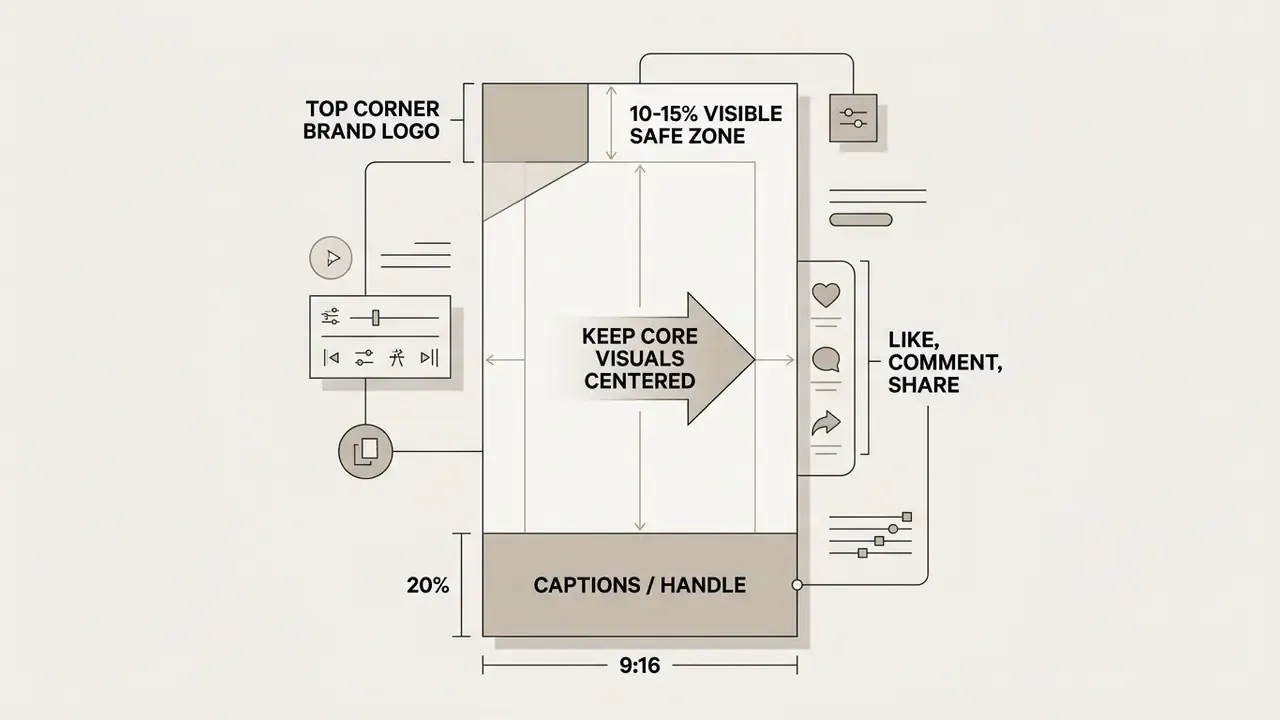
Branding inside the safe zone stops critical content from being buried under native platform UI, whether that is a TikTok caption box or a YouTube Shorts action button. Creators frequently use an ai headshot generator to build consistent avatar icons for corner placement across a tutorial series. For long-form channel work, the broader YouTube video editor workflow covers how overlays interact with end screens, chapters, and thumbnails.
Resize Videos and Images for Social Platforms
Social platforms demand specific canvas aspect ratios for optimal feed display:



When adapting landscape video with image overlays into 9:16, resize and reposition the graphics to fit the narrowed field. A corner badge that reads cleanly at 16:9 frequently lands under platform UI once the frame is cropped. Square and portrait crops in the Instagram grid also trim tighter than the editor preview suggests, so leave margin around any graphic that must stay fully visible. Advertising specifications reinforce the same ratios: vertical overlay images are commonly delivered at 720 by 1280, with 1200 by 628 for horizontal and 640 by 640 for square placements.
FAQ About Adding Photos and Images to Video
How do I add a transparent PNG logo to a video without a white background?
Save or export the image as a 32-bit PNG with an active alpha channel. When it is imported into an online video editor, the system interprets the alpha channel and renders only the logo graphic over the footage, keeping the background transparent. JPEG cannot carry transparency and will flatten the surrounding area onto a solid colour. Where the mark also serves an anti-reuse function, remember that visible marks can be cropped or inpainted out; robustness benchmarking has shown current video watermarking methods vulnerable under white-box removal attacks even when they perform accurately in normal conditions (VideoMarkBench, preprint, 2025).
How do I nudge an overlay into an exact position?
Select the image layer on the canvas, then press the keyboard arrow keys to move it one pixel per press; hold Shift with an arrow key for 10-pixel steps. Numeric X and Y fields in the transform panel allow direct coordinate entry, and snapping aligns the clip or graphic to markers, the playhead, or neighbouring edges. Hold Shift while rotating to constrain movement to 15 degree increments.
Can I colour-correct the photo after placing it on the video?
Yes. Overlay layers accept the same adjustment stack as clips: brightness, contrast, saturation, hue, and opacity can all be changed after the image is positioned on the timeline, and adjustments can be applied to one image or to every image in a sequence. Matching the overlay's contrast and colour temperature to the footage underneath is what prevents a pasted-on appearance.
Can I add an image overlay to a video on mobile browsers?
Yes. Web-based editors built on WebCodecs or HTML5 Canvas run in mobile browsers on iOS Safari and Android Chrome. You can upload clips straight from the camera roll, place an image asset on the secondary timeline layer, resize it with touch pinch gestures, and export the rendered video file without installing an app.
What image file formats are best for video overlays?
PNG is the optimal format for graphical overlays, logos, and lower-third text, thanks to lossless compression and full alpha channel support. JPEG suits full-screen non-transparent photos, while WebP produces smaller files for web-based editors. Animated GIFs can be overlaid for looping graphics, and iPhone HEIC or scanned TIFF files are converted on upload by editors that support mobile-native capture formats. Preparing assets in a dedicated AI photo editor before import keeps edges clean and background removal consistent.
Can I build a photo slideshow with background music?
Yes. Place the photos end-to-end on the main timeline track with uniform durations of roughly 3 to 5 seconds each, drop an MP3 or WAV file on the audio track, and align image transitions to the waveform's beats. Add short cross-dissolves between stills, then fade the music in and out to finish the sequence cleanly.
Can I use an image as the background for a green screen video?
Yes. Put the background photo on the lower timeline track and the green-screen footage on the track above it, then key out the green with the editor's chroma or HSV threshold control. The background image renders behind the subject, producing a virtual set without a physical backdrop.
Will adding an image overlay reduce my original video quality?
Adding an overlay does not degrade quality if export parameters match the source settings. To preserve fidelity, export at the same resolution (1080p or 4K), the same frame rate (30fps or 60fps), and a matching or higher bitrate than the primary input clip. For files that will be re-edited later, export an intraframe master such as ProRes 422 rather than a low-bitrate H.264 delivery file.
How long can an image overlay stay visible during playback?
Any duration, from a single frame to the entire length of the clip. Editors control visibility by extending or trimming the image asset's handles on the secondary timeline track, which sets exact start and stop timestamps, and opacity keyframes define how quickly the graphic fades in or out.
Is a browser-based editor safe for confidential corporate footage?
It depends on the processing architecture. Client-side engines built on WebCodecs and WebAssembly keep media on the device, so no upload occurs. Cloud-rendering services transfer footage to vendor storage, which introduces retention, sub-processor, and access-logging considerations. Validate the vendor against the security checklist above, and require documented deletion terms before approving the tool for regulated material.
Can I publish overlay output commercially on a free plan?
Sometimes, and the watermark is not the deciding factor. Licence text is. Some vendors watermark free exports yet permit commercial use; others allow personal use only. Read the terms for the specific tier you are on, keep a dated copy of that page in your project archive, and confirm the licence covers stock assets, fonts, and music used in the same composition.