«Captions must be accurate, synchronous, complete, and properly placed to meet federal accessibility obligations.»
Generating subtitles automatically has become genuinely easy through browser-based AI transcription engines. Getting a clean video export without branding is the harder part. Many online tools market free access loudly, yet clean exports without watermarks are typically restricted by video duration, export volume, or feature access.
Evaluating an online caption generator means balancing automated accuracy against operational constraints. Teams need to examine how a platform structures its free plan, how it handles user video privacy, and what limits it enforces on longer videos.
The Fast Verdict (2026 Baseline)
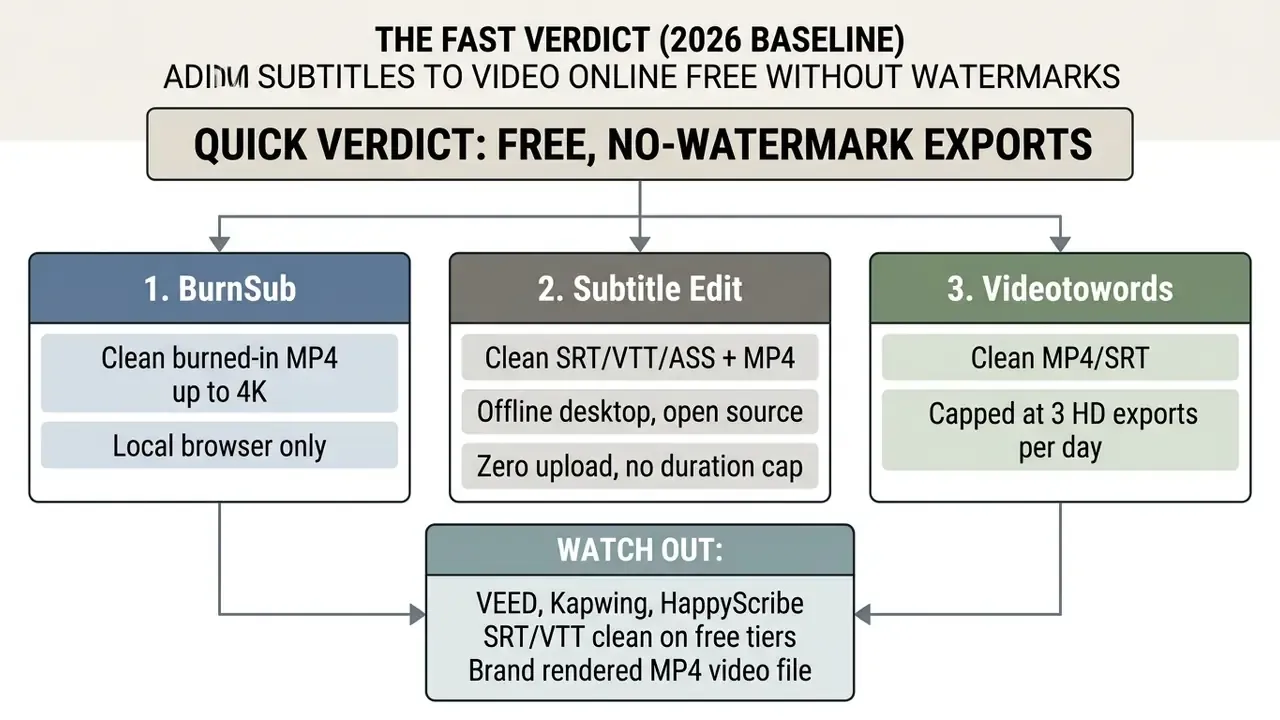
- If you only need a subtitle file (SRT/VTT): almost every major platform, including VEED, Kapwing and HappyScribe, gives you unbranded text on the free tier.
- If you need a finished video with burned-in captions: watermark-free output is restricted to client-side tools (BurnSub), open-source desktop software (Subtitle Edit), or daily-quota services (Videotowords).
- If the footage is confidential: process locally. Only tools that keep video in browser memory or on disk eliminate server-side retention risk.
How this guide is organised. It starts with the honest answer on free, watermark-free exports, then sets out a free versus paid capability matrix and the criteria worth comparing across AI subtitle generators. After that comes the practical sequence: how to auto generate subtitles from an uploaded video, how to edit auto captions before publishing, and how to export subtitles as video, SRT, or VTT files. The final sections cover tool selection by scenario, a data security and shadow AI checklist for corporate teams, an FAQ, and the verification method behind every claim here.
Can You Add Subtitles to Video Online Free Without a Watermark?
Yes, you can add subtitles to video online free without a watermark. The catch is scope: fully unbranded exports are generally limited to specific daily quotas, local browser processing, or text-only file downloads. Web-based software usually monetizes unbranded video rendering by restricting free tiers to short durations or forcing a visual overlay onto exported MP4 files.
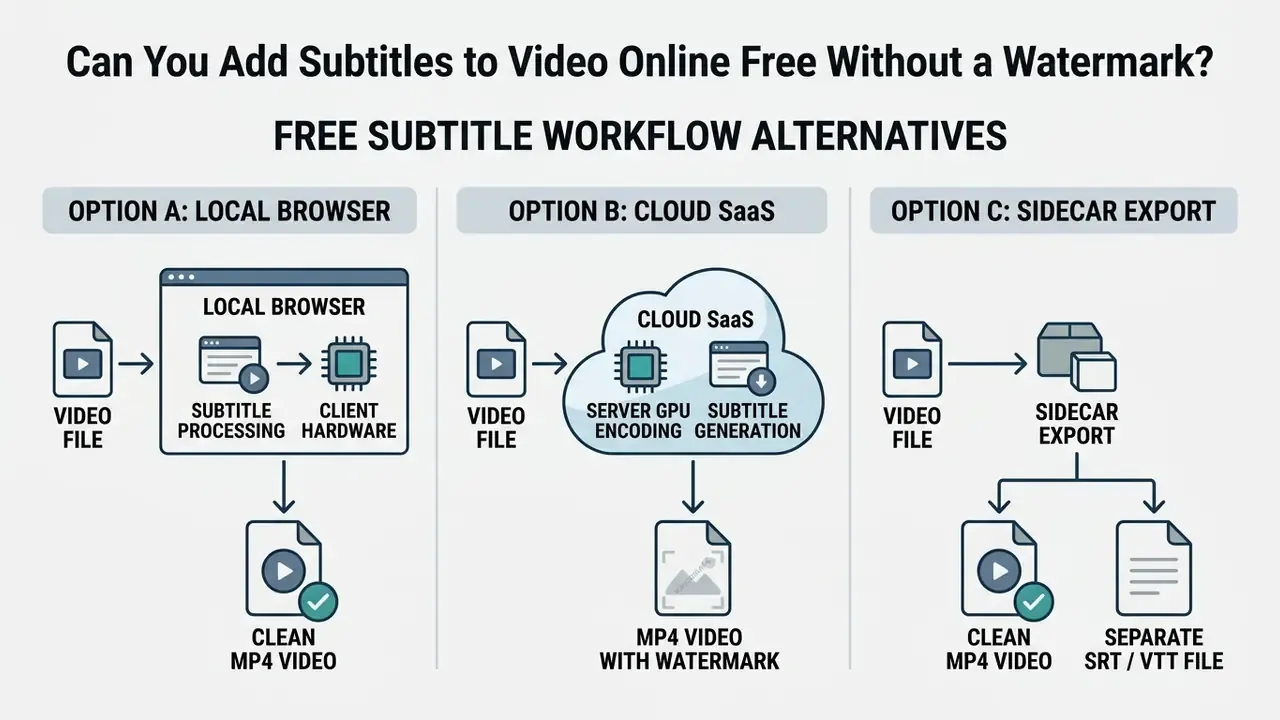
When evaluating a free online video editor no watermark, creators must distinguish between platform-hosted rendering and client-side processing. Cloud platforms incur server encoding costs, which they offset by requiring paid plans to remove logos. Tools leveraging client-side WebCodecs or local Whisper models, by contrast, can offer unbranded exports without ongoing infrastructure overhead.
That architectural split also explains accuracy differences between providers, because local and cloud engines rarely run the same model generation.
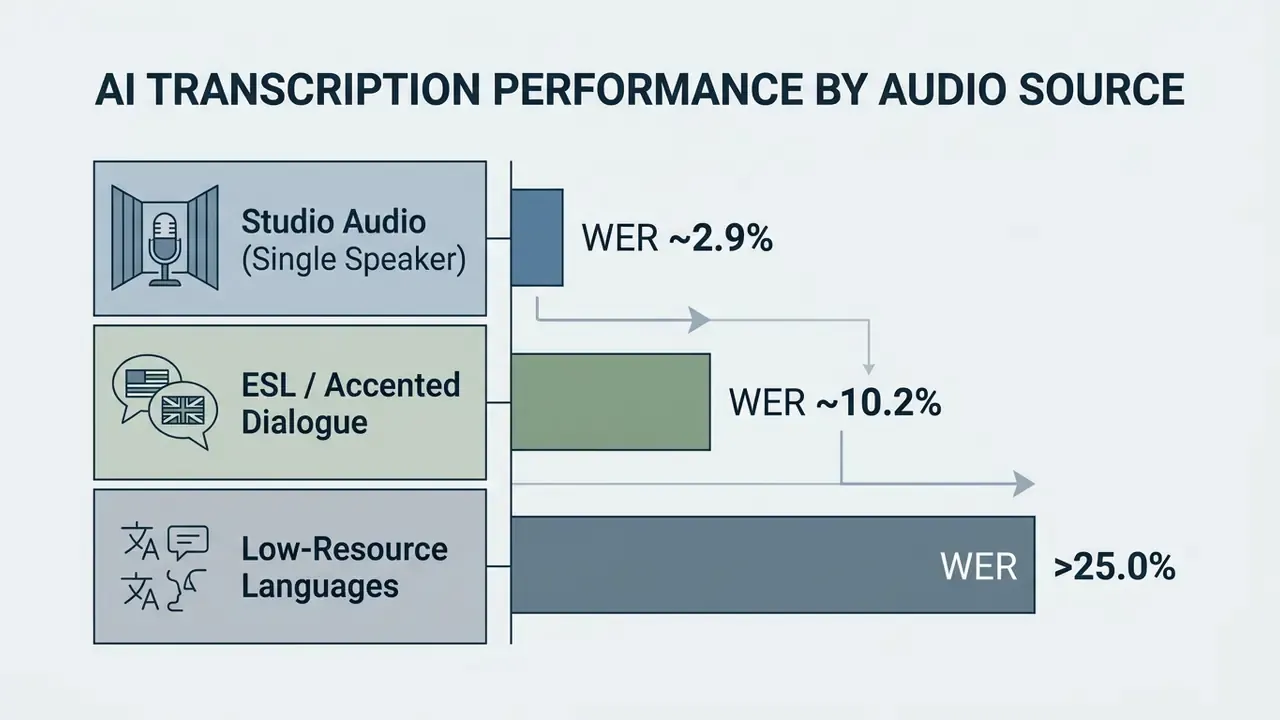
«Whisper large-v2 reaches roughly 2.9% WER on clean English speech, against a 7.0% average across commercial services.»
Creators comparing broader toolsets can also review a catalogue of free AI video generators to see how watermark policies behave across adjacent media categories. The patterns rhyme: free tier, branded render, paid tier, clean render.
Watermark Scope: SRT/VTT Files vs Burned-In MP4 Video
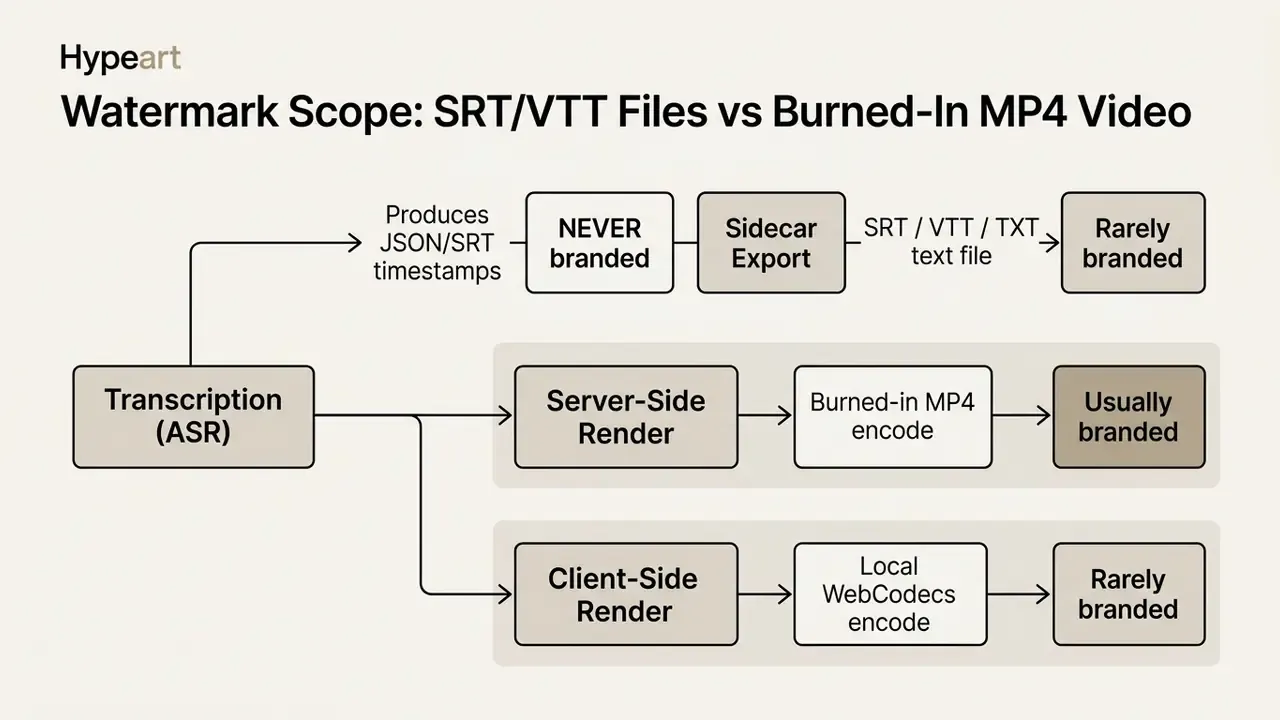
The single most common misunderstanding in this category is treating "no watermark" as one property. In practice, vendors apply branding at the rendering stage, not the transcription stage. A platform can therefore be completely clean when you download text and heavily branded when you download video.
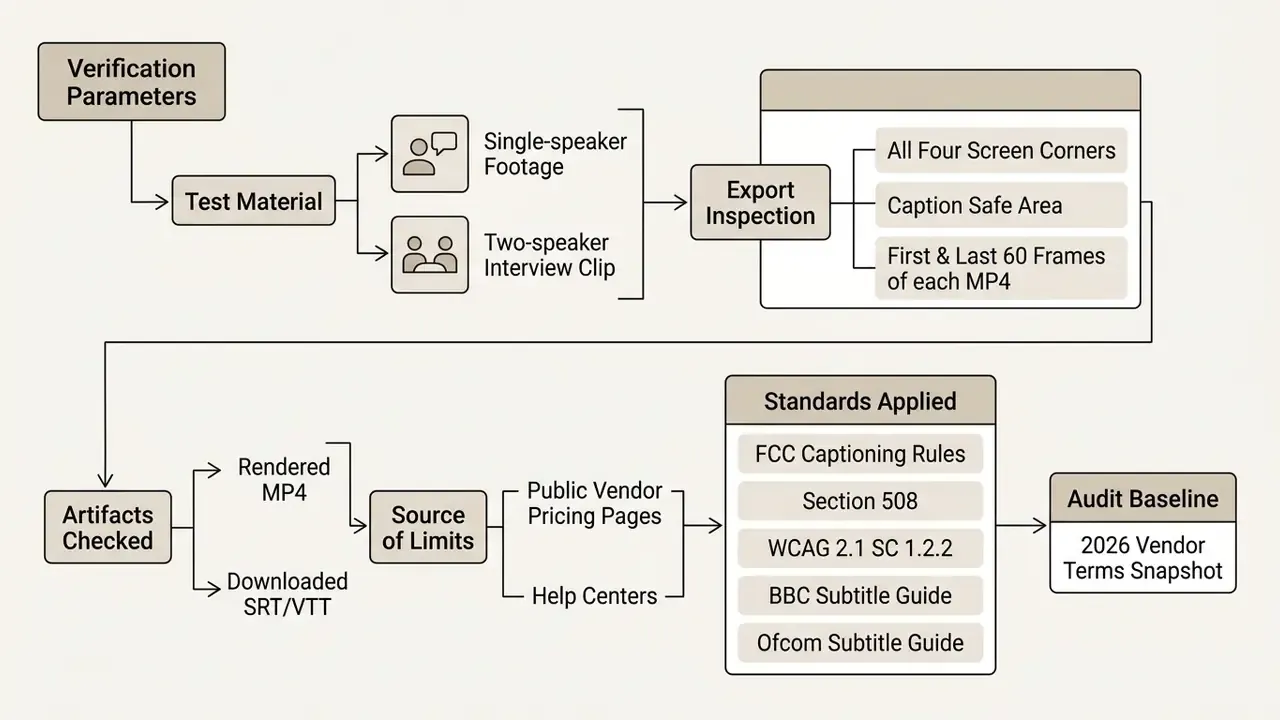
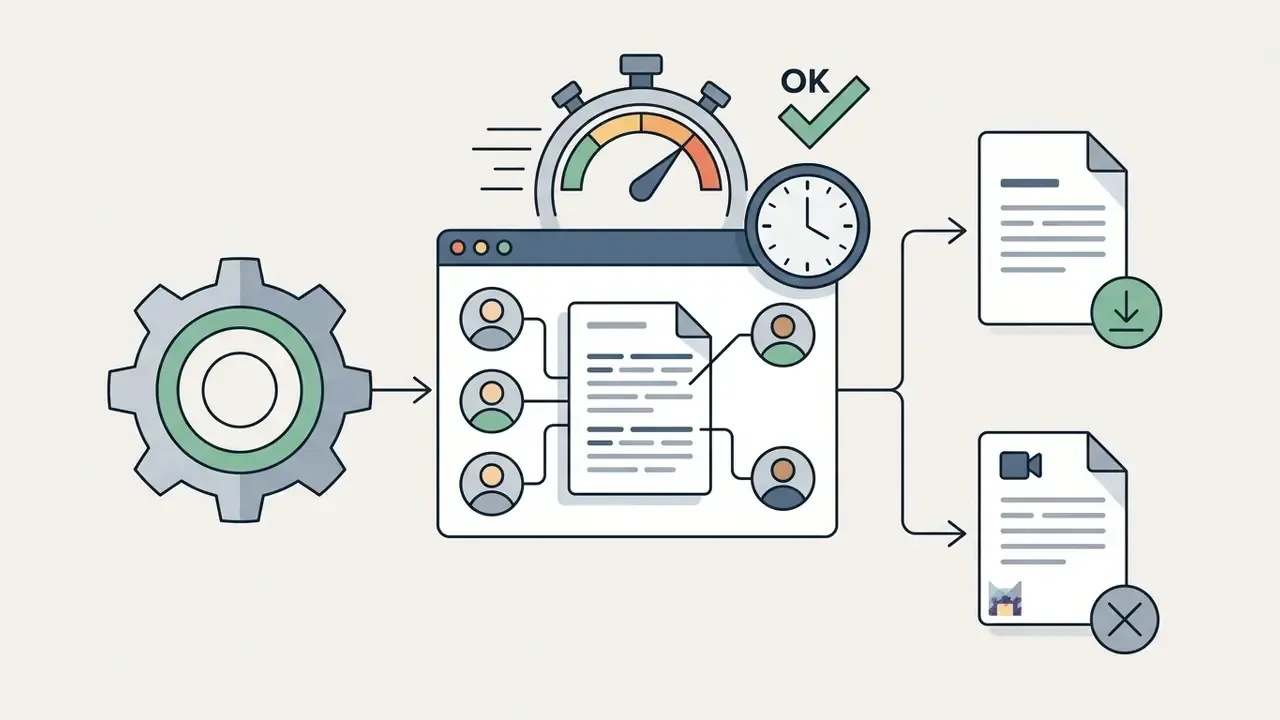
Before publishing, verify the artifact rather than the marketing page. Open the exported MP4 and inspect four zones: all four screen corners, the caption safe area, the first 60 frames, and the final 60 frames. Some tools inject branding only on the outro frames, which is genuinely easy to miss during preview playback. Testing methodology in this niche makes the same point repeatedly: confirm the exported file, not the feature description, because several services strip watermarks from subtitle files while still stamping the rendered video.
What "Free" and "No Watermark" Usually Include
Free plans for online caption platforms typically include automated speech recognition for short video files, basic transcript editing, and standard text formatting. Most allow speech-to-text generation for clips between 1 and 10 minutes, with basic timecode adjustment and manual text corrections.
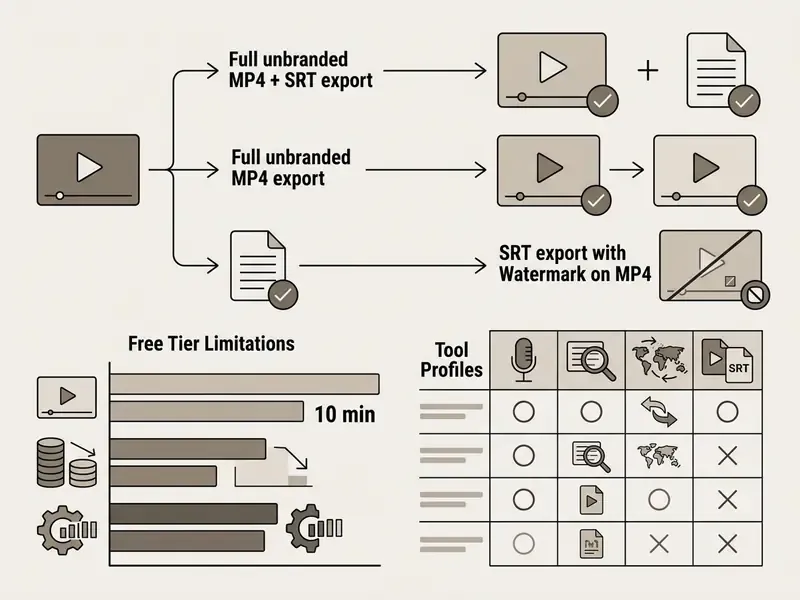
Unbranded exports, though, are rarely unrestricted. Vendors providing watermark-free output on free tiers usually enforce a secondary limit, such as capping resolution at 720p or allowing three video exports per day. Alternatively, platforms permit unbranded downloads of separate subtitle files (SRT or VTT) while placing a logo on rendered MP4 files.
Documented examples of the pattern include LumaCaption (2 minutes per video on free, all 340 caption styles unlocked, unlimited SRT/VTT/TXT downloads), AutoSubtitleGenerator (up to 10 minutes per video with three free downloads per month), and Transkio (free TXT/SRT/VTT export with a 100 MB file-size cap). Kapwing's free account documents up to 10 subtitle minutes with a watermark on video exports, while Subtitle Edit remains fully free and offline because it is open source.
When a Free Subtitle Generator Is Not Enough
A free subtitle generator becomes insufficient once you process long-form recordings, multi-speaker discussions, or localized campaigns requiring automated translation. High-volume publishing workflows burn through minute allowances and file-size caps quickly.
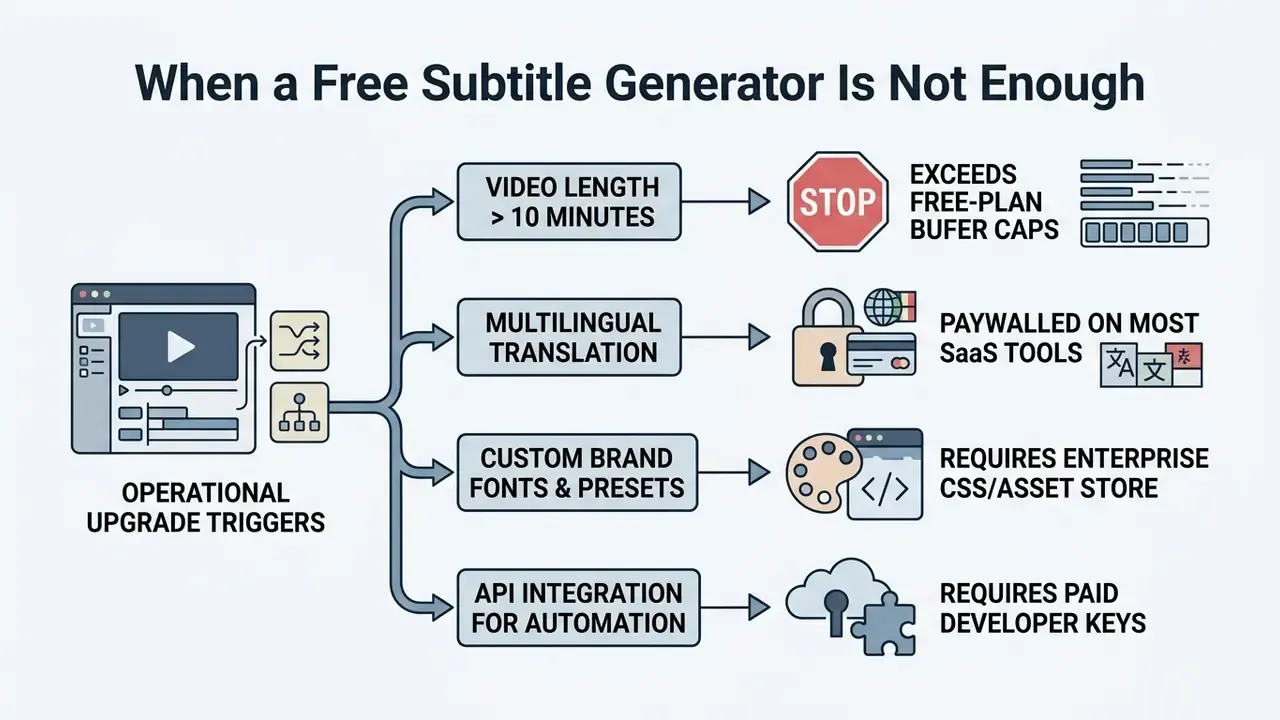
Translation is the most reliably paywalled capability across the vendors reviewed here. Kapwing gates translated subtitles and auto-dubbing behind Pro, AutoSubtitles reserves AI subtitle translation for paid plans, and VEED meters translated output separately from base subtitle minutes. Exact paywall ratios vary by vendor and need re-verification each quarter, so treat a subtitle translator as a paid feature by default rather than an expected free inclusion.
Quality, not only access, limits free multilingual output:
«On Common Voice 15, Whisper word error rates exceed 50% for several low-resource languages, against roughly 4.3% for English.»
«In FLEURS evaluations, European and East Asian languages consistently outperform African and indigenous languages on WER; speaker accent also measurably shifts accuracy.» Source: Brasstranscripts, multilingual speech recognition review (2024).
Market pressure is pushing these features into paid tiers precisely because demand keeps compounding. Industry projections place the AI subtitle and transcription market at roughly $1.2 billion in 2024, expanding toward $3.5 billion by 2033, driven largely by mandatory accessibility compliance in education, government, and broadcast procurement.
Enterprise teams scaling video production usually end up in programmatic territory. Teams that want to automate caption generation inside custom pipelines can inspect API access details and compare options across platform infrastructure tiers before committing engineering time.
Best Free AI Subtitle Generators With No Watermark: What to Compare
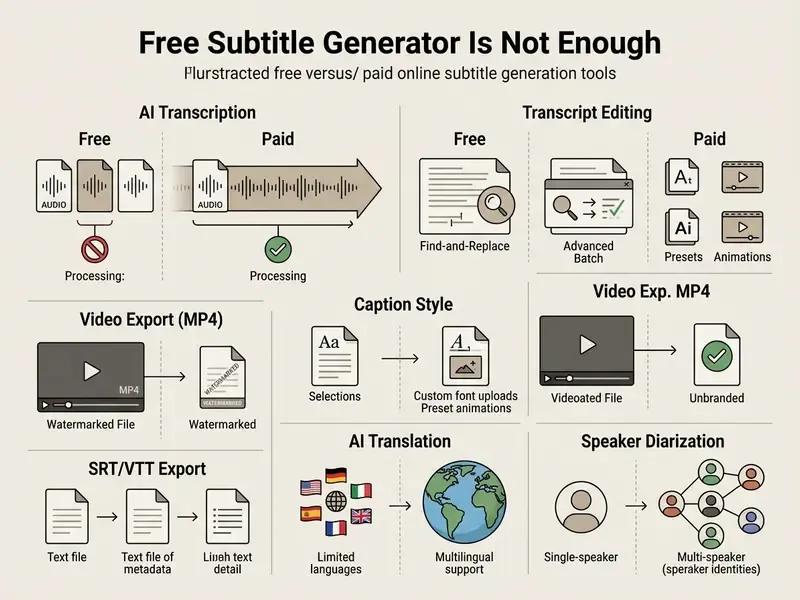
Choosing the best free subtitle generator with no watermark comes down to four things: speech recognition accuracy, editing ergonomics, language support, and export flexibility. Commercial platforms differ widely in how they trade automatic transcription quality against free-tier export constraints.
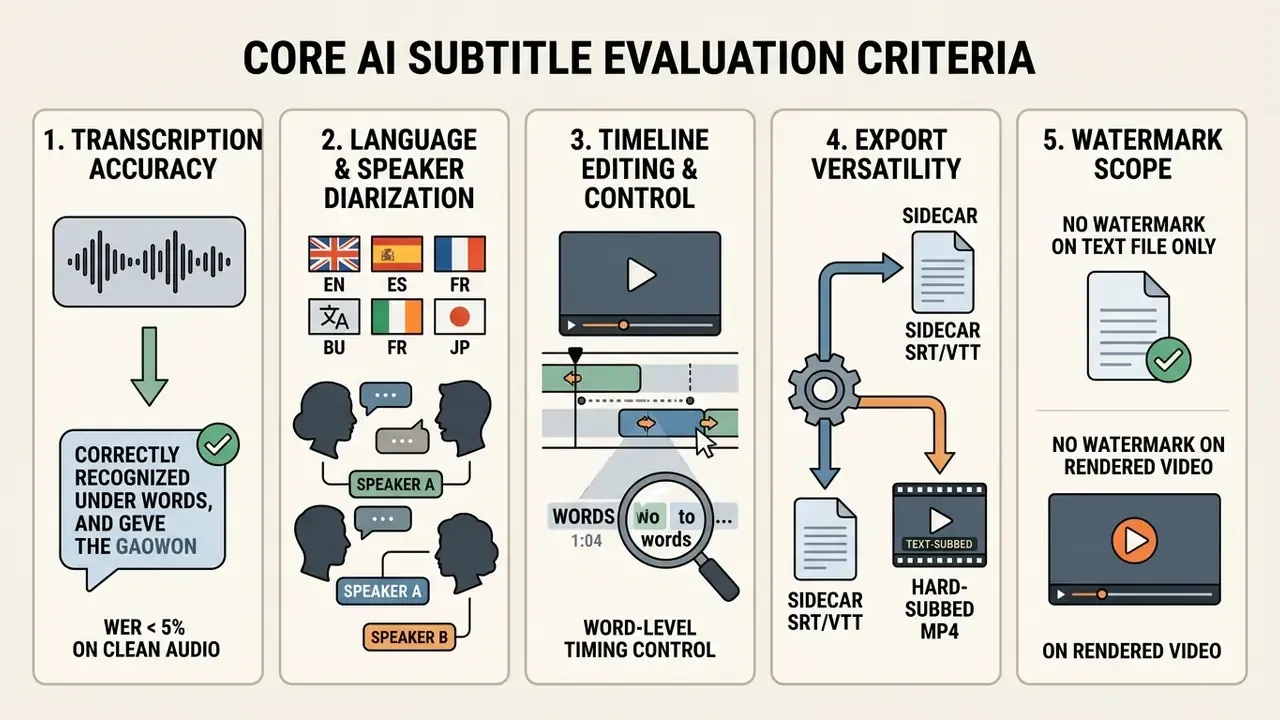
When auditing no watermark ai video tools, media teams should verify whether the promise of no watermark covers both sidecar text files and burned-in MP4 exports. Often it covers only one.
Accuracy, Languages, and AI Transcription Quality
Speech-to-text engines hit their highest accuracy on clear, single-speaker audio recorded at 16 kHz or higher. Benchmark evaluations put Whisper-class models near the top of open model accuracy on clean English speech, while commercial API averages sit meaningfully higher.
«Commercial services average 7.0% WER on English; Whisper large-v2 records 3.3% on LibriSpeech and 5.0% on German.»
Editing, Subtitle Styles, and Brand Customization
A usable subtitle editor lets you correct text errors, adjust timestamp boundaries, and apply readable formatting fast. Modern web editors provide a visual timeline where blocks can be dragged to match speech onset and scene cuts. Kapwing, VEED and Subly all document in-browser transcript correction, start and end time adjustment, plus control over fonts, colors, size, background and placement.
Styling styled captions means choosing high-contrast typography, sensible line-height padding, and a background container box where the footage is busy. For mobile-first channels, dynamic word-by-word highlighting improves engagement without obscuring the central visual. Restraint helps here more than motion.
Export Options and Free-Plan Restrictions
Export restrictions decide whether a subtitle tool fits your publishing pipeline at all. Free plans generally split export outputs into burned-in video rendering and separate sidecar text files.
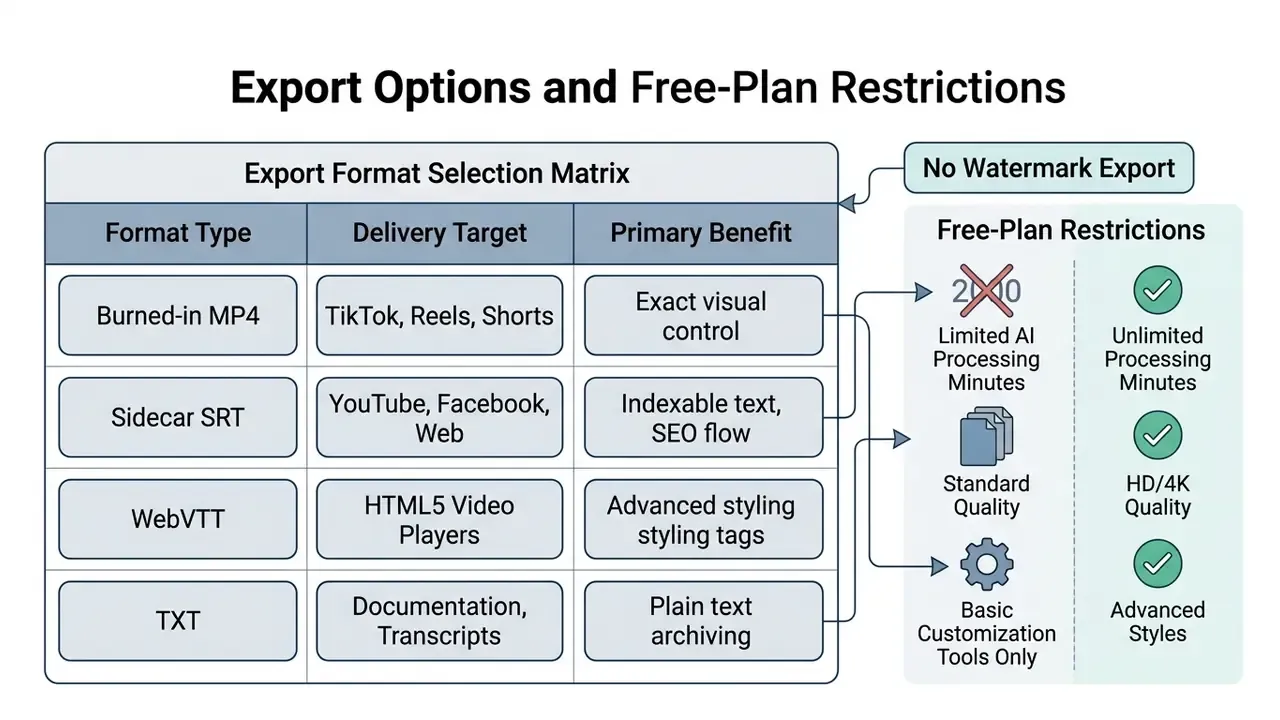
Burned-in MP4 exports lock text into image pixels; sidecar SRT files keep an indexable text track suitable for web accessibility. One practical note: MOV usually appears as a supported input container rather than a free export target, and most free tiers render MP4 only.
Captioning is not only a compliance requirement. Measured distribution effects help justify the production cost.
«Two YouTube videos gained 28% and 24% more views respectively over a 20-day window after English subtitles were added.»
Watch time behaves similarly on sound-off feeds, although attribution there is messier than vendor case studies usually admit.
How to Automatically Add Subtitles to a Video Online
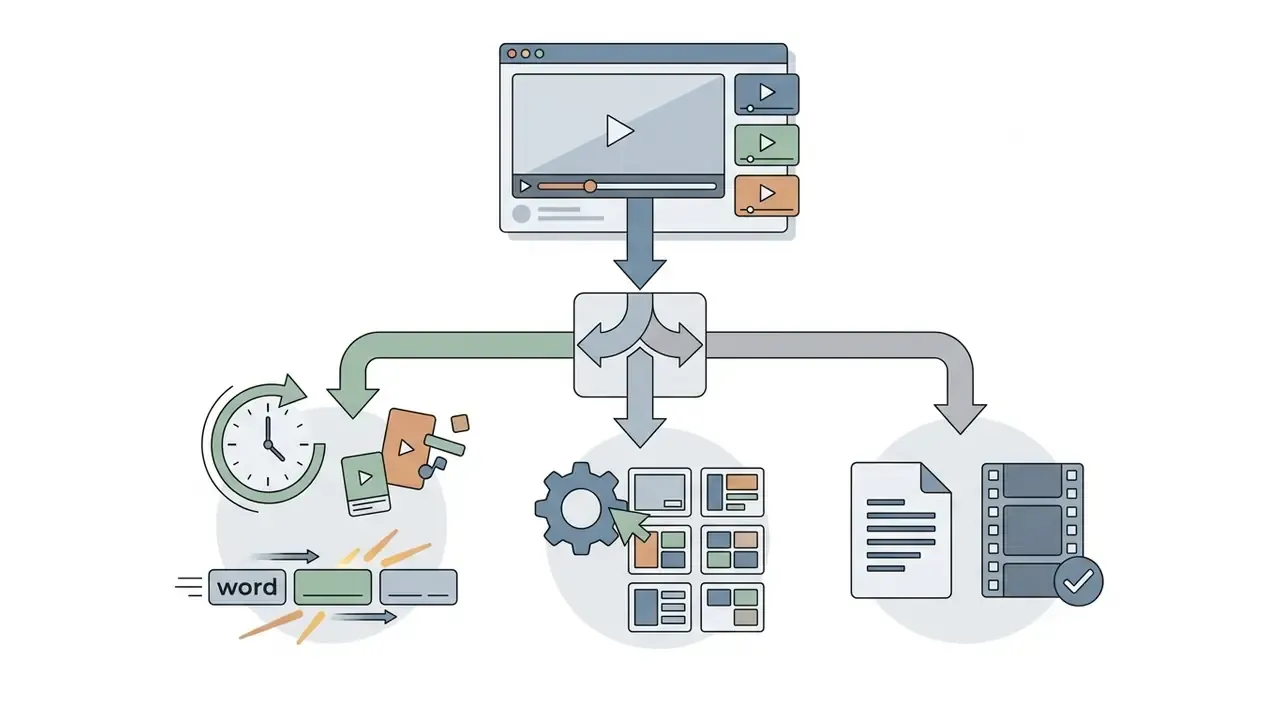
Automatically adding subtitles to a video online follows a predictable sequence: file ingest, speech processing, transcript review, formatting, and file export.
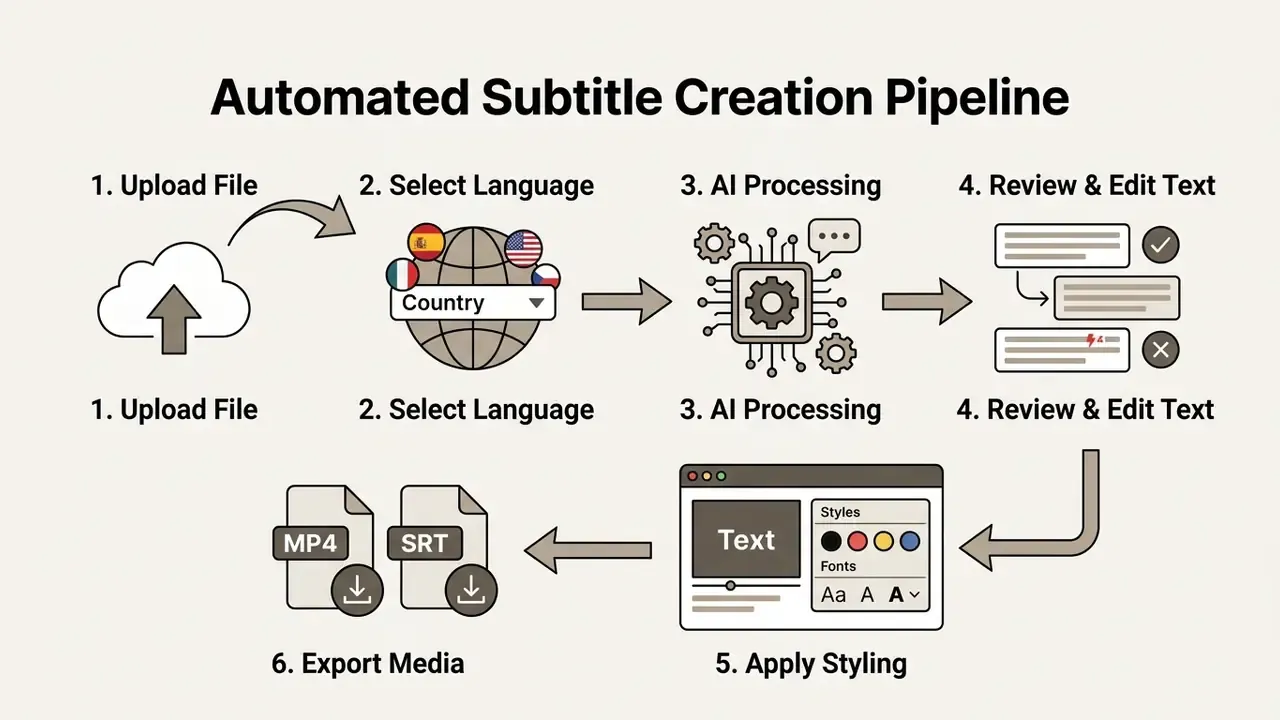
Consider an illustrative case. A media production team handling social video highlights standardized its upload specs and locked the language profile per project instead of relying on auto-detect. Manual transcription time dropped substantially, and every clip still shipped as an unbranded MP4 for cross-platform distribution. Time-saving ratios like this are workflow-specific, so measure against your own documented baseline before treating any number as a benchmark.
Upload a Video File and Select the Spoken Language
The ingest stage needs a supported media container: MP4, MOV, or WebM in most cases. Teams assembling a full production chain often pair captioning with adjacent tooling, so it helps to understand how video editors and compression steps interact with caption rendering. Oversized masters can be reduced first with a video compressor to stay inside free-tier file caps.
Selecting the correct primary spoken language before processing prevents recognition drift and improves acoustic mapping.
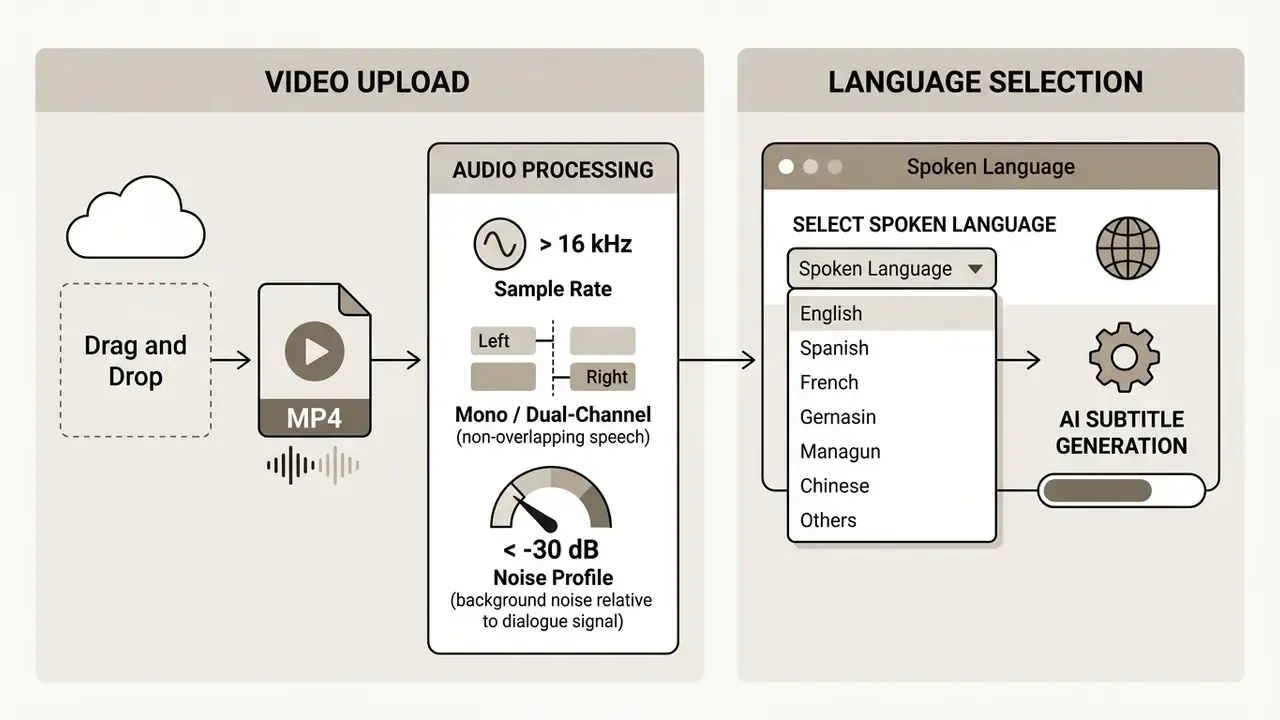
Specify the target speech parameters explicitly. Automatic language detection can and does fail on heavily accented speech or multi-speaker files, and the failure is usually silent.
Generate Captions and Review the Transcript
Starting AI transcription triggers automatic speech recognition, converting acoustic signals into timed text blocks. Once generated, human review is necessary for proper nouns, technical terms, and punctuation.
«Instructors should always review and edit machine-generated captions, even when system accuracy exceeds 90%.»
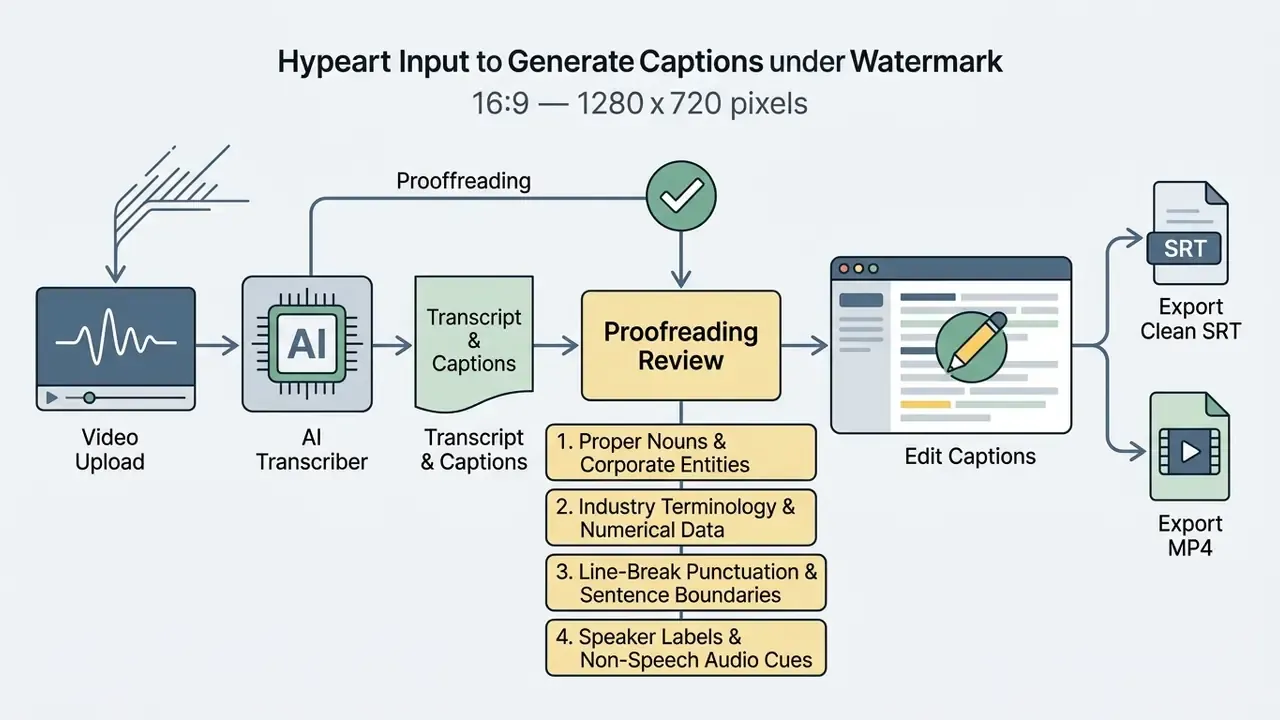
Style guidance is blunt about the mechanics: verify official spellings of names and terms against primary sources, keep capitalization consistent across the document, and scan for missing, duplicated, or misplaced punctuation, including paired brackets and quotation marks. Reviewing transcripts against reference material keeps small errors out of published content. For teams building internal video automation, reviewing api specifications helps evaluate automated caption integration options and rate limits.
Adjust Timing, Style, and Export the Captioned Video
Final refinement means aligning subtitle entry and exit timecodes with natural speech pauses and video cuts. Captions should appear when speech begins and clear before scene transitions.
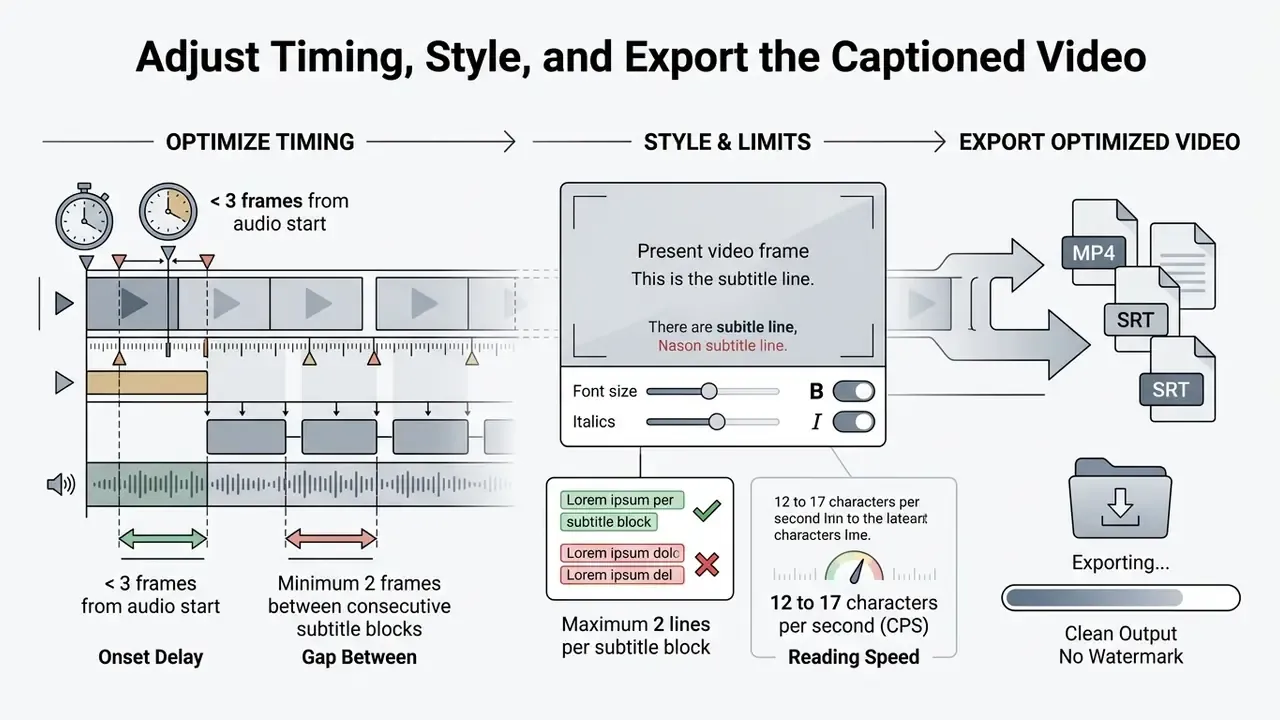
These thresholds mirror published broadcast standards. The Netflix Timed Text Style Guide specifies in-times on the first audio frame or within 1 to 2 frames, with a minimum two-frame gap between subtitles, while the OOONA AVTpro guide permits alignment within three frames and out-time extension up to twelve frames for readability. Applying styling rules, such as high-contrast text and clean background padding, keeps the result legible on a phone held at arm's length.
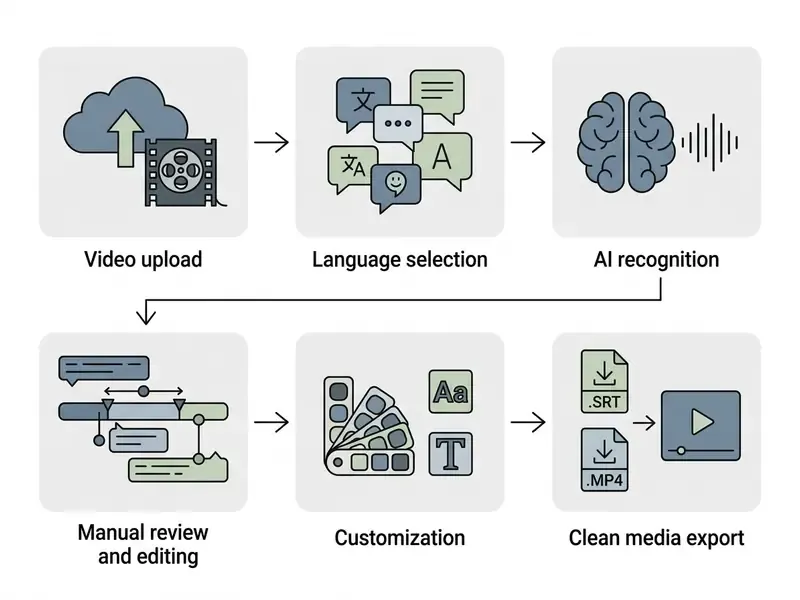
How to Edit Auto Subtitles Before Publishing
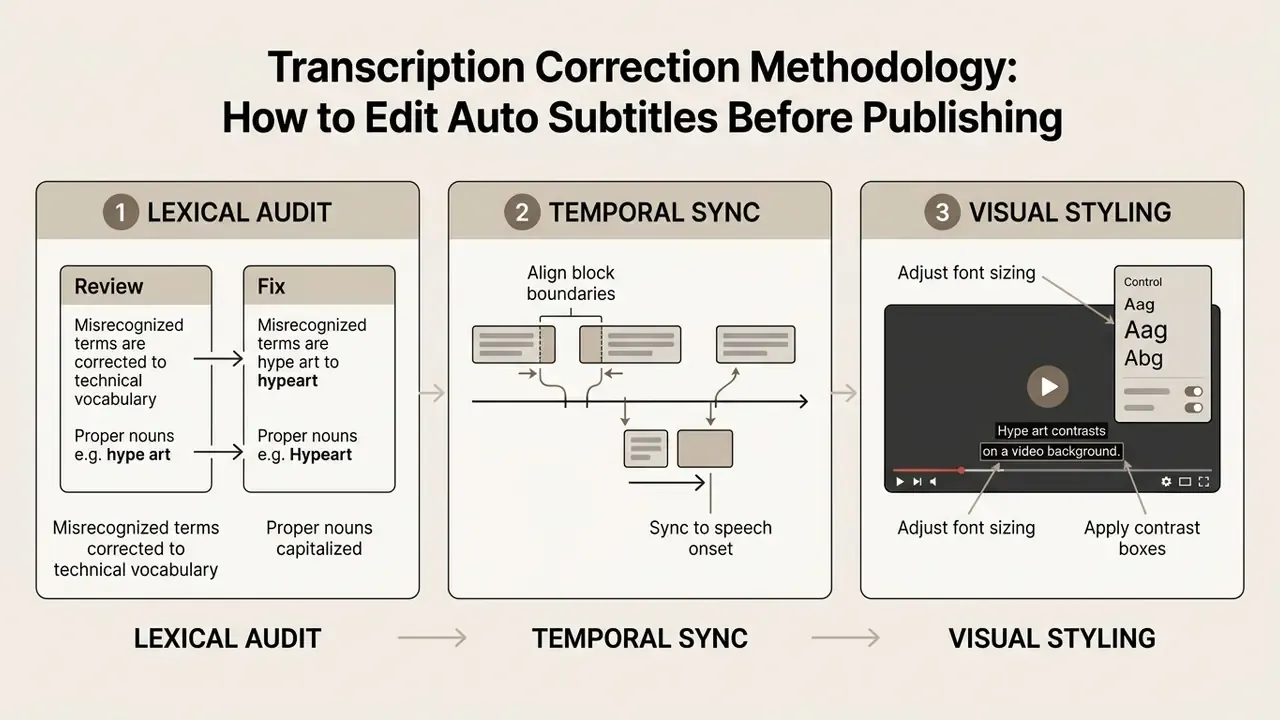
Editing automated subtitles before publishing is a mandatory quality assurance step, not a nice-to-have. Unedited transcripts routinely carry phonetic substitutions, missing punctuation, and timing overlaps that wreck reading comprehension.
Creators comparing browser editors with mobile apps often review free video editing apps like capcut to weigh mobile caption editing against web workflows. Phone-first editing wins on speed; desktop wins on precision retiming.
Fix Recognition Errors in AI-Generated Subtitles
AI speech recognition produces predictable error patterns: homophone confusion, dropped short grammatical words, spurious insertions. Misrecognitions cluster around fast dialogue and audible background noise.
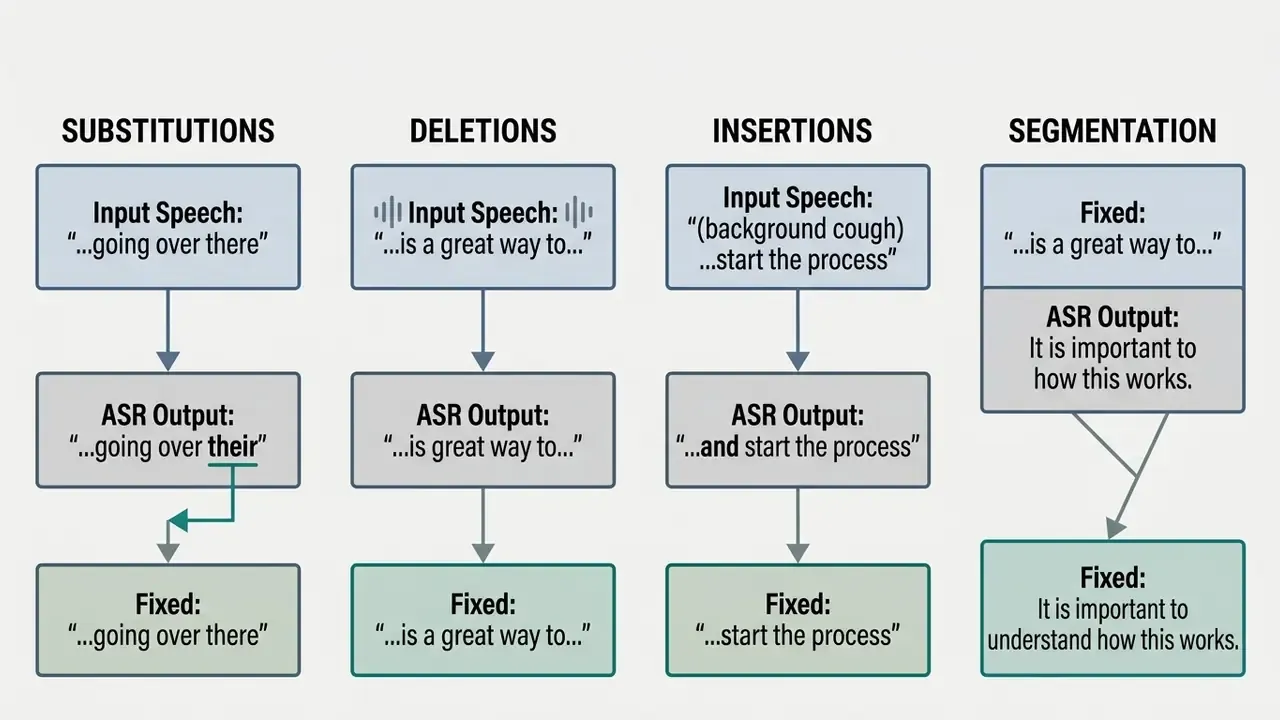
Scan flagged low-confidence segments first, fixing technical jargon and brand names before touching layout. The efficient edit order: jump to flagged cues, correct the text, reflow line breaks, then retime the affected blocks. Retiming before text correction forces duplicate work, and yes, most people learn that the hard way once.
Sync Subtitle Timing With Speech and Scene Changes
Synchronizing subtitles means snapping timecodes to acoustic speech boundaries and visual shot transitions. Captions that straddle a hard cut create visual distraction and raise cognitive load.
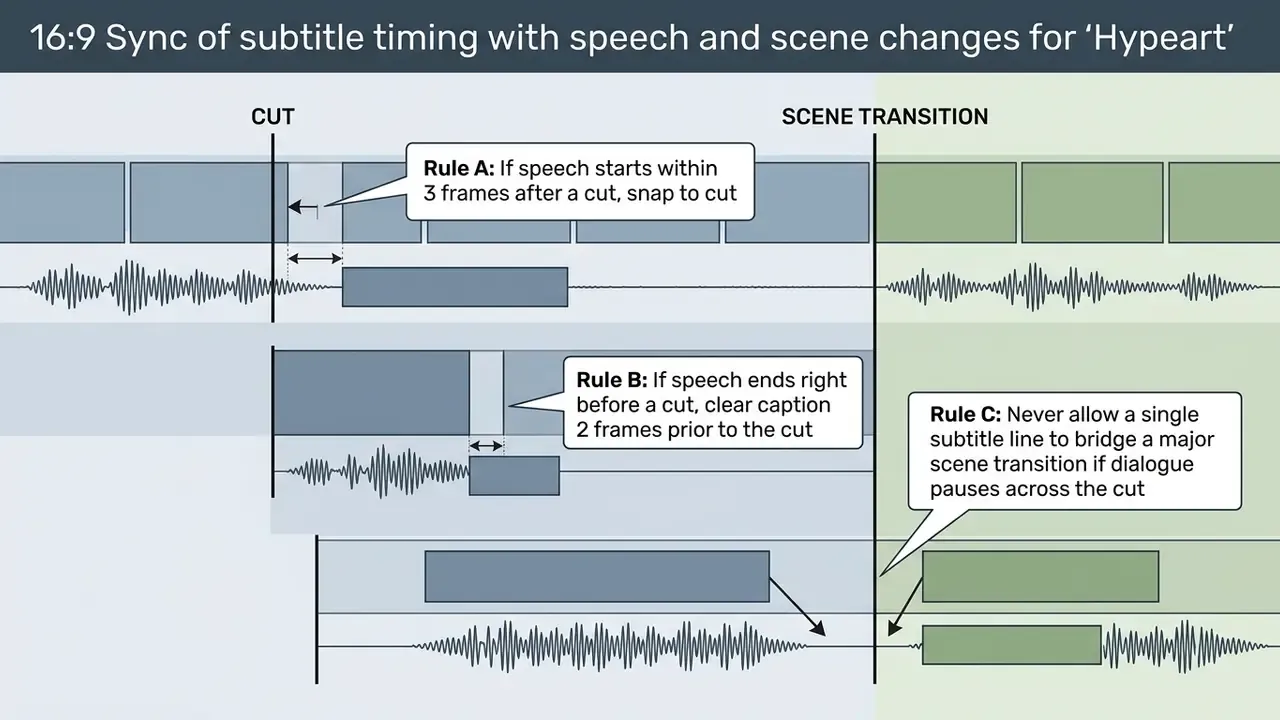
Broadcast guidance supports the same discipline from different angles. Ofcom instructs that subtitles should not run over shot changes where possible and should commence on a shot change when synchronous with the start of speech. Channel 4 specifies clearing cuts by two frames on either side, with a four-frame gap between consecutive continuous-dialogue subtitles. Ofcom also caps subtitles at two lines and requires sentence breaks at natural linguistic boundaries, so each block reads as a self-contained unit. Follow the timing standards and captions stay legible without hijacking attention.
Choose Caption Styles for Mobile Viewing
Mobile consumption demands caption styles built for small vertical screens. Font sizes must stay legible without covering essential visual content in 9:16. Word-by-word highlighting helps retention on short form videos, though high-velocity motion effects tend to cost more attention than they earn.
«TikTok users want captions that are simultaneously accessible and enjoyable, balancing readability against platform aesthetics.»
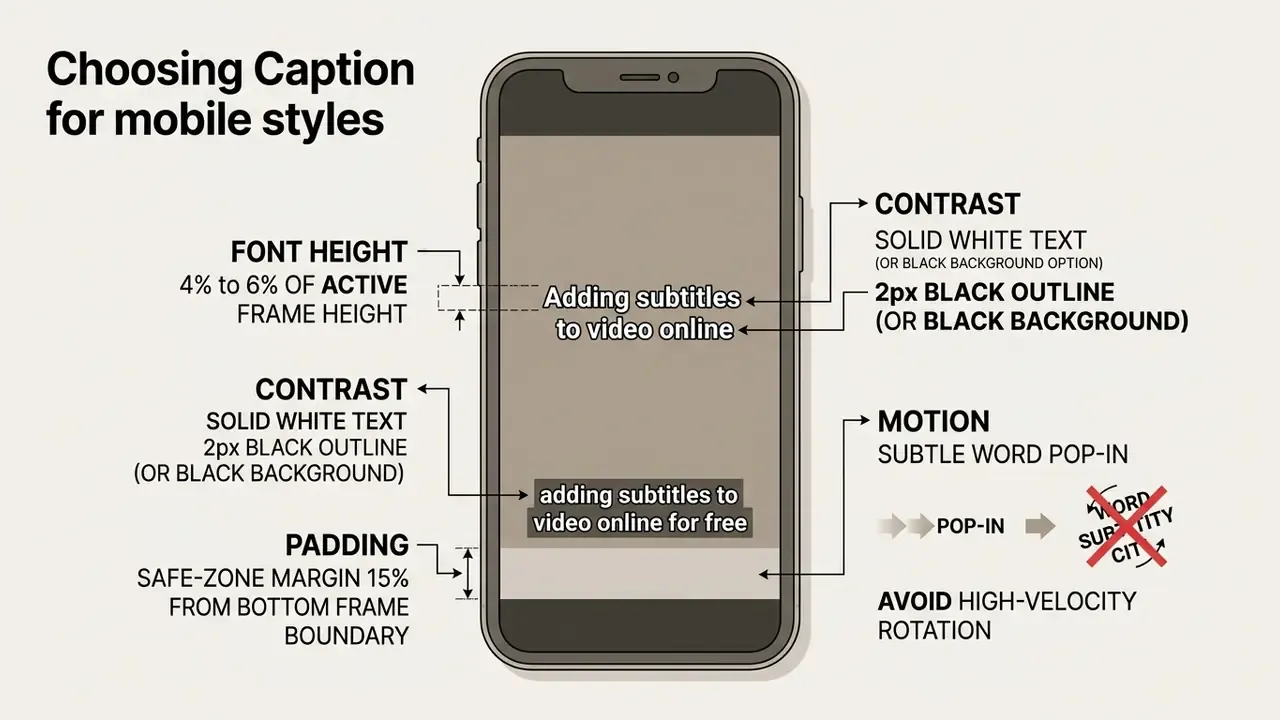
BBC Subtitle Guidelines set a comparable baseline for 9:16 delivery, specifying a line height of 3.9% to 4.5% of active video height and presentation at full authored size on small mobile phones. Consistent contrast and safe-zone margins also stop captions from colliding with platform interface overlays, which is the fastest way to look amateurish in a Reels feed.
Export Subtitles as Video, SRT, or VTT Files
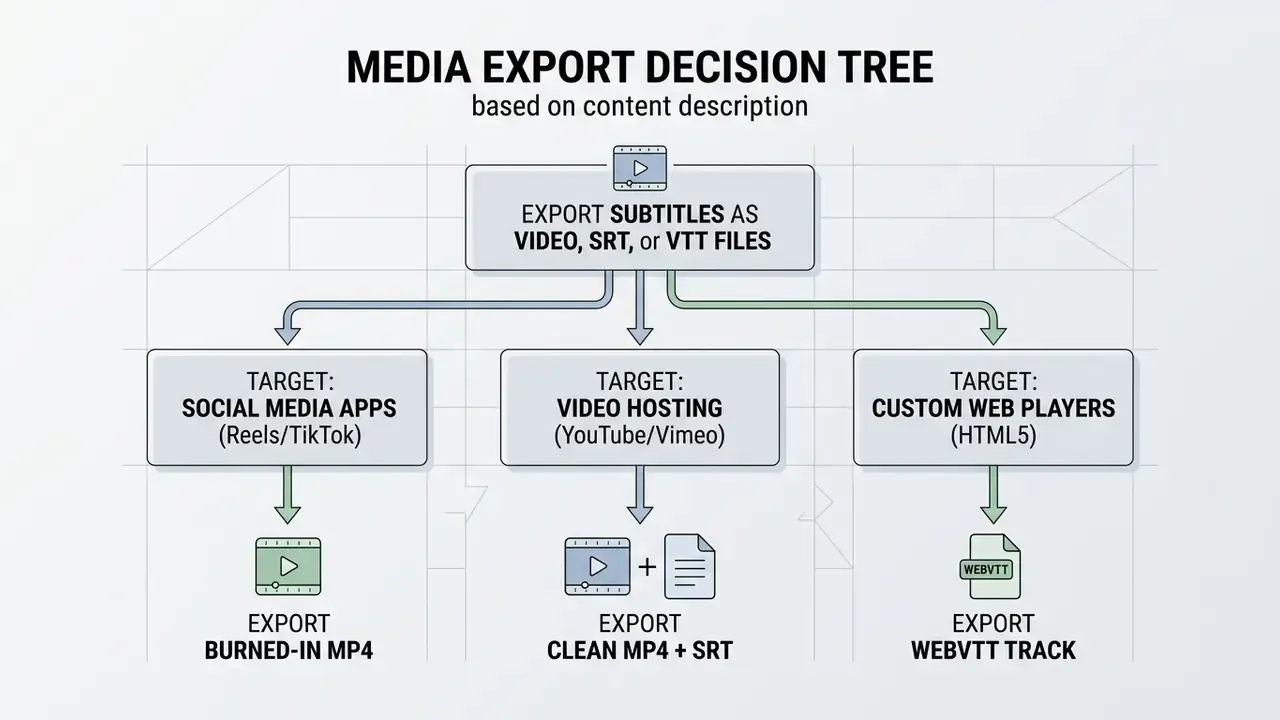
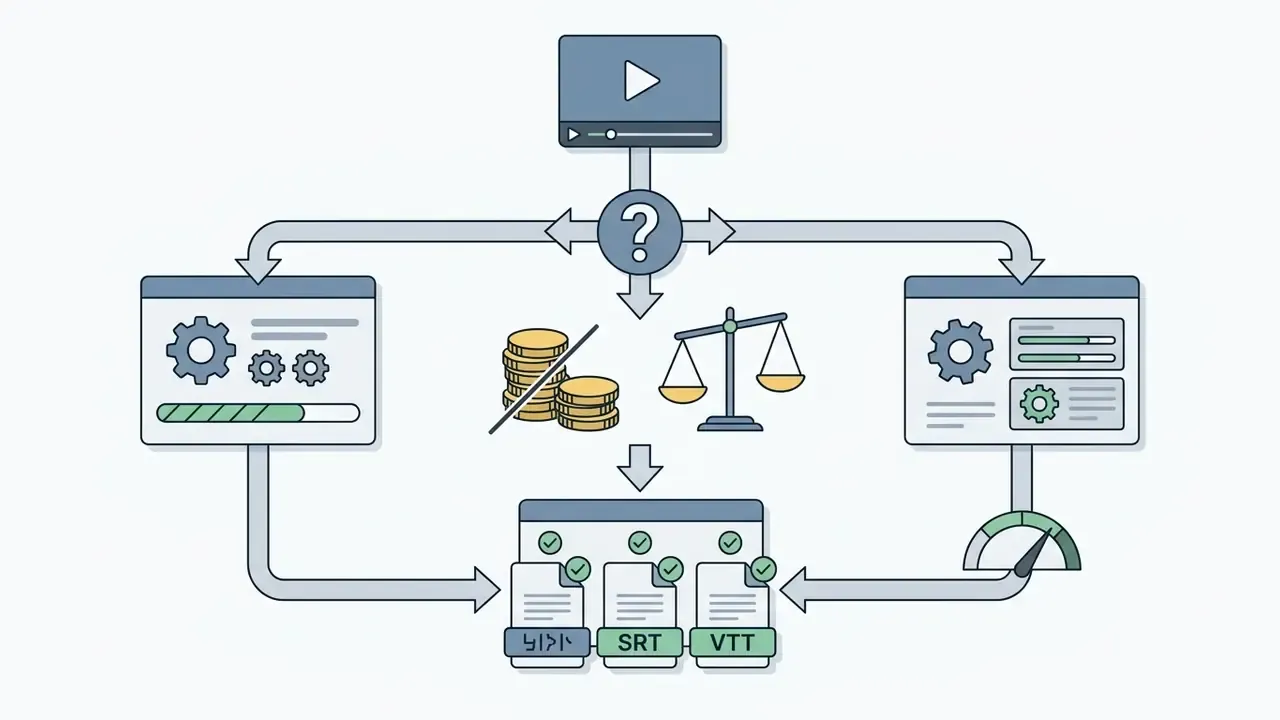
Format choice depends on one question: do you need burned-in visual captions, or a flexible text sidecar track?
Teams evaluating offline tools can review a free video editing software no watermark guide to compare local rendering against web platforms, especially where duration caps bite.
Burned-In Video Subtitles vs Separate Subtitle Files
Burned-in subtitles write text permanently into the video frames during encoding, guaranteeing identical display everywhere. The trade-off: burned-in text cannot be switched off, translated dynamically, or indexed by search crawlers.
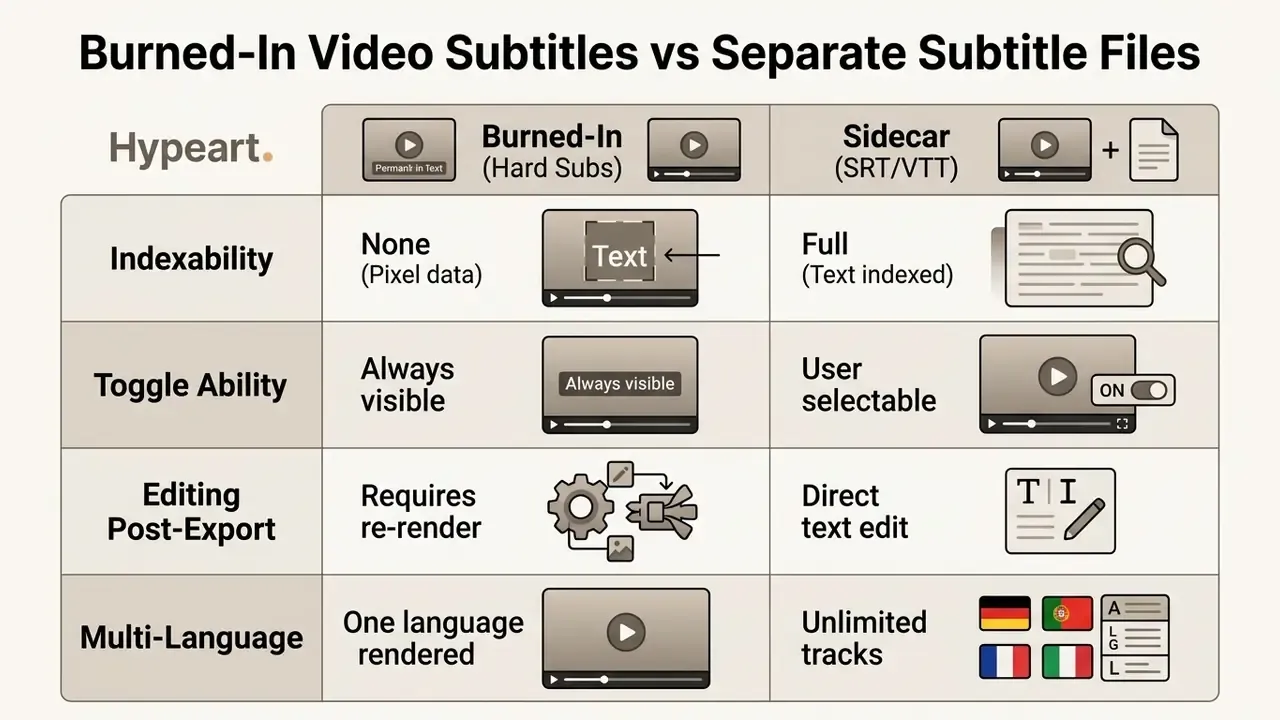
The indexability gap is the same problem web teams hit when they bake copy into graphics, which is why the note on how to display image content instead of live text is worth a read before you commit captions to pixels.
Separate sidecar files preserve original frames while letting viewers toggle captions and pick a language. They are also the only practical route for localization at scale, and localization quality still needs human post-editing.
«Automatic interlingual subtitles from HappyScribe, CapCut and Amberscript trailed human subtitles on quality and comprehensibility in English-to-German testing.»
Container practice differs by delivery system: AWS Elemental documentation describes embedded subtitles as one track per language inside the output, while sidecar delivery supports up to 20 separate tracks per file. The Library of Congress notes that SRT forms the basis of WebVTT, the web-native timed-text format for HTML5 playback.
Which Formats Work for YouTube and Social Media
Platform requirements decide whether you upload sidecar subtitle files or a hard-subbed video container.
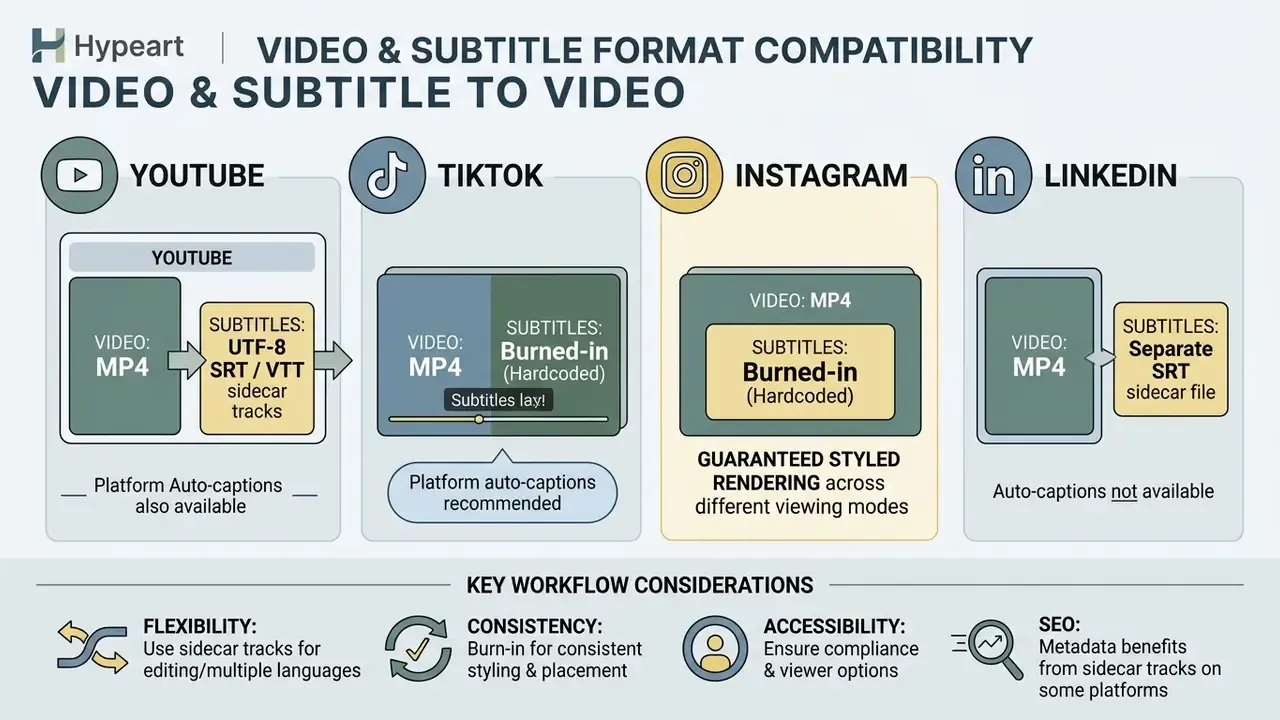
YouTube Help documents support for .srt, .sbv/.sub, .smi/.sami, .scc, .stl and .ttml/.xml, and requires plain UTF-8 encoding for SubRip files. Styling support varies: .srt carries no markup, and .scc is preferred for CEA-608-based captions. Publishing to YouTube therefore favours sidecar SRT uploads, which strengthen search indexing and support multi-language distribution from a single master file.
Which Subtitle Tool Should You Switch To?
The right alternative depends on whether your output is short-form vertical clips or long-form production. Creators can explore the hub to evaluate alternative software for specific media workflows, and teams building broader generative pipelines can compare adjacent AI voice generators for dubbing hand-offs.
The Right Subtitle Tool for Your Exact Scenario
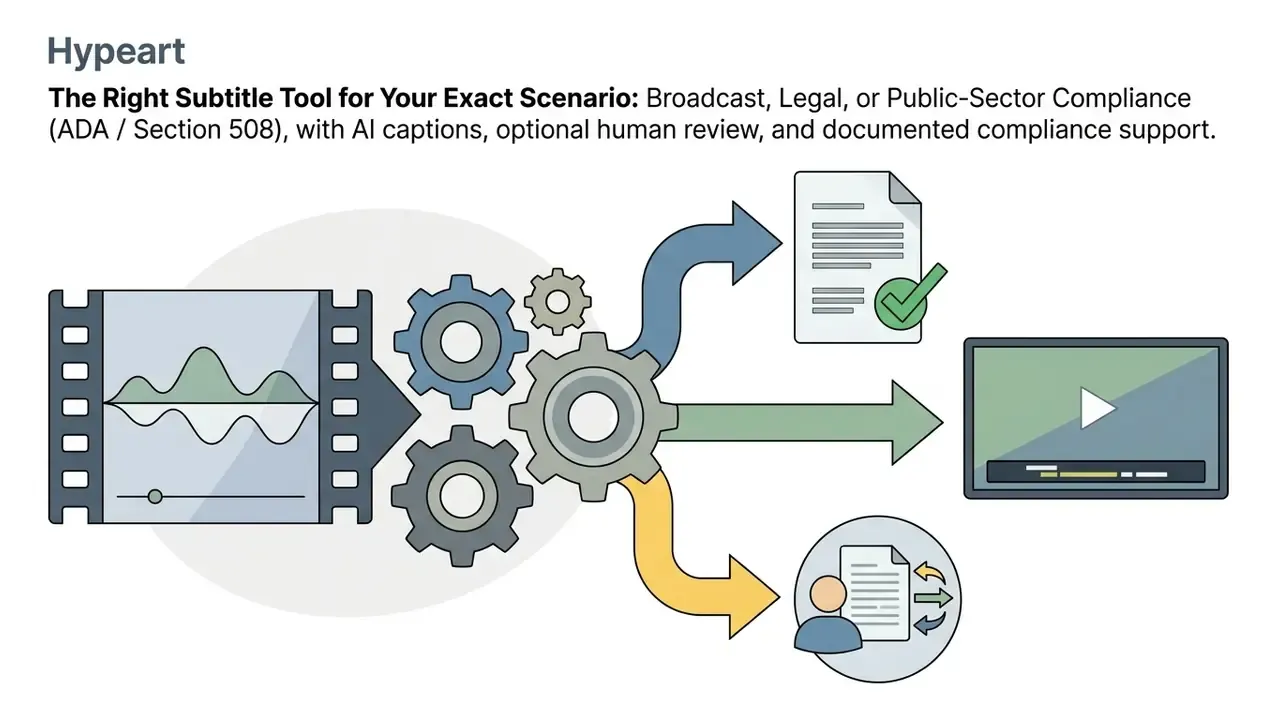
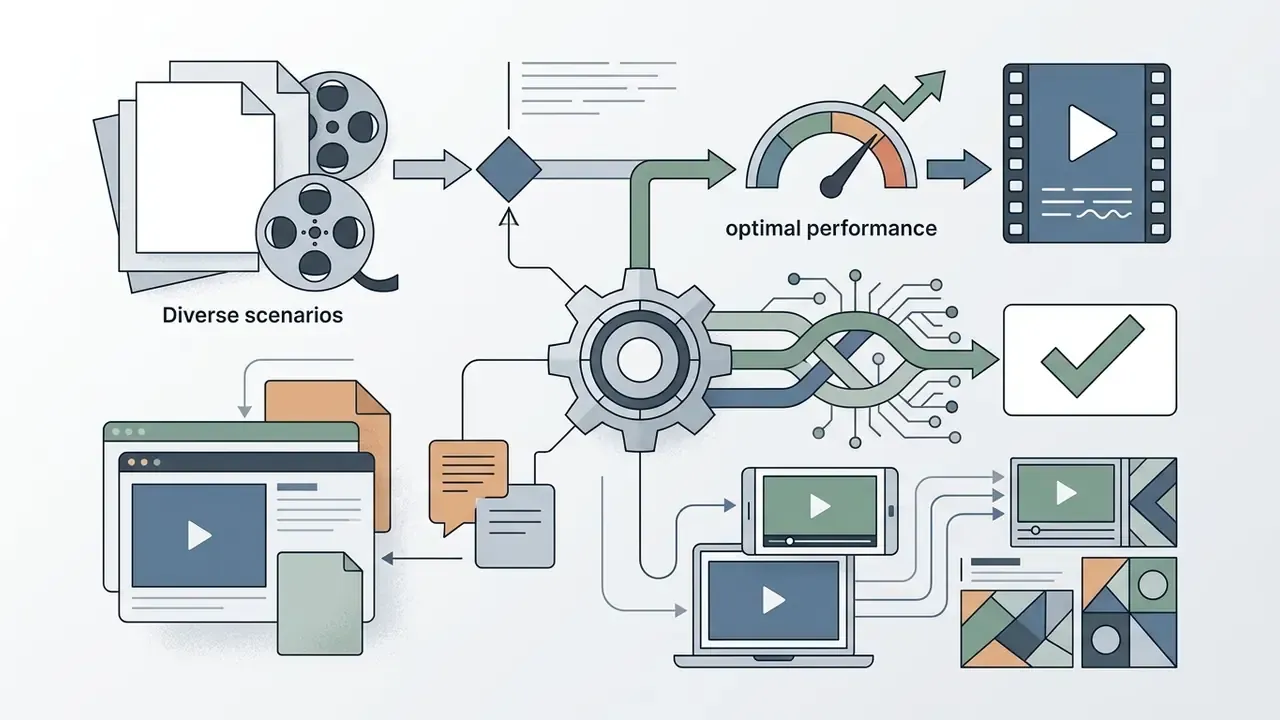
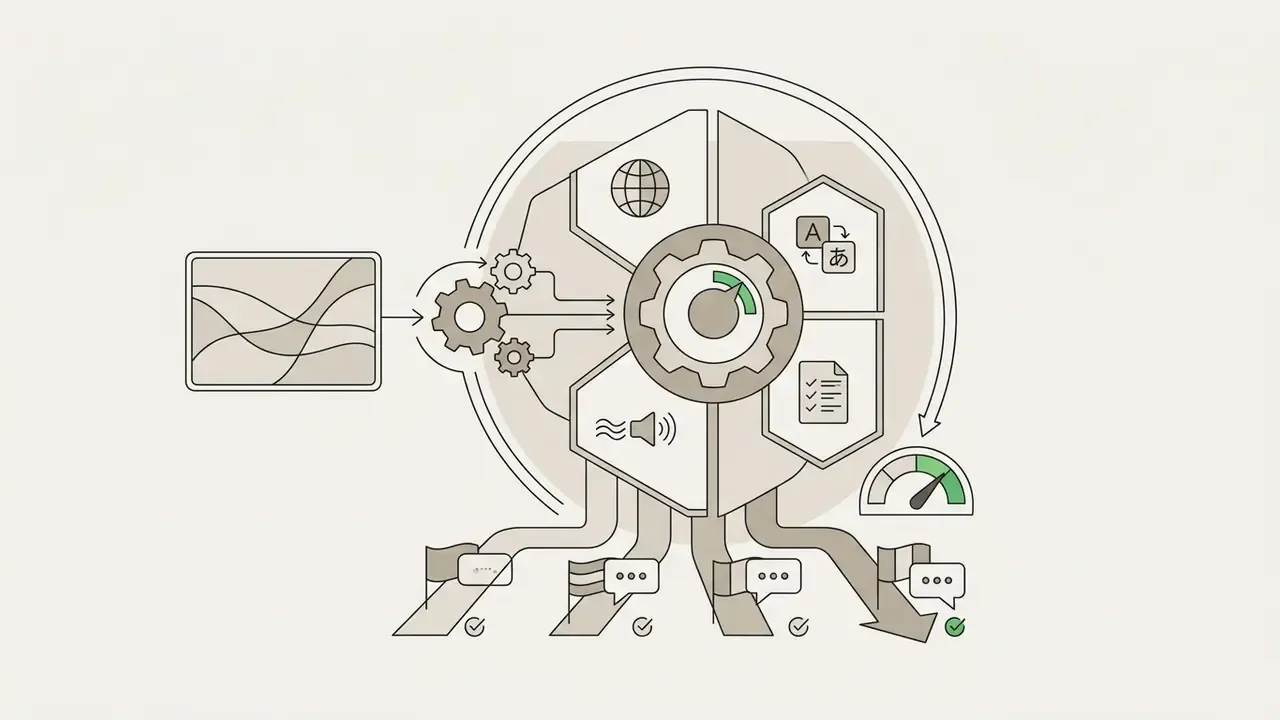
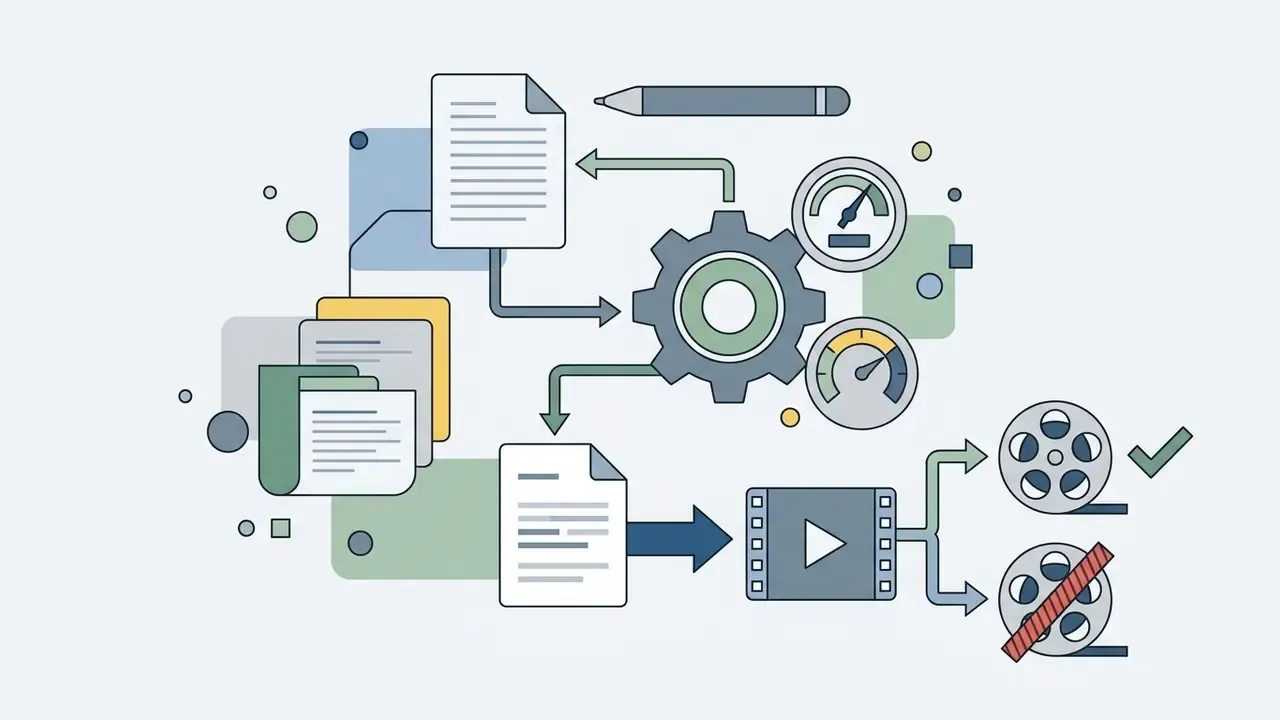
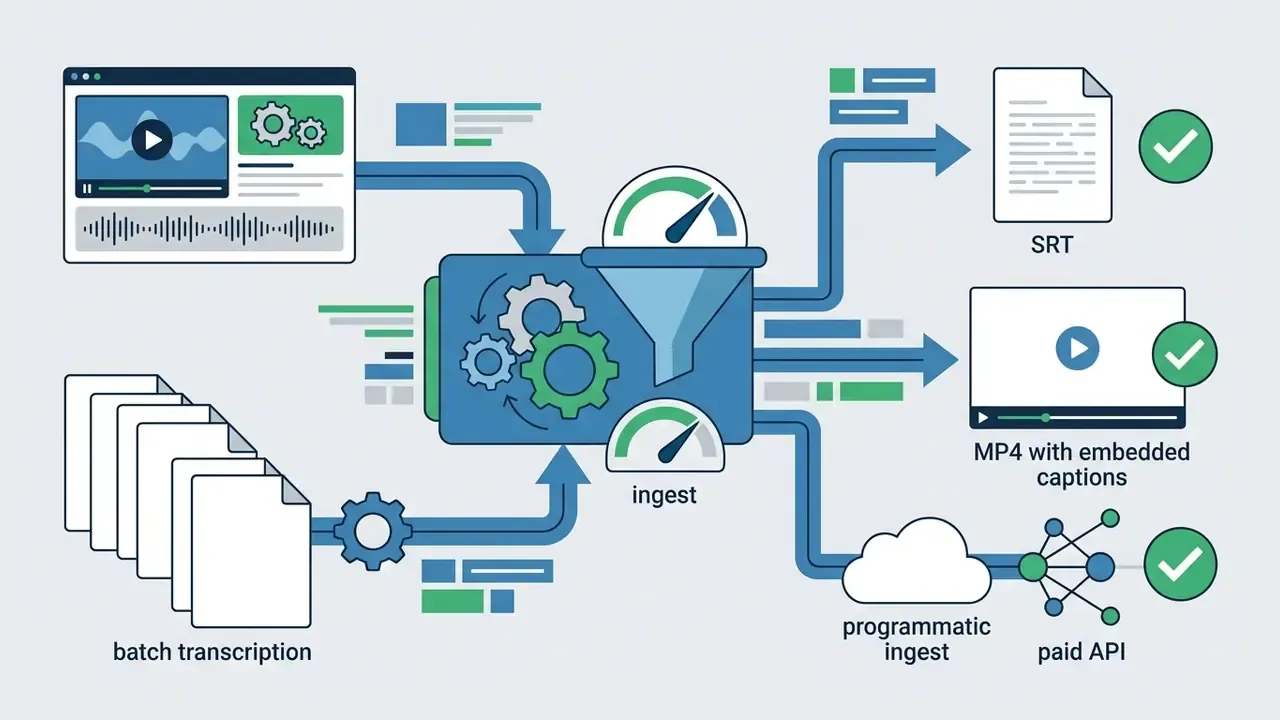
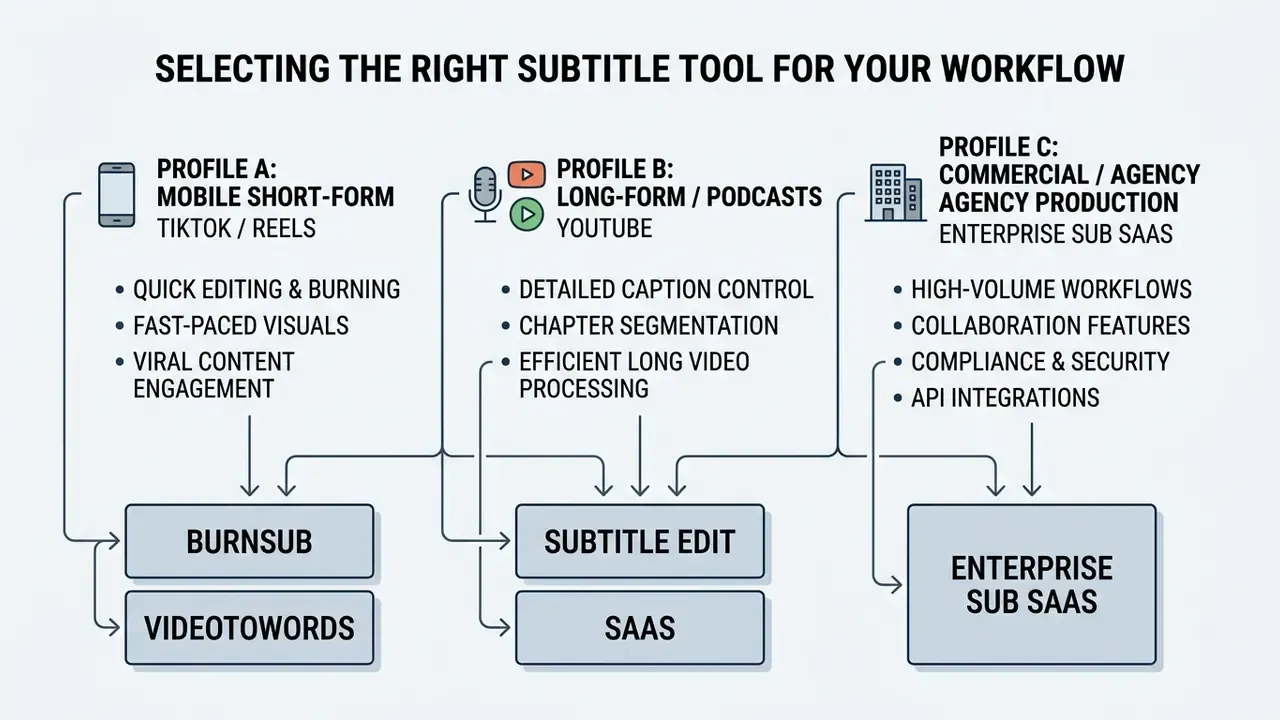
Sorting tools by scenario prevents two expensive mistakes: paying for enterprise features nobody uses, and shipping client work through an underpowered free editor.
For TikTok, Reels, and Other Short-Form Videos
Short-form content lives on fast processing, dynamic templates, and high-contrast typography. Tools in this bracket need to deliver clean MP4 exports that render correctly on vertical mobile screens, first time.
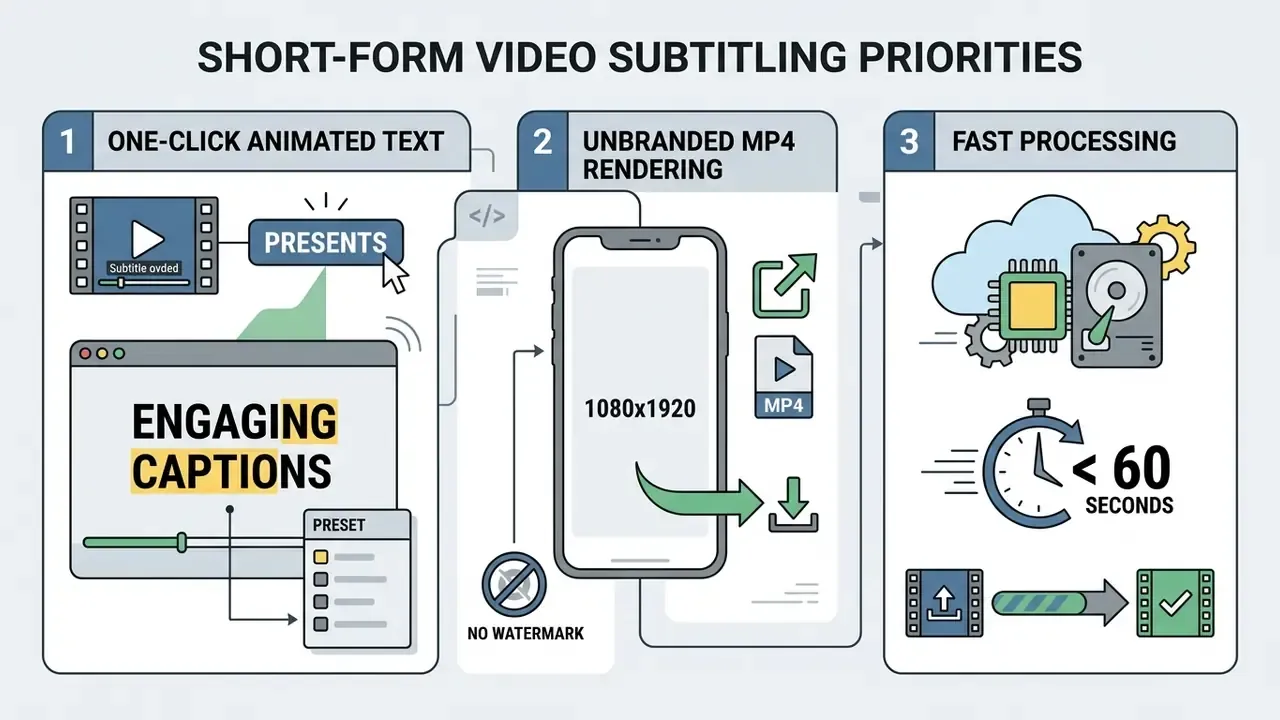
For creators who want unbranded rendering without a subscription, client-side tools such as BurnSub provide watermark-free output funded by advertising. The trade-off is hardware: encoding 4K locally on an older laptop is slow.
For YouTube Videos, Podcasts, and Longer Videos
Long-form media needs precise timestamp control, multi-speaker recognition, and clean sidecar exports. Free web apps capped at 10 minutes simply do not fit a full-length podcast or a lecture recording.
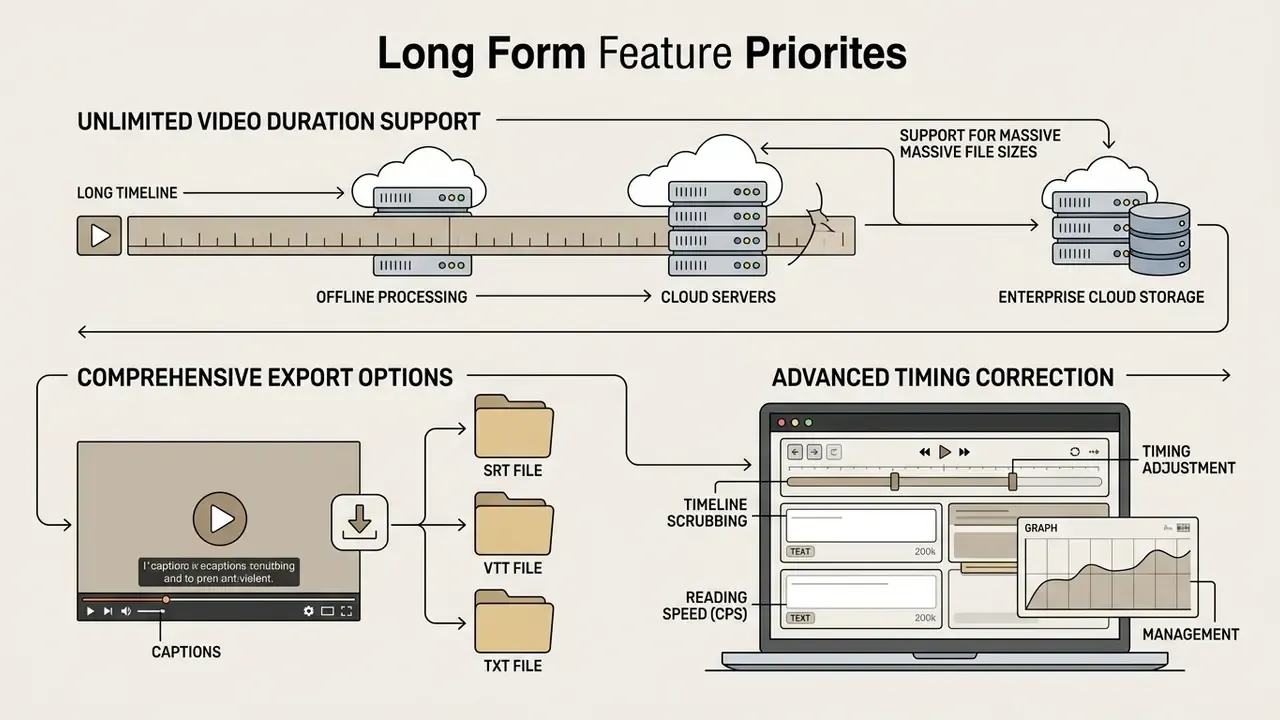
Open-source desktop tools such as Subtitle Edit process long recordings locally with Whisper backends, sidestepping SaaS duration limits entirely. For interview-heavy shows, budget editorial time for speaker labels; diarization output still needs a human pass.
«SubER and EER metrics quantify the additional editorial effort required to bring ASR subtitles to professional broadcast standard.»
Data Security and Shadow AI Checklist for Corporate Teams
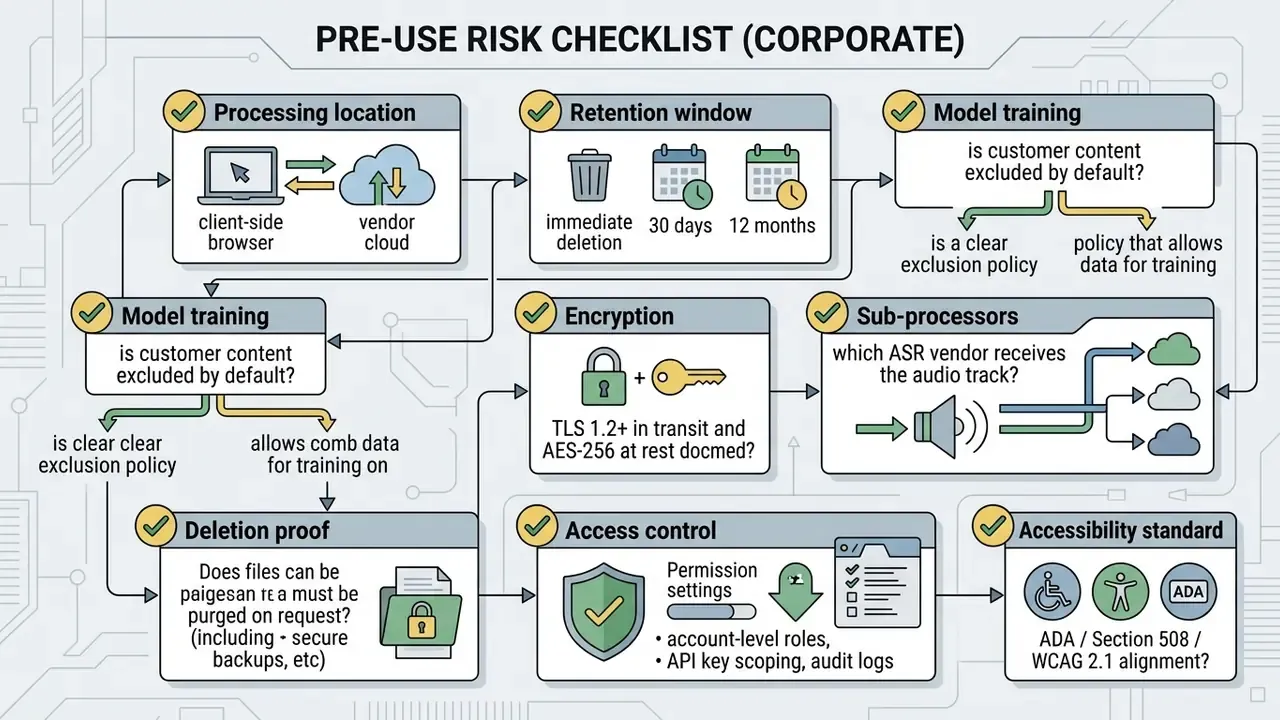
Free browser tools usually enter organizations through individual contributors, not procurement. That is the classic shadow AI pattern, and captioning is a common entry point because the task feels trivial. Before captioning internal, pre-release, or regulated footage, run these checks.
FAQ: Free AI Subtitle Generators Without Watermark
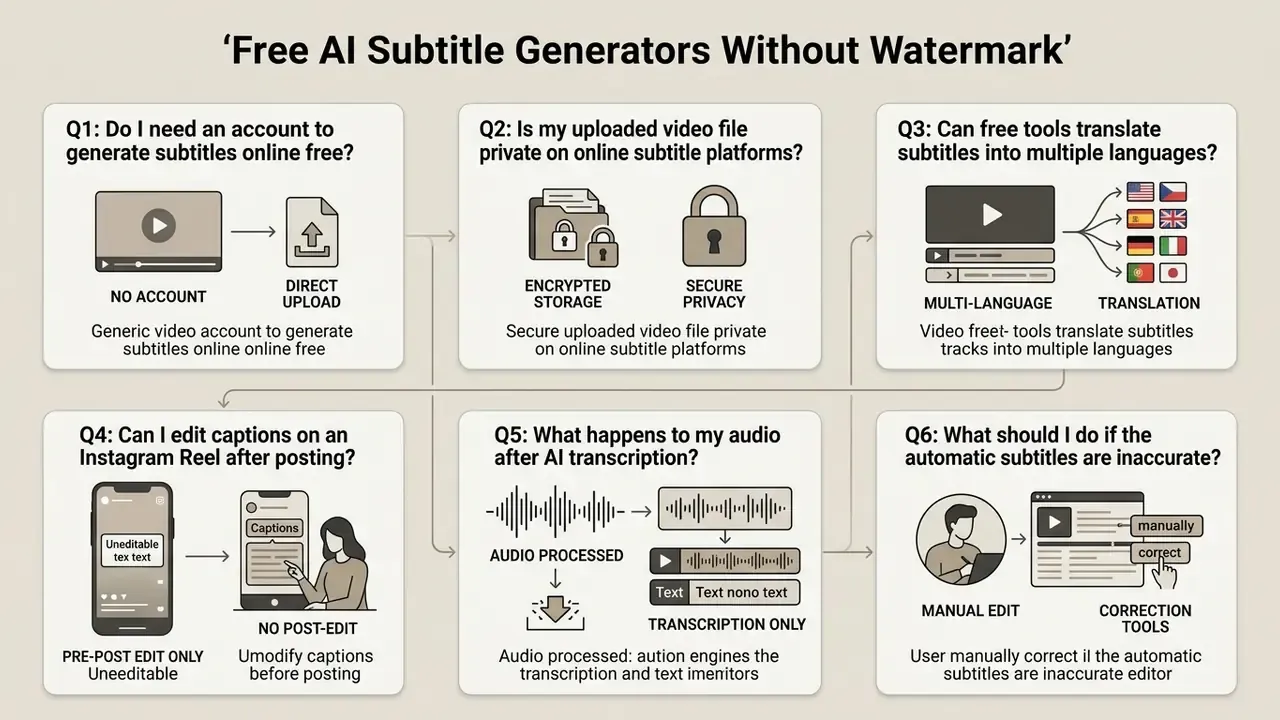
Do I Need an Account to Generate Subtitles Online?
Often, no. Many online subtitle generators let you upload media, run speech recognition, and export captions with no account at all. SubtitleKit, Videotowords, and BurnSub offer browser-based processing without mandatory sign-up, and several others, including AutoSubtitles, Caption X and Maestra, state explicitly that no signup or credit card is required to export. Guest access has a price, though. Platforms offering it commonly cap export resolution, limit daily video volume, or apply a visual watermark unless you register or move to a paid plan.
Is My Uploaded Video File Private?
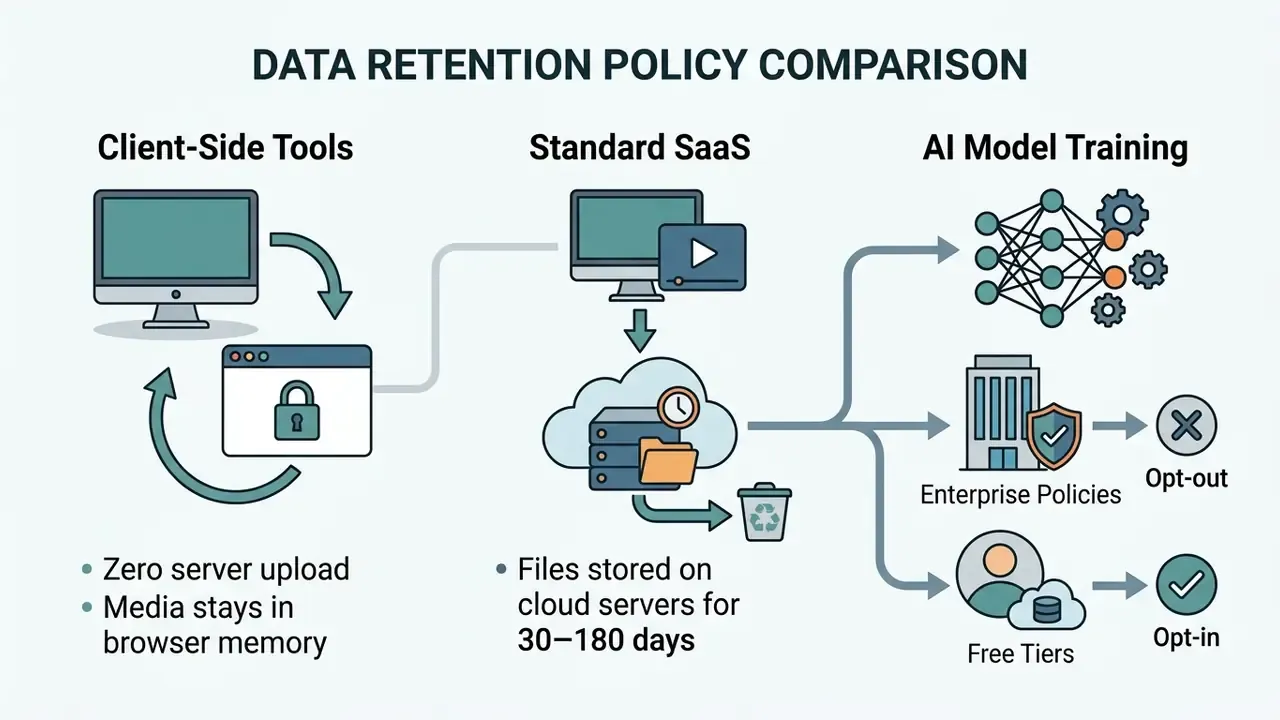
Privacy depends on platform architecture and vendor retention policy, not on marketing copy. Client-side tools that process files locally in the browser keep the video data on your own hardware. For sensitive or proprietary footage, review the vendor privacy policy to verify encryption standards and confirm uploaded content is excluded from model training. BurnSub, for instance, documents fully local processing through WebCodecs: the video file never leaves the browser, which removes server-side storage from the threat model entirely. Teams standardizing a repeatable publishing chain can fold this step into a broader YouTube video editing workflow, so captioning, review and export all run under the same data policy. Disclaimer: This information is general in nature and does not replace reading the current privacy policy of the specific service before uploading sensitive material.
Can Free Tools Translate Subtitles Into Multiple Languages?
Partially. Free tiers commonly include one or two target languages or a small monthly translation allowance, while full libraries of 100+ languages sit behind paid plans on most platforms. Quality is the second constraint: machine translation of subtitles still trails human subtitling on comprehensibility, and low-resource language pairs degrade sharply. Anything intended for publication should be reviewed by a speaker of the target language.
Can I Add or Edit Subtitles on an Instagram Reel After Posting?
No. Neither Instagram nor TikTok lets you modify burned-in captions or attach a native sidecar subtitle file once a video is published. The only reliable route is to delete the post, generate and burn captions with a tool such as BurnSub, AutoSubtitles or Videotowords, then re-upload the rendered MP4. Since re-uploading resets engagement signals, caption before publishing. Instagram's own auto-captions can be enabled at posting time, but styling control is thin compared with a dedicated subtitle editor.
What Happens to My Audio File After AI Transcription?
It depends on the architecture. Browser-native editors process the video locally through WebCodecs and send only the extracted, compressed audio track to a transcription endpoint. Several vendors state that this audio is deleted immediately after the JSON timestamp payload is returned. Full cloud SaaS platforms instead upload the entire media file, store it for a defined retention window, and re-encode the final video on their own GPUs. That encoding bill is precisely why those services need paid tiers to remove watermarks.
What Should I Do If the Automatic Subtitles Are Inaccurate?
Treat the transcript as a draft. No ASR engine guarantees 100% accuracy, and accuracy falls measurably with accents, overlapping speech, and background noise. Work in three passes: correct flagged low-confidence cues and proper nouns, reflow line breaks at natural linguistic boundaries, then retime blocks against speech onset and shot changes. If the recording is legal, medical, educational, or broadcast-bound, budget for human verification instead of trusting automated output alone.
How We Verified This Guide