2048x1152 YouTube Banner: How to Create, Design, and Upload Channel Art
A 2048x1152 YouTube banner is the visual header of a channel page. It carries brand identity across desktop, mobile, and television displays. At a 16:9 aspect ratio, this dimension is the baseline platform standard for custom channel art. Nothing smaller passes validation.
Page type
Role Workflow
Last checked
· Reviewed against official YouTube channel branding documentation
Source status
Not provided
Why does the exact number matter? Because YouTube crops the same file differently on every screen, and a logo that looks centered in your editor can vanish on a phone. The rest of this guide fixes that.
Key Numbers at a Glance
Item
Value
Minimum canvas
2048 × 1152 px (16:9)
Recommended canvas (TV-first)
2560 × 1440 px (16:9)
Guaranteed safe zone on a 2048 × 1152 canvas
1235 × 338 px, centered
Guaranteed safe zone on a 2560 × 1440 canvas
1546 × 423 px, centered
Maximum file size
6 MB
Accepted upload formats
JPG, PNG, BMP, non-animated GIF
Export recommendation
PNG-24 for text and vectors, JPEG 80 to 90% for photos, sRGB profile
Minimum text contrast
4.5:1 (WCAG 2.2)
Mobile share of viewing
70%+ of YouTube views occur on mobile
What Is a 2048x1152 YouTube Banner and Who Should Use This Size
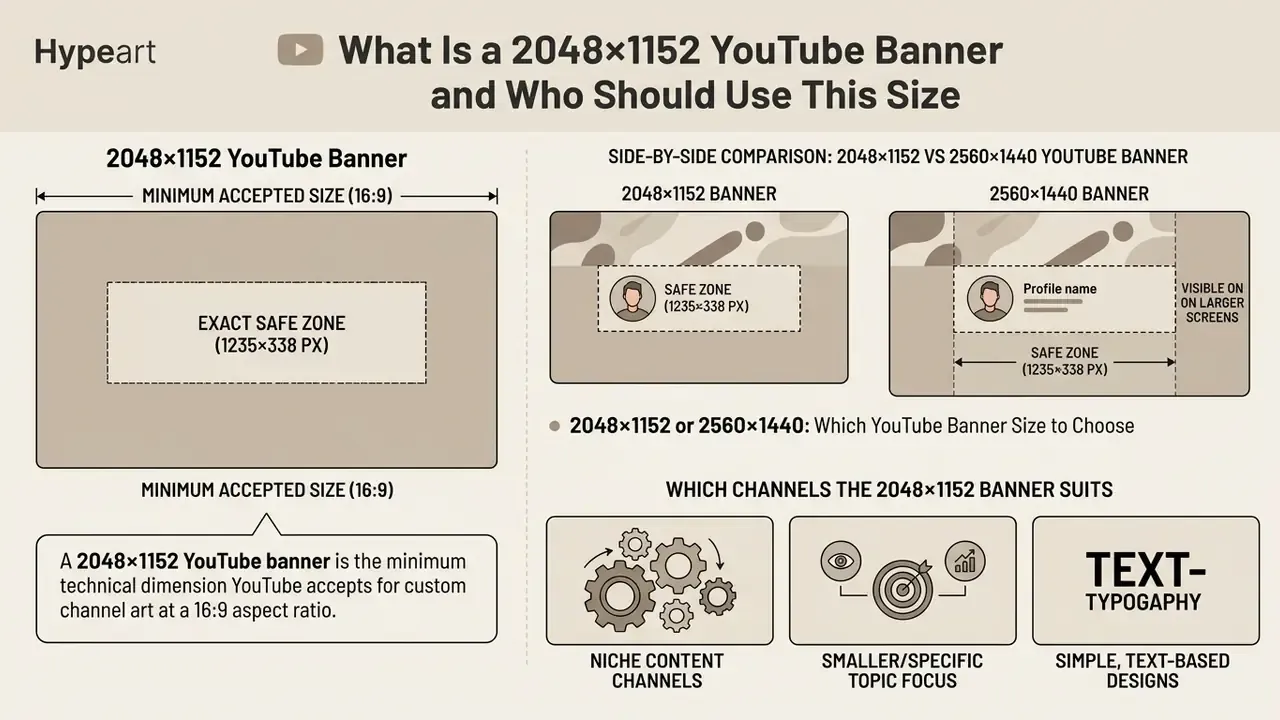
A 2048x1152 YouTube banner is the minimum technical dimension YouTube accepts for custom channel art at a 16:9 aspect ratio. It establishes channel branding for visitors, and it guarantees the uploaded file clears platform validation rules.
A 2048x1152 pixels YouTube banner contains exactly 2,359,296 pixels.
That pixel count gives enough visual clarity for small screens and desktop displays while keeping the file light. Channels built around gaming, aesthetic lifestyle content, education, music, podcasting, or corporate media can all use a 2048x1152 banner for a YouTube channel, provided primary branding elements stay inside the central visible boundary.
For creators sizing assets before production, the table below sets out the core technical specifications of a 2048x1152 banner for YouTube channel branding.
Technical parameters for a 2048x1152 YouTube banner
Parameter
Specification
Operational role
Resolution
2048 × 1152 pixels
Minimum upload threshold for custom YouTube channel art
Aspect ratio
16:9 widescreen
Matches native display canvases on desktop, mobile, and smart TVs
Maximum file size
6 MB or smaller
Prevents upload rejection in YouTube Studio branding settings
Safe zone (minimum)
1235 × 338 pixels
Guaranteed visible area for text, logo, and profile pic alignment
Accepted formats
JPG, PNG, BMP, non-animated GIF
Formats validated by YouTube Studio during banner upload
Universal compatibility for channel art across creator categories
The parameters above confirm one thing: a 2048x1152 banner meets every baseline platform requirement. The canvas spans 2048x1152 pixels, yet display engines render only the central portion on mobile. So effective YouTube channel art treats outer pixels as background margin and concentrates iconography in the middle.
2048x1152 or 2560x1440: Which YouTube Banner Size to Choose
Platform viewing analytics put more than 70% of YouTube sessions on mobile devices. For a mixed mobile-and-desktop audience, 2048x1152 is usually the pragmatic choice: full clarity inside the safe zone, roughly 1.5 times faster uploads, and comfortable headroom under the 6 MB limit.
Choosing between 2048x1152 and 2560x1440 comes down to target hardware and the resolution of your source assets. A 2048x1152 pixels YouTube banner meets minimum upload requirements. A 2560x1440 file is what YouTube recommends for high-definition television playback.
A 2560x1440 image holds roughly 1.56 times more pixels than a 2048x1152 banner.
The extra density preserves sharp edges around fine typography on 4K monitors and smart TVs. On the other hand, a banner built at 2048x1152 exports faster, uses less local memory, and stays under 6 MB without effort. If your source artwork is raster material capped at lower resolutions, forcing an upscale to 2560x1440 can introduce blur. In that case, generating a native 16:9 background with AI image generators produces cleaner output than interpolating an undersized file. A 2048x1152 banner then delivers better native sharpness with no interpolation artifacts.
Side-by-side comparison: 2048x1152 vs 2560x1440 YouTube banner
Criterion
2048 × 1152
2560 × 1440
Total pixels
2,359,296
3,686,400 (≈1.56× more)
Platform status
Minimum accepted size
Recommended size
Centered safe zone
1235 × 338 px
1546 × 423 px
Smart TV rendering
Slight edge softness on 4K panels
Full native clarity
File weight under 6 MB
Easy to achieve at PNG-24
Often requires JPEG 80 to 90%
Upscaling risk
None when assets are native
Interpolation blur if sources are small
Best fit
Mobile-first gaming, vlog, music, entertainment channels
One recurring error in third-party guides is mixing the two safe-zone figures. The 1546 × 423 px safe area belongs only to the 2560 × 1440 canvas. Scale it by the exact ratio 2048 ÷ 2560 = 0.8, and you get 1546 × 0.8 ≈ 1236 px and 423 × 0.8 ≈ 338 px. That is exactly why the safe zone on a 2048 × 1152 canvas measures 1235 × 338 px, not 1546 × 423 px. Small arithmetic, large consequences.
Which Channels the 2048x1152 Banner Suits
A 2048x1152 banner suits channels that value fast loading, clean typography, and uncluttered layouts. It is an efficient canvas for gaming banner concepts, aesthetic banner styles, podcast branding, and professional creator identities.
In practice, gaming channels build 2048x1152 layouts around high-contrast stream schedules, sponsor emblems, and avatar graphics, because those elements read clearly at small mobile widths. That is a design pattern widely documented in template libraries, not a platform requirement. Aesthetic channels lean on the compact canvas for minimal typography over textured or dark backgrounds, since restrained palettes survive aggressive device cropping better than dense compositions. Educational and corporate profiles use the same standard size to display brand wordmarks without straining media storage quotas.
Because YouTube applies uniform display cropping regardless of channel category, the 2048x1152 specification works universally across verticals. The real difference between channels is what content occupies the safe zone, not the technical spec itself.
Safe Zone in a 2048x1152 Banner: Where to Place Text, Logo, and Subscribe Elements
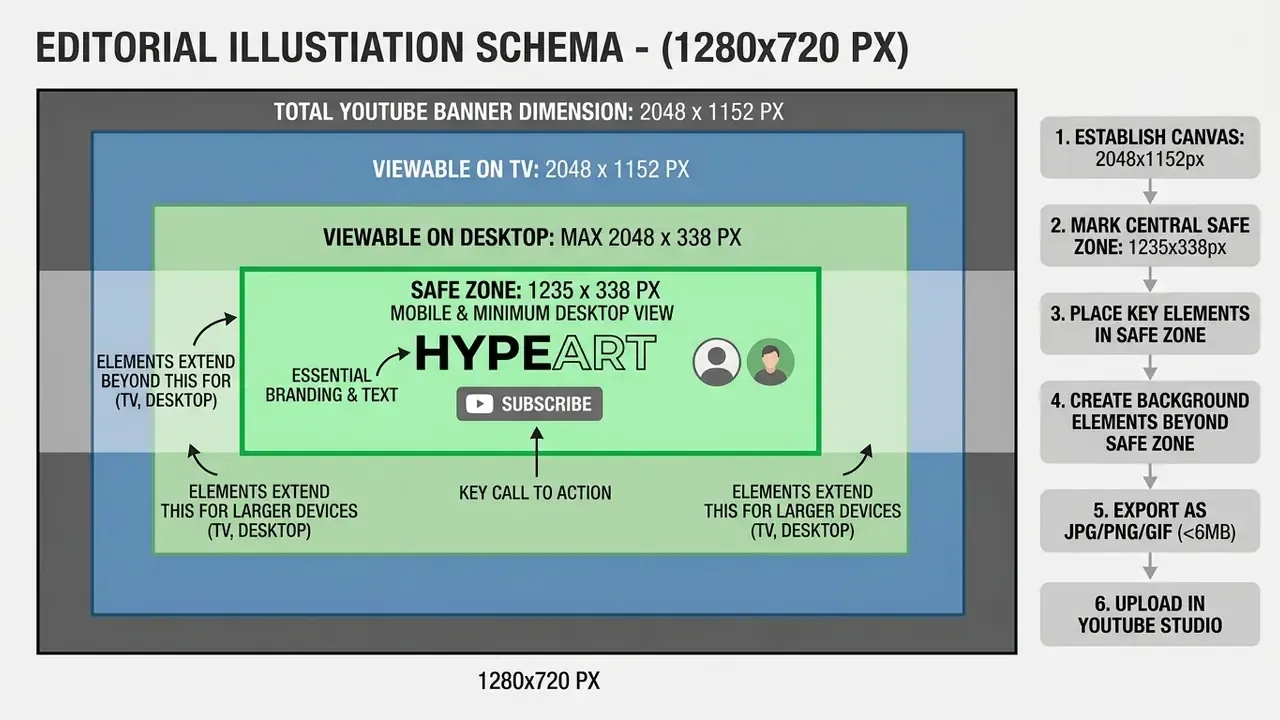
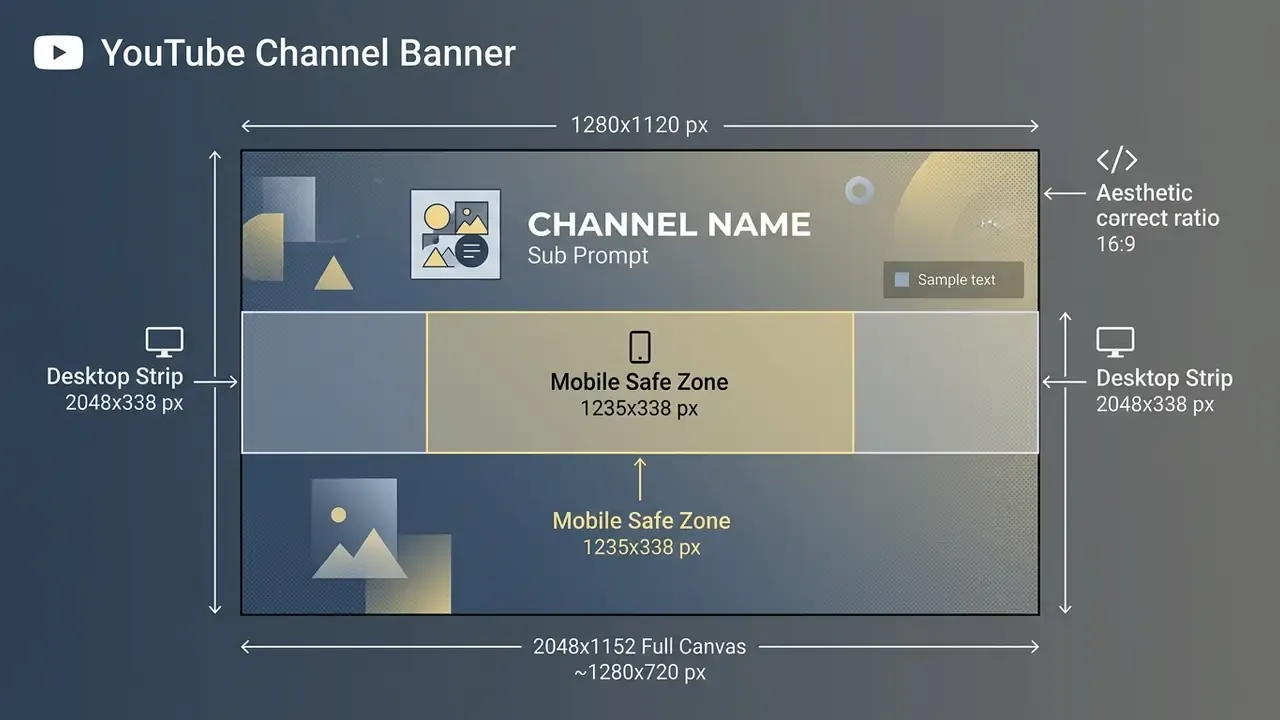
The safe zone in a 2048x1152 banner is the centered 1235x338 pixel rectangle where key text, logos, and subscribe button elements must sit to avoid cropping on mobile and desktop.
Open a channel on a smartphone and YouTube truncates the outer vertical and horizontal margins of the channel art. Anything outside the 1235x338 pixel safe zone still shows on television displays, but it disappears on smaller screens.
Placing a 2048x1152 subscribe banner for channel growth therefore means aligning text labels and subscribe icons inside that central strip. No exceptions.
Centered 1235x338 px safe zone for correct display of text and logo across all devices
Layout rules: High-contrast bounding boxes marking TV (2048x1152), Desktop (2048x338), and Mobile Safe Zone (1235x338). alt="2048x1152 youtube banner safe zone layout"
Device visibility map for a 2048 × 1152 canvas
Device context
Visible region
Design implication
Smart TV
Full 2048 × 1152 canvas
Background art, textures, atmosphere
Desktop browser, wide window (desktop new view)
≈2048 × 338 horizontal strip
Secondary graphics, side accents
Tablet
≈1484 × 338 centered
Supporting badges, social media handles
Smartphone
1235 × 338 centered
Channel name, logo, CTA, mandatory zone
To keep elements fully visible, set the main channel title in the vertical middle of the 1235x338 boundary. Secondary badges, such as a 2048x1152 subscribe banner callout or social media handles, belong just below or beside the title. Reserve roughly 120 px of clearance in the lower-right corner of the desktop strip, since YouTube overlays channel link icons there on desktop layouts.
E-E-A-T Verification / Fact Check
A short field example. During a channel rebranding project for a financial technology publication (illustrative composite, not a named client), the first channel header failed display checks because the primary wordmark sat about 200 pixels off-center. We moved the logo and the call-to-action line directly into the 1235x338 grid. Re-testing on iOS, Android, and desktop browsers showed zero truncation, which gave the team a repeatable workflow instead of guesswork.
Teams that need precise layer alignment and guide overlays can compare capability sets among AI photo editors before locking a production pipeline, and check feature ceilings in our overview of online photo editors.
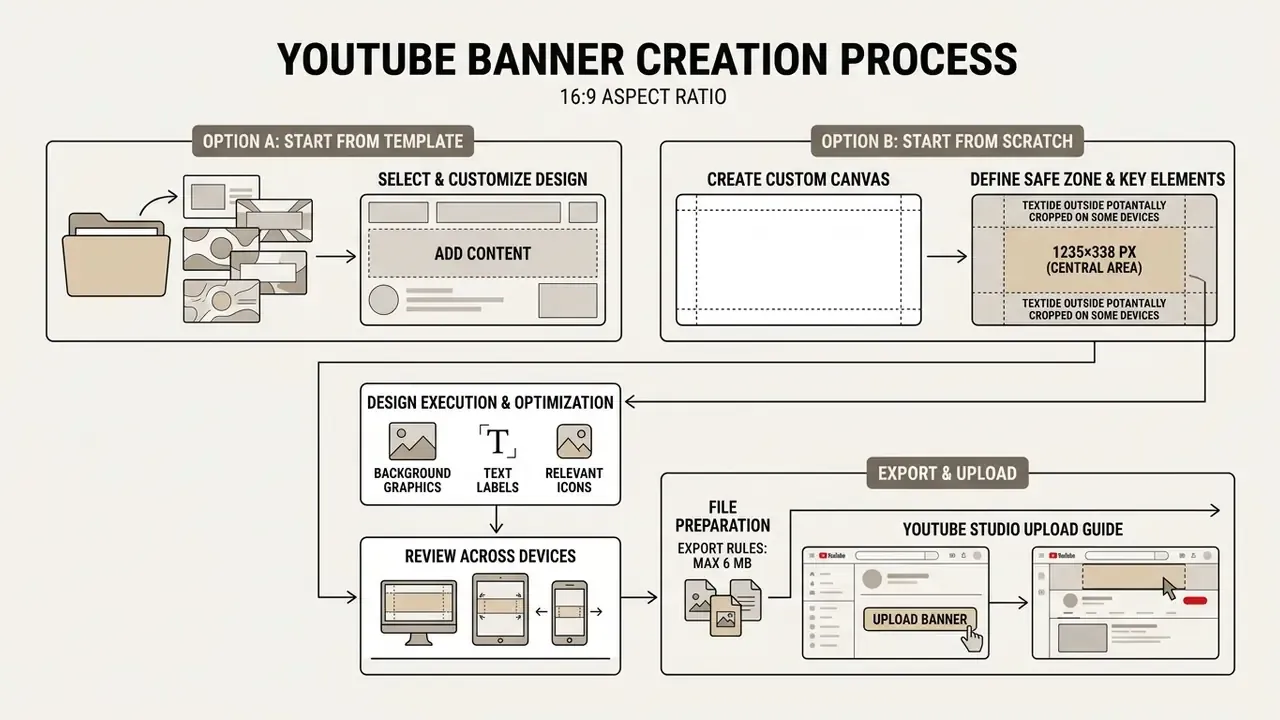
How to Create a 2048x1152 YouTube Banner from a Template or from Scratch
Creating a 2048x1152 YouTube banner means opening a 16:9 document canvas, setting central safe-zone guides, placing high-quality background artwork, and exporting a compressed file under 6 MB.
Whether you use a dedicated youtube banner maker or a professional desktop editor, including free photo editors that support custom canvas presets, a structured sequence prevents rendering mistakes on the live channel page. Banner templates speed up setup. Building from scratch buys full control over typography and layer order.
"Visual hierarchy determines what a viewer notices first: the most important elements should be larger, higher-contrast, and positioned toward the top of the layout."
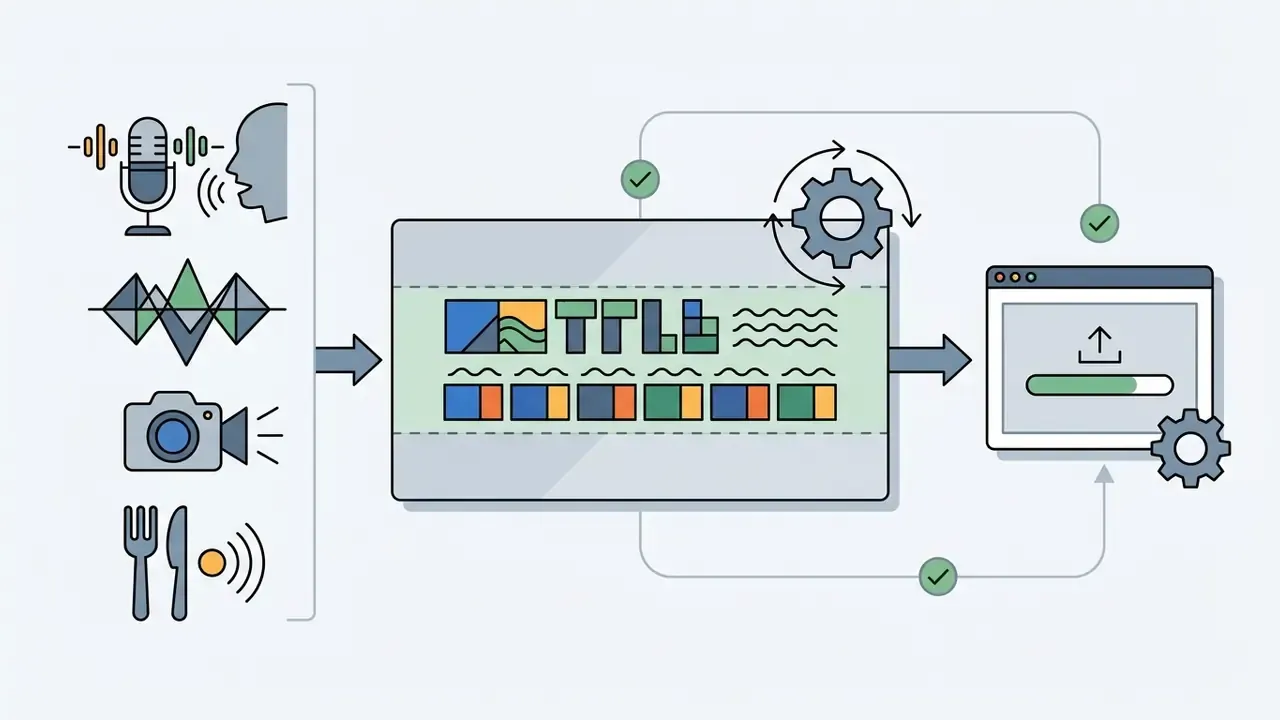
Step-by-step banner production from canvas setup to upload
Layout rules: Accessible ordered flow: 1. Set 2048x1152 canvas → 2. Apply safe zone overlay → 3. Insert image and graphics → 4. Check contrast → 5. Export PNG or JPG.
How to Choose and Adapt 2048x1152 Banner Templates
Adapting 2048x1152 banner templates means picking a pre-formatted layout, then replacing placeholder text, colors, and graphics with your own branding assets.
When you evaluate youtube banner templates inside a banner maker or graphic editor, favor structures that keep core titles centered. Skip templates that park critical iconography near the top or bottom margin, because those areas are the first to be cropped. Customize the layout with your brand palette, and make sure the contrast between text and background image clears 4.5:1.
"WCAG 2.2 requires a minimum contrast ratio of 4.5:1 for body text to ensure readability across devices."
Sample the hex value of your headline text and the hex value of the background pixel directly behind it.
Enter both values into any standards-compliant contrast checker and read the ratio.
If the ratio falls below 4.5:1, add a semi-transparent dark scrim under the text (30 to 50% opacity), or shift the typography onto a flatter area of the background. Re-test at 200% browser zoom to confirm legibility for low-vision viewers.
Preparing character cutouts, stickers, and logos. To build depth, remove the original background from a host portrait or game character using an automated background remover. Save the isolated subject strictly as PNG with an alpha channel, so edges composite cleanly over gradients and textures. If your concept needs a second figure in the frame, the compositing logic is the same as in our walkthrough on how to add a person to a photo, just on a wider canvas. Decorative badges follow the mechanics described in how to add overlays on iPhone, and for mobile-only workflows the same steps appear in how to add sticker to photo iphone.
When you place the cutout inside the safe zone, confirm that the head and other key details are not covered by YouTube's channel link overlay in the lower-right corner. For wordmarks and emblems, generate or refine assets with AI logo generators and keep a master vector version for future resizing. Typographic overlays deserve their own layer discipline; if you are working in a browser, our guide on how to add text to image online free covers the editable-text approach that survives later palette changes.
How to Build a Banner with AI Image and AI Video Tools
Generative AI image models can produce unique high quality background textures and graphic components for a 2048x1152 banner.
"Designers use AI to generate ideas, explore variations, and iterate quickly while retaining control over aesthetics and branding."
Tang et al., "What's Next? Exploring Utilization, Challenges, and Future Directions of AI-Generated Image Tools in Graphic Design" (2024). https://doi.org/10.1145/3613904.3642824
To build an AI-assisted background, write specific prompts that name the 16:9 aspect ratio and the style parameters, for example "abstract dark geometric background, cinematic lighting, 16:9 aspect ratio". Model choice affects texture fidelity, so review capability differences across leading AI image generators before spending credits. Budget-conscious teams can prototype directions with free AI image generators first.
AI video helps too. Export a still frame from a generative render or a motion graphics loop and you have a cinematic static background with consistent lighting; the prompting mechanics are covered in our guide on google veo ai video generator how to use. The same logic applies to video templates and 3d models: render once, freeze the best frame, composite the rest as vector layers. Once the background exists, import it into an image editor, apply the central safe-zone guide, and overlay text and logo layers by hand. Stylized alternatives are catalogued among AI art generators for channels that want illustrative rather than photographic backdrops.
Compliance and licensing control for AI-generated banner art. Before publishing an AI-generated banner on a brand or enterprise channel, verify three items: (1) the generating platform's commercial-use terms permit brand usage of the output, including on monetized channels; (2) the output carries no watermark residue, trademarked logos, or recognizable third-party characters; (3) the render is free of anatomical or typographic artifacts when viewed at 100% zoom inside the safe zone. Document the tool, prompt, generation date, and license tier for each asset, so the file can be audited later. That last point sounds bureaucratic, yet it is exactly what saves you in a brand review. Licensing terms differ sharply by vendor, so compare them in our AI Media Commercial-Use section before rollout, and sanity-check output quality against the evidence in AI Media Benchmarks and Review Proof.
How to Export the Finished Banner
Exporting a banner file means saving the finished design as PNG or high-quality JPEG, holding an sRGB color profile, and keeping the file under 6 MB.
Use PNG-24 when the banner design carries sharp text, flat vector shapes, or transparent edges. PNG compression is lossless, so typography stays free of pixelation.
Use JPEG at 80 to 90% quality when the banner is mostly photographic or heavily textured. Always confirm that the exported file measures exactly 2048x1152 pixels before you upload. If source photography falls short of the target resolution, run it through AI image upscalers rather than stretching layers in the editor, then re-check edge sharpness at 100% zoom. Detail-preserving tools such as Magnific are common in these pipelines, but do not use Magnific everywhere by default: heavy enhancement can invent texture that looks odd on a flat brand background.
Source asset specification for banner assembly
Asset type
Recommended format
Practical limit
Note
Logos, icons, badges
SVG (SVG 1.1 profile)
Under 3 MB
Prevents pixelation at any scale; keep a PNG fallback
Photographs and textures
JPEG, PNG, HEIC
Up to 50 MB, under 250 MP total
Import at native resolution, downscale once at the end
Cutouts (hosts, characters)
PNG-24 with alpha channel
Under 50 MB
Transparency preserved, no baked-in shadows
WebP imports
Static WebP only
n/a
Animated WebP is not supported in banner pipelines
GIF imports
Non-animated frames only
n/a
Animated GIFs do not play inside a YouTube banner
Final banner file
PNG-24 for graphics and text, or JPEG 80 to 90% for photos
Exactly 2048 × 1152 px, under 6 MB
sRGB color profile, no borders or frames
For large video libraries, apply the same discipline to companion assets and control output weight with a video compressor, so channel branding and video uploads share one predictable export standard. If your team automates asset generation, the request-level parameters are documented in our AI Media API Guides.
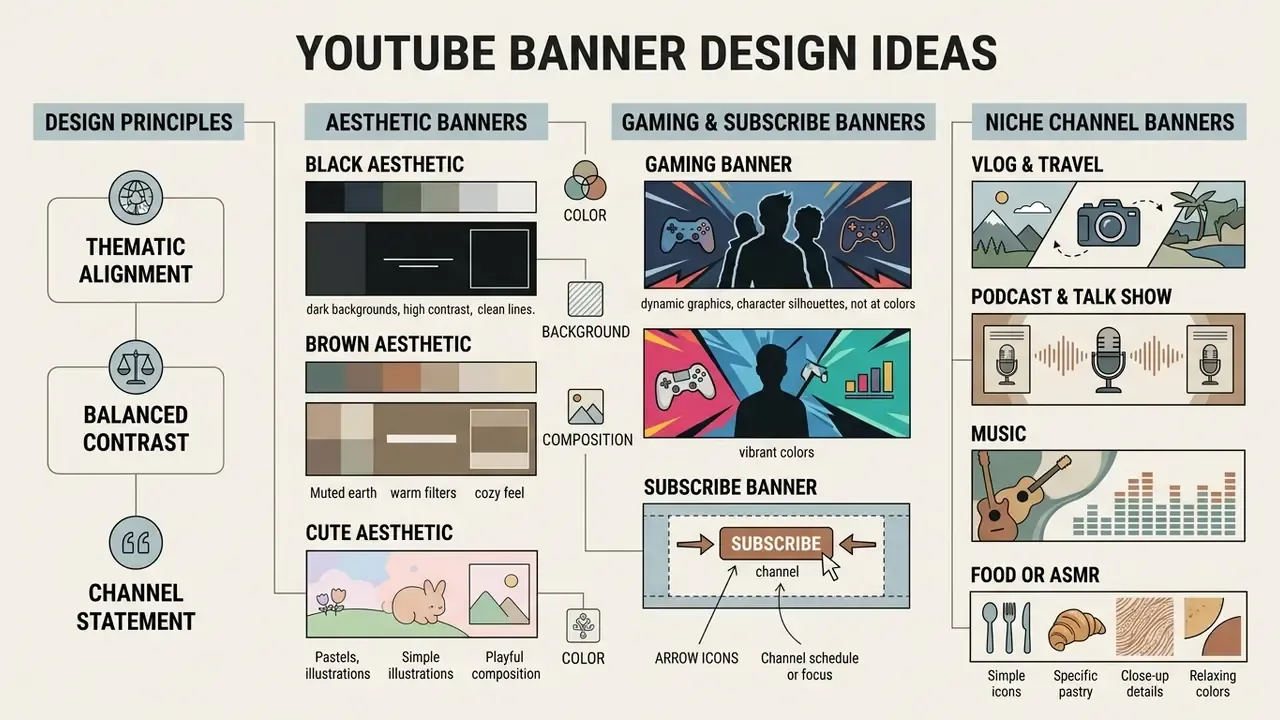
Design Ideas for Aesthetic, Gaming, Niche, and Subscribe YouTube Banners
Effective 2048x1152 banner design rests on three things: thematic alignment, balanced contrast, and a clear statement of what the channel offers.
Visual identity shifts by genre. Aesthetic channels favor atmospheric palettes and minimalist layouts. Gaming channels push high-contrast graphics and a visible call to action.
"Across 160 participants, 80% recalled no banner at all, while left-side and top placements attracted more visual fixations."
That eye-tracking result has a direct layout consequence. Put the highest-value element, channel name or logo, in the left or upper part of the 1235 × 338 safe zone, and keep the right side for the secondary call to action.
Aesthetic 2048x1152 YouTube Banner: Color, Background, and Composition
An aesthetic 2048x1152 banner works through restrained color, generous letter spacing, and subtle background texture. Atmosphere over decoration.
Common aesthetic sub-genres:
Black aesthetic deep charcoal tones, monochromatic contrast, clean white sans-serif type. A black youtube banner 2048x1152 layout, or a black aesthetic youtube banner 2048x1152 variant, strips visual clutter to a minimum.
Brown aesthetic warm earth tones, beige accents, textured paper backgrounds. An aesthetic brown youtube banner 2048x1152 fits lifestyle, study, and craft channels.
Cute aesthetic soft pastel gradients, rounded typography, simple iconography. A cute 2048x1152 aesthetic youtube banner sets an inviting, approachable tone, and a cute youtube banner 2048x1152 reads well for craft or study-with-me formats.
Across all three variants, hold the palette to two or three colors and no more than two stylistically related typefaces. Light-on-dark or dark-on-light pairings usually clear the 4.5:1 contrast floor without any extra scrim. An aesthetic banner 2048x1152 rarely fails because it is too plain; it fails because someone added a fourth font at the last minute.
When you build minimalist layouts online, keep typographic overlays on separate vector layers, so headline text can be re-edited without rasterizing the background. That habit also makes palette swaps and seasonal refreshes a ten-minute job instead of a rebuild.
Gaming YouTube Banner and Subscribe Banner for a Channel
A gaming banner leans on dynamic composition, character art, and vivid accent color to signal channel focus and upload cadence.
To design a strong gaming header, or a red youtube banner 2048x1152 layout, place high-contrast game imagery and 3d models in the outer background areas. Keep the channel title and avatar inside the central safe zone.
Add a high-contrast subscribe banner 2048x1152 prompt, something concrete like "New Videos Every Friday", on the right side of the safe area to turn profile visitors into subscribers. Three layout patterns hold up reliably for gaming channels: left-aligned channel name with a right-aligned tagline; centered name with the upload schedule directly beneath; and a horizontal split pairing a character portrait with a text block. Keep headline type around 60 to 80 px inside the safe zone so it stays legible on smartphones, and leave 10 to 15 px of clearance between interactive-looking elements and the edges of the safe strip.
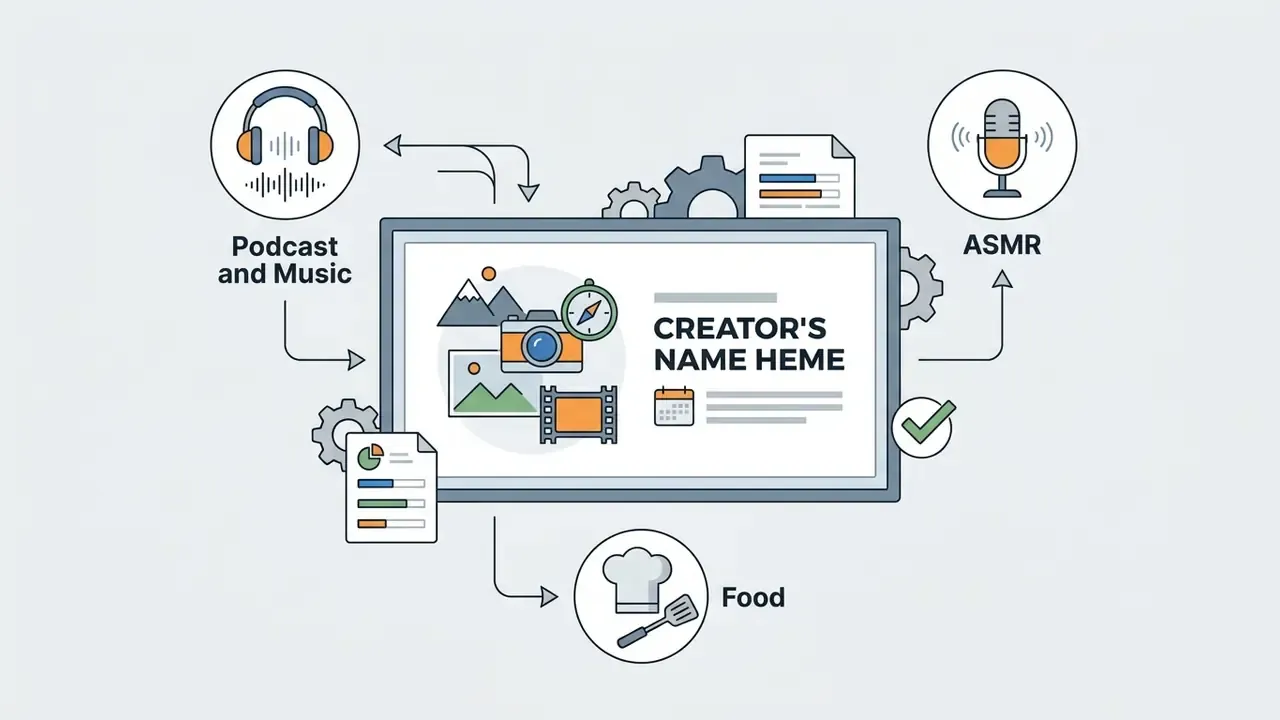
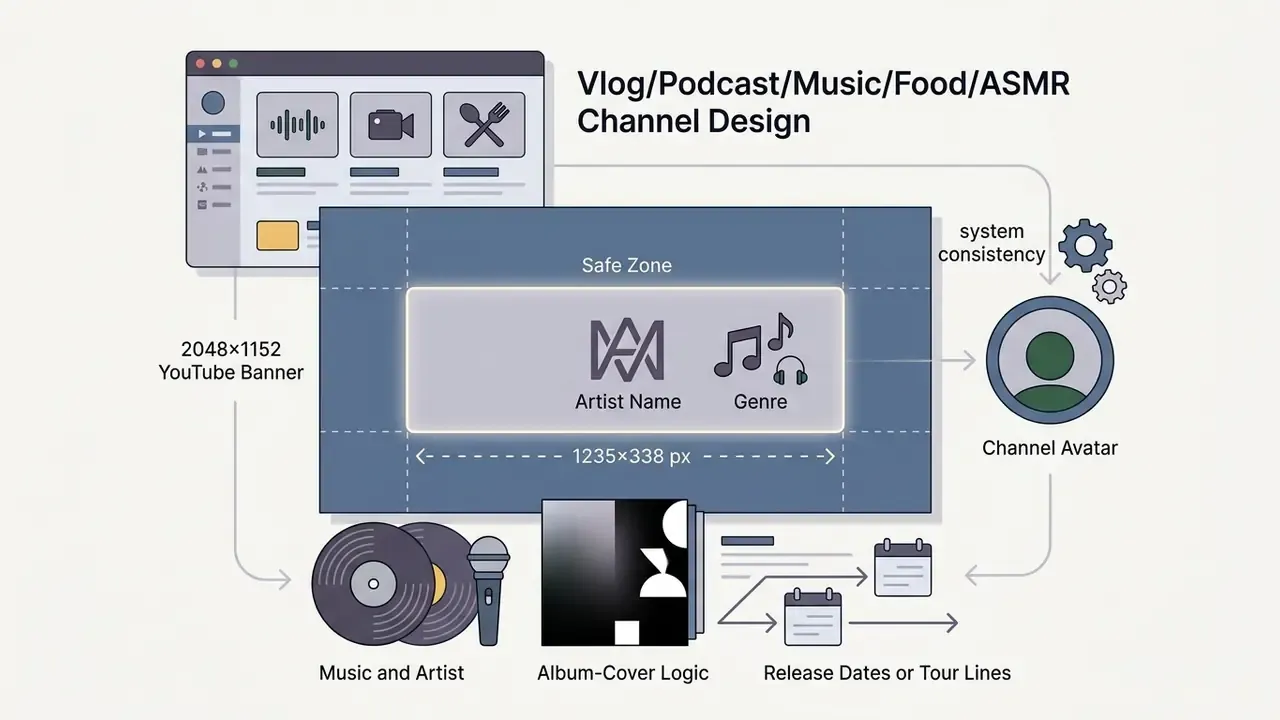
Banner Design for Vlog, Podcast, Music, and Food or ASMR Channels
Channel specialization decides how elements sit inside the 1235 × 338 px safe zone:
Vlog and travelatmospheric, naturally graded photography. Center the creator's name in a large sans-serif face and add the cadence, for example "New videos every Sunday". Warm palettes connect with vlog audiences, and simple layouts survive mobile-first cropping best.
Podcast and talk showhost portraits or a signature microphone graphic. The show name should occupy up to half of the safe-zone height for smartphone readability, with a consistent color scheme that builds recognition. Publishing schedule included, so listeners know when to come back.
Music and artistborrow album-cover logic, high-contrast backdrop plus minimalist type. Put the artist name and genre inside the safe zone, and match banner colors to the channel avatar so the profile reads as one system. Release dates or tour lines belong in the center strip, never at the canvas edges.
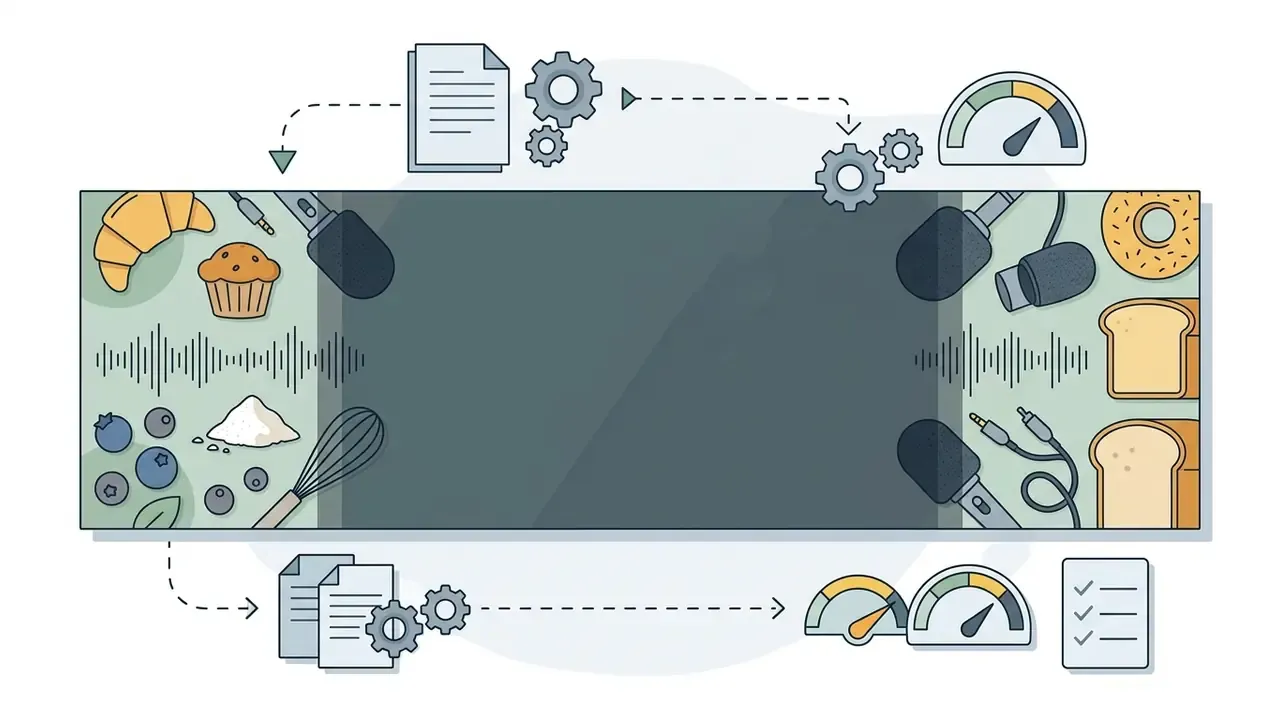
Food and ASMRmacro texture shots, baked goods, ingredients, microphone details, along the outer flanks, leaving the central region free for a high-contrast logotype. Dense food photography almost always needs a scrim under overlaid text to hold 4.5:1.
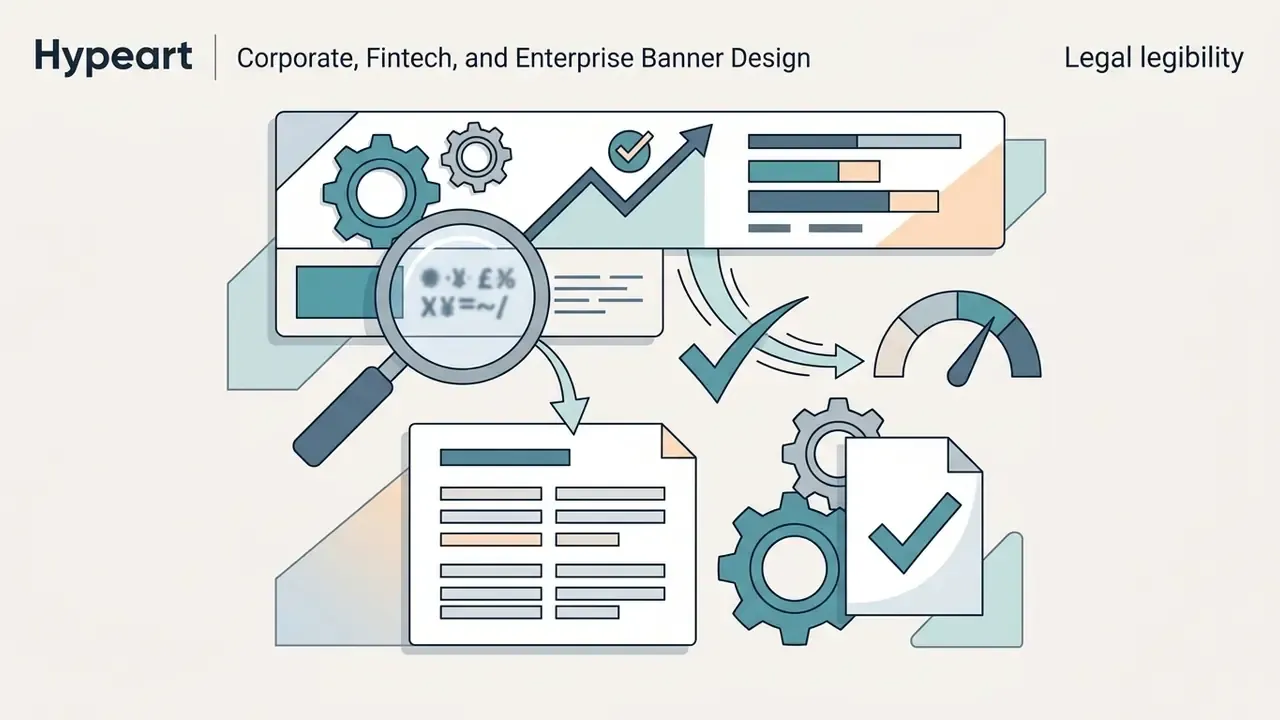
Corporate, Fintech, and Enterprise Banner Design
Regulated and B2B channels need restraint, not spectacle. Build the composition on one brand color plus a neutral, and reserve the safe zone for three elements only: the corporate wordmark, a one-line value statement, and, where policy allows, a compliance-approved tagline.
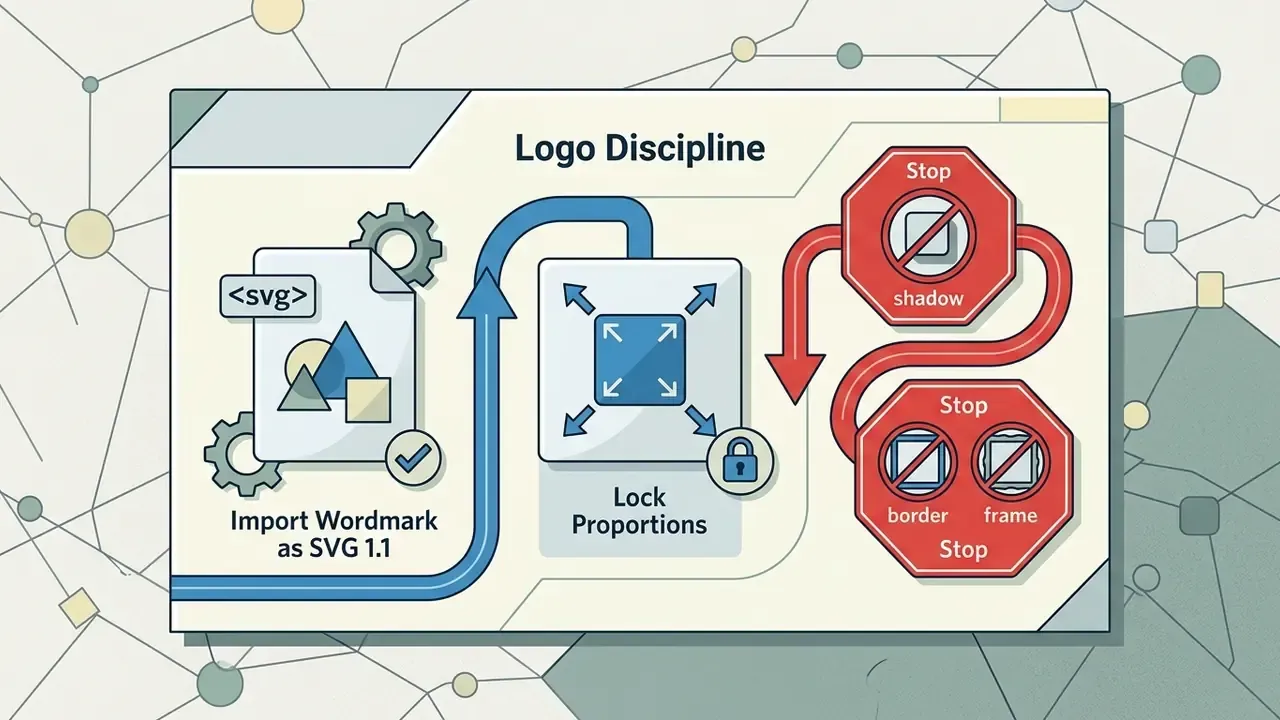
Logo disciplineimport the wordmark as SVG 1.1, lock proportions, and avoid drop shadows, borders, or frames, which YouTube's own branding guidance advises against.
Partner and certification marksplace secondary partner logos in the desktop strip outside the mobile safe zone, since they are supporting evidence rather than primary identity. Size them at no more than 40% of the primary wordmark height.
Trust tonalitydeep navy, graphite, and desaturated teal read as institutional. High-saturation gradients read as consumer entertainment.
Legal legibilityif the banner carries disclosure text, it must clear 4.5:1 contrast and stay readable at 200% zoom. If it cannot, move the wording into the channel description instead of the image.
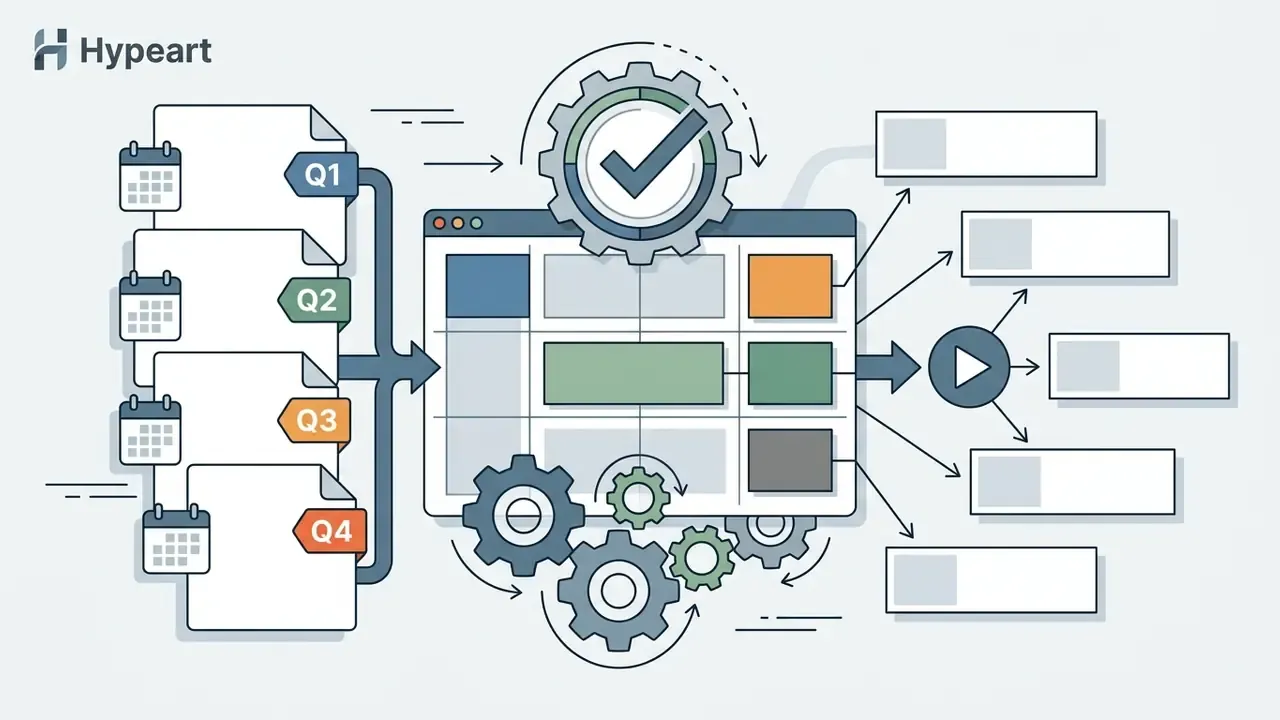
Version controlkeep a dated master file per quarter. Enterprises running multi-channel networks gain from one layout grid with swappable text layers, which shortens brand-review cycles noticeably.
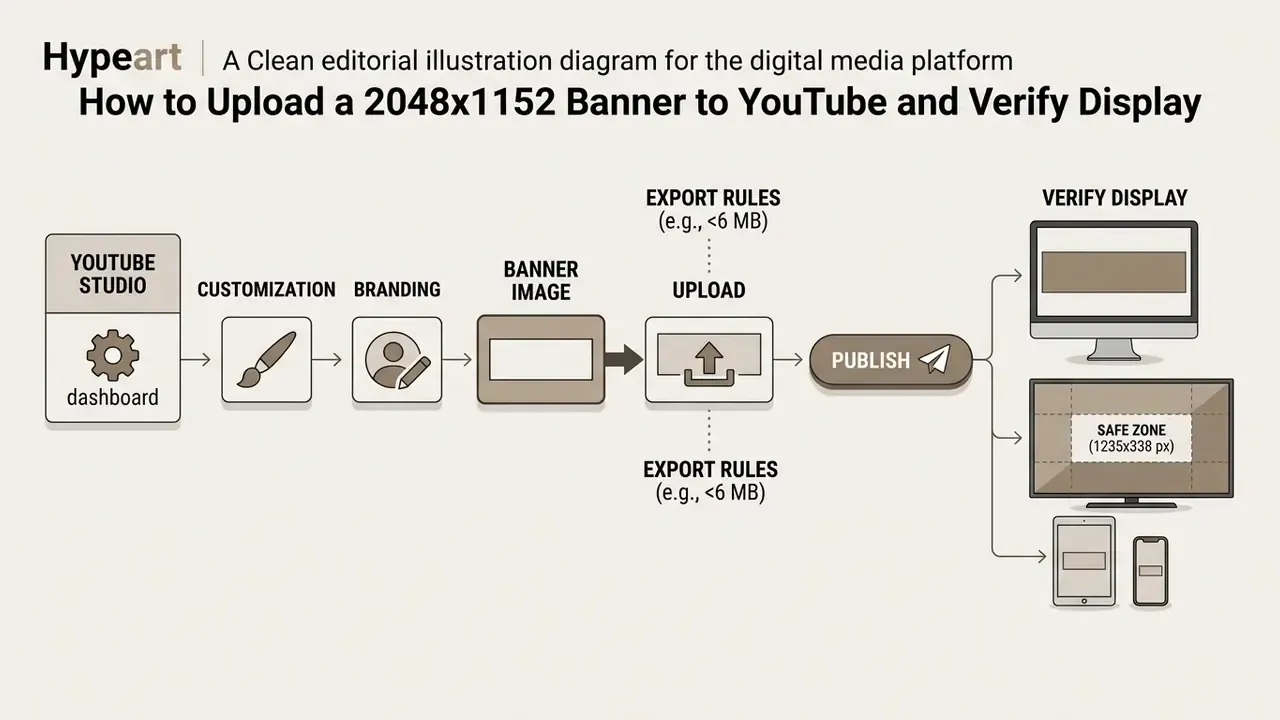
How to Upload a 2048x1152 Banner to YouTube and Verify Display
Loading a 2048x1152 banner onto YouTube means opening YouTube Studio, selecting the Customization menu, and publishing the file under the Branding tab.
Follow these steps to install and verify your banner youtube 2048x1152 file:
Log into YouTube Studio in a desktop web browser.
Select Customization in the left sidebar, then open the Branding tab.
Find the Banner image section and click Upload, or Change if you are replacing existing channel art.
Pick your 2048x1152 high quality file from local storage.
Review the preview window. Confirm that all key text and logos fit inside the area labeled Viewable on all devices.
Click Done, then Publish in the top-right corner to apply the change.
After publishing, test the rendering on a phone, in a desktop browser (desktop new view), and on a smart TV if your audience watches there. If typography looks soft or misaligned, adjust the source layers and re-upload; the whole loop takes minutes once the master file is organized. Channels refreshing branding alongside a content reset can plan both tasks with our comparison of YouTube video editors, and teams without in-house capacity can review service models before they hire video editor for youtube work on a retainer.
Troubleshooting: What to Do If the Banner Still Gets Cropped
Symptom
Probable cause
Fix
Upload rejected outright
File under 2048 × 1152 px or over 6 MB
Re-export at exactly 2048 × 1152 px; switch PNG-24 to JPEG 85%
Channel name cut off on iPhone
Text sits outside the 1235 × 338 safe zone
Re-center the headline inside the safe rectangle, then re-upload
Logo hidden behind link icons
Element placed in the lower-right desktop strip
Move the logo left or up; keep about 120 px clearance bottom-right
Banner looks washed out after publishing
Color profile other than sRGB, for example Adobe RGB or CMYK
Convert to sRGB before export
Text soft or fringed on a 4K TV
Type rasterized at low resolution, or JPEG quality below 80%
Rebuild type as vector; export PNG-24 or raise JPEG to 90%
Preview correct but live channel differs
Browser or CDN cache serving the previous file
Hard-refresh, re-check after a few minutes, verify in a private window
Avatar overlaps the headline
Top-left profile pic collides with left-aligned text
Indent the headline about 200 px from the left safe-zone boundary
Pre-Flight Checklist Before Publishing
Checklist0 / 10
Brand Review and Version Control for Regulated Channels
This part rarely appears in design tutorials, and it is the part that stalls enterprise rollouts. A banner is a published brand statement, so treat the file like any other controlled asset.
A workable approval path has four named owners: the designer who produces the file, the brand lead who approves identity, the compliance reviewer who checks claims and disclosure text, and the channel administrator who publishes. One owner per step, no shared inboxes. Escalation goes to the brand lead when compliance and design disagree.
Keep an asset record for each published banner: file name, dimensions, export settings, source assets with licenses, AI tool and prompt where applicable, approval date, and approver. Three lines in a spreadsheet is enough to start. Without it, nobody can answer a simple audit question six months later, namely who approved this image and under which license.
Control
Minimum evidence
Review cadence
Identity approval
Signed-off layout grid and palette
Per publish
Claims and disclosure check
Compliance note on any text in the image
Per publish
Asset licensing
Tool, prompt, license tier, date
Per asset
Accessibility
Contrast measurement at 200% zoom
Per publish
Archive
Dated master file plus exported banner
Quarterly
One honest limitation: none of this improves channel performance on its own. It reduces rework, review friction, and the odds of republishing an image you cannot defend. That is a modest win, but a real one.
FAQ About the 2048x1152 YouTube Banner
Can a Single 2048x1152 Banner Be Reused Across Several YouTube Channels?
Yes. A master 2048x1152 banner design can be adapted for multiple channels by swapping the central text, logo, and color scheme while keeping the underlying layout grid. Reusing structural banner templates keeps visual consistency across a network and saves hours of design time. One caveat: YouTube publishes one banner standard per channel, 16:9, minimum 2048 × 1152, safe area 1235 × 338, 6 MB cap, and offers no exemption for channel networks. Each channel still needs its own compliant upload.
How Does a YouTube Banner Differ from a YouTube Thumbnail?
A YouTube banner is the header branding image for a channel page, 2048x1152 minimum, 16:9, up to 6 MB, designed around a central safe zone for multi-device compatibility. A youtube thumbnail is the preview cover for one video, 1280x720, 16:9, minimum width 640 px, up to 2 MB, designed to win clicks in search results and recommended feeds. Social media crops from other platforms can serve as source material, but never as a direct upload, because the safe-zone geometry differs.
"YouTube separates the channel banner (branding header) from the video thumbnail (preview cover), each with distinct technical requirements." Official YouTube Help, Managing channel branding (Google, 2026). https://support.google.com/youtube/answer/2972003
Attribute
Channel banner
Video thumbnail
Dimensions
2048 × 1152 min, 2560 × 1440 recommended
1280 × 720
File limit
6 MB
2 MB
Composition driver
Centered safe zone for device cropping
Small-screen readability and contrast
Objective
Communicate what the channel is about
Win the click on one specific video
Is 2048x1152 Good Enough, or Should I Always Upload 2560x1440?
2048x1152 satisfies YouTube's upload requirements and renders cleanly on mobile and desktop, where most viewing happens. Choose 2560x1440 when smart-TV presence matters, which is usually the case for corporate, educational, and brand channels. Choose 2048x1152 when your source assets are natively small, when you refresh branding often, or when staying comfortably under 6 MB matters more than TV-panel sharpness.
What Happens If My File Is Smaller Than 2048x1152?
YouTube Studio rejects the upload. There is no partial acceptance and no automatic upscaling at the platform level, so the file must meet or exceed 2048 × 1152 px at a 16:9 ratio before you try to publish. Upscale the source first, then export.