There is a second audience for this guide, and it rarely gets addressed. Communications, training, and marketing teams inside regulated organisations download the same free editors as hobbyists. The difference is that one careless upload of client footage into a cloud AI feature can turn a free tool into a data-transfer incident. So this comparison tracks two things at once: where the watermark is, and where the media is processed.
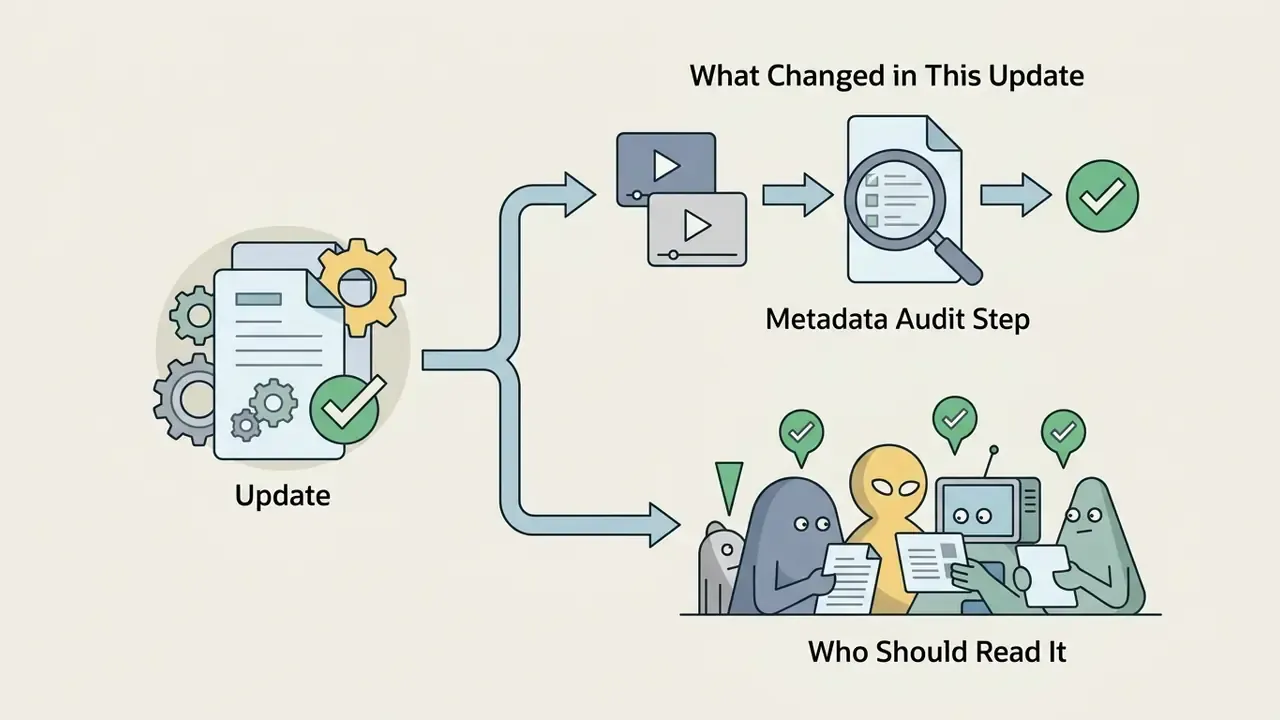
What Changed in This Update, and Who Should Read It
Six practical changes since the previous revision:
Who gets the most from this guide? Solo creators choosing a first editor. Small studios trying to avoid a subscription. And governance-minded teams, including finance and compliance functions, who need a defensible answer when someone asks why a consumer editor appeared on a work laptop. If your priority is a feature grid before a download, start with the comparison table below and the licensing section that follows it.
What "Free Video Editor No Watermark" Really Means
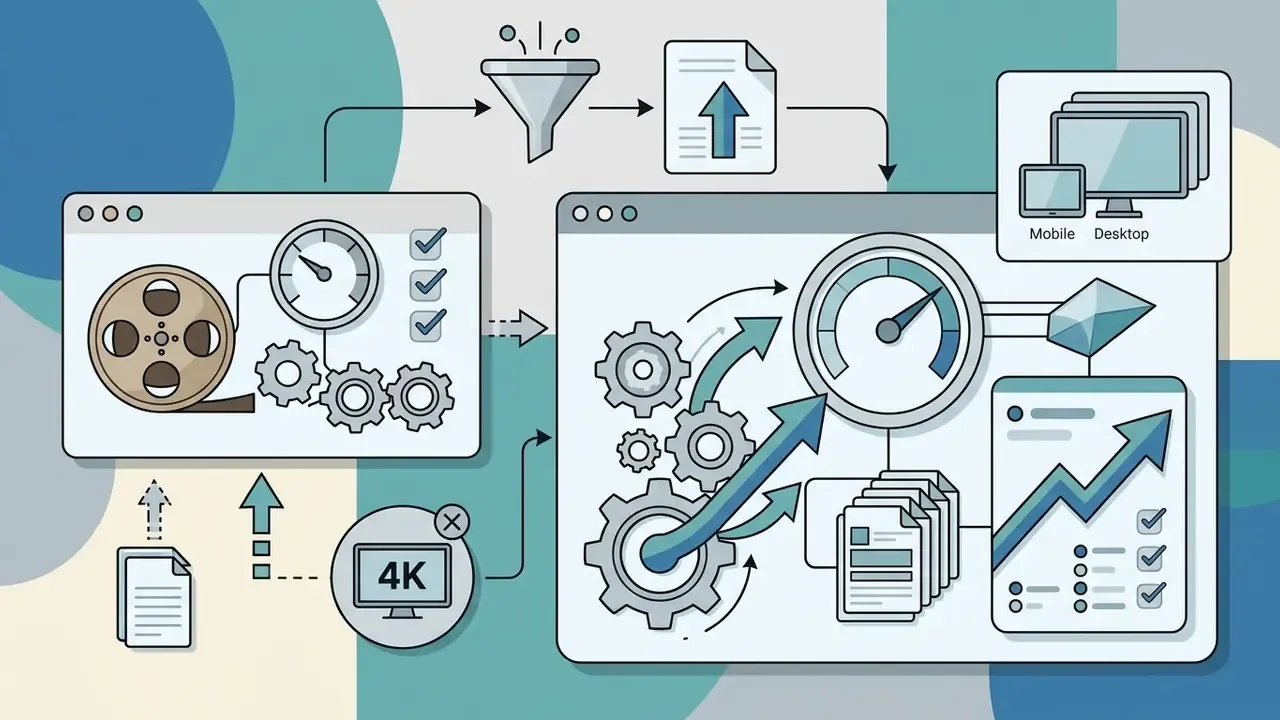
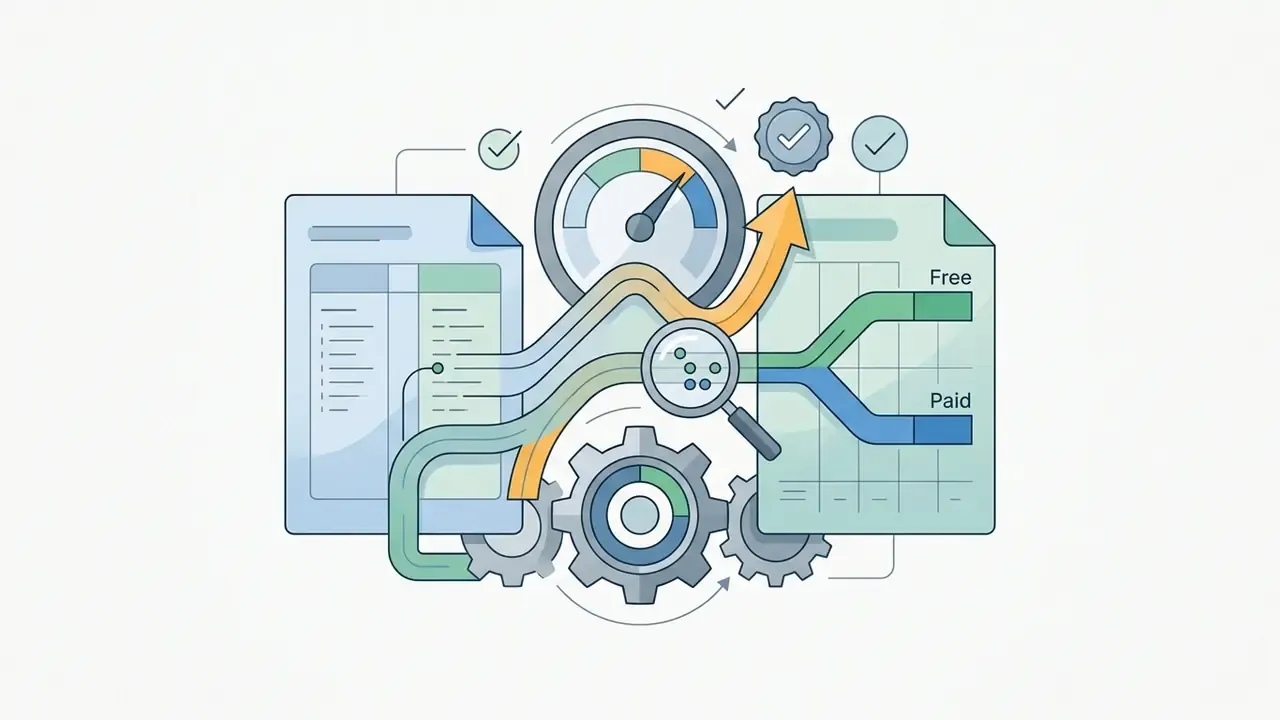
A free video editor without watermark delivers complete video rendering and file export without placing logos, brand overlays, or trailing promo cards on the final output. However, vendor claims of providing a free version often mask technical and operational constraints that restrict workflow flexibility.
"A watermark-free free export can still coincide with significant limits on resolution, codecs, stock media, and AI features."
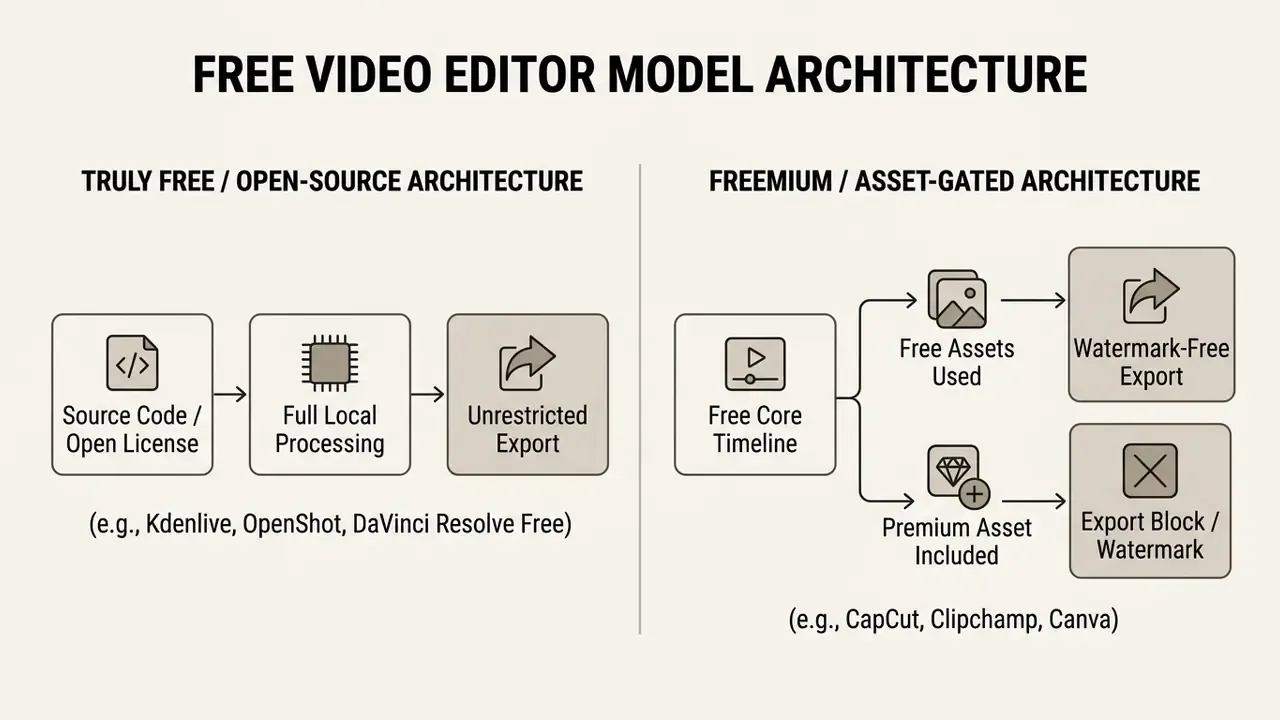
Software providers generally operate under two distinct models:
- Completely free and open source tools.Open source applications like Kdenlive and OpenShot, along with free production tiers such as DaVinci Resolve, enforce no export paywalls. Users receive unrestricted access to core timeline tools, visual effects, and high resolution rendering without watermark penalties.
- Freemium and asset-gated web or mobile editors.Platforms like Microsoft Clipchamp, CapCut, and Canva allow clean exports only when projects use free tier assets. Inserting premium stock media, paid effects transitions, or proprietary AI filters triggers an export block or applies a watermark video overlay until the paid element is removed or the account is upgraded.
Resolution limits also define the practical meaning of "free." Lightworks Free guarantees zero watermarks but caps output at 720p HD. That is not a soft nudge toward an upgrade; it is a wall.
"The free licence activates for 90 days and renews by signing back into the application"
Microsoft Clipchamp permits free exports without watermark up to 1080p HD, reserving 4K video rendering for paid subscribers.
"There are no watermarks on videos created in Clipchamp,"
Canva applies the same asset-conditional logic. Free accounts export clean MP4 files as long as every element on the canvas comes from the free library, while a single Pro sticker, font pack, or stock clip reintroduces a watermark gate. Understanding these distinctions prevents unexpected export gates at the end of a project. For a broader shortlist across media utilities, you can also compare options by tier before committing to any download.
Pre-Export Verification Checklist (Alert Box)
To avoid unexpected watermarks or export blocks when rendering finished video content, verify these critical asset and output parameters:
- Watermark triggers. Confirm that no paid stock footage, premium audio tracks, or Pro visual effects have been placed on the timeline.
- Default endings. Remove vendor branded tail clips or logo outros automatically attached by mobile apps like CapCut.
- Export resolution and frame rate. Verify whether your target output, such as 4K video at 60 fps, is supported on the free tier or restricted to 1080p or 720p.
- AI feature gates. Ensure that auto captions, background removal, or voice synthesis tools do not require a paid plan to export video without watermarks.
- Embedded metadata audit. Inspect container metadata and asset-tagging fields after render. Several freemium utilities inject vendor identifiers, encoder signatures, or asset-licence tags into the file header instead of adding a visible overlay. Use a metadata inspector (ExifTool, MediaInfo, or an FFmpeg probe) to confirm the output carries no third-party branding strings.
- Account and licence status. Confirm cloud sign-in requirements or periodic licence renewals, such as the 90-day offline key cycle in Lightworks Free.
Step-by-Step: How to Render Watermark-Free Videos in Freemium Editors
Freemium editors rarely warn you about a watermark until the render dialog appears. The following four-step protocol removes that uncertainty and works across CapCut, Clipchamp, Canva, and any other asset-gated editor. Alternative path for guaranteed clean output. If step 1 reveals more than two or three premium dependencies, rebuilding the sequence in an open source editor (Kdenlive, OpenShot, Shotcut) is usually faster than substituting assets one by one, because open source tools have no asset tiering at all. I learned that the slow way, after swapping eleven transitions in a template that still refused to render clean.
- Audit timeline assets before rendering.Scan the full timeline for "Pro," "Premium," or crown icons next to transitions, effects, filters, stickers, fonts, and audio tracks. In CapCut, premium items display a small crown badge in the asset panel and stay flagged after being dropped on the timeline. Replace every flagged element with a free-library equivalent.
- Delete default branded outros.Scroll to the end of the timeline, select the automatically appended two-second vendor logo card (standard behaviour in CapCut mobile and desktop), and press Delete. Some templates place the branding as a locked overlay track, so unlock the track first, then remove it.
- Select a supported free export profile.Set the resolution to the maximum permitted on the free tier: 1080p for Clipchamp, 720p for Lightworks Free, 4K UHD for DaVinci Resolve and Kdenlive, and up to 8K for CapCut Desktop. Choosing a resolution above the free ceiling triggers an upgrade prompt rather than a render.
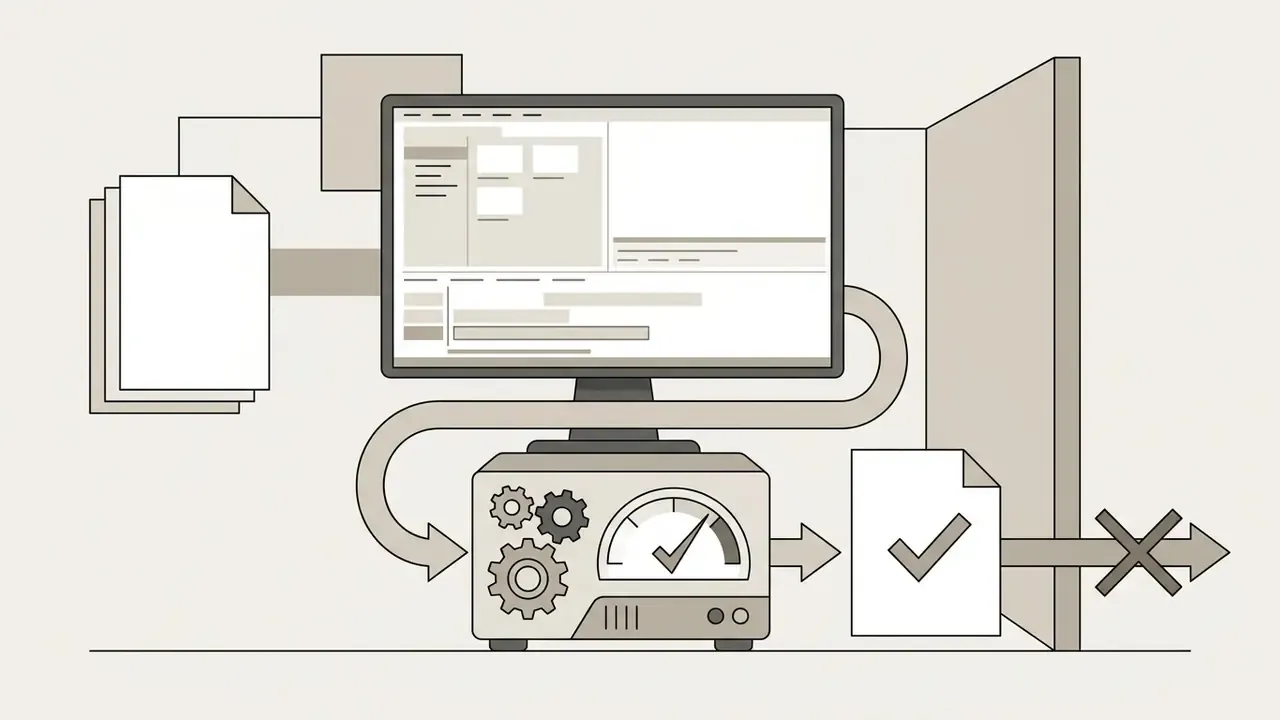
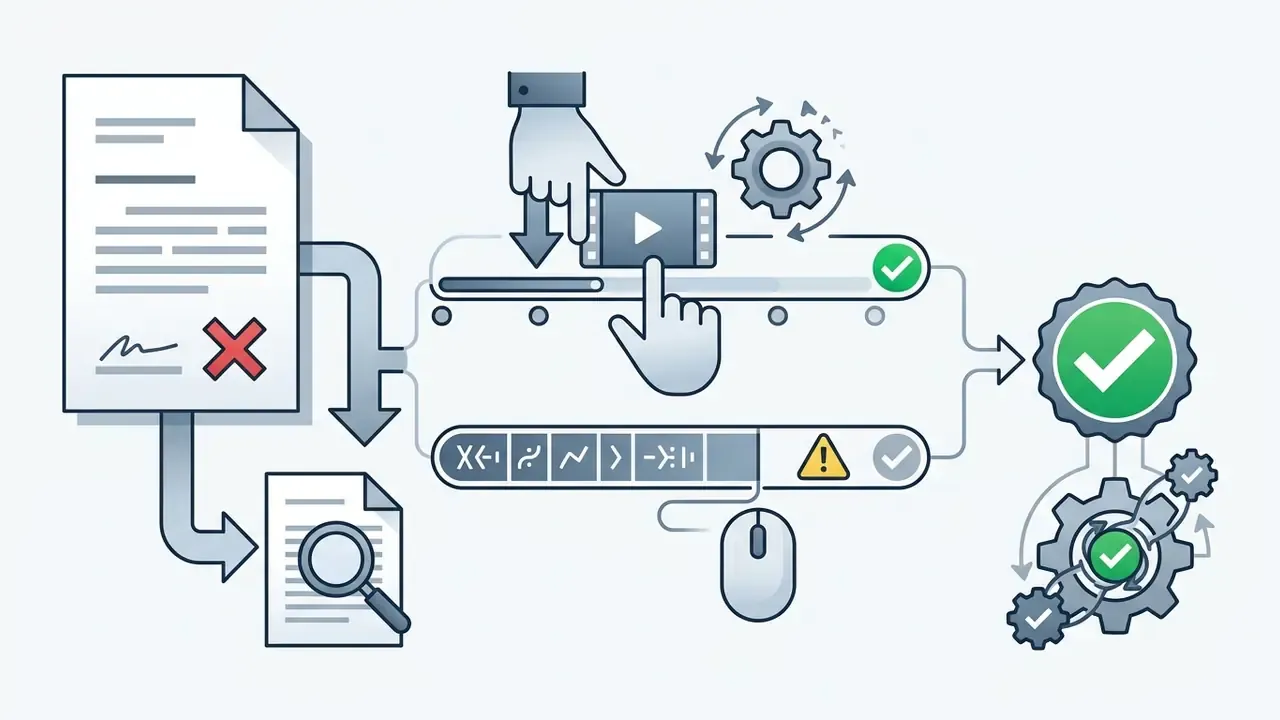
- Run a frame-by-frame verification pass.Scrub the exported file, not the in-editor preview, across the first second, the last three seconds, and every transition point. Dynamic semi-transparent watermarks often appear only on opening and closing frames. Finish with a metadata probe to confirm no vendor tags were embedded.
How We Tested Free Video Editing Software in 2025 and 2026
Core Editing Features and Ease of Use
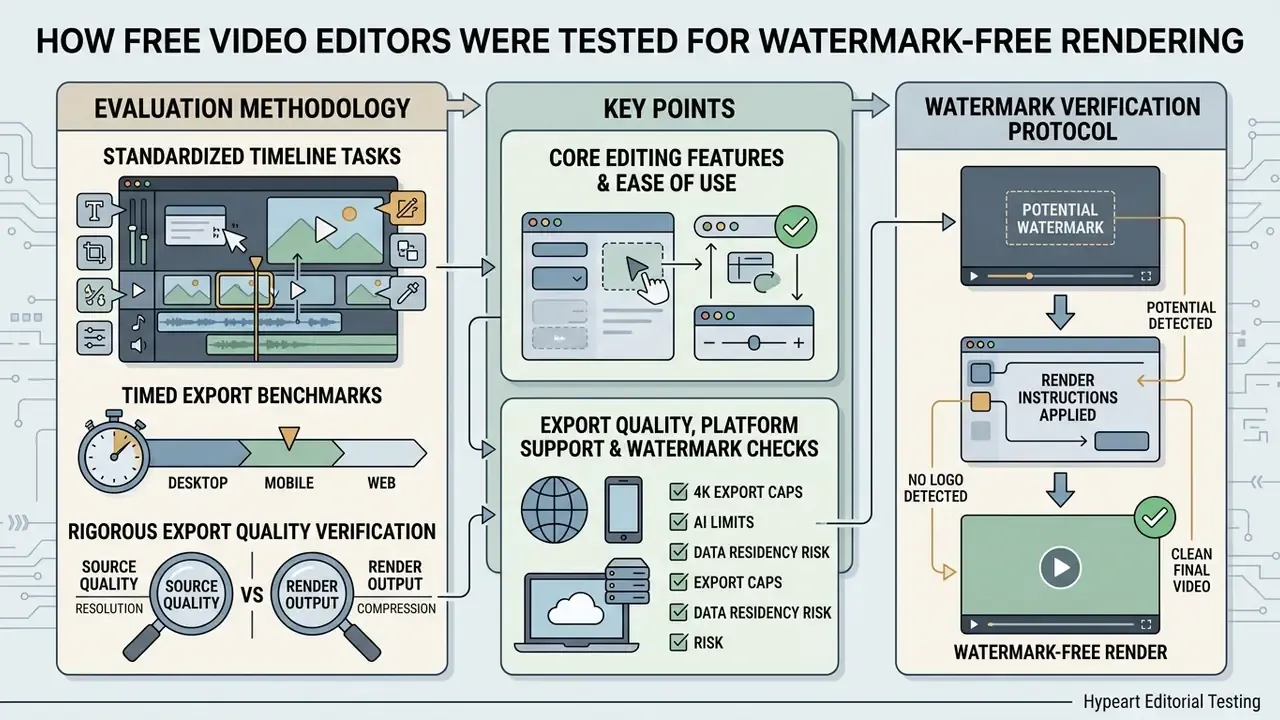
Assessing editor usability requires measuring learning curves alongside technical capabilities. Basic editing operations, such as cut trim sequences, clip splitting, and placing basic effects transitions, were evaluated for intuitive interface design.
"Ease of reviewing material and control over editing functions strongly influence user satisfaction, especially for non-professionals."
Practical teaching materials confirm the same split in difficulty. Trimming is documented as a linear In/Out-marker plus Extract/Insert operation, and transitions are added by dragging an effect onto a clip junction. Both are single-panel actions. Multi track audio work, by contrast, requires razor-tool splitting, cross-track movement, ripple delete, and crossfade management, which is why it consistently rates as the steeper skill. Each software tool in this guide was rated on how effectively it balances accessible entry-level controls with advanced editing capabilities such as multi track editing, complex audio mixing, and color correction panels that require structured workspace navigation.
Export Quality, Platform Support and Watermark Checks
To verify vendor claims regarding software without watermark, we executed standardized export tests at 1080p Full HD and 4K video resolutions across Windows, macOS, Linux, iOS, and Android systems.
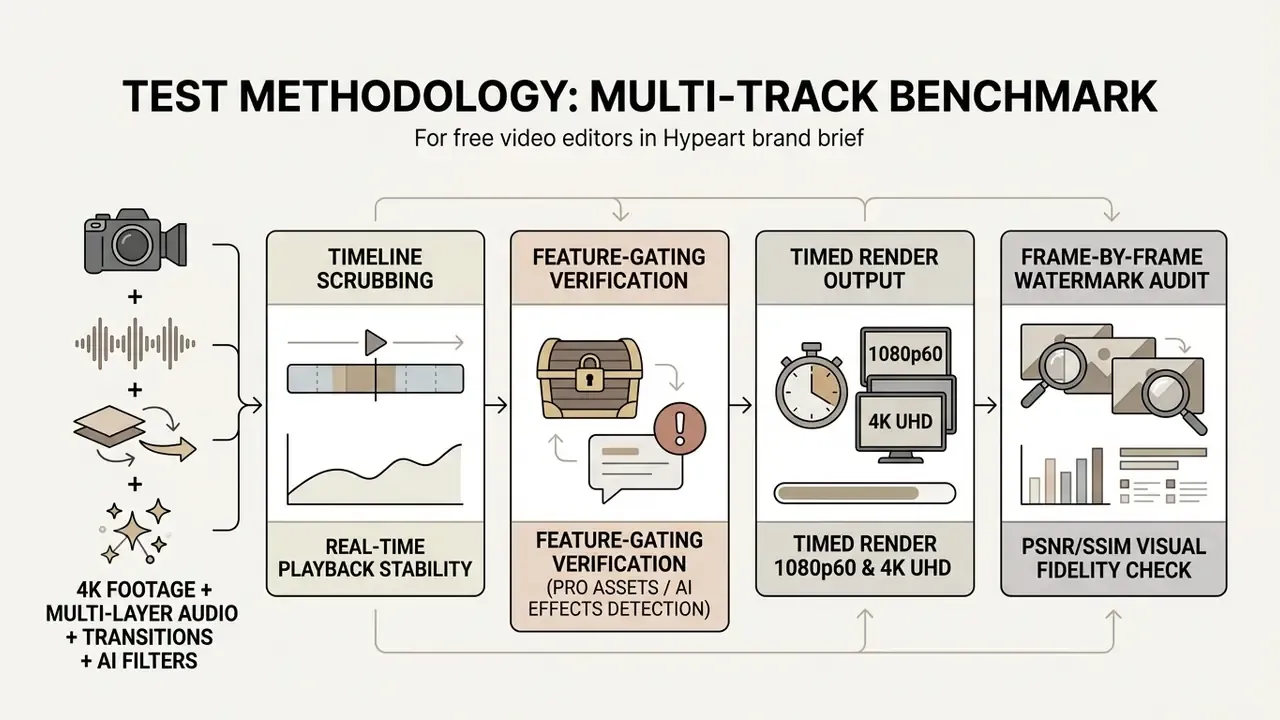
Watermark verification protocol. Confirming the absence of a watermark requires a frame-by-frame audit of the exported file, not the editor preview, checking for three distinct artifact classes: static visual logos in corner safe zones; dynamic semi-transparent overlays that appear only on opening or closing frames; and embedded metadata tags, encoder signatures, or asset-licence identifiers written into the container header. Detector checks were repeated on both unmodified renders and post-processed copies (re-encoded, resized, and platform-uploaded versions), because compression passes can either hide a faint overlay or expose a previously invisible tag.
Export fidelity was then measured by analyzing bitrate management, frame rate consistency, and color space preservation across H.264 and HEVC codecs for both Windows users and mac users, with PSNR and SSIM comparisons against the source master. Test proof and scoring sheets sit alongside our other AI Media Benchmarks and Review Proof documentation.
Best Free Video Editors Without Watermarks: Comparison Table
The comparative breakdown below summarizes the top free video editing software options, detailing platform availability, watermark rules, maximum resolution caps, data processing location, and ideal user scenarios.
| Video Editor | Primary Platforms | Watermark on Free Tier? | Max Free Export Resolution | Data Processing Location | Key AI & Advanced Tools | Complexity / Target Audience | Primary Use Case & Limitations |
|---|---|---|---|---|---|---|---|
| DaVinci Resolve | Windows, macOS, Linux | No (standard use) | 4K UHD (3840×2160) @ 60fps | Fully local | Advanced color grading, Fairlight audio, HDR | High / Professional editors | Hollywood-grade post-production; requires high-end GPU and 16GB+ RAM. |
| Kdenlive | Linux, Windows, macOS, BSD | No | 4K UHD and above | Fully local (Whisper runs on-device) | Multi-track timeline, proxy editing, Whisper captions | Medium / Intermediate | Open source multi track editing; non linear control without licence fees. |
| OpenShot | Windows, macOS, Linux, ChromeOS | No | Up to 4K / 8K / 16K presets | Fully local | Keyframe animation, chroma key, basic AI tracking | Low / Beginners | Quick, simple edits and green screen effects; basic timeline interface. |
| Lightworks Free | Windows, macOS, Linux | No | 720p HD | Local (90-day online licence check) | Precision trim tools, advanced visual transitions | Medium-High / Advanced | Broadcast-style cutting; hard export cap at 720p MP4. |
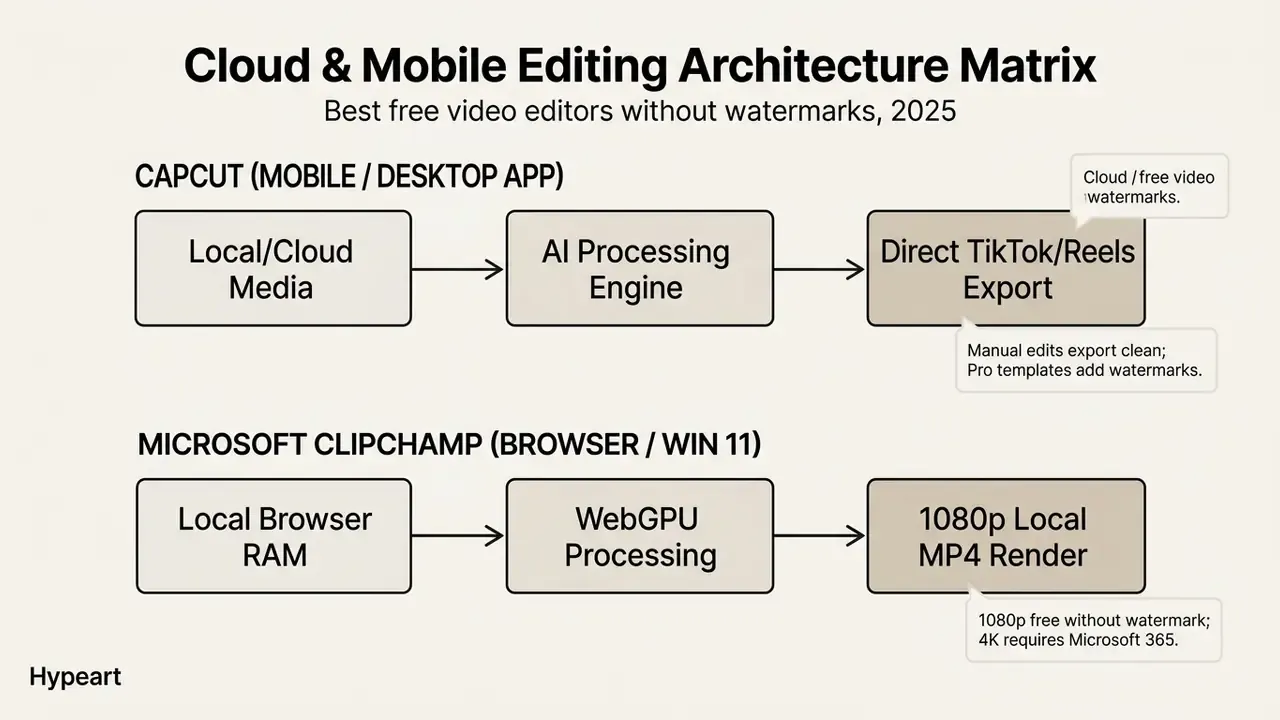
| CapCut | Browser, Windows, macOS, iOS, Android | Conditional (no watermark on manual edits) | 4K mobile / up to 8K desktop | Hybrid: AI features processed in cloud | Auto captions, background removal, AI avatars, text-based editing, ProRes 422 | Low / Content creators | Short-form social media (TikTok, Reels); Pro assets trigger watermarks. |
| Clipchamp | Browser, Windows 11 | No | 1080p HD | Browser-local render, cloud assets and AI | AI auto captions, text-to-speech, screen recorder | Low / Beginners and office | Quick online video creation; 4K export requires Microsoft 365. |
| iMovie | macOS, iOS, iPadOS | No | 4K UHD @ 30fps (Mac) | Fully local | Video stabilization, green screen, Magic Movie | Low / Apple users | Clean, zero-cost editing inside the apple ecosystem. |
| VideoProc Vlogger | Windows, macOS | No | 4K UHD | Fully local | Speed ramping, lens distortion correction, stabilization | Low-Medium / Action creators | GoPro, drone and sports footage; smaller effects library. |
| Shotcut | Windows, macOS, Linux | No | 4K UHD and above | Fully local | Multi-format timeline, screen and audio capture, filters | Medium / Intermediate | Lightweight open source editing with no project-length limits. |
Read the table in two passes. First the watermark and resolution columns, which decide whether the tool can deliver your master at all. Then the processing column, which decides whether the tool can legally touch your footage.
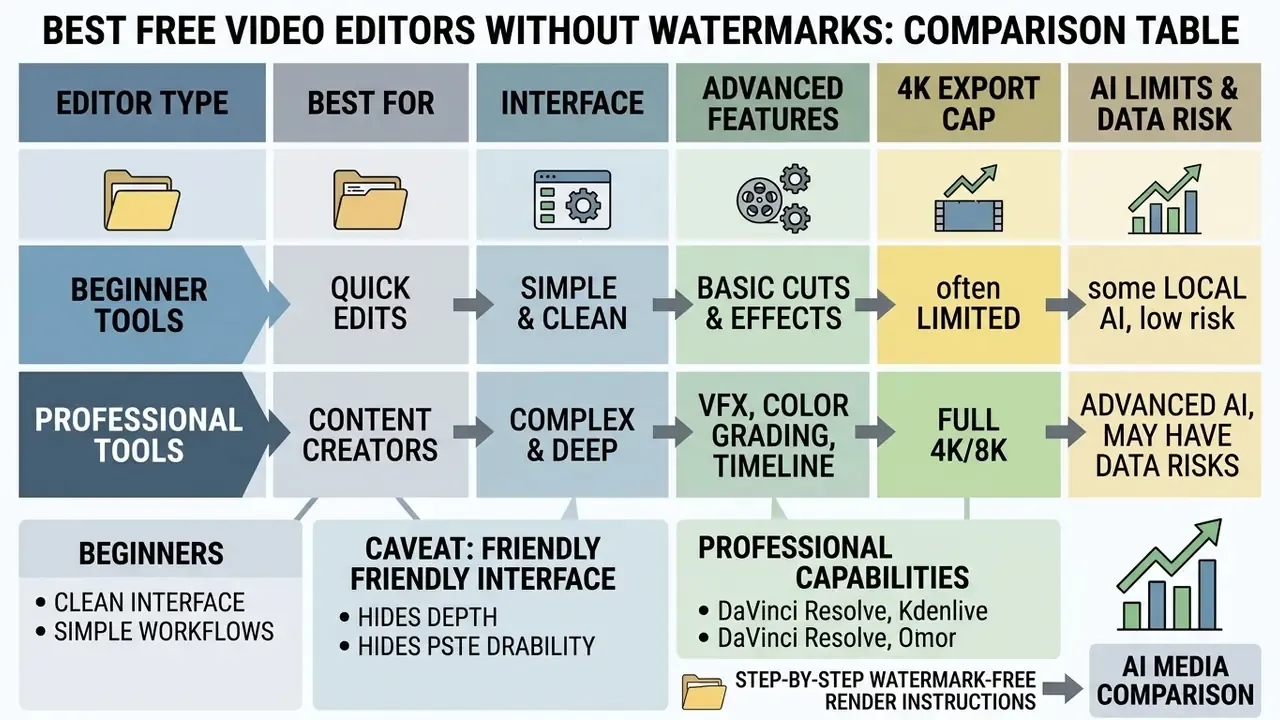
Which Editors Are Best for Beginners and Quick Edits
Beginners seeking simple video editing software benefit most from tools featuring a clean interface and native drag and drop interface functionality. Microsoft Clipchamp, iMovie, and OpenShot excel here. They let users cut trim footage, add background audio tracks, apply basic visual effects, and finish quick edits without navigating node networks or technical audio mixing boards. Controlled usability testing of visual drag-and-drop interfaces reported System Usability Scale scores as high as 90 with low task-load ratings, outperforming code-driven or node-driven alternatives for first-time users.
One small caveat, or rather an observation: a friendly interface hides depth as often as it removes it. OpenShot looks basic until you open its keyframe panel.
Which Editors Offer Advanced and Professional Tools
For content creators requiring professional video editing capabilities, DaVinci Resolve, Kdenlive, and Lightworks supply industry-grade toolsets. These platforms provide non linear editing control, granular color grading panels, multi track audio mixing, motion tracking, noise reduction, motion graphics compositing, and green screen keying. DaVinci Resolve leads the industry in professional color correction, which makes it the premier desktop choice for high-end production, and the closest free rival to Final Cut Pro or Adobe Premiere Pro in colour work.
For detailed evaluations of creative platforms across different media workflows, see our AI Media Comparison Matrices.
Data Privacy, Shadow AI and Licensing Risk in Free Editors
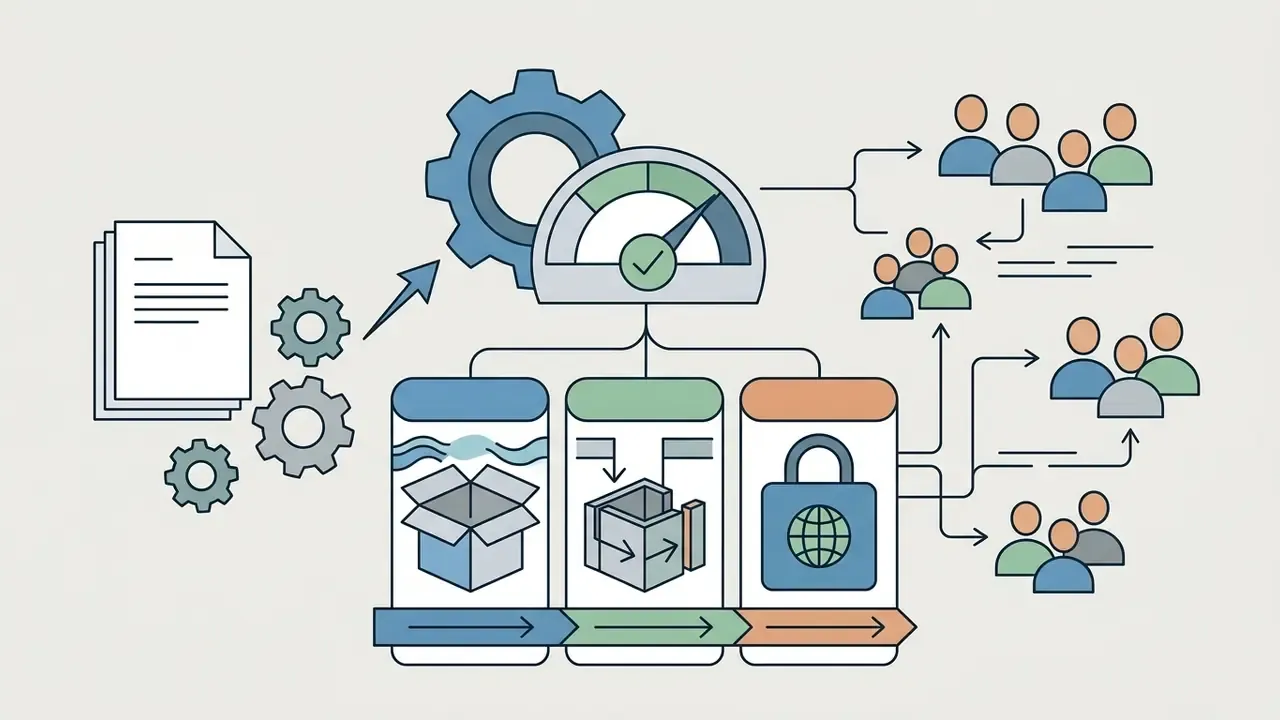
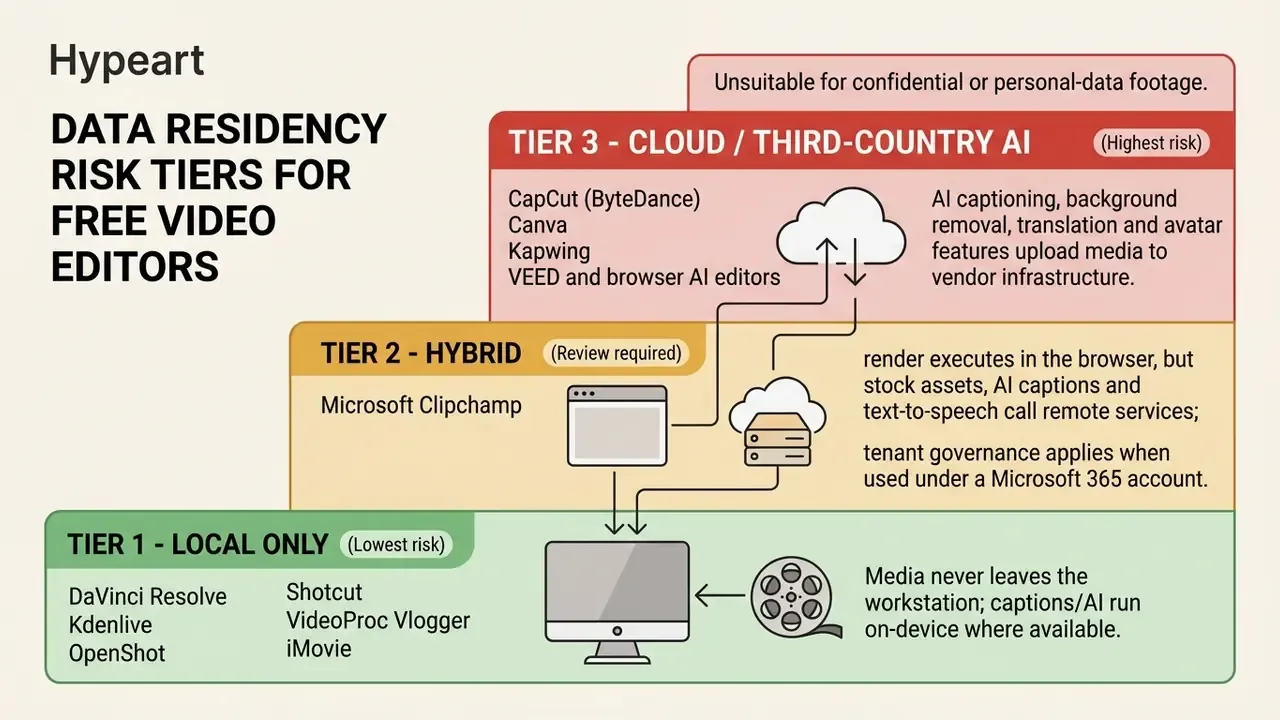
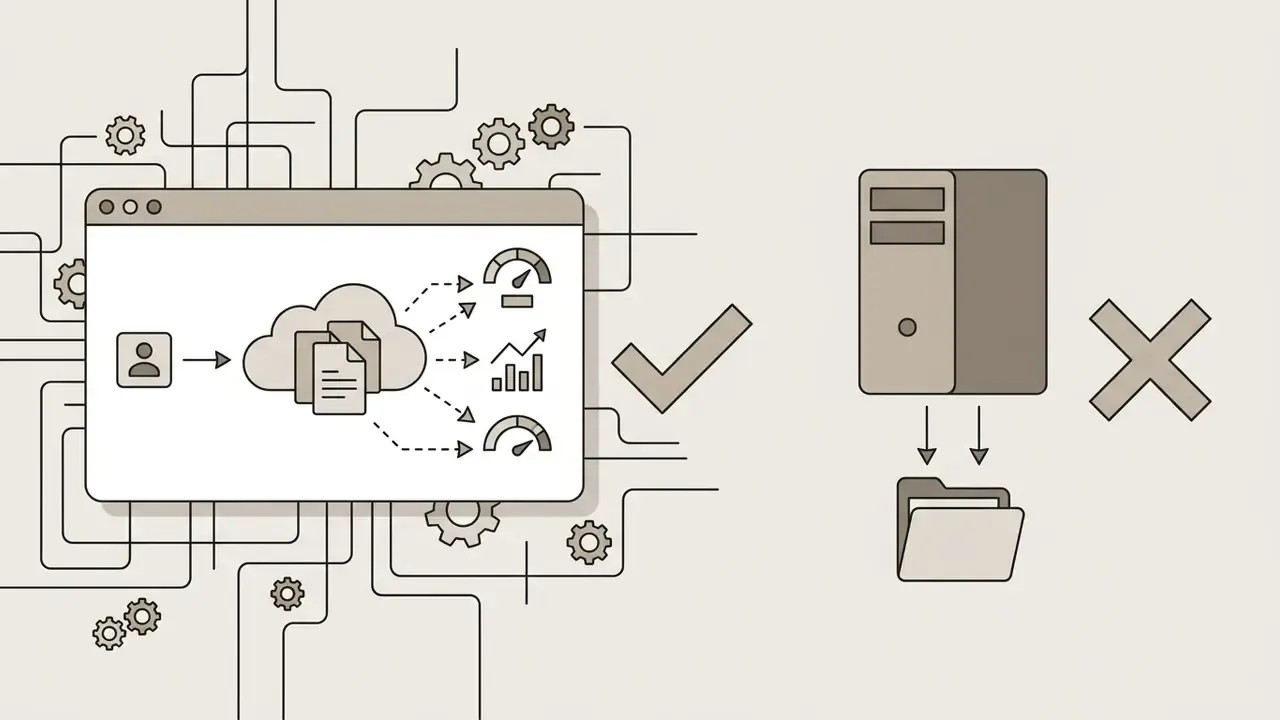
Free does not mean risk-free. For regulated organisations, including banks, insurers, healthcare providers, and any team handling client footage, the decisive question is not the export resolution. It is where the media is processed and under which licence the software ships. Unmanaged adoption of consumer editors is one of the most common Shadow AI vectors inside enterprises, because a single upload of internal footage into a cloud AI feature can constitute a data transfer outside the approved perimeter.
Hidden total cost of ownership. "Free" carries operational overhead that rarely appears in comparison tables. Lightworks Free requires an internet sign-in every 90 days to keep the licence active. DaVinci Resolve Free is limited to 8-bit formats, so 10-bit and 12-bit H.265 or ProRes hardware acceleration, temporal noise reduction, and Neural Engine tools require the paid Studio licence at US$295 one-time. And 4K timelines realistically demand 16 to 32 GB RAM plus a discrete GPU with at least 2 GB VRAM, which quietly shifts cost from software to hardware. If you need to model that trade-off in numbers, compare options with a cost calculator before buying either.
Best Free Desktop Video Editing Software No Watermark
Desktop applications provide raw processing power, deep timeline customization, and offline independence. Choosing the best free desktop video editing software 2025 depends on hardware specifications, desired color fidelity, and project scope. For anyone searching specifically for the best free pc video editing software no watermark, all four tools below qualify on Windows.
DaVinci Resolve for Professional Color Grading and 4K Projects
DaVinci Resolve by Blackmagic Design remains the gold standard for high-end production among free options. The free version supports 8-bit video formats at resolutions up to Ultra HD 3840×2160 at 60 frames per second on Windows, macOS, and Linux.
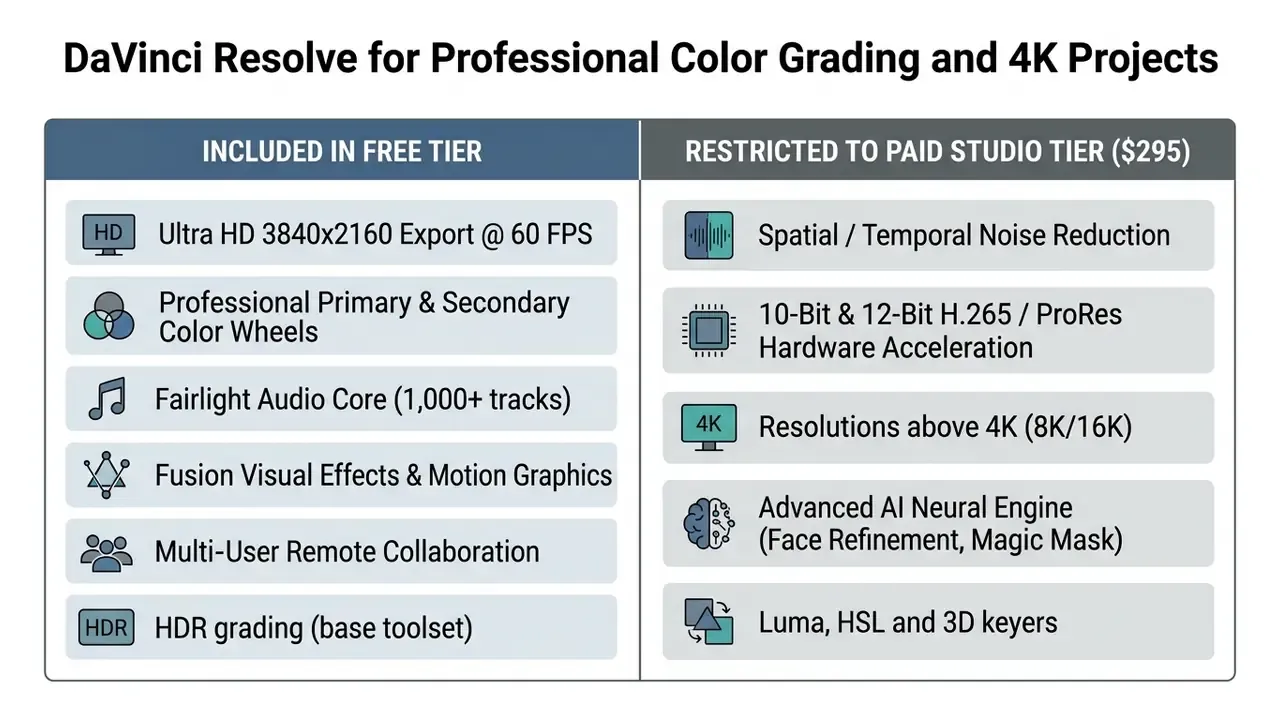
The application combines professional editing, Fusion visual effects, Fairlight audio editing, and industry-leading color correction in one interface. The learning curve is steep, yet there are no export watermarks and no time limits on core functions. One exception matters: applying Studio-only plugins, such as temporal noise reduction or advanced Neural Engine tools, burns an on-screen licence overlay into the render until the plugin is removed. That is the single realistic watermark trigger in Resolve Free.
A commercial media team migrating from legacy subscription software used DaVinci Resolve Free to process a multi-camera digital series. By generating proxy editing files and working inside the native color grading workspace, the team edited and exported twelve 4K UHD episodes with zero software licensing spend, which proves the viability of the free tier for professional quality output. Teams evaluating adjacent generative pipelines can also view the guide to paid and open alternatives.
Kdenlive for Open Source Multi-Track Editing
Kdenlive is a powerful candidate for best free open source video editing software 2025, built on the MLT framework and the FFmpeg engine. Running natively on Linux, Windows, macOS, and BSD, Kdenlive offers non linear multi track timeline editing with effectively unlimited video clips and audio tracks.
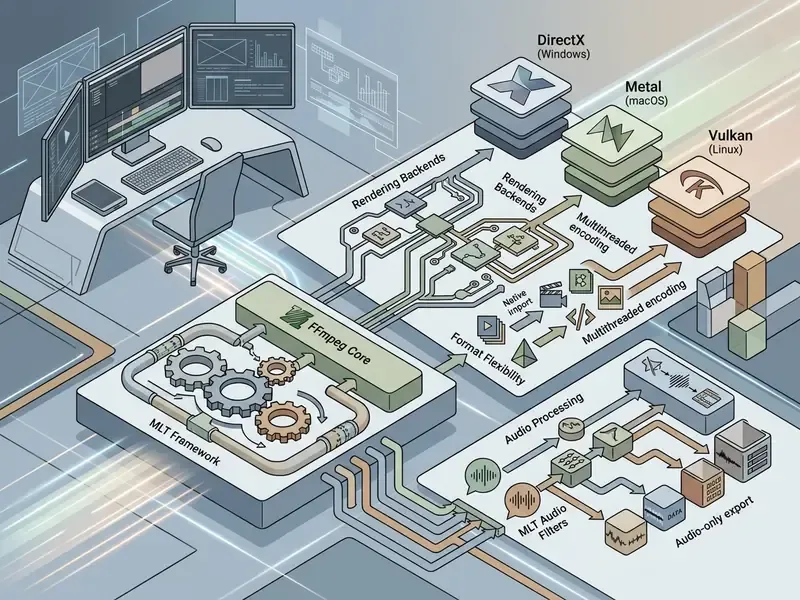
The editor automatically splits incoming audio and video channels across separate timeline tracks, which simplifies multi-track organization. Kdenlive supports proxy editing for smooth playback of high resolution 4K video footage, keyframeable creative effects, RGB parade scopes, and automatic speech-to-text subtitle generation via integrated Whisper models that run on-device. It operates completely free without watermarks, subscriptions, or feature gating. One caveat from the official manual: parallel processing during render is still flagged experimental and can produce artifacts or crashes on long multi-layer timelines, so keep it disabled for delivery renders.
OpenShot for Simple Video Editing
OpenShot provides an accessible, cross-platform experience designed for beginners who need best free simple video editing software 2025 capabilities. Operating under the GPLv3 open source licence, OpenShot runs on Windows, Mac, Linux, and ChromeOS.
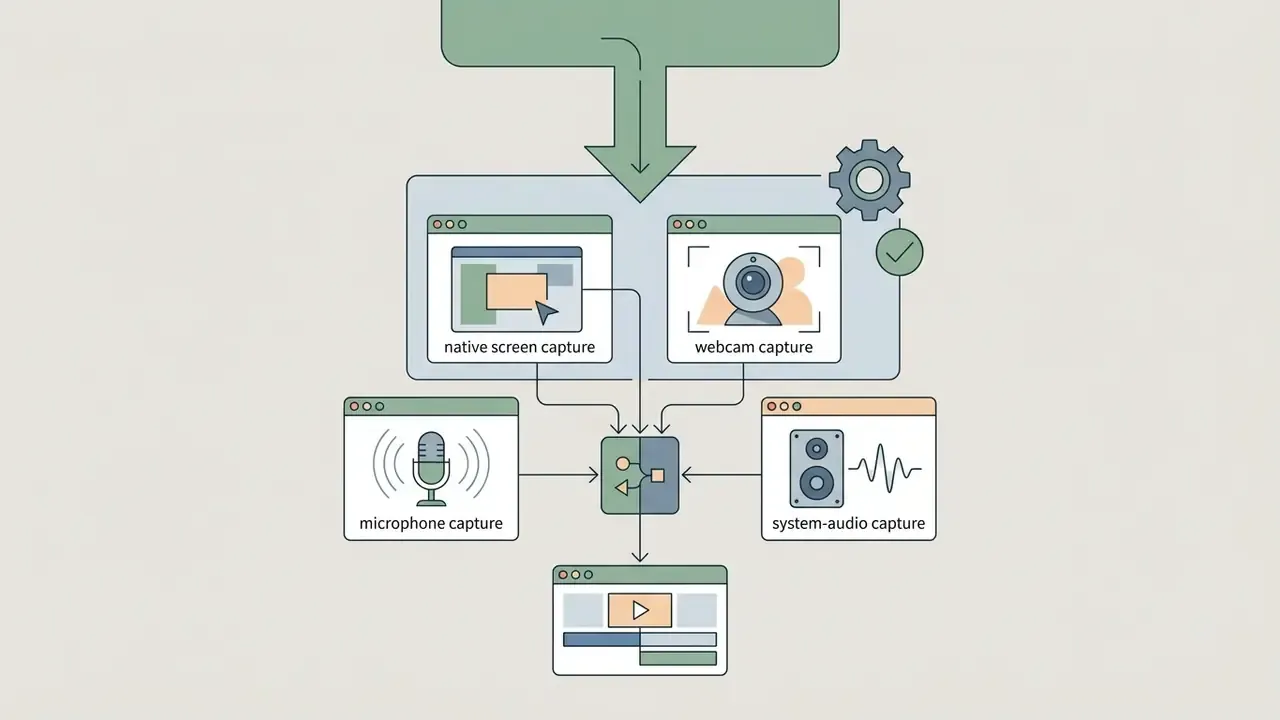
Its clean interface features simple drag and drop media handling, keyframe-based clip animations, 3D animated titles via Blender integration, and green screen effects through a chroma key filter that replaces a target green or blue value with transparency using an adjustable threshold. Version 4.0 also adds direct screen, webcam, microphone, and system-audio recording inside the editor. OpenShot applies no watermark video overlays and supports resolution profiles up to 4K and beyond. Two documented limitations matter in production: hardware acceleration remains experimental, with NVENC exposed only on Linux, and 4K multi-layer rendering is noticeably slower than in GPU-accelerated suites.
Lightworks for Advanced Editing Workflows
Lightworks Free delivers professional grade timeline cutting tools derived from Hollywood film editing history; the lineage includes Pulp Fiction and The Wolf of Wall Street. It supplies precision trimming, real time visual effects, more than 80 transitions, and advanced audio equalization across desktop operating systems.
The primary limitation of Lightworks Free is its export gate. Output is strictly capped at 720p HD resolution in MP4/MPEG-4 format tailored for YouTube and Vimeo web publishing. There is no workaround on the free tier. Exports contain no watermarks, but users seeking 1080p, 4K video, 8K, or advanced interchange formats (AAF, XML, MXF, MOV, image sequences) must upgrade to Lightworks Create or Pro. The free licence also requires internet sign-in every 90 days to maintain activation.
To compare desktop utilities with dedicated audio generation engines, explore our guide to the best ai music generator tools, or the narrower review of the best ai music video generator for automated visual accompaniment.
Specialized Editors: Action Footage, Screen Capture and Storyboards
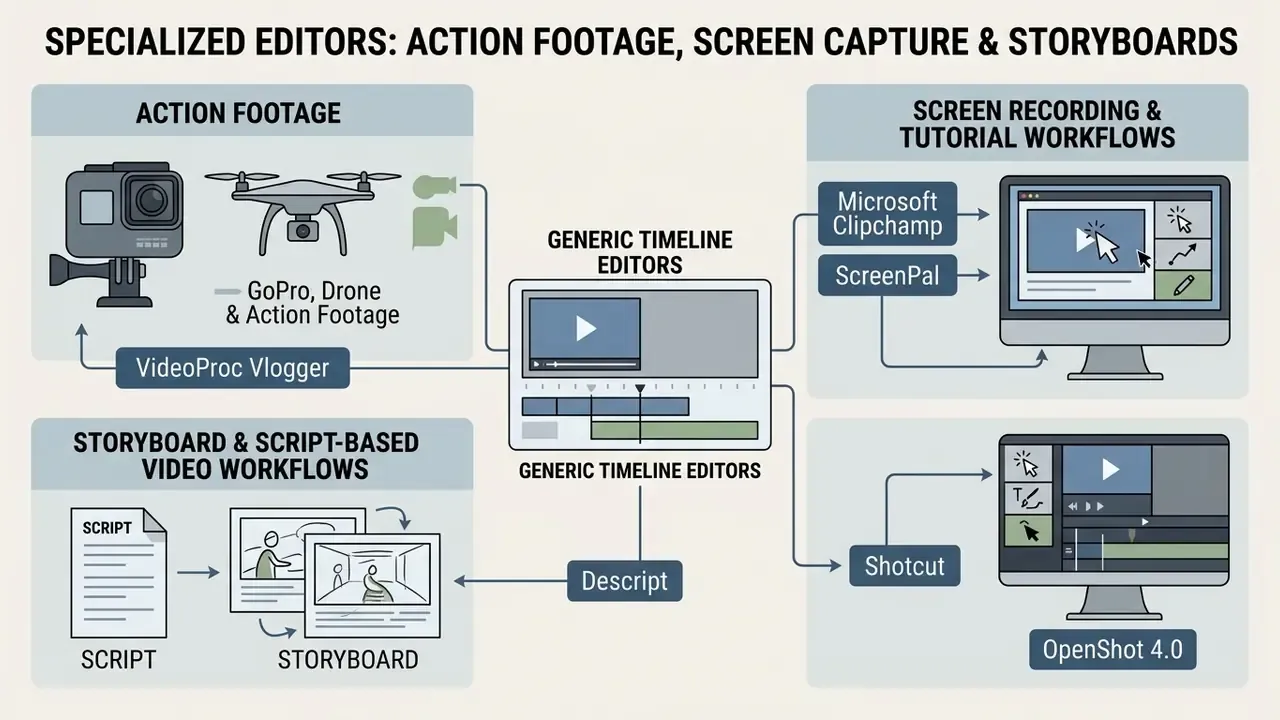
Generic timeline editors cover most projects. Three production scenarios are served far better by purpose-built free tools: motion-heavy action footage, instructional screen capture, and script-driven corporate video.
VideoProc Vlogger for GoPro, Drone and Action Footage
VideoProc Vlogger is built specifically for creators working with GoPro, drone, and action-camera material, where the editing problem is motion rather than colour. The free desktop application for Windows and macOS provides hardware-accelerated speed ramping with editable velocity curves, lens distortion correction for wide-angle fisheye barrel warp, and intelligent motion stabilisation for handheld and gimbal-mounted shots. Exports run up to 4K with no watermark restriction, and full GPU acceleration is supported across NVIDIA, AMD, and Intel encoders. That is a meaningful advantage when transcoding high-bitrate 4K HEVC action clips.
Its trade-offs are honest: the effects library is smaller than in Filmora or HitFilm Express, and colour grading is basic next to DaVinci Resolve. For travel, sports, and motorsport edits where speed ramps and stabilisation carry the narrative, the lightweight footprint is the point.
Screen Recording and Tutorial Workflows
Instructional video has a different requirement. Capture and edit must live in the same application, or the workflow fragments.
- Microsoft Clipchamp includes a free screen recording and camera recorder that captures the full screen, a single window, or a browser tab, with simultaneous webcam overlay. Recordings drop straight onto the timeline for trimming and captioning.
- ScreenPal covers Windows, Mac, iOS, Android, and Chromebook with no watermark added, offers recording-first workflows for tutorials, demos, and training videos, and supports multiple audio tracks, volume adjustment, and voiceover narration. The free tier caps recordings at 15 minutes and hosting at 10 videos.
- Shotcut and OpenShot 4.0 both add native screen, webcam, and audio capture to a lightweight open source timeline. This is the strongest fully local option when software walkthroughs contain confidential interfaces that must not be uploaded anywhere.
- Descript offers free screen recording with system and microphone audio plus transcript-based editing, useful when the tutorial script and the cut need to stay in sync.
Storyboard and Script-Based Video Workflows
For presentations, onboarding decks, and corporate explainers, the fastest route from text to finished video is a storyboard-driven editor rather than a frame-accurate timeline. ScreenPal's storyboard mode lets you start from a script or a slide import, toggle between storyboard and timeline views, and drag sections into order, with each block holding its own recording, image, or clip. Existing slides convert directly into presentation video sections, and captions can be generated from the script itself.
CapCut approaches the same intent from the AI side. Its text-based editing feature generates a transcript from the footage and lets you cut the video by deleting words from the text, while AI Story Maker and script-to-video tools assemble a rough sequence from a written outline. Both approaches trade granular control for speed, and both export watermark-free provided no Pro-tagged template or premium asset enters the project.
Best Free Video Editing Apps and Browser Editors
Mobile applications and browser-based software offer quick access, automated templates, and cloud storage integration for social media video creation. If you are hunting for the best free video editing app no watermark 2025, or simply the best free easy video editing app 2025 for a phone, these three cover almost every case.
CapCut for TikTok and Social Media Video Content
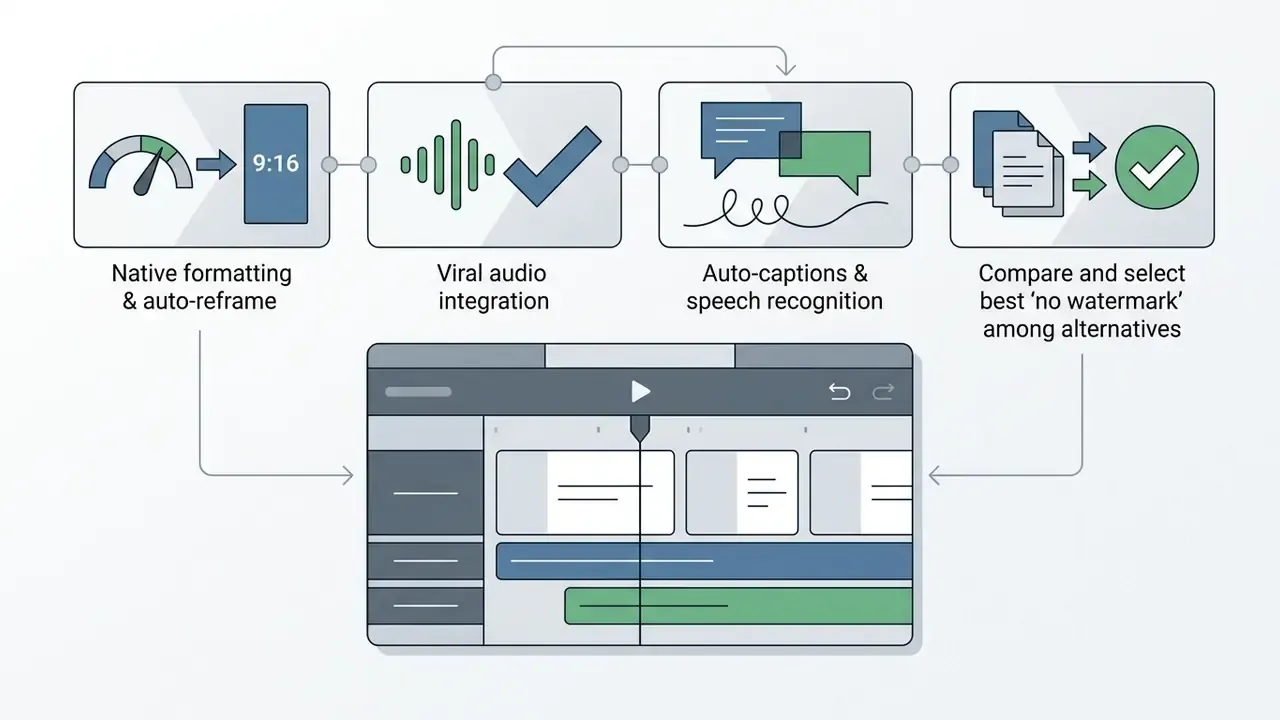
CapCut, developed by ByteDance, stands as a top-tier best free video editing app for tiktok 2025 and general short-form video creation. Available on mobile devices (iOS and Android), desktop, and web browsers, CapCut is optimized for 9:16 vertical content, TikTok, Instagram Reels, and YouTube Shorts, with auto-reframe and AI segment selection for converting landscape masters into vertical cuts.
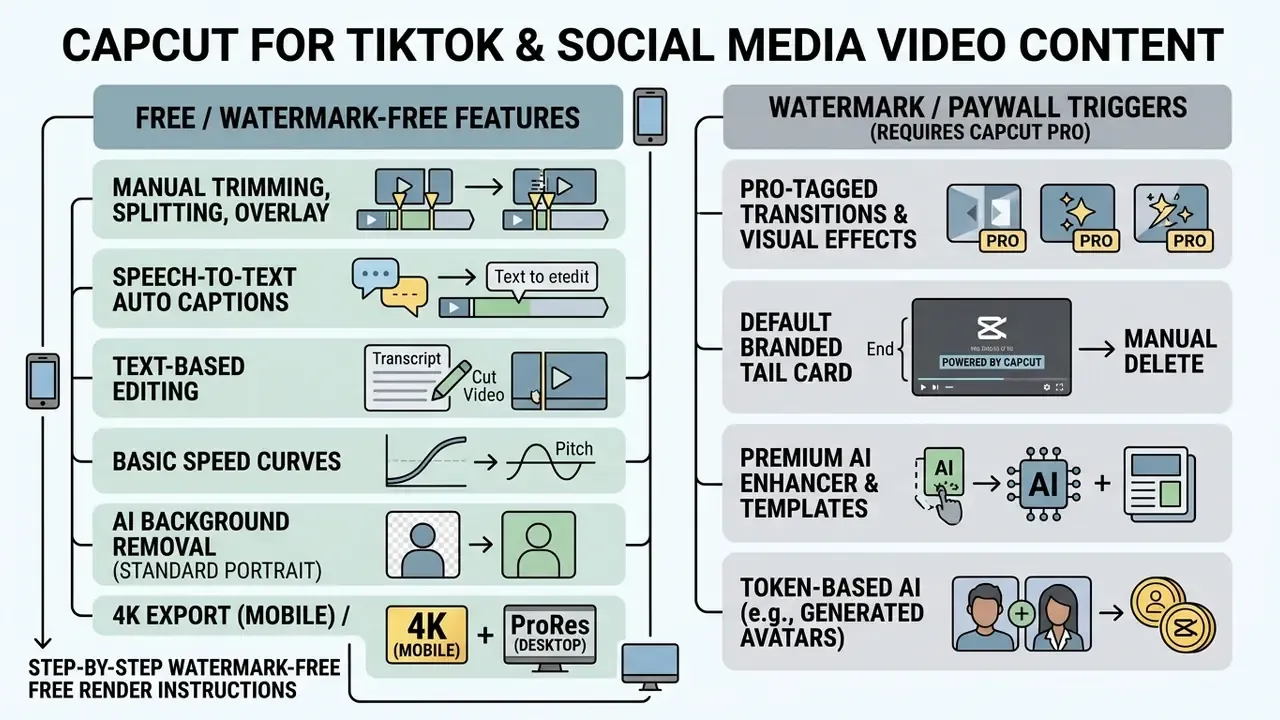
CapCut provides auto captions, background removal, motion tracking, body effects, chroma key via the Remove BG panel, RGB curves, LUT support, and AI video templates. Manual video edits export without watermarks up to 4K resolution at 60 fps on mobile, and up to 8K at 60 fps on desktop, including Apple ProRes 422 and GIF output. That is an unusually generous ceiling for a freemium tool. Text-based editing analyses the clip, produces a transcript, and lets you restructure the timeline by editing text, which collapses rough-cut time on interview and voiceover material.
However, users must manually delete the default two-second branded ending clip added to the timeline. Selecting Pro-tagged templates or premium AI tools will require a paid upgrade or apply a watermark video overlay on export.
Enterprise caveat. CapCut's AI features process media on ByteDance infrastructure. For corporate communications teams handling unreleased product footage, customer interviews, or personal data, this places CapCut in the highest data-residency risk tier described earlier, and makes it a frequent Shadow AI finding in internal audits. Where confidentiality is a constraint, a local editor plus a separate captioning pass is the defensible pattern. Teams that automate publishing at scale should also review API access terms before scripting anything; open the hub for integration notes.
Professional adoption evidence. Beyond social publishing, CapCut has been validated in structured instructional production. A quasi-experimental study by Dawoud (Palestinian Public Schools, 2025) assigned 76 learners to produce multimedia educational clips in CapCut against a control group. ANCOVA analysis showed statistically significant superiority for the CapCut group (p < 0.001), with a large effect size and higher learner autonomy. That is a useful signal for internal learning and development teams producing instructional media at volume with no dedicated post-production budget.
"A quasi-experimental study of 76 learners showed statistically significant gains in vocabulary retention (p < 0.001) with a large effect size for the group creating CapCut videos."
iMovie for iPhone, iPad and Mac Users
iMovie remains an essential tool within the apple ecosystem and the obvious best free iphone video editor no watermark 2025 option. Pre-installed on macOS, iOS, and iPadOS devices, iMovie requires no subscription, account creation, or hidden feature unlocks, and Apple's documentation describes no watermark on any export path.
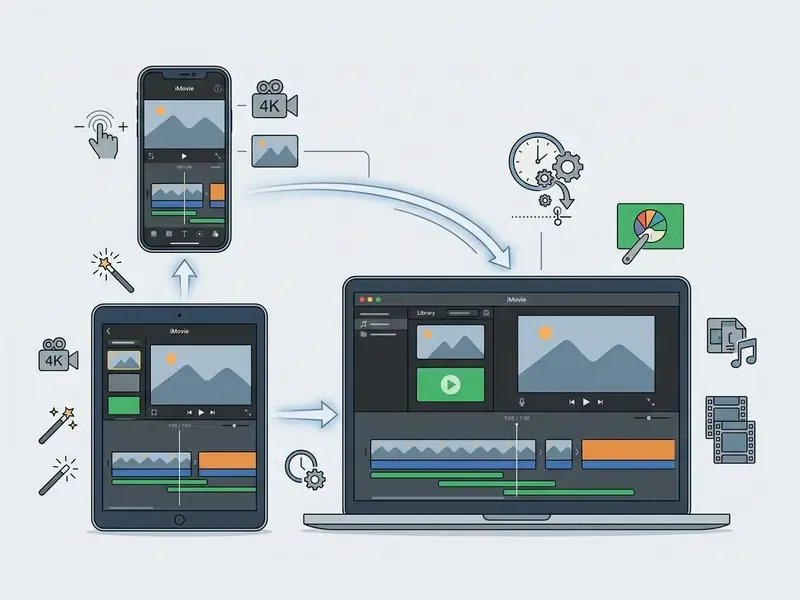
iMovie supports 4K video exports up to 30 fps on Mac and works with 4K 60 fps source media captured on mobile hardware; 60 fps sharing is documented at 1080p. Key features include green screen effects, video stabilization, sound effects libraries, and trailer templates. One structural constraint: iMovie is oriented to 16:9 and offers limited native aspect-ratio flexibility for vertical-first workflows. Outputs are entirely free of watermarks and processed on-device, which makes iMovie a premier choice for apple devices users crafting YouTube video content or family archives, and the lowest-risk mobile option for confidential material.
Clipchamp for Browser-Based Editing on Windows
Microsoft Clipchamp serves as the default web and desktop editor for Windows 11 users, offering accessible online video editing directly inside Google Chrome or Microsoft Edge, with an additional Windows 11 desktop app and a Windows 10 Microsoft Store build.
Clipchamp provides a clean drag and drop interface, built-in screen recording and webcam capture, AI powered auto captions, text-to-speech generators, AI noise suppression, and a library of royalty-free music, stock video, stock images, stickers, GIFs, and sound effects. Free accounts export videos without watermarks in 1080p HD, with output options for local download, OneDrive, SharePoint, Stream, and GIF export under 15 seconds. Upgrading to Microsoft 365 or Clipchamp Premium unlocks 4K video rendering and premium stock collections; adding a premium stock asset on the free tier blocks export until it is removed or the plan is upgraded.
Creators comparing video tools alongside specialized photo enhancement platforms can review our analysis of the best ai photo editor software, or the earlier snapshot of best ai photo tooling for historical context.
Format, Codec and Conversion Compatibility
Watermark policy is only half the export question. The other half is whether the editor can ingest your camera's codec and deliver the container your distribution platform expects. The matrix below summarises verified input and output support across the main free options.
| Editor | Key Input Formats | Export Formats | Codec Acceleration |
|---|---|---|---|
| DaVinci Resolve (Free) | H.264, HEVC, ProRes, DNxHD, BRAW | MP4, MOV, QuickTime | 8-bit hardware acceleration; 10/12-bit H.265 requires Studio |
| Kdenlive | DV, MPEG-2, MP4, MKV, WebM, ProRes 422, H.264, H.265, AV1, PNG/JPEG/TIFF/SVG/WEBP/AVIF/JPEG XL | MP4, MKV, WebM, UHD/4K Matroska, ProRes 422, AAC, AC3, MP3, FLAC, WAV | Multithreaded encoding for MPEG-2, MPEG-4, H.264, VP8 (parallel processing experimental) |
| OpenShot | All FFmpeg-supported formats, SVG, image sequences | MP4, AVI, WebM, FLV, MKV | CPU/FFmpeg core; hardware acceleration experimental (NVENC on Linux only) |
| VideoProc Vlogger | 4K HEVC, RAW, HDR, GoPro/drone profiles, GIF | MP4, MKV, MP3 | Full GPU acceleration (NVIDIA, AMD, Intel) |
| Lightworks Free | Wide format and frame rate support, auto-rotate mobile footage | MP4/MPEG-4 only, 720p maximum | Real time playback; AAF/XML/MXF/MOV reserved for paid tiers |
| CapCut Desktop | H.264, HEVC, ProRes, common mobile containers | MP4, MOV, ProRes 422, GIF, up to 8K | GPU-accelerated encode on supported hardware |
| Clipchamp (Free) | MP4, MOV, WebM, common browser-decodable formats | MP4 up to 1080p, GIF under 15 s | Browser/WebGPU-assisted render |
| iMovie | H.264, HEVC, ProRes (Mac), iPhone 4K60 capture | MP4/MOV up to 3840×2160 @ 30 fps | Apple Silicon / VideoToolbox hardware encode |
Conversion note. If your task is purely format conversion rather than editing, VideoProc Vlogger and Kdenlive both expose FFmpeg-grade transcode presets without watermarking, and Shotcut handles batch format changes on all three desktop platforms. Browser-based grab-and-convert utilities look convenient, yet they upload source media to third-party servers, so the same data-residency objection raised in the governance section applies.
Choose a Free Editor by Your Video Task
To streamline software selection, match your technical requirements and distribution goals with the specialized strength of each editing platform.
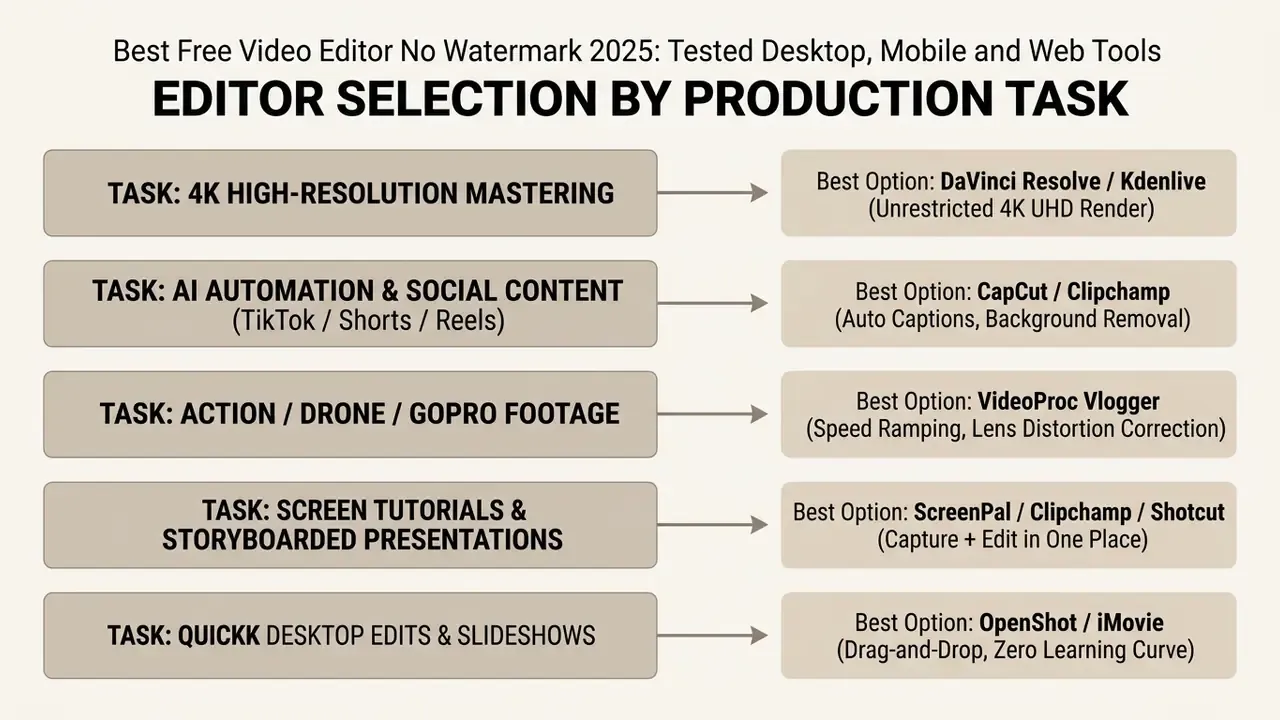
Best Free 4K Video Editing Software for High-Resolution Exports
When publishing content to platforms where 4K master files are required, software selection is governed by export caps:
Avoid for 4K work: Microsoft Clipchamp (capped at 1080p on the free tier), Lightworks Free (capped at 720p), and Kapwing (free plan adds a watermark and caps output at 1080p).
- DaVinci Resolve (free tier)
- exports native 4K UHD (3840×2160) at up to 60 fps without watermarks.
- Kdenlive and OpenShot
- support unrestricted 4K, 5K, 8K, and even 16K export profiles via FFmpeg integration.
- Shotcut
- free, open source, no watermark, and no limits on resolution or project length.
- CapCut
- free 4K export on mobile and up to 8K on desktop for standard manual edits.
- VideoProc Vlogger
- GPU-accelerated 4K output with no watermark restriction.
Best Free AI Video Editors Without Watermarks
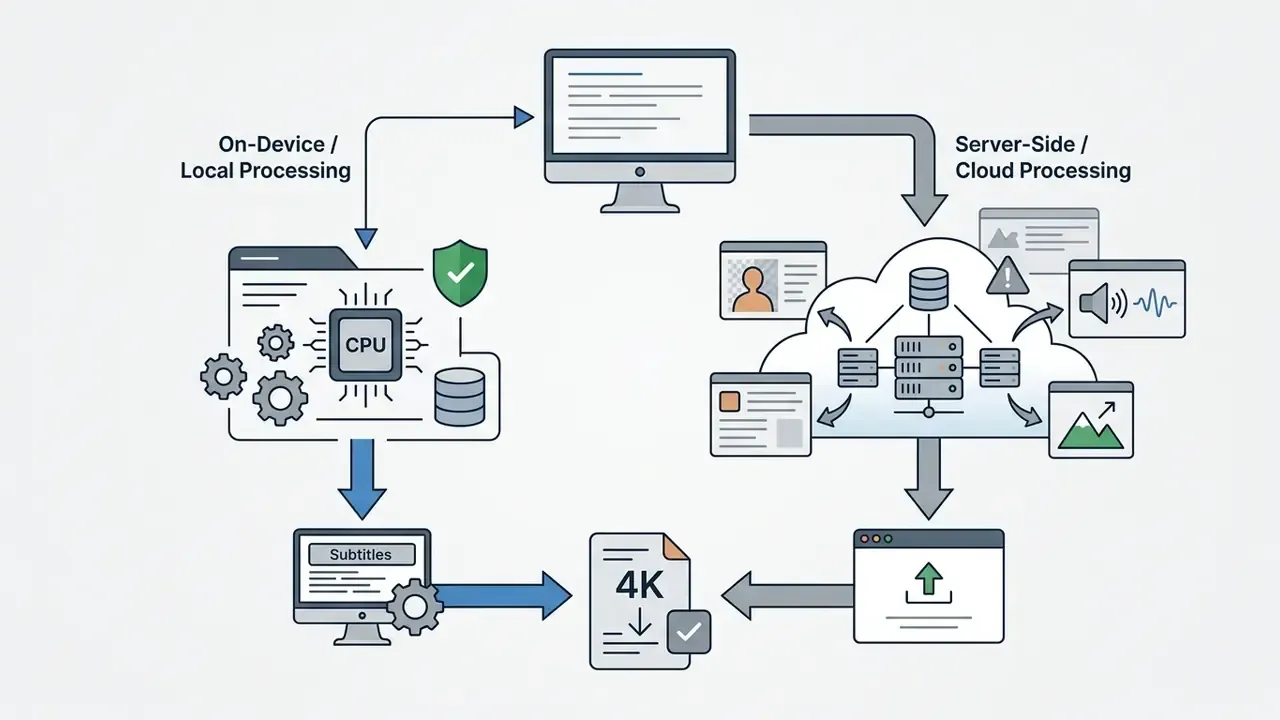
AI powered tools accelerate post-production by automating tedious cutting and transcription tasks. Anyone shortlisting the best free ai video editor no watermark 2025, or comparing the best free ai video editing apps 2025 more broadly, should read the processing column first. It separates on-device AI from cloud AI.
| AI Feature | Editor | Free Status | Processing |
|---|---|---|---|
| Auto captions / subtitles | Kdenlive (Whisper) | Free, unlimited | Local / on-device |
| Auto captions / subtitles | Clipchamp | Free at 1080p | Cloud |
| Auto captions / subtitles | CapCut | Free | Cloud |
| Background removal | CapCut | Free for standard portraits | Cloud |
| Background removal | Clipchamp | Free | Cloud |
| Chroma key / green screen | OpenShot, Kdenlive, CapCut | Free | Local (CapCut hybrid) |
| Text-to-speech voiceover | Clipchamp | Free | Cloud |
| Text-based editing (transcript cut) | CapCut | Free | Cloud |
| Noise suppression (audio) | Clipchamp | Free | Cloud |
| Spatial/temporal noise reduction (video) | DaVinci Resolve | Studio only | Local |
| AI motion tracking / object detection | OpenShot (experimental), CapCut | Free | Local / Cloud |
| AI avatars, video enhancer, generative clips | CapCut | Pro / token-based | Cloud |
- CapCut: advanced AI background removal, auto captions in dozens of languages, AI script-to-video generation, text-based editing, an AI Clipper for long-to-short conversion, and text-to-speech avatars.
- Microsoft Clipchamp
- automated speech-to-text captioning, AI voice synthesis, noise suppression, and silence removal without adding watermarks at 1080p.
- Kdenlive
- generates subtitles through integrated Whisper models that execute locally, the only mainstream free option that combines automated transcription with zero data egress.
- OpenShot
- experimental AI motion tracking, object detection, and ComfyUI-driven style transfer features integrated into its open source timeline.
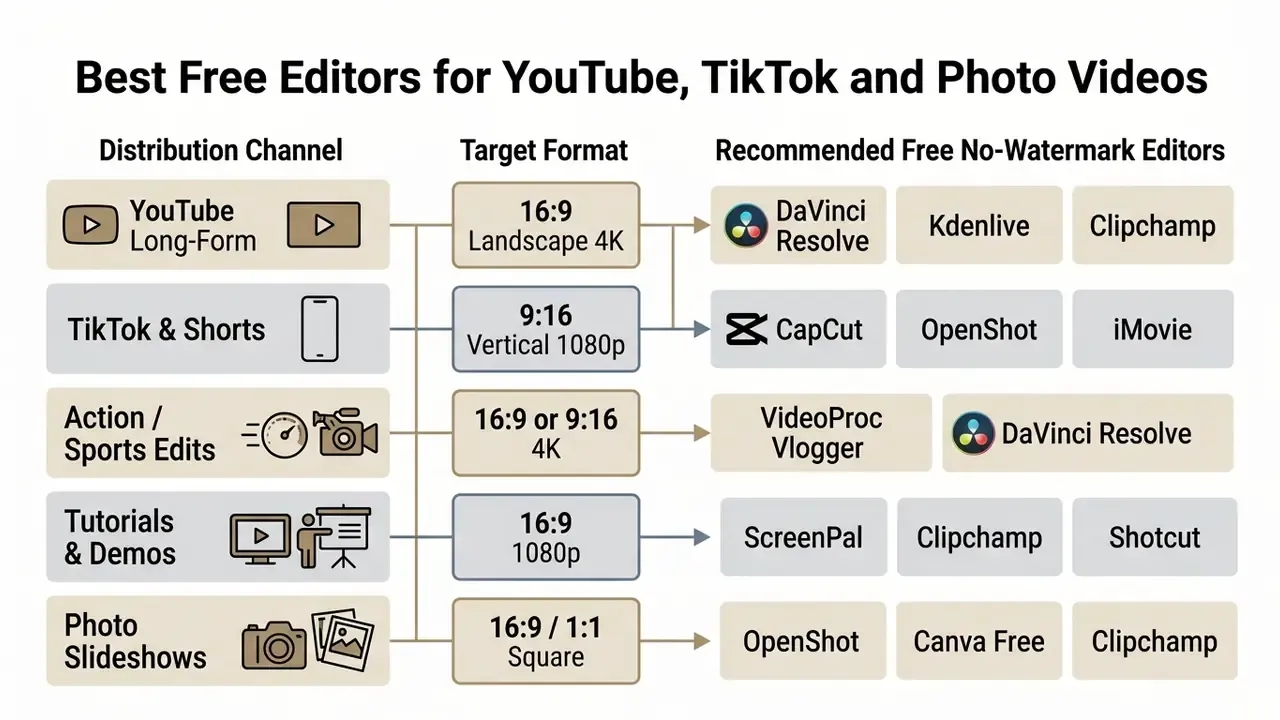
Best Free Editors for YouTube, TikTok and Photo Videos
Different distribution channels demand specific timeline aspect ratios and publishing presets:
Hardware Matcher: Pick Software by Your PC Specs
Free software still consumes paid hardware. Match the editor to the machine you actually have, before downloading a 3 GB installer that will stutter on playback.
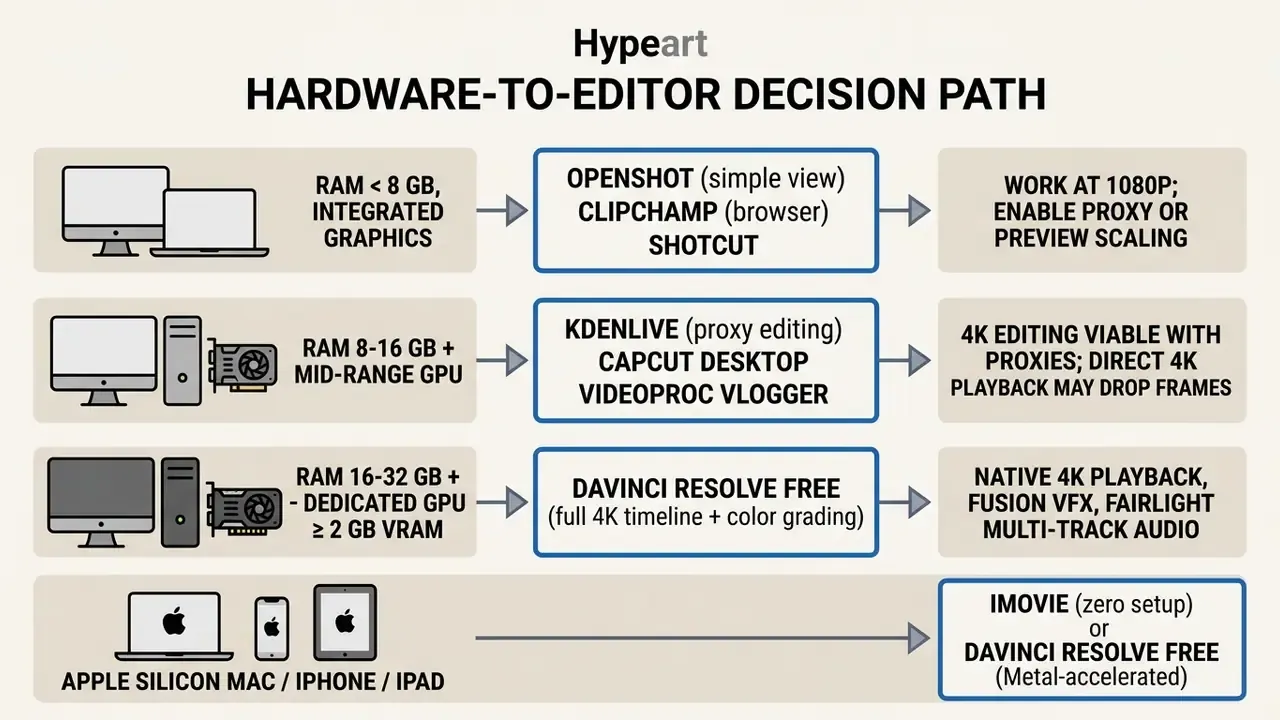
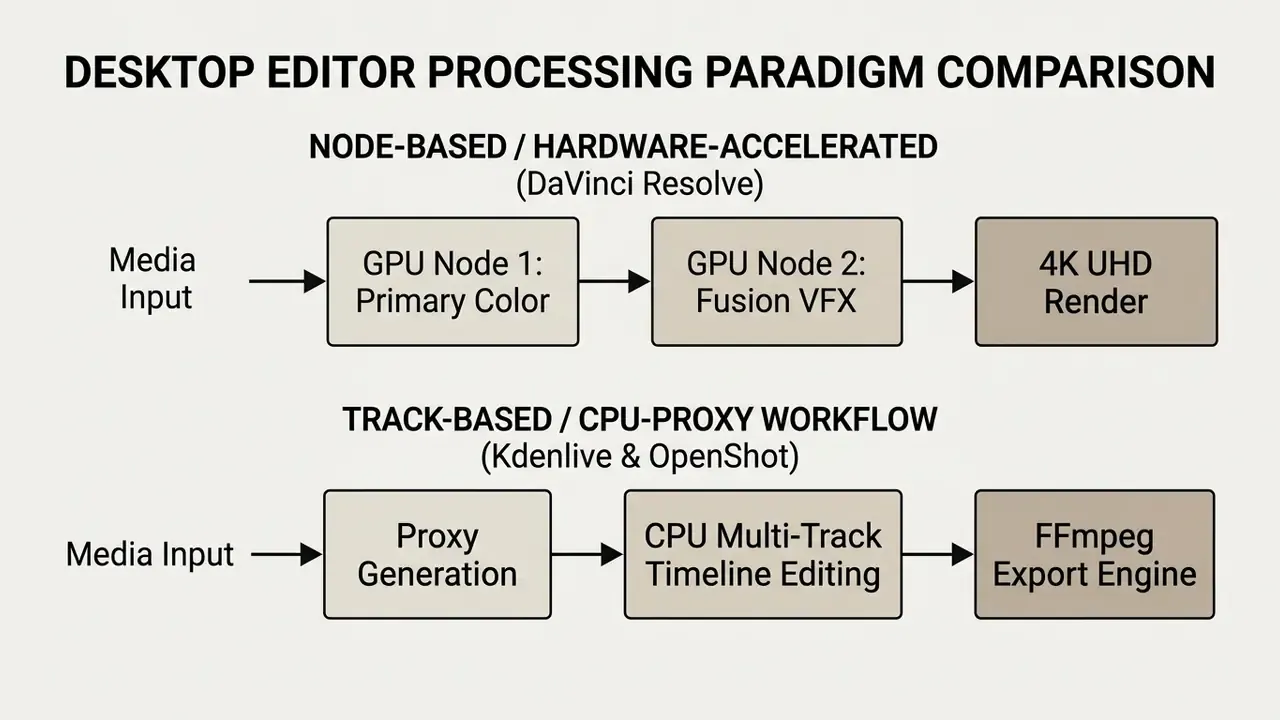
Documented baselines: DaVinci Resolve requires Windows 10 or 11, or macOS, with 16 GB RAM and a GPU carrying at least 2 GB VRAM on Windows, with 32 GB recommended for comfortable 4K timelines. Kdenlive and OpenShot run on far lighter configurations but shift the load onto the CPU, which lengthens render times rather than blocking the work outright. A five-minute 4K render that takes four minutes on a GPU suite can take twenty on an integrated-graphics laptop. Annoying, not fatal.
FAQ About Free Video Editors Without Watermarks
Can Free Video Editors Handle Professional Video Editing?
Yes, with defined boundaries. Desktop platforms like DaVinci Resolve and Kdenlive support professional video editing, providing multi track timelines, advanced color grading panels, Fairlight audio suites, motion graphics compositing, and 4K video rendering. They are widely used for independent films, YouTube channels, and commercial projects. However, hardware acceleration for specific 10-bit and 12-bit H.265 codecs, spatial and temporal noise reduction, luma, HSL and 3D keyers, and Neural Engine tools require the paid DaVinci Resolve Studio licence. Free editors therefore replace paid software for most commercial editing tasks, but not every one. The deciding factors are codec depth, noise reduction needs, and licence terms.
Can Free Editors Be Used in Commercial and Client Projects?
Mostly yes, but verify per tool. DaVinci Resolve Free, Kdenlive (GPL), OpenShot (GPLv3), and Shotcut permit commercial output without royalty. Freemium editors add conditions: exported media must contain only free tier assets, and some stock libraries carry usage restrictions separate from the software licence. Always read the asset licence, not only the software licence, before delivering client work.
Do Free Editors Include Screen Recording and Audio Editing?
Yes. Microsoft Clipchamp, OpenShot 4.0, Shotcut, Descript, and ScreenPal provide built-in screen recording and webcam capture directly within their free interfaces. For audio editing, DaVinci Resolve includes the full Fairlight engine with over 1,000 tracks, Kdenlive supports MLT-based audio effects plus audio-only export to AC3, ALAC, FLAC, MP3, OGG, and WAV, while Clipchamp provides AI noise suppression and automated speech-to-text tools. Open source audio processors such as Audacity can be paired alongside any video editor for advanced sound design.
What Should You Check Before Installing a Free Video Editor?
Before installing software, review these hardware and licensing parameters:
- System requirements. Verify RAM (16 GB minimum, 32 GB recommended for DaVinci Resolve 4K workflows), CPU instruction-set support, free storage, display resolution, and whether activation needs an internet connection.
The free version of DaVinci Resolve supports 8-bit formats up to Ultra HD 3840×2160 at 60 fps; advanced noise reduction, 10-bit H.265 codecs, and Neural Engine features require the paid Studio tier. Source: Blackmagic Design DaVinci Resolve Product Page, cited in Evidence-Based Comparison (2025).
- Export resolution caps. Confirm whether the software limits output to 720p (Lightworks) or 1080p (Clipchamp) on its free tier.
- Codec and format support. Ensure native support for your camera's recording profiles, such as H.264, HEVC, Apple ProRes, or BRAW, on both import and export.
- Licence terms. Check whether the free software requires online account registration, periodic offline key renewals, or a paid licence for network and terminal-server deployment. GPL tools (Kdenlive, OpenShot) are free for commercial editing but carry source-disclosure obligations if you distribute modified builds.
- Data processing location. Determine whether AI features execute locally or upload media to vendor servers. This is the decisive check for confidential, regulated, or personal-data footage.
Disclaimer: This information is general in nature and does not replace professional advice. Software licence terms change; verify current conditions on official vendor sites before installation.
Does a Watermark-Free Free Tier Always Mean Unlimited Exports?
No. Some platforms remove the watermark yet impose other ceilings. ScreenPal's free plan caps recordings at 15 minutes and hosting at 10 videos. Lightworks Free caps resolution at 720p. Clipchamp caps at 1080p and blocks export when premium stock is present. Open source editors (Kdenlive, OpenShot, Shotcut) are the only category documented as having no watermark, no duration limit, and no export count limit at the same time.
Verified Official Editor Licence and Resource Links
To ensure software authenticity, download editors exclusively from the official vendor domains verified below:
- DaVinci Resolve: Blackmagic Design Official Page (Verified January 2026)
- Kdenlive: KDE Kdenlive Official Portal (GPL licensed, verified January 2026)
- OpenShot: OpenShot Studios Official Site (GPLv3 licensed, verified January 2026)
- Lightworks: LWKS Software Official Portal (Verified January 2026)
- CapCut: CapCut Official Platform (Verified January 2026)
- Microsoft Clipchamp: Microsoft Clipchamp Portal (Verified January 2026)
- Apple iMovie: Apple iMovie Official Support (Verified January 2026)
For additional comparisons across specialized visual creation engines, visit our hub for free AI art generators, or browse the hub covering commercial licensing questions. Teams standardising on adjacent utilities may also find our AI Media Comparison Matrices useful for completing a zero-cost production stack.
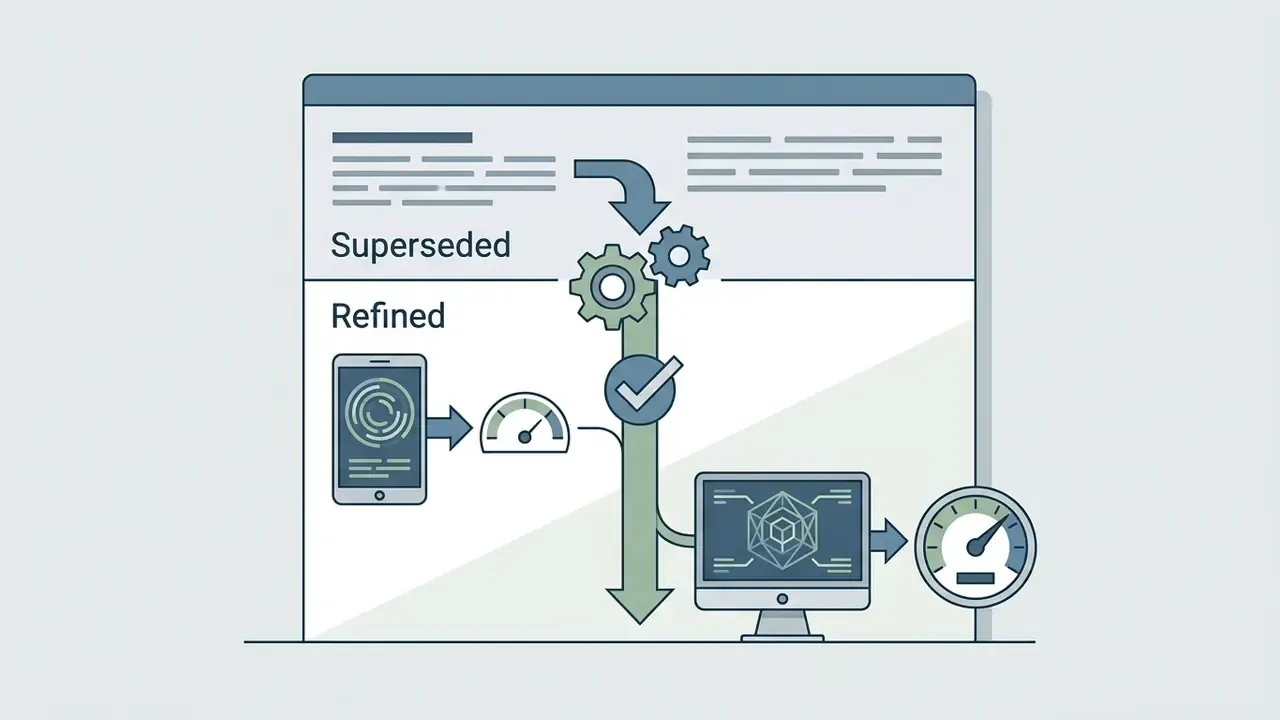
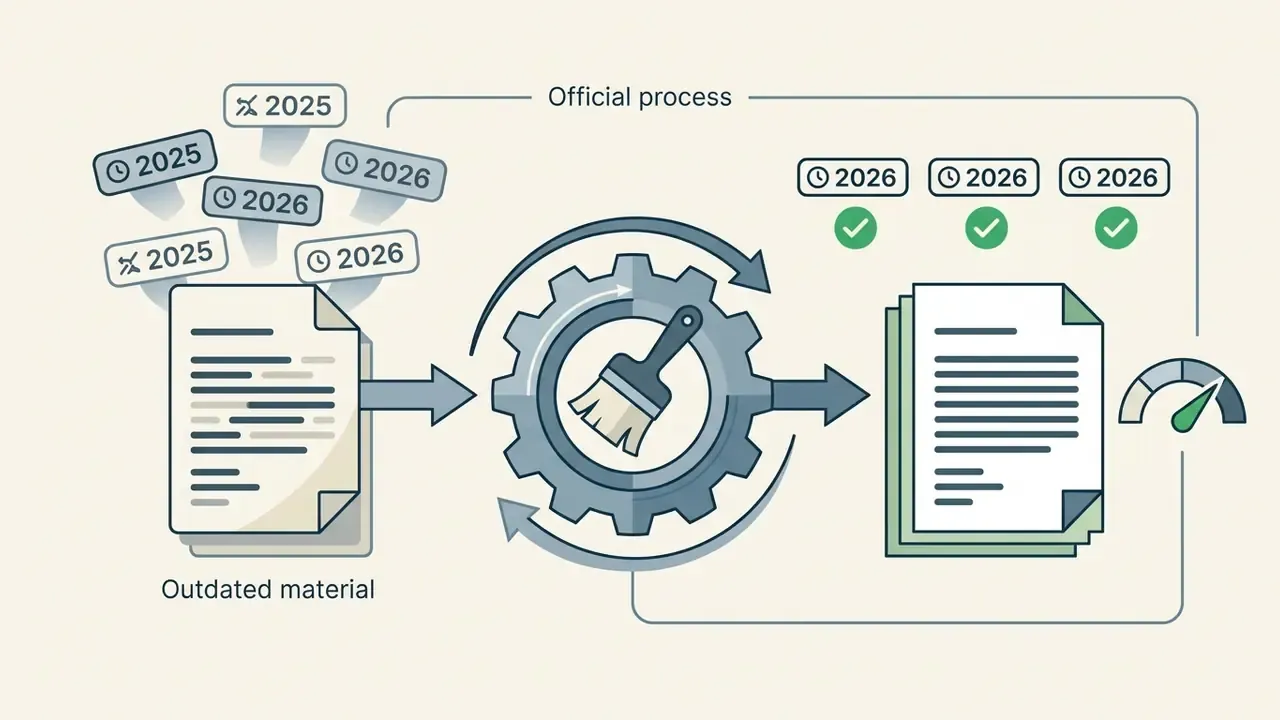
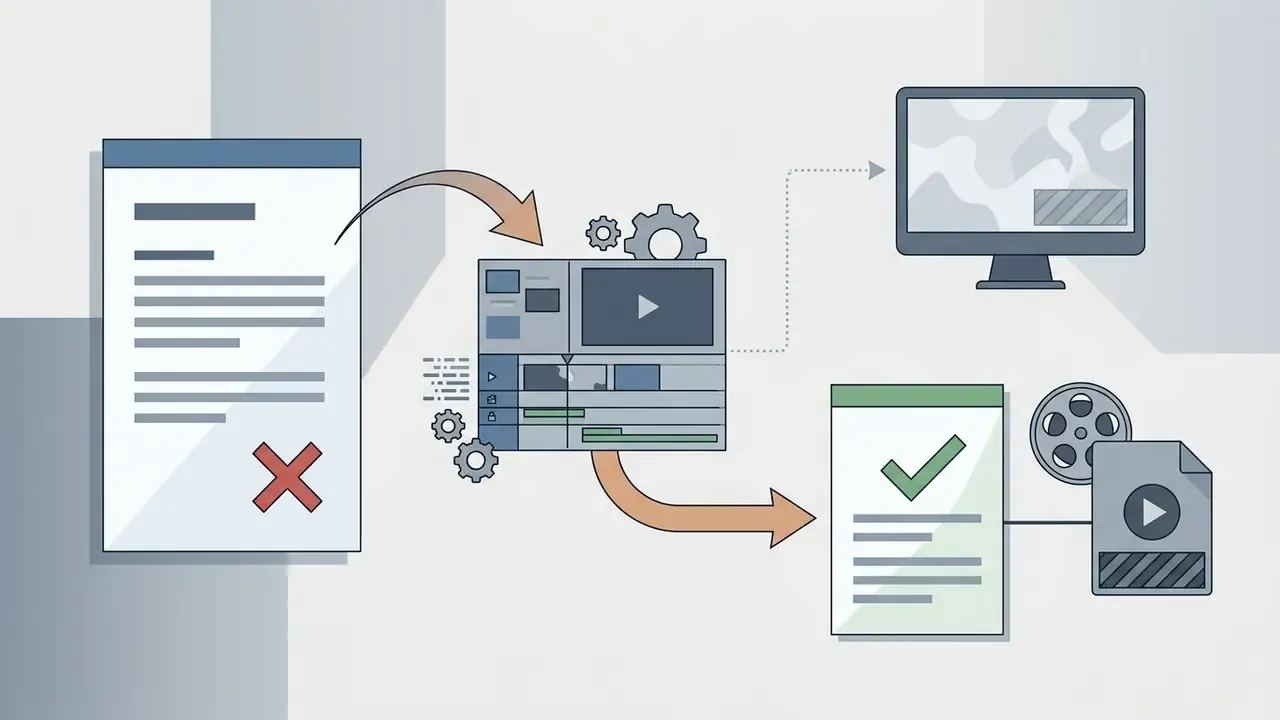
Appendix A: Superseded Statements and Correction Log
Maintained for transparency. The statements below appeared in earlier versions of this guide and have been replaced in the main text.
Editorial and Review Notes
- Review cycle export caps, licence terms, and data-processing behaviour are re-verified quarterly; next scheduled check April 2026.
- Testing scope nine editors, three operating systems, two mobile platforms, standardized multi-layer 4K test project.
- Attribution Marcus Hale is the author. Quotes are illustrative and
- Corrections documented in Appendix A rather than silently edited, so readers can see what changed and why.