Why should a risk or controls owner care about a video player at all? Because playback is quietly a data-egress decision. Every time an analyst opens a recorded call, a KYC interview, a model-committee session or a vendor demo in "some free online player", one of two things happens: the bytes stay on the endpoint, or they travel to a third party you never onboarded. Same button, very different control posture.
Executive Summary
- What it is: An online video player is a browser application that decodes media through the native HTML5
- Privacy: Local files selected through a file input or drag-and-drop become in-memory
blob:references. If nothing appears as aPOST/PUTin DevTools → Network while you play, the bytes never left the device. If an upload progress bar appears, the file is going to a remote server. - Formats: Success depends on the codec inside the container, not the extension. MP4 (H.264 + AAC) is the safe universal baseline; MKV, HEVC, AC-3 and DTS support is browser- and OS-dependent.
- The classic MKV symptom: video plays, audio is silent. Almost always AC-3 / E-AC-3 / DTS audio. Fix: try Microsoft Edge, use a client-side FFmpeg WebAssembly fallback, or remux the audio track to AAC.
- Video links: Direct
.mp4/.webm/.m3u8/.mpdlinks work when CORS allows it. YouTube and Bilibili page URLs never work; they are HTML documents, not media streams. - For websites: Open-source players (Video.js, Plyr, Clappr) give you code control under MIT/Apache-2.0 terms; premium SaaS gives managed CDN, analytics and monetisation with bandwidth quotas.
- Governance: Verify TLS, published retention policy, zero background upload activity, third-party script provenance, and WCAG 2.2 caption/keyboard behaviour before approving a player for internal use.
How to use this guide (a five-minute decision path)
Most readers arrive with one of four questions. Take the shortest route. If you own controls rather than pixels, the two sections to read closely are privacy and free-versus-premium. That is where the residual risk lives.
- "I need to open a file that sits on my laptop."Read the local-file and File API material, then run the two-minute privacy audit. The whole task usually takes less time than filing a software-install ticket.
- "I have a video link and it will not start."Go to the URL section. Nine failures out of ten are CORS headers, an expired signed URL, hotlink protection, or a wrong
Content-Type. - "The picture plays but there is no sound."Jump to the MKV audio diagnostics. One
ffmpegcommand usually ends the story. - "I must publish video on our own site."Read the embed, custom-features and free-versus-premium sections, plus the notes on third-party JavaScript risk. Licence and supply-chain terms matter more than the skin.
What an online video player is and what it is used for
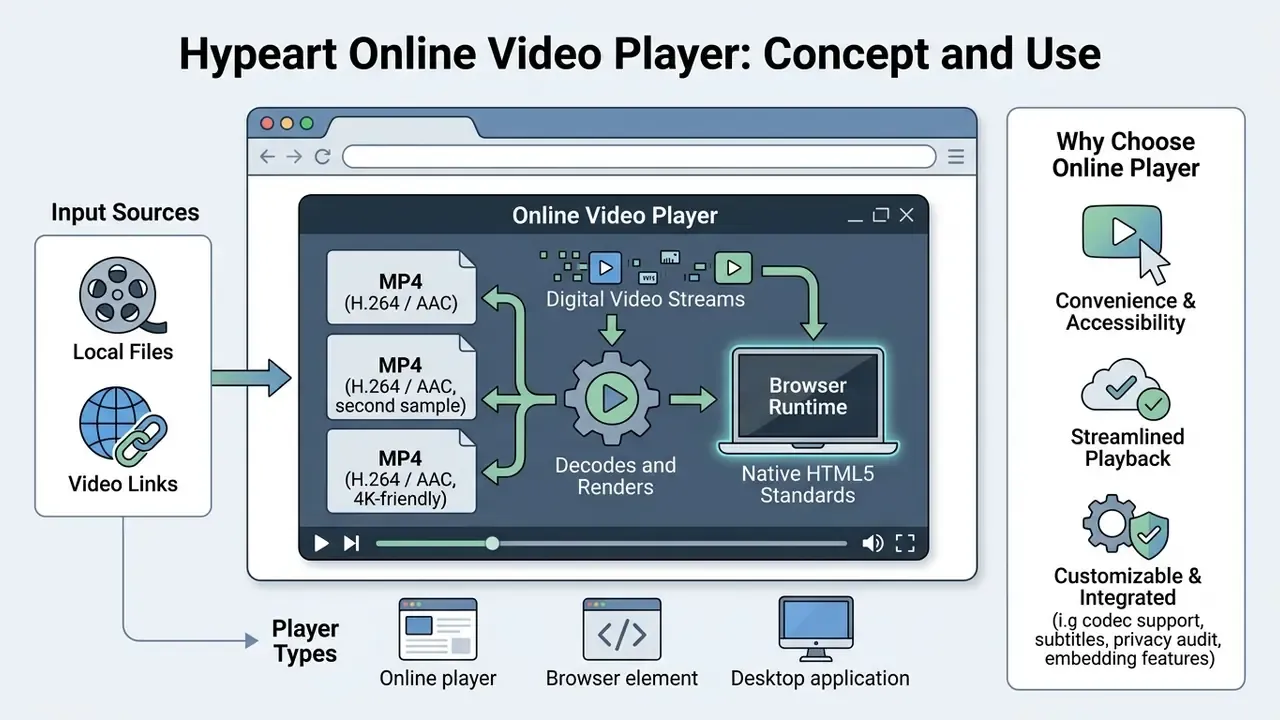
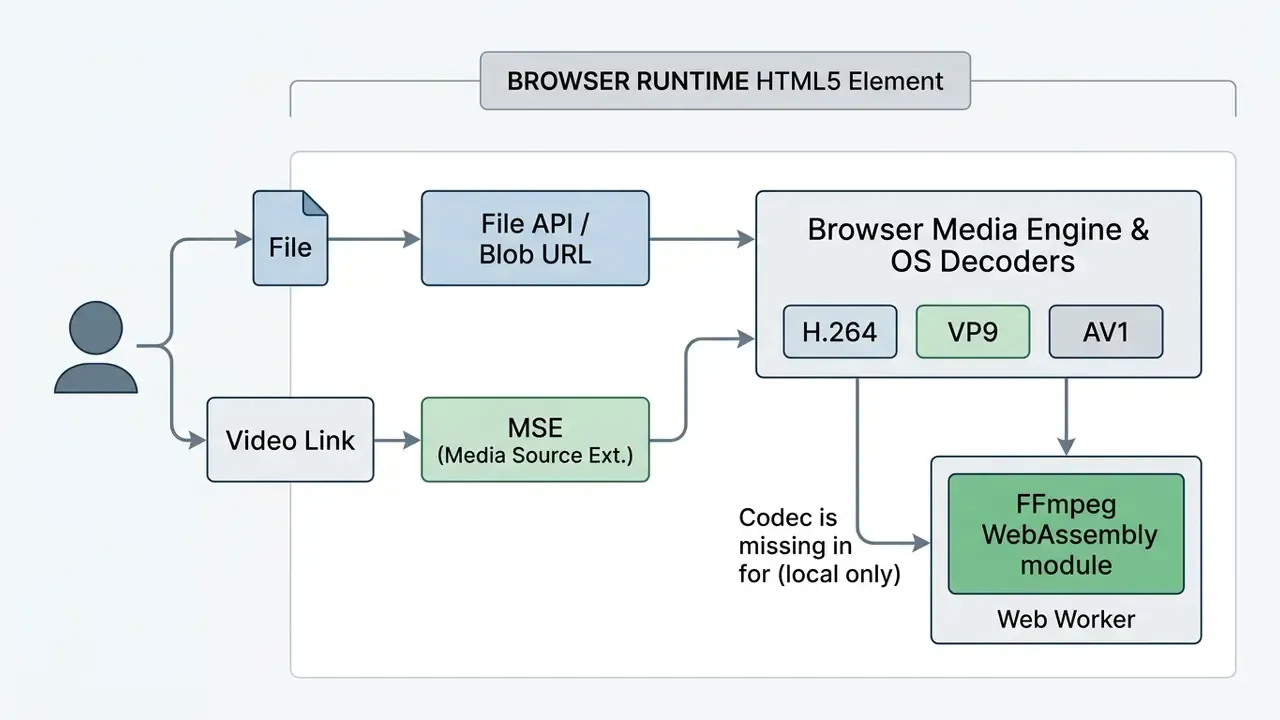
An online video player is a web-based software interface that decodes and renders digital video streams directly inside a browser runtime using native HTML5 standards. It removes the need for standalone desktop installations while enabling instant video playback across local files, remote URLs, and embedded web streams.
Modern browser players rely on the standard HTML <video> element and Media Source Extensions. The W3C HTML5 specification defines the video element as the baseline media container, while MSE lets JavaScript build media streams and append byte segments dynamically (W3C, Media Source Extensions). MSE was published as a W3C Recommendation in 2016 and remains under active maintenance as a Working Draft, which is why segment-based streaming behaves consistently across Chrome, Edge, Firefox and Safari. This architecture allows users to play media without installing executable third-party software.
An online video player fulfils three primary operational roles:
- Local file playback: rendering media files from local device storage using client-side browser memory.
- Remote URL streaming: fetching and decoding progressive HTTP streams or adaptive manifests (
.m3u8,.mpd). - Website embedding: delivering video content inside host pages through
Evaluating an online video player means distinguishing lightweight client-side tools from cloud-ingestion platforms. Teams that also need to shrink or re-encode assets before review usually pair a browser player with a video file compression workflow, because a smaller H.264 rendition removes most codec-compatibility friction at once. For governance and operations teams, verifying where media decoding occurs is critical for maintaining a defensible data boundary.
Test links you can paste right now (open-source, CORS-friendly, useful for validating your own browser stack):
If these play but your own file does not, the problem is the file's codec profile, not the player.
https://storage.googleapis.com/gtv-videos-bucket/sample/BigBuckBunny.mp4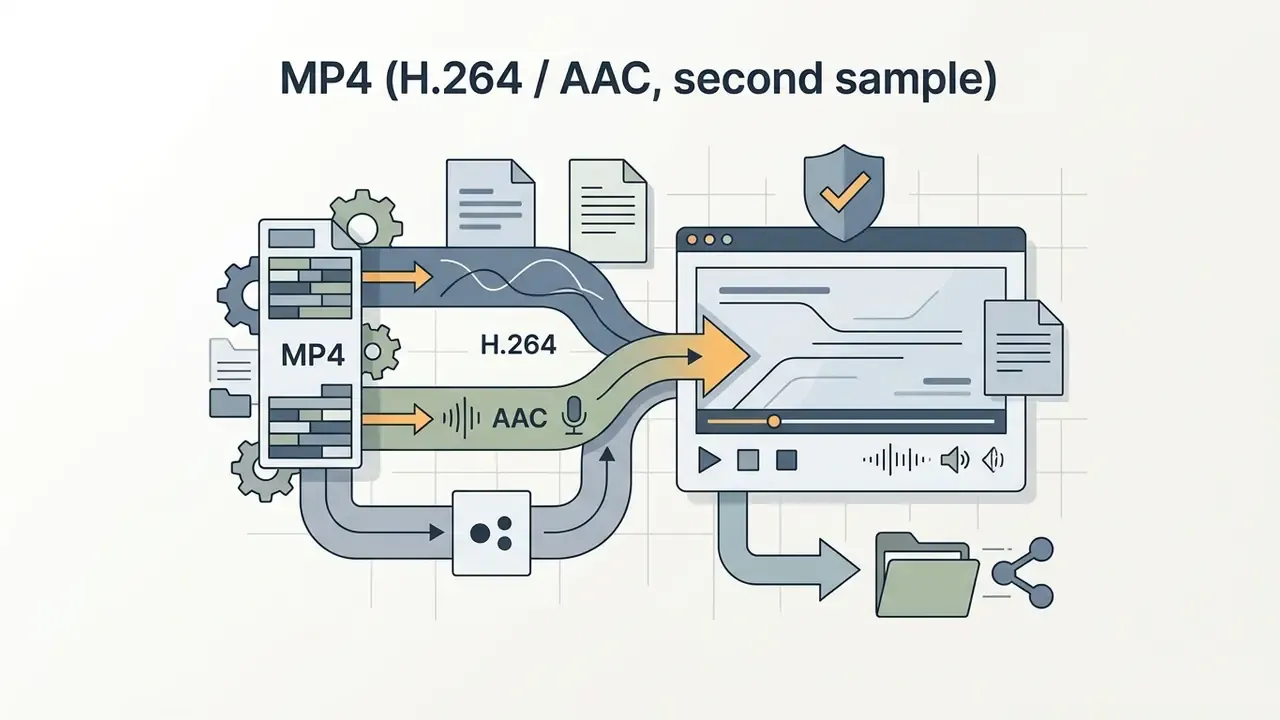
https://commondatastorage.googleapis.com/gtv-videos-bucket/sample/Sintel.mp4
https://storage.googleapis.com/gtv-videos-bucket/sample/TearsOfSteel.mp4Online player, browser element, and desktop application
A browser-based player relies on the host browser's decoding pipeline and media APIs. Desktop applications such as VLC run natively on the operating system with bundled codec libraries. That distinction decides whether a video file opens instantly without installation, or whether broader format coverage requires desktop software.
HTML <video> embeds a media player directly into the DOM, so browsers handle control UI, volume, and fullscreen state through the Fullscreen API. Desktop players work with direct system access and bundled libraries such as FFmpeg, which is why they still open legacy or non-standard codecs.
«Browser players are restricted to the codecs of the host browser and operating system, while desktop applications ship and manage their own codec libraries.»
Desktop software, however, needs manual installation, administrative permissions, and ongoing patch management across corporate devices. That maintenance overhead is the main reason locked-down enterprise fleets standardise on browser playback and reserve desktop tooling for specialists who also run dedicated video editing and publishing workflows.
When watching video online is the better option
Watching video online works best on restricted corporate workstations, during rapid cross-device reviews, and when a team collaborates on video assets without local storage overhead. It gives instant access on desktops, tablets and phones without any executable download.
Web media guidelines from the W3C target personal computers, mobile devices and smart TVs through unified browser runtimes (W3C Web Media Application Developer Guidelines). An online free video player lets teams review encodes, verify caption alignment, and inspect media metadata without file-transfer delays. Browser playback simplifies asset evaluation across distributed teams working in locked-down operating environments.
One small field observation. In a control-testing walkthrough, the bottleneck was never decoding; it was the approval queue for installing yet another desktop codec pack. Browser playback removed the ticket, not the risk. The risk simply moved into the vendor-assessment column, where it is at least visible.
Comparison of browser-based online players, desktop players, and site-embedded players
| Criterion | Browser Online Player | Desktop Video Player | Site-Embedded Player |
|---|---|---|---|
| Installation required | None; operates inside the browser runtime. | Requires OS installation and update maintenance. | None for the end user; hosted via a web page. |
| File opening method | File selection dialog or drag-and-drop Blob URL. | Direct OS file-system access. | Backend database or CDN URL ingestion. |
| URL and HLS support | Supported via MSE (hls.js / dash.js). | Supported via native network stream protocols. | Fully supported via the platform streaming engine. |
| Subtitle support | HTML5 <track> (WebVTT; SRT and ASS/SSA via parser or conversion). | Extensive (SRT, ASS, SSA, embedded tracks). | Custom UI with multi-language track switching. |
| Codec breadth | Limited to browser/OS decoders; optional local FFmpeg WASM fallback. | Broadest, thanks to bundled FFmpeg/libav libraries. | Server-side transcoding produces browser-safe renditions. |
| Embeddability | Limited to direct web application usage. | Not embeddable in websites. | Native support via <iframe> or a JS library. |
The table condenses to three sentences. If you need zero installation and full local privacy, use a browser player. If you need the widest codec coverage for archive material, keep a desktop player for specialists. If you need to publish video to an audience, an embedded player with server-side transcoding is the only sane path.
How to play a video online from a file on your computer
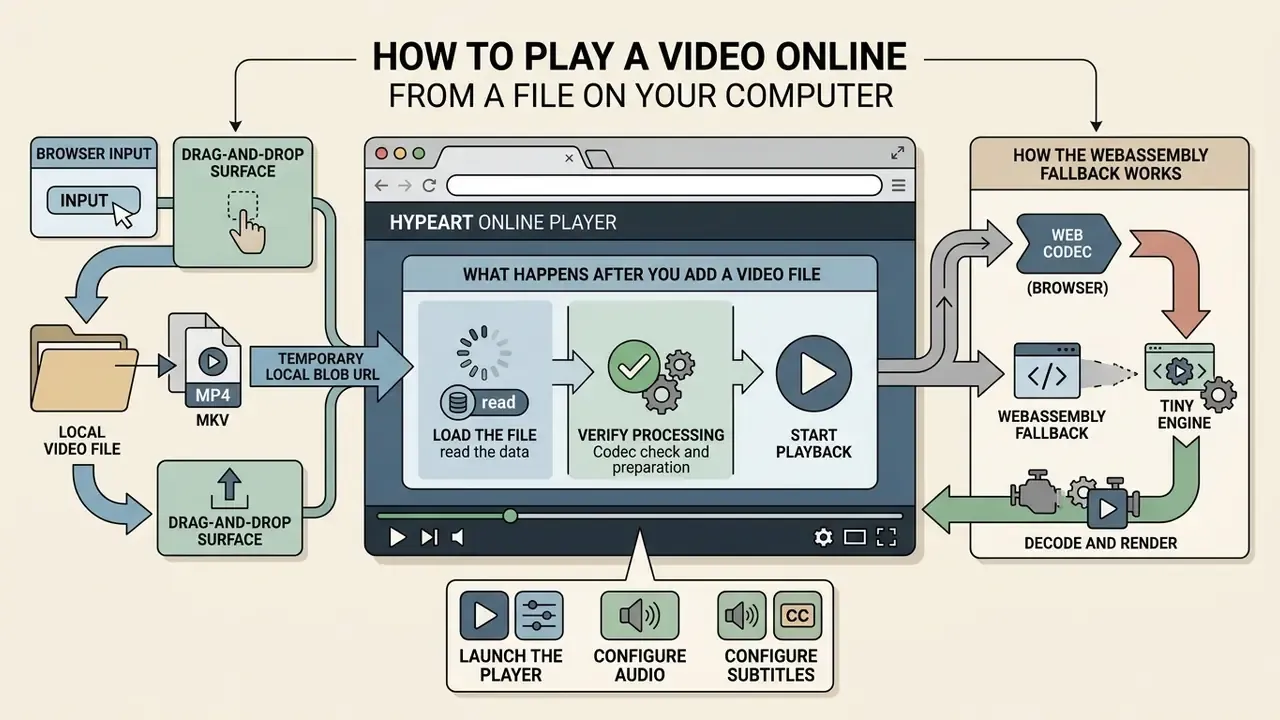
You can play a video file from your computer online by selecting it through a browser input or drag-and-drop surface that creates a temporary local Blob URL. The browser then decodes and streams the file straight from device memory, with no upload to an external server.
Client-side playback avoids sending sensitive media across public networks. The W3C File API defines a selected File as a Blob-derived object handled inside the browser, so media chosen via input type="file" stays in sandboxed browser memory unless the page explicitly transmits it (W3C File API). The player assigns an in-memory reference to the HTML media element, which starts progressive decoding immediately.
Opening a local video file in the browser
Opening a local video file in a browser means passing the file handle through the HTML5 File API to generate a blob: reference assigned to the <video> element. Server transfer is bypassed; playback executes inside the client-side browser sandbox.
The File API treats local media files as binary Blob objects. JavaScript generates an opaque URL through URL.createObjectURL(file), pointing directly at the browser's internal memory buffer.
const input = document.querySelector('#file');
const video = document.querySelector('#player');
input.addEventListener('change', () => {
  const file = input.files[0];
  const objectUrl = URL.createObjectURL(file);   // blob:https://example.com/uuid
  video.src = objectUrl;
  video.play();
  // Release the reference when playback ends to avoid RAM growth
  video.addEventListener('emptied', () => URL.revokeObjectURL(objectUrl));
});
Once playback ends, URL.revokeObjectURL() frees the memory. This matters in practice: feature-length files and playlist queues held open through multiple createObjectURL() calls keep large buffers alive, and browsers will not reclaim them until the reference is revoked or the tab is closed. Players that queue dozens of clips without revoking object URLs are the most common cause of "the tab became slow after an hour" complaints.
What happens after you add a video file
After you add a video file, the browser parses the container header, allocates RAM buffers, and starts hardware-accelerated decoding through system media frameworks. If the platform lacks native codec support, playback fails unless a transcoding path is triggered.
«When the browser lacks the required codec, the
<video>element fires an error event and playback does not begin without transcoding.»
How to play video from a video link or URL
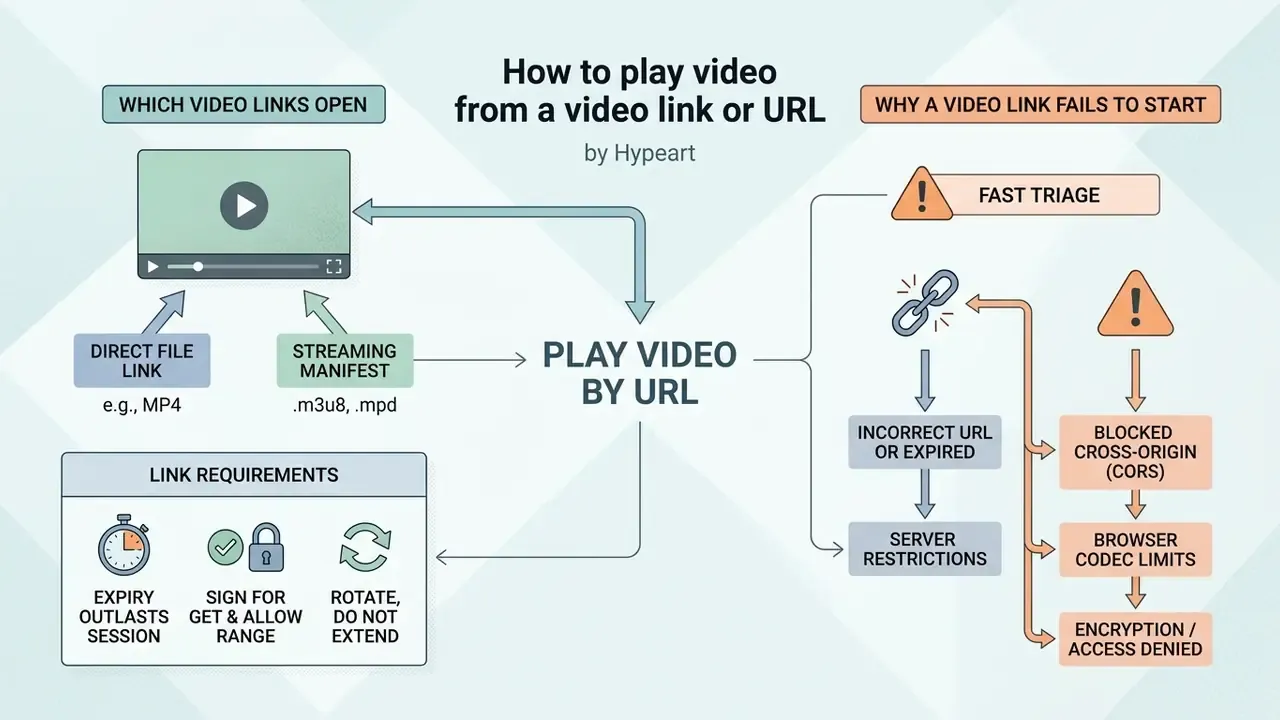
Playing video by URL requires a direct HTTP(S) link or a streaming manifest (.m3u8, .mpd) that the browser fetches through HTTP range requests or a JavaScript streaming engine. Progressive buffering starts playback before the whole video file has arrived.
According to RFC 7233 (HTTP/1.1 Range Requests), range requests let clients ask for specific byte ranges of a remote media file. When a server advertises Accept-Ranges: bytes, the browser requests the first byte segments to read container metadata and begins rendering immediately, and the server answers with 206 Partial Content plus a Content-Range header. If the server replies 200 OK with the whole body instead, seeking will feel broken: the player has to buffer forward rather than jump.
Which video links an online player can open
Modern online video players open direct media URLs (such as .mp4 or .webm files), adaptive streaming manifests (HLS .m3u8 and MPEG-DASH .mpd), and public cloud storage video links. They cannot natively play landing-page URLs that contain no direct video stream reference.
- Direct media links: HTTP/HTTPS links pointing straight at
.mp4,.webm, or.ogvcontainer files. - HLS streams: manifest links ending in
.m3u8, parsed byhls.jsthrough Media Source Extensions. - MPEG-DASH streams: manifest links ending in
.mpd, processed viadash.js. - Cloud storage links: direct object-storage URLs on Amazon S3, Google Cloud Storage, or Azure Blob Storage.
- Consumer cloud drives (Google Drive, Dropbox, OneDrive): supported only through a direct download link that returns raw file bytes together with a permissive
Access-Control-Allow-Originheader. A Drive "preview" or Dropbox "share page" URL returns an HTML wrapper, not media; convert it to the direct-download variant first (in Dropbox, for example, by switching the share link's?dl=0parameter to a direct-content form). - Video hosting pages (YouTube, Bilibili, Vimeo): not playable in a URL-based browser player. A
youtube.com/watch?v=…address resolves to a scripted HTML document with DRM-protected adaptive segments behind it, not to an isolated media stream. Use the platform's official
Working with temporary signed URLs. Enterprise media usually sits behind pre-signed links (Amazon S3 X-Amz-Expires, Azure Blob SAS tokens, GCS signed URLs). Three rules keep them playable:
Minimal S3-style CORS rule for browser playback:
[{
  "AllowedOrigins": ["https://player.example.com"],
  "AllowedMethods": ["GET", "HEAD"],
  "AllowedHeaders": ["Range", "If-Range", "Origin"],
  "ExposeHeaders": ["Accept-Ranges", "Content-Range", "Content-Length", "Content-Type"],
  "MaxAgeSeconds": 3000
}]
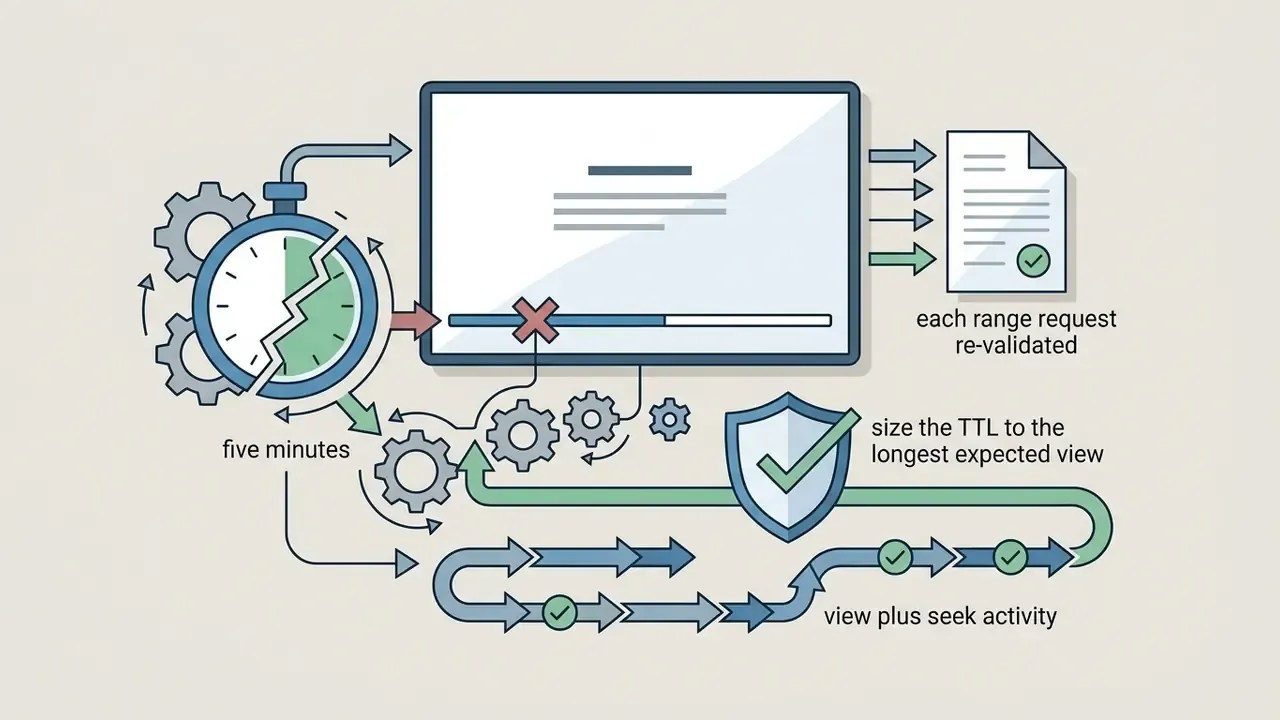
GET and allow Range.Bucket CORS policy must expose Accept-Ranges, Content-Range and Content-Length through ExposeHeaders, or seeking silently fails.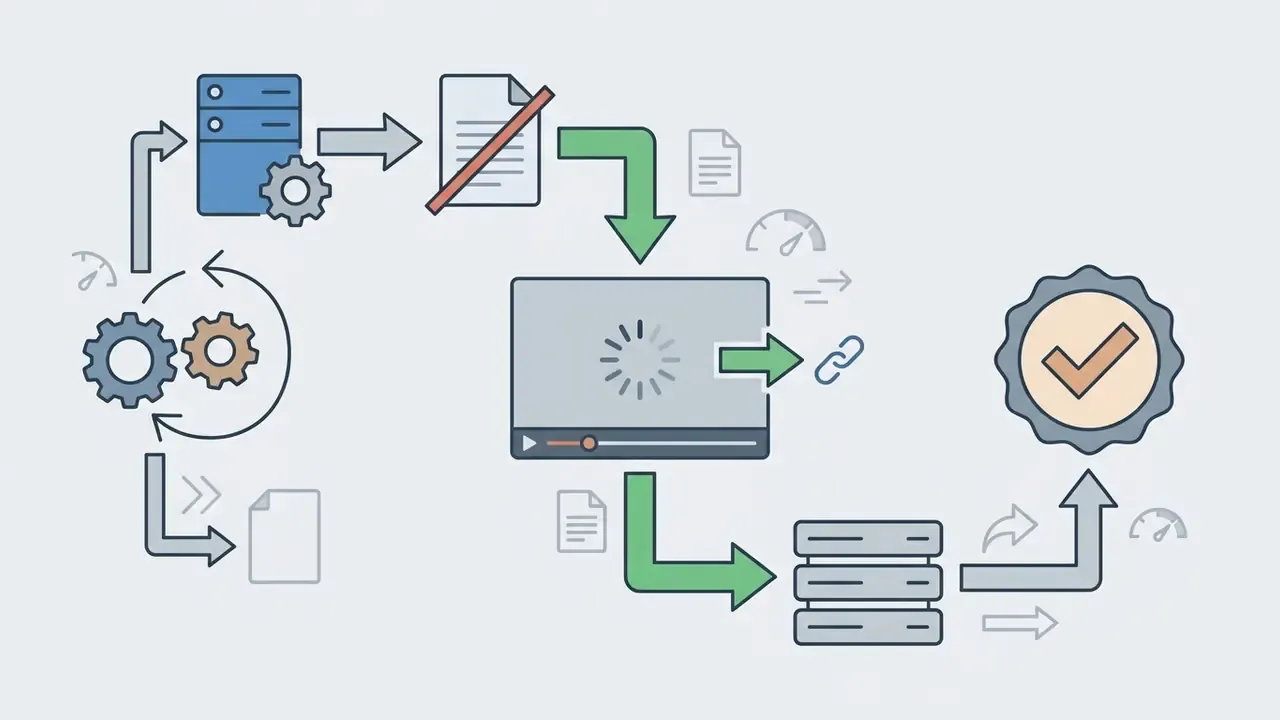
Why a video link fails to start
Playback by URL usually fails because of Cross-Origin Resource Sharing restrictions, expired access tokens, missing DRM licence clearance, or unsupported codec profiles. Identify the network and header barrier and most link errors resolve themselves.
CORS rules block browsers from loading media when the remote server omits the Access-Control-Allow-Origin header. Streams protected by Encrypted Media Extensions need a valid licence acquisition, and time-limited access tokens expire with HTTP 403 Forbidden. Four other frequent causes deserve a check, roughly in this order: a 404 from a moved or deleted object; a hotlink-protection rule that rejects requests carrying a foreign Referer; a wrong Content-Type (an .mp4 served as application/octet-stream may still play, but an HTML error page served as video/mp4 never will); and a mixed-content block when an http:// media URL is embedded on an https:// page.
Fast triage: if a link fails, download the file and open it locally through the file button. If local playback works, the problem is transport (CORS, tokens, hotlink protection). If local playback also fails, the problem is the codec. Two branches, no guesswork.
Which video formats an online video player supports
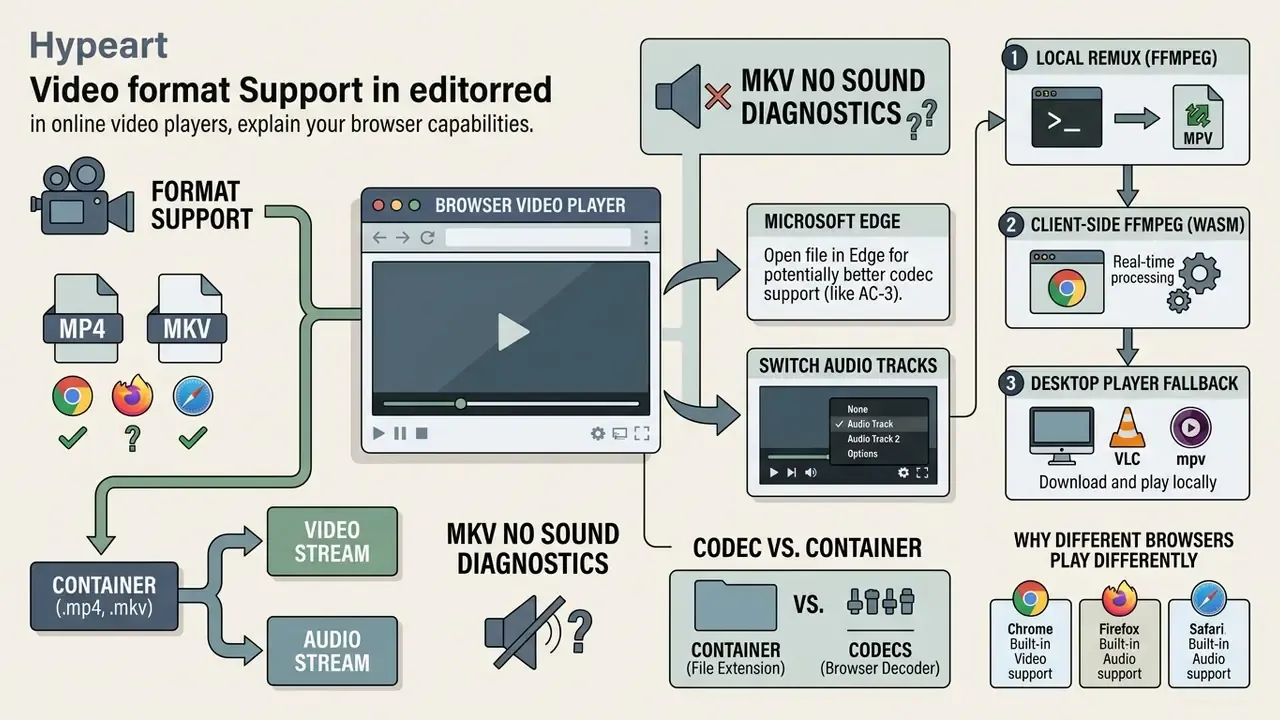
Format support in an online video player is governed by the browser's native video and audio codecs, not by the container extension alone. MP4 containers with H.264/AAC give near-universal compatibility, while MKV, HEVC and legacy formats depend on specific browser and hardware support.
«MP4 with H.264/AAC is the safe web baseline: every major browser broadly supports this combination when the required codecs are present in the operating system.»
Media compatibility therefore depends on the host operating system and browser decoding stack (updated citation; the earlier unsourced phrasing is preserved in Appendix A). MP4 is standard across platforms, WebM relies on open codecs (VP8/VP9/AV1), and MKV container support stays inconsistent across browser engines.
MP4, MKV and other video file formats
MP4 and MKV are containers that package separate audio and video tracks, so playback success depends entirely on the codecs inside the file. MP4 paired with H.264/AAC is supported everywhere; MKV files often carry codec combinations that a standard web engine cannot handle.
RFC 9559 defines Matroska as a media container specification, separating container mapping from the underlying compression methods. Matroska supports diverse codec combinations including H.264, HEVC, VP9, AV1, AC-3 and Opus (Matroska codec specifications). Microsoft's platform documentation confirms that the same MKV container can hold entirely different codec pairs (Microsoft Learn, MKV support). Because browsers do not natively parse every Matroska mapping, an MKV file can fail even when its video track is plain H.264.
«Firefox does not support MPEG-1/MPEG-2 and has limited MKV support with HEVC or 10-bit HDR content, which may not render properly.»
When a container keeps failing, the pragmatic fix is a remux or a light re-encode; container swapping, bitrate targets and quality loss are covered in our guide to video file compression and format conversion. If the cost side of conversion at scale is part of your decision, the AI Media Calculators and AI Media Pricing Guides hubs collect the unit-economics inputs.
No sound in MKV: AC-3, E-AC-3 and DTS diagnostics
Symptom: the picture plays perfectly, the timeline advances, the volume slider is up, and there is complete silence.
Cause: in more than nine cases out of ten the file carries an AC-3 (Dolby Digital), E-AC-3 (Dolby Digital Plus) or DTS audio track. These are licensed codecs; Chrome and Firefox generally do not ship decoders for them, so the browser renders the video track and quietly discards the audio it cannot decode. A rarer second cause is a multi-track MKV whose default track is a commentary or a language the player cannot select.
Solutions, in order of effort:
# Keep video as-is, convert audio to AAC, output a browser-safe MP4
ffmpeg -i input.mkv -c:v copy -c:a aac -b:a 192k output.mp4
# If the video codec is also unsupported (e.g. HEVC in Firefox), re-encode it too
ffmpeg -i input.mkv -c:v libx264 -crf 20 -preset medium -c:a aac -b:a 192k output.mp4
- Open the player in Microsoft Edge.Edge can hand AC-3/E-AC-3 to the operating system's media stack on Windows and macOS, recovering audio without touching the file.
- Switch audio tracksin the player menu if the file is multi-track. The second or third track is often AAC or Opus and plays natively.
- Use the client-side FFmpeg WebAssembly fallbackif your player offers one: it transcodes the audio track to AAC locally, in the browser, with no upload.
- Remux locally with FFmpeg, the fastest permanent fix, since the video stream is copied untouched and only audio is re-encoded:
- Fall back to a desktop player (VLC, mpv)for one-off archive files where transcoding is not worth the time.
If a whole archive behaves this way, treat it as an ingest-standard problem rather than a playback problem. Fix the encoding profile upstream once, and the silent-audio ticket stops recurring.
Why the same file plays differently in different browsers
A video file behaves differently across browsers because each engine implements its own codec licensing, OS integration model and hardware acceleration pipeline. Safari, for instance, provides native hardware HEVC support, while Firefox and Chromium restrict proprietary codec decoding based on operating system libraries.
Mozilla documentation indicates that Firefox relies on host operating system libraries for patented codecs such as H.264 and HEVC, and marks HEVC support as limited from Firefox 120 onward. Chromium-based browsers such as Chrome and Edge share base codec logic, but Edge enables specialised hardware extensions and OS-level audio decoders. Safari leans on Apple's VideoToolbox framework, giving broader native HEVC and MOV compatibility than competing desktop browsers.
«Chrome supports HEVC on devices with a hardware decoder on Windows 8+, macOS Big Sur 11+ and Android 5.0+, but not on every platform.»
Practical consequence: keep two browsers available. Chrome or Firefox for VP9/AV1 and general web media; Edge for AC-3/E-AC-3 audio and Windows hardware HEVC; Safari for Apple-recorded HEVC/MOV footage. Side-by-side behaviour differences are also mapped in our AI Media Comparison Matrices.
Format and codec compatibility matrix for web browsers
| Container / codec | Primary scenario | Browser compatibility | Troubleshooting action |
|---|---|---|---|
| MP4 (H.264 + AAC) | Universal web playback, streaming. | Universal across Chrome, Safari, Firefox, Edge. | Verify profile level; check for DRM protection. |
| MP4 / MOV (HEVC / H.265) | High-efficiency 4K mobile recording. | Native on Safari; hardware-dependent on Chrome/Edge; limited in Firefox 120+. | Fallback transcode to H.264 or use WebAssembly decoding. |
| WebM (VP9 / AV1 + Opus) | Royalty-free web video, YouTube. | Broad on Chrome, Firefox, Edge; partial on Safari (AV1 needs hardware decode). | Confirm the MIME type is video/webm. |
| MKV (H.264 video + AC-3/DTS audio) | High-quality archival, multi-track audio. | Video often plays in Chrome/Edge; audio silent without an AC-3/DTS decoder. | Open in Edge, switch audio track, or remux audio to AAC. |
| MKV (mixed / HDR / 10-bit) | Mastering and archive copies. | Inconsistent native support across browsers. | Remux to an MP4 container or extract the H.264 stream. |
| AVI / FLV / WMV / TS / M2TS | Legacy capture, broadcast recordings, CCTV exports. | No reliable native browser support. | Local FFmpeg WASM fallback or offline conversion to MP4. |
Read the matrix as a hierarchy of certainty. MP4/H.264 is a decision you never have to revisit. WebM is safe on the open web with one Safari caveat. Everything below that line is a conversion project waiting to be scheduled.
Privacy of local files and watching video without download
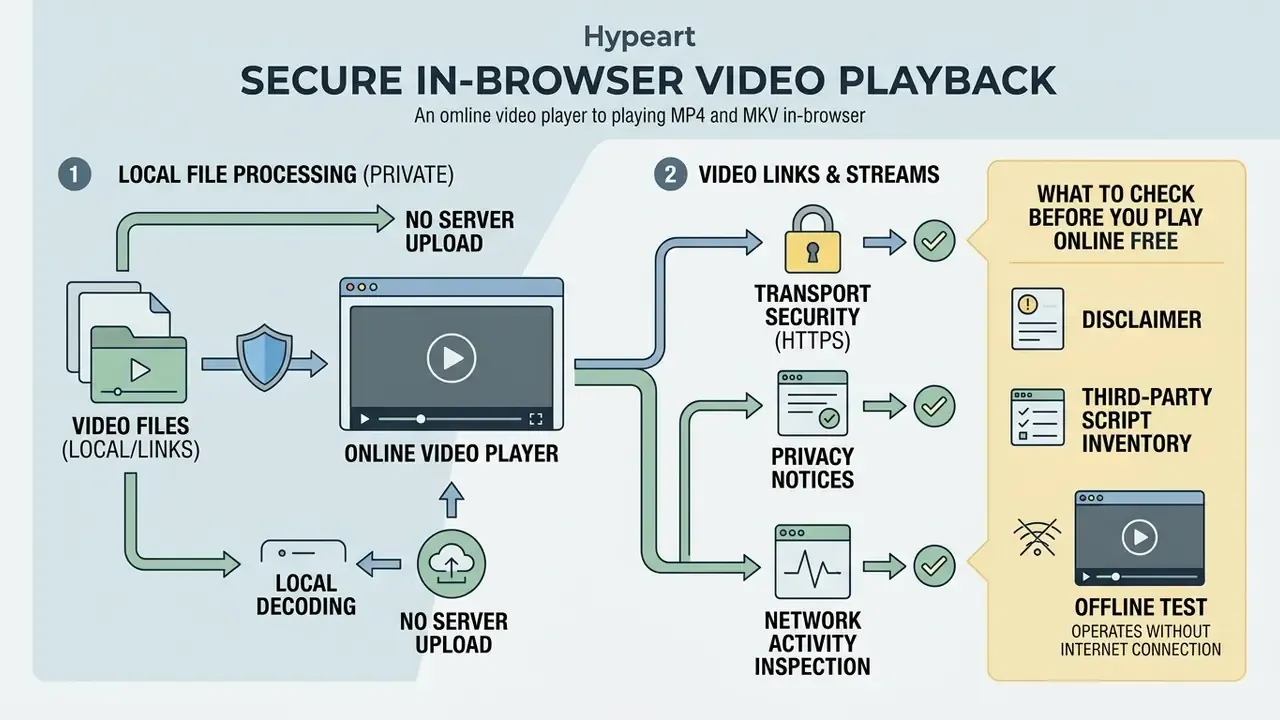
Watching videos online without downloading software preserves local privacy only when the player processes media entirely in the browser runtime through Blob URLs, with no network ingestion. Verifying data-transit rules is what keeps confidential video files away from third-party cloud servers.
Client-side viewing isolates processing inside browser memory. Widely used data-protection guidance, including the confidentiality principles commonly cited from NIST's PII protection publications, treats storage, use, transmission and disposal of sensitive material as a single control surface. Because that specific framework sits outside our verified research set, treat it here as general practice and confirm applicability with your security team. Online players that process files locally produce zero network egress, which is exactly what a data-boundary attestation needs.
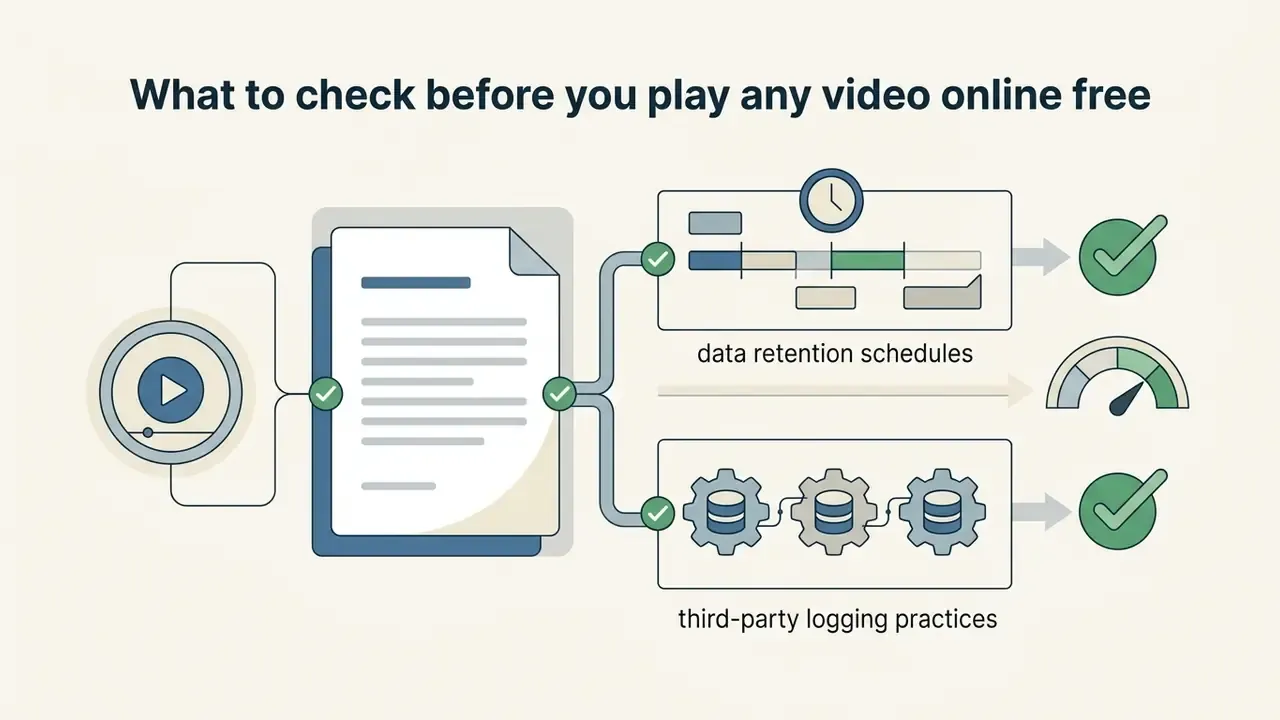
That caveat matters. "Local playback" describes where the media is decoded, not whether the page is instrumented. A player can keep every byte of your video on-device while still logging IP address, referrer, session duration and play/pause events to its own servers. Vendor privacy notices for open-source players such as Video.js document this explicitly, including retention windows of up to twelve months for security and operations logging.
Local processing vs. server upload
Local processing keeps video data confined to system memory and browser sandbox execution, preventing external transfers. Cloud upload workflows do the opposite: they transmit raw binary files to remote infrastructure for transcoding, persistent storage and multi-user distribution.
In the local sandbox model, WebAssembly and WebCodecs handle rendering directly on the CPU or GPU. Cloud processing uploads raw media over TLS, and remote servers store renditions in object buckets. Reading the browser's network activity tab tells you within seconds which model you are dealing with.
Four visible tells separate the two models:
| Signal | Local sandbox player | Cloud-ingestion service |
|---|---|---|
| Time to first frame | Instant, independent of file size | Proportional to file size and upload speed |
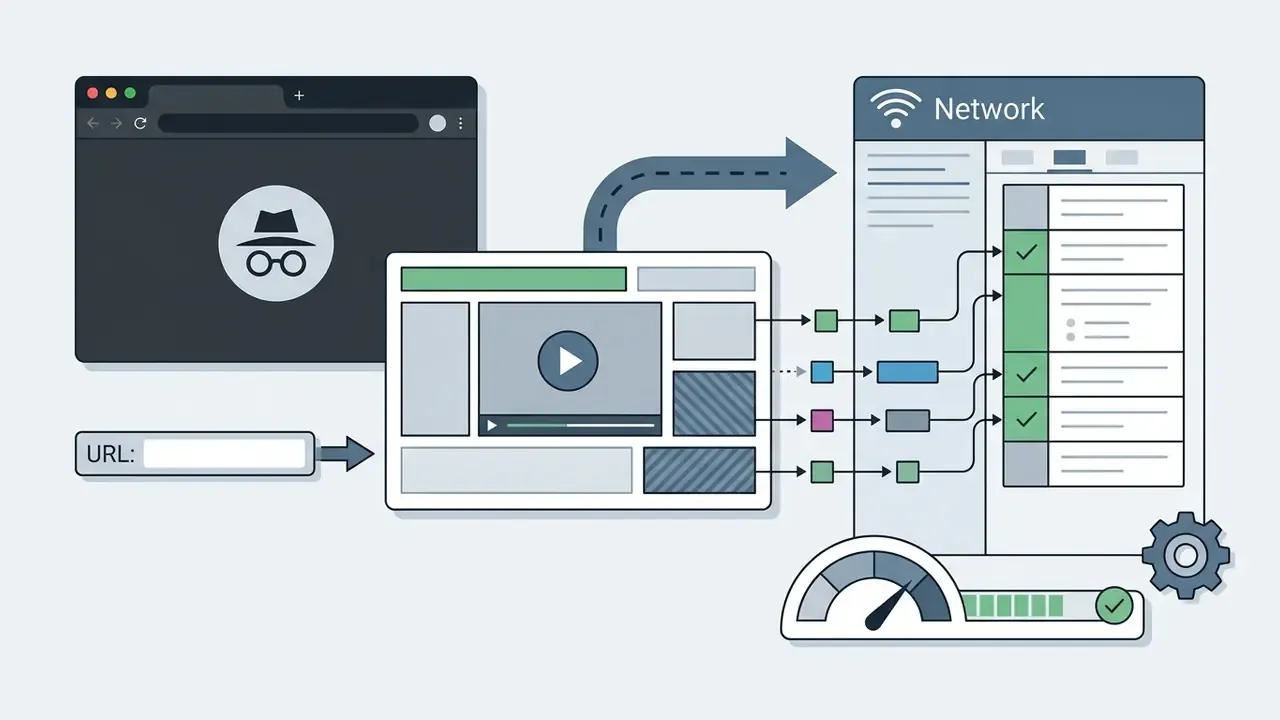
| DevTools → Network | No binary POST/PUT; only static assets | Multipart POST/PUT with megabytes of payload |
| Offline behaviour | Playback still works with Wi-Fi disabled | Fails immediately |
| Retention language | "Files never leave your device" | "Files deleted after 24 hours", "AES-256 at rest" |
Neither model is inherently wrong. Cloud services legitimately need the bytes in order to transcode, trim or share. The governance failure is using a cloud-ingestion tool while believing it is a sandbox tool, then documenting the belief instead of the behaviour. Vendor questions of this kind are collected in the AI Media Commercial-Use Hub, and disputes that reached court are tracked in AI Litigation and Case Timelines.
What to check before you play any video online free
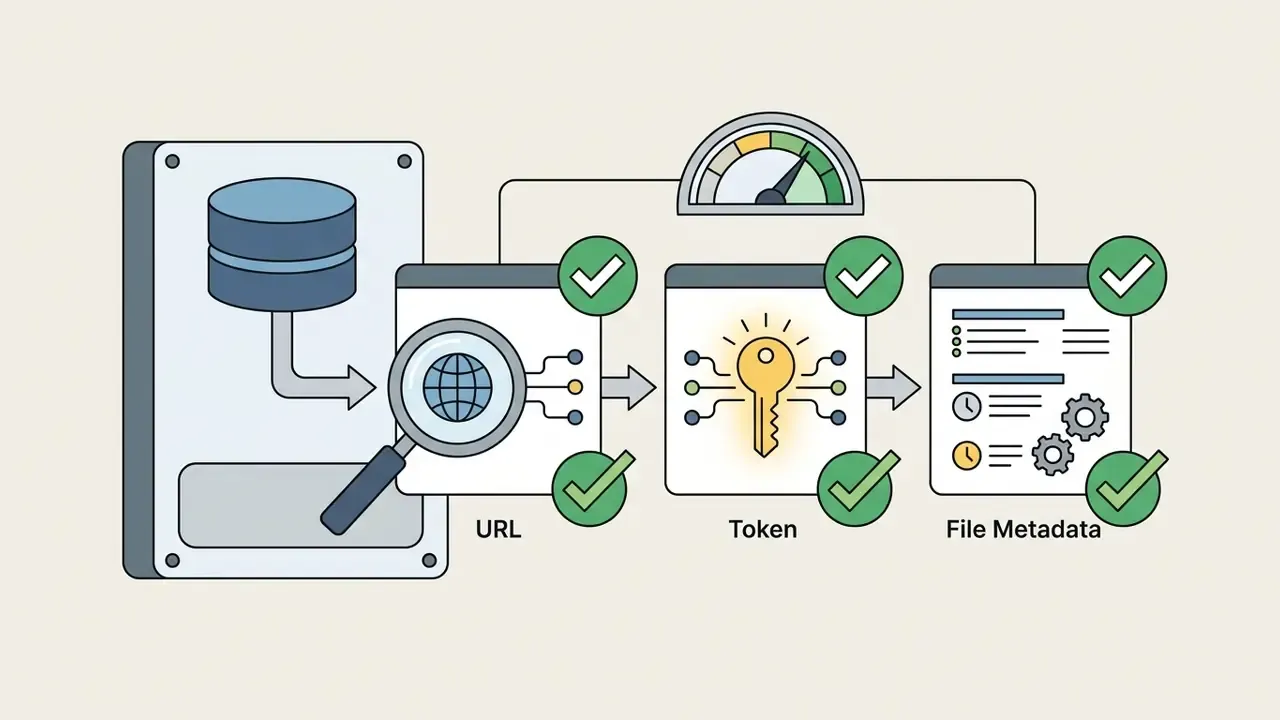
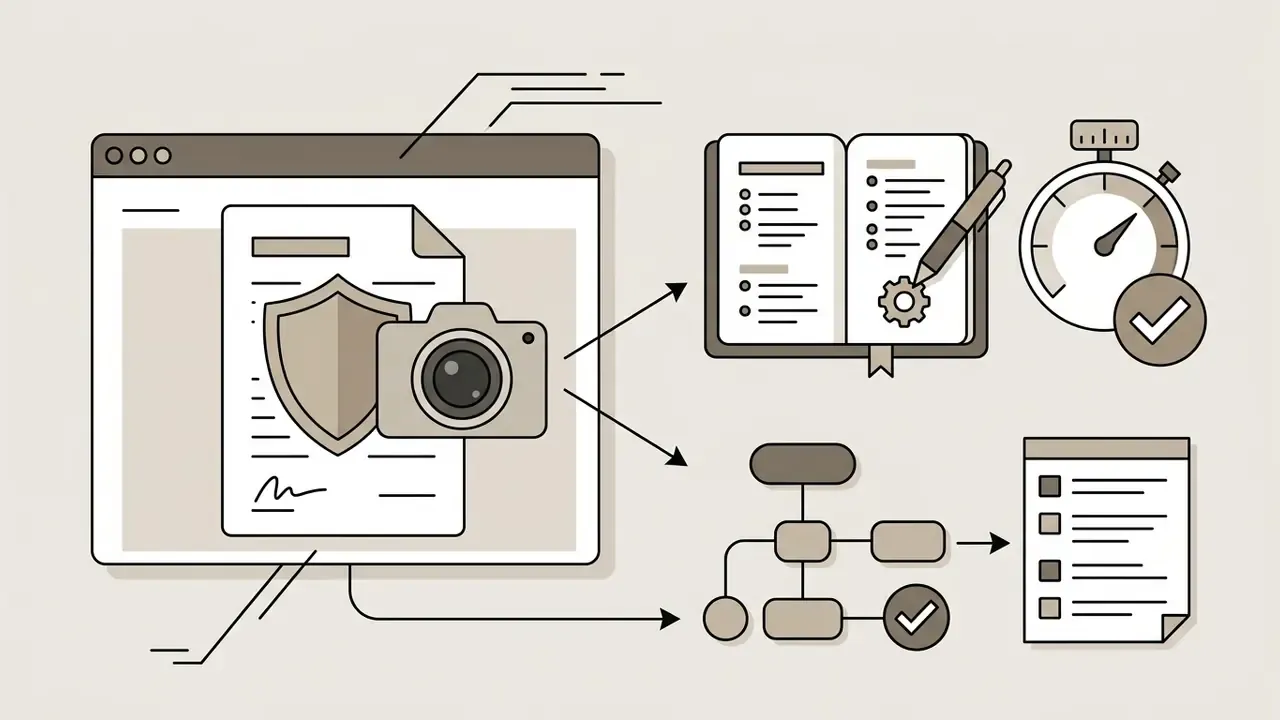
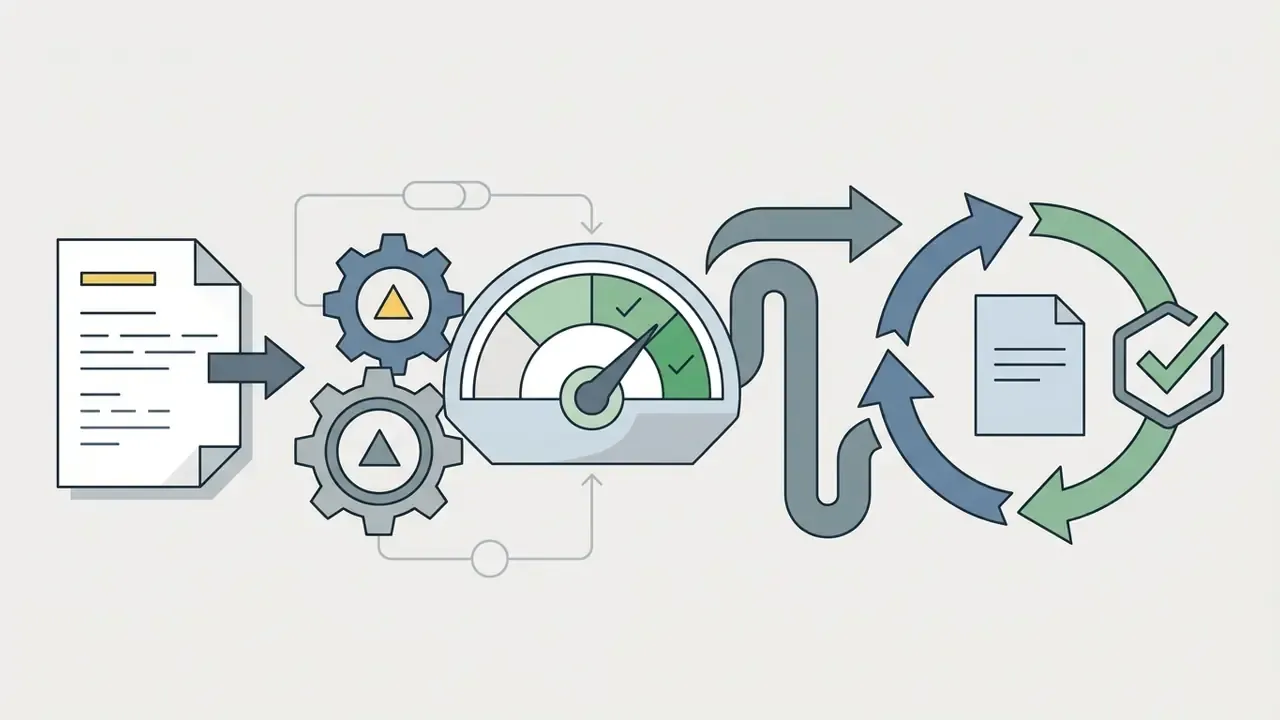
Before opening private files in a free online player, verify active TLS encryption, a transparent privacy policy with retention detail, and zero background upload activity in the network monitor. Confirming client-side execution is what prevents accidental leakage.
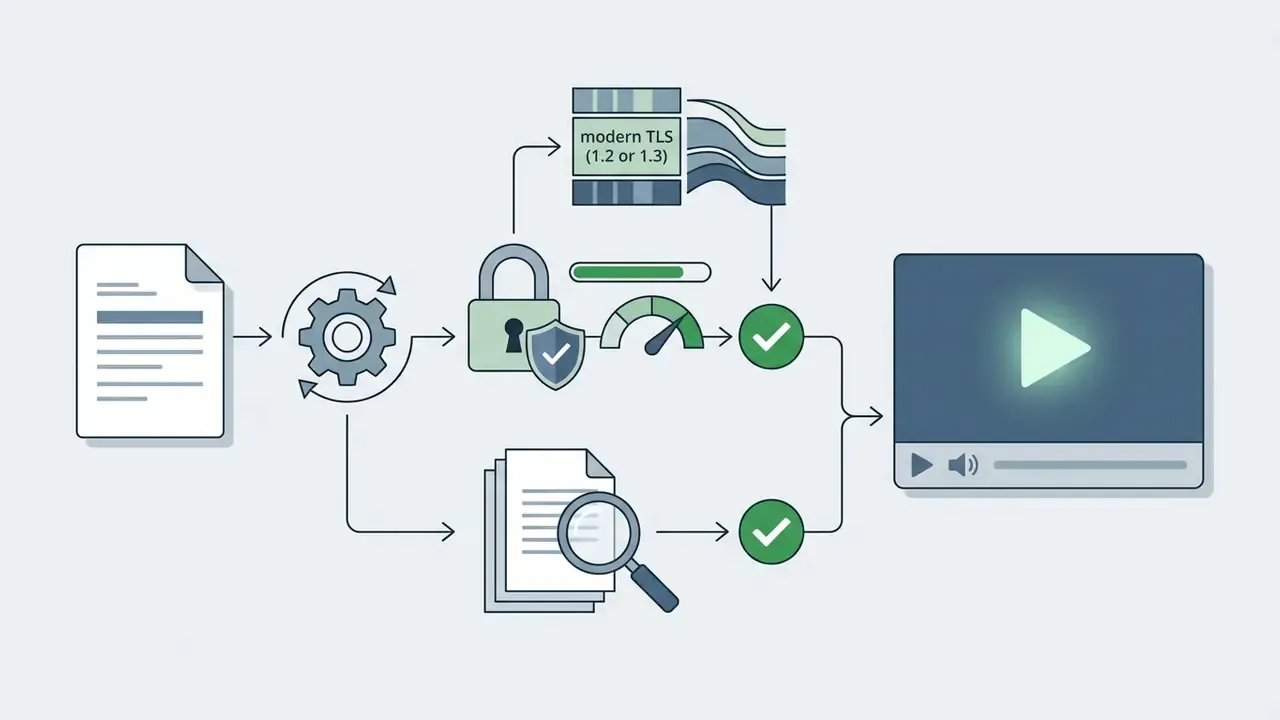
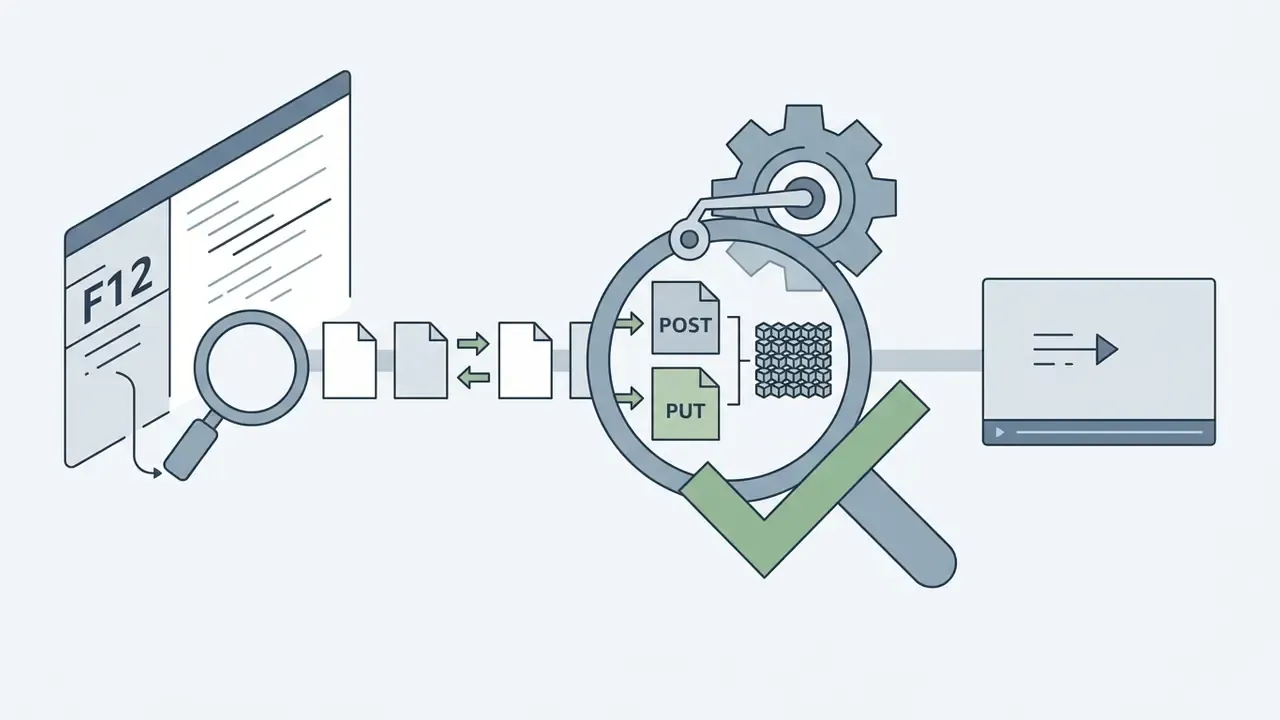
POST or PUT request uploads binary video payload during local playback.
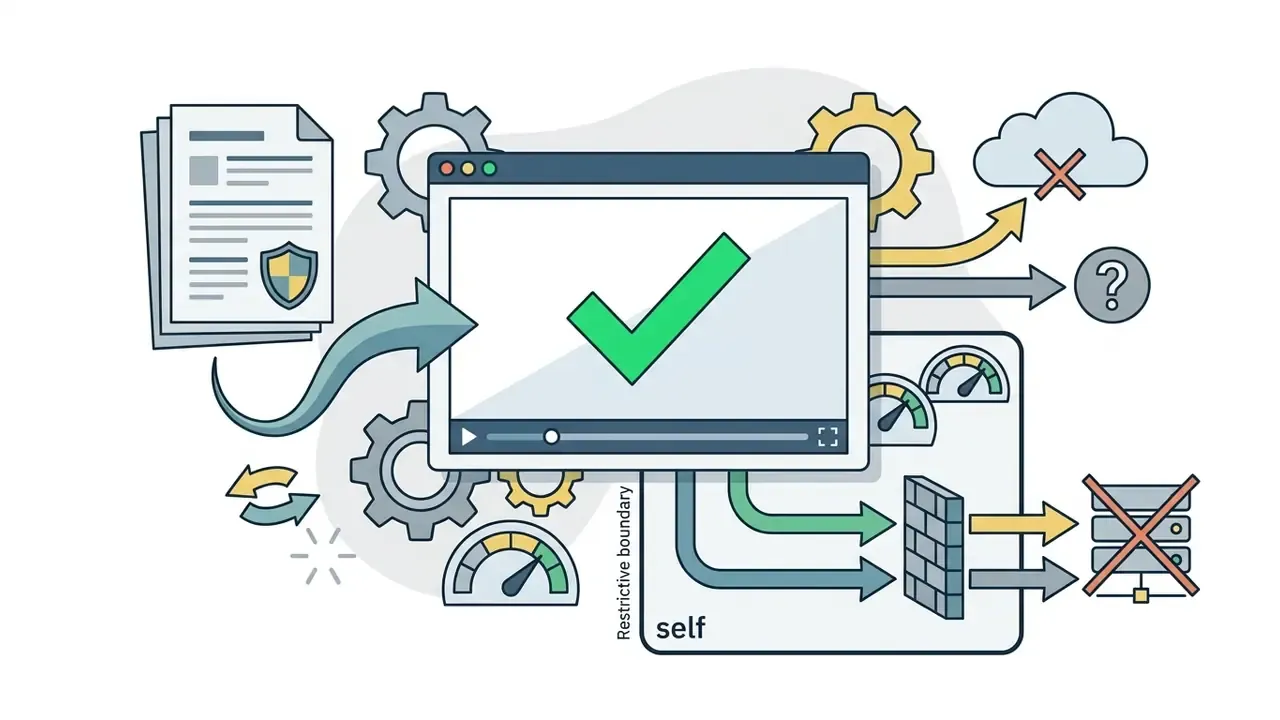
default-src 'self', explicit connect-src). It constrains where any script could send data.
Reproducible evidence is the point. A screenshot with a timestamp survives an audit question far better than a recollection of what the vendor page said last quarter. Escalation paths and known failure modes are documented in AI Media Support and Troubleshooting.
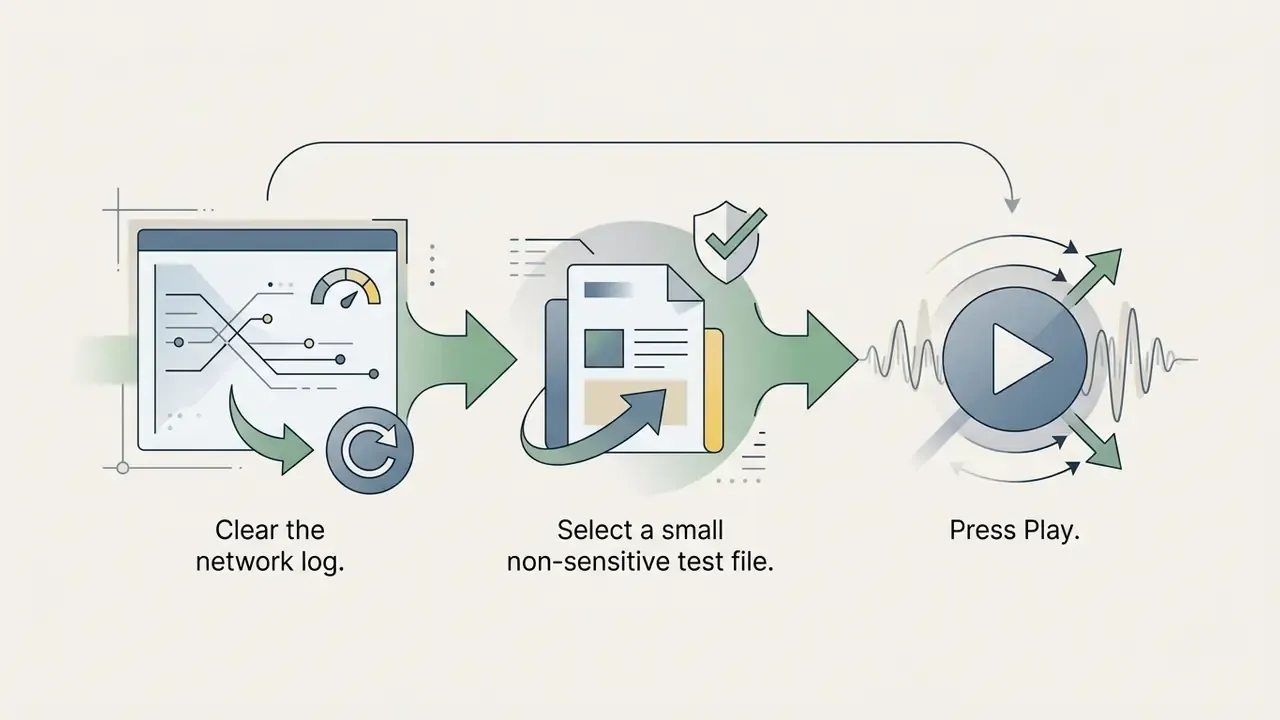
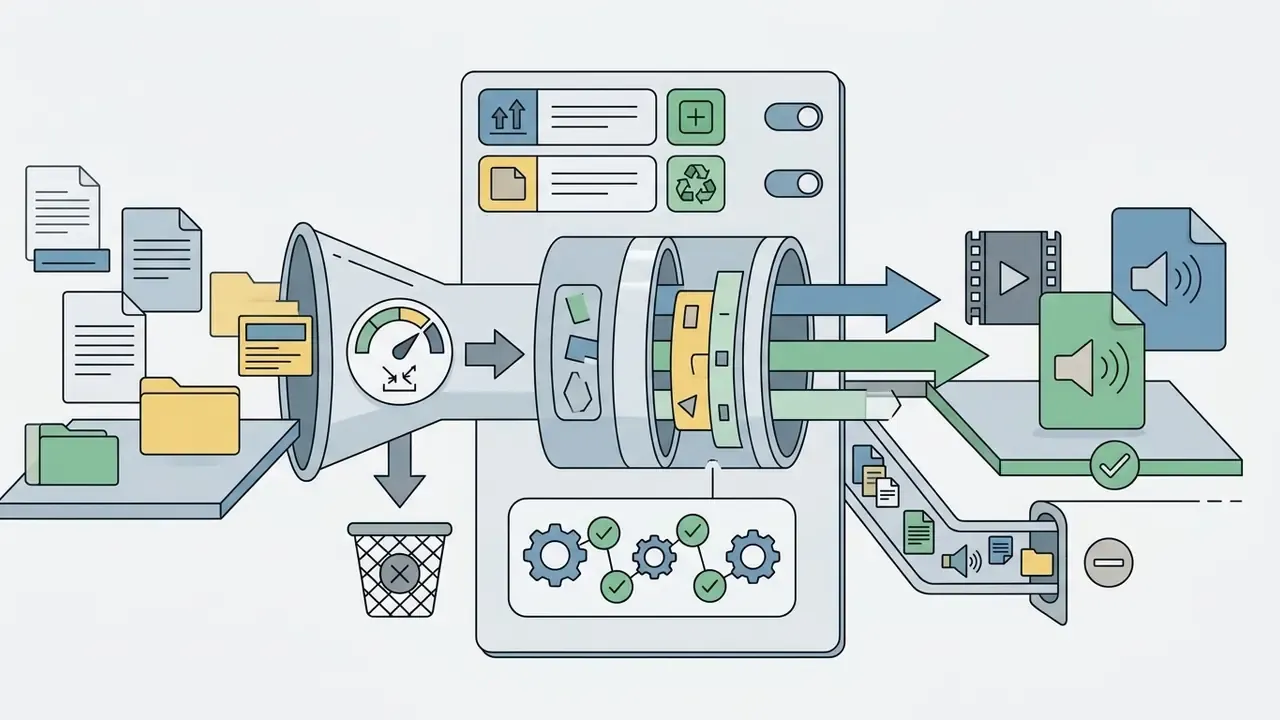
Method: POST/PUT and by payload size. Anything above a few kilobytes indicates media egress.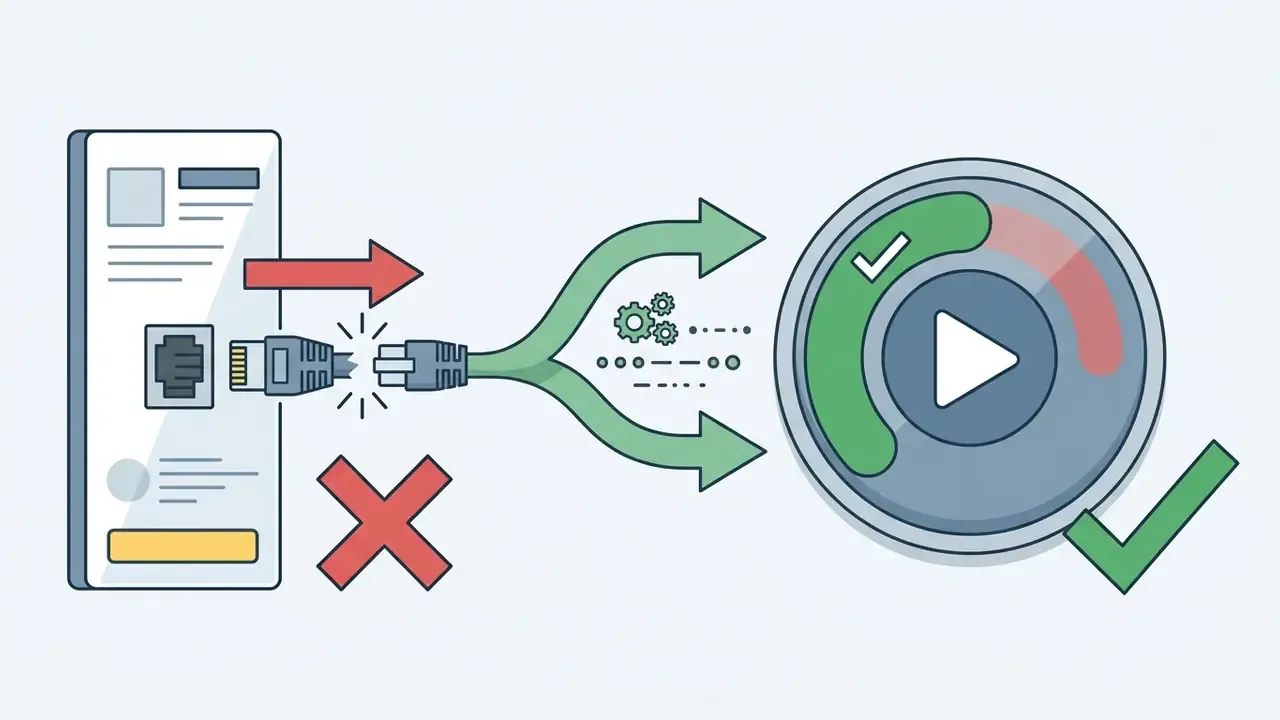
Subtitles, quality and playback controls
Managing playback well comes down to three things: configuring WebVTT subtitle tracks, enabling adaptive bitrate streaming for buffer stability, and adjusting hardware acceleration for high-definition video. Together they improve comprehension and remove most stuttering across variable network conditions.
W3C web media standards define accessibility and playback-quality requirements, including adaptive streaming support for audio-video content. Adaptive bitrate streaming monitors available client bandwidth and switches rendition quality dynamically, which keeps playback from stalling.
How to enable subtitles in an online video player
Subtitles are enabled in an online video player by attaching a WebVTT (.vtt) file to the HTML5 <track> element, or by selecting an embedded caption stream in the player UI. UTF-8 text encoding and synchronised timestamps prevent display errors and caption drift.
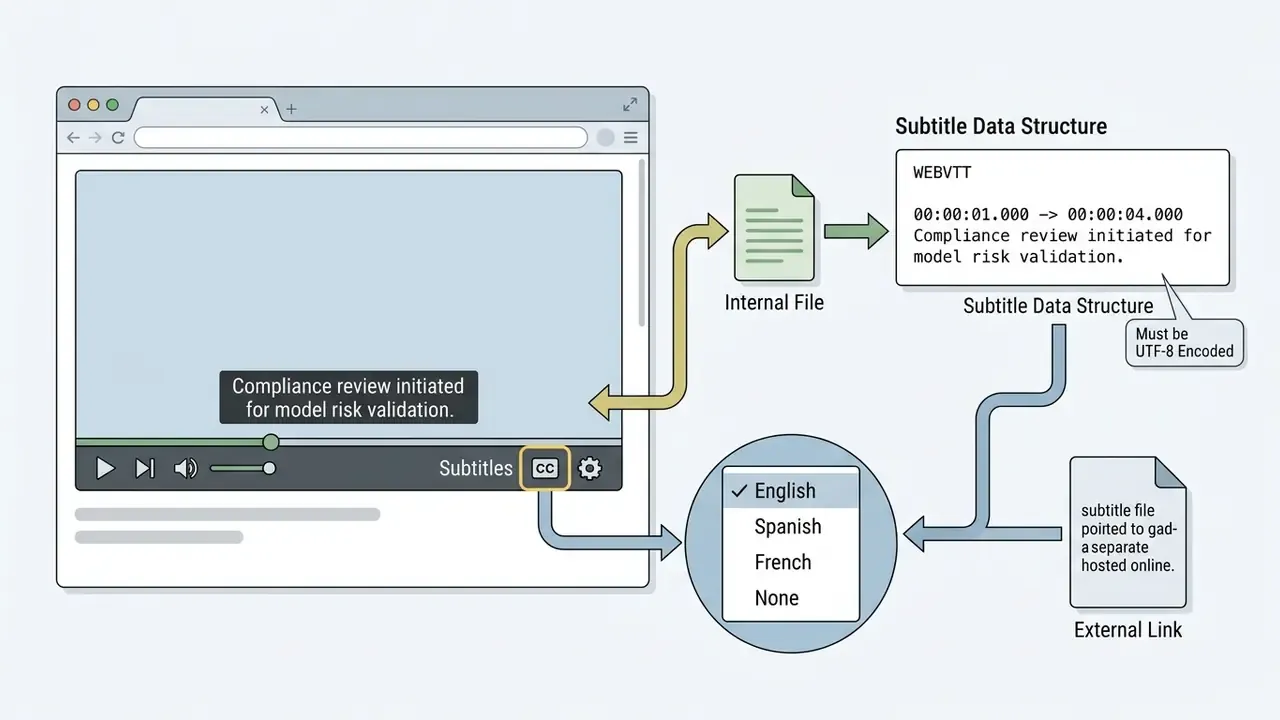
WebVTT is the standardised browser format for caption rendering, served with MIME type text/vtt and encoded as UTF-8 (W3C WebVTT specification). SubRip (.srt) files must be converted to WebVTT or parsed in JavaScript before they reach the track element. Mismatched character encodings corrupt text, so strict UTF-8 is non-negotiable.
Three subtitle formats, three levels of support:
| Format | Browser-native? | Notes |
|---|---|---|
WebVTT (.vtt) | Yes, the HTML5 <track> standard | Requires UTF-8; supports positioning and basic styling via CSS ::cue |
SubRip (.srt) | No | Plain timing plus text; players convert it to WebVTT in JavaScript on load |
ASS / SSA (.ass, .ssa) | No | Rich styling, karaoke and positioning; needs a JS renderer (an ASS.js-style subtitle library). Advanced effects may render differently than in a desktop player |
Common failures and fixes. Garbled Cyrillic, Greek or CJK characters mean the file was exported in a legacy code page; re-save as UTF-8, without a BOM if the player rejects it. A constant offset means the subtitle was timed to a different cut or frame rate, so shift all cues by the measured delta instead of editing individual lines. Progressive drift points to a 23.976 versus 25 fps mismatch and needs rescaled timestamps, not a shift.
Keyboard shortcuts and advanced playback controls
A browser player earns its place only when it feels like a native application. Keyboard operability is also an accessibility requirement rather than a convenience: W3C WAI player guidance lists keyboard support, visible focus, clear labels and sufficient contrast as baseline criteria for an accessible media player.
| Key | Action | Description |
|---|---|---|
| Space / K | Play / Pause | Instant playback toggle |
| ← / → | Seek −5s / +5s | Frame-accurate scrubbing for review work |
| J / L | Seek −10s / +10s | Coarse navigation through long recordings |
| ↑ / ↓ | Volume +/− 10% | Gain adjustment without touching the mouse |
| F | Fullscreen | Enter or exit via the Fullscreen API |
| M | Mute | Toggle audio output |
| [ / ] | Speed 0.5x to 16x | Steps HTMLMediaElement.playbackRate down or up |
| C | Captions | Cycle subtitle tracks or turn them off |
| P | Picture-in-Picture | Detach the video into a floating window |
| 0–9 | Jump to 0%–90% | Percentage seek across the timeline |
Advanced controls worth having:
- A-B clip loop. Mark point A and point B during playback, or type timecodes as
m:ss, to repeat a segment indefinitely. Indispensable for transcription, language study, incident review and shot-by-shot QA. - Sleep timer. Pauses playback after 15, 30, 60 or 90 minutes, or a custom value, and stops the Blob stream, releasing RAM instead of leaving a decoder running overnight.
- Variable speed up to 16x. Because
playbackRatechanges tempo without shifting pitch in modern engines, 1.5x–2x stays fully intelligible for lectures, while 8x–16x is a practical workaround when a server refusesRangerequests and you cannot seek: fast-forward instead of jumping. - Playlist or queue. Add several files at once, reorder them, and let playback continue automatically. The browser equivalent of a desktop playlist.
- Resume playback and history. Recently played links and last positions live in browser local storage, so a review session survives a tab crash. Weigh that against the privacy trade-off noted in the security checklist above.
- Picture-in-Picture and background audio. PiP keeps the video visible over other windows; background audio continuation depends on OS and browser policy, especially on mobile.
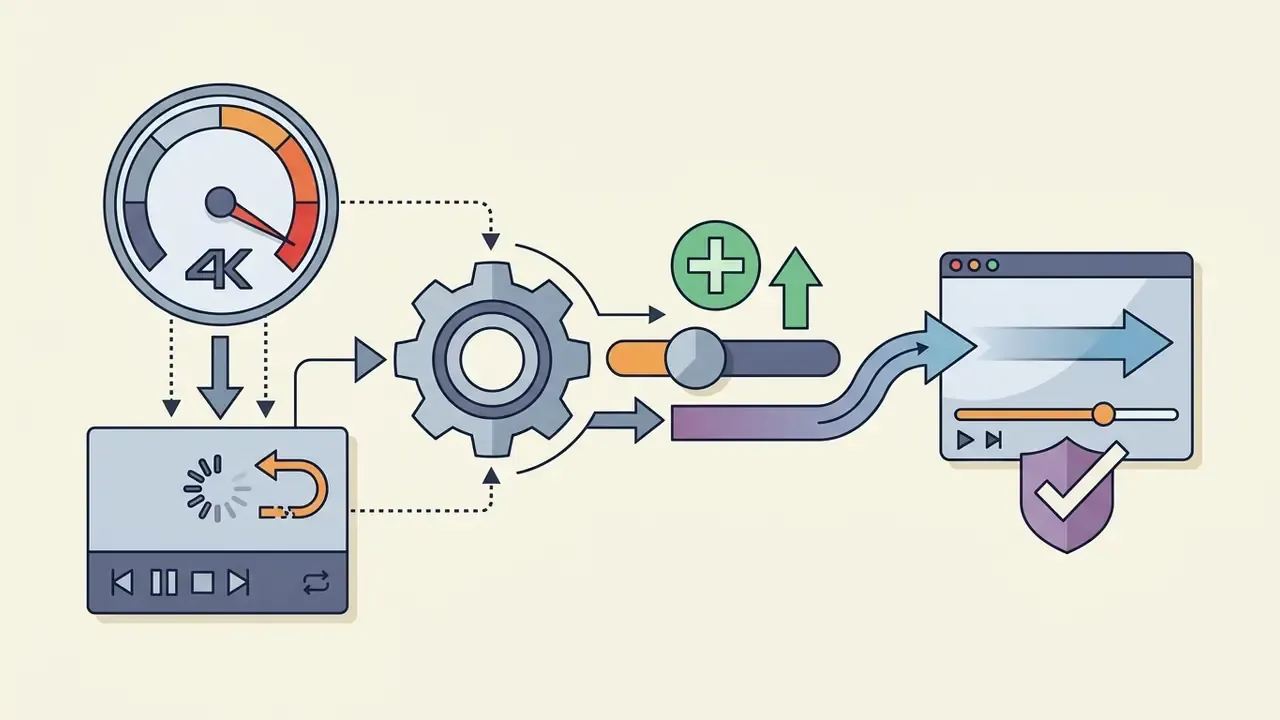
How to improve playback quality and stability
Improving playback stability means prioritising consistent buffer health over peak resolution, enabling browser hardware acceleration, and adjusting network cache limits. Research shows that a stable mid-tier bitrate yields higher perceived quality than aggressive resolution scaling that triggers rebuffering.
«Under unstable network conditions, viewers prefer a stable medium bitrate over high resolution interrupted by frequent rebuffering stalls.»
(The earlier, unsourced phrasing of this finding is preserved in Appendix A.)
Practical remediation steps, in the order vendors themselves recommend:
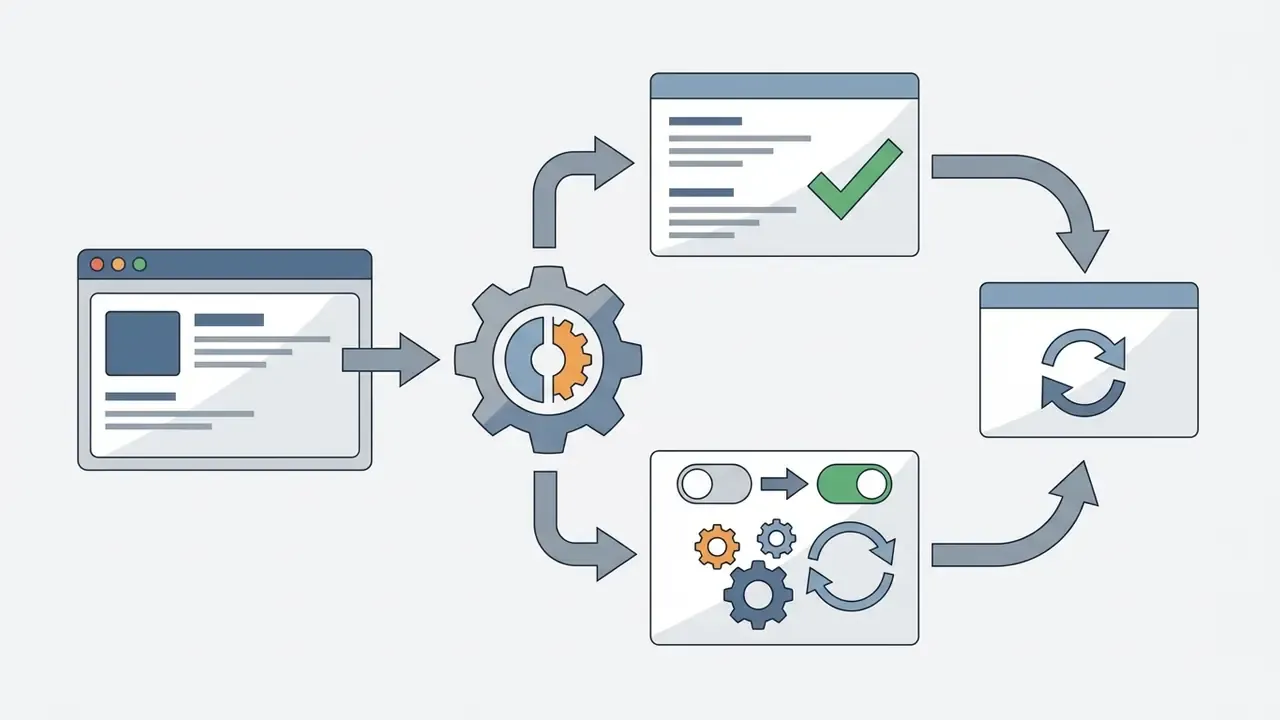
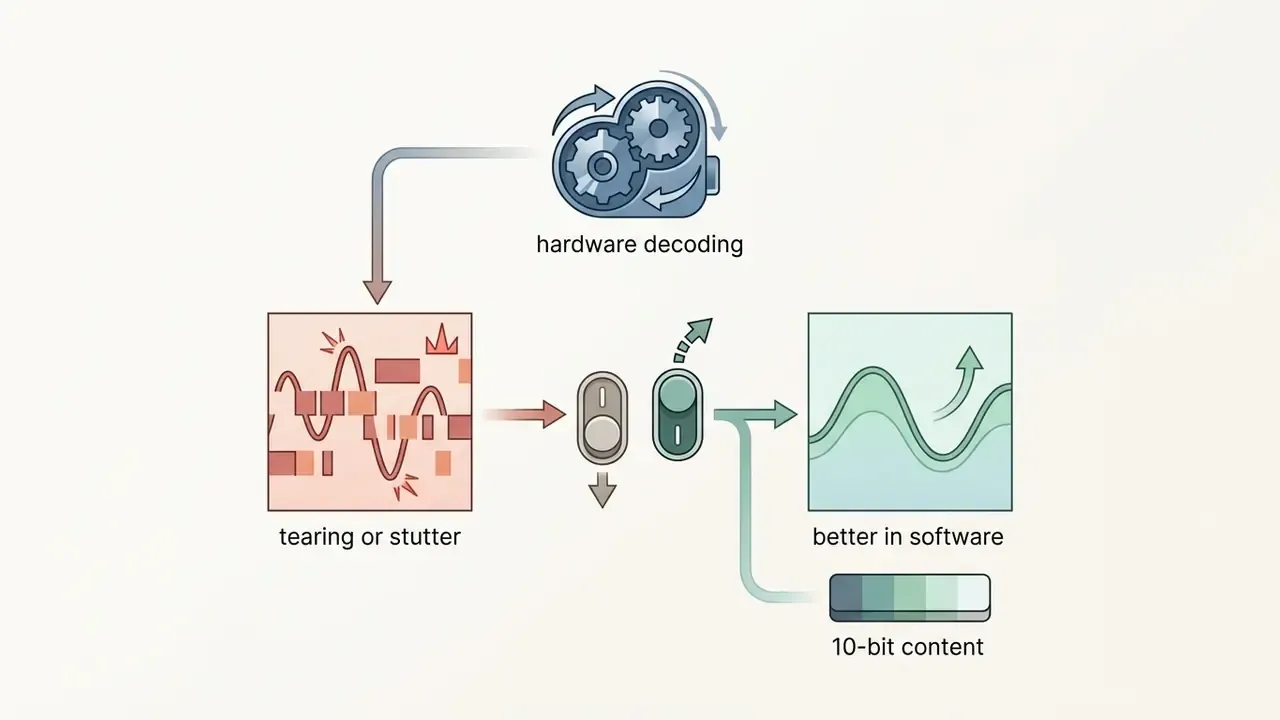
chrome://gpu or edge://gpu and confirm that Video Decode is hardware accelerated; enable Use graphics acceleration when available in chrome://settings/system or edge://settings/system, then restart the browser.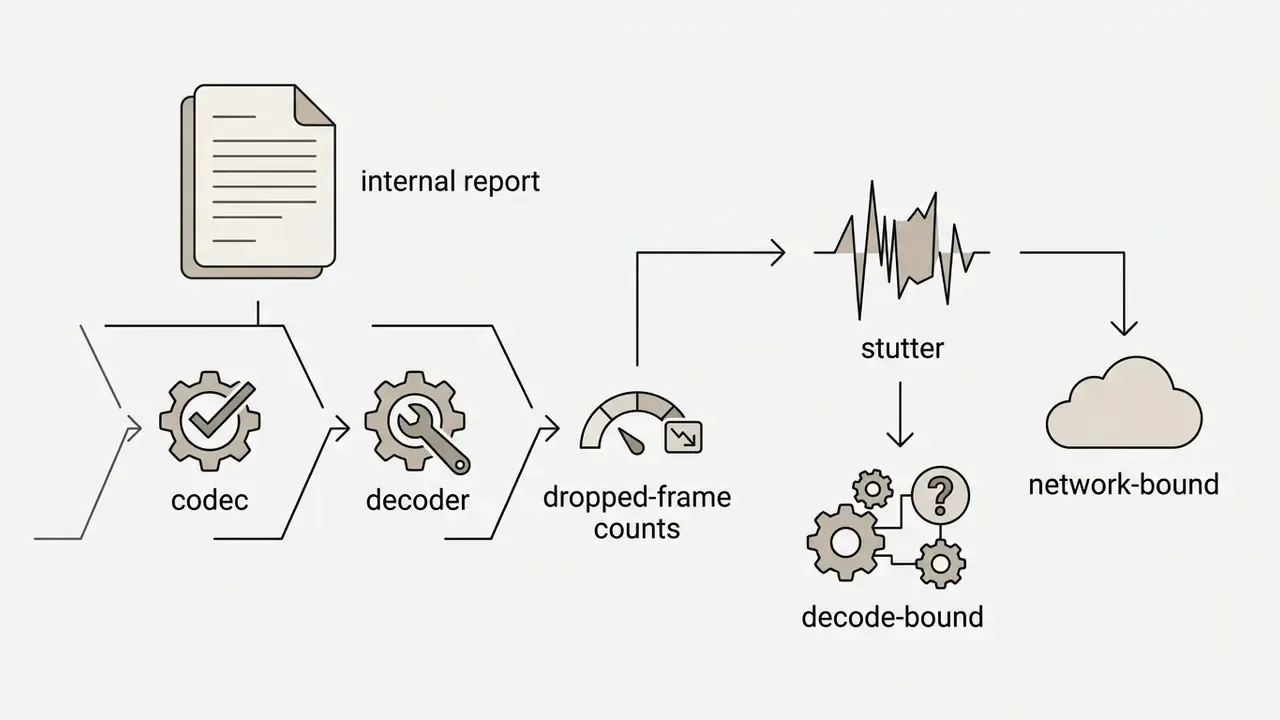
chrome://media-internals or edge://media-internals reports the exact codec, the decoder in use, and dropped-frame counts. It is the fastest way to prove whether a stutter is decode-bound or network-bound.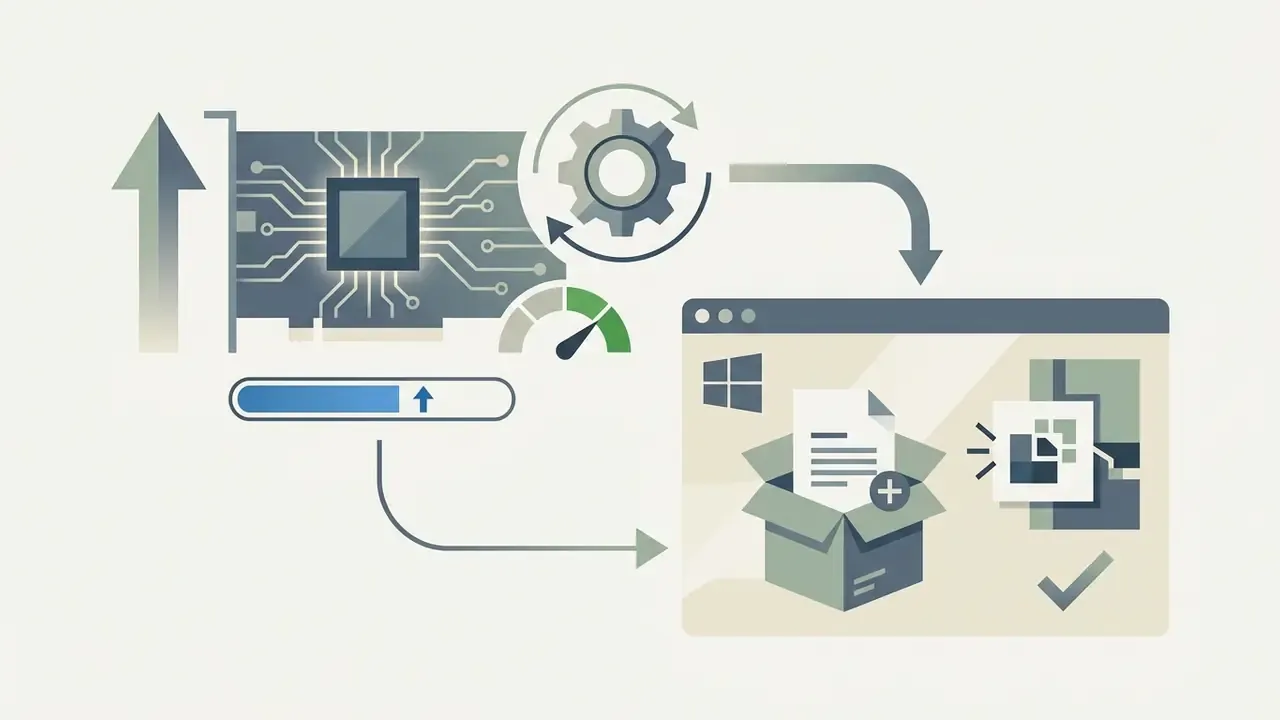
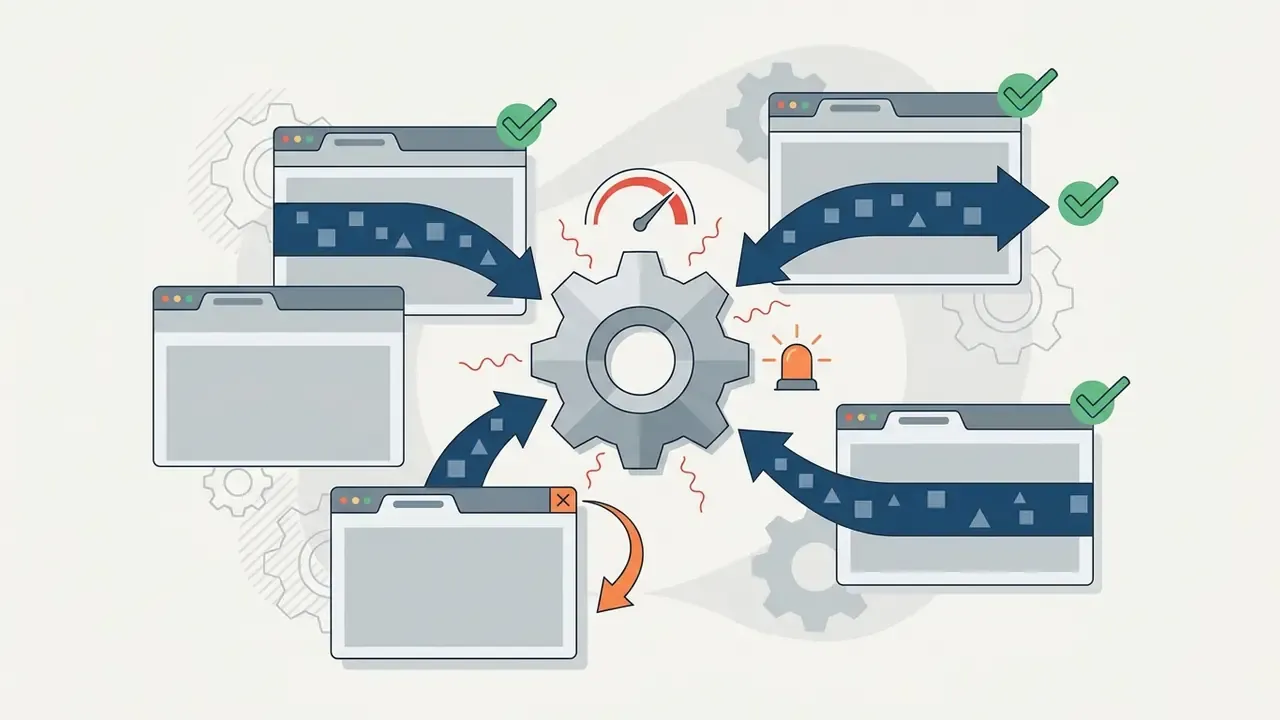
<video> elements compete for the same hardware decoder sessions.Online video player for a website: embed, custom, content
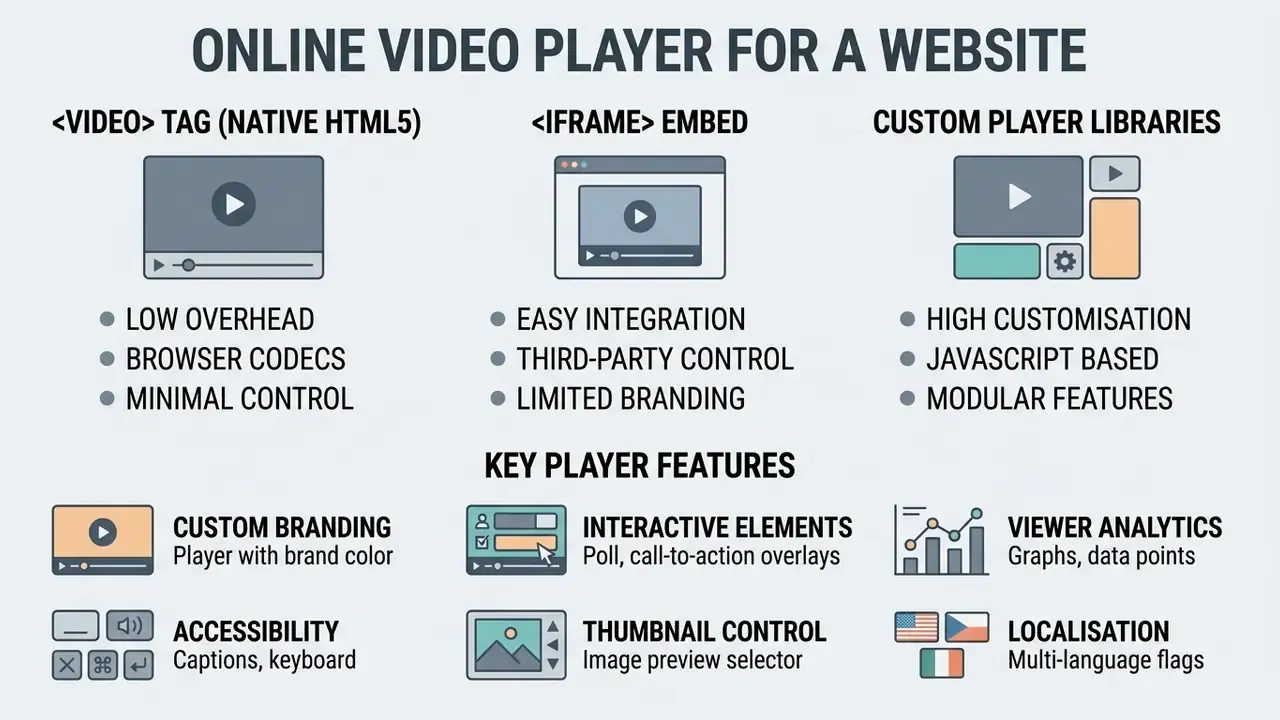
Integrating an online video player on a website means choosing between native HTML5 <video> tags, <iframe> embeds, or customisable JavaScript player libraries, based on performance and feature needs. That choice determines branding scope, analytics depth and commercial deployment flexibility.
According to W3C HTML5 recommendations, embedded content can be integrated directly or through isolated browsing contexts (<iframe>), and canPlayType() lets a custom JavaScript player test capability before committing to a source. Teams that also produce the media itself often plan the player alongside their production stack, for example a comparison of free AI video generators for short-form assets, or an implementation guide for the Google Veo video API when generation happens server-side.
How to embed a video player on a website
Embedding a video player on a website means placing an <iframe> snippet from a video host, or instantiating a custom JavaScript library such as Video.js on an HTML <video> element. The result is a responsive media container that renders across user browsers.
Developers can implement direct embeds with standard HTML structure:
<!-- Native HTML5 Embed -->
<video id="player" controls width="800" poster="preview.jpg" preload="metadata" playsinline>
  <source src="https://cdn.example.com/stream.mp4" type="video/mp4">
  <source src="https://cdn.example.com/stream.webm" type="video/webm">
  <track kind="subtitles" src="subtitles_en.vtt" srclang="en" label="English" default>
  Your browser does not support the video tag.
</video>
<!-- Third-Party Responsive iFrame Embed -->
<iframe src="https://player.example.com/embed/12345"
        width="100%" height="450"
        allow="autoplay; fullscreen; picture-in-picture"
        loading="lazy"
        style="border:none;">
</iframe>
Two practical consequences follow. First, use preload="metadata" rather than auto on pages with several videos, so the browser fetches headers instead of megabytes of payload. Second, add loading="lazy" to below-the-fold iframes; a third-party player script is frequently the single heaviest asset on a marketing page. Integration patterns for programmatic delivery are catalogued in our AI Media API Guides.
Which custom features businesses and creators need
Enterprises and content creators tend to need the same short list: brand-matched skins, custom poster thumbnails, interactive call-to-action overlays, multi-language captions, and detailed engagement analytics. Those features turn passive viewing into measurable conversion or learning outcomes.
- Custom branding removal of third-party watermarks, plus corporate logo overlays, brand colours and control styling.
- Interactive elements in-player call-to-action buttons, lead-generation forms, chapter markers and clickable annotations.
- Viewer analytics heatmaps for watch time, drop-off rates, replay segments, completion rate, geography and device breakdowns.
- Accessibility controls customisable caption styling, screen-reader compatibility, keyboard operability and audio description tracks.
- Thumbnail control static or animated poster frames aligned to brand guidelines.
- Localisation multi-language subtitle and audio track switching, including right-to-left caption rendering.
Teams building the surrounding content pipeline frequently combine the player with voice-over and motion assets; our references on AI voice generation for narration and animation makers for explainer sequences cover the production side of that stack.
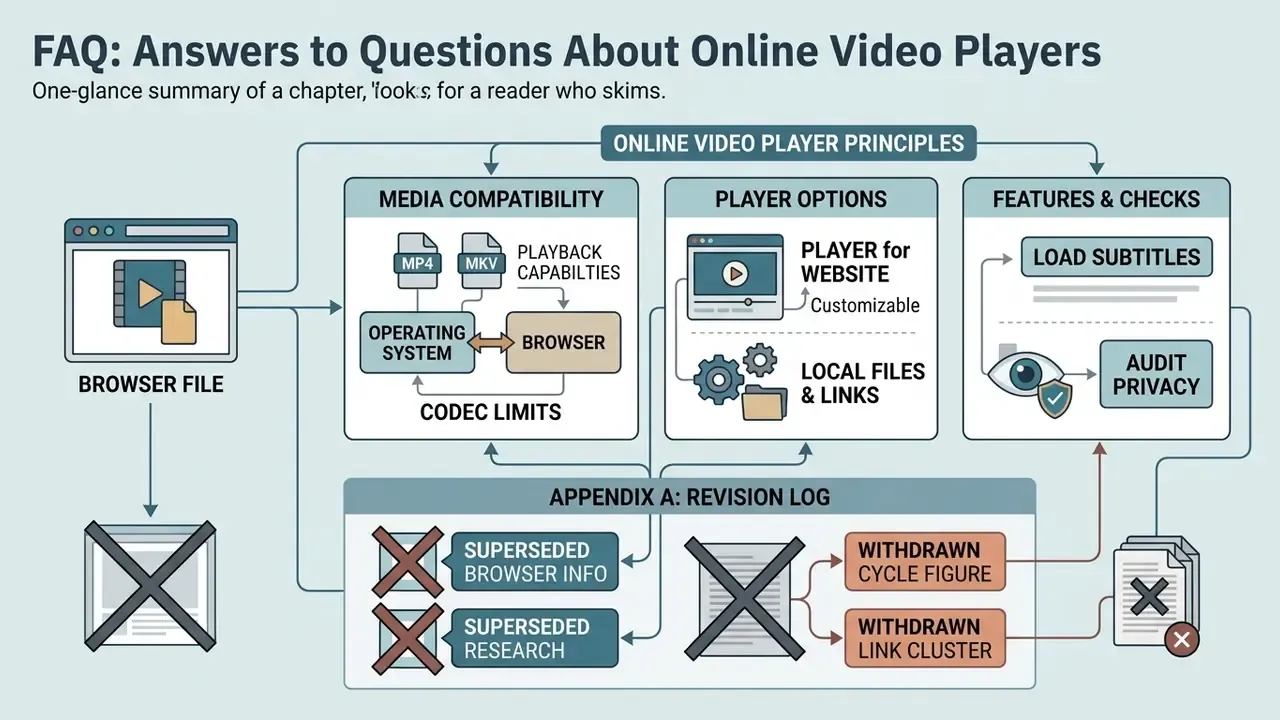
FAQ: answers to questions about online video players
Browser-based online video players deliver cross-platform playback on desktop and mobile through standardised HTML5 APIs. Core viewing stays free; format support is governed by browser and operating system constraints rather than by the player's marketing page.
Does a free online video player work on mobile devices?
Free online video players work well on mobile through iOS Safari and Android Chrome, although mobile operating systems enforce specific constraints such as muted inline autoplay and user-initiated media loading. On iOS Safari, video elements need the playsinline attribute to avoid forced fullscreen playback. Apple additionally documents that autoplay is permitted only for silent or muted video, and that playback pauses when the element gains audio or leaves the viewport. Mobile operating systems disable background playback by default unless media session services and Picture-in-Picture APIs are configured; on Android that means a MediaSessionService-backed foreground service rather than a page-level setting.
«5G networks deliver high throughput, but handover instability makes adaptive streaming critical for mobile players.» - Estimating Video Streaming QoE in the 5G Architecture Using Machine Learning (2020–2024) Memory ceilings matter more than bandwidth on phones. A multi-gigabyte MKV loaded as a Blob can exhaust the tab's memory budget and force a reload. For long mobile sessions, prefer HLS or DASH streams over whole-file Blob playback. For deeper technical references on media containers, codec selection and delivery pipelines, continue with our guides to video compression and container conversion, YouTube-oriented editing and publishing workflows, and the Google Veo video API implementation notes.
Can I open MKV files directly on an iPhone browser?
Native iOS Safari lacks system-level support for MKV containers, and Apple's own support material lists .mkv among extensions that may fail to open on Apple devices. Opening an MKV on an iPhone usually requires remuxing the video into an MP4 container (ffmpeg -i in.mkv -c:v copy -c:a aac out.mp4) or using a third-party iOS application with built-in MKV codec support.
Why is there no sound in my MKV file?
The audio track most likely uses AC-3 (Dolby Digital), E-AC-3 or DTS, which Chrome and Firefox generally cannot decode. Try Microsoft Edge, switch to an alternative audio track if the file has one, use a client-side FFmpeg WebAssembly transcode, or remux the audio to AAC with ffmpeg -i input.mkv -c:v copy -c:a aac output.mp4.
Can I paste a YouTube or Bilibili link into a browser player?
No. A youtube.com/watch?v=… address is a web page, not a direct media stream, and its underlying adaptive segments are access-controlled. URL players accept direct .mp4 or .webm files and CORS-enabled .m3u8 / .mpd manifests. To show platform video on your own site, use the platform's official embed code.
How do I play a file stored in Google Drive, Dropbox or OneDrive?
Convert the share link into a direct download link that returns the raw bytes with a permissive Access-Control-Allow-Origin header. Preview pages return HTML, so the player receives markup instead of media. If the provider exposes no direct link, download the file and open it locally; playback is then fully client-side.
Are free online video players safe for private files?
They are safe only if media decoding runs strictly client-side using browser memory and Blob URLs. Verify this by watching DevTools → Network for binary POST or PUT requests, and by testing playback with the network disconnected. If the player uploads the file to a cloud server for processing, privacy depends entirely on the provider's retention and encryption policies.
Why does a video link play in one browser but fail in another?
Browsers use different media decoding engines, codec licences and OS integrations. Safari natively decodes HEVC through VideoToolbox; Chrome supports HEVC only where a hardware decoder exists; Firefox marks HEVC support as limited and relies on OS libraries for H.264. The same video link can therefore succeed in one browser and error in another.
Do I need plugins like Flash to use modern online players?
No. Modern browser players rely exclusively on native HTML5 elements and Media Source Extensions, which makes external plugins such as Flash entirely obsolete. Where a codec is missing, players use a local WebAssembly fallback rather than a plugin.
Is there a file size limit?
The HTML5 stack imposes no hard limit, but practical ceilings come from available RAM and the tab's memory budget. Very large local files load as Blob references quickly, yet decoding 4K HEVC through a WebAssembly fallback is CPU-intensive. For multi-hour archives, streaming an HLS rendition is more stable than whole-file playback.
Which subtitle formats work in the browser?
WebVTT (.vtt) is natively supported through the HTML5 element and must be UTF-8 encoded. SRT files are converted to WebVTT by the player's JavaScript. ASS/SSA files require a dedicated renderer; basic text and timing display reliably, while advanced karaoke or positioning effects may differ from a desktop player.
Appendix A - Revision log