Last updated: August 2026 baseline (pricing, free-tier limits, and encoding specifications re-verified against vendor documentation).
Executive Summary
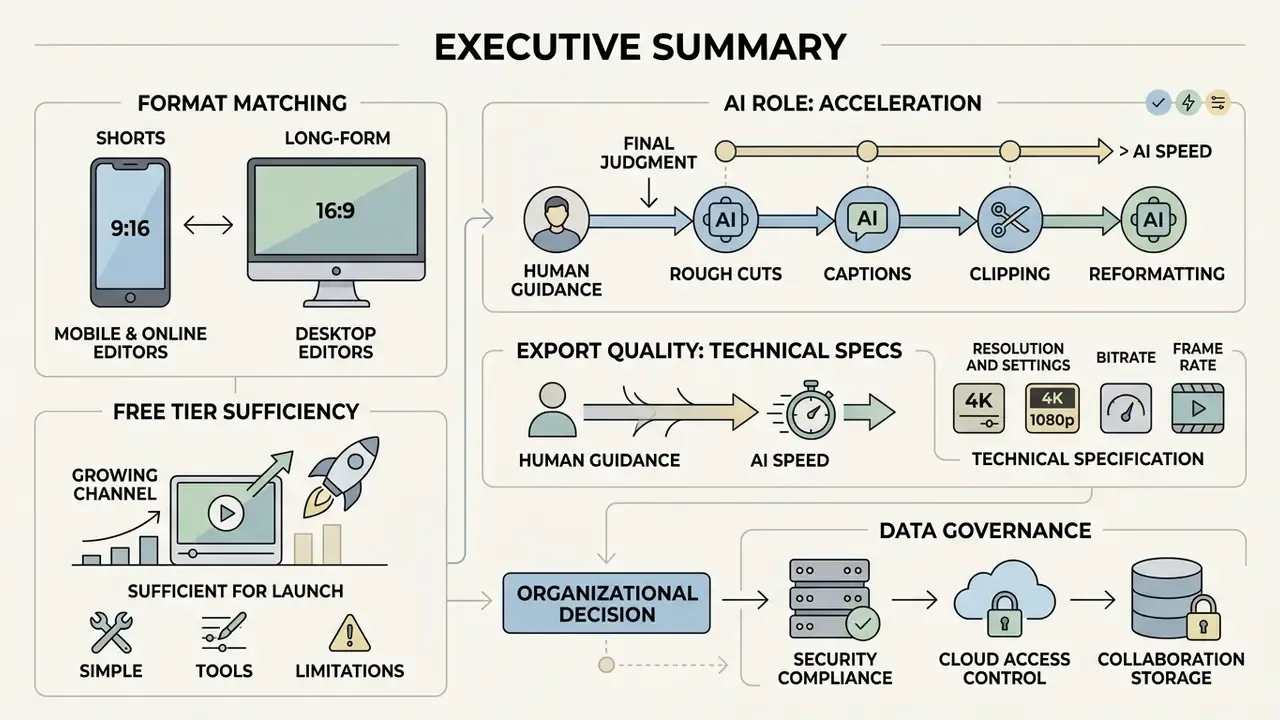
- Match the tool to the format, not to the brand. Online editors win on collaboration and speed-to-publish; desktop NLEs win on codec control, 10-bit color, and multicam; mobile apps win on phone-to-Shorts throughput. A channel publishing daily 9:16 clips and a channel publishing weekly 4K documentaries need different stacks.
- Free tiers are technically sufficient for launch-stage channels. DaVinci Resolve Free exports 4K at 60 fps without a watermark; Clipchamp Free exports 1080p without a watermark; YouTube Studio and YouTube Create are fully free. The real constraints are 10-bit color, Studio-only AI modules, commercial media licensing, and render-queue speed.
- AI accelerates rough cuts, captions, and clipping, not final editorial judgment. Empirical work on transcript-based and multimodal editing interfaces shows measurable speed and error advantages, while comparative studies on AI-generated instructional video show equivalent learning outcomes but lower perceived authenticity. Human-in-the-loop verification stays mandatory.
- Export quality is a specification problem, not a taste problem. MP4 / H.264 / AAC-LC at 48 kHz, 8 Mbps for 1080p24–30, 35–45 Mbps for 4K24–30, captions synchronized within 1–2 frames, and program loudness near −23.0 LUFS cover almost every YouTube delivery case.
- For organizations, the tool choice is a data-governance decision. Uploading unreleased marketing footage, customer recordings, or internal training material into a consumer cloud editor is a Shadow AI exposure event. Contract tier, data-retention terms, and audit logging matter more than transition libraries.
How to use this guide
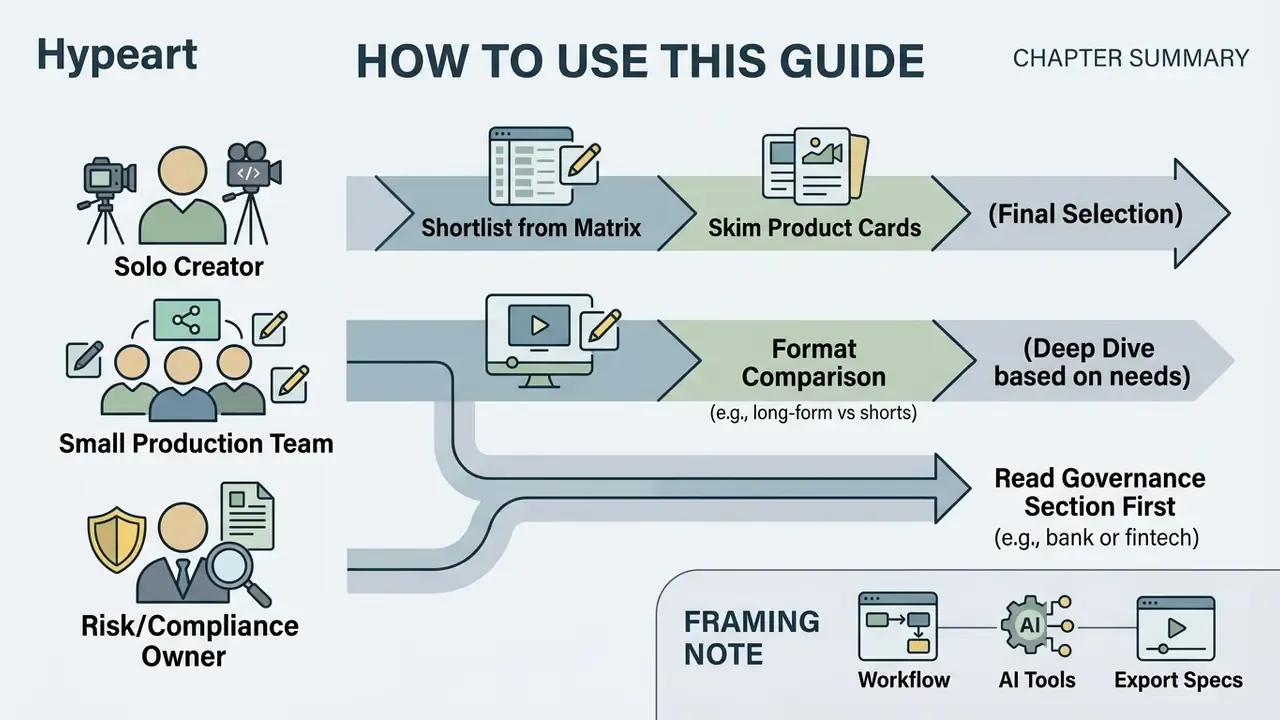
Three reader profiles run through everything below, and they should read it differently.
A solo creator deciding where to edit can shortlist from the selection matrix, skim the product cards, then jump straight to export settings. That is the shortest path to a publishable file.
A small production team should start with the format-based comparison, because the real question is rarely "which app is best" but "which app survives two editors, one reviewer, and a weekly deadline". Collaboration tier and render queue speed decide that, not effect libraries.
A risk or compliance owner at a bank or fintech should read the governance section first. The editor is the last link in a chain that begins with who shot the footage, whose face and voice appear in it, and which cloud processed it. If that chain has no owner, the tool choice is premature.
One more framing note. Every claim here is tagged by evidence strength: vendor documentation, peer-reviewed study, standards body, or internal hypothesis requiring your own measurement. The distinction matters more than it sounds, because most published "best way to edit videos for YouTube" advice is heuristic dressed as data.
Quick-selection matrix: editor, OS, free limits, upgrade price
Before comparing categories in the abstract, use this matrix to shortlist two or three candidates. It answers the three questions creators ask first: does it run on my machine, what does the free tier actually export, and what does the upgrade cost.
| Editor | Supported OS | Complexity | Free plan (real limits) | Paid upgrade |
|---|---|---|---|---|
| CapCut | Windows, macOS, Web, iOS, Android | Low → Medium | Exports up to 8K/60 fps; watermark appears mainly in template end-credit clips, which can be deleted; stock-library commercial rights are granted per export | from $9.99/month, $89.99/year |
| DaVinci Resolve | Windows, macOS, Linux | High → Professional | 4K (3840×2160) at 60 fps, 8-bit, no watermark, unlimited exports; Studio-only Neural Engine modules and advanced noise reduction excluded | $295 one-off (Studio) |
| Clipchamp | Web, Windows | Low | 1080p exports with no watermark using your own media; premium stock and cloud backup gated | from $11.99/month |
| Adobe Premiere Rush | Windows, macOS (companion mobile apps) | Low | 1080p/60 fps exports; single-track-oriented workflow; no chroma key or multicam | Bundled with Creative Cloud plans |
| Adobe Premiere Pro | Windows, macOS | High → Professional | Trial only | Subscription (Creative Cloud) |
| iMovie | macOS, iOS, iPadOS | Low | Fully free, no watermark; effectively 16:9-oriented project handling | Free |
| Shotcut / Kdenlive | Windows, macOS, Linux | Medium | Fully free and open-source, no export caps; GPU rendering still experimental in Shotcut | Free |
| YouTube Studio / YouTube Create | Web (Studio), Android / iOS (Create) | Low | Free, ad-free, no watermark; trim, blur, end screens, free audio library, direct publishing | Free |
For deeper background on how editor categories differ in architecture, see our reference entry on video editors.
How to choose a YouTube video editor by channel format and workload
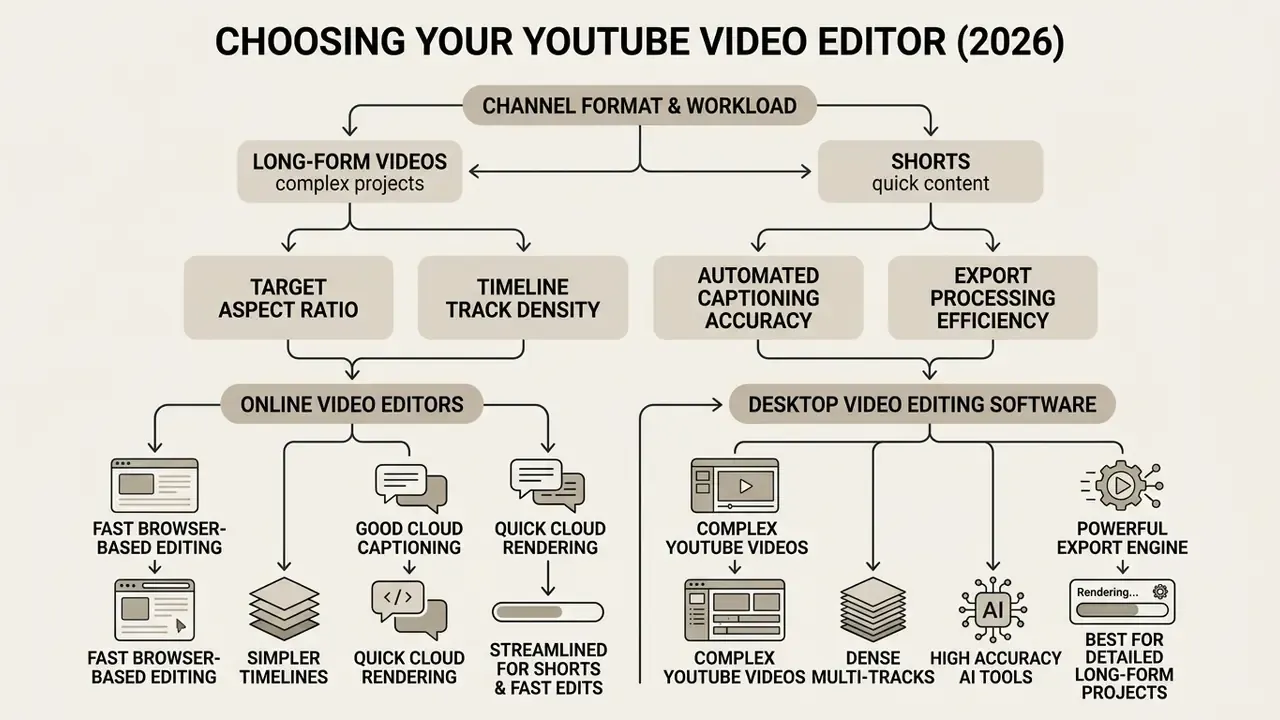
Choosing a youtube video editor depends on four operational factors: target aspect ratio, timeline track density, automated captioning accuracy, and export processing efficiency. Channels publishing simple talking-head commentary need a different toolset than teams producing multi-camera documentaries or high-frequency YouTube Shorts. Same platform, different machinery.
To find the best video editor for YouTube, creators must decide whether browser-based accessibility, desktop computing power, or mobile immediacy best serves their editing workflow. Four working signals decide the outcome in practice: native vertical 9:16 handling for Shorts, caption accuracy plus SRT export, batch operations for high publishing cadence, and grading plus assembly comfort for long narrative pieces.
Comparison of online video editors, desktop video editing software, and mobile video editor apps (2026 baseline)
| Criterion | Online video editor | Desktop video editing software | Mobile video editor apps |
|---|---|---|---|
| Editing complexity | Low to moderate | High to professional | Low |
| AI tools and automation | High (text based editing, auto caption) | Advanced (neural engine, generative extend) | Moderate (built-in filters, quick auto captions) |
| Collaboration support | Real-time collaborative workspaces | Local project sharing and server storage | Limited file-sharing exports |
| Export limits and speed | Browser/cloud rendering; typically capped at 1080p–4K by plan | GPU-accelerated local export; unlimited bitrate and resolutions | Device-bound rendering; target platform presets |
| YouTube Shorts suitability | High (instant template reframing) | High (requires manual timeline setup) | Very high (direct phone-to-Shorts pipeline) |
| Long-form video suitability | Moderate (constrained by memory and browser media engines) | High (industry standard for multi-layer compositing) | Low (hard to navigate complex timelines) |
| Data privacy profile | Media leaves the device; retention and training-use terms must be read per plan | Strongest: media can stay entirely on local or on-prem storage | Weakest for corporate media: personal devices, consumer accounts, unclear asset sync |
| Infrastructure requirements | Modern Chromium/Safari build, stable bandwidth | 8 GB RAM minimum, 16 GB+ and dedicated GPU VRAM for 4K | Recent smartphone with hardware HEVC/H.264 encode |
| Enterprise support | Varies; SSO and contractual terms usually on business tiers only | Yes (volume licensing, shared storage, managed deployment) | Rare; mostly consumer terms of service |
Short version of that table: browser tools buy you speed and shared review, desktop suites buy you control and privacy, phone apps buy you cadence. Nothing buys you all three at once.
Online video editor for fast browser-based editing
An online video editor runs inside a web browser, so there is no local install and no admin password. These browser-based platforms let content creators start editing within a few clicks, using cloud infrastructure for processing instead of the laptop's GPU.
An editor online depends heavily on web browser media engines. According to IMG.LY technical documentation (2026), modern browser video editing tools require Chromium-based engines (Chrome/Edge 114+) or Safari 26.0+ for H.264/AAC media encoding; Firefox 130+ supports video editing but not H.264/AAC export. Web-based platforms provide shared workspaces where teams can edit YouTube videos, drop comments, and apply text based editing at the same time. Large multi-track 4K projects, though, hit browser memory caps during complex timeline rendering, and export throughput depends on network quality as much as on the video editor online itself.
Creators hunting for the best online video editor for YouTube often evaluate cloud-native options alongside dedicated AI Media Workflows to streamline cross-platform asset creation.
Desktop video editing software for complex YouTube videos
Desktop video editing software provides the full suite NLE (non-linear editing) capabilities required for multi-layer video editing and serious post-production. These applications harness local GPU acceleration to process high-bitrate camera footage, color grading, and multi-track audio mixing.
For long-form youtube video work, tools like Adobe Premiere Pro and DaVinci Resolve remain the industry reference. Technical specifications from Adobe (2026) mandate a minimum of 8 GB RAM (16 GB+ recommended for 4K), a 1920×1080 display, and dedicated GPU VRAM; Adobe's 2025 release cycle added Generative Extend in 4K, AI-powered Media Intelligence search, and caption translation across 27 languages. DaVinci Resolve uses its Neural Engine for AI-assisted Magic Mask, SuperScale upscaling, IntelliScript, Voice Convert, and Fairlight audio finishing. These platforms give frame-by-frame control, which is what lets creators assemble a complete video with custom motion graphics and layered visual effects.
To compare advanced creation platforms side by side, review our AI Media Comparison breakdown.
Video editor apps for shooting and editing from a smartphone
Editor-by-editor reviews: OS support, pros, cons, free-tier limits
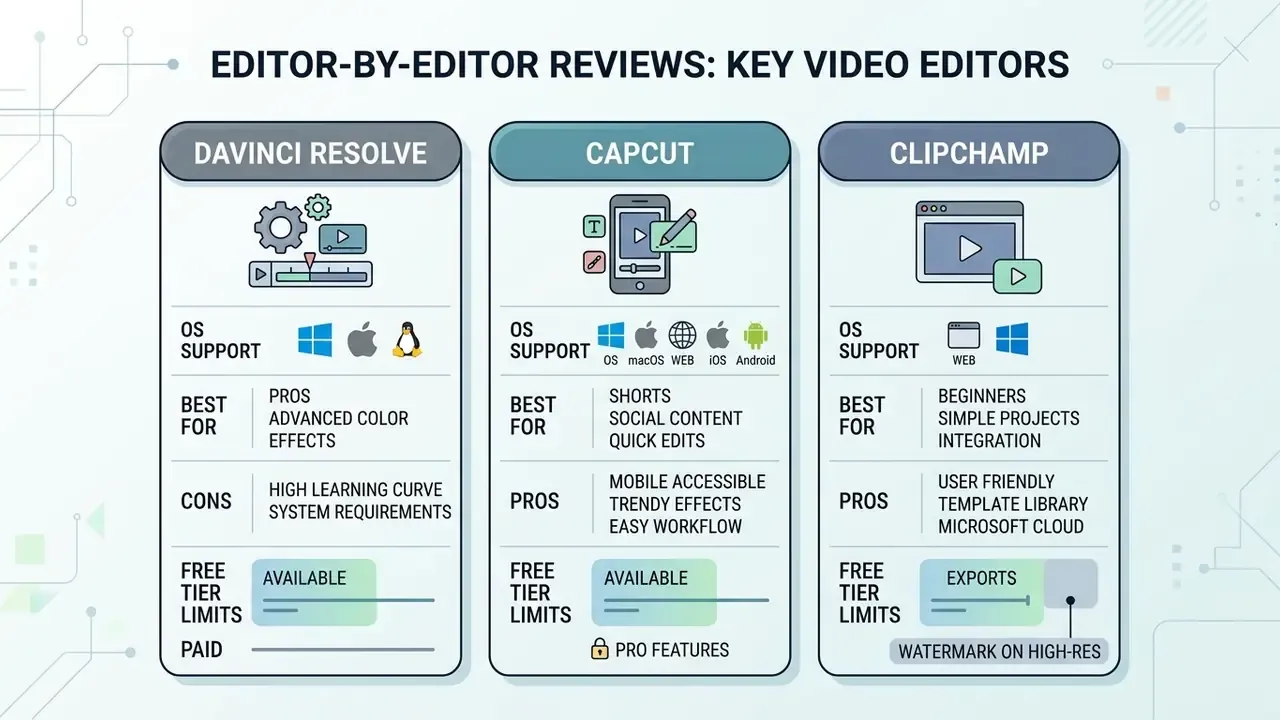
Category comparisons narrow the field; product specifics close the decision. Each card below lists supported operating systems, the workload it fits, and the trade-offs that surface after the first week of use, not the first hour.
DaVinci Resolve: Windows, macOS, Linux
- Best for professional color grading, multicam long-form, and audio finishing inside one suite.
- Pros a complete post-production suite for free (Cut, Edit, Fusion, Color, Fairlight, Deliver); 4K export at 60 fps with no watermark and no export count limits; two distinct editing interfaces, with the Cut page built for fast turnaround; direct upload presets for YouTube including title, thumbnail, and chapter fields; the deepest learning material of any free NLE.
- Cons demands real commitment before it pays off, since node-based compositing and grading are not discoverable by trial and error; overkill for a two-clip trim job; GPU VRAM requirements are the harshest on this list; Studio-only Neural Engine features, advanced noise reduction, and several 10-bit hardware codecs are absent from the free build.
- Free tier no watermark, exports up to 3840×2160 at 60 fps in 8-bit color.
- Paid DaVinci Resolve Studio, $295 one-off perpetual license.
CapCut: Windows, macOS, Web, iOS, Android
- Best for high-cadence Shorts production and template-driven social output.
- Pros drag-and-drop interface that stays legible for beginners while hiding real depth (curves with separate RGB controls, LUT application, exposure and contrast, a chroma-key tool under Remove BG with color picker and keyframes); free text based editing that lets you cut video like a text file; generous export ceiling, including high-resolution and ProRes options plus GIF output; the widest platform coverage here.
- Cons many advertised in-app features are Pro-gated and pushed aggressively while you edit; template end-credit clips can introduce a branded outro that must be deleted manually; commercial rights for platform stock media are granted per exported piece rather than to the asset itself, which complicates reuse across campaigns; desktop polish trails the mobile app in several third-party reviews.
- Free tier watermark-free exports in normal use; per-export materials licensing for built-in stock.
- Paid from $9.99/month or $89.99/year.
Clipchamp: Web, Windows
- Best for Windows creators who want a browser workflow with no install friction.
- Pros 1080p exports with no watermark on the free tier when using your own media; large built-in asset database; extremely short learning curve for trims, titles, and auto-captions; runs in the browser, so a Chromebook or a low-spec laptop is enough.
- Cons hard 1080p ceiling on the free plan, so no 4K delivery; premium stock and cloud backup require a subscription; cloud rendering queues become the bottleneck at scale; limited advanced color and compositing tools.
- Free tier 1080p, no watermark, personal media only.
- Paid from $11.99/month.
Adobe Premiere Rush: Windows, macOS (plus mobile companions)
- Best for assembling a publishable cut in minutes from pre-selected clips.
- Pros select clips in order, click Create, and Rush assembles a cut fast; direct YouTube upload when finished; consistent Adobe title and audio presets; project handoff into Premiere Pro for heavier work.
- Cons restrictive, effectively single-track editing workflow; no chroma key, no multicam sync; limited social-platform integrations beyond YouTube; not a growth path for channels moving toward 10-bit or multi-layer work.
- Free tier 1080p at 60 fps; several in-app features reserved for paid plans.
- Paid included with Creative Cloud plans.
iMovie: macOS, iOS, iPadOS
- Best for: Apple-ecosystem creators producing straightforward 16:9 uploads.
- Pros: completely free with no watermark and no export limits; tight iCloud Photo Library integration; trailers and themes give an instantly presentable result; hardware-accelerated export on Apple silicon is very fast.
- Cons: project handling is built around 16:9, which makes dedicated 9:16 Shorts production awkward; no advanced keying, tracking, or scopes; two video tracks only; macOS and iOS exclusivity rules it out for mixed-OS teams.
- Free tier: unlimited, 16:9-oriented.
- Paid: none (the upgrade path is Final Cut Pro).
Shotcut and Kdenlive: Windows, macOS, Linux
- Best for Linux users and anyone who needs a permanently free, license-clean editor.
- Pros fully open-source with no watermark, no export cap, and no account requirement; large effect libraries including chroma key, clip syncing, and audio filters; native Linux builds, which almost no commercial NLE offers; portable install options for locked-down machines.
- Cons interfaces are functional rather than refined; GPU rendering in Shotcut remains experimental; stability under heavy 4K multi-track loads lags commercial suites; support depends on community forums rather than vendor SLAs.
- Free tier unrestricted.
- Paid none.
YouTube Studio and YouTube Create: Web, Android, iOS
- Best for edits that must preserve the existing video URL, view count, and analytics history.
- Pros 100% free, ad-free, zero watermarks; trim, cut, blur faces or objects, add end screens and cards, and swap in free audio-library tracks without re-uploading; native analytics integration; YouTube Create handles Shorts and longer videos on mobile with direct publishing.
- Cons no multi-track compositing, grading, or effects; edits on published videos take time to process; YouTube Create availability and feature parity differ by region and OS; no offline project portability to another NLE.
- Free tier all of the above, unlimited.
- Paid none.
AI video editing for YouTube creators
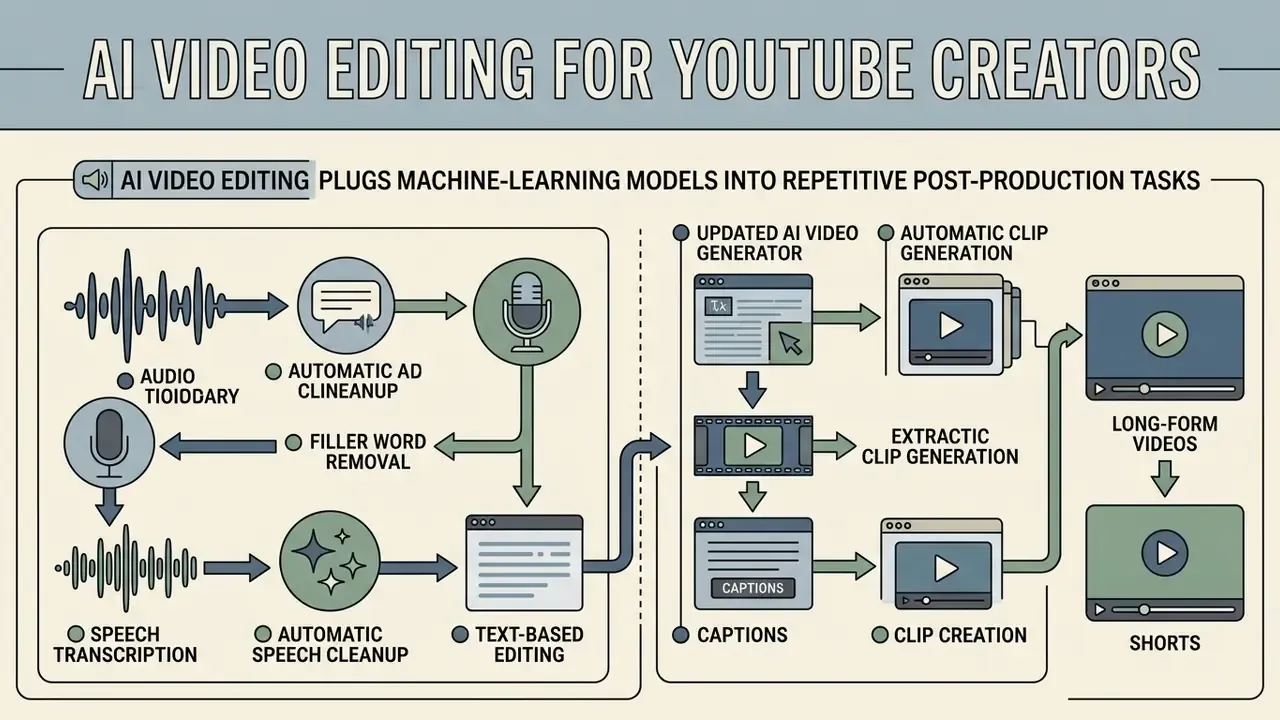
AI video editing plugs machine-learning models into repetitive post-production tasks: speech transcription, filler word removal, automatic clip generation. Those ai tools turn manual timeline work into text-driven and prompt-driven workflows.
With an ai video generator or an automated transcription engine, content creators cut initial rough-cut time substantially. The automation is also unevenly distributed across the pipeline, which is the part most vendor decks skip.
YouTube now ships these capabilities natively. Google's help documentation describes "Create with AI" in YouTube Create, where a text prompt plus aspect-ratio and audio choices generate a clip, and "Edit with AI", which turns raw footage into a first-draft edit with music and effects.
Where the time actually goes: traditional versus AI-assisted post-production
| Post-production stage | Traditional editing | AI-driven workflow | Time recovered |
|---|---|---|---|
| Rough cut (A-roll assembly) | 45–60 min manual timeline work | 10–15 min transcript-based editing | ~70% |
| Caption creation | ~30 min manual typing and timing | 3–5 min auto-captions plus QC pass | ~85% |
| Shorts extraction (9:16) | ~40 min manual reframing per clip | ~5 min AI smart reframe plus safe-area check | ~87% |
| Filler-word and dead-air cleanup | 20–30 min scrubbing | 2–4 min batch transcript deletion | ~85% |
| Final editorial review | 15 min | 15 min (unchanged, human-in-the-loop) | 0% |
The last row is the governance point. Automation compresses mechanical stages and leaves the judgment stage untouched. Any ROI model that assumes AI removes the review pass will understate error cost, sometimes badly.
Text based editing and automatic speech cleanup
Text based editing converts spoken audio into an interactive transcript, so editors cut video footage by deleting text passages. Silent pauses, filler words, and stray background noise come out of the timeline in the same motion.
«Multimodal interfaces combining natural language and sketching let editors complete editing tasks faster and with fewer errors than conventional timeline interaction.»
«AVscript enabled blind and low-vision creators to independently identify visual errors and edit video without sighted assistance; the number of completed tasks rose significantly.»
That accessibility dimension matters beyond inclusion metrics. Transcript-first interfaces make editing auditable, because every cut has a text location a reviewer can re-check without scrubbing a timeline. Auditors like that. So do editors handing work to a second pair of eyes.
Creators working on matching thumbnails can borrow from our operational guides on how to write prompts for ai art and on how to write effective image prompts for supporting visuals.
AI video generator, captions, and clip creation
AI video generators and automated clipping engines reformat existing long-form videos into bite-sized social media assets. These tools read speech transcripts and visual cues to spot highlight moments suitable for youtube shorts, and they increasingly overlap with text-to-video tools.
«An automatic text-based clip composition system generates ready-to-publish news segments from 20–120 minute source material in under five minutes.»
Tools such as OpenAI Sora 2 and HeyGen enable prompt-driven B-roll synthesis and automated 9:16 clip extraction with burned-in auto captions; HeyGen's documentation describes submitting a source video asynchronously and receiving one or more short clips with optional generated captions rendered in. Editorial oversight stays manual, because transcript accuracy and brand voice are not things a model verifies for you.
«AI-generated instructional videos achieve comparable learning outcomes, yet viewers rate human-edited framing higher on production authenticity.»
For model risk practitioners, that finding sets the control objective. AI output is acceptable on comprehension grounds and weaker on perceived authenticity, so brand-critical assets should carry a documented human review step, and auto caption accuracy should be spot-checked against source audio on a fixed sample of each batch. Keep the validation record: reviewer, date, sample size, corrections applied, stored next to the project file.
Developers who need programmatic media processing can explore our AI Media API documentation for backend video workflow integration.
Which tools you actually need to edit a YouTube video
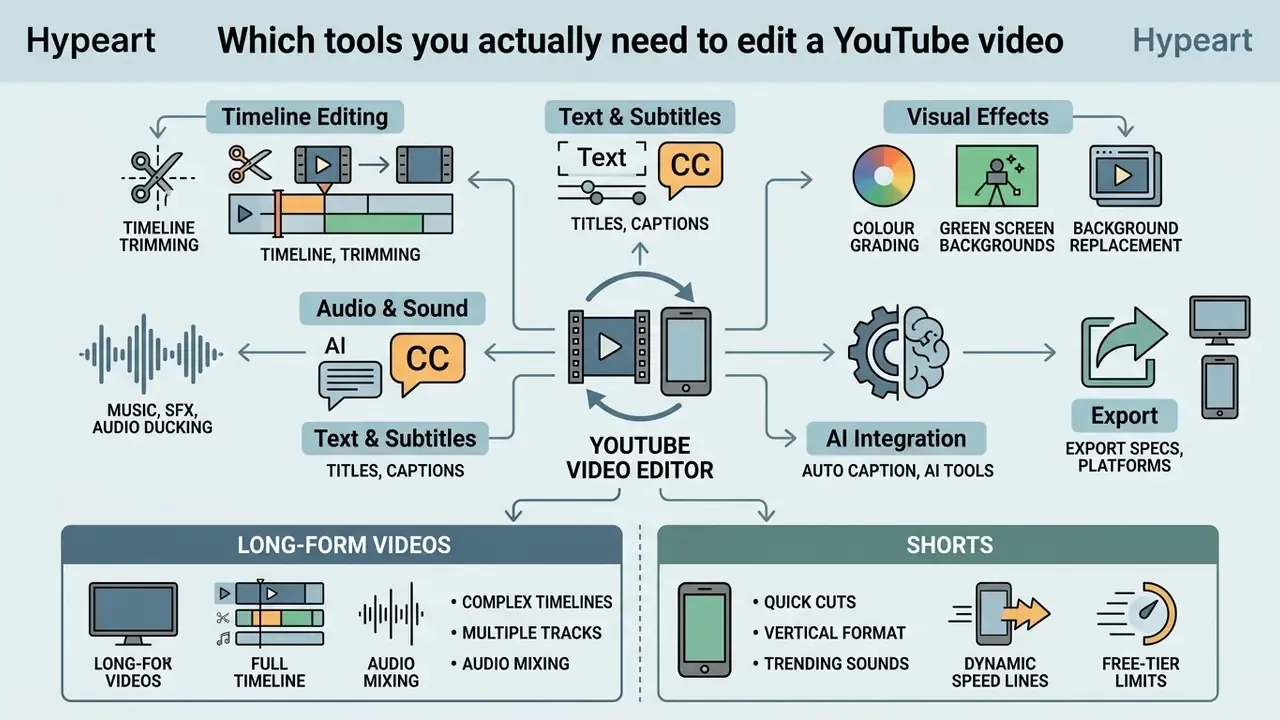
A workable video editing toolkit for YouTube covers timeline trimming, text title overlay, audio ducking, auto captioning, and background replacement. Master those editing tools and viewers stay engaged whether the sound is on or off, which is most of the retention battle on mobile.
Balancing visual elements against audio tracks is what turns a pile of clips into video content that meets YouTube platform standards.
Montage, trimming, and assembling the full video
The practical implication: for narration-led formats such as tutorials, explainers, and commentary, interface fit beats raw feature count. A specialized narrated-video interface can outperform a heavier general-purpose NLE on exactly the workload YouTube creators run most. Worth remembering before buying more software than the format needs.
Text, subtitles, music, and sound effects
Text overlays, automated subtitles, background music, and sound effects (SFX) carry both retention and accessibility compliance. Subtitles let viewers consume video content in sound-sensitive environments, which now covers a large share of mobile watch time.
U.S. Section 508 accessibility guidelines state that effective captions must synchronize dialogue with on-screen action within 1–2 frames, include important non-dialogue sounds, and remain on screen long enough to read. The same guidance directs creators to label meaningful audio events explicitly, for example [static] or [doorbell], while omitting trivial sounds already visible on screen. DCMP captioning guidance adds that background music should be indicated when it contributes to plot or mood, and that sound effects should be described in objective source terms rather than subjective mood language.
Auto caption tools generate timed transcriptions, which creators still have to review. Audio mixing means balancing dialogue against background tracks, not just adding music. Broadcast standards like EBU R 128 recommend normalizing integrated speech loudness to roughly −23.0 LUFS (with ATSC A/85 specifying −24 LKFS for delivery without metadata), so that music never masks spoken dialogue. YouTube's Data API also supports uploading and downloading caption tracks in the original format and language via the tfmt and tlang parameters, which matters for multilingual tutorial channels managing captions at scale. When you design custom supporting graphics, our guides on how to wrap text around images in Canva and on how to wrap text around an image in google slides cover the layout side.
Templates, youtube intro, and visual effects
Templates, youtube intro sequences, and green screen chroma keying set channel branding and visual variety. Modern video maker tools ship pre-built title graphics and transition presets that cut routine asset work to minutes.
Official production guidelines from Adobe (2026) specify that clean green screen keying requires a flat, smooth screen with evenly diffused lighting and 10 to 15 feet of separation between subject and screen. Keying plugins such as Ultra Key use spill suppression and matte cleanup to isolate the subject. Branded intros should stay short, ideally 5 to 10 seconds, or viewers leave before the content starts. Template libraries distributed through commercial marketplaces accelerate this work, but every pack carries its own licensing terms, and those belong in the pre-publish compliance check rather than in the editor's assumptions.
Workflow: how to edit YouTube videos from source media to publication
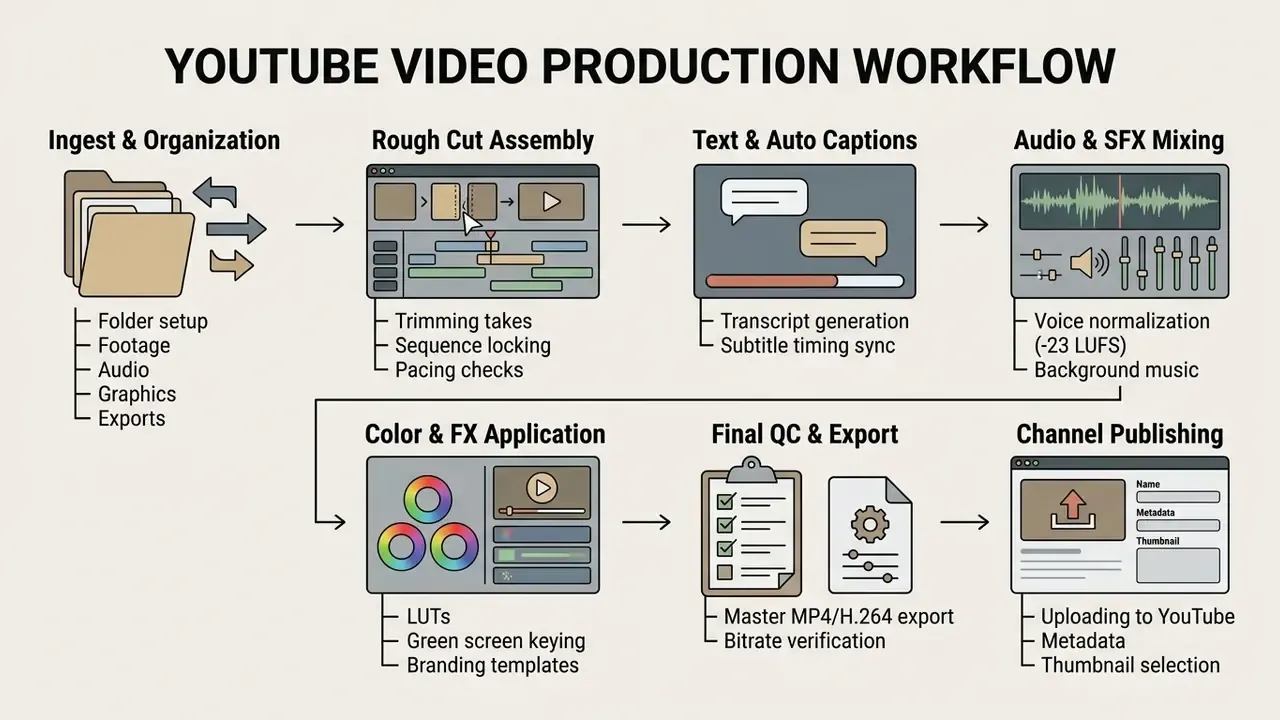
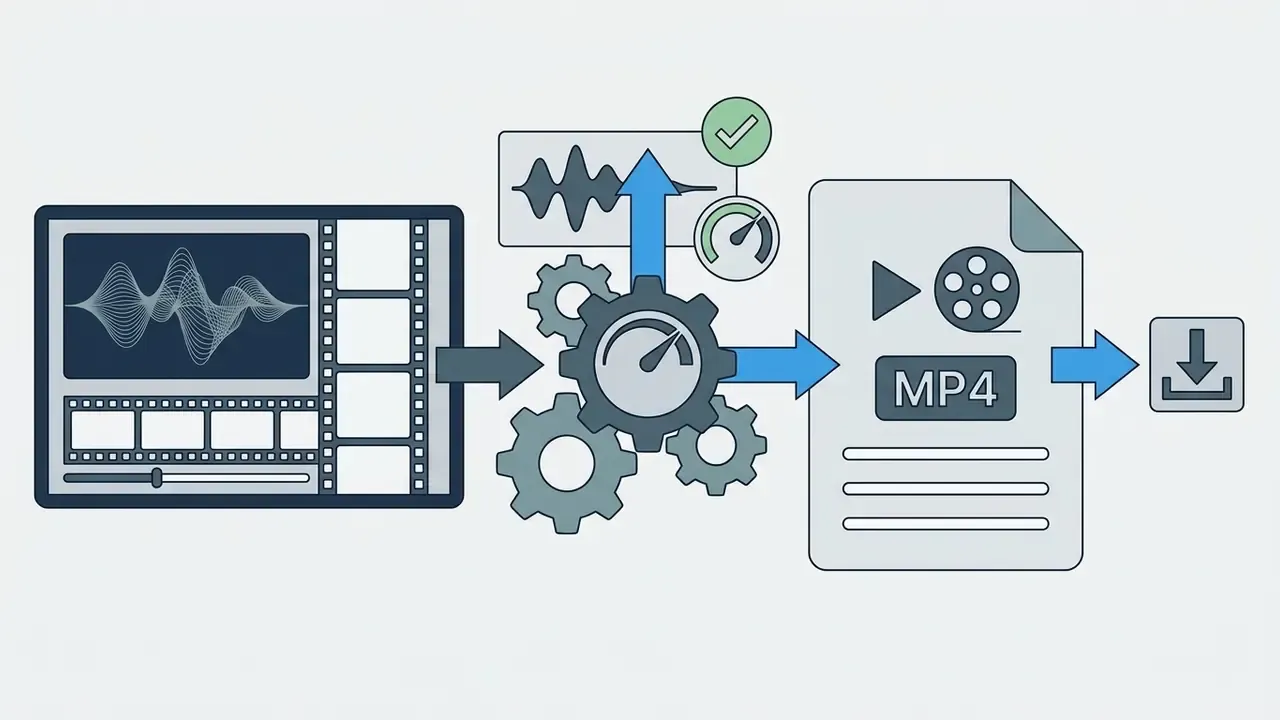
An efficient editing workflow follows an ordered sequence: media ingest, rough assembly, text and caption integration, audio balancing, final checking, export, and channel upload. Structure minimizes technical errors at delivery, which is when errors cost the most.
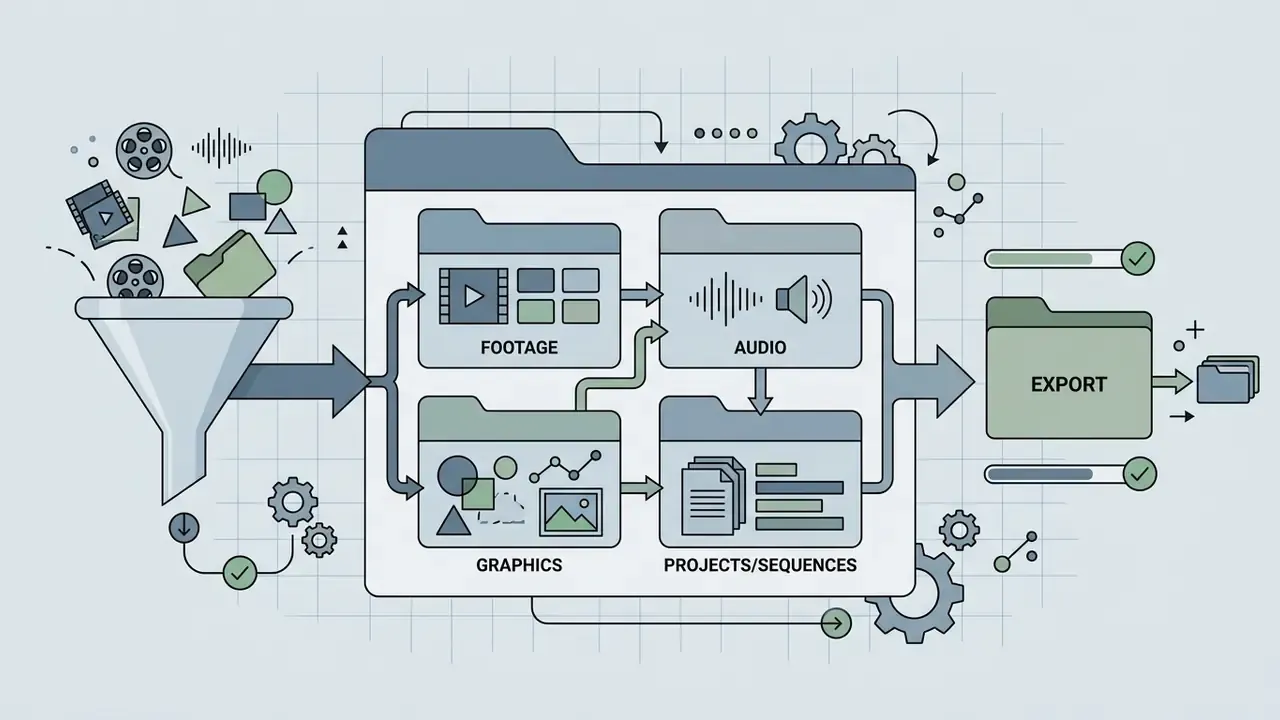
A standardized checklist keeps creators from missing critical settings during project setup or export. Here is the pipeline in both diagram and list form.




Project preparation and media import
Editing the main video and checking pacing
Editing the main video is mostly pacing management across the runtime. Editors adjust cut frequency, remove dead air, and insert pattern interrupts such as B-roll or dynamic zooms.
Updated, data gap flagged. There is no official YouTube documentation and no peer-reviewed study in the reviewed source set that establishes a mandatory or algorithmically rewarded cut rate. Creator-side analyses published through 2026 state explicitly that fixed prescriptions like "cut every 10–15 seconds" are marketing heuristics rather than platform data, and they describe pacing as a composite of cut frequency, dead-air removal, B-roll density, and music tempo, tuned per content type. Treat any cut-rate target as an internal hypothesis to A/B-test against your own retention curves, not as a platform requirement. The claim remains unsupported by primary sources and needs channel-level measurement.
Pacing therefore adapts to style. Educational tutorials benefit from structured pauses; fast commentary wants tighter cuts. Reviewing rhythm is also how you catch graphics and sound effects that fight the dialogue instead of supporting it.
When interactive slide decks enter the workflow, our tutorial on how to insert youtube video into Canva presentations covers the embed path.
Enterprise data governance and Shadow AI risk
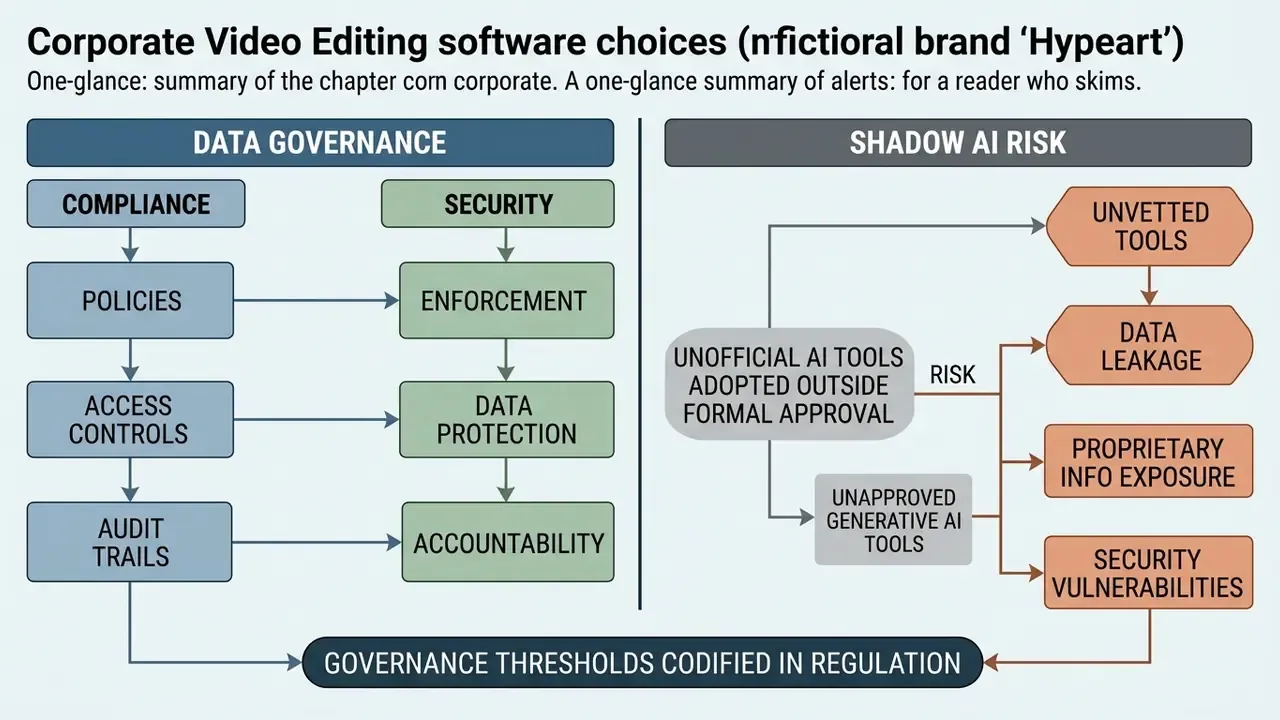
For an independent creator, "which editor" is a productivity question. For a regulated organization producing training, compliance, or marketing video, it is a data-egress question. Free consumer editors and mobile apps are the most common Shadow AI entry point in media workflows precisely because they need no procurement approval and install in ninety seconds.
Risk register for corporate video editing
| Risk | How it materializes | Control |
|---|---|---|
| Confidential media egress | Unreleased product footage, customer recordings, or screen captures containing MNPI/PII uploaded to a consumer cloud editor | Restrict cloud editors to an approved business tier with contractual data terms; keep sensitive projects on local or on-prem desktop NLEs |
| Training-data reuse | Consumer terms of service permitting service improvement on uploaded content | Read retention and model-training clauses per plan; require written opt-out before first upload |
| Biometric and voice exposure | Face, likeness, or voice cloning of employees and customers without documented consent | Written consent covering likeness, voice, and synthetic reuse, stored with the project |
| Unlicensed asset leakage | Built-in stock or template music used beyond the per-export license scope | Log the license basis for every third-party asset at export time |
| Missing audit trail | AI-generated captions or B-roll published with no record of who verified it | Retain reviewer, date, sample size, and corrections in the project QC record |
| Vendor lock-in | Proprietary cloud project formats with no local export | Prefer editors that export standard project files and master files to controlled storage |
| Uncontrolled account sprawl | Personal accounts on personal phones editing corporate media | SSO-enforced business accounts; device policy for mobile editing |
Two structural conclusions follow. First, local-first desktop NLEs are the lowest-egress option, since media never leaves controlled storage. That is why Resolve, Premiere Pro, and open-source editors such as Kdenlive remain the default in risk-sensitive environments. Second, cloud collaboration is not disqualified, it is tiered. Business and enterprise plans are where SSO, data-processing terms, permission models, and support commitments actually live. A free tier used on corporate media is an unmanaged exception by definition.
Governance thresholds for generative components are now codified in regulation too. European AI Act guidance classifies a model as general-purpose when training compute exceeds 10²³ FLOPs and it can generate text, audio, image, or video, and sets systemic-risk classification above 10²⁵ FLOPs cumulative training compute, with free and open-source exemptions not applying to systemic-risk models. Organizations embedding third-party generative video models into a publishing pipeline should record which classification their vendor falls under, because it determines the documentation the vendor owes you.
How to export YouTube video without quality loss
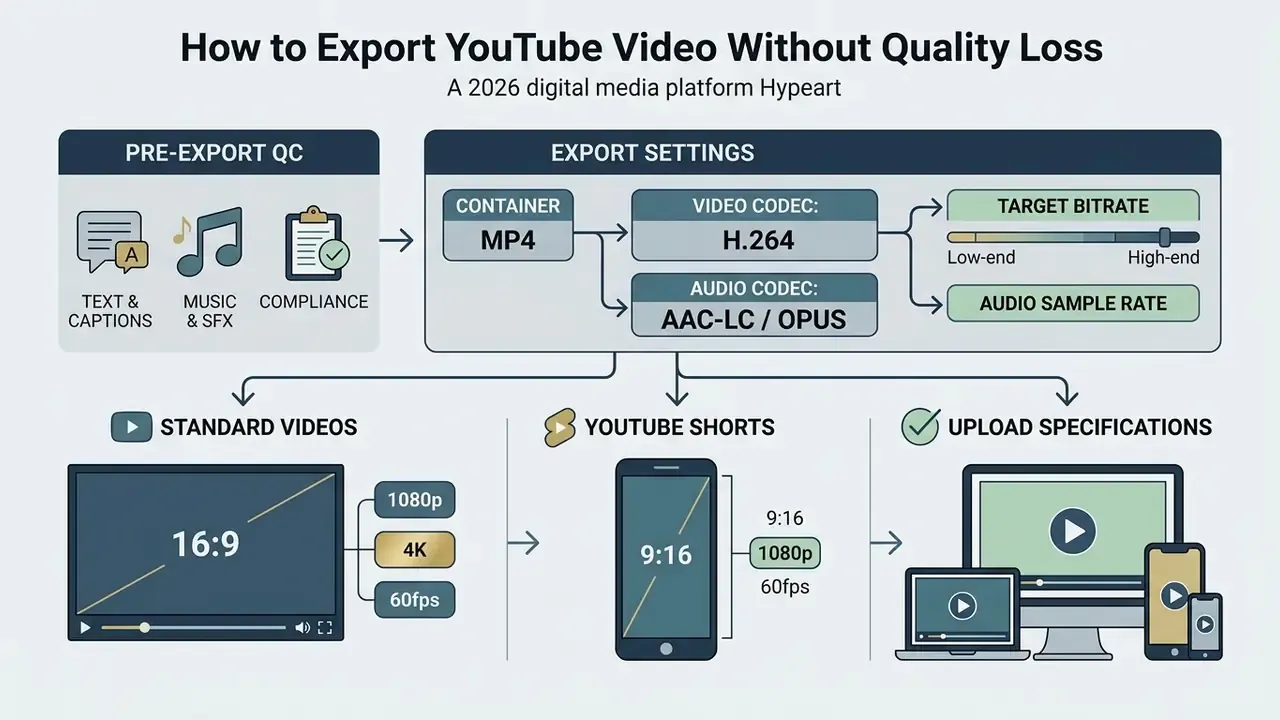
Exporting a YouTube video means configuring container format, video codec, audio sample rate, and target bitrate so that platform processing does not add artifacts. YouTube re-encodes every upload, which is why the initial export quality carries so much weight.
Following the official upload specifications keeps playback clean on desktop and mobile alike. When an export exceeds practical upload size, think long 4K sessions or multi-hour streams, a controlled compression pass is safer than lowering the master bitrate; our reference on video compressors covers the quality-loss trade-offs of each approach.
Pre-export QC: text, captions, music, sound effects, and compliance
A thorough quality control review before export checks text positioning, auto caption timing, audio levels, and frame defects. Catching errors here prevents a re-upload, and a re-upload means losing the accumulated analytics on that video.
- Caption synchronization: verify that subtitle start times sit within 1–2 frames of spoken audio onset and keep at least a 2-frame gap between consecutive caption blocks (some broadcast style guides recommend 3–4 frames).
- Audio level balance: dialogue must sit clearly above background tracks, with integrated program loudness between −23.0 LUFS and −24.0 LKFS.
- Visual inspection: scan for black frames, flash frames, missing graphics, freezes, encoding damage, or un-keyed green screen edges.
- License compliance: confirm that every music track and sound effect carries valid commercial usage rights.
Checklist0 / 9
Export settings for standard videos and YouTube Shorts
Official YouTube encoding guidance (2026) designates the MP4 container with H.264 video and AAC-LC or Opus audio as the primary upload standard. Audio sample rates should be 48 kHz (16-bit or 24-bit accepted; 24-bit preferred for music deliveries, where WAV/FLAC/PCM masters are recommended and compressed stereo should reach 320 kbps or higher). Higher sample rates such as 96 kHz are accepted rather than required, which makes 48 kHz the practical baseline. YouTube's encoder guidance additionally supports H.265/HEVC and AV1 for live and advanced delivery paths.
| Video format | Target aspect ratio | Resolution | Recommended bitrate (standard 24–30 fps) | Recommended bitrate (high 48–60 fps) |
|---|---|---|---|---|
| SDR standard horizontal | 16:9 | 1080p (1920×1080) | 8 Mbps | 12 Mbps |
| SDR 4K Ultra HD | 16:9 | 2160p (3840×2160) | 35–45 Mbps | 53–68 Mbps |
| YouTube Shorts vertical | 9:16 | 1080p (1080×1920) | 8–10 Mbps | 12–15 Mbps |
Color handling should stay consistent with the source: BT.709 for SDR, BT.2020 for HDR pipelines, with 4:2:0 YCbCr as the default chroma subsampling for delivery encodes. For converting legacy media formats before timeline import, use an online video converter youtube utility.
Best free video editing for YouTube: what you really get
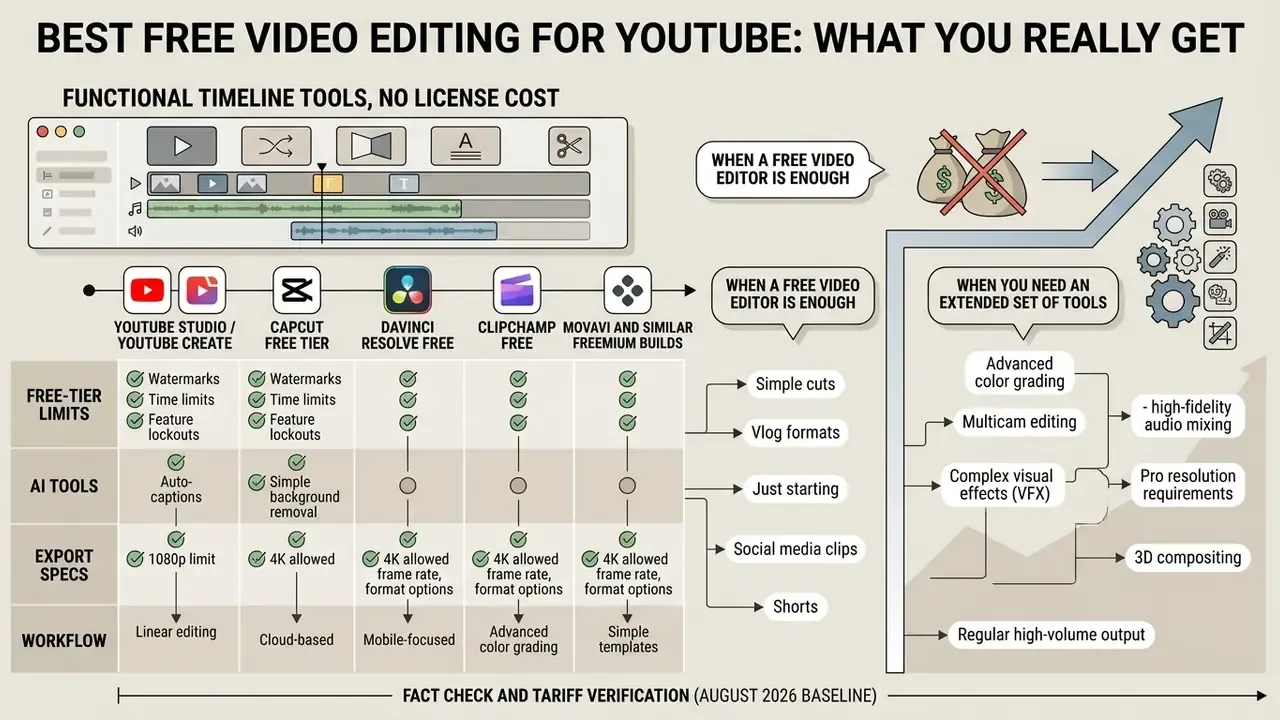
Free video editing software gives entry-level creators functional timeline tools with no license cost. Free plans still carry constraints: resolution caps, export watermarks, or gated access to advanced ai tools. Reading those limits honestly is the difference between a free stack that works and a free stack that quietly blocks your publishing schedule.
Weigh free feature tiers against channel growth plans and the upgrade moment becomes obvious rather than emotional.
Fact check and tariff verification (August 2026 baseline):
Free-tier constraints are the single most volatile data point in this space, which is why we re-verify them per build. For a side-by-side breakdown of the best youtube video editing software free options, see our comparison of free video editing software.
When a free video editor is enough for a YouTube channel
A free video editor covers channels built on talking-head videos, basic tutorials, and standard vlogs. Built-in tools like the YouTube Studio editor handle basic cuts, background blur, end screens, and royalty-free audio inside the browser, with one advantage no external tool can match: the original URL, view count, and analytics history survive the edit. For many creators that alone makes Studio the best place to edit youtube videos after publication.
In the launch phase, a free online video editor, a native platform app, or one of the free AI video generators keeps overhead near zero. Basic cutting tools are enough to build consistency, sharpen scripting, and hold a publishing schedule before spending on hardware or subscriptions. Concretely, free is enough when the workflow reads: record, trim, blur, add music, caption, publish, with no multi-layer compositing, no 10-bit grading, and no external reviewer loop. That is also why the best free youtube video maker for a beginner is usually the one already installed on their device.
Creators evaluating asset licensing can consult our guide on AI Media Commercial-Use terms.
When you need an extended set of video editing tools
Moving from a free editing tool to professional desktop video editing software, or to paid AI services, becomes necessary once requirements outgrow basic timeline features. The usual triggers: 10-bit color grading, multi-camera synchronization, automated AI script editing, or real time collaborative review.
Decision tree: stay free or upgrade
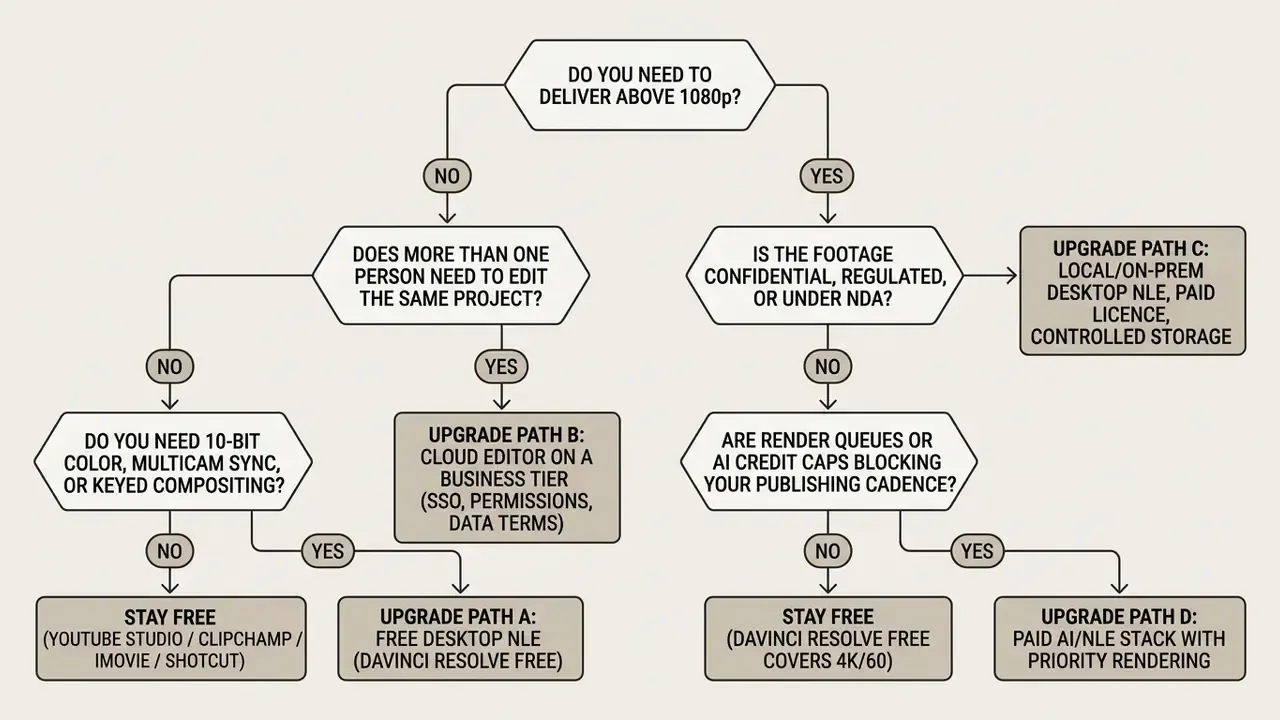
As production scales, free tier constraints turn into operational bottlenecks: export resolution limits, forced template watermarks, slow cloud rendering queues, AI credit caps, missing commercial rights for music. Upgrading to a full suite buys fast GPU rendering, access to advanced ai video generator plugins and the best AI video generators, and clean compliance with commercial broadcast standards.
For empirical performance data across editing setups, review our AI Media Benchmarks and Review Proof resource.
ROI and total cost of ownership
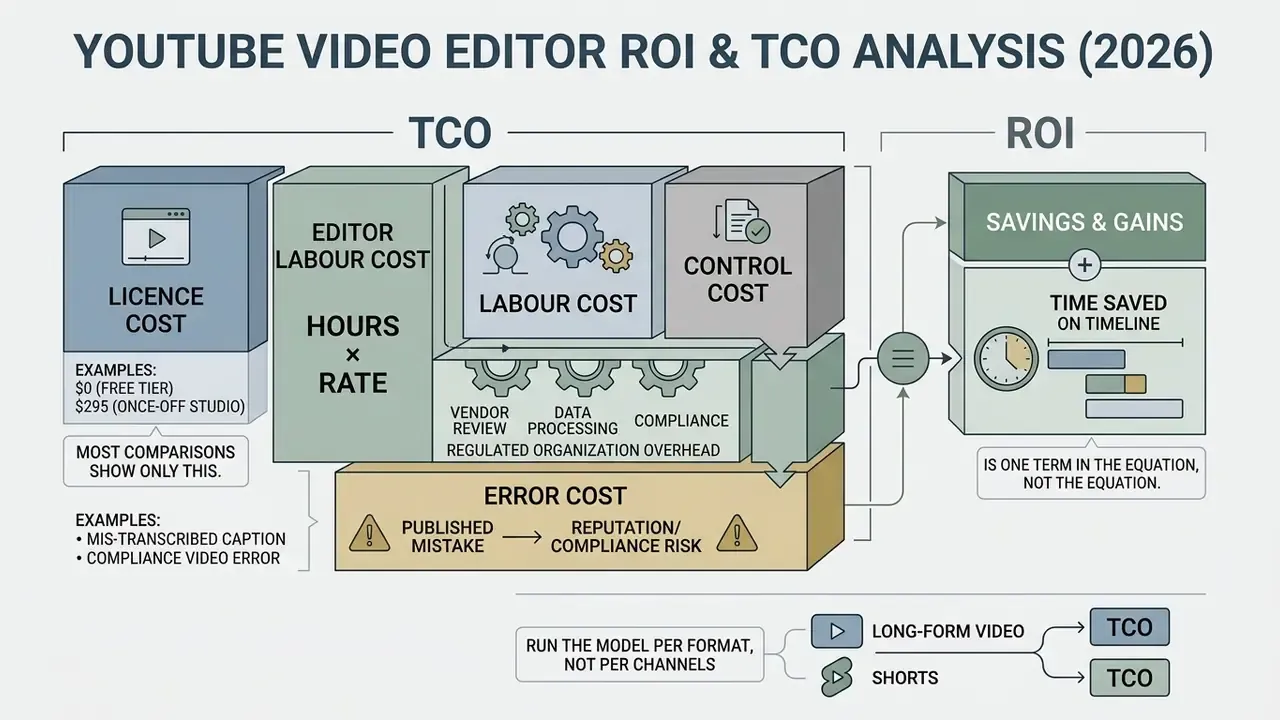
Time saved on the timeline is one term in the equation, not the equation. A defensible model for a video stack includes four:
TCO = licence cost + editor labour cost + control cost + error cost
- Licence cost is the only line most comparisons show: $0 for Resolve Free, $295 once for Resolve Studio, $9.99 to $11.99 per month for consumer subscriptions, more for a Creative Cloud seat.
- Editor labour cost is hours times rate. This is where AI automation pays. Using the stage table above, a channel publishing 8 long-form videos and 24 Shorts per month recovers most of its mechanical hours in rough-cut assembly, captioning, and reframing.
- Control cost is the overhead a regulated organization cannot avoid: vendor review, data-processing agreements, consent collection, licence logging, and the retained human verification pass. A free consumer tool with weak terms can carry a higher control cost than a paid business tier. That inversion surprises people.
- Error cost is the expected cost of a published mistake: a mis-transcribed caption in a compliance video, an unlicensed music bed, an AI-generated segment published without review. Multiply probability by remediation cost, whether that is a re-edit, a re-upload with lost analytics history, a takedown, or regulatory follow-up, and the value of the verification pass becomes explicit rather than assumed.
Run the model per format, not per channel. Shorts pipelines are labour-dominated and favour AI automation; brand-critical long-form is error-cost-dominated and favours slower, reviewed workflows on controlled infrastructure.
FAQ and open risk questions
Which editor do most YouTubers use?
There is no single answer, and category matters more than brand. Long-form and multicam creators cluster around Premiere Pro, DaVinci Resolve, and Final Cut Pro; high-cadence short-form creators cluster around CapCut, YouTube Create, and mobile Premiere; collaborative teams cluster around browser editors. Whatever tools other youtubers use, pick by format and constraint, then test one competitor before committing a year of workflow.
Can I edit a video that is already published without losing views?
Yes, and that is the one thing only YouTube Studio does. Trims, blurs, end screens, and audio-library swaps applied in Studio preserve the video URL, view count, and analytics history. Any external re-edit requires a new upload and resets the metrics.
Is a browser editor powerful enough for 4K?
Technically often yes, practically with caveats. Browser editors require Chromium 114+ or Safari 26.0+ for H.264/AAC encoding, and multi-track 4K timelines with stacked effects hit browser memory ceilings and network throughput limits well before a desktop NLE would strain. Use proxies, or move the project to a desktop editor for the finishing pass.
What is the best thing to edit youtube videos on: laptop, desktop, or phone?
Depends on the format, and the honest answer is that most channels end up with two devices. A phone is the best video creator for YouTube Shorts because it removes offload and reframing steps. A desktop with 16 GB RAM and dedicated GPU VRAM is the best video maker for YouTube long-form, because 4K multicam and grading are hardware problems. A mid-range laptop plus a browser editor sits between them and works fine up to 1080p.
How long should a YouTube Short be?
Shorts are vertical or square and, since YouTube's post-2024 classification change, can run up to 3 minutes. Older sources still cite 60 seconds, which is why the two figures coexist across the web. For repackaged long-form, 15 to 60 seconds per self-contained idea remains the practical working range.
Do AI auto-captions satisfy accessibility requirements on their own?
No. Auto-captions are a first draft. Section 508 guidance requires synchronization within 1–2 frames, inclusion of meaningful non-dialogue sound, and readable on-screen duration, all of which need a human pass. Keep the verification record.
Is there an optimal cut rate for retention?
No official YouTube figure exists, and no peer-reviewed source in our review set establishes one. Treat cut-rate advice as a hypothesis and validate it against your own retention curves.
Can I use built-in stock music commercially?
Only within the licence's scope. CapCut's Materials License, for example, attaches to the exported piece rather than to the asset, which means reuse in a new export is a new licensing question. Log the licence basis at export time.
What is the single most common governance failure in video production?
Uploading unreleased or personally identifiable footage into a free consumer cloud editor because it was faster than requesting an approved tool. That is Shadow AI in its most ordinary form, and policy plus an approved, equally fast alternative prevents it. Training slides alone do not.
Appendix A: superseded formulations
Retained for transparency and version traceability. The main text carries the corrected versions.
- Mobile editing time saving (originally in "Video editor apps")"In a hypothetical channel scaling scenario, a solo creator shifted from desktop assembly to mobile editing for daily YouTube Shorts, reducing per-clip editing time from 45 minutes to 12 minutes while maintaining 1080×1920 vertical export standards." Presented as a scenario without a source; replaced with a structural explanation plus an instruction to measure channel-specific data.
- Text based editing efficiency (originally in "Text based editing")"Empirical research by Tilekbay et al. (2024) on multimodal video editing demonstrates that transcript-aligned interfaces reduce rough-cut assembly times by up to 35% compared to manual timeline cutting." The 35% figure lacks a documented methodology in the accessible portion of the study; replaced with the study's verifiable finding on speed and error rate.
- Project structuring source (originally in "Montage, trimming, and assembling")"Research on video editing workflows (Georgia Tech Postproduction Guide) confirms that structuring a project requires separating raw media into discrete timeline sequences." Re-attributed to verifiable vendor post-production documentation.
- Import settings source (originally in "Project preparation")"Media organization guides (Georgia Tech Video Postproduction Baseline) emphasize matching project sequence settings directly to source camera capture parameters." Re-attributed to Avid's Input and Output Guide, which specifies project edit rates and pre-import resolution behaviour.
- Cut-rate claim (originally in "Editing the main video")"Industry analysis indicates there is no single mandatory cut-rate enforced by YouTube algorithms." Retained in substance but explicitly flagged as unsupported by primary platform documentation and requiring channel-level measurement.
- Graphic placeholdersthe text markers for the AI-versus-traditional workflow infographic and the free-versus-paid decision-tree diagram have been replaced by, respectively, the stage-level time-recovery table and the text decision tree in the main body.
About this analysis. Compiled by the AI Media editorial desk, which maintains our AI Media Workflows hub, free-tool comparisons, and export benchmarking. Technical parameters were checked against YouTube's official upload and encoder guidance, Adobe and Blackmagic Design product documentation, Avid's Input and Output Guide, IMG.LY browser-support documentation, EBU R 128 and ATSC A/85, U.S. Section 508 and DCMP captioning guidance, and the peer-reviewed studies cited inline. Pricing and free-tier limits reflect the August 2026 verification pass and change often, so re-check vendor pages before procurement.