An online video compressor reduces digital file size by removing spatial and temporal redundancies inside raw or high-bitrate video streams. Web-based processing lets you shrink a video file directly in the browser, using automated or custom compression settings, with no desktop software to install. That sounds trivial. It stops being trivial the moment the footage is client-owned, privileged, or headed for a court docket.
"In media engineering and operational risk, reducing file size without structural degradation relies strictly on rate-distortion optimization and perceptual thresholds rather than automated claims."
Executive Summary
- "Without losing quality" means visually lossless, not mathematically lossless. True lossless coding yields only 2:1 to 3:1 reduction (SWGDE, 2025); everything beyond that is lossy, though it can stay perceptually transparent above VMAF 80.
- Always leave a safety margin of 5 to 8%. Target 23MB for a 25MB Gmail cap, 15MB for WhatsApp's 16MB video cap, 18MB for Discord's free 20MB limit, 48MB for Discord Nitro (50MB), and 95MB for Slack (100MB).
- Duration drives quality more than any preset. At 10MB: under 15 seconds looks clean at 1080p, 30 seconds at 720p, one minute at 480p to 720p.
- Trim first, compress second. Removing 10 unnecessary seconds, exporting voice-only content to MP3, or converting a 5-second loop to GIF or WebP usually beats bitrate starvation.
Who This Guide Is For, and the Fastest Path Through It
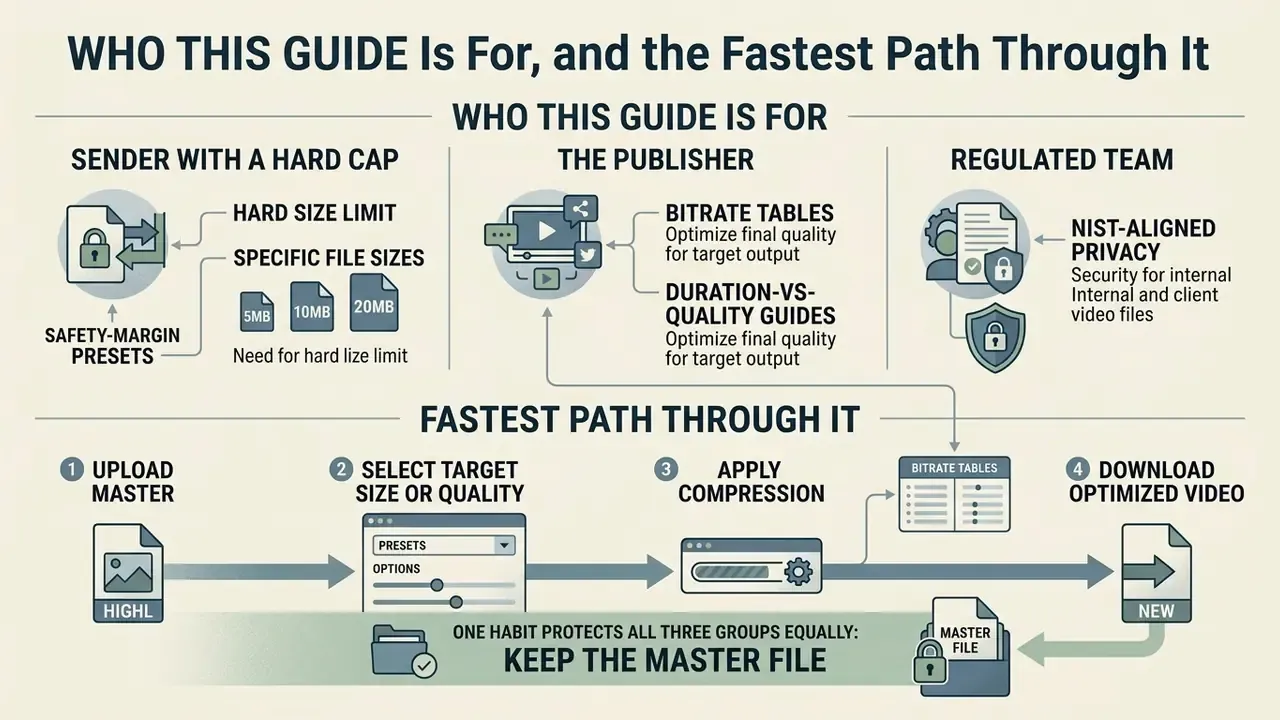
Three readers usually land here, and they need different things from the same tool.
The sender with a hard cap. You have a 340MB screen recording and a 25MB mail server. Skip to the exact-size section, read the safety-margin rule, enter 23MB, and check the byte count before you hit send. Total time: under two minutes.
The publisher. You care about page weight, Largest Contentful Paint, and YouTube's re-encode. Your value sits in the website and YouTube section, plus the mezzanine-first workflow note.
The regulated team. Legal operations, internal audit, compliance, model risk. For you the encoding question is second. The first question is whether the footage leaves the device at all, who processes it, and how the retention window maps to your records schedule. Start with the enterprise checklist, then come back for the bitrate tables. If your reviewers need a broader vendor view, our AI Media Comparison Matrices and AI Media Commercial-Use Hub cover licensing and export terms across adjacent tool categories.
One habit protects all three groups equally: keep the master file. Every decision below assumes you still hold an untouched original somewhere.
How to Compress Video Online
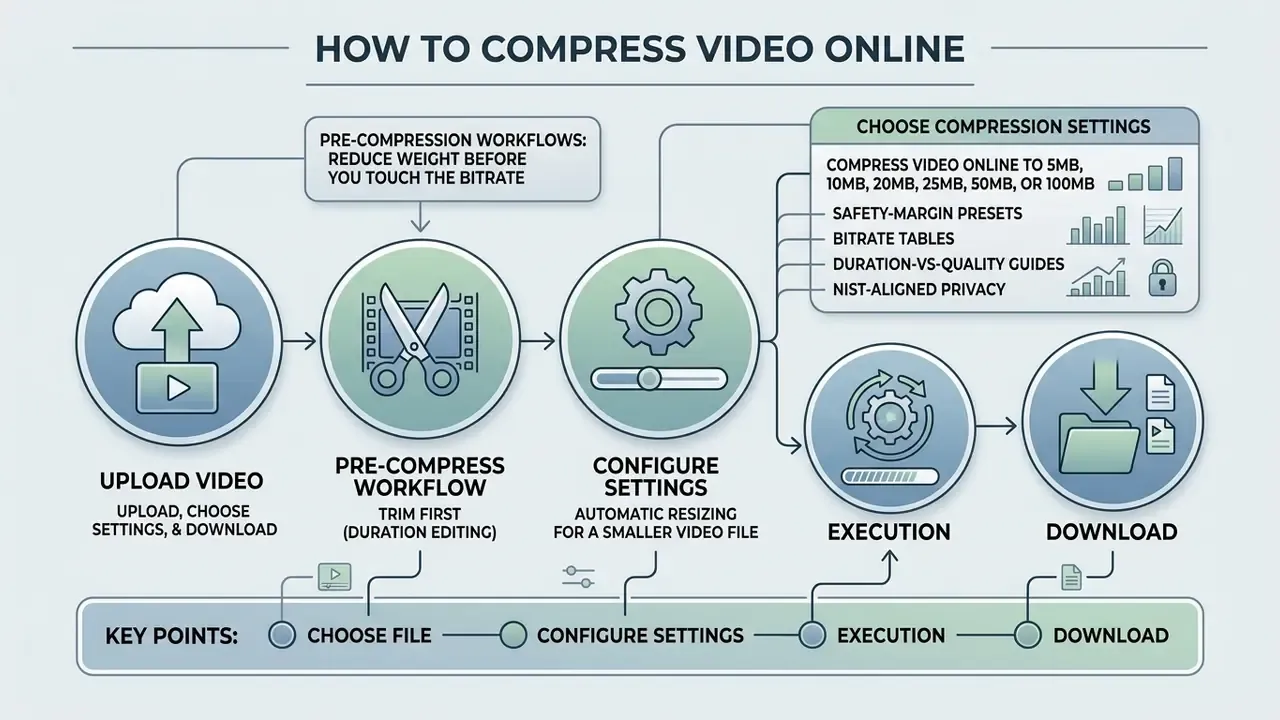
An online video compressor works as an end-to-end web workflow. You upload a video file, configure encoding parameters, run the compression process, then download the optimized media file. Modern web platforms handle files locally in the browser through WebAssembly and the WebCodecs API, which exposes hardware-accelerated video frame encoding, or remotely through cloud rendering pipelines when the source file exceeds the local memory budget.
Online Video Compression Workflow (process diagram)
| Stage | 1 · Choose File | 2 · Set Target | 3 · Process | 4 · Download |
|---|---|---|---|---|
| Action | Select or drag-and-drop MP4 / MOV / MKV / WebM | Pick target size, resolution, or CRF preset | In-browser (WebAssembly + WebCodecs) or cloud encoding | Save the compressed MP4 |
| What to watch | Container support in your browser | Add a 5 to 8% safety margin | Progress bar, estimated time, tab memory | Verify final byte size before sending |
Step-by-step execution:




Upload, choose compression settings, and download
You begin by selecting a media file: click the choose file button, or use drag-and-drop input. After the file select action completes, the interface offers options to adjust the compression level, target bitrate, or export resolution. Once you click the compress button, the conversion process efficiently encodes the input stream into a smaller container. When processing finishes, the download button gives immediate access to save the compressed output to device internal storage or a preferred cloud location.
Well-designed interfaces also show an estimated output size before encoding starts. That single number saves real time, because you can shorten the clip or drop a resolution tier instead of discovering a failed limit after a three-minute wait.
A small illustrative case, composite rather than a named client. A corporate communications team needed to distribute an internal video brief that exceeded the server attachment limit. They uploaded a 450MB master to a browser-based compression tool, selected an automated H.264 profile capped at 20MB, and processed the file in roughly 40 seconds. The resulting 18.5MB video kept full speech clarity and smooth playback, and it moved through restricted corporate channels the same morning. No infrastructure ticket, no file-transfer request.
Automatic resizing for a smaller video file
An automatic resizing process reads the input stream's source resolution, frame rate, and bitrate, then calculates output parameters without manual intervention. Content-aware downscaling analyses visual motion and frame complexity, shrinking spatial dimensions while maintaining video quality. The reduce resize online pipeline applies variable bitrate allocation so the perfectly resized video fits standard delivery constraints. Once encoding concludes, the resized video gets saved at a lower file weight, which makes file transfers painless on slow or metered connections.
A caveat that is easy to miss: automatic mode optimises for an average case. Screen recordings with dense text and legal video with fine detail are not average, and both deserve manual settings.
Pre-compression workflows: reduce weight before you touch the bitrate
The most common mistake is jumping straight to aggressive bitrate reduction. Four preparatory steps usually preserve far more perceptual quality than a lower CRF ever will.
- Trim first (duration editing).File size equals average bitrate multiplied by duration, so deleting 5 to 10 seconds of dead air, slates, or countdowns saves megabytes without degrading a single retained frame. For a 16MB messaging cap, trimming is mathematically more efficient than downscaling.
- Export audio only (MP3 or AAC).If the asset is a lecture, a voice memo, a podcast recording, or a talking-head briefing where the visuals add nothing, extracting the audio track removes roughly 90 to 95% of the payload and slips under any 5MB or 10MB limit instantly.
- Convert short loops to GIF or WebP.For silent, looping clips under about five seconds, such as UI bug reproductions, product micro-animations, or README demos, an animated GIF or WebP renders inline in chat clients and fits hard channel limits with no playback controls at all.
- Speed up long recordings.Raising playback speed on a screen recording removes frames outright, which lowers total bits far more predictably than dropping quality across the whole timeline.
If you plan to re-cut the asset rather than simply shrink it, pairing a compressor with dedicated free video editing software keeps the trimming step non-destructive before the final encode.
Enterprise Security and Compliance Checklist Before You Upload
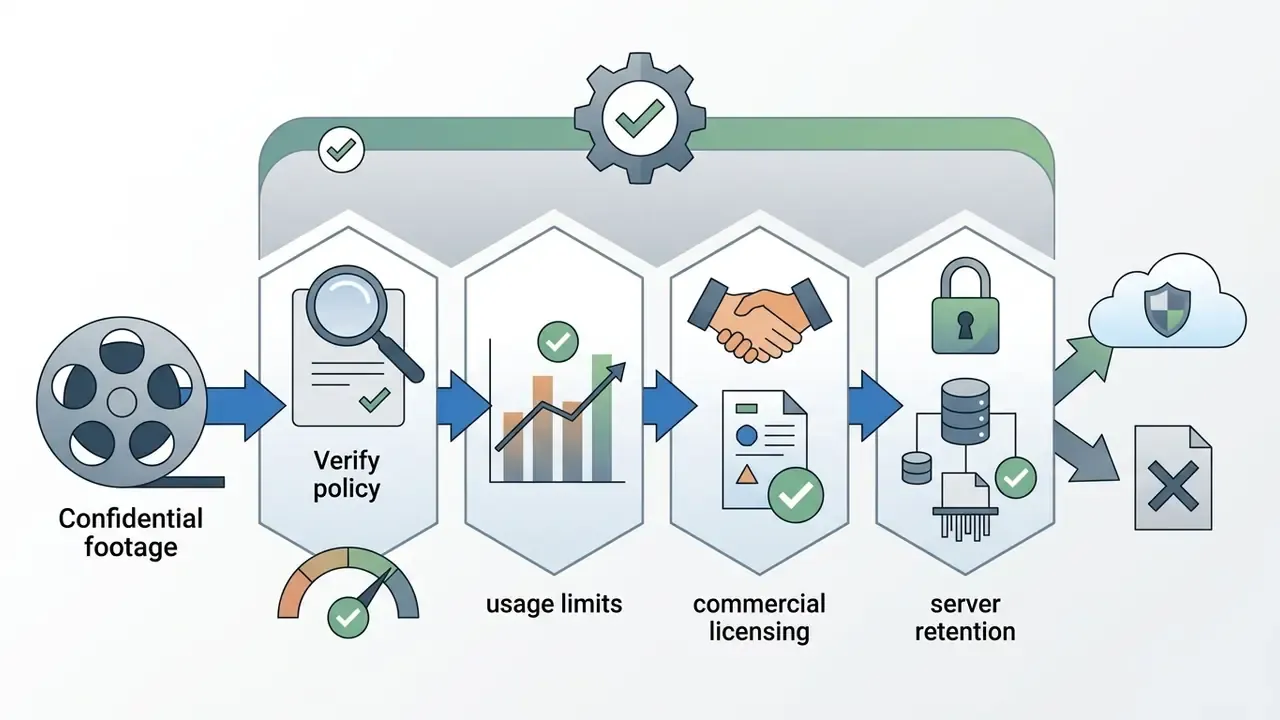
For regulated teams, the vendor-risk question precedes the encoding question. Run this checklist before any confidential, evidentiary, or client-owned footage enters a browser tab.
| Control | What to verify | Why it matters |
|---|---|---|
| Processing location | Local (WebAssembly / WebCodecs, files never transmitted) vs cloud (server-side transcode) | Local processing avoids third-party data transfer entirely and removes most shadow IT exposure |
| Transport security | Encrypted HTTPS/TLS transport for any upload or execution phase | Protects footage in transit when server-side processing is unavoidable |
| Retention and deletion | Documented automatic purge window (commonly 1 to 24 hours) aligned with recognised media-sanitization practice | NIST SP 800-88 Rev. 2 defines clear and purge methods for storage media before reuse or disposal: NIST SP 800-88 Rev. 2 |
| Retention policy mapping | Whether the provider's window fits your own records-retention schedule | NIST SP 800-53 Rev. 5 requires video records to be retained for an organization-defined period consistent with policy |
| Watermark policy | No mandatory branding overlay on free-tier exports | Branded output is unusable for client-facing or evidentiary deliverables |
| Usage limits | Daily quotas, file-size caps, resolution gating | Prevents workflow interruption during time-sensitive filings |
| Commercial licence | Explicit permission for commercial distribution | Some free tiers are limited to personal, non-commercial use |
| Account requirement | Signup vs anonymous use | Fewer identity artifacts means less data-footprint review effort |
Local versus cloud, at a glance: browser-only tools bind you to device RAM but keep data on-premises. Cloud pipelines swallow multi-gigabyte sources, yet they create a processor relationship that somebody has to assess and document. Choose local for sensitive material, cloud for volume. If ownership of that assessment is unclear inside your organisation, that ambiguity is the finding, not the tool.
Teams that price the control overhead alongside the licence fee tend to make cleaner decisions. Our AI Media Calculators and AI Media Pricing Guides are useful for that arithmetic, because the true cost of a "free" tool includes review time, not just zero dollars.
How Video Compression Reduces File Size
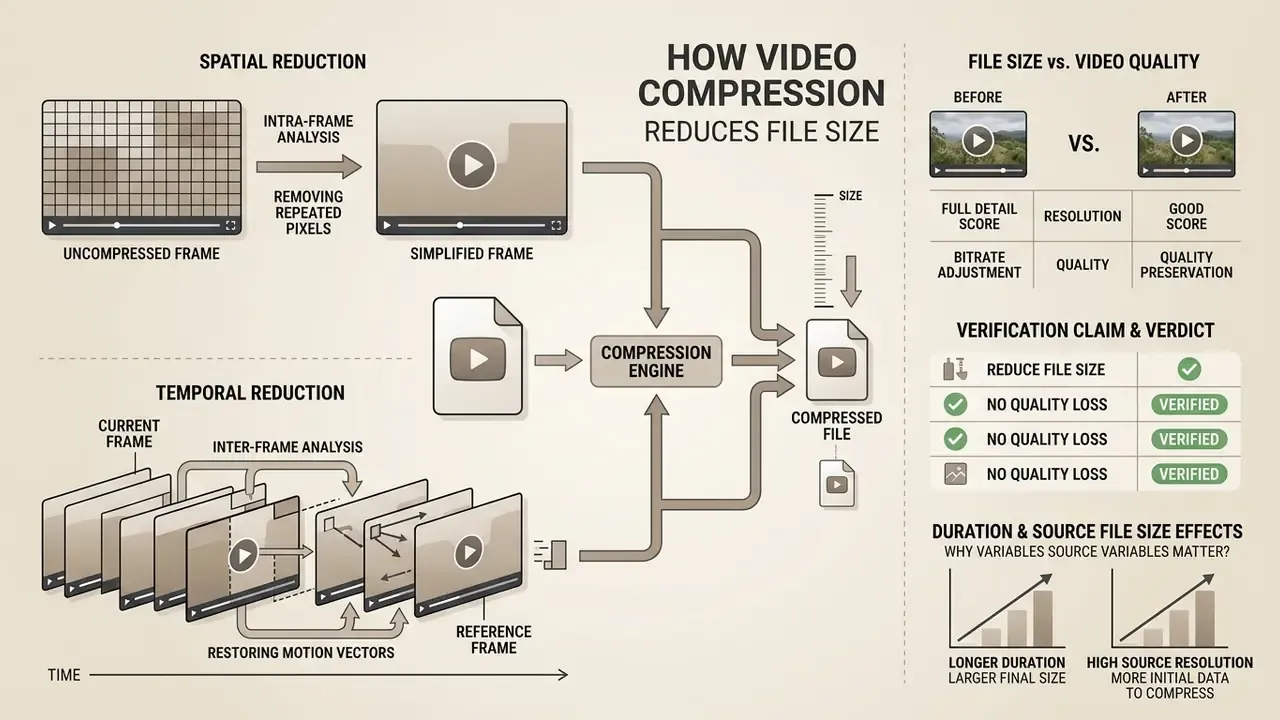
Video compression reduces file size by finding and removing spatial redundancy inside individual frames and temporal redundancy across consecutive frames. Codecs analyse pixel blocks, apply mathematical transforms, and discard visually imperceptible data while keeping the core structural information. In practice, I-frames are stored as complete independent keyframes, while P-frames and B-frames store only predicted differences. That is exactly why a static talking-head clip compresses dramatically better than handheld action footage of identical length.
File size versus video quality
Reducing video file size is a mathematical trade-off between bit allocation and visual fidelity, governed by rate-distortion theory. Lossless compression preserves exact pixel data and yields minimal size reduction. Lossy encoding discards redundant data and achieves the compression ratios people actually need.
«Perceptual quality remains stable when compression loss stays within a Just Noticeable Difference threshold of six VMAF points.»
The method behind that figure matters. MCBE estimates per-title bitrate ladders across multiple codecs and validates each rung against VMAF, treating six VMAF points as one JND, the smallest difference an average viewer reliably notices under standard viewing conditions. That is the operational definition of "visually lossless" used throughout this guide.
Codec efficiency is the second lever, and it is measurable rather than rhetorical:
«ECM achieves approximately 14% BD-rate saving over VVC, delivering the same quality at a lower bitrate.»
Maintaining video quality without losing quality depends on balancing target bitrate, codec efficiency, and resolution downscaling. CRF-based encoding holds perceptual quality steady and lets bitrate float. Target-bitrate encoding fixes file size and lets quality float. That difference is the whole reason exact-size compression needs the safety margins described below. On the x264 and x265 scale, a CRF shift of about six roughly doubles or halves output size.
FACT CHECK / VERIFICATION
Why duration and source file size affect the result
Total file size is the direct product of average bitrate multiplied by duration in seconds. Longer clips spread the available bit budget across more frames, which forces lower per-frame allocation to meet a tight target file size. A high-bitrate source with dynamic motion demands more data than a static talking-head clip at the same resolution.
Codec documentation and Internet-codec evaluation guidance, including the informational IETF specification RFC 8761: Video Codec Requirements and Evaluation Methodology (datatracker.ietf.org/doc/html/rfc8761), frame compression efficiency as something to be measured per content type rather than assumed. Temporal redundancy and frame rate strongly influence the compression ratio achievable before artifacts appear, but the ceiling is content-dependent. Verify it with perceptual metrics; do not treat it as a fixed rule.
«High-motion content requires more bits to preserve quality. AV1 shows the largest savings precisely on such material.»
Frame rate compounds the effect. At a fixed bitrate, a 60fps export divides the same bit budget across twice as many frames as a 30fps export, which lowers per-frame fidelity. For strict megabyte caps, dropping to 30fps is frequently a better trade than dropping a resolution tier. Frequently, not always: sport and fast gameplay are the obvious exceptions.
Compress Video to an Exact Size: 5MB, 10MB, 20MB, and 25MB
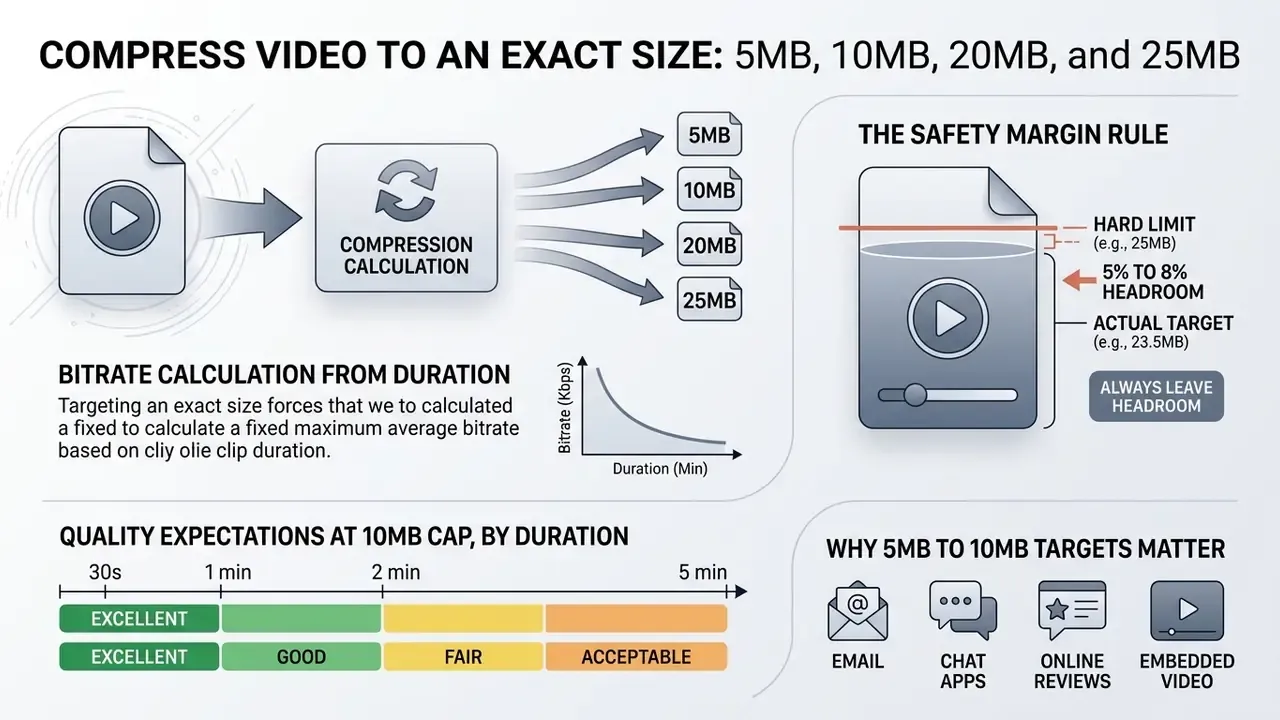
Targeting an exact size forces the compression tool to calculate a fixed maximum average bitrate from clip duration. Explicit megabyte caps keep media files inside email, messaging, and form-submission restrictions.
«DQ-Ladder reduces BD-rate for XPSNR by at least 10.3% and decoding time by 22% compared with a baseline HLS ladder.»
That ladder logic is what a good exact-size compressor emulates on a single file. Instead of guessing one bitrate, it evaluates resolution and bitrate pairs, then picks the rung that maximises perceptual quality inside your byte budget.
The safety margin rule: never target the hard limit exactly
Always leave 5 to 8% of headroom. MP4 container overhead (moov atom, index tables, muxer padding) plus the MIME and base64 overhead applied by mail servers means a file encoded to exactly 25.0MB often arrives over the wire at 26MB or more. Then it gets rejected, or silently converted into a cloud link you did not ask for.
| Platform / destination | Hard limit | Target size to enter in the tool | Realistic quality expectation |
|---|---|---|---|
| Gmail / Outlook / Yahoo attachment | 25MB | 23MB | Clips up to about 2 minutes at 720p |
| WhatsApp video message | 16MB | 15MB | Short clips up to about 1 minute at 720p |
| Discord (free tier) | 20MB | 18MB | Short clips at 480p to 720p |
| Discord Nitro | 50MB | 48MB | Clips up to about 4 minutes at genuine 1080p |
| Slack (free workspace) | 100MB | 95MB | Longer clips at 1080p |
| Corporate or school mail servers | 10MB | 9MB | 30 to 60 seconds at 480p to 720p |
| MMS (carrier-dependent) | 1 to 10MB | 1 to 9MB | 10 to 30 seconds at 360p to 480p |
| LMS submission (Canvas, Moodle, Blackboard) | 10 to 25MB | 9MB / 23MB | 1 to 2 minutes at 480p to 720p |
| Web or social upload | No hard cap | 30 to 50MB | 1080p that uploads fast and stays sharp |
Encoder reference table, with the margin already applied:
| Target file size | Typical use case | Recommended settings | Preset to enter (with margin) | Key checks before download |
|---|---|---|---|---|
| 5MB | Strict email attachments, legacy web forms, MMS | 480p or 360p, 500 to 800 kbps bitrate, 96 kbps audio | 4.6MB | Verify text readability and check for heavy blockiness |
| 10MB | Outlook corporate email, LMS uploads, messaging apps | 720p or 480p, 1,000 to 1,500 kbps bitrate, 128 kbps audio | 9MB | Check motion smoothness and confirm audio stays clear |
| 20MB | Discord free limit, corporate chat platforms | 720p or 1080p, 1,800 to 2,500 kbps bitrate | 18MB | Confirm aspect ratio retention and watch for playback buffering |
| 25MB | Gmail attachment ceiling, web embeds | 1080p or 720p, 2,500 to 3,500 kbps bitrate | 23MB | Keep the file strictly under 25.0MB to prevent a cloud handoff |
Video compressor for 5MB and 10MB limits
A 5mb video compressor or 10mb video compressor optimises short clips for strict delivery environments such as direct email attachment limits. Mail services enforce rigid message caps, and a 5 mb video compressor or 10 mb compressor video tool prevents the rejection bounce. Hitting a 5mb video compressor target on a one-minute video means downscaling to 480p and capping audio at 96 kbps. A 10mb video compressor keeps acceptable 720p fidelity for short promotional clips intended for quick email delivery. For a truly tiny asset, such as a 1mb video compressor target for a legacy form, plan on 360p and under 15 seconds; below that, a GIF or a still frame communicates better than a smeared video.
Once the clip is sized, a dedicated free video editing software package handles any follow-up recut without compressing an already lossy file a second time.
Quality expectations at a 10MB cap, by duration:
| Clip duration | Achievable quality at 10MB | Notes |
|---|---|---|
| Up to 15 seconds | Excellent 1080p (Full HD) | No visible detail loss for most content |
| 30 seconds | Crisp 720p (HD) | The ideal balance for messengers and email |
| 1 minute | 480p to 720p | Acceptable for on-screen text and screen recordings |
| Over 2 minutes | 360p to 480p | Trim the timeline first to protect quality |
The same curve applies to a 5MB budget shifted one tier down. Fifteen seconds holds 720p comfortably, 30 seconds lands at 480p, and anything past a minute should be trimmed rather than starved.
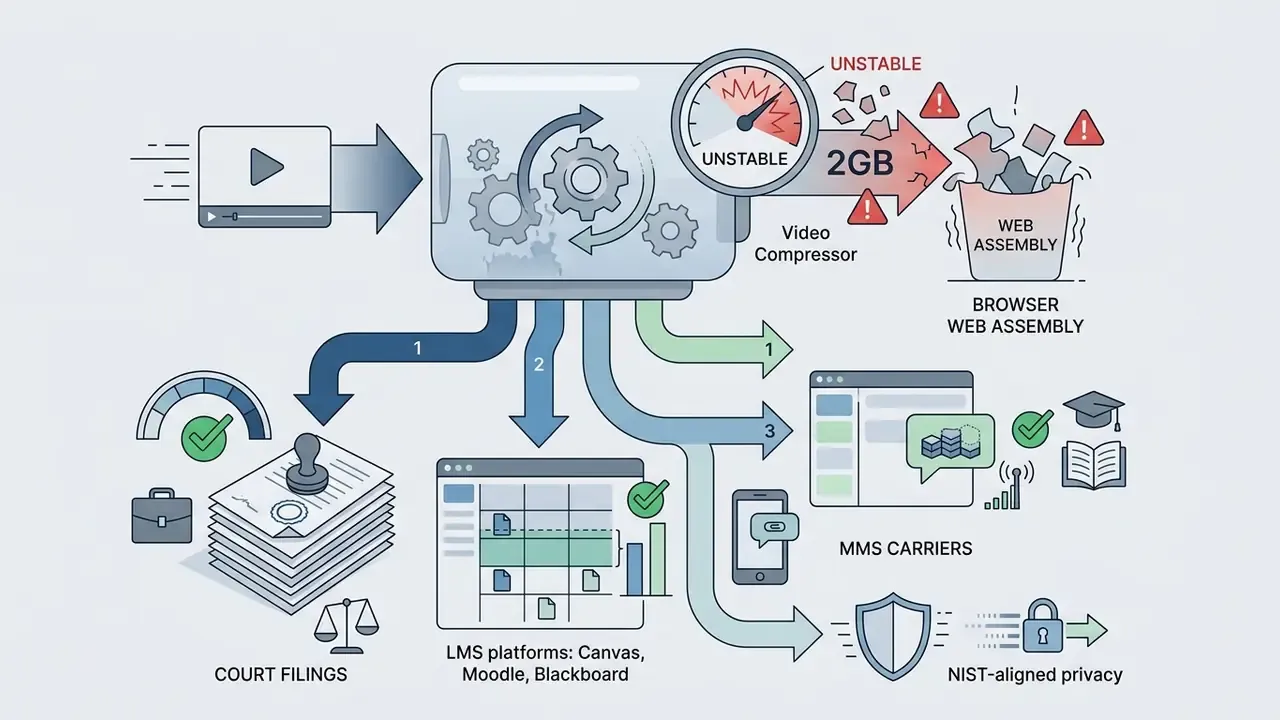
Why 5MB to 10MB targets matter beyond email. This range is critical for sending media over cellular networks via MMS, where carriers commonly cap messages between 1MB and 10MB. It matters for student submissions to learning management systems such as Canvas, Moodle, and Blackboard, which frequently reject uploads above 10MB. Some Discord server bots and legacy messaging platforms enforce 10MB caps too. Across all of them, a compressed H.264 MP4 remains the safest interchange format.
Compress video to 20MB or 25MB
Setting target parameters on a 20mb video compressor or 25mb video compressor accommodates higher resolutions for platform sharing and easy sharing inside chat tools. Discord enforces a 20MB free upload ceiling, which makes a 20 mb video compressor essential for community media distribution. Gmail routes attachments above 25MB to Google Drive, so a 25 mb video compressor or 25mb video compressor setting keeps media inline within the email client. A 20 mb video compressor tool delivers smooth 720p or 1080p playback without crossing standard network attachment thresholds. For subscribers on Discord Nitro, where the cap rises to 50MB, set the target to 48MB. That is enough headroom for a four-minute clip at genuine 1080p rather than an upscaled 720p that merely claims Full HD.
A note on Outlook and Exchange. Reported limits vary by product and account type, from roughly 10MB on some classic business Exchange configurations, to 20MB in general internet email guidance, to 25MB on consumer webmail. When the recipient's configuration is unknown, a 9MB export is the only universally safe choice. Unglamorous, yes. It also never bounces.
Video Compressor for 50MB, 100MB, 500MB, and Large Files
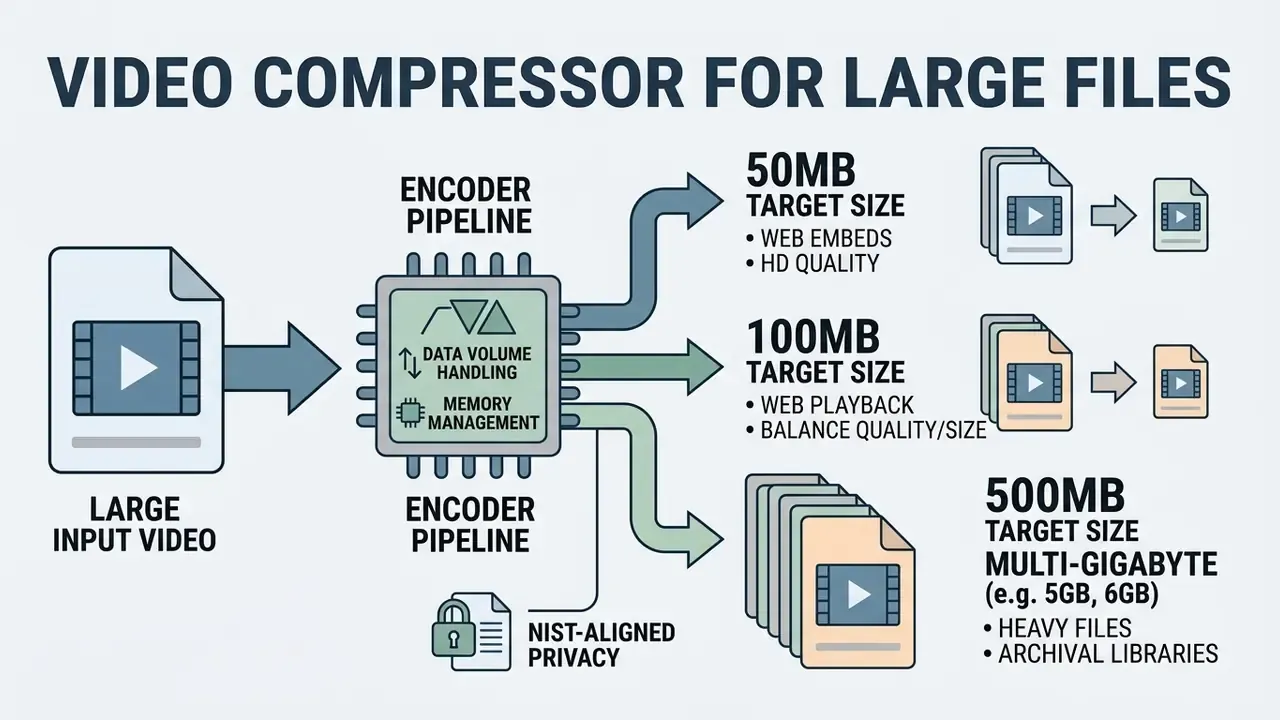
Compressing larger video files requires encoder pipelines that handle substantial data volumes without exhausting browser memory. Targets between 50MB and several gigabytes serve web publishing, portal submissions, and archival storage workflows.
When 50MB and 100MB are suitable target sizes
A 50 mb video compressor or 100mb video compressor configuration suits high-definition web embeds and digital portal uploads. Federal court filing platforms, including the U.S. District Court CM/ECF systems, enforce a strict 50MB maximum per electronic attachment. The Central and Northern Districts of California both publish a 50MB single-file ceiling, above which the upload simply errors out. A 50mb video compressor lets legal and corporate operations teams submit motion video evidence directly through web portals, so target 48MB and container overhead cannot push the filing over the cap at the worst possible moment. Teams tracking procedural detail around digital exhibits may also find our AI Litigation and Case Timelines hub a useful companion read.
Selecting a 100 mb video compressor or 100mb video compressor setting balances web playback quality against faster site loading on media-rich pages, and 95MB is the safe preset for Slack's free-workspace ceiling. Readers comparing encoders and pricing tiers can review the broader landscape of video compressors for format support, quality-loss behaviour, and licensing detail.
Compressing 500MB and multi-gigabyte video files
Handling heavy files with a 500mb video compressor, 5 gb video compressor, or 6 gb video compressor online platform is mostly an exercise in browser memory management and bandwidth planning. Browser-based WebAssembly encoders keep frame buffers in local RAM, and because wasm32 addressing is bounded at roughly 2 to 4GB per tab, files above 2GB can crash the tab once device internal storage or memory allocation limits are breached. Mobile browsers are stricter still: reported implementations terminate tabs near 500MB, and hybrid designs switch from in-memory filesystems to disk-backed ones above about 128MB for exactly this reason. For sources that need a 5 gb video compressor or 6 gb video compressor online mode, hybrid or cloud-assisted processing prevents connection-drop failures. A steady internet connection is not a nicety here; it is what stops a half-uploaded file from corrupting.
«MCBE reduces storage energy consumption by 94.99% and delivery energy by 77.61% versus baseline ladders at a six-VMAF-point JND threshold.»
For archival libraries, that is the business case in one number. Correctly chosen ladders cut both storage and egress cost without crossing the perceptual threshold. Worth noting too: browser transfer ceilings are not unique to compressors. Public-sector guidance places general browser upload and download limits at about 2GB, and routes anything past 10GB to dedicated file-transfer services. If your workflow regularly crosses that line, a scripted pipeline beats a browser tab; our AI Media API Guides cover how those automated paths are usually wired up.
Supported Video Formats and Devices
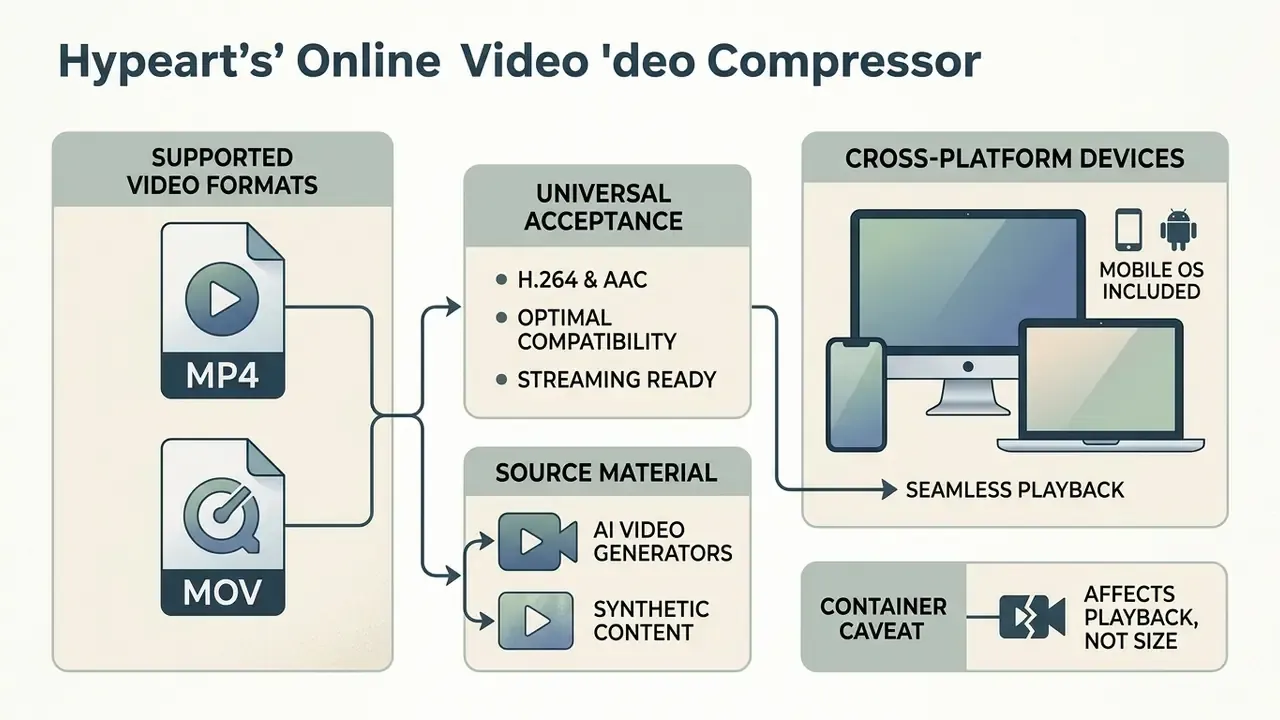
Modern online compression tools accept diverse container formats and run across cross-platform environments, mobile operating systems included. Container normalization is what makes compressed output play seamlessly on consumer devices.
Compress and convert MP4 and MOV video files
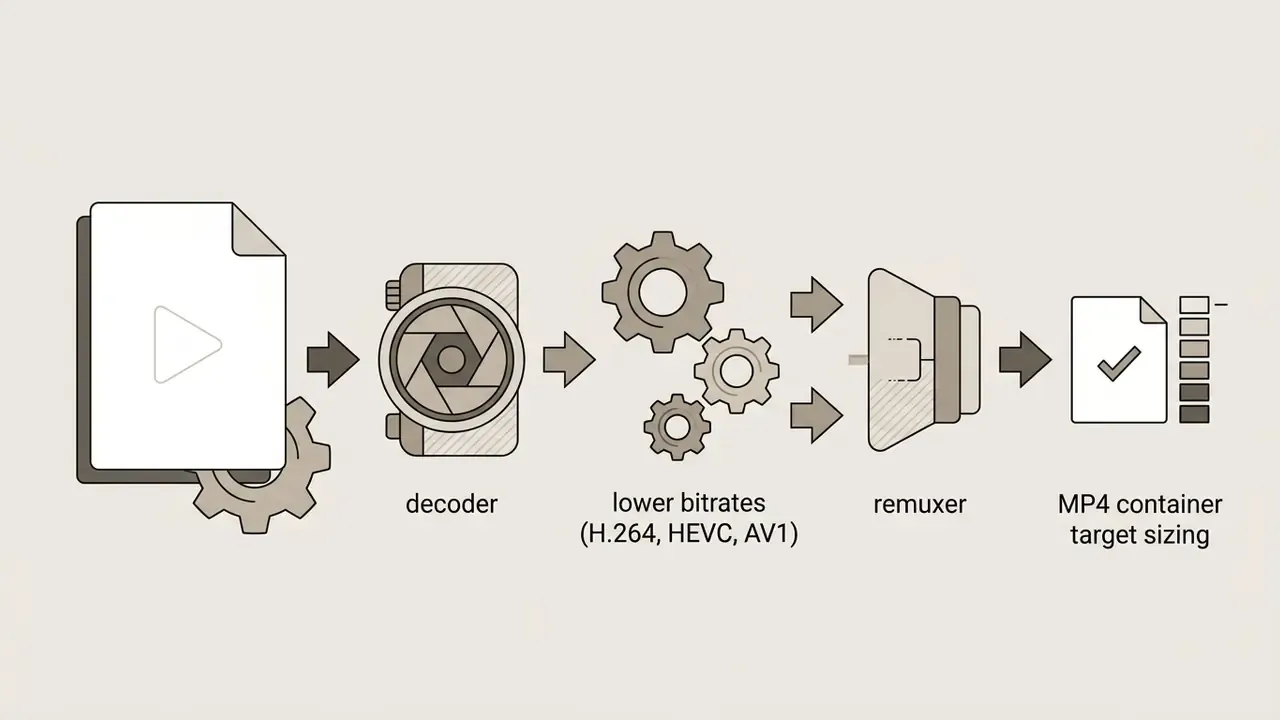
Most web tools handle MP4 MOV container inputs, since MP4 (H.264 with AAC) serves as the universal distribution standard across browsers and operating systems. High-bitrate MOV files holding Apple ProRes or uncompressed camera footage need conversion to convert video streams into compressed MP4 form. A versatile video converter or video compressor tool extracts raw video tracks, applies spatial compression, and remuxes the media into an optimised container, so you can easily convert video from a camera master and seamlessly convert it again for delivery.
Teams producing source material with AI video generators meet the same conversion step, because synthetic renders often arrive as high-bitrate intermediates. Animated and stylised output behaves the same way: files from an ai cartoon video pipeline or an ai cartoon generator tend to compress efficiently thanks to flat colour regions, while photoreal renders do not. This conversion process efficiently reduces storage footprints while keeping cross-platform playback compatibility.
«AV1 delivers the largest bitrate savings for high-motion content among AVC, VP9, HEVC, AVS2 and AV1.»
Container transcoding flow
| Stage | Source | Decode | Transcode | Output |
|---|---|---|---|---|
| Format | MOV (ProRes 422/4444, high-bitrate) or MKV / WebM / AVI | Online decoder and demuxer | H.264, HEVC, or AV1 encoder | MP4, web-ready, compressed |
| Role | Mezzanine master | Track extraction | Rate-distortion optimisation | Universal delivery |
One container caveat affects playback more than size. For MP4 and 3GPP files, Android requires the moov atom to precede any mdat atom, following ftyp. Compressors that write a faststart-ordered MP4 therefore begin playback immediately, while badly muxed output can stall on mobile even when the file is small. An 8bit video compressor profile, meaning 8-bit colour depth rather than 10-bit, is also the safer default for broad device compatibility.
Why Compress Video for Email, Sharing, Websites, and YouTube
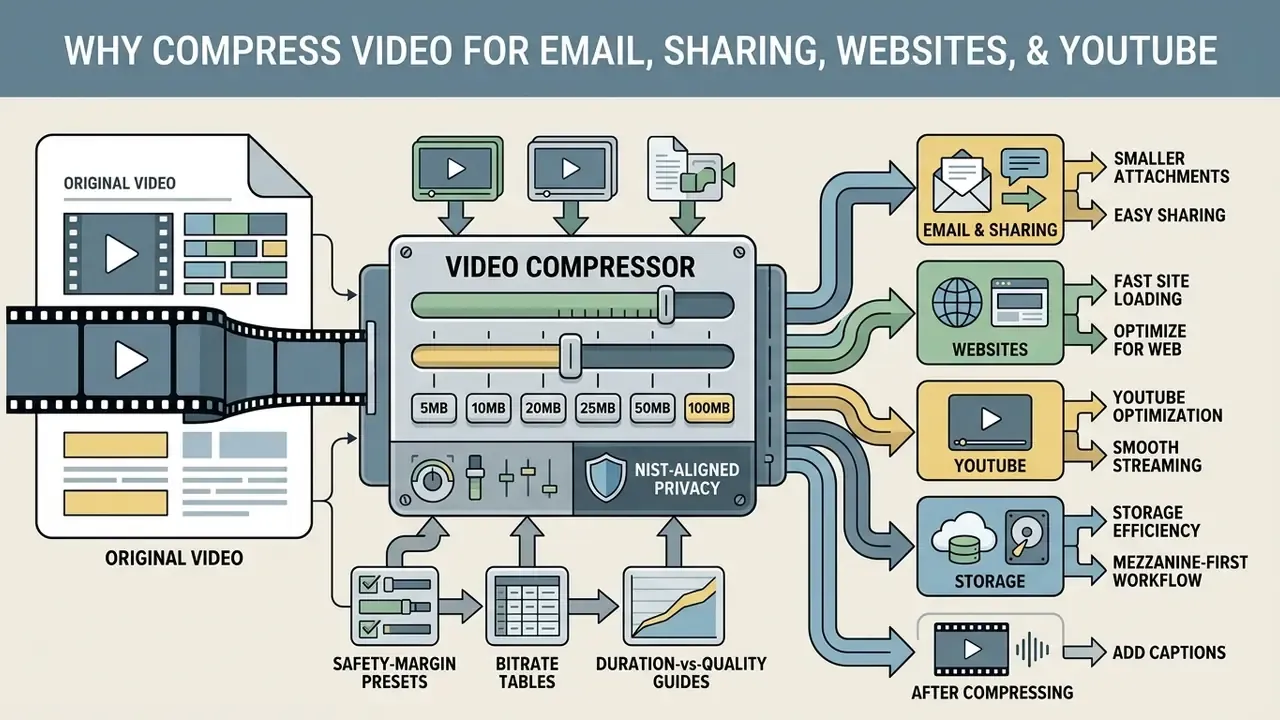
Compressing video resolves delivery bottlenecks across communication, marketing, and publishing channels. Lighter media transfers faster and holds attention longer.
Smaller videos for email attachments and sharing
Shrinking media files lets messages bypass mail server rejection filters and land in the recipient's inbox as a normal email attachment. Uncompressed camera footage blows past standard 20MB to 25MB boundaries in seconds of runtime. Reducing video file size creates smaller files that upload instantly, stream smoothly in chat applications, and download save without eating a mobile data allowance.
Where the file genuinely cannot fit, say a 20-minute recording under a 10MB cap, a cloud-storage link is the professional answer. Pushing the bitrate low enough to meet that limit destroys the very message you were trying to send.
Optimize video for websites and YouTube
Optimising web media affects site performance and search visibility directly. Large background videos slow page responsiveness and drag down Google Core Web Vitals, particularly Largest Contentful Paint when a hero video competes for bandwidth with the main content.
- Faster site loading compressed MP4 and WebM files cut bandwidth consumption and server response times. Serve background loops muted, with no audio track, and preload metadata only.
- YouTube optimisation uploading pre-compressed H.264 files that match YouTube's recommended encoding guidelines (MP4 container, H.264 video, AAC-LC audio at 48 kHz, progressive scan, and the same frame rate used during recording) speeds up platform processing and avoids double-compression artifacts. Creators building a full publishing pipeline can pair compression with dedicated YouTube video editors to keep export settings consistent across a channel.
- Storage efficiency lower bitrates reduce long-term cloud hosting cost, and a well-chosen ladder compounds that saving across every stored rendition.
- Add captions after compressing. For social feeds and LMS-hosted lessons, burn in or attach captions. A large share of messenger and feed viewers watch with sound off, so uncaptioned video loses its message no matter how clean the encode is.
- Mezzanine-first workflow. W3C's Web Media Application Developer Guidelines recommend creating a mezzanine master, deciding a rendition set, choosing delivery formats, defining encoding profiles, and only then transcoding. That order is what stops a single compressed export from becoming your only surviving copy.
Secondary Use Cases: Mobile Browsers and Social Platforms
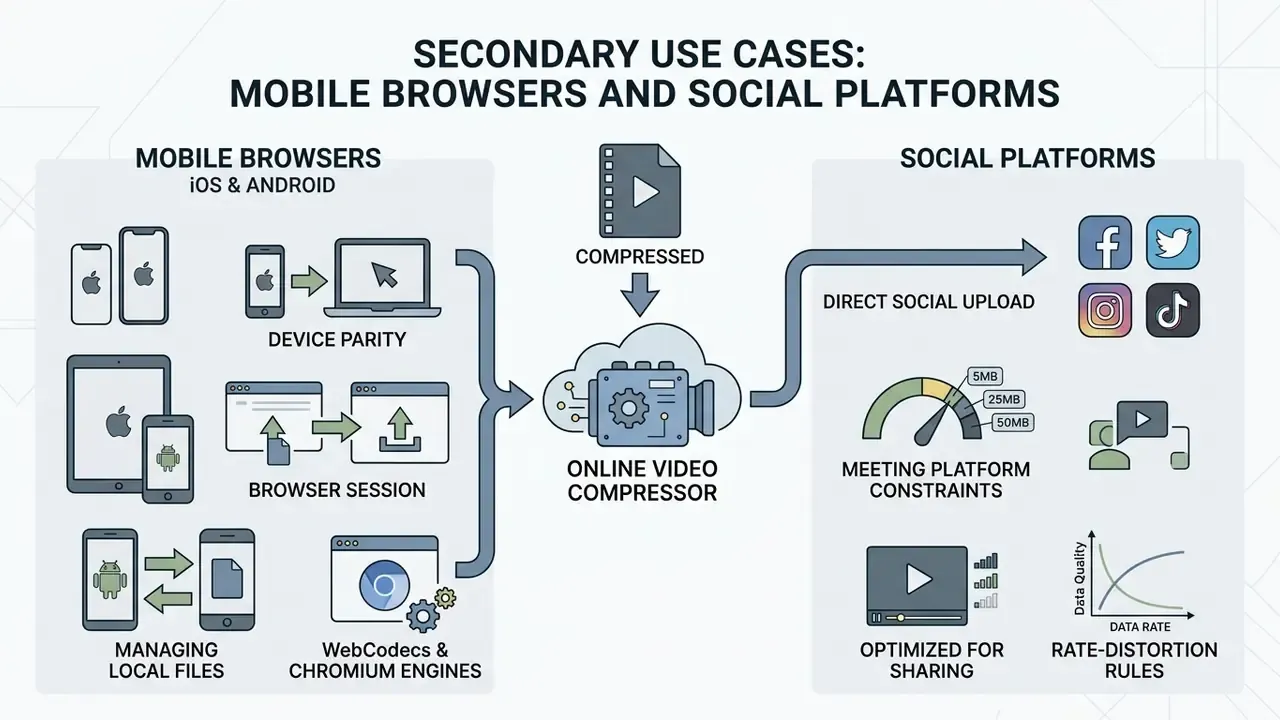
Consumer scenarios follow the same rate-distortion rules, but device constraints differ. Keeping them separate here leaves the enterprise workflow above uninterrupted.
Using an online video compressor on Android
Running an android video compression session in a mobile browser means managing local file systems and network data usage. Android natively supports MP4 container extraction, though mobile browsers handle web uploads through file selection dialogs tied to device internal storage. Anyone on a cellular connection should watch data usage before uploading uncompressed files. Saving compressed output directly to device internal storage lets the local media gallery index the new file properly; check Storage, then Files, then Downloads if the gallery does not refresh immediately.
«DQ-Ladder factors predicted decoding time on client devices, optimising the ladder for resource-constrained mobile hardware.»
The practical consequence is easy to overlook. A codec that saves bitrate but decodes slowly can stutter on mid-range Android handsets. When the audience is mobile-first, H.264 at a slightly higher bitrate often plays better than HEVC or AV1 at a lower one. Browser-level data-saving compression has always been vendor-specific: Opera for Android exposed an explicit "Video compression" data-savings toggle, while Chromium-era research notes that most Android video traffic never touches the browser's network stack at all.
iPhone, iPad, and desktop parity
Browser tools that rely on WebCodecs behave best in Chromium engines on desktop, where codec coverage and hardware acceleration are broadest. On iOS, container and codec support is narrower, and very large ProRes captures from recent iPhones are usually better served by a cloud-assisted pipeline or a native app than by an in-tab WebAssembly encoder. If a tab dies halfway through, that is the ceiling talking, not a bug.
Free Online Video Compressor: Watermark, Usage Limits, and Commercial Use
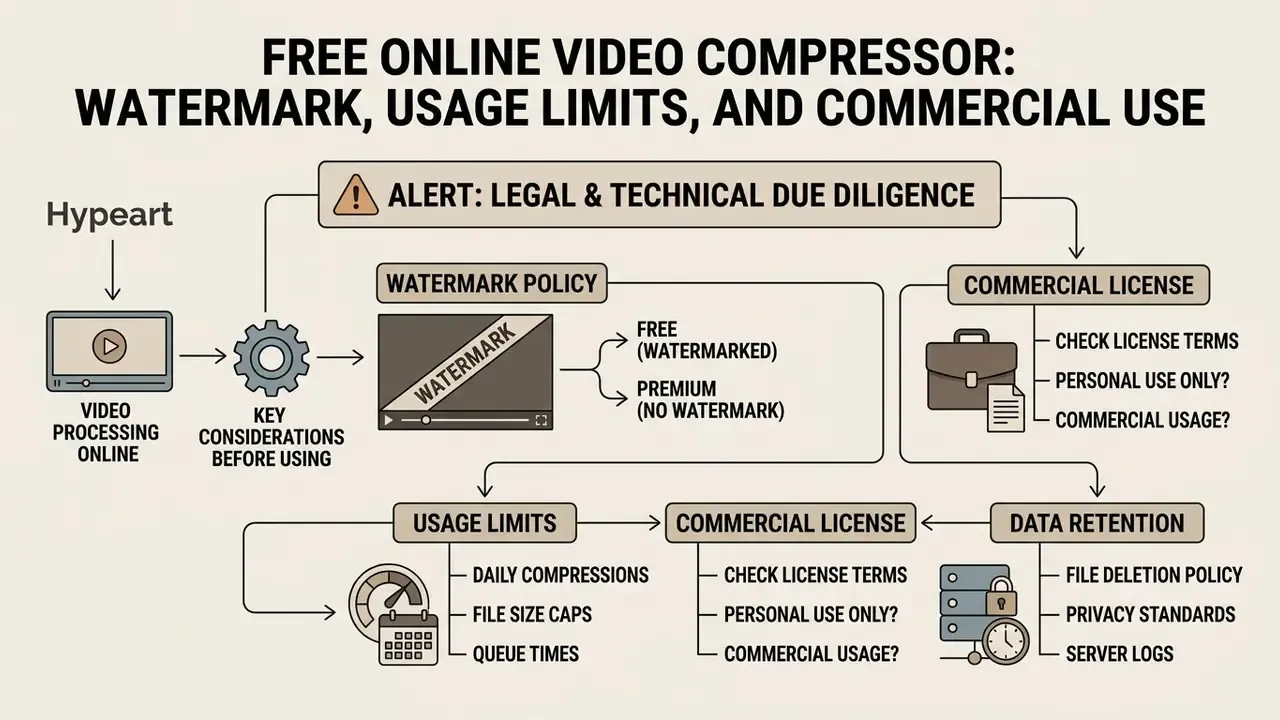
Free web utilities differ sharply on licensing terms, export restrictions, and data privacy safeguards. Reading the policy before processing proprietary assets protects business IP, and it takes less time than the encode itself.
ALERT BOX: LEGAL AND TECHNICAL DUE DILIGENCE
What to check before using a free video compressor
Review the terms of service to confirm whether a free video compressor applies a mandatory branding watermark to exported files. Free tiers are commonly structured as freemium rather than time-limited trials, and published vendor pages diverge widely. Some advertise no watermark and no usage limits at all, while others gate watermark-free export, larger file sizes, or high-resolution output behind a paid plan. Treat any specific quota or resolution cap as a claim to verify on the provider's current pricing page, because these thresholds move without notice. Evaluating usage limits unlike fully open tools prevents workflow interruptions during time-sensitive tasks.
The same comparison discipline applies across adjacent categories. Constraint patterns documented for free AI video generators, such as credit ceilings, watermarks, and export restrictions, map almost one to one onto free compressors. A clean output with no watermark plus explicit commercial usage rights is essential for client-facing deliverables. Where a landing page stays silent on commercial use, assume nothing and read the terms.
Online processing and video file handling
Web security policy dictates how video files are stored, processed, and purged on remote servers. Privacy-conscious platforms describe encrypted TLS and HTTPS transport for the upload and execution phases, but the strength of that claim rests entirely on the provider's own published security documentation rather than on an industry-wide guarantee. Confirm it before transmitting sensitive footage.
In line with data sanitization standards such as NIST SP 800-88 Rev. 2, reputable cloud compression providers delete uploaded media from server storage automatically inside short windows, commonly 1 to 24 hours. Fixed deletion windows of this kind also appear in institutional privacy notices for recorded online sessions. Local in-browser compression tools process media entirely within device RAM, so files never leave the local environment. That is the strongest available posture for privileged or evidentiary material, at the cost of a hard file-size ceiling. If a tool's behaviour is unclear or an export fails repeatedly, our AI Media Support and Troubleshooting notes cover the usual diagnostic order.
FAQ: Frequently Asked Questions About Video Compression
Does video compression affect audio quality?
Video compression pipelines process audio tracks independently, using specialised audio compressors and codecs such as AAC-LC or Opus. Standard profiles preserve audio at 128 to 320 kbps and 48 kHz sampling, so speech and music stay transparent without losing quality. Degradation shows up only when target bitrates are set far too low, below roughly 64 kbps mono.
«IEEE 1857.2-2023 specifies ACELP/TVC tools, bandwidth extension and stereo coding for high-quality speech and music compression.» IEEE Standard 1857.2-2023 for Advanced Audio Coding. https://standards.ieee.org/ieee/1857.2/ One engineering nuance for exact-size targets: the audio bitrate must be subtracted from the total target bitrate before you calculate the video allocation. On a 5MB cap, an unnecessarily generous 320 kbps stereo track can eat a fifth of the entire budget. Drop voice-only content to 96 kbps mono and reassign the savings to the picture.
What if the compressed video is still larger than the target size?
If the processed video exceeds its target exact size, the source clip's duration or resolution stopped the encoder from lowering bitrate further without breaking codec syntax. To reach a smaller size:
- Reduce output spatial resolution, for example from 1080p to 720p or 480p.
- Trim unnecessary duration, or remove the audio stream entirely.
- Re-encode with a more efficient codec such as AV1 or HEVC.
- Lower the frame rate from 60fps to 30fps so the bit budget covers half as many frames.
- Re-target the encoder 5 to 8% below the platform cap to absorb container overhead.
«The VIF-based method predicts visual quality from multi-scale features without additional encodes, validated on the BVT-100 4K dataset.» VIF-Based Bitrate Ladder Construction, arXiv preprint (2024). https://arxiv.org/abs/2404.VIFLadder That matters when you have to iterate. Perceptual feature metrics let you estimate whether a lower rung will still look acceptable before burning another encode cycle. If trimming and re-cutting becomes substantial work, move the job into a proper video editor rather than compressing the same asset repeatedly and stacking generational loss.
On-screen text became unreadable after compression, what do I do?
Text degradation is a spatial-detail failure, not purely a bitrate failure. Three fixes, in order. First, keep native resolution and lower the frame rate instead of downscaling, because letterforms need pixels more than motion needs frames. Second, re-encode the affected segment with a lower CRF rather than applying a global bitrate cap. Third, if the clip is a screen recording, crop to the region of interest so the encoder spends its budget on the readable area. For audit or evidentiary material, validate legibility on the target display before submission, and retain the master. Lossy output cannot be reversed to recover detail.
Can a 1GB video really be compressed to 10MB?
Yes for short clips, no for long ones. A 1GB ProRes MOV holding 30 seconds of footage re-encodes to 10MB comfortably, because the source was a near-uncompressed mezzanine, not because 99% of the information was redundant. A 1GB, 20-minute recording squeezed to 10MB would land near 65 kbps, far below any usable threshold. Trim first, then compress.
How long does compression take?
In-browser encoding scales with your CPU and available hardware acceleration. Short clips finish in seconds, while long or 4K sources can run several minutes. Cloud pipelines typically report 1 to 3 minutes for standard clips. Because local processing has no queue, trying two settings locally is often faster than waiting on one server-side job.
Is compression reversible?
No. Lossy compression permanently discards data, and decompression cannot restore the original pixels. Archive the master separately before compressing for delivery.
Does compression remove metadata?
Re-encoding rebuilds the container, so timecode, GPS tags, camera metadata, and custom atoms may be dropped or rewritten. For evidentiary or archival workflows, document the original metadata before compressing, and preserve the source file as the authoritative record.
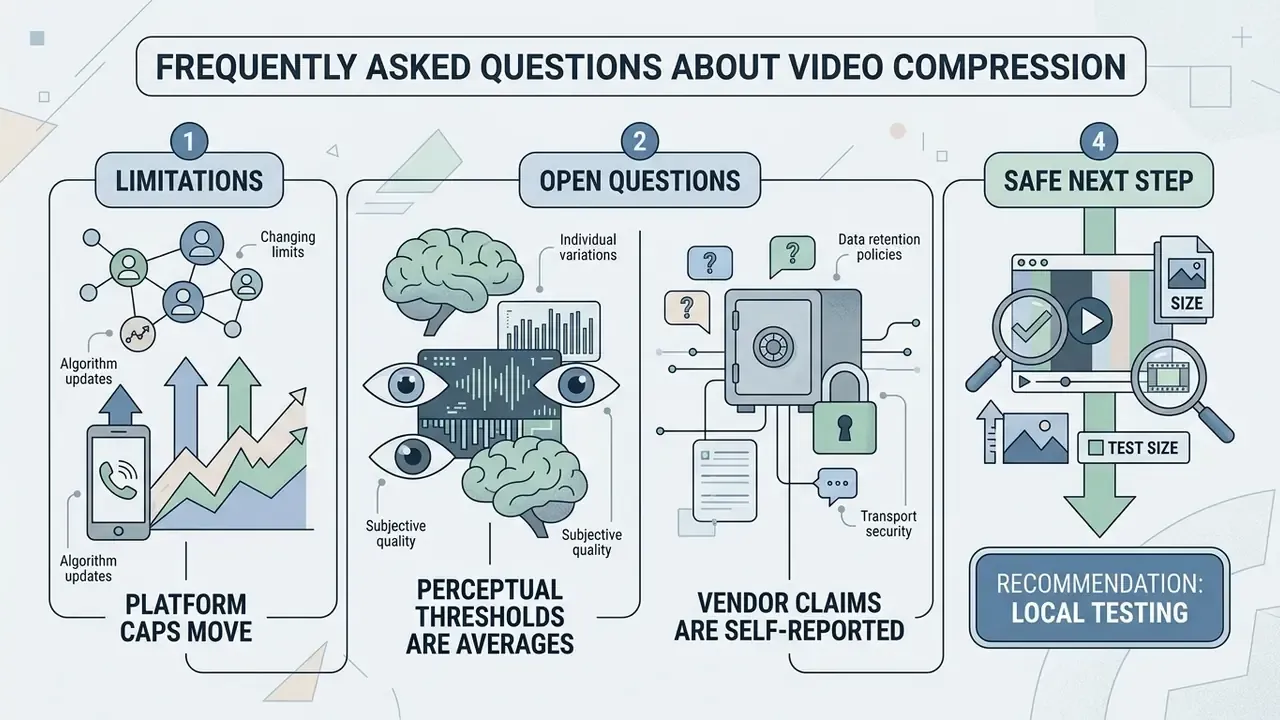
Limitations, Open Questions, and a Safe Next Step
Appendix A: Editorial Revisions and Source Notes
Retained for transparency. The following statements appeared in earlier revisions and have been superseded in the main text by better-sourced or better-qualified versions.
Reference hub: AI Media Glossary
- Previous wording
- "Modern web platforms process files locally using WebAssembly or remotely via cloud rendering pipelines." → Superseded to include the WebCodecs API and hardware-accelerated frame encoding.
- Previous wording
- "According to research on multi-codec bitrate ladders (MCBE study, 2023), perceived visual quality remains stable if compression loss stays within a Just Noticeable Difference (JND) threshold of six VMAF points." → Superseded by a quoted citation with publication, year, URL, and a short description of the method. The claim itself holds: six VMAF points corresponds to roughly one JND.
- Previous wording
- "As established in the IETF RFC 8761 guidelines for Internet video codecs, temporal redundancy and frame rate directly govern the final compression ratio achievable before visual artifacts appear." → Reformulated, because RFC 8761 is an informational evaluation-methodology document rather than a source of fixed compression-ratio ceilings.
- Previous wording
- "Certain platforms market a free online tool tier but enforce restrictive daily usage limits or lock high-resolution exports behind paid tiers." → Reformulated as a freemium pattern to verify per provider, since vendor pages diverge and quotas change without notice.
- Previous wording
- "Compliant platforms employ end-to-end HTTPS encryption during file upload and execution phases." → Reformulated to attribute transport-security claims to each provider's own documentation rather than to the category as a whole.
- Previous table values
- target sizes stated at exactly 5MB, 10MB, 20MB, and 25MB. → Superseded by preset values that include a 5 to 8% container and MIME overhead margin (4.6MB, 9MB, 18MB, 23MB).