Last updated: March 2026. Reviewed against official Movavi documentation, EULA terms, and independent third-party benchmarks.
Executive Summary
- What it is A non-linear desktop video editor for Windows 10/11 (64-bit) and macOS 12.0+, sitting between template-driven web tools and full professional NLEs such as Adobe Premiere Pro or DaVinci Resolve.
- AI toolset Automatic subtitles (speech-to-text), AI background removal without chroma key, AI noise removal, motion tracking, silence removal, and auto-tracked vertical cropping. Standard desktop editing and rendering run locally on the workstation, which materially reduces Shadow-AI and data-egress exposure for regulated teams.
- Free version There is no permanent free tier. Movavi ships a 7-day trial with a visible "Trial" watermark, a 60-second video export cap (or half-length audio export), and locked advanced export profiles. Trial output is for evaluation only, not monetization.
- Pricing Video Editor subscription from roughly $19.95 per month (first month often listed at $23.95) or about $69.95 lifetime on official store pages; Video Suite (3-in-1 bundle) from about $29.95 per month or $99.95 per year. Desktop licenses do not include the iOS mobile app, which runs on a separate $1.99 to $13.99 monthly model.
- Main limitations No multi-cam synchronization, no node-based grading, and no professional trimming modes (no pre-trim, slip, slide, ripple, or roll edits). Editing relies on the Blade Tool (
Ctrl+B/Cmd+B) and manual edge dragging. - Verdict Best for beginners, corporate communications, L&D teams, and solo creators who value speed and low onboarding overhead over frame-level NLE control.
Who should read this. Three groups, roughly. First, non-technical staff who need a usable editor this week. Second, procurement and IT owners who must approve a license and a deployment image. Third, risk and compliance reviewers who care less about transitions and more about where media files travel. The sections below are ordered with that mix in mind: capability first, then trial rules, pricing, rollout, and the honest limits.
What Is Movavi Video Editor and Which Tasks Is It Suitable For?
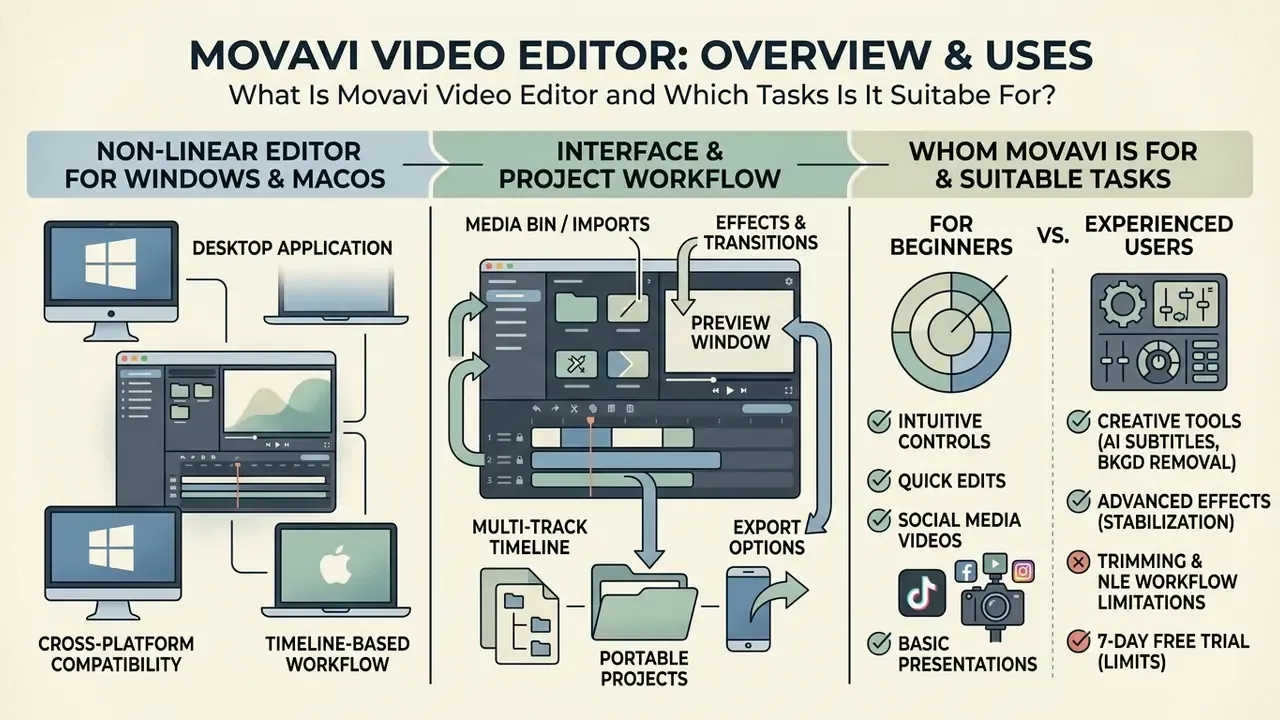
Movavi Video Editor is a non-linear desktop video editing software application for Windows and macOS. It pairs drag-and-drop timeline work with automated AI tools. The product targets content creators, YouTubers, educators, and corporate communications teams that need clean output without the learning curve of high-end grading suites or digital audio workstations (CreativeVault, 2024; Vidmetoo, 2026).
Understanding what is movavi video editor starts with positioning. It fills the middle ground between restrictive template-based web tools and complex NLEs such as DaVinci Resolve or Adobe Premiere Pro. Readers mapping the wider category can review adjacent video editing and publishing workflows for YouTube to see where a mid-tier desktop editor fits into a full production chain. For teams analyzing tool deployment across corporate media pipelines, or scanning definitions in an AI Media Glossary, the application offers an accessible place to cut raw footage, apply transitions, reframe vertical clips for social channels, and export up to 4K.
Typical, well-documented use cases: YouTube blogging, VK Video uploads, vertical Shorts, Reels and TikTok assembly, internal training and compliance modules, event and wedding recaps, and cleanup of legacy home video archives (Movavi, 2026). One small note on search behaviour: the product name is frequently mistyped as "movai video editor", which is why store listings and review pages often surface for that query too.
Interface and Project Workflow
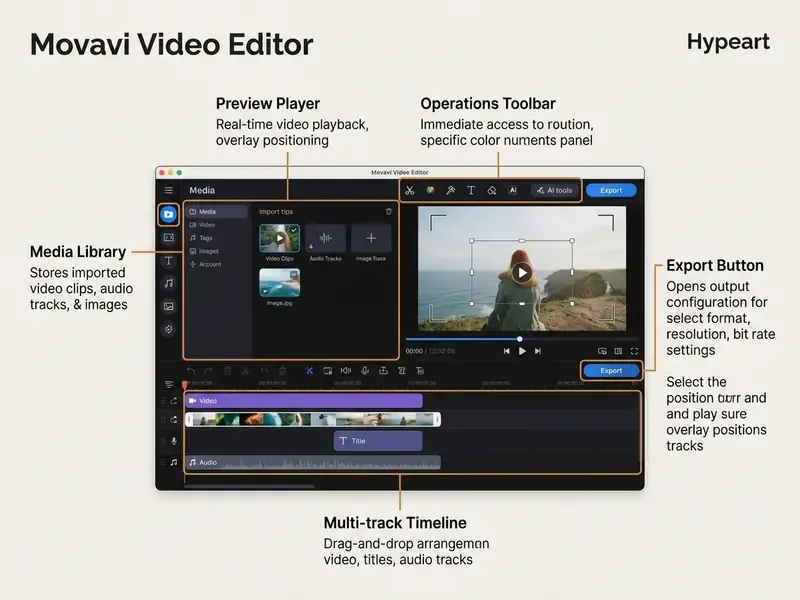
The layout is a structured four-panel workspace: a media library, an operational tools sidebar, a multi-track horizontal timeline, and an interactive preview window. Users start with File → New Project, import assets into the library pane, then drag visual or audio clips onto timeline tracks.
Magnetic snapping simplifies clip alignment. A dedicated Blade Tool handles frame-accurate splitting. Trimming, rotating, speed changes, and color presets sit behind single-click context menus or toolbar buttons (Vidmetoo, 2026). When the edit is done, the working file saves locally in .mepx format, or you move straight to export.
Who Movavi Is For: Beginners vs. Experienced Users
The product is structured to minimize onboarding time while keeping enough depth for intermediate users. Non-technical staff can assemble a polished vlog, an internal training module, or a marketing video within hours, using automated filters, built-in titles, and smart background removal, with no manual keyframing required.
«Simple, intuitive interfaces with a limited but carefully curated feature set substantially lower the barrier for non-professionals producing effective video content.»
Experienced editors get multi-track editing, overlay blending modes, keyframe animation, and custom LUT support. High-volume teams working multi-camera broadcasts or intricate VFX pipelines will hit walls quickly: no multi-cam sync, no node-based grading (CreativeVault, 2024).
Trimming and NLE workflow limitations (updated). Movavi Video Editor does not support advanced timeline trimming modes such as slip, slide, ripple, or roll edits, and it does not allow source-monitor pre-trimming before a clip is inserted into the timeline. Editing depends on splitting clips with the Blade Tool (Ctrl+B / Cmd+B) and dragging clip edges by hand. As one independent review puts it: "You can't pre-trim clips, nor can you slip, slide, or roll, you can just split or trim" (Epidemic Sound, 2024). For rough cuts, talking-head content, and social edits, that is rarely a blocker. For multi-layer narrative editing it is the single most consequential ceiling in the product. Worth deciding before you buy, not after.
Core Functions of Movavi Video Editor for Video Editing
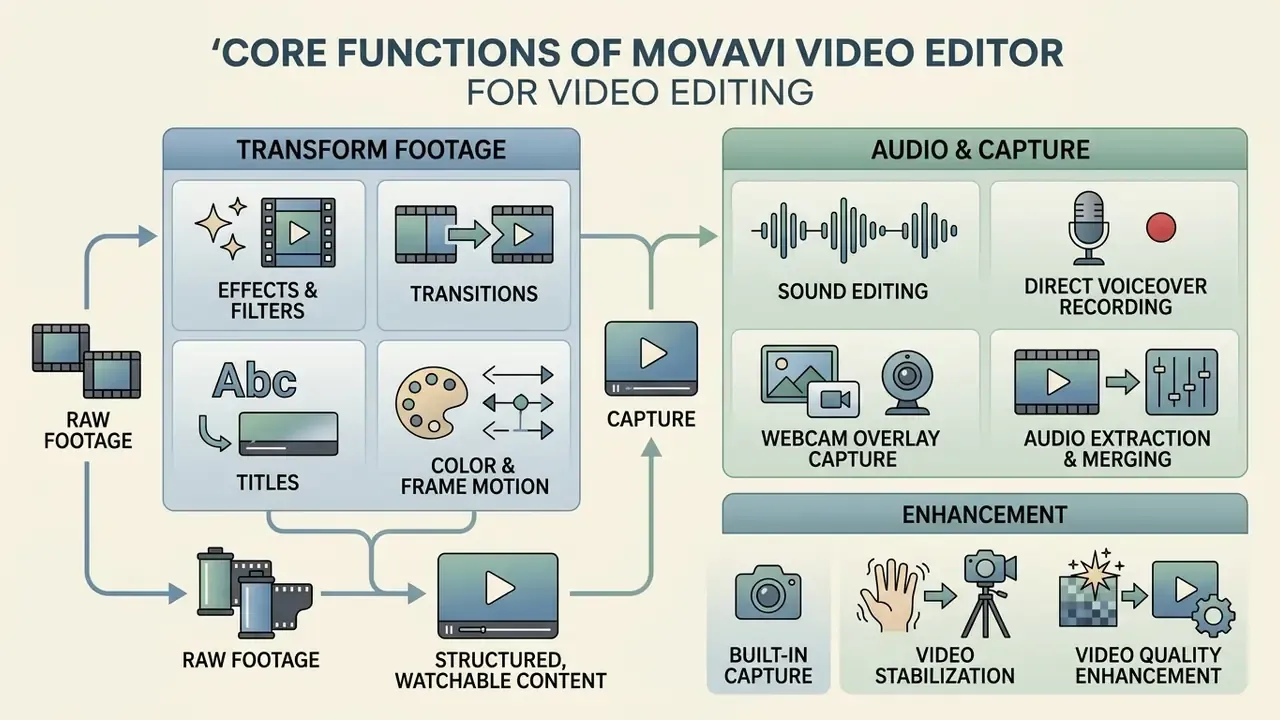
Movavi Video Editor ships a broad set of editing tools for turning raw footage into structured, watchable content. Cutting and stitching sit alongside an asset library with over 10,000 creative filters, transitions, titles, stickers, overlays, intros and outros, backgrounds, frames, plus roughly 1,500 music tracks (Movavi, 2026; Vidmetoo, 2026).
Assessing video editor movavi capabilities in practice: operators handle multi-layer composition, audio balancing, and automated object tracking inside one desktop workspace. For complex multi-asset jobs, custom overlays and motion graphics drop straight onto the primary timeline. Teams producing recurring branded elements often build those assets separately in an animation maker, then import them into Movavi's media bin.
Effects, Filters, Transitions, and Titles
Applying visual enhancements in the movavi editor is pure drag-and-drop. Open the Effects tab, preview a filter or overlay, drop it onto the target clip. Built-in categories cover motion blur, vintage VHS, color pop, dust particles, light leaks, and cinematic LUTs, with adjustable LUT intensity in the 2026 build.
Transitions insert between adjacent clips, and their exact duration is editable through the timeline or the Transition duration property field (Movavi Support, 2023). Title presets bring customizable typography, motion animation, and text backgrounds, which is enough for professional lower-thirds, captions, and title cards. Frequently used styles can be flagged as favorites and re-edited after placement on the titles track.
Working with Sound, Color, and Frame Motion
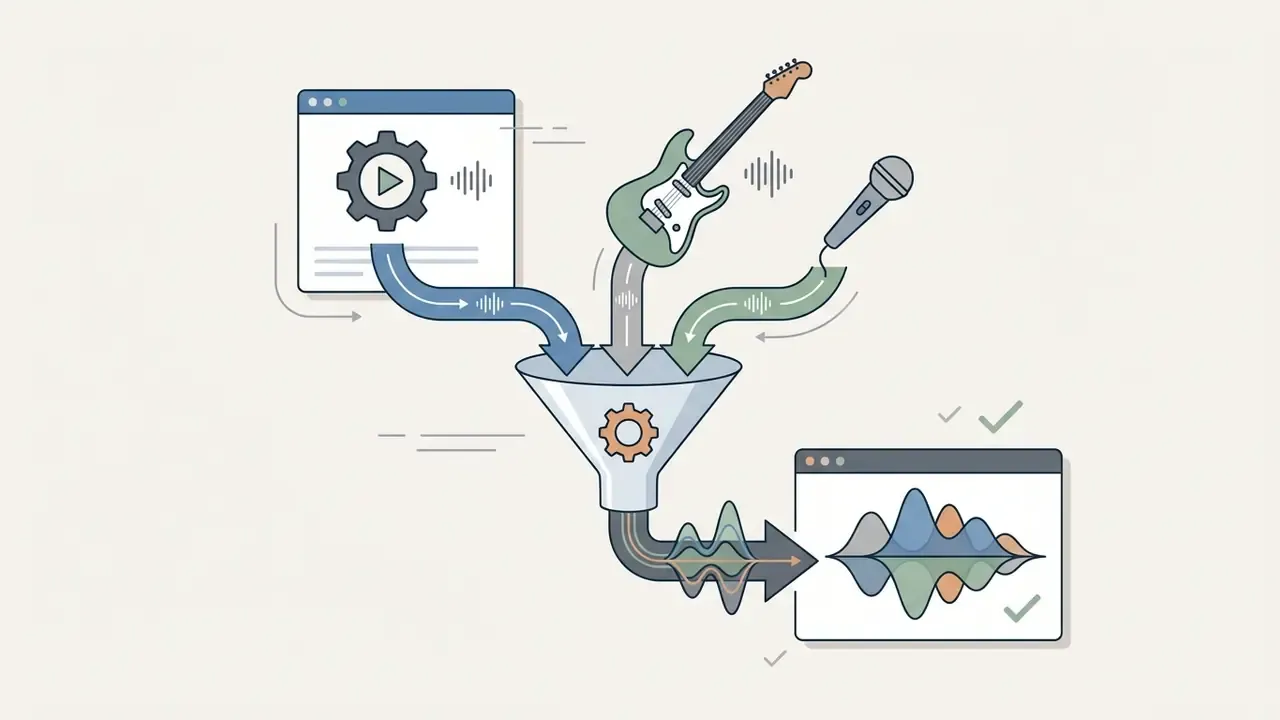
Audio management includes an integrated equalizer, manual volume envelopes, beat detection, merging of multiple tracks, normalization, and background noise reduction. Color tools cover brightness, contrast, saturation, and white balance, or a one-click cinematic LUT to align tones across footage from different cameras.
For dynamic visuals there are keyframes and motion tracking. Keyframes drive custom animation paths for overlays, text, or picture-in-picture windows. Object tracking locks visual elements to moving subjects across the frame automatically. Chroma key and picture-in-picture composition handle green-screen shoots and reaction-style layouts.
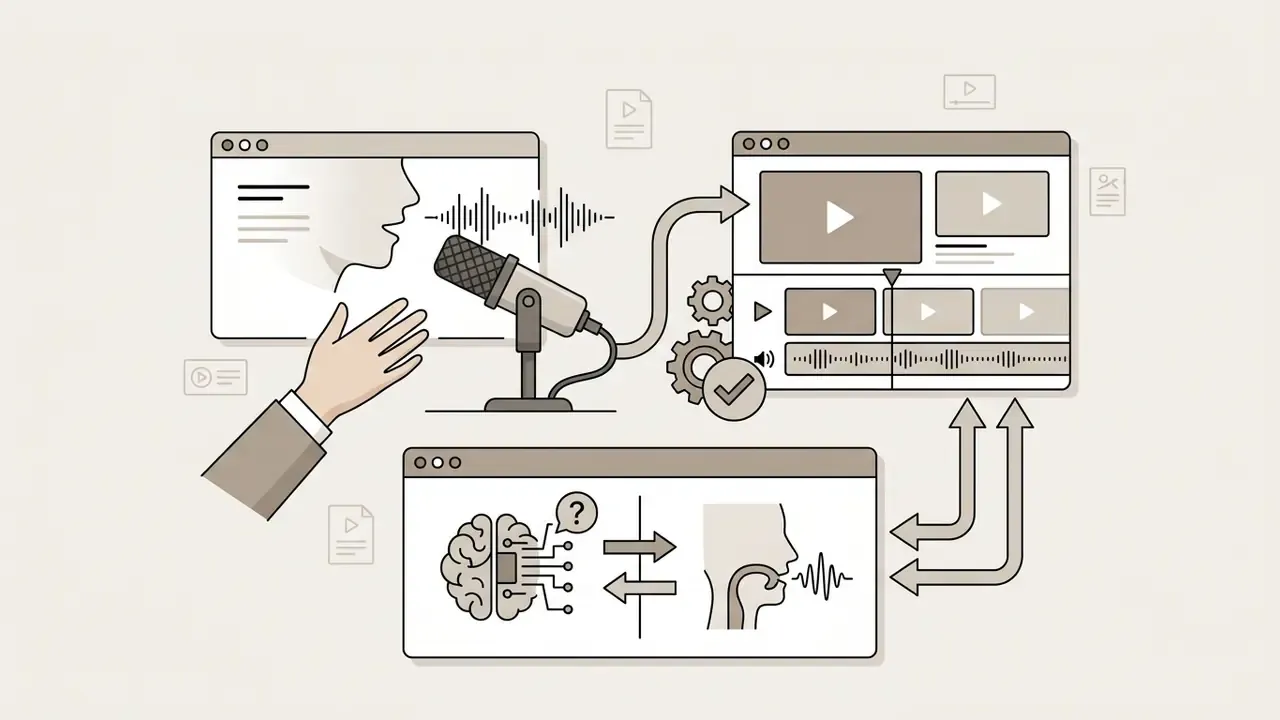
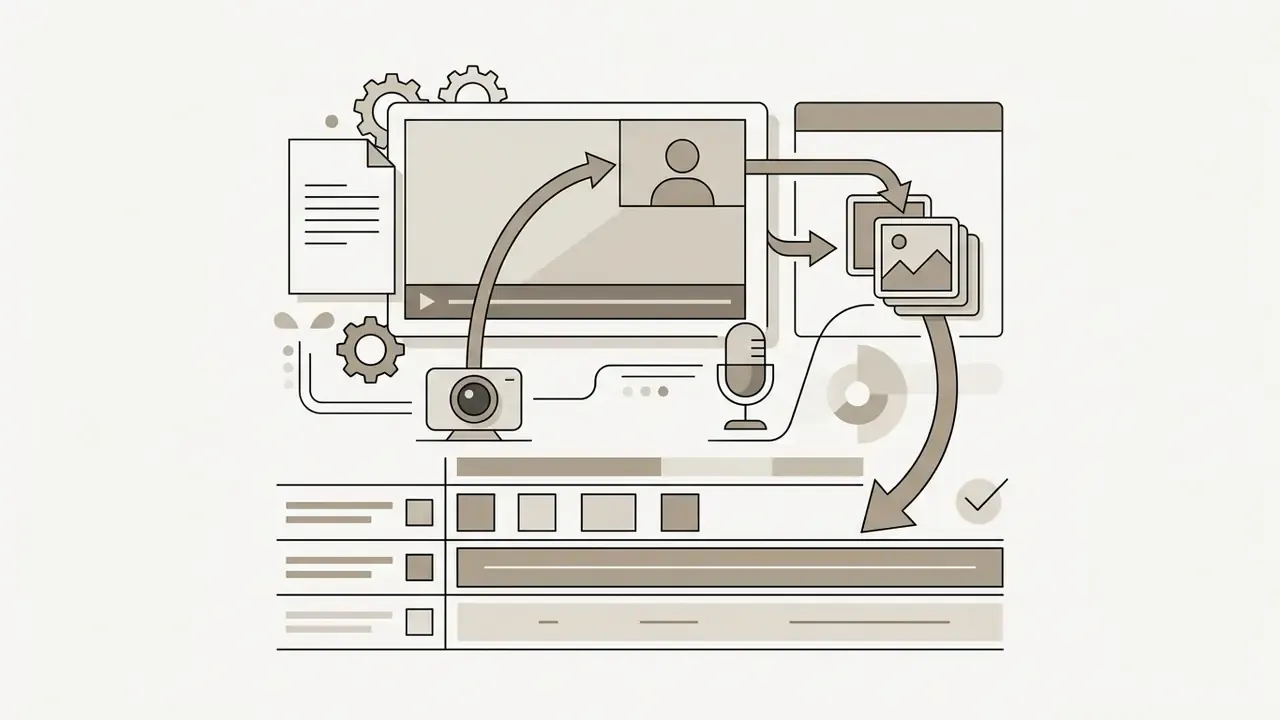
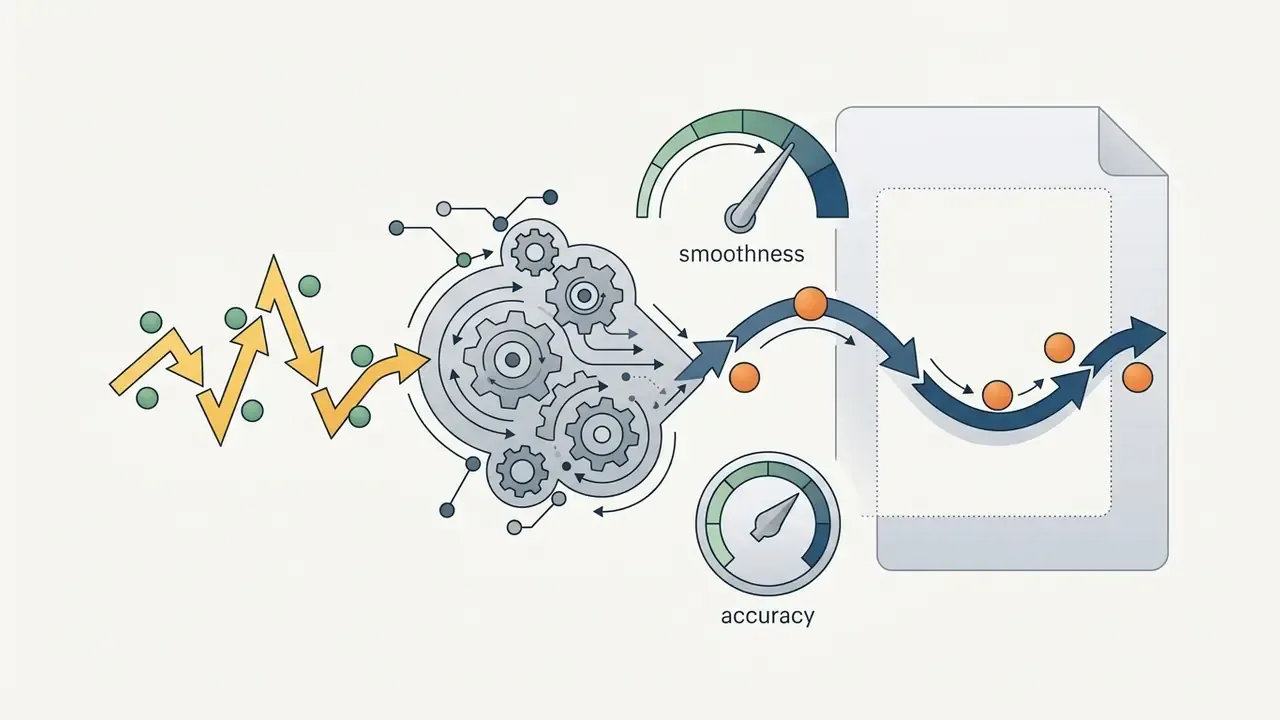
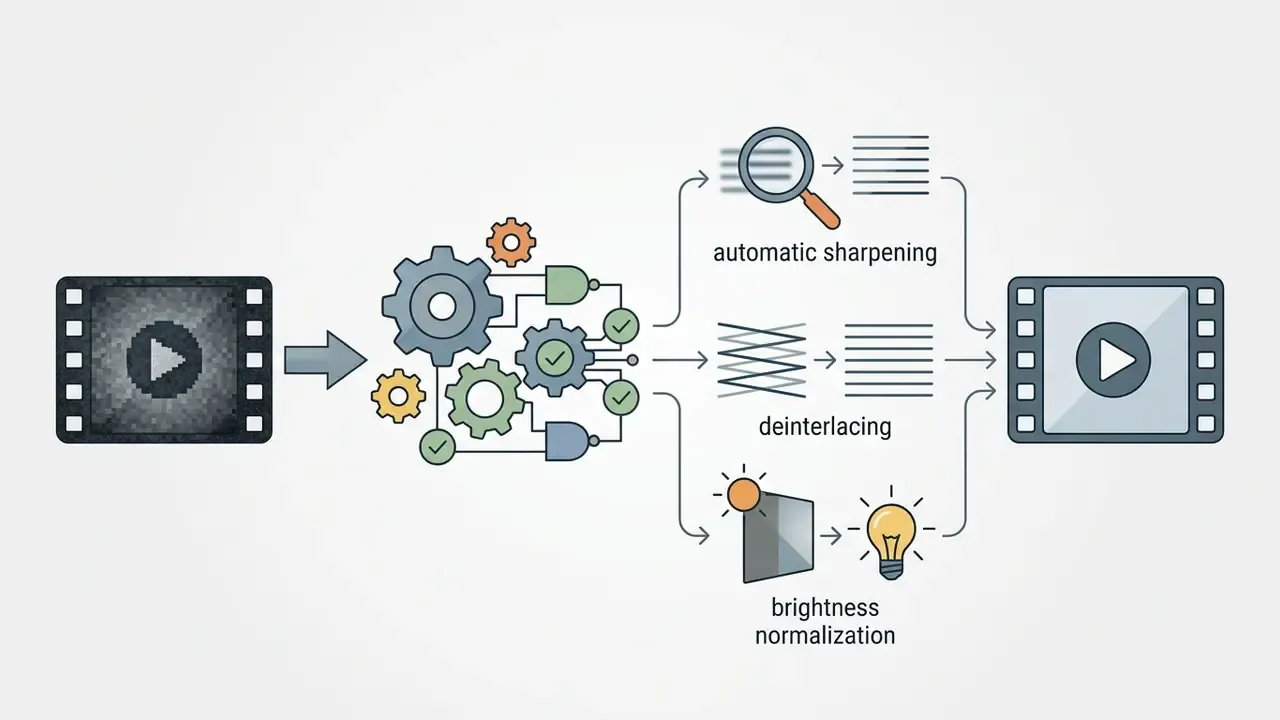
Built-in capture, voiceover, and video stabilization (updated). Hardware capture lives inside the Media Library panel, so third-party utilities are not required:
Exporting and Saving Finished Videos
Export supports a wide range of containers and codecs, including MP4, AVI, MOV, WebM, GIF, and MP3, with rendering up to 4K. You can set target bitrates, frame rates, and audio sample rates, or pick hardware-accelerated encoding profiles (Intel, NVIDIA, AMD) tuned for YouTube, Vimeo, or mobile playback. Teams balancing delivery quality against storage cost can pair these presets with the sizing logic in our video compressor guide.
Direct social and cloud export (updated). Beyond local rendering, Movavi's Quick Export publishes to YouTube, Vimeo, TikTok, and Google Drive, adjusting aspect ratio and bitrate for the destination before upload (Epidemic Sound, 2024). That removes an entire re-encode-and-upload step for creators shipping one edit to both horizontal and vertical channels.
Hypothetical operational scenario (illustrative). A fintech media team needed to convert a 45-minute executive interview into a series of compliance-approved short clips. They imported the raw master, cut with the Blade Tool, and applied a pre-configured 1080p export preset. The rough-cut and delivery cycle shortened noticeably against their previous multi-tool workflow. Actual savings depend on hardware, footage length, and codec, and were not independently benchmarked here, so treat the outcome as directional. Teams building production cost projections can cross-reference our AI Media Calculators, while engineering groups evaluating programmatic rendering pipelines can compare cost models in our Google Veo API implementation guide.
Movavi AI Video Editor: Tasks Accelerated by Artificial Intelligence
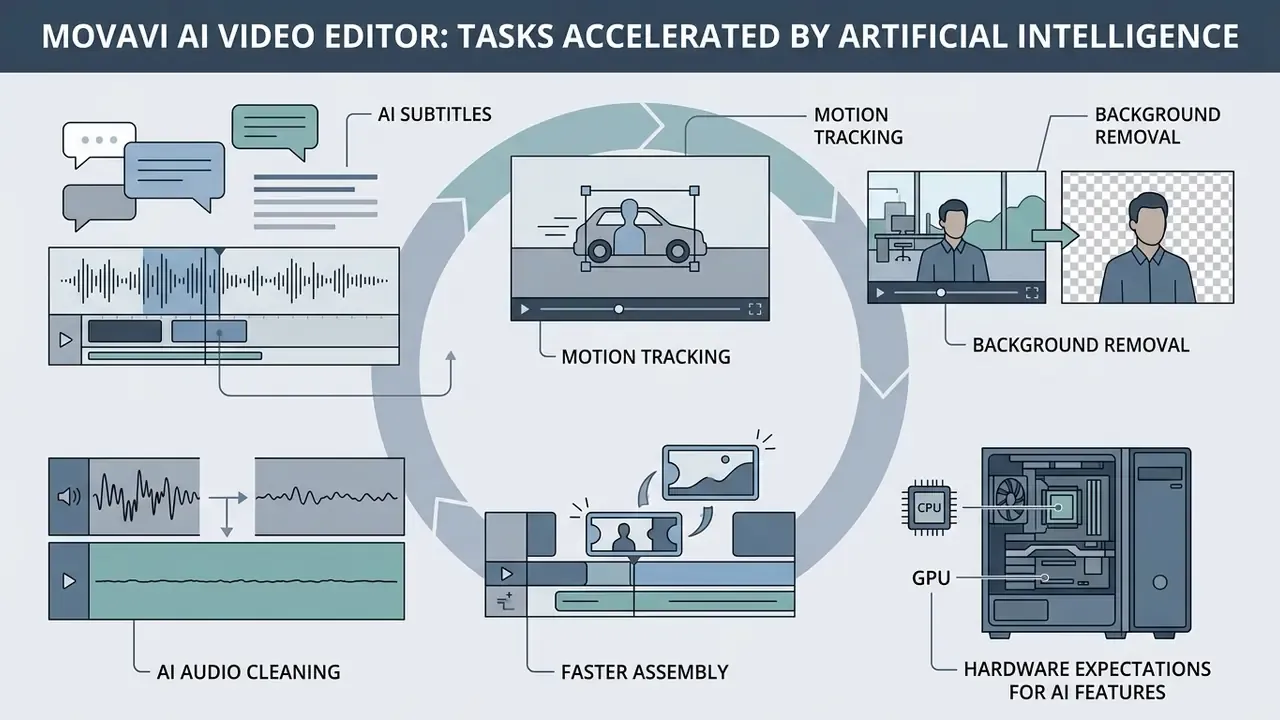
The movavi ai video editor module embeds machine learning models into the editing flow to automate repetitive manual work. The focus areas: automated speech-to-text, semantic background isolation without a physical green screen, intelligent audio denoising, silence removal, and automated reframing for vertical formats (Movavi, 2026).
Where processing happens (governance note). Standard desktop editing, timeline rendering, and export run locally on the user's workstation, so media files are not required to leave the machine for core operations (Movavi Privacy Policy, 2026). That distinction matters in banking, healthcare, and legal work: local execution keeps sensitive footage out of third-party inference queues and shrinks Shadow-AI exposure. Optional cloud-assisted features and the built-in asset store do generate network traffic under Movavi's published privacy protocols, so risk owners should whitelist or disable those specific components rather than block the application wholesale. The privacy policy is effective as of August 2026, states a 7-year retention window for personal information after it is no longer needed, and routes complaints to [email protected] and the competent data protection authority in Cyprus.
Research on neural video processing supports the broader point: automating micro-decisions such as feature tracking and acoustic isolation cuts cognitive friction and total editing time.
«INVE reduces training and inference time five-fold versus Layered Neural Atlases while supporting a wider range of editing operations, including rigid texture tracking.»
AI Subtitles, Motion Tracking, and Background Removal
The AI auto-subtitle tool analyzes spoken audio in a clip and generates synchronized captions on the title track. The workflow is explicit: select a video or audio clip, click Auto subtitles, choose the clip language and the number of subtitle lines, then generate. Transcription text, timing, fonts, and colors are all editable, and standard SRT files export for external web distribution (Movavi Support, 2026). The 2026 build adds more than 30 auto-subtitle presets.
Smart AI background removal uses semantic segmentation to separate a human subject from a complex background with no chroma key screen. Two modes are exposed, Quick for speed and Precise for accuracy, and the operation applies only to the portion of the clip currently visible on the timeline (Movavi Video Editor manual, 2025 edition). AI motion tracking, meanwhile, maps text blocks, stickers, emojis, or privacy blur masks to moving objects across frames. The practical procedure: trim the segment containing the object, place the mask on it, then adjust the tracked frame area so the overlay follows the target. Accuracy drops on fast pans and heavy motion blur, which is normal for consumer-grade tracking.
AI Audio Cleaning and Faster Assembly
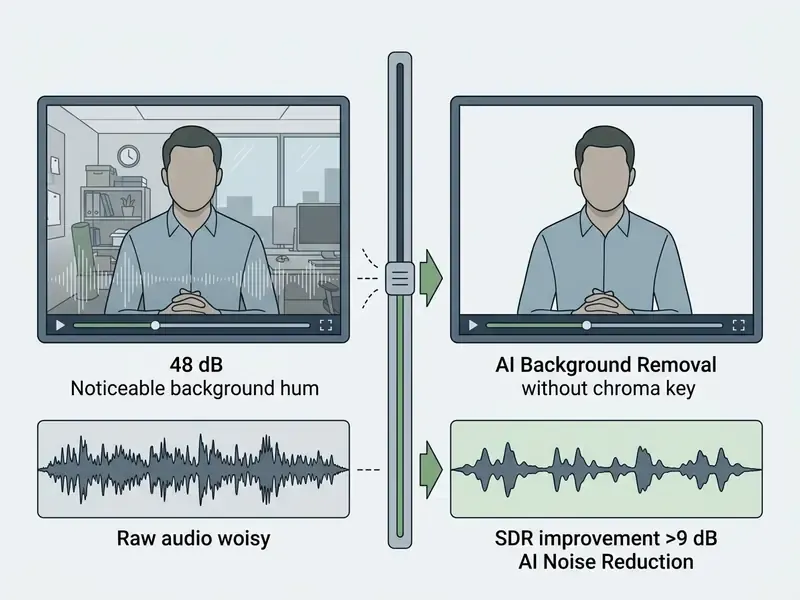
AI noise reduction isolates and suppresses persistent background hums, traffic, wind, and keyboard clicks while preserving speech clarity. The approach echoes established neural restoration methods that separate speech and image content from environmental interference.
«Progressive decomposition with conditional invertibility removes noise effectively while preserving image structures and details, verified on two benchmark datasets.»
Peer-reviewed measurements of site-specific speech denoising report gains of +9.33 dB SDR, +24.07 dB SIR, and +3.60 dB SAR over unprocessed input (PeerJ / PMC, 2024). That is the order of magnitude a well-tuned consumer denoiser achieves on steady broadband noise, not on overlapping speech or clipped recordings. Expectations should be set accordingly.
There is also an automated silence removal tool that finds silent pauses across long talking-head footage and deletes them in one click. For podcasts and recorded webinars, this compresses the preliminary assembly pass more than any other single feature. Pause length and volume threshold are user-adjustable for finer control.
«A reinforcement-learning framework narrows the quality gap between professional editing and automatically assembled video by formulating the task as next-shot attribute prediction.»
Hardware expectations for AI features. Movavi's published minimum specification (Windows 10/11 64-bit, dual-core 1.5 GHz, 4 GB RAM, 1280×768 display, 400 MB install and roughly 600 MB for ongoing operations) is a floor for standard timeline editing. It is not a comfortable target for AI segmentation on 4K footage. Independent testing shows AI-heavy exports pushing CPU utilization to about 77% with roughly 3 GB RAM consumed, while GPU memory use stayed modest at 116 to 138 MB, which suggests AI passes lean on the CPU in mainstream configurations (independent 2026 review). IT departments provisioning fleets for 4K or AI work should plan for 16 GB RAM, a quad-core or better CPU, and SSD scratch space.
Free Version of Movavi Video Editor: Restrictions, Trial, and Watermark
«Every reliable source confirms the same picture: the Movavi trial stamps a watermark, caps video length at 60 seconds and saves only half of an audio file. There is no unrestricted permanent free tier.»
Movavi Pricing, Licenses, and Choosing Between Video Editor Plus and Video Suite Plus
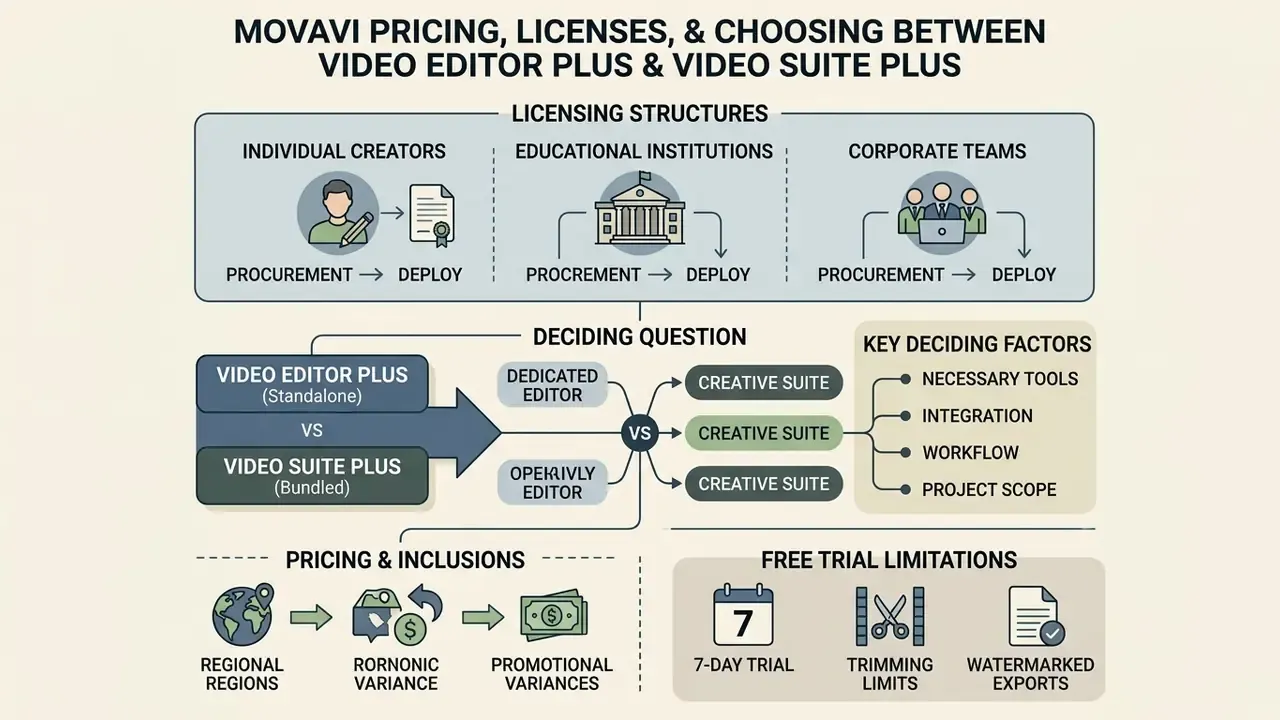
Movavi sells through several licensing structures aimed at individual creators, educational institutions, and corporate teams. Buyers choose between ongoing subscriptions (monthly or annual) and one-time lifetime purchases tied to a specific major version (Movavi Store, 2026). The help center is explicit about the distinction: subscription access persists only while the subscription is active, while a lifetime license grants permanent access to the purchased version without free upgrades to future major releases.
When comparing standalone video editor plus against the bundled environment, the deciding question is narrow: does your workflow need screen recording and format conversion alongside timeline editing? If not, the bundle is spend without payback. Commercial terms and deployment models can be reviewed further in our AI Media Pricing Guides.
| Feature / Product Tier | Movavi Video Editor (Subscription) | Movavi Video Editor Plus (Lifetime) | Movavi Video Suite Plus (Bundle / Subscription) |
|---|---|---|---|
| Pricing Model | ~$19.95 / month (first month often listed at ~$23.95) or annual plan | ~$69.95 one-time on official store; third-party listings for Plus and effect-pack editions range ~$79.95 to $222.95 | ~$29.95 / month or ~$99.95 / year (Suite Plus bundle) |
| Core Timeline Editing | Full multi-track access | Full multi-track access | Full multi-track access |
| AI Toolset Access | Auto-subtitles, background removal, noise clean, motion tracking, silence removal | Auto-subtitles, background removal, noise clean, motion tracking, silence removal | Auto-subtitles, background removal, noise clean, motion tracking, silence removal |
| Advanced Color & Blending | Standard LUTs and adjustments | Pro-quality color correction and blend modes | Pro-quality color correction and blend modes |
| Screen Recorder | Not included | Not included | Included (full screen, area, webcam and mic capture) |
| Media Converter | Not included | Not included | Included (180+ format conversion, AI upscaling) |
| Extras in Bundle | None | Bonus effect packs (edition-dependent) | Slideshow Maker, VHS Capture, Media Player, disc burner |
| Major Upgrades | Included during active subscription | Minor updates included; major upgrades charged separately | Included during active subscription |
| Mobile (iOS) Access | Not included | Not included | Not included (separate $1.99 to $13.99 / month) |
| Technical Support | Standard customer support | Standard customer support | Priority customer support |
«Video Suite is positioned as a 3-in-1 bundle, editor, converter and screen recorder, for creators who want real editing control without a long learning curve.»
Note: pricing and bundle inclusions vary by region and promotion; official Movavi pages display different amounts by locale, bundle, and renewal timing. Data cross-checked against official Movavi store listings (2026) and third-party review pricing snapshots (2024 to 2026).
Procurement and deployment notes. Movavi publishes business and enterprise purchasing tracks with annual and lifetime options across the suite, which is the correct route for volume purchases, invoice-based billing, and multi-seat deployment. Organizations standardizing images across managed fleets should confirm installer packaging, offline activation, and seat-transfer terms with Movavi's business sales channel before rollout, because those details are not fully published on consumer product pages. Governance teams should also request written confirmation on telemetry scope and on whether user media is ever used for model training. The public privacy policy addresses personal data retention but does not enumerate AI training practices, and silence in a policy is not a control.
Industry Recognition and Social Proof
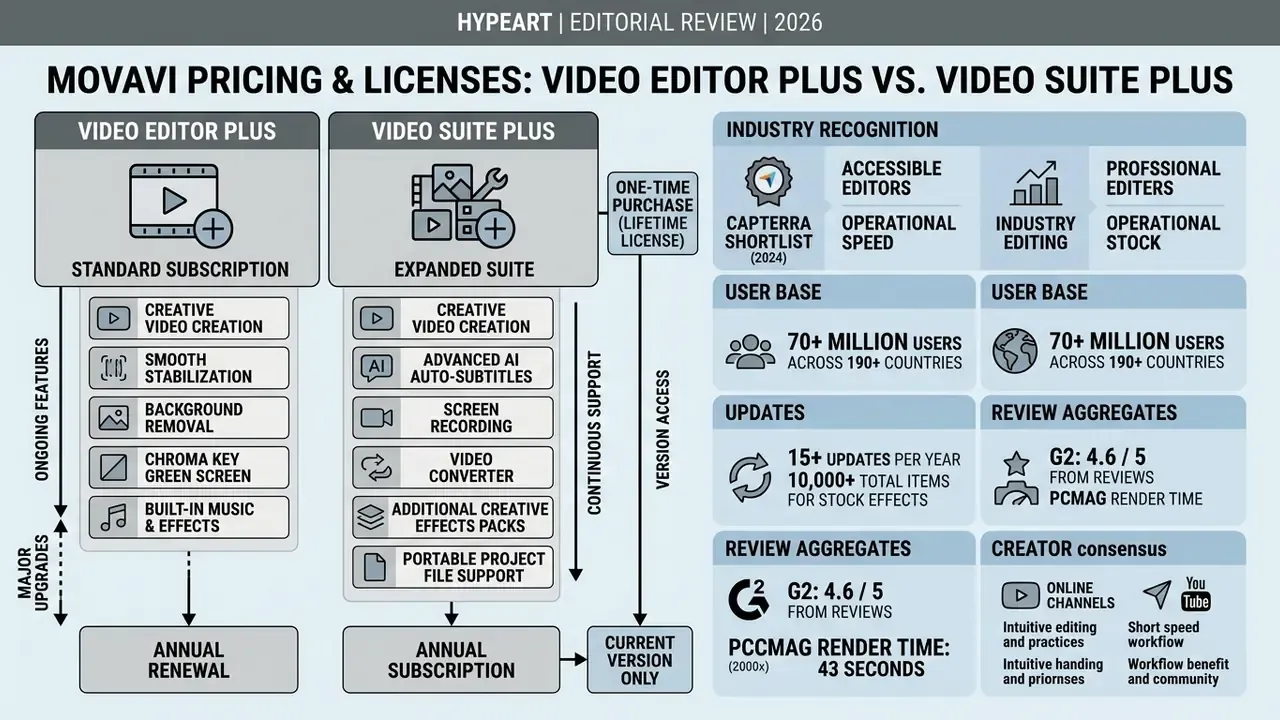
"Movavi is a simple editing tool that does a lot of the things I need every single day, and it puts it all in one place. Plus, there are tools in here that are not in my more expensive video editors."
"The real power of a tool like Movavi isn't that it's just easy. It's that it removes the technical barriers that usually stop people from finishing their projects." - Independent creator review (2026)
How to Get Started with Movavi Video Editor: From Download to Export
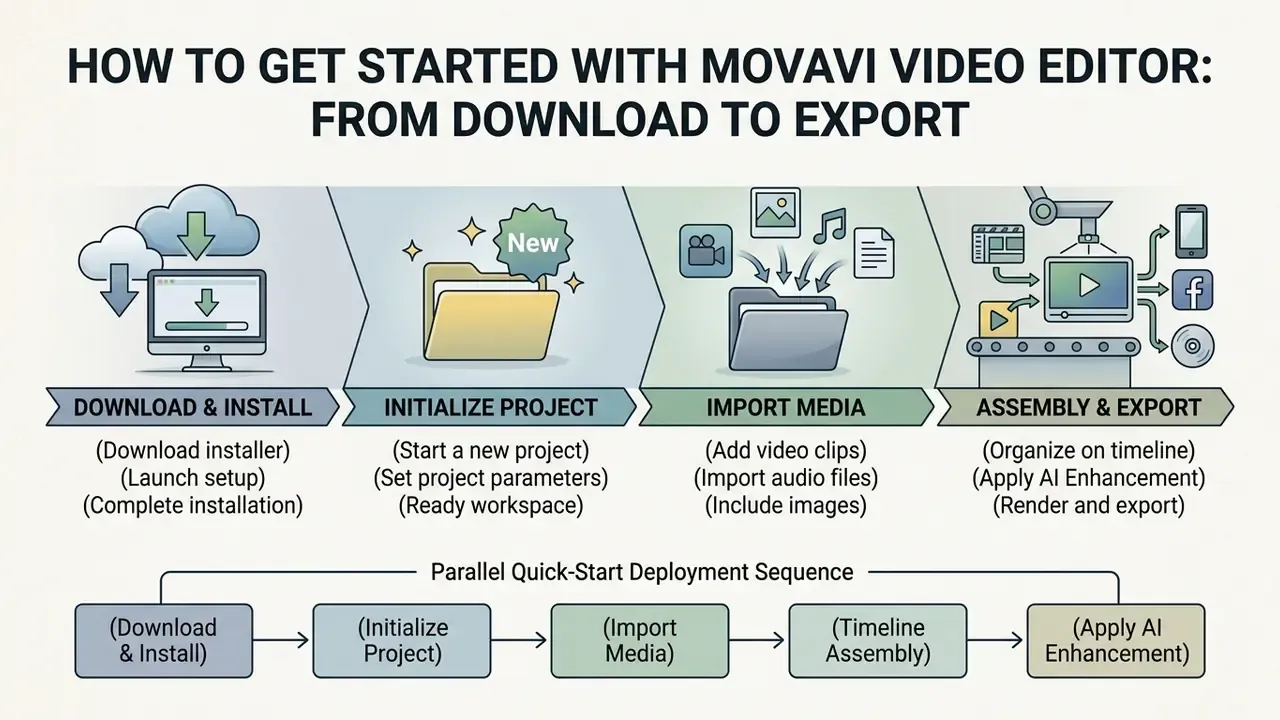
Getting started follows a four-stage path. On Windows or macOS alike, you can move from installation to a rendered file within minutes (Movavi Help, 2026).
Creating a Project and Adding Media Files
First, download the installer from the official Movavi repository and launch it. Administrator rights are required. On opening, choose New Project on the welcome screen, or use File → Create New Project / Create Quick Video for the automated assembly wizard.
Import source assets by clicking Add Media Files on the Import tab, or drag files straight into the Media Bin. Then pull video clips onto the main video track. Built-in stock content (backgrounds, music, stickers) downloads on demand from the same Import tab. Creators who also prepare thumbnails, title cards, and static graphics alongside the edit can streamline that stage with a dedicated photo editor workflow.
Editing, Applying Effects, and Exporting the Result
With media on the timeline, use the Blade Tool (Ctrl+B or Cmd+B) to split clips and trim what you do not need. Open the Transitions tab, drag styles between adjacent clips, then set the Transition duration value. Move to the Titles panel for animated lower-thirds or custom overlays on the title track above the primary video.
For audio polish, select the clip, open the Tools menu, and run AI Noise Reduction. On long-form talking-head footage, run Silence Removal before fine cutting, not after; the timing matters more than people expect. Finally, click Export in the lower-right panel, choose a container (MP4 in most cases), set resolution to 1080p or 4K, confirm bitrate and frame rate, pick a destination folder, and hit Start. Rendering takes anywhere from under a minute to a quarter of an hour depending on length, codec, and whether hardware acceleration is available. Creators publishing straight to a channel can follow the end-to-end YouTube video editor workflow for metadata, aspect ratio, and thumbnail sequencing.
Quick-Start Deployment Sequence
Checklist0 / 8
Pros and Cons of Movavi Video Editor Before Buying
Judging Movavi before purchase means weighing accessible design and AI automation against hardware appetite, the trimming ceiling, and trial limits (CreativeVault, 2024; Vidmetoo, 2026; Epidemic Sound, 2024).
| Evaluation Category | Pros (Strengths) | Cons (Limitations) |
|---|---|---|
| User Interface & Usability | Low learning curve; intuitive drag-and-drop design suited to non-technical users; most beginners reach a first export in under an hour. | No node-based compositing or advanced color wheel controls. |
| Timeline & Trimming | Blade Tool with keyboard shortcut, magnetic snapping, multi-track overlays and titles. | No source-monitor pre-trimming; no slip, slide, ripple, or roll edits. Split and drag only. |
| AI Capabilities | Native AI auto-subtitles with SRT export, one-click background removal with Quick and Precise modes, smart noise suppression, silence removal, auto-tracked vertical cropping. | AI speed depends heavily on local CPU and GPU; 4K AI passes are CPU-hungry. |
| Capture & Audio | Built-in webcam capture, microphone voiceover recording, audio extraction, beat detection, equalizer, stabilization. | No advanced audio ducking automation and no full multitrack mixer view. |
| Workflow Integration | One environment for timeline editing, audio balancing, and multi-format export; direct publishing to YouTube, Vimeo, TikTok, Google Drive. | No native multi-camera synchronization or advanced cinematic grading curves. |
| Trial Restrictions | Complete feature set open for evaluation during the 7-day window. | Trial exports carry a prominent watermark, a 60-second video cap, and half-length audio exports. |
| Licensing Options | Choice of affordable subscription or one-time lifetime license; business and volume tracks available. | Lifetime license covers the current major version only; major upgrades cost extra. Desktop license excludes the iOS app. |
| Performance | Fast renders on standard projects (43 seconds in one published benchmark); hardware acceleration support. | Heavy timelines stretch exports considerably (about 12 minutes in an independent 2026 test); some users report occasional export lag. |
«AVscript participants rated effort with the AI-assisted interface far lower than with the baseline tool (mean 4.58 vs 2.17; p < 0.01) and reported less frustration.»
Hypothetical operational scenario (illustrative). A remote corporate training team compared three editing packages for monthly compliance updates. The high-end options demanded formal software training. With Movavi, trainers cut clips, generated AI subtitles, and exported HD video inside their first working session. Teams reviewing platform performance and comparative metrics can explore our AI Media Comparison Matrices and the AI Media Commercial-Use Hub.
FAQ About Movavi Video Editor
Does Movavi have a mobile app and Windows support?
Yes, platform coverage is broad. The desktop build fully supports 64-bit Windows 10 and 11, plus macOS 12.0 and later (Movavi System Requirements, 2026). Older help pages still reference Windows 7 and 8 for legacy builds, and Russian-language documentation lists macOS 10.13+, so verify requirements against the exact version you buy. For mobile creators, Movavi publishes iOS applications in the Apple App Store for iPhone and iPad; listings require iOS 15.0+ or iOS 17.0+ depending on the app, with Mac compatibility on Apple M1 or later. No official Android application was identified in the sources reviewed. Mobile toolsets are scaled down against the desktop suite. Mobile pricing clarification. The iOS app downloads free of charge, but desktop licenses do not cross-grant mobile access. Mobile premium features run on an independent subscription, reported between $1.99 and $13.99 per month depending on tier (Epidemic Sound, 2024). Budget for mobile separately in any procurement model.
What are the minimum system requirements?
The published Windows baseline for the current Video Editor build: Windows 10 or 11 (64-bit), an Intel or AMD-compatible dual-core CPU at 1.5 GHz or higher, 4 GB RAM (older documentation cites 2 GB as an absolute floor), a 1280×768 display, OpenGL 2.0 or later, roughly 400 MB for installation and about 600 MB for ongoing operations. Movavi Video Suite needs a bigger footprint, near 1350 MB for ongoing operations, because it bundles the converter, screen recorder, slideshow maker, VHS capture, media player, and disc burner. Administrator rights are required to install.
Where does Movavi save videos and projects?
Movavi separates editable working project files from final exported video. By default, .mepx project files are stored locally:
- Windows:
C:\Users\[Username]\Videos\Movavi Video Editor\Projects\ - macOS:
/Users/[Username]/Movies/Movavi Video Editor/Projects/Some editions use product-specific folders such as\My Videos\Movavi Academic\Projects\or\My Videos\Movavi Screen Capture Studio\Projects\. The location is changeable through the "Save project files to" option. Project files hold timeline structure, effect settings, and file paths, but they do not embed raw media. A.mepxfile opens only inside Movavi and will not play in a media player. Exported MP4 or MOV files land in the folder chosen in the Export window. Managing assets with Portable Projects. Because a standard.mepxstores only timeline coordinates and references, moving or renaming source files, or opening the project on another machine, breaks the media links. To migrate cleanly across workstations, useFile → Save Portable Project. That bundles raw video clips, audio tracks, and custom graphics into one self-contained package folder, transferable by external drive or cloud storage and openable elsewhere with every asset loaded (Epidemic Sound, 2024). On mobile, Movavi support notes that app cache is temporary data and that clearing it can fix save or export failures. Deleting app data or reinstalling, however, wipes projects stored inside the app, so export or back up before troubleshooting.
What should be considered regarding privacy and media handling?
When sensitive corporate or personal media is involved, data handling policy stops being a footnote. Desktop editing processes media locally on the user's workstation (Movavi Privacy Policy, 2026). Teams that also handle stills and identity assets should apply the same local-processing scrutiny described in our photo editor guide. Optional cloud-assisted AI features and online asset stores transmit data under Movavi's published protocols. The policy covers information collected through online stores, websites, desktop, web, and mobile apps, states a 7-year retention period after data is no longer needed, and names Cyprus as the supervisory jurisdiction. Organizations handling regulated media should consult formal data governance frameworks, review technical documentation via our AI Media API, or check precedent in our AI Litigation and Case Timelines. For hands-on technical help, see AI Media Support and Troubleshooting.
Can trial output be used commercially?
No. Anything exported during the 7-day trial carries a "Trial" watermark and is limited to evaluation under the EULA. Commercial publication and monetization require an active subscription or a valid lifetime license.
Why won't a file import?
Movavi's support center recommends confirming the container and codec are supported, then inspecting the file's information in the timeline for corrupt streams or unsupported variable frame rates. Re-wrapping the source into MP4 with H.264 before import clears most rejections.
Appendix A: Corrections, Superseded Figures, and Version Notes