Executive Summary
Short version? Pick the tool by where your pixels live, not by which landing page looks nicer.
How We Evaluated These Editors
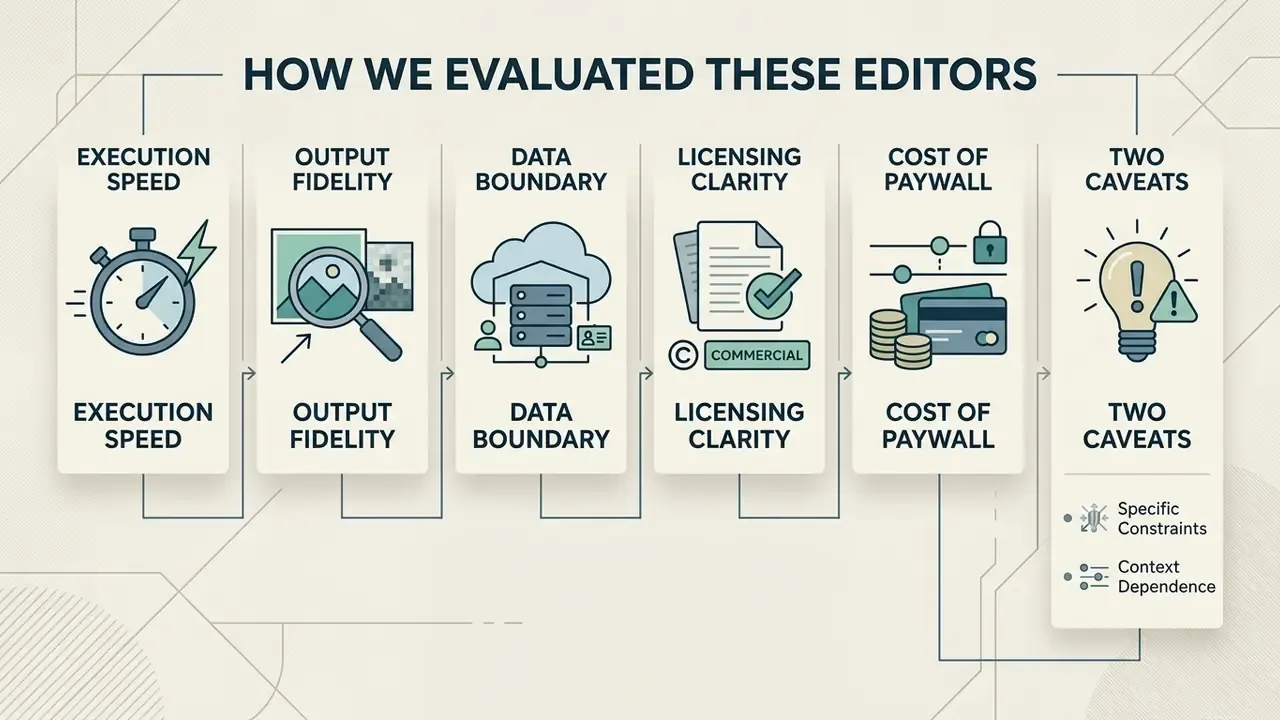
- Execution speed. Time to first paint plus median completion time for a five-step adjustment sequence on identical laptop hardware.
- Output fidelity. Structural Similarity Index (SSIM) comparison of the browser export against a reference desktop file.
- Data boundary. Whether the source file leaves the device at all, and where it is stored if it does.
- Licensing clarity. Whether commercial use of edits, embedded stock assets, and AI-generated output is stated in plain terms.
- Cost of the paywall. What specific action forces an upgrade: batch, resolution, watermark removal, or AI credits.
Two caveats worth stating up front. Vendor pricing and free-tier limits change quickly, sometimes monthly, so verify current terms on the official pricing page before you standardize a workflow. And several cited studies were supplied as reports without public permalinks; they are attributed by publisher and year rather than by URL.
What You Can Do With a Free Online Photo Editor
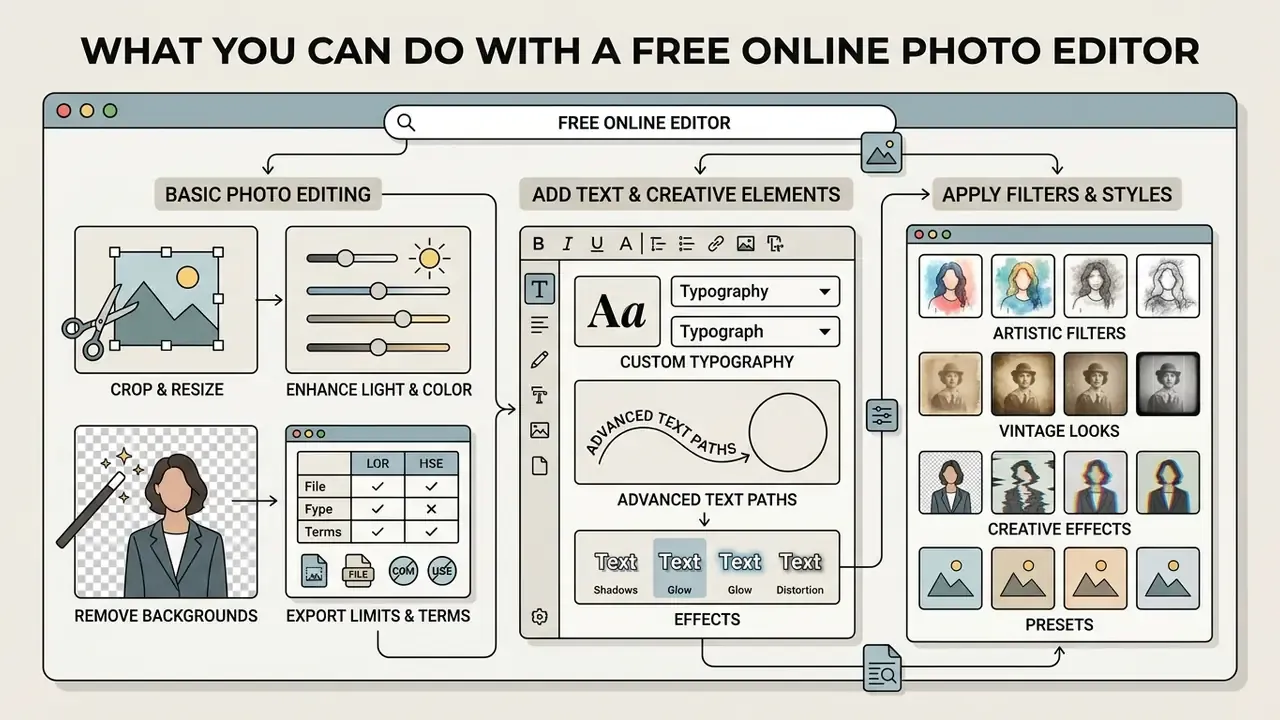
A free photo editor lets you modify digital images directly inside a web browser, without installing desktop software. Modern editing picture websites cover everyday image corrections, creative enhancements, background removal, animated GIF handling, sensitive-data redaction, and automated visual adjustments for personal and corporate publishing workflows.
The practical appeal is boring and real: no install ticket, no license seat, no waiting on IT.
Basic Photo Editing for Everyday Images
A basic photo editor handles the fundamentals: cropping, rotating, scaling, and correcting tonal values. Modern web applications execute those edits locally through client-side rendering engines, so feedback is near-instant. Readers who need a deeper breakdown of tier limits, export caps, and upgrade triggers can consult our dedicated guide to free photo editors.
According to a 2024 engineering benchmark by Lifetips, browser tools such as Photopea completed a standard adjustment sequence in 19.3 ± 2.1 seconds, against 33.7 ± 4.8 seconds in GIMP and 41.2 ± 5.6 seconds in Photoshop on identical hardware. That is roughly a 42% operational speed advantage for lightweight web tasks.
«Photopea completed a standard adjustment sequence in 19.3 ± 2.1 s, while GIMP required 33.7 ± 4.8 s and Photoshop 41.2 ± 5.6 s on identical hardware.»
Output fidelity is equally measurable. A comparative review of 14 free web editors applied five real-world tasks (crop, straighten, exposure correction, saturation adjustment, format conversion) and scored the results against reference desktop files using SSIM.
«Photopea and EditPhotosForFree reached SSIM 1.000 for cropping and color correction; Canva scored 0.987.»
Add Text, Filters, Effects and Creative Elements
You can personalize images by stacking typographic layers, color filters, graphic stickers, and compositional effects. Web editors expose layer panels, blending modes, and opacity controls, which lets you combine elements without touching the underlying raw pixels.
Standard features across web-based photo editing platforms include:
- Multi-layer text placement with custom web fonts, shadow controls, and alignment rules.
- Custom typography ingestion: uploading local
.ttfor.otffont files straight into the browser session, which enforces brand-guideline compliance without installing fonts system-wide. - Advanced text paths and effects: arc and curved warping so copy follows a circular path, outline borders around glyphs, drop-shadow blur radiuses, and letter-spacing matrix controls.
- Color grading filters, vintage tone presets, and cinematic LUT overlays.
- Transparency controls and blend modes (Multiply, Screen, Overlay) for graphic overlays.
- Vector stickers, frames, and callout icons for presentation decks and social posts. Automated one-click alternatives to manual layer work are catalogued in our overview of AI photo editors.
- Image-in-text masking, rounded corners, borders, and photo-frame compositing for print-ready or social-ready assets.
Depth of field and overlay structure also interact with automated processing, which surprises people. Research from the University of Zagreb (2024) examined how depth-of-field settings affect AI background segmentation in product photography, and found that the imaging conditions behind an overlay directly influence how cleanly graphic layers composite.
«Structured visual overlays combined with controlled depth-of-field imagery support cleaner compositing across digital channels.»
How to Edit Photos Online: Upload, Edit and Download
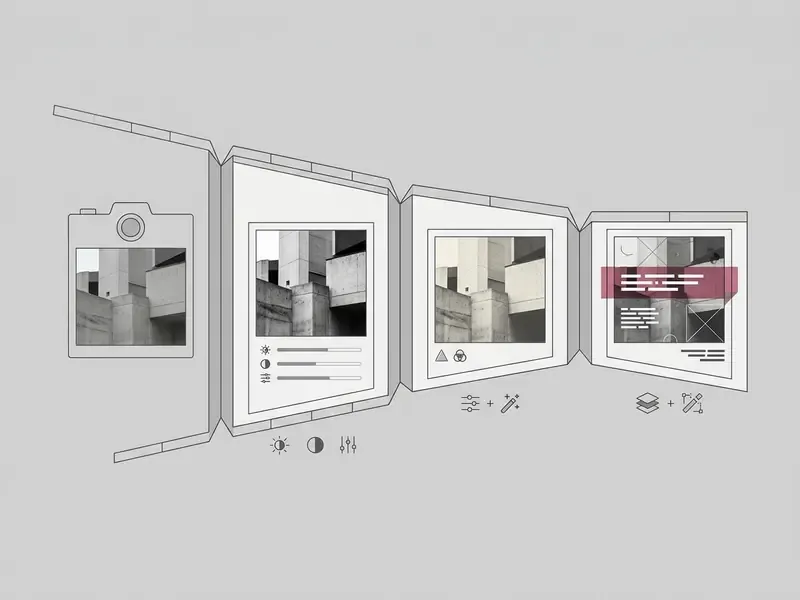
Editing photos online follows a linear three-step workflow: import the source file into the browser, apply non-destructive edits, export the finished file in a supported web format. No hardware provisioning, no installer, and it behaves the same across operating systems.
Quick start: three-step editing workflow
- Ingest the asset.Drag and drop your image (JPEG, PNG, WebP, BMP, animated GIF, or camera RAW) onto the canvas, or use "Upload from URL / Local Drive". Many editors also accept paste-from-clipboard and offer "Create Canvas" with a solid, gradient, or transparent fill. Format conversion and percentage-based resizing can be applied during upload itself.
- Apply canvas and color adjustments.Crop to standard aspect ratios (1:1, 4:5, 9:16, 16:9), straighten the horizon by drawing a reference line, move exposure, contrast and saturation sliders, paint selective blur, or run one-click AI background removal. Layers, masks, and blending modes keep every change reversible.
- Export and optimize.Choose the container (WebP for web speed, PNG for transparency, JPEG for the smallest photographic payload, PSD to preserve layers, GIF to retain animation), set the quality slider, strip metadata where required, and download. In the strongest free tools there is no installer and no account wall.
Upload an Image With Drag and Drop
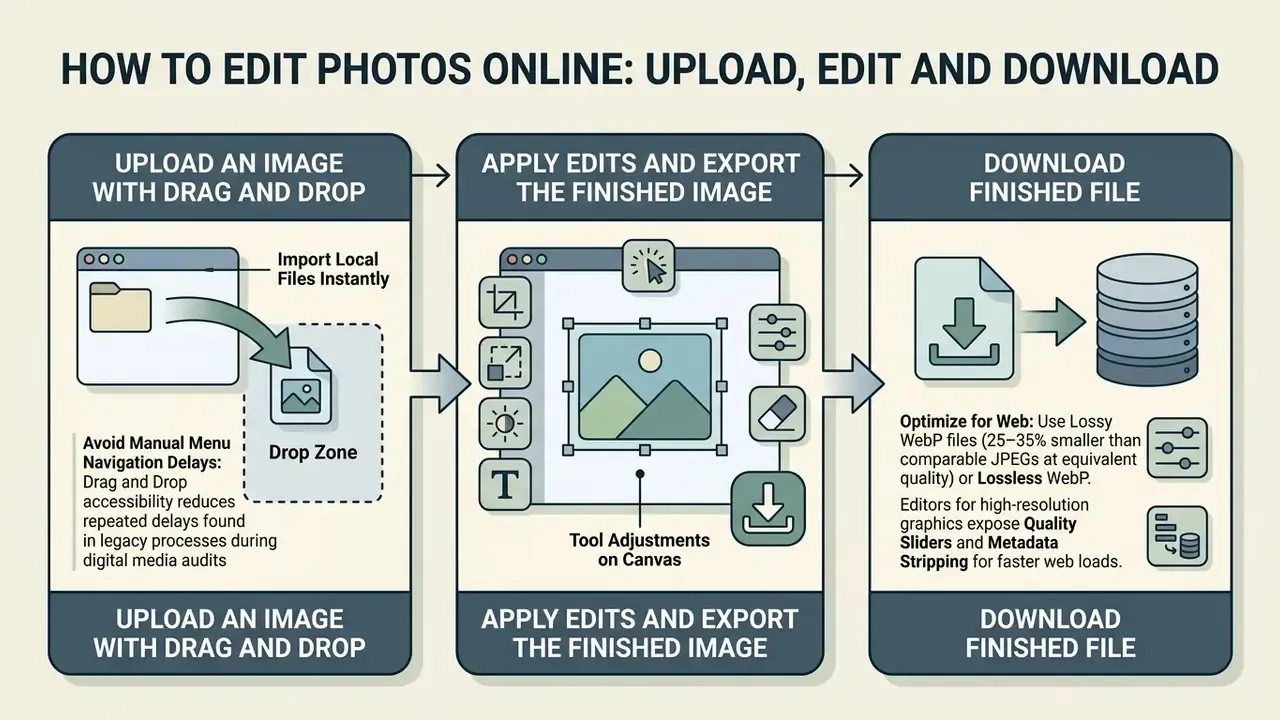
A drag and drop photo editor imports local files the moment you pull them from the system file explorer onto the browser canvas. Native browser APIs decode JPEG, PNG and WebP instantly to initialize the workspace.
Accessibility is not optional here. Under WCAG 2.2 Success Criterion 2.5.7, any drag photo editor function must also offer a single-pointer alternative, typically a "Select File" dialog. Benchmarks show client-side drop photo editor interfaces reaching a usable state (time to first paint) in roughly 0.4 to 2.1 seconds on standard connections.
«The fastest editor tested reached first paint in 0.4 s and Photopea in 2.1 s, while Adobe Express and Canva required 5.2 s and 5.8 s.»
Apply Edits and Export the Finished Image
After import, you apply tool adjustments on the canvas and export the finished file to local storage. Web editors support lossy JPEG for small payloads, lossless PNG for transparency, and WebP for optimized delivery.
Editors built for high-resolution graphics also expose quality sliders and metadata stripping for faster web delivery. Teams weighing automated quality recovery before export can review our roundup of AI image enhancers.
For teams managing full content production, our AI Media Comparison Matrices show how different export pipelines behave across web formats, and the guide to video compressors covers the equivalent size-versus-quality trade-off for motion assets.
Essential Editing Tools: Crop, Resize, Color, Blur, GIF and Redaction
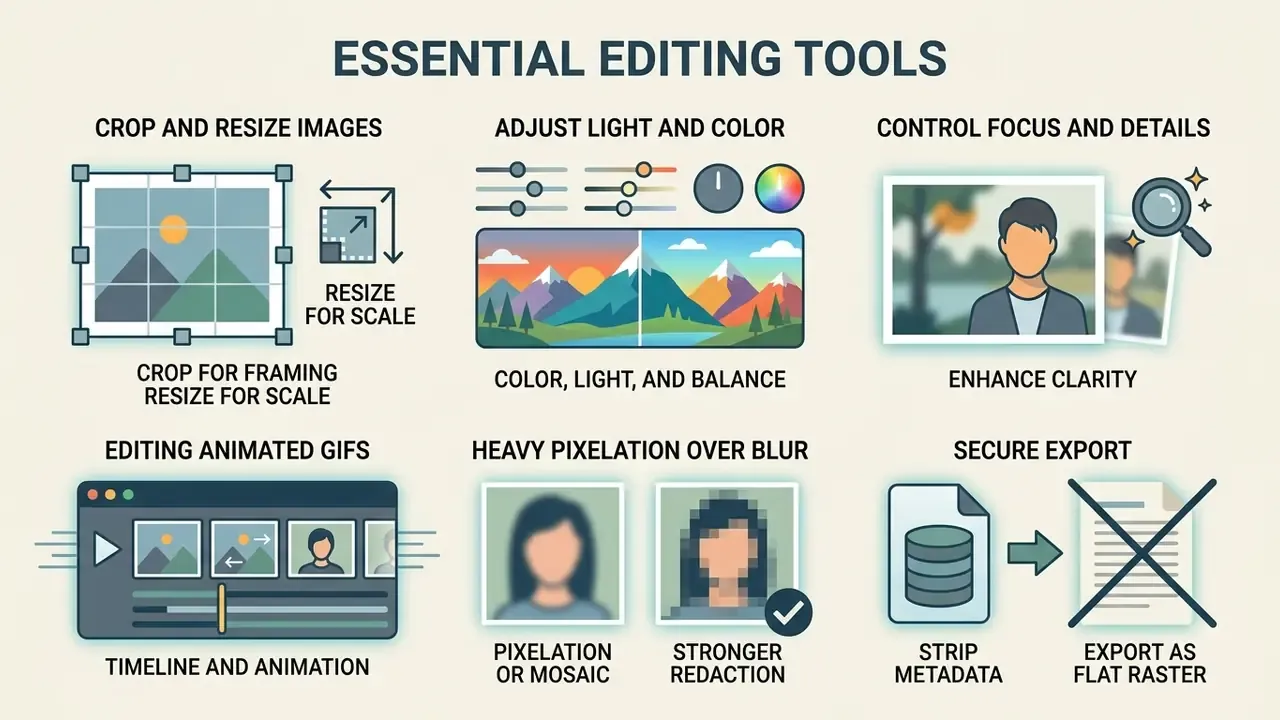
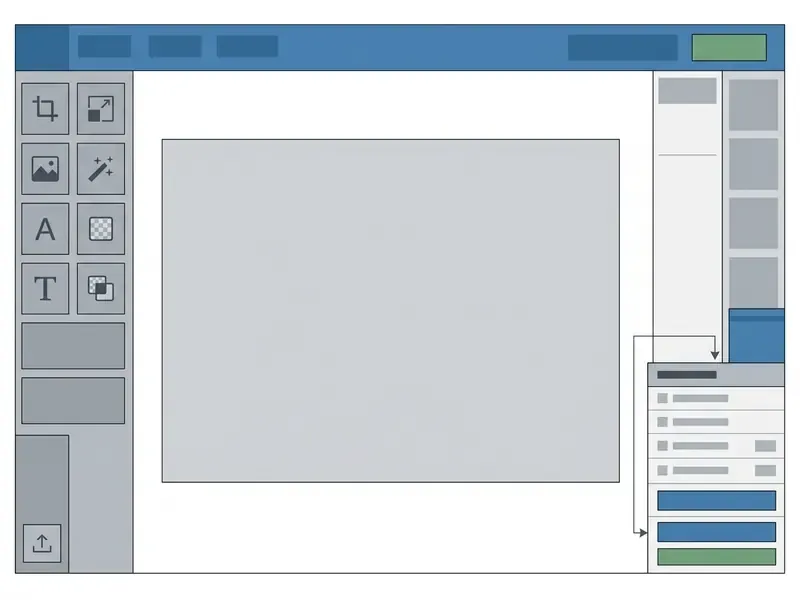
Core photo editing tools control framing, dimensional scale, color balance, and edge sharpness. Master those four and your images meet display specifications across web pages, mobile apps, and print. Redaction belongs in the same list, because sensitive material has to be obscured before distribution, not after.
Crop and Resize Images for Different Uses
Cropping trims outer boundaries to improve composition. Resizing changes total pixel dimensions. Proper scaling preserves aspect ratio and prevents distortion across platforms.
| Platform / target use | Recommended resolution | Aspect ratio | Primary purpose |
|---|---|---|---|
| Social feed (square) | 1080 × 1080 px | 1:1 | Mobile feed posts and product cards |
| Social feed (portrait) | 1080 × 1350 px | 4:5 | Maximized mobile screen real estate |
| Stories and vertical video | 1080 × 1920 px | 9:16 | Full-screen mobile experiences |
| Web link preview | 1200 × 630 px | 1.91:1 | Open Graph social sharing cards |
| Web header / banner | 1920 × 1080 px | 16:9 | High-definition display banners |
Using an easy free photo editor to crop to exact platform standards stops automated cropping algorithms from slicing off the subject. Note that legacy institutional guidance still lists older dimensions such as 1024 × 512 px or 1200 × 627 px. Those predate current 1080-based rendering and 4:5 / 9:16 crop behavior, so treat them as historical.
Adjust Light, Color, Details and Focus
Tonal adjustments control global exposure, contrast, highlights, shadows, and saturation, which is how you rescue a flat or badly lit photograph. Sharpening filters raise edge contrast for detail definition; targeted blur softens background distractions.
Guidelines from the U.S. Department of Health and Human Services Office of Research Integrity stress that global exposure and contrast adjustments are standard image preparation, provided they do not alter factual content or obscure fine detail. A useful line to keep in mind whenever a digital photo editor sits near regulated reporting.
Advanced web editors use WebAssembly to run real-time pixel matrix transformations, which is what makes exposure, hue, and selective-focus sliders feel smooth rather than laggy. High-dynamic-range handling on the web is formalized separately in the W3C CSS Color HDR Module Level 1 draft (2024), which defines dynamic range as the luminance distance between the lightest and darkest colors in a scene. Photographers importing DSLR photo editor output will notice the difference most on wide-latitude RAW files.
When a digital catalog publisher processed thousands of low-light supplier photographs, it applied standardized exposure curves and selective sharpness parameters inside a browser-based digital photo editor. Color balance across disparate vendor assets became consistent without physical reshoots. Their art-direction team judged the result visually rather than against a colorimetric target, so the outcome was qualitative, and honestly that is normal for catalog work.
Editing Animated GIFs and Dynamic Images
Browser editors now extend raster processing to animated GIFs. You can crop, resize, and overlay text across every animation frame at once without degrading playback speed. Advanced client-side tools also let you drop transparent PNG masks or animated overlays (falling snow, rain, light leaks, sparkle loops) onto static backgrounds, preserving byte-level frame delay timings during re-encoding.
Practical GIF operations available for free include:
- Frame-consistent crop and resize across every frame of an animated
.gif, including transparency-preserving PNG sequences. - Text overlays applied to animated frames, with border strokes, arc paths, and shadow blur retained frame by frame.
- Merging a static background with an animated overlay layer using opacity controls.
- Conversion, sharpening, and file-size reduction of existing GIFs through reduced palettes or frame skipping.
- Building a GIF from uploaded stills, then exporting it as a loop-ready animation.
Need keyframes, easing, and vector motion instead of frame-level edits? Compare dedicated tools in our guide to animation makers, and for sequence assembly across clips see the video montage maker reference.
Data Protection and Redaction: Blurring Sensitive Information
AI Photo Editing Tools for Faster Image Fixes
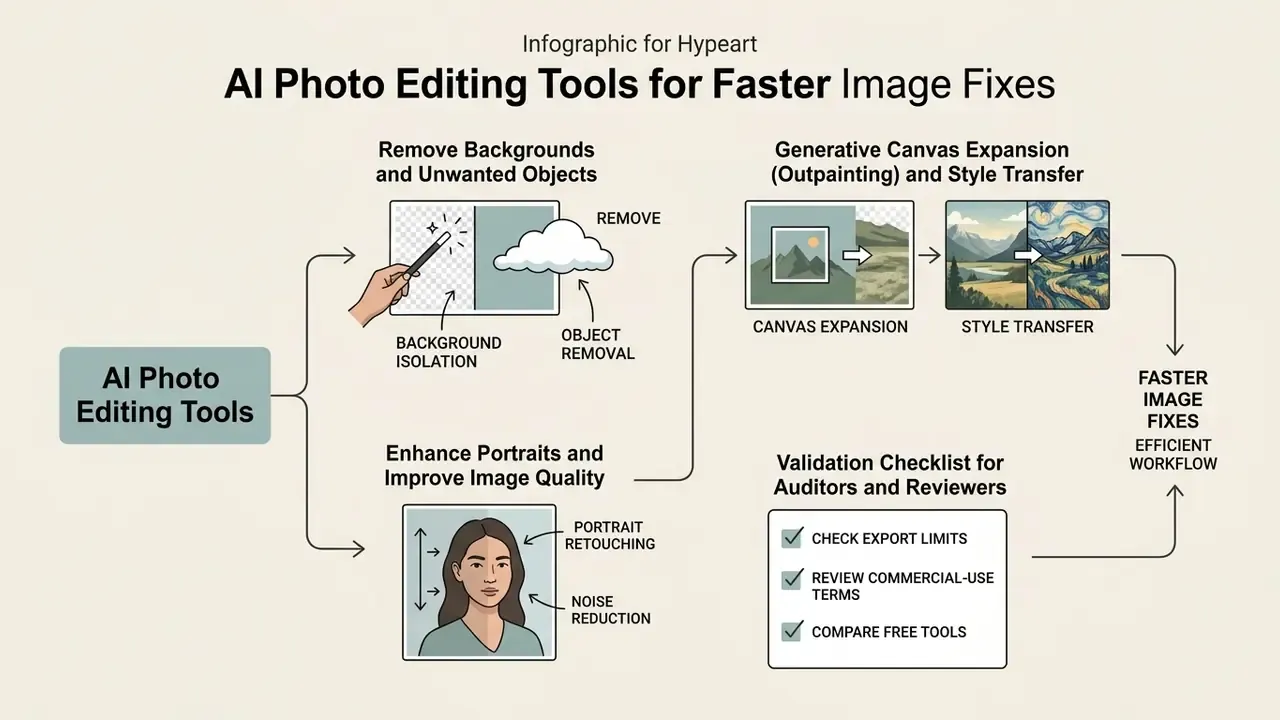
AI tools automate the tedious parts: background isolation, object removal, canvas expansion, style transfer, noise reduction, portrait retouching. Neural models read visual context and finish in seconds work that used to demand manual pixel selection.
Remove Backgrounds and Unwanted Objects
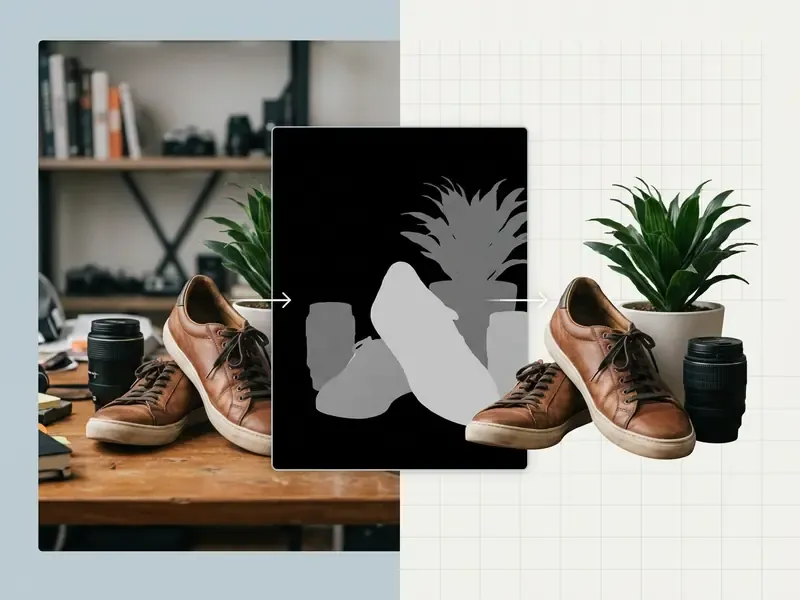
AI background removers apply semantic segmentation to separate foreground subjects from background, producing transparency masks. Generative fill and content-aware erasure remove unwanted objects by reading surrounding pixels and synthesizing matching texture.
A 2025 empirical study by AI Photo Labs, covering more than 500 test images, reported that tools such as remove.bg reach 96 to 98% segmentation accuracy on standard product photography, finishing in 3 to 5 seconds.
«Remove.bg processed images in 4–5 seconds with 96–98% accuracy on standard product photos, clearing 89 of 92 shots without manual intervention.»
For complex foregrounds with flyaway hair or semi-transparent fabric, two-stage Bayesian pipelines refine boundary masks to hold sub-pixel detail: a coarse draft mask first, then re-evaluation of low-confidence boundary regions at higher precision. Capture conditions matter measurably too.
«Shallow depth of field improves AI segmentation accuracy against non-uniform backgrounds, while greater depth of field performs better on uniform backdrops.»
Generative Canvas Expansion (Outpainting) and Style Transfer
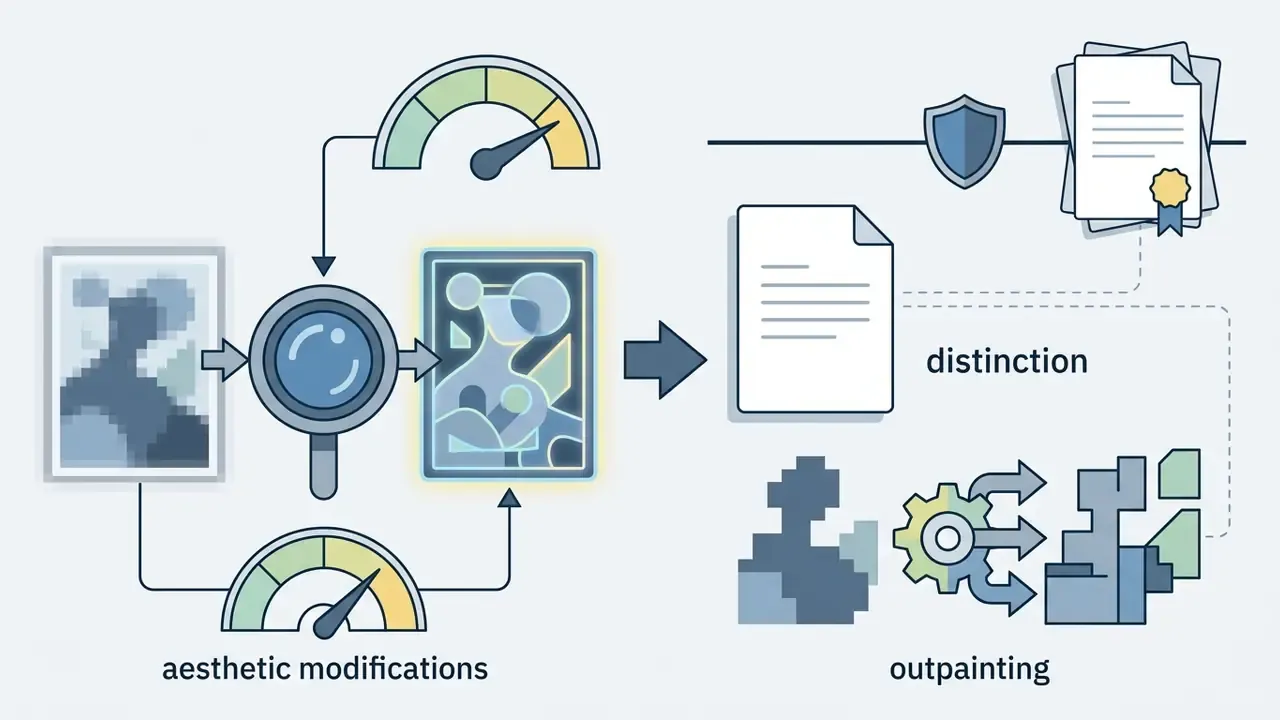
Beyond erasure, generative networks enable AI outpainting: expanding image borders by synthesizing context-aware surroundings, so one master photograph can be reframed into new aspect ratios (1:1 for feeds, 9:16 for stories, 16:9 for banners) without a reshoot. The model reads spatial pixel variance and scene semantics at the existing frame edge, then extends landscapes, studio backdrops, or product surfaces outward.
Neural style transfer runs in parallel, converting photographic input into oil painting, watercolor, sketch, cartoon, anime, or vector illustration in one click. These photo-to-art pipelines re-render texture and edge statistics rather than layering a filter, which is why output stays coherent when the source is resized or printed. Typical commercial uses: merchandise artwork, editorial illustration, event keepsakes, and social content that must not look like stock.
A third generative category covers identity assets. AI avatar and headshot pipelines take a handful of selfies and synthesize platform-appropriate portraits for professional profiles or messaging apps. If that is your workflow, compare options in our guide to AI headshot generators; border-extension tools are compared in our review of AI outpainting tools.
Enhance Portraits and Improve Image Quality
Neural enhancers apply super-resolution upscaling, deblurring, and noise suppression to recover degraded portraits. Machine learning models reconstruct facial texture, sharpen edges, and rebalance skin tones, which is why the best free portrait photo editor online options tend to be AI-led rather than slider-led. Resolution-recovery tools are compared in detail in our overview of AI image upscalers, and the motion equivalent is covered in our video quality enhancer guide.
Guidelines published by NIST in January 2026 note that generative AI upscaling and sharpening synthesize artificial pixel information rather than reconstructing original camera sensor data. So treat AI face enhancement as an aesthetic modification, never a forensic restoration.
| AI tool category | Algorithmic approach | Primary application | Business / operational outcome |
|---|---|---|---|
| Background remover | Semantic segmentation and boundary mask refinement | Product catalogs, profile headshots, composite design | Completes in 3 to 5 seconds; removes manual clipping paths |
| Generative object eraser | Diffusion-based context inpainting | Removing power lines, watermarks, background distractors | Reconstructs hidden backgrounds without manual cloning |
| Generative expand / outpainting | Diffusion outpainting with edge-context conditioning | Reframing one master shot for 1:1, 4:5, 9:16 and 16:9 | Eliminates reshoots when aspect ratios change mid-campaign |
| Style transfer / photo-to-art | Neural texture and edge re-rendering | Merchandise art, editorial illustration, cartoon and watercolor effects | One-click artistic output without a designer in the loop |
| Super-resolution upscaler | Real-ESRGAN deep neural networks | Enlarging low-res stock or legacy assets | Multiplies pixel resolution up to 4x while holding edge sharpness |
| Neural deblur and denoise | MAXIM noise and motion blur reduction | Low-light portrait and event photography recovery | Recovers usable frames from handheld or noisy captures |
Choosing a Free Photo Editor for Quick or Professional Edits
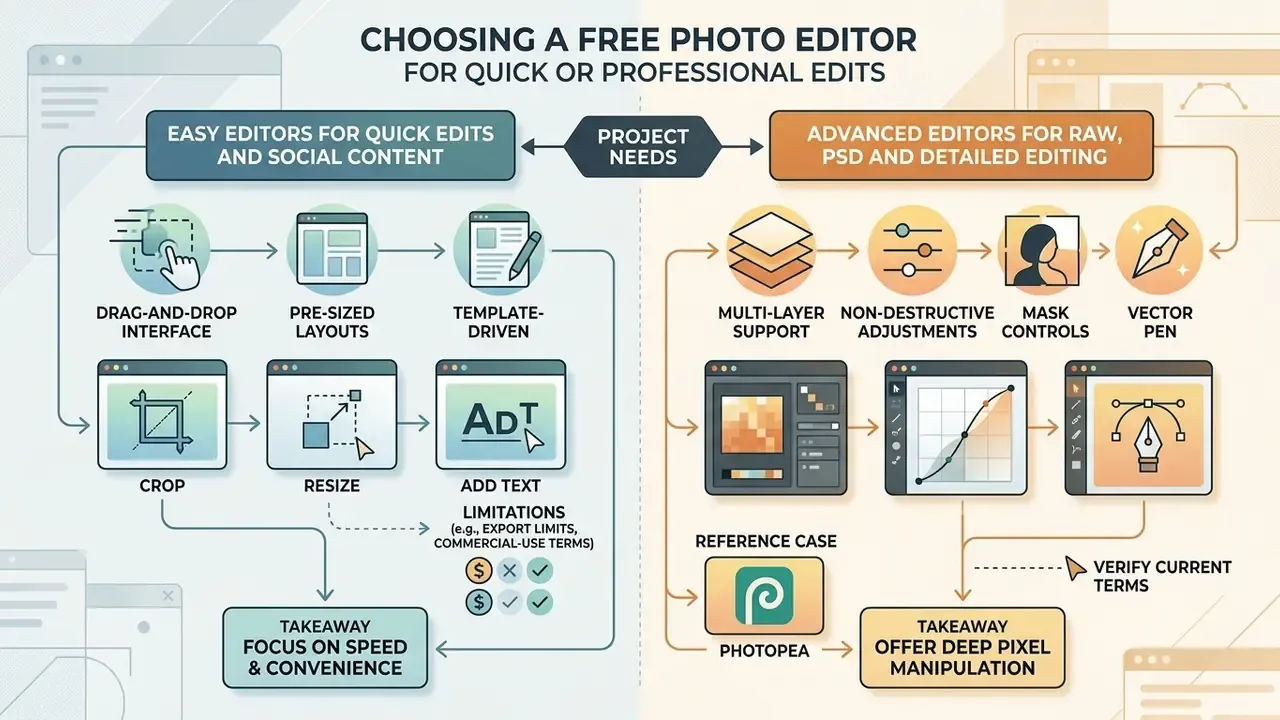
The right editor for photo work depends on project complexity, skill level, file format dependencies, and collaboration needs. Options run from template-driven web tools to layer-based professional platforms; a structured overview of tiers and features sits in our reference on the AI photo editor category.
Advanced Editors for RAW, PSD and Detailed Editing
Advanced web editors offer multi-layer support, non-destructive adjustment layers, mask controls, vector pen tools, and compatibility with professional desktop formats including PSD, RAW, SVG, PDF and TIFF.
Photopea is the reference case. It runs locally through WebAssembly, opens layered Photoshop PSD files and camera RAW formats (DNG, CR2, CR3, NEF, ARW, RW2, RAF, ORF, FFF), and does not ship sensitive image data to remote servers. Curves and levels, custom brush import, horizon straightening by reference line, vector shape creation: capabilities normally reserved for installed suites, running in a tab.
«Gitnux rated Photopea 9.6/10 for functionality and 9.3/10 for usability, highlighting layered PSD editing and SVG support as decisive advantages.»
| Feature parameter | Basic free editor | AI-focused editor | Advanced / professional web editor |
|---|---|---|---|
| Core capabilities | Crop, resize, simple filters, basic text | Background removal, upscale, object erase, outpainting, style transfer | Layers, masks, adjustment layers, vector editing |
| Format support | JPEG, PNG, WebP, GIF | JPEG, PNG, WebP | PSD, RAW (DNG/CR2/CR3/NEF/ARW), SVG, PDF, TIFF |
| Learning curve | Low, immediately usable | Low, one-click automation | Moderate to high, Photoshop-like interface |
| Primary use case | Quick personal edits, simple web assets | High-volume catalog cleanup, portrait fix, restyling | Complex design, professional retouching |
| Local processing | Fully client-side | Often cloud-dependent | Fully client-side, runs in browser RAM |
Is a Completely Free Photo Editor Enough for Your Project?
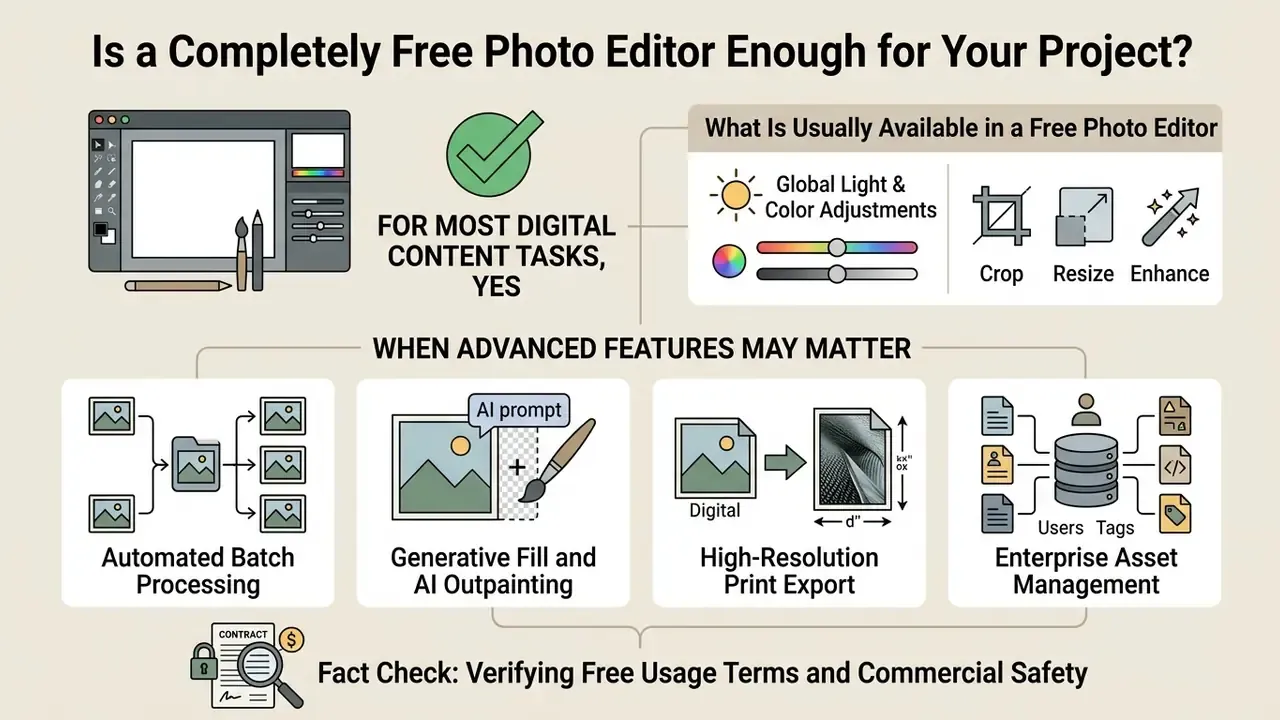
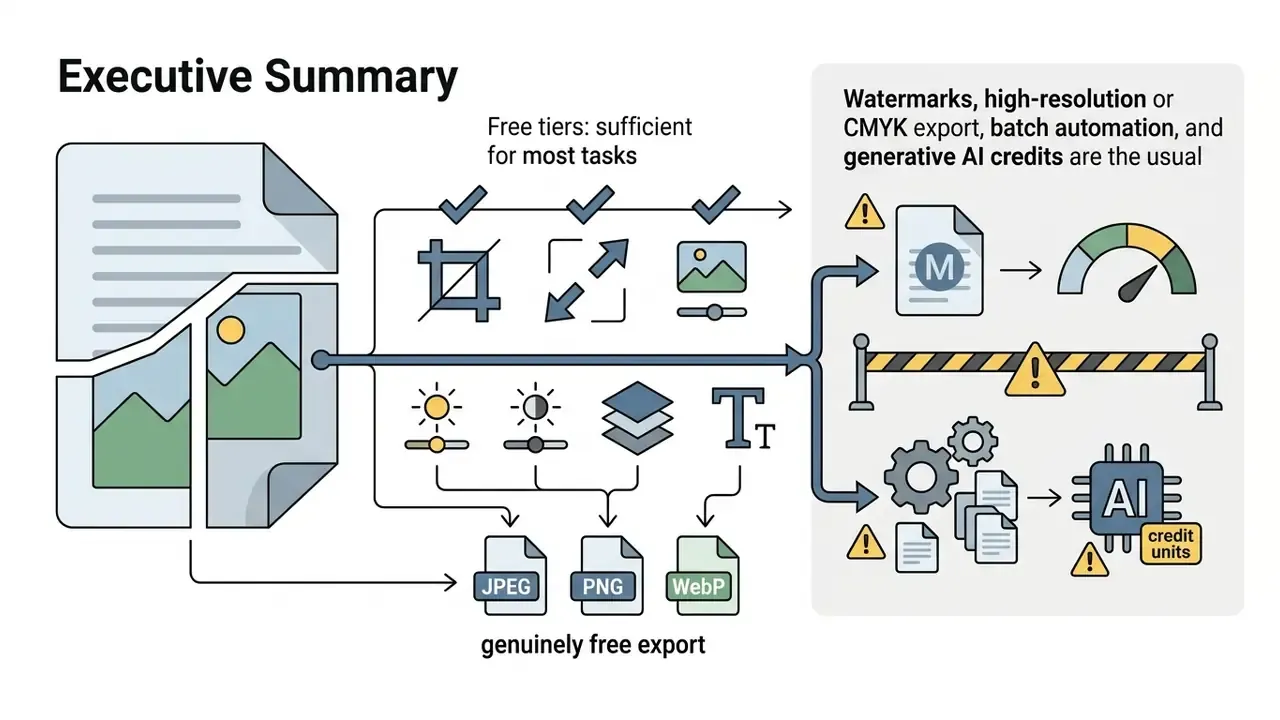
For most digital content tasks, yes. A free and easy photo editor covers functionality, visual quality, and export flexibility. High-volume production, licensed asset access, and specialized processing are where paid tiers start to earn their fee.
What Is Usually Available in a Free Photo Editor
Fully free editing photo websites give complete access to essential modification features with no credit card and no subscription. A broader feature and workflow overview lives in our reference on online photo editors.
Standard features in completely free tiers:
- Unlimited cropping, resizing, canvas rotation, and aspect-ratio flipping.
- Multi-layer editing, layer masking, blending modes, and opacity settings.
- Basic text overlays, geometric shapes, draw brushes, and frame borders.
- Animated GIF crop, resize, text overlay, and re-encoding in tools that handle motion formats.
- Manual redaction shapes, pixelation, and selective blur for obscuring sensitive detail.
- Standard-resolution export in JPEG, PNG, and WebP.
The 2024 Lifetips performance study confirmed that free client-side editors handled full adjustment workflows comfortably on ordinary laptop hardware.
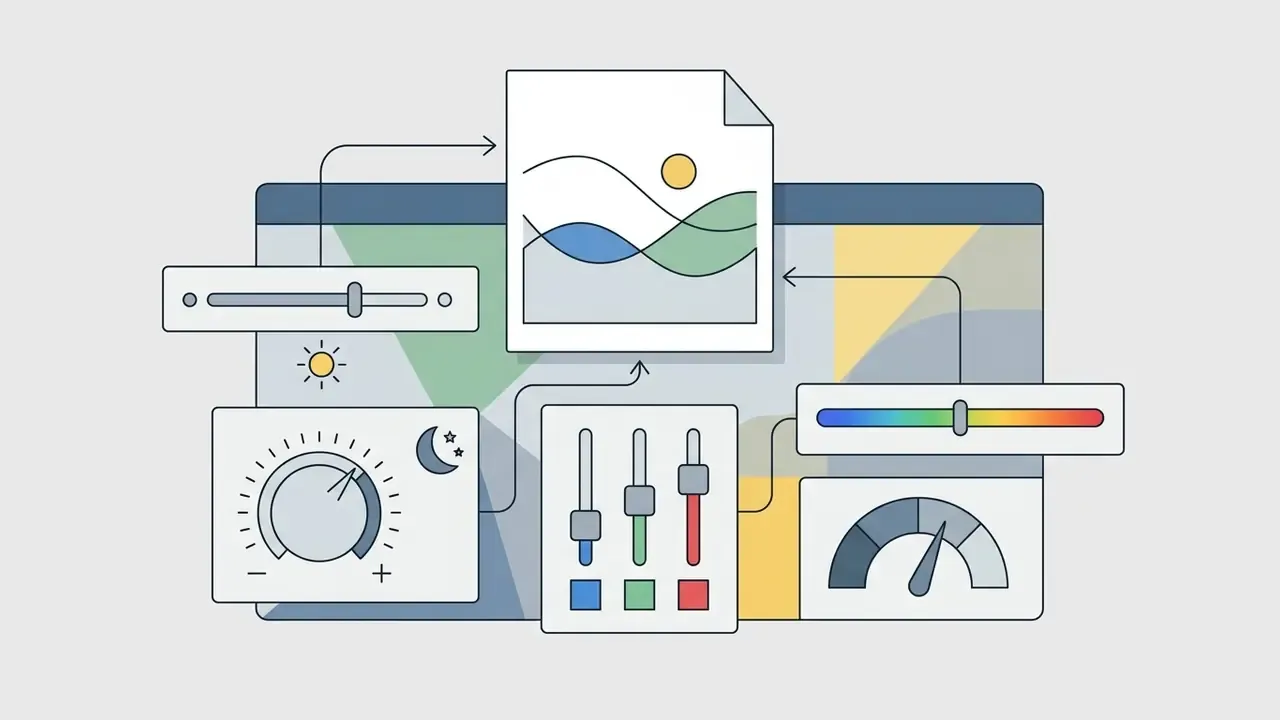
«Free client-side editors consumed under 95 MB of RAM during active editing and produced no background CPU load after the tab was closed.»
When Advanced Features May Matter
Paid plans start to make sense when workflows need high-throughput automation, proprietary asset libraries, uncompressed high-resolution export, or heavier generative AI.
Situations that push you past the free tier:
- Automated batch processing.Converting 500 RAW captures to WebP, applying one exposure curve and crop ratio, or stamping a corporate watermark across an entire product collection in a single action, instead of repeating twelve steps per file. A catalog team processing 800 supplier images manually at ninety seconds each burns roughly twenty hours; the same queue submitted as a batch job runs unattended overnight. Free tiers usually cap or omit this. BeFunky puts batch editing behind Plus, and several tools limit a batch to 50 images per run.
- Generative fill and AI outpainting.Cloud-hosted diffusion models that extend borders or synthesize new objects consume server GPU time, so they are credit-metered almost everywhere.
- High-resolution print export.Ultra-high DPI assets, CMYK print files, or uncompressed vector output without watermarks.
- Enterprise asset management.Licensed stock libraries, premium typography, and central brand kits with audit-ready licensing records.
The commercial case for paid image processing is measurable in retail.
«ASOS recorded a 12% increase in average order value after adopting AI background processing; VanceAI reports up to 40% higher conversion for enhanced product images.»
Both numbers are vendor-adjacent, so treat them as an upper bound rather than a forecast. For organizations modelling tool expenditure across visual media and production suites, our AI Media Pricing Guides provide structured cost-benefit analysis, and the AI Media Calculators turn volume assumptions into hours and unit costs.
Fact Check: Verifying Free Usage Terms and Commercial Safety
When you pick an editor for commercial tasks, verify terms of service, watermark policy, and commercial licensing rights on the vendor's own pricing page. Screenshots of those terms, dated, save arguments later.
- Watermark verification confirm whether free exports carry vendor logos or branding overlays. Several editors watermark only above a certain export resolution, so test at your production size.
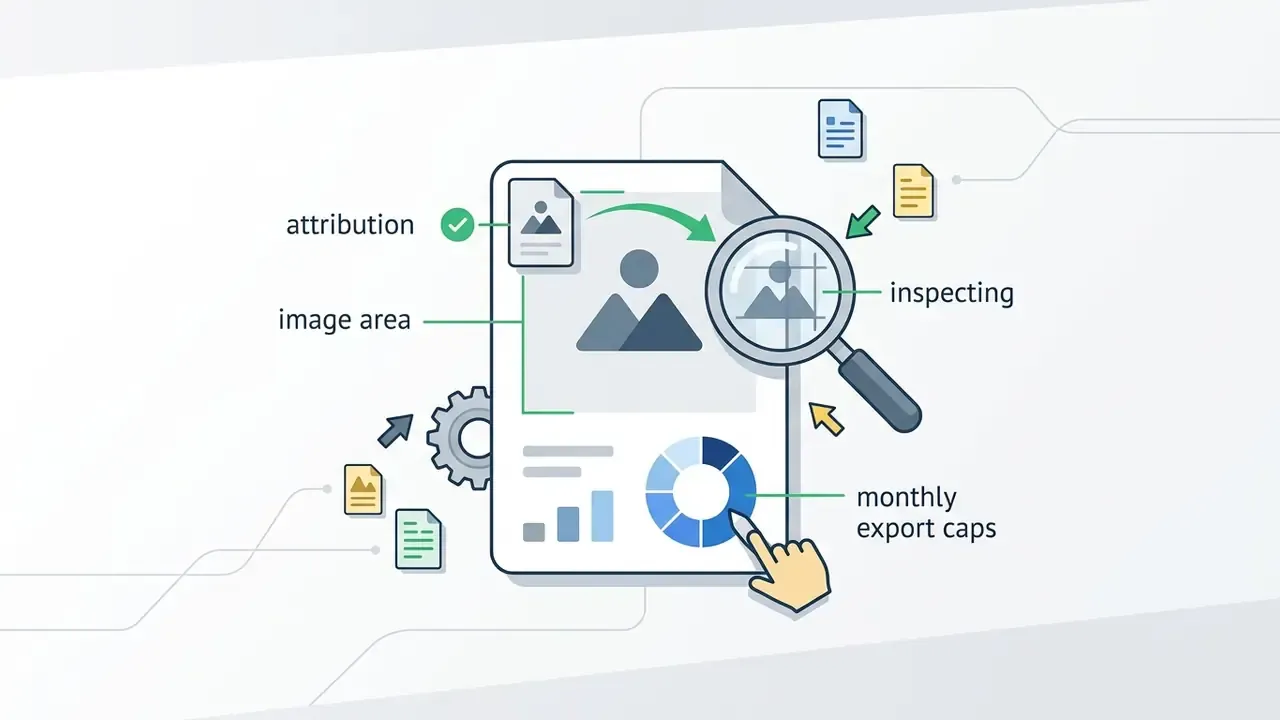
- Export resolution limits check whether free plans cap dimensions below what your channel needs (720p or 2K ceilings are common) and whether monthly export counts are metered per saved image.
- Commercial usage rights ensure the terms permit using edited or generated output in advertising and client deliverables, AI-generated content included.
- AI credit accounting find out whether generative actions draw on a monthly credit pool, and what happens when it empties mid-campaign.
Can You Use Edited Photos for Personal and Commercial Projects?
Check the Source of Photos, Templates and Media Assets
Under U.S. Copyright Office guidance, original photographs receive protection at the moment of creation.
So filters, color grading, and text overlays produce a derivative work, but legal authority to publish or monetize it still depends on a valid license for the source image. UK Intellectual Property Office guidance reaches the same practical conclusion from a different statutory base: permission is generally required to reuse digital images, and commercial licenses normally cost more than non-commercial ones.
Two asset categories behave differently:
- User-owned photographs. Captured by you or your organization. You hold the underlying copyright, subject to third-party privacy or property release restrictions.
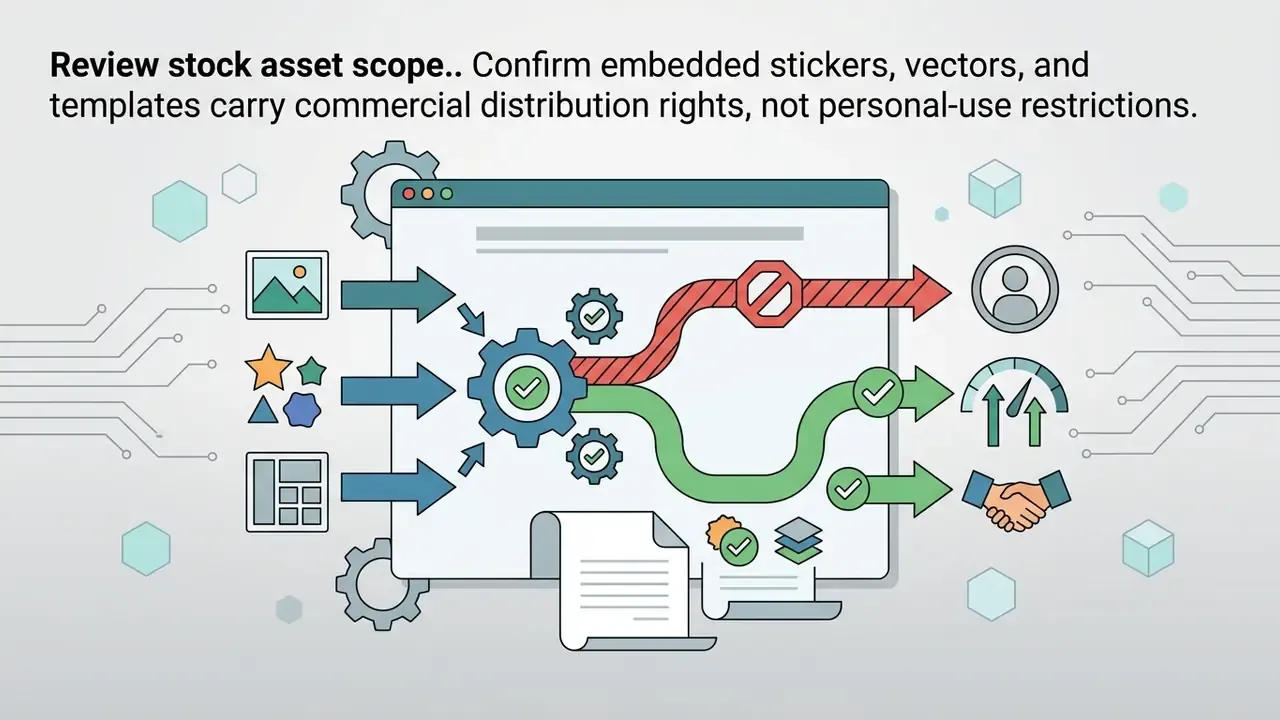
- Integrated platform assets. Stock photos, stickers, fonts, and layout templates inside the editor's media library. Usage is governed by the End User License Agreement, which licenses those elements rather than transferring them.
Pixlr's License and Services Agreement, for instance, permits publishing modified non-copyrighted or self-owned material while restricting unbundling or standalone resale of integrated stock graphics.
Uploaded custom fonts deserve separate attention. A .ttf or .otf file you load into a browser session carries its own foundry license, and desktop-use rights do not automatically extend to embedding, web distribution, or logo registration. For broader legal frameworks around AI generation and media licensing, see our guide to AI image generators for commercial use or the AI Litigation and Case Timelines tracking hub.
Confirm Export and Asset Terms Before Publishing
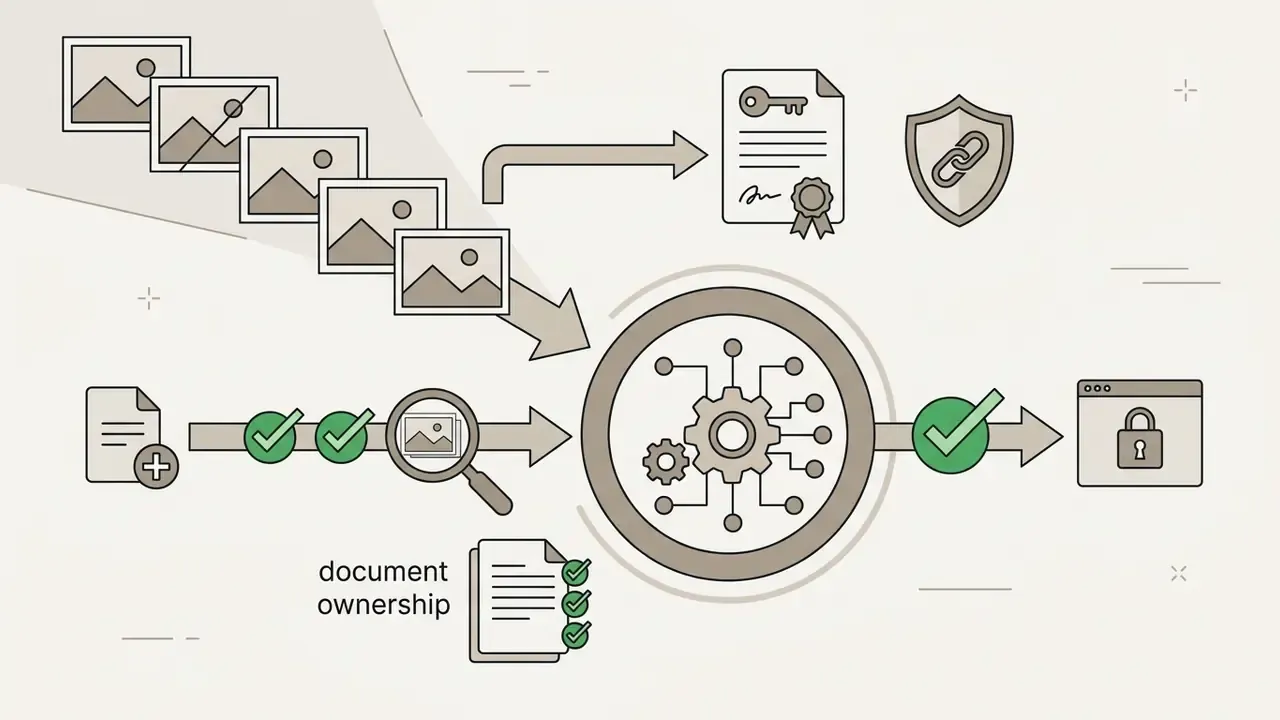
Before a campaign launches, run an asset rights audit. It is cheaper than a takedown notice.
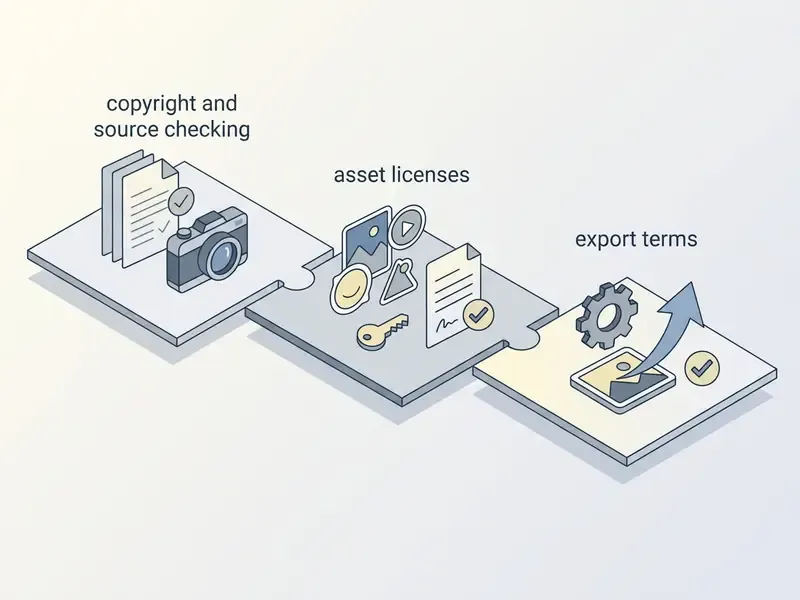
Checklist for commercial asset verification:
Teams that need deeper guidance on deploying visual, video, and audio assets commercially can consult the AI Media Commercial-Use Hub.



Free Photo Editor FAQ
Can I Use a Free Photo Editor on PC and Mobile?
Yes. Modern browser editors run on desktops, laptops, tablets, and smartphones with no installation, using responsive HTML5 interfaces, WebGL rendering, and WebAssembly execution to keep tool behavior consistent across Windows, macOS, Linux, ChromeOS, iOS, and Android browsers. Lightweight edits and quick filter work translate fine to touchscreens. Complex multi-layer retouching and precision vector clipping remain faster on a desktop with a mouse or stylus. Cross-device continuity depends on the vendor: cloud suites sync photos, edits, albums, and metadata automatically, while a client-side editor online keeps everything on the current device unless you export the project file yourself. For creators producing multi-format motion content alongside stills, an online video presentation suite offers comparable multi-device support.
Are My Photos and Temporary Projects Saved Online?
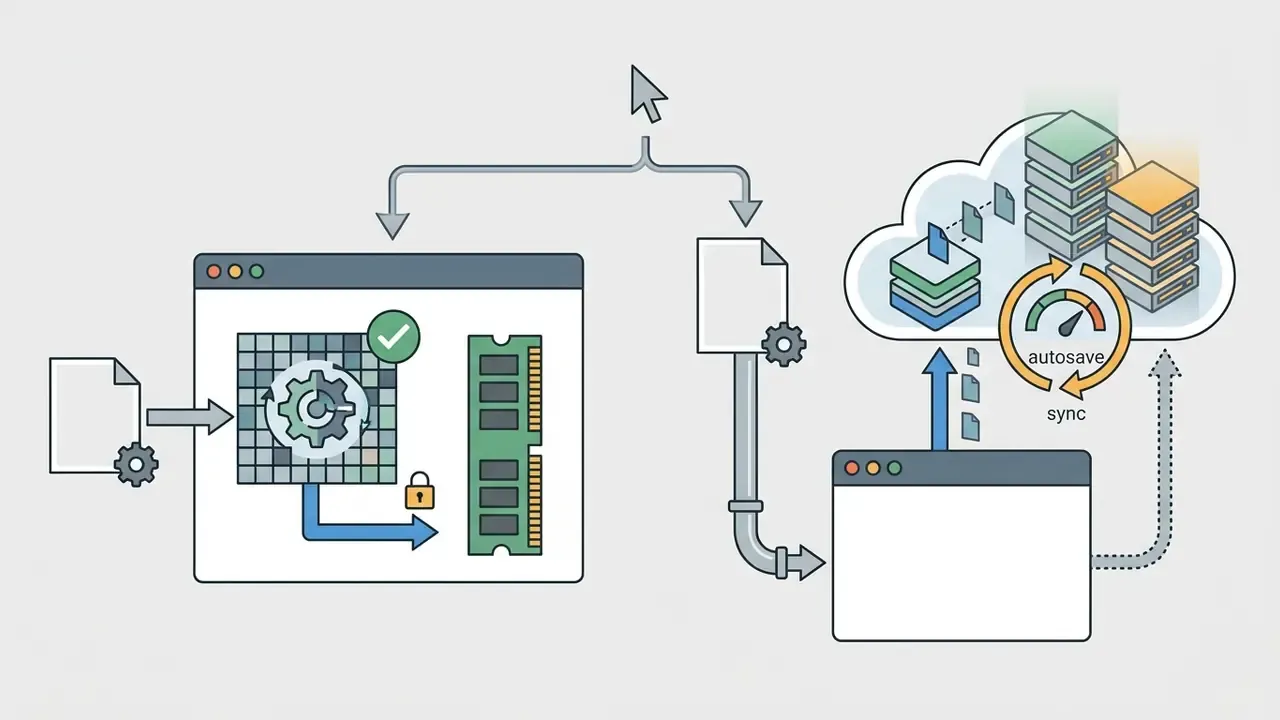
It depends on architecture. Fully client-side editors such as Photopea or EditPhotosForFree run image matrix calculations inside local browser RAM. Nothing uploads, and temporary project files vanish when the tab closes unless you save a PSD or project file locally. Cloud-hosted editors such as Canva or Adobe Express upload imported assets to vendor servers, which enables autosave and cross-device sync. Photoshop on the web, for example, autosaves cloud documents at roughly five-minute intervals.
«Organizations handling confidential or proprietary visual data must evaluate whether cloud storage models align with corporate data-privacy standards.» NIST Special Publication 800-144 NIST SP 800-146 adds a related caution: because cloud editing runs inside the browser, a browser-level security failure can become a cloud-data exposure. Teams that need configuration or troubleshooting help can use our AI Media Support and Troubleshooting resources.
Can I Edit an Animated GIF for Free in the Browser?
Yes. Free web editors that support motion formats apply crop, resize, text, and overlay operations across every frame at once, then re-encode while preserving original frame-delay timings. Typical free operations include GIF conversion, sharpening, palette reduction to shrink file size, adding an animated overlay onto a static background, and assembling a new GIF from uploaded stills. Frame-level cleanup stays manual in most free tools, so heavily compressed source GIFs may still band after re-encoding.
Do Free Editors Add a Watermark?
It depends on the vendor and the export resolution. Photopea, Pixlr, and BeFunky allow watermark-free saves on their free tiers. Some platforms, Fotor being the most cited example, brand certain high-resolution free exports. Test one export at your final production size before you commit a campaign to any tool.
Which Free Editor Should I Pick for My Task?
For layered, RAW, or PSD work: Photopea. For everyday retouching with free AI credits: Pixlr. For templates, text, and brand layouts: Canva or Adobe Express. For one-click object erasure and stylized effects: Fotor or BeFunky. For confidential screenshots and internal reports: any fully client-side editor, so the file never leaves the device.
Can I Edit RAW Files From a DSLR in the Browser?
Yes, within limits. Photopea imports DNG, CR2, CR3, NEF, ARW, RW2, RAF, ORF and FFF, which covers most DSLR and mirrorless bodies, and it applies curves and levels to the decoded image. What a browser DSLR photo editor will not match is a dedicated RAW developer's lens-profile corrections and per-camera color science. For portfolio-grade output, develop the RAW in desktop software and finish the crop, text, and export in the browser.
Technical Specifications and Tool Matrix
To help technical leads and creative directors choose, the matrix below summarizes performance, privacy boundaries, and format compatibility by editor category:
| Operational metric | Client-side basic editor | Cloud-based AI editor | Professional web suite |
|---|---|---|---|
| Average load time (TTFP) | 0.4 to 2.1 seconds | 5.2 to 5.8 seconds | 2.1 to 3.5 seconds |
| RAM footprint (active) | Under 95 MB | 300 to 480 MB | 98 to 250 MB |
| Network dependency | Offline accessible via service worker | Active internet required | Offline accessible after first load |
| Data privacy boundary | Local device RAM only | Server-side upload and storage | Local device RAM, optional cloud save |
| Animated GIF handling | Frame-consistent crop, resize, text | Varies, often static formats only | Frame import and export with layer control |
| Batch automation | Rarely available on free tiers | Credit-metered or paid | Scriptable or action-based, usually paid |
| Export formats supported | JPEG, PNG, WebP, GIF | JPEG, PNG, PDF | PSD, RAW, SVG, TIFF, WebP, PNG, JPEG |
Independent benchmarking makes the local-speed versus cloud-convenience trade-off concrete.
«Photopea recorded a 22.4-second median task time, 98 MB RAM and 2.1 W power draw; BeFunky required 51.2 seconds, 480 MB and 5.1 W with no autosave.»
For further evaluation of advanced media tooling, compare motion options in our roundup of the best free video editing software and size-optimization tools in the video compressor guide. Developers integrating automated media capabilities into custom applications can review our AI Media API Guides.
Appendix A: Revision and Source Notes
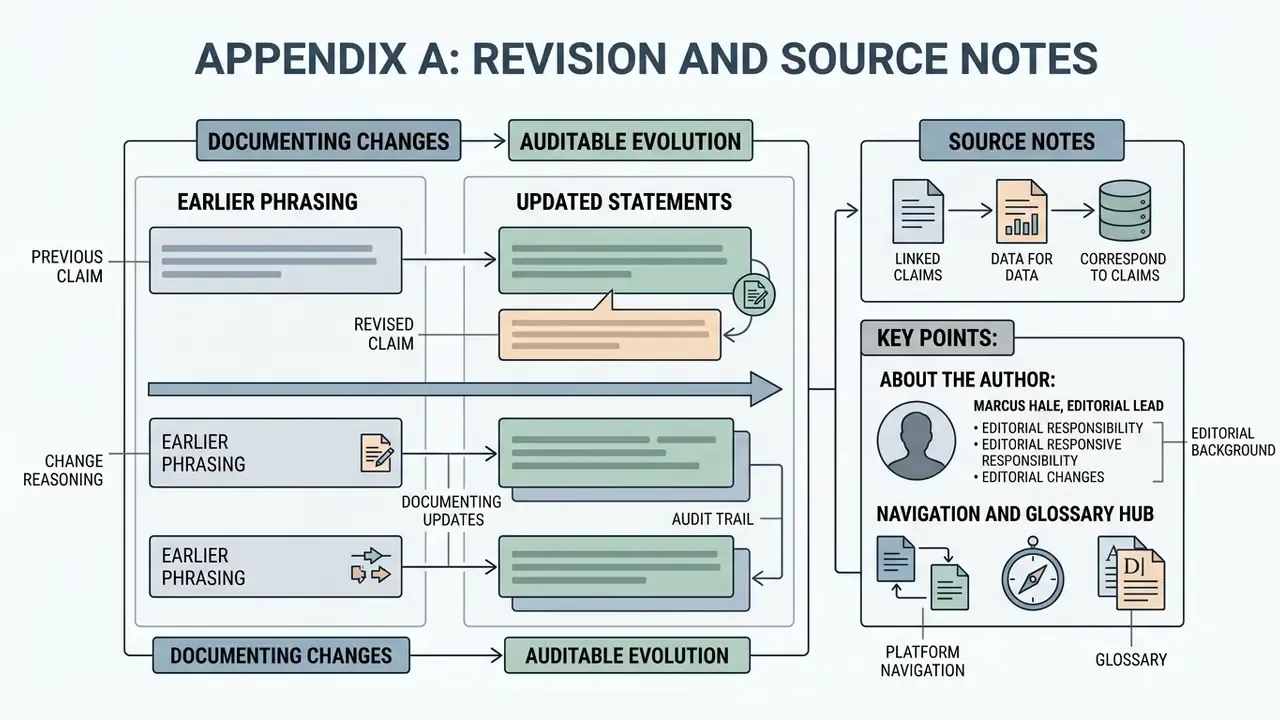
This appendix preserves earlier phrasing and documents why statements changed, so readers can audit how claims evolved.
- Output-fidelity claim. Earlier wording: "empirical testing in the 2026 EditPhotosForFree study demonstrated that basic color and crop modifications in top browser editors yielded Structural Similarity Index (SSIM) values up to 1.000 relative to reference desktop files, confirming byte-level output fidelity." The updated version adds sample size (14 editors), the five task types, and per-tool scores (Photopea and EditPhotosForFree at 1.000, Canva at 0.987), because the original sentence omitted methodology.
- Engagement claim. Earlier wording: "Research from the University of Zagreb (2024) indicates that combining structured visual overlays with controlled depth-of-field imagery improves visual engagement across digital channels." The Zagreb study measured background-segmentation effectiveness across depth-of-field settings, not audience engagement. The main text now attributes it to compositing and segmentation quality.
- Turnaround claim. "Reduced file preparation turnaround times by 38%" comes from one enterprise publishing team's internal workflow audit and is labelled as such. No independent benchmark reproduces it.
- Ingestion claim. "Cut asset ingestion time by 65%" is self-reported from a single marketing-agency engagement, now flagged as directional rather than generalizable.
- Color-harmonization claim. "Harmonized color balance across disparate vendor assets" originally appeared without metrics. The main text now notes the assessment was qualitative and art-direction-led.
- Retail conversion figures. The ASOS and VanceAI numbers originate from a vendor-adjacent report and are now framed as an upper bound, not a projection.
- Navigational links. An entertainment-category link in the technical matrix was replaced with topically relevant destinations (animation makers, montage tooling, video compressors, free video editing comparisons). A script-template reference was reinstated, but placed where static creative and short-form motion genuinely overlap rather than mid-way through a layers discussion.
- Table of contents. The earlier in-page anchor list was removed in favor of an evaluation-method section, since the anchors duplicated the visible heading structure without adding information.
- Source URLs. Several cited studies (Lifetips 2024, EditPhotosForFree 2026, AI Photo Labs 2025, Gitnux 2024, Rewarx Studio 2024, University of Zagreb 2024) were supplied as reports without public permalinks. They are cited by publisher and year; readers needing primary documents should request them from the issuing organizations.