Quick summary for anyone choosing a tool in two minutes
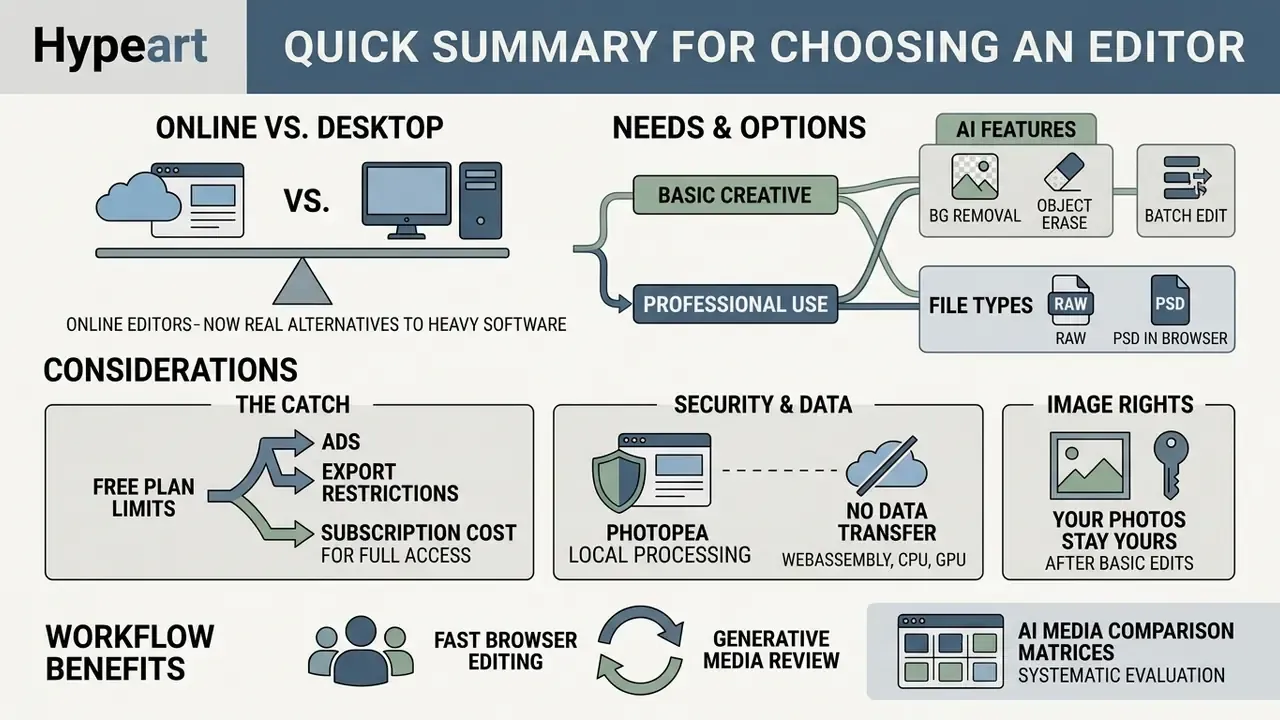
- What it is. An online photo editor is now a real alternative to heavy desktop software. Straight in the browser you can grade color, remove a background in one click with AI, work with PSD layers, open camera RAW and prepare social graphics. No install, no disk pressure.
- Who needs what. Layers, curves, RAW and PSD: Photopea or Pixlr. Templates, brand kits and fast posts: Canva or Adobe Express. One-click automation and batch runs: Fotor or Picsart.
- Where the catch is. Free tiers almost always throttle something. Pixlr allows roughly 3 saves per day plus an AI credit cap. Fotor stamps a watermark when you use premium AI. BeFunky locks object removal behind a $14.99/mo plan. Canva keeps premium templates and part of its AI behind a $120/year subscription.
- On security. Photopea processes files locally (WebAssembly, your CPU and GPU), so images never leave the device. Cloud editors upload your shots to a server. For personal data and internal corporate material that difference is not cosmetic.
- On rights. Your own photos stay yours after basic edits. Stock elements, templates and generative AI output follow separate platform licenses, and synthetic changes to people or products increasingly require disclosure.
Modern media operations need fast, dependable, low-friction editing inside the browser. Today's photo editor is no longer a standalone desktop retouching program; it is a hybrid web platform where classic pixel work sits next to generative AI: background removal, prompt-driven fill, automatic enhancement. Individual creators and enterprise teams pick these services on the same five axes: speed, precision, privacy, export flexibility and price.
For teams that review generative media workflows systematically, our AI Media Comparison Matrices keep the technical and risk definitions for browser-based automation consistent across tools.
What a photo editor is and which tasks it solves
A photo editor is a web or desktop application for changing, improving and synthesizing raster and vector images. Current web tools let you edit photos and edit image files with no installation and no dedicated GPU. Thanks to WebAssembly and cloud neural networks, a browser editor handles heavy visual operations close to real time.
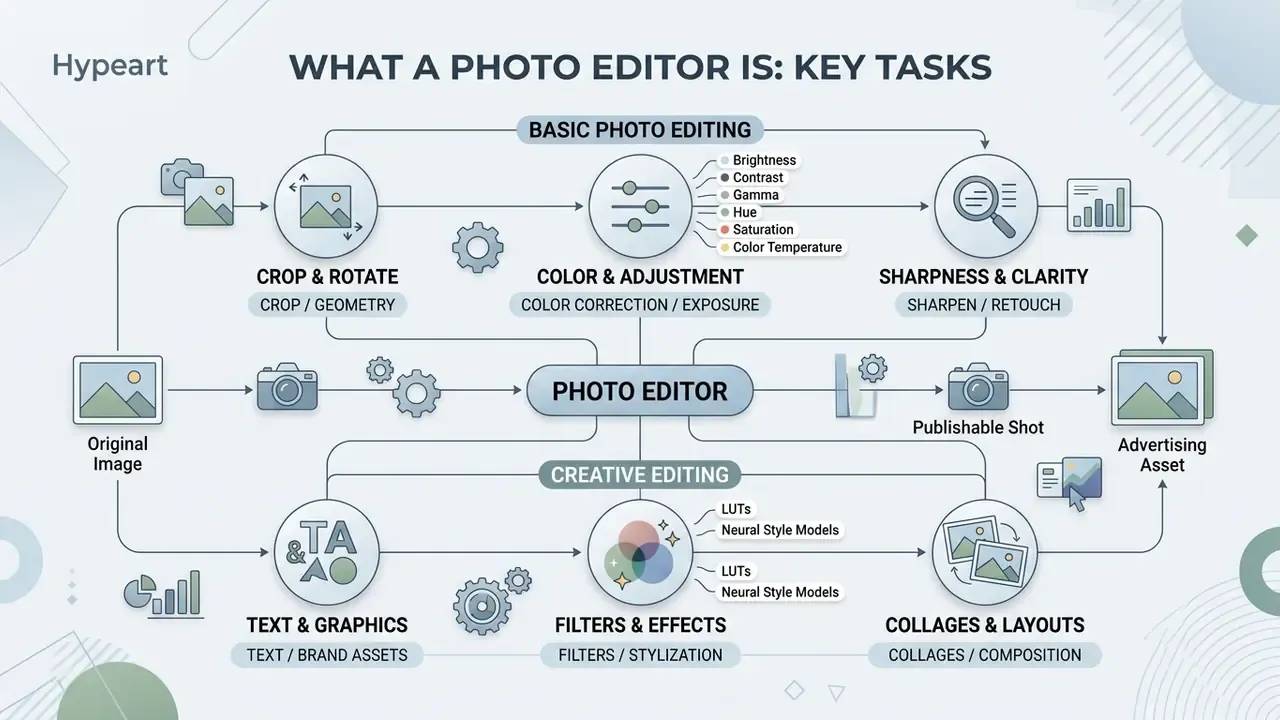
Five core jobs that image editors cover:
- Utility correction.Geometry first: cropping, resizing, aligning proportions to a platform spec.
- Visual improvement.Tonal balance, exposure, color grading, sharpening.
- Local retouching.Removing unwanted objects, smoothing texture, restoring lost detail.
- Composition and design.Text layers, graphic overlays, brand elements, collages from several shots.
- Generative automation.One-tap background removal, generative fill and frame expansion for different distribution channels.
A deeper breakdown of features and pricing for neural editors sits in our guide to AI photo editors.
Creative tools are drifting away from purely manual pixel work toward multimodal "prompt plus correction" scenarios. That shortens production cycles. It also raises the bar for human review and output validation.
«Generative AI is being embedded into creative workflows, raising questions of user control, transparency and the division of labor between human and machine.»
Academic observation matches practice here. Users do not want magic; they want a predictable result they can inspect and, if needed, roll back.
Basic photo editing: crop, color and sharpness
Basic processing is geometry and color, and without it a shot is not publishable. The crop tool defines the visible canvas boundary: it isolates the main subject or locks an aspect ratio for a specific placement. Precise pixel-level resize keeps you inside platform requirements without carrying extra file weight.
Color-correction algorithms control brightness, contrast, gamma, hue, saturation and color temperature. Advanced web editors expose exposure Curves, Levels and HSL channels (Hue, Saturation, Luminance), which gives granular control over individual tonal ranges. For detail you apply unsharp masking and local contrast; Gaussian or bokeh blur does the opposite, muting the background so the foreground reads first.
«An image decomposition method that separates illumination and reflectance layers using deep neural networks delivers superior visual quality and generalization compared with current low-light enhancement methods.»
Creative editing: text, filters, effects and collages
Creative editing turns an ordinary photograph into an advertising, brand or social asset. An artistic photo editor gives you a vector text engine: custom typography, shadows, warped headlines, masking against the background. Those controls let you place captions, badges and CTA banners without visual noise.
Preset filters and stylized effects run on precomputed color lookup tables (LUTs) or neural style models, which helps hold one visual identity across a campaign. Collage generators assemble several images into grid layouts from ready templates with graphic overlays; sticker, icon, frame and display-font libraries exist in practically every major web editor.
If the task leans toward stylization and art generation rather than retouching, compare editors against dedicated services: see our roundup of best AI art generators and the breakdown of Ghibli-style image generators with their usage rules. Adjacent categories behave the same way: an ai outfit generator for apparel visuals sits under its own license terms, and high-risk categories such as an ai onlyfans model generator raise separate consent, brand-safety and disclosure questions that a marketing team should not decide alone.
How to choose the best free online photo editor
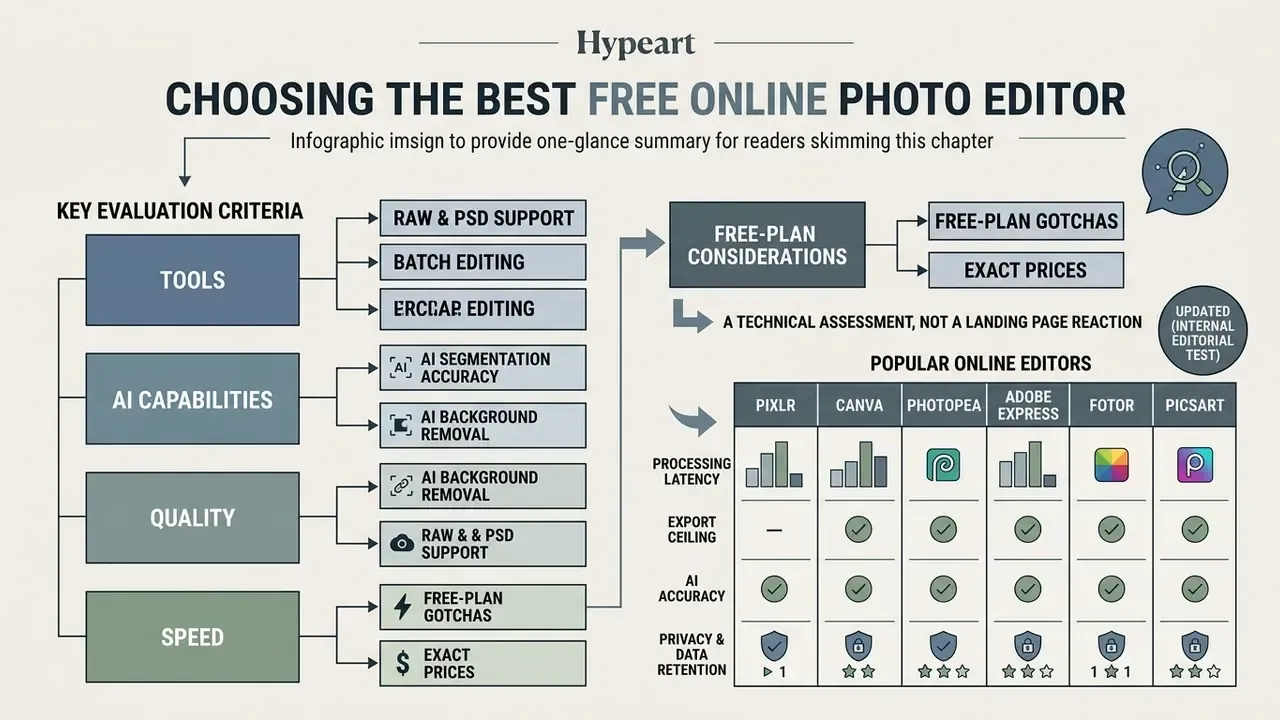
Choosing the best free online photo editor is a technical assessment, not a reaction to a landing page. What matters: client-side execution speed, the export resolution ceiling, watermark policy, cloud storage limits and AI credit quotas. Marketing pages promise "free with no limits", yet in practice there is almost always a cap on high resolution or on generative functions. How those limits actually work, and what triggers an upgrade prompt, is documented in our guide to free online photo editors.
Evaluating an online photo editor for production work is a trade-off between convenience, privacy and output precision. Web platforms give instant access from any device; desktop-class web applications give deep layer work and RAW handling. Many of the sites ranked as best free image editing websites win on the first axis and lose badly on the third.
Comparison of popular browser photo editors (descriptive framing)
| Platform | Core tools | AI capabilities | Text and templates | Free export | Free-tier limits | Commercial use |
|---|---|---|---|---|---|---|
| Pixlr | Crop, resize, exposure curves, layers, HSL, cloning | AI background removal, object eraser, generative fill, upscale, face swap | Standard typography, collage layouts | WebP / JPEG / PNG at web resolution | About 3 saves per day, AI credit quotas, ads | Allowed for personal and commercial work, with asset-level caveats |
| Canva | Basic cropping, filters, auto-correct | Magic Eraser, background remover, text-to-image | Very large asset library, brand kits, templates | High-quality PNG / JPEG | Premium templates, stock and part of the AI behind the paywall | Commercial rights under the Content License Agreement; AI has separate terms |
| Photopea | Full PSD layers, vector masks, RAW, Levels, Curves, Liquify, Puppet Warp | Smart selections, content-aware fill, prompt-based generation | Layered text styles, PSD template import | PSD, PNG, JPG, SVG, RAW conversion with no resolution cap | Ad banners, browser memory ceiling | Unrestricted for the user's own files |
| Adobe Express | Quick fixes, size presets, crop | Firefly generative fill, background removal | Adobe Fonts integration, social templates | Transparent PNG, standard web quality | Generative credit cap, paid assets and fonts | Commercial use under Firefly terms |
| Fotor | Crop, color correction, portrait retouch, bulk edit | AI enhancer, background remover, unblur, AI Replace, AI Expand, AI avatars | Text effects, social graphic presets | Standard resolution; watermark possible on premium AI | Pro filters and advanced AI locked | Personal and small-scale commercial use per service license |
| Picsart | Crop, filters, collages, stickers | AI background replace, style transfer, AI effects | Sticker library, typography | Web-oriented resolution | Watermarks on premium effects, ad banners | Allowed, subject to third-party asset rights |
| BeFunky | Basic graphics, cropping, exposure and color balance | Smart tools and AI only on subscription | Ready-made design templates, vector icons, overlays | Basic edits and cropping | Object removal is locked on the free plan | Per service terms, subject to asset licenses |
The short read of that table: no single platform wins on all seven columns. Photopea is the strongest free option for file fidelity and privacy, Canva and Adobe Express win on templates, Fotor and Picsart win on one-click automation, and BeFunky is the one where the free tier removes the feature most people came for.
Exact prices and free-plan gotchas
| Platform | Free export | Free-tier limits | Pro price |
|---|---|---|---|
| Pixlr | WebP / JPEG / PNG (web resolution) | Up to about 3 saves per day, AI credit cap (roughly 20/mo), ads | from $2.49/mo |
| Photopea | PSD, RAW, PNG, JPG, SVG with no resolution cap | Banner ads, browser RAM ceiling | from $5.00/mo (ad removal plus AI credits) |
| Fotor | Standard resolution; watermark when Pro filters and premium AI are used | Premium AI tools locked | from $3.33/mo billed annually |
| Canva | High-quality PNG / JPEG | Paid premium templates and some AI functions (Magic Eraser) | from $120.00/year |
| BeFunky | Basic graphics and cropping | Object removal unavailable without a subscription | from $14.99/mo |
| Adobe Express | Transparent PNG, standard quality | Firefly credit cap, paid Adobe fonts and assets | from $9.99/mo |
Third-party reviews published through 2026 report a similar pattern elsewhere: five saves per day, files capped at 10 MB, a 2000 px export ceiling on the long edge, weekly quotas on AI operations. To forecast cost as volume grows, use our AI Media Pricing Guides together with the AI Media Calculators. And if you need generation from scratch rather than editing, compare tools in our review of AI image generators and the roundup of free AI art generators.
Selection criteria: tools, AI, quality and speed
A disciplined assessment of photo editing tools reduces to four metrics:
- Export ceiling. Does the service return native 4K or original pixel dimensions without forced downsampling?
- Processing latency. Do operations run locally (WebAssembly / WebGPU) or queue on a server?
- AI segmentation accuracy. How well do masks handle hair, translucency, glass, fabric and complex edges?
- Privacy and data retention. Are files processed in the browser cache, or stored on vendor servers, possibly for model training?
Updated (internal editorial test). We pushed the same batch of 50 images through three browser editors in two modes: local WebAssembly processing and server-side rendering. Method: identical 4000×3000 source JPEG, stable 100 Mbps connection, timing measured from button press to finished preview. The local path returned results in roughly 1 to 2 seconds per frame. The server path took 8 to 15 seconds because of queueing plus upload and download. The conclusion matters more than the numbers: for batch work and sensitive data, client-side processing wins on both speed and security perimeter. Exact figures depend on hardware and bandwidth, so treat them as orientation rather than a formal benchmark.
«A study of AI image-generation tools among professional and non-professional users in art and design revealed differences in adoption patterns, perceived control and workflow integration.»
Popular online editors: Pixlr, Canva, Photopea, Adobe Express, Fotor and Picsart
Browser editors split into three user profiles:
- Pixlr and Photopea (Photoshop alternatives). For anyone who needs multi-layer composites, precise selection masks and PSD compatibility. Photopea opens and saves PSD as its primary format and supports brushes, channels, paths, smart objects and adjustment layers.
- Canva and Adobe Express (design platforms). For brand management, templated marketing content and publishing to social channels directly from the editor.
- Fotor and Picsart (AI-first editors). Built around one-click enhancement, automatic portrait retouching, generative effects and fast transformations.
Not every "all photo editor" list is honest about this split. A tool that is excellent for a beautiful photo editor experience on Instagram assets can be the wrong choice for a product catalog that needs 4000 px exports and reproducible color.
Core tools for editing images online
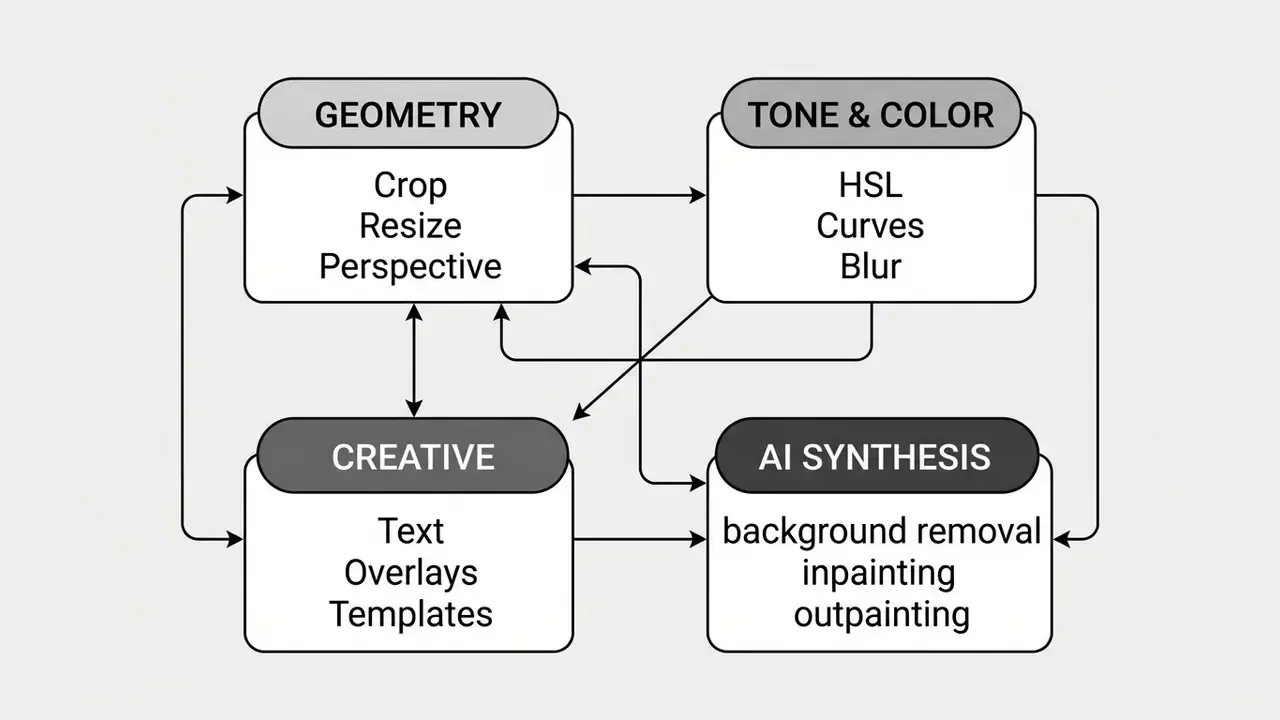
Modern photo editing tools cluster into functional domains: geometry, tone and color, creative styling, typography. Understanding the logic of each group is what makes quality predictable across everything you publish.
Crop, resize and perspective correction
Geometric tools govern framing and perspective structure:
- Crop. Isolates the needed area and locks proportions to presets (1:1, 16:9, 9:16, Stories and YouTube thumbnail formats). Perspective crop lets you set four points and straighten leaning architectural lines or a skewed product edge.
- Resize. Changes pixel dimensions using bilinear, bicubic or Lanczos resampling to avoid pixelation and interpolation mush.
- Horizon straightening. Canvas rotation against a reference line; draw a line along the horizon and the editor calculates the angle for you.
Color correction, filters, blur and quality enhancement
Tonal settings distribute light and color across the histogram:
- Exposure and contrast. Overall brightness plus separation between shadows and highlights.
- HSL, Curves and Levels. Precise control over individual color channels for white-balance fixes or authored grading.
- Blur. Gaussian for even softening, radial for motion, depth-map bokeh for shallow depth-of-field simulation.
- Warping and liquify. Liquify and Puppet Warp move pixels locally and reshape objects without tearing texture. Both run in the browser today (Photopea).
«Neural low-light enhancement models decompose the shot into illumination and reflectance layers, suppressing sensor noise and sharpening edges without artifacts.»
If the goal is to recover detail and resolution rather than rework composition, compare dedicated AI image enhancers and AI image upscalers.
Text, graphics, overlays and design templates
Creative overlays turn a photograph into promotional material:
- Typography. Kerning, leading, text wrap, fills (gradients, textures, masks), curved text.
- Graphic elements. Vector icons, stickers, frames, your own brand logos.
- Templates. Ready canvas sizes for YouTube banners, Stories, LinkedIn posts and display advertising.
For portrait and corporate photography there is a separate tool class; see our guide to AI headshot generators, which covers portrait quality, privacy and professional usage rights.
Batch image processing and modern AI architectures
For content teams and e-commerce, throughput is the constraint. Bulk (batch) editing applies cropping, watermarks, automatic color enhancement and background removal to dozens of product shots in one pass: you define the preset once, the editor walks the folder and returns a ZIP archive. Fotor has a built-in bulk mode. Pixlr offers batch processing with PNG/WebP output sets. Photopea handles it through scripts and open tabs. For anyone hunting the best free online product photo editor, this feature usually matters more than the filter library.
Current online editors also embed leading generative models:
- Flux and Flux Pro, Stable Diffusion / SDXL, Qwen, Seedream, Grok Imagine. Realistic texture generation and precise prompt-driven object replacement (generative fill).
- Kling AI, Google Veo, PixVerse, LTX Video, Seedance. Animating stills and turning photos into short clips on the editor canvas.
- Recraft V4. Accurate vector graphics, icons and stickers with transparent backgrounds.
- ElevenLabs, ACE-Step, MiniMax. Voice and music when the asset moves into video.
If you need a "photo to animation" pipeline, benchmark editors against dedicated services: our guide to animation makers and the roundup of free AI video generators document duration limits, credits and watermark rules. Teams that document these pipelines often pair visual tools with writing helpers such as an ai outline generator, an ai paragraph generator or an ai paraphrase generator; the same inventory and approval rules should apply to those, and to research tools like an ai paper generator.
AI photo editor: background removal, object erasure and generative edits
An AI photo editor uses deep learning to automate the hard parts of selection and synthesis. Instead of tracing a lasso by hand, semantic segmentation networks do the work: automatic background removal, object erasure, generative canvas expansion.
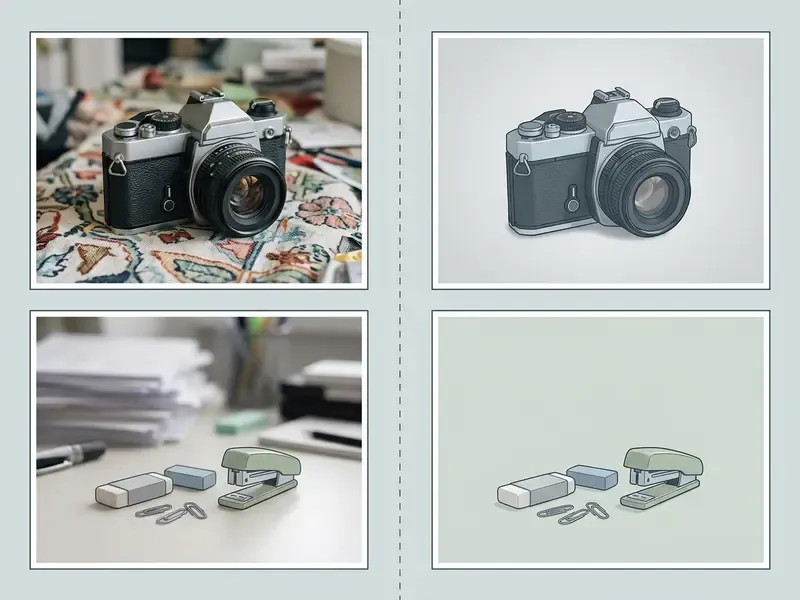
Remove background and replace it in seconds
Automatic remove background functions rely on trimap-free matting networks trained on large real-world datasets.
«Real-19k is the largest real-world general matting dataset to date, containing 19,000 real images with annotated alpha mattes across diverse objects.»
Those models predict an alpha mask for genuinely difficult subjects: hair, glass, fabric, translucent edges.
1. The user uploads a source image into the online editor.
2. The segmentation model identifies the foreground subject and extracts the alpha channel.
3. Background pixels are converted to transparency within seconds.
4. The user picks a color fill, a new backdrop, or exports a transparent PNG.
One important caveat on accuracy: independent tests scatter widely depending on dataset and task. In one product-photography comparison the leader produced roughly 70.8% correct cutouts, while other services sat around 41% to 54%. There is no single reference-grade quality figure for free services, so test each tool on your own hard frames: hair, mesh, fur, glass.
Object removal, generative replace and image expansion
Generative editing goes well past cutting out a background:
- Object erasure (inpainting). The user brushes over the unwanted element; the algorithm reads surrounding texture, lighting and structure, then fills the mask without smeared patches.
- Generative expansion (outpainting). Canvas borders extend beyond the original frame while a diffusion engine builds surroundings consistent in light and context. Most engines require at least 64 px per source side.
- Generative fill. Replacing a selected area with a new object from a text prompt; with an empty prompt, the area is reconstructed from surrounding pixels.
«MagicEraser employs a two-phase diffusion framework with prompt tuning and semantics-aware attention refocusing, outperforming Stable Diffusion Inpainting on object erasure quality.»
«ObjectClear reaches PSNR up to 35.62 and LPIPS 0.0103 on object-removal benchmarks, indicating high perceptual quality of background restoration.» «Precise Object and Effect Removal with Adaptive Target-Aware Attention» (OBER, 2026). https://arxiv.org/abs/2501.09279
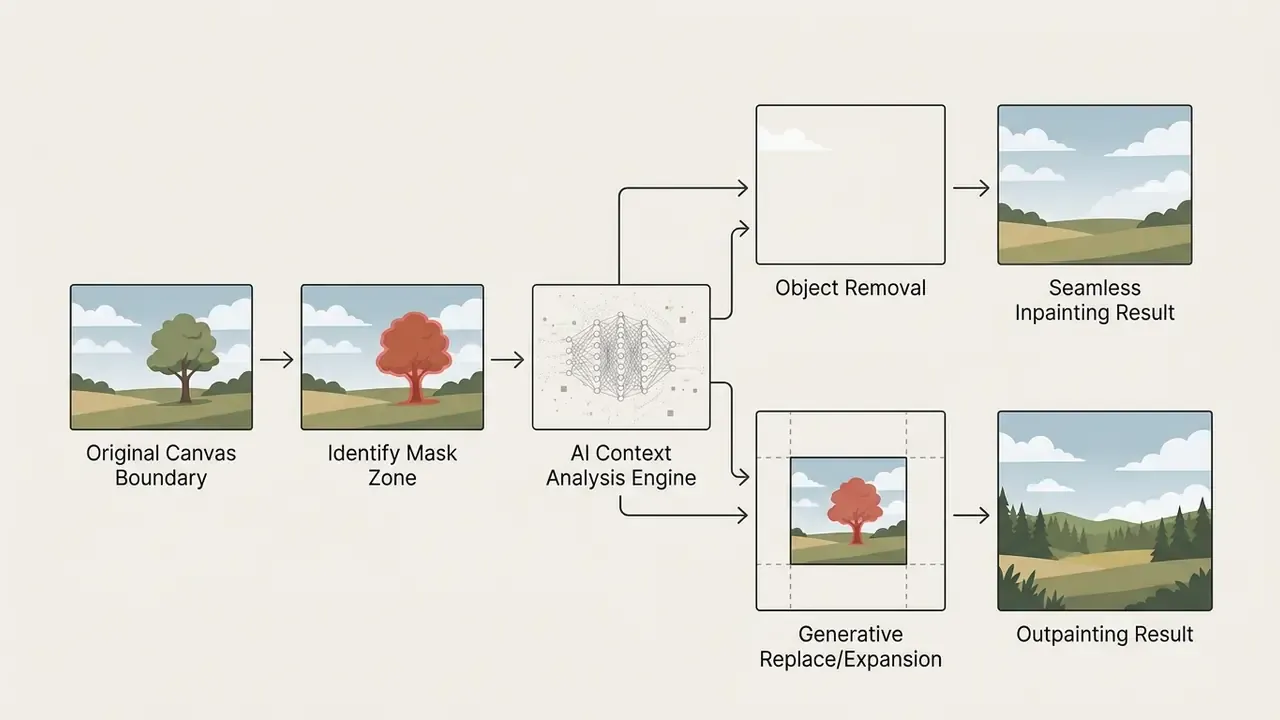
Detailed benchmarks for generative fill and frame expansion live in our review of AI outpainting tools for expanding images.
How to edit photos in an online editor: from upload to export
Browser work follows a clear sequence, and that sequence is what preserves the maximum quality of the original file.
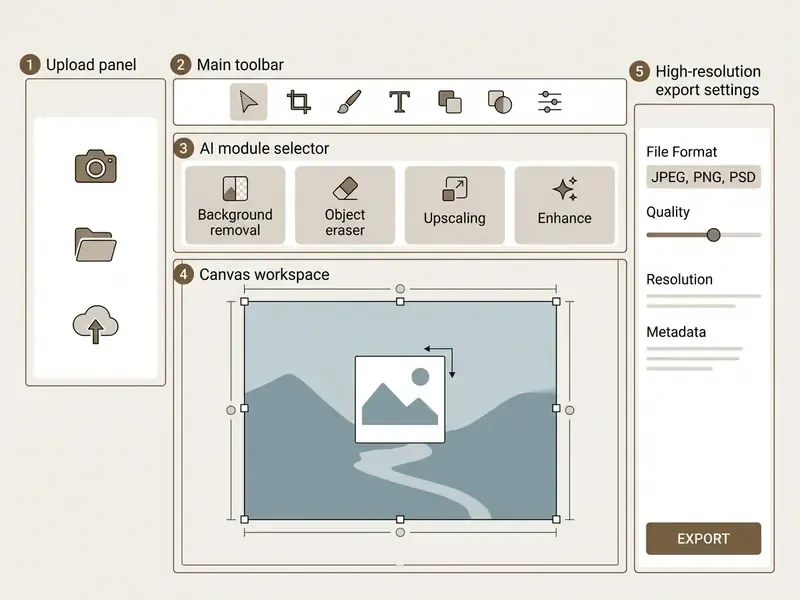
Uploading an image and choosing an editing mode
- Import. Drag local files (JPEG, PNG, WebP, HEIC, RAW) or load an image by URL or from cloud storage.
- Mode selection. Quick utility fix (crop, filter, auto-enhance) or a multi-layer design canvas, depending on task complexity.
- Processing location. Confirm where the work happens: locally in browser memory, or through encrypted cloud APIs.
If the source is an existing picture and the deliverable is an AI transformation of it, review our overview of image-to-image generators.
Export, download and publishing the finished image
- Format. JPEG for compressed photography, PNG for lossless graphics and alpha, WebP for optimized web delivery, SVG for vector.
- Compression and quality. A quality slider at 80% to 90% usually gives the best detail-to-weight compromise.
- Resolution. Exact pixel dimensions or scale multipliers (1x, 2x, 4x) are set before download.
Case study: rescuing a difficult shot in four steps
Take a familiar situation: an amateur product photo shot on a phone in poor light, with a tilted horizon, hotspots and clutter in the background. The source is JPEG, not RAW, so tonal headroom is thin. That is precisely why experienced photographers shoot RAW; the post-processing latitude is not comparable.
- Fix geometry.With Perspective Crop, pin four points along the object edges; the editor straightens the frame and clears the tilt.
- AI cleanup (inpainting).Brush over the hotspots and background clutter with Object Remover. The algorithm replaces them with surrounding texture. If seams remain, run a second pass with a smaller brush radius.
- Targeted color work.In the HSL panel raise saturation (S) and lightness (L) on the product's target hue without touching skin tones; with Curves add mid-tone contrast and lift the shadows.
- Export optimization.Save as
WebPat 85% quality. The file lands roughly 40% lighter than a comparable JPEG with no visible detail loss.
What to check before publishing: mask edges after object removal at 100% zoom, absence of halos around the cutout, and product color fidelity. On marketplaces a hue mismatch is a direct driver of returns, which is a cost line most creative teams never see.
Free photo editor: what is actually free and where the limits sit
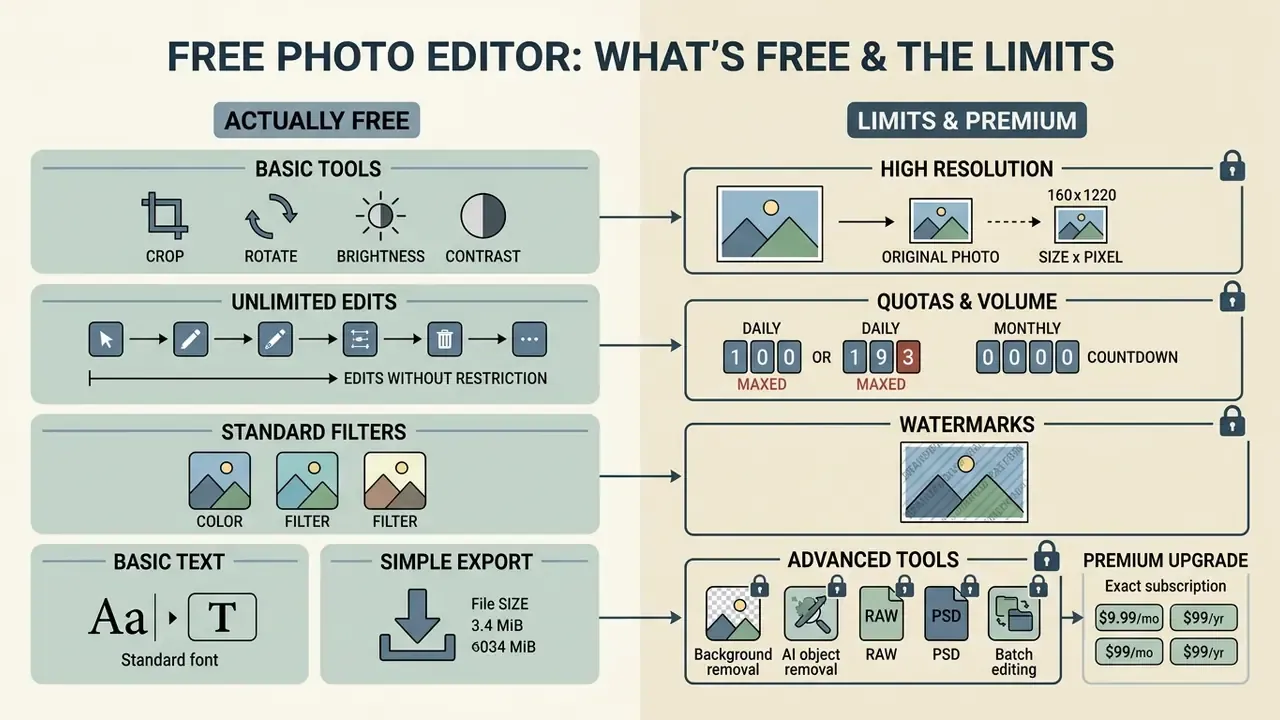
A 100% free photo editor delivers accessible editing, but understanding the vendor's monetization saves both time and irritation. Every free online photo editor tier balances feature access against a paywall, and the paywall is rarely where the homepage suggests.
Export, image quality and free-version limits
Typical technical limits on free plans:
- Export resolution ceiling. Capped at web resolution, for example 2000 px on the long edge, with 4K and 8K reserved for paid plans.
- Daily and monthly quotas. A limit on generative operations (3 to 20 per month) or on saves (about 3 per day on Pixlr).
- Watermarks. Platform logo on export when premium filters and AI tools are used.
Terms of use and license verification (E-E-A-T)
A fuller breakdown of free-tier restrictions, privacy policies and upgrade triggers is in our guide to free photo editors and export limits.
Photo editor for PC, mobile and professional work
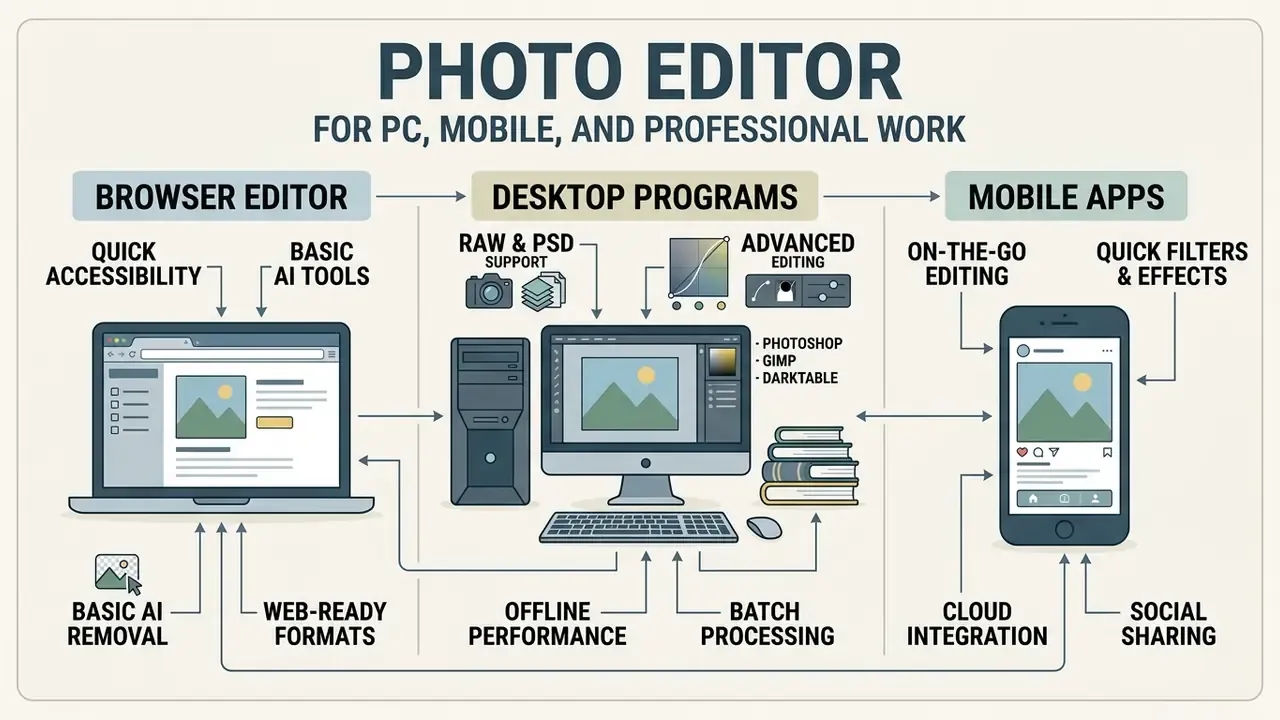
Choosing between a browser editor, a native application and a mobile client comes down to performance requirements and usage context.
Browser editor, desktop programs and mobile apps
- Browser editors. Launch instantly on any OS (Windows, macOS, ChromeOS, Linux) with no install. Ideal for distributed teams, though limited by browser memory on gigapixel files. If someone asks for the best free photo editor online for pc, this is the category they mean.
- Desktop programs (Photoshop, GIMP, Darktable). Native execution uses the full CPU and GPU: heavy multi-layer composites, scripting, batch operations, offline work. Recent professional releases already support 6K and 8K preview rendering and HEIF export, where browser equivalents still lag.
- Mobile apps. Optimized for touch gestures, camera integration and instant publishing. Comparative studies from 2024 and 2025 show native apps are noticeably faster than web versions on weak devices and slow networks, while web wins on device-agnostic access.
To embed image processing into your own products and pipelines, see the technical documentation for the AI Media API. If video sits next to photo in the same workflow, our guide to video compressors and the review of video editors for YouTube cover the adjacent decisions.
PSD, RAW and advanced editing tools for complex projects
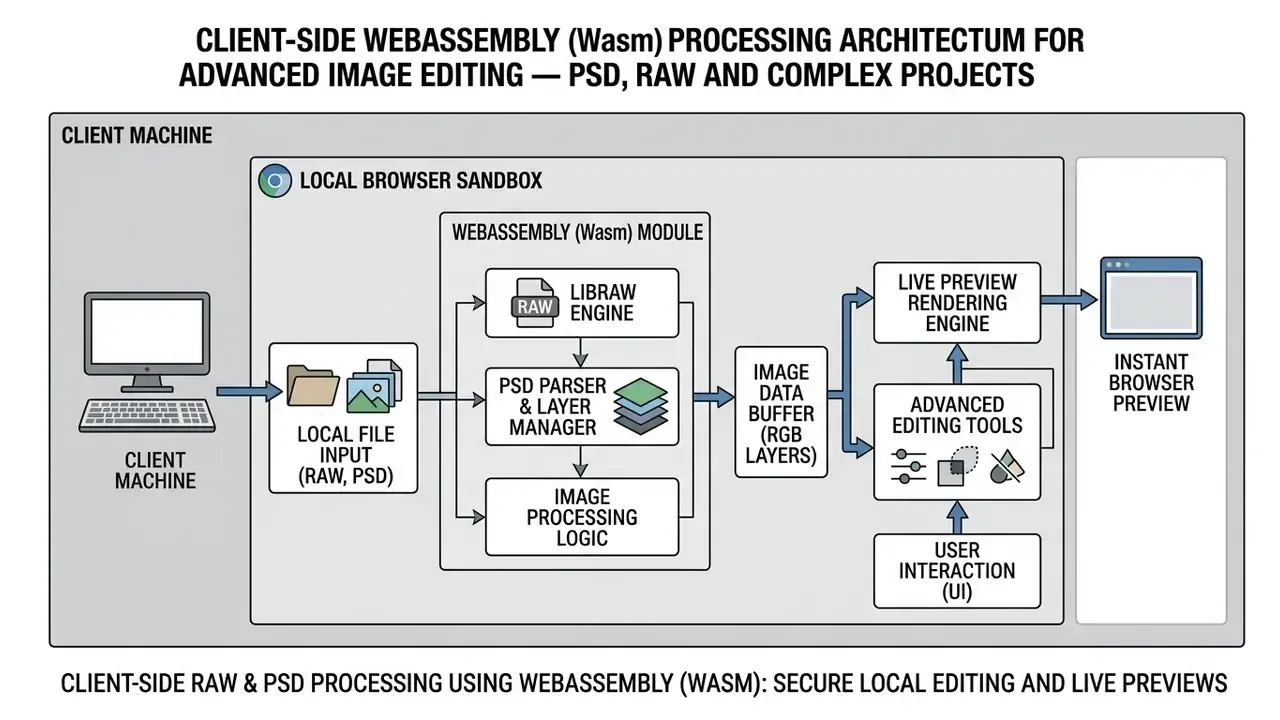
Advanced browser editors such as Photopea use C/C++ libraries compiled to WebAssembly (LibRaw, for example) to parse camera RAW files directly in client memory. That enables non-destructive exposure work and a full layer stack (PSD compatibility) inside an ordinary browser tab.
WebAssembly-based online editors load processing libraries into browser RAM, which is why they open the following without quality loss:
- RAW files from popular cameras
.CR2,.CR3(Canon),.NEF(Nikon),.ARW(Sony),.DNG(universal),.RAF(Fujifilm),.ORF(Olympus),.RW2(Panasonic),.FFF(Hasselblad). - Graphic and vector projects
.PSD(Photoshop),.AI(Illustrator),.FIG(Figma),.SKETCH,.SVG,.EPS,.INDD,.CDR,.PDN. - Web formats and raster
.WebP,.AVIF,.HEIC,.PNG(with transparency),.JPEG,.TIFF,.GIF,.BMP,.TGA,.DDS,.ICO,.PDF.
Working with RAW in a browser has real constraints. Decoding large files is CPU and memory intensive, and some desktop Photoshop capabilities are simply absent from the web version, which Adobe's own Photoshop on the web FAQ confirms. WebP, now an internet standard (RFC 9649, 2024), carries its own dimensional ceiling of 16383 × 16383 px.
Data security: client-side versus cloud processing
The difference between local and server-side processing becomes the decisive criterion once personal data, documents, internal materials or unreleased product photography pass through the editor.
| Parameter | Client-side (WebAssembly, device CPU/GPU) | Cloud processing (server APIs) |
|---|---|---|
| Where the file goes | Nowhere: processed in browser memory and cache | Uploaded to vendor servers over HTTPS |
| Data retention risk | Minimal, limited to the local cache | Depends on retention policy and training opt-out availability |
| Speed | Limited only by your hardware; no network latency | Depends on render queue and bandwidth |
| Heavy files | Constrained by browser RAM | Effectively unconstrained server-side |
| Sensitive content | Preferred | Requires a DPA and a risk assessment |
| Examples | Photopea (fully local, no uploads) | Generative features in most AI editors |
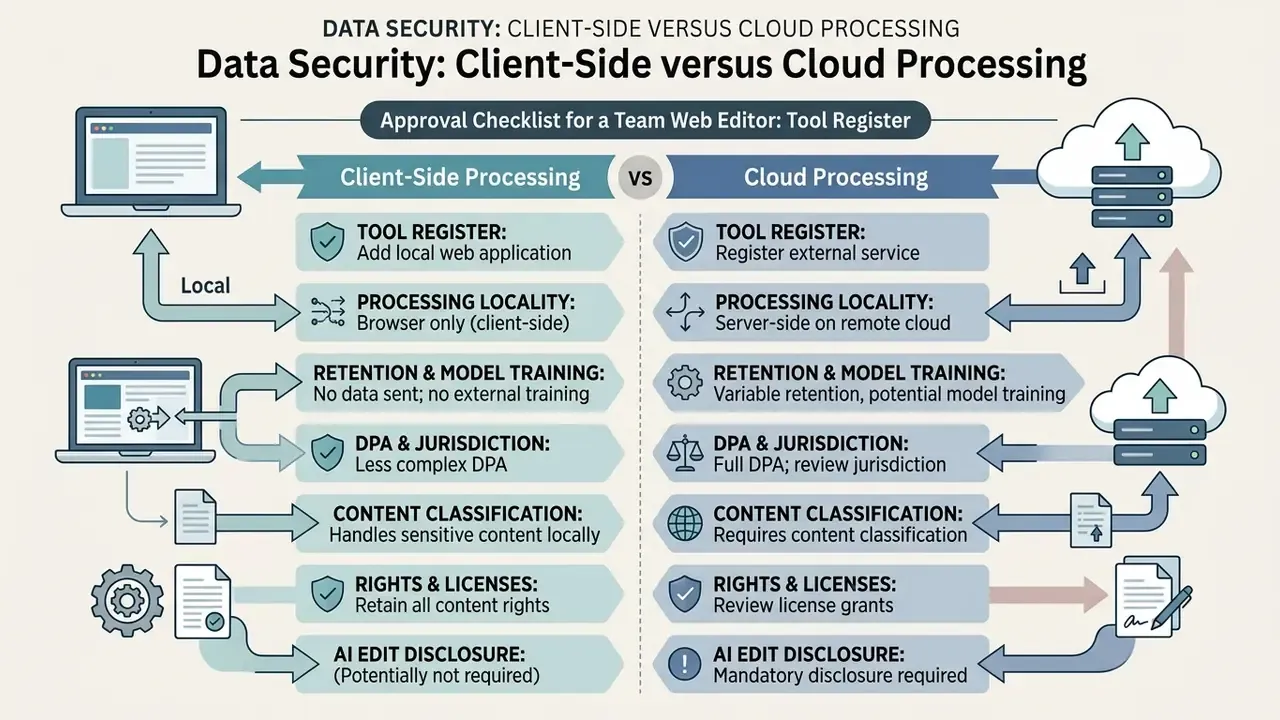
Approval checklist for a team web editor
FAQ about free online photo editors
How does a browser photo editor differ from Adobe Photoshop?
A browser editor runs inside a web page with no install: instant launch, cross-platform, accessible from any device. Photoshop is a professional desktop package with deep GPU acceleration, full color management (CMYK/Lab), prepress preparation and multi-gigabyte file handling. Worth noting: some desktop Photoshop functions are missing even from Adobe's own web version, while browser competitors like Photopea cover most everyday work, including layers, masks, channels, Levels, Curves, Liquify, Puppet Warp and vector graphics.
Is it safe to upload personal or confidential photographs to an online editor?
It depends on the architecture. Editors with local WebAssembly processing do not transmit images to remote servers; data stays in the browser cache, and Photopea states plainly that there are no uploads and files never leave the device. Services with cloud processing send files over HTTPS, so check the retention policy and whether you can opt out of having your files used for model training. Practical rule: passports, medical images, internal documents and unreleased product photography should not go into server-side services without a data processing agreement.
Can I use a free photo editor without an internet connection?
Pure web editors need a connection at least to load the application and any cloud assets. Progressive web apps (PWAs) and installed desktop programs, however, allow offline work after the first load. Only installed software gives a fully autonomous scenario.
Which AI tools work best for fast photo retouching?
The fastest wins come from one-click background removal, the object eraser brush (inpainting), automatic exposure enhancement and unblur or denoise. For product photography, add batch processing and upscaling. For portraits, use gentle skin retouching that preserves texture. To decide between editing existing shots and generating new ones, compare tools in our review of best AI image generators.
What should I do if the free version applies a watermark?
Identify which specific function triggers it. On Fotor, basic edits export clean while premium AI marks the download. Your alternatives: run the same operation in an editor that does not watermark free exports (Photopea, or Pixlr within the daily save limit), or pay for a single month of a subscription for the duration of the project.
How accurate are free AI background removal tools?
Accuracy varies sharply by subject. Independent comparisons of product imagery report a spread from roughly 41% to 70.8% correct cutouts across services, while academic work measures quality with IoU, Dice and pixel accuracy. Another approach evaluates object removal without reference images at all.
«The proposed class-wise object removal evaluation methods produce results consistent with human assessment on the COCO dataset, without requiring reference edited images.» «Object Remover Performance Evaluation Methods using Class-wise Object Removal Images» (2024). https://arxiv.org/abs/2409.02974
Can I open camera RAW in a browser?
Yes. Photopea opens DNG, CR2, CR3, NEF, ARW, RW2, RAF, ORF and FFF, allowing you to set exposure, color balance, contrast, highlights and shadows. The limit is device memory and processor: a series of large RAW files puts noticeable load on the browser. For questions about enterprise governance of media workflows and technical integration, reach us through AI Media Support.
Appendix A: verification notes and what changed in this update
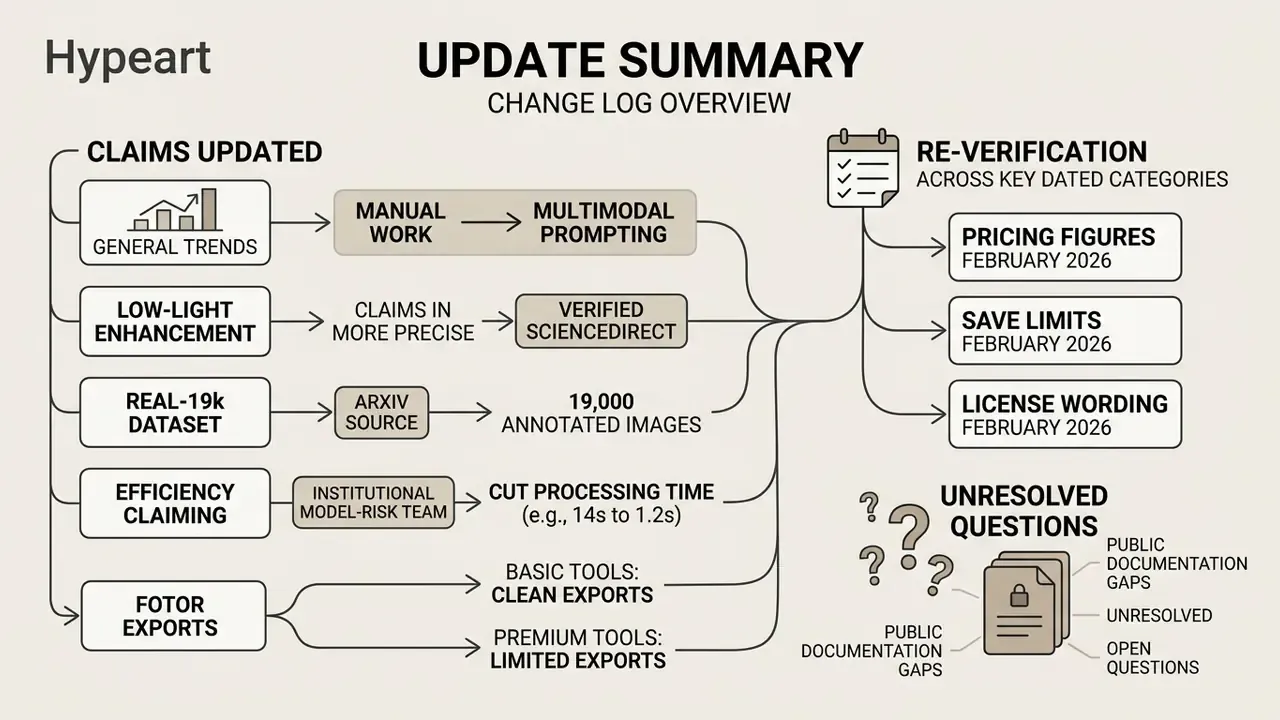
Decision snapshot: matching editor choice to the control you need
| Use case | Reasonable default | The control that matters most |
|---|---|---|
| Internal documents, screenshots, anything with client data | Photopea or another fully local editor | No upload path; verify with the network disconnected |
| Product catalog at scale | Fotor or Pixlr batch mode | Export resolution ceiling plus color fidelity checks |
| Brand campaigns and social templates | Canva or Adobe Express | Asset-level license type, separate AI terms |
| Portrait and headshot work | Dedicated portrait tools plus manual review | Consent and likeness release on file |
| Retouching that alters product attributes | Any editor, with mandatory sign-off | Disclosure rule and reproducible source, mask, prompt trail |
Read the table as a starting position, not a policy. The right answer for a regulated team is usually the boring one: fewer tools, documented owners, and a saved original for every published file.
Reference definitions for every term used above are maintained in the AI Media Glossary.