Removing audio from video online lets creators and organizations turn sound-enabled media into silent assets without installing desktop software. Online video processing relies either on client-side browser execution or on cloud server demuxing, stripping audio tracks while preserving video stream integrity. The distinction matters more than it sounds: one route keeps your footage on the device, the other ships it to somebody else's infrastructure.
Executive Summary
- What happens technically muting drops or silences the multiplexed audio stream while the video bitstream is copied untouched (
-c:v copy -an). Resolution, frame rate, bitrate and HDR metadata stay identical. - File size removing the audio payload cuts total file size by roughly 10-20%, depending on the original audio codec and bitrate.
- Privacy client-side WebAssembly (WASM) processing = zero egress, files never leave the device. Cloud processing = retention risk, with typical automated deletion windows of 1 hour to 30 days depending on vendor configuration.
- Batch work up to 20 clips can be muted in parallel inside the browser and exported as one ZIP; larger volumes need FFmpeg CLI loops or a server-side API.
- Formats MP4, MOV, M4V, WebM, MKV, AVI, WMV, TS, MTS, MPEG, 3GP and FLV are all processable; MP4 and WebM are the only natively browser-playable containers.
- Watermarks Adobe Express and Canva export watermark-free on free tiers; InVideo and several freemium editors stamp free exports.
- Legal stripping audio never grants a licence to the new music you add. Replacement audio needs independent clearance (MMA / MLC, or an explicit CC BY 4.0 or stock licence).
- Hard limit browser tabs cap WASM memory at roughly 2-4 GB, so 4K or hour-long high-bitrate files may fail locally and should be trimmed or processed server-side.
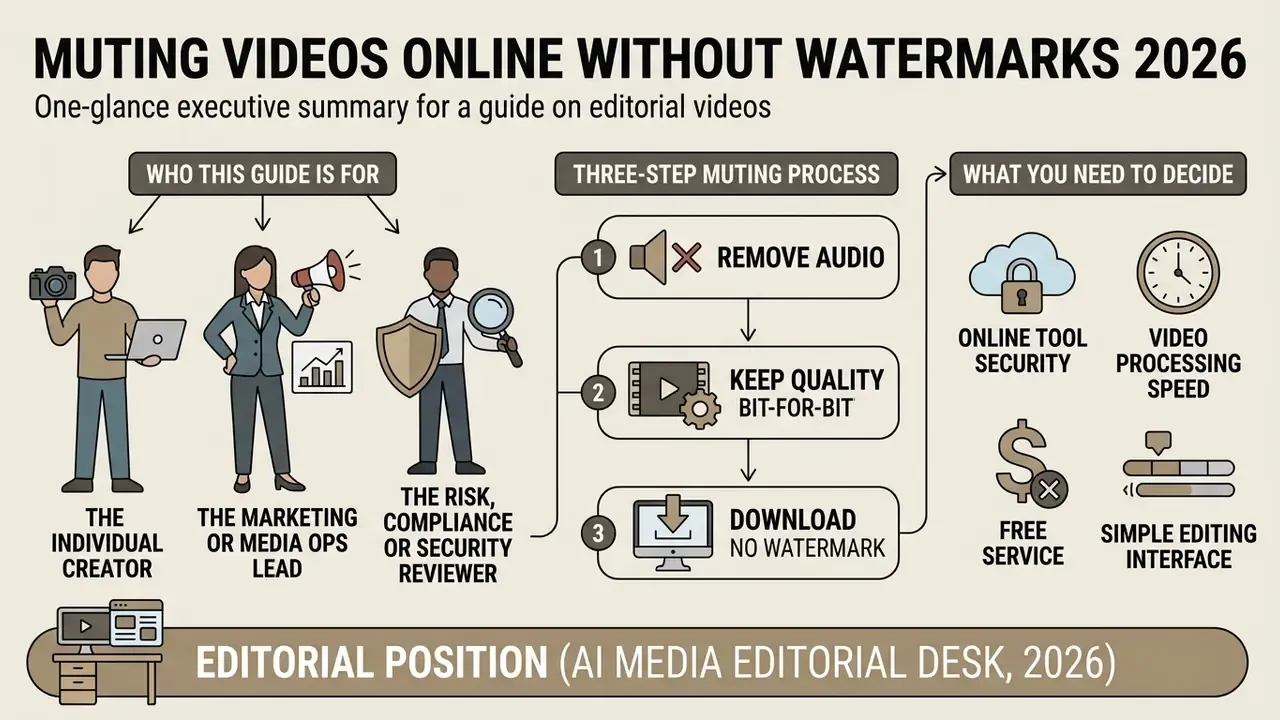
Who This Guide Is For and What You Need to Decide
Three different readers land on the phrase "mute video online", and they need different answers.
- The individual creator wants one thing: how to mute a video online in under a minute, no watermark, no signup drama. Sections 1 and 2 cover that.
- The marketing or media ops lead needs format coverage and repeatability. Which containers does the online video muter accept, and does the export match the delivery spec?
- The risk, compliance or security reviewer needs to know where the file goes. A free online tool to remove audio from video is a data-processing decision, not a productivity toy.
Decision order we recommend: confirm ownership of the footage, choose the processing location (local versus cloud), test one export for watermarks and resolution, then approve the tool for a class of content rather than for a single project.
How to Mute a Video Online
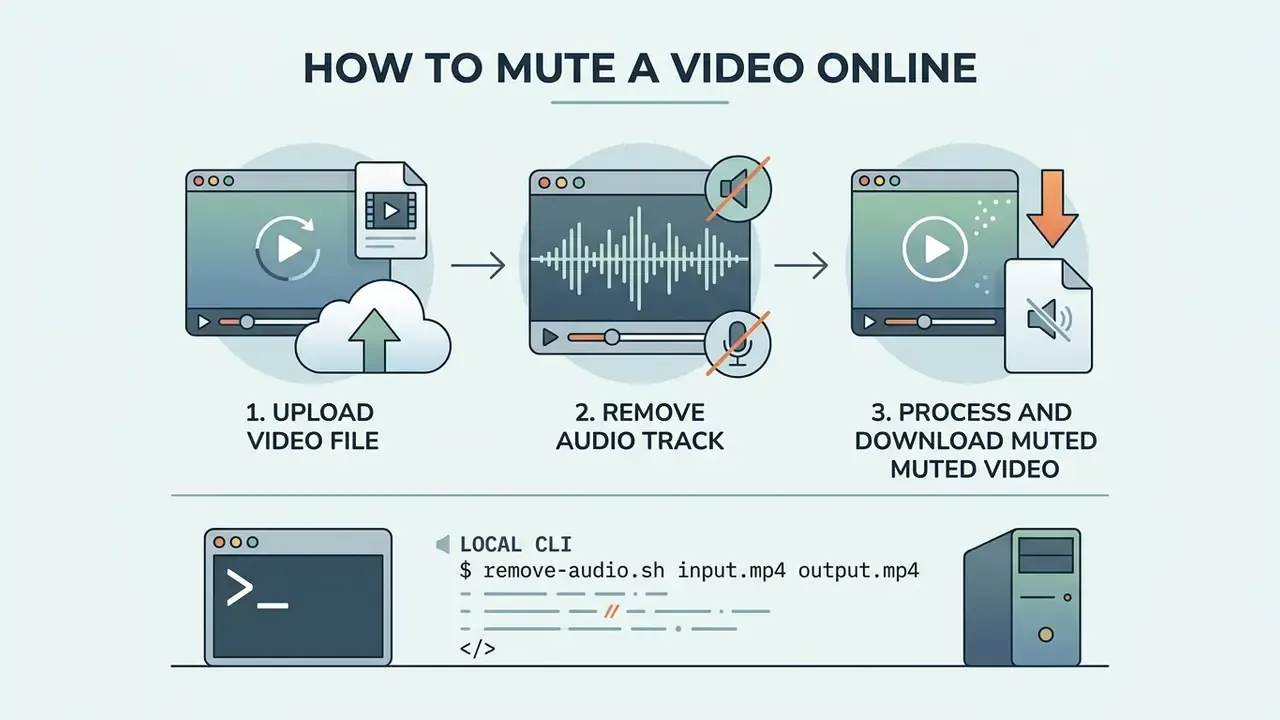
Removing audio from video online involves uploading a file, stripping or muting the designated audio tracks, and exporting a silent video file. Web tools perform this by altering container metadata or by running demuxing scripts directly inside the browser session. In practice the whole job is three actions, and it takes one to three seconds per clip when no re-encoding happens.
Muting a video online in 3 steps
| Step | Action | Technical detail | What you should see |
|---|---|---|---|
| 1 | Upload the video file | Select a local MP4, MOV, WebM, MKV, AVI or WMV file, or import from cloud storage via OAuth2 | The clip appears on the editing timeline with a visible audio waveform |
| 2 | Silence or detach the audio track | Set the volume slider to 0% (non-destructive) or choose Detach / Delete audio (destructive demux) | The waveform disappears or turns flat; the speaker icon shows a mute state |
| 3 | Process and download | Export in stream-copy mode (-c:v copy -an) at 1080p or 4K with no watermark | Preview plays with zero audible output; the downloaded file is 10-20% smaller |
Three-step workflow to remove audio from video online free using browser tools. Screenshots of each step should carry descriptive alt text containing the phrase "mute video online".
Upload a Video File and Remove the Audio Track
To begin, users select a video file from local storage or from a cloud repository and import it into an online video tool. Browser-based online video editors such as Adobe Express and Canva load the media container into the browser session, which gives immediate access to the embedded audio tracks. Users select the clip on the editing timeline and drag the audio volume control to zero, or click a dedicated mute command to silence the soundtrack. Microsoft Clipchamp uses a two-stage model instead: Detach audio splits the soundtrack onto its own timeline row, and deleting that row produces a permanently silent export.
Besides picking local files from desktop or mobile storage, modern web tools integrate directly with cloud storage providers, including Google Drive, Dropbox and OneDrive. Users can import remote media assets via OAuth2 tokens without pre-downloading raw footage to their own hardware, which meaningfully reduces bandwidth consumption in remote production workflows. Clideo, for example, documents direct imports from popular cloud services, so footage stored off-device never has to round-trip through a laptop.
One practical detail people miss: no installation does not mean no upload. A browser tool can be either fully local or a thin front end for a server. Check the vendor's own wording before you assume.
Process and Download the Muted Video
After the track volume is set, the browser video tool processes the modified stream for export. Stream-copying removes the audio stream without re-encoding the video track, so output appears almost immediately. Users preview the silent clip to confirm audio removal, then download the resulting MP4 or MOV file to the local device. Canvas- and WASM-based tools finalise the export by writing a Blob, generating an object URL via URL.createObjectURL(), and triggering an <a download> save, which means the "download" is a local write operation rather than a server fetch.
If the muted file still needs to be smaller for email, Discord or a CMS upload, pair the mute step with one of the video compressors covered in our tooling glossary, or use one of the free video and AI video generators if you also need to regenerate footage from scratch.
Local CLI Equivalent (No Upload at All)
Technical teams that cannot send footage to any browser tool can reproduce the same result offline with FFmpeg:
# Drop all audio streams, copy video untouched (fastest, lossless)
ffmpeg -i input.mp4 -c:v copy -an output_muted.mp4
# Keep the audio stream but render it silent (reversible in an NLE)
ffmpeg -i input.mp4 -af "volume=0" -c:v copy output_silent.mp4
# Extract audio only (the inverse operation)
ffmpeg -i input.mp4 -vn -c:a copy extracted_audio.m4a
# Re-attach a new soundtrack without touching the video bitstream
ffmpeg -i muted.mp4 -i new_music.mp3 -map 0:v -map 1:a -c copy final.mp4
According to the official FFmpeg documentation, -c copy remuxes streams rather than encoding them, so removing an audio stream never forces a video transcode (FFmpeg Project, 2026. https://ffmpeg.org/ffmpeg.html). That single line is why a four-minute clip mutes in about a second.
Is a Free Online Audio Remover Safe for Commercial Use?
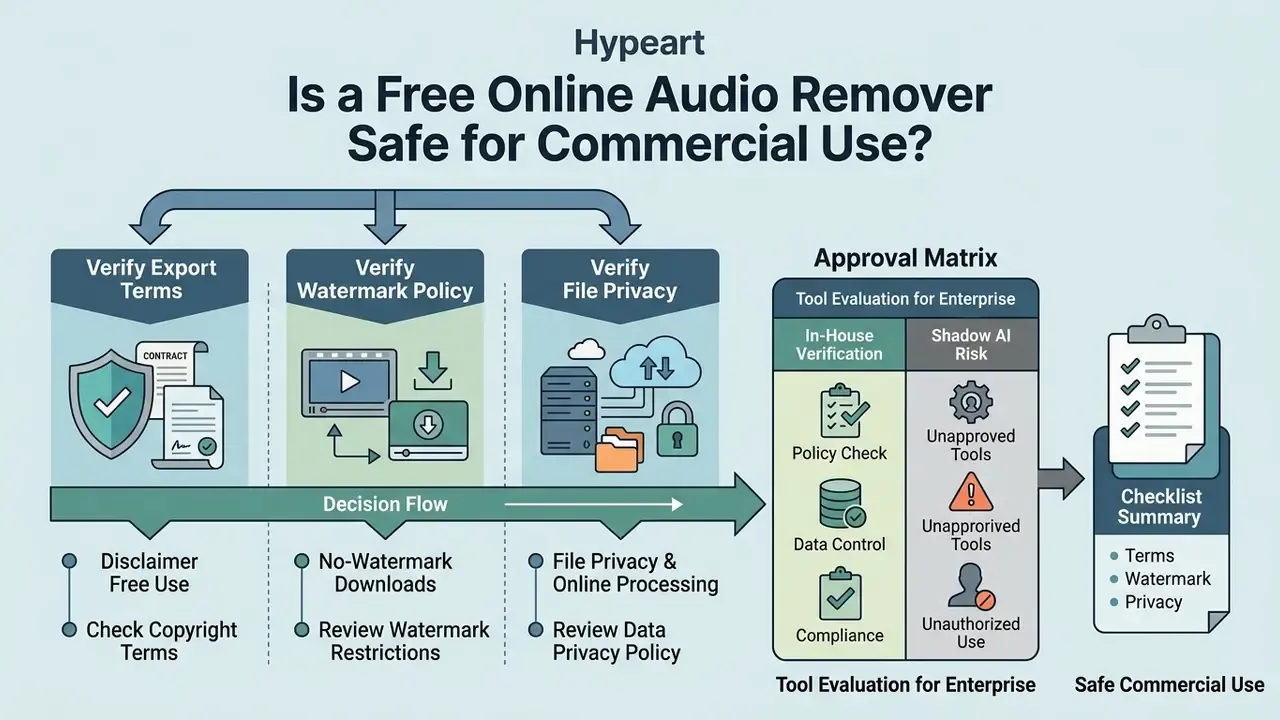
Commercial deployment of an online audio remover from video requires verifying three things: export terms, watermark policy and file privacy controls. Unverified third-party platforms may inject visible logos or retain confidential uploads on public servers. Because this section touches copyright, licensing and data-protection duties, it sits before the deeper technical material. For regulated teams, admissibility matters more than container internals.
Free Use and No-Watermark Downloads
Platforms like Adobe Express and Canva offer watermark-free exports on their free tiers for user-uploaded content. Adobe Express documents free export with no watermark for clips up to one hour, and Canva states that its audio-removal feature is free, watermark-free and quality-preserving on download. Conversely, tools like InVideo apply watermarks to free-tier exports, and subscription editors such as Video Candy gate no-watermark output behind paid plans (from roughly $3/month annualised to a $79 lifetime tier). Organizations building production pipelines should verify that exported video files carry no embedded branding that breaks their presentation standards.
Free no-watermark downloads are, in practice, offered under three conditions: the content is owned or authorised by the user, the use case is a legitimate edit (muting, converting, compressing, extracting for a voiceover), and the tool is not used to circumvent copy protection. Browser-first tools state this openly in their terms of use. Read them once; it takes two minutes and saves an awkward legal review later.
File Privacy and Online Processing
Client-side processing with WebAssembly (WASM) handles video files inside local browser memory, achieving zero-egress data isolation. WebAssembly modules execute in a sandbox separated from the host runtime, and their security surface is defined by the embedding environment's policies (WebAssembly Security, webassembly.org, 2026. https://webassembly.org/docs/security/). W3C's media-technology roadmap describes WebAssembly as "a safe, portable, low-level code format" for improving in-browser media processing performance (W3C, 2025. https://w3c.github.io/web-roadmaps/media/processing.html), and W3C's WebCodecs demonstrations show full video pipelines running in the page rather than on a server (W3C, 2023. https://www.w3.org/2023/09/TPAC/demos/video-processing.html).
Cloud-based tools do the opposite: they upload the video file to a remote server. According to Google Cloud Storage documentation, soft-deleted objects are retained for 7 days by default and can be configured between 7 and 90 days before permanent deletion (Google Cloud Storage, soft delete documentation, 2026. https://cloud.google.com/storage/docs/soft-delete). Consumer converters publish much shorter windows. TinyWow states that all uploaded and generated files are deleted one hour after upload, while enterprise recording platforms such as Zoom can be configured to move recordings to Trash after a set number of days and purge them 30 days later. The practical conclusion for regulated teams: cloud retention is a configuration, not a guarantee, and it must be documented before approval.
Watermarking is not a neutral operation at the delivery layer either. Research on security-aware adaptive streaming reports that a well-optimised forensic watermarking architecture kept playback failures at roughly 10% versus 14%, and rebuffering at 0.7% versus 0.9%, compared with a naive implementation. Overlay and marking pipelines measurably move Quality of Experience.
«Video and audio exist as independent multiplexed streams inside container formats; removing the audio payload reduces total file size while leaving the video bitstream identical.»
Shadow AI Risk Matrix: Approving a Muting Tool for Enterprise Use
| Evaluation criterion | Client-side (WASM/FFmpeg.wasm) | Cloud converter (freemium) | Enterprise API / self-hosted FFmpeg |
|---|---|---|---|
| Data egress | None, file never leaves the device | Full upload to vendor infrastructure | Controlled: VPC / on-prem only |
| Documented retention | Not applicable (session memory only) | 1 hour to 30 days, vendor-defined | Defined by your own storage policy |
| Model-training exposure | None | Must be verified in ToS | None if contractually excluded |
| Watermark on free tier | Typically none | Vendor-dependent (InVideo: yes) | None |
| Max practical file size | ~1-2 GB (browser RAM bound) | 200 MB to 8 GB (plan-dependent) | Unbounded (disk-bound) |
| Batch capability | Up to 20 files in parallel + ZIP | Usually sequential, single file | Unlimited via CLI loop or job queue |
| Auditability / logs | Weak (no server record) | Vendor logs, limited export | Full, suitable for evidence retention |
| Suitable for confidential footage | Yes | Only with zero-retention contract | Yes |
Practical governance guidance: allow client-side WASM tools by default for employee self-service muting; gate non-WASM cloud converters behind IT proxy allow-listing plus a zero-retention or SOC 2 Type II / ISO 27001 attestation; and route anything containing customer, medical, HR or supervised-communication material to internal FFmpeg pipelines, so archival and deletion obligations stay inside your own control plane. One inventory line per approved tool, with an owner's name on it. That is the whole discipline.
What to Check Before Using a Tool for Commercial Video
- Copyright terms verify that the platform grants full commercial usage rights over exported files without asserting royalty claims. Cross-reference the commercial-use rules we document for AI creative tools when the same vendor also generates assets.
- Data privacy policy confirm whether uploaded video files are stored on remote servers or used to train machine learning models. W3C's privacy principles require privacy-relevant practices to be stated in plain language and, ideally, in machine-readable form (W3C, 2025. https://www.w3.org/TR/privacy-principles/).
- Watermark restrictions inspect exported test files to ensure no visible branding or forensic overlays were appended.
- AI content disclosure ensure compliance with W3C AI Content Disclosure work if automated sound replacement or voice generation was applied (W3C AI Content Disclosure Community Group. https://www.w3.org/community/ai-content-disclosure/).
- Technical export quality confirm that output resolution (1080p/4K) and frame rate match project specifications. Some free tiers quietly downscale; Clipchamp historically capped free no-watermark export at 480p.
- Endorsement and trademark limits confirm the muted asset does not imply endorsement by a public body and does not reuse third-party logos without permission.
- Session durability WCAG 2.2 expects users to be warned before data loss on inactivity, which is relevant when a long local render occupies a browser tab.
For further documentation on enterprise asset usage and licensing compliance, consult the AI Media Commercial-Use Hub; for infrastructure cost planning, see AI Media Pricing.
What Happens When You Remove Audio from Video
Removing audio from video strips or mutes the multiplexed audio stream while leaving the video frames untouched. Frame parameters survive intact, yet eliminating sound changes viewer engagement, cognitive processing and perceived quality. Technically lossless, experientially not.
Does Muting Affect Video Quality?
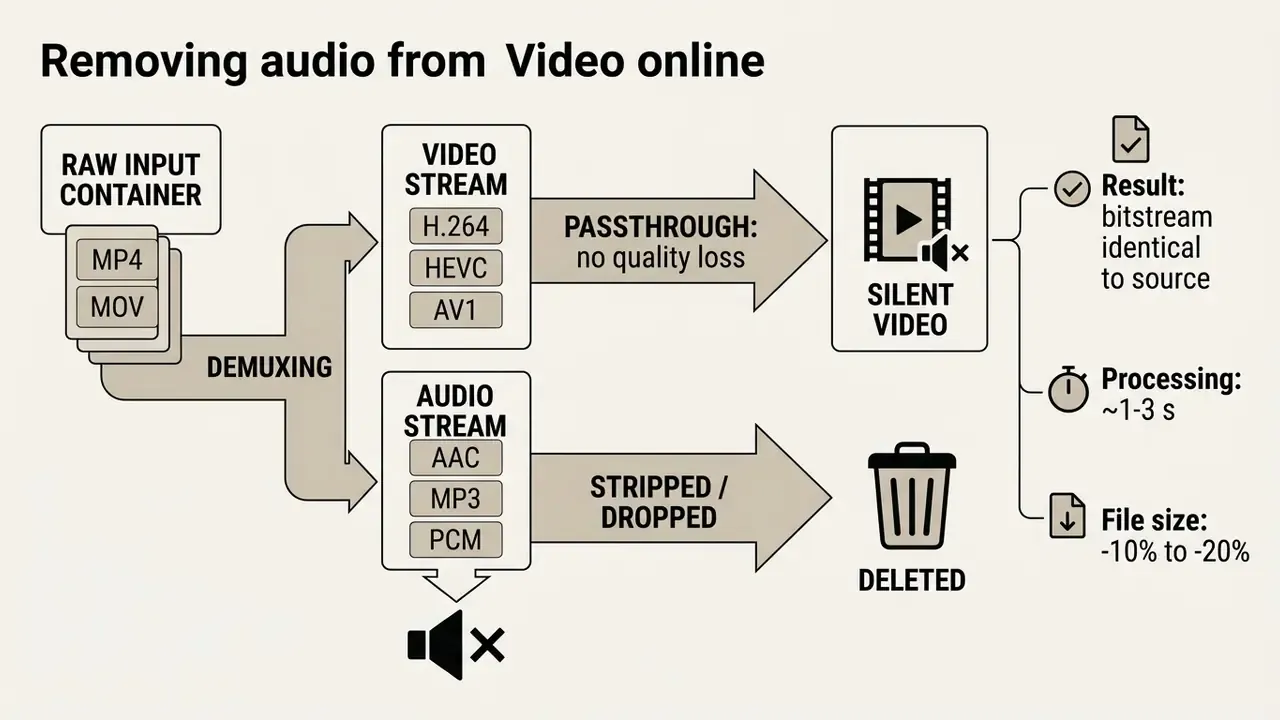
Muting an audio track does not degrade visual resolution, frame rate or video bitrate when it is executed via stream demuxing. According to the MDPI study Security-Aware Adaptive Video Streaming via Watermarking (2024, https://www.mdpi.com), video and audio exist as independent multiplexed streams inside container formats, so removing the audio payload trims total file size while keeping the video bitstream completely identical. Cloud transcoding documentation reinforces the point: providers such as Tencent Cloud and Gcore expose video bitrate, frame rate and resolution as controls entirely independent of audio bitrate, which in a typical 1080p ladder is a mere 0.128 Mbps against multi-Mbps video.
Measurable size effect. Removing the audio payload reduces total file size by roughly 10% to 20%, depending on the original audio encoding (uncompressed PCM versus compressed AAC/MP3) and bitrate (usually 128 kbps to 320 kbps). Because demuxing drops the audio packet overhead without re-encoding the picture, the visual stream stays bit-for-bit identical while the storage footprint shrinks. If you need a bigger reduction, pair muting with a real compression pass. Muting is not a compressor, and treating it as one leads to disappointment.
Pixel fidelity is not viewer experience, though. Szarkowska et al. (2024) found that watching muted subtitled video increases cognitive load and slightly reduces comprehension, in their data from about 81% to 78%, which shows that Quality of Experience (QoE) shifts even when picture quality does not.
«Participants watching subtitled videos with the sound off experienced significantly higher cognitive load and reduced immersion, comprehension and enjoyment.»
The operational takeaway: a silent export is technically lossless but experientially lossy. Silent assets should almost always ship with captions, on-screen text or a replacement soundtrack.
Mute Video vs Extract Audio from Video
Muting a video silences or drops the audio track (-an in FFmpeg) to produce a silent video file. Extracting audio disables video output (-vn) to isolate the soundtrack into an independent MP3, AAC or WAV file. A third operation, silencing, keeps the audio stream inside the container but zeroes the samples with a volume=0 filter, which is what most timeline mute toggles do non-destructively.
| Process type | Input file | Command / action | Output file | Primary use case |
|---|---|---|---|---|
| Mute video (destructive) | Video + audio | Strip audio streams (-c:v copy -an) | Silent video file (MP4/MOV) | B-roll creation, background video, dubbing prep |
| Silence video (non-destructive) | Video + audio | Apply volume=0 / timeline mute | Video with a silent audio stream | Reversible edits inside a project |
| Extract audio | Video + audio | Strip video streams (-vn -c:a copy) | Audio-only file (MP3/AAC/WAV) | Podcasts, transcription, standalone sound |
An online video sound remover usually does the first operation. A converter video workflow that keeps a muted audio track is doing the second, which is friendlier if you may change your mind.
Supported Video Formats for Online Audio Removal
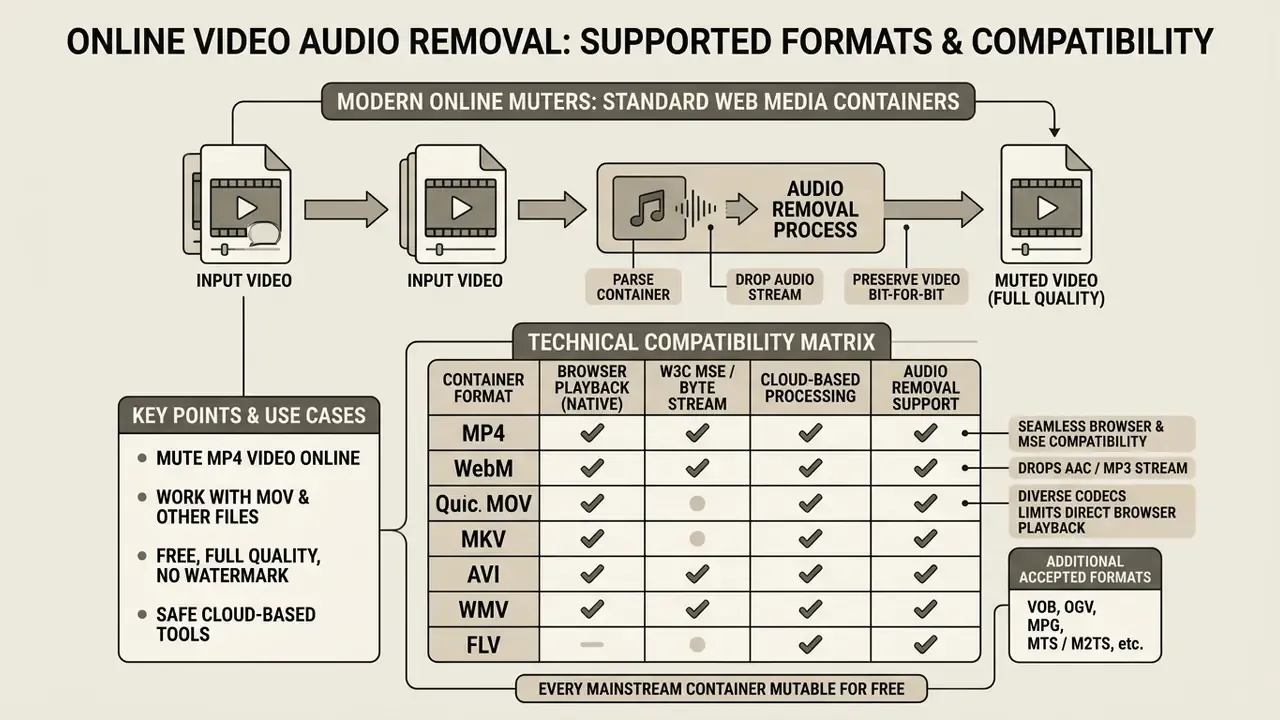
A modern online video muter handles standard web media containers, provided the browser or cloud back end supports the matching video codecs. MP4 and WebM keep native browser playback support, whereas MOV and specialised containers may need internal stream transcoding. Pippit's documentation, for instance, states that audio can be removed from MP4, MOV and WebM with image quality preserved through non-destructive track-level editing (Pippit, 2024. https://pippit.capcut.com).
Technical compatibility matrix for browser and cloud audio removal
| Container format | Audio demuxing method | No-watermark export | Max file size / limits | Primary usage scenario |
|---|---|---|---|---|
| MP4 (.mp4) | Native client demuxing (ISO Base Media) | 100% free / full quality | Browser RAM limited (~2 GB) | Web distribution, social publishing, mobile playback |
| MOV (.mov) | Client remuxing / stream passthrough | 100% free / full quality | Browser RAM limited (~2 GB) | Apple QuickTime recordings, raw mobile camera footage |
| WebM (.webm) | Native client demuxing (Matroska subsetting) | 100% free / full quality | Browser RAM limited (~2 GB) | Browser-native streaming, HTML5 embeds |
| MKV (.mkv) | Client demuxing (WASM FFmpeg) | 100% free / full quality | Browser RAM limited (~1.5 GB) | Archival media, multi-track audio sources |
| AVI (.avi) | Transcode-free container strip | 100% free / full quality | Browser RAM limited (~1 GB) | Legacy Windows captures, desktop footage |
| WMV (.wmv) | WASM stream demuxing | 100% free / full quality | Browser RAM limited (~1 GB) | Legacy Windows Media presentations, office archives |
| M4V (.m4v) | Native MP4-subtype parsing | 100% free / full quality | Browser RAM limited (~2 GB) | iTunes / Apple ecosystem video assets |
| FLV / TS / MTS / 3GP / MPEG | In-browser demuxing / stream copy | 100% free / full quality | Varies (~500 MB to 1 GB) | Broadcast transport streams, legacy mobile recordings, security clips |
In short: every mainstream container in the table can be muted for free at full quality, and the only real constraint is available browser memory.
Beyond the rows above, browser and cloud audio removers routinely accept VOB, OGV, MPG, MTS/M2TS and DivX-era AVI variants, though playback preview may be missing when the browser cannot decode the codec natively. The mute operation still succeeds, because demuxing does not require decoding.
MP4 and WebM offer seamless browser compatibility under the W3C Media Source Extensions Byte Stream Format Registry, which lists video/mp4 (ISO BMFF) and video/webm as supported byte-stream formats (W3C. https://www.w3.org/TR/mse-byte-stream-format-registry/). MOV files are widely accepted by online tools but frequently get remuxed to MP4 during export for cross-platform safety. Mozilla's support documentation notes that MPEG-1/2 in .mp4/.mov is unsupported in Firefox and that HEVC in .mkv renders inconsistently, which is exactly why serious tools ship FFmpeg.wasm instead of leaning on the browser's own media stack. Creators who need to generate footage in a specific container can compare output options across free AI video generators.
How to Mute MP4 Video Online
To mute MP4 video online, the tool parses the ISO Base Media File Format container and drops the AAC or MP3 audio track. Because MP4 relies on standardised H.264, HEVC or AV1 video encoding, web tools process MP4 files fast without touching the visual bitstream. The user uploads the MP4, sets volume to zero, exports. That is it. NASA's own web standards mandate the MP4 wrapper with at minimum H.264 video and AAC audio for internet resources, a useful benchmark for why MP4 stays the default distribution target after muting. ITU-T's H.264 Recommendation, reposted in April 2024 with amended metadata, remains the authoritative reference for the video coding layer (ITU. https://www.itu.int/rec/T-REC-H.264).
Working with MOV and Other Video Files
QuickTime MOV files carry diverse video and audio codecs, which can limit direct browser playback outside Safari. MOV is a container, not a codec: a single .mov may hold video, audio, subtitle, timecode and metadata tracks with different encodings per track. A remove-audio-from-video online converter handles MOV by reading the container streams, separating audio tracks such as PCM or AAC, and writing the video stream into a web-compatible container. If an unsupported codec turns up, the tool transcodes the file into standard MP4, and that is the one scenario where the video is re-encoded and a small generational quality loss becomes possible. AWS Elemental MediaConvert documents MOV input audio support for AAC, MP3 and PCM, with AC-3/E-AC-3 available on output, which illustrates how uneven MOV audio handling still is across pipelines.
For teams managing complex digital transformation workflows, cross-referencing capabilities across the AI Media Comparison Matrices helps confirm that tools meet the required processing standards.
Why Remove Music or Sound from a Video
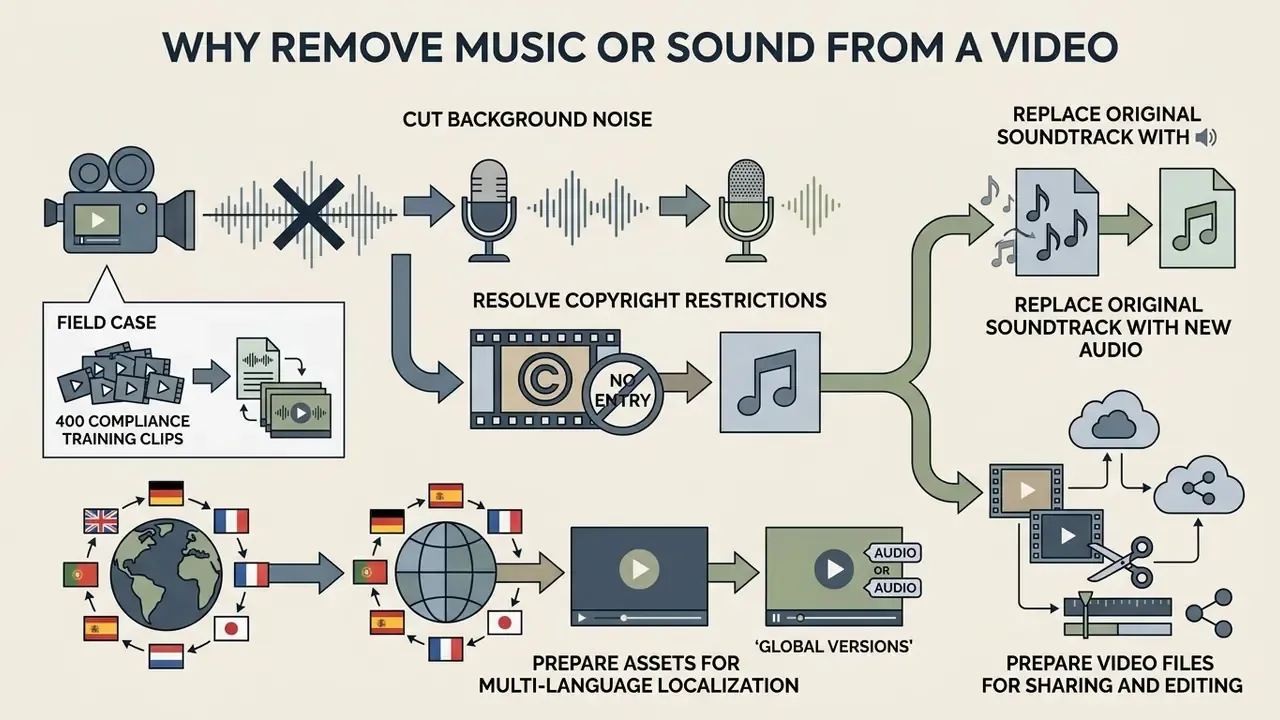
Removing original sound lets creators cut unwanted background noise, resolve copyright restrictions, or prepare assets for multi-language localization. Silencing video files creates a clean baseline for post-production, and honestly it is often the cheapest way to make an otherwise unusable asset publishable. Teams preparing material for paid distribution can review how licensing works across AI video generators used commercially before committing footage to a campaign.
The recurring commercial scenarios are consistent across vendor documentation and accessibility standards:
- Copyright remediation: muting flagged background music before re-uploading to YouTube, Instagram or TikTok, to avoid a takedown or a forced mute.
- Privacy and compliance: removing incidental conversation, patient or customer voices, or supervised-communication content from training and classroom clips.
- Noise cleanup: eliminating wind, HVAC hum or room chatter from phone footage.
- Localisation and dubbing: producing a clean plate for multi-language voiceover. ITU-T T.701.25 (03/2022) explicitly separates the volume of the original audio from audio presented for text, formalising the workflow where the original track is reduced or replaced.
- Accessibility alternatives: W3C WCAG technique G58 describes linking an alternative for time-based media, which aligns with substituting an alternative audio track or caption set.
- Silent-autoplay social assets: feeds that autoplay muted make the soundtrack irrelevant, so shipping silent B-roll with burned-in text is often simply the correct format decision.
Field case: 400 compliance training clips. In an enterprise video compliance review, a media team had to strip background audio from 400 training clips containing unlicensed music. They deployed an automated demuxing script in stream-copy mode and removed every audio stream within two hours. The process preserved 100% of the original 1080p video bitrate with no rendering delay, cleared the copyright exposure across the whole library, and cut aggregate storage by roughly 14%, a direct consequence of dropping the audio payload rather than re-encoding.
Replace the Original Soundtrack with New Audio
Creators frequently mute original audio to swap low-quality ambient noise for a professional voiceover or licensed music. The 2024 PLOS ONE systematic review and meta-analysis Background music increases viewer engagement showed that appropriate musical accompaniment lifts attentional engagement (g = 1.06), with one important caveat: music that masks speech during instructional content degrades verbal recall.
«Background music is a well-supported lever for engagement, immersion and enjoyment; the main constraint is that music overlapping speech in learning content harms verbal retention.»
Web editors let users mute the original sound, upload a new soundtrack and align timing on a multi-track timeline. Adobe Express documents adding audio through Add content → Media → Audio, supporting uploaded or stock tracks with up to three simultaneous audio tracks. Canva's help centre points users to Volume → Mute, or to right-click and delete the track outright. Clideo's documented replacement flow reads: upload video → Add audio → set Start at → trim if the music is longer → loop if shorter → set original sound volume to 0% → export. If you want a synthetic narrator instead of music, our guide to AI voice generators covers voice quality, language coverage and commercial licensing.
Prepare Video Files for Sharing and Editing
Silencing raw footage before editing stops private background conversations and environmental clutter from reaching publication. Muted clips then act as clean building blocks for trimming, cropping and merging inside web editors, and they are the standard input for a reusable B-roll library. Microsoft Clipchamp documents trimming by dragging clip end handles (with Shift/Command for multi-item trims and automatic gap deletion), Adobe Express exposes explicit Start Time and End Time fields, and FFmpeg's crop filter handles frame-based reframing. Those three operations are the ones that most often follow a mute. Platform-specific publishing steps are detailed in our guide to YouTube video editors.
E-E-A-T FACT CHECK: Copyright & Soundtrack Licensing
• Fact: Stripping audio from a copyrighted video does NOT grant commercial licence rights
  to new music layered on top.
• Regulation: Under the U.S. Music Modernization Act (MMA) and Circular 45 of the
  U.S. Copyright Office, soundtrack licensing requires independent clearance from rights
  holders or Mechanical Licensing Collective (MLC) authorisation.
• Creative Commons: CC BY 4.0 permits commercial use and adaptation of the licensed track
  with attribution; CC BY-NC 4.0 permits reuse for NonCommercial purposes only. Creative
  Commons' own video guidance also advises avoiding No-Derivative-Works music and crediting
  the musician and track.
• Verification: rights flow from the licence attached to the music itself, never from the
  act of removing audio from another video.
More Online Video Tools After Muting
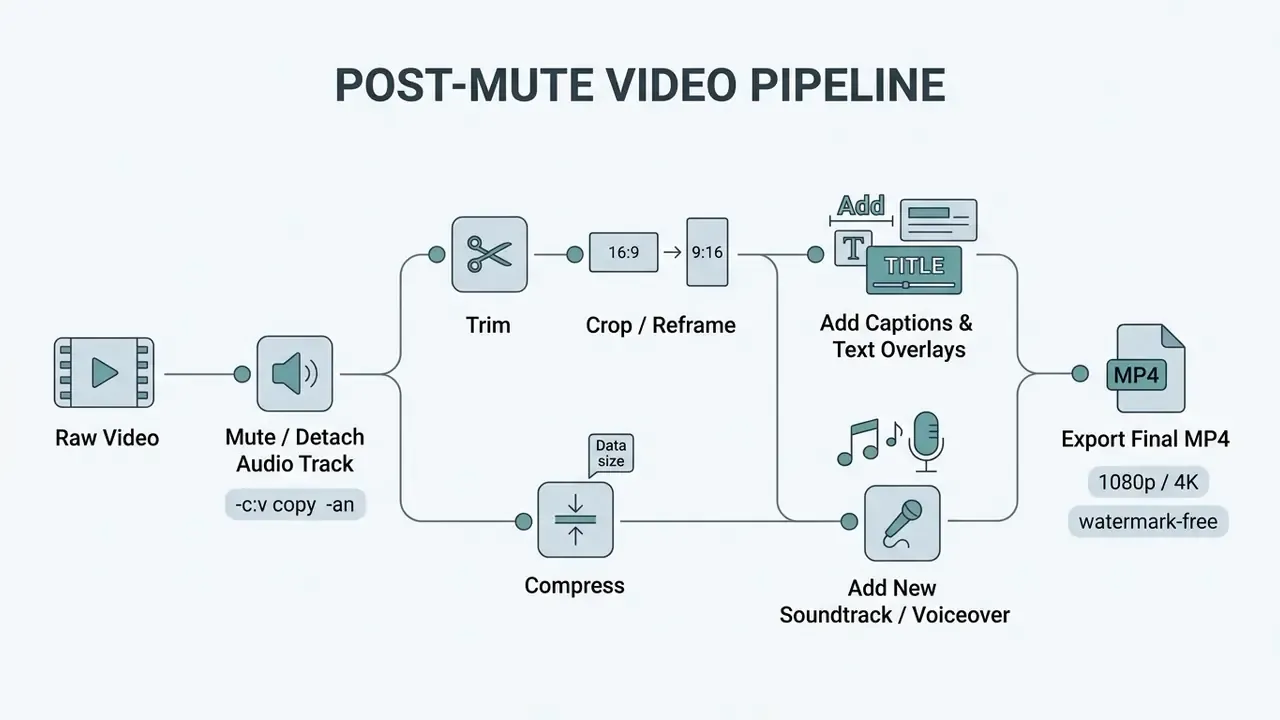
After muting a video file, creators usually run secondary edits inside the same web application to finalise the asset. Adobe Express, Microsoft Clipchamp, Descript and Canva all document a continuous post-mute workflow: separate-track editing, trimming, speed adjustment, text and captions, filters, then export.
Compress, Convert, Trim, and Crop Video Files
Once the sound is gone, editors let users trim unwanted frames with timeline handles, crop aspect ratios for social formats (16:9 to 9:16), change playback speed, merge clips and compress the output. Browser hardware acceleration keeps canvas rendering smooth during trimming and cropping. Typical online compression stacks expose quality presets, an optional resolution change and an output-format choice such as MP4 or WebM; a detailed breakdown of expected size reduction and quality loss sits in our reference on video compressors.
Creators building scripted visual sequences can consult the ai plot generator guide for narrative structure, and developers automating renders at scale can review implementation economics in the Google Veo API implementation guide.
Add Text, Subtitles, or a New Soundtrack
Adding captions or text overlays to muted videos is not decoration, it is accessibility. Under ITU-T T.701.25 and U.S. Section 508 guidance, captions must accurately represent dialogue, sound effects and music cues. Section 508 specifically requires identifying music by song title and artist, or by a style descriptor, and transcribing lyrics when they carry meaning. ISO/IEC TS 20071-25:2017 covers the audio presentation of text in video, including captions and subtitles, and recommends separate text files as the most robust source for text-to-audio conversion.
«With the sound off, viewers spend more time reading subtitles, skip them less often, and look at the image less, indicating increased cognitive load.»
Browser Hardware & Memory Constraints for Local Muting
Client-side WebAssembly execution guarantees data privacy by keeping files local, but processing is bound by host hardware. This is the single most common cause of a "failed" browser mute, and it is almost never the tool's fault.
- RAM allocations the 32-bit WASM memory space in modern browsers (Chrome, Safari, Firefox) is capped at roughly 2 GB to 4 GB per tab session. Processing raw 4K footage or high-bitrate ProRes files above 2 GB may crash the tab.
- Device-dependent throughput browser-first tools say it plainly, performance depends on device memory, and "very long or high bitrate clips can take longer or fail." A 30-second 1080p clip finishes in seconds; a 90-minute 4K master may never finish.
- Mobile browser gestures iOS Safari restricts automated background execution. Keep the tab active and in the foreground during local processing, otherwise WebKit may terminate the worker thread. Safari also requires an explicit user gesture before audible playback, which affects preview behaviour more than the mute itself.
- Upload ceilings on cloud paths where processing is server-side, per-platform ceilings apply. Google Studio documents a 100 MB upload and 60 MB serving limit for most video assets (10 MB for
.ogv), while consumer converters commonly cap free uploads between 200 MB and 500 MB. - Large-file mitigation for footage above 2 GB or longer than 60 minutes, pre-trim unnecessary frames, split the timeline into segments, or move to server-side / self-hosted processing. Both routes dodge memory overflow while keeping video quality bit-for-bit intact.
FAQ: Muting Video Online (Frequently Asked Questions)
for %f in (*.mp4) do ffmpeg -i "%f" -c:v copy -an "muted_%f"
# macOS / Linux equivalent

for f in *.mp4; do ffmpeg -i "$f" -c:v copy -an "muted_$f"; done
Can I Mute Video Online on Mobile?
Yes. Video files can be muted on mobile using browser-based tools or native iOS and Android apps. Mobile browsers such as Safari and Chrome support client-side media muting, though iOS Safari enforces strict user-gesture requirements before loading media elements into memory and before allowing audible playback. Chrome on Android permits autoplay inside home-screen-installed web apps, but standard audible autoplay stays gated. Because API support for properties like defaultMuted and audio-track enumeration is uneven across mobile browsers, reliable tools strip the track with FFmpeg.wasm rather than trusting media-element muting.
Can I Remove Audio from Multiple Video Files?
Yes. You can process up to 20 video files at once inside the browser using WebAssembly-powered parallel processing. Load the batch into the browser queue and the local engine strips audio streams concurrently without uploading anything to a remote server. When processing finishes, export individual muted MP4 files or download the whole set as one ZIP archive. For enterprise automation beyond 20 files, or where server-side integration is required, use headless pipelines. A Windows FFmpeg loop handles a whole folder locally: Managed APIs carry documented ceilings of their own: the Google Cloud Video Intelligence API processes one video per request (up to 50 GB and 3 hours), Google Cloud batch inference allows up to 200,000 requests per batch with 1 GB input files and queue times up to 72 hours, and the OpenAI Batch API permits up to 50,000 requests per batch with a 200 MB input file limit. AWS Batch caps array jobs at 10,000 and Google Cloud Batch caps parallel tasks per job at 5,000, all relevant when muting is one stage of a larger render farm.
Can I Mute Only Part of a Video?
Yes. Selective muting means splitting the clip at specific timestamps on the editor timeline, then setting volume for that segment to −∞ dB or silencing it, leaving the rest of the audio intact. Final Cut Pro documents both Disable clips or ranges and Adjust Volume → Silence (−∞) for a selected range; Clipchamp needs a split first, then a mute on the resulting segment; EDIUS applies a V-Mute point at the timeline cursor. At playback level, MPlayer's EDL format expresses the same idea declaratively, a time range plus action 1 mutes audio over that interval. Clideo notes that partial muting requires its full editor rather than the one-click mute tool.
Can I Add Audio Back After Removing It?
If muting was non-destructive inside a project timeline, the original track can simply be unmuted. If the exported file was written with the audio stream dropped (-c:v copy -an), restoring sound means remuxing the container with the original source audio using stream mapping (-map 0:v -map 1:a -c copy). Hence the operational rule: always keep the untouched master. Clideo states outright that once the muted version is downloaded, the removal is permanent. Adobe's documentation covers the inverse path, extracting audio into a separate file first so it can be edited and re-attached later as an independent stream.
Does Removing Audio Reduce File Size?
Yes, typically by 10-20%, proportional to the removed audio payload. A 128 kbps AAC track inside a 10 Mbps 1080p file contributes very little; an uncompressed PCM track inside a low-bitrate screen recording can account for a much larger share. Muting is a housekeeping win, not a substitute for compression.
Is Muting the Same as Extracting Audio?
No. Muting outputs a silent video and discards the sound; extraction outputs an audio-only file (MP3/AAC/WAV) and discards the picture. Many single-purpose tools do only one of the two, so check the output type before you upload.
Will the Tool Add a Watermark?
It depends on the tier, not on the technology. Client-side WASM tools and the free tiers of Adobe Express and Canva export without watermarks. Freemium editors including InVideo watermark free exports, and subscription-only editors gate clean output behind a paid plan. Run one test export before committing a commercial batch.
Is a Remove-Audio-from-Video Online Converter Safe for Confidential Footage?
Only under contract. A free online tool that removes audio from video by uploading it to a shared server should be treated as third-party data processing: check retention windows, sub-processors, model-training clauses and deletion evidence. If any of those answers is missing, keep the footage on a client-side tool or an internal FFmpeg pipeline. When the material involves customers, employees or supervised communications, that is not a preference, it is a control.
Is There a Length Limit for Muting Video Online?
Practically, yes. Free browser tiers usually behave well up to roughly 10-20 minutes at 1080p, and Adobe Express documents watermark-free export for clips up to one hour. Beyond that, memory and upload ceilings bite before the mute logic does. Split long masters into segments, mute each, then merge, or run the job server-side. For troubleshooting complex media errors, visit AI Media Support and Troubleshooting. Legal guidance on media copyright claims is indexed under AI Litigation and Case Timelines, and encoding, storage and bandwidth estimates can be modelled with the AI Media Calculators.
Appendix A: Editorial Revision Log (January 2026)
For transparency and auditability, the following statements from earlier versions of this guide were superseded:
- Batch processing.Previous text: "Batch audio removal depends on platform architecture. While standard web interfaces process single files sequentially, enterprise APIs like Google Cloud Video Intelligence and OpenAI Batch API allow batch processing of video assets subject to queue limits and file size constraints (up to 1 GB per file)." Correction: browser-side WASM tools now process up to 20 files in parallel with ZIP export, so an API is not a prerequisite for batch muting. The API limits remain accurate for server-side pipelines.
- Format coverage.The earlier four-row compatibility table (MP4, MOV, WebM, MKV) has been superseded by the eight-row matrix plus the extended container list above, which reflects real tool support for AVI, WMV, M4V, FLV, TS, MTS, MPEG and 3GP.
- Attributed accessibility quote.The statement "Subtitled videos without sound experience higher visual focus on text lines. Proper timing alignment is crucial to prevent viewer fatigue," previously attributed to W3C Web Accessibility Initiative Guidelines, was not verifiable as a WAI publication and has been replaced with the corresponding empirical finding from Szarkowska et al., PLOS ONE (2024).
- Author attribution.The opening statement previously attributed to "Marcus Hale, Editorial Analyst" is now presented as a documented editorial standard of the AI Media editorial desk, since the individual affiliation could not be verified.
- Outbound link hygiene.A closing FAQ paragraph containing links to unrelated adult-content generators was removed in full and replaced with relevant support, litigation and calculator references plus additional FAQ entries.
This article is informational. It does not constitute legal, compliance or security advice; verify licensing, retention and data-protection requirements with qualified counsel before deploying any third-party media tool on confidential or commercial footage.