This guide walks the same path a working editor walks: how to pick a tool, how the main programs compare, whether free or subscription makes sense, what cloud auto-upload does to your media privacy, the desktop workflow from card to render, camera settings that decide your options in post, 4K/5.3K/360 handling, stabilization compatibility, hardware and proxies, browser editors, life after GoPro Studio, and a FAQ at the end.
Selecting the optimal gopro video editor depends on balancing hardware capabilities, target resolution, and the amount of manual control you need over the footage. For automated social clips, mobile-first applications with cloud processing deliver rapid results. For high-bitrate 4K, 5.3K, and 360-degree action camera files, dedicated desktop non-linear editors (NLEs) are required to hold frame accuracy, color integrity, and advanced stabilization.
How to Choose a Video Editor for GoPro That Fits Your Task
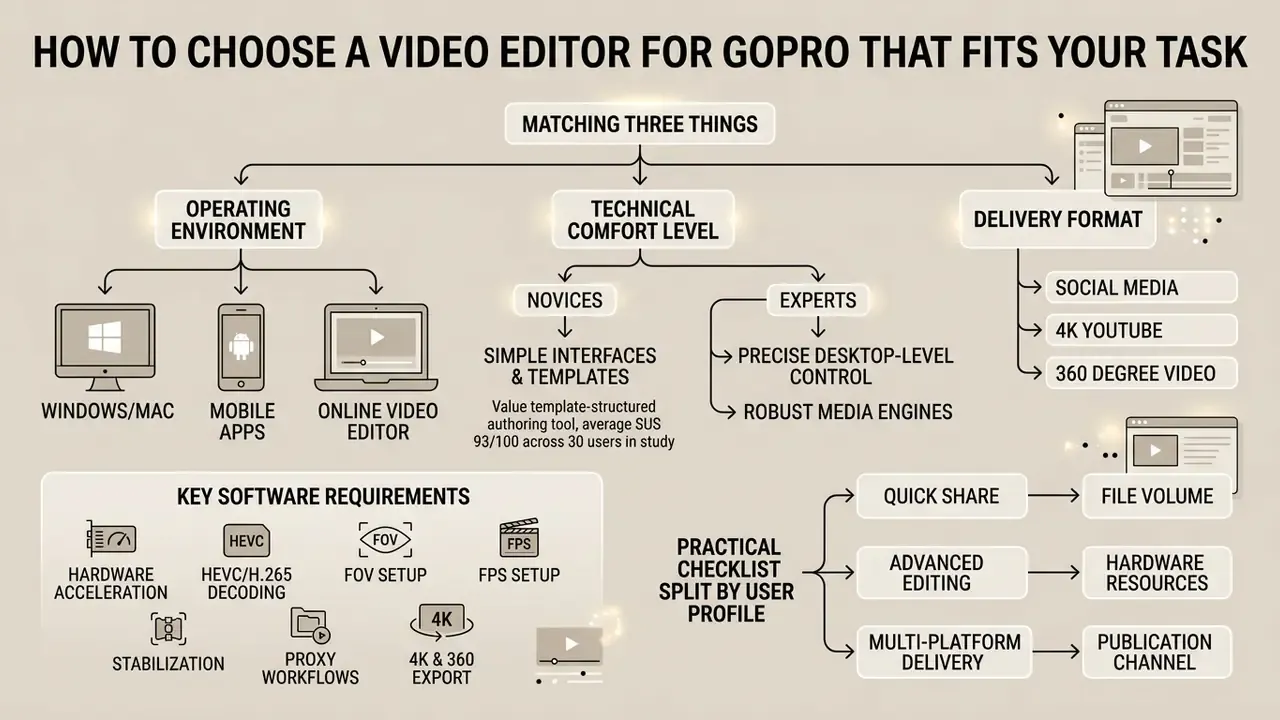
Choosing the best video editor for gopro means matching three things: your operating environment, your technical comfort level, and your delivery format. Casual creators who value speed do well with automated, cloud-synced apps. Teams cutting high-bitrate action footage need local desktop processing. Check software behavior against system memory, GPU acceleration, and codec compatibility, because that trio decides whether your timeline plays back smoothly when you edit gopro videos.
That split is the single most useful selection criterion. If the deliverable is a 45-second highlight reel for social channels, automation wins. If the deliverable is a graded, multi-camera edit with an archival master, desktop control wins. Everything else is detail.
To simplify the decision, compare platforms in the matrix below.
Table 1. GoPro video editor decision matrix
| Editor category | Target user level | Supported operating systems | Supported formats | AI and automation tools | Cost and access model | Export capabilities |
|---|---|---|---|---|---|---|
| GoPro Quik App | Beginner to intermediate | iOS 18+, iPadOS 18+, Android 10+, macOS 13+ | 4K, 1080p, HEVC, H.264, 360 reframing | Auto-highlight creation, beat-sync, MotionFrame, object tracking, CameraFX | Freemium ($59.99 per year Premium) | MP4 up to 4K, social presets, vertical ratios |
| GoPro Player | Intermediate to advanced | macOS 10.14+, Windows 10+, Apple TV 4K | 5.3K, 4K, 8K and 5.6K 360° spherical, HEVC, ProRes, CineForm | HyperSmooth Pro gyro stabilization, Horizon Leveling, Frame Grab, Batch Export | Free (optional $99.99 ReelSteady / HyperSmooth Pro unlock) | ProRes, CineForm, HEVC, H.264, APMP (Apple Vision Pro) |
| Professional desktop NLEs (Premiere, DaVinci) | Advanced to professional | Windows 10/11, macOS, Linux (Resolve) | 8K, 5.3K, 4K, 360°, all common codecs | AI object tracking, auto-color, scene cut detection, Warp Stabilizer | Paid subscription or one-time license | ProRes, DNxHR, H.265, master archives, render queues |
| Browser-based online editors | Beginner | Chrome, Edge, Safari, Chromebook | 1080p, 4K (limited) | Auto-subtitles and translation, basic templates, blur/pixelate | Freemium (monthly subscriptions) | Compressed MP4, web formats, GIF |
One practical note on labels. An "ai gopro video editor" today usually means automation stacked on top of a normal timeline: scene detection, subject tracking, auto-subtitles, music-aware cutting. Useful, sometimes uncanny, never a substitute for knowing your own footage.
Features You Need to Edit GoPro Videos
Practically, the checklist splits by user profile. Beginners should verify templates, auto-highlights, one-tap stabilization, and social aspect-ratio presets. Advanced users should verify gyro-metadata support, LUT and log handling (Protune, GP-Log), keyframable reframing, intra-frame export codecs, and a batch render queue. Skip that last item and you will discover, at 1 a.m., that your workstation renders one clip at a time.
Desktop Editor, Mobile Apps and Online Video Editor
Where to edit depends on file volume, hardware resources, and publication channel. Desktop platforms on pc and mac deliver maximum computational power: complex multi-track timelines, uncompressed rendering, deep color tools. Mobile apps give you capture-to-publish speed, which is exactly what you want in the field, phone in one hand, camera still warm in the other. Cloud tools drop the install requirement entirely and let you edit on any device with a stable connection, which answers the common question of where to edit gopro videos when you travel with a Chromebook. If budget is the binding constraint, compare best free video editing software before you commit to a subscription.
A rough rule for the platform question. The best way to edit gopro videos on windows is a GPU-accelerated desktop NLE plus GoPro Player for gyro work and 360 reframing. The best way to edit gopro videos on mac follows the same logic, with ProRes as the natural master codec and iMovie as a viable starter tier. And the easiest way to edit gopro videos? Quik on the phone, beat-sync on, done before the drive home.
Best GoPro Video Editor: Programs and Apps for Post-Production
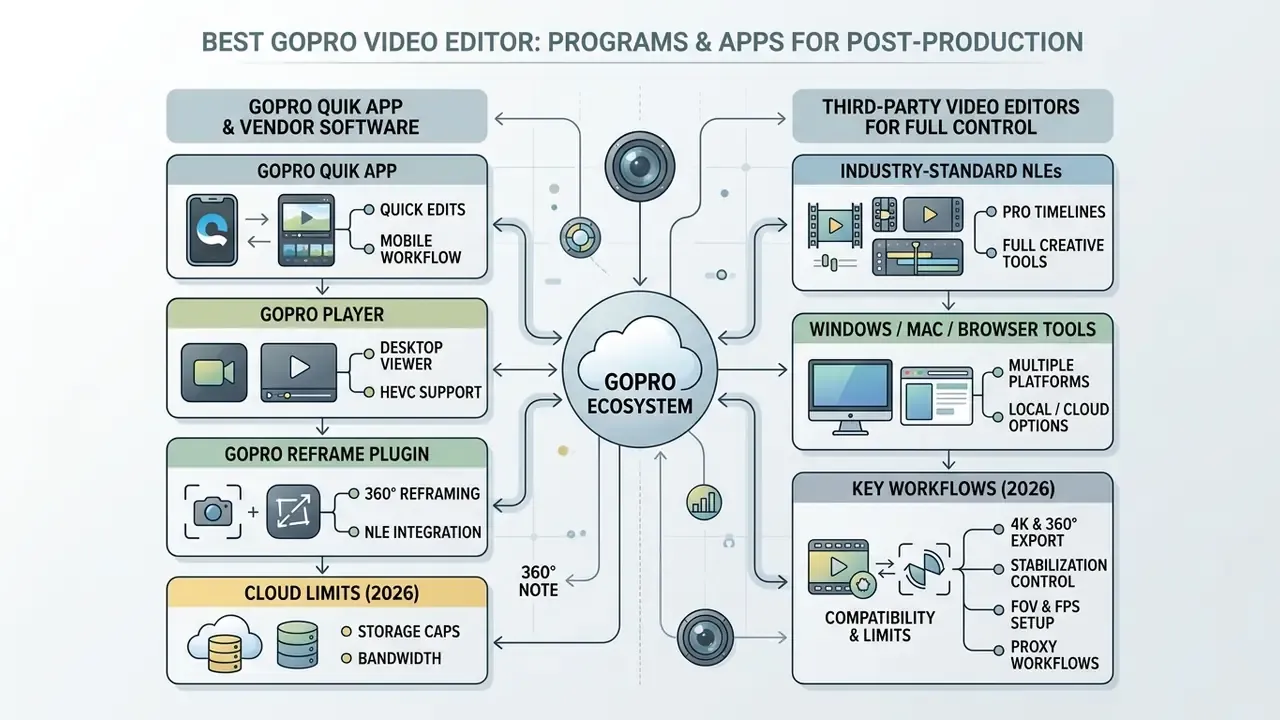
The best gopro video editor ecosystem includes vendor software, mobile apps, and industry-standard third-party NLEs. Proprietary tools such as GoPro Quik offer camera-level integration; professional suites such as DaVinci Resolve and Adobe Premiere Pro offer complete creative control. Picking the best software to edit gopro videos comes down to budget, timeline complexity, and whether you need specialized 360-degree reframing. Owners of older bodies looking for a gopro hero video editor should note that model support matters most for gyro stabilization, not for basic cutting.
Review the feature comparison below before you install anything.
Table 2. Comparative analysis of leading GoPro video editors
| Software / app | Primary platform | Import capabilities | Stabilization method | 4K / 360° support | Cloud integration | Licensing model |
|---|---|---|---|---|---|---|
| GoPro Quik | Mobile (iOS/Android), macOS | Direct camera, SD card, phone gallery | In-camera HyperSmooth and post-gyro | Full 4K and 360° reframing (MotionFrame, keyframes) | Unlimited auto-cloud upload (GoPro media) | $59.99 per year Premium tier |
| GoPro Player | Windows, macOS, Apple TV 4K | Local disk 360° and 2D files | HyperSmooth Pro (ReelSteady) | Up to 8K 360° and 5.3K 2D | Local file processing | Free ($99.99 gyro unlock) |
| DaVinci Resolve | Windows, macOS, Linux | Broad format support | Gyro and optical flow stabilization | Full 8K+, plug-in 360° | Blackmagic Cloud project sync | Free or $295 Studio perpetual |
| Adobe Premiere Pro | Windows, macOS | Native GoPro and proxy workflows | Warp Stabilizer and GoPro Reframe | Full 8K+, native 360° VR | Creative Cloud collaboration | $22.99 per month |
| CapCut | Windows, macOS, mobile, web | Standard compressed formats | Software optical stabilization | Up to 4K, limited 360° | Built-in cloud storage | Freemium ($9.99 per month Pro) |
For readers searching specifically for a gopro video editor for windows, the shortlist is short: Resolve or Premiere Pro as the NLE, GoPro Player alongside it, plus the HEVC decoding component so MAX files play at all.
GoPro Quik App and the Wider GoPro Ecosystem
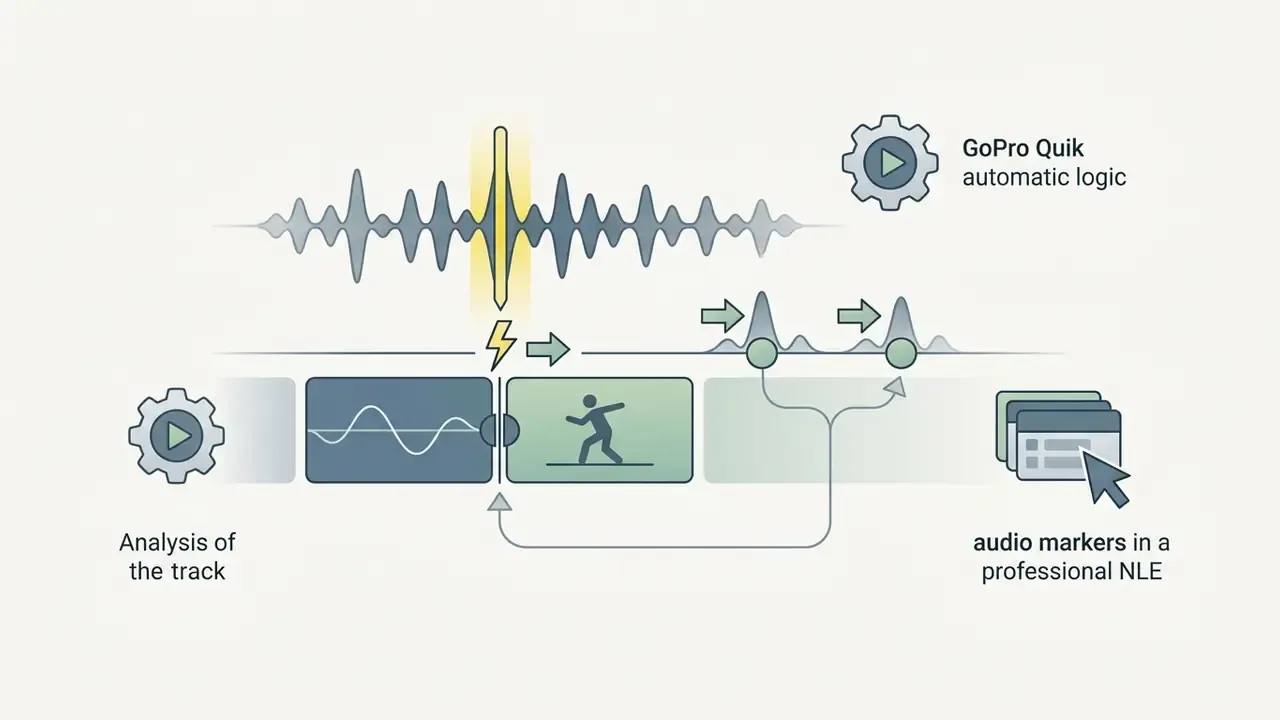
GoPro Quik works as a primary gopro video maker: beat-synchronized cuts, automatic highlight generation, cloud backup, done from a phone screen.
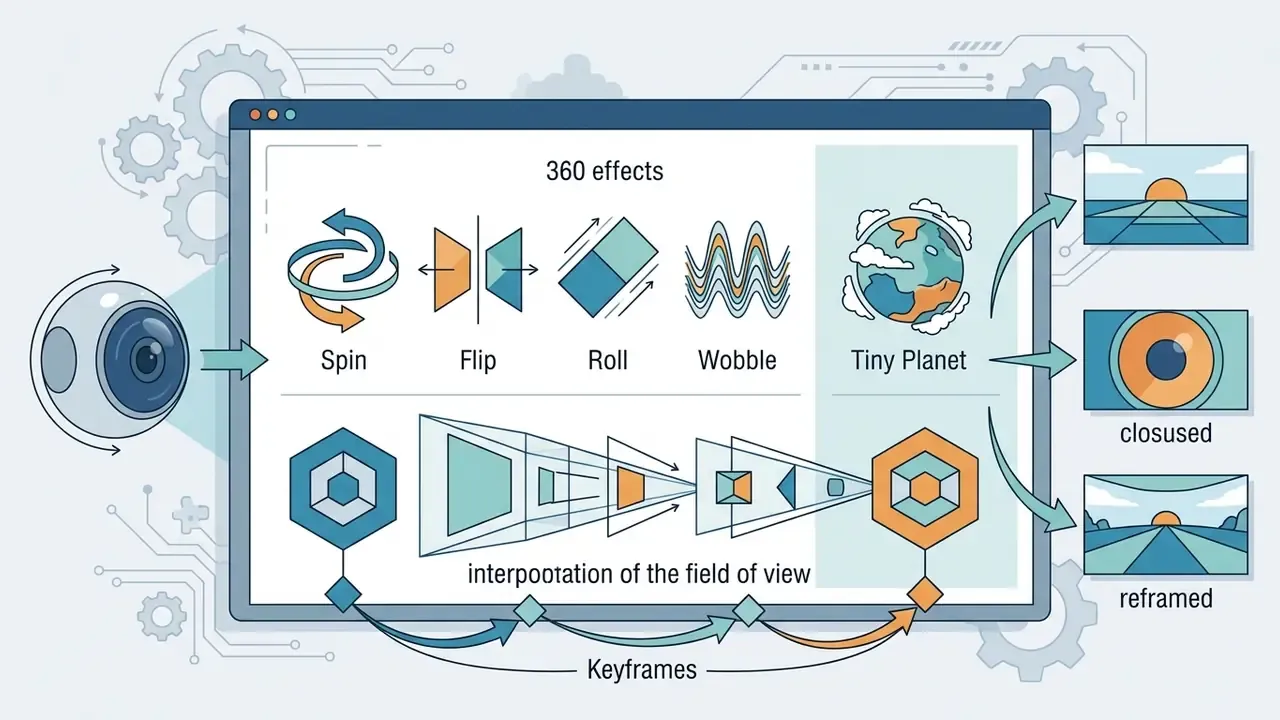
The app gives mobile control over aspect ratios, motion filters, and lens correction without any timeline setup. For spherical media, Quik adds Object Tracking (locking focus on a subject anywhere around the camera), CameraFX presets (Spin, Flip, Roll, Wobble, Tiny Planet), MotionFrame (physically moving the phone inside 360 footage to hunt for angles), and Keyframes, which auto-generate transitions between chosen fields of view. Themes bundle transitions, music, and effects into reusable packages, and the same app submits entries to GoPro Awards.
The wider ecosystem matters more than people assume. There is the GoPro Web App for browser-based cloud media management with advanced download options, Open GoPro for API-level camera integration, and GoPro Labs firmware with 300+ programmable capture features. If you build automated pipelines, that last pair is where the interesting work happens, and it pairs naturally with the api documentation on our side.
Third-Party Video Editor for Full Control Over Footage
Third-party desktop NLEs provide granular timeline control, multi-cam editing, and the audio mixing commercial delivery requires. Professional editors use node-based or layer-based color wheels to balance profiles across mixed lighting, apply LUTs to flat Protune and log captures, and reach for RGB or Hue/Saturation curves to shot-match land, snow, and underwater takes. Underwater grading in particular is a curve job, not a slider job.
«The GoPro Reframe plugin officially supports Adobe Premiere Pro, After Effects and DaVinci Resolve, exposing control over angle, lens curvature, horizon level and motion blur.»
Important: compatibility and limits (2026)
- GoPro Quik App: iOS 18.0+, iPadOS 18.0+, macOS 13.0+, Android 10+. Full-quality (100%) cloud auto-upload applies to active Premium and Premium+ subscribers.
- GoPro Player: macOS 10.14 Mojave+ and Windows 10+; a graphics card with HEVC decoding support is required. Version 3.3+ is needed for Apple Projected Media Profile (APMP) export, which additionally requires macOS 26 and visionOS 26. Those are Apple's year-based version names, not a typo for macOS 15 or visionOS 2.
- GoPro Reframe plugin: officially validated for Adobe Premiere Pro, Adobe After Effects, and DaVinci Resolve.
- Cloud limits: unlimited cloud backup applies strictly to native GoPro camera media (Fusion excluded). Non-GoPro uploads are capped at 100 GB (Premium) or 500 GB (Premium+).
- 360 note: HyperSmooth Pro is not available for 360 content. Spherical clips are stabilized in camera, then reframed.
Free GoPro Video Editor or Subscription: Which One Pays Off
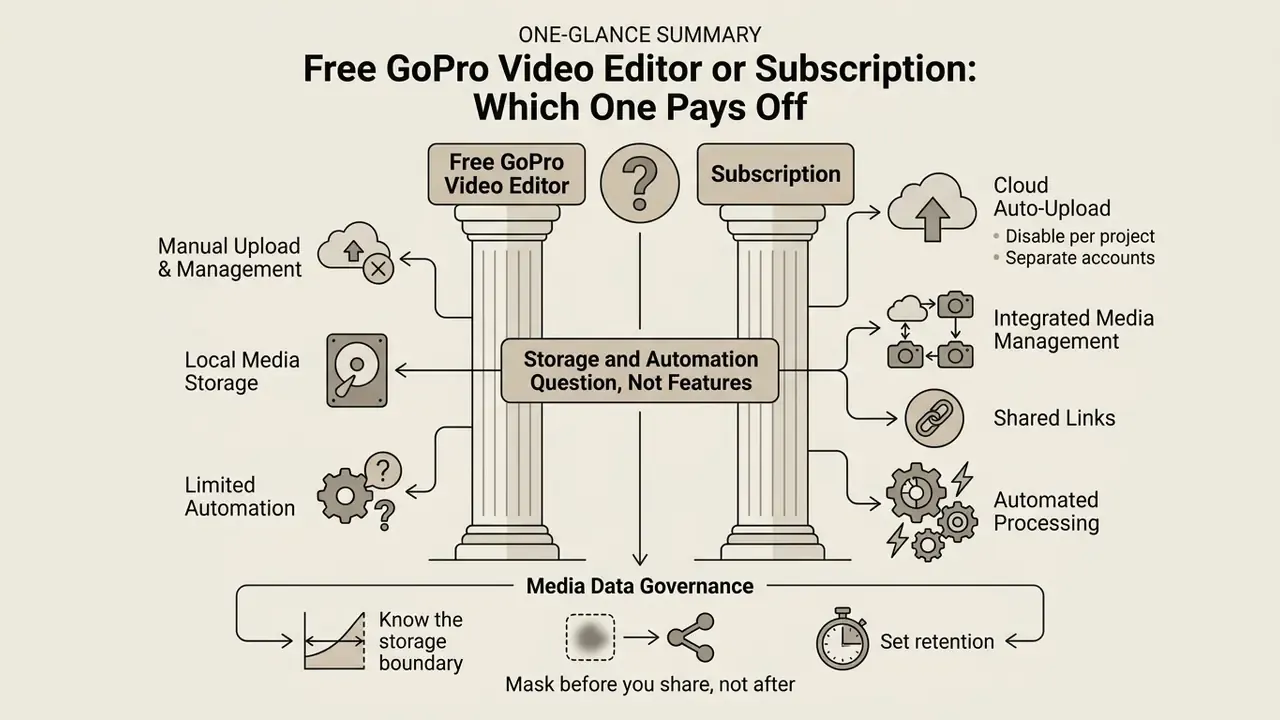
The choice between a free gopro video editor and a paid subscription is mostly a storage and automation question, not a features question. Free tools such as GoPro Player and DaVinci Resolve already give you serious local editing and stabilization with no recurring fee, which answers how to edit gopro videos for free in one line: Player for gyro and 360, Resolve for the edit.
Paid subscriptions unlock unlimited cloud archiving of GoPro-captured media, cross-device project syncing, and template-based automatic assembly.
Updated (illustrative scenario, not a measured case study): picture a high-volume 5.3K workflow scattered across fragmented local drives. Most of the day goes into file logging rather than editing. Replacing manual card offloading with camera-triggered cloud upload plus automatic highlight assembly compresses the "ingest to first draft" stage, because the first selects arrive already assembled. Treat the size of the gain as workflow-dependent. Published, methodologically documented benchmarks for this specific pipeline are not currently available, so measure your own logging hours before and after. I would log a week by hand before believing any vendor number.
Free software models push the work back onto you: local drive archives, proxy creation, manual file organization. The same trade-off shows up with free tools for working with video, where zero cost is repaid in manual overhead. Paid tiers such as GoPro Premium ($59.99 per year) or Premium+ ($99.99 per year) automate ingestion straight from the camera hardware. When you calculate total cost of ownership, add the hidden line items on both sides: the $99.99 one-time HyperSmooth Pro unlock in GoPro Player, and, on the "free software" route, external SSD or NAS capacity, redundant backups, plus the electricity and hours of local rendering. Flexible pricing structures across adjacent media tools are collected in our AI Media Pricing Guides.
This information is general in nature and does not replace advice from a qualified specialist.
Evaluate your annual file volume first. That single number usually decides whether cloud automation justifies a recurring cost.
Cloud Auto-Upload, Privacy and Media Data Governance
Automatic cloud upload is a convenience feature with a governance footprint. Once a camera is charging on Wi-Fi, every clip on the card can leave the local perimeter without an explicit human decision. That includes material shot on restricted sites, inside client facilities, or containing third-party faces and license plates.
Practical controls before you switch cloud workflows on:
- Disable auto-upload per project, not per organization. Keep it on for marketing shoots, off for anything under NDA or on secured premises.
- Separate accounts and shared links.Subscription accounts are personal by default, and a shared cloud link behaves like a public URL, so give it an expiry policy instead of treating it as access-controlled storage.
- Know the storage boundary.Unlimited storage covers GoPro-captured media only. Anything edited in third-party software or shot on other devices counts against the 100 GB or 500 GB non-GoPro quota, and is stored under different file-type rules.
- Mask before you share, not after.Apply blur or pixelate to faces, badges, plates, and screens during the edit, so no unmasked master ever reaches a public platform.
- Set retention.Define how long raw action footage stays in the cloud, and keep the archival master on local intra-frame codecs you control.
If a workflow question turns into a support question, our AI Media Support and Troubleshooting hub covers ingest, sync, and export failures in more depth.
How to Edit GoPro Videos on a Computer: The Step-by-Step Process
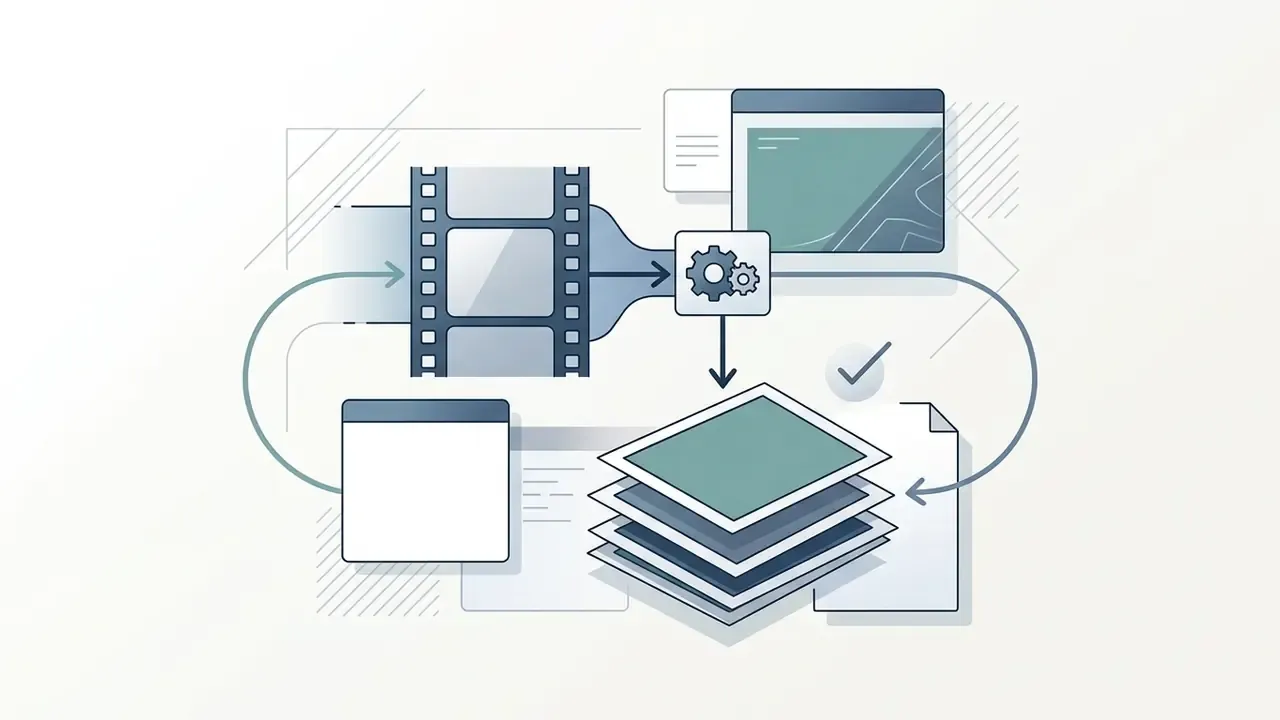
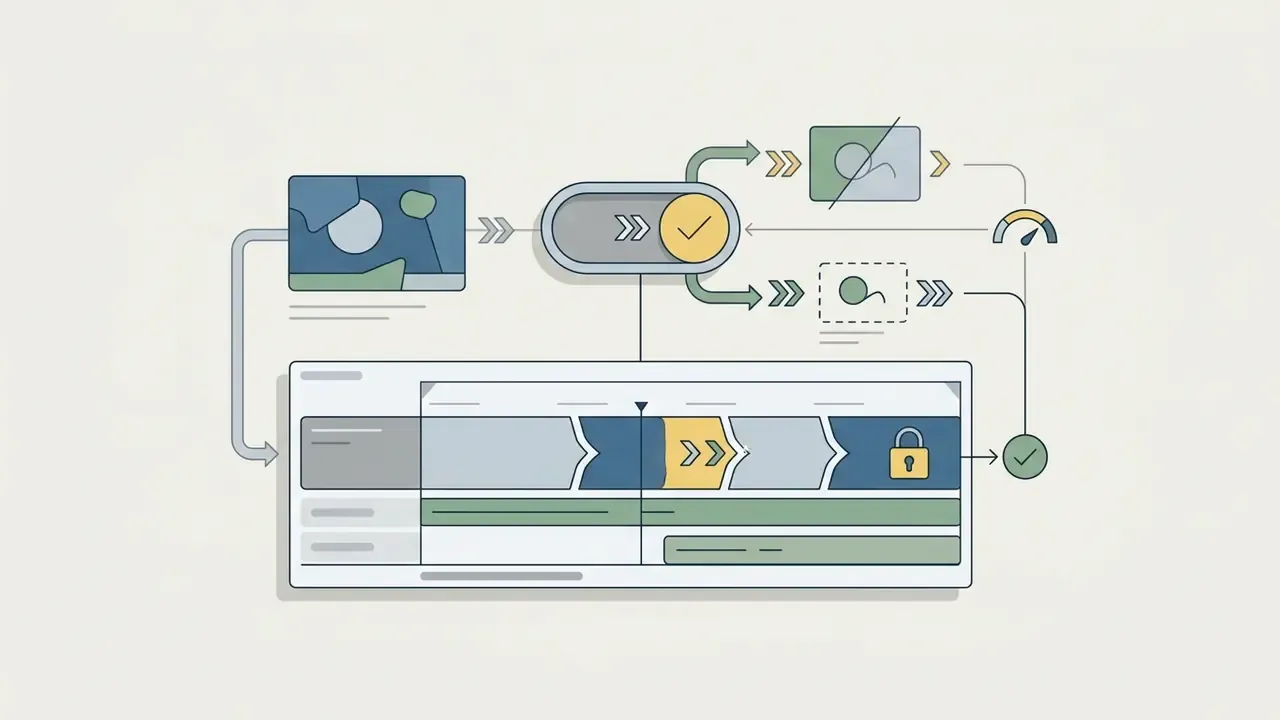
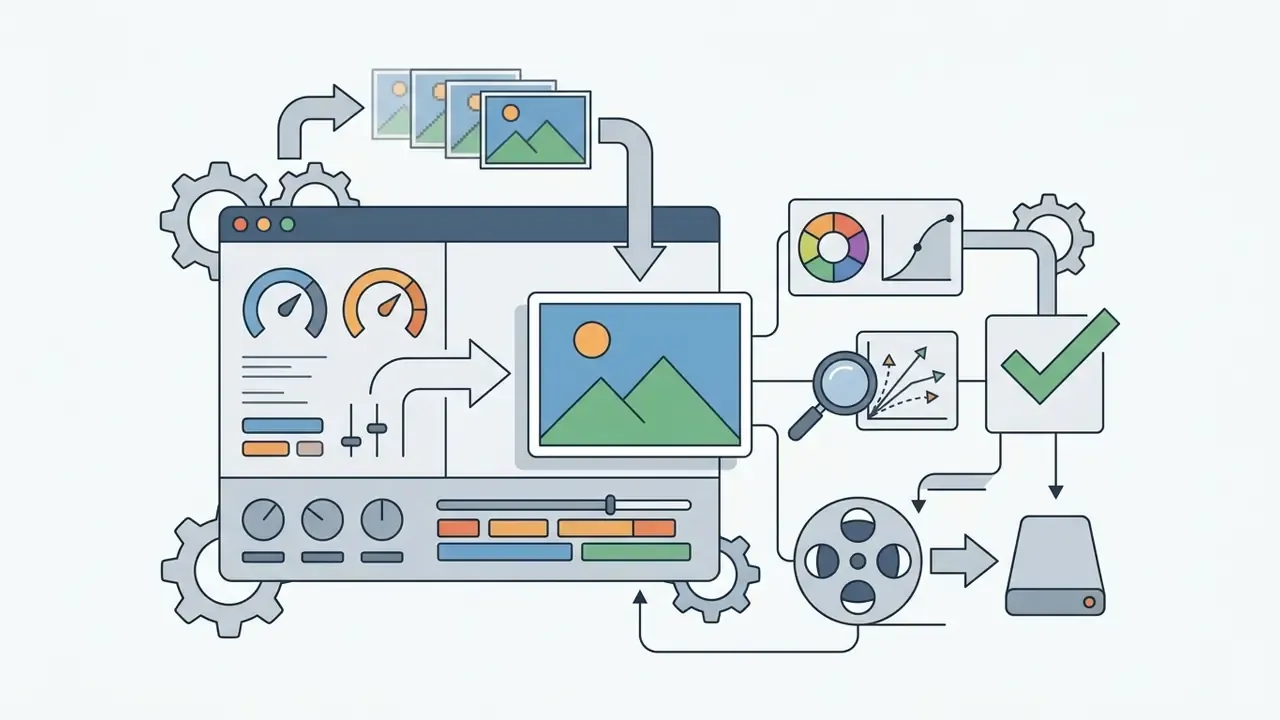
Learning how to edit gopro videos on a computer means adopting a repeatable ingest, assembly, and render sequence. A standard pipeline prevents dropped frames, preserves image sharpness, and shortens delivery time. The flow below outlines the core stages, from card ingest to publication.
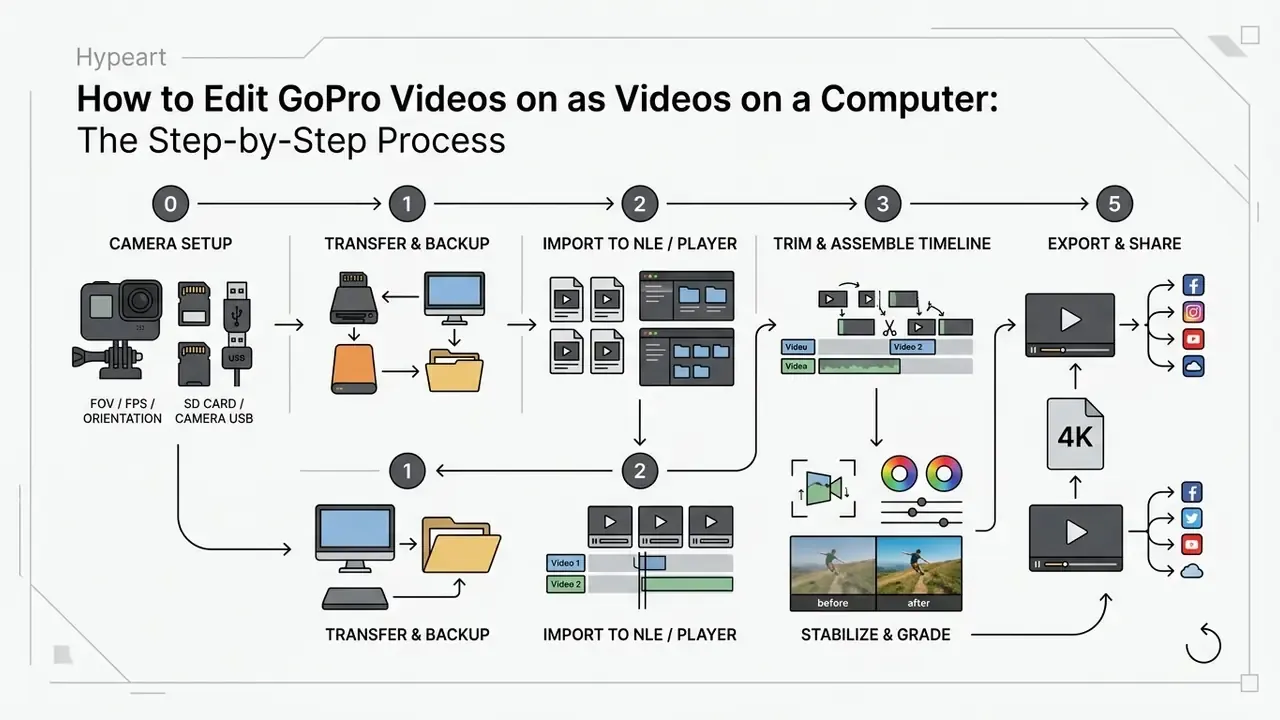
Each stage in plain words: set the camera before you shoot; copy originals twice; import with matched sequence settings; cut the story; stabilize and grade; render one master plus platform versions. Five steps, and the first one is free.
GoPro Settings Before Editing: FOV, FPS and Frame Orientation
Editing starts inside the camera, because no NLE recovers a field of view you never captured or a frame rate that was too high for the available light.
- Field of view. Match FOV to the job. SuperView / Ultrawide (170°) for immersive first-person action. Medium (127°) for people, vehicles, and dialogue-style vlogging. Narrow (90°) when you need to kill fisheye distortion and keep straight lines straight. The smaller the FOV number, the more zoomed-in the frame looks.
- Frame rate. Frames per second drive both smoothness and slow motion. In low light, drop to 24 or 30 fps so each frame collects more light and shows less noise. Push to 60, 120, or 240 fps only when you intend to retime the clip, then confirm the slow-motion trade-off has not introduced choppiness or underexposure.
- Orientation. Helmet, chest, and roll-bar mounts record upside down or sideways more often than anyone expects. Enable in-camera Auto-Rotation, or fix it in post with the Rotate tool (180° flip or 90° correction) before you cut. Rotating after you have added effects and titles forces you to re-align every overlay.
- Protune and log. Planning to grade? Capture flat with Protune and matched white balance across cameras. Publishing straight out of Quik? Keep standard color and skip a mandatory grading pass.
Transferring Footage and Importing It Into the Editor
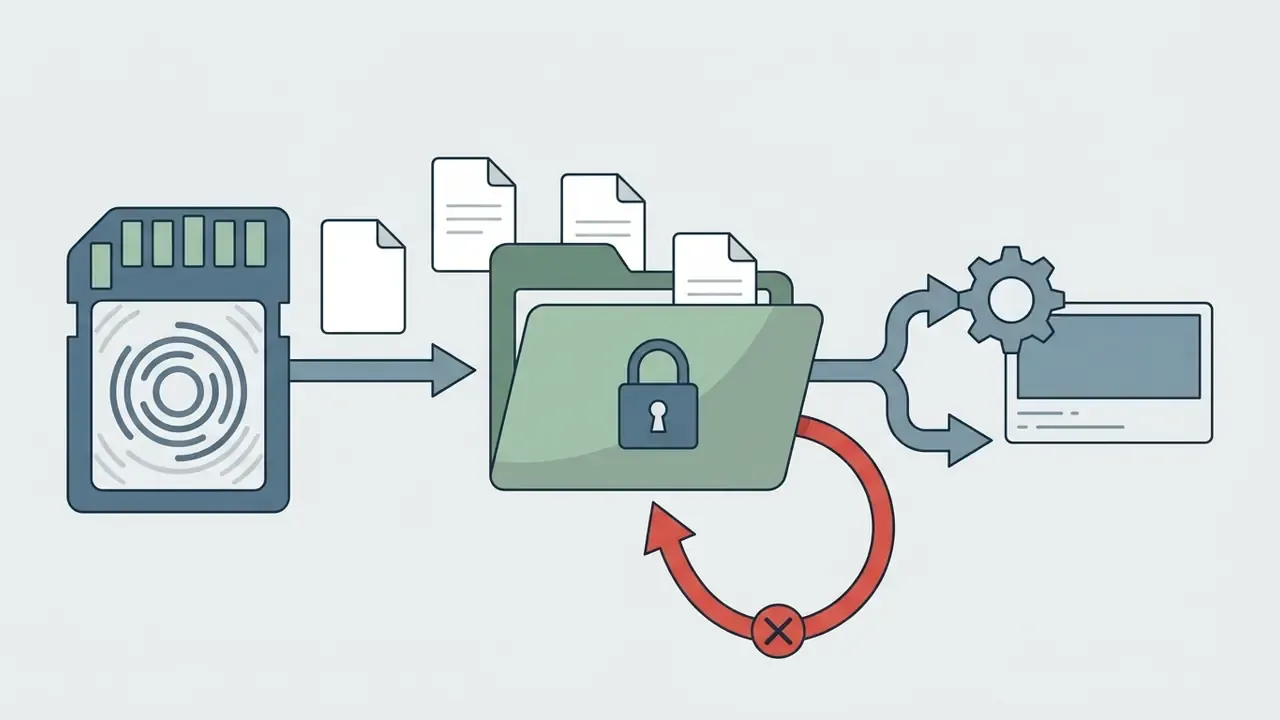
Move original media off the microSD card with a high-speed USB 3.2 reader or a direct USB-C connection. Both official routes, the camera cable and the card reader, copy the original files rather than a re-encoded version, so neither one introduces generation loss. Copying raw files onto a local solid-state drive (SSD) gives you the read speed you need for timeline scrubbing. Open your software to edit gopro videos, build a single unified media bin, then verify that clip frame rates match your target sequence settings before you cut a frame.
Two habits save projects. Keep untouched camera originals in a separate MASTER folder, and never edit in place. On Windows, MAX and 360 media additionally needs GoPro Player plus the HEVC decoding component before playback works at all, which is the usual reason a "broken" file plays fine on a colleague's Mac.
Trim, Transitions, Effects and Speed Control
Drop raw clips onto the timeline, trim the dead weight, and set your pacing. Add smooth transitions between scenes, then use speed ramping (Speed Ramp) to punch up the action beats. On HERO9, HERO10, HERO11 and later, Speed Ramp can also be triggered during TimeWarp capture: one tap drops the clip to real speed (30 fps), a second tap accelerates again.
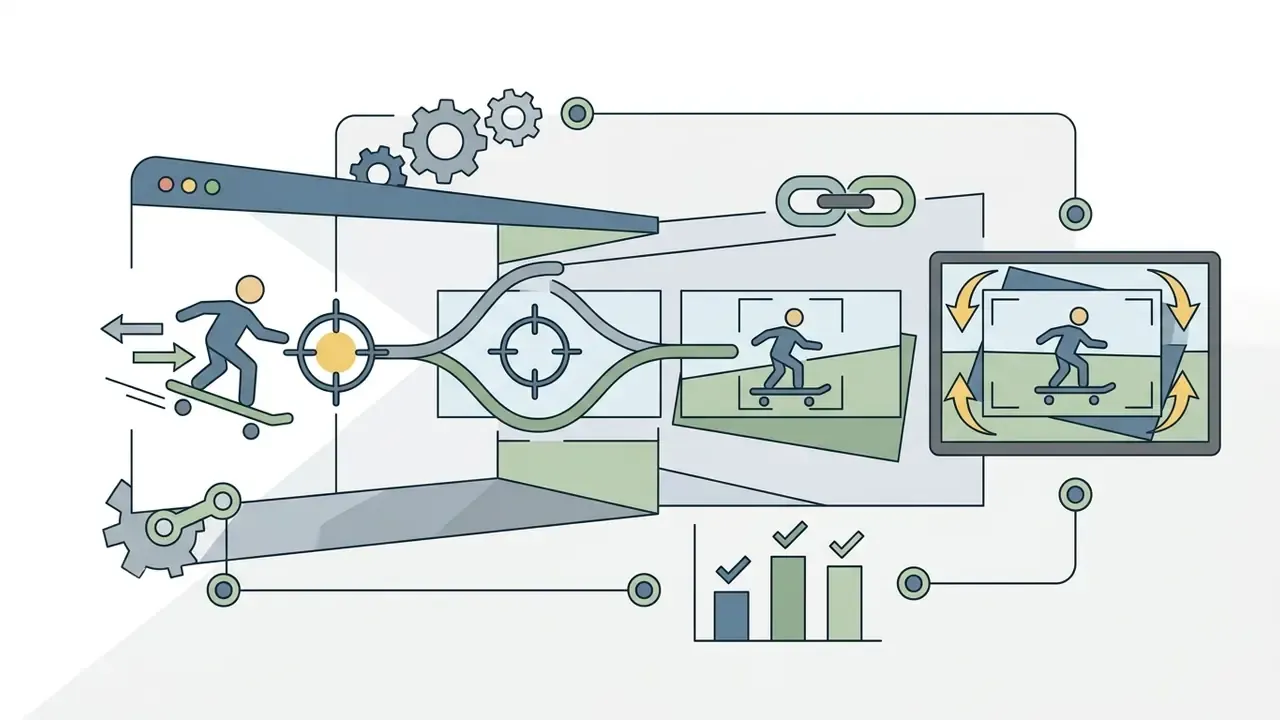
Beyond basic trimming, action footage asks for a specific set of operations:
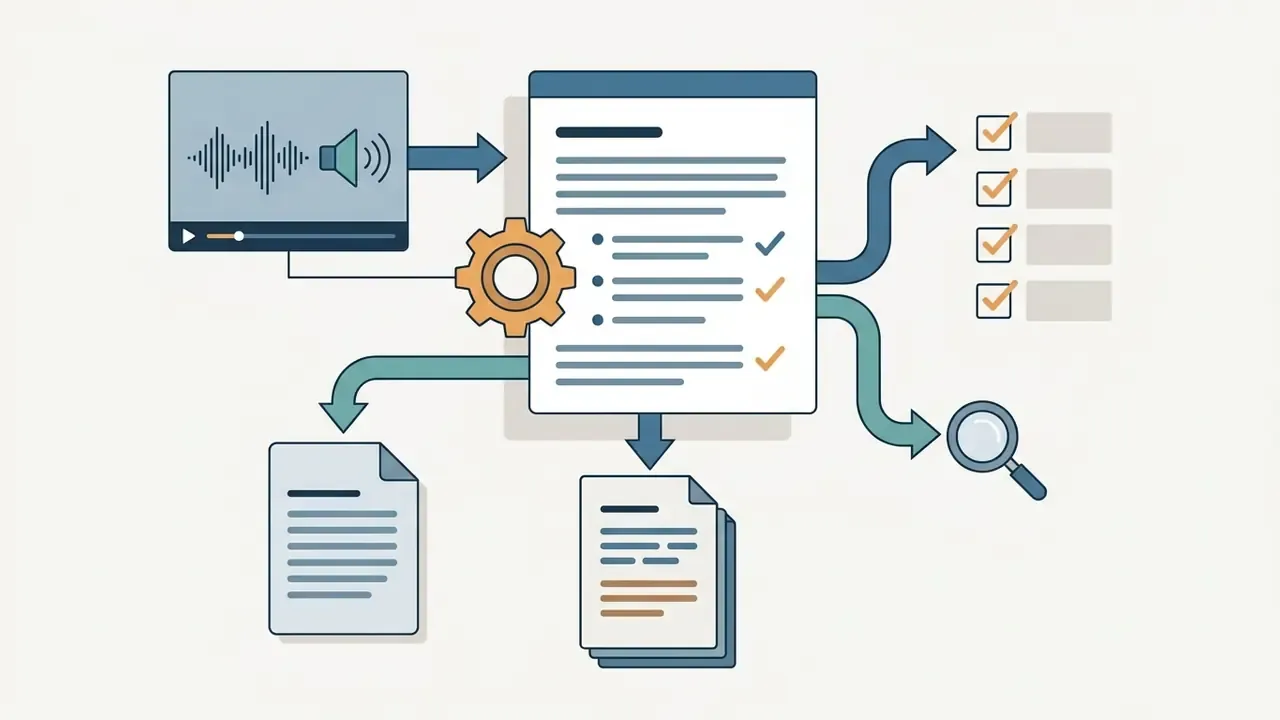
Automated scene analysis is improving fast, and tooling that behaves like an ai that can analyze videos now handles first-pass selects reasonably well. Reasonably. You still watch the whole card.

Export, Quality and Sharing: One Consolidated Render Block
This section holds all render guidance in one place: web delivery, 4K and 360 output, archival masters.
Choose standard containers such as MP4 with H.264 or HEVC compression to keep visual fidelity while controlling file size. Match export frame rate to source settings so fast motion does not judder. Higher target bitrates, for example 35 to 45 Mbps for 4K uploads, survive social platform re-compression far better (YouTube recommended upload encoding settings, 2026. https://support.google.com/youtube/answer/1722171). If you are also weighing generative pipelines for b-roll and intros, review the best AI video generators.
«HEVC delivers roughly 40% better compression than H.264 at equivalent visual quality, lowering bitrate requirements for 4K exports.»
Table 3. Export presets: platform delivery versus archival master
| Target | Resolution / FPS | Codec and container | Video bitrate | Audio |
|---|---|---|---|---|
| YouTube SDR | 1920×1080 / 24 to 30 | H.264, MP4 | ~8 Mbps (VBR 2-pass) | AAC-LC 384 kbps, 48 kHz stereo |
| YouTube SDR high frame rate | 1920×1080 / 50 to 60 | H.264, MP4 | ~12 Mbps | AAC-LC 384 kbps, 48 kHz |
| YouTube 4K | 3840×2160 / 24 to 30 | H.264 or HEVC, MP4 | 35 to 45 Mbps | AAC-LC 384 kbps, 48 kHz |
| YouTube 4K60 | 3840×2160 / 50 to 60 | HEVC, MP4 | 53 to 68 Mbps | AAC-LC 384 kbps, 48 kHz |
| Vertical social (Reels, Shorts, TikTok) | 1080×1920 / 30 | H.264, MP4 | 10 to 16 Mbps | AAC 256 to 320 kbps |
| 360 reframed flat delivery | 3840×2160 / source FPS | HEVC or ProRes 422 LT | 45 to 60 Mbps (HEVC) | AAC 320 kbps |
| 360 spherical master | 5.6K or 8K, source FPS | ProRes 422 LT / CineForm | Codec-determined (intra-frame) | PCM or AAC 320 kbps |
| Archival master (2D) | 5.3K or 4K, source FPS | Apple ProRes 422 / GoPro CineForm | Codec-determined (intra-frame) | PCM 48 kHz |
For professional master archives, export with intra-frame codecs such as Apple ProRes 422 or GoPro CineForm to avoid inter-frame artifacts and keep the file re-editable. Our reference on video compression covers the size-versus-quality trade-offs in more detail. For web distribution, HEVC with dual-pass encoding gives the best color retention and dynamic range per megabyte.
«VVC reaches roughly 40% lower bitrate than HEVC, yet ProRes and CineForm remain the practical standard for interactive editing because of intra-frame compression.»
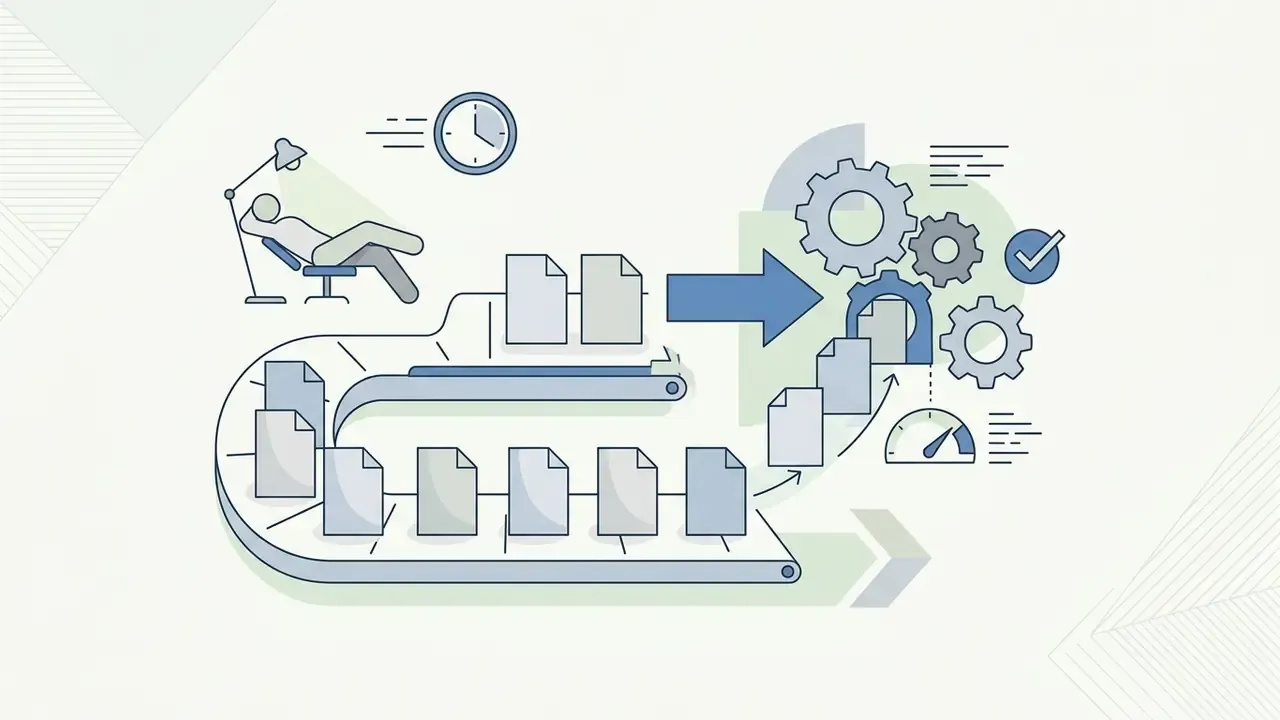
Finally, use Batch Export wherever it exists. GoPro Player and Adobe Media Encoder both queue multiple render and transcode jobs with per-file encoding options, so a full day of clips renders unattended overnight instead of blocking your workstation clip by clip.
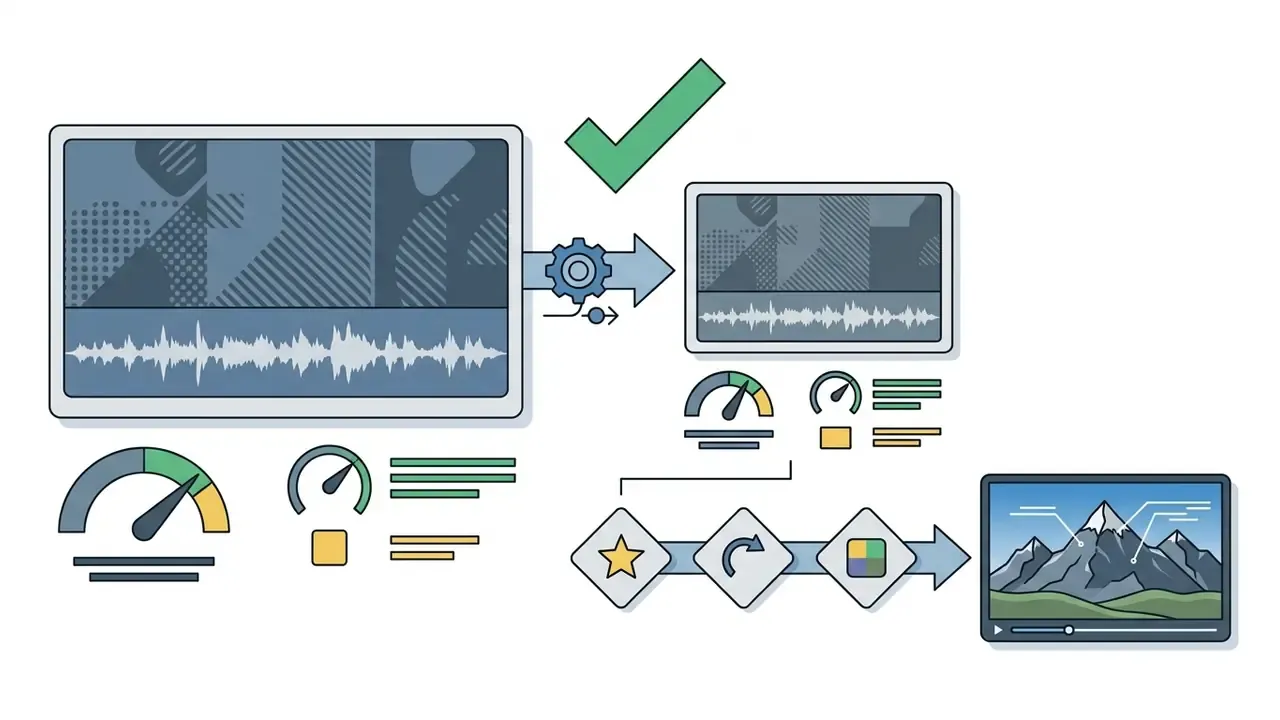
Editing GoPro 4K and 360 Videos Without Losing Quality
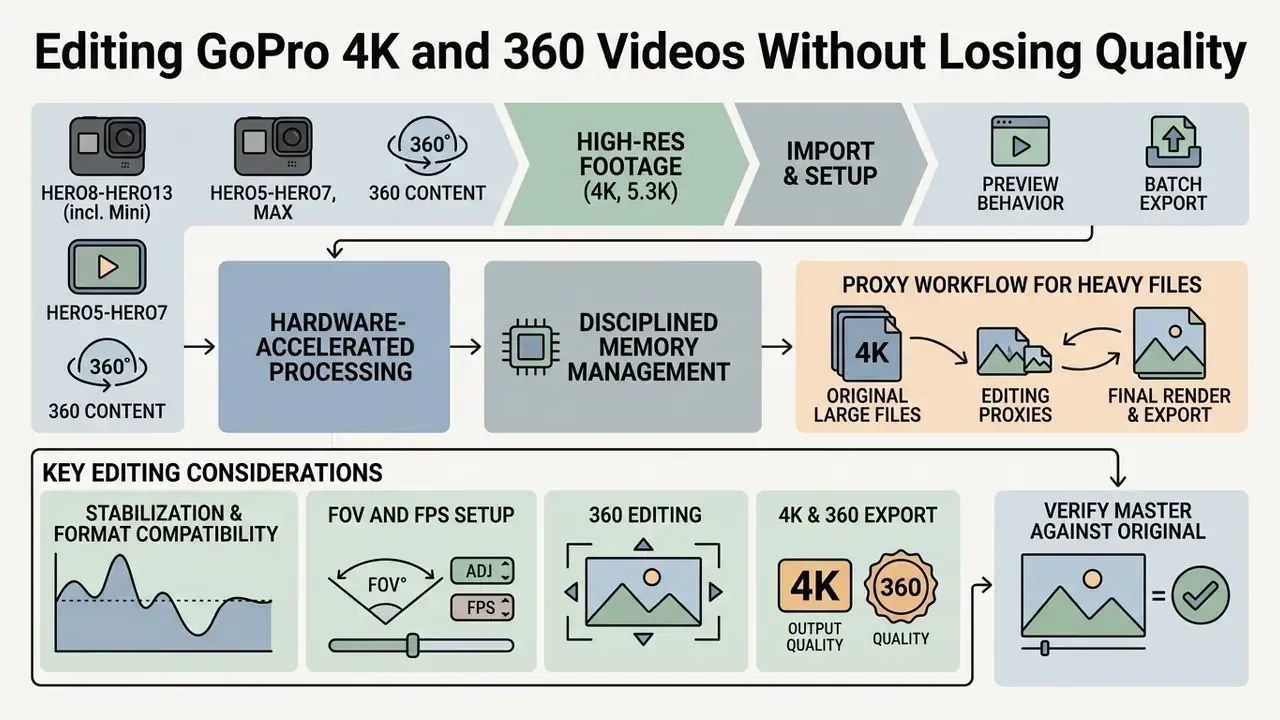
Editing high-resolution 4K, 5.3K, and 360-degree gopro videos demands disciplined memory management and hardware-accelerated processing. Decoding high-bitrate HEVC streams needs dedicated GPU pipelines to hold playback without dropped frames.
«Encoding a six-second UHD clip in VVC takes up to 11 minutes on CPU alone.»
That figure explains why interactive 4K and 8K editing without GPU acceleration is effectively impossible. The same computational load that makes CPU-only encoding run for minutes per clip also stalls timeline playback. Choosing sensible intermediate codecs and applying precise export settings preserves fine detail through complex action shots. Remember the source geometry as well: MAX-class spherical video is captured at 6K and stitched to 5.6K, so exporting a 360 master below that resolution throws away detail you cannot get back.
Stabilization and GoPro Format Compatibility
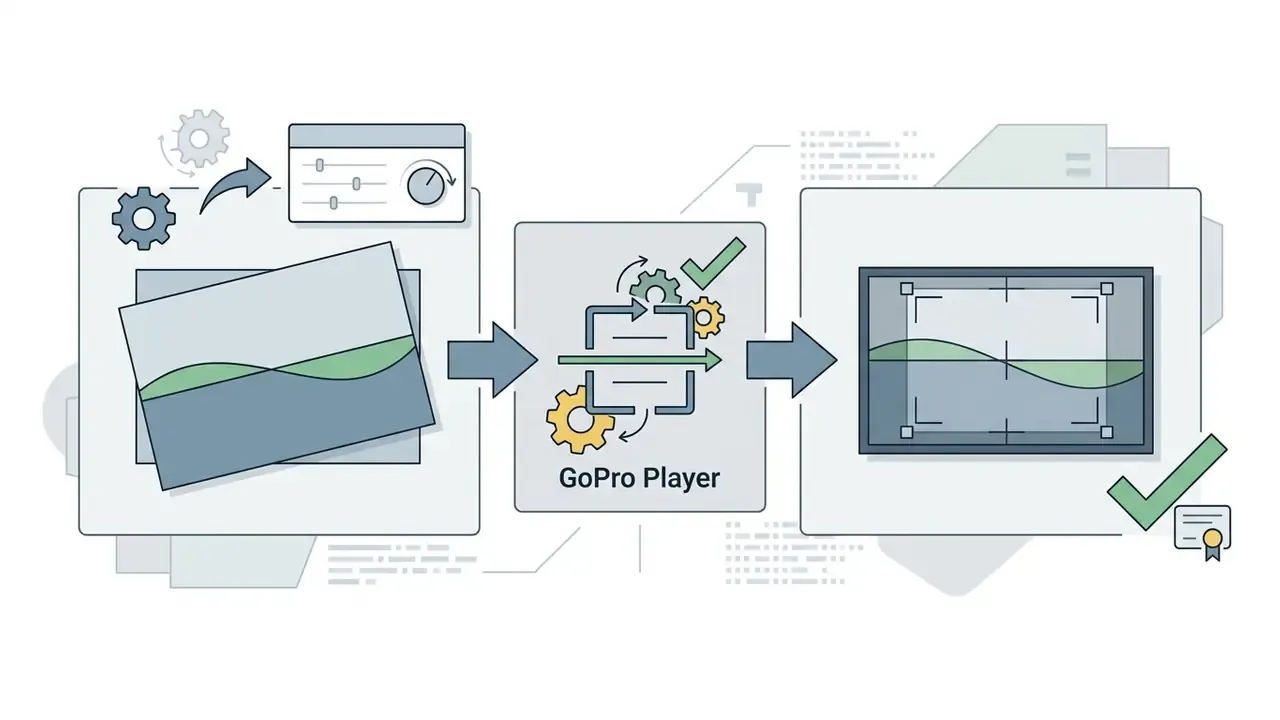
GoPro cameras record internal telemetry from embedded gyroscopes, which is what makes advanced post stabilization possible. In-camera HyperSmooth smooths in real time; post-processing tools such as HyperSmooth Pro (ReelSteady) read the raw gyro metadata and give you precise control instead.
HyperSmooth Pro (ReelSteady) compatibility matrix:
- HERO8, HERO9, HERO10, HERO11, HERO11 Mini, HERO12, HERO13 all video modes supported, including clips captured with in-camera HyperSmooth switched ON.
- HERO5, HERO5 Session, HERO6, HERO2018, HERO7 limited support. Footage qualifies only if EIS or HyperSmooth was OFF during capture.
- MAX and 360 content HyperSmooth Pro is not applied to spherical media. Stabilize in camera, then shape the look through reframing and Horizon Leveling.
- Preview behavior on sufficiently powerful hardware, stabilization results can be reviewed at full quality during playback without pre-rendering.
- Batch Export queue gyro-stabilized files for background rendering with professional encoding options.
Confirm your desktop meets the minimum requirements, including a 64-bit OS (macOS 10.14+ or Windows 10+) and dedicated graphics hardware with HEVC decoding, before you plan a delivery date around gyro-stabilized 5.3K media.
Hardware Requirements and a Proxy Workflow for Heavy Files
Rather than repeat export guidance (now consolidated above), this block answers the question that actually blocks most editors: will my machine survive 5.3K and 8K 360 footage?
Table 4. Practical workstation guidance for GoPro post-production (editorial recommendation, not a vendor specification)
| Project type | Minimum | Recommended | Storage |
|---|---|---|---|
| 1080p / 4K30 short social edits | 4-core CPU, 8 GB RAM, GPU with HEVC decode | 6-core CPU, 16 GB RAM, 4 GB VRAM | SATA SSD, 2× project size free |
| 4K60 multi-clip timelines | 6-core CPU, 16 GB RAM, 4 GB VRAM | 8-core CPU, 32 GB RAM, 8 GB VRAM | NVMe SSD for media and cache |
| 5.3K HERO plus gyro stabilization | 8-core CPU, 32 GB RAM, 8 GB VRAM | 12-core CPU, 32 to 64 GB RAM, 12 GB VRAM | NVMe scratch disk plus separate archive drive |
| 8K / 5.6K 360 reframing and grading | 12-core CPU, 32 GB RAM, 12 GB VRAM | 16-core CPU, 64 GB RAM, 16 to 24 GB VRAM | RAID or NVMe array, 3× project size free |
Resource planning for larger projects is easier with numbers in front of you; our AI Media Calculators help estimate storage and render budgets before a shoot rather than after.
GoPro Online Video Editor for Fast Cuts and Publishing
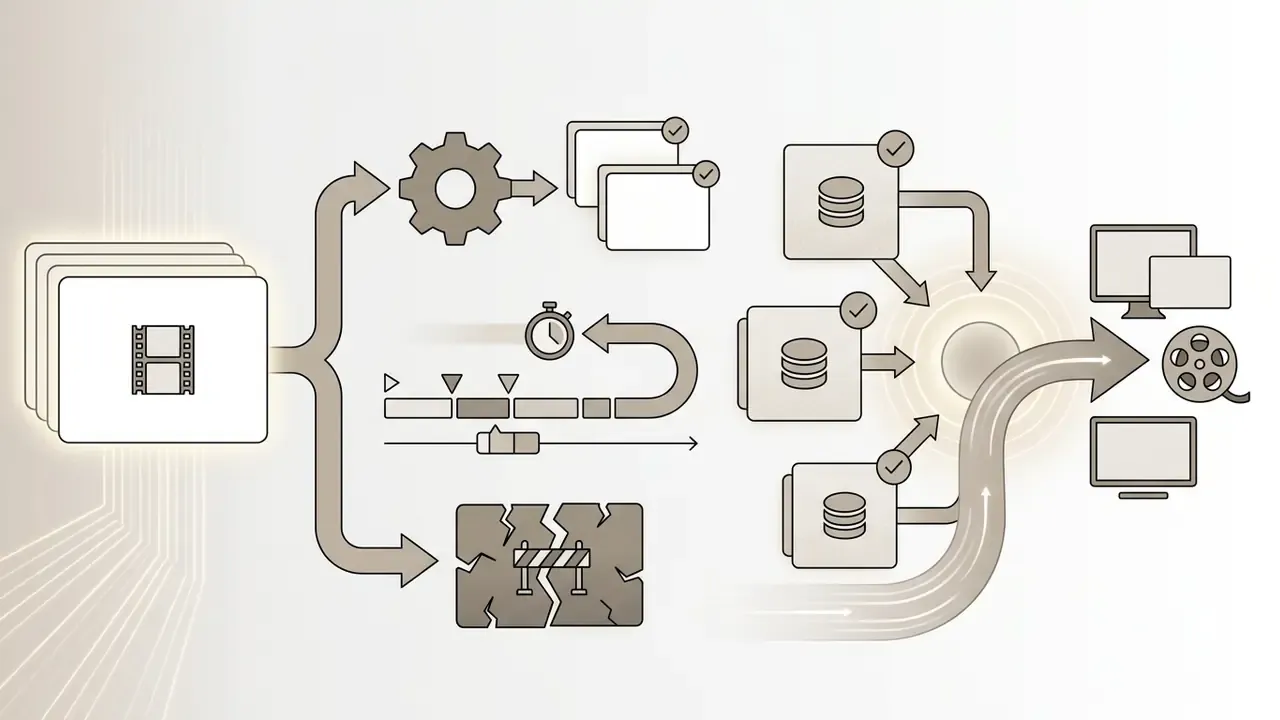
A gopro online video editor handles basic trims, text overlays, and social clips right inside a browser tab. Cloud editors run on remote infrastructure, so lightweight laptops and Chromebooks edit media without heavy local processing. These web tools typically add automated transcription, collaborative timeline comments, and direct publishing to connected channels. For a channel-specific pipeline, compare editors for publishing to YouTube.
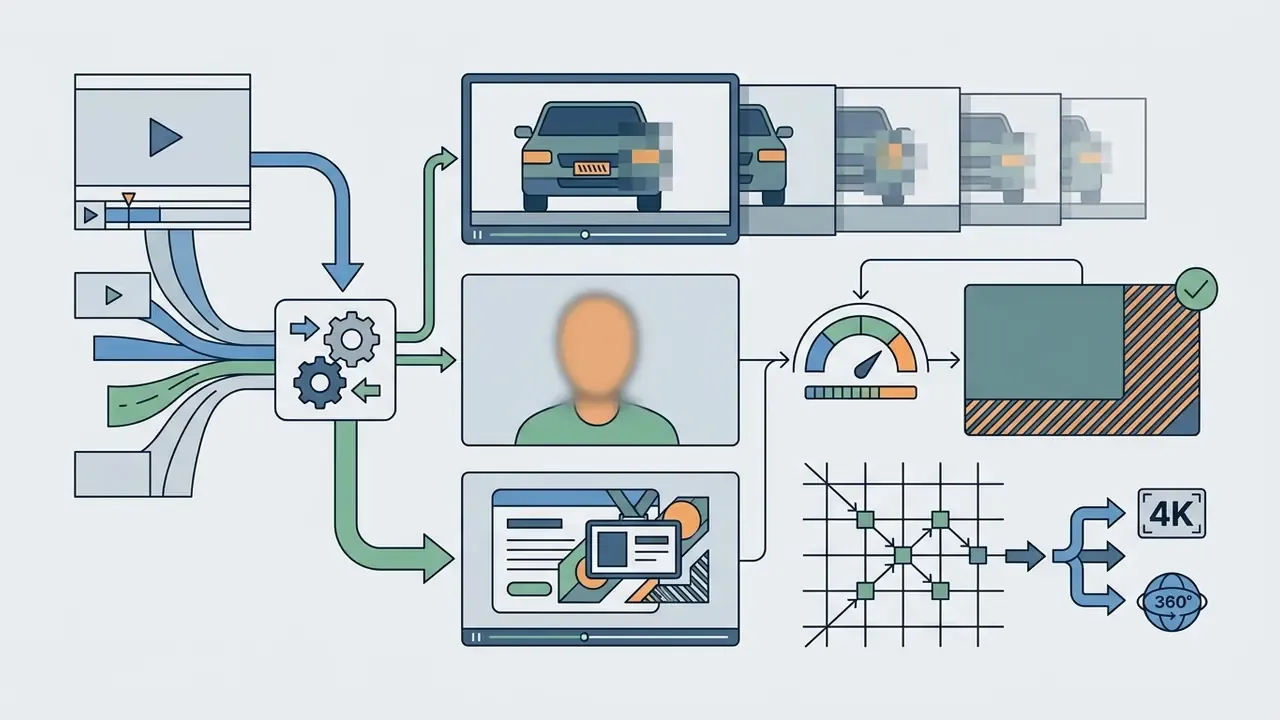
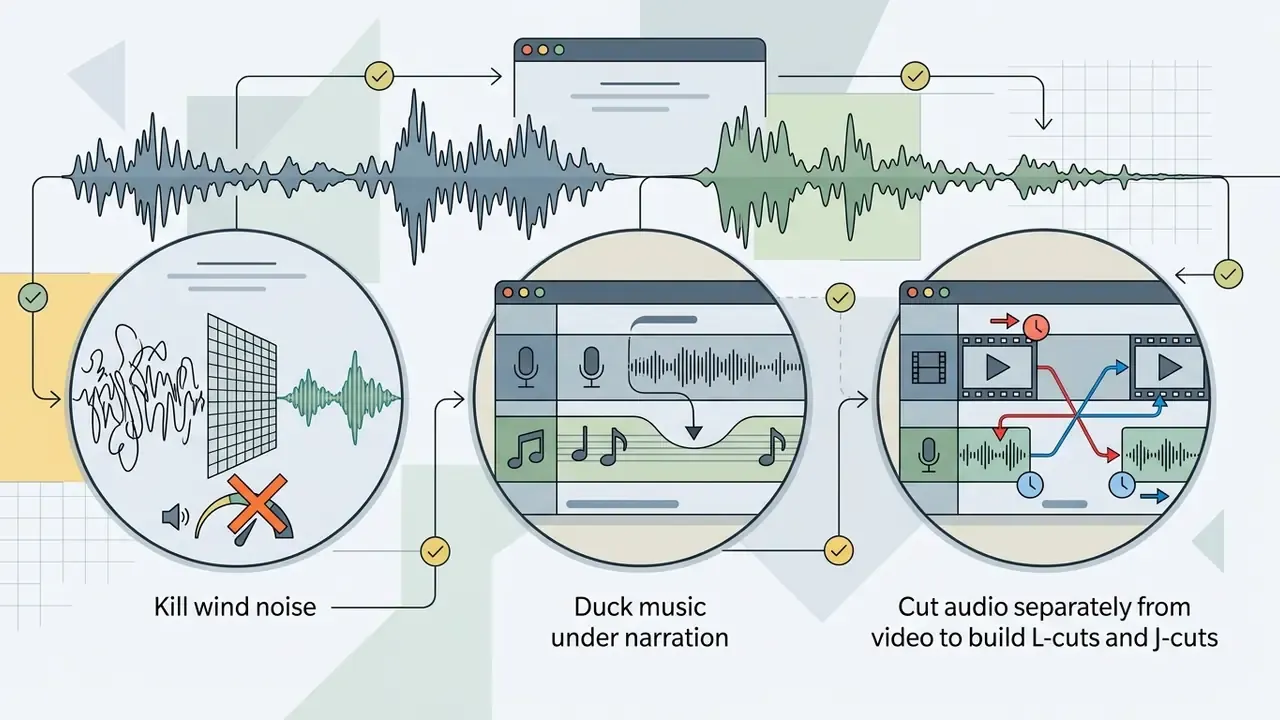
Vertical formats and Safe Zones. When you crop horizontal 4K action footage into 9:16 for TikTok, Instagram Reels, and YouTube Shorts, turn on the Safe Zones overlay. It previews where the platform UI sits: Like, Comment, Follow buttons, captions, the description block. That way your subject, telemetry overlay, or title never hides behind interface elements. Browser editors are also efficient for three adjacent tasks: generating and auto-translating subtitles for silent autoplay, pixelating or blurring sensitive frames (faces, plates, documents) before anything goes public, and exporting short looping highlights as GIF files for teasers, forums, and messaging apps. Audio can be detached and cut independently of the video track for L-cuts and J-cuts, and most services publish straight to linked YouTube, TikTok, and Facebook accounts. Copy and caption drafting is a separate job, usually handled by an ai text generator rather than the editor itself.
Browser-based editors depend on a stable, fast connection to upload raw source files. Updated (clarification): the practical limit is arithmetic, not theoretical. A single 10-minute 5.3K clip can exceed 8 to 10 GB, so on a 20 Mbit/s uplink the upload alone runs over an hour before editing starts. Free tiers also cap library size (2 GB is common) and monthly export minutes. Web tools are fine for 1080p clips and short social edits; high-bitrate 4K or spherical 360 files introduce network bottlenecks instead of removing them. Measure your own upstream bandwidth and per-tier storage caps rather than assuming parity with local editing. For complex multi-track projects, a native desktop application remains the safer choice on both performance and reliability.
Can You Edit GoPro Videos Without GoPro Studio
FAQ: Editing GoPro Footage
Do I need to convert HEVC GoPro files before editing?
No. Modern NLEs (Premiere Pro, DaVinci Resolve, CapCut) and most online editors decode H.265 natively when a hardware-accelerated GPU with HEVC decoding is present. On Windows, MAX 360 files additionally require GoPro Player and the HEVC component. Convert only if playback stutters, and then transcode to an intra-frame proxy rather than a lower-quality delivery codec.
How do I pull a high-quality photo out of 5.3K video?
Use Frame Grab in GoPro Player, or a freeze-frame export in your NLE, and save the still as PNG or TIFF so no inter-frame compression is applied. Pick a frame with minimal motion blur. A clip shot at 1/500 s yields far sharper grabs than one shot at 1/60 s.
Can I edit GoPro videos without GoPro Studio?
Yes. Studio is discontinued. Any current editor works: GoPro Quik and GoPro Player for camera-native features, DaVinci Resolve or Premiere Pro for professional control, or a browser editor for quick trims and social crops.
Can I edit 4K without losing quality?
Yes, if three conditions hold. Sequence resolution matches the source, the master export codec is intra-frame (ProRes or CineForm), and delivery bitrate stays at or above 35 to 45 Mbps for 4K. Quality loss usually comes from re-exporting an already compressed export, not from the first render.
Which GoPro models support HyperSmooth Pro in post?
HERO8 through HERO13 in all modes, including footage shot with HyperSmooth ON. HERO5 to HERO7 and HERO2018 qualify only if EIS or HyperSmooth was disabled during capture. HyperSmooth Pro is not available for 360 content.
Does a subscription actually save money?
It depends on volume. Premium ($59.99 per year) and Premium+ ($99.99 per year) replace manual offloading with automatic 100%-quality cloud upload, but unlimited storage covers GoPro-captured media only; non-GoPro files are capped at 100 GB or 500 GB. If you shoot occasionally and already own fast local storage, the free Player plus Resolve route costs nothing recurring.
My footage came out upside down. Can I fix it?
Yes. Apply Rotate (180°) in your editor before adding titles and effects, or enable in-camera Auto-Rotation for future shoots so orientation metadata is written at capture.
What is the fastest route for a same-day social edit?
Shoot at 4K30 with Medium FOV, offload to the phone, cut in Quik with beat-sync, crop to 9:16 with Safe Zones on, export at 10 to 16 Mbps. Fifteen minutes, give or take.
Recommended Tools and Calculators
To widen your production toolkit beyond the camera, consult our AI Media Commercial-Use Hub, explore pricing structures in the AI Media Pricing Guides, analyze platform features with our compare framework, and estimate project resources with the AI Media Calculators. For technical implementation, see the api documentation. Ongoing disputes over training data and generated media are tracked in AI Litigation and Case Timelines, which matters if your edit mixes camera footage with generated assets.
Appendix A: Replaced Wording (edit transparency)
- The original section "Export settings for 4K, 360 and high-quality video" duplicated the export block; its content (ProRes 422, CineForm, HEVC dual-pass) moved into the single consolidated render section, and the freed slot now holds practical hardware and proxy-workflow guidance.
- The internal
[VERIFICATION CHECK / COMPATIBILITY AUDIT]block was preserved in substance and reformatted as the readable callout "Important: compatibility and limits (2026)".
Pricing and Version Verification Snapshot
Prices, software versions, and cloud limits shift without notice, so treat this as a dated snapshot rather than a guarantee.
| Item | Figure quoted here | Verified against | Check date |
|---|---|---|---|
| GoPro Premium subscription | $59.99 per year | gopro.com subscription page | February 2026 |
| GoPro Premium+ subscription | $99.99 per year | gopro.com subscription page | February 2026 |
| HyperSmooth Pro / ReelSteady unlock | $99.99 one-time | GoPro Player product page | February 2026 |
| DaVinci Resolve Studio | $295 perpetual | Blackmagic Design store | February 2026 |
| Adobe Premiere Pro | $22.99 per month | Adobe single-app plan | February 2026 |
| Non-GoPro cloud storage cap | 100 GB / 500 GB | GoPro subscription terms | February 2026 |
Disclaimer: this material is informational. Prices, software versions, and cloud tier limits change, so verify current terms on the vendors' official pages before buying a subscription or licence. Hardware configuration guidance is editorial and does not replace official system requirements.
Footer navigation: AI Media Glossary