Evaluating non-commercial and freemium production tools therefore requires separating technical functionality from commercial gating mechanisms. Content creators, enterprise teams, and media operators frequently navigate hidden paywalls, resolution caps, forced watermarking, and data privacy trade-offs. This investigation analyzes the best free video editing software across desktop, open-source, mobile, and cloud environments to help you choose the right tool for your specific workflow requirements.
The Short Version: Key Findings
- Best overall free editor DaVinci Resolve. Unwatermarked UHD 3840×2160 exports at 60 fps, full color, Fusion VFX, and Fairlight audio in one local install. Needs 16 GB RAM on Windows (8 GB on Mac).
- Best open-source editors Kdenlive and Shotcut. GPL-licensed, no accounts, no telemetry-dependent rendering, proxy editing for 4K on modest hardware.
- Best for low-spec hardware OpenShot. Runs on 4 GB RAM, 2 CPU cores, 64-bit Windows/macOS/Linux/ChromeOS.
- Best free short-form editor CapCut Desktop. Free exports go up to 8K at 60 fps, including Apple ProRes and GIF; the paywall only triggers when a Pro-badged asset, template, or AI avatar sits on the timeline.
- Best free Windows/web editor Microsoft Clipchamp. Watermark-free 1080p exports, auto-captions in 80+ languages, 400+ AI voices; 4K requires Premium or Microsoft 365.
- Best for tutorials and screen recording ScreenPal. Dual screen plus webcam capture, storyboards from slide decks, watermark-free exports, free plan capped at 15 minutes per recording and 10 hosted videos.
- Best text-based editing Descript. Transcript-driven cuts; free plan limited to 60 media minutes per month, 720p, watermarked output.
- Avoid on free tiers if you publish commercially VEED (720p plus forced logo) and any Canva project containing Pro stock assets.
- Privacy-critical work keep it local. Kdenlive, Shotcut, DaVinci Resolve, OpenShot.
Who this guide is for. Three reader profiles kept showing up in the questions behind this topic: the solo creator who needs a genuinely 100% free video editor with no export branding, the educator or product marketer producing screen-recorded instruction, and the IT or risk owner who has to approve whatever the first two already installed. The comparison below tries to serve all three without pretending their priorities are identical.
How We Evaluate the Best Free Video Editing Software
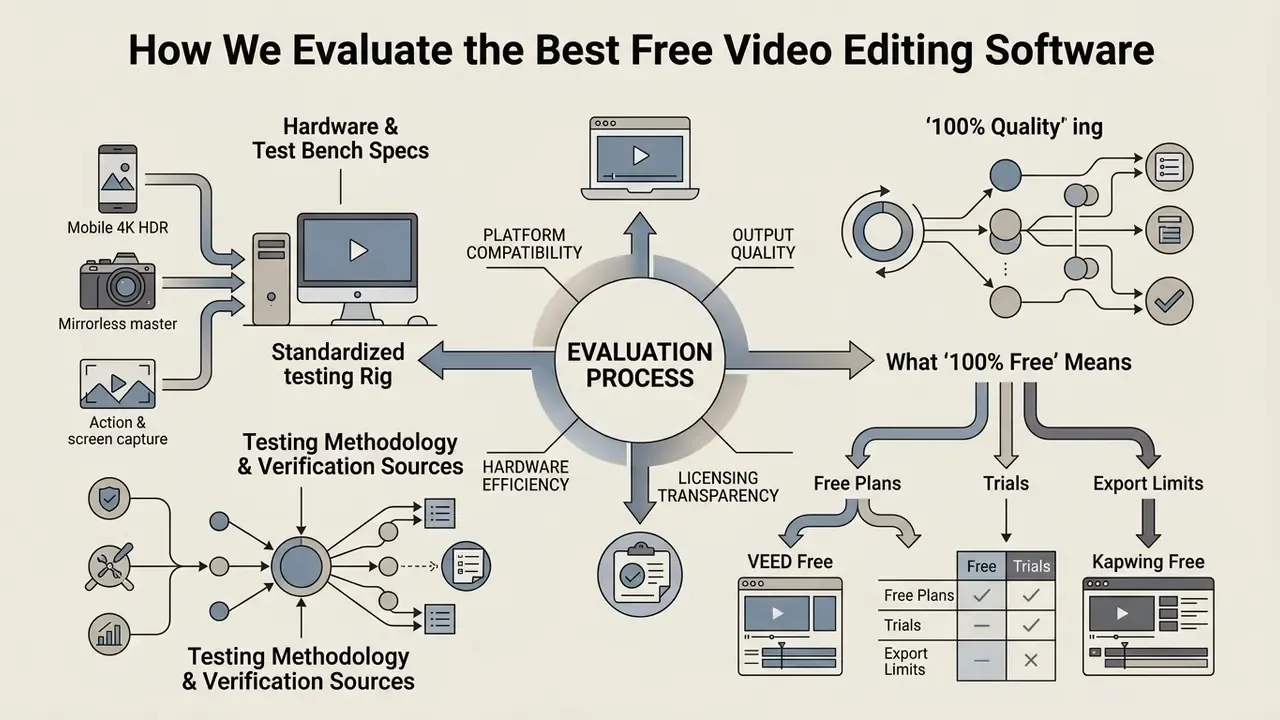
Evaluating a video editor involves testing platform compatibility, hardware efficiency, output quality, and licensing transparency. Software advertised as free often falls into distinct tiers, ranging from fully open-source applications to freemium web platforms that restrict high-resolution exports. To systematically test these applications, our methodology inspects the exact boundaries of free plans, checking container format support, export resolution caps, background rendering speeds, and watermark placement across standardized project files.
«Free software is broadly comparable to proprietary equivalents, and surpasses them in supported formats and codecs.»
That finding is the reason this comparison does not treat "free" as a synonym for "limited". The differentiator is rarely raw capability; it is the commercial gate placed in front of the export button. Our scoring therefore weights export integrity and licensing clarity as heavily as editing features.
Hardware & Test Bench Specs
Abstract claims about "smooth 4K playback" are meaningless without named source media. Our test suite benchmarks every editor using three standardized raw video inputs:
- Mobile 4K HDR iPhone 15 Pro footage (HEVC/H.265, 4K at 60 fps, 10-bit Log).
- Mirrorless master Sony A7 IV clips (H.264/AVC, 4K at 24 fps, 4:2:2 10-bit).
- Action & screen capture ScreenPal/OBS desktop recording (1080p at 60 fps, CBR 12 Mbps) mixed with GoPro-style high-motion action footage.
Each project combines all three sources on a single timeline to force real-world transcoding and mixed-frame-rate conforming, the exact scenario that breaks lightweight editors. Performance is measured by project scrubbing fluidity (preview dropped frames at full and half resolution) and 5-minute timeline render speed to H.264/MP4. Alongside performance, we log the export dialog verbatim: available resolutions, frame rates, containers, codecs, bitrate controls, and every upgrade prompt that appears between "Export" and a finished file.
What "100% Free" Means: Free Plans, Trials and Export Limits
A 100% free video editor provides complete software access without time limits, mandatory subscriptions, or forced export branding. Truly free tools, including open-source options, impose no caps on export resolution or project length. Conversely, freemium software offers a free version with functional boundaries: capping exports at 720p or 1080p, locking advanced AI tools behind paywalls, or attaching a visible watermark on final renders. Identifying these boundaries beforehand prevents unexpected upgrade prompts during final export. Not all video editors advertised as "100 free video editing software" survive that test, and a few absolutely free video editor claims collapse the moment you open the export dialog.
If terminology such as timeline, proxy, or non-linear editing is unfamiliar, start with a plain-language primer on what a video editor does and how free, freemium, and open-source pricing models differ.
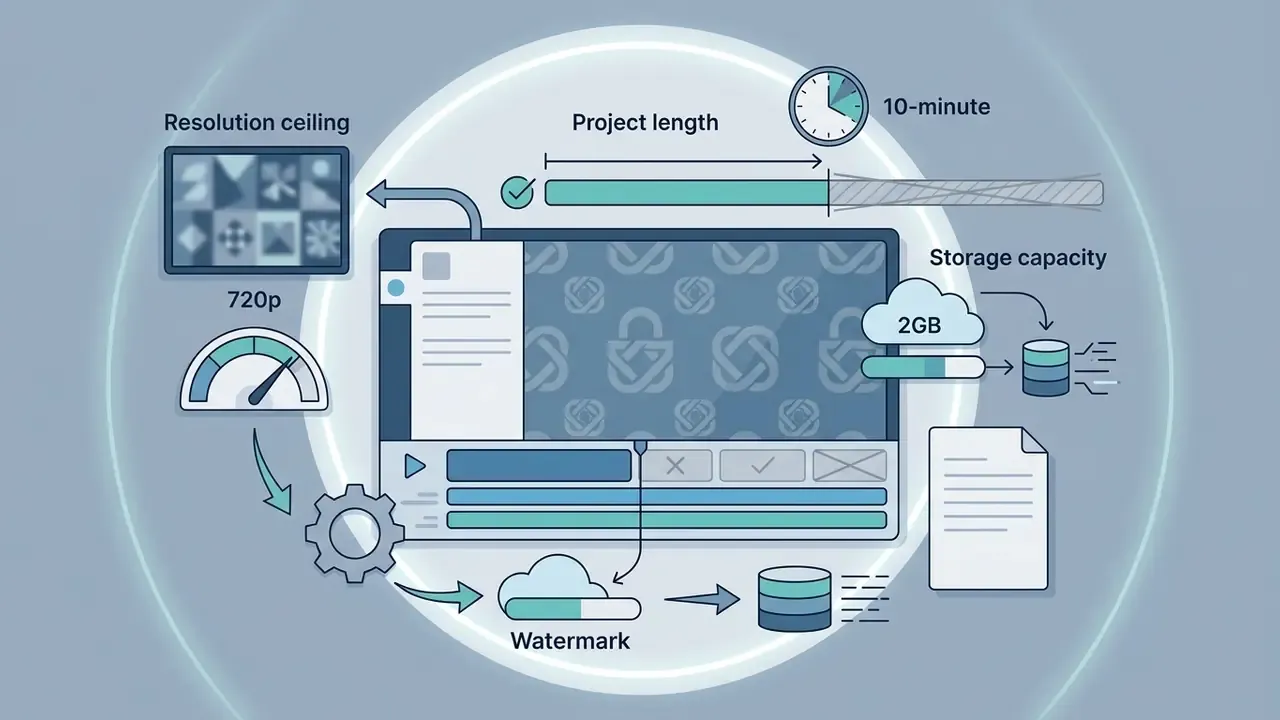
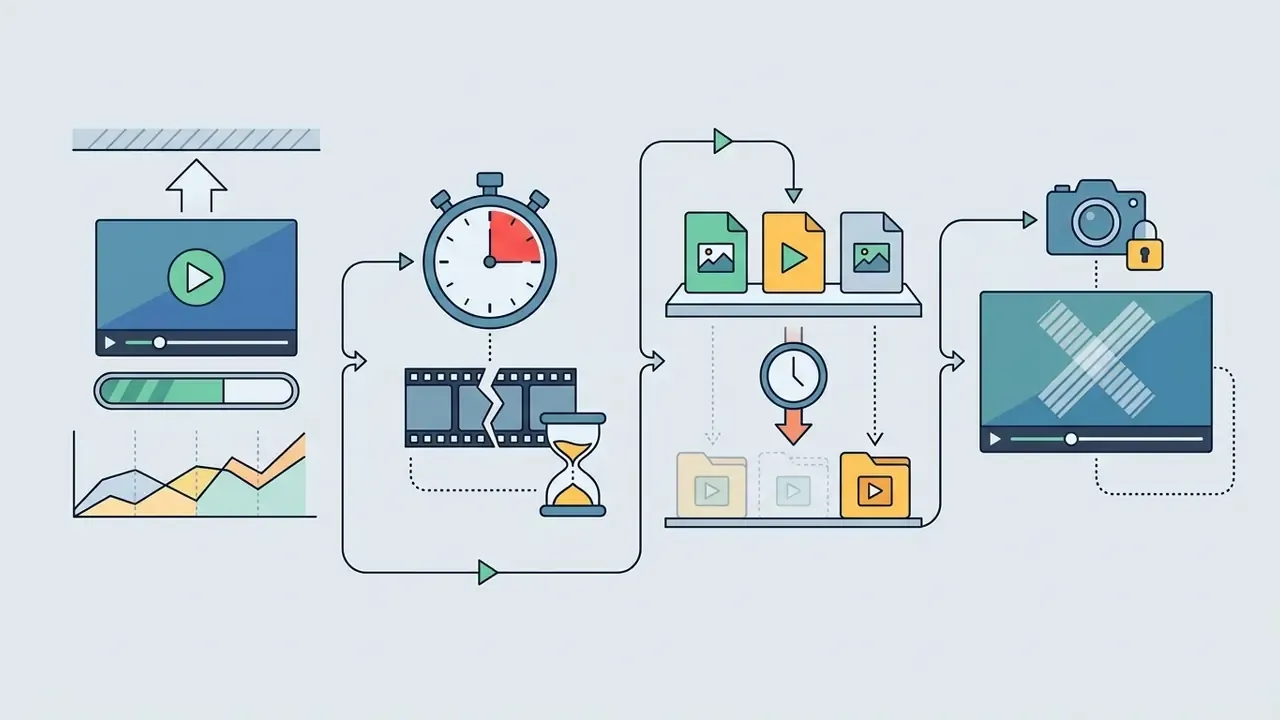
Documented 2026 free-tier boundaries illustrate how wide the spread is:
Read that list twice before you promise a client a 4K master.
Platforms, Ease of Use and Editing Features We Compare
Platform availability and interface complexity dictate how efficiently a creator can execute a project. Desktop applications for Windows, macOS, and Linux offer local processing and offline security, whereas cloud-based tools enable instant browser access. We evaluate each editor across core editing tools, drag-and-drop timeline usability, multi-track audio controls, and advanced editing features such as color grading and motion tracking. Understanding the learning curve of each platform ensures that teams balance initial onboarding time against long-term creative flexibility.
Teams that expect to generate footage rather than only cut it should also review what a free AI video generator can and cannot produce before committing to an editing pipeline. For additional software comparisons, you can compare options across creative production tools, and model licence-versus-hardware spend with our calculators before signing anything.
Best Free Video Editors at a Glance
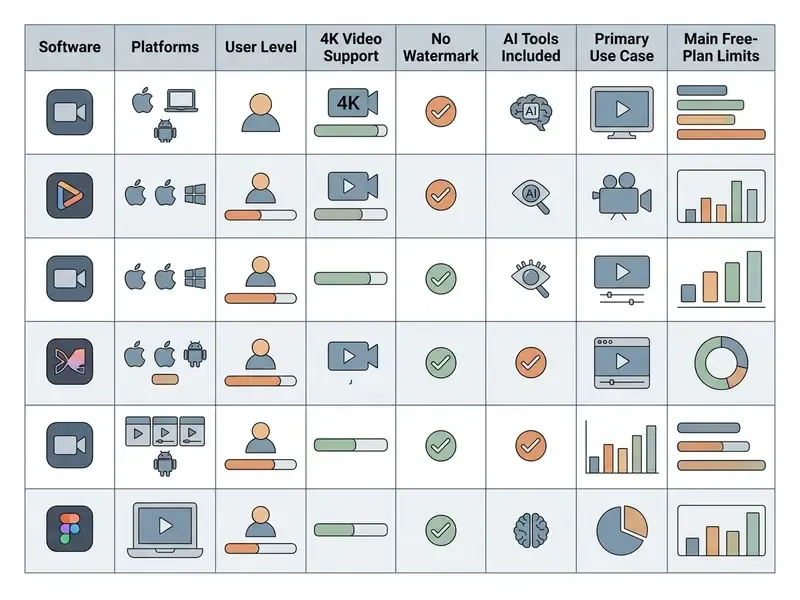
Choosing the best free video editor depends on your target platform, technical skill level, and output requirements. Desktop applications like DaVinci Resolve lead in professional-grade color and audio production without forced branding, while open-source suites like Shotcut and Kdenlive deliver robust cross-platform capability. Browser-based, screen-recording, and mobile solutions prioritize speed, automated captions, and social media distribution. In short: capability is cheap, unrestricted export is the scarce resource.
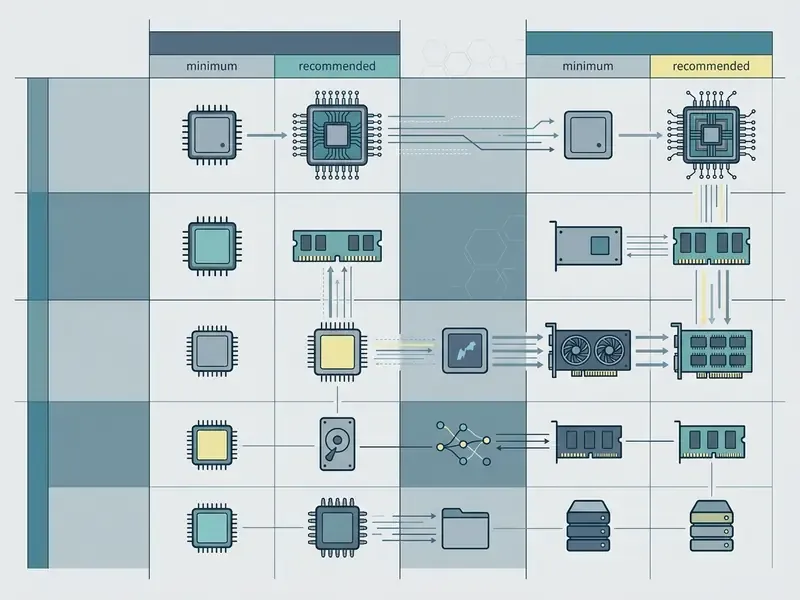
Hardware Requirements Matrix
IT managers sizing a fleet before rollout need minimums and realistic recommendations, not marketing claims. The table below consolidates vendor-published requirements against what our mixed 4K test timeline actually demanded.
DaVinci Resolve: Best Free Editor for Professional Video Editing
DaVinci Resolve is the industry standard for non-commercial professional video editing, offering color correction, visual effects, and audio post-production. The free version supports resolution exports up to Ultra HD 3840×2160 at 60 frames per second without watermarks. Note that this is UHD, not DCI 4K 4096×2160, and that beyond-UHD resolutions plus 120 fps timelines remain Studio-only. It integrates the Edit, Cut, Fusion (VFX), and Fairlight (audio) workspaces into a single local application.
A comparative benchmarking study published in the MLS Communication Journal demonstrated that professional freeware platforms match or surpass traditional commercial software in pipeline stability and color processing capabilities (MLS Communication Journal, 2023).
Updated benchmark data. Render performance in Resolve tracks GPU memory capacity far more closely than clock speed:
«Laptops with an RTX 4090 (16 GB VRAM) finished the Resolve colour render in 89 seconds, 3.2× faster than an RTX 4070 (8 GB).»
That figure comes from a controlled run across twelve laptops at a 22 °C ambient temperature with no undervolting or firmware tuning applied, which is why the gap reflects memory bandwidth and VRAM headroom rather than thermal luck. Practically: an 8 GB card will complete a graded 4K timeline, but a 16 GB card will do it roughly three times faster once node trees, noise reduction, and spatial effects stack up. While its hardware requirements demand at least 16 GB of system RAM on Windows (8 GB on Mac), it remains an uncompromised tool for high-resolution post-production.
When an independent documentary team needed to conform raw multi-camera footage under zero licensing budget, they deployed DaVinci Resolve across local Linux workstations. By using native proxy generation and Fairlight audio balancing, the team delivered an unwatermarked 4K master file directly to festival distribution. Readers weighing tools purely on capability-per-dollar can work through our full comparison of best free video editing software for professional pipelines, and review comprehensive system performance metrics in the benchmarks hub.
Shotcut and Kdenlive: Best Open-Source Video Editors
Shotcut and Kdenlive represent the top tier of open-source video editing tools, running natively across Windows, macOS, Linux, and BSD systems. Both platforms operate under General Public Licenses (GPL-3.0-or-later), guaranteeing complete freedom from subscriptions, export watermarks, and mandatory user accounts. Shotcut leverages the FFmpeg framework to support hundreds of audio and video formats directly on the timeline without requiring upfront file transcoding, and it is codec-independent: it does not depend on system codec packs, which removes a common source of Windows playback failures.
«Free software, Shotcut and Kdenlive, is comparable to proprietary counterparts in formats and codecs, and in several respects exceeds them.»
Kdenlive provides a customizable non-linear editing interface built on the MLT framework and Qt libraries. It features multi-track timeline editing, keyframeable effects, color scopes, titling, and proxy clip editing to ensure smooth playback on high-resolution 4K timelines. Documented codec coverage includes DV, MPEG-2, MP4, Matroska, WebM, ProRes, H.264, and H.265. According to project documentation, Kdenlive operates reliably across open-source ecosystems without imposing artificial export limits (Kdenlive Documentation, 2026).
Both applications serve as strong candidates for security-conscious environments requiring offline data isolation, because neither requires an account, cloud upload, or server-side render pass to produce a final file. All processing occurs on local storage. This is an architectural observation rather than a certified security claim: neither project publishes an independent audit of data-handling practices, so organizations with formal assurance requirements should validate builds internally and pin versions from official repositories.
OpenShot: A Simple Free Editor for Basic Editing
OpenShot is an open-source, cross-platform video editor engineered specifically for beginner simplicity and low-resource hardware. Featuring an accessible drag-and-drop user interface, OpenShot lets users slice, trim, scale, and snap video clips without navigating dense sub-menus. Trimming is performed by dragging a clip's left or right edge, while Slice All and Slice Selected (Ctrl+Shift+K / J / L) handle razor cuts at the playhead. The application supports unlimited timeline tracks, title templates, 3D animated headings, keyframe-based property interpolation with selectable interpolation curves, audio waveform visualisations, and more than 70 export presets, including YouTube, TikTok, Reels, and Shorts targets.
Minimum system requirements specify a 64-bit operating system with at least 4 GB of RAM, 2 CPU cores, and 1 GB of disk space, which keeps it functional on older laptops and budget desktops (OpenShot User Guide, 2026). On constrained machines, reducing the preview window to 320×240 and dropping the project frame rate to 24 or 30 fps restores real-time playback. Users can quickly build simple video projects, adjust clip timing, and apply basic visual effects without encountering subscription paywalls or watermarked outputs. For anyone searching for a basic video editing software free download that will not stall on a five-year-old machine, this is the safest first install.
Best Free Video Editing Software for Beginners
Beginner video editing software free of charge must minimize cognitive load while providing accessible timeline controls, preset media structures, and rapid rendering. Beginner-focused applications remove technical setup barriers by offering intuitive drag-and-drop clip assembly, screen recording tools, video templates, and automated text generation. The right first tool is the one that lets you start editing in ten minutes, not the one with the longest feature list.
Microsoft Clipchamp: Best Basic Video Editor for Windows
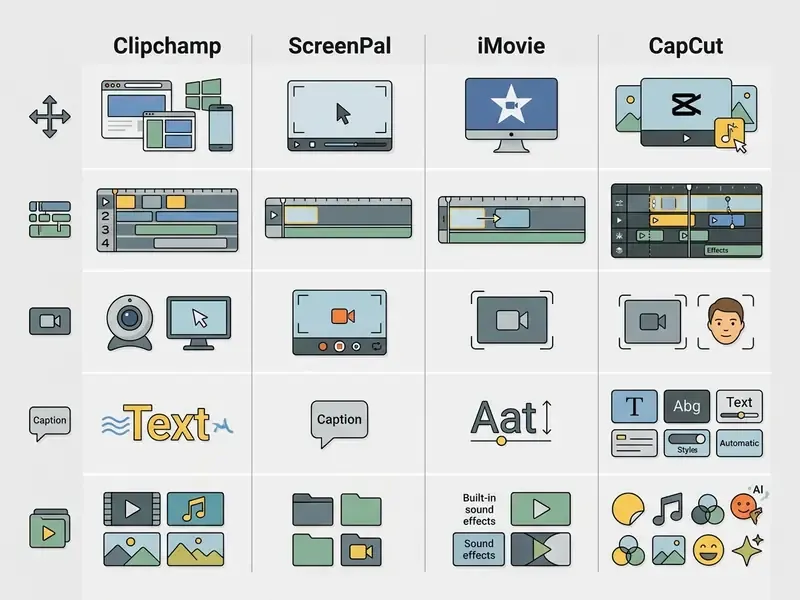
Microsoft Clipchamp serves as the default native basic video editor for Windows 11 and web browser environments (Microsoft Edge and Google Chrome, no download required). It provides a simple drag-and-drop interface accompanied by built-in screen capture, webcam recording at up to 1080p, combined screen-plus-camera capture with unlimited retakes, and automated AI text-to-speech tools. Clipchamp lets creators compose short-form clips, crop aspect ratios, and generate auto-captions directly within a clean timeline view. As a basic video editor for Windows it is hard to beat on friction alone: it is already installed.
Clipchamp embeds native Azure AI capabilities directly into the timeline rather than bolting them on as separate services. Its auto-caption generator transcribes speech across more than 80 languages with automatic punctuation, handles a wide range of accents, and lets you edit the transcript or download it as an SRT file, including an offensive-language filter. The text-to-speech engine provides over 400 synthetic AI voices across global languages and accents, allowing creators to adjust vocal pitch, speed, and narrative emotion without recording live voiceovers. Additional AI features include Auto Compose for highlight and slideshow generation, background removal, silence and filler-word trimming, and an AI noise-suppression audio enhancer. The content library adds more than one million royalty-free stock videos, images, backgrounds, and music tracks, and a Brand Kit tool stores logos, fonts, and colour palettes for consistent output.
The free tier permits unlimited watermark-free video exports up to 1080p resolution (480p and 720p are also available). Higher resolution 4K output requires an active Microsoft 365 Personal/Family subscription or a Clipchamp Premium upgrade (Microsoft Support, 2026). One caveat matters for teams: adding premium stock media or a plan-restricted feature blocks export entirely until the asset is removed or the plan upgraded. Finished videos can be published directly to YouTube, TikTok, and LinkedIn company pages, or saved to OneDrive, Google Drive, and Dropbox. For users who need to record powerpoint presentation with audio and video, Clipchamp provides an immediate, hardware-integrated capture tool without installing external plugins.
ScreenPal: Best Free Editor for Tutorials and Screen Recording
ScreenPal (formerly Screencast-O-Matic) caters specifically to instructional creators, educators, and product teams, a category most "best free editor" lists ignore entirely. It combines dual-channel screen and webcam recording with a color-coded, compressed timeline that makes each individual edit visually identifiable, so you can update, redo, or remove one change without disturbing the rest of the sequence. Autosave preserves revision history, which matters when a 40-minute training capture is being trimmed under deadline.
The free plan allows unlimited watermark-free video exports capped at 15 minutes per recording session, with output to MP4, AVI, or GIF at standard HD, full HD, or 4K. Key features include automated storyboard creation: you can start from a script or import existing slide decks and convert them into presentation videos, then toggle between storyboard and timeline views. Add zoom-and-pan visual effects, green screen and virtual backgrounds, video background removal, animated overlays (text, images, shapes), transitions, voiceover narration, multi-track audio editing, and free stock music and sound effects. Direct cloud hosting is included for up to 10 project files, with folder organisation, unlisted or password-protected sharing, playlists, and an ad-free embeddable player.
The free tier's boundaries are transparent: automatic speech-to-text caption generation and the licensed stock image and video library are reserved for paid plans, and longer recordings plus unlimited hosting require an upgrade. For anyone producing tutorials, demos, onboarding material, or lecture capture, that trade is usually acceptable. The 15-minute cap aligns well with the attention-span ceiling of instructional video anyway. Native applications exist for Windows, macOS, iOS, Android, and Chromebook, each built per platform rather than wrapped from a single web build.
iMovie: Best Free Video Editor for Mac, iPhone and iPad
iMovie is Apple's pre-installed video editor for macOS, iOS, and iPadOS devices. It provides continuous cross-device project syncing through AirDrop and iCloud, so Mac users can start a rough assembly on an iPhone and finish the edit on a desktop. Key capabilities include green-screen chroma keying (Video Overlay Settings on Mac; Add Media → More → Green/Blue Screen on iPhone), picture-in-picture and split-screen overlays, soundtracks that dynamically adapt to project length, imported songs from Music, GarageBand, or Logic Pro, Cinematic mode clip support, Magic Movie and Storyboards on mobile, and Hollywood-style trailer templates with preset structures and theme music.
System requirements for current builds specify macOS 15.6 or later, 4 GB of system memory, and 3.5 GB of available disk space (Apple App Store, 2026). iMovie exports fully unwatermarked 4K video clips and can work with multiple 4K clips on supported iPads, which makes it an ideal platform for iPhone and iPad owners producing educational content, personal archives, and YouTube videos. Its main structural limits are the two-video-track ceiling and a strong 16:9 aspect-ratio bias. Background music, simple titles, basic editing: all fine. Complex layered compositing: look elsewhere.
CapCut Desktop: Best for TikTok Video and Short-Form Content
Best Free Online Video Editors and AI Video Tools
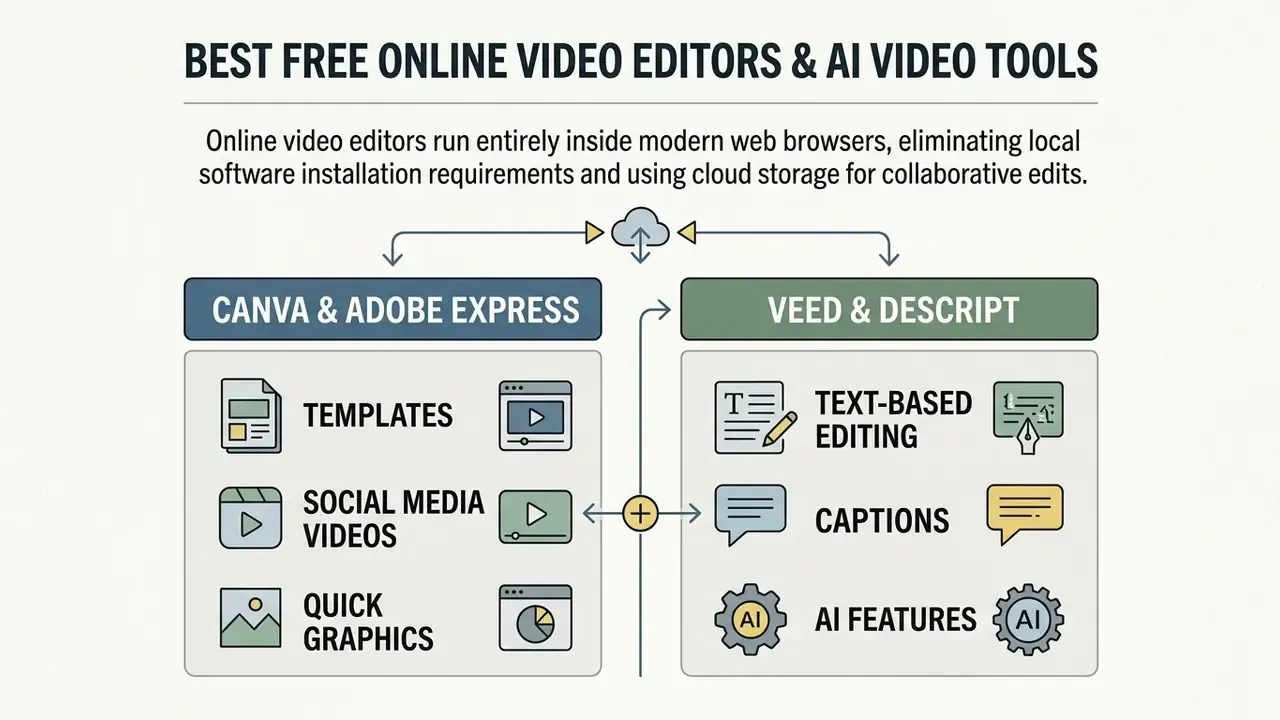
Online video editors run entirely inside modern web browsers, eliminating local software installation requirements and using cloud storage for collaborative edits. Modern web editors integrate artificial intelligence to convert text to video, auto-generate captions, remove background noise, and automate aspect ratio reframing for social platforms. The trade-off is structural: the convenience of zero installation is paid for with media uploads to third-party infrastructure, which is exactly why the licensing and privacy section below matters as much as the feature lists here.
VEED and Descript for Text-Based Editing, Captions and AI Features
VEED and Descript redefine post-production by replacing traditional timeline scrubbing with text-based editing interfaces. Descript automatically transcribes spoken audio into a text document; deleting words, sentences, or filler words ("um", "uh") from the transcript instantly cuts the corresponding video and audio frames on the timeline. Its AI-powered Studio Sound feature isolates human voices and removes room reverberation, and voice cloning can patch a misspoken phrase without re-recording.
«In Descript, deleting a paragraph from the transcript instantly removes the matching audio and video, so editing a podcast takes about as long as editing a document.»
"Text-based video editing fundamentally shifts post-production efficiency. Deleting spoken filler words from a transcript to execute frame-accurate video cuts reduces podcast assembly time by over sixty percent."
VEED covers the adjacent territory: auto-subtitles with translation across dozens of languages, an AI audio enhancer that removes background noise and microphone static, silence and pause trimming, and a browser-only workflow with nothing to install. Its growth trajectory illustrates how effective these automated features are as an acquisition engine:
Free Video Editing Features That Matter for 4K and Professional Projects
High-resolution 4K post-production demands robust codec handling, multi-track audio controls, precise color management, and keyframe automation. Selecting a 4k free video editor for commercial or high-bitrate projects requires verifying hardware acceleration limits and supported file container profiles first, not after the shoot.
4K Video, Video Formats and Export Video Settings
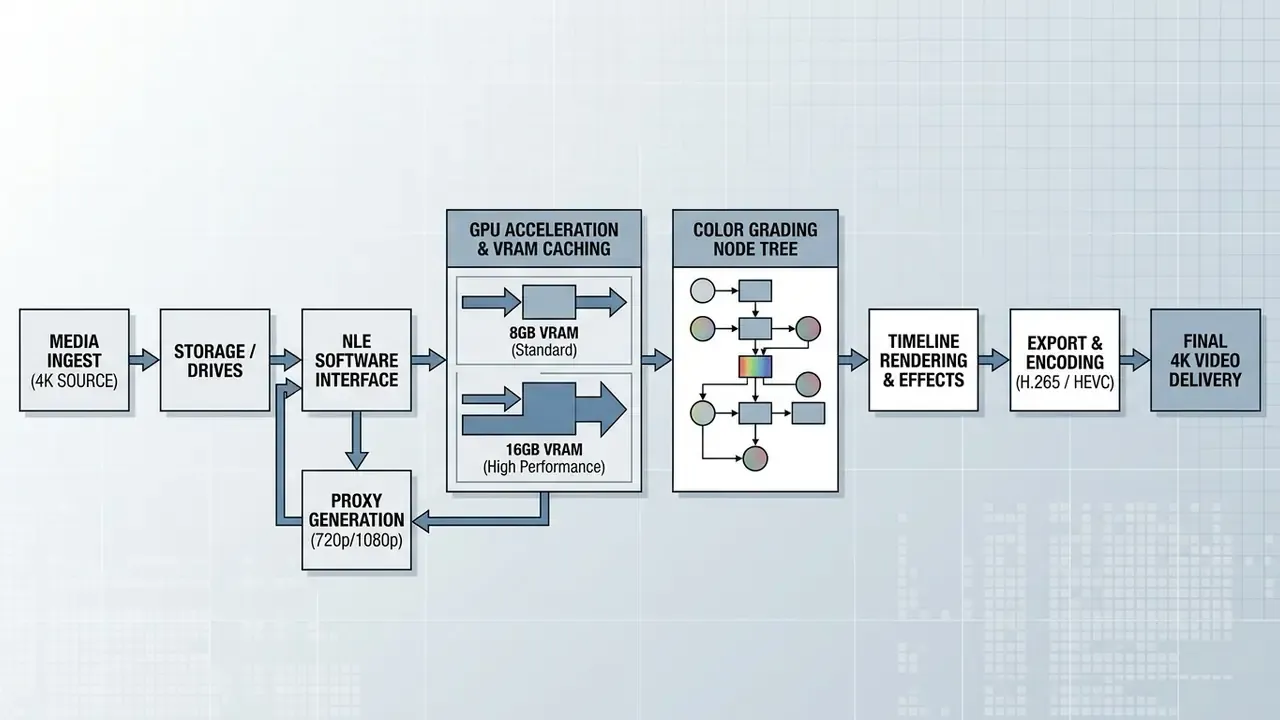
Processing raw 4K footage requires dedicated hardware resources and broad format compatibility. High-bitrate camera files encoded in H.264, H.265/HEVC, AV1, or Apple ProRes impose severe processing demands on system CPUs and graphics cards. Hardware guidance from platform vendors converges on the same envelope: a modern multi-core processor, a discrete GPU with at least 8 GB of VRAM (16 GB recommended for multi-layer color grading), and 32 GB of system RAM for comfortable 4K and 6K work. Intel's own editing guidance notes that 16 GB suffices for HD but 32 GB or more is needed once you move to 4K, and Adobe's current Premiere requirements specify 32 GB RAM and 8 GB GPU memory for high-resolution timelines. These are vendor-published thresholds for commercial suites rather than an independently audited standard, so treat them as planning baselines and validate against your own footage.
«GPUs with 16 GB VRAM finished a 4K colour render 3.2× faster than 8 GB GPUs; the gap is driven by memory bandwidth, not clock speed.»
Open-source tools like Shotcut and Kdenlive use FFmpeg libraries to read virtually all native container formats (MP4, MOV, MKV, WebM, MXF) directly on the timeline, and both are codec-independent, which avoids the missing-codec failures common on stripped Windows installs. Among free Windows-only options for 4k video editing software free of charge, VSDC is notable for permitting H.265/HEVC export, while Avidemux and LosslessCut cover H.264, HEVC, and AV1 for lossless trimming and remuxing tasks. For low-spec hardware setups, proxy editing, which temporarily replaces heavy 4K camera files with lightweight 720p edit proxies, keeps timeline scrubbing responsive without dropping preview frames. Once a master file exists, teams distributing across platforms with different size ceilings often need a video compressor to cut file weight without visibly degrading the image.
Export bitrate targets worth memorising: roughly 12–15 Mbps for 1080p web delivery, 45–60 Mbps for 4K web delivery, and considerably higher for intermediate or archival masters in ProRes.
Audio Editing, Color Correction and Visual Effects
Professional narrative structure depends on refined audio mixing, multi-band equalization, primary and secondary color grading, and compositing keyframes. DaVinci Resolve leads in these domains through its Fairlight audio page, which supports 3D spatial audio, noise suppression gates, and parametric EQ, plus its node-based primary color wheels and LUT (Look-Up Table) support. If you specifically want audio video editing software free of licence cost, Resolve and Kdenlive together cover almost everything a small studio needs.
Open-source applications like OpenShot and Kdenlive integrate built-in AI motion tracking, keyframeable transform properties, LUT-based colour grading, audio noise removal, sound effects layering, and chroma key green screen removal directly into clip effect settings (OpenShot Documentation, 2026). For vocal enhancement, real-time noise suppression algorithms such as RNNoise remove ambient background hums from microphone captures without distorting speech frequencies, operating on 48 kHz 16-bit audio.
The catch with open-source audio tooling is interface learnability rather than capability:
That conclusion generalises beyond Audacity. Expect to invest onboarding time in Kdenlive's effect stack or Resolve's Fairlight page; the capability is present, but the discoverability of that capability is the weakest link in free professional tooling. Budget a few hours of structured tutorial time per tool rather than assuming a learn-by-clicking approach will surface features you paid nothing for.
Shadow IT, Privacy and Commercial Licensing Risks
Free editors create two organizational risks that feature comparisons rarely address: uncontrolled data egress and ambiguous commercial rights. Both are cheap to prevent before adoption and expensive to remediate after publication.
Data egress and Shadow IT. Browser-based editors, including CapCut Web, VEED, Kapwing, Canva, Adobe Express, Clipchamp's online build, and ScreenPal's hosting layer, upload raw media, audio, project metadata, and in some cases transcripts to vendor infrastructure. When an employee edits an unreleased product demo, a customer interview, or an internal training video in a personal free account, the organisation loses the audit trail entirely: there is no record of where the master sits, who can access the share link, how long it is retained, or whether the vendor keeps derived artefacts such as transcripts and embeddings. Vendors differ meaningfully here. Clipchamp states it does not access user videos, and ScreenPal offers unlisted and password-protected sharing. Still, a vendor statement is not the same as an enterprise data-processing agreement.
Practical controls that cost nothing: standardise on local, account-free editors (Kdenlive, Shotcut, OpenShot, DaVinci Resolve) for anything covered by an NDA; require corporate SSO accounts for any approved cloud editor; and publish an explicit allow-list so employees are not forced to improvise. Readers applying the same reasoning to still-image tooling will find parallel trade-offs in our guide to the free photo editor category.
Commercial rights on free tiers. "Free to use" and "free to use commercially" are different statements. The distinction splits cleanly along licensing class:
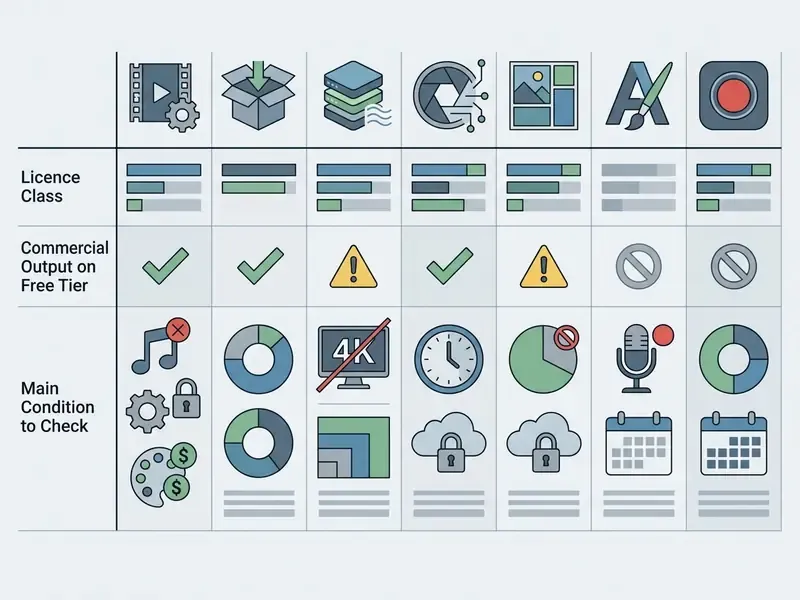
Two further legal details matter at export time. First, embedded audio carries copyright information in file metadata, and US Copyright Office guidance treats those metadata fields as the record of rights, meaning bundled "free" music inside a freemium editor may still be licensed only for non-commercial or in-platform use. Second, recent US legislative drafts define watermarking as tamper-resistant embedded information that may be perceptible or imperceptible, and impose privacy-preserving handling requirements on provenance metadata. That is draft legislation rather than settled nationwide rule, but it signals the direction: invisible provenance marks in exported files are becoming a compliance surface, not just a branding one. Audit your exports with a metadata inspector if your distribution agreements prohibit third-party identifiers.
How to Choose a Good Free Video Editor for Your Project
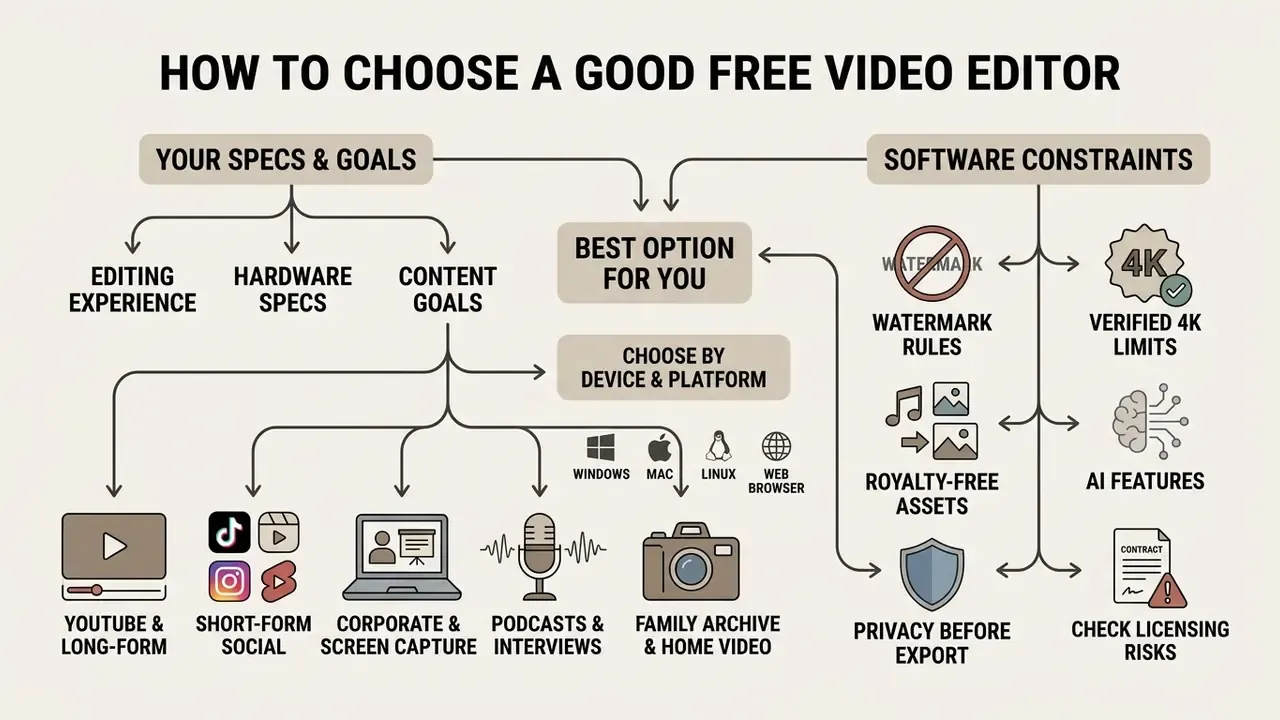
Selecting a good free video editor requires mapping your hardware specifications, editing experience, and content goals against software licensing constraints. Operating systems, GPU memory boundaries, target publishing platforms, and watermark tolerances dictate which tool provides the most efficient workflow. Not all video editors deserve a trial run; two candidates, tested properly, beat eight installed casually.
Choose by Device, Platform and Video Creation Goal
Matching your software selection to your target delivery channel prevents unnecessary project re-formatting later in production:
Creators who want a video maker online with music and effects free of charge can use web-based tools for lightweight projects, provided export watermark rules align with their distribution strategy.
Check Watermarks, Royalty-Free Assets and Privacy Before Export
Before committing to an editing platform, review output licensing and cloud security policies. Software operating under freemium models often permits unrestricted editing but locks unwatermarked rendering behind subscription paywalls. That is a deliberate growth mechanism rather than a technical constraint:
«VEED's free exports carry a discreet "VEED" logo that cannot be removed without a subscription; every free user becomes a micro-advertiser for the platform.»
How to Edit Videos with Free Video Editing Software
Executing a video project follows a structured, repeatable post-production sequence regardless of the specific editing application used. Adhering to an organized workflow, from media ingest through rough cutting, audio balancing, titling, and final export encoding, keeps visual quality consistent and avoids rendering errors.
Import, Edit, Enhance and Export Your Video Project
A standardized editing pipeline consists of five operational phases:
- Media ingest and project setupinitialize your project file and set timeline frame rate (24 fps cinematic, 30 fps web, 60 fps gaming) and pixel resolution (1080p HD or 4K UHD). Import raw video files, B-roll clips, voiceover tracks, and graphics into organized bins. Generate proxies at this stage if your GPU has 8 GB of VRAM or less.
- Rough assembly and trimmingdrag primary video clips onto the main timeline track. Use razor and trim tools to remove unwanted pauses, false starts, and mistakes, establishing the main story structure. Resist colour and effects work until the structure is locked.
- Audio balancing and enhancementalign voiceover and dialogue tracks to peak between -12 dB and -6 dB. Add background music, lowering its volume to around -20 dB during speech sections to maintain vocal clarity, and apply background noise suppression filters. In Descript, deleting a paragraph from the transcript removes the matching audio and video simultaneously, which collapses steps 2 and 3 into a single pass for dialogue-driven projects.
- Visual adjustments and textapply basic color correction to align brightness and white balance across camera cuts. Insert auto-generated captions, titles, and lower-third graphics for context, then proofread names, numbers, and on-screen timing.
- Export and quality checkselect your target container format (MP4/MOV) and video codec (H.264/HEVC). Set bitrates appropriately (typically 12–15 Mbps for 1080p web, 45–60 Mbps for 4K web exports) and render your final master file.
When a digital marketing agency needed to produce 50 localized video ads under tight deadlines, it established an automated assembly pipeline using open-source scripting tools paired with CapCut template layouts. By pre-clearing royalty-free audio tracks and enforcing standardized H.264 export presets, the team cut post-production turnaround times by 40% while keeping output quality consistent across all client channels. Worth noting: that gain came from the presets, not from any single editor.
To explore specialized creative generation tools and licensing guidelines for downstream assets, content teams can explore the hub covering commercial-use terms across generative media, or review the animation maker category for motion graphics that complement a standard editing timeline.
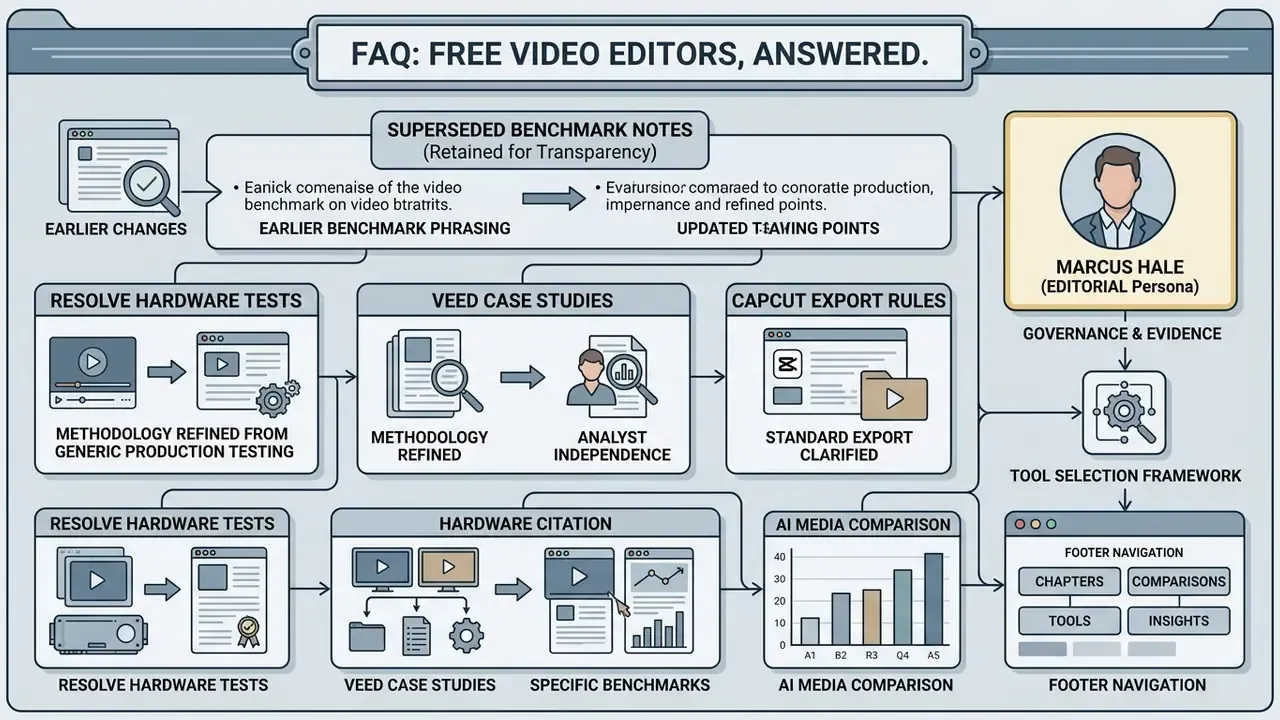
FAQ: Free Video Editors, Answered
What Video Editing Software Do YouTubers Use?
Professional YouTubers primarily use DaVinci Resolve, Adobe Premiere Pro, and Apple Final Cut Pro for long-form channel content, alongside CapCut Desktop for YouTube Shorts. DaVinci Resolve's free version is widely adopted by independent creators because it provides professional color grading, Fairlight multi-track audio mixing, and 4K video exports without monthly subscription fees or forced watermarks. In 2026 roundups the split is consistent: Premiere Pro and Final Cut Pro win on team collaboration and studio pipeline integration, while Resolve wins on capability-per-dollar. Upgrading from free to paid is usually justified by collaboration, template systems, and turnaround speed, not by the quality of a basic cut. For creators on web-first or budget setups, open-source editors like Shotcut and Kdenlive offer stable offline multi-track editing, while browser-based platforms like Clipchamp provide quick screen recording tools and ScreenPal covers slide-based tutorials.
«An observational study (N=10) found that ExpressEdit, based on natural language and sketching, improved novices' ability to express and realise editing ideas.» - ExpressEdit preprint, arXiv (2024) That research points to where beginner tooling is heading: describing an edit in plain language rather than learning timeline grammar first. Creators interested in expanding into automated media pipelines can explore our developer guides on the AI Media API, compare options in the best AI video generator roundup, or browse the hub for alternative post-production tools.
Are There Any Free Video Editing Apps That Are Genuinely 100% Free?
Yes, and the honest answer is that only the open-source group qualifies without caveats. Kdenlive, Shotcut, and OpenShot impose no export caps, no accounts, and no branding, which makes them the best completely free video editing software for anyone who refuses conditional access. DaVinci Resolve is free but proprietary, with the strongest features reserved for Studio. Among mobile and desktop freemium apps, CapCut currently offers the most generous free export ceiling, though its Pro-badged assets can still block a render. So: are there free video editing software options with zero strings? A handful, and they are all GPL.
Which Free Editor Exports 4K Without a Watermark?
DaVinci Resolve (UHD 3840×2160 at 60 fps), Kdenlive, Shotcut, OpenShot, iMovie on Apple hardware, ScreenPal, and CapCut Desktop (up to 8K on manual projects) all export high resolution without forced branding. Clipchamp caps free exports at 1080p, and VEED, Descript, and Kapwing apply both a resolution ceiling and a watermark on their free tiers.
Is There a Basic Video Editing Software Free Download for Older Windows Laptops?
OpenShot and Shotcut are the safest picks: both install on 64-bit Windows with 4 GB of RAM and neither requires a graphics card for 1080p work. Drop the preview resolution, enable proxies for any 4K source, and keep the timeline under three video tracks. Clipchamp is already present on Windows 11, so on newer machines it saves a download entirely and still counts as a beginner-friendly basic video editor for Windows.
Can I Use Free Video Editing Software for Commercial Projects?
Open-source editors under GPL licences, namely Kdenlive, Shotcut, and OpenShot, place no restriction on commercial output. Freemium tools generally allow commercial use of the rendered file, but the bundled stock media, fonts, templates, and AI voices inside them carry separate licences that may be limited to non-commercial or in-platform use. Check each asset individually and re-read the terms before a paid campaign ships. See the commercial-rights table above for a tool-by-tool summary.
How Much RAM and VRAM Do I Actually Need for 4K?
Plan for 32 GB of system RAM and a discrete GPU with 8 GB of VRAM as a functional floor for native 4K, and 16 GB of VRAM if you grade with multiple nodes or composite in Fusion. Benchmark data shows a 3.2× render-time advantage for 16 GB cards over 8 GB cards. On 8 to 16 GB systems, proxy editing at 720p keeps the timeline responsive and defers the full-resolution cost to the final render.
What Are the Free-Plan Limits on ScreenPal?
The ScreenPal free plan permits unlimited watermark-free videos but caps each recording at 15 minutes and cloud hosting at 10 videos. Core editing is included: trimming, cropping, screen and webcam capture, overlays, transitions, manual captions, and stock music or sound effects. Automatic speech-to-text caption generation, the licensed stock image and video library, longer recordings, unlimited hosting, branding, and team collaboration features require a paid tier.
Does CapCut Always Add a Watermark?
No. CapCut's own documentation attributes most visible watermarks to a default ending clip or a built-in template element rather than the export process. Deleting that final outro clip before re-exporting typically removes it. A genuine paywall appears only when the timeline contains a Pro-badged effect, sticker, template, premium cloud asset, or AI avatar, or, in some regions, when "No Watermark" is selected on a project exceeding the free length allowance.
Appendix A: Superseded Benchmark Notes