Why does this matter beyond marketing teams? Because the same browser tab that trims a product demo can also upload a compliance briefing, a customer call recording, or an internal dashboard to a vendor cloud. That makes tool choice a governance question, not just a creative one.
Last updated: 2026. Reviewed for export-limit accuracy, licensing terms, and data-handling claims by the AI Media editorial desk.
Quick takeaways
- Watermark-free 1080p is possible for free, but only on selected platforms. Microsoft Clipchamp permits unlimited free 1080p HD exports without watermarks when the project uses original assets, while VEED and Kapwing cap free exports at 720p and stamp a visible watermark.


Who this guide serves and how to read it
This guide is written for two overlapping readers. The first is a creator or small marketing team that wants an actually free video editor without a watermark. The second is a risk, compliance, or operations lead who must approve that tool for a regulated workspace.
Both groups need the same five facts before they commit: export ceiling, watermark policy, upload limit, processing location, and licensing terms for stock assets. Everything else is preference.
Read the comparison section first if you are picking a tool. Skip to the governance checklist if a tool has already appeared in your environment without approval. Shadow AI usually arrives quietly, one browser tab at a time.
A short note on evidence. Where a figure comes from vendor documentation, it is labeled as such. Where a figure comes from an internal test, it is labeled directional. Where research is cited, the paper and year are named so you can check the method yourself.
How to choose an online video editor for your projects
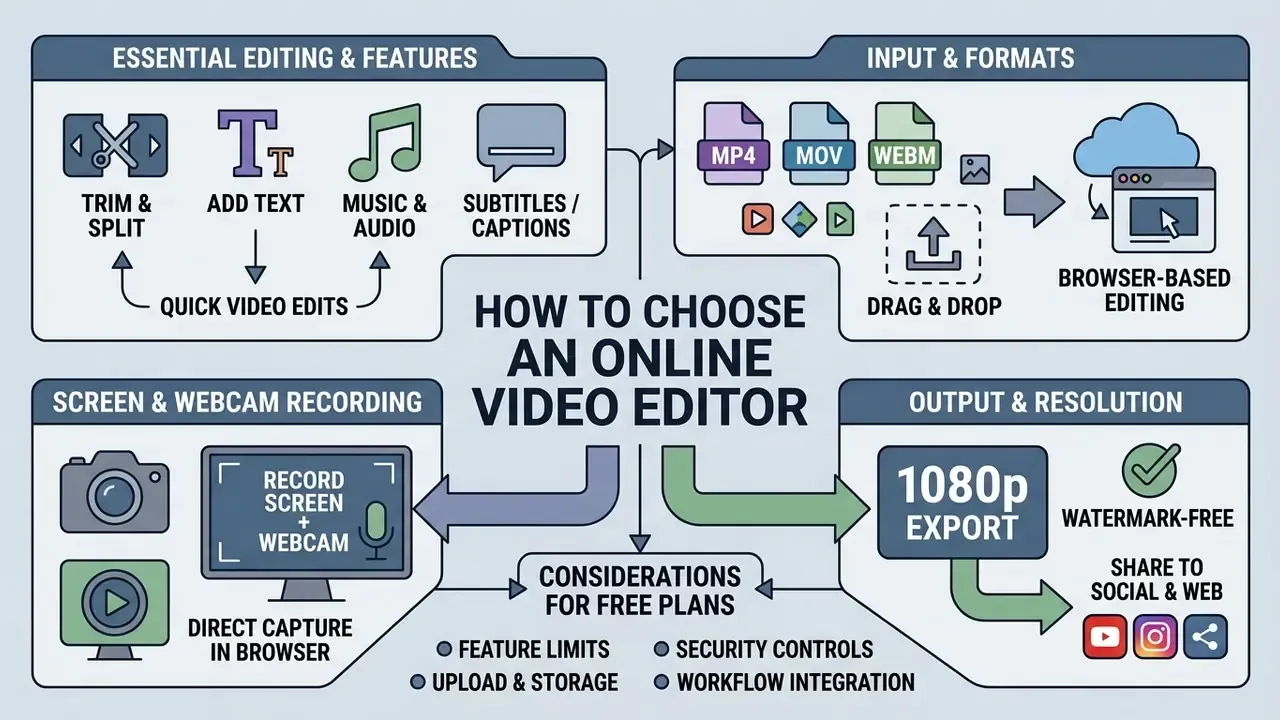
Selecting a browser based video editor depends on export resolution, feature limits, security controls, and workflow integration. Teams evaluating basic online video editor tools must verify whether core features require paid upgrades or impose intrusive watermarks.
Start with the constraint that hurts most. For a social team, that is usually the export cap. For a compliance function, it is the processing boundary. The winning tool is rarely the one with the longest feature list.
Basic editing tools for quick video edits
Record screen and webcam directly in your browser
Beyond editing existing media, modern web video editors remove the need for third-party screen capture software. Creators can record full desktop screens, specific browser tabs, or single application windows, simultaneously with a webcam overlay. Integrated recording tools offer unlimited retakes, instant audio synchronization, and direct timeline placement once the recording stops. That is enough for software demos, video podcasts, and training modules without leaving the browser interface.
For internal enablement teams this removes an entire approval step. No capture agent has to be installed on a managed endpoint, and recordings land straight into the project bin as standard MP4 tracks.
Three practical habits help. Record the tab rather than the whole desktop when confidential dashboards are open. Mute system audio when capturing calls. Keep the webcam overlay inside the lower-right third so subtitles and lower thirds stay readable.
Supported video files and browser-based editing
Modern web editors process standard container formats including MP4, WebM, and MOV directly in the client browser. According to MDN Web Docs (2026), Chromium engines such as Google Chrome and Microsoft Edge support client-side hardware decoding and Web Media APIs for high-performance timeline playback without binary downloads.
Container compatibility is broad, yet codec support varies. H.264 and VP9 render reliably across all major web browsers, whereas HEVC playback may require hardware acceleration or a system extension. On Chromium-based Edge, HEVC decoding depends on Windows 10 1709+ with hardware support plus the HEVC media extension. Mixed-fleet organizations should therefore standardize ingest on H.264/AAC in an MP4 container.
Practical upload and memory limits. Browser editors are not immune to physical constraints. Adobe Express publishes a hard ceiling of up to 1 GB per uploaded file, and most competing web editors operate in a comparable 1 to 4 GB band depending on the browser session and storage tier.
Long 4K sources therefore need pre-compression before upload. A video compressor workflow reduces bitrate to the 10 to 20 Mbps range recommended for 1080p delivery without visible quality loss. Expect degraded scrubbing performance below 8 GB of system RAM. Treat tab crashes on multi-gigabyte 4K timelines as a known browser limitation rather than a product defect.
Free plan, editing features and project requirements
Free plans differ sharply in export resolution, storage allocation, and watermark policy. Readers comparing specific products can review free video editors by feature set and export limits before committing a campaign to one platform.
According to Microsoft Clipchamp official documentation (2026), its free tier provides unlimited 1080p HD exports without watermarks when using original assets. Competing tools such as VEED cap free exports at 720p and require a paid subscription for 1080p rendering.
Enterprise project requirements often dictate strict data boundaries. Procurement and risk teams evaluating video editors for corporate workflows should document where rendering occurs before granting access. Organizations working through an AI Media Comparison matrix should confirm whether project assets stay in browser memory or travel to external cloud rendering servers. Teams automating batch exports or ingest should also review the AI Media API Guides to check rate limits and authentication scopes before wiring a tool into production.
| Editor Platform | Basic Editing Tools | AI & Automation Features | Key AI Feature | Supported Video Formats | Max Upload / Limit Specs | Screen & Webcam Recording | Brand Kit | Data Privacy & Processing Model | Cloud Storage & Access | Collaboration Features | Export Limits & Free Tier Terms |
|---|---|---|---|---|---|---|---|---|---|---|---|
| Microsoft Clipchamp | Trim, crop, resize, basic color adjustments, text overlays | AI subtitle generation (80+ languages), text-to-speech voiceovers, silence removal, auto compose | Auto Compose + AI subtitles | MP4, MOV, WebM (H.264/AAC) | Up to ~1 to 4 GB per source file (browser dependent) | Yes: screen, tab, window + webcam, unlimited retakes | Yes: logos, brand fonts, colour palettes | Vendor states it never accesses user videos; Microsoft 365 tenancy controls | Browser-based, integrated with Microsoft OneDrive | Account-based project sharing | Free unlimited 1080p exports; no watermark on custom media; paid plan needed for 4K and premium stock assets |
| Descript | Transcript-based timeline editing, clip trimming, canvas resizing | Underlord AI co-editor, Studio Sound cleanup, filler word removal | Transcript-based editing | MP4, MOV, AAC, WAV | Cloud-side processing; media-hour quota is the binding limit | Yes: screen and camera recording | Partial: templates and styling | Cloud upload and processing; retention governed by workspace plan | Cloud-based media library and sync | Real-time workspace comments and co-editing | Free tier: 720p export, 1 media hour/mo, 100 AI credits; 1080p and 4K unlocked on paid plans |
| VEED.io | Trim, crop, split, text overlays, element placement | AI subtitle generator, auto-transcription, translation into 125+ languages, auto edits, B-roll insertion | Eye Contact Correction | MP4, MOV, AVI, WebM | ~1 to 2 GB per file on free tier; 10-min export cap | Yes: screen and webcam recorder | Yes: logo, brand colours, fonts | Cloud rendering; assets stored in vendor cloud storage | Browser-based cloud storage | Shared team workspaces | Free tier: 720p export cap, 10-min export limit, visible watermark; 1080p requires paid upgrade |
| Kapwing | Multitrack trim, split, picture-in-picture, text overlays | AI video generation, smart background remover, auto-subtitles, project generation from prompt/script/PDF | Prompt-to-project drafting | MP4, MOV, WebM | ~1 GB free-tier upload; 4-min export cap | Yes: screen recorder | Yes, on paid workspaces | Cloud workspace processing | Cloud workspace | Real-time collaborative editing | Free tier: 720p export ceiling, 4-min export cap, visible watermark |
| Adobe Express | Quick trim, crop, aspect ratio resize, title cards | AI image generation, automated captioning, quick actions, animated effects | Content Scheduler + Firefly assets | MP4, MOV, M4V | File size up to 1 GB (published limit) | Limited: quick actions, no full multi-source recorder | Yes: Adobe brand libraries | Adobe cloud processing under Adobe Terms of Use and Privacy Policy | Adobe Cloud storage | Workspace sharing and asset linking | Free tier: unlimited standard video exports without credit card requirements |
Read the table from right to left if budget is the deciding factor. The export column tells you what "free" actually means on each platform.
Is a free video editor actually free for commercial use?
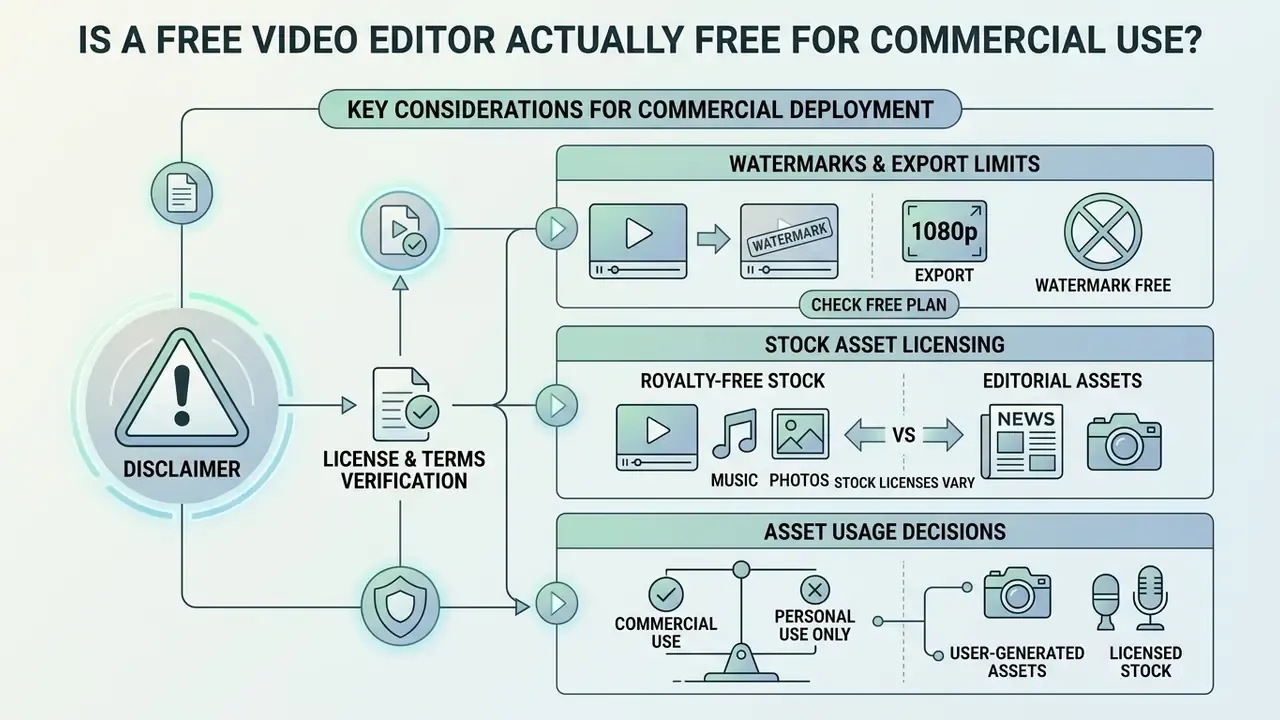
Deciding whether a video editing platform is genuinely free for commercial deployment requires examining copyright licensing, export resolution caps, and watermark rules. Verify terms before publishing client-facing media assets, not after.
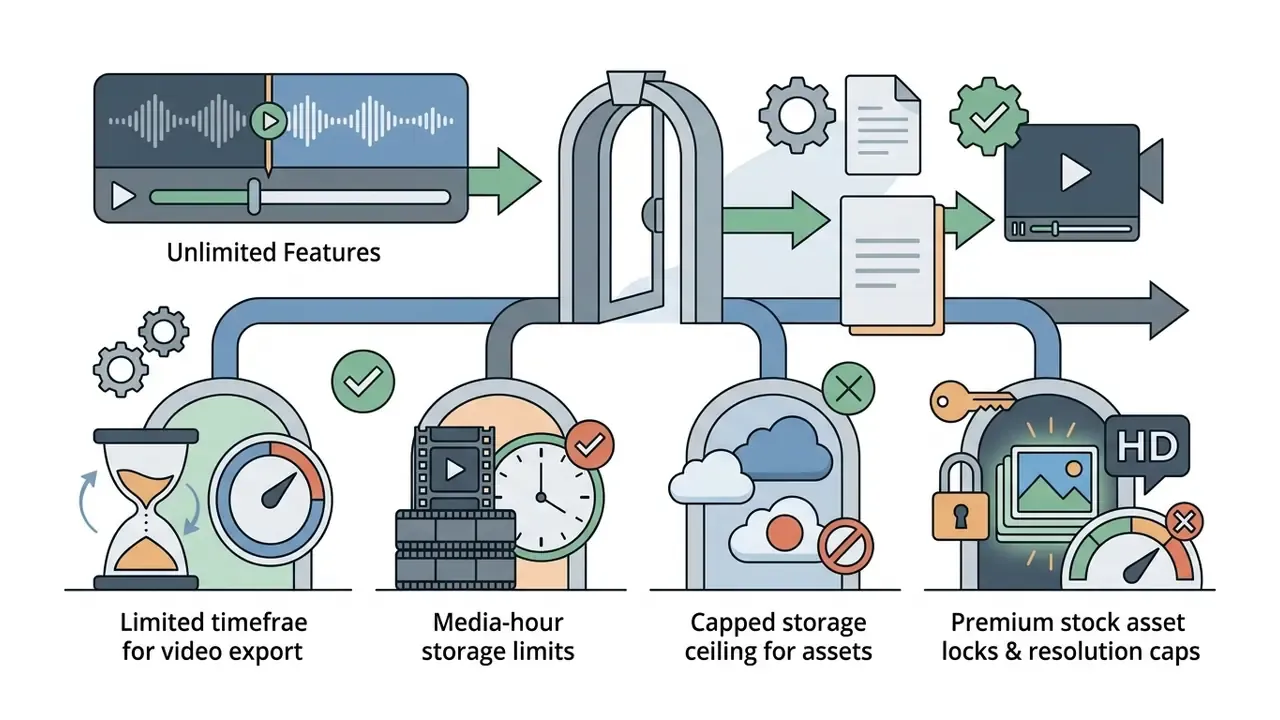
Watermark and export limits in the free plan
Several platforms advertise a 100 free video editor experience, then monetize free users by imposing a mandatory watermark, restricting export resolution to 720p, or capping monthly export minutes. Users seeking an actually free video editor without branding overlays must read the vendor terms line by line.
Microsoft Clipchamp permits free 1080p exports without watermarks when using personal assets. Kapwing and VEED require paid subscriptions to remove export watermarks.
Free tiers also differ in what they meter. VEED limits export duration to ten minutes and subtitles to thirty minutes per month. Kapwing caps free exports at four minutes. Descript meters one media hour per month rather than resolution alone. Enterprise teams should consult technical resources such as AI Media Support and Troubleshooting when an export fails compliance review.
One quiet gotcha: some free tiers strip the watermark but keep a resolution cap, so a 720p master gets upscaled by the platform on publish. Check the delivered file, not the preview.
Royalty-free stock videos, music and commercial-use decisions
Including stock footage, background audio, or visual graphics in commercial content requires clear copyright clearance. Standard royalty-free licenses allow broad commercial web distribution, but restrict standalone file redistribution, template reselling, and high-volume physical merchandise printing.
"The standard license permits reproduction of up to 500,000 copies across all media and unlimited social-media views, but prohibits merchandise where the asset itself is the primary value."
To avoid copyright claims, creators adding soundtrack elements should verify licensing terms or use cleared tracks from an ai instrumental generator. Where synthetic media enters the timeline, confirm usage rights for AI-generated images in commercial projects too, because generative assets and stock assets sit under different clauses. Commercial teams should centralize usage rights management within an AI Media Commercial-Use Hub to keep compliance evidence in one place.
Enterprises in regulated sectors should also look for contractual IP indemnification covering generative outputs. Several vendors extend indemnity only on business or enterprise tiers. Content produced on a free plan may therefore carry the legal exposure entirely on the publishing organization.
Commercial Licensing & Terms Verification
Enterprise security, Shadow AI and governance checklist
Browser convenience is exactly what makes web video editors a Shadow AI risk. Any employee can upload footage containing customer data, an internal dashboard, or material non-public information to an unvetted cloud renderer in under a minute. Risk, compliance, and model-governance functions should treat an online editor as a data processor, not a design toy.
Pre-approval checklist for browser video editors
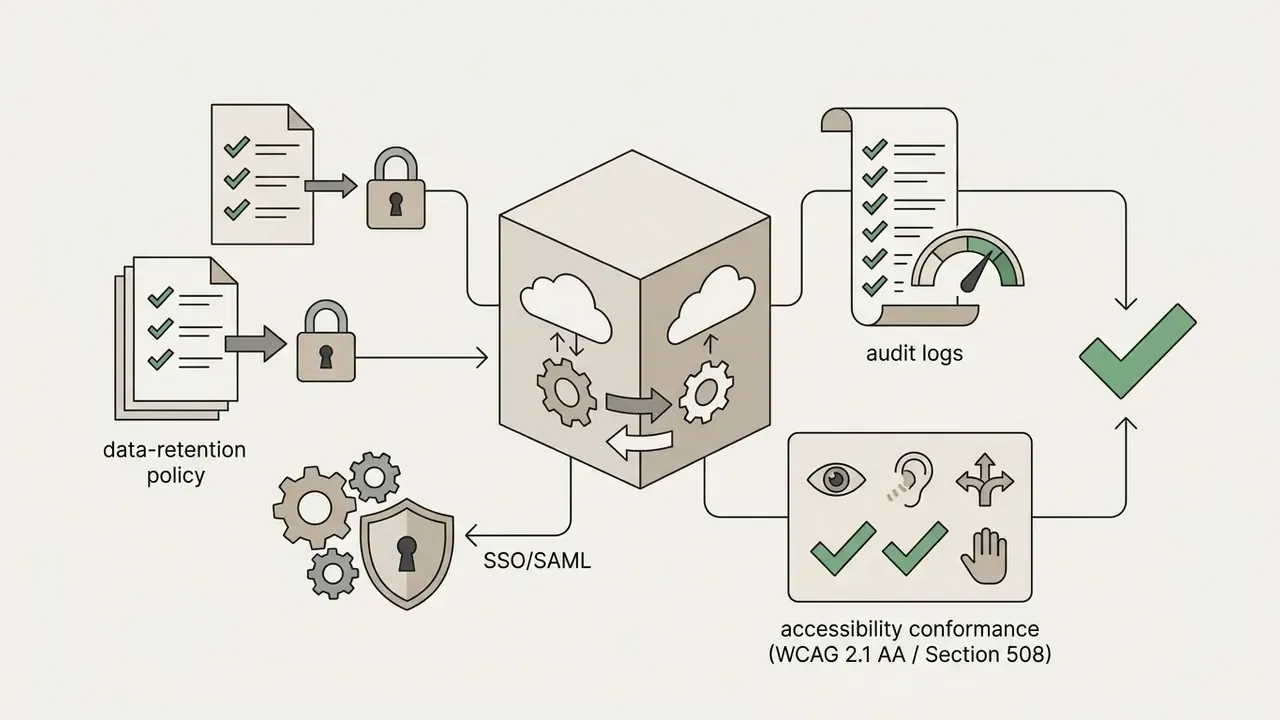
- Processing boundary: does the tool render in browser memory (client-side WebAssembly/WebCodecs) or upload sources to vendor servers? Client-side processing materially narrows the data-transfer risk surface.
- Data retention: is there a documented deletion window for uploaded media and generated transcripts, and can the tenant require zero retention?
- Model training: does the vendor contractually exclude customer media from training public models? Request the clause in writing rather than trusting marketing copy.
- Certifications: SOC 2 Type II, ISO/IEC 27001, and, for health-adjacent content, a signed BAA. Without these, approval should stop here.
- Identity and access: SSO/SAML or OIDC, SCIM provisioning, role-based permissions, and enforced MFA for editor workspaces.
- Residency: where are project assets stored (US or EU regions), and can residency be pinned per workspace?
- Auditability: exportable audit logs of uploads, exports, share links, and permission changes, plus retention of source files for regulatory record-keeping.
- Accessibility conformance: auto-generated captions must be reviewed against WCAG 2.1 AA and Section 508 expectations. Captions should cover speech plus non-speech audio needed for comprehension, per W3C guidance, and machine output requires human correction before publication.
- Publishing controls: can direct-publish integrations to social platforms be disabled for regulated teams, so every asset passes brand and compliance review first?
- Exit plan: can projects, transcripts, and media be exported in open formats (MP4,
.srt,.vtt) if the vendor is deprecated?
Practical mitigation. For any footage containing PII, MNPI, or client identifiers, restrict editing to tools that process locally, capture the browser tab rather than the full desktop, and strip transcripts of account numbers before storing them in a shared workspace.
One ownership rule holds the whole thing together: every approved editor workspace needs a named owner, a documented purpose, and a review date. No owner, no workspace.
How to edit a video online: upload, edit, export and share
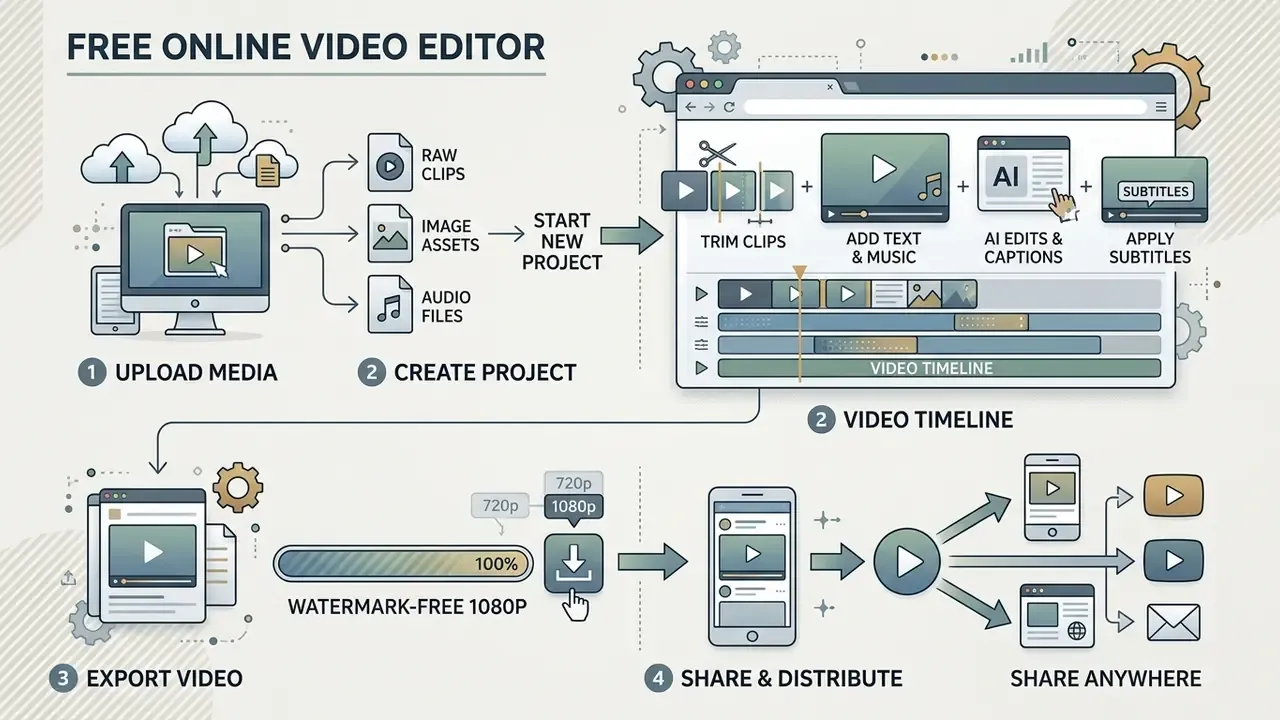
Online video editing follows a streamlined four-stage workflow built for rapid asset assembly. Creators upload raw media, sequence clips on a multi-track timeline, apply visual enhancements, then render a final output file for distribution.
Upload media and create a video project
Starting a project means importing source media into a secure web workspace. Users can drag and drop raw video files, audio tracks, and static graphics into browser-based media bins, or connect cloud storage providers such as OneDrive, Google Drive, and Dropbox. Supported image and audio inputs typically include PNG, SVG, WebP, AVIF, MP3, and AAC-in-MP4, matching the media types formalized in current W3C specifications.
To accelerate initial assembly, editors often start from customizable video templates sized for a specific platform. Selecting a template sets default frame rates, background canvas settings, and text styles before timeline work begins.
Edit video clips on the timeline
Timeline assembly involves arranging media clips across independent video and audio tracks. Editors use precision split controls to isolate highlights, adjust clip playback speed, and apply scene transitions.
Adding text overlays, lower thirds, and background audio completes the primary visual structure. Multi-track timelines let creators lock audio tracks separately while adjusting video positioning or canvas scaling. A conventional track order keeps titles and overlays on upper tracks, primary footage in the middle, and music on lower audio tracks, so ducking and timing adjustments stay isolated.
Essential video editing tools for professional videos
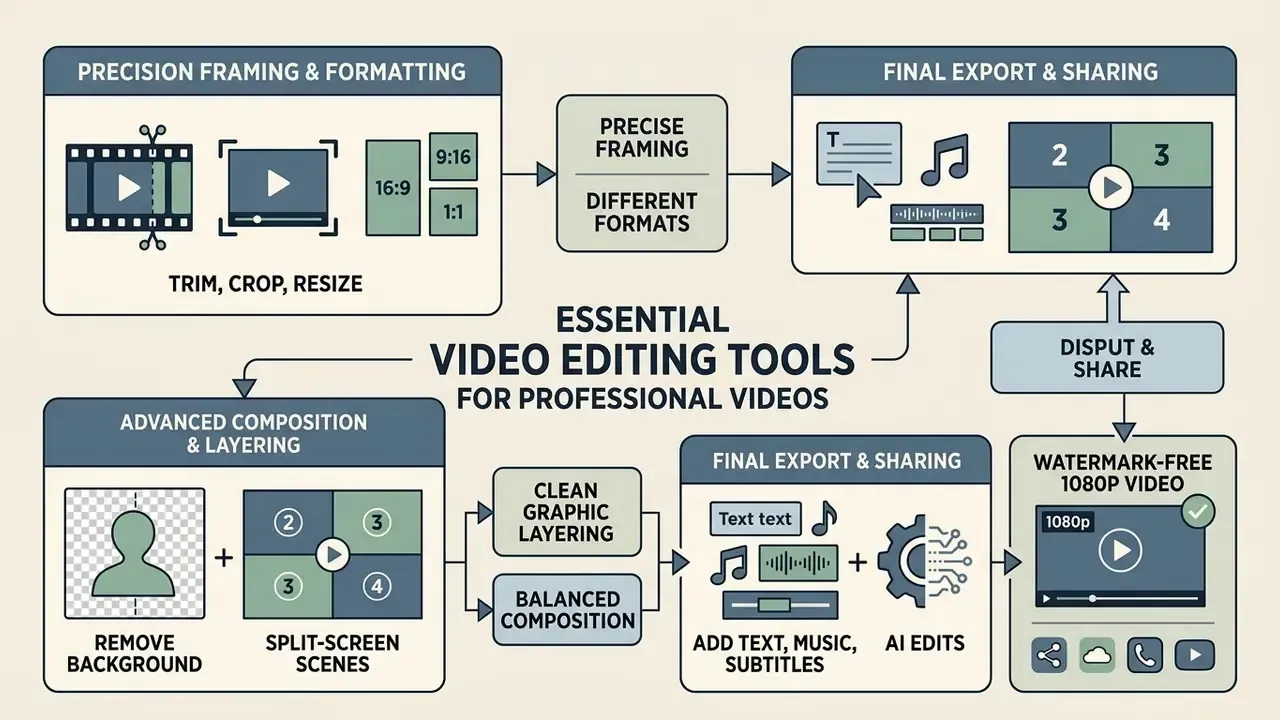
Professional video quality depends on precise framing, balanced composition, and clean graphic layering. Modern browser editors now carry advanced visual tools that used to live only in desktop suites.
Trim, crop and resize video for different formats
Adapting horizontal source footage for vertical platforms requires flexible aspect ratio transformation. A dedicated video trimmer lets editors cut unnecessary frames, while automated reframing keeps focal subjects centered across 16:9, 1:1, and 9:16.
When re-encoding media files across different dimensions, teams can reference AI Media Calculators to estimate bandwidth requirements and bitrates. Proper cropping avoids letterboxing while preserving critical visual detail: compare source and target ratios, scale to fit, then trim the excess on the long axis so subjects remain inside the safe area.
Add text overlays, effects and visual elements
Adding lower-third graphics and sound effects raises production value without distracting from the core message. Keep overlay density low. Dense information layers compete with the speaker, while sparse, timed overlays reinforce the narrative.
Remove background and create split-screen scenes
AI-driven background removal lets editors isolate subjects without a physical green screen. Teams that need fully synthetic environments can pair matting with AI video generators for producing visual scenes instead of sourcing stock plates, and interior or office backdrops can be drafted with an ai interior design generator when a branded set is not available. Computer vision models extract subjects frame by frame, creating transparent alpha masks for custom background replacement.
Classic chroma keying remains the deterministic alternative. A solid key colour plus a tolerance threshold makes the overlay layer transparent so the base video shows through, which is how picture-in-picture compositing is implemented in video APIs. Learned segmentation handles non-uniform backgrounds; colour keying wins on predictability and speed.
In an internal workflow evaluation, a financial training team needed to combine presenter footage with software screen recordings. By applying an automated background remover and a picture-in-picture layout, the team produced side-by-side presentation views without dedicated studio equipment. Cheap, and honestly good enough for internal use.
Audio editing, subtitles and AI-powered tools
Clear audio and accurate captions drive comprehension and mobile viewing accessibility. Modern web platforms build intelligent audio tools and speech processing engines directly into the browser editing interface.
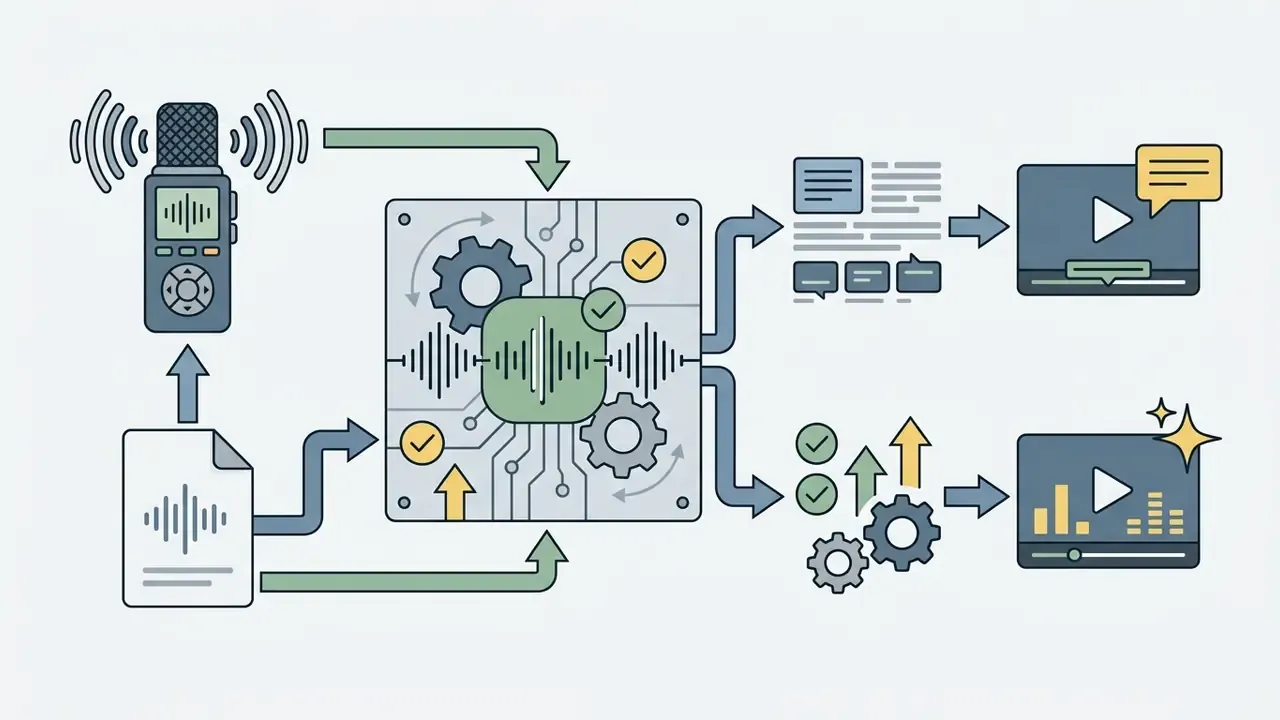
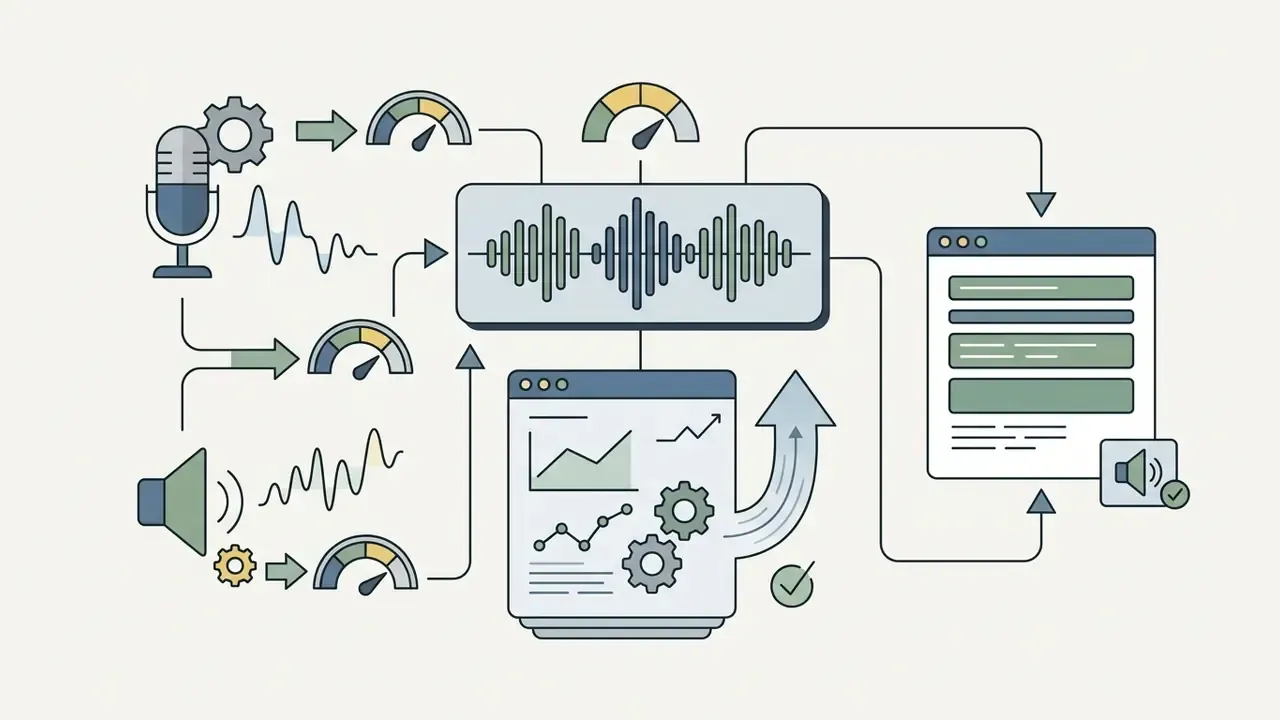
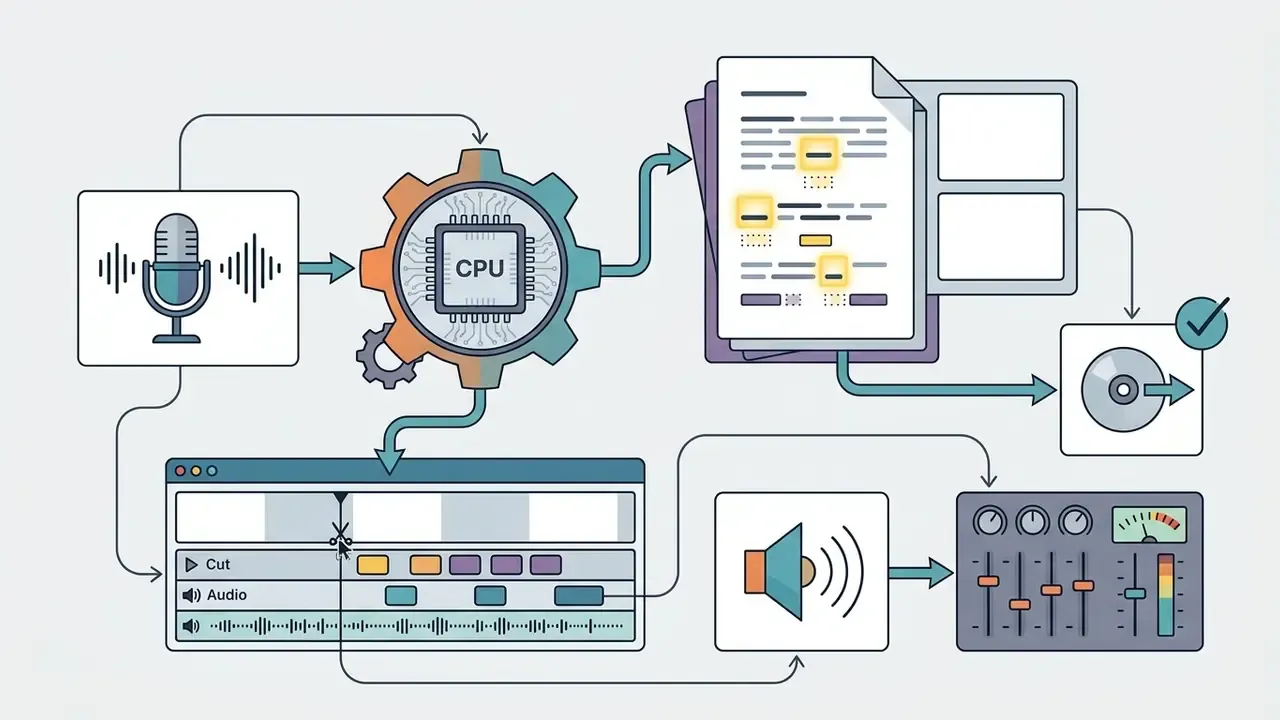
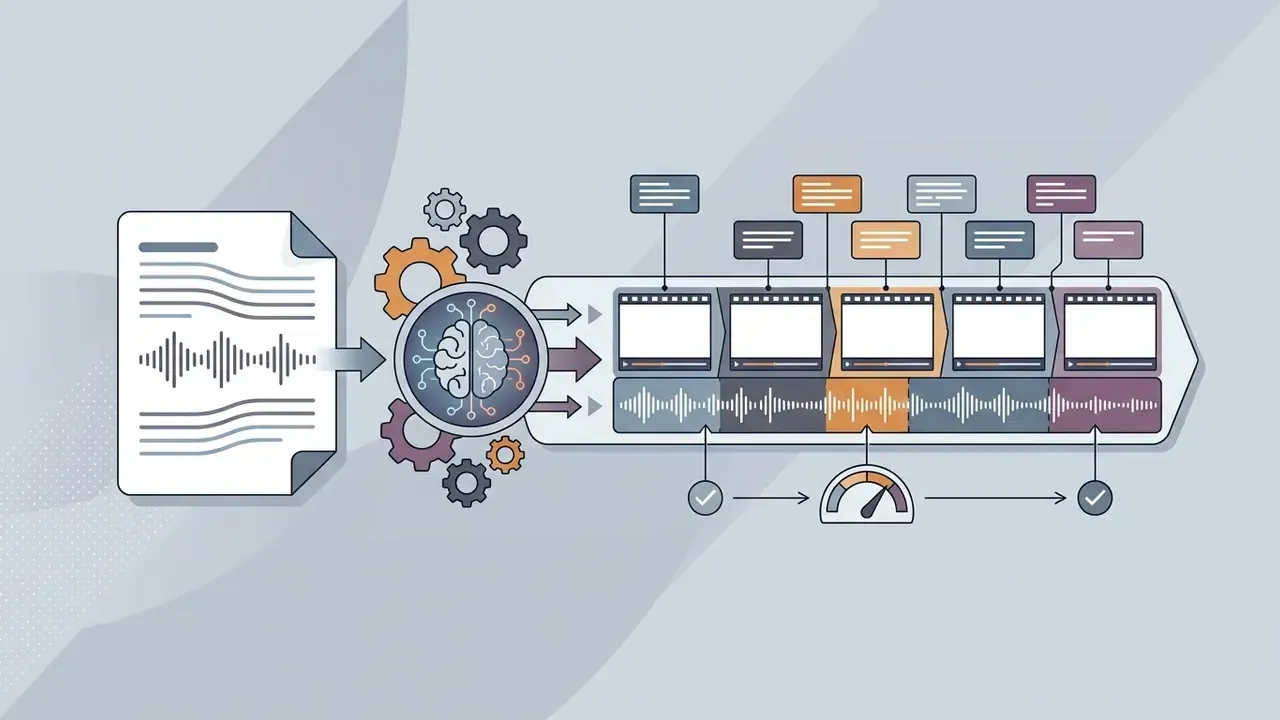
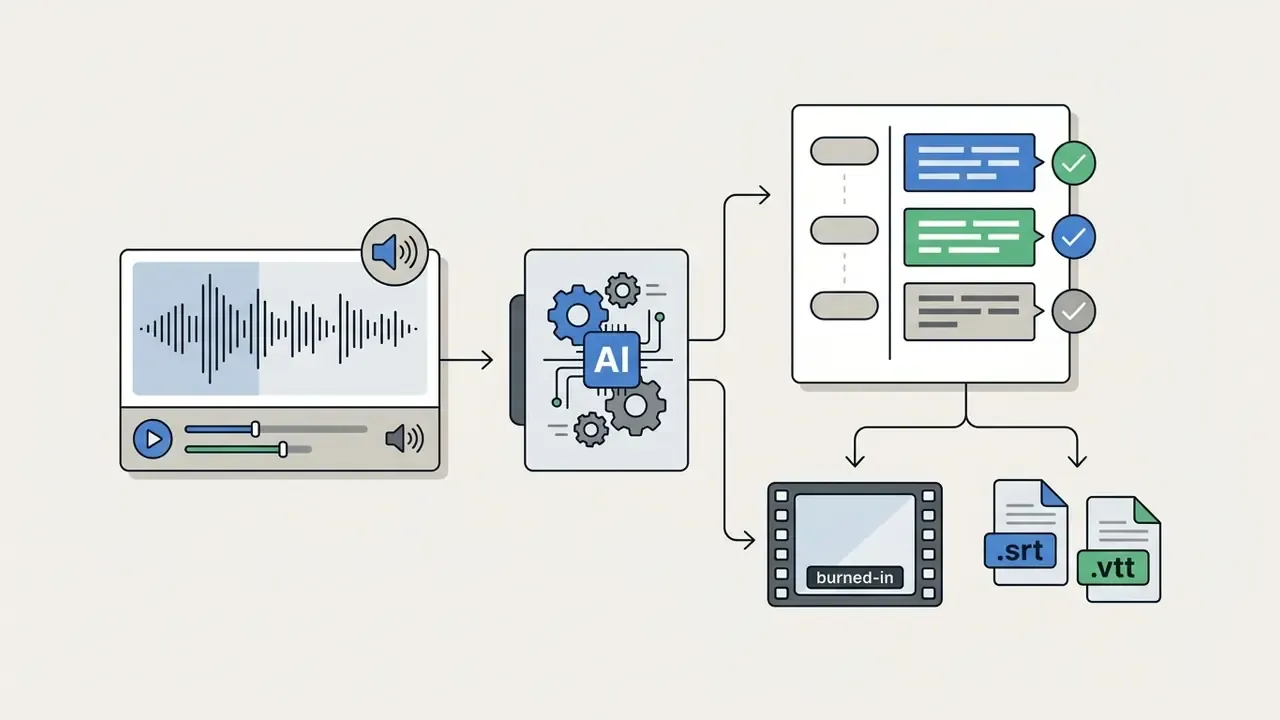
.srt/.vtt.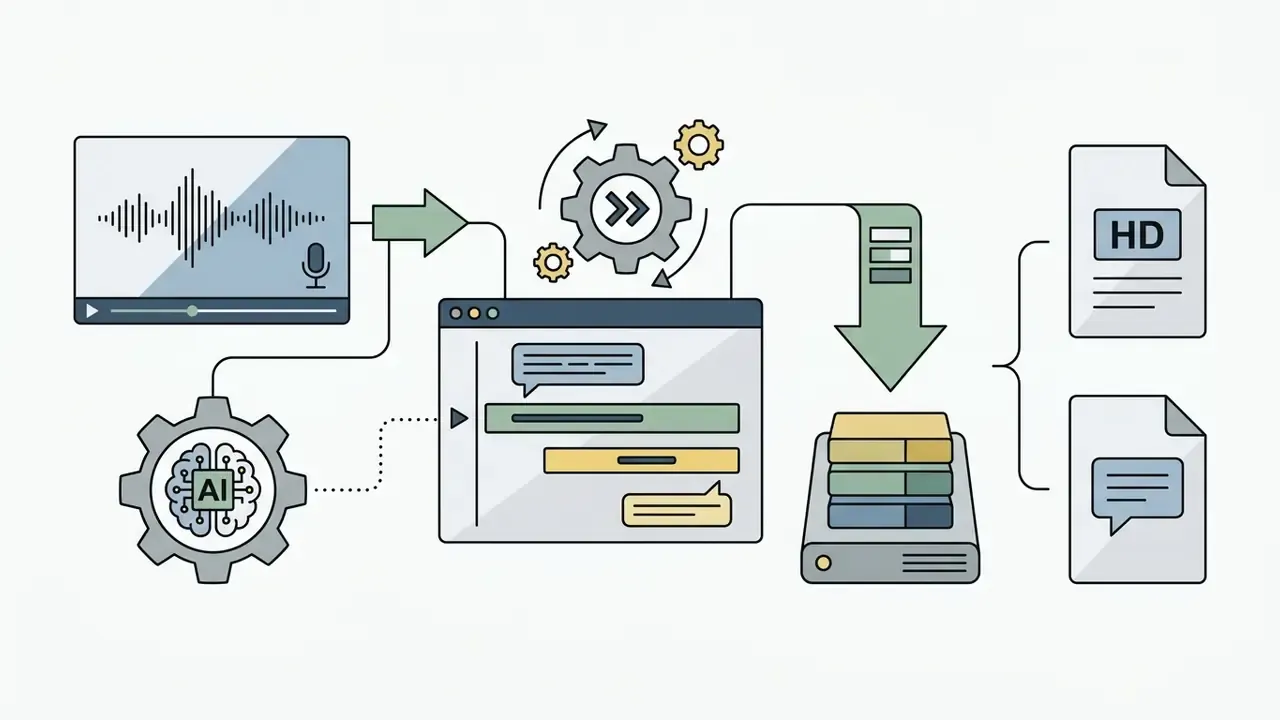
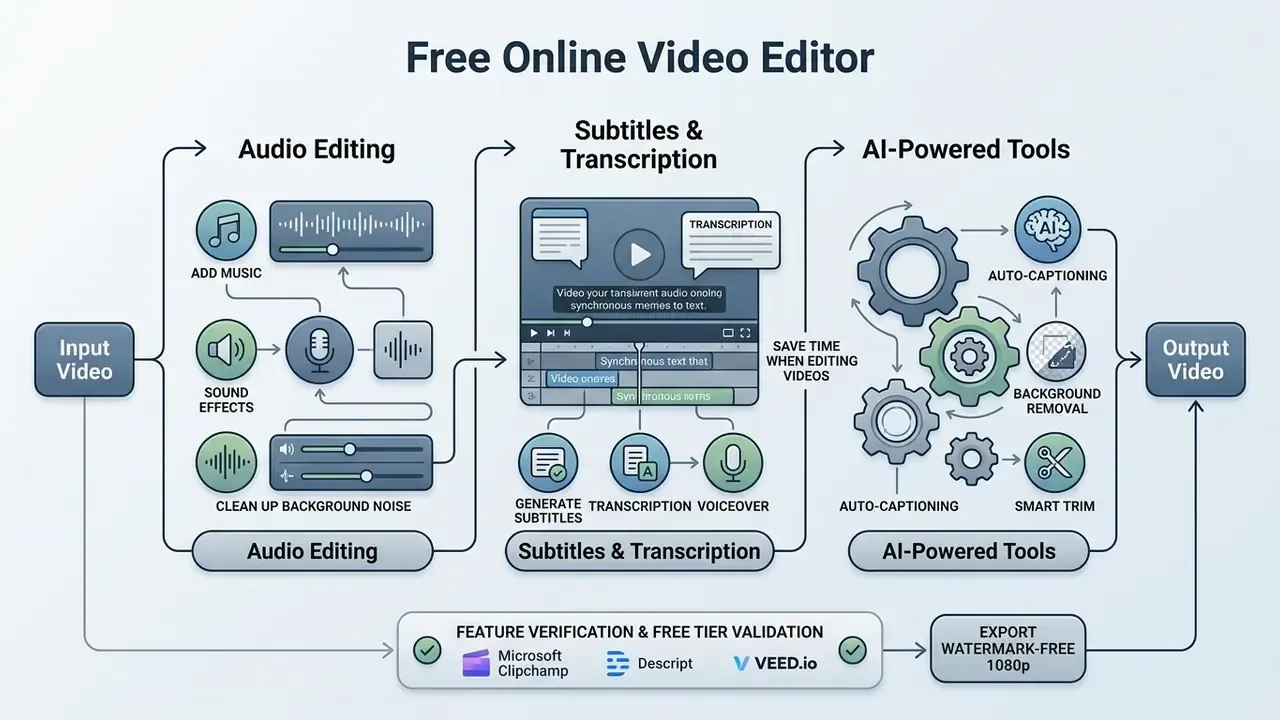
Add music, sound effects and clean up background noise
High-quality audio production means balancing voice tracks against background music and ambient sound effects. Integrated audio filters isolate background noise, reduce room reverberation, and equalize vocal frequencies automatically. Professional practice mirrors Adobe Audition's approach: capture a noise-only profile from a silent passage, then apply reduction to the full clip, accepting that outcome quality depends on the noise type and the tolerable loss of detail.
To keep speech clear, background music tracks are automatically ducked whenever primary speech is detected. Keep music on a dedicated lower track and reserve short bursts for stings and effects. Teams managing audio assets can review licensing terms within AI Media Pricing Guides to confirm stock tracks cover commercial distribution.
Generate subtitles, transcription and voiceover
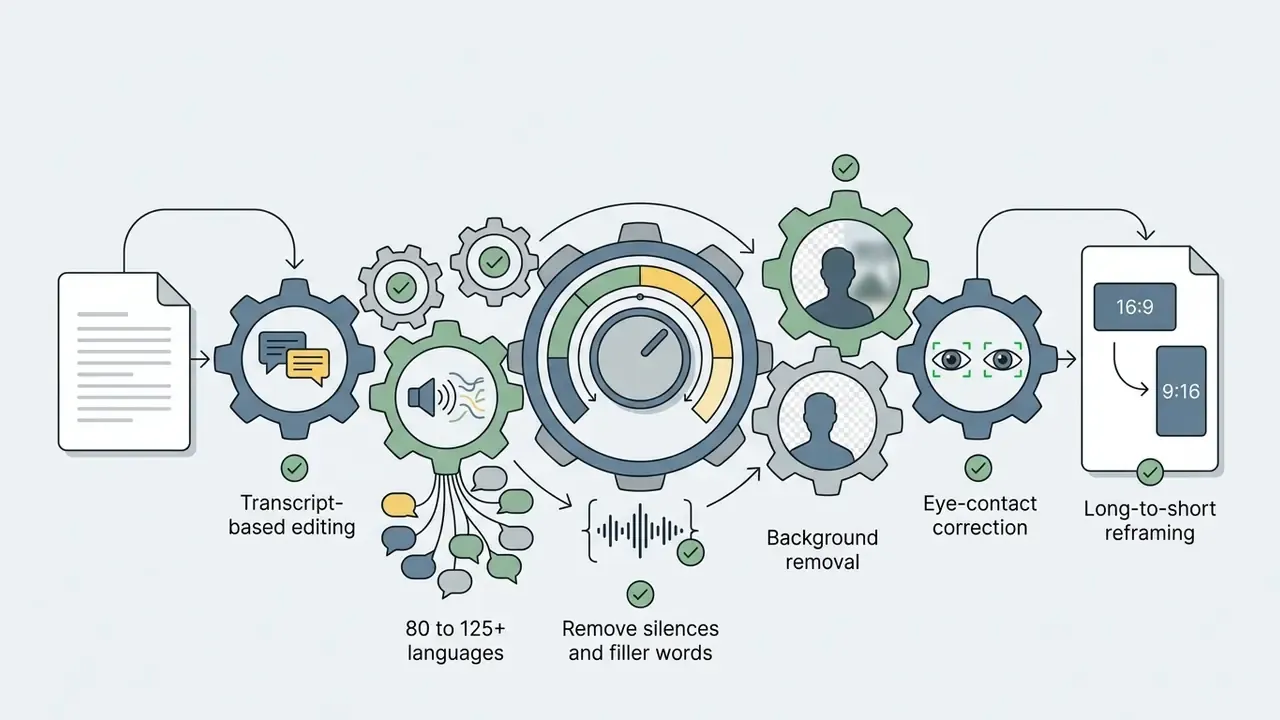
Automated speech-to-text engines transcribe dialogue into closed captions within seconds. Leading web editors cover 80+ languages for subtitle generation and up to 125+ languages for subtitle translation.
"A system based on OpenAI Whisper achieves remarkable multilingual accuracy, making automated captioning and translation a viable tool for digital accessibility."
Beyond standard captioning, advanced engines enable transcript-based editing. The platform transcribes spoken dialogue into an editable text document. Deleting words, awkward pauses, or filler sounds such as "um" and "er" from that transcript automatically trims the matching video frames on the multi-track timeline. This document-style approach speeds up rough-cut assembly for interviews, lectures, and vlogs. VEED and Descript both position it as their fastest path from raw recording to publishable cut.
When producing localized content, creators can use an ai influencer generator to pair synthetic voiceovers with dynamic visual avatars, or compare dedicated AI voice generators for video narration when voice consistency across episodes matters. Transcripts can also be exported as standard .srt or .vtt files for web player integration.
Accessibility caveat. Machine transcripts satisfy neither WCAG 2.1 AA nor Section 508 on their own. W3C guidance requires captions to convey speech and non-speech audio necessary for understanding. Speaker labels, timing corrections, and terminology fixes must be applied before publication, and the corrected caption file should be archived with the master video for audit purposes.
Use AI tools to save time when editing videos
AI-powered video tools streamline repetitive tasks such as silence removal, scene detection, and clip selection. Systems like ExpressEdit (IUI 2024) and LAVE (HAI-GEN 2024) show that natural language commands let creators execute timeline edits quickly, without manual keyframing.
Automated reframing algorithms analyze scene dynamics to keep moving subjects centered when landscape footage becomes vertical short-form. That is the same principle behind Auto Reframe and Scene Edit Detection in desktop suites, now available in browser tiers.
Modern platforms also include AI eye contact correction, which subtly adjusts the speaker's gaze toward the lens even when they were reading a teleprompter or a side script. Automated long-to-short conversion analyzes webinars or podcasts, identifies key narrative moments, reframes horizontal subjects into 9:16, and embeds animated captions for fast clip distribution.
These functions help creators publish polished videos faster while keeping creative control. Still, every AI-touched frame needs a human review pass before it represents a brand. No evidence, no autonomy.
Feature Verification & Free Tier Validation (E-E-A-T)
Create videos for social media, YouTube and work
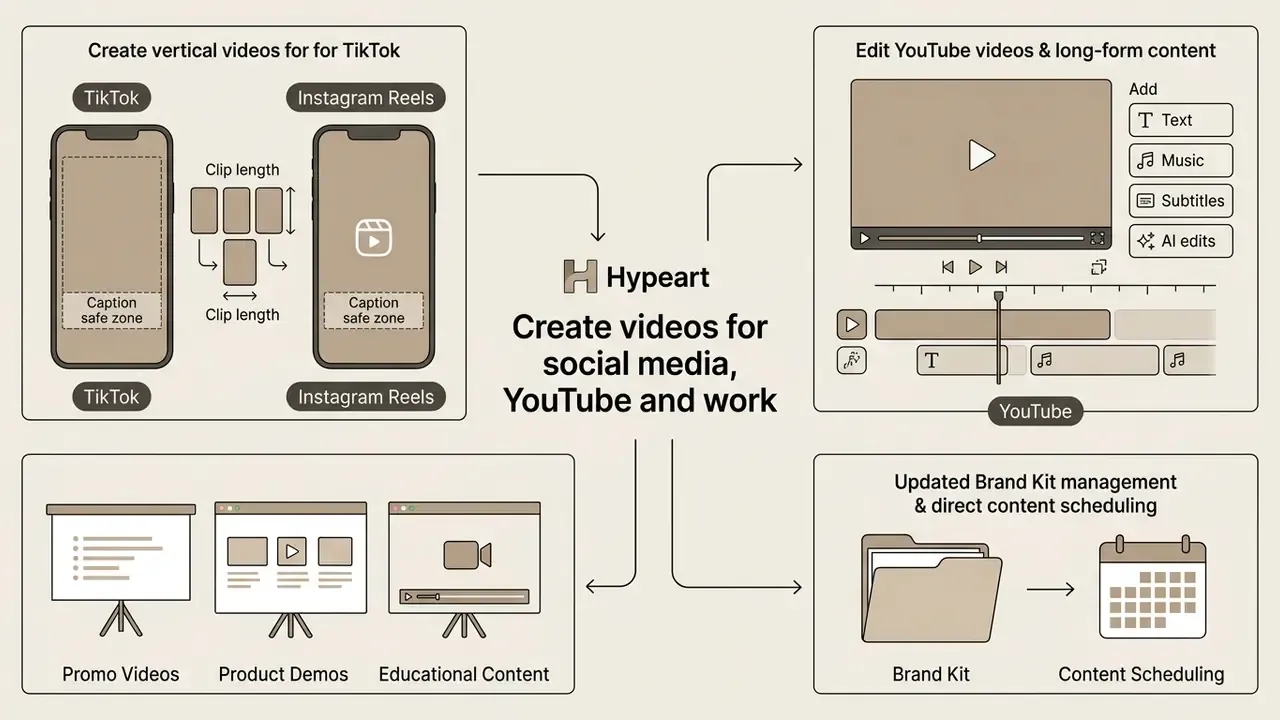
Distribution platforms impose distinct technical requirements for aspect ratios, clip length, and caption safe zones. Matching platform specifications improves reach and readability. Inside regulated organizations, the highest-volume use cases are usually internal: training modules, product demos, compliance briefings, and executive updates.
Create vertical videos for TikTok and Instagram Reels
Short-form mobile platforms demand vertical 9:16 aspect ratios at 1080×1920. Creators must position titles, text overlays, and logos inside middle-frame safe zones to avoid obstruction by interface elements. Published guidance commonly reserves roughly the top 110 to 160 px, the bottom 320 to 480 px, and 60 to 120 px on each side of a 1080×1920 canvas.
"A Harvard Kennedy School experiment (2024) found moderate evidence for TikTok debunking videos: viewers only marginally improved at distinguishing true from false clips."
Edit YouTube videos and long-form content
Long-form YouTube video editing needs structured pacing, multi-track audio balancing, and chapter markers. Teams standardizing production can follow documented YouTube video editing workflows to lock naming, caption, and export conventions across a channel. Creators combine screen recordings, facecam overlays, and lower-third graphics to hold narrative structure across long durations.
Captioning long-form content follows a reliable sequence: upload a plain-text transcript, use "Set timings" to convert it into timestamped subtitles, edit wording and timing, then export the finished .srt. Teams producing full channel strategies often coordinate assets using an ai instagram post generator alongside horizontal video workflows. Accurate captions improve search indexing and viewer retention metrics at the same time.
Make promo videos, product demos and educational content
Promotional clips and product demos need clear visual focus, brand consistency, and concise scripting. Official production guidance stresses writing the script before recording and answering the core planning questions of what, who, where, and when across pre-production, production, and post-production. Public-sector media standards additionally require captions, clean audio, and a minimum of 720p, with 1080p preferred for organizational content.
"Pub2Vid analysed 40 videos with ratings from 68 participants and embedded structure and scripting recommendations into a web tool for authoring research communication videos."
Brand Kit management and direct content scheduling
Enterprise teams and digital agencies can hold brand consistency across campaigns with built-in Brand Kit management. Users upload vector logos, custom typography files (.OTF/.TTF), and primary and secondary colour palettes with exact HEX codes, then auto-apply branded watermarks, logo animations, and intro stings.
Once edits are locked, integrated content schedulers let creators preview, schedule, and publish assets directly to connected TikTok, YouTube, LinkedIn, and Facebook profiles without intermediate downloads. Adobe Express exposes this as a native scheduler that can queue posts weeks or months ahead.
For compliance-sensitive organizations, the Brand Kit doubles as a control. Locking fonts, colours, and disclaimer templates at workspace level reduces the chance that an individual editor ships an unapproved claim or an off-brand asset. Where a formal review gate exists, disable direct publishing and keep the scheduler for approved assets only.
| Content Use Case | Primary Aspect Ratio | Standard Resolution | Recommended Video Duration | Max Upload / Limit Specs | Key AI Feature | Key Editing Tools & Features |
|---|---|---|---|---|---|---|
| TikTok Videos | Vertical 9:16 | 1080×1920 | 15 to 60 seconds | Up to 1 GB per source file (browser dependent) | Long-to-short auto clipping | Safe zone reframing, auto-subtitles, trendy audio alignment |
| Instagram Reels | Vertical 9:16 | 1080×1920 | 15 to 90 seconds | Up to 1 GB per source file | Auto reframe + animated captions | Vertical crop, text overlays, visual filters, background music |
| YouTube Long-Form | Widescreen 16:9 | 1920×1080 / 4K | 8 to 20 minutes | 1 to 4 GB per file; pre-compress 4K masters | Transcript-based editing | Multi-track timeline, lower thirds, screen recording, chapters |
| Promo Videos | Flexible (16:9 / 9:16) | 1080p HD | 30 to 120 seconds | Up to 1 GB per source file | Brand Kit auto-branding | Motion titles, logo stings, background noise cleanup, call-to-action |
| Product Demos | Widescreen 16:9 | 1080p HD | 2 to 5 minutes | Screen capture recorded in-browser, no upload cap | Eye contact correction | Picture-in-picture, background remover, audio ducking, cursor highlight |
| Internal Training / Compliance | Widescreen 16:9 | 1080p HD | 3 to 10 minutes | 1 GB per file; store master in tenant cloud | Auto B-roll + AI voiceover | Screen and webcam recording, reviewed captions, chapter markers, archived transcript |
FAQ: frequently asked questions about online video editors
Can I edit videos online without downloading software?
Yes. Modern browser video editor platforms run entirely inside web browsers such as Google Chrome and Microsoft Edge using WebAssembly and HTML5 media APIs, with no installation and no local administrative privileges.
Can I edit videos on both computer and mobile devices?
Yes. Cloud-based video editors sync project files, uploaded assets, and timeline states across desktop browsers, laptops, tablets, and smartphones, so you can start editing on one device and finish on another.
How does cloud storage work in an online video editor?
Uploaded media files and project timelines are stored in cloud storage repositories, which enables browser access from any location, automatic background saving, and real-time team collaboration without manual file transfers. Verify residency and retention terms before uploading sensitive footage.
Do I need prior editing experience to use an online video editor?
No. Modern web video editors ship user friendly drag-and-drop interfaces, pre-built video templates, automated AI tools, and single-click trimming controls designed for creators with no post-production background.
What hardware specs are required for browser video editing?
Online video editing offloads heavy rendering to cloud servers or uses client-side hardware decoding. A stable internet connection and a modern browser on a machine with 8 GB of system RAM are enough for smooth 1080p editing. Multi-gigabyte 4K timelines may exhaust browser memory and should be pre-compressed.
How large a file can I upload to a free online video editor?
Most browser editors accept single source files in the 1 to 4 GB range, and Adobe Express publishes an explicit 1 GB ceiling per upload. Free tiers additionally cap export duration, for example four minutes on Kapwing and ten minutes on VEED, or meter monthly media hours.
Can I record my screen and webcam inside the editor?
Yes. Clipchamp, VEED, Kapwing, and Descript all offer in-browser recorders that capture the entire screen, a single tab, or an application window while recording webcam video, with unlimited retakes and watermark-free saves on supported plans.
Can I edit video by editing the transcript?
Yes. Transcript-based editors generate a text document from the spoken audio. Deleting a sentence, a pause, or a filler word from that text removes the matching frames from the timeline, which is the fastest route to a rough cut for interviews and webinars.
Can I use AI tools to generate visual assets for video projects?
Yes. Creators frequently combine online video editors with specialized generative tools, for example free AI video generators for B-roll and background plates, or an ai infographic generator for corporate charts, title cards, and data slides that drop straight onto the timeline. Confirm licensing and indemnification terms before publishing generated assets commercially.
Are auto-generated captions enough for accessibility compliance?
No. Automatic speech recognition provides an efficient first draft with strong multilingual accuracy, but WCAG 2.1 AA and Section 508 expect captions to cover speech plus meaningful non-speech audio, with correct speaker attribution and timing. Human review of the .srt or .vtt file remains mandatory.
What is a safe next step if my team already uses an unapproved editor?
Inventory the workspaces first, then classify the footage already uploaded. Move any project containing customer or market-sensitive material to an approved, client-side or contracted tool, and document the decision. A short, dated memo beats an unrecorded cleanup.
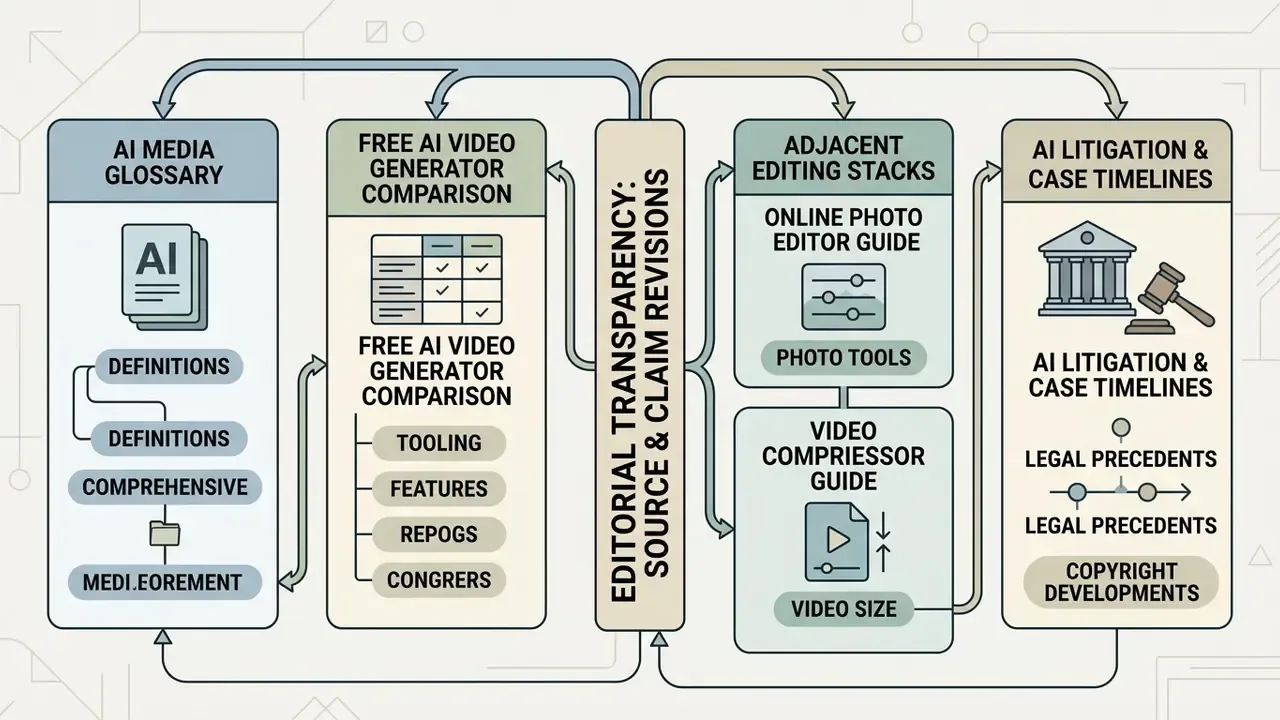
Appendix A: source and claim revisions
For editorial transparency, the following statements from earlier versions of this article were revised. The original wording is preserved here; corrected versions appear in the main text and are marked "Updated".
- Original wording
- "This process cut preparation time by 40% compared to traditional desktop editing pipelines." Revision reason: the figure came from a single internal project set without published methodology, so the main text now describes a directional saving and cites AVscript (CHI 2023) for measured reductions in editing effort.
- Original wording
- "A systematic review published in Cultura e Saúde (2026) demonstrated that background audio and structured visual overlays significantly enhance viewer attentional engagement when speech-to-audio balance is maintained." Revision reason: the citation could not be verified against a primary source with stated methodology or sample. The main text now cites ExpressEdit (IUI 2024) for empirically tested editing interfaces, and the overlay-density recommendation is stated as practice rather than a quantified effect.
- Original wording
- "Official video production guidelines from AHRQ (2024) highlight that structured pre-production scripting significantly improves information retention in educational and product demonstration materials." Revision reason: the retention claim exceeded what the cited guideline states. The main text retains the script-first recommendation and anchors the evidence to Pub2Vid (ACM 2024) and public-sector production standards.
- Original wording
- "According to Adobe Stock Usage Guidelines (2026), standard royalty-free licenses allow broad commercial web distribution but restrict standalone file redistribution, template reselling, or high-volume physical merchandise printing." Revision reason: replaced with a directly quotable, linkable clause from Adobe Stock License Information (https://stock.adobe.com/license-terms), including the 500,000-copy reproduction limit.