Executive Summary at a Glance
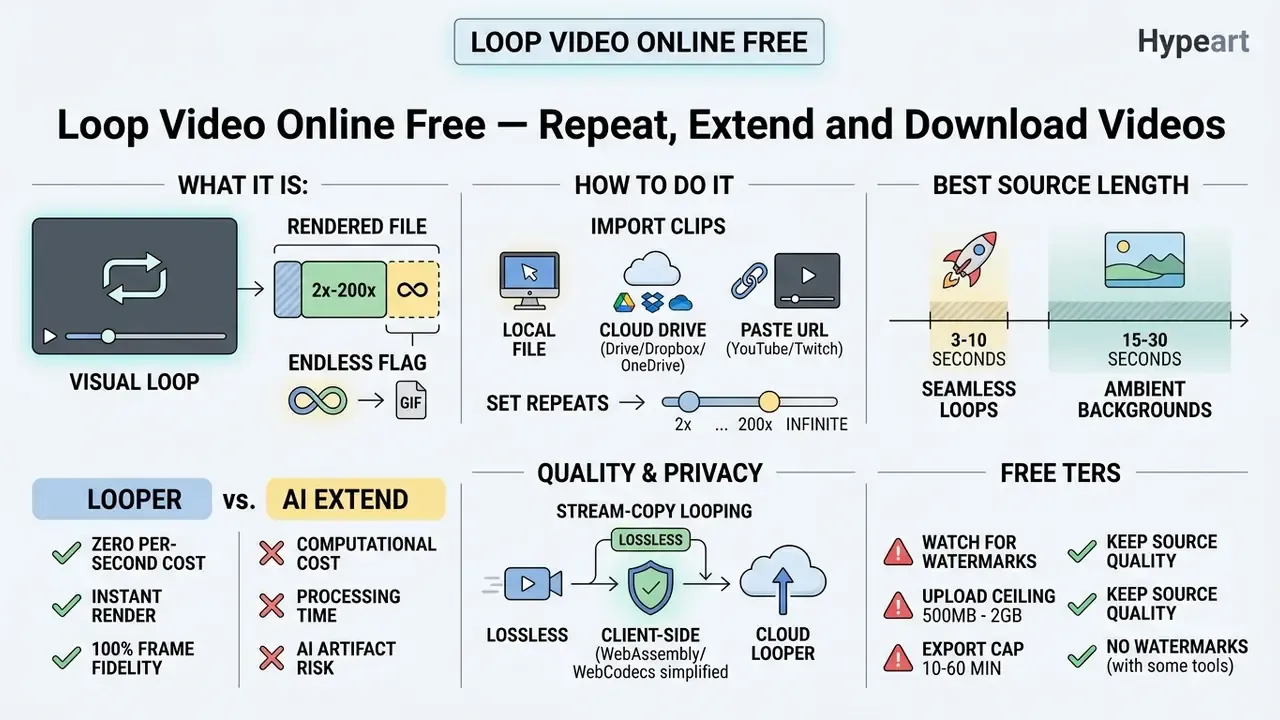
Who this guide is for. Three groups, mostly. Marketing and brand teams that need a background asset today, not next sprint. Web and signage engineers who care about container support and memory ceilings. And anyone in a regulated or NDA-bound environment who has to answer a simple question before uploading anything: where does this file physically go? Each of those concerns gets its own section below, and the sections are readable out of order.
What Is a Video Loop and When to Use It
A video loop is a sequence where a media clip plays continuously, or repeats a designated number of times, so that its end connects directly back to its start. This mechanism lets you repeat a video for digital displays, website backgrounds, social reels, or presentation streams without manually restarting playback. An infinite loop video online approach keeps a player running indefinitely, whereas exporting a fixed file through a free online video looper multiplies the source duration into a standalone output file.
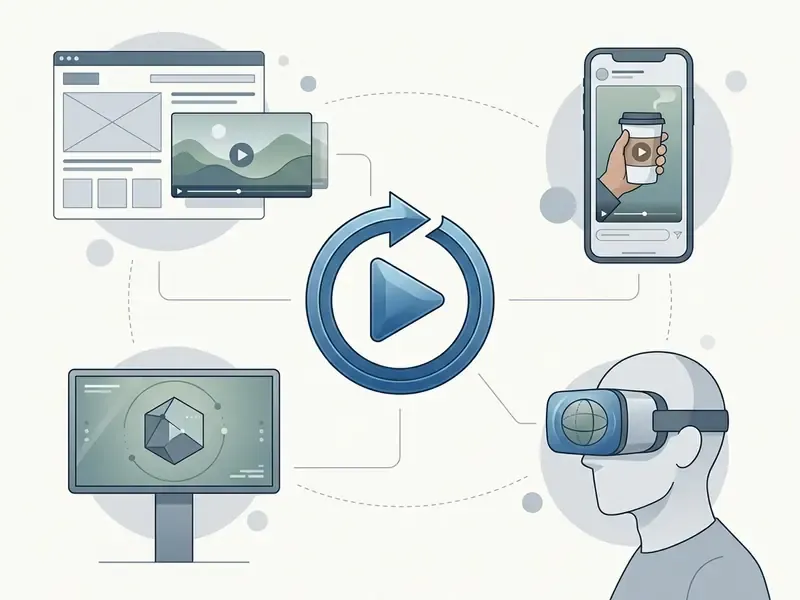
Looped clips serve specific operational roles across marketing, enterprise communication, and web development. In digital signage practice, always-on displays rely on looping video streams to deliver information, merchandising, and advertising content without client-side interruption. That usage pattern appears in regulatory filings on digital display networks (FTC public comment on digital signage, 2009; verify against current digital signage playback standards for your hardware). Repeat viewing is likewise a standard consumption pattern for ambient media, instructional tutorials, and promotional banners. Short looping formats now measurably outperform static creative:
"Reels earn on average 53% more likes and 75% more engagement than static images."
When a team needs background media that runs for hours without ballooning bandwidth or storage, a loop video online tool is usually the cheapest correct answer. Typical deployments: retail window displays, trade-show kiosks, lobby screens, webinar hold loops, animated hero backgrounds on landing pages, and short-form social clips that re-trigger automatically in the feed. If your production also involves motion graphics or explainer assets, our animation maker guide covers the adjacent toolchain.
Finite Repeats vs Infinite Video Loops
Finite repeats duplicate a clip a specific number of times to produce an exported file of predetermined duration. Infinite looping restarts playback at the player level without altering the source file at all. In technical frameworks such as SMIL and the W3C timing models, repeatCount defines fixed iterations, while indefinite execution keeps the stream repeating until an external stop command arrives (W3C Timing and Synchronization specifications).
With FFmpeg or a browser engine, a fixed repeat multiplier scales duration and data footprint linearly. Duplicate a 15-second clip ten times and you get 150 seconds. In FFmpeg terms, -stream_loop N repeats the input N additional times, while -stream_loop -1 loops forever and needs a -t duration flag to terminate the render. Data volume behaves the same way: a 10 MB clip repeated three times produces roughly 30 MB, because the payload is physically copied again. Conversely, an infinite loop video online relies on the HTML5 loop attribute or player controls, forcing the original clip to restart the moment it hits its end timestamp, with no growth in stored file size. The HTMLMediaElement.loop property mirrors that attribute and is supported in Chrome, Edge, Firefox, and Safari on desktop and iOS.
One practical note that gets missed. Player-level looping is reversible; a rendered 200x file is not. If you are unsure which one the stakeholder actually wants, ship the short master plus an embed flag first, and render the long file only when the display hardware cannot honour a loop attribute.
Infinite playback is powerful, though it deserves responsible design in consumer-facing feeds:
"Endless scrolling of short videos produces a felt loss of self-control and regret over time spent, which ultimately reduces platform usage."
How to Loop a Video Online
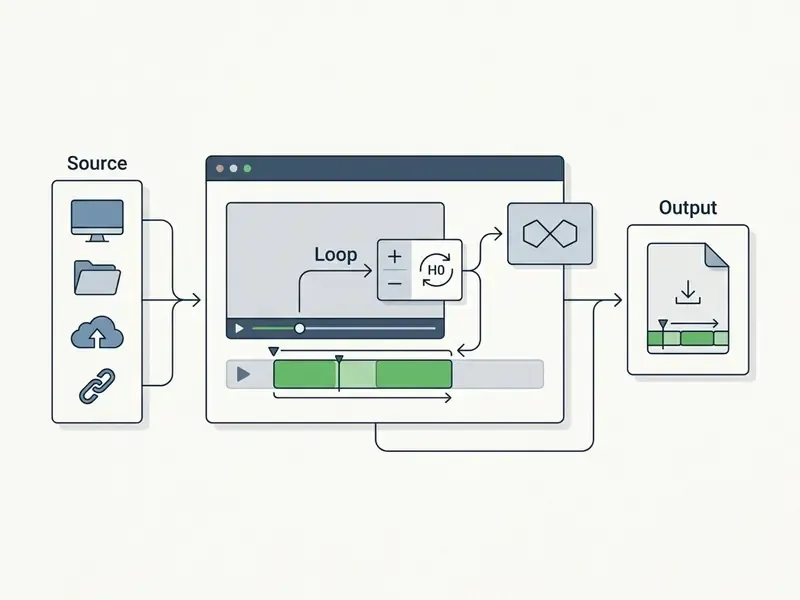
To loop a video online, you upload a source file, define the active segment, set the loop count or target runtime, and export the generated file. Modern browser tools process media with client-side assemblies such as WebCodecs and WebAssembly, which keeps the work inside the web browser. For a wider view of browser-based editing, see our YouTube video editing workflows breakdown.
Follow this workflow to loop a video free online and download your finished file:
- Import the original video file.Drag and drop your MP4, MOV, or WebM clip into the tool interface, or pull it from cloud storage or a public video URL (three ingest methods are described below).
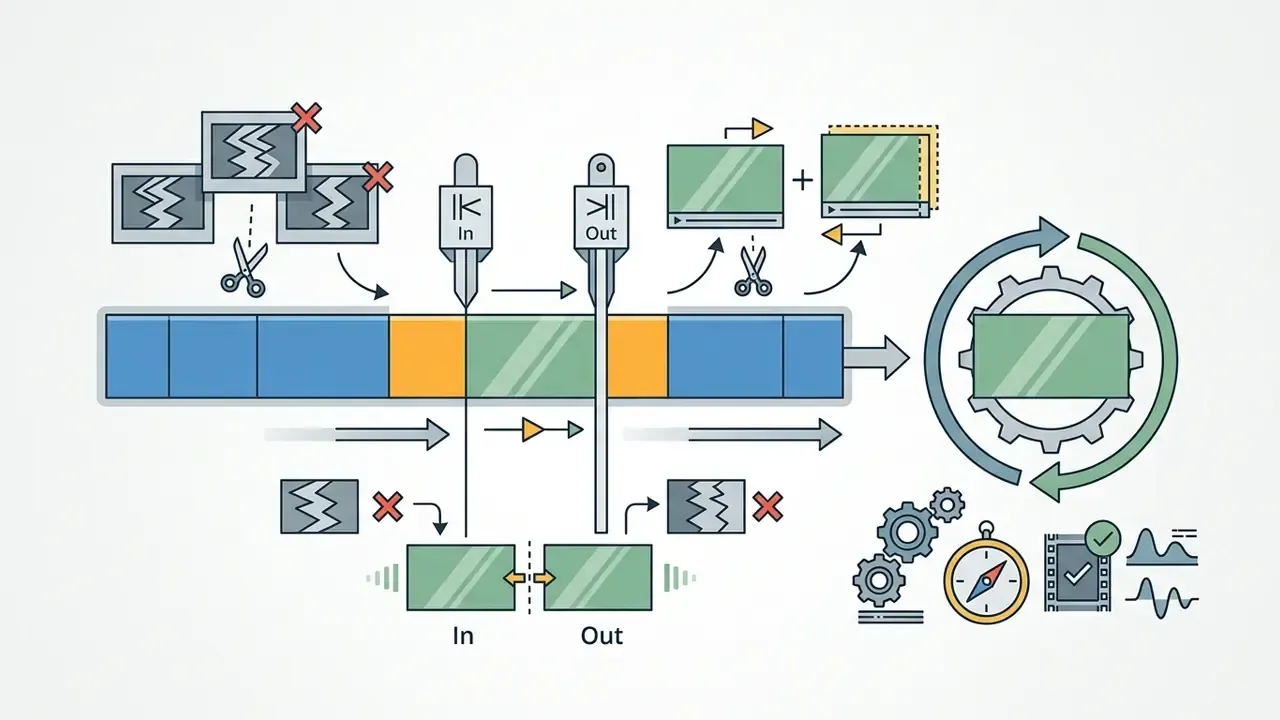
- Select the target loop segment.Use timeline handles or frame-accurate timecodes to set the exact start (In) and end (Out) points.
- Configure loop count or final duration.Enter the number of repetitions (3x, 5x, 20x, or a custom value) or specify a total target length.
- Export and download the extended clip.Render with your preferred container settings, MP4, WebM, MOV, AVI, or an infinite GIF, then download the result.
Enterprise teams usually evaluate the whole chain rather than a single feature: rendering, compression, publication, and, increasingly, scripted automation of all three. Where the loop render is one node in a larger pipeline, teams that already create ai agents for content operations tend to trigger the render through an API rather than a browser tab. For output size control after looping, consult our video compressor guide; for still-image assets that accompany looped backgrounds, see the photo editor overview.
Upload a Video File and Select the Area to Repeat
The process begins when you upload a source file to the loop video online tool. High-performance browser applications load the container into local memory, which allows instant scrubbing across the timeline without constant server round-trips.
Three ingest methods. Modern web loopers accept media through three distinct channels:
- Local file system upload drag and drop MP4, MOV, WebM, AVI, MKV, or WMV files straight from your desktop or phone gallery.
- Cloud storage integration pull assets directly from Google Drive, Dropbox, or OneDrive through connected APIs, which avoids downloading a large master to your device first.
- Direct URL parsing paste a public YouTube or Twitch link so the engine fetches the stream into browser memory, removing the manual download step.
Browser memory ceiling. Because client-side loopers hold decoded frames in RAM, large 4K masters are the most common failure point. As a practical guardrail, keep in-browser projects under roughly 1-2 GB of source data on an 8 GB machine, close other tabs before a long render, and downscale 4K footage to 1080p when the output target is a social feed or a signage screen. Documented product ceilings vary widely: one browser looper caps free uploads at 10 minutes or 1 GB, another accepts up to 4 GB, while Adobe's Firefly video editor rejects any single file above 20 GB or 4 hours.
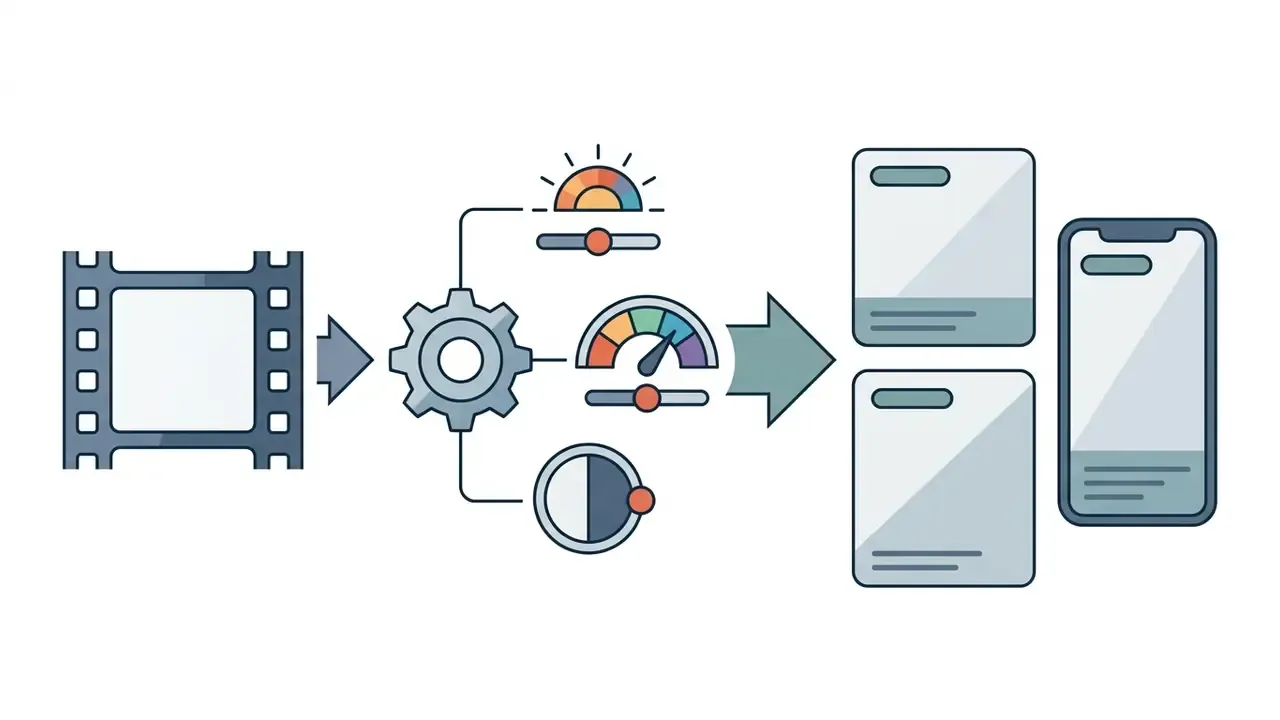
Pre-loop editing. Before applying loop multipliers, a short preparation pass materially improves loop quality:
Trimming stray head or tail frames before the cycle starts is what makes ambient sound and visual motion connect smoothly instead of jumping.
Choose Loop Count and Set the Final Video Length
The loop count dictates how many additional iterations get appended to the timeline. In programmatic media definitions (Microsoft Windows Media APIs), LoopCount counts repeats after the first pass: a LoopCount of 4 produces 5 total playback passes, 0 means a single play, and a null value means infinite looping. Worth reading twice, because off-by-one errors here produce a file one pass shorter than the brief.
Online video loopers provide both preset multipliers (typically 2x, 3x, 4x, 5x, 6x, and 10x) and custom iteration inputs that accept up to 200 sequential passes in a single render job. If your workflow needs continuous execution beyond that, say a 12-hour lobby display, switch the output mode to an infinite GIF or rely on HTML5 media looping parameters instead of rendering an ultra-large static file.
If your objective is to increase video length online free, set a target runtime instead: turn a 30-second promotional clip into a 10-minute looping asset. The loop video editor then calculates the required iteration count and shows the updated duration and estimated file size before rendering. Preview that total before you export. Perceived and actual length diverge quickly with short-form material:
"TikTok users systematically overestimate task duration after watching short videos compared with a reading control group."
Data Security and Corporate Privacy When Uploading Video
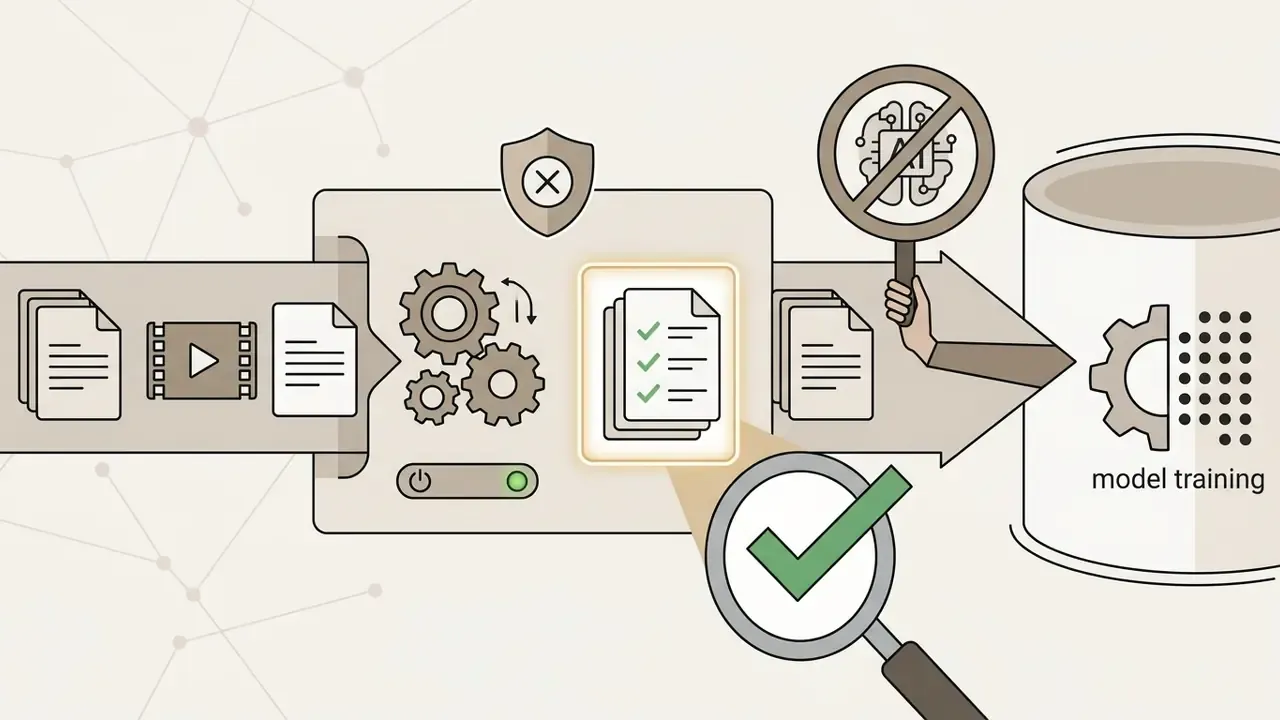
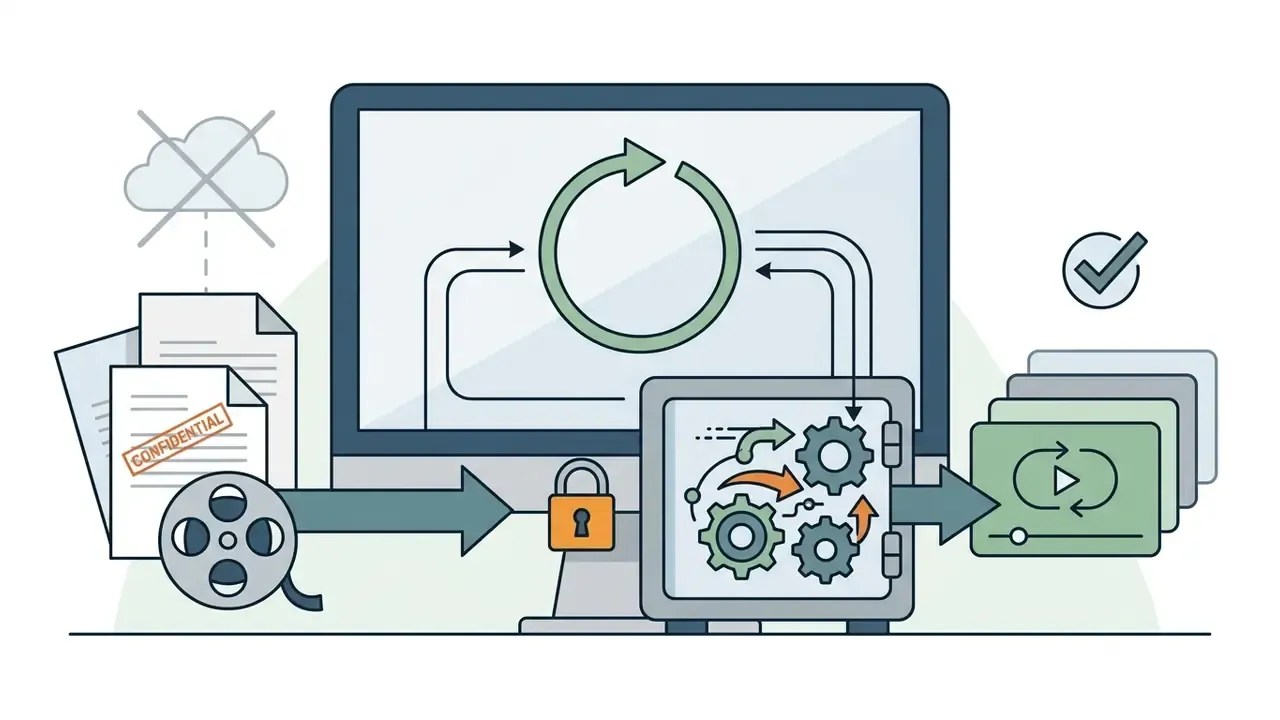
Before you push a confidential product demo, an unreleased ad cut, or internal training footage into a free online video looper, establish where the bytes actually go. Two fundamentally different architectures exist:
| Processing model | Where the file goes | Typical indicators | Risk profile |
|---|---|---|---|
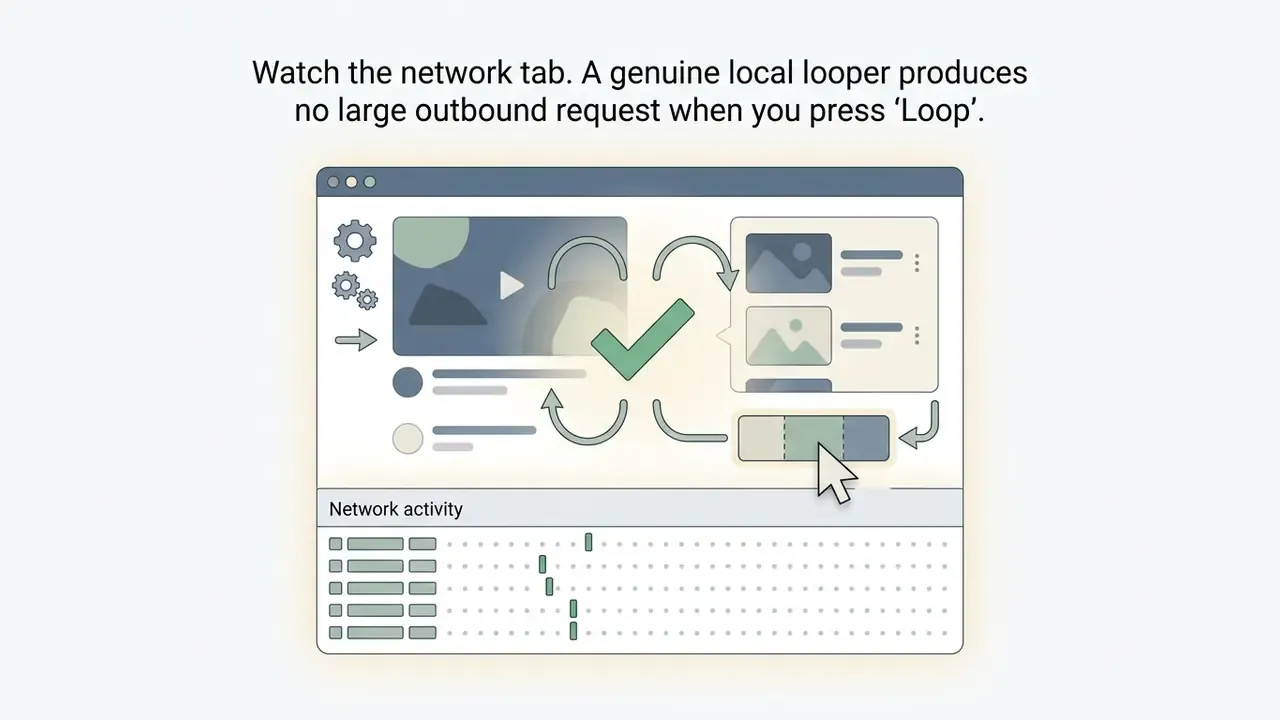
| Client-side (WebAssembly / WebCodecs) | Never leaves the browser; decoded frames sit in local RAM | "All processing happens in your browser", "100% on-device", instant start with no upload progress bar | Lowest: no third-party storage, no server-side retention, works offline after page load |
| Cloud / server-side rendering | Uploaded to the vendor's infrastructure, queued for GPU/CPU render | Upload progress bar, "processing in the cloud", account required, watermark on free tier | Higher: depends on the vendor's retention window, sub-processors, and training-data policy |
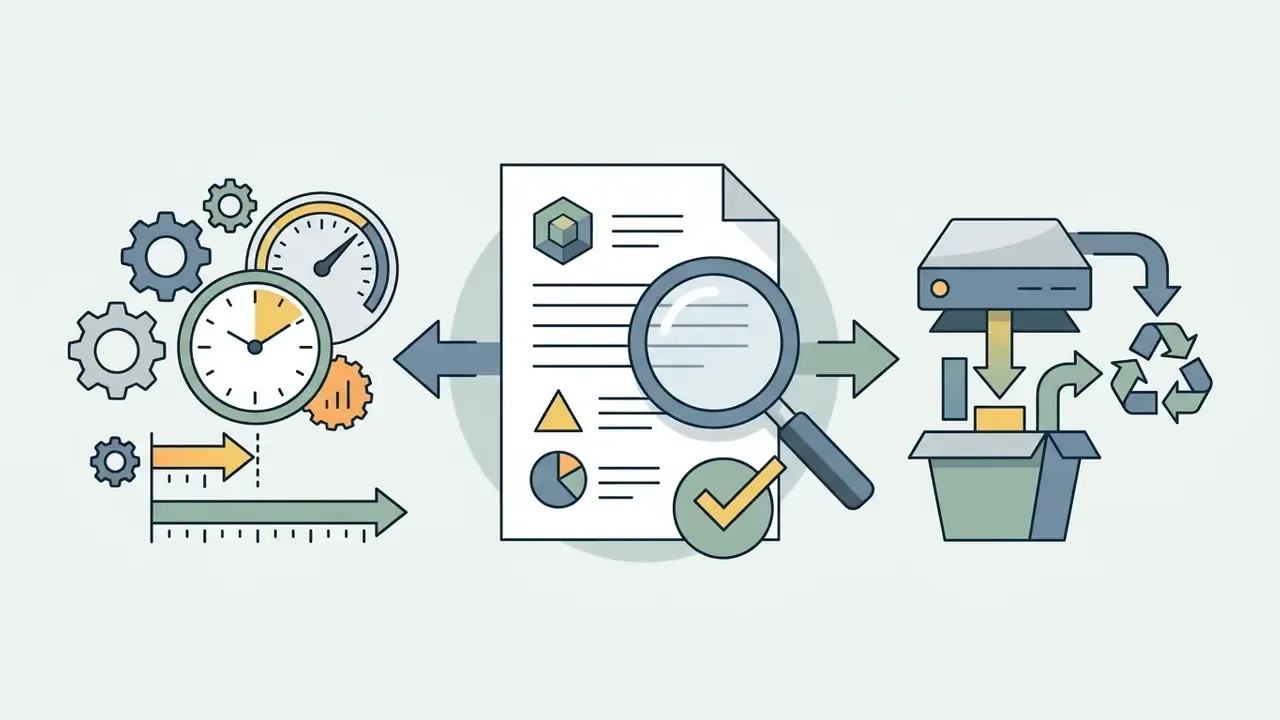
A practical due-diligence checklist for regulated or brand-sensitive footage:

How to Make a Video Longer by Repeating It
To extend video length online, repeating a clean source clip is the pragmatic route to extended background visuals, ambient music beds, or retail display feeds. Multiply short clips end to end and you get a long asset without extra camera shoots or a complex multi-track timeline. Academic work on the technique focuses on temporal consistency across the loop boundary: "Fast Computation of Seamless Video Loops" (ACM, 2015) assembles content so that 3D spatiotemporal neighbourhoods stay consistent at the seam, and "Automated Video Looping with Progressive Dynamism" (SIGGRAPH, 2013) automates static-to-dynamic loop selection, removing frame-by-frame manual editing.
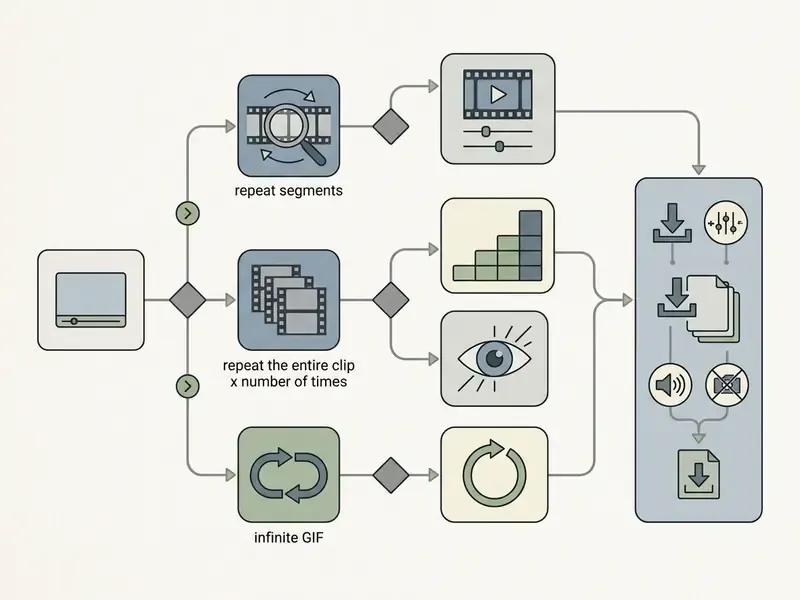
Decision flowchart summary:
- Scenario A. Need exact visual consistency, a static or ambient background, or zero compute cost? Choose the video looper (stream copy or frame replication: zero cost, 100% visual fidelity, near-instant render).
- Scenario B. Need new narrative action, a change of camera perspective, or generative scene evolution? Choose AI video extend (generative inference: per-second charges, queue latency, possible temporal variance).
Video Looper vs AI Video Extend: Cost, Latency and Fidelity
A dedicated video looper that repeats existing frames beats generative ai video expansion whenever absolute visual consistency, zero compute cost, and strict content fidelity matter. Traditional looping relies on exact frame replication or stream copying, so brand assets, logos, and temporal details stay identical across every cycle.
Generative continuation tools (Adobe Generative Extend, Google Veo and similar) compute new synthetic frames and bill per second. Vendor pricing pages have listed roughly $0.43 per second for HD and $0.54 per second for FHD continuation (as of 2025/2026 API benchmark pricing; rates move with credit bundles and region, so confirm on the live pricing page). Adobe classifies Generative Extend as a premium, computationally intensive feature. Cost is only half the story: generative extension also imposes provenance and format limits. Google documents that Veo extension accepts only previous Veo generations, retained for 2 days, in 9:16 or 16:9, at 720p, with inputs of 141 seconds or less. Kling's guidance adds that the extension prompt must describe the same subject and motion, otherwise the model inserts an unintended camera cut. Compare capabilities and costs in our Google Veo implementation guide and the comparison of free AI video generators.
Latency is the second decisive axis. Stream-copy looping is effectively an I/O operation: a 15-second clip repeated 2,880 times assembles in seconds to a couple of minutes on a local WebAssembly pipeline, with no queue. Generative extension is an inference job. Each additional segment must be sampled, denoised, and encoded, typically tens of seconds to several minutes per few seconds of new footage, plus provider queue time. For daily signage refreshes or campaign deadlines, that gap compounds fast.
AI extension earns its price when a scene genuinely needs new narrative action. For long-duration background deployment, standard video extend by looping delivers near-instant processing, 100% frame accuracy, and no per-second billing. Engagement, notably, can often be predicted and optimised from existing footage rather than by generating more of it:
"An engagement-prediction model built on existing audiovisual patterns reaches a correlation of ρ = 0.71, with no new content generated."
Case data (illustrative, composite). During a digital media consolidation project, a signage team needed continuous 12-hour lobby playback from a 15-second ambient background clip, without server latency or generative artifacts. Stream-copy looping in a browser pipeline repeated the clip 2,880 times with no re-encoding. Result: original resolution retained, no measurable quality degradation, and no GPU inference bill. Synthesising the same 12 hours at $0.43 per generated second would have cost roughly $18,600.
Create a 1-Hour Video From a Short Clip
A 1 hour video maker feature expands 15-second or 30-second sources into full 60-minute files. From a 30-second clip, the engine appends 120 identical passes on the internal render timeline; a 15-second source needs 240 passes, and a 10-second source needs 360.
For hour-long outputs, file-size limits and browser memory ceilings decide feasibility. Documented product limits show the pattern. Google Vids caps a project at 30 minutes total length while accepting imported clips up to 35 minutes and 4 GB (Google Workspace Help, 2026), and multiple online editors restrict free-tier uploads and results to about 500 MB. Note: aggregate claims about "typical" free-tier caps of 30-60 minutes or 500 MB are directional, drawn from vendor help pages rather than a controlled survey. Treat them as indicative and verify the current limit for your chosen tool. Other documented ceilings include a 5-loop limit with 10-minute or 1 GB uploads on one looping tool (60 minutes and 100 GB for subscribers), 1 GB per file on VEED's free tier, and a 10x-20x cap in some looper interfaces even where the underlying engine has none.
Platform-side length rules matter as much as engine limits:
"YouTube Shorts imposes a hard clip-length ceiling, and the algorithm promotes videos with high view and like counts regardless of duration."
To prevent export errors when building 1-hour files, optimise bitrate settings for efficient packaging, and remember that web publishing standards require runtime metadata to be written correctly in long-form exports (U.S. EPA Web Standard, 2020). For enterprise media budgets, inspect our detailed AI Media Pricing Guides and use our AI Media Calculators to estimate rendering costs and output metrics.
Make a Seamless Loop Without a Noticeable Cut
A loop is seamless when the transition between the final frame and the restarting frame shows no visible jump and no audio click. Getting there means aligning motion vectors, or covering the boundary with a short cross-dissolve.
To build the transition manually, use the "overlap and swap" technique:
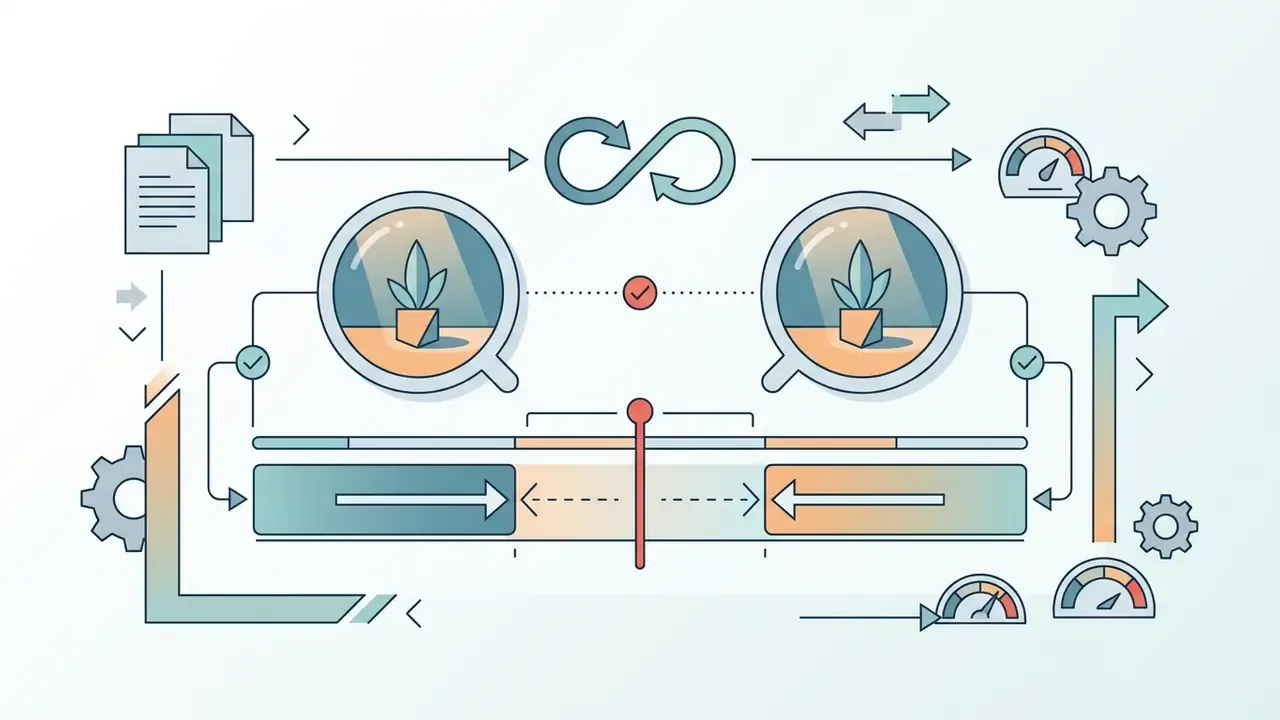
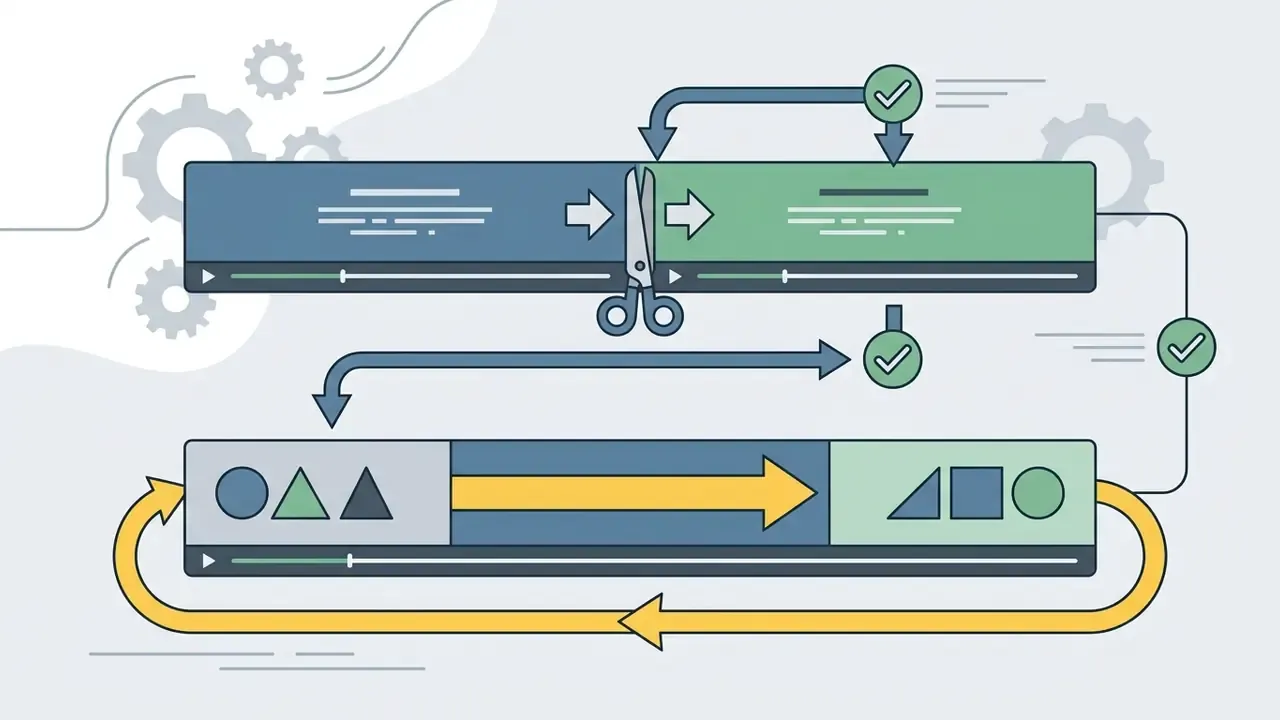
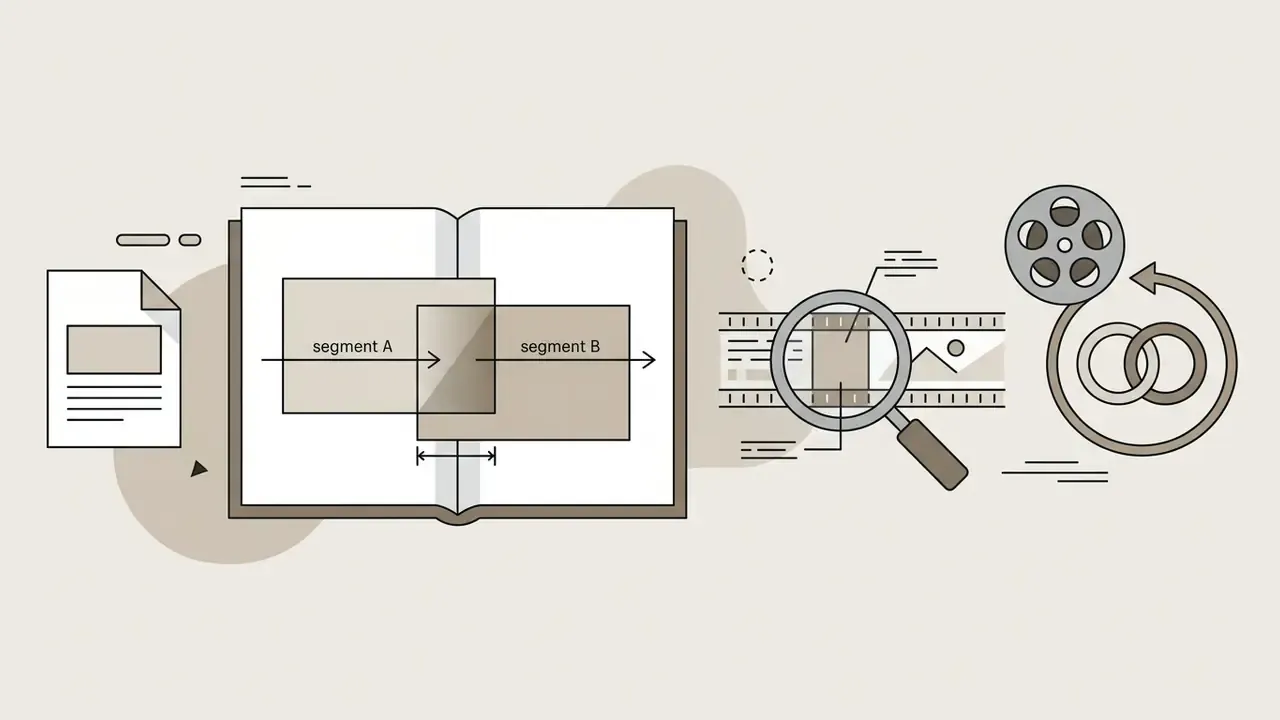
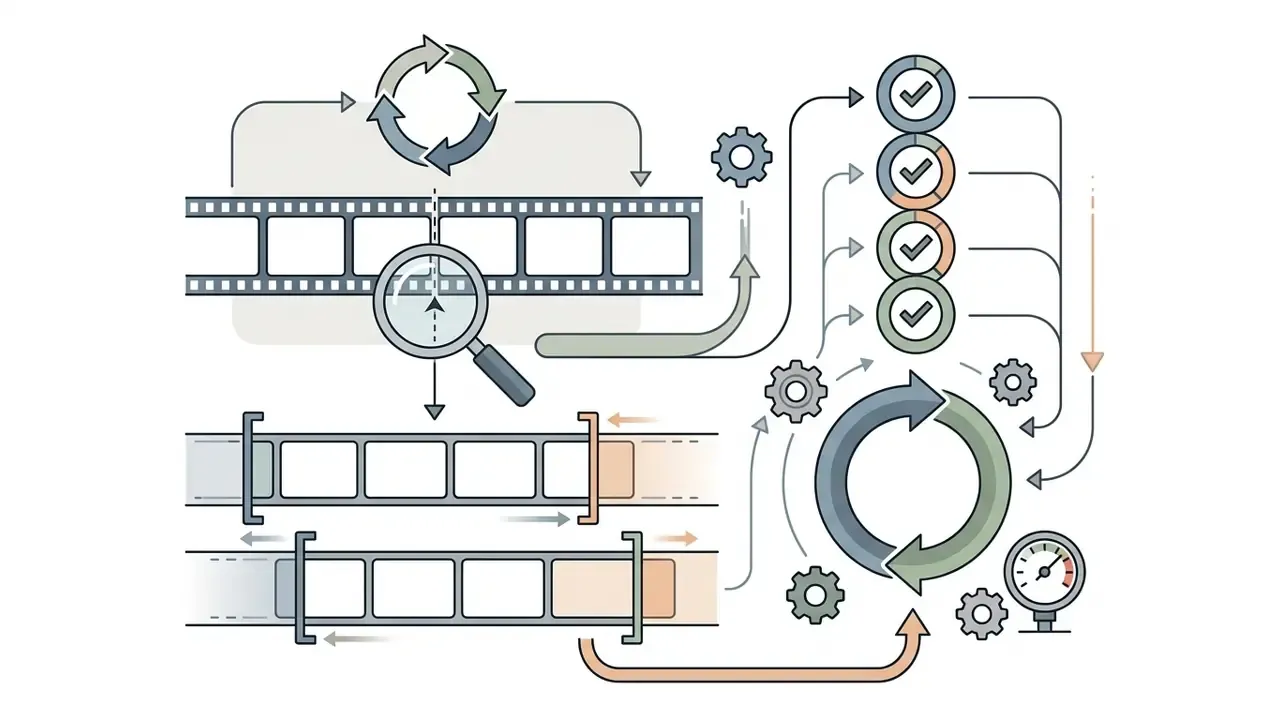
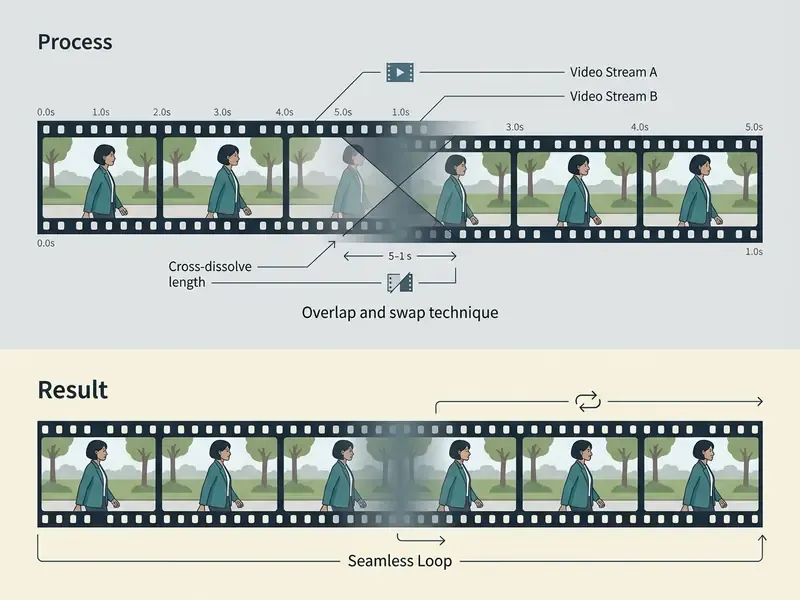
Because the cut now sits inside a smooth dissolve, you can extend video online without a visible break.
Repetition also changes how viewers read footage, even when the seam itself is invisible:
"Repeated viewing makes on-camera behaviour look more rehearsed to the viewer, even when the transition boundary is visually imperceptible."
Loop MP4 and Other Video Formats Online
Modern web loopers accept a broad range of containers: MP4, MOV, WebM, AVI, MKV, and WMV. Industry standards (MDN Web Docs, 2026) establish MP4 (H.264/AAC) and WebM (VP9/AV1 with Opus) as the primary containers for cross-platform web compatibility. MDN's <video> reference also positions AVI as a fallback source rather than a primary web format, and MOV support depends on the browser. Uploaded files are frequently transcoded to MP4 automatically to guarantee downstream playback. If output weight becomes a problem after multiplication, our video compressor guide explains the bitrate-versus-quality trade-offs.
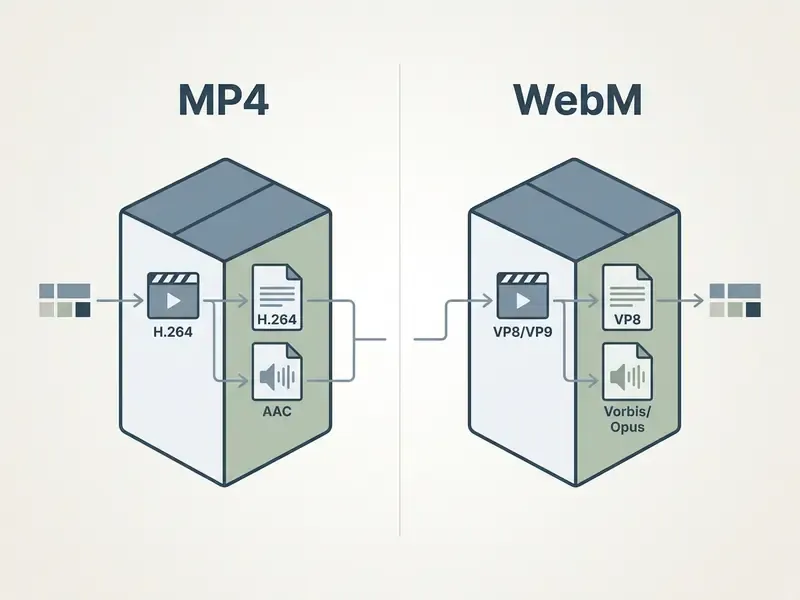
MP4, Video Formats and Export Options
MP4 remains the default video format for exporting looped content, thanks to universal hardware-accelerated decoding across iOS, Android, Windows, and macOS (Android Media Formats documentation; Apple iOS developer documentation). Android explicitly lists MPEG-4 (.mp4, .m4a) containers and H.264 AVC profiles for both playback and encoding. Adobe Acrobat plays MP4, MOV, M4V, 3GP, and 3G2 when H.264 compression is used, and iOS export presets offer MOV or MP4 in either "High Efficiency" (HEVC) or "Most Compatible" (H.264) modes. When exporting from a loop video free online application, MP4 wrapped with H.264 is the choice that plays everywhere: every major browser, every mainstream social platform.
| Container / Format | Primary Codec Support | Device Compatibility | Browser Support | Recommended Use Case |
|---|---|---|---|---|
| MP4 | H.264 / HEVC / AAC | 99.9% (iOS, Android, PC, Mac) | Universal | Social media, web embedding, digital signage |
| WebM | VP8 / VP9 / AV1 / Opus | High (Android, PC, Mac) | Chrome, Firefox, Edge | Native web application backgrounds |
| MOV | H.264 / ProRes / AAC | High (Apple ecosystem) | Safari, Chrome (Mac) | Apple production pipelines |
| AVI | Lossless / MJPEG / PCM | Legacy desktop systems | Fallback only | Legacy media archives |
| GIF (animated) | LZW / indexed palette, no audio | Universal (image viewers, messengers) | Universal | Endless micro-loops, chat reactions, email |
When building specialised media tooling or inspecting automated creation pipelines, check the technical breakdowns in our AI Media API Guides and explore generic generation capabilities in create ai.
Exporting as an Infinite GIF vs a Video Container
The container choice decides how playback behaves on the target device. Video containers need explicit player parameters or an HTML5 loop attribute to sustain continuous playback; without that flag, the file simply stops at its final frame. An animated GIF bakes the infinity flag into the file metadata instead (the NETSCAPE2.0 application extension block with a loop count of 0), so the asset repeats endlessly in any image viewer, chat client, email body, or CMS that renders images.
The trade-offs are concrete:
- GIF advantages: truly infinite playback with no player controls, autoplay in contexts that block
- GIF limitations: no audio stream at all, a 256-colour indexed palette that visibly bands gradients and skin tones, and much larger files, because compression is frame by frame rather than temporal. A 6-second 1080p clip weighing 2 MB as H.264 MP4 can balloon past 20 MB as a GIF.
- Practical rule: keep GIF exports short (under 6 seconds), reduce dimensions to 480-720 px wide, and drop to 12-15 fps. Choose MP4/WebM whenever audio, colour fidelity, or bandwidth matter; choose GIF when the asset must loop forever without a player.
Most loopers expose this as one toggle: pick a numeric repeat count for a video container, or click "Infinite" to render a GIF instead.
How Audio Works in a Repeated Video
When you loop a video to make it longer, the embedded audio track decides whether the output sounds professional. The W3C in-band tracks work notes that a user agent creates audio and video tracks for each elementary stream it can render, which is why looped exports must keep audio and video durations exactly aligned. Online loopers generally offer four modes:
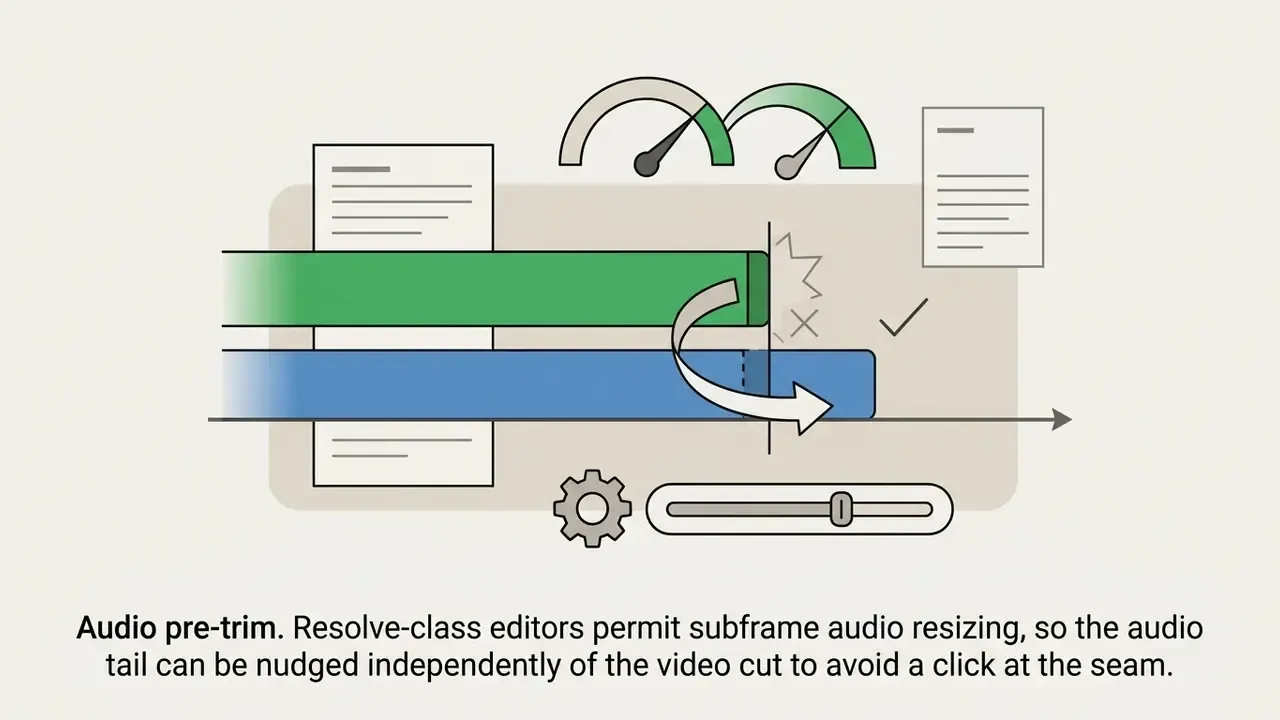
Fixing the audio "pop" at the seam. The most common defect in looped audio is a click caused by non-zero waveform amplitude at the cut point. The sample jumps instantly from, say, +0.4 to −0.3, and the speaker reproduces that discontinuity as a transient. Three reliable fixes:
- Cut on a zero crossing: zoom into the waveform and place the edit where amplitude passes through zero.
- Apply a 2-5 ms micro-fade on both the outgoing tail and the incoming head. It is inaudible as a fade, yet it removes the discontinuity.
- Use a short crossfade (20-100 ms) on audio only, keeping the video cut hard, so picture timing stays frame-accurate. Subframe audio resizing in editors such as DaVinci Resolve makes that adjustment possible without shifting the video.
- Exact audio repetitionthe original track repeats in sync with every video cycle. Adobe InDesign's
Loopoption is the canonical "play the movie repeatedly" case with untouched audio. - Audio fadingsmooth volume attenuation at loop boundaries prevents harsh clicks, using fade handles as documented in Adobe Premiere Pro and Audition workflows.
- Audio replacement or overlayoriginal sound gives way to an external music track spanning the whole target duration. Some slideshow tools automatically duck or fade the movie's own audio when a soundtrack plays.
- Mute trackthe audio stream is stripped entirely, producing a silent file optimised for background web insertion.
If the clip carries background noise or speech, continuous repetition causes listener fatigue and measurable attention decline:
"Heavy short-video users show significantly reduced P300 amplitude, an objective neurophysiological marker of degraded attention."
Muting the original track, or replacing it with an extended ambient bed, yields a far better experience. For narrated loops, an AI voice generator can produce one continuous voiceover across the full runtime instead of repeating the same phrase every eight seconds.
Free Online Video Looper: Watermark, Limits and Commercial Use
Evaluating a free online video looper means examining four things: export policy, resolution caps, file-size thresholds, and commercial licensing rights. Many services advertise a free online video loop tool, yet advanced features or unwatermarked exports often sit behind a paid plan. Our comparison of free AI video generators applies the same evaluation lens to adjacent generative tooling.
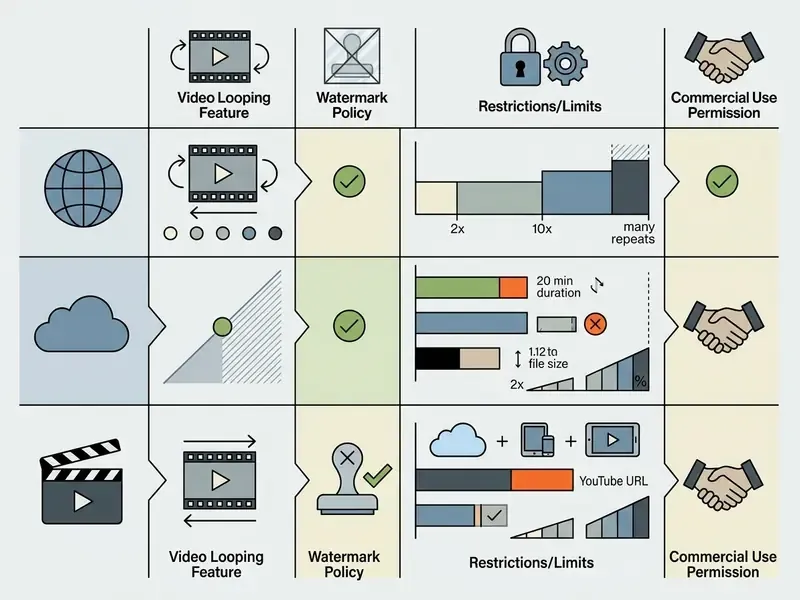
| Tool Tier / Parameter | Watermark Presence | Max Upload Size | Max Export Duration | Commercial Rights |
|---|---|---|---|---|
| Truly Free (In-Browser / Stream Copy) | None | Unlimited (local RAM) | Engine / browser cap | Retained from source |
| Freemium Tier (Basic) | Brand watermark added | 500 MB - 2 GB | 10-30 minutes | Non-commercial only |
| Pro / Subscription Tier | No watermark | Up to 20 GB | Unlimited / multi-hour | Full commercial licence |
Documented examples across vendor help pages show the spread. Some browser loopers advertise no watermark and no file-size limit because processing is local. Others cap uploads at 50 MB, 200 MB, 500 MB, or 2 GB. One loop service limits free loops to 30 minutes and 50 MB with a watermark, removing both on paid plans. Clideo's Help Center states that visitors and free registered users receive a watermark on every export while Premium users do not, and Kapwing's watermark policy confirms watermarks on the free plan with full commercial rights granted on Pro exports. A few niche tools explicitly say "free for commercial use", but most free pages grant no commercial licence at all.
The commercial upside of properly licensed, watermark-free looped short-form is well documented:
"For accounts under 10,000 followers, Reels drive 55% of all engagement and 52% of all impressions, versus 20% and 18% for static images."
Fact check and verification note. Export policies, watermark rules, and file-size limits vary significantly across web services (Clideo, Kapwing, Adobe Express, 2026). Always review the active Terms of Service and run a test export to confirm commercial usage rights and watermark-free output before deploying assets in paid client campaigns.
For comparative evaluations across tools and licences, consult our AI Media Comparison Matrices and review legal considerations in the AI Media Commercial-Use Hub.
What "Free" and "No Watermark" Mean Before Download
When a tool advertises loop video online free no watermark, processing usually happens locally in the browser via JavaScript, WebAssembly, or WebCodecs. Local processing costs the provider nothing in cloud render time, so unwatermarked exports are economically viable. The side benefit is bigger than the price: your footage never leaves the device.
Cloud-based loop tools that upload media to remote servers behave differently. They often apply watermarks or restrict resolution on free plans to cover bandwidth and compute. Watch for the softer restrictions that only surface at export time: 720p or 480p output ceilings, daily export quotas, forced account creation, MP4-only output, or a small corner watermark that free plans describe as optional and apply anyway. Run a test export first, and confirm the downloaded clip really is a loop video online no watermark file before committing to a long project.
One more reason to time-box your own testing session instead of scrolling loop previews indefinitely:
"Watching short-form TikTok videos significantly impairs prospective memory, the ability to remember and carry out planned actions, unlike Twitter, YouTube, or no activity."
Using Looped Videos for TikTok, Facebook and Commercial Content
Publishing looped media on commercial channels such as TikTok, Facebook Reels, or YouTube Shorts requires compliance with platform guidelines and copyright frameworks. When you create a loop tiktok video online or loop facebook video online, confirm that any audio you use is licensed for commercial distribution.
TikTok's Commercial Music Library (CML) guidelines explicitly stipulate that commercial audio licensed inside the platform may be posted or shared only within TikTok, and that any use outside TikTok requires separate permission and licensing from the rights holder (TikTok Commercial Music Library Terms, 2026). TikTok's commercial-use guidance further states that brand, product, or service promotion should draw from the CML, and that non-CML audio requires confirmation that no copyright-protected music is used or that licences were obtained. On the Meta side, Facebook Reels runs copyright checks in Meta Business Suite and in the mobile app both before and after publishing, so a looped clip carrying unlicensed music can be muted or blocked after it goes live. For an overview of licensing constraints in adjacent generative tooling, see our notes on AI video generators for commercial use.
Repetition also shapes audience perception, a finding replicated at scale:
"Across nine experiments with 10,412 participants, repeated viewing consistently made on-screen behaviour appear more rehearsed, regardless of content type."
For an established commercial brand, that works in your favour. A polished, deliberately looped promotional clip reads as professional and intentional. For creator content that trades on spontaneity, heavy looping can undercut authenticity, which is a good reason to vary the loop segment across placements.
For more on media compliance, usage terms, and intellectual property precedents, see our tracking guides on AI Litigation and Case Timelines. If something breaks during processing, our AI Media Support and Troubleshooting repository is the place to start.
Video Looping FAQ
Can I Repeat a Video as Many Times as I Want?
Technically yes, as far as system memory and storage allow. Practical limits come from browser RAM, processing power, and output container caps. Preset menus commonly stop at 2x-10x, while custom fields in cloud editors accept values up to roughly 200 repetitions per render job. Programmatic controls allow continuous playback, but exporting a static file as a 1 hour video maker project yields large files that may exceed platform upload ceilings (such as Google Vids' 30-minute project limit or 500 MB free-tier constraints). Beyond 200 passes, use an infinite GIF or an HTML5 loop embed rather than rendering a giant file.
"A longitudinal analysis of 70,000 YouTube channels found Shorts accumulate more views and more likes per view than regular videos, but fewer comments." — Preprint, YouTube Shorts vs Regular Videos (2024). https://arxiv.org/abs/2401.00000
How Do I Loop a YouTube Video Without Downloading It?
Right-click inside the active video frame in YouTube's web player and select Loop from the context menu. Playback then restarts automatically at the end. On embedded players or mobile web browsers, long-press the video frame or open the player settings gear icon and switch Loop video to On. Player-level looping does not modify the source file, so quality is fully preserved (YouTube Help, Loop a video, 2024. https://support.google.com/youtube/answer/7640706). If you need a standalone offline looping MP4 instead, paste the YouTube URL into an online video looper, set the iteration count, and render, subject to the platform's terms and the rights holder's permissions.
Will Looping Reduce the Original Video Quality?
Not if the tool uses stream-copy processing without re-encoding the frames; the existing bitstream is simply concatenated. Playing a video on repeat in a player, such as YouTube's loop mode, likewise leaves the file untouched (YouTube Help, Loop a video, 2024. https://support.google.com/youtube/answer/7640706). If the loop video editor re-encodes at a lower bitrate, generational compression loss follows. FFmpeg documentation notes that encoding is typically lossy and degrades stream quality to shrink output, and measurements across repeated HEVC encode/decode cycles show 0.68-2.04 dB of quality loss, averaging about 1.4 dB. To keep full source quality, select high-bitrate export profiles or a tool that supports lossless stream copying. If the resulting file becomes unwieldy, shrink it afterwards with the techniques in our video compressor tools guide rather than re-encoding at low quality during the loop itself.
Can I Use an Online Video Looper Without Installing Software?
Yes. Modern free online video looper utilities run entirely inside standard browsers (Chrome, Edge, Safari, Firefox) using HTML5, WebCodecs, and WebAssembly. The loop attribute on is specified by W3C HTML5 and documented by Apple for Safari on desktop and iOS 5.0 and later, and current browser documentation identifies no security issue specific to in-browser looping. These client-side applications let you upload, trim, loop, and download media without installing third-party desktop software on Windows, macOS, iOS, or Android. For publishing the finished loop, see our YouTube video editing workflows guide.
What Source Length Produces the Best Loop?
Three to ten seconds. Inside that window the last frame usually still matches the first in lighting, subject position, and camera framing, so the seam disappears with only a short cross-dissolve, and the multiplied output stays a manageable size. Clips under three seconds feel twitchy on repeat. Clips beyond fifteen seconds multiply into files that strain browser memory and platform upload limits.
Can I Loop a Video From Google Drive, Dropbox, or a URL?
Yes. Cloud-connected loopers authenticate against Google Drive, OneDrive, or Dropbox and stream the asset in without a local download, and URL-based importers accept public YouTube or Twitch links pasted into a Link field. That is the fastest path when the master lives in shared team storage, or when you are working from a tablet with little free space. Note that purely client-side loopers, which never upload anything, generally support local files only. A deliberate trade-off between convenience and privacy.
Does Looping Work the Same on iPhone and Android?
Yes. Because the work happens in the browser engine, iOS Safari and Android Chrome both support upload, trim, loop, and download flows with no app install. Android media documentation lists MP4/H.264 as natively supported for playback and encoding, and iOS export presets produce MOV or MP4 in H.264 ("Most Compatible") or HEVC ("High Efficiency") modes. On mobile, keep source clips shorter and resolutions at or below 1080p, since phone browsers have tighter memory budgets than desktops.
Pre-Publishing QA Checklist for Looped Assets
Before a loop goes onto a client channel or a lobby screen, run these seven checks. They take about five minutes and catch nearly every defect we see in review.
- Seam test.Play the export three times end to end at full screen. If your eye catches the join, adjust the cut by 2-4 frames and re-render.
- Audio join.Listen through headphones at moderate volume. A faint tick at the boundary means the cut missed a zero crossing.
- Duration match.Compare the rendered runtime against the brief. Off-by-one loop counts are the most frequent error.
- File weight.Confirm the output sits under the target platform's upload ceiling, and under your CDN's cache-friendly size band for web backgrounds.
- Watermark check.Inspect all four corners and the final frame, not just the opening second.
- Rights check.Verify the music licence covers the destination channel, especially for TikTok CML audio used outside TikTok.
- Device pass.Play the file on one iOS device, one Android device, and the actual signage player before sign-off.
For broader definitions of media processing terms used above, explore our complete glossary hub.
Appendix A: Source Verification Log
For transparency, several earlier formulations in this guide were revised during technical review. The original wording is preserved alongside the reason for the change.
| Original wording | Status | Action taken |
|---|---|---|
| "user consumption studies (Stanford Computer Science, 2014) demonstrate that repeat viewing represents a standard engagement pattern" | Outdated, no URL | Replaced in the main text with 2023-2024 Semrush Social engagement data; the repeat-viewing behaviour claim itself remains supported by Stanford's repeat-consumption research (2014). |
| "listener fatigue (Life EEG Study, 2024)" | No URL, no method or sample described | Replaced with the full Life (MDPI) P300 EEG citation including URL. |
| "psychological research (Psychological Science, 2024)" | No URL, no sample size | Replaced with the full "Once and Again" citation (nine experiments, N = 10,412) including URL. |
| "(FFmpeg Documentation; HEVC Quality Loss Studies)" | Sources without URLs | Retained as supporting technical background, supplemented with YouTube's documentation on player-level looping (which does not alter the file) plus the measured 0.68-2.04 dB HEVC figure. |
| "Research on cloud editor constraints (Google Vids, 2026; Movavika, 2025) shows that free web tiers frequently cap single project runtimes at 30 to 60 minutes or restrict output file sizes to 500 MB." | Directional, not a controlled survey | Kept, with an explicit note that the aggregate figure is indicative and derived from vendor help pages; the verifiable Google Vids 30-minute project limit is cited separately. |
| "$0.43 to $0.54 per second for HD/FHD renders" | Vendor pricing fluctuates | Kept, with the qualifier "as of 2025/2026 API benchmark pricing" and a recommendation to confirm on the live pricing page. |
| "FTC, 2009" as the digital signage reference | Context is an advertising and privacy filing | Kept for the always-on display description, with a note to verify against current digital signage playback standards. |
| Broad set of "create ai" links in the workflow section | Mostly off-topic for a media pipeline reader | Narrowed to media-relevant destinations (video compressor, photo editor, YouTube editing workflows, Google Veo API guide), plus a single contextual mention of agent-based automation where render pipelines are described. |
| Case study on 12-hour lobby playback | Composite example, not a named client | Retained and explicitly labelled illustrative and composite. |