A photo of a signed form is not a document. It becomes one the moment it lands in a PDF container with predictable page size, readable resolution, and a traceable file name. For a bank operations lead or a compliance reviewer, that difference decides whether an item passes audit or bounces back.
Three fastest ways to make an image a PDF
| Method | Best for | Time | Software needed |
|---|---|---|---|
| Online converter in a browser | Any device, batch of photos, custom page size and margins | ~10 seconds | None |
| Windows: Print → Microsoft Print to PDF | Single screenshots and scans on a PC | ~15 seconds | Built into Windows |
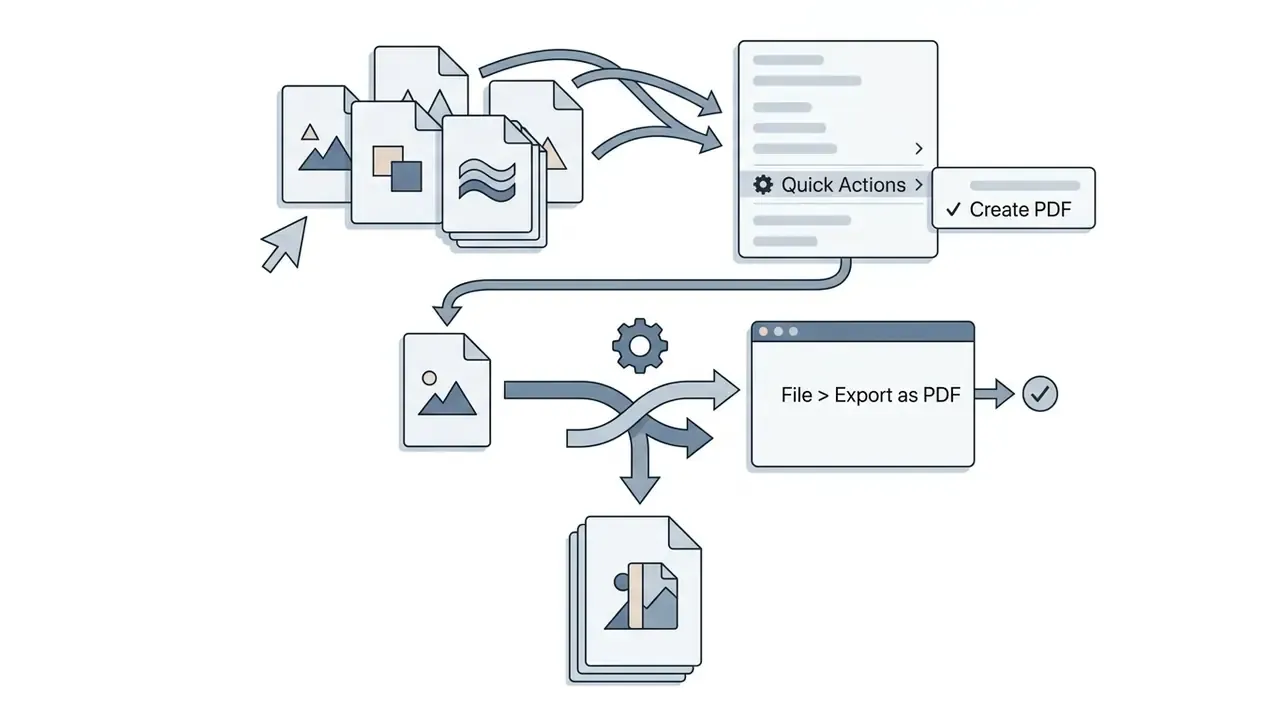
| macOS / iOS: Quick Actions → Create PDF | Instant conversion from Finder or the Files app | ~5 seconds | Built into Apple OS |
In one sentence: upload the image (from your device, Google Drive, or Dropbox), pick page size, orientation, and margins, then convert and download the PDF, or skip the web entirely and use the print-to-PDF feature already installed on your operating system.
Before you convert: three questions that decide the method
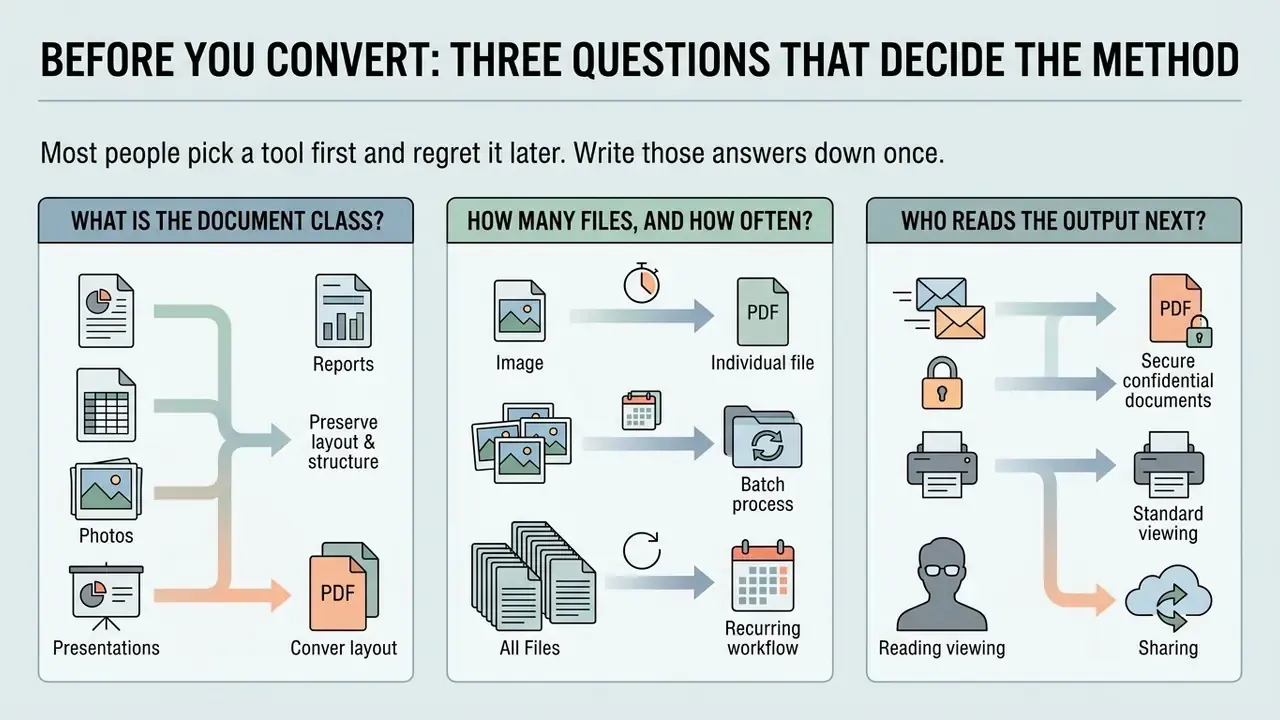
Most people pick a tool first and regret it later. Reverse the order. Answer three questions, and the right route picks itself.
- What is the document class? A vacation photo and a customer ID scan are not the same object. Anything containing PII, PHI, KYC evidence, account statements, or privileged exhibits should stay inside your environment and use a native operating system method.
- How many files, and how often? One screenshot is a manual job. Four hundred receipts a week is a pipeline job, and it needs deterministic naming, fixed DPI, and an API rather than human clicks.
- Who reads the output next? A human on a laptop tolerates 150 DPI. An OCR engine feeding a reconciliation workflow, or a federal e-filing portal, usually will not. Set resolution for the strictest downstream consumer, not the easiest one.
Write those answers down once. They become your internal conversion policy, and they remove most of the arguing later. If you are also building out adjacent media pipelines, the same triage logic applies to how to make a wallpaper or video assets: sensitivity first, volume second, quality target third.
How to make an image a PDF online
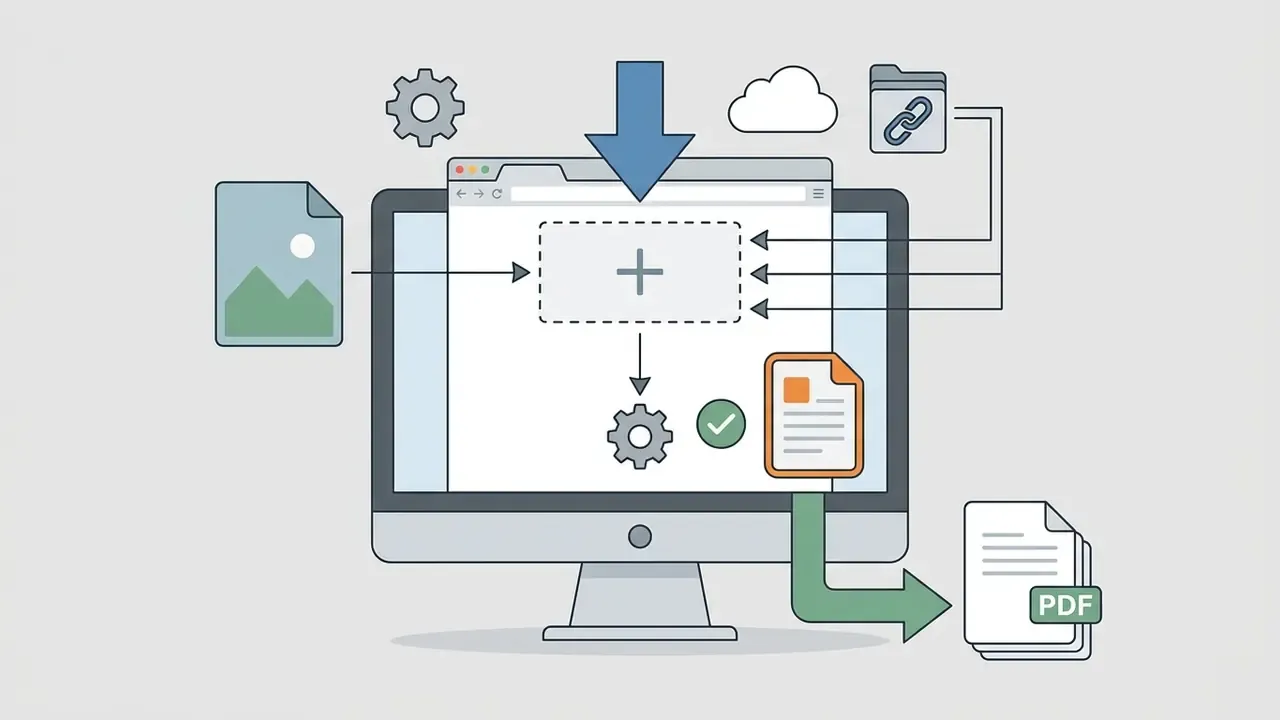
To make an image a PDF online, upload your image file to a secure web browser conversion tool, select your preferred page layout parameters, and export the generated PDF document. Modern online tools process raster formats automatically and package pixel data into a standardized PDF container suitable for sharing, printing, or archival storage.
- Select an online PDF converteropen a secure web browser tool or web application.
- Upload the image filedrag and drop your image file or import it from local storage, Google Drive, or Dropbox.
- Configure PDF page settingschoose page size, orientation, and margin spacing.
- Convert and downloadexecute the PDF conversion process and save the converted PDF file to your device or back to the cloud.
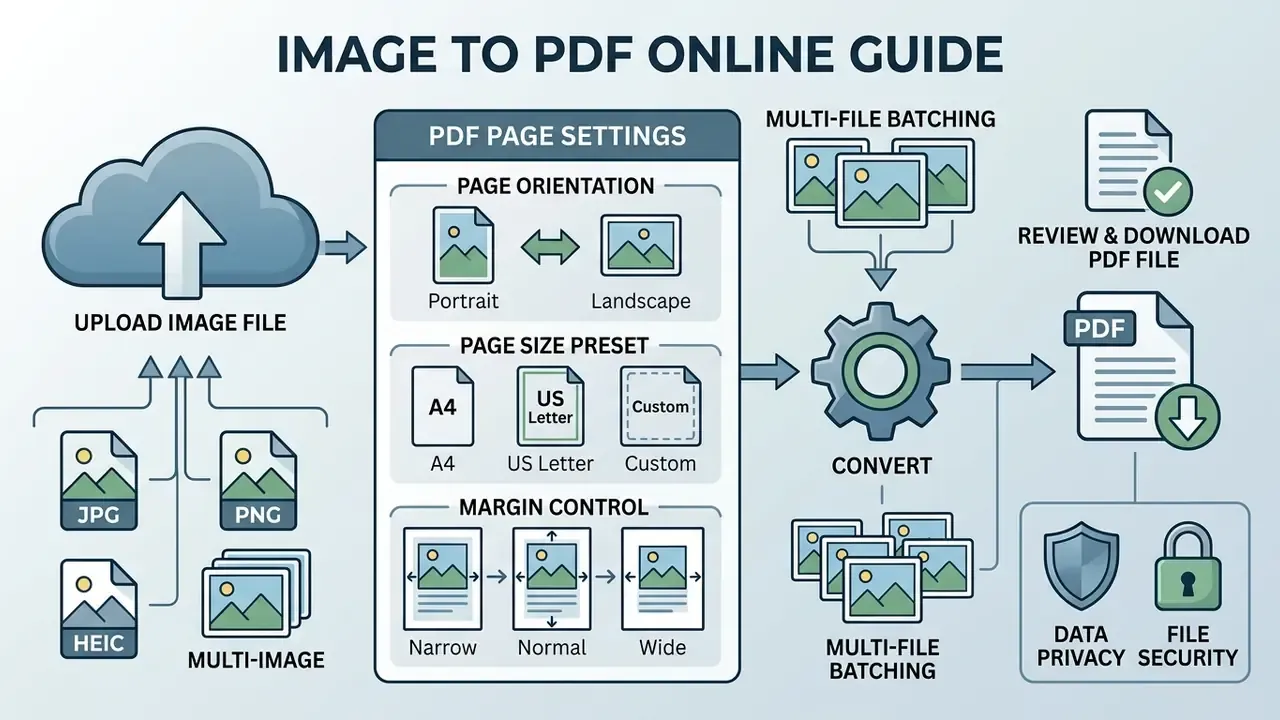
Upload an image file and choose PDF page settings
To make an image a PDF online, upload your files directly from your local device, Google Drive, or Dropbox. Once the upload finishes, configure the key page parameters before triggering the conversion:
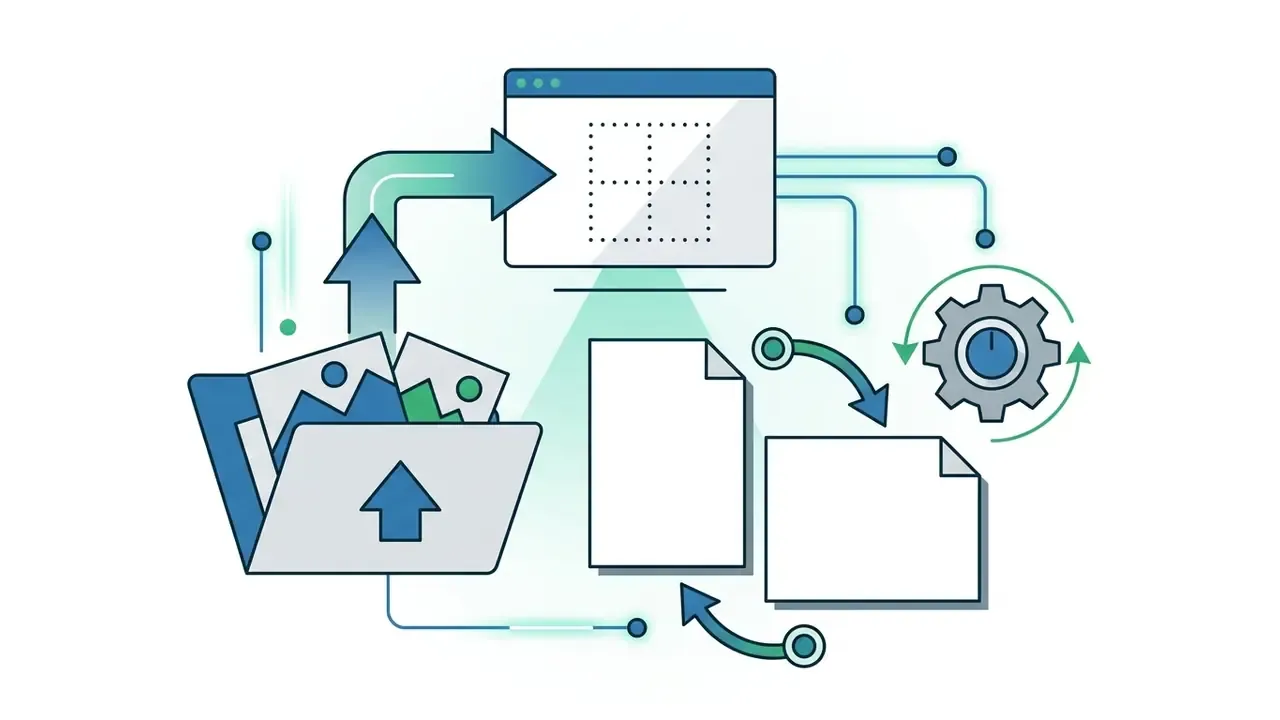
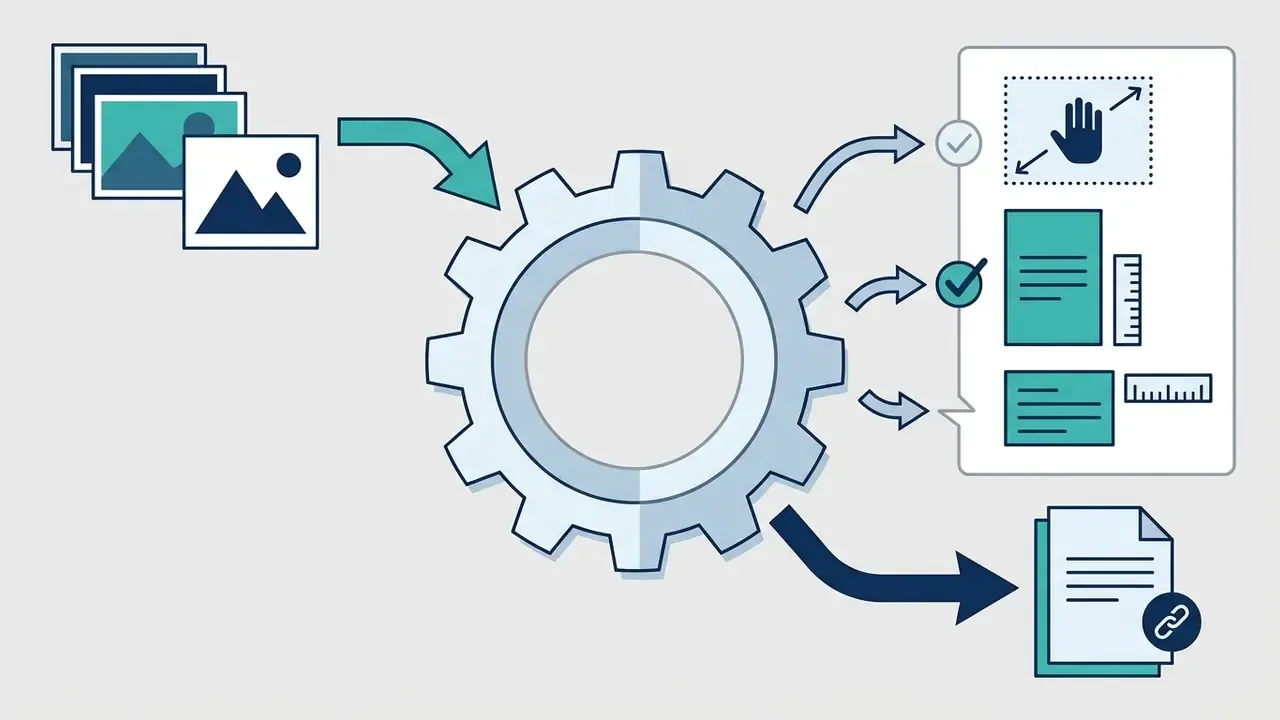
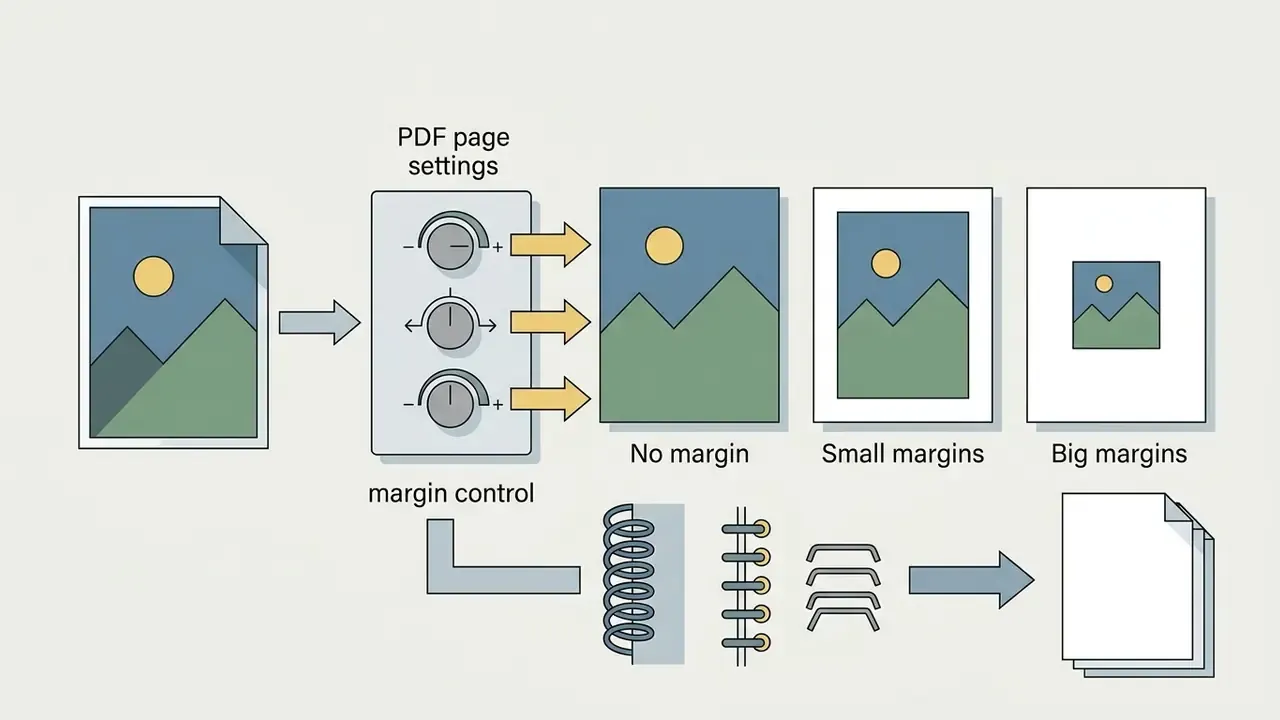
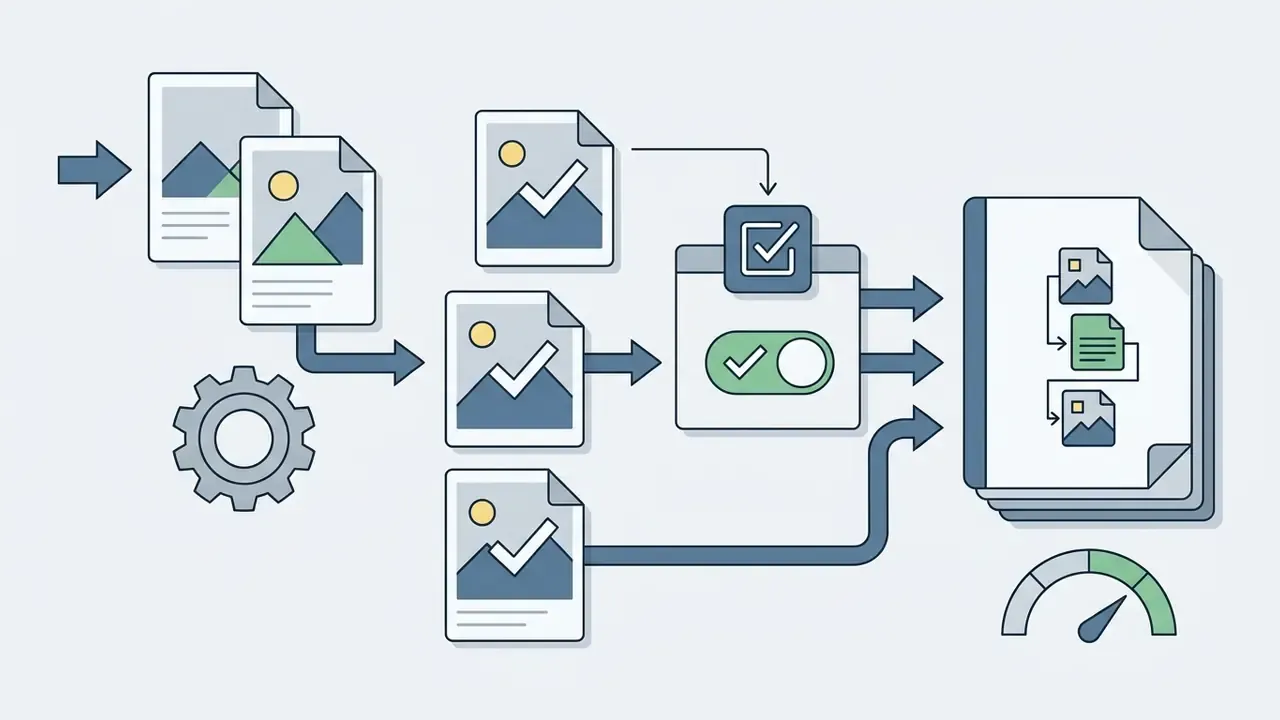
Uploading an image file to a web browser converter means settling these layout decisions before you execute the file conversion. Standard page setups let you select paper dimensions, such as A4 or US Letter, and switch orientation between portrait and landscape modes.
According to RFC 7995 and RFC 2346 guidelines for standardized document rendering, standard page layouts hold document structure together when raster images become fixed-layout digital files. RFC 7995 recommends A4 in portrait mode with 20 mm left and right margins and 33 mm top and bottom margins as a documented baseline. You can set margins to zero to preserve the exact image dimensions, or apply those 20 mm side margins to keep physical print compatibility.
"Uncompressed or lossless formats, TIFF and 24-bit PNG, are recognized as the highest-reliability formats for long-term storage of raster images."
Configuring these parameters before conversion keeps the resulting new PDF in proportion, with nothing clipped at the edge. A small thing that saves a resubmission: check the first page, not just the thumbnail.
Convert, review, and download the PDF file
Once page settings are established, the conversion command packages the raster data into a formal PDF stream. Built-in web browser viewers use native rendering engines to show a preview of the converted PDF file inside the browser window. RFC 7995 notes that PDF viewing is built into most major browsers, including Edge, Safari, Chrome, and Firefox, so no external reader is required for the review step.
RFC 3778 registers the application/pdf media type and documents that PDF files can be protected with encryption and digital signatures to control access and authenticate a file. The container-level protection itself is defined by the PDF specification (ISO 32000). In practice, that means the output PDF can be password-protected or signed after conversion, preserving data integrity during transfer.
"PDF/A is the preferred PDF version for archival storage: it embeds fonts and all required resources, prevents editing, and retains information in its original state."
Data privacy and file security: reputable web converters protect files with 256-bit SSL / TLS encryption during upload and processing. Uploaded images are handled in encrypted server memory, or entirely locally through browser WebAssembly, and are automatically and permanently deleted from cloud servers within one hour of conversion. Well-governed services do not store, analyze, or share documents with third parties. Verify each provider's retention window in its own privacy policy, because "free" can mean sign-in required, deletion after one hour, or unlimited use depending on the vendor.
After the review step, downloading the final PDF document saves the output locally, or writes it straight back to Google Drive or Dropbox. The whole end-to-end web browser process takes a few seconds and installs nothing permanent on the host device. Convenient. Also the exact reason unapproved tools spread quietly inside large organizations.
Make an image a PDF on Windows, Mac, iPhone, and Android
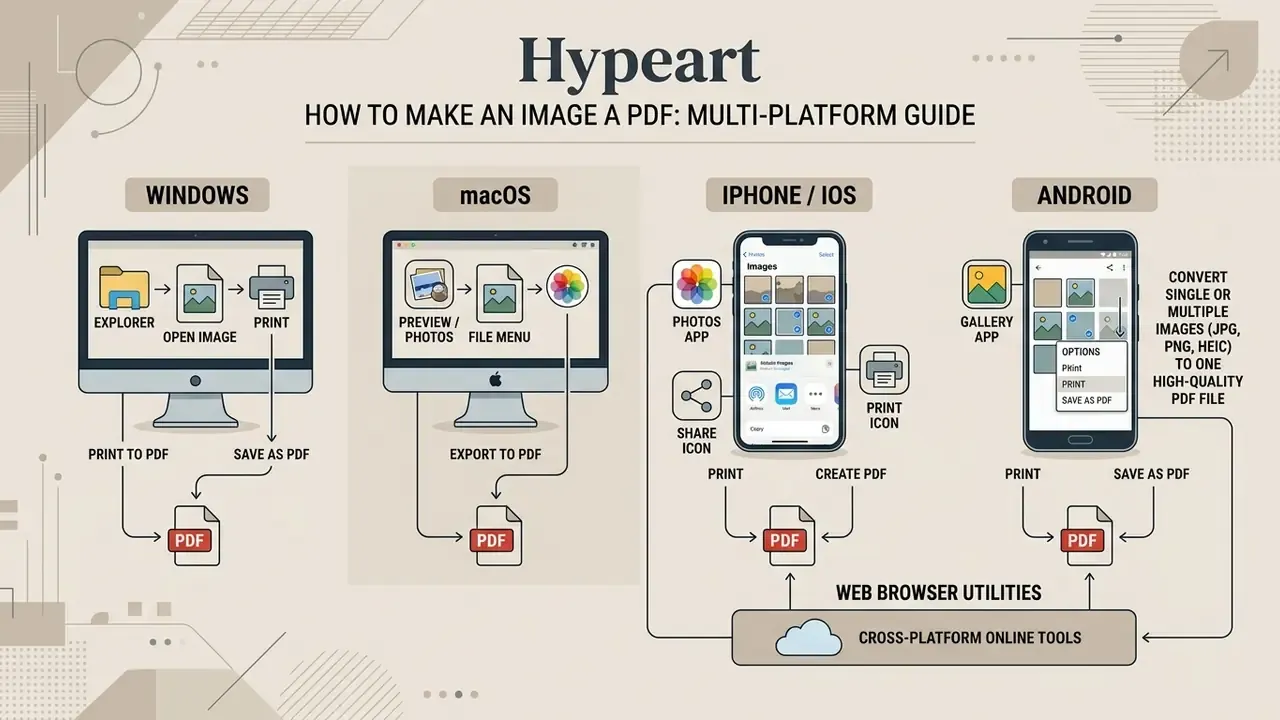
You can make an image a PDF on Windows, macOS, iOS, and Android using native operating system features or cross-platform web browser utilities. Built-in tools convert locally, without third-party software, which is the safest route when the image contains sensitive data.
Convert an image to PDF on a computer
On desktop operating systems, turning an image file into a high-quality PDF file can be done natively with built-in system tools, or through standard web browser services.
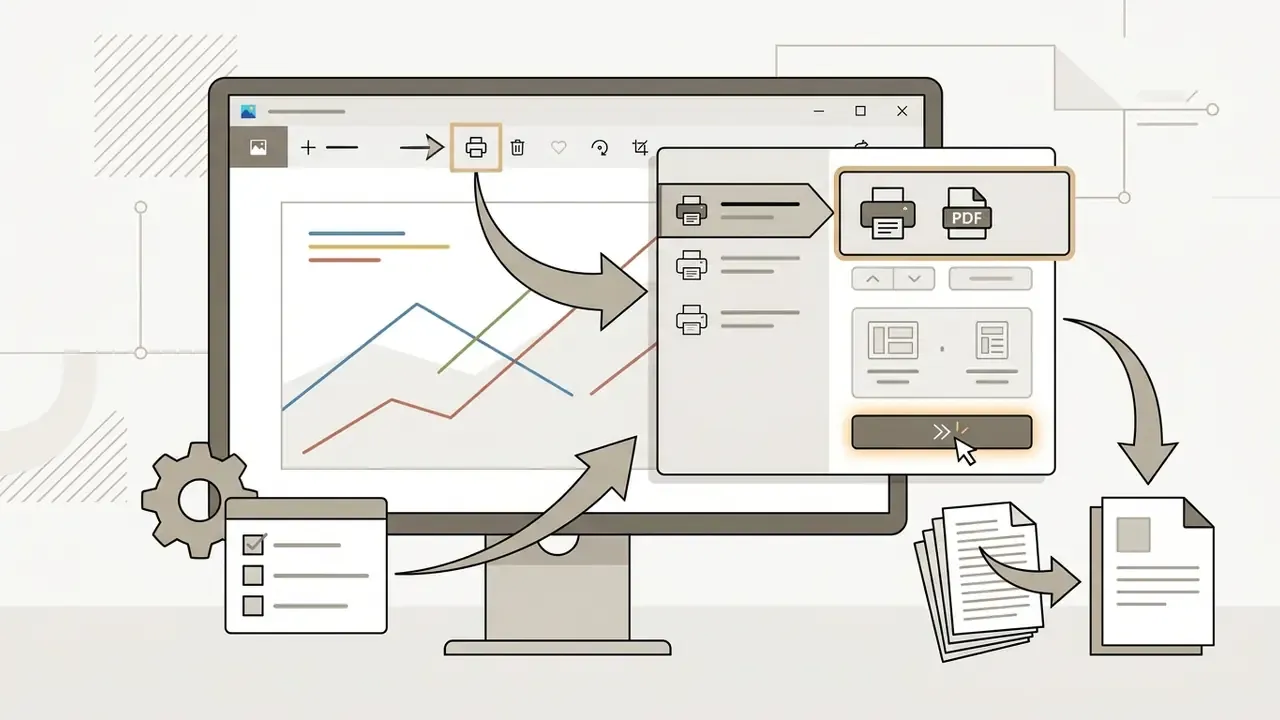
One detail worth noting: Microsoft Print to PDF rasterizes through the print pipeline, so it can silently resample a 300 DPI scan down to the selected paper size. For evidence-grade scans, prefer an export path rather than a print path.
Turn photos into a PDF on mobile devices
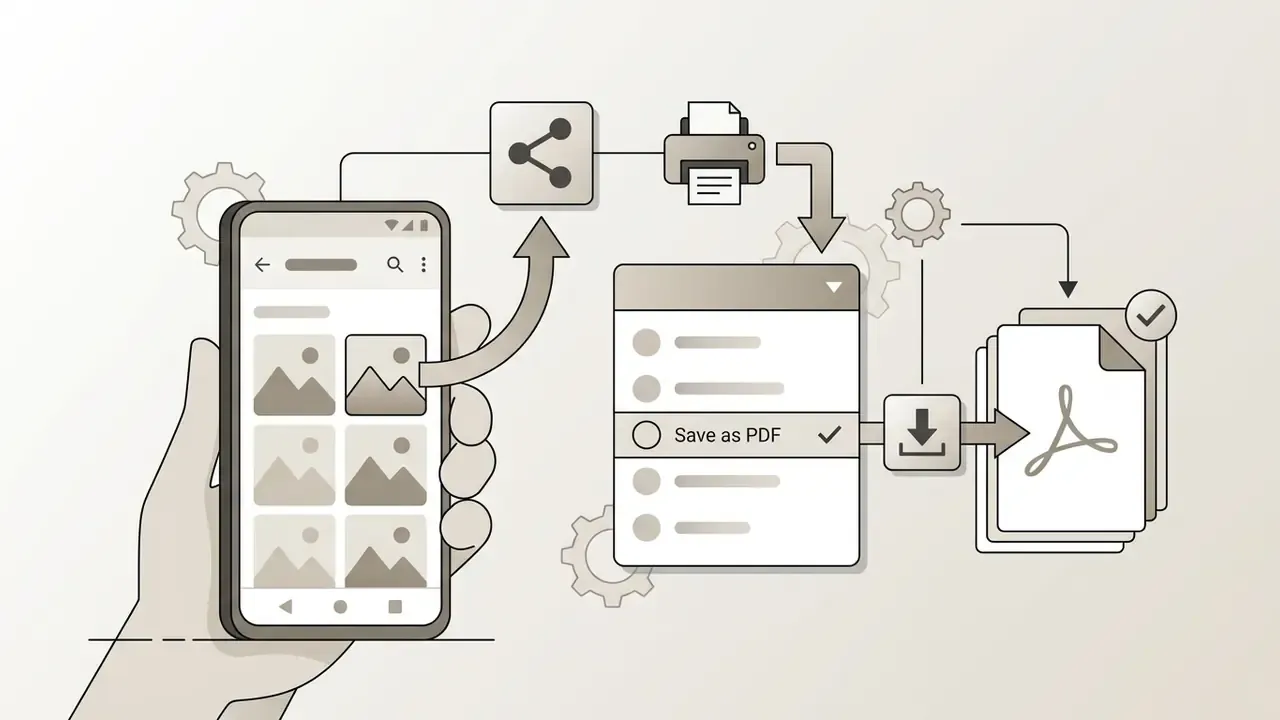
Smartphones and tablets running iOS or Android provide built-in share menus and system print queues that convert photos into PDF documents instantly.
"The SmartDoc-QA dataset shows that single and multiple smartphone capture distortions, including blur, shadows, and perspective, directly reduce readability and OCR accuracy in the resulting document."
- iPhone / iPad (iOS 13 to 17+):
- Method 1 (Files app): open the Files app, navigate to the folder holding your image, long-press the thumbnail, or tap the three-dot menu in the top-right corner to select multiple photos and then the three-dot menu at the bottom right. Tap Quick Actions, then choose Create PDF. The PDF is written to the same folder.
- Method 2 (Photos app print gesture): open the photo in Photos, tap Share, choose Print, then pinch outward with two fingers on the print preview thumbnail to render it as a full-screen PDF viewer. Tap Share to save the file to Apple Files, iCloud Drive, or another cloud destination.
- Method 3 (Preview export): on iPadOS, open the image in Preview, tap the Actions menu next to the file name, select Export, and choose PDF.
Because mobile capture quality dictates how legible the final document is, cropping, deskewing, and brightening a photo with AI photo editors before conversion measurably improves the readability of the resulting PDF. Shadow across the middle of a page is the single most common reason an otherwise fine receipt fails OCR.
How to make multiple images into one PDF
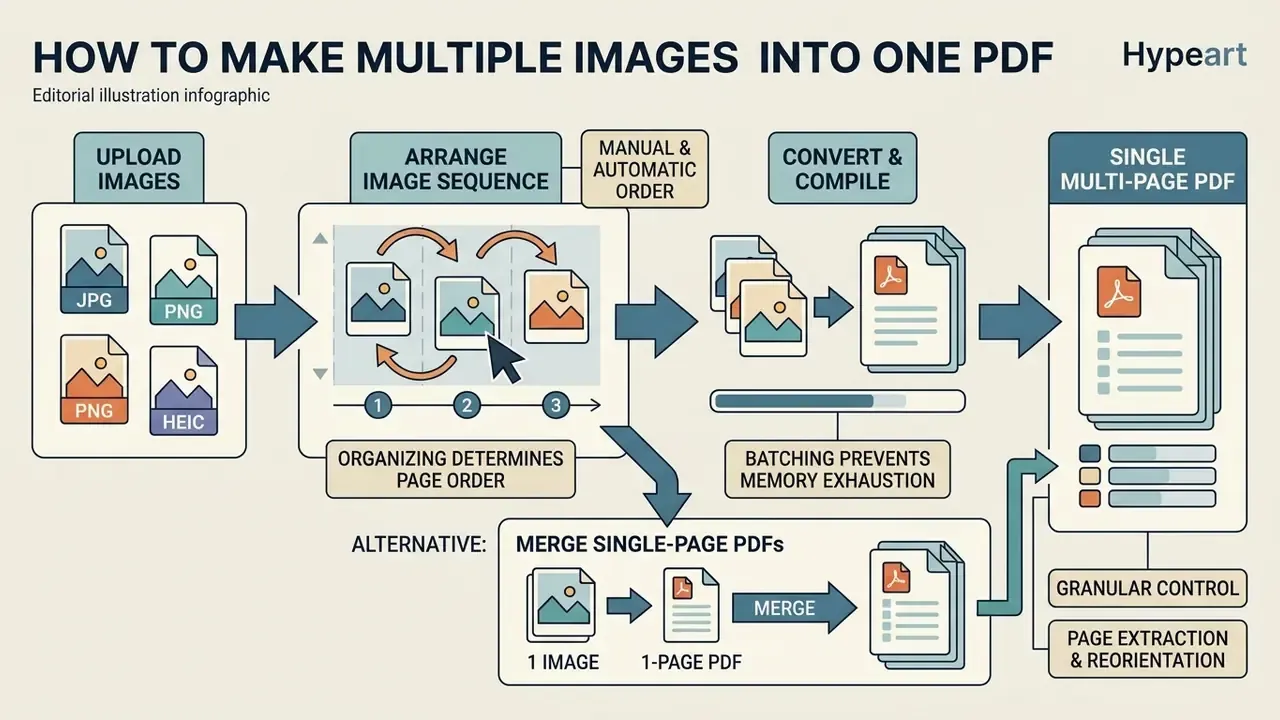
To make multiple images into one PDF, upload all required image files into a conversion queue, arrange their sequence manually or automatically, and compile the list into a single multi-page PDF document.
Arrange multiple images before creating one PDF
"Compression artifacts are only one of many kinds of quality degradation; defocus, shadows, uneven illumination, and perspective distortion often affect OCR accuracy more strongly."
That batching strategy prevents browser memory exhaustion while it builds a structured single PDF containing every source photo in sequential order. If you later need to pull wording out of those pages, image-to-text tools can generate a searchable text layer over the assembled document. Useful when a reviewer asks for a keyword search across 90 scanned pages and nobody wants to read them by hand.
Merge converted files into a single PDF
An alternative approach to multi-image assembly: convert individual image files into single-page PDFs first, then use a merge PDF tool to combine them into one PDF. Merge utilities join independent PDF object trees, update page index tables, and output a unified document container. The same platforms usually let you split PDF files afterwards, which matters when one master document has to be broken into per-case exhibits.
A merge PDF workflow gives operators granular control over page extraction, orientation correction, and metadata assignment across individual sections. Most platforms also allow reordering by dragging page thumbnails in an Organize Pages panel after the merge, which is how engineering and DOT-style sheet indexes get assembled in the correct plan order. This modular approach earns its keep when legacy PDF documents have to be combined with newly scanned image files into one standardized master. If you need to compare tool capabilities side by side before standardizing, an AI Media Comparison view is a faster starting point than vendor datasheets.
Convert JPG, PNG, and other image formats to PDF
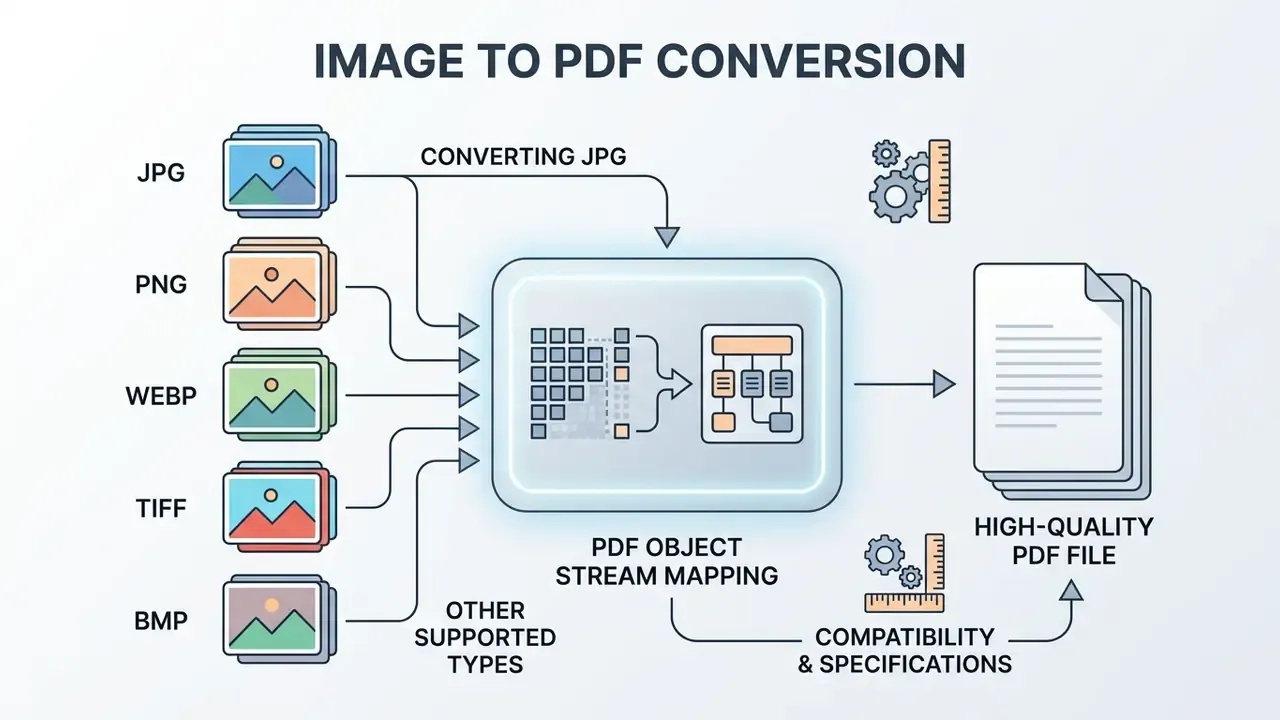
Converting different image formats to PDF means mapping distinct raster pixel structures, such as JPG, PNG, WEBP, TIFF, or BMP, into a standardized PDF object stream. Each file type carries its own compression properties, color profile handling, and transparency behavior, and each of those influences final output quality.
How to convert JPG to PDF
"Text and line art always contain artifacts in JPEG; for such material use PNG or PDF instead of JPEG."
During conversion, PDF page dimensions are derived from the image pixel count and embedded EXIF DPI metadata, typically defaulting to 72, 96, or 300 DPI. Phone cameras commonly tag 72 to 96 DPI, while flatbed scans tag 300 DPI. For commercial printing or document archiving, color management settings can preserve standard RGB spaces or map channels directly into CMYK profiles. PDF/X-1a workflows convert all colors to the destination CMYK space and embed no profiles, which is the press-ready path. When the source photo is soft, noisy, or underexposed, running it through AI image enhancers before conversion produces a noticeably cleaner PDF page.
Converting PNG and other supported file types
Converting PNG, WEBP, TIFF, and BMP files into a PDF document requires format-specific handling to keep image sharpness and structural data intact. PNG files use the ISO/IEC 15948 lossless compression standard and frequently include alpha channels for transparent backgrounds.
When you convert images so they become a unified PDF document, transparent PNG pixels are usually rendered against a solid white background or preserved through PDF 1.4 transparency layers. TIFF files, governed by ISO 12639, often store multi-page raster data or prepress CMYK layers, which makes them a natural fit for high-resolution document workflows. BMP files convert as uncompressed raster bitmaps, while modern WebP and HEIC container formats (HEIC is standardized as ISO/IEC 23008-12) need decoding before embedding.
"Among the tested lossy compression schemes, JPEG2000 with the CDF97 wavelet was found optimal, while WebP is a promising option for lossless compression."
One correction to a common assumption, and it matters for print teams: converting a raster image to PDF never converts it to vector artwork. The PDF stores the original bitmap, so final sharpness stays bounded by source resolution. Published throughput and fidelity tests, such as those collected in AI Media Benchmarks and Review Proof, are a sane way to sanity-check vendor quality claims.
Image format compatibility and PDF conversion specifications
| Image format | Best used for | Pre-conversion check |
|---|---|---|
| JPG / JPEG | Photographs and complex continuous-tone images | Verify source resolution and check for lossy edge artifacts |
| PNG | Screenshots, line graphics, and transparent text images | Confirm 24-bit color depth and background transparency handling |
| WEBP | Web graphics and compressed digital imagery | Verify whether source compression is lossy or lossless |
| TIFF | Scanned documents and high-resolution prepress masters | Check internal compression encoding (LZW, Group 4, or uncompressed) |
| HEIC | Mobile camera photos from modern smartphones | Ensure converter decoder support before batch upload |
| BMP | Legacy uncompressed raster images | Prepare for larger source file sizes during transmission |
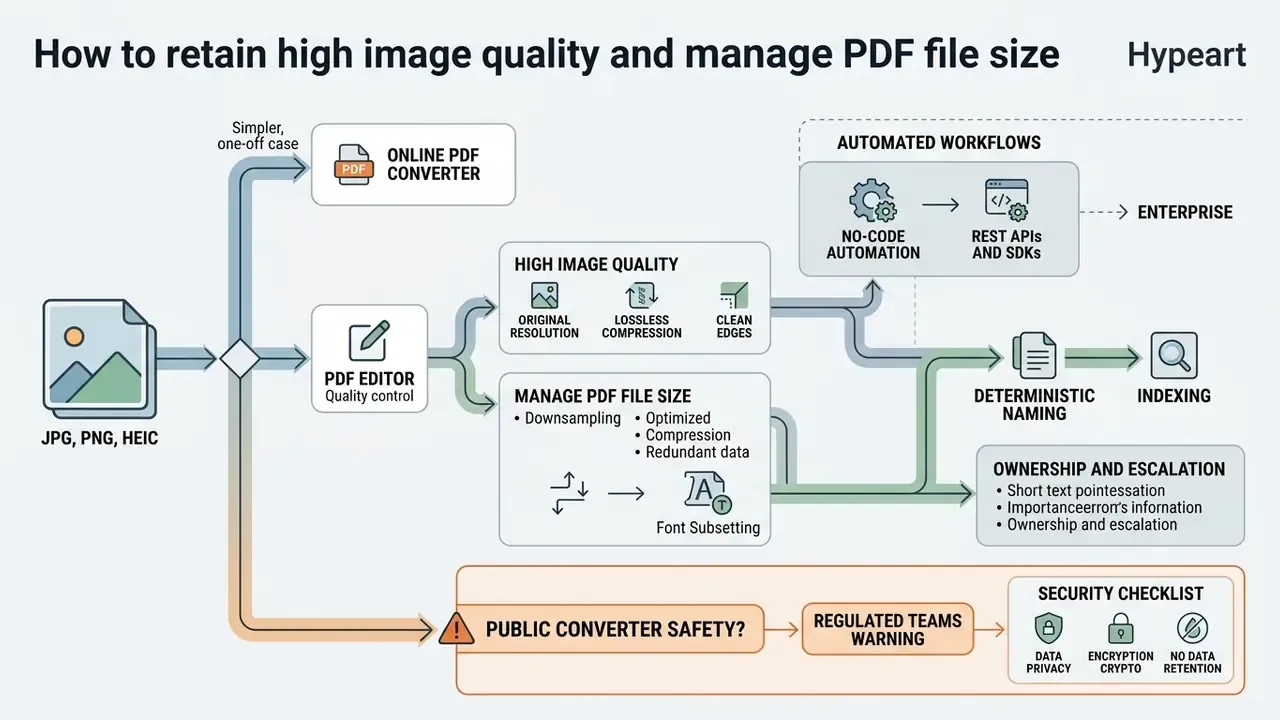
How to retain high image quality and manage PDF file size
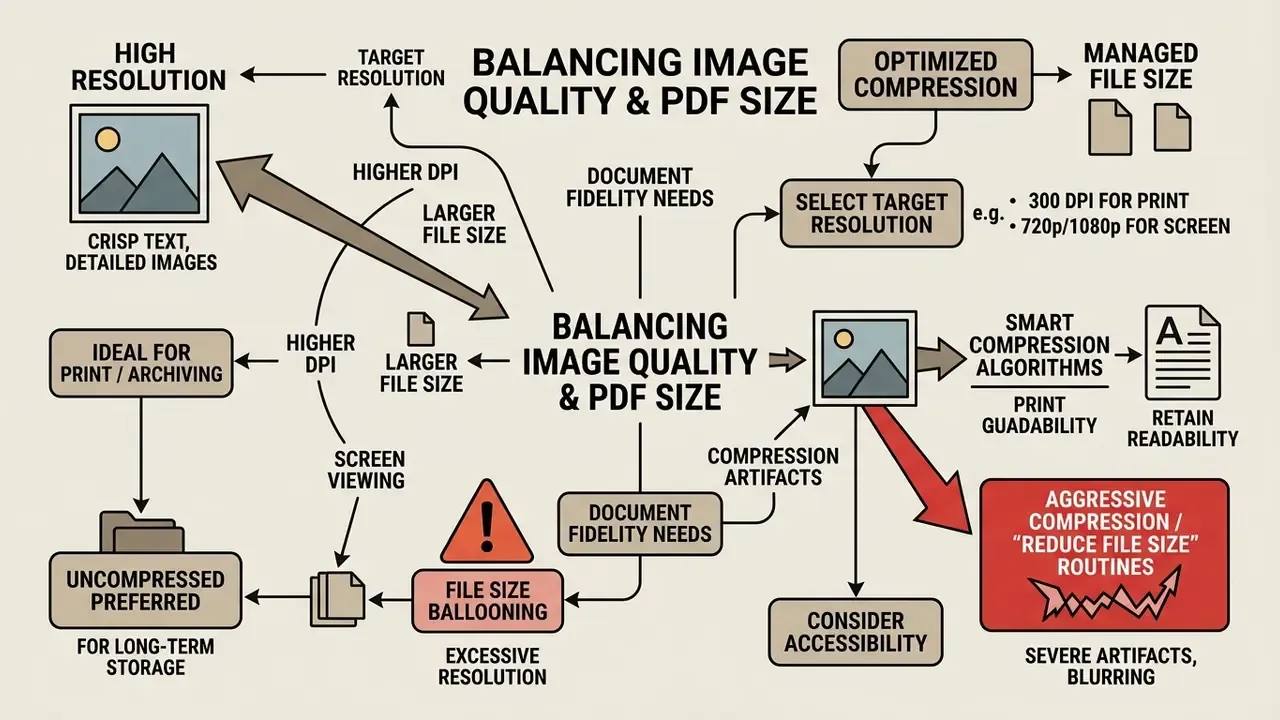
Retaining high image quality while managing PDF file size is a balancing act across raster DPI resolution, compression algorithms, and the fidelity the document actually needs.
Setting the right target resolution keeps files from ballooning while text stays crisp for human readers and for optical character recognition (OCR) engines. A practical rule from PDF optimizer documentation: JPEG compression yields far smaller files than ZIP/Flate for continuous-tone photography, whereas ZIP performs better on flat-color graphics, screenshots, and line art.
"Running 'Reduce File Size' in Acrobat may be inappropriate for PDFs containing fine image detail; inspect the PDF at 100% zoom before finalizing."
Quality versus file size decision matrix for PDF generation
| Usage scenario | Target DPI resolution | Compression profile | File size impact |
|---|---|---|---|
| Commercial print / archival preservation | 300 DPI or higher (600 DPI for line art and grayscale) | Uncompressed / ZIP (lossless) / CCITT Group 4 for bilevel | Large file size, maximum visual fidelity |
| Email attachments / office use | 150 DPI | Medium JPEG (lossy) | Balanced file size, sufficient legibility |
| Web publishing / screen display | 72 to 96 DPI | High JPEG (aggressive) | Minimal file size, optimized transfer speed |
Read the matrix as a rule of thumb, not a mandate. Archival and press work stays lossless at 300 DPI or above; routine internal circulation survives 150 DPI; screen-only material can drop to 72 to 96 DPI. If you need to model storage and bandwidth cost across thousands of documents before choosing a profile, the calculators route is faster than guessing.
Where accessibility matters, remember that U.S. Section 508 guidance for accessible PDFs requires alternate text for images, and federal submission guidance frequently specifies 220 to 300 PPI for embedded images and 300 PPI for scanned pages. An image-only PDF with no text layer fails both readability and accessibility review, and that failure usually surfaces late, after the filing deadline.
When to use an online PDF converter or a PDF editor
Choosing between a free online PDF converter and a full PDF editor comes down to one question: are you transforming a file type, or changing document content?
"Existing reviews of document-image compression identified no public, open-source, multi-threaded benchmark that simultaneously measures file size and text-recognition metrics."
So the honest position is this: the evidence base for choosing one compression pipeline over another at scale is thinner than vendor marketing implies. Test on your own document mix.
Automated image-to-PDF workflows for enterprise
For organizations processing high volumes of receipts, invoices, or ID scans, manual conversion becomes the bottleneck. Modern PDF platforms offer automated integration paths:
- No-code automation connect conversion tools to Zapier, Make, or Microsoft Power Automate so images landing in Google Drive, SharePoint, or an email inbox are transformed into standardized PDFs automatically, with no operator clicks.
- REST APIs and SDKs developers can run programmatic image-to-PDF conversion at scale, defining custom DPI profiles, margin rules, page-size presets, and PDF/A compliance metadata inside application pipelines. Implementation patterns are documented in the AI Media API Guides.
- Deterministic naming and indexing automated pipelines should stamp deterministic file names and page indexes at ingestion, so every generated PDF stays reconcilable to its source image during an audit.
- Ownership and escalation assign a named owner for the conversion service, define what happens when a file fails validation, and log the retry. No evidence, no autonomy applies to document pipelines too. Licensing terms for high-volume output are worth reading early, and the AI Media Commercial-Use notes cover the usual traps.
Security checklist: can this document go into a public web converter?
- Does the tool guarantee 100% client-side processing (JavaScript or WebAssembly in the browser) so files never leave the device?
- If processing is server-side, does the vendor publish a retention window (for example, permanent deletion within one hour) and a no-third-party-sharing commitment?
- Is transport protected by TLS / 256-bit SSL, and does the provider hold recognized attestations such as SOC 2 Type II or ISO/IEC 27001?
- Is the document class permitted to leave your environment at all under internal policy, or does it need an on-premise or native OS conversion route instead?
- If any answer above is "no" or "unknown," use the built-in operating system method (Microsoft Print to PDF, macOS Quick Actions, iOS Files) rather than a cloud service.
On the feasibility of the safest option: the W3C specifies that WebAssembly is a safe, portable low-level code format that runs wherever JavaScript runs, with no ambient access to the host environment. I/O and OS calls must be explicitly imported and controlled by the embedder, and Content Security Policy Level 3 can block WebAssembly compilation outright. That sandbox is what makes genuinely local, in-browser image-to-PDF conversion possible without transmitting document data anywhere. Verify the claim, though. Plenty of services advertise local processing and still upload.
FAQ: making images into PDFs
Can I make an image a PDF for free?
Yes. You can make an image a PDF for free with native operating system tools (Microsoft Print to PDF on Windows, Quick Actions on Mac) or free online PDF converters. Many public web tools let you upload, convert, and download without subscription costs, though free tiers often cap maximum file size (anywhere from 5 MB to 1 GB) or batch file count. Observed free-tier limits run from 5 files to 20 files per job, and some services add a watermark while others explicitly do not.
"JPEG and TIFF hold 'full support' status in repositories, whereas PNG, BMP, and JPEG2000 receive only 'limited support', worth considering when choosing a free tool." - Colorado State University Mountain Scholar Guidelines, rev. August 2025. https://mountainscholar.org/
Can you make an image a PDF without installing software?
Yes. You can make an image a PDF without installing software by running the conversion inside any modern web browser. Contemporary web conversion tools use client-side JavaScript and WebAssembly (Wasm) execution models, so file processing can happen locally in the browser sandbox without sending raw document data to external cloud servers.
"Learned neural compression methods achieve better compression ratios than JPEG but run significantly slower, which limits their use in real-time browser converters." - Ozturk, "Comparison of Learned Image Compression Methods and JPEG", IEEE (2024). https://ieeexplore.ieee.org/
Can I edit text inside an image after converting it to PDF?
Converting a JPG or PNG image to PDF wraps the pixels inside a PDF container, but it does not make the text editable. To extract or edit text from scans and photos, run an Optical Character Recognition (OCR) pass in a PDF editor (Adobe Acrobat Pro or dedicated OCR software) to generate a searchable text layer over the image. OCR accuracy depends heavily on capture quality: 300 DPI, even lighting, and a squared-up perspective materially improve recognition rates.
How do I convert a PDF back into an image format (JPG or PNG)?
To extract images from a PDF or turn PDF pages back into JPG or PNG files, use an online PDF-to-image converter or a desktop tool. Open the PDF, select Export / Convert to Image, choose your target format (JPG, PNG, or TIFF), set output DPI (300 DPI for print, 72 to 96 DPI for screen), and export the pages as individual image files.
What is the difference between merging individual PDFs and converting images directly into one PDF?
Direct image-to-PDF batch conversion arranges raw image files into a single sequence, then generates one PDF container. Merging converts each image into a separate PDF file first, then stitches independent PDF object trees together. Direct conversion is faster and lighter on memory. Merging lets you manage metadata and page-level security per file before final assembly.
Will my image quality drop when I convert it to a PDF?
Not if the converter embeds the source image at its original resolution without re-encoding. Quality loss shows up in three cases: the source was already lossy (a heavily compressed JPEG keeps its existing artifacts), the tool downsamples above a DPI threshold such as 150 or 300 DPI, or a "reduce file size" pass runs afterwards. Convert from the highest-quality master you hold, then inspect the output at 100% zoom.
Which image format should I convert from for the best PDF?
For photographs, convert from the original full-quality JPEG or HEIC. For screenshots, diagrams, and anything with text or line art, convert from PNG or TIFF, since lossless formats avoid the ringing artifacts JPEG leaves around sharp edges. For archival masters, uncompressed TIFF or 24-bit PNG remain the most reliable inputs, and the output should be saved as PDF/A.
How do I generate PDFs from images at high volume without manual work?
Use an API or a no-code automation flow with fixed parameters: page size, DPI profile, compression type, PDF/A flag, and a deterministic naming convention. Validate a sample of output pages weekly at 100% zoom, log every failed conversion with its source file name, and keep one named owner for the pipeline. Volume without verification is just faster error production.
Resource hub and related reading
- AI Media Workflows: technical documentation for enterprise digital asset conversion, file automation, and media processing architecture.
- Adjacent workflow guides: how to make a video presentation · how to make a video your wallpaper · how to make a youtube intro · how to make ai baby videos · how to make an ai video from a photo
- Tooling references: online photo editors · AI image enhancers · AI image upscalers · image-to-text tools · AI photo editors