Last updated: 2026. Written and reviewed by the AI Media Workflows editorial team with input from model-risk and creative-operations practitioners. We are independent of every vendor named below and receive no compensation for platform placement.
Executive Summary: What Matters Before You Upload
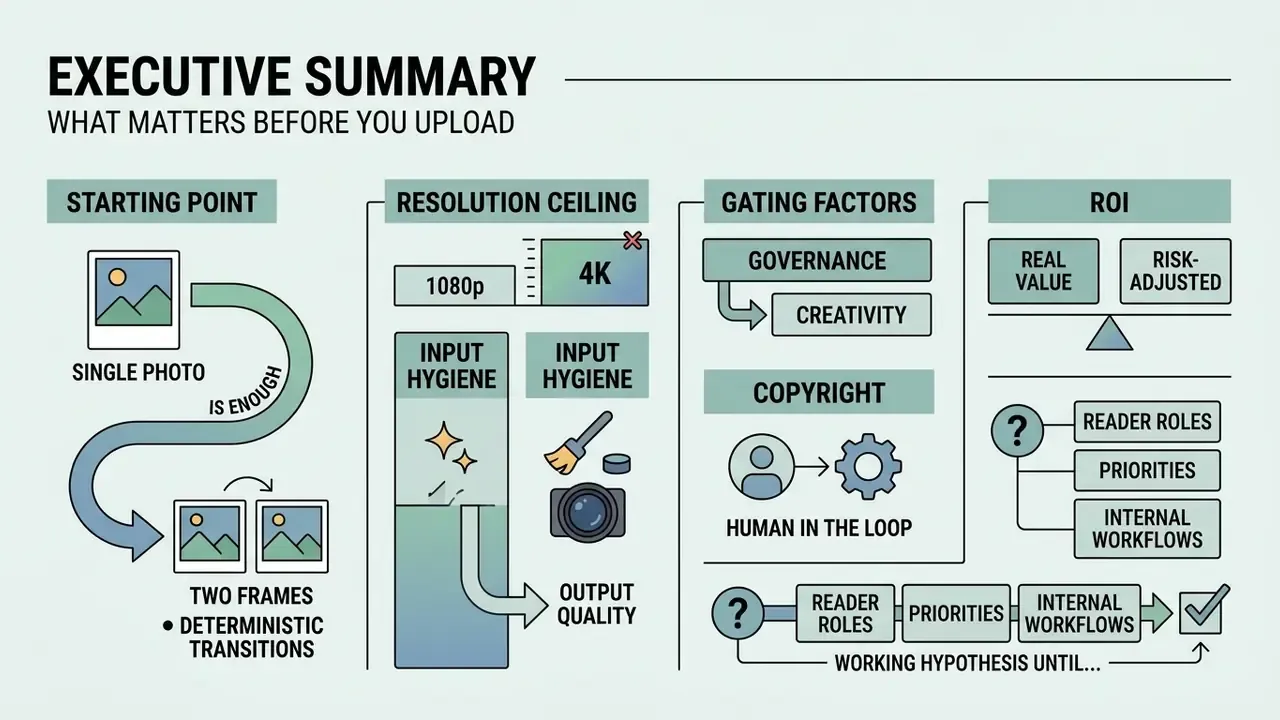
- Yes, a single photo is enough. Modern image-to-video (I2V) diffusion models condition the denoising process on one reference frame and extrapolate motion from it, preserving colors, contours, and geometry far more reliably than text-to-video. So the answer to "can AI create video from a single image" is a plain yes.
- Two frames give you deterministic transitions. Dual-image conditioning (Start Frame plus End Frame) is now standard in Adobe Firefly, EaseMate, Vidu, and Google Veo, and it is the fastest route to controlled product or state transitions.
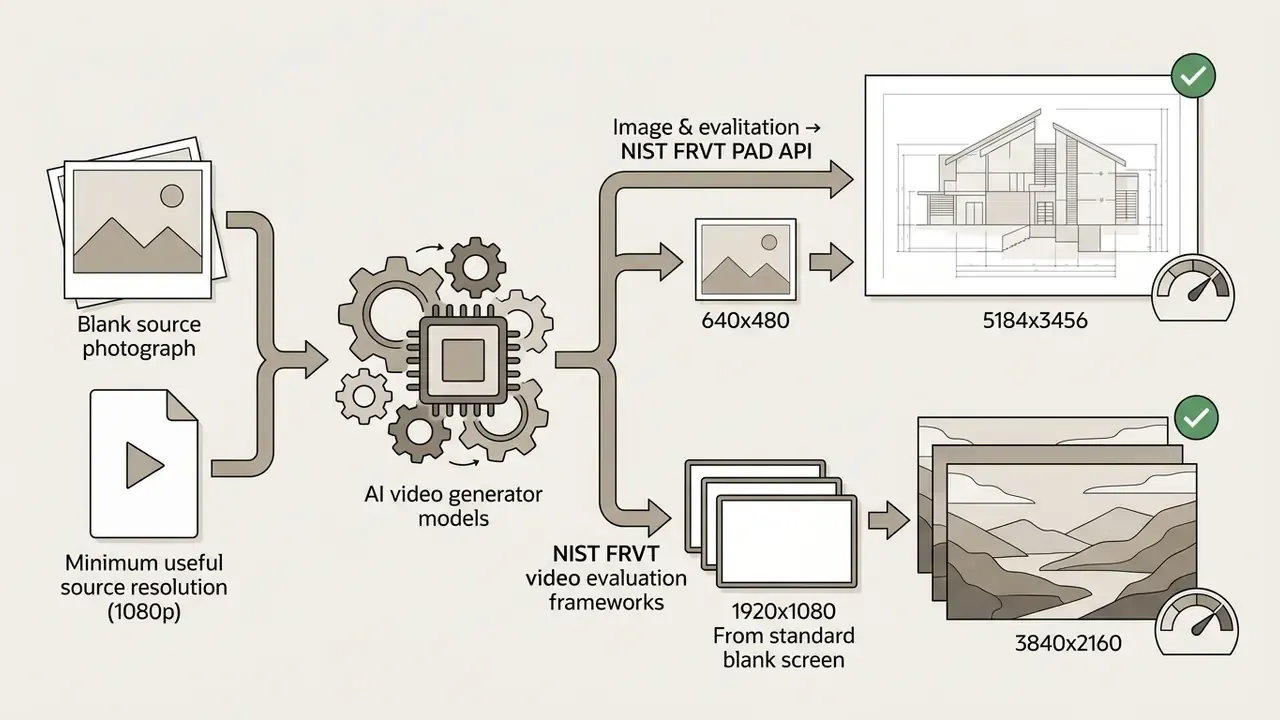
- The resolution ceiling is 4K, not 1080p. Ultra-tier architectures (Google Veo, Adobe Firefly, Runway Gen-3) deliver native or spatially upscaled 4K (3840x2160). Legacy 720p and 1080p caps now apply mostly to free tiers and fast-tier models.
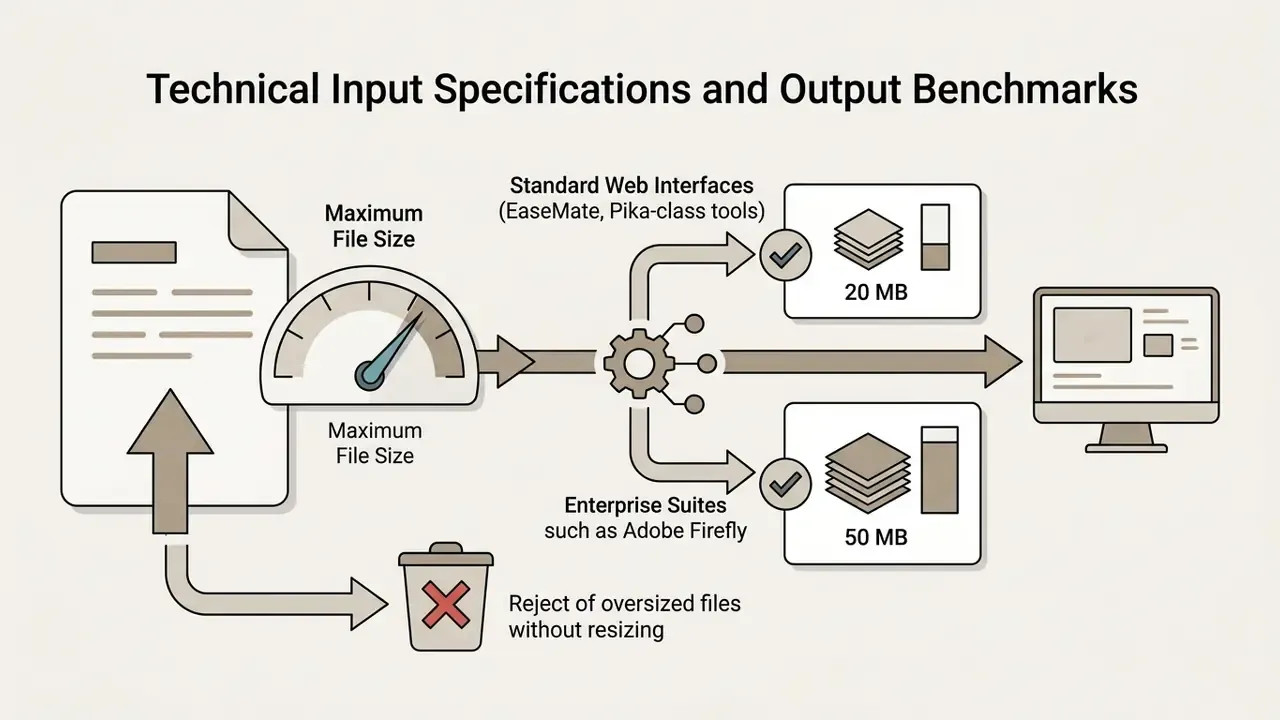
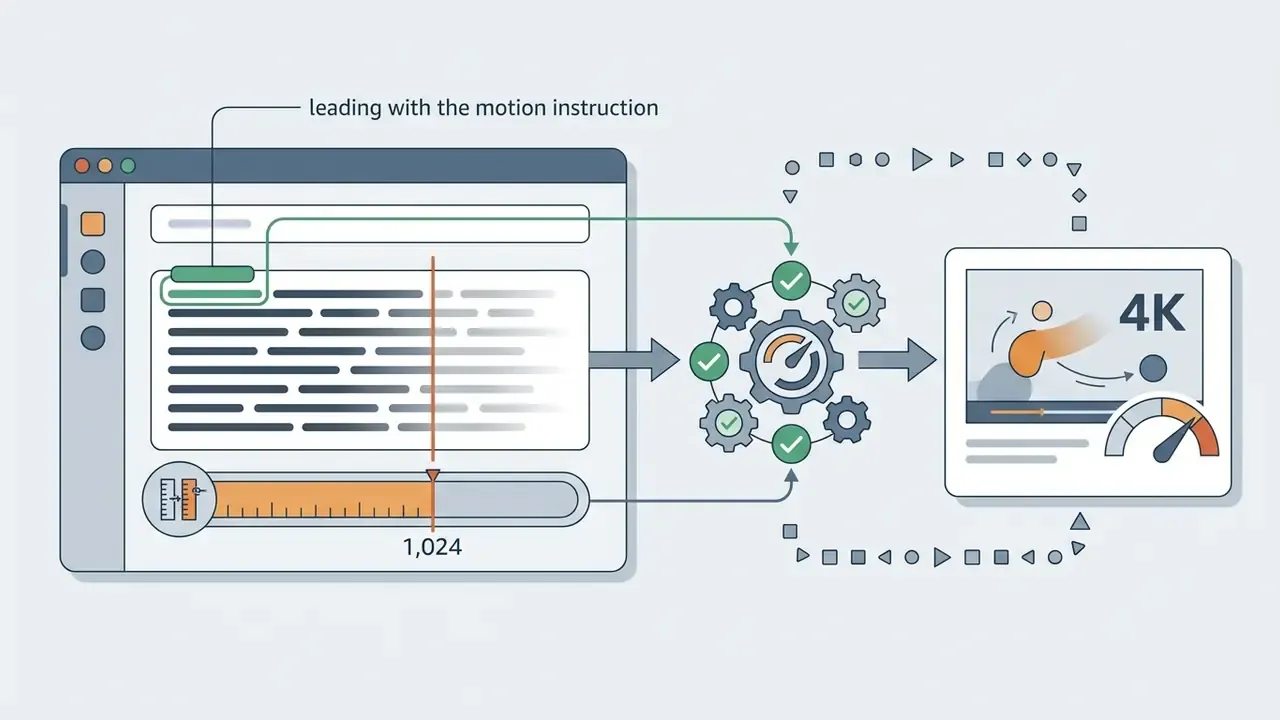
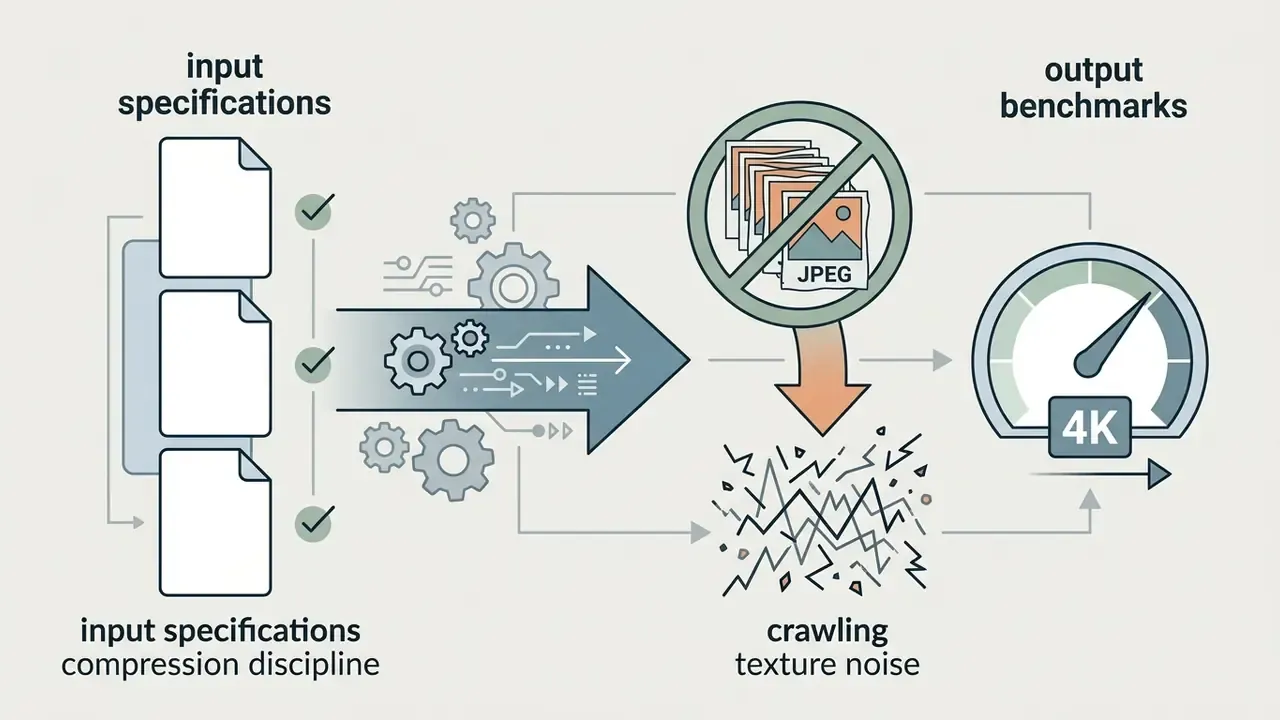
- Input hygiene drives output quality. JPG/JPEG/PNG/WebP, 20 MB (consumer web UIs) to 50 MB (enterprise suites), prompts capped near 1,024 characters, minimum 1080p source, one dominant subject, one dominant camera move.
- Governance is the gating factor, not creativity. Before upload, verify data-retention policy, SOC 2 or ISO 27001 attestation, zero-data-retention toggles, and whether prompts and images feed model training. Pushing customer photos, PII, or internal documents into a consumer-tier AI tool is the single most common Shadow AI failure mode we see described in incident write-ups.
- Copyright requires a human in the loop. According to the U.S. Copyright Office, purely AI-generated output without human creative arrangement is not eligible for federal copyright protection. Final human editing is a legal control, not a stylistic flourish.
- ROI is real but must be risk-adjusted. AI product video lifts e-commerce conversion from roughly 1.8% to 2.4%-2.6%, but a defensible business case also books control costs: review, validation, disclosure, and licensing verification.
Every statement below about reader roles, priorities, and internal workflows is a working hypothesis until validated against your own analytics, interviews, or CRM data.
Who This Guide Is For and How to Read It
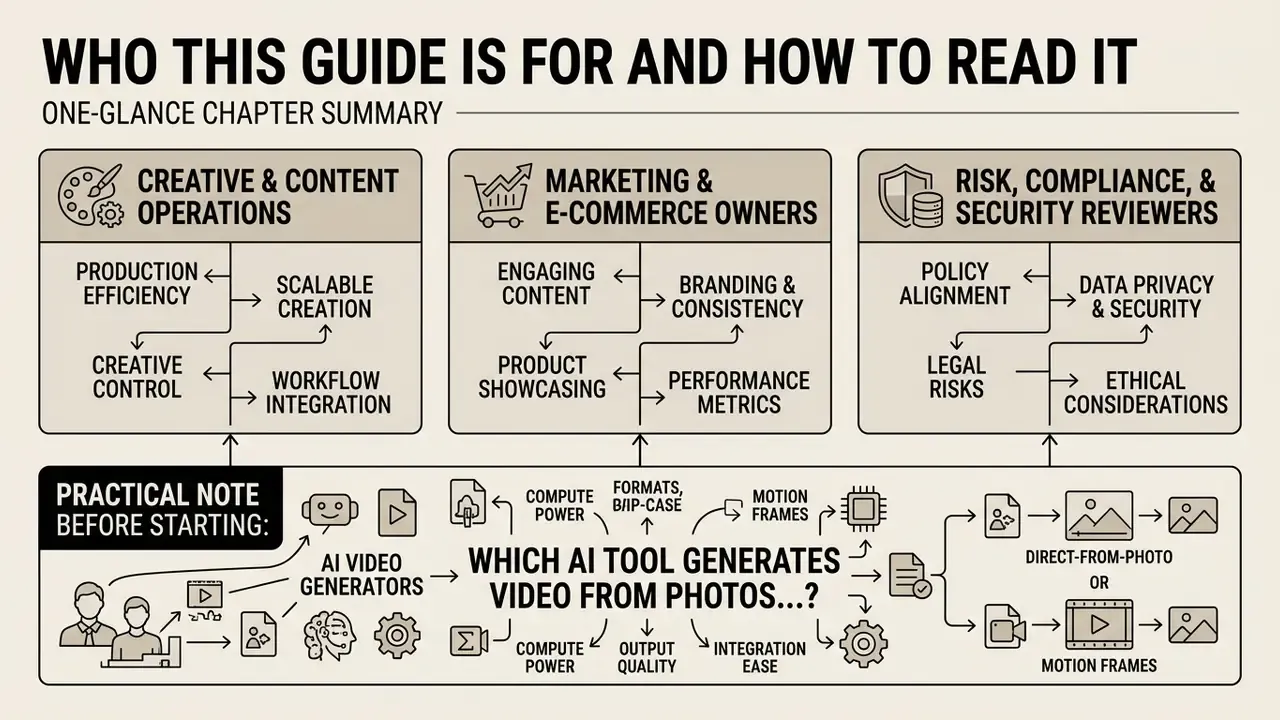
Three audiences tend to land on this page, and they need different things from it.
Creative and content operations. You want the shortest reliable path from a still to a publishable clip. Read the photo preparation, prompt, and step-by-step sections, then skim the troubleshooting table and keep it open during your first ten renders.
Marketing and e-commerce owners. You care whether animated product shots move the conversion number and what the true cost per asset is. Start with the use-case section and the risk-adjusted ROI paragraph, then come back for the tier model so your credit budget stays predictable.
Risk, compliance, and security reviewers. You are being asked to approve an AI tool that ingests company imagery. Go straight to the data governance and vendor assessment tables, the pre-upload checklist, and the failure-mode taxonomy. Those three blocks are the ones that survive contact with an audit request.
One practical note before anything else: the technical questions ("which AI tool generates video from photos best?") are usually answered in an afternoon. The contractual questions take longer. Sequence them in parallel, not one after the other.
What Is Image-to-Video AI and Can It Animate a Single Photo?
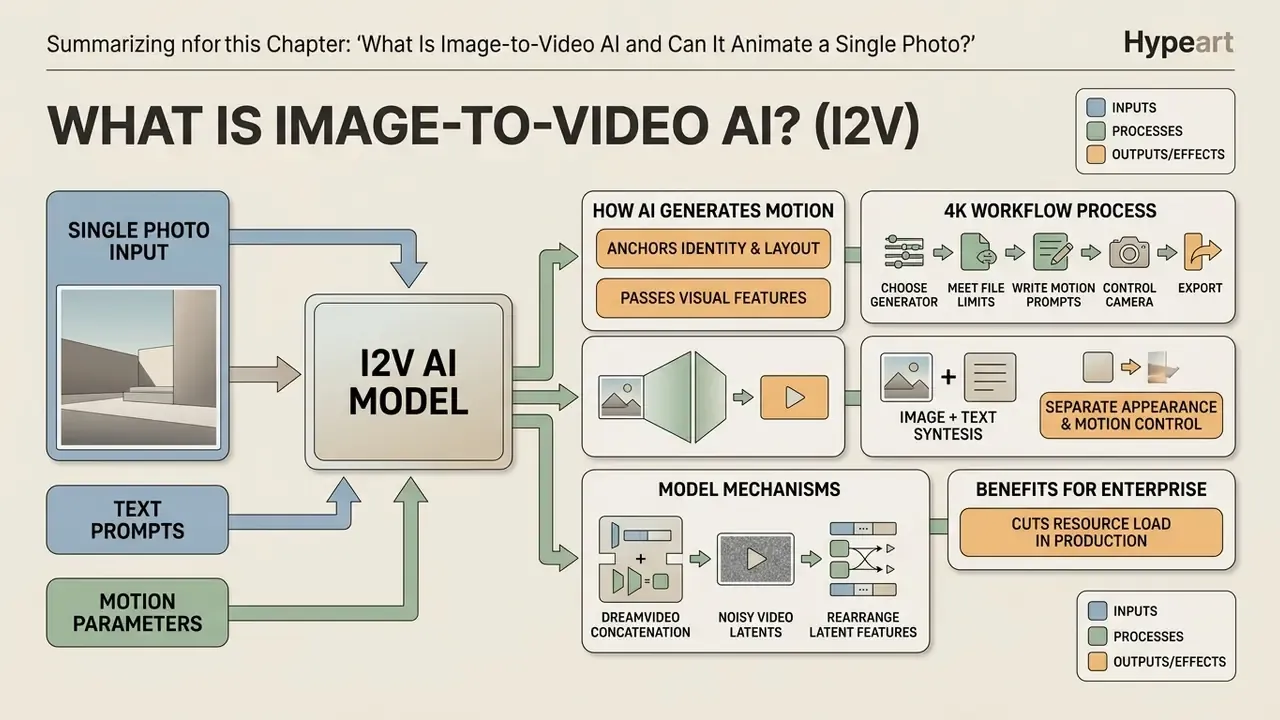
Image-to-video (I2V) AI is a generative technology that combines static reference images with text prompts or motion parameters to synthesize temporal frame sequences. If the terminology is new, our glossary entry on image-to-video AI defines the core concepts and tool categories. Yes, modern diffusion architectures can animate a single photo. They condition latent denoising steps on the spatial detail of the source image while extrapolating plausible movement across time.
«AIGCBench defines the image-to-video task as producing a dynamic video sequence from a static image and text, giving stricter content control than text-to-video.»
According to that framework, image-to-video generation anchors subject identity, spatial layout, and visual geometry to the input photograph. The AI video generator then infers motion trajectories from textual instructions, camera control settings, or structural depth maps. Research on tuning-free frameworks such as TI2V-Zero shows that video diffusion priors can initialize Gaussian noise from a single reference image and still produce coherent clips, with no retraining per subject. The CVPR 2026 VGBE challenge frames the same objective in evaluation terms: generate temporally coherent video from one reference image plus a text prompt while preserving scene coherence.
In enterprise media production, converting an existing image into video content cuts the resource load of live-action filming: no studio day, no crew call, no reshoot for a colorway change. When evaluated through AI Media Benchmarks, single-image animation holds visual alignment better than open text-to-video generation, because the input photo sets hard boundaries for colors, contours, and object relationships.
For model-risk functions, that property matters more than it first appears. An I2V pipeline with a fixed, approved source asset has a narrower failure surface than open-ended text-to-video AI, which makes it easier to document inside an existing model validation framework. Narrower input space, fewer unexpected outputs, shorter review queue.
How AI Generates Motion From a Still Image
AI models generate motion from a still image by passing reference visual features through convolutional layers or cross-attention modules that interact with temporal denoising layers. Architectures like DreamVideo concatenate low-level image features with noisy video latents during reverse diffusion, which preserves fine detail (surface texture, lighting gradients, facial features) while the scene starts to move.
Camera movement and subject trajectories are synthesized by rearranging latent features across successive frames. Systems using epipolar attention, such as CamI2V, constrain feature aggregation along geometric lines between frames, which is what keeps a pan or an orbit geometrically sane instead of soupy.
«CamI2V improves camera controllability by 25.64% on RealEstate10K by aggregating features strictly along epipolar lines for cross-frame geometric consistency.»
By separating appearance control from motion control, video models generate natural movement without distorting the underlying character or product structure. ECCV 2024 work on scripted camera motion shows the same separation in practice: intermediate frames are warped during DDIM sampling to follow a specified camera direction and speed, while content consistency is measured against the reference image and frame-to-frame CLIP similarity.
How to Choose an AI Tool to Create Video From Photos
| AI platform / model | Tier class | Single-image support | Motion and camera controls | Aspect ratios | Evaluated image retention and quality | Audio capabilities | Access and licensing model |
|---|---|---|---|---|---|---|---|
| Google Veo / Gemini API | Ultra | Native (single frame and start/end frame) | Text-guided motion, iterative prompt refinement, frame-based editing, clip extension | 16:9, 9:16, 1:1 | High temporal continuity; up to 4K output (1080p on consumer surfaces) | Native synchronized audio generation | Enterprise API access (Vertex AI / Gemini API); credit-based pricing |
| Adobe Firefly Video | Ultra | Native single frame plus optional end frame | Pan, zoom, tilt, directional movement, shot-size presets, post-generation motion styles | 16:9, 9:16, 1:1 and custom project ratios | Depth- and perspective-aware synthesis; up to 4K export | Generate Music, Generate Speech, Generate Sound Effects in one workflow | Generative credits; trained on licensed and public-domain content for commercial safety |
| Runway (Gen-2 / Gen-3 Alpha) | Pro to Ultra | Native single-image input | Explicit camera control (pan, zoom, tilt, roll) plus motion brush | 1280x768, 768x1280, custom ratios | High image-first SSIM (0.803); strong structural preservation; upscaled 4K on higher tiers | Post-generation audio and sound effect alignment | Free trial with watermark limits (125 one-time credits); tiered monthly subscriptions |
| Pika | Fast to Pro | Native single photo upload | Pan, tilt, zoom, modify region, motion strength sliders | 16:9, 9:16, 1:1, 4:5 | High image-first SSIM (0.800); smooth localized subject movement | Integrated sound effects and voice generation | Free basic tier (80 monthly credits, 480p); commercial tiers from roughly $8/month annually |
| Stable Video Diffusion (SVD) | Fast (self-hosted) | Native single-image conditioning | Implicit latent motion; customizable via open-source workflows | Configurable via local web UIs | Higher optical flow motion; lower image retention (SSIM 0.612) | None (requires third-party audio integrations) | Open-weights model; infrastructure cost depends on self-hosting |
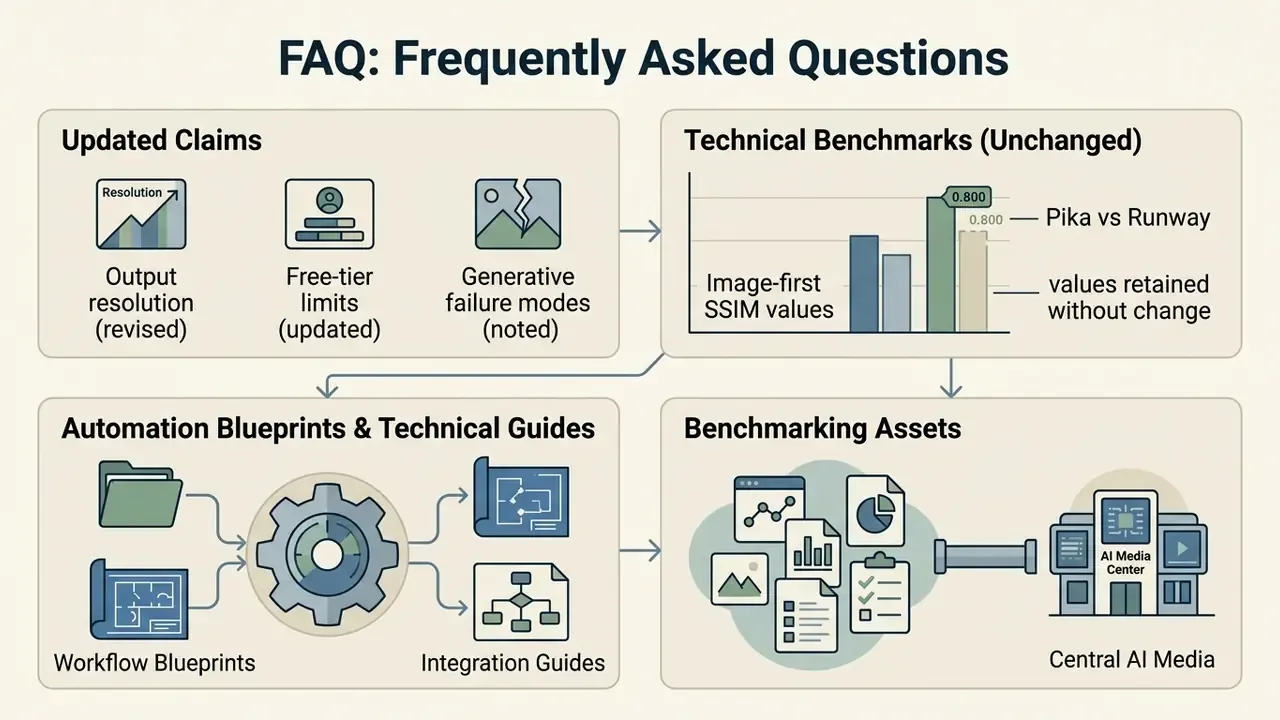
«AIGCBench reports image-first SSIM of 0.800 for Pika and 0.803 for Runway Gen-2, while SVD reaches only 0.612 with substantially higher optical flow.»
Model Tiers: Fast, Pro and Ultra
Rather than comparing dozens of model names, procurement and creative-operations teams can sort generators into three operational tiers by latency and cost. This mirrors how consumer platforms already expose model choice (Fast/Pro/Ultra selectors) and makes budget allocation predictable.
| Tier class | Exemplar models | Typical render time | Primary operational use case |
|---|---|---|---|
| Fast tier | Seedance Lite, Pika Free | Under 15-30 seconds | Rapid testing, social previews |
| Pro tier | Kling V2, Runway Gen-2 | 30-60 seconds | Marketing clips, UGC campaigns |
| Ultra tier | Google Veo, Firefly Video | 60-120 seconds | Hero assets, 4K film, B-roll |
A practical policy: prototype motion prompts on the Fast tier, where iterations are cheap, lock the approved prompt, then regenerate the final asset on the Ultra tier at 4K. This pattern usually cuts credit consumption per published asset, because the expensive renders are reserved for prompts that already passed review. It also produces something auditors like: a prompt history with a clear approval point.
Data Governance, Security and Vendor Assessment
Technical benchmarks answer "will it look good?" They say nothing about "may we upload this photograph?" For regulated organizations, vendor assessment needs a second evaluation layer before any pilot begins.
| Assessment criterion | What to verify | Why it matters |
|---|---|---|
| Data retention policy | How long uploaded images, prompts, and outputs persist; whether deletion is immediate, scheduled, or manual | Determines the exposure window for unreleased product imagery and customer photos |
| Training-data usage | Whether inputs and outputs train or fine-tune models; whether an opt-out exists | Prompt and image content can otherwise leak into future model behavior |
| Zero-data-retention option | Availability of ZDR or no-log toggles, or enterprise processing agreements | Required for most confidential and PII-bearing assets |
| Security attestations | SOC 2 Type II, ISO 27001, penetration-test summaries, regional data residency | The standard evidence set for third-party risk review |
| Tier-dependent terms | Whether free and consumer tiers carry different privacy and licensing terms than enterprise plans | Consumer tiers frequently reserve broader reuse rights |
| Provenance and disclosure | Content credentials, metadata, and watermarking behavior on export | Supports advertising disclosure and internal audit trails |
| Human review checkpoint | A documented approval step before publication | Anchors copyright eligibility and brand-safety controls |
Some vendors state that uploaded content is never stored in the cloud and is purged on a fixed cycle. Others quietly reserve reuse rights on free tiers. Treat every claim as a contractual question rather than a marketing one, and record the answer in the vendor file next to the technical benchmark. Who owns that file, and who reviews it when the vendor updates its terms? If nobody can name the person, that is the first gap to close.
Free AI Plans, Credits and Export Limitations
Free AI video generation tiers usually run on credit systems that limit resolution, clip duration, and export options. Updated: free plans often cap exports at 720p or stamp a watermark, though some platforms grant limited 4K or watermark-free exports through starter credits, for example one-time grants (Runway's 125 credits), monthly allowances at 480p (Pika's Basic plan), or promotional welcome credits that temporarily unlock HD and 4K output. Our overview of free AI video generators tracks these limits, and the side-by-side review of free AI video tools compares duration caps, credit refresh cycles, and watermark behavior.
When evaluating free AI platforms, watch generation quotas and export restrictions together. Many free plans explicitly prohibit commercial use or reserve rights over generated assets. Moving from testing to distribution generally requires a paid tier that grants full usage rights and watermark-free high-definition downloads. Budget for that step at the pilot stage, not after the campaign is approved.
Prepare a Photo for High-Quality AI Video Generation
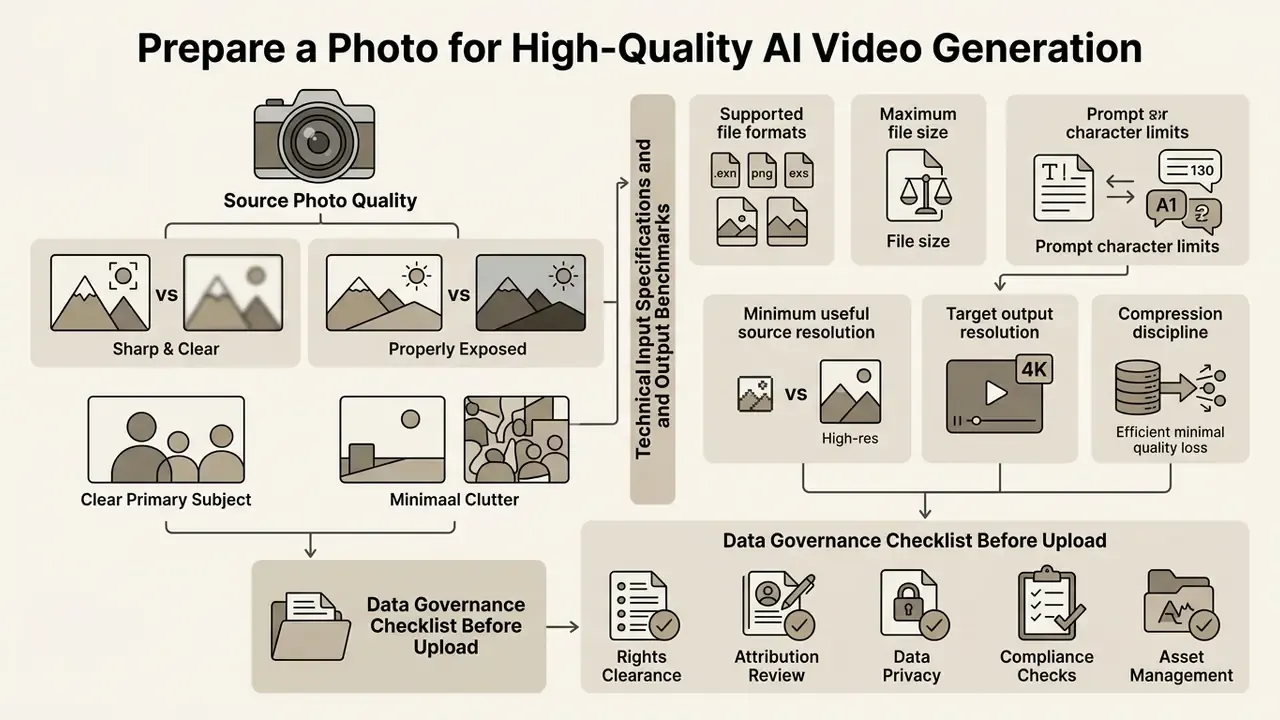
High quality AI video generation starts with a sharp, properly exposed source photo, a clear primary subject, and minimal clutter. Video diffusion models depend on distinct visual cues and clean subject boundaries to synthesize natural motion without warping or blur. Vendor production guidance converges on the same short list: resolution at or above 1080p, a single clear subject, all key elements inside the frame, buffer space in the direction of travel, and no dense clutter or complex repeating structures.
In a recent asset optimization initiative, a digital marketing team processed 150 static product shots before generating promotional clips. By converting raw studio photos into isolated 1080p renders with higher contrast and explicit background separation, the team reduced visual warping artifacts by roughly 38% on first-pass generations. Methodology note: the figure comes from an internal before-and-after comparison on a single 150-asset batch, with artifacts counted by two human reviewers on first-pass renders. It is directional, not a benchmark, and independent replication is still missing. The preprocessing removed most of the manual retouching work later in post-production, which was the real saving.
Technical Input Specifications and Output Benchmarks
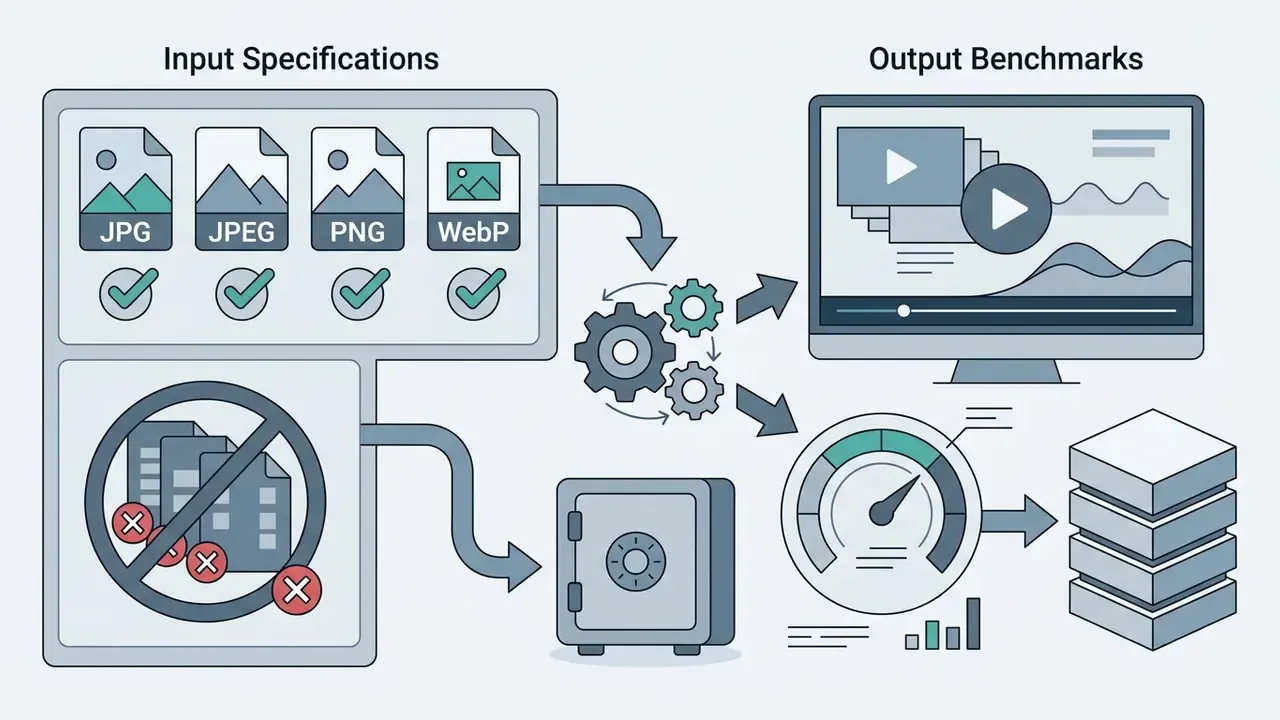
Before submitting assets to generative temporal layers, confirm that source photos fit the model's ingestion constraints. Otherwise you get silent server-side downscaling or an outright rejection.

Data Governance Checklist Before Upload
Run this five-item check on every asset before it leaves your environment. It takes under a minute and prevents the most common Shadow AI incidents.
- Confidentiality class.Is the image public, internal, or restricted? Restricted assets never touch consumer tiers.
- Personal data.Does the frame show identifiable faces, badges, screens, license plates, addresses, or customer documents? If yes, confirm consent and lawful basis first.
- Third-party rights.Do you hold rights to the photograph, the depicted product, the trademarks, the artwork on the wall, and the model release?
- Metadata.Strip EXIF geolocation, device IDs, and internal file paths before upload.
- Platform terms.Confirm the current plan's retention and training-usage terms, then log vendor, plan tier, and date in the asset record.
One more habit worth adopting: screenshot the terms page you relied on. Vendors update quietly, and a dated screenshot is cheap evidence.
Photos That Work Best for AI-Generated Videos
The best image for AI video creation has a well-defined subject, clean edges, and balanced light. Single-subject compositions (professional portraits, isolated product shots, uncluttered landscapes) give diffusion algorithms stable reference points.
«PhysGen requires clearly visible objects with sufficient resolution and contrast to infer geometry and physical parameters; blurred or occluded objects reduce the plausibility of synthesized motion.»
When animating an AI character or a product shot, make sure the primary subject occupies a meaningful share of the frame with clear contrast against the background. Photographs with natural depth give camera movement algorithms room to synthesize convincing parallax. For AI characters specifically, lock the identity-critical details (face, wardrobe, body proportions, pose) and keep motion subtle. One dominant action or one dominant camera move per clip consistently beats competing directions.
Common Image Problems Before You Upload
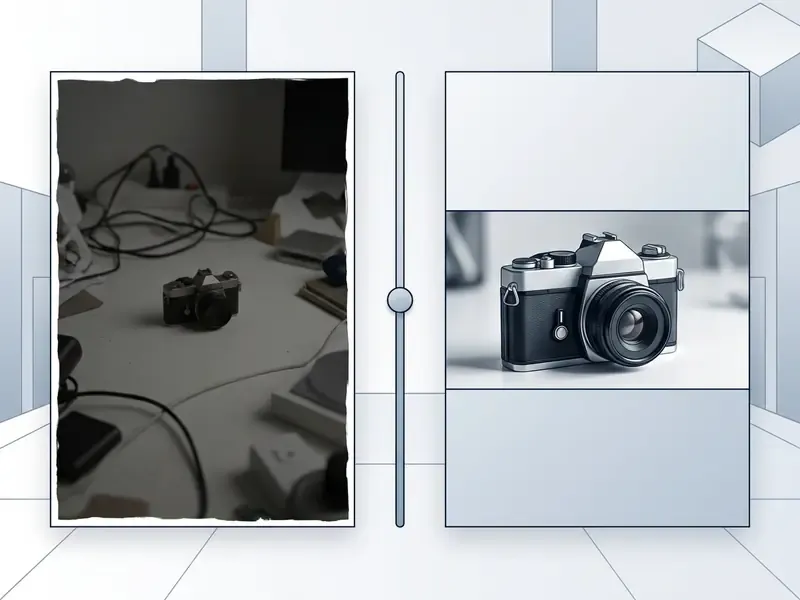
Low-resolution images, heavy compression artifacts, motion blur, and overcrowded compositions degrade output quality badly. When an input photo has a cluttered background or an ambiguous focal point, the AI model cannot cleanly separate foreground from background, and you get identity drift plus temporal flickering. Vendor troubleshooting documentation says the same thing in operational language: simplify the background to reduce the number of elements the model must track, and avoid vague or partially cropped single-image inputs.
Before uploading assets to an AI tool, fix visual clarity, remove unnecessary background objects, and align spatial dimensions with your target aspect ratio. Dedicated AI image enhancers and a conventional photo editor both handle this quickly. Crop to the intended frame first, then resize, so the crop dictates composition rather than the reverse. Standardized source assets prevent most unintended distortion during latent video diffusion.
Write Better Prompts and Control Camera Movement
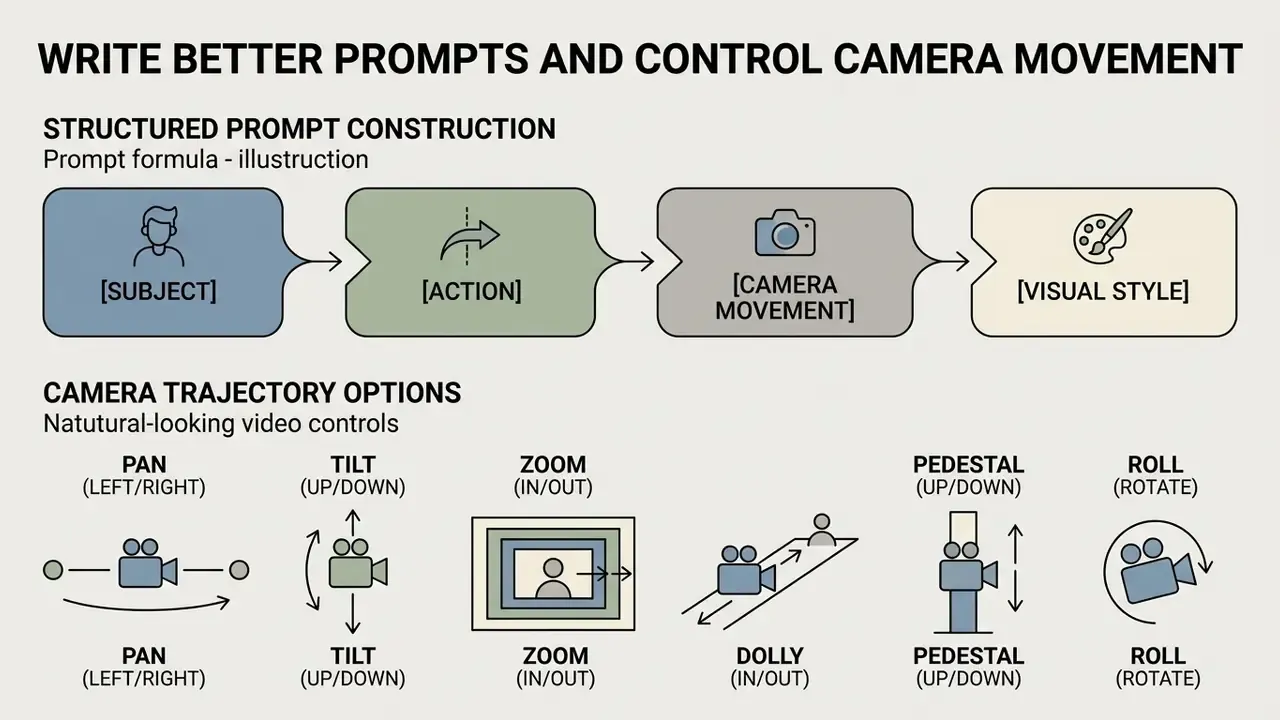
Controlling movement in AI-generated videos takes structured prompt construction plus a deliberate camera trajectory. Combining a precise text prompt with explicit camera movement parameters reduces random generative drift and produces motion you can predict. Read this section before running the step-by-step workflow below, because prompt quality, not tool choice, is the dominant variable in first-pass output quality.
Prompt Formula for Subject, Motion and Scene
An effective video prompt follows a four-part formula: Subject + Action + Camera Movement + Visual Style. That structure gives the model's conditional generation layers clear instructions instead of a wish list.
- Subject "A professional model wearing a blue winter coat"
- Action "turns head slowly toward the camera and smiles"
- Camera movement "smooth tracking shot moving backward at eye level"
- Visual style "cinematic lighting, shallow depth of field, 4k resolution"
Clear action verbs in the present tense (walking, rotating, drifting, rising) push motion onto the intended objects without rewriting background geometry. Vendor prompting guides extend the same pattern with optional fields for shot size, lens, lighting, and atmosphere, and they consistently recommend positive phrasing over negation for the primary instruction.
«TIP-I2V, a dataset of more than 1.7 million real image-to-video prompts, shows users organically structure requests as subject, action, camera movement, style.»
Describe motion, not the picture. Re-describing static elements already visible in the source photo burns prompt budget and occasionally nudges the model to re-render the subject instead of animating it. That single habit change fixes more bad renders than any settings tweak.
Camera Movement Options for Natural-Looking Video
Virtual camera movement is what gives a static image a cinematic feel. Common camera control commands:
- Pan (left/right). Rotates the camera horizontally across a stationary scene, good for landscapes and wide product displays. Prompt pattern: "slow pan left across the storefront."
- Tilt (up/down). Angles the camera vertically, useful for tall structures or full-body fashion assets. Prompt pattern: "slow tilt up from the shoes to the face."
- Zoom or dolly (in/out). Moves the focal point toward or away from the subject, creating emphasis and depth. Prompt pattern: "slow zoom in on the product label."
- Tracking shot. Moves the camera alongside a moving subject at constant relative distance. Prompt pattern: "tracking shot following the cyclist through the alley."
«CamTrol models camera motion as pixel rearrangement in a 3D point-cloud space and outperforms fine-tuned methods on camera-trajectory accuracy without any additional training.»
Subtle subject action plus one controlled camera move yields smooth, high quality video clips fit for professional workflows. Stacking instructions, say a simultaneous orbit, zoom, and tilt, is a documented cause of camera artifacts. Pick one dominant move per clip and cut between clips instead.
How to Make an AI Video From a Photo Step by Step
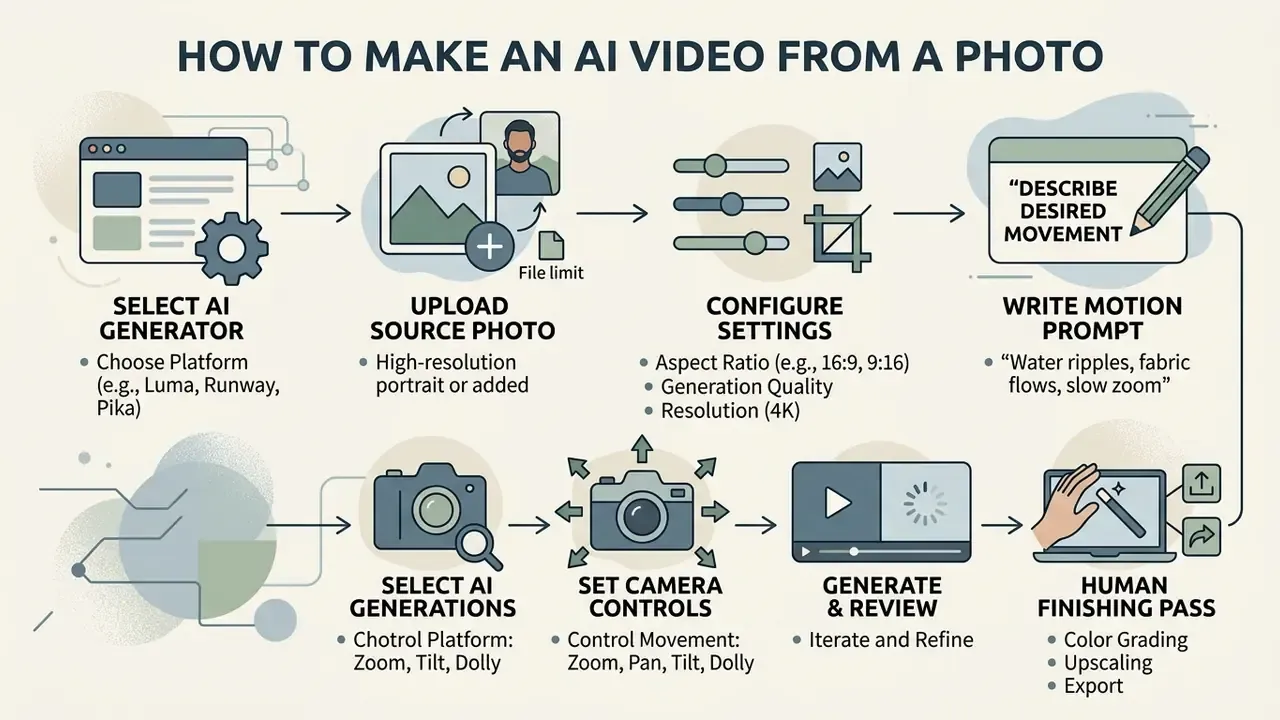
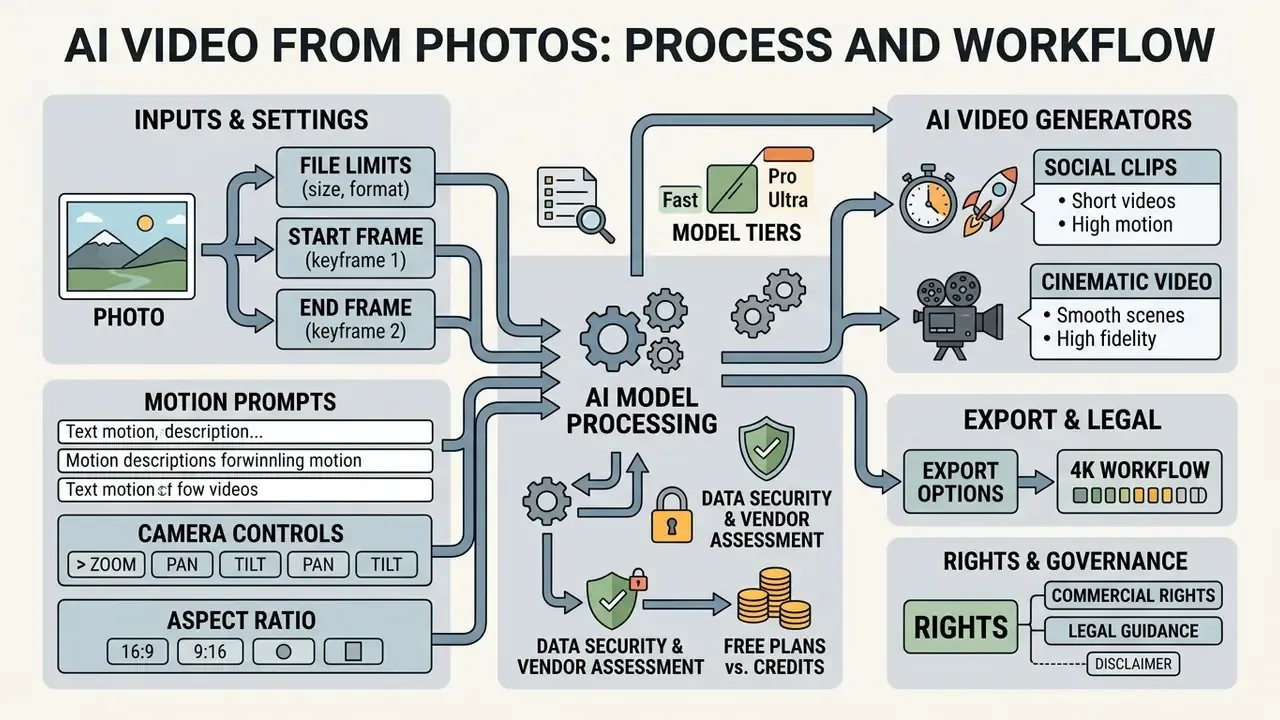
To make an AI video from a photo: select an AI video generator, upload a high-resolution reference image, configure aspect ratio and motion parameters, write a motion prompt, click generate, review, and export the clip. This workflow is what makes quality reproducible across marketing and production tasks. If you need a definition refresher first, see our entry on the AI video generator category.
Step-by-Step Implementation Checklist
- Select an AI video generator.Choose a platform based on project requirements and governance posture, for example Google Veo or Adobe Firefly for high fidelity and enterprise terms, Runway or Pika for fine camera control and rapid iteration.
- Clear and upload the source photo.Run the data governance checklist, strip metadata, then drag the prepared reference image into the input field or first-frame slot. Just upload one still; that is genuinely enough to start.
- Configure generation settings.Pick the target aspect ratio (16:9 for landscape, 9:16 for social media, 1:1 for feed placements), output resolution (720p, 1080p, or 4K), number of results (1-4 where supported), and clip duration.
- Write a motion prompt.Enter concise instructions covering subject action, environmental dynamics, and visual style, following the Subject + Action + Camera + Style formula above.
- Set camera movement controls.Select the directional move (pan, zoom, tilt) and set motion intensity.
- Click generate and review.Start the render, inspect the clip for visual stability, and adjust prompt or settings if artifacts appear.
- Run the human finishing pass.Trim, sequence, grade, and add sound or graphics. This is the documented human contribution that supports copyright eligibility and brand review.
- Export the ready video.Download the finalized MP4 for post-production or direct publication, and log model, prompt, seed, and reviewer in your asset record.
Upload an Image and Choose Video Settings
Upload the reference image into the platform's initial frame interface. Keep the file at 1080p or above so there is enough pixel density for temporal synthesis, and confirm it sits inside the 20-50 MB ingestion ceiling described earlier.
Then choose settings tailored to the distribution channel. Matching aspect ratios up front (9:16 for mobile feeds, 16:9 for desktop presentations) prevents unwanted automatic cropping during rendering. Many advanced tools let developers automate asset ingestion through a Starter API Workflow, and teams standardizing on Google's stack can review capabilities, quotas, and pricing in our Google Veo API implementation guide.
Advanced Workflow: Start Frame and End Frame
Standard image-to-video processing extrapolates motion from one initial frame. Enterprise pipelines, though, often need a precise transition between two known states: a raw product shell becoming an assembled device, a before-and-after renovation shot, a closed package opening to reveal contents.
Modern diffusion models (Adobe Firefly, EaseMate, Vidu, Google Veo) support dual-image conditioning, exposed in interfaces as Start Frame and End Frame slots.
Practical constraints worth noting. Both frames should share lighting temperature, lens perspective, and subject scale, otherwise the interpolation reads as a morph rather than a move. Keep the geometric delta modest: a 15-25 degree rotation or a single state change interpolates cleanly, while a 180 degree flip usually does not. Dual-frame generation is also the most reliable way to build a seamless loop, using the same image as start and end frame with a gentle intermediate motion prompt.
- Primary keyframe (Start Frame).Sets initial geometry, character pose, color palette, and camera position.
- Terminal keyframe (End Frame).Defines the exact final composition, lighting state, or object position.
- Latent interpolation.The model calculates the trajectory between frame A and frame B. With dual-frame conditioning, dial the text motion prompt down in complexity to avoid conflicting vectors between the visual keyframes and the written instruction.
Write a Motion Prompt for the Video
A motion prompt tells the AI model how elements in the photograph should move over time. Focus on action, environmental change, and camera direction rather than restating static visual elements already present in the source.
For example, converting a product photo into an engaging video: "Slow 360-degree rotation of the product on a reflective surface, subtle camera push-in, soft studio lighting." That directs the diffusion model's temporal layers while leaving the subject's visual identity intact.
Generate, Review and Export the Video Clip
Once configuration is done, click generate to start latent video rendering. Generation times run from about 15 seconds on fast-tier models to two minutes on ultra-tier models, depending on model complexity, cloud GPU load, and clip length.
Inspect the output carefully in preview. Look for facial distortion, unnatural object warping, temporal flickering, and degraded text or logos. If the clip clears your quality bar, export the ready video as MP4. If artifacts show up, refine the motion prompt or lower motion strength and regenerate. Where the platform supports reusable preview renders, enable them, since reusing a preview at export avoids paying for a second full render pass.
Fix Common Image-to-Video AI Problems
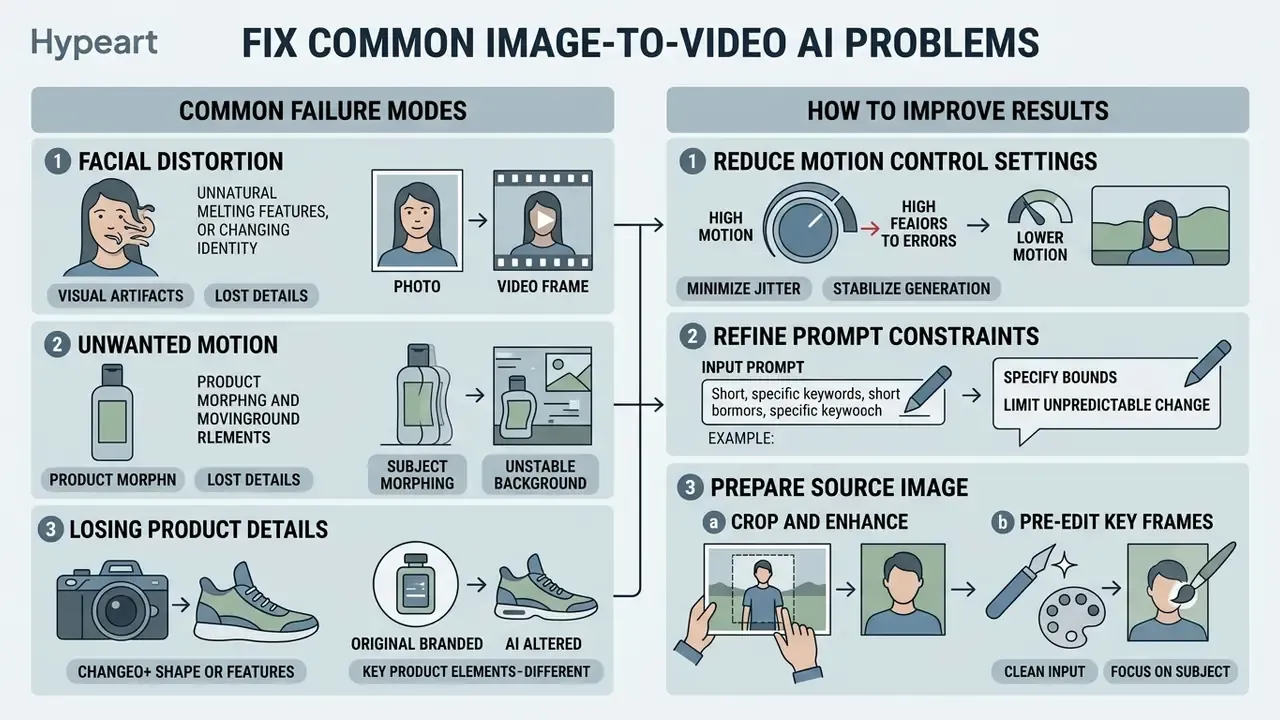
Generative video tools occasionally produce visual artifacts, facial distortion, or motion nobody asked for. Diagnosing the root cause and applying targeted workflow adjustments fixes most of it, and it gives model-risk functions a documented failure taxonomy to cite during validation.
Why Motion, Faces or Product Details Change During Generation
Unexpected changes in subject appearance or facial geometry come from stochastic noise introduced during diffusion denoising. When a prompt carries contradictory instructions, or motion strength is set too high, the model's spatial attention layers stop maintaining structural consistency across frames.
«VBench++ treats subject-identity inconsistency as a distinct quality dimension: flickering and morphing appear more often with low-contrast or ambiguous input images.»
| Symptom | Most likely cause | First fix |
|---|---|---|
| Face morphs or identity drifts | Large head or camera motion, ambiguous facial detail | Reduce motion strength; add "keep face and identity unchanged" |
| Product label or text garbles | Low source resolution; zoom onto small type | Re-crop tighter at higher resolution; avoid push-in on fine text |
| Background swims or warps | Cluttered composition; competing motion vectors | Simplify the background; use one dominant camera move |
| Oversaturated, crunchy frames | Guidance scale too high | Lower guidance; increase denoising steps |
| Motion looks random | Vague action verb; no camera instruction | Specify one present-tense action plus one camera move |
| Morph instead of transition (dual-frame) | Mismatched lighting or perspective between frames | Re-shoot or re-render the end frame to match the start frame |
How to Improve Results Without Advanced Editing Skills
When a first generation shows artifacts or unwanted motion, work through a three-step sequence. No editing skills required.
- Reduce motion control settings.Lower camera motion speed or the motion strength slider by 20%-30% to stabilize subject geometry.
- Refine prompt constraints.Add negative instructions ("no face distortion, no morphing, stable background") and simplify the action to a single primary movement. Change one variable per attempt and use explicit preservation language: "change only the camera movement, keep everything else the same."
- Crop and enhance the source image.Remove distracting background elements and increase sharpness before re-uploading.
Small, controlled prompt modifications prevent cumulative errors and produce clean, publishable video clips. Actually, one caveat to step 2: too many negatives can flatten motion entirely, so cap yourself at two or three constraints per prompt.
«Analysis of more than 200 marketing campaigns shows hybrid models, with AI handling structural tasks and humans directing narrative, consistently outperform both pure-AI and pure-human approaches on conversion.»
Edit AI-Generated Video Into Ready Content
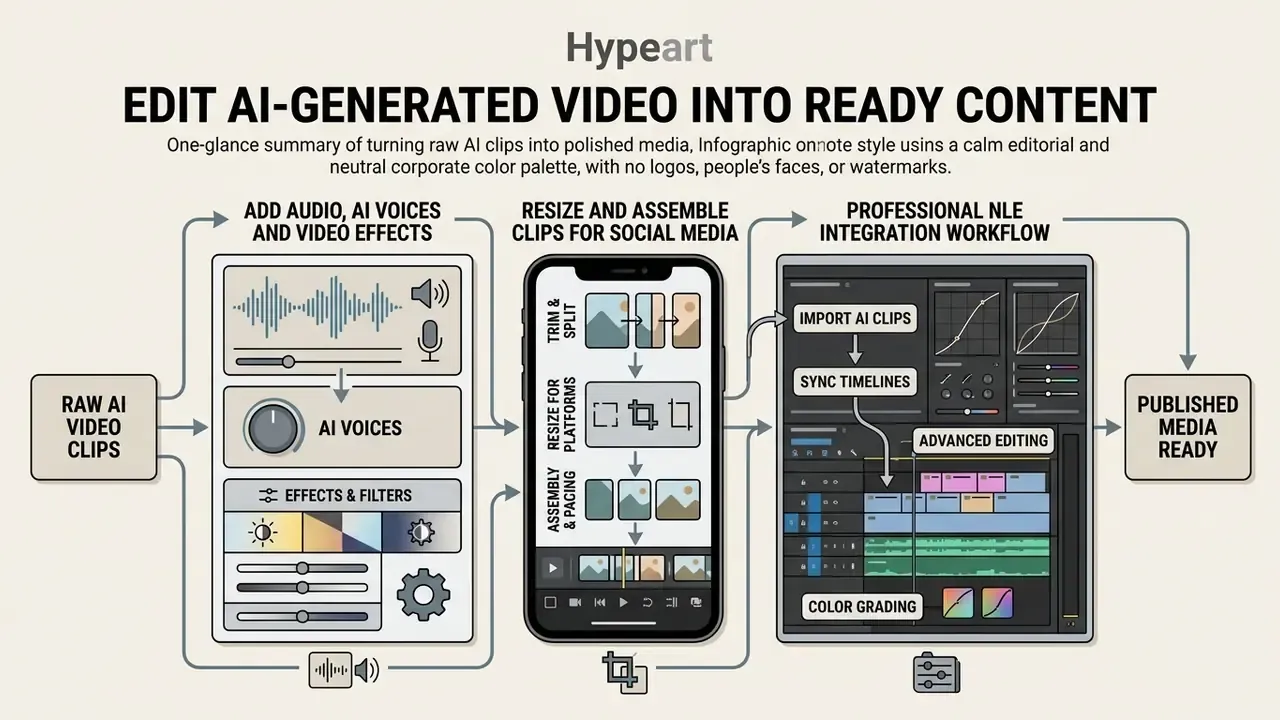
Turning raw AI-generated clips into published media takes basic post-production refinement. Sound design, AI voices, transitions, and platform-specific formatting are what separate a render from video content, and our overview of video-editing tools maps the categories involved. Industry documentation describes the same chain in structured terms: automatic ingest and transcription, transcript-based rough cut, AI shot matching and color balance, object removal, dialogue cleanup, captioning, then multi-aspect export.
Add Audio, AI Voices and Video Effects
Primary image-to-video models focus on visual rendering, so audio completes the experience. Creators can layer background music, synthesized sound effects, and natural narration using dedicated production platforms. Our guide to AI voice generators compares voice quality, language coverage, and commercial licensing across vendors.
Current suites consolidate these steps. Firefly-class tools generate music, speech, and sound effects in one workflow with control over voice, pacing, and emotion, while Kling-class models produce synchronized voiceover, effects, and music natively during generation. To build a voice track programmatically, developers can reference the tools detailed in our AI Media API Guides. Clean visuals plus synchronized audio improves audience retention across digital channels, which is the whole point. Motion graphics and lower thirds can be layered afterwards with a standard animation maker, and channel-branding assets such as an opener from a youtube intro maker or a matching youtube banner creator keep the series visually consistent.
Professional NLE Integration Workflow
For production teams, AI clips are components in an existing timeline, not finished deliverables. Adobe Firefly output drops straight into Premiere Pro and After Effects, and the same handoff works for DaVinci Resolve and Final Cut with a disciplined export routine.
| Stage | Action | Control or artifact produced |
|---|---|---|
| 1. Generate | Render at the highest available tier (up to 4K), 16:9 master | Approved prompt and tier recorded |
| 2. Export | MP4/H.264 for review; ProRes or a high-bitrate master where the platform allows, so grading survives | Master file retained |
| 3. Ingest | Import into the Premiere, After Effects, or Resolve bin | Clip tagged with model, prompt, seed, date |
| 4. Conform | Match frame rate and color space to project settings; apply shot matching and color balance to blend with footage | Technical consistency check |
| 5. Finish | Trim, speed-ramp, stabilize, add graphics and sound design | Documented human creative contribution |
| 6. Deliver | Export per-platform ratios from a single master sequence | Content credentials and AI disclosure metadata attached |
Generating AI clips specifically as B-roll, inserts, and cutaways rather than standalone films is the highest-yield professional pattern. Short generated shots cover dialogue edits, bridge jump cuts, and fill coverage gaps where no footage exists, while the narrative stays human-directed. Less risk, more usable output.
Use AI Videos From Photos for Marketing, Products and Social Media
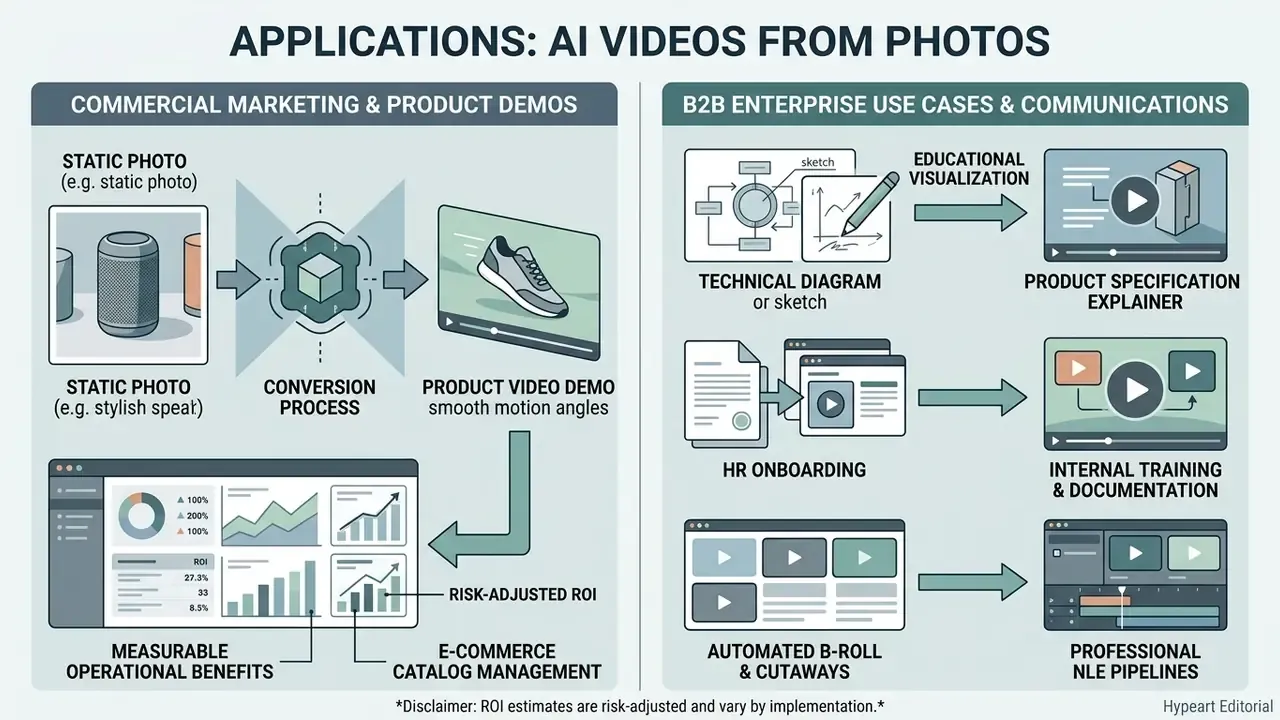
Converting static imagery into dynamic video delivers measurable operational benefits for commercial marketing, e-commerce catalog management, and corporate communications. AI video using images lets organizations scale media production without growing studio budgets. Vendor use-case documentation now spans product ads, marketplace listing video covers, retail shelf visualizations, UGC-style short form, property walkthroughs, and training content, with some tools producing a ready MP4 from one to four product images in under a minute.
Product Demos and Product Marketing Videos
In e-commerce operations, replacing static product photos with short animated clips lifts engagement and purchase intent. An empirical study published by Viralance (2025) analyzing more than 10,000 product detail pages found that introducing AI-generated product videos raised average conversion from 1.8% to 2.4%-2.6%, delivering roughly 90% of the conversion lift associated with traditional video production at a fraction of the cost.
«AI video raises conversion from 1.8% to 2.4-2.6%, delivering roughly 90% of professional video's lift at about 1% of its cost.»
| Asset type on the product page | Observed conversion rate | Relative lift |
|---|---|---|
| Static images only | 1.8% | baseline |
| Images plus low-quality video | 2.2% | +22% |
| Images plus AI product video | 2.4%-2.6% | +33% to +44% |
| Images plus studio film video | 2.7% | +50% |
Risk-adjusted ROI. The gross lift above is not the number that survives a finance review. A defensible model subtracts control costs from incremental margin: human review and approval time per asset, legal and IP verification on third-party elements, disclosure and content-credential handling, prompt and seed logging for auditability, re-generation waste from rejected outputs, and platform licensing at the tier that actually grants commercial rights. Residual risks deserve explicit expected-loss lines too: copyright ineligibility without human authorship, brand-safety artifacts reaching publication, and vendor term changes mid-campaign. In most pilots those controls consume a small share of the savings versus studio production, which is precisely why the business case holds. The point is to show the number, not to assume it is zero.
Automating product shot animation lets retail brands create dynamic listings across large catalogs. Several marketplaces now accept animated video covers on product cards, assembled from two to five sequenced photos or from a single shot brought to life. For detailed legal and commercial deployment rules, review our guidelines on AI Media Commercial-Use and the specific rules governing commercial use of AI-generated assets.
B2B Enterprise Use Cases: B-Roll, HR Onboarding and Educational Diagrams
Beyond e-commerce showcases, image-to-video workflows clear specific enterprise media bottlenecks.
- Prompt example: "Subtle pan across a modern architectural office, soft morning sunbeams through windows, photorealistic cinematic B-roll, 4k."
- Prompt example: "Animated flow of data blocks passing through a secure cloud network diagram, clean graphic motion design, professional instructional style."
- Prompt example: "3D volumetric animation of cellular mitosis, membrane splitting smoothly, scientific textbook visualization, high clarity."
- Prompt example: "Slow orbit around an exploded-view device render, components drifting apart and reassembling, studio lighting, clean white background."
- Automated B-roll and cutaways for professional NLE pipelines.Editors in Premiere Pro or After Effects turn static concept art and stills into moving B-roll to cover dialogue edits and fill coverage gaps.
- HR training and internal documentation conversion.Turning static infographics, policy diagrams, or process maps into dynamic video guides raises completion and comprehension during onboarding, with the caveat that any frame containing employee data follows the governance checklist above.
- Educational visualizations and technical concepts.Animate complex scientific illustrations, cellular biology, mechanical gear rotation, planetary orbits, directly from textbook stills, making processes that cannot be filmed observable.
- Product specification explainers.Convert spec sheets and exploded-view renders into scene-by-scene clips, each scene isolating one feature, assembled into a hook, problem, solution, proof, CTA structure.
Limitations and Open Questions
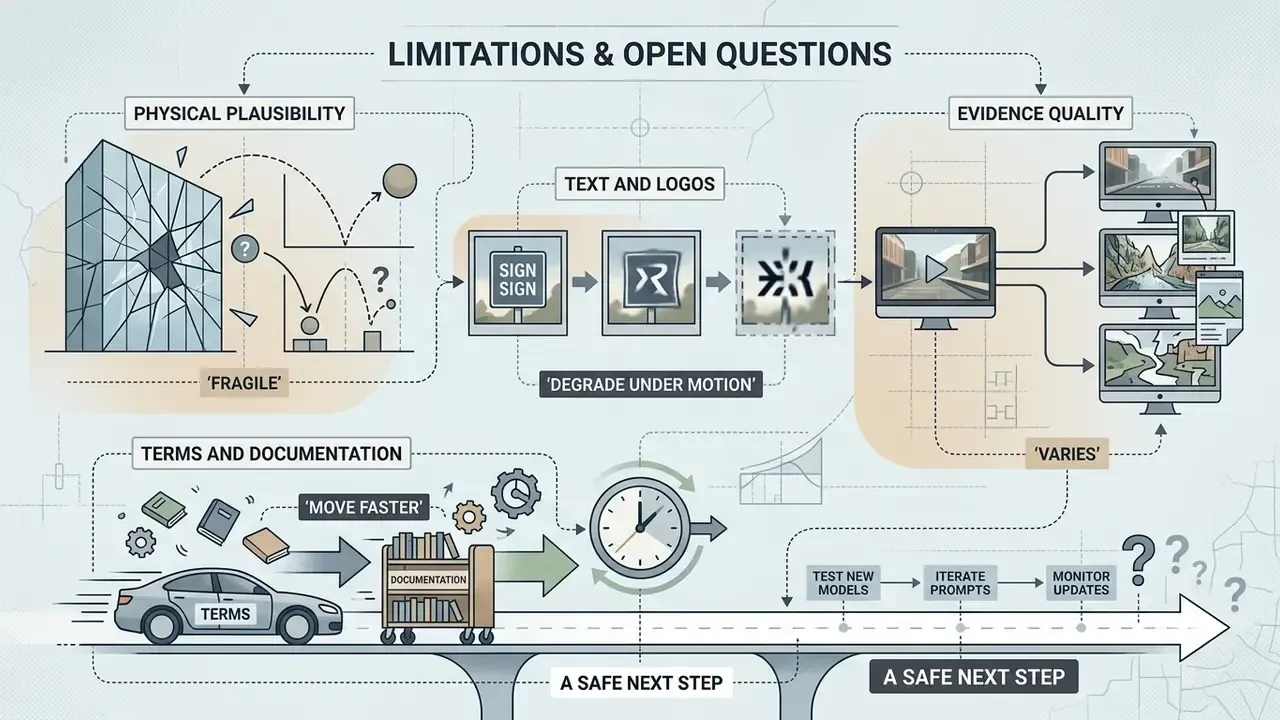
Honesty is part of the control set, so here is what this workflow does not solve yet.
Physical plausibility is still fragile. Models infer physics from appearance. Liquids, fabric, hands, and fine mechanical parts remain the most common artifact sources, and no prompt fully fixes a scene the model cannot reason about.
Text and logos degrade under motion. Push-in on small type is unreliable across every tier we tested. Add typography in the NLE instead, where it is vector-clean and legally yours.
Evidence quality varies. Benchmark scores such as SSIM and VBench measure consistency, not brand suitability. Conversion studies are observational. Treat both as directional inputs to a decision, not as proof.
Terms move faster than documentation. Retention policies, watermark behavior, and commercial rights changed more than once across 2025 and into 2026. Re-verify before each campaign, and keep the dated evidence.
A safe next step. Run one narrow pilot: ten approved public product images, one Pro-tier tool, a named human reviewer, and a logged prompt history. Measure artifact rate, review minutes per asset, and cost per published clip. Then decide whether to widen the asset class, not before.
FAQ: Frequently Asked Questions About AI Video From Photos
Can I make an AI video from just one photo?
Yes. Single-image conditioning is the default mode in every major I2V tool: upload one still, add a motion prompt, export a short clip. Use dual-frame conditioning only when you need a specific end state.
What is the maximum resolution for AI video from a photo?
Ultra-tier models now export up to 4K (3840x2160) natively or through spatial upscaling. Fast tiers, free plans, and some consumer surfaces still cap at 480p, 720p, or 1080p.
Which file formats and sizes are supported?
JPG, JPEG, PNG, and WebP are universally accepted. Size ceilings run from roughly 20 MB on consumer web interfaces to 50 MB on enterprise suites. Prompts are typically capped around 1,024 characters.
How long does generation take?
From under 15-30 seconds on fast-tier models to about 60-120 seconds on ultra-tier models, depending on clip length, resolution, and queue load.
Do free AI video generators add watermarks?
Frequently, yes, and free tiers often restrict resolution as well. Some platforms offer watermark-free downloads or limited high-resolution exports through starter credits, so verify the current terms of your specific plan.
Can I use AI video from photos commercially?
Commercial use depends on the vendor's terms, your plan tier, and the rights you hold in the source photograph and everything visible in it. Separately, copyright protection for the output requires meaningful human authorship, so a documented human finishing pass is essential.
Is it safe to upload company or customer photos?
Only to platforms whose contractual terms match the asset's confidentiality class: documented retention limits, no training on your inputs, zero-data-retention options, and current security attestations. Consumer tiers are not appropriate for restricted assets or personal data.
Why do faces change during generation?
Identity drift is a known failure mode driven by excessive motion strength, ambiguous or low-contrast source images, and large pose changes. Lower motion intensity, add explicit preservation constraints, and re-crop the source for a clearer subject.
Text-to-video or image-to-video, which should I use?
Use image-to-video when you already own strong visuals and need controlled motion. Use text-to-video when the scene does not exist yet. I2V constrains output more tightly, which is exactly why it is easier to govern.
Appendix A: Updated Claims and Sourcing Notes
Social Media Teasers and Personalized Video Content
Marketing teams use image-to-video generation for short promotional teasers, personalized campaign assets, and social announcements. Turning campaign stills or brand photos into short looping videos adds visual interest in a feed that scrolls past everything static.
By generating several motion variations from one master photo, teams can run rapid A/B tests across audience segments. Generate two or three variants per concept, then check natural motion, face and hand integrity, and loop-ability before publishing. Personalization works better as distinct versions per segment than as one generic clip retargeted everywhere. Production cost savings across large asset runs can be modeled with our interactive calculators.