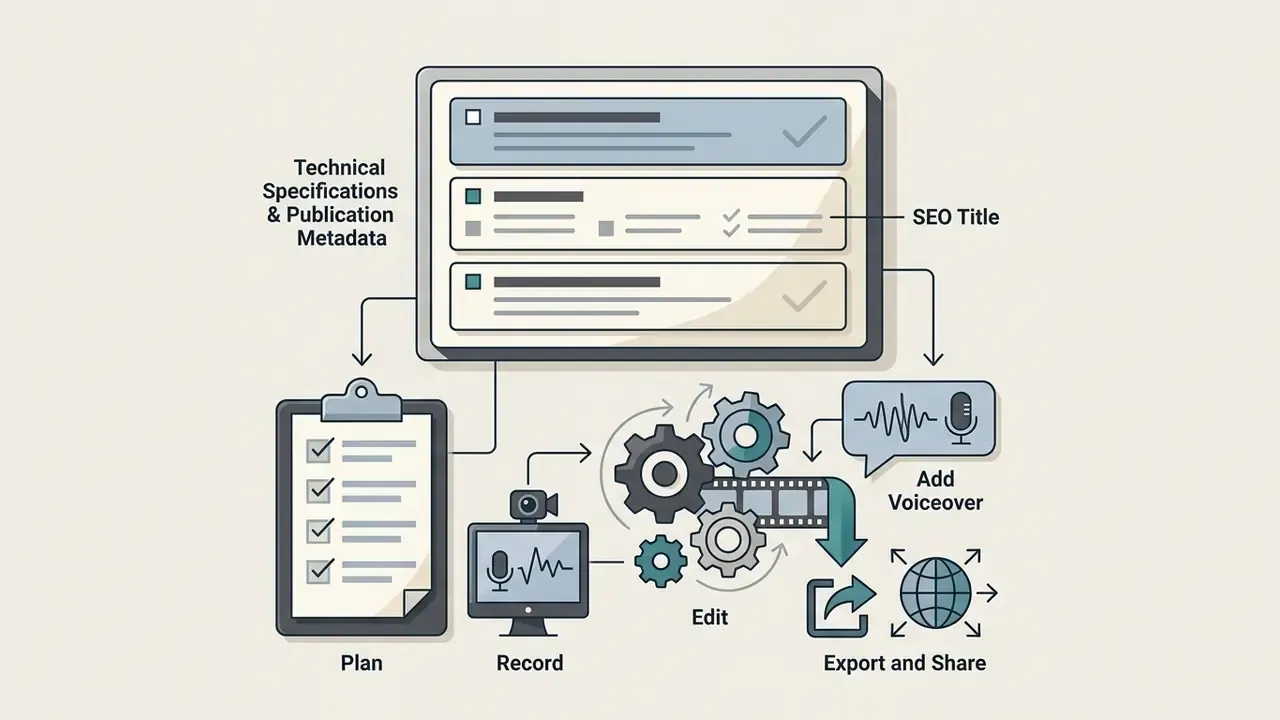
⚡ Executive Summary: 4-Step Production Pipeline
- Frame & Script: Define 1 core objective, draft a 250-word script (2-minute target at 130 wpm), and create a two-column storyboard.
- Capture Assets: Record screen in 1080p at 30 fps and talking-head video with an eye-level camera and an external USB/XLR microphone.
- Edit & Polish: Trim filler words ("ums/ahs"), add lower-third captions, align audio levels (background music 18 dB under narration), and insert clean 1080p transitions.
- Export & Deploy: Render in MP4 (H.264 codec) and distribute via direct LMS embeds, YouTube chaptering, or 30-second teaser cuts.
Three takeaways for decision-makers:
- Length governs retention. Keep instructional and executive video under six minutes; use a hard 120-second cut for board-level summaries and commercial pitches.
- Format follows use case, not taste. Narrated slides for policy and financial briefings, screen recordings for system training, talking head for stakeholder trust, animated or synthetic video for scalable localisation.
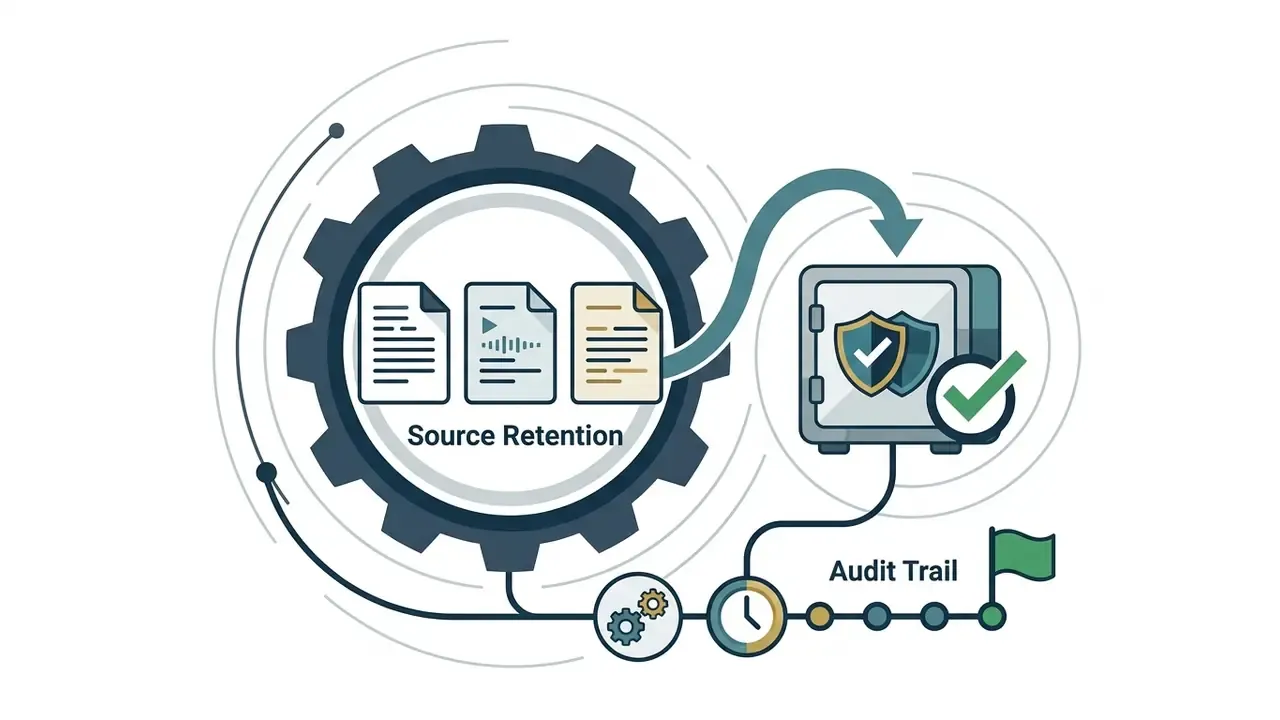
- Governance is part of production. Version-controlled scripts, documented sign-off, retained source files, and a data-privacy review of any cloud or AI tool turn a video into an auditable control artifact rather than an informal asset.
On this page: formats and selection · planning and scripting · tools, templates and AI · recording slides, screen and camera · editing for engagement · preview, export and distribution · governance, audit trail and security · FAQ
A video presentation is a digital asset that combines visual slides, screen captures, live camera feeds, or synthetic media with synchronised audio narration to deliver complex information asynchronously. Moving past the static slide deck lets enterprise teams, educators, and executives standardise communication, hold attention, and preserve institutional knowledge that would otherwise live in one person's head.
What Is a Video Presentation and Which Format Should You Choose?
A video presentation is a recorded visual and auditory asset built to explain a concept, demonstrate software, launch a product, or align distributed teams without a live meeting. The optimal format depends on your objective, your audience, the hardware you actually have, and the distribution channel.
Slideshow, Screen Recording, Talking Head or Animated Video
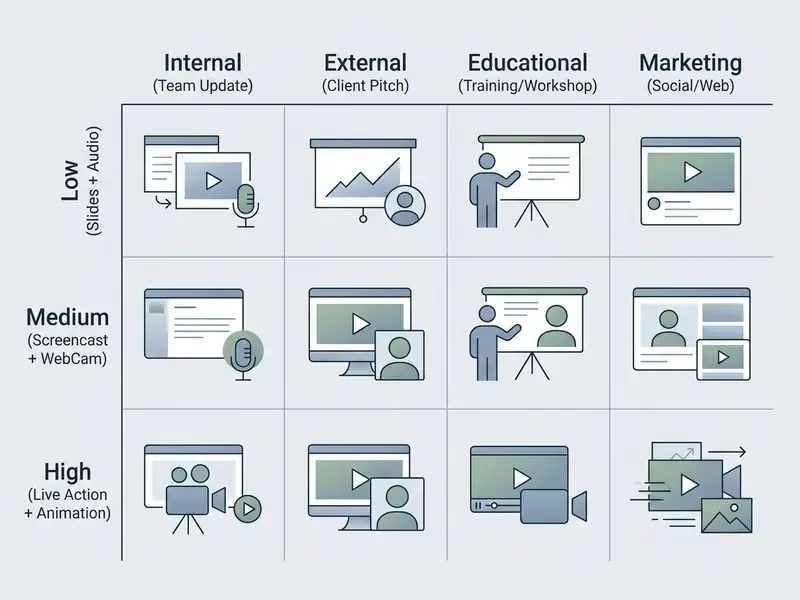
Four production styles cover almost every practical brief. Judge them against message complexity and the media assets already on hand.
- Slideshow Presentation Video: Static presentation slides plus recorded audio narration. Best for formal briefings, financial reviews, and policy overviews where a structured visual hierarchy and minimal distraction matter (Video Presentation Guidelines, John Carroll University, 2025). Format choice should follow the use case, the audience, and the complexity of the content rather than whichever presentation templates happen to be open in your browser.
"Different video types serve different instructional purposes; selection should follow the learning task and audience context."
- Screen Recording Captures live desktop activity, a software interface, or browser navigation alongside voiceover. Any competent screen recorder will do the job. This is the standard for technical walkthroughs, operational procedures, and digital product demonstrations (How to Create Screencasts, University of Wisconsin Law School, 2018).
- Talking Head Direct-to-camera presenter footage, standalone or as a picture-in-picture window over slides. It builds personal trust and executive presence, which helps in leadership updates and client proposals (Technology@Wooster, College of Wooster, 2026). If you are recording your own video for the first time, this format is also the least forgiving of poor lighting.
- Animated Video: Motion graphics, keyframe transitions, or synthetic avatars convey abstract concepts without camera hardware. It suits explainer videos, marketing launches, and automated training modules (AI Presentation Workflows, VisionStory, 2026). Teams building motion-first assets can compare capabilities in our guide to animation makers.
| Format | Primary Use Case | Required Equipment | Production Complexity |
|---|---|---|---|
| Slideshow + Narration | Lectures, quarterly reports, policy briefings | Presentation software, external microphone | Low |
| Talking Head | Executive announcements, client proposals, course intros | Camera/webcam, microphone, controlled lighting | Medium |
| Screen Recording | Software walkthroughs, system training, technical demos | Screen capture tool, microphone, clean workspace | Medium |
| Animated / AI Video | Product launches, marketing explainers, scalable training | Motion graphics tool or AI video generator, script | Medium to High |
Choose a Format for Your Use Case and Audience
Align the format with the expectations and attention spans of the people who will actually press play.
- Internal Team Members Screen recordings or narrated slides embedded in internal documentation. A team member watching at 1.5x speed wants clarity and an actionable takeaway, not cinematic polish.
- Clients and Stakeholders Talking-head presentations or hybrid slide overviews. Visible presenter presence supports trust and comprehension during commercial discussions, and the evidence base here is measurable rather than anecdotal.
- Product Launches Animated video or a polished promo video cut. Brisk visual transitions and refined audio hold interest on external landing pages (Video Guidelines for Social Media, University of Zurich, 2025). Practical benchmarks: a 60- to 90-second hero video for the product launch page, plus 15- to 30-second social cuts derived from the same master file.
- Social Media & Public Channels Tailor video clips to native aspect ratios (9:16 for Reels, TikTok and Shorts; 1:1 or 4:5 for LinkedIn feeds; 16:9 for a YouTube video). Deliver the core message visually within the first three seconds.
Decide on the Length of Your Video Presentation
Runtime is set by audience intent and delivery context, and shorter formats win on engagement with tiresome consistency. Watch-time analyses show engagement plateauing fast after the six-minute mark in instructional settings.
"Analysis of more than 6.9 million MOOC video sessions showed engagement drops sharply after six minutes, with median watch time capped at that threshold."
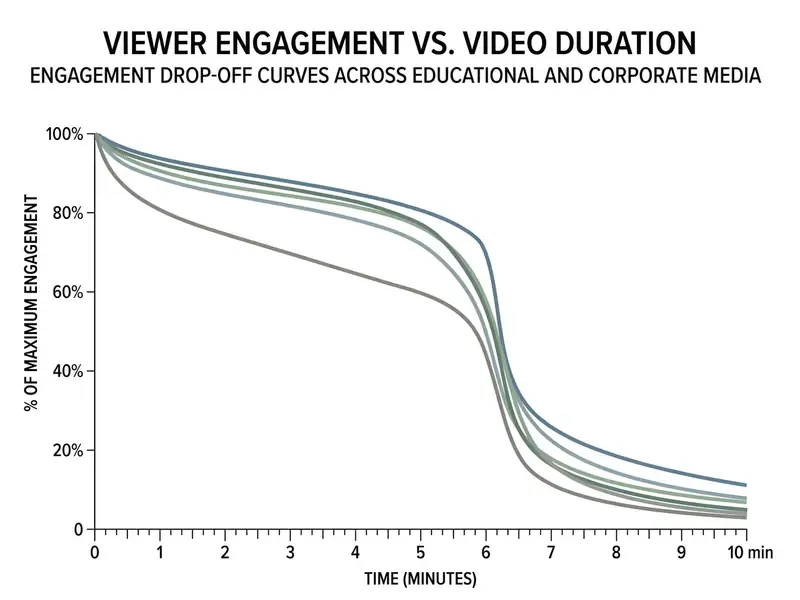
For executive summaries, commercial pitches, and social distribution, use a 2 minutes video presentation format. Capping runtime at 120 seconds forces you to distil the material into three blocks: the operational problem, the proposed solution, and the immediate call to action. Teams that need to hit that runtime without a full editing suite can start with AI video generators that assemble short scene sequences straight from a script.
Context matters when you set a hard cap. Conference and course rules in the sourced material run from 3 minutes to 15 minutes, and a 15-minute ceiling with a 250 MB file-size limit is a common submission constraint. If the subject genuinely needs more than six minutes, split it into a series of sub-six-minute modules instead of publishing one long file. Segmented modules also retire more cleanly when one policy changes.
Plan Your Video Presentation Before You Create Video
Creating a video presentation starts with objectives, key points, a precise script, and a visual map. Recording software comes last. Proper pre-production prevents scope creep, cuts retakes, and keeps you inside enterprise compliance standards.
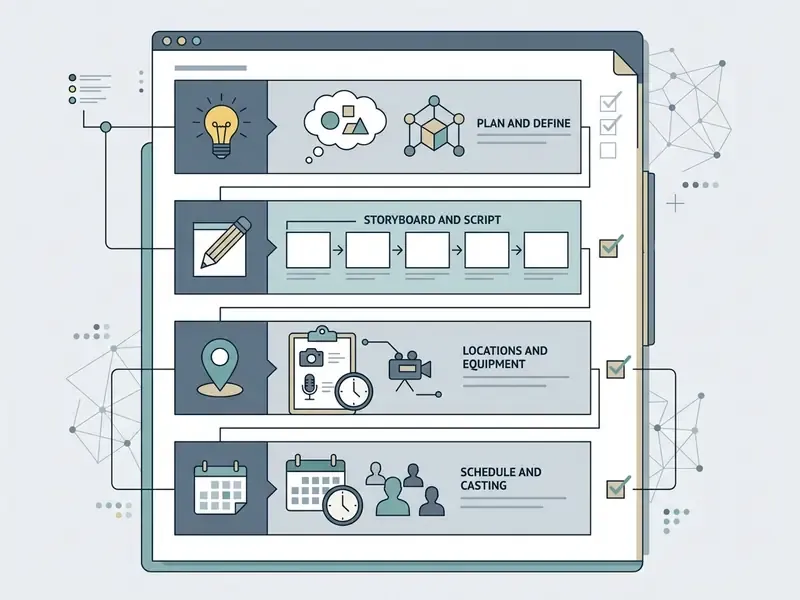
- Define Audience and Use CaseIdentify the target viewer, the required technical depth, and the distribution platform.
- Formulate Key PointsLimit core takeaways to three actionable messages.
- Draft Narrative ScriptWrite the full voiceover text at a conversational 130 words per minute.
- Build StoryboardMap spoken lines to specific slide layouts, screen captures, or animated clips.
- Assemble Media AssetsGather brand logos, high-resolution graphics, and a sanitised software demo environment.
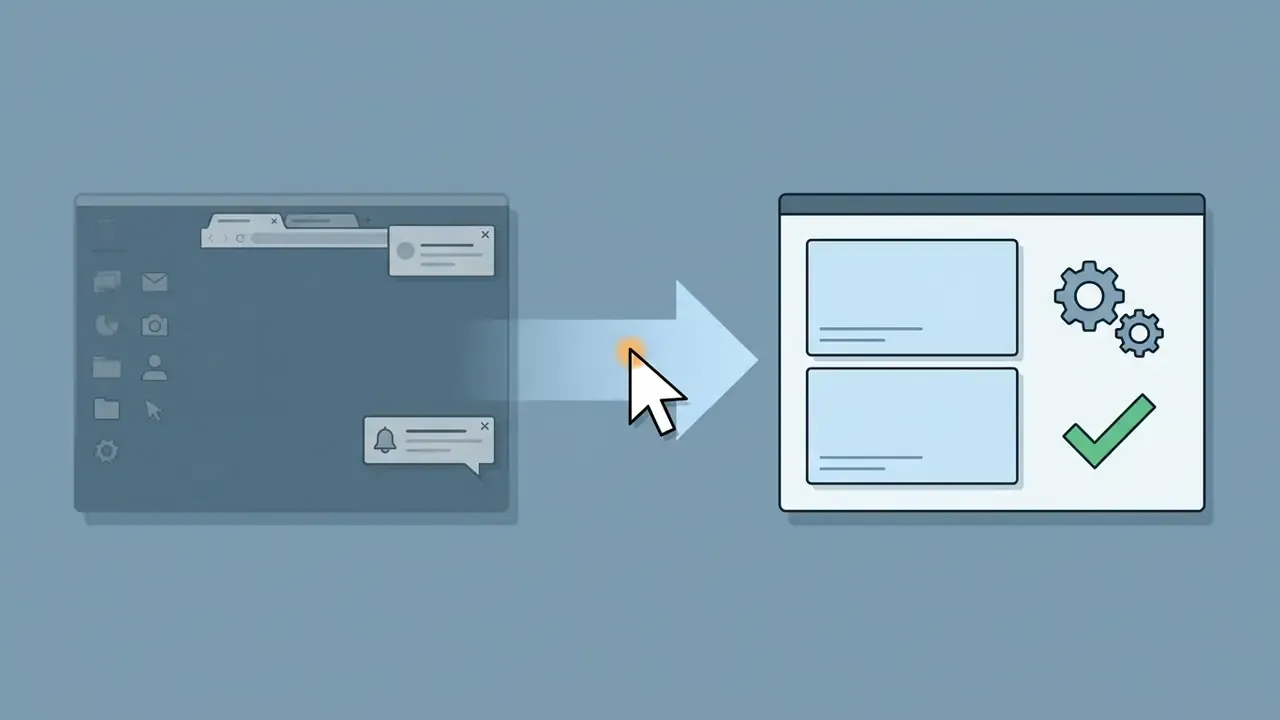
- Pre-Clear Sensitive ContentBefore any screen capture, mask or synthesise confidential data (client names, account numbers, internal model outputs) and confirm that no production environment, ticket queue, or dashboard with restricted data will appear on screen.
That sixth step is the one most teams discover too late, usually during review, usually after the recording was already good.
Define the Main Message and Key Points
A strong presentation video rests on one overarching message supported by three to four key points. More than that and comprehension falls, because every extra element competes for the same working memory.
Match depth to the audience's background knowledge and operational needs. Presenting financial risk metrics to senior executives? Stay on decision criteria and risk-adjusted ROI; leave the modelling methodology in the appendix. Keep on-screen text spare and let the narration carry the nuance. A practical ceiling: no more than four meaningful key points per slide, one idea per visual frame.
Write a Script and Build a Storyboard
Script and storyboard are the architectural blueprint. They keep what viewers hear and what they see locked together.
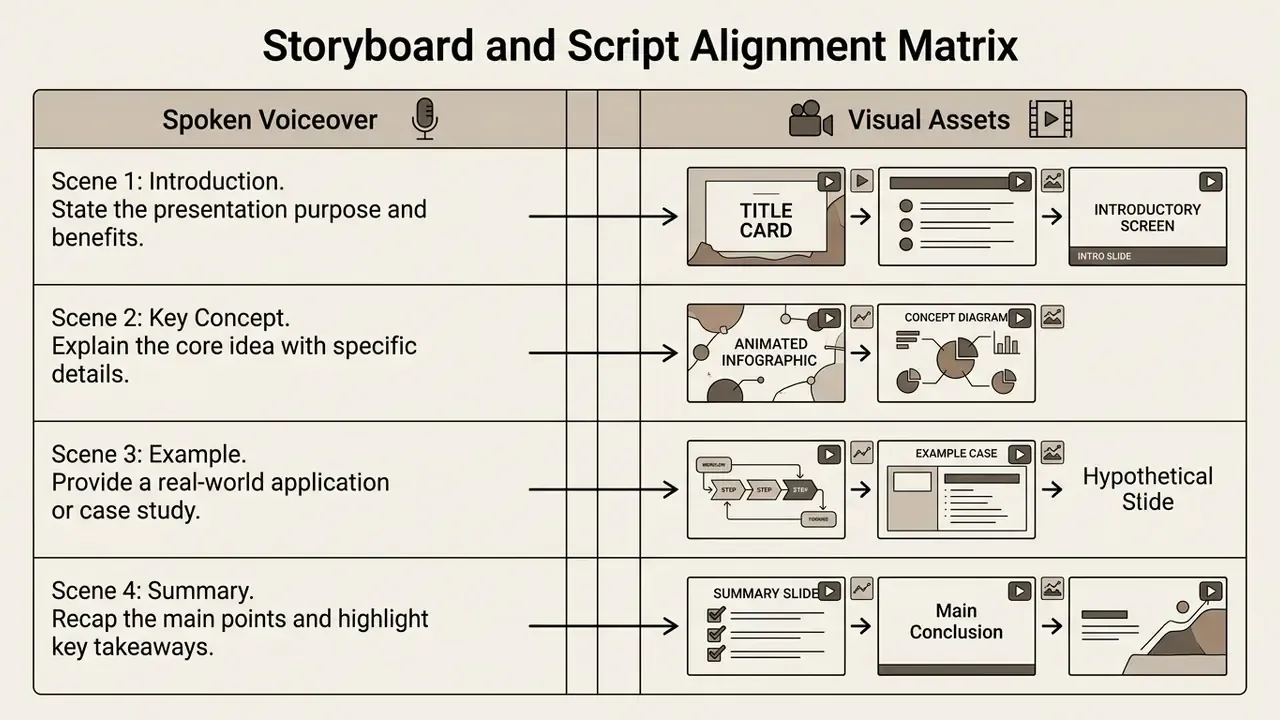
- Scriptwriting: Draft narration in clear, active language. Aim for roughly 130 words per minute. For a two-minute video, cap the script at 250-260 words (Columbia University Center for Teaching and Learning, 2023).
"The contiguity principle: corresponding words and images should be presented simultaneously rather than separated in time or space."
High-retention script architecture (the three-part hook):
To stop drop-off inside the first five seconds, build the opening like this:
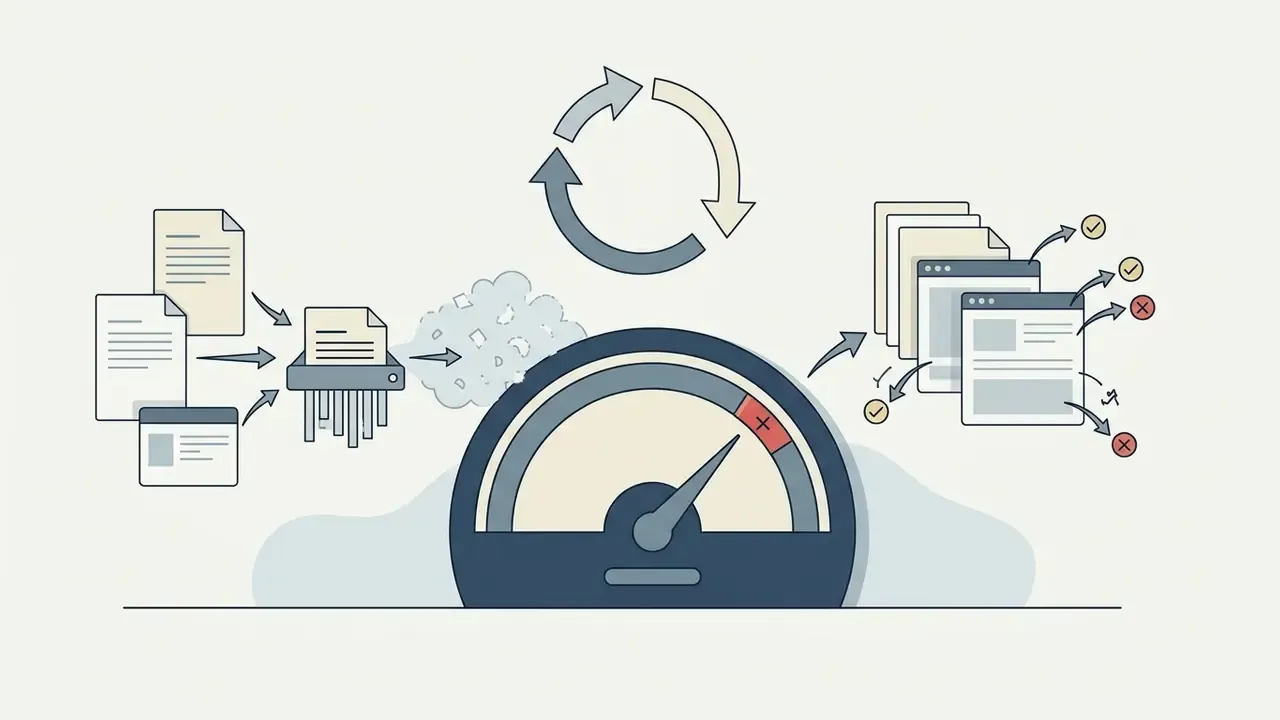
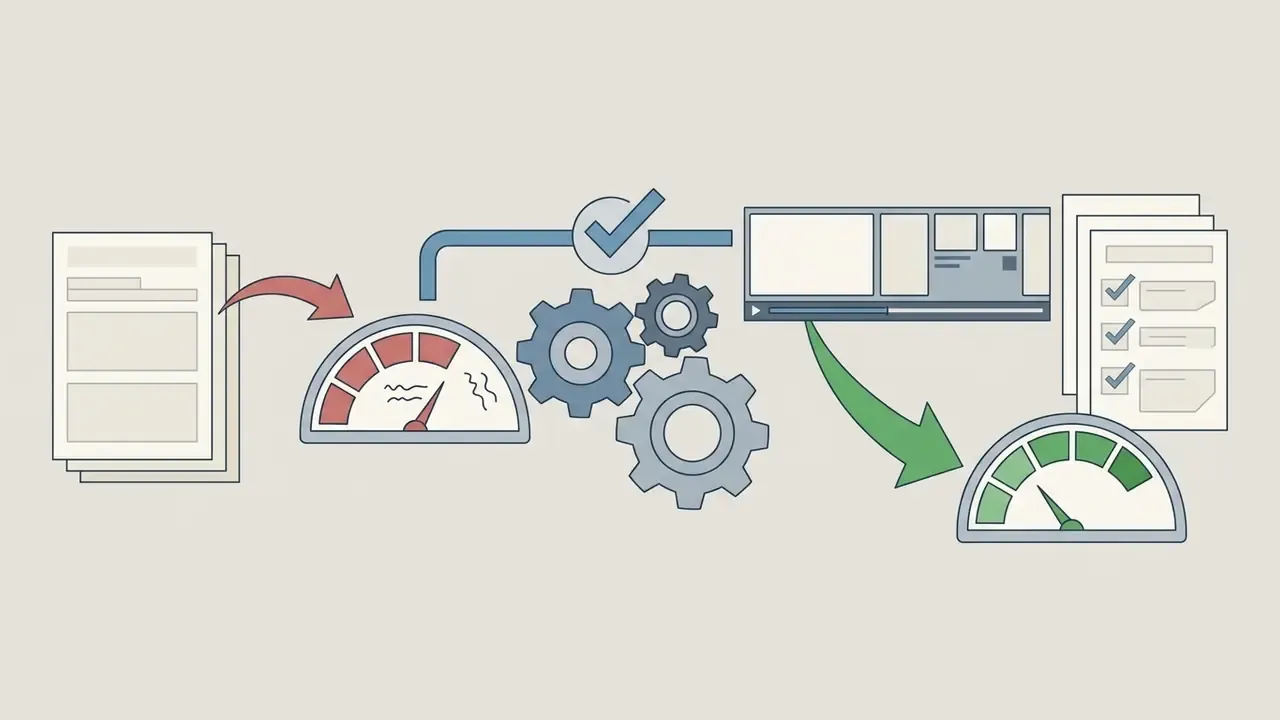
Choose a Video Presentation Maker, Template or AI Tool
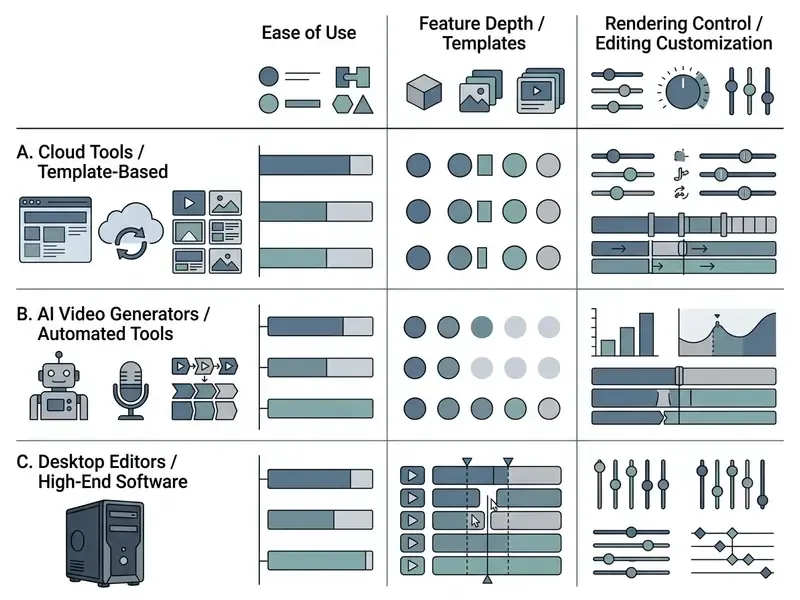
Software choice depends on your team's skills, your deadline, and how much visual customisation the brief demands. Teams under a zero-budget mandate can start with our comparison of free video editing software before committing to a paid licence. The market runs from template-driven web apps and AI-assisted video generators to professional non-linear video editors.
| Tool Category | Best For | Key Capabilities | Learning Curve | Data Privacy & Governance | Fit for Regulated Environments |
|---|---|---|---|---|---|
| Template-Based Makers | Quick business updates, slide decks | Pre-built layouts, brand kits, simple timeline | Low | Cloud storage of assets; check retention and sharing defaults | Acceptable for non-confidential internal content |
| AI Video Generators | Rapid drafting, avatar narration | Text-to-speech, auto-scene creation, script import | Low | Scripts and uploads may be processed by third-party models; verify training opt-out and SOC 2 status | Only with an approved vendor, DPA, and no restricted data in prompts |
| Full Video Editors | High-end promo videos, complex multi-layer tracks | Multi-track timeline, precision audio mix, colour grading | High | Local rendering and on-premise project files; strongest control over source media | Preferred for confidential, board-level, or regulated material |
Start with Video Presentation Templates
A professionally designed presentation template gives you a pre-built visual hierarchy: consistent typography, colour palette, and margin alignment across every slide. Good video presentation templates remove layout guesswork and shorten the production timeline.
When adapting a corporate template:
- Import official brand assets, including logos, primary colour hex codes, and approved font families.
- Keep high contrast between text and background to meet accessibility standards.
- Limit on-screen text to no more than five bullet points per slide, use sans-serif fonts, and hold body text at 24 pt minimum (Massachusetts Accessibility Guidelines, 2025).
- Save the finished layout as a reusable master (a
.potxfile in PowerPoint, for instance) so every later video in the series inherits the same slide master, colours, and logo placement.
When AI Video Helps Create Video Presentations Faster
An AI presentation generator turns written scripts, uploaded decks, or text prompts into draft videos with synthetic voiceover and automated scene transitions. Paste the script, click generate, review the draft (Synthesia Workflows, 2026).
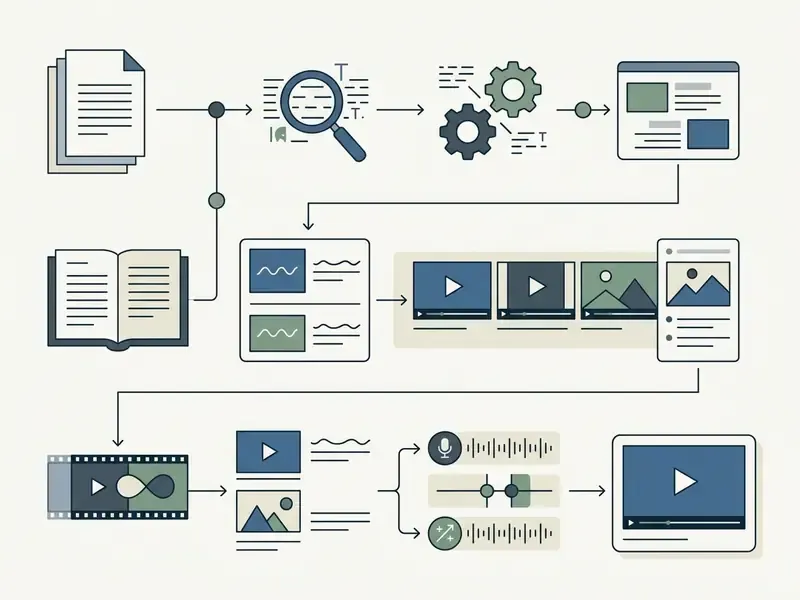
Where these platforms genuinely earn their keep:
- Scalability
- Generate localised variants across multiple languages without re-recording audio.
- Speed
- Convert static PDFs or PowerPoint decks into draft explainer videos in a single pass (Adobe Firefly & Synthesia Documentation, 2026).
- Consistency
- Keep one synthetic presenter avatar across routine internal training material.
"An experiment with 447 participants found AI-generated and instructor-made videos produced comparable exam results, although learners preferred human-made content."
Human oversight is still the control that matters. Every AI-generated asset needs review for factual accuracy, tone, and hallucinated visuals. Teams evaluating tooling can review our AI Media Comparison Matrices and our ranking of the best AI video generators, or consult our guide on how to use AI to create images for custom visual assets. Developer teams rendering at volume can check cost and quota structures in our Google Veo implementation guide.
AI video risk checklist (validate before publication):
- Data exposureConfirm no confidential, client-identifying, or model-risk data has been pasted into a public prompt window. Consumer web tiers of many video and speech services may reuse submitted content for model improvement unless an enterprise agreement says otherwise.
- Shadow AIVerify the tool appears on your approved software register. Unsanctioned SaaS video generators are a common vector for uncontrolled data egress.
- Factual validationHave a named subject-matter expert check every generated claim, figure, and on-screen number against the source document.
- Likeness and voice rightsObtain written consent for any cloned voice or avatar based on a real employee, and record the consent reference in the project file.
- Human-in-the-loop sign-offRequire documented approval from a compliance or legal reviewer before an AI-narrated video is published as official guidance.
- DisclosureLabel synthetic narration or avatars where internal policy, academic integrity rules, or advertising regulations require it.
A 2026 systematic review adds a useful counterweight to vendor enthusiasm.
"A systematic review of 64 studies (2022-2025) documents AI content risks: tool dependency, unequal access, and the absence of regulatory frameworks."
Free Online Video Tools vs Full Video Editors
The choice between a free browser-based video maker and a full desktop editor comes down to post-production control versus accessibility.
- Free Online Tools Microsoft Clipchamp and similar browser recorders give you direct screen capture, webcam overlay, basic trimming, and quick MP4 export with nothing to install (Clipchamp Features, 2026). Good enough for quick team updates and basic online video. Before standardising on one, check the export ceilings, watermark rules, and licensing limits summarised in our overview of free AI video generators.
- Full Video Editors Desktop platforms bring multi-track timeline editing, advanced noise suppression, precise keyframe animation, and custom export bitrates. Use them for customer-facing launches, commercial keynotes, and high quality video assets. Transcript-based editors let a producer cut a narrated deck by editing text, which shortens revision cycles on recurring compliance updates considerably.
Create Slides, Screen Recordings and Camera Footage
Good video presentations rest on clean source material. Crisp slide graphics, smooth screen recordings, and clear narration captured during production mean far less cleanup later, and a more professional video at the end.
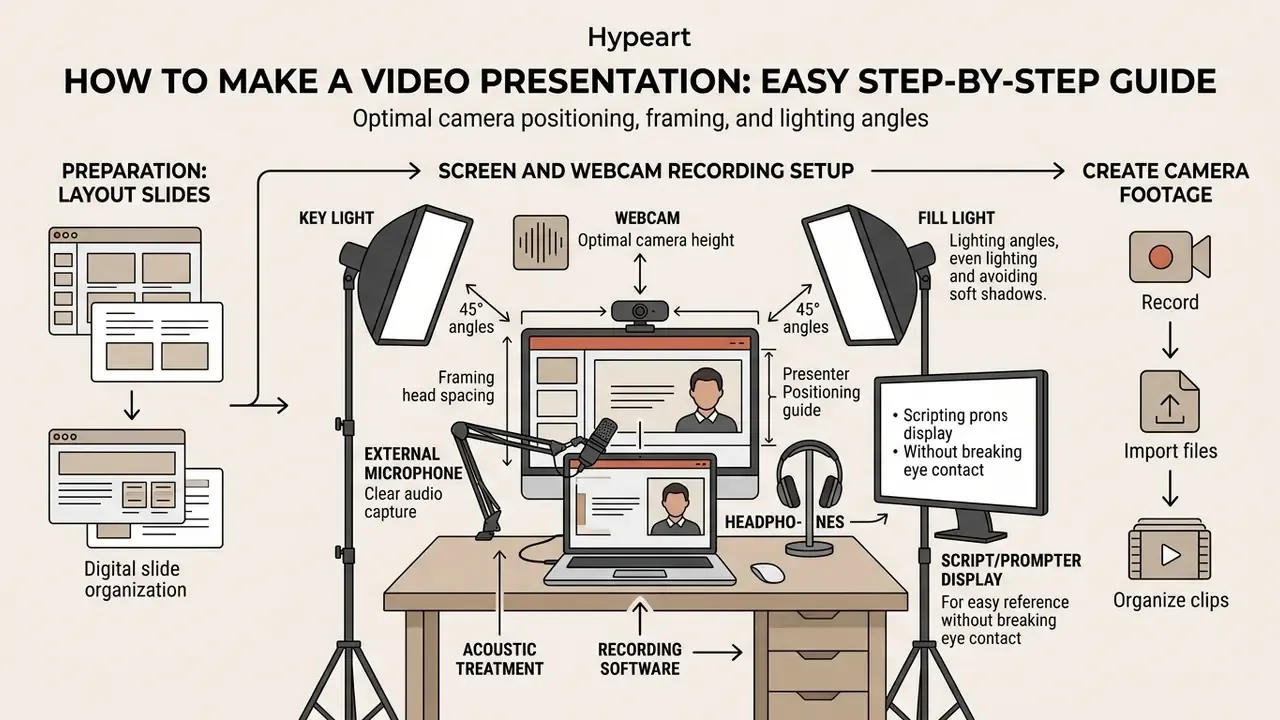
Turn Presentation Slides into Video Slides
Static decks built in Google Slides or Microsoft PowerPoint become dynamic video slides through built-in motion tools and embedded media.
To convert a static deck into motion-ready assets:
Step-by-step native conversion (PowerPoint and Google Slides):
- Apply subtle object animations so key points appear in sequence rather than all at once.
- Embed short video clips or moving diagrams directly in slides to illustrate complex operational workflows (Google Vids & PowerPoint Workflows, 2026).
- Export the deck to a high-resolution video format, or move it into a video-editing environment through native studio integrations.
- In Microsoft PowerPointOpen the Recording tab and select Record Slide Show to capture narration, slide timings, ink gestures, and optional webcam footage. Then go to File > Export > Create a Video, choose Full HD (1080p), confirm "Use Recorded Timings and Narrations", and export as MP4. On macOS, use File > Export and pick MP4 or MOV with quality from 480p to 4K.
- In Google SlidesAdd motion first via Insert > Animation (or View > Motion), then use File > Convert to Video > Convert Slides to import the deck into Google Vids, select slides and aspect ratio, and finish the edit there. Alternatively, click File > Share > Publish to web, set auto-advance intervals, and record a full-screen presentation pass with a browser or desktop recorder.
- Legacy caveatOlder Slides add-ons and direct MP4 exports may drop transitions and embedded media because of API limits. Always play the rendered file end to end before distribution.
Presenters working in Google Workspace can review our guide on how to wrap text around an image in google slides to refine slide typography before video conversion, or learn how to insert youtube video into canva presentation for embedded video assets.
Record Your Screen and Webcam
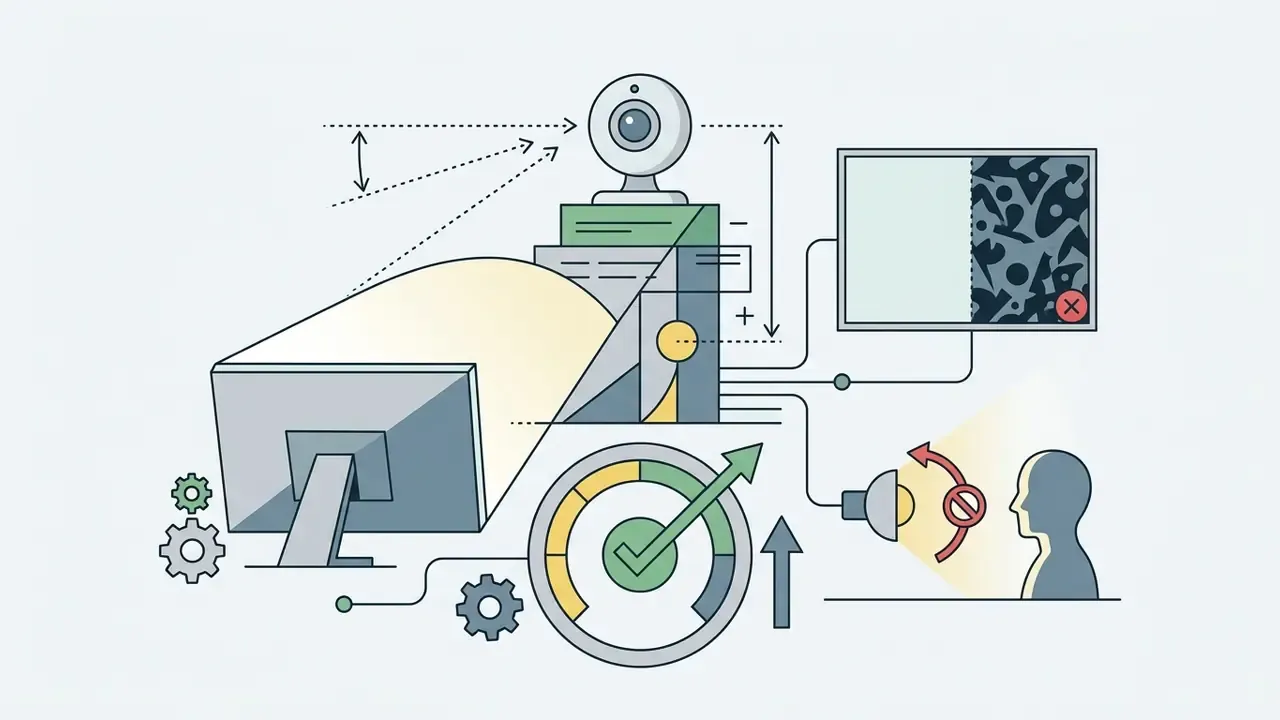
Capturing screen and webcam together creates a presenter-led experience that works well for software demonstrations and operational walkthroughs.
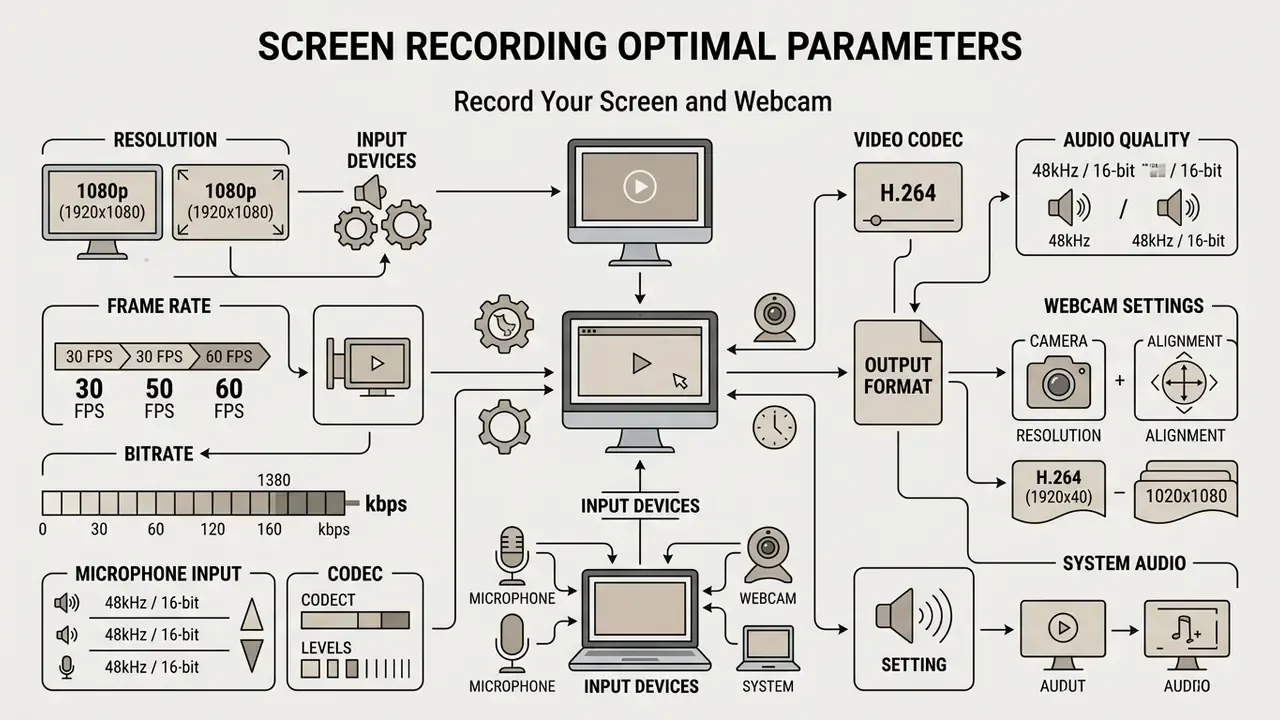
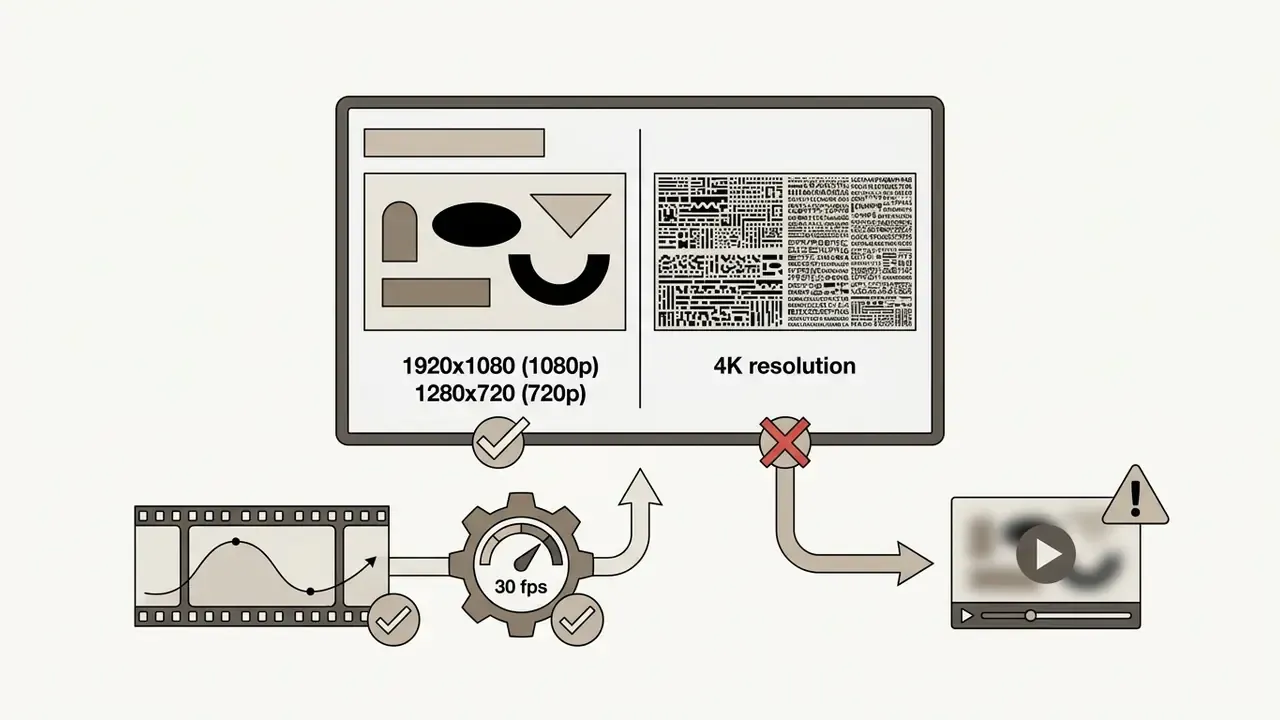
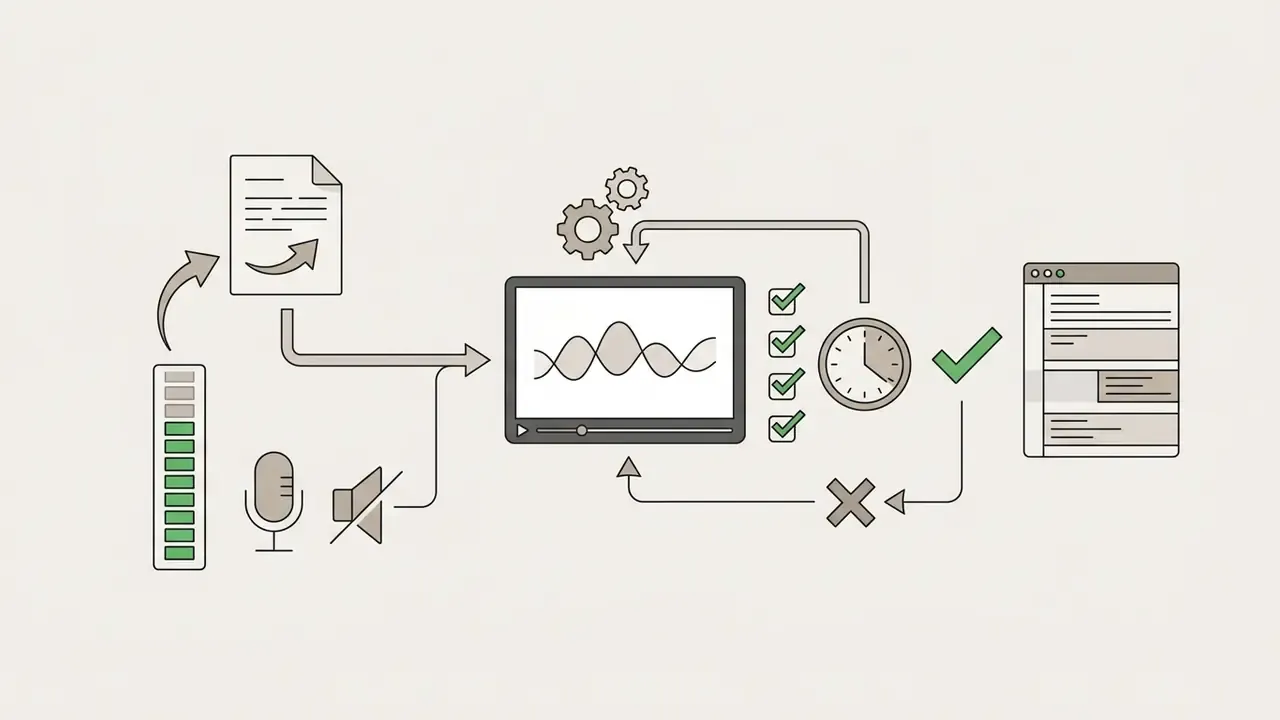
Technical standards worth holding to:
Record Clear Audio and Voiceover
Audio quality drives retention more than picture quality does. Clear narration holds attention; distorted sound and room noise tire the viewer and quietly undermine presenter authority. Anyone asking how to make an audio video presentation should budget more attention to the microphone than to the camera.
"Poor audio, meaning background noise, inconsistent volume, or muffled speech, measurably reduces engagement and comprehension in instructional video."
Recording principles:
- Microphone Selection
- Use an external USB or XLR microphone, not the built-in laptop mic. If live recording is impractical, review synthetic narration options in our guide to AI voice generators.
- Placement
- Keep the microphone four to six inches from your mouth, slightly off-centre, to avoid plosive pops (University of Bath Media Guide, 2024).
- Environment
- Record in a quiet room with soft furnishings to cut echo and acoustic reflection.
- Source Fidelity
- Where the editor supports it, capture narration as uncompressed WAV or AIFF at the native sample rate to avoid re-encoding artefacts in the mix.
- Synchronisation
- Keep slide timings and narration cues aligned throughout, and leave "Slide and animation timings" enabled so narration follows slide changes automatically (CPHA Guidelines, 2025).
Edit a Video Presentation That Keeps Viewers Engaged
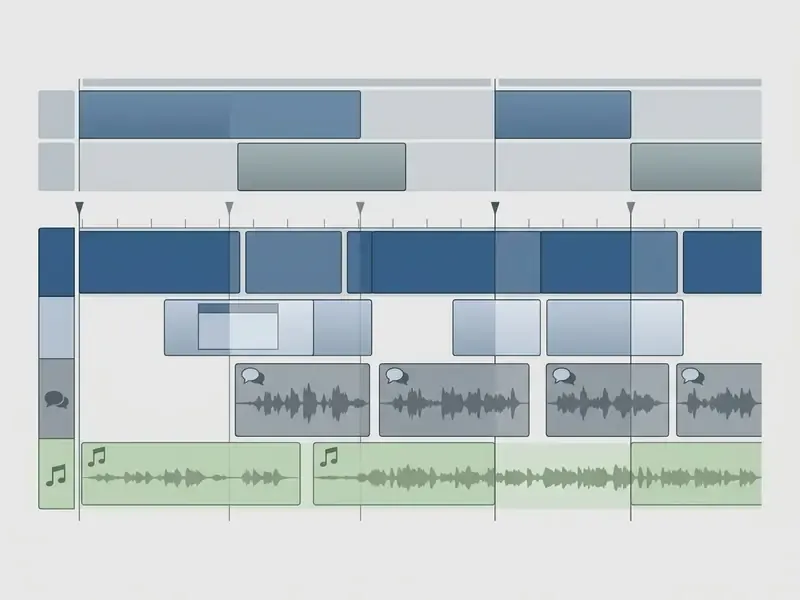
Editing turns raw recordings into an engaging video presentation: clear pacing, no awkward pauses, subtle transitions, balanced audio. If you are still choosing post-production software, compare feature depth and pricing in our overview of the video editor landscape.
Edit for Clarity, Pace and Attention Spans
Retention editing means holding narrative momentum: kill dead space, keep the visual cadence active.
- Pacing & Trimming: Cut filler words ("ums", "ahs"), long pauses, and false starts. Aim for a visual change (slide transition, camera shift, graphic highlight) every 10 to 15 seconds. Fast promotional cuts may change every 1-3 seconds; a complex technical explanation needs slower pacing so the audience can process each step.
"Coherence, meaning the exclusion of extraneous material, was consistently associated with improved learning across the 113 studies reviewed."
- Information Structure Keep complex explanations tight. Give key takeaways room to land without letting the narrative sag.
- Formatting for 2-minute cuts For short executive summaries, drop the preamble and land on the core topic inside five seconds. Place a visual change within the first three seconds to reduce early abandonment, and end right after the payoff instead of adding a decorative outro.
Add Transitions, Animated Text and Visual Elements
Visual elements should reinforce the spoken message. Decoration for its own sake competes with it.
- Transitions: Simple cuts or subtle cross-fades. Flashy 3D wipes read as amateur in a professional context.
- Animated Text Use lower-third captions or animated text overlays to emphasise key points, technical terms, or statistics as the voiceover mentions them. Keep any moving, blinking, or looping content user-controllable, and drop blinking or rotating elements entirely in versions distributed for accessibility compliance.
- Visual Signals Add callout arrows, spotlighting, or zoom cuts during screen recordings to point the viewer at the interface button or data field that matters (Monash University Multimedia Principles, 2023).
Add Branding, Voiceover and Background Music
A coherent audio-visual style keeps the presentation video inside corporate brand standards and signals that the asset is official.
Preview, Download and Share Your Video Presentation
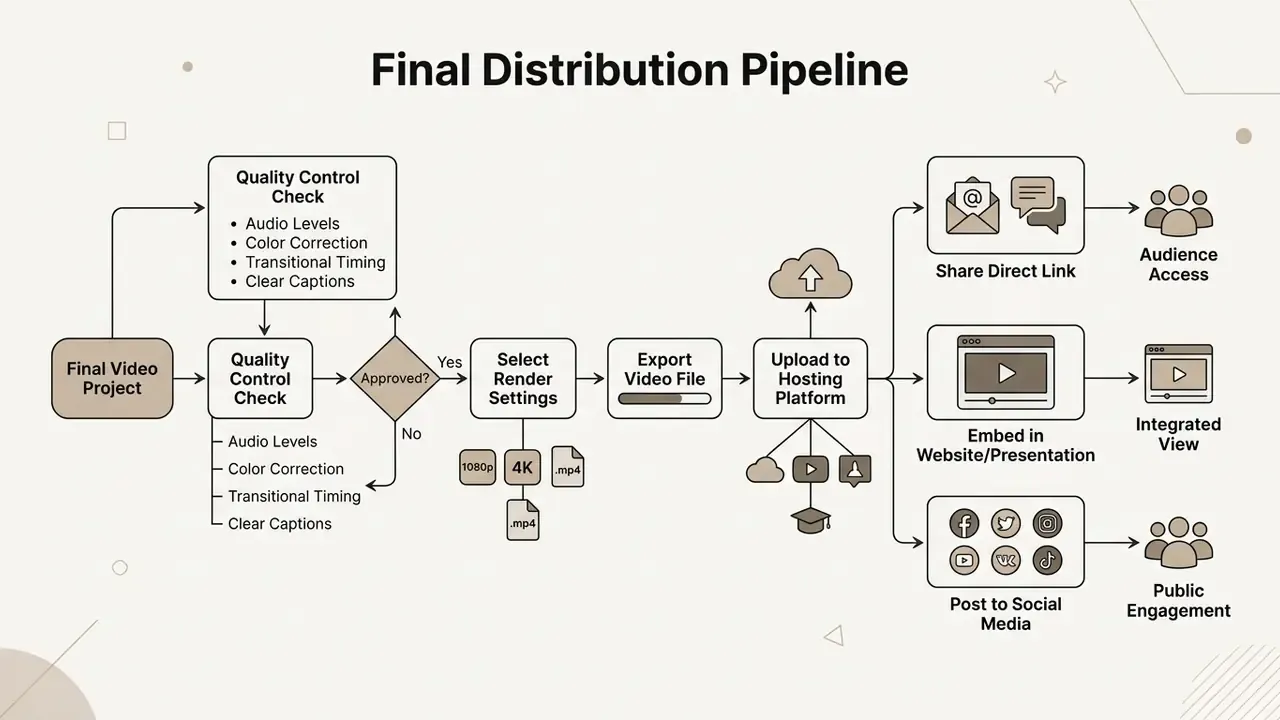
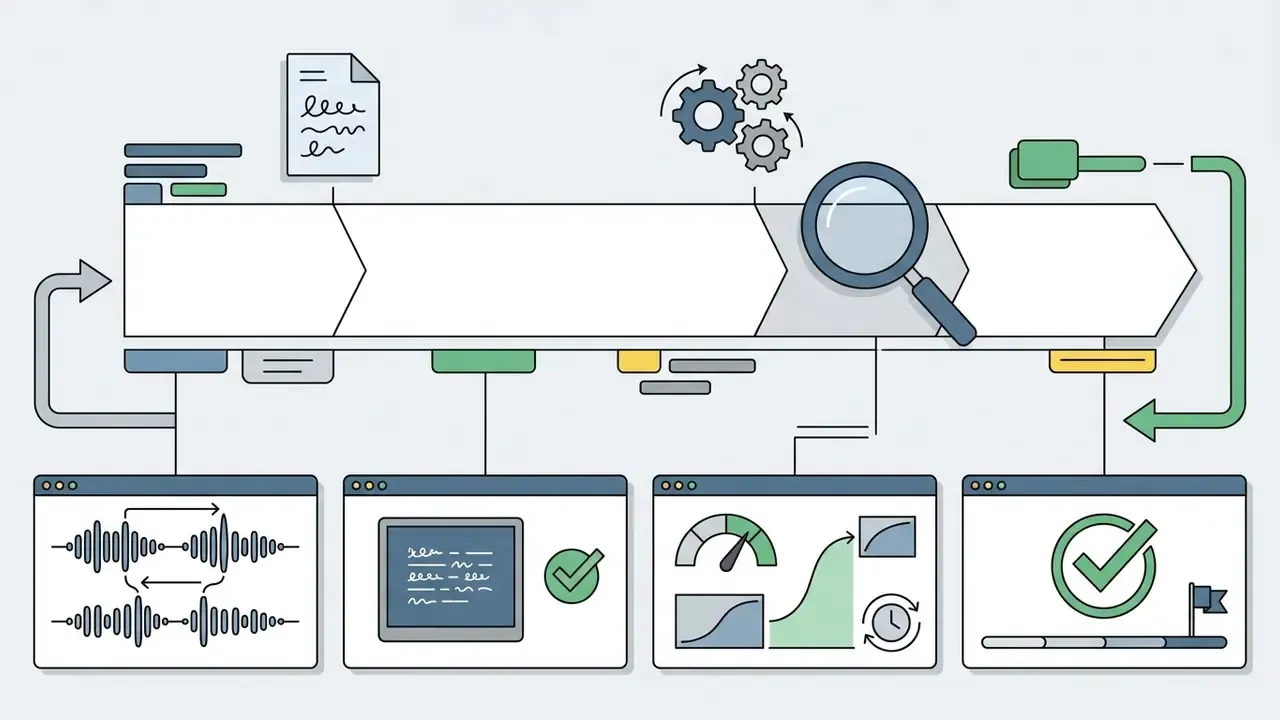
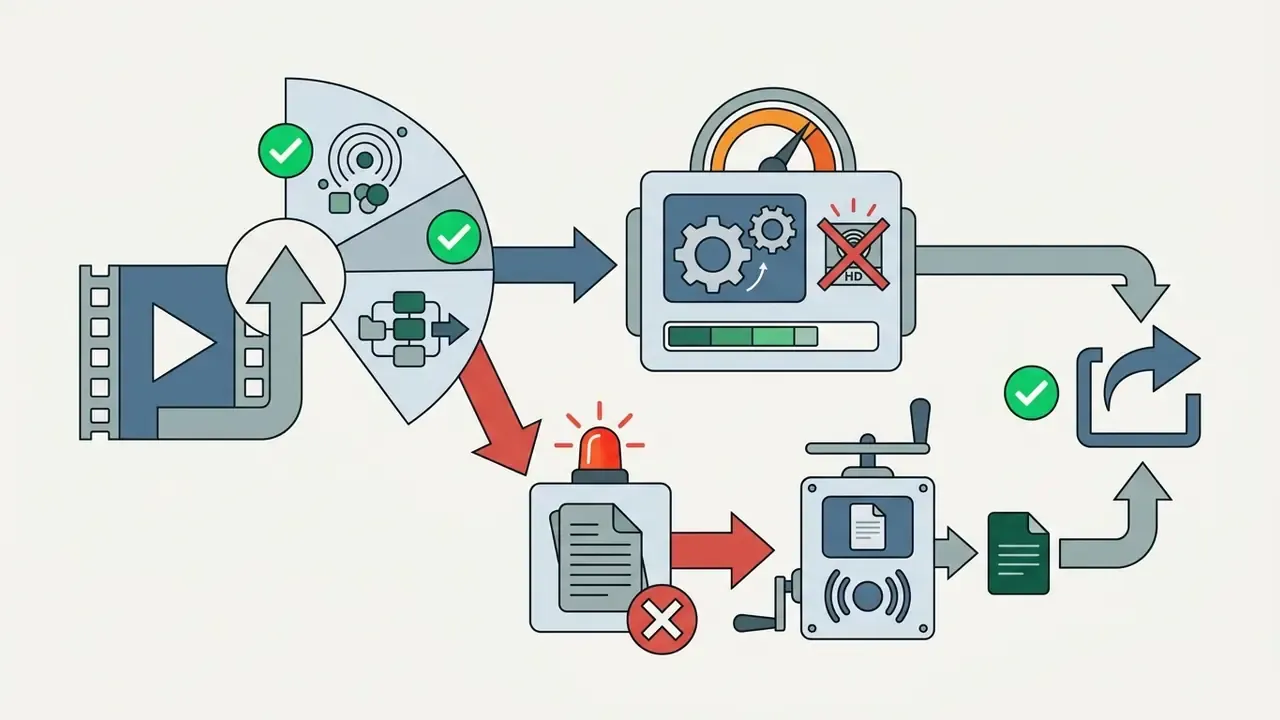
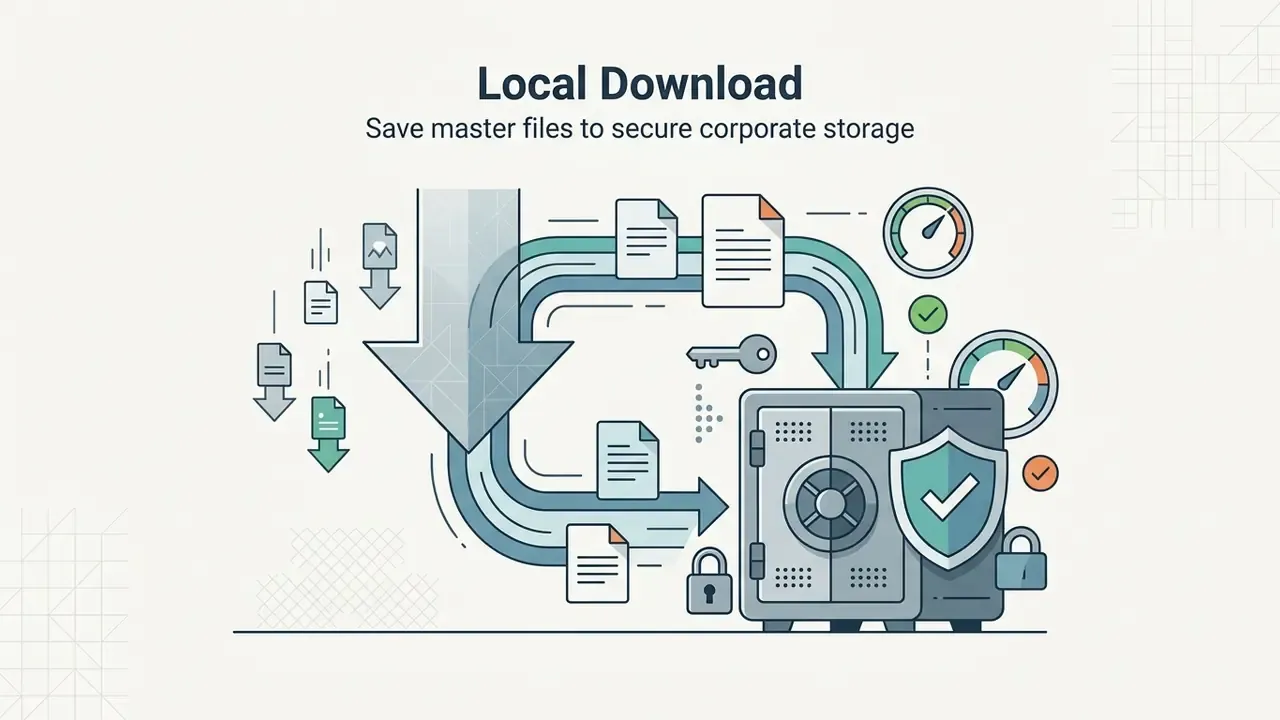
The last phase is quality assurance on the rendered file, export in a suitable format, and distribution across the channels you have chosen.
Preview and Export in the Right Format
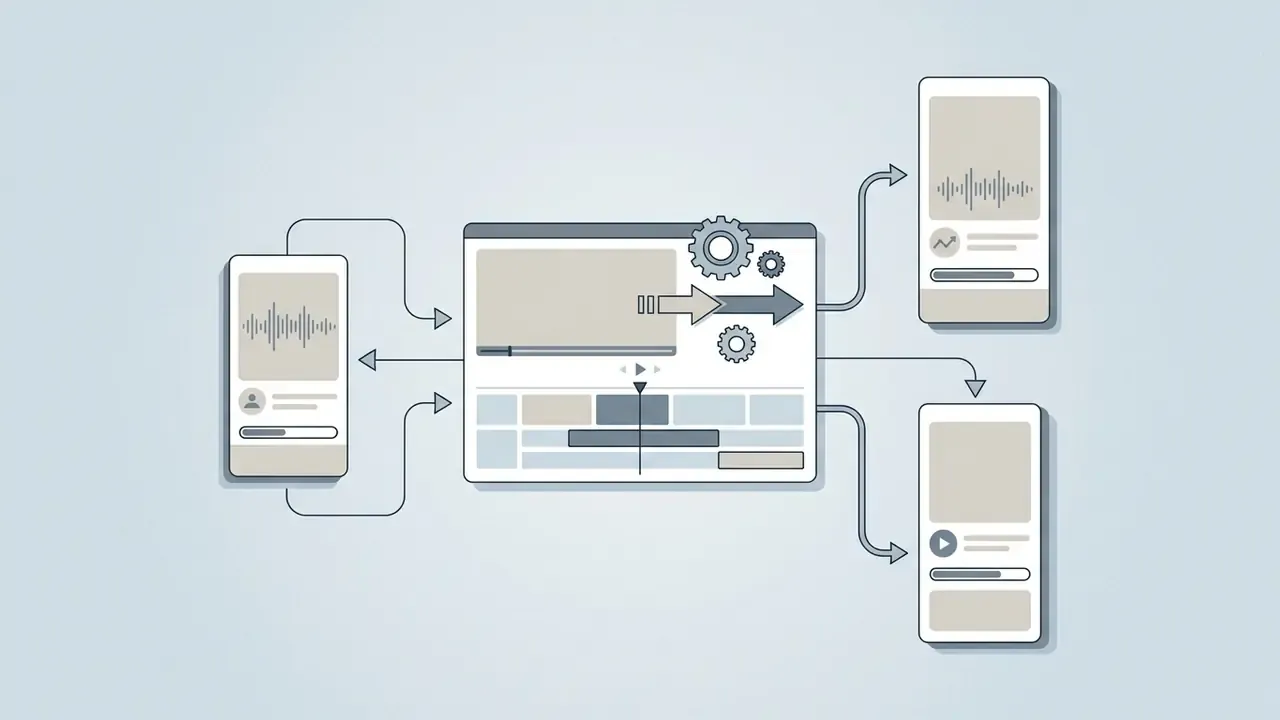
Before publishing, run a full quality check for technical errors, typos, and audio clipping (Adobe Premiere Quality Control Guidelines, 2026).
- Quality Check Checklist Confirm narration is clear, on-screen text is legible on a phone, transitions are smooth, and branding sits in the same place throughout. Then scan for missed transitions, wrong clip lengths, hidden or clipped text, stray room sounds, and lower layers showing through overlays.
- Export Settings Export the master in MP4 using the H.264 codec. Standardise at 1080p (1920×1080), 30 frames per second. That configuration delivers high quality output with broad hardware compatibility and a manageable file size (W3C Web Media Application Guidelines, 2025). Where you need a fast, high-fidelity render, a "Match Source - Adaptive High Bitrate" preset preserves the sequence frame size and rate.
- Delivery Constraints Check the receiving platform's limits before export. Common submission rules cap files at 250 MB, require a minimum height of 480 pixels, and accept only MP4/H.264 or MOV.
Share and Repurpose Video Content
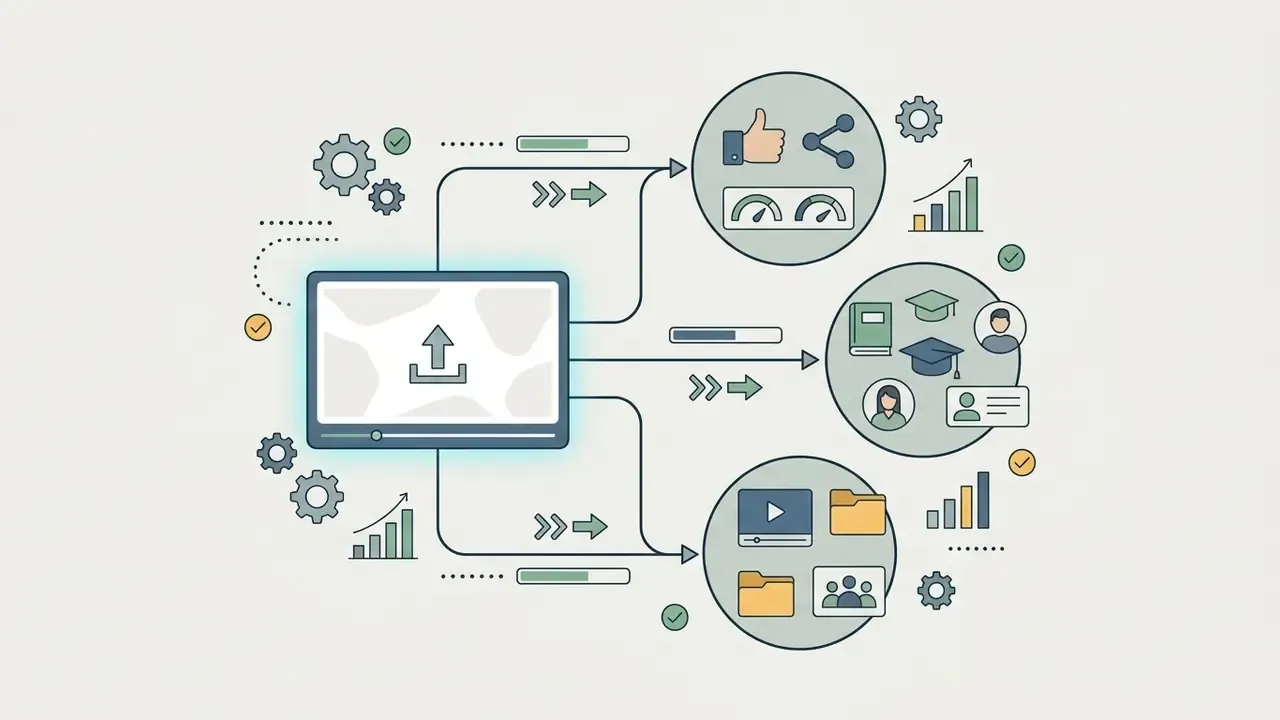
One master file should feed several channels. Here is how the presentation video gets shared via each of them:
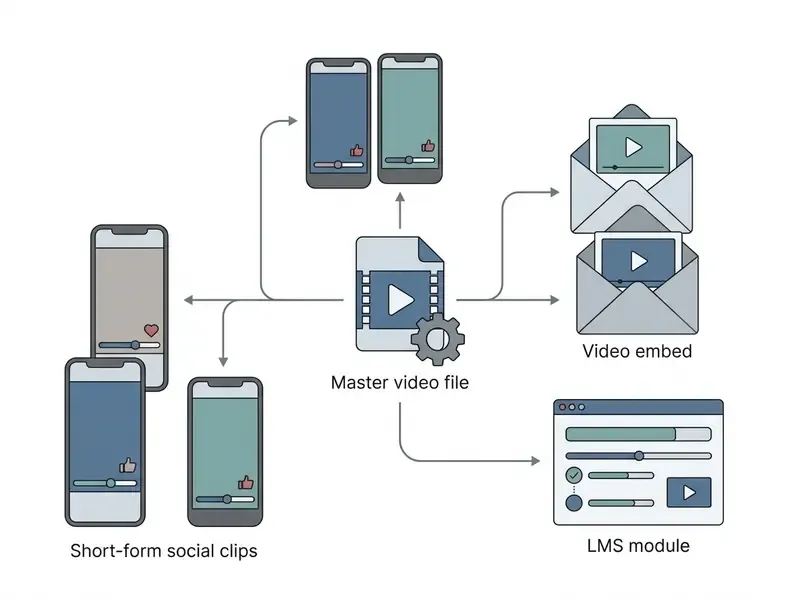
- Learning Management Systems & Intranets: Embed the master video directly in LMS course pages alongside downloadable decks, transcripts, and discussion boards (UConn eCampus, 2023).
"Optimal length for maximum reach: roughly 45 seconds on Twitter, 60 seconds on Facebook, and about two minutes on YouTube."
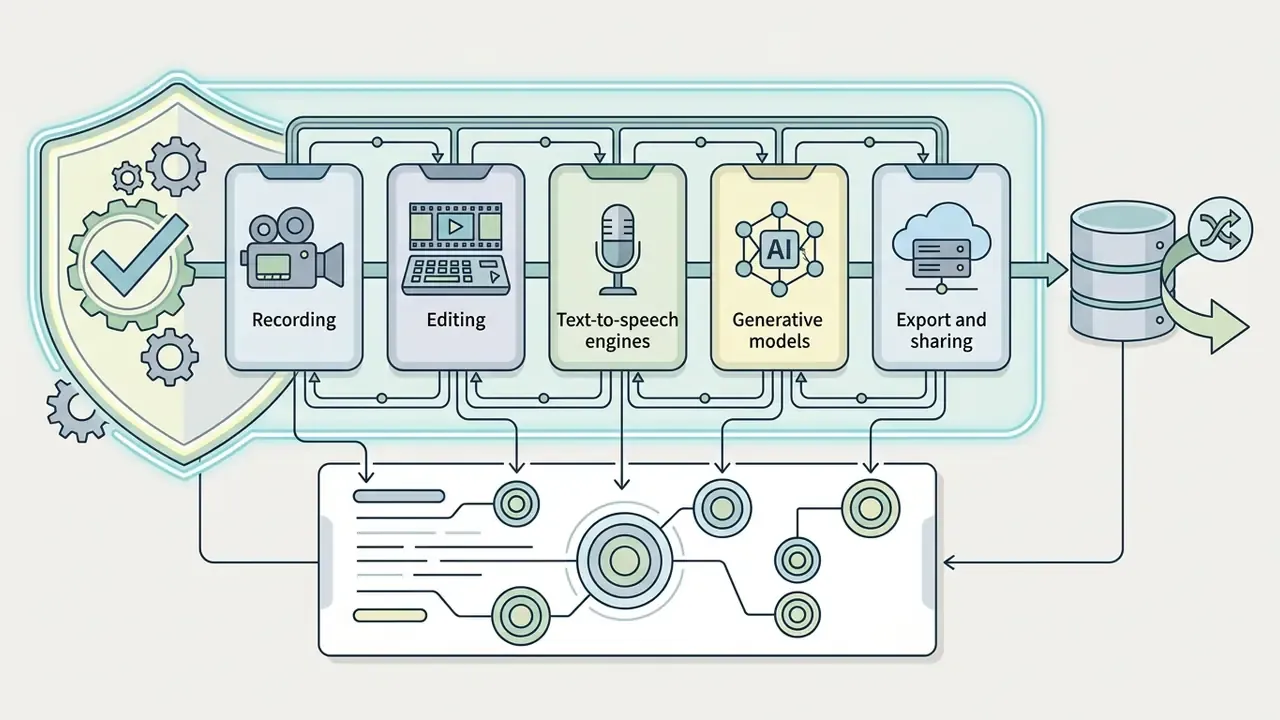
Governance, Audit Trail and Data Security for Regulated Teams
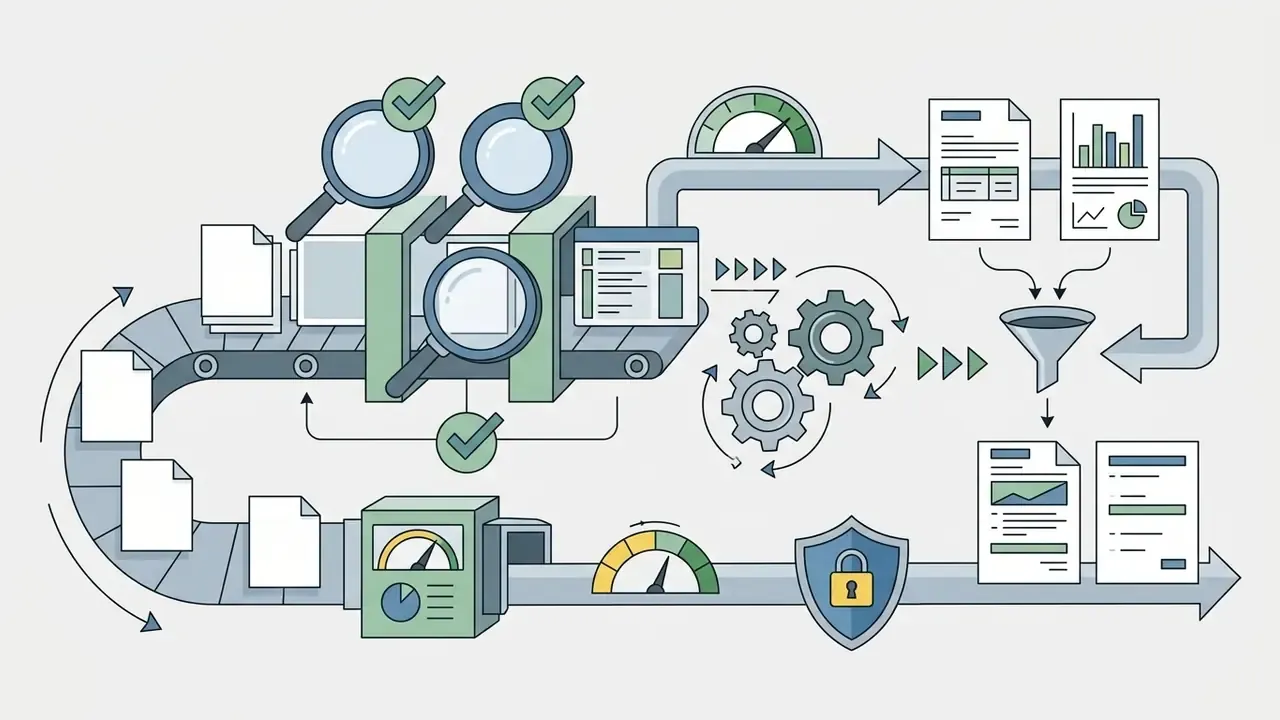
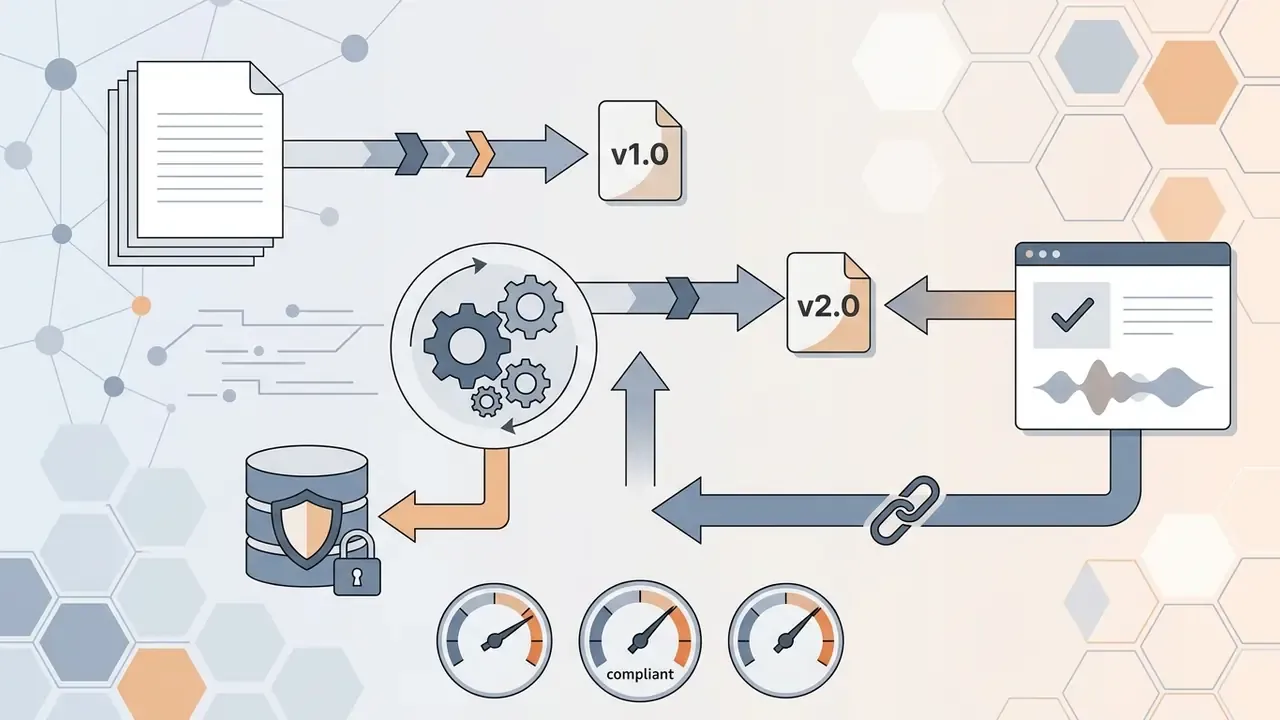
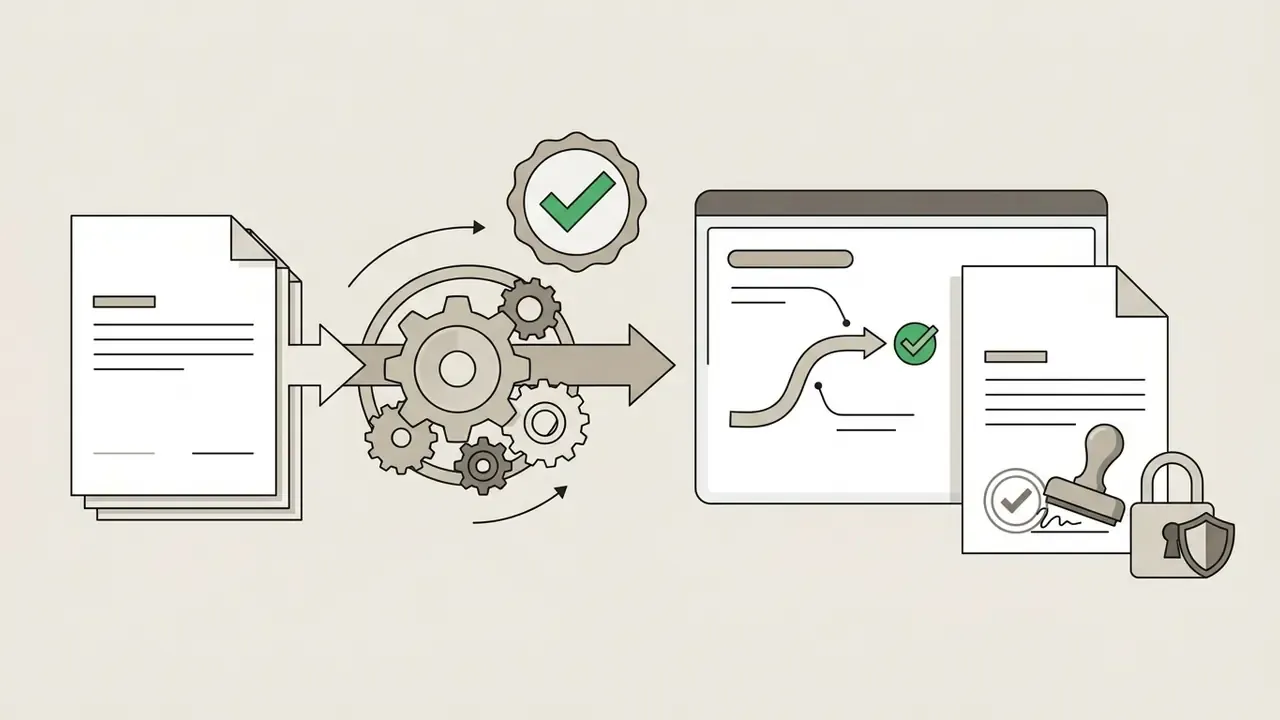
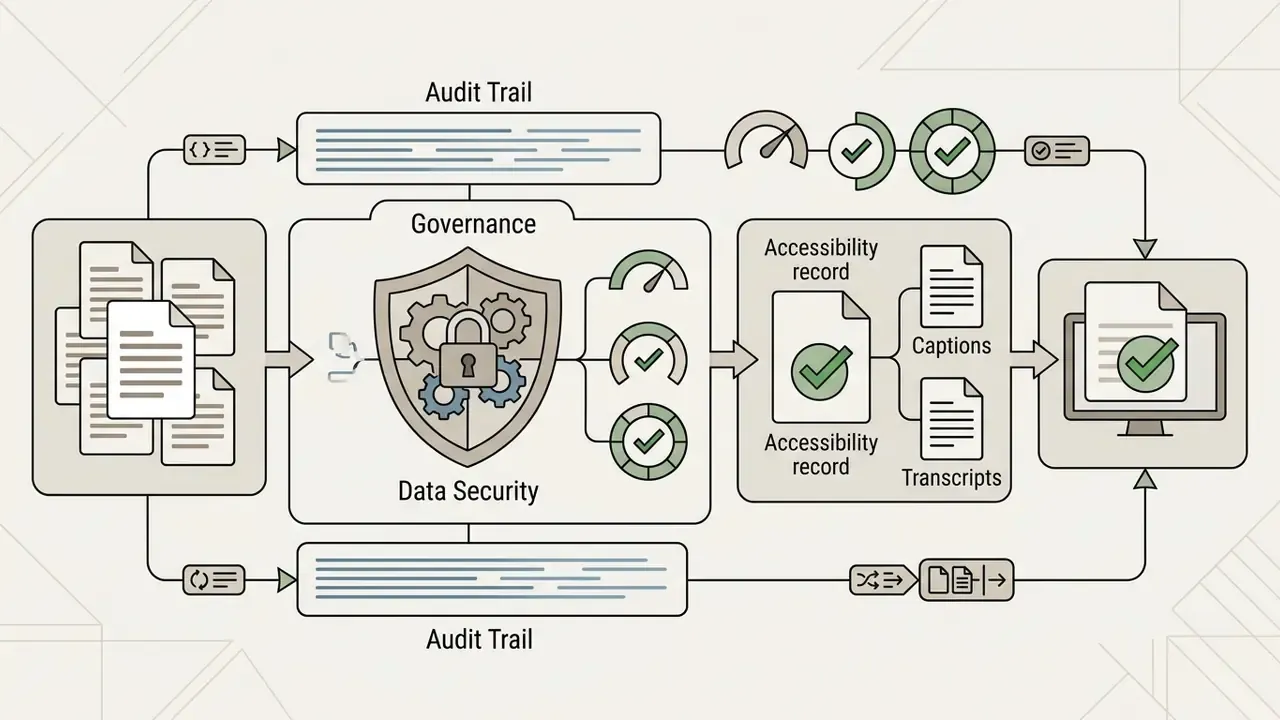
In banking, insurance, healthcare, or any supervised sector, a training or policy video is a controlled document. Treat the production pipeline as a reproducible process with evidence attached, not a one-off creative project. The question an examiner asks is simple: which version did this employee watch, and who approved it?
Pre-publication security and compliance checklist:
FAQ About Making a Video Presentation
Can You Create a Video Presentation for Free Without Recording Yourself?
Yes. The easiest way to make a video presentation without appearing on camera combines presentation slides, screen recordings, text-to-speech voiceover, or an AI-generated avatar, all on free tiers. To build a presenter-free video presentation at no cost:
- Build Presentation Slides: Create the deck in free software such as Google Slides or Canva.
- Record Your Screen: Use a free screen recorder, for example Microsoft Clipchamp or OBS, to capture slide transitions or a software demo.
- Generate Audio Narration: Use built-in text-to-speech or record voiceover with a desktop microphone and the webcam switched off.
- Use AI Avatars or Stock Media: Apply an AI presentation platform with synthetic avatars, or drop in stock video clips to represent key concepts (Synthesia & Clipchamp Feature Guides, 2026).
"A semi-automated pipeline (Google Gemini + Amazon Polly + PowerPoint) produced instructional videos with outcomes comparable to human-made ones." - Stanford AI-Powered Video Lectures Pilot Study (2024). https://stanford.edu/ One caveat: free tiers commonly cap export resolution, add watermarks, or reserve avatar cloning for paid plans. Verify the export ceiling before you build a whole series on a free account.
How Do I Add Professional Voiceovers Without Using My Own Voice?
You can produce studio-grade narration with AI text-to-speech engines and cloud add-ons such as WellSaid Labs, ElevenLabs, or native Clipchamp speech tools:
- Paste the finalised script into the TTS editor.
- Choose a synthetic voice profile matching your audience, language, and regional dialect (En-US, En-GB, or an executive-neutral read).
- Set pacing to 130 wpm and insert explicit 0.5-second pause tags (
- Export the WAV or MP3 track, align it on the timeline, then re-check lip-sync or slide timing against the storyboard. Localisation is the strongest use case: one approved script renders into several languages without re-booking a presenter, provided a native-speaking subject-matter expert has reviewed the translated text first.
How Long Should a Video Presentation Be?
Match runtime to context. Use 60-120 seconds for executive summaries, landing-page hero videos, and social distribution; under six minutes for any single instructional module; and split anything longer into short chapters. Where an event or course imposes a fixed cap, and 3, 5, 10, or 15 minutes are all common, the specification beats general best practice.
Which Export Format Should I Use?
MP4 with the H.264 codec at 1080p and 30 fps is the safest default: it plays reliably across browsers, mobile devices, LMS players, and email-linked landing pages. MOV is accepted in several conference submission rule sets. Export the slide handout as a separate PDF, since audio and video will not play inside a PDF and must be delivered as a linked file.
Appendix A: Editorial Corrections and Source Revisions
For transparency, the following citations were revised during the latest editorial review. Earlier versions of this guide attributed specific claims to the sources in the left column; those references lacked published figures, methodology, or a verifiable URL and have been superseded.
| Claim | Superseded reference | Current reference (Updated) |
|---|---|---|
| Presenter presence increases trust and retention | Computer & Education, 2023 | OSU Review of Visual Instructor Presence in Lecture Videos (2023-2024) |
| Engagement plateaus after six minutes | Principles and Guidelines for Maximizing Student Learning from Educational Videos, Monash University, 2023 | MIT MOOC Video Engagement Analysis; Guo edX Watch-Time Study; SUNY OSCQR (2023) |
| Extraneous detail increases cognitive load | ANU Communication Guidance, 2024 | Monash University Systematic Review of Instructional Video Design, 113 papers (2023) |
| Flashy transitions harm comprehension | Massachusetts Accessibility Guidelines, 2025 (retained for slide accessibility rules only) | Monash University Systematic Review of Instructional Video Design, 28 principles (2023) |
| Visual change cadence of 10-15 seconds | UOC Video Editing Standard, 2024 | Retained as practitioner guidance; supported directionally by Monash coherence findings (2023) |
Technical Specifications & Publication Metadata
how to make a video presentation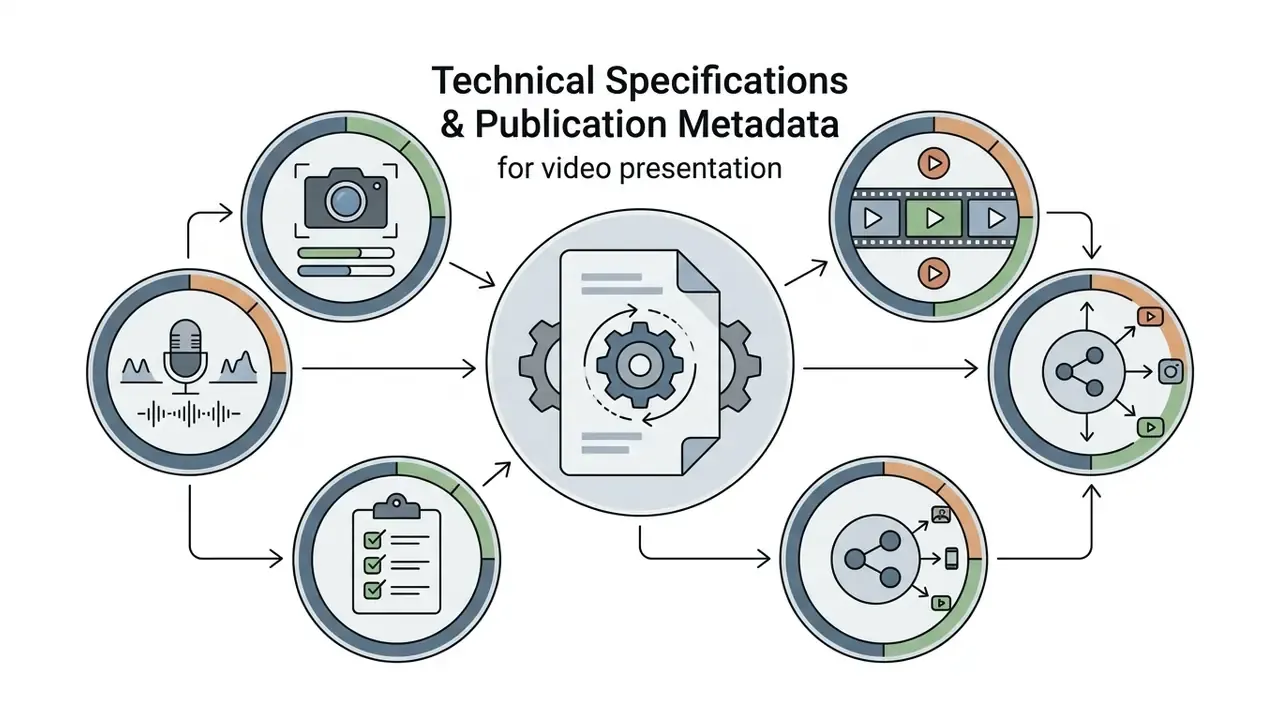
video presentation, presentation video, business video, animated video, screen recorder, video content, creating a video presentation, create video, key points, use case, attention spans, making video, presentation maker, video presentation maker, video presentation templates, video editor, ai presentation, ai video generator, free video, google slides, own video, video clips, create video presentations, professional video, engaging video presentation, background music, high quality, download, format, shared via, youtube video, social media, promo video, convert powerpoint to video presentation, pre-meeting teaser, text-to-speech voiceover.
Additional Step-by-Step Resources
Navigational footer: Explore our archive of technical workflows to optimise corporate media production pipelines.