Choosing a video editor in 2026, whether you publish TikToks solo or run a brand content team, comes down to four things: how fast you can ship, how clean the export looks, who owns the footage you upload, and what the year actually costs you. Automated mobile tools still win on raw publishing speed. But expanding feature paywalls, sharp regional price jumps and rewritten content-licensing terms have pushed a large share of creators to start testing alternatives.
«Uncontrolled software dependencies create operational friction. Whether you're a solo creator or a brand team, the same three questions decide the tool: does the export leave clean, do you still own the footage you upload, and can you rebuild the project if the app disappears from your app store tomorrow?»
That last question stopped being hypothetical in 2025. So this comparison starts with what actually changed, and only then moves to the nine editors worth switching to.
Quick Verdict Matrix
If you read one block, read this one.
| Your situation | Recommended editor | Free export | Real annual cost |
|---|---|---|---|
| Best free overall (mobile + Mac) | VN Video Editor | Clean, no watermark, up to 4K | $0 |
| Best free on Windows | Clipchamp | Clean 1080p, unlimited | $0 (4K via Microsoft 365) |
| Best free on Apple devices | iMovie | Clean 4K | $0 |
| Best for serious creators / color work | DaVinci Resolve | Clean, up to 4K UHD 60 fps | $0 free, or $295 one-time for Studio |
| Fast social edits on a phone | InShot | Watermarked (removable) | $19.99/year |
| Green screen on mobile | KineMaster | Watermarked | $49.99/year |
| Auto-captions in a browser | VEED.IO | 720p, 10 min, watermarked | from ~$144/year (Creator $12/mo) |
| Team collaboration in the cloud | Kapwing | Watermarked | Pro subscription |
| Marketing collateral & brand video | Canva | Clean with free assets only | $144/year (Pro) |
| Compare against: CapCut Pro | 1080p, watermark on Pro assets | $239.88/year (€359.88 in the EU) |
One-line rule: edit on a phone and want zero watermarks for zero dollars, use VN. Edit on a desktop and want professional depth for zero dollars, use DaVinci Resolve.
Who This Comparison Is For
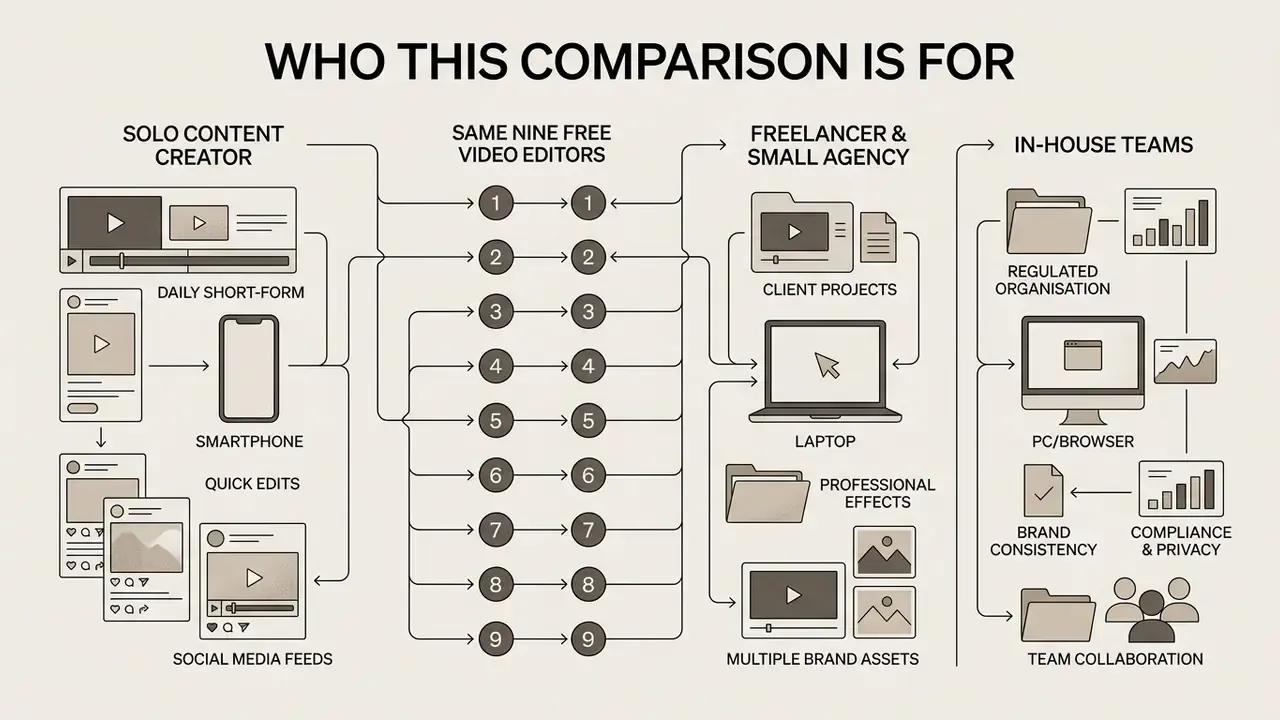
Three very different readers land on a page about free video editing apps like CapCut, and they need different answers.
The first is the solo creator publishing short-form daily. For that reader, watermark policy and export speed decide everything; content-licensing clauses feel abstract until a brand deal arrives.
The second is the freelancer or small agency editing client footage. Here the calculus flips. A perpetual content licence granted to a third-party platform is not a minor terms-of-service detail, it is a deliverable you cannot legally promise.
The third is the in-house marketing, HR or communications team inside a regulated organisation, including banks and fintech firms where every tool passes a vendor review. Those teams care about where media is processed, whether an account is required, and whether the workflow survives an app-store removal.
Same nine editors. Different weighting. Each review below flags which reader it fits, and the privacy matrix further down is aimed squarely at the third group.
Why Look for an Alternative to CapCut Video Editor?
Creators and organizations start hunting for an alternative to capcut video editor for fairly mundane reasons: split pricing tiers, asset-gated watermarks, AI feature quotas and platform privacy policies. Moving to another video editor buys predictable export quality, unconstrained 4K output, or the specialized timeline controls that complex production actually needs.
But the 2025-2026 exodus was not driven by feature envy. It was driven by three concrete events.
What Changed in 2025-2026: Bans, Terms of Service and Price Hikes
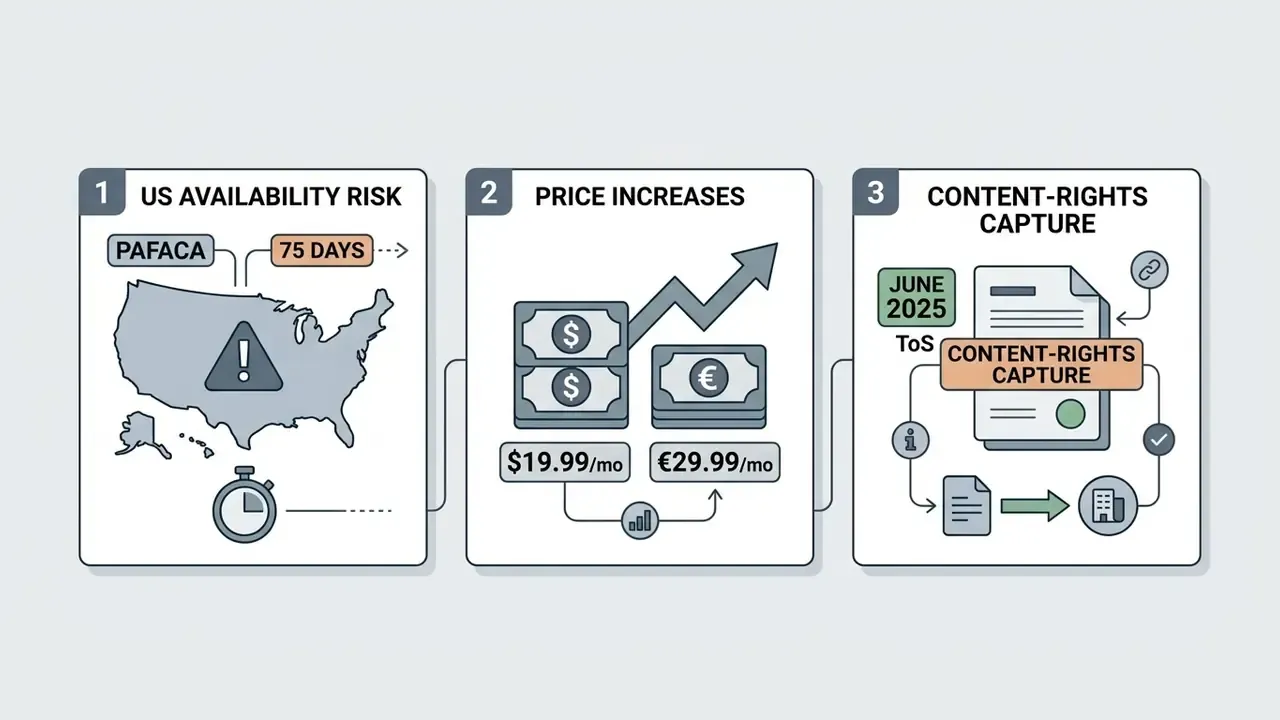
1. Legal and availability risk (PAFACA). In January 2025, CapCut was pulled from the US App Store and Google Play for 75 days under the Protecting Americans from Foreign Adversary Controlled Applications Act (PAFACA). The app returned after ByteDance signalled it would divest its US business, yet the precedent stands: an editing workflow can become inaccessible on a device you own, with drafts stranded in a cloud you cannot reach. Plenty of creators switched during those 75 days and simply never came back.
2. Content-licensing capture (ToS, June 2025). In June 2025, ByteDance updated CapCut's Terms of Service to claim perpetual, irrevocable rights to content uploaded to the platform. For hobby creators making TikToks this matters less. For agencies, freelancers doing client work, or brand teams building intellectual property, it is a hard stop. You would effectively be licensing a client's assets to a third party.
3. The pricing "rugpull." The features that made CapCut the most-downloaded video editor in the world (auto-captions, audio extraction, vocal isolation, filler-word removal, background removal, most AI effects) moved behind a Pro subscription. US pricing reached $19.99/month, roughly $239.88/year, and users in the EU report €29.99/month, about €359.88/year. That is professional-subscription money for a tool that grew on free-tier generosity.
«They removed the watermark and had the best effects, and that's how they blew up. Now CapCut has gotten really greedy with what features they gate behind paywall.»
Free Version Limits, Watermarks and Export Options
CapCut's free version exports 1080p video without a watermark on standard edits, then introduces a watermark the moment Pro-labeled templates, premium effects or paid AI assets appear in a project. Ultra-high-definition 4K at 60 frames per second, HDR processing and expanded cloud storage (up to 100 GB) sit behind paid tiers, $9.99 per month Standard or $19.99 per month Pro, according to 2026 pricing analyses (Vidpros CapCut Tier Analysis, 2026). AI-powered features such as background removal and auto-captions also face monthly quota caps on the free tier, which nudges frequent creators toward a free capcut alternative with transparent export conditions.
«CapCut's free plan watermarks exports only when Pro-labeled assets are used; standard templates export at 1080p without any watermark.»
The practical trap is accidental Pro-asset inclusion. One premium sound effect or trending template dragged onto the timeline converts a "free" project into a paywalled export at the exact moment of delivery. Ask anyone who has discovered this at 11 p.m. before a client deadline.
Community feedback flags reliability too, not just pricing. In r/VideoEditing and the CapCut alternatives threads, desktop export failures on long projects come up again and again, alongside surprise watermarks triggered by paid audio.
«It's actually horrendous. Every long video I try to export, I get an error halfway through and it fails.»
In one digital media audit of production software, a corporate communications team logged the operational risk tied to accidental premium asset inclusion. The team wrote strict asset-vetting rules and moved sensitive video projects to a dedicated local NLE. Unexpected export paywalls disappeared, and external cloud data exposure dropped with them.
When Another Editor Better Fits Your Editing Needs
Alternative video editing software beats CapCut when the workflow demands multi-track audio engineering, a precise color grading pipeline, local data privacy, or browser-based collaborative editing with no local installation. Specialized non-linear editors (NLEs) give you granular frame control and uncompressed export streams that templated tools cannot replicate, however slick their presets look.
CapCut's official Privacy Policy notes that accounts, uploaded content, device identifiers and IP addresses may be collected and shared with third-party service providers (CapCut Privacy Policy, 2026). Combine that with the June 2025 ToS change and both the data and the licence to the creative output flow outward. For corporate teams or educational institutions working under strict data governance rules, local desktop software or client-side free video editing software offers far more confidentiality.
«Users value the speed of AI editing, but report reduced creative control and growing dependence on templates.»
Organizations weighing rights before a campaign can read our detailed breakdown on commercial use terms.
Annual Cost of Ownership: CapCut Pro vs the Alternatives
Monthly pricing hides the real decision. Across twelve months, CapCut Pro costs more than a perpetual licence for software used to finish Hollywood features.
| Editor | Payment model | Annual cost | Free-tier limitations |
|---|---|---|---|
| CapCut Pro | Subscription | $239.88/year (≈€359.88 in the EU) | Watermark on Pro assets, AI quotas, 1080p free cap |
| DaVinci Resolve | Freeware / perpetual | $0 (Studio: $295 one-time) | Free: 8-bit, up to Ultra HD 60 fps; Studio has no subscription |
| VN Video Editor | Freeware | $0 | Fully free, no watermark, but no chroma key |
| iMovie | Freeware (bundled) | $0 | Apple devices only, limited multi-track depth |
| Clipchamp | Freeware / Microsoft 365 | $0 (1080p) | 4K export requires Microsoft 365 ($6.99-$9.99/mo) |
| InShot | Subscription | $19.99/year | Ads and watermark on free exports (removable) |
| KineMaster | Subscription | $49.99/year ($9.99/mo) | "Made with KINEMASTER" watermark on all free exports |
| Canva | Subscription | $144/year (Pro) | Clean export only when using free elements |
| Kapwing | Subscription | Pro plan (monthly/annual) | Watermark on all free exports |
| VEED.IO | Subscription | from $144/year (Creator $12/mo) | 720p, 10-minute cap, watermark, ~2 min/mo captions |
Read it this way: year one of CapCut Pro costs almost as much as DaVinci Resolve Studio does for life. Three years of CapCut Pro, $719.64, buys DaVinci Resolve Studio plus a decade of InShot. Worth pausing on that number before the next auto-renewal.
How to Choose the Best Free CapCut Alternative
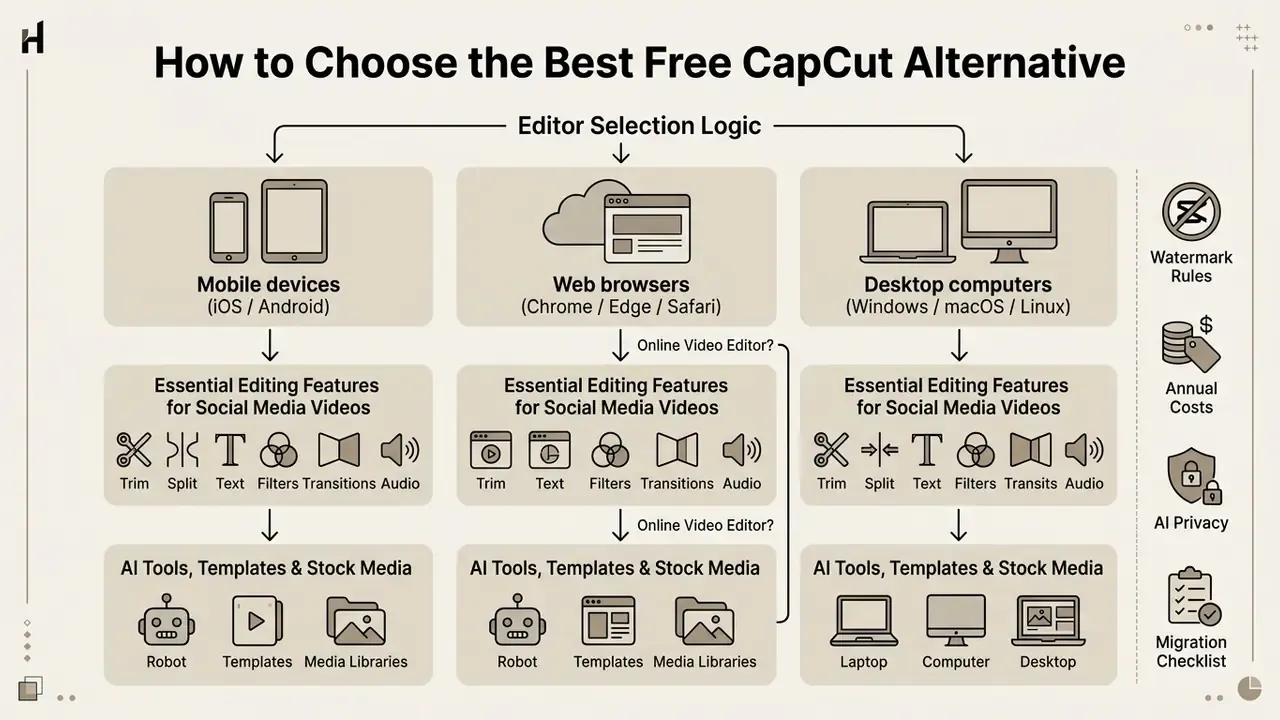
Picking the best capcut alternatives means matching your operating system to project complexity, automation needs and export requirements. Comparing video editing tools across mobile, web and desktop before you commit prevents production bottlenecks and surprise subscription fees later.
Editor Selection Logic
A structured decision path, by device class, task and project complexity:
1. Mobile devices (iOS / Android)
- Fast social media content and quick edits → InShot (simple interface, aspect ratio presets).
- Multi-track timeline and no watermark → VN Video Editor (keyframes, high-resolution clean export).
- Green screen and visual effects → KineMaster (chroma key with spill suppression, multi-layer compositing).
2. Web browsers (Chrome / Edge / Safari)
- Auto-captions and AI avatars → VEED.IO (high-accuracy transcription, browser convenience).
- Social templates and team collaboration → Kapwing (shared cloud workspace, storyboards).
- Marketing collateral and brand assets → Canva (drag-and-drop design, royalty-free stock media).
3. Desktop computers (Windows / macOS / Linux)
- Professional color grading and Fairlight audio → DaVinci Resolve (studio-grade NLE, no watermark).
- Native Windows editing and simple AI tools → Clipchamp (1080p free export, screen recording).
- Apple ecosystem integration → iMovie (4K export, Magic Movie templates, zero watermark).
Mobile, Desktop or Online Video Editor?
Mobile apps excel at touch-optimized, on-the-go editing for short-form social clips. Online editors give instant web access with nothing to install. Desktop software delivers the raw computational headroom that heavy 4K multi-layer projects demand. Browser hardware acceleration has made a free online video editor no watermark genuinely viable for casual trims, captioning and resizing, while complex timeline rendering, node-based grading and long-form exports still want dedicated local CPU and GPU resources.
Online convenience has a visible price in output quality on free tiers:
«VEED.io's free plan is capped at 720p, 10 minutes of video and a watermark on every export, the tier is positioned as evaluation-only.»
AI Tools, Templates and Stock Media to Compare
When you evaluate ai video editor platforms, look hard at background removal accuracy, auto-caption character limits, stock media library depth and royalty-free asset licensing. Modern editors lean on ai powered features to kill the tedious manual cutting, and quotas are exactly where free tiers diverge most sharply:
«On CapCut's free tier, auto-captions are limited to roughly 10 minutes per video, and AI Auto-Edit to five runs per month.»
Creators comparing generative options alongside editing can read our AI video generator guide. Teams scaling production can examine Enterprise-Ready AI Media solutions, or check platform tiering on our pricing page.
Local vs Cloud AI Processing: The Privacy Matrix
Two editors can offer "the same" auto-caption button and treat your footage in completely different ways. That distinction decides whether an app is usable for client work, HR video, internal training, or anything containing faces, voices or unreleased product.
| Editor | Where media is processed | Account required | Suitable for confidential footage |
|---|---|---|---|
| DaVinci Resolve | Fully local (offline capable) | No | Yes, strongest option |
| iMovie | Fully local (offline capable) | No | Yes |
| VN Video Editor | Local editing; some AI features call online services | Optional | Yes, with AI features avoided |
| Clipchamp | Local media processing on device | Microsoft account | Yes |
| InShot / KineMaster | Local editing; asset stores and AI features are online | Optional / store login | Mostly yes |
| Canva | Cloud | Yes | Review terms first |
| Kapwing | Cloud | Yes | Review terms first |
| VEED.IO | Cloud | Yes | Review terms first |
| CapCut | Cloud + device; ToS claims broad content rights | Yes for most features | No for client-owned IP |
«Clipchamp documentation confirms the service never accesses users' video files, since media is processed locally on the device.»
Practical rule: if the footage would need an NDA, edit it in a tool that never uploads it. If the footage is a public TikTok, cloud convenience wins. That is the whole test.
Quick Comparison of Free Video Editing Apps Like CapCut
Lining up free video editing apps like capcut side by side exposes the differences that marketing pages blur: watermark policy, platform support, maximum free export resolution, AI quotas, content-rights terms and operating complexity.
Comparison of free video editing apps like CapCut (verified specifications, 2026).
| Editor | Primary OS | Free watermark | Max free export | Auto captions | AI tools | Green screen | Annual Pro price | Content rights (ToS) | Processing | Learning curve | Best application |
|---|---|---|---|---|---|---|---|---|---|---|---|
| CapCut | Android, iOS, Web, Windows, macOS | No (standard) / Yes (Pro assets) | 1080p | Yes (~10 min/video free) | Background removal, AI voice | Yes | $239.88 (≈€359.88 EU) | Broad perpetual licence to ByteDance | Cloud + device | Low | Mobile and social media content |
| VN Video Editor | Android, iOS, macOS, Windows | No watermark | 1080p / 4K | Yes (multi-language) | Keyframes, curve speed, BeatsClips, upscaling | No chroma key | $0 | Retained by creator | Local + optional cloud AI | Medium | Clean multi-track mobile editing |
| InShot | Android, iOS | Yes (ad-removal option) | 1080p | Yes (Pro tier) | AI Cut, AI Speech, smart filters | Limited | $19.99 | Retained by creator | Local + online assets | Low | Quick aspect ratio social edits |
| KineMaster | Android, iOS, iPadOS, Chromebook | Yes (watermarked) | 720p / 1080p | No | Asset Store filters and audio | Yes (advanced) | $49.99 | Retained by creator | Local + asset store | Medium | Multi-layer mobile compositing |
| VEED.IO | Web browser | Yes (watermarked) | 720p (10 min cap) | Yes (~2 min/mo free) | AI avatars, voice cloning, noise removal | Overlays | from $144 | Per platform terms | Cloud | Low | Browser-based AI auto-captioning |
| Kapwing | Web browser | Yes (watermarked) | 720p / 1080p | Yes | Smart trim, text overlays | Basic | Pro subscription | Per platform terms | Cloud | Low | Collaborative cloud video creation |
| Canva | Web, iOS, Android, Windows, macOS | No (free elements only) | 1080p | Yes (Pro features) | Magic Studio, background remover, Magic Media | No | $144 | Retained by creator (per Canva terms) | Cloud | Low | Marketing collateral and brand social |
| Clipchamp | Windows 11, Web browser | No watermark | 1080p HD (unlimited) | Yes (free) | Text-to-speech, subtitles, noise removal | Basic | $0 (4K via Microsoft 365) | Retained by creator | Local | Low | Windows desktop and screencast editing |
| DaVinci Resolve | Windows, macOS, Linux | No watermark | 4K UHD (8-bit, 60 fps) | Studio version | Magic Mask, Fairlight audio AI, Neural Engine (Studio) | Yes (Fusion) | $0 / $295 one-time | Retained by creator | Local | High | Professional color grading and post-production |
| iMovie | macOS, iOS, iPadOS | No watermark | 4K + ProRes | No (manual titles) | Magic Movie automation | Yes (basic) | $0 | Retained by creator | Local | Low | Simple Apple-ecosystem editing |
Three takeaways from the table, in plain text for anyone skimming on a phone. First, only four editors here export clean at no cost: VN, Clipchamp, iMovie and DaVinci Resolve. Second, green screen and free are almost mutually exclusive on mobile, KineMaster gives you the keying but stamps the export. Third, content rights are retained by the creator everywhere except CapCut, which is the quiet reason agencies migrate.
Best CapCut Alternatives for Mobile Video Editing
Mobile creators searching for the best capcut alternatives mobile video editor options need three things: a responsive touch timeline, social format presets and export rules you can read without a lawyer, on both Android and iOS.
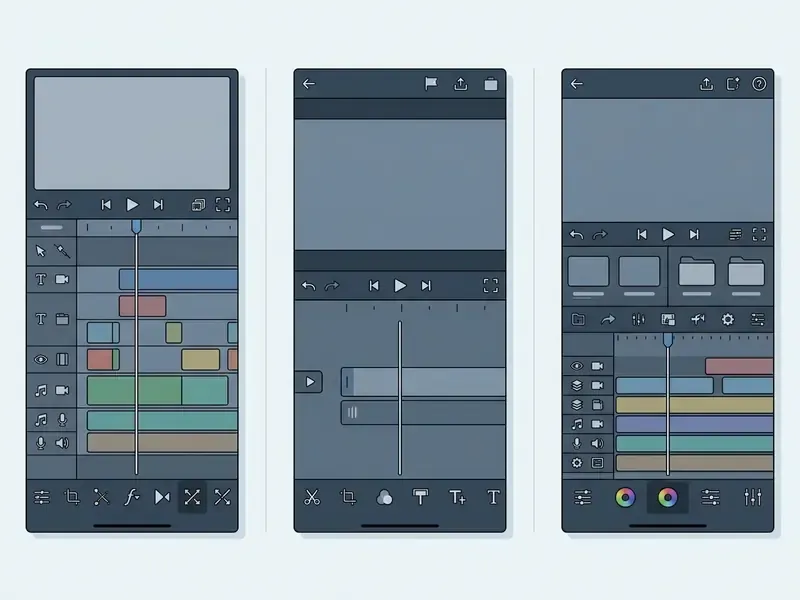
VN Video Editor for Watermark-Free Timeline Editing
VN Video Editor is a mobile-first app with multi-track timeline editing, keyframe animation controls and high-resolution exports carrying zero watermarks on the free tier (Google Play & App Store Listings, 2026). It supports Picture-in-Picture (PIP) overlays, custom speed curves and filter imports without pushing you toward a paid plan. Development sits with Ubiquiti Labs, a subsidiary of networking hardware company Ubiquiti Inc., and the app has passed 700 million downloads. No ByteDance connection, which for some teams is the entire argument.
What separates VN from most free mobile editors is real keyframe precision: keyframes adjust to 0.05-second increments across multiple video and audio tracks, closer to a desktop NLE than to a template app. The AI set covers auto-captions with multi-language support, background removal, image upscaling, and BeatsClips beat-sync cutting that matches cuts to music automatically. All of it free.
Pros:
- Multi-track timeline with 0.05-second keyframe precision and true time-remapping curves.
- No watermark at any resolution, 4K included, and no per-feature subscriptions.
- Free AI auto-captions, background removal, upscaling and BeatsClips beat-sync.
- Runs on iOS, Android and macOS (Windows via emulator).
Cons:
- No chroma key (green screen) at all. If compositing is part of your workflow, that is disqualifying.
- Timeline lag once you stack more than roughly four simultaneous overlays.
- Overlay sync in the timeline does not always match playback position precisely.
Independent rating: ≈4.7/5 across app-store and aggregator reviews (G2 and GetApp-class listings).
For independent content creators who need frame-accurate cuts and no branded logo on the final file, VN remains the most dependable free option in this list.
KineMaster for Green Screen and Advanced Mobile Editing
KineMaster brings genuinely advanced mobile editing: multi-layer video compositing, precise chroma keying with spill suppression and multi-track audio mixing (KineMaster Feature Guide, 2026). The documented green-screen workflow is simple enough. Add a primary media layer as the background, add the green-screen clip via Layers → Media, then enable Chroma Key. The free download keeps the core toolset, but every exported project carries a "Made with KINEMASTER" watermark. Clearing it and unlocking 4K at 60 fps needs a Premium subscription, $9.99/month or $49.99/year; legacy tiers were listed at $4.99/month or $39.99/year.
«KineMaster is a surprisingly powerful app whose free version keeps the full toolset but stamps a watermark on every export.»
Pros:
- Full chroma key with spill suppression, the main free mobile route to green screen.
- Multi-layer video, image and audio compositing with track-level control.
- Largest asset store among mobile editors: effects, transitions, royalty-free audio.
- Available on iOS, Android and Chromebook.
Cons:
- Watermark on every free export, which instantly signals amateur tooling.
- Most expensive mobile subscription here at $49.99/year.
- No auto-captions, so subtitle-heavy workflows need a second tool.
Independent rating: ≈4.5/5 across aggregator reviews.
To widen the shortlist, browse the hub for structured comparisons, or open our best free video editing software roundup for a side-by-side breakdown.
Best Online CapCut Alternatives for Browser-Based Editing
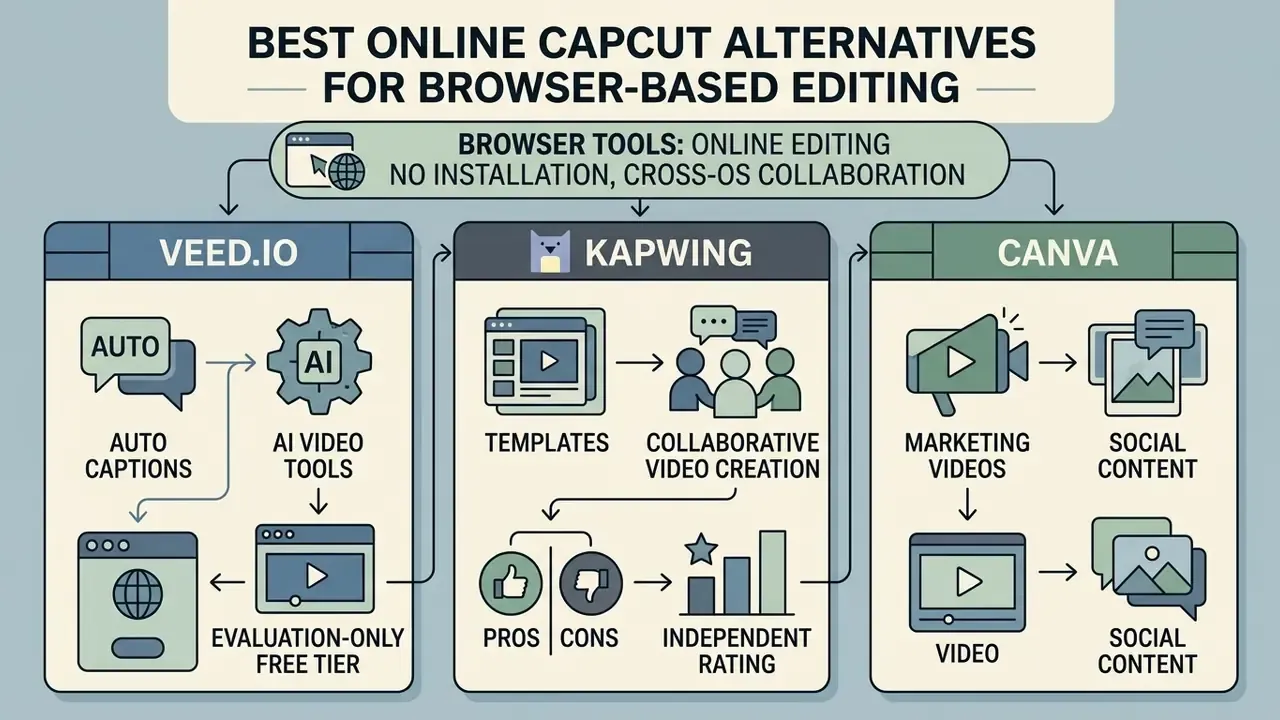
Browser tools let you edit video online with nothing installed locally, and collaborate across operating systems without arguing about versions. The trade-off never changes: footage leaves your device. Read the privacy matrix above before uploading client material.
VEED.IO for Auto Captions and AI Video Tools
VEED.IO is an online video editor known for its auto-caption engine (the vendor markets "up to 99.9% accuracy" across 125+ languages, which we present as a vendor claim rather than an independently verified benchmark), plus AI avatars, text-to-video AI generation, voice cloning and background noise reduction (eWeek VEED.io Review, 2024; Prizmad Analysis, 2026). The free plan lets you test auto-subtitles and screen recording, but exports are capped at 720p, limited to 10 minutes, and stamped with a VEED watermark. The Creator tier at $12/month removes the watermark and unlocks 1080p.
«VEED's free plan provides only about 2 minutes of auto-captions per month, a level that is negligible for serious content creators.»
Pros:
- Best-in-class browser captioning and translation into 50+ languages.
- Full branding kit, stock audio and video library, AI avatars and auto-resize for social.
- No installation, works on any OS with a modern browser.
Cons:
- No watermark-free output on any free plan.
- Cloud processing means uploads, so it is unsuitable for confidential footage.
Independent rating: VEED holds 4.6/5 on G2 reviews.
Creators who specifically need clean web output can compare a free ai video editor no watermark or a free ai video generator no watermark shortlist.
Kapwing for Templates and Collaborative Video Creation
Kapwing runs a collaborative web editing environment with social media templates, cloud project storage and custom font controls (Kapwing Knowledge Base, 2026). The free plan behaves like a testing environment, adding a Kapwing watermark to every export. Kapwing Pro unlocks unlimited watermark-free exports.
«Pro users can retroactively remove watermarks by re-exporting previously created projects while the paid plan is active.»
Pros:
- Shared cloud workspaces with real-time collaboration and commenting.
- Large template and storyboard library for social formats.
- Retroactive watermark removal on upgrade, so earlier drafts are not wasted work.
Cons:
- Watermark on all free exports.
- Resolution and export length depend on plan tier.
- Cloud-only processing, and an account is mandatory.
Independent rating: ≈4.5/5 across G2 and GetApp listings.
Best CapCut Alternatives for PC and Mac
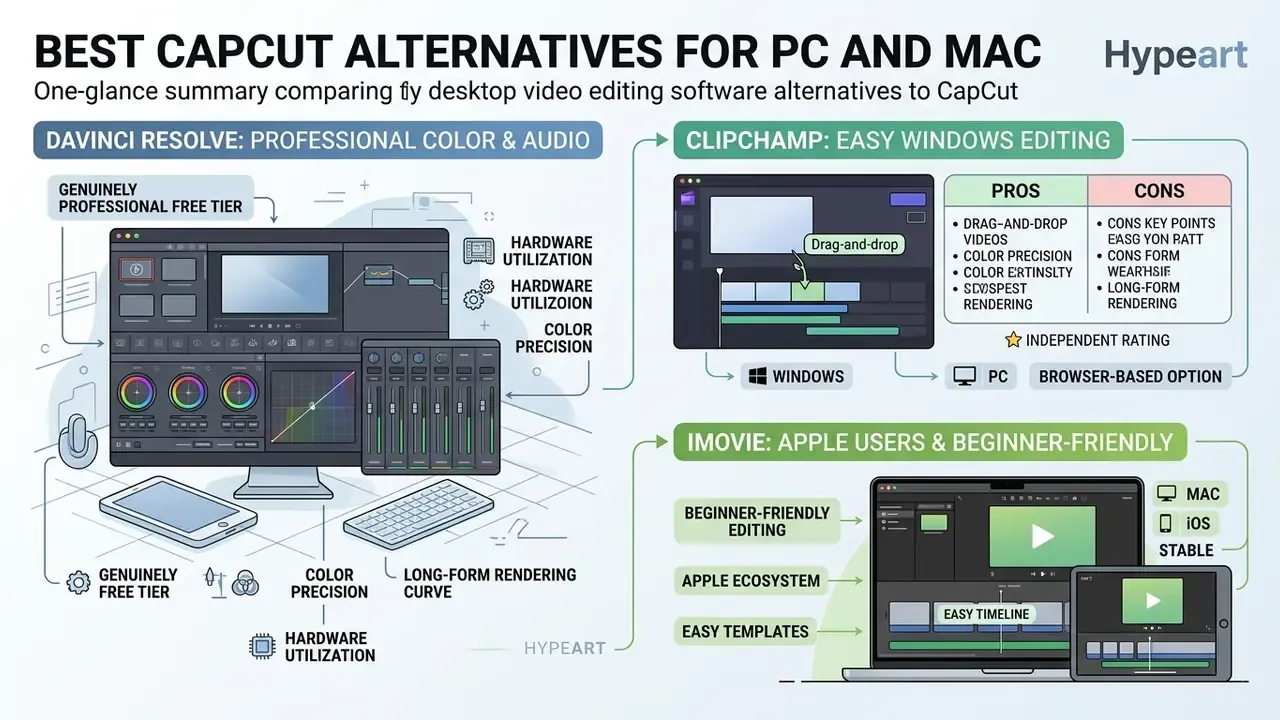
Desktop video editing software gives you hardware utilization, color grading precision and stable long-form rendering on Windows, macOS and Linux. For anything over five minutes, that stability alone justifies the install.
DaVinci Resolve for Professional-Grade Color and Audio
Blackmagic Design's DaVinci Resolve is a professional non-linear editor bundling node-based color correction, Fairlight audio post-production and Fusion visual effects into a completely free, watermark-free desktop suite (Blackmagic Design Tech Specs, 2026). It exports up to 4K UHD at 60 fps on the free tier, with no time limits and no watermarks. The same engine finishes Hollywood features, including Avatar: Fire and Ash (2026) and a long list of Netflix originals, which is the sharpest illustration available of the gap between a template-driven mobile app and a real post-production suite.
General information only. This section describes software capabilities and hardware guidance; performance varies by system configuration.
Resolve wants a minimum of 16 GB RAM, with 32 GB recommended for complex Fusion and Fairlight work, so it is a high-performance choice for editors willing to climb a professional learning curve. The free edition is not a timed trial: it covers full non-linear editing on the Edit page, the industry-standard Color page, Fusion (200+ VFX and motion-graphics tools with a 3D workspace), Fairlight audio post (up to 2,000 tracks, ADR, EQ) and the Deliver page. DaVinci Resolve Studio at $295 one-time adds 10-bit processing, 120 fps, 8K+, AI Neural Engine features and advanced noise reduction, as a perpetual licence with free updates and no subscription.
Pros:
- No watermark, no export time limit, no subscription; Studio is a $295 perpetual licence.
- Fully local processing, the strongest option for confidential or client-owned footage.
- Windows, macOS and Linux support.
Cons:
- Hardware floor of 16 GB RAM, 32 GB for Fusion and Fairlight; Apple Silicon recommended on Mac.
- Free tier is 8-bit and capped at Ultra HD 60 fps, and advanced AI features require Studio.
Independent rating: DaVinci Resolve holds 4.8/5 across 268 reviews on GetApp, with praise for grading depth and criticism concentrated on initial complexity. Creators building a long-form publishing pipeline can pair it with our YouTube video editor workflow guide.


Clipchamp for Easy Windows Video Editing
Microsoft Clipchamp is the pre-installed Windows 11 video editor, offering multi-track trimming, stock media integration, AI auto-subtitles and watermark-free 1080p HD exports (Microsoft Support, 2026). Media is processed locally on the device, which keeps content private by design. Free 1080p publishing is unlimited and clean; 4K export requires a Premium plan or a Microsoft 365 subscription, $6.99-$9.99/month. Auto-subtitles come from the Captions tab with editable transcripts and language selection, and background removal, text-to-speech and background noise removal are also free.
Pros:
- Unlimited watermark-free 1080p exports on the free tier.
- All core AI tools (subtitles, background removal, text-to-speech, noise removal) cost nothing.
- Local media processing, documented as never accessing user video files.
- Pre-installed on Windows 11 and available in-browser as well.
Cons:
- 4K export is gated behind Premium or Microsoft 365.
- Windows and browser first, with no native macOS, iOS or Android app.
- Timeline depth is shallow next to a full NLE.
Independent rating: ≈4.4/5 across G2 and GetApp listings.
Creators who prefer script-driven editing can explore a free ai text to video workflow, compare options in our free AI video generator guide, or check a free ai video generator shortlist.
iMovie for Apple Users and Beginner-Friendly Editing
Apple iMovie is free and pre-installed on macOS, iOS and iPadOS, with simple timeline trimming, theme presets, Magic Movie automation and watermark-free 4K exports (Apple Support, 2026). It moves cleanly across the Apple ecosystem, so you can start a draft on an iPhone and finish the render on a Mac. It also supports ProRes export, storyboards, 13+ creative filters, green-screen effects and 100+ soundtracks on iOS.
Pros:
- Completely free, watermark-free, 4K and ProRes capable.
- Zero setup: pre-installed, fully local, no account required.
- Magic Movie and storyboards get beginners to a finished cut in minutes.
Cons:
- Apple devices only, with no Windows or Android path.
- No AI auto-captions, and limited multi-track and audio depth.
- No marketing or publishing tools; export, then upload manually.
Independent rating: iMovie holds 4.3/5 on G2 reviews.
Editors weighing cross-platform options can browse the hub to compare Mac and Windows solutions.
Music, Stock and Font Licensing Risks When You Leave CapCut
This is the single most expensive mistake creators make during migration, and it is also the easiest to avoid.
- CapCut's music library does not travel with you.Tracks provided inside CapCut are licensed for use within the ByteDance ecosystem. Exporting a rendered master does not transfer a licence for that music to a client campaign, a paid ad or a commercial reel. Replace the audio bed before commercial delivery.
- "Royalty-free" is not "unrestricted."Stock libraries such as Adobe Stock permit reuse across commercial projects under a royalty-free licence, yet editorial-use-only assets are excluded from advertising and promotional work. Check the asset label, not the library name.
- Mobile asset stores need per-track verification.Music and sound effects bundled with InShot and KineMaster are cleared for typical personal and social use, but corporate videos, paid media and broadcast may require a separate licence.
- Premium assets can gate the export itself.In CapCut and Canva, one Pro element turns a finished project into a paid download. Audit the timeline before delivery day, not during it.
- Fonts follow their own licence.A font that is free for on-screen social content may not be cleared for logos, packaging or paid advertising.
- AI-generated media may require disclosure.Australia's AI Technical Standard requires visual watermarks and metadata for generated media, and the EU transparency framework requires machine-readable marking for synthetic audio, image, video and text. Relevant if you replace CapCut AI effects with generative tools.
Readers verifying licence scope before a campaign can review our breakdown of commercial use rights.
This section provides general information and does not constitute legal advice. Verify current licence terms with each vendor before commercial distribution.
How to Switch from CapCut Without Losing Your Workflow
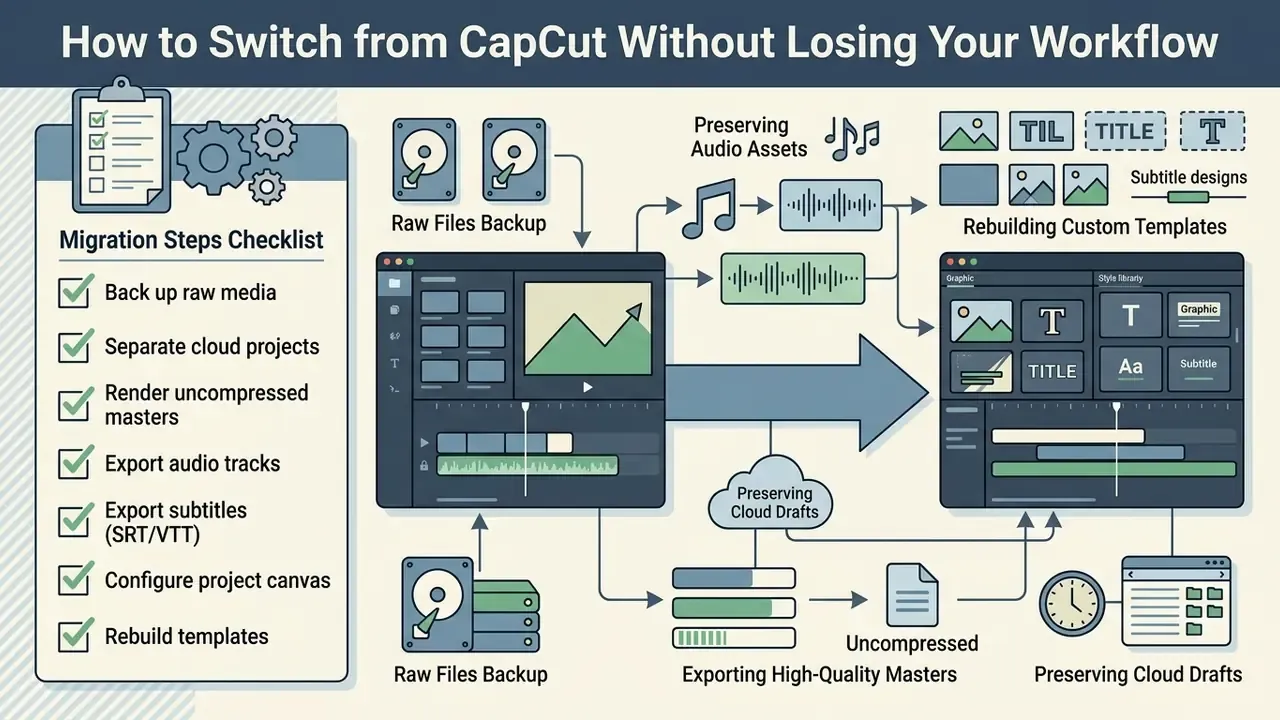
Migrating from CapCut to a new video editor means backing up raw source clips, exporting high-quality master files, preserving audio assets and rebuilding custom templates by hand in the target application (CapCut Help Center, 2026, capcut.com/help/how-to-export-pro-project). CapCut itself confirms there is no direct project-file transfer in either direction: third-party project files cannot be opened or converted, and the recommended path is a rendered export plus a rebuild from original media.
Migration Steps Checklist
Work through this in order. Skipping step two is how people lose drafts.
- Back up raw media.Copy all original video clips, high-resolution images and raw audio files from mobile or cloud storage to a local or neutral drive.
- Separate cloud projects from local drafts.CapCut's cloud "Space" stores editable project data tied to your account, while source media stays on the device unless uploaded separately. Projects created while signed out may exist only as local files, so collect both.
- Render uncompressed master files.Export existing CapCut drafts at maximum resolution (1080p, 2K or 4K, up to 60 fps depending on source) without Pro assets, so your reference files stay clean.
- Export custom audio tracks.Save voice-overs, sound effects and custom background music into dedicated project folders, and flag any platform-licensed music for replacement.
- Export subtitles as SRT or VTT.Save caption files so the text can be re-imported rather than retyped in the new editor.
- Configure the new project canvas.Open the target video editor and set the right aspect ratio preset, 9:16 vertical or 16:9 widescreen.
- Rebuild graphic and subtitle templates.Recreate title styles, lower thirds and caption styling with the new editor's text tools.
- Migrate presets and command sets.Export presets from the source machine and import them on the target device; back up or transfer custom keyboard shortcut sets.
- Verify shortcuts and timeline rules.Map keyboard commands or gesture controls in the new software to match your established editing rhythm.
Save Source Files, Video Projects and Exports First
Because CapCut uses a proprietary project structure (.draft) that third-party NLEs cannot open directly, editors have to render finished timelines as master MP4 or MOV files (CapCut Help Center, 2026). Storing raw footage and rendered masters in neutral directory structures is what prevents data loss during a software migration. Apple's Final Cut Pro documentation offers a useful model here: duplicate projects as snapshots, then use "collect source media files into one location" before moving machines.
One enterprise video production unit leaving cloud-dependent mobile software built a standardized backup protocol before touching a single project. The team exported 1080p visual masters and split audio elements into structured local drives. Historic video assets survived intact, and the audit trail held up through the platform change.
It is worth acknowledging what you are migrating away from, too. CapCut's template-driven workflow has measurable instructional value:
«Students who produced videos in CapCut retained vocabulary significantly better than peers taught through traditional methods.»
Rebuild Templates, Captions and Aspect Ratios in the New App
Getting production speed back in a new application comes down to reusable canvas templates (9:16 for TikTok and Reels, 16:9 for YouTube) plus saved subtitle styling. Adobe Premiere Pro supports "Create captions from transcript" along with saved caption styles and presets that control length, duration, gap and line wrapping (Adobe Help Center, 2026, helpx.adobe.com/premiere/desktop/add-text-images/insert-captions/create-captions.html). Adobe Express generates captions automatically with brand-font styling, and OpenShot stores titles as SVG templates while importing VTT and SRT subtitle files (OpenShot Documentation, 2026, openshot.org/static/files/user-guide/titles.html), which keeps channel branding consistent.
«An Indonesian study recorded a significant effect of CapCut on ICT learning outcomes, with experts rating the instructional videos 91.1%, "excellent".»
The practical implication: templates are the real switching cost, not clips. Rebuild them once, save them as presets, and the productivity gap usually closes inside three or four projects. Technical teams wiring video pipelines programmatically can view the guide for API implementation details, or use our AI video generator reference for pipeline context.
FAQ About Free CapCut Alternatives
Can I export videos without a watermark using a free alternative to CapCut?
Yes. VN Video Editor (mobile), Microsoft Clipchamp (Windows and web), Apple iMovie (macOS and iOS) and DaVinci Resolve (desktop) all deliver clean, watermark-free high-definition exports on their standard free plans, no subscription needed. InShot allows a watermark-free single export after a rewarded ad in many builds, while KineMaster, Kapwing and VEED.IO watermark every free export.
Was CapCut actually banned, and can it happen again?
CapCut was removed from the US App Store and Google Play for 75 days starting in January 2025 under the PAFACA Act, returning after ByteDance signalled a US divestiture. The removal exposed a structural risk: an app-store-level block can cut off access to the editor and to cloud-stored drafts at the same time. Keeping raw media and rendered masters on local or neutral storage is the practical mitigation, and it costs nothing.
Does CapCut claim rights to the videos I make?
ByteDance updated CapCut's Terms of Service in June 2025 to claim perpetual, irrevocable rights to content uploaded to the platform. For personal social content that is usually tolerable. For client work, brand IP or anything under NDA it is generally a dealbreaker. Editors that process media locally, DaVinci Resolve, iMovie and Clipchamp, sidestep the issue entirely.
How much does CapCut Pro cost per year compared with alternatives?
CapCut Pro is $19.99/month in the US, about $239.88/year, and up to €29.99/month in parts of the EU, roughly €359.88/year. By comparison: DaVinci Resolve Studio is a $295 one-time perpetual licence, InShot Pro is $19.99/year, KineMaster Premium is $49.99/year, Canva Pro is $144/year, and VN, iMovie and Clipchamp at 1080p are free.
What is the difference between a free version and a free trial in video editors?
A free version gives ongoing access to core editing features with no expiry date. A free trial gives temporary access to paid premium features for a limited window, 7 or 14 days typically, after which you subscribe or drop to a restricted tier. Any offer limited by time, credits, page counts or licence duration should be classified as a trial, not a free version.
Are royalty-free stock assets in free video apps safe for commercial use?
Commercial safety depends on the specific asset licence the platform grants. Standard royalty-free stock media inside tools like Canva or Clipchamp is generally clear for commercial marketing, though editorial-only assets and third-party audio tracks may carry restrictions. Music supplied inside CapCut is licensed for use within that ecosystem and should be replaced before commercial distribution elsewhere.
How do AI features in free video editing apps handle user media privacy?
Cloud-based AI editors (VEED.IO, Kapwing, Canva) upload video and audio to external servers for processing under the vendor's privacy terms, so check whether uploads are retained or used for model improvement. Desktop editors such as Clipchamp, and local NLEs like DaVinci Resolve and iMovie, process media on your own hardware, which gives stronger privacy and security guarantees.
Which free editor has green screen if VN does not?
On mobile, KineMaster is the main free option with full chroma key including spill suppression, although its free exports carry a watermark. On desktop, DaVinci Resolve's Fusion page provides professional keying at no cost. Canva has no chroma key. Neither does VN, and that remains its single largest functional gap.
Can I transfer CapCut project files (.draft) directly into another video editor?
No. CapCut project files use a proprietary format that third-party editing software cannot read, and CapCut's own help pages confirm there is no supported conversion path. To move a project, export the rendered master video plus raw media assets and subtitle files (SRT or VTT), then rebuild the timeline inside the new editor.
How We Verified These Specifications
Appendix A: Editorial Corrections and Source Notes
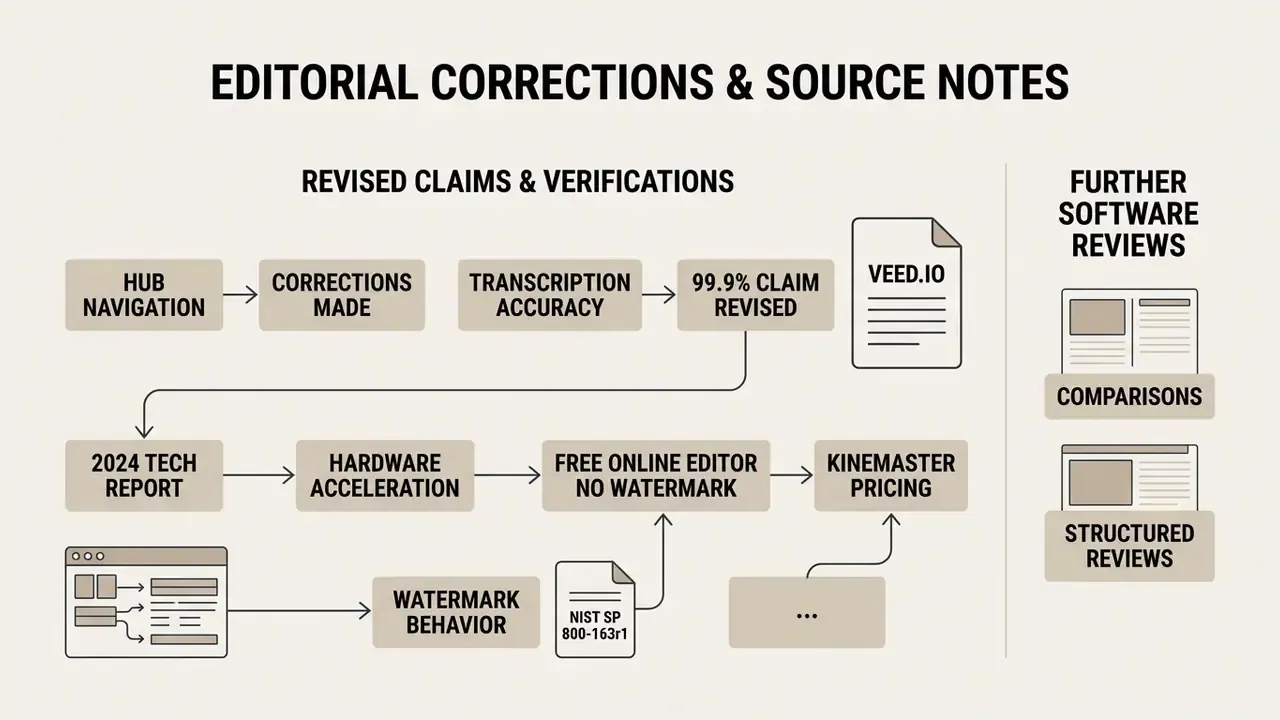
For transparency, the following claims were revised in this update:
- "Up to 99.9% transcription accuracy" (VEED.IO). Previously stated as fact, now presented as a vendor marketing claim, because no independent benchmark in our source set verifies the figure. eWeek's review does not cite this percentage.
- "A 2024 technology report notes that hardware acceleration has made a free online video editor no watermark practical for casual tasks (PCMag Video Software Review, 2024)." The attribution could not be verified against our source set and was replaced with an unattributed general statement about browser hardware acceleration.
- Table footnote referencing NIST SP 800-163r1 as verification for watermark behaviour. Removed from the comparison table; software-vetting standards do not establish consumer watermark policy. Watermark claims are now sourced to vendor documentation and store listings, and the methodology note has moved to its own section.
- KineMaster pricing. Legacy figures ($4.99/month, $39.99/year) are retained for historical reference alongside current listed pricing ($9.99/month, $49.99/year).