Browsers display text instead of an image when the HTML engine cannot locate, retrieve, or render the specified graphic file. Configuring proper image rendering requires a valid image path in the source attribute and precise fallback text for accessibility. Nothing mystical happens here. The browser simply follows a documented rule.
The 10-second fix
<img src="/assets/images/q3-revenue.png"
     alt="Q3 revenue chart showing a 15% increase in operational profit"
     width="1200" height="600">
If text still appears in place of the image, open DevTools → Network and check the HTTP status code of the image request (404, 403, CORS, or mixed content blocking).
srcthe path or URL in src must resolve to a file that really exists, with matching letter case and a matching extension.
altwrite replacement text that carries the same meaning as the image; use alt="" only for purely decorative graphics.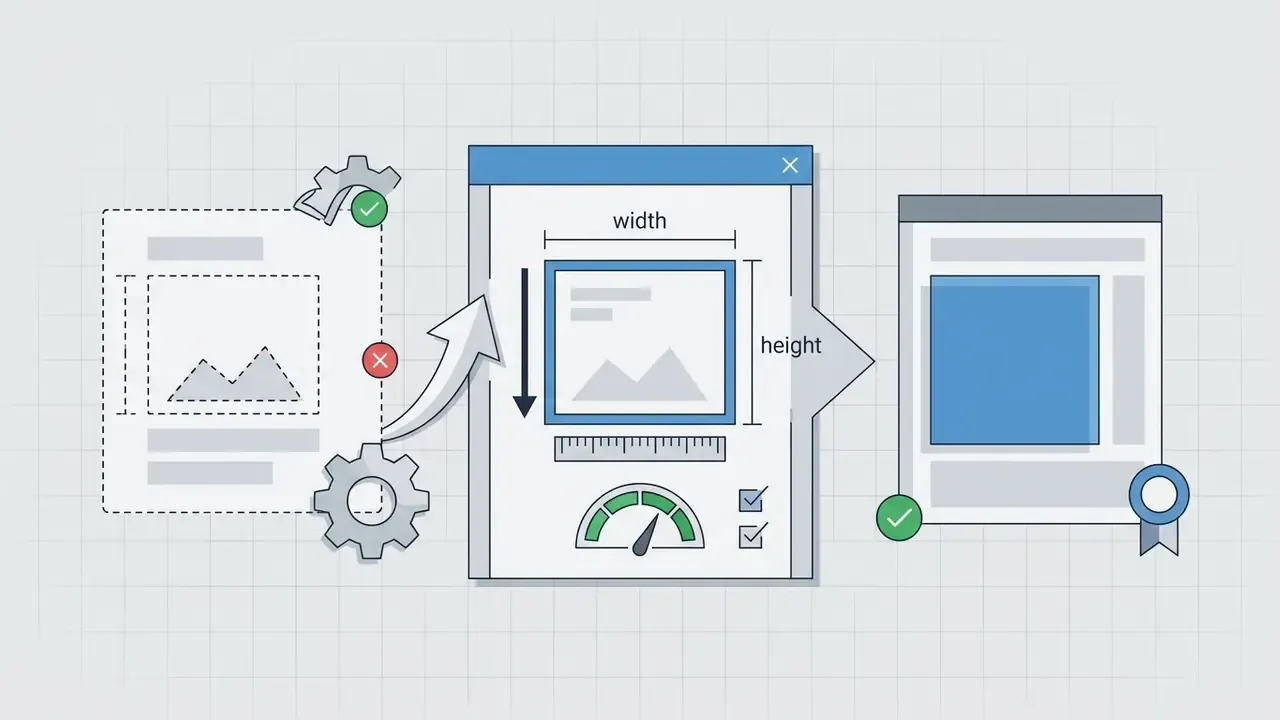
width and height (or aspect-ratio) so the browser reserves layout space and avoids layout shift.«The
altattribute … must contain text that, when presented to the user, conveys essentially the same function or purpose as the image.»
In web development and system architecture, visual elements should never fail without a structured fallback. When a browser displays alternative text instead of an image, it is executing a controlled safety protocol defined by the specification and designed to preserve system transparency and user understanding. Think of it as a graceful degradation path with an owner, a rule, and an audit trail.
Triage order: the four causes behind almost every broken image
Before you edit a single line of markup, sort the problem into one of four buckets. This ordering saves time because each bucket has a different owner and a different fix.
- The path is wrong.Typos, case mismatches, moved files, changed build output directories. Fixed in markup or in the build config.
- The server refuses or cannot find the file.404 after a migration, 403 from permissions or hotlink protection. Fixed by the infrastructure team.
- A security policy blocks the request.Mixed content on HTTPS, a Content-Security-Policy
img-srcrule, cross-origin restrictions. Fixed in headers or policy. - The bytes arrive, but the format or MIME type is wrong.A JPEG renamed to
.png, a missingimage/webptype, a corrupted upload. Fixed at encode or server-config level.
Roughly in that order of frequency, at least in my experience reviewing template libraries. Path errors dominate. Everything after that is rarer but harder to spot without DevTools.
Why HTML shows text instead of an image
Browsers render text instead of an image whenever the graphic file fails to load, the target path is incorrect, or image loading is explicitly disabled. In these scenarios, the browser executes a standard fallback mechanism by displaying the content contained within the image alt attribute.
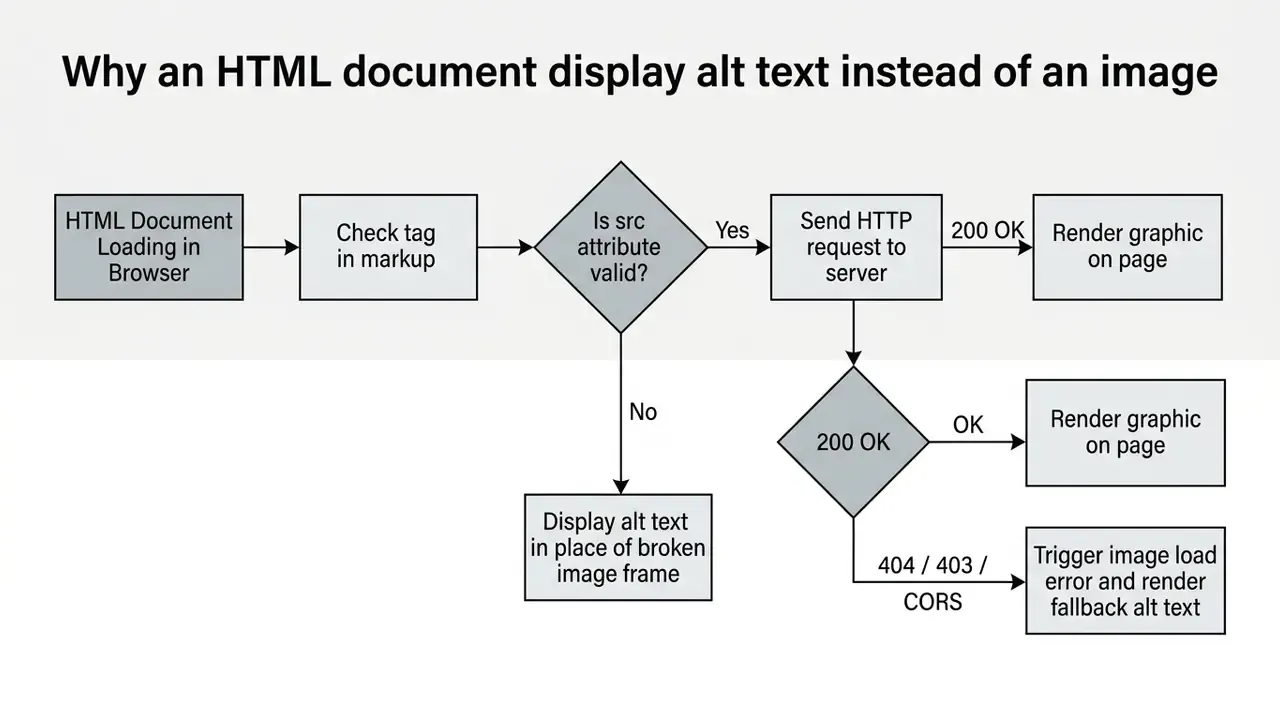
Diagram: "Image loads or alt text is displayed." The figure traces the sequential validation chain: validity of img src, availability of the file on the server, the returned HTTP status, and the final rendering of the graphic element on the page. It helps a developer or an accessibility auditor quickly diagnose why a textual fallback appears instead of graphics. The diagram is implemented as a structured text graph so its content remains readable by screen readers and by users who disable images.
Understanding this fallback logic is critical for web maintainers. According to normative W3C HTML standards, the alt attribute acts as equivalent replacement content whenever an image resource is unavailable or non-renderable. When an image fails to load, the browser will default to rendering this textual representation directly within the document layout.
When the browser outputs alt text instead of the image
A browser outputs alt text instead of an image when a network request fails, a file path is broken, or assistive software requests textual alternatives. The alt attribute provides an essential fallback mechanism that preserves page meaning when the visual media cannot be retrieved.
When an image file fails to load during the time a page loads, the browser falls back on the alternative text string. Normative guidance from the W3C Web Accessibility Initiative (WAI) establishes that this mechanism guarantees content visibility for visually impaired users relying on screen readers, and MDN Web Docs confirms that the browser may substitute the alt value when the resource errors out, is blocked, or has not finished loading. If an image source returns a server error or an invalid file path, the text defined in the alt attribute is rendered directly in the visual layout box reserved for that media.
The scale of the problem is measurable rather than theoretical:
«16.2% of images on popular home pages have no alt attribute, and more than one in four images had missing, questionable, or repetitive alternative text.»
Teams that regularly prepare graphics for publication, from screenshots to product renders, often standardise their asset pipeline first; a practical overview of production tooling is collected in this guide to online photo editors. Teams whose pipeline also produces motion assets usually hit the same naming and export questions, which is why the trade-offs in free video editing apps like capcut tend to surface in the very same sprint.
How to tell a load error from a text caption
An image loading error displays broken image icon boundaries along with the alt text, whereas a regular text caption resides in separate semantic tags like <figcaption>. Developers can inspect the element in DevTools to confirm whether visible text originates from an alt attribute or neighboring DOM elements.
In Chrome DevTools, network failures such as 404 Not Found or cross-origin restrictions appear highlighted in red within the Network panel; cross-origin rejections are labelled explicitly as CORS error, while a true transport failure is reported as a failed request without a CORS message. Select the request and read the Status, Response Headers, and Initiator columns to separate a missing file from a blocked one. In contrast, visible text wrapped in a paragraph or caption tag renders independently of the image's network status. Distinguishing between fallback text and the optional title attribute is equally straightforward: the title attribute displays only as a hover tooltip and never replaces an image upon a loading failure.
A fast three-step DevTools routine:
- Elements panel- select the
<img>node and confirm the resolvedcurrentSrcvalue. - Network panel- filter by
Img, reload with cache disabled, and read the status code. - Console panel- look for mixed-content warnings, Content-Security-Policy
img-srcviolations, and CORS messages.
Two minutes, three panels. That routine resolves most tickets before anyone opens the repository.
Basic HTML code: displaying an image with the img tag
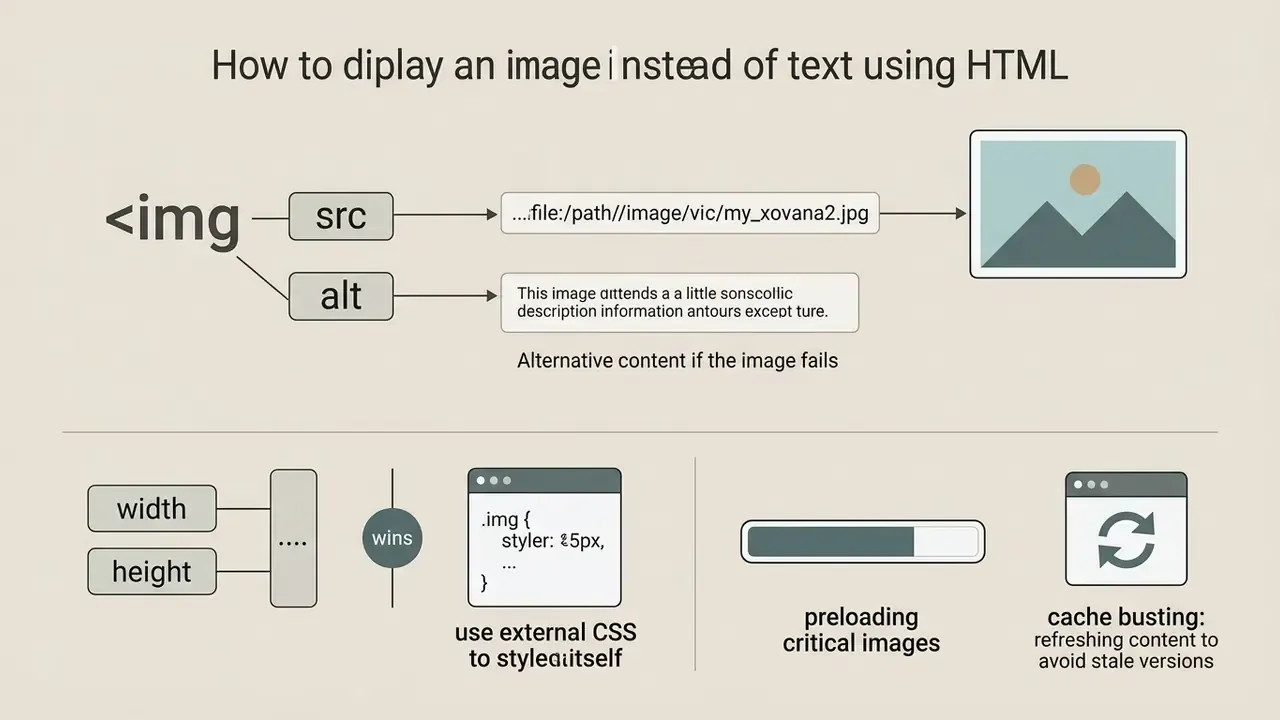
To display an image instead of text using an html img tag, write an img element with a valid src attribute pointing to the image file and an alt attribute containing descriptive text. The img tag is a void element in HTML, meaning it requires no separate closing tag.
<!-- Example of correct img tag implementation -->
<img src="https://example.com/assets/images/sample-graphic.png"
     alt="Analytical chart displaying system throughput over time"
     width="800"
     height="400">
Code sample: displaying an image with the src, alt, width, and height attributes. This is a line-by-line HTML5 markup fragment for correctly replacing text with an image. It provides reference markup with no closing tag, wrapped in a <pre><code> block so the snippet remains selectable, copyable, and readable by assistive technology.
In enterprise web publishing, standardizing code snippets reduces layout bugs across multi-author systems. A representative pattern from large content platforms illustrates the payoff: when an engineering team normalises image markup across a template library of roughly a thousand pages and enforces mandatory src + alt attribute pairs, broken layout frames disappear and hundreds of automated accessibility warnings are resolved in a single release. This is an illustrative generalisation of a common remediation pattern rather than a published case study, and exact figures will vary by codebase.
The importance of the mandatory pairing is confirmed by audit data:
Minimal example of img src and alt attribute
The minimal W3C-compliant structure for displaying an image requires only the img tag name alongside the src and alt attributes. This structure provides both the resource locator and the required textual substitute in a single line.
<img src="logo.png" alt="Company Logo">
In this syntax, img src defines the path to the target image resource inside the current html file. The alt text ensures that if the image file becomes unreachable, the string "Company Logo" takes its place seamlessly. The W3C Nu HTML Checker reports a missing alt attribute as a validation error, which makes alt presence the machine-testable minimum for a conforming img element.
Image size via the width and height attributes
Specifying explicit width and height attributes on the img element reserves appropriate layout space before the image binary finishes loading. This practice prevents unexpected layout jumps and reduces Cumulative Layout Shift (CLS) on the web page.
Setting explicit numerical dimensions allows modern browsers to calculate the intrinsic aspect ratio immediately when the page loads, which is why Google's Web Vitals documentation instructs authors to always include size attributes on image and video elements.
«Correct image size attributes help the browser reserve layout space and reduce Cumulative Layout Shift before the resource finishes loading.»
<img src="banner.jpg" alt="Annual financial metrics overview" width="1200" height="600">
Assigning clear height attributes and width values prevents surrounding text from collapsing into the image area while the browser fetches the visual resource over the network.
Width/height attributes versus CSS: which one wins. HTML width and height attributes are presentational hints with the lowest priority. If your stylesheet contains a global rule such as img { width: 100%; }, it overrides width="500" and the image may be stretched or distorted. This catches people out constantly, and the symptom looks nothing like a broken path.
<!-- Attribute may be overridden by a global CSS rule -->
<img src="html5.gif" alt="HTML5 icon" width="128" height="128">
<!-- Inline style takes precedence over the stylesheet rule -->
<img src="html5.gif" alt="HTML5 icon" style="width:128px; height:auto;">
<!-- Modern, responsive-safe approach: keep attributes AND lock the ratio in CSS -->
<style>
  .fixed-ratio { width: 100%; height: auto; aspect-ratio: 2 / 1; }
</style>
<img src="banner.jpg" alt="Annual financial metrics overview"
     width="1200" height="600" class="fixed-ratio">
Keep the numeric attributes for CLS reservation, then control the rendered size with CSS width, height, or aspect-ratio. Never rely on attributes alone when a global stylesheet manipulates image dimensions.
Preloading critical images and cache busting
Two infrastructure-level techniques prevent the two remaining causes of "text instead of image": a critical hero graphic that arrives too late, and a stale cached file that no longer exists.
<!-- Preload an above-the-fold image so the browser fetches it early -->

<link rel="preload" as="image" href="/assets/hero-banner-v2.webp">
<!-- Cache busting through fingerprinted filenames -->
<img src="/assets/logo-v1.0.4.png" alt="Company logo" width="240" height="60">
<img src="/assets/hero.9f2c41ab.webp" alt="Product overview" width="1600" height="900">
Versioned or hash-fingerprinted filenames are safer than query-string cache breakers: intermediate CDNs and some proxies ignore query parameters, whereas a new filename is unambiguously a new resource. During testing, force a hard reload with Ctrl+Shift+R (Windows) or Cmd+Shift+R (macOS) so the browser does not serve an outdated 304 response. Adding file-hash comparisons to the deployment pipeline confirms that the correct, updated binaries were actually published after each release.
If assets are delivered programmatically rather than committed by hand, the same versioning discipline belongs in the delivery layer; teams building that layer usually start from the api contract and let filenames be generated, never typed.
How to specify the correct path to an image file
An image file will display correctly instead of text only when the src attribute contains an accurate relative directory path or a valid absolute URL. Path resolution errors are the primary technical cause of broken graphic renders in web documents.
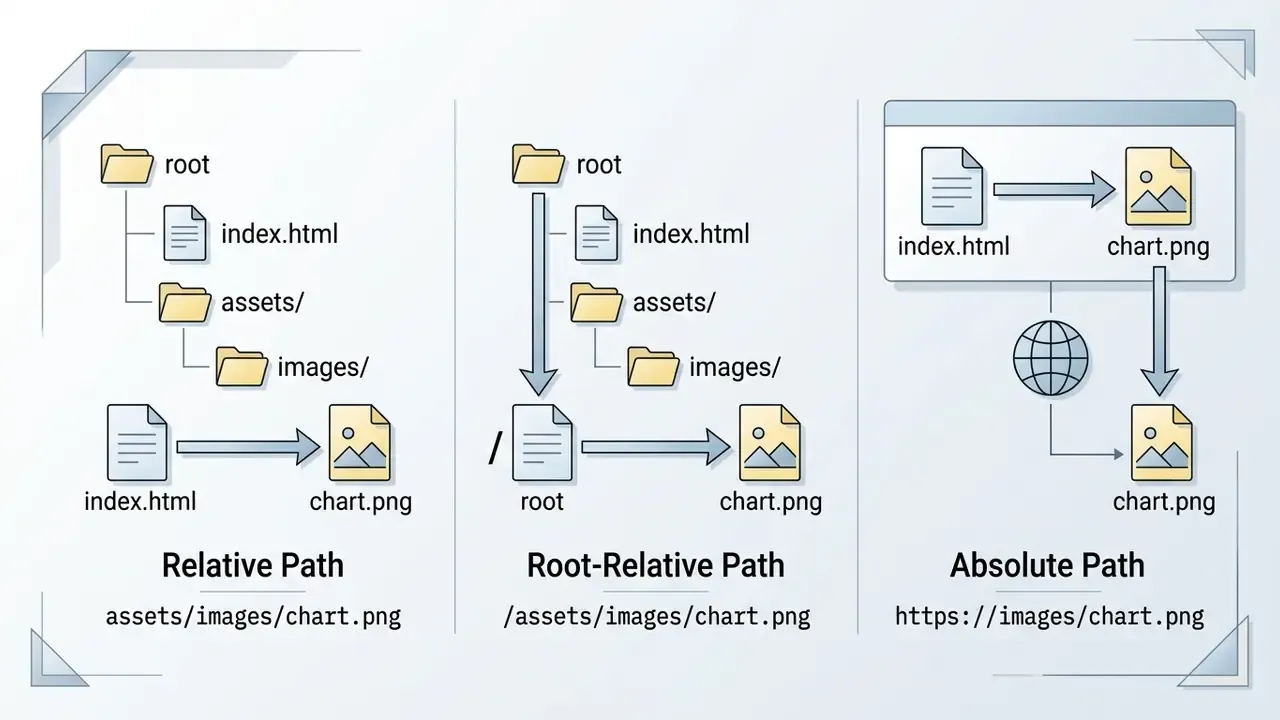
Selecting the appropriate path structure depends on whether the resource is hosted locally within the same project directory or fetched from an external Content Delivery Network (CDN).
Relative paths to an image inside the site folder
A relative file path locates an image file based on the current location of the html file in the directory tree. Relative paths are portable across different local development servers and production domains.
Relative paths resolve against the current document location, so moving an HTML file or changing a framework route can break them silently. Root-relative paths starting with / resolve from the domain root and are usually more stable, but they remain tied to your deployment layout: markup that works on localhost:3000 can fail in production when build output directories differ.
When referencing src images in nested directories, matching letter casing is critical. Operating systems like Linux strictly enforce case sensitivity, meaning Image.PNG and image.png represent two distinct file references, while macOS and Windows are frequently case-insensitive by default.
Relative paths to an image inside the site folder
Same folder
<img src="photo.jpg" alt="Sample photo"> Explicit current folder
<img src="./photo.jpg" alt="Sample photo"> Subfolder
<img src="images/photo.jpg" alt="Sample photo"> Parent folder
<img src="../photo.jpg" alt="Sample photo"> Root-relative
<img src="/assets/images/photo.jpg" alt="Sample photo"> «A mismatch between the filename or extension in the src attribute is one of the most common reasons the browser displays alt text instead of the image.»
Absolute URLs and external images over HTTPS
An absolute path references external images by specifying the full network URL, including the protocol, domain name, and exact file location. Absolute paths are commonly used when embedding graphics hosted on dedicated media servers or external CDNs.
<img src="https://example.com/images/vector-diagram.svg" alt="Diagram showing network architecture">
When referencing external images on secure web pages, the src https URL protocol must be used. Loading an HTTP image link on an HTTPS secure web page creates a mixed content warning, causing modern browsers to block image loading entirely to safeguard security.
«Images loaded through CSS background-image are not indexed by Google Image Search and are invisible to screen readers because they do not exist as DOM elements.»
Also confirm that no Content-Security-Policy img-src directive blocks the external host: a CSP violation prevents the request from being issued at all, and the browser falls back to alt text exactly as it would on a 404. Worth noting, the console message differs, so read it rather than guessing.
Diagnosing errors that prevent an image from loading
Systematic error diagnosis requires verifying file paths, case sensitivity, server response codes, and cross-origin security permissions. Identifying why an image fails to render prevents fallback text from appearing unexpectedly.
Checklist0 / 10
This checklist lets you locate and eliminate the technical cause of a graphics loading failure step by step; it is rendered as plain DOM text so that it remains fully accessible and searchable.
When reviewing file delivery pipelines, engineering teams often evaluate media management setups. A typical finding during asset migrations is that a double-digit share of catalogue image links breaks because file extensions were uppercased (.JPG instead of .jpg) on a case-sensitive Linux host; automated path-normalisation rules on the server restore rendering across all catalogue pages. Treat this as an illustrative pattern, since the exact failure share depends on how the original assets were produced. Client-side telemetry that reports image error events in production is the most reliable way to quantify it for your own site, catching CDN outages, wrong paths, and format issues early.
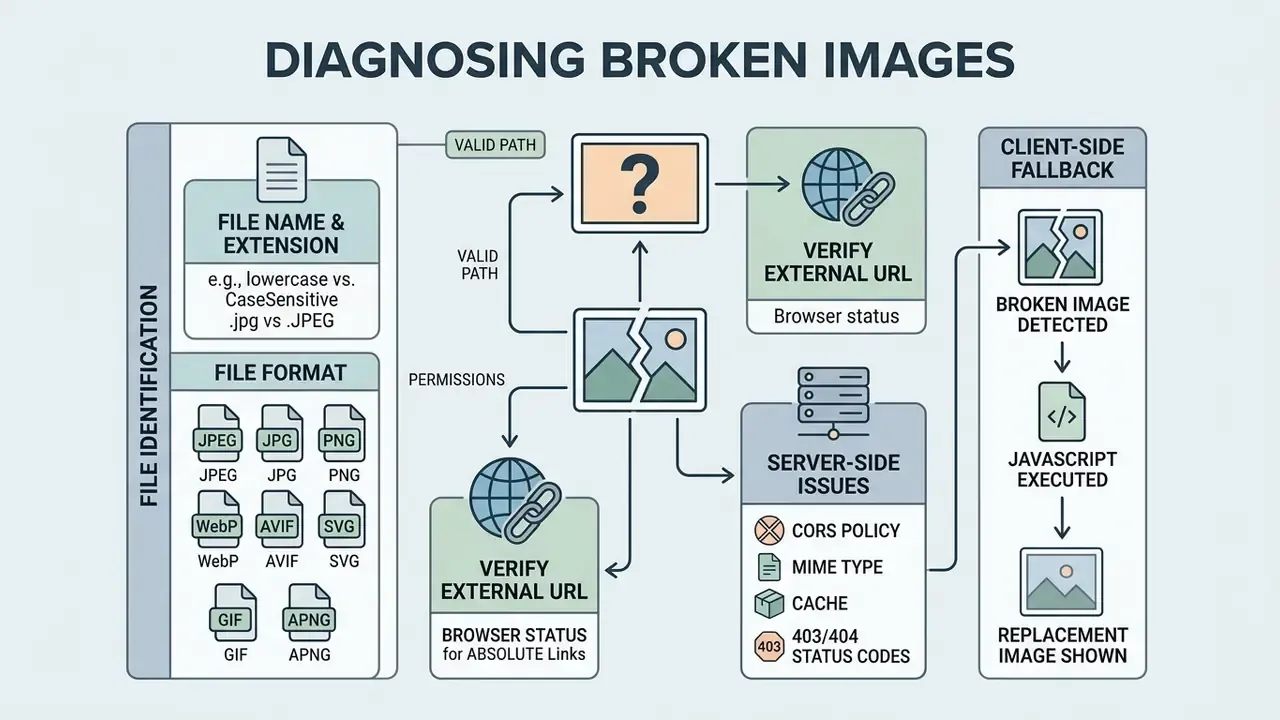
File names, extensions, and file format
Mismatching the target file name or extension in the src attribute causes the web browser to throw a 404 error and render jpg alt or png alt text instead. Web servers require exact alignment between the HTML reference and the file stored on disk.
Common supported image file formats include:
- JPEG / JPG Standard for photographs (
jpg alt). - PNG Suitable for graphics requiring transparency (
png alt). - WebP / AVIF Modern compressed web formats for fast loading.
- SVG Scalable vector graphics ideal for logos and icons.
- GIF / APNG Animated raster formats supported across all major browsers.
Verifying an external image URL
Testing an external image URL directly in a browser address bar confirms whether the remote server yields a successful HTTP status code. If the direct request returns a 200 OK response, the image binary is intact and publicly accessible. RFC 9110 defines 200 OK as a successful response, and a HEAD request returns the same headers without transferring the binary, which is ideal for bulk availability checks.
Terminal Command for Direct Server Verification:

curl -I https://example.com/images/sample-graphic.png
If the response header displays 403 Forbidden or lacks appropriate Cross-Origin Resource Sharing (CORS) headers, the hosting server is actively blocking external domains from embedding its media. A cross-origin rejection typically appears in the console as:
Access to image at 'https://cdn.example.com/image.jpg' from origin

'https://example.com' has been blocked by CORS policy
Server-side remediation, by cause:
# 1. Allow cross-origin consumption of images (Nginx)
location ~* \.(png|jpg|jpeg|webp|avif|svg)$ {
    add_header Access-Control-Allow-Origin "https://example.com";
    add_header Cross-Origin-Resource-Policy "cross-origin";
    add_header Cache-Control "public, max-age=31536000, immutable";
}
# 2. Return correct MIME types
types {
    image/png   png;
    image/webp  webp;
    image/avif  avif;
    image/svg+xml svg svgz;
}
Use crossorigin="anonymous" on the <img> element only when the pixels must be read programmatically, for example when drawing the image into a <canvas>. Addressing server permissions and headers restores the graphic view on your web page.
Client-side fallback: replacing a broken image with JavaScript
Browser-level fallback shows alt text, but production interfaces often need a visual placeholder instead of an empty frame. The onerror event handler swaps the broken source for a known-good asset:
<!-- Automatic replacement of a broken image with a fallback PNG -->
<img src="products/item-404.jpg"
     onerror="this.onerror=null; this.src='/assets/images/placeholder.png';"
     alt="Product photo of the ergonomic mesh office chair"
     width="600" height="400">
Setting this.onerror = null first is essential: it prevents an infinite error loop if the placeholder itself is missing. For component-based stacks, bind the same logic in a delegated listener rather than inline markup:
<script>
  document.addEventListener('error', function (event) {
    var el = event.target;
    if (el.tagName === 'IMG' && !el.dataset.fallbackApplied) {
      el.dataset.fallbackApplied = 'true';
      el.src = '/assets/images/placeholder.png';
      // Optional: report the failure to your monitoring endpoint
    }
  }, true);
</script>
A fallback placeholder improves the visual experience but does not replace a correct alt attribute: assistive technology still relies on alt for meaning.
alt text, the title attribute, and HTML image accessibility
Fact Check / Accessibility Verification:
Missing or questionable alternative text remains one of the most widespread accessibility failures on the web, and the numbers are stable year over year:
«An average home page contains 58.6 images, of which 11 have no alt text; 44% of images missing alt text are linked images.»
Correctly configuring html attributes ensures compliance while improving indexing capabilities for search engines. Two outcomes, one attribute. That is unusually good leverage for three characters of markup.
How to write alt text for a meaningful image
A meaningful alt text must describe the specific information or function conveyed by the image rather than offering a generic physical description. Avoid redundant introductory labels such as "image of" or "picture showing," and keep the description to roughly one or two sentences.
Providing clear, concise contextual descriptions allows visually impaired users relying on screen readers to process the document content completely without missing crucial context. Copyright notices, photo credits, and source attributions belong in a visible <figcaption>, not inside alt.
<img src="chart.png" alt="Image of a chart">
<img src="chart.png" alt="Q3 revenue chart showing a 15% increase in operational profit">«Screen reader users prefer expert, author-written image descriptions over automatically generated captions, which lack context and functional meaning.»
This finding matters for teams that publish machine-produced visuals at scale; licensing and attribution rules for such assets are covered in this overview of commercial use of AI-generated images, and buyers comparing generation vendors on output rights rather than demo reels can compare them on those terms first.
When to use an empty alt attribute
An empty alt attribute (alt="") should be applied exclusively to purely decorative graphics that convey no functional or factual information. Suppressing decorative descriptions prevents assistive tools from cluttering audio output with unnecessary announcements.
<!-- Decorative divider line ignored by screen readers -->
<img src="divider.svg" alt="" role="presentation">
<!-- Inline decorative SVG is hidden with aria-hidden -->
<svg aria-hidden="true" focusable="false" width="24" height="24"><!-- ... --></svg>
When an img tag includes alt="", screen readers skip the element entirely. Omitting the alt attribute altogether forces screen readers to read out the full raw file path or simply announce "image," creating a confusing user experience. A non-empty description on a decorative graphic is also a documented WCAG failure (F39): eighteen repeated rainbow dividers announced eighteen times add reading time without adding meaning.
«NVDA tests confirm: with alt=" " (a space) the screen reader announces "graphic", while alt="" is ignored entirely, a critical difference for decorative images.»
Long descriptions for charts, diagrams, and dashboards
Complex visuals such as revenue charts, risk heatmaps, molecular structures, and architecture diagrams cannot be compressed into one or two sentences. The specification-compliant pattern is a short alt summary plus an on-page extended description exposed to everyone, implemented with the native <details> and <summary> elements (no scripting required):
<img src="sales-chart.png"
     alt="Q3 sales chart by region. Full data is available in the expandable description below."
     width="900" height="500">
<h4>Long description</h4>
<details>
  <summary tabindex="0">Text version of the chart data</summary>
  <ul>
    <li>North region: $51,760</li>
    <li>Central region: $28,705</li>
    <li>South region: $15,895</li>
    <li>West region: $7,205</li>
  </ul>
</details>
Adding tabindex="0" to <summary> guarantees keyboard focus, and an <h4> heading above the block creates a landmark that screen reader users can jump to. Sighted users benefit too, since a text table is a fallback when the chart's colour contrast is imperfect.
For interactive charts rendered in <svg> or <canvas>, name the container explicitly and point to the data table:
<figure role="group" aria-labelledby="cls-chart-title" aria-describedby="cls-chart-desc">
  <div id="risk-chart" role="img"
       aria-label="Operational risk exposure by business unit, Q3 2026"></div>
  <figcaption id="cls-chart-title">Operational risk exposure by business unit</figcaption>
  <p id="cls-chart-desc">Full figures are listed in the data table that follows the chart.</p>
</figure>
If a tooltip is genuinely required for sighted users, supply both alt and title with equivalent wording so neither audience loses information:
<img src="heart.png" alt="Favorites" title="Favorites" width="24" height="24">
Images as links or buttons instead of text
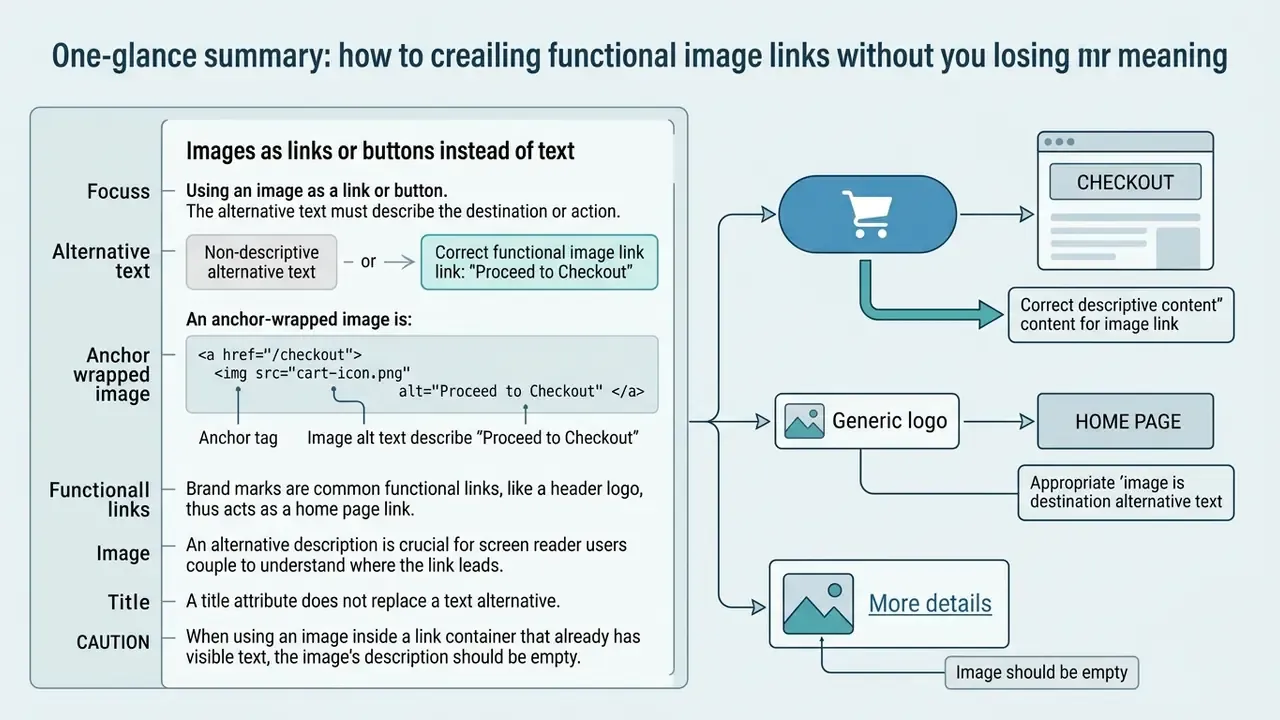
When an image is wrapped within an anchor tag to act as a link or button, its alt attribute must describe the target destination or action rather than visual appearance. The image's alternative text effectively serves as the accessible link label.
Anchor-Wrapped Image Structure:
<a href="/checkout">
  <img src="cart-icon.png" alt="Proceed to Checkout">
</a>
   ^                         ^
   |                         |
 Link Container         Functional Alt Text
If an image link lacks alternative text, screen readers cannot inform the user where the link leads, resulting in an unlabelled interactive control.
«45% of images missing alt text are linked images, roughly one in four image links on popular sites has no accessible name.»
Brand marks are the most common instance of this pattern: a header logo is almost always a functional link to the home page, so its alt should read "Company name, home page" rather than describing shapes and colours. Teams producing such marks at scale can review options in this guide to animation and brand asset makers; if the same team also needs clean exports for paid placements, the shortlist in No-Watermark AI Video Alternatives covers the licensing side of that question.
How to turn an image into a link without losing meaning
To create a functional image link, place the img element inside an <a> tag and set the alt attribute to reflect the destination or operational outcome.
<!-- Correct functional image link -->
<a href="https://example.com/reports/annual-2026.pdf">
  <img src="pdf-download-icon.svg" alt="Download 2026 Annual Financial Report PDF">
</a>
<!-- Graphical submit button -->
<input type="image" src="search-button.png" alt="Search">
When when using an image within a link container that already includes visible link text, the image's alt attribute should be kept empty (alt="") to prevent redundant text reading:
<a href="/favorites">
  <img src="heart.png" alt="">
  Favorites
</a>
Why the title attribute does not replace a text alternative
The title attribute provides optional visual hover tooltips but fails to serve as a reliable text alternative for assistive software. Many screen reader configurations skip title attributes entirely in favor of native alt text.
Furthermore, title attributes do not render on touch devices like smartphones and tablets, where hover interactions do not exist. Relying on title instead of alt leaves mobile and low-vision users without descriptive text when an image fails to load. W3C guidance is explicit: the title attribute must not be used to provide a text alternative for an image, and technique H67 pairs alt="" with no title for decorative graphics.
img element or CSS: choosing how to display an image instead of text
Choose an HTML img element when the visual asset represents meaningful document content, and use CSS background images when the asset serves purely decorative styling purposes. This structural distinction governs how search crawlers and screen readers interpret page elements.
| Criterion | HTML <img> Element | CSS background-image |
|---|---|---|
| Primary Purpose | Content, informative graphics, functional icons | Decorative backgrounds, layout styling |
| Semantics | Content element with an accessible name via alt | Presentational decoration, no content role |
| Accessibility Support | Full support via alt attribute for screen readers | Hidden from assistive technologies |
| Search Engine Indexing | Indexed by Google Image Search | Ignored by search engine image crawlers |
| Layout Behavior | Occupies physical DOM space, controls layout | Renders behind content layers |
| Responsive Delivery | Supports srcset and <picture> tags | Managed via CSS media queries |
| Fallback on failure | Renders alt text or a JS placeholder | Silent failure, empty area |
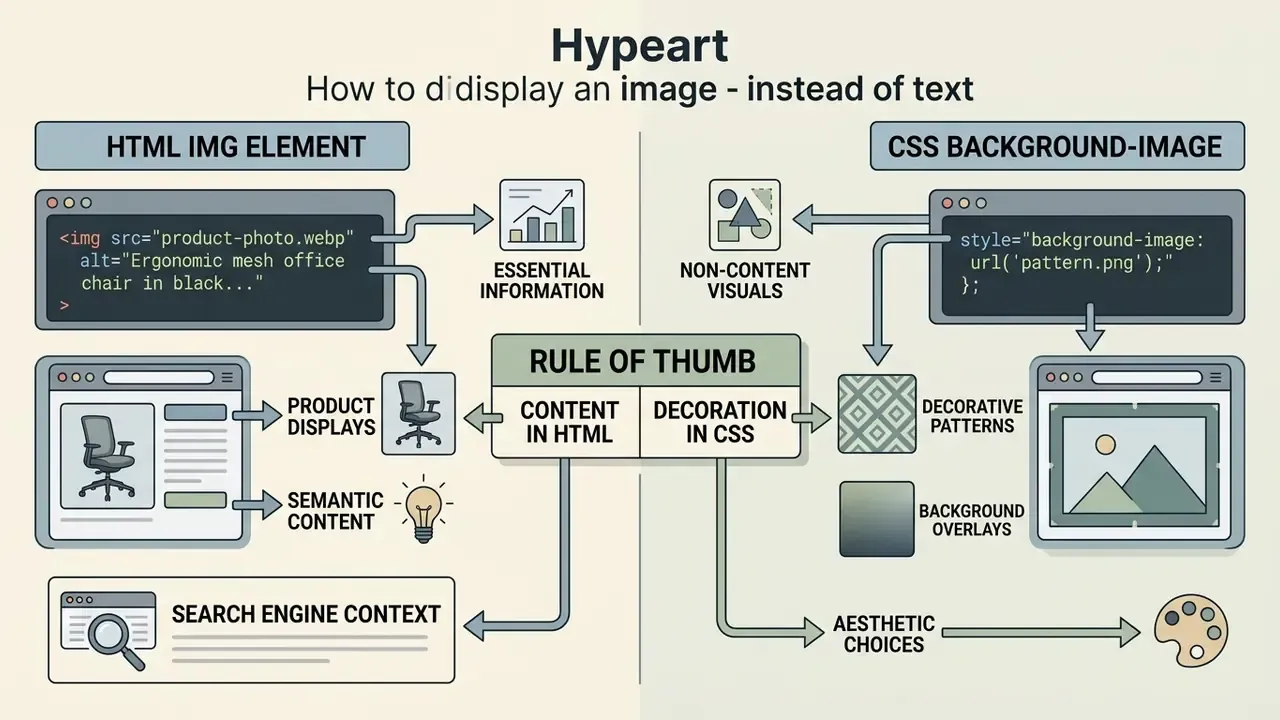
«CSS background-image carries no alt text or structured data, so such images never appear in Google Images, Google Shopping, or Discover.»
When an image must be an HTML img tag
An image must be implemented as an HTML img tag whenever it conveys essential information, displays product details, or acts as an interactive link or button. Using native HTML tags guarantees that the media carries accessible text descriptions.
<!-- Semantic content image -->
<img src="product-photo.webp" alt="Ergonomic mesh office chair in black finish"
     width="800" height="800">
<!-- Responsive content image with art direction -->
<picture>
  <source media="(min-width: 1024px)" srcset="chart-wide.webp">
  <img src="chart-narrow.webp" alt="Q3 revenue by region" width="640" height="480">
</picture>
Search engines like Google rely on the img element and its associated alt attribute to parse image context. Utilizing native HTML elements ensures content appears in search results and AI discovery interfaces.
«AI crawlers such as GPTBot and ClaudeBot do not see images, they read text; images without alt text simply do not exist in AI search answers.»
Charts, diagrams, text-bearing graphics, logos used as links, and any image whose removal would change the meaning of the page all belong in semantic markup rather than a stylesheet.
When CSS is the appropriate choice for a graphic
Using CSS background-image is appropriate for non-content visuals, decorative patterns, background overlays, or graphical flourishes. Because CSS background styles carry no alt attribute, they are ignored by screen readers, which is exactly the desired behaviour for decoration. W3C technique C9 explicitly endorses background, background-image, content with ::before/::after, and list-style-image for decorative purposes, while failure F3 forbids using them for information required to understand the page.
/* Decorative background styling */
.hero-banner {
  background-image: url('patterns/abstract-waves.svg');
  background-size: cover;
  background-position: center;
}
/* Decorative icon injected through generated content */
.callout::before {
  content: url('icons/spark.svg');
}
Combining CSS properties like float left or CSS Grid allows developers to lay out decorative elements cleanly without cluttering the primary HTML document structure with non-semantic markup, and keeps the accessibility tree free of noise.
FAQ: common questions about displaying images instead of text in HTML
.article-image {
float: left;
margin-right: 16px;
margin-bottom: 8px;
max-width: 300px;
}
/* Flexbox alternative: image and text side by side, no wrapping */
.media-row { display: flex; gap: 16px; align-items: flex-start; }

This textual content flows around the left-aligned image element...
Does the img element need a closing tag?
No, the img element is officially classified as a void element in the HTML Living Standard and does not require a closing tag ( ). In standard HTML5 syntax, writing is complete and valid. While self-closing trailing slashes (/>) are permitted for XML compatibility, including a full closing tag like is invalid HTML syntax.
How do I place an image next to text on a web page?
To position an image within a text block, apply CSS positioning styles such as float left, Flexbox, or CSS Grid. Modern layout techniques allow surrounding text to flow naturally around graphic elements. Applying float left pushes the image to the left margin, allowing paragraph text to wrap around its right side smoothly while maintaining responsive document layout. Note that vertical-align has no effect on flex items, so use align-items in Flexbox and Grid instead.
Why does the image work locally but break in production?
Almost always case sensitivity or path resolution. macOS and Windows development machines are often case-insensitive, while Linux production servers are not, so Logo.PNG and logo.png become two different files after deployment. Build output directories and CDN rewrites can also change how relative paths resolve.
Why does the image load in one browser but not another?
Browsers differ in caching behaviour and security enforcement. One may serve a stale cached response while another re-fetches; some block mixed content more aggressively. Inspect the Network and Console panels in the failing browser specifically.
How do I fix a 403 error on images?
A 403 Forbidden means the server is refusing access. Verify filesystem permissions for the file and its parent directories, confirm the web server user can read them, and check access rules such as deny directives, hotlink protection, or signed-URL requirements.
Can broken images hurt SEO?
Yes. Broken images degrade page experience metrics, prevent search engines from indexing image content, and remove the alt-text signal crawlers use to understand context. Stable, consistently accessible image URLs served over HTTPS avoid that risk.
Is it acceptable to replace text with an image of text?
Only in narrow cases. WCAG 2.2 success criterion 1.4.5 instructs authors to use real text instead of pictures of text, except where the visual presentation cannot otherwise be achieved (for example, logotypes). When an image of text is unavoidable, the alt value must repeat the same words that appear in the graphic.
Who should own image markup standards in a large team?
Someone specific, which is the uncomfortable part. In practice a design-system or platform team owns the component, sets required alt and dimension attributes, and blocks merges that omit them. Editorial teams own the wording of the alternative text, because only an author knows what the image is meant to communicate.
Limitations and open questions
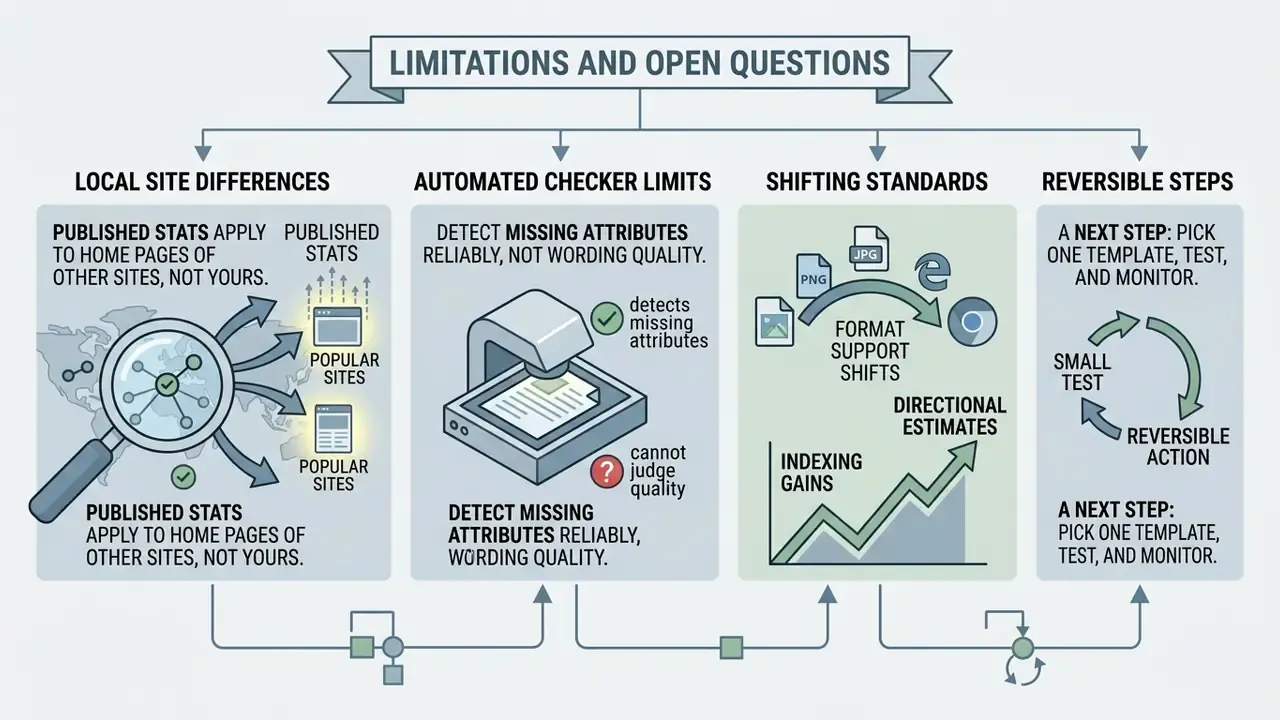
A few honest caveats before you ship changes based on this guide.
- Published accessibility statistics describe home pages of popular sites, not your site. Run your own scan before quoting any figure internally.
- Automated checkers detect missing
altattributes reliably, but they cannot judge whether the wording is accurate. Manual review with a screen reader remains necessary. - Format support shifts. AVIF and WebP coverage is broad in 2026, yet older embedded browsers and email clients still lag, so keep a
<picture>fallback where the audience is unknown. - Migration uplift numbers, including the indexing gains mentioned above, are directional. Measure your baseline first, then compare.
A reasonable next step is small and reversible: pick one high-traffic template, fix src resolution and alt wording there, verify with the Nu HTML Checker and a screen reader, then roll the pattern outward. No big-bang refactor required.
Further technical resources
Verify and extend the techniques in this guide against primary specifications and tooling:
- W3C Nu HTML Checker - validate
imgmarkup and catch missingaltattributes: https://validator.w3.org/nu/ - WHATWG HTML Living Standard, the
imgelement - normative rules forsrc,alt, and fallback content: https://html.spec.whatwg.org/multipage/images.html - MDN Web Docs,
srcset,loading, andcrossorigin: https://developer.mozilla.org/en-US/docs/Web/HTML/Element/img - W3C WAI Images Tutorial - decision tree for informative, decorative, functional, and complex images: https://www.w3.org/WAI/tutorials/images/
- WebAIM, Alternative Text - practical alt-text standards and common failure patterns: https://webaim.org/techniques/alttext/
- Chrome DevTools Network reference - reading status codes, headers, and CORS errors: https://developer.chrome.com/docs/devtools/network
- web.dev, Cumulative Layout Shift - why
width,height, andaspect-ratiomatter: https://web.dev/articles/cls - Internal guides for preparing publication-ready visuals: online photo editors, free photo editors and export limits, and commercial-use terms for generated imagery.
- Tooling comparisons for media teams: free video editing software no watermark, pixverse alternative, plus head-to-head write-ups if you prefer to explore the hub.
- Cost and licensing references: view the guide to plan-level limits, and view the guide to permitted commercial usage.
Browsing by the reason you are switching tools is usually faster than browsing by brand: see AI Media Alternatives by Reason.