The Short Answer
If you only need a clean 1080p export in the next ten minutes, three browser platforms cover most cases:
| Rank | Platform | Why it wins | Watch out for |
|---|---|---|---|
| 1 | Microsoft Clipchamp | Unlimited 1080p exports with no watermark on the free plan, AI subtitles in 80+ languages, built-in screen and webcam recorder | 4K export and some premium stock assets are subscription-only |
| 2 | CapCut Web | Strong short-form toolkit, auto-captions, background removal, HD export advertised as watermark-free | The branded end-card clip must be deleted manually; ownership and data-handling review is required for corporate use |
| 3 | Edit.Video / local-processing tools | No account, no upload, processing stays in the browser, which is the safest option for sensitive footage | Minimal feature set: trimming, cutting, basic assembly only |
Three rules decide whether your export is actually clean: (1) every asset on the timeline must belong to the free tier, (2) the export resolution must sit inside the free cap, usually 1080p and occasionally 720p or 480p depending on the plan and locale, and (3) the upload must fit the platform's file-size ceiling, commonly 1GB per file on free tiers.
Who This Guide Is For and How to Read It
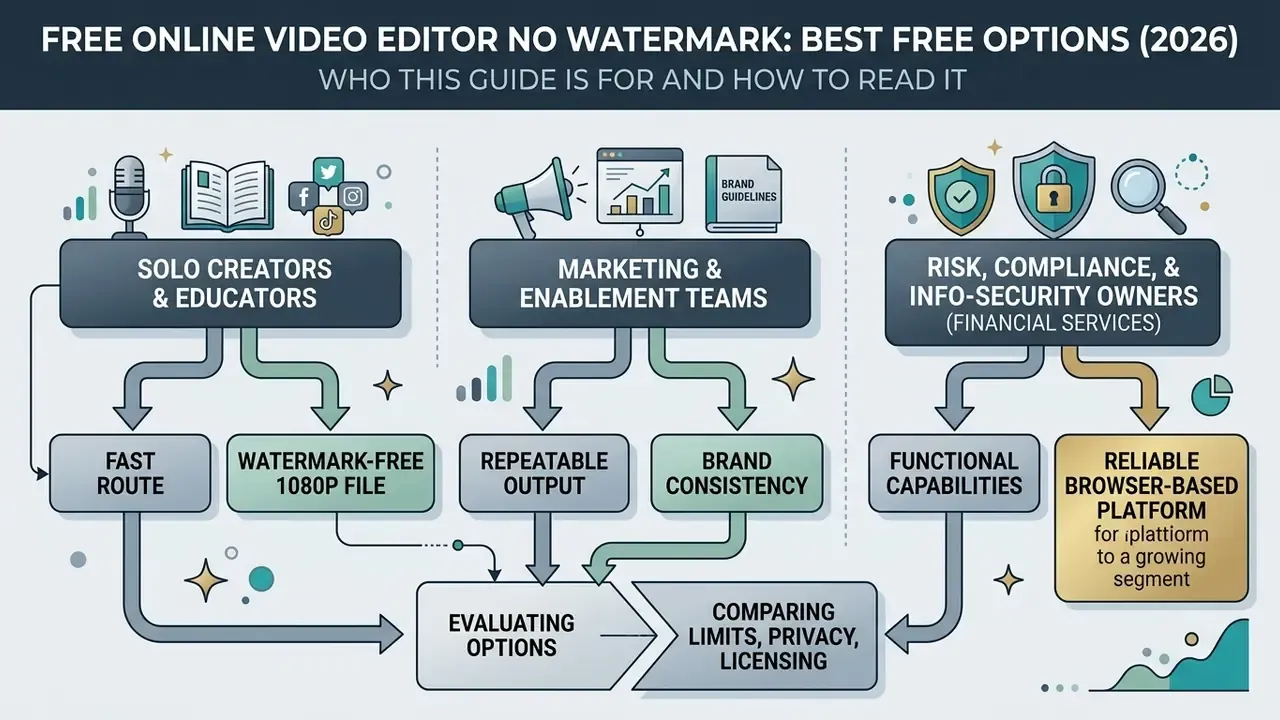
Three readers keep landing on this page, and they need different things.
- Solo creators and educators want the fastest route to a watermark-free 1080p file. Read the short answer above, then the step-by-step export workflow.
- Marketing and enablement teams need repeatable output plus brand consistency. The template, brand kit, and licensing sections matter most.
- Risk, compliance, and information-security owners in banks and mature fintechs are usually here for a narrower question: which of these browser tools may touch internal footage at all. Start with the enterprise privacy matrix and the Shadow AI checklist, then the commercial-use section.
That last group is growing fast. A product demo recording, a screen capture of a reconciliation dashboard, a training clip that shows live customer records: all three are regulated data the moment they land in an unapproved cloud workspace. So the export question and the governance question are really one question.
Selecting a reliable browser-based video editing platform requires evaluating functional capabilities, technical output constraints, and export licensing terms. Content creators and media teams increasingly rely on web-based tools to accelerate production while eliminating unwanted branding overlays.
Marketing copy and plan documentation frequently diverge. A platform can advertise "no watermark" on its landing page while restricting clean rendering to a single resolution tier, or to projects containing zero premium assets. Clean video output therefore depends on strict verification of platform licensing, asset selection, and export resolution limits, not on headline claims.
«I never expected that a free version would have all these features… a free, well-featured, and user-friendly video editing site.»
What to Check Before Choosing a Free Online Video Editor No Watermark
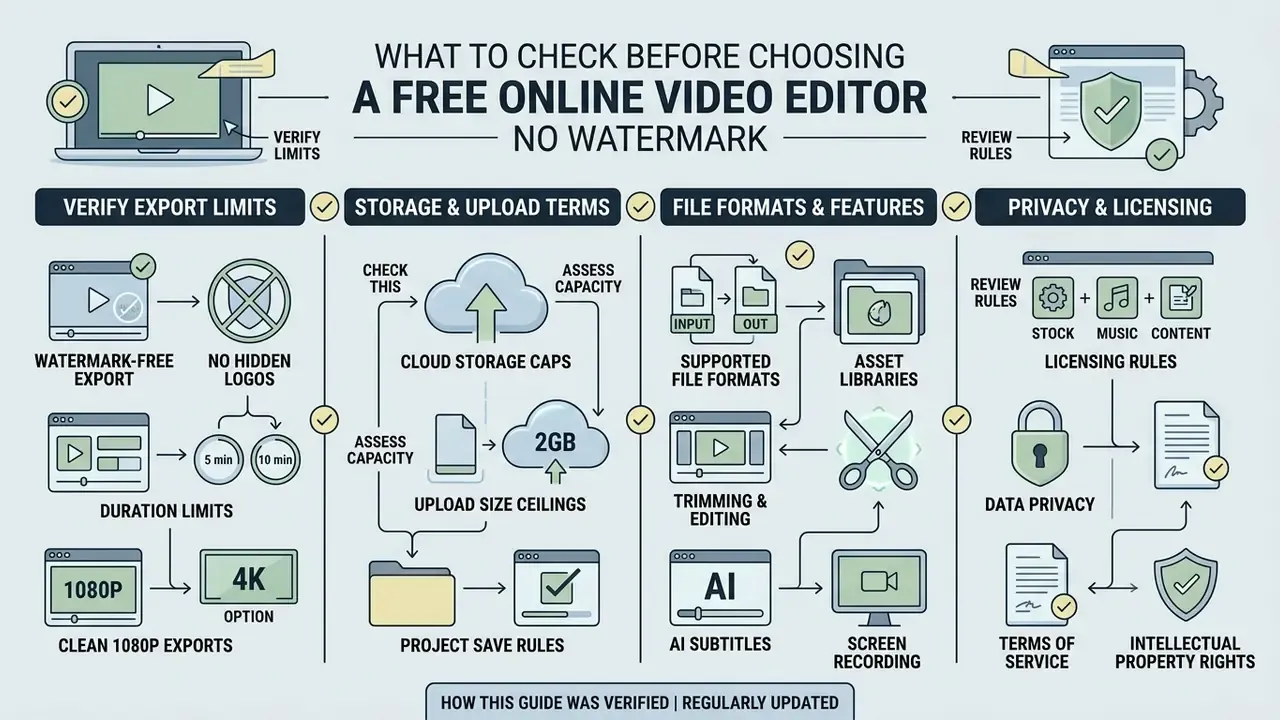
Choosing a browser video editor no watermark requires verifying export quality caps, cloud storage terms, upload size ceilings, and asset licensing rules before starting a project. Many platforms advertise free editing but insert branding overlays when users select premium stock footage or attempt high-resolution exports.
Understanding these criteria prevents unexpected paywalls during the final rendering stage. Evaluating browser compatibility and supported file formats ensures a seamless workflow across web browsers without local software installation. Most Chromium-based engines, Google Chrome and Microsoft Edge in particular, receive first-class support, and vendors explicitly recommend running the latest browser build before starting a timeline project.
Value perception, not feature unlocking, is what ultimately drives an upgrade decision. That is why auditing what the free tier genuinely delivers matters more than counting locked buttons:
Watermark-Free Export Limits on Free Plans
A free online video editor no watermark generally grants clean exports only under specific operational conditions and resolution thresholds. Platform providers often reserve watermark-free rendering for projects using native media files or strictly free stock assets.
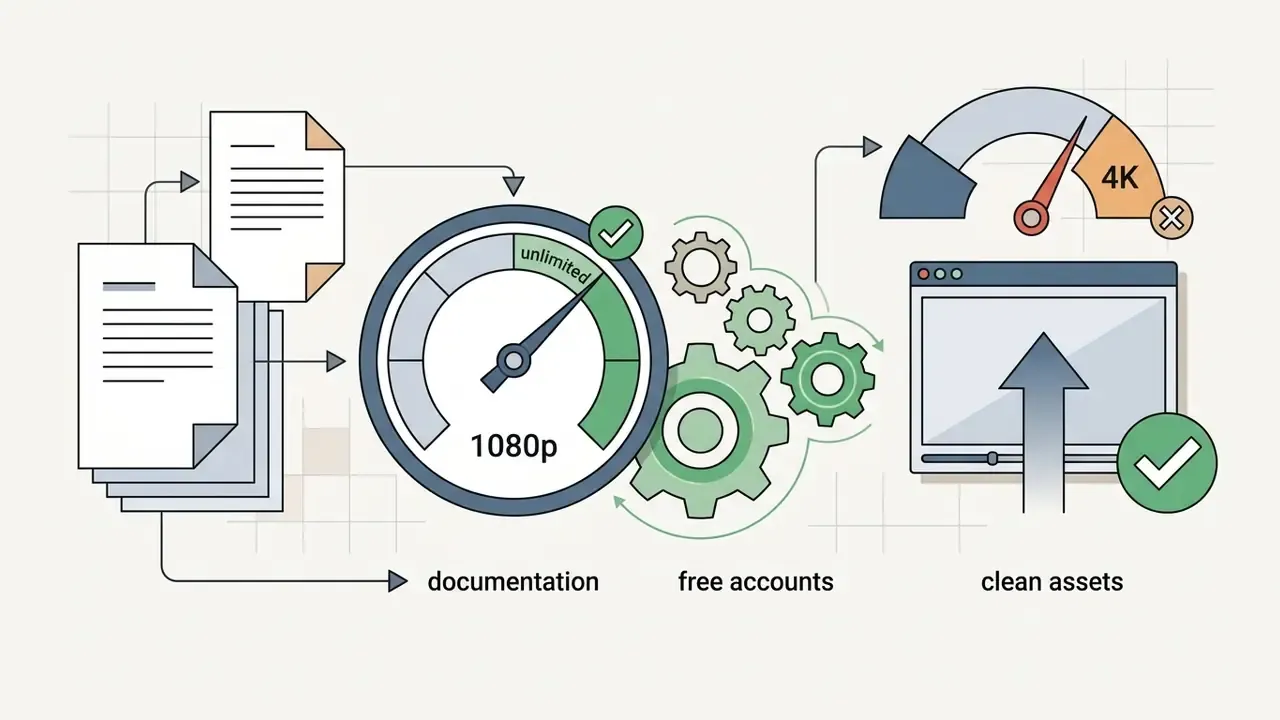
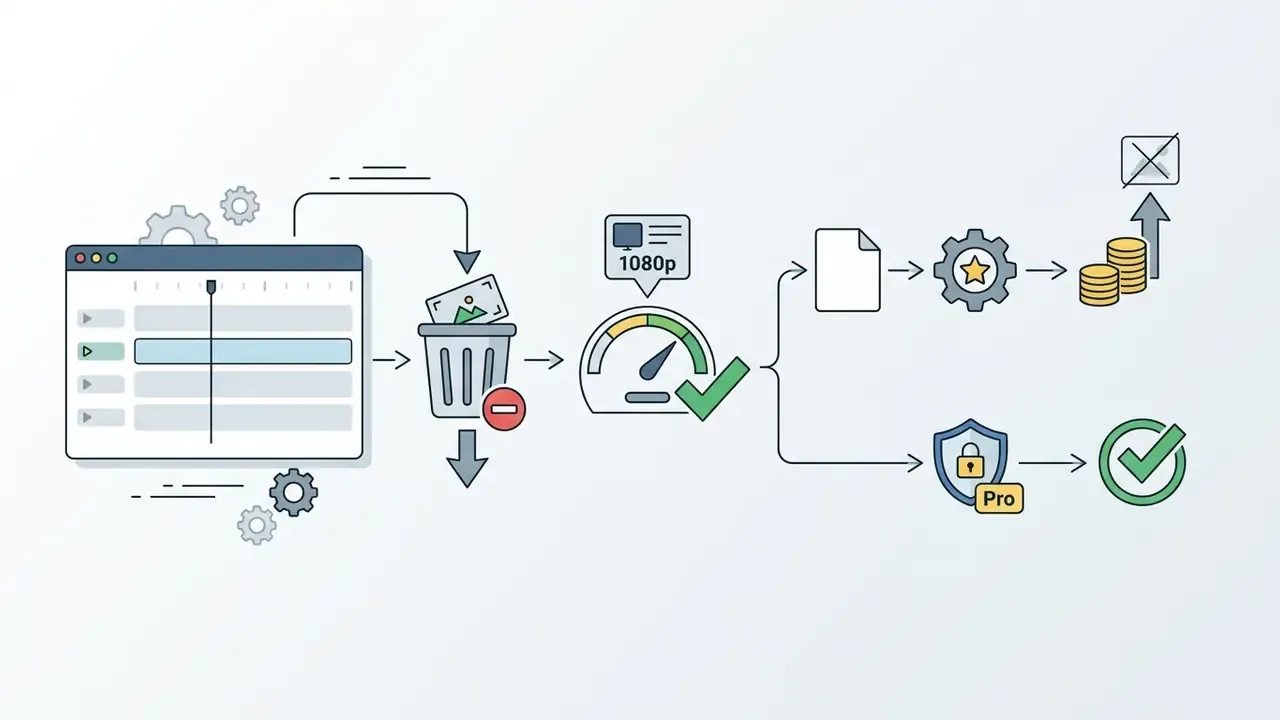
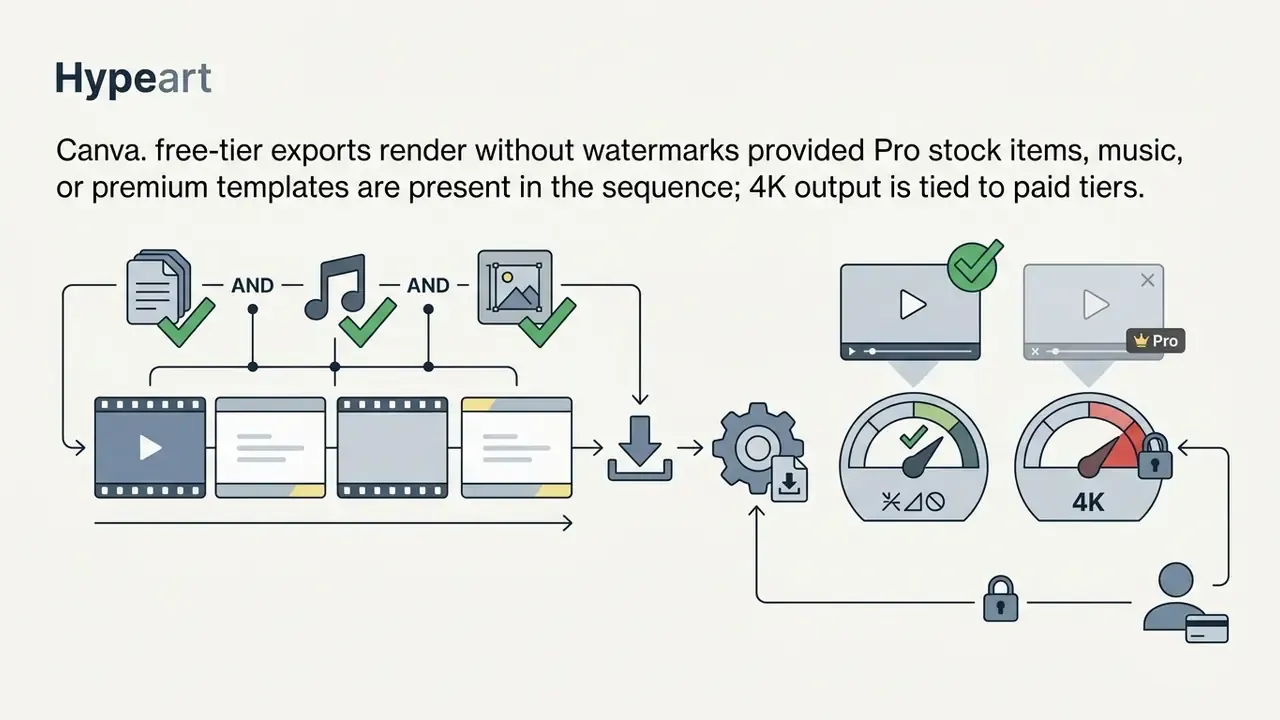
For example, Microsoft Clipchamp provides export watermark free rendering up to 1080p resolution on its standard free plan, while 4K rendering is reserved for premium subscribers. Conversely, platforms like Canva allow users to edit video free online no watermark only if every audio track and graphic element belongs to the free asset library. Using a single premium element applies a platform watermark upon export unless an upgrade is purchased.
Other services, such as VEED and Kapwing, apply visible branding overlays on their free tiers while capping export resolution at 720p. VEED additionally limits free export length to roughly ten minutes with 2GB of cloud storage, and Kapwing's free plan restricts monthly export volume. FlexClip similarly stamps free exports, and Descript keeps free exports watermark-free but caps them at 720p alongside a three-hour monthly transcription allowance. Users seeking a free edit video online solution must inspect project asset layers to prevent unexpected rendering restrictions.
The persistence of watermarked free tiers is itself a market-strategy artifact rather than a technical necessity:
Supported File Formats, Upload Size Caps, 1080p Resolution, and 4K Video
Updated. Most web browser editors support standard container formats including MP4, MOV, M4V, WebM, MKV, and AVI for media ingestion, alongside PNG, JPG, and MP3 for stills and audio. While browser engines process uploads smoothly, platforms often enforce a maximum file size limit, typically capped at 1GB per upload on free tiers as documented on Adobe Express, to optimize memory usage during client-side decoding via WebCodecs. Long-form footage therefore benefits from pre-compression; readers can review video compressor tools before ingesting multi-gigabyte camera files.
Modern browser-based processing relies on WebCodecs to decode video clips directly within the client environment, which places decoding and encoding load on the user's hardware rather than on a rendering farm. On older laptops this trades server queues for local CPU and GPU strain, so 4K timelines may stutter even when the platform technically allows them. I have watched a 2019 ultrabook drop the preview to slideshow speed on a three-layer 4K sequence. Not a bug, just physics.
While 1080p resolution has become the standard benchmark for watermark-free web exports, full 4K rendering remains restricted on most free plans. A true 4k video editor online free without watermark workflow often requires specialized client-side processing tools or local browser rendering engines to bypass server-side encoding costs.
For instance, platforms like EchoWave cap free rendering at 1080p HD, whereas 4K H.264 export requires a paid subscription, and Kapwing reserves 4K upscaling for Pro accounts. Verifying input container support, upload ceilings, and output resolution parameters ensures compatibility with target social media channels and professional media workflows.
Best Free Online Video Editor No Watermark Alternatives by Task
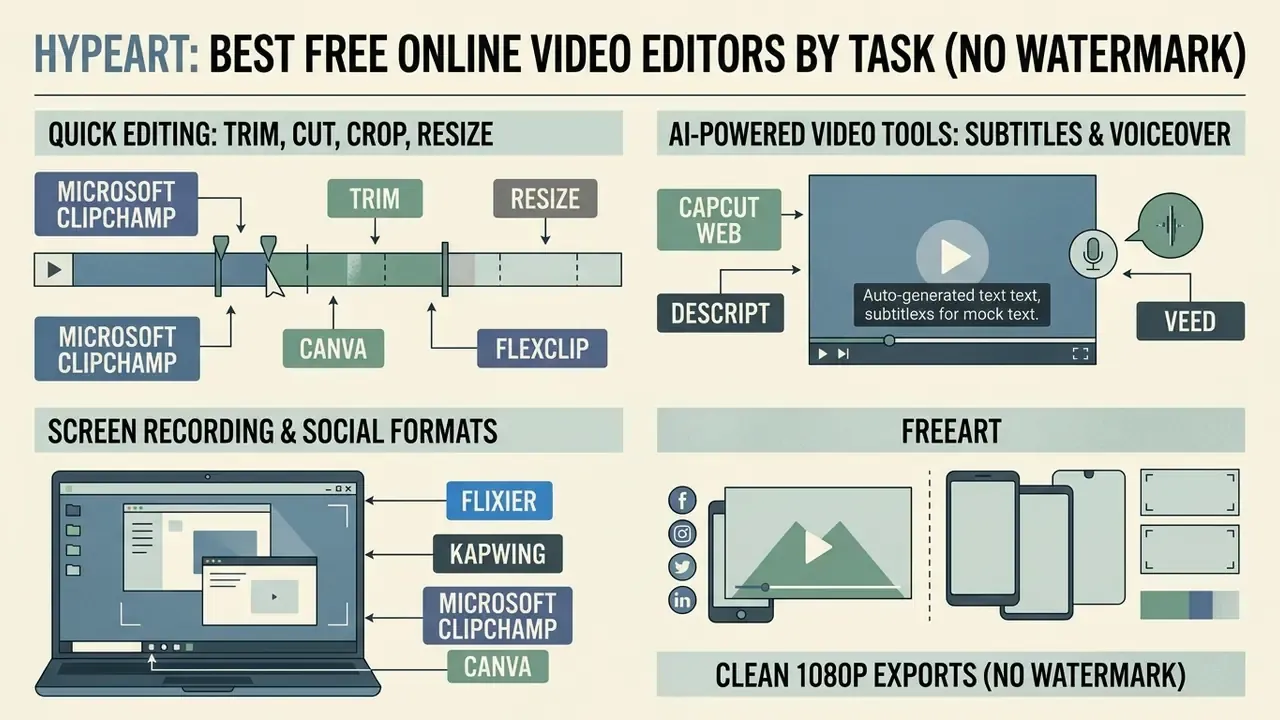
Selecting the best free online video editor no watermark depends on specific task requirements, such as quick trimming, AI subtitle generation, screen recording, or vertical video formatting. Comparing specialized browser platforms allows creators to align platform capabilities with project requirements, and, for regulated teams, with data-handling constraints.
To evaluate top platforms, creators can compare options across feature sets and pricing structures to find suitable browser video editor no watermark solutions, run head-to-head checks in the compare options matchup library, or study a broader roundup of free video editing software before committing to a single ecosystem.
| Platform | Watermark-Free Export Tier | Max Free Resolution | AI Tools Included | Media Processing & Commercial Rights | Primary Target Use Case | Verified Status (2026) |
|---|---|---|---|---|---|---|
| Microsoft Clipchamp | Free Plan (Unlimited) | 1080p HD | Auto Subtitles (80+ languages), Text-to-Speech (400 voices), Silence Removal, Background Removal | Cloud processing inside the Microsoft 365 ecosystem; vendor states it never accesses user videos; free stock assets licensed royalty-free | Quick browser editing, YouTube, education, corporate training | Export watermark free verified for free assets |
| CapCut Web | Free Plan (With conditions) | 1080p HD / 4K (tool dependent) | Auto Captions, Background Removal, Text-to-Speech | Cloud processing; ownership by ByteDance requires vendor-risk review for regulated data; template licensing varies (Pro templates may block clean export) | TikTok, Instagram Reels, short-form vertical | Watermark removed by deleting branded end-clip |
| Canva Video Editor | Free Plan (Free elements only) | 1080p HD | Magic Edit, Basic AI Voice, Layout Presets | Cloud processing; free-element license permits most commercial use, premium elements require paid license | Social media graphics, branded content | Clean export requires 1080p free assets |
| Descript | Free Plan (3 hrs transcription) | 720p HD | Transcript-based editing, Studio Sound | Cloud transcription of uploaded audio; review retention terms before uploading confidential recordings | Podcasts, interviews, video documentation | Watermark-free exports capped at 720p |
| Edit.Video / browser-local tools | Free Plan (No account needed) | 1080p HD | Basic trimming, cutting, privacy-local processing | Files never leave the device in browser-local mode; no third-party licensing exposure for own media | Quick private edits, sensitive or internal footage | Fully browser-local clean rendering |
Vendor verification notes (2026 export conditions).
Watermarks are not purely cosmetic, either. Removing them measurably degrades downstream provenance detection, which matters for teams publishing AI-assisted footage:
«De-watermarking reduces AI-generated video detector accuracy by 2 to 8 percentage points across a 6,500-video benchmark.»
That trade-off deserves a sentence of honesty. A clean export helps your brand look unbranded; it also strips one of the few machine-readable signals that a clip was synthetically produced. If your organization has a disclosure policy for AI-assisted content, handle that in metadata or an on-screen label rather than pretending the question does not exist.
Editors for Quick Trim, Cut, Crop, and Resize
For basic sequence adjustments, lightweight web tools eliminate complex software setup and allow instant timeline processing. Tools like Adobe Express and 123apps offer direct browser utilities to trim videos, split clips, and crop frame dimensions in a few clicks, with one-click resizing presets for social destinations.
Structured, metadata-assisted interfaces are what make this accessible to people who have never opened a professional NLE:
«Participants successfully edited video in both conditions after brief training; metadata helped them complete cutting tasks efficiently.»
Bypassing multi-track timelines allows creators to edit video online no watermark quickly for immediate sharing.
Field observation (reformulated, no metric claimed). A digital marketing team needed to edit roughly fifty short clips each week without installing desktop software. After adopting a web editor with verified watermark-free export rules and a locked-down asset library, the team reported that initial sequence assembly stopped being the bottleneck: reviewers could open a shared link instead of waiting for render-and-upload cycles. No independent measurement of the time saved was collected, so the improvement should be treated as qualitative rather than quantified.
AI Video Editors for Subtitles, Voiceover, and Background Removal
Automated tools powered by machine learning accelerate tedious editing tasks such as transcription, noise suppression, and visual keying. Modern web platforms incorporate AI models to generate subtitles, synthesize text-to-speech voiceovers, and remove video background elements automatically without a physical green screen.
Presenting several machine-generated options, rather than one fixed result, is what raises perceived usefulness:
Platforms like CapCut Web and Clipchamp use these automated workflows to handle noise suppression and speech alignment directly within the browser interface. For long-form material, agent-based pipelines are beginning to outperform single-pass automation:
«The multi-agent CutClaw system received 53.0% of votes for audiovisual harmony, more than double the nearest baseline at 20.0%.»
Worth a caveat: agentic editing means software making sequencing decisions with limited human review. In a regulated communications workflow, that needs an owner, an approval gate, and a log of what the agent changed. No evidence, no autonomy.
Creators seeking specialized captioning capabilities can review free ai video options to evaluate dedicated automated workflow solutions, or read the broader overview of free AI video generators to understand where captioning sits inside a generative pipeline.
Enterprise Privacy, Shadow AI, and AI-Model Training Policies
AI editing modules create the largest data-exposure surface in a browser editor, because auto-captioning and voice synthesis transmit raw audio to an inference endpoint even when the video itself stays local. Risk, compliance, and information-security owners should therefore evaluate the AI layer separately from the timeline layer.
Enterprise security and data privacy matrix
| Question to answer | Browser-local processing | Cloud processing | Why it matters |
|---|---|---|---|
| Where is the media decoded? | Inside the tab via WebAssembly / WebCodecs; files never leave the device | Uploaded to vendor infrastructure for transcoding and rendering | Determines whether an upload is a disclosure event at all |
| Is footage retained after the session? | Project data sits in local browser storage and clears with the cache | Retention windows vary; some services delete temporary files after a fixed period, others keep assets until manual deletion | Retention length drives breach exposure |
| Are share links public? | No links generated | Public share links can expose a video to anyone holding the URL | Unlisted-link sharing is a common leak vector |
| Does the AI module send audio to a third party? | Usually no AI module at all | Captioning, voice synthesis, and enhancement may route through partner APIs | Third-party subprocessors must be documented before use |
| Is the audio or video reused for model training? | Not applicable | Must be confirmed in the vendor's terms of service and AI-specific addendum; opt-out settings differ by plan and tenancy | Reuse of proprietary footage for training may violate internal policy |
| Is the tenancy enterprise-controlled? | Local only | Some editors sit inside managed ecosystems with centralized IT controls and admin policy enforcement | Managed tenancy reduces Shadow IT risk |
Shadow IT and Shadow AI checklist for regulated teams. Before an employee opens a browser editor with internal footage, confirm the following:
Checklist0 / 7
Regulatory and standards guidance converges on the same controls. European data-protection guidance on video processing states that personal video data must be kept only as long as necessary for the stated purpose, with compartmentalization during transmission and storage (European Data Protection Board, Guidelines 3/2019 on processing of personal data through video devices, 2020). Industry guidance adds encryption in transmission and storage, digital signatures or watermarking for integrity, and explicitly restricted access rules (Security Industry Association, Data Privacy Code of Practice for Video Surveillance, 2025). Browser-side media workflows are themselves a security boundary, since a tab can reach local cameras, files, and keying material (IETF, RFC 8826: Security Considerations for WebRTC, 2021).
Awareness of these questions is now mainstream among technical professionals:
How to Choose an Editor for YouTube, TikTok, and Instagram
Selecting an online editor for social distribution requires matching output specifications with platform-specific display requirements. Widescreen 16:9 layouts suit YouTube video content, whereas vertical 9:16 aspect ratios are required for TikTok videos, Instagram Reels, and YouTube Shorts. Teams publishing long-form material can follow structured YouTube video editing workflows to keep chapters, thumbnails, and end screens consistent.
The choice of platform depends heavily on preset availability, template libraries, and direct publishing integrations, and increasingly on whether the tool doubles as one of the AI video generators used to produce source footage in the first place. Creators editing social clips should confirm that the platform preserves high frame rates and standard color profiles without adding platform branding during export.
Duration policy also affects editor choice: YouTube categorizes square or vertical uploads of up to three minutes as Shorts for videos uploaded on or after 8 December 2025, so a vertical timeline no longer has to end at sixty seconds.
Video Editing Tools Available in a Free Browser Video Editor
A free browser video editor no watermark provides a complete sequence editing pipeline directly inside modern web browsers. Creators access multi-track timelines, transition libraries, typography controls, and sound effects without installing local video editing software; the full landscape of video editing tools is now reproducible in a tab.
Figure 1. Browser video editor feature stack. Five layers sit between an uploaded file and a published clip:
- Ingest layer local file picker, URL import, cloud-drive connectors, screen and webcam capture.
- Storage layer browser cache and IndexedDB for local mode, or cloud workspace for collaborative mode.
- Timeline layer stacked video, audio, image, text, and caption tracks with frame-accurate scrubbing.
- AI layer transcription, text-to-speech, noise suppression, silence removal, background keying.
- Render layer WebCodecs/WebAssembly encoding to MP4, with resolution and watermark rules applied at export.
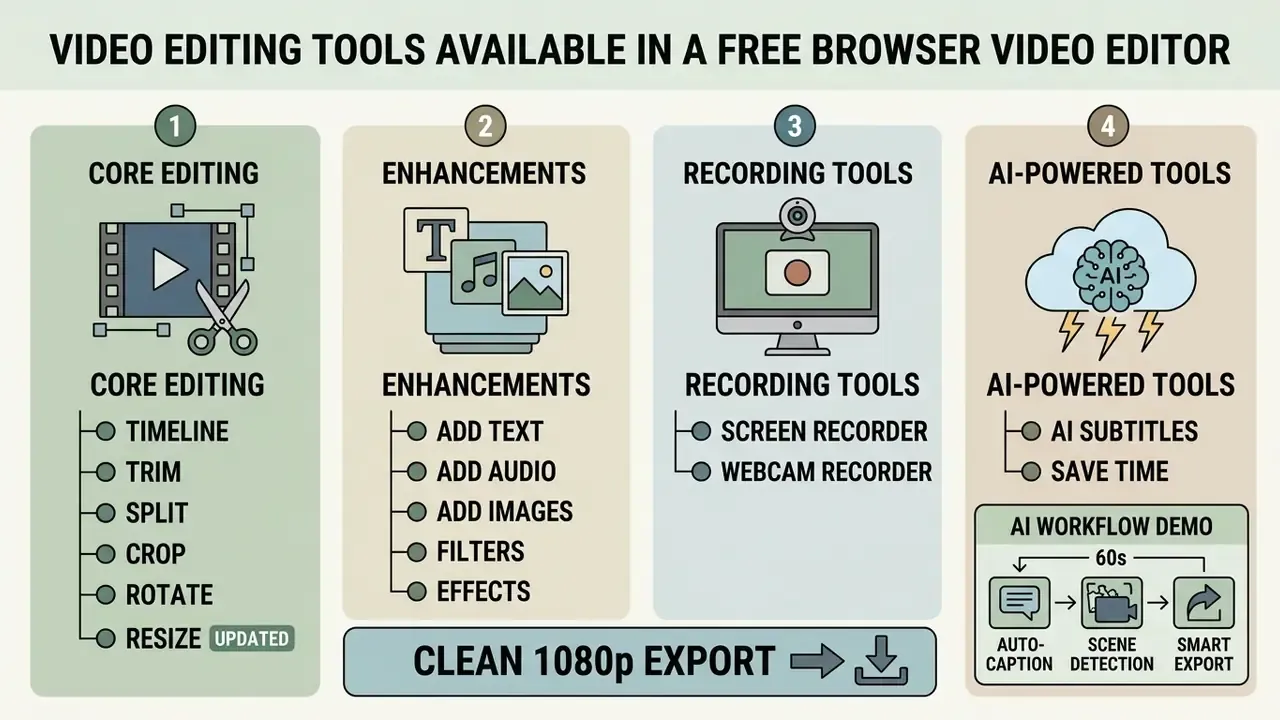
Core Editing: Timeline, Trim, Split, Crop, Rotate, and Resize
Timeline-based editing forms the foundation of browser video manipulation. Users place video footage, audio tracks, and graphic overlays onto stacked timeline tracks to arrange complex visual sequences, and timeline edits stay non-destructive: the source file on disk is never altered.
Updated. Essential editing tools include frame-accurate trimming, clip splitting at the playhead, sequence merging, ripple delete, frame cropping with preset or freehand boundaries, aspect-ratio adjustment, and exact rotational controls: rotating 90° or 180° clockwise and counterclockwise, alongside horizontal and vertical flipping for webcam fixes and mirrored phone footage. Platforms like Microsoft Clipchamp and Adobe Premiere Rush support transform controls to flip, mirror, rotate, scale, and picture-in-picture video layers directly within the canvas preview, with proportions either locked or adjusted independently.
Emerging input methods reduce the learning curve further:
Add Text, Audio, Images, Filters, and Effects to Video
Enhancing raw footage involves layering visual and auditory elements over primary video tracks. Web editors allow users to add effects to video online free without watermark, apply color correction filters, insert lower thirds, blend background music, and stack animated overlays, frames, and stickers.
Built-in stock media libraries provide royalty free sound effects, background tracks, and still images. Clipchamp's content library alone advertises more than a million royalty-free videos, images, backgrounds, and music tracks. According to product documentation for Adobe editing environments, using smart objects and layered filter stacks preserves original footage while applying dynamic visual transformations, and timeline panels support separate audio tracks, transitions between clips, and pan/zoom/rotate presets for text and still-image layers.
One caution from experience: trendy music inside a consumer app is licensed for playback inside that app, not necessarily for a file you download and host yourself. More on that in the licensing section.
Built-In Screen and Webcam Recorder
Modern browser editors eliminate the need for external recording software by integrating client-side screen capture utilities. Users can record an entire desktop, a single browser tab, or an individual application window while capturing webcam footage simultaneously in picture-in-picture mode, with the microphone track recorded alongside.
Free tools including Clipchamp and Media.io support unlimited recording retakes and export the final synced audio-video tracks without applying platform watermarks. Recordings drop straight onto the timeline for trimming, so tutorial, onboarding, and demo videos can be captured, cut, captioned, and published inside one tab. For risk and compliance teams, this convenience is exactly why the Shadow AI checklist above matters: a screen recording of a production dashboard is confidential data the moment it is uploaded to an unapproved cloud workspace.
AI-Powered Tools That Save Time
Integrated AI tools automate repetitive production steps to accelerate overall turnaround times. Automated captioning models transcribe spoken audio into synchronized text overlays with high accuracy across accents, and subtitle transcripts can be edited or downloaded as SRT files for archiving.
Figure 2. Sixty-second AI workflow demo. A representative browser session shows auto-subtitle generation and green-screen removal executing inside Google Chrome without any local plugin: import clip, generate captions, review transcript, apply background removal, export MP4.
Updated. Text-to-speech generators convert written scripts into natural-sounding voiceovers across global languages. Advanced free browser editors support over 400 distinct AI voices across 80+ languages and regional accents, allowing creators to fine-tune speech pitch, speed, and emphasis to match their video style without hiring voice actors. Readers comparing synthesis engines can review dedicated AI voice generators and the wider category of text-to-video AI tools for script-first production.
Additionally, AI background remover tools isolate subjects from complex backgrounds without requiring physical green screens, allowing rapid visual composition. Audio enhancers boost quiet dialogue, suppress room noise and microphone static, and strip long silences automatically, while auto-compose features assemble highlight reels and slideshow sequences from raw clip batches.
Accuracy still varies. Auto-captions handle a clear studio voice well and struggle with crosstalk, heavy accents, or product names. Budget review time accordingly, especially for anything customer-facing.
How to Edit Video Online Free Without Watermark
Editing video online without watermark follows a structured workflow from media ingestion to final rendering. Following a systematic process ensures project settings match platform distribution requirements.
Figure 3. Step-by-step online video editing process. The user journey runs from media upload through timeline assembly, enhancement, aspect-ratio selection, and free-asset verification to a watermark-free export and direct publishing.
- Upload Media / Select TemplateImport local MP4/MOV/M4V files (within the platform's per-file size ceiling) or choose a pre-configured template layout.
- Timeline AssemblyArrange video clips, trim unwanted segments, and split scenes on the editing timeline.
- Enhance ContentAdd text overlays, background audio, transition effects, and auto-generated captions.
- Adjust Aspect RatioSet canvas dimensions to 16:9 (widescreen), 9:16 (vertical), or 1:1 (square).
- Verify Free AssetsEnsure all applied media, music, and graphic elements belong to the watermark-free tier, and delete any branded template end-card.
- Export & ShareRender the finalized video project in 1080p resolution and download, save to cloud storage, or publish directly to social media.
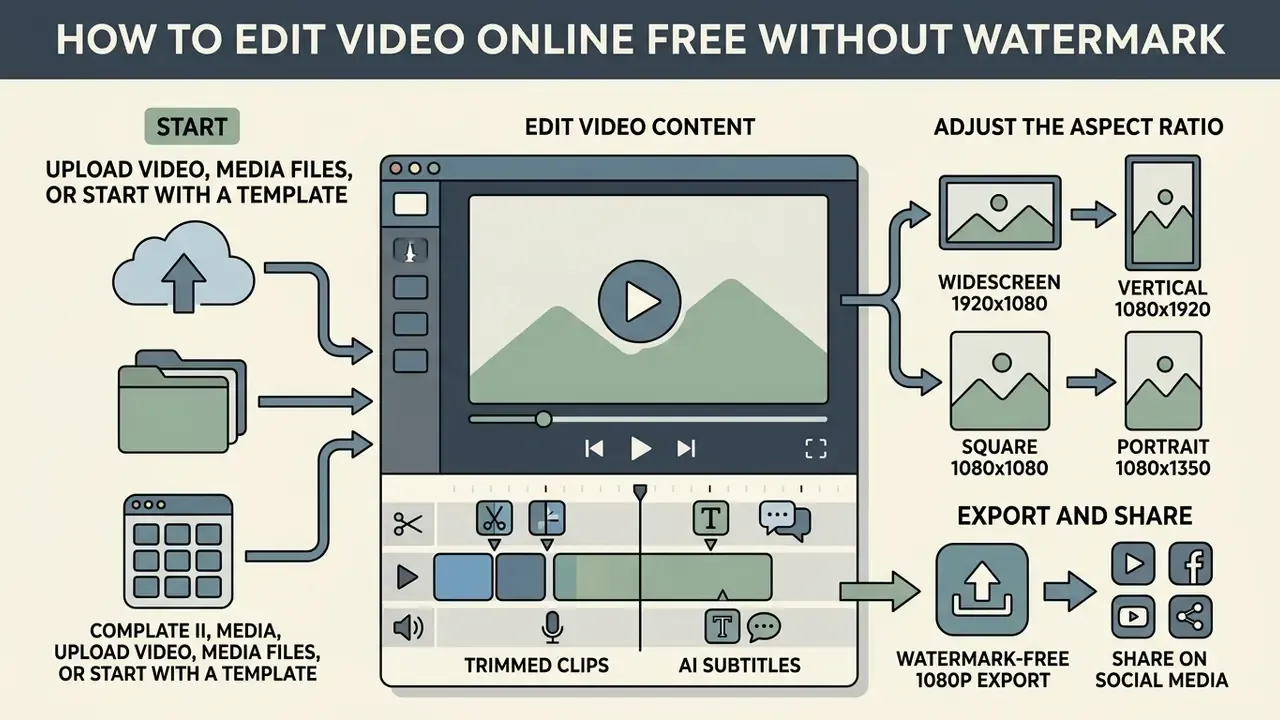
Upload Video, Media Files, or Start with a Template
To create video online free without watermark, users start by uploading source assets into the cloud workspace or browser cache. Supported file formats typically include MP4, MOV, M4V, WebM, PNG, JPG, and MP3, and many editors also accept a direct URL import or a fresh screen recording as the starting asset.
Alternatively, creators can select pre-built video templates tailored for specific media channels. Platforms like Canva and Adobe Express offer template libraries that pre-configure graphics, motion transitions, and text placeholders for rapid editing, and photo-led projects can be built with image-to-video AI tools when no footage exists yet.
Creators exploring web-based editing platforms can compare functional capabilities across different online editing solutions.
Edit Video Content and Adjust the Aspect Ratio
Once media files are placed on the timeline, creators refine content structure using core editing tools. Trimming unnecessary footage and reordering clips establishes clear pacing and visual hierarchy.
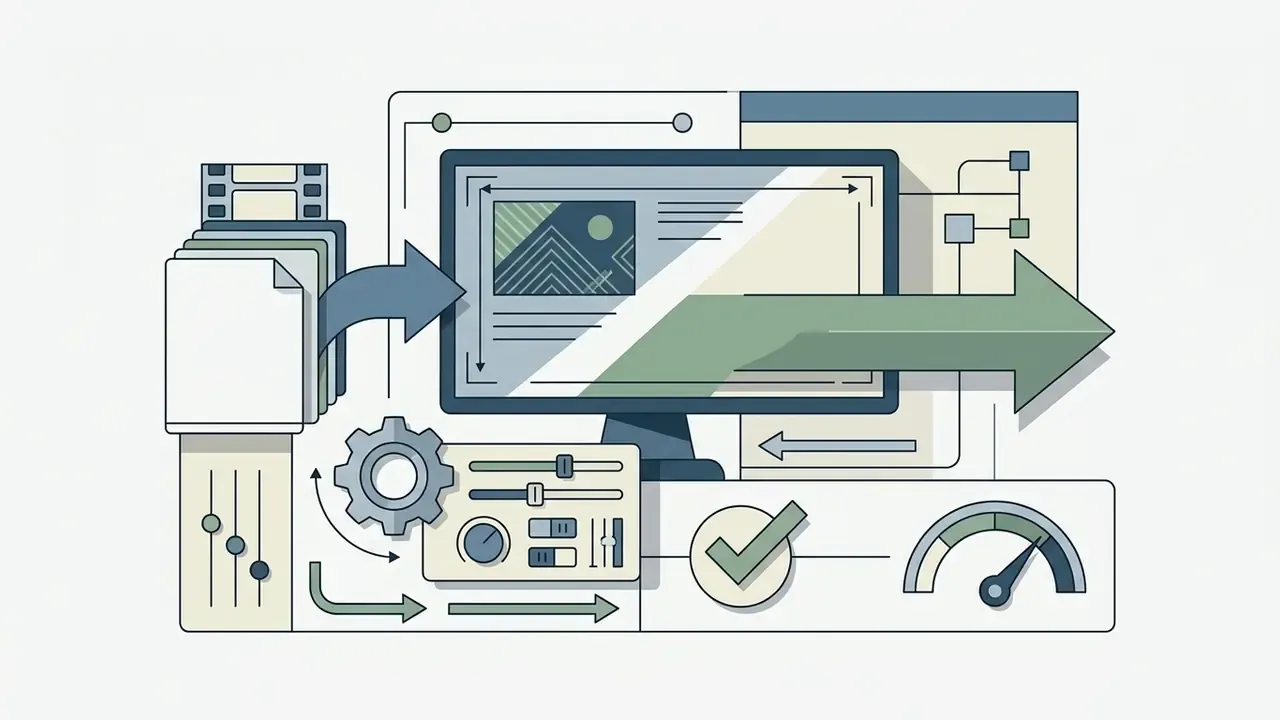
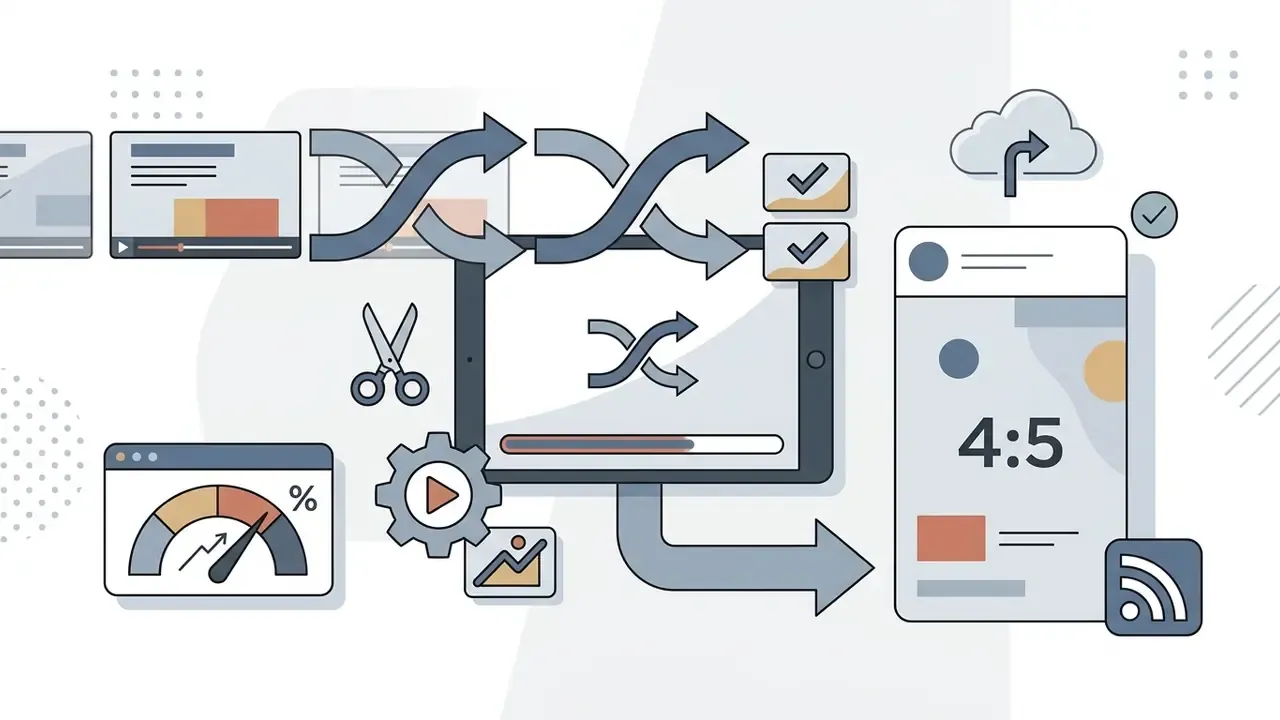
Figure 4. Aspect ratio canvas mapping. Standard frame dimensions for social media platforms and digital distribution:
Configuring the project aspect ratio before heavy editing prevents re-framing work later, because text overlays and logos positioned for widescreen often fall outside the safe zone once a canvas is switched to vertical.

Create Social Media Videos and Professional Video Content Online
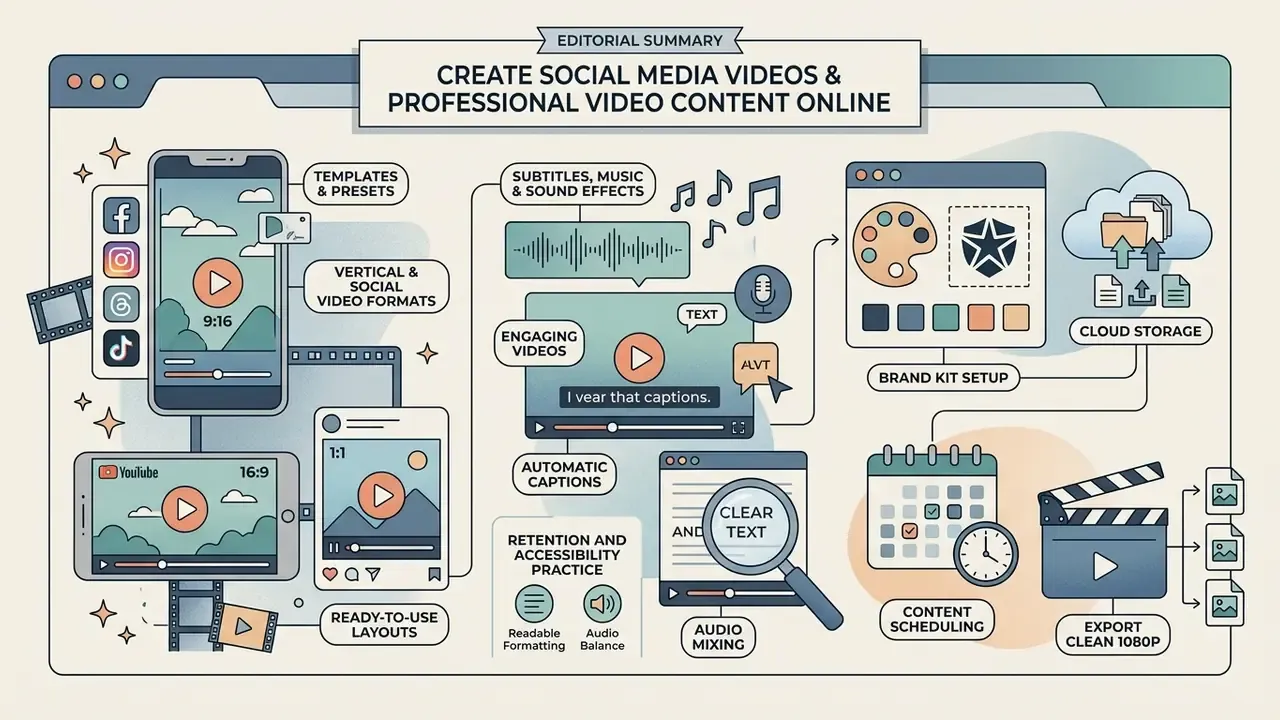
Browser-based editors enable creators to produce engaging content tailored for digital platforms and commercial branding. Standardizing design elements ensures visual consistency across all media output, and teams building high volumes of assets often pair an editor with the best AI video generators for first-draft footage.
Creators interested in mobile editing alternatives can review free video editing apps like capcut for mobile-first editing platforms.
Subtitles, Music, and Sound Effects for Engaging Videos
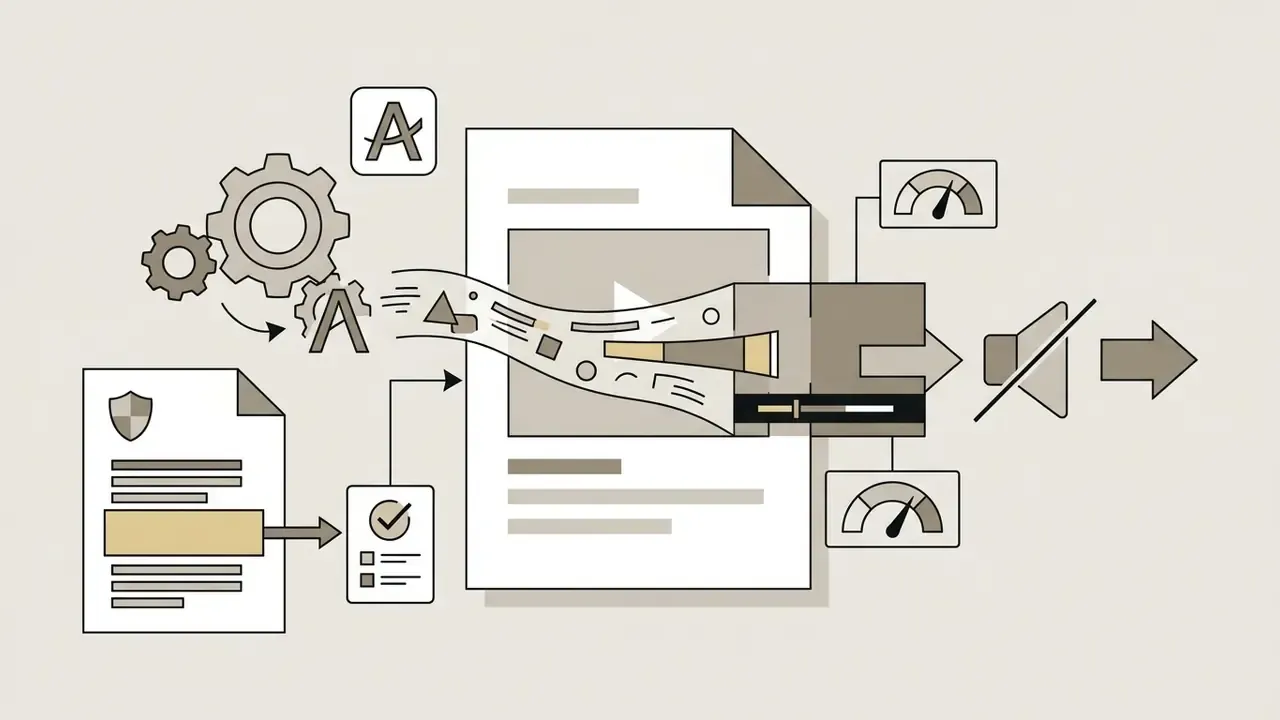
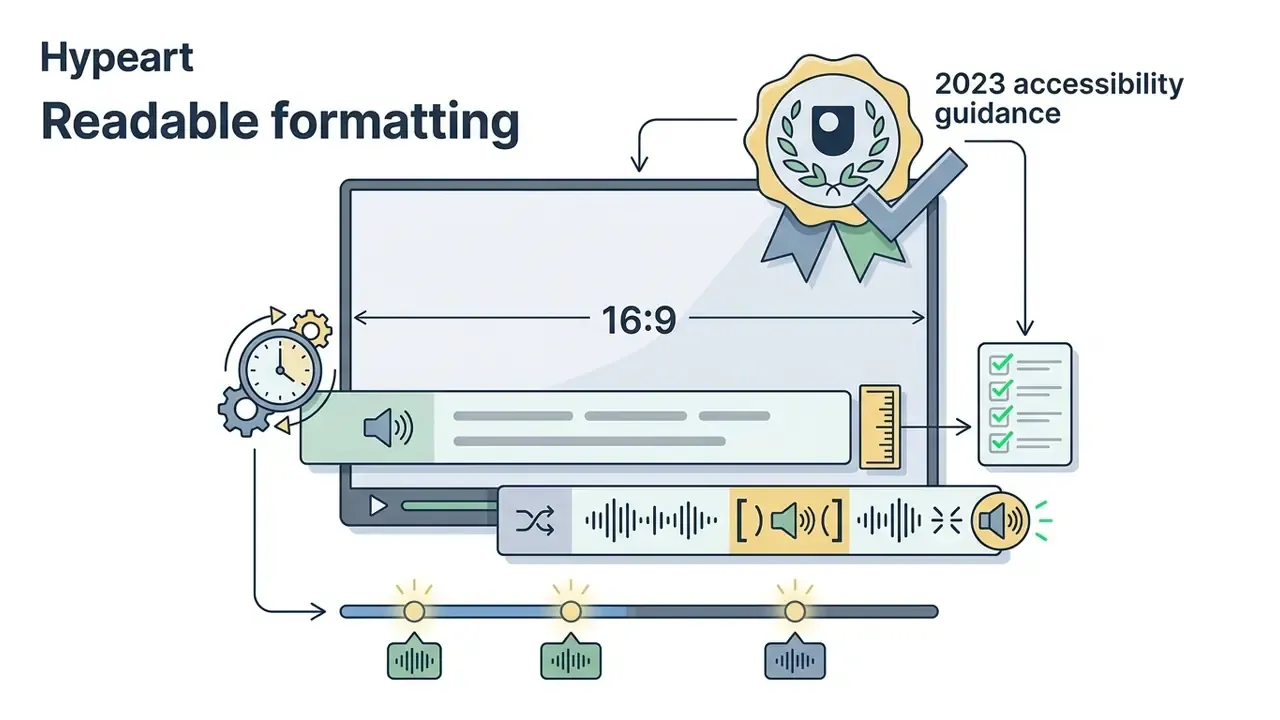
Auditory elements and visual text overlays significantly boost viewer retention on social media. According to digital media accessibility standards (W3C Web Content Accessibility Guidelines, Understanding Captions), captions should provide a text version of speech plus the non-speech audio required to understand the content, which keeps material accessible to viewers watching without sound. https://www.w3.org/WAI/media/av/captions/
Retention and accessibility practice (reformulated, no unsourced metrics).
Auto subtitles generate readable text synced with speech, while built-in audio libraries provide sound effects and background music tracks. Balancing voiceover audio with subtle background tracks prevents sound distortion and maintains professional audio clarity.
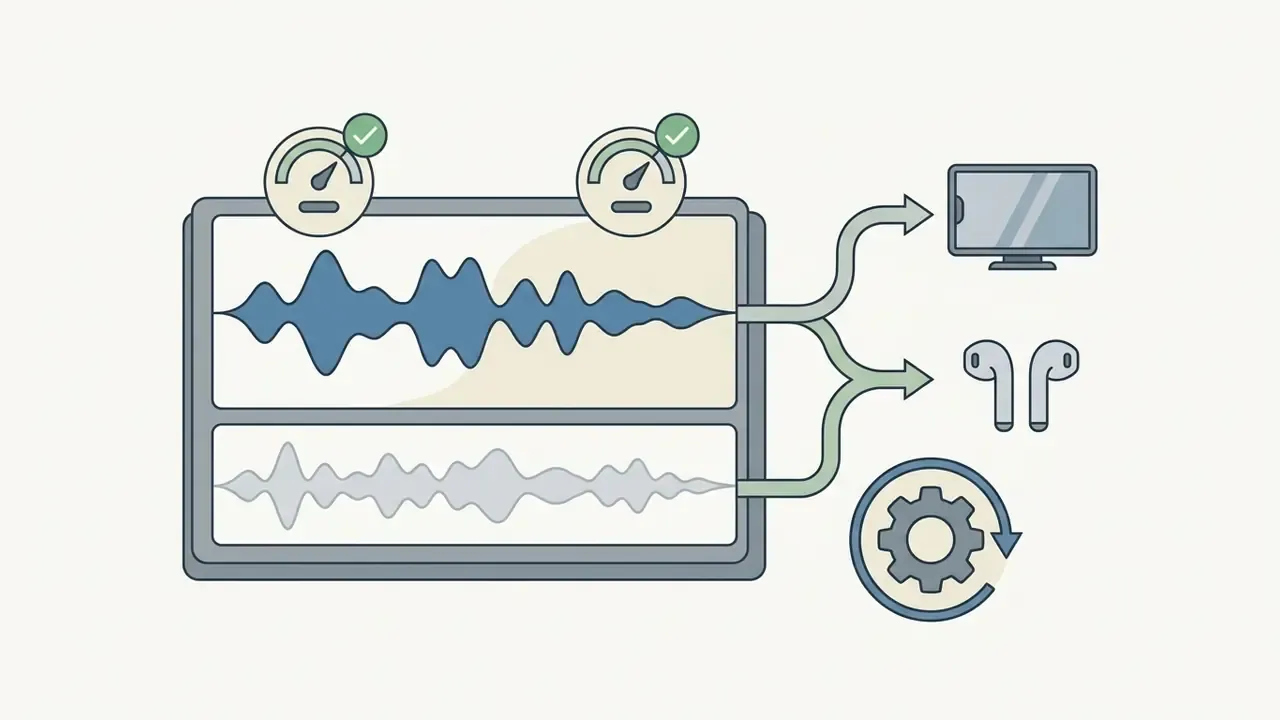
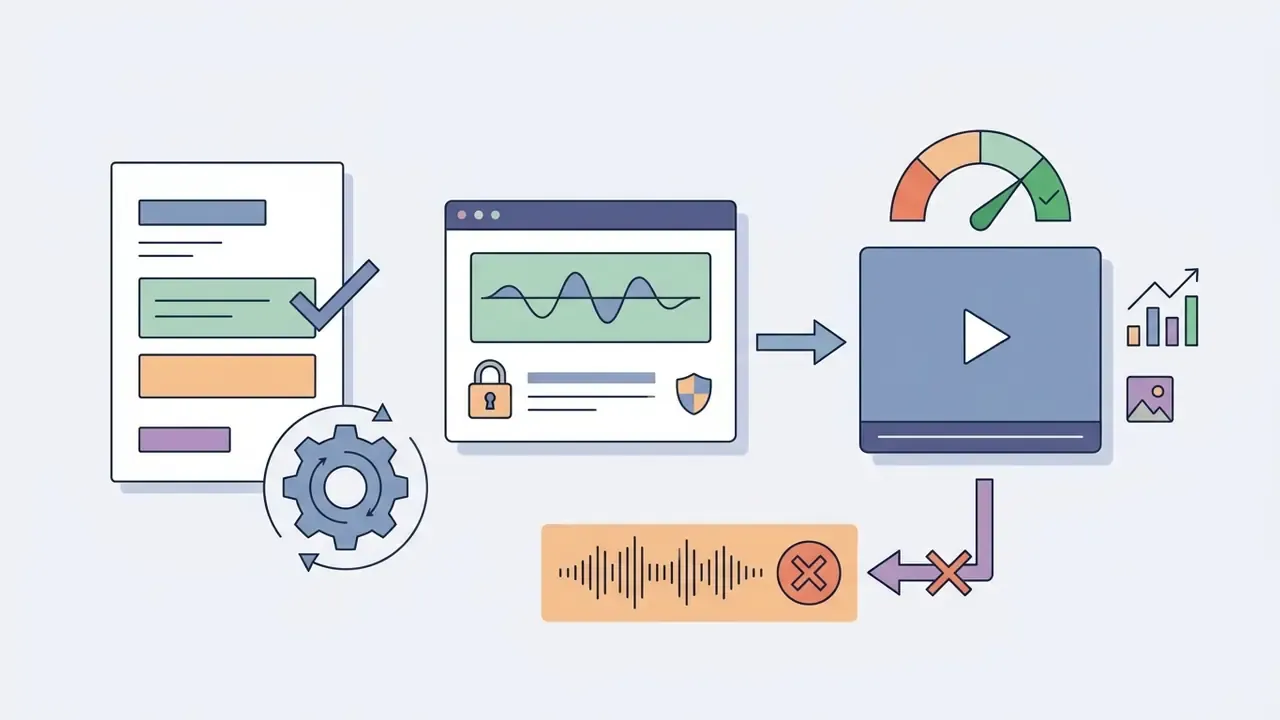
Brand Kit Setup, Cloud Storage, and Content Scheduling
For creators and commercial teams, maintaining visual consistency across campaigns requires built-in asset management:
- Brand Kit tools Upload company logos, define custom hex color palettes, and store brand fonts directly within the browser interface for rapid overlay onto video timelines. Logo animations and custom watermarks can be layered onto clips deliberately, the inverse of an unwanted platform stamp.
- Direct cloud export Save completed 1080p watermark-free renders straight to cloud platforms including Microsoft OneDrive, Google Drive, and Dropbox without clogging local device storage or repeating manual uploads.
- Social publishing and scheduling Transfer finished MP4 files directly to YouTube, TikTok, or LinkedIn company pages, or use integrated content schedulers, such as the Adobe Express Content Scheduler, to queue posts weeks or months in advance from a single calendar view.
- Managed tenancy Editors embedded in enterprise ecosystems expose centralized IT controls and security policies, which is the practical alternative to employees using consumer accounts for corporate footage.
Commercial Use, Licensing, and Compliance for Watermark-Free Exports
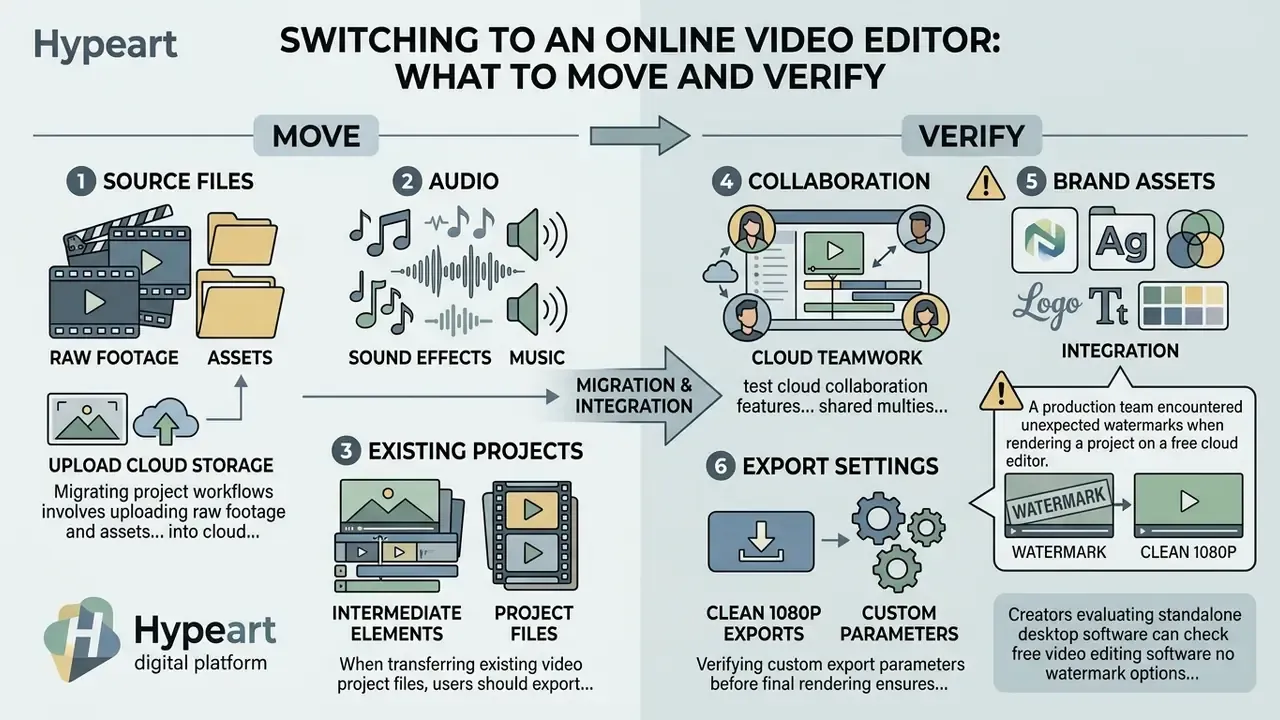
Switching to an Online Video Editor: What to Move and Verify
Transitioning from desktop editing software to a free online video editing software no watermark platform requires systematic asset management to prevent file loss and quality degradation.
Checklist0 / 9
Quality-preservation guidance from standards bodies is unambiguous about the export step: migration should "do no harm," preserving native video quality and avoiding unnecessary transcoding or recompression, using MP4 as the container and H.264 as the high-quality codec, with electronically processable timestamps retained where provenance matters (NIST IR 8161r1, Export Profile for Video Evidence). Applying the same principle to creative work means uploading the highest-quality master available rather than a previously compressed social render.
Move Source Files, Audio, and Existing Video Projects
Migrating project workflows involves uploading raw footage, sound effects, and graphical assets into cloud storage. Creators must ensure local copies of source media remain backed up before uploading files to web workspaces, and large libraries benefit from staged transfers: command-line or desktop sync clients for smaller sets, and managed transfer services or physical appliances for multi-terabyte archives, as Google Cloud's transfer guidance recommends for volumes above one terabyte.
When transferring existing video project files, users should export intermediate elements, including transparent PNG overlays, separate audio stems, caption files, and flattened graphic sequences, to recreate sequence layouts smoothly inside the browser interface, since proprietary project formats rarely import natively. Note also that cloud files are tied to an account or profile: enterprise documentation from Adobe describes migration between accounts as an explicit download-then-reupload operation rather than a transfer.
A production team encountered unexpected watermarks when rendering a project on a free cloud editor. By auditing their timeline elements, replacing premium stock tracks with free-tier audio, and removing branded intro templates, they restored clean 1080p exports without incurring licensing fees. Watermark diagnosis starts on the timeline, not in the export dialog.
Verify Collaboration, Brand Assets, and Export Settings
FAQ: Frequently Asked Questions About Free Online Video Editors
Can I Edit Videos Online Without Experience or an Account?
Yes. Many browser-based tools allow beginners to edit videos online without prior technical experience or account registration. Platforms like Edit.Video and 123apps let users upload clips, perform basic trimming, and export finished files directly within their web browser, and several services state explicitly that no sign-up is required. Adobe Express and Canva add template-driven flows marketed as requiring no editing experience. These no-account solutions streamline quick editing tasks while preserving user privacy by processing media locally.
Is a Browser-Based Video Editor Safe and Private?
Browser video editors are generally safe, but privacy levels vary sharply depending on whether media processing occurs locally or via cloud servers. Local browser tools use WebAssembly and client-side processing, meaning video files never leave the user's local device and project data remains in browser storage. For cloud-based platforms requiring file uploads, users should review privacy policies to confirm encryption standards, retention windows, subprocessor lists, share-link defaults, and AI training terms. Some services delete server-side uploads after a fixed period; others retain them until manual deletion, and public share links can expose a video to anyone holding the URL.
«A survey of 1,795 IEEE members (fall 2024) showed high awareness of privacy risks in digital tools that process personal media.» Expectations of Privacy, IEEE Member Survey 2024, IEEE Digital Privacy. https://digitalprivacy.ieee.org/education/surveys/ Disclaimer: this information is general in nature and does not replace consultation with an information-security or legal-compliance specialist when handling confidential media files.
Does a Free Plan Really Export Without a Watermark?
It depends on three conditions: the plan tier, the assets on the timeline, and the export resolution. Clipchamp exports 1080p without a watermark on its free plan; Canva requires that every element be free-tier; CapCut requires the branded end clip to be deleted; VEED, Kapwing, Flixier, and FlexClip stamp free exports. Always run a short test render before finishing a project.
What Is the Maximum File Size and Which Formats Can I Upload?
Free browser tiers commonly cap uploads at around 1GB per file. Supported containers typically include MP4, MOV, M4V, WebM, MKV, and AVI, plus PNG, JPG, and MP3 for stills and audio. Compress or segment oversized footage before ingestion to avoid failed uploads and browser memory pressure.
Can I Export in 4K for Free?
Rarely. 1080p is the de facto free ceiling across mainstream browser editors; Clipchamp, EchoWave, Canva, and Kapwing all place 4K output or 4K upscaling behind paid tiers. Local, client-side rendering tools are the main exception, because encoding runs on your hardware instead of vendor infrastructure.
Can I Record My Screen and Webcam Inside the Editor?
Yes. Clipchamp and Media.io include a screen-and-webcam recorder that captures a full display, a single tab, or one window with simultaneous webcam and microphone tracks, unlimited retakes, and watermark-free saving. Recordings land directly on the timeline for immediate trimming and captioning.
Can I Publish Directly to Social Platforms or Cloud Storage?
Many editors export straight to YouTube, TikTok, and LinkedIn company pages, or save renders to OneDrive, Google Drive, and Dropbox. Adobe Express additionally offers a content scheduler for queuing posts in advance, which removes the download-and-reupload step entirely.
Can I Use Watermark-Free Exports Commercially?
Usually yes for your own footage and free-tier stock, but confirm asset licenses, template ownership, AI-output terms, and whether your plan permits organizational use. See the commercial-use and licensing section above, and treat vendor terms as subject to change without notice.
What Should a Regulated Team Approve Before Employees Use One of These Tools?
Four artifacts, at minimum: a named tool owner, a vendor-risk review covering the parent company and hosting jurisdiction, a documented position on AI training reuse, and a retention and deletion rule for uploaded footage. Add the tool to the approved-list inventory so it does not resurface later as an unexplained Shadow AI finding.
Related Resources
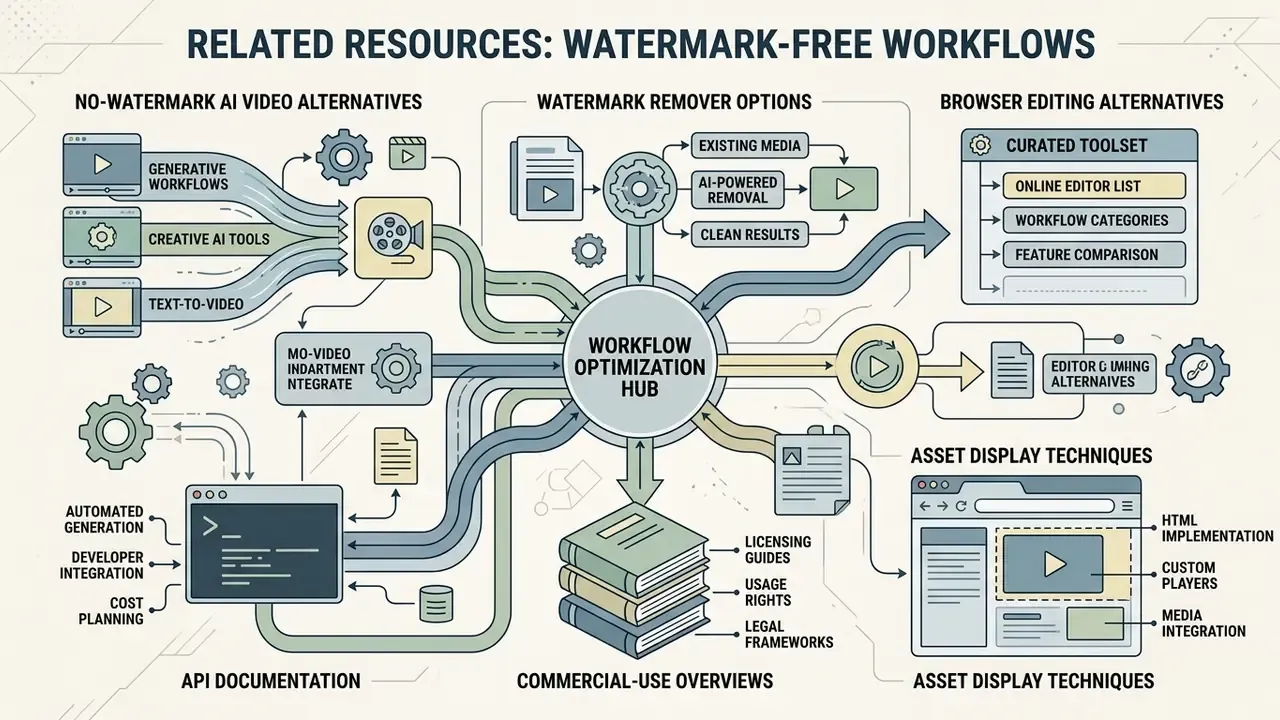
- No-Watermark AI Video Alternatives covers watermark-free generative workflows.
- Online video watermark remover options address removing branding from existing media.
- Browser editing alternatives hub offers a curated list of tools by workflow.
- Commercial-use overviews group licensing and usage-rights guides by tool category.
- API documentation for automated video generation supports developer-side integration and cost planning.
- How to display image assets in HTML interfaces is a web implementation technique for custom players and embeds.
Appendix A: Editorial Revision Log
For transparency, this update replaced several weak or unsupported passages from the previous version of this guide:
- Removedan introductory quotation attributed to an unsupported AI governance byline. Replaced with: a verifiable published user review from vendor documentation.
- Replaced: a general reference to metadata-assisted editing research with no methodology. Now cited with study conditions: Simplifying video editing using metadata, ACM (2023).
- Replaced: a general reference to human-AI co-creation research with no sample size. Now cited with participant count: VideoDiff, CHI 2025.
- Replaced: a general IEEE privacy reference. Now cited with sample size and survey wave: IEEE Member Survey, fall 2024.
- Reformulatedan unsourced "35% faster assembly" claim and an unsourced "69% of viewers watch muted" statistic; both are now presented qualitatively with institutional guidance instead of unverifiable figures. The fixed decibel recommendation for music beds was replaced with a monitored listening check, since no accessibility standard mandates a specific offset.
- Convertedinternal production placeholders for infographics, flowcharts, and verification badges into readable figure descriptions and verification notes.
- Replaced: the duplicated navigation list at the top of the article with a reader-segmentation block, since the same sections were already described in the body.
Company USP Notice
Hypeart (hypeart.ai): no verified information available at the time of publication.