Executive Summary: Key Takeaways Before You Convert
This section condenses the operational, technical, and compliance requirements covered below. Read it first if you need a decision-ready overview rather than a full technical walkthrough.
| Decision Point | Verified Requirement | Where It Matters |
|---|---|---|
| Minimum scan quality | 300 DPI for printed text; 400-600 DPI for small fonts or faded originals; never below 240 DPI | Accuracy of every downstream extraction |
| Accuracy threshold | Character Error Rate (CER) below 1.5% for fully automated processing; route the rest to human review | Model risk, ledger reconciliation, audit trails |
| Output format | .docx for editing, Searchable PDF for archival fidelity, .xlsx/.csv for tables, .md/.html for publishing | Reuse and integration |
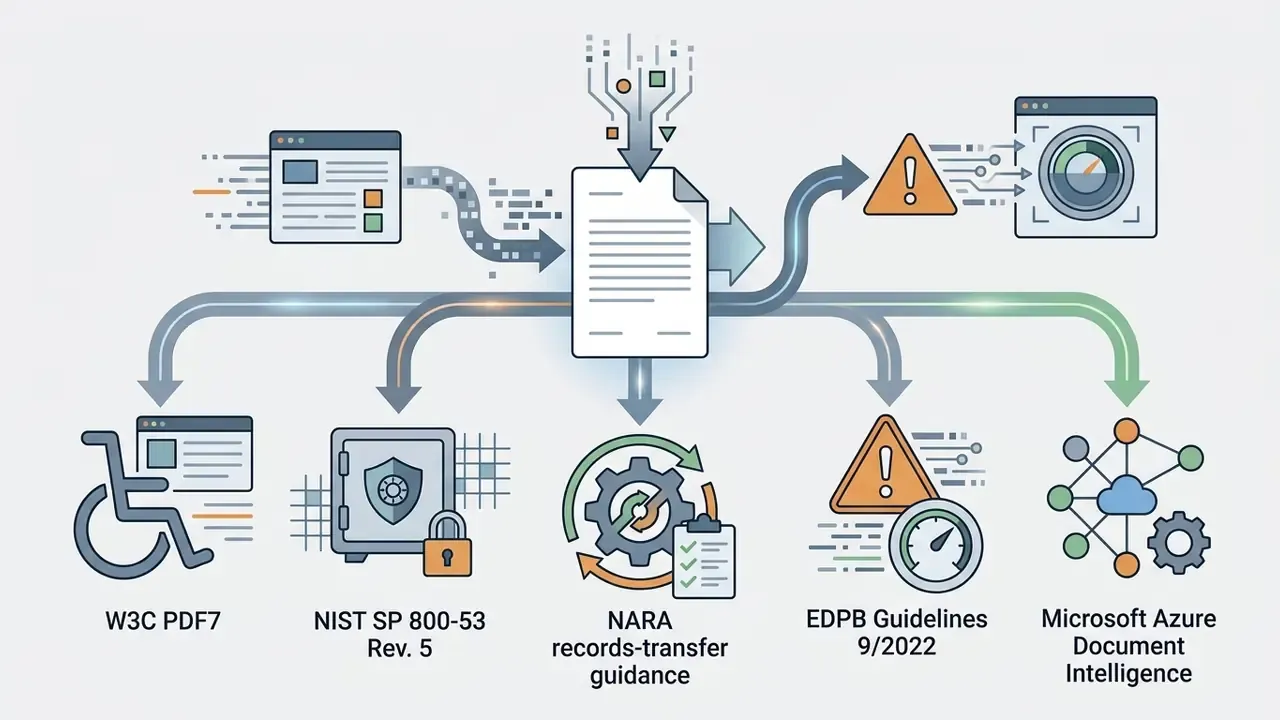
| Encryption baseline | TLS 1.3 in transit, AES-256 at rest (NIST SP 800-53 Rev. 5) | PII, ePHI, financial records |
| Regulated data rule | Never upload unencrypted ePHI, financial statements, or privileged filings to unverified public converters | HIPAA, GDPR, SOC 2 Type II |
| Archival standard | Searchable PDF/PDF-A per NARA guidance; encryption deactivated before records transfer unless preapproved | Records retention and legal discovery |
How this guide runs: first the difference between an image-based and a text-based file, then the online conversion workflow, tool selection, accuracy drivers, output formats, editing and reuse, industry-specific rules, security and file handling, platform-native methods, a pre-production checklist, open questions, and a closing FAQ.
What Is PDF Image to Text Conversion and When Is OCR Needed?
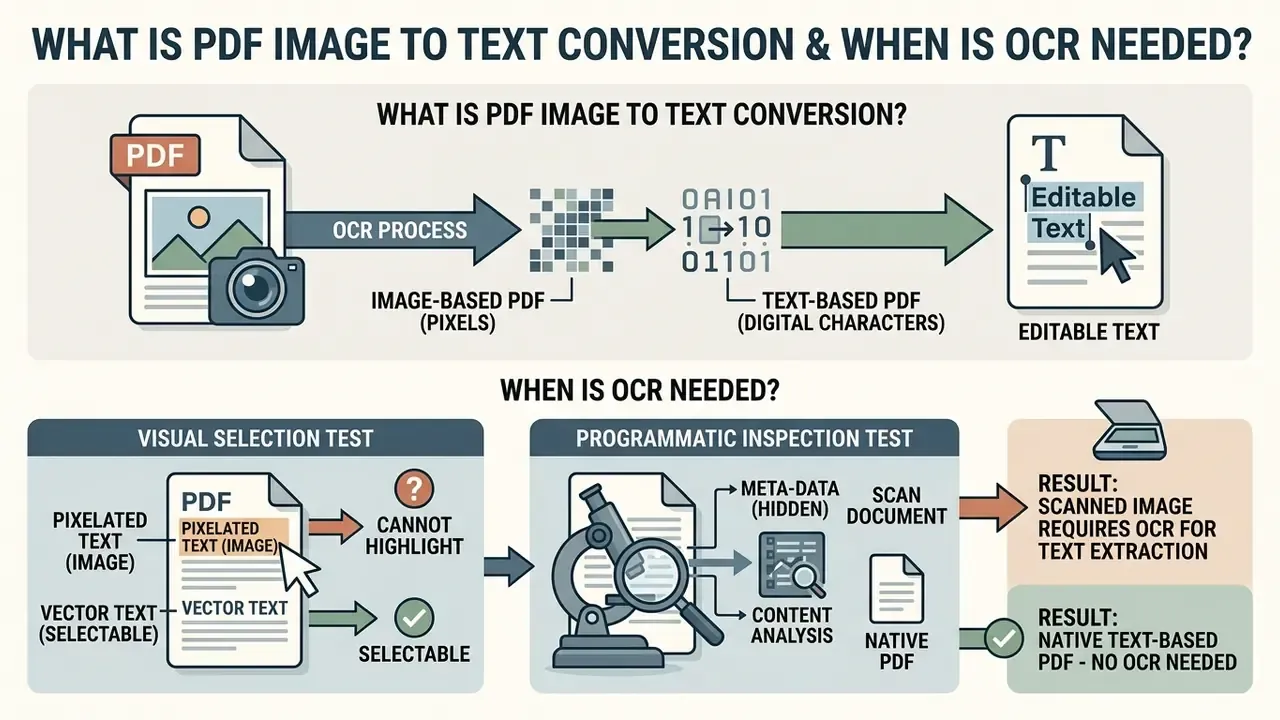
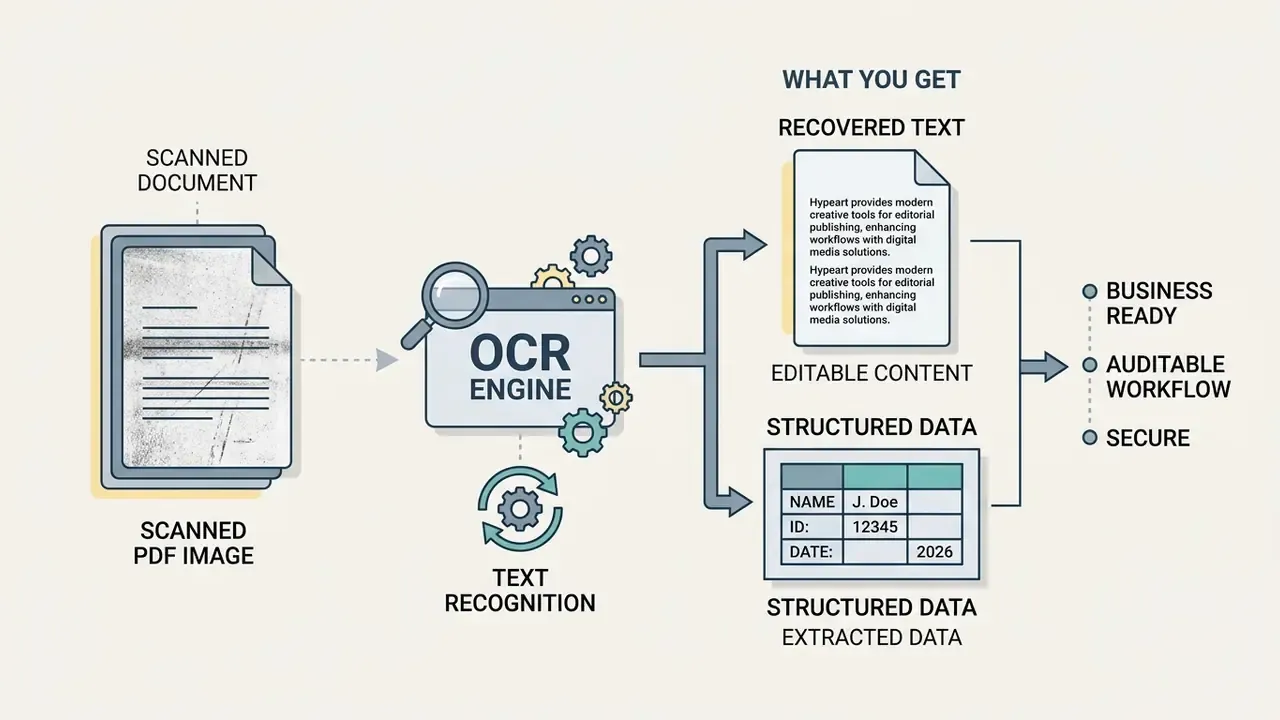
Converting a PDF image to text means applying OCR software to translate pixel-based page images into digital text characters. You need OCR whenever a file originates from a physical scan, a phone photograph, or a flattened image export with no underlying text layer. Without it, operating systems and enterprise applications treat the document strictly as a graphic. No word search. No copy. No automated data extraction, which is usually the part that actually matters to a finance team.
Image-Based PDF vs Text-Based PDF
An image-based PDF stores page content entirely as a raster graphic. A text-based PDF contains font structures, character coordinates, and selectable text strings. In an image-based file, dragging your cursor across a line highlights either an entire visual block or nothing at all. In a text-based file, individual words can be selected, copied, and indexed by search engines, a distinction that also determines which image-to-text tools will work on the file in the first place.
For image-based PDFs, OCR is the mandatory prerequisite for producing "searchable and editable text" that screen readers can interpret in a valid reading order.
Two quick tests confirm whether a document already contains embedded text:
- Visual Selection Test Open the file in a browser or viewer and try to highlight a single word. If a box forms over the graphic, or selection simply fails, you are looking at an image-based PDF.
- Programmatic Inspection Test Run a text extraction utility such as Poppler's
pdftotext. Executepdftotext input.pdf -in a terminal. If the command returns an empty stream while the page visually displays text, the PDF has no digital text layer and requires OCR. The same check can be scripted across a directory to triage large archives before you spend compute on batch processing.
What You Get After OCR Recognition
«PaddleOCR reached 67.28% page-level accuracy, with a character error rate of 0.43 and a word error rate of 0.66 across 200 medical PDF reports.»
Clean printed text yields near-zero error rates. Dense clinical layouts clearly do not. Audit OCR output on complex documents before you let extracted data reach a downstream database.
How to Convert PDF Image to Text Online
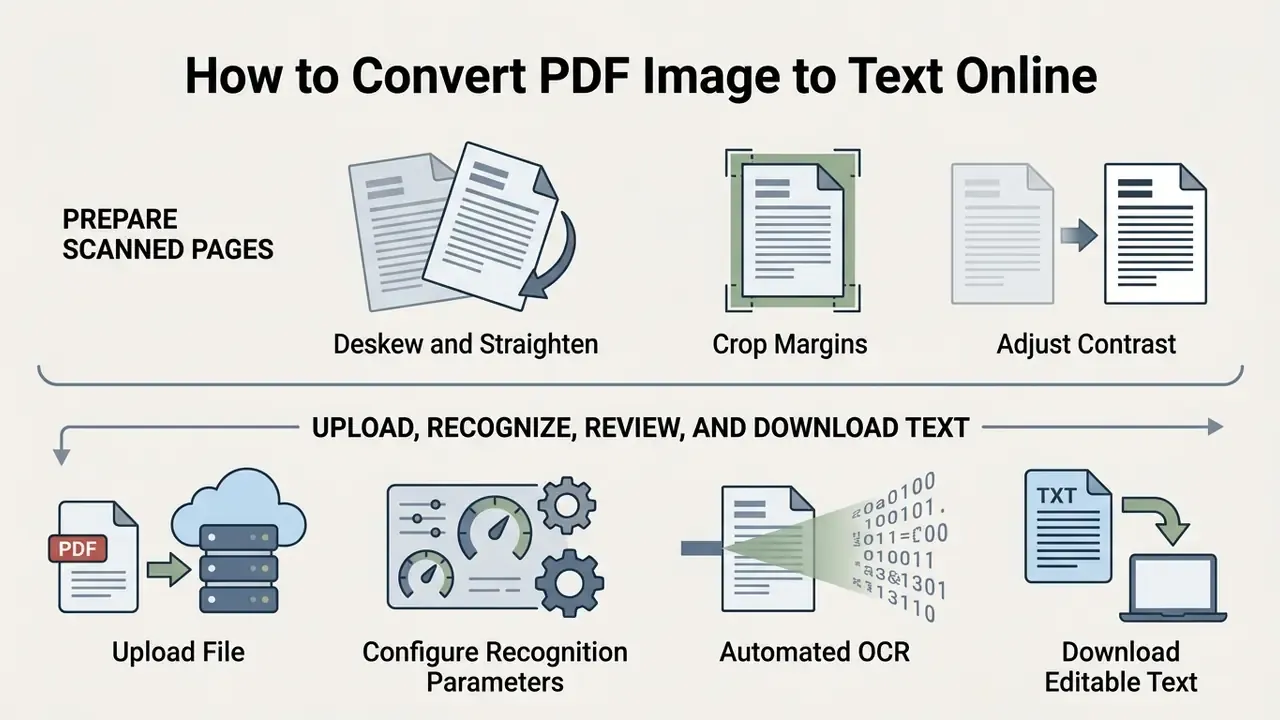
You can convert a PDF image to text online by uploading your file to a web-based OCR service, running automated character recognition, and downloading the output as an editable text file or a searchable PDF. Browser conversion gives you immediate access with no local installation. A standardised preparation and review workflow is what keeps the common recognition errors out.
Prepare Scanned PDF Pages Before Recognition
Preparation is the cheapest accuracy gain available. Page skew, weak contrast, and unnecessary border margins all degrade character-segmentation algorithms before recognition even begins.
- Deskew and Straighten Rotate pages so text lines lie horizontally. Skew computation is treated as a standard document pre-processing step in NIST document-image research, and OCR preprocessing coursework at Ludwig-Maximilians-Universität München specifies deskewing to horizontal orientation plus dewarping for curved pages. Requires data: the precise error increase per degree of tilt is not established in a single verifiable benchmark, so treat sub-degree alignment as best practice rather than a measured threshold.
- Crop Margins Trim dark scanner borders and non-text margins with a tool that can crop PDF files. Removing border artifacts eliminates visual noise the engine would otherwise try to read. Preprocessing guidance recommends leaving a 2-5 mm margin so characters are never clipped.
- Adjust Contrast Normalise brightness so black text stands clearly against a clean white background, and avoid aggressive binarization that thins stroke width. Microsoft's document OCR/HTR guidance recommends grayscale conversion with local contrast control, mild denoising, and optional adaptive binarization. For faded or low-contrast captures, AI image enhancers can lift legibility before recognition begins.
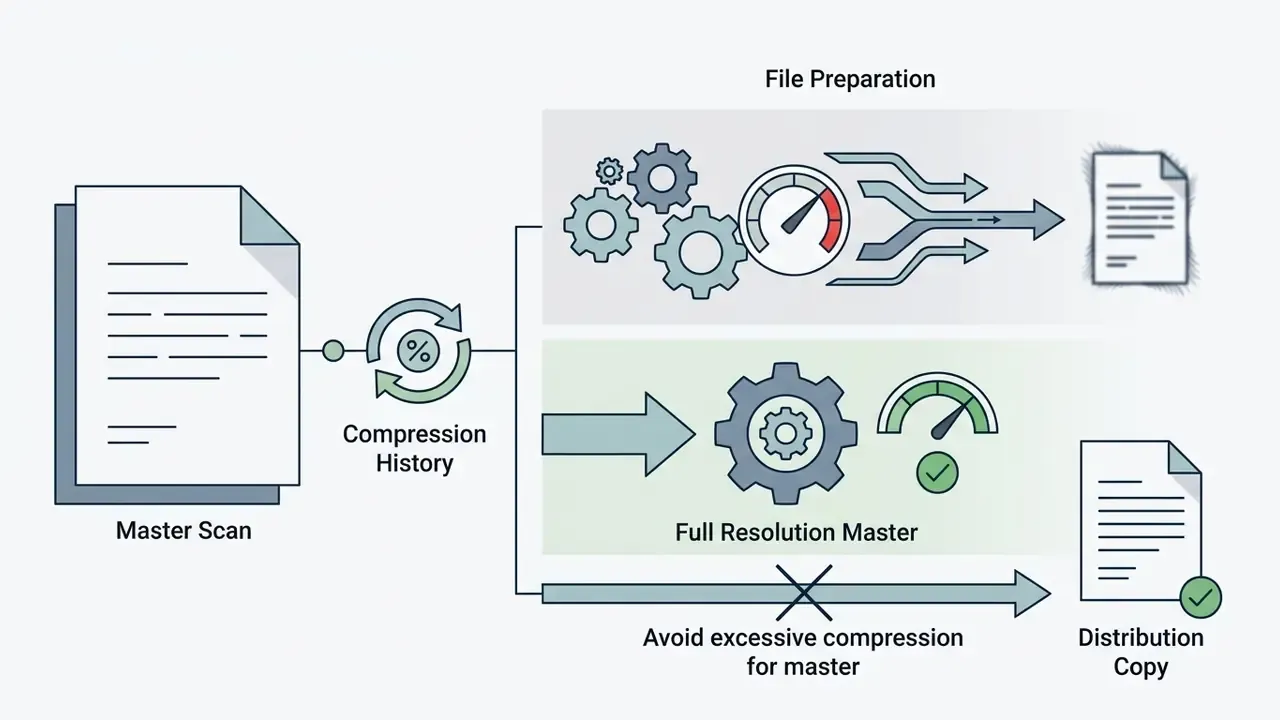
- Format Selection When you convert JPG or PNG intermediates into a PDF, select lossless compression to preserve sharp character edges. Microsoft recommends lossless PNG or TIFF (LZW) output specifically because repeated JPEG compression destroys character-edge detail. Keep an eye on file size, but never buy a smaller file with blurred glyphs.
Upload, Recognize, Review, and Download Text
Four structured steps turn raw image pages into verified digital text:
- Upload File: Select and upload your prepared scanned PDF or target image into the converter interface over a secure HTTPS connection. Confirm the scan resolution is at least 300 DPI, pages are straightened, and black borders are cropped before submission.
- Configure Recognition Parameters: Choose the primary document language and the output format you need (searchable PDF, DOCX, or TXT). Language selection is not optional for non-Latin scripts. Adobe's export documentation states that Japanese, Chinese, and Korean documents fail recognition entirely if the OCR language is not set correctly first.
- Run OCR Engine: Start recognition. The engine segments character shapes, matches them against language models, and inserts a digital text layer with character coordinates.
- Review and Download: Inspect the recognised text against the original scanned image, correct misread characters and low-confidence tokens, then download the finalised file.
How to Choose a PDF Image to Text Tool for Personal or Commercial Use
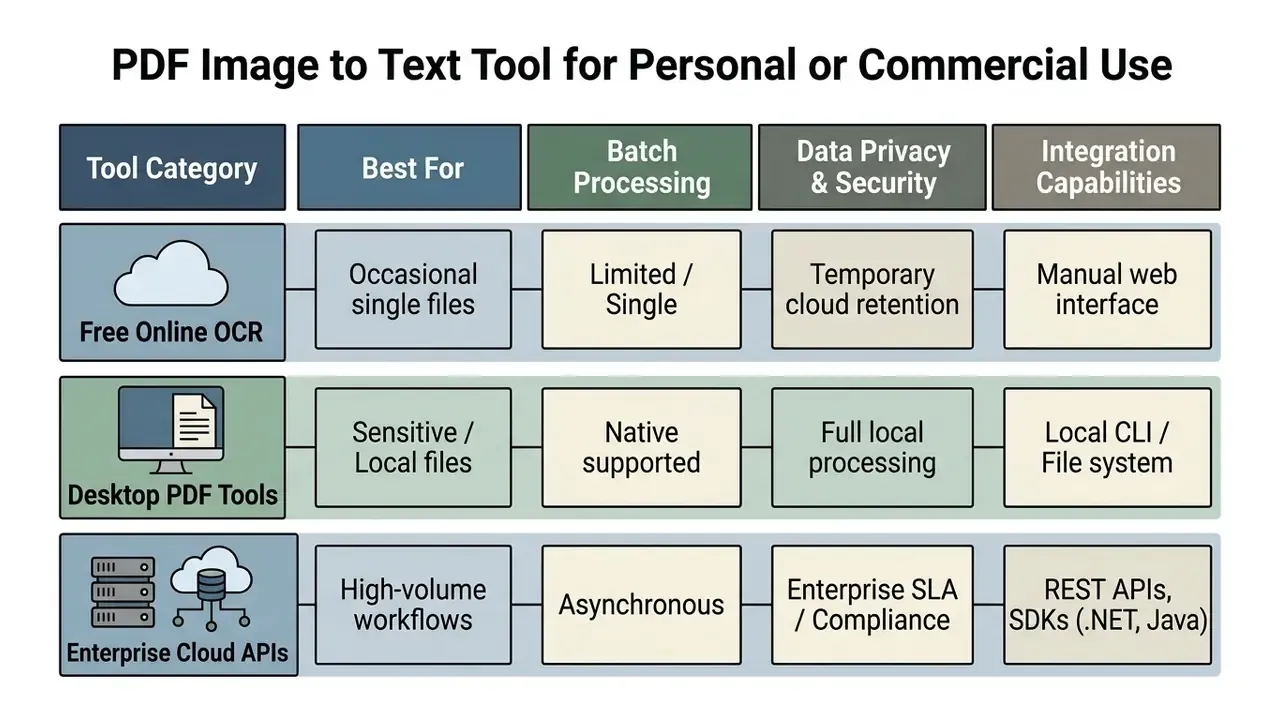
Choose a PDF image to text tool based on document volume, data privacy requirements, and integration needs. Occasional single-page jobs are fine on free web services. Enterprise document management needs desktop software or API-driven cloud solutions with contractual security guarantees.
Teams running recurring extraction jobs can review OCR tools for commercial document workflows to match throughput limits and licensing terms against the categories above.
Free Online OCR Tools for Occasional PDF Files
Free online OCR suits low-volume tasks where the files hold nothing confidential or regulated. Services such as Adobe Acrobat Online and OCR.space let you drag and drop single PDF files straight into the browser and pull text out in seconds.
These platforms usually cap free tiers by file size (often around 5 MB per document) or by page count. i2OCR, for example, restricts its free tier to one image or one PDF page per job, with multi-page and bulk recognition reserved for paid plans. Convenient for a one-off contract page. Not a pipeline.
Desktop and Business Tools for Multiple Files
«Leading cloud APIs reach character error rates near 1% on clean printed English, with single-page processing under two seconds.»
Enterprise platforms also plug into existing enterprise resource planning (ERP) and document management architecture, exposing batch endpoints, webhooks, and SDKs for Node.js, .NET, and Java. Scale is demonstrable at archive volumes:
In one illustrative audit of automated invoice processing at a mid-size lender, unvalidated cloud OCR outputs left line items missing across 14% of digital ledger entries. Requires data: this figure describes a composite, hypothetical engagement, not a published dataset. Benchmark your own error rates rather than adopting the percentage as an industry norm. The response was unglamorous and effective: local pre-validation controls, plus a dual-check verification step for every low-confidence output. Reconciliation accuracy returned to 99.8% inside a month. The lesson travels further than the number does.
Developer Tools and Open-Source OCR Frameworks
For technical teams embedding text recognition directly into custom applications:
- Tesseract OCR: An open-source C++ engine originally developed at Hewlett-Packard and now maintained with Google sponsorship. Good fit for local Linux server execution, with support for more than 100 languages through the command line or Python wrappers such as
pytesseract. - OCRmyPDF: A Python wrapper around Tesseract that adds an invisible text layer to existing PDFs without altering the page image, and can emit a sidecar
.txtfile alongside the searchable PDF. - Apple Live Text / Vision API: The native Vision framework for macOS and iOS, offering on-device spatial text detection with no network round trip and therefore no third-party data exposure.
- Cloud Vision APIs: Google Cloud Document AI, AWS Textract, and Azure Document Intelligence provide scalable RESTful interfaces for multi-page batch jobs with layout analysis and key-value pair extraction. Azure processes PDFs and TIFFs up to 2,000 pages per job.
- Poppler
pdftotext: Not an OCR engine at all, but the fastest way to test whether a text layer already exists before spending compute on recognition.
If you want to compare tool capabilities side by side, browse the hub to evaluate alternative software configurations, or inspect specialised image processing pipelines and see the overview. For adjacent recognition use cases, an image reader ai walkthrough covers screenshots and photographs rather than paginated scans.
What Determines OCR Accuracy for Scanned PDFs?
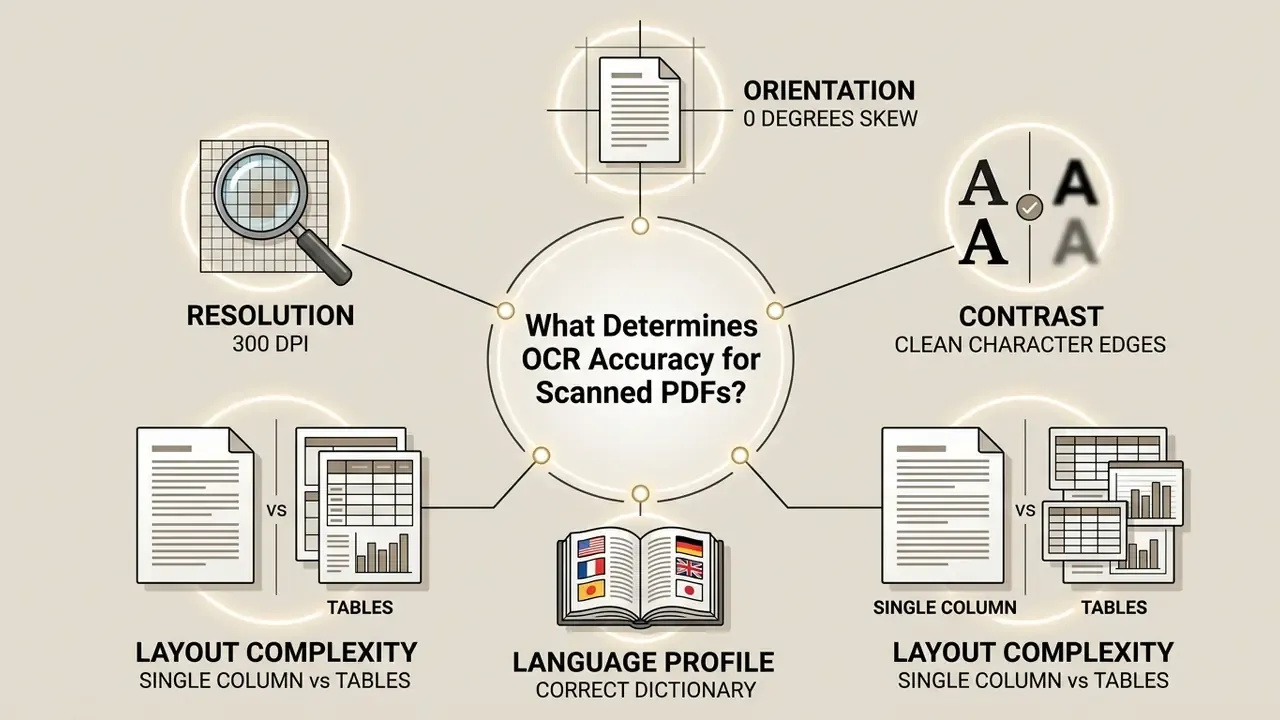
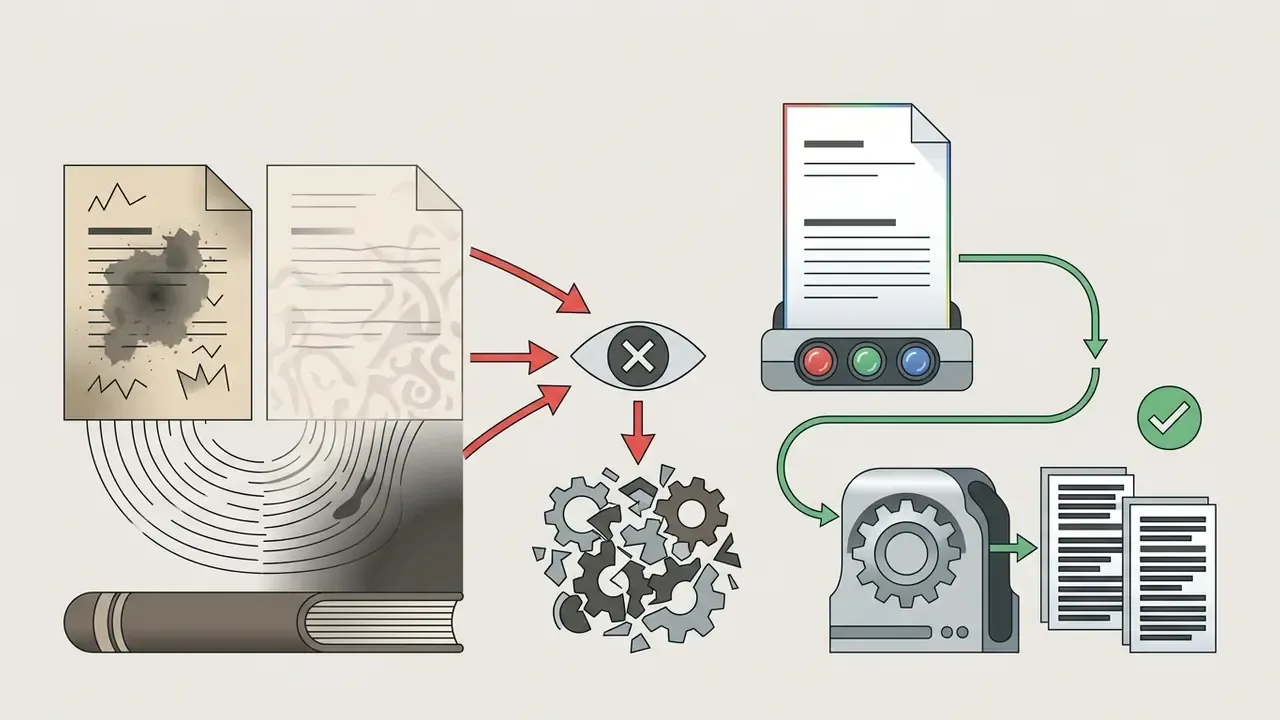
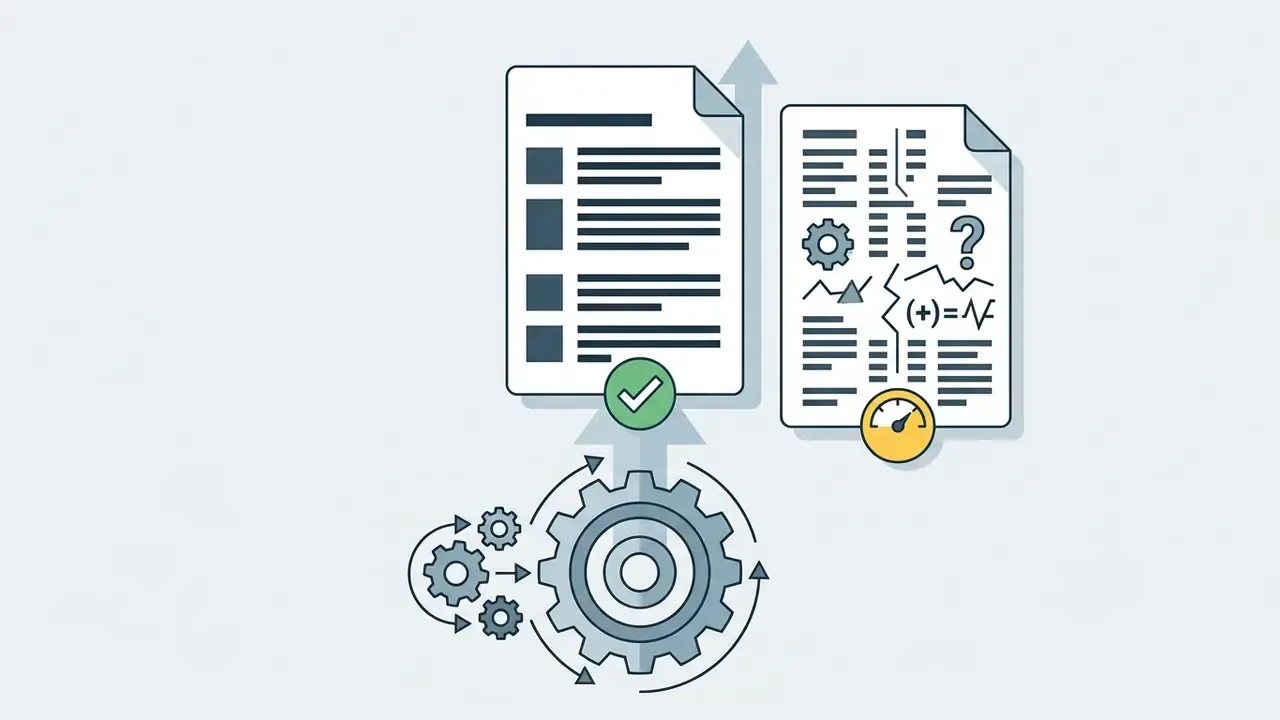
OCR accuracy is driven primarily by source scan resolution, page layout complexity, contrast, and font legibility. Clean inputs produce character error rates under 1%. Low-resolution, tilted, or noisy scans produce recognition failures that look, at a glance, like valid data. That is the dangerous part.
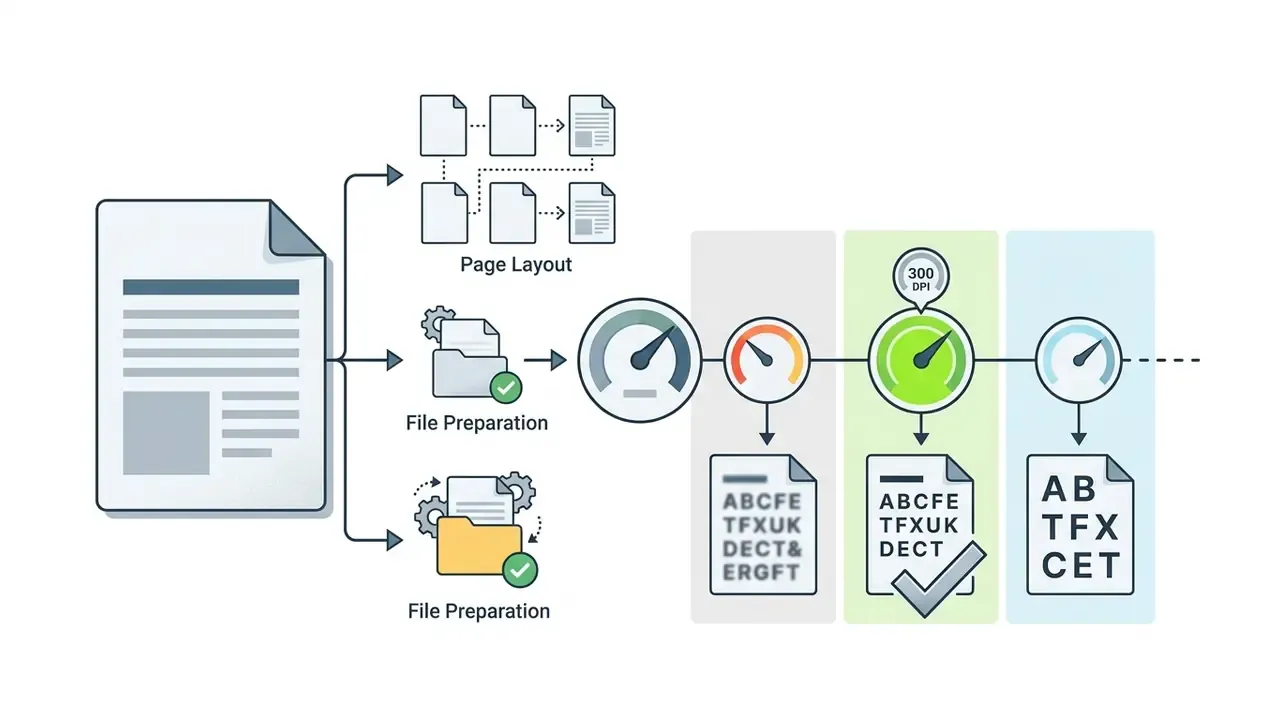
Scan Quality, Page Layout, and File Preparation
Resolution and page alignment dictate whether an engine identifies character strokes correctly:
Languages, Fonts, Tables, and Handwritten Text
Non-standard scripts, complex typography, and embedded tables each present a distinct problem:
- Script Selection: OCR engines rely on language-specific dictionaries and character models. Skip the language profile on a multilingual or non-Latin document and decoding errors cascade. Modern multilingual models have narrowed the gap considerably:
«Nemotron-Parse-1.1 achieved F1 above 0.96 across every evaluated language, including 0.98 for English, after training on 13 million multilingual examples.» Nemotron-Parse-1.1 preprint (2025)
- Tabular Data: Table extraction requires identifying cell boundaries and column hierarchies alongside text recognition. Microsoft's model documentation notes that complex tables force the engine to reconstruct headers, merged cells, multi-row blocks, and column hierarchies, a structurally different problem from line-level reading.
«FinTabNet contains roughly 44,000 annotated table images with cell, row, and column markup for financial documents.» ICDAR Table Understanding Review / FinTabNet (2023)
Specialised table recognition models trained on datasets of this kind are what maintain cell relationships. General-purpose OCR flattens a balance sheet into an unusable text stream.
- Handwritten Content: Standard engines perform poorly on cursive. The spread across commercial services is extreme, so tool selection matters more here than anywhere else in the pipeline.
«GPT-5 reached 95% accuracy on handwritten text; across services the range spans 46% to 95%.» AIMultiple DeltOCR Bench (2024)
Extracting Text from Non-Standard Sources: Screenshots, Mobile Photos, and Cursive Writing
Not every image PDF comes off a flatbed scanner. Real-world captures need adjusted pre-processing:
- Social Media and Screen Captures
- WhatsApp screenshots, Twitter feeds, Instagram stories, and Pinterest saves usually arrive at screen-native 72-96 DPI. Apply contrast normalisation and spatial upscaling first, and expect weaker results on compressed re-shares than on originals.
- Mobile Camera Photographs
- Handheld shots of newspapers, receipts, banners, or signage suffer perspective tilt, uneven lighting, and shadow gradients. Use auto-crop, shadow removal, and perspective correction before character segmentation. Several AI-driven OCR modes exist specifically for dim or in-the-wild captures where classical OCR gives up. Generative imaging tools built on the same vision stack, from an image fx ai workflow to a grok ai image pipeline, share that underlying detection layer even though their output goal is different.
- Printed Newspapers and Office Archives
- Digitising newsprint or legacy office paperwork combines multi-column layout with low-contrast ink. Here layout analysis, not character recognition, is the limiting factor.
- Cursive and Handwritten Notes
- Classical optical recognition fails on handwritten scripts. Lecture notes, field forms, and historical manuscripts need multimodal vision-language models (VLMs) or specialised engines such as DeltOCR, with realistic character accuracy landing somewhere between 46% and 95% depending on the model and the hand.
- Contact Details and Short Strings
- Pulling an email address or phone number off a banner or business card is a high-risk case despite the tiny text volume. One substituted digit invalidates the whole record, so short-string extraction always warrants manual confirmation. Small field, big consequence.
OCR Quality Verification Benchmark
Before deploying OCR at scale, establish an empirical baseline. Audit sample pages using Character Error Rate (CER) and Word Error Rate (WER).
- Sample Selection: Build a test dataset of 20 representative pages across your target document categories (standard print, skewed scans, tables, handwritten forms). Never average scores across incompatible classes. A single blended figure hides the exact failure mode you need to see.
- Ground Truth Transcription: Transcribe the text manually to establish an error-free reference baseline.
- Run Engine Test: Process the sample set through your chosen OCR engine.
Calculate Edit Distance: Measure character insertions, deletions, and substitutions using Levenshtein distance:
(where is substitutions, is deletions, is insertions, and is total ground-truth characters).
- Extend Metrics by Document Class: For tables, use Tree-Edit-Distance-based Similarity (TEDS) rather than CER. For structured field extraction, use field-level F1 or pass-rate. Test reading order and text presence separately, as 2026 PDF benchmark suites do across thousands of unit tests.
- Set Quality Thresholds: Require CER below 1.5% for automated processing. Route anything above that line to human operators, and log the routing decision so the control is auditable later.
Output Formats: Editable Text, Word Document, and Text PDF
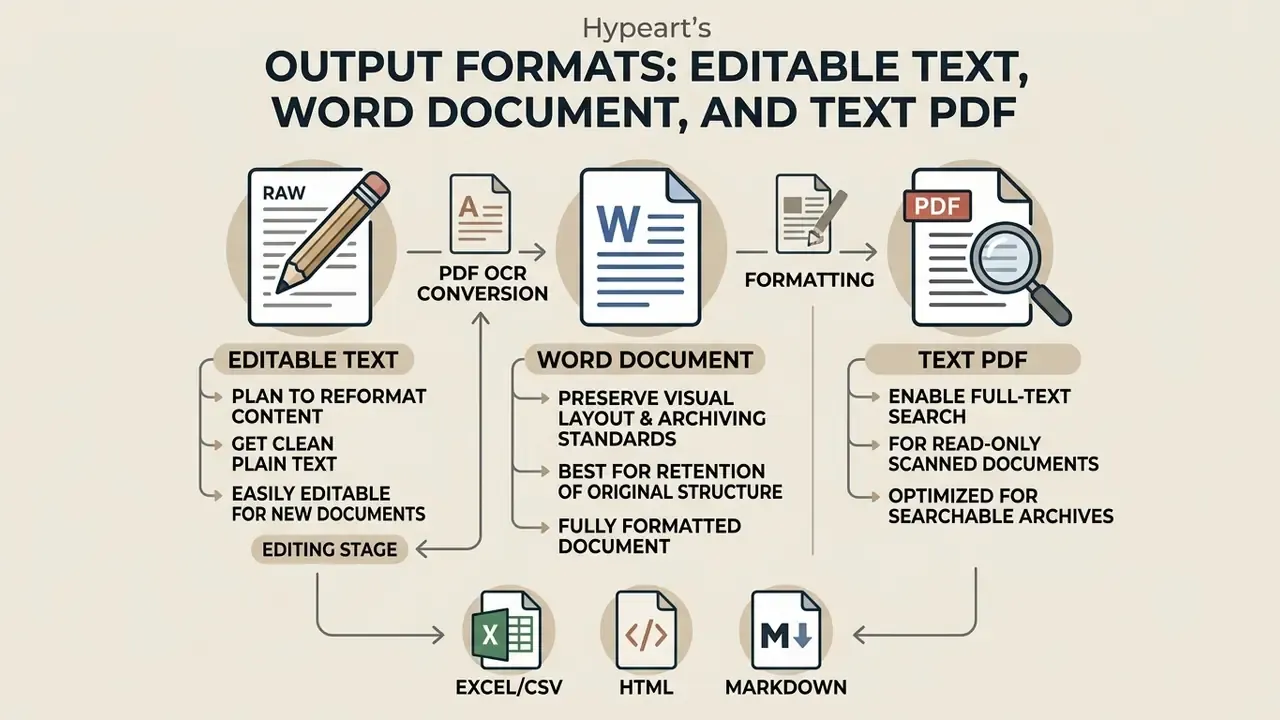
The right output format depends on whether you plan to reformat content, preserve visual archiving standards, or enable full-text search. OCR export splits into three core destinations, plain editable text, DOCX for structural editing, and searchable PDF for fidelity, plus the structured and publishing formats covered below.
When to Export OCR Results to a Word Document
Export to an editable Word document (.docx) when you need to edit body text, change formatting, or restructure layout. Converting to Word lets editors fix typos, re-align columns, and adjust typography directly, then add text of their own where the scan was illegible.
ABBYY FineReader and Adobe Acrobat Pro reconstruct paragraph flows, headings, and table cells during DOCX export. ABBYY's documentation distinguishes two modes worth knowing before you export: Editable DOCX, optimised for straightforward downstream editing, and Exact DOCX, which preserves the original layout more faithfully at the cost of easy restructuring. Layout reconstruction can retain columns, tables, fonts, paragraph styles, borders, headers, footers, and footnotes. Complex multi-column pages may still shift slightly, so budget a quick visual review after conversion.
When to Keep the Result as a Text PDF
«LightOnOCR-2-1B converts scans into clean, ordered text while being 9× smaller than the previous best models at comparable accuracy.»
When to Export OCR Results to Excel, CSV, HTML, or Markdown
Non-Word formats become necessary once you are handling structured data or digital publishing streams:
- Excel / CSV (
.xlsx,.csv): Use this output for financial balance sheets, invoices, and tabular PDF images. Specialist models preserve matrix layout and row/column cell mapping, drawing on training data such as FinTabNet. Validate totals against the source page before importing into a ledger. - Markdown (
.md): Ideal for developers and technical writers moving documentation or code snippets from PDF scans straight into repositories like GitHub or static site generators, where clean heading and list structure matters more than visual fidelity. - HTML (
.html): Converts scanned text into semantic HTML wrapped in - Plain text (
.txt): The smallest export, carrying no layout at all. Use it as input for search indexing, text mining, or NLP pipelines where structure is irrelevant. - PowerPoint (
.pptx): Useful when a scanned deck or conference poster must be rebuilt as editable slides rather than a flat document.
To understand the underlying visual processing technologies, explore how do ai vision systems interpret pixels, or consult our technical glossary for formal term definitions.
How to Edit and Reuse Text Extracted from PDF Images
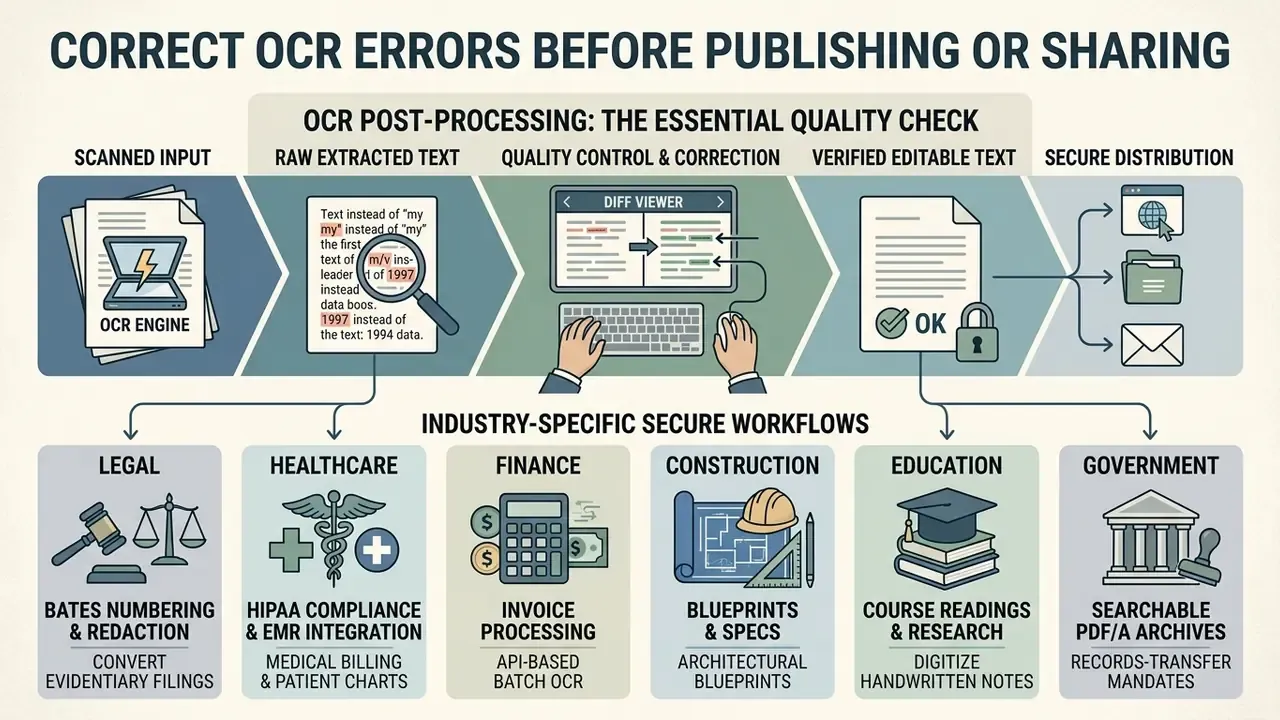
Reuse means correcting recognition errors systematically and integrating output into the tools you already run. OCR output should never be published, or imported into a production database, without quality control.
Correct OCR Errors Before Publishing or Sharing
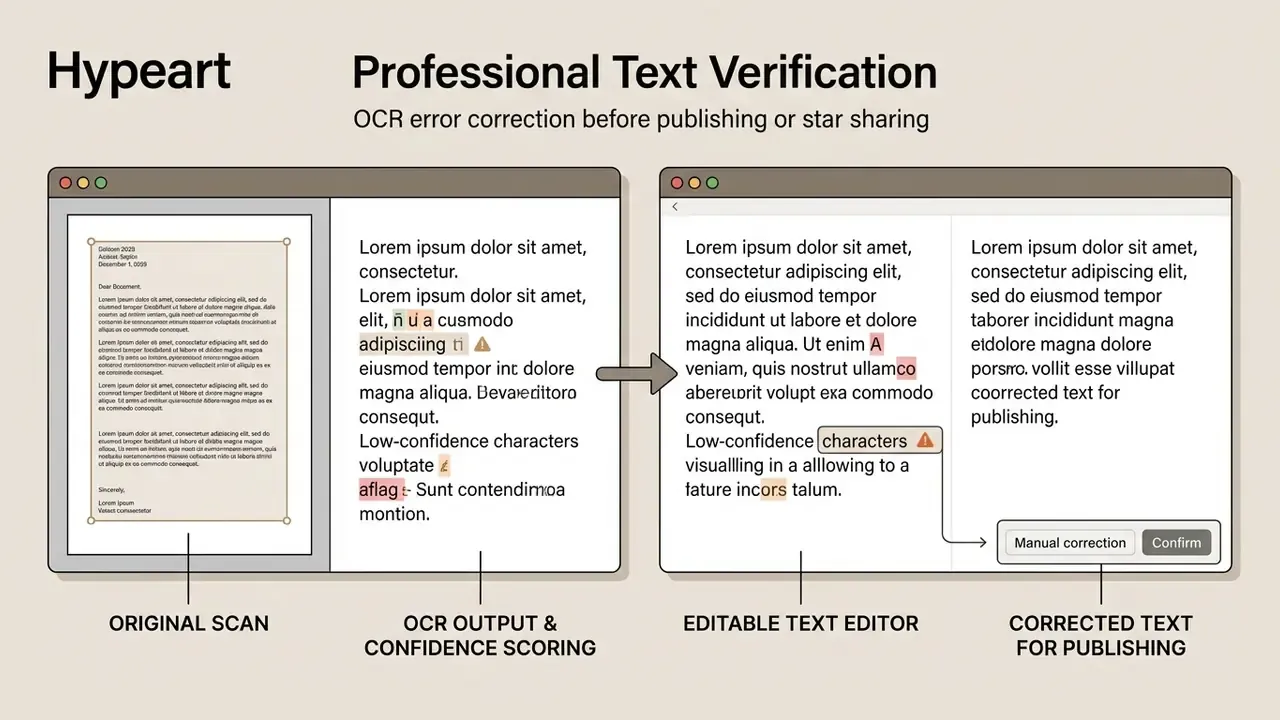
Recognition algorithms confuse visually similar characters constantly: "1" read as lowercase "l", "0" as "O", "rn" as "m". Peer-reviewed analysis of full-text PDFs documents the recurring failure types: merged words, misspellings, random inserted characters, broken hyphenation, and lost formatting. In financial, legal, and medical documents, a single character changes meaning, so proofreading is not optional.
Professional workflows place the recognised text side by side with the original scan. Because OCR engines assign a confidence level to each recognised character and word, highlighting low-confidence tokens lets operators find and fix misreads efficiently instead of re-reading every line. A disciplined review covers three things: character accuracy, reading order, and page completeness against the source document. Miss the third and you can ship a perfectly clean file that is silently missing page 7.
Combine OCR Output with Other PDF Tools
Once OCR creates a valid text layer, standard PDF utilities complete the pipeline:
Industry-Specific Workflows for PDF Image to Text
Security and File Handling When You Convert PDF Image to Text
This information is general in nature and does not replace consultation with an information security specialist, legal counsel, or a certified compliance auditor.
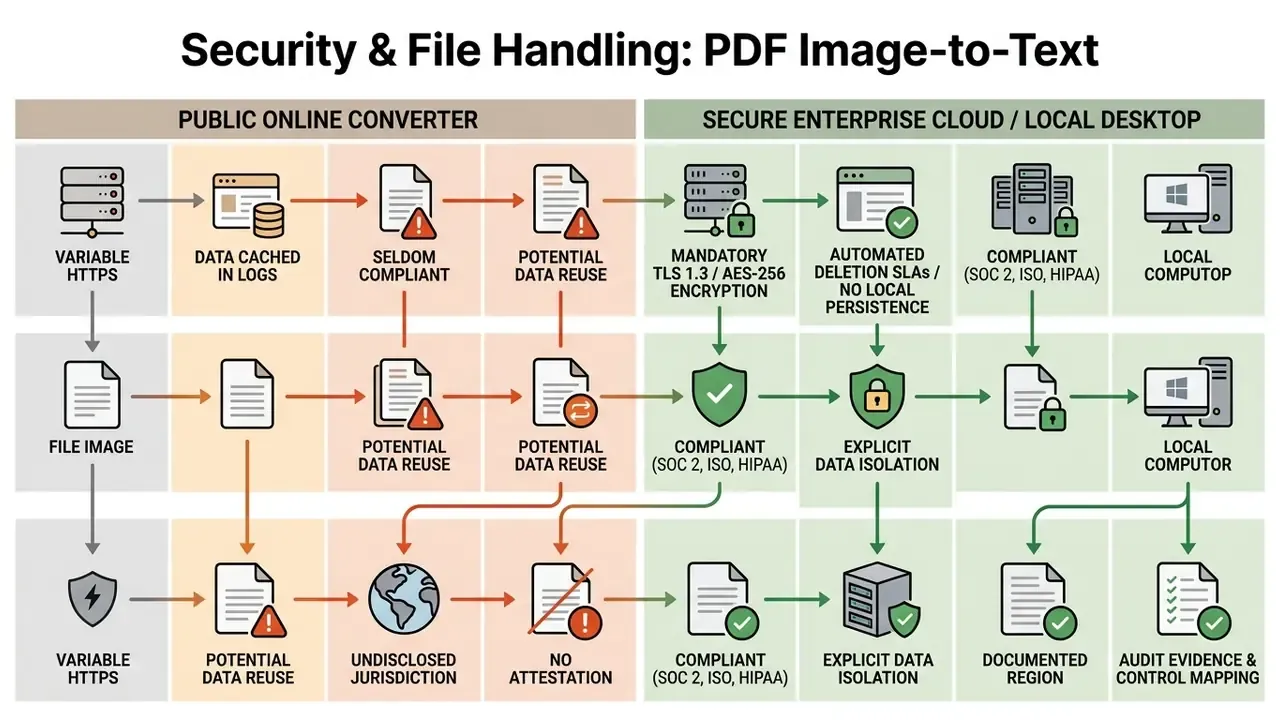
Processing PDF images through online tools introduces security, privacy, and regulatory risk. Uploading unencrypted documents containing personally identifiable information (PII) or proprietary financial data to a public cloud converter can produce unauthorised exposure, retention violations, or both.
What to Check Before Uploading Sensitive PDF Documents
Before sending sensitive records to any online conversion tool, test the vendor's security architecture against recognised standards:
- Data Retention PoliciesConfirm that uploaded files and extracted text logs are deleted immediately after processing, backups included. NIST media-sanitization guidance requires that regulated data be cleared, purged, or destroyed so it cannot be retrieved.
- Encryption StandardsVerify encryption in transit using TLS 1.3 and at rest using AES-256 (NIST SP 800-53 Rev. 5). Where document provenance itself is in question, AI image detectors help establish whether a submitted scan is an authentic capture or a synthetic one.
- Regulatory AlignmentsEnsure providers meet the standards that apply to your records, whether GDPR, HIPAA, or SOC 2 Type II. EDPB Guidelines 4/2019 require data protection by design and by default, that is minimised collection, limited purpose, restricted retention, while EDPB Guidelines 9/2022 tie breach severity to the type of data exposed and the identifiability of individuals.
- Processing Location and SubcontractorsEstablish where files are processed and stored, which law applies, and which subcontractors touch the data. UK NCSC cloud principles and German BSI guidance both expect this before sensitive material is uploaded.
- Exit and Erasure TermsConfirm permanent erasure including backups, readable return of data at termination, and an SLA proportionate to the importance of the records.
Protect, Sign, or Unlock a PDF After OCR
Once extraction is final, apply access and integrity controls:
- Protect PDF Apply permissions passwords to restrict unauthorised editing, printing, or content copying. Archival SOPs go further, recommending that searchable PDF/A masters be secured against modification and text-layer extraction, and encrypted with 256-bit AES.
- Sign PDF Apply a cryptographic digital signature. Once applied, the document becomes read-only to other users, and any later change to the page image or the underlying OCR text layer invalidates the signature.
- Unlock PDF Remove restrictions using owner passwords only when you are authorised to modify security settings for legitimate editing. Adobe's documentation distinguishes open-password from permissions-password protection. Both require the correct credential, and neither is a bypass.
How to Convert PDF Image to Text Across Platforms (Mac, Windows, iOS, Android)
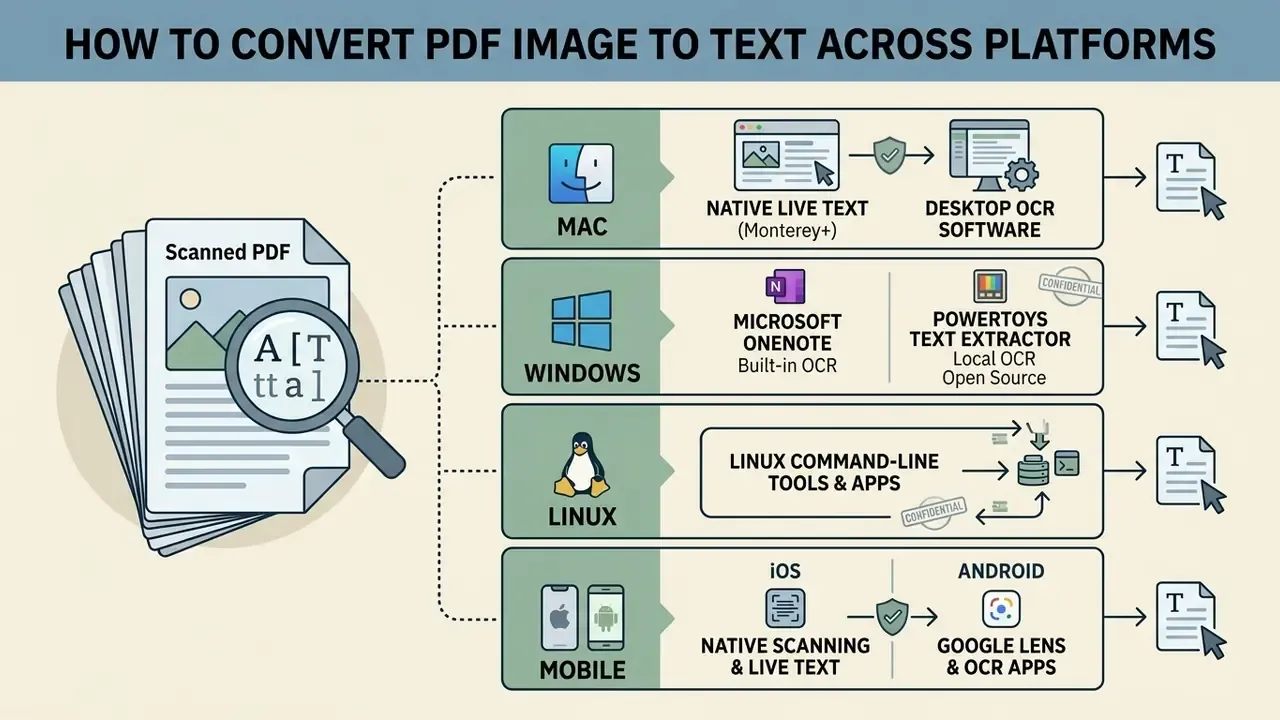
Platform-native tools convert scanned PDF images into editable text without sending anything to an external web service, which is often the decisive advantage for confidential documents.
How to Convert PDF Image to Text on macOS
- Open the image-based PDF in the Preview app.
- Hover over the scanned text until the cursor changes to a text-selection tool.
- Highlight the text you need, right-click, and select Copy Text. Paste directly into Pages or Microsoft Word.
- Open the file in Adobe Acrobat Pro or ABBYY FineReader PDF for Mac.
- Click Tools > Recognize Text > In This File.
- Select the primary language and output format, then save as an editable
.docxfile.
- Using native Live Text (macOS Monterey and later)Using native Live Text (macOS Monterey and later):
- Using desktop OCR softwareUsing desktop OCR software:
How to Convert PDF Image to Text on Windows
- Insert the PDF into a OneNote page via Insert > Printout.
- Right-click the inserted page image.
- Click Copy Text from Picture, or Copy Text from All Pages of the Printout for multi-page scans.
- Paste the extracted text into Word or Notepad.
- Press
Win + Shift + Tto trigger Microsoft PowerToys Text Extractor. - Drag a selection box over any area of the scanned page on screen.
- The extracted text lands straight on the clipboard, ready to edit.
- Using Microsoft OneNote (free built-in OCR)Using Microsoft OneNote (free built-in OCR):
- Using PowerToys Text Extractor (local OCR, open source)Using PowerToys Text Extractor (local OCR, open source):
How to Convert PDF Image to Text on Linux
- Install Tesseract and OCRmyPDF, then run
ocrmypdf input.pdf output.pdf --sidecar output.txtto produce both a searchable PDF and a plain-text file locally, with no network transfer. - Verify the result with
pdftotext output.pdf -before accepting the file into a pipeline.
How to Convert PDF Image to Text on Mobile (iOS and Android)
- iOS (iPhone/iPad): Open the scanned document in the Files or Photos app. Tap the Live Text icon in the corner of the image, then choose Select All and Copy.
- Android: Open the document image in Google Lens or Google Photos. Select the Text tab, highlight the identified content, and tap Copy Text.
- For multi-page scans on either platform, capture with a scanning app that applies perspective correction and exports a single PDF before you run recognition. Convert JPG captures to a lossless format first if the app allows it.
Pre-Production OCR Validation Checklist
Treat this as a sign-off memo before OCR output feeds any automated system. It maps directly onto model risk management (MRM) expectations for input-data controls.
Checklist0 / 14
Limitations and Open Questions
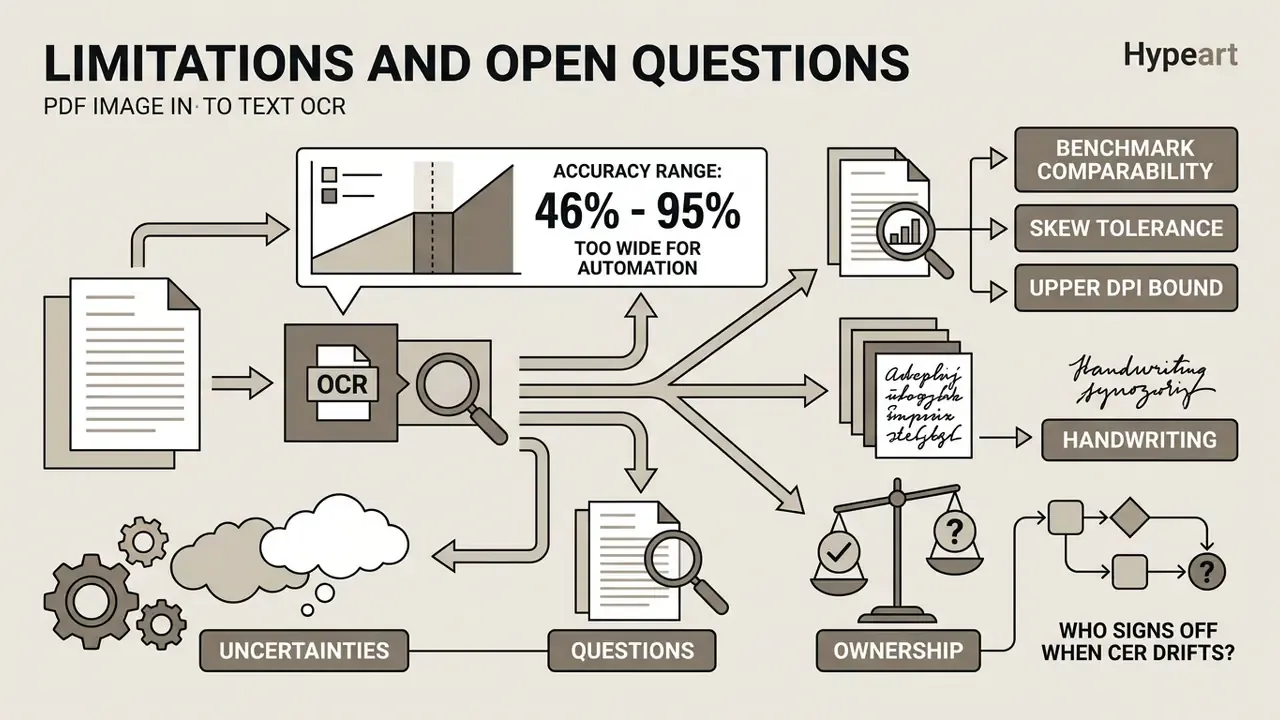
Honest boundaries, because the evidence base here is uneven.
- Benchmark comparability. Published OCR results use different corpora, scoring metrics, and page-level definitions. A 67.28% page-level accuracy figure on clinical reports and a 1% CER figure on clean printed English are not measuring the same thing, and neither predicts your invoice archive.
- Skew tolerance. Deskewing is established practice. The exact accuracy penalty per degree of tilt is not, at least not in one reproducible public benchmark.
- Upper DPI bound. The "no gain above 400 DPI" rule is a vendor operating heuristic. Archival specifications still call for 400-600 DPI on fine print, so the two positions coexist rather than contradict.
- Handwriting. A 46% to 95% accuracy range is too wide for any automated routing decision. Assume human review until your own sample says otherwise.
- Ownership. Who signs off when CER drifts above threshold in production? If that name is not written down, the control does not exist. This is the question most OCR programmes answer last, and it is the one an examiner asks first.
FAQ: Frequently Asked Questions About PDF Image to Text
Do You Need to Install Software to Convert an Image PDF to Text?
No, not for basic tasks. Web-based OCR tools process image PDFs inside modern browsers with nothing installed. Desktop software becomes the better choice when files are confidential, when you batch large volumes, or when you work offline. OCR is the function you actually need. Whether it runs locally or in a browser is a deployment choice driven by sensitivity and volume, and it should be documented as such.
Which PDF and Image Files Can Be Processed?
Most engines handle standard image-based PDF documents plus the common graphic formats: JPG, JPEG, PNG, TIFF, BMP, GIF, WEBP, and HEIC. Cloud processing APIs such as Azure Document Intelligence support input files up to 500 MB on paid tiers (4 MB on the free tier) with page counts up to 2,000 pages per job (Microsoft Learn Document Intelligence Specs, 2026). Image dimensions must fall between and pixels, with a recommended capture resolution of 300 DPI.
Can You OCR a Password-Protected or Copy-Restricted PDF?
Only with the correct credential. If the file carries an open password, it must be supplied before any engine can render the pages. If it carries a permissions password restricting copying or editing, an authorised owner must lift that restriction before OCR output can be exported. Removing protection without authorisation is a policy and legal matter, not a technical one. Note too that PDF records scheduled for archival transfer typically must have encryption and permissions deactivated first under NARA rules.
How Do You Handle Multilingual Financial Reports and Complex Tables?
Two passes. First, run layout-aware table recognition to preserve cell, row, and column relationships, exporting to .xlsx or .csv rather than flowing text. Second, confirm the language profile matches each section. Adobe's documentation notes that CJK documents fail outright without the correct language selected, and current multilingual models report F1 above 0.96 across evaluated languages only when configured properly. Score table output with TEDS instead of CER, and reconcile numeric totals against the source page before the data reaches a ledger.
How Many Pages and How Large a File Can Be Processed at Once?
Limits are tier- and vendor-dependent. Free web tools commonly cap at one page or 5 MB per document. Enterprise APIs process PDFs and TIFFs up to 2,000 pages with file sizes up to 500 MB. For archives beyond that, use asynchronous batch endpoints with webhook callbacks rather than synchronous uploads, and chunk documents so one failure does not invalidate an entire job.
What Accuracy Should You Expect Before Automating?
On clean printed English at 300 DPI, leading cloud APIs report character error rates near 1%. Complex medical layouts in the 200-report CBC benchmark produced 67.28% page-level accuracy even from the best engine in the group. Handwriting spans 46% to 95% depending on the model. Because the spread is that wide, set your automation threshold on your own benchmarked sample, CER below 1.5%, rather than on a vendor's headline claim.
Appendix A: Superseded Formulations Retained for Transparency
These earlier phrasings from previous revisions are preserved for editorial traceability. The main text above carries the corrected versions.
- Prior accuracy citation "researchers evaluating seven OCR engines found that PaddleOCR achieved a character error rate (CER) of 0.43 and a word error rate (WER) of 0.66 on complex medical layouts (Benchmarking Performance Analysis of OCR Techniques, 2024)." Superseded by the version stating the 200-report sample size and 67.28% page-level accuracy.
- Prior benchmark citation "The FastOCR 2026 industrial benchmark across 2,000 document images across 12 languages demonstrated that cloud APIs achieve character error rates near 1.0% on clean English printed text, with single-page processing times under 2 seconds (FastOCR Industry Report, 2026)." Superseded by the version disclosing the 10-tool methodology.
- Prior deskew claim "A tilt of even two degrees increases character recognition errors." Retained here; the main text now flags this as requiring verifiable data and cites NIST and LMU deskew guidance instead.
- Prior DPI claim "Resolution below 240 DPI leads to merged characters and missing punctuation, while exceeding 400 DPI increases file size without providing measurable accuracy gains." Retained here; the main text now qualifies the upper bound and notes archival exceptions at 400-600 DPI.
- Prior duplicated step list A condensed four-step summary ("Prepare Scanned PDF / Upload and Select Language / Execute OCR Recognition / Audit and Download") previously followed the detailed online conversion steps. Its substance is now merged into the numbered workflow and the pre-production checklist.