Key Takeaways for Decision-Makers


Who This Guide Is For and What Decision It Supports
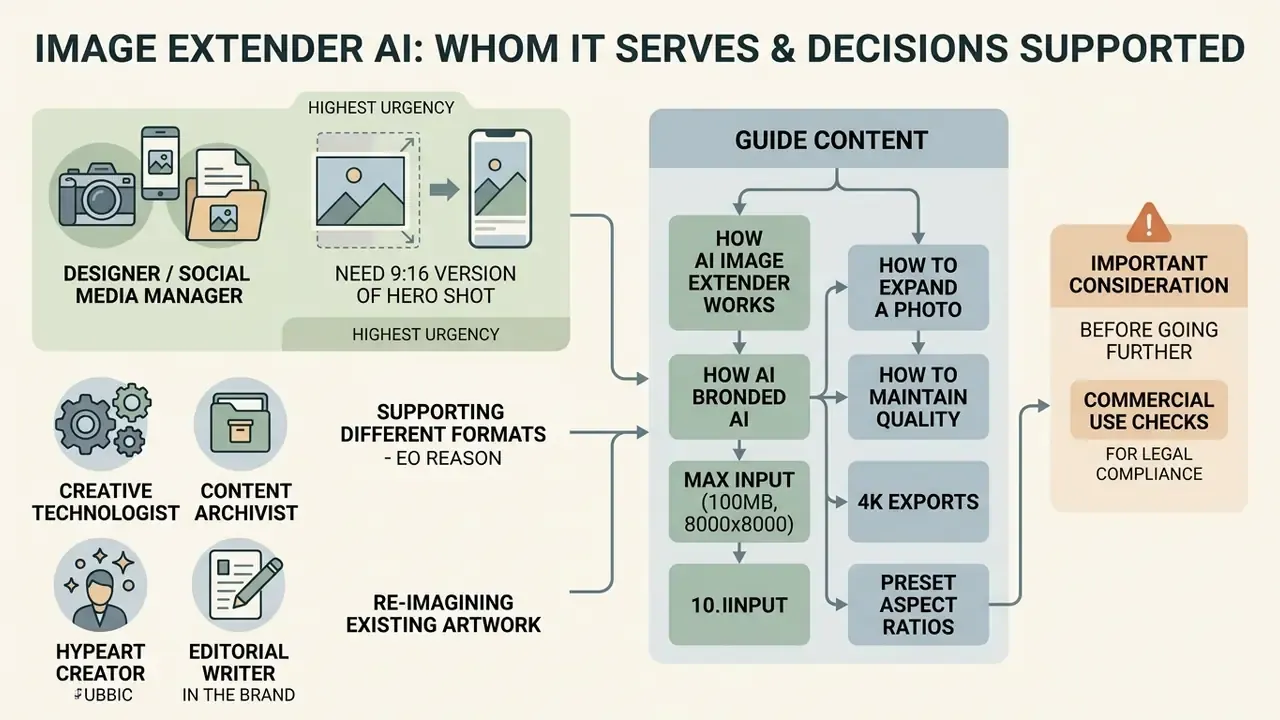
Three very different readers land on the same query.
The first is a designer or social media manager who needs a 9:16 version of a hero shot before a campaign goes live. The second is a marketing operations lead standardising thousands of product images across marketplaces. The third, and the reason the governance sections exist, is a risk, compliance or model-risk owner who has just discovered that brand assets are being uploaded to consumer AI tools with no retention clause on file.
This guide serves all three, in that order of urgency.
Practical sections come first: how an ai image extender online works, how to expand a photo, how to keep quality intact. Control sections come next: licensing, privacy, shadow AI, vendor comparison and validation thresholds. If you sit on the review side rather than the production side, start with the commercial-use and vendor-selection material, then come back for the workflow detail. For a wider view of adjacent tooling, you can also compare categories or see the overview of production workflows.
One caution before we go further. Every audience statement above is a working hypothesis, not verified research. Treat it as such until your own analytics, interviews or CRM data confirm it.
What Is an AI Image Extender and How Does It Work?
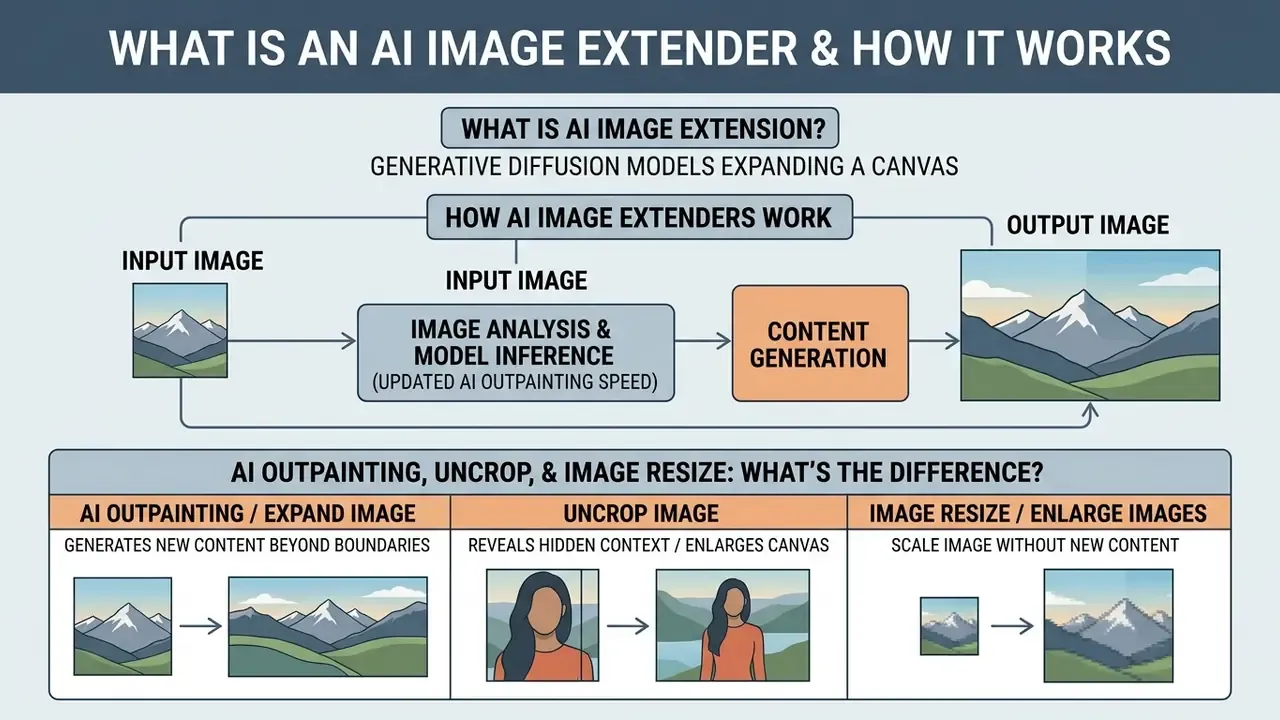
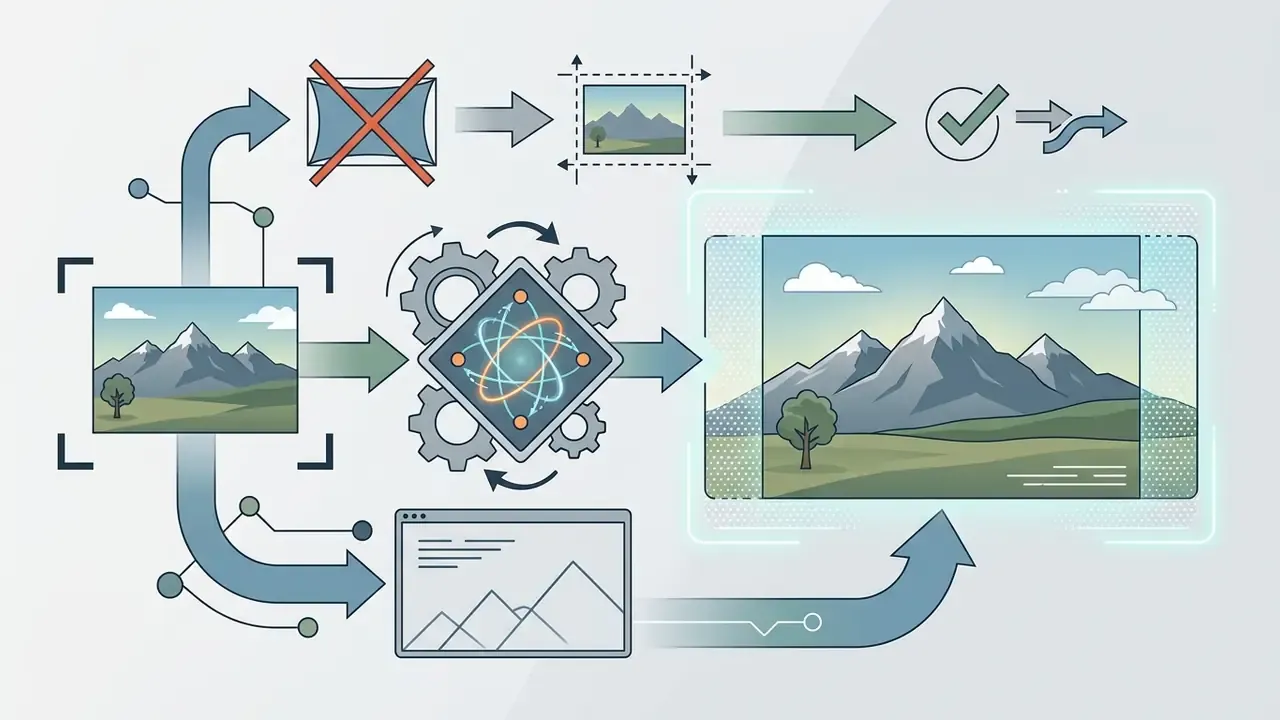
An image extender ai (also known as an ai image extender or ai image expander) is a software tool powered by generative diffusion models that expands an image canvas beyond its original boundaries. Instead of stretching existing pixels, the system synthesizes context-aware new content in the expanded area by evaluating the visual patterns, textures and lighting of the original image. Readers who need broader retouching context can review how these engines sit inside modern AI photo editors before committing to a pipeline.
Modern systems rely on generative ai and ai outpainting algorithms to infer plausible background details beyond the initial frame. During the extension process, a latent diffusion model gradually reverses a noise distribution conditioned on the known pixels of the original photo.
«Diffusion-based editing classifies outpainting as context-driven conditional editing and achieves substantially better FID and perceptual scores than GAN-based methods.»
Google Cloud's Vertex AI documentation frames the same operation in production terms: outpainting is a mask-based edit that expands a base image to fit a larger or differently sized canvas, with prompt-driven generation confined to the newly added area. That distinction matters for governance. The original pixel block is never rewritten, only surrounded.
A major architectural advancement in canvas expansion is single-step continuous outpainting. PQDiff, for example, uses positional embeddings as queries to allow arbitrary canvas expansion in a single generative pass. The technique removes the need for tiled iterative passes, which is what preserves lighting and structural coherence across the new canvas boundaries.
«PQDiff reaches FID 21.512 on the Scenery dataset and reduces generation time to 40.6% of the baseline method at 2.25× canvas expansion.»
AI Outpainting, Uncrop and Image Resize: What Is the Difference?
AI outpainting, uncropping, image resizing and image enlarging serve distinct technical functions in visual asset processing:
- AI Outpainting / Expand Image Adds newly synthesized pixels outside the original image boundary while leaving original pixels completely unmodified.
- Uncrop Image Reconstructs scene elements that were removed during previous manual cropping, restoring missing shoulders, sky or background elements.
- Resize Images / Enlarge Images Scales existing pixel dimensions uniformly or non-uniformly across a new coordinate grid without adding new visual information.
When expanding a canvas to fit a new aspect ratio, traditional resizing distorts subject proportions unless uniform letterboxing is applied. Generative outpainting generates missing surrounding details instead, preserving focal subjects without geometric warping. As Claid's product documentation puts it bluntly: resizing "just scales the existing pixels," whereas outpainting adds new content that blends with the original image. Only the latter can change aspect ratio without touching subject geometry.
| Operation | Adds new scene content? | Modifies original pixels? | Risk of proportion distortion | Typical use |
|---|---|---|---|---|
| AI outpainting / expand | Yes (generated) | No | None (subject untouched) | Ratio change, negative space for copy |
| Uncrop | Yes (reconstructed) | No | None | Restoring previously cropped edges |
| Resize (uniform) | No | Rescaled | None if uniform | Delivery-size adjustments |
| Resize (non-uniform) | No | Rescaled unevenly | High | Avoid for commercial assets |
| Enlarge / upscale | Detail inferred, not scene | Rescaled | None | Resolution recovery, print prep |
Why Expand an Image with AI Instead of Stretching or Cropping It?
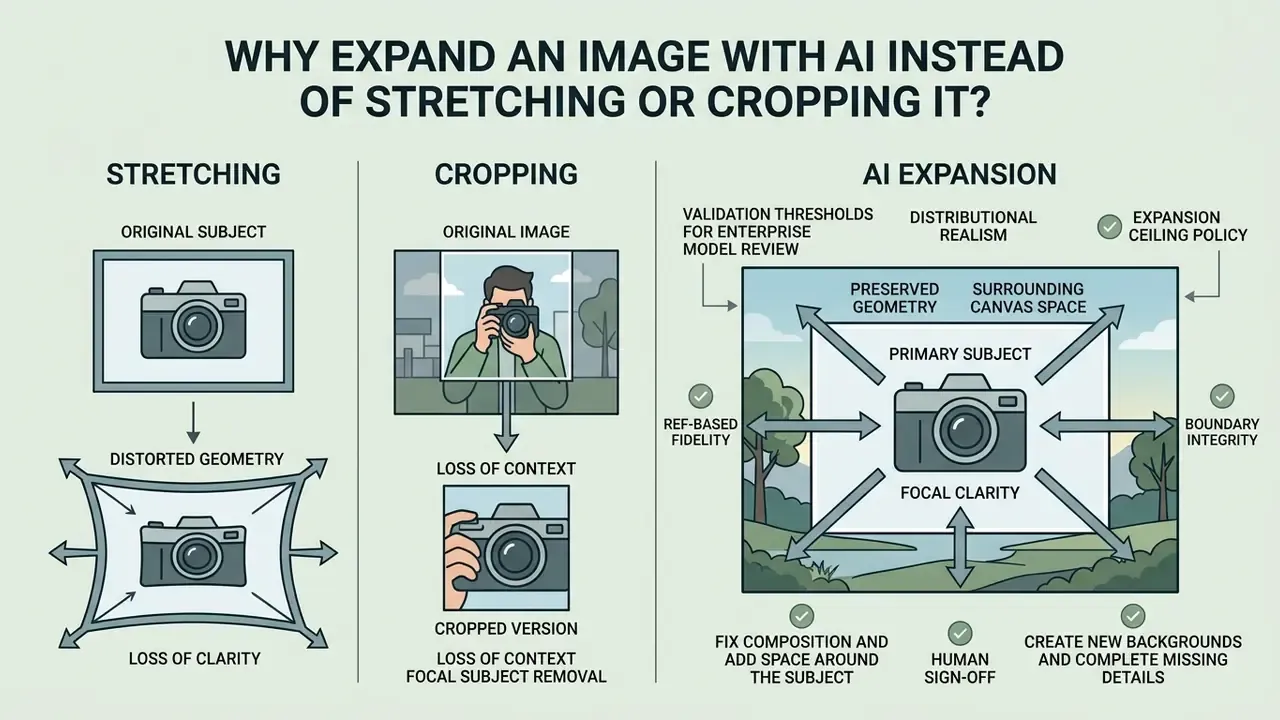
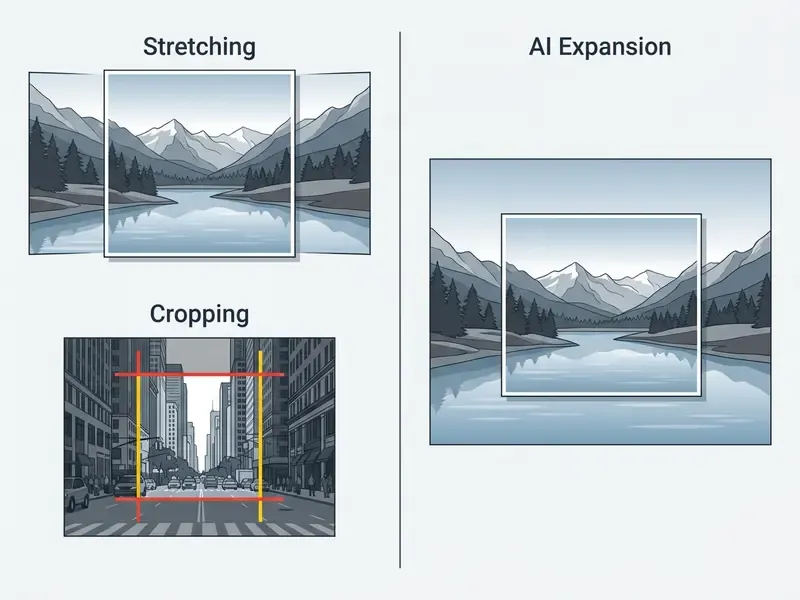
Expanding an image with AI preserves the primary subject's original geometry and focal clarity while adding surrounding canvas space. Traditional cropping discards valuable edge context to force an aspect ratio fit. Stretching distorts pixels, creating unnatural proportions and blurry artifacts.
When a media editor converts a horizontal 4:3 product photo into a 9:16 vertical orientation, standard cropping removes up to 50% of the visual environment. Stretching the frame to fill the vertical bounds distorts the product's physical proportions, making it unsuitable for commercial deployment. AI outpainting fills the upper and lower margins with a natural looking AI background, leaving the focal product completely intact.
Empirical research validates this subject-aware approach.
«PixWizard achieves FID 7.54 and Inception Score 22.18 on the outpainting task, outperforming competing models on realism and generation diversity.»
Ke et al. (2023) established that Subject-Aware Image Outpainting (SAIO) achieves a Peak Signal-to-Noise Ratio (PSNR) of 28.99 dB on test datasets by separating subject extension from background synthesis.
«SAIO uses a pre-trained matting model plus two sequential networks: SO-Net for subject extension and BC-Net for background completion.»
Similarly, Hong et al. (2024) developed GenCrop, proving that learning composition priors from professional stock photography yields natural spatial balance without cropping core subject details.
«GenCrop is competitive with fully supervised methods and clearly outperforms comparable weakly-supervised baselines on cropping quality metrics and user preference.»
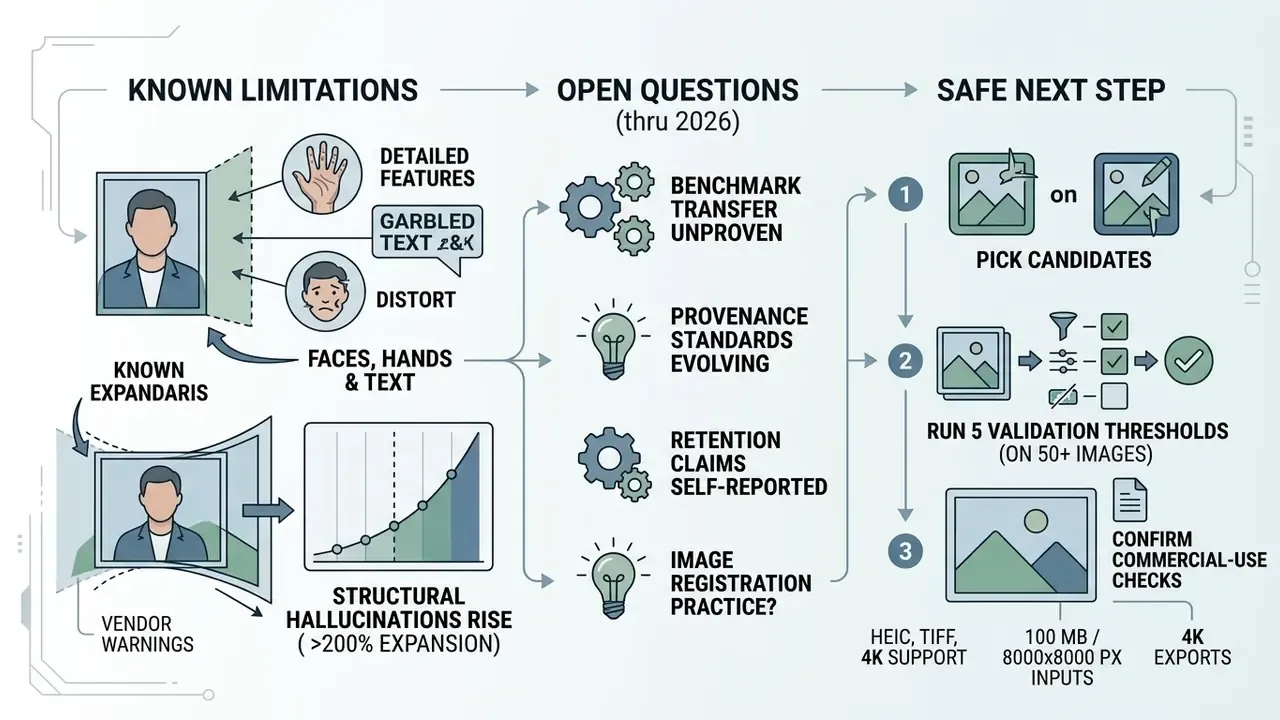
For complex compositions involving edge-cut subjects or intricate patterns, generative models evaluate surrounding semantic cues to complete missing borders. Extreme expansions (beyond 200% of the original canvas) can introduce mild atmospheric blur or minor structural hallucinations. Controlled expansions retain visual fidelity without losing quality. If the source file is already soft or heavily compressed, run it through an AI image enhancer before expansion so the model has real detail to extrapolate from. A free ai enhance pass is often enough for web-only assets.
Validation Thresholds for Enterprise Model Review
Fix Composition and Add Space Around the Subject
AI image extension fixes tight framing by generating negative space around crowded subjects, which lets designers rebalance compositions using the rule of thirds.
In marketing and web design, subject-heavy photos often lack room for headlines, call-to-action buttons or promotional copy. By extending the image beyond its original framing, designers create clean background extensions for typography without obscuring the main subject. Vertical shots can be widened into landscape formats for desktop banners, while landscape assets can be expanded vertically for mobile social feeds. Runware's outpainting guidance adds a useful constraint: extend the immediate environment rather than inventing a new scene, so the expanded frame still guides the viewer's eye toward the original subject.
Create New Backgrounds and Complete Missing Details
Generative AI evaluates boundary textures, depth cues and light sources to complete missing details across expanded canvas areas automatically.
When extending an environment, the model analyzes edge pixels to continue patterns such as brick walls, foliage, studio gradients or cloud formations. In automatic modes, the algorithm extends textures based on adjacent context, and the ai will automatically continue the dominant texture at each edge. When specific environmental changes are required, users can supply a text prompt to steer the generative fill toward custom studio settings or stylized landscapes.
Two mechanisms coexist here, and they are not interchangeable. Boundary-driven continuation conditions the model on exterior boundary conditions so textures tile seamlessly across the new edge, the approach documented in Content-aware Tile Generation using Exterior Boundary Inpainting (2024). Prompt-driven synthesis instead lets text semantics decide what appears, while masks and depth cues enforce spatial structure, as demonstrated by TEXTure's keep/refine/generate trimap logic (2023). Automatic mode is safer for catalogue work. Prompted mode is stronger for campaign creative.
How to Expand an Image with AI Online
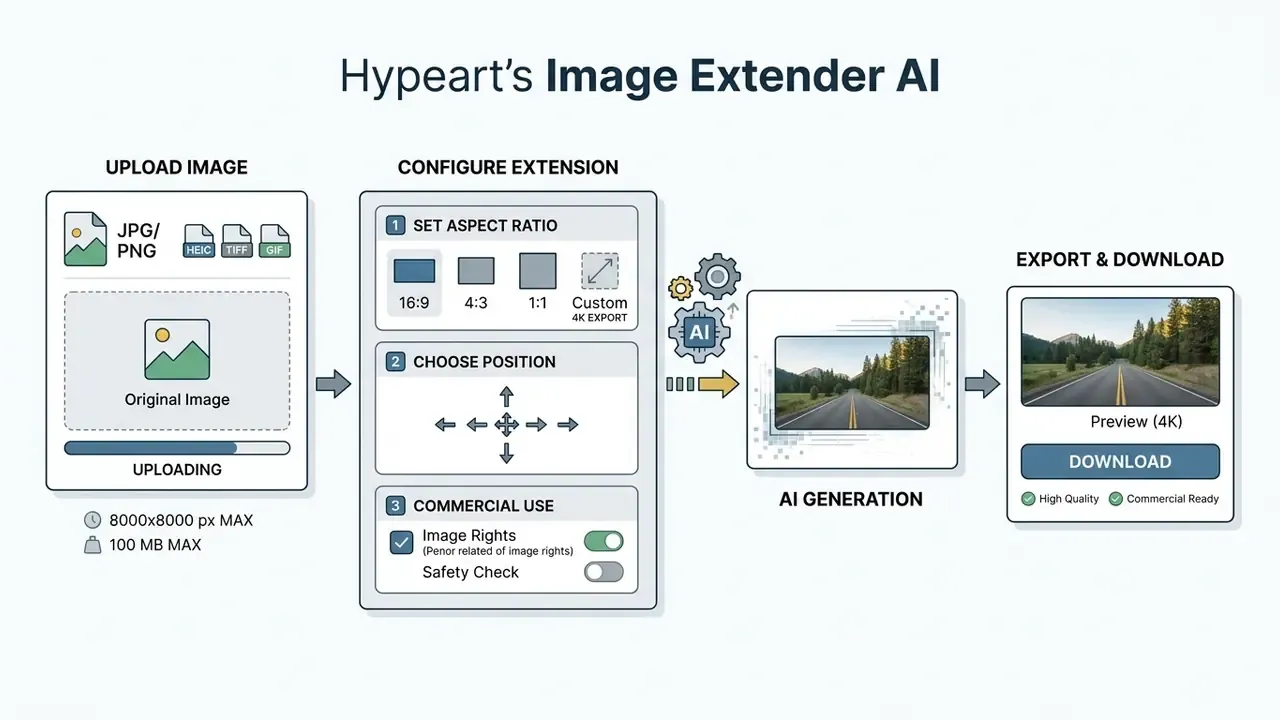
To expand photo with ai free, a user uploads a digital image, specifies a target canvas size or aspect ratio, defines extension directions or text guidance, runs the generative model, and exports the finished file.
Modern web tools compress that into a handful of control steps. The generation pipeline executes server-side diffusion inference, producing high-resolution outputs within seconds. Current TensorRT-class inference stacks deliver an expanded canvas in about 3 to 5 seconds, which is why most consumer tools now advertise "one click, no waiting" rather than queue times.
Upload an Image and Set the New Canvas Size
The expansion process begins when you upload image files in standard jpg jpeg or PNG formats into the online editing interface. Current browser-based services also accept HEIC/HEIF straight from iPhone camera rolls, plus TIFF and GIF in several tools, with ingest ceilings that now reach 100 MB and 8000 × 8000 px.
Once the file is loaded, the tool reads the original pixel dimensions (for example 1080 × 1080 px) and establishes an expandable canvas boundary. Users drag directional handles outward at the top, bottom or sides, or input explicit target dimensions (for example 1080 × 1920 px) to define the new expanded area.
One practical rule from Alibaba Cloud's outpainting documentation: expanding 1000 × 1000 to 1500 × 1500 produces more natural results than jumping to 2000 × 1000, because balanced expansion gives the model symmetric context on every side. For aggressive ratio changes, two moderate passes beat one extreme pass. Almost always.
Choose an Aspect Ratio for Social Media, Ads or Print
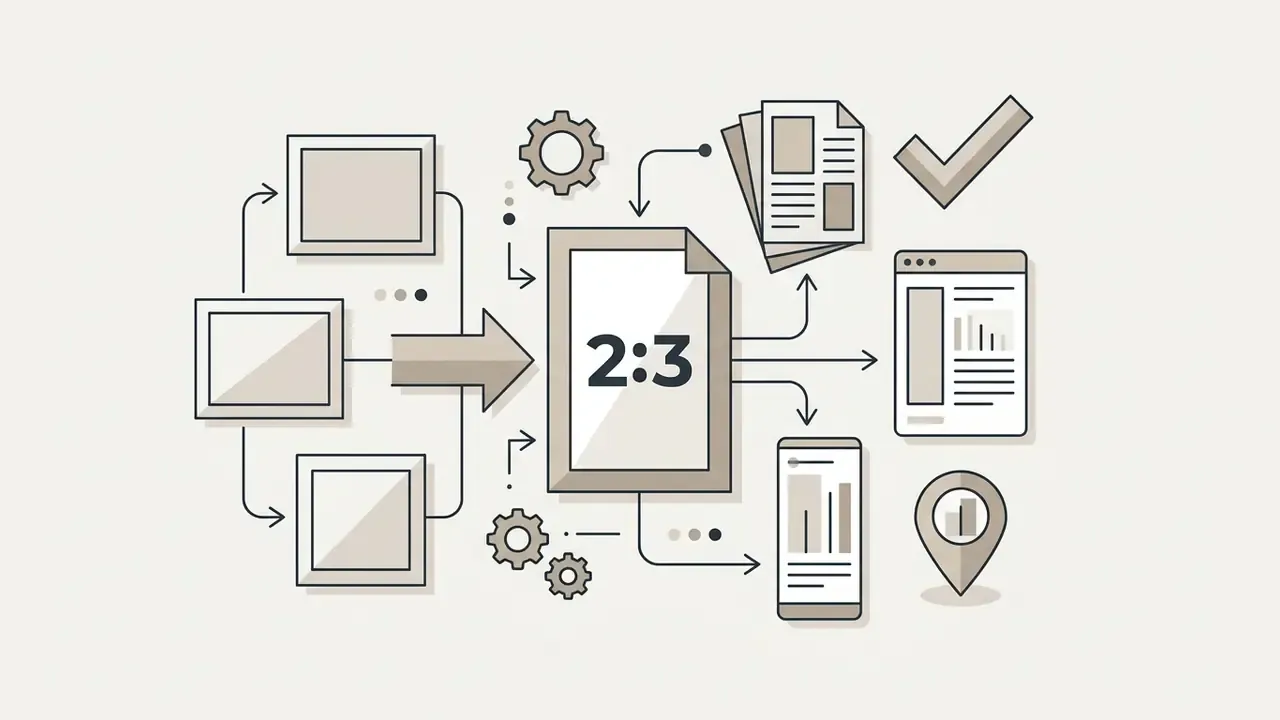
Selecting preset aspect ratios ensures generated assets comply with platform publication specs without manual pixel calculations.
Standard canvas presets include:
Adapting assets directly to target aspect ratios saves manual editing time while maintaining unified visual branding across various platforms.
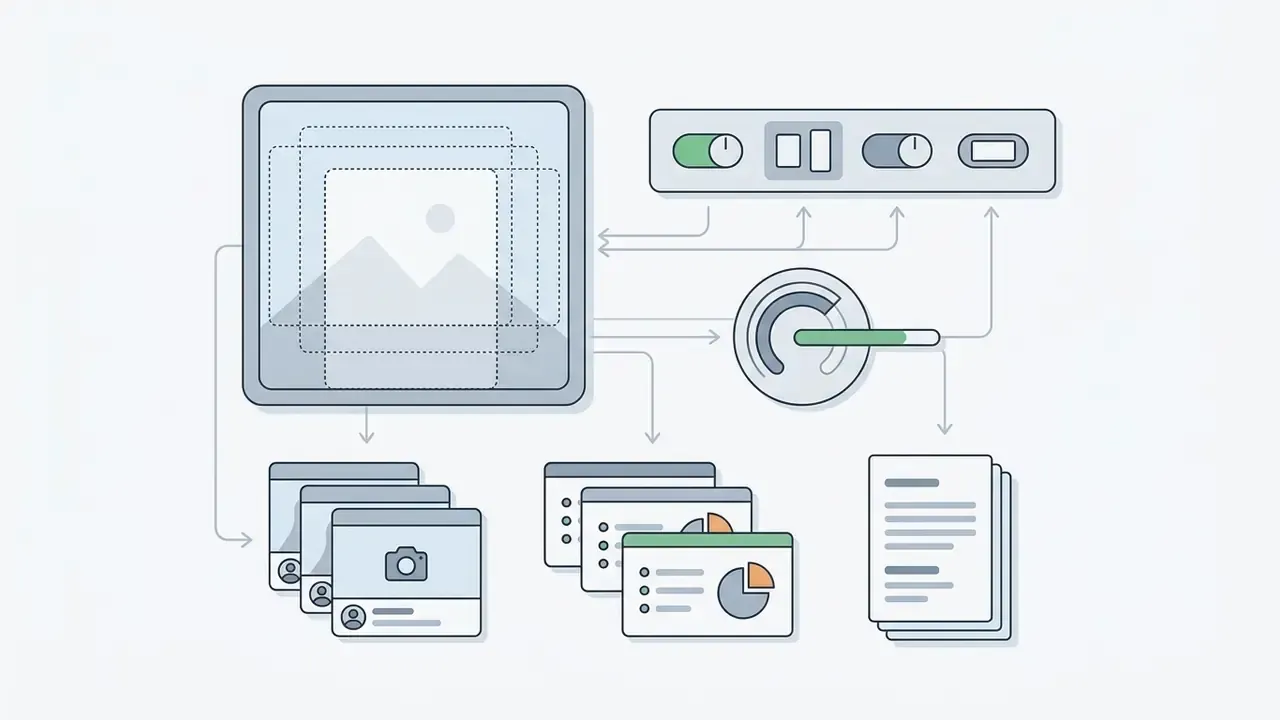
Control the Expanded Area with Direction and Text Prompt
«PowerPaint encodes tasks through single-word prompts and outperforms baselines without task prompts on FID and aesthetic metrics for background-extension tasks.»
Negative prompting is the underrated half of this control surface. Explicitly excluding "extra limbs", "duplicated product", "text" or "watermark" measurably reduces the hallucination classes that force regeneration.
Review, Regenerate and Download the Expanded Image
Evaluating the generated output for seam transitions and lighting continuity ensures visual precision before exporting final files.
Because diffusion models operate stochastically, generating two or three variations lets you pick the cleanest result. Once verified, click generate once more if needed, then download the high-resolution image directly to the local device for immediate deployment in creative projects. Export up to 4K is standard in 2026. For print, choose a lossless container before any downstream conversion.
What to Do When the Model Hallucinates at the Frame Edge
Diffusion models occasionally invent a distorted hand, a duplicated product, garbled signage or an impossible architectural line in the generated band. Use this escalation ladder instead of abandoning the asset:
- Regenerate with a new seed. Outpainting is stochastic, and two or three passes usually resolve isolated artifacts at zero extra effort.
- Reduce the expansion ratio. Split one 200% expansion into two 140% passes so the model always has dense context.
- Add a negative prompt. Exclude the specific failure ("no additional people", "no text", "no duplicate objects").
- Re-mask and inpaint locally. Keep the good 90% of the generated band and re-run only the failing region as a masked inpaint. A 2024 inpainting study formalises this as repeated re-inpainting passes, retaining the result only when the artifact signal decreases across passes.
- Escalate to human retouch. If faces, hands, legible text or regulated product labels are affected, route the asset to a designer. Faces, text and hard-cut subject edges remain the documented weak points of outpainting.
- Log the failure. Enterprise pipelines should record artifact class and asset type. Those logs become the test corpus for the next vendor review cycle.
How to Preserve Image Quality During AI Expansion
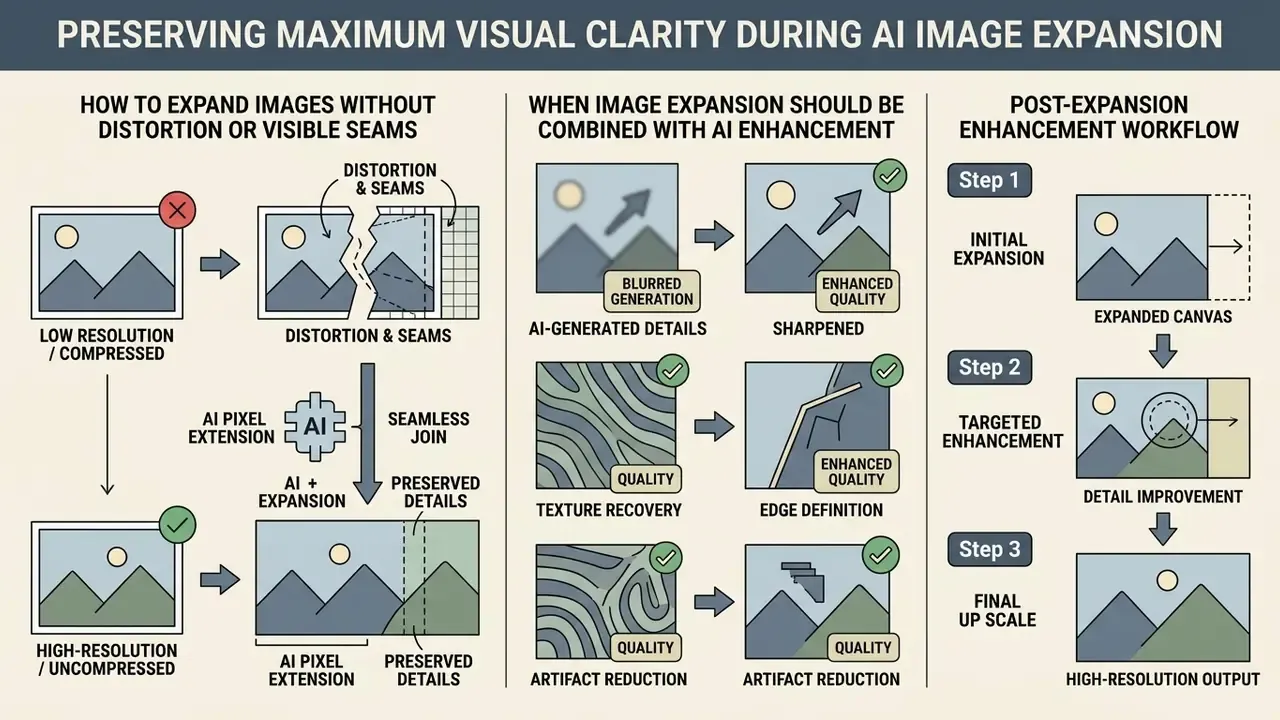
Preserving maximum visual clarity during AI image expansion requires high-resolution source files, mask boundary blurring, and post-expansion enhancement when working with low-resolution inputs.
Generative models rely heavily on the visual fidelity of the input image. If an uploaded photo carries heavy JPEG compression artifacts or pixelation, the extended canvas will replicate those flaws across the generated regions. Starting with uncompressed, high-fidelity source files ensures crisp detail across both original and generated pixels, and keeps visible quality loss out of the final export.
How to Expand Images Without Distortion or Visible Seams
Eliminating visible seams and object distortion requires latent overlap blending and soft mask transitions between original boundary pixels and newly generated space.
Advanced outpainting frameworks use Laplacian pyramid blending and low-denoise blending passes along transition boundaries. Hugging Face Diffusers (2026) outpainting guidelines recommend pasting unmasked source pixels back over the generated canvas while applying a light gaussian blur to the mask boundary edge. The technique keeps original subject details untouched while eliminating hard lines at the boundary. Stanford's classic stitching-and-blending material formalises the same idea with Laplacian pyramids for both images plus a Gaussian mask pyramid, collapsed into a single seam-free composite. High-Resolution Artwork Outpainting with Global Blueprint Guidance composites patches in first-win order and pastes the unmasked source region on top, so original content is never overwritten.
«PanoDiffusion removes the 0°/360° seam by applying progressive camera rotations at every denoising step, enforcing wraparound consistency.»
Tiled upscaling introduces a related defect class worth naming separately. When neighbouring tiles are reconstructed with slightly different edge pixels, faint grid lines and soft object outlines appear. Super-resolution literature documents the same smoothed boundaries and ringing near strong edges, which is why boundary-aware blending, not sharper post-processing, is the correct fix.
When Image Expansion Should Be Combined with AI Enhancement
Combining canvas expansion with an image enhancer or image enlarger is necessary when the source photo's resolution is too low for high-DPI web or print delivery.
Expanding a 600 × 600 px image into a 1200 × 1200 px canvas adds new background pixels around the border, but leaves the central subject at its original low density. In this workflow:
- Step 1 Expand the canvas using an image extender ai to fix framing and aspect ratio.
- Step 2 Pass the expanded file through an AI upscaler to raise total pixel count and sharpen fine edge textures.
- Step 3 Export the final file for high-resolution web or print use.
This two-step sequence avoids double compression artifacts while delivering crisp detail across the entire frame. Vendor documentation converges on the same ordering: extend or repair composition first, then upscale to the print target, typically 300 DPI, and export as PNG, TIFF or PDF for prepress. Precision-mode upscalers now advertise up to 16× scaling for faithful enlargement, versus creative modes that hallucinate additional detail. For regulated or product imagery, always select the faithful mode. Teams that want a quick comparison of enhancement tiers can start with a free ai image enhancer before buying seats.
Commercial Use, Copyright, Privacy and Shadow AI Controls
«AI-detection research shows outpainted images leave statistically detectable traces, which matters for disclosure obligations in commercial use.»
Because those traces are detectable, teams publishing regulated or advertised imagery should verify assets with AI image detectors before release and keep disclosure language consistent with campaign compliance policy. Licensing terms also diverge sharply by vendor. Midjourney's terms grant asset ownership to paid members while reserving a perpetual, worldwide, royalty-free licence to inputs and outputs. Photo AI assigns personal and commercial-use rights to creators but likewise retains a perpetual licence to prompts and images. If your matter is already contested, the litigation research collection is worth a look, so open the hub before signing anything unusual.
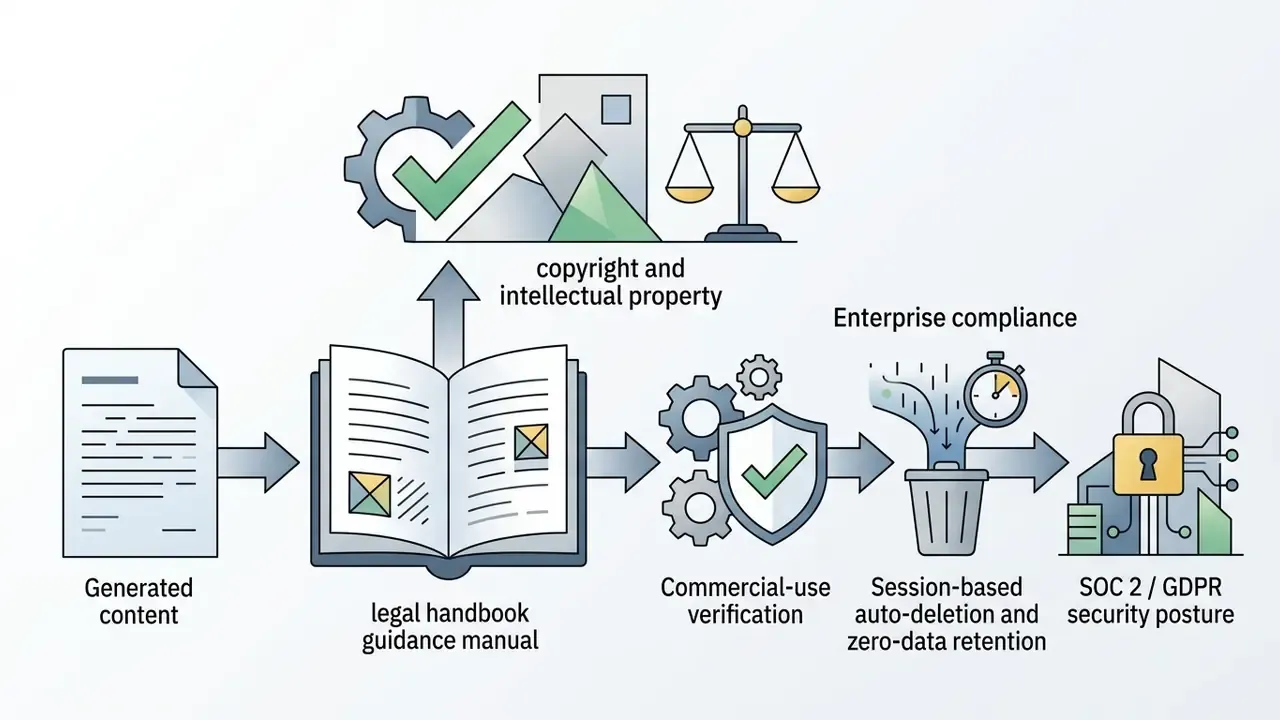
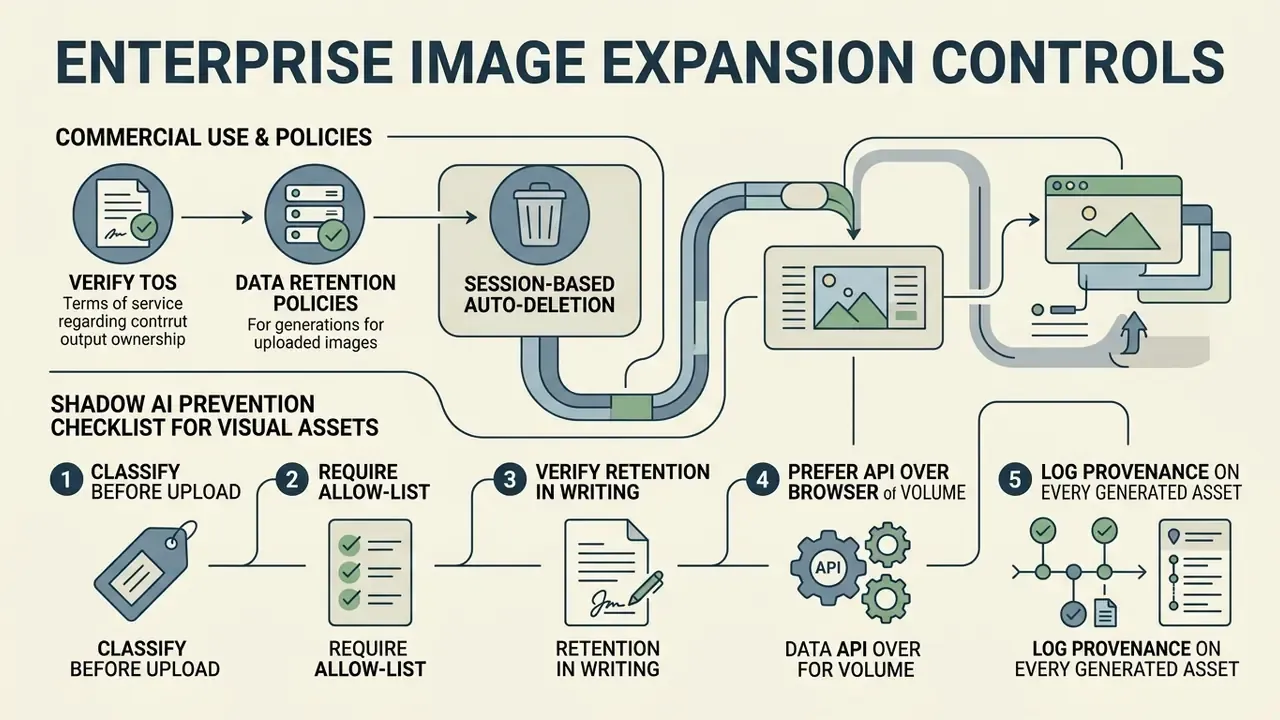
Privacy policies must confirm that uploaded product photos and confidential visuals are deleted from cloud processing servers and not used to train public AI models. Upscayl's published privacy policy, for example, states that it does not sell personal information and does not train AI models on uploaded images. Imglarger documents deletion of originals and results within two hours, extended to eight hours when history is enabled.
Session-based auto-deletion. For corporate security, leading services now implement immediate-purge protocols: uploaded and generated images are automatically deleted from processing servers as soon as the browser session is closed or refreshed. That removes the residual-storage leak path entirely. PxBee documents exactly this behaviour ("your uploaded photo will be automatically deleted once you leave or refresh the page"), while Monica states that images are stored only for the duration of processing, transmitted over HTTPS and deleted immediately afterwards under GDPR-aligned handling. When evaluating vendors, treat "immediate / session-based" deletion as the enterprise baseline and anything beyond 24 hours as a documented exception requiring risk sign-off.
Shadow AI Prevention Checklist for Visual Assets
Unsanctioned use of public image extenders is the most common way unreleased campaign art, executive portraits and pre-announcement product renders leave a controlled environment. Circulate this five-point control set with your creative and marketing teams:
- Classify before you upload.Pre-release product imagery, customer photographs, employee portraits and anything containing regulated disclosures are prohibited on consumer-tier tools that lack a zero-data-retention clause.
- Require an allow-list.Maintain a short register of approved extenders with verified SOC 2 or GDPR documentation, and block the rest at the network or SSE layer rather than relying on policy memos.
- Verify retention in writing.Confirm session-based or ≤24-hour deletion, explicit "no training on customer data" language, and sub-processor disclosure. Screenshots of marketing pages are not evidence.
- Prefer API over browser for volume work.Server-side API integration keeps assets inside logged, access-controlled infrastructure and produces the audit trail that browser uploads never generate.
- Log provenance on every generated asset.Record tool, model version, prompt, operator and date in the DAM so any later copyright, disclosure or detection question can be answered from records rather than memory.
How to Choose the Best AI Image Extender for Your Needs
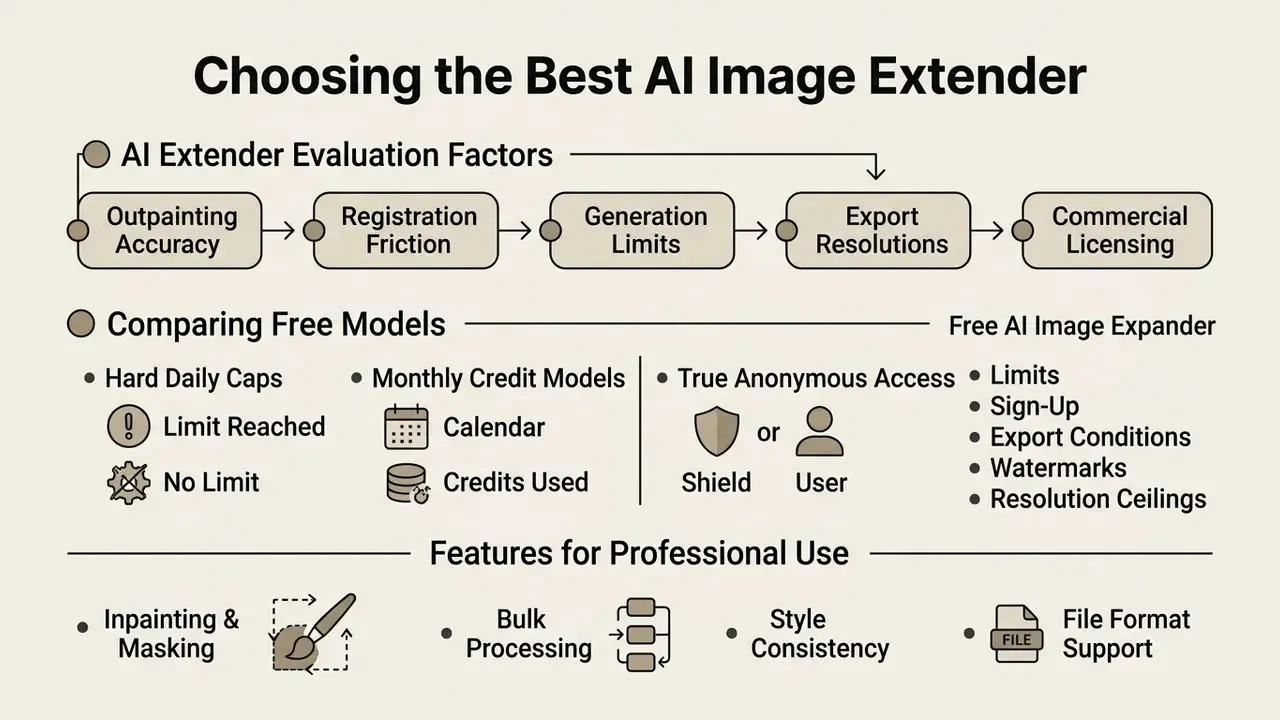
Selecting the best ai extender involves assessing outpainting accuracy, registration friction, generation limits, export resolutions and commercial licensing terms. A broader head-to-head of AI outpainting tools is useful when shortlisting vendors for procurement.
Table 1: Capabilities, limits and access
| Service | Free Tier Access | Sign-Up Required | Max Input Size / Dimensions | Aspect Ratio Presets | Text Prompt Support | Commercial Usage Rights |
|---|---|---|---|---|---|---|
| Adobe Firefly | Daily generative credits | Yes (Adobe ID) | 65 MP | Preset & Custom | Yes | Yes (paid / verified terms) |
| fal.ai Outpaint | Free web demo, no card | No | 4096×4096 px | 1:1, 4:5, 9:16, 16:9, 3:1 | Yes | Dependent on source rights |
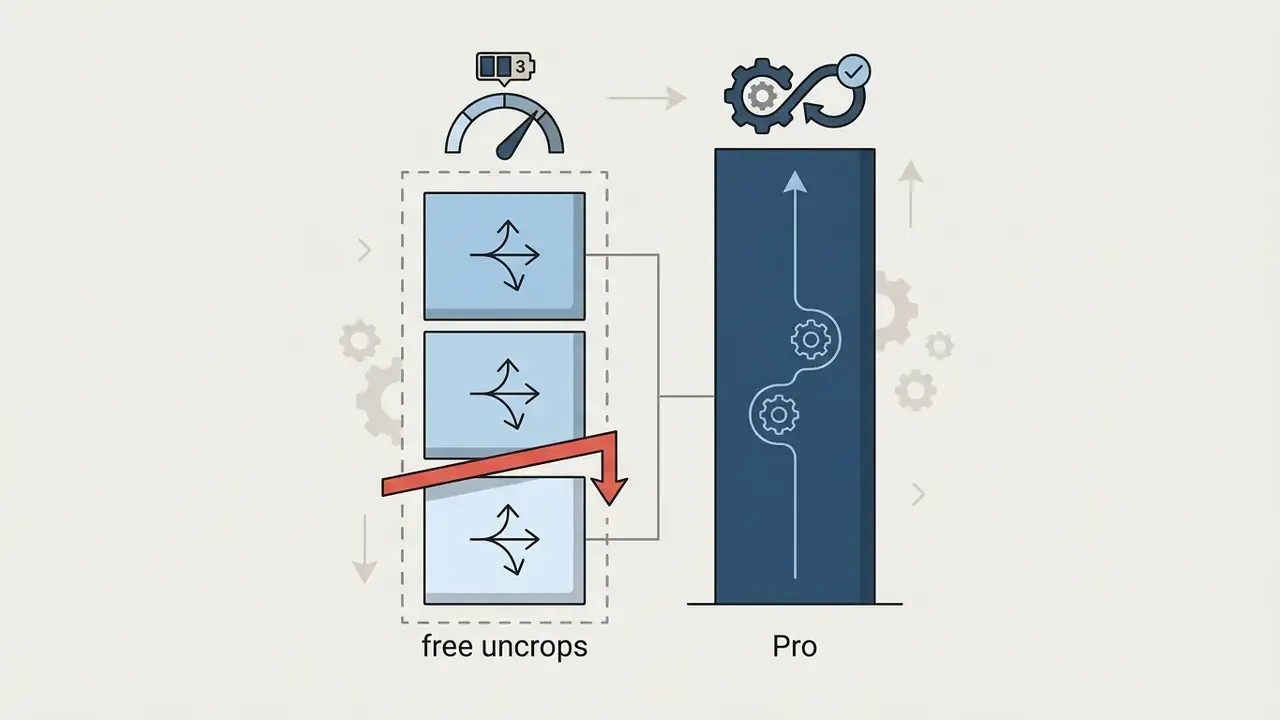
| Pixelcut (web / API) | 3 free uncrops per day | Yes for web app | Web: 100 MB / 8000×8000 px; API: 25 MB / 6000×6000 px, 0–2000 px per side | Presets + free canvas drag | Yes | Yes (paid tiers) |
| PxBee | Free, no hidden cost | No | JPG/JPEG/PNG/WEBP, 4K output | 1:1, 4:3, 9:16, 16:9 + slider | No (auto context fill) | Permitted for user-owned source images |
| Canva Magic Expand | Limited free credits | Yes (Canva account) | JPG/PNG under 50 MB, ≤250 MP | Presets & custom | Yes | Yes (Canva licence terms) |
| Monica AI Image Extender | Free trial credits | Yes | JPG/JPEG/PNG, 10 MB | 16:9, 4:3, 1:1 | Yes (optional description) | Yes on paid tiers |
| ImgExtender | 100 credits/month | Yes | 10 MB / 4000 px side | Standard presets | No | Yes (paid tiers) |
Table 2: Enterprise security and delivery profile
| Service | Privacy Standard Claimed | Auto-Delete Window | Training on User Data | Watermark on Free Tier | Typical Generation Speed |
|---|---|---|---|---|---|
| Adobe Firefly | Enterprise agreements, SOC 2 programme | Per enterprise contract | Not on customer assets under enterprise terms | No | ~5–15 s |
| fal.ai Outpaint | Standard API terms | Not publicly specified, request in writing | Not stated | No | ~3–8 s |
| Pixelcut | Published privacy policy, HTTPS | Session/processing-based | Not stated for paid API | No (HD free download) | Seconds |
| PxBee | No third-party sharing | Immediate on page close/refresh | No | No | Under 5 s |
| Canva Magic Expand | GDPR-aligned, enterprise controls | Retained in user workspace until deleted | Opt-out controls available | No | ~5–10 s |
| Monica AI Image Extender | GDPR-aligned, HTTPS encryption | Deleted immediately after processing | No | No (HD, watermark-free) | Seconds |
| ImgExtender | Standard policy | Not publicly specified, request in writing | Not stated | No on paid tier | Seconds |
Procurement note: treat any blank retention field as a finding, not a neutral. Ask the vendor for written confirmation of deletion windows, sub-processors and a zero-data-retention option before onboarding proprietary assets.
Industrial deployments show what mature outpainting looks like at platform scale:
«Pinterest Canvas extends images vertically to a 3:2 ratio using instance masks to protect the foreground and synthetic height-masked training data.»
Buyers assessing general-purpose engines alongside dedicated extenders often benchmark a flux ai image pipeline and a fotor ai image workflow in the same test round. The reason is simple: an ai image generator that also outpaints reduces vendor count, though rarely at equal quality.
Free AI Image Expander: Limits, Sign-Up and Export Conditions
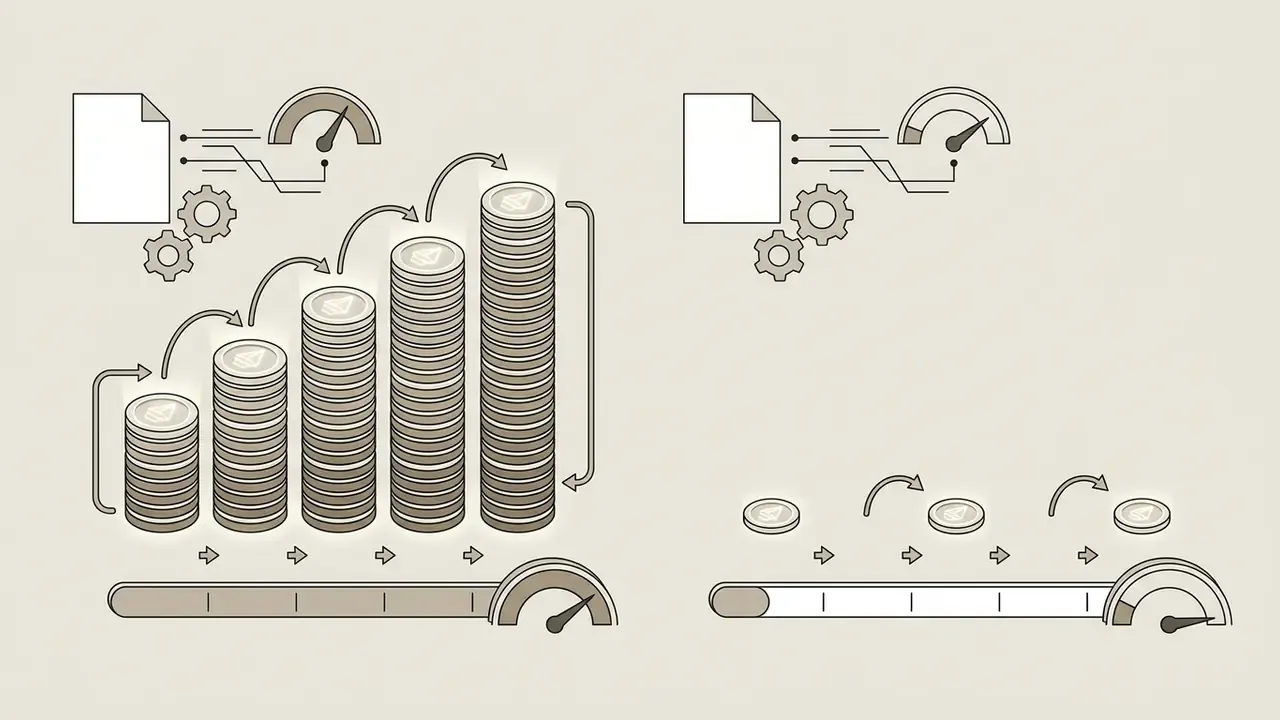
Evaluating a free ai image expander requires reviewing daily credit resets, watermark policies and registration requirements.
Many ai image expander free online utilities allow users to test canvas expansion with no sign-up required, but cap exports at web resolutions (around 1024 px) or attach visual watermarks. Professional platforms provide free monthly credits upon registration, offering full-resolution exports without watermarks while reserving high-volume batch processing for paid subscriptions. If your goal is simply to expand ai image assets for an internal deck, a free tier is usually enough.
Concrete 2026 free-tier benchmarks to calibrate expectations:
A blunt summary for anyone searching "ai expand image online free" or "extend image ai free": the technology is commoditised, the licensing is not. Free access to ai image expand features tells you nothing about whether you may publish the result.

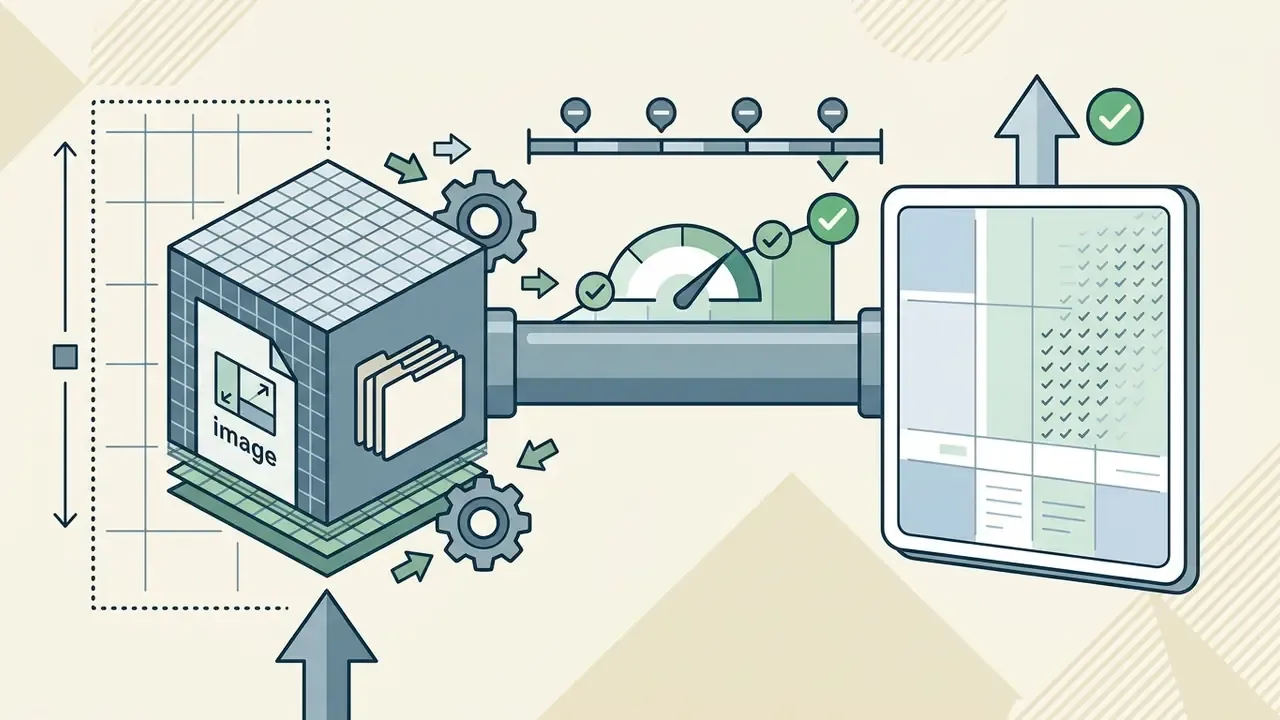
Features That Matter for Professional Photo Editing
Professional graphic design and marketing workflows require granular controls beyond basic canvas dragging.
Essential features for professional integration include:
- Inpainting & Masking Precise regional editing to adjust specific generated elements, driven by a mask image or a mask prompt.
- Background Remover Isolated subject extraction before outpainting new environments.
- High-Precision Text Prompts Negative prompting to prevent unwanted visual clutter, plus whole-image prompt descriptions as recommended by Amazon Nova's outpainting guidance.
- Batch Export Processing multiple catalog assets simultaneously into standard formats.
- API Access Server-side integration for DAM and PIM pipelines, with per-direction pixel controls (for example, 0 to 2000 px per side).
- Segmentation Hand-off Click-based selection pipelines that chain segmentation, removal and diffusion fill in one pass.
Practical Uses of AI Image Expansion
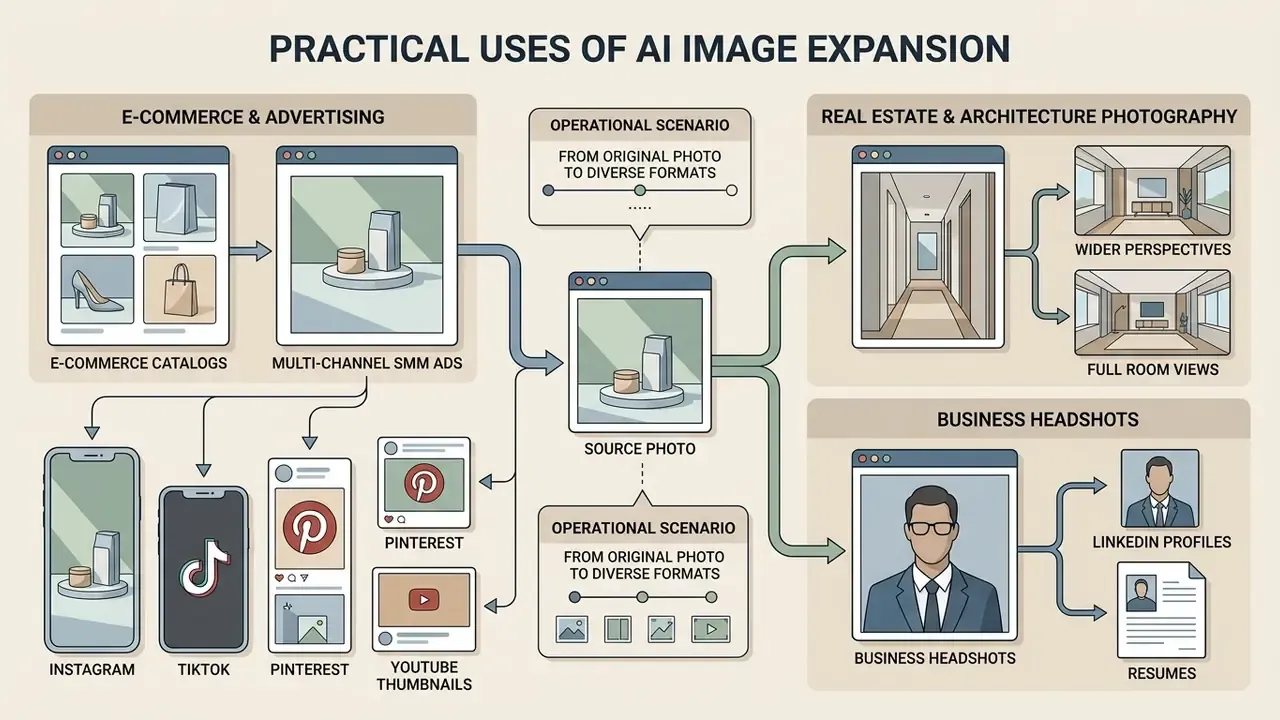
AI image expansion solves operational formatting constraints across e-commerce product catalogs, multi-channel SMM ad campaigns, print marketing collateral, real-estate listings, recruitment portraits and family-archive restoration. Teams comparing outpainting against building backgrounds from scratch should also review how AI image generators handle full-scene synthesis.
Expand Product Photos for E-Commerce and Advertising
E-commerce brands use generative outpainting to standardize product photos across marketplace platforms without reshooting catalog items.
Marketplace listings often require strict 1:1 square image ratios with uniform neutral backgrounds. Teams that need to restyle rather than merely extend a shot often pair outpainting with image-to-image generators. When original vendor shots arrive in vertical or landscape formats, an ai photo expand workflow extends the surrounding background to match marketplace dimensions while leaving the central product untouched.
«A dynamic product image generation system uses Stable Diffusion for backgrounds with object detection and masking, increasing engagement in retargeting campaigns.»
Research on the Planning and Rendering (P&R) framework demonstrated that layout-aware diffusion outpainting for product backgrounds increases consumer visual engagement compared to static rectangular crops.
«P&R outperforms state-of-the-art product poster generation methods on the PPG30k dataset across quantitative metrics and user preference.»
The operational method is consistent across documented retail workflows: upload the source shot, keep the product region untouched, expand only the empty canvas to the target format (square marketplace card or widescreen banner), then generate matching background around it. The product itself is never edited, which keeps the listing compliant with marketplace authenticity rules.
Adapt Images for Instagram, TikTok, Pinterest and YouTube Thumbnail
Digital marketing teams and social media managers use canvas extension to convert single master creatives into platform-specific aspect ratios across diverse channels.
- Instagram & TikTok Widen landscape photos into 9:16 vertical frames for Stories and Reels; use 4:5 for the main feed.
- Pinterest Extend vertical images to 2:3 or 1000 × 1500 px to fit feed display standards without clipping edges. Updated (sourcing): Pinterest's own creative specifications state that pins with ratios greater than 2:3 may be cut off in feeds, and its safe-zone guidance keeps text clear of the top 270 px, left 65 px, right 195 px and bottom 790 px. Full-bleed assets use 1080 × 1920 px.
- YouTube Expand square portrait assets to 16:9 for high-click youtube thumbnail designs, minimum 1280 × 720 px, under 2 MB. Note that vertical videos carrying 16:9 custom thumbnails may be replaced by an auto-generated 4:5 thumbnail on home, explore and subscription surfaces, so generate both variants.
Both scenarios are composite illustrations rather than audited client results. Treat the numbers as a plausible upper bound for a well-prepared batch, not as a benchmark.
Real Estate and Architecture Photography
Property marketing runs on wide frames, yet listing photos are frequently shot vertically on a phone in a cramped room.
Outpainting converts those vertical captures into 16:9 banner crops for listing pages, portal carousels and email headers without cropping out furniture or re-shooting the property. The method matters here. Because the original pixels are never rescaled, wall lines, door frames, window mullions and floor planks retain their true geometry. Stretching a vertical interior to widescreen would visibly bow those straight edges and misrepresent the space. Practical guardrails for property assets:
- Expand left and right only so ceiling and floor planes keep their original perspective anchors.
- Keep expansion within 140% to 160% of original width; beyond that, the model starts inventing architecture rather than continuing it.
- Never generate content that implies features the property lacks, such as extra rooms, windows, gardens or views, since fabricated environments create advertising-disclosure exposure.
- Re-shoot rather than expand when the generated band would cover more than a third of the frame.
One real-estate photographer's summary of the workflow is representative: vertical phone photos become wide banner shots for the website without cropping anyone out, which avoids re-shooting an entire property tour.
Business Headshots for LinkedIn and Resumes
Recruitment, HR and personal-branding workflows constantly receive casual selfies or ID photos cropped tightly at the shoulders, where a formal bust-length portrait is required.
An ai photo expand pass analyses outfit, lighting direction and background tone, then outpaints downward and outward to reconstruct shoulders, upper torso and a neutral office or studio backdrop. The result suits LinkedIn, a CV, a conference speaker page or a corporate directory. Where the source garment is partially visible, the model continues the collar, lapel or shirt line rather than inventing an unrelated jacket, which keeps the portrait recognisable. Teams that need consistently styled portraits across an entire leadership group often combine this with AI headshot generators for uniform lighting and backdrop.
Governance note: portraits are personal data. Route employee and candidate images only through allow-listed tools with session-based deletion, obtain consent for AI-assisted retouching, and avoid altering facial features. Expansion should add context around a person, never change who they appear to be.
Restoration of Cropped and Vintage Family Photos
Archival prints are often physically trimmed, torn at the margins, or scanned with white borders that cut into the scene.
Uncropping reconstructs the missing surroundings of a vintage photograph: the wallpaper behind a family group, the pavement beneath a wedding party, the sky above a rooftop. The recommended restoration sequence is:
- Scan at maximum optical resolution, at least 600 DPI for small prints, so the model receives real grain rather than interpolated mush.
- Repair damage first.Remove scratches, stains and fold lines with inpainting before expanding, otherwise defects propagate outward into the generated band.
- Expand conservativelyin the direction of the physical trim, one edge at a time.
- Match the era's optics.Keep the prompt neutral so the model continues period-consistent grain, contrast and colour cast instead of introducing modern digital sharpness.
- Upscale last, then export lossless for archival storage and printing.
Users consistently report that when a missing background is filled in this way, the blend is indistinguishable to family members. Archival ethics still apply: keep the untouched master scan and label the expanded version as AI-assisted so the historical record stays intact.
Restore Cropped Portraits and Create Larger Design Assets
Uncropping tight headshots and portrait photos gives designers expansive high-resolution assets for print posters and website banners.
When stock photos or executive portraits are cropped too tightly around the head and shoulders, uncrop image workflows reconstruct missing torso, arm and background context. SAIO research shows that subject-aware matting paired with generative outpainting accurately restores missing visual boundaries, creating high-resolution design assets suitable for print layouts and web hero graphics.
«SAIO applies a pre-trained matting model to isolate the subject, then SO-Net extends the subject and BC-Net completes the background, reaching 28.99 dB PSNR.»
Limitations, Open Questions and a Safe Next Step
Frequently Asked Questions About AI Image Extender
What Image Formats Can I Upload and Download?
Most web-based AI image extenders support uploads and exports across JPG/JPEG, PNG, WEBP, HEIC/HEIF, TIFF and GIF, though the exact matrix varies by vendor.
Standard input and output format characteristics:
- JPG / JPEG: Universal compatibility with compressed file sizes; best for web photos. Format-level maximum dimensions reach 65,535 × 65,535 px, well beyond any app upload cap.
- PNG: Lossless quality with support for transparent background channels; the safest intermediate before print conversion.
- WEBP: Modern web format supporting both lossy and lossless modes. Updated (sourcing): Google's own WebP documentation reports lossless WebP files roughly 26% smaller than PNG and lossy WebP 25% to 34% smaller than comparable JPEG at equivalent quality (Google, WebP compression study, https://developers.google.com/speed/webp/docs/webp_study).
- HEIC / HEIF: Direct upload of Apple iOS camera-roll photos with no manual conversion step. Pixelcut, for example, explicitly accepts HEIC alongside JPG and PNG.
- TIFF: Heavy prepress and polygraphy files; accepted by several extenders and commonly used as the export target for print-ready enlargements.
- GIF: Expansion of static frames taken from animated sources; supported by tools such as YouCam alongside TIFF.
Technical limits in 2026. Leading browser-based services ingest source files up to 100 MB and 8000 × 8000 px, with final exports up to 4K. Vendor-specific ceilings still differ sharply: Canva caps uploads at 50 MB and 250 megapixels, Adobe Express at 65 MP, Monica at 10 MB, ImgExtender at 10 MB and 4000 px on the longest side, and Pixelcut's API at 25 MB and 6000 × 6000 px with 0 to 2000 px of expansion per direction. Always check the current limit for the specific tool before batching large assets.
For print production, exporting lossless PNG files before converting to TIFF or PDF preserves maximum edge detail, and 300 DPI remains the professional print target.
Can I Expand a Photo on a Phone?
Yes. Web-based AI image extenders run directly inside mobile browsers such as Safari and Chrome on iOS and Android smartphones.
Mobile web editors optimize canvas handle dragging for touchscreens, so users can upload camera roll photos, choose target social aspect ratios (9:16 for Stories, for instance), and run generative expansions on cloud servers. On mobile, borders are typically dragged inward to enlarge the canvas, and HEIC files from an iPhone can be submitted without conversion.
Updated (sourcing): native mobile applications provide the same capability inside the OS gallery. Adobe's mobile Photoshop guidance documents Generative Expand on phones as canvas resize plus an optional text prompt, generated in-app (Adobe, Generative Expand documentation, https://helpx.adobe.com/photoshop/desktop/create-open-import-images/create-images/explore-beyond-the-canvas-with-generative-expand.html). Samsung's Galaxy support pages describe the on-device AI editor expanding images, filling background and completing cropped elements directly in Gallery (Samsung Support, Galaxy S24 series).
How Fast Is AI Image Expansion?
Typical browser-based expansion completes in 3 to 5 seconds for standard social ratios at up to 4K output. PxBee publicly advertises under five seconds, and larger enterprise jobs scale roughly linearly with canvas area and the number of requested variations. Batch API runs are bounded by per-image inference plus queue depth rather than by interface latency.
Is AI Image Extension the Same as Outpainting?
Functionally, yes. "Image extension", "expand image", "uncrop" and "generative expand" are product-level names for the same underlying technique: mask-based outpainting in which a diffusion model generates new pixels outside the original boundary while the source region is preserved. For definitions of adjacent terms, explore the hub of glossary entries.
Should I Remove the Background Before or After Expanding?
Expand first when you want a continuous scene, because the model needs surrounding context to extend textures and lighting convincingly. Remove the background afterwards if the final asset requires transparency. If you remove the background first, the extender has only flat or transparent pixels to reason about and will tend to produce generic fill.
Can I Use Expanded Images Commercially?
Usually yes for the human-authored composition, provided you hold rights to the source image and the platform's terms grant commercial rights to outputs. The machine-generated portion itself is not independently copyrightable under current U.S. Copyright Office guidance, and some vendors restrict commercial use to paid plans. Verify the specific tool's licence, and consult counsel for regulated campaigns. To weigh licences side by side, compare options across the review library.