Last updated: 2026. Reviewed against official vendor documentation (Adobe, Apple, Blackmagic Design, Microsoft, MDN) and peer-reviewed video-quality research.
Data security and client-side processing (read this first)
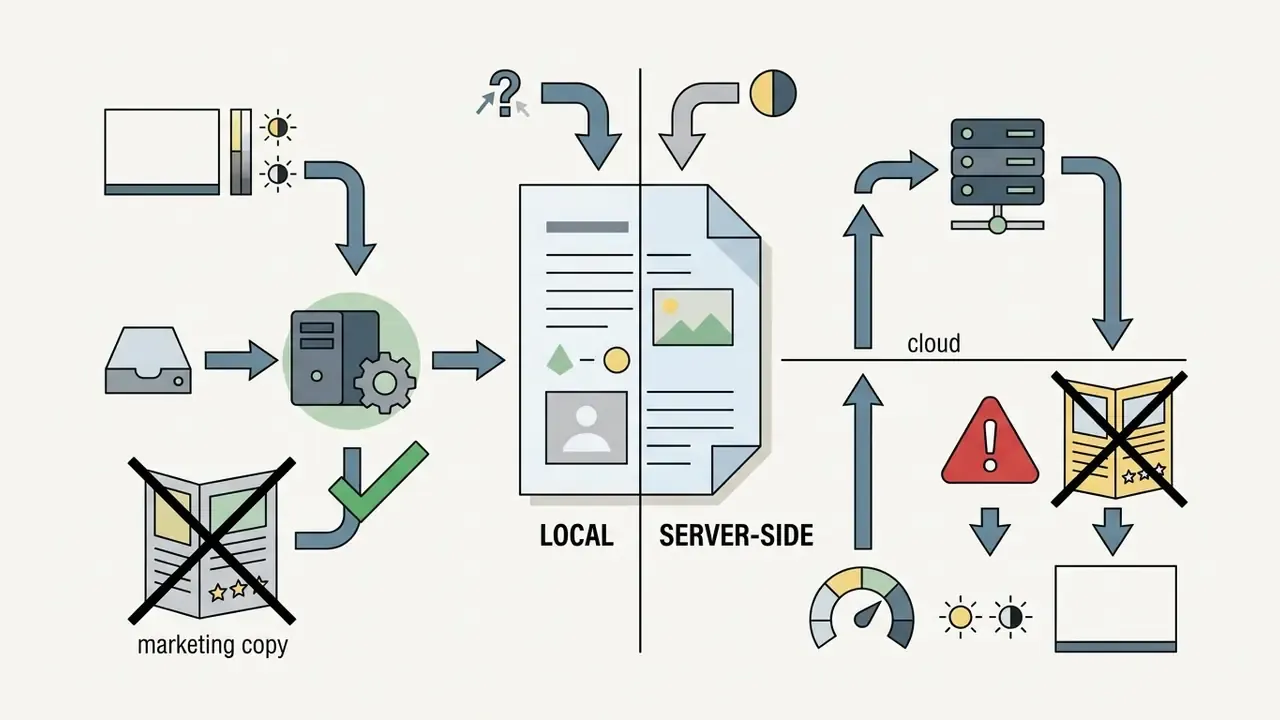
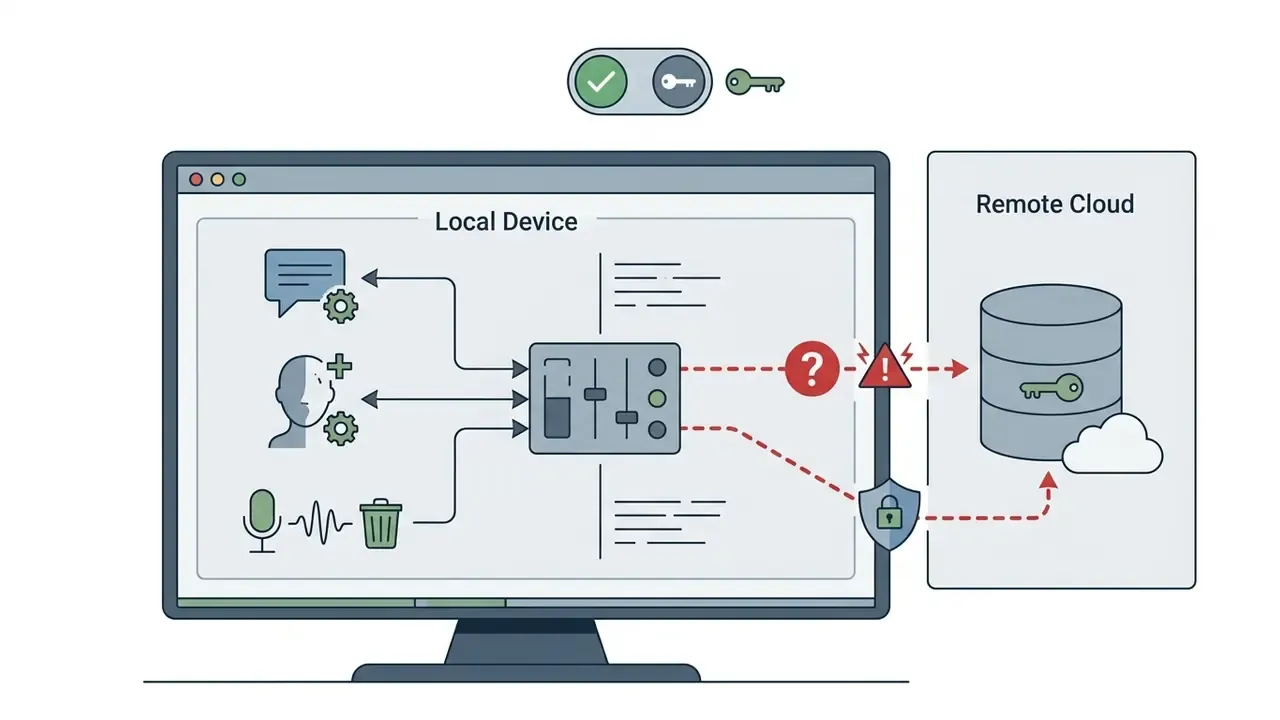
For corporate, legal, medical and financial teams the first question is not "which slider do I move?" but "where does my footage go?". Two architectures exist, and they must not be confused:
| Architecture | How the file is handled | Practical implication |
|---|---|---|
| Client-side (local) processing | The file is opened through the browser file picker, decoded with WebCodecs, processed in a Worker (FFmpeg/WASM, WebGL/WebGPU shaders) and written back to the device | The source video does not leave the machine; RAM and GPU are the practical limit |
| Cloud / server-side rendering | The file (or a proxy) is uploaded to a render farm, graded there and returned as a download link | Faster on weak laptops, but the media is transmitted and temporarily stored by a third party |
Documented examples confirm both models. Some editors state that "files open locally through the browser file picker, processing happens in a Worker with WebCodecs and FFmpeg WASM, and the final export is written back to the device", while cloud editors explicitly store media in public or private cloud storage and stream a proxy to the client.
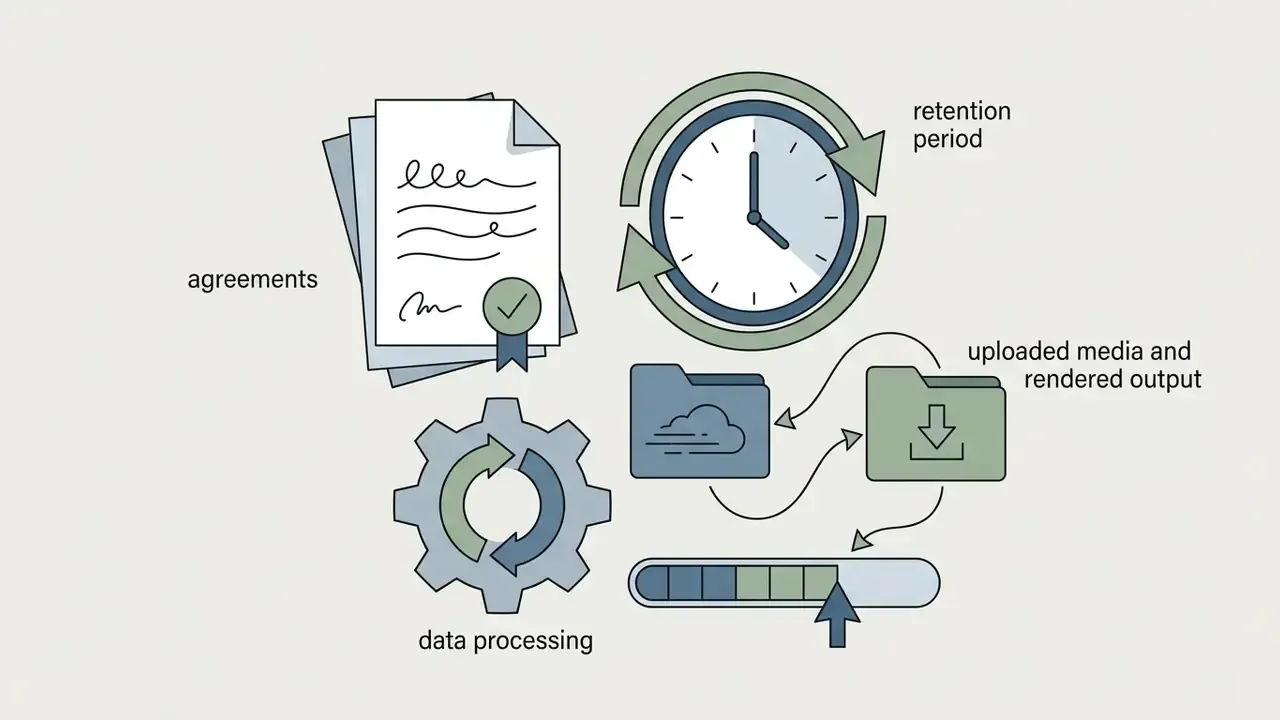
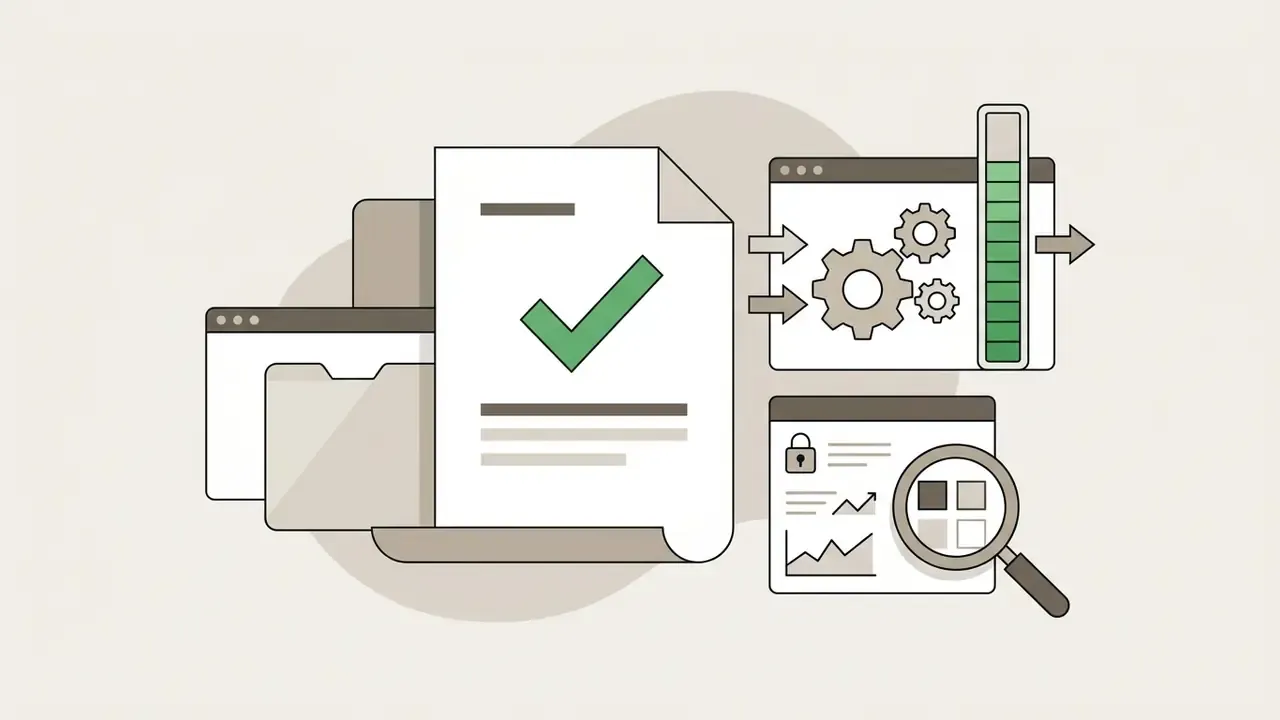
Practical due-diligence checklist before you upload confidential footage:
One small observation from review work: the fifth point is the one buyers skip, and it is usually the one that surfaces later in procurement.

What a video lighting editor can do
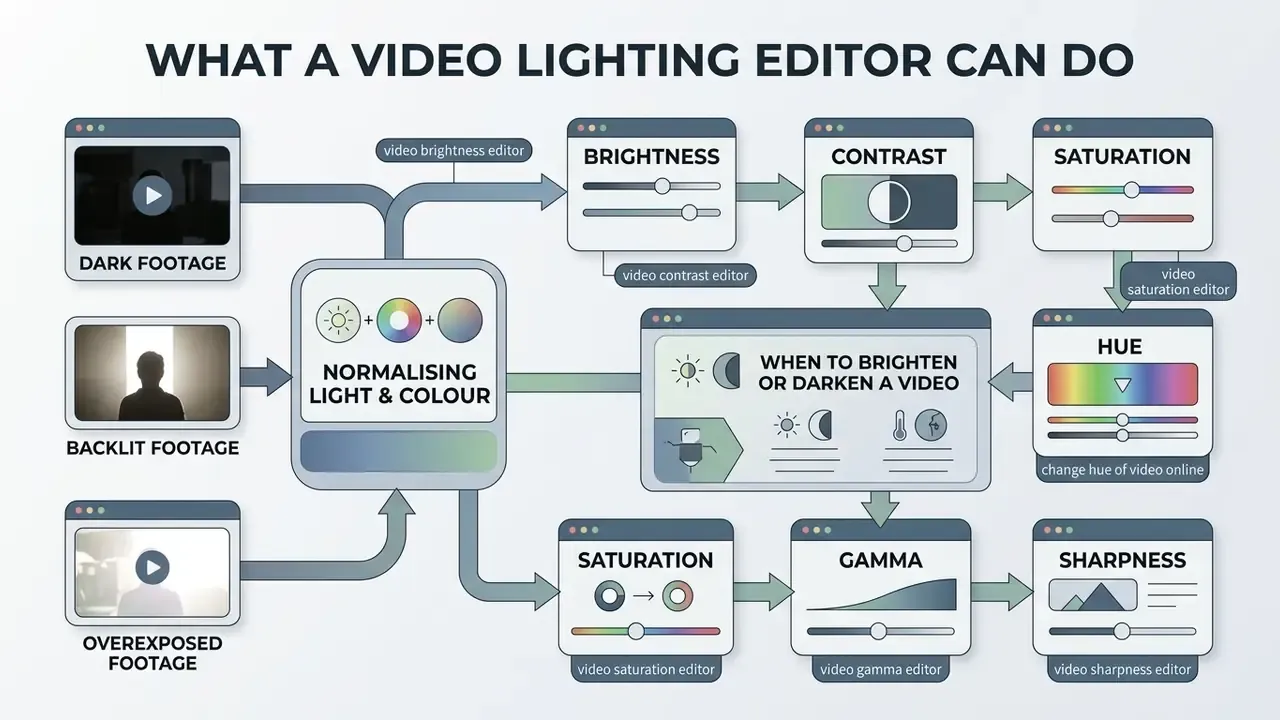
A modern online video brightness editor solves a cluster of tasks around normalising the light balance and colour reproduction of footage. The tool removes shooting defects caused by insufficient light, compensates for backlight, softens harsh blown-out zones and evens out the overall tonal range of the frame.
The video brightness editor function changes the base parameters of the clip with an instant response in the preview window. Visitors and content creators use a video brightener online to prepare media files for publication while keeping natural detail in shadows and highlights. If you are assembling a full production pipeline, it helps to see how these controls sit inside video editing workflows for publishing and how the finished file is later optimised with video compression to reduce file size.
Brightness, contrast, saturation, hue, gamma and sharpness
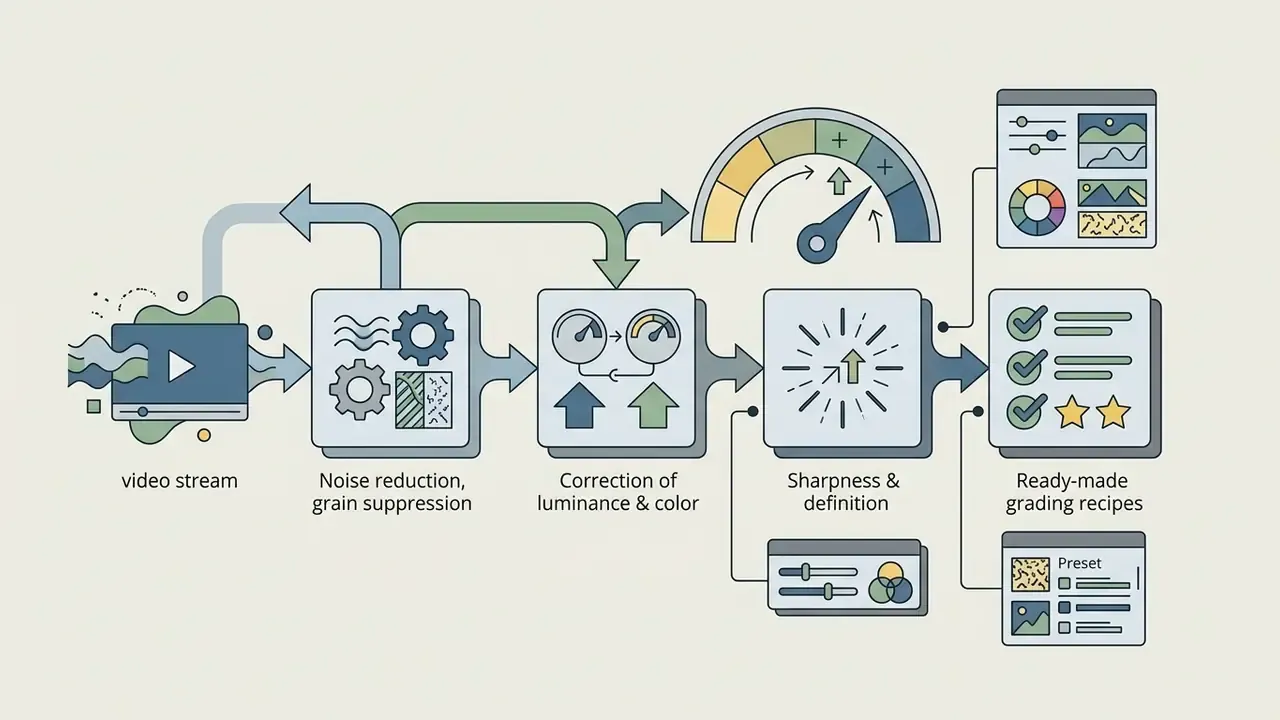
Image adjustment is built on base transformations of the YCbCr colour space. In this model the luma parameter (Y) carries the luminance of the frame, while Cb and Cr encode the chromatic component, that is, colour.
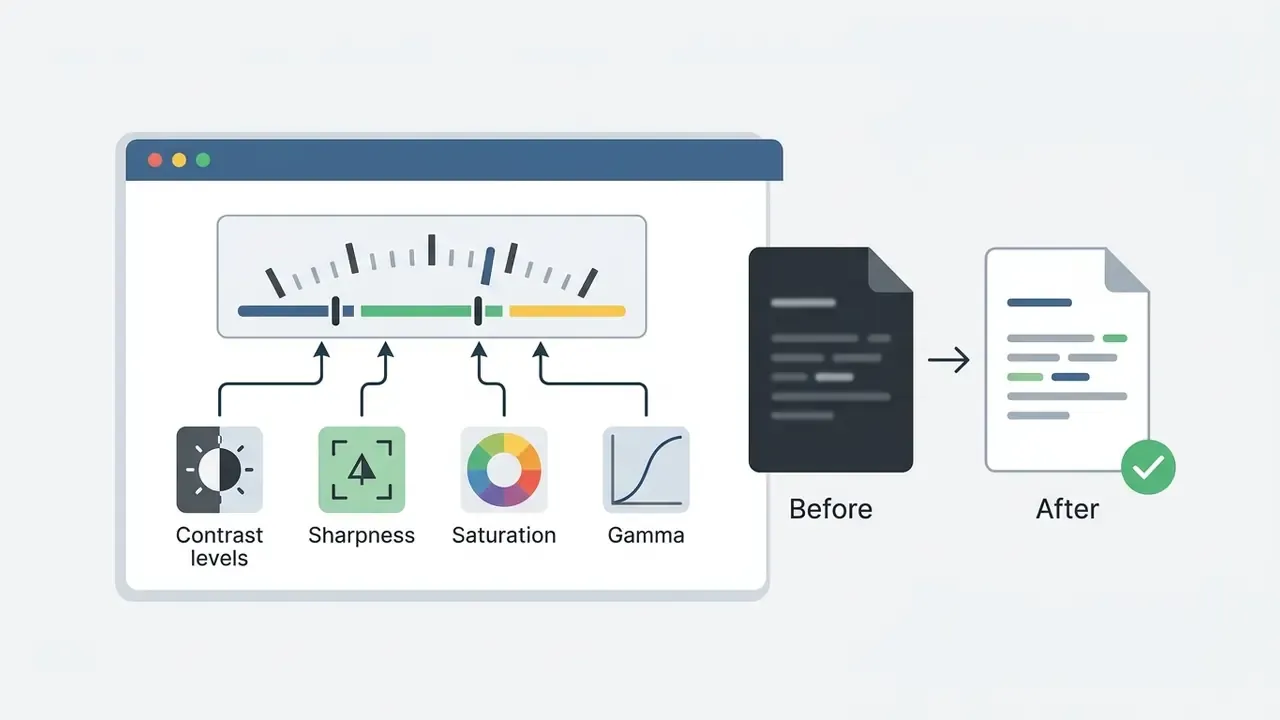
Editing is performed through specialised modules:
- video brightness editor adds or subtracts a constant from the luma channel Y, shifting the histogram left or right;
- video contrast editor scales the deviation of luma values from the mean level, expanding or compressing the range between the darkest and brightest pixels;
- video saturation editor multiplies the chromatic channels Cb and Cr, moving colour intensity from monochrome to maximum vividness;
- change hue of video online rotates the chroma vector in the Cb-Cr plane by an angle using and , which shifts natural colour tones;
- video gamma editor performs a non-linear recalibration of midtones without moving the extreme white and black points, preserving detail in both highlights and shadows;
- video sharpness editor raises local contrast at object edges, which visually compensates for soft focus and makes a blurry video appear crisper. It does not add real resolution.
Reference engineering documentation describes the coupling directly: a colour-processing block applies , so brightness and contrast act on the same luma signal. Change contrast while Cb and Cr stay untouched, and a visible colour shift results (Video Demystified, 3rd ed., Elsevier; Intel OpenSource HD Graphics Programmer's Reference Manual).
Coordinated control of brightness contrast and brightness saturation contrast therefore preserves the integrity of the picture and prevents digital noise and unwanted colour casts.
When to brighten or darken a video
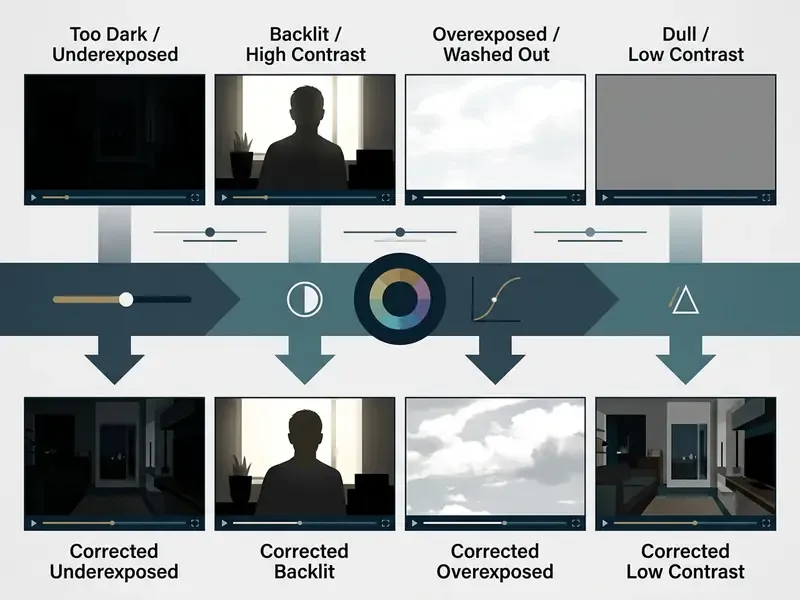
The need to brighten video or darken video online appears whenever exposure parameters drift during shooting. Typical situations that require you to adjust video brightness:
- Shooting with insufficient light.Evening or indoor footage comes out underexposed. A brighten video online tool raises the luminance level and reveals hidden detail in the shadows. Camera strategy matters here as well: according to a CVPR Workshop study, a gain-first approach (higher ISO, shorter shutter) outperforms exposure-first under moderate underexposure, but requires noise reduction before brightness is lifted (Jiang et al., CVPR Workshop, 2024).
- Backlight.A brightly lit background silhouettes the main subject. Correction lifts the dark areas without destroying the background; camera-side backlight compensation or exposure compensation does the same job in-camera.
- Overexposure.With excess light, detail in bright zones burns out. Darkening reduces exposure and restores texture and depth, although fully blown highlights cannot be recovered.
- Low contrast and dull colours.In fog or overcast weather the image looks flat. A combined adjustment makes videos look dimensional and dynamic.
«Night, low-illumination and higher-contrast video produced statistically significant increases in eye fatigue, visual impairment and dizziness (p < 0.005) compared with daytime footage, while dermatological activity showed no significant difference.»
Worth restating plainly: the measured effect is perceptual and symptomatic rather than physiological. That is exactly why moderate, balanced tonal correction, not maximal contrast, remains the professional default.
Defect to solution reference table
| Shooting defect | Visible symptom | Primary control | Secondary controls |
|---|---|---|---|
| Underexposed indoor / night shot | Muddy shadows, no detail | Brightness +10…+20% | Noise reduction first, Contrast +5…+10% |
| Backlit interview at a window | Dark face, bright background | Shadows / Brightness +15% | Contrast +5%, Saturation +5% |
| Overexposed sky or lamp flare | Flat white areas | Exposure / Brightness −10…−15% | Gamma −5% to hold midtones |
| Overcast, flat landscape | Grey, lifeless colours | Contrast +15% | Brightness +10%, Saturation +20% |
| Dark webcam in an unlit room | Noisy, dim speaker | Brightness +15% | Contrast +5%, Sharpness +10% |
| Soft, slightly out-of-focus screen text | Unreadable small type | Sharpness +15…+25% | Contrast +10% |
How to adjust video online in three steps
Processing a file in a browser editor is deliberately simple and requires no prior editing background. Adjust video online is built as an interactive interface with immediate feedback.
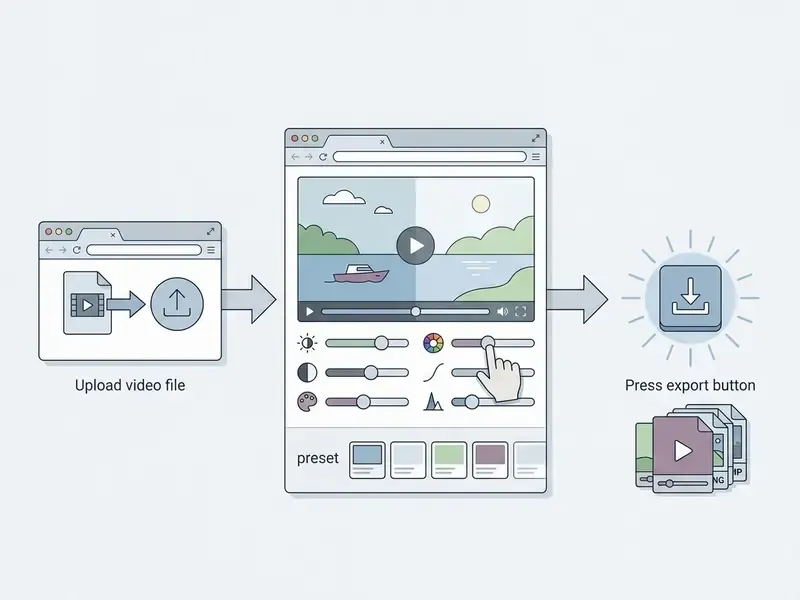
Upload your video file to the online editor
The user imports the source video file from a local computer, a smartphone or external cloud storage. A browser online video editor supports drag-and-drop and processing with no download of local programs.
Import is not limited to the local disk: media can be pulled directly from Google Drive or Dropbox, from a direct URL, or from streaming platforms such as YouTube and Twitch.
Technical limits of browser processing: free sessions in mainstream tools accept files up to 500 MB and clips up to 30 minutes. Longer uploads are automatically trimmed from the start of the clip on import, which prevents browser RAM exhaustion. Paid tiers raise the ceiling (for example 2 GB free versus 15 GB paid in some editors), while purely local tools state no arbitrary cap, because available memory becomes the real constraint.
The incoming online video file may arrive in many containers: MP4, MOV, WebM, AVI, MKV, M4V. The client module reads the media container and prepares it for decoding in browser memory. Incompatible formats are transcoded on import and standardised, usually to MP4.
Move the sliders and check changes in real time
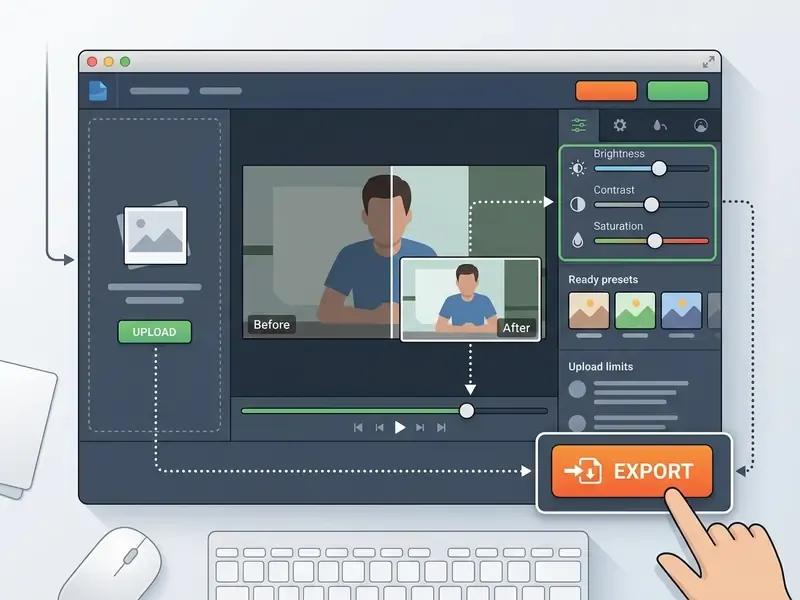
Once the upload finishes, the workspace opens with the parameter controls. Moving the adjust brightness, brightness contrast and saturation contrast sliders is reflected on the image immediately thanks to real time preview.
While adjusting, the user visually controls the quality of the video color correction. The graphics processor recalculates pixel matrices on the fly, which makes it possible to judge the smoothness of transitions and the naturalness of skin tones before the final save. Professional editors behave the same way: colour-correction parameters are tuned while the clip plays in the preview window, and the preview applies the identical grade stack that the final render will use.
«LCA performs exposure correction at 28.72 frames per second with PSNR 21.33 dB and SSIM 0.88, preserving colour without additional restoration steps.»
Press the export button and save the result
The final step is the export button. The service starts rendering and encoding the video stream: a server-side or client-side render job is created, the destination format and file name are selected, and the finished file is written to disk. For creators who create videos regularly, doing this with a saved lighting setup saves substantial time.
The finished clip is packed into the target video format, most often MP4 with the H.264 codec, and downloaded to the user's device. Licensing terms and permitted usage scenarios for exported material are covered in the commercial use section.
How to adjust video brightness without unnatural colours
The main problem in do-it-yourself grading is digital artefacts, clipped white patches and distorted skin tones. Competent video color correction requires understanding the physical link between luminance and colour.
Why brightness, contrast and saturation must be changed together
Brightness, contrast and saturation are physically coupled. Moving the brightness slider alone often makes the picture washed out, replacing deep blacks with grey.
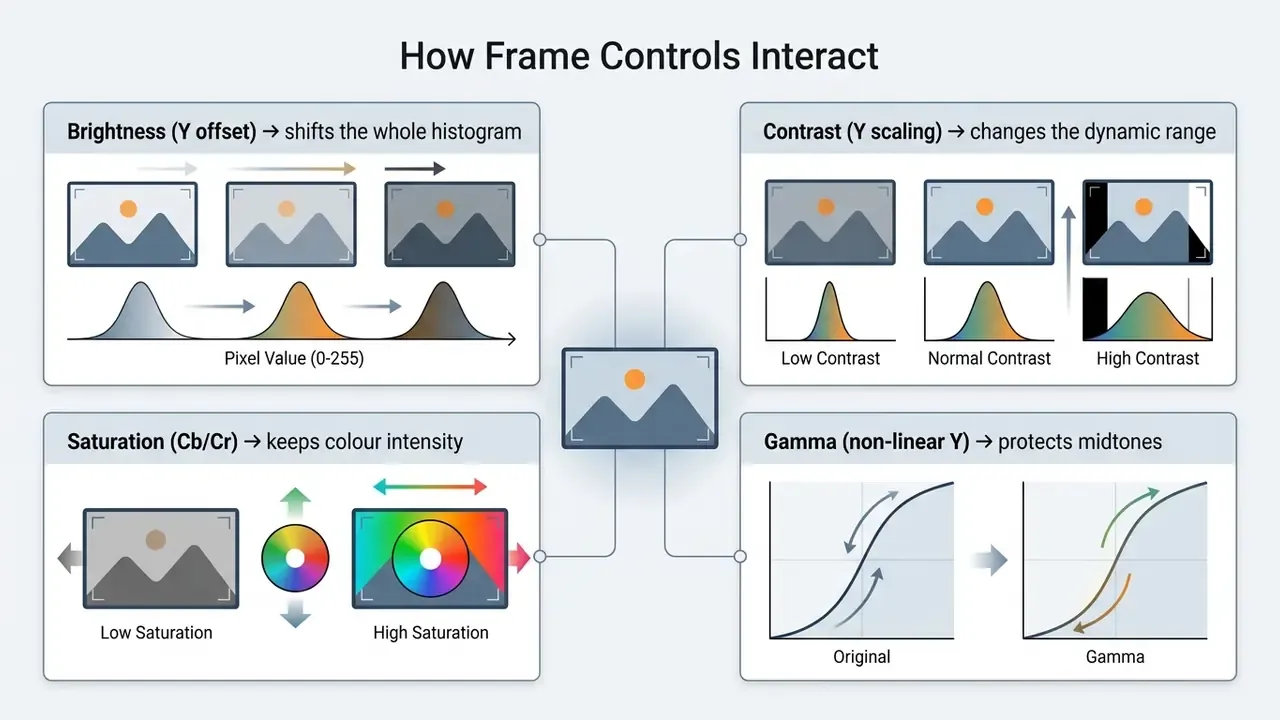
University teaching material states the mechanism plainly: brightness shifts the histogram and can produce saturated highlights or black clipping, while contrast expands or contracts the histogram and must be constrained to avoid clipping at either endpoint.
«Video brightness is defined as the mean pixel intensity across frames, contrast as the standard deviation, and saturation through the Hasler–Süsstrunk colourfulness metric.»
According to the same work, the mean opinion score (MOS) of a clip depends on the joint balance of mean grey intensity , the standard deviation of contrast and the colourfulness metric. This is why a video brightness editor must be used together with a video saturation editor, otherwise the image desaturates the moment you lift it.
«Brightness management as an optimisation task: the contrast loss measures the share of visible contrast lost when a frame is dimmed by a factor .»
Professional practice mirrors the maths: the standard way to brighten without flattening is to hold Gain so luma stays in range and lift Gamma to preserve midtone lightness (Color Correction Handbook, Pearson).
Ready-made grading recipes (presets)
Proven slider combinations to start from. Treat them as baselines, then verify on a calibrated display:
The same logic applies to still frames and thumbnails. The principles are explained further in the guide to online photo editors and their core adjustment features.
How to change hue and balance video colour
Correcting the natural tone of the frame (video color) includes white-balance alignment and targeted colour fixes. Change hue of video online becomes necessary when parasitic casts appear: green from fluorescent tubes, yellow from incandescent bulbs.
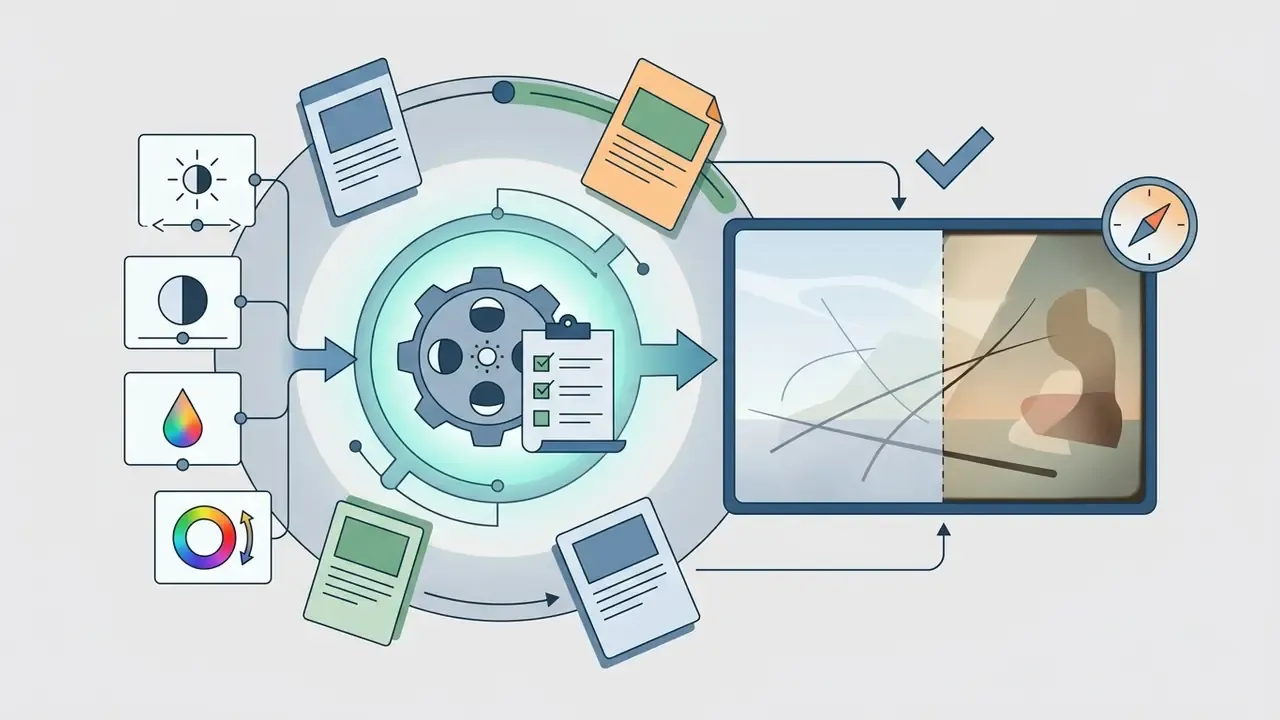
The correct order for color correction:
- White balance.Set colour temperature and tint until neutral objects actually read as neutral (move tint left for green casts, right for magenta).
- Brightness and contrast.Correct the luma component, watching both histogram endpoints.
- Saturation.Fine-tune vividness; lift it slightly if brightening washed the image out. Adjacent AI techniques for lifting frame quality are covered in the overview of AI tools for expanding and enhancing imagery.
- Hue.Align tone with Hue vs Hue or colour-balance controls applied separately to shadows, midtones and highlights, restoring natural skin and sky tones.
- Sharpness.Apply last, after exposure is final, so edge enhancement does not amplify noise.
«In a user study with 100 participants the LLVE method received more preferences than every baseline algorithm across natural brightness, contrast, colour and temporal consistency.»
Temporal consistency is the criterion amateurs miss. A per-frame correction that looks perfect on a still can flicker in motion, which is why the grade must always be judged on playback rather than on a paused frame.
Expert verification. In line with the findings of Luminance Component Analysis (2024), separating the luma component from chroma with orthogonal constraints raises reconstruction quality to PSNR 21.33 dB and SSIM 0.88, and avoids distortion of natural tones during exposure correction. Results should preferably be evaluated in real-time preview on a calibrated monitor, with scopes (waveform, vectorscope, histogram) used alongside the visual check. A calibrated reference display is the professional standard, not an absolute requirement for social-media output.
Pre-export quality checklist
Checklist0 / 8
Additional editing tools for video preparation
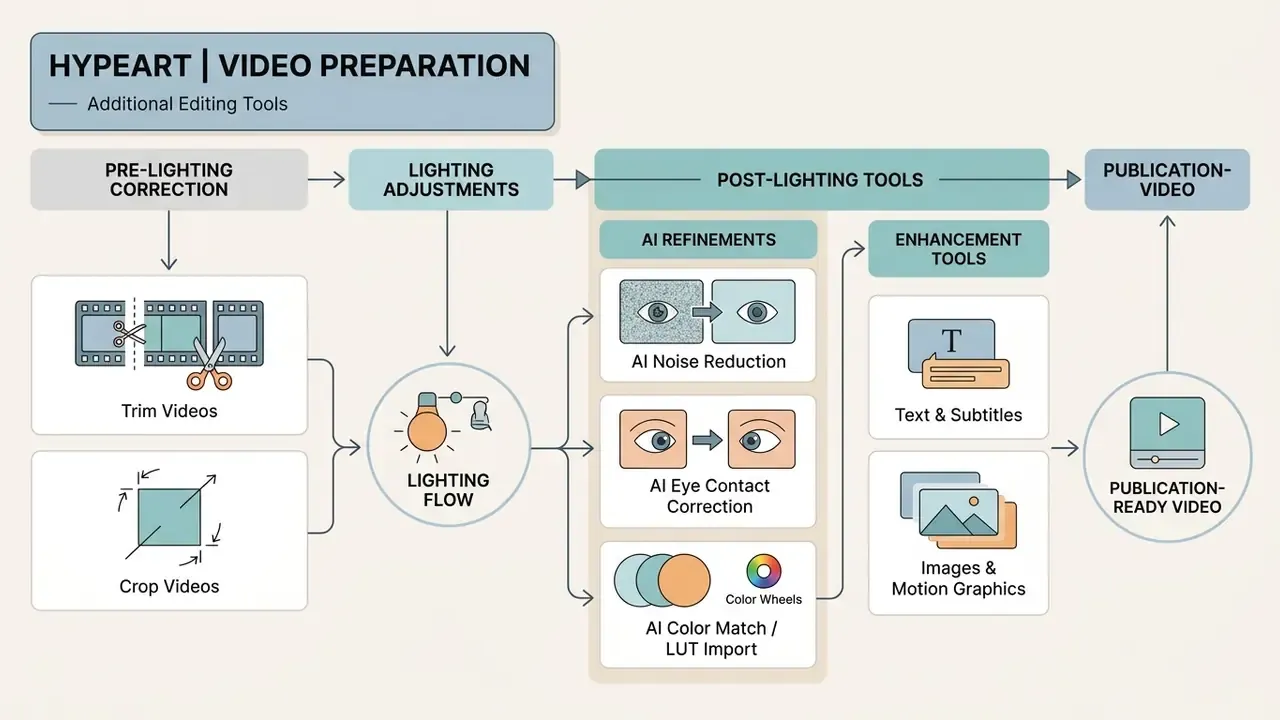
Beyond lighting, browser services provide built-in editing tools for complete publication-ready preparation.
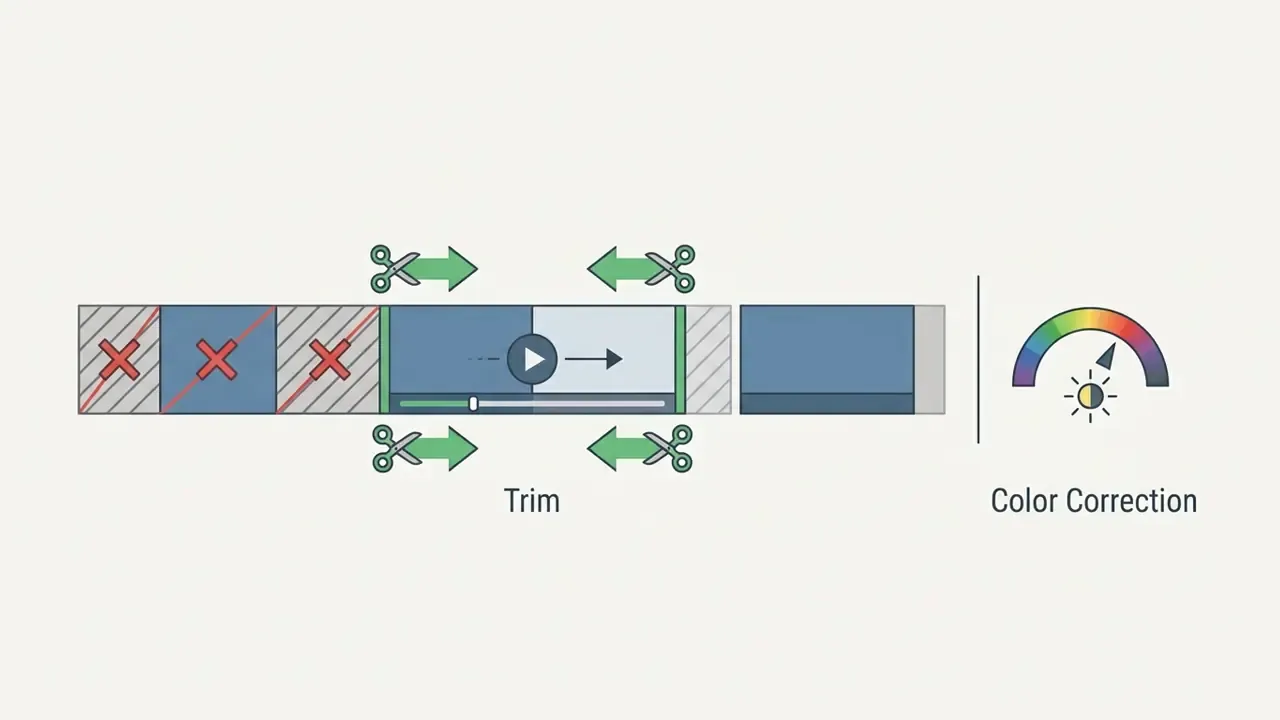
Trim videos and crop videos before colour correction
Cropping and removing surplus footage first reduces the computational load on the browser and speeds up rendering.
Performing these operations before video editing means the editor recalculates a smaller data volume, which accelerates recomputation of the brightness histogram. Vendor documentation treats them as distinct modes: crop cuts the frame edges with corner and side handles, while trim adjusts in and out points or generates a shorter offline media copy (Final Cut Pro User Guide, Apple; Colorist Reference Manual, Blackmagic Design).
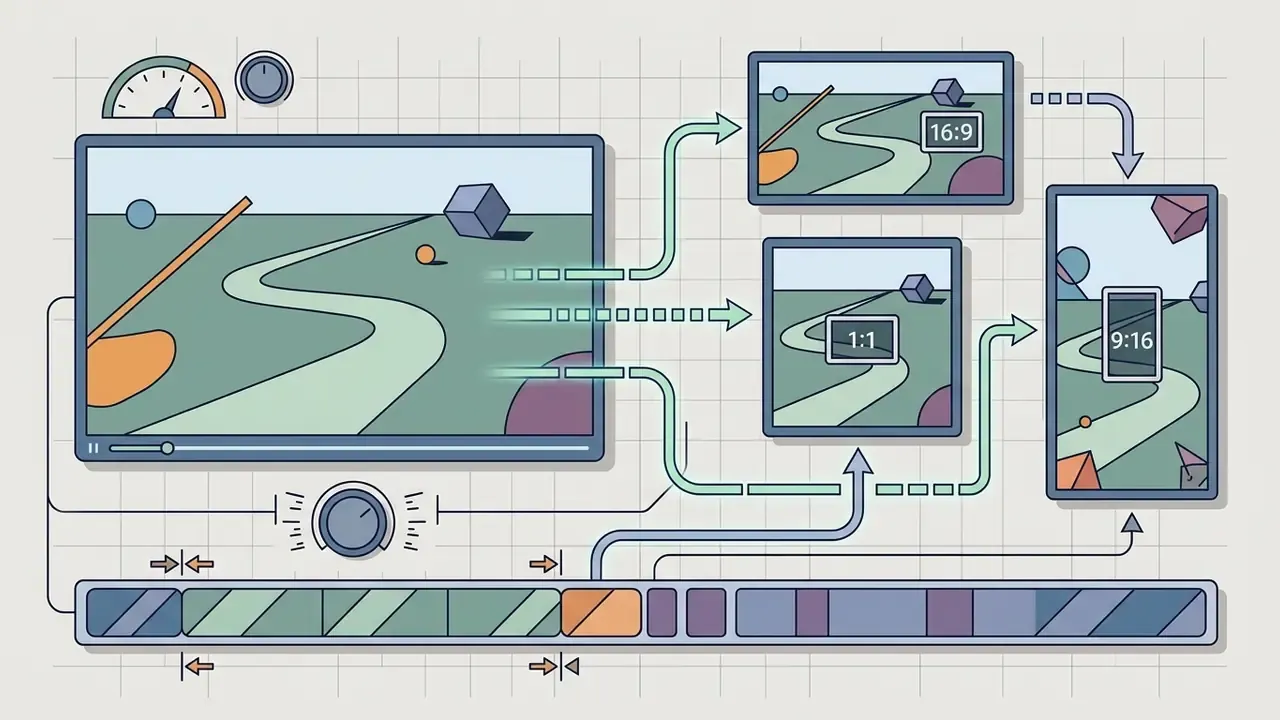
AI refinements after lighting correction
- AI Noise Reduction removes the grainy digital noise that becomes visible when underexposed night footage is brightened. Always run it before the brightness lift for best results.
- AI Eye Contact Correction corrects the speaker's gaze direction in lectures and presentations when low light forced the presenter to look away from the lens.
- AI Color Match / Color Wheels / LUT import align multiple clips shot under different lighting to one reference look, either from an imported LUT or from a reference frame.
Practitioners report these as decisive for conversion-focused content. Teams producing UGC ads single out eye-contact correction and noise reduction as the features that changed their output quality. If voice-over is part of the same pipeline, see the guide to AI voice generators, quality and commercial licensing.
Text, subtitles, images and motion graphics
After colour processing is complete, graphic and text elements are layered onto the footage:
- add text headlines, calls to action and lower thirds;
- add subtitles auto-generated or manually uploaded caption files (WebVTT/SRT) for accessibility;
- add image logos, watermarks and stickers;
- motion graphics simple animation for transitions and emphasis, as covered in the overview of animation makers, templates and export options.
Accessibility rules are explicit here. Section 508 requires captions to match audio timing, include dialogue and important sounds, remain on screen long enough to read, and avoid distracting animation effects; W3C notes that WebVTT carries captions, text descriptions and other time-aligned metadata. Keep overlays clear of the lower third where platform UI appears, and never let a caption obscure relevant video information.
Video format support and work across devices
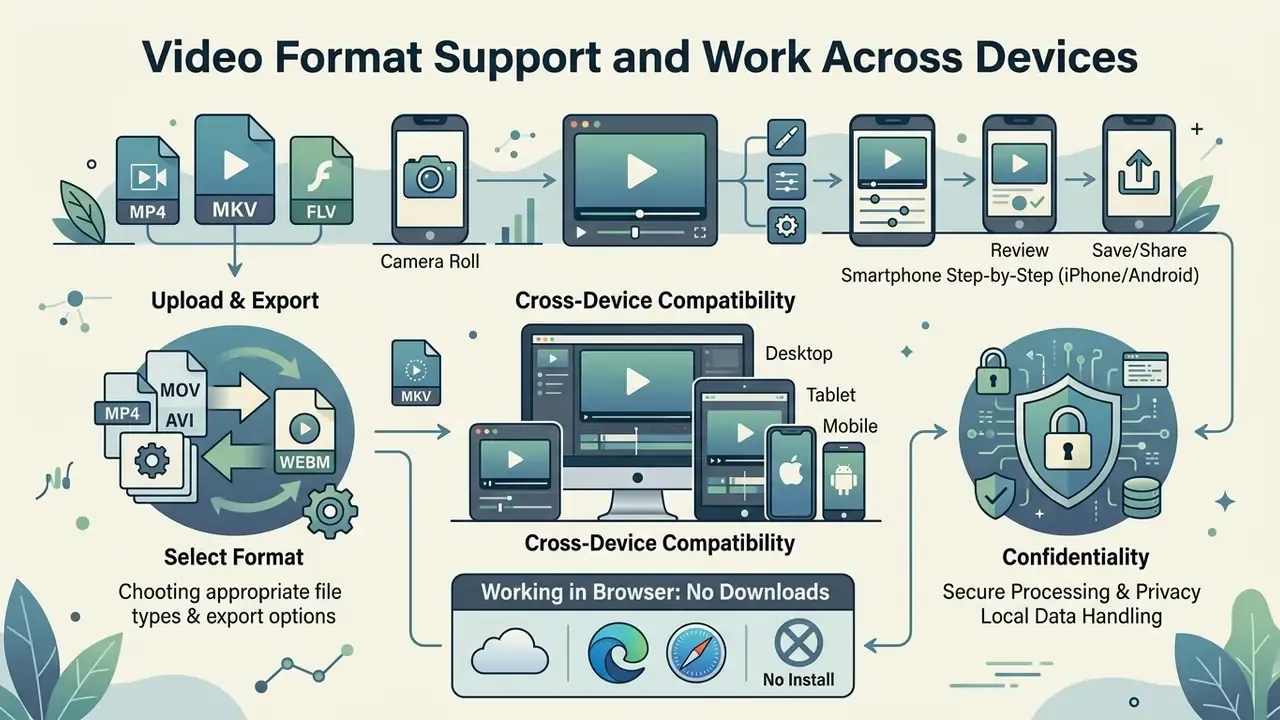
The versatility of online editors is defined by their ability to handle any container on any operating system.
How to choose the right video format for upload and export
The format depends on the final purpose of the file:
| Container | Video codec | Use case | Advantages |
|---|---|---|---|
| MP4 | H.264 / AV1 | Web publishing, social media | Maximum compatibility, small file size |
| MOV | ProRes / H.264 | Professional editing, masters | Highest quality, detail preservation |
| WebM | VP9 / AV1 | Browser media players | Optimised for HTML5, high compression efficiency |
| MKV / AVI | H.264 / various | Archive and legacy sources | Broad codec tolerance on import |
Institutional guidance supports this split: web and mobile delivery should be encoded with H.264 in MP4 or QuickTime, while high-quality masters are delivered as MOV/AVI, and MP4 plus QuickTime with ProRes are listed among acceptable preservation formats (Recommended Formats Statement, Library of Congress; AHRQ delivery guidance). Browser support is not universal: MDN documents that MP4/H.264/AAC plays natively in desktop and mobile Safari and Chrome, while WebM plays natively in Firefox, Chrome and Opera. So the container choice is also a playback decision.
«Across 23,000 quality judgements, the preference for HDR over SDR depended substantially on display type (OLED, QLED, LCD) and compression level. HDR is not always perceived as better.»
For most standard tasks, press the export button with MP4 selected. It guarantees playback on any smartphone or PC and, on an SDR Rec.709 timeline, avoids unpredictable tone-mapping on the viewer's device. After export, file weight can be reduced further with video compression that trims file size without visible quality loss. Note that colour adjustment itself is resolution-neutral: the output keeps the source resolution, so "no quality loss" refers to geometry and detail, while any re-encode still involves the chosen bitrate.
Working in the browser without installation or downloads
A modern online video editor runs on WebAssembly (WASM), WebCodecs and, increasingly, WebGPU. This allows complex per-pixel mathematics to execute inside browser processes without sending the source file to third-party servers.
Advantages of the no download model:
- Savings on inbound and outbound internet traffic;
- High speed through GPU acceleration;
- Integration with cloud storage services for instant project loading;
- Cross-platform operation on Windows, macOS, Linux and ChromeOS, since a browser is the only requirement.
«With the best HDR10 player, brightness comfort scored 7.5 out of 10 in a dark environment versus 5.4 for a competitor: a two-point gap with identical content and device.»
In other words, tone mapping on the playback side can move perceived brightness as much as your grade does. One more argument for conservative, standards-compliant export. Integration details for programmatic pipelines are documented in the AI Media API Guides and in the Google Veo implementation guide covering video capabilities and API limits.
Step by step on smartphones (iPhone and Android)
How to brighten a video on a phone without installing an app:
- Open the mobile browser (Safari on iOS, Chrome, Firefox or Opera on Android) and navigate to the web editor page.
- Upload the clip from the device media library, tap the video track on the timeline and switch to the "Adjust" tab.
- Drag the Brightness slider to the right until the frame is bright enough; adjust Exposure, Contrast and Saturation in the same panel.
- Tap "Export" to render and save the file to the device. No mobile app installation required.
On iPad, Microsoft Surface and Chromebook the flow is identical; browser support, not the operating system, is the limiting factor. Google Vids, for example, documents support for the two most recent versions of Chrome and Firefox plus Edge on Windows, while Adobe's Firefly Video Editor documents full support in Chrome and Edge only. So if a slider is missing, switch browsers before assuming a bug.
Free video brightness editor: export and watermark
The market offers several delivery models, from fully free tools to freemium platforms.
| Parameter | Free plan | Premium plan |
|---|---|---|
| Watermark | Absent in basic tools, or a small badge on export | Fully absent |
| Maximum resolution | Full HD (1080p) | 4K UHD and above |
| Available editing tools | Basic brightness correction, trim, crop | AI tools, noise reduction, LUT filters, colour wheels, curves |
| Upload limits | Up to 500 MB / 30 minutes (2 GB in some editors) | Up to 15 GB and longer timelines |
| Render speed | Standard queue | Priority GPU processing |
| Team features | Single user | Shared projects, brand kits, SSO in enterprise tiers |
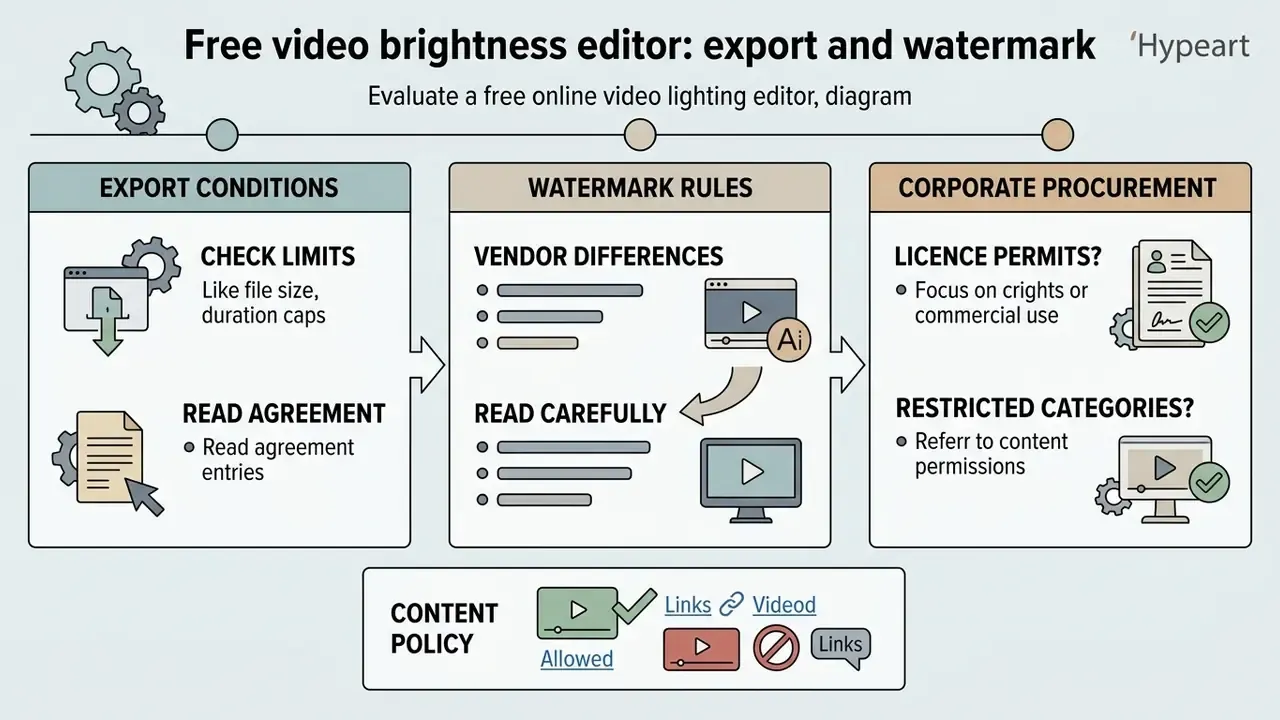
The watermark rules differ by vendor and deserve a careful read. Some editors advertise fully watermark-free exports, while others remove the watermark only in the editor and review links, then still stamp free downloads; the paid tier removes it. Microsoft Clipchamp, by contrast, documents watermark-free exports up to 1080p on the free plan, with 4K reserved for Premium.
When choosing a free video brightness editor, check the export conditions first. A video brightness editor online free lets you lift a clip quickly (brighten video online free), while a dedicated video brightness editor online without watermark keeps the frame clean of third-party logos. The same freemium logic across adjacent categories is broken down in the comparison of free photo editors, export restrictions and paid upgrades.
For corporate buyers, two additional questions belong in procurement: whether the licence explicitly permits commercial distribution of the exported file, and whether the vendor offers a contractual SLA. Detailed pricing grids and terms of use are collected in the AI Media Pricing Guides.
Content policy, licensing and restricted categories
Lighting correction is content-neutral; the terms of service attached to it are not. Free tiers frequently restrict the subject matter you may upload, and enterprise contracts often go further, adding prohibited-use clauses and takedown obligations.
Three checks before you standardise on a tool:
Unresolved point, stated openly: consent and likeness standards for synthetic video are still moving, so today's policy compliance is not a guarantee for next year's deliverable.
What an online video brightness editor is used for
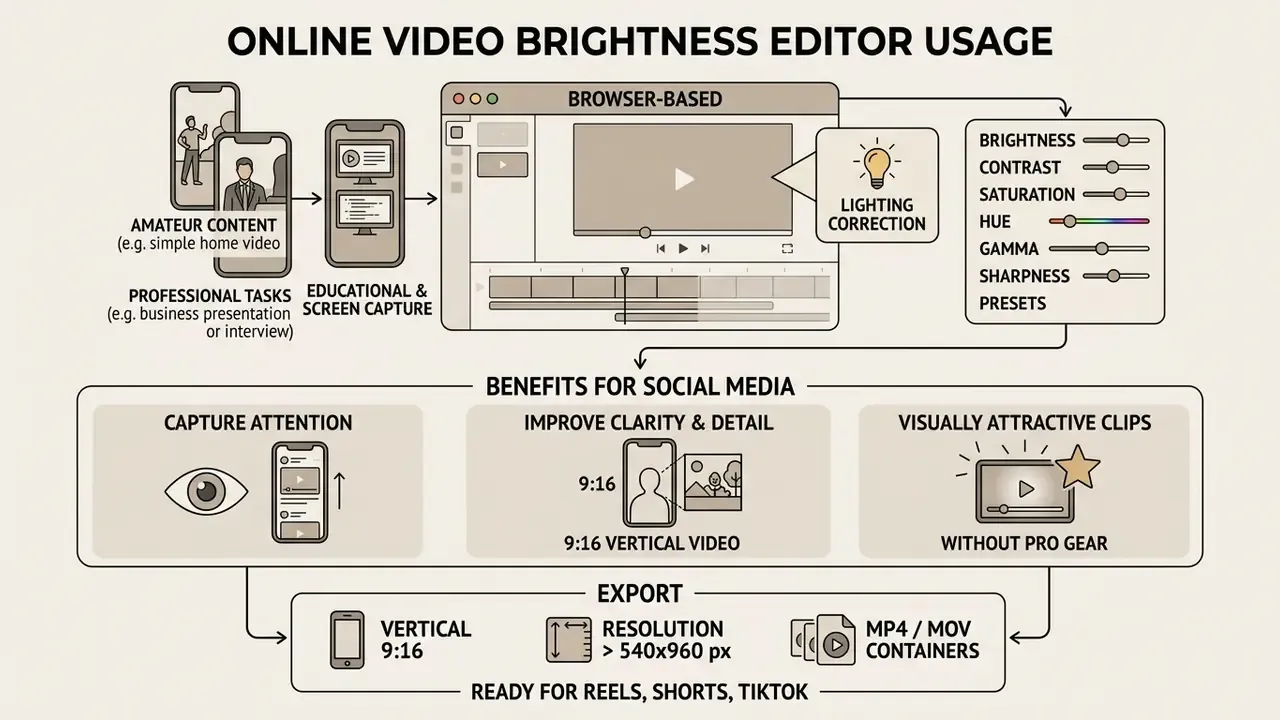
Browser-based lighting correction covers both amateur content and professional business tasks.
Correcting educational videos and screen recorder captures
When recording training material (educational videos) and presentations with a screen recorder, small text often becomes unreadable and interfaces look washed out.
Brightness and contrast adjustment allows you to:
- Raise text contrast on screenshots and teaching slides;
- Even out lecturer lighting in webcam recordings;
- Improve comprehension by using add subtitles for deaf and hard-of-hearing viewers.
Production guidance is consistent on the capture side: use soft, evenly balanced front light and avoid placing the key light behind the subject, positioning it roughly 45° above and off-centre to avoid harsh shadows (Columbia Center for Teaching and Learning, 2026; CBE—Life Sciences Education, 2021). For on-screen content, choose high-contrast colour combinations and type large enough to read across screen sizes (University of Sydney guidance). Note also that changing a camera's or laptop's display brightness does not change the recorded file. Only the grade does.
For systematic footage processing and integration of ai video or video generation elements, our AI Media Support team can advise on the pipeline.
FAQ: frequently asked questions about video brightness editors
Can I edit video brightness online for free without installing software?
Yes. A modern free online video brightness editor runs directly in the browser (Chrome, Firefox, Edge, Safari) using WebAssembly and WebCodecs. No third-party software download or installation is required (no download). You don't need a desktop suite for basic exposure work.
Will quality be preserved after using a video brightness editor online free?
With sensible brightness contrast settings and no extreme slider moves, quality stays high, since colour adjustment preserves the source resolution. Choosing the right export format (for example MP4 1080p at a sufficient bitrate) prevents pixelation and detail loss. Extreme lifts, by contrast, can reveal noise and cause clipping.
How do I brighten a video on iPhone or Android?
Open Safari (iOS) or Chrome/Firefox/Opera (Android), load the web editor, upload the clip, tap the video track on the timeline, switch to the "Adjust" tab, drag Brightness to the right, then tap "Export". The same panel also exposes Exposure, Contrast and Saturation.
How can I fix a blurry video online?
Import the clip and use the Sharpness slider to raise edge contrast, combined with a small contrast increase. This visually compensates for soft focus but does not restore lost resolution. No online tool can invent detail that was never captured.
What is the difference between brightness and contrast?
Brightness shifts the overall luminance level of every pixel, while contrast changes the difference between light and dark areas. Gamma sits between them: it rebalances midtones without moving the white and black points.
How do I get a vintage or cinematic look?
For a nostalgic look, combine lower brightness with high contrast and slightly reduced saturation, then warm the hue. For a cinematic look, raise contrast, drop brightness marginally, desaturate slightly and add a mild vignette for depth. Exact starting values are in the presets section above.
Does the online editor remove watermarks on export?
A dedicated video brightness editor online without watermark exports clean files on the free tier. Other services watermark free downloads and remove the mark on a paid plan. Always verify before rendering a final deliverable.
How large a file can I upload?
Free browser sessions typically accept up to 500 MB and clips up to 30 minutes; longer uploads may be trimmed automatically on import. Some editors allow 2 GB free and 15 GB on paid plans, while fully local tools are limited mainly by available RAM.
How safe is uploading video files to a browser editor?
It depends on the architecture. Client-side editors process the video file locally using the GPU and WebAssembly, so the stream is never transmitted; cloud editors upload the media or a proxy to render servers. Do not assume local processing by default. Confirm it in the vendor's technical documentation and privacy policy, and check the retention period for uploaded and rendered files.
Disclaimer. This information is general in nature. Privacy policies and data-processing terms differ for every service; before uploading files, review the documentation of the specific editor and, for regulated or confidential material, obtain approval from your security and compliance function.
Do AI features work inside online editors?
Yes. Many services implement ai video capabilities: automatic subtitle generation, AI colour correction and colour match, noise reduction, eye-contact correction and smart skin-tone handling. Clarify for each feature whether inference runs locally or on an external endpoint. For technical questions you can always contact the help center of the relevant service.
Useful sections and reference material
For more on media-processing standards, formats and licensing, explore the complete terminology reference in the glossary, the delivery-format overview in the video compressor guide, and the licence conditions summarised in the commercial use section.