Last updated: 2026 · Reviewed by: Marcus Hale, AI Media Workflows
What This Guide Actually Settles
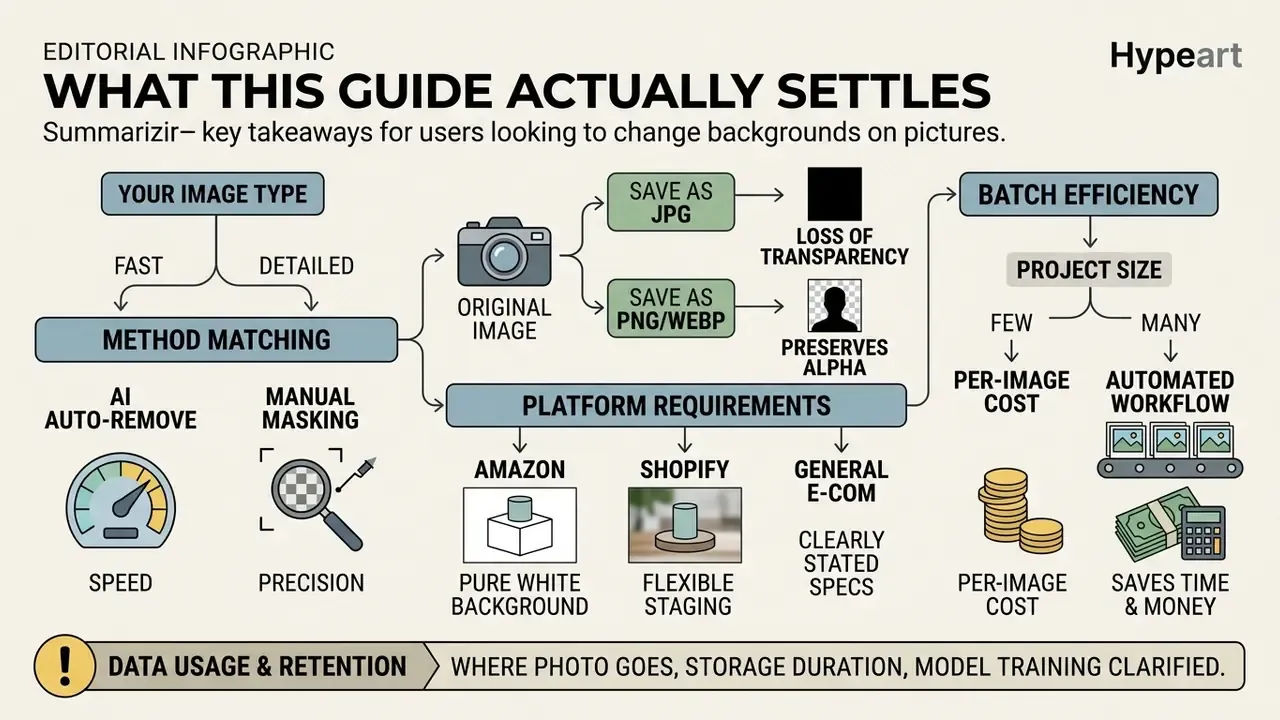
Most people searching for a background changer are not looking for theory. They need a decision, and fast. So here is what this guide resolves, in order:
- Which method fits your image: automatic AI background removal, manual editing tools, or a ready-made template.
- Which file formats survive the round trip, and which ones silently destroy transparency.
- What marketplaces such as Amazon and Shopify actually require for product shots.
- Where your uploaded photo goes, how long it is stored, and whether it feeds model training.
- When batch edit workflows pay for themselves against per-image manual retouching.
One caveat before we start. Vendor limits, free tiers, and retention windows change often, so treat every number below as a figure to verify on the current pricing page rather than a permanent truth.
How to Change a Background on a Picture: The Basic Workflow
To change a background on a picture, upload the source file to an editor, run automatic background removal, select or generate a new background, then download the high quality output. The same four beats apply to web platforms, desktop software, and mobile apps. Only the buttons move.
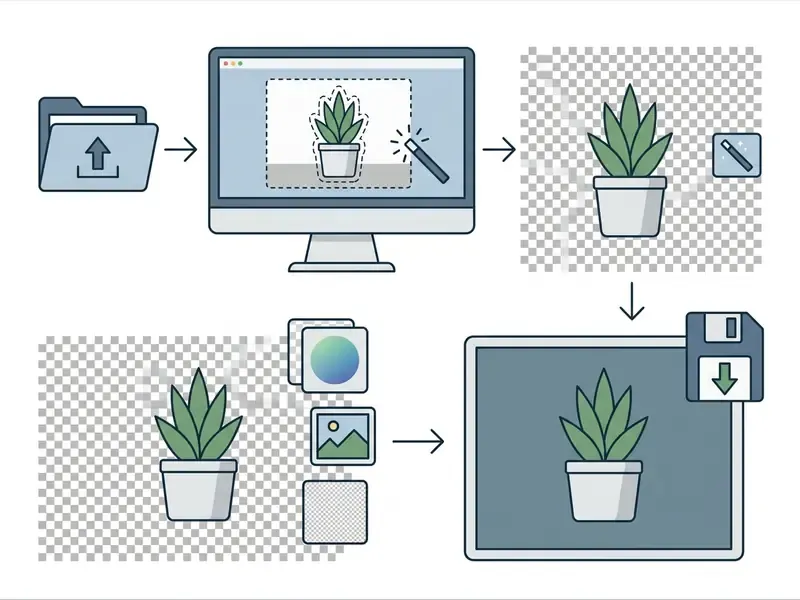
- Upload image.Pick a sharp source file from local storage or a cloud drive and drop it into the background photo editor app.
- Remove background.Run automated AI background removal to isolate the foreground subject and generate an accurate alpha matte mask.
- Add or generate a new background.Place a solid color, a custom photo background, or an AI generated backdrop behind the isolated subject.
- Download the final image.Export as transparent PNG or high quality JPEG, sized for the platform you are publishing to.
Upload a Photo and Remove the Background Automatically
Automatic background removal uses deep neural networks to separate the foreground subject from its original surroundings without manual tracing. The model classifies every pixel as foreground or background, and on modern hardware that happens in milliseconds.
«Background removal can be implemented as a multi-stage pipeline: segmentation, thresholding, and filtering by object size.»
Supported input formats and requirements. Mainstream AI background tools accept all standard raster formats: compressed JPEG/JPG, lossless PNG, and WebP. Mobile workflows also cover high-efficiency containers such as HEIC and HEIF, the default Apple iOS formats, converting their color spaces to standard RGB during serverless or client-side WebGPU ingestion. Upload ceilings differ by vendor. Adobe Firefly's free web tool accepts JPEG, PNG, and WebP up to 40 MB, while browser-only tools that run segmentation locally often download a compact model, roughly 25 MB on first use, before producing the first cutout.
How the model actually produces the mask. Architectures like U-Net analyse spatial hierarchies across encoder and decoder skip connections to build a precise segmentation mask. The network is trained on labeled image pairs and returns a probabilistic mask, which a threshold value then converts into a binary mask before foreground extraction. That is why these algorithms cope with hair, clothing contours, and semi-transparent objects, and why the old lasso-and-pen ritual has largely disappeared from routine photo editing.
«Deep image matting splits into auxiliary-input matting and automatic matting, covering the core background-removal pipeline.»
The same pipeline logic shows up in production infrastructure. Microsoft's Azure AI Image Analysis documented background removal as segmenting an image into regions and producing an alpha matte that isolates foreground from background, with the Segment API retired on 31 March 2025. Cloudflare Images later shipped automatic background removal in open beta using a dichotomous image segmentation model. Open-source toolchains follow the same pattern with pretrained models such as U-2-Net, ISNet, and BiRefNet.
When you upload a photo using an online photo background tool, the AI powered backend detects the salient object and executes background removal without further input. If you want to compare underlying engines and feature sets before committing to a stack, review our reference material on AI photo editors.
Add a New Background and Export the Edited Image
Once the original backdrop is gone, the isolated subject sits on a transparent layer that will accept any new background. Insert a solid color, upload your own image background, or pull a scene from a stock library. If the new scene needs more canvas than the original frame gives you, AI outpainting tools can extend the backdrop instead of forcing a destructive crop.
To keep pixel integrity at export, match the format to the use case. According to the W3C PNG Specification (Third Edition), an image with an alpha channel must be saved as PNG, which stores 8-bit or 16-bit transparency data per pixel without compression artifacts.
«Alpha samples are stored per pixel; zero is fully transparent and the maximum value is fully opaque.»
If you settle on a solid background color or a pure white background, export the new image as a high quality JPEG. Smaller file, sharp contrast, no transparency to protect. Layer hygiene matters here too. In raster editors such as GIMP, a layer must first carry an alpha channel (Layer → Transparency → Add Alpha Channel) before transparency can be stored at all, and the document setup should leave the paper or background color unchecked whenever a transparent canvas is the goal.
Choose the Right Method: AI Background Changer, Manual Editing or Templates
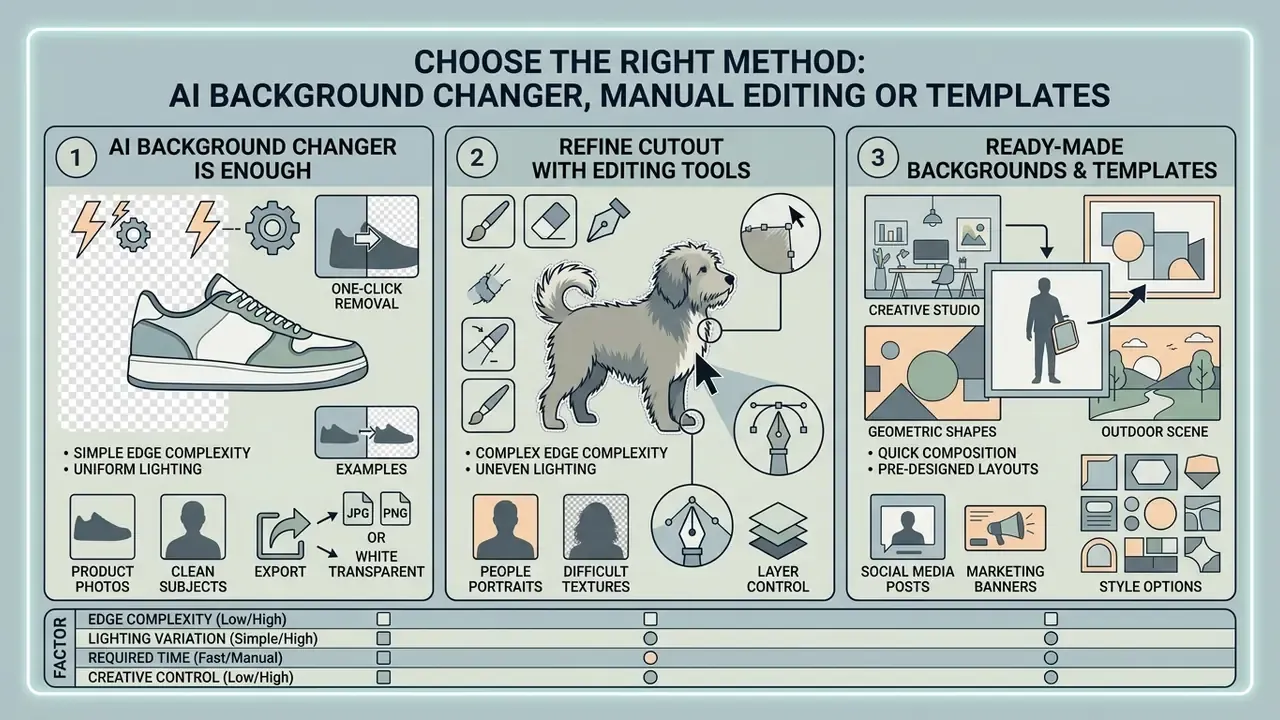
The choice between an AI background changer, manual editing tools, and ready-made templates depends on edge complexity, lighting uniformity, and the target channel. Automated tools deliver speed. Manual brushes recover fine detail. Templates hold brand consistency across a campaign.
When an AI Background Changer Is Enough
An AI background changer is the fastest route when the subject has crisp boundaries, high contrast, and clean separation from the backdrop. One click processing cuts out the subject and swaps the scene in seconds, and no retouching is needed.
«Shallow depth of field helps AI separate the subject from a busy background; for uniform backdrops, an aperture near f/8 is optimal.»
Capture conditions define the ceiling of automation. Vendor engineering documentation converges on almost the same shot list: even lighting, high subject-to-background contrast, a sharp foreground, the whole product visible in frame, no hard shadows falling on the backdrop, and a natural eye-level angle. Under those conditions, one-click replacement reliably outputs transparent, flat-color, or custom-scene variants.
«A human-in-the-loop benchmark with more than 9,000 votes compared models on apparel, electronics, animals, and plants under varied lighting conditions.»
In that benchmark, automated segmentation handled standard portraits, apparel, electronics, and consumer products with high precision. Using AI for routine work saves time and holds high quality output across high-volume media projects. For structured prompt techniques in visual generation, see our guide on how to write ai prompts for images.
When to Refine the Cutout With Editing Tools
Manual editing tools earn their place when automated segmentation drops fine edge detail, leaves silhouette artifacts, or stumbles on ambiguous lighting. Hair strands, fur, transparent glass, low-contrast boundaries: all classic candidates for brush work.
«Morphological operations and contour detection applied after segmentation improve edge quality and reduce artifacts that break visually natural composites.»
Transparent and refractive materials form a documented failure class of their own. Matting research reframes transparent objects as refractive flow rather than opaque silhouettes, and interactive methods built on foundation-model segmentation deliberately mark transparent regions as unknown instead of forcing them into the foreground. That is exactly where a human brush pays off. Retouching brushes let an operator restore lost pixels, remove unwanted objects, and erase leftover background halos. Standard post-processing therefore pairs automatic extraction with targeted manual edge cleanup.
Practical triggers for manual intervention:
- Mixed or contradictory lighting between subject and original scene.
- Products cut off by the frame edge or partially occluded.
- Motion blur or shallow focus landing on the subject rather than the background.
- Reflections or hard shadows that must be reconstructed, not simply deleted.
When Ready-Made Backgrounds and Templates Work Best
Ready-made templates and stock backgrounds win when you need marketing visuals, social media banners, or catalog assets with strict visual uniformity. Pre-designed backdrops lock framing, aspect ratios, and color palettes across an entire collection.
Major design platforms position templates as the shortest path to multi-platform output: start from a prepared social graphic, video, or post layout, then swap in the isolated subject, the logo, and the copy. You drop the cutout onto a structured backdrop, add text, and ship the asset without building layouts from scratch. Worth flagging, though: publicly available material on template performance is vendor documentation, not controlled study data. Treat engagement claims about templates as directional, not measured.
If your final asset lives inside a deck rather than a web page, the composition rules shift slightly. Our note on how to wrap text around an image covers the layout side of that handoff.
How to Change Photo Background Online for Free
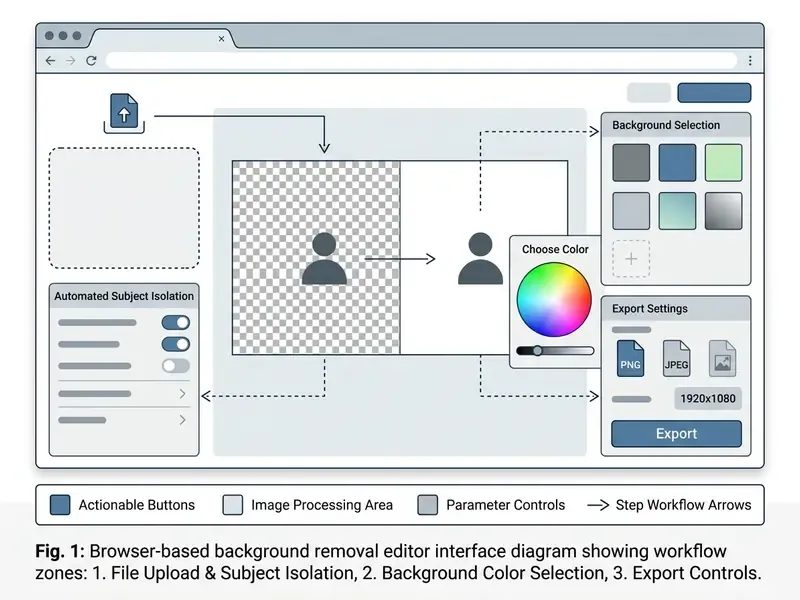
Free online background changers replace backdrops directly in a browser, with nothing to install. If you are still mapping the market, our overview of free photo editors shows where the feature walls usually appear. These web-based platforms lean on client-side WebGPU acceleration or serverless AI inference to run background removal in seconds. Browser-based engines typically need Chrome 113+ or Edge 113+ for WebGPU, fall back to WebAssembly on older builds, and openly document weaker accuracy on hair, fur, glass, and smoke.
Replace the Background With Your Own Image
Replacing a photo backdrop with your own image means layering the transparent cutout over a custom background file. The editor then calculates positional offsets so the foreground subject sits naturally inside the new environment.
Scaling and positioning logic. Web layout conventions describe two scaling behaviours that map cleanly onto editor canvases. Cover scales the backdrop to the smallest size that fully fills the frame and crops the overflow. Contain scales it to the largest size that fits entirely inside the frame with no cropping. Positional offsets are derived from the difference between container size and scaled image size, which explains why a subject drifts off-centre when aspect ratios disagree. Position the subject correctly and you avoid both distortion and implausible spatial proportions.
A workable canvas specification for e-commerce product output:
| Parameter | Recommended value | Why it matters |
|---|---|---|
| Canvas size | 2048 × 2048 px, square | Matches Shopify's recommended theme zoom target |
| Background color | #FFFFFF | Pure white, RGB 255/255/255 |
| Backdrop scaling | cover to fill, contain to show the full scene | Controls cropping behaviour |
| Backdrop position | Centred horizontally and vertically | Keeps focal weight stable across a catalog |
| Outer padding | Roughly 10% safety margin | Prevents clipping inside marketplace grids |
| Subject footprint | Maximum 80% of canvas width and height | Uniform product scale across SKUs |
Run that preset once, then reuse it. Consistency across a catalog is mostly a discipline problem, not a tooling problem.
Generate AI Backgrounds for a New Scene
Generative background tools synthesise entirely new environments from a text prompt, matching the lighting angle, shadows, and perspective of the isolated subject. Instead of hunting for static stock photos, you can generate custom studio setups or outdoor scenes on demand. If you need a dedicated engine for backdrops rather than an all-in-one editor, compare options among AI image generators.
The documented generative product-photography workflow runs in five stages: photograph the product, remove the background, write a scene prompt, generate candidates, refine through further variations. Platform help documentation for browser-based generative background features states that the generated backdrop is built to match the subject's lighting, shadows, and perspective. That is precisely why prompt specificity, meaning light direction, surface material, time of day, moves output realism far more than prompt length does.
Practically, this lets a single product image or profile picture appear in a dozen different environments without booking a physical shoot. For prompt construction detail, see our article on how to write prompts for ai art.
Privacy, Shadow AI and Data Handling Before You Upload
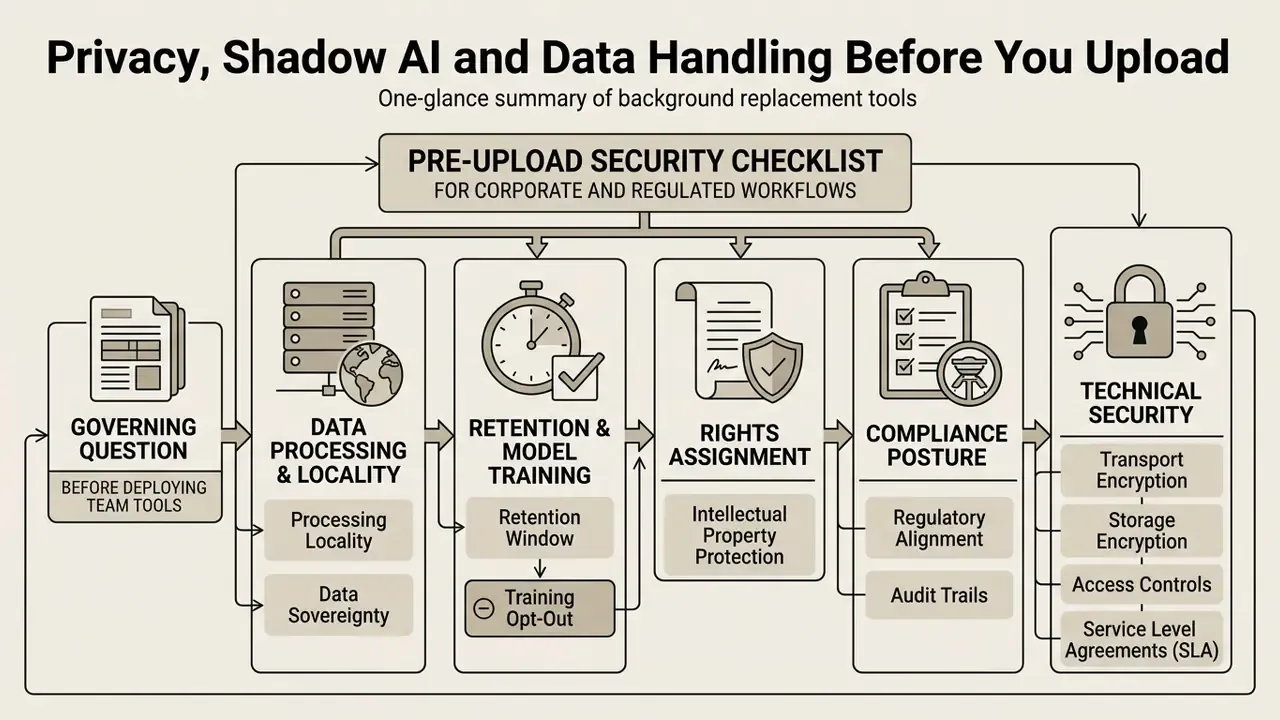
Before background replacement is rolled out to a team, the governing question is not accuracy. It is data handling: where the image is processed, how long it is retained, and whether the vendor acquires rights to reuse it. Uncontrolled adoption of consumer background changers by marketing, HR, or sales is a textbook Shadow AI pattern. Sensitive imagery, think employee headshots, unreleased prototypes, documents visible in the frame, customer premises, leaves the corporate boundary through a browser tab nobody approved.
«An audit of 20 popular AI photo apps found more than a third use uploaded photos to train models, and 75% claim rights to use personal images for promotional purposes.»
Published retention policies vary more than most users assume. Some services delete uploaded source photos within 24 hours, yet allow a downstream generation provider to hold submitted media for up to 14 days. Others keep images in cloud storage until account closure, then delete within 30 days. API products often advertise stateless endpoints where the image is never persisted after the response. Browser-only tools state that processing happens locally, with no network requests leaving the machine.
Pre-upload security checklist for corporate and regulated workflows:
- Processing locality. Confirm whether inference runs client-side (WebGPU or WebAssembly) or server-side. Client-side means no image transmission.
- Retention window. Require an explicit written deletion interval, ideally 24 hours or less, covering the vendor and every sub-processor.
- Training opt-out. Verify in the terms of service that uploads are excluded from model-training corpora by default, not by support ticket.
- Rights assignment. Check for promotional-use or perpetual-license clauses attached to uploaded personal images.
- Compliance posture. Ask for SOC 2 Type II attestation, GDPR data-processing terms, sub-processor lists, and regional data residency.
- Transport and storage encryption. TLS in transit plus encryption at rest, with documented key management on enterprise API tiers.
- Access controls and SLA. SSO and SCIM support, per-seat audit logs, rate limits, and an uptime SLA for batch pipelines.
- Biometric sensitivity. Treat facial imagery as a special category. A headshot is biometric-adjacent data in several jurisdictions.
One governance habit worth borrowing from model risk practice: keep a simple inventory of which image tools are approved, who owns each one, and what data class may pass through it. An unlisted tool is an unowned tool.
Change Background Color, Make It White or Transparent
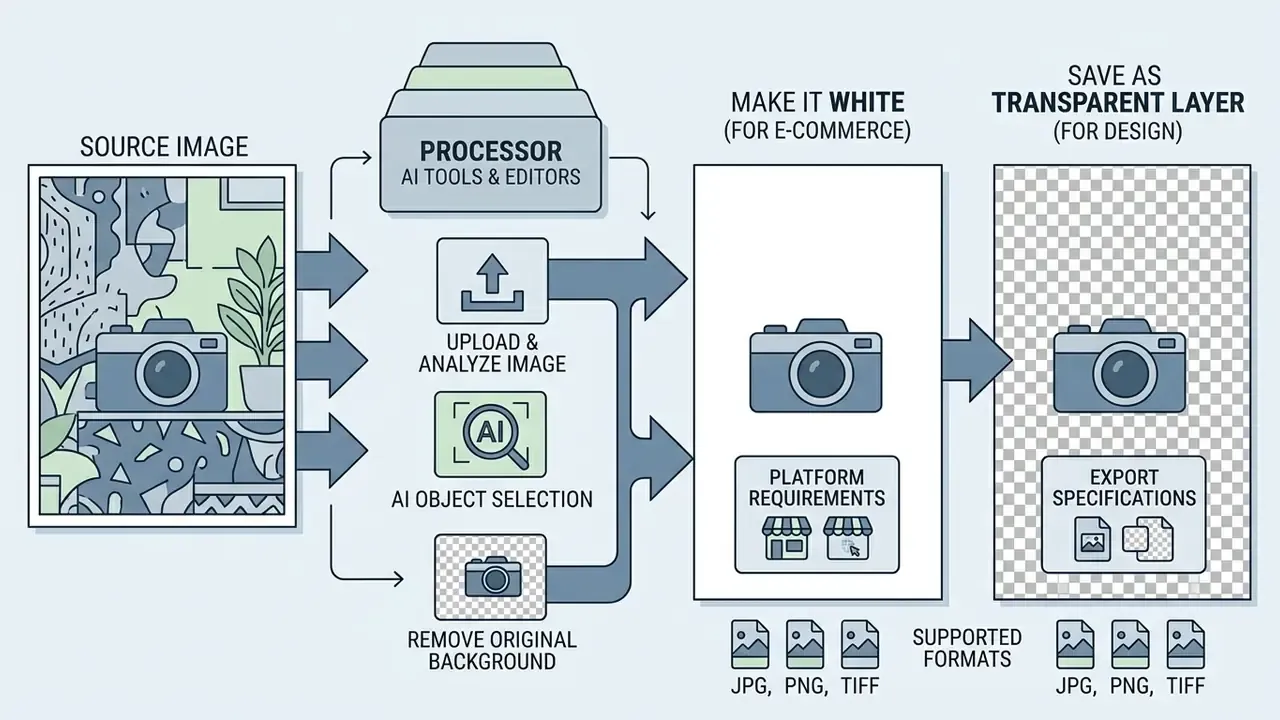
Switching a background to solid white or a transparent layer is standard practice for e-commerce marketplaces and graphic design. Removing background clutter isolates the subject and builds a clean visual hierarchy.
How to Add a White Background for Product Photos
A pure white background (RGB 255, 255, 255) is mandatory for main product images on major commercial platforms such as Amazon. Isolated product shots on white cut visual noise and let shoppers judge the item itself.
«Products on clean white backgrounds show roughly 12% higher click-through rates in marketplace listings, and 73% of shoppers say a white background makes it easier to judge product quality.»
Platform requirement sourcing. Amazon's official product image guidance requires main images on a pure white background at RGB 255, 255, 255, with no watermarks, text overlays, or added borders on the primary asset. Google Shopping applies comparable clean-background rules for primary imagery. Shopify does not formally mandate white; pure white (#FFFFFF) is recommended rather than required (source: Pixel-Prep Product Image Size Guide for Shopify, Lazada, Shopee & Amazon, 2026). Catalog-exchange standards from GS1 US push the same way: where a clipping path is used, backgrounds must be knocked out to white at RGB 255/255/255. Changing a product image backdrop to pure white therefore covers both platform compliance and shopper clarity across marketplace and syndicated catalog channels.
How to Save a Picture With a Transparent Background
Saving an image with a transparent background requires a format that explicitly supports an alpha transparency channel. The resulting cutout can then be dropped onto web pages, pitch decks, or multi-layered designs.
The W3C PNG standard specifies that alpha channels store per-pixel opacity from 0 (completely transparent) up to the maximum sample value (fully opaque), and that alpha channels are permitted only in images with 8 or 16 bits per sample. Where no alpha channel or tRNS chunk exists, every pixel must be treated as fully opaque. Worth noting as well: the PNG bKGD chunk defines a suggested display background color. It is not transparency, and that distinction trips up designers who expect it to preserve a cutout.
Standard JPEG and BMP carry no alpha channel at all, so transparent areas get filled with solid white or black on save. For print-bound documents, live transparency survives in PDF 1.4 and layered transparency in PDF 1.5 and later, while PDF 1.3 and EPS require flattening. To keep transparency editable downstream, choose transparent PNG or WebP.
Best App to Change Background of a Photo: What to Compare
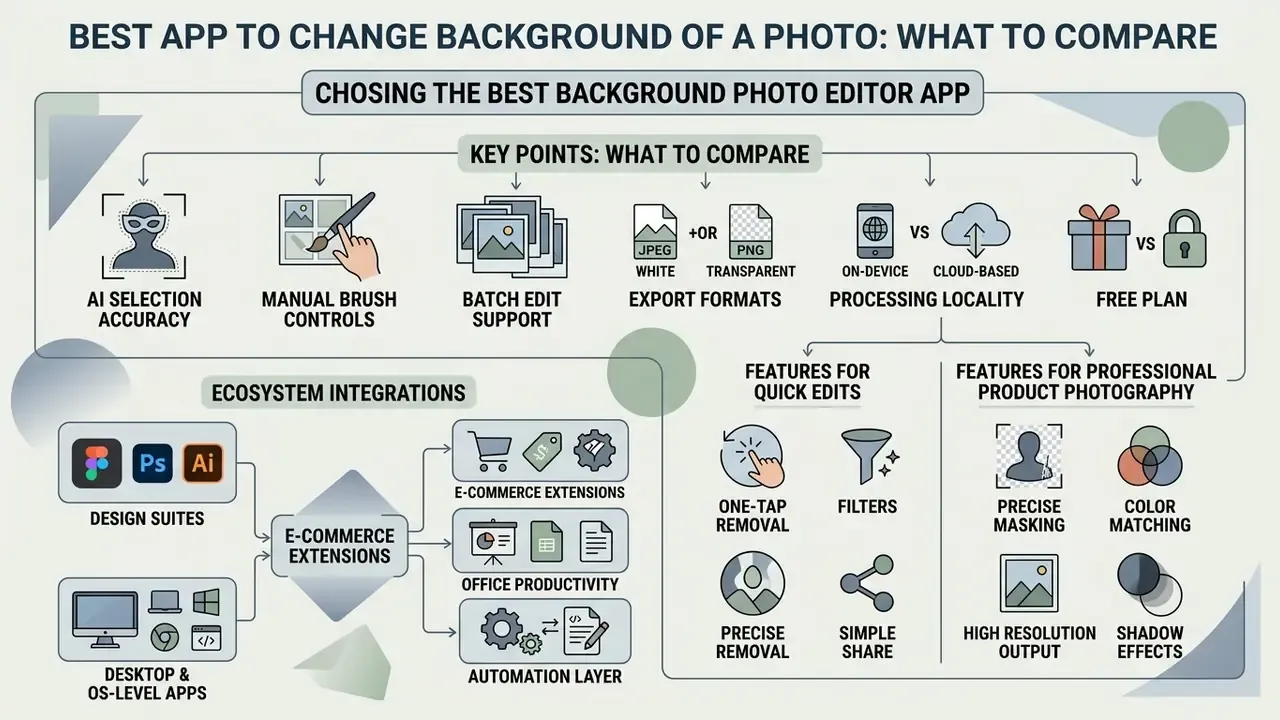
Choosing the best background photo editor app means comparing AI selection accuracy, manual brush controls, batch edit support, export formats, processing locality, and free plan limits. Mobile and desktop applications serve different operational scales, from a quick personal edit to high-volume commercial processing. Structured app-evaluation research supports that multi-axis approach: a 2024 systematic review by Ribaut et al. catalogued 216 evaluation criteria across six dimensions, while the APA App Evaluation Model weights platform coverage, update recency within 180 days, privacy policy clarity, and whether sensitive data is transmitted off-device.
| Application / Tool | AI Edge Accuracy | Manual Editing Tools | Batch Edit Support | Transparent PNG Export | Processing Locality | Privacy / Enterprise Terms | Free Tier Limitations |
|---|---|---|---|---|---|---|---|
| Photoroom | High (deep matting) | Yes (erase / restore) | Yes (batch mode on all plans; export on paid) | Yes (PNG / WebP / AVIF) | Cloud | Business plans plus API terms; review training opt-out | 25 exports/week, 100/month; watermarked preview |
| Remove.bg | High (salient object) | Limited (erase and restore brush) | Yes (via API or desktop app) | Yes (PNG) | Cloud (API and desktop app) | Enterprise API, documented refunds and DPA | 0.25 MP low-res preview (approx. 625×400 px); 50 free API calls/month |
| Canva AI Editor | Medium to high | Yes (Magic Eraser, relighting) | Limited | Yes (Pro tier) | Cloud | Teams and Enterprise admin controls | Account required; transparency behind paywall |
| Photoshop Express | High (Adobe Sensei) | Yes (Refine Edge) | No (single file) | Yes (PNG) | Cloud (Firefly web: JPEG/PNG/WebP up to 40 MB) | Adobe enterprise agreements, Adobe ID required | Free basic tools; premium feature locks |
| Blend Studio (mobile) | High (AI edge recognition) | Yes (template and object edit) | Yes (batch editor, hundreds of photos) | Yes | Cloud | Consumer terms; verify before commercial catalogs | Template and export limits on free tier |
| Polish (InShot) (mobile) | Medium | Yes (retouch, curves, HSL) | No | Yes | Cloud and on-device mix | Consumer terms only | Ads and watermark on some effects |
| Browser-only cutout tools | Medium to high (U-2-Net / ISNet class) | Basic brush | No | Yes | Client-side (WebGPU 113+, WASM fallback) | No upload, so lowest data risk | Weaker on hair, fur, glass, smoke |
So which is the best photo editor for background change? Honestly, it depends on where the risk sits. For a regulated team, a browser-only tool with no upload often beats a more accurate cloud engine. For a catalog team pushing 5,000 SKUs, batch edit and API access outrank a marginal gain in edge fidelity. For a broader map of feature sets, pricing tiers, and platform support beyond background tools alone, see our reference guide to online photo editors.
Ecosystem Integrations: Figma, Photoshop, and E-Commerce Extensions
Enterprise and high-volume workflows need background replacement inside existing design software and commerce stacks, not in a separate browser tab. The leading engines therefore ship dedicated extensions:
- Design suites. Native plugins for Adobe Photoshop and Figma allow non-destructive background masking without leaving the canvas, keeping the alpha matte editable as a layer mask.
- E-commerce platforms. Shopify and WooCommerce apps trigger automated batch background removal on product image upload, so catalog normalisation happens at ingest rather than in post.
- Desktop and OS-level apps. Standalone builds for Windows, macOS, and Linux use local GPU acceleration for offline processing, the preferred route when imagery must not leave the network.
- Office productivity. Add-ins for Microsoft PowerPoint and Google Slides automate presentation asset prep from raw product shots or headshots.
- Automation layer. REST APIs with documented rate limits and batch endpoints let teams wire background replacement into DAM systems, PIM feeds, and catalog publishing pipelines.
Best Background Photo Editor App Features for Quick Edits
A strong mobile background photo editor app gives you one click subject isolation, real-time preview, and ready social media canvas presets. Mobile creators want speed and a clean cutout, not a desktop suite.
Tools that combine automatic subject selection with instant background replacement process a single image in roughly 2 to 3 seconds, a figure consistent with published practice for AI-powered online cutout tools (source: NoBG.space E-Commerce Background Removal Guide, 2024 to 2025). Four capabilities define a usable mobile flow: automatic one-tap removal with live preview; manual erase and restore with zoom and adjustable brush size for hair and fine edges; a background library plus custom upload; and fast export to transparent PNG or HD JPEG. On recent Android and iOS builds, some galleries even support cutout by pressing and holding the subject in the photo viewer itself.
For specialised mobile e-commerce editing, apps like Blend Studio offer more than 10,000 customisable AI-generated scene templates styled for small-business catalog photography, along with a batch editor that clears backgrounds from hundreds of photos in seconds. Polish (InShot) leans the other way, with quick HSL and free-curve adjustments, retouching, and neon background overlays aimed at social content.
Any application to change the background of a photo that ships pre-built color palettes and basic touch-up brushes will get you clean headshots and social graphics from the phone in your hand. Apps that let you change the background of a picture in a few clicks are now the default, and paid upgrades mostly buy resolution, not better masks.
Features Needed for Professional Product Photography
Professional e-commerce processing demands more: batch edit workflows, automated contact shadow generation, automated canvas resizing, and high-resolution export. Processing hundreds of product shots one by one creates a real operational bottleneck for merchants.
«AI batch processing makes it possible to prepare more than 100 SKUs per hour, at a fraction of the manual labour required by hand editing.»
Where batch actually lives. Catalog platforms expose batch editing through API endpoints that update items inside an existing catalog, for instance an items/edit POST call, while commercial background services advertise dedicated high-throughput endpoints tuned for lower-resolution, speed-critical runs. Free tiers are usually single-image by design: one documented free plan caps usage at 50 requests per day, 5 per minute, one image at a time.
A professional background editor app must hold consistent framing, output RGB color profiles, and keep export resolution above 1,600 × 1,600 pixels so zoom works across retail sites.
Verification and audit box: commercial background editor features (2026 audit)
- Photoroom. Batch processing verified on web and app. Free plan limits exports to 25 per week and 100 per month; supports PNG, WebP, AVIF, and JPEG. Help-centre documentation and older FAQ pages disagree on batch-size wording, so confirm quotas on the current pricing page.
- Remove.bg. Free web preview capped at 0.25 megapixels (approx. 625×400 px). Full-resolution export needs a paid credit balance or API subscription; 50 free API calls per month; desktop apps for Windows, Mac, and Linux.
- Platform rules. Amazon main images strictly require RGB 255, 255, 255 white backgrounds. Shopify recommends, but does not mandate, a 2048×2048 px square for optimal theme zoom.
- Infrastructure note. Azure AI Image Analysis 4.0 Segment API and background removal were retired on 31 March 2025. Cloudflare Images shipped automatic background removal in open beta for Free and Paid plans. Verify vendor lifecycle status before building a dependency.
For teams analysing media tooling and licensing models, review our AI Media Comparison Matrices and the technical AI Media API Guides.
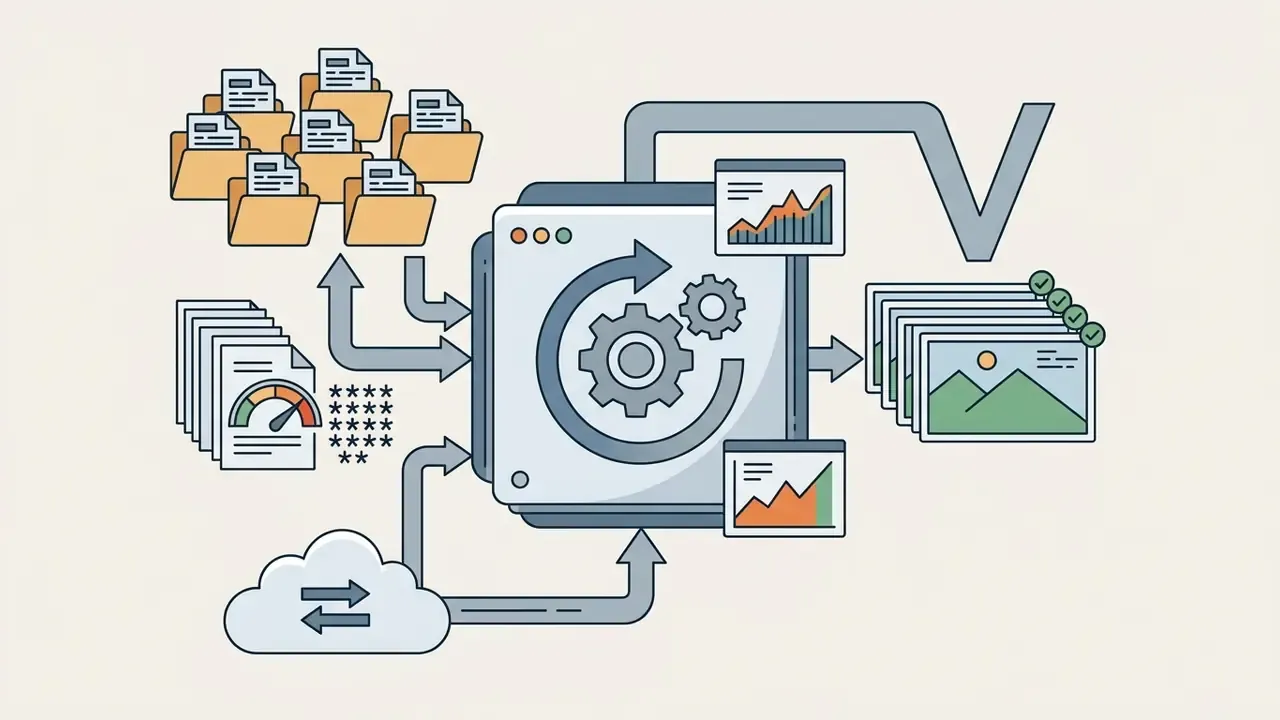
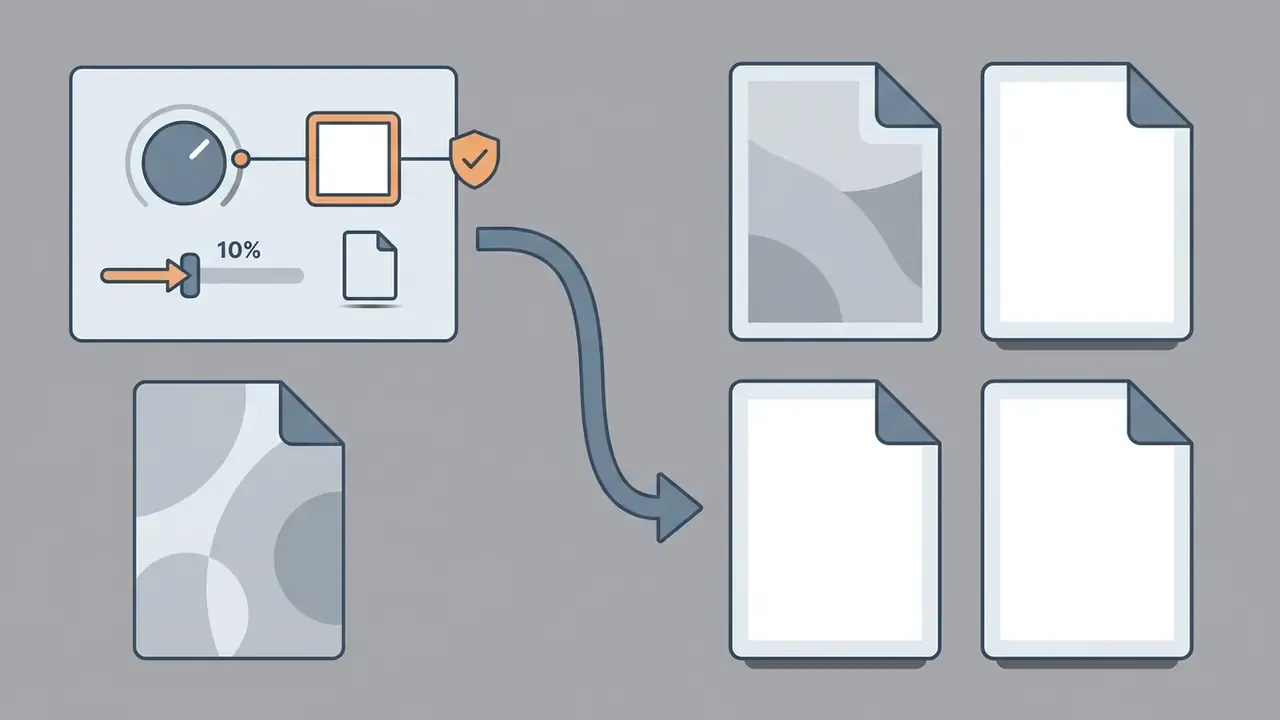
#FFFFFF, 10% outer padding, and a bottom contact shadow.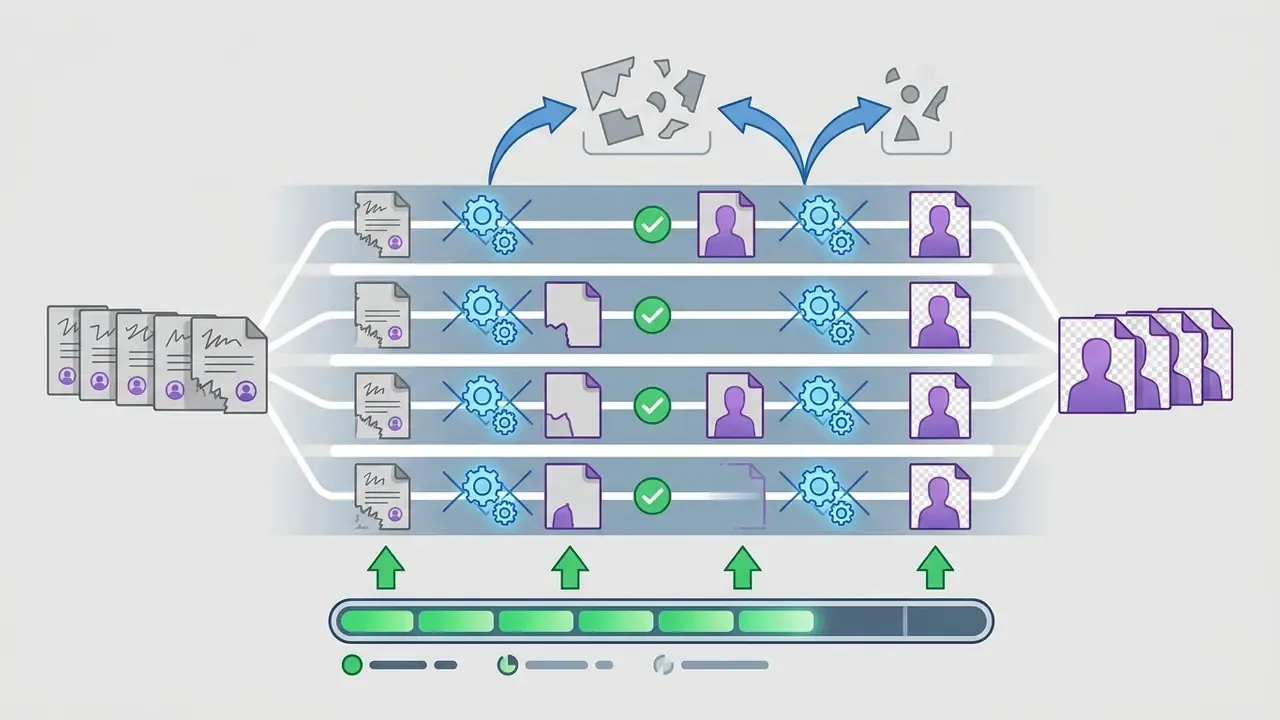
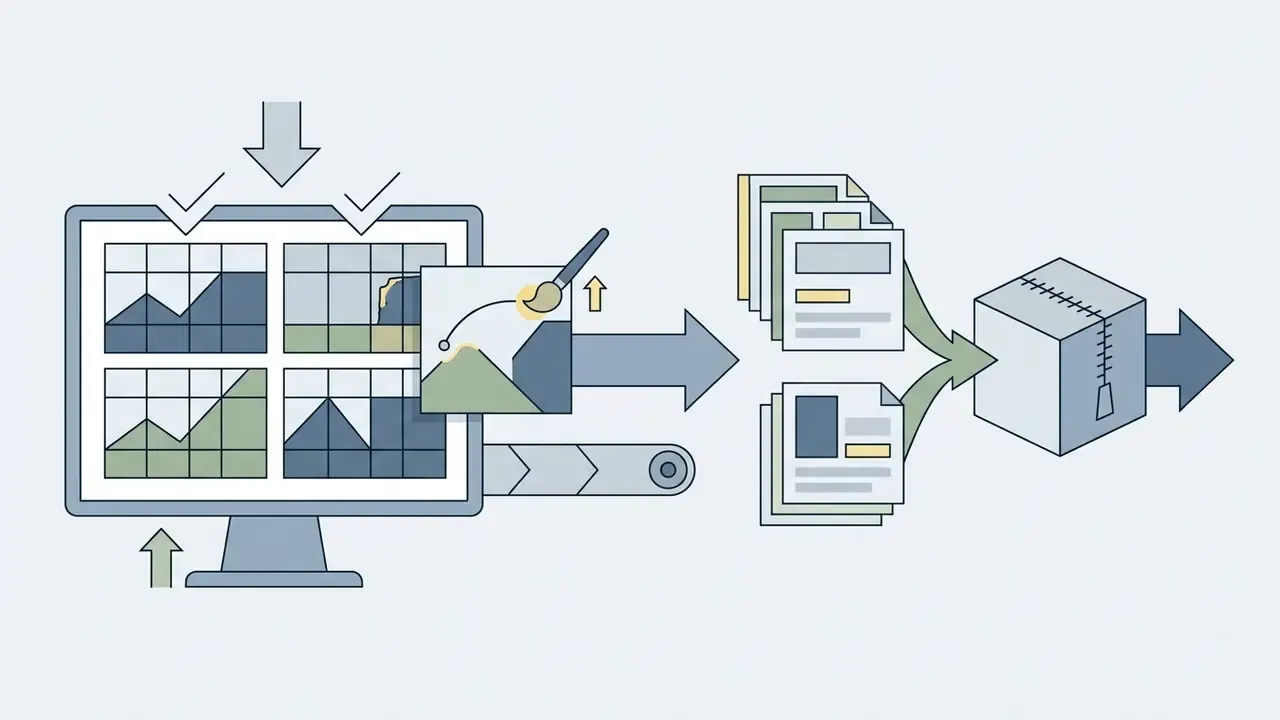
Change Picture Backgrounds for E-Commerce, Portraits and Social Media
Background strategy changes with the channel. Commercial e-commerce, corporate headshots, and social media marketing each reward a different backdrop. Published guidance splits cleanly: e-commerce centres on product isolation against white or near-neutral backdrops; corporate portrait guidelines require uncluttered backgrounds that stay out of focus; social media guidance concentrates on aspect ratios and file specs, for example 1200×630 for link images and 320×320 for square avatars, rather than one prescribed backdrop.
Create Consistent Product Images for Online Stores
Consistent catalog imagery means isolating product shots on unified backdrops with standardised margins and contact shadows. Mixed backgrounds across a catalog confuse shoppers and slow visual browsing.
«An analysis of 2.3 million listings found that products with five or more images convert 50% better than single-photo listings.»
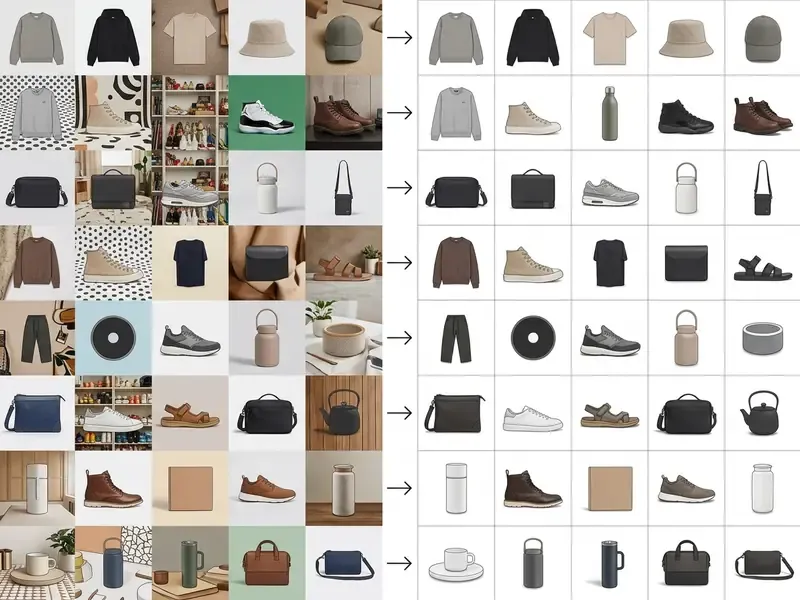
Automated batch background removal is what keeps every item in a store on identical framing and background color. For organisations weighing cost-efficiency across digital tools, test your projection models with our interactive calculators.
How to Make a Background Replacement Look Natural
Making a background replacement look natural comes down to matching lighting direction, color temperature, contact shadows, and edge sharpness between subject and new backdrop. Bad composites announce themselves: bright color halos, subjects hovering slightly above the ground plane.
Check Edges, Shadows and Unwanted Objects
Inspect cutout boundaries at 100% zoom for halos, residual background pixels, and unnatural cutoffs. Remove unwanted objects and decontaminate edge colors, and the blend stops looking like a blend.
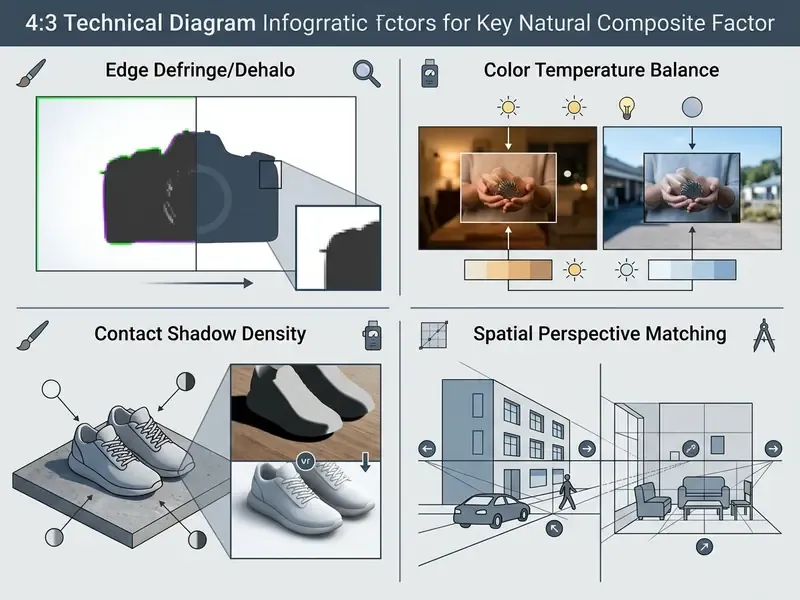
Shadow realism. Cast shadows must align with the light sources in the background scene, and shadow estimation should sit on its own layer, separate from the foreground silhouette, so edge fidelity survives the edit.
«Products without contact shadows read as "floating clipart"; adding realistic shadows beneath the object is the key step toward a professional result.»
Compositing research arrives at the same conclusion from the other side. A realistic composite requires foreground and background appearance to be compatible, including automatic adjustment, while smoothness constraints in matting suppress artefacts caused by unrealistic foreground or background estimates. Real-time high-resolution background matting (Lin et al., 2021) showed strand-level hair detail at 30 fps at 4K by recovering both an alpha matte and a foreground layer instead of a hard mask.
Drop a subject onto a bright outdoor scene with no ground contact shadow and it floats, every time. Subtle edge softening, roughly a 1 to 2 pixel mask contraction, removes light fringing around dark hair and clothing, and edge decontamination clears the residual tint inherited from the discarded backdrop.
AI relighting and directional light matching. Beyond edge cleanup, realism depends on ambient light. Modern generative background engines apply AI relighting algorithms that read light direction, color temperature, and highlight diffusion in the new backdrop, then re-project soft rim lighting and adjust color curves on the subject. In consumer tools this appears as a single relighting control that tunes lighting, shadows, and mood together, which is how a subject shot under flat indoor light can land in a golden-hour scene without looking pasted on. For manual control, replicate the same three passes in order: set global exposure to the backdrop's key-light level; add a directional rim or fill layer aligned to the backdrop's light source; grade the subject's white balance toward the backdrop's color temperature before final contrast.
Final quality checklist before export:
- Halo check.Inspect the full silhouette at 100% zoom for fringing and leftover background pixels.
- Light direction.Confirm highlights and shadows on the subject match the backdrop's key light angle.
- Contact shadow.Verify a grounded shadow with plausible density and falloff where subject meets surface.
- White balance.Match color temperature and saturation between subject and scene, then apply one unified grade.
Resize and Download the Image for Its Final Use
After the background change, resize and compress to the exact pixel requirements of the publishing platform. Oversized files slow page loads; undersized files look pixelated. When the source lacks the pixels a marketplace demands, AI image upscalers can raise resolution before export rather than forcing an interpolated stretch.
«Amazon requires a minimum of 1,600 pixels on the longest side for zoom functionality; Shopify recommends 2,048 × 2,048 pixels for optimal theme display.»
Web export targets. Display graphics are conventionally exported at 72 PPI with target pixel dimensions preserved, since pixel dimensions, not PPI, decide on-screen sharpness. Published institutional web-image standards also cap file weight by page role: homepage feature images around 100 KB or less, staff headshots between 10 and 35 KB, general web imagery under roughly 250 KB. Main marketplace product images should land between 1,600 × 1,600 and 2,048 × 2,048 pixels to enable desktop zoom. To see how tools behave under measured conditions rather than marketing copy, browse our AI Media Benchmarks and Review Proof archive.
FAQ: Frequently Asked Questions About Changing a Photo Background
Is It Safe to Upload Photos to an Online Background Changer?
Uploading photos to an online background changer is reasonably safe when the service encrypts data end to end, processes locally in the browser, or deletes uploaded files immediately after processing. Privacy audits covering 20 popular AI photo applications found that more than a third of platforms use uploaded images to train models, and roughly a quarter retain facial biometric data after file creation (Fonehouse AI Photo App Privacy Audit, 2024, summarized by ITBrief). Documented retention windows run from deletion within 24 hours, to retention until account closure with removal inside 30 days, to 90-day deletion after account termination, with stateless API endpoints that persist nothing at all at the strictest end. If you are processing sensitive personal headshots or confidential product photos, read the privacy policy and confirm that images are deleted promptly and excluded from model training. Browser-only tools that segment locally via WebGPU avoid server-side storage entirely.
Disclaimer: this information is general and does not replace consultation with a data protection professional. Policies change; verify current terms before uploading personal photographs.
Can I Change the Background of a HEIC Photo From My iPhone?
Yes. HEIC and HEIF files shot on iOS work with mainstream AI background tools, which convert the high-efficiency container into a standard RGB working space at ingestion and then export PNG or JPEG. For the strictest privacy posture, use a browser-based tool that decodes and segments the HEIC file locally through WebGPU (Chrome 113+ or Edge 113+, with WebAssembly fallback). The image never leaves the device, no server copy exists, and no retention policy needs to be trusted. Expect a one-time model download of roughly 25 MB on first use.
Which File Formats Can I Upload and Export?
Standard input support covers JPG/JPEG, PNG, WebP, HEIC, and HEIF. On export, pick PNG or WebP when transparency must survive, and JPEG when the background is solid white or a flat color and file weight matters. AVIF appears in some editors for extra compression efficiency. JPEG and BMP cannot carry an alpha channel and will flatten transparency to white or black.
Does Free Background Removal Reduce Image Quality?
Often yes, though through resolution caps rather than a weaker algorithm. Free tiers commonly serve a low-resolution preview, for example 0.25 MP at around 625×400 px, and gate full-resolution output behind credits or a subscription. Others impose weekly or monthly export counts, or daily request limits. The mask itself is usually generated at full model quality, so paying typically unlocks the export, not a better cutout.
Can I Process Hundreds of Product Photos at Once?
Yes, through batch mode in a professional editor or a batch API endpoint. Throughput above 100 SKUs per hour is documented for AI pipelines, and dedicated high-speed endpoints exist for lower-resolution, speed-critical runs. Free plans are generally single-image; batch export nearly always sits on paid or API tiers.
Which App Should a Small Team Standardise On?
Start from constraints rather than features. If imagery includes employee or customer faces, favour client-side processing or a vendor with written 24-hour deletion. If the work is catalog volume, an app that can change the background of a photo in bulk plus an API beats a slightly sharper single-image cutout. If output feeds branded campaigns, template libraries and shared presets matter more than either. Then pilot one tool on 50 real images before signing anything.
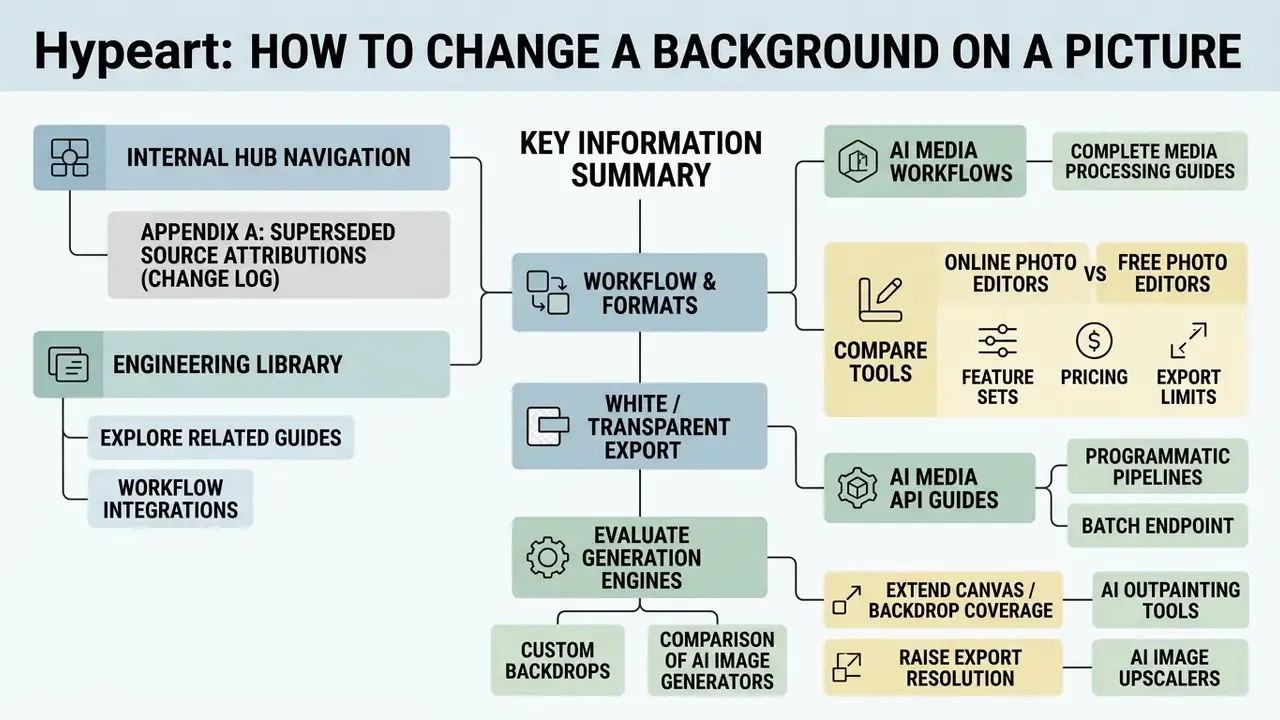
Key Information Summary
- Primary workflow upload source image, run automated AI background removal, select a new background photo or solid color, export high quality PNG or JPEG.
- Input formats JPEG/JPG, PNG, WebP, HEIC, and HEIF are accepted by mainstream tools, with HEIC and HEIF converted to RGB at ingestion.
- E-commerce standard main product images need pure white backgrounds (RGB 255, 255, 255) at or above 1,600 × 1,600 pixels; 2,048 × 2,048 px is the recommended Shopify square.
- File formats PNG with an alpha channel for transparent backgrounds; high quality JPEG for solid white or colored backgrounds to keep pages fast.
- Natural realism match light direction, apply AI relighting or manual rim and fill matching, add soft contact shadows beneath the subject, and defringe edges to kill halos and floating.
- Batch operations bulk upload, global preset, parallel AI matting, QC review and ZIP export. Expect batch features on paid or API tiers only.
- Governance prefer client-side WebGPU processing, or vendors with 24-hour retention, explicit training opt-out, and SOC 2 and GDPR documentation, before routing corporate imagery through any external editor.
Appendix A: Superseded Source Attributions (Change Log)
For transparency, the attributions below were replaced in earlier revisions with verifiable primary sources. The underlying technical claims stayed; only the citations changed.
- U-Net Deep Learning Study, 2024 became Study on Image Background Removal using Deep Learning, arXiv (2024), with added detail on probabilistic-mask thresholding.
- CVPR Boundary Refinement Study, 2021 was replaced with the 2024 arXiv deep-learning background-removal study covering morphological operations and contour detection.
- Adobe Stock Brand Identity Report, 2026 was removed; template-consistency claims now read as vendor documentation, not research findings.
- Shadow Harmonization & Compositing Survey, 2023 was replaced with the VectoSolve Background Removal Guide (2025) plus compositing-realism literature on foreground and background appearance compatibility.
- Adobe Photoshop Web Documentation, 2026 was generalised to platform help documentation for generative background features.
- GS1 US Technical Product Image Specification, 2026 (uncited edition) was supplemented with Amazon's official product image requirement and the Pixel-Prep Product Image Size Guide (2026).
- Pixtify E-Commerce Study, 2025 became the Pixtify Product Photography Report (2025), with URL and the 50,000+ image sample noted.
- Lumepixa Product Photography Report, 2026 became Catchlab / Lumepixa Product Image Statistics (2026), with URL.
- IEEE Mobile Vision Application Review, 2024 was replaced with the NoBG.space E-Commerce Background Removal Guide (2024 to 2025) and a concrete 2 to 3 second processing benchmark.
- Catalog API Documentation, 2025 was generalised to documented catalog batch-edit endpoints and vendor batch-optimised inference endpoints.
- U.S. DOE Web Image Guidelines, 2024 was generalised to published institutional web-image standards (72 PPI, page-role file-weight caps).
- CSS Backgrounds and Borders Module Level 3, W3C is retained as a descriptive layout convention, not as an authority on compositing behaviour.
- Footer navigation links to video downloader and slide-formatting tutorials were pruned as topically thin and replaced with governance, API, and imaging-tool references.