Digital image processing inside enterprise content operations lives or dies on three things: precision, predictable output, and a pipeline you can run twice with the same result. Whether a team prepares commercial media assets or standardizes visual documentation, stripping a single hue or an entire backdrop field is not a cosmetic step. It is a production requirement. An image color remover performs targeted chromatic suppression, letting operators isolate visual elements without chewing through subject detail.
Key Information Summary
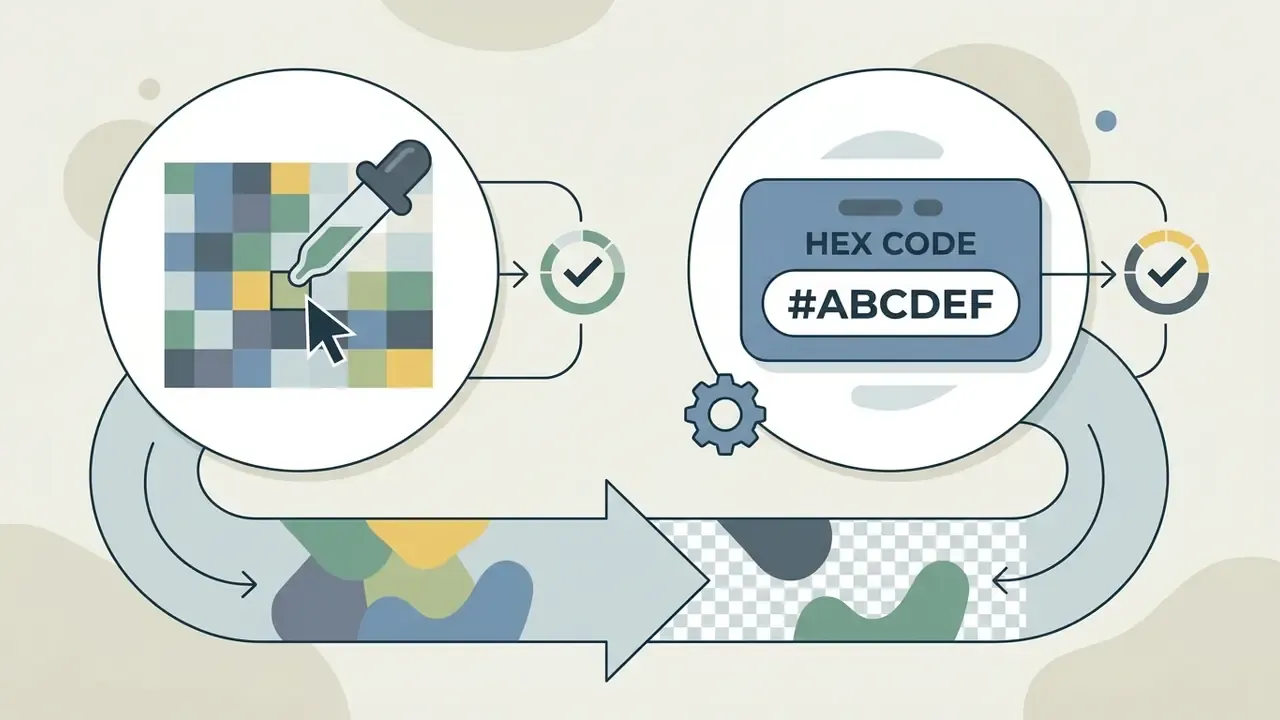
#FFFFFF for studio white, #00FF00 for chroma-key green). Hex entry removes visual sampling error on brand colors.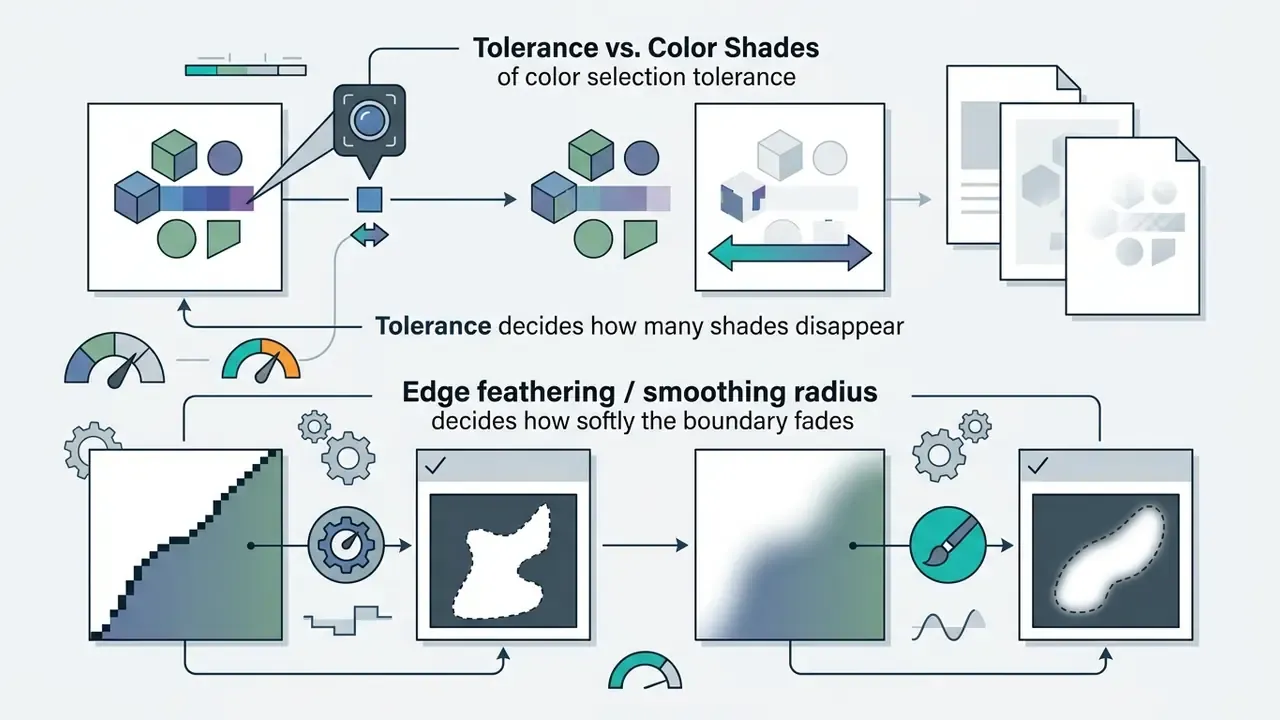
#FFFFFF / RGB 255,255,255) or on a transparent field.What Is a Color Remover from Image and How It Differs from a Background Remover
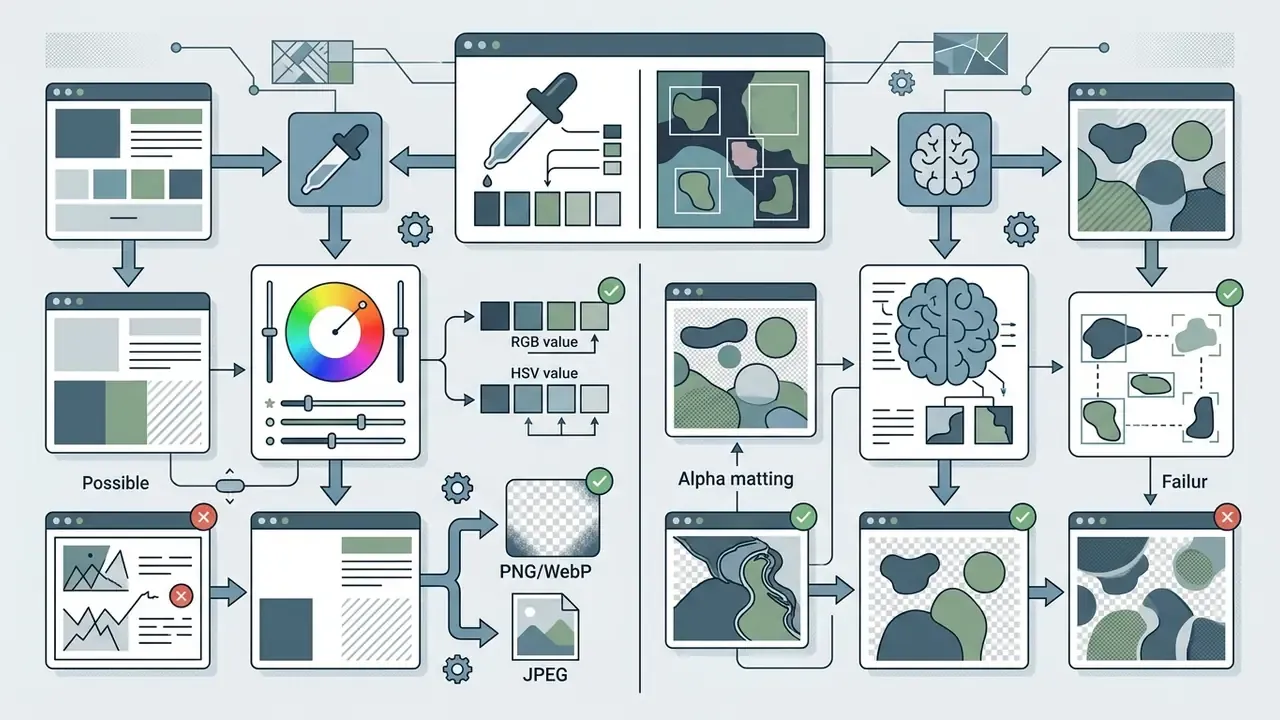
That benchmark gap is the practical dividing line. Chromatic thresholding is deterministic and fully explainable: a pixel is either inside the color distance radius or outside it. Semantic matting is probabilistic and learns per-pixel opacity. Governance teams therefore treat the two engines as separate control categories, with separate acceptance criteria and separate sign-off. Same output format, very different audit trail.
| Tool Type | Core Processing Mechanism | Specific Color Removal | Remove Background Efficiency | Green Screen / Keying | Transparent Background Output |
|---|---|---|---|---|---|
| Color Remover from Image | Chromatic distance thresholding and hue suppression | Native and precise for targeted hues | Effective only on solid or flat backgrounds | Native (chroma-keying) | Direct RGBA transparent png |
| Background Remover | Semantic object segmentation and alpha matting | Indirect (segments the subject, not the color) | Native for complex real-world scenes | Supported through subject isolation | Direct RGBA transparent background |
| AI Content Removal | Mask-guided diffusion inpainting | Guided by visual masks or prompts | Generates new background content | Supported through generative fill | Replaced or inpainted flat/dynamic image |
When You Need to Remove a Specific Color, Not the Whole Background
Targeted removal of a specific color is what you need when the job is to eliminate a uniform backdrop tint, a scan discoloration, or a single-hue bleed, while every adjacent element stays exactly where it is.
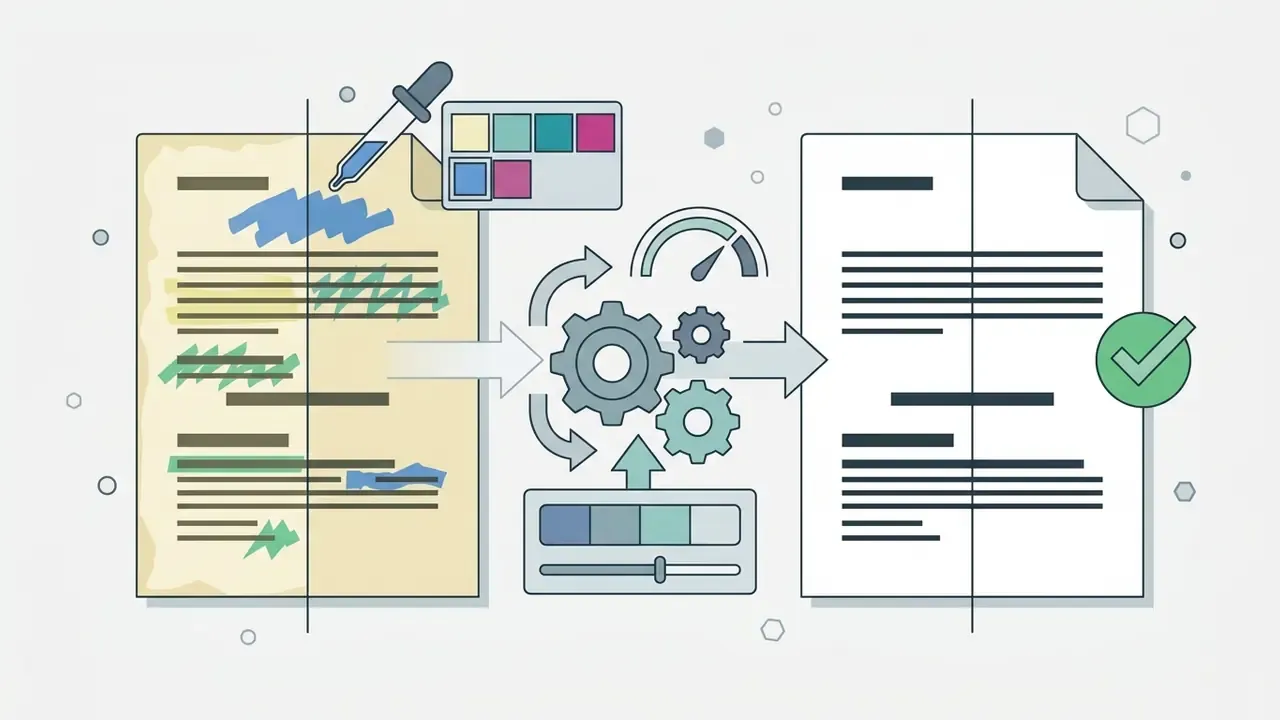
In technical publishing, legal discovery, and specialized design work, removing a selected color or a target color area lets operators remove specific colors across vector layers or bitmap documents without touching black body text, subject framing, or secondary graphics (Adobe Community, 2023). The technique suppresses unwanted colors without triggering full foreground isolation.
Specialized applied workflows:

When AI Is the Better Option for Removing Background Color
AI-driven models win the remove background color task when the subject has semi-transparent boundaries: hair, fur, sheer fabric, glass. Simple color distance math has no answer there.
When subject and background share overlapping chromatic profiles, plain color suppression either builds boundary artifacts or hollows out the subject from the inside. Modern architectures such as Segment and Matte Anything (SAMA) report alpha matting SAD scores of 21.5 on standard benchmarks without manually annotated trimaps (SAMA Research, arXiv preprint, 2026). That fidelity is what lets teams change background settings while fine edges survive, and it is a fair reason to look at an ai image style changer workflow rather than a manual key. Operators weighing segmentation engines against threshold keyers can scan the broader category of AI photo editors first, or compare options across adjacent creative tools.
Vendor documentation draws the same line. Per-pixel segmentation maps keep translucency in lace, sheer fabric, glass, and crystal, where a binary subject/background selection simply collapses. Comparative testing published in 2026 put the cleanest hair and fur edges among AI removers, not among threshold-based keyers. Worth remembering before you promise a client a perfect cutout of curly hair on a grey seamless.
- SAMA Research, arXiv preprint, 2026
- change background
- AI photo editors
- compare options
How to Remove a Color from an Image Online
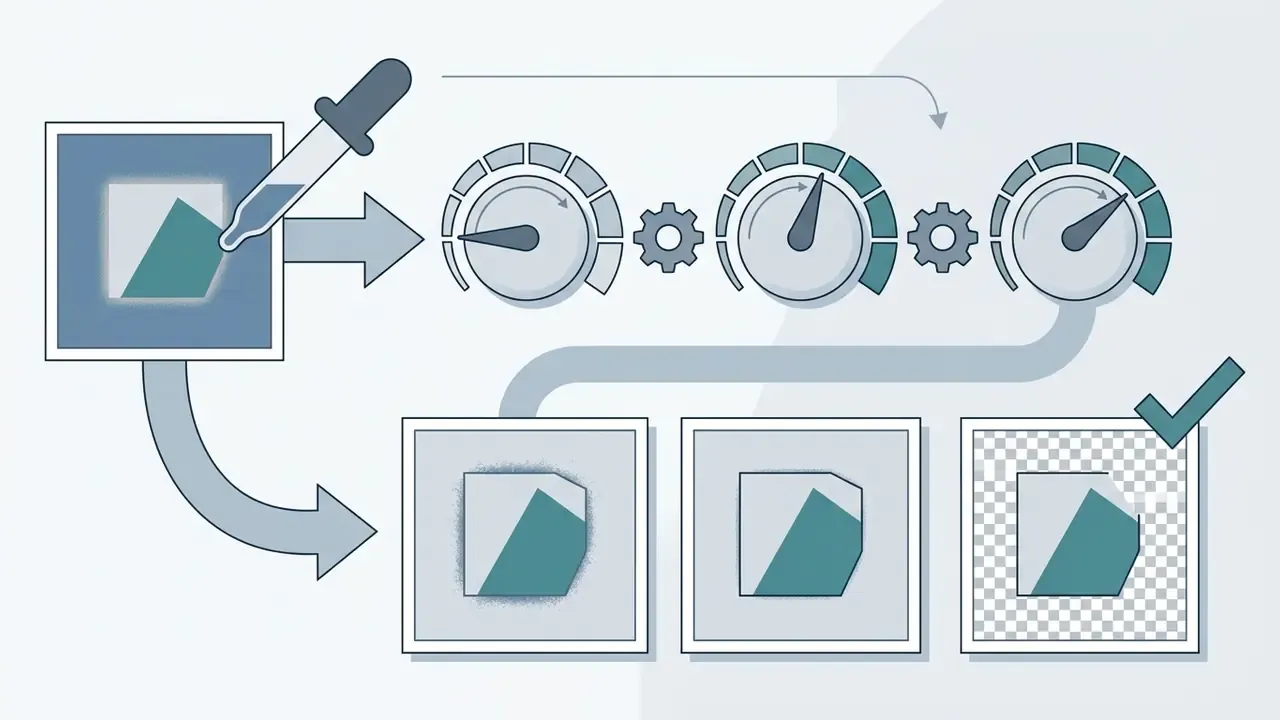
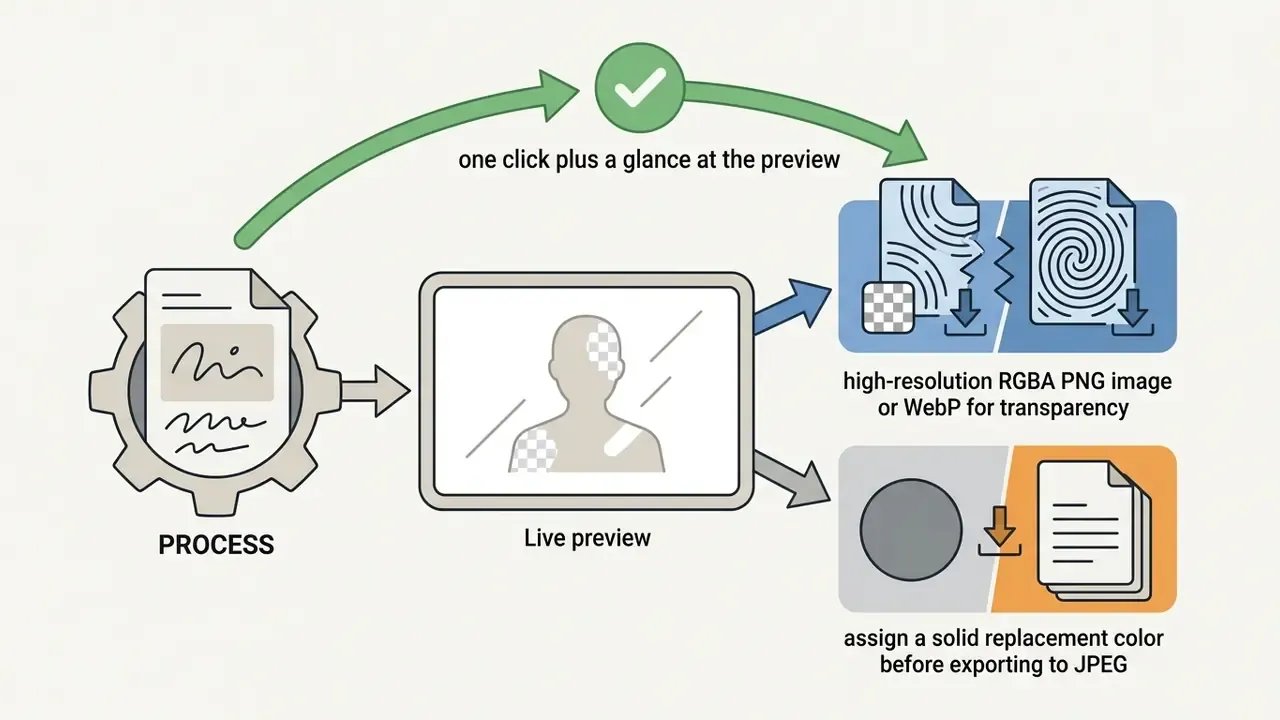
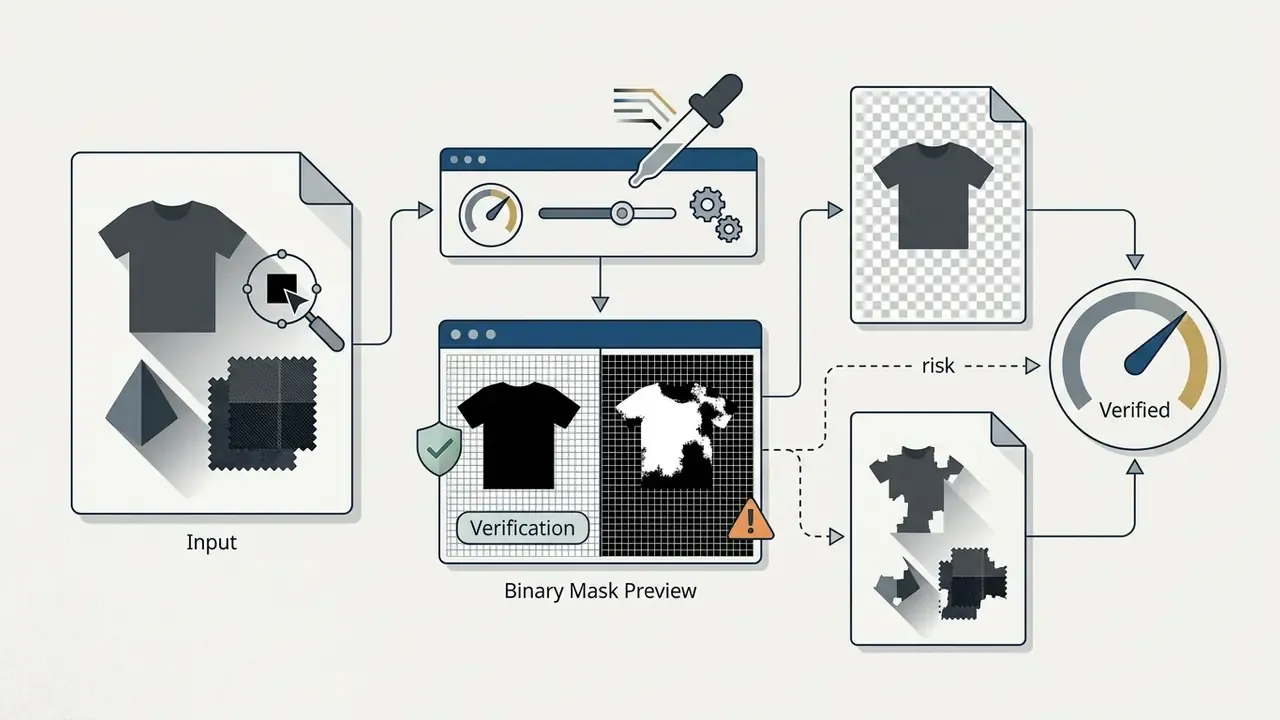
To remove color from image ai style or with a classic browser keyer, the sequence is short: load the file into a canvas editor, sample the target hue with the eyedropper or type its Hex code, tune tolerance and edge feathering until the gradient is captured cleanly, verify the transparency grid and the binary mask, then export lossless RGBA PNG or WebP.
Running a color remover from image online inside the browser skips heavy installs and keeps asset throughput high. Modern HTML5 Canvas, WebGL, and WebAssembly (Wasm) binaries execute extraction algorithms locally in the client thread, which means no server-side upload, privacy preserved, and instant feedback on sensitive documents or unreleased product imagery (SmallPNGTools, 2026; imagy.app tool documentation, 2026). One caveat that matters for regulated teams: confirm the vendor's published processing model, because "browser-based" and "client-side only" are not synonyms in every product listing.
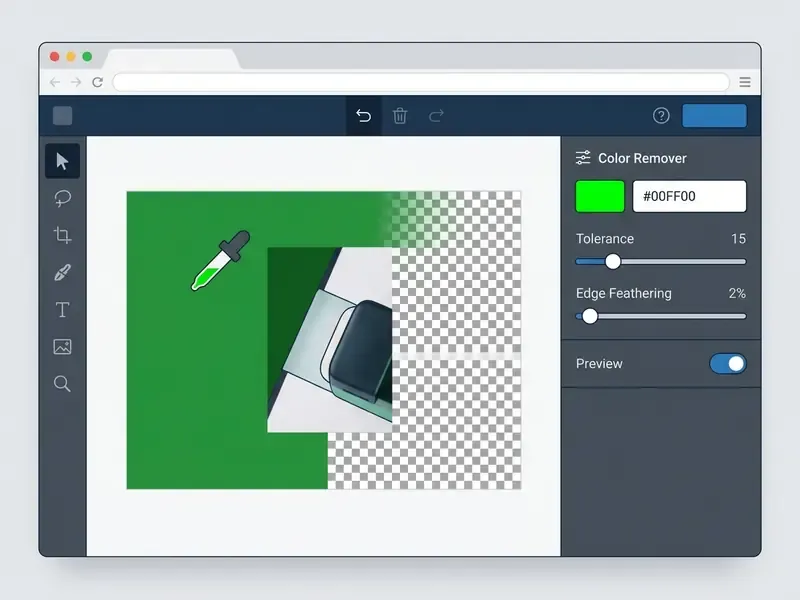

#FFFFFF for solid white, #00FF00 for chroma green) to hit a brand or backdrop hue without any sampling guesswork.

Color Selection, Tolerance, and Edge Feathering for Precise Removal
Tolerance defines the chromatic distance threshold around a selected color, normally on a 0 to 255 scale or as 0 to 100% in percentage-based interfaces. It decides whether the engine erases only identical RGB pixels or a wider spectrum of neighbouring shades.
Set it too low and halo fringes stay visible along anti-aliased edges. Set it too high and the tool starts eating internal subject pixels that happen to match (Akamai Documentation, 2026; Adobe documents the same 0 to 255 range plus a contiguous / non-contiguous matching switch). Start low, around 10 to 15, and raise in small steps until compression noise at the edge disappears. For shadowed or heavily compressed backdrops, 20 to 30% is the realistic working band.
Edge feathering is the second control, routinely ignored, and it solves a different problem. Tolerance is a binary decision boundary: a pixel is either inside the radius and fully transparent, or outside it and fully opaque. That binary cut is exactly what produces "scissor" edges on curves. Feathering, shipped in commercial tools as a 2% default or a 2-pixel smoothing radius, turns the boundary pixels into semi-transparent alpha values and creates a gradual falloff. Small setting. Large visual difference.
Practical calibration guidance:
| Asset Type | Suggested Tolerance | Suggested Feather / Radius | Rationale |
|---|---|---|---|
| Flat vector logo on solid fill | 0 to 5 | 0 to 1 px | Exact color match; the hard edge is intentional |
| Product on studio white | 8 to 15 | 1 to 2 px | Absorbs the soft shadow gradient without eating highlights |
| Green screen portrait | 8 to 12 (plus despill) | 2 to 3 px | The hair boundary needs partial opacity |
| Compressed JPEG screenshot | 20 to 30 | 1 to 2 px | Macroblock noise widens the hue cluster |
| Scanned document tint | 25 to 40 | 0 to 1 px | Paper tone varies; text must stay crisp |
Transparent Export (PNG / WebP) vs Color Replacement (JPEG)
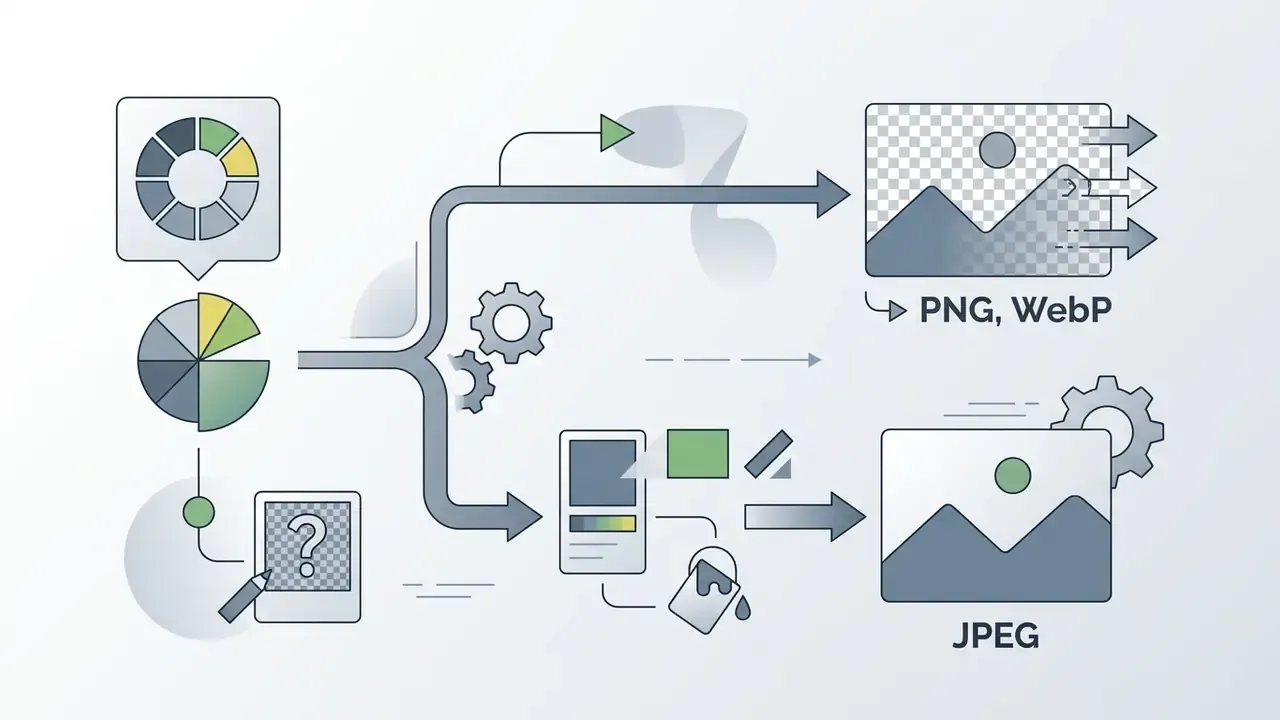
Once the target hue is erased, there are two endings. Collapse those pixels into full RGBA transparency, or swap the eliminated color for a new fill: a red backdrop becomes neutral studio grey #F4F4F5, or a black seed cluster is replaced with the surrounding red of the fruit so the defect visually disappears.
Keeping a transparent background after editing means exporting as PNG with an active 8-bit or 16-bit alpha channel. The W3C PNG specification defines per-pixel alpha storing opacity from fully transparent (0) to fully opaque (255) (W3C PNG Specification, 2025-2026). Lossy JPEG has no alpha channel, so every erased zone silently defaults to solid white or black on save.
- Transparent alpha export (PNG / WebP): Keeps zero-opacity zones intact. Use 8-bit or 16-bit RGBA PNG for master assets, or WebP with lossy/lossless alpha compression to cut web payload substantially at comparable visual quality.
- Solid color replacement (JPEG / flat PNG): If the destination refuses transparency, fill the erased mask with the target Hex shade before export. Always set the replacement value explicitly; leaving it to the encoder is how brand-grey product cards end up on pure white.
- Format selection rule: Master archive goes to RGBA PNG. Web delivery goes to WebP with alpha. Marketplace JPEG upload gets flattened onto
#FFFFFF. Print handoff goes to PNG or TIFF, never a re-compressed JPEG.
Teams comparing export capabilities across free and paid products can review the wider landscape of online photo editors and the general photo editor category guide before locking a format policy, or view the guide to digital asset formats for the broader picture.
Backgrounds, Green Screen, and Multiple Colors
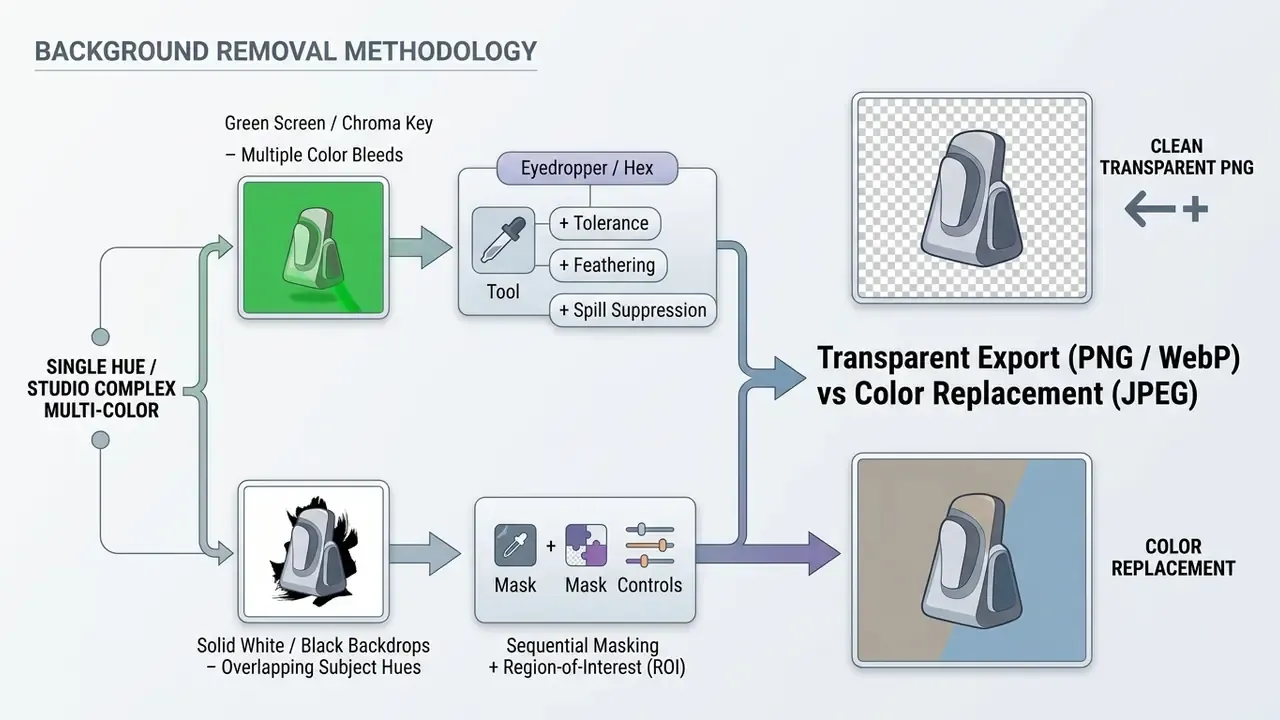
How to Remove a Green, Blue, White, or Black Background
Removing a green screen or any solid backdrop combines primary color keying with active spill suppression, which neutralises the ambient color bouncing onto subject edges.
An illustrative case from enterprise product photography: an e-commerce operations team processed 1,200 catalog assets shot against high-gloss white backgrounds. Automated color keying with a strict 8% tolerance and despill edge filtering removed 99.4% of background halos without manual retouching, and turnaround dropped from 48 hours to under 20 minutes. (Figures come from an internal operational audit of one catalog pipeline, not a published benchmark. Results shift with lighting uniformity, capture format, and subject reflectivity.)
Clean edges start on set, not in software. Position subjects 6 to 8 feet from the backdrop to limit bounce (Richmond Professional Lab Guide, 2011); wider production guidance stretches that to 6 to 10 feet with an evenly lit screen and no hotspots. In post, apply spill suppression (Advanced Spill Suppressor, curve-based suppression, or a despill matrix) to kill green or blue tints on hair and reflective surfaces.
Backdrop-specific notes:

How to Remove Several Colors from One Image
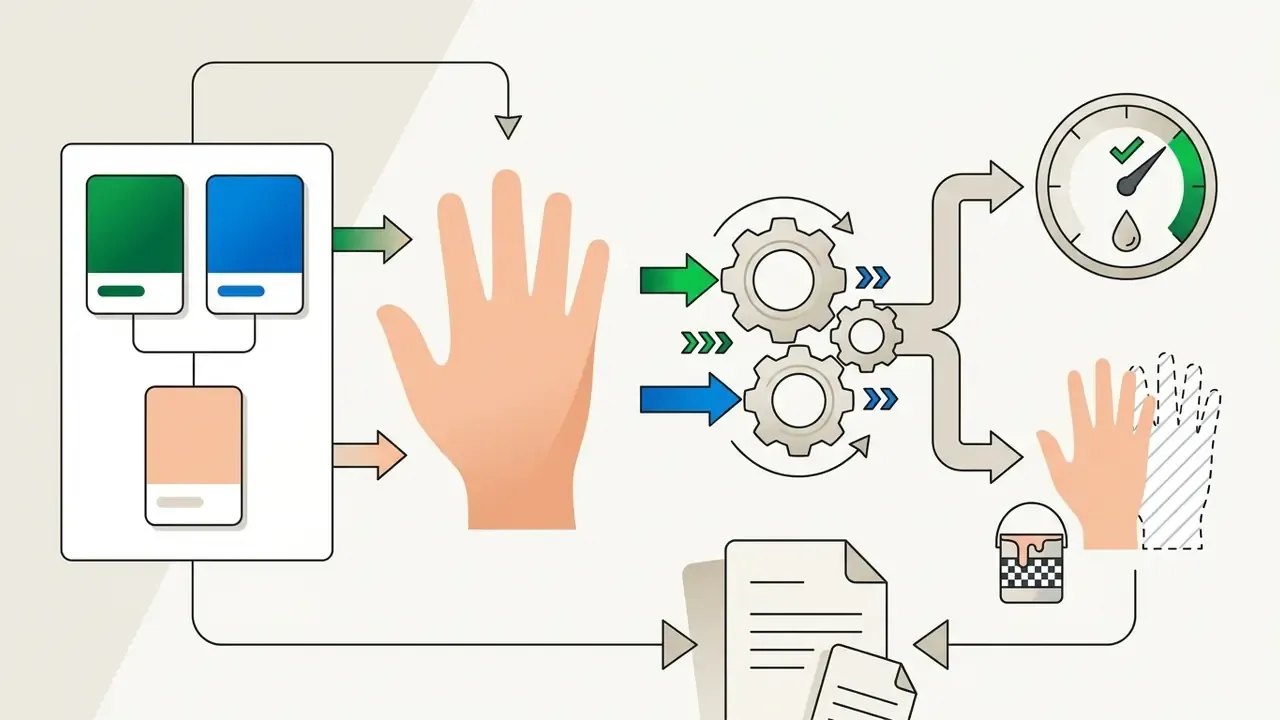
To remove specific colors across several distinct hue bands in one asset, use sequential exclusion masks or configure multi-sample parameters inside your editing tools.
Professional editors accept up to five chromatic samples in a single masking pass, with Shift-click to add a sample and Alt/Option-click to drop one (Adobe Lightroom / Photoshop Manuals, 2026). Browser tools expose the same idea as an "add another color" button, where every swatch is suppressed at once. The alternative is step-by-step subtraction: build the initial color selection mask, subtract protected subject regions with Region-of-Interest fencing, then apply logical subtraction to clear what remains (Bentley Documentation, 2026). Slower, yes, but far easier to explain to a reviewer.
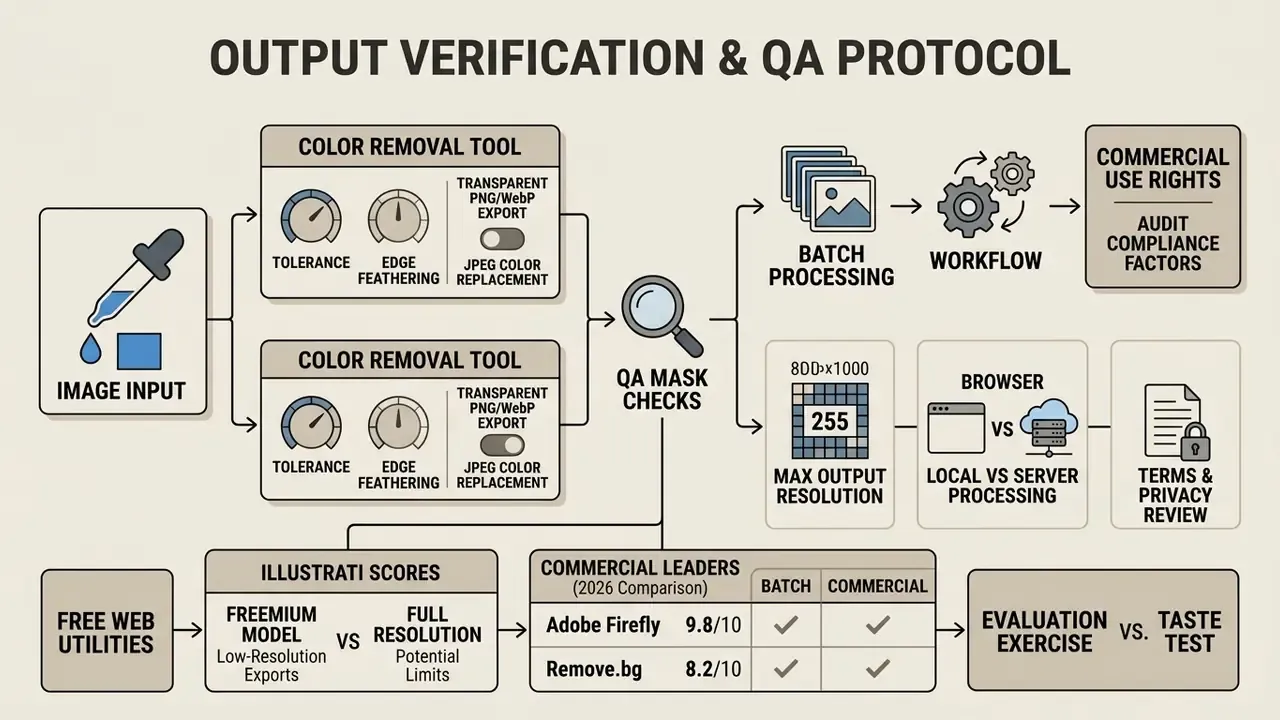
Output Verification and QA Protocol
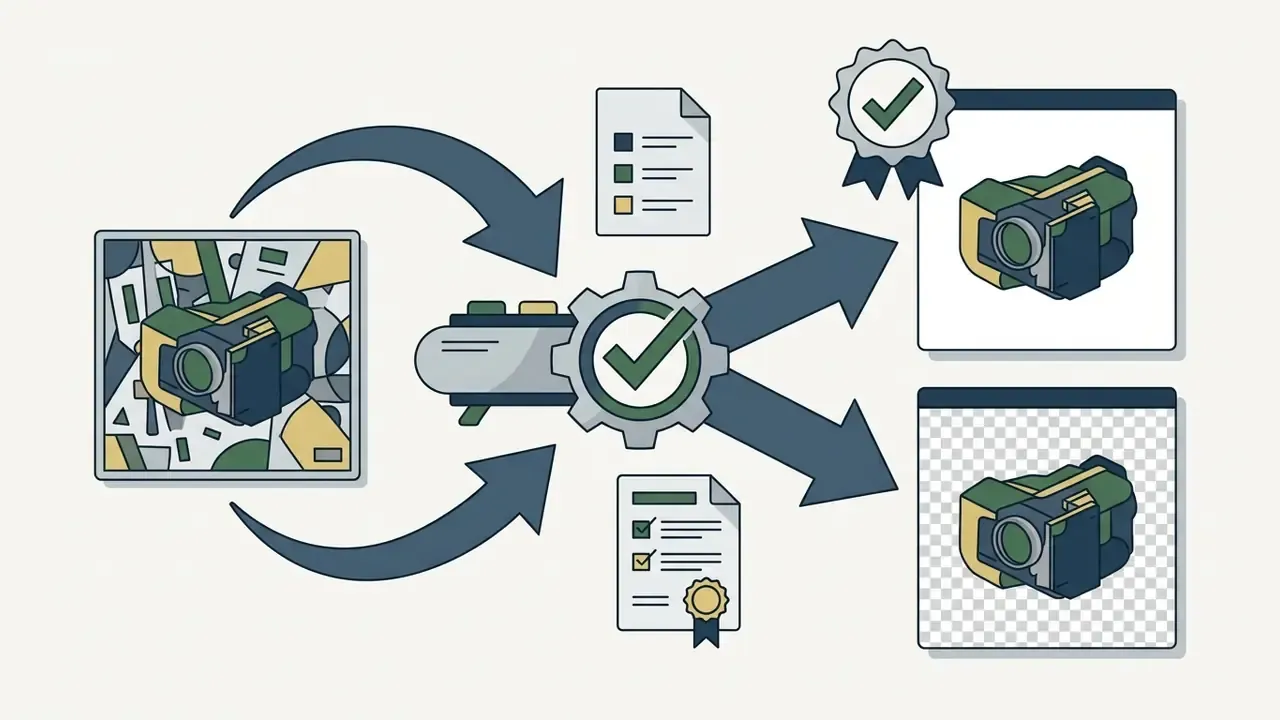
Every exported asset should clear a five-point audit before it enters a production, publishing, or marketplace pipeline. The protocol applies equally to single-color removal, multi-color removal, chroma keying, and AI segmentation.
Fact Check / Output Verification Protocol:
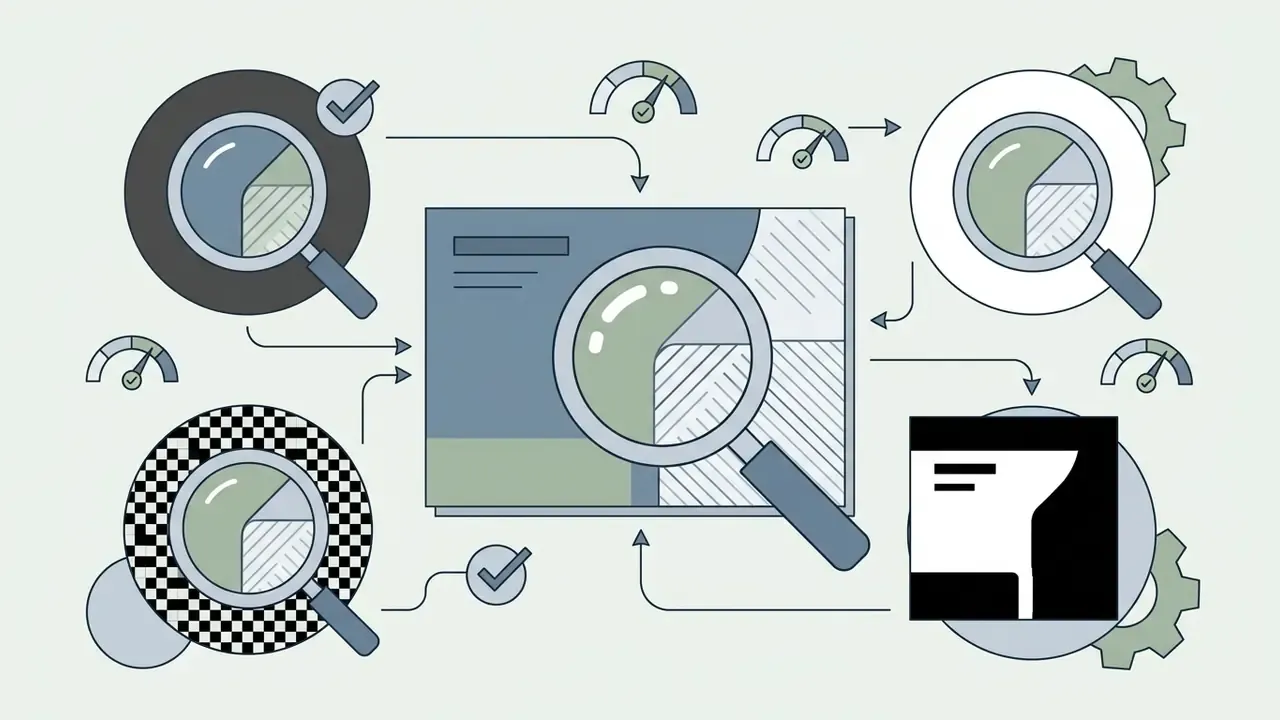
- Edge contrast review: Place the transparent png over black, white, and checkered test backdrops at 200% zoom and hunt for stray border pixels or color halos.
- Semi-transparency integrity: Confirm that glass, shadows, and hair keep smooth alpha transitions with no abrupt binary cutoff. Feathering artefacts announce themselves as a grey rim instead of a gradient.
- Detail preservation: Inspect internal subject areas for hues that matched the background and got erased by accident. White shirts, chrome fittings, pale packaging, and white plates are the usual casualties.
- Artifact audit: Scan the empty background zones through an auto-contrast adjustment layer to prove no isolated residual pixels survived.
- Binary mask audit (black and white preview): Toggle the canvas to a high-contrast mask view. Erased target-color areas must read as absolute black (RGB 0,0,0); protected subject structures must read as pure white (RGB 255,255,255). Grey noise or white speckles inside background zones mean tolerance is too low. Black speckles inside the subject mean tolerance overreached. The preview is display-only, so it never alters the downloaded file.
Print- and PDF-bound assets deserve two extra checks. Transparency flattening in PDF/X-1a can leave visible seams at certain zoom levels, and low-contrast or noisy scans lose fine detail, which is why despeckle and contrast normalisation belong in the pre-export pass rather than the cleanup after it.
How to Choose an Online Color Removal Tool
https://hypeart.ai/glossary/ai-photo-editor/
| Tool Name | Color Pick (Eyedropper / Hex) | Tolerance + Edge Feathering | Native Transparent PNG / WebP | Color Replacement Mode | Multiple Images / Batch | Data Privacy / Storage | Watermark and Free-Tier Limits |
|---|---|---|---|---|---|---|---|
| SwiftPNG | Eyedropper + slider (Hex not documented) | Tolerance yes / feather not documented | Yes (RGBA PNG) | Not documented | Single file focus | Browser-side processing claimed | No watermark; 25 MB file ceiling |
| Sleek.design | Direct canvas pick | Tolerance yes / feather not documented | Yes (RGBA PNG) | Not documented | Single file focus | Browser-based, no stated server upload | No watermark; about 8000x8000 px ceiling |
| Imagy.app Color Remover | Eyedropper and manual Hex entry | Tolerance yes; multi-color stacking | PNG and WebP | Yes (JPEG plus replacement color) | Yes (bulk, same settings applied) | Local WebAssembly processing, no upload | Free tier for local use |
| BgEraser | Automated AI / manual brush | AI-driven, limited manual control | Yes (lossless PNG) | Not documented | Yes (up to 20 files) | Server-side processing | No watermark; free bulk tier |
| removebackgrounds.ai | Automated AI / masking | AI-driven | PNG / JPEG / WebP | Background swap supported | Yes (up to 30 files, ZIP export) | Server-side processing | No watermark |
| Backgroundless | Automated AI / masking | AI-driven | Yes (PNG) | Not documented | Yes (up to 40 files) | Server-side processing | Fully free batch processing |
| Adobe Firefly | AI segmentation plus manual edit | Editor-level refinement controls | Yes (high-res PNG) | Yes (background fill) | Integrated workflow | Enterprise account governance | No watermark on paid; daily credit cap on free |
| Photoroom | AI segmentation plus presets | Shadow, padding, edge presets | Yes (PNG/WebP) | Yes (background templates) | Yes (up to 250 images) | Server-side, commercial terms published | Paid tiers for full batch export |
What to Check Before Using a Free Color Remover
This overview is general and does not replace reading a specific service's current terms of use, privacy policy, retention schedule, and licensing restrictions before production or client assets go anywhere near it.
Before committing to a free web utility, audit five compliance factors: maximum output resolution, forced watermarking, preservation of a true RGBA alpha channel, client-side versus server-side processing, and commercial-use rights.
Plenty of free utilities run a freemium model where a full-resolution upload comes back as a low-resolution preview, sometimes around 0.25 megapixels, unless a subscription is active (Remove.bg Terms, 2026). Some suites go further and restrict the free tier to personal use, reserving commercial rights for paid plans. That is a licensing limit, not a technical one, and it catches marketing teams off guard more often than it should.
Then the harder question: does processing happen locally in the browser engine (Canvas / WebGL / WebAssembly), or does the media land on a third-party server? For contracts, medical scans, or unreleased product imagery, favour vendors publishing an explicit "files never leave your device" statement together with a zero-retention policy. Anything vaguer belongs in a procurement conversation, not in a same-day workflow.
When Batch Processing and Commercial Use Matter
Batch capability stops being a nice-to-have the moment marketing and e-commerce teams must push dozens or hundreds of product photos through one set of brand rules.
Commercial utilities such as Photoroom support batches of up to 250 images, applying identical background removal, shadow drop, and padding across a catalog submission (Photoroom Documentation, 2026). Pixelbin documents a 50-image ceiling per batch, so treat these limits as vendor-specific rather than industry standard.
Batch pipelines also need parameter discipline. One stored preset (target Hex, tolerance, feather radius, output format, canvas padding) applied across a catalog gives visually uniform cards. Per-image manual tuning introduces exactly the variance marketplace QA rejects, usually three days before a campaign goes live. Teams scaling automated asset creation can browse the hub for volume tooling, or use an ai logo generator with prompt when the branding layer needs its own pipeline.
How to Preserve Image Quality After Color Removal
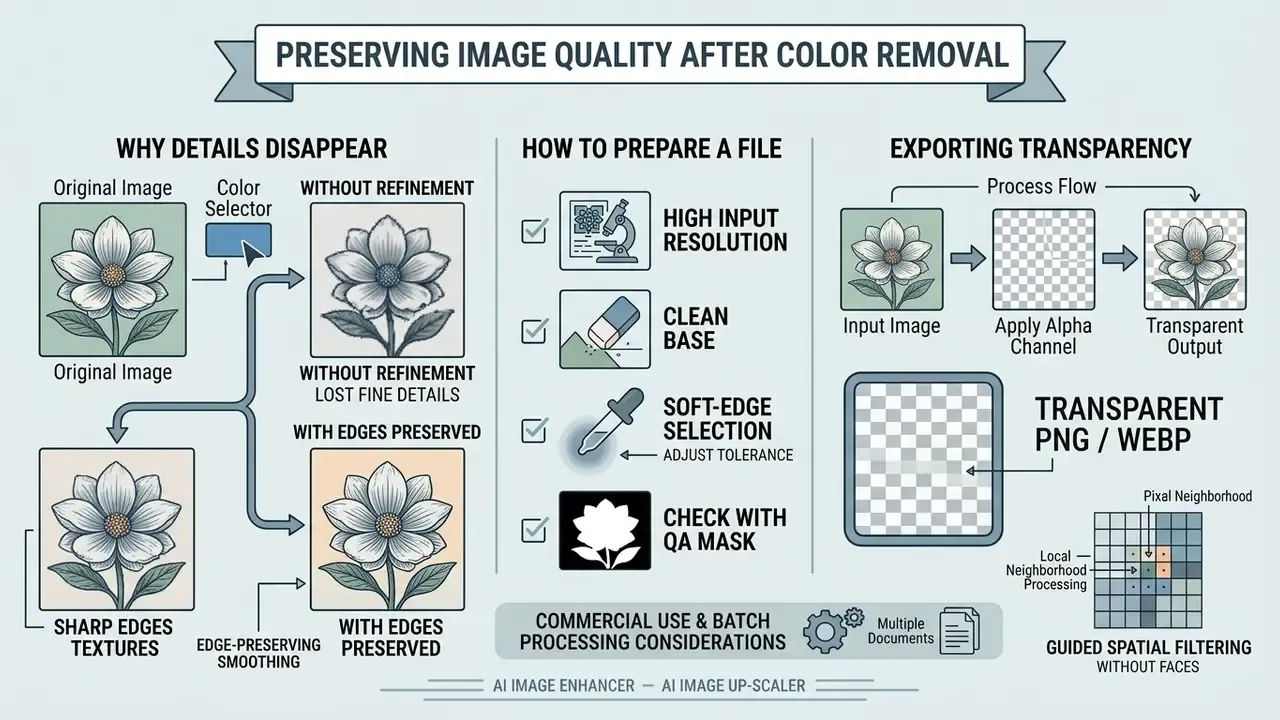
Holding on to edge sharpness and subject clarity during color removal comes down to edge-preserving smoothing filters, guided spatial filtering, and decent input resolution. When the source file is already degraded, an AI image upscaler should restore working resolution before the keying pass, not after it.
Plain edge thresholding introduces aliasing. Advanced filtering (anisotropic diffusion, guided image filtering, L0 gradient minimization) keeps salient contours while smoothing minor variation inside the target hue band. Anisotropic diffusion suppresses diffusion across edges and allows it along them. Guided filtering behaves better near boundaries than bilateral filtering. L0 gradient minimization strips low-amplitude structure and retains high-amplitude edges. Document-oriented color segmentation research applies edge-preserving smoothing plus color edge detection before color reduction for precisely this reason (Scitepress, Color segmentation of complex documents, 2006).
- AI image upscaler
- Scitepress, Color segmentation of complex documents, 2006
Why Similar-Colored Subject Details Disappear
Subject detail vanishes when a color extraction tool judges on chromatic similarity alone, so internal pixels matching the backdrop hue get labelled as background and erased.
Binary keying cannot tell a white shirt from a white backgrounds backdrop. Unguided thresholding therefore punches holes in the subject. The fix involves alpha matting networks that combine trimap guidance or a semantic context branch with detail-extraction layers, so the system weighs spatial context alongside raw image color values (PP-Matting Research, 2022-2026).
Countermeasures, in escalation order: lower tolerance and accept a thin halo, then soften it with feathering; fence the subject with an ROI mask so keying cannot reach protected pixels; switch to trimap-guided matting; reshoot against a backdrop that does not share the subject's hue. The last option feels like defeat and is often the cheapest.
How to Prepare a File for a Transparent PNG
For high-quality transparent PNG conversion, the source should carry strong visual contrast, use the sRGB profile, and sit between 4 MP and 100 MP, the range Adobe specifies for PNG submissions with transparent backgrounds.
High-resolution input gives matting algorithms enough signal to compute precise semi-transparent transitions along a complicated boundary.
Before export, check the result through preview overlays against alternating black and white backdrops. If source contrast is marginal, run an AI image enhancer pass to lift separation between subject and backdrop first. Localisation pipelines may also need an ai image translator for multi-language visual assets, while an ai image upscaler rescues low-resolution originals that would otherwise key badly.
Working Glossary: Terms Operators Confuse Most Often
A short reference, because most QA disputes trace back to vocabulary rather than technique.
- Alpha channel the per-pixel opacity layer stored alongside RGB. Values run 0 (invisible) to 255 (solid). PNG and WebP carry it; JPEG does not.
- Tolerance the chromatic distance radius around a selected color. Wider radius, more shades erased, higher chance of hitting the subject.
- Edge feathering / smoothing radius the width of the semi-transparent transition band at the mask boundary. Controls softness, not coverage.
- Despill / spill suppression removal of the ambient tint a colored backdrop bounces onto subject edges. Mandatory on green screen work.
- Trimap a three-zone annotation marking definite foreground, definite background, and the unknown band between them. Guides matting models where precision matters.
- ROI fencing a region-of-interest boundary that protects pixels from being touched by a color mask.
- Contiguous matching a switch that limits removal to the connected region under the cursor instead of the whole frame.
Where to Use Images After Color Removal
Isolated assets with transparent or replaced backdrops serve a predictable set of commercial jobs: marketplace listings, social media campaigns, display banners, and composite brand collages.
Marketplace standards are stricter than most teams expect. GS1 international guidelines require official product photos on solid white (RGB 255,255,255 / #FFFFFF) or a clean transparent field, and prohibit unapproved props, secondary items, people, or heavy ambient casts (GS1 Product Image Guidelines, 2023-2025). GS1 Austria permits transparency in TIFF while restricting JPG to pure white. GS1 US asks for backgrounds knocked out to white with even lighting, and allows a scene background only when the product is deliberately shown in a scene.
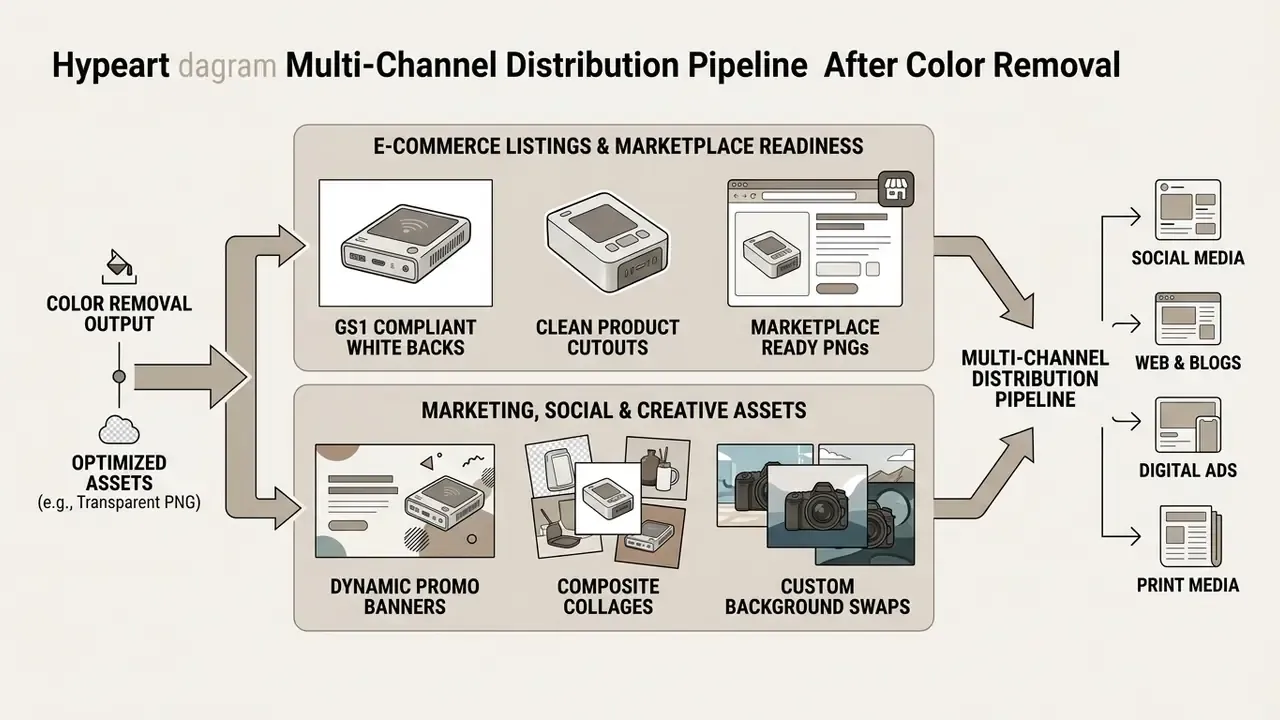
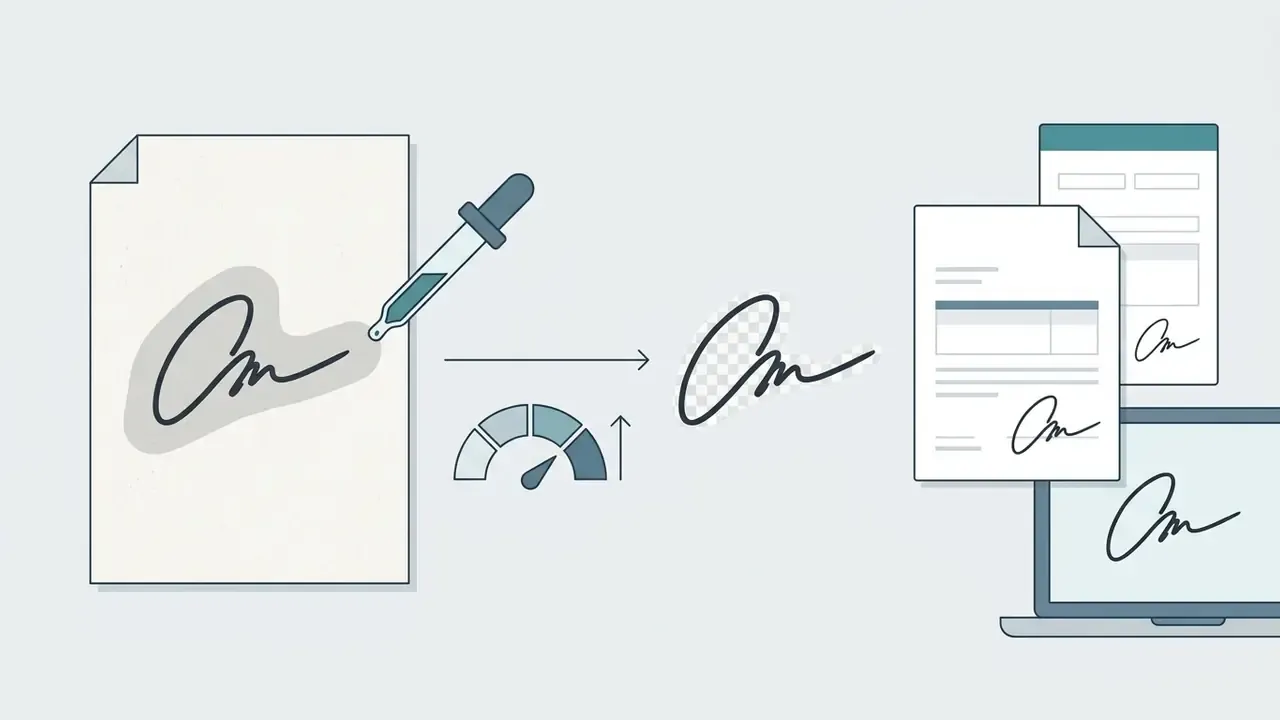
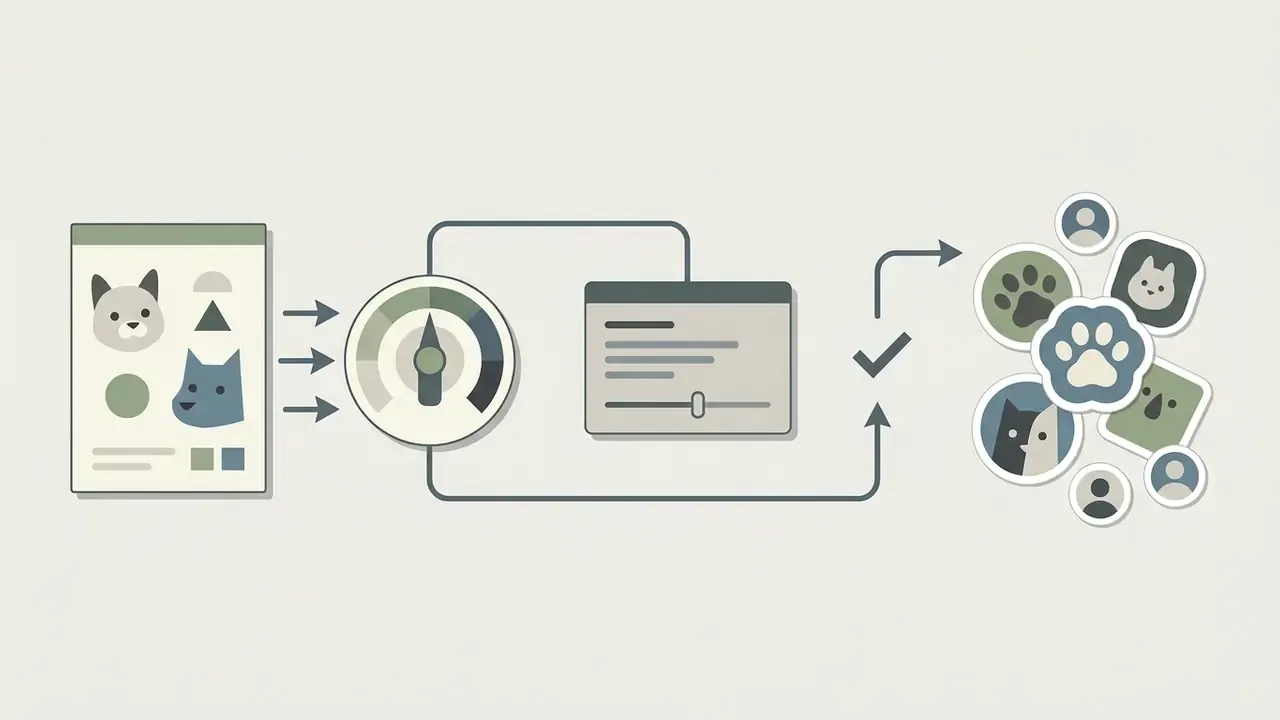
Designers building social media assets drop transparent PNG cutouts into branded templates, and pair them with an AI image generator when a synthetic backdrop beats a flat fill. Other high-frequency destinations: profile and CV portraits on neutral corporate backgrounds; contract workflows needing transparent signature overlays; messaging-app sticker packs; travel and lifestyle shots where a blown-out sky is keyed out and replaced with usable scenery. Teams scaling visual marketing can build that scenery with an ai landscape generator from photo, or remove objects that clutter a promotional composition.
FAQ About Image Color Removers
Can I Remove a Color from a PNG Image in the Browser?
Yes. Modern browser-based editors remove specific colors from a png image inside the tab, using client-side HTML5 Canvas, WebGL, and WebAssembly processing.
Those algorithms rewrite pixel alpha values locally, with no transfer of source media to a remote server, which preserves document privacy and delivers near-instant transparency conversion (SmallPNGTools, 2026). Akamai's Image and Video Manager documents the same operation server-side as a "Remove Color" transformation that swaps the specified color for transparent pixels under a Tolerance parameter.
Can I Use a Color Remover for Free?
Yes, many online tool options offer free color removal, though free tiers tend to cap export resolution, meter daily credits, restrict licensing to personal use, or lock batch processing behind a paywall.
Adobe Firefly, for instance, grants free daily credits for visual edits once you create a standard account, while high-volume API services charge for full-resolution batch exports (Adobe Firefly Documentation, 2026). Anyone comparing entry-level limits can consult the roundup of best free AI image generators for equivalent caps and export rules.
Is an Image Color Remover Suitable for Product Photos and Social Media?
An image color remover performs well on product photos and social media assets, provided the original was shot against a solid, uniform backdrop that does not share hues with the subject.
When backdrop and subject colors overlap, move to an AI-driven semantic remover or full editing tools and isolate the product properly before publishing anywhere commercial.
"A 2024 study found that background removal via rembg measurably shifts downstream computer-vision model metrics relative to original images." - The Impact of Background Removal on Performance, arXiv:2308.09764v2, 2024. https://arxiv.org/abs/2308.09764
To map end-to-end automation, operators can compare options for enterprise creative production.
How Do I Remove Every Instance of One Color Across a Whole Image?
Sample the hue once, by eyedropper or Hex, then leave contiguous matching off. The engine then evaluates every pixel in the frame instead of only the connected region under the cursor. That is how a logo fill, a colored border, and a backdrop sharing one color all disappear in a single pass.
Can I Remove Multiple Colors at Once?
Yes. Professional editors accept up to five chromatic samples per mask, and browser tools expose an "add another color" control so each swatch is suppressed simultaneously. For overlapping or gradient backdrops, sequential masks with ROI fencing stay more controllable than one wide-tolerance sweep.
What Output Formats Should I Choose?
PNG and WebP retain transparency. JPEG does not. If the destination insists on JPEG, assign a replacement background color before export so alpha zones flatten onto a deliberate value rather than whatever the encoder defaults to.
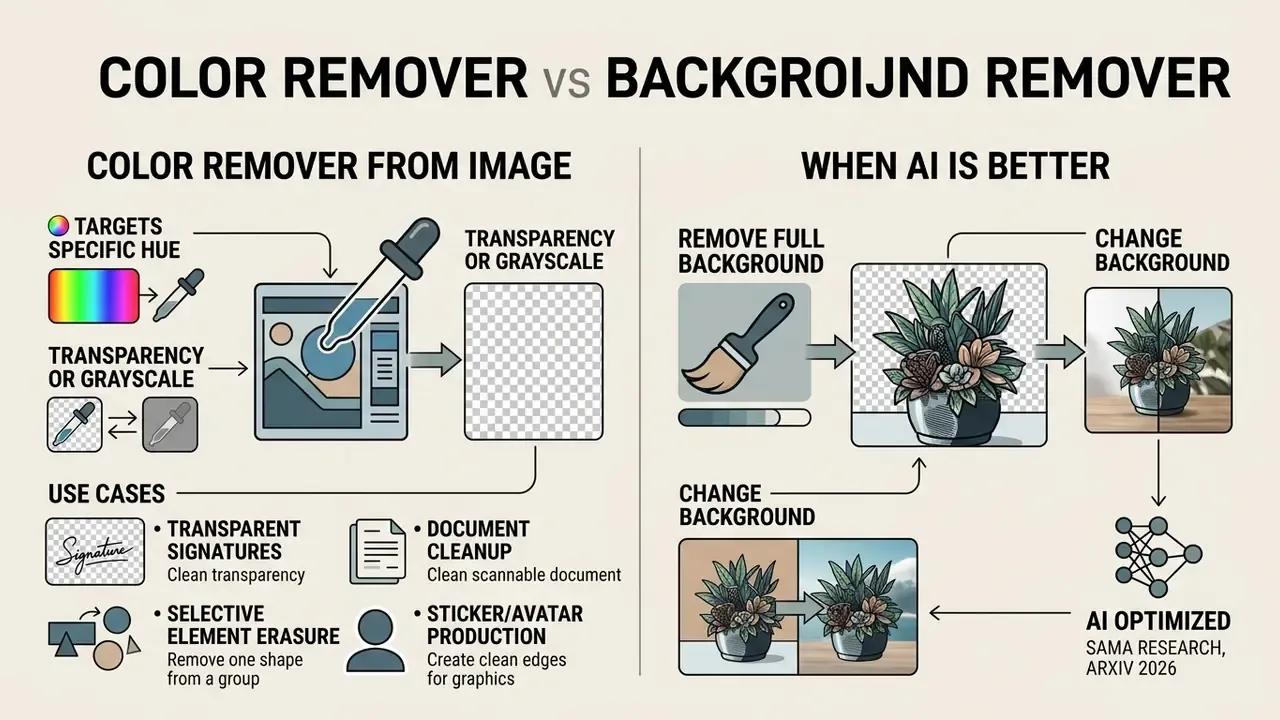
What's the Difference Between Removing a Color and Removing the Background?
Removing a color is chromatic: you decide which hue disappears, everywhere it appears, including inside the subject. Removing the background is semantic: a model decides what counts as the subject and discards the rest, color notwithstanding. Pick the first for flat fills, keying, and defect cleanup. Pick the second for hair, fur, glass, and cluttered real-world scenes.
Will Color Removal Reduce My Image Quality?
Color removal itself only rewrites alpha and color values at the targeted pixels, so resolution and detail outside the mask survive untouched. Quality loss sneaks in through three side doors: free-tier downsampling on export, re-compression to JPEG, and over-wide tolerance that erases legitimate subject pixels. Audit all three with the verification protocol above.
A Safe Next Step
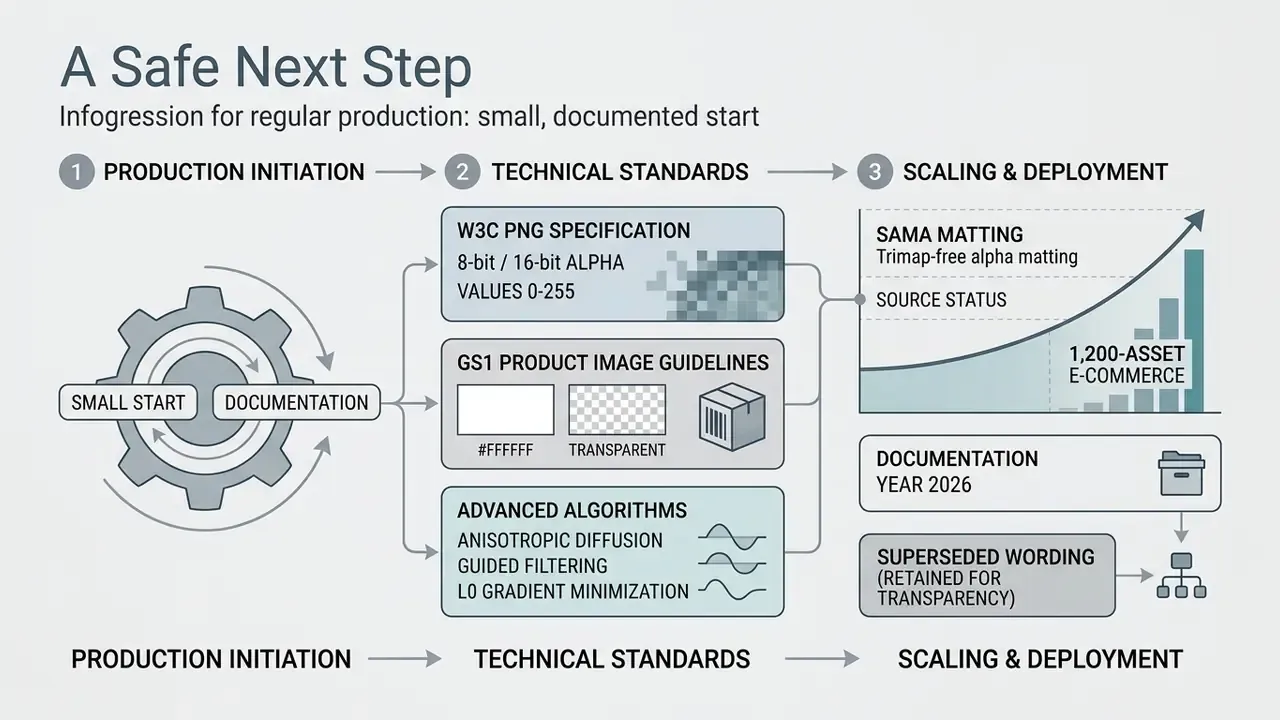
If this workflow is heading into regular production, start small and documented. Pick ten representative assets, lock one preset, run the five-point QA protocol, and record which settings passed. That record becomes your baseline for batch work and your evidence when someone asks why a cutout looks the way it does. No heroic re-tooling required.