Last updated: January 2026. Reviewed for accessibility and export-policy accuracy by the editorial standards desk.
Three things to remember before you start
- Workflow Upload media, insert a text layer, style typography and contrast, align in and out points on the timeline, preview, export. Five steps, entirely inside a browser, on desktop or mobile.
- Standards Hold a contrast ratio of at least 4.5:1 for normal text and 3:1 for large text (WCAG 2.1), keep text inside the inner 80–90% title-safe region, and let each caption stay on screen for at least 1 to 1.5 seconds.
- Money and risk "Free" rarely means "unlimited." Verify watermark and resolution terms before you start. And never upload confidential, NDA-bound, or personally identifiable footage into an unvetted cloud editor.
Add text to video online: what the editor can do
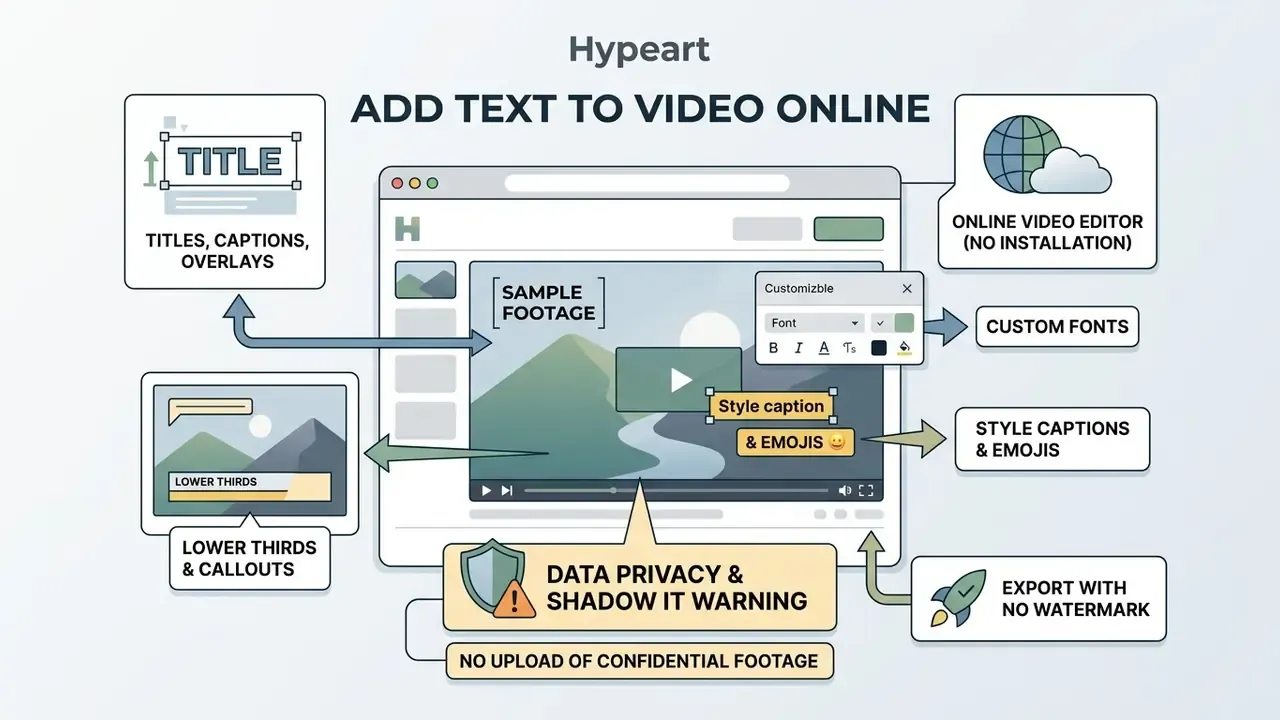
Online video text editors let you create titles, automated captions, lower thirds, and callout overlays directly on top of footage. Everything runs in the browser, which means full control over typography, timing, position, and animation without specialized local hardware. That is the whole appeal: a laptop from 2019 and a stable connection.
Titles, captions and text overlays for videos
Video text elements do different jobs depending on their visual hierarchy and their relationship to speech. Titles open a video or introduce a section. Captions carry transcript-synchronized text for spoken dialogue. Text overlays highlight metrics, brand claims, or lower-third identity cards. Callouts sit closest to the product surface: they label features, mark interface elements, and carry short on-screen instructions.
Research on skipping behaviour in online video advertising shows that on-screen text cues, not audio alone, change what viewers decide to do:
«On-screen text cues significantly reduced ad skipping, while voice-only message delivery produced no meaningful effect on viewer behaviour.»
Creators comparing multi-layer canvases can review our roundup of free video editing software to see how cloud editors render several text layers at once, and how stacked text tracks behave during export. Stacking matters more than people expect. Four overlays that preview beautifully can still shift by a few pixels after a server-side render.
Online video editor with no installation needed
Cloud-based video editors offload rendering and encoding to remote infrastructure. You upload media, apply typography, and render finished projects from any connected device without eating local disk space. For distributed teams, that also removes version drift: everyone opens the same project, the same Brand Kit, the same caption track. Because heavy encoding runs server-side, older laptops and low-power tablets stay usable production endpoints, which is a real advantage in classrooms and in contractor workflows. One caveat worth naming early: convenience and control pull in opposite directions here.
Enterprise risk warning: data privacy and Shadow IT
Control checklist before a first upload:
- Processing location: does the tool process frames locally in the browser (WebAssembly or WebCodecs) or upload the full source file to a remote server? Local processing keeps the master on the device.
- Retention: how long are source files and renders kept, and is there a documented deletion window or a manual "delete project" action?
- Certifications and contracts: is there a published security posture (SOC 2 Type II, ISO 27001), a DPA, and named sub-processors? For regulated content, no DPA is a blocking issue.
- Transport and access: TLS everywhere, SSO and role-based access for shared workspaces, and no public-by-default share links.
- Model training: does the vendor use uploaded media or generated transcripts to train models? Look for an explicit opt-out.
- Approved-tool list: route video text editing through one vetted platform instead of letting each team pick a random free site, and record the choice in your tooling register.
How to add text to a video online
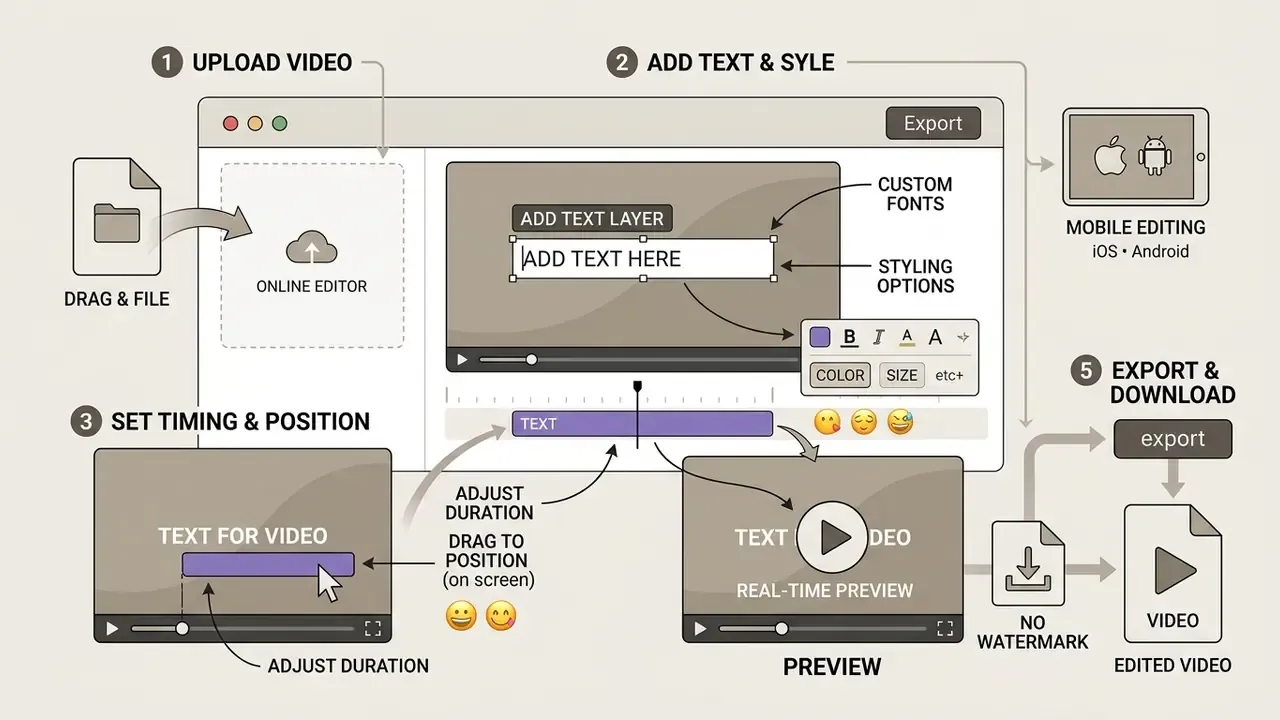
Adding text to a video online means uploading a source file, inserting a text layer on the timeline, styling it, adjusting display timing, and exporting the rendered result. Web interfaces compress that sequence with drag-and-drop mechanics and instant player previews.
Upload your video to the online editor
The process starts by importing source media into the cloud canvas. Most web editors accept MP4, MOV, WebM, and AVI containers, often up to several gigabytes per project. Drag and drop the file into the asset library and browser caching plus background processing begin immediately. Editors that nudge you toward MP4 or MOV first usually do so because those containers become editable before background conversion of other formats finishes. Teams comparing tool architectures can browse the hub for structural breakdowns of browser-based processing performance. If you arrived looking for an "add text to video online converter," this upload step is the conversion: the editor transcodes your source into an editing-friendly stream before the first text box appears.
Add text and set its position and duration
Once media sits on the timeline, pick the text tool to generate a new overlay layer above the video track. From there you can move text anywhere in the frame and stretch or compress the block's duration to match a specific line of speech or a visual transition. Text size, colour, and position are all live: what you see in the player is what bakes into the render.
In a documented internal workflow review, an enterprise communications team had to insert compliance disclaimers across roughly 120 video assets under a fixed deadline. Working with snap guides and frame-accurate duration trimming in a browser editor, they aligned disclaimer in and out points to shot cuts rather than eyeballing them in a desktop suite. The team reported a materially shorter post-production cycle than its previous desktop pipeline. That figure is an internal estimate from a single deployment and has not been independently audited, so read it as directional, not as a benchmark.
Accurate timing is not only a production-speed question. It changes comprehension:
«Learners who watched videos with auto-generated subtitles showed higher comprehension than the no-subtitle group, with no increase in cognitive load.»
Add text to video on mobile devices (iOS and Android)
Modern web editors ship responsive, touch-optimized interfaces, so you can overlay text on video from a mobile browser or a native iOS and Android app. Mobile timelines support pinch-to-zoom scaling, touch-drag placement, and the device keyboard for input, including dictation and emoji. Use safe-zone guides so overlays do not collide with app interface buttons, progress bars, or the gesture zones used by TikTok, Reels, and Shorts.
Three practical mobile rules. Keep tap targets for text boxes at roughly 44 by 44 points. Duplicate an existing styled layer instead of re-styling from scratch. And verify legibility on the phone itself, not on a desktop preview, because text that reads cleanly at 27 inches can collapse at 6 inches. For a mobile-first comparison, the capcut online video editor is a useful reference point for how touch timelines handle stacked text tracks.
Preview, export and download the edited video
After positioning and timing, play the project back in real time and check alignment plus legibility. Then export: the editor compiles media tracks and text layers into one downloadable file. Cloud pipelines use optimized preview caches so the final render can preserve source frame rate and resolution. Watch for the "use previews" export path. It is faster because it reuses already-rendered preview files, but final quality then inherits the preview format, so high-fidelity deliverables should always be rendered from source.
Customize video text: font, color, size and style
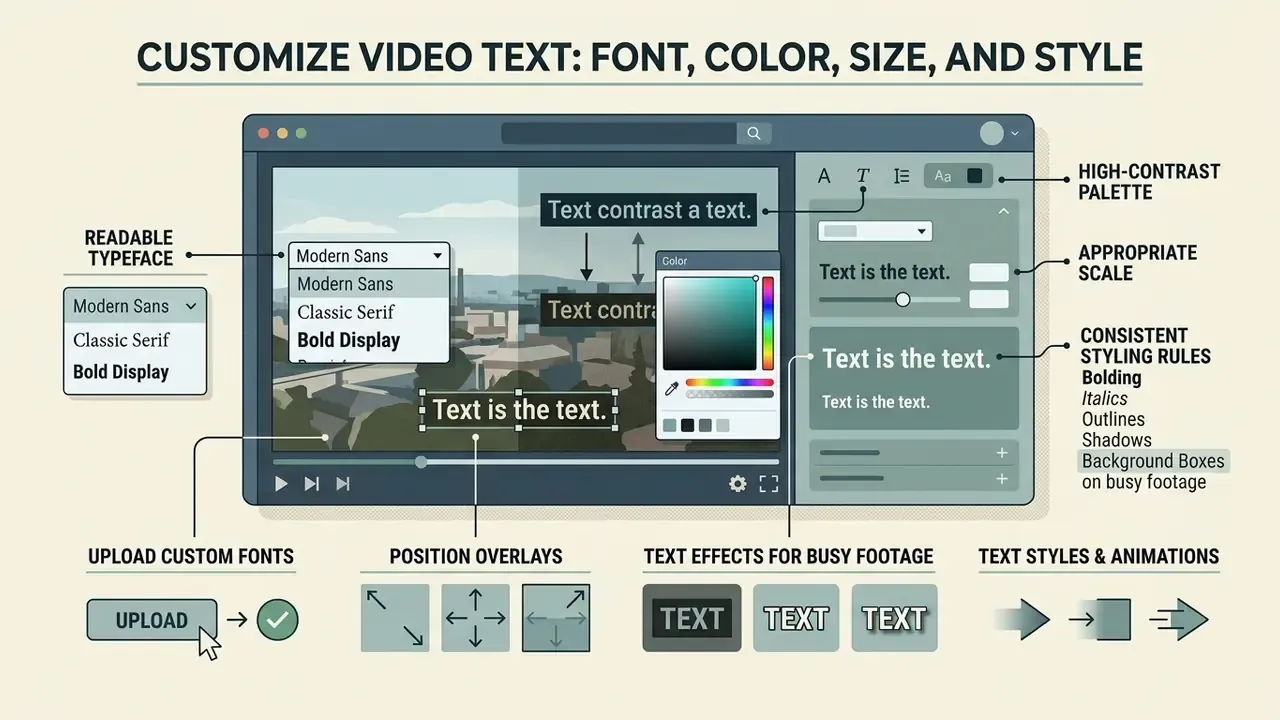
Customizing video text comes down to four decisions: a readable typeface, a high-contrast palette, appropriate scale, and consistent styling rules. Get those right and the overlay reinforces brand identity instead of fighting the footage.
Choose fonts, text size and color
Typography choice drives legibility across very different screens. Web Content Accessibility Guidelines (WCAG 2.1) set a minimum contrast ratio of 4.5:1 for normal text and 3:1 for large text against the background, and video backgrounds move, which makes this harder than on a static page.
«WCAG 2.1 requires a contrast ratio of at least 4.5:1 for normal text and 3:1 for large-scale text against its background.»
Standard practice favours clean sans-serif faces such as Inter, Roboto, or Source Sans Pro, set at 18 points or larger for captions and considerably larger for section titles. Section 508 caption guidance defaults to 18-point white text on a translucent black background, with consistent text and background colours so colour-blind viewers never depend on hue alone.
| Text element type | Minimum recommended size | Minimum contrast ratio | Primary use case |
|---|---|---|---|
| Open captions and subtitles | 18pt–24pt | 4.5:1 (with dark background box) | Dialogue transcription for silent viewing |
| Lower thirds and identifiers | 20pt–28pt | 4.5:1 | Speaker names, titles, locations |
| Section titles and hooks | 32pt–48pt+ | 3:1 | Opening hooks, major topic transitions |
| Callout and metric overlays | 24pt–36pt | 4.5:1 | Key data points, feature labels, CTAs |
Upload custom fonts for branded video editing
To hold corporate identity across a video library, most serious web editors accept custom font uploads in TTF, OTF, WOFF, or WOFF2 straight into the browser canvas. Imported typefaces render on the timeline without a system-level install, so a contractor on an unmanaged laptop still produces on-brand frames. Confirm that font files include every glyph set you need, plus numerals and language-specific accents such as Cyrillic, Greek, or Latin Extended, or you will hit fallback rendering errors during cloud export.
Three guardrails. Check that your licence covers embedding and video redistribution. Upload the variable-weight file instead of a dozen static weights, which keeps the asset library sane. Store approved typefaces in a shared Brand Kit so every editor pulls the same headline and caption pair rather than re-uploading near-duplicates.
Position text overlays for clear viewing
Text placement has to respect title-safe margins, otherwise aspect-ratio cropping or platform UI will eat your message. Broadcast standards and subtitling guidelines keep primary text layers inside the inner 80–90% of the canvas (ETSI EN 300 743). Subtitles default to the lower third, and should move to the top of the frame whenever burned-in on-screen text or critical image content sits underneath.
Eye-tracking work quantifies the trade-off:
«Viewers fixated longer on text positioned at the right of the frame than at the bottom; longer text increased fixation duration and correlated with better recall.»
So upper-middle or right-side placement can raise fixation duration and retention when the bottom of the frame is busy with scene action or interface chrome. Not a universal rule, though. Test it.
Use text styles and animations for a consistent brand look
Uniform colour presets, shadows, background panels, and restrained entry animations keep a video library coherent.
«Animated captions outperform static captions on watch time by 10–20%, and roughly 85% of social video is watched without sound.»
Word-by-word or line-by-line reveals guide focus, but keep animation durations under five seconds to avoid visual fatigue and to stay aligned with web motion standards: WCAG 2.2 requires a mechanism to pause, stop, or hide motion that starts automatically and runs longer than five seconds. Logos and brand marks should not be animated or recoloured beyond approved variants. To evaluate pre-built stylistic assets and motion presets, explore animation makers and their template libraries built for rapid social publishing, and review layout formats such as capcut template video for vertical feeds.
Add captions and subtitles for silent viewing
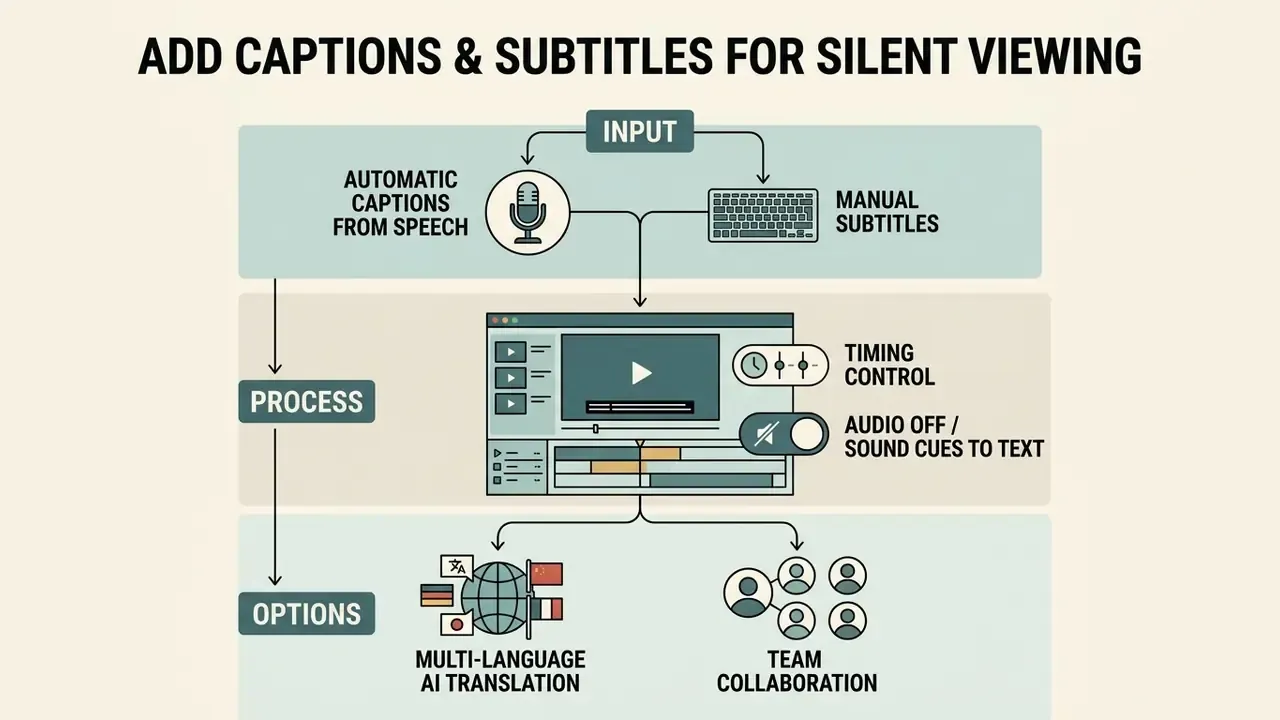
Captions and subtitles turn dialogue and sound cues into readable on-screen text, so viewers follow the content with audio off. On modern social feeds, where playback starts muted by default, that is not an accessibility extra. It is the delivery mechanism. Terminology matters in procurement documents too: subtitles usually carry dialogue only, while captions also carry non-speech audio information such as speaker changes and sound effects.
Captions from speech and manually added subtitles
Web video editors typically offer both AI speech-to-text and manual subtitle entry. Automated transcription engines produce timestamped text blocks within seconds, and a human editor then fixes spelling, proper nouns, punctuation, and line breaks (Section508.gov).
Control caption timing for videos watched on mute
Tight synchronization between speech and caption display prevents confusion for muted viewers. Industry practice puts caption in-times within 1 to 2 frames of speech onset, with a minimum on-screen duration of 1 to 1.5 seconds for natural reading speed (Netflix Timed Text Style Guide, https://partnerhelp.netflixstudios.com/hc/en-us/articles/215758617). Leave at least a 2-frame gap between consecutive blocks to prevent flicker and to signal a textual transition. A few more professional rules: cap a single subtitle at roughly 6 to 7.5 seconds, start or end subtitles at least 2 frames away from a shot change, and never pad text with duplicate lines or spaces to stretch display time artificially.
Multi-language AI translation and team collaboration
Enterprise cloud editors extend basic text layering with automated speech translation that converts auto-generated captions into 30 or more languages in seconds, turning one master edit into a localized library. Machine translation still needs a native reviewer for idioms, product names, and regulated wording. Same human-in-the-loop rule as auto-captions, no exceptions for legal disclaimers.
Multi-user workspaces then let remote teams work on text overlays together. Members leave frame-specific comments, apply shared Brand Kit fonts and colours, and review caption timing inside one browser session, which removes the file-versioning churn typical of desktop pipelines. For regulated organizations, prefer workspaces with SSO, role-based permissions, and audit logs, so who changed a disclaimer, and when, stays traceable.
Add text to video online free with no watermark
Free online video text editors cover basic editing and text insertion, but export conditions on watermarks and resolution vary sharply by vendor. Knowing the tier boundaries before you start is what keeps a project from stalling at the render step.
| Feature or metric | Free plan standard | Premium or Pro standard | Operational considerations |
|---|---|---|---|
| Watermark policy | No watermark (Clipchamp 1080p) or watermarked (Kapwing free) | 1080p and 4K clean export | Verify vendor terms before starting large projects |
| Max export resolution | 480p to 1080p HD | 4K UHD or uncompressed | 1080p is the baseline for professional social publishing |
| Asset library access | Free fonts, basic text templates | Premium stock, brand kits, AI text effects | Paid stock added to free projects may trigger export watermarks |
| Caption export | Open captions (burned in) | Closed caption download (.SRT, .VTT) | External SRT files enable multi-language platform indexing |
| Custom font upload | Often limited or unavailable | TTF, OTF, WOFF upload, Brand Kit storage | Verify embedding rights in the font licence |
| Collaboration | Single-user projects | Shared workspaces, comments, roles, audit logs | Required for regulated review chains |
For a wider view of free-tier ceilings, credit systems, and watermark rules across generative tools, see our breakdown of free AI video generators.
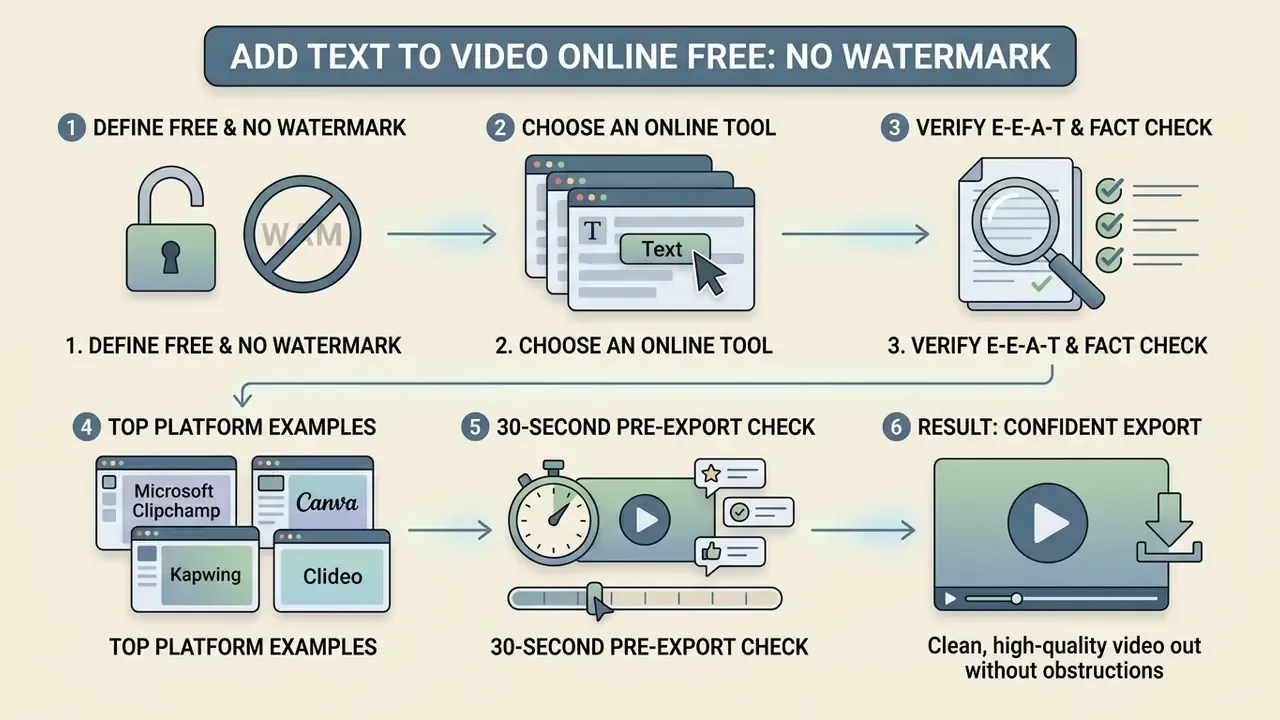
What "free" and "no watermark" mean for export
"Free export" means the tool lets you process and download a finished file without upfront payment. "No watermark" means the output carries no third-party logo. Those are two different promises, and vendors fence both: capped resolution at 480p, 720p, or 1080p, monthly rendering minutes, gated subtitle downloads, or restricted output formats. So when someone searches for a way to add text to video online free with no watermark, the honest answer is conditional. Free is not the same as unlimited.
The business case for spending time on captions, on the other hand, is well documented:
«Facebook found that adding captions increased average video view time by 12%; A&W Canada measured a 25% lift.»
For service tier pricing structures across the main platforms, browse the hub and compare plan limits before committing a campaign to one vendor.
Choose an online tool for text overlays and editing
Choosing an effective free online video editor that lets you add text starts with confirming that overlay and export features are not fenced behind hidden paywalls. Reliable platforms state export resolution caps in their documentation and do not lock basic trimming or font selection behind an upgrade.
Four criteria worth writing into a procurement note:
Teams comparing export ceilings can consult our list of free video editing software and their export limits, or read the capcut video editor overview for one platform's full feature breakdown.
E-E-A-T verification and fact check:
Pre-export watermark check in 30 seconds
Before you queue a long render, confirm four things in the editor UI. One: no asset in the timeline carries a "Pro" or crown badge. Two: the export dialog shows your target resolution as selectable, not upsell-locked. Three: the preview player shows no watermark in the corners or centre. Four: any auto-generated caption track is either burned in or downloadable in the format you need. If any of the four fails, fix it before rendering. Re-exporting a 20-minute asset after a paywall surprise costs far more than the check.
Supported video formats and export quality
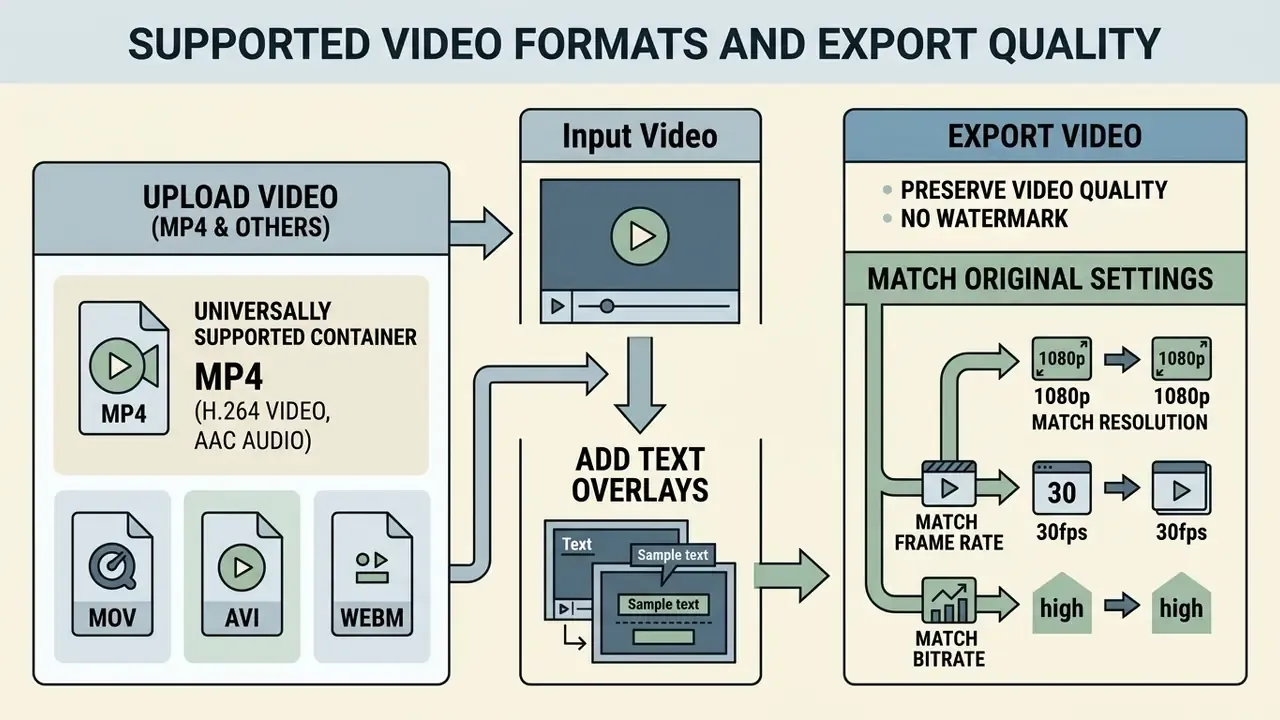
Online video text editors support standard containers and encoding profiles so upload, processing, and export stay predictable. Keeping source resolution high and matching export parameters is what prevents compression artifacts when you bake text overlays into the frames.
Add text to MP4 and other uploaded videos
The most universally supported web container is MP4 with H.264 video and AAC audio, which plays across every browser engine (ISO/IEC 14496-14). Cloud editors also accept MOV, WebM, AVI, MKV, WMV, FLV, and 3GP, converting them internally into standardized editing streams. Creators weighing browser tools against desktop suites can compare how video editors and their capabilities differ across workflows, or check the capcut video editor desktop download for offline hardware-accelerated processing.
| Container | Typical codecs | Browser playback | Best used for |
|---|---|---|---|
| MP4 (ISO/IEC 14496-14) | H.264 + AAC | Universal | Final delivery, social upload, archival masters |
| MOV | H.264, ProRes 422 | Safari native, variable elsewhere | High-fidelity intermediates, colour-graded masters |
| WebM | VP9 or AV1 + Opus | Chrome, Firefox, Edge | Web embeds, bandwidth-sensitive delivery |
| MKV / AVI | Mixed | Not natively supported | Source ingest only; transcode before publishing |
Preserve video quality when exporting text overlays
To keep visual quality when burning text into frames, match the original resolution, frame rate, and bitrate targets on export. For 1080p, bitrates between 10 Mbps and 20 Mbps with variable bitrate encoding balance fidelity against file size, because VBR allocates more data to complex frames. Capture at 4K/60fps where you can and finish at 1080p to retain detail after re-encoding. Alternatively, export an external subtitle track such as WebVTT or SRT: text overlays dynamically at playback without re-encoding the video stream, which is the right call when one master has to serve several languages. If file size becomes the constraint after burning in text, run a controlled second pass through a video compressor instead of dropping the first-pass resolution.
Where to use text on video: YouTube, social media and marketing
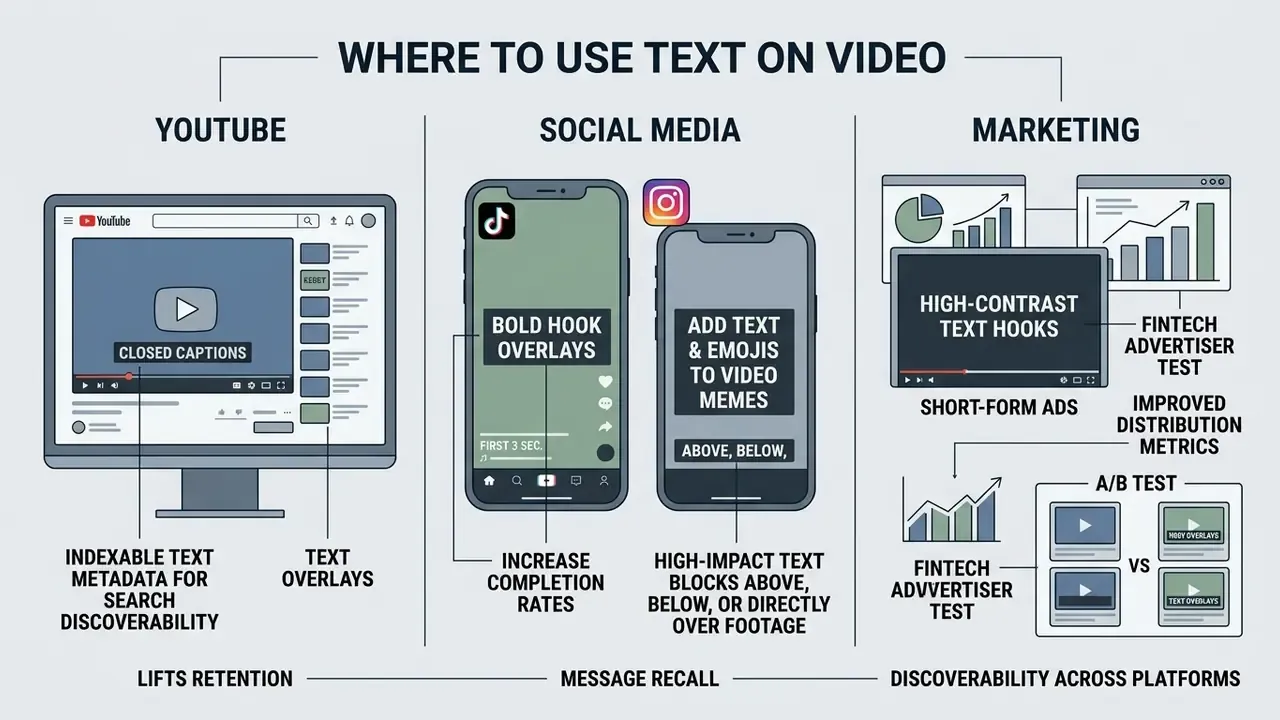
Adding text to video lifts retention, message recall, and discoverability across YouTube, TikTok, Instagram Reels, and corporate campaigns. The structure of the text, per channel, is what decides whether that lift shows up.
Add text and emojis to video memes
Video memes need high-impact text blocks above, below, or directly over the footage. Standard layouts use bold uppercase sans-serif faces such as Impact or Arial Black with a 2px black outline for legibility in compressed feeds, and often add letterboxed white bars above and below the clip so the text never covers the action. Online editors support native system emojis and Unicode characters inside text layers, including arrows, maths symbols, and accented glyphs, so there is no reason to composite emoji as separate PNG stickers. Emojis render as scalable vector layers, which means you can animate, resize, and reposition reaction graphics next to text without resolution loss. For remix workflows: duplicate the styled layer for each punchline beat rather than restyling, keep every caption on screen at least 1.5 seconds so mobile viewers finish reading before the cut, and export as MP4/H.264 so burned-in text survives platform re-encoding.
Pre-publication checklist
Run this before publishing any captioned or text-overlaid video:
Checklist0 / 13
FAQ: adding text to video online
Online video editors combine text layering with multi-track media, so a full multimedia project can be assembled in one browser window. The questions below are the ones that come up most often after the first export.
Can I add music, audio or an image besides text?
Yes. Cloud video editors run multi-track timelines that accept background music, voiceover, image graphics, and brand logos alongside text overlays. Most browser workstations let you stack several independent media tracks, commonly up to three audio tracks including one voiceover, balance volume levels, and place image overlays such as PNG logos or lower-third panels while timing text appearances precisely.
«92% of Americans watch mobile video with the sound off, and 80% are more likely to finish a video when captions are available.» AI-Media, Whitepaper: Engagement and Retention (2023–2024), citing Verizon Media and Publicis Media. https://www.ai-media.tv/wp-content/uploads/Whitepaper_Engagement_and_Retention-Final.pdf That silent-viewing baseline is exactly why text and captions, not the audio bed, carry the message on social feeds. Creators building repeatable multi-track pipelines can follow our YouTube video editing workflows, and teams estimating bandwidth or processing cost for cloud media can see the overview on our developer resource page.
How do I protect confidential video when editing online?
Prefer editors that process frames locally in the browser, or a contracted enterprise workspace with a signed DPA, documented retention windows, SSO, and a model-training opt-out. Strip personally identifiable information from filenames, avoid public share links, delete projects after delivery, and keep an approved-tool register so teams do not improvise with random free sites. Anything covered by an NDA or a regulated data policy should never touch an unvetted free tier. General operational guidance, not legal or security advice.
What is the difference between burned-in captions and .SRT subtitles?
Burned-in, or open, captions are rendered into the pixels during export. They cannot be switched off, they survive every platform re-encode, and they look identical everywhere, but each language needs a full re-render and the text is not machine-readable. External side-car files (.SRT, .VTT) overlay text at playback, stay toggleable, are indexable by search engines, and serve several languages from one master, though appearance depends on the player and some upload pipelines strip them. Practical rule: burn in for vertical social feeds, use side-car files for YouTube and long-form hosting, and do both when the asset really matters.
What should I do if the online editor freezes during rendering?
Reduce concurrent load first: close other tabs, disable extensions that intercept media, confirm the browser is current. Then reduce project complexity. Flatten or pre-render heavy sections, split long timelines into segments and join them after export, and lower preview resolution while keeping export resolution intact. If the failure repeats at the same timestamp, the source file is usually the culprit, so transcode the input to MP4/H.264 and re-import. For very large masters, export in segments and check whether your plan enforces an undocumented duration or file-size ceiling.
Can I use emojis, special characters and non-Latin alphabets?
Yes. Emojis and Unicode characters work in text fields with no extra steps and render as scalable vector layers, so they stay sharp when resized. Non-Latin alphabets depend on the typeface: if a font lacks Cyrillic, Greek, or Latin Extended glyphs, the editor substitutes a fallback face and your branding quietly breaks. Upload a font with full glyph coverage, or check coverage in the editor's font preview before you style the whole project.
Can I add a title to a video online free without paying later?
Usually yes, if you stay inside free assets. Titles built from free fonts, free templates, and your own footage export cleanly on most no-watermark free tiers. The trap is mixing one premium element into an otherwise free project, because a single Pro-badged asset can lock the whole export. Build the title, check the export dialog, then commit to the render.
Appendix A: review and approval workflow for on-screen disclaimers
Marketing teams treat overlays as design. Regulated teams cannot. If a caption or lower third carries a disclosure, a rate, a product name, or a risk statement, that text is controlled content, and the video file becomes the record. A lightweight workflow keeps that manageable without slowing publishing to a crawl.
| Stage | Owner | Evidence to retain | Typical failure |
|---|---|---|---|
| Draft copy for overlay | Content owner | Approved wording in a versioned document | Editor retypes text in the canvas and drifts from approved copy |
| Style and placement | Video editor | Screenshot of frame with safe-zone guides on | Disclaimer cropped by a vertical platform reframe |
| Timing review | Reviewer | Timecode list of in and out points | Disclaimer on screen for 0.6 s, unreadable in practice |
| Compliance sign-off | Compliance or legal | Dated approval tied to a specific export | Approval given on a preview, not the final render |
| Publication and archive | Channel owner | Final file hash, caption file, publish date | Only the social post survives; the master is gone |
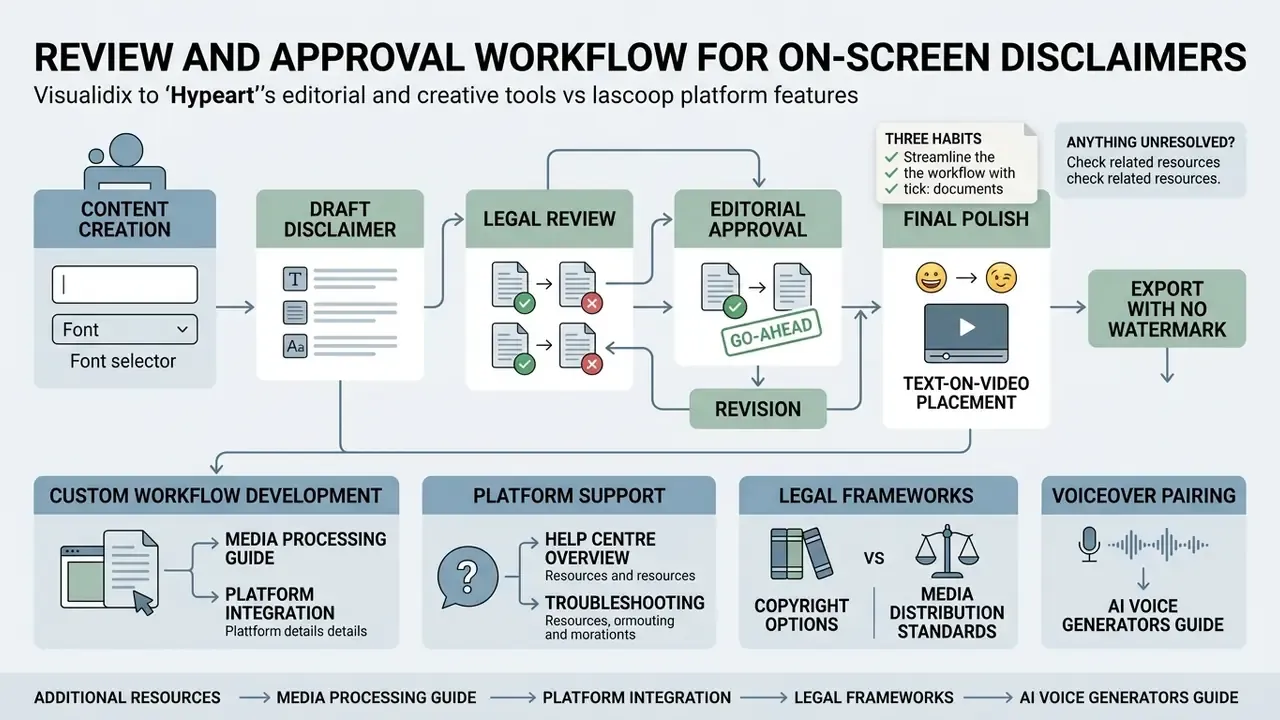
Three habits make the table workable. Paste approved wording from a single source instead of retyping it in the editor. Approve the exported render, not the browser preview, since preview and final can differ. And archive the caption side-car file next to the master, because that is the artifact an auditor can actually read.
Anything unresolved? Yes, plenty. Retention rules for editing platforms are inconsistent, browser-local processing is not always verifiable from the outside, and few free tools publish a usable audit trail. Where evidence is thin, the safer choice is a contracted workspace, even for something as small as a caption.
Additional platform and API resources
- For custom workflow development and platform integration, view the guide to inspect media processing endpoints.
- For platform support options and troubleshooting, see the overview in our help centre.
- For legal frameworks and commercial copyright guidance, compare options across media distribution standards.
- For voiceover pairing with on-screen text, see our guide to AI voice generators.