Executive Summary
For creators and marketing operations:
- CapCut Pro earns its keep when production requires 4K/60fps high-bitrate export, premium templates and effects, expanded AI credits, and larger cloud storage (reported up to 1TB in current tiers).
- Auto Captions reach roughly 95% transcription accuracy on clear speech in quiet rooms. They degrade on strong regional accents, technical jargon, and heavy background noise.
- Cross-device sync between mobile and desktop is near-seamless below about 50 media elements. Larger projects can take 3 to 5 minutes to synchronize fully.
For risk, compliance, and AI governance leaders:
- CapCut is a consumer-grade platform. It is optimized for speed, not for enterprise controls. There is no centralized administrative audit trail equivalent to enterprise media asset management, and SSO or tenant-level governance is not part of the standard consumer Pro offering.
- Commercial deployment of built-in assets and AI outputs is governed by the CapCut Materials License Agreement, which distinguishes commercial from non-commercial materials. Legal review is required before AI-generated audio, avatars, or video appear in regulated promotional material.
- Data residency and telemetry associated with ByteDance-owned services must be assessed against internal data protection frameworks. Independent audit attestations (SOC 2 Type II, ISO 27001) should be requested directly from the vendor rather than inferred from marketing pages.
- Unmanaged individual Pro accounts used for corporate work are a classic Shadow AI vector. Assets, scripts, and unreleased product footage leave the managed environment without logging. No owner, no log, no evidence.
«Data privacy concerns around ByteDance, including collection of device identifiers and geolocation, measurably reduce user trust and loyalty scores.»
What CapCut Is and Which Tasks the Video Editor Fits
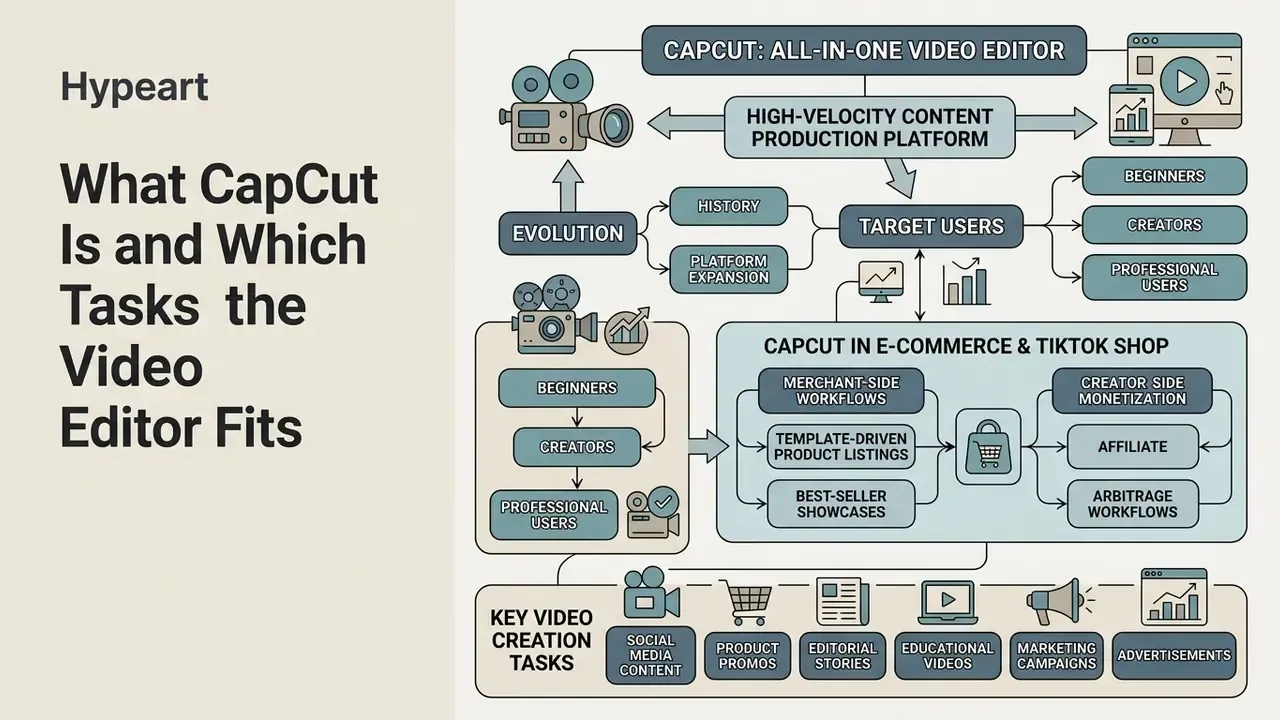
CapCut is an all-in-one video editor built for high-velocity content production across mobile devices, desktop operating systems, and web browsers. The platform lets creators and organizations convert raw video clips into polished marketing assets and social videos optimized for TikTok, Instagram Reels, and YouTube Shorts.
«Tools like CapCut lower technical barriers to entry while still providing multi-track timeline control.»
The app handles the essentials: clip cutting, volume adjustment, background removal, and direct social publishing, without long training in legacy non-linear editing (NLE) software. An NLE, for readers new to the term, is any editor that lets you rearrange footage freely on a timeline instead of assembling it in fixed order. For baseline vocabulary, our reference material on video editors and adjacent media tooling establishes the terminology used throughout this review.
History and Evolution of CapCut
Who CapCut Is Built For: Beginners, Creators, and Professional Users
CapCut serves several distinct operational profiles: beginner editors leaning on pre-built templates, social creators producing daily short-form clips, advanced editors needing keyframes and masking, and marketing teams managing multi-channel collateral. Teams comparing stacks before standardizing should benchmark CapCut against alternative free video editing and AI video tools instead of adopting it by default.
For beginners, the app offers a guided onboarding flow with automatic timeline alignment. Creators lean on preset transitions, dynamic captions, and integrated audio libraries to hold attention on algorithm-driven feeds. Advanced users reach for keyframe animation, masking, color curves, and green screen extraction to keep visual quality consistent across complex edits.
In enterprise and structured marketing environments, video editing rarely sits alone. It runs alongside other generative asset streams. Teams evaluating multi-tool stacks often rely on resources such as the AI Media Glossary to standardize definitions across visual, text, and voice generation pipelines.
CapCut in E-commerce and TikTok Shop Campaigns
One of the highest-volume commercial applications sits outside classic brand marketing: product video cards for social commerce. Sellers and performance buyers use CapCut to turn raw unboxing or demo footage into short, conversion-oriented clips for TikTok Shop, Reels, and Shorts.
- Template-driven product listings Commercial template packs with cleared sound remixes let sellers adapt raw product reviews into trending formats within minutes, generating organic reach without account-level takedown risk for audio infringement.
- Best-seller showcases Sellers assemble rotating "top products" edits with demonstrations, price overlays, and short hooks, reusing one template across an entire catalogue.
- Creator-side monetization UGC creators build differentiated ad variants for brands in CapCut, which lets them charge premium rates because each deliverable looks native to the feed rather than templated.
- Affiliate and arbitrage workflows Batch caption generation plus auto-reframe makes it economical to produce dozens of aspect-ratio variants of one asset for A/B testing.
Because these assets are commercial by definition, the licensing status of every template, font, sticker, and music track must be verified against the CapCut Materials License Agreement before publication. Licensing questions at portfolio scale are covered in our AI Media Commercial-Use hub, and pattern-level disputes in AI Litigation and coverage.
What Kinds of Videos You Can Create in CapCut
Users produce vertical 9:16 social content, horizontal 16:9 YouTube videos, promotional ad creatives, product demos, and internal corporate announcements. CapCut ranks among the most-downloaded mobile applications globally and is used predominantly for short social video (web.dev CapCut Progressive Web App case study, 2023 to 2024).
The platform excels at short-form video creation where auto-captioning, kinetic text overlays, and fast transitions drive retention. Official CapCut template libraries explicitly group assets by TikTok, Reels, and YouTube Shorts, confirming short-form social formats as the primary documented output types. Long-form YouTube editing works, but it is less directly documented.
For commercial content teams weighing broader asset production choices, our workflow analysis for YouTube video editing tools clarifies where CapCut sits relative to dedicated desktop suites.
CapCut Capability Architecture Overview
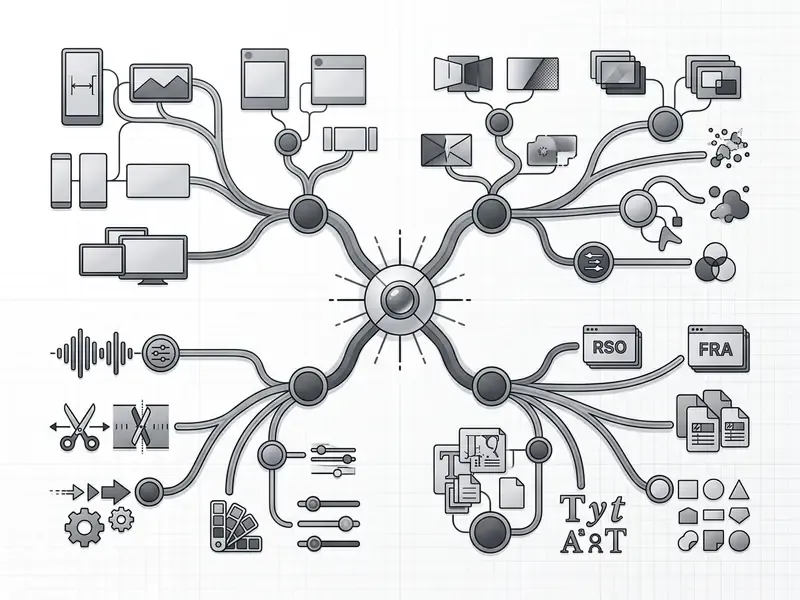
- Basic Editing Multi-track timeline, trim, split, crop, speed curves, aspect ratio reframe.
- AI Automation Auto captions, background removal, text-to-video, AI voiceover, script generation.
- Visual Assets Filter presets, transition libraries, stickers, text animation templates.
- Audio Toolkit Royalty-free music, sound effects, noise reduction, voice isolation, beat sync.
- Platform Ecosystem Standalone mobile app (iOS/Android), desktop suite (Windows/Mac), web browser editor.
CapCut Interface and Creating Your First Project
CapCut's interface is organized around four workspace zones: the media library panel, the interactive preview window, the multi-track timeline, and the contextual settings sidebar. The layout stays approachable for beginners while remaining efficient for experienced creators.
A 2024 usability study using the User Experience Questionnaire (UEQ) framework measured CapCut's perspicuity at 0.825 and efficiency at 0.752. In plain terms, users find the interface straightforward during initial project setup.
«CapCut's interface attractiveness scored 0.917 on the UEQ scale, the highest value among all measured dimensions.»
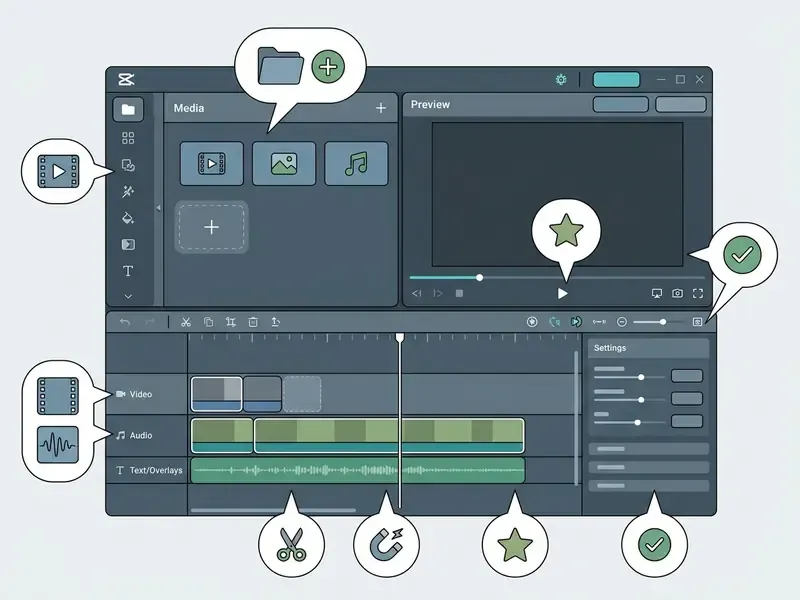
Main Interface Zones: Media, Timeline, and Editing Tools
- Media Library Panel: Upper-left. Manages imported video clips, audio tracks, images, and built-in template libraries. Template search exists on CapCut Mobile and CapCut Web, while Desktop exposes only a limited built-in template set without search.
- Preview Window: Center. Displays real-time playback, framing guides, and direct touch or mouse manipulation of text and overlay elements.
- Multi-Track Timeline: Lower half. Lets you stack video layers, position audio tracks, and align transitions across time codes.
- Contextual Settings Panel: Upper right. Exposes color adjustments, speed curves, animation ins and outs, audio volume, and AI effect toggles.
Independent UX measurement using the MeCUE 2.0 instrument reported usability at 6.18, usefulness at 6.04, and visual aesthetics at 5.80 out of 7 (MeCUE 2.0 UX evaluation of CapCut, undergraduate thesis, 2024 to 2025). That aligns with the UEQ findings: comprehension, not raw capability, is CapCut's strongest differentiator.
How to Start Your First Project in CapCut
To begin, launch the app or browser client and select New Project. Import source media from local storage or cloud spaces into the media bin, then drag clips onto the primary multi-track timeline.
A practical first-project sequence:
- Create a free account so projects back up to the cloud. Losing an unsaved project to a closed app or crashed browser is the single most common early frustration.
- Import footage from the camera roll, a desktop folder, or the built-in stock library.
- Arrange clips in playback order, trim the edges, and split at the playhead to remove dead middle sections.
- Add text or auto-generated captions, then adjust timing manually.
- Add music, trim the track to project length, and balance volume against dialogue.
- Apply transitions between clips, sparingly.
- Choose export resolution, frame rate, and bitrate, then render.
During early project structuring, marketing operations usually depend on external planning systems. Teams coordinating automated publishing calendars often add an ai schedule maker so video drops line up with rendering timelines rather than colliding with them. Once footage is organized, editors apply splits, cut unwanted segments, and set framing ratios (9:16 for mobile, for instance) before adding visual effects.
Core Video Editing Features in CapCut
Core video editing in CapCut revolves around precise timeline trimming, clip splitting, multi-track layering, keyframe animation, and high-resolution export. These functions form the structural base for both simple and complex social projects.
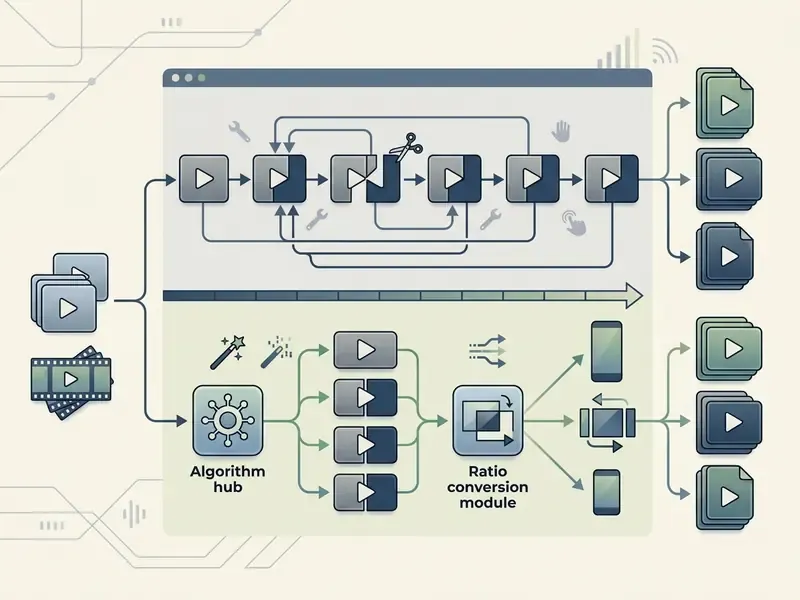
«Key functions, cutting, arranging clips, adding effects, and social platform integration, measurably help creators improve both video quality and production efficiency.»
Trimming, Splitting, and Changing Video Clips
Trimming removes unwanted footage from clip boundaries. The split tool divides a single file into independent segments at the playhead. Editors adjust playback velocity with static speed changes or dynamic curves (Speed → Curve) to build smooth slow-motion or fast-forward ramps. Frame format changing converts instantly between landscape (16:9), portrait (9:16), and square (1:1), backed by auto-reframe algorithms that keep subjects centered.
Reframing behaves differently by platform: mobile uses a pinch gesture, desktop a draggable crop box. If a tutorial does not match your screen, platform mismatch is usually the reason.
Multi-Layer Editing and Working with Media
Multi-layer editing, often labeled Picture-in-Picture or PIP, stacks secondary clips, graphic overlays, and text tracks above the primary background layer. CapCut supports overlay resizing, position adjustment, chroma key green screen removal, and blend modes. Overlays can be added repeatedly to build compound compositions.
Practical guidance: keep layers named and ordered, and use blend modes sparingly at first. It is genuinely easy to overcomplicate a simple shot once you discover how many layers stack cleanly. For static asset prep, creators comparing visual tools often consult our benchmark on online photo editor capabilities, and our guide to free photo editors when budgets are tight. Thumbnails and portrait cutouts frequently start in an ai selfie generator before landing on the timeline.
Step-by-Step Keyframe Animation
Keyframes separate a static edit from one that feels directed. A keyframe locks a value (position, scale, opacity, rotation, volume) at a point in time. Animating between two keyframes creates movement.
- Select the clip and place the playhead where the movement should begin.
- Click the Keyframe icon (the diamond) in the settings panel to lock starting scale, position, and opacity.
- Move the playhead to the end point and change the parameter. For example, raise scale to 115% for a slow push-in.
- CapCut interpolates the intermediate frames automatically, creating a second keyframe at the new position.
- Refine by adding a third keyframe to hold the value (a freeze) or by easing the curve for a less mechanical ramp.
Typical production uses: slow zooms on talking-head footage, sliding lower-thirds, opacity fades on overlay logos, and volume ducking under voiceover. Keyframes are also the manual fallback when AI auto-effects produce something visually generic.
Exporting Videos and Controlling Quality
CapCut exports up to 4K resolution (3840×2160) at 60 frames per second, using H.264 or HEVC/H.265 compression. Quality is controlled through bitrate sliders (Lower, Recommended, Higher) and format selection (MP4 or MOV). Higher bitrates preserve clarity during complex transitions, which matters for commercial-grade social and broadcast delivery.
Two caveats worth internalizing:
- 2K/4K availability is conditional. CapCut's own help documentation states that 1440p and 2160p export depend on device, operating system, and platform. A phone may not expose the same ceiling as a desktop client.
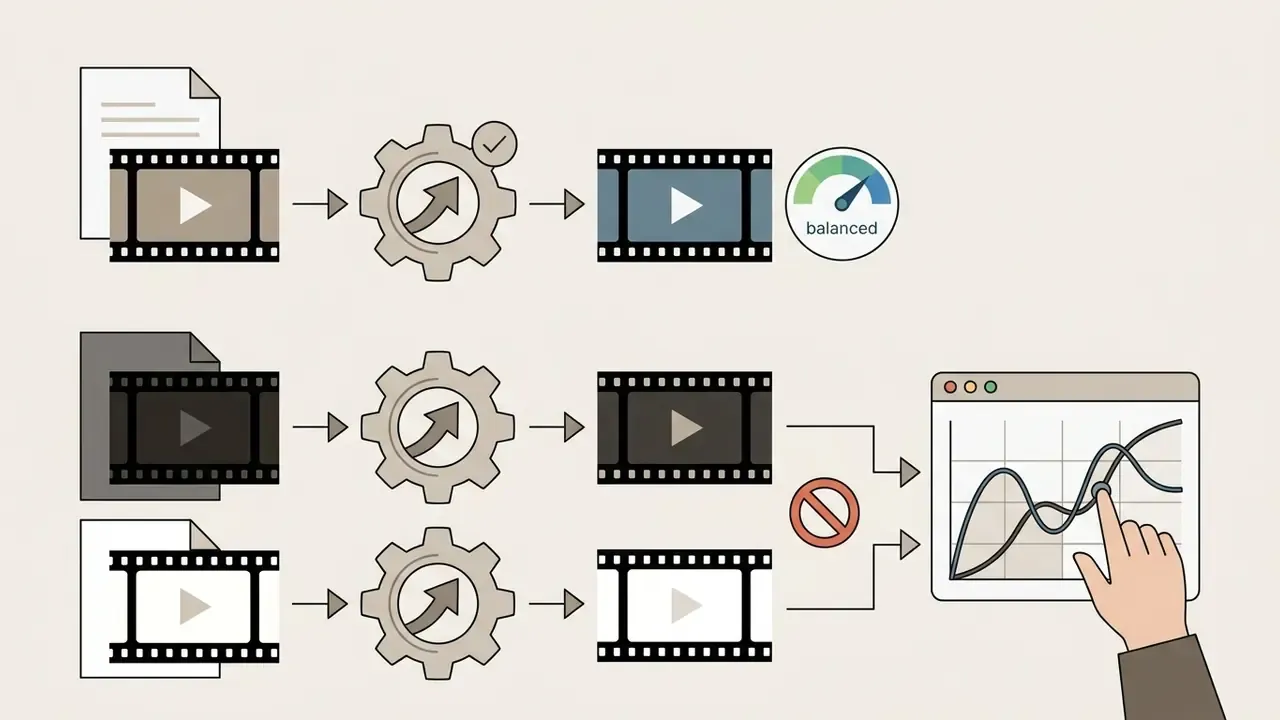
- Choose the right color space. For social distribution, Rec.709 SDR is the safe default. Exporting HDR footage without converting to Rec.709 SDR often produces washed-out, desaturated, or shifted colors after platform re-encoding, because social servers re-compress and tone-map unpredictably. Reserve HDR for platforms with explicit HDR playback and for archival masters, and always review the SDR version on a phone before publishing.
Text, Audio, Effects, and Transitions: Video Design Tools
Creative formatting tools turn basic footage into visual storytelling through kinetic text, sound enhancement, filters, and animated transitions. This is exactly why usability scores outrun capability scores in independent evaluations: presets absorb most of the craft decisions.
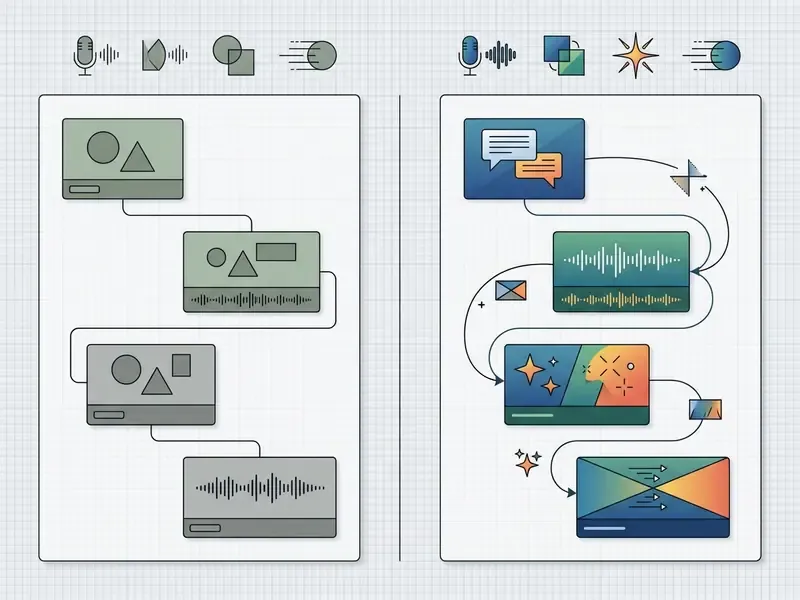
Text Solutions: Titles, Captions, and On-Screen Elements
CapCut ships pre-formatted title templates, animated lower thirds, and font styling controls (color, stroke, shadow, background glow). Text tracking lets on-screen labels follow moving objects automatically, and Batch Edit restyles every caption in a project in one pass instead of clip by clip.
When drafting narration for promos, content managers often pair CapCut's text features with an ai script generator before title placement, and refine long-form voiceover copy with an ai sermon generator when the format calls for sustained spoken narrative.
Audio Toolkit for Music and Sound Design
The integrated audio suite includes royalty-free background tracks, categorized sound effects, background noise removal, and automated beat synchronization. Voice Enhancer isolates vocal clarity while suppressing ambient microphone hum. Audio can be extracted from an existing video file and denoised as a standalone layer.
For teams needing custom or synthesized narration, our evaluation of AI voice generators sets out operational criteria for licensing commercial synthetic audio.
Effects, Filters, Transitions, and Stickers
- Visual Effects Grouped into trending, retro, distortion, spark, love, lens, nature, and body-tracking effects that attach dynamically to human subjects. Teams preparing supporting visuals often pair these with AI art and image generators.
- Filters Preset color profiles (mono, style, retro, food, night scene) with intensity sliders for quick mood grading, plus manual Adjustment controls for temperature, hue, contrast, saturation, exposure, HSL, and curves.
- Transitions Clip joiners including camera wipes, light leaks, glitches, blurs, slides, splits, and mask transitions, with matching transition sound-effect templates.
- Stickers Static, keyframe-animated, and AI-generated vector graphics built for call-to-action highlights.
CapCut AI Features for Faster Editing
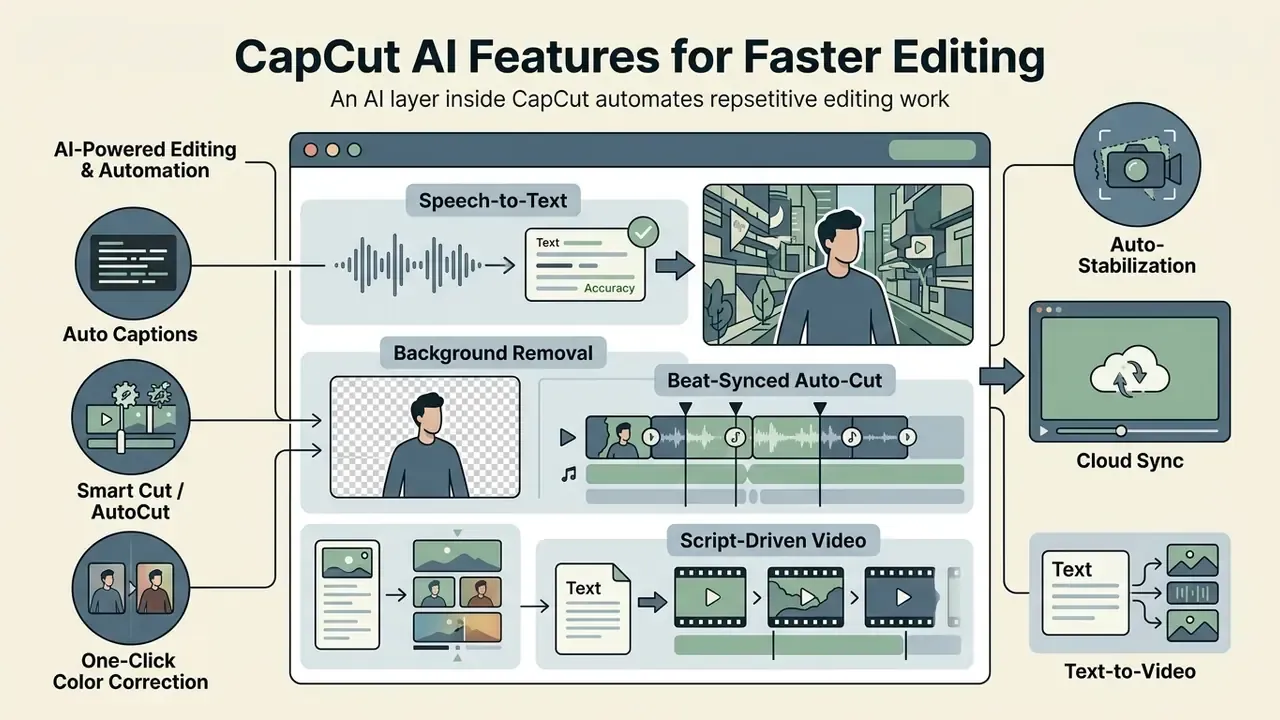
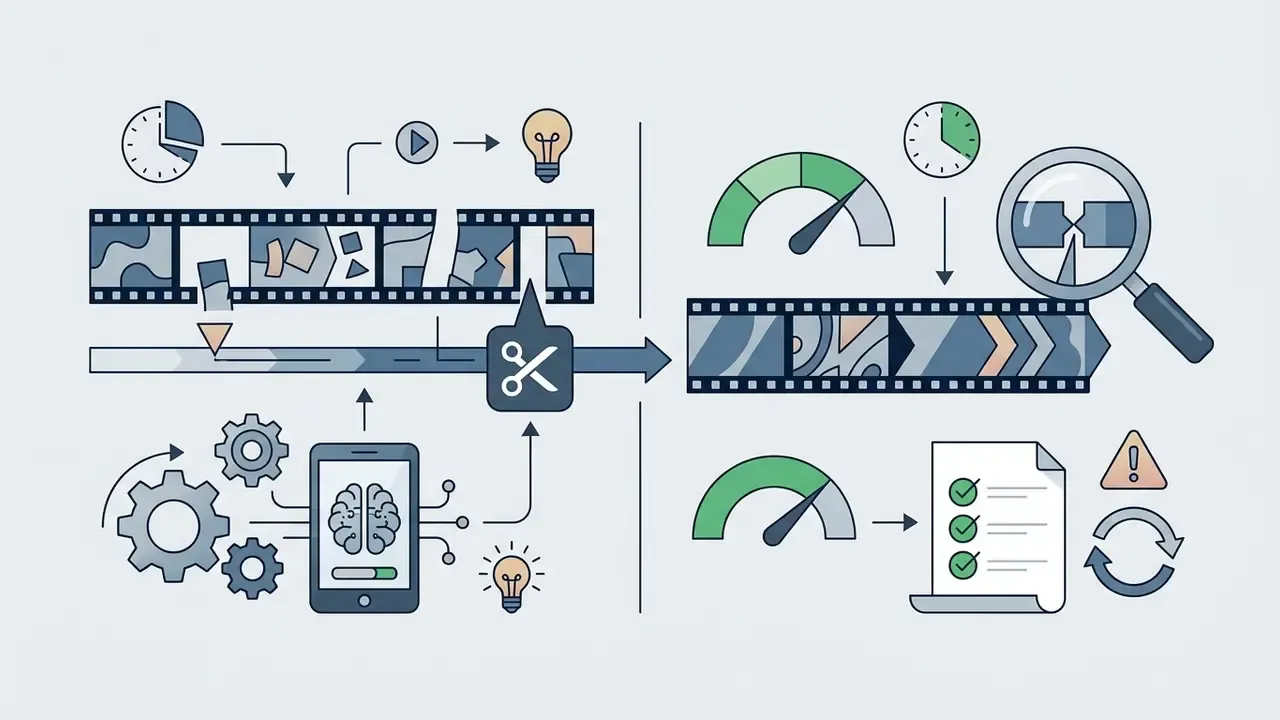
The AI layer inside CapCut automates repetitive editing work: speech-to-text, background removal without green screens, beat-synced auto-cutting, and script-driven video generation.
«Creators value AI tooling for inspiration, fast access to usable footage, and automatic highlight generation for short-form formats.»
Real Accuracy and Practical Limits of CapCut AI
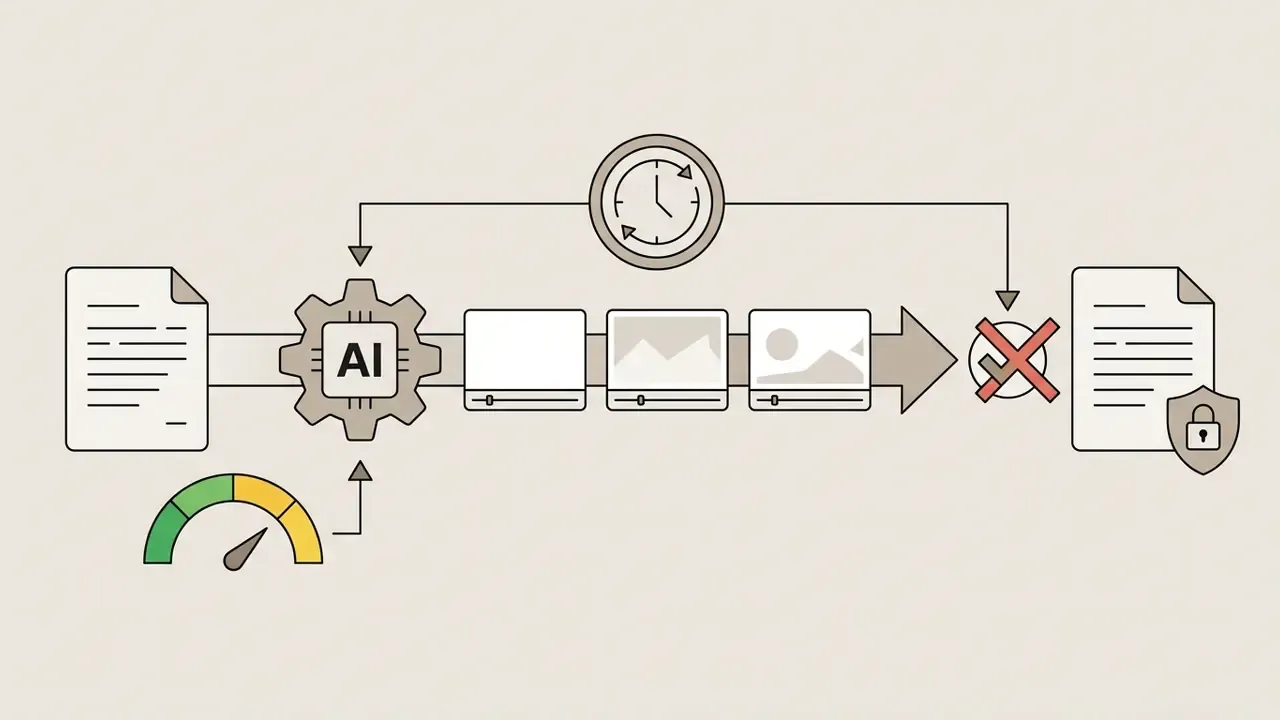
Capability lists are less useful than measured behavior. Based on hands-on testing reported across independent reviews and our own editorial passes:



AI-Powered Editing and Automation of Routine Tasks
AI-assisted workflows compress production cycles by detecting audio pauses, executing smart cuts based on speech cadence, and stabilizing shaky handheld footage. Background removal isolates subjects from complex environments without a physical green screen, and motion or camera tracking follows a face, body, hands, or a custom region so overlays travel with the subject.
During localization or automated copy drafting, marketing teams frequently use an ai sentence generator to refine video copy variants for multi-regional campaigns.
«Excessive automation can dilute a creator's creative identity and lead to information bubbles. Retaining manual control over the final result matters.»
In practice, treat AutoCut and template-driven edits as a starting shape, not a deliverable. Brands publishing unmodified template output across every channel converge on the same visual language as their competitors. That aesthetic homogenization is the risk traditional NLE users cite most often, and honestly, it is the easiest one to underestimate.
Auto Captions and Text-to-Video: Which Tasks They Fit
«Captions and text overlays are central to algorithmic visibility and audience engagement on TikTok.»
Auto Captions analyze spoken audio to generate synchronized subtitles across a wide language set with editable style templates. Documented language coverage and accuracy vary widely across the captioning market. Some platforms publish 19 supported languages at roughly 85% accuracy, others advertise 40 or more languages with no numeric accuracy figure at all. Validate performance on your own audio profile, not on marketing claims.
The text-to-video feature converts typed prompts into preliminary sequences using generative asset libraries. Organizations folding generative text into broader SEO and content strategy often evaluate dedicated tools alongside CapCut, using an ai seo content generator to align video metadata with indexing goals. Where output volume becomes a budgeting question, our AI Media Calculators help model credit consumption, and teams automating asset delivery pipelines can review the AI Media API documentation hub.
Common Beginner Mistakes to Avoid
The fastest quality gains for new editors come from removing errors, not from adding features. What to avoid on a first project:
- Overloading effects and transitions.A different animated transition on every cut reads as amateur, not creative. Limit yourself to one or two joiner types, for example a hard cut plus a short fade, and let pacing carry the edit.
- Ignoring color space settings.Exporting HDR footage without converting to Rec.709 SDR can wash out colors and shift skin tones after social platforms re-compress the file. Grade and export in Rec.709 SDR for feed distribution.
- Skipping export settings.Wrong resolution or frame rate is the most common reason a clean edit looks blurry or choppy after upload. Match source frame rate. Do not export a 24fps interview at 60fps.
- No local backups.CapCut Space auto-saves while you are logged in, but before rendering large commercial projects, keep local copies of source media and the finished master. Never depend on an app to retain your work.
- Starting from an empty timeline.Templates are not cheating. Deconstructing one to see how pacing, text timing, and transitions were built is among the fastest structural learning methods for beginners.
- Treating AutoCut as the final edit.Use it to reach a watchable rough cut quickly, then fix pacing manually. That is the skill that lets you improve on what the AI produced.
- Leaving asset licensing unchecked.Premium templates, fonts, stock music, and AI-generated assets carry different usage terms. For commercial work, verify each one before export.
CapCut on Mobile and Desktop: Devices, Sync, and Project Management
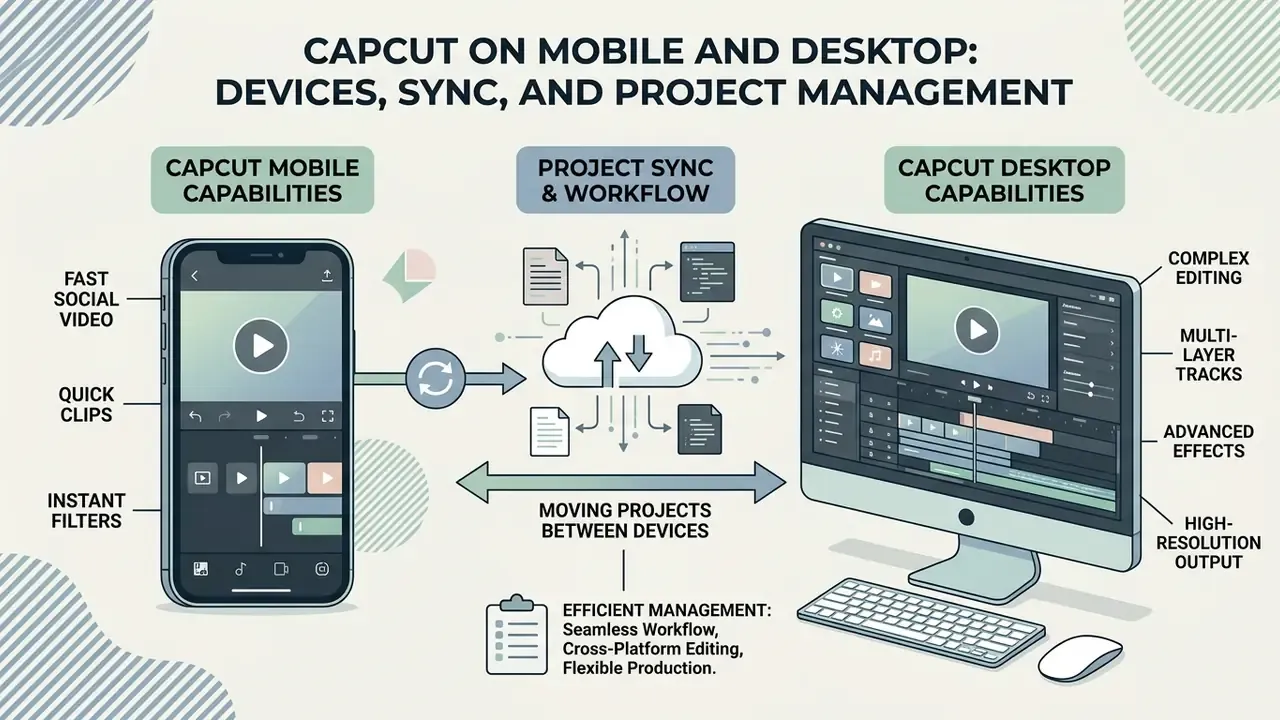
CapCut runs across mobile devices, desktop workstations, and web browsers, with capabilities tuned to each form factor.
| Platform | Primary Strengths | Ideal Use Cases | Limitations |
|---|---|---|---|
| CapCut Mobile (iOS / Android) | Touch-optimized vertical editing, 9:16 direct templates, template search, instant TikTok/Reels export. | On-the-go social media creation, field reporting, rapid short-form edits. | Reduced timeline precision, screen size constraints for complex multi-track layering. |
| CapCut Desktop (Windows / Mac) | Keyboard shortcuts, multi-monitor support, advanced color curves/HSL, compound clips, high-bitrate 4K render. | Complex marketing promos, detailed audio mixing, multi-layered commercial edits. | Requires higher system specs (GPU/RAM); no template search, only a limited built-in template set. |
| CapCut Web (Browser) | Instant access without software installation, cloud space collaboration, direct team sharing. | Quick collaborative reviews, light edits on shared workstations. | Dependent on internet bandwidth; Auto Cut not supported; cloud export processing queues. |
CapCut Desktop for More Complex Editing
CapCut Desktop exposes full keyboard shortcut mapping (split, play/pause, step forward and back, timeline zoom, delete left/right), precise timeline zoom, compound clip grouping, and detailed color correction menus (HSL, curves, color wheels, presets, apply-to-all). It delivers the processing headroom multi-layer commercial edits need without hardware latency.
Moving Projects Between Mobile and Desktop
Projects move across devices through CapCut Space cloud storage. Users upload project assets from the mobile client to their account space, then log in on desktop or browser, sync timeline metadata, and finish color grading or rendering. Account linking, including QR-code desktop sign-in, is the mechanism. Sync is account-based rather than file-based, and some cross-device functions require Desktop version 6.0 or later.
Expectation setting matters here. Interface adaptation between touch and mouse is handled well, and layers, effects, and edits survive the transition. The reliable friction point is scale. Projects above roughly 50 media elements with multiple effects may need several minutes to synchronize completely, so plan handoffs before deadlines rather than during them. Rendering and sync failures are documented in our AI Media Support and Troubleshooting hub.
Enterprise Governance, IP Risk, and the Alternative Perspective
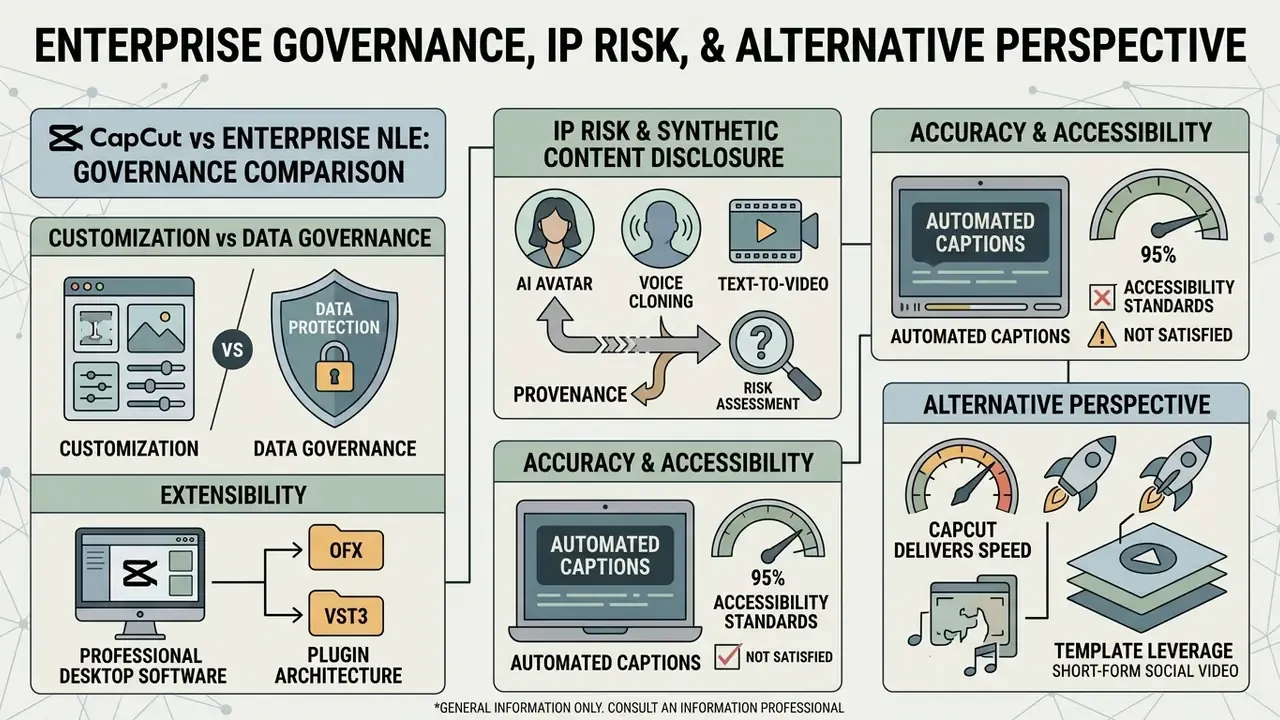
CapCut delivers speed and template leverage for short-form social video. Enterprise media governance teams, though, flag real trade-offs against legacy NLE platforms such as Adobe Premiere Pro or DaVinci Resolve. This section belongs before the purchasing decision, because governance constraints often determine whether a Pro subscription is viable at all.
- Customization vs. speed: CapCut favors preset templates and fast automated edits, which can produce stylistic overlap across social channels. Traditional NLEs give granular keyframe and color control instead.
- Data governance and compliance: Institutions with strict data protection requirements must evaluate cloud asset storage and mobile telemetry against internal risk frameworks. Independent UX research notes that documented ByteDance privacy concerns, including collection of device identifiers and geolocation data, measurably depress trust and loyalty metrics among users (UEQ evaluation of CapCut, Universitas Atma Jaya Yogyakarta, 2024). Request current independent attestations (SOC 2 Type II, ISO 27001) directly from the vendor. Do not infer them from product pages.
- Extensibility: Professional desktop suites support deep third-party plugin architecture (OFX, VST3). CapCut relies predominantly on its built-in asset library and native tools.
- Synthetic content disclosure: Generative outputs (AI avatars, voice cloning, text-to-video) raise provenance questions. Where regulators or platforms require labeling of synthetic media, confirm whether provenance metadata such as C2PA content credentials survives the CapCut export pipeline. If it does not, disclosure must be handled editorially.
- Accessibility accuracy: Automated captions at roughly 95% accuracy do not satisfy strict accessibility standards without human verification.
Disclaimer: this information is general in nature and does not replace consultation with an information security specialist or legal counsel on data protection and regulatory compliance matters. Marketing material in regulated sectors (financial services, healthcare, legal) may carry additional disclosure and record-keeping obligations regarding synthetic audio and video.
CapCut vs Enterprise NLE: Governance Comparison
| Criterion | CapCut (Consumer Pro) | Enterprise NLE (Premiere Pro / DaVinci Resolve) |
|---|---|---|
| Data residency control | Limited visibility; cloud assets stored in vendor-managed Space | Local/on-prem or enterprise-controlled cloud storage |
| SSO / centralized identity | Not part of standard consumer tiers | Enterprise identity management available |
| Administrative audit trail | No centralized org-level asset audit log | Version history plus MAM/DAM integration |
| Asset licensing clarity | Governed by Materials License Agreement; per-asset commercial flags | Enterprise stock and plugin licensing with procurement records |
| Extensibility | Native tools and built-in library | OFX/VST3 plugin ecosystems |
| Provenance / synthetic labeling | Verify per feature; not guaranteed end-to-end | Configurable metadata and provenance workflows |
| Time-to-first-asset | Minutes (templates, AutoCut, auto captions) | Hours to days (training and setup overhead) |
| Best fit | High-volume social and commerce video | Regulated, archival, and brand-critical production |
Organizations benchmarking editing workflows across alternative AI video platforms can review full feature matrices in our AI Media Comparison Matrices hub.
Free vs Pro: Which CapCut Features Content and Marketing Teams Need
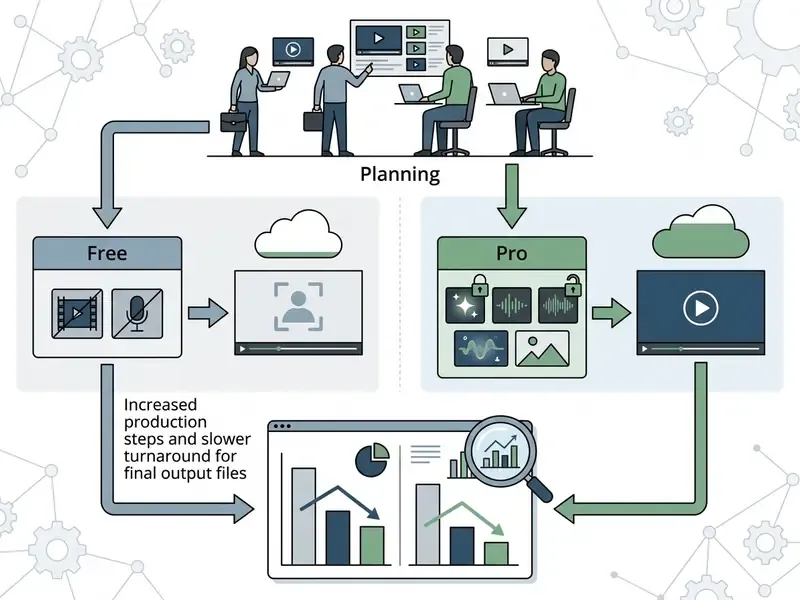
The economics between CapCut Free and CapCut Pro come down to three variables: content volume, AI resource demand, and licensing exposure.
What You Can Do in the Free Version of CapCut
CapCut Free provides core multi-track video editing, clip trimming, standard transitions, free filter presets, auto-captions, text and stickers, basic audio editing, free music, and 1080p exports without watermarks on standard clips. That is enough for individual creators, students, and everyday social media editing.
Known Free-tier constraints: limited access to premium templates, advanced effects, fonts, and music; free cloud storage was discontinued in August 2024; export length limits vary by region. Exporting a project that contains Pro-only elements triggers a subscription prompt.
When Pro Is Justified for Creators and Marketing Teams
CapCut Pro becomes necessary when commercial production demands premium transitions, 4K/60fps high-bitrate exports, expanded cloud storage (reported up to 1TB in current plans), higher AI credit allocations (official help material cites an increase from 550 to 1,200 credits for new subscribers), and commercial asset usage rights.
| Category | CapCut Free | CapCut Pro |
|---|---|---|
| Export | 1080p standard; region-dependent length limits; Pro prompt when premium elements are used | Up to 4K/60fps with bitrate, codec, and format control |
| Premium effects & templates | Limited access | Full premium templates, transitions, filters, fonts, stickers |
| AI tools | Auto captions, basic background removal, basic auto-cut, basic voiceover | AI script, portrait, text-to-video, voice cloning, advanced auto-edit, expanded credits |
| Cloud storage | No free tier since August 2024 | Expanded paid storage (reported up to 1TB) |
| Commercial rights | Restricted by per-asset licensing | Commercial-use materials available under the Materials License Agreement |
| Reported price | $0 | Approximately $9.99 to $19.99 per month depending on region and checkout path |
Pro also unlocks advanced AI voice isolation, which matters for teams replacing external voiceover contractors. Teams auditing software budgets across visual tools can compare structures using our AI Media Pricing Guides to project annual operating expense with fewer surprises at renewal.
FAQ: CapCut Features, Pricing, and Commercial Use
Is CapCut completely free for commercial use?
CapCut offers a broad free tier for personal editing. Commercial campaigns that use premium stock audio, paid templates, or advanced AI assets require a Pro subscription plus compliance with the CapCut Materials License Agreement. Materials explicitly labeled "Commercial Use" in the CapCut Trust Center may be used commercially; treat unlabeled assets as restricted until verified.
Can CapCut Desktop export 4K video without a watermark?
Yes, subject to device and OS capability. If Pro-exclusive effects, filters, or AI tools sit on the timeline, an active CapCut Pro subscription is required to complete the export.
How accurate are CapCut auto captions?
Roughly 95% on clear speech in a quiet environment. Accuracy declines with strong regional accents, specialized terminology, and background noise. Review captions in Batch Edit before publishing, especially where accessibility obligations apply.
How does CapCut handle project cloud synchronization?
Projects sync across mobile and desktop clients by backing up to CapCut Space under a unified account, which keeps cross-device work continuous. Some functions require Desktop version 6.0 or later. Projects exceeding roughly 50 media elements may take several minutes to sync fully.
Is CapCut good for a complete beginner?
Yes. The interface is built around drag-and-drop actions, and the free tier includes trimming, text, music, transitions, and watermark-free export. Most beginners finish a competent first edit within an hour. Keyframes and color grading take structured practice.
Should I learn CapCut on mobile or desktop first?
Either works, though they are not identical. Mobile is gesture-based and often more intuitive for a first project. Desktop offers precision, shortcuts, and deeper color tools. Most working editors use both, depending on the deliverable.
Is AutoCut good enough to skip learning manual editing?
No. Treat it as a starting point. AutoCut produces a watchable rough cut fast, but manual trimming, pacing, and transition judgment are what let you fix and improve its output.
What color space should I export in?
Rec.709 SDR for social distribution in nearly all cases. Reserve HDR for platforms with confirmed HDR playback and for archival masters, and always check the SDR version on a mobile screen before publishing.
Is CapCut appropriate for a regulated enterprise environment?
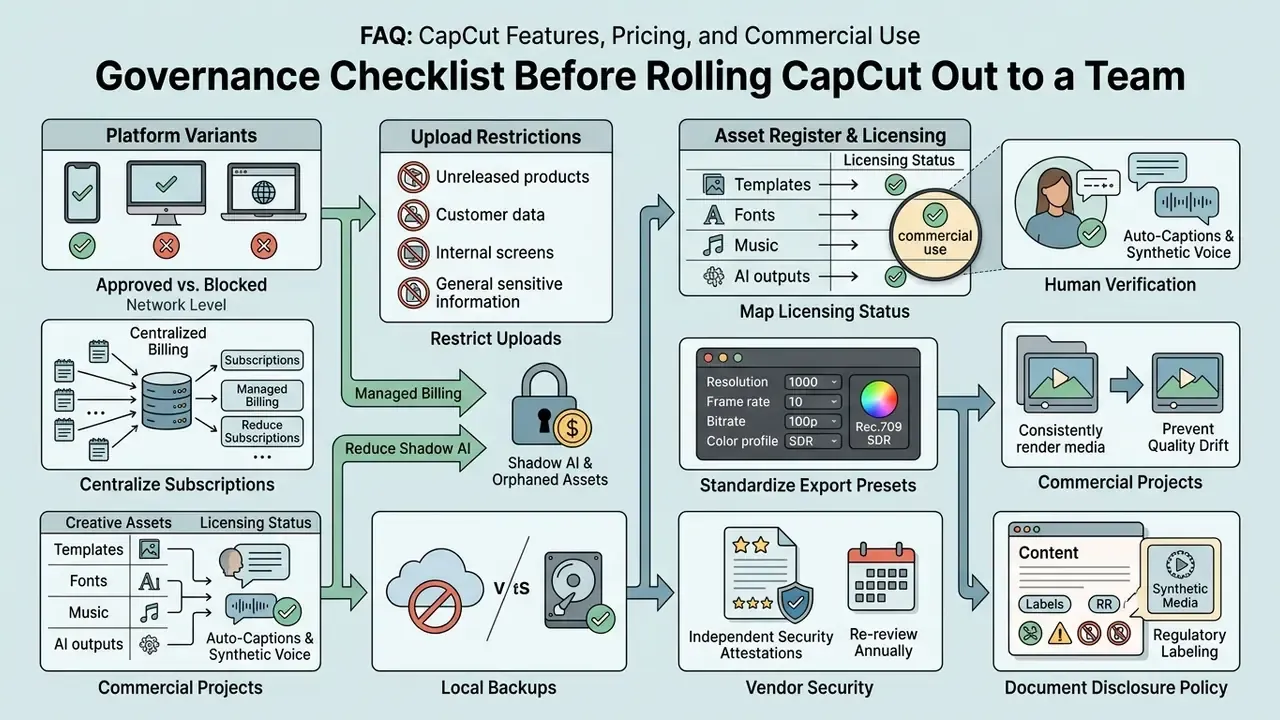
It can be, but only with explicit controls: documented approval of the platform, restricted use for confidential footage, verified licensing of every asset used commercially, human review of AI-generated captions and voice, and a compensating process for the absence of centralized audit logging. Consult security and legal teams before standardizing.
Governance Checklist Before Rolling CapCut Out to a Team
Conclusion and Recommendations
CapCut is an efficient, versatile editing solution for social content, e-commerce product video, marketing asset preparation, and rapid production. Independent usability research consistently rates its comprehension and attractiveness above its raw capability ceiling. That is the right trade-off for high-volume short-form output, and the wrong one for archival, plugin-dependent, or tightly regulated production.
For individual creators and beginners, the Free tier teaches every core skill without a watermark. For commerce sellers and marketing teams shipping weekly volume, Pro pays for itself through premium assets, 4K delivery, and expanded AI credits. For enterprises, the decision is not primarily about features. It is about whether compensating controls (licensing verification, human review of AI output, restricted footage policy, centralized billing) can be implemented credibly. Match tier to resolution requirements, AI resource demand, and commercial licensing rules, and the workflow question mostly answers itself.
Appendix A: Editorial Corrections and Verification Log






Footer Hub Navigation