So the article runs on two tracks at once: how to produce a genuinely good voiceover quickly, and how to place that operation inside a controlled process your auditors can follow later.
What the Canva AI Voice Generator Is and Which Problems It Solves
The Canva AI voice generator is a built-in text to speech service embedded directly in the cloud design editor. It converts a prepared script into natural-sounding narration without hiring voice talent or renting studio time. For most teams, that removes two bottlenecks at once: scheduling and re-records.
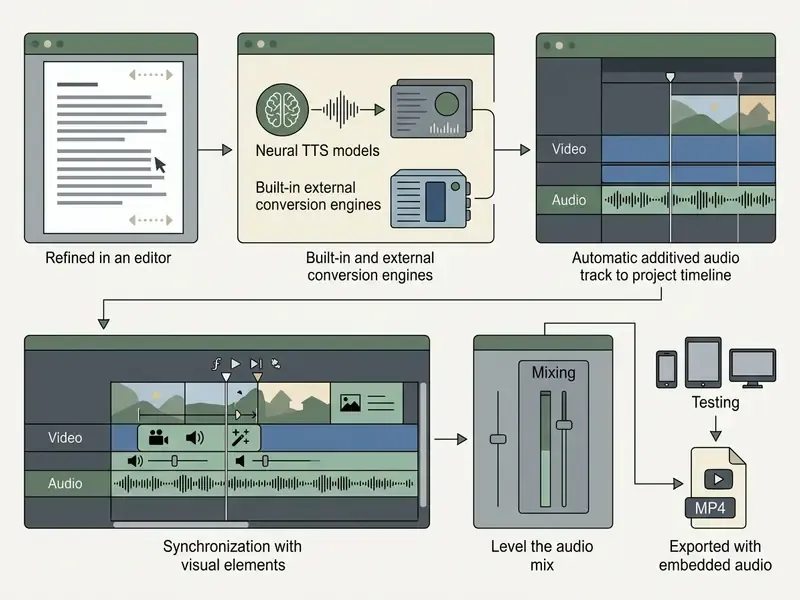
Putting a voice generator inside the design tool closes a practical need: fewer handoffs. No exporting video to an external editor just to lay narration over it. The engine aims at studio-quality audio and realistic narration, which is enough for marketing clips, presentations, training modules, and ad variants produced inside one workspace.
Text to Speech and AI Voiceover in Canva: How Generation Works
Speech synthesis in Canva rests on deep learning acoustic models that reproduce prosody, tone, and rhythm. The incoming script is processed by a language model, converted from characters into phonemes, and rendered into a waveform by a neural vocoder. That last step is why modern output no longer sounds like a 2015 satnav.
Updated (September 2026). An earlier version of this section cited a non-existent publication called "IEEE Transaction Analysis". The correct source on content-aware neural synthesis quality is below.
«Modern neural TTS models can maintain high playback quality even with non-standard syntactic constructions.»
Users choose among voices that differ in timbre, gender, and apparent age. Canva's narration stack (the native AI Voice module plus partner apps such as AiVOOV) delivers clean speech without room noise or clipping. If you are new to this market, start with the broader overview of AI voice generators: it explains the difference between standard and premium neural voices, and how licensing usually works.
One distinction worth keeping straight from the start. A marketing voiceover is a one-way asset. An ai voice agent that answers customer calls is an interactive system with escalation paths, logging duties, and consumer-protection exposure. Same underlying technology, very different control requirements. This article covers the first case, and only touches the second where governance overlaps.
Which Canva Projects Benefit from AI Narration
AI narration shows up across canva projects: short social promos, product demos, multi-page corporate decks. Marketing teams use it to test hypotheses and language variants fast, because re-recording a script costs minutes rather than a booking cycle.
Learning and HR teams use it for onboarding modules, policy explainers, and control walkthroughs. Accessibility is the quieter win: duplicating on-screen text with spoken narration helps people with low vision or reading difficulty, and it also serves the large share of viewers who watch on a phone with poor audio.
The practical reading of those numbers: engine quality is rarely the constraint anymore. Risk has shifted upstream, into script preparation, voice selection, and the final mix. If you are also generating the visual layer, compare adjacent tools such as free AI video generators and animation makers, or browse the wider AI Media Comparison Matrices before you commit to one stack.
Editorial case (internal data, 2026). While reviewing operational processes at one financial services firm, an internal audit team needed faster production of training videos. A documented text to speech process cut the content cycle from five days to about four hours. Over a quarter, the team shipped 40 training modules with no increase in external vendor spend. Evidence caveat: these are internal operating figures from a single project, not a controlled experiment. To judge the effect in your own shop, baseline your metrics first (hours per module, revision count, vendor cost), then re-measure after one quarter.
Where to Find the AI Voice Generator in the Canva Interface
The canva interface offers several entry points, so you can call the voice generator when creating a new design or while editing an existing file. Handy, though it does confuse first-time users who read one tutorial and see a different menu.
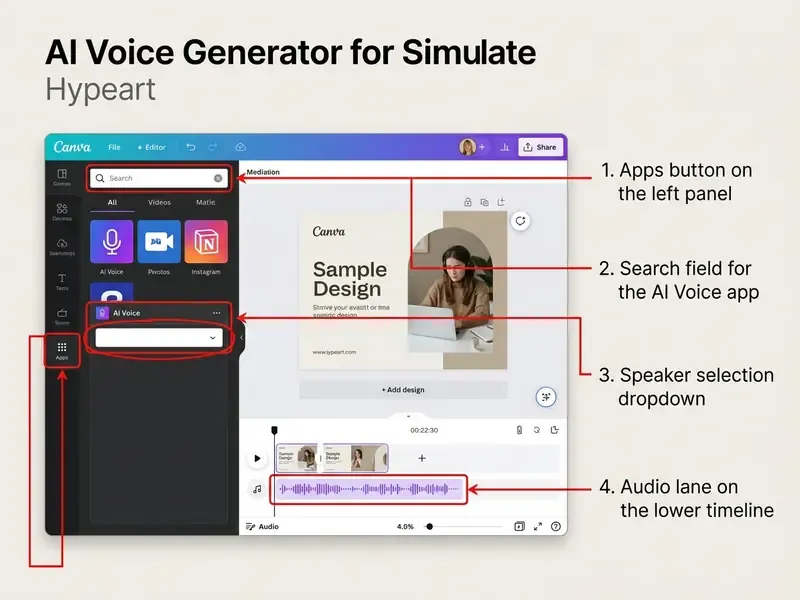
To use the generator you need a document type that supports audio tracks: Video, Presentation, or a social publication format. In static layouts, such as single-page print flyers, the audio controls may be hidden from the side panel entirely.
How to Open the Voice Generator from the Canva Homepage and the Editor
You can start from the Canva homepage or from the side panel inside the editor. From the homepage, go to Apps, search for AI Voice or AiVOOV, and open the matching card. A dialog then asks whether you want a new project or an existing document.
If the project is already open, there are three routes:
- Elements tabopen Elements, scroll to the Audio block, click Add AI Voice.
- Apps tabselect Apps on the left toolbar, search
AI Voice, click the app icon. - Magic Write context menuin documents with AI copywriting enabled, use the floating toolbar and pick Generate AI Voice.
Access for New and Existing Designs
The tool behaves the same way in new designs and in files you created months ago. When you choose the existing-file path, Canva shows a dialog with Your Projects and materials shared with you through a link.
A standard account is enough to activate the native module, with no extra authorization step. Third-party integrations (AiVOOV, Murf AI) ask you to link accounts through OAuth on first launch. That single click is where governance starts.
How to Use the Canva AI Voice Generator: Step-by-Step Narration
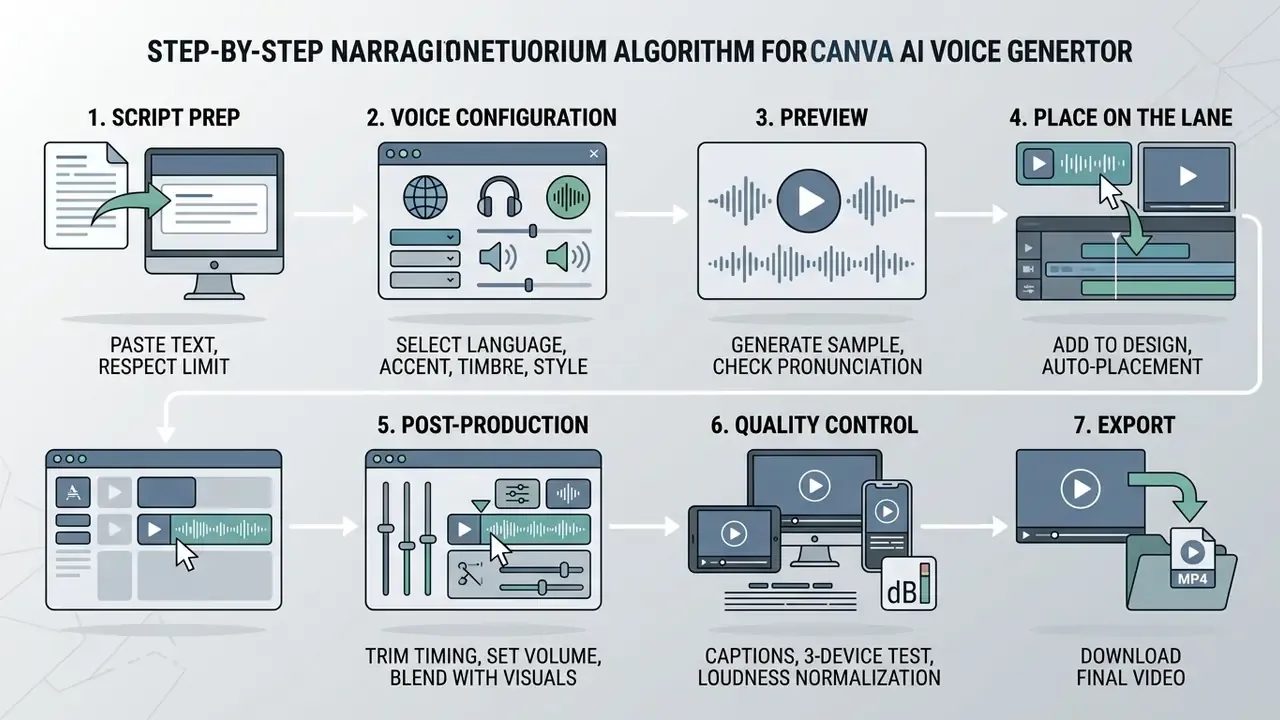
The workflow is linear: prepare text, configure the voice, generate, place, mix, verify, export.
Entering Text, Choosing a Voice, and Generating Speech
Paste the prepared script into the AI Voice text field, keeping the per-request cap in mind: 1,000 characters for the native AI Voice, up to 2,000 for the Text to Speech app. Then pick a language and a narrator from Select Voice. Samples can be auditioned before you commit.
Pressing Generate AI voice starts synthesis, which takes anywhere from a few seconds to half a minute depending on script length.
Write for the ear, not the eye. Short sentences, active voice, full stops and commas instead of stacked subordinate clauses. Punctuation is the pause markup in TTS, so commas and periods, not line breaks or extra spaces, set the rhythm of the speech.
A Two-Minute Test Drive
Before you commit to a full script, run a quick sanity check. It exposes the real speaking pace and the balance between voice and music immediately:
- Create a new Video project, 20 seconds long.
- Paste a test script of 40 to 50 words (roughly 20 seconds at a normal pace).
- Generate the voice through TTS and add the track to the design.
- Add background music from the Canva library and drop its volume to 15-20%.
- Check whether key phrases land on scene changes, then adjust the Speed slider if needed.
If 45 words will not fit into 20 seconds, the script is too dense. Cut words rather than speeding up the narrator, otherwise intelligibility drops before your viewer's attention does.
Adding Audio to Video, Syncing, and Export
The generated track appears on the lower audio timeline automatically. You can slide the audio block along the timeline so key phrases coincide with the right slide, lower third, or video frame.
Fine control includes volume, fade in and fade out, and playback speed. When the edit is done, review the project in Present mode and export through Share → Download → MP4 Video. Exports to PNG, JPG, or PDF carry no audio at all, which sounds obvious until someone on your team sends the client a silent PDF. For deeper editing or platform-specific versions, see the workflows for YouTube video editing and video compression without visible quality loss.
Editorial case (internal data, 2026). Preparing a deck for international investors, a fintech team had to re-narrate a 15-minute clip. They split the script into meaning-based blocks of about 800 characters, generated tracks through the built-in TTS, and aligned them manually to the slide grid. Chart animations stayed in sync without an external editor, and the final MP4 was ready two hours before the meeting. Caveat: one project, offered as an illustration of the block-splitting method, not as an industry benchmark.
Fixing Wrong Pronunciation: The Phonetic Hack
The most common complaint about TTS is mangled brand names, personal names, acronyms, and domain jargon. The universal fix is to write the word the way it should sound, not the way it is spelled:
- Phonetic spelling instead of the original. Write "Fire-fox", "Dee-esser", "Aitch-Arr" when the engine stumbles.
- Hyphens as syllable separators. Break difficult words:
Can-va,A-I voice. This forces the model to articulate syllables instead of swallowing sounds. - Acronyms letter by letter. "SaaS" becomes "Sass" or "Ess-ay-ay-ess", depending on which reading you want.
- Stress via vowel duplication. If the stress lands wrong, duplicate the stressed vowel and compare versions by ear. Crude, but it works often enough.
- SSML and phoneme controls. If your module supports SSML tags (
<break>,<emphasis>,<phoneme>), use them instead of manual hacks. More predictable, and easier to hand over. - A/B test the voices. A problem term often reads perfectly with one narrator and breaks with another. Run two or three voices and keep the one that needs fewer fixes.
Log every exception in a project phonetic dictionary: a simple two-column table of "written form → TTS input". It saves hours across a localized series, and it makes the result reproducible for whoever picks up the project next quarter. For niche generators with their own quirky naming, the same trick applies; you will see it in guides such as the producer tag generator ai walkthrough.
Subtitles and Captions: One Sentence per Text Block
A large share of social views happens with the sound off, so text duplication of speech is a requirement rather than a nice-to-have. The synchronization method:
- Split the script into separate text blocks on the principle one sentence (or one meaning unit) equals one text box. Long paragraphs in a single box cannot be synced, physically.
- Generate narration in matching fragments, so each text block has its own audio file. Now you can move "text plus audio" pairs independently.
- Select a text block, click the three dots (
...), choose Show timing. Align the appearance and disappearance of the block with the start and end of its audio fragment. - For automation, use the built-in Subtitles / Closed Captions module or the Auto Captions app from the Canva Apps catalog, then verify timings manually.
- Note the limitation: Canva help materials indicate that auto-generated captions are edited line by line as text, while retiming stamps inside the editor is not supported. If they drift, you delete and regenerate.
- Keep only key phrases, figures, and calls to action on screen. A full script competes with the narration and forces the viewer to choose between reading and listening.
Post-Production After Export: EQ, Compressor, De-Esser, −14 LUFS
To make a Canva-generated voice sound professional in the exported MP4, finish the track in any audio editor or during final assembly:
- EQ cut boomy energy below 80 Hz and lift 2-4 kHz slightly. This removes the "barrel" effect and sharpens consonants.
- Compression apply light dynamic compression at 2:1 or 3:1 to smooth loudness jumps between phrases.
- De-esser if the narrator produces harsh sibilants, treat the 5-8 kHz region.
- Loudness normalization target roughly −14 LUFS for social and streaming, with true peaks no higher than −1 dBTP.
- Balance with music keep the bed 12-18 dB below the voice, and use automatic ducking when in doubt.
The industry reference practice is blunt: light EQ against muddiness, a gentle compressor for consistency, a de-esser when sibilants appear. That is usually enough for an AI voice to hold its own next to professionally recorded audio in the same feed.
Multi-Device Testing Before Publication
Test the clip in at least three playback environments. Most audio problems are inaudible in studio headphones:
- Smartphone, built-in speaker check whether the music masks the voice at low volume. This is where speech disappears most often.
- Earbuds judge high-frequency harshness, pause naturalness, and any synthesis artifacts.
- Laptop, TV, or external speakers confirm there is no clipping at high volume, and that captions remain readable on a large screen.
Also check type size and contrast on a phone. If captions are unreadable at six inches, the sync work was wasted. Test the exported file, not the editor preview: export settings and sample rate can differ from what you hear in the browser.
Voice Settings: Languages, Style, Emotion, and Speed
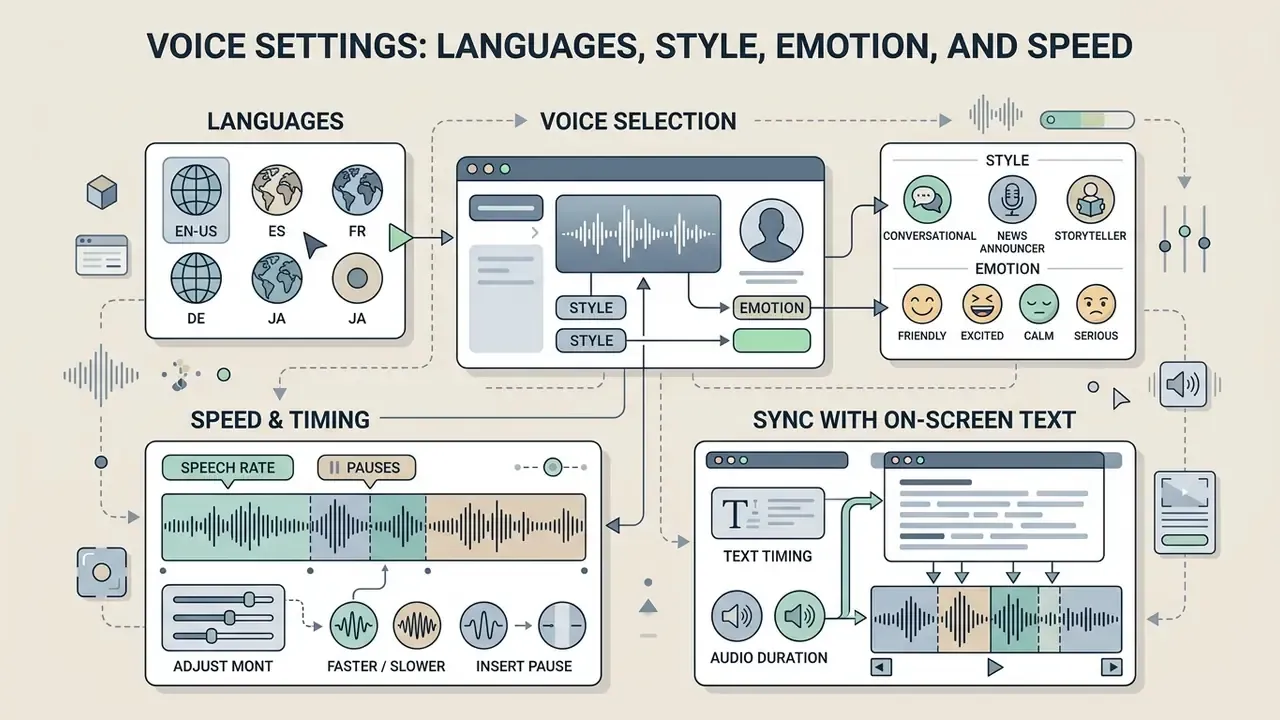
Perceived quality depends on the acoustic parameters you choose: language, pace, emotional colour, and overall delivery.
| Setting | Available options | Effect on perception |
|---|---|---|
| Language and accent | 125+ languages and regional localizations | Reaches the target audience without a language barrier. |
| Voice style | Formal, conversational, newsreader, narration | Shapes trust and contextual fit with the brand. |
| Emotion | Neutral, friendly, confident, enthusiastic | Drives engagement and emotional response. |
| Speed | Pace slider (0.5x to 2.0x) | Affects intelligibility and sync with visuals. |
| Pitch | Available in some modules, including Murf AI | Tunes timbre toward brand voice identity. |
How to Pick Voice Style and Emotion for a Video Format
Delivery should match the content type. Academic work suggests vocal parameters measurably shift audience decisions:
«Analysis of 571 voices and an experiment with 355 participants showed that "ostentatious" voices most strongly stimulate purchase intention, while "seductive" voices are least effective.»
In plainer terms: a friendly, accommodating delivery lowers barriers when the information is complex, while an excessively cold synthetic tone raises the social cost of listening in any context. That finding matters twice over if you later deploy a customer-facing voice agent, where tone becomes a conduct issue rather than a taste question.
Speech Rate, Pauses, and Sync with On-Screen Text
Aligning narration with lower thirds and captions is the make-or-break editing step. In current Canva versions, matching speech duration to footage duration is manual: you move the Speed slider, or stretch the visual element on the timeline.
For deliberate pauses, split long text into individual sentences and generate them as separate audio fragments. That lets you slide blocks along the timeline and leave real silence between arguments. Pace benchmarks: 140-160 words per minute for instructional content, 165-180 for high-energy promos. Auto-generated captions in Canva can be edited line by line, but changing their timing means regenerating the text blocks once drift appears.
Canva AI Voice Generator Arabic and Other Languages
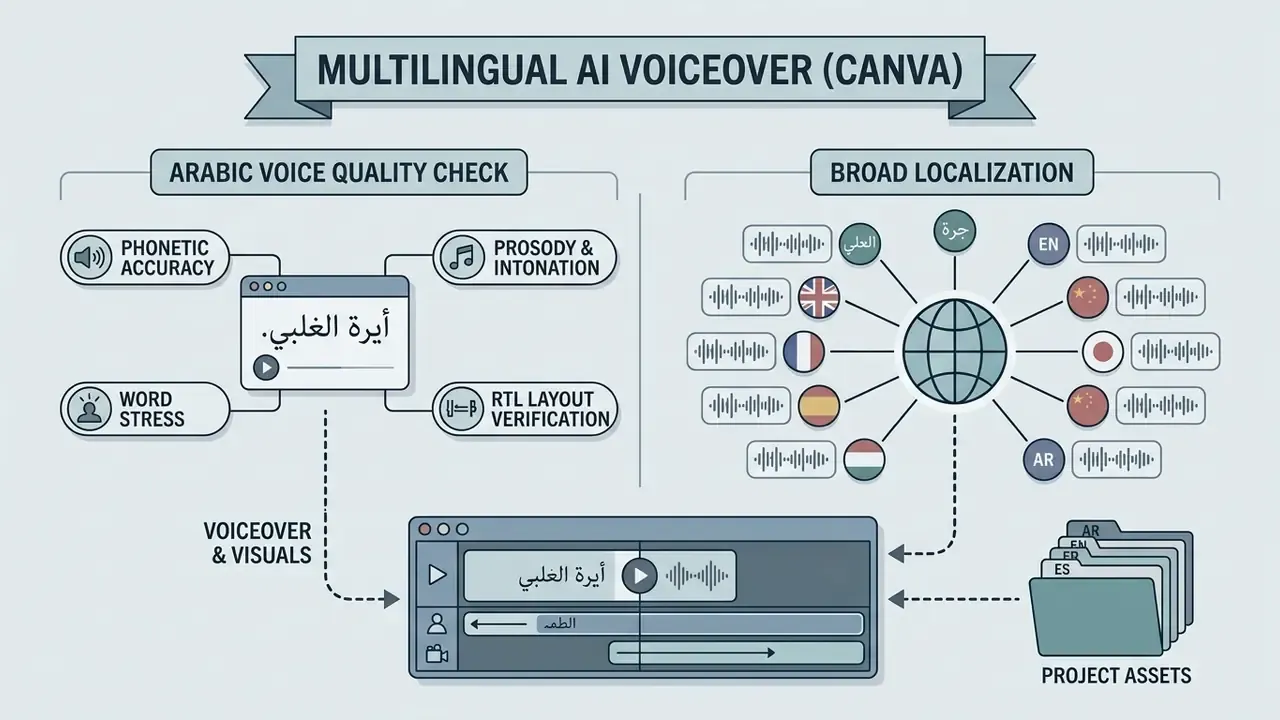
The Canva ecosystem supports broad multilingual localization, including right-to-left (RTL) scripts such as Arabic.
How to Check an Arabic Voice Before Publishing
Arabic synthesis has its own difficulty profile: complex phonetics, diacritics (tashkeel), and the gap between Modern Standard Arabic and regional dialects. So the canva ai voice generator arabic output deserves a stricter review than an English promo.
Use a four-step QA routine before publication:
- Phonetic accuracyconfirm correct rendering of emphatic and soft consonants, gemination (shadda), and word endings. Final short vowels should not be swallowed.
- Word stressArabic stress in polysyllabic words is determined by the position of the first long syllable counting back from the penultimate. Stress errors sharply reduce naturalness, so this check stays with a native speaker.
- Prosody and intonationlisten through headphones in a quiet room for pause naturalness, abrupt pitch jumps, and pace consistency.
- RTL layoutverify separately that captions and on-screen text align right to left, and that numerals and Latin inserts do not break word order.
«Multilingual pre-training on 12 hours of Arabic speech raised subjective intelligibility from 2.86 to 3.72 and naturalness from 2.95 to 3.44 on the 5-point MOS scale.»
The takeaway: even dialects with thin corpora reach usable quality, yet the gap to reference human speech (5.0 MOS) persists. Final acceptance of Arabic narration cannot be delegated to automatic metrics alone.
Localizing Voiceover Across Multiple Languages
When you adapt one clip for several markets, keep a single brand voice portrait. If the English version uses a calm, deep male voice, the Arabic, Spanish, and Mandarin versions should use narrators with comparable acoustic characteristics. Otherwise the brand sounds like three different companies.
Connected Canva modules, AiVOOV included, cover more than 125 languages and accents. To keep a multilingual series coherent, record the chosen narrator's parameters (gender, tone, pitch, speed) in the project style guide, down to the specific voice ID and the app version. Localization practice also calls for separate stems for speech and music, plus a clean 30 to 60 second reference sample if voice cloning is on the table.
That confirms the technical feasibility of Canva's stated 125+ language coverage. Today's real constraint is not model architecture. It is licensing of specific voices and data quality for rare dialects.
E-E-A-T: verification of multilingual synthesis
Canva AI Voice Generator Free: What You Get and What Depends on the Plan
Access to speech synthesis varies by plan: Free, Pro, Teams, or Enterprise.
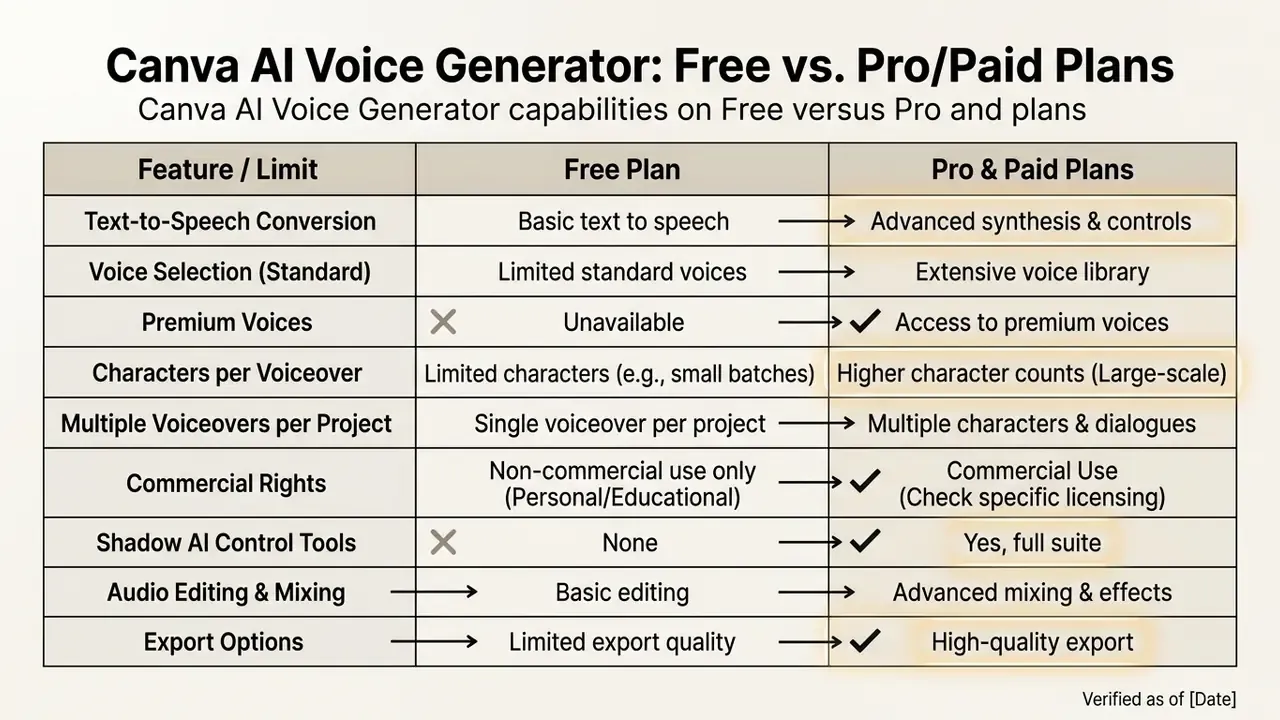
| Parameter | Canva Free | Canva Pro / Teams / Enterprise |
|---|---|---|
| Access to basic TTS | Available, limited voice selection | Full access to all standard voices |
| Character limit per generation | Up to 1,000 (AI Voice) or 2,000 (TTS) | Extended limits and priority processing |
| Premium voices and styles | Locked, upgrade required | All premium narrators unlocked |
| Number of languages | Core language set | 125+ languages and local accents |
| Download and export | Available as MP4 | Available in all formats without caps |
| Commercial use | Restricted by the free license | Permitted for commercial and business projects |
| Administration (Teams / Enterprise) | None | Central rights management, SSO, brand kit, priority support |
If the free ai voice generator canva path blocks your scenario, compare the market as a whole. The roundup of free AI video generators shows where watermarks and quotas bite hardest, and the AI Media Pricing Guides plus AI Media Calculators help translate per-seat pricing into an annual number your CFO will accept.
What to Check in Free Access Before Generating a Voiceover
A free account lets you test the generator, judge pronunciation, and drop the resulting audio into a project. Before you build a commercial clip on the free tier, verify:
- The current character limit (1,000 to 2,000 per request, depending on the widget).
- Whether a "Pro" badge sits next to your chosen voice. Premium narrators will not generate without payment.
- Daily generation caps applied to free accounts.
- Download and commercial-use terms of the specific app that produced the audio. Third-party modules on free plans often block export into the design and allow preview only.
When an AI Voiceover May Require a Different Plan
Moving to Canva Pro or a corporate plan makes sense when the project needs a wide range of emotional styles, rare language accents, or high volume video output.
Enterprise buyers usually upgrade for different reasons: data protection requirements, no hard daily quotas, and access to extended commercial music and sound effect libraries. Evidence caveat: that observation rests on public descriptions of corporate features (central rights management, SSO, brand kit, priority processing) and on implementation practice, not on a verified buyer survey. Base your choice on the current price list and contract terms, not on generalizations. Note also that Canva Enterprise has no standalone free trial and is purchased through sales, so actual limits and data guarantees are fixed in an individual agreement. If terms look ambiguous, ask support for written confirmation before procurement sign-off.
Can You Use a Canva AI Voiceover in Business and Commercial Projects?
Use of synthesized audio for commercial purposes (advertising, client videos, monetized YouTube channels) is governed by Canva's Terms of Use and by the rules of individual speech provider apps.
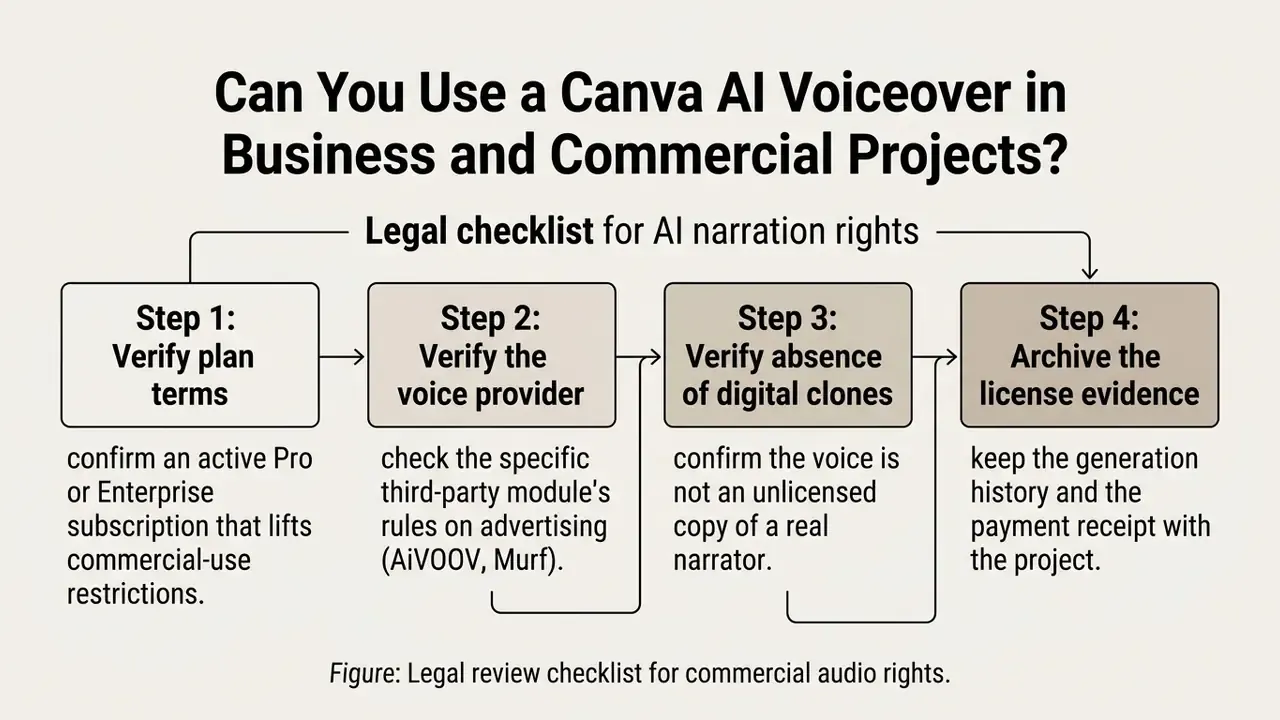
What to Check in Permissions and Audio Terms
«The US Copyright Office recommends permitting licensing but not full assignment of rights in digital voice replicas, with license terms limited to roughly five to ten years.»
Voice Ownership and Storage in Canva Projects
The Canva AI Product Terms state that the user retains rights in the text they submit (Input) and in the synthesis result (Output), and that Canva makes no ownership claim over the generated content.
At the same time, the platform reserves the right to store and process user files to operate the service, keep backups, and support audits. Canva's privacy policy explicitly notes that after account deactivation, the profile and user content may be retained for a commercially reasonable period for legal, audit, backup, and archival purposes. Generated audio tracks live inside the specific canva project and can be reused or downloaded as part of video files.
Two questions get mixed up constantly, so keep them apart. "Who owns the output" is answered by the AI terms: you do. "Where does the text and audio physically sit" is answered by the platform's cloud and, when plugins are involved, by the provider's servers. The second question belongs to information security, which is where we go next.
Data Security and Shadow AI When Connecting Third-Party Voice Apps
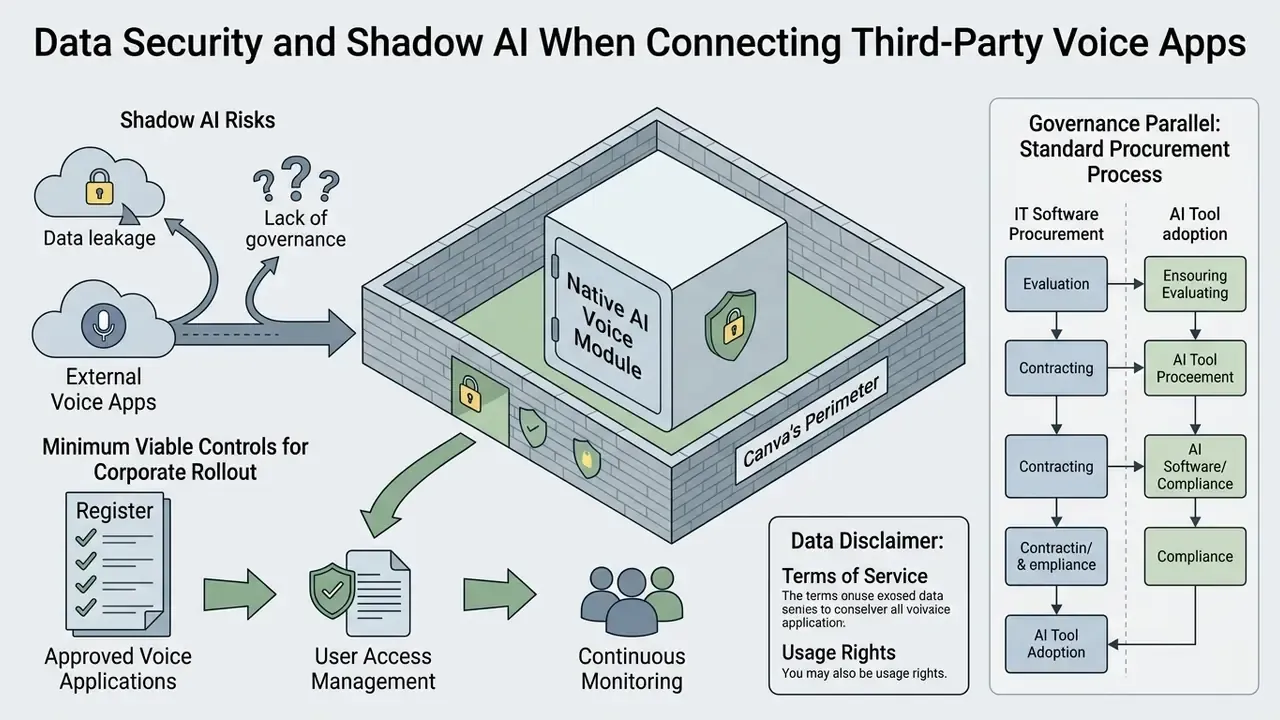
The native AI Voice module runs inside Canva's perimeter. The moment a user connects a third-party module (AiVOOV, Murf AI, and others) through OAuth, the script text and project metadata travel to an external processor. For a regulated institution, this is textbook Shadow AI: a tool adopted by a marketer or designer, with no security or legal review, and no entry in any AI inventory.
| Risk | How it shows up | Countermeasure |
|---|---|---|
| Confidential text leaves the perimeter | A script containing non-public financial results or client data is typed into a plugin field and sent to provider servers | Prohibit "confidential and above" data in third-party modules; de-identify scripts before generation |
| Excessive OAuth scopes | The plugin requests access to projects and profile far beyond audio generation | Review requested scopes before approval; audit connected apps in account settings regularly |
| Unknown storage geography | The provider keeps request logs in a jurisdiction incompatible with company policy (cross-border transfer under GDPR) | Request a DPA and written confirmation of the storage region before connecting |
| Training on user input | Script text may be used for fine-tuning unless the terms exclude it | Check for an explicit opt-out; prefer providers that ban training on customer data |
| No certifications | A small plugin holds no SOC 2 Type II or ISO 27001 | Maintain an internal allow-list; reconcile vendor claims with Canva Trust Center and the vendor's own documentation |
| Orphaned integrations | An employee leaves, but their personal account with the voice service stays linked to a corporate project | Corporate accounts only, with SSO and central rights management on Teams or Enterprise plans |
Minimum viable controls for a corporate rollout: (1) keep a register of approved voice applications; (2) document which data classes may never enter a TTS field; (3) require certification evidence (SOC 2, ISO 27001) and a signed DPA; (4) audit OAuth-connected apps quarterly and revoke unused access; (5) for sensitive scripts, allow only the native Canva module with no external integrations.
There is a governance parallel worth naming. Extending model risk management to a voice generator looks trivial next to credit scoring or AML monitoring. It is also where inventories fail first, because nobody classifies a design plugin as a model. If your AI inventory has no row for narration tools, that is a gap, not a non-issue.
When Built-In Canva Narration Is Enough, and When to Compare Murf
Alongside the standard voice generator, the Canva app catalog includes Murf AI, a third-party professional module. The choice depends on how much fine control over speech you actually need.
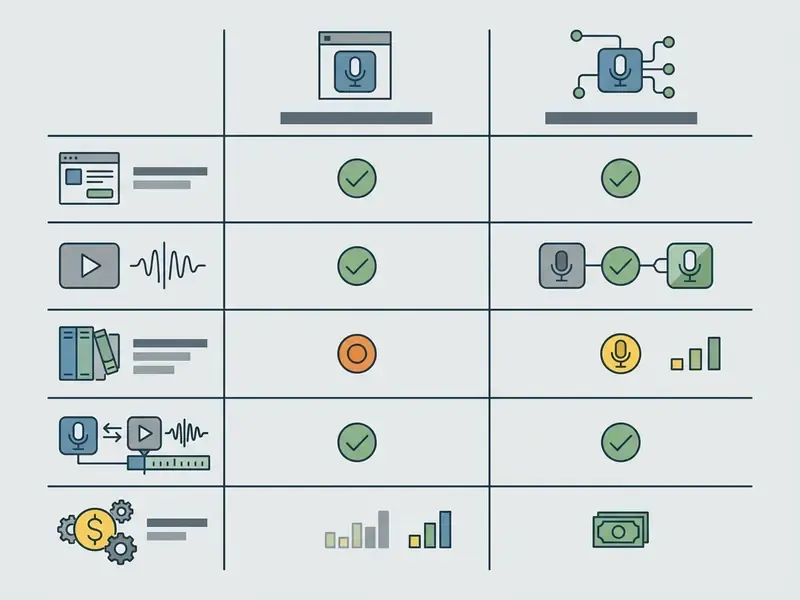
| Criterion | Built-in Canva AI voice generator | Murf AI app inside Canva |
|---|---|---|
| Entry point | Directly in the editor (Elements or Apps) | Through the Apps catalog (Murf account required) |
| Voice library size | Core set of neural voices | 120+ in the integration, 800+ professional narrators on the platform |
| Language support | 125+ languages and accents | 33+ languages in the integration, 40+ on the platform |
| Fine-tuning | Basic speed control and style choice | Granular pitch, speed, pause, and emotion control |
| Mobile support | Limited, may be unavailable on iOS and Android | Available in the Canva mobile app |
| Third-party data transfer | Stays inside the Canva perimeter | Script text goes to Murf servers (OAuth plus security review) |
| Cost | Included in the Canva subscription (Free or Pro) | Requires a paid Murf plan (Pro); on Free or Basic, PRO voices are unavailable and adding narration to a design is limited |
A rough decision rule. The native tool is enough for presentations, internal instructions, and standard social clips, where speed and the absence of external integrations matter more than micro-control of sound. When you need precise pitch shaping, word-level emphasis, or exclusive narrators for national broadcast advertising, the Murf integration earns its cost. Evidence caveat: this is an editorial recommendation built from both vendors' official documentation, not a blind user test. For high-stakes campaigns, run your own A/B test of two tracks with the target audience. Comparable trade-offs appear in adjacent categories too, from the pollo ai video generator to image tools like poly ai pictures, and even novelty engines such as the pokemon ai generator: the pattern is always native convenience versus external control depth. If you plan programmatic generation at scale, the AI Media API Guides cover authentication and quota design.
Limitations and Open Questions
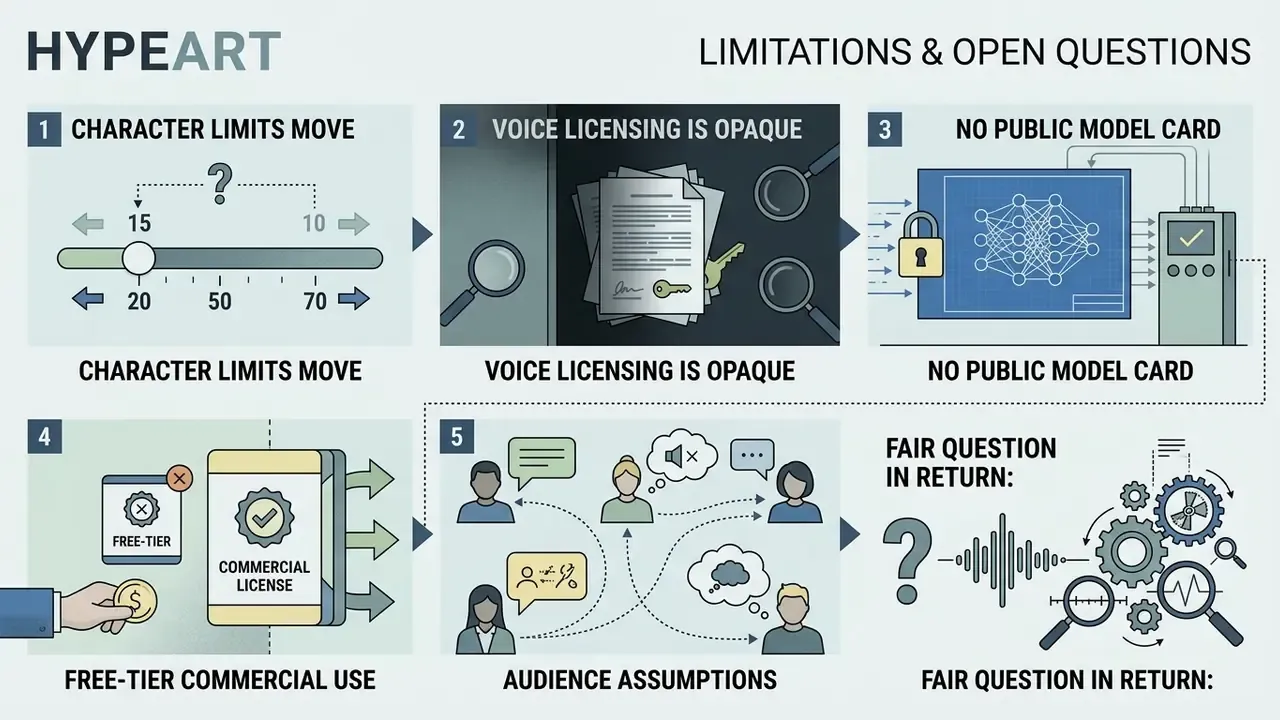
Some things this guide cannot settle for you, and it would be dishonest to pretend otherwise.
- Character limits move. Canva ships changes without notice. Treat 1,000 and 2,000 as current observations, not contractual guarantees, and re-verify before you build a production template around them.
- Voice licensing is opaque at the edges. Which specific voices are cleared for broadcast advertising, and in which territories, is rarely stated on a product page. Written confirmation from the provider is the only reliable artifact.
- No public model card. There is no published documentation of training data provenance for every voice in the catalog. For institutions with vendor due-diligence requirements, that is an open item rather than a resolved one.
- Free-tier commercial use. The boundary between "you may download this" and "you may run this as a paid ad" varies by app. Assume restriction until the terms say otherwise.
- Audience assumptions. Statements in this article about what CROs and model risk leaders prioritize remain hypotheses until validated by interviews, CRM data, or customer research.
Fair question in return: does a voiceover really merit this much scrutiny? For a single internal explainer, probably not. For a template used by 200 people across three jurisdictions, yes.
FAQ: Working with the Canva AI Voice Generator
Is the AI voice generator available on mobile devices?
Yes, core project and app functions work in the Canva mobile app for iOS and Android. Some third-party narration modules, however, have reduced functionality on small screens or require a desktop browser. Canva help materials for certain AI Voice versions state directly that the module is unavailable on mobile.
What if the AI Voice app does not appear in the editor?
Make sure the open project supports audio, for example Video or Presentation. Static graphic templates disable audio modules automatically. Also check that no regional restrictions are active on your account.
How do I fix login and account issues when connecting third-party voice services?
If linking an app such as AiVOOV or Murf fails, work through this list:
- Sign out of Canva and sign back in.
- Check that third-party cookies are permitted in your browser.
- Disable ad blockers and extensions that suppress OAuth pop-up windows.
- Confirm your plan in the connected service is active and within its generation quota.
- On mobile, verify you are signing in to the account tied to the subscription, and that the app holds the required system permissions.
Why does one page say 1,000 characters and another say 2,000?
Because they describe two different modules: the native AI Voice and the Text to Speech app. The cap follows the widget you opened, not your subscription tier.
Why does the AI voice mispronounce our brand name?
Use phonetic spelling, hyphenated syllables, or SSML tags. The full method sits in the section on fixing pronunciation, and it is worth logging your fixes in a project dictionary.
Does audio survive export?
Only in MP4 video exports. PNG, JPG, and PDF files carry no audio tracks whatsoever.
Can generated narration be used for a customer-facing voice agent?
Technically the same synthesis family powers both, but the control set differs sharply. A voice agent needs an owner, an approved scope, escalation rules, logging, and a shutdown path. Marketing narration does not. Do not reuse a marketing approval to justify an agentic deployment. Next Steps: A Safe Rollout Playbook for AI Voiceover
- Name the process owner. Assign accountability for AI narration, usually a content lead, who clears changes with security and legal.
- Build an app allow-list. Approve one native module and, at most, one external plugin with confirmed certifications and a signed DPA.
- Write the data classification rules. Spell out which texts may never enter a TTS field: personal data, pre-release financials, trade secrets.
- Fix the voice identity. Record voice IDs per language, speed and pitch values, and the phonetic exception dictionary in the brand book.
- Standardize QA. Approve a checklist: pronunciation, caption timing, levels (−14 LUFS), three-device test, rights verification.
- Keep an evidence archive. For every commercial clip, store the generation date, plan, app, voice ID, and payment confirmation.
- Audit quarterly. Revoke unused OAuth access and reconcile the current Canva AI Product Terms against your internal policy. Start small. One team, one allow-listed app, one documented checklist, then extend.
Appendix: Final Pre-Publication Checklist
Checklist0 / 10
Further reading: the full AI Media Glossary collects definitions, licensing notes, and control checklists for generative media tools.