Last updated: 2026 · Reviewed by the AI Media Governance Editorial team
Quick answer: which MP4 editor should you use?
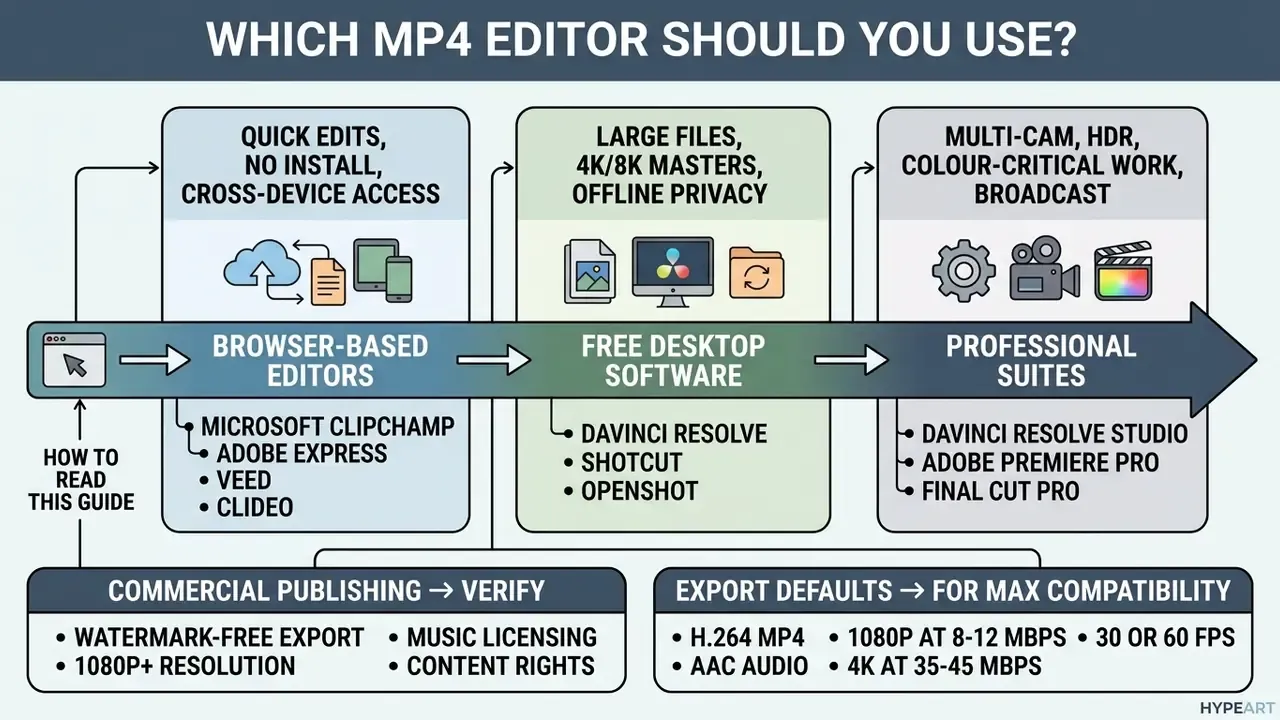
- Quick edits, no install, cross-device access → browser-based MP4 editors (Microsoft Clipchamp, Adobe Express, VEED, Clideo). Expect import caps, browser gating (Clipchamp runs in Chrome and Edge, not Safari or Firefox), and preset export ranges.
- Large files, 4K/8K masters, offline privacy → free desktop software (DaVinci Resolve, Shotcut, OpenShot, VSDC). No bandwidth ceiling, full codec control, local GPU acceleration.
- Multi-cam, HDR, colour-critical or broadcast work → professional suites (DaVinci Resolve Studio, Adobe Premiere Pro, Avid Media Composer, Final Cut Pro).
- Commercial publishing → verify watermark-free export, 1080p or higher resolution, music licensing (Content ID risk), and whether uploaded footage may be used for AI model training.
- Export defaults that work everywhere → H.264 MP4 plus AAC audio; 1080p at 8-12 Mbps, 4K at 35-45 Mbps, 30 or 60 fps.
How to read this guide
The sections move from capability to control. First, what an editor actually does to an MP4 file. Then how to choose between browser, freeware, and professional tiers. After that, the part most feature comparisons skip: what happens to your footage once it leaves the endpoint, and which licence terms decide whether a finished clip can legally appear in a product launch, a compliance training module, or a paid campaign. If you only have five minutes, read the security questionnaire and the commercial-readiness checklist. Those two blocks prevent the expensive mistakes.
What an MP4 video editor can do
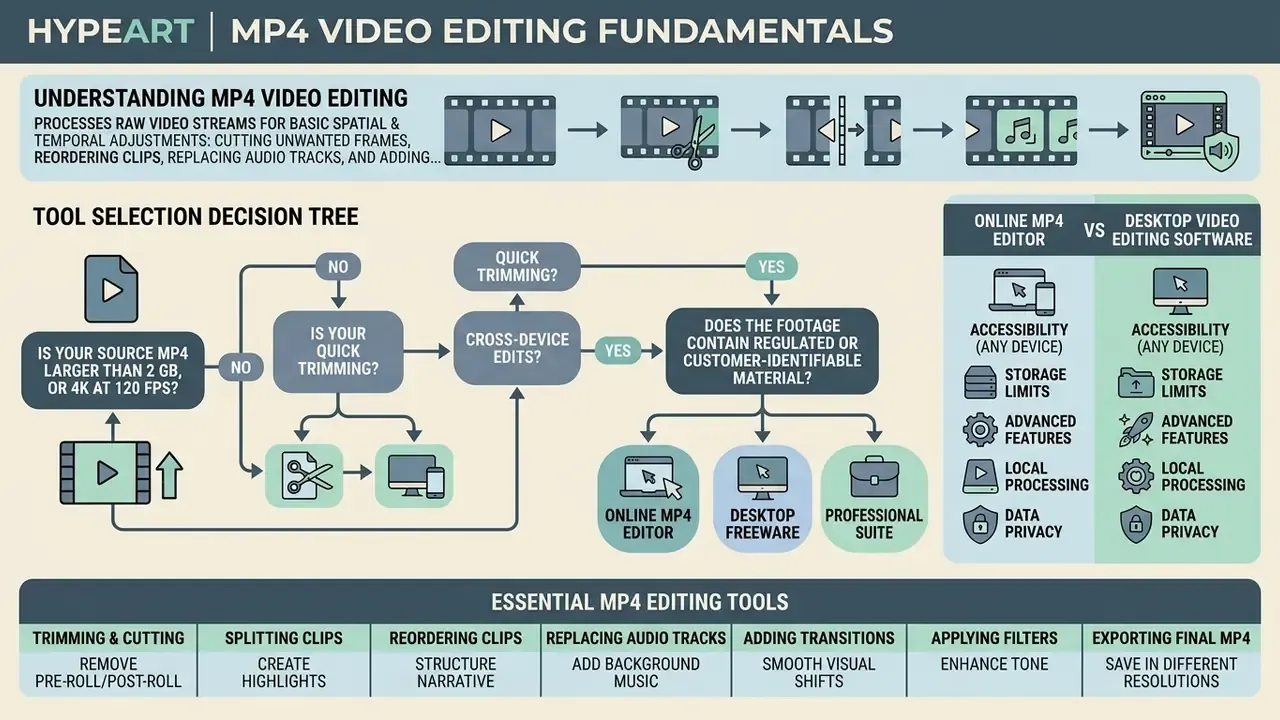
An mp4 video editor processes raw video streams to perform basic spatial and temporal adjustments: cutting unwanted frames, reordering clips, replacing audio tracks, and adding text overlays. Because these tools operate on the ISO Base Media File Format (ISO/IEC 14496-14), they can modify media without a full re-encode of untouched streams.
«ISO/IEC 14496-14 defines the MP4 file format as derived from the ISO Base Media File Format, designed to contain time-based audio-visual information.»
MP4 is a container, not a single codec. That distinction matters more than it sounds. MPEG-4 Part 30 standardises "Timed Text and Other Visual Overlays in the ISO Base Media File Format", which is why captions, subtitles and lower thirds survive an export without breaking playback on a phone, a smart TV, or an internal learning portal.
To edit mp4 videos properly, an editor video mp4 tool has to handle multi-track compositions. Core capabilities run from simple timeline trimming to multi-channel audio mixing, motion graphics integration, and colour space adjustments. Whether you use a cloud-based mp4 video editor online or local software, these platforms turn fragmented raw clips into structured media suitable for corporate communications, technical documentation, internal training modules, banking product demos, or social channels.
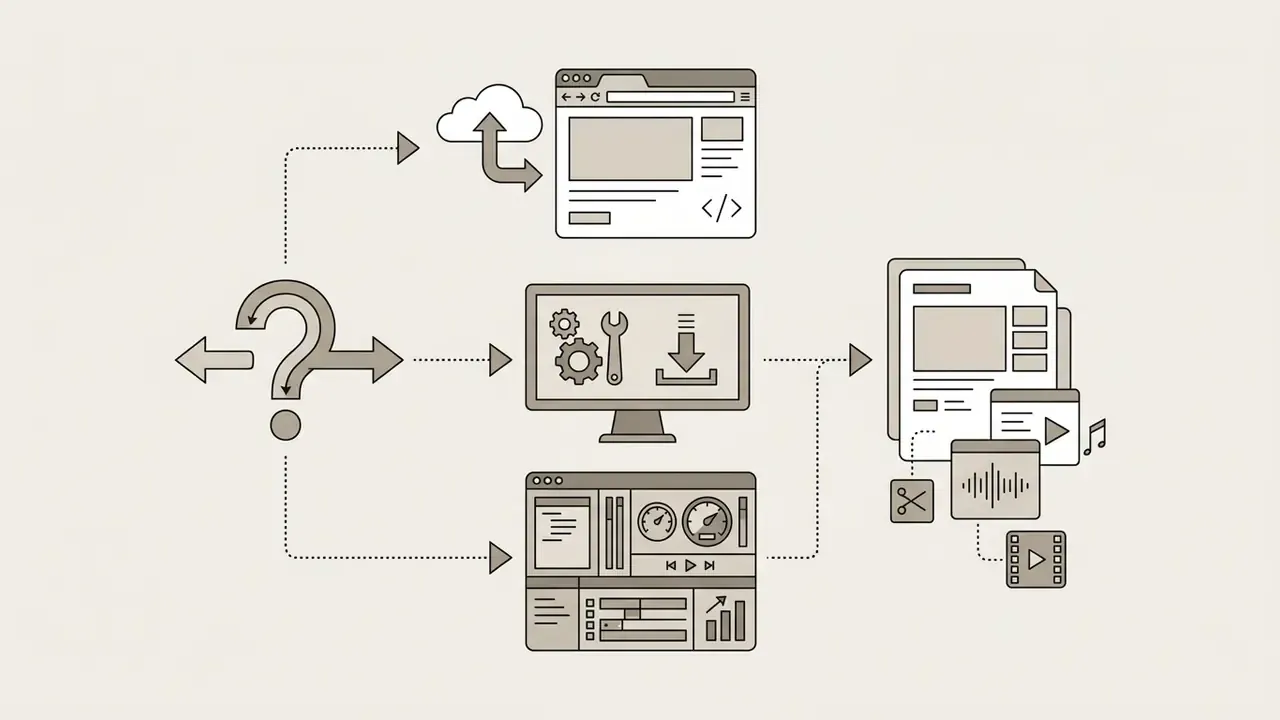
Online MP4 editor vs desktop video editing software
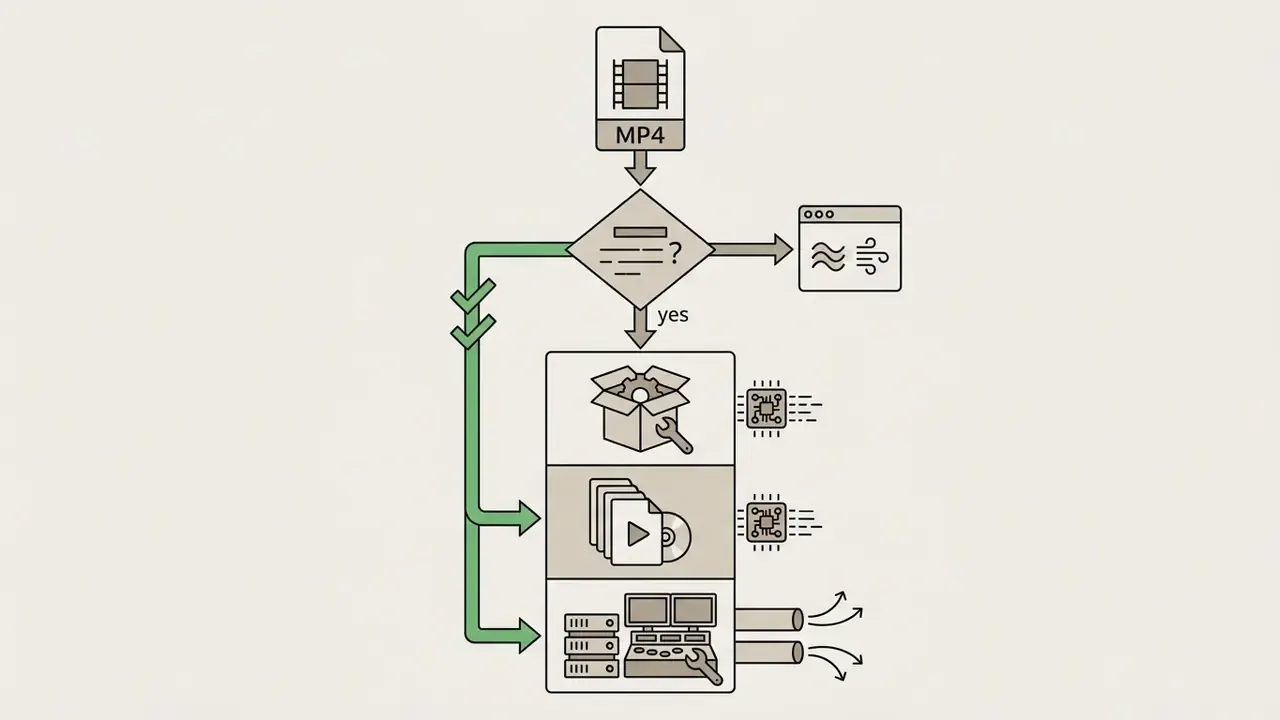
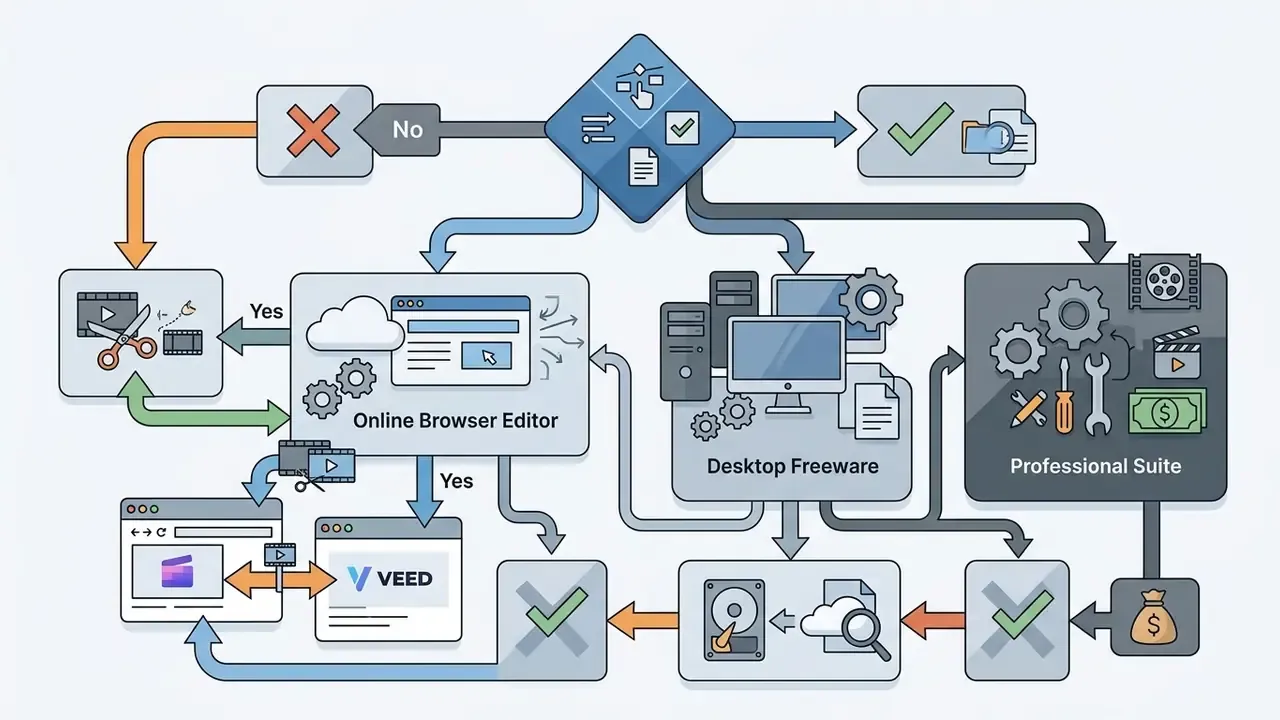
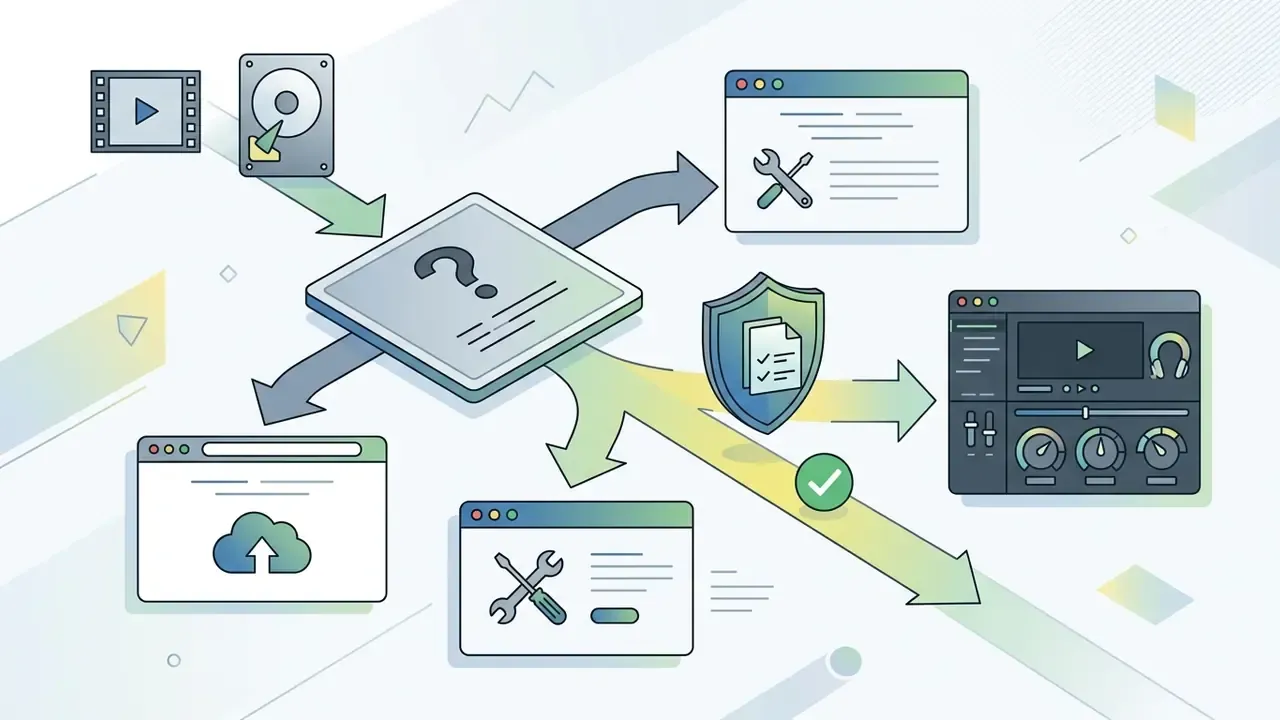
Decision tree: browser, desktop freeware or professional suite
Essential MP4 editing tools for everyday videos
Everyday workflows lean on a small core set: cut, trim, crop, resize, and overlay. Cutting splits a file into distinct segments. Trimming adjusts the start and end points on a timeline to remove filler content or an awkward pause before someone starts talking. Cropping alters the visible frame boundary to fit a target aspect ratio, such as 16:9 widescreen or 9:16 vertical.
Beyond structural cuts, an mp4 video audio editor provides dedicated controls for soundtrack replacement, voiceover insertion, and volume normalisation. Static or animated captions keep content usable in muted social feeds, which is where most business video is actually watched. When edits are done, rendering compiles the visual and audio tracks back into a standardised MP4 ready for distribution.
Table: core MP4 editing functions and operational use cases
| Editing function | Technical description | Primary operational use case |
|---|---|---|
| Cut & trim | Removes unwanted temporal segments by adjusting start/end keyframes or splitting timeline clips. | Eliminating pauses, errors, or unnecessary footage from vlogs, lectures, product demos, and internal training recordings. |
| Crop & resize | Modifies frame dimensions and aspect ratios while scaling visual assets. | Converting landscape 16:9 recordings into vertical 9:16 formats for social channels. |
| Rotate & flip | Rotates the canvas in 90° increments or by arbitrary slider values; mirrors footage horizontally or vertically. | Correcting sideways smartphone captures and mirroring screen-recorded demos. |
| Clip arrangement | Sequences multiple video tracks, images, and visual elements on a linear timeline. | Assembling multi-shot training modules, event recaps, or corporate presentations. |
| Text & captions | Overlays timed typography, lower thirds, or automated closed captions onto visual tracks. | Improving engagement, accessibility compliance, and muted social playback. |
| Audio integration | Syncs background music, balances multi-track levels, applies ducking, and records voiceover. | Clearing background noise and balancing dialogue for professional explainer videos. |
| Effects & transitions | Applies colour correction filters, motion graphics, chroma-key compositing, and scene transitions. | Maintaining visual consistency and polished branding across marketing campaigns. |
| Watermarking | Overlays PNG brand marks with adjustable scale, anchor position, and opacity. | Protecting proprietary demo footage and attributing branded assets on public channels. |
| Export & conversion | Encodes compiled timelines into target bitrates, frame rates, and containers (MP4, GIF, ProRes). | Publishing optimised files to internal LMS platforms, YouTube, or web storage. |
How to choose the best MP4 video editor for your needs
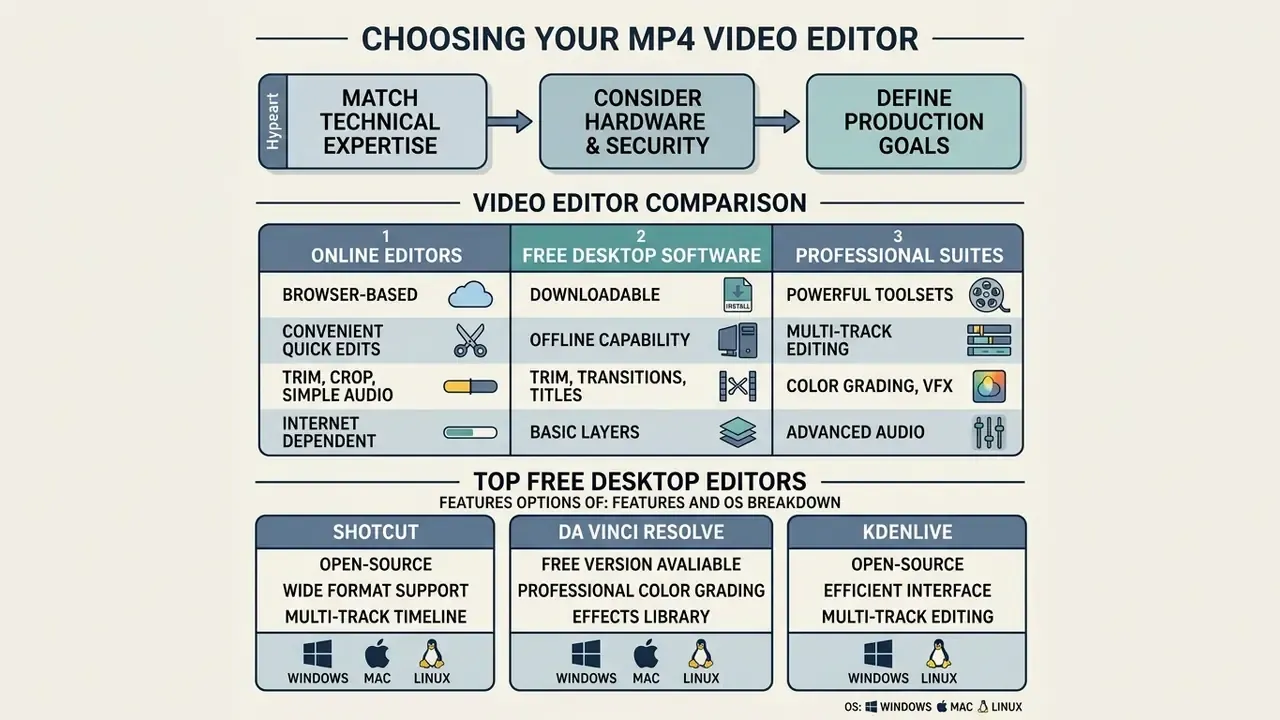
Selecting the best mp4 video editor means matching your technical expertise, hardware, security requirements, and production goals against the tool's architecture. Beginners who care about speed benefit from simplified interfaces that automate keyframe management. Enterprise teams and commercial creators need advanced colour grading, precise audio ducking, verifiable data-handling terms, and clean licensing compliance.
Comparing a simple mp4 video editor with a full desktop suite comes down to system compatibility, format support, and long-term operating cost. Curated resources such as the AI Media Glossary help clarify specialised terminology before you commit to an architecture, which is cheaper than migrating a whole team six months later.
Simple MP4 editors for beginners and quick edits
A simple mp4 video editor focuses on a low learning curve, drag-and-drop mechanics, and pre-built templates. Microsoft Clipchamp and similar browser utilities compress basic operations into one-click actions. Microsoft positions Clipchamp as a video editor "for everyone who wants to create quality videos even without editing experience", while Adobe Express and Online Video Cutter allow upload, edit and MP4 export with no account and no credit card. Comparing shortlisted free video editing software side by side prevents over-buying capability nobody on the team will ever touch.
By stripping advanced configuration, entry-level editors reduce cognitive load and processing friction. Peer-reviewed human-computer interaction work on accessible, text-based editing quantifies the effect.
«Participants rated effort with the simplified interface at 2.17 versus 4.58 for a traditional timeline (Z = 2.96, p < 0.01).»
Reducing primary editing operations to single-click timeline actions measurably shortens task completion during routine trimming compared with professional non-linear suites. That is precisely why simplified interfaces dominate high-volume, low-complexity publishing pipelines, from release notes to weekly internal updates.
Professional software for advanced video editing
Professional mp4 video editors provide non-linear, multi-track environments with frame-accurate manipulation. DaVinci Resolve, Adobe Premiere Pro, Avid Media Composer, and VSDC ship colour wheels, video scopes, curve controls, parametric audio equalisers, keyframe animation engines, and proxy workflows. Blackmagic's DaVinci Resolve documentation separates Edit, Color and Fairlight pages, giving audio post its own environment. Avid publishes a distinct Effects and Color Correction Guide for the same reason.
These tools handle multi-camera setups, HDR processing, chroma-key compositing, motion tracking, and high-frame-rate rendering up to 120 fps. The learning curve is steeper, no question. What you gain is total authority over compression ratios, colour spaces, and effect stacks, plus render settings you can document for a repeatable brand standard.
Windows, Mac, browser and device compatibility
Platform reach decides how teams collaborate across operating environments. Browser applications run on Windows, macOS, ChromeOS, and Linux and need only a modern WebGL-compliant browser. But browser identity matters: Microsoft states that Clipchamp works in Chrome, Edge and other Chromium browsers on desktop and laptop computers and "does not work in Safari and Firefox at this stage". Adobe's Firefly video editor requires Chrome or Edge (v118 or newer) on Windows 10 or macOS 12 and later.
On mobile limits, vendor documentation beats folklore. Microsoft explicitly states that the Clipchamp desktop editor "does not work in mobile browsers on phones or tablets" and that the interface is not optimised for touch-screen devices such as iPads. Practically, multi-track canvas editing on phones and tablets belongs in native mobile apps, not the mobile web. Treat heavy canvas work as a desktop-class task until a vendor documents otherwise.
Native desktop free mp4 video editing software depends on platform builds. Windows users often reach for VSDC or Clipchamp (bundled with Windows 11), while macOS environments integrate with Final Cut Pro or CapCut Desktop. Open-source options such as OpenShot, Shotcut and Kdenlive offer cross-platform parity across Linux, Mac, and Windows, which keeps a mixed-fleet team on one project format.
Table: comparison of online editors, free desktop software, and professional suites
| Selection criteria | Online MP4 editor | Free desktop software | Professional suite |
|---|---|---|---|
| Ease of use | High; drag-and-drop interface suited to rapid edits. | Moderate; structured timelines requiring basic training. | Low; steep learning curve for advanced controls. |
| Download required | No; executes inside supported Chromium browsers. | Yes; requires a local installation package. | Yes; heavy local install plus licence setup. |
| Hardware demand | Low local impact; depends on browser RAM and network (8 GB RAM typical minimum). | Moderate CPU/GPU use; relies on local storage (4 GB RAM minimum for OpenShot). | High; dedicated GPU, 8 GB or more RAM, fast local drives. |
| Offline capability | None; requires a stable internet connection. | Full; operates entirely without network access. | Full; offline execution with optional cloud sync. |
| Data residency | Media leaves the device unless rendering is client-side; vendor terms govern retention. | Media never leaves the workstation. | Local by default; cloud collaboration is opt-in. |
| Export controls | Preset resolutions (720p to 1080p, 4K on some paid tiers); fixed frame rates. | Broad codec control; up to 4K/8K exports. | Full master export control (ProRes, DNxHR, H.265, AV1). |
Read the table as a risk document, not just a feature grid. The two rows that decide procurement outcomes in regulated environments are data residency and export controls. Ease of use is a training problem; retention terms are a contractual one.
Top free desktop MP4 editors: features and OS breakdown
When you need local hardware acceleration and zero file-size limits, pick open-source or free desktop software by platform support and visual effects (VFX) depth.
| Software | Supported OS | Key VFX and audio capabilities | Limitations and trade-offs |
|---|---|---|---|
| DaVinci Resolve | Windows, macOS, Linux | Colour wheels, Fairlight audio suite, node-based VFX, multi-user collaboration | Steep learning curve; high GPU/RAM demand; limited external-software integration. |
| VSDC Free Editor | Windows | Non-linear editing, subpixel accuracy, motion tracking, colour blending modes, 4K/8K export | No hardware acceleration or stabilisation in the free tier; no audio waveform; Windows only. |
| Shotcut | Windows, macOS, Linux | Native timeline editing, 4K support, wide format input, command-line interface | Dated UI; fiddly filter workflows. |
| OpenShot | Windows, macOS, Linux | 3D animated titles, keyframe animation engine, unlimited tracks, transitions library | Prone to lag on complex multi-track projects; needs 4 GB RAM minimum. |
| HitFilm Free | Windows, macOS | Muzzle flashes, portal and lighting VFX, 2D/3D motion tracking, screen simulation | Requires account activation; 3D model import restricted in the free tier. |
| iMovie | macOS, iOS | Colour matching, background noise suppression, trailer templates, easy sharing | Limited to the Apple ecosystem; rigid multi-track layout; large disk footprint. |
| Freemake Video Converter | Windows | 500+ format conversions, DVD/Blu-ray ripping and burning, audio extraction, subtitle sync | Slow processing; infrequent updates; promotional upsells. |
| CapCut Desktop | Windows, macOS | Auto-captions, background removal, speed ramping, effects library | Cloud dependency for asset sync; official free-tier export limits are not fully documented. |
Enterprise security, Shadow AI and data privacy in MP4 editing
For a regulated organisation, the first selection filter is not the feature list. It is what happens to the footage after upload. A browser editor that renders server-side receives a full copy of the source media, and that copy can include customer screens, unreleased product interfaces, internal dashboards, or identifiable faces.
Architecture matters more than marketing. Client-side rendering (WebAssembly or WebGL in the browser) keeps frames on the endpoint. Server-side rendering transmits and temporarily stores them. Adobe documents that certain Firefly features are disabled specifically during client-side browser rendering, which is a useful signal: the two modes are technically distinct and belong in separate lines of a security review.
Shadow AI risk. When employees upload internal recordings to consumer video tools outside procurement, the organisation loses visibility over retention, sub-processors, and whether media may be used to improve models. Mitigation is unglamorous but effective: an approved-tool allowlist, DNS or CASB controls on unapproved editors, and mandatory pre-upload redaction of personal and account data. Worth adding one owner per approved tool, with a named escalation path. A control without an owner is a wish.
Checklist0 / 7
Where video is produced at scale, automation raises the same questions again. Anyone wiring an editor into a content pipeline should read the AI Media API Guides before granting a service account write access to a media library. Rights disputes are not hypothetical either; the running record in the AI Litigation and Case Timelines hub is a reminder that training-data provenance is still contested territory.
Commercial readiness checklist for free editors
Apply this checklist while selecting the tool, not after the timeline is finished. Most blockers, watermarks, resolution caps, asset licences, are plan-level and cannot be fixed at export time.
Checklist0 / 6
How to edit MP4 videos online: upload, edit and export
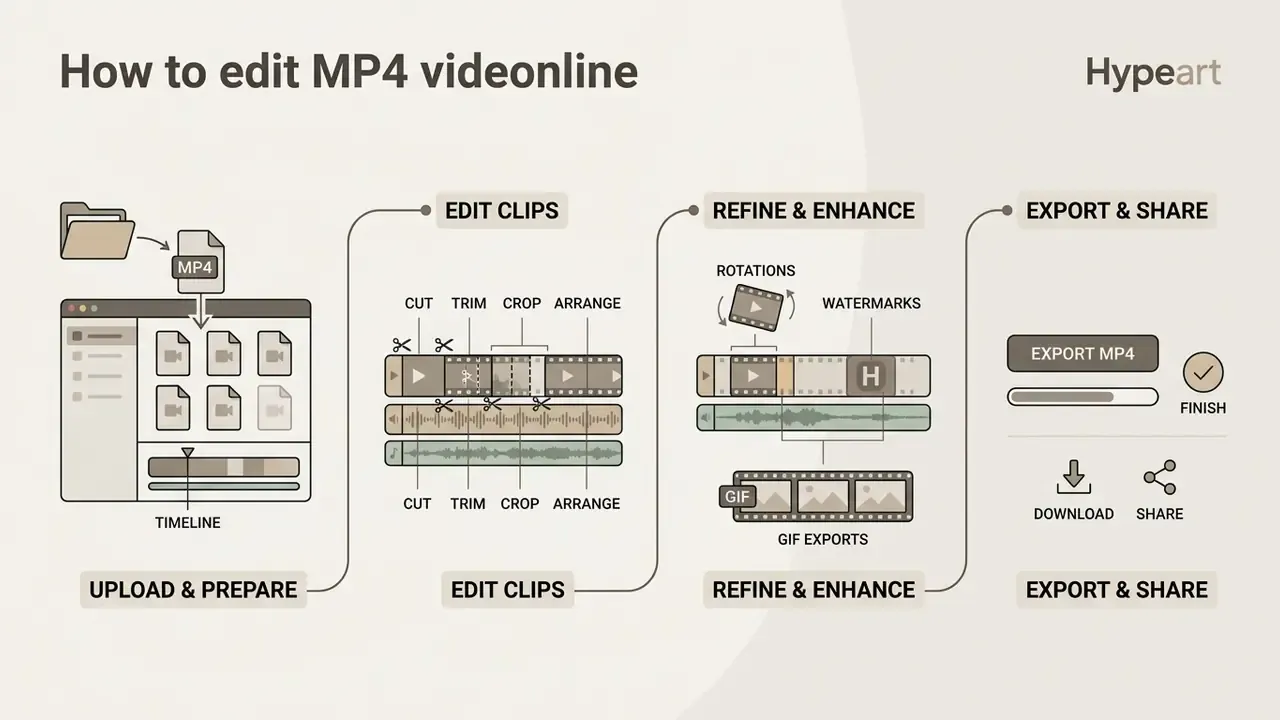
To edit mp4 video online, follow a structured linear workflow. It minimises rendering errors and preserves source fidelity. Online environments wrap complex processing tasks in a plain web interface, which hides the mechanics but not the limits.
Understanding how to edit mp4 videos in a browser means mastering three phases: media ingest, timeline manipulation, and output rendering. A systematic process keeps the final export aligned with target platform requirements, without the surprise quality drop nobody notices until publication.
Upload MP4 files and prepare the editing timeline
Editing starts with importing source media into the project bin. Most browser applications support drag-and-drop uploads for standard MP4 containers compressed with H.264 or HEVC. Adobe's Firefly editor additionally accepts AAC, PCM, MP3 and RAW audio streams. Large files may require automated cloud transcoding before timeline placement, and upload time scales with connection speed. Online Video Cutter warns that ingest can take up to ten minutes for a large file, which is worth knowing before a deadline.
Editors usually separate media into distinct sources: device uploads, cloud storage, a personal library, and stock catalogues. Vimeo's editor splits assets into Uploads, My Library and Stock before anything reaches the timeline. Descript accepts MP4 uploads up to 100 GB and auto-generates a transcript for text-based editing. Once media lands, place it onto the main timeline and organise video, audio, and graphic assets across dedicated parallel tracks. That single habit prevents most asset overlap problems later.
Cut, trim, crop and arrange video clips
With assets on the timeline, use the playhead to locate exact edit points. The split tool cuts one clip into separate elements, so you can delete pauses or filler. Dragging clip boundaries inward trims the duration while keeping alignment, the standard method documented by Adobe Premiere Pro, Apple Final Cut Pro and Microsoft Clipchamp alike. Trimming is always bounded by available source frames and by adjacent clips.
Cropping adjusts frame boundaries to reframe a subject or remove dead space. Arranging clips sequentially establishes narrative continuity. Ripple edit tools close timeline gaps left by deleted footage automatically; Clipchamp exposes the same behaviour through a "delete all visual gaps" action, while rolling, slip and slide edits shift the cut point between neighbouring clips without changing total duration.
Automation is now credible for repetitive structural edits, not only for effects.
«Automatically edited lecture videos received ratings comparable to professionally edited versions, while substantially reducing editing time.»
Specialised timeline adjustments: rotations, watermarks, and GIF exports
Beyond basic trimming, modern tools cover specific publishing requirements:
- Precise canvas rotation and flipping: fix misaligned smartphone recordings by rotating clips in 90-degree increments or dragging a custom orientation slider (0° to 360°). Apply horizontal or vertical flips to mirror assets, then align the result to fit or fill the canvas so no letterboxing survives into the export.
- Custom watermark placement: protect branded MP4 assets by overlaying a PNG logo. Adjust opacity (30% to 50% works for subtle branding), scale, and anchor position, for example the lower-right corner, across the timeline. Several browser editors, Clideo included, restrict custom PNG watermark upload to paid tiers. Verify that before designing the overlay.
- Short clip GIF export: for micro-content under 30 seconds, skip MP4 encoding and export straight to animated GIF for email newsletters, changelogs and documentation portals.
- Canvas and background control: before rendering, set canvas dimensions and background colour explicitly, usually in project settings or behind a gear icon, so vertical 9:16 exports do not inherit an unintended letterbox from 16:9 source media.
Add text, audio, music and effects to an MP4 video
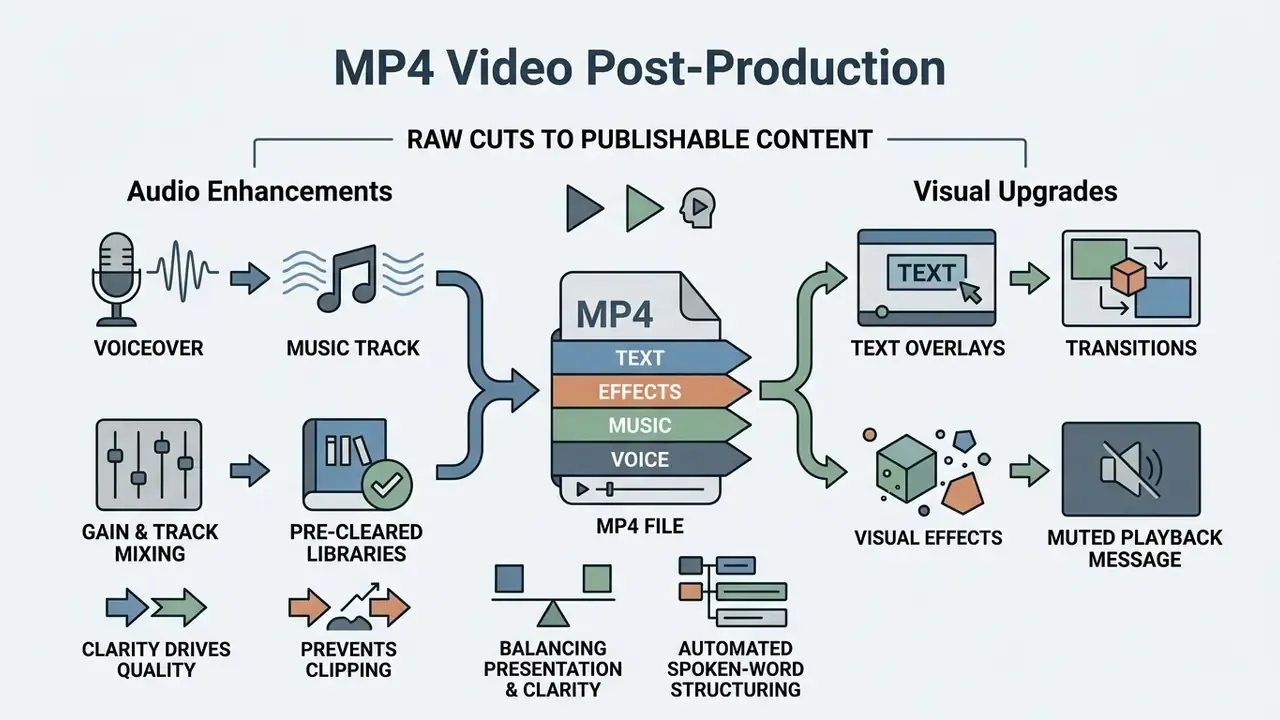
Turning raw cuts into publishable content means combining several modalities at once. A capable mp4 video audio editor integrates graphic text layers, balanced audio, visual filters, and scene transitions in one timeline.
Enhancement is a balancing act: presentation against message clarity. Dedicated tools such as a highlight video maker or an automated subtitle generator speed up multi-track assembly for social feeds and corporate channels, especially when the same source recording feeds several formats.
Edit audio, add music and use voiceovers
Audio clarity drives perceived production value more than resolution does. Multi-channel editing lets you import background music, balance narration, and suppress ambient noise. Automatic ducking lowers music volume whenever dialogue plays; Google Vids, for instance, distinguishes "Narrative" (voiceover) from "Background" (music) tracks and ducks automatically during speech.
Adjusting per-track gain prevents digital clipping and distortion. When adding licensed music or original commentary, syncing waveforms precisely with visual cuts keeps the edit feeling deliberate. Synthetic narration is a legitimate substitute when no booth is available: pairing a timeline with an AI voice generator produces consistent read speed across a series of training modules, which matters when learners binge six of them in a row.
Automated assembly now extends to spoken-word structuring at production scale.
«An automatic system composed two-minute news clips from 20 to 120-minute recordings in under five minutes on a single GPU.»
Source background music from pre-cleared stock libraries explicitly licensed for commercial monetisation. Adobe Stock's audio catalogue, for example, states its tracks are royalty-free and cleared for commercial projects. Using unverified commercial tracks, even inside free editing software, triggers automated Content ID claims on YouTube and Facebook, which leads to muting, regional blocking, or monetisation redirected to the rights holder. Creative Commons licences differ sharply here: CC BY, CC BY-SA, CC BY-ND and CC0 permit commercial use, whereas any licence carrying the NonCommercial (NC) term does not. Verify royalty-free commercial clearance before the final render, not after legal asks.
MP4 formats, large files and export quality
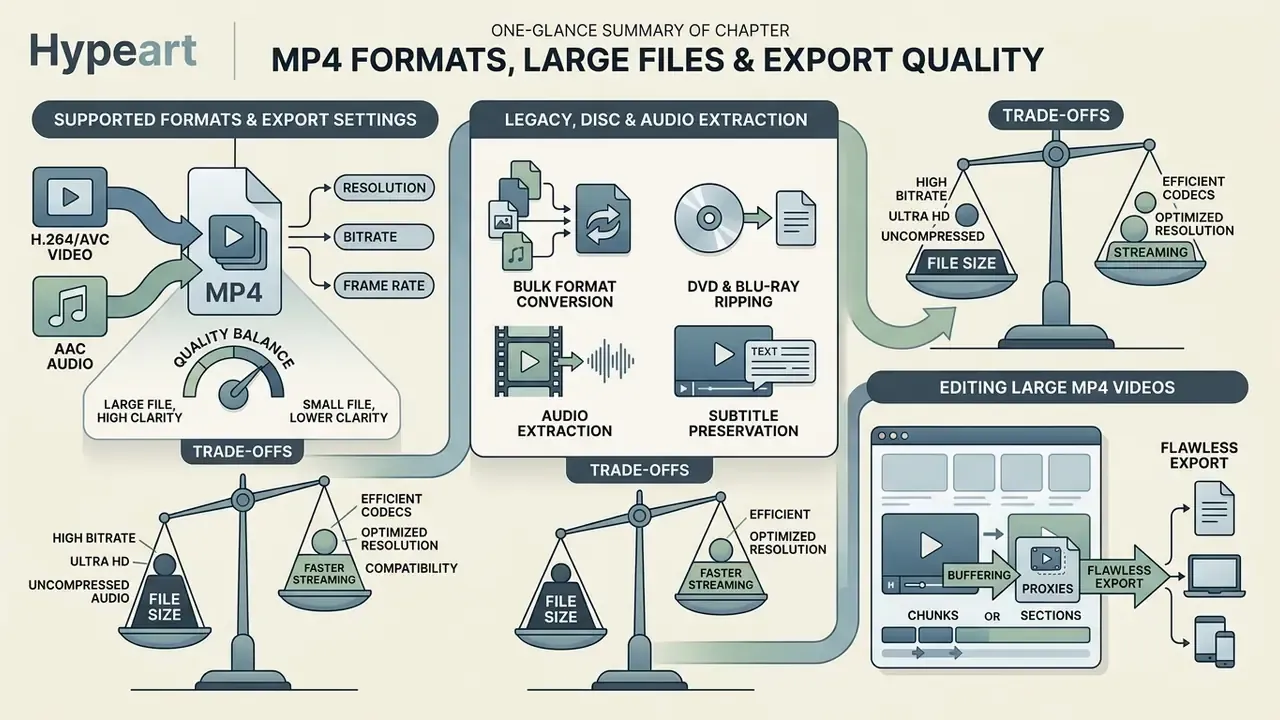
The MP4 container relies on specific video and audio codecs to balance file size against clarity. Understanding codec compatibility prevents playback errors and crashes during high-resolution processing, which is the most common support ticket in any video team.
Managing high-bitrate media means trading system resources against compression. Teams studying automated asset creation often ask how do people build synthetic clips at all, and the answer usually starts with the same encoding pipeline described below.
Supported formats and export settings
MP4 acts as a universal container, but internal video streams are typically compressed with H.264 (AVC), H.265 (HEVC), or AV1, paired with AAC audio. H.264 offers near-universal playback across legacy devices, browsers, and platforms. H.265/HEVC delivers better compression efficiency, producing noticeably smaller files at similar quality, at the cost of encoding power and longer exports. AWS Elemental MediaConvert documents MP4 support for AV1, AVC and HEVC on both input and output, and specifies that MP4 input must be self-contained; fragmented MP4 initialisation segments are not supported, a frequent cause of failed enterprise ingest.
Optimal export settings depend on the distribution channel. Objective quality can now be estimated automatically rather than eyeballed:
«XGC-VQA reaches a median correlation of about 0.7 with perceptual quality while computing in under five seconds across three content types.»
For YouTube and general web streaming, exporting H.264 MP4 at 1080p (8-12 Mbps) or 4K (35-45 Mbps) at 30 or 60 fps hits the practical balance between processing time and visual fidelity. Teams publishing on a fixed schedule can align these settings with a platform-specific YouTube video editor workflow, so thumbnails, chapters and caption files ship alongside the master.
Legacy formats, disc media and audio extraction
Not every MP4 task starts with an MP4. Archive projects, compliance recordings and older marketing libraries often sit on optical media or in formats no browser editor will accept. Conversion utilities handle that stage:
- Bulk format conversion tools such as Freemake Video Converter convert across 500-plus container and codec combinations, including AVI, MKV, WMV, 3GP, SWF, FLV, MPEG-4 and DivX, plus device presets for phones, tablets and consoles.
- DVD and Blu-ray ripping or burning physical media can be extracted to MP4 for editing, then re-authored to disc for offline distribution where no network exists.
- Audio extraction pulling the AAC or MP3 track out of an MP4 yields podcast versions, transcript inputs, or clean beds for re-mixing.
- Subtitle preservation converters that carry subtitle streams through the process save hours of manual caption re-timing.
- Trade-offs conversion suites are slower than editors, updated less often, and occasionally bundle promotional prompts. Verify the output codec before importing the result into your primary timeline.
How to edit a large MP4 video without workflow issues
Multi-gigabyte MP4 files strain memory and crash browsers. To keep timeline performance sane with large sources, use proxy editing. Adobe defines proxies as low-resolution copies of high-resolution media used to improve performance with resource-intensive footage; the editor swaps back to the original masters at final export.
GPU hardware acceleration reduces timeline lag and shortens renders. Documented acceleration paths include NVIDIA NVENC/NVDEC, Intel Quick Sync Video (QSV), AMD AMF, VA-API on Linux, and Apple Video Toolbox on macOS. NVIDIA's FFmpeg guidance also recommends measuring throughput with multiple concurrent sessions and longer inputs rather than single short clips, since short-clip benchmarks overstate real performance.
Text-driven pipelines are closing the gap on interactive speed for large assets:
«VidEdit processes a single video in roughly one minute and generates several compatible edits from one text prompt while preserving spatio-temporal consistency.»
Pre-compressing massive files with a dedicated video compressor before importing into a browser editor prevents upload timeouts and memory caps. That is particularly relevant where the platform enforces a hard ceiling such as 20 GB, four hours, or 3840×3840 pixels per file. If ingest still fails, the AI Media Support and Troubleshooting notes cover the usual culprits: fragmented MP4 input, unsupported audio streams, and browser memory limits.
Fact check and environment verification
| Tool | Verified free resolution | Watermark on free export | Maximum file import limit | Official source status |
|---|---|---|---|---|
| Microsoft Clipchamp | Up to 1080p HD | No, on standard assets; premium stock blocks export | Uncapped local performance; Chrome/Edge only | Verified (Microsoft Clipchamp pricing and support pages, 2026) |
| Adobe Express | Up to 1080p HD | No, on the standard free tier | Browser dependent; MP4/MOV/M4V input | Verified (Adobe Help Center, 2026) |
| Adobe Firefly Video Editor | Browser render, Chrome/Edge required | No, subscription asset terms apply | Under 20 GB, under 4 hours, 3840×3840 px per file | Verified (Adobe Help Center, 2026) |
| VSDC Free Video Editor | Up to 8K UHD | No watermark | Unlimited local storage | Verified (VSDC official site, 2026) |
| VEED.io | Up to 720p HD | Yes, watermarked on the free tier | 250 MB upload cap | Verified (VEED pricing page, 2026) |
| ScreenPal | Up to 4K / Full HD / HD | No watermark advertised | Vendor dependent | Verified (ScreenPal video editor page, 2026) |
| OpenShot | Local codec limits (4K and above) | No watermark | Local storage only; 4 GB RAM minimum | Verified (OpenShot support, GPLv3, 2026) |
| CapCut Desktop | Not documented in primary sources | Not verified | Not verified | Unverified: official export and file-size limits not published in accessible primary documentation |
Free MP4 video editor: pricing limits and commercial-use decisions
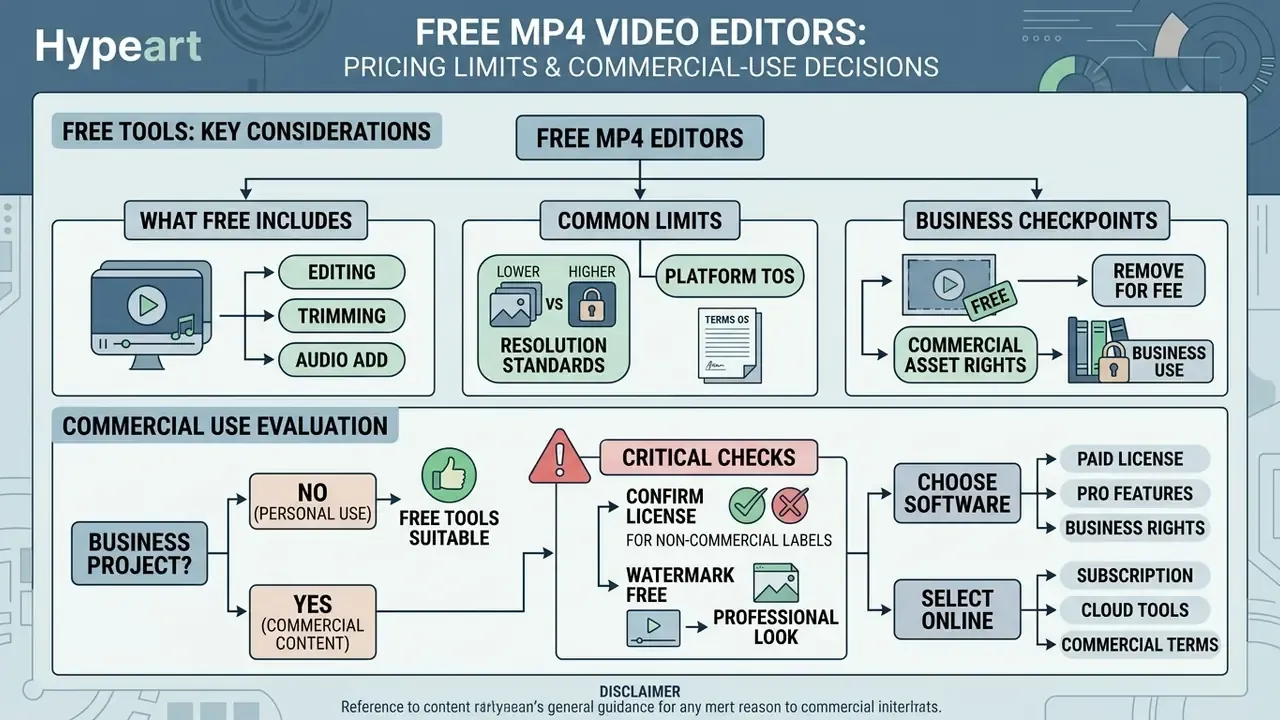
Using a free mp4 video editor requires a careful read of licensing terms, export restrictions, and commercial rights. Software advertised as "free" splits into distinct operational categories: open-source software, freemium browser services, and restricted trial software with non-commercial clauses. Those three are not interchangeable, and the difference lands on legal's desk, not on the editor's.
Organisations deploying video commercially must separate software usage rights from embedded asset licences. Evaluating options through the AI Media Comparison Matrices helps confirm a tool meets operational requirements before deployment, and the AI Media Commercial-Use Hub covers the rights side in more depth.
What "free" includes in MP4 video editing software
What to check before using MP4 videos for business content
Before publishing MP4 content made with a video mp4 editor on a free plan for marketing or monetisation, verify four points:
- Export watermarks: confirm the free tier exports clean video without vendor logos, and check whether a watermark is triggered only by premium templates or assets.
- Commercial asset rights: ensure stock music, clips, fonts, and templates bundled with the editor are licensed for commercial advertising and monetisation, not restricted by NonCommercial terms.
- Resolution standards: verify free exports reach at least 1080p, the practical floor for client presentation; 4K availability on free tiers varies widely.
- Platform terms of service: review terms on user-generated content ownership, retention windows, and AI training usage, so the vendor claims no rights over your final exports.
One more habit worth adopting: record the answers. A dated screenshot of the licence page at the time of export is cheap insurance when terms change mid-campaign.
Frequently asked questions (FAQ) about MP4 video editors
Do I need an account or video editing experience?
No prior editing experience is needed for modern entry-level editors. Drag-and-drop interfaces, visual timeline handles, and preset templates let a beginner handle basic cuts, trims, and text within minutes. Desktop platforms such as DaVinci Resolve require local setup, but several browser tools allow upload, edit, and export without an account or credit card. Adobe Express and Online Video Cutter both document account-free editing, which is what most people mean by a free mp4 video editor online. Note that saving a project for a later session usually does require an account or a paid plan. Without one, plan to finish in a single sitting.
Can I create a new MP4 video from scratch?
Yes. An mp4 video editor free of subscription cost can build complete videos with no camera footage at all. Because MP4 is a container defined by the ISO Base Media File Format, a compliant file can be assembled entirely from still images, generated graphics, timed text and audio streams. Stock clips, static images, background music, and title cards on a blank timeline are enough. Teams producing fully synthetic assets often start from an AI video generator and then refine pacing and captions in a conventional editor. Screen recording features and AI voiceover integration also let you capture software walkthroughs and narration inside the editing interface, then export a finished MP4 in one pass.
Can an MP4 editor be used in any browser?
Most web editors run on major Chromium browsers, including Google Chrome and Microsoft Edge, across Windows, Mac, and ChromeOS. Support is not universal: Microsoft states Clipchamp does not work in Safari or Firefox, while Adobe Express reports compatibility with all major browsers. Codec support varies too, so an HEVC file that plays in Safari on Apple silicon may fail in Firefox on Windows. Browser editors also prefer desktop or laptop environments. Mobile browsers on phones and tablets often lack full multi-track canvas support, which makes native apps the better choice on small screens. A free video editor mp4 on mobile web will handle a trim, rarely a layered edit.
Can I export a short MP4 clip as a GIF?
Yes. Several browser editors export clips up to 30 seconds as an animated GIF instead of an MP4, which suits email, changelogs and documentation. Keep longer sequences in MP4: GIF carries no audio track and produces far larger files at comparable visual quality.
How large an MP4 file can I edit online?
Limits are vendor-specific and are the single most common cause of failed uploads. Documented examples range from a 250 MB cap on VEED's free tier, through 4 GB limits on subscription tiers of some browser suites, up to 20 GB and four hours per file in Adobe's Firefly editor, and 100 GB uploads in Descript. Above that, pre-compress the source or move the project to desktop software.
Which codec should I export for maximum compatibility?
H.264 (AVC) video with AAC audio in an MP4 container remains the safest universal choice across browsers, mobile devices, LMS platforms and social networks. Choose H.265/HEVC when storage or delivery bandwidth matters more than legacy playback, and AV1 when your delivery platform explicitly supports it. Both cost longer encode times.
Verification and compliance disclaimers
The information in this guide supports educational and operational planning. It does not constitute legal, security, or financial advice on software licensing, data protection, or copyright law. Tool features, export parameters, retention policies, and commercial licensing terms change at the vendor's discretion. Technical parameters reflect published vendor and standards-body sources as of 2026; confirm current terms directly with each vendor before commercial deployment. Where a claim could not be confirmed in primary documentation, it is marked "unverified" in the tables above rather than presented as fact.
Appendix A: editorial corrections and version notes
For transparency, these statements from earlier versions were revised during fact-checking:
- Removedan introductory quotation with unsupported expert attribution. Institutional authorship (AI Media Governance Editorial) now carries the article, and architectural claims rest on ISO/IEC 14496-14 and vendor documentation instead.
- Replaced: the earlier general reference to "research on human-computer interaction in video interfaces" with specific AVscript HCI findings, including effort ratings (2.17 versus 4.58) and significance values (Z = 2.96, p < 0.01).
- Replaced: the general WCAG statement about caption readability with the numeric WCAG 2.2 requirement (minimum 4.5:1 contrast ratio) plus Section 508 production limits (two lines, roughly 45 characters per line, lower-third placement).
- Reformulatedthe claim that mobile browsers "restrict heavy canvas editing" now cites Microsoft's own documentation that Clipchamp does not run in mobile browsers and is not optimised for touch devices, rather than an unsourced generalisation.
- Qualifiedthe 35% production-speed improvement is now labelled an internal editorial benchmark that has not been independently audited.
- Correctedan unresolved external domain reference was removed from the disclaimer, and CapCut Desktop's free-tier export limits are now explicitly marked unverified rather than implied.
Structured-data notes
The published page carries Article and FAQPage structured data. The Article node records the headline, description, organisational author and reviewer (AI Media Governance Editorial), publication date of 19 August 2026, and a modification date of 15 September 2026. Its citation list points to four primary sources: ISO/IEC 14496-14 (iso.org), WCAG 2.2 (w3.org), Section 508 caption guidance (section508.gov), and YouTube's recommended upload encoding settings (support.google.com). The FAQPage node mirrors the six questions in the FAQ section above, with answers kept identical to the on-page text so machine-readable markup and visible content never drift apart. That symmetry is deliberate: markup that contradicts the page is a compliance liability, not an SEO advantage.
AI Media Glossary | Enterprise governance and media workflows
SEO title: MP4 Video Editor: Edit MP4 Online or with Free Software (2026)
SEO description: Compare online MP4 video editors and free desktop software: trim, crop, add audio and captions, export H.264 at 1080p or 4K, and verify commercial licensing.