Selecting a teeth whitening app means balancing automated precision, user control, and natural visual output. Modern photo editing platforms use computer vision or targeted brush adjustments to reduce yellow undertones without touching surrounding facial features. Interesting detail: the same governance logic that applies to generative media (traceability, restraint, disclosure) applies to something as mundane as a brightened smile. One tap promises to fix a smile instantly. Whether it should is a separate question.
«Achieving a natural smile in photo editing requires controlled adjustments rather than maximum brightness; over-whitening distorts facial balance and destroys enamel texture.»
How to Choose the Best Teeth Whitening Photo Editor
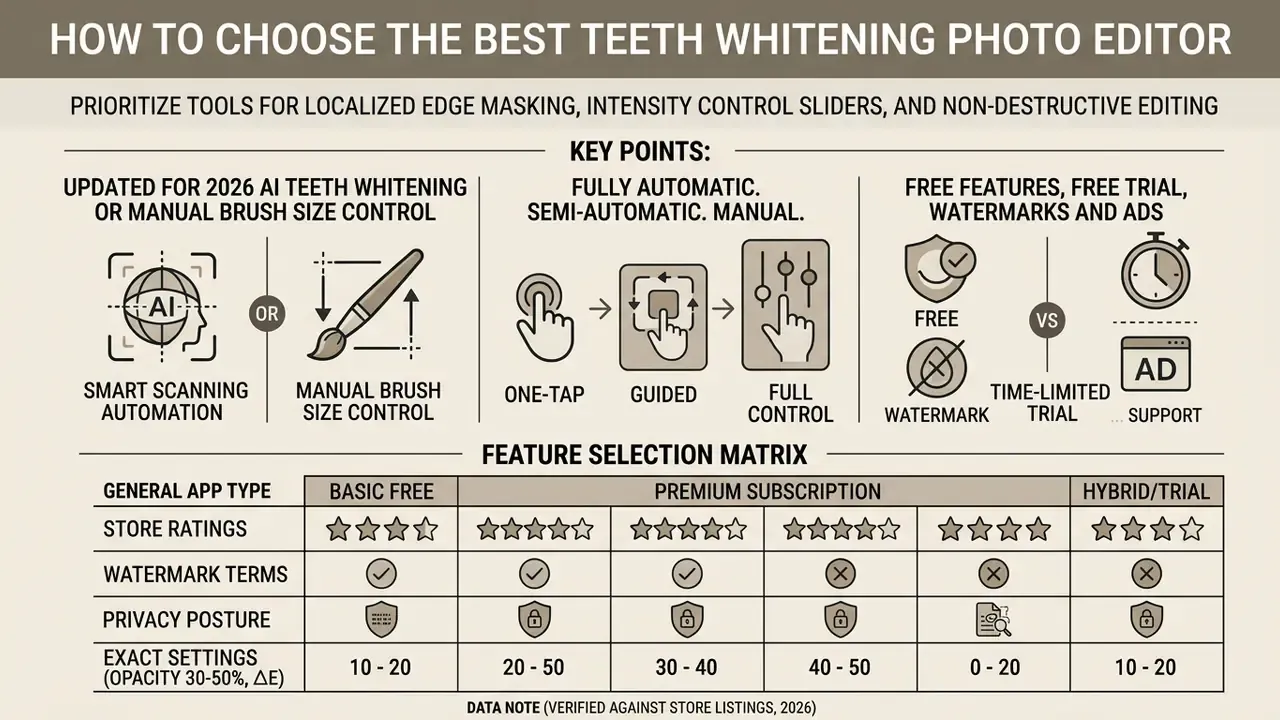
To choose the best app for whitening teeth, prioritize tools that offer localized edge masking, intensity control sliders, and non-destructive editing. A quality teeth whitening photo editor app must isolate the dental area without bleaching the lips, gums, or skin tone. That single capability separates a usable retoucher from a novelty filter.
Natural-Looking Whitening vs. Overedited White Teeth
«At +2/3 EV exposure compensation, only 56% of dental photographs fell within the clinically acceptable ΔE < 3.4 range; the mean deviation was 5.43 ± 2.46.»
The practical reading for editors is blunt. If a controlled studio camera drifts past the acceptability threshold more than 40% of the time, an aggressive one-tap filter on a phone snapshot will almost always overshoot. Removing all yellow tones entirely creates an opaque, plastic look. The goal of a natural looking whitening effect is to remove yellow staining while preserving luminescence, so you land on a radiant smile rather than an unnaturally stark, flat surface. Vendor-side guidance agrees with the colorimetric data: natural results keep translucency, highlights and micro-relief, while an over-glossed, uniformly bright arch reads as "plastic."
AI Teeth Whitening or Manual Brush Size Control
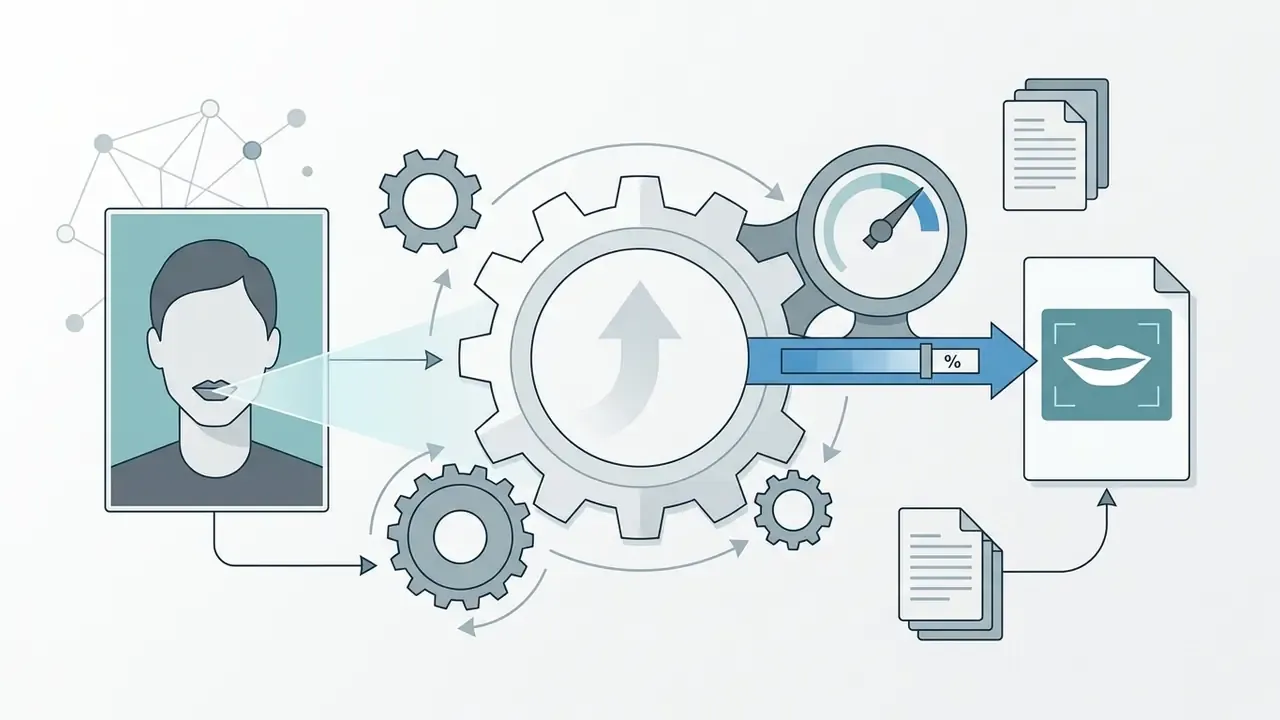
Choosing between ai teeth detection and manual brushing depends on photo complexity and the precision you need. Advanced ai systems detect facial landmarks automatically and build a segmentation mask around the inner mouth.
«A Dlib- and OpenCV-based pipeline isolates the dental region through a facial-landmark mask, leaving lips, gums and skin untouched.»
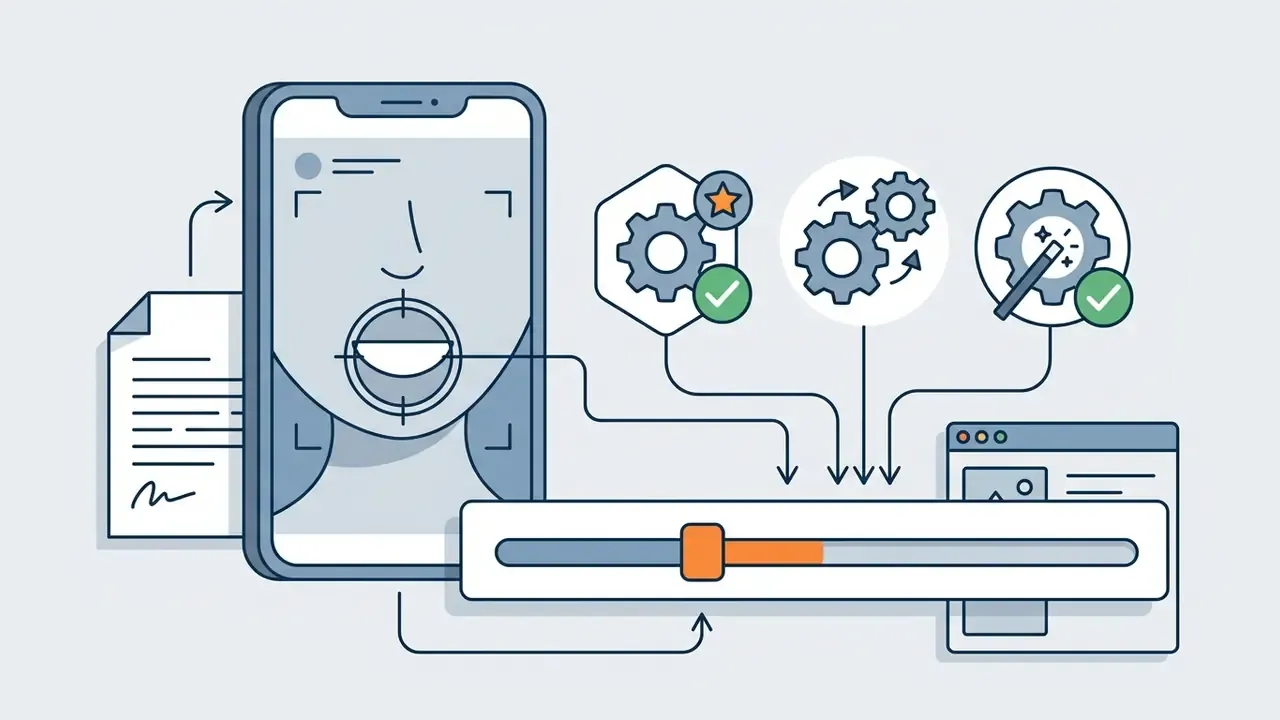
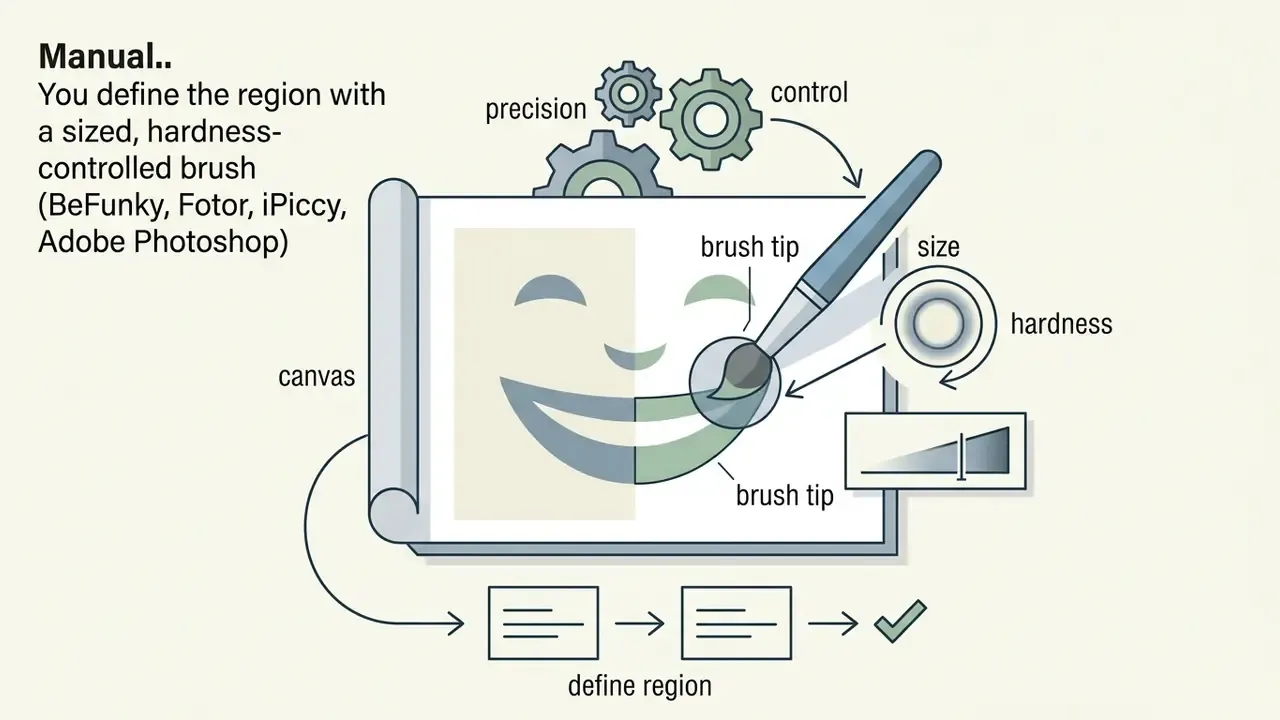
That enables instant, one-tap adjustments. However, manual control over brush size and opacity stays essential when lighting is uneven or teeth are partially obscured. A flexible teeth whitening tool combines AI detection with manual brush refinements, giving you real authority over the intensity of the whitening tool. Readers who want the broader category context can compare implementations across AI photo editors, where the same segmentation logic drives skin, eye and hair retouching.
In practice, vendors split into three workflow families:
Free Features, Free Trial, Watermarks and Ads
Evaluating the pricing structure of a free teeth whitening photo editor app is how you avoid unexpected export restrictions or forced branding. Many editors run a freemium model: basic editing tools are open, high-resolution downloads require a paid upgrade or a free trial.
Data note (verified against store listings, 2026): the freemium pattern is observable rather than theoretical. Facetune exposes free tools plus a 7-day VIP trial, and VIP removal of the watermark is the paid trigger. Meitu's free tier in 2026 reviews carried a watermark, a reduced export resolution and full-screen ads. Snapseed, by contrast, ships with no ads, no watermark and no in-app purchases. App Store listings for smaller selfie editors price "No Watermark on Photo" as a standalone $1.99 purchase, with premium tool bundles at $4.99/week and up to $49.99/year. Which is exactly why the pricing model, not the whitening algorithm, is the real differentiator.
Some platforms embed watermarks on free exports, others interrupt with full-screen advertisements. When hunting for the best free photo editing app teeth whitening solution, verify whether the primary teeth whitening feature sits in the base tier or behind a paywall. Our comparison of free photo editors breaks down feature limits, export restrictions and upgrade triggers side by side, and the AI Media Comparison Matrices cover platform-level analysis. If you are modelling per-seat costs for a team, the calculators and pricing pages give you the arithmetic before the subscription renews.
Feature Selection Matrix
Below is a technical comparison of the criteria worth weighing when you pick a photo editor app to whiten teeth:
| Selection Criterion | Technical Mechanism | Operational Impact | Recommended Use Case |
|---|---|---|---|
| AI Landmark Segmentation | Convolutional neural networks (CNN) isolate dental coordinates | Restricts whitening to enamel, preventing lip discoloration | Quick edits on clear, front-facing portraits |
| Manual Brush Adjustment | User-controlled opacity and brush size masking | Enables targeted spot-corrections on specific discoloured teeth | Complex lighting or partial smile visibility |
| Color-Aware Masking | CIELAB colour space adjustments targeting yellow channels | Reduces yellow saturation while keeping warm undertones intact | A realistic, brighter smile without plastic texture |
| Mask Feathering | Gaussian edge falloff (typically 1-2px) | Eliminates hard borders along the lip line and gum margin | Close-up portraits and print-resolution files |
| Export Licensing | Local device processing or cloud-based rendering | Determines resolution caps, watermark presence, commercial rights | Professional headshots and social posts |
| Data Handling | On-device inference vs. cloud upload of facial imagery | Defines biometric exposure and retention risk | Corporate headshots, HR and client-facing libraries |
Best Teeth Whitening Apps for Photos: Editor Types and Use Cases
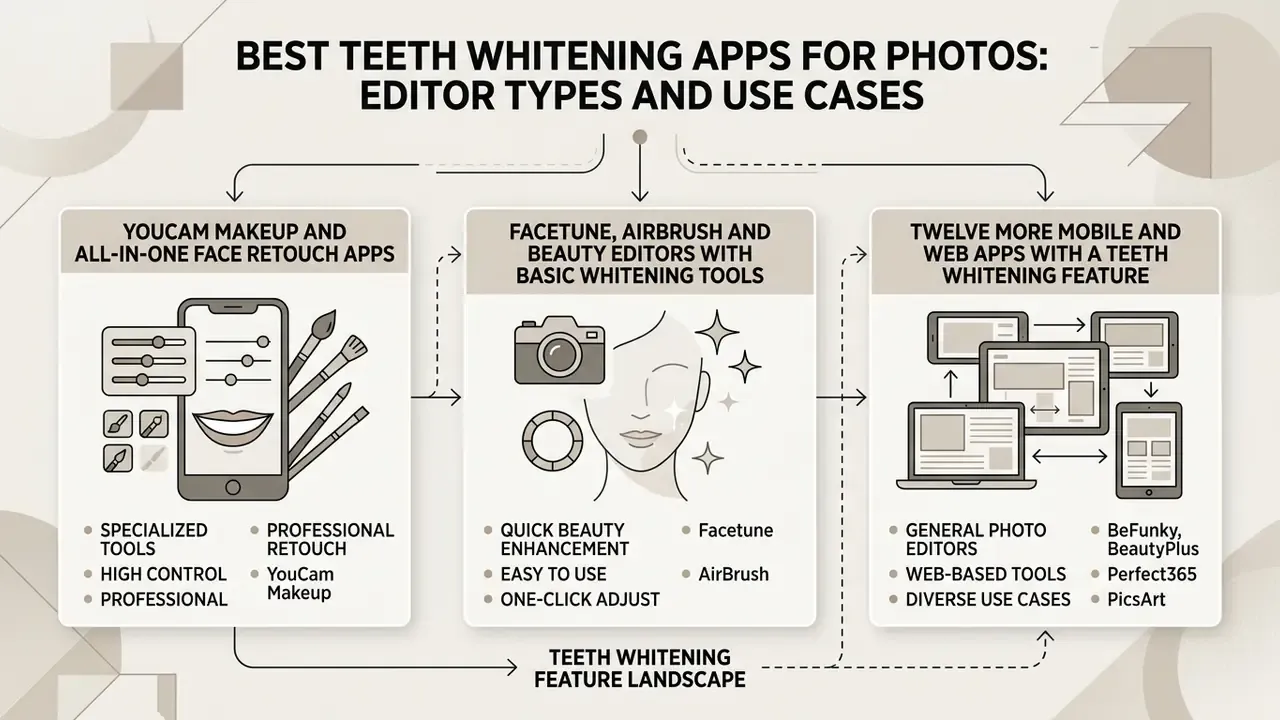
The landscape of editors that include a teeth whitening feature spans specialized face retouchers, general photo editing platforms, and browser-based web tools.
«68% of surveyed Instagram users had altered their appearance online at least once, and nearly half had edited a photo, teeth whitening included.»
Identifying the best teeth whitening app depends on whether you need a one-click retouch or a full suite for portrait editing.
YouCam Makeup and All-in-One Face Retouch Apps
YouCam Makeup (iOS 4.8 / Android 4.5) stands out as an all-in-one makeup editor and portrait retoucher built on real-time facial recognition. It pairs automated tooth detection with an adjustable intensity slider, so brightness stays under your thumb. Alongside a dedicated teeth whitening tool, it covers lip color adjustments, a hair color changer, skin smoothing, and an "AI Smile" function that reshapes open- and closed-mouth expressions. Its live-camera mode previews edits before you take the picture, which is why it remains a popular route to a perfect smile on mobile.
Facetune, AirBrush and Beauty Editors with Basic Whitening Tools
Dedicated beauty editors such as Facetune (4.6 / 4.3) and AirBrush (4.8 / 4.3) concentrate on targeted photo retouching and face refinement. Facetune uses localized brush controls plus an AI Smile filter that auto-detects the smile and exposes a single slider, letting you sweep over specific areas to remove stains and calm yellow shades. Its Retouch, Adjust, Relight and Skin/Tone modules add finer control over brightness, highlights, saturation and vibrance. AirBrush provides a face editor workflow with automated "Magic" retouch presets alongside manual whitening sliders, plus a Face Fix tool that borrows expressions from a reference photo and lets you select individual faces in group shots. Both excel at isolating single teeth so adjustments blend with ambient light. Detailed overviews of mobile retouchers sit in our guide to online photo editors.
Twelve More Mobile and Web Apps With a Teeth Whitening Feature
Beyond the flagship retouchers, the following applications all expose a working whitening tool. Ratings are published iOS / Android store scores as of 2026.
- BeFunky (4.6 / 4.4) is the strongest semi-manual option. Touch Up → Teeth Whiten, then set Brush Size and Brush Hardness and paint only the discoloured tooth. Ideal when a single lateral incisor is darker than the rest.
- BeautyPlus (4.8 / 4.4) is a full retouch suite: under-eye bag removal, skin smoothing and enamel brightening in one pass. Most modules sit behind a subscription.
- Perfect365 (4.8 / 4.3) runs on iOS, Android and desktop browsers; the "Whiten Teeth" tool sits next to wrinkle smoothers and lip plumpers.
- PicsArt (4.7 / 4.1) offers an AI Retouch miniapp with a Face → Teeth Whiten preset and automatic tooth detection, plus 30+ presets across skin, makeup and face categories. HD save is premium.
- Adobe Photoshop Express (iOS 4.8) calls it a "slick teeth whitening tool" in Adobe's own copy: a single-tap slider for express mobile edits. Save often; the app can drop unsaved work.
- Meitu (4.8 / 4.6) is a budget all-in-one photo and video editing app with whitening plus hundreds of filters. The free tier has historically been watermarked and ad-supported.
- Sweet Selfie (4.6 / 4.5) applies automatic beauty filters with a natural-looking whitener, face tuner and body shaper; free access is limited to a three-day trial.
- Perfect Smile: Teeth Whitening (iOS 4.5) is a narrow iOS utility with auto face-geometry analysis, plus manual brightness and contrast control for shade matching.
- Teeth Whitener: AI Photo Edit (iOS) combines automatic tooth detection with manual area selection and an intensity slider; monetized through in-app purchases.
- LightX (iOS / Android) publishes a dedicated free teeth-whitening flow with slider-based intensity.
- Fotor (4.x, Web + iOS + Android) offers brush-driven whitening under Beauty → Mouth → Teeth Whitening, with brush, eraser, Apply and Export steps.
- Media.io (Web) runs a browser-only AI whitening filter on iPhone, Android, Mac and Windows without installation, with HD save.
- Pixelbin (Web) does fully automatic detection, no sign-up required, HD download without watermark, three free edits per month.
- Snapseed (iOS / Android) has no dedicated whitening brush, but it is a genuinely free, ad-free, watermark-free editor for selective brightness and saturation work.
Online Teeth Whitening Editors for Browser-Based Editing
For desktop users who would rather not install anything, web tools such as Fotor, PicsArt, Pixelbin, iPiccy, Pokecut, CapCut and Media.io deliver online teeth whitening through a standard browser. These platforms fold a photo enhancer, background removal, AI removal of stray objects, a photo collage builder and photo effects into one interface. Several now extend the same stack to motion work, adding video background removal, a video enhancer and assorted ai video tools. You upload a picture, open the retouching tab, and apply automated or brush-assisted whitening. It's easy, and honestly that is the risk: frictionless sliders invite overcorrection.
«A systematic review of eight studies found smartphones and DSLRs comparable in dental colour accuracy; the outcome depends on the capture protocol, not the device class.»
That finding matters for browser tools. A phone-shot portrait is a legitimate source file, provided the lighting was controlled.
Pre-Upload Technical Checklist for Browser Editors
Browser editors run inside the Canvas API, which imposes hard limits desktop software does not:
- Maximum file size roughly 10 MB is the common ceiling (Pixelbin and Perfect Corp's API both cap there). Compress first.
- Supported formats JPG / JPEG, PNG, WEBP. Do not upload unconverted RAW; most browser pipelines reject it outright.
- Resolution keep the long edge high enough that individual teeth occupy at least ~40px of width, otherwise edge detection smears into the gums.
- Credit model most web services grant 3-10 free credits per month (Pixelbin: three anonymous edits, ten after sign-up; Fotor issues free credits to new users) before watermarks or paywalls appear.
- No-install access no download or extension needed; the same URL works on iPhone, Android, Mac and Windows.
- Privacy posture check whether images are encrypted in transit and deleted after processing, or retained for model training.
Comparative Matrix of Editing Platforms
The following table compares leading mobile and web applications with teeth whitening functionality:
| Application | Platform Support | Primary Whitening Method | Additional Retouching Features | Access & Export Terms |
|---|---|---|---|---|
| YouCam Makeup | iOS, Android | AI auto-detection with intensity slider | Lip color, skin smoothing, AI Smile, live-camera mode | Free download; premium tools require subscription |
| Facetune | iOS, Android | AI smile filter and manual retouch brush | Face reshaping, Skin/Tone presets, Relight, background edits | 7-day free trial; subscription removes watermark, unlocks HD |
| AirBrush | iOS, Android, Web | Automated portrait retouch and manual brush | Blemish removal, eye brightening, Face Fix, filter presets | Freemium; select AI features require paid upgrade |
| BeFunky | iOS, Android, Web | Manual brush (size + hardness) | Exposure, skin smoothing, batch tools | Free core tools; Plus tier for advanced modules |
| Fotor | Web, iOS, Android | Browser-based brush and AI whitening tool | Photo enhancer, Lip Tint, Red-Eye Remover, object remover, background removal | Free credits for new users; paid plans remove ads |
| PicsArt | Web, iOS, Android | AI Retouch presets and targeted manual brush | Photo collage, sticker overlay, custom filters | Free basic tools; premium membership unlocks HD save |
| Photoshop Express | iOS | One-tap whitening slider | Face slimming, selective blur, presets | Free with Adobe account; premium tiers available |
| Pixelbin | Web | Fully automatic AI detection | Upscaling, background removal, batch via API | 3 free edits/month anonymous, 10 credits after sign-up; no watermark |
| Media.io | Web | Prompt-assisted AI whitening | Enhancer, background tools, HD save | Freemium web credits |
| Perfect365 | iOS, Android, Web | "Whiten Teeth" preset | Wrinkle smoother, lip plumper, dozens of effects | Freemium |
| BeautyPlus | iOS, Android | Auto whitening plus retouch suite | Eye-bag removal, skin smoothing, filters | Mostly subscription-gated |
| Meitu / Sweet Selfie | iOS, Android | Automatic beauty filters with whitener | Face tuner, body shaper, hundreds of filters | Free tier with watermark/ads; short trials |
| Perfect Smile | iOS only | Auto face-geometry analysis plus manual sliders | Brightness/contrast shade matching | Free with in-app purchases |
Fact Check & Verification Disclaimer:
How to Whiten Teeth in Photo Editing Apps
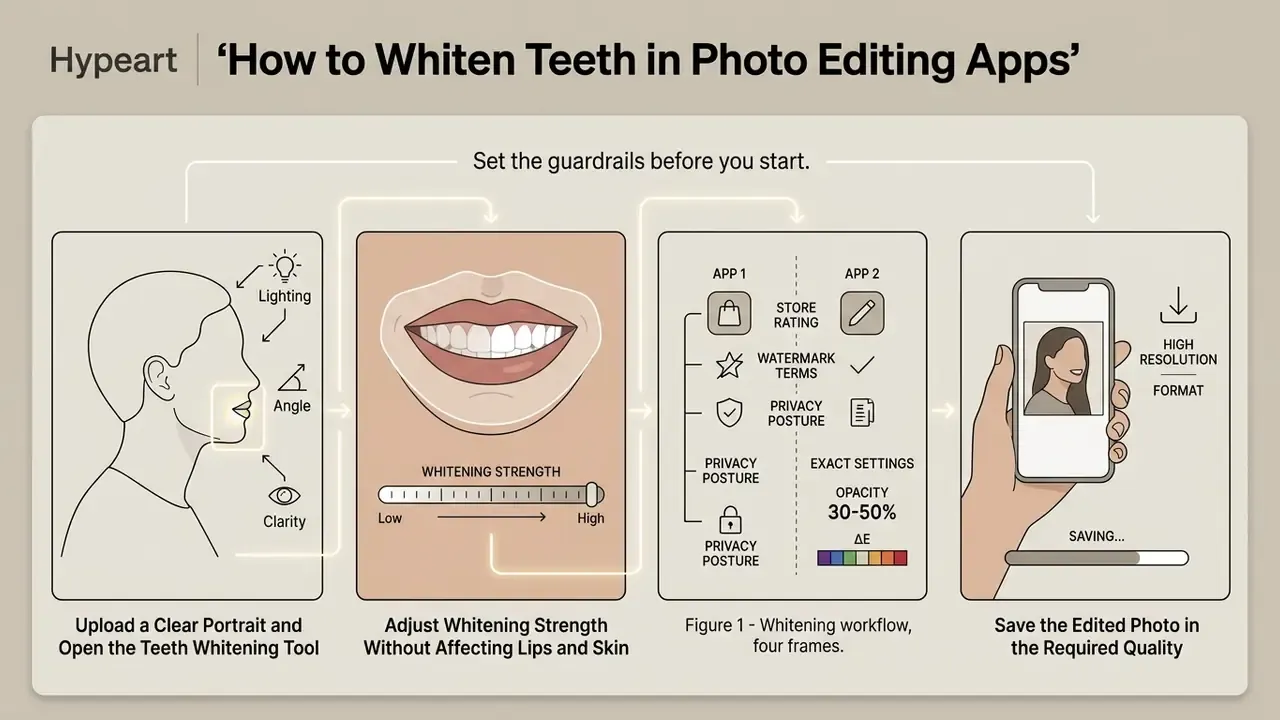
Learning how to whiten teeth in photo editing software comes down to a structured workflow: pick a clean source file, isolate the smile area, apply controlled brightness adjustments, export without quality loss. The same four-stage logic underpins both one-tap mobile filters and layered desktop retouching, and it mirrors how AI photo editors handle every other localized correction.
Step 1. Upload a Clear Portrait and Open the Teeth Whitening Tool
Start by importing a well-lit photograph where the smile and tooth boundaries are clearly visible. Open your chosen photo editor app, go to the retouching section, and select the teeth whitening feature. High-resolution source files give the AI model, or your brush, a fighting chance at finding the enamel border.
«Across 45 subjects, smartphone model and lighting mode significantly affected recorded CIE tooth coordinates (p < 0.01), with results diverging from spectrophotometry.»
Source-file requirements that genuinely change the outcome:
If the image is soft or dimly lit, run it through a free photo editor with image enhancement to lift overall clarity before any targeted tooth work.
- Lighting
- even, direct, daylight-equivalent light around 5500-6500 K with CRI above 90. Dental photography protocols place two key lights at 45° to the subject, level with the head.
- Angle
- front-facing within roughly 10° of straight, with the sensor plane parallel to the face. Extreme profiles defeat landmark detection.
- Clarity
- tooth boundaries must be visually separable from lip and gum. Blurry or heavily compressed files smear the mask.
Step 2. Adjust Whitening Strength Without Affecting Lips and Skin
Once the tool isolates the dental region, move the slider to lower yellow saturation while nudging brightness up. With a manual whitening tool, set the brush size slightly smaller than the width of an individual tooth so you never clip the gums or lips.
Figure 1 — Whitening workflow, four frames.
Frame 1: portrait imported into the editor, teeth occupying ~15% of frame width; histogram shows no clipped highlights.
Frame 2: Teeth Whitening brush selected, opacity set to 45%, hardness lowered so the brush edge falls off softly.
Frame 3: short strokes applied across the enamel only, stopping 1px short of the gum line; the gingival margin stays untouched.
Frame 4: export dialog set to sRGB, JPEG, 90% quality, no watermark.
For real control, keep brush opacity moderate (30% to 50%) and build the effect with multiple light passes.
«At +2/3 EV, only 56% of images stayed clinically acceptable (ΔE < 3.4); mean ΔE reached 5.43 ± 2.46, above the ideal threshold.»
That number is the whole argument for restraint. A single heavy pass is statistically likely to leave the acceptable range, whereas three light passes let you stop at the point where the smile still reads as enamel. The technique keeps surrounding skin tones honest and prevents bleed onto soft facial tissue.
Step 3. Save the Edited Photo in the Required Quality
After retouching, step back and review facial harmony as a whole. Save in sRGB using JPEG at 85-90% quality to limit the damage of re-compression on social media. If a platform's re-encoding has already eaten edge detail, AI image enhancers can restore definition before you publish.
Platform-specific export targets:
| Destination | Pixel dimensions | Format / colour | Quality |
|---|---|---|---|
| Instagram portrait | 1080 × 1350 | JPEG / sRGB | 85-90% |
| Instagram square | 1080 × 1080 | JPEG / sRGB | 85-90% |
| Instagram landscape | 1080 × 566 | JPEG / sRGB | 85-90% |
| LinkedIn headshot | 1080 px min. width | JPEG / sRGB | 90% |
| Print / press kit | 300 DPI at final size | TIFF or low-compression JPEG | 100% / lossless |
| Web thumbnails | 72 DPI | JPEG or PNG | 80% |
No platform delivers true "no compression"; uploads are always re-encoded. So the goal is minimized recompression, not zero. Check that your export settings yield photos without watermark interference. For batch handling and workflow automation, see our AI Media API Guides.
How to Whiten Teeth in iPhone Photos and on Android
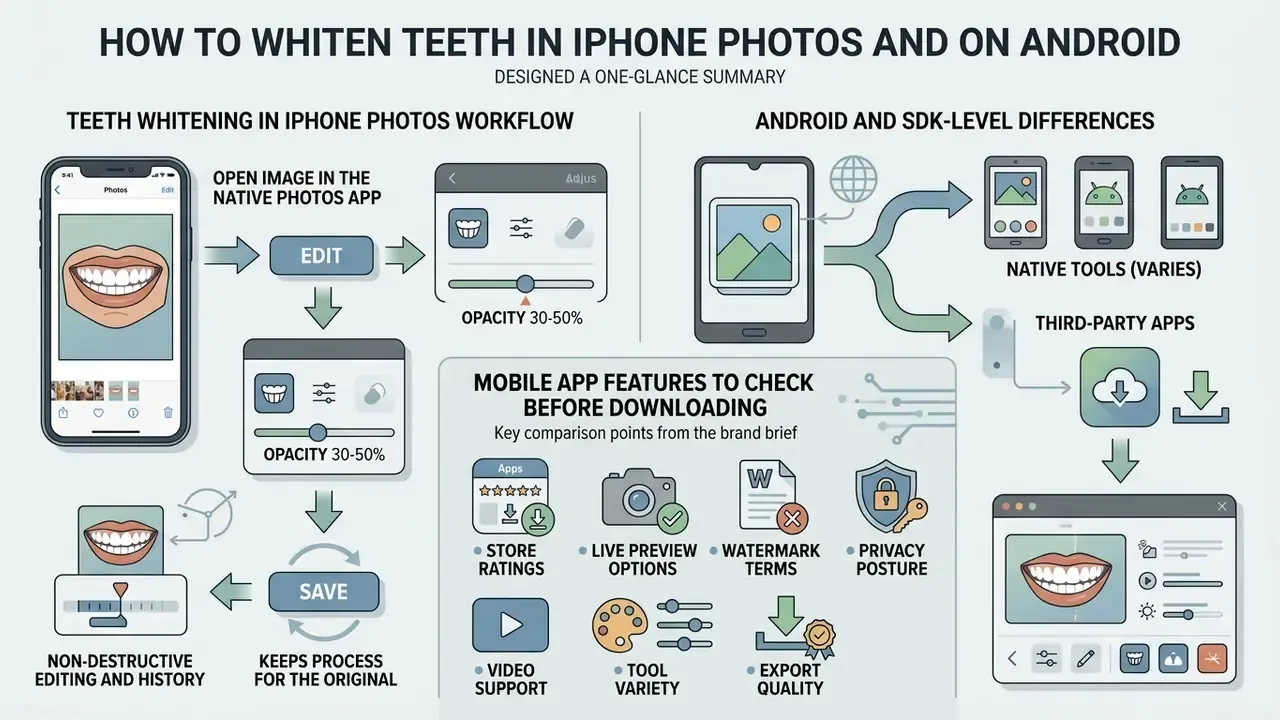
Mobile operating systems support streamlined editing straight from the native photo library or through third-party utilities.
«Comparing DSLR, iPhone and Samsung Galaxy capture, the Galaxy produced the lowest ΔE against the true shade; 4500 K proved the optimal colour temperature for smartphones.»
The practical consequence: your device and its white balance decide how yellow the teeth look before any editing happens. Set a custom white balance near 4500 K on a phone, or shoot RAW on a camera, and the file needs far less whitening at all.
Teeth Whitening in the iPhone Photos Workflow
Understanding how to whiten teeth in iphone photo files starts with system extensions or dedicated iOS apps. Open an image in Apple Photos, tap "Edit," and select a third-party iphone teeth whitening app extension to modify the file inside the system library; tap "Done" and the change writes back without leaving Photos. Alternatively, duplicate the photo first to protect the original: open it, tap the menu, choose Duplicate, and the copy lands beside the original. Then open a free teeth whitening app iphone utility and process the copy. This non-destructive flow keeps the untouched portrait in your library, which matters more than people expect when a client asks for the original six months later. Photographers assembling a consistent professional set may also want to review AI headshot generators, which run the same segmentation stack across an entire portrait series.
Android and SDK-Level Differences
The whitening logic itself does not change by operating system: select a selfie, let the model find the teeth, set intensity. Integration is what differs. Vendors such as Banuba publish separate Face AR SDK guides for iOS and Android, including a teeth-whitening simulator, while Perfect Corp exposes whitening as a server-side API task (/s2s/v2.0/task/teeth-whiten) accepting JPG/PNG files up to 10 MB through a JavaScript Camera Kit. So platform-specific documentation reflects the SDK, not a different algorithm.
Mobile App Features to Check Before Downloading
Before installing a free photo editing app teeth whitening utility on iOS or Android, review these operational features:
- Non-destructive editing and history.Verify multi-level undo/redo so you can revert individual brush strokes. Mature editors advertise this openly: QuickVideo documents a 100-level undo/redo history, KineMaster lists multiple undo and redo steps.
- Export quality and watermark terms.Check whether the free tier exports at native camera resolution without forced branding, and whether watermark removal is a separate purchase.
- Live preview options.Look for a live-camera mode if you want to see the whitening effect before you take the picture.
- Video support.If you also retouch clips, confirm trim, split, crop, resize and caption tools live in the same app rather than a paid sibling product.
- Tool variety.Make sure the software includes complementary tools: spot healing, Lip Tint for restoring natural lip contrast after a whitening pass, a hair color changer, and a Red-Eye Remover for flash correction, alongside the primary whitening brush.
Biometric Privacy When Uploading Faces to Cloud Editors
A teeth whitening app processes a facial image, and in several jurisdictions that is biometric data. Before you upload a portrait library, especially corporate headshots, verify:
- Processing location. On-device inference keeps the file local. Cloud pipelines transmit the face to a third-party server; Perfect Corp's whitening endpoint, for example, is explicitly server-to-server.
- Retention and deletion. Look for a stated deletion window after processing. Pixelbin says images are encrypted, processed securely and never shared. The absence of such a statement is itself a signal.
- Training reuse. Check whether the terms of service grant the vendor a licence to use uploads for model training. For client or employee photos that is usually disqualifying.
- Consent chain. If you are editing someone else's face, the subject's consent should cover cosmetic alteration, not just publication.
- Account requirement. No-sign-up web tools reduce the link between an image and an identified user, but they also reduce your ability to request deletion later.
How to Avoid Fake-Looking Teeth Whitening in Photos
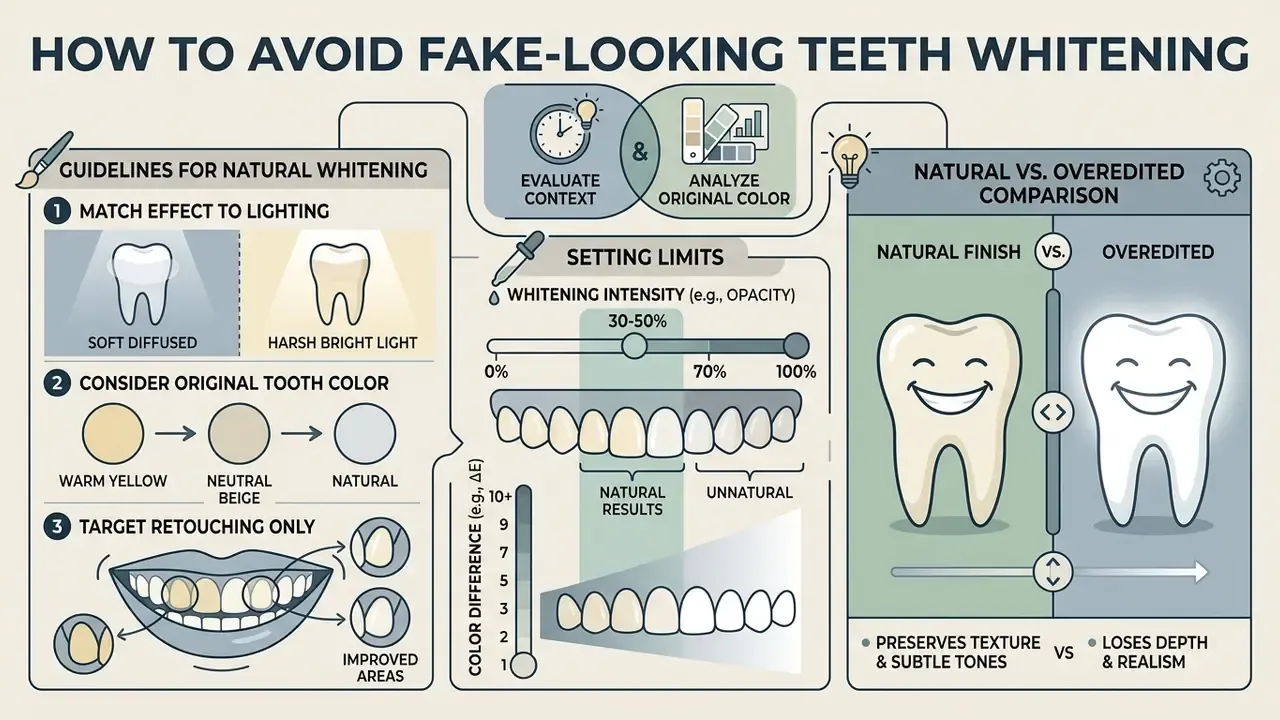
Avoiding artificial results means treating enamel as a complex surface that reflects ambient light, not an isolated white object.
«A national survey of 1,483 adults found body dysmorphic disorder prevalence at 24.4%; heavy Instagram and Snapchat users were significantly more likely to undergo cosmetic procedures (p < 0.001).»
Restraint in editing is therefore not purely an aesthetic preference. The same survey literature links intensive filtered-image consumption to appearance dissatisfaction, which is one more reason to default to subtle correction over maximum brightness.
Match the Whitening Effect to Lighting and Tooth Color
To keep things believable, match the whitening level to the lighting environment of the original photograph. Photos shot under warm incandescent light carry yellow highlights by nature; forcing teeth to a cool, pearly white in that context creates visual dissonance you can spot from across the room. Shade-matching practice recommends judging value first, then chroma, then hue, and confirming the result under more than one light source to avoid metamerism. The same order works in post-production. Lower the saturation of yellow tones slightly while keeping overall exposure balanced against the whites of the eyes (sclera). Edit teeth brighter than the sclera and the smile turns fake instantly.
«79.8% of prosthodontic patients said online smile transformations prompted them to seek treatment; each additional social-media use category raised the odds by 48% (OR 1.48; 95% CI 1.09-2.00).»
Put differently: over-whitened photographs set expectations that physical dentistry then has to meet. That is the downstream cost of an unrealistic slider, and it is not paid by the editor.
Use Retouching Tools Only Where They Improve the Smile
Apply photo retouching selectively rather than painting uniformly across the whole mouth. Stains and discoloration tend to gather near the gumline or on specific lateral teeth. Use a small brush size to hit those spots instead of laying a blanket white layer over every tooth. Adobe's own spot-correction guidance sets the rule for local work: click or drag only over the area being fixed, with the brush diameter slightly larger than the defect, so surrounding pixels can be sampled for blending.
Research-integrity guidance arrives at the same conclusion from another direction. Whole-image cropping or intensity adjustment is generally acceptable, while filters, colour manipulation, interpolation and cloning are considered inappropriate. A useful mental boundary, even for consumer portraits.
Figure 2 — Natural vs. overedited comparison (interactive slider).
Left / moderate: yellow channel desaturated ~25%, brightness +12%, feathered 1.5px mask; enamel translucency, incisal edge shading and inter-tooth shadows preserved.
Right / overedited: 100% white fill at full opacity, hard mask edge visible on the lower lip, tooth boundaries dissolved into one glowing shape, no micro-texture.
Typical error pattern: over-reduced saturation plus an unfeathered mask, the combination that produces flat, artificial enamel.
This targeted method keeps translucency and edge shadows intact, so the teeth look clean rather than printed, and the white smile still belongs to a human face. And the teeth appear whiter without turning into a single flat rectangle.
Using a Teeth Whitening App for Social Media and Commercial Photos
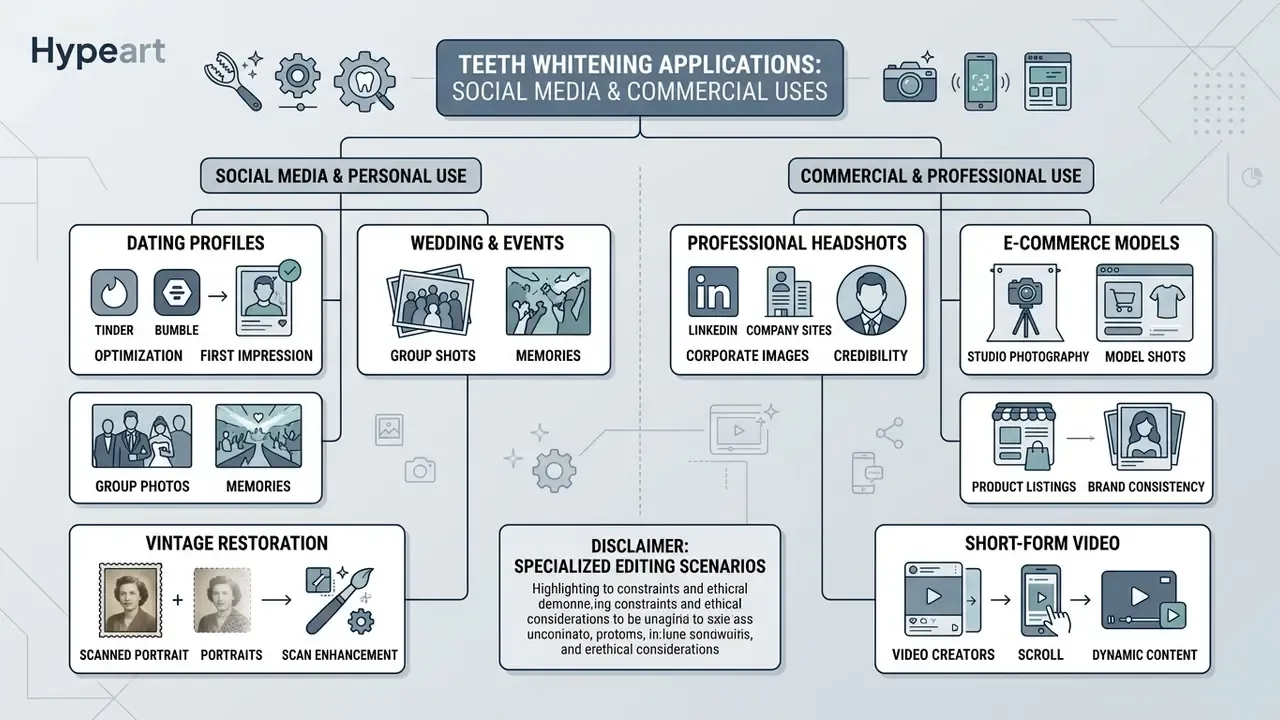
Using edited portraits in commercial campaigns or professional profiles pulls in platform guidelines and licensing terms. Both are easy to skip and expensive to ignore.
Specialized Editing Scenarios
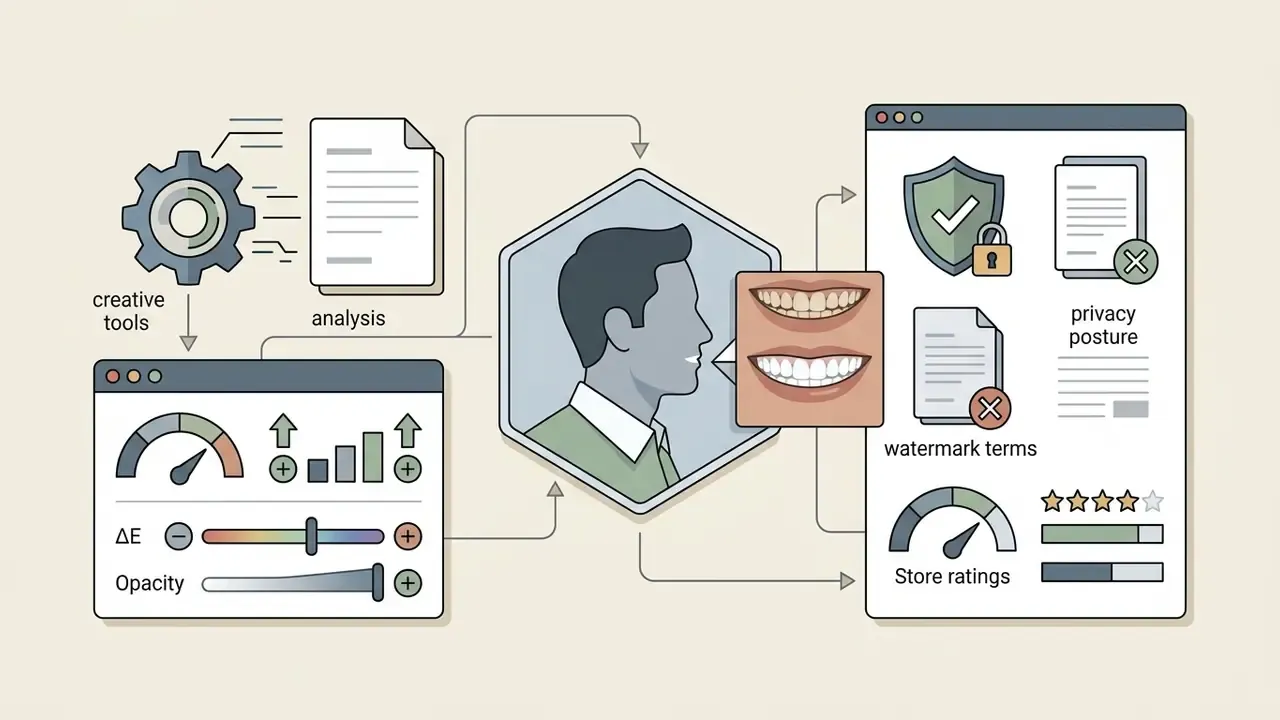
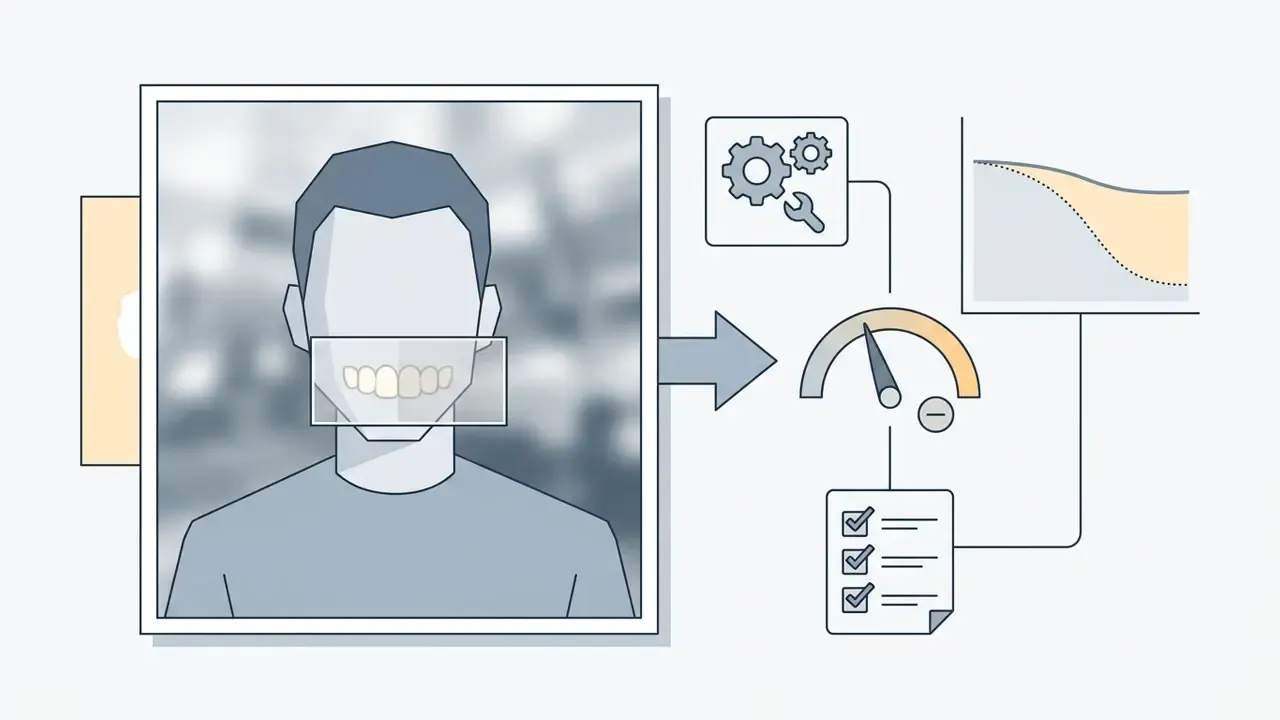
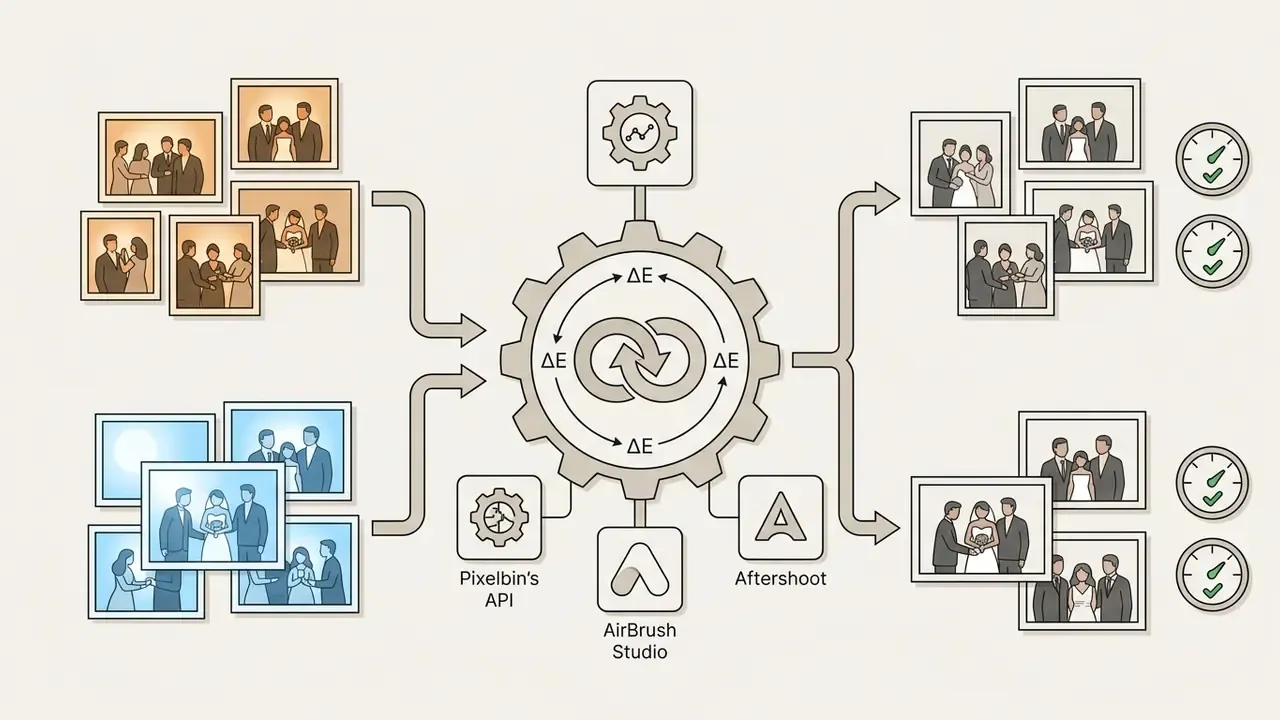
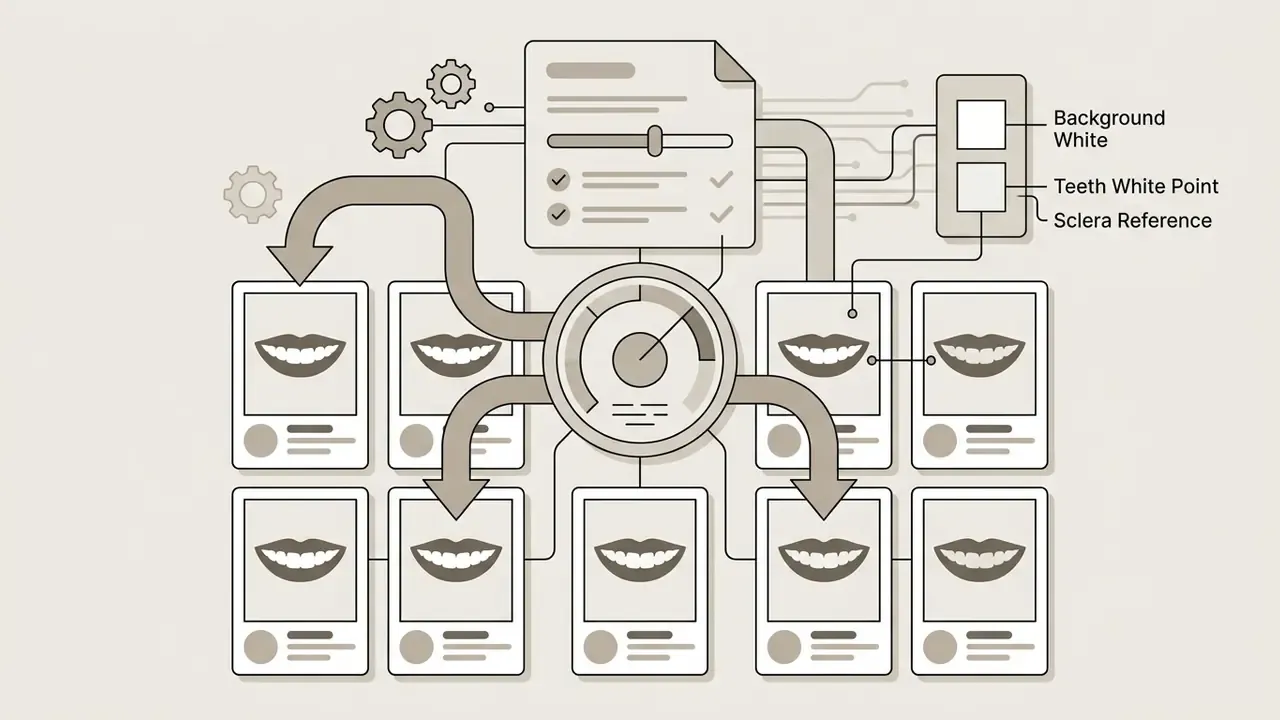
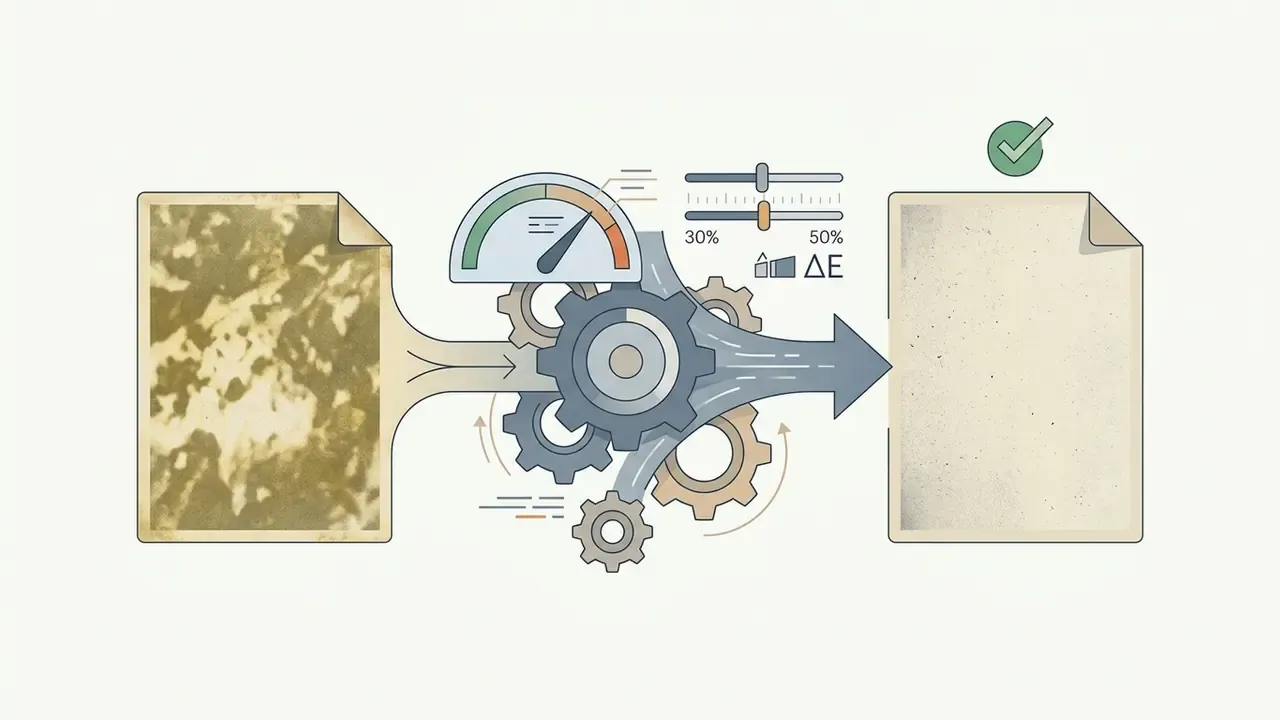
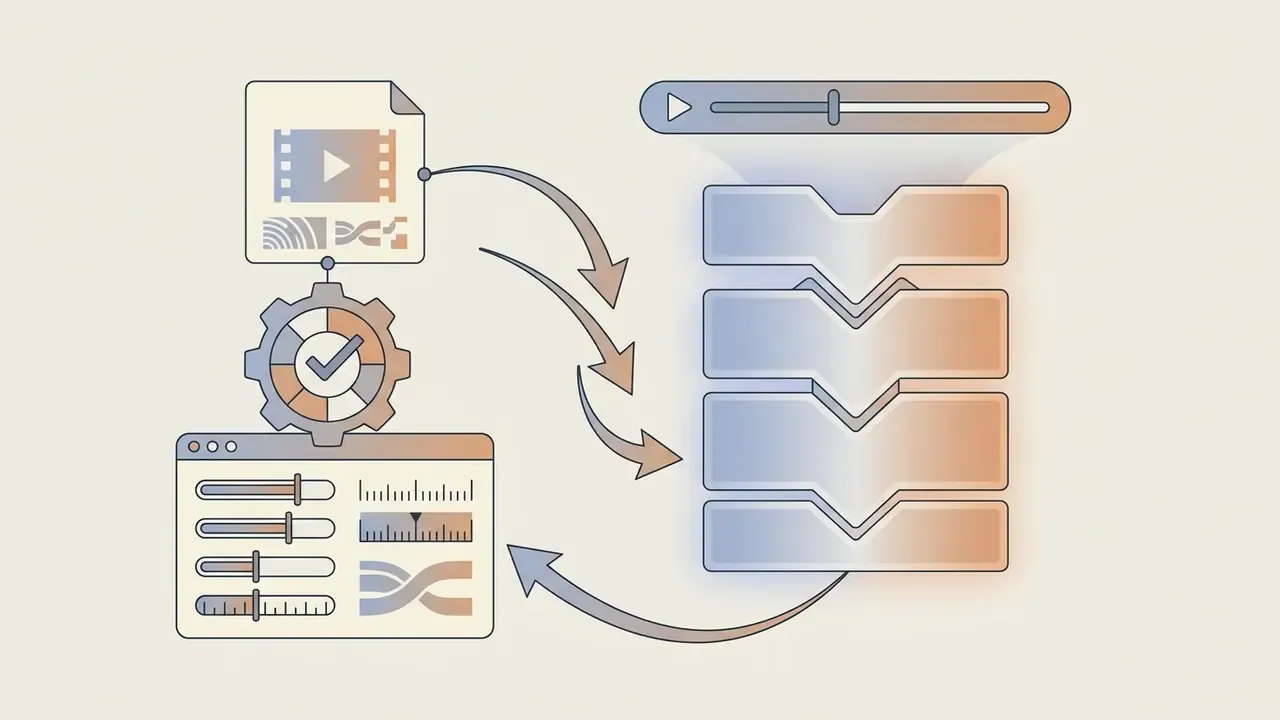
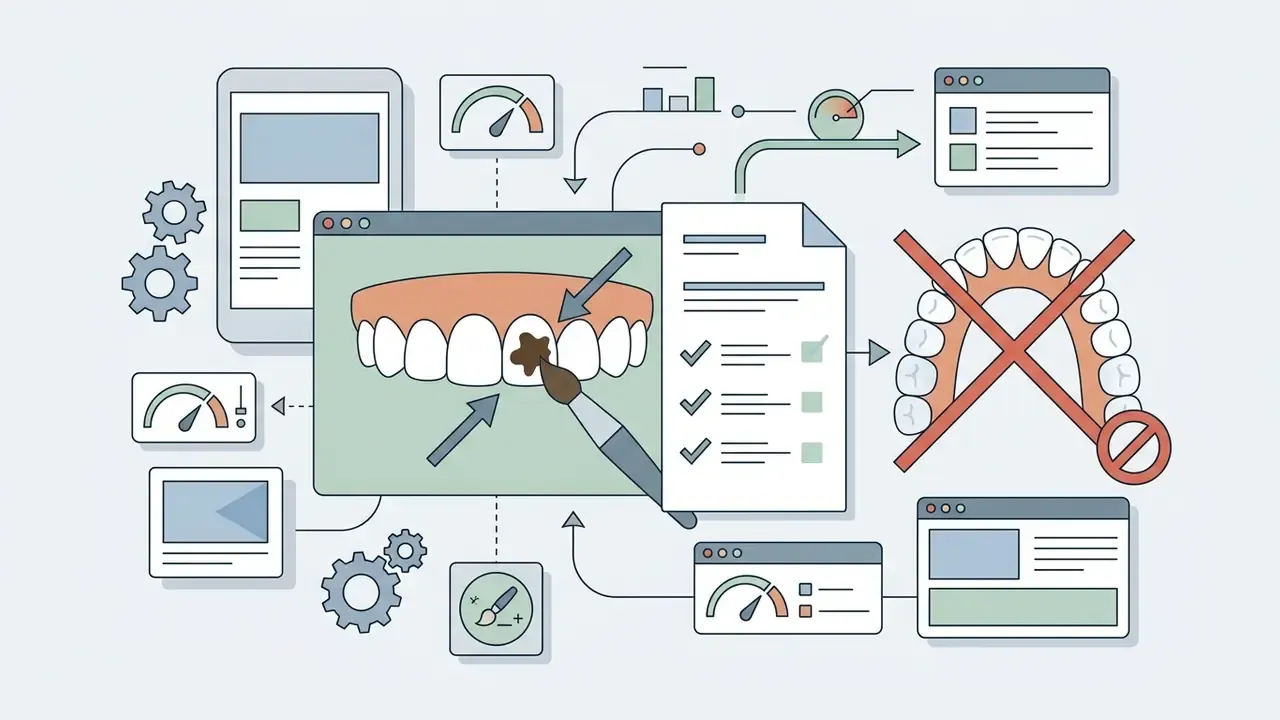
Operational Retouching Case
What to Check Before Using Free-Edited Photos Commercially
Before publishing images edited with a best free teeth whitening photo editor app, work through the legal and technical requirements attached to the export:
- Commercial licensing. Confirm that the app's terms of service grant commercial rights for photos edited during a free trial or on a free plan. Licensing is a permission granted by contract, not a default right. Review our overview of commercial usage rights for AI-edited images before a campaign goes live, and skim AI Litigation and Case Timelines if your legal team wants precedent rather than policy text.
- Advertising disclosure standards. Regulators including the UK Advertising Standards Authority (ASA) and the Norwegian Consumer Authority require disclosure labels on commercial posts where cosmetic appearance or skin texture is digitally altered. Norway has mandated a standardized label since 1 July 2022 for retouching that alters body shape, size or skin, explicitly including filters and lenses, while general edits such as brightness, contrast, saturation or black-and-white conversion need no label. UK CAP guidance permits minimal retouching only where it does not exaggerate an achievable product effect, and all commercial content must be clearly identifiable as advertising.
- Platform-level restrictions. TikTok's responsible beauty guidance prohibits promoting products that claim to bleach, whiten or lighten skin, and advises creators to avoid beauty filters when promoting skincare. That logic extends to smile filters in cosmetic-dentistry marketing.
- Export resolution. Ensure the editor outputs 300 DPI for print or at least 1080px width for social media to avoid pixelation; 72 DPI remains the web standard.
- Watermark-free submissions. Many contest and press-kit terms require images free of visible watermarks while granting the organizer a worldwide, royalty-free, sublicensable licence. Read the grant before you submit.
- Usage rights for AI models. If you use generative tools to alter expressions, verify ownership through our AI Media Commercial-Use Hub.
Pre-Publication Checklist for Marketing and HR Teams
Checklist0 / 9
Teeth Whitening App FAQs
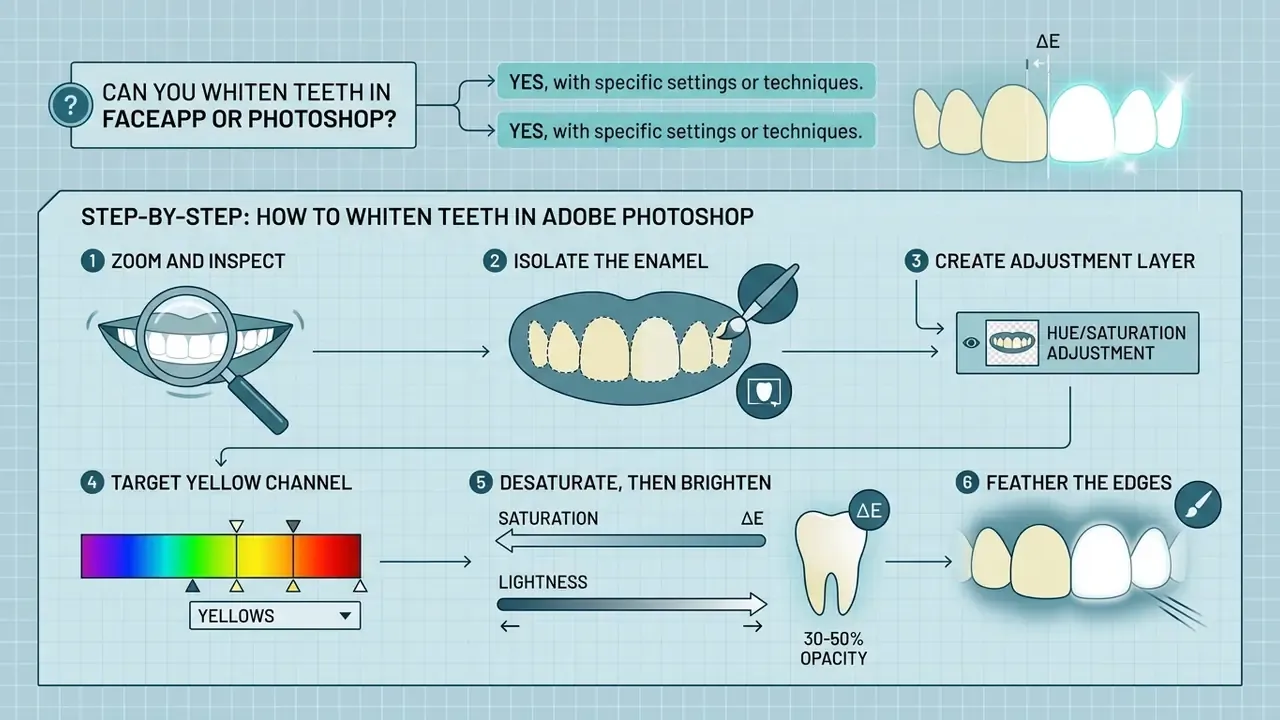
Can You Whiten Teeth on FaceApp or in Photoshop?
Yes, both can whiten teeth, through different mechanisms. Face app teeth whitening is generally performed by automated AI facial filters that detect the mouth region and brighten enamel in a single tap. Note that the publicly available material on FaceApp's whitening tool is tutorial-level rather than official developer documentation, so treat feature specifics as unverified. Adobe documents both routes: Photoshop Express ships a dedicated single-tap whitening slider for quick mobile edits, while desktop Photoshop relies on classic localized retouching, meaning a manual selection, a Hue/Saturation adjustment layer targeting the yellow channel, and a feathered mask. Readers weighing the two paradigms can compare them against modern AI photo editors that automate the masking step entirely.
How to Whiten Teeth in Adobe Photoshop (Step-by-Step)
- Zoom and inspect.Open the photo and zoom into the smile with
Ctrl/Cmd +so tooth boundaries are clearly visible at working magnification. - Isolate the enamel.Press
Lfor the Lasso Tool (orWfor Object Selection) and draw a clean selection around the teeth, avoiding gums and lips. - Create the adjustment layer.Go to
Layer→New Adjustment Layer→Hue/Saturation. The active selection becomes the layer mask automatically. - Target the yellow channel.In the Properties panel, switch the targeted channel from
Masterto Yellows. - Desaturate, then brighten.Reduce Saturation to
-30…-50to pull out yellow staining. Switch back toMasterand raise Lightness only slightly (+5to+10). - Feather the edges.Select the layer mask, open
Properties, and set Feather to1.5pxto smooth the transition along the lip and gum borders. - Clean up.Paint on the mask with a soft black brush at low opacity to pull the effect off any area that crept onto soft tissue. The Dodge Tool at 5-10% exposure can lift individual incisal edges.
- Verify.Toggle layer visibility to compare before and after, and confirm the teeth stay darker than the sclera and any white garment in frame.
Because the correction lives on an adjustment layer, the edit stays non-destructive and the opacity of the whole effect can be dialled back at any point. That is the part one-tap apps cannot give you.
Does a Teeth Whitening App Actually Whiten My Teeth?
No. Every tool described here edits pixels in an image file. Developers say so explicitly: the tool improves the appearance of a photo only, does not change real tooth colour, and cannot replace a dental whitening treatment. If you want a physical shade change, that is a clinical procedure performed with retractors, a gingival barrier and a peroxide gel, not a slider.
Is It Safe to Upload My Face to a Free Online Whitening Tool?
It depends on the vendor's data policy far more than on the tool's quality. Prefer editors that process on-device, publish a deletion window, and make no claim to a licence for reusing uploads in model training. Some web tools, Pixelbin for example, state that images are encrypted, processed securely and never shared, and require no sign-up. For employee or client portraits, treat facial images as biometric data and route them through a service with contractual deletion terms.
Can I Batch-Process Teeth Whitening Across Many Photos?
Yes, but only through API-enabled or desktop-class pipelines. Pixelbin exposes batch editing via API; Aftershoot applies an AI whitening slider across an imported RAW or JPEG catalogue; Perfect Corp offers a server-to-server whitening task endpoint accepting JPG/PNG up to 10 MB. Consumer mobile apps are single-image by design. For mixed-lighting sets such as weddings, spot-check at least two frames per lighting condition instead of trusting one global preset.
How Do I Make Teeth Look Less Yellow Without Whitening Them?
Fix the capture instead of the pixel. Set a custom white balance around 4500 K on a smartphone or 5500 K in studio, shoot RAW where possible, meter manually so highlights are not pushed, and drop a grey reference card into a test frame. Peer-reviewed shade-matching work shows RAW capture plus custom white balance materially improves colour reproducibility, which means far less retouching afterwards.
Which App Is Best for a Single Discoloured Tooth?
BeFunky, Fotor or desktop Photoshop. All three let you size the brush below the width of one tooth and control hardness, which is exactly what a single-tooth correction needs. Fully automatic tools sweep a uniform pass across the whole arch and brighten healthy teeth alongside the stained one, flattening the natural value variation that makes a smile look real.
Appendix A: Editorial Corrections Log
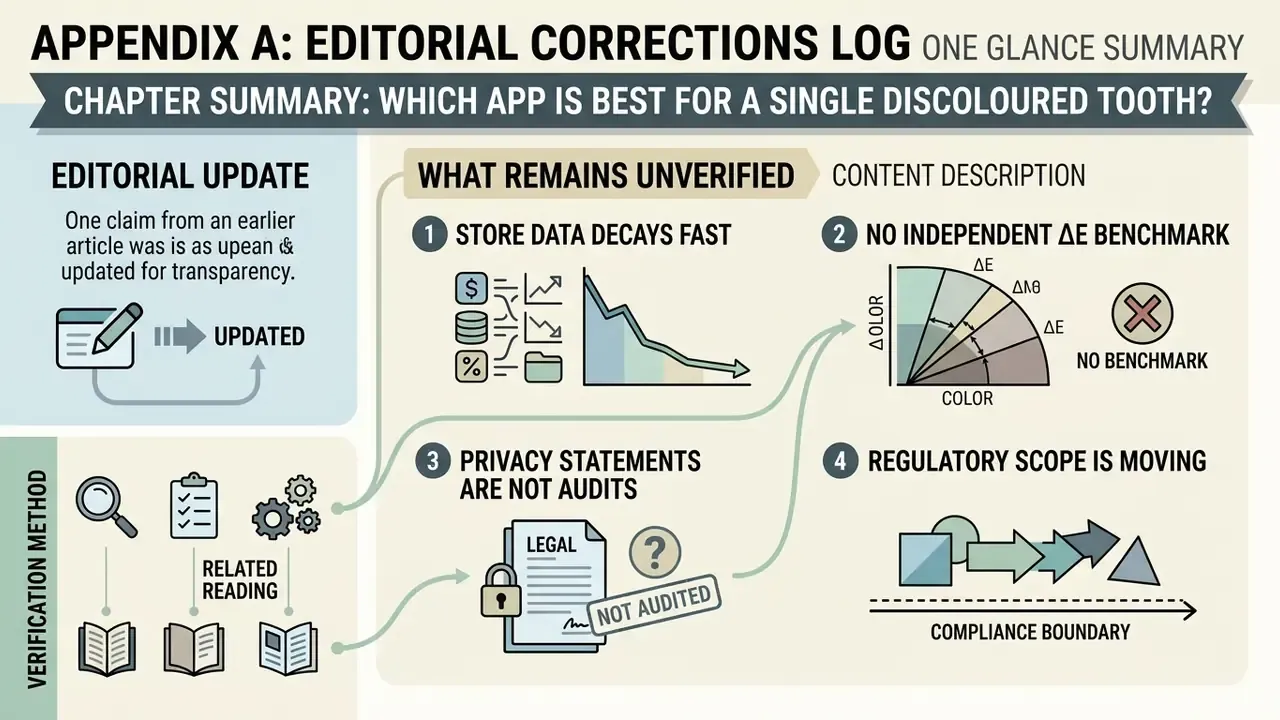
What Remains Unverified
Honest limits, stated plainly:
- Store data decays fast. Ratings, trial lengths and watermark rules shift between app releases. Everything above was checked in 2026; re-verify before a purchase decision.
- No independent ΔE benchmark exists for consumer apps. Published colour-accuracy studies cover cameras and phones, not the whitening algorithms inside retouching apps. Comparative claims about which app overshoots least are practitioner impressions, not measurements.
- Privacy statements are not audits. A published deletion window describes intent. Without a third-party attestation, treat it as an unverified assertion.
- Regulatory scope is moving. Disclosure rules for retouched cosmetic appearance differ by country and are under active review in several markets.
Verification Method
How the entries in this guide were assembled: each app was located in the official App Store or Google Play listing, the whitening tool path was recorded (menu → submenu → control), the free tier was checked for watermark and resolution caps, and developer documentation or help-centre pages were read for data-handling statements. Where documentation was absent, the entry says so. If a listing has changed since publication, tell us via AI Media Support and Troubleshooting and contact us with the store URL so the row can be re-checked.