Extracting text from an image means converting pixel-based visual data into machine-readable characters using Optical Character Recognition (OCR). For a CRO, CCO or head of model risk, that sentence hides a governance question: the moment a scanned statement becomes structured data, an unmanaged tool can become an unmanaged model. Modern automated workflows let institutional teams and individual operators convert scanned image to text, extract structured tables, and cut manual data entry with measurable accuracy. The difference between a convenience utility and a production pipeline is evidence.
Key features of a defensible extraction workflow, in short:
- A named owner for every ingestion path, including the "quick" browser tools staff already use.
- Documented supported formats and file size limits at intake, so rejections are predictable.
- Confidence thresholds on numeric fields, with automatic routing to human review.
- Reconciliation checks that compare extracted totals against printed totals.
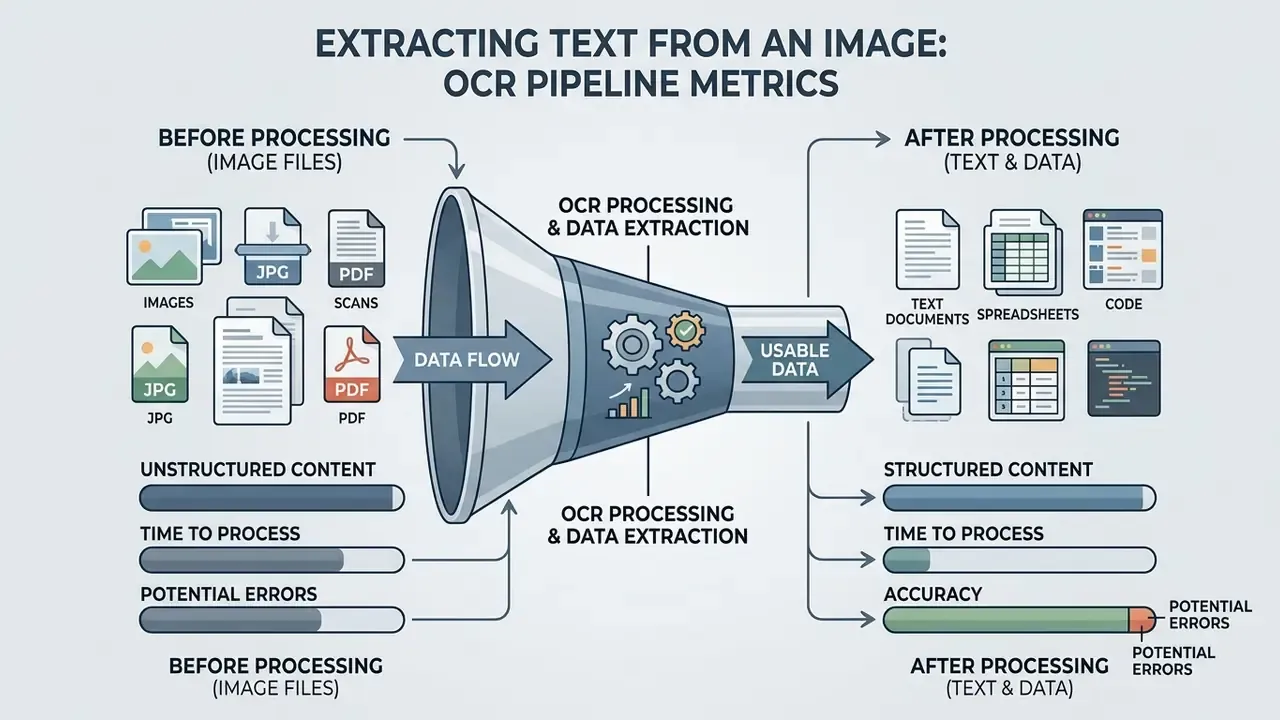
What does it mean to extract text from an image?
To extract text from an image means running software algorithms that identify alphanumeric symbols in a visual file and convert them into editable digital text. The process separates raw pixel data from semantic character content, so users can copy, search, edit and store text from visual sources.
A raster file, a photo or a scan, contains only coordinate-based color values that software cannot search natively. A digital text converter maps those visual shapes onto standard character encodings such as Unicode, turning static graphics into searchable records. Teams that want to compare providers by accuracy, throughput and licensing can review image-to-text tools for business use before they commit to a single ingestion stack.
The distinction matters legally as well as technically. Web accessibility guidance from the W3C describes OCR as a process that "converts images of words and characters to actual text", and flags unrecognized content as an "OCR suspect" requiring review. Put plainly: a scanned page stays an image record until a verified text layer sits on top of it.
How OCR technology recognizes characters in images
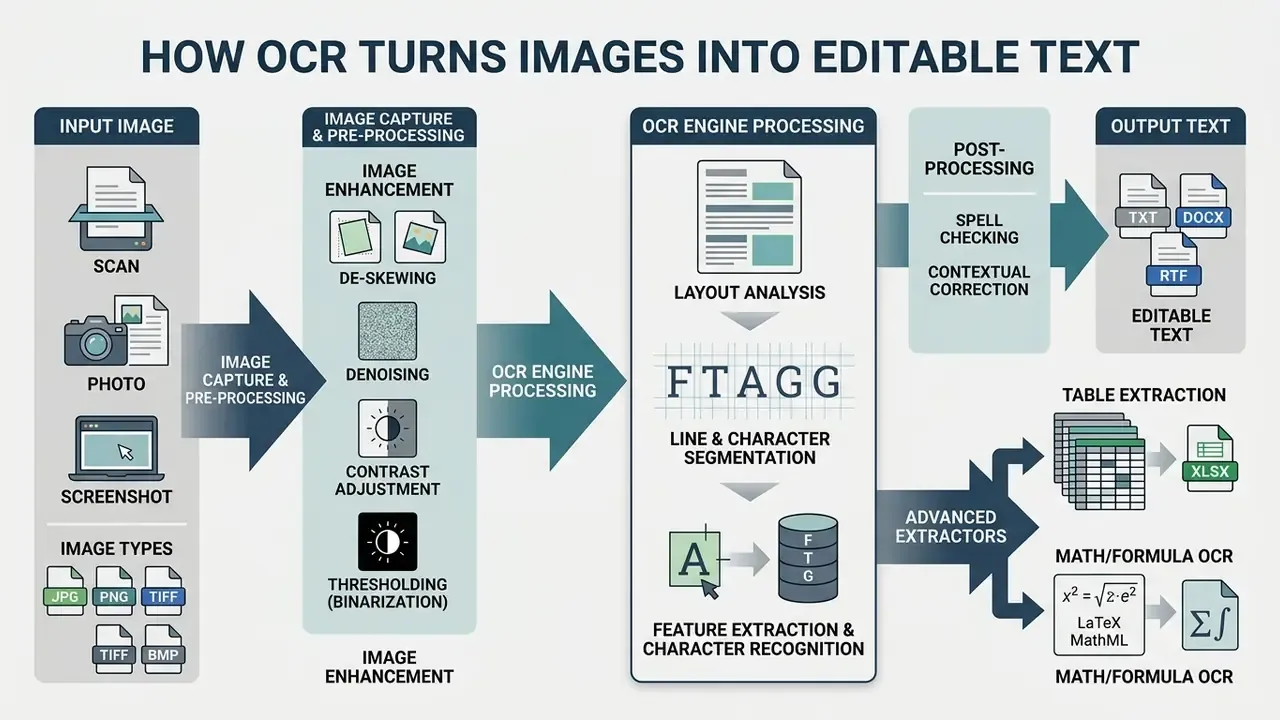
OCR technology recognizes characters through a structured chain: image acquisition, preprocessing, layout analysis, character segmentation, feature recognition and post-processing. Modern OCR engines analyze spatial pixel patterns to locate text lines, isolate individual glyphs and match them against language models.
First, the system reads the image structure to detect text blocks and line orientation. Then segmentation algorithms divide those blocks into lines, words and single character glyphs. Deep learning models, for example Convolutional Recurrent Neural Networks (CRNN), extract visual features and classify symbols. Finally, dictionaries and neural language models adjust predictions to reduce character error rates. OCR, optical character recognition in full, is statistics all the way down.
Engine hierarchy matters, because the language model stage cannot rescue a badly segmented glyph. Enterprise document services follow the same layered logic. Google Document AI Enterprise Document OCR detects blocks, paragraphs, lines, words and symbols, can deskew pages, and can merge embedded digital PDF text with OCR output. Microsoft Document Intelligence Read OCR extracts printed and handwritten text from scanned and digital documents alike.
Which image files and text types can be converted
Prepare an image for accurate text extraction
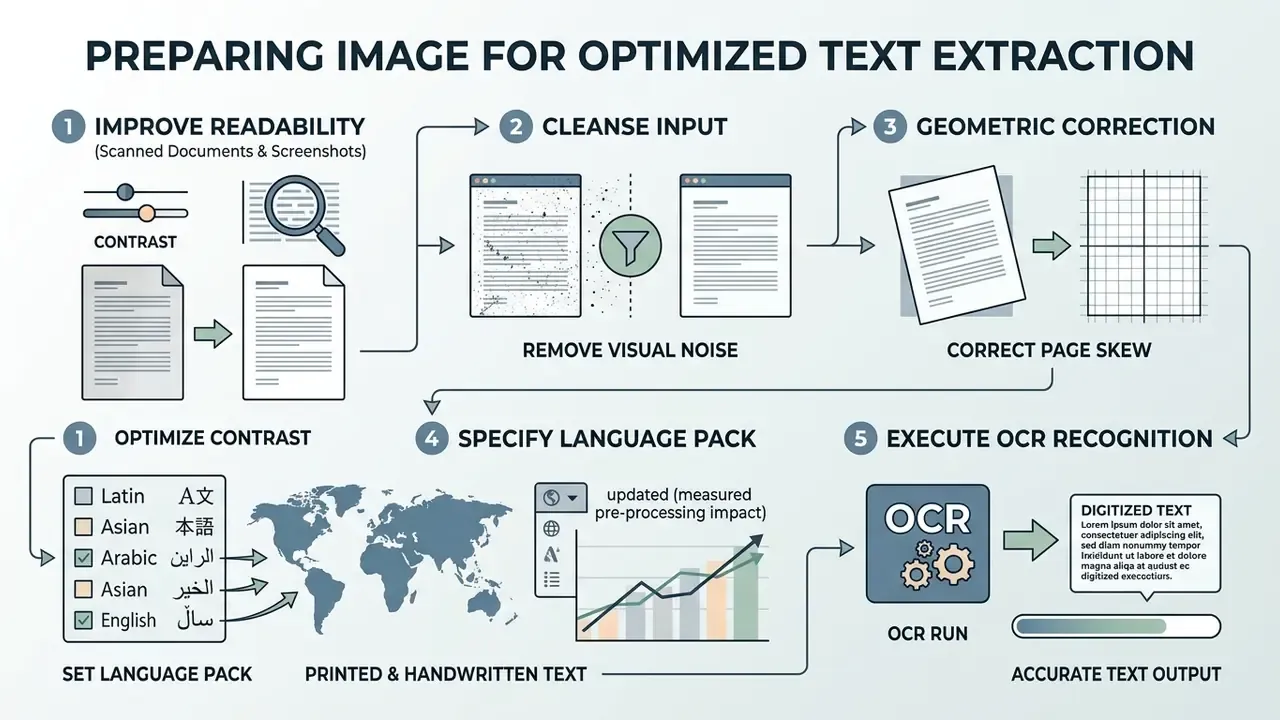
Preparing an image means optimizing contrast, removing visual noise, correcting page skew and selecting the exact primary language pack before recognition runs. Source quality raises character accuracy directly, and it lowers downstream correction costs just as directly. When the original capture is dim, noisy or under-exposed, running it through AI image enhancers for document quality is usually cheaper than fixing the resulting text by hand.
A clean image lets OCR algorithms separate dark character pixels from light background. Fixing alignment and resolution at intake prevents the recognition failures caused by distorted character shapes later.
Improve readability of scanned documents and screenshots
To improve readability for OCR engines, scan documents at 300 to 400 DPI as a minimum, adjust brightness to maximize contrast, and crop out non-essential borders. Removing background shadows and straightening tilted lines lowers the character error rate (CER).
Research from the U.S. Government Publishing Office recommends 400 DPI for color and grayscale documents and 600 DPI for bitonal documents, and advises capturing older or discolored pages in RGB mode to preserve image data.
«Scan at 400 dpi for color and grayscale, 600 dpi for bitonal; scan older or discolored documents in RGB to maximize OCR accuracy.»
«CLAHE combined with adaptive thresholding gave the best balance of contrast enhancement and noise suppression for PaddleOCR across mixed-quality documents.»
Updated (measured pre-processing impact). Published pipeline research quantifies what intake normalization is actually worth. An adaptive CNN-based digitization pipeline for photographed bills cut character error rate from 25.0% to 18.4% and word error rate from 40.1% to 27.6%, at 3.64 seconds per image. Three levers carried most of that gain, and they transfer cleanly to accounts payable or invoice intake: automated deskewing, resolution normalization to roughly 1,000 pixels on the long edge, and adaptive Gaussian thresholding.
In illustrative institutional practice, the same combination on photographed invoices also reduced manual review volume by roughly a third, because fewer numeric fields dropped below the review threshold. Treat that as a hypothesis for your own document mix until you measure it. NIST's degradation research explains why the effect is so large: character recognition error rates climb from about 1% up to 74% as print and image quality deteriorate.
Set the right language for printed and handwritten text
Setting the correct target language ensures the engine applies the right character dictionary, script rules and neural language model during classification. A mismatched language setting makes recognition engines misread non-Latin scripts and accented characters.
For documents with handwritten notes or multiple languages, proper language support prevents character substitution errors. Non-Latin alphabets and specialized domain terms need explicit language model activation to keep reading order intact. Adobe's OCR documentation states that for non-Latin documents the correct language must be selected before recognition begins, otherwise the engine cannot read or convert the text properly. Open-source stacks such as Tesseract and IronOCR install language data as separate packs, and those packs must exist on the processing host. Obvious, until a container rebuild quietly drops one.
Choose the best way to convert image to text
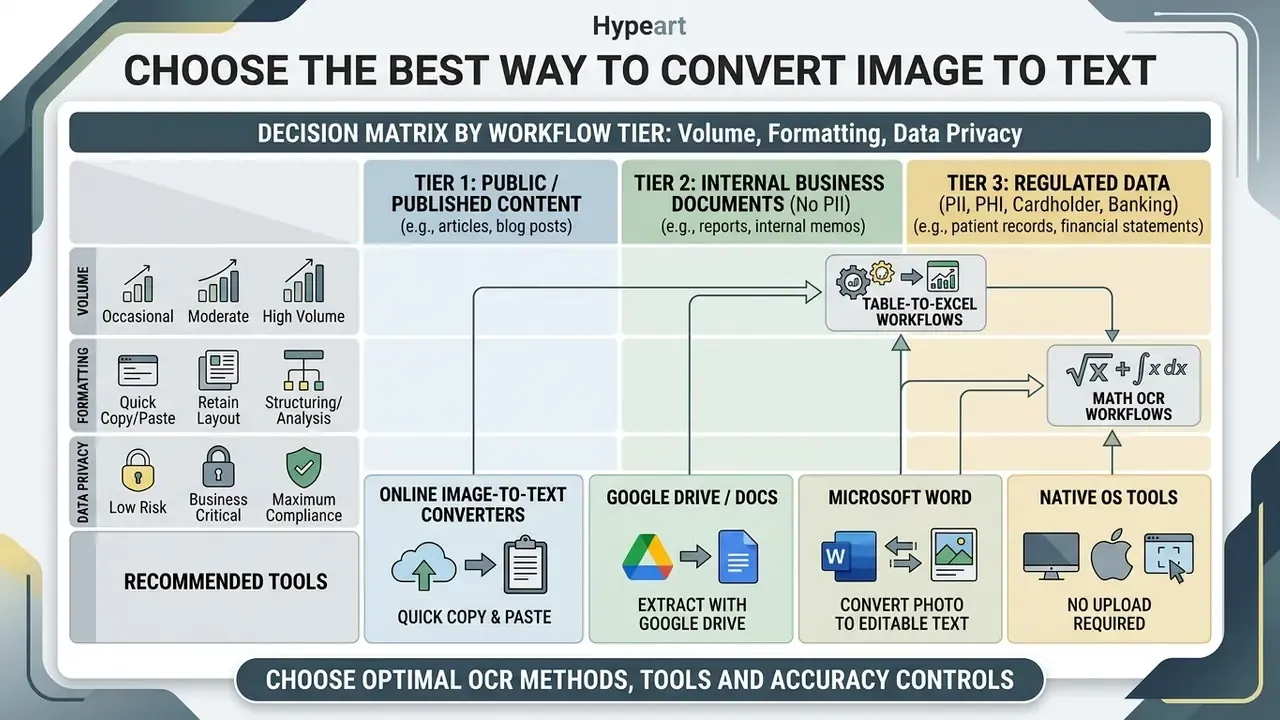
The best way to convert image to text depends on volume, formatting requirements and data privacy constraints. Options run from instant web-based converters for quick desktop copying, through Google Drive workflows for cloud editing and Microsoft Word for document reconstruction, to enterprise OCR APIs for governed high-volume pipelines. The best way to extract text from image files in a regulated bank is rarely the fastest way.
Accuracy differs sharply between engine classes, and multimodal models now compete with classical OCR on difficult frames.
«GPT-4o reached 76.22% accuracy with CER 0.2378 and Gemini-1.5 Pro 76.13% with CER 0.2387, while EasyOCR reached only 49.30% on dynamic frames.»
Decision matrix by workflow tier
| Tier | Typical tools | Supported formats | Batch processing | Best use case | Copy and edit convenience |
|---|---|---|---|---|---|
| Level 1, ad-hoc / personal | Online OCR converters | JPG, PNG, WEBP, GIF, BMP, JFIF, HEIC, PDF | Supported in select paid tiers | Quick copy and paste text from single images | Instant copy to clipboard or TXT export |
| Level 1, native OS | Apple Live Text, Windows Snipping Tool, Google Lens | Any on-screen or camera-roll image | Not supported | Zero-upload text capture on device | Direct system clipboard copy |
| Level 2, cloud office suites | Google Drive and Google Docs | JPG, PNG, GIF, PDF (≤2 MB, text ≥10 px) | Scripted via Drive API or manual per file | Digitizing scanned pages into structured cloud documents | Inline editing in Google Docs |
| Level 2, desktop office | Microsoft Word, Microsoft Lens | Scanned PDF, image captures via Lens | Single document conversion | Converting scanned PDF forms to DOCX files | Native Word document editing |
| Level 2, developer / open source | Tesseract, EasyOCR, PaddleOCR | JPG, PNG, TIFF, BMP, PDF (via wrappers) | Local scripted queues, unlimited | On-premise processing of confidential files | Programmatic output to TXT/JSON/hOCR |
| Level 3, enterprise cloud API | AWS Textract, Azure AI Document Intelligence, Google Cloud Document AI | JPEG, PNG, BMP, TIFF, HEIC/HEIF, PDF | Async batch (up to 2,000 images per Vision async request) | Financial forms (W-2, 1099, invoices), tables, key-value pairs, audit-ready pipelines | Structured JSON with bounding boxes and confidence scores |
Accuracy footnote: no peer-reviewed benchmark data exists for the OCR engines embedded inside Google Docs or Microsoft Word, so those rows are marked NO MATCH for quantitative accuracy claims. The published figures above apply to standalone engines and multimodal models tested on public datasets.
Online image-to-text converters for quick copy and paste
An online image to text converter lets users drag drop image files into a browser window, run instant recognition, and copy text straight to the clipboard. These utilities are the most accessible way to capture text from image files with no software install, and they answer the common question of how to convert image to text in laptop workflows without admin rights. If you need to weigh cost against measured quality, our image-to-text tools comparison by accuracy and pricing breaks down tiers, limits and licensing terms.
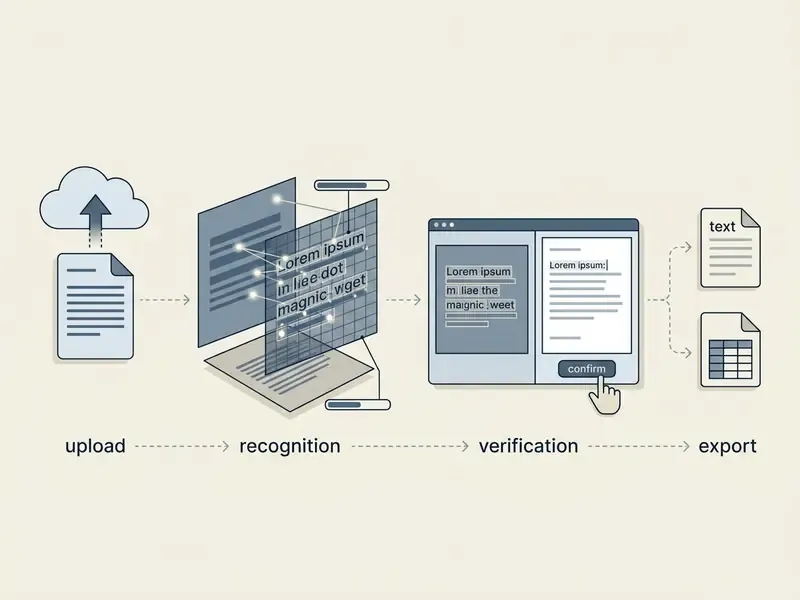
Most web converters handle common formats including JPG and PNG, and they return plain text within seconds. Documented workflows from public OCR services follow the same four steps: upload or paste the file, select the language, start OCR, then copy or download the text. Users can review the extracted text on screen and save the result as a local TXT file, and many services also export DOCX or searchable PDF. Note the free tier ceilings, because a "limit exceed" message mid-batch is how weekend projects die.
Extract text with Google Drive and Google Docs
Extracting text with Google Drive means uploading an image or scanned document, right-clicking the file, and choosing "Open with Google Docs". Drive then runs its integrated OCR engine and creates a new document holding both the original image and editable text underneath it.
The built-in workflow supports JPG, PNG, GIF and PDF files under 2 MB. Google's help documentation notes that text should be at least 10 pixels high for reliable recognition, with language detected automatically. Basic paragraph structure survives, which makes this a practical route for turning photo files into editable document text on laptop and desktop systems.
Convert a photo to editable text in Microsoft Word
To convert a photo or scan into editable text with Microsoft Word, save the image as a PDF first, then open that PDF directly in Word. Word rebuilds the visual PDF as an editable document and preserves most text formatting and structural headings. Microsoft notes the conversion works best on documents that are mostly text, since dense tables and multi-column layouts often reflow incorrectly.
Mobile users can also capture pages with Microsoft Lens and export straight to Word format. This desktop and mobile pairing is the practical answer when you need to copy text from image to word and rebuild the full document layout, not just grab a sentence.
Extract text with native operating system tools (no upload required)
For one-off captures, the fastest and most private option is the OCR engine already sitting on your device. Nothing leaves the machine, which removes the retention question entirely. Worth remembering before anyone uploads a client statement to a random website.
Convert tabular image data into editable Excel spreadsheets
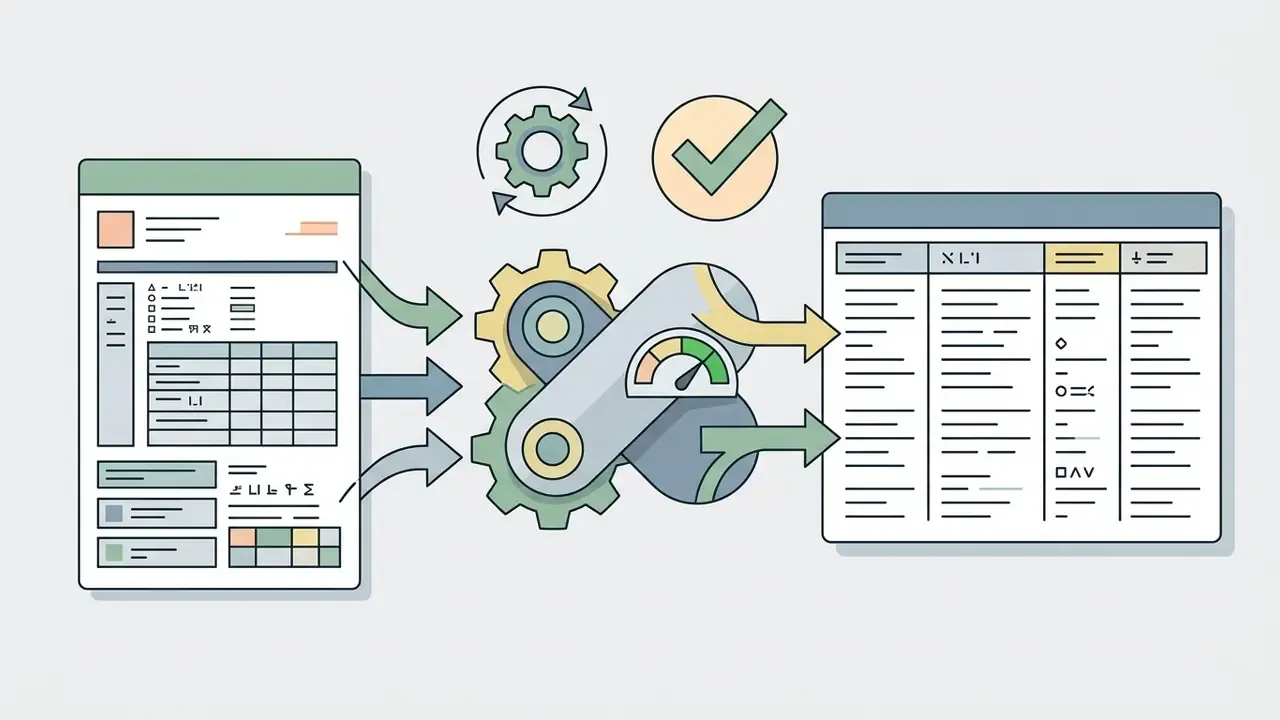
Pulling tables out of financial statements, receipts or invoices needs structural grid recognition on top of character extraction. Plain-text extraction flattens columns into unformatted lines, which destroys row and column relationships and makes reconciliation impossible.
To keep row and column integrity when converting visual tables to Microsoft Excel (.xlsx) or CSV:
- Use layout-aware OCR engines.Pick tools with bounded-box detection and table structure recognition: Tesseract in
--psm 6mode for simple grids, or AWS Textract table analysis, the Azure AI Document Intelligence layout model and the Google Document AI form parser for complex financial forms. - Preserve delimiters.Confirm the tool outputs tab-delimited or comma-separated values rather than continuous strings, and that empty cells are emitted as empty fields rather than skipped.
- Validate numeric decimals.Check decimal points, thousands separators, negative-value parentheses and currency symbols after extraction, before anything reaches a reporting calculation.
- Reconcile totals.Sum the extracted columns and compare against the printed total on the source document. A mismatch is the cheapest possible signal that a digit was misread.
This image to Excel OCR pattern is the single highest-value upgrade for accounts payable, expense audit and statement reconciliation, because it removes retyping without removing verifiability.
How to extract text from an image online: step-by-step workflow
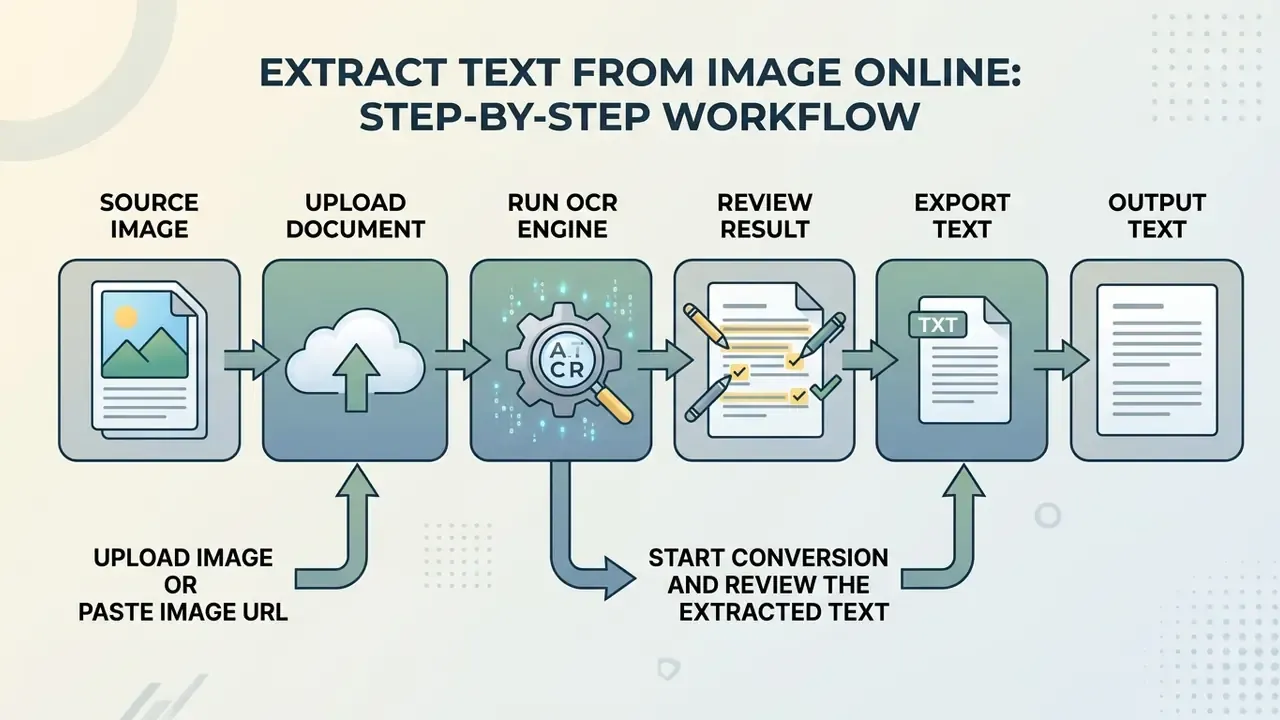
To extract text from an image online, choose a clear visual file, upload it to a trusted text extractor tool, run the OCR engine, verify the output for character errors, then copy or download the result. A structured procedure minimizes manual formatting cleanup afterwards.
Step-by-step online conversion
Checklist0 / 5
Upload an image or paste an image URL
Start by dragging and dropping your file into the conversion interface, or paste a direct image URL into the upload field. Check that the file matches the platform's supported formats JPG, PNG, WEBP, HEIC or GIF, and that it stays inside the stated file size limits.
Most web tools accept common image formats up to 5 MB or 20 MB depending on the engine backend. Google's Vision API caps single images at 20 MB, while some free web tiers stop at 2 to 5 MB. Verifying dimensions and format compatibility before submission prevents upload timeouts and server-side processing errors.
Start conversion and review the extracted text
Copy, paste or download the editable output
After review, click the copy button to send the extracted content to your clipboard, or download a plain TXT or DOCX file. From there you can paste into local applications, word processors or internal databases. Office and Google Docs both support standard Ctrl + C and Ctrl + V transfer, and the Office Clipboard holds up to 24 collected items, which helps in multi-image sessions.
Extract text from scanned documents, handwriting and multiple images
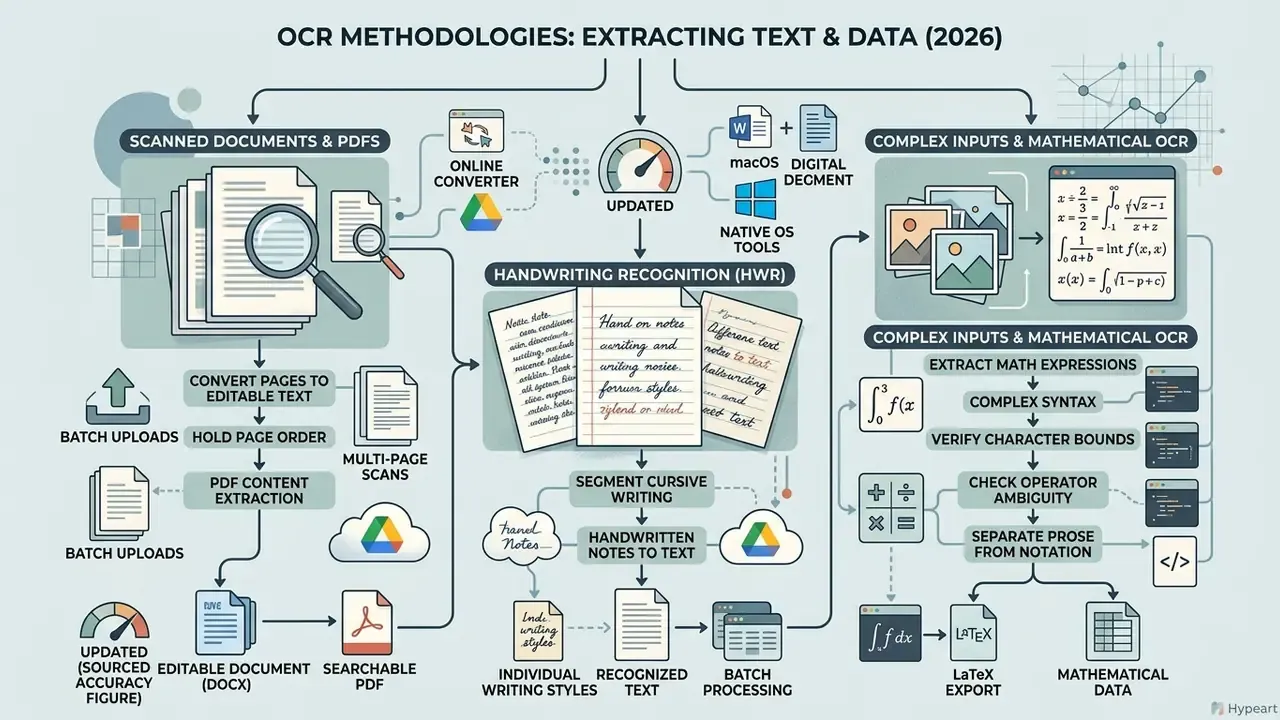
Complex inputs (multi-page scanned documents, handwritten notes, mathematical notation, batch uploads) demand OCR configurations that hold page order, segment cursive writing, parse two-dimensional layouts and manage memory. Real archives are never uniform.
Operational environments tend to present a mix of document types that goes far beyond a printed screenshot, so extraction pipelines usually need routing rules rather than one global setting.
Convert scanned pages and PDF images into editable text
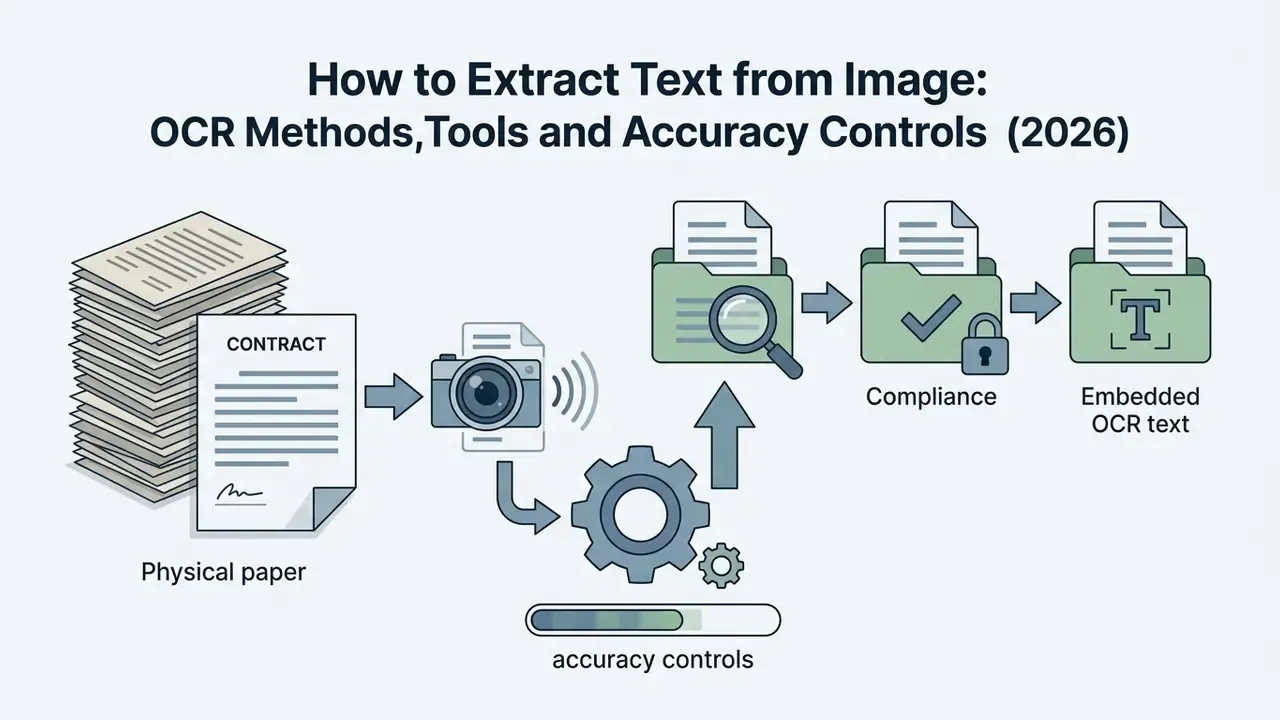
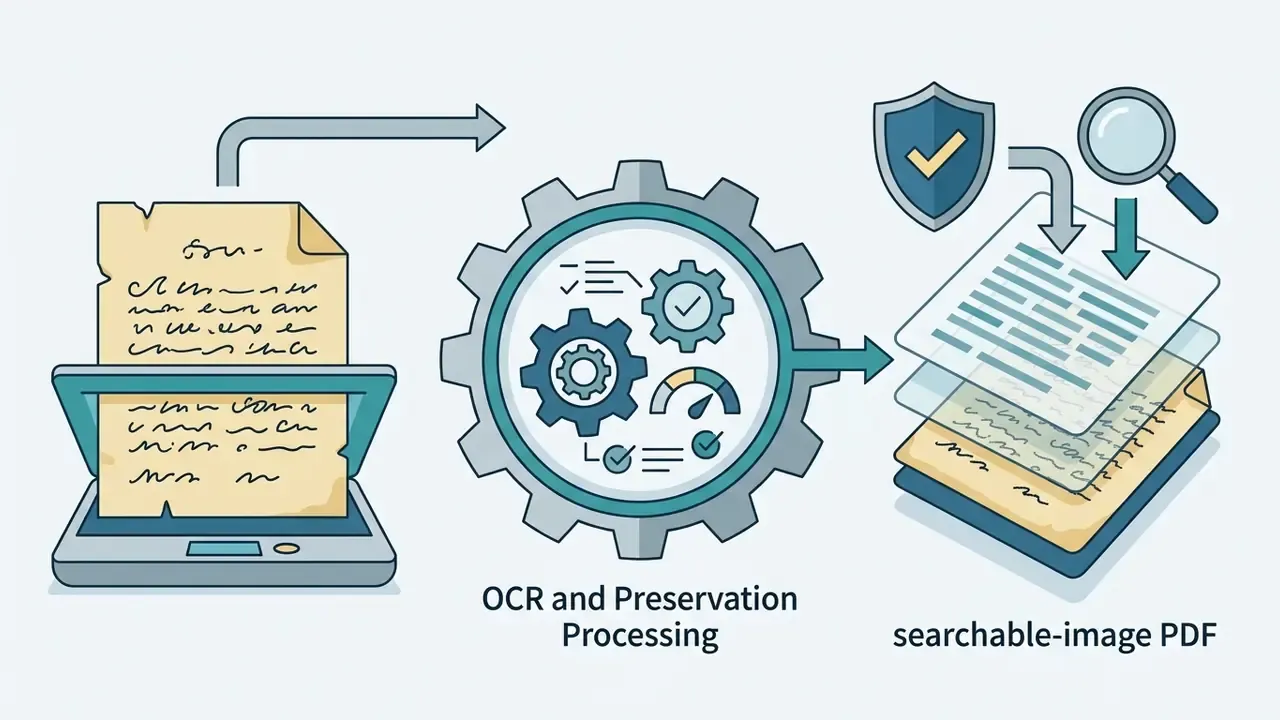
Converting multi-page scanned documents into searchable digital files requires page-by-page raster processing. Standard institutional workflows use document-level OCR pipelines to produce searchable PDF files, where an invisible editable text layer sits directly over the original scanned page. Where source scans fall below target resolution, running pages through AI image upscalers for document resolution before recognition can recover enough edge contrast to lift character accuracy.
According to National Archives and Records Administration (NARA) guidance, embedded OCR text layers must preserve the exact visual appearance of the underlying scan without altering original historical records. That approach keeps the visual audit trail while enabling full text search across large archives. Other federal guidance follows the same pattern: USDA accessibility procedures specify 300 DPI grayscale and 600 DPI color scanning followed by OCR with the document language set and "searchable image" output, and Department of Justice ESI guidance requires one file per document with OCR text embedded in that same file.
«MIT-10M is the largest image translation dataset: 10 million image–text pairs across 14 languages, built with EasyOCR filtering and GPT-4o for precise recognition.»
Multilingual archives therefore need language-aware routing at the page level. One global language setting for an entire batch is how a Spanish-language annex ends up as noise.
Recognize handwritten notes and complex text
Recognizing handwritten notes calls for handwritten text recognition (HTR) models built on recurrent neural networks or vision-language architectures that can follow continuous cursive strokes. Printed-text engines often fail here, simply because character shape variation is severe.
Advanced systems isolate handwritten lines with dedicated segmentation algorithms such as BN-DRISHTI before applying stroke-prediction models.
«BN-DRISHTI achieves an F-score of 99.97% for line segmentation and 98% for word segmentation on Bangla handwritten pages.»
Updated (sourced accuracy figure). Academic benchmarks place hybrid recurrent architectures in the high nineties on structured handwriting datasets, rather than in the range of general document OCR. That gap matters when someone proposes to convert handwritten notes straight into a ledger.
«A hybrid LSTM-PSO model reaches 97.14% accuracy on handwritten characters and digits, substantially outperforming baseline methods.»
Irregular line angles, overlapping ascenders and mixed cursive-print writing still degrade reliability. That is why NIST handwriting evaluations scan handwritten copies at 600 DPI into TIFF before measurement, and why NIST Special Database 19 supplies 810,000 hand-printed character images from 3,600 writers as labelled ground truth.
Extract mathematical expressions and complex syntax (Math OCR)
Extracting equations, arithmetic expressions and scientific notation needs layout analysis that goes beyond linear left-to-right reading. Standard engines misread subscripts, superscripts, fraction bars, radicals and matrix delimiters, because those elements carry meaning through two-dimensional position rather than sequence.
Modern Math OCR workflows use specialized deep learning models (LaTeX-OCR or Mathpix-class architectures) to parse spatial structure into LaTeX, MathML or SymPy expressions. Google Cloud Document AI documents math extraction that returns formulas in LaTeX with bounding boxes, and Mathpix documents OCR for handwritten and printed equations, tables and diagrams with export to LaTeX, AsciiMath and MathML.
When digitizing scientific papers, exam papers or technical notes:
- Verify character bounds. Confirm exponents and subscripts are not flattened into inline text, since
x2andx²are not the same claim. - Export to LaTeX. Convert multi-line equations into raw LaTeX code for publishing instead of retyping them in an equation editor.
- Check operator ambiguity. Make sure minus signs, en dashes and hyphens stay distinct, and that
∑,∫and∏limits attach to the correct operator. - Separate prose from notation. Route paragraphs to a standard engine and formula regions to a math engine. Mixed-mode single-pass extraction is where most structural errors appear.
Process multiple images in one submission
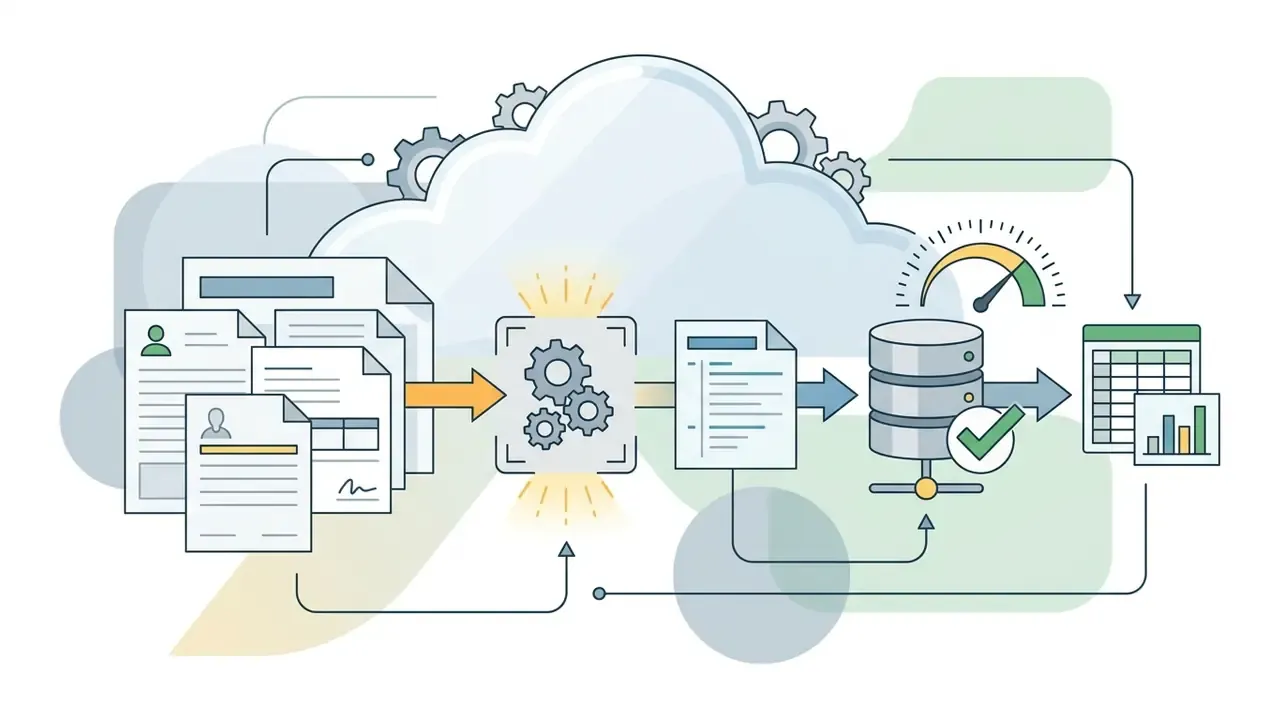
Batch processing lets users upload and convert multiple image files at once, which saves real operational time on large collections of invoices, receipts or forms. Systems run batch conversion through parallel queues or asynchronous API calls, and a good tool will report per-file status rather than one aggregate success flag.
When submitting multiple files, watch the platform limits on maximum image count and total payload file size. Cloud APIs often cap synchronous requests: Google Cloud Vision permits 16 images per synchronous images:annotate call and up to 2,000 per images:asyncBatchAnnotate request, with a 20 MB per-image ceiling. Multi-gigabyte document batches therefore need automated queuing scripts. Large-model batch endpoints scale differently again. OpenAI's Batch API accepts up to 50,000 requests and 200 MB input files per batch, while Gemini batch inference accepts up to 200,000 requests per job with a 1 GB storage input limit and a 72-hour queue expiry.
Check accuracy, privacy and output before using extracted text
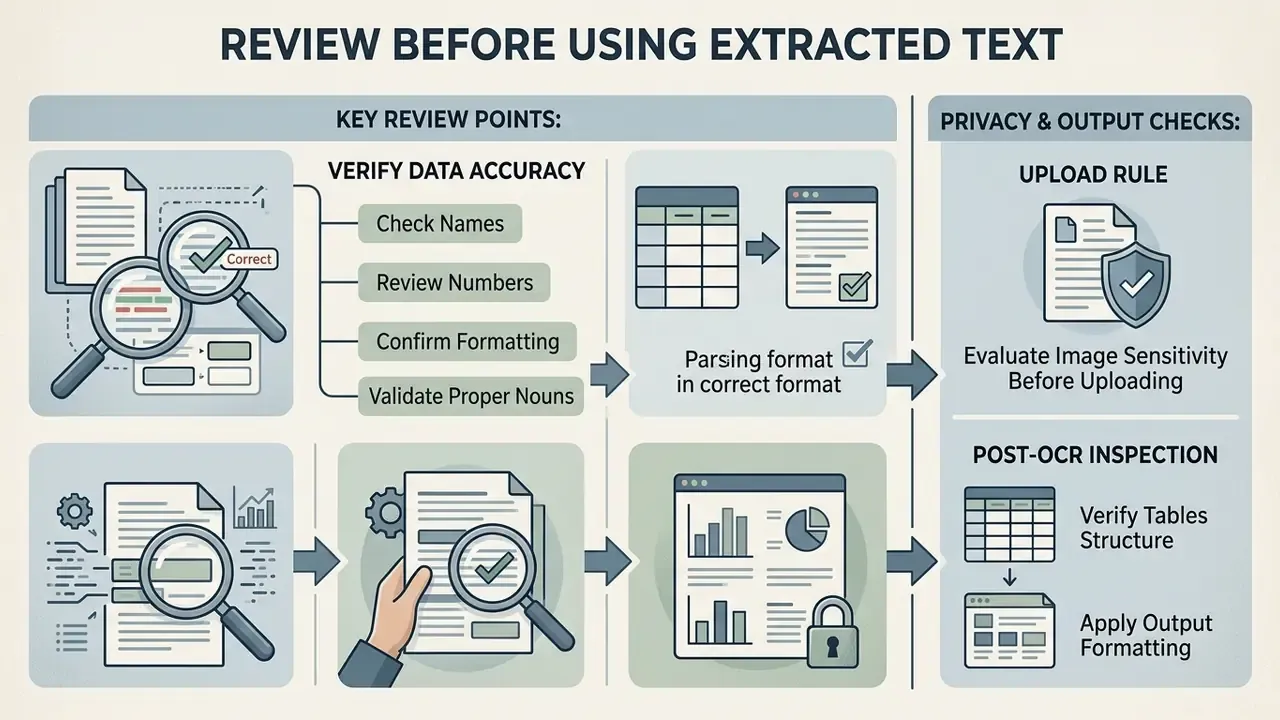
Before extracted text enters legal, financial or regulatory workflows, operators must verify output precision and review service data retention policies. OCR engines produce statistical predictions, and predictions stay vulnerable to misreads in exactly the fields that matter most.
A rigorous review step protects the institution against compliance findings, invalid data entries and privacy exposure created by an ungoverned ingestion tool. This is the part most pilots skip.
Verify names, numbers and formatting after OCR
Always inspect names, identification numbers, financial totals and date formats after extraction, because recognition engines substitute look-alike characters most often in uncontextualized string fields. Unlike prose, an isolated number has no semantic context, so no language model can auto-correct it.
Human-in-the-loop escalation rule. Confidence scores turn verification from an opinion into a control. Azure AI Vision OCR returns extracted text, word and line positions, and per-item confidence scores, which makes threshold routing straightforward:
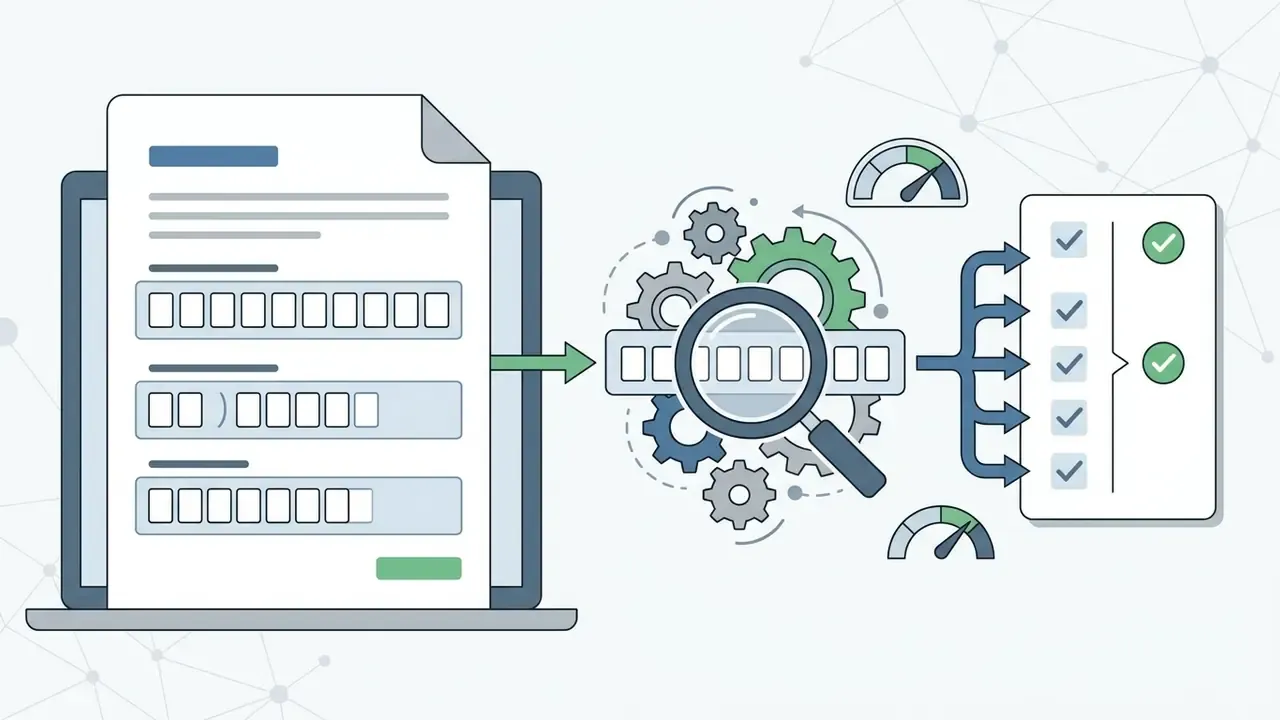
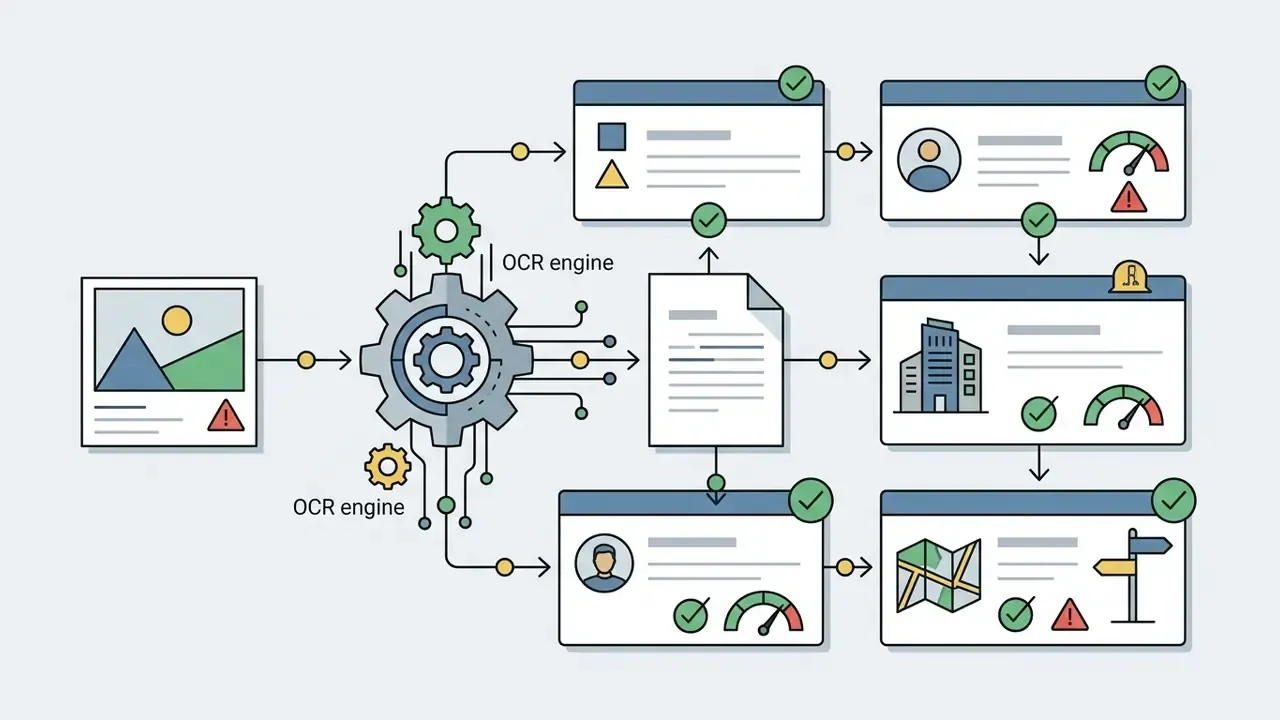
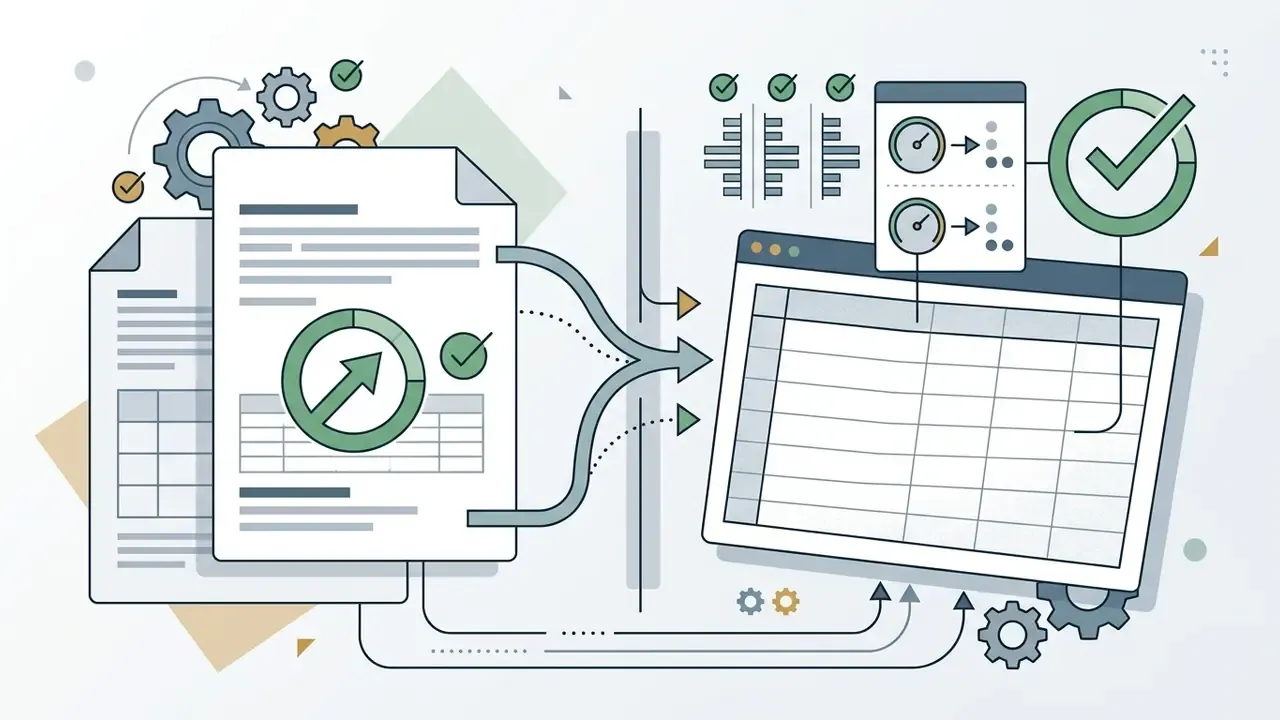
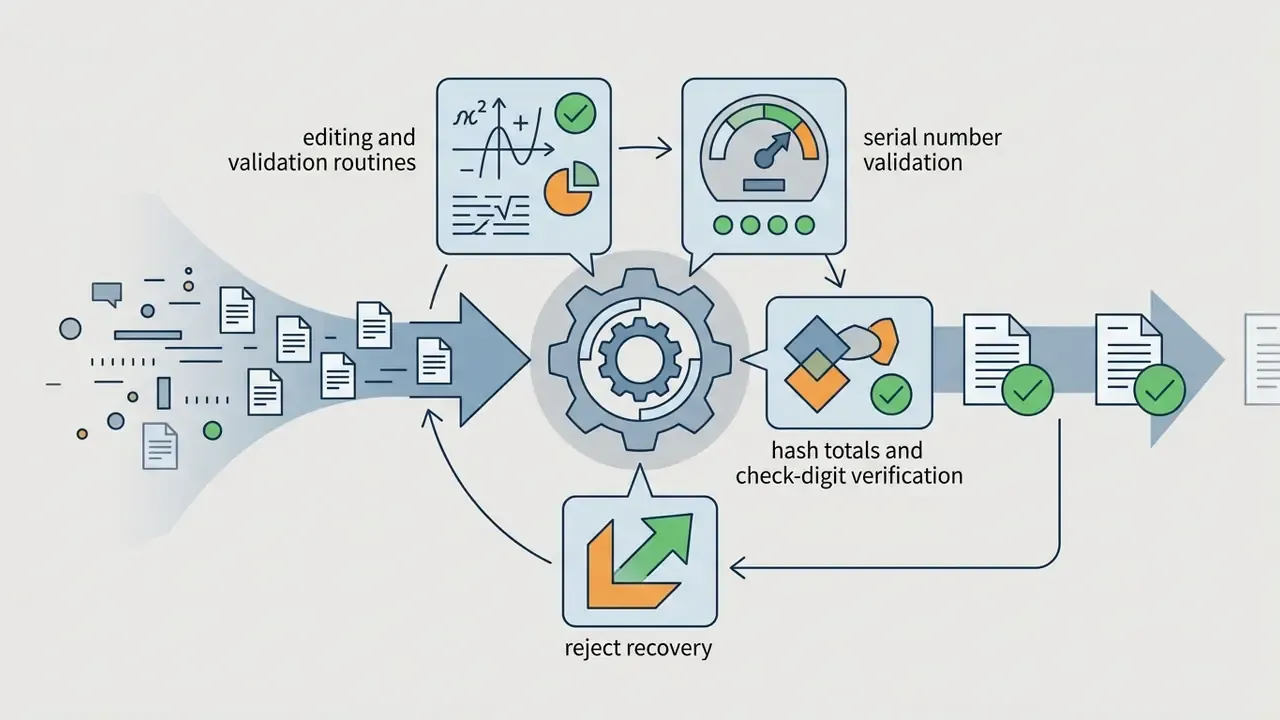
Set thresholds by field criticality, not globally. Free-text notes can tolerate 70%; invoice totals and account numbers cannot. NIST OCR evaluation practice measures accuracy as error rate against rejection rate, which is precisely the trade-off a confidence threshold encodes. Pick the point your risk appetite can defend in writing.
What to review before uploading sensitive images
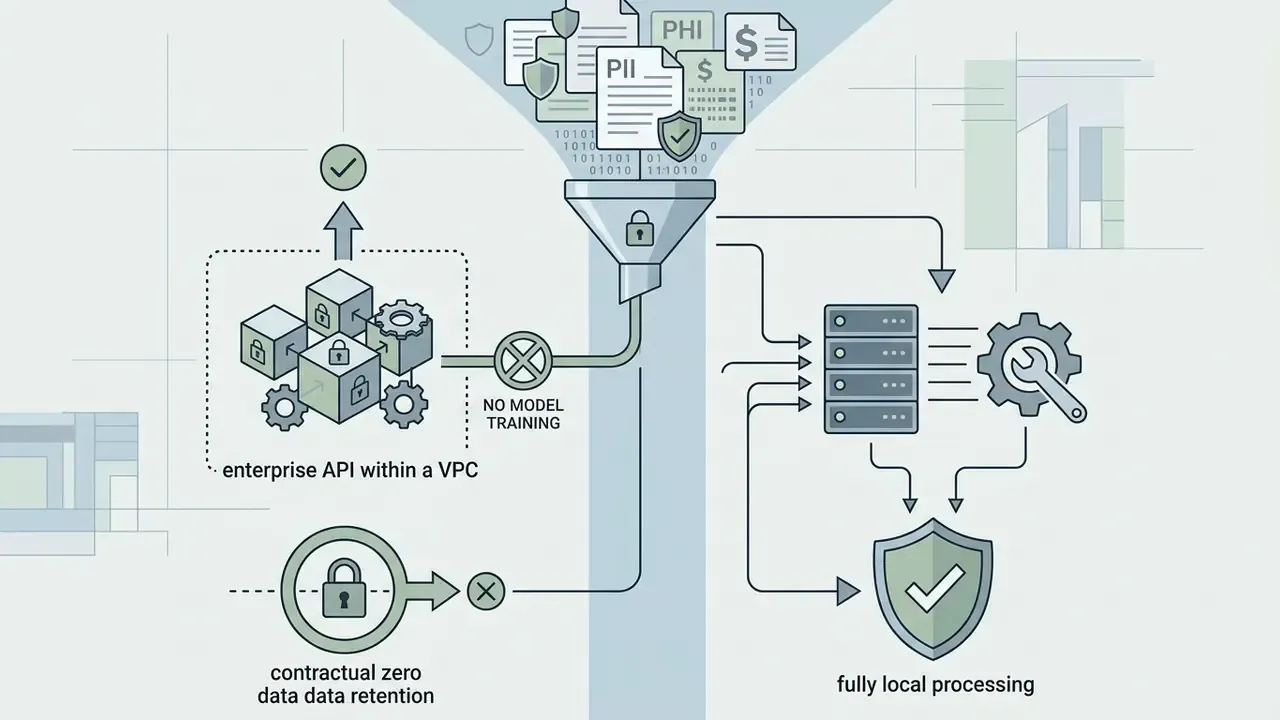
Before uploading images with personally identifiable information (PII) or confidential banking data to a free web tool, verify the platform's security guarantees and file retention policy. Public converters may keep temporary server logs or cache uploads unless explicit no data retention rules apply.
Federal Trade Commission guidance states that sensitive data should be held only as long as an active business need exists, then disposed of securely under a written retention policy. Comparable regimes take the same line: Hong Kong's PCPD Data Protection Principle 2(2) requires "all practicable steps" to avoid keeping personal data longer than necessary. Read provider privacy terms to confirm whether uploaded customer images are excluded from artificial intelligence model training sets.
Evidence note: peer-reviewed research published between 2023 and 2026 does not contain verified comparative data on the retention practices of commercial OCR services, so vendor "zero retention" claims must be validated contractually rather than assumed. Benchmark studies such as DocOCR-Eval, the VideoDB OCR benchmark and the assistive-technology OCR study measure accuracy, not privacy posture.
Checklist0 / 7
Where can you use image text extraction
Image text extraction earns its keep wherever information sits trapped in pixels. Digital text is easier to copy, search, index and edit, so the payoff scales with document volume and retrieval frequency.
- Data entry and back-office automation replace manual retyping of invoices, receipts, forms and tables with structured extraction into databases and spreadsheets.
- Digitizing office documents turn reports, contracts, memos and project files into editable, searchable records.
- Education and research convert lecture notes, textbook excerpts and archival pages into quotable, citable text.
- Newspapers, social media and media monitoring extract printed articles, captions and screenshot posts for clipping, sharing and sentiment analysis.
- Screenshots and interface capture recover error messages, dashboard values and interface labels from screen grabs.
- Contact capture pull emails, phone numbers and addresses from banners, business cards and signage.
- Translation and language barriers extract text from signboards or foreign-language documents, then hand it to an image translator or machine translation engine.
- Digital accessibility (WCAG compliance) converting image-based text and scanned PDFs into structured digital text lets screen readers such as NVDA, JAWS and VoiceOver read content aloud to visually impaired users. W3C guidance treats a scanned-image PDF as inherently inaccessible until OCR supplies real text, and asks for verification of both text completeness and reading order. Check by reading with a screen reader, saving as text, or exporting the converted content.
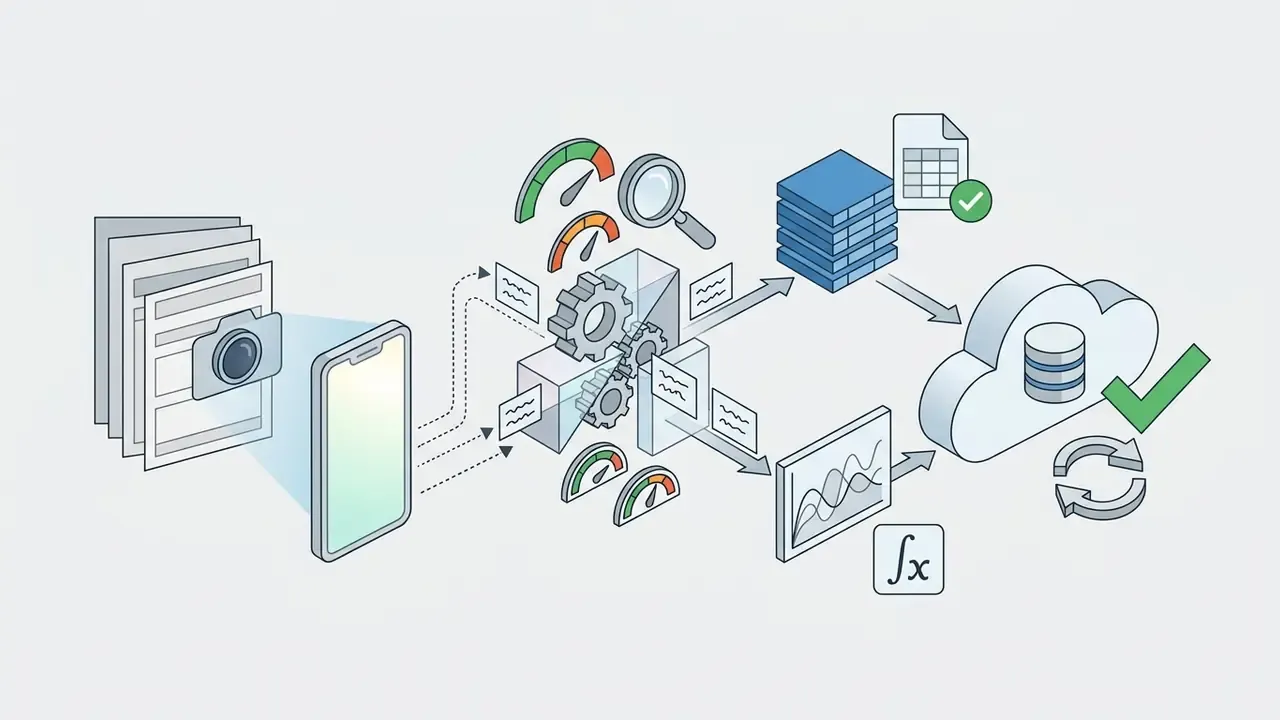
Industry-specific scenarios
Limitations and open questions
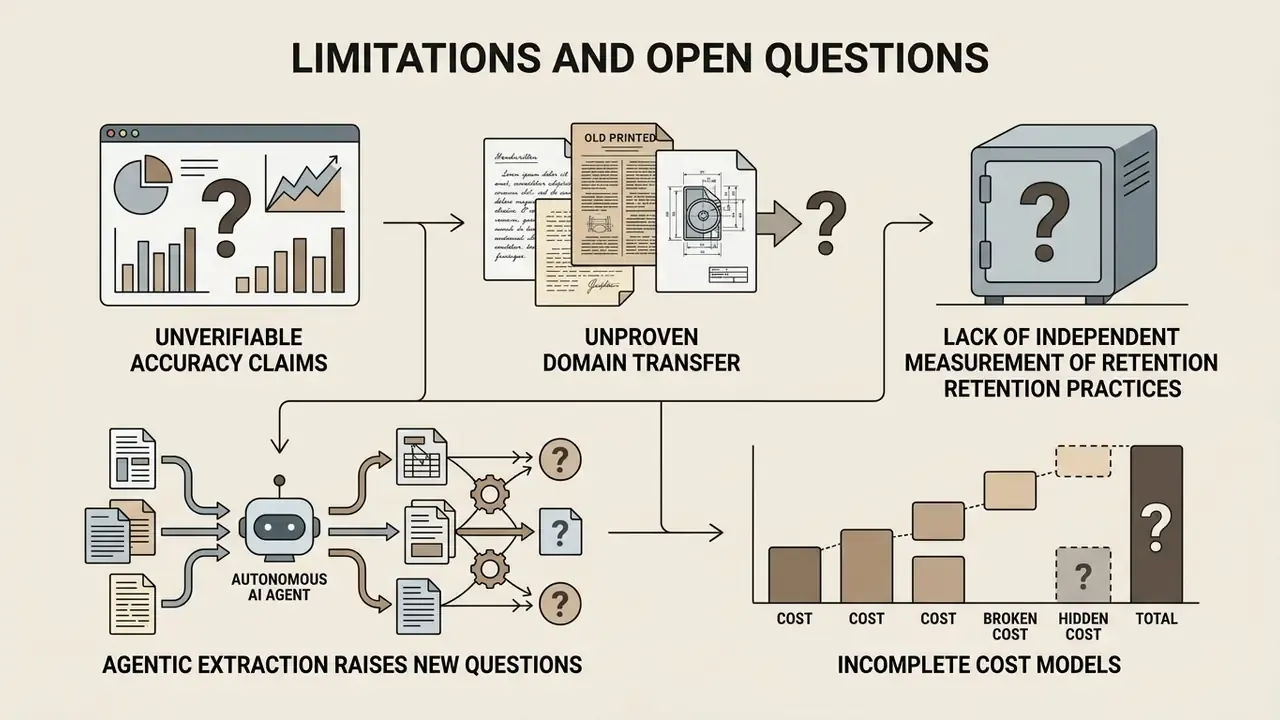
Some parts of this topic remain genuinely unsettled, and pretending otherwise would not help a model-risk review.
- Vendor accuracy claims are largely unverifiable. Published benchmarks cover standalone engines and multimodal models on public datasets, not the embedded OCR inside consumer office suites.
- Domain transfer is unproven. A 97% figure on a structured handwriting dataset says little about your loan files photographed in a branch lobby.
- Retention practice lacks independent measurement. No peer-reviewed comparison of commercial OCR retention behavior exists, so contracts and attestations carry the weight.
- Agentic extraction raises new questions. When an agent reads a document, decides, and posts an entry without a human in the loop, the control set has to cover the decision, not just the character accuracy. No evidence, no autonomy.
- Cost models are usually incomplete. ROI calculations that exclude review labor, exception handling and residual error cost tend to overstate the benefit. Treat any single-number ROI as a hypothesis.
Frequently asked questions (FAQ) about image-to-text conversion
Can I extract text from an image for free?
Yes. Users can extract text from images for free with open-source engines such as Tesseract, EasyOCR or PaddleOCR, and with the freemium cloud tiers offered by major platforms. Open-source libraries allow unlimited local desktop processing at no subscription cost.
«PaddleOCR reached 0.917 average accuracy and EasyOCR 0.828 on smartphone captures; both are free and outperform Tesseract's 0.380 without preprocessing.» Assistive Technology OCR Benchmark (2026 preprint). https://arxiv.org/abs/2026-assistive-ocr
Commercial converters and cloud APIs usually offer free tiers with monthly usage or file size constraints. Azure AI Document Intelligence caps free-tier files at 4 MB and processes only the first two pages of PDFs and TIFFs, and some public web OCR services cap free documents at 5 MB. Once a free account passes those limits, expect an upgrade prompt or a cool-down period.
Can I copy text from an image on mobile, Mac or laptop?
Yes. Copying text from images works across mobile devices, Mac laptops and Windows PCs through native OS features or web applications, so the workflow effectively works on all devices. Native tools such as Apple Live Text (iOS/macOS) and Google Lens (Android/Windows) allow direct selection from any photo.
«The main smartphone camera consistently outperformed the ultra-wide lens and smart glasses for OCR accuracy across all distances and capture angles.» Assistive Technology OCR Benchmark (2026 preprint). https://arxiv.org/abs/2026-assistive-ocr
Step by step, by platform:
- macOS (Live Text in Preview or Photos): open the image, hover until the cursor becomes a text selector, drag to highlight, right-click and choose Copy Text.
- iOS / iPadOS: touch and hold the text inside a photo, video frame or web image, then tap Copy. Inside Photos, use the Live Text button and Select All.
- Windows 11 (Snipping Tool):
Win + Shift + S, capture, open in Snipping Tool, Text Actions,Ctrl + A, Copy all text. - Android (Google Lens): Google Photos, Lens, Text, Select All, Copy Text, or "Copy text to computer" for a paired desktop.
- Any platform (Adobe Acrobat): run OCR on a scanned-image PDF, then use Export PDF to produce Word or rich text.
On desktop systems you can also take screenshots, upload images to an online tool, or run local OCR scripts. Whatever the platform, clean source resolution drives extraction accuracy, and if a capture is blurry or badly lit, AI photo editors for image preparation can fix exposure and crop before recognition.
Which formats can I convert, and does HEIC or WEBP work?
Most modern services accept JPG, PNG, WEBP, GIF, BMP, JFIF, TIFF, HEIC/HEIF and PDF. HEIC to text and WEBP OCR depend on whether the provider decodes those containers server-side. If an upload fails, export the file as JPG or PNG and retry. Check the documented list of supported formats before you automate anything.
How do I convert an image table into a spreadsheet?
Use a layout-aware engine with table structure recognition (AWS Textract, the Azure AI Document Intelligence layout model, Google Document AI, or Tesseract --psm 6), export to CSV or XLSX, then reconcile column sums against the printed totals before anyone uses the data.
Can OCR read mathematical formulas?
Yes, but only with a dedicated Math OCR model. Standard engines flatten superscripts and fraction bars. Math-specific engines output LaTeX, MathML or AsciiMath with bounding boxes, so the two-dimensional structure survives conversion.
Is my data secure when I upload an image?
That depends entirely on the provider. Verify the retention window, deletion of logs and caches, exclusion from model training, and independent attestations such as SOC 2 Type II before uploading anything containing PII, PHI or financial identifiers. For the most sensitive classes, process locally and skip the question.
Do I still need to check the output if accuracy looks high?
Yes. NIST degradation research shows error rates climbing from 1% to 74% as image quality falls, and numeric fields stay the most error-prone category even after model-based correction. Human verification of names, identifiers and totals is a control, not optional polish.
Summary of OCR workflows and a safe next step
Choosing the right extraction strategy gives you reliable data ingestion without losing control over sensitive documents:
- Assess source quality: hit resolution targets (300 DPI or more for grayscale, 600 DPI for bitonal) and correct alignment before conversion.
- Select the right tool tier: native OS tools for zero-upload capture, online converters for speed, office suites for layout preservation, layout-aware engines for tables, Math OCR for notation, enterprise APIs for governed volume. A side-by-side view of commercial OCR tools by accuracy and business use shortens that selection cycle.
- Enforce human validation: set confidence thresholds and review controls for numeric fields, names and regulatory records before downstream entry.
- Govern retention: contract for documented deletion windows and training-data exclusion, or keep the highest-sensitivity classes on local engines.
A modest next step beats a program launch. Pick one document class, one owner and one month of baseline measurement: CER, WER, rejection rate and review minutes per document. Then decide what to scale, with numbers in hand rather than a vendor deck.
Appendix A: superseded and original formulations (editorial traceability)
- Original pre-processing case narrative "In a recent model-risk audit of an accounts payable automation project, an intake pipeline recorded an initial word error rate of 40.1% on photographed invoices due to low resolution and uneven lighting. The team introduced automated deskewing, resolution normalization to 1000 pixels on the long edge, and adaptive Gaussian thresholding. This pre-processing adjustment reduced the word error rate to 27.6% and cut manual review volume by over 30%." Retained for transparency; the main text now attributes the identical CER/WER figures to the published multi-domain retail bill digitization pipeline study (2026 preprint), and the audit narrative is illustrative rather than a documented engagement.
- Original handwriting accuracy formulation "Recent academic benchmarks show that hybrid LSTM architectures can achieve character recognition accuracies above 97% on structured handwriting datasets, though irregular line angles still degrade output reliability." Retained; the main text now cites the hybrid LSTM-PSO figure of 97.14% with its source.
- Original format list "Standard raster formats: JPG, PNG, GIF, BMP, and TIFF files containing printed document text." Retained; expanded in the main text to include WEBP, JFIF and HEIC/HEIF.
Internal workflows and technical guides
For broader document AI workflows, tool comparisons and commercial-use guidance, explore our reference material:
- AI Media Workflows, the hub for end-to-end production and ingestion playbooks.