Executive Summary
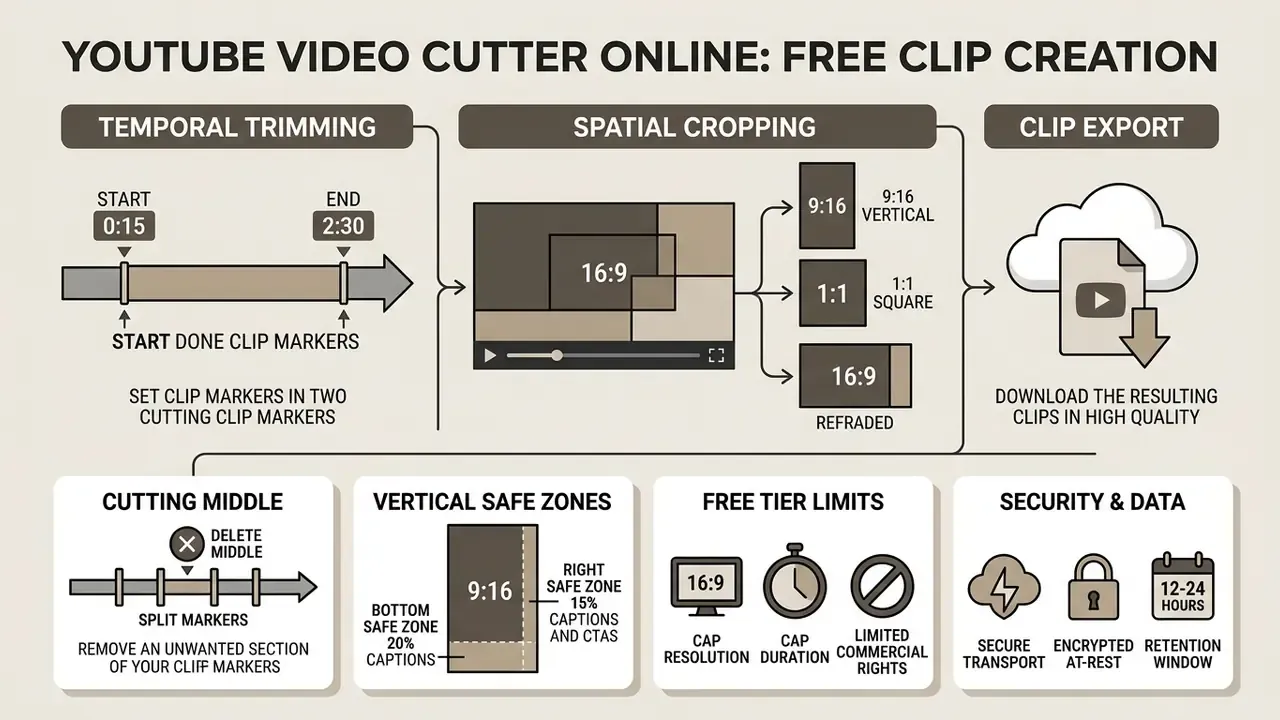
- A YouTube video cutter online performs three core operations inside the browser: temporal trimming (start and end timecodes), spatial cropping (aspect-ratio reframing), and rendering or export of a standalone MP4 or WebM file.
- Cutting out the middle of a video requires splitting the timeline at two markers, deleting the isolated chunk, and ripple-joining the remaining segments. Dragging the edges alone will not do it.
- Quality loss is not automatic. Cuts aligned to keyframes allow lossless stream copy, while cropping and re-framing always force re-encoding, so bitrate settings matter.
- Vertical 9:16 exports must respect platform safe zones (bottom 20%, right-side 15%), or captions, CTAs and logos get covered by native UI.
- Free tiers cap resolution, duration and commercial rights. Pro tiers unlock 4K, AI reframing, batch export and priority render queues.
- Before uploading confidential footage, verify retention windows (12 to 24 hours), transport and at-rest encryption, and explicit prohibitions on AI-model training.
Which Online Cutter Fits Your Workflow
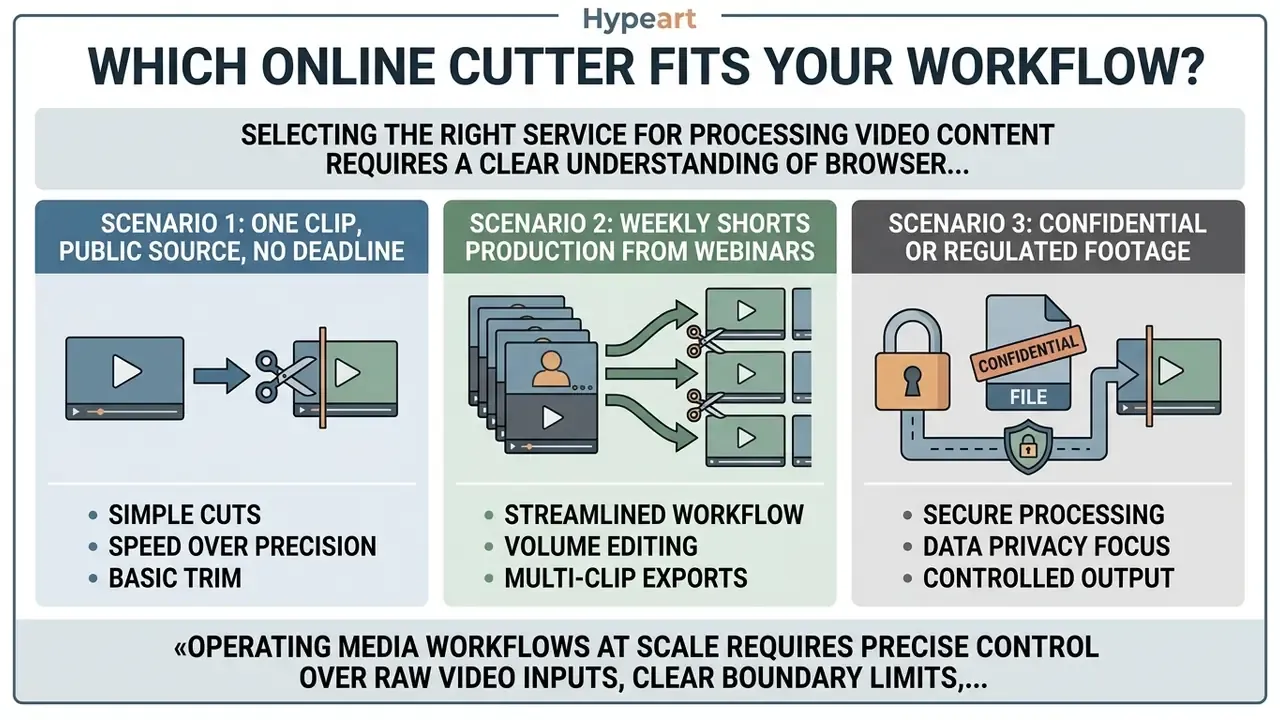
Three quick scenarios, because the right tool depends less on features and more on what you are protecting and shipping.
- One clip, public source, no deadline. A free browser trimmer is enough. Expect a watermark, a 1080p ceiling and a daily job quota of roughly three renders.
- Weekly Shorts production from webinars. You need batch export, auto-captions, a brand kit and a priority queue. That is a paid tier, not a workaround.
- Confidential or regulated footage. Read the retention policy first, then the AI-training clause. If either is vague, edit locally and skip the upload entirely.
Selecting the right service for processing video content requires a clear understanding of browser processing, format compatibility, and export parameters. Video editors and digital content teams frequently need to extract specific segments from long-form YouTube videos, adapt aspect ratios for vertical feeds, and download high-quality files without installing heavy desktop software.
What a YouTube Video Cutter Online Can Do
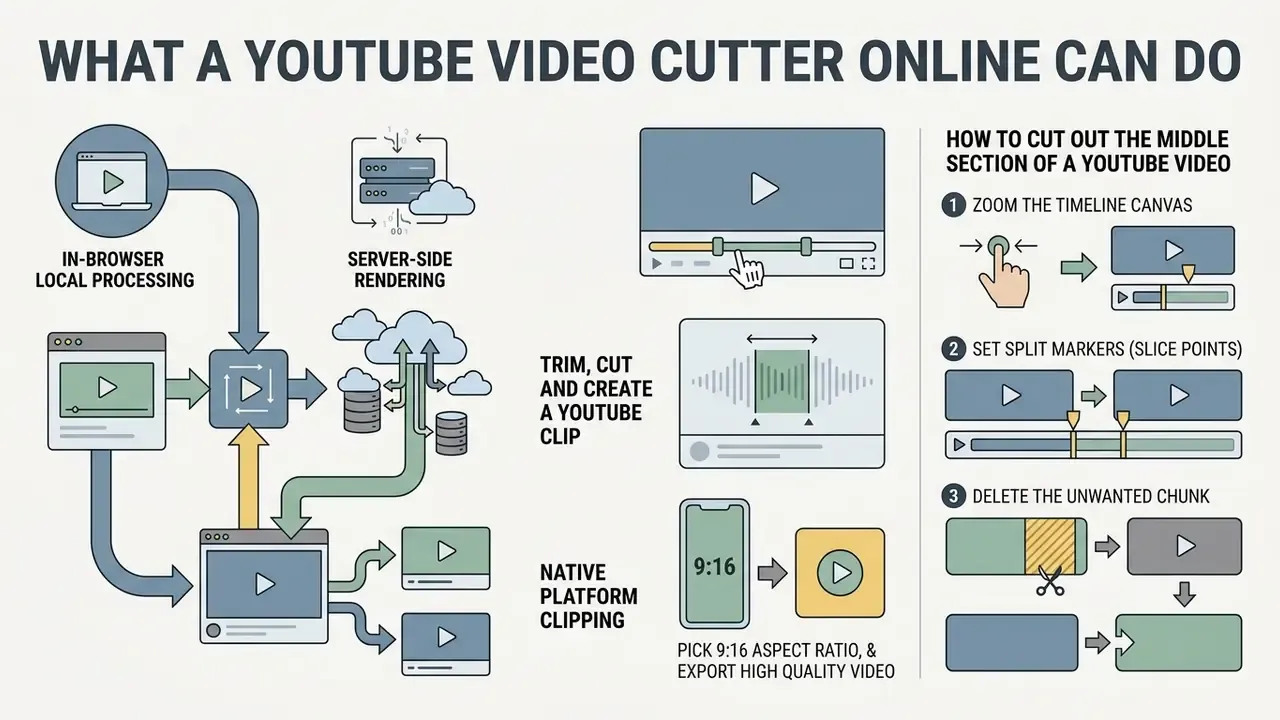
A YouTube video cutter online lets users trim temporal boundaries, alter spatial frame dimensions, and export selected segments directly from a web browser. These browser-based applications remove the need for local desktop software while giving immediate control over where a clip starts and stops.
Modern online video tools handle three primary tasks: setting precise cut boundaries, re-framing horizontal media for vertical distribution platforms, and rendering processed clips into standalone containers such as MP4 or WebM. According to a large-scale platform study by Vydiswaran et al. (Shorts vs. Regular Videos on YouTube: A Comparative Analysis of User Engagement and Content Creation Trends, arXiv, 2024), short video clips extracted from long-form content consistently generate higher view-to-like ratios across non-educational categories, which makes online cutting tools a practical asset for media optimization.
«Shorts attract more views and likes per view than regular videos, but attract fewer comments per view». Vydiswaran et al., Shorts vs. Regular Videos on YouTube, arXiv (2024). https://arxiv.org/abs/2409.05922
The 2026 market splits into three architectural models, and the distinction matters for both speed and confidentiality:
- In-browser local processing. The clip is assembled inside the browser tab itself. The user sets start and end points, selects WebM or MP4, and receives the file without server round-trips.
- Server-side rendering. The user uploads a file or pastes a YouTube link, the platform renders the segment in the cloud, and a download link comes back. This model supports 4K, batch jobs and AI features.
- Native platform clipping. YouTube Studio offers trimming and clip creation from a transcript or from timecodes, but it publishes inside YouTube rather than producing a downloadable master.
Hypothetical scenario: an enterprise digital marketing team needed 30-second promotional highlights from a two-hour corporate keynote. Using a web-based tool to cut video online from YouTube, the team isolated key speaker statements, re-framed the canvas from 16:9 to 9:16, and exported publishing-ready assets in under five minutes per clip. Illustrative, not a documented client result.
Trim, Cut and Create a YouTube Clip
Trimming sets explicit start and end timecodes to isolate a single fragment from a longer YouTube video. The process removes unwanted intro sequences, background noise, or trailing discussion without altering the source file hosted on YouTube.
In technical editing workflows, accurate trimming relies on Society of Motion Picture and Television Engineers (SMPTE) timecode precision. As documented in the SWGDE Technical Overview of Digital Video Files (Scientific Working Group on Digital Evidence, 2022), frame-accurate cutting requires identifying presentation time stamps down to individual frames. When you set cut boundaries on keyframes (intra-coded I-frames), online editors can perform a lossless stream copy. If a cut lands between keyframes, the tool must re-encode surrounding frames to keep playback smooth and artifact-free.
Segment selection is not a neutral technical act. Which seconds you keep determines downstream performance.
«Acoustic, textual, and visual features of short videos strongly shape the distribution of likes, shares, and comments». Shan, Mengli & Huiwen, What matters for short videos' user engagement: A multiblock model (2023). https://www.sciencedirect.com/science/article/pii/S0378720623000842
Readers comparing browser cutters against full timeline suites can review the wider category of video editing tools before committing to a workflow.
How to Cut out the Middle Section of a YouTube Video
Standard trimming adjusts only the start and end points of a clip. To remove unwanted middle segments, such as mid-roll ads, long pauses, filler words, or retakes, you have to split the timeline into multiple chunks:
- Zoom the timeline canvas.Expand the timeline view with the zoom tool to pinpoint exact visual frame shifts or audio waveform dips. Zooming before cutting is what separates a clean edit from a clipped syllable.
- Set split markers (slice points).Place the playback head at the beginning of the unwanted segment and click the Split (Scissors) icon. Repeat at the end of the unwanted fragment.
- Delete the unwanted chunk.Select the isolated middle fragment and press
Delete. - Ripple join.Drag the remaining left and right clip segments together, or enable Auto-Ripple Join so no blank black frames survive into the export.
YouTube Studio follows the same logic for creator-owned uploads: open Content → Video → Editor → Trim & cut → New Cut, drag the red selection box over the section to remove, confirm the edit, then click Save. The blue selection box keeps a segment, the red box deletes one. No re-upload of the source video is required, and the feature works for videos shorter than six hours.
Repeat the split at multiple points when you need several highlight fragments from one keynote. Each isolated chunk can then be exported separately or merged in a new order.
Crop Video for a New Aspect Ratio
«Short videos stimulate users' senses through audiovisual content, offering both entertainment and information dissemination». Zhang, Audiovisual features of short-video advertising on TikTok (2025). https://www.sciencedirect.com/science/article/pii/S0148296324006842
Practical reasons to crop video online from YouTube go beyond ratio conversion: isolating a speaker, removing a competitor's watermark from licensed footage, eliminating black letterbox bars from a re-encoded source, or hiding an on-screen timecode burn-in.
Download the Edited Video Clip
Downloading exports the finalized render file from the web editor to local device storage. This final step marks the functional boundary between an interactive video editor and a simple file retrieval service.
An online video editor processes, renders, and re-packages media frames according to user-defined timeline instructions before generating a download link. A standard video downloader, by contrast, merely retrieves an existing remote file in its unedited state. In desktop suites the same distinction holds: export is a post-edit save step (choose format and preset, then render), while a downloader performs no timeline operation at all. So when a service promises to cut and download YouTube video online, check which of the two it actually does.
Managing Clip Audio: Muting, Tracks, and AI Music Generation
Trimming visual frames often means reworking the soundtrack as well.
- Audio muting and stripping. Remove background hums, copyright-protected noise, or original commentary by toggling the timeline track mute icon before export. Muting is the fastest way to avoid a Content ID claim on a repurposed clip while keeping the visuals intact.
- Royalty-free track overlays. Import clean WAV or MP3 tracks, or use built-in royalty-free libraries, and match the music mood to the segment: calm and moody for testimonial cuts, upbeat for product teasers.
- Multi-track separation. Advanced editors expose an Extract Audio action that detaches the clip's audio into an independent track, so voiceover and ambience get separate volume, fade and mute control.
- AI music generation. Some browser tools accept text prompts describing tempo, mood and genre (for example, "Upbeat corporate tech background music, 120 BPM") and generate a copyright-cleared track rendered in sync with the trimmed clip.
- Silence removal. AI auto-cut features analyse speech pauses and strip dead air automatically, then let the editor rescale or merge the surviving fragments by hand where the cut was too aggressive.
How to Cut a YouTube Video Online in Three Steps
Cutting a video online means loading the target media, establishing exact start and end trim boundaries on the timeline, and starting the render. This three-step sequence runs entirely inside standard modern web browsers, and the subsections below expand each step.
- Import the video source.Paste the YouTube URL or drag the source file into the browser editor interface.
- Define frame boundaries.Position timeline markers or type exact SMPTE timecodes to fix the clip duration.
- Render and export.Preview the isolated clip, choose output resolution parameters, then trigger the export and download the file.
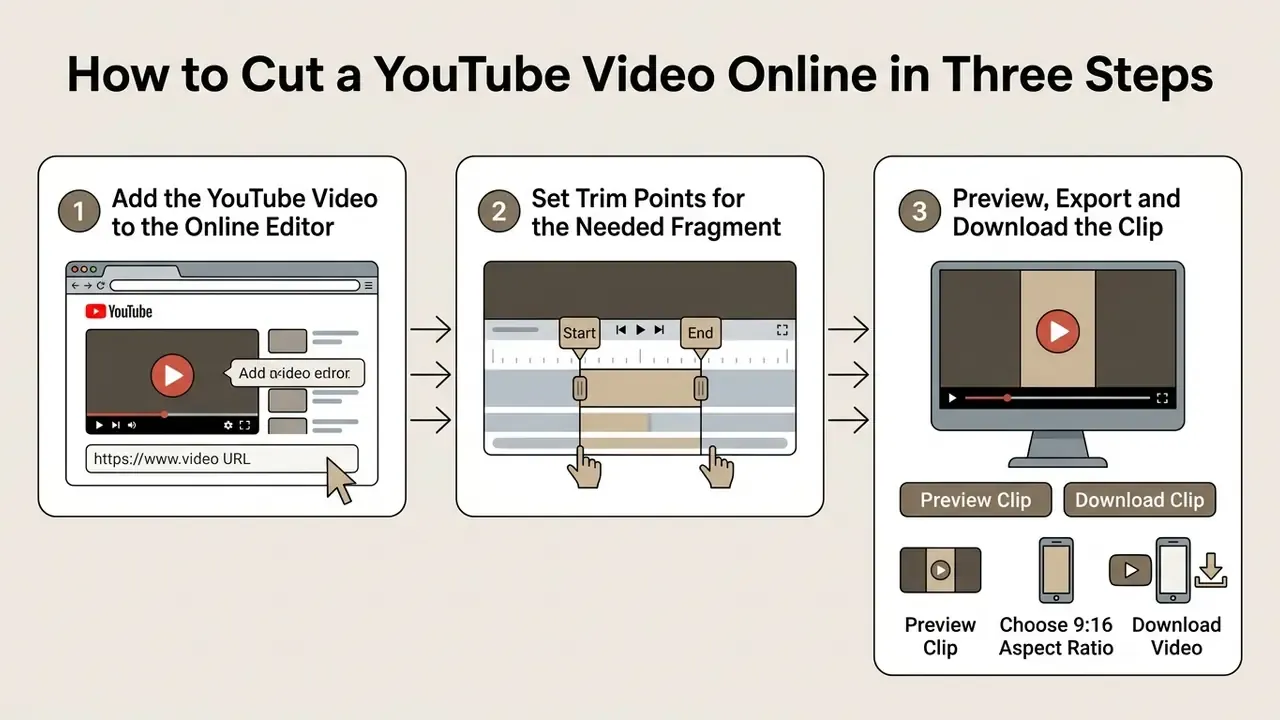
Add the YouTube Video to the Online Editor
You add a video by pasting a valid YouTube URL into the web application or uploading a local file. The editor ingests the stream metadata to populate the timeline preview canvas.
Technical restrictions can influence direct URL ingestion. According to YouTube platform documentation, embed availability is controlled by video-level settings: the Data API exposes privacy status, licensing and an embeddable flag, content owners can disable embedding on all domains or on specific apps, and age-restricted videos cannot play on most third-party websites. Rights-managed material is handled through the Content ID API, which is restricted to YouTube Partners. In practice, private videos, embed-disabled videos, age-gated videos and Content ID protected uploads may simply fail to load into a third-party web editor. When that happens, the content owner has to upload the raw media file from local storage to continue editing.
Set Trim Points for the Needed Fragment
Establishing trim points means moving timeline sliders or using keyboard hotkeys to set the precise In and Out points of the fragment you want.
Professional web editors support hotkeys, typically I for the in-point and O for the out-point, so editors can jump to exact frames. Timeline snapping aligns cut markers to keyframes or audio wave spikes automatically. Desktop-grade suites document the same pattern: park the playhead on the target frame, press O, then lean on snap-to-edges plus edge view for frame-accurate trimming. That precision is what keeps trimmed clips from starting mid-word or cutting a crucial visual transition in half.
«Intention to continue watching is primarily driven by satisfaction and dependence, shaped by cognitive consumption values». Keep scrolling: An investigation of short video users' continuous watching behavior (2024). https://www.sciencedirect.com/science/article/pii/S0736585324000583
Preview, Export and Download the Clip
Previewing lets the editor verify framing, audio sync and clip timing before the final render. Once approved, the application processes the clip and generates a download link.
During export, the browser or server renders the sequence into a standalone file, usually an MP4 container with H.264 video and AAC audio. Output resolutions typically run from 720p to 4K, depending on the editor's processing capability. Where a tool can reuse cached preview renders, enabling that option shortens export time by avoiding a second full pass.
To learn more about broader editing workflows and publishing tools, consult the comprehensive YouTube video editor guide. Teams seeking advanced processing options can evaluate specialized services through an AI Media Comparison or review automated media pipeline structures via AI Media Workflows. For complementary asset optimization, many teams also consult a video compressor guide.
How to Crop a YouTube Video Online
To crop a YouTube video online, you define a new spatial boundary on the canvas to adjust composition, cut away unwanted margins, or reframe content for a target display ratio.
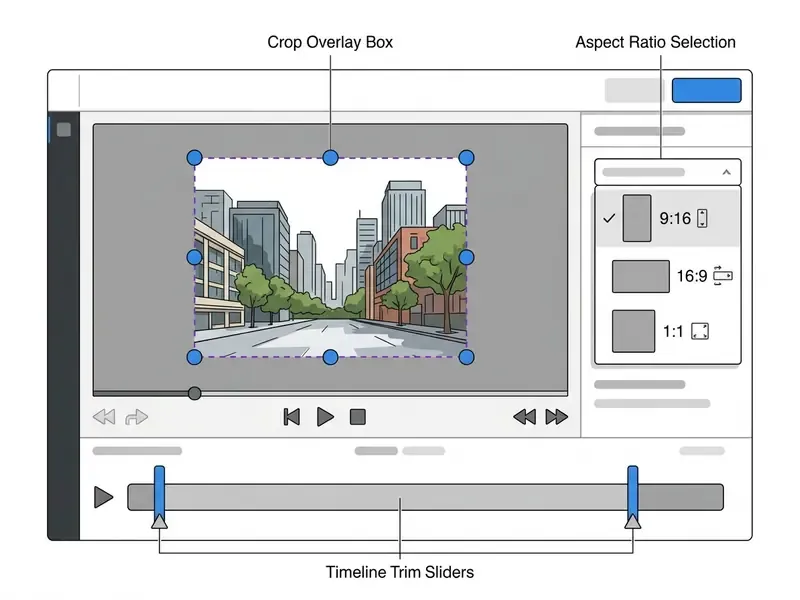
The control logic is consistent across editors: a crop overlay rectangle marks the future visible area, corner and side handles resize that area, and a separate aspect-ratio selector (Freehand, 16:9, 9:16, 1:1) constrains the proportions while you drag.
Combine Cropping with Video Trimming
Combining spatial cropping with temporal trimming is how long-form horizontal footage becomes a fully optimized short-form asset.
The optimal sequence runs temporal trimming first, then spatial cropping. Isolating the target time segment before adjusting the canvas keeps browser processing overhead down. Command-line tools like FFmpeg reflect the same logic, applying the -ss (start time) and -to (end time) flags before the crop=w:h:x:y filter chain. Trimming and cropping stay two distinct operations, one on the time axis, one on the frame, and vendor documentation consistently treats them as sequential steps rather than a single action.
Elevating Cut Clips with Text Overlays and Brand Kits
Turning raw YouTube cuts into platform-ready assets means adding visual context for muted feeds.
- Lower thirds and captions. Add animated text blocks in the lower area of the frame to identify speakers, explain key points, or carry dynamic subtitles. SRT and VTT exports stay compatible with YouTube and downstream editors as long as subtitles remain a separate track instead of being burned in.
- Watermarks and logos. Upload transparent PNG logos and anchor them to fixed frame corners to hold brand identity across shared content, while respecting the right-side interaction margin described above.
- Custom brand kits. Store brand hex colors, font families and graphic presets inside the online editor to keep every exported clip visually consistent.
- Intro, outro and CTA cards. Short motion-graphic bumpers and end cards turn a trimmed fragment into a self-contained asset that still works for a viewer who arrives with zero channel context.
Technical capability, though, is only half of the decision. Whether a browser tool can deliver 4K masters, burn brand fonts, or track a speaker automatically depends almost entirely on the pricing tier, which is what the next section quantifies.
Free vs Pro YouTube Video Cutter Online: What to Compare
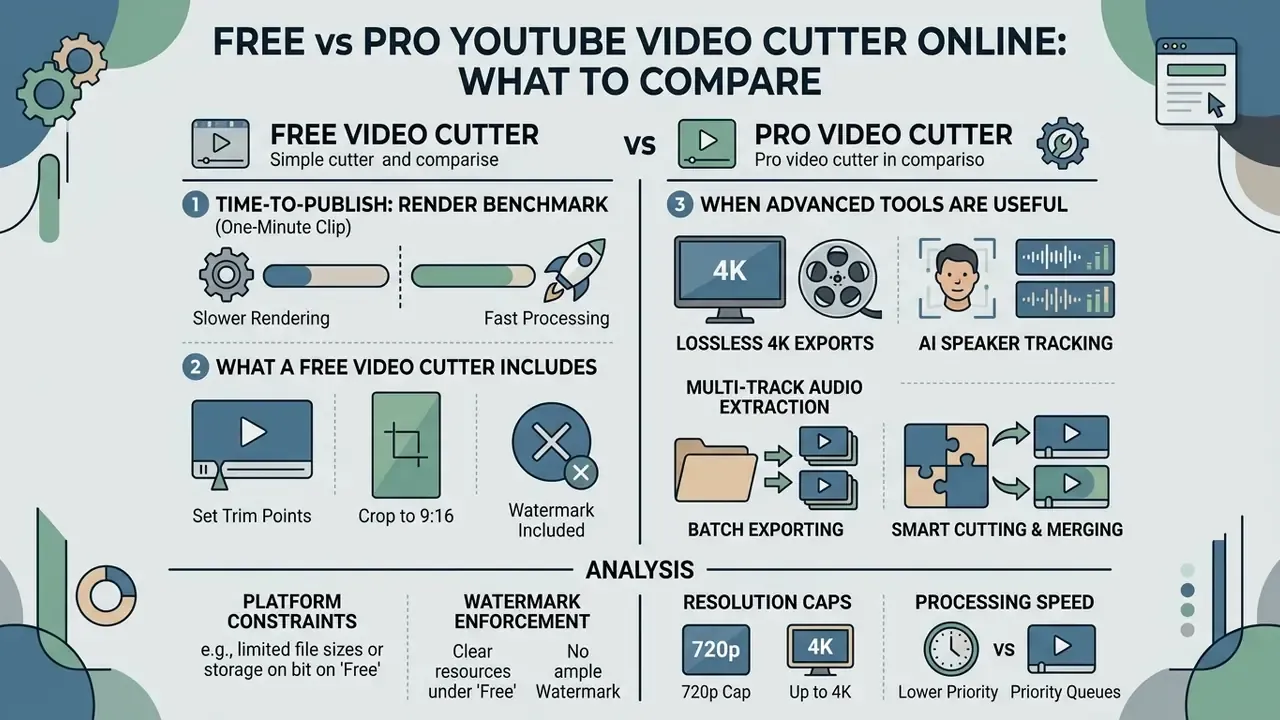
Evaluating the best YouTube video cutter online free against a paid plan means analysing platform constraints, watermark enforcement, resolution caps and processing speed.
| Parameter | Free Online Video Cutter | Pro Online Video Cutter |
|---|---|---|
| Watermark enforcement | Frequently added on export | Watermark removed |
| Maximum resolution | 720p to 1080p | 4K UHD export support |
| File duration limit | 5 to 10 minutes max input | Unlimited input length |
| Daily job quota | Often 1 to 3 renders per day | Credit-based or unlimited |
| AI features and captions | Limited or trial-only | Auto-reframing and auto-subtitles |
| Processing speed | Standard queue prioritization | High-priority render queue |
| Commercial licensing | Personal use restrictions | Full commercial usage rights |
Time-to-Publish: Render Benchmark for a One-Minute Clip
| Stage | Free Tier (typical) | Pro Tier (typical) |
|---|---|---|
| Source ingest (URL or 500 MB upload) | ~45 sec | ~25 sec |
| Render of a 60-second 1080p clip | ~180 sec (queued) | ~30 sec (priority) |
| 4K render of the same clip | Not available | ~90 sec |
| Total time to downloadable file | ~4 min | ~1 min |
Indicative ranges only. Actual timings depend on connection speed, source bitrate and provider load. Vendors rarely publish quantified render benchmarks, so treat these figures as planning estimates rather than guarantees.
Teams building a broader toolchain can also weigh desktop and hybrid alternatives in our overview of free video editing software.
What a Free Video Cutter Usually Includes
Free services cover fundamental editing needs: basic clip extraction, standard aspect-ratio adjustment, quick social sharing. Enough to clip a YouTube video online once or twice a week.
Standard free plans typically include:
- Basic temporal trimming and multi-segment cutting.
- Preset aspect ratio cropping (16:9, 9:16, 1:1).
- Export resolutions capped at 720p or 1080p.
- Basic container exports (MP4, WebM).
Typical free-tier limits observed across vendors include lifetime storage ceilings (1 GB per account, for example), daily trim quotas of roughly three jobs, source-length caps of two to five minutes, file-size caps near 200 MB, and a watermark on every export. Creators evaluating adjacent generative tooling can also review free AI video generators.
Users looking for free art and media tools can compare options in the best free AI video generator review or check the free photo editor guide.
When Advanced Editing Tools Are Useful
A professional tier starts to pay for itself once you produce high-volume commercial media, need high-resolution output, automated captioning, or multi-track audio management.
Paid subscriptions unlock deeper operational capability:
- Lossless 4K exports. High-bitrate rendering with no forced downscaling.
- AI speaker tracking. Automatic canvas re-framing that follows the active speaker in vertical layouts.
- Multi-track audio extraction. Voiceover, music and ambience split for independent volume control.
- Batch exporting. Several trimmed clips processed at once.
- Smart cutting and merging. Silence detection, pause-based cuts, soft transitions, automated re-assembly of surviving fragments.
- Team workspaces and scheduling. Shared brand templates, project-level permissions, direct social scheduling from the render queue.
Best Uses for Cut YouTube Videos
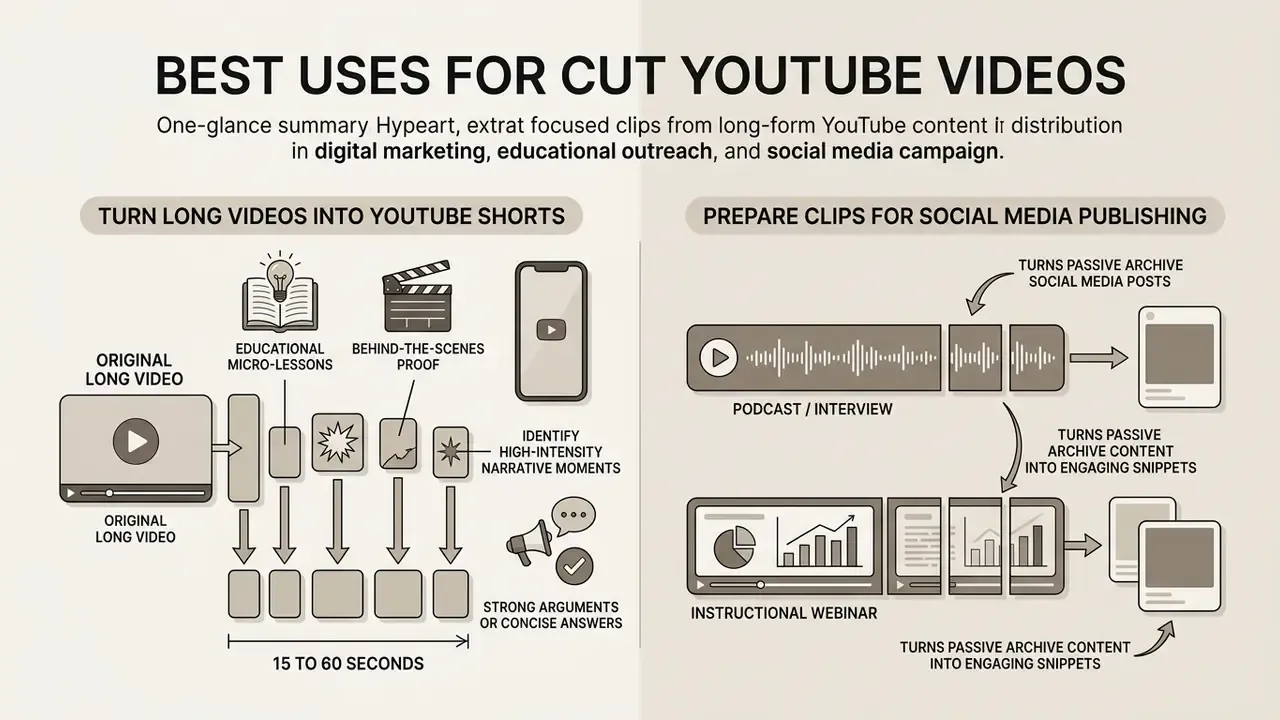
Extracting focused clips from long-form YouTube content serves real distribution functions in digital marketing, educational outreach and social media campaigns.
Research by Shan et al. (What matters for short videos' user engagement: A multiblock model, 2023) shows that multimodal short video formats deliver noticeably higher engagement per minute consumed than unedited long-form media. By repurposing core fragments, media teams multiply audience touchpoints across channels without shooting anything new.
«Both the amount and quality of social proof significantly influence impulse buying, with product type serving as a moderating factor». Beyond likes and comments: How social proof influences consumer impulse buying on short-form video platforms (2024). https://www.sciencedirect.com/science/article/pii/S0148296324003582
Formats that consistently repay the cutting effort: educational micro-lessons, behind-the-scenes proof footage, challenge participation clips, humor cut-downs, single-story narratives, cliffhanger teasers pointing back to the full video, and loop-friendly segments engineered for replays.
Turn Long Videos into YouTube Shorts
Converting long podcasts, interviews or instructional webinars into YouTube Shorts turns passive archive material into an active channel growth asset.
Effective conversion habits include:
- Identifying high-intensity narrative moments, strong arguments, or concise answers.
- Setting trim boundaries to keep total duration between 15 and 60 seconds.
- Applying a 9:16 crop centered on the primary speaker or visual subject.
- Adding bold, centered subtitle overlays that hold attention during muted playback.
«Trustworthiness, expertise, attractiveness, and authenticity are key content characteristics that drive short-video advertising effectiveness». Li, How content characteristics of short-video advertising drive consumer outcomes (2026). https://www.sciencedirect.com/science/article/pii/S0148296325003539
For creators working inside YouTube itself, the native route is Content → Videos → Clips and Shorts → Create clip or Short → Short, then selecting the segment to extract. On Android, Remix → Edit into a Short captures up to 60 seconds from any eligible video. One caveat worth remembering: anything outside the visible vertical box in the trim editor will not appear in the published Short.
Video Quality, Privacy and Safe Online Editing
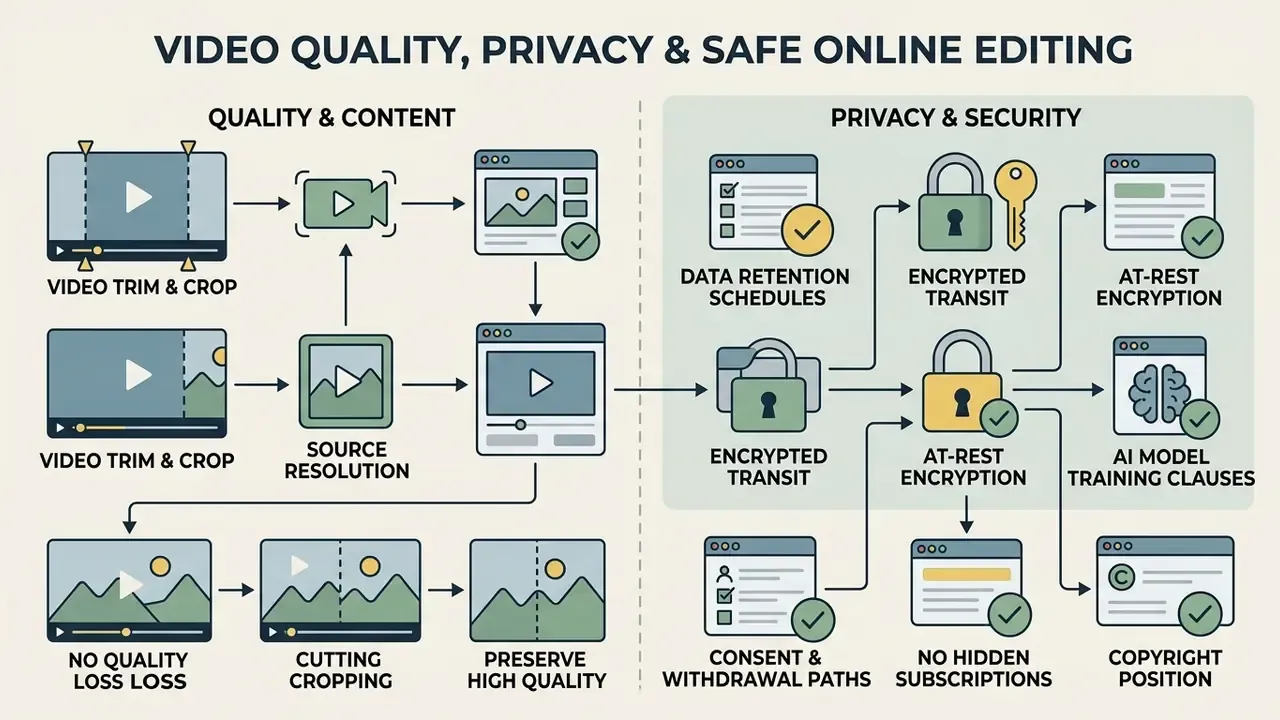
Holding source resolution and safeguarding proprietary footage are the two considerations most often skipped when media moves through web-based applications.
Does Trimming or Cropping Reduce Video Quality?
Quality degradation during online video editing depends entirely on whether the software re-encodes or performs a direct stream copy.
As set out in digital media guidelines by the International Association of Sound and Audiovisual Archives (IASA), re-encoding video streams with lossy compression introduces generation loss, thinning fine image detail and adding compression artifacts. Each further lossy pass causes additional, irretrievable loss. Lossless trimming, by contrast, copies the compressed bitstream directly without decoding or re-quantizing frames, preserving bit-exact source fidelity.
Cropping is the exception. Because the frame geometry changes, re-encoding is unavoidable, and a 1080p source cropped to 9:16 keeps fewer pixels than the original. In practice a 1080p master cropped for a vertical feed still looks clean on a phone, while upscaling a 720p source to fill a 1080×1920 canvas will visibly soften.
«High-quality short videos require significant content creation effort, implying creators invest in production to maintain visual and audio quality». Shan, Mengli & Huiwen, What matters for short videos' user engagement: A multiblock model (2023). https://www.sciencedirect.com/science/article/pii/S0378720623000842
When re-encoding is unavoidable, set a high-bitrate export profile, or consult technical media benchmarks and processing options via an AI Media API. To estimate file-size trade-offs before rendering, creators often use digital calculators alongside the video compressor guide.
What to Check in a Privacy Policy
Mobile Web Editing: Cross-Device Workflows and Troubleshooting
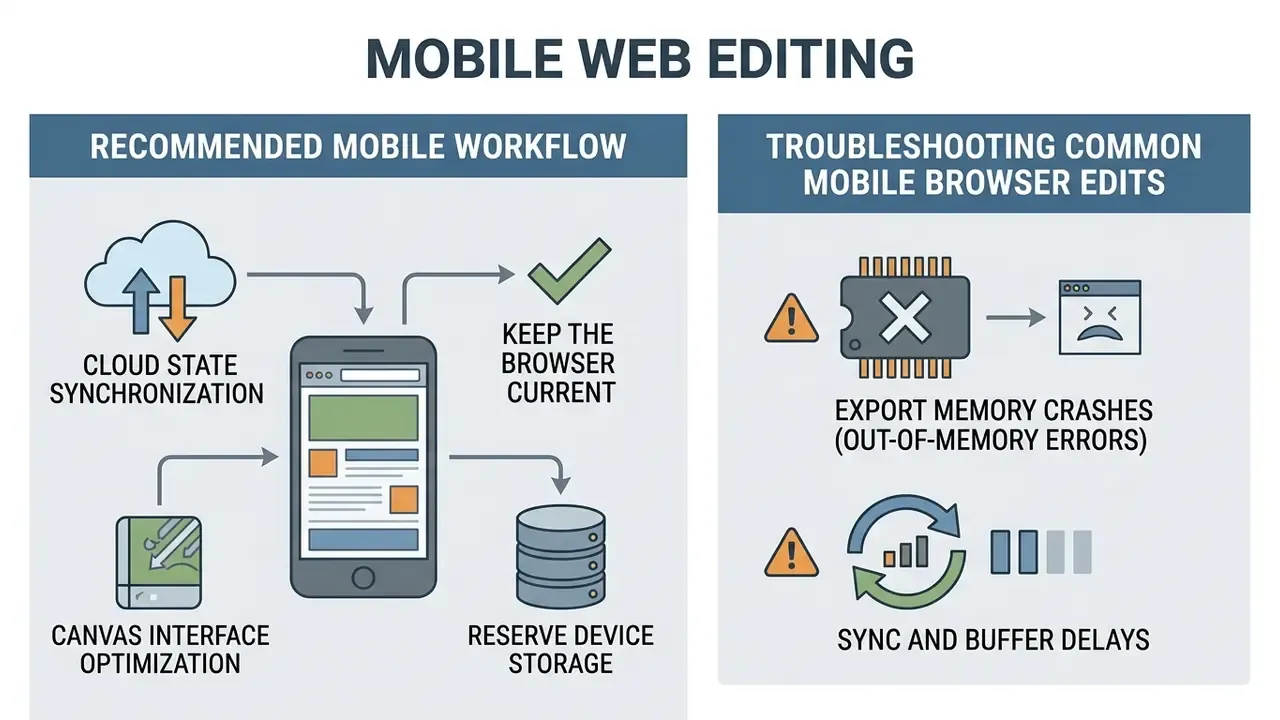
Editing video inside mobile browsers (iOS Safari or Android Chrome) means managing device memory and processing limits. Browser editors typically render frames through WebGL, decode with WebAssembly, and persist project state in IndexedDB, a stack that is fully supported on desktop but power- and memory-sensitive on phones.
Recommended Mobile Workflow
- Cloud state synchronization. Start an edit on a desktop workstation and pick it up on a tablet or phone, provided the web cutter syncs timeline state to the cloud. Save or sync fully before switching devices.
- Canvas interface optimization. For complex multi-clip edits on a phone, enable Desktop Mode in mobile browser settings, or connect an external display system such as Samsung DeX to expand the workspace.
- Keep the browser current. Update to the latest version. iOS support for the required media APIs starts at Safari 16.4, with SFSafariViewController on iOS 13+ and WKWebView on iOS 14.3+.
- Reserve device storage. Make sure enough free space remains for the exported file before you start a render.
Troubleshooting Common Mobile Browser Edits
- Export memory crashes (out-of-memory errors).Mobile operating systems cap RAM per browser tab. If a 4K render fails on mobile, drop the export to 1080p or clear background apps before rendering.
- Sync and buffer delays.High-latency connections desynchronize timeline playback audio. Aim for a stable 15 Mbps or better, or work from local file uploads rather than real-time stream fetching.
- Local download restrictions (iOS Safari).Exported MP4 files land in the browser
Downloadsfolder. Use Share Sheet → Save Video to move rendered clips into the iOS Camera Roll. - GPU limitations.Some engines warn that WebGL content performs poorly on mobile hardware because of limited power and memory. On older devices, restrict mobile sessions to trimming and review, and render on desktop.
- Session loss after tab suspension.Mobile browsers discard background tabs aggressively. Export or sync after each major edit instead of trusting an open tab.
FAQ: Frequently Asked Questions About YouTube Video Cutting
Can I Use an Online YouTube Video Cutter on Mobile?
Yes. Modern online video cutters run in mobile web browsers on iOS and Android, provided the browser supports WebGL and WebAssembly media APIs. iOS devices need Safari 16.4 or later, while Android performance depends on available RAM and GPU capacity.
«YouTube Shorts exhibit significantly more abrupt shifts in engagement metrics, mimicking patterns associated with addictive designs seen in slot machines». From Lists to Infinite Scroll: A Comparative Analysis, University of Arkansas at Little Rock (2025). https://ualr.edu/ Mobile users who also customize device media can explore how to make a live wallpaper, see how to make a wallpaper from scratch, or follow instructions on how to make a video your wallpaper.
How Do I Cut a Segment Out of the Middle in Four Steps?
Zoom the timeline, place a split marker at the start of the unwanted section, place a second marker at its end, then delete the isolated middle fragment and ripple-join the remaining clips. Preview the join point before exporting. A mis-set marker usually shows up as a clipped word or a single black frame at the seam.
Can I Mute or Replace the Audio in a Trimmed Clip?
Yes. Toggle the mute icon on the audio track to strip the original sound, then import a royalty-free MP3 or WAV, or generate a track from a text prompt with an AI music tool. Where the editor exposes an Extract Audio action, the detached track can be volume-adjusted independently of the video.
Can I Merge Video Clips After Trimming?
Yes. Advanced browser editors let you arrange multiple trimmed clips sequentially on a timeline and export them as one merged MP4. The software stitches the encoded streams together and can apply crossfade transitions or audio leveling across edit points. The flow is nearly identical across major web tools: upload several clips, order them, trim the cut points, export one combined file. Common accepted inputs include MP4, MOV, MKV, WEBM and MPEG.
Can I Publish Videos Directly After Editing?
Some web-based editors support direct publishing through API integrations with YouTube, TikTok and Facebook. After editing, users authenticate their channel credentials via OAuth and upload the rendered clip straight from the editor, no local download required. Desktop suites expose the same pattern through a dedicated Publish section in the export panel, where connected accounts and metadata are set before rendering. One exception worth noting: several platform guidelines still recommend exporting first and uploading through the destination app, which is export-only rather than true one-step publishing. Developers building custom video automation pipelines can refer to the Google Veo API implementation guide or explore integration options via the AI Media API.
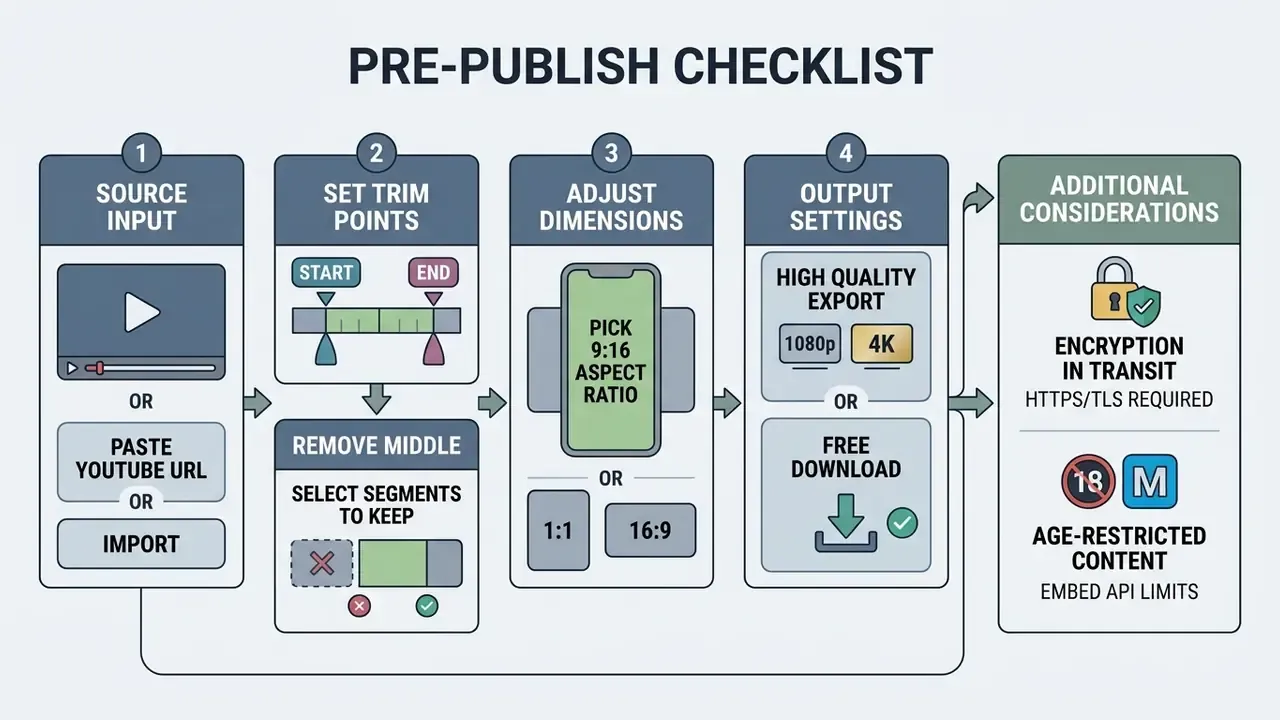
Pre-Publish Checklist Before You Hit Export
A short pass through this list prevents most re-renders.
- Cut points sit on keyframes where a lossless copy is possible.
- The join after a middle cut plays without a black frame or clipped syllable.
- Captions and logos stay clear of the bottom 20% and rightmost 15% of the canvas.
- Export resolution matches the destination (1080×1920 for Shorts, Reels and TikTok).
- Audio is either muted, licensed, or generated with cleared rights.
- The vendor's retention window and AI-training clause were checked for confidential footage.
- File naming and version tags let a colleague find the master three months later.
Appendix A: Editorial Revision Log