Key Takeaways Before You Paste a Link
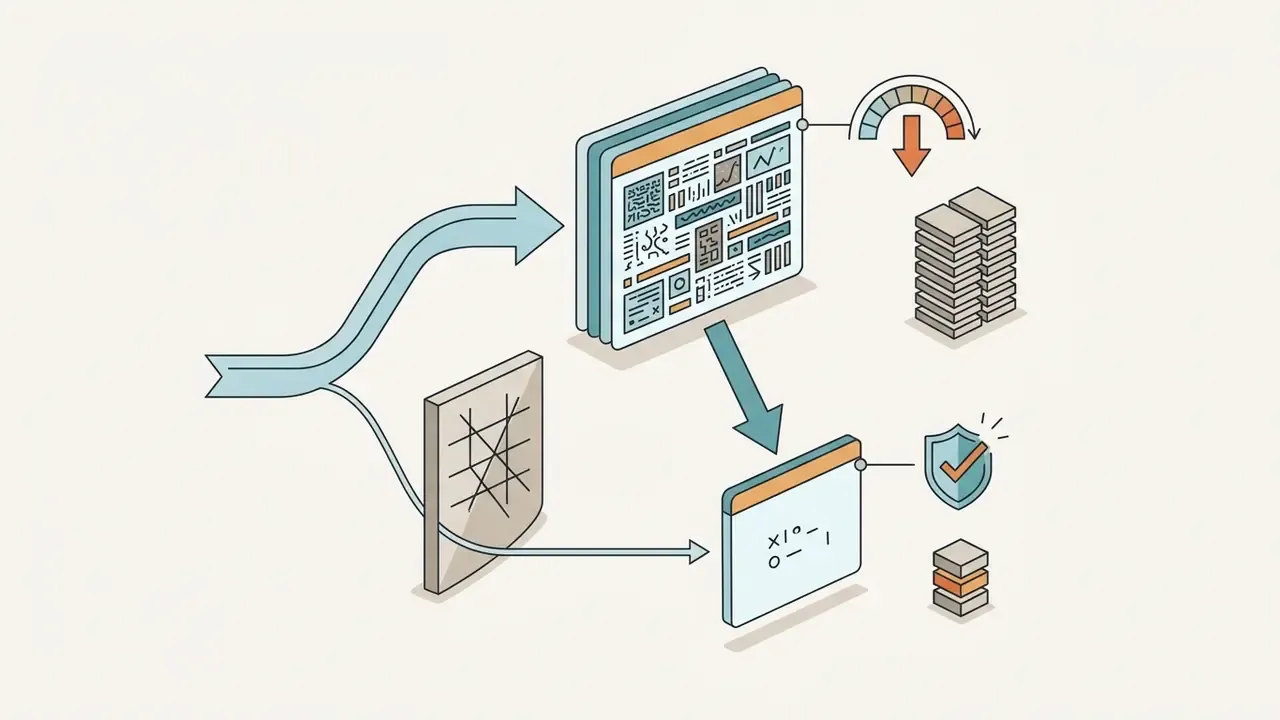
yt-dlp + FFmpeg pipeline.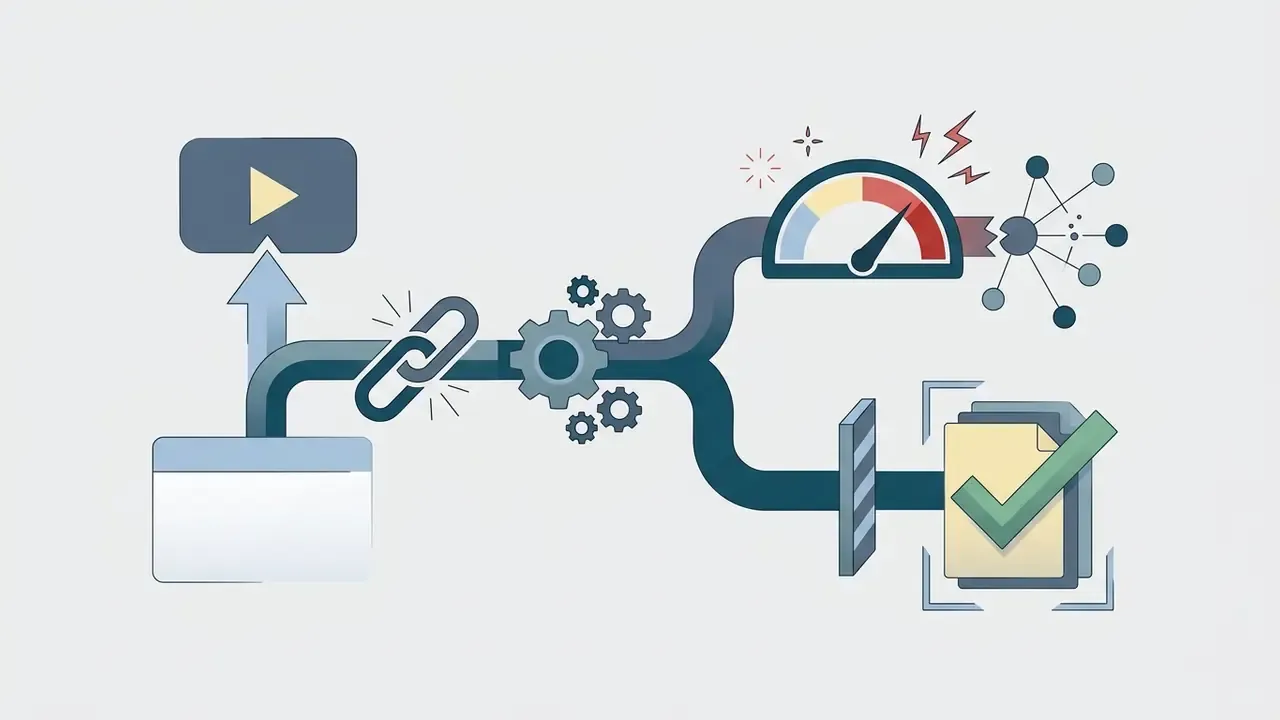
Who Should Read This and What Decision It Supports
The first is a creator or analyst who simply wants a file: MP4 at a sane resolution, or an MP3 of a two-hour interview for transcription. For that reader, the workflow and format sections below are enough.
The second is a technical operator deciding whether browser conversion belongs in a repeatable pipeline at all. The benchmark numbers and the free-tier limits answer that question, usually in favour of local tooling.
The third reader is the one this desk writes for most often: a risk, security, or governance owner who just found converter domains in proxy logs. Public stream conversion is an uncontrolled egress path, an unlicensed content source, and a malware delivery channel in one browser tab. Section by section, this guide moves from "how do I get the file" to "what control do I put around it".
What an Online YouTube Video Converter Does
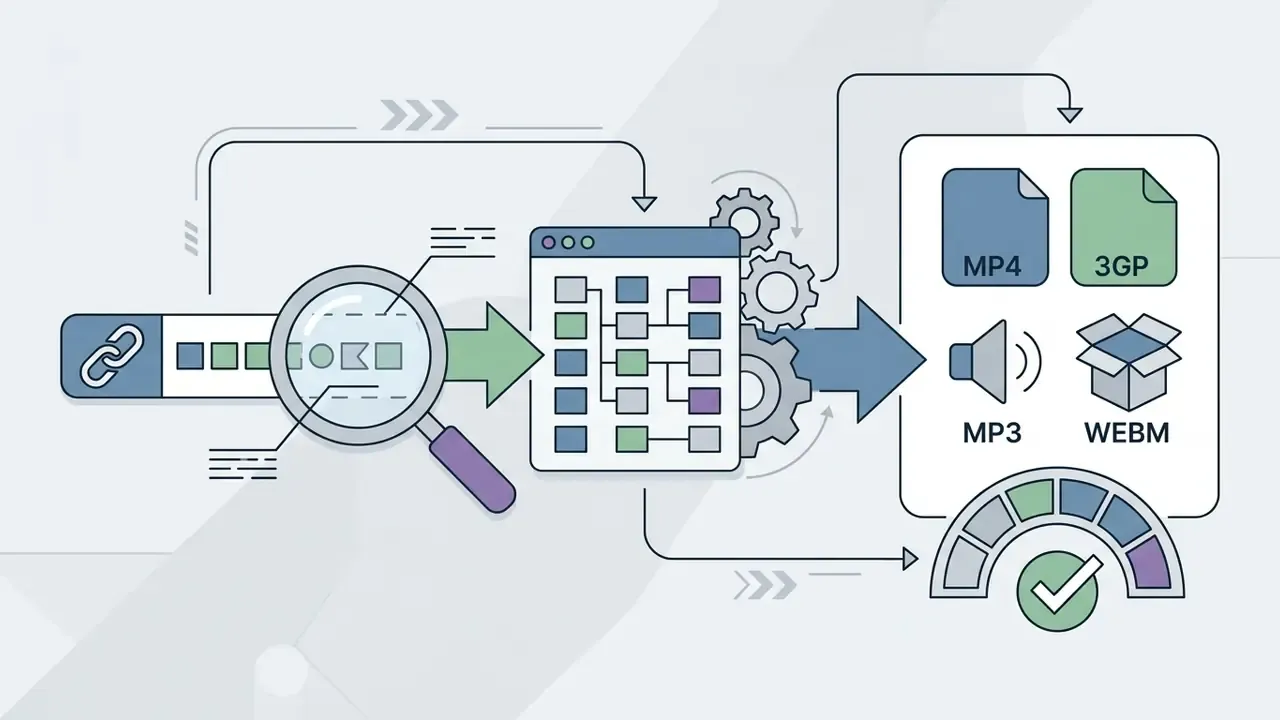
An online youtube video converter parses a platform video url to extract media streams and transcode them into downloadable files. It functions as a remote intermediary that bridges streaming web players and local media storage.
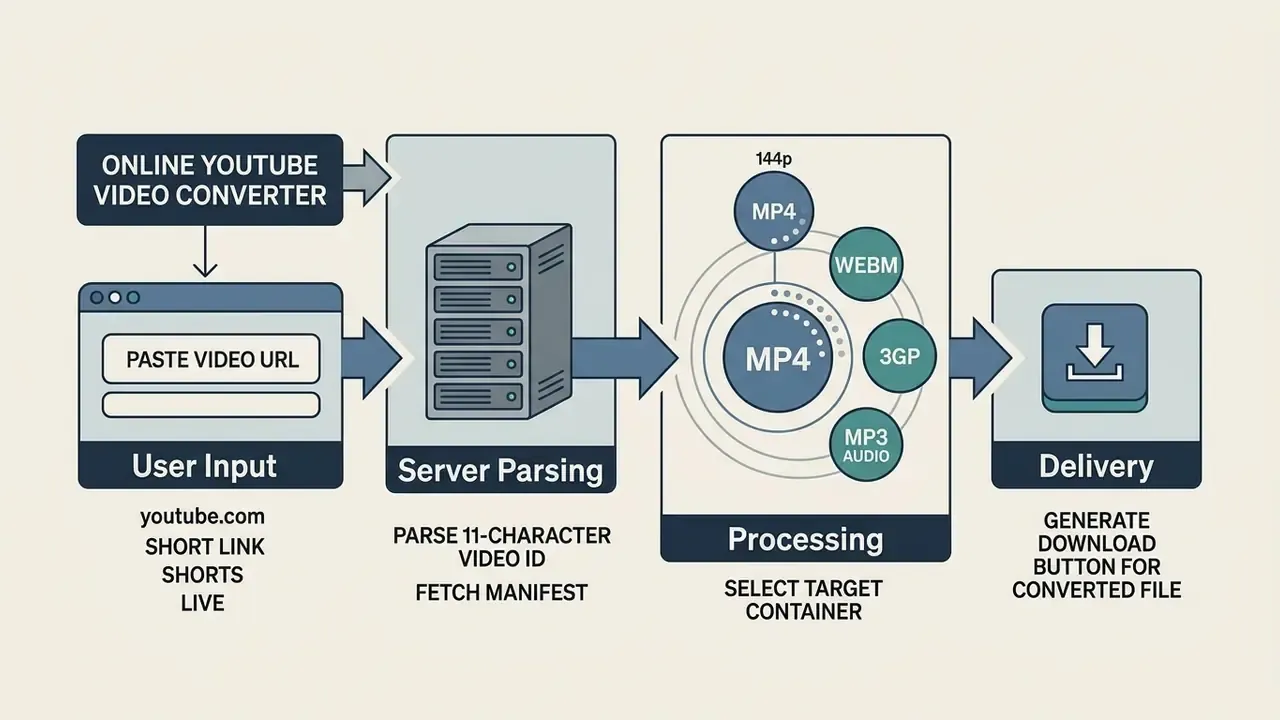
By processing media remotely, an online video youtube converter allows users to obtain files directly through a web browser. Users paste a video link, choose their preferred output video format, and generate a converted file via a download button. No installer, no local codec pack, no admin rights.
Converting a YouTube Link into a Video or Audio File
Converting a youtube video link requires parsing the URL to extract the unique 11-character identifier from youtube com. Server scripts fetch player manifests to isolate the mp4 video stream and the mp3 audio track.
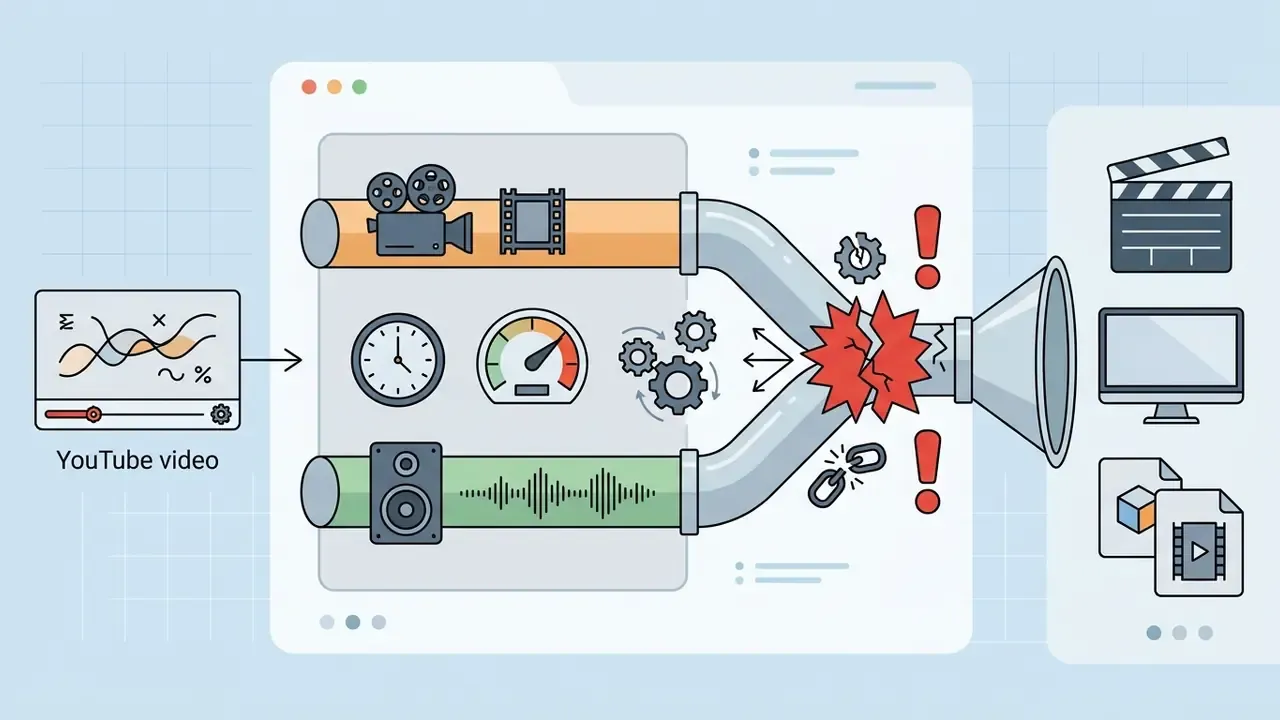
The youtube converter then processes these streams to match the requested output. Users can choose a full visual file containing video audio, or a standalone audio track for listening. Because YouTube delivers high-resolution video and audio as separate adaptive streams, anything above 1080p is typically muxed server-side: the converter stitches the video-only track and the audio-only track back together through FFmpeg before the download link appears. That extra step is also where most failures happen, which we return to later.
How a YouTube Converter Differs from a Video Downloader
A classic video downloader retrieves and saves the original media stream without altering its container or underlying codecs. An online youtube video converter, by contrast, actively transcodes or repacks video files into target formats such as mp4 files.
Transcoding means decoding binary media streams and re-encoding them into specified codecs: H.264, VP9, AV1, or MP3. Cloud transcoding documentation from major providers frames the distinction cleanly. A downloader acquires the stream as delivered, while a transcoder normalises output by codec and container (H.264, H.265, VP9, MP4, MP3, OGG, HLS, MPEG-DASH). According to technical documentation on stream handling, a specialised download tool optimises format normalisation and device compatibility during export. Worth remembering: repackaging is cheap, full re-encoding is not.
Why Media Conversion Is Also a Shadow IT and Shadow AI Question
For risk and governance teams, stream conversion is rarely a purely consumer topic. Public converters get used inside organisations to harvest video and audio at scale: for transcription, for competitive research, or for assembling unsanctioned training and evaluation datasets for local models. That traffic bypasses procurement, data classification, and licensing review. Textbook Shadow IT, drifting quietly into Shadow AI.
Two consequences follow. First, media pulled from a public converter carries no provenance record, so any downstream model trained or benchmarked on it inherits unresolved copyright exposure. Second, the upload and download path itself is an uncontrolled egress channel: public conversion endpoints have been documented scraping uploaded files for personally identifiable information, banking data, credentials, and cryptocurrency seed phrases. Treat converter domains as an egress category that gets an explicit decision, not as a browser curiosity.
How to Convert YouTube Video Online in Three Steps
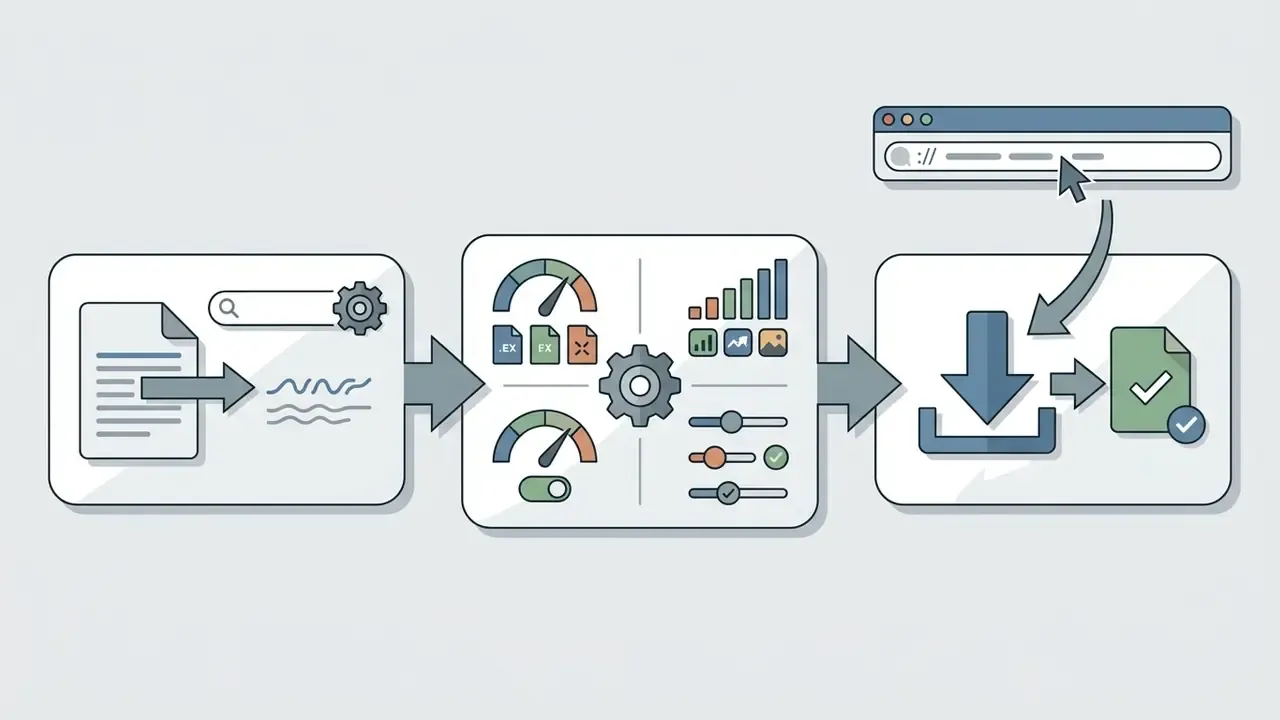
To convert youtube video online, paste a valid media URL, select an export format, and trigger conversion. This browser-based workflow produces a converted file with no local application setup.
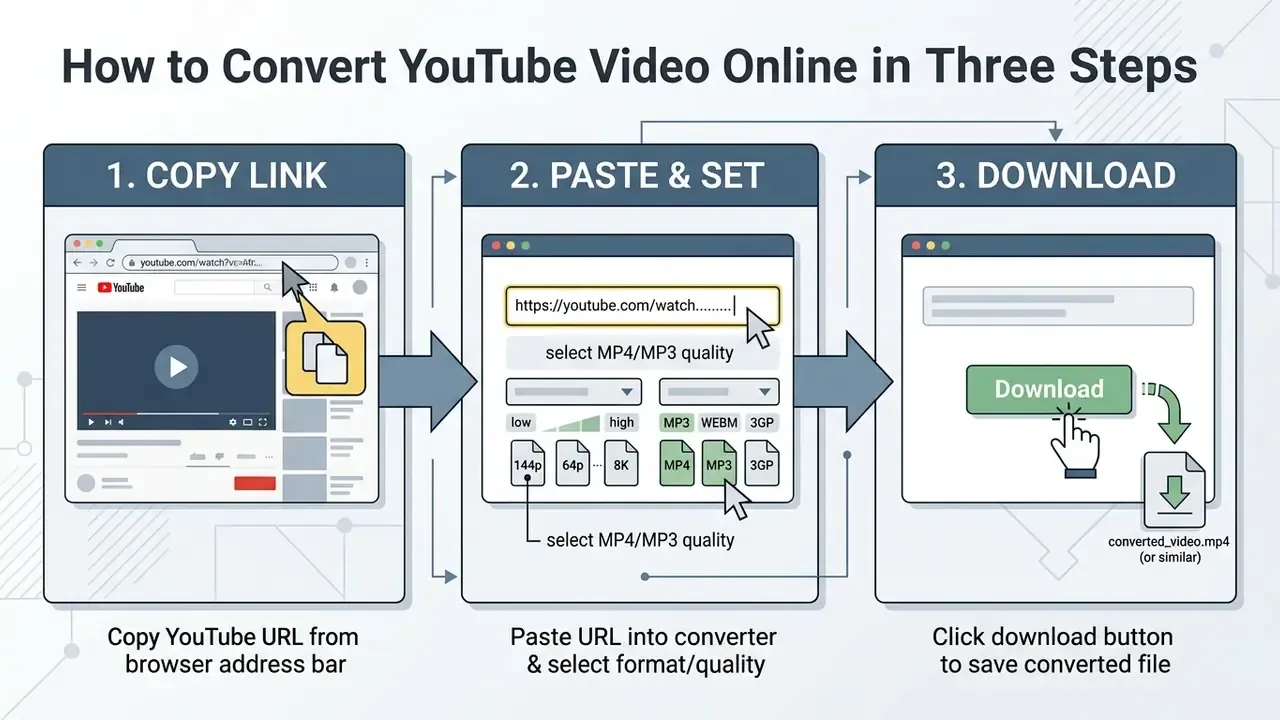
Step-by-step workflow to convert youtube video online directly in a web browser.
- Copy the target video url or video link directly from the streaming platform.
- Paste the URL into the online youtube video convert field and choose the desired video format.
- Start processing and click the download button to receive the final file.
Copy and Paste the Video URL
The process begins by copying a valid video link from youtube com or from the official mobile sharing buttons. Correct URL syntax ensures that the online video converter parses the 11-character video ID accurately.
Pasting a clean video url prevents request errors during server-side manifest parsing. Standard web links, short youtu.be URLs, Shorts paths, live-stream paths, and timestamped addresses are supported by most parsing endpoints. Note the parameter conventions: youtube.com/watch?v=ID&t=90s carries a start offset with an ampersand, youtu.be/ID?t=90 uses a query string, and playlist links are identified by list=. A timestamp or playlist parameter does not break extraction, because the parser targets the video ID first and discards unrecognised fragments.
Fast Method: Conversion via Address-Bar Modification
Desktop users can skip the copy-paste round trip entirely and send a video to conversion straight from the browser address bar. It is the same one-step habit that made link-rewriting shortcuts popular on legacy converter sites.
- Open the video you need on
youtube.com. - Move to the address bar and insert the service prefix before the word
youtube, for examplehttps://www.conv-youtube.com/watch?v=XXXXXXXXXXX. - Press
Enter. The web service reads the 11-character video ID from the query string and redirects you to the MP4 or MP3 quality-selection screen.
Two practical notes. First, save the rewritten pattern as a browser bookmarklet if you convert daily: a single-line javascript: bookmarklet that rewrites location.hostname removes the manual typing. Second, a URL shortcut changes nothing about permissions. The shortcut is a convenience layer, not a licence, and the copyright rules described later in this guide still apply in full.
Choose MP4, MP3 and the Required Quality
Choosing the output format means balancing visual clarity against file size and storage limits. Select mp4 format for visual viewing, or an audio format such as mp3 audio for sound-only playback.
Resolution options range from 144p economy presets through standard definition up to hd, 1080p, 4k, and in some pipelines 8K. Higher resolutions raise bitrates and file size, which in turn demands more network bandwidth during download. File size scales close to linearly with bitrate and duration (bitrate multiplied by duration, divided by 8). Typical targets sit around 5 to 8 Mbps at 720p, 8 to 12 Mbps at 1080p, 16 to 24 Mbps at 1440p, and 35 to 55 Mbps at 4K. If you would rather not do that arithmetic by hand, our calculators section covers bitrate and storage estimates.
Download the Converted File to Your Device
Clicking the download button transfers the final converted file straight to local storage. Verify that exported mp4 files keep correct media headers and file extensions before you open anything.
Saving video files to local devices completes the web-based conversion process. If the next step in your pipeline is trimming, captioning, or re-publishing the clip, our guide to YouTube video editors covers editing and publishing end to end. Large 4K exports rarely travel well over email, so the walkthrough on how to send large video files online free is the practical companion piece. Mobile creators working with iPhone footage will also find the notes on how to save live photo as video useful, since Live Photos need conversion before they enter an MP4 timeline.
For storage hygiene, keep converted media inside an encrypted volume or container: BitLocker on Windows, FileVault on macOS, and native full-device encryption on Android and iOS, consistent with NIST SP 800-111 and SP 800-124r2 storage-protection guidance. For broader media workflow guidance, explore our comprehensive AI Media Workflows hub.
MP4, MP3 and YouTube Video Quality: Which Format to Choose
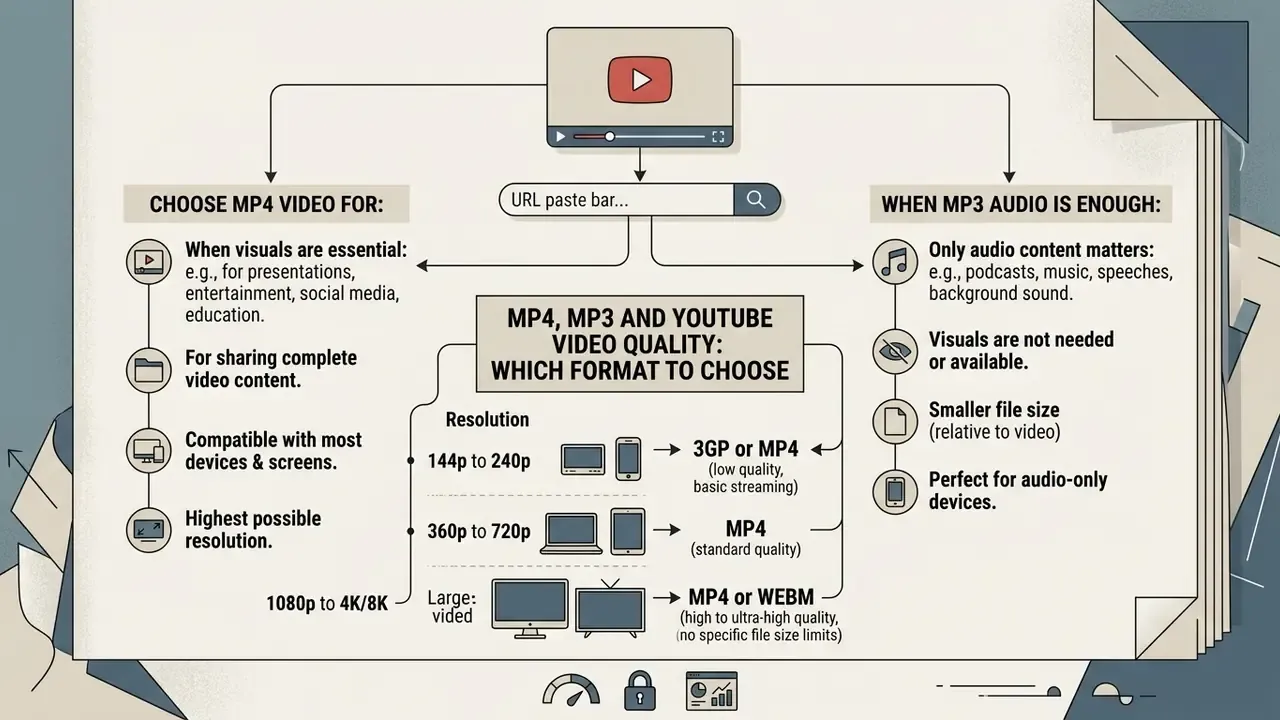
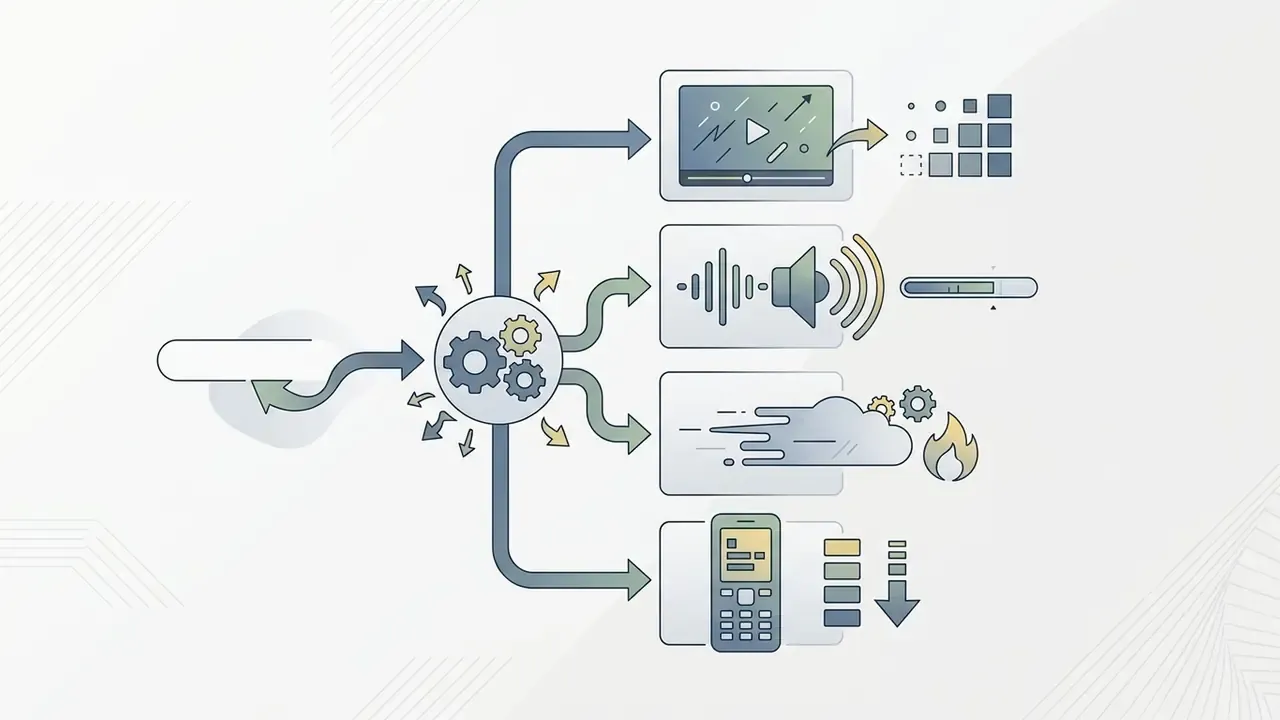
Selecting between mp4 format and audio format depends on the playback scenario you actually have. MP4 delivers full video and audio synchronisation, while MP3 isolates sound tracks and saves storage. WEBM and 3GP cover the two extremes of the spectrum: modern high-compression playback and legacy low-bandwidth devices.
Comparison of MP4, MP3, WEBM and 3GP media formats
| Format | Media type | Quality / bitrate options | Avg size (10 min) | Primary use case |
|---|---|---|---|---|
| MP4 video | Video + audio | 144p to 8K (0.2 to 100 Mbps) | 150 MB to 600 MB (1080p range) | Visual viewing, tutorials, offline playback |
| MP3 audio | Audio only | 128 kbps to 320 kbps | 9.6 MB to 24 MB | Podcasts, lectures, speech, music listening |
| WEBM video | Video + audio | VP9 / AV1 (360p to 8K) | 80 MB to 1.2 GB | High compression for HTML5 players and desktop viewing |
| 3GP mobile | Video + audio | H.263 / AMR (144p to 240p) | 5 MB to 15 MB | Legacy mobile devices, critical data savings |
Comparative breakdown of container structure, file sizing, and usage scenarios for MP4, MP3, WEBM and 3GP formats.
Resolution selection notes:
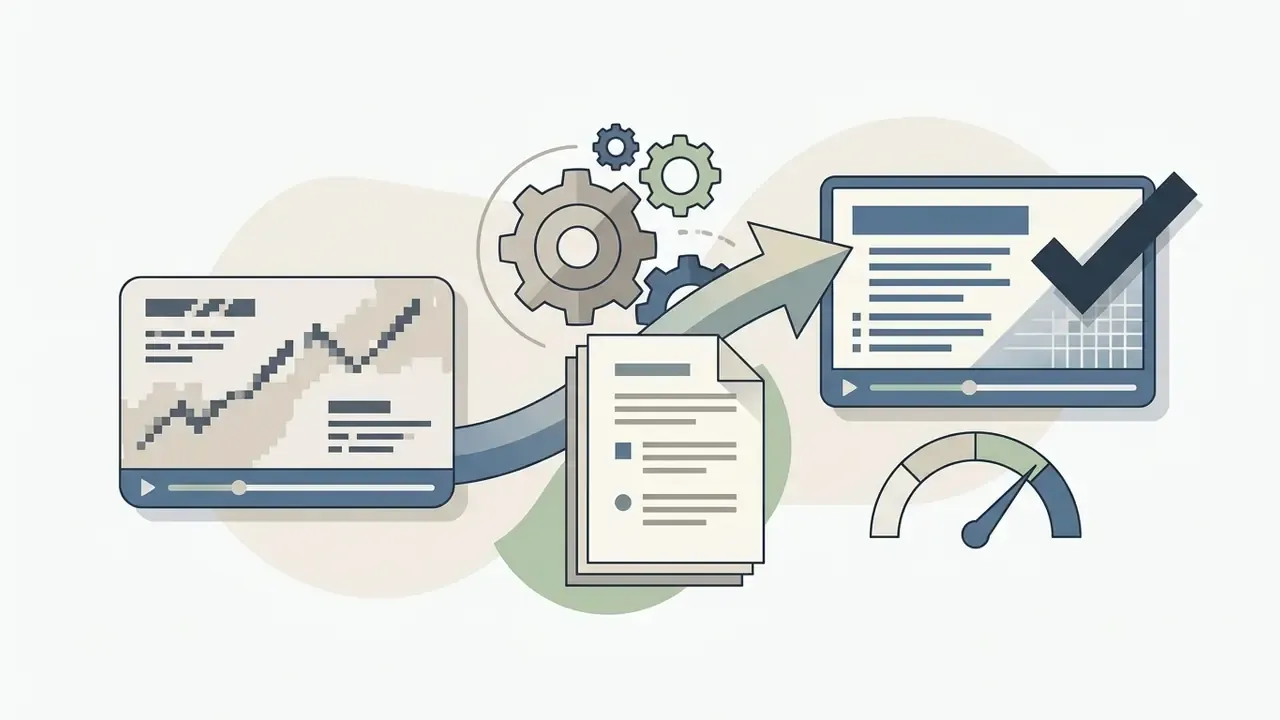
MP4 containers store video and audio tracks together, which is why the files are larger. MP3 compresses standalone audio into compact files optimised for music and voice. When a 4K export exceeds your storage or upload budget, a dedicated video compressor reduces file size with controlled quality loss, instead of forcing a full re-download at lower resolution.
When to Choose MP4 Video
Selecting mp4 video is necessary when visual information is integral to the content. Tutorials, lectures with slides, and high-definition cinematography all need the full visual presentation.
To convert youtube video to mp4 online, choosing hd, 1080p, or 4k preserves visual fidelity. MP4 is standardised as ISO/IEC 14496-14, an instance of the ISO base media file format, and that is precisely why it remains the safest final-delivery container: the wrapper is resolution-agnostic and virtually every player, editor, and publishing platform accepts it. High-resolution mp4 files play reliably across desktop displays and mobile devices, and they drop straight into editing pipelines. If you are choosing a production tool, compare options in our review of free video generation and editing tools.
When MP3 Audio Is Enough
Using an mp3 converter is ideal when only the sound track matters. Speech-focused content such as podcasts, interviews, and music recordings does not need visual rendering at all.
Extracting mp3 audio creates a compact audio track that consumes minimal storage. The savings are largest for spoken-word material: one hour at 64 kbps mono is roughly 29 MB, one hour at 128 kbps roughly 58 MB, while music-oriented encodes at 192 to 320 kbps run 87 to 144 MB per hour. If the goal is producing narration rather than extracting it, see our guide to AI voice generators. To review tool benchmarks and format evaluations, check our compare section.
Technical Performance and Resource Benchmarks
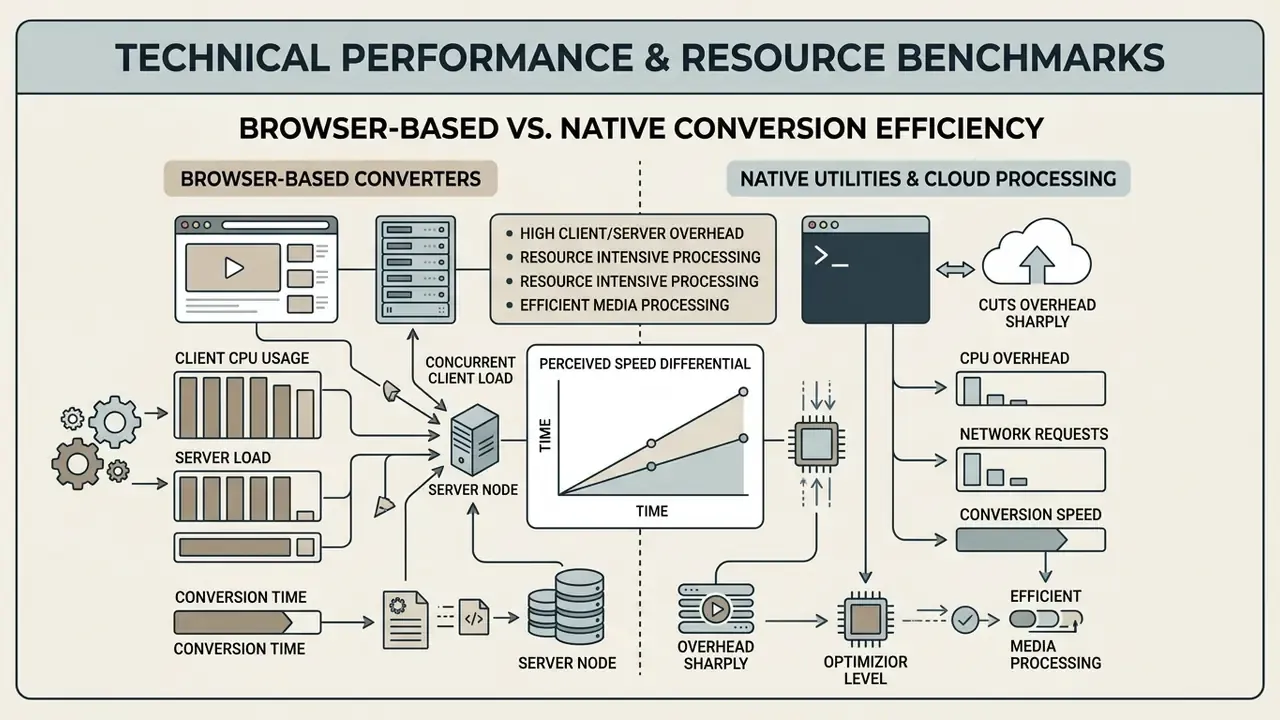
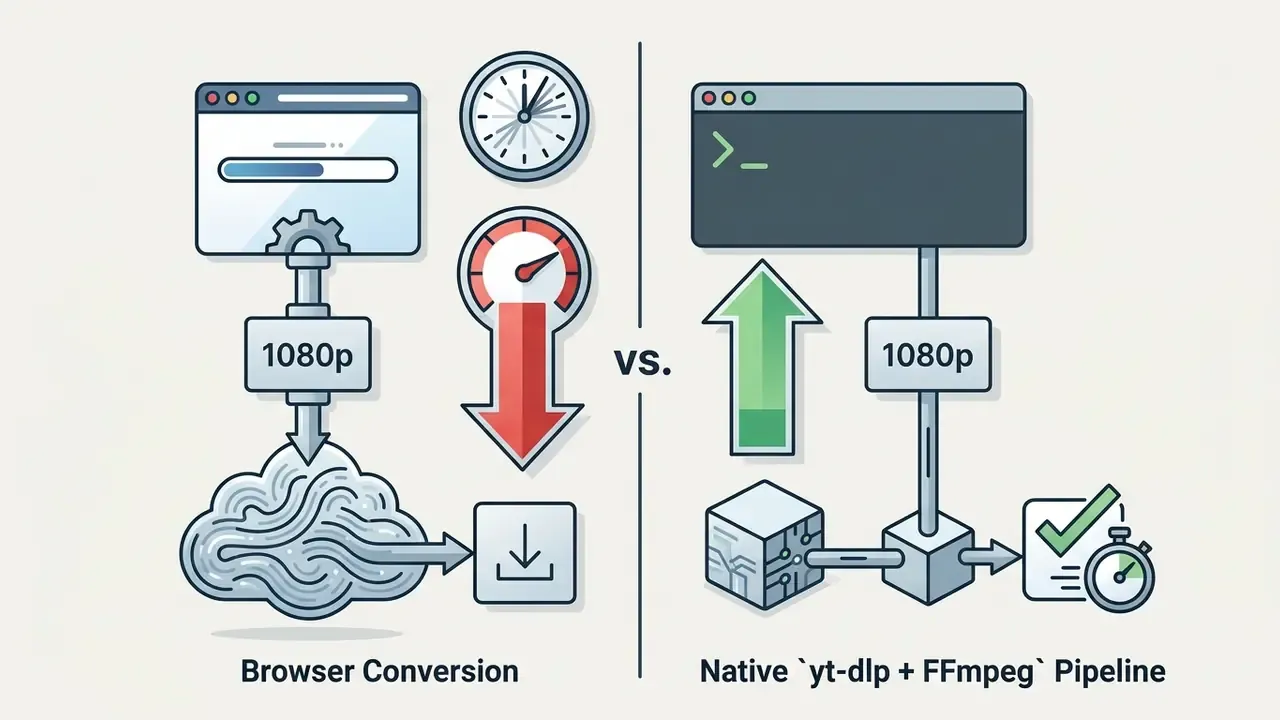
Browser-based conversion tools consume significant client and server resources during media processing. Benchmarking studies comparing web converters against native processing tools show the operational trade-offs clearly, and the gap is wide enough to justify tooling policy decisions at the infrastructure level.
"Converting a 1080p MP4 in the browser took 14.2 seconds and consumed 1,240 MB of RAM, versus 5.8 seconds and 42 MB for yt-dlp with FFmpeg."
Performance benchmark: web converter vs local native tool
| Metric | Browser web converter | Native local tool (yt-dlp + FFmpeg) |
|---|---|---|
| Average processing time (1080p) | 14.2 seconds | 5.8 seconds |
| Browser memory usage | ~1,240 MB RAM | ~42 MB RAM |
| Energy consumption | 1,890 Joules | 730 Joules |
| Network requests generated | 87 (includes ads and trackers) | 2 direct API calls |
Which Video Links and Services the Converter Supports
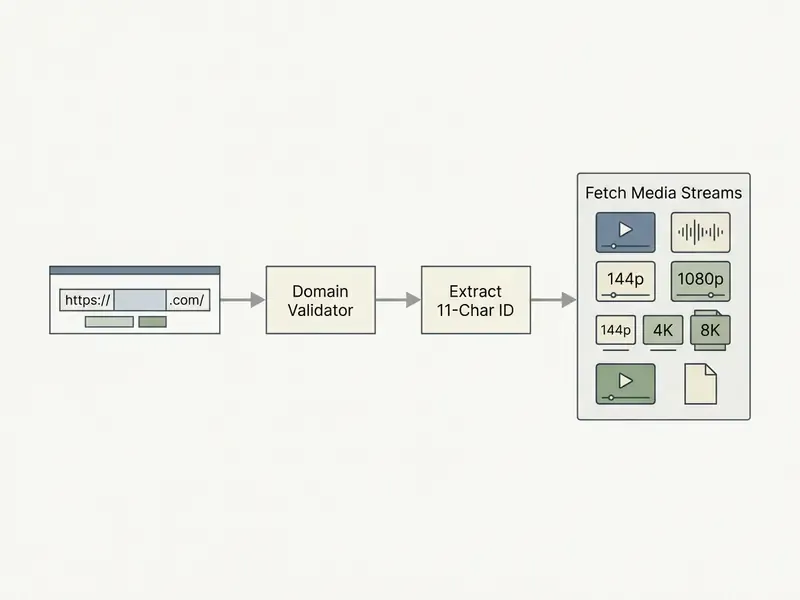
A robust online youtube video converter to mp4 validates multiple link structures from youtube com. Many advanced conversion utilities also accept public URLs from complementary video hosting platforms.
YouTube Video and youtube.com Links
A standard youtube video downloader parses watch links, youtu.be share links, Shorts, and live streams. Validating the video url ensures the server correctly identifies the target youtube video.
Input validation tools confirm the presence of the 11-character video ID before initiating stream retrieval. Official YouTube URL forms break down as follows:
| Link type | Pattern | Where the ID sits |
|---|---|---|
| Watch page | youtube.com/watch?v=VIDEO_ID | v query parameter |
| Short link | youtu.be/VIDEO_ID | First path segment |
| Shorts | youtube.com/shorts/VIDEO_ID | Path segment after /shorts/ |
| Live stream | youtube.com/live/VIDEO_ID | Path segment after /live/ |
| Embed | youtube.com/embed/VIDEO_ID | Path segment after /embed/ |
| Playlist | youtube.com/playlist?list=PLAYLIST_ID | list query parameter |
| Channel | youtube.com/channel/CHANNEL_ID | Path segment after /channel/ |
Validation therefore checks three things: an accepted hostname (youtube.com, youtu.be), an accepted path, and an 11-character identifier composed of letters, digits, _, or -. Extra query fragments may be present, but the ID must still match. Proper URL formatting prevents processing errors and speeds up conversion.
Handling YouTube Shorts and Playlists
Modern web converters handle more than standard horizontal long-form video. They also process YouTube's specialised data structures.
- YouTube Shorts Short vertical videos use the link structure
youtube.com/shorts/[Video_ID]. The server script parses the 11-character identifier exactly as it does for standard watch URLs, then packs the 9:16 vertical stream into a standard MP4 container without altering the source frame rate (up to 60 fps). Shorts also convert cleanly to MP3 when only the audio bed is needed. - Batch playlist conversion When a playlist link (
youtube.com/playlist?list=[Playlist_ID]) is submitted, the converter requests the manifest for every listed media item. Dedicated server queues make it possible to process up to 100 videos in a single batch, automatically generating a ZIP archive of individual MP4 or MP3 tracks. - Live streams and long-form
/live/paths resolve once the broadcast has been archived as a VOD. Archived streams frequently exceed free-tier duration limits, which is the most common reason a valid link fails at the queue stage rather than the parsing stage. - Channel-wide pulls Some desktop tools accept
/channel/CHANNEL_IDfor bulk retrieval. Batch volume increases legal exposure proportionally. One unauthorised file is an incident; one hundred is a pattern.
YouTube, Facebook, Vimeo and Other Supported Resources
Many web utilities extend their support download capabilities to resources like youtube facebook vimeo. Supported platforms let users fetch public videos using standard platform links.
Multi-platform utilities parse specific embed endpoints and oEmbed protocols for facebook vimeo content. Vimeo documents both direct video file links and an oEmbed endpoint (vimeo.com/api/oembed.json?url={video_url}) for public URLs, while Meta exposes an Embedded Video and Live Video Player that generates embed code from a Facebook video URL. Retention policy matters too: since February 2025, new live videos on Facebook Pages and profiles remain available for replay, download, or sharing for 30 days, after which the live-video retention policy restricts access.
Ingest support is generally broader than publishing support. Destination platforms impose their own format, duration, and aspect-ratio rules, with .mp4 and .mov the common accepted denominators. For readers mapping the wider media-tooling landscape, our overview of animation makers covers adjacent production categories. If converted clips end up embedded on a landing page, the layout walkthroughs on how to put image next to text html and how to put text over an image explain the markup side. Developers building media pipelines can explore our AI Media API Guides for implementation detail.
How to Choose a Free Online YouTube Video Converter
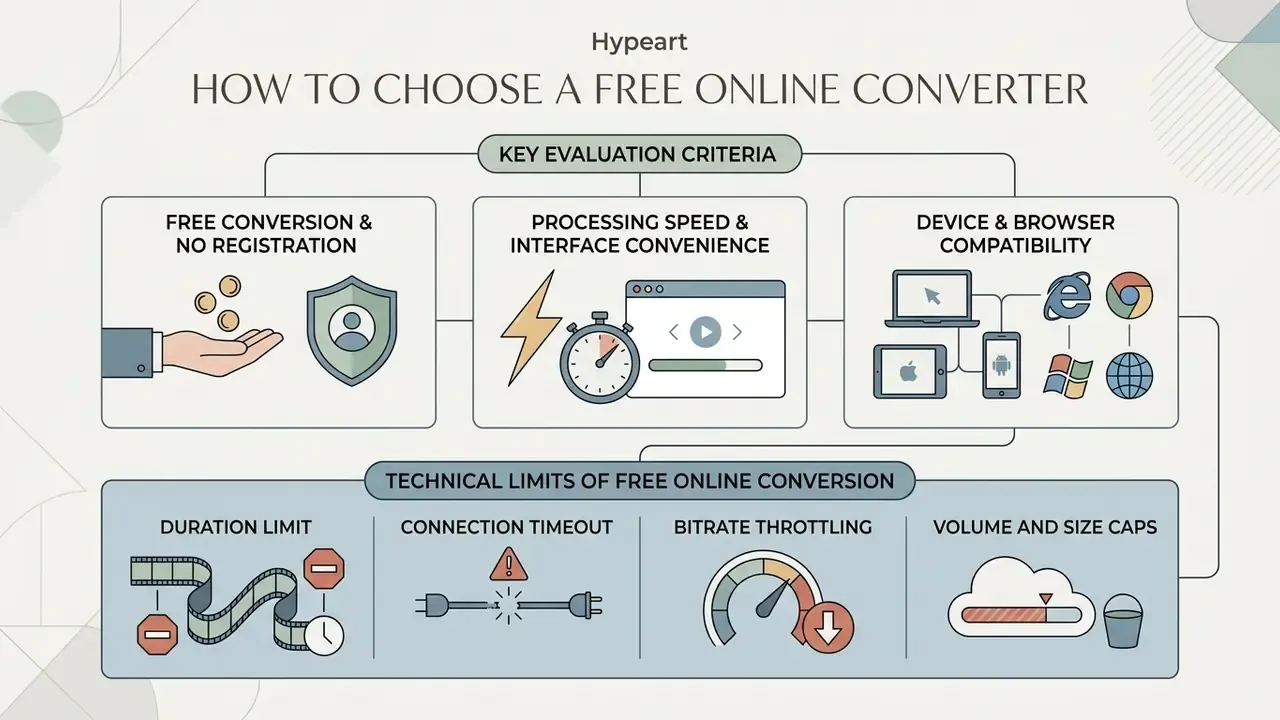
Evaluating a free online youtube video converter means assessing security protections, conversion speed, and interface clarity. A reliable service processes media efficiently without compromising privacy or requiring unnecessary installations. Draft NIST SP 800-228A guidance for cloud and web services lists the baseline controls worth checking: encryption in transit, authentication and authorisation, request and response validation, rate limiting and timeouts, and telemetry.
In our own editorial testing of stream workflows, we compared high-throughput browser processing against isolated stream repackaging on a controlled set of clips. The observed direction was consistent: repackaging without full re-encoding cut wall-clock latency substantially and removed the memory spikes we recorded during high-definition exports. We publish this as a directional observation rather than a formal benchmark. The sample was limited to editorial test assets on a single hardware profile, so exact percentage figures need a reproducible test harness and are not yet verifiable at scale. Readers who need hard numbers should rely on the benchmark table above.
Free Conversion and No Registration
A completely free online youtube converter offers accessible media processing without registration barriers. Removing account creation reduces friction and prevents the exposure of personal credentials.
Demand for zero-cost tooling is not only about convenience. Academic work on piracy behaviour found economic drivers to be statistically dominant:
"Economic factors and perceived price unfairness significantly predicted the use of piracy websites (F(12,487)=82.57, η²=0.66)."
Caution is still warranted with unverified free youtube utilities. Research summarised in the FBI Denver Cybersecurity Advisory warns that unvetted free file conversion tools can deliver hidden malware or scrape user telemetry. The Bureau's 2025 public notice specifically described free online converter sites loading malware, including ransomware, and scraping uploaded files for PII, banking data, cryptocurrency information, email addresses, and passwords. Independent testing puts a number on the same risk:
"More than 60% of tested MP3 converters delivered malware or unwanted programs through downloadable files."
Processing Speed and Interface Convenience
Server processing speed depends on concurrent client load, media duration, and allocated bandwidth. A well-designed free tool shows a clear download button and avoids deceptive advertisement overlays.
Clear interfaces reduce decision fatigue and keep users from clicking third-party ads by accident. Usability for a web converter is measurable in functional terms: is the interface reachable from a browser by URL, does it expose format and quality choices without a registration wall, and is it responsive immediately after load? Efficient conversion saves time while keeping a direct path to the final converted file.
Device and Browser Compatibility
Modern online video converter tools rely on HTML5 standards for broad browser compatibility across devices. That keeps operation smooth on Windows, macOS, Android, and iphone platforms.
Exporting standardised mp4 files guarantees native playback across mobile and desktop operating systems. Apple's own media documentation defines the iOS baseline: Safari supports MP3 audio and MPEG-4/H.264 baseline-profile video, with audio/mp3, audio/mpeg, audio/mp4, and video/mp4 among the supported MIME types, played through native elements without plug-ins. The practical implication is codec discipline. WEBM/VP9 exports that play perfectly in Chrome on desktop may not play natively in Safari on iOS, so choose MP4/H.264 when iPhone or iPad playback is the destination. Native compatibility removes any need to install extra third-party software or codecs.
Technical Limits of Free Online Conversion
Free web converters enforce hard server-side limits so compute nodes are not overwhelmed. Knowing them in advance saves a failed 40-minute wait:
- Duration limitMost free web infrastructure caps clip length at 60 to 90 minutes. Published limits include 90 minutes on one popular MP3 service and 60 minutes on another mainstream converter. Long streams or three-hour podcasts require a local utility such as
yt-dlp. - Connection timeoutIf server-side assembly takes longer than roughly 300 seconds, realistic for 4K or 8K muxing, the browser session may be dropped before the download link is issued.
- Bitrate throttlingFree services often force the audio stream down to 128 kbps even when the manifest exposes an original 256 or 320 kbps track.
- Volume and size capsFreemium services commonly gate total file size or daily download count behind registration, with published tiers ranging from a 2 GB per-file cap on a 24-hour pass to "no upper limit" on annual plans.
- Trial windowsSeveral desktop-class tools advertise "free" access that expires. Forty-eight-hour trials and feature-limited free editions are the norm, not the exception.
Web Converters vs Browser Extensions
Users who export media daily may prefer userscripts (via Tampermonkey or Violentmonkey) or dedicated helper extensions over repeated site visits.
Unlike online converters, browser helper utilities inject a download button directly beneath the YouTube player, intercepting media-stream links without navigating to a third-party site. That is the model popularised by the SaveFrom.net Helper and similar add-ons. The trade-offs are real, though. Official stores such as the Chrome Web Store remove extensions offering YouTube downloads under Google's developer policies, so installation usually requires manual loading in developer mode, which in turn disables automatic updates and signature verification. A sideloaded extension with broad host permissions can read every page you visit. From a governance standpoint that is a higher-privilege risk than a one-off visit to a web converter, and it belongs in your endpoint extension-allowlist policy rather than in individual user discretion.
Red Flags of an Untrustworthy Converter
- Multiple "Download" buttons, with the largest or most colourful one being an advertisement.
- Any prompt to run an
.exe,.msi,.bat, or.scrfile, or to install a "required codec pack". - Prompts to install a browser extension before conversion completes.
- Password-protected archives delivered instead of a plain
.mp4or.mp3. - Fake "virus detected" banners, forced notification permissions, or pop-ups telling you to disable security software.
- Requests for payment details, registration, or email verification on a supposedly free tool.
- Redirect chains between the click and the file, or a download domain unrelated to the site you used.
- No HTTPS, no privacy policy, or a policy claiming retention rights over uploaded media.
Where usage is unavoidable, open converter sites in an isolated browser profile, a container tab, or a sandboxed remote-browser session, keep an ad-blocker and script blocker active, and scan every output file before opening it.
Enterprise Risk and Security Controls
Consumer converter behaviour becomes an enterprise problem the moment it touches a managed endpoint. In one enterprise security review we examined, administrators detected executable download prompts originating from third-party conversion links. The organisation responded by enforcing strict MIME-type validation at the proxy and blocking non-standard download types, which protected endpoints while leaving authorised media workflows intact. We present this as an illustrative control pattern rather than a published case study. The organisation is not named and the detection counts were not independently audited, so the value here is the control design, not the statistics.
Control checklist for security, IT, and GRC teams:
One more governance edge case deserves a line. If converted frames or thumbnails are published, and some of them were machine-generated, your takedown path is a separate procedure. Our note on how to remove AI images from search results and the walkthrough on how to remove text from an image online both sit in that clean-up category. For enterprise media licensing guidelines, refer to our AI Media Commercial-Use resources.
Security, Copyright and YouTube Converter Terms of Use
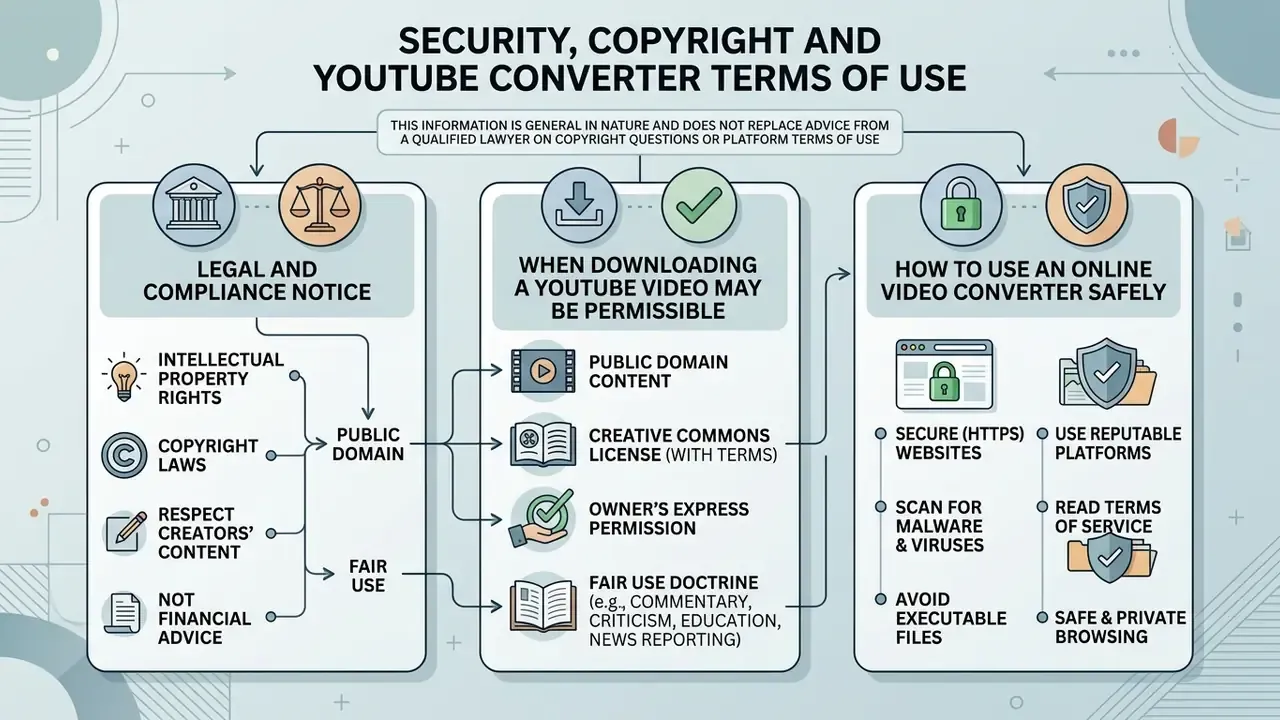
This information is general in nature and does not replace advice from a qualified lawyer on copyright questions or platform terms of use. Security recommendations are likewise general and do not substitute for a formal risk assessment of your environment.
Using an online video converter requires understanding legal boundaries and cybersecurity risk. Users must respect intellectual property rights and platform terms of service when downloading media.
Regulatory and intellectual property notice governing web media extraction.
When Downloading a YouTube Video May Be Permissible
To download youtube video legally, you must hold copyright ownership or explicit permission. US copyright law permits downloading for self-owned uploads, public domain media, and Creative Commons content. Creative Commons' own terms require that third-party media be either CC-licensed, public domain, or otherwise authorised by law, and that licensing or permission status be prominently marked with attribution (https://creativecommons.org/licenses/by/4.0/legalcode).
Narrow statutory exceptions such as fair use allow limited copying under specific educational or analytical conditions; the U.S. Copyright Office maintains a Fair Use Index as the official reference (https://www.copyright.gov/fair-use/). Worth noting: the archival-backup provision of section 117 covers computer programs, not general video files, so "personal archive" is not by itself a legal basis for keeping someone else's video. Availability also shapes behaviour measurably:
Standard stream-ripping for offline entertainment, however, generally falls outside permissive licences. Enforcement bodies have said so directly:
"SaveFrom.net circumvents YouTube's content protection measures, allowing video and audio to be saved directly; the site received approximately 1.3 billion visits in October 2023."
How to Use an Online Video Converter Safely
To download video youtube mp4 online safely, verify file extensions before opening downloads. Legitimate media files end in .mp4, .mp3, .webm, or .3gp, and they never require running an executable (.exe or .msi).
Documented incidents show the attack does not always need a click:
Data handling is the second exposure. Cybersecurity investigations by Cybernews (2024) into video downloader data leaks revealed that unencrypted web logging exposed 15.7 million user records, and the methodology is what makes the finding instructive:
"An exposed Kibana instance contained 15.7 million records: IP addresses, account IDs, downloaded video URLs, and diagnostic data."
Secure connections and avoiding suspicious pop-ups protect devices from malvertising and tracking. Practical hygiene comes down to six habits: prefer HTTPS endpoints; never arrive via a search advertisement; decline extension and notification prompts; close the tab immediately on redirect floods or fake alert banners; scan the converted file before opening it; and keep converted media in encrypted storage, as recommended by CISA and NIST device-encryption guidance.
FAQ: Online YouTube Video Converter Questions
What is an online YouTube video converter?
An online YouTube video converter is a web-based tool that parses a YouTube video URL and transcodes its audiovisual stream into downloadable MP4 or MP3 files without local software installation.
Is it legal to convert YouTube videos to MP4?
Converting YouTube videos is legal if you own the content, have explicit permission from the copyright holder, or if the video is in the public domain or under a Creative Commons licence. Downloading copyrighted content without permission violates YouTube's Terms of Service and copyright law.
What is the difference between an MP4 and an MP3 file?
MP4 is a multimedia container that stores both video and audio streams, which suits visual viewing. MP3 is an audio-only format that extracts sound tracks, producing far smaller files: roughly 9.6 MB for ten minutes at 128 kbps, versus hundreds of megabytes for the same duration in 1080p MP4.
Are free online YouTube converters safe to use?
Not all of them. Independent testing found that more than 60% of examined MP3 converters delivered malware or unwanted programs, and the FBI has publicly warned that free file-conversion sites can install ransomware and scrape uploaded files for credentials and banking data. Always check file extensions, avoid search advertisements, and scan downloads before opening them.
Do I need to register an account to convert YouTube videos online?
Most basic web converters allow conversion without registration. Review privacy policies anyway, to confirm that non-registered sessions do not log IP addresses or personal usage telemetry. One documented downloader leak exposed 15.7 million records, including IP addresses and downloaded video URLs.
Can I convert a YouTube Shorts video or a whole playlist?
Yes. Shorts use the youtube.com/shorts/[Video_ID] structure and are parsed with the same 11-character ID logic, with the vertical 9:16 stream packed into MP4 at the original frame rate (up to 60 fps). Playlist links (?list=[Playlist_ID]) can be batch-processed; dedicated queues typically handle up to 100 videos and return a ZIP archive of individual MP4 or MP3 files.
Why did my long video or 4K file fail to convert?
Free infrastructure usually caps clip duration at 60 to 90 minutes, and server-side assembly of 4K or 8K files can exceed the 300-second session timeout. For three-hour streams or 8K exports, a local yt-dlp plus FFmpeg pipeline is the reliable route.
Which format should I pick for a slow connection or an old phone?
Use 144p to 240p in 3GP or MP4: those presets cut the payload by up to about 90% versus 1080p. For voice-only material, a 64 kbps mono MP3 is around 29 MB per hour, which is the smallest practical option.
Is the address-bar URL shortcut safe?
The shortcut only changes how you reach the converter. It does not change the converter's security posture or your legal permissions. Apply the same checks (HTTPS, no executable prompts, scanned output) and remember that faster access also means fewer moments to reconsider whether you are authorised to download the file at all.
Summary of Media Workflows
When selecting an online youtube video converter to mp4, prioritise security, format clarity, and copyright compliance. Choose MP4 for visual media and MP3 audio for sound-only listening, WEBM when compression efficiency matters on desktop, and 3GP or 144p when bandwidth is the binding constraint. Validate that the link you paste resolves to a legitimate 11-character video ID, respect free-tier duration and bitrate limits, and move long-form or high-resolution jobs to a local yt-dlp plus FFmpeg pipeline that costs a fraction of the memory, energy, and network exposure. Always verify file extensions on download, keep converted media in encrypted storage, and document the rights basis for anything you retain. Safe digital operations depend as much on provenance records as on antivirus scans.
Footer navigation: AI Media Workflows | Calculators | Compare Tools | API Guides | Benchmarks | Commercial Use