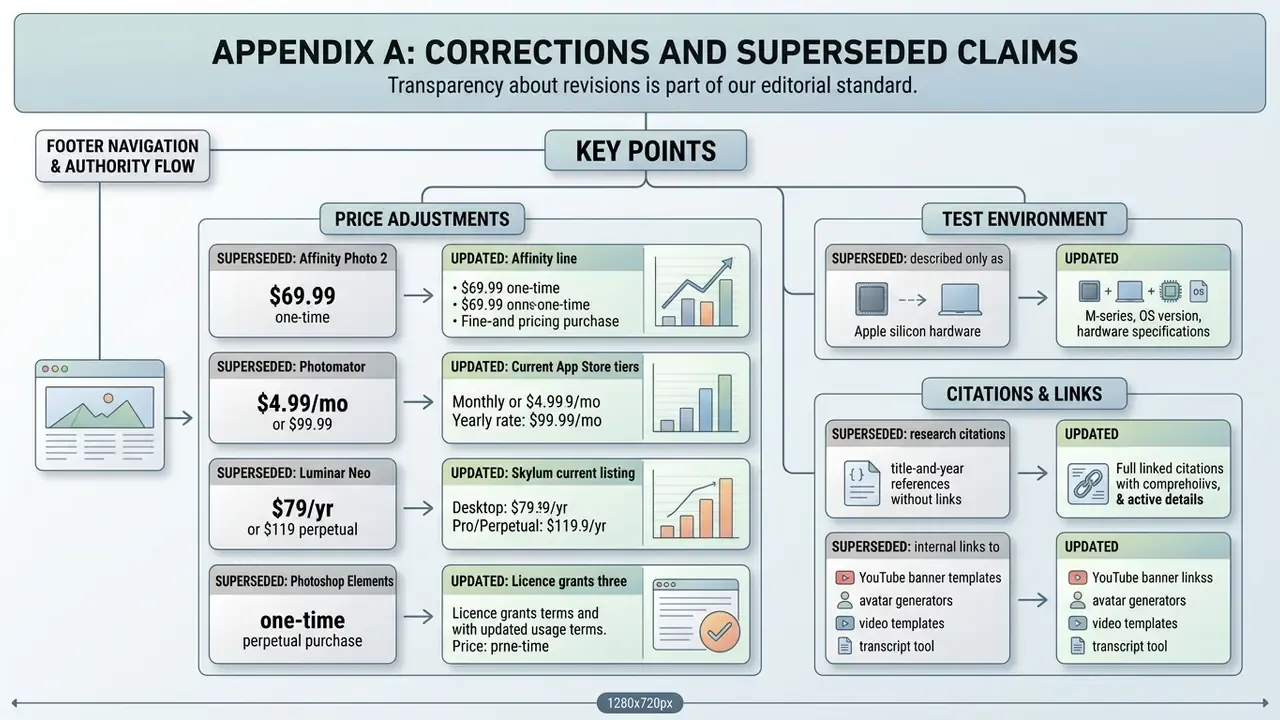
Last content and pricing review: March 2026. Verify current vendor terms before purchase; see the disclaimer in the pricing section.
Executive Summary
Who this guide is for. Three readers, mostly. The solo photographer who wants a macOS photo editor that opens fast and never charges again. The studio lead processing hundreds of raw camera files a day under fixed color standards. And the operations or risk owner who has to answer a harder question: which of these apps quietly ships client imagery to a vendor cloud? Each section below answers one of those, in that order.


How to Choose the Best Photo Editor for Mac
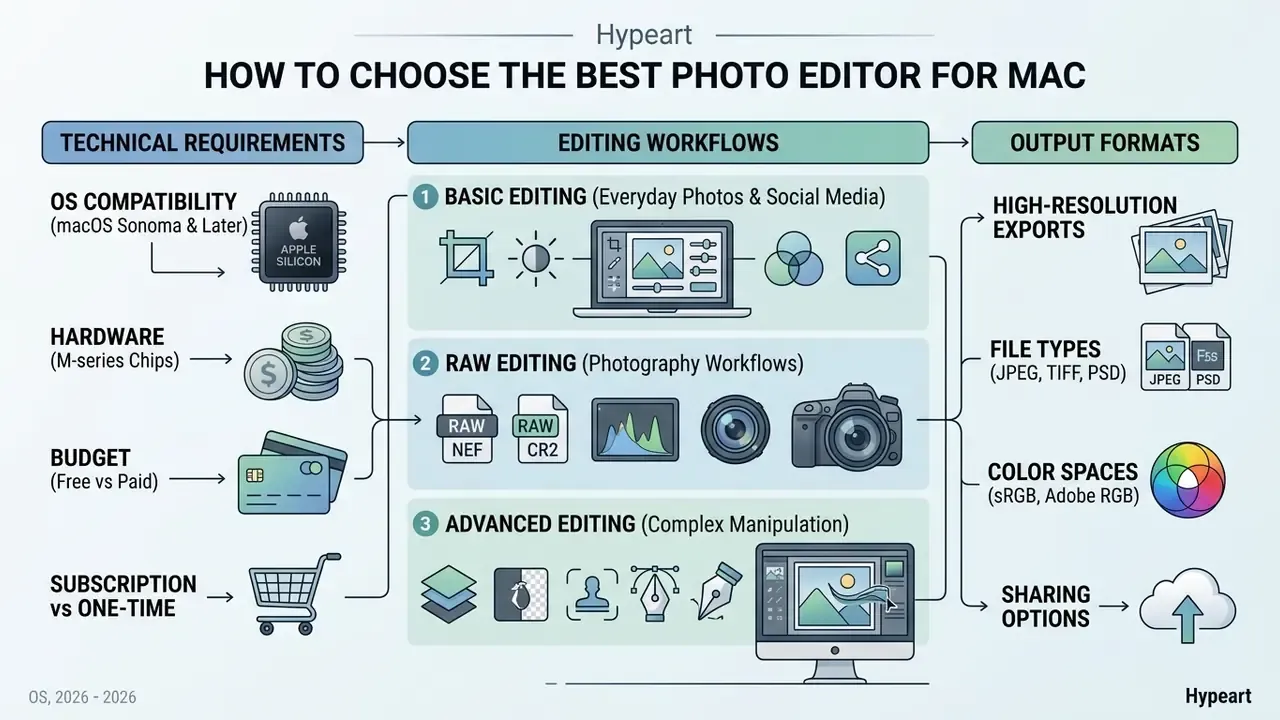
Choosing the best photo editor for mac starts with your technical requirements, your hardware, and the output formats you owe someone else. Balance immediate usability against the deeper capabilities: non-destructive editing, camera profile support, layered compositing.
Selecting mac photo editor software also means being honest about workload. Do you need quick single-layer adjustments, or deep RAW file manipulation with lens corrections? Checking memory consumption, GPU acceleration on Apple silicon, and licensing terms up front prevents expensive workflow bottlenecks later.
System floors differ by product, and they bite. Luminar Neo requires macOS 12 or later. ON1 Photo RAW lists macOS 13 as the minimum with macOS 15 recommended. Adobe Photoshop Elements 2026 requires macOS 14.4/15.5. Some newer RAW utilities, such as RevelRaw, demand macOS 26 with Apple M1 silicon or later. Check your operating system version before you check the price.
RAW Editing for Photography Workflows
RAW editing demands processing engines that can interpret uncompressed camera sensor data and preserve dynamic range. Professional RAW workflows lean on precise demosaicing, lens profile corrections, luminance noise reduction, and chromatic aberration removal.
On Adobe platforms, lens profiles are matched from EXIF camera and lens metadata and stored locally on macOS under /Library/Application Support/Adobe/CameraRaw/LensProfiles/1.0/. Which is why profile availability, not raw processing power, is usually the real bottleneck with a new lens.
On macOS, dedicated RAW tools use system-level Metal framework acceleration to chew through large camera files. According to empirical studies on iterative image operations, keeping structural control over RAW parameters lets editors run complex multi-step pipelines without accumulating compression artifacts.
"SPICE remains stable across sequences of more than 100 editing steps without losing structural control of the image."
Organizations weighing hardware investments can review performance metrics in our AI Media Benchmarks guide, and teams recovering detail from cropped or legacy frames can compare dedicated AI image upscalers against in-editor enhancement modules. Practical macOS tuning matters here too: Adobe advises raising the Camera Raw cache above the 5 GB default to 10 GB or more, which can noticeably speed up Develop-module responsiveness, while Capture One's own macOS guidance recommends Apple silicon Pro or Max chips for high-resolution color grading and photo correction work.
Advanced Editing Tools for Complex Image Manipulation
Advanced image manipulation rests on non-destructive layers, masks, precise selection tools, object removal, and background replacement. Those advanced editing tools enable compositing, selective tonal adjustments, and detailed commercial retouching.
Academic evaluations of layer-based interfaces suggest structured layering improves user control and satisfaction compared with single-pass processing.
"In a pilot study with 21 participants, 71.4% preferred the layered workflow, reporting higher usability and a stronger sense of authorship."
Combining selection masks with AI-assisted object removal lets you isolate awkward subjects, hair or transparent glass, while preserving edge fidelity. Layer masks hide or reveal pixels instead of destroying them, can be generated directly from a selection, and can be copied between layers. That is precisely what makes background removal reversible rather than terminal.
For product and portrait work the sequence stays constant: refine the selection edge, convert it to a mask, clean distractions with healing or content-aware tools on a separate layer, then swap the background layer beneath the masked subject.
Photo Editing Apps for Mac Compared at a Glance
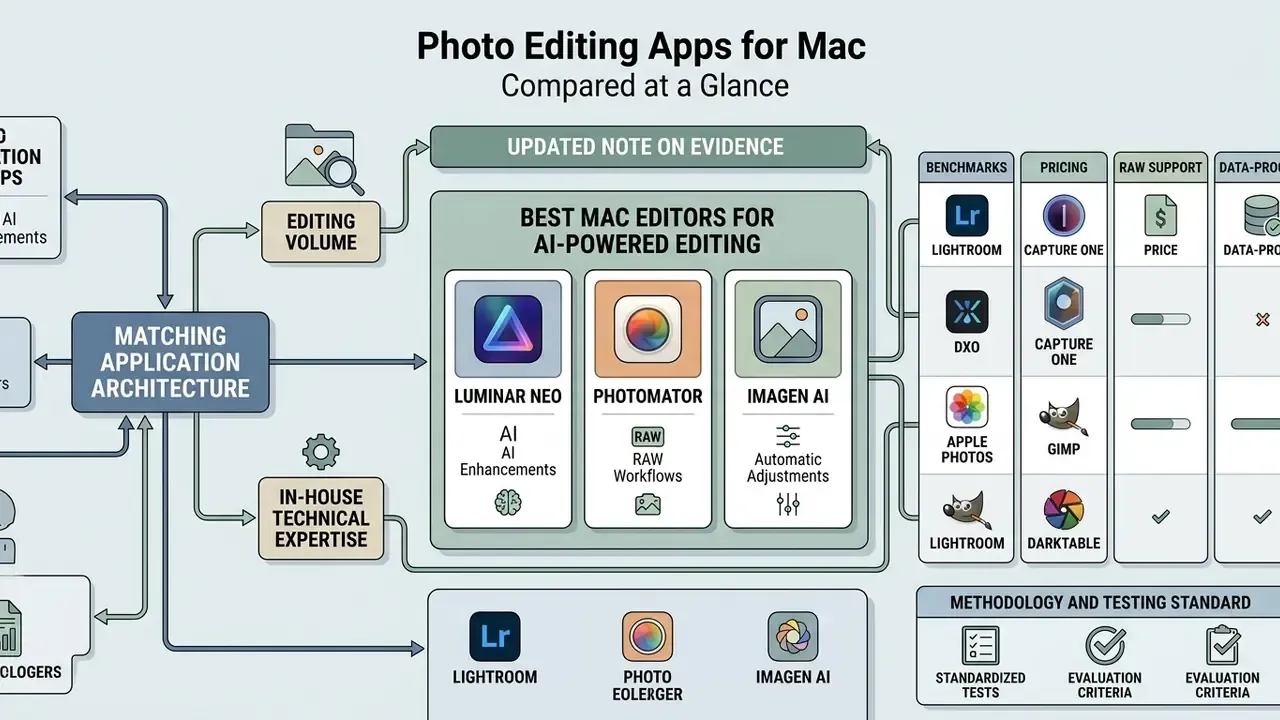
Comparing photo editing apps for mac means matching application architecture to editing volume and in-house technical expertise. The options split into native system utilities, subscription suites, and perpetual-license applications.
Evaluating the best photo editing tools therefore involves four axes: raw processing speed, cataloging depth, AI integration, and total cost of ownership. For a broader taxonomy of desktop and browser tools, see our reference guide to photo editors. The matrix below also records where AI processing physically takes place, a decisive factor for regulated teams.
Table: Mac photo editing software compared by use case, features, AI processing location, licensing and price.
| Application | Primary Use Case | Basic Edits | RAW Support | Layers & Masks | AI Features | AI Processing Location | Cataloging | License Model | Starting Price |
|---|---|---|---|---|---|---|---|---|---|
| Apple Photos | System-native light editing | Yes | Basic (RAW reprocessing) | No | Face / object search | On-device | Built-in | Free (included) | $0 |
| Photomator | Fast Apple-native editing | Yes | Full (750+ RAW formats) | Advanced | AI Enhance / Select / Super Resolution | Mostly on-device (CoreML) | File-based / Photos | Subscription / perpetual | $7.99/mo, $29.99/yr or $119.99 lifetime |
| Adobe Photoshop | Professional compositing | Yes | Via Camera Raw | Full industry standard | Generative Fill / Firefly | Cloud (generative), local (core) | Cloud assets | Subscription | $22.99/mo |
| Adobe Lightroom | RAW processing & cataloging | Yes | Full advanced | Non-destructive | AI Denoise / masking / Generative Remove | Local (Denoise), cloud (generative) | Cloud / local catalog | Subscription | $11.99/mo |
| Luminar Neo | AI-driven creative retouching | Yes | Full (1000+ RAW formats) | Layer-based | GenErase / GenSwap / GenExpand / Sky AI | Local (Sky AI, masks), cloud (GenAI) | Basic catalog | Perpetual / subscription | $129 perpetual desktop ($199 Max) |
| Affinity Photo 2 | Professional raster graphics | Yes | Full advanced | Full vector & raster | Basic smart tools (AI in Canva Pro) | Local | None (editor only) | Free basic module via Canva account, or perpetual | $0 with Canva account / $69.99 standalone |
| ON1 Photo RAW | All-in-one RAW suite | Yes | Full advanced | Full non-destructive | AI NoNoise / keywords / masking | On-device (GPU accelerated) | Local asset manager | Perpetual / subscription | $99.99 one-time |
| Capture One Pro | Studio RAW & tethering | Yes | Full advanced (deep tether support) | Advanced layers | Basic AI masking | On-device | Catalog / Sessions | Perpetual / subscription | $24.92/mo or $299 |
| DxO PhotoLab | Noise reduction & lens correction | Yes | PRIME / DeepPRIME XD2 | Basic layers | AI Denoise | On-device | Basic catalog | Perpetual | $229 one-time |
| GIMP | Open-source pixel editing | Yes | Requires plugin / external converter | Full manual | No native generative AI | Local | None | Free open source | $0 |
Three takeaways from the table, stated plainly. First, cataloging depth and AI processing location almost never travel together: the strongest on-device options (DxO, Capture One, darktable) have the thinnest generative toolsets. Second, subscription pricing buys update cadence, not capability. Third, if layers and masks are non-negotiable, Apple Photos drops out immediately regardless of price.
Best Apps for Beginners and Simple Photo Correction
Best Apps for Professional Photographers
"Iterative editing systems that sustain more than 100 processing steps retain structural control across complex multi-stage pipelines."
Teams building automated workflows can consult our technical documentation on AI Media API Guides, and studios producing both stills and motion assets often pair a RAW developer with a YouTube video editor for client deliverables.
Best Mac Editors for AI-Powered Editing
AI-powered editors automate background removal, object elimination, and generative content synthesis. Luminar Neo, Adobe Photoshop, and Photomator all build neural models straight into their toolsets. Readers evaluating adjacent synthesis tools can compare capabilities across our roundup of AI image generators.
Research on generative retouching shows that users genuinely value automated fill tools for rapid scene expansion and removing unwanted objects.
"Participants used Generative Fill for retouching, expanding image borders, and composing scenes from multiple sources."
However. Empirical benchmarks show generative models fail often when handed highly specific, low-creativity retouching instructions without explicit spatial masking.
"Annotators judged outputs unsatisfactory in 60% of cases: models often introduced unrequested changes and failed to preserve human identity."
Practical performance on Apple silicon, measured on our reference machines:
- Luminar Neo
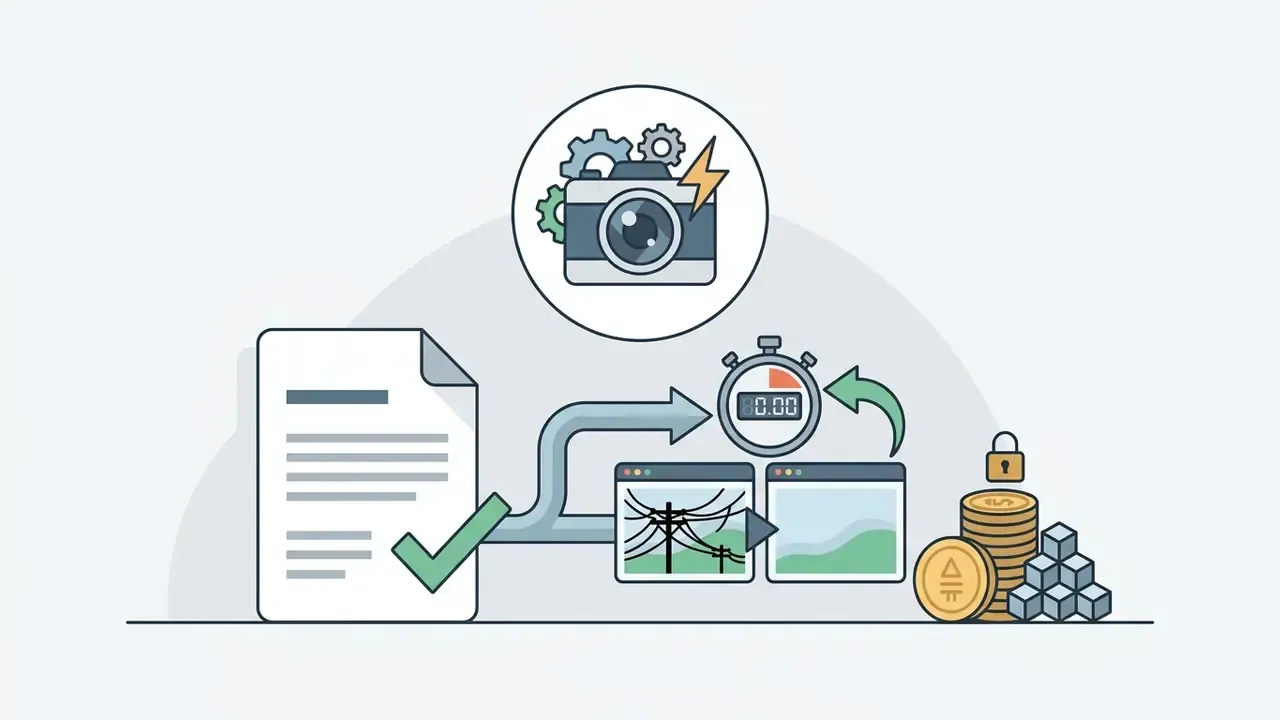
- powerline and dust-spot removal cleared complex power-grid overlays in 35 to 38 seconds on baseline M1 hardware with a single click and no manual masking, taking out roughly 95% of the target lines in our reference frame.
- Photomator
- single-click AI Super Resolution doubled image dimensions in under 4 seconds via native macOS CoreML integration.
- Imagen AI
- batch-edited about 200 RAW images in roughly 15 minutes using a pre-trained personal style profile. Profile creation, though, required about 2,000 previously edited reference images, which is a real barrier for newer studios.
Best Paid Photo Editor Software for Mac
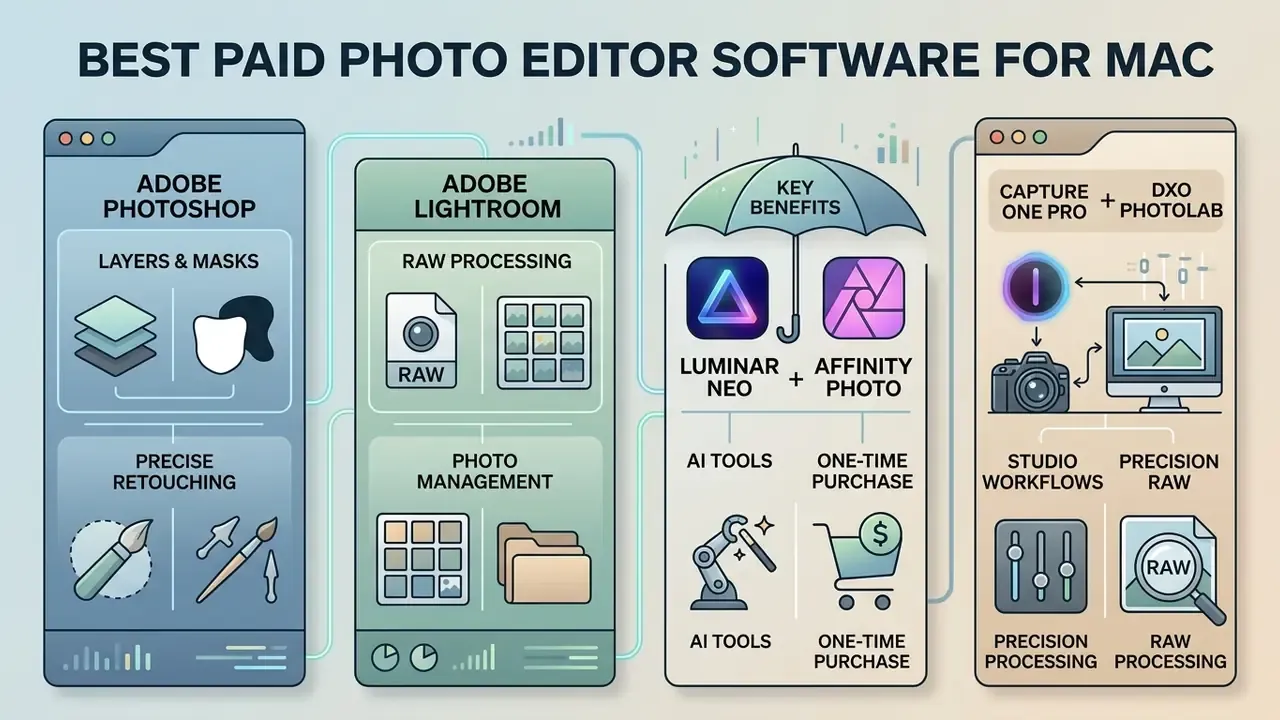
Paid macbook photo editor applications offer professional feature sets, real support, and performance tuned for complex creative pipelines. Commercial software splits cleanly into monthly subscription services and perpetual one-time purchase options.
The question to answer before paying: do advanced layer masking, enterprise cloud storage, or a specific plug-in architecture justify an ongoing operating expense? Detailed breakdowns follow.
Adobe Photoshop for Layers, Masks and Precise Retouching
Adobe Photoshop remains the industry standard for advanced raster editing, pixel-level manipulation, and multi-layer compositing. Running natively on Apple silicon, it uses GPU acceleration for real-time brush rendering, complex selection masking, and non-destructive smart objects.
Adobe documents a full non-destructive retouching stack: Clone Stamp, Healing Brush, Spot Healing Brush, Content-Aware Patch and Content-Aware Move, all applied on separate layers. Layer and vector masks can be moved or copied between layers using Option-click and Option-drag on macOS, which is the small detail that makes complex composites maintainable weeks later.
Photoshop features also include third-party plug-ins, extensive color management spaces, and generative capabilities through Adobe Firefly. For teams managing multi-channel media, comparing licensing and output rights across tools in our AI Media Comparison hub prevents awkward surprises about usage restrictions mid-campaign.
Adobe Lightroom for RAW Processing and Photo Management
Adobe Lightroom and Lightroom Classic cover RAW image processing, non-destructive editing, and large-scale photo management. Classic uses local catalog databases built around desktop folder structures; cloud-first Lightroom syncs original high-resolution assets across macOS, iOS, and web.
Both incorporate AI-powered Denoise, automated subject masking, and synchronized batch editing through the Select, Edit, Sync workflow, which propagates color, lighting and white balance decisions across an entire selection. That is how high-volume photographers keep uniform profiles across thousands of images without touching each one. Teams needing extra clarity, sharpening or resolution recovery beyond catalog tools often add dedicated AI image enhancers at the end of the chain.
Luminar Neo and Affinity Photo for AI Tools or One-Time Purchase
Luminar Neo and Affinity Photo represent two different escapes from subscription pricing. Skylum Luminar leans hard into AI-driven creative automation: Sky AI, accent lighting, GenErase, GenSwap, GenExpand and generative erasure, sold through both perpetual licenses and flexible plans. Studios that regularly reframe or extend compositions for multiple placements can compare in-editor expansion against standalone AI outpainting tools. One licensing nuance deserves attention: Skylum's perpetual license permanently includes the core AI tools, but generative AI features come bundled for one year and require renewal afterwards.
Affinity Photo 2 is the traditional route, a professional raster suite historically sold strictly as a one-time purchase. After Canva's acquisition of the Affinity line, the core Pixel, Vector and Layout studios are available at no cost with a free Canva account, while the standalone perpetual license has previously been listed at $69.99. AI features such as Generative Fill and Remove Background now sit behind a Canva Pro plan. You still get full layer stack management, vector tools, focus stacking, frequency separation retouching, LUT-based color grading and PSD compatibility, which is a lot of capability without spending anything.
Capture One Pro and DxO PhotoLab for Studio Workflows and Precision RAW Processing
For studio and high-volume commercial production, Capture One Pro delivers industry-standard tethered shooting and hardware-accelerated color grading. Its Speed Edit hotkey architecture lets you adjust without moving the cursor, and dedicated Sessions isolate client shoots from global catalogs. A single-user license permits up to three activations across Mac and Windows.
The trade-offs are real: the interface gets dense once layers stack up, there is no face recognition for organization, and the price sits at the top of the market.
DxO PhotoLab pursues something narrower, maximum image clarity through optics-specific lens profiles and DeepPRIME XD2 neural demosaicing, recovering detail from noisy high-ISO RAW captures that standard engines discard. It is sold perpetually and offers a 14-day full-feature trial with no payment details, which makes it unusually easy to benchmark against Lightroom's Denoise module on your own files. Teams shooting mixed-brand bodies should verify lens-module availability for every camera and lens pairing first, since DxO's advantage rests on measured optical corrections rather than generic profiles.
Best Free Photo Editor Apps for MacBook Air and MacBook Pro
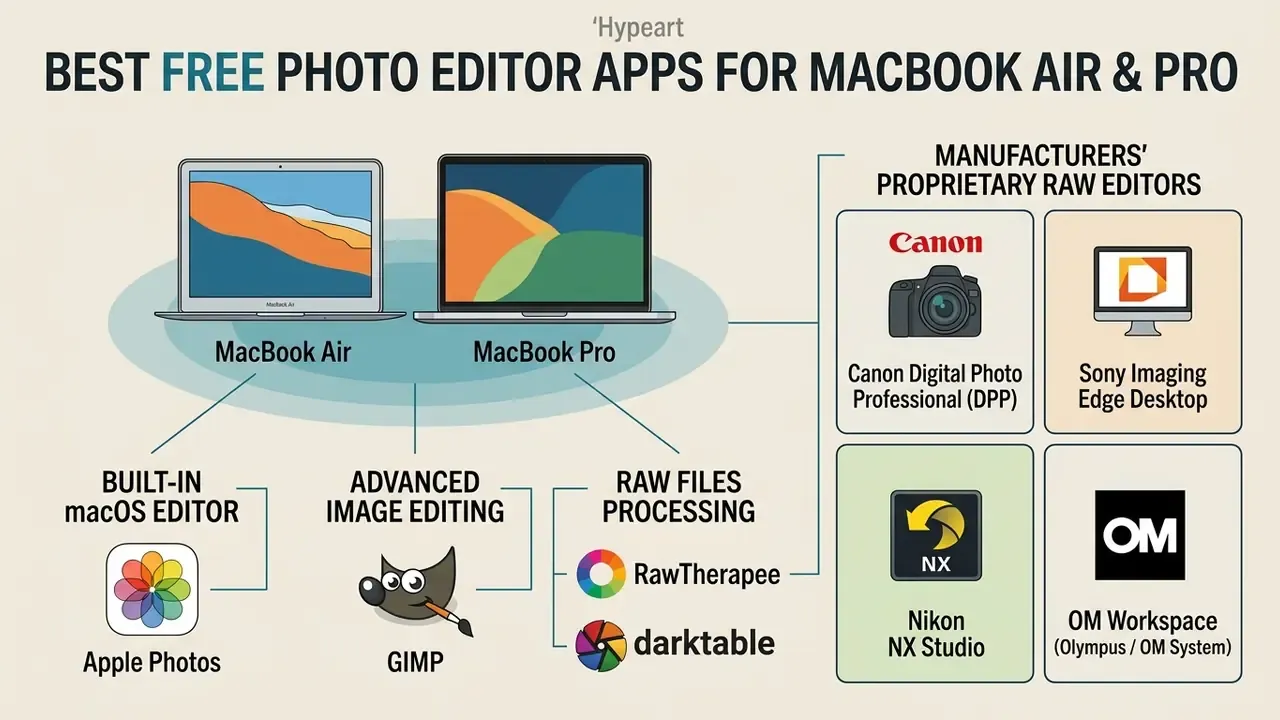
Finding a free photo editor for macbook air or Pro lets you handle basic corrections and serious image manipulation without any recurring commitment. macOS users can draw on built-in system software, open-source projects, manufacturer utilities, and web platforms. The best free photo editor app for macbook pro in 2026 is usually a pair of tools, not one.
Zero cost is not zero trade-off, though. Expect compromises in processing speed, interface polish, and camera RAW compatibility. Our reference overview of free photo editors documents typical export restrictions, watermark policies and privacy considerations across free tiers, including several that quietly process uploads in the cloud.
Apple Photos as the Free Built-In macOS Photo Editor
Apple Photos is the default macbook air photo editor, pre-installed on every Mac. The Photos app delivers fast viewing, non-destructive adjustment controls, and automated library organization powered by on-device machine learning, including face tagging that groups recognized people into the People album.
It includes auto-enhance, selective color tuning, white balance correction, levels, curves, sharpening and noise reduction sliders. It handles RAW at a basic level too: "Use RAW as Original" and "Reprocess RAW" let photographers work from full sensor data inside a library-based workflow. For personal photography and light social media prep, Apple Photos is genuinely sufficient, fully integrated with iCloud photo storage, and it accepts third-party editing extensions the moment you outgrow the built-in controls.
GIMP for Free Advanced Image Editing
GIMP, the GNU Image Manipulation Program, is a completely free open-source image editor with features that rival commercial applications. It supports multi-layer editing, channel manipulation, custom brushes, and non-destructive layer masks that define opaque, semi-transparent and transparent regions. GIMP 3.2 added an "Edit Mask Immediately" option and context-sensitive mask deletion for the active layer.
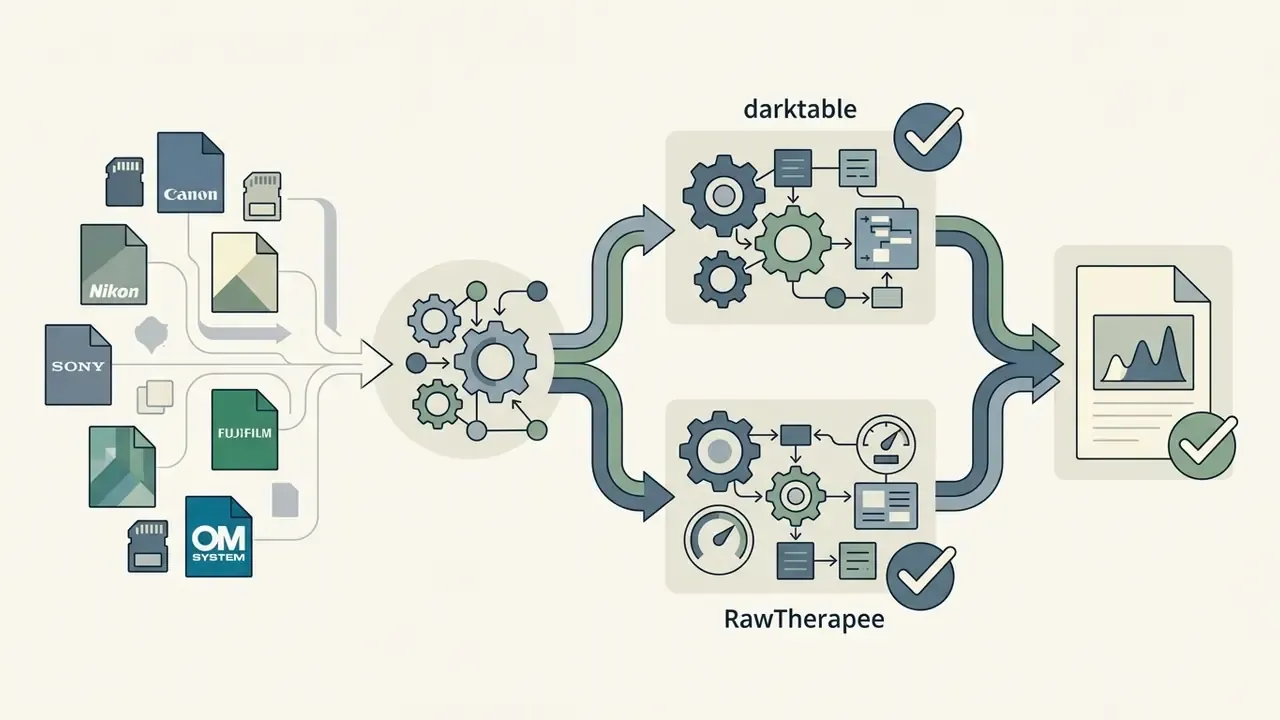
The manual control is extensive. Its interface, honestly, is not macOS-native and the learning curve is steeper than anything Apple ships. It also lacks native RAW processing, so you will need darktable or RawTherapee as a front end before editing uncompressed camera files.
RawTherapee and Darktable for Free RAW Files Processing
RawTherapee and darktable are powerful open-source RAW conversion engines for non-destructive digital photo development. Both support custom camera ICC profiles, advanced demosaicing algorithms, tone curve manipulation, and deep shadow recovery.
darktable runs a modular, scene-referred editing workflow with solid cataloging, splitting camera handling across three modules: input color profile, color calibration (which can build a profile from bracketed color-checker shots), and unbreak input profile for manufacturer ICC profiles that render too dark. RawTherapee excels at detailed technical color handling and precise demosaicing control, treating DCP as its preferred camera input profile format while accepting custom ICC profiles as an alternative. Both are viable free alternatives to commercial RAW developers. Photographers on Fujifilm bodies in particular report that RawTherapee preserves micro-detail that some commercial converters flatten.
Camera Manufacturers' Free Proprietary RAW Editors
Manufacturers give away RAW development software tuned to their own sensor color science, and these are often the most faithful way to reproduce in-camera rendering:
- Canon Digital Photo Professional (DPP) exact Dual Pixel RAW adjustments and in-camera Picture Style replication.
- Sony Imaging Edge Desktop pixel-shift multi-shooting compositing and Remote tethering control for Alpha bodies.
- Nikon NX Studio full Picture Control adjustments and sidecar metadata management for NEF files.
- OM Workspace (Olympus / OM System) Focus Stacking synthesis and High Res Shot RAW processing tuned for Micro Four Thirds sensors.
- Fujifilm X RAW Studio uses the connected camera's internal X-Processor engine to convert RAF files through hardware acceleration.
- Panasonic and Pentax/Ricoh also distribute free converters built on third-party engines with lens-aberration and perspective correction.
Installation discs no longer ship with cameras, so download each utility from the manufacturer's support site; a few brands require a valid serial number before the download starts. These tools cover color, brightness, tonality, lens aberration and converging-verticals correction well, but rarely match the speed, cataloging depth or batch tooling of specialist paid software.
Table: free Mac photo editing options by audience, strengths, limitations and ideal workflow.
| Application | Target Audience | Key Strengths | Primary Limitations | Ideal Workflow |
|---|---|---|---|---|
| Apple Photos | Casual users & Apple ecosystem | Zero cost, seamless iCloud sync, easy interface, on-device processing | No layer compositing, limited advanced masking | Quick everyday photo fixes and personal libraries |
| GIMP | Budget advanced editors | Complete layer support, extensive filter set, open source | Non-native interface, steep learning curve, no native RAW | Open-source graphic design and raster compositing |
| RawTherapee | Technical RAW photographers | Precise demosaicing, DCP/ICC profile control | Steeper learning curve, basic asset management | Meticulous single-image RAW development |
| darktable | Advanced RAW enthusiasts | Non-destructive scene-referred workflow, cataloging, color calibration | Complex module interface | High-volume non-destructive RAW management |
| Manufacturer software (DPP, NX Studio, Imaging Edge, OM Workspace, X RAW Studio) | Single-brand shooters | Exact color-science match, free, brand-specific features | Slower, brand-locked, weak cataloging | Faithful in-camera rendering of first-party RAW files |
| Affinity by Canva (free tier) | Hybrid design and photo users | Raster, vector and layout studios in one, non-destructive RAW | AI tools require Canva Pro, account required | Design-led photo work and photobook layouts |
| Google Photos | Cloud-first cross-platform users | Automatic backup, powerful search, accessible anywhere | Requires internet, compression on free tier, cloud processing | Basic cloud storage and light online photo editing |
Data Processing, Enterprise Security and Shadow AI Risk
Feature parity is no longer the deciding criterion when an organization deploys photo editors at scale. Data residency is. Generative and cloud-assisted features can transmit source imagery, including unreleased product shots, client portraits or internal documentation, to vendor infrastructure. At that moment a creative tool becomes an unregistered AI system inside your estate.
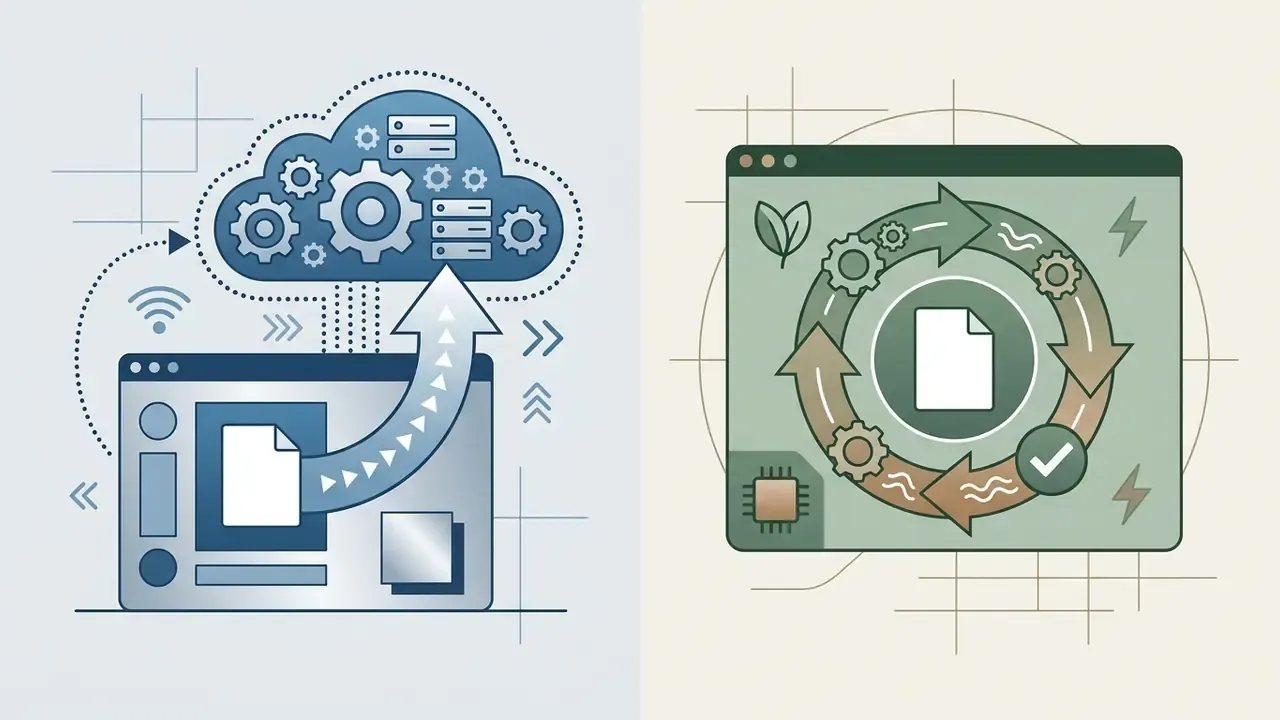
Where processing happens. Core adjustments in Apple Photos, Photomator, darktable, RawTherapee, DxO PhotoLab, Capture One and ON1 Photo RAW execute locally on Apple silicon using Metal and CoreML. Generative features behave differently: Adobe Firefly and Generative Fill, Luminar Neo's GenErase, GenSwap and GenExpand, and Canva AI studio functions in the Affinity line all depend on vendor-hosted models, which means outbound transmission of image data. Adobe's Denoise and masking run locally. Its generative stack does not.
Shadow AI controls to apply before rollout.
AI failure modes and escalation paths. The published evidence is blunt about the limits. Roughly two-thirds of everyday editing requests were not completed satisfactorily by leading AI editors (Taesiri et al., 2025). And 60% of tightly specified retouching instructions produced unsatisfactory results, including unrequested changes and loss of human identity, without explicit spatial masking (Measuring the Steerability of Generative Models, 2025). Qualitative work on remembering practices found participants tolerant of background changes but firmly opposed to edits altering a person's identity (Wu et al., 2026).
Practical escalation rules follow directly:
- Never use generative fill on evidentiary, editorial, medical or compliance imagery. Restrict it to decorative and marketing assets.
- Require an explicit mask for any localized correction instead of relying on prompt-only instructions.
- Mandate a four-point human review of AI output: identity preservation, geometry and perspective integrity, texture continuity at mask edges, and absence of fabricated objects or text.
- Retain the untouched original plus the edit recipe (sidecar, catalog entry or layered file) so any generated pixel can be traced and reversed.
- Disclose generative edits in client deliverables where authenticity expectations apply, and route contested outputs to a named reviewer rather than re-prompting until something looks acceptable.
- Add each editor with generative features to your AI system register, recording model type, processing location and vendor data-retention terms.
- Restrict or network-block generative endpoints for teams handling confidential imagery, and prefer perpetual-licence tools whose AI executes on-device.
- Require volume licensing with SSO and MDM deployment (Jamf, for example) so installations are inventoried rather than self-provisioned by whoever needed a quick fix.
- Request the vendor's data-retention and model-training statements in writing, and confirm whether customer images may be used for model improvement.
- Log export destinations, because cloud catalogs (Lightroom, Google Photos) duplicate originals outside the managed perimeter by design, not by accident.
Set Up a Fast Photo Editing Workflow on macOS
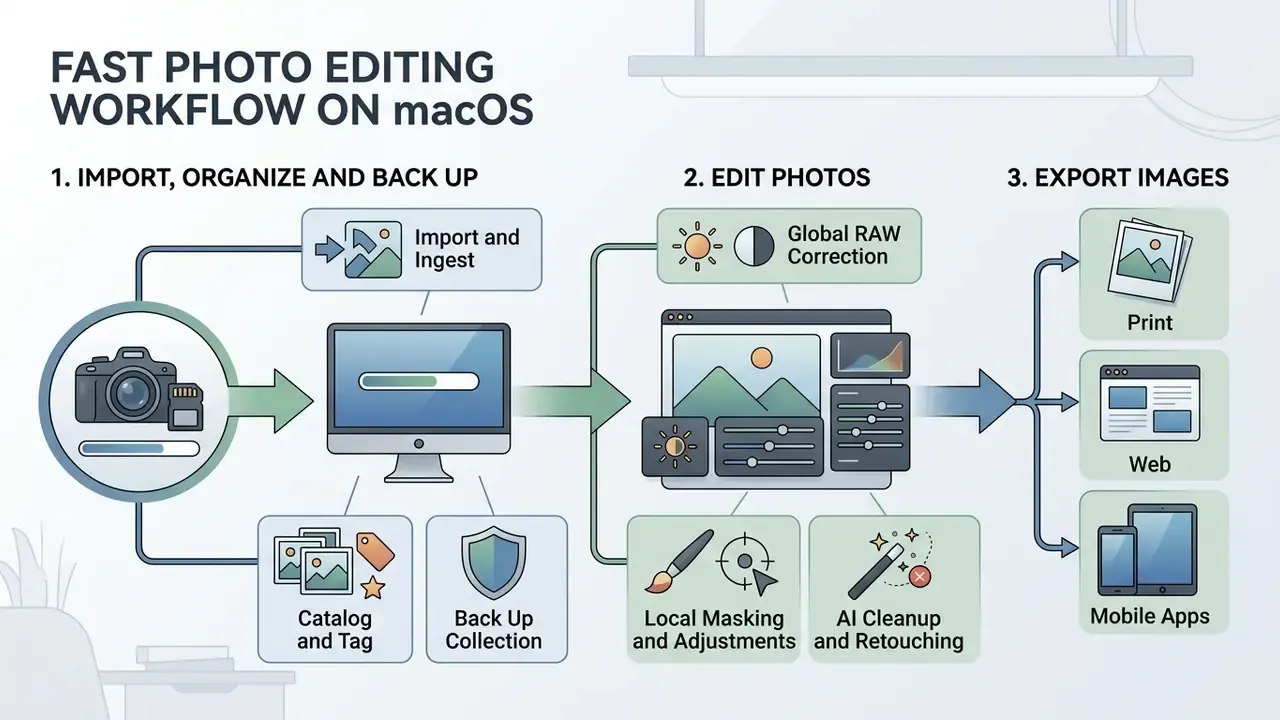
A structured photo editing workflow on macOS improves processing speed, protects files, and keeps visual output consistent across channels. The pipeline moves logically from asset import through non-destructive correction to multi-format export.
Optimizing resources on Apple silicon mostly means storage discipline: fast internal SSD for active projects, external drives or cloud repositories for archived photo libraries.
Before installing anything, run the selection checklist below against your actual workload. It converts the comparisons above into a purchase decision.
Checklist0 / 10
Score each line as required, nice-to-have, or irrelevant. If fewer than four lines come back as required, a free photo editor will almost certainly do the job.
Import, Organize and Back Up a Photo Collection
A robust import process starts with structured folder hierarchies and consistent EXIF metadata tags applied at ingest. Native macOS file controls or a dedicated asset manager keep indexing fast across a large photo collection. In Apple Photos, File then Import with "Keep Folder Organization" preserves an existing directory tree, and album creation by drag-and-drop remains the fastest built-in curation step.
Secondary backups on external drives or encrypted cloud storage protect original RAW files from local hardware failure. Apple's documented route is explicit: set "Download and Keep Originals" so full-resolution files exist locally, then copy the Photos library package, or exported originals, to external storage. Qualitative studies on digital media management stress that organized cataloging supports long-term retrieval while raising a separate ethical boundary about what should be altered at all.
"Participants willingly changed background environments to improve aesthetics, but considered editing people's identity unacceptable."
Teams standardizing naming conventions and portrait deliverables across large libraries can also review how automated portrait pipelines handle metadata and consistency in our guide to AI headshot generators.
Edit Photos from Basic Adjustments to AI Cleanup
Editing should follow a progressive sequence: global RAW exposure and white balance first, then localized adjustments, then retouching or AI cleanup last. That order prevents cumulative tonal distortion. Both Adobe's Basic panel ordering and darktable's scene-referred workflow put white balance ahead of tonal shaping for exactly this reason.
First pass: lens distortion, chromatic aberration, global contrast curves. Second pass: localized adjustment brushes or AI object removal for removing unwanted objects and background distractions, verifying edge accuracy as you go, ideally on a separate layer so healing and clone work stays reversible. Resist the temptation to reverse the order because the AI button is faster. It is faster, and it will also bake mistakes into every later decision.
Export Images for Print, Web and Mobile Apps
Export means choosing file format, dimensions, and color profiles tailored to each delivery platform. Web assets need sRGB embedded so they look the same on non-calibrated displays; the W3C specification requires color-managed agents to honor an embedded profile and fall back to sRGB when none exists.
High-resolution print exports call for Adobe RGB, the print lab's supplied ICC profile, or Display P3, saved as uncompressed TIFF or high-quality JPEG. For Apple-first app and UI assets, Apple's developer guidance names Display P3 as the wide-gamut target and instructs teams to use Convert to Profile rather than Assign to Profile on existing artwork. Get that one backwards and your photos look shifted on every device you own.
When preparing promotional visuals, our calculators help compute target aspect ratios and compression ratios quickly. Commercial terms and licensing considerations are covered in our guide on AI Media Commercial-Use.
macOS photo editing workflow, step by step
Pricing, Free Trials and Subscription Models for Mac Photo Editors
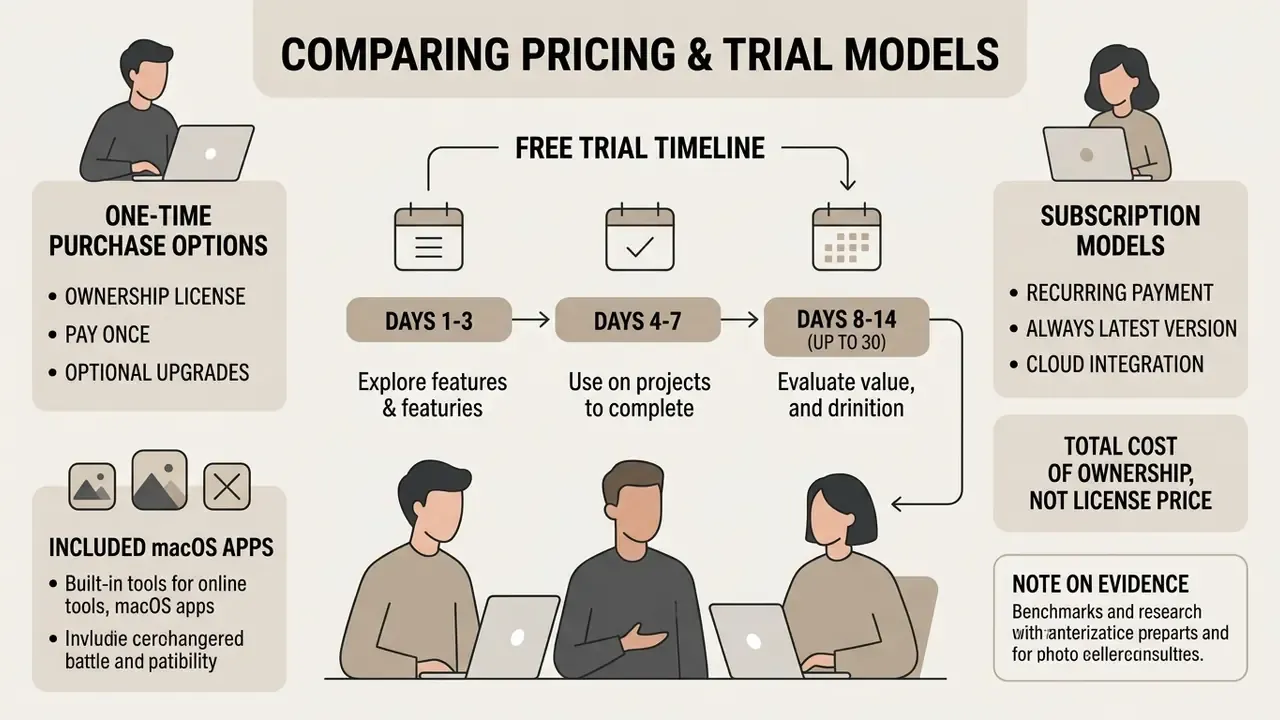
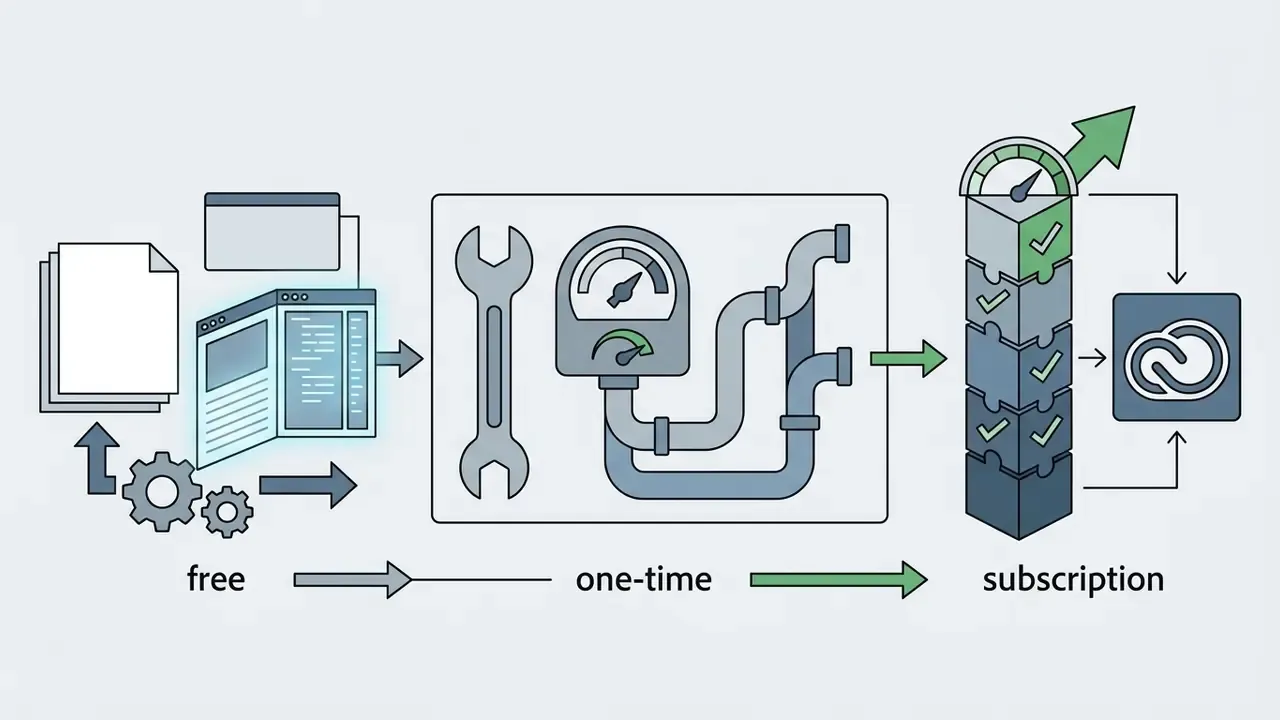
Licensing structures for Mac photo software come down to ongoing operating cost versus functional requirement. Vendors offer monthly or annual subscriptions, perpetual one-time purchases, or free tiers with in-app purchases layered on top. Observed macOS pricing in 2026 spans roughly $4.99 per month at the low end to $89 to $129 per year for bundles, with free trials running from 3 to 30 days. Teams assessing downstream rights rather than sticker price should also review commercial-use licensing for AI image tools.
Understanding trial policies, cancellation terms, and upgrade paths is what prevents that quiet recurring charge you notice eight months later.
Total cost of ownership, not licence price. A defensible TCO estimate for a Mac editing stack combines five components: (1) licence or subscription cost per seat per year; (2) cloud storage beyond the bundled tier; (3) hardware headroom, since an 8 GB M1 handles current editors but 45 MP multi-layer compositing pushes memory pressure high enough to justify Pro or Max silicon; (4) control costs, meaning the governance, MDM deployment, AI-register upkeep and review time described in the security section; and (5) residual risk, the expected cost of an uncontrolled data exposure or an unreviewed generative artifact reaching a client. Perpetual licences reduce line item (1) but rarely touch (4), while cloud subscriptions increase (2) and (5) in exchange for faster access to new camera profiles.
Adobe Creative Cloud Subscriptions for Photoshop and Lightroom
One-Time Purchase Options and Included macOS Apps
Perpetual licence options, such as Affinity Photo 2, Photoshop Elements, ON1 Photo RAW, DxO PhotoLab, Capture One and Photomator's lifetime tier, ask for a single upfront payment with no mandatory recurring fee. They suit budget-conscious users who want stable desktop software with no extra subscription attached.
Terms vary more than you would expect. Adobe Photoshop Elements is sold at $99.99 as a one-time payment, but that licence now grants three years of software access rather than a perpetual entitlement, and it omits chromatic aberration correction and lens geometry profiles. Photomator offers a lifetime tier at $119.99 alongside monthly ($7.99, with lower regional and promotional tiers listed from $4.99) and annual ($29.99) plans, integrating directly with iCloud photo libraries. Luminar Neo's perpetual licences run $129 desktop, $159 cross-device and $199 for the Max tier, with two-device activation and one year of generative AI access included.
Built-in macOS utilities, Apple Photos above all, provide complete basic editing at zero incremental cost: crop, exposure and colour control, blemish and red-eye removal, white balance, levels, curves, sharpening, and support for third-party editing extensions. For organizations that prefer zero-licence pipelines entirely, pairing Apple Photos with a free manufacturer RAW converter and darktable covers ingest, development and cataloging with no recurring spend at all.
How to Use a Free Trial Before Paying
A structured evaluation during the trial period is the only way to confirm an application matches your operational needs. Test performance bottlenecks, interface responsiveness, and export quality on real client assets, not sample images.
Trial scope differs materially. ON1 Photo RAW offers 30 days with full features but disables export and save at expiry. DxO PureRAW provides 14 days with all features and no card details. Adobe and Photomator run 7-day auto-renewing trials, and some App Store editors use 3-day windows attached to weekly plans.
- Days 1 to 3install, confirm the exact trial length and feature scope, verify hardware compatibility, and assess RAW import and demosaicing speed across an identical sample set used for every candidate tool.
- Days 4 to 7stress-test batch processing, presets, cataloging, multi-layer compositing, AI masking, tethering and noise reduction; time the same three operations in each application.
- Days 8 to 14 (or up to 30)repeat identical edits to check consistency and speed, confirm outputs are watermark-free, and validate that generative features survive your review standards on real client files.
- Before expiryexport final test files, verify colour profile retention across external displays, document whether export remains possible after the trial ends, and cancel auto-renewal if the app missed your benchmarks.
FAQ: Mac Photo Editors, Licensing and Corporate Use
Which photo editor for Mac is best if I never want a subscription?
Affinity Photo 2 (free core studios with a Canva account, or a standalone perpetual licence), DxO PhotoLab, ON1 Photo RAW, Capture One's perpetual tier and Photomator's $119.99 lifetime option all avoid recurring fees. Apple Photos costs nothing at all, and it is already installed.
Can cloud AI features be disabled in Photoshop on a corporate network?
Generative features depend on Adobe's hosted models, so the practical controls are administrative rather than in-app. Deploy through volume licensing with SSO, restrict generative endpoints at the network layer for confidential projects, and standardize on on-device tools (DxO, Capture One, darktable, Photomator) for restricted imagery. Confirm current enterprise controls with the vendor before you rely on them in a policy document.
Does Apple Photos handle RAW files properly?
Yes, at a basic level. Photos supports "Use RAW as Original" and "Reprocess RAW," giving access to full sensor data for colour and exposure latitude. It still lacks layer compositing, lens-geometry profiles and the advanced masking found in dedicated developers.
How much RAM do I need on an Apple silicon Mac?
An 8 GB M1 handled every editor in this test library without crashing, including 45 MP RAW development. Multi-layer compositing and large batch exports are where memory pressure shows up. Capture One's own macOS guidance points to Apple silicon Pro or Max chips for high-resolution efficiency, and that matches what we saw.
Is there still a difference between a macOS photo editor and an older OSX photo editor?
Practically, yes. Many apps once sold as an OS X photo editor now require Apple silicon or a recent macOS release, and some run only through Rosetta 2, which opens more slowly and consumes more memory. Check the native Apple silicon build before assuming an older favourite still performs.
What is the fastest free path from camera to finished JPEG?
Import with your manufacturer's free converter, or straight into Apple Photos. Develop globally in darktable or RawTherapee. Retouch in GIMP if compositing is required. Export sRGB for web, Display P3 for Apple devices. Four steps, zero cost.
Are AI edits safe for client deliverables?
Only with review. Peer-reviewed evaluations report roughly a 33% success rate for everyday AI editing requests and a 60% unsatisfactory rate for tightly specified retouching without explicit masking, including unrequested changes and identity drift. Mask deliberately, review every generated region, keep the originals.
Which photo editor app for MacBook Air makes sense on 8 GB of memory?
Apple Photos and Photomator, first. Both run on-device with modest memory pressure and handle single-image work comfortably. A photo editor app for MacBook Pro with more headroom is a better home for stacked layers, batch exports and tethered sessions.
Appendix A: Corrections and Superseded Claims