Modern HTML5 standards make it possible to play media content directly inside a browser window. An online video player from URL is built for one job: instant decoding and playback of video files and streams over a direct HTTP/HTTPS link, with no need to download the whole object to a local disk or deploy heavyweight software.
For teams working inside regulated environments, that detail matters more than it sounds. If an analyst cannot install a desktop player, a browser tab becomes the only compliant way to review a media asset.
⚠️ Important when working with YouTube, Bilibili and other video-hosting links
What this tool does, in one screen
- Plays direct media URLs (MP4/H.264, WebM/VP9/AV1, MKV with browser-supported codecs, HLS
.m3u8, DASH.mpd) straight in the browser, streaming byte ranges instead of downloading the whole file. - Plays local files privately through the File API and
URL.createObjectURL(). The file never leaves the device and is never uploaded to a server. - Supports subtitles in WebVTT and SRT (converted to VTT client-side), multiple tracks, and full keyboard control.
Searches such as link video player online, online link video player or online video viewer with link usually describe the same thing: a browser page that accepts an address and starts a stream. The naming varies. The mechanism does not.
localStorage.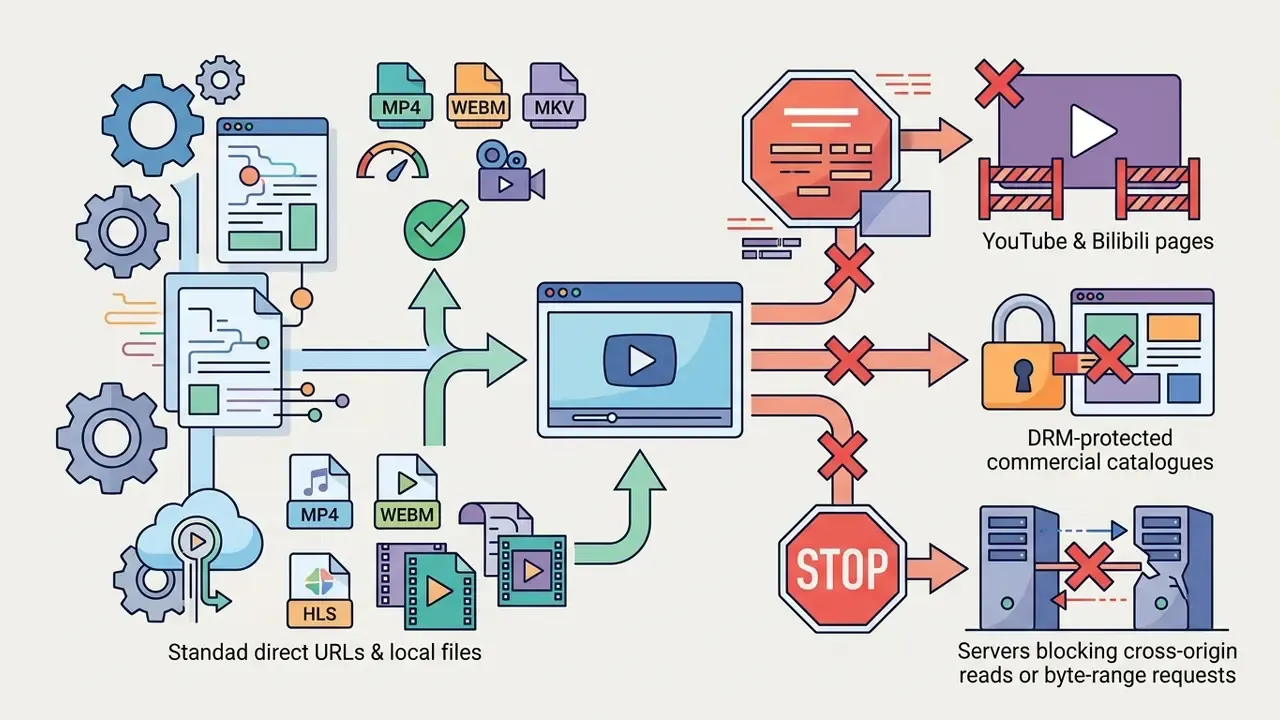
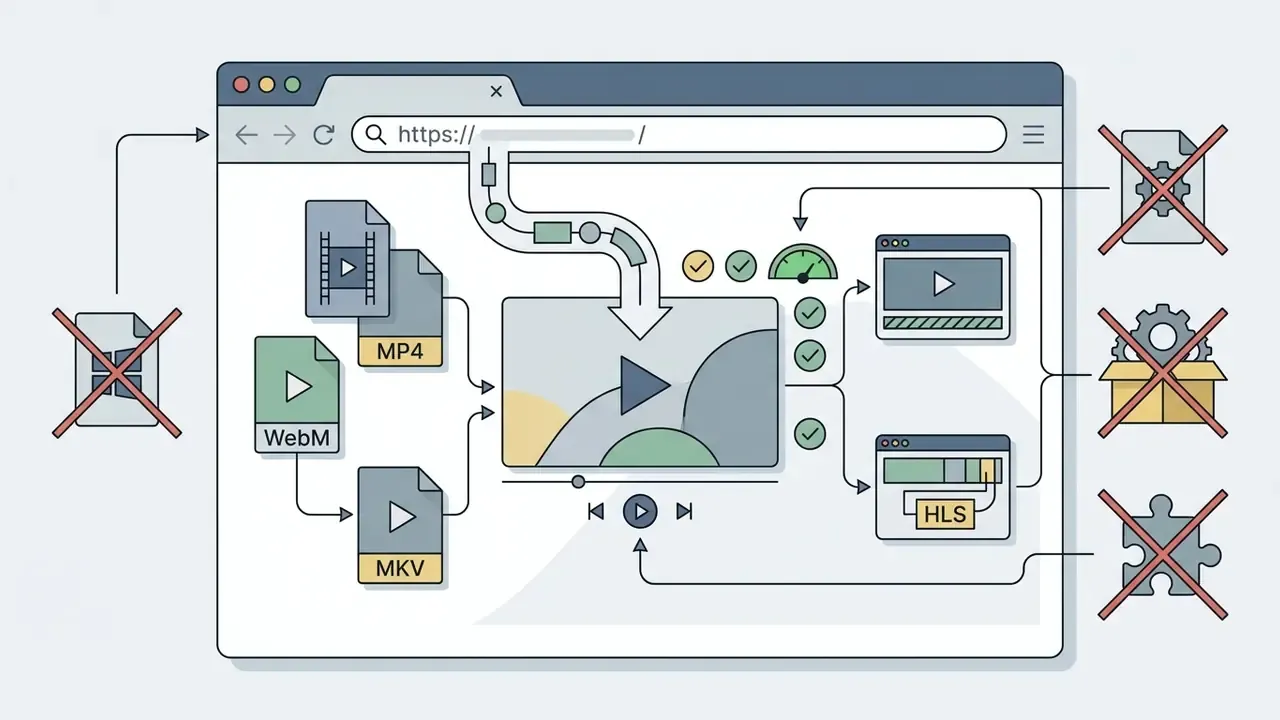
.exe, no .dmg, no codec packs, no plugins.Three inputs, three outcomes
| What you paste or open | What the browser actually receives | What to do next |
|---|---|---|
Direct media URL (.mp4, .webm, .m3u8, .mpd) | A media stream the decoder can read | Paste and press Play |
| Video hosting page (YouTube, Bilibili, Drive preview) | An HTML document with scripts | Use the official embed player or convert the link to a direct one |
| Local file from your disk | A Blob URL bound to the file object | Select or drag the file; nothing is uploaded |
That single distinction resolves most of the confusion around browser playback. Everything else is a detail.
What is an online video player from URL and what tasks does it solve
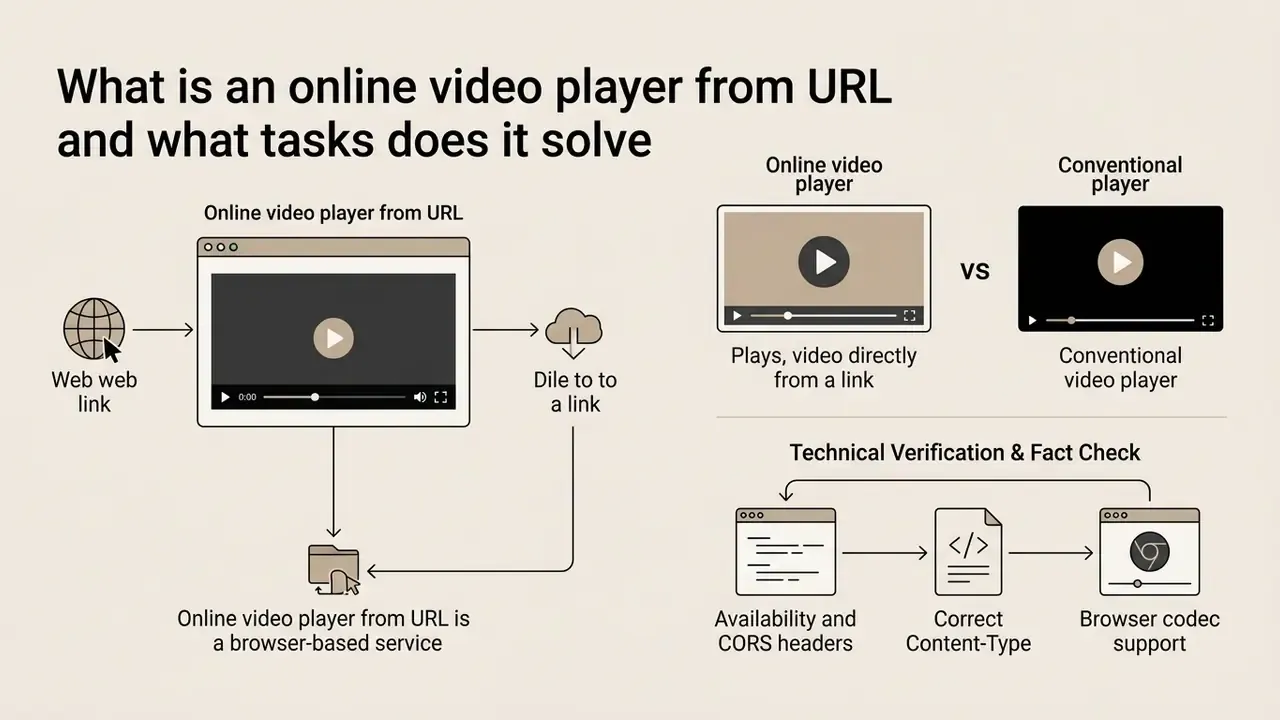
An online video player from URL is a browser-based service that plays media files from a direct web link without first downloading the file to your device. People use it for prompt viewing of online video, for verifying stream quality, for testing published media resources, and for playback on devices where application installation is restricted.
The core purpose is fast access to video files hosted on external servers, CDNs or cloud storage. The user only has to paste a valid video link to start streaming. That removes waiting time, saves device storage, and eliminates the risk of launching an executable from an unknown source.
Playing video from a direct link without downloading
Playback from a web address happens through the browser's built-in media engine, which requests fragments of the media file via HTTP Range Requests. The browser sends a request, receives the first bytes (headers and metadata), determines the container, codec and duration, and buffering plus playback begin almost immediately.
«Browsers do not support formats through HTML5 directly. Each browser implements support for specific containers and codecs itself, while the
<video>element only provides a standard interface for requesting playback.»
Technically, choosing to play video online does not require storing the whole data array locally. If a 2 GB video file sits on a remote host, the browser downloads only the fragment the decoder is reading right now. According to the W3C HTML5 Media Elements specification, a <video> element with a defined src attribute addresses the resource over HTTP/HTTPS and supports progressive download, which allows a jump to any timestamp without downloading the preceding blocks (W3C HTML Standard, 2026).
For HLS and DASH the mechanism differs slightly. The player requests a small manifest, then pulls short segments and feeds them into the media element, so playback stays continuous even when bandwidth fluctuates. Not perfectly smooth on a train, admittedly, but continuous.
How a URL video player differs from a conventional video player
The main difference between an online video player url and desktop applications such as VLC or MPC is the absence of software installation (no installation) and full operation inside the browser's secure sandbox. Classic desktop players have direct file-system access and ship their own decoding libraries (FFmpeg). A player online relies exclusively on the hardware and system decoding that the browser exposes. VLC documentation describes it as a free, open-source application that "plays everything" on "all platforms", yet every platform requires a local install with file-system-level dependencies. A browser player is reachable anywhere a browser can decode the media, and nowhere else.
During corporate infrastructure reviews we kept running into strict security policies that forbid installing executable .exe or .dmg files on analyst workstations. A browser-based player without third-party software cut the time needed to validate public media materials from several hours (IT approval queue) to a few seconds, while keeping the executed code isolated inside the browser container. Treat that figure as an illustrative observation rather than a benchmark. If, after reviewing a file, you need to trim or repackage it for publication, see our guide to YouTube video editing.
One caveat for enterprise networks: corporate proxies, TLS-inspecting gateways and egress firewalls frequently strip the Range header or block cross-origin media reads. If a direct link plays on a mobile network but fails on the corporate LAN, the problem is almost always the proxy, not the player. Worth checking before you open a ticket against the tool.
E-E-A-T: Technical Verification & Fact Check
🧪 Test video links for checking that the player works
Do not hunt for your own files just to see whether the tool runs. Copy any of these open-source links and paste them into the player's input field:
| Test clip | Container / codec | Direct URL |
|---|---|---|
| Big Buck Bunny | MP4, H.264 + AAC | https://storage.googleapis.com/gtv-videos-bucket/sample/BigBuckBunny.mp4 |
| Sintel Trailer | MP4, 1080p H.264 | https://commondatastorage.googleapis.com/gtv-videos-bucket/sample/Sintel.mp4 |
| Tears of Steel | MP4 (also distributed as WebM/VP9) | https://storage.googleapis.com/gtv-videos-bucket/sample/TearsOfSteel.mp4 |
If these links play but your own link does not, the issue sits on the hosting side: CORS, MIME type, byte-range support or codec. Not the browser. That single comparison eliminates roughly half of all support questions we see.
How to play video from URL online: the step-by-step order
You can start playback through play video from url online in three steps. Copy the direct video url, paste it into the input field, press the launch button. This sequence gives you instant media-stream initialisation with no extra configuration.
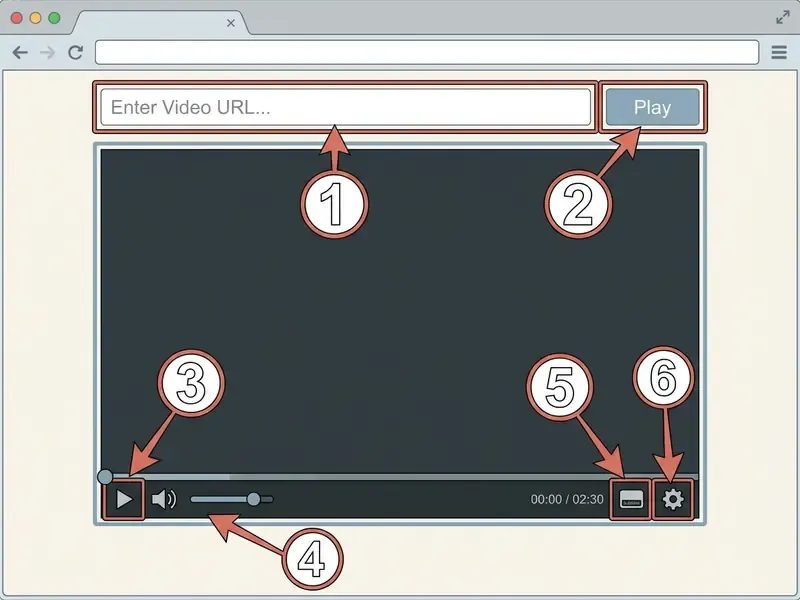
How to paste a video link and start playback
To use an online video link player, follow this sequence:
- Copy the direct link to the media file. It should end with a file extension such as
.mp4or.webm, or point to a direct streaming manifest. - Open the online video player with link page and paste the URL into the text input field.
- Press "Play" or "Load Video". The player passes the address to the
srcattribute of the HTML5 element and calls the.play()method. - Optionally add subtitles, then adjust speed, volume, loop, fullscreen or Picture-in-Picture.
To guarantee a fast start without delays, modern players set preload="metadata", which lets them read frame dimensions and duration quickly before the full stream launches (TeKeye Media Guides, 2023).
«
preload="none"does not touch the file until Play is pressed and saves traffic;preload="auto"loads the whole file in advance and is not recommended for mobile devices.»
A note on autoplay, because it trips people up. The autoplay attribute alone is not enough for sound. Browser policy allows an automatic start only for muted or inaudible media, and W3C accessibility checks flag autoplaying video with audio and no mute control as a failure. So if you build a share link with ?autoplay=1, keep the media muted by default.
How to get a direct link from Google Drive, Dropbox and OneDrive
Cloud share links normally point to a preview web page, not to the media bytes. Convert them first:
- Google Drive open sharing, set access to "Anyone with the link", copy the URL, take the
FILE_IDfromdrive.google.com/file/d/FILE_ID/view?usp=sharingand rebuild it ashttps://drive.google.com/uc?export=download&id=FILE_ID. Very large files may show an interstitial confirmation page; in that case download once and use local playback. - Dropbox copy the file link and change the trailing parameter
?dl=0to?raw=1. The legacy?dl=1forces a download instead of a stream. - OneDrive / SharePoint use "Embed", then copy the value of the
srcattribute from the generatediframesnippet. That URL is the streamable endpoint. - S3 or generic object storage make sure the object is public or use a pre-signed URL, and confirm the bucket returns
Content-Type: video/mp4rather thanapplication/octet-stream. - File-sharing apps links from file-sharing services usually open a download page, not the file. Retrieve the direct link (it typically ends in
.mp4) or download the file and play it locally.
A practical rule of thumb: if pasting the URL into a fresh browser tab starts a download or shows a page with buttons, it is not a direct media link yet.
How to check the link when the video does not start
If an attempt to play url video online returns an error or an endless loading spinner, diagnose the link in order. The usual culprits are network blocks, incorrect routing and unsupported video formats.
Use this checklist:
- MediaError code. Open the developer console (F12).
MEDIA_ERR_NETWORK(code 2) points to network or CORS problems,MEDIA_ERR_DECODE(code 3) to a corrupted or undecodable stream, andMEDIA_ERR_SRC_NOT_SUPPORTED(code 4) to an unsupported format or an incorrect server MIME type (MDN Web Docs, 2026). - HTTP Range Requests check. Confirm the server sends
Accept-Ranges: bytes(RFC 7233). Without it the browser cannot seek or load fragments, so the timeline refuses to jump. Workaround while you fix the server: fast-forward using 8x to 16x playback speed. - URL type check. Make sure the link points straight to the media file, not to a video hosting web page. A standard YouTube watch page contains HTML and JavaScript, not a raw media stream.
- HTTP status. A 403 or 404 means the file was removed or the host blocks playback from other websites. A 302 chain to a login page means the object is not public.
- Mixed content. An
http://media link inside anhttps://page is blocked by the browser. Always use HTTPS sources. - DRM. Encrypted commercial catalogues require EME with a supported container and common-encryption packaging. A plain
<video>element cannot decrypt them, and no browser setting changes that.
People often phrase this problem as "I cannot play video online from url at all", when in fact the stream is fine and one header is missing. The console tells you which one in about ten seconds.
Why is there no sound in my video, especially in MKV, and how to fix it
If the picture plays smoothly but there is no audio, the file almost certainly uses the AC3 (Dolby Digital) or DTS audio codec. Standards-aligned browsers such as Google Chrome and Firefox do not support patented AC3/DTS natively because of licensing restrictions, so the video track decodes while the audio track stays silent.
Ways to solve it:
- Open the same link or file in Microsoft Edge, which has broader codec support at the Windows and macOS operating-system level.
- Re-encode the audio track to AAC or MP3 before playback: copy the video stream, re-encode audio only, no quality loss on the picture.
- As a fallback, play the file in a desktop player with bundled decoders, for example VLC.
- Before blaming codecs, check the trivial causes: the player's mute toggle, the OS volume mixer, the muted browser tab. Embarrassing, but common.
The same logic applies to containers. An MKV with H.264/x264 video plays in Chrome and Edge, H.265 support is partial, and .avi, .wmv, .flv or .rmvb depend entirely on the codecs your particular browser exposes. If a file refuses to play, converting it to MP4 (H.264 + AAC) is the reliable fix.
How to open the player with a video already loaded, and how to embed it
Many web players accept the link inside the browser address bar through GET parameters or fragments (Media Fragments URI). This lets you build ready-to-use links for instant viewing without re-pasting the URL, which is handy when you need to share a testable link with teammates, auditors or clients.
According to the W3C Media Fragments URI 1.0 standard, adding a fragment such as #t=10,30 tells the player to start playback at second 10 and stop at second 30. With parameters like ?autoplay=1 or #autoplay, players that implement them call the autostart method right after the DOM is built, provided the browser's autoplay policy allows it.
A share link therefore looks like this:
https://yourdomain.com/player?url=HTTPS_LINK_TO_VIDEO#t=10,30
Which URLs, video formats and streams an online video player supports
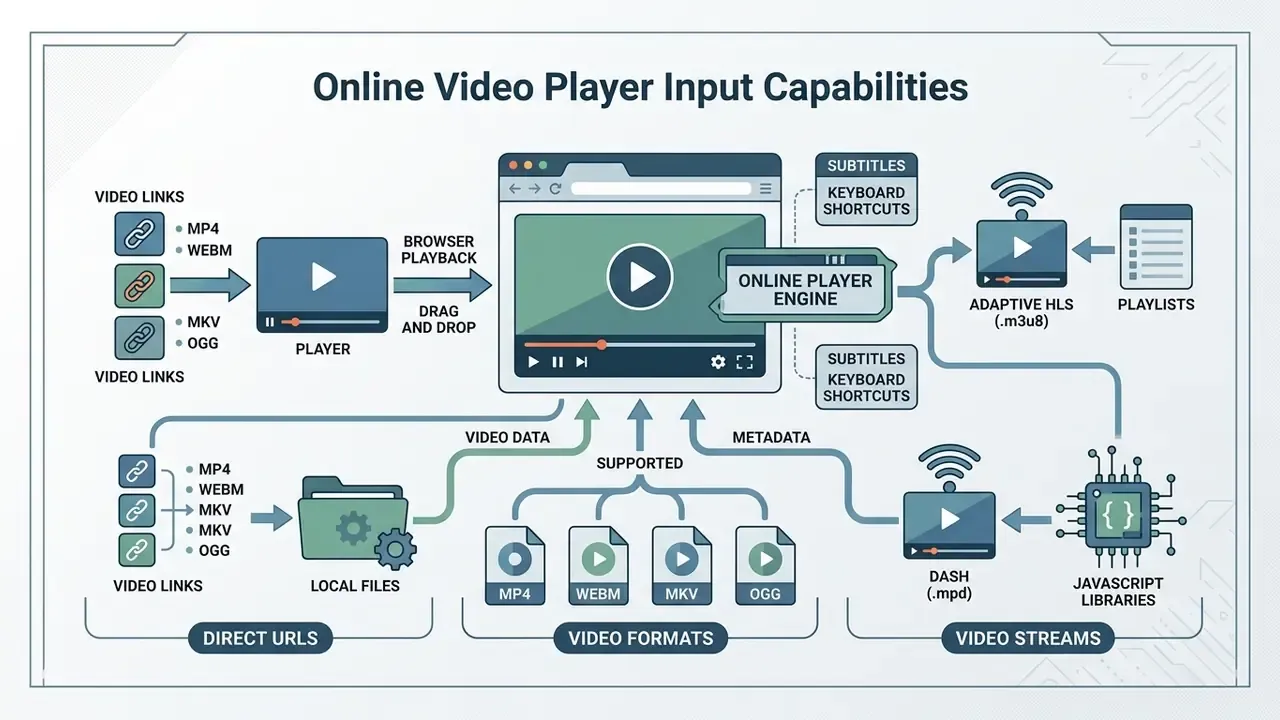
A modern online url video player supports the main web containers MP4, WebM and Ogg, plus adaptive HLS (.m3u8) and DASH (.mpd) streams when the relevant JS libraries are attached. Support for a specific format is decided by the codecs integrated into the user's browser, not by the page itself.
The summary table below makes source and format compatibility easy to assess.
Table 1. Compatibility of media sources and formats in browser video players
| Source type / Container | Supported codecs | Browser support | Requirements and launch conditions |
|---|---|---|---|
| MP4 (.mp4, .m4v) | H.264 (AVC), HEVC (H.265), AV1, AAC, MP3 | Cross-platform: Chrome, Safari, Firefox, Edge | Direct URL; Content-Type: video/mp4; HTTP Range Requests support |
| WebM (.webm) | VP8, VP9, AV1, Vorbis, Opus | Chrome, Firefox, Edge, Opera, Safari 16.6+ | Efficient compression (about 40% smaller than MP4 at equal VMAF); MIME type video/webm |
| MKV (.mkv) | H.264/x264 (H.265 partial); audio AAC or MP3 only | Chrome, Edge, Firefox (partial) | Plays if the codecs are browser-supported; AC3/DTS audio tracks stay silent |
| Ogg (.ogv) | Theora, Vorbis | Firefox, Chrome, Opera (limited in Safari) | Used mainly as a fallback for legacy systems |
| HLS (.m3u8) | H.264, AAC (TS or CMAF segments) | Native in Safari; Chrome and Firefox require hls.js (MSE) | Adaptive streaming; requires CORS configuration on the origin server |
| DASH (.mpd) | H.264, VP9, AV1 with AAC or Opus (CMAF) | Chrome, Firefox, Edge via dash.js (MSE) | Manifest-based adaptive bitrate; CTA-5005-B defines DASH/HLS interop via CMAF |
| Local video file | All codecs supported by the OS and browser | Every browser with HTML5 File API support | Read through a Blob URL (URL.createObjectURL); data never touches the network |
Reading the table: the most universal option for playback by web link is the MP4 container with the H.264 codec, which works on effectively every device. WebM with VP9 delivers the best traffic savings. Adaptive protocols, HLS and DASH, need Media Source Extensions (MSE) to run in Chromium browsers.
MP4, WebM and other video formats in the browser
MP4 and WebM are the de facto standards for modern web video. Compression tests give concrete numbers rather than vague claims:
«In a direct comparison of a 30-second 1080p clip: MP4/H.264 at CRF 23 weighed 10 MB (VMAF 94.2), while WebM/VP9 at CRF 30 weighed 6 MB (VMAF 94.1), so 40% smaller at practically identical quality.»
«Chrome supports VP9 WebM since version 29 (2013), Firefox since version 28 (2014), Safari since version 16.6 (2023); Internet Explorer 11 and very old Safari versions have no support.»
If your mp4 player handles a mixed array of sources, set WebM as the priority <source> tag and keep MP4 as the universal fallback. AV1 is now available in all major browsers, with Safari limited to devices that have a hardware decoder. HEVC/H.265 remains the narrowest case: Firefox lists limited .mp4 support from version 120 onwards, and Safari's support depends on device hardware. Before preparing masters for the web, it is worth comparing free video editing software that can export both WebM and MP4 renditions in one pass, or a lightweight video editor for Chromebook if your reviewers work on managed devices.
Direct links, video hosting and video streams
For the player to launch successfully, the link must point at the media resource, not at an HTML page wrapper. A direct link hands the browser a media stream. A standard video hosting page requires third-party JavaScript execution and a proprietary player.
When handling HLS (.m3u8) or DASH (.mpd) streams, the browser uses a JS library such as hls.js or dash.js, which requests the manifest, splits it into segments and feeds them into HTMLMediaElement through the Media Source Extensions interface (W3C MSE Specification, 2026). Adaptive bitrate streaming then selects the rendition that matches current network and device conditions.
«The server must return the correct MIME type
video/webmfor WebM files: an incorrect type can force the browser out of HTML5 playback mode.»
CDN delivery follows a predictable syntax. A direct object path looks like https://<cdn_domain>/<path>, while the same source converted for streaming is exposed as /playlist.m3u8 for HLS and /manifest.mpd for MPEG-DASH. The DASH-IF Live Media Ingest Protocol requires HLS playlists to use the .m3u8 extension, which is exactly why an unusual extension often breaks player detection.
File size and duration limits
«A study of CDN logs from more than 100,000 concurrent sessions showed: the correlation between start-up time and perceived quality is ρ > 0.7, R² > 0.5.»
In other words, the startup delay you shave off by streaming byte ranges instead of downloading the entire file is not a cosmetic gain. It is the strongest single predictor of how users rate playback quality.
Online video player from URL with subtitles and playback control
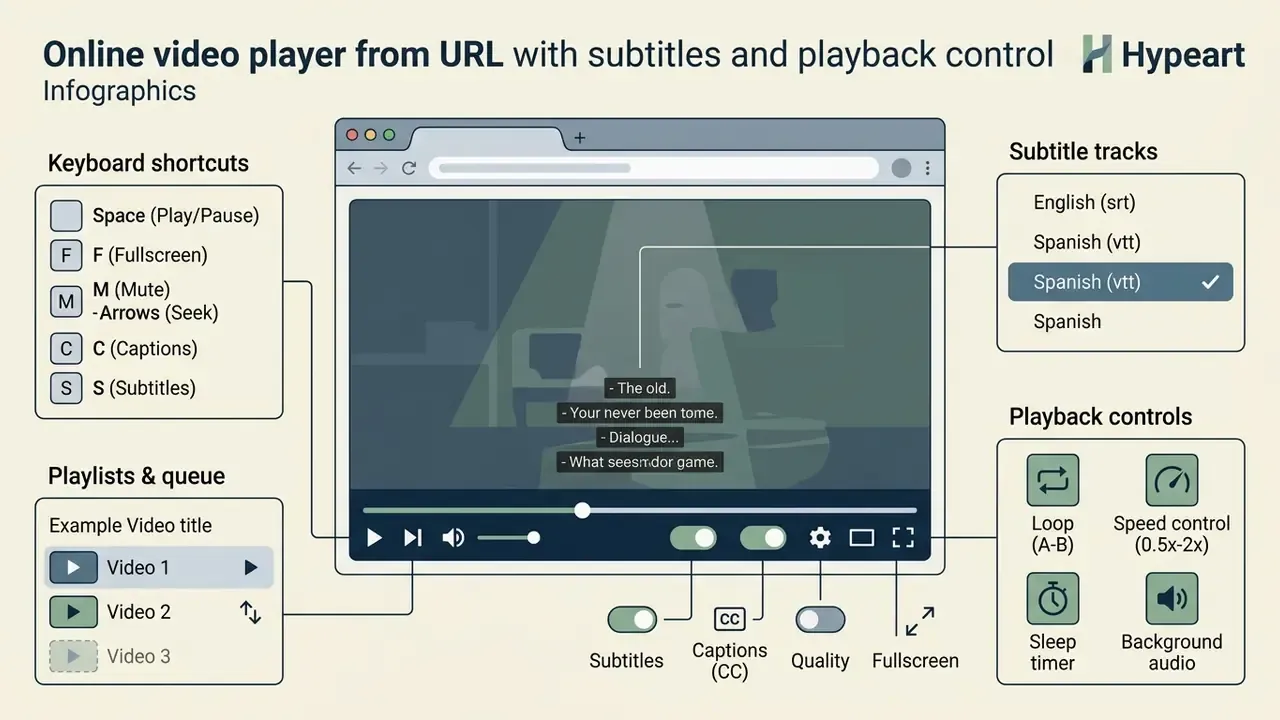
A functional online video player from url with subtitles loads external subtitle tracks in WebVTT and SRT formats and offers a full set of keyboard shortcuts for precise timeline navigation.
Subtitle support rests on the standard HTML5 <track> tag, which synchronises text timestamps with the video track.
How to attach and enable subtitles
Text tracks are attached by embedding a <track> element inside the parent <video> tag. The native web standard for timed text is WebVTT (Web Video Text Tracks).
External subtitles are loaded with the following code:
<video controls>
  <source src="video.mp4" type="video/mp4">
  <track kind="subtitles" src="subtitles.vtt" srclang="en" label="English" default>
  <track kind="captions" src="captions-en.vtt" srclang="en" label="English (CC)">
</video>
The SRT format is also widespread, but for it to work in the browser the player pre-converts the SRT structure into VTT on the client side with JavaScript (MDN Web Docs, 2026). SRT is not defined by a W3C standard, so its behaviour depends on the player rather than on a normative specification. For HLS, WebVTT stays in sync through timestamp mapping such as X-TIMESTAMP-MAP=LOCAL:00:00:00.000,MPEGTS:900000, which aligns subtitle timecodes with MPEG-TS presentation timestamps. Advanced formats such as ASS and SSA carry styling that browsers render only partially.
Playback control, playlists and keyboard shortcuts
A player online should support a standard set of keyboard shortcuts consistent with accepted accessibility standards (W3C WAI Guidelines, 2024). Section 508 additionally requires caption controls to sit at the same menu level as volume and program selection.
| Shortcut | Action |
|---|---|
Space / K | Play / Pause |
F | Toggle fullscreen |
Esc | Exit fullscreen |
M | Mute / unmute |
C | Toggle subtitles / captions |
P | Picture-in-Picture |
L | Toggle loop |
← / → | Seek 5 seconds back / forward |
J / L* | Seek 10 seconds back / forward (*when loop is bound elsewhere) |
↑ / ↓ | Volume up / down by 5% |
[ / ] | Decrease / increase playback speed (0.25x to 16x) |
, / . | Step one frame back / forward while paused |
A / B | Set the start (A) and end (B) point of a clip loop |
0–9 | Jump instantly to 0% to 90% of the duration |
Home / End | Jump to the beginning / end of the video |
Beyond single-file playback, a mature browser player adds four control layers that desktop users expect:
- Playlist and queue. Add several URLs or local files at once, reorder them, remove entries, and let the queue play continuously with Previous and Next controls. No re-selecting files one by one.
- A-B clip loop. Press "Set A" and "Set B" during playback, or type timecodes in
m:ssform, then loop only that section. Ideal for reviewing a single scene, a stutter or a QA defect frame by frame. - Sleep timer. Pick 15, 30, 60 or 90 minutes, or a custom value. Playback pauses automatically when the timer ends, with the remaining time shown in the interface.
- Speed control and background audio. Speeds from 0.25x to 16x help you fast-forward when the origin server forbids seeking, and audio can keep playing when you switch tabs.
You can explore complex multimedia scenarios and automated video-content production in our material on AI Media Workflows.
How to open a local video and keep playback private
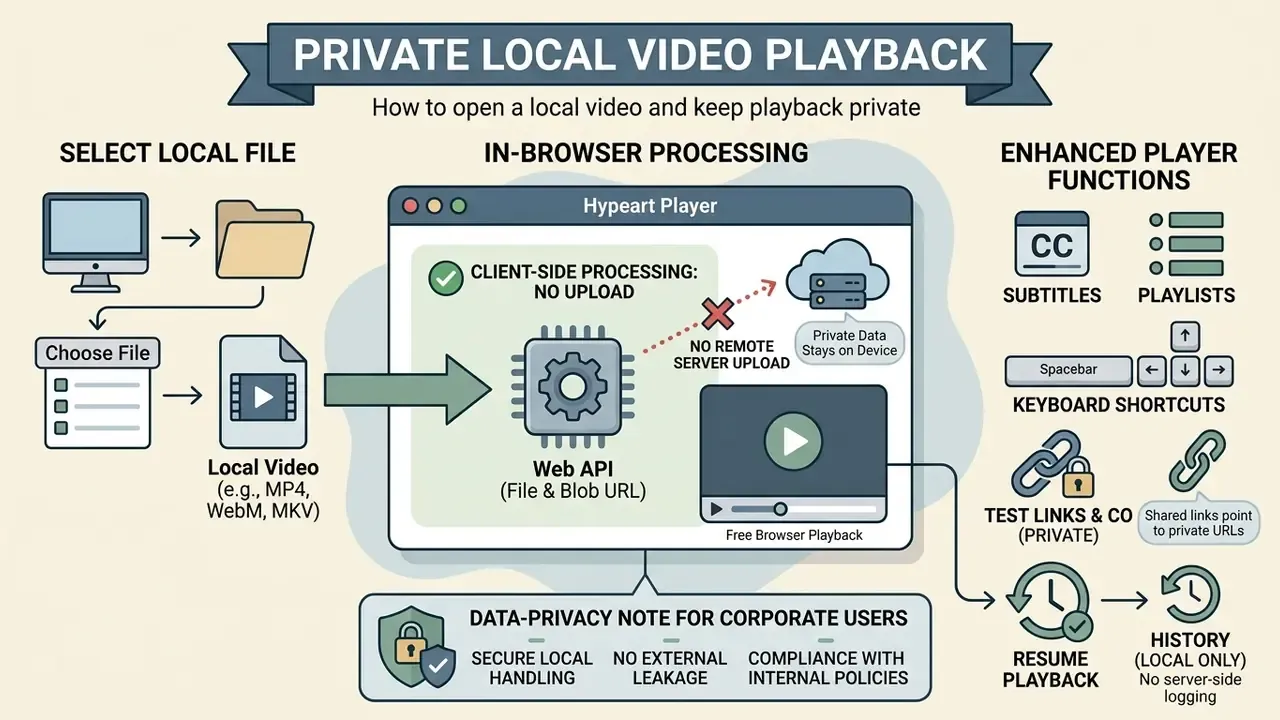
Playing local video in an online player happens on the user's device through the File API and Blob URL technologies, with no upload of the video file to remote servers. This approach keeps confidentiality intact and data safe. A browser page served over HTTP cannot freely read arbitrary file:// paths. The user must explicitly select the file, which is precisely why local playback is both possible and safe.
Playing local files in the browser
To play local files in the browser without uploading them, the player uses the URL.createObjectURL() method. The browser creates a temporary in-memory pointer of the form blob:null/3a4f..., bound directly to the local File object.
Example client-side script for instant file launch:
const fileInput = document.querySelector('input[type="file"]');
fileInput.addEventListener('change', (event) => {
  const file = event.target.files[0];
  const videoUrl = URL.createObjectURL(file);
  const videoElement = document.getElementById('myVideo');
  videoElement.src = videoUrl;
  videoElement.play();
});
Drag-and-drop works the same way: the dropped File object becomes a Blob URL without ever touching the network. When viewing is finished, memory is released by calling URL.revokeObjectURL(videoUrl) (W3C File API Specification). If the file turns out to be too large for comfortable sharing afterwards, see our guide to video file compression or the dedicated video compressor for chat platforms.
Private playback: what happens to the video and the link
Private playback for local files means no network activity at all: the media stream is read from the disk straight into the browser's decoder. Neither the original video file nor its contents are transmitted to external services. The W3C File API explicitly states that blob: URLs can reference locally generated data, which is the formal basis for this guarantee. And it is verifiable. Open the Network tab in DevTools, play a local file, and you will see no outbound media requests.
Resume playback and history. The player stores the current timestamp and the list of recently opened URLs in the browser's localStorage, not on a server. That is how playback resumes exactly where you stopped after a page reload, and how the "Recent videos" list appears. Because the data lives in the browser profile, you can delete individual entries or clear the whole history at any moment, and nothing syncs anywhere.
How to choose a free online video player from URL for your tasks
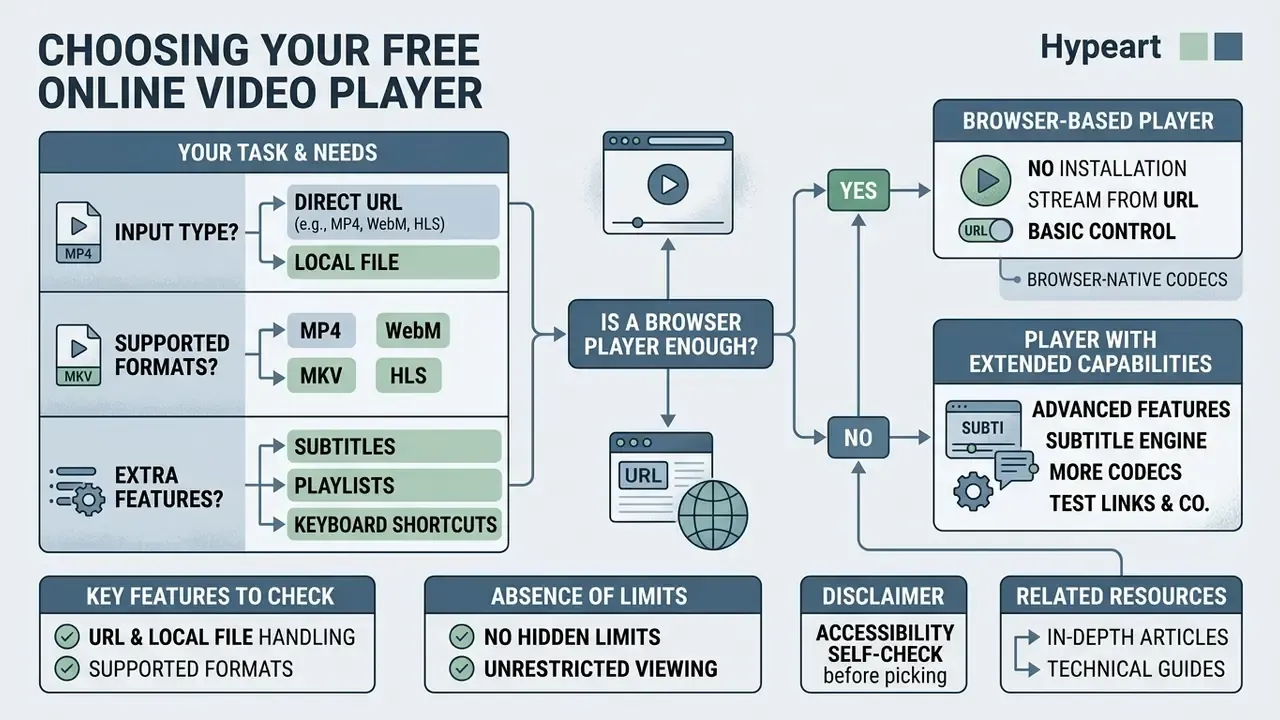
Choose a free online video player from url based on your real requirements: format support, subtitle attachment, local-file handling, and the absence of hidden viewing limits. Anything else is decoration.
A comparative analysis of online player categories is given below.
Table 2. Functionality comparison matrix of online video players
| Evaluation criterion | Basic URL player | Advanced player (for example Able Player) | Local Blob player |
|---|---|---|---|
| Playback from URL | Yes, direct MP4/WebM links | Yes, with adaptive manifest support | No, local objects only |
| Working with local files | Limited | Yes, via File API | Yes, fully optimised |
| Subtitle support | Basic, single VTT track | Extended: VTT, SRT, descriptive captions, interactive transcript | Depends on the availability of a caption file |
| Playlist and queue | Usually absent | Yes, ordered and reorderable | Yes, multi-file selection |
| Keyboard control | Partial, standard attributes | Full, WCAG 2.2 and Section 508 conformance | Standard |
| Resume playback and history | No | Configurable | Yes, localStorage, device-only |
| Privacy and processing | Depends on the hosting server | Local script processing | Fully client-side, no data leaves the network boundary |
Key features: URL, local files and supported formats
A universal tool should combine three fundamental key features: handling direct links, correct interpretation of local files via drag-and-drop, and a broad decoding range for modern formats. Teams increasingly pair playback checks with generation and post-processing pipelines, so it helps to know the landscape of AI video generators that produce the assets you are about to validate. Computing costs and conversion parameters can be estimated with our built-in calculators, and if your prompts need refinement first, the guide to prompts for ai art generation is a reasonable starting point.
When a browser-based player without installation is enough
A browser based player with no third-party software is entirely sufficient for these typical tasks:
- Quickly checking a video published on a CDN before release, including clips produced with free AI video generators.
- Viewing training materials and lectures from direct links on closed corporate servers.
- Playing short animations and demos, including intro assets and endings built with an outro maker.
- Reviewing recorded sessions and QA captures where a desktop install is not permitted.
- Safe viewing of files on devices with restricted administrator rights, such as Chromebooks and managed corporate laptops.
- Verifying that an embed link works for an external reviewer before you send it.
When you need a player with subtitle support and extended capabilities
A player with extended subtitle support (subtitle support), multiple audio tracks and specialised streaming protocols becomes necessary in education, in web broadcasting, and in any project that must meet inclusivity requirements.
Under European regulatory norms (IRIS Plus Report, Council of Europe) and W3C WAI guidance, public and educational video resources must provide synchronised subtitles and audio description for people with hearing and vision impairments.
«Subtitles must contain a full textual representation of the audio, including speaker identification and non-speech information, be synchronised and not obscure visual content.»
In those cases a plain <video> tag is not enough. You need a player framework with interactive transcripts and font customisation.
«Able Player is the only media player supporting all five HTML5 timed-text purposes: subtitles, captions, descriptions, chapters and metadata, including automatic interactive transcript assembly.»
The gap between requirement and reality is measurable:
FAQ: frequently asked questions about online video players
Short answers to the questions users send us most often about browser playback by link.
Can I use an online video player from url free?
Yes. Most basic web players are completely free (online video player from url free). The business model usually relies either on banner advertising (AVOD), where advertisers rather than users fund access, or on open-source distribution with no hidden payments and no subscription. Watch the realistic middle ground, though: freemium tiers stay usable forever but may cap cloud playlists or keep ad-free viewing behind a paid plan. "Free" and "unlimited" are not always the same claim.
Do I need to install a program to watch videos from a link?
No. Installing extra programs, codecs or plugins is not required. Modern browsers ship native decoders for the popular codec stack (H.264, VP9, AV1, AAC), which makes it possible to play media files straight through HTML5 standards without legacy modules such as Flash. The HTML specification states plainly that media elements allow presentation "without the need for the user to install extensions or other software". Plugin-based playback is deprecated in browsers, and only legacy formats such as MPEG-1 and MPEG-2 might still depend on it.
Can I play a YouTube link in a URL player?
Not as a raw media stream. A watch page is HTML plus JavaScript, and the underlying streams are served through hosting-specific mechanisms that the browser's element cannot address directly. Use the platform's official embed or iframe player for hosted content, or a direct stream URL (.mp4 or .m3u8) that your own server or CDN serves with permissive CORS headers.
Why can I play the video but not jump to another scene?
The origin server is not honouring byte-range requests (Accept-Ranges: bytes, RFC 7233), so the browser cannot fetch an arbitrary offset. Fix it on the server side, or use high-speed playback, up to 16x, to reach the moment you need.
Are the videos I play stored anywhere?
No. URL playback streams directly from the source you provide, and local files are read inside the browser sandbox. Watch history and resume timestamps live in your browser's localStorage and can be cleared at any time.
Is there a limit on file size or duration?
The player imposes no fixed limit. Practical performance depends on your connection, the hosting server and available device memory; very large files simply take longer to buffer. For multi-gigabyte files, prefer HTTP streaming with Range support over the Blob URL route.
Which browsers work best?
Chrome and Microsoft Edge offer the broadest codec coverage. Firefox, Safari, Brave and Opera also work. If a file fails in Chrome, especially an MKV with AC3 or DTS audio, try Edge, which leans on operating-system decoders.
Can I play several files one after another?
Yes. Add multiple URLs or local files to the queue, reorder or remove entries, and the playlist advances automatically with Previous and Next controls.
Does the tool work on a locked-down corporate laptop?
Usually yes, since nothing is installed. The realistic blockers are network-level: a proxy that strips the Range header, an egress rule that denies the CDN domain, or a policy that blocks third-party web tools entirely. Test with one of the open-source sample links above before you conclude anything about the player.
Appendix A: archived statements and technical notes
Kept for transparency and version tracking, replaced in the main text by the updated wording above:
- Original compression claim"Compression efficiency studies show that the VP9 codec in the WebM container reduces file size by 30 to 50% compared with H.264 in MP4 while preserving comparable visual quality by the VMAF metric (CleverUtils Developer Guide, 2026)." Superseded by the measured CRF 23 versus CRF 30 comparison: 10 MB versus 6 MB, VMAF 94.2 versus 94.1.
- Original Blob limit claim"When playing extremely large files through a Blob URL, some browser implementations limit the object size to ~200 MB to keep the tab stable." Retained as an implementation-specific threshold in one playback library, not a standards-level browser cap. Standards documents define no universal maximum.
- Original H1 and title"YouTube Video Player Online URL: watch video by link in the browser." Replaced because a YouTube watch page is not a direct media link, as explained in the troubleshooting and direct-link sections. The current H1 matches what the tool can actually do.
- Archived cross-topic link listreferences previously published as a flat list in the accessibility section were redistributed into contextual, topic-relevant placements (video compression, AI video generation, video editing, prompts, API and commercial-use guides) so that the accessibility discussion stays focused.
Page metadata
- SEO TITLE Online Video Player from URL: Free Browser Playback (MP4, WebM, MKV)
- SEO DESCRIPTION Play video from a direct URL or a local file in your browser: no install, MP4/WebM/MKV/HLS support, subtitles, playlists, keyboard shortcuts, test links and CORS troubleshooting.