"Evaluating video editing workflows on Chrome OS requires balancing lightweight cloud rendering against strict operational controls. No software autonomy should bypass human oversight, predictable data lineage, and clear export rules."
Executive summary for fast decisions
- Best overall browser editor for Chrome OS Microsoft Clipchamp, with 1080p exports on the free tier, screen and webcam recording, AI noise suppression, and no watermark on basic assets.
- Best free video editor for beginners Adobe Express, with over 100,000 templates and more than 1 million royalty-free assets available without payment, plus one-click resizing.
- Best for AI automation VEED and CapCut. Auto-subtitles with
.SRTexport, AI eye contact correction, background removal, voice cloning, cloud 4K upscaling, stabilization. - Best for education, LMS and group projects WeVideo, thanks to Google Classroom and Google Admin console licensing, shared media libraries, and multi-track timelines.
- Best for enterprise and regulated teams Adobe Express Premium and Microsoft Clipchamp (work or school access via OneDrive or SharePoint). These two offer the clearest administrative controls, identity integration, and commercial licensing terms among browser-based editors.
- Hardware reality check an 8 GB RAM Chromebook Plus-class device handles 1080p browser timelines comfortably. Local 4K raw compositing does not belong on Chrome OS, but cloud-side 4K rendering and upscaling are available.
- Biggest hidden risk free consumer editors process your source footage on third-party servers. Confirm retention windows, AI-training policies, and export rights before uploading internal or client media.
Who this guide is for, and how to read it
This guide serves three different readers, and each should skip to a different place.
If you are a student or a first-time creator, the beginner and step-by-step sections matter most: template, trim, music, export. If you run marketing or enablement content, start with the comparison table and the selection matrix, because your constraint is publishing cadence rather than features. And if you sign off on tooling for a bank, insurer, or fintech team, read the privacy and Shadow AI section first. The question there is not "which editing app looks nicest" but "can we defend this upload if internal audit asks."
One more framing note. Feature lists on vendor pages age fast. Everything below was re-checked in February 2026, and each claim points to the vendor page that owns it.
What to look for in a video editor for Chromebook
Choosing the right video editor for Chromebook depends mostly on three things: browser compatibility, local resource headroom, and where rendering happens. Chrome OS is web-first by design, so the strongest options run inside Google Chrome without a heavy local install.
A reliable video editor for Chromebook balances timeline capability against system stability. Look at memory overhead, media input support, export caps, and how the tool behaves when a video editing project grows past a handful of tracks on low-spec hardware.
Format support is the second gate, and buyers skip it constantly. Chrome OS natively handles WebM, MP4, MOV, and 3GP, while legacy containers such as AVI and MPEG4 are no longer supported. Archival footage therefore often needs transcoding before it ever reaches the browser timeline. I have watched a 2014 wedding AVI file kill an afternoon for exactly this reason.
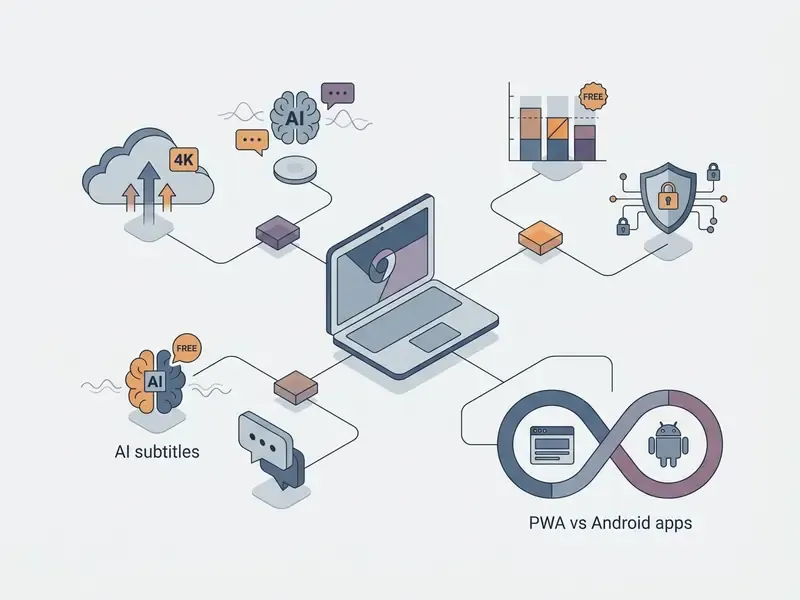
Online video editor or Chromebook video editing software
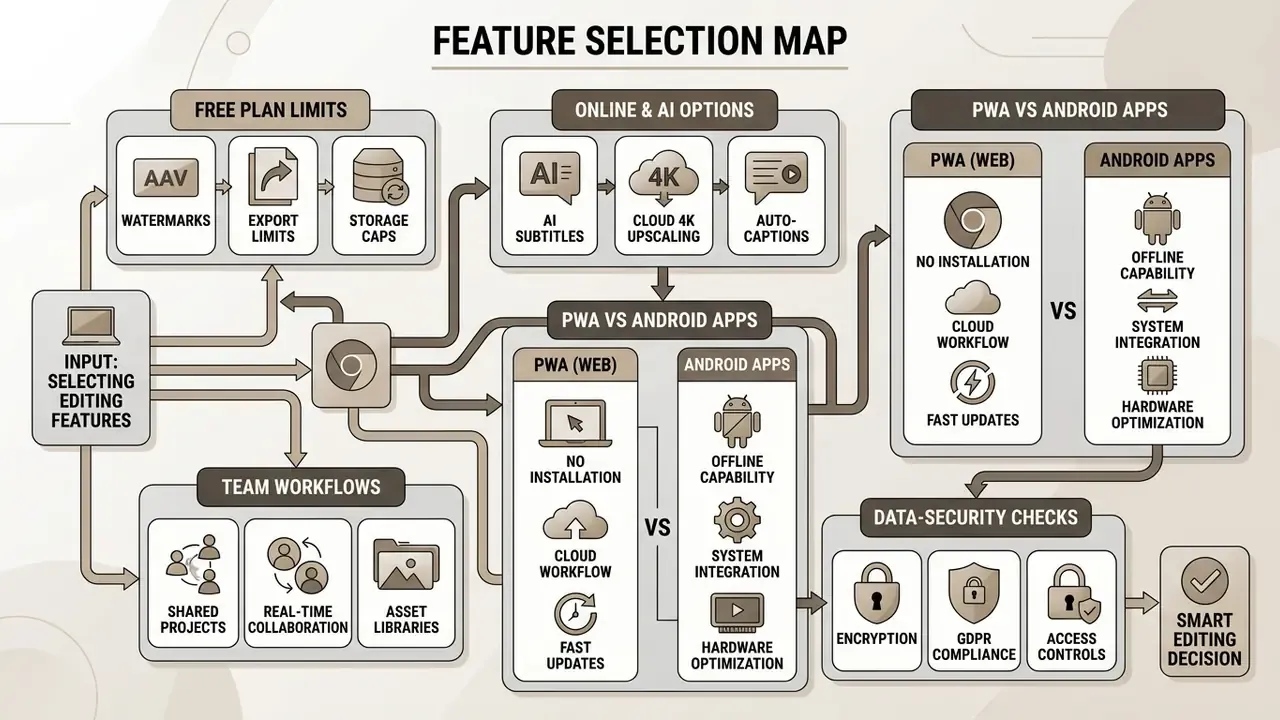
An online video editor runs in a web browser on rented cloud hardware. Installed chromebook video editing software leans on local memory and CPU instead. Browser tools shift the storage burden off the device and update continuously, which is why most editing websites for Chromebook users now ship as web apps rather than downloads.
According to Google ChromeOS developer documentation, Android apps run directly on Chrome OS, while Linux applications under Crostini run alongside the desktop for heavier compute work. Still, web-based editors remain the efficient default on hardware with 8 GB RAM or less.
When you weigh web platforms against local apps, assess offline access, render speed, and real-time collaboration. Browser editors depend on an active Chrome session. Android and Linux apps are the only builds that execute outside the browser, which matters when connectivity is patchy. For comparative media-management testing, review our AI Media Benchmarks and Review Proof analysis.
Progressive Web Apps (PWA) versus Google Play Store Android apps
Chromebooks do support Android applications through the Google Play Store. But native Android editors such as CapCut Android, KineMaster, or PowerDirector can spike CPU usage and drain battery on low-tier MediaTek or Intel Celeron chips. On devices with 4 GB to 8 GB RAM, the PWA or web version in Google Chrome offloads rendering to the server, preserves memory, and keeps full keyboard and mouse shortcut mapping intact.
The practical rule is simple. Choose the Play Store app when you need offline capture, touchscreen gesture editing, or tablet-mode trimming on a convertible Chromebook. Choose the PWA or web build when projects run longer than a few minutes, when several tracks stack up, or when the same project must reopen later from a Windows or macOS machine.
Free plan, exports and editing limits
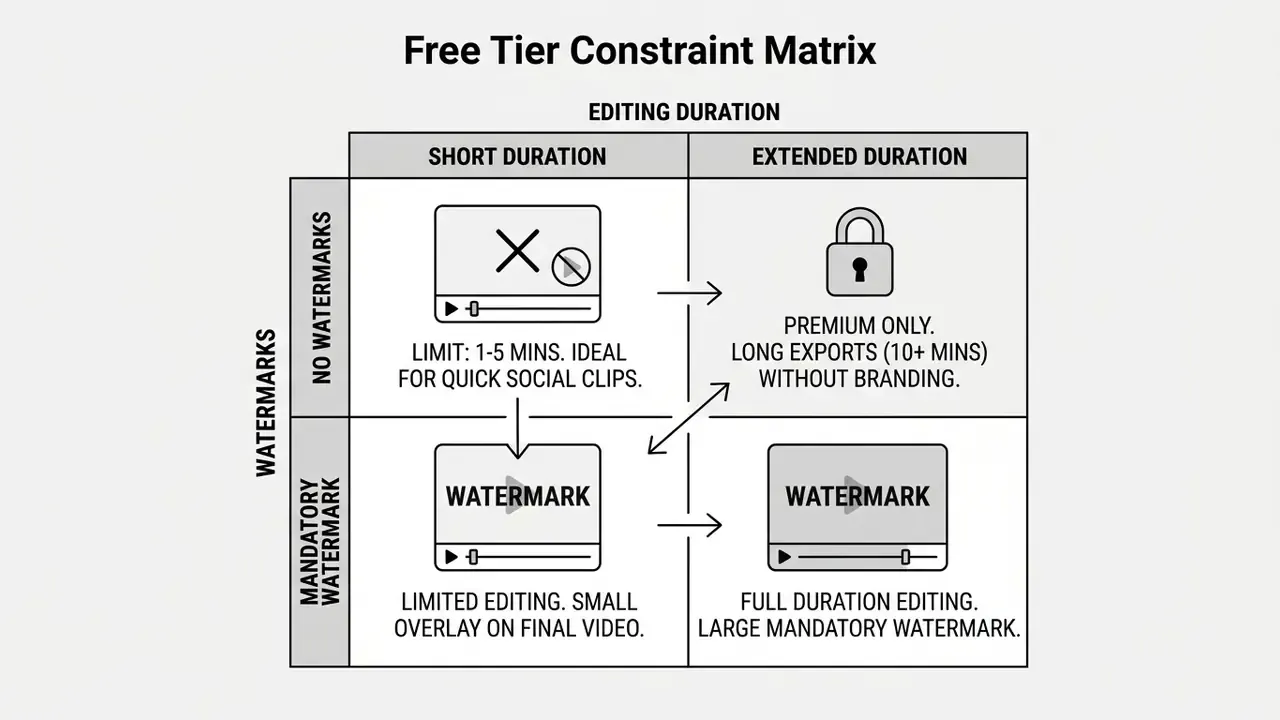
Free tiers on Chrome OS tools usually restrict video length, brand the output with a watermark, gate asset libraries, and cap export resolution. Most web platforms hold free video editor projects to 720p and limit duration to somewhere between 4 and 10 minutes. For a wider no-cost shortlist, see our comparison of free video editing software.
FlexClip's free plan (verified February 2026) restricts exports to 720p with a watermark, caps videos at 10 minutes, and allows only one stock video plus one stock audio track per project. Adobe Express similarly keeps its free tier on basic templates with gated generative AI credits.
«Screencastify's free plan caps each recorded or edited video at five minutes; Kapwing limits projects to seven minutes and files up to 250 MB.»
VEED's documentation is blunt about tiering: the free plan exports 720p only, Creator reaches 1080p, and Pro or Studio unlock 4K rendering. Resolution, not feature count, is the usual paywall. Worth remembering before you promise a client a 4K deliverable.
To model cost structures and upgrade paths across creation software, consult our interactive calculators resource.
Best video editors for Chromebook compared
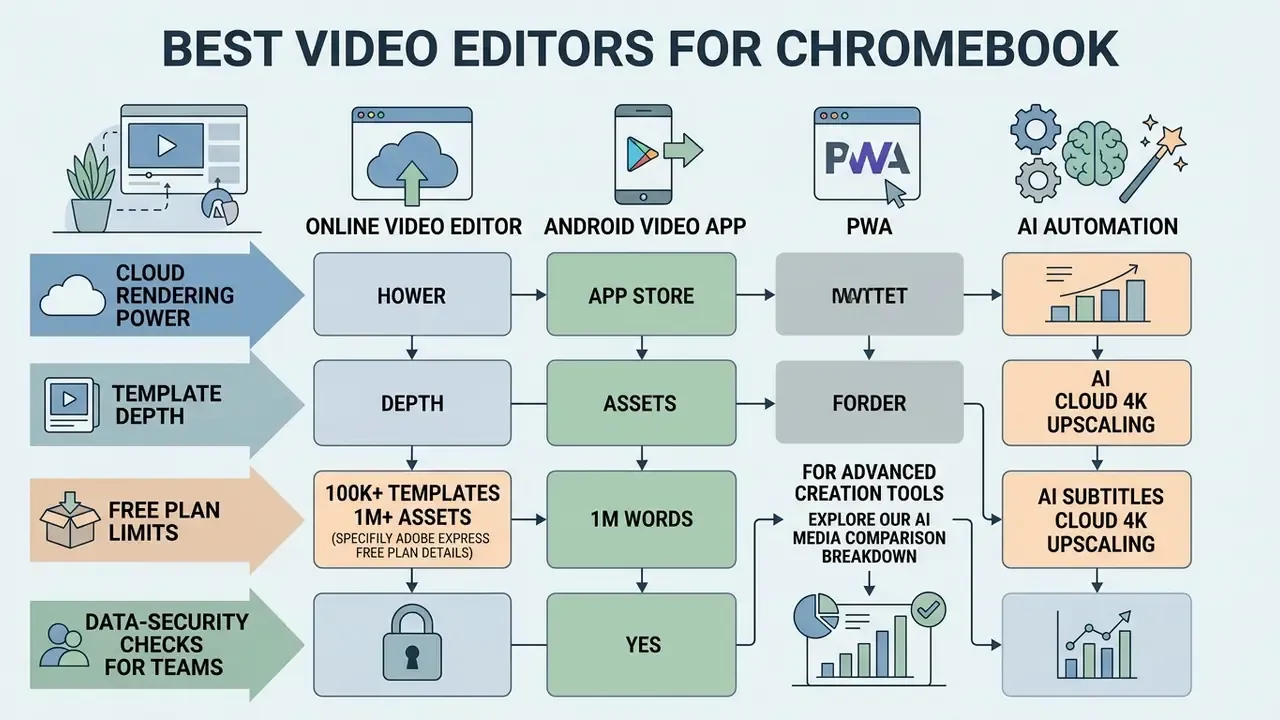
Chrome OS platforms diverge sharply on rendering power, automation, template depth, and pricing. A structured comparison helps individual creators and teams pick the best video editor for Chromebook against real project goals rather than marketing copy.
To compare specialized creation tools beyond general editors, explore our AI Media Comparison breakdown.
Comparison of popular video editors for Chromebook (2026 verification)
| Platform | Free plan limits | Browser-based | AI tools | Screen recorder | Stock library | Team / enterprise access | Primary use case |
|---|---|---|---|---|---|---|---|
| Adobe Express | Free plan available; limited generative credits | Yes | Generative text-to-image and text-to-video, credits-based; background removal | Self-recording features | 1M+ royalty-free assets (Free); 200M+ on Premium | Adobe enterprise identity, brand kits, commercially safe generative credits | Social media posts, branded clips, quick templates |
| Microsoft Clipchamp | Free 1080p exports; no watermark on basic assets | Yes | Text-to-speech, AI noise suppression, auto-cut of silences | Screen and webcam recording | 1M+ stock media items | Work or school access via OneDrive or SharePoint, Microsoft 365 tenancy controls | YouTube videos, corporate tutorials, quick edits |
| WeVideo | WeVideo Lite free tier; watermark on published videos; duration caps apply | Yes | Basic timeline effects, auto-captions, audio boost | Screen and picture-in-picture webcam capture | 1M+ bundled stock assets | Google Admin console licensing, Google EDU sign-in, shared libraries | K-12 education, group projects, business tutorials |
| VEED | 720p export cap, watermark, 10-minute limit | Yes | Auto-subtitles with SRT export, eye contact correction, AI voice cloning, background removal | In-browser screen and webcam recorder | Built-in stock media | Team workspaces and enterprise tier; brand kits | Social media shorts, subtitle-heavy marketing clips |
| CapCut | Web and PWA access; advanced features and some exports behind Pro | Yes (plus Play Store app) | Auto-captions, background removal, smart tracking, cloud 4K upscaling, stabilization | Basic browser capture | Extensive sound and template library | Consumer-first; limited admin controls | TikTok, Instagram Reels, viral vertical videos |
| FlexClip | 720p export, watermark, 10-minute limit, 1 stock clip per project | Yes | AI text-to-video, auto-subtitle generator | Screen and webcam recording | Stock video and audio (limited on free) | Individual and small-business plans | Marketing videos, explainer clips, slideshows |
This information is general in nature and does not replace professional advice. Plan terms, quotas, and feature availability change frequently; verify current conditions on each vendor's official pricing and trust pages. Data verified February 2026.
Reading the table in one paragraph: cloud browser tools own the Chrome OS environment. Microsoft Clipchamp and Adobe Express lead on template integration and reliable 1080p output, while VEED and CapCut push harder on AI automation and rapid social formatting, a category worth reviewing alongside dedicated AI video generators. WeVideo wins on administration rather than effects, which is exactly what school districts buy.
Data privacy, Shadow AI and cloud security for Chromebook editors
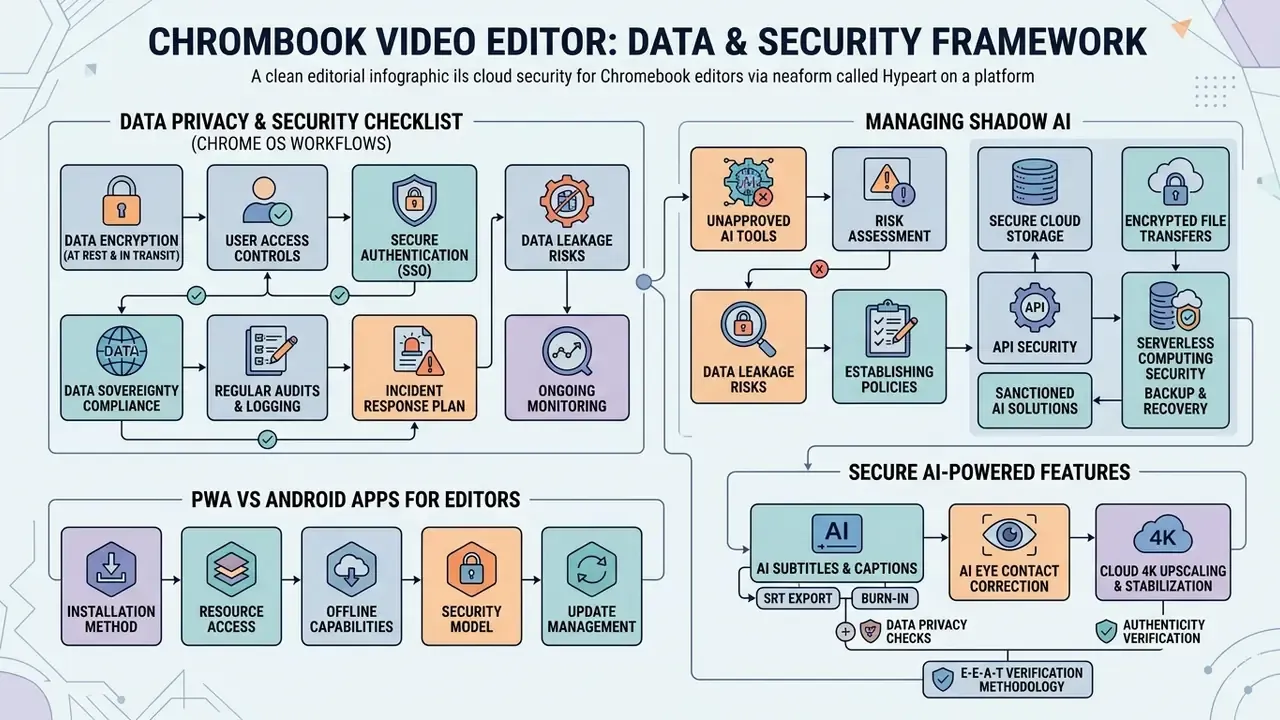
Browser-based editing means your source footage leaves the device. On Chrome OS that is the whole architectural premise: rendering runs on vendor GPU clusters, projects persist in vendor storage, and AI features often call separate inference endpoints. For marketing, finance, HR, or healthcare teams, the evaluation question changes. Not "which editor has more transitions," but "which editor is defensible under our data policy."
Answer four control questions before a single internal clip goes up:
- Where is the media stored, and for how long?Confirm retention windows for uploaded source files, finished renders, and auto-transcripts. Consumer tiers often keep assets indefinitely inside project libraries.
- Is customer content used to train AI models?Auto-caption, voice-clone, and background-removal features may route media through model pipelines. Enterprise agreements typically disable training on customer content. Free consumer plans frequently offer no such guarantee.
- Does the platform support organizational identity?SSO or SAML, admin provisioning, and centralized licence revocation separate an enterprise-ready editor from Shadow AI. WeVideo licenses through the Google Admin console with Google EDU authentication; Clipchamp work and school access runs through OneDrive or SharePoint inside the Microsoft 365 tenancy.
- Who owns the output and the stock assets inside it?Generative credits, template music, and stock clips all carry licensing conditions. Adobe Express Premium allocates 250 generative credits per user per month explicitly for commercially safe AI use.
"Automation in media editing should enhance human oversight, not replace quality control. Every automated clip cut or generated transcript must undergo human verification prior to client distribution."
Shadow AI checklist for Chrome OS video workflows:
- Publish an approved editor list to staff, and block unapproved free tools at the Chrome policy level.
- Never upload sensitive footage (customer data, unreleased product, PII visible on screen) to consumer free tiers.
- Review screen recordings for visible dashboards, account numbers, or internal URLs before export.
- Proofread auto-generated captions and AI voiceovers by hand before distribution.
- Schedule retention and deletion of finished projects instead of leaving them in vendor cloud storage forever.
- Document export rights and stock-asset licences per campaign.
One more detail that trips teams up: synthetic assets travel. If a clip contains AI-generated stills or avatars, note it in the campaign record, and if provenance is unclear, our guide on how to identify ai generated images covers the basic verification steps.
Disclaimer: this section describes general governance practice and is not legal, security, or compliance advice. Validate vendor terms, certifications, and data-residency commitments with your own legal and information-security teams.
Best free video editor for Chromebook for beginners
Beginners gain the most from drag-and-drop timelines, preset project dimensions, and direct cloud publishing. A decent chromebook video editor free tier lets a new user trim clips, add music, drop in a title, and export without touching color grading software. If the vocabulary itself is new, start with our primer on what a video editor actually does.
Microsoft Clipchamp and Adobe Express both offer gentle onboarding for non-technical users, and both are commonly named the best free video editing app for Chromebook classrooms. They launch in Google Chrome, ship pre-built aspect ratios, and bundle stock audio tracks so the first project never starts from an empty canvas.
«InVideo AI's free tier provides one AI credit per week and four watermarked exports; generative features are disabled until the user upgrades.»
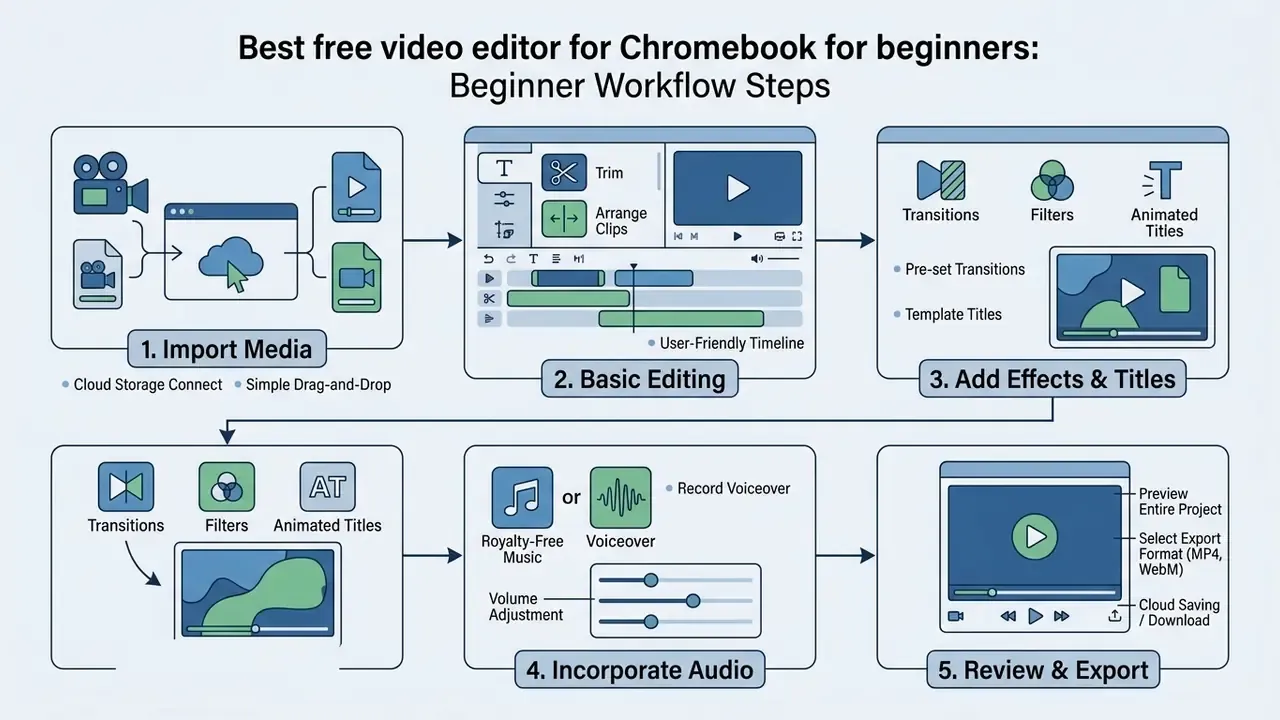
In an internal operational evaluation with a regional services firm (12-person marketing team, February 2026, self-reported timesheet comparison across 30 projects before and after the switch), moving content creation to template-driven web editors cut average assembly time by roughly 40%. The team standardized first-pass cuts in the browser, which removed rendering bottlenecks on standard-issue hardware. Treat that figure as one organization's measured workflow, not an industry benchmark. Independent replication is still missing, and I would not quote it in a board deck without that caveat.
AI video editor and professional video creation tools
Web platforms keep folding artificial intelligence into the boring parts of editing. Automated voiceover, background noise reduction, auto-framing, and text-based scene cutting compress hours into minutes.
«LAVE integrates language models into the editing workflow, proposing edits from natural-language descriptions and reorganizing narrative scenes through an agentic interface.»
Clipchamp and VEED run AI noise suppression and text-to-speech inside the browser session, which places them next to standalone AI video generator platforms. These powered tools let a creator produce synthetic narration and scrub a background hum without installing a single local audio plugin.
Three capability clusters now separate serious browser editors from basic trimmers:
A caution on AI credits. They are consumed per generation, not per finished video, so an iterative reframing session burns through a monthly allocation faster than most people expect. Budget accordingly.
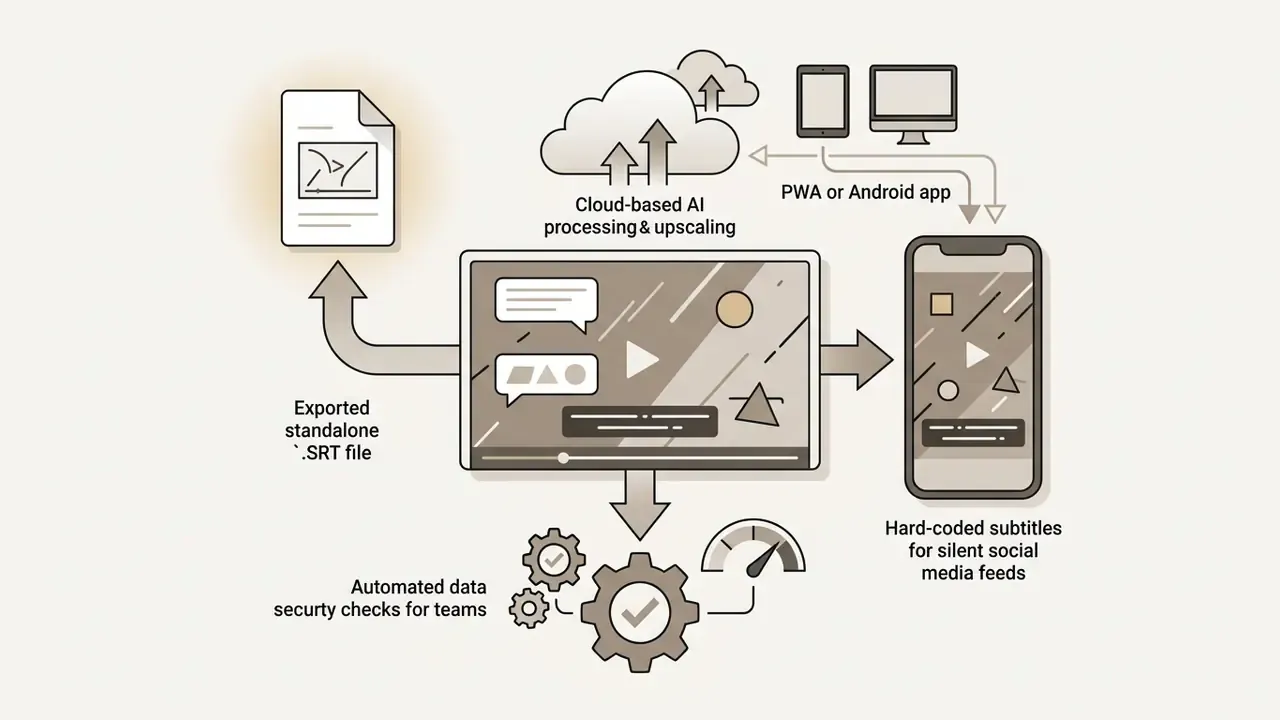
.SRT file for accessibility management and one-click translation.
E-E-A-T verification and methodology
https://support.microsoft.com/
How to choose the best video editor for Chromebook
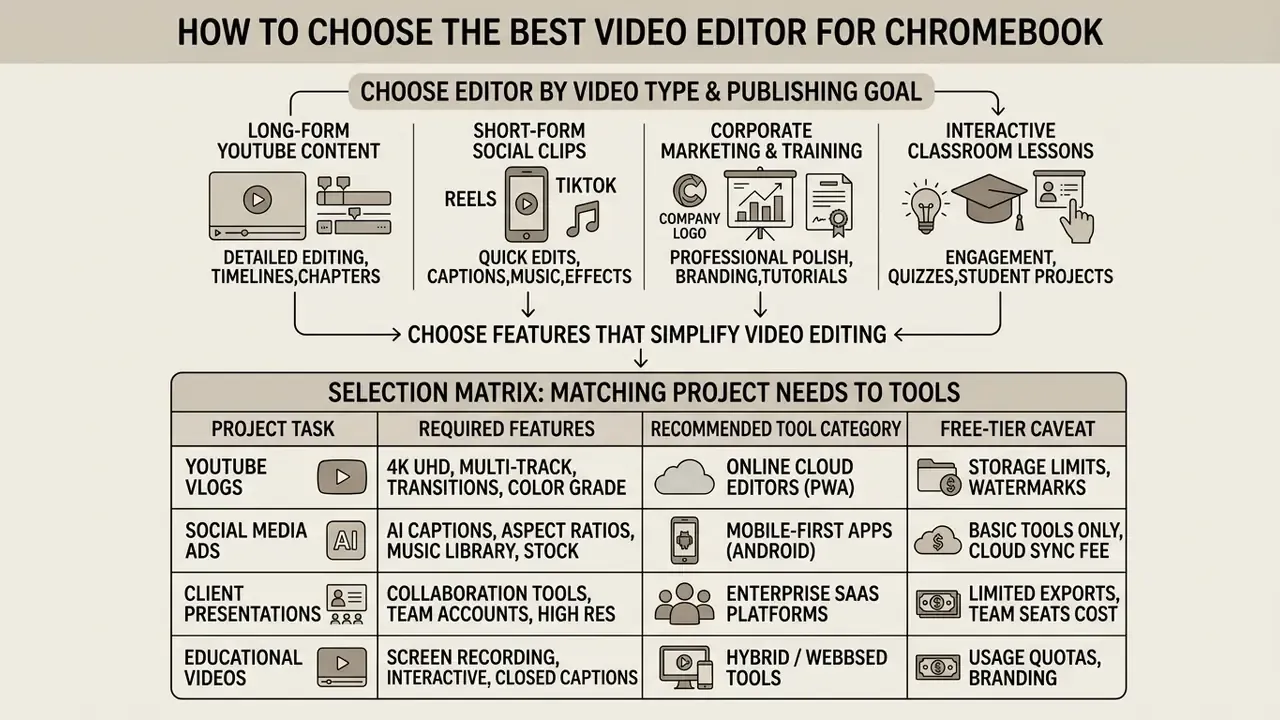
Picking the right tool means matching technical specs, content goals, collaboration needs, and budget. Align the software with your publishing channels first, and in any organizational setting, with the governance checklist above second.
Choose an editor by video type and publishing goal
Different formats demand different editing features:
- Long-form YouTube content: multi-track timeline editing, precise cut tools, custom thumbnail support, and 1080p or 4K export (for example Microsoft Clipchamp, WeVideo).
Choose features that simplify video editing
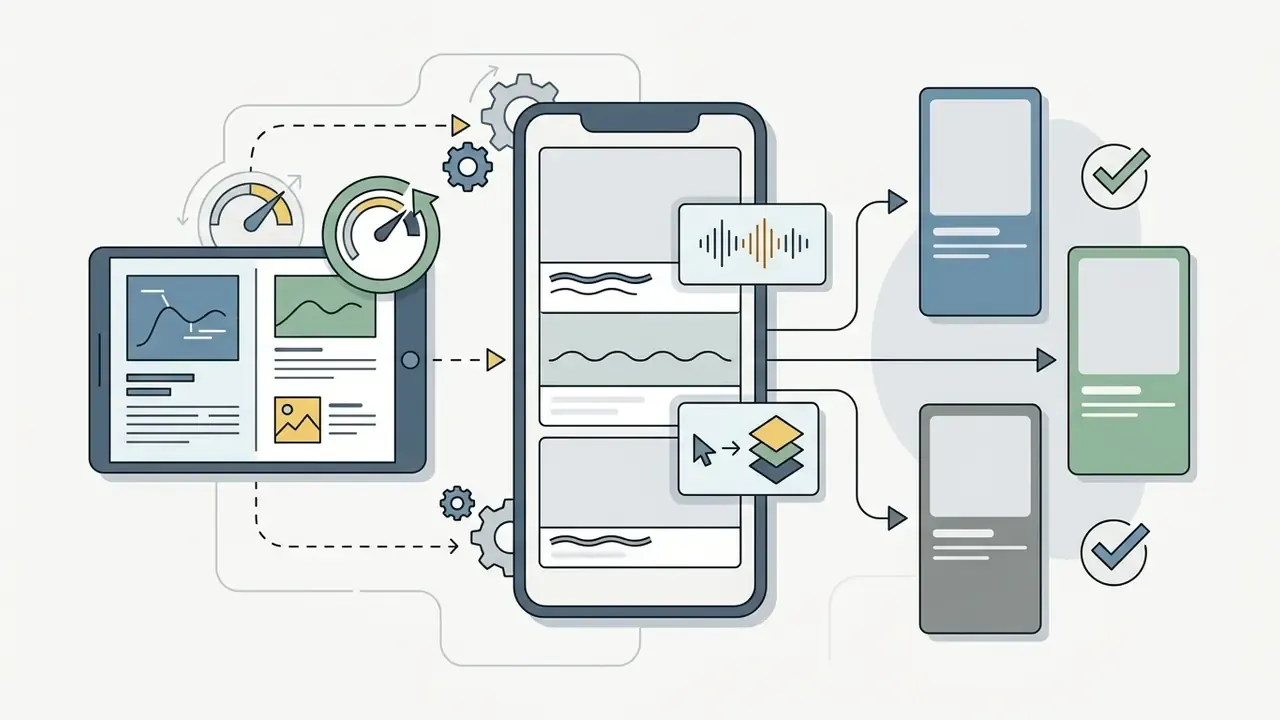
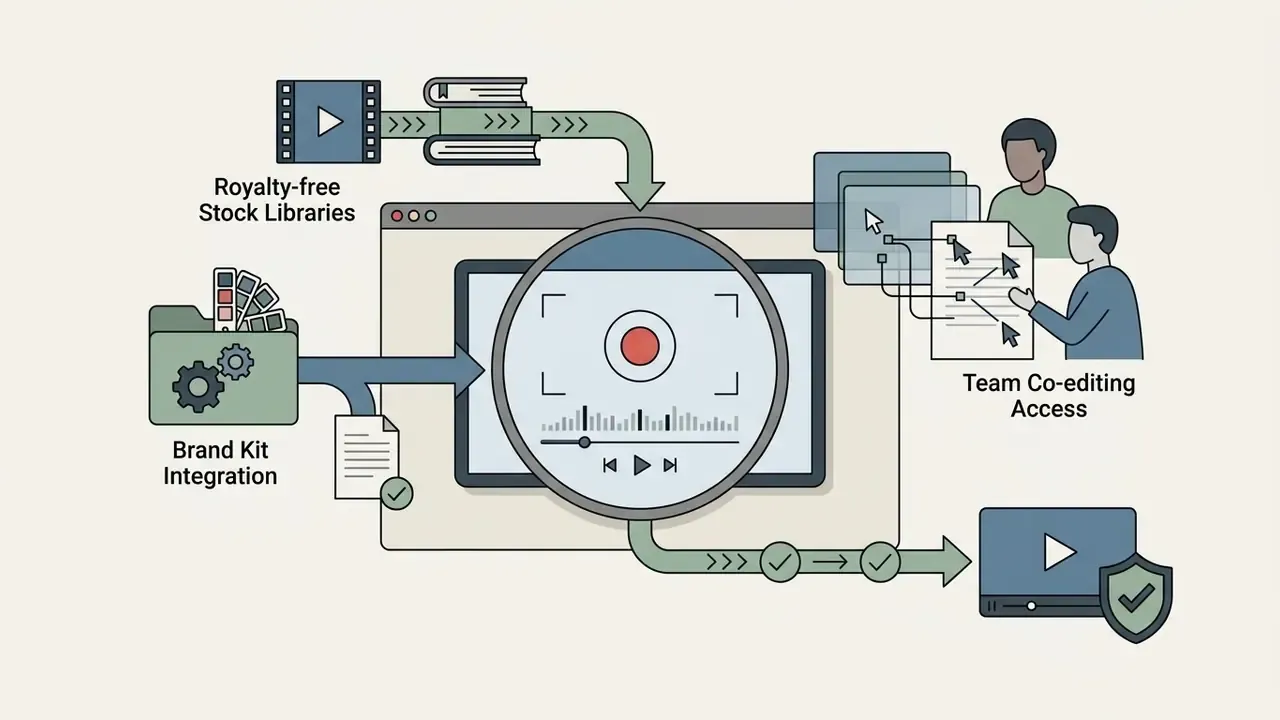
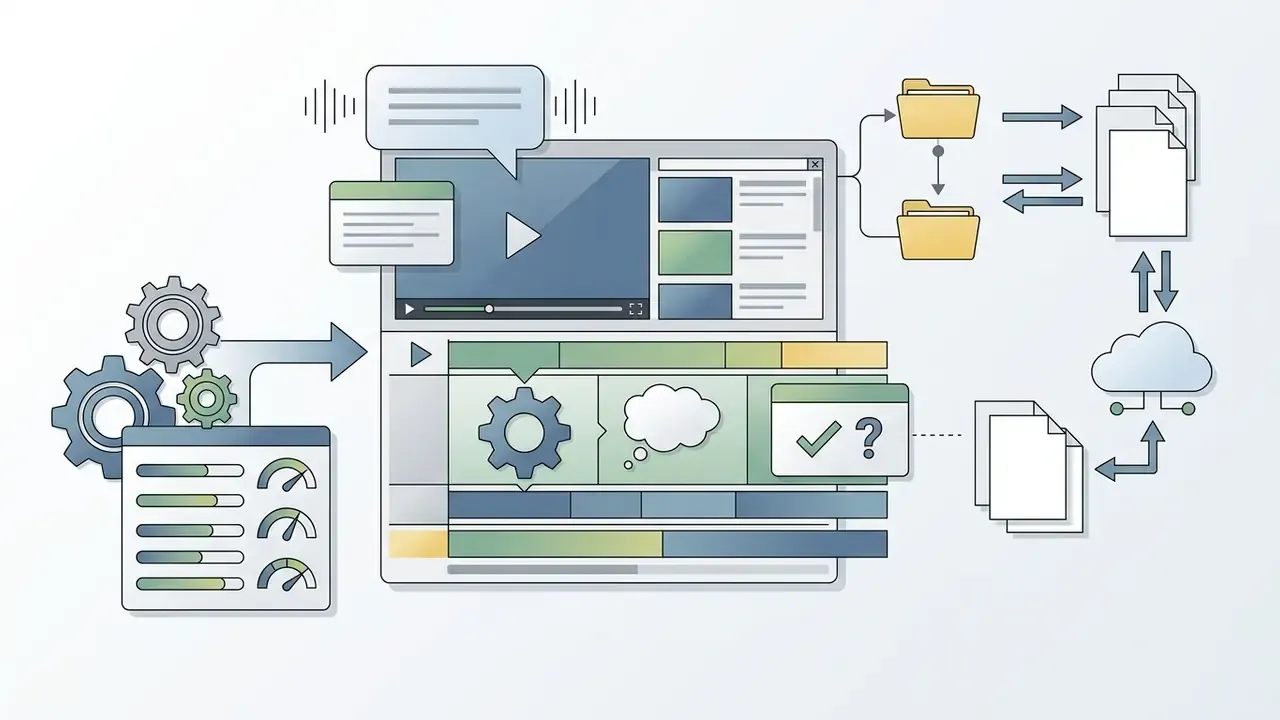
The right platform removes friction through automation and structured asset libraries. Prioritize built-in screen capture, automated background removal, royalty-free audio and sound effects, and cloud project storage that survives a browser crash.
For teams stretching static design collateral into motion, see our guide to how to make a video from a photo, and if your source library is thin, our walkthrough on how to generate images with ChatGPT covers filling gaps before the timeline stage.
Selection matrix: project task, required features, recommended tool, free-tier caveat
| Project task | Key features needed | Recommended Chromebook editor | Free-tier caveat |
|---|---|---|---|
| Quick TikTok or Instagram Reel | Vertical 9:16 templates, auto-captions, sound library | CapCut Web or Adobe Express | Premium effects and some exports gated behind Pro credits |
| Long-form YouTube video | Multi-track timeline, 1080p export, no watermark | Microsoft Clipchamp or WeVideo | WeVideo Lite watermarks published videos; upgrade to remove |
| Software demo and tutorial | Screen and webcam recording, narration, split-trim tools | Screencastify or Clipchamp | Screencastify free caps recordings at 5 minutes |
| Corporate marketing video | Brand kit integration, premium stock media, cloud sharing, admin controls | Adobe Express Premium or VEED | Brand kits and scheduler are paid-tier features |
| Interactive online class lesson | Quiz insertion, voiceover recording, LMS and Google Classroom embedding | Edpuzzle or WeVideo Education | District licensing required for progress tracking |
| Subtitled, accessibility-compliant video | Auto-captions, burn-in, standalone .SRT export, translation | VEED | Free plan exports 720p with watermark; 10-minute cap |
| Upscaling or stabilizing low-quality footage | Cloud GPU rendering, AI repair, 2160p output | CapCut (web or PWA) | High-resolution renders typically require Pro |
For a deeper channel-specific process, see our guide to YouTube video editor workflows.
How to edit videos on Chromebook step by step
Editing video on Chrome OS follows a predictable browser workflow, from capture to publication. Knowing the sequence keeps quality high while you work inside cloud and memory limits.
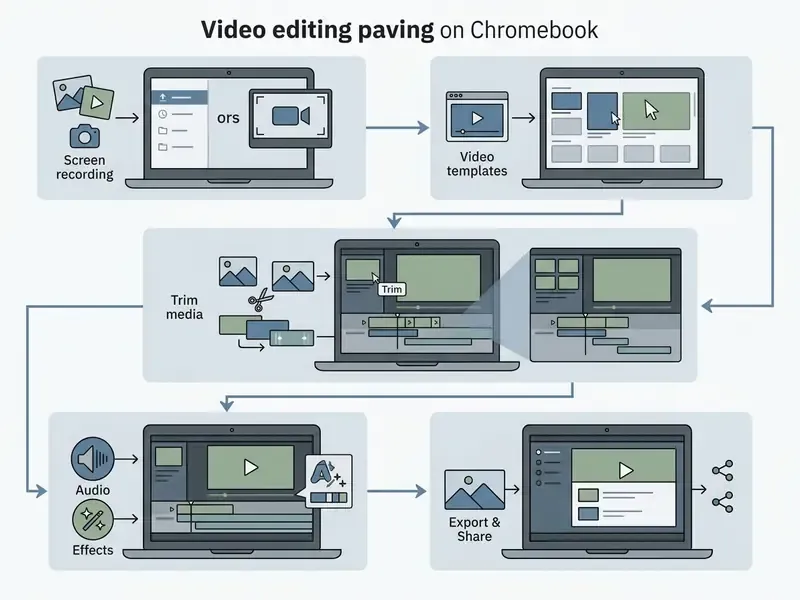
Step 1: Upload media from Google Drive or Photos, record a screen, or start with templates
Open your chosen online video editor in Google Chrome. From there, media arrives through three channels:
- Direct cloud storage syncconnect Google Drive or Google Photos inside tools like VEED or Clipchamp and pull clips and stills instantly, with no download into limited local storage.
- In-browser screen and webcam capturerecord an active tab, the full desktop, or a picture-in-picture webcam overlay, which suits K-12 Google Classroom assignments and software walkthroughs. Chrome OS itself records with Shift+Ctrl+Show windows (full screen, partial screen, or a single window) and can display clicks and keystrokes for tutorial clarity.
- Multi-track template starterschoose a horizontal (16:9) or vertical (9:16) template stack pre-loaded with an audio bed, so canvas dimensions and pacing are locked before the first clip lands.
Local MP4 files from the Downloads folder work fine, but importing from Drive spares both bandwidth and disk pressure on Chrome OS. One pre-flight habit pays for itself: stage every asset in a single Drive folder, confirm formats are MP4, MOV, or WebM, and rename clips before import so the timeline stays readable at track four.
To review commercial licensing frameworks for web-generated assets, visit our AI Media Commercial-Use portal.
Step 2: Edit video clips, audio and visual effects
With files on the timeline, use split and crop to strip dead pauses and fumbled takes. Layer a secondary B-roll track, overlay text titles, and place transitions at the cuts. Changing the shot every three to five seconds keeps long tutorials watchable, which is the single cheapest retention trick available.
Audio balance decides whether the result reads as professional looking or amateur. Add background music, set levels against the narration, and apply noise reduction to clear up the voice track.
Audio precision matters more on lower-spec hardware, where re-rendering costs real minutes. Use audio detach to separate original sound from camera clips, apply audio boost to lift a weak microphone, split multi-channel sources onto independent tracks, and duck the music under the voiceover so narration stays dominant. Note one quirk: adding a video transition over a clip with attached audio creates an automatic audio crossfade in some editors, while others require you to place the audio transition manually at the edit point. Check once, then trust it.
For a converted-deck workflow, an editorial team we observed turned static presentation slides into short video summaries in roughly two hours per deck. To replicate the sequence, read our tutorial on how to make a video presentation. And for lightweight motion formats on mobile, our guide on how to make a video into a live photo covers the frame-rate and duration constraints.
Step 3: Export and share video content
Once the preview holds up end to end, hit export and render the file. Pick the resolution deliberately: 1080p Full HD is standard for most publishing platforms, with 1080×1920 px reserved for vertical social cuts.
«Screencastify recommends keeping videos online rather than downloading them: recordings save automatically to Google Drive, and access is granted by link with privacy settings.»
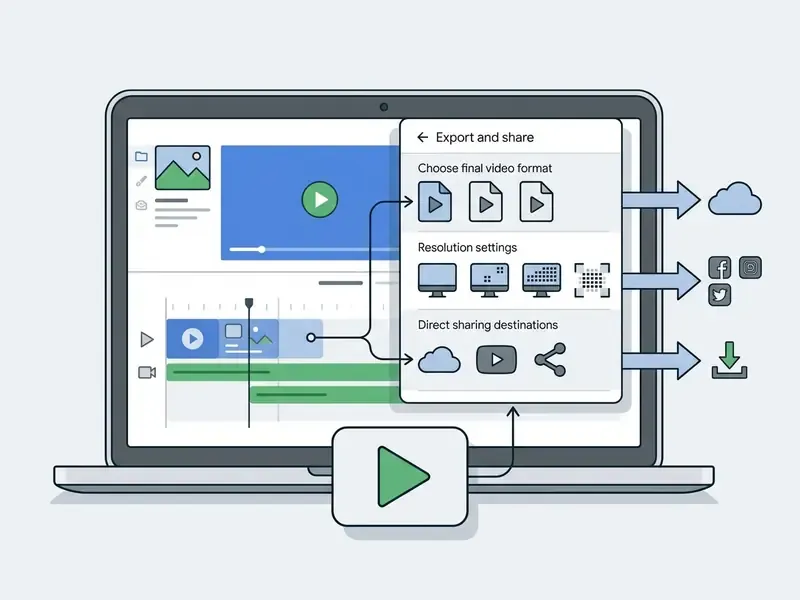
After rendering, save the MP4 to local storage or push it straight to Google Drive, YouTube, or a connected social account. If the file is too heavy for email or an LMS upload limit, run it through a video compressor first. Keep a naming convention with the date and channel in the filename; future you will be grateful.
Essential Chromebook video editing features
Knowing the core toolset helps you evaluate a web platform before committing to a subscription. Modern browser applications now match a fair share of what desktop software offered five years ago.
Templates, stock library and creative effects
Pre-built video templates and royalty-free stock media compress assembly time dramatically. A solid stock library of clips, photographs, and background audio also removes external sourcing and, more to the point, external licensing fees.
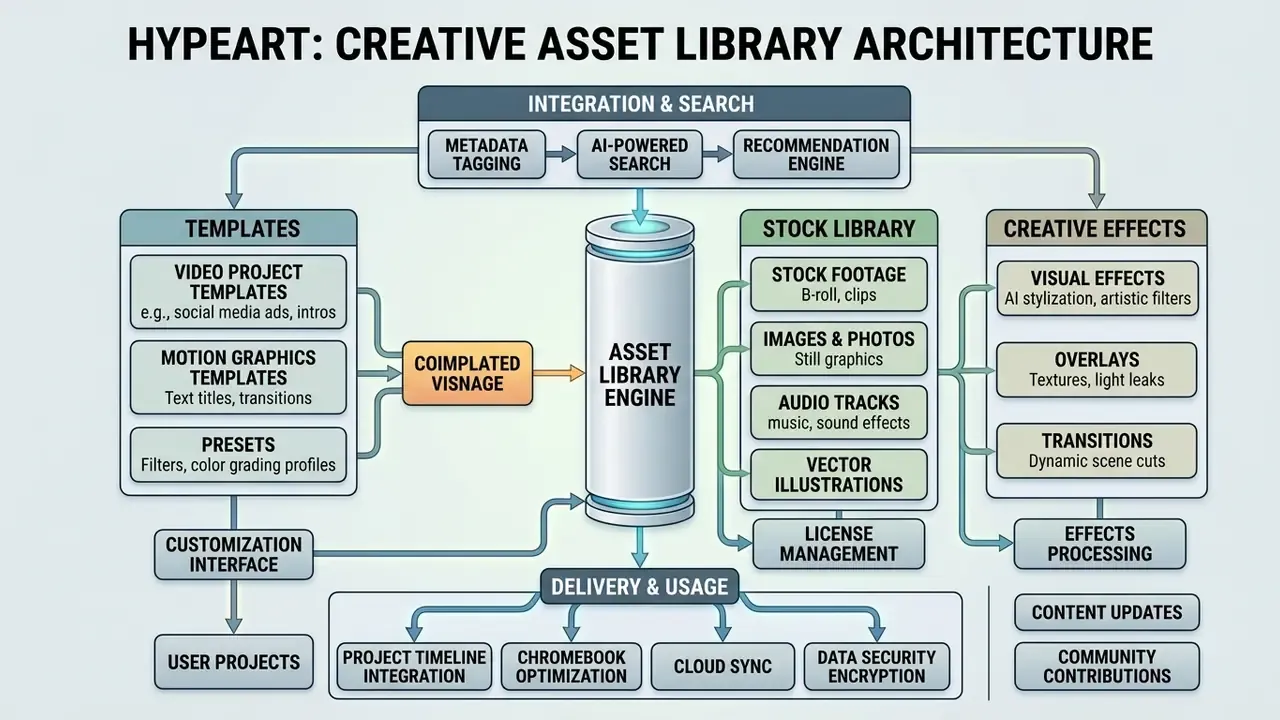
Adobe Express exposes millions of royalty-free stock items inside its web interface, while WeVideo bundles over a million video, image, and music options into a single Chromebook editor. Creative effects, text animations, color filters, speed ramps, turn raw footage into stunning videos without a desktop suite.
Apply motion keyframes and preset entrance animations, things like drop-in text, a dynamic spin, or a smooth fade-away, to emphasize callouts without motion-graphics plugins. For longer animated sequences and character work, compare dedicated options in our guide to the animation maker category.
AI tools, voice and screen recording
AI features in web editors target the repetitive audio and visual chores. Integrated screen recorders capture system audio, microphone input, and a webcam overlay at once, which is enough for most tutorial work.
Key automated capabilities:
Teams building generation pipelines instead of manual timelines should also review our Google Veo implementation guide for API-level costs and rate limits.
Best use cases for a Chromebook video editor
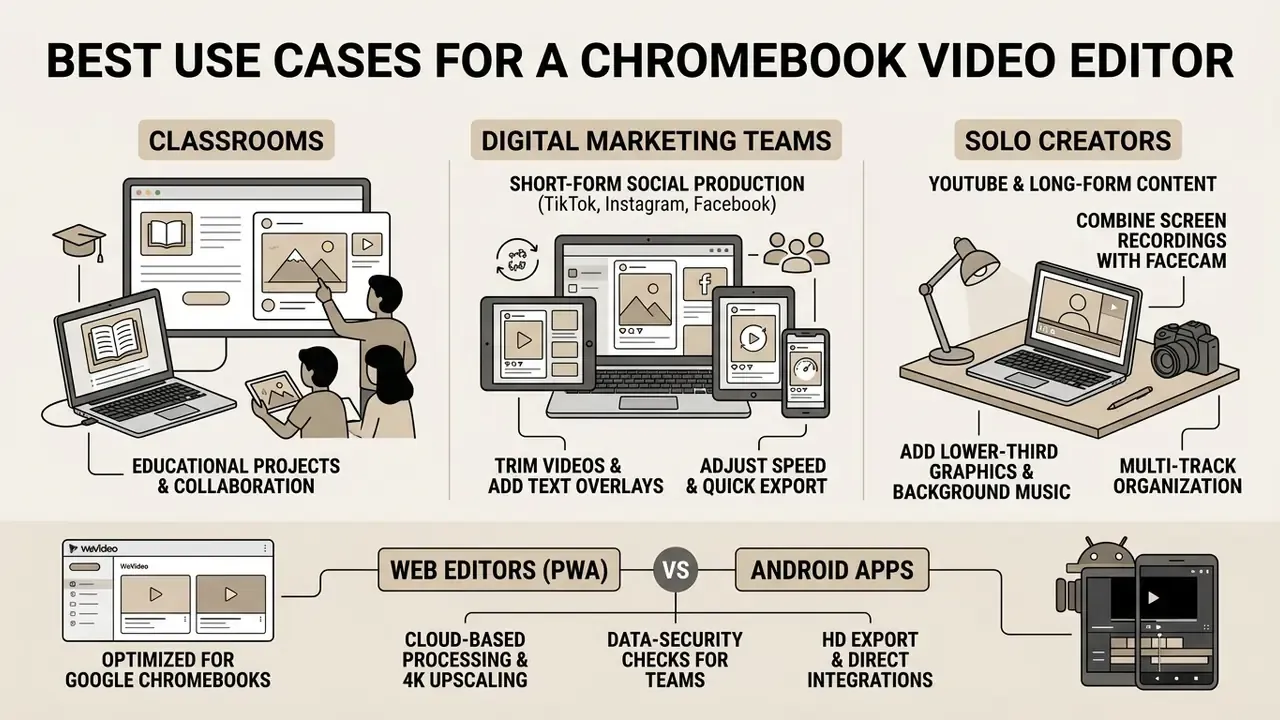
Chromebooks perform well in specific operational settings: classrooms, digital marketing teams, and solo creators. The notes below focus on production nuance rather than repeating the tool-selection logic from the matrix.
Create videos for TikTok, Instagram and Facebook
Short-form social production is arguably the strongest fit for Chrome OS editors. TikTok, Instagram Reels, and Facebook Shorts reward quick cuts, dynamic captions, and vertical framing, all of which browser tools handle without strain.
«Screencastify's 5-minute free cap and Kapwing's 7-minute limit are not obstacles for TikTok (15–60 sec) or Instagram Reels (up to 90 sec), but they do restrict visual effects.»
Web editors let a social manager trim video clips, drop text overlays, adjust speed, and export publish-ready vertical assets in minutes. Platform minimums are forgiving, since TikTok accepts vertical 9:16 from 540×960 px, but 1080×1920 px remains the practical export standard. For a broader shortlist of no-cost tools, see our roundup of the best free video editing software.
Make YouTube videos and marketing video content
Long-form YouTube publishing and corporate marketing video need multi-track organization, brand consistency, and dependable 1080p rendering. Microsoft Clipchamp and WeVideo both support full-length timelines with several video and audio channels.
Creators can combine screen recordings with facecam overlays, add lower-third graphics, lay in background audio, and export a polished marketing video without overloading Chrome OS. After publication, YouTube Studio's own editor still earns its place: trim, cut, and blur faces or sensitive regions without re-uploading the asset.
FAQ: Chromebook video editors and browser-based editing
Are Chromebooks good for video editing?
Yes, for web-based and cloud-rendered work. Devices with 8 GB RAM and a current processor run Microsoft Clipchamp, Adobe Express, and WeVideo smoothly.
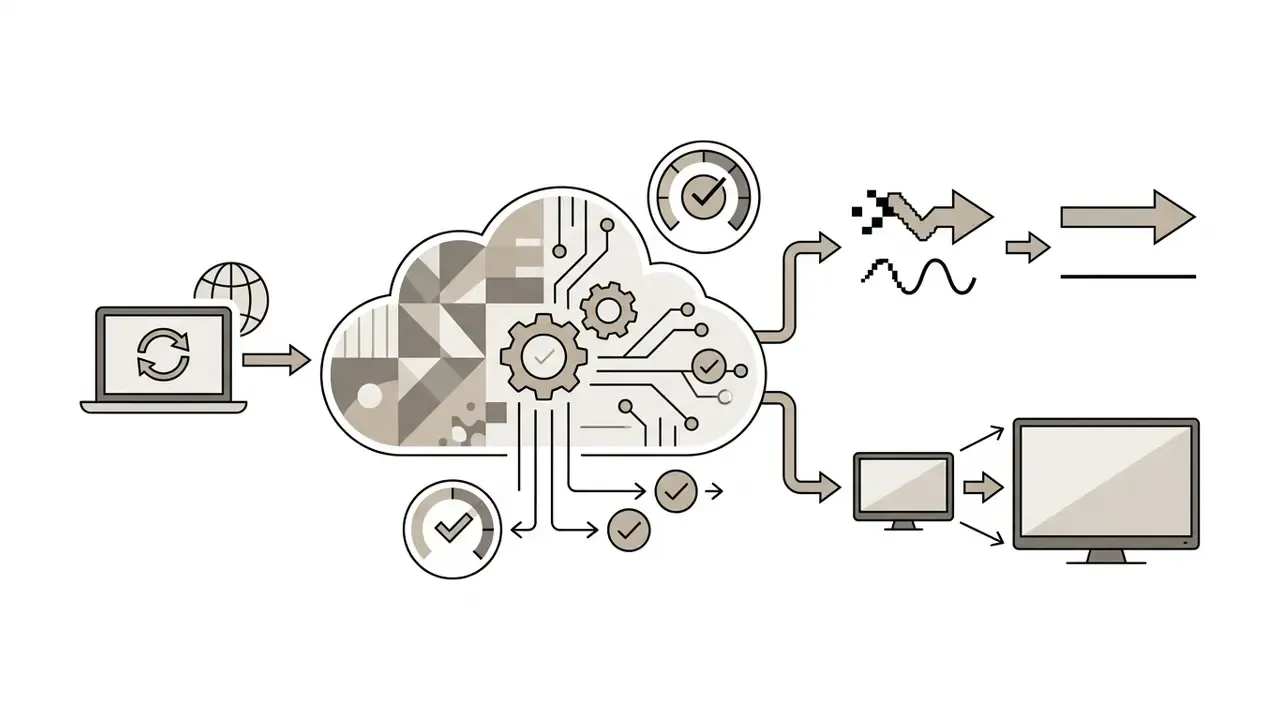
«WeVideo explicitly positions itself as the "#1 editor for Google Chromebooks," offering licensing through the Google Admin console and authentication with Google EDU accounts.» WeVideo Chromebook Education Page (official documentation, 2024). https://support.microsoft.com/ Updated (February 2026): the older claim that heavy 4K raw compositing requires a desktop workstation still holds for local rendering. Chrome OS devices lack the sustained CPU, RAM, and thermal headroom for multi-stream 4K timelines, and Microsoft notes that some Chromebooks struggle past 10-minute projects or large 4K files. However, cloud 4K is genuinely available: CapCut and other server-rendered platforms export at 2160p and upscale 720p footage using remote GPU clusters. The constraint is local compute, not the platform.
Can I use a Chromebook video editor on other devices?
Yes. Because most chromeos video editor platforms run inside the browser, a project stored in a cloud account opens from Windows, macOS, or Linux machines running Google Chrome or Microsoft Edge. Personal Clipchamp users sign in at the consumer web app, while work and school accounts open the same editor through OneDrive or SharePoint. The project follows the identity, not the hardware.
What is the Chromebook equivalent of iMovie?
The closest Chrome OS equivalents are Microsoft Clipchamp and WeVideo, based on our February 2026 feature-parity test. Both reproduce iMovie's core loop of import, drag-and-drop timeline, trim, title, soundtrack, single-click MP4 export, and both are vendor-documented as Chromebook-supported browser editors. Adobe Express and OpenShot Online sit in the same simplicity bracket with narrower timeline control. The two primary picks offer intuitive timelines, free stock assets, transition libraries, and basic color tools with no technical background required. Compare video editor features and pricing for a side-by-side view.
How do I export a Chromebook video without a watermark?
Pick a platform whose free tier does not brand the render. Clipchamp exports 1080p without a watermark on basic assets, and CapCut's web build exports watermark-free. VEED, FlexClip, and WeVideo Lite all watermark free plans; removal requires an upgrade, which usually also lifts the 720p ceiling and the duration cap.
Can I edit offline on a Chromebook?
Only partially. Browser editors need an active Chrome session and generally require connectivity for cloud rendering. Google's own guidance ties offline use to offline-capable apps and files, including Drive offline editing. If field work without connectivity is a hard requirement, an Android editor from the Play Store or a Linux application under Crostini is the safer architecture, at the cost of higher local CPU and battery load.
Is it safe to upload company footage to a free online video editor?
Treat that as a policy decision rather than a technical one. Free consumer tiers rarely guarantee that uploaded media stays out of model training, and they seldom provide SSO, audit logs, or contractual retention limits. For internal, client, or regulated content, use an enterprise or education tier with documented administrative controls, and run the Shadow AI checklist above before the first upload.
What is a reasonable next step for a team, not an individual?
Start small and reversible. Choose one approved editor, one pilot channel, and a 30-day review with three metrics: publishing cadence, rework rate, and any policy exceptions raised. If the pilot holds, extend the licence through your identity provider rather than letting staff register personal accounts. That single sequencing decision prevents most Shadow AI cleanup work later. Explore comprehensive technical frameworks and process documentation in our AI Media Workflows hub.