Why should a risk or finance leader care about a design feature? Because every click sends an asset to a cloud model, spends metered credits, and creates content that somebody eventually has to defend in a brand, legal, or audit review. That is the real subject of this guide.
Last updated in 2026, reviewed against Adobe Help Center documentation and the Adobe Generative AI Additional Terms current at the time of writing.
Executive Summary: What Decision-Makers Need to Know
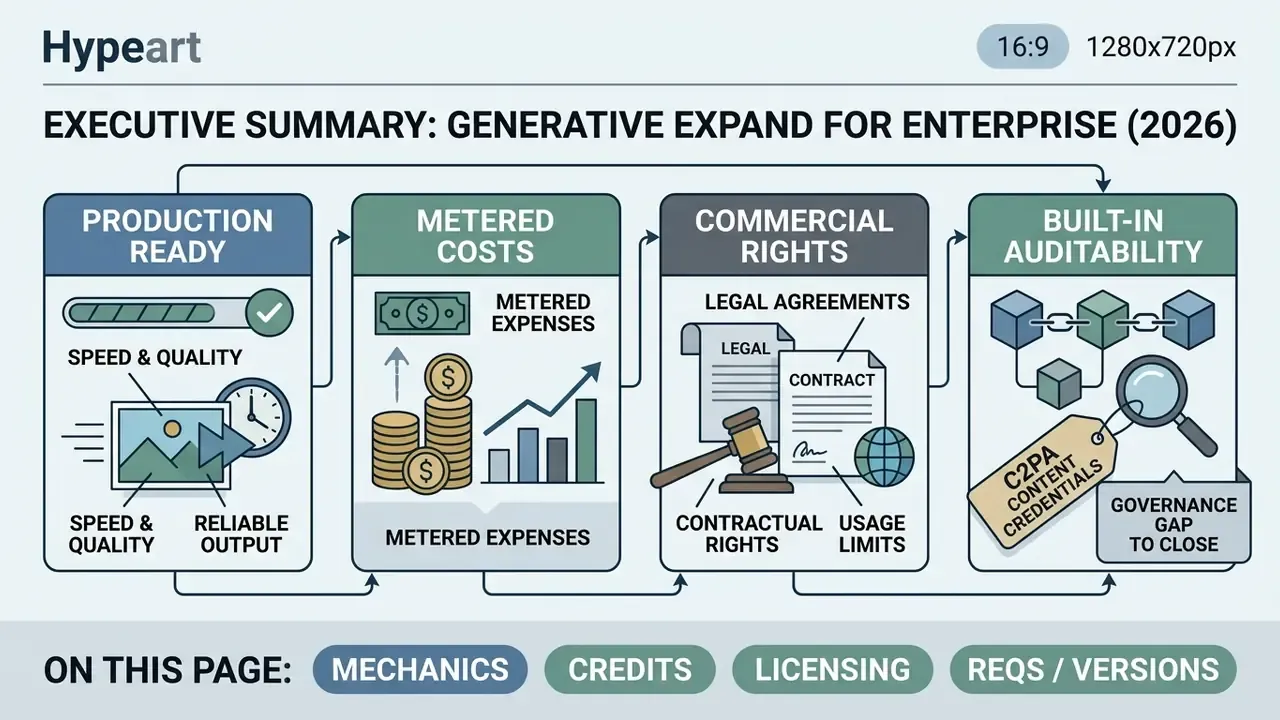
For creative leads, CROs, model-risk owners, and finance transformation teams evaluating Generative Expand at scale:
- Speed and output quality are production-ready. Generative Expand runs as diffusion-based outpainting inside the Crop tool, returns three variations per generation, and places results on a non-destructive Generative Layer. Published outpainting benchmarks report FID scores as low as 21.51 on scenery datasets and single-step diffusion editing latency near 3.12 seconds on consumer-grade GPUs.
- Cost is metered, but not a hard stop. Standard generations typically consume 1 generative credit per click of Generate. Exhausting the monthly allocation does not lock the feature: generations continue at a throttled, slower speed until the monthly reset. Credits do not roll over.
- Commercial rights are contractually defined, with limits. Outputs from general-release Photoshop (25.0 and above) are cleared for commercial use; outputs from Photoshop Beta are not. Adobe's enterprise IP indemnity caps aggregate liability for indemnified Firefly outputs at $10,000 per claim, with documented exclusions (user modification, combination with other materials, continued use after notice).
- Auditability is built in via C2PA Content Credentials. Photoshop appends Content Credentials to images produced with Generative Fill and Generative Expand when they are exported as PNG or JPG, or written through Save As. That creates a cryptographic provenance trail which satisfies most enterprise AI-disclosure policies.
- Governance gap to close internally. Credit consumption, prompt logging, and asset-origin checks are not centrally enforced by default. Teams need a lightweight control checklist (provided below) to avoid shadow-AI spend and IP contamination.
On this page: definition and mechanics, then requirements, versions, and credits; commercial use, licensing, Content Credentials, and data privacy; step-by-step desktop, the alternative canvas method, web and iPad; a tool comparison table; prompt engineering; refinement and export; FAQ.
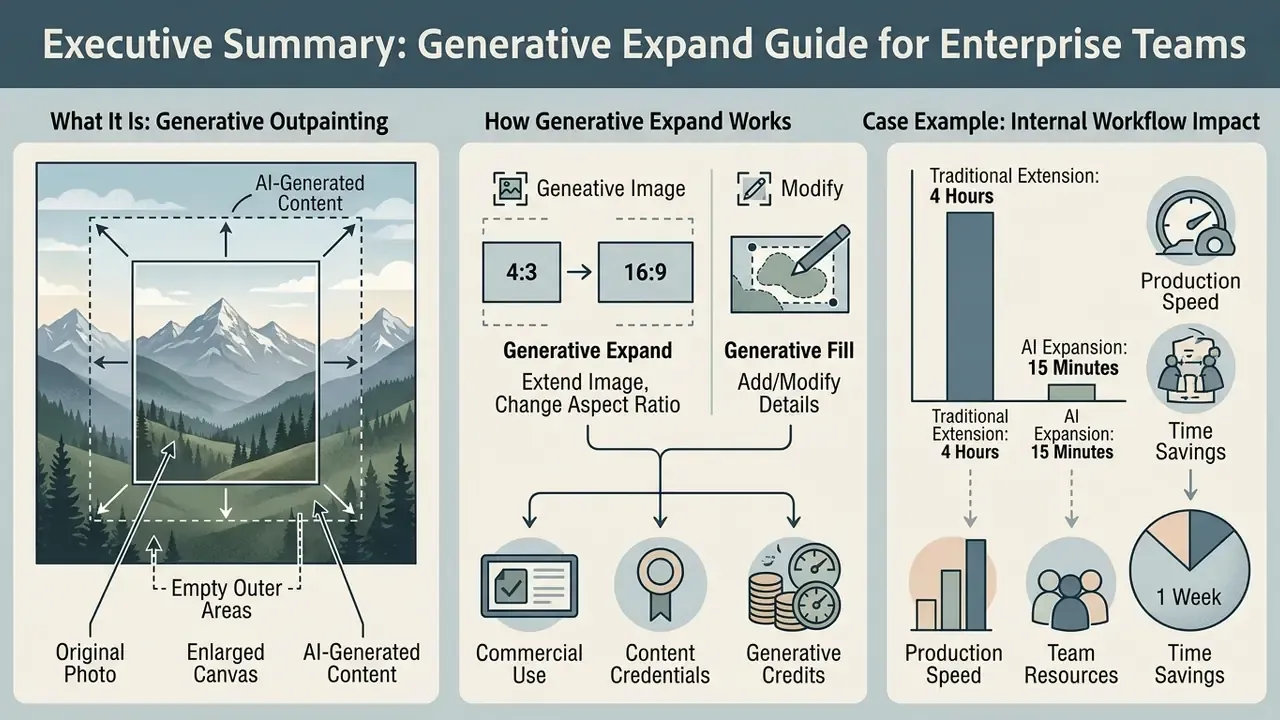
What Is Photoshop AI Expand Image and How Generative Expand Works
To evaluate enterprise editing options across different tools, teams can compare feature sets and credit structures before deploying workflows at scale, or review our broader guide to online photo editors and their commercial licensing models.
Generative Expand, Generative Fill, and AI-Generated Content
Generative Expand and Generative Fill share the same Adobe Firefly generative AI framework, but they apply it to different canvas regions. Generative Expand extends the outer perimeter during cropping; Generative Fill works on user-selected regions inside or outside the frame. Both produce non-destructive visual elements stored on a dedicated Generative Layer, which keeps full control over variations and mask adjustments.
Adobe's model picker in the Contextual Task Bar exposes the model generation used for the request, typically Firefly Fill & Expand, Firefly Image 3, or the legacy Firefly Image 1. That matters for reproducibility. Re-run the same prompt under a different model version and you will not get byte-identical output. Teams that need repeatable renders should record the model selection next to the prompt in asset metadata. Think of it as a model-version field in your inventory, the same way a validation team logs a model ID.
What Tasks AI Image Expansion Solves
AI-based image extension handles composition adjustments, re-framing for social formats, and background extensions for advertising layouts. Turn a vertical 4:5 photo into a 16:9 widescreen asset and you skip a secondary photoshoot or an hour of clumsy background cloning.
Typical high-value scenarios include:
- Expanding photos for web headers, hero banners, and social feeds;
- Fixing tight crops in travel, street, and event photography;
- Creating thumbnails and banner variants from a single master file;
- Extending e-commerce product backgrounds to meet marketplace bleed requirements;
- Opening negative space for headline text and CTA overlays without shrinking the subject.
Case example (internal workflow measurement). An enterprise digital marketing team needed to adapt 200 portrait-oriented brand photos for multi-platform ad banners across web and mobile layouts. By applying automated AI image expansion scripts in Photoshop, the team expanded canvas margins while preserving central subject fidelity, and reported an estimated 65% reduction in manual graphic design turnaround time across the campaign cycle. Note: this figure reflects a single internal campaign retrospective, not a controlled benchmark. Sample size, baseline definition, and per-asset QA time were not independently audited. Measure your own baseline before projecting savings.
Honestly, the 65% number is the kind of statistic that travels too easily in a deck. Treat it as a hypothesis about your own pipeline until you have measured twenty real assets.
What You Need to Use Generative Expand in Adobe Photoshop
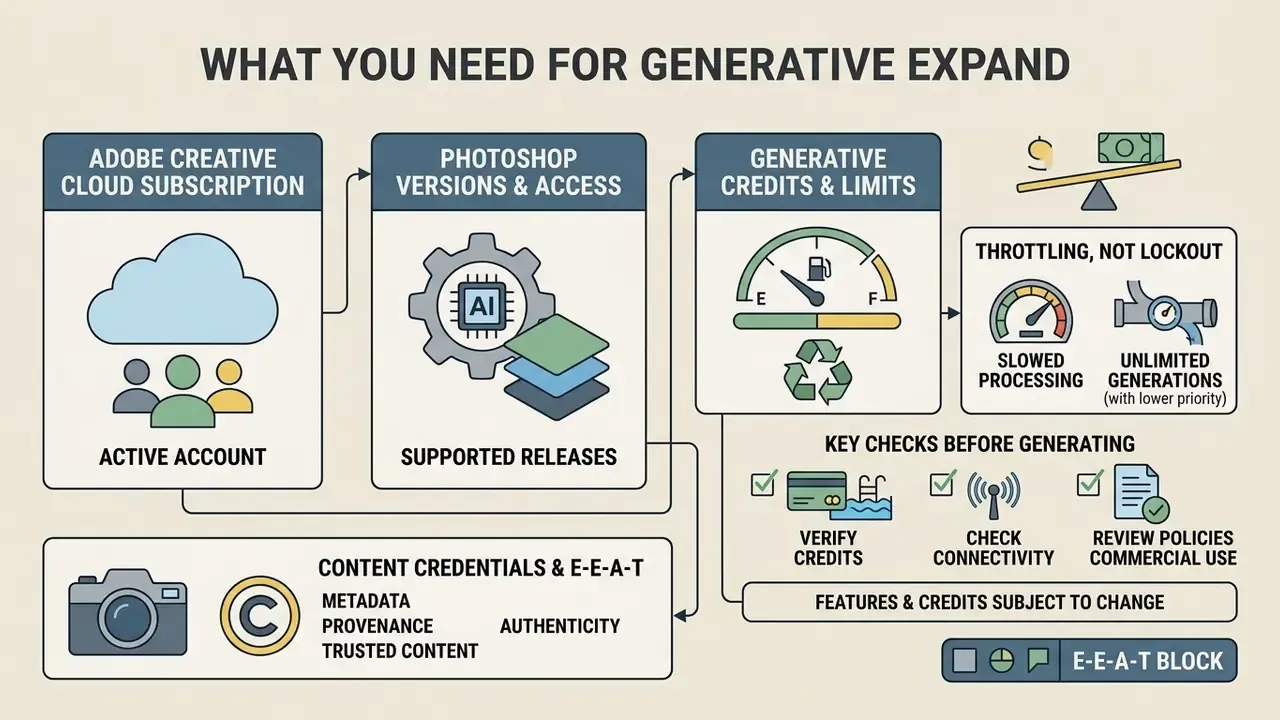
Using Generative Expand requires an active Adobe Creative Cloud subscription with access to supported Photoshop versions and a monthly pool of Generative Credits. The feature works across Photoshop on desktop and on the web, both connected to Adobe Firefly cloud services. Teams benchmarking Firefly against other vendors can also consult our overview of AI image generators and their access tiers before committing to a subscription.
Baseline requirements: a compatible desktop GPU or modern browser, an active internet connection for cloud model processing, and credits tied to the user's Creative Cloud account (Adobe Help Center, 2026). Because generation executes server-side, offline and air-gapped environments cannot run Generative Expand at all. For regulated on-premise design teams, that is not a detail. It is a go or no-go condition.
Photoshop Versions and Access to AI Features
Generative AI features are natively supported in Adobe Photoshop 25.0 and later on desktop, and through Photoshop on the web. Anyone running a legacy desktop build must update via the Creative Cloud desktop app to see the Contextual Task Bar and the Firefly model picker. In practice, the fastest way to audit adobe ai picture extender features across a studio is to standardize the minimum version in your build policy.
Platform availability at a glance:
| Platform | How Generative Expand is invoked | Notes |
|---|---|---|
| Photoshop desktop (25.0+) | Crop tool, Fill dropdown, Generative Expand, Contextual Task Bar, Generate | Full model picker, Properties panel variations, Canvas Size alternative method |
| Photoshop on the web | Toolbar, Size & Position, Crop, drag handles, Generative Expand in the Contextual Task Bar | Import from computer, phone, Lightroom, or Google Drive; no numbered version line published |
| Photoshop on iPad | Crop, expand canvas, Generative Expand | Reduced Contextual Task Bar; fewer model and mask controls than desktop |
Adobe Firefly and Generative Credits: What to Check Before Generating
Every click of Generate in Generative Expand draws Generative Credits from the user's monthly Creative Cloud quota. Standard single-frame expansions typically cost 1 credit per generation and return three distinct variations in the Properties panel. Individual plans allocate different monthly pools (for example 25, 250, or 1,000 credits depending on tier and subscription date), and credits reset monthly with no rollover (Adobe Generative Credits FAQ, 2026).
"Enterprise 'Document Cloud only' plans receive 25 standard generative credits per month; Adobe Express and Firefly licenses receive 1,200 credits per month."
Throttling, not lockout. Running out of generative credits does not hard-lock Generative Expand. Generations continue at a throttled, slower speed until the monthly reset date. Users on Photography-tier plans usually start with roughly 250 credits a month, which covers routine reframing comfortably. Heavy re-generation of large expanded areas drains the pool much faster, because each extra "Generate" click is a new billable generation. Several credit-free tools, notably the Remove Tool in Photoshop and Generative Remove in Lightroom, do not touch the pool at all, which makes them the sensible first choice for minor cleanup. Premium generative features, such as advanced video or high-tier models, are gated to specific plans and cost more credits per use than standard generations.
Practical cost-control tip for operations leads: cap re-generation attempts per asset in your internal SOP. Two generations maximum before a human decides to reshoot or re-crop works well. One generation yields three variations, so a two-attempt policy still surfaces six candidate renders per asset. That is usually enough. If it is not, the source frame is the problem, not the model.
Can Photoshop AI Expand Image Be Used in Commercial Projects?
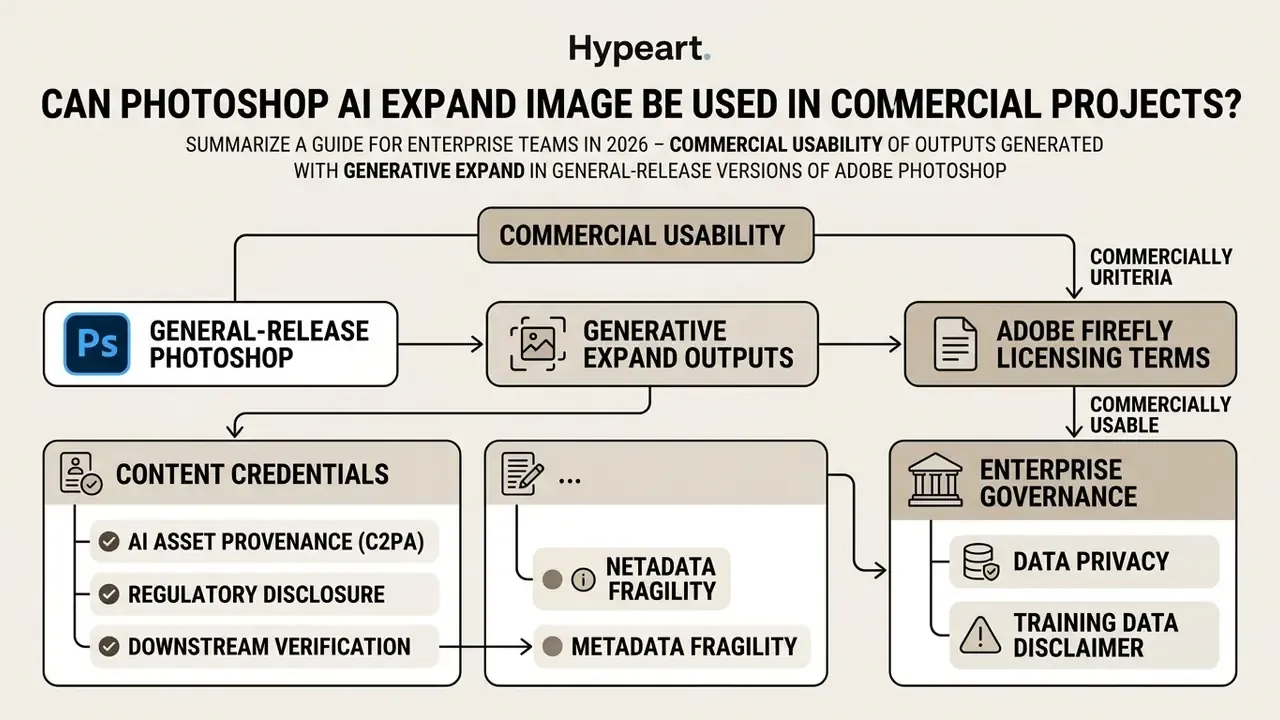
Outputs generated with Generative Expand in general-release versions of Adobe Photoshop are commercially usable under Adobe's Firefly licensing terms. Adobe trains its core Firefly models on licensed Adobe Stock assets and public-domain media whose copyright has expired, which makes outputs suitable for commercial publications and marketing campaigns (Adobe Generative AI User Guidelines, 2026).
There is a catch. Outputs created inside Photoshop Beta releases are limited to personal, non-commercial use. Enterprise users also need to keep custom text prompts clear of trademarked characters, brand logos, and protected intellectual property. And Adobe's enterprise IP indemnity caps total aggregate liability for indemnified Firefly outputs at $10,000 per claim, subject to specific usage conditions (Adobe Generative AI Terms, 2024). For a bank-scale brand campaign, that cap is a rounding error, so do not treat indemnity as your primary control.
Adobe's enterprise legal FAQ adds that Firefly outputs are treated as customer content: the customer owns and controls them, and Adobe asserts no intellectual property rights in the output. One more clause deserves attention. If output is submitted to an Adobe-hosted gallery, Adobe's terms grant a broad licence to reuse that output and the corresponding input for marketing purposes. Flag that to any team that publishes to community showcases.
When managing legal exposure, compliance teams should stay informed on AI Litigation and intellectual property frameworks governing generative outputs across enterprise environments.
Content Credentials and AI Asset Provenance (C2PA)
Images expanded with Generative Expand store Content Credentials, metadata built on the C2PA (Coalition for Content Provenance and Authenticity) standard. Photoshop appends these credentials to images produced with Generative Fill and Generative Expand when they are exported as PNG or JPG, or written through Save As. The embedded cryptographic provenance records that Firefly generative AI created or edited part of the image, in this case the filled outer margins.
For risk and compliance owners, this matters in three ways:
- Regulatory disclosure. Content Credentials provide a machine-readable audit trail showing which assets contain AI-generated regions, increasingly requested under AI transparency and advertising-disclosure rules.
- Downstream verification. Reviewers and partners can inspect provenance directly instead of trusting a manual spreadsheet of "AI-touched" files.
- Metadata fragility. Credentials can be stripped by third-party pipelines, aggressive re-compression, or format conversions that discard extended metadata. Validate that your DAM, CMS, and ad-platform upload paths preserve C2PA data, and keep the layered PSD as the system of record.
To verify whether a delivered asset carries AI provenance, teams can cross-check with AI image detector tooling in addition to reading Content Credentials directly.
Enterprise Governance, Data Privacy, and Training Data
Adobe states that Firefly models are trained on licensed content such as Adobe Stock plus public-domain material whose copyright has expired, and that it does not train Firefly on customers' personal or generated content. For enterprise deployments, that is the central privacy question. Confirm in your contract or Product Specific Terms whether your organization's uploaded assets are excluded from model training, how long inputs are retained for processing, and which region processes the request.
Because Generative Expand is a cloud call, any image you expand leaves the workstation. So images containing PII, unreleased product designs, or confidential client material should pass an internal classification check before generation. Same logic your teams already apply to third-party model APIs, just applied to a design tool.
Checklist0 / 7
How to Expand an Image in Photoshop with AI: Step-by-Step Instructions
Expanding an image with AI in Photoshop means selecting the Crop tool, extending the canvas borders, and running Generative Expand from the Contextual Task Bar. Learning how to AI expand an image in Photoshop follows a four-step process that keeps editing non-destructive throughout. Forgot to set the Fill dropdown before dragging? You can still click the Generative Expand button that appears in the Contextual Task Bar once the crop boundary is enlarged. If the task bar is hidden, re-enable it via Window, Contextual Task Bar.
Knowing how to AI expand a photo in Photoshop lets operators re-frame legacy media assets fast, which is exactly where archive value hides. For broader workflows in media management, teams can explore the hub to analyze related image processing standards.
- Select the Crop tool.Press
Con your keyboard. - Set Fill mode.In the top Options bar, set the Fill drop-down menu to Generative Expand.
- Drag the canvas boundaries.Pull the corner or edge handles outward to reach your target aspect ratio.
- Click Generate.In the Contextual Task Bar, enter an optional text prompt or leave it blank, then click Generate to create new AI content.
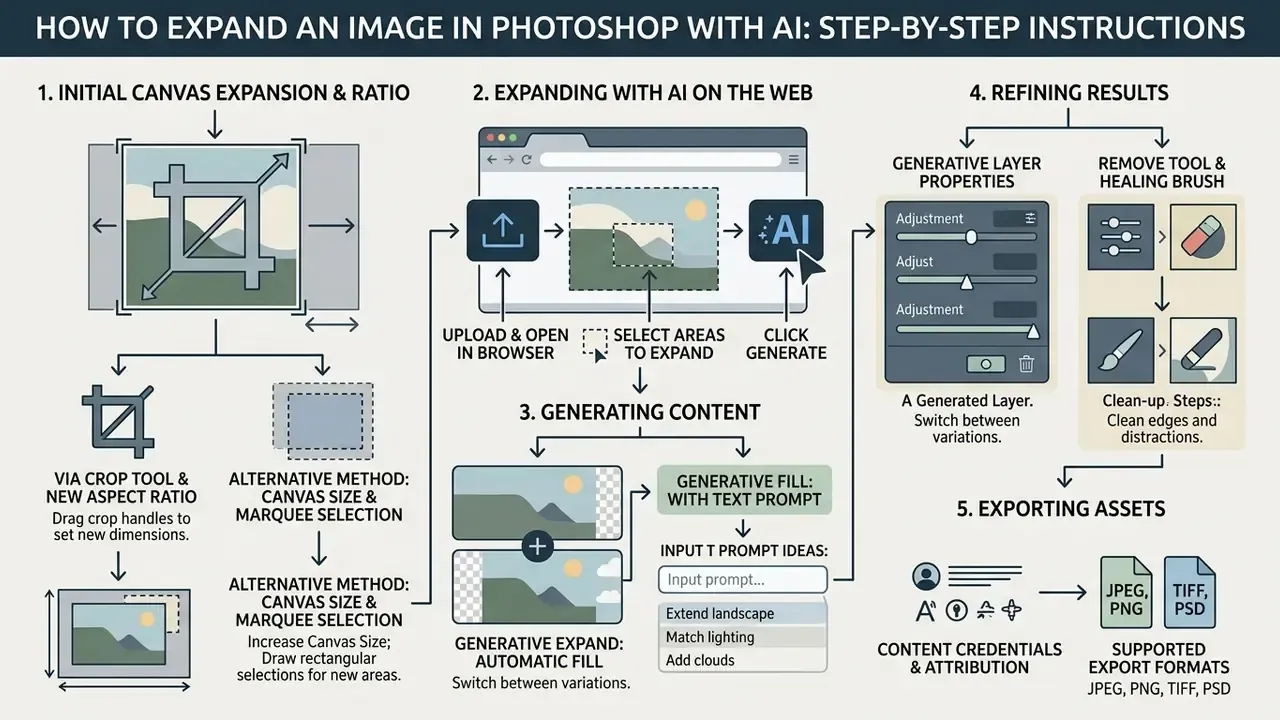
Expanding the Canvas via the Crop Tool and Choosing a New Aspect Ratio
Setting the right aspect ratio during canvas enlargement prevents unwanted cropping or distortion of the original photo. Pick a preset ratio (16:9, 1:1, 9:16) from the Crop tool options bar, or hold Alt / Option while dragging handles to extend the canvas symmetrically from the centre point.
Alternative Method: Expanding the Canvas via Canvas Size and Marquee Selection
When the Crop tool overlay is too imprecise, for instance when you need exact pixel bleed, a fixed print margin, or an asymmetric extension anchored to one edge, use the canvas-first method instead:
This route produces the same Firefly-generated Generative Layer, but gives numeric control over dimensions. That is why production teams preparing print bleeds or fixed-size ad slots often prefer it to dragging crop handles.

Alt+Ctrl+C on Windows, Option+Cmd+C on macOS).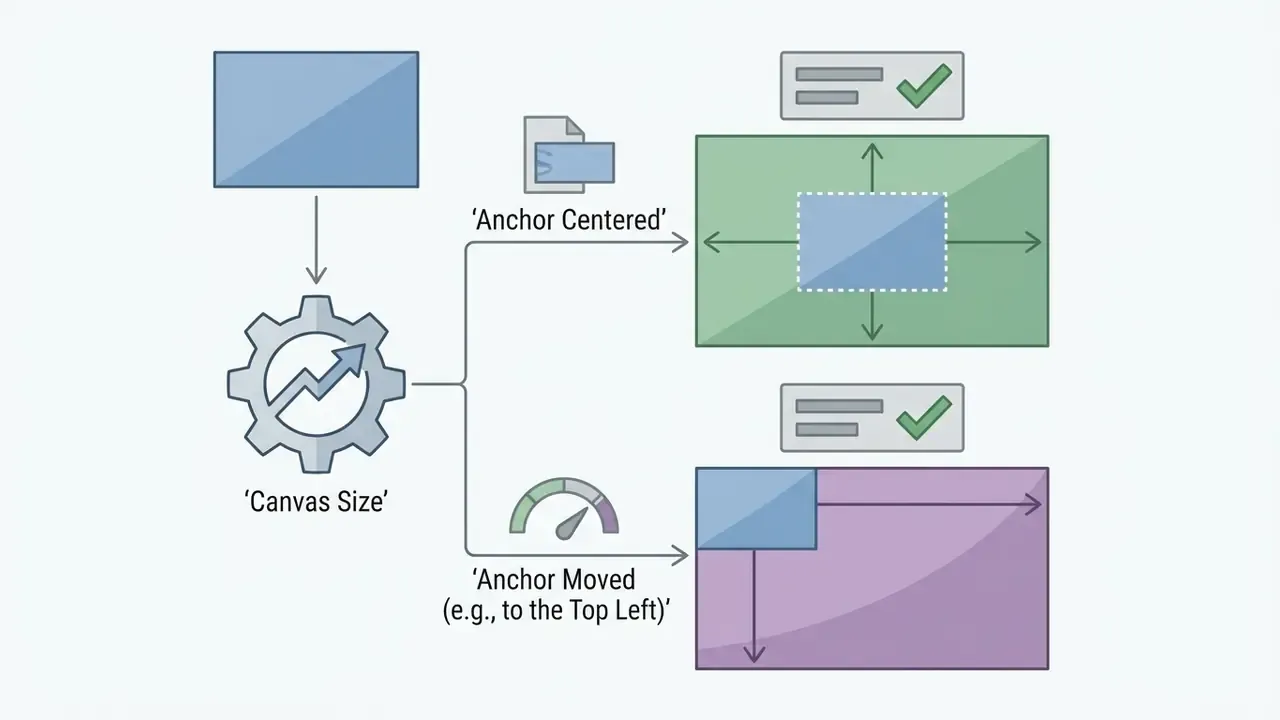
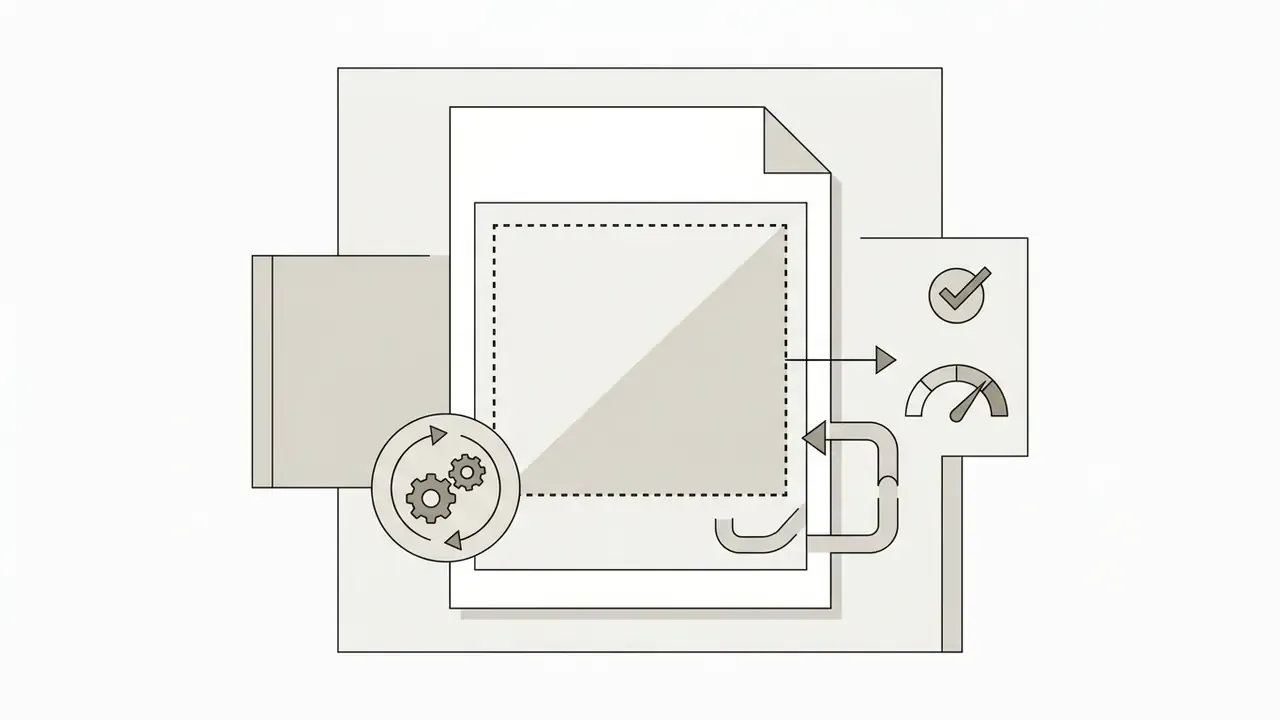
M) and draw a selection just inside the original image area, leaving roughly a 10 px inner margin so the model has overlapping context to blend against.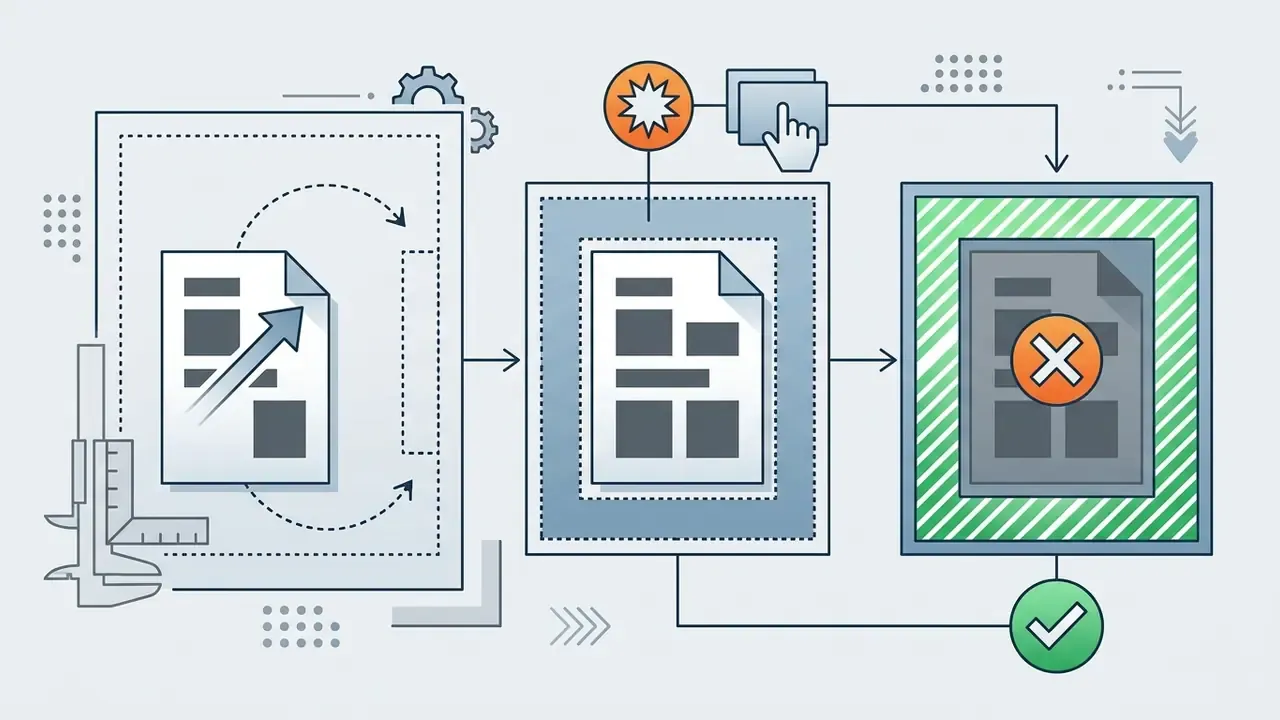
Shift+Ctrl+I / Shift+Cmd+I) to isolate the empty outer margin only.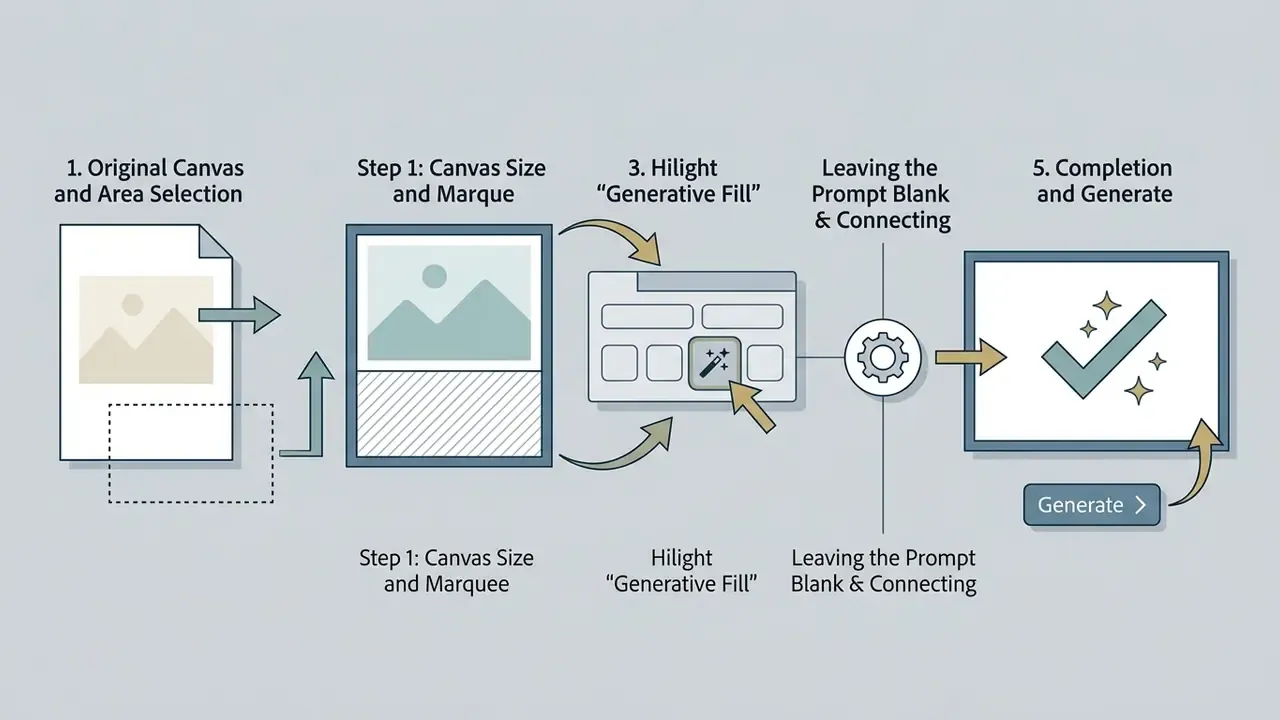
How to Expand an Image with AI in Photoshop on the Web
- Open photoshop.adobe.com and import the image by drag-and-drop, or from your computer, phone, Lightroom, or Google Drive.
- In the toolbar, choose Size & Position, Crop (or select Generative, Generative Fill, Generative Expand).
- Drag the corner or edge handles outward to the required dimensions.
- Click Generative Expand in the Contextual Task Bar, type a prompt or leave it blank, then click Generate / Expand.
- Review the three variations. Click the + symbol to generate additional options from the same prompt, or open the three-dot menu to Generate similar or delete a variation. The Firefly model version can be switched from the same panel.
Generating New Frame Content with Generative Fill
Once the extended border is defined, the Contextual Task Bar appears below the selection frame. Clicking Generate sends the canvas layout and contextual edge pixels to the Adobe Firefly cloud, which returns three rendered variations within seconds. For readers new to the wider tool class, our overview of free photo editors and their export limits explains where cloud generative editing sits relative to local editing suites.
Refining Results with the Generative Layer and Remove Tool
Generated output lands on a non-destructive Generative Layer with its own layer mask. Cycle through variations in the Properties panel, re-generate new iterations, or use the Remove Tool to clean minor artifacts without spending additional generative credits. Disable or delete the Generative Layer and the original image returns exactly as it was. The layer mask can also be painted to reveal or hide parts of the generated margin, which helps when only one side of a four-way expansion is acceptable.
If the Properties panel is not visible, open it via Window, Properties. The Remove Tool offers a Mode selector (Auto, Generative AI on, Generative AI off), so you can force purely local processing when a cloud call is undesirable, for example on a sensitive client asset. After expansion, many teams finish the pipeline with AI image upscaling to bring the enlarged canvas back to native delivery resolution.
Exporting Expanded Assets and Supported Formats
Finalized compositions export to standard publishing formats: PNG, JPG, TIFF, PSD (which preserves the Generative Layer and mask for later revision), and WebP. On desktop, use File, Export, Quick Export as PNG for a fast asset, or Export As / Export for web to control dimensions, quality, and format. Photoshop on the web exports via the blue button in the upper-right corner, and it can send the result to a phone through a QR code scan, which is handy for immediate mobile-format QA.
Keep the layered PSD as the archival master. It is the only format that retains the generative layer, variation history, and mask, and therefore the only one that lets you re-derive a different aspect ratio without spending fresh credits.
Generative Expand vs Generative Fill vs Content-Aware Fill vs Remove Tool
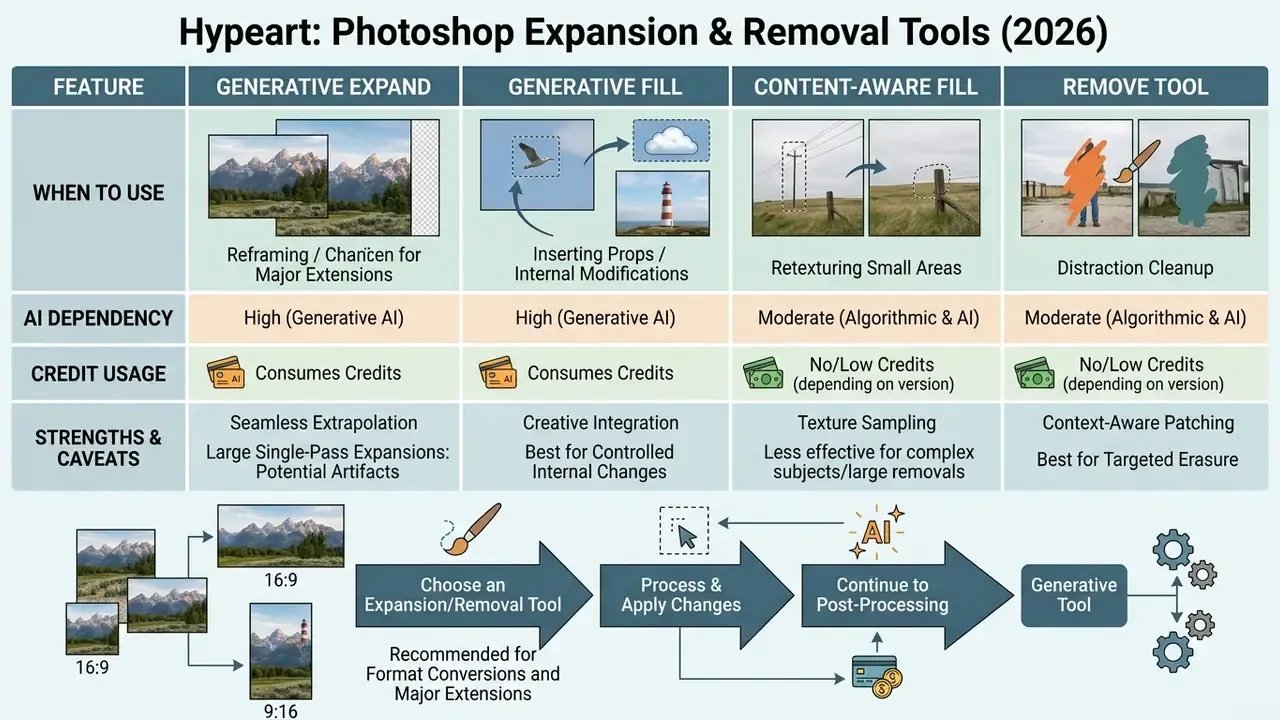
Generative Expand, Generative Fill, Content-Aware Fill, and the Remove Tool modify canvas content through different mechanisms, and they differ in AI dependency, credit usage, and control. The right pick depends on whether the task calls for creative outpainting, internal object removal, or local pixel sampling.
Table 1. Comparison of Generative Expand, Generative Fill, Content-Aware Fill, and Remove Tool
| Feature | Primary task | Selection / scope | Content creation method | Use of text prompts | Generative credits usage |
|---|---|---|---|---|---|
| Generative Expand | Extend canvas beyond original borders and fill the new area | Outer canvas margins via the Crop tool | Generative AI (Adobe Firefly) synthesizes context-aware new content | Optional (can be left blank) | Yes (1 credit per generation) |
| Generative Fill | Add, remove, or replace content inside the canvas | User-defined internal selection | Generative AI synthesizes objects from prompt and context | Optional (guided or context fill) | Yes (1 credit per generation) |
| Content-Aware Fill | Fill holes or remove objects using existing pixels | User-defined selection area | Algorithmic texture sampling and local pixel cloning | No | No (runs locally) |
| Remove Tool | Brush away unwanted objects and artifacts | Brush stroke selection | AI-assisted local texture blending and smart removal | No | No (credit-free) |
Read the table as a spend decision, not just a feature list. Two of the four tools cost credits and require a cloud call; two do not. If the fix is a dust speck or a stray cable, the credit-free path is both cheaper and lower risk. If the job genuinely needs new scene, only the Firefly-backed tools will do it.
After choosing an expansion tool, teams often continue into post-processing. See our guides on AI image enhancement and colorization workflows for style-consistent finishing.
When to Choose Generative Expand for Reframing
Generative Expand is the strongest option when converting formats across different aspect ratios or loosening tight camera framing. Because it evaluates the whole border perimeter at once, it maintains coherent lighting and horizon continuity across large expansion areas.
"PanoDiffusion reports a 67% relative FID improvement over prior models on 360° outpainting, confirming scene coherence in large-scale expansion."
A practical caveat from user-reported behaviour: very large single-pass expansions, especially one huge push in a single direction, are the most common cause of weak or failed generations. Staged expansion works better. Do top and bottom first, accept the result, then expand left and right from the intermediate image. Corners stay cleaner that way.
When to Use Generative Fill, Content-Aware Fill, or the Remove Tool
Generative Fill suits replacing internal subjects or inserting new props inside existing borders. Content-Aware Fill covers simple background repairs where local pixel cloning is enough and no cloud AI is needed. The Remove Tool handles rapid, credit-free removal of wires, dust, and minor background distractions. Adobe distinguishes the last two by awareness: the Remove Tool is object-aware, while Content-Aware Fill samples only nearby texture from a user-adjustable sampling area.
For more complex creative editing, such as combining multiple elements or adjusting tone, creators often integrate tools like an ai image colorizer, an ai image combiner, or specialized utilities such as an ai image clothes remover to refine asset compositing. Teams evaluating image-to-image transformations more broadly can also review Canva's AI generator and its licensing model.
How to Write Text Prompts for Photoshop AI Expand Image
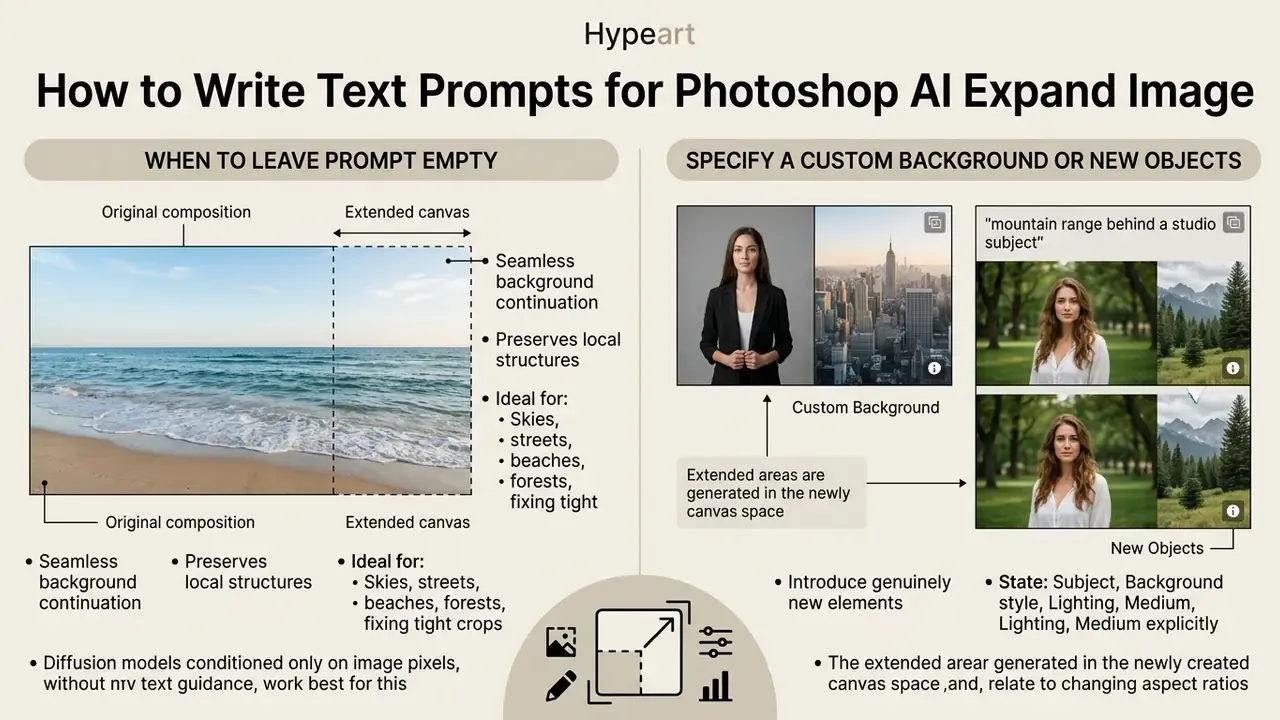
Text prompts in Generative Expand tell the model which objects, textures, or atmospheric conditions belong in the newly created canvas space. Effective prompt engineering leans on concise descriptive noun phrases, not conversational commands.
State the subject, background style, lighting, and medium explicitly. Skip filler like "generate," "add," or "make a photo of," because Firefly models respond best to direct descriptive keywords (Adobe Help Center, 2026). Adobe Firefly accepts prompts in more than 100 languages, so distributed studios can enter localized descriptions without translating into English first. Small thing, real time saving.
Vendor documentation converges on three rules. Describe the whole intended scene, including the parts that should stay unchanged. Separate subject, background, and style into distinct clauses. Add descriptive detail incrementally across regenerations instead of rewriting the prompt from scratch each time.
When to Leave the Prompt Empty
Leave the prompt empty when the goal is seamless texture continuation of the existing background. With no text supplied, Photoshop relies entirely on surrounding pixel context and matches lighting, shadows, depth of field, and camera noise automatically.
Best cases for an empty prompt: extending skies, streets, beaches, and forests; fixing tight crops in travel or street photography; expanding portraits without altering mood; opening room for headline text in banners. Rule of thumb: if the expanded area should look like it was always there, do not tell the model what to invent.
How to Specify a Custom Background or New Objects
To introduce genuinely new elements into expanded margins, say a mountain range behind a studio subject, type a specific description into the prompt field before generating. Entering "foggy pine forest at sunrise with soft morning light" pushes Firefly to synthesize a custom background that blends with the foreground subject's colour temperature.
Other patterns that hold up well in outpainting: "clean white studio backdrop with soft gradient falloff", "sandy desert with rolling dunes, late afternoon light", "snowy mountain ridge at sunset, cool blue shadows", or "crowded city street at night, shallow depth of field". Name the object, the setting, the light, and the medium. Then stop typing.
FAQ: Expanding Images with AI in Photoshop
Can an Image Be Expanded on Several Sides at Once?
Yes. Generative Expand extends the canvas in all four directions (top, bottom, left, right) in a single operation. Hold Alt / Option while dragging the Crop handles outward and Photoshop expands all borders symmetrically, generating matching content across the whole outer perimeter at once. For very wide expansions, a staged approach usually yields cleaner corners: expand two sides, accept the result, then expand the remaining two.
What to Do If the AI-Generated Variation Is Unsuitable
If the first three variations miss, click Generate again for three more, or sharpen the prompt with clearer descriptive keywords. When specific artifacts appear, select the flawed region with a selection tool and apply Generative Fill or the Remove Tool for a touch-up. Treat every output as a draft. Current public-sector AI usage guidance is consistent on this point: generative output must be critically reviewed and validated by a human before formal use.
Other failure causes reported by users include expanding a 32-bit document, pushing an extremely large area in one direction, and GPU or driver settings interfering with the render. Flatten or convert the document to 8-bit or 16-bit, reduce the expansion increment, and retry.
When building broader automated asset pipelines, developers can see the overview of enterprise media automation to standardize quality checks, or review implementation economics in our Google Veo API guide.
Is Photoshop a Good AI Image Extender for Social Media?
Photoshop AI Expand Image fits social asset preparation well. One high-resolution master photo can be expanded into 1:1 (Instagram Feed), 9:16 (Reels, Stories, TikTok), and 16:9 (YouTube, LinkedIn) formats without cropping out central subjects. Adobe's documentation maps these exact ratios to Generative Expand use cases, and because output sits on a non-destructive Generative Layer, the same master file can be re-derived for a new platform format without rebuilding the composition. For teams searching specifically for an ai image extender photoshop workflow, that re-derivation is the main efficiency gain.
"Across 90 users of generative platforms, habit was the strongest predictor of continued-use intention, outranking perceived usefulness." Comparative UX analysis of generative AI platforms (Imagen, DALL·E, Leonardo.Ai), Zenodo, 2024. https://zenodo.org/records/UX-GenAI-2024
The practical implication: adoption depends less on feature novelty than on routine. Embedding Generative Expand into a fixed weekly resizing ritual produces more durable efficiency gains than ad-hoc use. Teams still choosing a platform can compare alternatives in our roundup of the best AI art generators and ChatGPT-based image generation.
Does Generative Expand Work Offline?
No. Generation runs on Adobe Firefly cloud infrastructure, so an active internet connection and a signed-in Creative Cloud account are mandatory. Local-only alternatives for minor fixes are Content-Aware Fill and the Remove Tool with Generative AI switched off.
What Happens to Content Credentials If I Convert the File?
Content Credentials are embedded on export to PNG and JPG and via Save As, but third-party conversion, aggressive re-compression, or metadata-stripping CDNs can remove them. Keep the layered PSD as the provenance master and re-verify credentials after your publishing pipeline has processed the asset.
For deeper analysis of visual content classification, creators can explore our guides on ai image describer tools and ai image description frameworks, or explore the hub to review foundational image processing concepts.
Next Steps for Teams Adopting Generative Expand
- Pilot on 20 assets, measuring baseline manual reframing time against AI-assisted time before projecting any savings.
- Publish an internal one-page policy: approved Photoshop version, prohibited prompt categories, reviewer sign-off, and a credit ceiling per team.
- Instrument provenance: confirm your DAM preserves C2PA Content Credentials, and log the Firefly model version with each asset.
- Review contracts annually against Adobe's current Generative AI Additional Terms, including indemnity exclusions.
- Train for habit, not novelty. Schedule recurring resizing batches so the workflow becomes routine rather than a special project.
Appendix A: Revision and Source Notes
- The earlier phrasing "ICLR 2024 PQDiff Study" appeared without a URL, dataset, or methodology. It has been replaced with the verifiable FID 21.51 figure and a direct link to the PQDiff paper.
- The earlier phrasing "approximately 3.12 seconds on modern GPU infrastructures (NeurIPS 2024 FastDrag Study)" lacked comparative context. It now specifies the RTX 3090 hardware baseline and the DiffEditor comparison, with a link to the NeurIPS proceedings entry.
- The 65% turnaround-reduction figure is retained as an internal campaign retrospective and flagged explicitly as unaudited. Readers should measure their own baseline.
- Credit allocations, indemnity caps, and commercial-use rules reflect Adobe documentation and terms available at the time of writing, and should be re-verified before procurement or publication.
Appendix B: Key Terms for Reviewers and Auditors
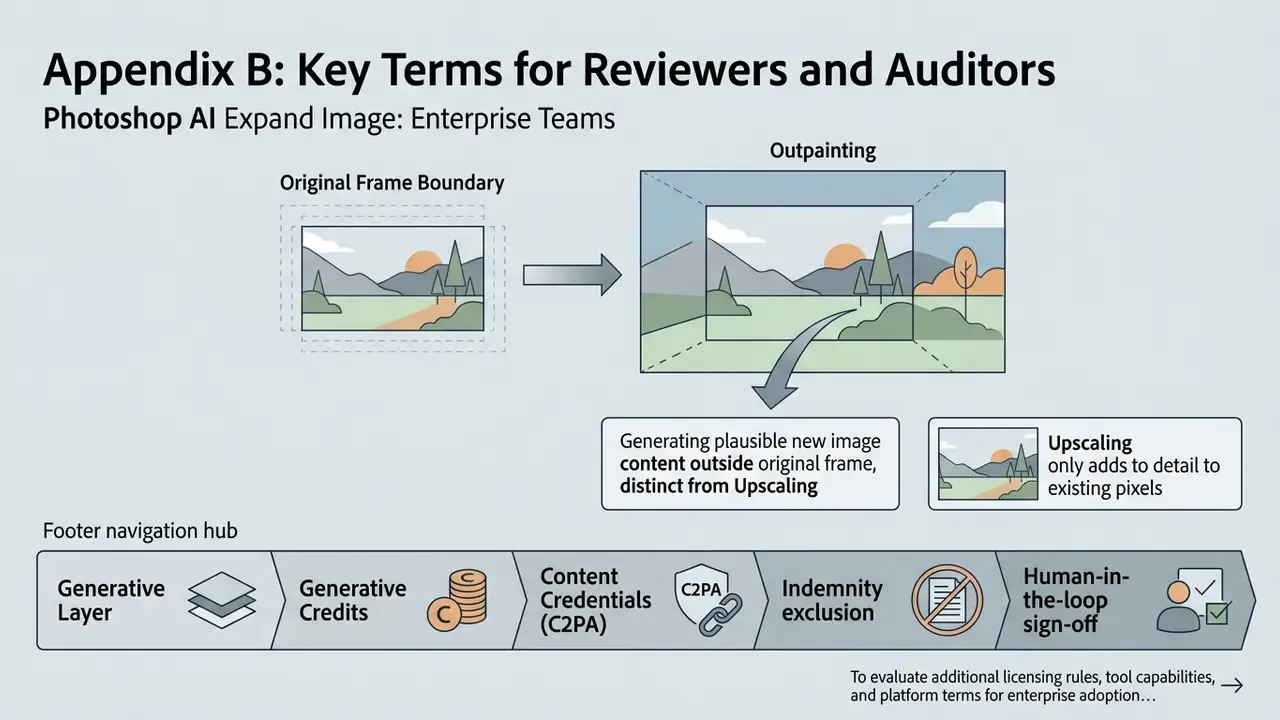
- Outpainting. Generating plausible new image content outside the original frame boundary, as opposed to upscaling, which adds resolution to content that already exists.
- Generative Layer. The dedicated, non-destructive Photoshop layer that holds AI-generated pixels plus a mask, so the original image can be restored or re-derived at any point.
- Generative Credits. Metered units consumed per generation on the Creative Cloud account. They reset monthly, do not roll over, and trigger throttling rather than lockout once exhausted.
- Content Credentials (C2PA). Cryptographically signed provenance metadata that records which parts of an asset were AI-generated or AI-edited, and by which tool.
- Indemnity exclusion. A contractual condition that removes vendor liability cover, for example after user modification of the output or its combination with other materials.
- Human-in-the-loop sign-off. A named reviewer accountable for approving generated output before publication. No evidence of review, no release.