Quick summary for readers in a hurry
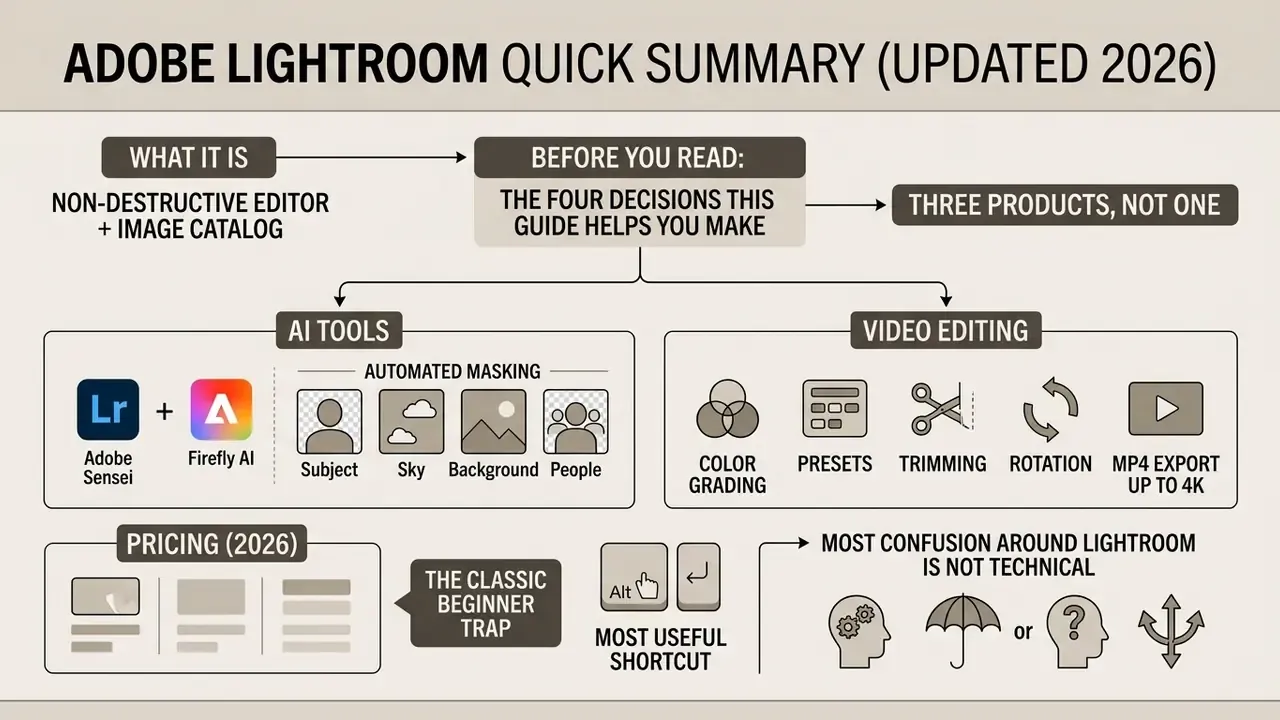
- What it is. Adobe Lightroom is a non-destructive editor and image catalog. RAW, DNG and JPEG originals are never overwritten; edits live as render instructions plus metadata.
- Three products, not one. Cloud Lightroom (desktop, mobile, web), Lightroom Classic (local disks and a
.lrcatcatalog), and a free mobile app with premium unlocks. - AI. Adobe Sensei handles masking (Subject, Sky, Background, People). Adobe Firefly powers Generative Remove and Generative Expand. Denoise AI writes results as Linear Raw DNG.
- Video. Color grading, presets, trimming, rotation and MP4 export up to 4K. No multitrack timeline, no titles, no audio mixing.
- Pricing (2026). Lightroom 1 TB at US$11.99/month on an annual plan billed monthly. Photography Plan 1 TB with Photoshop at US$19.99/month. The mobile app is free with limits.
- The classic beginner trap. Buying "Lightroom" instead of the "Photography Plan" and ending up without the version your tutorial was recorded in.
- Most useful shortcut.
Ctrl + E/Cmd + Esends the frame straight to Photoshop with RAW settings preserved.
Before you read: the four decisions this guide helps you make
Most confusion around Lightroom is not technical. It is a naming and licensing problem. People search for "light room photo editor", "lr photo editor", and even "lighthouse photo editor", then land on three different applications with three different storage models. So this guide is built around four practical decisions.
- Where should your original files physically live: your disks, or Adobe's cloud?
- Do you need Photoshop in the same subscription, or not yet?
- Which AI features do you actually use, and what hardware do they demand?
- Which plan matches that, including team licensing and compliance requirements?
If you are comparing paid media stacks more broadly, the AI Media Pricing Guides cover subscription models and credit systems across tools, not just Adobe.
What Adobe Lightroom Photo Editor is and which tasks it fits
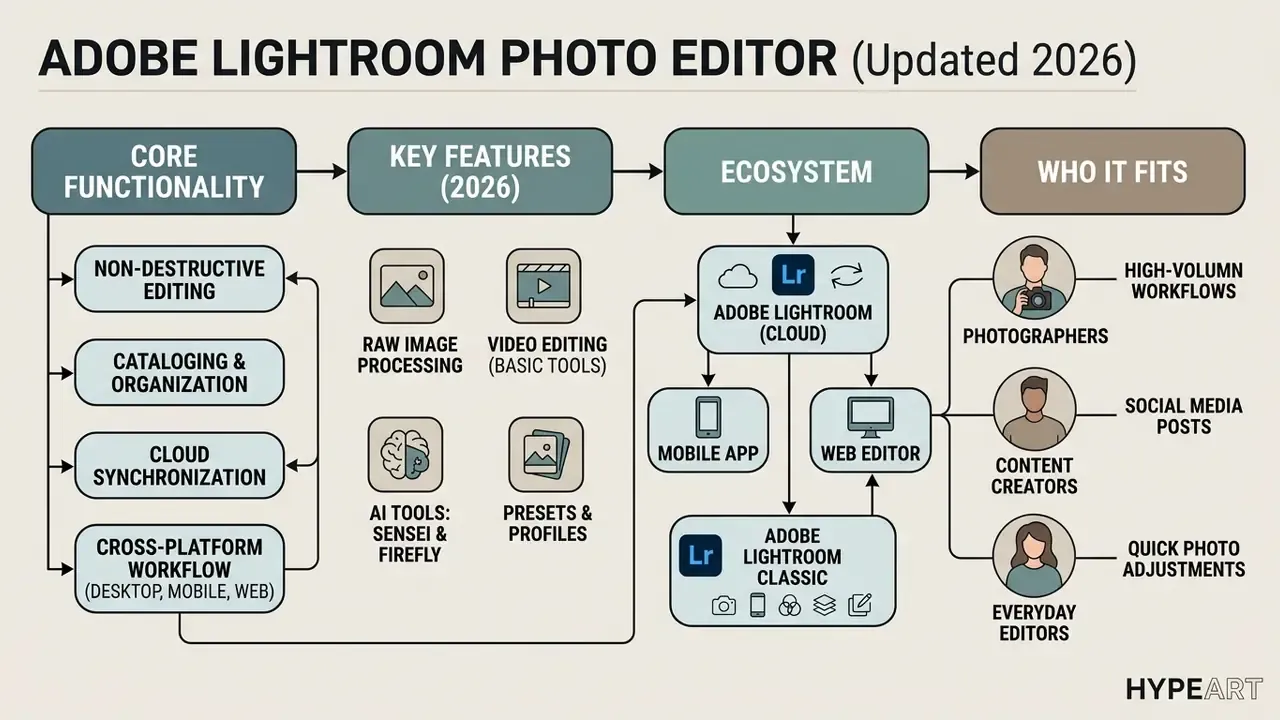
Adobe Lightroom Photo Editor is professional software for non-destructive editing, cataloging and cloud synchronization of digital images across desktop, mobile and web. Adobe built it for the whole visual content cycle: importing RAW files, applying camera profiles, organizing archives, and preparing assets for publication.
Unlike narrow graphics utilities, the lightroom photo editor combines a database with a parametric processor. Source data in RAW, DNG or JPEG stays untouched; every change is stored as metadata and rendering instructions. That single design choice explains most of its behavior. The photo editor lightroom approach handles both careful color work on one frame and batch processing of several thousand, which is why this software became a default in commercial photography. To place the product among alternatives, it helps to compare it with other AI photo editors that solve similar problems with different methods.
A short illustrative case. A regional studio scaling its media archive kept missing delivery deadlines on reportage shoots, because editing was scattered across local drives. Moving to adobe lightroom photo editor with unified metadata and cloud sync noticeably shortened selection and first-pass color work. The team's internal estimate was roughly a third of the post-production cycle, though that figure depends on series volume, drive speed and source quality, so treat it as illustrative rather than a controlled benchmark. Honestly, the bigger win was elsewhere: the risk of losing original RAW files disappeared, because every original finally had one source of truth.
Lightroom for photographers, content creators and everyday editing
Whether Lightroom fits you depends on two things: how deep your editing goes, and how many photos you process. Professional photographers pick the lightroom photo editor for its speed with large RAW sets, precise color management, and the ability to catalog frames by keywords, ratings and Exif metadata.
«Lightroom Classic is taught as the core tool of a professional workflow, from RAW import to export for print and web.»
For creators and bloggers, the mobile ecosystem and the ai photo editor lightroom functions matter more. Apply a preset on the phone, crop for a social format, push the finished series to the cloud, done. Users who only want to fix family archives get an interface where light and color are handled by plain sliders, with no layer logic to learn. If budget is tight, compare the subscription against what free photo editors offer in terms of export limits, privacy and feature depth.
Lightroom, Lightroom Classic and the mobile app
Adobe's ecosystem contains several versions of the product that differ in storage architecture and interface. The main split runs between cloud Lightroom (formerly Lightroom CC), the desktop Lightroom Classic, and mobile apps for iOS and android.
- Adobe Lightroom (cloud) built for multiplatform work. Originals and edit settings upload to Adobe Creative Cloud storage. A change made on the PC appears on the phone or tablet almost immediately. One clarification that saves arguments: cloud Lightroom is not a "browser app". It has a full desktop client for Windows and macOS, installed locally, working with a file cache on disk.
- Adobe Lightroom Classic built for stationary workstations on Windows and macOS. Originals stay on local or network drives while a local catalog indexes them. It carries deeper tooling for print, targeted color work and third-party plug-ins.
- Lightroom Mobile (app) the mobile lr photo editor, mixing free capture and editing basics with premium features unlocked by a Creative Cloud subscription.
Comparative analysis of Adobe Lightroom versions
| Lightroom version | Platforms | Storage model | Primary use case | Limits and specifics |
|---|---|---|---|---|
| Lightroom (cloud-based) | Windows, macOS, iOS, Android, Web | Full originals in Adobe cloud (from 1 TB) | Cross-platform editing, fast content production | Needs a stable connection; when cloud storage fills up, sync stops and new frames stay only on the capture device |
| Lightroom Classic | Windows, macOS | Local disks or NAS; catalog on the PC | Studio shoots, batch RAW processing, archives above 100k frames | Syncs only Smart Previews to the cloud; no direct web client; one catalog syncs at a time |
| Lightroom Mobile | iOS, Android | Device storage plus cloud sync | Mobile capture, quick color work, selection on the go | Free tier is limited in AI masks, geometry, healing, RAW processing and selective retouching |
«Lightroom and Lightroom Classic serve different scenarios: the cloud version for cross-platform workflow, Classic for high-performance local catalogs.»
The table above shows the architectural split: cloud Lightroom prioritizes mobility and an end-to-end workflow, while Lightroom Classic is engineered for maximum performance on local hardware.
Photo editing tools in Lightroom
The toolset of the lightroom photo editor follows a sequential logic: from base exposure to targeted local correction. The emphasis sits on parametric changes to tone, color balance (HSL and Color Mixer) and sharpness without degrading the source image. If you are still choosing between a desktop client and browser work, a broader review of online photo editors breaks down features, prices and platform support.
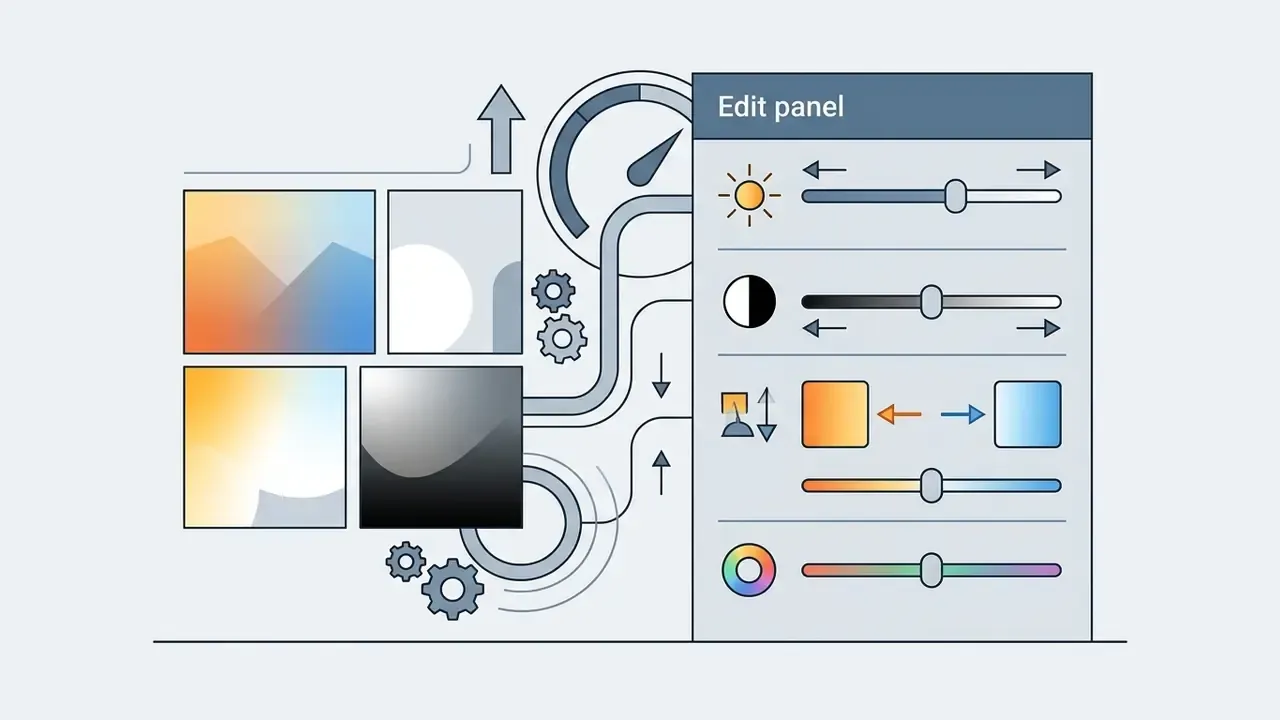
All editing parameters are grouped into panels. The designers of the photo editor adobe lightroom interface allowed both manual control of every value and automated paths through presets and camera profiles, so a whole series of images can share one visual style.
Color, light, cropping and presets for fast editing
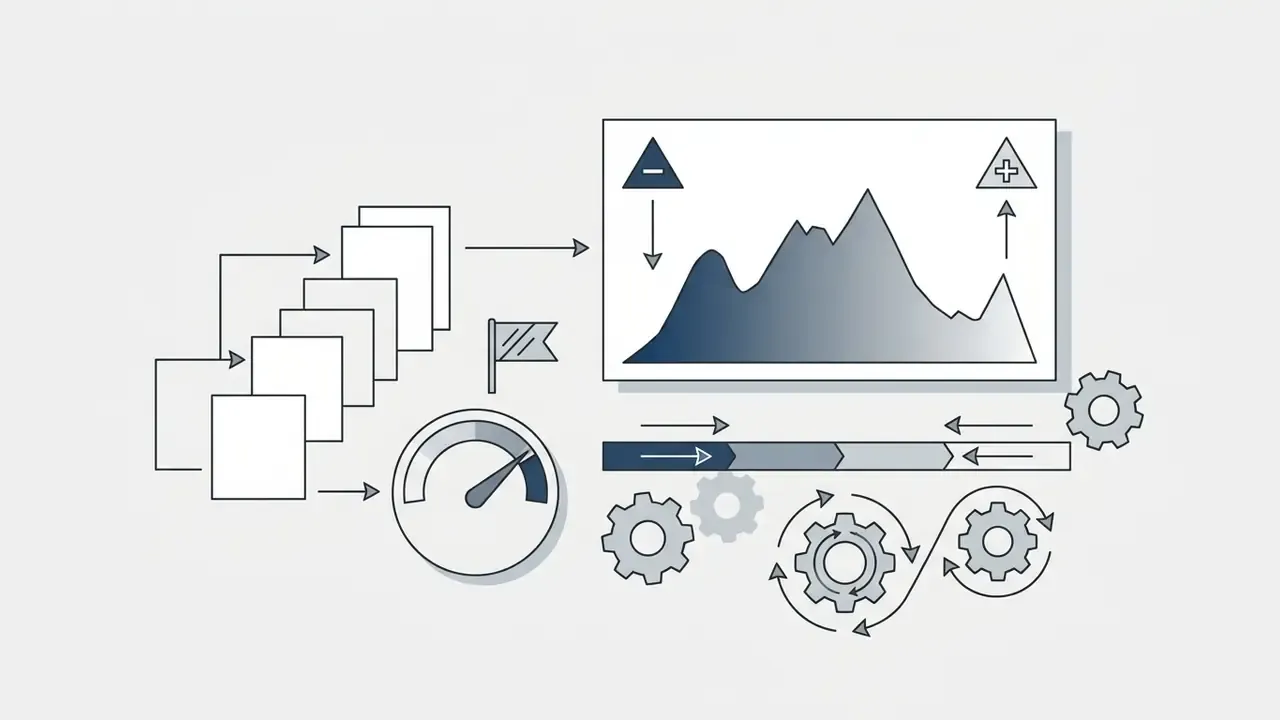
The foundation of work in the lightroom photo editor is the Light and Color panels. Light governs the tonal range: Exposure, Contrast, Highlights, Shadows, Whites and Blacks pull detail out of deep shadows and rescue blown areas. The histogram in the Edit panel is not decoration but an interactive control: dragging directly across its regions moves the matching slider, and the triangles in the top corners flag clipping in shadows (left) and highlights (right).
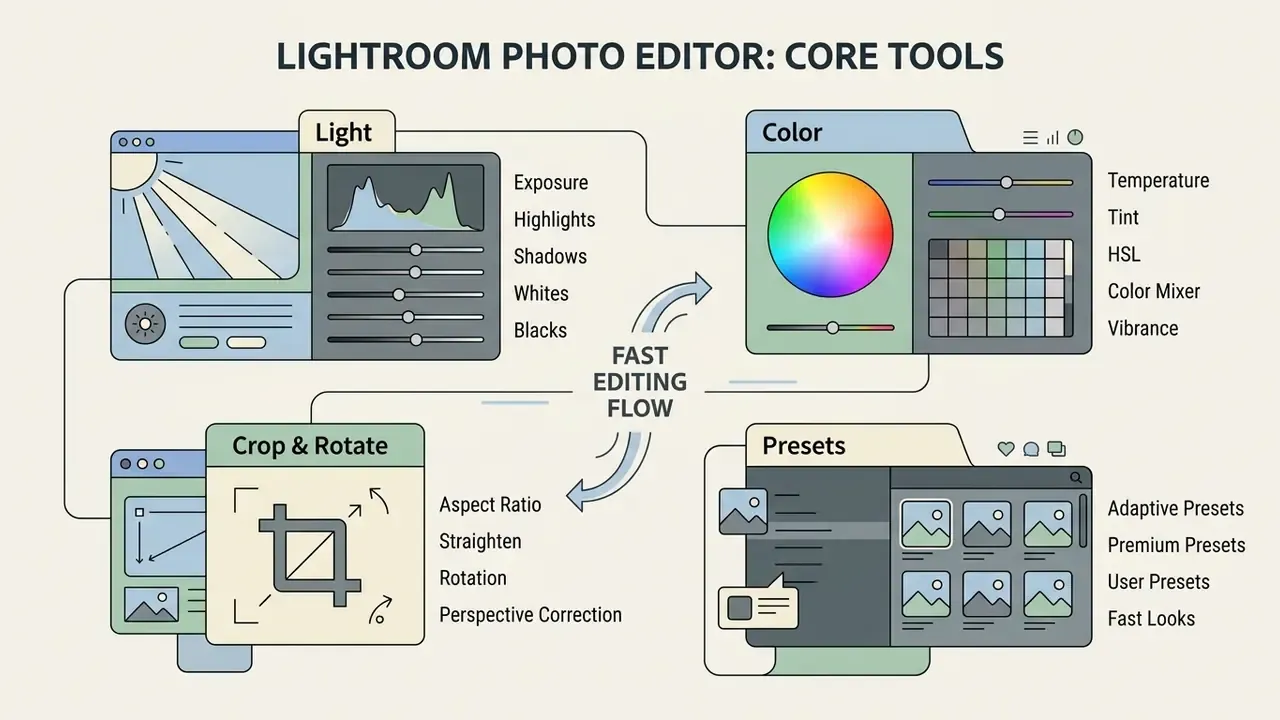
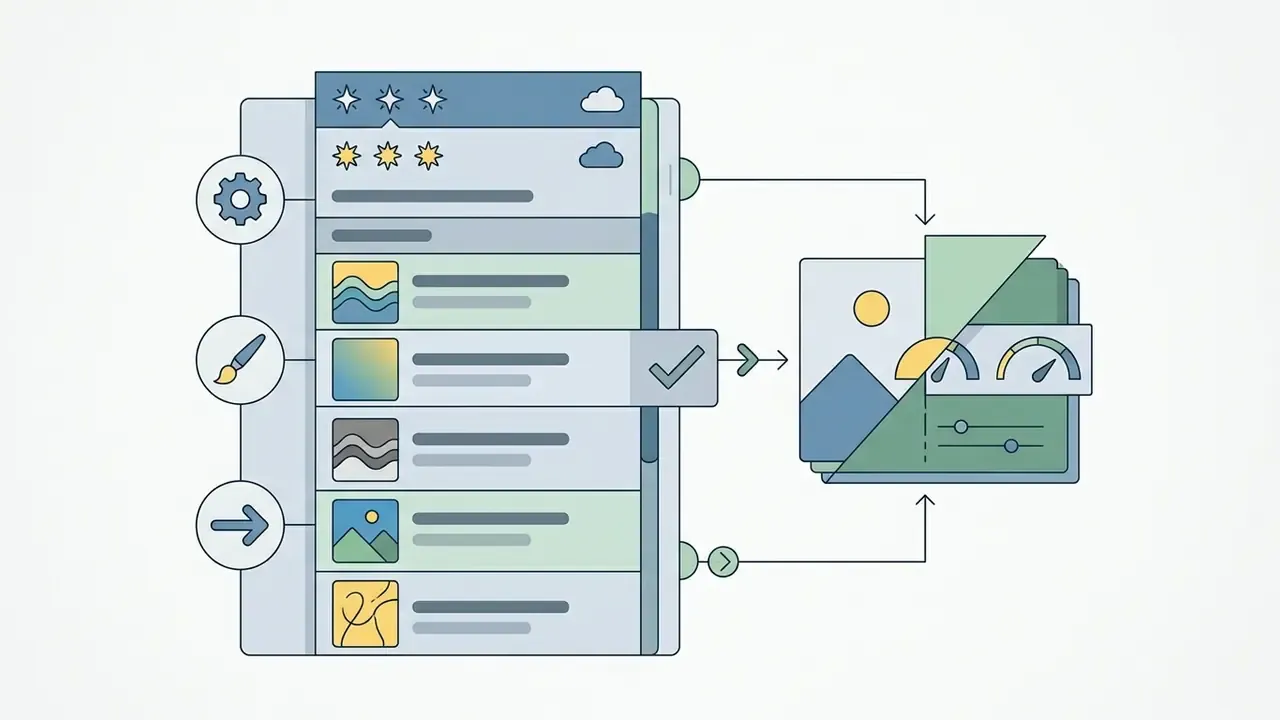
Crop & Rotate includes automatic horizon straightening and a set of standard aspect ratios. For routine work, presets carry saved setting bundles. Apply a look in one click, then dial its strength with the Amount slider from 0 to 200%, which keeps the photo editing process flexible. Building your own preset follows a simple path: edit a reference frame, choose Create Preset, name it and assign a group, select which settings to include, save. Third-party packs import through File → Import Profiles & Presets.
«Applying presets and syncing settings across images are key skills in professional Lightroom courses for high-volume workflows.»
Masks, local adjustments and advanced image tools
When global changes are not enough, the Masking module takes over. In the photoshop lightroom ecosystem, masks isolate parts of a photo so effects land only where you want them.
Beyond conventional brushes and gradients (Linear and Radial), the editor offers selective correction by color (Color Range), by brightness (Luminance Range) and by depth (Depth Range, on files carrying a depth map). The Luminance Range slider isolates only pixels inside a chosen brightness interval, which is close to indispensable on a high-contrast sky or specular highlights on water. You can also sample the range with the eyedropper straight from the image, narrowing the selection to the exact tones you need.
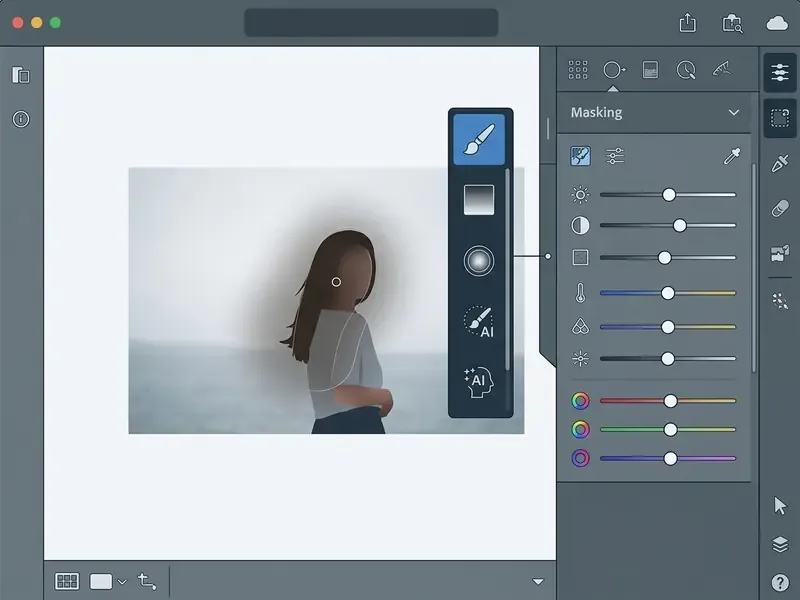
Screenshot annotations, in text form:
Terminology note: in Lightroom Classic, masking lives inside the Develop module as the Masking tool. In cloud Lightroom it is a Masking panel inside the Edit workspace. The difference is naming and layout, not capability.

AI Photo Editor Lightroom: which tasks the models actually accelerate
Machine learning built on Adobe Sensei and Adobe Firefly turned the lightroom ai photo editor into an environment that cuts manual routine dramatically. The ai photo editor lightroom feature set automates what once required painstaking contour selection in Photoshop.
Artificial intelligence here covers more than masking. It handles generative detail restoration, noise suppression on high-ISO frames, and intelligent upscaling (Generative Upscale at 2x and 4x, plus AI Sharpen for blurred or low-light shots). These tools sit inside a single workflow, with no export to external apps. The division of labor is worth remembering: Adobe Sensei drives in-app AI editing such as masks, auto settings and smart search, while Adobe Firefly handles generative operations and the cloud API contour. Teams that automate downstream steps often reach for an api layer at exactly this point, which is a separate architectural conversation.
AI masks, automatic settings and adaptive presets
AI masking detects the key elements of a frame automatically: the subject (Select Subject), the sky (Select Sky), the background (Select Background), discrete objects (Select Objects) and people (Select People). Choose a person, and the system splits the mask into zones: facial skin, body, eyebrows, eye sclera, lips and hair.
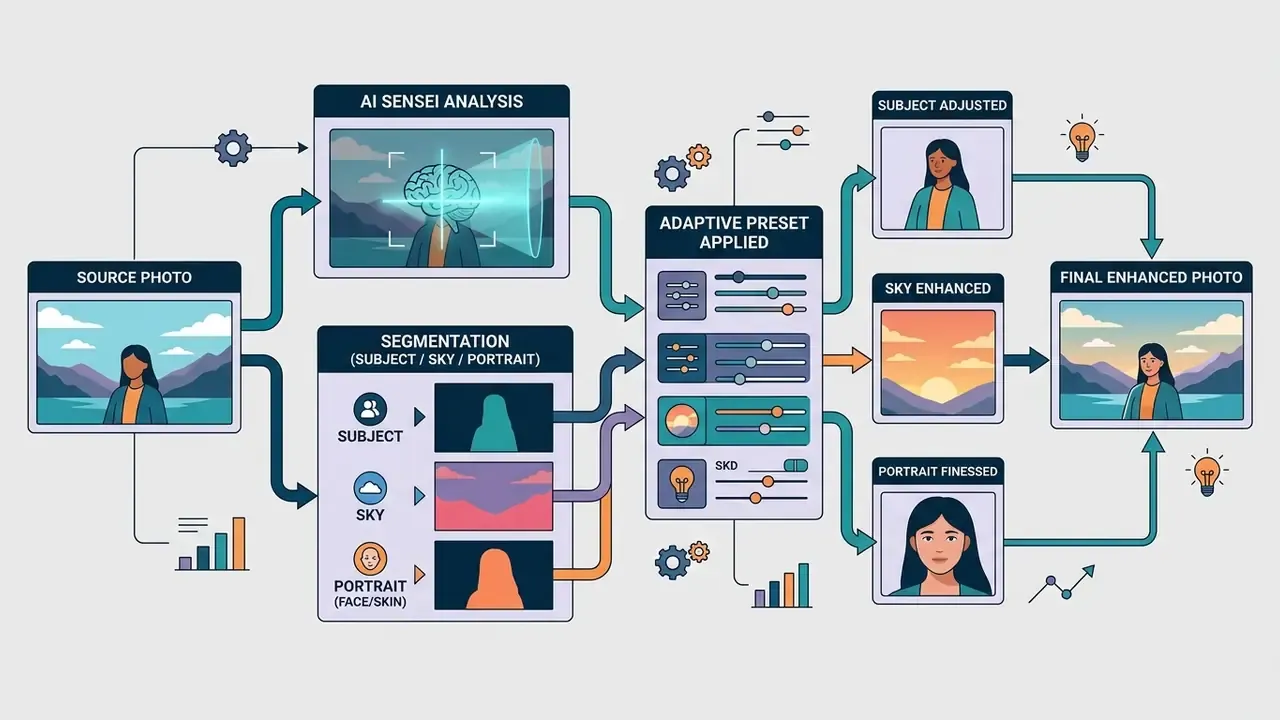
Adaptive Presets build on that. Apply one to a group of photos and the algorithm recalculates the sky or subject contour for each frame individually, then applies the correction locally. When settings are copied to selected images, the mask is computed again and added to the AI mask list. Accuracy survives changes in shooting angle, which is the whole point.
The mobile version uses the same engine in Quick Actions: the app identifies subject, background, sky and people, then applies targeted improvements without any manual mask building.
Noise reduction, detail recovery and object removal
For difficult source files, the lightroom photo editor offers three advanced paths.
- Denoise AI: a neural network tool that suppresses digital noise in RAW files while holding onto crisp texture and fine detail. Output is written as Linear Raw DNG.
- Generative Remove (Adobe Firefly)select and remove unwanted objects, wires or passers-by. The model does not blur the area; it generates a plausible background that matches the surroundings. Object detection runs automatically, and the selection can be refined with a brush, adding or subtracting regions before generation starts.
- Generative Expandextends frame borders and paints in missing detail when the aspect ratio changes. The logic resembles external AI image expansion tools, except the result stays inside the Lightroom catalog with no manual file shuffling between services.

Order of operations matters: denoise and sharpen first, then remove objects generatively. Reverse it and the model rebuilds background from dirty pixels, baking the artifacts into your result.
While preparing a campaign for a financial-sector client, an analyst team had to clear a batch of reportage photographs of stray objects and sensor noise. Running Denoise AI and Generative Remove inside one lightroom photo editor catalog collapsed several days of manual retouching in external editors into a single production cycle, largely through batch application of masks and settings. Actual duration depends on file resolution, GPU performance and the number of generative calls, so this describes the shape of the gain, not a reproducible benchmark.
Lightroom Photo & Video Editor: what the video features cover
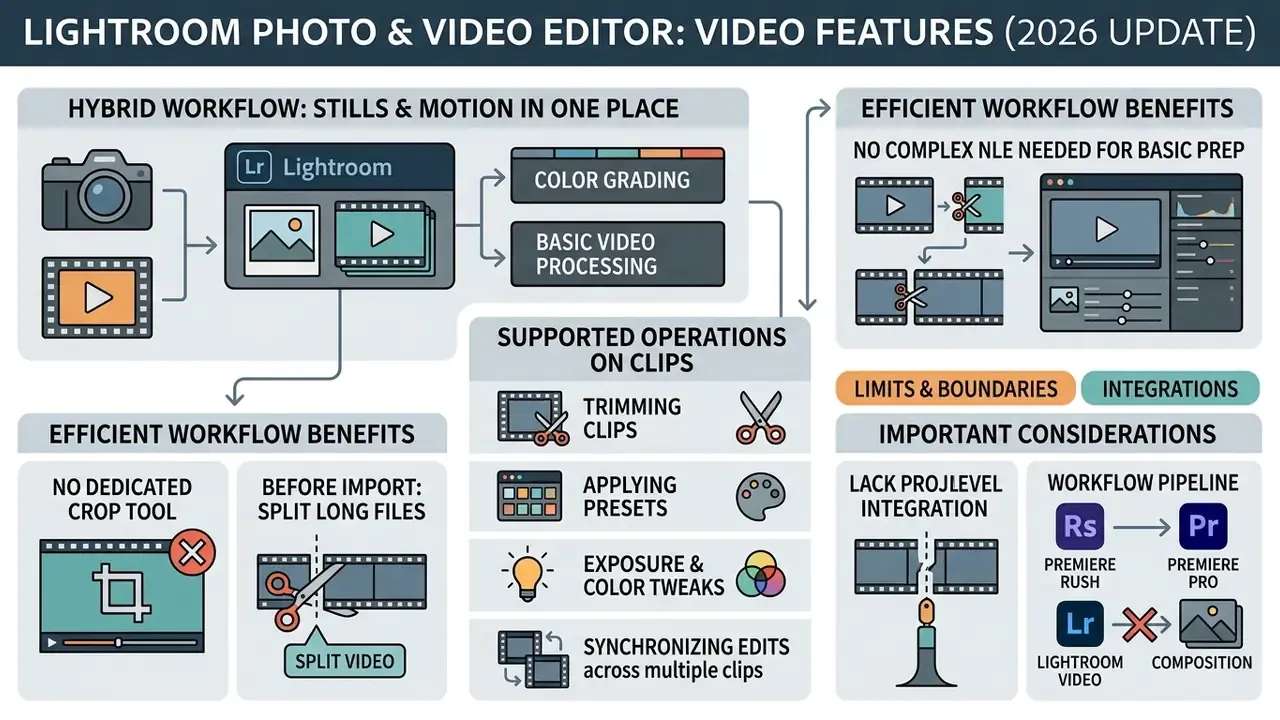
Modern content demands make adobe lightroom photo & video editor a hybrid tool that treats stills and motion in one place. Adobe carried familiar photo color tools over to video files, creating a shared space inside the lightroom photo & video editor. To judge the boundaries properly, compare it with dedicated video editors: Lightroom covers grading and rough trimming, but it does not replace an editing suite.
You do not need to learn a complex NLE for basic clip preparation. The lightroom video editor applies the same presets, profiles and color settings you use on photos, which keeps every asset in a project visually consistent.
Color grading and basic video processing in Lightroom
Inside the lightroom photo and video editor, the supported operations on clips are these.
- Trim & Rotate: precise trimming of head and tail through in and out handles or by typing Start Time and End Time, setting a Poster Frame, capturing a still from video, rotating and flipping horizontally or vertically.
- Light and color control: white balance (Temp and Tint), exposure, contrast, shadows, plus full HSL, Vibrance and Saturation, Color Mixer and Color Grading.
- Presets: any photo or video preset, with intensity controlled by the Amount slider.
- Export: MP4 output, including 4K when Quality is set to Max, or the original file with attached metadata.
«In Lightroom you can pick presets from different categories and apply them to video, adjusting intensity with the Amount slider.»
Limits worth knowing before you start: Adobe's documentation lists no dedicated Crop tool for video, only trimming, rotation and flipping. Supported containers, codecs, LOG profiles and maximum frame rates depend on the app version and platform, so compatibility with professional formats such as ProRes or camera LOG gammas needs a check in the current system documentation before a project kicks off.
If you need to break long source files into fragments before import or correction, you can split video online with dedicated web services.
When Lightroom Video Editor works better alongside other Adobe apps
For all its convenience, the lightroom video editor has firm boundaries. It is excellent for fast grading of short videos, Reels and individual cuts. It has no multitrack timeline, no audio mixing, no transitions and no titling.
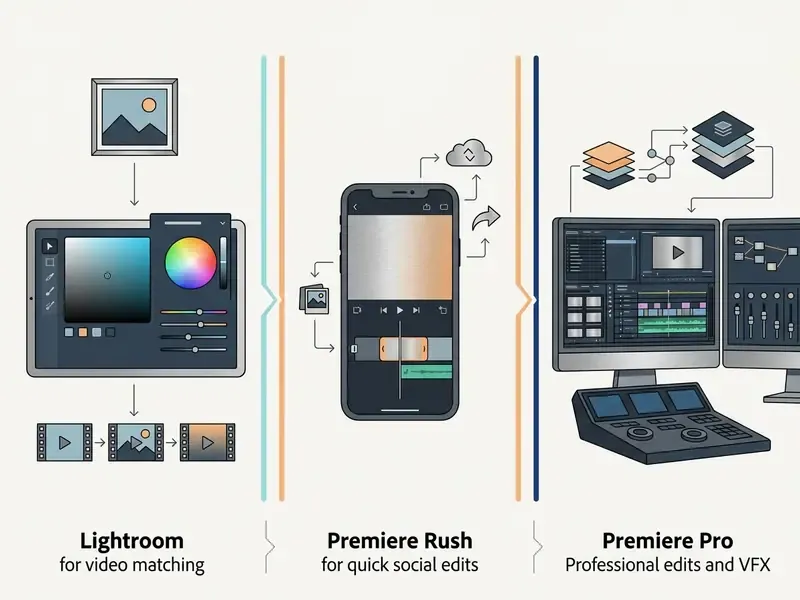
One pipeline detail catches people out: a project started in Premiere Rush opens in Premiere Pro, but there is no way back. Premiere Pro projects do not open in Rush. Plan the direction of travel in advance.
If your task involves complex composites, synthetic speech or animation, the standard lightroom video editing free capabilities will not carry it. In that case the project moves down the chain to Premiere Pro or specialist software; avatar-driven formats belong to a different category entirely, closer to synthesia ai video tooling than to a RAW processor. On a tight budget, a roundup of free video editors with an honest look at limits and watermarks is a reasonable starting point, and the wider comparison hub can view the guide for adjacent categories.
Photo organization, cloud and workflow in Lightroom
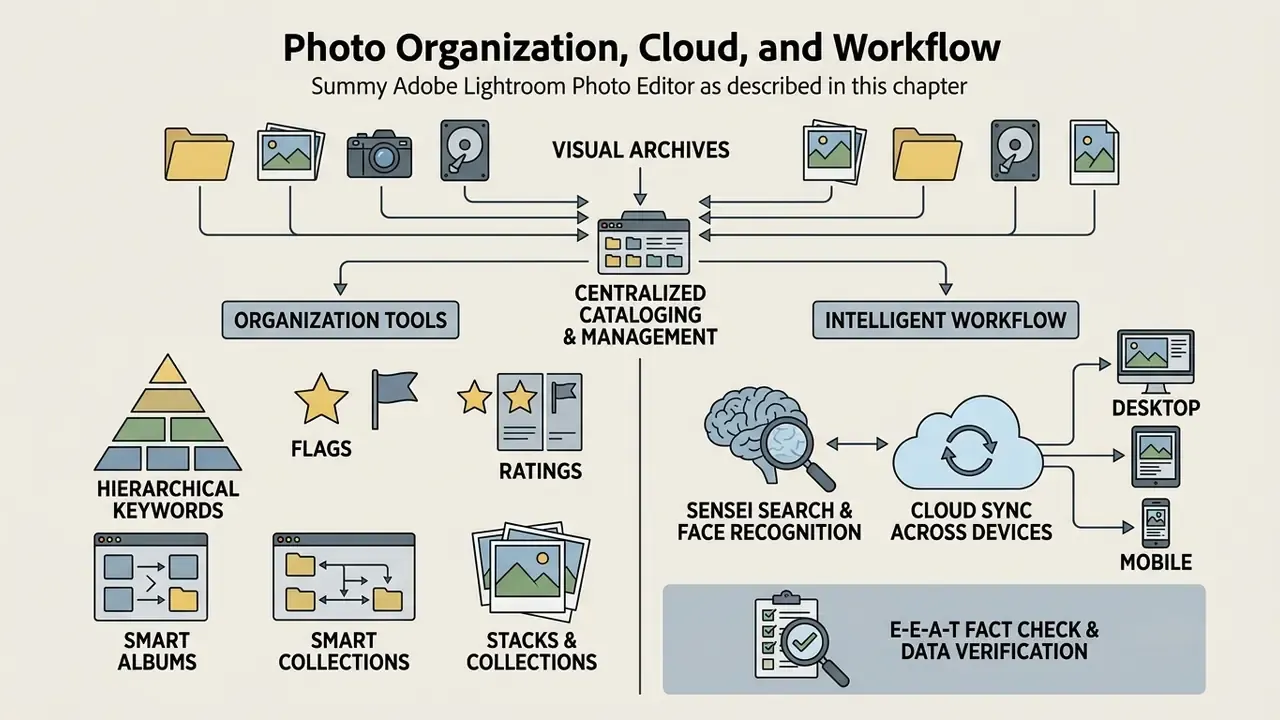
Managing large visual archives is the strongest side of the lightroom photo editor. The application removes folder chaos through structured cataloging, keywords and built-in smart albums.
Cloud infrastructure means a shoot that started on location with a phone continues in the office on a desktop station without friction. Building a workflow in photography revolves around one idea: a single source of truth.
Cataloging, search and collection management
To keep an archive in order, the lightroom photo editor offers several layers of grouping.
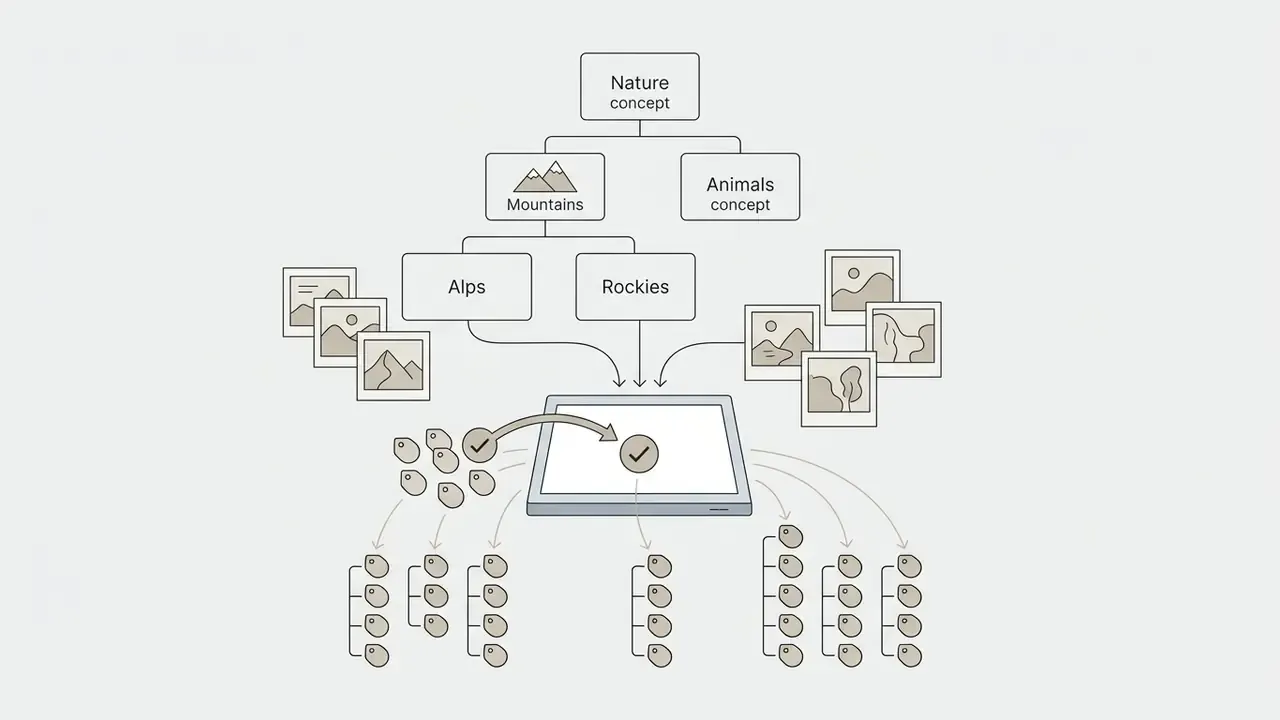

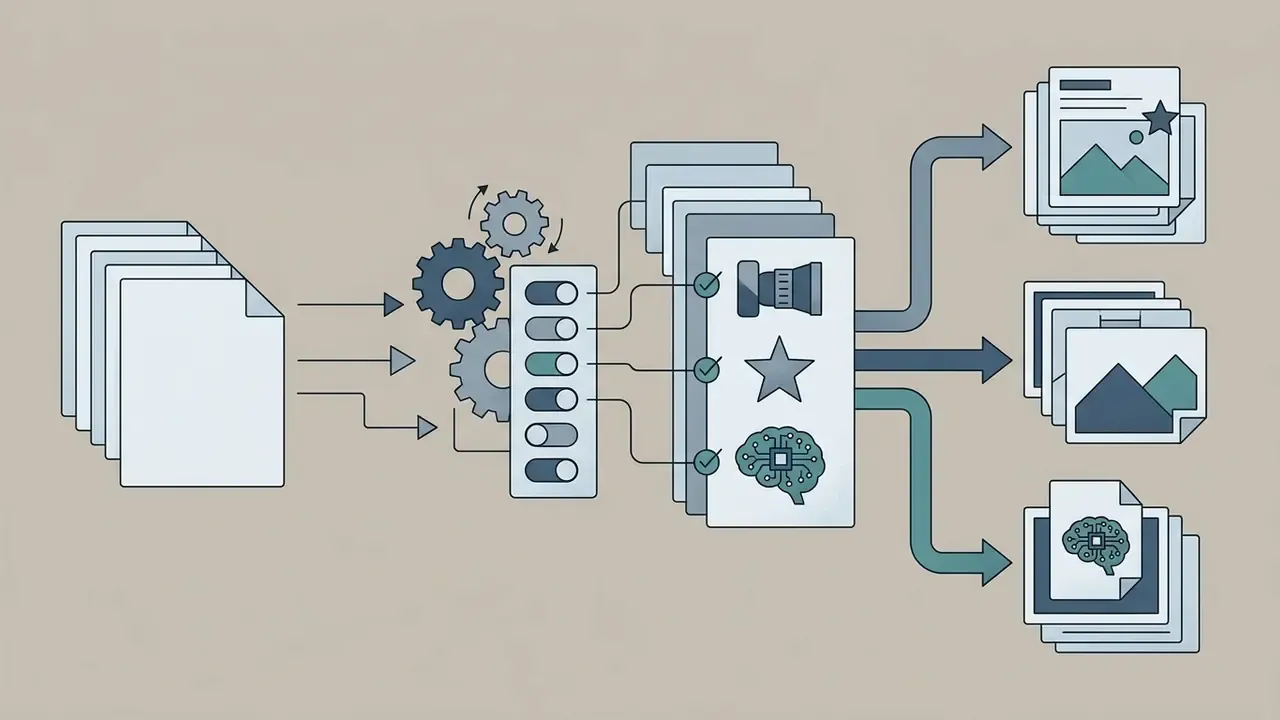

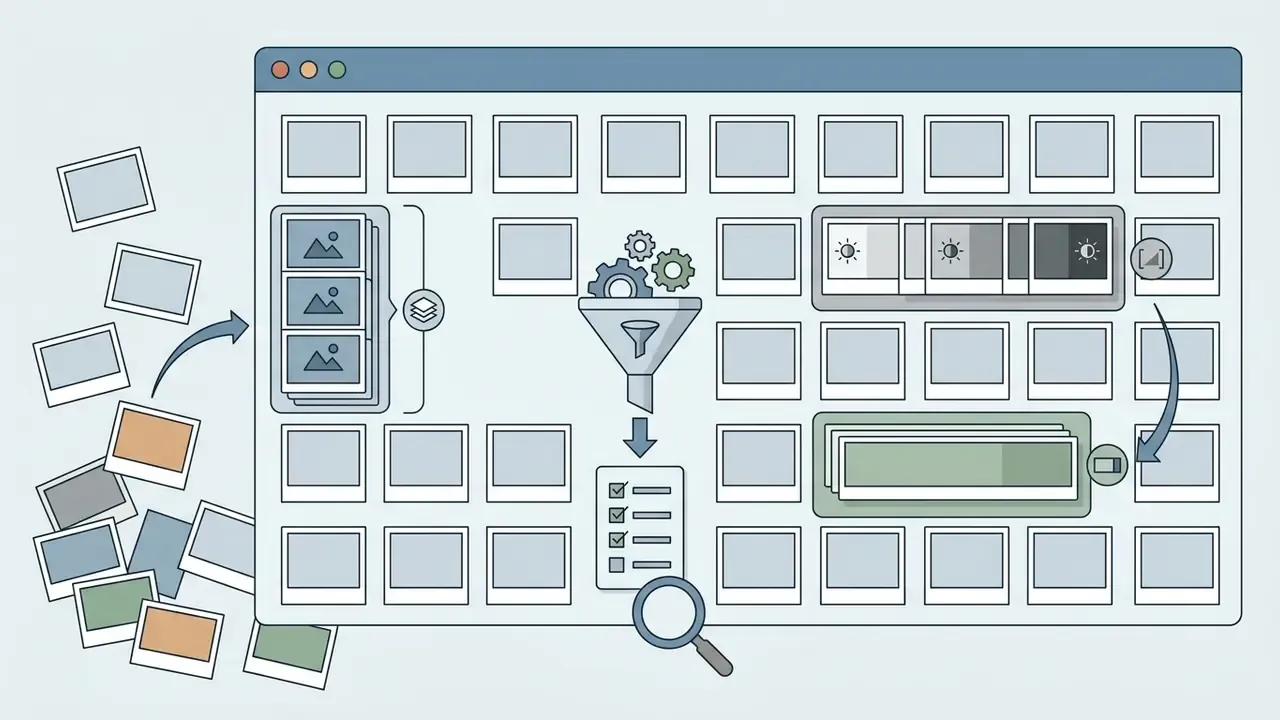
«Professional Lightroom Classic courses emphasize import, hard-drive organization, catalog management and building a professional workflow.»
Cloud sync across devices
End-to-end sync rests on the Adobe Creative Cloud account. When you import into the mobile app on android or iOS, full-size files or compressed copies upload to the cloud.
With Lightroom Classic, sync runs through Smart Previews, non-destructive reduced DNG copies. That saves cloud space and lets you edit on a laptop while traveling with no external drives attached. Back at the workstation, every change applies automatically to the local RAW originals. The classic client syncs one catalog at a time, and everything sent to the cloud collects in a service collection named All Synced Photographs, which is the easiest way to audit what actually left your machine.
The mobile interface leans on gestures. A two-finger double tap toggles the histogram and full Exif metadata (ISO, aperture, shutter speed, lens). A swipe up or down on a thumbnail sets Pick or Reject instantly. Press and hold compares before and after, and swipes move between edit tabs. On a tablet, this comes surprisingly close to desktop selection speed.
E-E-A-T fact check and data verification
According to Adobe Help Center technical documentation, Creative Cloud sync limits sit at up to 350,000 files and 150,000 folders per account (Adobe Help Center, "Track cloud storage", 2026: https://helpx.adobe.com/creative-cloud/apps/work-with-cloud-documents/manage-cloud-storage/track-cloud-storage.html). Lightroom Classic users should note that the catalog is a local SQLite database and belongs on an internal or high-speed external drive only. Keeping an active .lrcat file in network or syncing cloud folders such as Dropbox or OneDrive is unsupported, because concurrent writes corrupt the database. One more thing to remember: when cloud storage runs out, new frames stay only on the capture device and stop syncing and indexing altogether.
Lightroom Photo Editor Free: the free tier, plans and safe download
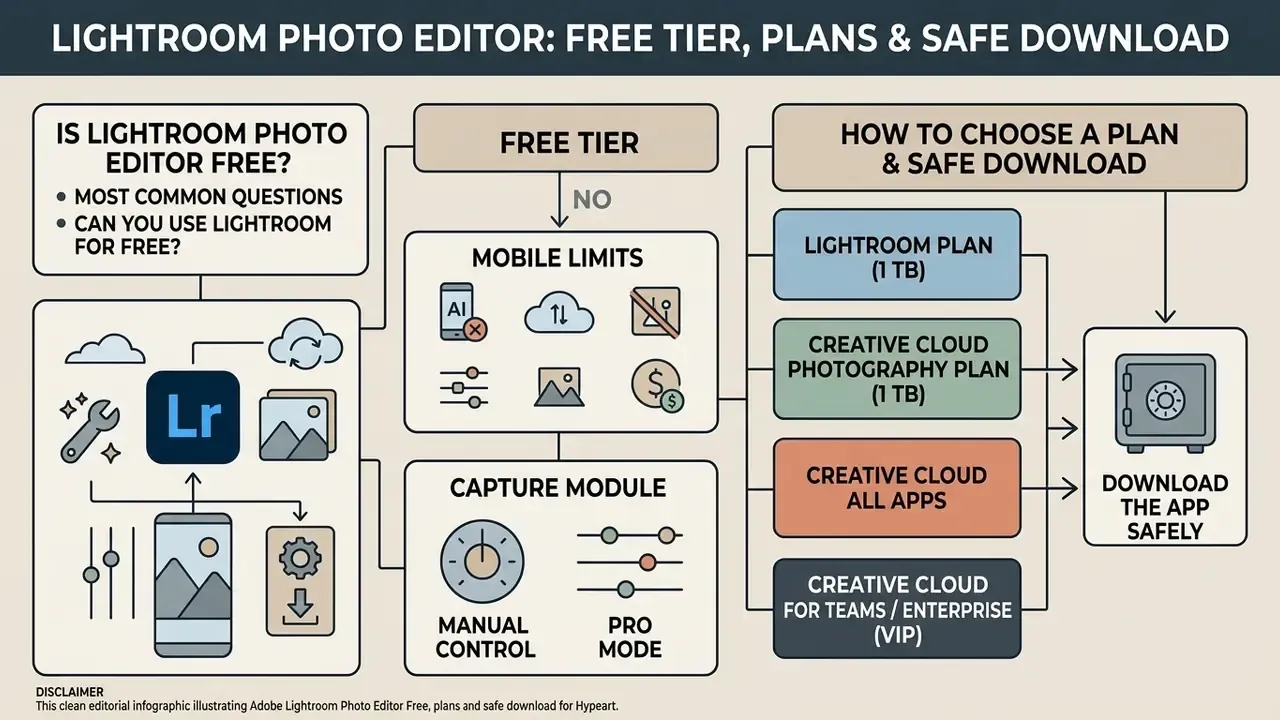
"Is lightroom photo editor free?" is among the most common questions users ask. The base mobile app is distributed at no cost, but the full desktop feature set, cloud sync and generative AI tools all require a subscription.
Which plan fits depends on how much cloud storage you need and whether Photoshop belongs in the same bundle. Below is the detailed breakdown, and if you want to model annual cost against output volume first, see the overview of media cost calculators.
Can you use Lightroom for free
The mobile free photo editor lightroom build for iOS and Android installs without payment. Without a subscription you get:
- Base light, color and effects correction.
- Cropping and rotation.
- Standard presets.
- Album organization and sharing of finished frames.
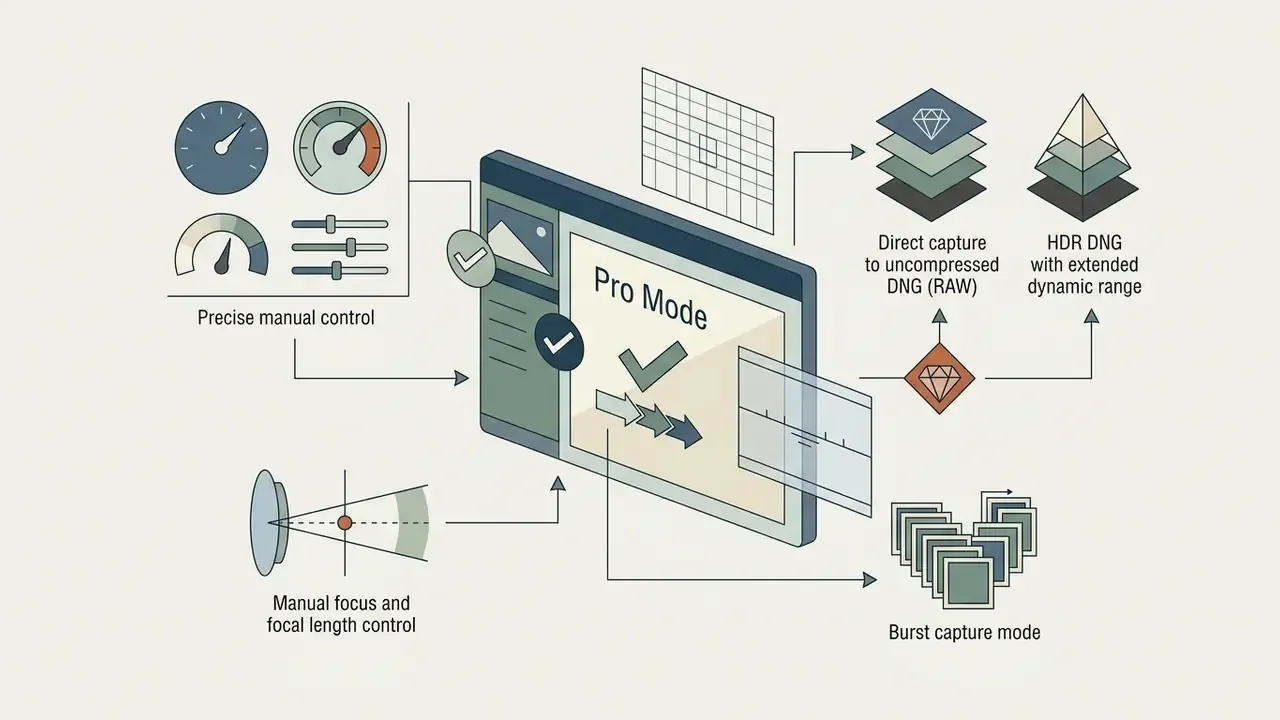
The lightroom photo editor free tier does block a long list: AI masks, selective Denoise, generative object removal, healing tools, geometry correction, batch editing, full RAW processing, Sensei-powered search and cross-device sync. On desktop there is no perpetual free version at all, only a 7-day Free Trial. Adobe also runs a limited free web entry point that accepts JPEG only, up to 40 MB and 8000 by 8000 pixels. If your task is a one-off quality lift on a single frame, third-party AI image enhancers may be the cheaper path.
How to choose a Lightroom plan and download the app safely
For full access to adobe lightroom photo editor, Adobe offers the following plans as of 2026.
- Lightroom Plan (1 TB)cloud Lightroom for desktop, mobile and web, plus Lightroom Classic, with 1 TB of cloud storage. US$11.99/month on an annual commitment.
- Creative Cloud Photography Plan (1 TB)Lightroom, Lightroom Classic, Photoshop for desktop and iPad, plus 1 TB. The pragmatic choice for photographers. US$19.99/month, or US$239.88 prepaid annually.
- Creative Cloud All Appsthe full bundle of more than 20 Adobe applications.
- Creative Cloud for Teams / Enterprise (VIP)corporate named-user licensing with a central admin console, license reassignment between employees, extended support and contractual compliance terms. For organizations running several seats, this is the only way to manage access rights and reporting centrally. Pricing follows the VIP program and differs from retail.
Adobe Lightroom plans and capabilities
| Plan | Monthly price | Cloud storage | AI and video access | Included software |
|---|---|---|---|---|
| Lightroom Free (Mobile) | US$0.00 | Local only, no cloud | Limited, no Denoise or Firefly | Lightroom Mobile app |
| Lightroom Plan (1 TB) | US$11.99 / mo | 1000 GB (1 TB) | Full access plus 250 generative credits per month | Lightroom, Lightroom Classic, Mobile, Web |
| Photography Plan (1 TB) | US$19.99 / mo | 1000 GB (1 TB) | Full access to all AI features | Lightroom, Classic, Photoshop (desktop and iPad) |
| Creative Cloud for Teams / Enterprise | VIP program, contractual | Depends on plan configuration | Full access plus enterprise terms of use | Single App or All Apps, named-user licenses, admin console |
Download note: pull installers only from the official Adobe site, the Adobe Creative Cloud desktop app, or the Apple App Store and Google Play. Avoid third-party mirrors and unofficial builds. A lightroom video editor free download from a random site carries real risk of malware and Adobe ID credential theft, and recovering a compromised account is slower than paying for a month of the real thing. Licensing questions specific to your seat count are best raised through AI Media Support or Adobe's own channels.
Lightroom vs Photoshop: which editor to choose
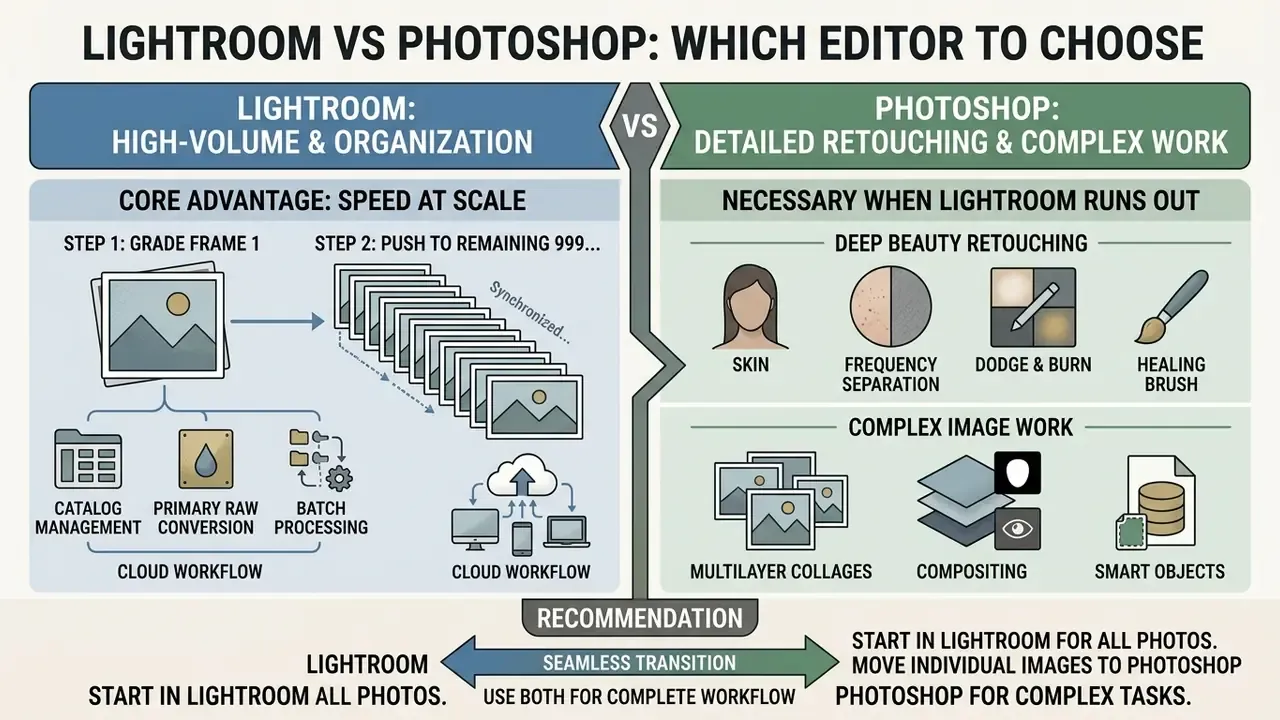
The photoshop lightroom comparison confuses newcomers constantly. Both products work with images, yet they differ at the level of purpose and workflow architecture. A separate task category is enlarging a finished frame for print or billboard use; beyond Generative Upscale, dedicated AI image upscalers deserve a look.
Lightroom is the platform for catalog management, primary RAW conversion and batch processing of a series. Photoshop is a raster tool for pixel-level editing, complex compositing and high-end retouching. Different jobs. Different mental models.
Lightroom for high-volume processing and organization
The core advantage of the lightroom photo editor is speed at scale. If a shooting day leaves you with 1,000 frames, editing them one by one in Photoshop is simply not viable.
In Lightroom you sort the frames, grade the first one, then push those settings to the remaining 999 instantly through Sync and Auto Sync, including AI mask settings across a group. Working in one catalog keeps the series consistent and saves disk space: the catalog stores only the file path, the processing instructions and metadata. The camera original stays untouched, and you can always return to it.
«Lightroom is described as a tool for editing and organizing photos on desktop, mobile and web, while Photoshop handles detailed retouching and pixel-level compositing.»
Photoshop for detailed retouching and complex image work
Photoshop becomes necessary once photo editor lightroom capabilities run out. The key scenarios:
- Deep beauty retouching of skin, using frequency separation, dodge and burn, and the Healing Brush with sampled-pixel blending.
- Multilayer collages and compositing objects from different frames with layers, layer masks, Smart Objects and blend modes.
- Graphics, typography and vector paths.
- Heavy transformation filters such as Liquify.
- Layout variants through Layer Comps, saving visibility, position and appearance states of layers.
Stylized generative looks, the studio ghibli style kind of transformation, sit outside both tools and belong to text-to-image systems instead. Worth naming, because clients often ask Lightroom to do it.
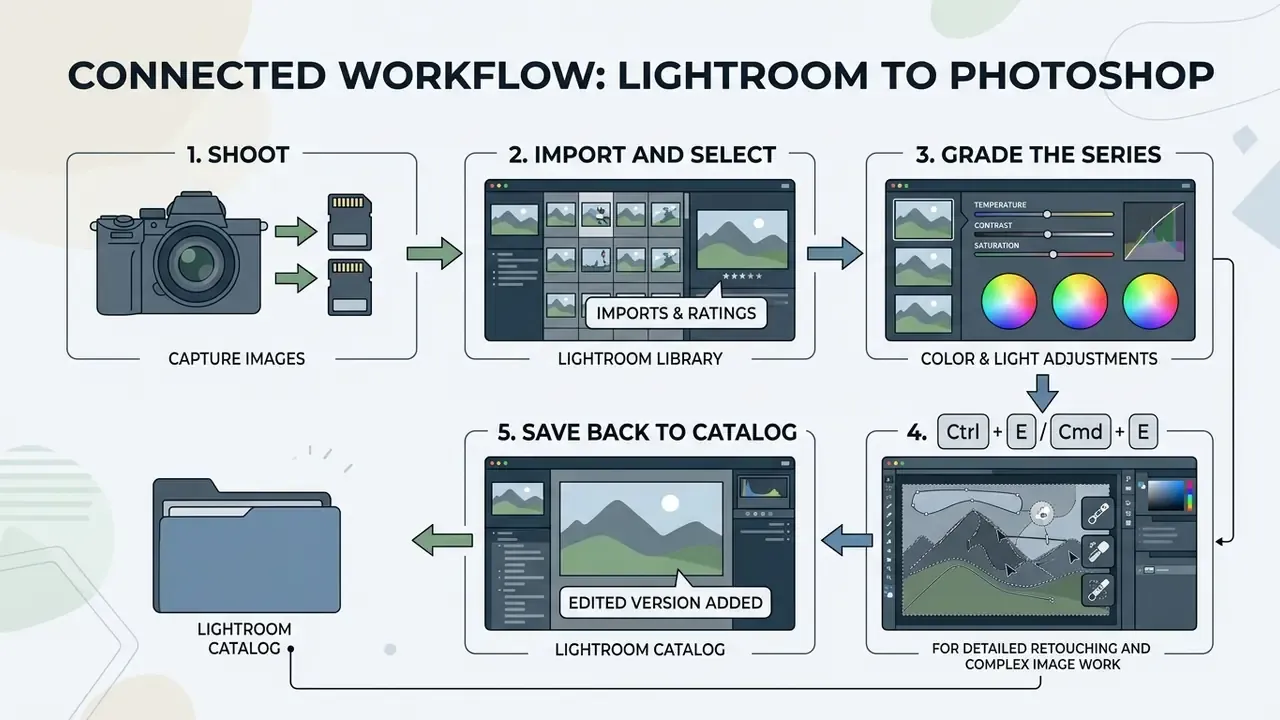
The handoff is one keystroke: Ctrl + E on Windows or Cmd + E on macOS, the equivalent of Edit in Photoshop. Lightroom bakes the RAW settings into a container file and passes Photoshop a 16-bit TIFF or PSD with a consistent color profile. Both applications run the same processing engine, Adobe Camera Raw (ACR), so tone and color do not drift at the seam. After saving, the file returns to the catalog next to the original, and the original stays intact.
For commercial work, the sane strategy is using both. Lightroom owns selection, catalog and series grading. Photoshop owns the individual portfolio frames that need pixel-level control.
System requirements for Lightroom AI features
The neural tools, Denoise AI, Generative Remove, Generative Expand, Generative Upscale and AI Sharpen, are far more demanding than an exposure slider. They run model inference across the whole image and lean heavily on the GPU.
Indicative hardware requirements for Lightroom AI tools
| Component | Minimum for basic work | Recommended for AI features | Comment |
|---|---|---|---|
| RAM | 8 GB | 16-32 GB | Batch processing of 45-60 MP RAW hits the memory ceiling quickly |
| GPU | Compatible GPU with hardware acceleration | Discrete card with 4-8 GB VRAM or more | Denoise and generative operations run many times slower without a GPU |
| Storage | HDD or SSD with headroom for cache | NVMe SSD for catalog, cache and Smart Previews | The SQLite catalog must not live in network or syncing cloud folders |
| Internet | Required for license activation | Stable link for Firefly and cloud sync | Generative features call Adobe cloud services |
Treat these values as a planning reference for procurement. Official, version-specific requirements are published by Adobe on the Camera Raw and Lightroom system requirements page (Adobe Help Center, 2026: https://helpx.adobe.com/camera-raw/desktop/get-started/system-requirements/system-requirements.html). Check it before refreshing a fleet of machines, since requirements shift with every major release. One practical bonus: Lightroom Classic supports background batch processing of AI operations, so long Denoise queues can be scheduled at the end of the working day.
Fast hotkeys that speed up the work
| Operation | Windows | macOS |
|---|---|---|
| Send file to Photoshop | Ctrl + E | Cmd + E |
| Create AI subject mask | Shift + W | Shift + W |
| Toggle before / after view | \ (backslash) | \ (backslash) |
| Flag as Pick | P | P |
| Reject frame | X | X |
| Sync settings to selected frames | Ctrl + Shift + S | Cmd + Shift + S |
| Crop tool | R | R |
| Masking panel | Shift + W / M | Shift + W / M |
Command mapping can differ slightly between Lightroom Classic and cloud Lightroom, and also depends on app version and interface localization. The current list is always available in the in-app help.
FAQ: common questions about Adobe Lightroom
What happens to my photos if I cancel the subscription?
Originals are not deleted instantly, but access to part of the feature set goes away. The mobile app still lets you view and edit with base tools, while premium features and cross-device sync switch off. If your originals lived only in the cloud, export them to a local drive in advance, because cloud storage is tied to an active plan. In Lightroom Classic the originals sit on your own disks, so the files remain, though you cannot apply new edits without an active license. The safety rule is short: before canceling, export all originals and back up the .lrcat catalog.
Can I work in Lightroom offline?
Yes, for local editing. Lightroom Classic works with local files by definition. Cloud Lightroom caches images on the device and allows editing without a connection, syncing changes at the next login. The exception is Firefly generative features, Generative Remove, Generative Expand and Generative Upscale, which call the cloud and need internet.
How do generative credits differ from ordinary edits?
Ordinary sliders, masks and presets consume nothing. Firefly generative operations draw down the generative credits bundled with your plan, 250 per month on the Lightroom 1 TB plan. Once the quota is exhausted, generative task speed may drop depending on plan terms.
Lightroom or Lightroom Classic for a beginner in 2026?
If you learn from courses that show the Library and Develop modules and folders on disk, take Lightroom Classic. If shooting on a phone, editing while traveling and forgetting about folder structure matters more, take cloud Lightroom. Both apps come with the Lightroom 1 TB plan, so you can postpone the decision and try each.
Does Lightroom support RAW from every camera?
Adobe keeps extending the list of supported RAW formats through Camera Raw updates. If your camera is new, its format may require an app update or conversion to DNG through Adobe DNG Converter. The current list of supported cameras and formats is published in Adobe's official documentation.
Can I keep a Lightroom Classic catalog in a cloud folder like Dropbox or OneDrive?
No. The catalog is an active SQLite database, and syncing clients can corrupt the file mid-write. Keep the .lrcat on a fast local drive and store backups in the cloud separately.
What should I do when cloud storage runs out?
Sync stops. New frames stay only on the capture device and are not indexed in the cloud. The options are upgrading the plan, exporting finished series to a local archive, or moving part of the archive into Lightroom Classic with local storage.
Is Lightroom enough for editing Reels and YouTube videos?
For grading and trimming, yes. For joining several clips, titles, audio and transitions you need an editing application; publishing scenarios and long-form work are covered in the guide to YouTube video editors.
Checklist for choosing a Lightroom version
Answer five questions. The pattern of answers points to your configuration.
- Where must the originals physically live?On my drives and NAS, choose Classic. In Adobe's cloud, available everywhere, choose Lightroom (Cloud).
- How large is the archive?Above 100,000 frames and growing, choose Classic for catalog performance. Up to a few tens of thousands, either version works.
- Do you need Photoshop?Yes, compositing and beauty retouching are planned, take the Photography Plan 1 TB. No, take the Lightroom Plan 1 TB.
- Where do you edit most often?Phone and tablet while traveling, Cloud plus Mobile. A fixed studio station, Classic.
- Is there a team and a compliance requirement?Yes, several employees and centralized rights management, Creative Cloud for Teams / Enterprise (VIP).
Conclusion
Adobe Lightroom Photo Editor remains the baseline standard in digital photography and content production. Clear cataloging with face recognition and smart search, strong light and color controls, mature AI features (Denoise, Generative Remove, Generative Expand, AI Sharpen), basic video tools and cross-platform sync together cover most of what a modern author needs. Roughly 90% of routine tasks, in practice, though that share depends on how much compositing your work demands.
The decisions worth making before you pay are three. Where do the originals live? Do you need Photoshop? And which version, cloud or Classic, will you actually learn and work in? Assess your processing volume, the hardware your AI modules will require, and the type of content you produce. That is enough to pick the right plan and build a workflow without overpaying or migrating twice.
For further reading and terminology references, you can browse the hub with breakdowns of features, pricing and commercial-use conditions.