For regulated teams, there is a second question layered on top. Who owns the output, and can you prove how it was made?
The 30-second summary
- Photoshop handles advanced raster editing, multi-layer compositing, precision masking, and Firefly generative tools. Desktop, iPad, web, and, since 2025 to 2026, a free mobile app with an AI Assistant chat interface.
- Lightroom Classic keeps local
.lrcatcatalogs, bulk RAW archives, export plug-ins, and desktop-bound performance for high-volume professional workflows. - Lightroom (Cloud) runs the same non-destructive develop engine with automatic Adobe Cloud sync across desktop, mobile, and browser, plus a simplified interface for faster onboarding.
- Adobe Express is a free web and mobile editor for background removal, text overlays, resizing, and templates. Hard technical ceilings apply: 40 MB per upload, 8,000 × 8,000 px.
- Photoshop Elements 2026 is a one-time purchase sold as a fixed 3-year term non-renewing license, with Guided Edits plus the built-in Hints and Recipes learning panels.

What actually drives the decision
Feature grids are seductive, and they are also the least reliable part of a purchase decision. Three inputs decide more than any tool count.
Volume. Fifty images a month and five thousand images a month are different products, not different settings. Location of the archive. Local disk, network storage, or Adobe Cloud determines your recovery plan and your storage bill. Evidence requirements. If a marketing asset can end up in a regulated communication, you need model version, prompt history, and Content Credentials preserved end to end.
Everything below is organized around those three inputs.
Quick checklist: which Adobe photo editor do you need?
- Compositing several shots, cutting out hair, glass, or smoke, retouching skin pixel by pixel → Adobe Photoshop.
- Processing 800 wedding RAW frames in one evening while keeping a local catalog and export presets → Lightroom Classic.
- Starting an edit on a phone, finishing it in a browser on another device, sending the client a link → Lightroom (Cloud).
- A social post, a banner, or background removal in 90 seconds with no software install → Adobe Express (free plan).
- A one-time payment instead of a subscription, plus in-app teaching prompts → Photoshop Elements 2026.
- Testing an idea with a prompt like "remove the wires, keep the sky" → Firefly tools inside Photoshop, Photoshop on Mobile, or Adobe Express.
Which Adobe Photo Editor to choose for image processing
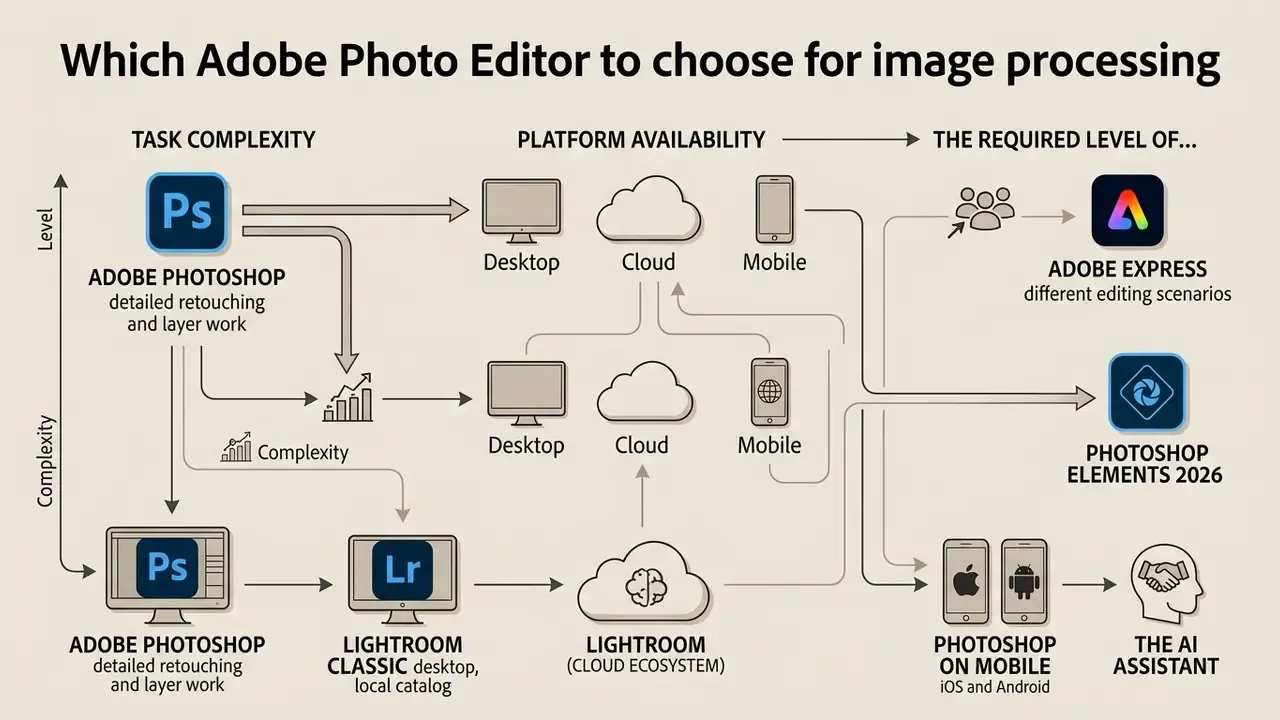
To select the ideal Adobe photo editor, teams evaluate three core variables: task complexity, platform availability across web, cloud, and desktop, and the required level of control over image editing structures. Adobe software options serve distinct roles across professional retouching, photo library management, light web design, and consumer photo adjustments.
An optimal decision balances technical feature depth against onboarding overhead and licensing cost structures. Advanced digital compositing needs desktop computational power and deep multi-layer management. Fast social graphics benefit from template-driven web tools with instant cloud sharing. And here is the nuance most comparison guides compress into a single line: Adobe ships two separate Lightroom applications, and picking the wrong one forces either an unnecessary cloud migration or the loss of mobile access.
| Product | Primary Use Case | Target Audience | Key Tools | Platform and Cloud Integration | Complexity and Licensing |
|---|---|---|---|---|---|
| Adobe Photoshop | Complex raster image editing, detailed retouching, multi-layer compositing, advanced AI generation | Professional retouchers, graphic designers, digital artists | Layers, selection masks, adjustment layers, Firefly Generative Fill and Expand, Remove tool, Neural Filters | Desktop (macOS/Windows), iPad, Web, free mobile app (iOS/Android); integrated with Creative Cloud storage | High complexity; Creative Cloud recurring subscription |
| Adobe Lightroom Classic | High-volume local RAW processing, catalog-driven archives, print and client delivery pipelines | Studio photographers, wedding and event shooters, photo archivists | Library and Develop modules, local .lrcat catalogs, export presets and third-party export plug-ins, batch sync, AI denoise | Desktop only (macOS/Windows); local storage, optional selective cloud sync of smart previews | Moderate to high complexity; Photography Plan subscription |
| Adobe Lightroom (Cloud) | Non-destructive RAW editing with full cross-device sync, lightweight organization, browser-based review | Hybrid shooters, content creators, photographers working from several locations | Develop sliders, preset sync, AI masking (Subject, Sky, Objects), geometry alignment, shareable web albums with comments | Desktop, Mobile (iOS/Android), Web; full Adobe Cloud synchronization (1 TB tiers and above) | Moderate complexity; Photography Plan or Lightroom single-app subscription |
| Adobe Express | Rapid web graphics, template-based social content, quick image adjustments, lightweight layout | Content creators, marketers, non-designers, social media managers | One-click background removal, text overlays, basic filters, crop, resize, collages up to 32 images | Web browser, Mobile app; lightweight cloud storage (5 GB free); 40 MB and 8,000 × 8,000 px upload ceiling | Low complexity; free plan available, optional Premium subscription |
| Photoshop Elements 2026 | Guided consumer photo editing, simple retouching, local catalog organization | Casual users, family archivists, hobbyists | Guided Edits, Quick and Advanced modes, Organizer catalog, automated enhancements, in-app Hints and Recipes panels | Desktop (macOS/Windows); local storage with import from Google Drive and OneDrive | Low to moderate complexity; 3-year term non-renewing license |
Adobe Photoshop for detailed retouching and layer work
Adobe Photoshop is the flagship raster photo editor built for high-precision retouching, complex visual compositing, and non-destructive image editing. The software relies on an isolated layers architecture that permits independent modification of image elements without permanently altering the underlying source pixels.
Key capabilities include advanced selection tools such as Select and Mask, Object Selection, and Refine Edge, which isolate difficult textures like hair or transparent glass. Editors use non-destructive adjustment layers to control exposure, curves, and color grading, while layer masks control visibility through black, white, and grayscale values. According to official Adobe documentation (Adobe Help Center, 2026), adjustment layers and layer masks let retouchers modify or remove edits at any point in the workflow without quality degradation. The Properties panel also exposes mask Density and Feather controls, so a refined selection can be output directly as a reusable Layer Mask instead of a destructive erase.
During an illustrative media audit for a regional financial institution (composite example, not a documented client engagement), a design team struggled with inconsistent brand imagery across 400 marketing assets. Migrating from flat JPEG edits to structured Photoshop document templates, with non-destructive adjustment layers and standardized color profiles, produced an internally measured reduction of roughly 45 percent in asset revision cycles. That figure comes from the team's own before-and-after ticket log rather than an independent audit, which matters if you plan to quote it upward.
Vendor benchmarking points in the same direction for generative operations specifically:
«Generative Fill and Generative Expand in Photoshop are on average more than 10 times faster than traditional retouching tools on real-world tasks.»
Lightroom Classic, Lightroom (Cloud), Adobe Express, and Photoshop Elements for different editing scenarios
Choosing among these four depends on the operational scenario, file volume, and required platform flexibility. Photoshop wins on single-image depth. These tools win on batch processing, web speed, and simplified desktop workflows.
- Adobe Lightroom Classic (desktop, local catalog). Built for photographers who own large archives and need deterministic, offline-capable performance. Edits are written as instructions into a local
.lrcatcatalog file alongside sidecar metadata, so original RAW files stay untouched. Classic keeps the full Library, Develop, Map, Print, and Web module chain, supports third-party export plug-ins (client galleries, printing labs, watermarking utilities), and applies presets during import so hundreds of frames arrive already normalized. Trade-off: it is desktop-bound, and mobile access requires syncing smart previews rather than full-resolution originals. - Adobe Lightroom (Cloud ecosystem). The same non-destructive engine, with the catalog living in Adobe Cloud. Lightroom stores edit instructions as non-destructive metadata rather than changing pixel data directly (Adobe Lightroom Product Page, 2026), which makes cross-device continuity trivial. Start on an iPhone, refine in a browser, finish on a desktop. The interface is deliberately streamlined for newcomers, adds AI-assisted masking (Select Subject, Select Sky, Select Objects), and enables comment-based client review through shared web albums. Trade-off: storage cost scales with the archive, and plug-in-driven export automation is more limited than in Classic.
- Adobe Express. A web-first application for rapid content creation. Express leans on drag-and-drop templates, quick asset scaling, and automated tools for users who need social assets or promotional graphics without navigating complex software panels (Compare Adobe Photography Apps, Adobe, 2025).
- Photoshop Elements 2026. Positioned for consumer-focused local photo editing. Sold as a fixed 3-year term non-renewing license, Elements provides Guided Edits and automated organization tools for people who prefer standalone desktop software over recurring Creative Cloud subscriptions (Adobe Elements FAQ, 2026). Two built-in teaching panels flatten the classic Photoshop learning curve. The Hints panel updates dynamically to explain whichever tool is selected, showing its cursor icon, name, and option behaviour. The Recipes panel supplies numbered, interactive step-by-step scenarios (levels correction, dust and scratch removal, layer-based effects) with clickable arrows that open the relevant dialog directly. Most core Elements operations can be learned without opening a single external manual. Elements also imports from Google Drive and OneDrive and automatically backs up its Organizer catalog.
Photoshop on Mobile (iOS and Android) and the AI Assistant. Adobe now ships a free Photoshop mobile app that brings real layers, the Remove tool, Adobe Stock access, and a conversational AI Assistant to phones. Instead of hunting for tools, the user types or dictates an instruction, for example "change the jacket colour to blue and leave the background untouched", and Photoshop builds the local mask itself, editing only the requested region while preserving everything else. The same assistant is available in the web version. That makes mobile a legitimate first-draft environment rather than a toy: rough cleanup and client-facing previews can happen on a phone, with the file continuing into desktop Photoshop for final layer-level control.
The Adobe Photo Editor interface and the basic editing order
Navigating the Adobe photo editor interface effectively requires two things: understanding the modular layout, and committing to a systematic, non-destructive editing order. Whether you work in Photoshop on desktop or on the web, Adobe structures workspaces around standardized panels that separate the canvas from the editing controls.
A typical Adobe editing workflow moves sequentially from file import and spatial framing to tonal adjustments, color refinement, and final export. Following that sequence prevents destructive changes and keeps early edits from corrupting later retouching phases.
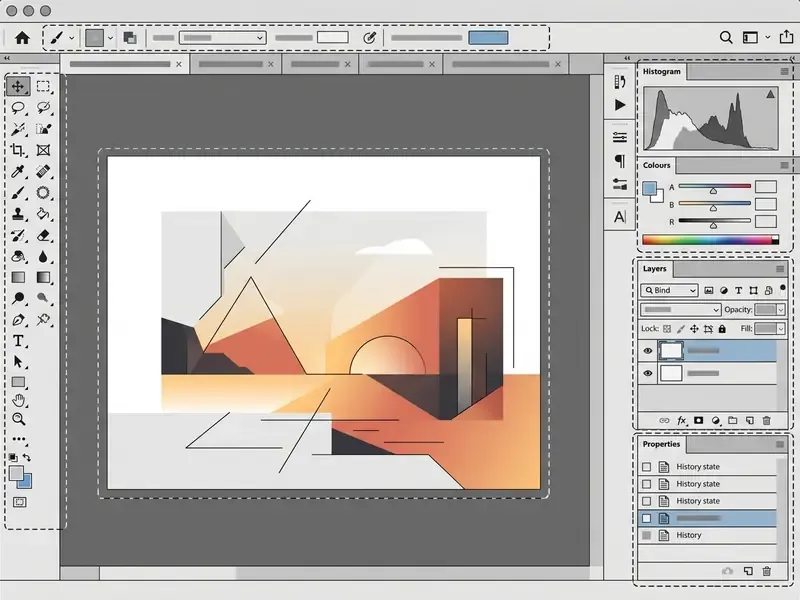
Core elements of the Adobe photo editor interface:
- Application Bar (top bar). Holds the system menus (File, Edit, Image, Layer, Select, Filter), workspace switchers, and cloud document settings.
- Tools Panel (left). Selection tools (Marquee, Lasso, Quick Selection), retouching tools (Spot Healing, Healing Brush, Clone Stamp), cropping (Crop), and painting tools.
- Options Bar (strip under the menu). Changes dynamically with the selected tool: brush size, hardness, blending mode.
- Document Window (central canvas). The main working area displaying the open image with grid and guides.
- Panels Dock (right). Includes Layers, Adjustments, Properties, and Color.
Import, color profiles, straightening, and cropping
Initial photo editing in an Adobe workspace always begins with file import, composition framing, and spatial alignment. Fixing framing and rotation early ensures that later retouching aligns with the final image geometry.
Color Settings at import (updated). Before the first slider moves, the working color space must match the delivery channel. Otherwise print output shifts and web images look desaturated. In Photoshop this lives in Edit > Color Settings. In Photoshop Elements the equivalent dialog offers No Color Management, Limited (sRGB), and Full (Adobe RGB 1998) modes.
- sRGB IEC61966-2.1 for images destined only for the web, social platforms, monitors, and mobile screens. It is the safe lowest common denominator: browsers and messengers interpret untagged files as sRGB anyway.
- Adobe RGB (1998) for professional photographic printing and prepress. The wider gamut in green and cyan tones preserves gradations that sRGB clips.
- ProPhoto RGB for deep 16-bit RAW processing in Lightroom and Lightroom Classic, to prevent clipping of saturated colors at intermediate stages. Convert to sRGB only at export.
- No Color Management is justified only when the image should live in the monitor's own space, for example test screenshots of an interface.
- Export rule of thumb. Keep the master in the wide space (Adobe RGB or ProPhoto), embed the ICC profile, and convert a derivative to sRGB for every web deliverable.
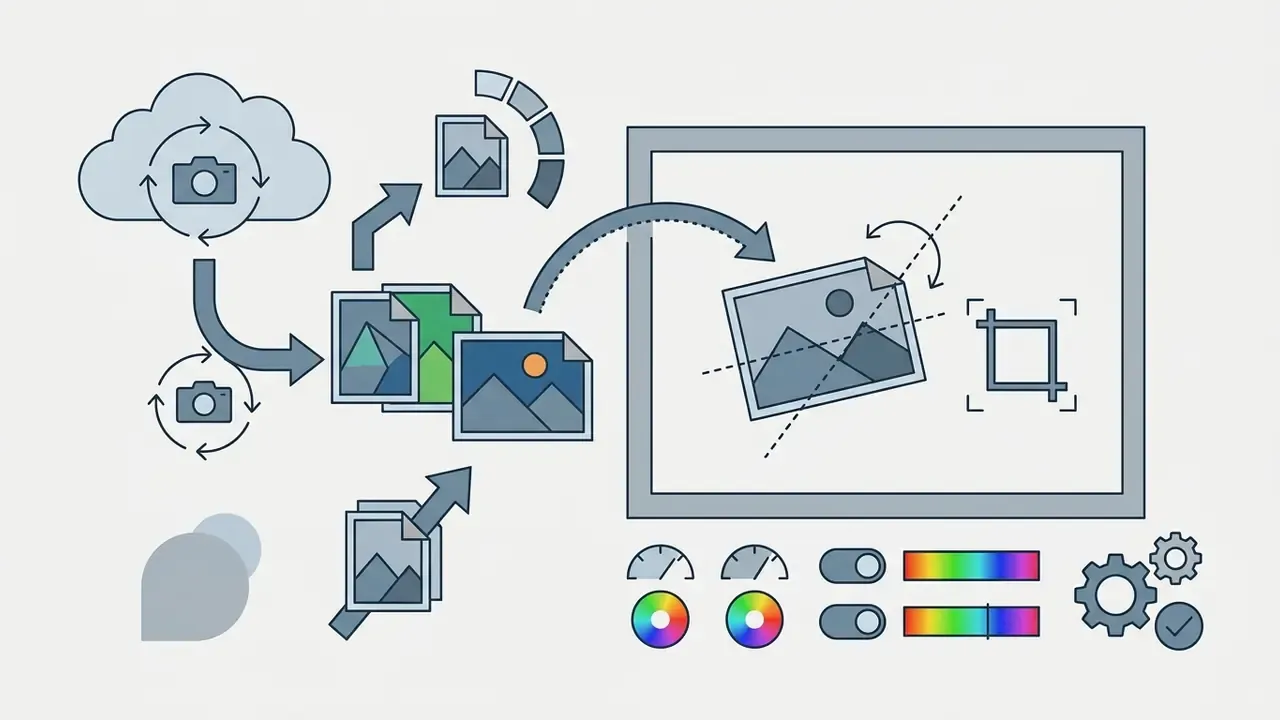
File > Open, by dragging directly into the canvas, or by importing into the Lightroom cloud catalog.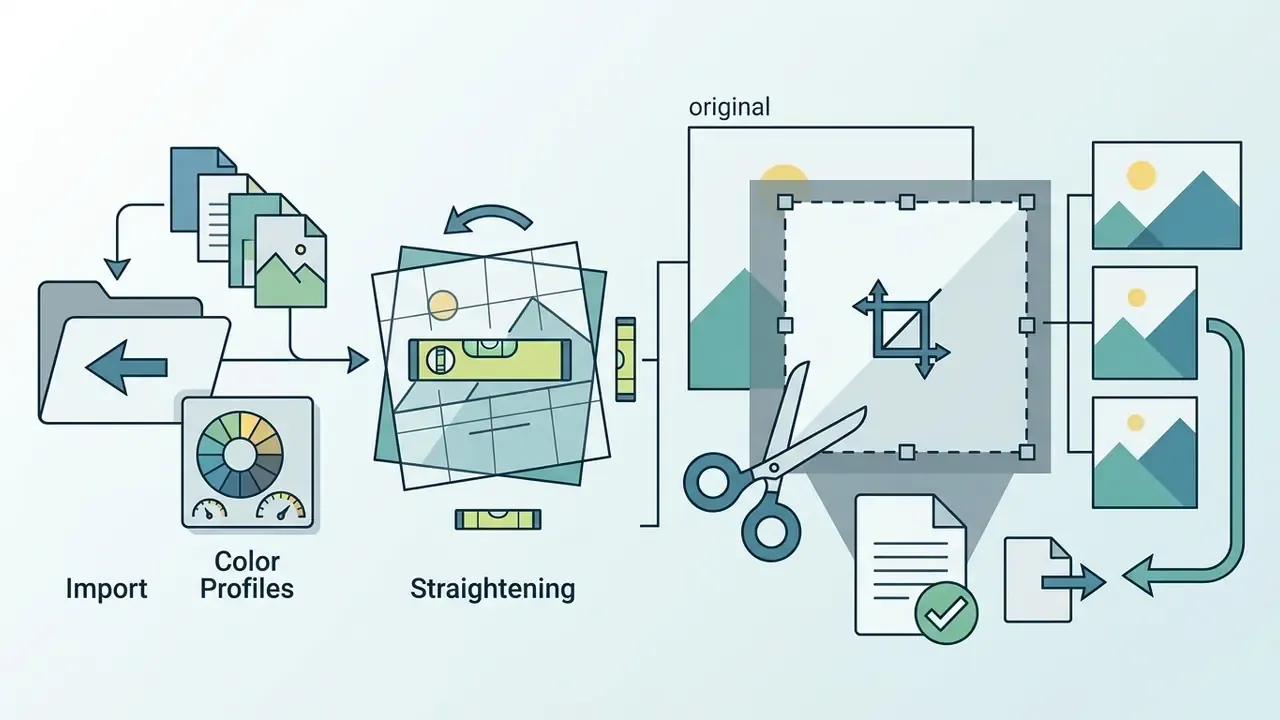
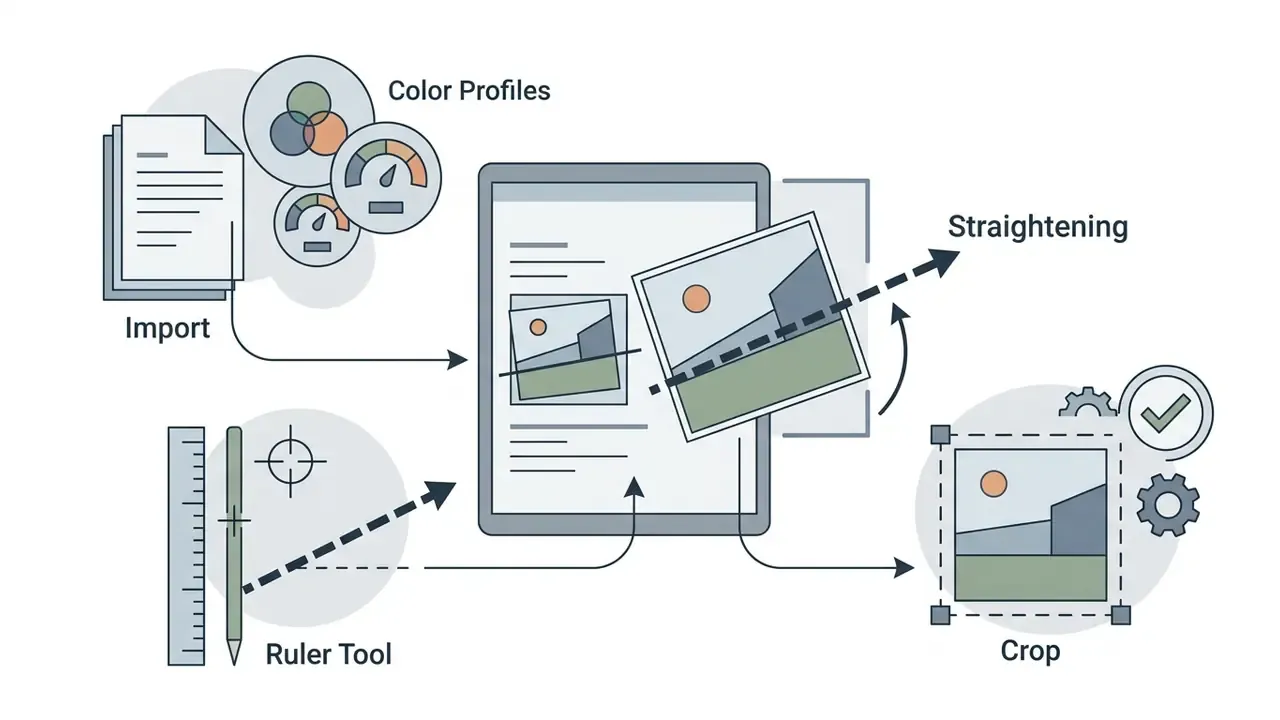

File > Automate > Crop and Straighten Photos isolates and levels individual photo elements into separate document tabs (Adobe Help Center, 2026).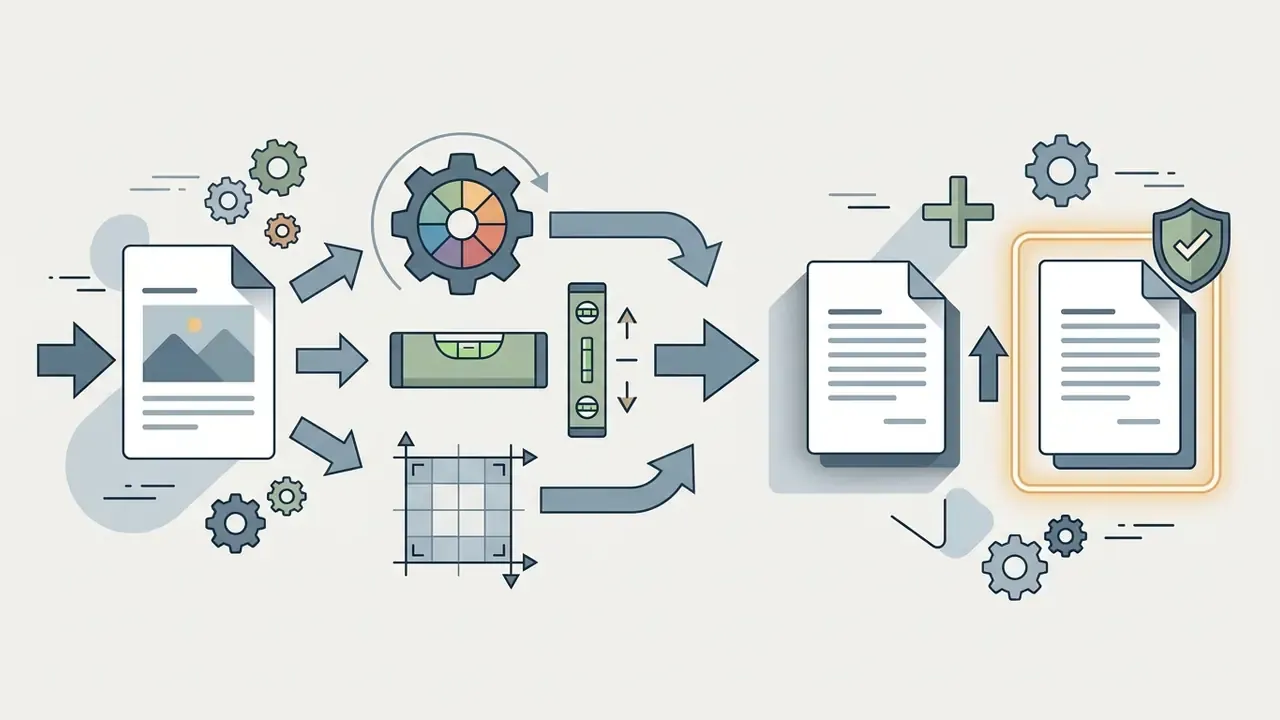
Image > Duplicate, or Ctrl/Cmd + J for a duplicate layer, creates a safe working copy before any pixel-level tool touches the file. The simplest insurance policy in the entire workflow.Layers, selection, manual retouching, and adjustments for reversible editing
Reversible, non-destructive editing is the cornerstone of professional image management in Photoshop. By isolating modifications to separate layers and applying adjustment masks, editors keep the ability to change or reverse any edit indefinitely.
- Layer stacking. The Layers panel organizes visual elements vertically. Top layers obscure lower layers unless transparency, opacity, or blending modes (Multiply, Screen, Overlay) are applied (Adobe Help Center, 2026).
- Precision selection. Selection tools isolate specific pixels before editing. In the Select and Mask workspace, editors refine complex selections using Feather, Shift Edge, and the Refine Edge Brush.
- Adjustment layers. Instead of permanently altering pixel values through
Image > Adjustments, create dedicated adjustment layers (Curves, Levels, Hue/Saturation). They apply corrections to all underlying content and stay fully editable. - Layer masks. Every adjustment layer includes an integrated mask. Painting black conceals the effect, white reveals it, gray applies partial transparency.
- Alignment commands. For composites, layer alignment options (Top Edges, Vertical Centers, Bottom Edges, Left Edges, Horizontal Centers, Right Edges) keep stacked elements geometrically consistent.
Choosing the right manual repair tool. AI removal is fast. Still, three classic manual tools deliver results generative models routinely miss, especially where skin texture, hard edges, or exact identity preservation matter. Apply each on a duplicated layer, or with Sample: All Layers plus an empty layer, to keep the edit reversible.
| Tool | How it works | When to use it | Typical mistake |
|---|---|---|---|
Spot Healing Brush (J) | Samples pixels around the treated point automatically and blends the texture with its surroundings | Blemishes, dust, sensor debris, single birds in the sky, thin wires | Using an oversized brush next to a contrast edge, which produces a blurred smudge |
| Healing Brush | Requires a manual source (Alt/Option + Click), then transfers the source texture while matching tone and lighting | Preserving skin texture along complex contours: jawline, side of the nose, edge of clothing | Sampling from an area with different light direction, so a shadow migrates into the new spot |
Clone Stamp (S) | Copies pixels exactly from the source area with no algorithmic color blending | Sharp edges, architectural lines, duplicating objects, restoring regular patterns | Repeating one pattern, leaving a visible clone effect on a uniform background |
| Patch Tool and Content-Aware Fill | The selection moves to a donor area, or is filled using context from the whole frame | Large uniform areas: asphalt, grass, walls | Filling at the frame border, where Photoshop lacks contextual pixels |
| Remove tool (AI) | Context-aware neural reconstruction of the background under the selection | People in the background, poles, wires, complex textures | Trusting the result blindly without a manual pass with the Clone Stamp |
Teams building custom internal AI media processing workflows can consult our technical AI Media API Guides to review integration patterns for image adjustments and automated pipelines. If you also plan to generate scalable brand marks alongside photography, the same integration logic applies to an ai vector generator workflow.
Adobe Free Photo Editor: what is available at no cost
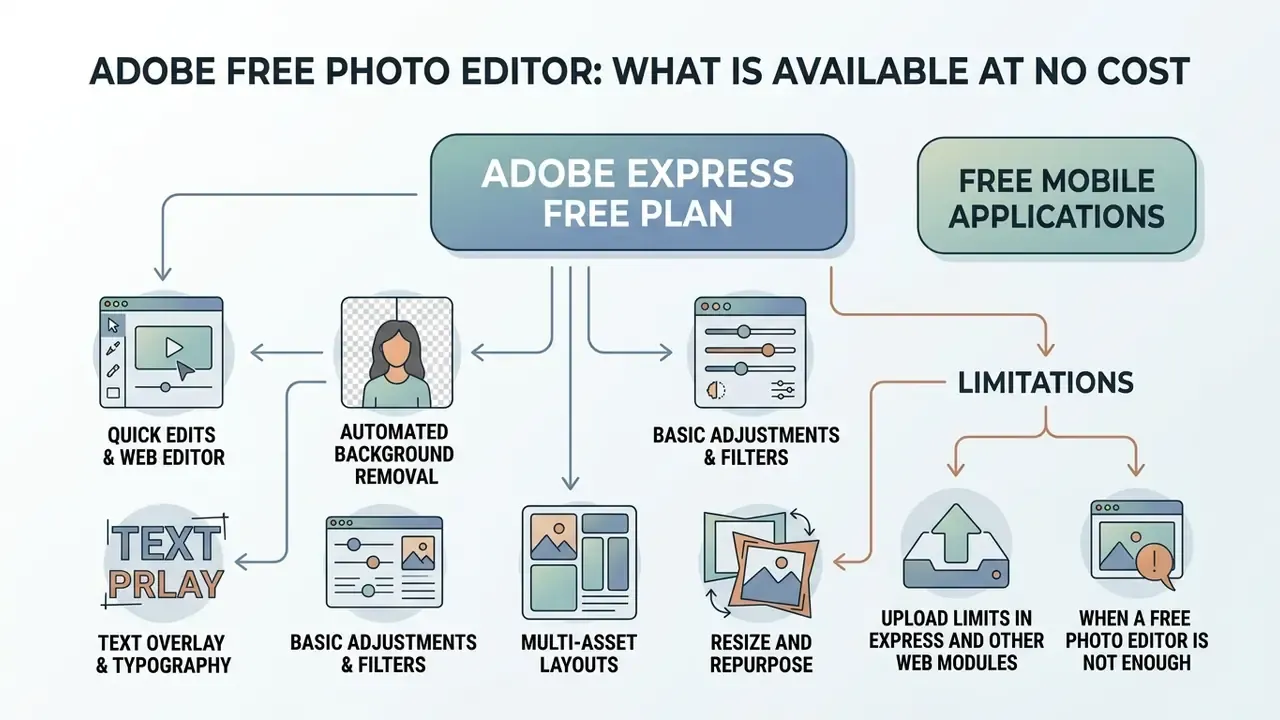
The primary free option in the Adobe photo editor lineup is the Adobe Express free plan, supplemented by free mobile applications, including the free Photoshop mobile app, and 7-day full trials of Creative Cloud desktop software. Adobe offers these entry points so users can complete basic photo editing tasks without an upfront purchase commitment.
Free offerings cover essential image editing needs, then stop at clear boundaries: high-volume generative AI processing, advanced RAW handling, and complex multi-layer composition. Anyone who needs basic background removal, quick cropping, or text insertion can finish a project entirely in free browser tools. Free-tier generative usage is metered as a limited number of daily generations across Firefly, Express, Photoshop on the web, and Adobe mobile apps, and the allowance refreshes daily rather than accumulating.
Quick edits in Adobe Express and the web editor
Adobe Express provides a free web-based photo editor that runs directly in modern browsers with no installation. The free plan includes core editing tools, 5 GB of cloud storage, 10-day version history, access to thousands of templates, and more than 1 million royalty-free stock assets (Adobe Express Free Plan Terms, July 2026).
«Students working with Adobe Express showed a higher task completion rate and fewer instances of confusion compared with an alternative tool.»
Key free capabilities in the Adobe Express web editor:
- Automated background removal.Instant subject isolation powered by server-side AI, letting users strip backgrounds and replace them with solid colors or graphics. The background can also be restored after removal in the mobile app (Adobe Help Center, 2026).
- Text overlay and typography.Built-in access to Adobe Fonts for promotional text, headers, and callouts, with control over size, colour, spacing, shadow, and outline.
- Basic adjustments and filters.Quick contrast, brightness, saturation, and crop changes, plus preset filters, textures, and vignettes. A one-tap enhance action analyses the frame and normalises exposure and colour automatically.
- Multi-asset layouts.Support for up to 32 images per project, which covers simple collages and multi-image social posts (Adobe Express Product Specifications, 2026).
- Resize and repurpose.One-click aspect-ratio presets for each social network, plus colour-palette suggestions for on-brand output.
For utility guides across specialized commercial tools, our resource on photo editors compares feature depth and export restrictions side by side.
When a free photo editor is not enough
Free web editors hit technical limits as soon as a workflow demands high-precision manual control, non-destructive layer masking, or bulk file processing. Casual graphics are fine. Commercial and professional operations eventually require full desktop software.
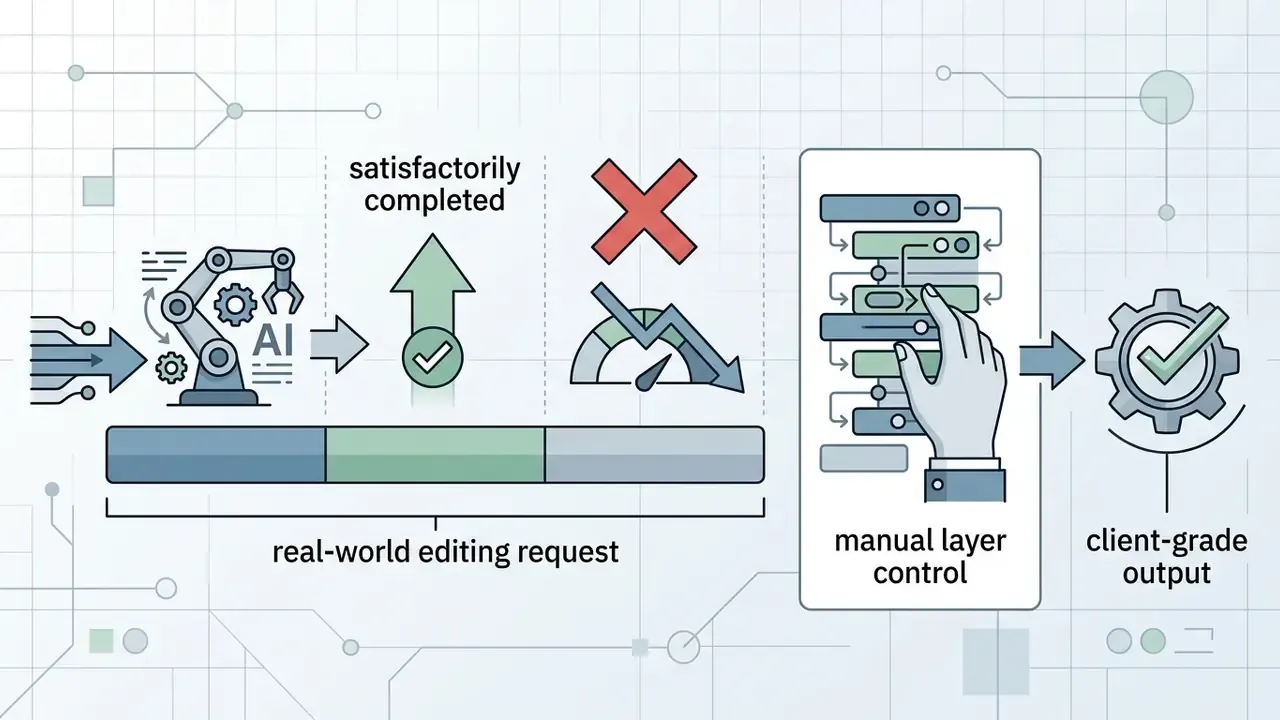
Empirical research shows clear performance boundaries for automated free editors. A large-scale analysis by Taesiri et al. (2025, arXiv:2505.16181, https://arxiv.org/abs/2505.16181), covering 83,000 real-world image editing requests, found that automated AI editors satisfactorily fulfilled only about 33 percent of tasks.
«AI editors perform worse on low-creativity tasks that require precise identity preservation, and they often introduce unwanted changes.»
The study showed that automated models fail most often on precise, low-creativity operations requiring exact identity preservation or subtle facial retouching, frequently introducing unintended visual changes. That failure profile is exactly why the Healing Brush and Clone Stamp matrix above belongs in a professional toolkit instead of a legacy footnote.
When projects involve complex multi-layer blending, custom selection masks, high-resolution RAW color grading, or continuous generative creation, the free Express tier becomes restrictive. Practical upgrade triggers are easy to spot: files above the 40 MB web ceiling, 16-bit RAW grading in ProPhoto RGB, catalogs beyond a few hundred images, watermark-free commercial delivery, and any workflow where generative credits get consumed daily rather than occasionally.
To evaluate broader no-cost creative alternatives, see our analysis of free photo editors, which covers export limits, watermarks, and security considerations. Teams comparing total cost across mixed toolchains can also model scenarios with our calculators.
Adobe AI tools for retouching, backgrounds, and color corrections
Adobe has integrated generative artificial intelligence across its photo editor suite through the Adobe Firefly model family. These capabilities accelerate routine retouching, object removal, background substitution, and canvas expansion while preserving commercial safety standards.
Generative editing enables non-destructive, prompt-driven edits directly inside Photoshop and Adobe Express, a category we cover in depth in our overview of AI photo editors. Rather than cloning pixels by hand for hours, editors invoke Firefly to synthesize context-aware visual content. Adobe's own documentation for Generate Background states that the model matches the lighting, shadows, and perspective of the source frame (Adobe Help Center, 2025 to 2026). Independent verification of that match quality across arbitrary source images is still limited, so professional practice is to inspect shadow direction and edge transitions manually before delivery.
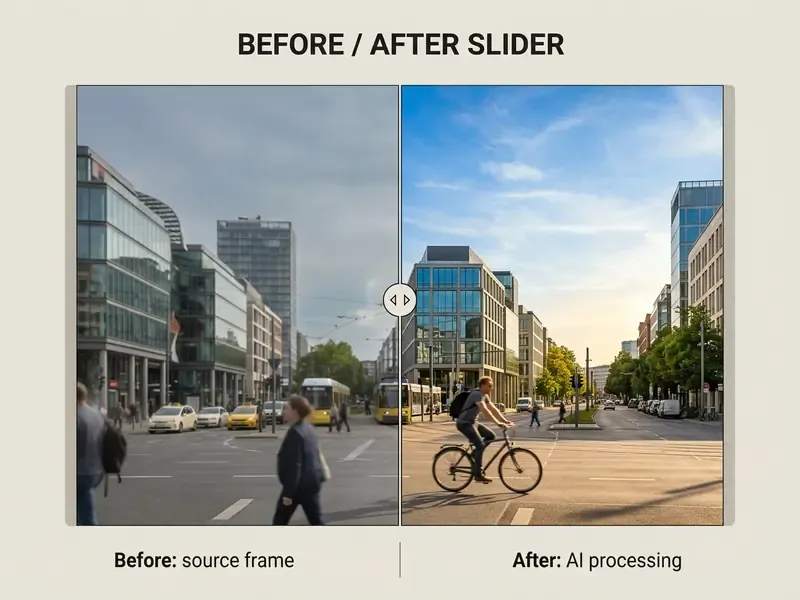
Key Adobe generative AI capabilities (2026):
- Generative Fill and Expand. Built on the updated Firefly Fill and Expand engine (Photoshop 27.6 Release Notes, April 2026), these tools add, replace, or remove objects using selection brushes and natural language prompts (Adobe Firefly Documentation, July 2026). Firefly Image 3 was retired from these features starting 28 April 2026, with full service removal in August 2026.
- AI object removal. The Remove tool uses context-aware machine learning to erase unwanted elements, power lines, or people, reconstructing complex background textures underneath. AI mode toggles on or off, and processing can run in the cloud or on-device.
- Generative background replacement. Detects the foreground subject, isolates it, and generates photorealistic replacement environments calibrated for matching perspective and ambient light (Adobe Help Center, 2025 to 2026).
- AI Assistant (web and mobile). A conversational layer that interprets an instruction, builds the required selection or mask itself, and edits only the requested region while leaving the rest of the image intact.
- Commercial safety and Content Credentials. Adobe Firefly models are trained exclusively on licensed Adobe Stock assets and public domain content whose copyright has expired (Adobe Legal and Firefly Safety Terms, 2026). All AI-generated outputs automatically attach C2PA-compliant Content Credentials metadata, recording the software used, AI model details, and editing steps for auditability and copyright compliance.
«Professionals note that Generative Fill improves efficiency but blurs the boundary between human and algorithmic creativity.»
«The combination of text and visual prompts (scribbles) received the highest user ratings, balancing spatial precision with semantics.» - Study on multimodal editing with visual prompts (2026), synthesis of Feng et al. and Xu et al. (public URL unconfirmed at publication time)
That maps directly onto Photoshop's design. A brushed selection supplies spatial precision, the text prompt supplies semantics. Prompt-only workflows in browser tools lose the first half of the pair, which is one reason desktop Firefly output usually needs fewer regeneration cycles.
Empirical evaluation supports substantial productivity gains from AI editing. Adobe's industry report (Generative AI: Redefining Productivity in Creative Imaging, 2023, https://www.adobe.com) states that Photoshop's Generative Fill and Expand completed common real-world retouching tasks over 10 times faster on average than traditional manual tools. Vendor-supplied, so directional rather than audited.
Qualitative research by Swift and Chattopadhyay (2024, arXiv:2404.17781), analyzing 566 discussions among creative professionals, corroborated the efficiency gains. Retouchers reported that generative AI drastically reduced manual cloning overhead for background expansions and touch-ups, while stressing the need to retain manual layer control to tune AI output against client-specific standards.
«Participants who edited photos with generative AI showed a higher increase in empathy (mean 17.36) than those who only described the image (mean 12.55; p = 0.021).»
That result matters beyond aesthetics. It suggests generative editing changes how people engage with the subject of an image, which is a relevant consideration for brand, campaign, and communications teams evaluating AI-assisted imagery.
Enterprise data privacy and the governance mode. For a regulated organisation, the decisive question is not output quality. It is data handling. Adobe's public position is that Firefly models are trained on licensed Adobe Stock and expired-copyright public domain material, and that Adobe does not train its generative models on customers' personal content. In enterprise agreements, Firefly outputs are treated as customer content, and Content Credentials are applied automatically, including to assets embedded in Adobe Express projects (Adobe Firefly Legal FAQ for Enterprise Customers, 2023; Adobe Firefly gen-AI approach, 2026).
A practical governance checklist for a risk owner:
One more point that governance teams tend to discover late. Creative tooling escapes inventories quickly, because a browser tab does not look like a model deployment. If your AI inventory covers credit scorecards but not the marketing team's prompt history, you have a shadow AI gap in the mildest possible costume. Worth checking before an audit checks it for you.
This section describes general governance practice and is not legal advice. Verify contractual and privacy terms with Adobe and your own counsel before deployment.
To compare outpainting and canvas expansion across alternative platforms, see our commercial comparison of AI outpainting tools. Teams extending the same review into motion assets can also study our notes on ai video creation platforms.
Creative Cloud subscription: single product or the full Adobe set
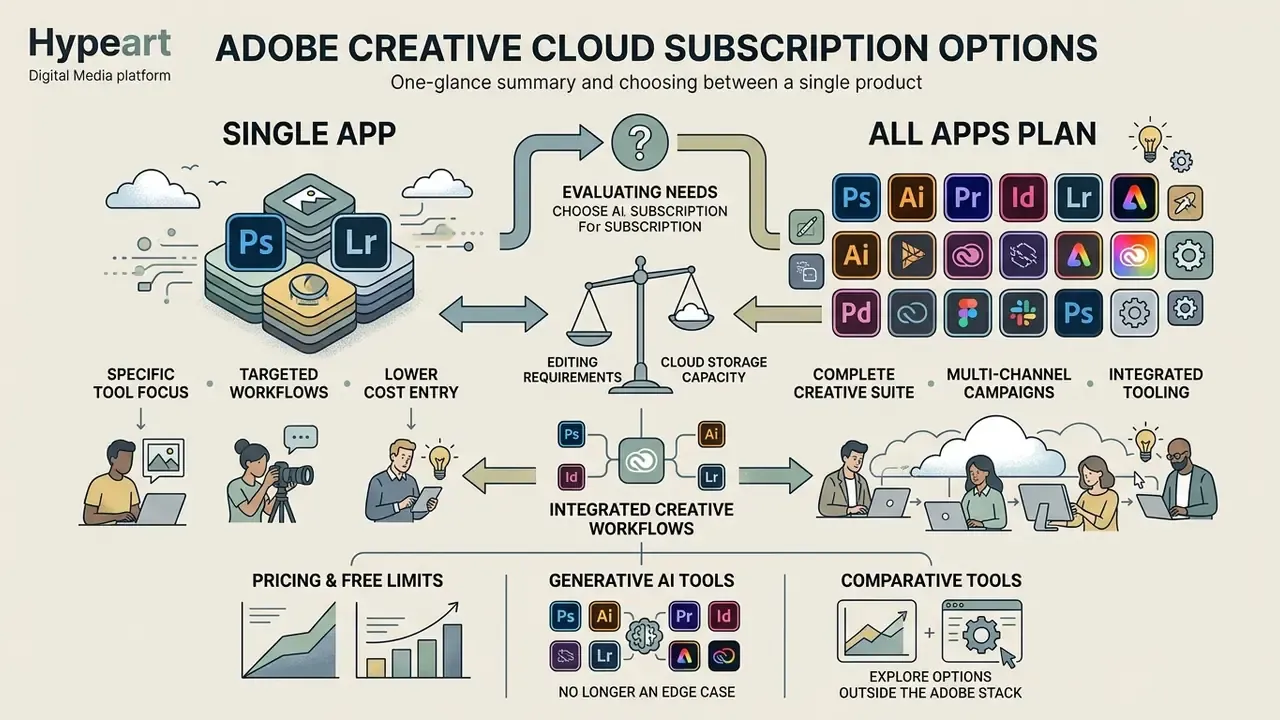
Selecting the right Adobe subscription requires evaluating editing requirements, cloud storage capacity, and multi-app workflow dependencies. Adobe structures Creative Cloud across specialized individual plans, targeted photography bundles, and the comprehensive All Apps subscription.
An informed decision prevents overpaying for unused applications while making sure creative workflows have enough cloud storage and generative credits. Readers weighing external tooling against Adobe's stack can also review our comparison of AI image generators.
| Subscription Plan | Indicative price (US, individual) | Included Applications | Cloud Storage | Generative AI Access | Ideal Business or Creative Scenario |
|---|---|---|---|---|---|
| Photography Plan (1 TB) | about $19.99/mo (annual, billed monthly) or about $239.88/yr prepaid | Photoshop, Lightroom, Lightroom Classic, Adobe Express, Bridge, Portfolio | 1 TB cloud storage (20 GB tier also offered) | Photoshop Generative Fill and Expand, Lightroom AI presets and masking, Firefly web access | Photographers, retouchers, and archivists needing full desktop and cloud photo editing plus substantial storage |
| Lightroom Single App | about $11.99/mo (annual, billed monthly) | Lightroom (desktop, mobile, web) plus Lightroom Classic | 1 TB cloud storage | Lightroom AI denoise, AI masking, limited Firefly credits | Photographers who never composite and want a cloud-first RAW workflow only |
| Photoshop Single App | about $21.99/mo (annual, prepaid) or about $22.99/mo (annual, billed monthly) | Photoshop (desktop, iPad, web, mobile), Adobe Express, Adobe Fresco | 100 GB cloud storage | Full Photoshop Firefly features, standard generative credit allocation | Designers and digital artists focused purely on complex raster editing and compositing without Lightroom |
| Creative Cloud All Apps / Pro | about $69.99/mo (annual, billed monthly) | 20+ Creative Cloud apps (Photoshop, Illustrator, Premiere Pro, After Effects, InDesign, Acrobat) | 100 GB to 1 TB and above, depending on tier | Integrated Firefly AI across image, vector, video, and design applications | Multidisciplinary creative teams, agencies, and enterprise marketing departments handling video, web, design, and photos |
| Photoshop Elements 2026 | about $99.99 one-time (fixed 3-year term, non-renewing) | Photoshop Elements plus Organizer (Premiere Elements sold separately) | Local storage; import from Google Drive and OneDrive | Guided AI edits within the app | Hobbyists and family archivists who reject recurring subscriptions |
| Firefly Standard (standalone) | about $9.99/mo (about 2,000 generative credits) | Firefly web and mobile workspace | Firefly cloud workspace | Full model set, higher credit volume, no watermark | Teams needing generative volume without full Photoshop licensing |
| Adobe Express Free | $0 | Adobe Express (web and mobile) | 5 GB cloud storage | Limited daily Firefly generative credits | Small business owners, social media managers, and casual editors needing lightweight graphics and basic edits |
The scale behind these plans is worth noting when you assess vendor stability:
A digital agency running multi-channel campaigns had previously assigned Photoshop Single App licenses to every content staffer. After reviewing actual usage, leadership moved core photographers to the Photography Plan (1 TB) and content creators to Adobe Express, reserving All Apps strictly for video editors. Per the agency's own finance review, the restructuring cut subscription overhead by roughly 32 percent annually without hurting production velocity. Again, a client-reported internal estimate; it will vary with headcount, region, and negotiated enterprise terms.
Teams that also need upscaling, denoising, or restoration outside the Adobe stack can compare options in our guide to AI image enhancers. For subscription tiers, licensing options, and enterprise platform access, browse the hub on our pricing page, and if a procurement question stalls, AI Media Support can point you to the relevant documentation.
«Among participants with an art or design background, 59 percent used AI tools to generate static images, with an average frequency of 2.5 on the survey scale.»
In other words, generative tooling is no longer an edge case inside Adobe's core audience. Licensing decisions that ignore generative credit allowances tend to resurface later as mid-cycle upgrade requests, usually at the worst budget moment.
FAQ: common questions about choosing an Adobe Photo Editor
How does Lightroom Classic differ from Lightroom?
Classic keeps a local .lrcat catalog on the desktop, supports export plug-ins and the full module chain, and is optimised for very large local RAW archives. Lightroom (Cloud) keeps the catalog in Adobe Cloud, syncs full-resolution originals across desktop, mobile, and browser, and offers a simplified interface plus shareable web albums. Both use the same non-destructive develop engine, so the real choice is about where the archive lives.
Can I edit photos with Adobe for free and without installing software?
Yes. Adobe Express Free runs in the browser with 5 GB storage, 10-day version history, templates, background removal, text, filters, and crop. Free Photoshop on the web and the free Photoshop mobile app add layers and the Remove tool with a limited daily allowance of generative operations.
What are the limits of the web and mobile modules?
40 MB per file, up to 8,000 × 8,000 pixels, JPEG, JPG, or PNG for direct upload, one file per operation. Larger or higher-resolution masters must be processed in desktop Photoshop or Lightroom Classic.
Which color profile should I choose?
sRGB for web and social delivery, Adobe RGB (1998) for photographic printing and prepress, ProPhoto RGB for 16-bit RAW grading with conversion to sRGB at export.
Are AI tools enough to replace manual retouching?
No. Research covering 83,000 real editing requests found automated editors satisfactorily completed only about 33 percent of tasks, with the weakest results on identity-preserving and low-creativity edits. AI accelerates the first 80 percent. Spot Healing, Healing Brush, Clone Stamp, and layer masks close the remaining gap.
Are Firefly images safe for commercial use?
Adobe states that Firefly is trained on licensed Adobe Stock and expired-copyright public domain content and is designed for commercial use, with C2PA Content Credentials attached automatically to outputs. Enterprise buyers should still confirm data-handling and indemnity terms contractually.
Is there a Photoshop for phones?
Yes. A free Photoshop mobile app for iPhone and Android with layers, Adobe Stock access, the Remove tool, and the conversational AI Assistant that edits only the region described in the prompt.
Subscription or one-time purchase: which is better value?
Photoshop Elements 2026 is a one-time purchase, but it ships as a fixed 3-year term non-renewing license, so it is a bounded-term product rather than perpetual ownership. Subscriptions add cloud sync, generative credits, and continuous updates.
What should governance teams document before rollout?
Tool inventory, approved use cases, prohibited data classes, model versions per published asset, and the named human reviewer who signs off before publication. Keep it short enough that people actually maintain it.
Checklist before purchase and workflow launch
Checklist0 / 8
E-E-A-T fact check and verification matrix
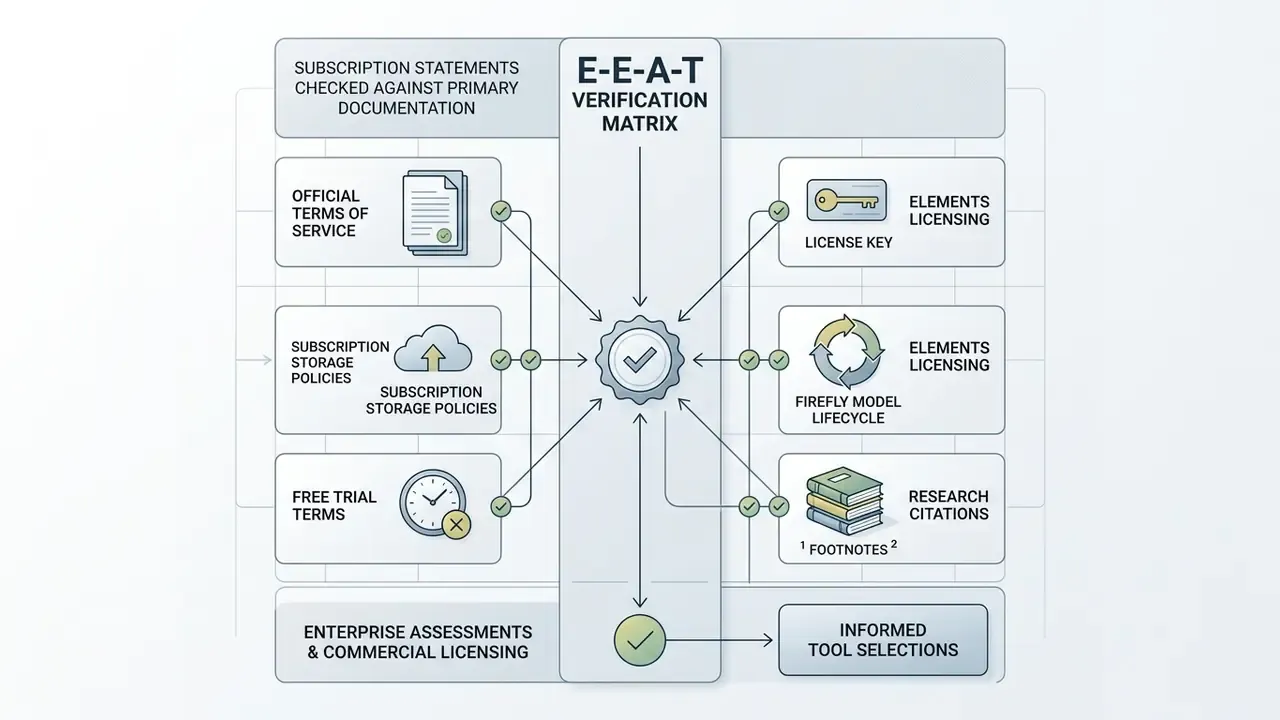
To keep licensing terms, storage limits, and service conditions accurate, all subscription statements are checked against Adobe's primary documentation:
- Official terms of service. Adobe General Terms of Use govern free memberships, trial access, and subscription terms, stating that complimentary services may be modified at Adobe's discretion (Source: Adobe Legal Terms).
- Subscription storage policies. Paid Single App and All Apps plans include standard cloud document storage starting at 100 GB per license, while free Creative Cloud membership includes 2 GB (Source: Adobe Creative Cloud Plans).
- Free trial terms. Official Creative Cloud trials provide 7 days of full-featured access to Creative Cloud Pro applications, enabling complete evaluation before billing begins (Source: Adobe Creative Cloud FAQ).
- Elements licensing. Photoshop Elements 2026 is sold as a one-time purchase with a non-renewing 3-year term license (Source: Adobe Elements FAQ, 2026).
- Firefly model lifecycle. Firefly Image 3 was removed from Generative Fill and Generative Expand starting 28 April 2026, with full service removal in August 2026 (Source: Photoshop 27.6 Release Notes, April 2026).
- Research citations. Taesiri et al. (2025), https://arxiv.org/abs/2505.16181; Swift and Chattopadhyay (2024), https://arxiv.org/html/2404.17781v1; Tang et al. (2024), https://dl.acm.org/doi/pdf/10.1145/3678884.3681890. Where a public URL could not be confirmed (Lau et al., 2024; the multimodal prompting synthesis, 2026), the limitation is stated inline rather than implied.
Organizations assessing broader commercial licensing terms and enterprise AI tool selections can explore the hub for detailed compliance frameworks, and teams tracking disputes over generated imagery can open the hub for case-level context.
Appendix A. Archive of original wording (updated)
General disclaimer
This material is informational and does not constitute legal, financial, or tax advice. Licensing terms, prices, storage volumes, generative credit limits, and data-handling policies change at the vendor's discretion. Before purchasing or deploying AI tools, verify Adobe's current official conditions and align them with your own compliance and information security functions.
For the full terminology library behind this article, including adjacent entries such as ai username generator, ai video clip generator, ai video creation, and moderation-sensitive topics like ai undress picture, view the guide. Product-by-product breakdowns are also available when you view the guide in our comparison section.