In enterprise media workflows and digital compliance environments, pulling the sound track out of a video file is a routine operational request. Processing video files to isolate audio streams lets institutions turn recorded meetings, video interviews and training sessions into lightweight assets for archiving, transcription and internal distribution. The same workflow serves individual creators who need a podcast episode from a Zoom recording, a lecture audio file for offline study, or a narration track that can be reused on a freshly recorded screencast.
There is a second reason a risk owner should care. The moment a colleague drops a customer call recording into an unvetted converter, an audio conversion becomes a data-transfer event. That is the thread running through this guide.
Executive Summary (30 seconds)
- What it is a browser-based audio extractor demuxes (separates) the embedded audio stream from a video container such as MP4, MOV, MKV, WebM or AVI, then exports it as MP3, M4A/AAC, WAV, FLAC, ALAC or OGG/Opus.
- Three steps upload or drag a video file, choose output format, bitrate, sample rate and an optional
mm:sstrim range, then extract, preview in the embedded player and download. - Best format WAV or FLAC (or ALAC inside Apple ecosystems) for editing, archiving and AI transcription; MP3 at 192 to 320 kbps or AAC for sharing, streaming and mobile playback.
- Quality rule fidelity is capped by the source. Stream copy without re-encoding preserves the original bit for bit; every additional lossy encode adds generational loss.
- Privacy rule fully client-side extraction (WebAssembly or WebCodecs) keeps files on the endpoint. Server-side extraction uploads media to third-party infrastructure and depends on the vendor's retention schedule.
- Browser rule hardware-accelerated WebCodecs extraction needs Chrome 94+, Edge 94+ or Safari 16.4+. Firefox has no native WebCodecs acceleration and falls back to WebAssembly software demuxing.
- Legal rule extraction is not a licence. Verify ownership, Creative Commons terms or statutory fair use before publishing. Direct extraction from a pasted YouTube, Vimeo or TikTok URL is not supported.
Why an Audio Extractor Ends Up in a Governance Conversation
A converter looks trivial next to a credit model or an AML screening engine. It is not, at least not from a control standpoint. Ask three questions and the picture changes quickly.
First: what data class travels through the tool? Board recordings, KYC interview footage, collections calls and vendor due-diligence sessions all carry personal or material non-public information. Second: who approved the tool? If nobody did, you are looking at shadow IT, and increasingly at shadow AI, because many free converters now bundle transcription or summarisation features that quietly reuse content. Third: can you reproduce the evidence? Auditors ask which file went where, when, and under whose authority.
Practical consequence for a bank or a mature fintech: keep a one-line entry in your approved-software inventory for every media utility, with the permitted data classes attached. Client-side extraction usually clears review faster, because nothing leaves the endpoint. Server-side extraction needs a vendor assessment, a retention clause and a documented owner. Teams building the wider decision framework often start from an AI Media Comparison view and then price the control overhead using the published AI Media Pricing Guides.
Search demand here is multilingual, which is worth noting for global teams: queries such as estrarre audio da video online and estrarre audio da video online gratis land on exactly the same feature set as the English ones.
Free Online Audio Extractor: What It Does
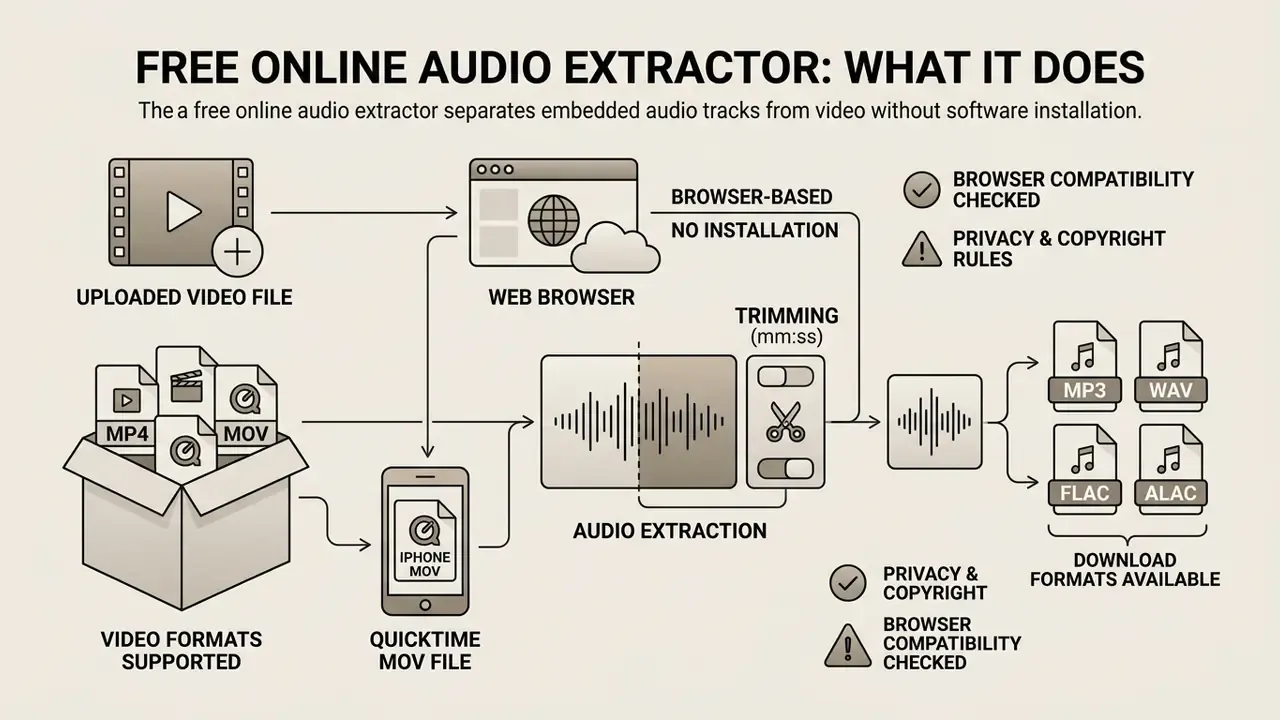
A free online audio extractor separates the embedded audio track from a video container without requiring software installation on the host device. The tool parses the video file structure, identifies the audio stream, then demuxes or converts it into a standalone audio file. In practical terms: the container is a box, the audio and video streams are separate objects inside that box, and extraction means lifting one object out, ideally without touching its contents.
Extract Audio From a Video File Without Installing Software
Modern browser-based extraction relies on client-side HTML5 APIs, WebAssembly and the Web Audio API to process video files locally within the user session. According to the W3C Web Audio API 1.1 specification, a MediaElementAudioSourceNode can route media directly from an HTML video element into an audio processing graph without sending raw video bytes to a remote server. Captured graph output can then be written to a file container through MediaRecorder, which supports WebM and MP4 outputs with configurable audio bit rates.
«MediaElementAudioSourceNode … an audio source from an
audioorvideoelement.»
When server-side processing is used, the video container is uploaded to a remote engine, demuxed with tooling such as FFmpeg, and returned as an audio stream. That architectural difference is not cosmetic. It changes the security surface entirely:
Using an inline audio extractor to extract sound from video online removes installation barriers and keeps processing fast across corporate endpoints, including locked-down desktops where nobody has admin rights. Teams that keep working with the visual track after extraction usually pair the extractor with a video compression workflow to keep source footage manageable, or with a YouTube-oriented editing pipeline when the final deliverable is a published video. On managed Windows fleets, the extracted file often continues its life inside a windows video editor or, for thumbnail work, a windows photo editor.
Browser, Hardware, and File-Size Limits (Read This First)
| Constraint | Client-side (WebAssembly / WebCodecs) | Server-side upload |
|---|---|---|
| Typical max file size | 500 MB to 2 GB, bounded by available browser memory | 10 MB to 2 GB, bounded by vendor tier |
| Required browser | Chrome/Edge 94+, Safari 16.4+ (accelerated); any modern browser (software fallback) | Any browser with HTTPS upload support |
| Files leave the device | No | Yes |
| Batch or multi-file jobs | Sequential, memory-limited | Often 1 to 2 concurrent jobs on free tiers |
| Offline capability | Works after page load in many implementations | No |
If a 3 GB conference recording refuses to load, the fastest fixes are, in order: (1) compress or downscale the source video before extraction, (2) split the recording into two halves, (3) switch to a Chromium-based browser to enable accelerated demuxing, (4) fall back to a desktop tool for archival-scale batches. Sizing the trade-off in advance is easier with the AI Media Calculators, which map file duration against expected output size.
Video Formats Supported for Audio Extraction
Online audio tools process a wide variety of video file formats used across desktop, mobile and web environments. Standard input containers include MP4 (ISO/IEC 14496-14), MOV (QuickTime File Format), WebM (a web-focused Matroska profile), MKV (Matroska open container) and AVI (Audio Video Interleave). Broader converters additionally parse 3GP, ASF, DivX, M2TS, MPEG, MTS, RM/RMVB, VOB and WMV. Container compatibility depends on the parser's ability to read stream descriptors in the file header. Users who need to extract audio from video online can process MP4 files carrying AAC or PCM audio, as well as WebM files containing Opus or Vorbis codecs.
The reason a single container can hand over a clean audio file at all is that standards mandate independent encapsulation of each elementary stream:
«Storage file formats and RTP payload formats for audio and video coding standards.»
One hard limitation applies to every browser-based extractor: DRM-encrypted or password-protected media cannot be demuxed. Encrypted sample data is unreadable to the parser, so protected streaming downloads, purchased-video containers and rights-managed corporate assets fail at the parsing stage rather than at export. Annoying, yes, but predictable.
Extracting Audio from iPhone (QuickTime MOV) Files on Mobile Browsers
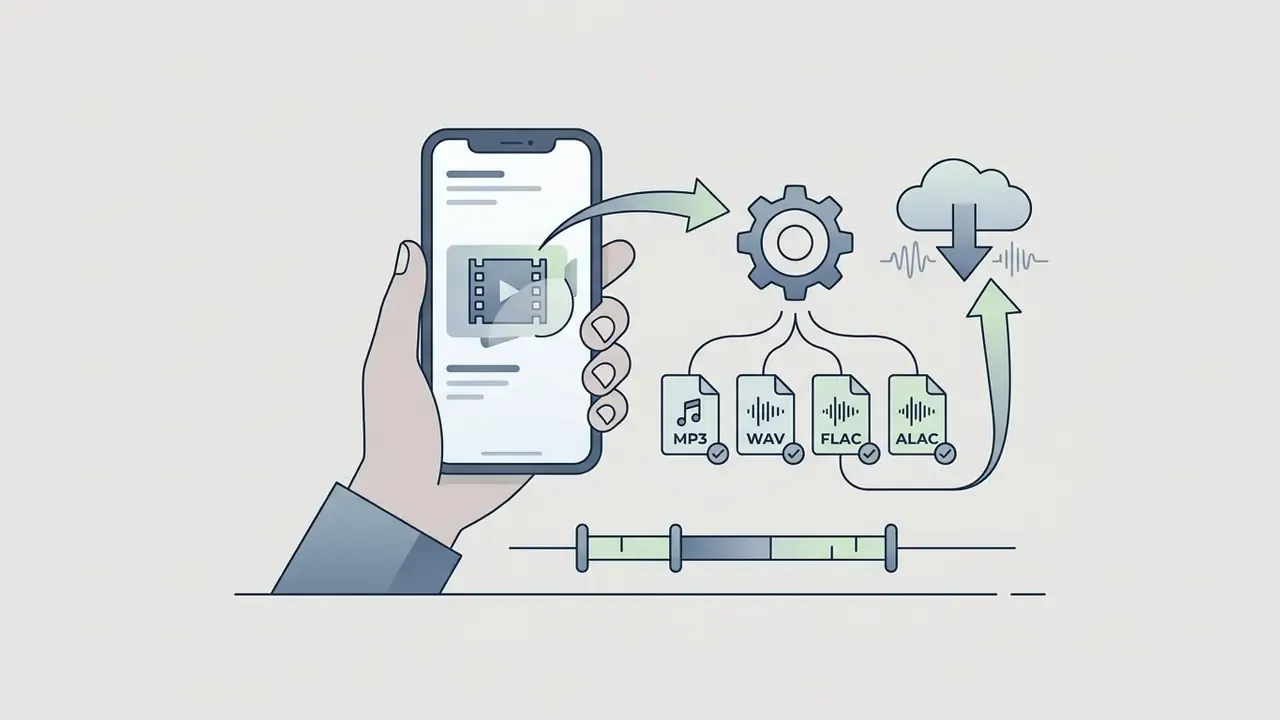
Mobile Safari and iOS Chrome record video into the QuickTime MOV container, pairing H.264 or HEVC video with an AAC audio track. When a file is uploaded straight from the iPhone Photo Library, a browser-based extractor parses the MOV structure in-browser, with no App Store installation required. That is the whole appeal of the extract-audio-from-video-iphone-online route.
Practical mobile workflow:
Two iOS-specific notes: HEVC-encoded MOV files extract normally because only the audio stream is touched, and Live Photos are not video containers in the conventional sense, so convert them to a standard MOV or MP4 first. On Android, the same flow applies to MP4 files recorded by the stock camera app.
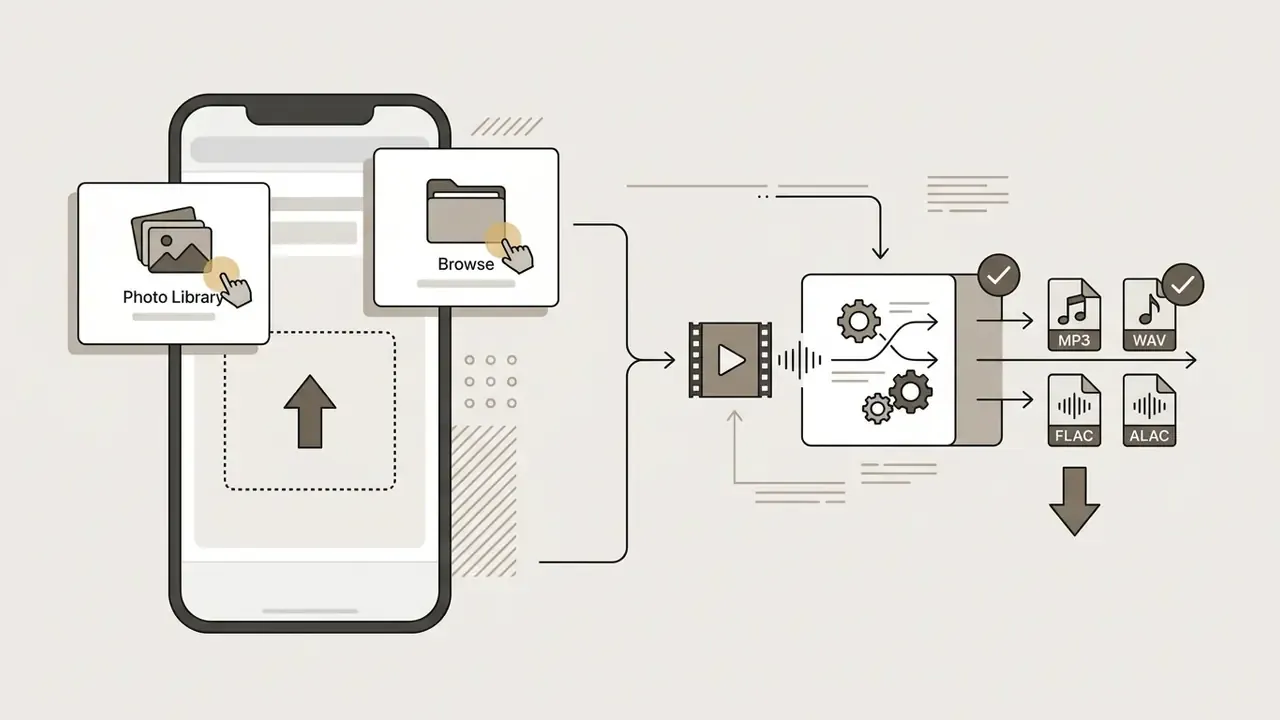
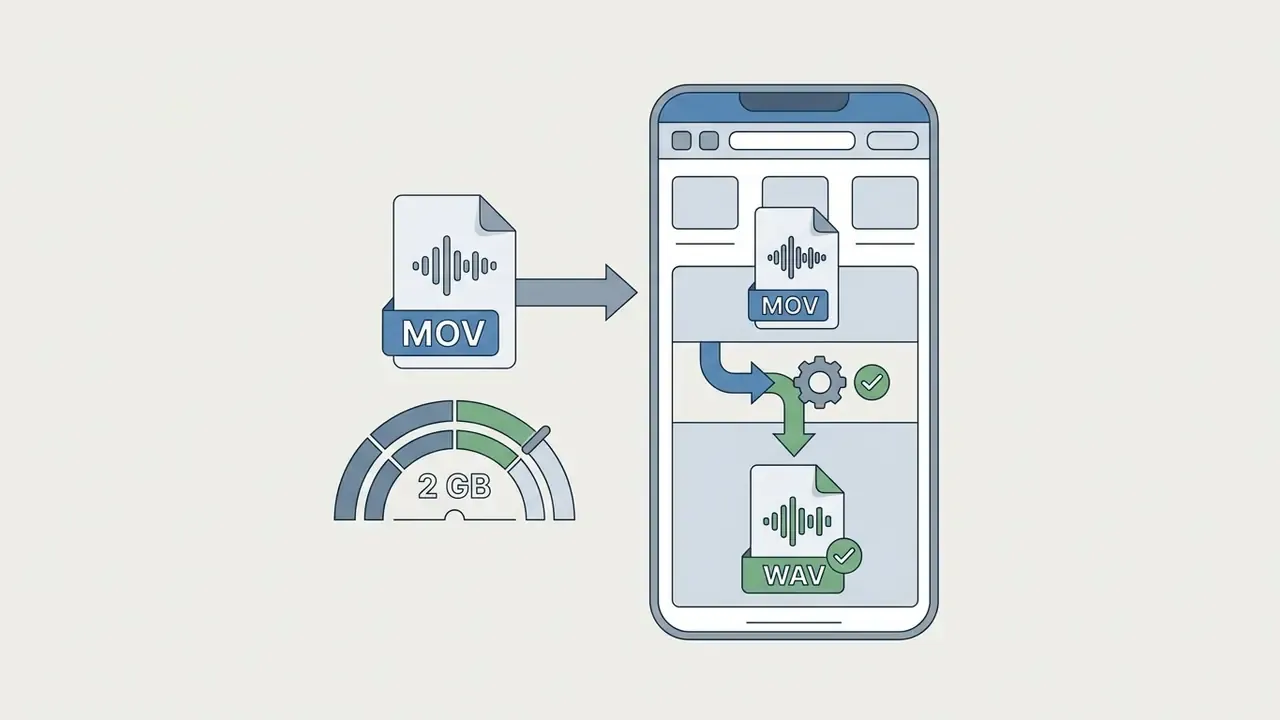
.mov source file. Sizes up to roughly 2 GB are typically handled, subject to available device memory.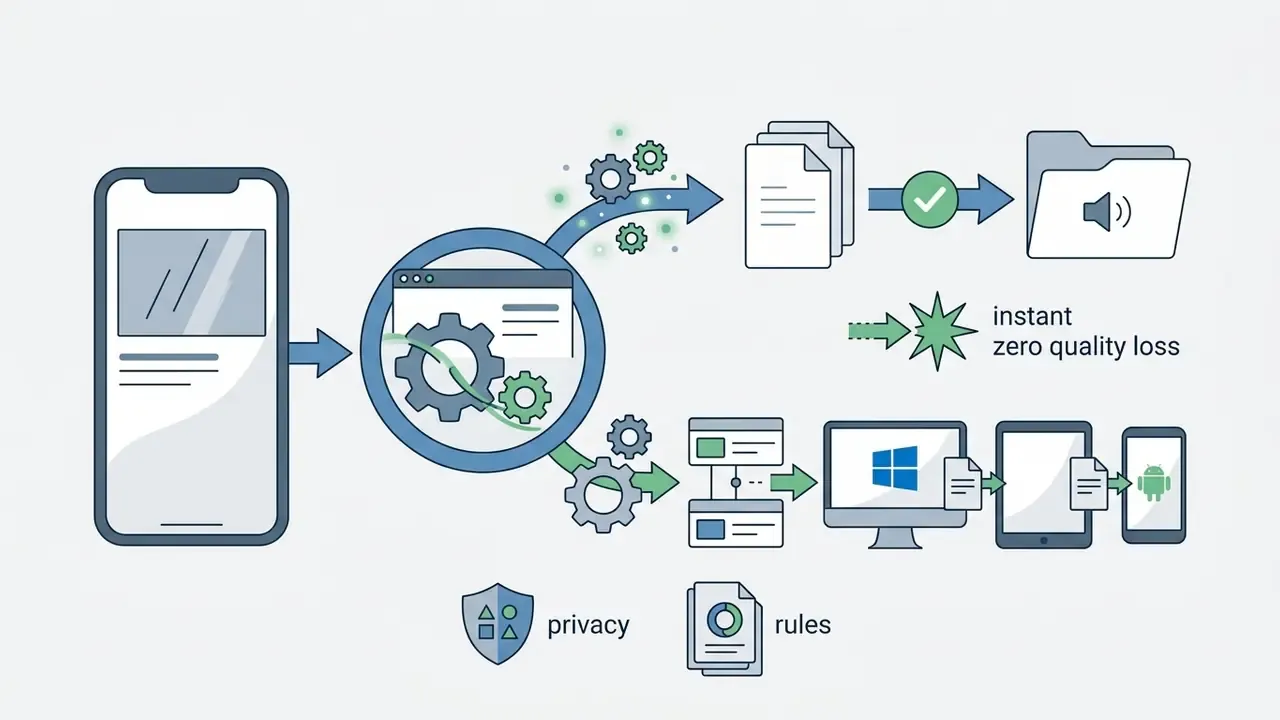
.m4a file (no re-encoding, instant, zero added quality loss) or transcode to .mp3 for colleagues on Windows or Android.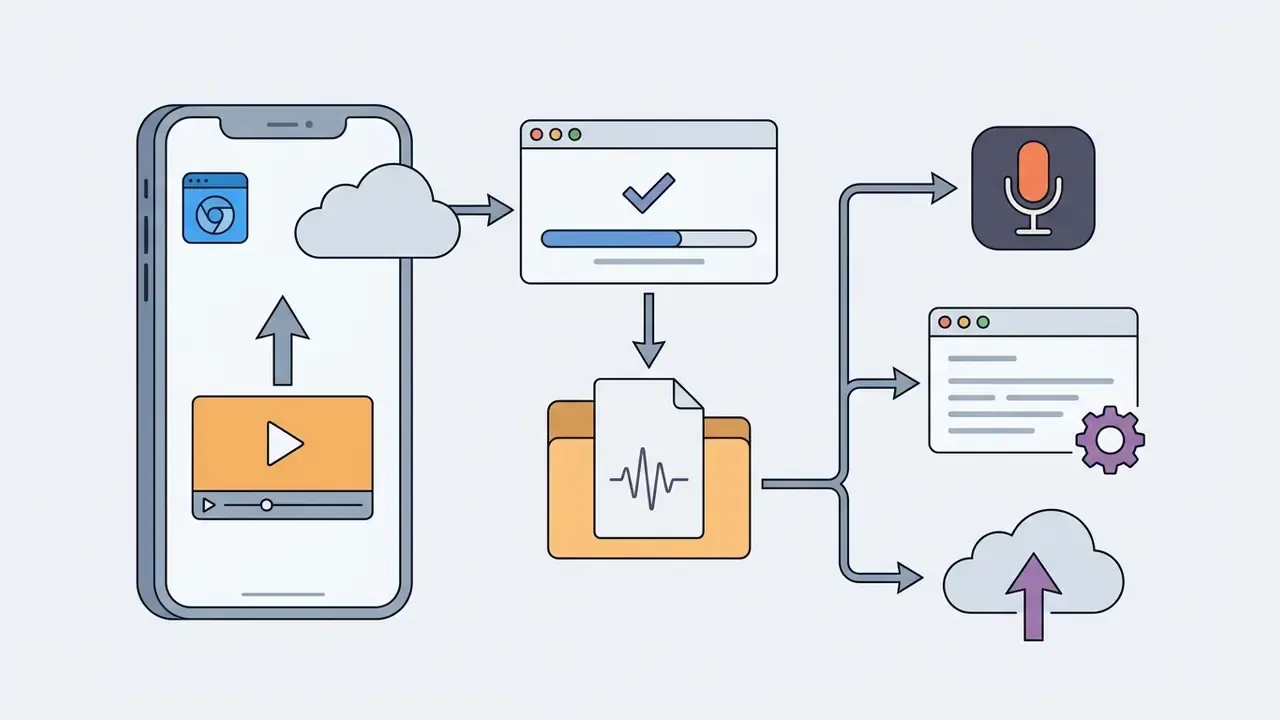
Audio Formats Available for Download
Once the video audio track is isolated, the extraction tool lets users export the result into specific output formats based on downstream requirements. Common download options include compressed lossy formats such as MP3 and AAC (M4A) for general playback, plus uncompressed or losslessly compressed formats such as WAV (PCM), FLAC and ALAC for production and archiving. Choosing the right audio format ensures compatibility with digital audio workstations, transcription platforms and corporate storage systems, the same principle that governs selection of a text-to-speech and voice generation stack when narration has to be regenerated rather than reused.
For environments embedded entirely within the Apple ecosystem, extracted PCM audio can be wrapped into Apple Lossless Audio Codec (ALAC) containers (.m4a). That gives loss-free editing compatibility with Logic Pro and Final Cut Pro while typically saving 40 to 60% of the file size compared with raw WAV. FLAC serves the same purpose in cross-platform and archival contexts and is now a formal IETF standard:
Opus, standardised in RFC 6716, is the efficiency leader for speech. It holds intelligibility at bitrates where MP3 collapses, which makes it the pragmatic choice for long-form voice archives where storage cost dominates the decision.
Table: technical mapping between input video containers and available audio output formats.
| Input video container | Typical internal audio codecs | Direct output (no transcoding) | Transcoded audio output |
|---|---|---|---|
| MP4 (.mp4) | AAC, MP3, LPCM | .m4a (AAC), .wav (PCM) | .mp3, .wav, .flac, .m4a (ALAC), .ogg (Opus) |
| MOV (.mov, incl. iPhone) | AAC, LPCM, ALAC | .m4a (AAC or ALAC), .wav | .mp3, .flac, .ogg (Opus) |
| MKV (.mkv) | AAC, MP3, Vorbis, Opus, PCM, FLAC | .ogg (Vorbis/Opus), .wav, .flac | .mp3, .m4a, .m4a (ALAC) |
| WebM (.webm) | Vorbis, Opus | .ogg / .webm (Vorbis/Opus) | .mp3, .wav, .flac |
| AVI (.avi) | MP3, PCM | .mp3, .wav | .m4a, .flac, .m4a (ALAC) |
| WMV / ASF (.wmv, .asf) | WMA | none, transcode required | .mp3, .wav, .flac |
Textual summary: containers such as MP4 and MOV natively encapsulate AAC, ALAC or LPCM audio, which allows immediate extraction into M4A or WAV containers without generational quality loss. WebM and MKV containers mostly store Vorbis or Opus streams, which can be exported directly as OGG or WebM audio, or transcoded into MP3 for legacy device support. WMA inside WMV or ASF always requires transcoding, because no mainstream lossless target container accepts a WMA elementary stream.
How to Extract Audio From Video Online in Three Steps
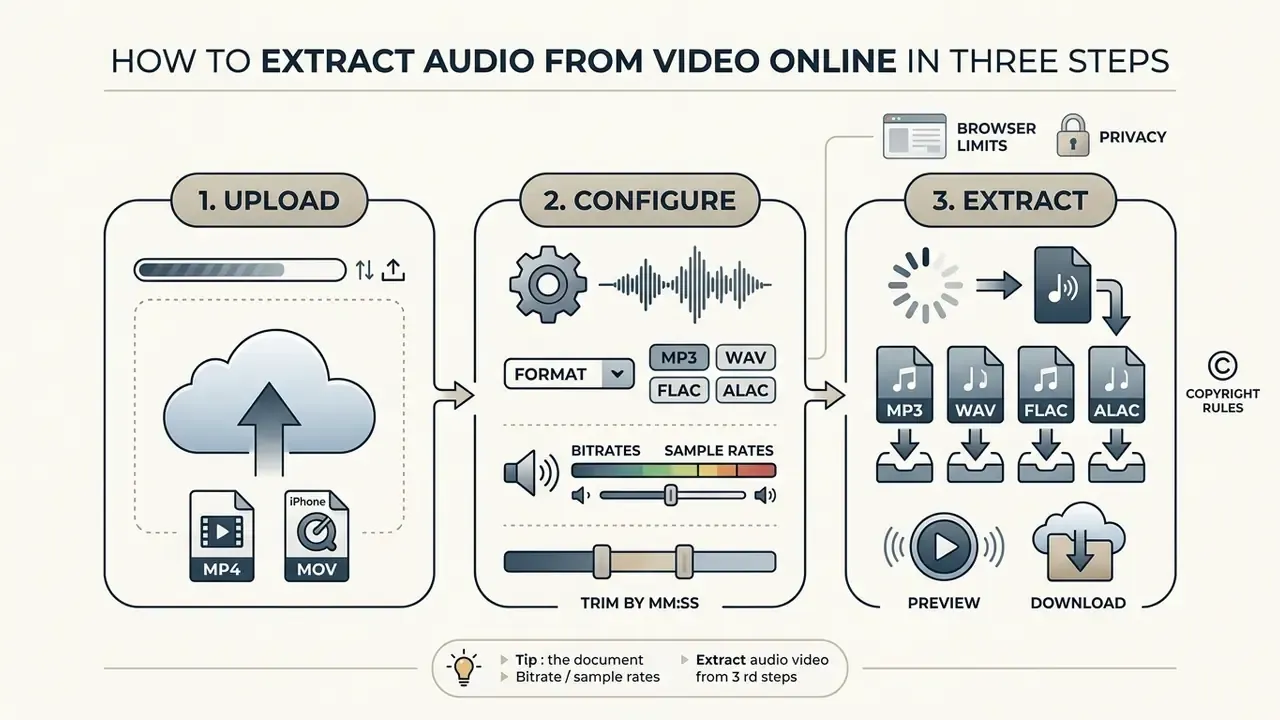
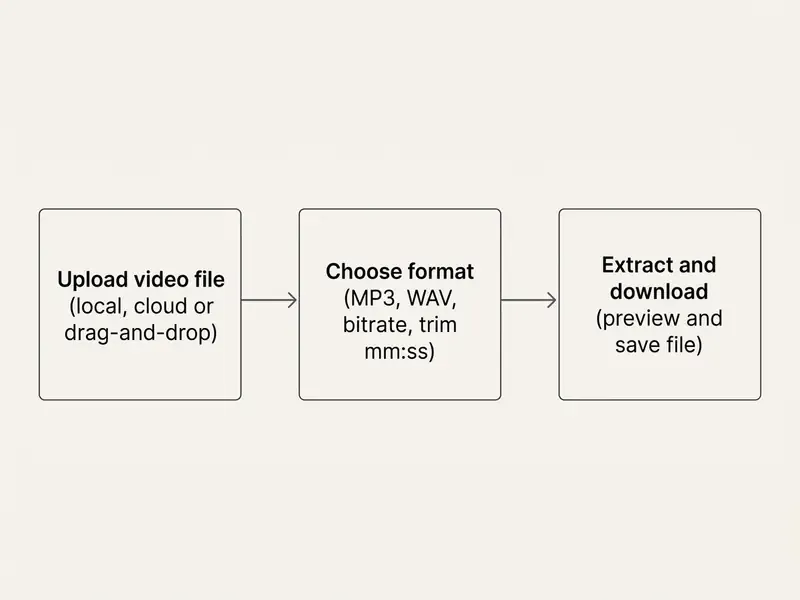
Extracting audio from a video file online follows a straightforward three-stage workflow: upload the video source, configure the target audio settings, then run the extraction and download the finished file. No account, plug-in or desktop install is required at any stage.
Upload or Drop a Video File
The process begins by selecting the video file from a local drive or dragging it into the web browser interface. Users can extract audio from online video sources they own, from cloud storage links, or from local disk drives using standard HTML file picker interfaces. Most free online tools accept drag-and-drop for video files ranging from 10 MB up to 2 GB, depending on whether processing happens locally in client memory or through server-side ingestion.
Implementation detail worth knowing: the drop zone and the <input type="file"> picker trigger the same underlying upload action. Drag-and-drop offers no privacy advantage over the classic file dialog. The architecture of the tool, client-side against server-side, is what decides whether bytes travel over the network.
Choose the Output Audio Format and Settings
Before running the extraction, users select the preferred output container, bitrate, sample rate and channel configuration. Options include choosing between MP3 and WAV, setting sample rates to 44.1 kHz or 48 kHz, and selecting mono or stereo layouts. Configuring parameters up front means the output file matches the technical specification of the target editing or archiving environment, instead of forcing a second conversion later.
Reference values: ISO/IEC 11172-3 defines MP3 sampling rates of 32 kHz, 44.1 kHz and 48 kHz. Encoder presets commonly pair lower bitrates with mono and higher bitrates with joint stereo. WAV has no fixed bitrate because it is uncompressed PCM; its data rate is simply sample rate × bit depth × channels (44.1 kHz / 16-bit / stereo = 1,411 kbps).
Extract, Preview, and Download the Audio File
Clicking the extraction button starts stream separation and optional encoding. When processing completes, the tool presents an embedded HTML5 audio player so users can preview the extracted sound track. After checking playback quality, duration and channel separation, one click downloads the audio file to local storage.
Tip: if the objective is the inverse operation, that is removing the audio track to produce a silent video asset for background web banners, autoplay hero sections or social clips that must not surprise the viewer with sound, select the Export Muted Video option alongside the audio download. One pass then yields two deliverables: the isolated audio file and the silent video.
Free Use, Privacy, and File Handling in an Online Audio Extractor
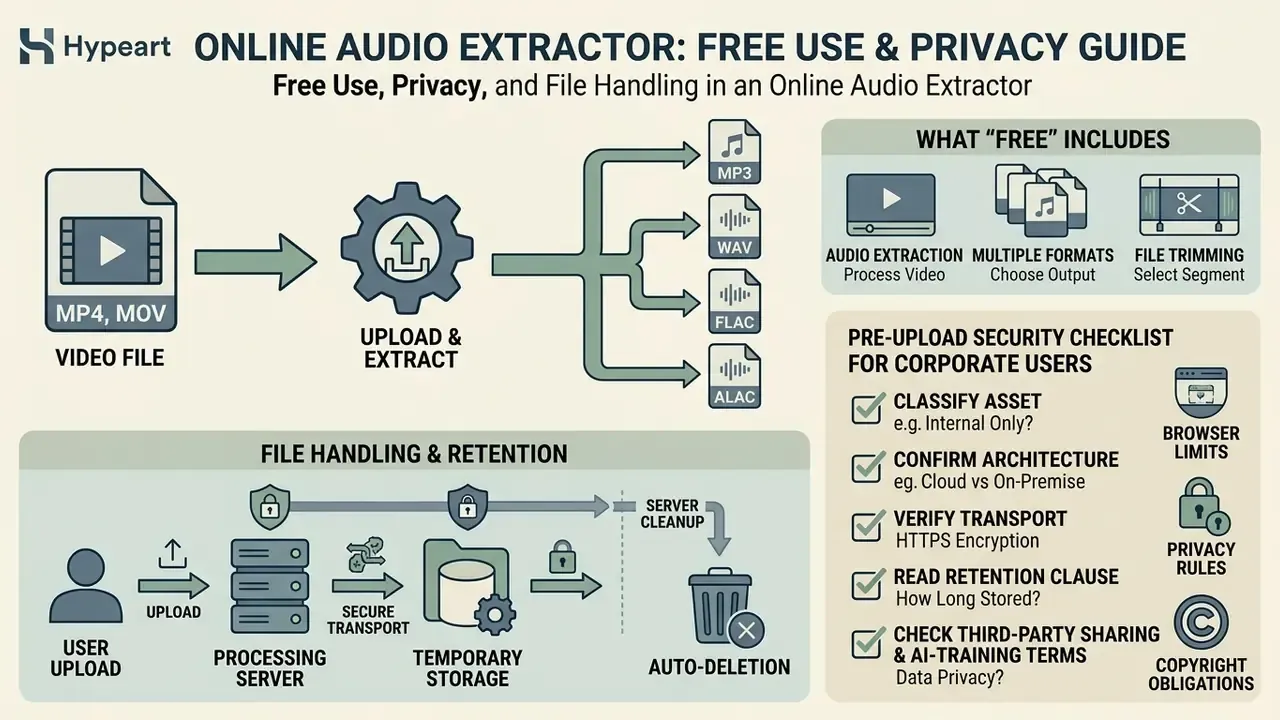
Evaluating free web utilities means understanding operational limits, data security risk, server retention schedules and copyright obligations. For enterprise and regulated users this section comes before any discussion of formats or editing. If the tool cannot be cleared for the data class, the audio quality question never arises.
What "Free" Includes in an Online Audio Extraction Tool
Free online audio tools typically run freemium models with defined usage boundaries. Basic tiers offer free extraction with constraints such as maximum file sizes (commonly 50 MB, 100 MB, 200 MB or 500 MB per file), daily conversion limits (for example 10 tasks per 24 hours), and restrictions on concurrent processing (often two simultaneous conversions).
Published vendor limits illustrate the spread. One mainstream converter documents 100 MB per file, 10 conversions per 24 hours and two concurrent jobs on its free plan. Another caps free uploads at 50 MB with two conversions per day. Browser-only tools frequently advertise unlimited conversions precisely because they consume no server capacity. Before standardising on any extract-audio-from-video-online-free site, check whether those free tier limits match your real operational volume, and whether a paid tier or an API route would be cheaper than the workaround your team invents. For programmatic volume, the AI Media API Guides cover the integration side, and the AI Media Support and Troubleshooting hub collects the recurring failure patterns.
How Uploaded Video Files and Audio Files Are Handled
Data privacy and file security vary significantly depending on whether an online extractor uses client-side or server-side processing. Server-side tools upload media files to cloud storage infrastructure, where files sit buffered during conversion. Research by Öz et al. (2024) on Node.js upload implementations shows that unvalidated file handling can expose platforms to unrestricted file upload vulnerabilities and to insecurely scoped temporary directories. Security studies on secret-URL file hosting go further, showing that predictable URL generation can let unauthorised third parties discover uploaded media:
«Predictable secret-URL generation across file hosting services allowed enumeration and discovery of hundreds of thousands of private user files.»
Client-side extractors executing through WebAssembly in browser memory provide stronger privacy assurance, because raw media never leaves the local endpoint. This is not a theoretical pattern. It has shipped in production for regulated messaging:
«Client-side WebAssembly deployment in the IncaMail system demonstrated practical local processing of sensitive data without server-side transfer.»
Retention schedules differ by architecture rather than by marketing copy. Server-side vendors typically promise deletion "a few hours after download" or "after a short delay". Large platform operators publish fixed maximum windows, for example active deletion within 30 days and passive deletion within 180 days for customer content, including sound and video files. Browser-only tools state that no file, metadata or processing history is stored at all, because nothing is transmitted. Data-protection guidance reinforces the underlying obligation: personal data must not be kept longer than necessary and should be erased or anonymised once the processing purpose ends, with the caveat that backups may retain copies until overwritten.
Pre-Upload Security Checklist for Corporate Users
Run these seven checks before a recording of an internal meeting, a customer call, or a clinical or financial discussion enters any online extractor:
- Classify the asset.Is the recording public, internal, confidential or regulated (PII, PHI, MNPI)? Regulated classes should stay on client-side or on-premise tooling only.
- Confirm the processing architecture.Does the vendor state explicitly that processing is 100% in-browser? "Secure" and "encrypted" are not synonyms for "not uploaded".
- Verify transport.HTTPS and TLS enforced on upload and download endpoints, with no mixed-content warnings.
- Read the retention clause.Note the concrete deletion window (hours against 30 or 180 days) and whether backups are covered.
- Check third-party sharing and AI-training terms.Some free tools reserve rights to processed content for model improvement, which is a shadow AI risk vector, not a footnote.
- Test with a decoy file.Extract a non-sensitive sample first and confirm output quality, duration and metadata handling.
- Log the tool in your approved-software inventory, with the data classes it is cleared for, so usage stays auditable.
Check Permitted Use Before Publishing Extracted Music or Audio
Jurisdiction matters. U.S. fair use is an open-ended, case-by-case defence. Civil-law systems typically enumerate closed statutory exceptions instead, permitting quotation only in a volume justified by the purpose, while treating communication to the public and adaptation as separate exploitations that each need authorisation. Face-to-face classroom teaching enjoys narrower dedicated exemptions that do not automatically extend to online distribution. Adjacent disputes about training data and generated media move fast, so it helps to track AI Litigation and Case Timelines alongside your licensing register, and to keep the wider AI Media Commercial-Use rules on hand before a clip ships to a paid campaign. Debates about authorship in generated media, including the recurring argument over why ai art attracts criticism and the counter-position on why is ai art bad, sit in the same rights conversation as reused audio.
| Intended use of extracted audio | Typical status | Practical requirement |
|---|---|---|
| Your own recorded meeting, webinar or screencast | Generally permitted | Confirm participant consent and internal recording policy |
| Internal transcription, minutes, search indexing | Generally permitted | Data-classification review; retention policy |
| Personal offline listening of your own footage | Generally permitted | None beyond terms of service |
| Third-party music from a music video | Restricted | Sync or mechanical licence, or rightsholder permission |
| Commercial podcast or ad using third-party dialogue | Restricted | Written licence; fair use is a defence, not a permission |
| Redistribution of a purchased or DRM-protected file | Not permitted | DRM circumvention is separately unlawful in many jurisdictions |
| Creative Commons source material | Conditionally permitted | Honour the specific BY / NC / ND / SA conditions |
IMPORTANT: privacy, security and compliance alert
How to Keep High Audio Quality During Extraction
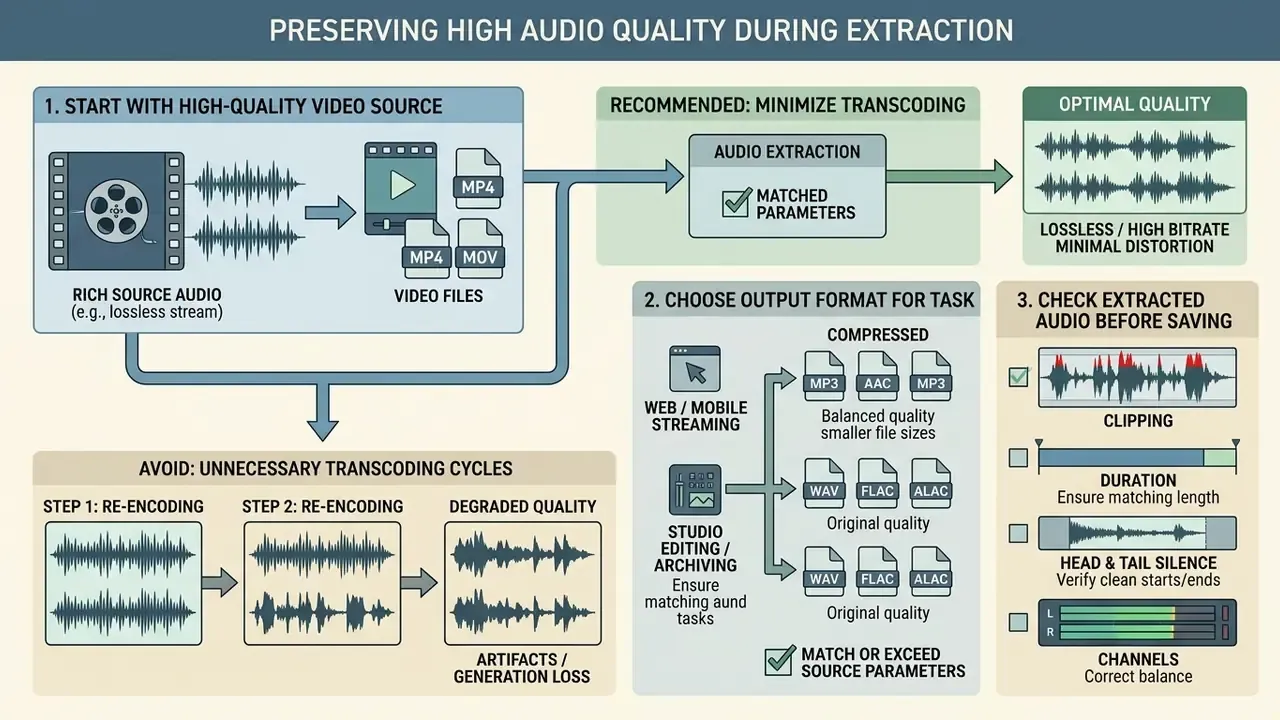
Preserving fidelity during extraction means minimising unnecessary transcoding cycles and choosing output parameters that match or exceed the source stream. The single highest-impact rule: prefer stream copy (demux) over re-encoding whenever the internal codec is acceptable downstream.
Start With the Highest-Quality Video Audio Source
The fidelity of an extracted audio track is strictly bounded by the bit rate, sample rate and compression history of the original video file. Re-encoding low-bitrate or heavily compressed video audio cannot restore lost harmonic detail or remove existing artefacts. ITU-R broadcast recommendations quantify where the floor lies:
Below those levels the standard itself treats quality and intelligibility as constrained, and high-frequency attenuation becomes permanent. To export audio from video online with maximum transparency, work from original high-resolution master files rather than screen recordings, re-uploads or platform-transcoded copies. Codec engineering points the same way: RFC 6366 states that codec quality and bit rate must be considered together, and lossless codecs return output identical to the input only when that input was never lossily compressed in the first place.
Choose MP3 or WAV for the Intended Audio Task
Choosing between MP3 and WAV means balancing storage efficiency against technical fidelity. WAV stores uncompressed Linear PCM audio, preserving the full waveform for editing, multi-track mixing and archival storage. MP3 applies lossy psychoacoustic masking to cut file sizes by up to 80%. At sufficiently high bitrates the perceptual gap closes:
«In a controlled double-blind test, listeners could not reliably distinguish high-bitrate compressed audio from uncompressed PCM on noise or spatial-distortion criteria.»
Check the Extracted Audio Before Saving
Quality assurance before saving keeps corrupted or clipped audio files out of downstream production. Operators should check the extracted audio for digital clipping by inspecting peak signal levels, keeping them below 0.0 dBFS. Verifying file duration against the source video timeline confirms that no trailing silence or buffer truncation crept in during extraction.
A five-point QC pass before the file leaves the browser:
- Clipping.Peak meters must not latch red; inspect sample peak and inter-sample peak values where the player exposes them.
- Duration.Compare against the source timeline to the second. A truncated tail is the most common extraction defect.
- Head and tail silence.Voice deliverables conventionally retain roughly 0.5 s of clean silence at start and end.
- Channels.Confirm that stereo files are genuinely two-channel and not a duplicated mono signal, and that no channel is silent.
- Noise and artefacts.Audition at least the first, middle and last 15 seconds. Listen for codec swirl, dropouts and mains hum.
MP3, WAV, and Other Output Formats: Which One to Choose
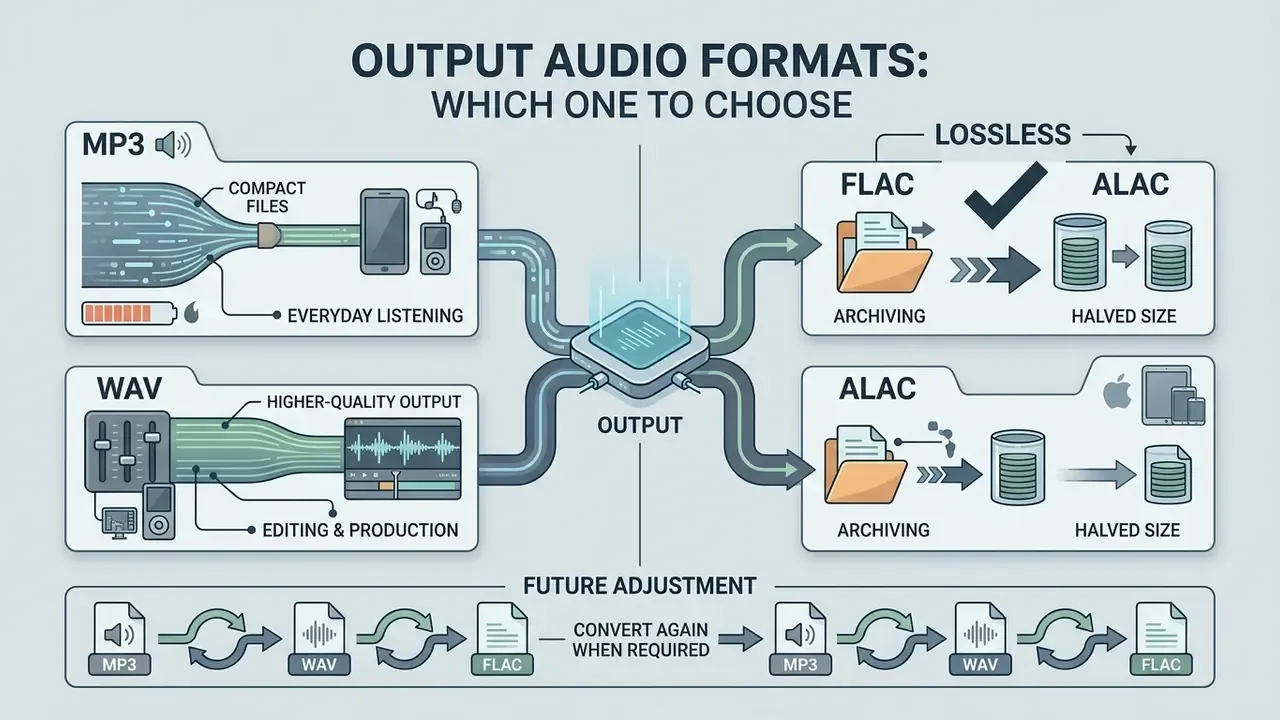
Selecting an output audio format means matching container capability to the downstream storage, editing or distribution destination. The decision reduces to one question: is this file a deliverable or a master?
MP3 for Compact Audio Files and Everyday Listening
MP3 (MPEG-1 Audio Layer III) is a lossy compressed format optimised for size efficiency and broad hardware compatibility. Bitrates typically run from 128 kbps for basic voice recordings to 320 kbps for high-quality music playback, with 192 to 256 kbps as the pragmatic everyday band. At 320 kbps, an MP3 consumes roughly 2.4 MB per minute of stereo audio (128 kbps ≈ 1.0 MB/min; 256 kbps ≈ 2.0 MB/min), which suits web streaming, mobile playback, transcription uploads and lightweight email attachments. Anyone who wants to extract mp3 from video online, free and without an account, benefits from minimal storage consumption and immediate cross-platform playability.
WAV for Editing and Higher-Quality Audio Output
WAV (Waveform Audio File Format) is an uncompressed RIFF container built for professional editing, mastering and archiving. Standard CD-quality WAV files (44.1 kHz, 16-bit stereo) run at 1,411 kbps, which works out to roughly 10 MB per minute, about 40 MB for a four-minute track against roughly 9.6 MB for the same track at 320 kbps MP3. Because WAV preserves exact sample data without psychoacoustic filtering, it is the standard interchange format for digital audio workstations and voice-analysis applications. One nuance: WAV is formally a container. What makes it lossless is the LPCM payload inside it, so inspect file headers when provenance matters.
FLAC and ALAC for Lossless Archiving at Half the Size
FLAC and ALAC both deliver bit-identical reconstruction of the source waveform while typically halving storage relative to WAV. FLAC is the cross-platform archival default and now carries an IETF Proposed Standard specification (RFC 9639). ALAC is the equivalent inside the Apple ecosystem, opening natively in Logic Pro, Final Cut Pro and Apple Music. For speech-dominant archives where storage cost dominates and absolute fidelity does not, Opus in an OGG or WebM container holds intelligibility at bitrates well below what MP3 needs.
Convert Audio Again When the Required Format Changes
When target systems demand specialised formats, a secondary conversion may follow the initial extraction. Proprietary telephony platforms, interactive voice response (IVR) systems and embedded hardware often enforce specific input parameters, such as CCITT u-Law or a-Law 8 kHz mono WAV files. One widely deployed PBX explicitly requires prompts as WAV, mono, 8 kHz, 16-bit PCM. Video-encoding suites similarly accept a fixed import list (AAC, M4A, AIFF, MP3, WAV, WMA), so anything outside it must be re-wrapped first. A secondary converter audio tool lets operators downsample high-resolution extracted files to meet strict platform integration rules. Always convert from the lossless master, never from an already-compressed intermediate. That habit alone prevents most "why does this prompt sound muddy" tickets.
Table: format decision matrix for MP3, WAV, FLAC/ALAC and Opus.
| Parameter | MP3 (lossy) | WAV (uncompressed PCM) | FLAC / ALAC (lossless) | Opus (lossy, speech-optimised) |
|---|---|---|---|---|
| Primary use case | Web distribution, streaming, podcasts | Audio editing, mastering, AI transcription input | Archiving, music libraries, Apple and DAW workflows | Long-form voice archives, low-bandwidth delivery |
| File size (1 min stereo) | ~1.0 MB (128 kbps) to ~2.4 MB (320 kbps) | ~10.1 MB (44.1 kHz / 16-bit) | ~5 to 6 MB (about 50 to 60% of WAV) | ~0.4 to 0.9 MB (48 to 96 kbps) |
| Audio quality | Lossy, psychoacoustically compressed | Exact source copy | Bit-identical after decode | Lossy, excellent intelligibility at low rates |
| Generational loss | Degrades with repeated re-encoding | Zero loss across edits and saves | Zero loss across edits and saves | Degrades with re-encoding |
| Hardware and DAW compatibility | Universal | Universal on desktop and DAWs, large footprint | FLAC broad; ALAC native across Apple apps | Modern browsers and apps, weaker legacy support |
Summary: MP3 provides maximum storage compression and universal device support for everyday playback. WAV provides uncompressed signal preservation for multi-generation production, professional editing and long-term archival integrity. FLAC and ALAC deliver the same fidelity as WAV at roughly half the size, and Opus wins outright when speech has to fit into minimal storage or bandwidth.
Trim, Edit, and Reuse Audio Extracted From Video
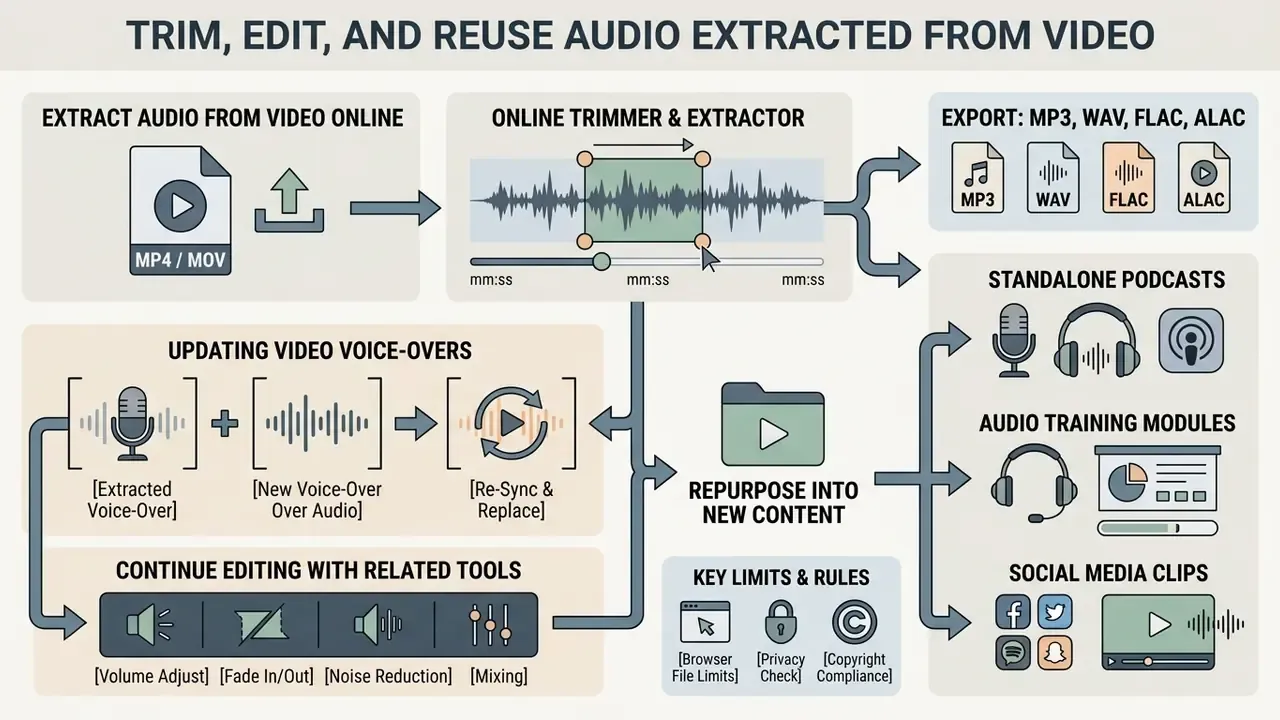
Isolating and refining extracted audio lets creators and enterprise teams repurpose video content into standalone podcasts, audio training modules and social clips. Teams that also publish the visual deliverable usually route the trimmed audio back into a YouTube editing and publishing workflow, so one narration serves both the video and the audio-only release.
Trim the Needed Fragment Before or After Extraction
Updating Video Voice-Overs Without Re-Recording Visual Content
Video editors frequently need to refresh screen recordings or product walkthroughs while keeping the original, high-quality narration. Extracting the master audio track into a standalone WAV file lets creators re-align the exact voice-over onto an updated high-resolution video track inside any editor. No re-hired voice actor, no rebooked booth, no re-recorded script whose wording has not changed.
A practical sequence:
The same pattern applies to localisation (swap only the narration layer), to seasonal product updates, and to compliance-driven re-issues of training material where the script is fixed by policy.
Extract Music, Voice, or Podcast Audio From Video
Different content types benefit from targeted configurations during extraction. Music tracks want high bitrates (256 to 320 kbps MP3, or 24-bit WAV) and stereo preservation to keep spatial depth. Dialogue and voice recordings destined for podcasts benefit from voice activity detection (VAD) and mono downmixing: collapsing two identical-content channels into one halves the data rate, so a stereo-to-mono conversion at the same sample rate and bit depth yields roughly a 50% smaller file, a mechanical consequence of channel count rather than a perceptual trade-off. Data requirement: actual savings depend on whether the source channels differ. Genuinely decorrelated stereo will lose spatial information when downmixed. Anyone looking to extract music from video online free should keep that in mind before flattening a live recording.
Where speech and background music are entangled in the same track, source separation is now a standard pre-processing stage:
Vendor tooling exposes this as Voice / Speech or Spoken Word isolation modes, commonly recommending isolation strength around 70 to 85% for dialogue and 65 to 75% with mono output for podcast tracks. Keep an unprocessed raw backup before applying isolation. Always.
Use Cases by Role
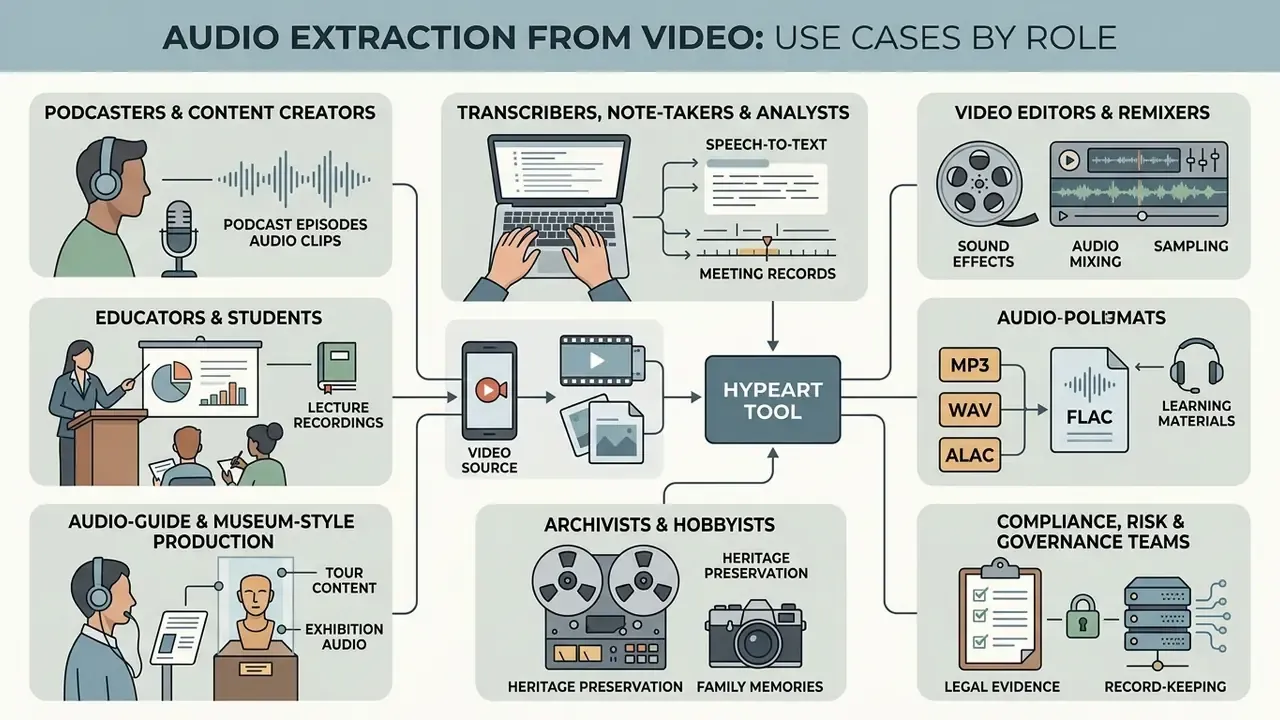
Podcasters and content creators. A recorded Zoom call or live event often only needs its audio. Upload the MP4, export a 192 to 256 kbps MP3 or a WAV master, then normalise and publish. No desktop editor, no account, no learning curve. Trim a 60-second hook from the same session for social promotion in the same pass.
Transcribers, note-takers and analysts. Feeding a compact audio file into a transcription workflow is dramatically faster than moving multi-gigabyte video. Extract to WAV when accuracy matters most, because ASR models are sensitive to lossy artefacts, and to MP3 when the real constraint is upload bandwidth or a platform file-size cap.
Video editors and remixers. Pulling a clean audio track gives you a file that drops straight onto a timeline. Useful for mashups, sound-effect reuse and short-form edits where the original container is inconvenient.
Educators and students. Lecture and seminar recordings become commute-friendly audio. A single term's video archive shrinks by an order of magnitude when stored as speech-optimised audio instead of 1080p video.
Audio-guide and museum-style production. Location narration recorded on camera can be extracted, trimmed to per-exhibit segments with mm:ss markers, loudness-matched, then deployed as standalone audio-guide files.
Archivists and hobbyists. Speeches, toasts and music from home movies and event footage can be preserved separately in FLAC or ALAC, producing a durable audio archive independent of the video masters.
Compliance, risk and governance teams. Meeting recordings are converted to audio for retention, review and speech-analytics indexing under a documented classification and deletion policy, using client-side extraction so regulated content never traverses third-party infrastructure.
FAQ: Extract Audio From Video Online
Can I extract audio by pasting a YouTube video link?
No. Because of copyright regulation, platform terms of service and DRM encryption on third-party streaming services, this class of tool does not support direct URL extraction from YouTube, Vimeo or TikTok. Upload your own DRM-free source files from local storage or an authorised cloud drive instead.
Which browsers are supported?
Any modern browser can run the WebAssembly software path. Hardware-accelerated WebCodecs extraction requires Chrome 94+, Edge 94+ or Safari 16.4+. Firefox has no native WebCodecs acceleration and will use the slower software fallback.
How do I extract audio from a video on an iPhone?
Open the tool in Safari or Chrome on iOS, pick the .mov file from your Photo Library or Files, choose .m4a (no re-encoding) or .mp3, then download. No app installation is needed. See the dedicated iPhone section above.
What if my file is larger than 2 GB?
Compress or downscale the video first, split it into segments, switch to a Chromium-based browser for accelerated demuxing, or use desktop software for archival-scale batches. Client-side processing is bounded by available browser memory rather than by a server quota.
Is batch processing supported?
Client-side extraction is typically sequential, one file at a time, limited by memory. Server-side free tiers commonly permit one or two concurrent jobs and roughly ten conversions per 24 hours. High-volume pipelines belong in an API or desktop workflow.
Will extraction reduce audio quality?
Not if you stream-copy or export to WAV, FLAC or ALAC. Choosing MP3, AAC or Opus applies lossy compression at the bitrate you select, and re-encoding an already-lossy source compounds artefacts.
Can I remove the sound from a video instead?
Yes. Select the muted-video export option to produce a silent video asset alongside, or instead of, the extracted audio file.
Does the original video stay intact?
Yes. Extraction creates a copy of the audio stream; the source video file is never modified.
Can I export Apple Lossless (ALAC)?
Yes, into an .m4a container. It is the right choice for Logic Pro and Final Cut Pro workflows that need lossless audio at roughly half the size of WAV.
Why does extraction sometimes take longer than expected?
Large files must be parsed and, when transcoding is requested, decoded and re-encoded. Software-only demuxing (Firefox) and long-duration sources both push processing time up.
What is the difference between extracting and converting?
Extraction lifts the existing audio stream out of the container unchanged. Conversion additionally re-encodes it into a different codec or bitrate, which is where quality loss can occur.
Can encrypted or protected files be processed?
No. DRM-protected and password-protected media cannot be parsed, and circumventing such protection is unlawful in many jurisdictions.
Appendix A: Superseded and Desktop-Only Technical Notes
Retained for transparency and for readers working outside the browser:
- Original trimming description (desktop and CLI context) "Advanced extraction tools implement timestamp cutting using parameters such as
-ss(start time) and-t(duration) to copy target audio intervals without re-encoding the entire file." These flags belong to command-line encoders such as FFmpeg, for example-ss 00:01:00 -t 00:05:00 -c copy output_segment.wav, and remain the correct approach for automation, forensic workflows and batch scripting. Browser users see the same behaviour exposed asmm:ssfields and timeline sliders. Preserving metadata in such pipelines requires an explicit metadata map (-map_metadata 0), and output quality can never exceed the source. - Original unattributed listening-test sentence "A double-blind controlled listening test comparing compressed codecs and uncompressed PCM demonstrated that at high bitrates (256–320 kbps), human listeners could not reliably perceive noise or spatial distortion differences between MP3 and PCM." Replaced in the main text with an attributed version.
- Original internal-evaluation wording "In an internal evaluation of media processing pipelines for corporate communications, compliance teams reviewed two extraction workflows..." Reframed in the main text as a documented pipeline comparison with an explicit data requirement, because the original phrasing lacked methodology, sample size and verifiable figures.