What to Choose in 60 Seconds
- Built into Windows Microsoft Clipchamp ships with Windows 11 and installs from the Microsoft Store on Windows 10. The free tier exports unlimited, watermark-free MP4 at up to 1080p. 4K requires Premium or Microsoft 365.
- Best free professional suite DaVinci Resolve Free exports Ultra HD 3840×2160 at 60 fps in 8-bit formats, but expects 16 to 32 GB of RAM and a dedicated GPU.
- Best for short-form AI editing CapCut for Windows supports up to 8K export and text-based editing, with premium AI features behind tokens.
- Best watermark-free lightweight options Shotcut, Kdenlive, VSDC and OpenShot. No accounts, no export caps, FFmpeg-wide format support.
- Watch the traps watermarks (Filmora free), resolution caps (Lightworks Free at 720p), non-commercial stock licences, and cloud upload of confidential footage.
- Governance note any editor with cloud-based AI transcription, voice cloning or auto-reframe processes your media off-device. Audit data residency and model-training terms before approving it.
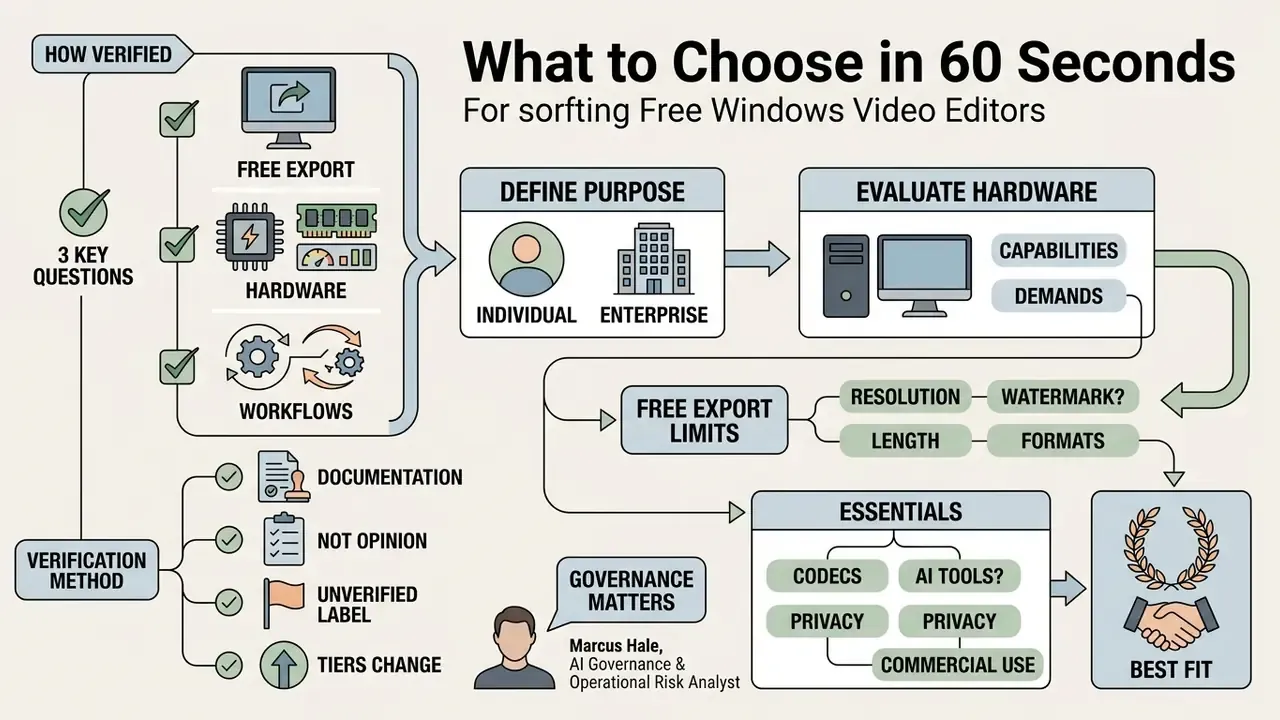
How This Guide Was Verified
That governance lens matters even when the deliverable looks trivial. The same AI transcription engine that captions a 20-second vertical clip for TikTok also processes whatever appears on screen: internal dashboards, customer names, unreleased product footage. So the practical starting point is identical for an individual creator making Reels and for a bank's communications team producing mandatory training. Match the tool to the task, then verify where the media is processed. The sections below move from use-case selection to hardware, features, licensing, and finally to the data-handling questions a risk owner has to answer.
Decision Matrix: Selecting a Windows Video Editor
Use the matrix first. Identify your dominant use case, then jump straight to the relevant software profile further down the page.
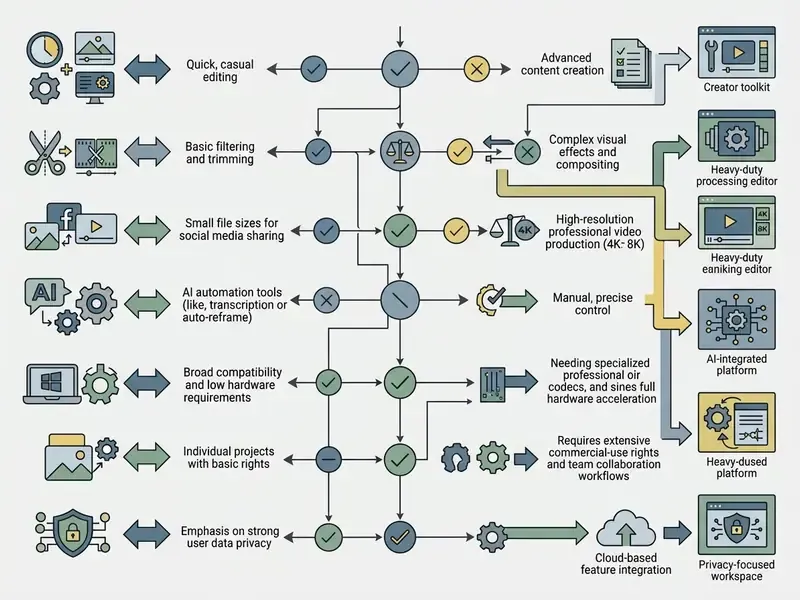
Step 1: Identify the primary project requirement.
- Path A: Quick clips and social media (9:16 / 16:9)
- Recommended category: lightweight built-in or web editor (Microsoft Clipchamp, CapCut).
- Key criteria: fast export, ready templates, low RAM overhead (8 GB).
- Data path: partly cloud-assisted for AI captions and voiceover.
- Path B: Screencasts, tutorials and internal presentations
- Recommended category: utility editor with screen and webcam capture.
- Key criteria: simultaneous screen and cam recording, AI subtitle generation, transcript-based trimming.
- Data path: verify where transcripts are stored before you record a confidential screen.
- Path C: Advanced 4K post-production and colour grading
- Recommended category: desktop professional suite (DaVinci Resolve Free).
- Key criteria: dedicated GPU (4 GB of VRAM or more), 16 to 32 GB of RAM, multi-track audio control, LUT and HDR scopes.
- Data path: fully local rendering, no upload required.
- Path D: Privacy-constrained or air-gapped editing
- Recommended category: open source desktop editor (Shotcut, Kdenlive, OpenShot).
- Key criteria: no account registration, no telemetry-dependent features, FFmpeg-native format handling.
- Data path: 100% on-device.
How to Choose a Windows Video Editor for Your Tasks
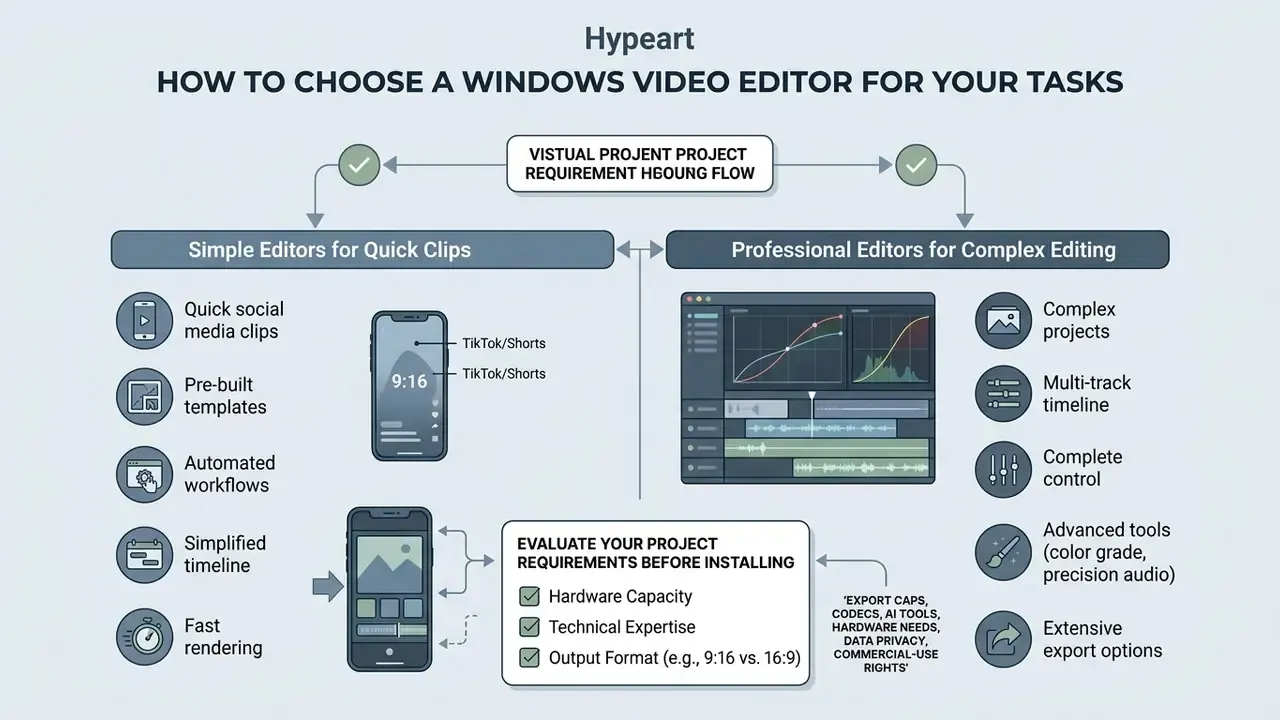
Selecting the right computer video editor depends on your technical expertise, hardware capacity, and intended output format. A user friendly interface benefits beginners creating quick social media clips, while complex productions demand multi-track capabilities and precise colour management.
Evaluating your project requirements before installing software prevents performance bottlenecks and workflow interruptions. Ten minutes of planning, hours of saved re-rendering.
«Multimodal interfaces that let users express edits through natural language and gestures significantly lower the entry barrier for novices and increase creative confidence.»
Windows 10 and Windows 11 support a broad spectrum of video editing tools, ranging from lightweight native applications to resource-intensive post-production suites. Task-based selection criteria split cleanly into three tiers: export speed and vertical-aspect presets for social clips; capture stability, audio sync and transcript editing for screencasts; and GPU, RAM and storage throughput for 4K delivery. Adobe's published Windows guidance for professional editing names a fast multi-core processor, an AMD or NVIDIA GPU, fast SSD storage and at least 16 GB of RAM, with 32 to 128 GB recommended for heavier timelines.
Professional Editors for Complex Editing
Professional video editing software provides complete control over multi-track timelines, advanced audio editing, keyframe animation, and colour grading. These applications are engineered to process high-bitrate footage, including 4K video and RAW camera formats.
Executing advanced professional video editing requires significant hardware resources, including multi-core processors and dedicated graphics memory. Published workstation guidance converges on 32 GB of RAM for 4K timelines and 64 GB or more for 6K and 8K, with NVMe storage to keep playback responsive and 8 to 24 GB of VRAM depending on how VFX-heavy the project is. High-end tools support custom LUTs, Fairlight audio buses, and the visual effects nodes needed for broadcast and commercial film production. Teams that supplement live footage with synthetic assets often pair these suites with image-to-video AI generators for b-roll and concept sequences.
Essential Features in Video Editing Software for Windows
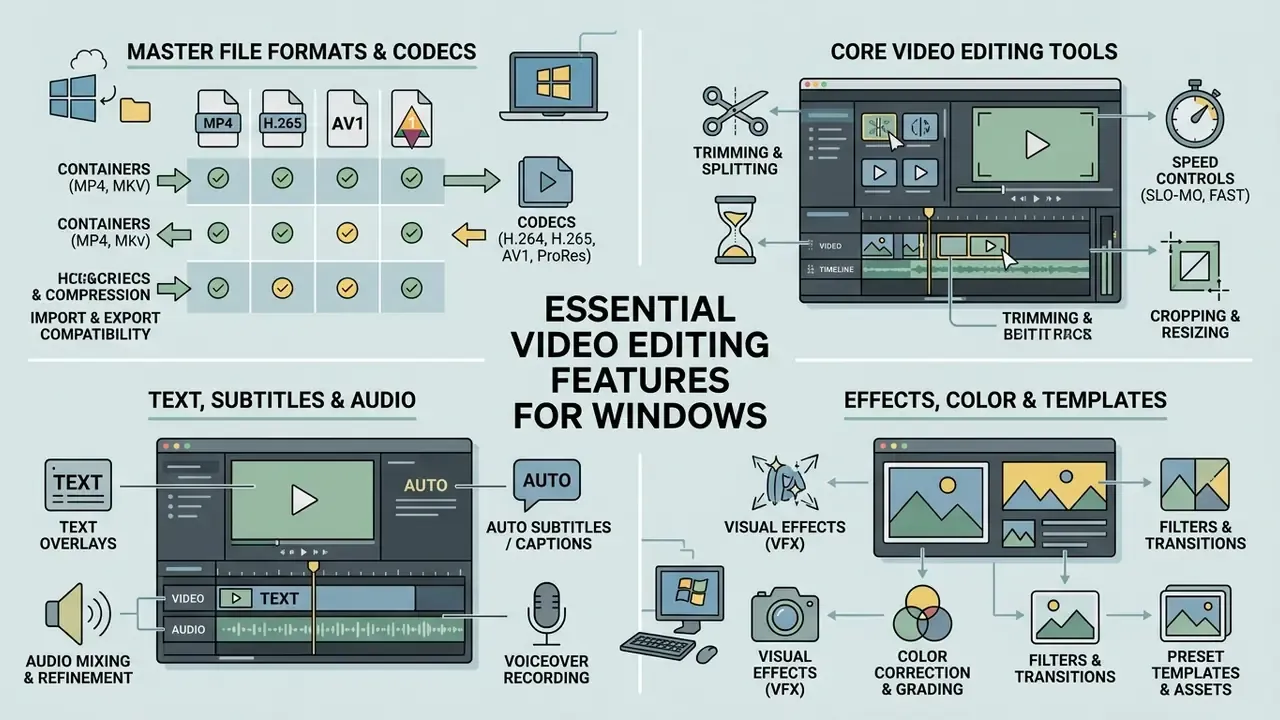
Core video editing features dictate how efficiently an operator can manipulate media, refine audio, and export final compositions. Standardising functional expectations ensures the selected software meets operational goals across different distribution channels.
Modern editing suites integrate basic timeline controls alongside advanced automation tools. Evaluating these capabilities helps teams determine whether a given tool supports required media formats and delivery standards.
Master File Format and Codec Compatibility Matrix
Before selecting an editor, make sure your software supports your source camera footage and target delivery container natively, without an external conversion utility that re-encodes and degrades quality.
| Format Category | Supported Extensions / Codecs | Native Import Compatibility | Target Export Use Cases |
|---|---|---|---|
| Standard Video Containers | .MP4, .MOV, .AVI, .WMV, .ASF | Supported by effectively 100% of Windows editors | YouTube, web streaming, client previews |
| High-Efficiency Codecs | H.265 / HEVC, AV1, VP8, VP9, .WEBM | Requires 64-bit OS and GPU hardware decoding | 4K and 8K drone footage, action cams, modern phones |
| Broadcast & Cinema RAW | Apple ProRes, Blackmagic RAW (.BRAW), GoPro CineForm, DNxHD | DaVinci Resolve, CapCut Pro, Premiere Pro, VSDC (BRAW) | Master archiving, professional film and TV delivery |
| Legacy & Camera Files | .MTS, .M2TS, .M2T, .MOD, .TOD, .3GP, .VOB, .DV, .FLV | VSDC, Shotcut, Kdenlive, Filmora | Archival camcorder and DVD footage retrieval |
| Matroska & Open Containers | .MKV, .OGV, .WEBM, AVIF/HEIF/JPEG XL stills | Kdenlive, Shotcut (FFmpeg-based) | Long-form archives, open-standard distribution |
| Audio Containers | .MP3, .WAV, .AAC, .FLAC, .M4A | Supported across all multi-track editors | Voiceover sync, background score, SFX beds |
| Subtitle & Caption Files | .SRT, .VTT, .TXT | Clipchamp, CapCut, Resolve, Kdenlive | Accessibility compliance, platform captioning |
| Animated Graphics | .GIF, .APNG, Lottie JSON | Clipchamp, CapCut, Filmora | Web banners, meme creation, stickers |
A practical rule: open source editors built on the FFmpeg multimedia framework (Shotcut, Kdenlive) accept the widest range of legacy and exotic inputs, while consumer editors optimise for the handful of containers social platforms accept. Where hardware encoders are involved, availability is platform-dependent. OpenShot, for example, documents VA-API on Linux and VideoToolbox on macOS, and defaults its Windows export profile to MP4 with H.264 video and AAC audio.
Video Editing: Trimming, Splitting, Speed, and Cropping
Fundamental editing operations begin on the timeline with precise clip trimming, splitting at the playhead, and frame cropping. Trimming shortens a clip by dragging its start or end handles inward, keeping only the selected portion. Splitting divides a single media file into two segments at the playhead, commonly bound to the S shortcut or a scissors icon. Cropping removes pixels from the frame edges, or selects a visible region, without removing the clip from the timeline.
Speed adjustments let editors create time-lapse effects or slow-motion sequences by modifying frame playback rates, either through fixed multipliers (2x, 4x, ½x, ¼x) or percentage values above and below 100%. Rotation is typically offered in 90° steps or as free rotation up to 180°, and aspect ratio presets (16:9, 9:16, 1:1, 4:5) set the final output frame proportions.
Research on human-computer interaction in video interfaces quantifies why these primitives must stay frictionless.
«The ExpressEdit study logged 176 multimodal editing commands from 10 editors: reducing cognitive load during basic operations measurably increases task-completion speed for non-professionals.»
The earlier, unquantified formulation of this point, that "reducing cognitive friction during basic timeline manipulation significantly improves task completion rates for non-professional editors", remains directionally correct. But the sample size and command count above are what make it verifiable.
Text, Subtitles, Audio, and Voiceovers
Adding text overlays, lower-thirds, and synchronised captions is critical for accessibility and viewer engagement. Modern Windows editing applications frequently feature automated AI subtitles that transcribe spoken dialogue into customisable text tracks, with export to burned-in MP4 or sidecar .SRT and .VTT files.
Audio editing capabilities range from simple volume levelling to background noise suppression and AI voiceover generation. Advanced speech-to-text tools convert typed scripts into natural-sounding narration across multiple languages, adjusting pitch and pace, and lowering production overhead for informational videos. The broader tooling category is covered in our guide to AI voice generators.
In one media operations audit, an enterprise compliance team reviewed an uncatalogued third-party video tool that staff had adopted informally for internal training clips. A textbook Shadow AI pattern. Moving the team to an approved editor with built-in AI transcript generation and centralised template storage closed the unauthorised software path and shortened production turnaround. Note on the metric: the team's internally reported turnaround improvement (previously cited as 35%) is self-reported, measured on a single department's workload, and has not been independently validated. Treat it as illustrative of direction rather than a benchmark. Baseline your own cycle times before and after consolidation, otherwise the saving is a story rather than a number.
Effects, Colour Correction, and Templates
Visual effects and colour correction tools transform raw camera footage into visually cohesive media assets. Basic editors offer smart filter presets, while professional suites support 3D LUT (look-up table) imports and primary colour wheels. LUTs are numeric pixel-value transformations: Final Cut Pro applies camera LUTs automatically on import and exposes a Custom LUT clip effect, Premiere Pro supports LUT import via the Input LUT dropdown and exports .look and .cube presets, and Kdenlive ships an "Apply LUT" video effect in its Colour and Image Correction category.
Templates streamline recurring production workflows by providing pre-formatted layouts, motion graphics, and transition effects. Emerging AI auto-compose tools analyse scene transitions and audio cadence to draft preliminary timeline edits automatically, a class of tooling that overlaps with dedicated AI video generators.
«The Meetor system automatically converts meeting recordings into structured videos; a 2024 user study confirmed acceptable quality of its automated editing decisions.»
Note that "AI auto compose" is a marketing label rather than a standardised technical term. Vendors variously document it as AI-assisted media search, scene detection, silence removal, or guided highlight generation. Adobe's 2025 media-intelligence documentation, for instance, describes AI identification of people, objects, locations and camera angles for search purposes: adjacent to, but not identical with, automated assembly.
Advanced AI Capabilities in Modern Windows Editors
Artificial intelligence tools in video editing reduce manual editing time by automating repetitive timeline and audio cleanup tasks. The distinction that matters for both quality and compliance is which task the model performs and where it performs it.
Core AI capabilities audited across free Windows tools:
Readers building fully synthetic sequences rather than editing captured footage should compare dedicated text-to-video AI tools, which operate on generation rather than assembly. Teams wiring captioning or rendering into an automated pipeline will find endpoint and quota considerations in our AI Media API Guides.
Auditing AI Features Before Approval
Because most of the capabilities above run at least partly in the cloud, treat each one as a data-processing activity, not a convenience feature. The five questions below form a minimum audit set before an editor is added to an approved software catalogue.
- Where is the media processed?On-device inference (Resolve's local models, open source plugins) versus server-side inference (browser editors, token-metered AI features).
- Where are transcripts and derived artefacts stored?Caption files, embeddings and voice samples are separate data objects from the source video, and they may persist after the project is deleted.
- Are uploaded assets used for model training?Require an explicit contractual "no training on customer content" statement rather than inferring it from marketing copy.
- What is the retention period and jurisdiction?Document sub-processors and data residency, since privacy guidance consistently flags retention, sub-processors and jurisdiction as the primary risk vectors for cloud media tooling.
- Does voice synthesis or likeness generation apply?Synthetic voice and avatar features introduce consent and publicity-rights questions distinct from ordinary editing. Disputes in this space are tracked in our AI Litigation and Case Timelines.
Escalation rule of thumb: if any answer is unknown, route the request to information security and legal before the first upload, not after a pilot has already processed real footage. Any editor discovered in use without this review should be logged as Shadow AI and remediated by migrating projects to an approved equivalent.
Top 10 Free Video Editors for Windows: Full Feature and Export Comparison
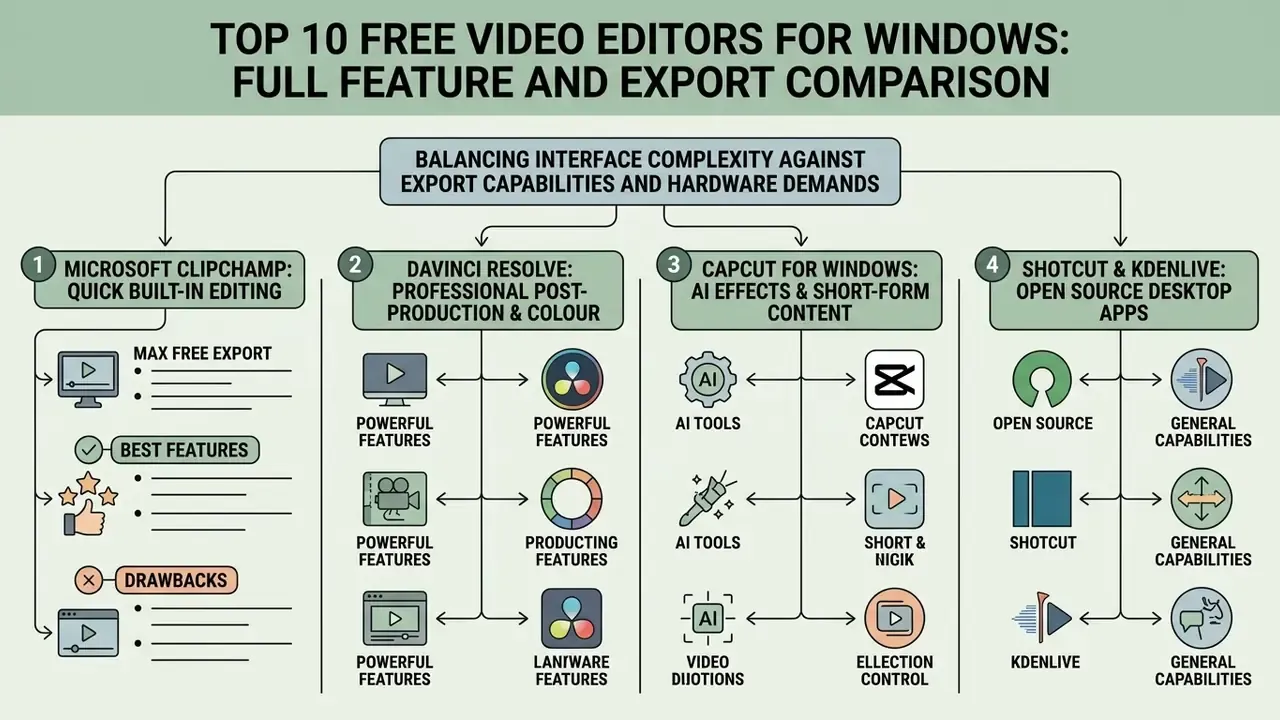
Selecting a video editor requires balancing interface complexity against export capabilities and hardware demands. Comparing free video editing tools means inspecting software licence terms, hardware demands, and potential export limitations. Many applications advertise free usage while capping resolution or stamping a watermark on output.
Key comparison factors include operating systems compatibility, watermarking policies, native 4K video rendering, bundled stock assets, and whether processing happens locally or in the cloud. Evaluating these parameters upfront prevents workflow disruption during final export. Readers exploring adjacent categories can also review free AI video generators as an alternative production route, or scan our AI Media Comparison Matrices for the same criteria applied to other tool classes.
| Feature / Metric | Microsoft Clipchamp (Free) | DaVinci Resolve (Free Version) | Open Source (Shotcut / Kdenlive) |
|---|---|---|---|
| Supported OS | Windows 10, Windows 11, Web | Windows 10, Windows 11 (64-bit) | Windows 10, Windows 11, Linux, macOS |
| Interface Complexity | Low (user friendly drag-and-drop) | High (professional, page-based) | Moderate (traditional timeline) |
| Max Export Resolution | 1080p HD (watermark-free) | Ultra HD 3840×2160 at 60 fps | 4K UHD and arbitrary resolutions |
| HDR / 10-bit Support | No (8-bit SDR output) | 10-bit and HDR grading tools (Studio extends codec and HDR support) | Depends on FFmpeg build; 10-bit export available |
| Watermark Policy | No watermark on standard exports | No watermark on standard tools | No watermark (fully open source) |
| Minimum System RAM | 8 GB (16 GB recommended) | 16 GB (32 GB for Fusion and 4K) | 8 GB (16 GB for 4K video) |
| AI Features | AI subtitles (80+ languages), 400+ TTS voices, transcript trimming, noise suppression | Scene detection, Smart Reframe, voice isolation, magic mask | Limited, plugin-dependent |
| Screen / Cam Capture | Built-in native recording | Requires external setup or DeckLink | Basic screen capture support |
| Processing Location (Privacy & Data Residency) | Editing local in-app; AI captions and voiceover cloud-assisted via Microsoft services | Fully local rendering and grading, no upload required | Fully local; no account, no telemetry-dependent features |
| Account Required | Microsoft account | Free registration for download | None |
1. Microsoft Clipchamp (Best for Quick Built-in Editing)
- Best for fast social media edits, vertical 9:16 video, basic screen recording, internal training clips.
- Max free export 1080p HD, MP4 at 30 fps, watermark-free and unlimited. Audio-only projects export as M4A, and short clips can export as GIF.
- Key features built-in screen and webcam recorder, AI auto-subtitles across 80+ languages, 400+ text-to-speech voices, transcript-based trimming, direct publishing to YouTube, TikTok and LinkedIn, and saving to OneDrive, Google Drive or Dropbox.
- Drawbacks 4K export and premium filters require Microsoft 365 or a standalone Premium plan. The browser-based build depends on the WebGPU and WebCodecs framework in Chromium-based Edge or Chrome.
2. DaVinci Resolve (Best for Professional Post-Production and Colour)
- Best for advanced colour grading, node-based VFX via Fusion, multi-track Fairlight audio mixing, deliverable mastering.
- Max free export 4K Ultra HD (3840×2160) at 60 fps in 8-bit formats. Studio raises the ceiling to higher resolutions and frame rates, multi-GPU rendering and advanced codec and HDR support.
- Key features industry-standard primary colour wheels, HDR scopes, optical-flow speed changes, LUT management, integrated audio post.
- Drawbacks high hardware requirements (16 to 32 GB of RAM, 4 GB of VRAM or more), steep learning curve, single-GPU limitation in the free tier.
3. CapCut for Windows (Best for AI Effects and Short-Form Content)
- Best for TikTok, YouTube Shorts, Instagram Reels, automated captioning, fast trend-driven edits.
- Max free export up to 8K at 60 fps, with MP4, MOV and ProRes options plus GIF output.
- Key features text-based video editing that lets you cut footage by deleting transcript lines, one-click background removal with colour picker and keyframes, RGB curves, LUT application, exposure and contrast controls, speed-ramping presets.
- Drawbacks many advertised AI tools are reserved for Pro users and consume tokens. Persistent upsells, and cloud processing for several AI features.
4. Shotcut and Kdenlive (Best Open Source Desktop Apps)
- Best for
- privacy-focused and technically confident users who need non-proprietary software with no paywalls.
- Max free export
- arbitrary resolutions up to 4K UHD and custom aspect ratios, export to any FFmpeg-supported format.
- Key features
- native FFmpeg integration with hundreds of codecs (MPEG-2, MP4, Matroska, WebM, H.264/H.265, ProRes, AVIF/HEIF/JPEG XL stills), multi-format timeline mixing, portable Windows builds, zero registration.
- Drawbacks
- experimental or hardware-dependent GPU acceleration, non-standard UI paradigms, documentation quality that varies by feature.
5. VSDC Free Video Editor (Best for Older Hardware and Non-Linear Compositing)
- Best for low-spec PCs, non-linear clip placement anywhere on the canvas, mask and shape creation.
- Max free export 4K UHD, watermark-free, with a built-in video converter.
- Key features very low system overhead, broad legacy input support including MTS, M2TS, MOD, TOD, DVD VOB, RM/RMVB, FLV and Blackmagic RAW, green-screen chroma key, direct upload to YouTube, Facebook and Instagram.
- Drawbacks dated interface, technical support requires a paid subscription, administrator permissions needed for installation.
7. Adobe Premiere Rush (Best for Cross-Device Sync)
- Best for mobile-to-desktop quick timeline assembly, especially for existing Adobe Premiere Pro users.
- Max free export 1080p at up to 60 fps, with direct YouTube upload.
- Key features simplified audio ducking, colour presets, cloud sequence syncing across devices, one-click "Create" assembly of selected clips.
- Drawbacks restrictive single-track workflow, no chroma key or multi-camera tools, limited direct support for some social platforms.
8. OpenShot (Best Easy Open Source Tool for Beginners)
- Best for
- simple drag-and-drop cutting, title cards, straightforward slideshows.
- Max free export
- 1080p and 4K UHD via export profiles. The default profile is MP4 with H.264 video and AAC audio.
- Key features
- unlimited video and audio tracks, 3D animated titles through Blender integration, simple keyframe animation, cross-platform builds.
- Drawbacks
- performance degrades on long multi-layer timelines, narrower documented export focus than Shotcut or Kdenlive, platform-dependent hardware encoder support.
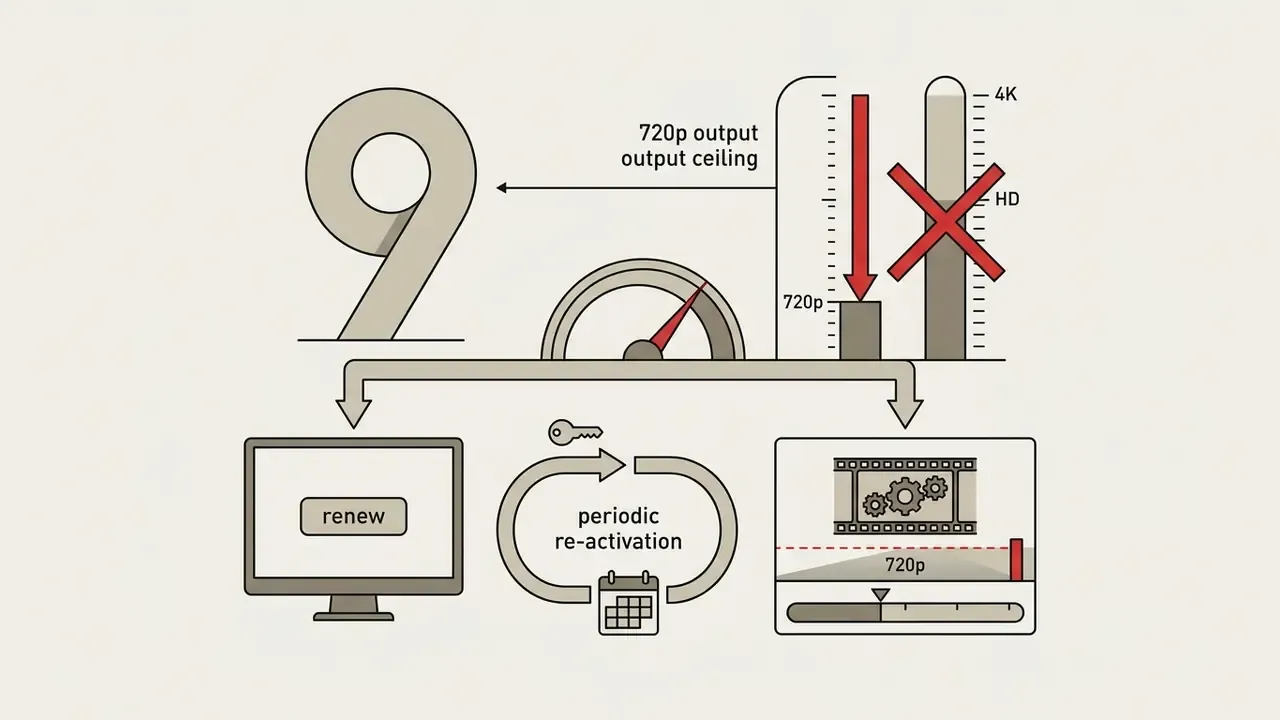
9. Lightworks Free Version (Best for Film-Style Timeline Editing)
10. HitFilm (Best for VFX Compositing and Motion Graphics)
- Best for indie filmmakers adding CGI, particle effects and composited elements.
- Max free export 1080p HD.
- Key features combined 2D and 3D compositor panels, motion tracking, particle generators, effects presets aimed at action shorts.
- Drawbacks advanced effects packs are paid add-ons, demanding on GPU memory, and interface complexity sits well above simple editors.
Clipchamp as a Built-In and Simple Video Editor for Windows
Microsoft Clipchamp serves as the official built-in video editor for Windows 11 and is available via download for Windows 10. Designed for fast operation, it offers intuitive timeline controls, pre-made social media templates, and integrated screen and webcam recording.
«Clipchamp provides 400+ AI voices across 80+ languages, automatic subtitles, and unlimited watermark-free exports up to 1080p for personal users.»
Higher resolution exports (4K) and premium stock assets require a Microsoft 365 or standalone Premium subscription. Note the common source of confusion: Microsoft's marketing pages sometimes mention 4K in the same breath as Clipchamp, but that entitlement belongs to premium plans, not the free version.
DaVinci Resolve for Professional Video Editing
DaVinci Resolve by Blackmagic Design remains the benchmark for free professional video editing software on Windows. It combines multi-track timeline editing, node-based Fusion visual effects, Fairlight audio post-production, and industry-standard colour correction. All four pages are present in the free build.
«Working with 4K and Fusion requires a minimum of 16 to 32 GB of RAM and a GPU supporting OpenCL 1.2 or CUDA.»
According to the same official documentation, the free version supports exports up to Ultra HD (3840×2160) at 60 frames per second in 8-bit formats, with a published Windows minimum of 16 GB of system memory (32 GB when using Fusion) and a GPU with at least 2 GB of VRAM. Realistically, 4 GB or more is the working baseline for 4K timelines.
Open Source Video Editors for Flexible Format Support
Open source video editors such as Shotcut and Kdenlive use the FFmpeg multimedia framework to support hundreds of audio and video formats natively. These applications operate without commercial paywalls, export caps, or mandatory account registrations.
Cross-platform compatibility is documented by the projects themselves: Shotcut publishes Windows, macOS and Linux builds (installer and portable ZIP on Windows), Kdenlive ships for Linux, Windows and macOS, and OpenShot 4.x documents multi-platform export profiles. Evidence note: no independent benchmark study of open source editor performance on Windows was available in our source corpus, so the claim we can support is narrower than a general performance ranking. These tools are verifiably cross-platform and format-flexible, and the documented restrictions are platform-dependent hardware encoders and preset-based export profiles rather than codec paywalls. They excel at converting specialised video formats and executing precise, non-destructive timeline edits. Treat playback smoothness on your specific hardware as something to test with a sample project first.
E-E-A-T Verification and Official Resources
Best Simple Video Editor for Windows 10 and Windows 11
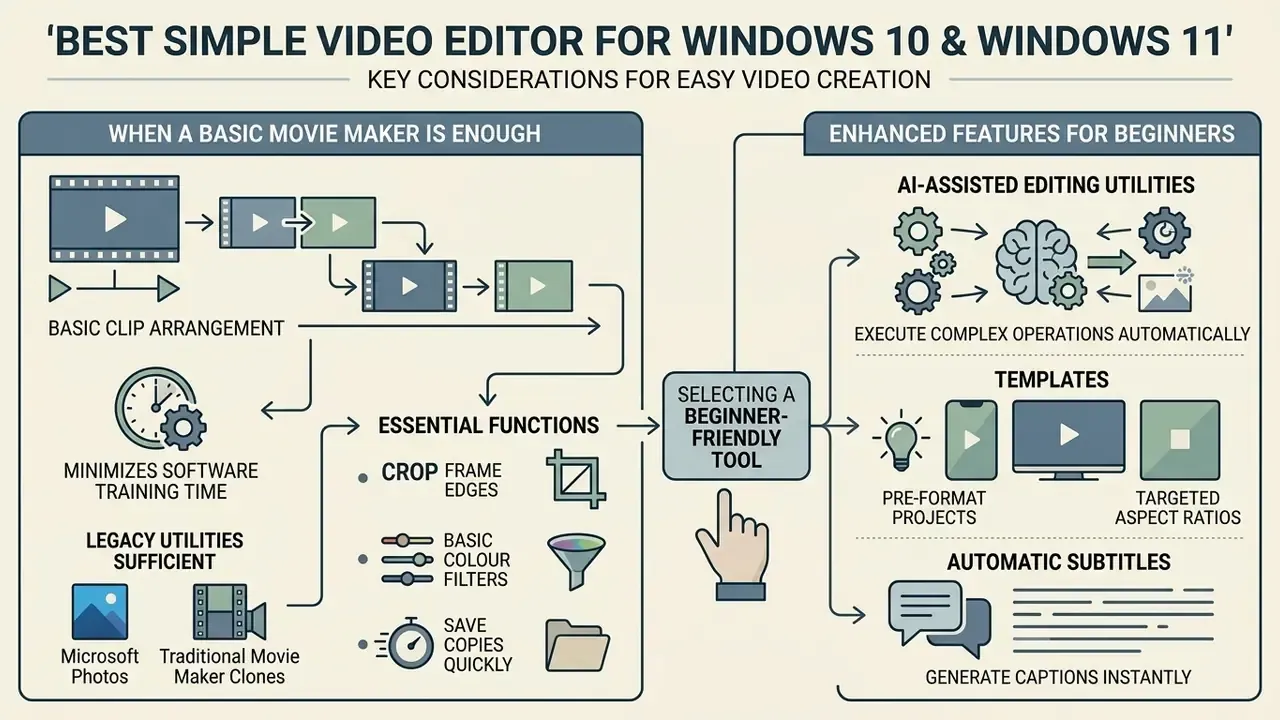
Users seeking a simple video editor windows setup often need basic clip arrangement without complex timeline tracks. Streamlined tools reduce operational friction and enable fast publishing for internal updates or personal social media channels.
Selecting a beginner-friendly tool minimises software training time. Modern simple editors blend straightforward controls with automated helper utilities that handle formatting and media alignment.
When a Basic Movie Maker Is Enough
Legacy utilities like Microsoft Photos video editing tools, or traditional movie maker clones, are enough for simple trim and merge tasks. When a project involves joining several video clips, adding static text, and applying background audio, a specialised editing suite is unnecessary. Microsoft documents Photos as capable of crop, rotate, appearance adjustment, filters and trim, with a "Save as copy" or overwrite-original flow, a shape that fits single-file edits rather than project-based production.
Basic tools let operators crop frame edges, apply basic colour filters, and save copies quickly. Projects requiring multi-layer compositing, precise audio ducking, or advanced title styling exceed the boundaries of basic media utilities. At that point Microsoft itself points users toward Clipchamp for project-based editing.
AI Video, Templates, and Automatic Subtitles for Beginners
AI-assisted editing utilities help novice users by executing complex operations automatically. Intelligent auto-compose features analyse video content, remove silent pauses and filler words, and suggest logical sequence cuts based on audio cues. Beginners who want to generate footage from a script rather than cut existing clips should look at text-to-video AI tools.
Template libraries pre-format projects for targeted aspect ratios, such as vertical Shorts or wide presentation clips, and platform-aware tools tailor caption length and formatting to Instagram, TikTok, LinkedIn, X, Facebook or YouTube. Automated subtitle generation transcribes voice tracks almost instantly and exports either burned-in MP4 or sidecar SRT, VTT and TXT files, so a beginner can produce accessible, platform-compliant videos without a caption editor. Channel branding lives next door to this workflow: creators assembling channel art and community assets often reach for a discord intro template or a dnd ai art pack for thumbnails and overlays.
Downloading a Windows Video Editor and Preparing Your PC for Editing
Downloading video editing software safely means sourcing installation files directly from official developer portals or verified storefronts like the Microsoft Store. Microsoft's own guidance is explicit: download and install programs only from trusted publishers and retail websites, and let Windows Defender scan programs during download. Verifying digital signatures protects system integrity and prevents unauthorised bundled software installations.
Preparing your hardware before starting heavy editing projects keeps the timeline stable and avoids rendering crashes. Run PC Health Check to confirm Windows 11 eligibility where relevant, install pending Windows updates, and reboot before a long render. Video editing taxes system memory, storage drives, and graphics hardware harder than almost any other desktop workload.
Windows 10, Windows 11, and Editor System Requirements
Hardware requirements vary significantly between simple consumer tools and high-end post-production suites. Basic HD video editing typically requires an Intel Core i5 (6th generation or newer) or AMD equivalent, 8 GB of RAM, a GPU with around 4 GB of memory, and roughly 1.5 GB of disk space for installation.
For smooth 4K video editing and colour grading, published vendor specifications diverge by workload depth. Consumer suites cite 16 GB of RAM, a GPU with 8 GB of memory and about 10 GB of fast SSD or RAID storage for 4K media, while Adobe Premiere Pro's technical requirements list 16 GB of RAM for HD and 32 GB or more for 4K and above, with 8 GB of GPU memory. Adobe is stricter because it targets heavier professional pipelines. In all cases, an NVMe SSD for media and cache is the single most under-rated upgrade. Storage and render-time estimates for a given project length can be sanity-checked with our AI Media Calculators.
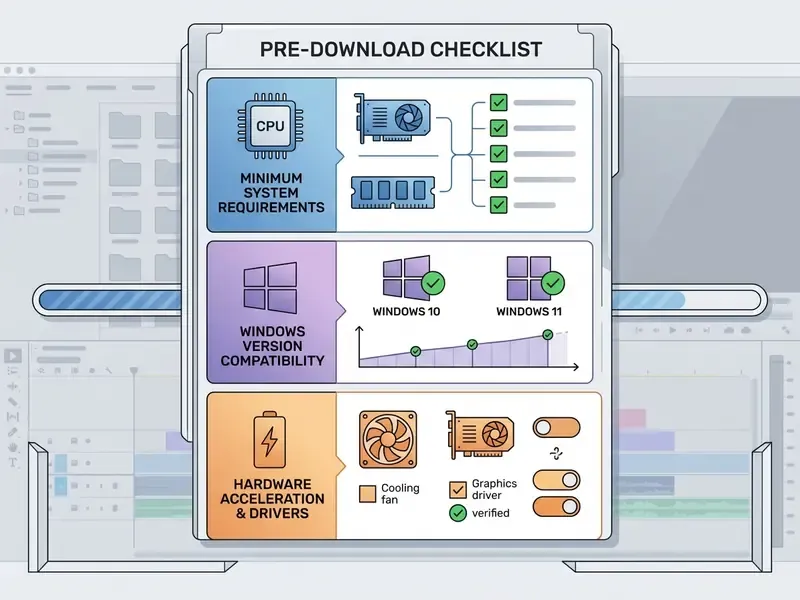
Verify these system parameters before installing video editing software on Windows:
Checklist0 / 8
Desktop App or Online Video Editor: Privacy, Shadow AI and Data Residency
Choosing between a native desktop app and an in-browser online video editor affects both performance and data storage control. Desktop software processes video files locally, uses full GPU acceleration without network bandwidth constraints, and keeps confidential footage inside the endpoint boundary.
Online video editors operate inside browsers using modern WebGPU and WebCodecs technology. Client-side browser tools can process media locally and transmit nothing, and recent implementations built on WebGPU, WebCodecs and the Web Audio API report low-latency editing comparable to desktop applications. Server-side online editors, by contrast, store and process uploaded files on provider infrastructure. Large media files require lengthy upload times and expose project data to external cloud storage, retention policies, sub-processors and jurisdictional exposure. Older academic work on web-based editing architecture also flags high demands on bandwidth, processing power and storage, a useful reminder that browser editing is not automatically lighter.
This is precisely where the Marcus Hale caution above becomes operational. An editor that never leaves the workstation is trivially easy to approve. An editor that uploads a screen recording of a production dashboard to generate captions is a data-transfer event, and it belongs in a register, with documented retention limits and a contractual bar on model training. Where the media itself is synthetic, the same discipline applies: a disney ai generator output or a dog to human ai generator experiment carries its own provenance and rights questions before it reaches a public timeline.
Free vs. Paid Video Editors: Restrictions and Commercial Use
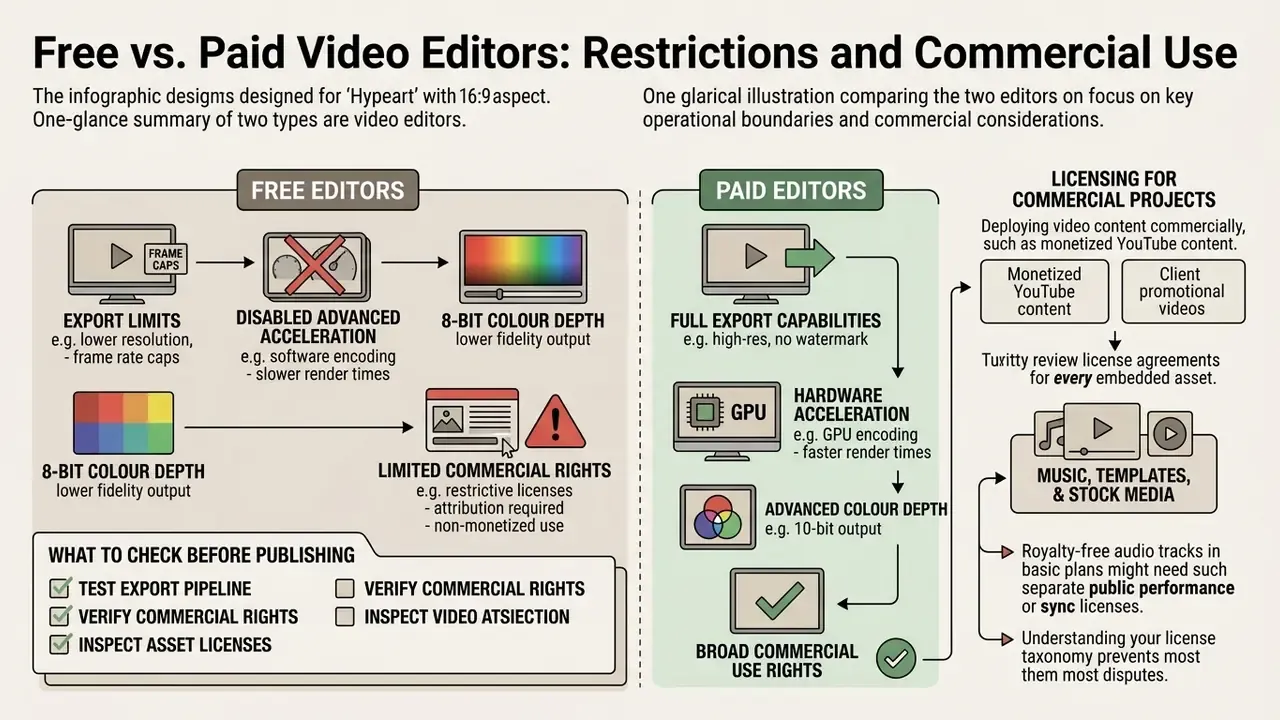
Understanding the operational boundary between a free video editor and a paid one is essential for commercial projects. The specific limits per application are compiled in our comparison of the best free video editing software. Software developers frequently gate advanced output settings, stock media, and licensing rights behind premium subscription tiers.
Deploying video content commercially means reviewing licence agreements for every embedded asset, including music, stock footage, and custom typography. The same discipline applies to synthetic assets, as covered in our notes on AI video generator commercial use and in the AI Media Commercial-Use Hub. Unintentional copyright infringement can lead to content takedowns or legal liability.
What to Check in a Free Version Before Publishing
Before committing to a free video editing tool, test the export pipeline on a sample project. Free tiers cluster into two patterns. The first restricts output: mandatory visual watermarks, resolution ceilings (VEED caps free export at 720p, Lightworks Free at 720p, and Movavi's free build can impose a watermark, a 60-second limit and half-length audio saving), or artificial export duration caps. The second keeps exports clean but gates assets: Clipchamp and Adobe Express both advertise watermark-free export while reserving premium stock media, effects and brand kit tools for paid plans.
Free versions may also disable advanced hardware acceleration, limit colour depth outputs to 8-bit, restrict multi-track audio exports, or block export entirely if a single premium asset remains on the timeline. Confirming that your export matches the required delivery specification prevents project rework. Check whether the tool blocks saving the project as well as exporting, because that is the nastier surprise.
Licensing Music, Templates, and Stock Media for Commercial Use
Commercial video production, such as monetised YouTube content, client promotional videos, or corporate advertisements, demands explicit commercial usage rights. Stock assets provided within free editor libraries are often restricted to personal or non-commercial use.
Royalty-free audio tracks included in basic editing plans may require separate public performance or broadcast licences for commercial distribution. Envato states its assets are commercially licensed on download and usable in monetised content, client work and paid advertising, but with a separate licence per project, and with music explicitly excluded from Broadcast use, where "broadcast" covers TV, radio and streaming video-on-demand substitutes. Fonts are their own category: Adobe Fonts permits use in commercial video distributed via YouTube or Vimeo, while some foundries such as TypeType require a separate video or broadcasting licence per unique video, including video blogs and commercials. Marketplace terms add unit limits. Creative Market's Standard licence restricts quantities for end products offered for sale, with installable fonts governed separately. Adobe Stock assets used inside Express carry a Limited License that forbids standalone export or resale-merchandise use unless the final work is original.
Understanding the licence taxonomy prevents most disputes. Royalty-free means no per-use payment after acquisition, not "free of charge" and not "unlimited scope". Creative Commons variants may demand attribution (BY), forbid commercial use (NC) or forbid modification (ND), the latter two being incompatible with most advertising workflows. Brand kits (logos, brand fonts, colour palettes) are typically a paid-tier feature whose underlying font and logo rights you must hold independently of the editor's subscription. Naming and identity assets sit in the same bucket: output from a domain name generator ai or a chatbot tool still needs a trademark and rights check before it appears on screen.
«Clipchamp documentation confirms that templates and brand kits are available only in specific Microsoft 365 plans and are not included in the free commercial tier.»
Always verify asset-specific licence documentation before publishing client work, and archive a copy of the licence terms alongside the project file. Future you will be grateful.
This information is general in nature and does not replace advice from a qualified attorney on media licensing, copyright, publicity rights, or data-protection matters. Verify current vendor terms before commercial release.
| Evaluation Metric | Free Tier (Standard) | Paid / Pro Tier | Commercial Impact |
|---|---|---|---|
| Watermark Policy | May include brand watermark or logo (Filmora, VEED, Movavi free builds) | Always watermark-free | Mandatory removal for commercial brand authority |
| Export Resolution | Typically capped at 720p to 1080p HD | 4K UHD, 8K, and custom aspect ratios | High-resolution displays and OTT delivery require 4K masters |
| Colour Depth / HDR | 8-bit SDR only in most free tiers | 10-bit, HDR grading, advanced codecs | Broadcast and premium brand work often mandates 10-bit |
| Brand Kit Tool | Not available or locked | Saved logos, fonts, palette templates | Essential for maintaining organisational brand consistency |
| Stock Media Licensing | Personal or non-commercial rights, daily asset caps | Commercial usage rights included | Non-commercial assets risk copyright claims and takedowns |
| AI Processing Limits | Capped monthly usage credits or token-metered | High or unlimited generation quotas | Automated subtitles and voiceovers require stable quotas |
| Data Handling Terms | Standard consumer terms, training-use clauses vary | Enterprise agreements, admin controls, tenancy isolation | Regulated environments require contractual data-residency guarantees |
How to Edit Videos on Windows: A Step-by-Step Workflow
Following a structured editing workflow keeps a project organised and output quality consistent. Standardising the editing process reduces errors during assembly, audio levelling, and file rendering.
Whether you use a simple desktop app or a full post-production suite, sticking to established operational steps speeds up project completion. Platform-specific variations are documented in our guide to YouTube video editing workflows.
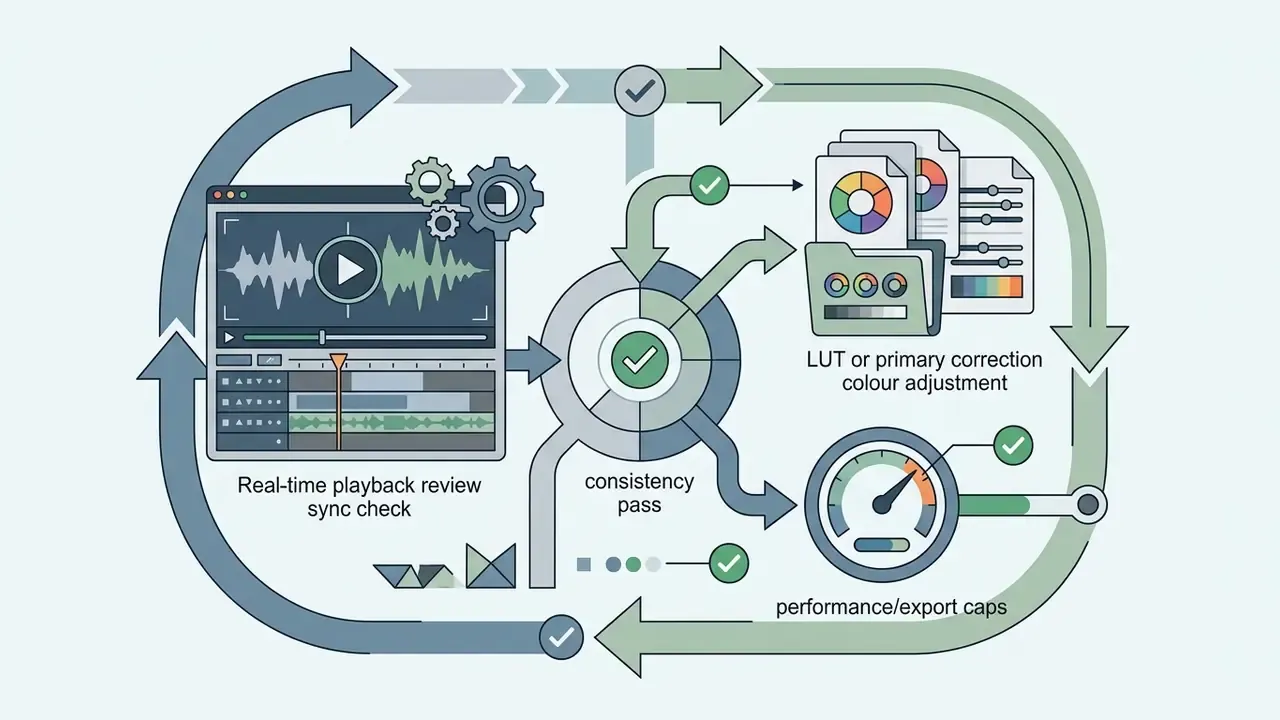
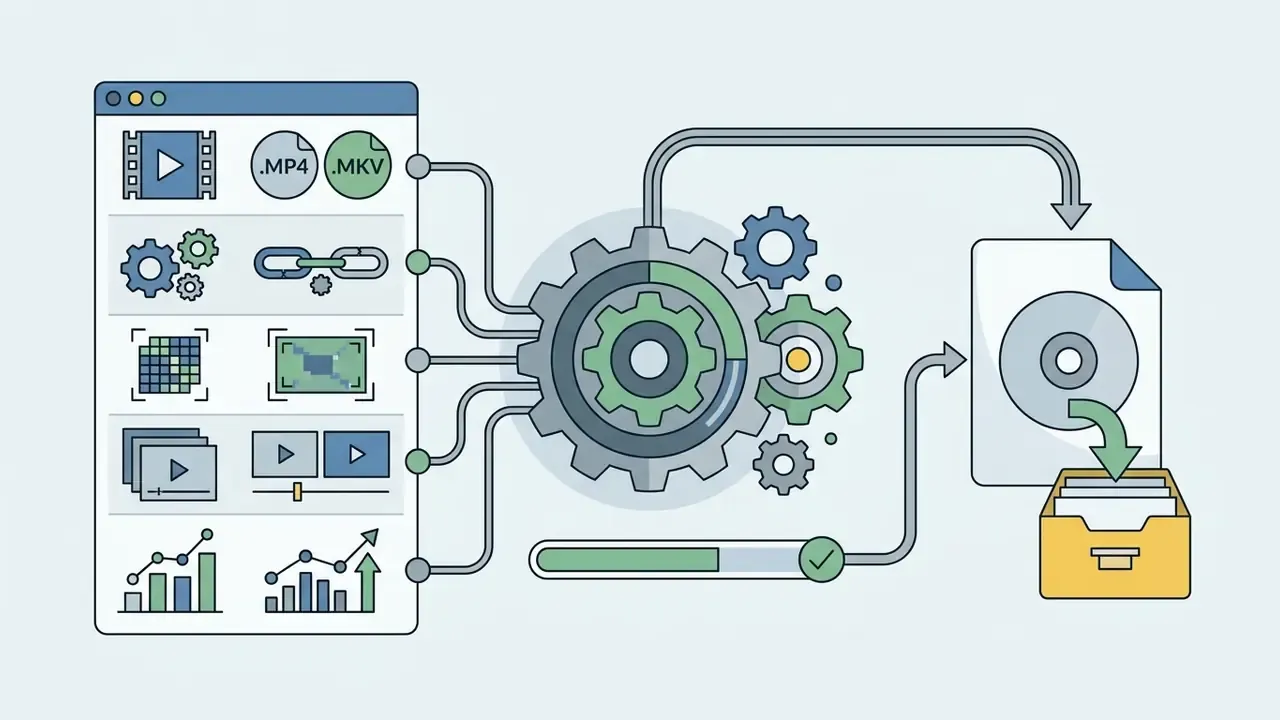
Import, Editing, Preview, and Video Export
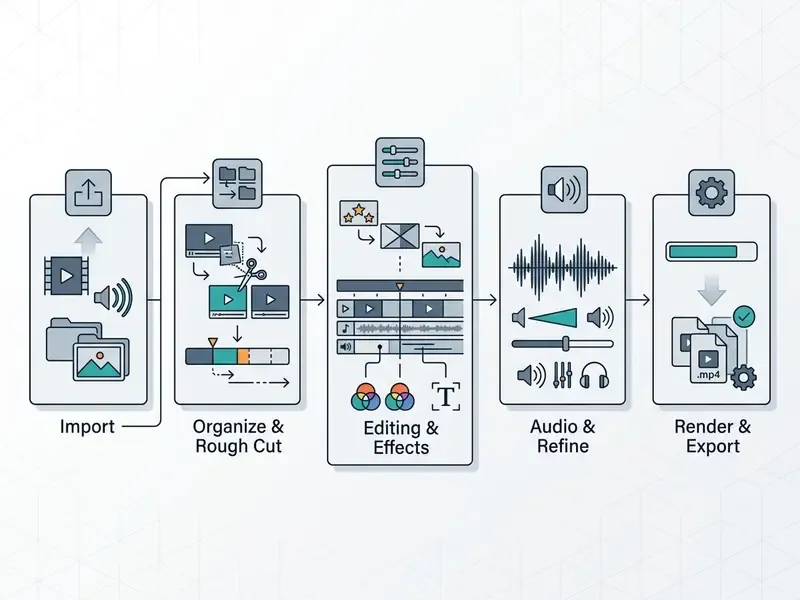
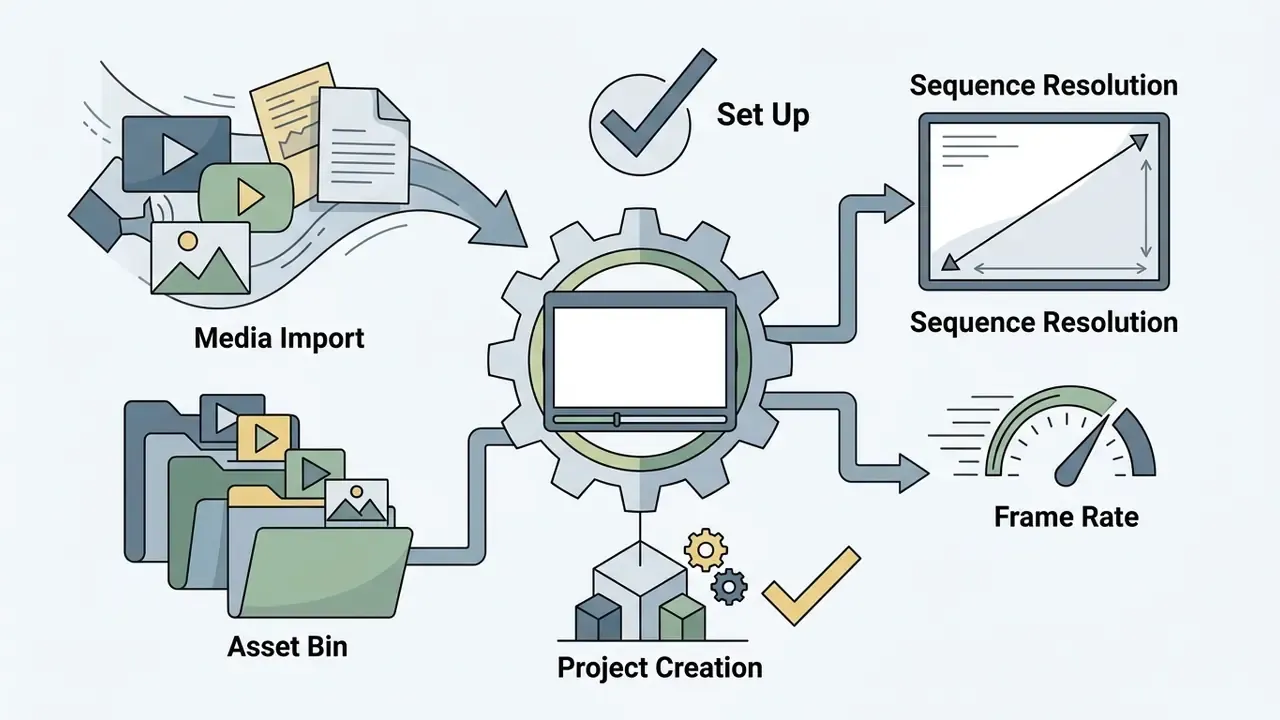
- Import and media organisation: create a project file and import raw video clips, image files, and audio tracks into designated media bins. Organise assets by scene or file type, and confirm that sequence settings match your source frame rate before cutting.
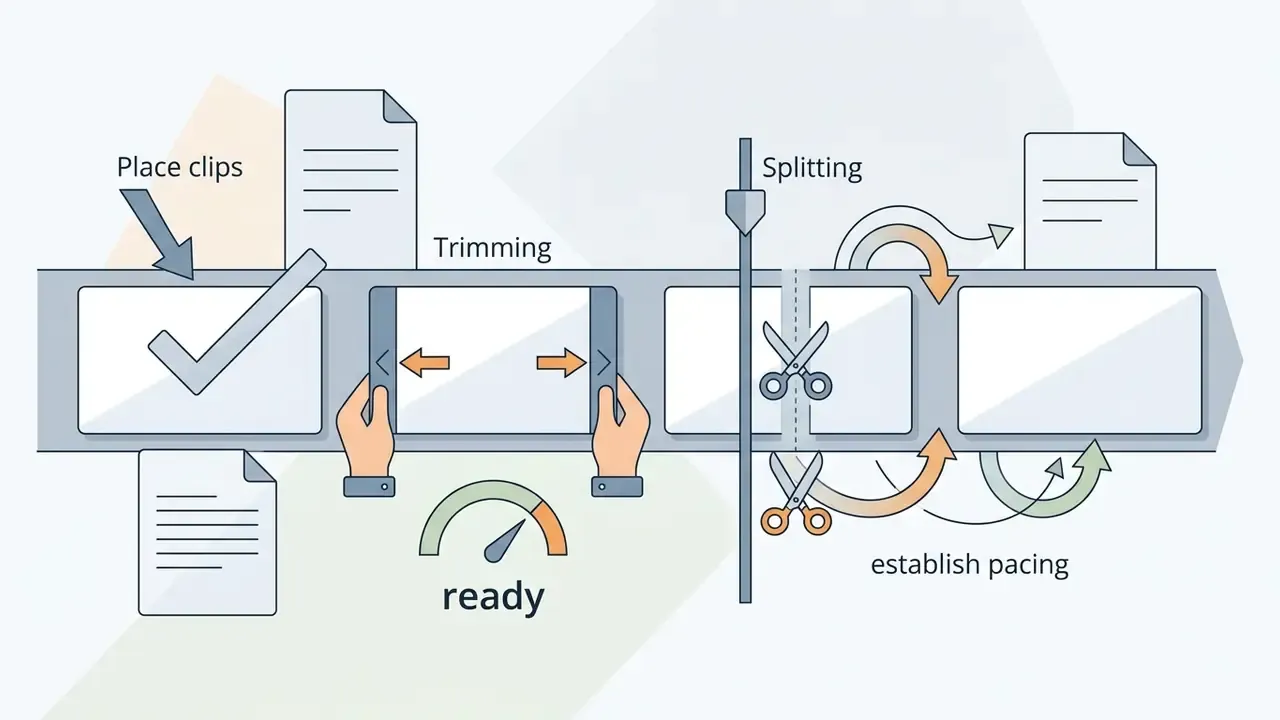
- Rough assembly on the timeline: drag media clips onto the main timeline. Use trim and split tools to remove unwanted handles, establish pacing, and arrange clips chronologically.
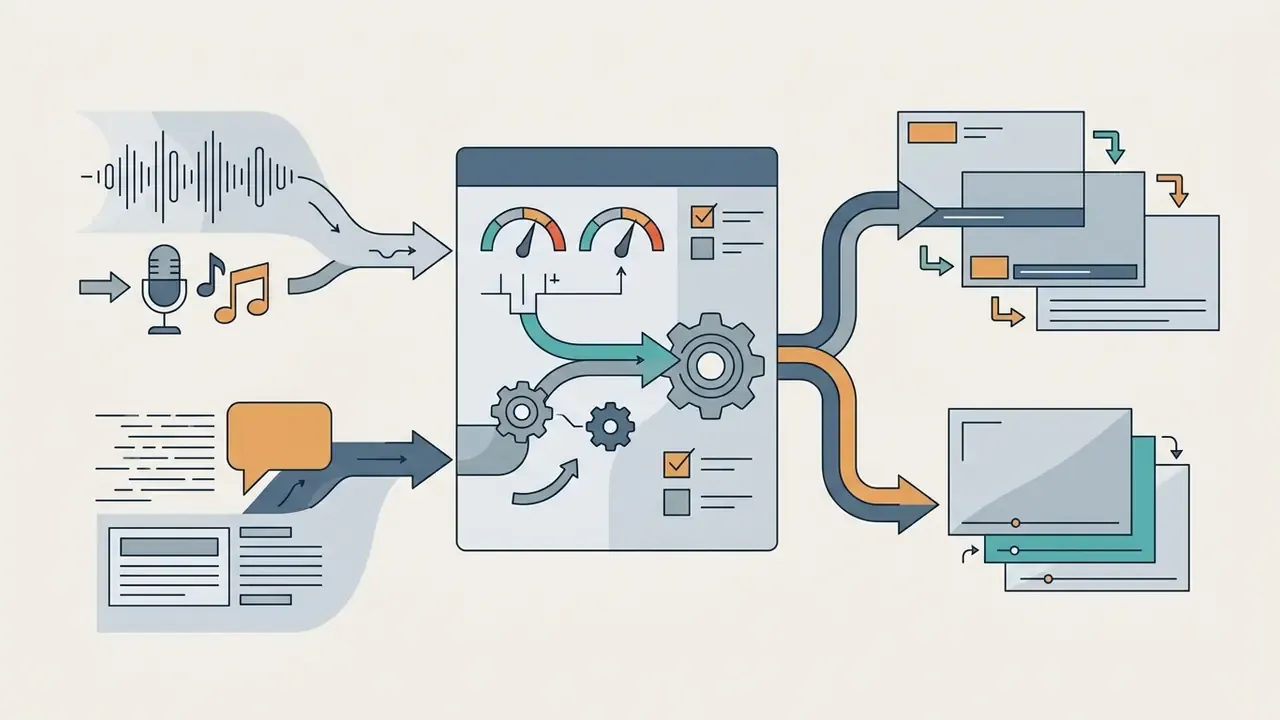
- Audio and text refinement: balance audio levels between primary voice tracks and background music. Generate AI subtitles, insert text overlays, and adjust title positions. Subtitle files can usually be imported and exported independently. Subtitle Edit, for example, exposes New, Open, Save, Import and Export actions for SRT and VTT workflows.
- Preview and quality control: play back the timeline in real time to verify seamless transitions, inspect audio synchronisation, and check colour consistency across clips.
«Diffusion-based video editing models require dedicated handling to preserve temporal consistency between frames.» — "Edit Temporal-Consistent Videos with Image Diffusion Model", ACM (2025). https://dl.acm.org/
This is why the preview pass is non-negotiable whenever generative or AI-driven effects are applied. Frame-level artefacts and flicker appear between frames, not within a single still, so a paused timeline tells you nothing.
- Export video configuration: select the Export command. Choose appropriate video formats (typically MP4/H.264), target resolution (1080p or 4K), frame rate (30 fps or 60 fps) and bitrate settings before rendering the final media file. Adobe's documentation groups format, resolution, frame rate and codec together for exactly this reason. Change one without the others and you get mismatched output. Where the delivery target enforces a file-size ceiling, run the master through dedicated video compression tools rather than lowering the export resolution.
Hands-On Tutorial: Trimming and Auto-Subtitling a Clip in Microsoft Clipchamp
Follow these direct steps to complete a basic social edit using native Windows tools.
- Launch and media importopen Microsoft Clipchamp from the Windows Start menu, or install it from the Microsoft Store on Windows 10. Click Create a new video. Drag your raw
.MP4files into the Your media bin on the left panel, or use the Import media button. - Timeline placementdrag clips from the media bin onto the main timeline track in the order you want them to appear.
- Trimming in and out pointsselect a clip on the timeline so it displays a green border. Hover over the left or right handles and drag inward to remove unwanted starting or ending frames.
- Splitting silenceposition the white playhead over a mistake or long pause. Click the scissors icon (Split) or press
S. Select the cut segment and pressDelete. - Generating AI captionsclick the Captions tab in the top-right property panel. Select Transcribe media, choose your language, and click Transcribe. Captions generate automatically on a dedicated text layer, and the transcript can be edited or downloaded as a subtitle file.
- Adding an AI voiceover (optional)open the Record & create panel, choose Text to speech, paste your script, then select language, voice, pitch and pace before adding the generated track to the timeline.
- Setting the aspect ratiouse the aspect-ratio selector above the preview window to switch between 16:9, 9:16, 1:1 and 4:5 for platform-specific delivery.
- Exporting an HD fileclick the Export button in the top-right corner and select 1080p HD. The file renders locally to your computer without a watermark, in MP4 at 30 fps. From the same panel you can publish directly to YouTube, TikTok or LinkedIn, or save to OneDrive, Google Drive or Dropbox.
FAQ: Privacy, Codecs, Project Files and Licensing
Does a free Windows video editor add a watermark?
It depends on the vendor, not on the price. Clipchamp, DaVinci Resolve Free, Shotcut, Kdenlive, OpenShot and VSDC export without a watermark. Filmora's free tier stamps a brand watermark, VEED's free plan watermarks and caps at 720p, and Movavi's free build can impose a watermark plus a 60-second limit. Always test-export a 10-second sample before committing to a project.
Can I edit and export 4K for free on Windows?
Yes. DaVinci Resolve Free exports Ultra HD 3840×2160 at 60 fps in 8-bit, and VSDC, Shotcut and Kdenlive also handle 4K output. Clipchamp's free tier stops at 1080p, and 4K requires Premium or Microsoft 365. Budget 16 to 32 GB of RAM and a dedicated GPU whichever tool you pick.
Where do AI subtitles and AI voiceovers actually process my video?
Cloud-assisted AI features send audio, and sometimes video, to the vendor's servers for inference. Before recording anything confidential, confirm three things in writing: retention period, sub-processor list and jurisdiction, and whether uploaded content is excluded from model training. If any answer is unavailable, use a locally-processing editor instead.
Is my footage used to train the vendor's models?
Consumer terms vary and change. Enterprise agreements are the only reliable place to obtain a binding "no training on customer content" commitment, along with tenancy isolation and administrator controls. Treat marketing statements as non-contractual.
My camera files will not import. What now?
Match the codec to the editor. HEVC, AV1 and 10-bit footage need a 64-bit OS and, in practice, GPU hardware decoding. Legacy camcorder containers (.MTS, .M2TS, .MOD, .TOD, .VOB) import most reliably into FFmpeg-based tools such as Shotcut, Kdenlive or VSDC. Blackmagic RAW is natively supported by Resolve and VSDC. As a last resort, transcode to an intermediate format such as ProRes or GoPro CineForm rather than re-compressing to MP4.
Can I move a project between editors?
Not directly, in most cases. Project files are proprietary, so a cross-application handoff relies on interchange formats where supported, or on re-linking media and rebuilding the timeline. Plan the toolchain before a long project, and archive both the project file and a flattened master render.
What happens to my project if a free tier blocks the export?
Some editors let you build a timeline containing premium assets but refuse to export until you upgrade. The project file itself stays on disk, so the practical fix is to remove or replace the gated asset. Which is exactly why it is safer to check asset licensing at the point of insertion, not at the point of export.
Which licence do I need for a monetised YouTube channel or a paid ad?
A general commercial licence covers most monetised content and client work, but scope varies by asset class. Envato excludes music from Broadcast use (TV, radio and streaming VOD substitutes), some font foundries require a per-video broadcasting licence, and marketplace Standard licences cap units for end products offered for sale. Verify per asset, per project, and keep the documentation.
Should I use an approval process for video tools at work?
Yes. The Shadow AI pattern, staff adopting an uncatalogued editor to solve a real deadline, is the most common way confidential media leaves a controlled environment. Publish an approved-tool list, state clearly which AI features are permitted, and define an escalation path to security and legal for anything new.
Do AI chat and image tools count as part of the same review?
They do, if they touch production assets. Content filters and model behaviour shift between releases, which is why questions like did character ai change its moderation rules keep resurfacing in creative teams. Any tool that ingests scripts, footage or brand assets belongs in the same inventory as your editor.
Internal Reference Hub
- Definitions and frameworks: access comprehensive technical definitions and media framework documentation via the AI Media Glossary. The most relevant entries for this topic are video editor, video compressor, AI voice generator, text-to-video AI and image-to-video AI.
- Tool comparisons: see the side-by-side breakdowns of free video editing software and free AI video generators for export caps, credits and watermark policies.
- Platform workflows: follow the end-to-end process in YouTube video editing workflows for publishing-side settings, chapters and thumbnails.
- Questions on a specific tool: raise them with our support desk rather than guessing at a vendor's current entitlement page. Editorial note: all export limits, RAM thresholds and licensing boundaries in this guide are drawn from first-party vendor documentation (Microsoft Support, Blackmagic Design, Adobe Help Center, VSDC, Kdenlive, Shotcut, OpenShot) and peer-reviewed HCI research published by the ACM. Vendor tiers change frequently, so re-verify pricing and entitlement pages before a purchasing or approval decision.