Choosing a photo editor for Windows 10 is a small purchase with a surprisingly long tail. You are balancing four things at once: day-to-day editing speed, RAW processing quality, hardware load, and the licence you are actually allowed to use at work. The market is crowded. It runs from built-in system utilities to AI-heavy creative suites that quietly ship your files to a vendor's servers.
That last point matters more than most reviews admit. An unvetted editing app can introduce data governance exposure, licence compliance violations, or a performance bottleneck that makes a perfectly good laptop feel broken.
The short version: a fast decision summary
- Basic work (crop, resize, text, blur): built-in Microsoft Photos and Paint cover roughly 80% of everyday edits, free and fully local. No installation, no licence audit.
- Weak PCs and bulk operations: IrfanView (fast image viewer, batch conversion, watermarks) and Paint.NET Classic keep system load minimal.
- RAW without a subscription: RawTherapee and Darktable give non-destructive processing with a 32-bit pipeline and camera profiles, free under the GPL.
- Complex compositing for free: GIMP (layers, masks, plugins). Its GPL licence permits commercial use too.
- Professional production: Adobe Photoshop (US$22.99/month on the annual plan billed monthly) or Affinity by Canva (free core, AI modules on a paid Canva tier).
- The main business risk: freeware editors such as IrfanView and PhotoPad are free for personal or educational use only. And generative AI features often upload your images to vendor infrastructure. That is shadow AI with a friendly icon.
- Hardware: Windows 10 64-bit (21H2/22H2 or newer) or Windows 11, 8 GB RAM minimum, 16 to 32 GB for RAW and AI, a DirectX 12 GPU with 1.5 GB VRAM (4 GB+ for neural modules), 10 GB of SSD space.
Who this guide is for and how the shortlist was built
Three groups keep asking the same question in different words. Home users want a free simple photo editor that opens fast and does not nag. Prosumer photographers want RAW control without a monthly bill. IT, marketing and compliance leads want to know which editing programs are safe to deploy across a fleet of machines.
The shortlist below was assembled against six practical criteria:
One caveat, stated up front: prices, licence terms and AI feature availability change between releases. Treat everything here as a starting map, then confirm on the developer's own page before you standardise anything. Our AI Media Pricing Guides and the AI Media Calculators exist for exactly that reason.
How to choose a Windows photo editor for your tasks
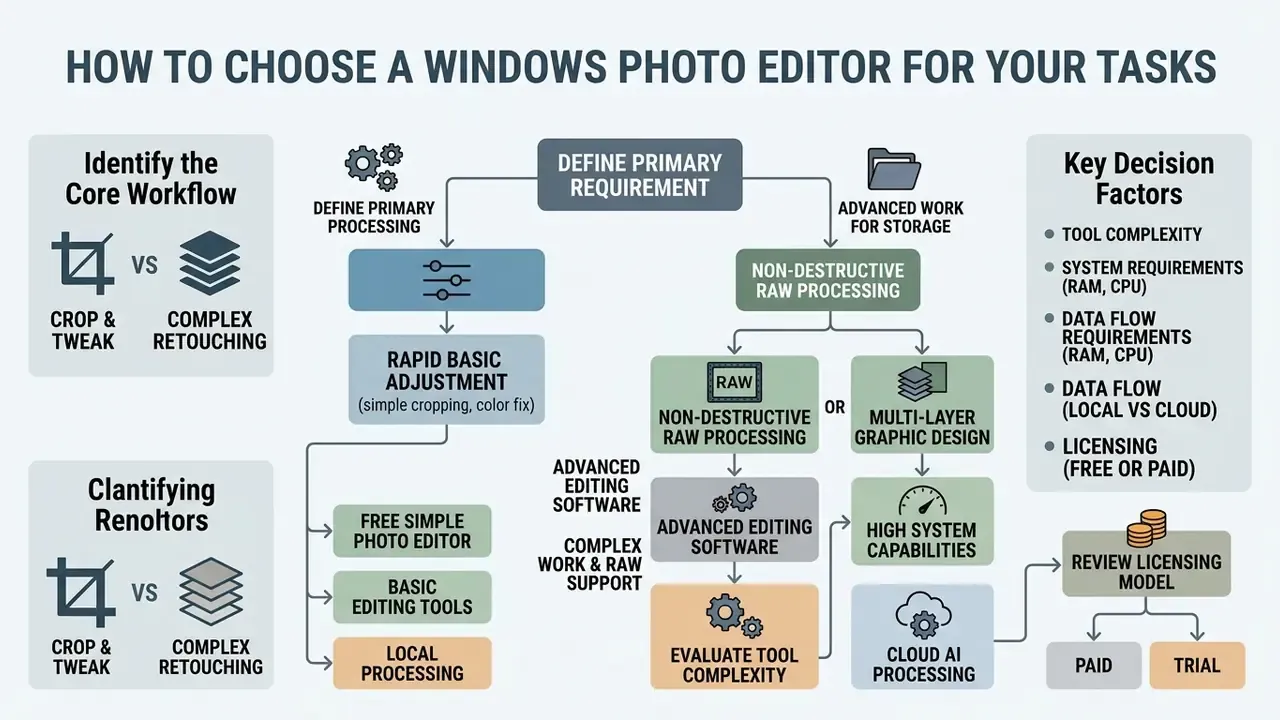
Selecting a photo editor for Windows 10 depends on whether your primary requirement is rapid basic adjustment, non-destructive RAW processing, multi-layer graphic design, or automated content creation. Matching software capability to the actual job prevents two common mistakes: overpaying for an enterprise subscription nobody opens, and exposing regulated data to unvetted AI processing.
The global photo editing software market reached roughly USD 1,149 million in 2024 and is projected to approach USD 1,818.9 million by 2034, with Windows platforms holding over 45% of platform share. Individual users make up about 58% of the installed base, which explains why vendors ship stripped-down free tiers next to professional suites.
An independent forecast points the same direction with different segmentation: growth from USD 313.51 million in 2023 to USD 448.06 million by 2031, a CAGR near 4.6%, with the prosumer segment holding the largest share.
Practical reading of those numbers: most individuals overpay for professional features they never touch, while organisations underpay for the licence audit that later costs more than the subscription did.
Free simple photo editor for basic image editing
A free photo editor provides the essentials for daily image adjustments: cropping, resizing, brightness and contrast control, rotate and flip, and basic text overlays. Large-scale analysis of real editing requests confirms that mundane operations dominate. Resizing, light retouching and background changes outnumber ambitious generative tasks by a wide margin.
These lightweight applications suit non-specialist staff who need predictable, fast edits without managing layers or depending on external cloud processing. Standardising on one simple photo editor also keeps image resizer output consistent, which matters when the same asset lands in a deck, a PDF and a social media post.
The minimum viable feature set is six operations: crop, resize, brightness, contrast, rotate/flip, add text. Adobe documents crop, resize, rescale and flip plus brightness and contrast as the baseline of its image editing workflow, treating rotate left/right and flip vertical/horizontal as separate operations (Adobe Help Center, 2025, https://helpx.adobe.com/photoshop/desktop/crop-resize-transform/resize-adjust-resolution/set-image-size-and-resolution.html).
Beginner friendly does not mean weak. It means fewer decisions per edit.
Advanced image editing software for RAW and complex work
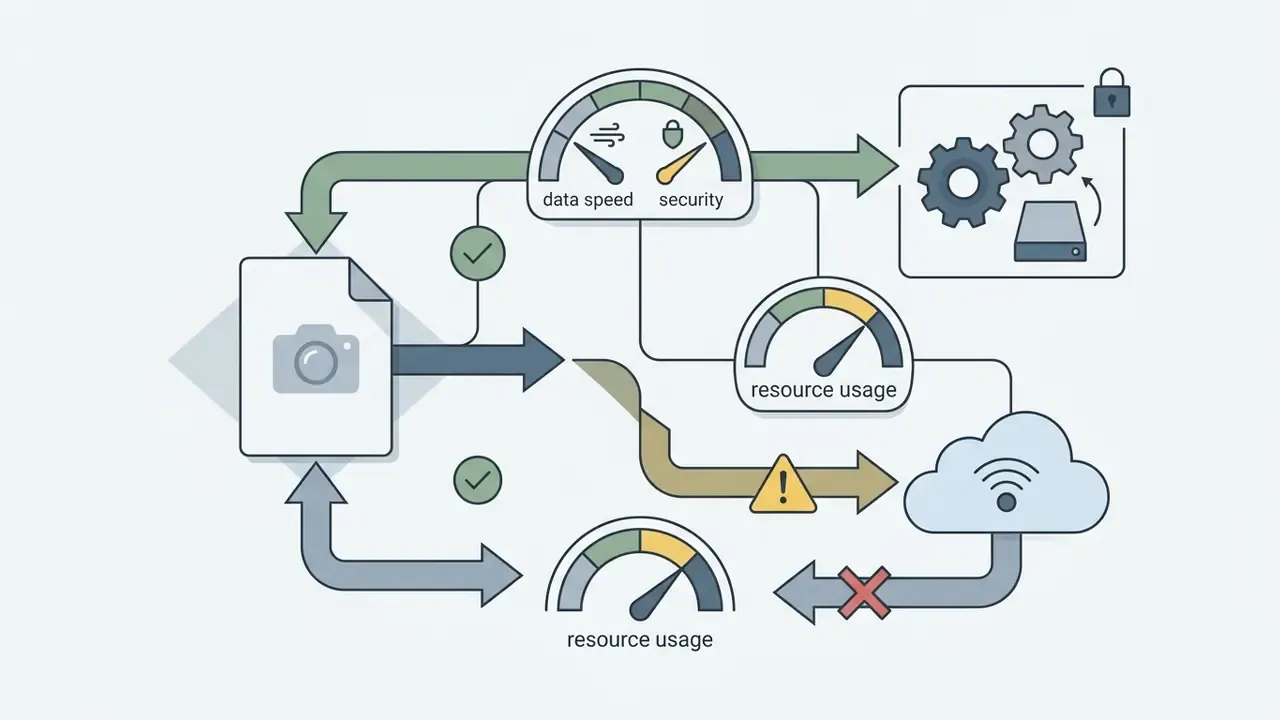
Decision flowchart: selecting a Windows photo editor (text version for screen readers)
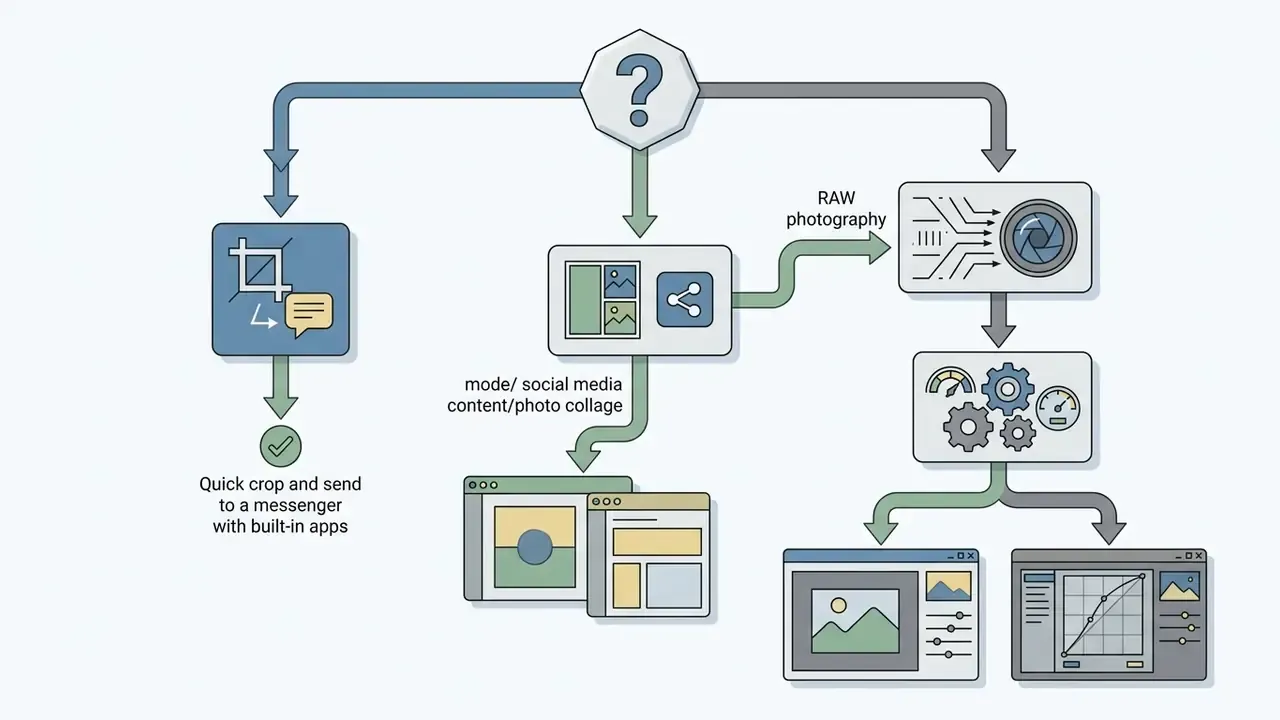
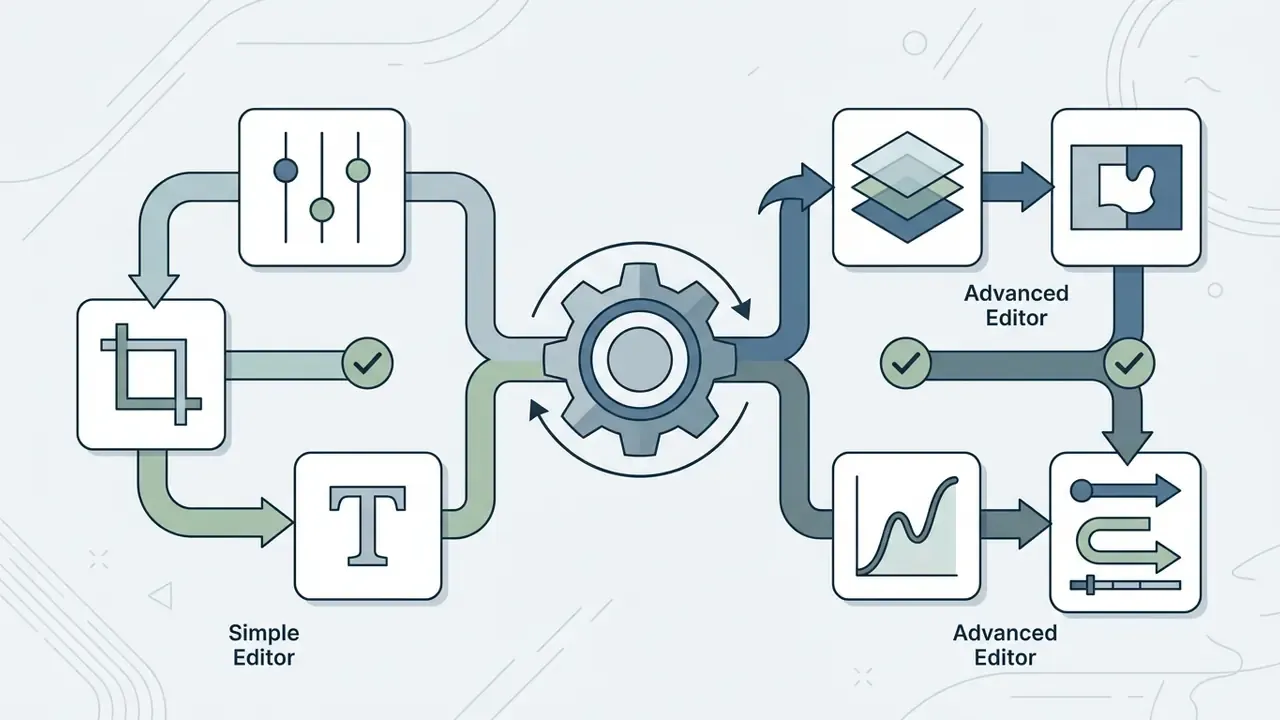
Best photo editor app for Windows by use case
The strongest photo editor app options for Windows run from native utilities such as Microsoft Photos and Paint, through open-source platforms like GIMP and Darktable, to commercial suites including Affinity Photo and Adobe Photoshop. Sort candidates by skill level, RAW needs, hardware load, data-processing model and licence terms. Side-by-side scoring of adjacent tool categories lives in our AI Media Comparison Matrices.
| Application | Primary purpose | Complexity | RAW support | Free version | Trial / price after trial | System load | Data processing (AI) |
|---|---|---|---|---|---|---|---|
| Microsoft Photos | Built-in image viewer and basic editor | Beginner | Basic | Included with Windows 10/11 | N/A | Low | Local; selected AI features are cloud-based |
| Microsoft Paint | Lightweight raster editor and markup | Beginner | No | Included with Windows 10/11 | N/A | Low | Local; Cocreator and Image Creator run in the cloud |
| GIMP | Open-source advanced raster editing | Intermediate / Advanced | Via plugins (Darktable, RawTherapee) | Fully free (GPL) | N/A | Medium | 100% local |
| Paint.NET | Intuitive layer-based editing | Beginner / Intermediate | Limited | Free Classic Desktop Edition | Store edition is paid (developer support) | Low / Medium | 100% local |
| PhotoPad | Home editing, collage, passport photo | Beginner | Partial | Free for non-commercial home use | Home Edition from US$34.99 (or about US$50/year) | Low / Medium | Local plus separate ML modules |
| IrfanView | Fast photo viewer and batch processor | Beginner | Basic (plugins) | Free for personal or educational use | Commercial licence required for business | Very low | 100% local |
| RawTherapee | Non-destructive RAW developer | Intermediate / Advanced | Full native | Fully free (GPL) | N/A | Medium / High | 100% local |
| Darktable | RAW plus catalogue management | Intermediate / Advanced | Full native | Fully free (GPL) | N/A | High (OpenCL/GPU) | 100% local |
| Affinity by Canva | Professional photo, vector, layout | Intermediate / Advanced | Full native | Free core access (Canva account) | Canva AI Studio on a paid tier (about £13/month) | Medium / High | Core is local; AI Studio is cloud |
| Adobe Photoshop | Industry standard plus generative AI | Advanced | Full via Camera Raw | None | 7-day trial, then US$22.99/month (US$263.88/year) | High | Local plus Firefly in the cloud |
| Corel PaintShop Pro | Alternative paid suite | Intermediate | Broad RAW | None | One-time licence | Medium | Mostly local |
| ON1 Photo RAW | RAW plus AI retouching | Advanced | Full native | None | Perpetual or subscription | High (4 GB VRAM) | Local AI (DirectML/Vulkan) |
Editor by editor: pros, cons, verdict
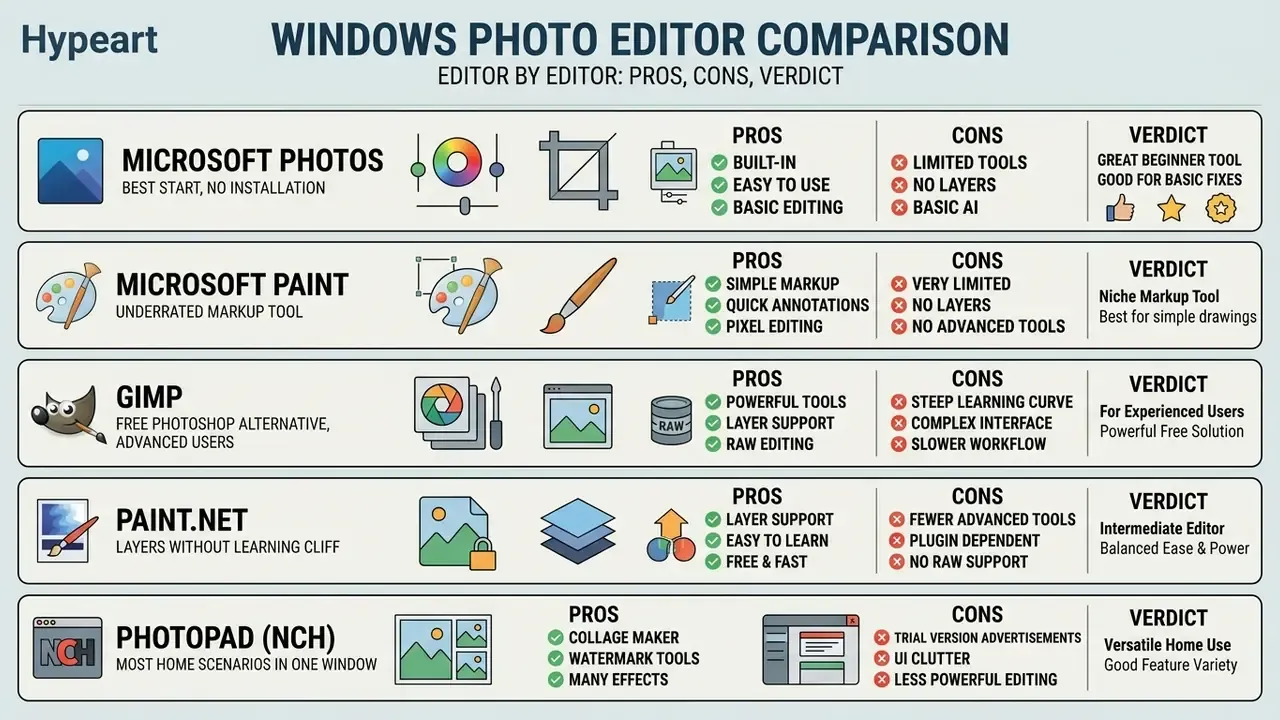
Microsoft Photos: the best start with no installation
- Pros pre-installed on Windows 10 and 11; crop, rotate, filters, adjustment and markup; opens edit mode with
Ctrl+E; zero cost and zero licence risk. - Cons no layers or masks; RAW support is basic; limited export control.
- Verdict ideal for staff who need to crop a screenshot, straighten a horizon or lighten a product shot in under a minute.
Microsoft Paint: the underrated markup tool
- Pros instant launch; current Windows 11 builds added layers and background removal; genuinely handy for annotation and quick diagrams.
- Cons no RAW, no colour profiles; the generative Image Creator runs through the cloud.
- Verdict use it for interface markup, simple cut-outs and fast sketches with no need to install anything.
GIMP: the best free Photoshop alternative for advanced users
- Pros full work with layers, masks and channels; a deep plugin and scripting ecosystem; the GPL permits use for any purpose, commercial included; contextual help on
F1in many languages. - Cons steep learning curve; RAW only through external modules; the installer needs Windows 10 version 1903 or newer, while the Microsoft Store build requires Windows 11 or Windows Server 2022 (build 10.0.20348+); help files install separately.
- Verdict the strongest choice for serious retouching and compositing with no Adobe budget. In GIMP 3.x single-window mode is on by default, so the interface finally feels closer to the Photoshop pattern people expect.
Paint.NET: layers without the learning cliff
- Pros clean layer-based interface with undo history and effects; a rich plugin library for effects, adjustments and formats; the classic desktop edition is free.
- Cons the Microsoft Store version is paid; requires Windows 11 or Windows 10 21H2+ or Windows Server 2022, a 64-bit CPU with at least four cores, and a Direct3D 11 GPU; 32-bit systems are no longer supported.
- Verdict the best middle step between Paint and GIMP for users who need layers but not a full production pipeline.
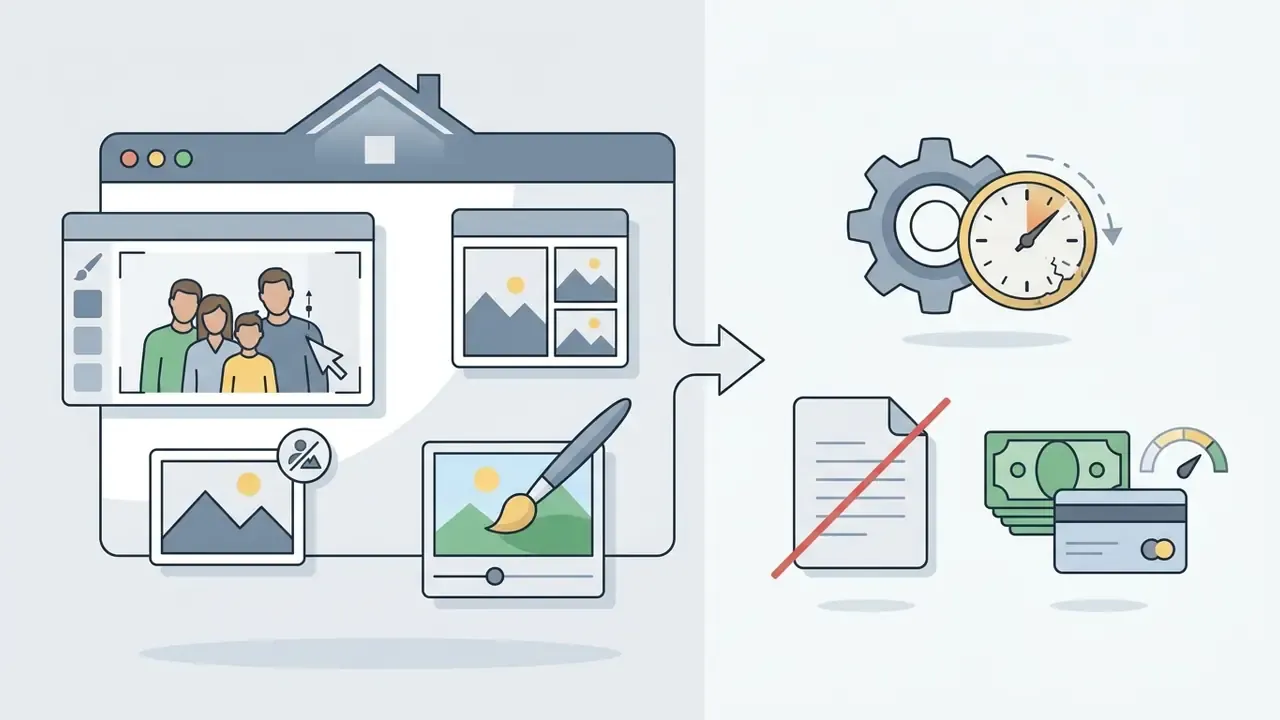
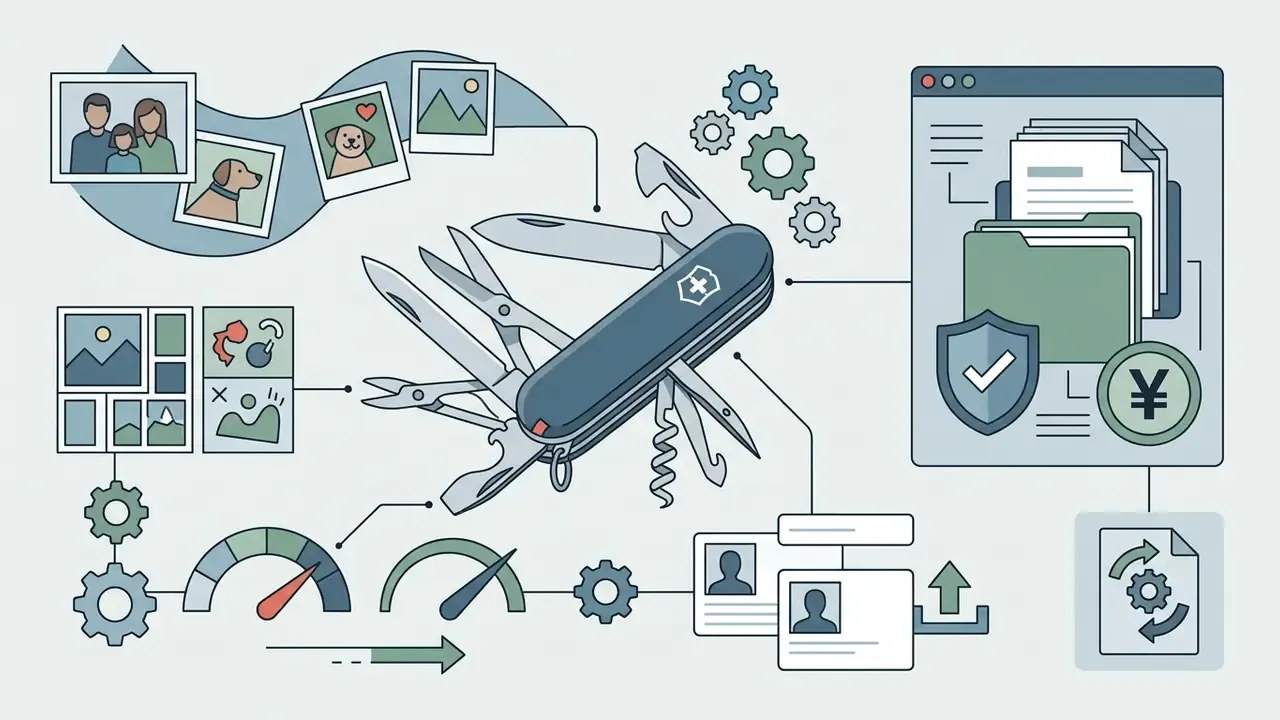
PhotoPad (NCH): the most home scenarios in one window
IrfanView: the fastest image viewer and batch editor
- Pros instant launch and tiny footprint; a powerful batch conversion and rename module with format, resize and colour-depth control; lossless JPG operations; straighten, watermark and effects; extensive keyboard shortcuts.
- Cons no layers or deep retouching; Windows only; free for personal and educational use only, so businesses need a commercial licence.
- Verdict irreplaceable for culling shoots and converting 1,000+ files on modest hardware.
RawTherapee: precise RAW development, no subscription
- Pros non-destructive 32-bit floating-point pipeline; modern demosaicing algorithms; DNG Camera Profile (DCP) support; dynamic processing profiles that apply settings based on camera, lens, shutter speed and ISO metadata; edits stored separately from the original file.
- Cons no layers or compositing; a busy interface; heavy CPU load on demanding operations.
- Verdict for anyone who wants maximum detail and noise control at zero cost.
Darktable: RAW plus a catalogue for systematic work
- Pros Lighttable (import, ratings, tags, sorting) and Darkroom modes; colour management through built-in or custom ICC profiles and a camera matrix library; color calibration, color correction and color balance rgb modules; dedicated raw black/white point, raw denoise and raw chromatic aberrations tools.
- Cons high GPU load through OpenCL and a real learning curve; terminology differs from Lightroom.
- Verdict a free replacement for the catalogue plus RAW converter pairing, especially for photographers shooting in series.
Affinity by Canva: the strongest free professional bundle
- Pros since October 2025 Affinity has been distributed by Canva as a single free application (a Canva account is required) with three studios: Pixel for photo, Vector for graphics, Layout for page design; non-destructive RAW, layers, masks, frequency separation, LUT grading and compositing; drag-and-drop panel customisation; export straight into Canva with Brand Kit access.
- Cons the AI tools (Generative Fill, Expand and Edit, Remove Background) sit inside Canva AI Studio and need a paid Canva tier, around £13/month; object selection is occasionally crude; account and cloud linkage required.
- Verdict the best capability-per-dollar ratio on Windows going into 2026. A closer look at the generative modules is in our Canva AI Generator review.
Adobe Photoshop: the industry standard with a generative stack
- Pros the complete raster toolset, Camera Raw, PSD and PSB compositing, Generative Fill, Generative Upscale, Harmonize and AI Assistant; predictable handoff to printers and agencies.
- Cons subscription only, US$22.99/month on the annual plan billed monthly (US$263.88/year); the 7-day trial does not permit commercial use; demanding hardware; generative features process in the cloud.
- Verdict justified where a visual asset moves revenue directly and where external vendor compatibility is non-negotiable. Frame-extension behaviour is compared in our review of AI outpainting tools.
Desktop apps or in-browser editors?
Installation is not always mandatory. Sometimes it is not even desirable.
| Criterion | Desktop apps (GIMP, Paint.NET, Affinity, Darktable) | Browser editors (Canva, Pixlr, Google Photos) |
|---|---|---|
| Installation | Required, often needs admin rights | None, works on Chromebooks and weak laptops |
| Offline work | Full | Depends on the connection |
| File privacy | Local processing, files stay on the PC | Images upload to the provider's servers |
| RAW and large files | Full support, uses VRAM | Hard limits on size and formats |
| Professional features | Layers, masks, ICC, curves | Basic crop, light and filters; some behind a paywall |
| Typical scenario | Retouching, print, RAW series | Fast social graphics, decks, templates |
Verdict: Canva and Pixlr are good for quick visuals and template collaboration; Google Photos suits phone snapshots. But regulated material, meaning contracts, identity documents, medical or financial records, should never go through a browser editor. The file physically leaves your perimeter. Mobile companions such as Snapseed, Adobe Lightroom Mobile or Lensa are a supplement to the desktop, not a replacement. If your workflow also touches moving images, a browser suite like the veed video editor follows the same trade-off logic: convenience in exchange for upload.
Which photo editing tools you actually need
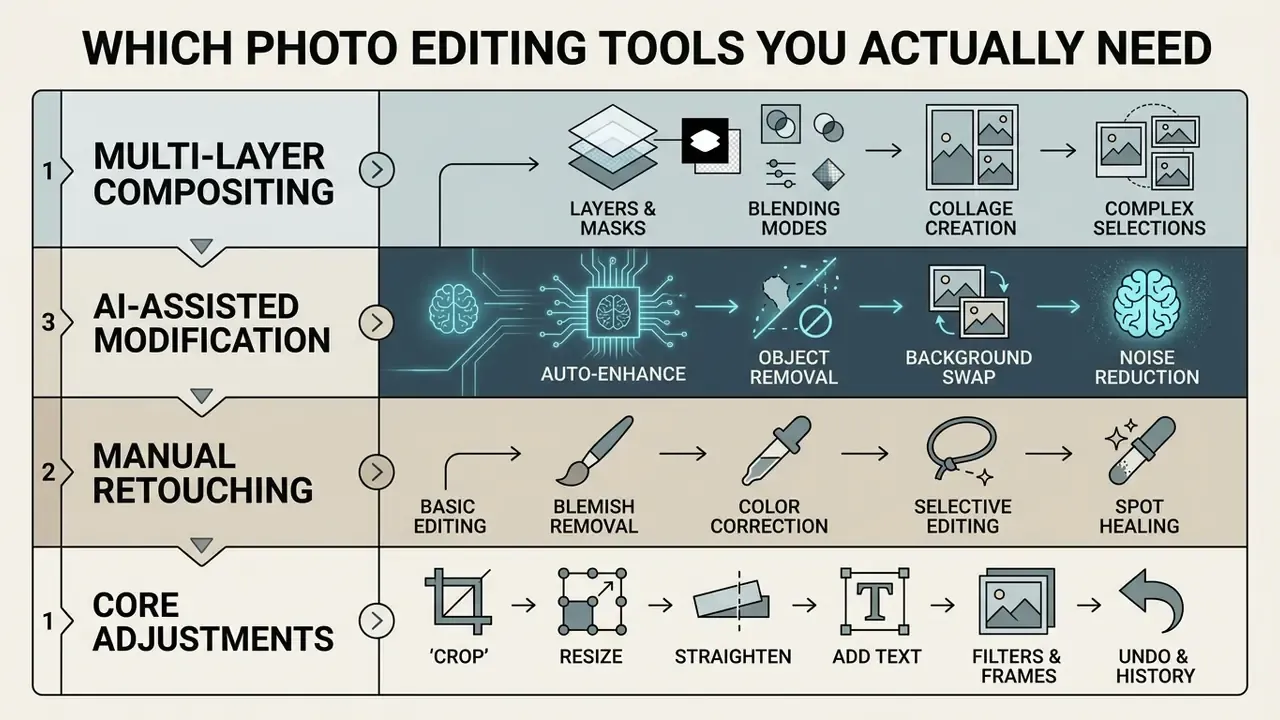
Essential photo editing tools fall into four tiers: core adjustments, manual retouching, AI-assisted modification and multi-layer compositing. Auditing what you genuinely use keeps you from installing software overhead you will never open.
Basic editing: crop, resize, add text and filters
Core operations change geometry and basic aesthetics: cropping distracting edges, resizing pixel dimensions, applying tonal filters, and placing text overlays.
Doing crop and resize before anything else preserves aspect ratios and prevents needless file bloat. Order of operations is boring and it saves you re-exports.
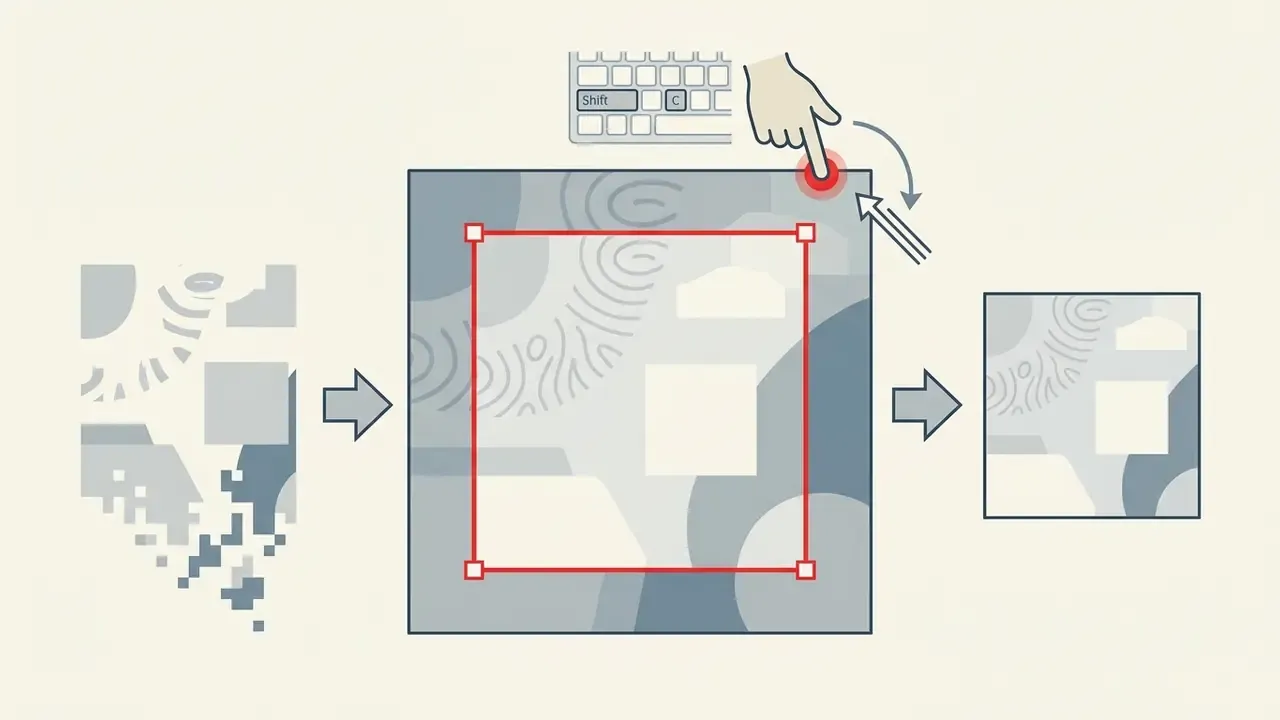
Shift while dragging a corner to keep proportions. In most editors the tool shortcut is C.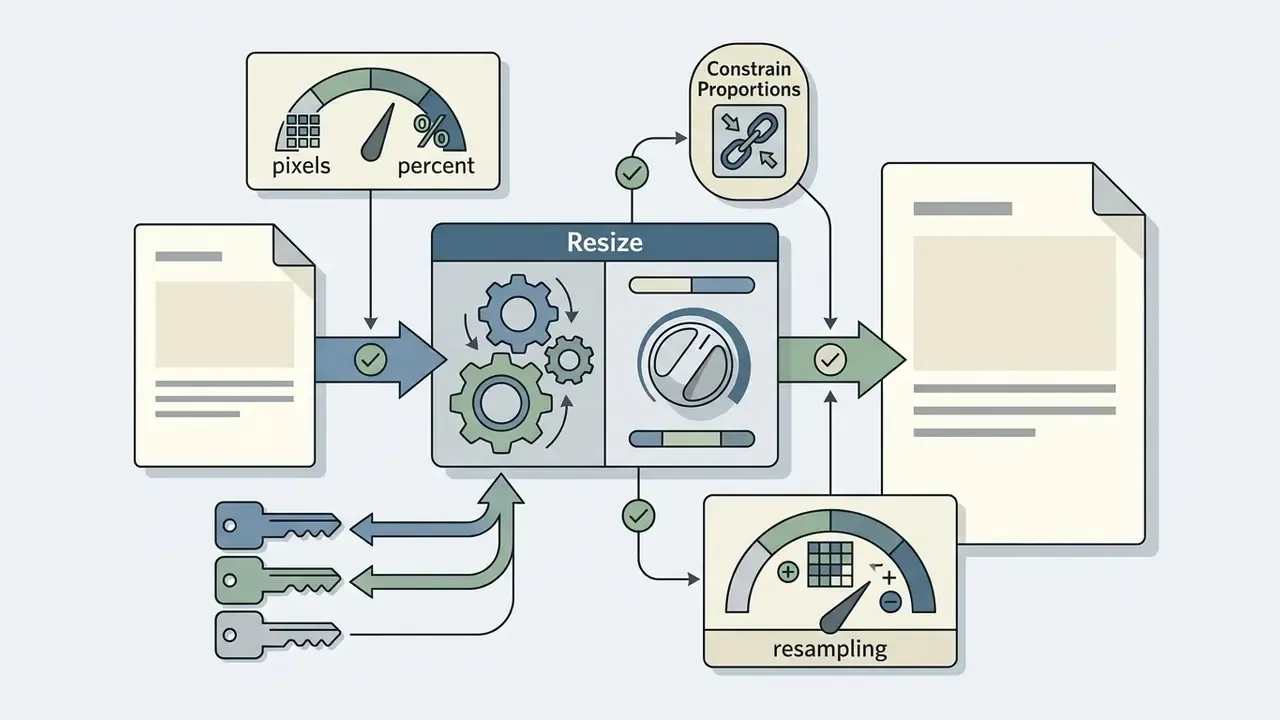
Ctrl+Alt+I.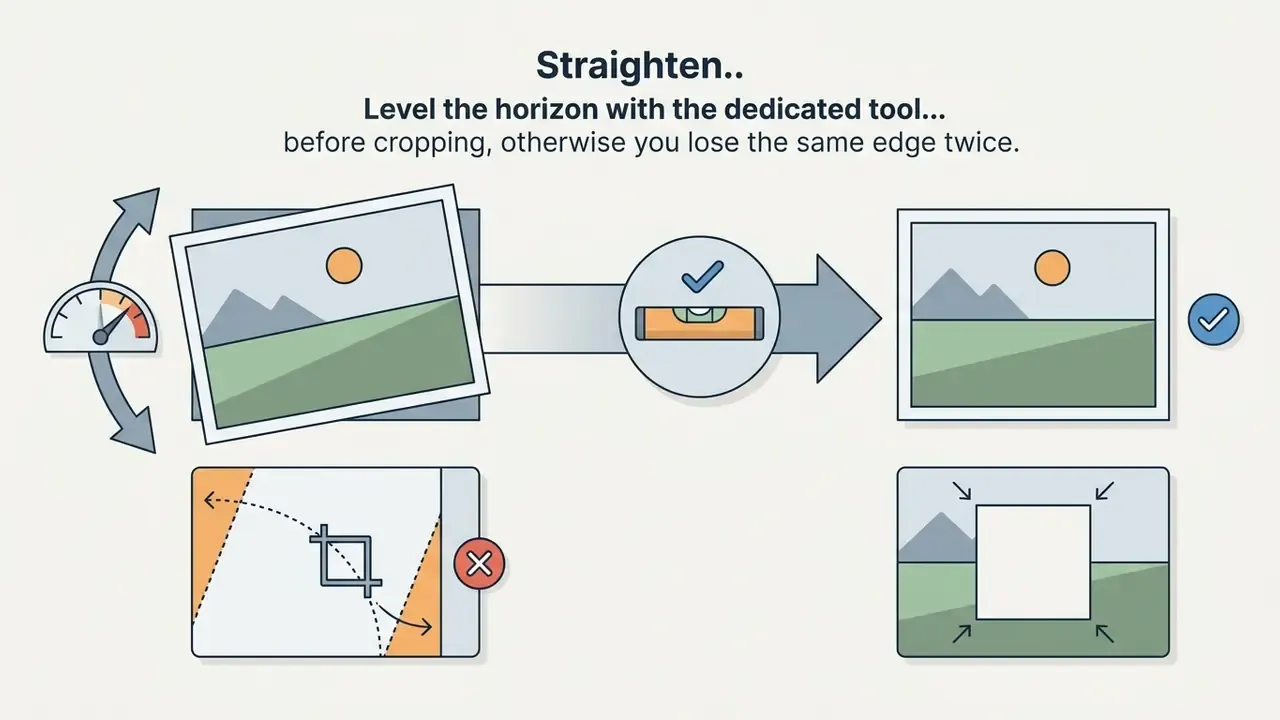
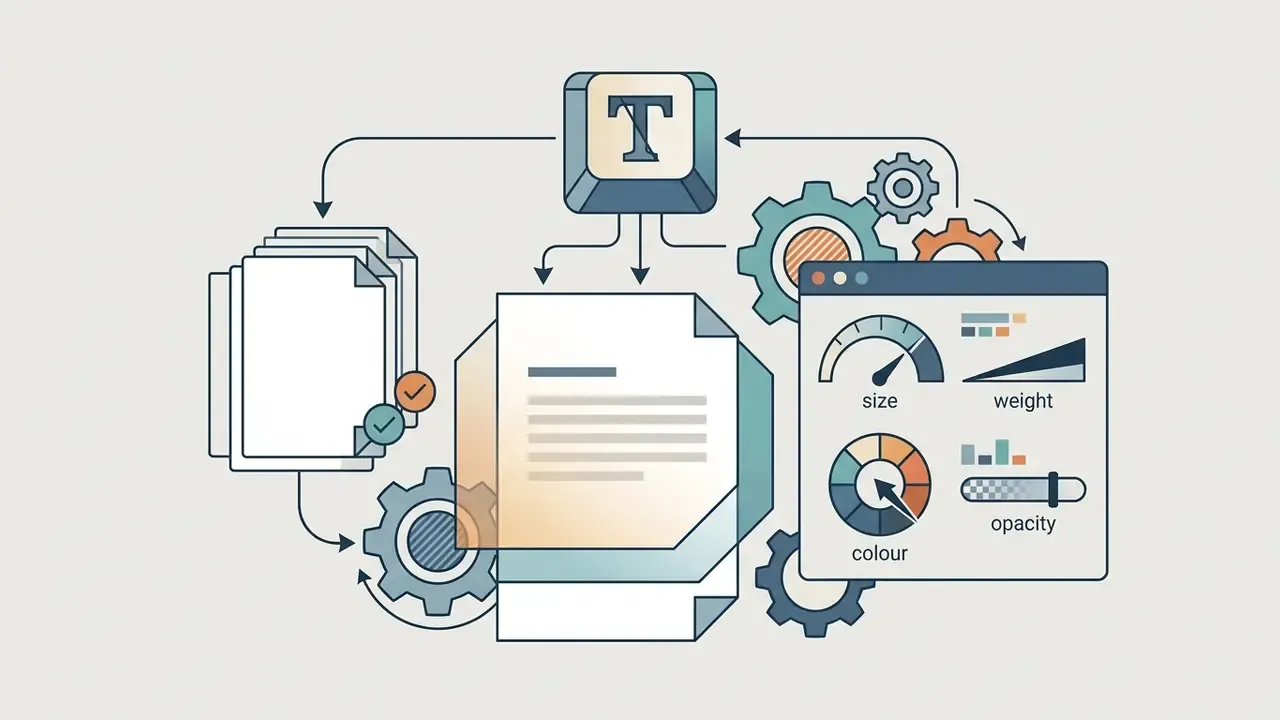
T.
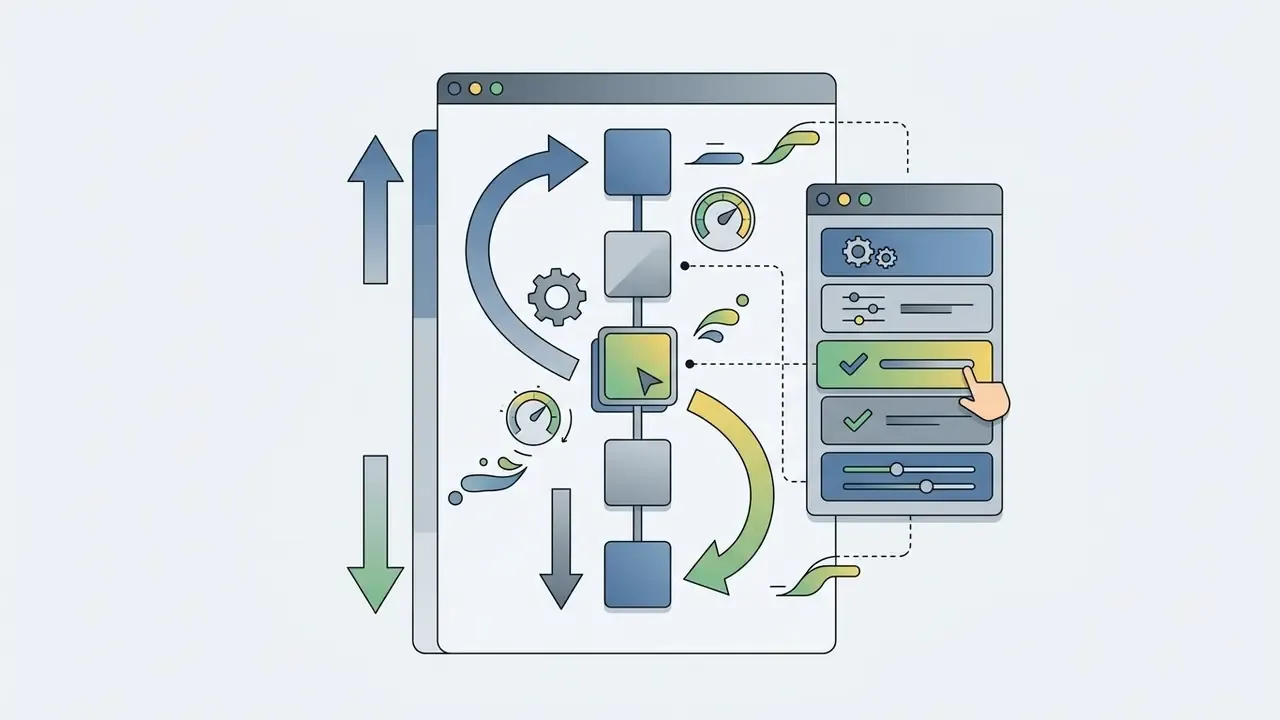
Ctrl+Z steps back, Ctrl+Shift+Z forward. In non-destructive editors, edit the effect list instead of undoing blindly.Specialized tools: collage, watermarks, censoring, documents
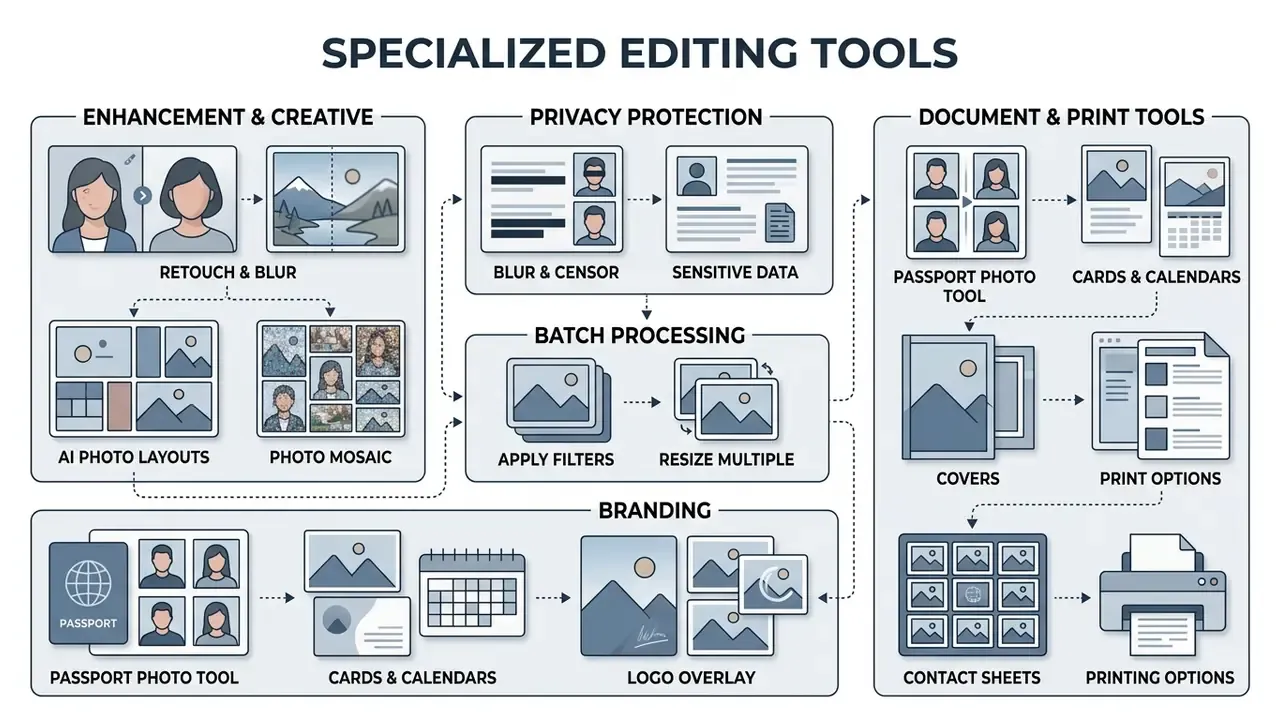
These are the features people actually search for, and the ones that usually vanish from professional reviews.
- Collage and layouts. Combine several shots on preset grids or freeform, choosing background, padding and corner radius. Available in PhotoPad (Collage plus Photo Mosaic), Icecream Photo Editor and Affinity Layout Studio. Useful for social media, before-and-after reports and family albums. The moving equivalent is covered in our notes on video collage workflows and the best video collage app options.
- Photo mosaic. One large image assembled from hundreds of small ones: you point the tool at a source folder and set tiles per row and column. A strong gift and presentation format, and a good stress test for your RAM.
- Privacy protection: blur and censor. Targeted blur or pixelation over card numbers, ID data, faces and addresses before publishing. PhotoPad exposes a pixelation slider; Icecream Photo Editor and Paint.NET handle local blur on a selection. For corporate processes this is a mandatory step before any screenshot containing real data goes public, including frames captured from consumer platforms such as a video chat with strangers online service.
- Batch processing and watermarking. Stamp a text or logo watermark onto 100+ files while resizing and renaming them. In IrfanView that is
File > Batch Conversion/Renamewith advanced resize and colour-depth options; PhotoPad has a batch editor with watermark support. - Passport photo tool. Automatic cropping to standard visa and passport formats with fixed face proportions and margins. Implemented in PhotoPad; in general-purpose editors you do it manually with a locked ratio and print size.
- Cards, calendars and covers. Card Maker and Calendar Creator in PhotoPad generate invitations, greetings and calendars from your own photos, plus thumbnails for video and stories. Pair them with a video caption generator when the same campaign needs subtitled clips.
- Contact sheets and printing. Lay multiple images on a single page for economical printing.
- HDR and double exposure. Merge bracketed frames into one HDR file; double exposure blends two images with opacity control for montage work.
- Background and green-screen replacement. Selection tools plus a Background command let you swap the backdrop for transparency, a flat colour or another image. That is the baseline for product cards and corporate portraits. For headshots specifically, see our breakdown of AI headshot generators.
Enhancement: retouch, blur and AI photo
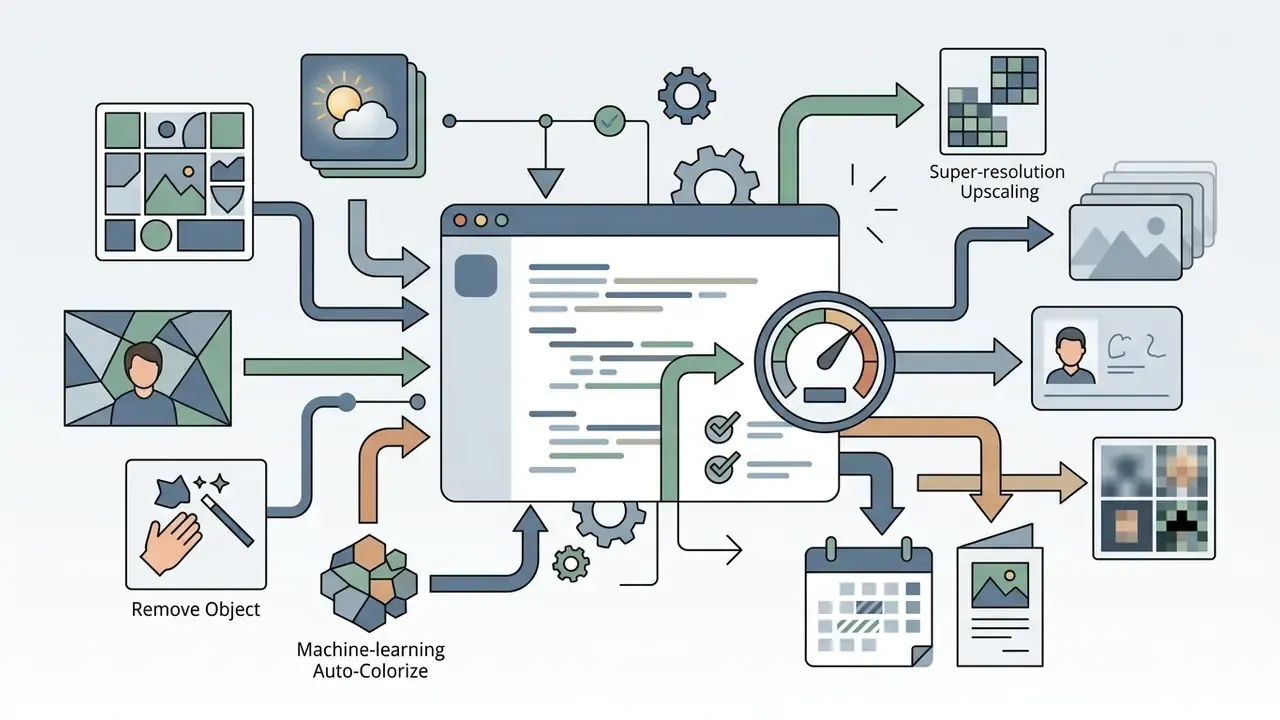
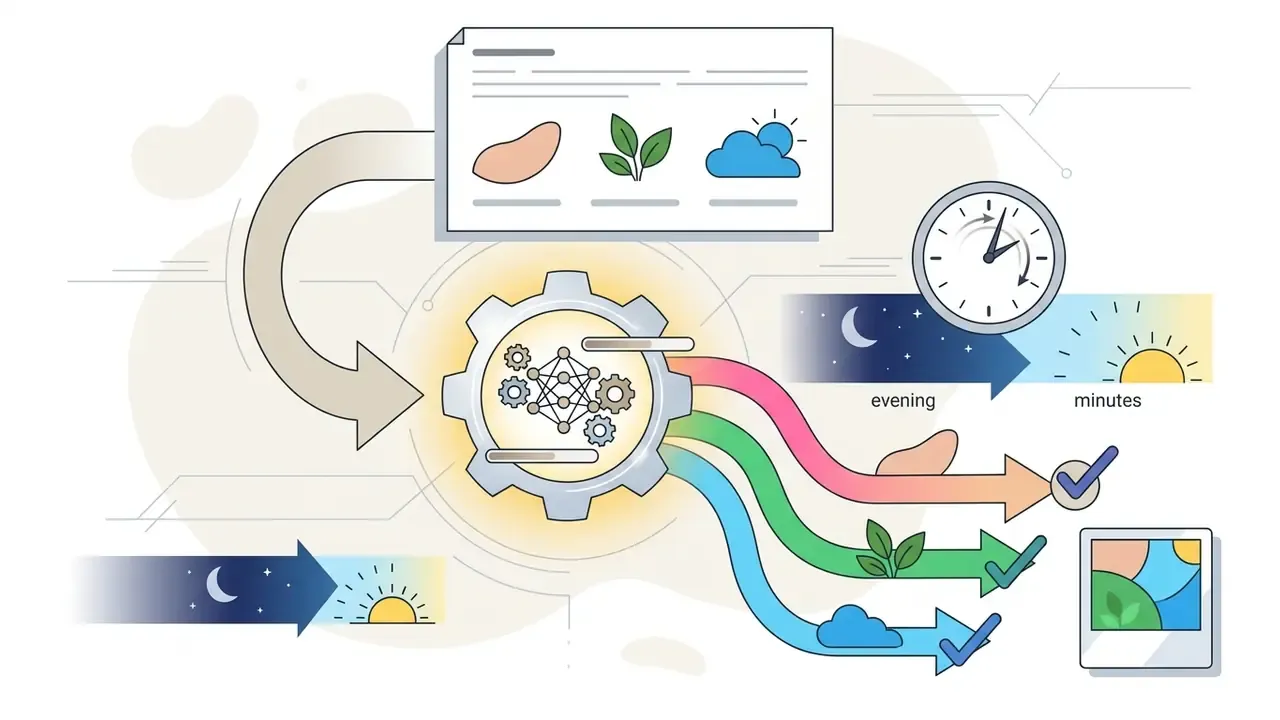
Advanced enhancement uses spot healing, background blur, generative object removal and AI background replacement to tidy an image. AI accelerates creative edits, yes. But the evidence on precision is sobering: current generative models satisfy only about a third of exact, low-creativity requests.
Practical takeaway: for edits that must be literally accurate, think financial reporting visuals, document verification, regulated marketing claims, product photos tied to a specific SKU, skip the generative modules. Manual spot retouching is still more reliable. Where creative interpretation is allowed, backgrounds, banners, social posts, AI saves hours. Not minutes. Hours.
Scenario: restoring and colourising black-and-white photos
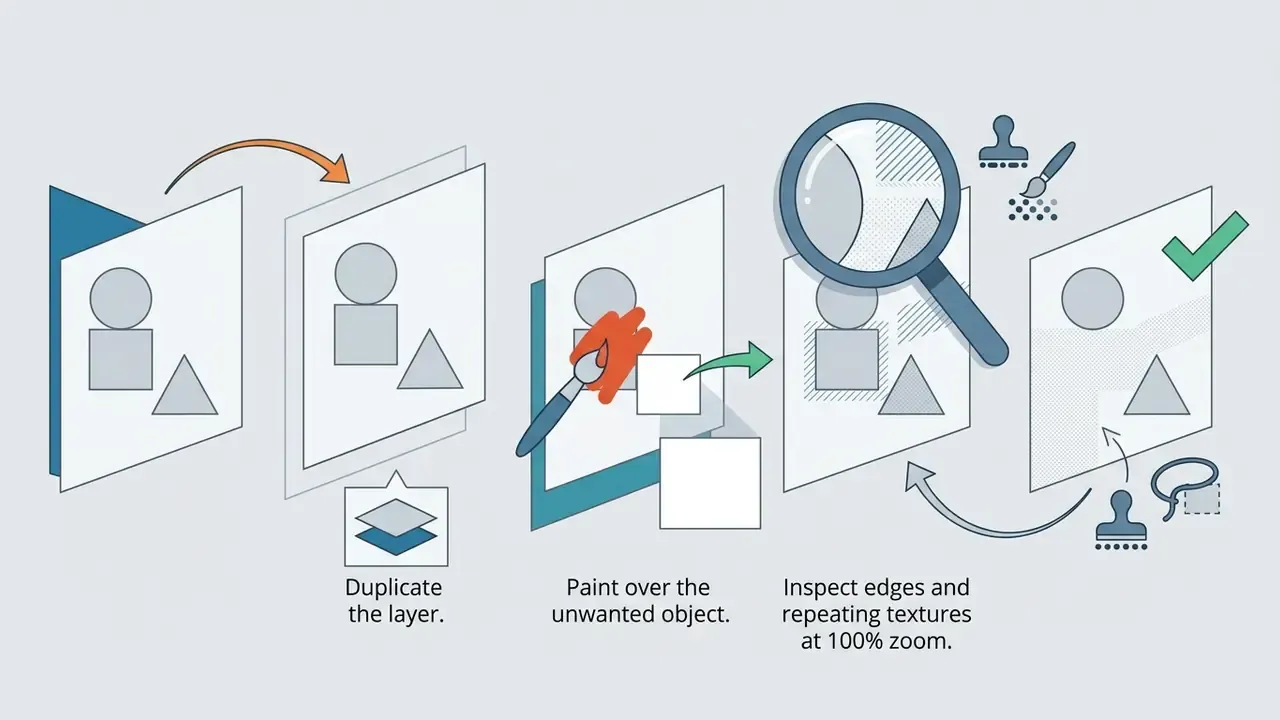
Scenario: removing an object
Authenticity of edited images is its own question, and detection is already running at production speed.
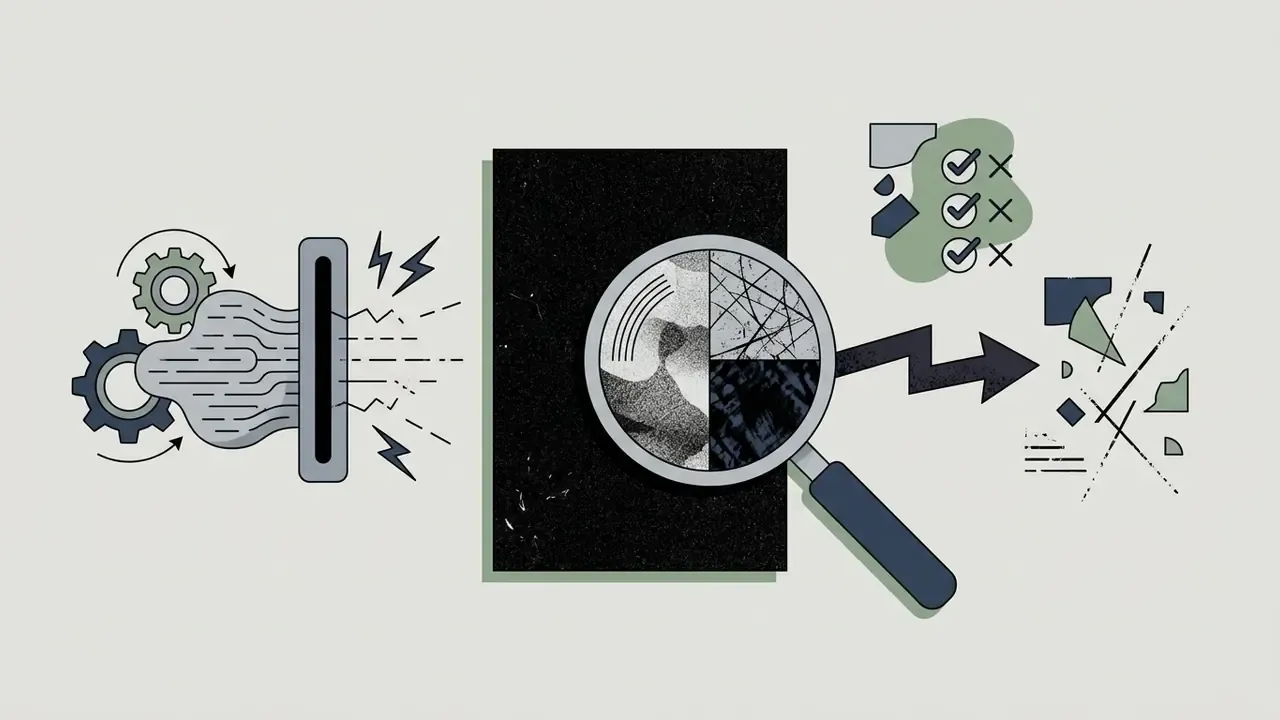
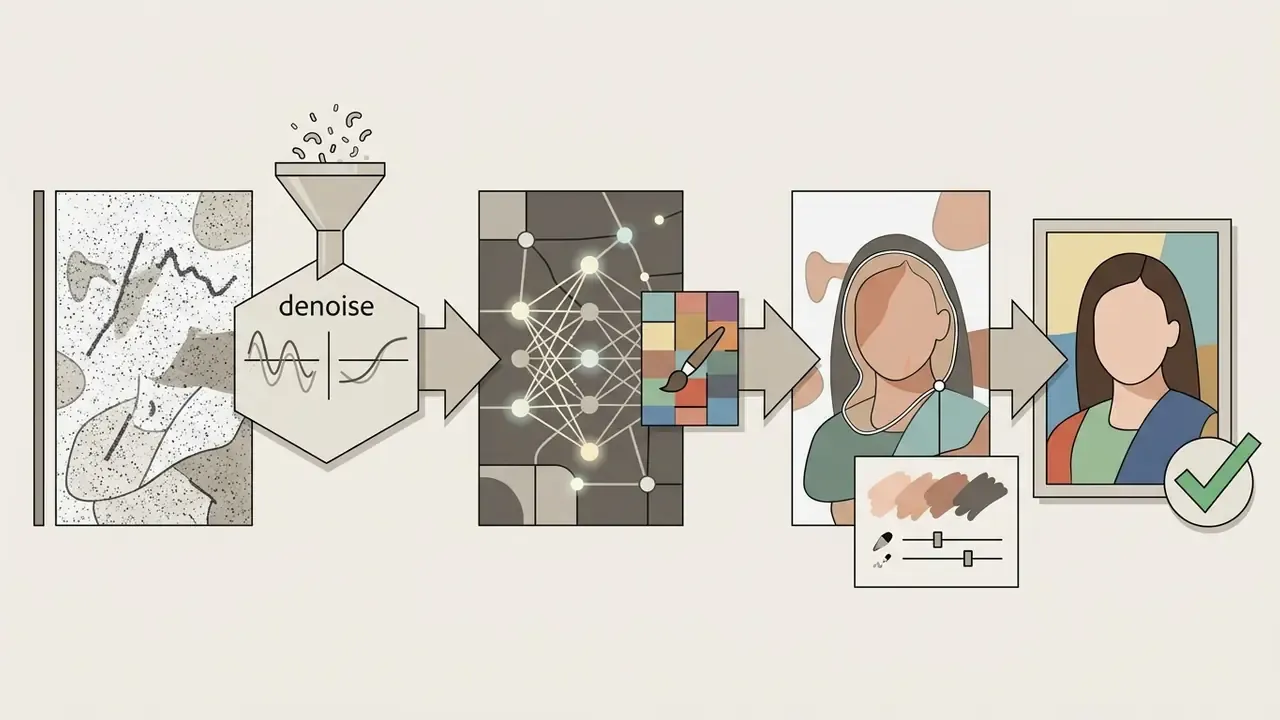
If your problem is the reverse, checking whether an image was published before or where it came from, a reverse image search is the faster route than any forensic plugin.
Finally, it is worth knowing what heavy enhancement does to perception.
Free Windows photo editor, trial version and commercial use
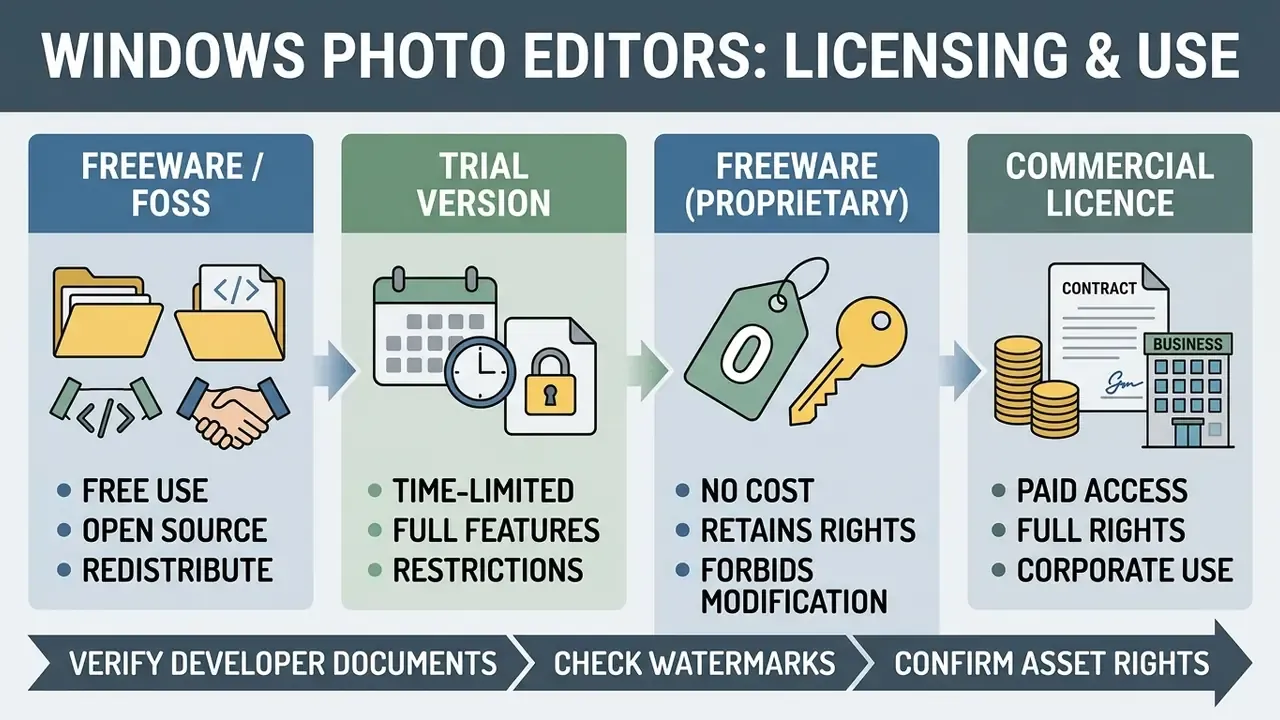
Free Windows photo editors operate under open-source or freeware terms; trial versions offer time-limited evaluation of commercial software, often with export restrictions. Any organisation using free tools for commercial marketing needs to audit those terms before deployment, not after a takedown notice. Our AI Media Commercial-Use Hub tracks how these rules differ across media types, and the AI Litigation and Case Timelines show how disputes over generated and edited assets have unfolded.
Illustrative case study (hypothetical, composite). A mid-sized financial services firm wanted consistent visual asset preparation across marketing and compliance teams without introducing unvetted AI tools. The IT risk committee reviewed five desktop photo editors against two controls: local data processing and export logging. Standardising on a managed deployment reduced duplicate licences and produced an auditable trail for externally published media. The specific savings depend on fleet composition and should not be transferred to another organisation without your own measurement.
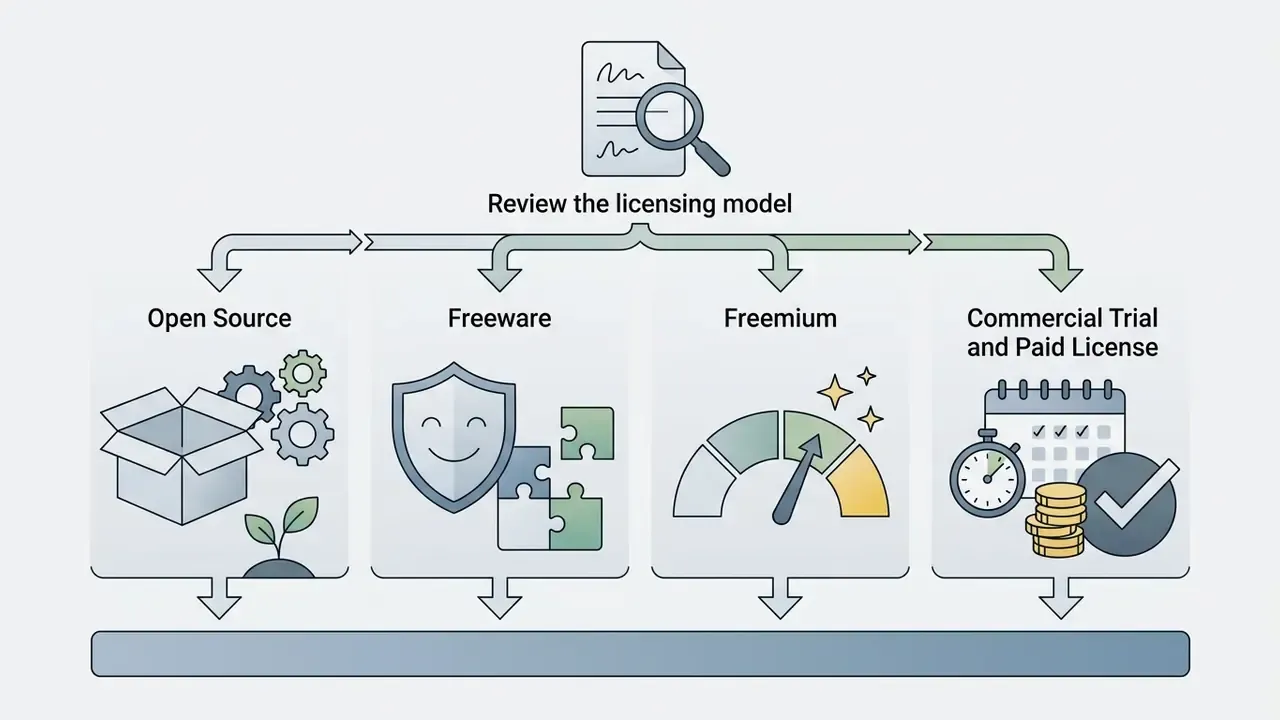
The legal frame, in four lines:
- Open source / FOSS grants rights to use, study, modify and redistribute under the licence terms (Open Source Initiative, https://opensource.org/licenses).
- Freeware costs nothing but usually withholds modification and redistribution rights, and frequently forbids commercial use.
- Trial is commercial software, free for a limited period or with reduced features and watermarks.
- Commercial licence is paid access under contract, with full rights inside the licence scope.
| License category | Functional scope | Primary restrictions | Trial duration | Personal use rights | Commercial use rights |
|---|---|---|---|---|---|
| Open Source (FOSS) | Full toolset, RAW, layers, batch processing | Community support, no central SLA | N/A (permanently free) | Unrestricted | Permitted under GPL terms |
| Freeware | Core adjustments, simple filters | No source access, feature caps | N/A (permanently free) | Permitted | Often restricted or prohibited |
| Freemium | Basic editing tools, watermarked exports | Advanced tools behind a paywall | N/A (base tier free) | Permitted for basic tasks | Requires a paid upgrade |
| Commercial trial | Unlocked professional and AI features | Time limits, export limits, watermarks | Typically 7 to 30 days | Permitted for testing | Prohibited during evaluation |
| Paid commercial | Complete feature stack, cloud sync, support | Ongoing subscription or upgrade costs | N/A (full licence) | Fully permitted | Fully permitted |
Verification of software licensing and terms
Compatibility for Windows 10 and 11: formats and system requirements
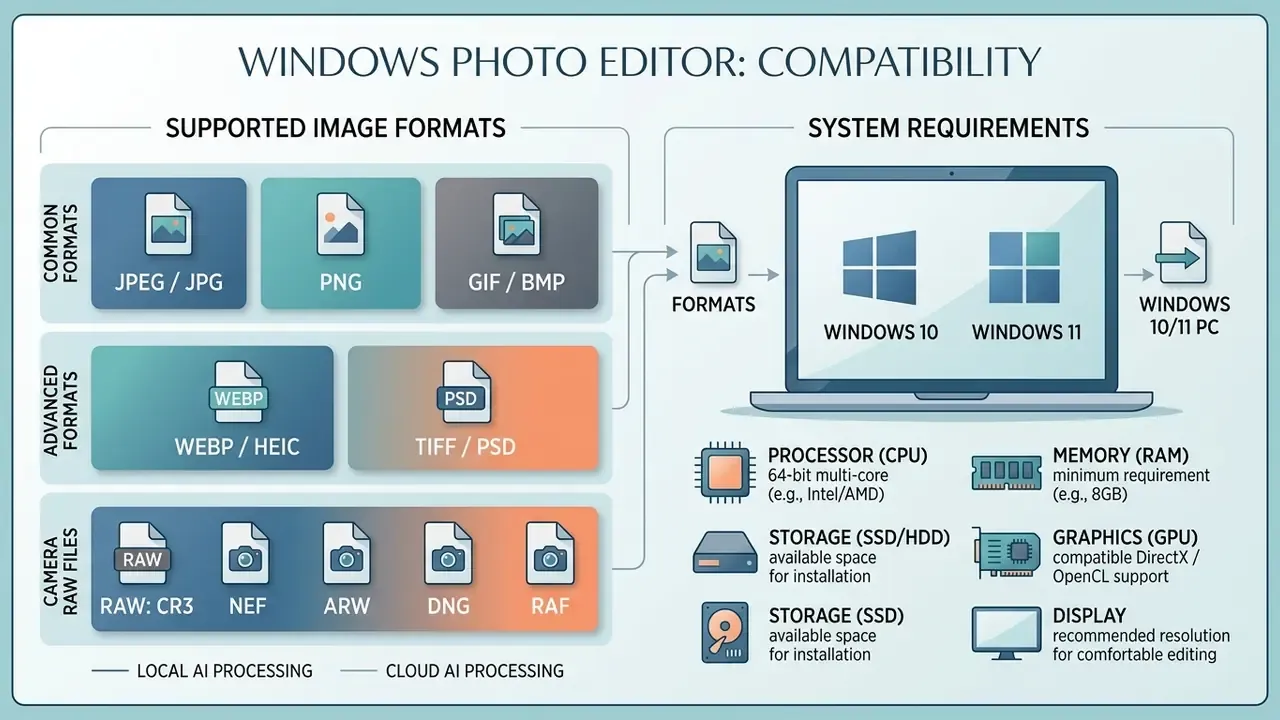
A photo editor for Windows 10 has to open your target image formats, JPEG, PNG, WebP, HEIC, TIFF and camera RAW among them, and it has to find enough hardware to process high-resolution files. Modern AI-enabled editors expect 64-bit multi-core processors, at least 8 GB of RAM and DirectX 12 capable graphics, according to current vendor documentation.
Supported image formats and RAW files
Supported formats determine whether you can keep a non-destructive master and still ship an optimised web deliverable. RAW work needs a dedicated demosaicing pipeline that preserves sensor metadata through export. If resolution has to increase after retouching, use a purpose-built image upscaling tool or the editor's own super resolution module.
- JPEG / JPG the standard compressed format for final web delivery and social media publishing.
- PNG lossless raster with transparency, for logos and graphic overlays, and wherever exact pixel reproduction matters.
- WebP / HEIC (HEIF) modern compressed formats with better efficiency for the web and for iPhone captures; supported in Photoshop, Corel PaintShop Pro and current Windows builds.
- GIF / BMP legacy formats for simple animation and system graphics.
- TIFF / PSD / PSB uncompressed or layered working masters for non-destructive archiving. PSD keeps layers and masks; TIFF serves as a lossless master.
- RAW (CR3, NEF, ARW, DNG, RAF, ORF) unprocessed sensor data that needs a dedicated RAW developer. DNG works well as an archival container.
The quality-preservation rule: keep the master in RAW, PSD or TIFF, edit non-destructively, and export compressed JPEG or WebP last and once. Every JPEG re-save discards data you cannot get back.
System requirements and installing a photo editor on Windows
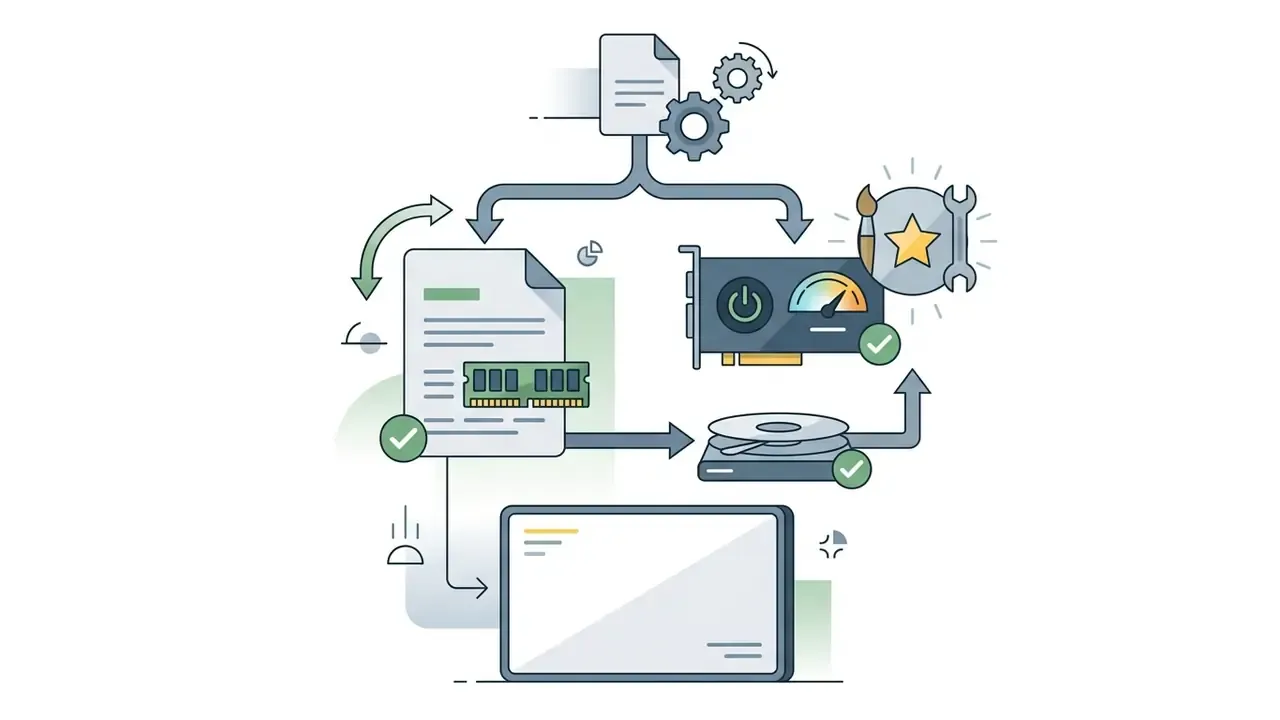
Hardware requirements diverge sharply between a basic photo viewer and a professional RAW processor with AI modules. Checking CPU, RAM and VRAM before you download prevents crashes and sluggish rendering.
- Operating system Windows 10 64-bit (21H2/22H2 or newer) or Windows 11. Some products, for instance the current Photoshop Elements generation, support only Windows 11 23H2 and above; Paint.NET 5.x will not run on Windows 7, 8.1 or any 32-bit system.
- Processor Intel 8th Gen or AMD Ryzen 1000 series and newer with AVX2 support; at least four cores for Paint.NET 5.x.
- Memory 8 GB minimum for basic editing; 16 to 32 GB recommended for RAW and AI operations.
- Graphics a DirectX 12 compatible GPU with 1.5 GB VRAM minimum; 4 GB or more for AI models. ON1 Photo RAW asks for DirectX 12, DirectML or Vulkan and 4 GB VRAM.
- Storage 2 GB of free SSD space for lightweight editors, 10 GB or more for professional suites.
- Display 1280x720 minimum; for accurate colour, a calibrated monitor and an sRGB or AdobeRGB profile.
A small housekeeping note: after installing from a browser, clear the installer out of your download history and keep a checksum of the file you used. It takes twenty seconds and it makes the next audit conversation much shorter.
Checklist: matching software to your PC configuration
| Configuration | Suitable programs | What will struggle |
|---|---|---|
| 4 GB RAM or less, integrated graphics | IrfanView, Microsoft Photos, Paint, Paint.NET Classic | RAW series, generative modules |
| 8 GB RAM, DirectX 12, no discrete GPU | GIMP, Paint.NET, PhotoPad, browser editors | Batch AI processing, large panoramas |
| 16 GB RAM plus a 2 to 4 GB VRAM GPU | Darktable, RawTherapee, Affinity by Canva | High-volume generative upscaling |
| 32 GB RAM plus 4 GB+ VRAM | Adobe Photoshop, ON1 Photo RAW, Corel PaintShop Pro | Little, within reason |
Interface accessibility. When selecting an editor for a team, test contrast and keyboard navigation. Microsoft's guidance for Windows applications calls for high contrast support, a 4.5:1 contrast ratio for body text and 3:1 for large text, full keyboard access and meaningful control names (Microsoft Learn, 2025). For published images, WCAG requires text alternatives for every non-decorative picture. Plan that at export time rather than retrofitting it later. If a control is unclear during rollout, check the vendor's documentation or our support notes before writing a workaround.
How to start editing photos in a Windows photo editor
To start editing on Windows 10, open the image in your chosen editor, do the crop and resize first, apply colour and exposure corrections, then export in the right target format. A standard sequence prevents cumulative quality loss and makes publishing repeatable.
Quick start in the built-in app: open Photos from taskbar search, pick a shot, press Edit image or Ctrl+E, then use Crop, Adjustment, Filter or Mark-up and save (Microsoft Support, 2025).
Annotated interface guide (text description for accessibility), the six controls present in almost every editing app:
Step by step:
- Open the image file.Launch your photo editor app for Windows and import the file with
Ctrl+Oor drag and drop. - Crop and composition.Use the crop tool to cut distracting background and set the visual focus.
- Adjust exposure and contrast.Balance brightness, contrast, highlights and shadows for even tonal distribution.
- Correct colour balance.Fine-tune white balance, temperature and saturation for the intended viewing conditions.
- Retouch or filter.Remove small blemishes, apply a restrained colour profile. This is also where you blur or censor sensitive data if the shot is going public.
- Export and save.Keep the master as PSD or TIFF, then export a web-optimised JPEG or PNG for social media. You can create stunning output from modest source files, but not from a file you have already re-saved five times.
- File Open / Importload the source image into the workspace.
- Crop and Straightenremove distracting edges and level the horizon.
- Colour and Exposure slidersbrightness, contrast, highlights, shadows, saturation.
- Filters and Effects menuartistic colour profiles and black-and-white conversion.
- Text Overlay tooleditable typography for captions and watermarks.
- Export / Save Asrender the final file to JPEG, PNG or WebP at a chosen compression level.
What that means for content teams: excessive retouching resets audience expectations upward and feeds the next round of edits. For corporate portraits and product photography, write the acceptable limit of intervention into the brand guide. Then hold to it.
FAQ: licences, shadow AI and data safety
Can a free photo editor be used inside a company?
It depends on the licence. GIMP, RawTherapee and Darktable under the GPL, yes, commercial tasks included. Paint.NET Classic, yes, including business, schools and government. IrfanView and PhotoPad in their free editions, no: a commercial licence is required.
Is commercial use allowed during the Photoshop trial?
No. The 7-day trial exists to evaluate features; publishing commercial material under trial terms is not permitted. Check the current Adobe EULA before you start billable work.
Does my editor send photos to the cloud?
Local editors such as GIMP, Paint.NET, IrfanView, RawTherapee and Darktable do not. Adobe Firefly, Canva AI Studio and Microsoft Image Creator process on vendor servers. For regulated data, keep to the local path and record that decision in your AI policy.
How do I detect shadow AI across a PC fleet?
Inventory installed editors, map each one against the data-processing column in the table above, log outbound calls to vendor APIs, and block plugins that require external access keys. Anything unowned is unmanaged.
What if a cloud AI feature disappears?
It happens. The Azure AI Image Analysis 4.0 Segment API and its background removal feature were retired on 31 March 2025. Keep a local fallback process for every operation you consider critical.
Which editor suits a PC with 4 GB of RAM?
IrfanView for viewing and batch work, Microsoft Photos and Paint.NET Classic for edits. RAW converters and generative modules will not run stably on that configuration.
How do I watermark 500 photos quickly?
IrfanView: File > Batch Conversion/Rename, choose the output format, open Advanced options, enable resize and watermark, then set the folder and rename template. The PhotoPad batch editor is a workable alternative.
Which format should I publish on a website?
WebP where browser support allows, for the best compression at good quality. JPEG as the universal fallback. PNG only for graphics needing transparency or exact pixel fidelity.
How do I make a passport photo at home?
Use a passport photo tool such as the one in PhotoPad, or crop manually with a fixed ratio and physical print size, keeping the required chin-to-crown margins. Verify your country's rules on the issuing authority's official page.
Do I need a separate tool for compressing media?
For still images, export with quality control is enough. For footage from the same shoot, a dedicated video compressor guide will serve you better.
External research and verification references
- Global Photo Editing Software Market Analysis, Market.us, 2024.
- Photo Editing Software Market Growth and Forecast, The Insight Partners, 2023.
- Large-Scale Corpus Analysis of Real-World Image Editing Requests, Adobe Research, 2025.
- Evaluation of AI Image Editing Limits on Targeted Operations, Auburn University / WACV, 2024.
- Aletheia: Personalized Protection and Detection Systems for Digital Media, ACM / IEEE, 2025.
- Beauty Filter Halo Effect Study, 2025.
- «I'll See Your Beautified Photo and Raise You One»: SNS Exposure and Photo Editing Behaviour Study, 2025.
- Set image size and resolution, Adobe Help Center, 2025. https://helpx.adobe.com/photoshop/desktop/crop-resize-transform/resize-adjust-resolution/set-image-size-and-resolution.html
- Background removal (retirement notice), Microsoft Learn, 2025. https://learn.microsoft.com/en-us/azure/ai-services/computer-vision/concept-background-removal
- Open Source Licenses, Open Source Initiative. https://opensource.org/licenses
- Edit text and images in PDF files, Adobe, 2025. https://www.adobe.com/learn/acrobat/web/edit-text-images-pdf-files
- Image transformations documentation, Cloudinary, 2025. https://cloudinary.com/documentation/image_transformations Technical specifications, prices and licence terms should be verified on the developers' official sites. They change between product versions, sometimes quietly.
Related resources and technical guides
- Online and desktop editors with pricing and usage rights: guide to photo editors.
- Limits of free editors, watermarks and export caps: guide to free photo editors.
- Canva's generative modules and their licensing: Canva AI Generator overview.
- Frame extension and background completion with neural models: AI outpainting tools.
- Corporate portraits and avatars: AI headshot generators.
- Checking where an image came from: AI reverse image search.
- Generator comparison by quality and licence: best AI art generators.
- Compressing footage from the same projects: video compressors.
- Animating static layouts: animation makers.
- Full terminology index: glossary. Comparison matrices: AI Media Comparison Matrices. Commercial rules: AI Media Commercial-Use Hub. Cost planning: AI Media Pricing Guides and AI Media Calculators. Legal history: AI Litigation and Case Timelines. Integrations: api. Help: support.