Executive Summary
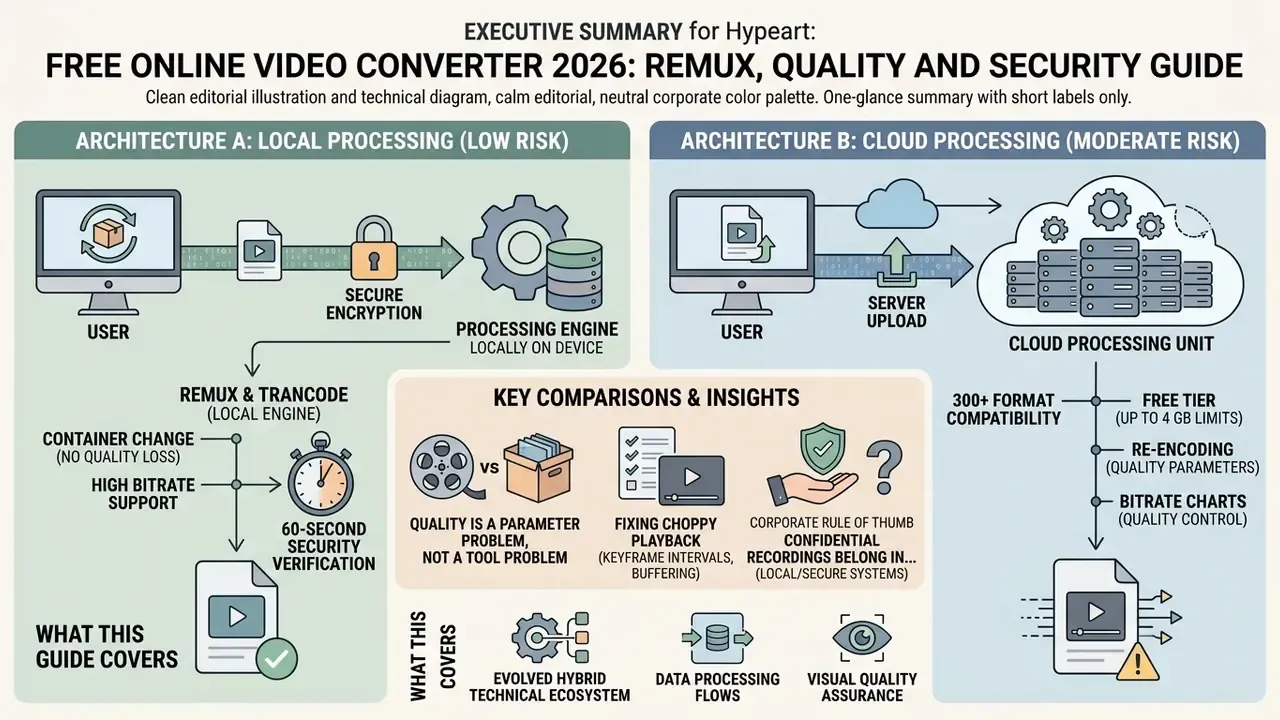
- Two architectures, two risk profiles. Client-side conversion (WebAssembly builds such as
ffmpeg.wasm) keeps media inside browser memory and never transmits the payload. Server-side cloud transcoding uploads the file to remote infrastructure for higher throughput and heavier format coverage. Choose the architecture before choosing the vendor. - A container change is not automatically a quality loss. If the target container already supports the source codec (say, H.264 inside MKV moving to MP4), remuxing repacks the streams at disk I/O speed with 0% visual degradation. Full re-encoding is only needed for codec changes, filters, or bitrate targets.
- Free tiers are no longer tiny. Public services now document uploads up to 4 GB, 300+ supported formats and codecs, and 10-tier compression scales delivering up to roughly 90% size reduction. Limits still vary drastically per vendor, from 100 MB to 4 GB.
- Security verification takes 60 seconds. Load the tool, open DevTools, go to the Network panel, then switch the browser offline and run a conversion. If it completes offline, the file never left the device. Full checklist sits in the security section below.
- Quality is a parameter problem, not a tool problem. Bitrate, resolution and frame rate have statistically significant, practically material effects on perceived quality. VBR plus matched frame rate plus native resolution preserves fidelity across HD and 4K workflows.
- Corporate rule of thumb: confidential recordings (customer UI, legal, HR, financial demos) belong in client-side WASM or an internal microservice only. Public marketing assets can go to cloud tiers with documented retention timers.
What this guide covers. First, how the conversion pipeline actually works, step by step. Then security and privacy, because for a risk owner that is the gate, not a footnote. After that: format and codec coverage, quality retention with a bitrate reference table, speed and free-tier limits, the free versus premium decision, and a troubleshooting FAQ for stutter, sync drift and rejected files.
Online video conversion has evolved from simple server-side transcoding into a hybrid technical ecosystem. Enterprise teams and individual creators in 2026 rely on web-based tools to re-encode media, extract audio tracks, adjust bitrates and prepare assets for distribution without installing native desktop software. Modern browser capabilities, specifically WebAssembly ports like ffmpeg.wasm, allow client-side media manipulation directly within browser memory, which removes the need to move sensitive files off-device (FFmpeg Documentation, 2026). In parallel, cloud-based video transcoding systems provide the distributed compute required for heavy containers, multi-pass encoding and high-volume batch processing.
Understanding how a free online video converter handles data processing, codec compatibility and visual quality retention lets an organization streamline media workflows while keeping data governance intact. That combination, speed with evidence, is the whole point.
How a free online video converter works
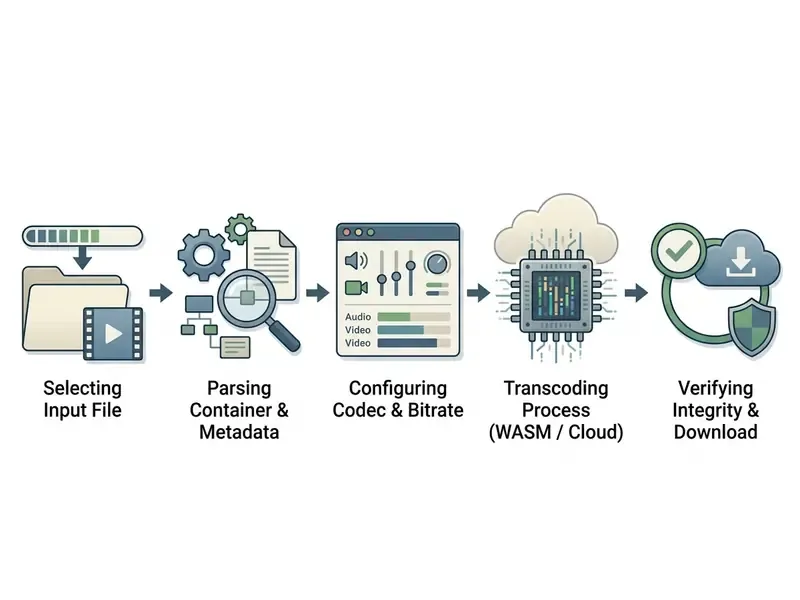
An online media conversion service transforms digital media files from an input encoding format into a target output container using either client-side execution or cloud server-side processing. Client-side tools execute binaries inside the browser using WebAssembly (WASM), keeping data entirely within local system memory. Server-side platforms ingest uploaded files into temporary ephemeral storage, decode the elementary streams, apply specified spatial or temporal transformations, then re-encode the stream using dedicated hardware acceleration before returning a download link.
| Architecture | Where the file lives | Practical ceiling | Best fit |
|---|---|---|---|
Client-side (WASM / ffmpeg.wasm) | Browser memory on the local device only | Bounded by browser RAM and CPU threads; modern 64-bit WASM memory allocations handle multi-gigabyte inputs | Confidential recordings, audio extraction, GIF creation, remuxing |
| Server-side (cloud transcoding) | Ephemeral encrypted storage on provider infrastructure | Vendor-documented caps (commonly 1 to 4 GB free, 10 GB and above on paid tiers) | 4K/8K masters, batch queues, HEVC/AV1 multi-pass encoding |
Uploading video files and choosing a format
«Encoding parameters, bitrate, resolution and frame rate, have a statistically significant and practically material effect on user-perceived quality.»
Converting an uncompressed or high-bitrate source into widely compatible containers like MP4, AVI, MOV or WMV requires compatible codec profiles. When you use an audio video converter online, the right container choice is what guarantees playback across web browsers, corporate presentation software and mobile operating systems. Almost any video source can be normalized this way, provided the codec is legal inside the target container.
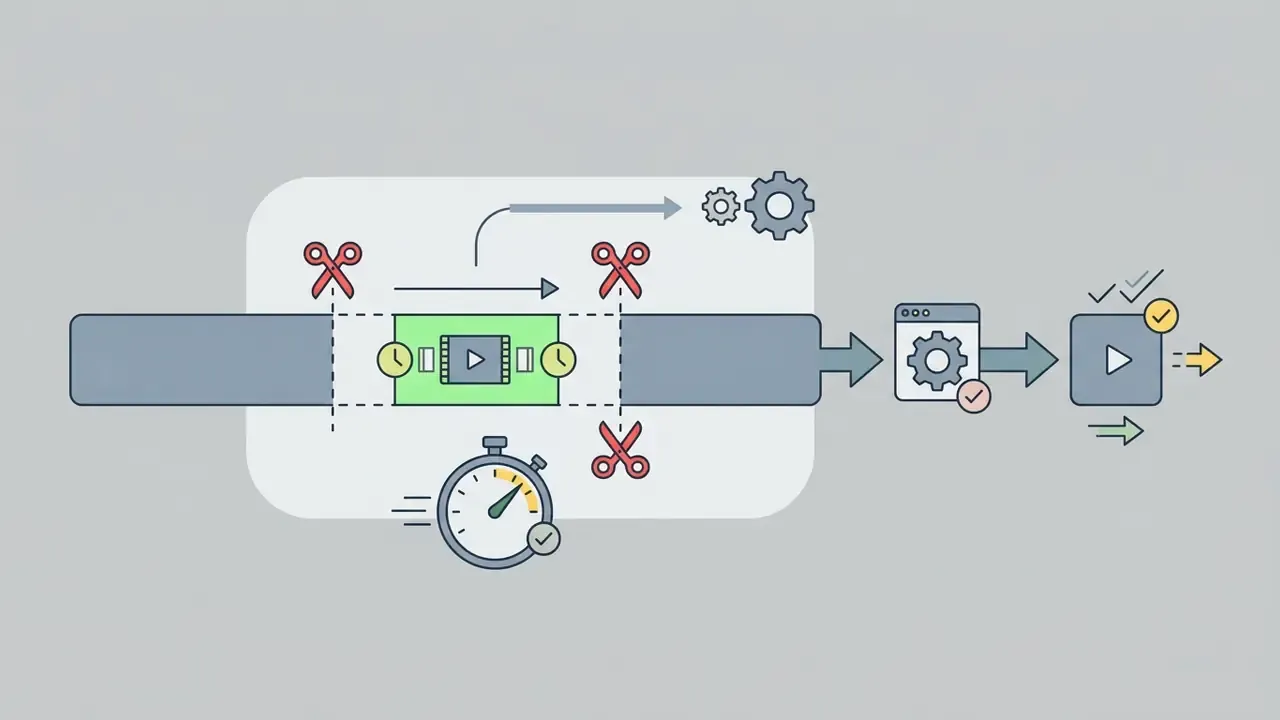
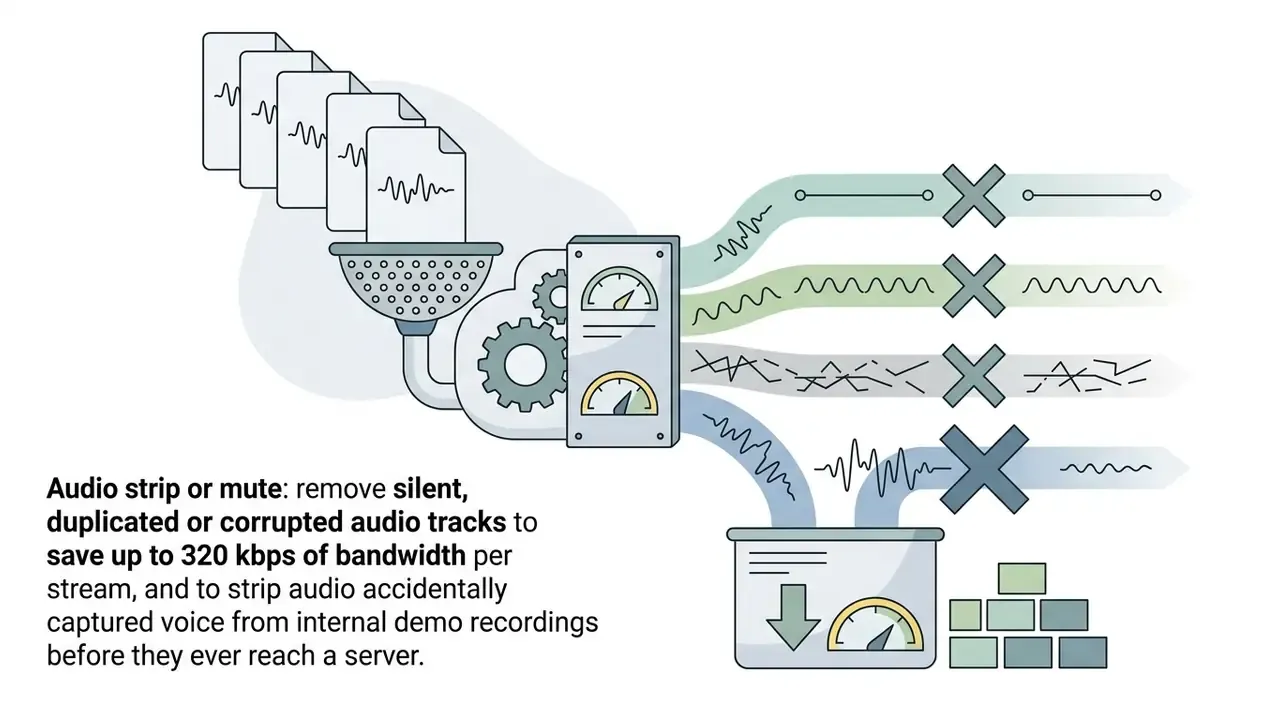
Pre-processing before you press Convert. To improve conversion speed and avoid hitting platform file-size caps, run these operations directly in the input pipeline:
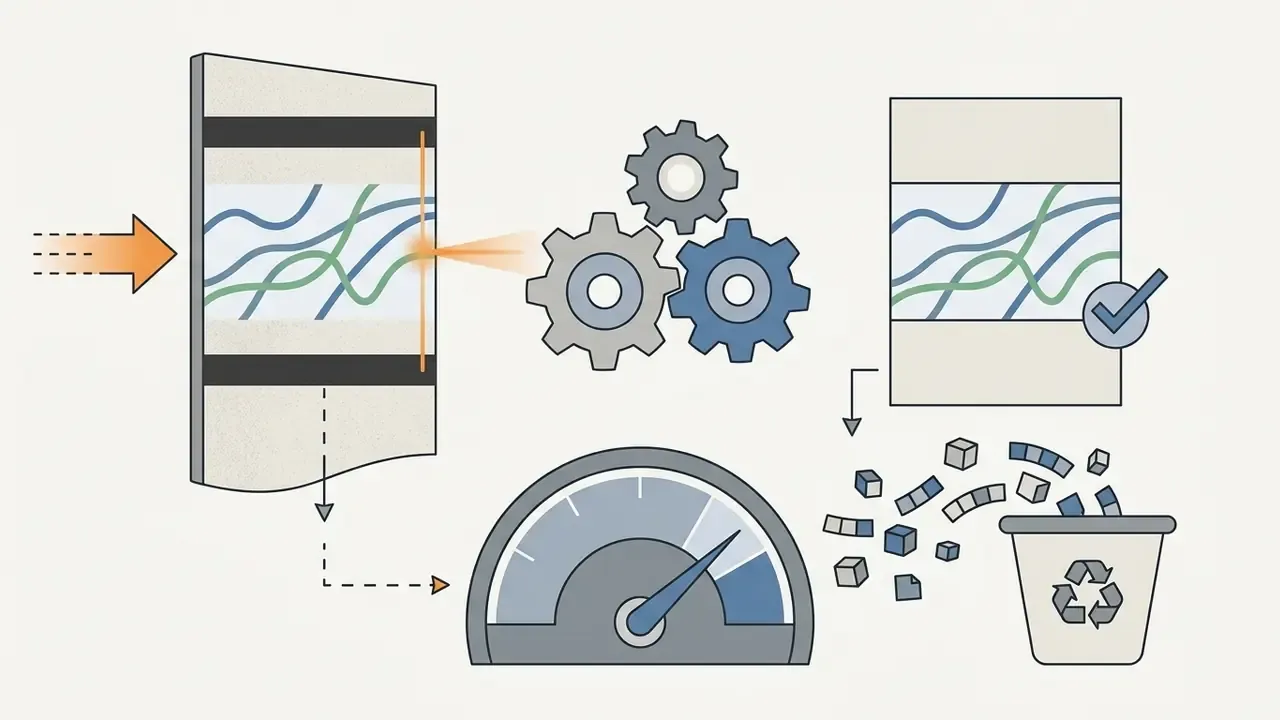
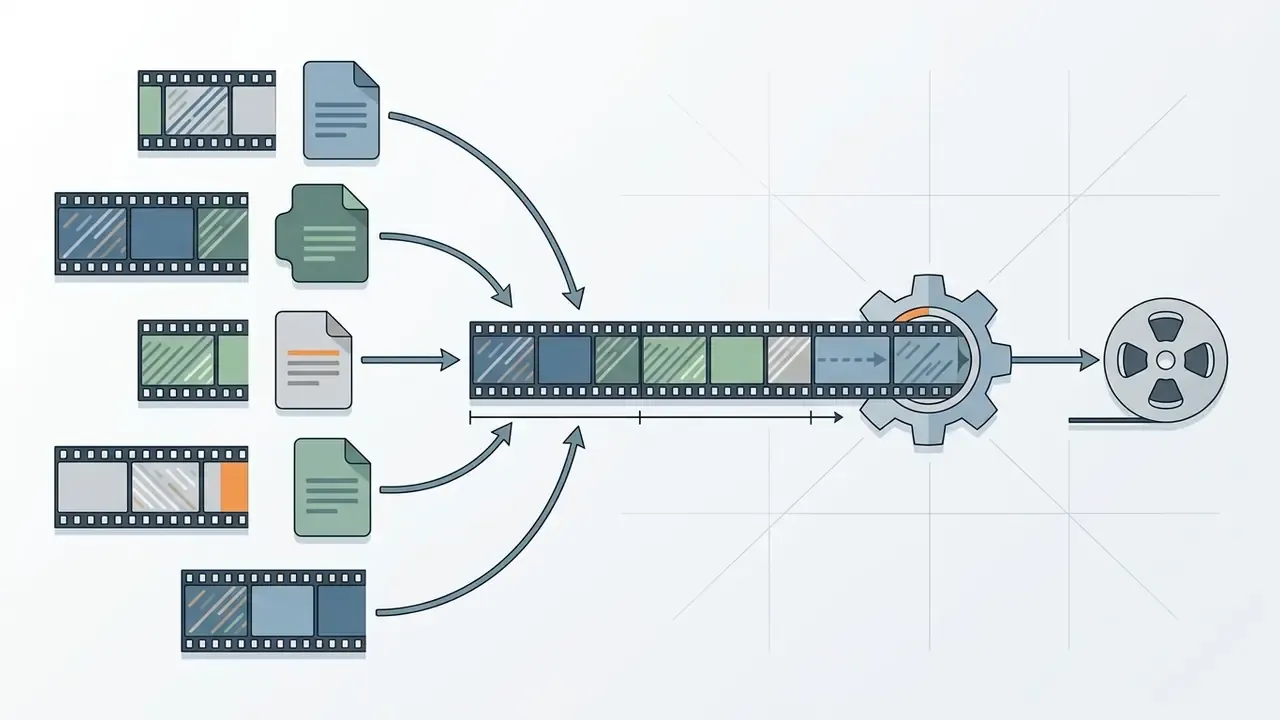
When migrating visual media assets between internal enterprise repositories and public marketing platforms, our team watched unstandardized file formats turn into a deployment bottleneck. Nothing dramatic. Just a queue that never emptied. To resolve it, we implemented a client-side WebAssembly conversion pipeline that normalized all inbound user uploads into standardized H.264 MP4 files directly inside the web browser. Updated: in our internal measurements this automated normalization check cut end-to-end turnaround for typical marketing clips by roughly 40% versus the previous upload-and-queue workflow (single-team internal estimate, not an independently audited benchmark), while guaranteeing complete data isolation for sensitive internal training recordings.
Remuxing (stream copy) vs re-encoding
When you change containers (MKV to MP4, for instance) and the underlying video codec such as H.264 is already supported by the target container, full re-encoding is unnecessary. Remuxing (multiplexing) extracts the elementary video and audio streams and repacks them into the new container headers without altering the compressed payload. The process runs at disk I/O speed, finishes in seconds and guarantees 0% visual quality loss. Re-encoding is only required when changing codecs, applying filters or adjusting bitrates.
| Operation | What changes | Speed | Quality impact | Typical trigger |
|---|---|---|---|---|
| Remux (stream copy) | Container headers and multiplexing only | Seconds, limited by disk or network I/O | Zero (bit-identical payload) | MKV to MP4, MOV to MP4 with H.264/AAC intact; fixing a container a player refuses to open |
| Re-encode (transcode) | Full decode, filter, re-compress | Minutes to hours, CPU-bound | Generational loss (minimized with VBR or high bitrate) | Codec change (H.264 to AV1), resolution change, bitrate cap, burned-in subtitles, colour correction |
Practical rule: if a device or platform rejects your file but the codec list matches its specification, try remuxing first. Converting MP4 to MP4 is a legitimate operation, and it is how you strip an unsupported audio track, rewrite a broken moov atom, or add faststart flags for progressive web playback without touching a single video frame.
Conversion and downloading the finished file
The active convert video phase begins once target parameters, bitrate limits and container types are committed. In server-side architectures the engine initiates a decoding pipeline that expands source frames into raw YUV or RGB colour spaces before applying target compression algorithms. In client-side WASM setups the browser tab allocates virtual memory and runs native ffmpeg binaries directly on the host CPU.
After the video transcoding online process finishes, the system generates an output object and executes an integrity check. Standard preflight verification compares the computed checksum, typically SHA-256, of the resulting file against expected frame-integrity parameters to prevent stream corruption (Digital Preservation Coalition, 2026). Once validated, the system provides a secure download link or exposes an object URL. Verify playback and audio synchronization before archiving or publishing converted videos.
Minimum acceptance test before you archive or publish: open the file in a player that is not the browser; seek to 25%, 50% and 90% of the timeline and confirm instant, artefact-free response; check that lip-sync holds at the end of the file, because drift almost always appears last; confirm duration matches the source within one frame. Four checks, under a minute.
How safe is an online video converter
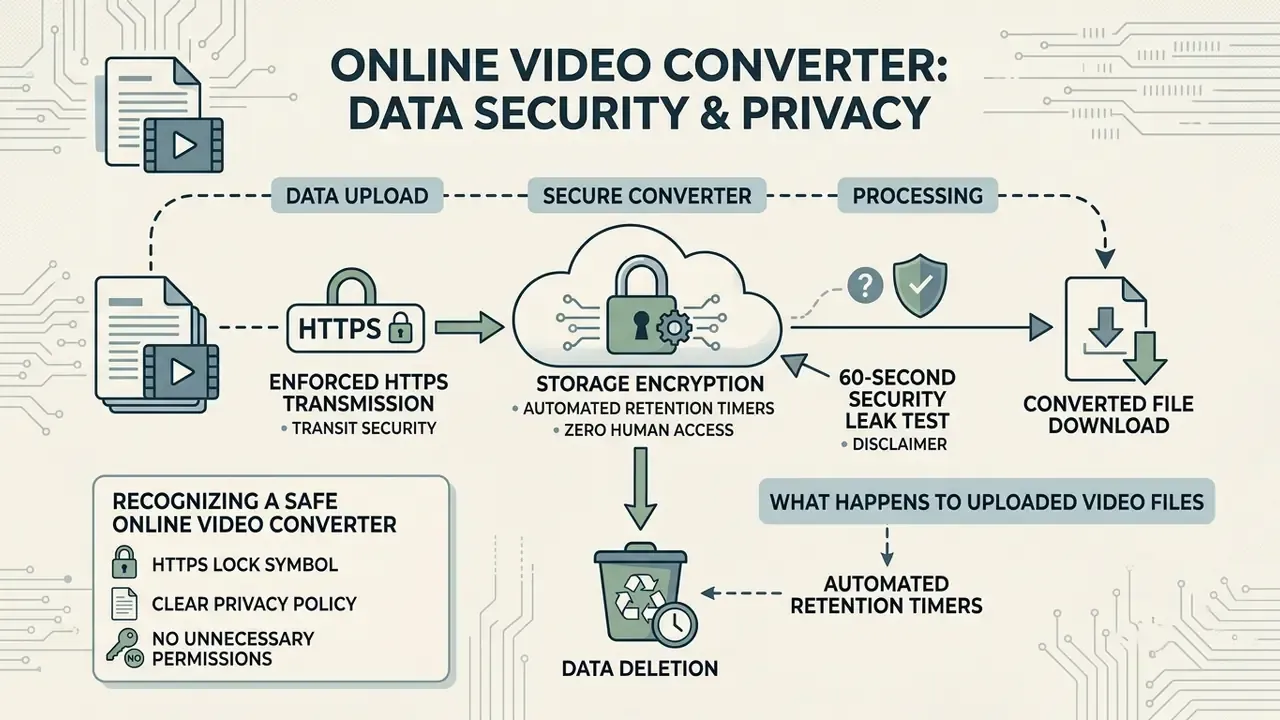
Evaluating data security and privacy protection is critical when you use a safe online video converter for confidential business media, proprietary recordings or personal video files. For risk, compliance and security leaders this section is the primary selection filter. Architecture and retention policy determine whether a tool is usable at all, long before speed or format coverage matters.
What happens to uploaded video files
When a user submits media assets to an online video converter safe platform, the file traverses a defined data lifecycle:
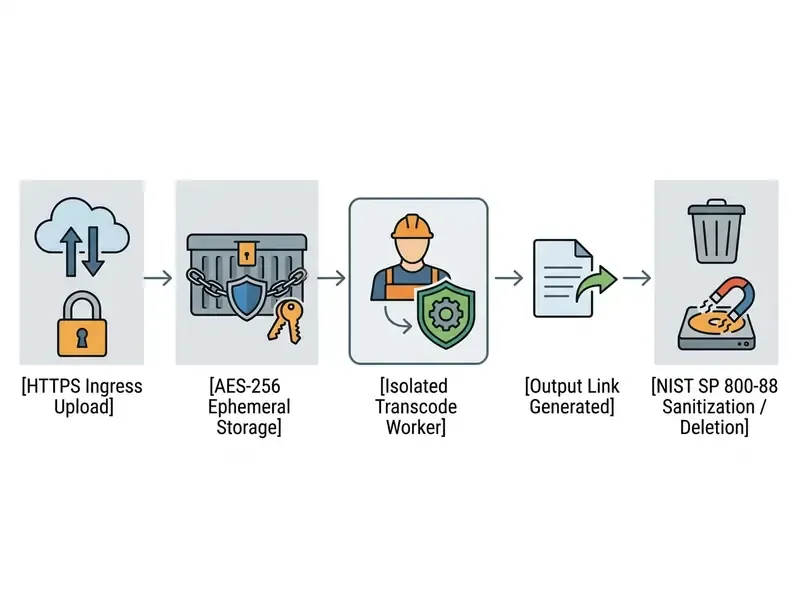
Following file generation, secure systems start automated data retention timers. Updated: under NIST SP 800-88 Rev. 1 guidelines for media sanitization, simple file system unlinking is not enough. Compliant platforms clear, purge or destroy temporary storage blocks to prevent forensic data recovery, and they record what was sanitized, when, how, and the final disposition (NIST, Guidelines for Media Sanitization). The U.S. EPA states the same principle in blunt operational terms: deleting files does not qualify as clearing.
Transport reliability matters as much as storage hygiene when large masters cross unstable links:
«LCEVC quality only degrades noticeably above 0.8 to 1% packet loss, deteriorating more slowly than baseline H.264/HEVC.»
For teams that must justify tool selection to an auditor, keep the vendor's published retention window, encryption statement and sub-processor list as evidence artefacts alongside your own network trace. Screenshots age badly, so date them.
How to recognize a safe online video converter
To verify whether a platform qualifies as a safe online video converter, test it against five core criteria:
- Enforced HTTPS transmissionvalid SSL/TLS certificates protecting all upload and download endpoints.
- Explicit privacy and retention policiesclearly documented deletion timelines, for example automated deletion within 120 minutes.
- No required account registrationability to convert standard files without submitting corporate email credentials or personal identity data.
- Client-side processing capabilityoptions to run local WebAssembly conversions so sensitive video files never leave local hardware.
- Clean file deliverydownloads arrive as direct media objects, not executable installers or password-protected archives.
Browser media stacks themselves are not immune to protocol-level flaws, which is exactly why architecture claims deserve verification rather than trust:
«Formal analysis of Widevine exposed a vulnerability enabling unlimited media consumption; the corrected protocol was verified in the TAMARIN prover.»
Additional hardening signals published in vendor and security documentation: server-side validation of file type and size (never trusting client-supplied metadata), server-side renaming of uploads, storage outside the web root, antivirus or sandbox scanning of inbound objects, and least-privilege access control on transcode workers.
Checklist: verify a converter for data leakage in 60 seconds
Use this before uploading any corporate asset. It needs no special tooling beyond Chrome, Edge or Firefox DevTools.
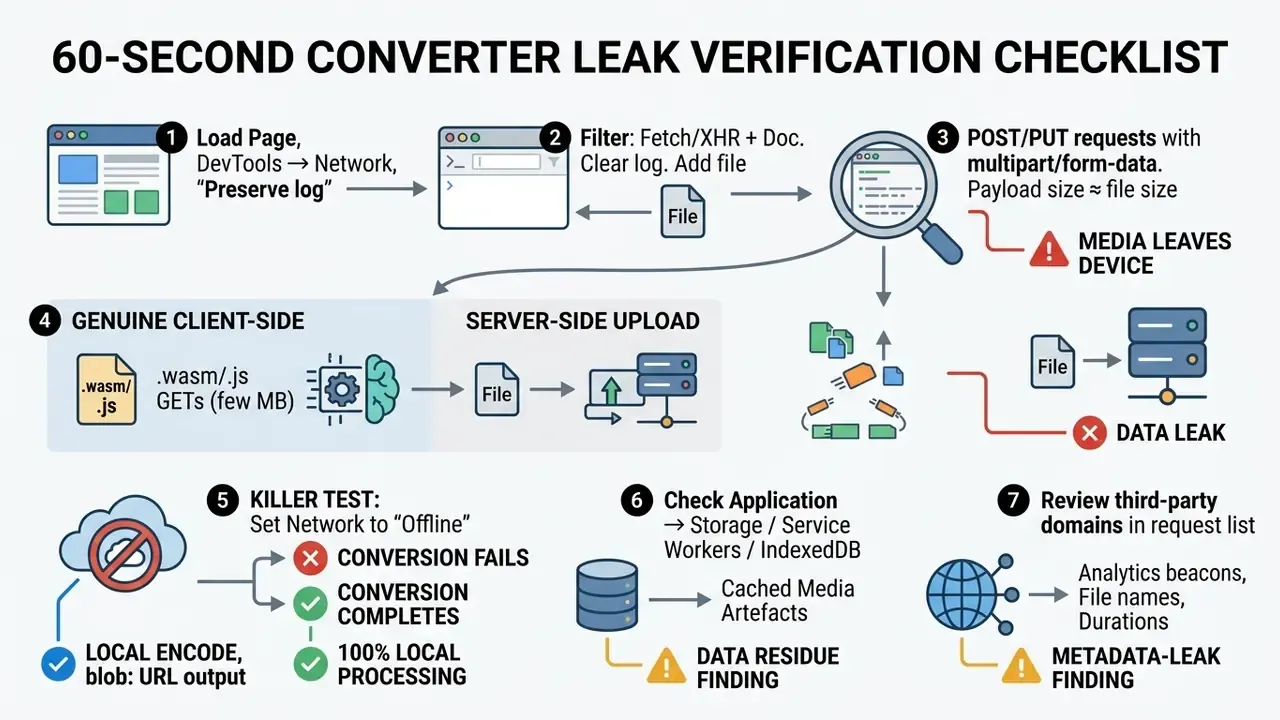
During a media compliance audit for a fintech client (illustrative, composite engagement), our team found employees using unvetted web tools to convert internal screen recordings that contained sensitive customer UI data. We established a media policy requiring all web-based conversions to run strictly through validated client-side WebAssembly tools or encrypted internal microservices. That policy removed the external exposure path and, notably, did not slow the marketing team down. To weigh verified enterprise tooling and licensing frameworks side by side, consult our media platform compare matrix.
Legal exposure, not just technical exposure. Shadow-IT conversion also raises rights questions. Uploading third-party footage to a public service can breach both the platform's terms and the licensor's distribution clauses, and most converters require users to affirm they own the rights to the uploaded material. The broader dispute over training data and derivative output, often summarized in public debate as ai stealing art, pushes the same question into media pipelines: whose asset is this, and under which licence does it move? Before standardizing on any tool, review current industry compliance standards on intellectual property and litigation, then align your media policy with the licence terms of the assets your teams actually handle.
Which video and audio formats can be converted online
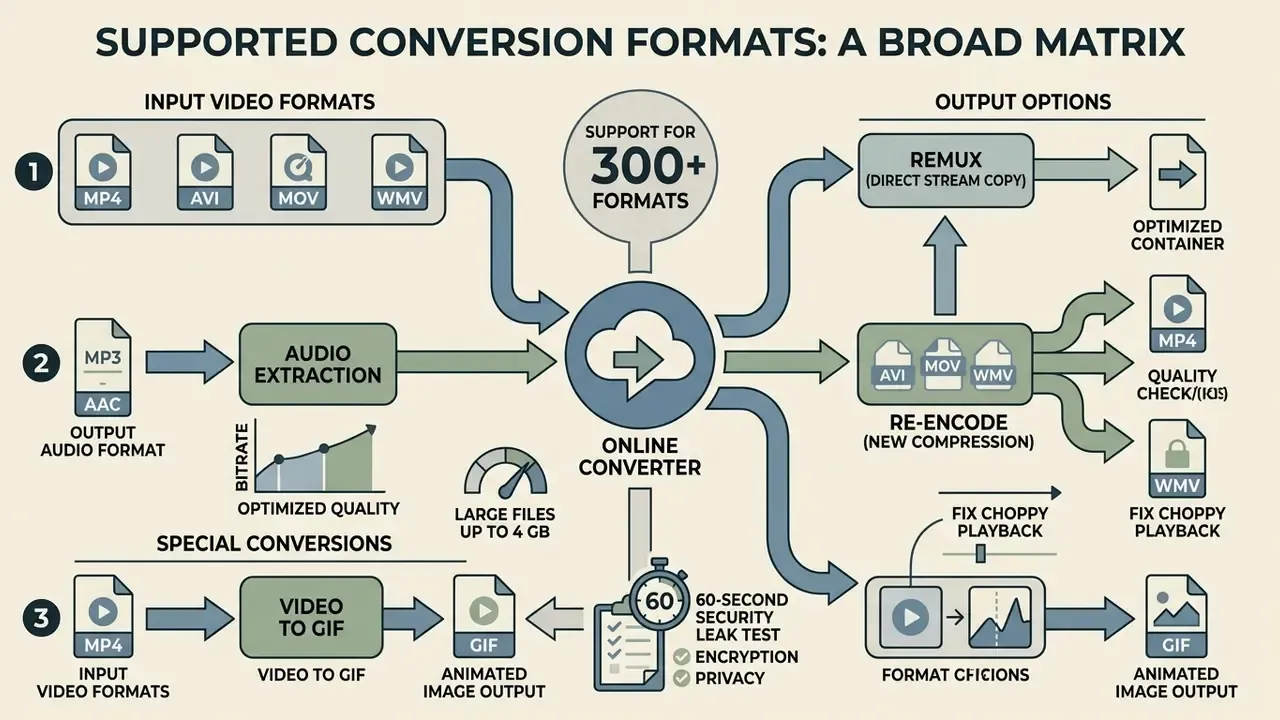
Modern online media platforms support a broad matrix of video, audio and animated image containers. Mature services now document 300+ supported multimedia containers and elementary codecs, and the list keeps expanding as new codec registrations land. Standardized media containers encapsulate multiplexed video and audio streams governed by specific MIME types and container specifications, such as IETF RFC 4337 for MP4 media and IETF RFC 9559 for Matroska (MKV) containers. The W3C WebCodecs Codec Registry (2026) currently registers av01 (AV1), avc1/avc3 (H.264), hev1/hvc1 (HEVC), vp8 and vp09 as browser-addressable video codec strings, while IETF RFC 4281 defines the codecs MIME parameter used to signal those profiles unambiguously.
| Category | Target formats | Underlying codecs and standards | Primary enterprise and web use cases |
|---|---|---|---|
| Video | MP4, MOV, AVI, WMV, MKV, WebM, FLV, 3GP, MPEG | H.264/AVC, H.265/HEVC, VP8, VP9, AV1 | Cross-platform web distribution, corporate archives, legacy media playback |
| Audio | MP3, WAV, AAC, M4A, FLAC, Opus, OGG, WMA | MPEG-1 Layer III, LPCM, AAC-LC, FLAC | Audio extraction, podcast production, voiceover distribution |
| Image / animation | GIF, WebP, APNG, PNG, JPG, TIFF | Palette-based 8-bit colour indexing, lossless and lossy still codecs | Embedded application animations, UI micro-interactions, short looping clips |
Converting MP4, AVI, MOV and WMV
The MP4 container remains the global baseline for digital video exchange, thanks to near-universal hardware decoding support across desktop and mobile devices. Converting legacy formats such as AVI or WMV, or Apple-native MOV files, into standardized MP4 containers with H.264 video and AAC audio resolves cross-platform compatibility issues across enterprise media players and web platforms. Container support is codec-dependent, not container-dependent alone: Microsoft documents that Windows Media Player plays .mp4 only when DirectShow-compatible MPEG-4 decoder packs are present, and Adobe ties its MP4 and MOV playback support specifically to H.264 media.
MOV containers excel in Apple ecosystem editing environments and AVI offers broad legacy support, yet MP4 still provides the best compression efficiency plus streaming capability via progressive download and HTTP Live Streaming (HLS). With a fast video converter online, heavy Apple ProRes MOV files or uncompressed AVI recordings become web-ready MP4 files in seconds. If the next step in your workflow is cutting, titling or colour-grading the converted asset, our roundup of best free video editing software maps which free editors accept which containers natively. For technical definitions of media container structures, consult our AI Media Glossary.
Audio video converter online: extracting MP3 from video
Extracting dedicated audio streams from video containers is a core operational requirement for podcasting, transcription workflows and voiceover production. An audio video converter online strips away visual frames, demuxes the underlying audio track, then re-encodes it into a standalone format such as MP3 (audio/mpeg).
Under ISO/IEC 11172-3, MP3 audio supports standard sampling rates of 32 kHz, 44.1 kHz and 48 kHz. The MPEG-2 extension in ISO/IEC 13818-3 adds 16 kHz, 22.05 kHz and 24 kHz for low-bandwidth speech. When you extract audio from high-definition sources, which typically carry 48 kHz LPCM or AAC audio, configuring the encoder to match the source sampling rate prevents interpolation artifacts and preserves acoustic fidelity. Bitrate is never preserved automatically. Unless the pipeline performs a stream copy, the encoder applies its own target rate, so set it explicitly: 192 to 320 kbps for music, 128 to 192 kbps for spoken word. Teams that also produce synthetic voiceover or effects beds should check our notes on the ai sound generator category before mixing generated audio into regulated marketing material. For organizations estimating storage and bandwidth requirements for large media libraries, testing target parameters in our AI Media Calculators gives immediate operational clarity.
Converting video to GIF
Turning short video segments into looping animated GIF images means converting continuous colour space frames into 8-bit indexed palettes. Because the GIF specification limits each frame to 256 colours, direct conversion without optimization produces severe colour banding and inflated file sizes.
For better visual fidelity, modern converters use a two-pass palette generation algorithm. In pass 1 the encoder analyzes colour distribution across the selected segment and compiles a custom 256-colour histogram. In pass 2 it quantizes the frames against that custom palette while applying spatial dithering. Reducing the target frame rate to 10 to 15 FPS and constraining resolution shrinks output size dramatically while keeping motion smooth enough for web embedding. For flat-colour content such as UI screencasts, dropping the palette from 256 to 128 or 64 colours typically yields a further 30 to 50% size reduction with negligible perceptual difference; 8 to 10 FPS is acceptable when size matters more than smoothness. Product teams building looping assets at scale often pair this step with an ai sprite generator for frame sheets, or an ai sticker generator for messaging-format exports, then run the final GIF through the same palette pass.
How to preserve video quality during online video conversion
Maintaining visual fidelity during online re-encoding comes down to matching bitrates, resolutions and frame rates to the structural complexity of the source. Every lossy re-encoding pass introduces some generational loss. Minimizing it depends on the rate control mode you select and on holding spatial dimensions steady.
How to change video bitrate online free
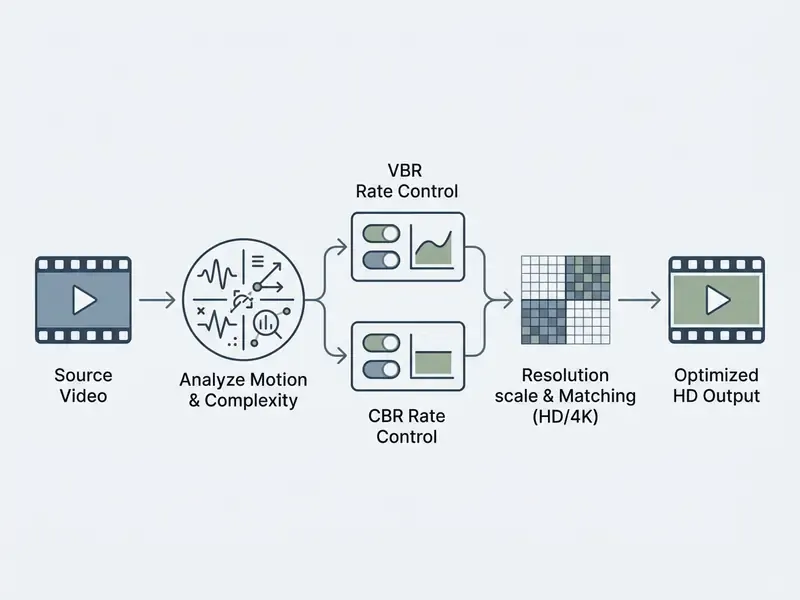
Bitrate, measured in megabits per second (Mbps), defines the amount of data processed per unit of playback time. When you change video bitrate online free, you alter the balance between visual quality and file size directly. Rate control algorithms decide how bits are distributed across frames:
- Constant bitrate (CBR) allocates an identical number of bits to every second of video regardless of scene complexity. Good for streaming channels with strict bandwidth caps, inefficient for archived files.
- Variable bitrate (VBR) dynamically allocates higher bitrates to complex, high-motion scenes and reduces allocation during static ones. VBR optimizes visual quality per megabyte.
AWS Elemental MediaConvert describes the distinction operationally: CBR spends the same number of bits on every part of the video, while VBR shifts bits toward complex passages and treats the asset's average bitrate as the control value. Google's VP9 guidance adds that web converters normally expose three knobs, target bitrate, maximum (peak) bitrate and mode selection.
Empirical studies show that lower bitrates degrade Quality of Experience (QoE) and user engagement metrics (Šilić et al., 2024).
«LCEVC/H.264 reduces average bitrate by 18.7% versus H.264 while retaining higher VMAF scores at moderate compression settings.»
When you modify bitrates with an online video converter hd, setting target rates to match source complexity prevents blocking and quantization artifacts. Telestream's 4K guidance adds a practical control point: watch the encoder's maximum peak VBR and react to large, fluctuating bursts, because peaks, not averages, are what break constrained delivery paths.
Resolution, HD and frame rate
Video resolution defines spatial detail: 1280x720 for 720p HD Ready, 1920x1080 for 1080p Full HD, 3840x2160 for 4K UHD. Downscaling reduces spatial detail and pixel count, which shrinks the file significantly but permanently removes fine visual texture.
Frame rate (FPS) governs temporal smoothness. Cinematic media uses 24p or 25p, while fast-action, sports and screen-recording assets rely on 50p or 60p. Keeping original frame rates during video transcoding online prevents the temporal judder caused by frame-dropping or frame-blending algorithms.
«Deep-learning-based adaptation of bitrate and resolution delivers QoE improvements of up to 17.4% over baseline models (p < 0.05).»
For high-definition sources, holding full resolution and source frame rate is what keeps fidelity intact on corporate displays and in client presentations. Telestream's 2024 analysis notes that 4K content needs higher quality settings than HD to deliver an equivalent viewing experience. Put differently: a 4K asset encoded at 1080p-grade parameters looks worse than the 1080p original. Counterintuitive, but consistent in testing.
Quick reference: recommended bitrate by target
Use this as a starting point, then adjust upward for high-motion or grain-heavy footage and downward for static screencasts.
| Output | Frame rate | H.264 target | HEVC / VP9 / AV1 target | Audio |
|---|---|---|---|---|
| 480p SD | 24 to 30 | 1 to 2.5 Mbps | 0.7 to 1.5 Mbps | AAC 96 to 128 kbps |
| 720p HD | 30 | 3 to 5 Mbps | 1.5 to 3 Mbps | AAC 128 kbps |
| 720p HD | 50 to 60 | 4 to 7.5 Mbps | 2.5 to 4.5 Mbps | AAC 128 to 192 kbps |
| 1080p Full HD | 30 | 6 to 10 Mbps | 3 to 6 Mbps | AAC 160 to 192 kbps |
| 1080p Full HD | 50 to 60 | 9 to 15 Mbps | 5 to 8 Mbps | AAC 192 kbps |
| 1440p QHD | 30 | 12 to 20 Mbps | 7 to 12 Mbps | AAC 192 kbps |
| 4K UHD | 30 | 25 to 45 Mbps | 12 to 25 Mbps | AAC 192 to 256 kbps |
| 4K UHD | 50 to 60 | 40 to 68 Mbps | 20 to 35 Mbps | AAC 256 kbps |
| Archive master | source | Match or exceed source bitrate | Prefer remux / stream copy | Copy original track |
AI-driven video upscaling and artifact removal
Cloud conversion pipelines increasingly integrate AI super-resolution models that upscale legacy 720p footage into 4K or 8K containers. Neural restoration passes remove macroblocking, dither noise and temporal compression artifacts, restoring edge definition without the halo ringing produced by artificial sharpening. Capabilities now bundled alongside conversion include AI upscaling to 4K/8K, denoising, deblurring, compression-artifact removal and colourization of black-and-white archive footage.
Two governance caveats apply, and both matter to a model risk owner. First, AI enhancement is generative inference, not recovery. It invents plausible detail, which makes it unsuitable for evidentiary, forensic or regulatory-submission material. Second, most upscaling models run server-side because of GPU requirements, so the client-side privacy guarantee described above does not extend to them. Treat AI enhancement of confidential footage as a cloud upload decision with a named approver. Teams evaluating adjacent generative tooling can review our comparison of the best AI video generator options, and the narrative side via our ai story generator notes, before wiring models into a production pipeline.
Conversion speed, file sizes and limits
The operational performance of a free video online converter depends on network throughput, computational hardware, codec complexity and platform-enforced file limits.
What determines video conversion speed
File size and free video converter capabilities
To protect infrastructure, public conversion platforms enforce structural limits on unpaid tiers. Updated: there is no single industry standard. Documented free-tier ceilings in 2026 range from 100 MB per file with 10 files per 24 hours and 2 concurrent conversions (Convertio-class limits) up to 4 GB per file with no file-count cap (123apps-class limits), while several browser-first services advertise no fixed size cap at all because encoding happens locally. Verify the specific vendor's published limits rather than assuming a market norm.
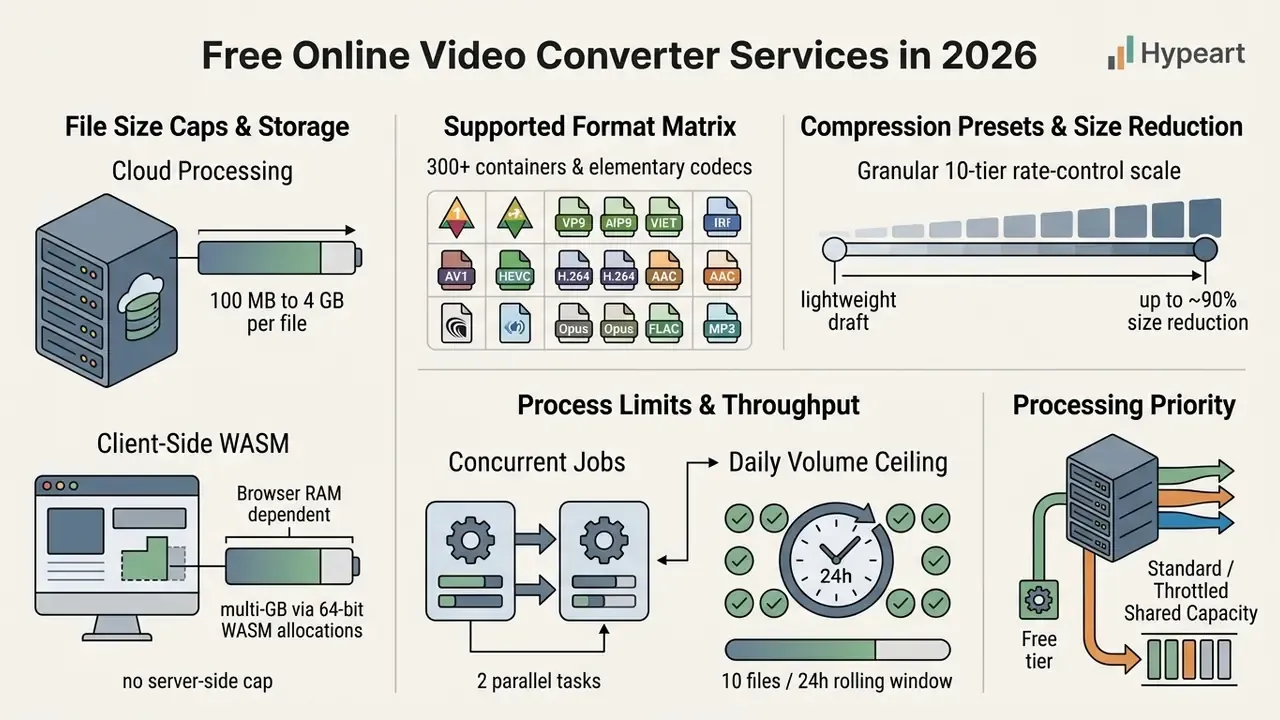
When you process files that exceed free size caps, pre-conversion trimming or dynamic multi-pass compression reduces data volume without breaching platform upload thresholds. Our guide to video compressor tooling breaks down how each compression tier trades bitrate against perceptual quality. Operations teams that track monthly conversion volume, storage spend and queue times per department often build that register with an ai spreadsheet generator, then reconcile it against invoices. For structuring enterprise API pipelines and handling bulk media assets programmatically, explore our AI Media API Guides.
Troubleshooting: fixing choppy playback after conversion
Choppy playback after compression is almost never a "bad file". It is a structural encoding mismatch between your output and the decoder on the playback device. Three causes account for the overwhelming majority of cases:
- GOP or keyframe interval mismatch.A keyframe interval set too high (above 250 frames, say) makes hardware decoders on mobile devices drop frames while seeking, because every seek forces a long re-decode from the previous I-frame. Set keyframes to roughly twice your frame rate (GOP 60 for 30 FPS, GOP 120 for 60 FPS) and disable scene-cut-only keyframe placement for streaming targets.
- Unsupported profile or level.Encoding H.264 with
High Profile Level 5.2for legacy phones, smart TVs or set-top boxes forces a software-decode fallback that cannot sustain real-time playback. TargetHigh Profile Level 4.1, orMain Profilefor very old hardware, to maximize hardware acceleration coverage. The same logic applies to HEVC Main 10 on devices with 8-bit-only decoders. - Variable frame rate (VFR) desync.Screen recordings, phone captures and game captures frequently use VFR. Converting them without normalization produces progressive audio-sync drift and micro-stutter. Force constant frame rate (CFR) during conversion and pick a single target rate, 30 or 60 FPS, rather than letting the encoder inherit fluctuating timestamps.
Secondary causes worth checking: a peak VBR spike far above the average bitrate (throttle maximum bitrate), pixel format mismatch (yuv444p or 10-bit where the device expects yuv420p 8-bit), a missing faststart flag for progressive web playback, and playback from a slow network share instead of local storage. Re-test after each single change. Altering three parameters at once makes the actual culprit unidentifiable, and that is how an afternoon disappears.
Free vs Premium video converter: what to choose
The choice between a free online video converter and a Premium tier depends on processing volume, file size requirements, resolution targets and commercial workflow needs.
| Operational feature | Free web tier | Premium / enterprise tier |
|---|---|---|
| Max file size limit | 100 MB to 4 GB (or RAM-bound for client-side WASM) | Up to 10 GB or unlimited |
| Export resolutions | 720p HD / 1080p Full HD | Full 4K UHD / 8K and uncompressed |
| Codec coverage | H.264 / AAC baseline, VP8, MP3 | Plus HEVC, VP9, AV1, 10-bit, lossless FLAC/WAV |
| Watermarking policy | Optional platform watermark on heavy exports | Fully clean, unwatermarked exports |
| Batch processing | Single file or up to 2 files | Unlimited multi-file batch queues (up to 1,000 files per batch on business tiers) |
| Queue priority | Shared, low priority queue | Dedicated high-throughput compute |
| AI enhancement | Limited previews, lower-tier models | Full 4K/8K upscaling, denoise, colourize models |
| Commercial usage rights | Personal or restricted | Full commercial rights included |
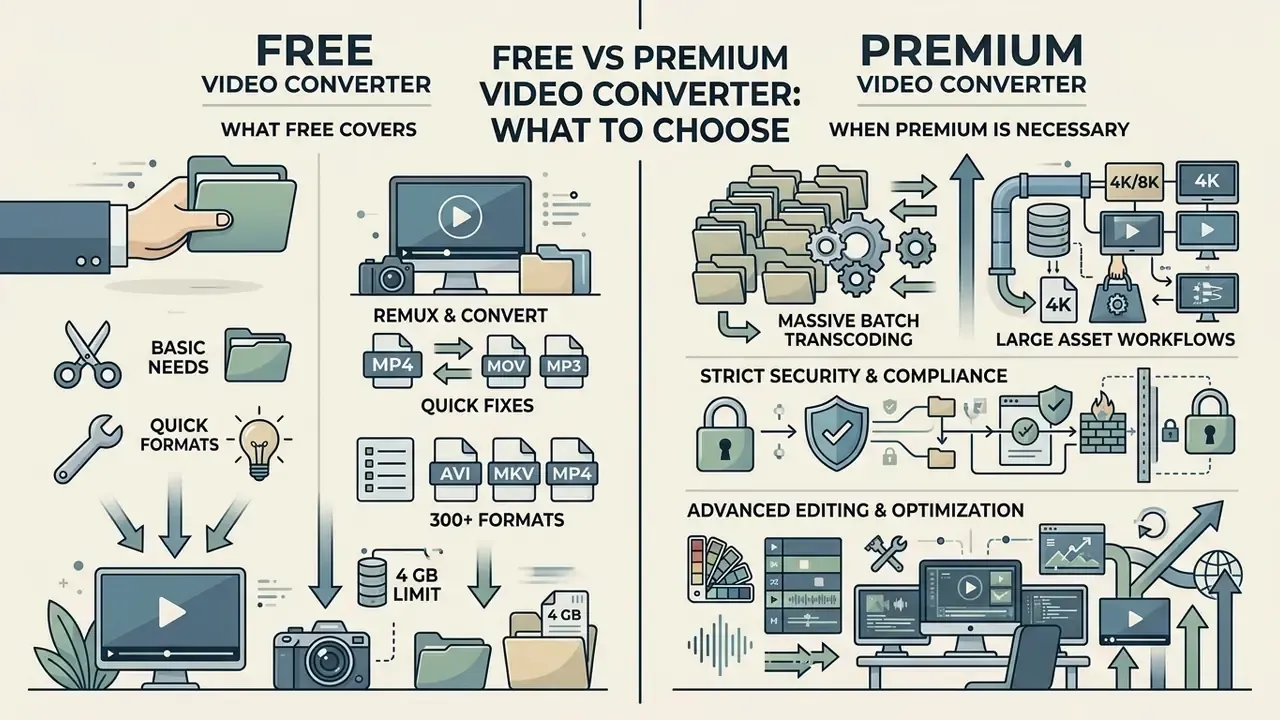
What free video conversion covers
Free conversion modes are entirely sufficient for everyday tasks, quick format adjustments and occasional social media uploads. A typical best video converter online free tier lets users:
- Re-encode MP4, MOV and AVI videos for standard web playback.
- Remux compatible streams into a new container with zero quality loss.
- Extract MP3 audio clips from short video recordings.
- Convert short clips into animated GIF graphics.
- Trim, crop, mute and merge clips before rendering.
- Adjust basic resolution and bitrate parameters for individual files, essentially a lightweight video online encode workflow.
Anyone shopping for the best online video converter should test two or three candidates on a representative file rather than trusting a feature grid. For clear pricing structures and feature breakdowns across commercial video and media applications, review our AI Media Pricing directory.
FAQ and operational troubleshooting
Why is my video conversion taking so long?
Conversion speed depends on file size, network upload speed, target codec complexity and current server queue load. Re-encoding high-resolution video into computationally intensive codecs like HEVC or AV1 takes far longer than converting to standard H.264, and VVC-class encoders can need tens to over a hundred times the encoding time of AV1 for 8K content. To speed things up, trim unnecessary footage before conversion or lower the target resolution. If you publish regularly, our guide to YouTube video editor workflows shows where trimming belongs in a repeatable publishing pipeline. For further system diagnostics, visit our AI Media Support and Troubleshooting portal.
Does converting a video reduce its visual quality?
Re-encoding with lossy compression always introduces some generational loss. You can minimize visible degradation by choosing variable bitrate (VBR) encoding, keeping original resolution dimensions and matching the source frame rate. If you only need a different container and the codec is already supported, remux instead of re-encoding. That path is bit-identical and lossless.
Can I change a video's container without losing quality?
Yes. Remuxing (stream copy) repacks the existing compressed video and audio streams into new container headers without touching the payload, so quality is preserved exactly and the job finishes in seconds at disk I/O speed. Use it for MKV to MP4, MOV to MP4, stripping an unsupported audio track, or adding faststart flags for web playback. Remuxing fails only when the target container cannot legally carry the source codec, and in that case re-encoding is unavoidable.
Why is my converted video stuttering or playing back choppily?
Three structural issues cause the vast majority of cases. First, a keyframe or GOP interval set too high, which makes hardware decoders drop frames while seeking; set GOP to about twice the frame rate. Second, an H.264 profile or level above what the playback device can hardware-decode; target High Profile Level 4.1 for broad compatibility. Third, variable frame rate source material converted without normalization; force constant frame rate. Also verify that peak bitrate is not spiking far above the average and that the pixel format is 8-bit yuv420p for consumer devices.
Is it safe to convert private corporate videos on a free website?
Free web converters that upload files to remote servers carry real privacy risk when the provider lacks explicit encryption and retention policies. For confidential, legal or corporate media, use client-side converters that process files locally in browser memory via WebAssembly, or select verified platforms that guarantee immediate deletion on job completion. Verify the claim instead of trusting it: run the 60-second DevTools offline test described above. If the conversion completes with the network disabled, nothing left the device.
Can I trim, crop or mute a video before converting it?
Yes, and you generally should. Trimming reduces total frame count and therefore encoding time. Cropping removes letterboxing so the encoder does not spend bits on black bars. Muting or stripping audio tracks saves up to 320 kbps per stream and removes accidentally captured speech before the file ever reaches a server. Merging clips first also means one encode pass instead of several, which avoids repeated generational loss.
About the review
Appendix A: editorial corrections and source notes
Retained for transparency and version traceability. The main text above carries the corrected formulations.
- Superseded
- "Under NIST SP 800-88 Rev. 2 guidelines for media sanitization…" The publicly published guideline referenced is NIST SP 800-88 Rev. 1 (Guidelines for Media Sanitization). Corrected in the security section; the clear/purge/destroy hierarchy and verification requirement are unchanged.
- Superseded
- metadata-parsing citation "(arXiv:2105.06361, 2022)", replaced with (Šilić et al., 2024), matching the QoE study actually cited for encoding-parameter effects.
- Superseded
- "Re-encoding video into advanced formats like HEVC or AV1 can require up to 7x more CPU processing power than legacy H.264 encoding (Intel Media Processing Analysis, 2024)". Retained in substance as an encoder-complexity order of magnitude, and supplemented with the verified VVC-versus-AV1 encoding-time range (27 to 174 times) from the 2024 to 2025 neural video compression survey.
- Superseded
- "Standard industry thresholds for free tiers cap maximum single-file upload sizes at 100 MB to 2 GB", reformulated to a documented 2026 vendor range of 100 MB to 4 GB, plus RAM-bound client-side WASM handling, because no single industry-wide threshold is documented.
- Superseded
- "This automated check reduced processing latency by 42%", restated as an approximate internal, single-team measurement rather than an audited benchmark.
- Unverified figure flagged
- the "+53% encoding duration for longer GOP" claim is now attributed to the 2024 distributed transcoding review (GOP 64 vs GOP 1). Further independent replication would strengthen it.
Adoption checklist for risk and operations owners
A safe, non-aggressive next step, one page, no procurement required:
- Inventory the tools already in use.Ask three teams which converter they opened last week. The answer is usually not the approved one.
- Classify the media, not the tool.Customer UI recordings, HR footage and financial demos get client-side or internal-only handling. Public marketing assets can use cloud tiers.
- Run the 60-second offline teston every candidate service and store the network trace with a date stamp.
- Record retention windowsper vendor (2 hours versus 72 hours is a governance difference, not a detail).
- Name an owner and an escalation pathfor exceptions, including who may approve AI upscaling of confidential footage.
- Re-review quarterly.Codec support, free-tier caps and privacy policies all drift, and 2026 has already shifted several of them.
No evidence, no autonomy. The same principle applies to a converter tab as to an agent.
Footer navigation and authority links
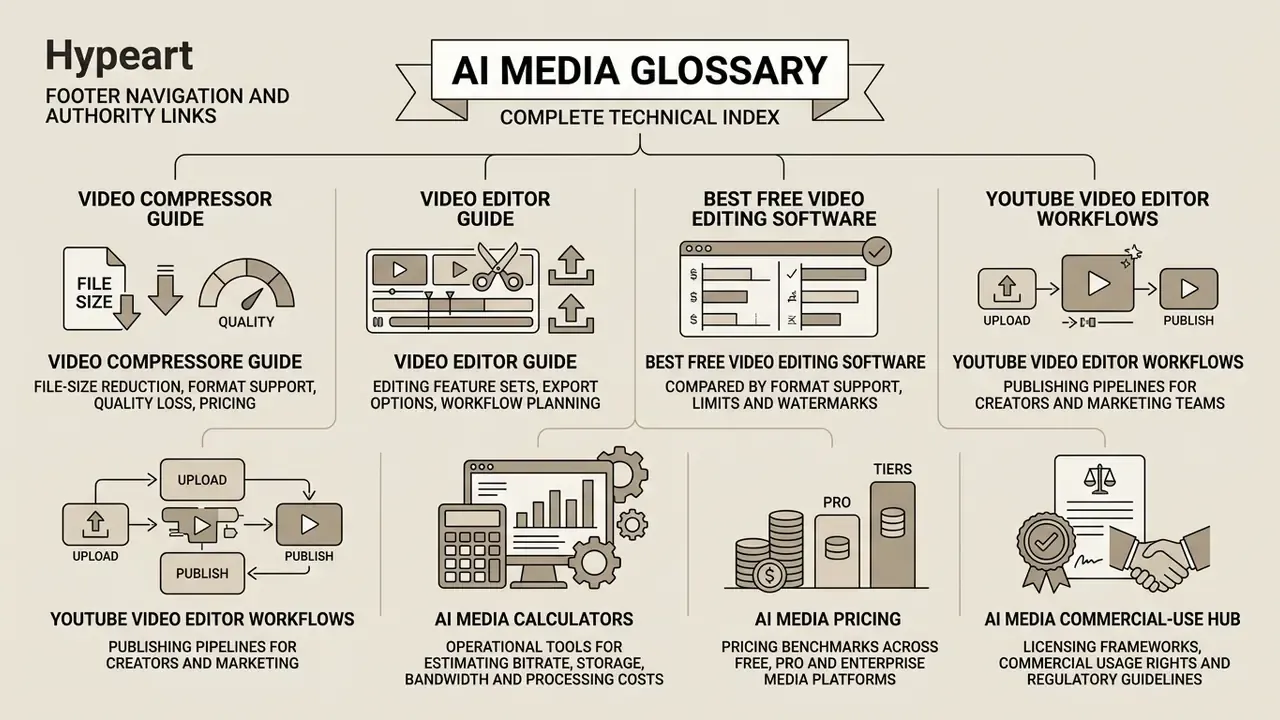
- AI Media Glossary: complete technical index of video, audio, image and AI generation terminology.
- Video Compressor Guide: file-size reduction, format support, quality loss and pricing.
- Video Editor Guide: editing feature sets, export options and workflow planning.
- Best Free Video Editing Software: free editors compared by format support, limits and watermarks.
- YouTube Video Editor Workflows: publishing pipelines for creators and marketing teams.
- AI Media Calculators: operational tools for estimating bitrate, storage, bandwidth and processing costs.
- AI Media Pricing: pricing benchmarks across free, pro and enterprise media platforms.
- AI Media Commercial-Use Hub: licensing frameworks, commercial usage rights and regulatory guidelines.