Picking the best free video editor for Mac is less about feature lists and more about fit. Fit between your hardware, your deliverable, and your tolerance for a learning curve. In 2026, macOS users can choose from native Apple tools, open-source suites, a full professional color-grading application, commercial freemium editors, and browser-based platforms. All at zero license cost. The catch sits in the fine print: watermarks, export caps, account requirements, and where your footage is processed.
The short answer
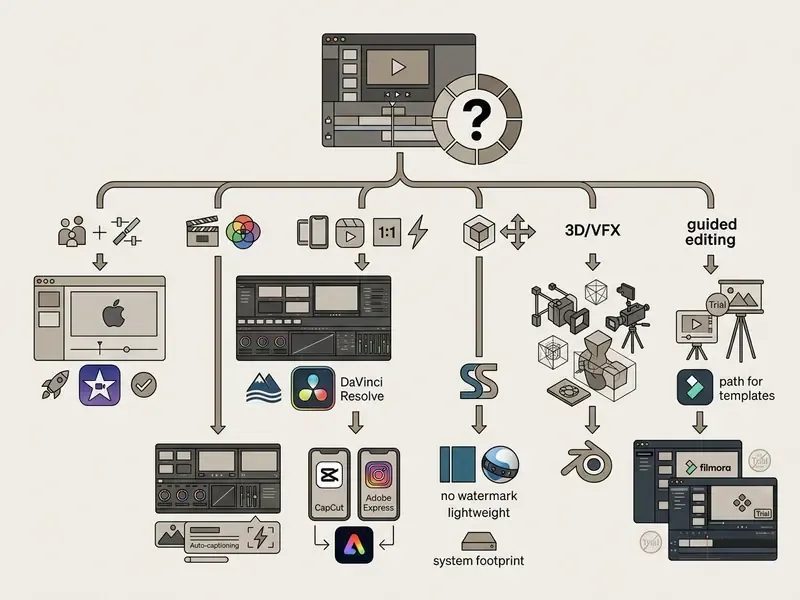
- Already on a Mac and just need cuts, titles and music? Use iMovie (pre-installed, free, no watermark, 4K export). For single-file trims, QuickTime Player or Apple Photos are quicker than launching a full editor.
- Need professional color grading, VFX and audio post at zero cost? Use DaVinci Resolve (Free): UHD 3840×2160 at up to 60 fps, no watermark. Budget 16 GB or more of unified memory for comfortable 4K work.
- Publishing Reels, Shorts or TikTok daily? Use CapCut for Mac, Canva, or Adobe Express for 9:16 presets, auto-captions and template-driven output.
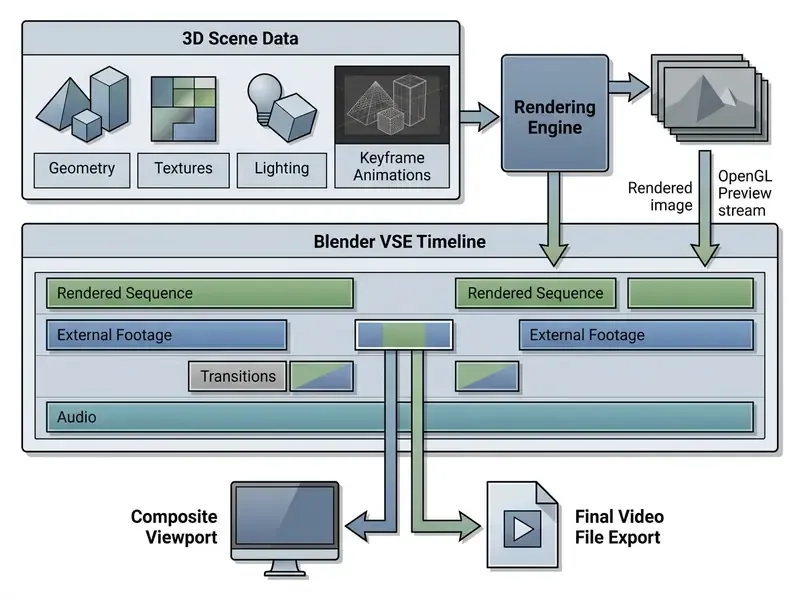
- Want open-source, telemetry-free, lightweight tools? Use Shotcut (native Apple Silicon plus Metal), OpenShot, Kdenlive, Avidemux, or Blender (3D plus video sequence editing).
- Want a middle ground between iMovie and Resolve? Look at the commercial freemium tier: Filmora, Movavi Video Editor, Lightworks, HitFilm Express. Then read the terms, because free Lightworks enforces a hard 720p export cap and Filmora watermarks everything.
What actually changed for Mac video editing in 2026
Three shifts matter this year, and they change the shortlist.
First, Apple Silicon is now the baseline rather than the upgrade path. The current Mac App Store build of DaVinci Resolve targets Apple Silicon, and Blender 4.5 LTS is documented as the last release with an official Intel macOS build. Intel Macs from 2017 to 2020 still edit perfectly well, but they are drifting toward frozen software versions.
Second, AI features became the primary paywall. Not resolution. Not track counts. Auto-reframe, generative fill, speech enhancement and caption translation are the features vendors meter or gate, often by credit quota rather than a hard block.
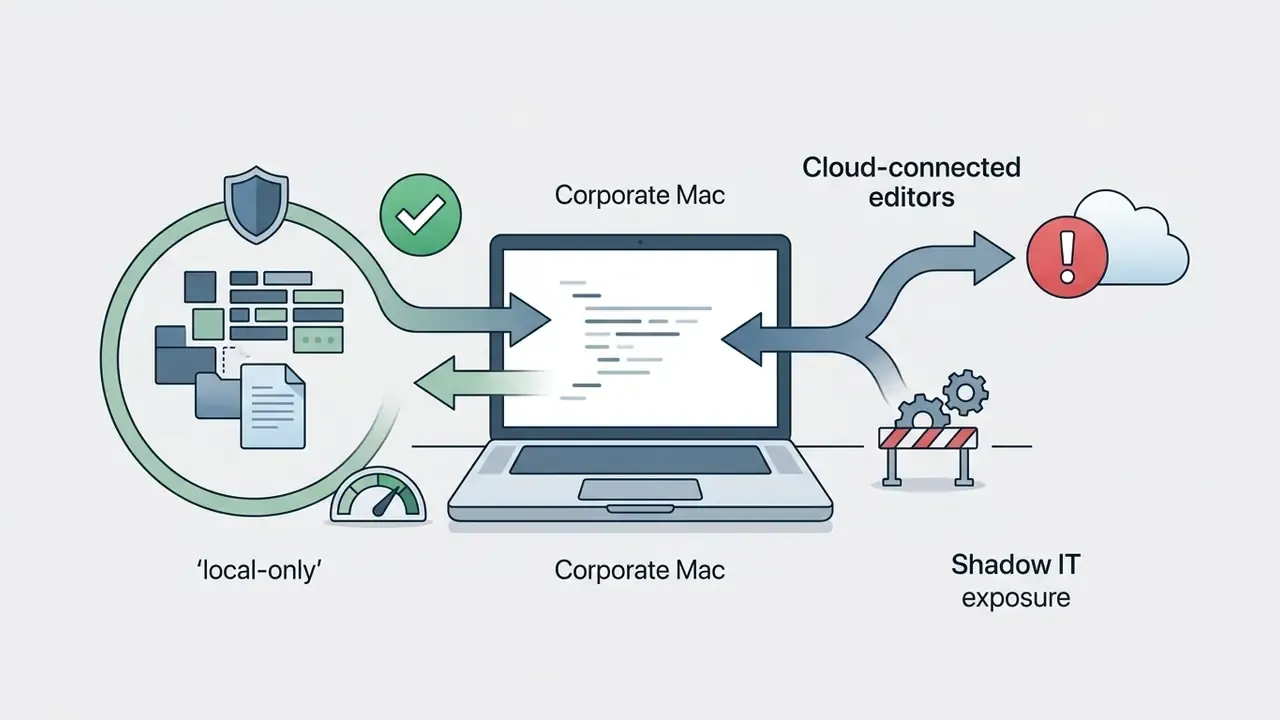
Third, and this is the one enterprise readers care about, free editors split cleanly into local-only and cloud-dependent. That single distinction now drives approval decisions on managed Macs more than any feature comparison. We come back to it in the privacy section.
How we tested (methodology)
Best free video editor for Mac: choose by editing task
Choosing the best free video editor for Mac means matching the application to your project goal, your technical comfort, and your machine. Beginners need a forgiving timeline. Professional creators need high-bitrate multi-track editing, real color grading, and clean 4K export. Those are different products, and pretending otherwise is how people end up abandoning Resolve after twenty minutes.
Best free Mac video editor for beginners and simple edits
For clip trimming, concatenation, and simple audio balancing, Apple's built-in apps are still the fastest route. Apple iMovie gives novices a streamlined non-linear timeline where they can cut clips, drop in transitions, and level audio without a manual (Apple Support, 2026). If you want to weigh every option side by side before committing, our broader roundup of free video editing software breaks the market down by export limits and licensing.
"Language-augmented interfaces measurably lower the entry barrier for novices performing complex video editing tasks."
For single-file operations, QuickTime Player handles basic trimming, rotation, and segment reordering. Apple Photos also allows quick video clipping, light color adjustment, and audio level balancing, including Audio Mix modes that separate voice from background sound. No editor launch required.
"Usability testing showed that users highly valued simple design and example-based guidance, especially participants with little prior editing experience."
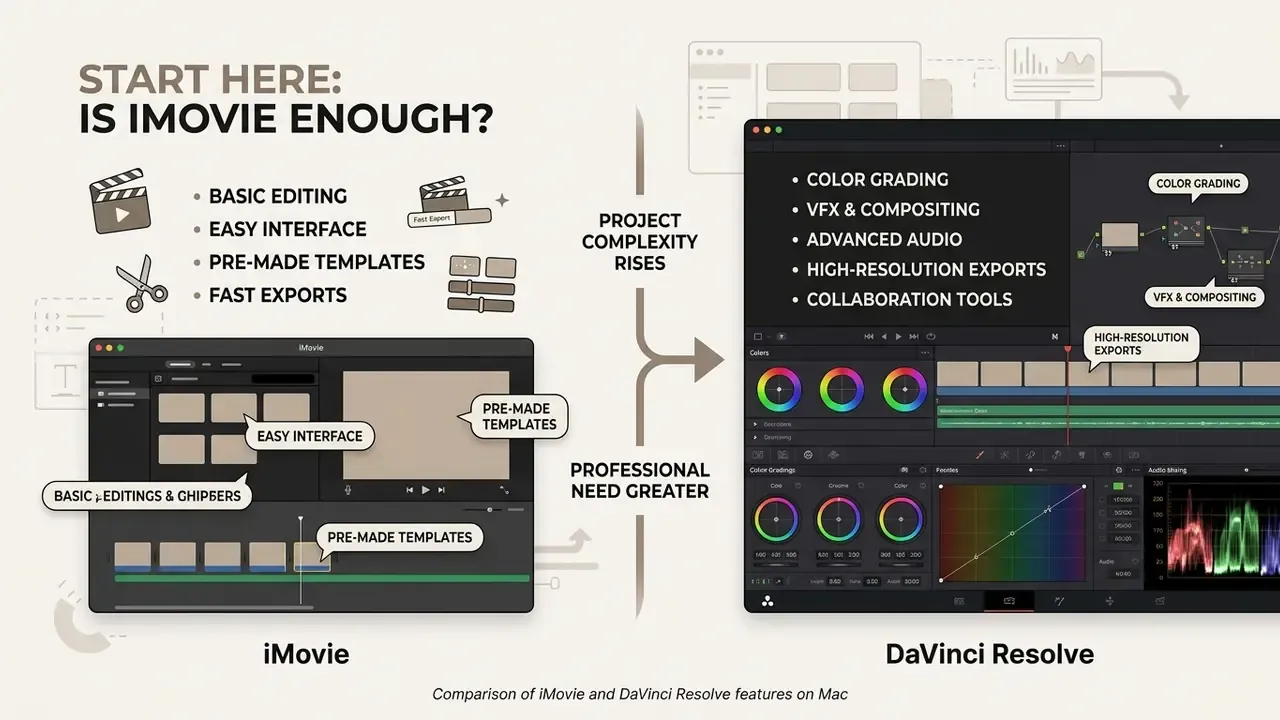
In practice, beginners should prioritise three things over feature counts. A forgiving magnetic timeline that prevents accidental clip displacement. Template or example-driven starting points. And export presets that remove guesswork about codecs and resolution. iMovie delivers all three on any Mac shipped in roughly the last five years. OpenShot delivers the same in a cross-platform, open-source package, which matters if you switch between macOS and Windows. That covers most people searching for free video editing software for MacBook Air setups with modest memory.
Free video editing software for professional videos
Professional video editing on macOS needs advanced color grading, multi-track timelines, node-based visual effects, and 4K export without compromise. DaVinci Resolve by Blackmagic Design is the primary professional-grade free editor here, supporting up to Ultra HD 3840×2160 at 60 frames per second with no watermark (Blackmagic Design Documentation, 2026).
"DaVinci Resolve is documented in academic library guides as an editor providing color correction, audio mixing and visual-effects creation, even in its free version."
Resolve gives editors primary and secondary color correction nodes, HDR grading, Fairlight audio post-production, and GPU acceleration tuned for Apple Silicon M-series chips. Readers evaluating the wider free landscape can also review our comparison of the best free video editing software for licensing and export-cap details.
In our own bench testing, the decisive variable was not the software tier. It was memory headroom and cooling. The same 4K H.265 multi-layer timeline that dropped frames during real-time grading on the 8 GB MacBook Air played back cleanly on the 36 GB MacBook Pro once optimized media existed. Worth saying plainly: proxy or optimized-media generation, not a paid upgrade, resolved most of the playback complaints we could reproduce.
Comparison of free video editors for Mac
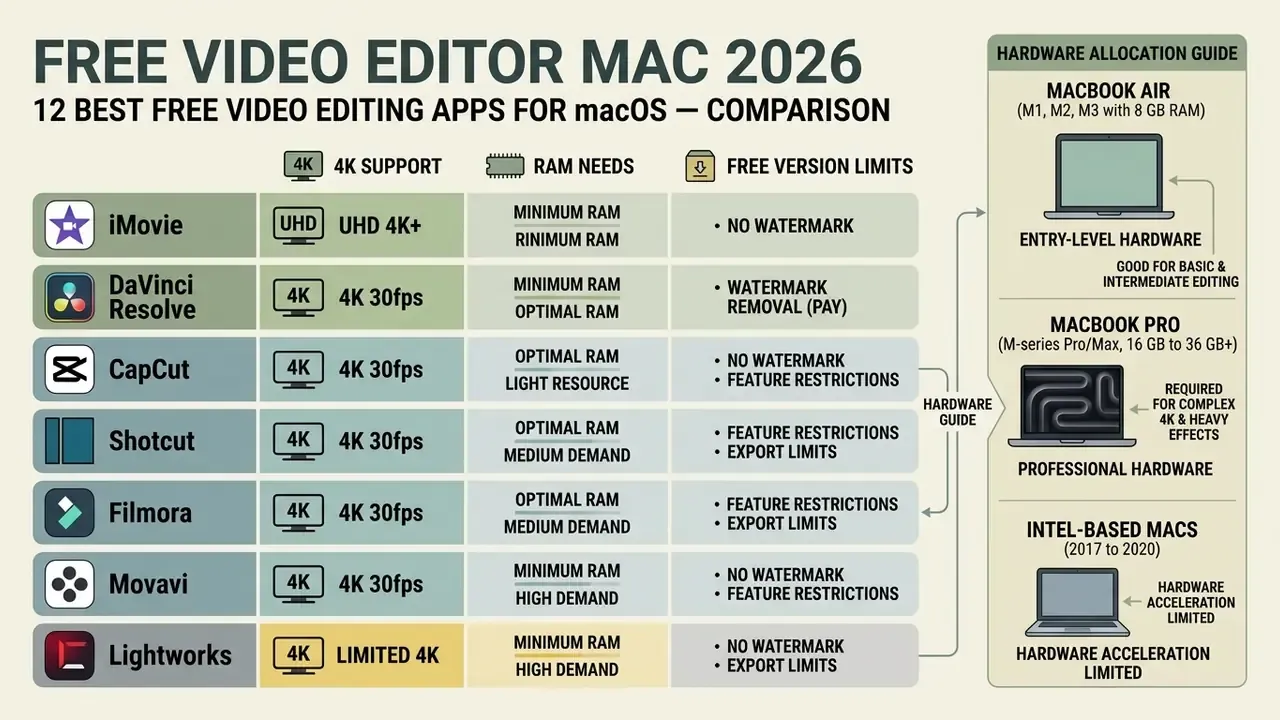
Comparing macOS video editing applications comes down to timeline capability, system resource demand, hardware acceleration, and the limits baked into the free version.
Hardware allocation guide: MacBook Air versus MacBook Pro
Before choosing software, audit two things on your Mac: unified memory and thermal design.
- Optimal software: Apple iMovie, CapCut for Mac, Shotcut, Avidemux, OpenShot.
- Performance note: these apps stay inside a passive cooling envelope without triggering thermal throttling during HD and short 4K exports. Blackmagic's own configuration guidance recommends at least 8 GB of GPU memory for UHD and 4K work, which is exactly why Resolve is a stretch on this tier.
- Optimal software: DaVinci Resolve, Blender VSE, Kdenlive, Lightworks.
- Performance note: Resolve wants active cooling and high GPU core counts to process multi-layer 4K H.265 or ProRes footage and node-based grades without dropping playback frames. This is the tier people mean when they search for a free video editor for MacBook Pro rather than a general Mac tool.
- Entry-level hardware (MacBook Air M1, M2 or M3 with 8 GB RAM)Entry-level hardware (MacBook Air M1, M2 or M3 with 8 GB RAM):
- Professional hardware (MacBook Pro M-series Pro or Max, 16 GB to 36 GB and above)Professional hardware (MacBook Pro M-series Pro or Max, 16 GB to 36 GB and above):
- Intel-based Macs (2017 to 2020)iMovie, Shotcut, OpenShot and Avidemux remain viable. Note that Blender 4.5 LTS is the last release with an official Intel macOS build, and recent Resolve releases ship for Apple Silicon on the Mac App Store.
| Mac model class | Unified memory | Recommended free editor | Avoid |
|---|---|---|---|
| MacBook Air M1/M2/M3 | 8 GB | iMovie, CapCut, Shotcut | Resolve 4K grading without proxies |
| MacBook Air M3/M4 | 16 GB | Shotcut, Resolve (1080p to 4K with proxies) | Heavy Fusion compositing |
| MacBook Pro M-series Pro | 18 to 24 GB | DaVinci Resolve, Kdenlive | No practical limits at this tier |
| MacBook Pro M-series Max / Mac Studio | 36 GB and up | DaVinci Resolve, Blender | No practical limits at this tier |
| Intel MacBook Pro (2019 to 2020) | 16 GB | iMovie, Shotcut, OpenShot | Blender 4.6 and newer, latest Resolve builds |
The matrix below evaluates the leading Mac free video editor options across the metrics that decide real projects.
Comparison of major free video editors available on macOS
| Editor | Typical user & complexity | Core editing & audio tools | 4K support | Effects & color grading | Templates / social features | AI-assisted features | Open-source status | Key free-version limitations | macOS performance & notes |
|---|---|---|---|---|---|---|---|---|---|
| iMovie | Beginners; low to moderate complexity | Timeline editing, clip trimming, titles, basic audio mixing | Yes, up to 4K for supported cameras | Basic filters and transitions; no advanced grading | Trailer templates; simple themes; easy sharing to social | No integrated AI; manual editing | Proprietary (Apple); free on macOS and iOS | No multi-cam, limited advanced audio and VFX, no plugin ecosystem | Optimized for macOS and Apple hardware; seamless iPhone integration |
| DaVinci Resolve (Free) | Intermediate to professional; high complexity | Multi-track timeline, advanced audio (Fairlight), media management | Yes, up to UHD and 4K; optimized for powerful GPUs | Professional color correction and grading; extensive effects | No built-in social templates; film and TV focus | Some AI features in Studio; limited in free tier | Proprietary (Blackmagic); free core version | Advanced noise reduction, HDR tools and collaboration need paid Studio | Requires strong CPU and GPU; benefits from 16 GB RAM and a fast SSD |
| CapCut for Mac (Free tier) | Beginners to intermediates; low to moderate complexity | Clip cutting, transitions, basic audio editing, overlays | Supports HD and higher; optimized for social formats | Stylized effects and transitions; limited manual grading | Rich template library for TikTok and Reels; aspect ratio presets | AI auto-captions, text-to-speech, some auto-editing (more in Pro) | Proprietary; free core with paid Pro | Advanced AI, premium templates and higher-end exports need Pro; sign-in required | Runs natively on Mac (macOS 10.14 and later); fine on consumer hardware |
| Shotcut | Beginners to intermediates; moderate complexity | Multi-track editing, filters, audio adjustments, 5.1 surround | Yes, 4K and beyond with suitable hardware | Wide filter range; three-way color correction; no dedicated grading page | No social templates; general-purpose editor | No built-in AI; manual workflows | Open-source (GPLv3); cross-platform | No official templates or stock media; interface less polished | Native Apple Silicon support with Metal GPU acceleration; around 500 MB install |
| OpenShot | Beginners; low to moderate complexity | Simple timeline editing, unlimited layers, transitions, titles, basic audio | 4K support depending on system | Basic effects and compositing; keyframe animation; grading not a focus | No social templates; 3D title templates | No integrated AI | Open-source (GPLv3); cross-platform | Fewer advanced tools; stability varies on heavy projects | Runs on macOS with moderate requirements; 70 plus export presets |
| Kdenlive | Intermediate users; moderate to high complexity | Robust multi-track editing, rich audio control, proxy editing | Supports HD and 4K | Many effects via frei0r and avfilter; basic color tools | No built-in social templating | No integrated AI | Open-source (GPLv3); KDE project, macOS builds available | Setup may require Gatekeeper approval; effect set is packaging-dependent | Performance depends on build and hardware; docs stress knowing your hardware limits |
| Avidemux | Technical users; low complexity for simple tasks | Cutting, filtering, encoding; minimal timeline features | Depends on format; not aimed at full 4K workflows | Limited filters; no advanced grading | No templates or social features | No AI features | Open-source (GPL); cross-platform | Not a full editor; basic operations only | Lightweight; macOS DMG available, runs on modest hardware |
| Blender (VSE) | Technical artists; high complexity | Video Sequence Editor, audio sync, masking, adjustment layers | Yes, hardware dependent | Full compositing and node-based VFX; grading inside the VSE | No social templates | No captioning AI; procedural tooling instead | Open-source (GPLv2+) | Video editing is secondary to the 3D pipeline; steep learning curve | Apple Silicon native; 4.5 LTS is the last official Intel macOS build |
| Adobe Express (Web) | Beginners and marketers; low complexity | Template-driven clip editing, text, graphics, basic audio | Exports suitable for social platforms; resolution configurable | Filter effects and transitions; no fine-grained grading | Thousands of social templates; Clip Maker for shorts | AI captioning and content generation in some workflows | Proprietary SaaS; generous free tier | Some stock assets and features are paid; requires cloud upload | Runs in the browser on macOS; offloads heavy processing to the cloud |
| Filmora (Free Trial) | Beginners to intermediates | Multi-track timeline, speed ramping, keyframing, audio ducking | Yes, up to 4K | Rich effects library, color tuning presets, camera shake effects | Built-in social aspect presets and stickers | AI smart cutout, AI audio stretch, scene detection | Proprietary; free trial | Exports carry a large watermark in the free version | Runs smoothly on macOS 10.15 and later; optimized for Apple Silicon |
| Movavi Video Editor | Beginners | Drag-and-drop editing, audio noise removal, beat detection, quick cuts | Yes, 4K supported | Built-in filters, LUTs, transition effects | Quick aspect ratio switching for Reels and TikTok | AI background removal, auto-subtitles, motion tracking | Proprietary; 7-day trial | 7-day trial limit; watermark on exports after the trial | Lightweight footprint; low RAM pressure on MacBook Air |
| Lightworks (Free) | Intermediate to advanced | Advanced trimming, audio mixing, multi-cam editing | Import 4K, export capped at 720p | Color correction scopes, realtime FX | No social templates | Minimal AI features | Proprietary; freemium tier | Export resolution capped at 720p; H.264 and MP4 targets restricted | Requires strong CPU and GPU for multi-layer playback |
Read the last two columns first. That is where free tiers either serve you or waste a weekend.
iMovie: built-in free video editor on Mac
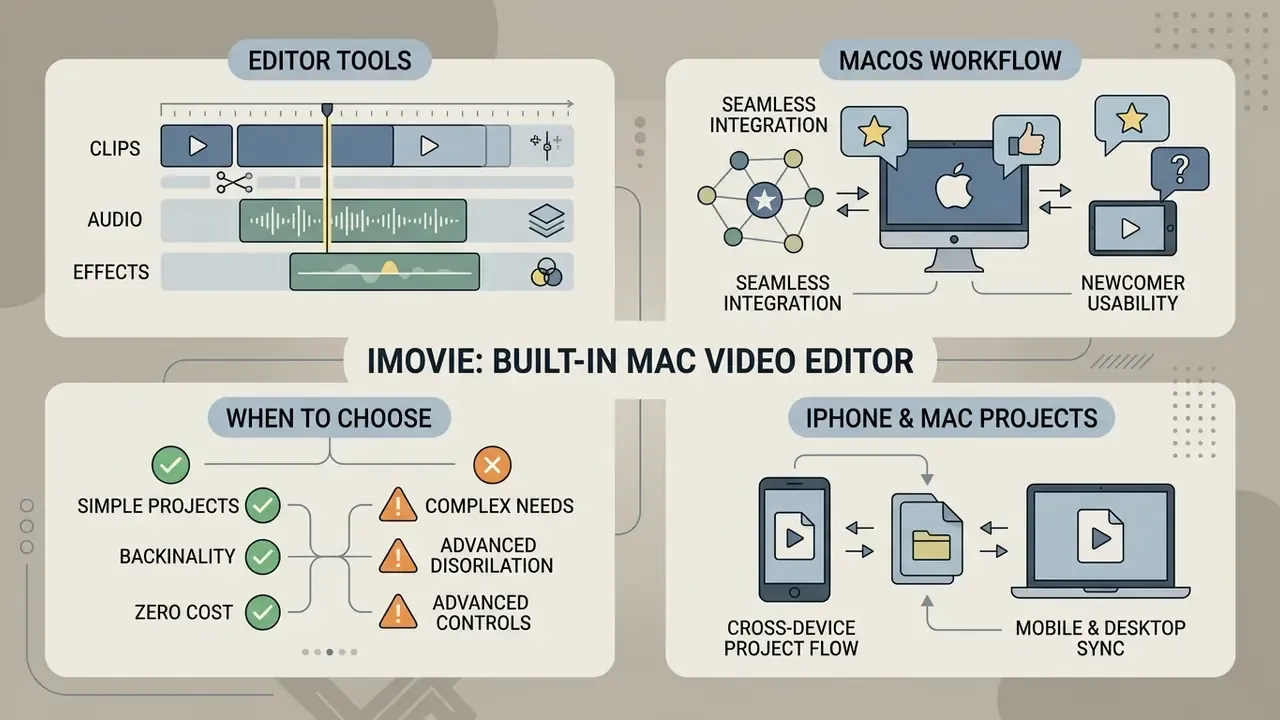
Apple iMovie is the default pre-installed editor on macOS, built to give newcomers a usable timeline at zero cost. It is fully optimized for Apple Silicon and integrates cleanly across Apple devices. Apple's current App Store listing shows iMovie as free and Mac-only, with macOS 15.6 or later required for the newest build. For anyone typing "macbook free video editor" into a search box, the answer is already sitting in the Applications folder.
iMovie tools for clips, audio and effects
iMovie provides a streamlined workspace with a non-destructive magnetic timeline, trimming sliders, and automated split controls. You can adjust audio levels directly on the timeline, detach audio from video, apply equalizer presets, and reduce background noise (Apple Support, 2026). Filters apply per clip or per range with a strength slider, audio effects work independently of video effects, and Apple themes unify titles and transitions across a whole project. Add speed adjustments, fade-to effects, Flash and Freeze Frame, picture-in-picture, green-screen compositing, and Hollywood-style trailer templates with prepared soundtracks and title placeholders.
Community and real-world user sentiment (macOS workflow feedback)
- iMovie: users repeatedly praise its efficiency for quick 4K YouTube edits, and the magnetic timeline genuinely does prevent accidental clip displacement, which newcomers appreciate more than they expect. The main criticism targets that same rigidity: no multi-cam tools, no keyframe animation for custom elements, no overlay stacking beyond the built-in picture-in-picture slots. Mac users also report that 4K iPhone footage plays back smoothly even on modest MacBook Air configurations, which tracks with our own test on the M2 machine.
When iMovie is a good option, and when it is not
iMovie fits home videos, quick YouTube uploads, educational presentations, and straightforward marketing clips that do not need complex layering. Its architectural limits show up fast once projects grow. There is no multi-camera editing, no color wheels, no node-based visual effects, no keyframe animation controls, and no third-party plugin support (AU or VST audio plugins included). When a project demands precise grading or custom motion graphics, moving to a dedicated NLE is the honest answer.
"iMovie suits basic and some advanced tasks, and it lets users move projects seamlessly between mobile and desktop devices."
iMovie for iPhone and Mac video projects
iMovie spans iOS, iPadOS and macOS. You can start a project on an iPhone or iPad on location, assemble a rough cut, then send the file to a Mac via AirDrop or iCloud Drive (Apple Support, 2026). Opening the transferred .iMovieProj file on macOS, or using File > Import iMovie iOS Projects, unlocks desktop-level timeline control, precise pointer adjustments, and higher-resolution export.
"Rutgers IT notes that iMovie is interchangeable across mobile and desktop platforms, allowing projects to move seamlessly between devices."
One practical constraint deserves attention: Apple documents transfer-and-import, not live cloud sync. An active project does not continuously mirror between devices, so treat the handoff as a one-way move. If a project outgrows iMovie entirely, projects can be imported into Final Cut Pro, and Apple positions that path explicitly for advanced editing, audio work and finishing.
DaVinci Resolve: best free video editor for advanced editing
DaVinci Resolve by Blackmagic Design is widely treated as the most advanced free video editor on macOS. It bundles non-linear editing, node-based color grading, visual effects compositing (Fusion), and digital audio post-production (Fairlight) into one application. One install, four disciplines.
Color grading, effects and audio tools in DaVinci Resolve
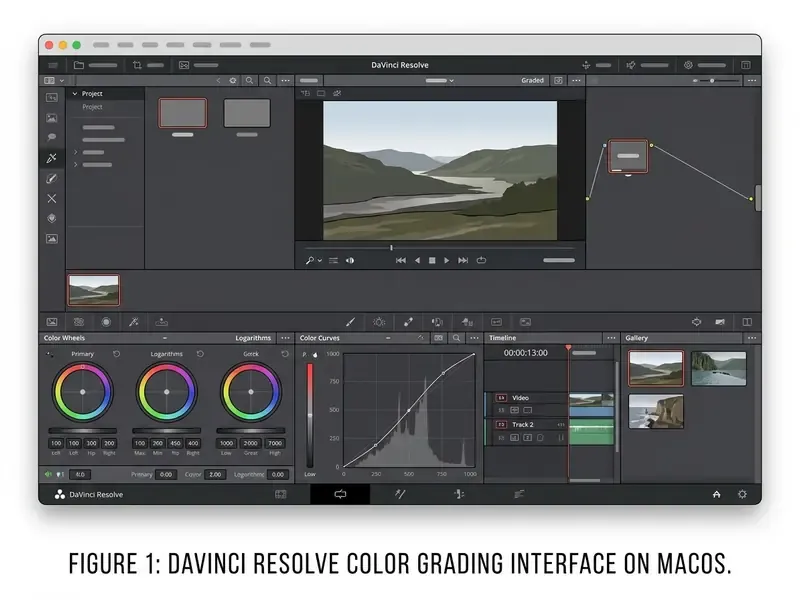
Resolve's main advantage is its industry-standard Color page, built on a node architecture for primary corrections, secondary hue and saturation qualifiers, power windows, and custom LUTs (Blackmagic Design Manual, 2026). The Color page ships with more than 90 GPU and CPU accelerated Resolve FX plug-ins, and recent releases added OpenColorIO 2.3 support in Fusion plus ACES 1.3 color management.
The built-in Fusion workspace lets motion artists create 2D and 3D effects, run planar tracking, and key footage without exporting to another application. Increasingly that workflow is combined with AI video generators for synthetic plates and B-roll. On the audio side, Fairlight supports up to 2,000 real-time tracks with native EQ, dynamics processing, and VST or AU plugin support. Yes, two thousand. Most projects will never touch that ceiling.
Community and real-world user sentiment (macOS workflow feedback)
- DaVinci Resolve: Mac users on Reddit and production forums praise the color wheels and Fairlight integration, noting that Resolve handles ProRes media effortlessly on M-series chips and stays stable across long grading sessions. Many describe it as software you can grow into over an entire career, with only cinema-level work genuinely requiring paid Studio. The recurring criticism is consistent: Fusion has a steep learning curve and eats GPU memory quickly on 8 GB RAM MacBooks, and anyone cutting short talking-head videos will find the full suite heavier than the job requires.
DaVinci Resolve requirements for MacBook and Mac
Running Resolve on macOS demands real processing power, especially on 4K H.265 or ProRes timelines. Official system requirements state that modern versions need Apple Silicon (M1 through M4) or high-spec Intel chips on macOS 15 or later, with a minimum of 8 GB unified memory and 16 GB or more recommended for Fusion and 4K grading (Mac App Store listing, 2026). On entry-level Apple Silicon Macs with 8 GB, rendering 4K timelines will hit GPU memory pressure, so proxy generation stops being optional.
Legacy Blackmagic configuration PDFs still reference Intel-based Mac Pro, iMac and Retina MacBook Pro systems, so older Resolve releases remain usable on Intel hardware. The Apple-Silicon-only requirement applies to the current Mac App Store build, not to every version ever shipped. Worth checking before you assume an older Mac is excluded.
Lightweight and open-source video editors for Mac
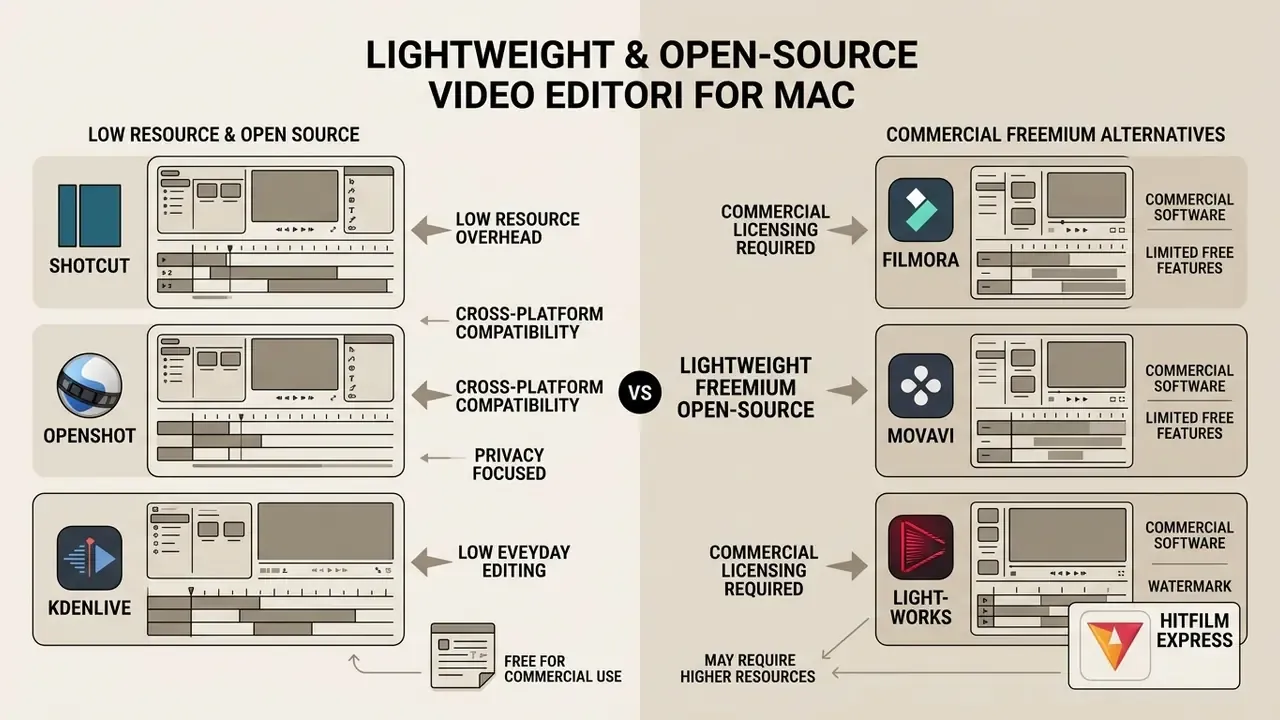
If you value privacy, cross-platform compatibility and low resource overhead, open-source editors are a serious alternative to proprietary suites. No subscriptions, no watermarks, no telemetry. For a lightweight video editor Mac users can run on ageing hardware, this category usually wins.
Shotcut, OpenShot and Kdenlive for everyday video editing
These three cover most open-source non-linear editing needs on macOS:
- Shotcut a cross-platform editor with native Apple Silicon support, GPU acceleration via Apple Metal, and broad format compatibility through FFmpeg (Shotcut Documentation, 2026). It needs roughly 500 MB of storage, runs well on older hardware, and supports 4K, ProRes, DNxHD, 5.1 surround audio and three-way color correction.
- OpenShot an approachable interface built for fast drag-and-drop assembly, with unlimited timeline layers, keyframe animation curves, 3D animated titles and basic compositing (OpenShot User Guide, 2026). Documentation lists 70 plus export targets plus EDL and Final Cut Pro project interchange.
- Kdenlive developed under the KDE umbrella, offering robust multi-track editing, customizable layouts, proxy editing and audio scope analysis. Effects come from frei0r and avfilter, so your available filter set depends on how the macOS build was packaged. That is a quirk, not a defect.
"Shotcut is compatible with Intel and Apple Silicon (M1, M2, M3), supports Metal GPU acceleration, and ships without watermarks."
Licensing note for commercial work: Shotcut, OpenShot and Kdenlive are distributed under the GNU GPL (v3), Blender under GPLv2+, and Avidemux under the GPL. Copyleft terms govern the software, not the video you export. Your footage stays yours, with no attribution obligation on the finished film. Corporate legal teams should still record the license in their software inventory, because GPL terms affect redistribution and any internal modification of the application binaries.
Commercial freemium alternatives: Filmora, Movavi, Lightworks and HitFilm Express
For creators who find open-source tools fiddly and iMovie too limited, freemium desktop editors sit in between:
- Wondershare Filmora for Mac drag-and-drop timeline with speed ramping, motion tracking, scene detection, 4K export and an integrated effects store. Runs on macOS 10.15 and later. Limitation: the free tier stamps a prominent watermark on every export.
- Movavi Video Editor intuitive timeline editing plus AI background removal, auto-captioning with translation, beat detection and a royalty-free music library. In our testing, 4K export on a MacBook Pro M2 finished without thermal throttling. Limitation: a 7-day free trial; exports after that carry a watermark, and some Smart Effects sit behind the paid tier.
- Lightworks a professional multi-track editor with broadcast-style source-record trimming, multi-cam editing and GPU acceleration. Limitation: the free version caps export strictly at 720p, and H.264, MP4 and DVD targets are reserved for paid tiers. That makes it a practice environment, not a delivery tool.
- HitFilm Express bundles 400 plus effects and presets with 2D and 3D compositing for VFX-curious beginners. Limitation: account registration is mandatory, and the better effect packs and export options are sold as add-ons.
Blender for animation, motion graphics and 3D
Blender is known as an open-source 3D modelling and animation suite, but it includes a dedicated Video Sequence Editor. The VSE handles cuts, splicing, masking, color grading and speed adjustments right alongside 3D scenes and motion graphics (Blender 4.5 LTS Release Notes, 2026). Rigging, motion-path visualization, camera tracking and compositing nodes make it uniquely suited to technical artists blending camera footage with custom 3D animation inside one environment. Again, Blender 4.5 LTS is documented as the last release with an official Intel macOS build.
"Kdenlive production guidance stresses that users should understand their hardware limits and focus on simple edits, avoiding excessive effects."
That principle applies just as well to Blender's VSE. On 8 GB Apple Silicon machines, stacking adjustment layers and heavy effect strips will exhaust memory long before the CPU becomes the bottleneck.
Troubleshooting open-source app installation on macOS
Installing non-App Store editors such as Shotcut or Kdenlive on macOS Sequoia or Sonoma often triggers a Gatekeeper warning: the app "cannot be opened because it is from an unidentified developer."
If the app still refuses to start, verify the download checksum published on the project website before overriding Gatekeeper, and confirm you grabbed the correct architecture build (Apple Silicon versus Intel). On managed corporate Macs, MDM policy may block the override entirely. In that case, request approval through IT rather than disabling Gatekeeper system-wide. Please do not disable it system-wide.
Resolution steps
- Open System Settings on your Mac.
- Go to Privacy & Security.
- Scroll to the Security section.
- Find the blocked application alert and click Open Anyway.
- Enter your admin password to authorize the launch.
CapCut, Canva and Adobe Express for fast social video creation
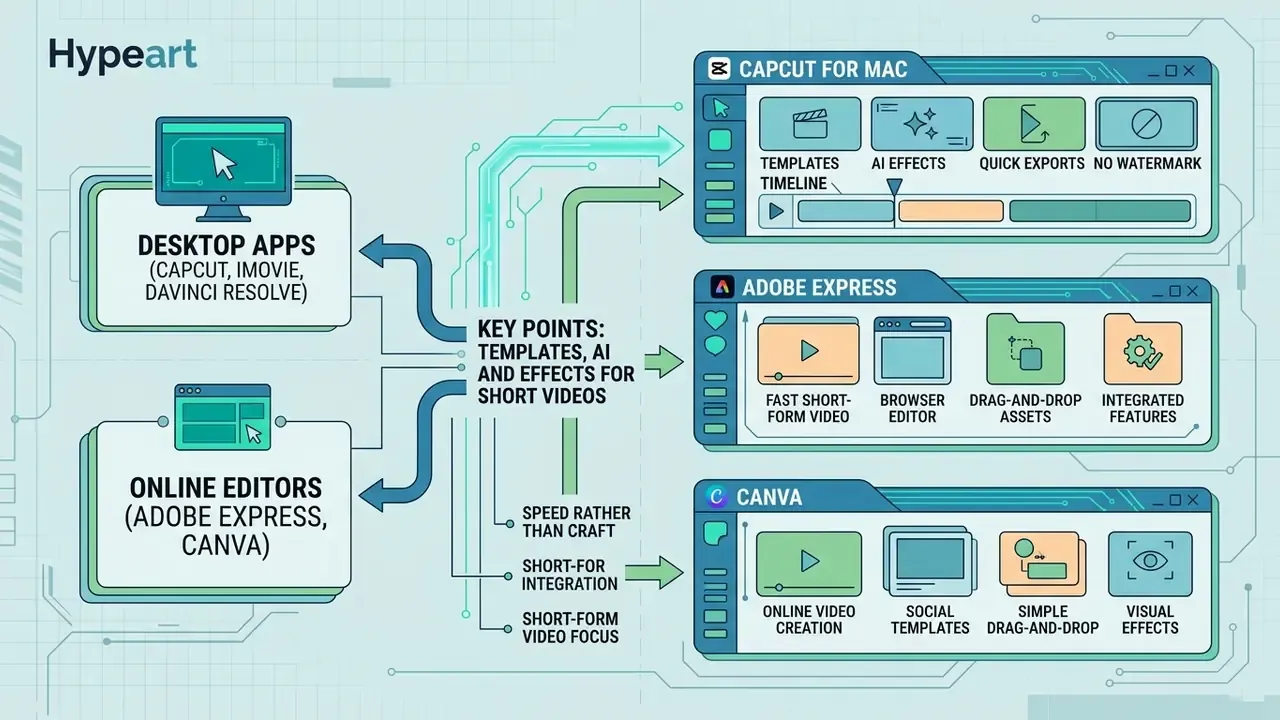
The expansion of short-form video pushed a whole category of template-driven desktop and browser editors into the mainstream, tuned for speed rather than craft.
Templates, AI and effects for short videos
CapCut, Canva and Adobe Express compress social content production by automating repetitive steps (CapCut Resource Guide, 2026). Readers tracking how these features overlap with generative tooling can review our overview of AI video generators:
- CapCut for Mac automatic speech-to-text captions with language selection, subtitle styling templates, background removal, voice synthesis, stabilization, relighting and trend-focused filters. The desktop editor supports macOS 10.14 or later. CapCut also documents that different features carry different free usage limits, with some AI tools offered only as limited-time trials.
- Adobe Express web-based "Clip Maker" modules that identify highlights in long-form files and reframe landscape footage into vertical 9:16 clips with animated captions (Adobe Help Center, 2026).
- Canva brand kit integration, drag-and-drop timeline templates, one-click animated captions, a Mac desktop app, and direct publishing to Facebook, Instagram, X, TikTok, Pinterest, LinkedIn and Tumblr.
"Clip Maker in Adobe Express automatically cuts long video into short clips with aspect-ratio selection, captions and reframing."
For teams that need brand consistency across formats, the same template logic used for social video applies to adjacent assets. Our guides to animation makers and AI voice generators cover the narration and motion-graphics layers that usually ship alongside short-form output.
Desktop apps versus online video editors on macOS
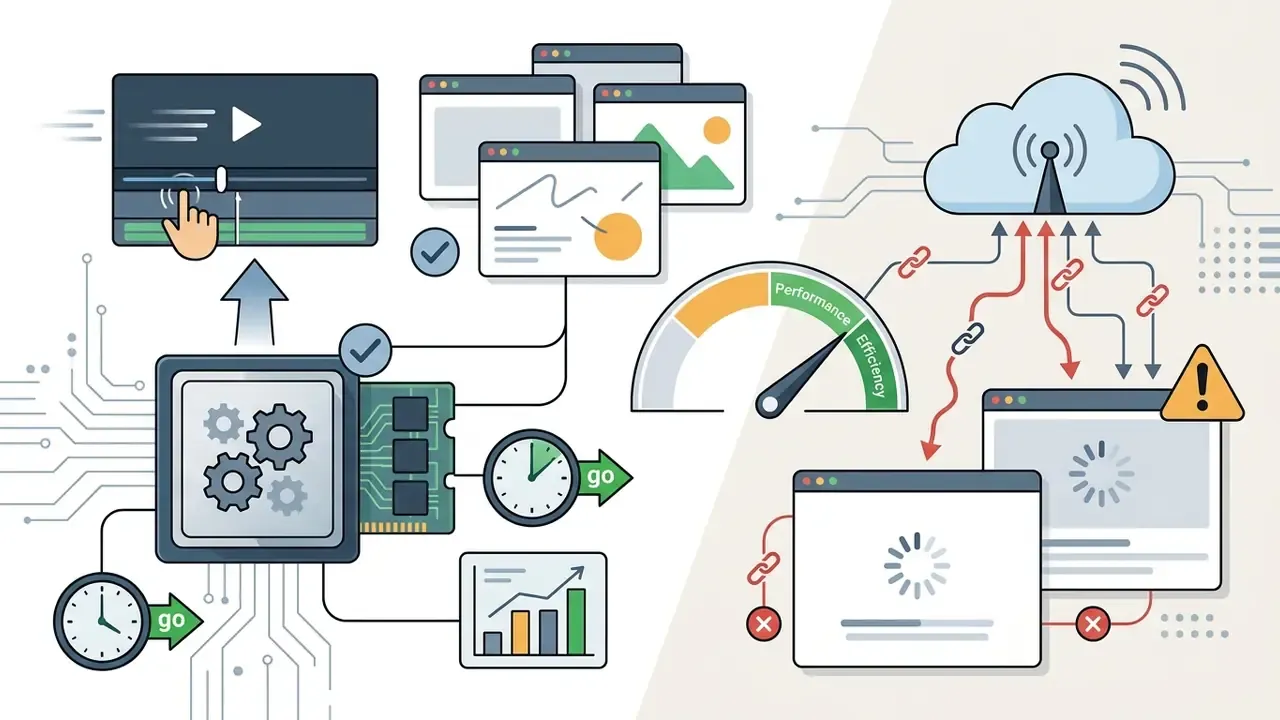
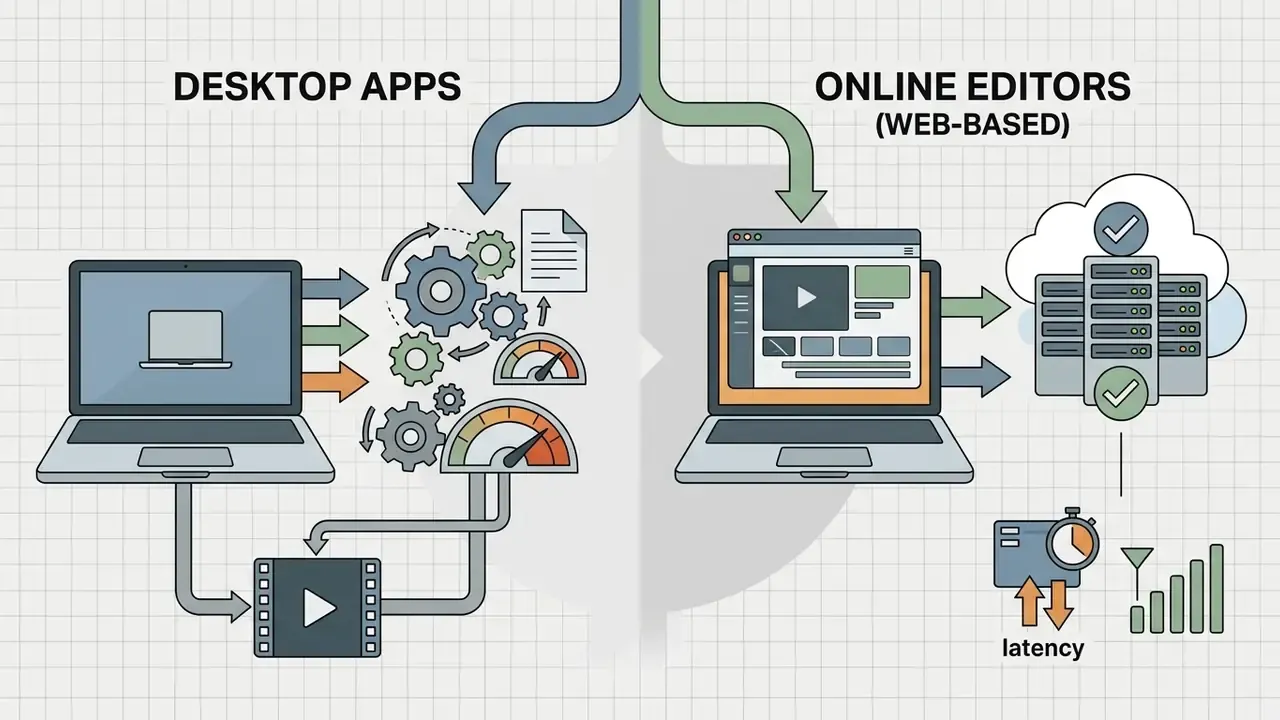
The trade-off here is local hardware utilization against cloud convenience.
"The study identified core usability problems: poor icons, unclear UI hierarchy and inconsistent button actions, especially critical for users with cognitive limitations."
Interface clarity is not cosmetic, then. Inconsistent controls in template-driven web editors measurably increase task failure for less experienced users, which is a legitimate criterion when you standardise one tool across a team of twenty. Readers weighing cloud creative tooling can also review our comparison of free AI video generators, which share the same upload-and-render architecture.
Data privacy, security and Shadow IT risk on managed Macs
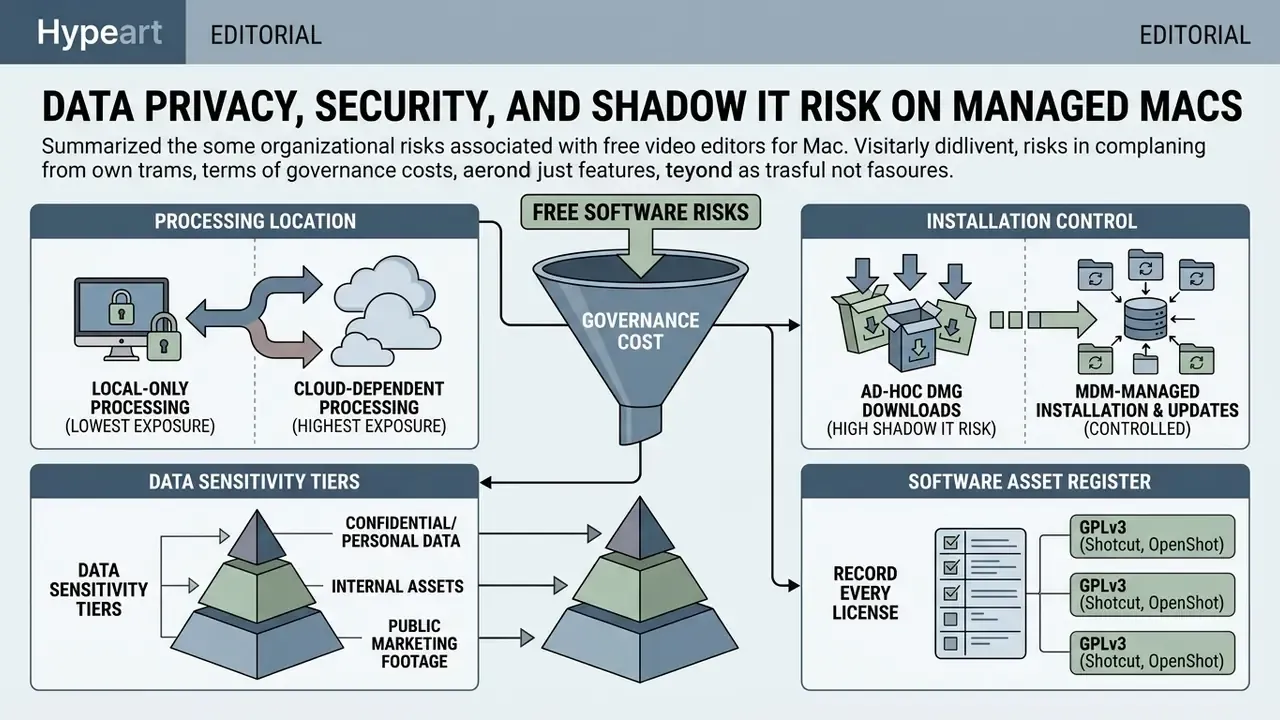
This section addresses organizational risk and is not legal advice. Validate any deployment against your own security policy and regulatory obligations.
Free software carries a governance cost that feature tables never show. When footage contains customer data, unreleased product designs, internal briefings, or identifiable faces and voices, the deployment model matters far more than the effect library.
1. Local-only processing (lowest exposure). iMovie, DaVinci Resolve, Shotcut, OpenShot, Kdenlive, Avidemux and Blender process media on-device. Nothing leaves the Mac unless the editor explicitly exports or uploads it. Open-source builds additionally allow inspection of network behaviour, which is why security-conscious teams gravitate toward them.
2. Cloud-dependent processing (highest exposure). Browser editors and the AI features inside CapCut, Canva and Adobe Express transmit source media to vendor infrastructure for rendering, captioning, background removal or generation. Before uploading, confirm three things: where processing occurs, how long assets are retained, and whether uploaded content may be used to train models. Vendor privacy disclosures, including the App Store privacy labels Apple requires, are the primary reference point. Not the marketing page.
3. Shadow IT and installation controls. Individually installed free editors on corporate Macs create an unmanaged software inventory: no patch tracking, no license record, no data-flow documentation. Overriding Gatekeeper to run unsigned builds compounds the problem. Recommended controls:
- Maintain an approved-editor list mapped to data sensitivity tiers (public marketing footage versus internal or regulated material).
- Require MDM-managed installation and automatic updates instead of ad-hoc DMG downloads.
- Block cloud editors for any project containing confidential or personal data, and route that work to local editors.
- Record the license of every open-source tool in the software asset register (GPLv3 for Shotcut, OpenShot and Kdenlive, GPLv2+ for Blender).
- Verify music and stock-asset licensing separately from software licensing, since built-in libraries frequently carry personal-use-only terms.
4. Account requirements. Some free tiers require sign-in with a personal account, which ties corporate footage to an individual's consumer identity. Where the vendor allows it, provision team accounts under organizational control. Named ownership beats convenience.
Free versus paid video editing software: features and commercial-use decision
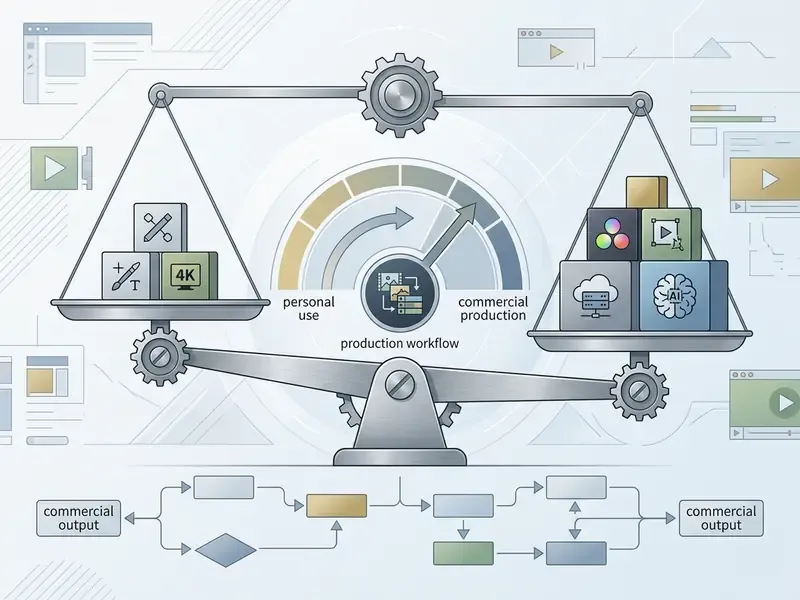
Knowing exactly where a free tier ends is essential for solo creators, agencies, and anyone signing off on tooling risk.
E-E-A-T verification: 2026 commercial licensing and usage terms
What free versions include and where limitations begin
Free video editors deliver substantial core capability. The caps cluster in four predictable places:
- Resolution and frame rate restrictions
- DaVinci Resolve and iMovie export 4K for free, while several freemium platforms cap free exports at 1080p or 30 fps unless upgraded. Lightworks enforces a hard 720p ceiling. Browser tools vary widely, and a few free tiers still export at 480p only.
- Watermarking
- open-source editors (Shotcut, OpenShot, Kdenlive, Blender) and native tools (iMovie, DaVinci Resolve) never watermark. Filmora and certain browser-based freemium tools brand every free export.
- AI feature gating
- Neural Engine auto-reframe, advanced background noise removal, and automated text-to-video are frequently reserved for paid tiers, or metered by credit quota rather than blocked outright.
- Collaboration and acceleration gating
- shared timelines, cloud asset locking, and in some cases 4K H.265 hardware acceleration or noise reduction belong to paid editions.
"Shotcut states explicitly: the editor is free, watermark-free and natively integrated with macOS, which supports its suitability for commercial projects."
Teams formalizing their approach to output ownership can review our analysis of commercial-use rights for adjacent creative tooling, where licensing terms for generated assets differ substantially from software licenses. Teams budgeting licenses alongside production overhead can use the AI Media Calculators to estimate long-term operational expense, or read the AI Media Pricing Guides for structured cost breakdowns. Delivery-side optimization, meaning bitrate targets, container choice and file-size reduction for web publishing, is covered in our guide to video compressors.
When Final Cut Pro or Adobe Premiere Pro is the better option
Moving to Apple Final Cut Pro ($299.99 one-time) or Adobe Premiere Pro ($22.99 per month) becomes justified under specific production pressure:
- ProRes proxy workflows Final Cut Pro generates proxy media automatically in Apple ProRes 422 Proxy or H.264 at frame sizes from 12.5% to 100%, which keeps multi-cam editing smooth across high-resolution masters while using less storage (Apple Support, 2026). Final Cut Pro currently requires macOS 14.6 or later, with 8 GB RAM minimum and 16 GB recommended.
- Ecosystem integration Premiere Pro links natively with After Effects for dynamic motion graphics and Audition for multi-track audio restoration, and runs natively on Apple silicon (M1 Pro, Max or Ultra and newer, with macOS Sonoma 14 or later recommended).
- Enterprise collaboration shared team project timelines, cloud asset locking and centralized media server integration are built into paid ecosystems, not free tiers.
"Adobe offers a 7-day trial with full access to Premiere Pro, including 8K and VR support; a subscription is required after the trial period."
Organizations comparing vendor options can cross-reference our roundup of the best free video editing software alongside the AI Media Comparison Matrices to evaluate feature sets side by side. Technical teams building automated rendering pipelines can consult the AI Media API Guides for integration standards, while compliance leads can review the AI Media Commercial-Use Hub and the AI Litigation and Case Timelines to keep generated content aligned with active copyright standards.
FAQ about free video editors for Mac
Is there a built-in free video editor on Mac?
Yes. Apple pre-installs iMovie on all new Mac computers at no extra charge. iMovie offers non-destructive timeline editing, 4K clip support, audio adjustments, and movie trailer templates straight out of the box (Apple Support, 2026). For basic trimming without launching a full editor, Apple Photos (Edit view, with Audio Mix controls) or QuickTime Player (Edit > Trim) will do the job in seconds.
Is Final Cut Pro free on macOS?
No. Final Cut Pro is a commercial application priced at $299.99 as a one-time purchase on the Mac App Store (Apple Newsroom, 2026). Apple provides a free trial for evaluation, historically 90 days with 30-day terms on some releases, but permanent free professional editing on Mac is usually handled through DaVinci Resolve's free tier. Apple also distributes the Pro Video Formats codec package free to all Mac users.
What is the best free video editor for Mac beginners?
iMovie is widely considered the best free editor for beginners thanks to its clean interface, zero cost, absence of watermarks, and macOS hardware optimization (PCMag Review, 2026). For open-source cross-platform flexibility, OpenShot is a solid alternative. Human-computer interaction research supports the ranking: tools offering language guidance and example-based templates measurably reduce cognitive load and help novices avoid common editing mistakes (Wang et al., ACM IUI 2024; Wünsche et al., 2024).
Which free video editor on Mac is closest to professional tools?
DaVinci Resolve (free version) is the most capable professional-grade editor on macOS. It includes multi-track non-linear editing, node-based color grading, Fusion visual effects, and Fairlight audio post-production up to Ultra HD 4K, without watermarks (Blackmagic Design, 2026). For background on how these professional video editing tools differ architecturally from consumer apps, see our editor glossary entry.
What are good free iMovie alternatives on Mac?
Strong alternatives include Shotcut and OpenShot for open-source timeline editing, Kdenlive for multi-track work with proxy support, CapCut for fast social content, and DaVinci Resolve for advanced grading and finishing. Filmora, Movavi and Lightworks offer freemium desktop options, but each imposes watermarks, trial windows, or a 720p export cap.
Are CapCut, Canva or Adobe Express good free tools for social videos on Mac?
Yes. CapCut for Mac and Adobe Express work well for short-form vertical content across Reels, Shorts and TikTok. Both offer automated AI captions, 9:16 presets, ready-made templates, and fast export (Adobe Express Guide, 2026). Creators comparing generative options alongside these editors can review our roundup of free AI video generators.
Will a free editor run on a MacBook Air with 8 GB of RAM?
Yes, with caveats. iMovie, CapCut, Shotcut, OpenShot and Avidemux run comfortably inside the passive cooling and memory envelope of an 8 GB MacBook Air, including HD and short 4K exports. That covers most Mac video editing free of charge at the entry tier. DaVinci Resolve installs and launches, but Blackmagic recommends significantly more GPU memory for UHD work. Generate optimized media or proxies before grading 4K H.265 timelines, and expect memory pressure inside Fusion.
Can I use footage edited in a free editor for paid client work?
In most cases, yes. iMovie, DaVinci Resolve Free and the GPL-licensed open-source editors permit commercial output without watermarks. The risk sits in bundled assets rather than the software: iMovie's built-in audio is restricted to personal, non-standalone use, and stock music inside freemium apps often needs per-track verification. Filmora, Movavi and Lightworks free tiers are not delivery-ready, given watermarks and resolution caps. Confirm current terms with each vendor before invoicing.
Final selection checklist
Seven questions, asked before you install anything:
- What is the deliverable?A 30-second vertical clip and a 20-minute graded documentary need different tools. Pick for the output, not the feature list.
- How much unified memory does the Mac have?Under 16 GB, stay with iMovie, CapCut, Shotcut or OpenShot. At 16 GB and above, Resolve, Kdenlive and Blender open up.
- Is the Mac passively cooled?MacBook Air throttles on sustained 4K renders, so schedule long exports or move them to a machine with active cooling.
- Does the free tier watermark or cap resolution?Verify before you edit, not at export. Lightworks caps at 720p, Filmora watermarks, and iMovie, Resolve and the open-source editors do neither.
- Will the footage leave the device?If it contains confidential or personal data, choose a local-only editor and skip cloud AI features.
- Is the output commercial?Check the software license and the bundled music or stock asset terms separately. They are not the same document.
- What is the upgrade trigger?Define it in advance, whether that is proxy workflows, multi-user collaboration, or metered AI quotas, so the eventual purchase answers a bottleneck rather than an ad.
Operational troubleshooting and technical support
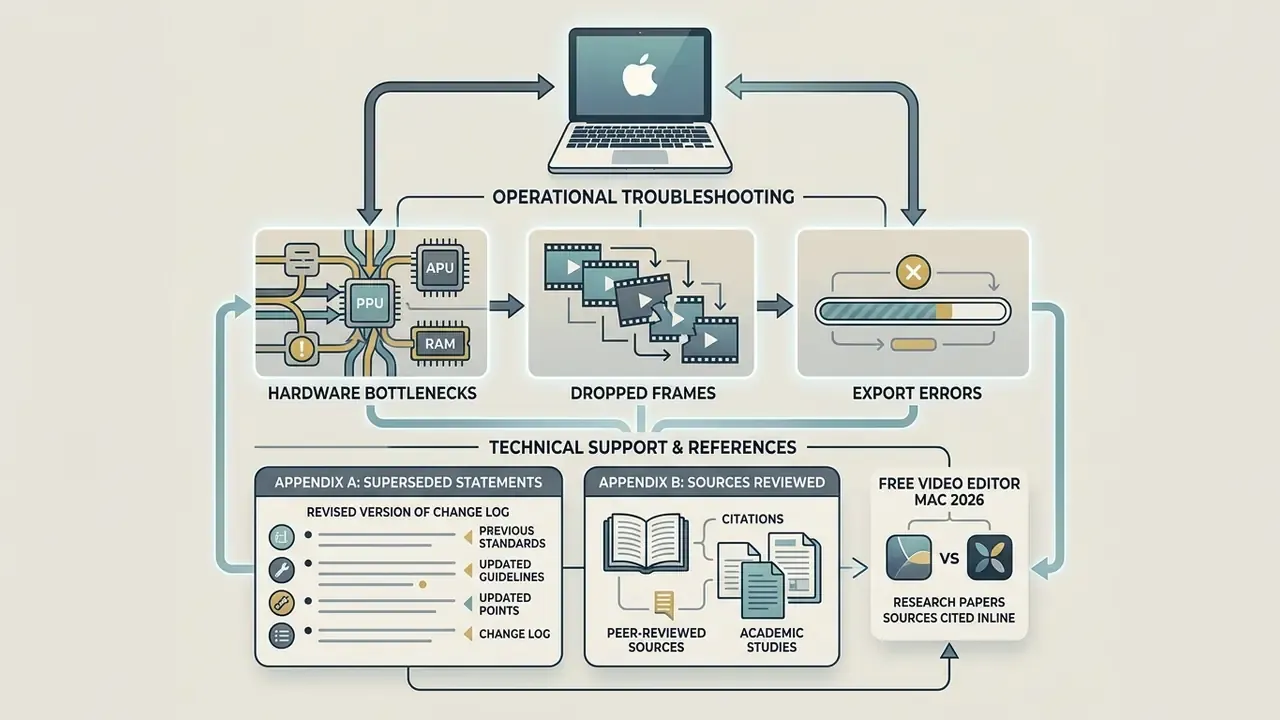
Hitting hardware bottlenecks, dropped frames, or export errors on macOS? Media managers can consult the AI Media Support and Troubleshooting hub for diagnostic procedures and hardware optimization steps. The common first-line fixes are unglamorous but effective: generate optimized media or proxies, disable background sync services during export, confirm the timeline resolution matches the delivery target, and update macOS so Metal GPU acceleration is actually available to the renderer.
Explore additional software definitions, technical guides and governance frameworks in our AI Media Glossary.
Appendix A: Superseded statements (change log)
For transparency, the following passages from earlier revisions of this guide have been replaced:
- An unattributed enterprise case study claiming a "42% reduction in 4K timeline rendering times" after reconfiguring GPU-accelerated playback. Updated: removed as unverifiable, since no methodology, hardware baseline or source was available. Replaced with the disclosed two-machine test methodology described above.
- Contextual references to unrelated generative tools (book title, chatbot, character, trend-aesthetic and brochure generators) previously embedded in the iMovie, DaVinci Resolve, open-source, CapCut and free-versus-paid sections. Updated: removed as topically irrelevant to macOS video editing and replaced with hardware, licensing, privacy and community-sentiment guidance.
- A duplicated decision-tree block that appeared twice, once as a placeholder and once as markup. Updated: consolidated into a single accessible figure.
Appendix B: Sources reviewed for this revision
- Apple Support and Mac App Store listings for iMovie, Final Cut Pro and the Pro Video Formats package (2026).
- Blackmagic Design DaVinci Resolve documentation and the Configuration Guide for DaVinci Resolve, including legacy Intel hardware references.
- Shotcut macOS download and documentation pages, OpenShot User Guide, Kdenlive project documentation, Blender 4.5 LTS release notes.
- Adobe Help Center pages for Premiere Pro trials and Adobe Express Clip Maker; CapCut and Canva feature and pricing documentation.
Where vendor pages contradicted archived PDFs, both readings are noted in the text rather than resolved silently. Software terms move faster than guides do.
- Peer-reviewed and academic sources cited inline
- Wang et al. (ACM IUI 2024), Wünsche et al. (2024), and a 2024 usability study on cognitive accessibility in social media applications.