Speed Up or Slow Down Video Online
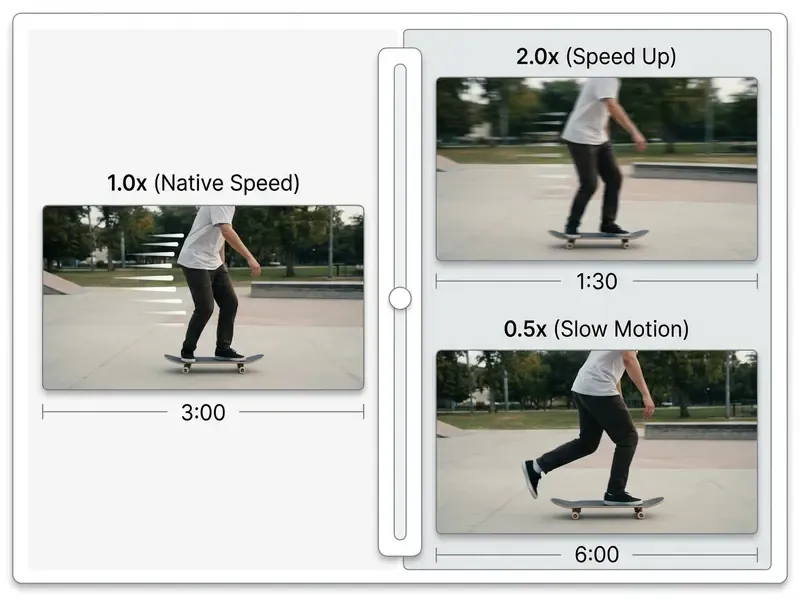
Changing video speed online lets you adjust clip duration and pacing with speed multipliers from 0.1x to 16x. Speeding up media produces fast motion or time lapse effects that condense hours of footage into seconds, while slowing footage creates slow motion that exposes subtle movement mechanics. In both directions the underlying operation is identical: the editor rewrites the presentation timestamps of each frame, then duplicates, drops, re-times, or synthesizes frames so the output container plays back at a standard frame rate.
When to Speed Up a Video
To speed up video online is to compress real-time footage into a shorter duration, which is ideal for skipping redundant steps, condensing long instructional sessions, and creating time lapse videos. Accelerating footage by 2x to 4x lets creators present slide decks, document reviews, or construction sequences efficiently for social media platforms and internal knowledge bases without losing critical contextual cues.
Comprehension, however, does not scale for free with velocity. Where you accelerate video online for training, auditing, or compliance review, pair it with synchronized captions:
«Captions significantly improved comprehension across all playback speeds, with the strongest gains at slower rates and on simpler listening tasks». Mahalingappa, The impact of captioning and playback speed on listening comprehension (2024)
Three high-value acceleration scenarios recur across professional workflows:
- Time-lapse of long physical processes cooking, construction progress, nature changes, and multi-hour events compressed into one shareable clip (typically 4x–16x, or capture-interval time lapse at 1–3 seconds per frame).
- Fast-forward inside instructional media 2x–3x on procedural segments such as software walkthroughs or slide reviews, so the viewer still perceives the action while the runtime drops.
- Archive condensation 4x–8x passes over screen recordings, Zoom or Teams meeting captures, and operational video logs where the analyst is scanning for events rather than studying detail.
When you manage large archives of operational media, the AI Media Calculators help estimate processing requirements and target file sizes before a multi-file batch conversion, while a video compressor workflow reduces the output payload after speed processing without a second quality-destroying re-encode.
When to Convert Video to Slow Motion
Convert video to slow motion online when specific motion details, physical actions, or micro-expressions need close visual inspection. Slowing clips to 0.5x or 0.25x extends timeline duration and reveals high-frequency movement that is imperceptible at native rates. The best subjects are fast, clearly separated motions: running, sports mechanics, a water splash, fabric, hair, machinery in motion. Slow or static scenes gain almost nothing from slow mo. On the capture side, 60 fps yields a gentle slowdown, 120 fps supports a balanced 4x–5x effect at 24–30 fps playback, and 240 fps enables extreme 8x–10x slowdown.
According to empirical research on video speed perception, viewers systematically overestimate the real-world duration of events when watching slow motion clips (Steinhof et al., 2025, Cognitive Research):
«Participants systematically overestimated video speed in slow-motion conditions by an average of 0.64 units, while speed in accelerated playback was underestimated». Steinhof et al., Time and video speed perception, Cognitive Research (2025). https://link.springer.com/journal/41235
Studies of criminal justice footage go further: slow motion playback can bias evaluators toward attributing higher intent and deliberation to actors (Ribatti et al., 2024, Current Psychology):
«300 participants rated responsibility and intent; slow-motion video combined with contextual information produced the harshest culpability judgments in the ANOVA model». Ribatti et al., Speed and contextual information of a crime-related video bias the responsibility judgments, Current Psychology (2024). https://link.springer.com/journal/12144
That narrows the honest use case. Slow motion suits technical skill analysis, sport evaluation, machine diagnostics, and artistic emphasis, not uncontextualized liability assessment. Where a slowed clip will inform an incident review, present the native 1.0x version beside it and record the multiplier used in the case file.
How to Change Video Speed Online in 3 Steps
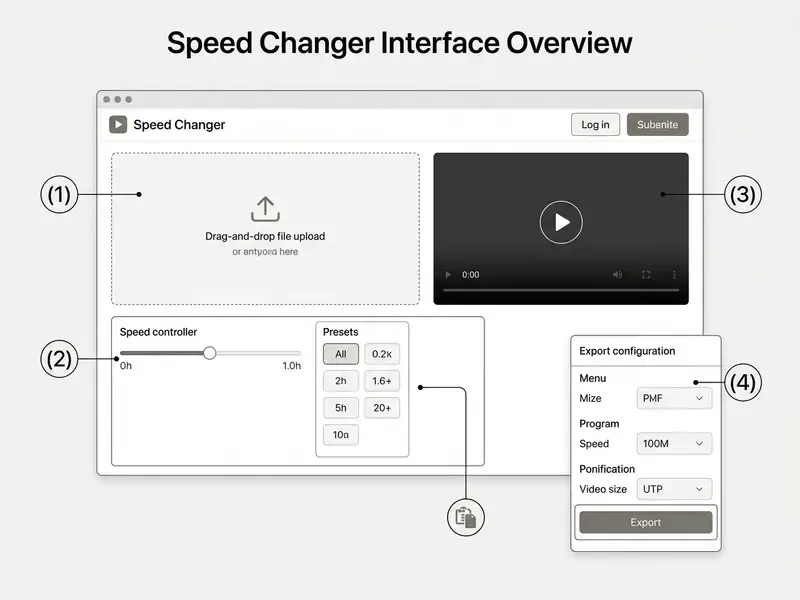
To change video speed online, upload a media file into the browser workspace, select a speed multiplier with a slider or preset button, then export the processed file. Modern web-based video speed changer applications run these steps using browser-level hardware acceleration or secure cloud rendering. Accessible implementations expose a labeled, keyboard-operable control plus a one-click return to 100% playback.
Upload a Video File and Choose the Speed
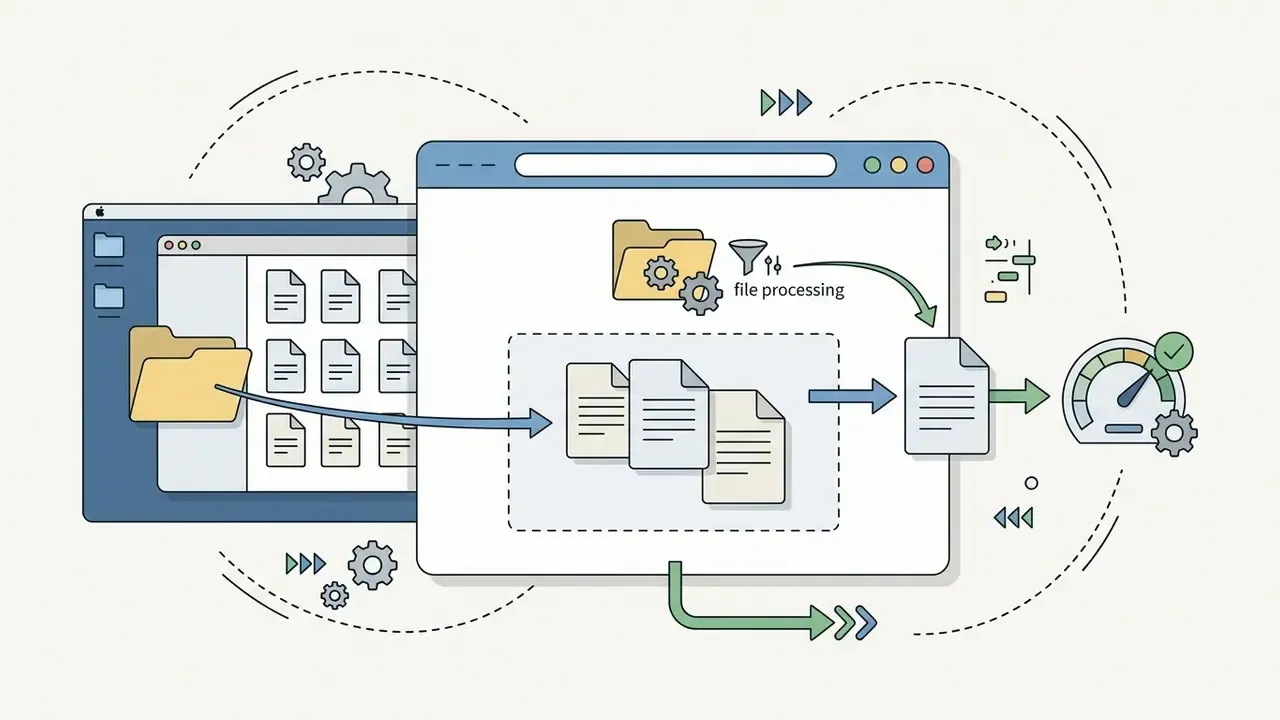
Upload an online video file by dragging .mp4, .mov, .webm, or .avi into the web editor's import canvas. Once loaded, choose a target velocity from a preset (0.5x, 1.5x, 2.0x) or type a custom value into the speed controller. Browser file inputs use the standard accept attribute for compatibility with common media containers while preserving source frame metadata. MP4 (H.264/AAC) and WebM are the two containers supported by every major browser; MOV and AVI are frequently accepted at import, then transcoded to MP4 on export by the built-in video converter.
Modern web editors support direct imports from several storage locations:



Calculating Speed Multiplier by Target Duration
If your target platform demands an exact clip duration (say, a 15-second ad spot cut from a 60-second raw recording), use the target duration formula:
Speed Multiplier = Source Duration (seconds) ÷ Target Duration (seconds)
Example: to compress a 45-second clip into 15 seconds, divide 45 by 15 for a required 3.0x multiplier. To stretch an 8-second action shot across a 20-second slot, divide 8 by 20 to get 0.4x. Advanced tools let you type the desired target time and auto-calculate the rate factor, which is the practical way to hit hard platform limits (15s, 30s, 60s, 3 min) on the first export.
| Source Length | Target Length | Required Multiplier | Effect |
|---|---|---|---|
| 60 sec | 30 sec | 2.0x | Fast motion |
| 45 sec | 15 sec | 3.0x | Fast motion |
| 10 min | 60 sec | 10.0x | Time lapse |
| 8 sec | 20 sec | 0.4x | Slow motion |
| 4 sec | 16 sec | 0.25x | Extreme slow motion |
Preview, Export, and Save the Edited Video
Before you commit to the render, preview the transformed video in the browser player and check playback cadence, audio pitch retention, and timeline alignment. Then select the output video format (MP4 with H.264 is the safe default) and the target resolution (1080p, 720p, or 4K), and run the export. Keep the output frame rate equal to the source frame rate wherever possible, and match audio to 48 kHz stereo AAC so no resampling artifacts creep in.
Case framing. A pattern often cited by corporate media teams is standardizing one export rule, for example a fixed 2.0x rate across all internal screen-recording modules, so that a 40-hour raw training archive ships as roughly 20 hours of accelerated content with synchronized closed captions. The arithmetic is deterministic (Target = Source ÷ Multiplier); the comprehension outcome is not. Any claim of preserved understanding should be validated internally with post-training assessments rather than assumed. Where captions are unavailable, treat multipliers above 1.5x on speech-heavy material as a review aid, not a replacement for the original recording.
How to Speed Up Specific Parts of a Video (Speed Ramping)
To apply different speed rates to different sections of one file: Repeat the split-and-retime cycle as often as needed: a cooking demo can run 1.0x for the intro, 8.0x through the simmering stage, and 0.5x on the plating shot. Some tools implement the same result numerically instead of visually. You enter a start time and an end time in seconds, and the multiplier applies only inside that window while the rest of the file plays at its original speed. That numeric mode is essentially a change video speed online video cutter hybrid: the cut points and the rate factor live in the same form. Export the whole multi-segment project as a single file so the ramps render into one continuous timeline.
- Set split markers.Drag the timeline scrubber to the start point of the target sequence and click the Split (scissors) tool. Move the playhead to the end point and split again. The clip is now three segments.
- Isolate the segment.Click the new middle segment on the timeline track so it is highlighted and all speed controls apply to it alone.
- Apply the speed multiplier.Open the speed control panel and set the velocity for that segment only, for example 4.0x to fast-forward a repetitive process, or 0.5x to emphasize a single impact frame.
- Keep adjacent footage native.Leave the preceding and following segments at 1.0x so the viewer gets normal-speed context before and after the retimed sequence.
Privacy, File Handling, and Compliance in an Online Video Editor
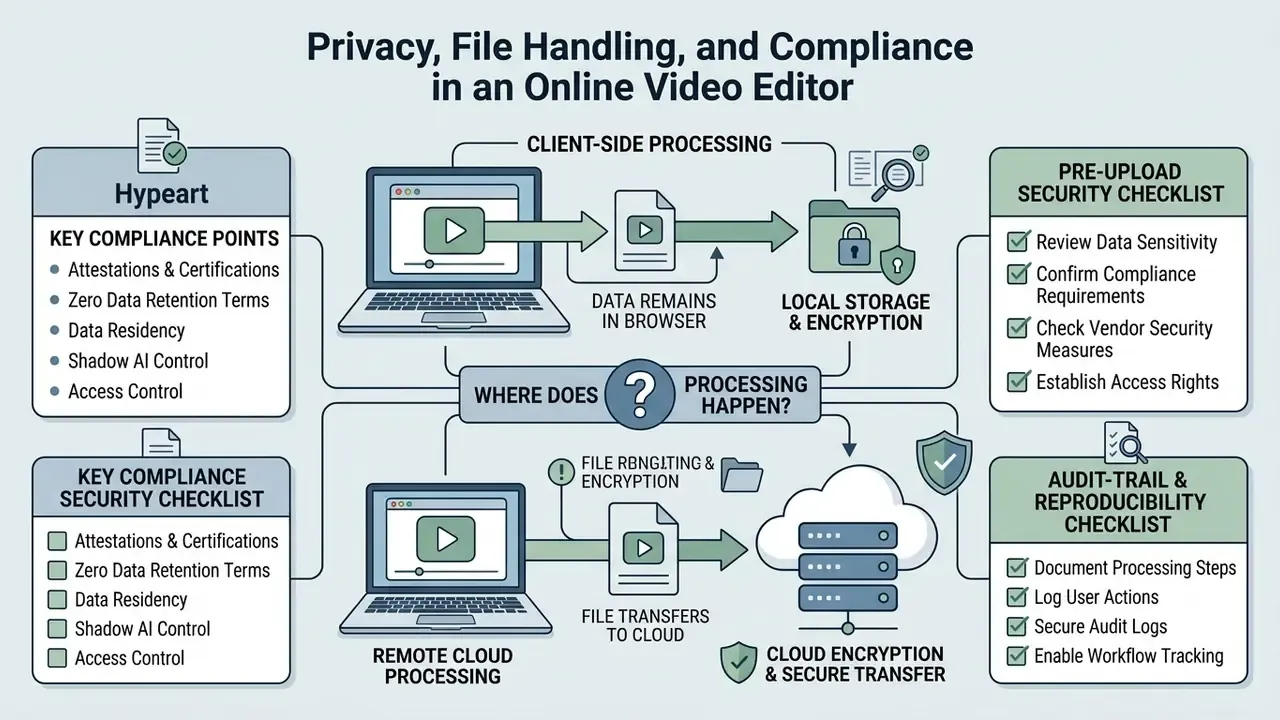
Privacy in web video editors depends on one question: does processing happen locally inside the client browser, or does the file travel to a remote cloud server? Technologies like WebAssembly (Wasm) allow speed adjustment, trimming, and transcoding to execute entirely within local system memory, so the video data never leaves the device. The W3C Web Media API snapshot lists WebAssembly Core, JavaScript Interface, and Web API among the components of the web media stack, which is what makes fully in-browser processing viable rather than mandatory server-side handling.
Playback-rate machinery is also used adaptively by streaming infrastructure, which shows how finely rate control can be automated at scale:
«SLVS maintains playback latency near one second, improving viewing quality by 17.7–31.8% compared with baseline algorithms». SLVS: A Self-Learning Approach to Achieve Near-Second Low-Latency Video Streaming, IEEE Transactions on Mobile Computing (2025)
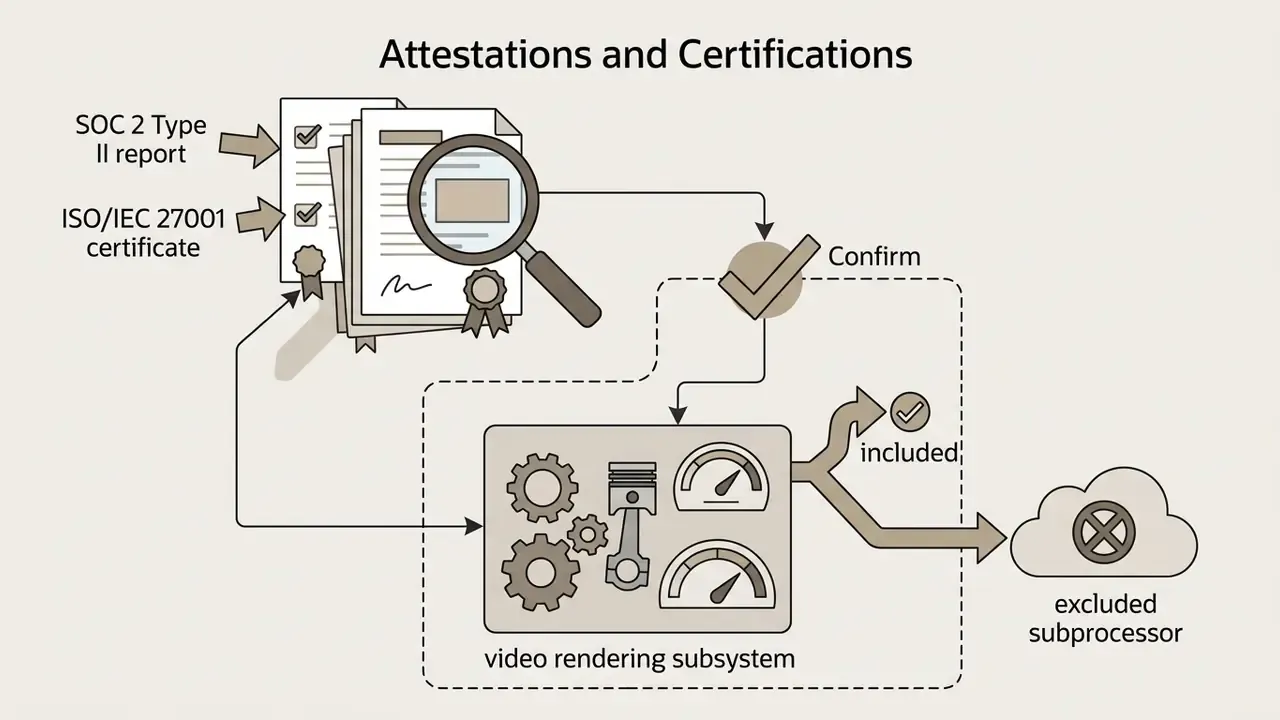
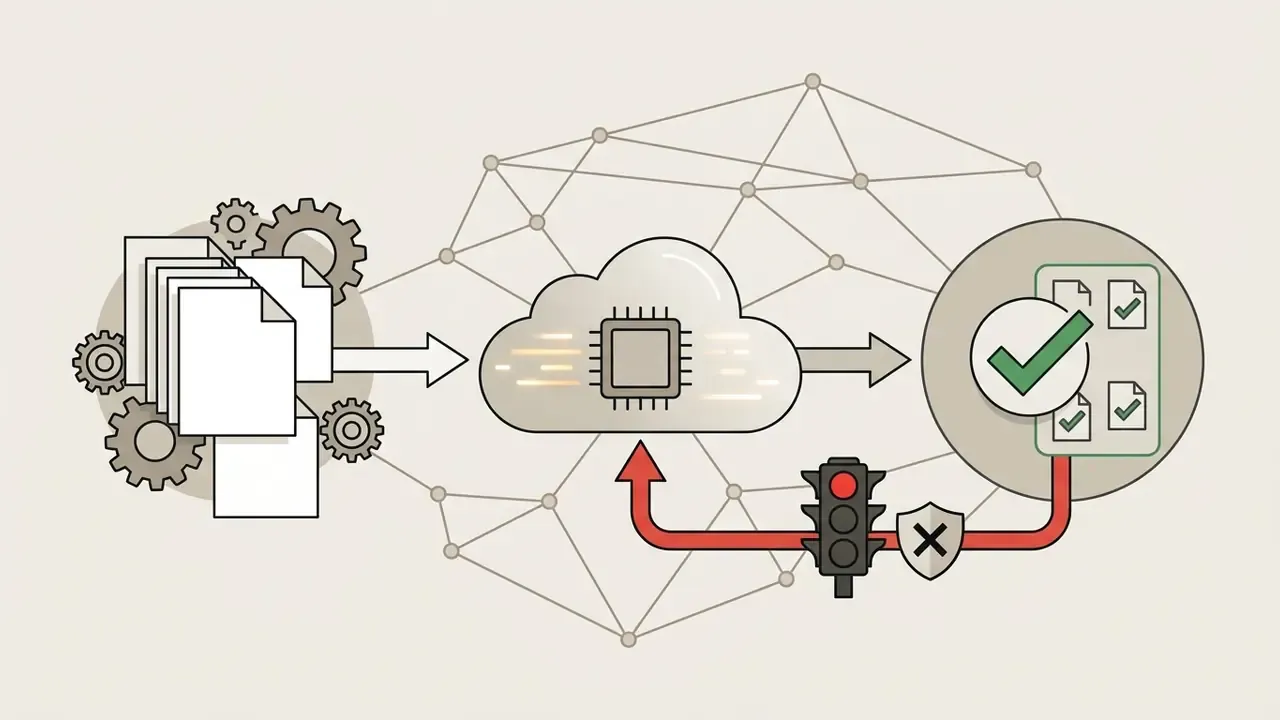
When cloud rendering is required, enterprise security standards expect media transfers over HTTPS/TLS and automatic server-side deletion within a stated window (commonly 1 hour to 24 hours). Organizations processing sensitive media, proprietary assets, or regulated client data must verify provider privacy policies and retention agreements before uploading unencrypted video files to third-party web platforms.
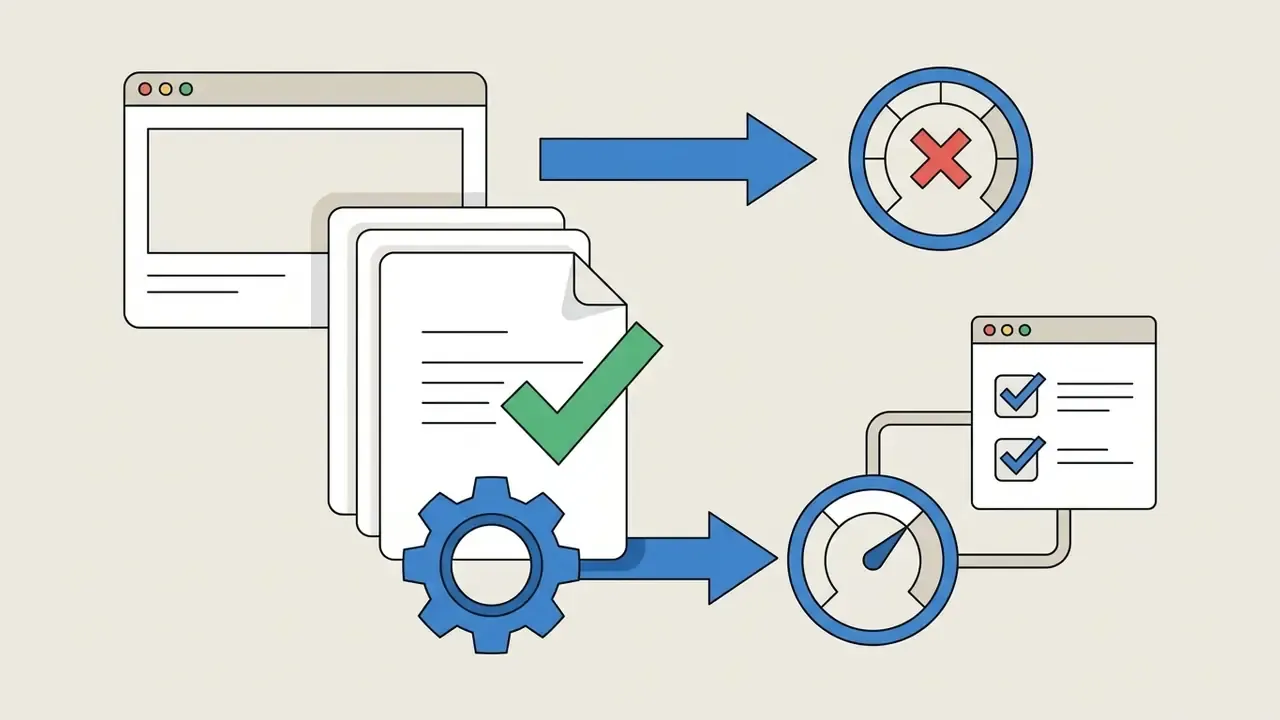
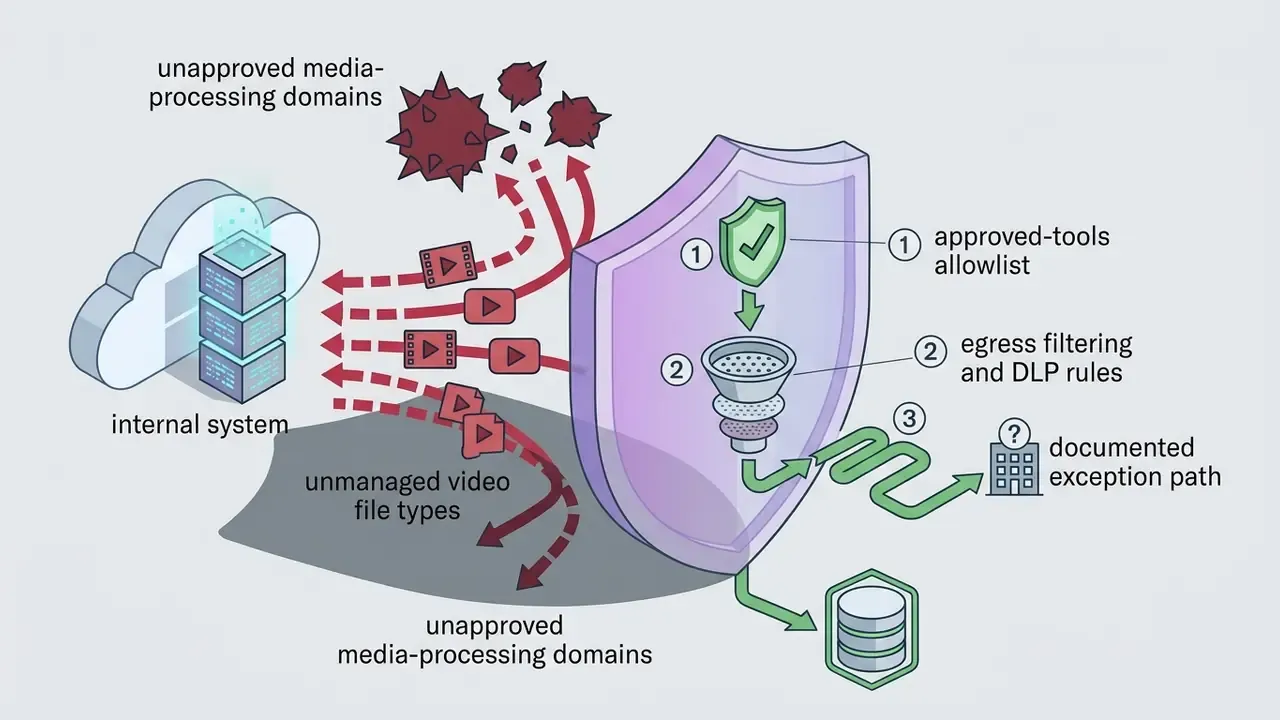
For regulated environments, including financial services, healthcare, and the public sector, the evaluation extends well past encryption in transit:

Choose Video Speed: Presets or Custom Multiplier
The optimal video speed depends on the goal: swift content review, precise motion analysis, or a dramatic time lapse. Standard speed changers offer fixed presets alongside custom numeric multipliers that scale clip duration inversely to the selected velocity factor.
| Speed Factor | Clip Duration (10 min source) | Visual Effect | Primary Operational Use Case |
|---|---|---|---|
| 0.1x – 0.25x | 100 min – 40 min | Extreme Slow Motion | Micro-motion analysis, high-frame-rate physics inspection |
| 0.5x – 0.75x | 20 min – 13.3 min | Moderate Slow Motion | Sports technique review, movement breakdown, choreography |
| 1.0x | 10 min | Native Playback | Baseline reference playback, standard dialogue |
| 1.25x – 1.5x | 8 min – 6.6 min | Mild Acceleration | Educational lecture watching, podcast auditing, document review |
| 2.0x – 4.0x | 5 min – 2.5 min | Fast Motion | Procedural demonstrations, software walkthroughs, tutorial edits |
| 8.0x – 16.0x | 1.25 min – 37.5 sec | Time Lapse | Construction progress, long-event condensation, social media clips |
Fast Forward and Fast Motion Video Speeds
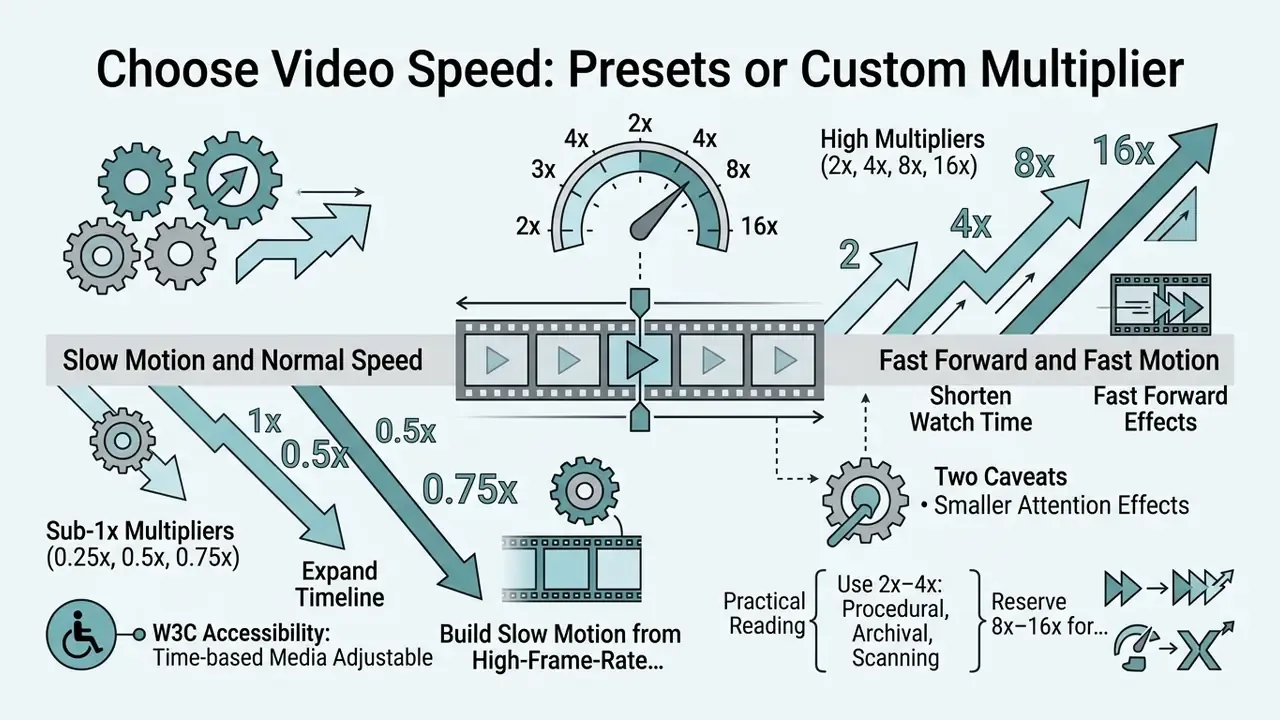
High multipliers (2x, 4x, 8x, 16x) shorten watch time and produce fast forward effects. A 2x factor halves the clip length; 16x compresses a 10-minute source into 37.5 seconds, which is why high multipliers dominate time lapse work on construction, cooking, or natural events. A fast forward video online workflow is usually the cheapest way to make an hour of screen capture reviewable.
Two caveats are worth designing around. First, the cognitive cost:
«Speed-watching may preserve basic information recognition, yet it reduces depth of processing and metacognitive confidence». Is speed-watching a good idea? Potential metacognitive consequences (2025)
Second, attention effects on short-form platforms are smaller than marketing claims suggest:
«Accelerated short-form videos produced marginally longer average fixation durations, but the difference did not reach statistical significance». Qi, The effect of short-form video content, speed, and engagement (2024), eye-tracking study
Practical reading: use 2x–4x for procedural and archival material where the viewer scans, reserve 8x–16x for visual processes with no spoken content, and hold dialogue-critical passages at 1.0x–1.5x. For organizations planning systemic changes to video production, the AI Media Pricing Guides keep cloud-rendering costs aligned with operational budgets.
Slow Motion and Return to Normal Speed
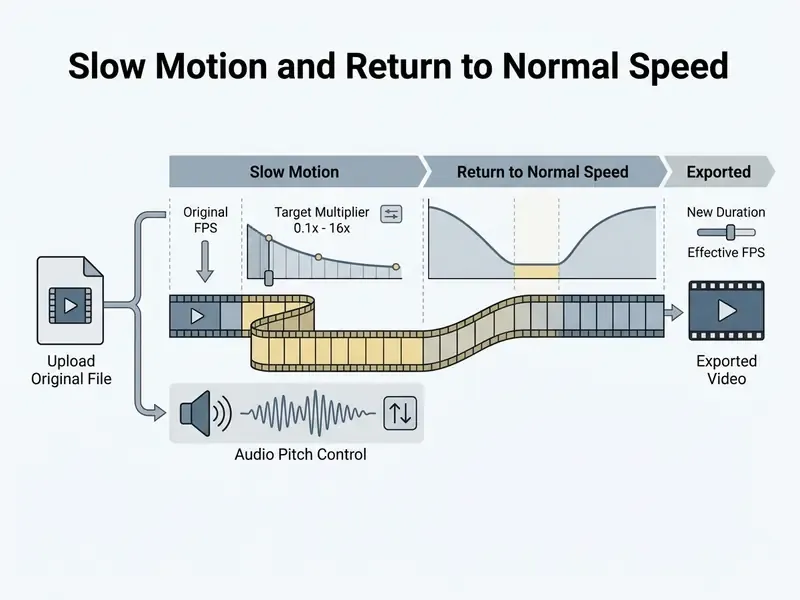
Sub-1x multipliers (0.25x, 0.5x, 0.75x) expand the timeline to build slow motion video from high-frame-rate footage, and they are the reason people slow down videos in the first place. To restore a slowed or accelerated clip to its original timing, reset the multiplier to 1.0x in the fast forward video editor.
W3C media accessibility user requirements state that prerecorded time-based media should be adjustable across roughly 50% to 250% of real time, that speech pitch should be preserved across that range, that synchronized alternatives such as captions must stay aligned, and that the user agent must provide a way to reset playback to 100% (W3C Media Accessibility User Requirements, 2025). The "single-click reset" phrasing you see in product UI is an interface convention that satisfies the reset requirement; it is not the wording of the specification itself.
Video Formats, Audio, and Editing Options
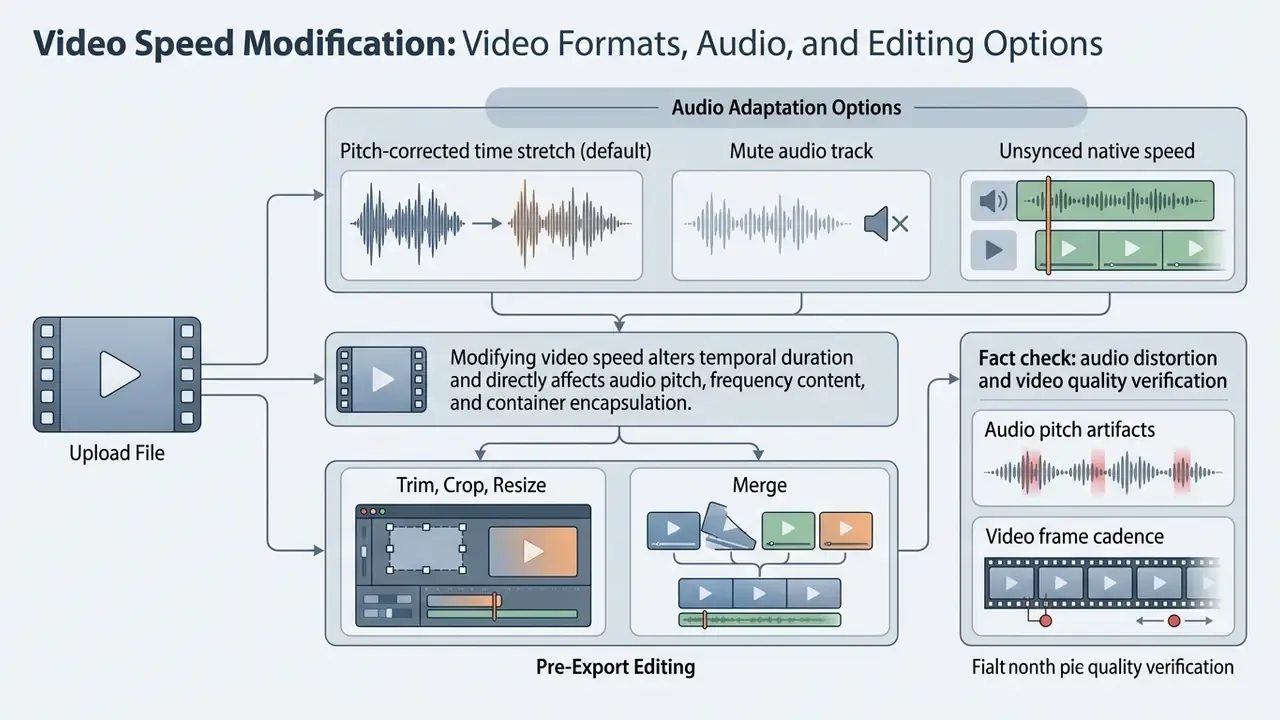
Modifying video speed alters temporal duration and directly affects audio pitch, frequency content, and container encapsulation. Comprehensive platforms let you adjust velocity while running complementary operations: trimming, cropping, resize video for a new aspect ratio, add text overlays, and audio replacement.
What Happens to Audio When Video Speed Changes
Accelerating or slowing a video scales the underlying audio track, which changes speech pitch and tempo unless pitch correction is applied. This is standard digital-audio behaviour rather than a product quirk. Resampling a waveform to a new playback rate shifts every frequency component proportionally, so accelerated audio rises in pitch (the chipmunk or chirp effect) while slowed audio sinks into a low, unintelligible rumble. Editors avoid it by decoupling tempo from pitch: time-domain algorithms such as WSOLA, plus phase-vocoder and Radius-class processors in professional tools, stretch or compress duration while holding pitch constant, usually across ranges far wider than the transparent-quality range.
When changing playback rate, pick one of three standardized audio modes in the editor control panel:
- Pitch-corrected time stretch (default)adjusts tempo while preserving voice pitch using WSOLA-class algorithms. Transparent roughly between 0.5x and 2.0x, which makes it the right choice for lectures, interviews, tutorials, and audited screen recordings.
- Mute audio trackstrips the audio stream entirely to avoid pitch distortion and high-frequency artifacts at extreme speeds (below 0.5x or above 2.0x). Standard for time lapse deliverables, which then get a music bed or voiceover.
- Unsynced native speedkeeps the original audio at 1.0x while accelerating or slowing only the visual channel. Useful when a finished voiceover must stay intact, though it desynchronizes the timeline and demands manual re-alignment.
To keep professional standards, either enable pitch-preserving time stretching or mute the original track, then add music or fresh narration in the same session. A synthetic voiceover produced with an AI voice generator is often cleaner than a pitch-mangled original at 4x.
Trim, Crop, Resize, and Merge Before Export
Before applying rate changes, trim unwanted start and end frames, crop frame dimensions for the target aspect ratio (9:16 vertical for mobile feeds, for instance), and merge video clips onto a single timeline. Trimming first means processing resources go only to footage you keep, and it leaves the retimed region free of slate, countdown, or dead air. Note the operational order that professional tools imply: trim, then crop or resize, then merge, then speed, then export. Merged clips also constrain trimming, since component clips must stay aligned and at least one frame must survive in every component.
Teams building custom pipelines can reference the AI Media API documentation to automate trimming, cropping, and rate adjustment across enterprise video assets programmatically. Teams generating synthetic source footage may also want the Google Veo API implementation notes for cost and rate-limit planning before batch retiming generated clips. Adjacent creative questions surface constantly in the same workspaces, from stylized visuals produced with a disney ai generator to campaign naming handled by a domain name generator; both feed assets that eventually land on a retimed timeline.
Fact check: audio distortion and video quality verification
Free Online Video Speed Changer: Watermark, Limits, and Use
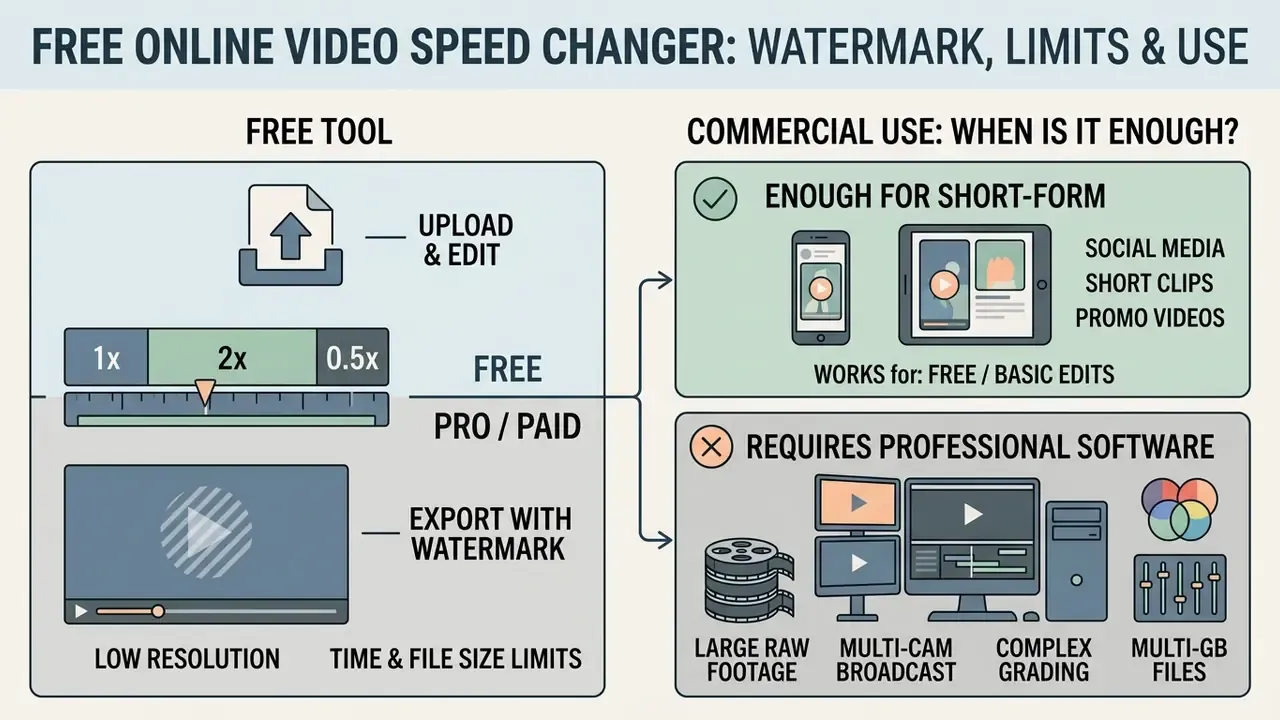
Evaluating a free online video speed changer means auditing export limits, watermark policy, upload caps, and commercial licensing rights. Free browser tools deliver instant speed edits with no installation, but subscription tiers commonly gate higher resolutions and unbranded exports.
| Feature / Criteria | Free Browser Tier | Premium / Desktop Tier | Operational Impact |
|---|---|---|---|
| Watermark Policy | Often added on HD exports, or clean exports limited to 480p/720p | No watermark at any resolution (1080p, 4K) | Unbranded exports are mandatory for client-facing and commercial work. |
| Max File Upload | 500 MB – 1 GB per clip | Unlimited or large cloud storage (100 GB+) | Large raw camera files need local desktop processing or enterprise cloud access. |
| Export Resolution | Capped at 720p or 1080p | Full 4K, HDR, custom bitrates | High-resolution displays demand full 4K export settings. |
| Duration Limit | 5 to 10 minutes per exported clip | Unlimited timeline duration | Long-form event recordings require unconstrained export privileges. |
| Commercial License | Personal use only, or unspecified terms | Full commercial rights granted | Enterprise deployment requires explicit commercial licensing and indemnification. |
| Automation / API | Manual single-file uploads | Batch processing, API keys, audit logging | Archive-scale retiming is unmanageable without programmatic access. |
Is It Free and Does the Export Have a Watermark?
Many web tools let you change video speed online free, yet restrict watermark-free exports to lower resolutions such as 480p, or cap single-file uploads at 500 MB or 1 GB. Microsoft Clipchamp, for example, provides watermark-free exports at standard resolutions on its free plan, while other browser platforms stamp a visual watermark unless you upgrade. Several converters advertise a free online video speed up tool with no watermark, no signup, and automatic file deletion one hour after upload; verify those claims in the terms, not the landing page. The AI Media Support and Troubleshooting guides help resolve export failures and rendering glitches inside free tier limits, and our comparison of free AI video generators and their export restrictions shows how similar caps repeat across adjacent tool categories.
When an Online Tool Is Enough for Commercial Video Editing
A free video speed editor in the browser is enough for commercial work when you are producing short-form social assets that need a quick speed adjustment, vertical cropping, and simple text overlays: 9:16 at 1080×1920, H.264/MP4, 30 or 60 fps. It is equally enough for internal deliverables, including condensed onboarding modules, sped-up screen recordings for knowledge bases, and time lapse progress reports.
But once you are handling multi-gigabyte raw footage, multi-cam broadcast tracks, complex color grading, frame-accurate optical-flow retiming, or strict corporate privacy compliance, desktop software or enterprise cloud tooling wins. The desktop tier owns local file handling, 4K local export, and predictable render performance. Businesses evaluating full stacks can consult the AI Media Comparison Matrices to weigh browser convenience against desktop processing power, and teams that also ship static assets may find the parallel analysis of online photo editors and their commercial workflows useful when standardizing a single toolchain. Content-policy questions travel with those decisions too; the review of whether did character ai remove the filter is a good illustration of how quickly a vendor's moderation stance changes what you can legitimately publish.
Expert Perspective: Speed Changes as Temporal Data
Author note: Marcus Hale writes about AI governance and model risk for this publication.
Read alongside the perception literature cited above, the governance implication is narrow and testable: record the multiplier, retain the 1.0x master, keep the checksum, and never let a retimed derivative circulate unlabeled. A 2x training export is a productivity decision. A 0.25x incident clip is an interpretive one. That distinction is worth writing into policy before someone needs it.
Frequently Asked Questions (FAQ) About Changing Video Speed
Can I Change the Speed of Only Part of a Video?
Yes. Isolate the section with split or video cutter tools, then apply the multiplier. On the timeline, place edit markers at the start and end of the target section, split the clip into three segments, select the middle one, and apply your fast motion or slow motion multiplier. The adjacent clips stay at native 1.0x, so timeline alignment holds. Some converters offer the numeric equivalent: enter start and end times in seconds and the speed change stays inside that window. Leave both fields empty to retime the whole file.
How Do I Hit an Exact Target Length?
Divide the source duration by the required duration. A 90-second recording that must become 30 seconds needs 3.0x; a 12-second clip stretched into a 30-second slot needs 0.4x. Tools that accept a target length in seconds compute the multiplier for you, which is the fastest path to platform-mandated durations.
Can I Change Video Speed on a Phone?
Yes. Browser-based speed changers run in Safari on iOS and Chrome on Android with no app installed, and files can be picked straight from the Camera Roll, iOS Files, or Android media storage. Mobile sessions inherit the same limits as desktop ones, typically per-file size caps and export resolution ceilings, and large 4K recordings process more slowly on device hardware.
What Is the Fastest and Slowest Speed I Can Use?
Practical browser editors expose 0.1x to 16.0x. Player-level and converter-level controls commonly stop at 0.25x–4.0x. Beyond 4.0x, audio becomes unusable without muting, and below 0.5x the source frame rate, not the bitrate, limits smoothness.
Can I Use a Video Speed Changer for Social Media?
Yes, speed changers are standard preparation for social platforms and short-form feeds. For mobile distribution, export sped-up or slowed clips in vertical 9:16 (1080×1920) using H.264/MP4 at 30 or 60 fps, and confirm the platform's current duration cap before choosing the multiplier. Add text cards and add music after the retime, so overlays are not stretched with the footage. Creators assembling motion assets around retimed clips can extend the toolkit with an animation maker workflow for titles and transitions, or reuse a discord intro template when the same clip has to open a community stream.
Can I Change the Speed of a YouTube Video?
Adjusting playback speed inside the YouTube player changes client-side streaming velocity for that viewer only; it does not modify the source media file. To permanently edit the speed of a YouTube video you must hold distribution rights to the original file, load it into a fast forward video editor, apply the speed controls, and render a new file. That sequence is documented in our guide to YouTube video editors and publishing workflows. Editing third-party copyrighted videos without authorization creates derivative works under U.S. copyright law (17 U.S.C. § 101), which requires appropriate permissions for public distribution or commercial use.
Legal disclaimer. This section summarizes general principles and is not legal advice. Copyright, derivative-work, and fair-use analysis is fact-specific and jurisdiction-specific. Consult qualified counsel before republishing or monetizing retimed third-party footage. Ongoing disputes and rulings affecting media rights are tracked in AI Litigation and Case Timelines.
Will Changing Speed Reduce Video Quality?
Retiming itself discards no pixel detail, but the export re-encode can. Preserve quality by keeping output resolution and frame rate identical to the source, targeting 15 Mbps for 1080p H.264 or 35–40 Mbps for 4K, and avoiding repeated export cycles. For slow motion below 0.5x, capture frame rate sets the ceiling, not bitrate.
Complementary Video Processing Tools
Speed adjustment is one step in a pipeline. These guides cover the operations performed immediately before or after retiming:
- DnD AI art and dog to human ai generator: stylized still assets that often become the opening or closing frame of a retimed short.