There is a second reason this page matters for teams inside regulated environments. The moment a screen recording of an internal system leaves your device, it becomes a data-handling decision, not a design one. So the practical guidance below covers both sides: the settings that make a GIF look good, and the checks that keep a convenient tool from becoming an uncontrolled data path.
This page answers four questions in order: how online conversion actually works, which source formats survive it, which settings control the quality-to-weight trade-off, and what a business or compliance reviewer should verify before approving a tool. If you only need the fast answer, the summary above is the whole recipe.
Convert Video to GIF Online for Free
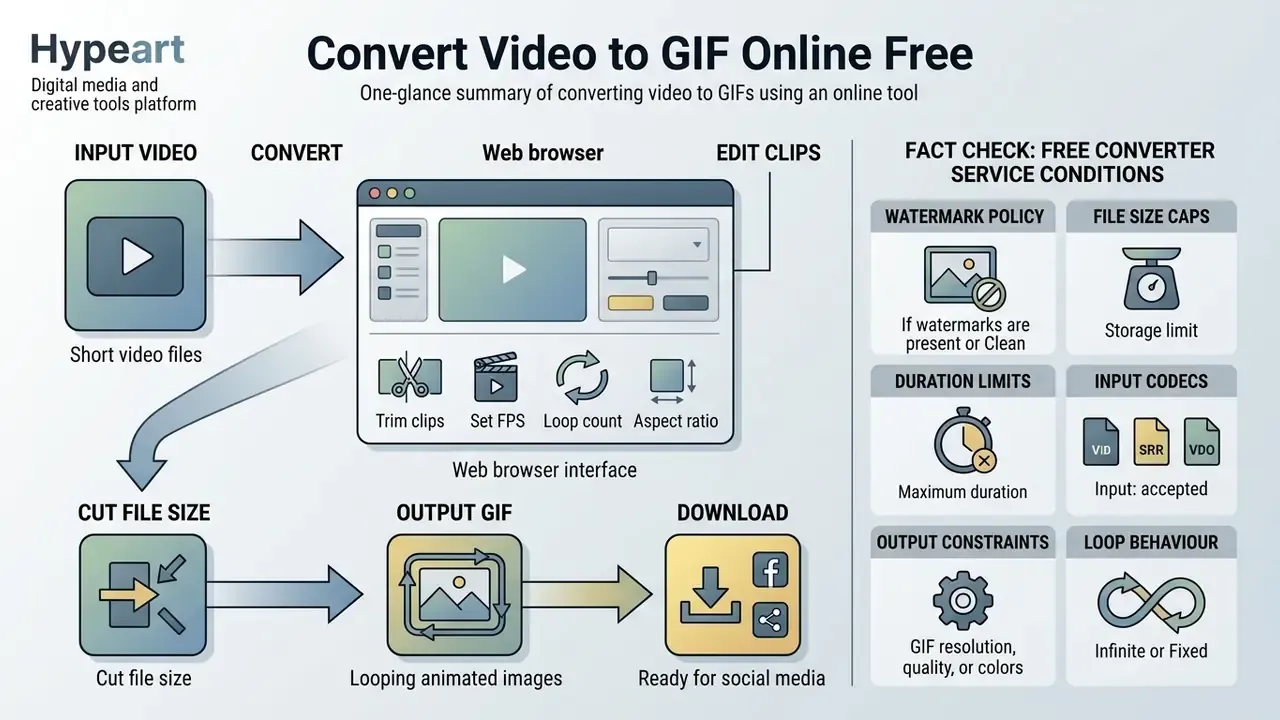
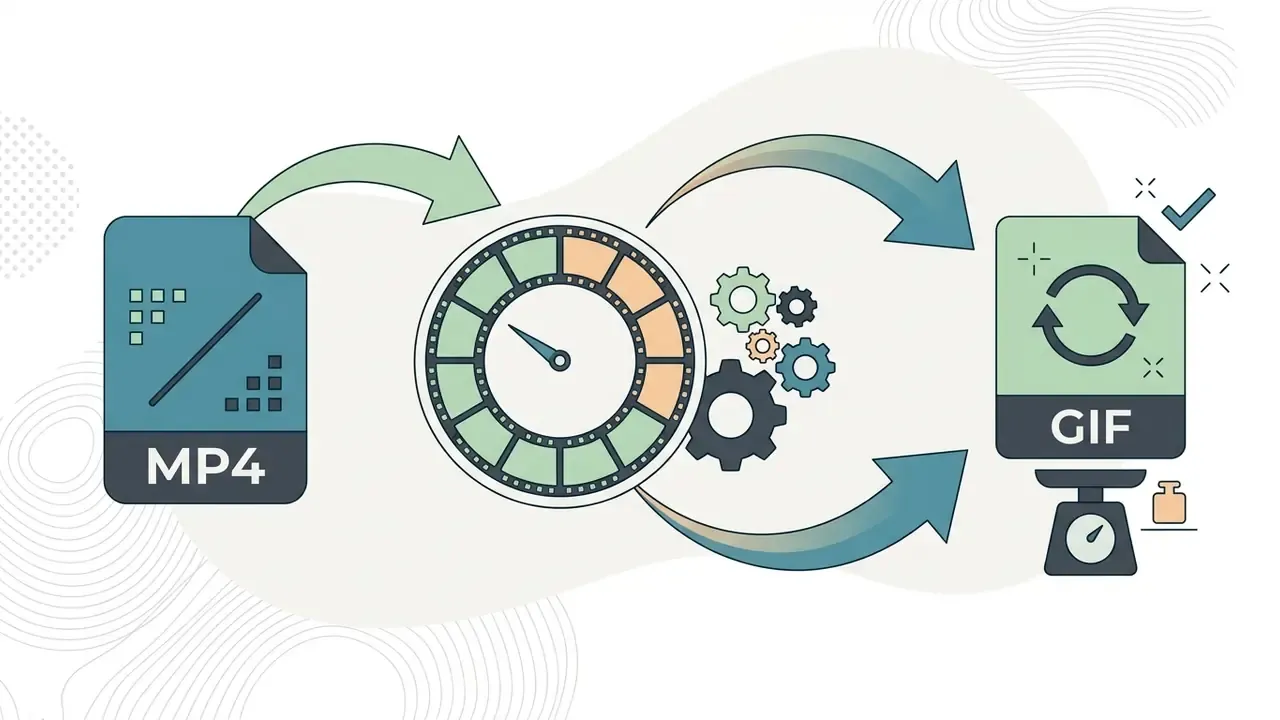
Converting video to GIF online lets you transform short video files into looping animated images directly inside a web browser without installing software. Modern web tools ingest the source media, parse video frames, reduce color palettes, and export an optimized GIF file ready for distribution across digital platforms.
A free video to gif converter online works in one of two ways: server-side cloud processing or client-side browser execution. Cloud-based tools upload the original clip to processing nodes, run transcoding through automated engines, and return the finished file. Client-side tools use WebAssembly binaries to transcode media inside local device memory, so the source never leaves the machine. That distinction looks trivial. It is the single most important line in any security review of this workflow.
It helps to understand what happens to color data during the conversion step. GIF relies on indexed color with a palette of no more than 256 entries per frame, which makes the reduction from a full-color video source an irreversible, lossy operation.
«GIF uses indexed color with a palette of up to 256 colors; reducing a full-color source to 256 colors is an irreversibly lossy process».
Picking the best free video to gif converter online comes down to technical boundaries rather than marketing claims. Documented web converters consistently accept the mainstream delivery containers, namely MP4, MOV, WebM and AVI, because these lean on decoders bundled with FFmpeg builds or exposed natively by the browser media stack. Processing performance still varies with source file size, total frame counts, and platform hardware limits. A 200 MB 4K screen recording will stall a phone browser long before it stalls a workstation.
If you are comparing several services side by side, judge them on four measurable things: input duration cap, maximum upload size, palette control, and whether the loop count is editable. Everything else is packaging.
FACT CHECK: Free Converter Service Conditions
How to Convert Video to GIF Online in 3 Steps
A standard online video converter turns video clips into animated GIFs through a three-step workflow: upload the video file, select time boundaries and visual parameters, then export the generated GIF file. That is the whole of it, and the answer to "how do you make an animated gif from a video?" rarely gets more complicated than these three moves.
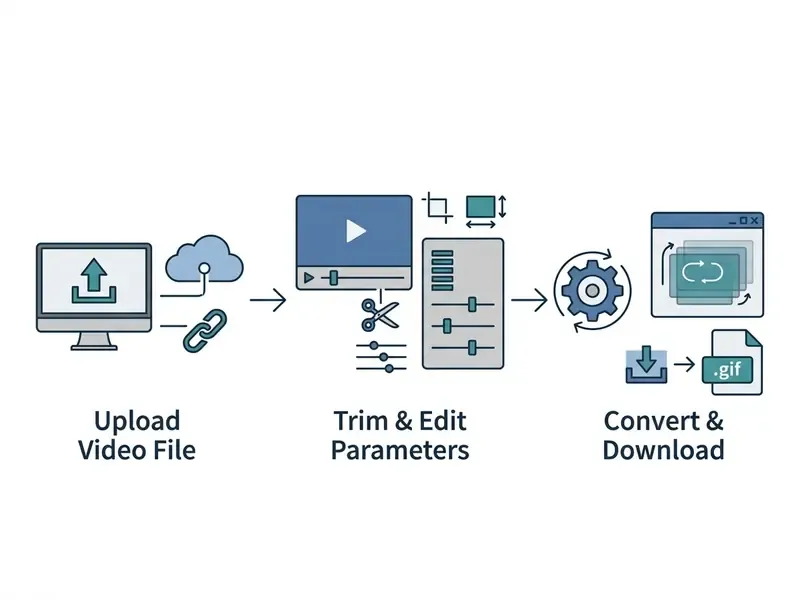
- Upload Video FileSelect a video clip from local storage, cloud services, or a video URL.
- Trim and EditSet start and end points, crop frame boundaries, define the loop count, and configure GIF quality parameters.
- Convert and DownloadExecute the conversion, preview the looping animation, and save the final
.giffile.
Upload a Video File
Uploading means one of three things: selecting a local file from a desktop or mobile device, importing from cloud storage, or pasting a direct URL. Most converters accept file drops from the local file system, integration tokens for Google Drive, Dropbox or OneDrive, and direct web addresses for hosted media.
Transfer speed depends on upstream bandwidth and source file size, nothing more exotic than that. Uploading a pre-trimmed clip instead of the full recording reduces network latency and gets the first preview on screen noticeably faster.
Trim and Edit the Video Clip
Trimming sets precise start and end timestamps so only the useful motion survives; cropping adjusts the visual frame boundaries. Holding total clip length to 2 to 5 seconds is the cheapest way to stop file size from ballooning.
Cropping strips out dead background space and pushes attention onto the primary action. If you need multi-layer edits, transitions or colour grading before conversion, prepare the source clip in dedicated free video editing software and export a short, pre-trimmed segment. Adding a text overlay turns the loop into a self-contained reaction GIF or an instructional caption that reads without audio.
Convert and Download the GIF File
The final step renders the selected frames into a 256-color LZW-compressed GIF and offers an in-browser preview before saving. Check three things in that preview: playback speed, loop continuity at the seam, and whether small text is still legible after downscaling.
Once processing finishes, the platform generates a direct download link for local storage. Many platforms also let you adjust compression or compare alternative output configurations before saving, which is worth doing once so you learn where your own quality floor sits.
Supported Video Formats for GIF Conversion
Online video converters process the common video formats, including MP4, MOV, WebM, AVI, and MKV, by decoding video streams into individual bitmap frames before assembling the GIF.
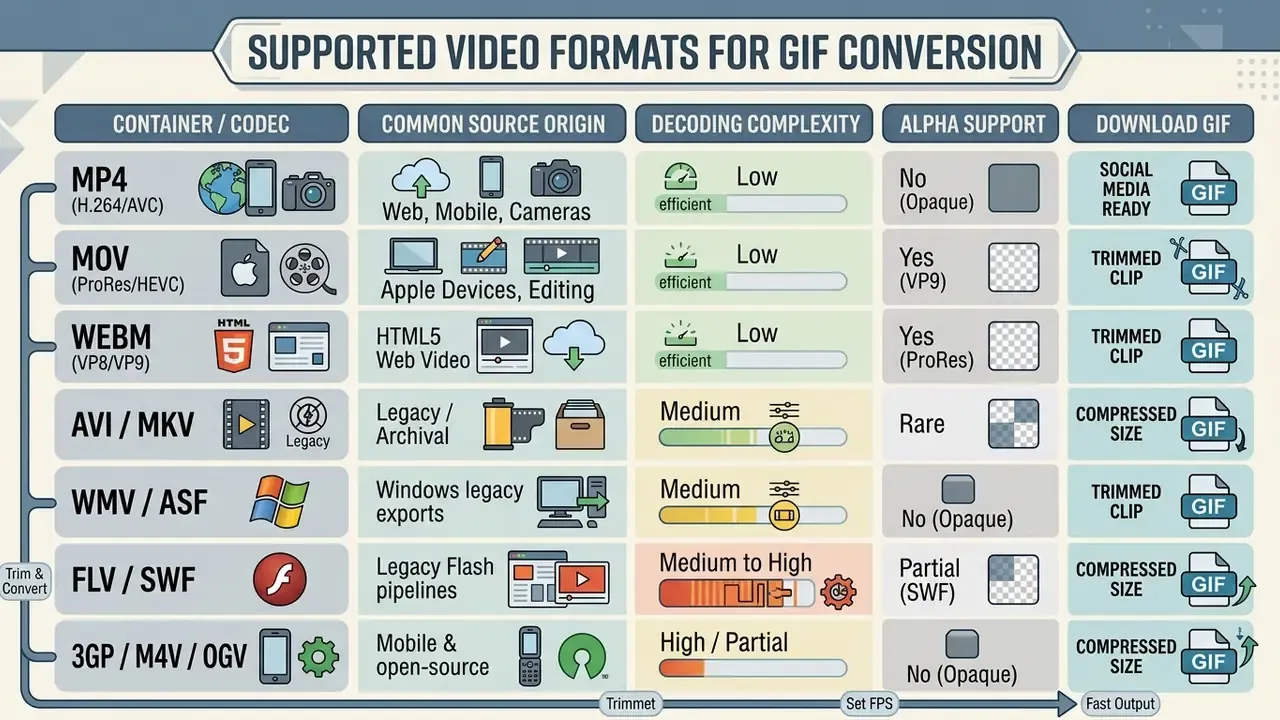
Decoder compatibility is governed by server-side libraries such as FFmpeg or by browser-native media decoders. Legacy containers deserve a separate note: converters built on full FFmpeg builds still ingest FLV, 3GP, OGV, M4V, ASF, WMV and MKV, and some handle a subset of SWF (Flash) files. Flash coverage is never complete, though, because many SWF assets contain vector scripting rather than a linear video track.
Input containers differ in metadata structure and compression algorithms, yet every one of them ends up in the same place: frame extraction, then color quantization, then a standard GIF output file. Clips produced by AI video generators follow exactly the same path, since their exports are ordinary H.264 or VP9 streams.
Convert MP4, MOV and Other Video Files to GIF
Converting MP4 and MOV files means parsing their box-structure metadata (ISOBMFF or QuickTime container atoms) to reach the frames that will be quantized to an indexed palette. Both containers store per-sample size, chunk mapping and chunk offset tables (stsz, stsc, stco), which the converter must read before a single frame can be decoded. MP4 encoded with H.264 remains the most reliable input, thanks to standardized keyframe structures and universal browser playback support.
MOV files straight off Apple devices often carry high-bitrate codecs or wide color spaces that demand more processing memory. MP4/H.264 material is normally opaque, whereas MOV frequently carries editing-grade codecs such as ProRes 4444 or HEVC with alpha, so transparency handling diverges before GIF export.
Alpha Channel and Transparency Handling: When the source file has embedded transparency, such as Apple ProRes 4444 MOV or VP9 WebM, online tools offer two distinct paths:
- Alpha Preservation: The 8-bit alpha channel is mapped to a single binary transparent index inside the GIF palette. Edges stay crisp against solid backgrounds, which makes it possible to convert transparent video into a transparent GIF. This is the correct route for logo stings, badges and overlay animations.
- Background Flattening: Transparent layers are merged against a selected hex colour (for example
#FFFFFFor#000000) to avoid aliasing artefacts and dark halos around edge pixels. Flattening stays the safer choice for soft shadows, motion blur and semi-transparent gradients, because GIF supports one fully transparent palette index rather than 256 levels of opacity.
Put plainly: the GIF specification only supports single-color index transparency, not a full alpha channel, so source clips with soft alpha get flattened against a solid background colour during conversion whether you plan for it or not.
GIF Settings: Quality, Frame Rate and Resolution
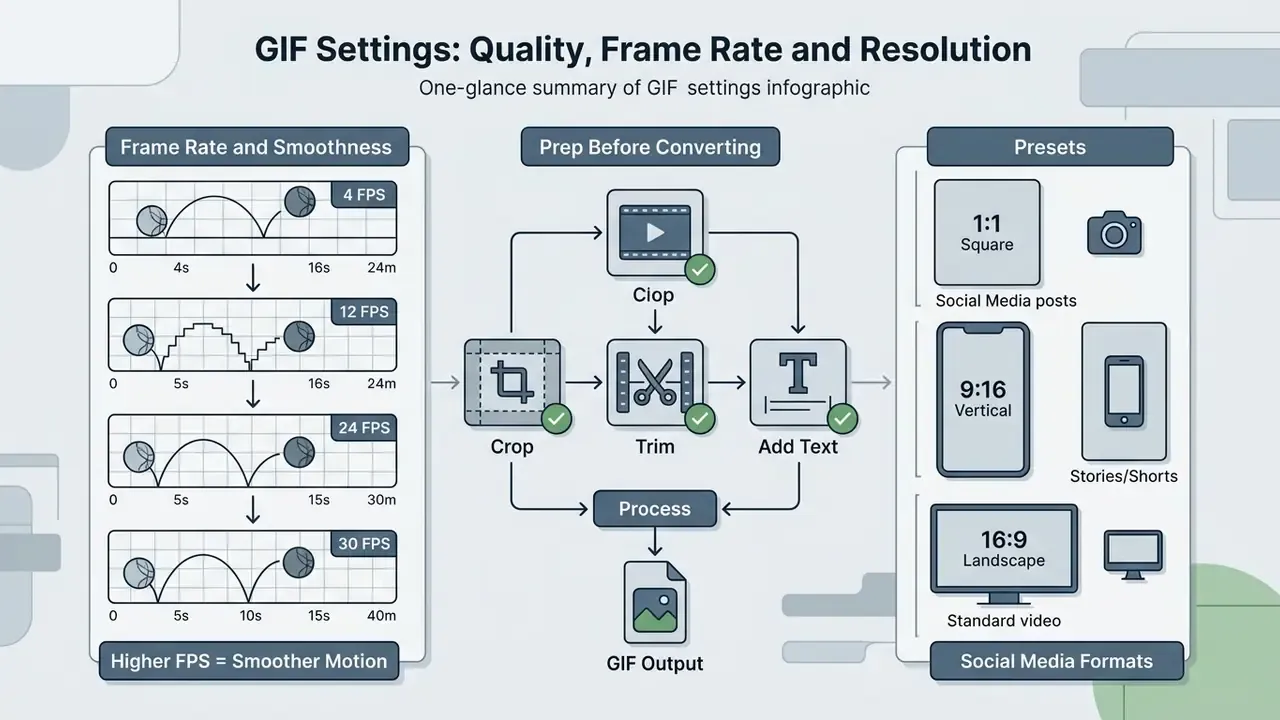
Balancing GIF quality against file size comes down to three variables: frame rate (FPS), frame resolution, and color palette depth. Duration and loop count then decide how the asset behaves in the wild.
| Setting Parameter | Visual and Performance Impact | Recommended Configuration |
|---|---|---|
| Frame Rate (FPS) | Higher FPS yields smoother motion; scales frame count and file size near-linearly. | 10 to 15 FPS for standard web loops; 20 to 24 FPS for high-motion sports or gaming. |
| Resolution (px) | Pixel dimensions multiply total pixel count per frame; a major factor in file size. | 480 px to 640 px width for web and social; 320 px width for messaging apps. |
| Color Depth | Controls palette entries (32 to 256 colors); affects gradient smoothness and dither. | 128 to 256 colors for video footage; 32 to 64 colors for flat graphics and UI demos. |
| Duration (sec) | Adds a whole frame set for every second of runtime; directly multiplies overall data. | 2 to 5 seconds. Clips over 6 seconds should stay in video format. |
| Loop Count | Controls how many times the animation repeats before freezing on the last frame. | 0 (infinite) for social feeds; 1 to 3 for email, docs and UI notifications. |
Read the table as a trade-off sheet rather than a spec sheet. Higher resolutions and frame rates preserve fidelity and punish you on weight; lower settings produce compact files that load fast on low-bandwidth mobile networks. A high quality gif maker from video is mostly a tool that exposes these five controls instead of hiding them behind a single "quality" slider.
Resolution deserves particular attention, because pixel count scales quadratically rather than linearly.
«The average web GIF measures roughly 640×480 pixels; cutting width from 1920 to 640 pixels reduces per-frame data by about nine times».
How Frame Rate Affects GIF Smoothness
Higher frame rates increase perceived smoothness and scale frame counts, and therefore total file size, almost linearly. Motion starts reading as continuous rather than as a slideshow around 10 to 12 frames per second, which is why production guidance treats 10 to 12 FPS as acceptable, 15 FPS as comfortably smooth, and 24 to 30 FPS as cinematic but expensive. Extreme frame rates are simply unnecessary for a two-second loop. (Perceptual thresholds vary with content motion and viewing size; the figures reflect converter and animation-tool guidance rather than one laboratory study.)
A technical benchmark published by SVGator (2025) shows how file size scales with frame rate for a fixed clip:
Measurements taken at a fixed 480-pixel width show the same near-linear relationship at realistic web dimensions, which is the more useful comparison for anyone shipping to a social feed.
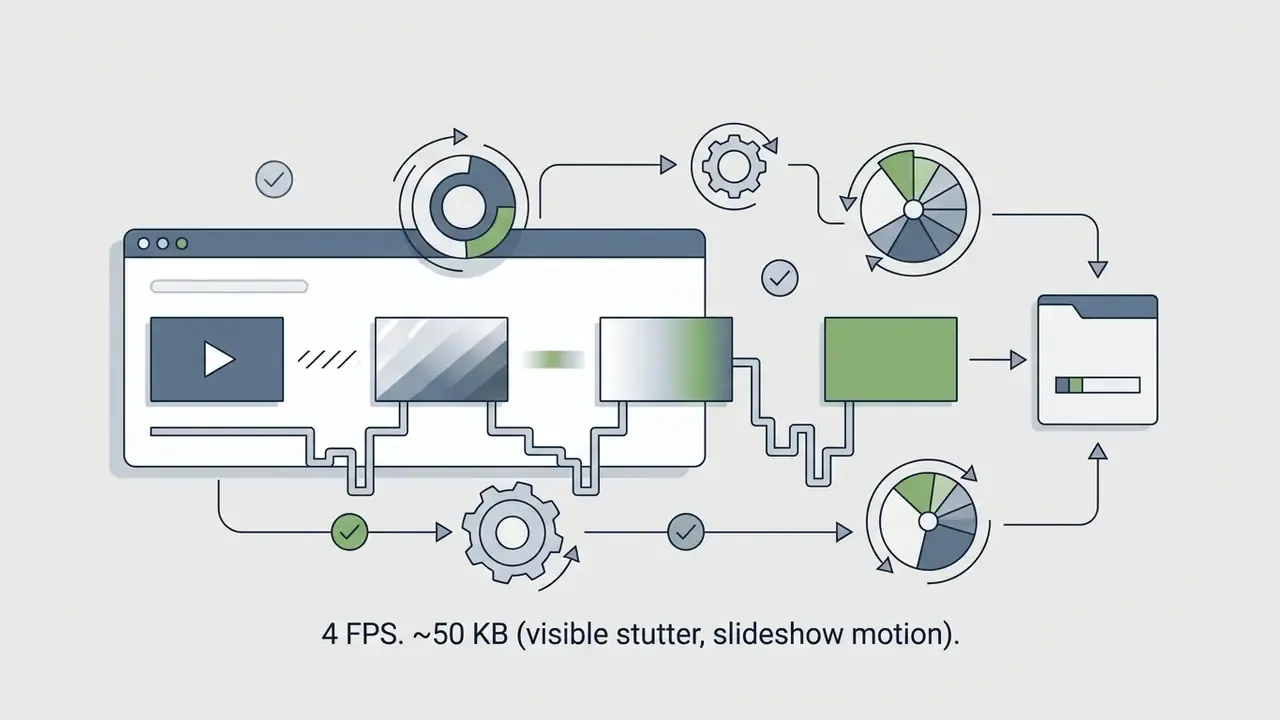
«At 480 pixels wide: 5 FPS ≈ 0.8 MB; 15 FPS ≈ 2.5 MB; 30 FPS ≈ 5 MB, so size scales almost linearly with frame rate».
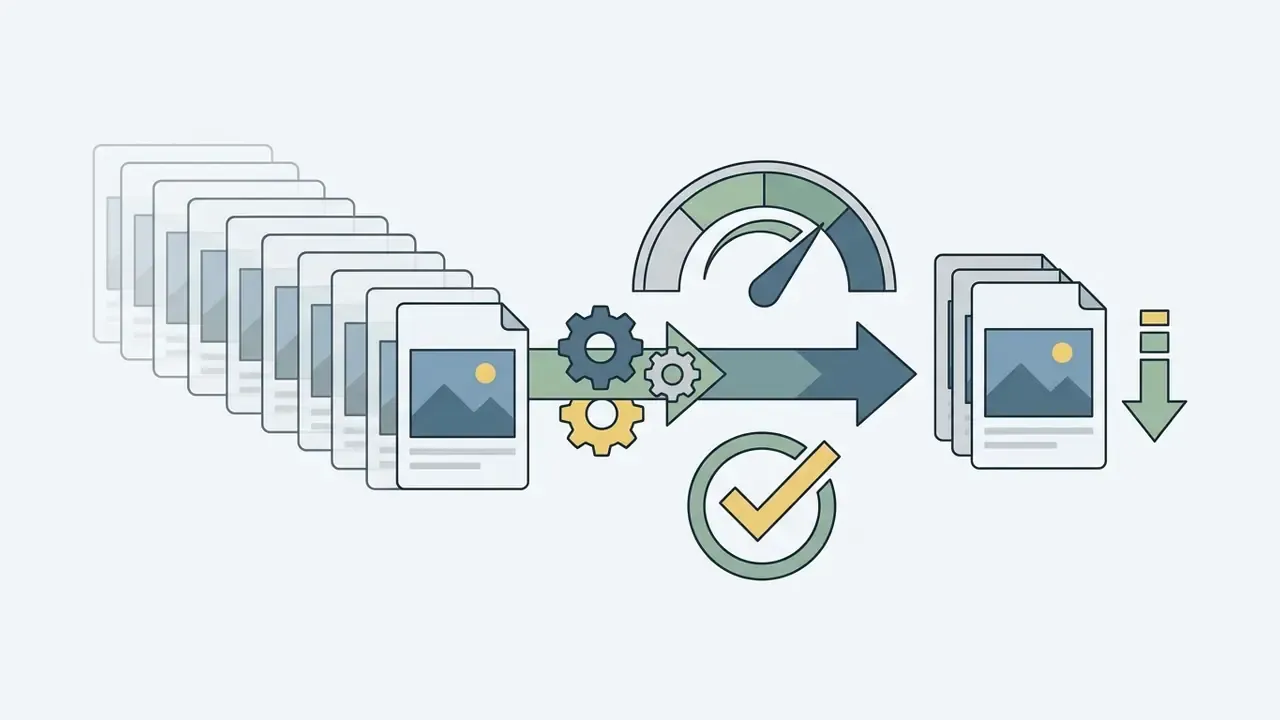
«Dropping frame rate from 30 to 15 FPS halves the frame count and cuts file size by 40 to 60% with minimal loss of perceived smoothness». Source: Cliptics, "Best Settings for GIF Quality, Size, and Smooth Playback" (2025).
Halving the frame rate from 30 FPS to 15 FPS removes half the frames and produces substantial savings with barely noticeable motion loss. It is the first lever to pull, before you touch the palette.
Because frame rate and duration multiply each other, most converters enforce a hard duration ceiling that tightens as FPS rises. Use the matrix below to pick a combination that will actually finish encoding instead of timing out:
| Target Frame Rate (FPS) | Max Supported Video Duration | Recommended Use Case |
|---|---|---|
| 5 FPS | Up to 60 seconds | Long instructional slideshows, basic text animations |
| 10 FPS | Up to 30 seconds | Standard web and UI software demonstrations |
| 15 FPS | Up to 20 seconds | High-quality social media reaction clips |
| 24 to 30 FPS | Up to 10 seconds | Smooth cinematic sports or gaming action |
If a longer runtime is mandatory, the only honest trade is a lower frame rate: a 45-second walkthrough must be encoded at 5 FPS or split into two separate loops. Platform guidance also suggests keeping total frame count under 200, ideally under 100, so that downsizing does not destroy legibility of on-screen text.
Crop, Trim and Add Text Before Converting
Pre-conversion editing removes pixel data you were never going to use: trim the duration, crop the empty background. Crop handles let you delete static margins without scaling down the subject, which is a free file-size win.
Text overlays added before encoding burn captions straight into the image pixels, so there is no undo later. Individual frames, thumbnails or overlay graphics can be prepared in advance in online photo editors to keep typography and contrast consistent across the loop. Accessibility-oriented caption guidance, including the Australian Government Style Manual recommendation for burned-in (open) captions, advises no more than two lines of text at roughly 42 characters per line, broken at natural phrase boundaries. That manual addresses captioning generally rather than GIF overlays specifically. Still, the same limit is the practical readability ceiling for animated captions on small mobile screens, and it lines up with university social-video guidelines that require captions to sit inside safe zones.
How to Reduce GIF File Size Without Losing Quality
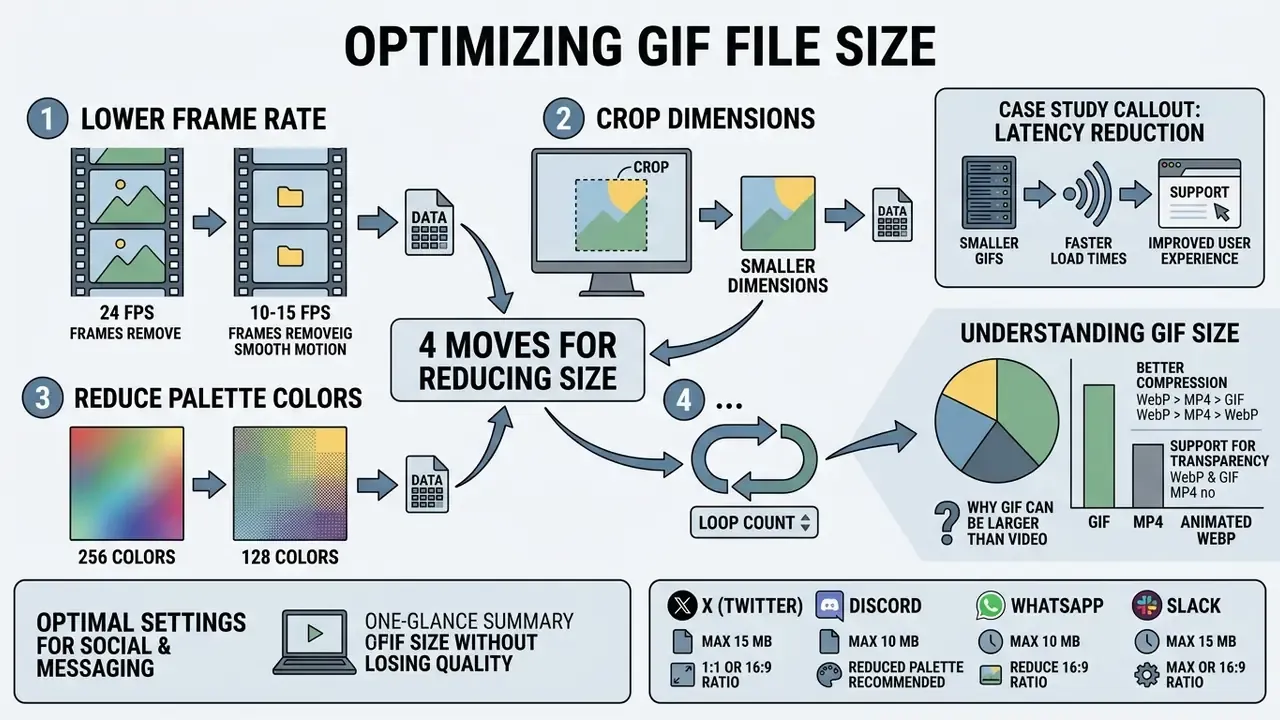
Reducing GIF file size without wrecking quality relies on four moves: lower the frame rate to 10 to 15 FPS, crop to smaller dimensions, reduce palette colors from 256 to 128, and apply lossy LZW compression in moderation.
«Cutting the palette from 256 to 128 or 64 colors reduces GIF size by 30 to 50% with no visible loss on flat graphics and desaturated footage».
Selective lossy modes work alongside palette reduction. Adobe documents that GIF-only lossy settings between 5 and 50 discard redundant data and typically shrink files by 5% to 40%, staying visually lossless at the low end of that range.
Additional resource optimization strategies, operational tooling and asset sizing metrics can be worked through with the AI Media Calculators.
Why a GIF File Can Be Larger Than the Video
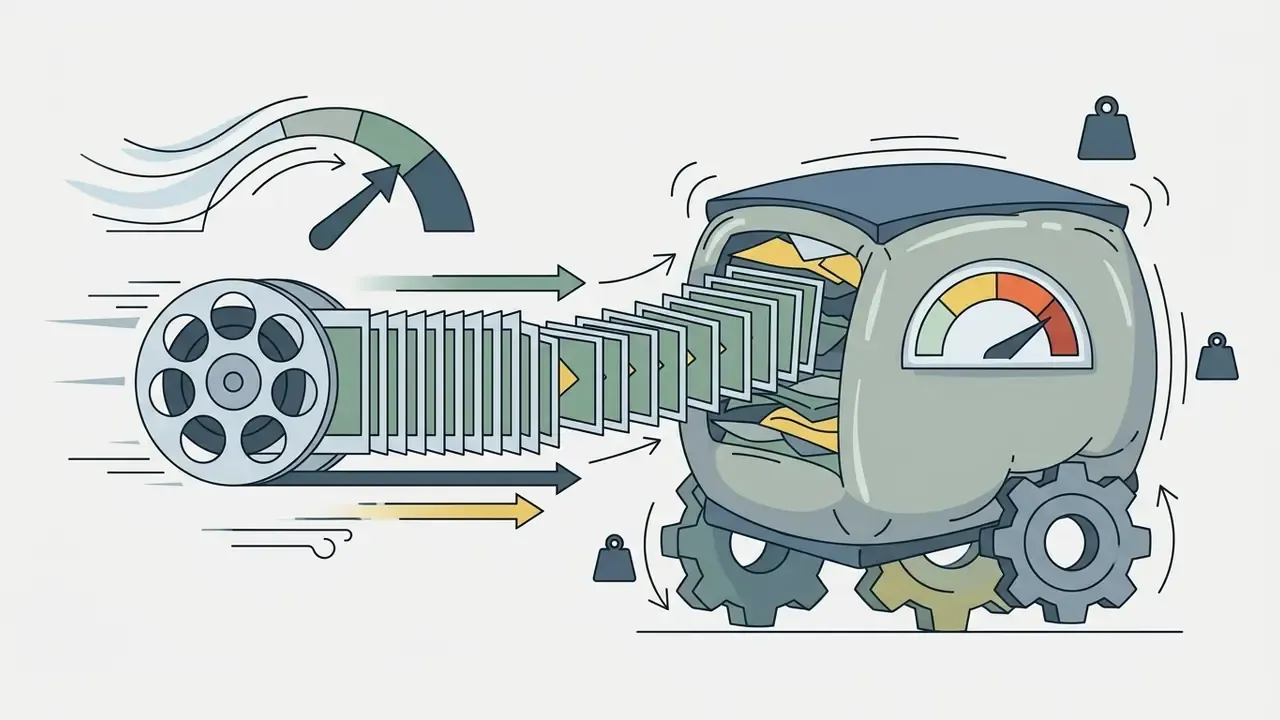
Unoptimized GIFs are frequently heavier than the original video because GIF has no inter-frame temporal compression: every frame is stored as a complete image. Modern codecs such as H.264 or VP9 store keyframes and then describe pixel movement between frames with motion vectors. Same visual result, a fraction of the bytes.
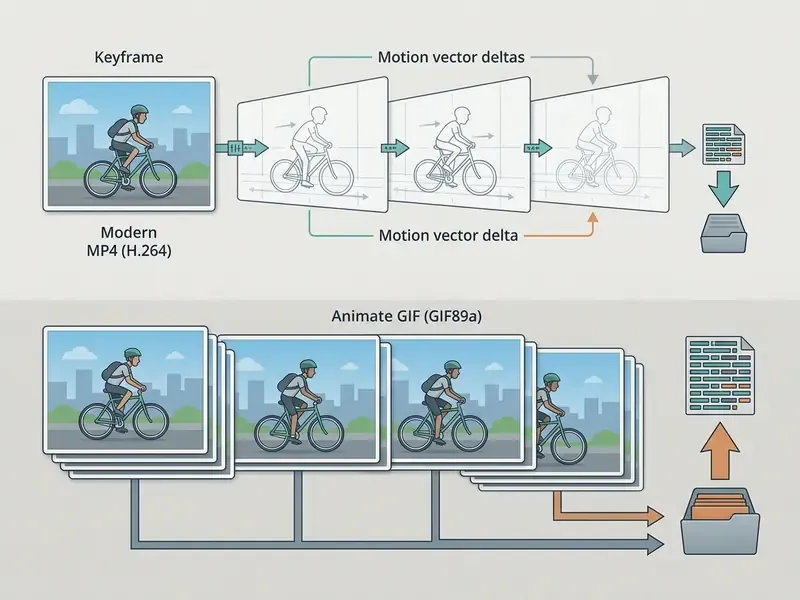
Comparative measurements published by CleverUtils (2025) show that a 5-second animation encoded as H.264 MP4 occupies 200 KB to 500 KB. The identical clip converted to an unoptimized GIF lands between 3 MB and 10 MB, an increase of roughly 90% to 95% of the final file weight. Teams that want to keep the footage in video form should route it through video compressors instead and embed a muted autoplay MP4.
The consequence shows up at page level, not just in storage cost:
«A page carrying a 5 MB GIF loads in ~4 s on 4G and ~15 s on 3G; the equivalent 400 KB MP4 loads in 0.3 s and 1.2 s. Across 100,000 views that is 40 GB versus 500 GB of transfer».
GIF vs MP4 vs Animated WebP: Which Format to Ship
Choosing a delivery format is an architectural decision, not a stylistic one. The matrix below compares the three realistic options for short looping motion on the modern web.
| Criterion | Animated GIF | MP4 (H.264) | Animated WebP |
|---|---|---|---|
| Typical size (5 s loop) | 3 to 10 MB unoptimized; 0.8 to 2 MB tuned | 200 to 500 KB | 300 to 900 KB |
| Colour depth | 8-bit indexed, 256 colors per frame | Full 24-bit colour | Full 24-bit colour |
| Transparency | Single binary transparent index | None in standard H.264 | Full 8-bit alpha channel |
| Audio | Not supported | Supported (mute for autoplay) | Not supported |
| Autoplay in feeds | Native, no player required | Requires autoplay muted playsinline | Native image embedding |
| Inter-frame compression | None (every frame stored in full) | Motion vectors and delta frames | Yes (predicted frames) |
| Compatibility | Universal, including legacy email clients | Universal on the web, limited in email | Modern browsers, inconsistent in email |
| Best for | Chat platforms, GIF libraries, email fallbacks | Website hero loops, documentation, long demos | Website UI animation with transparency |
The practical rule: use GIF where the destination demands it (messaging apps, GIF search platforms, legacy email clients), use MP4 wherever a video tag is allowed, and use animated WebP for on-site UI animation that needs true alpha. Teams building motion from scratch rather than converting footage can skip the trade-off altogether with dedicated animation makers.
Enterprise Evaluation: Privacy, Security and Licensing
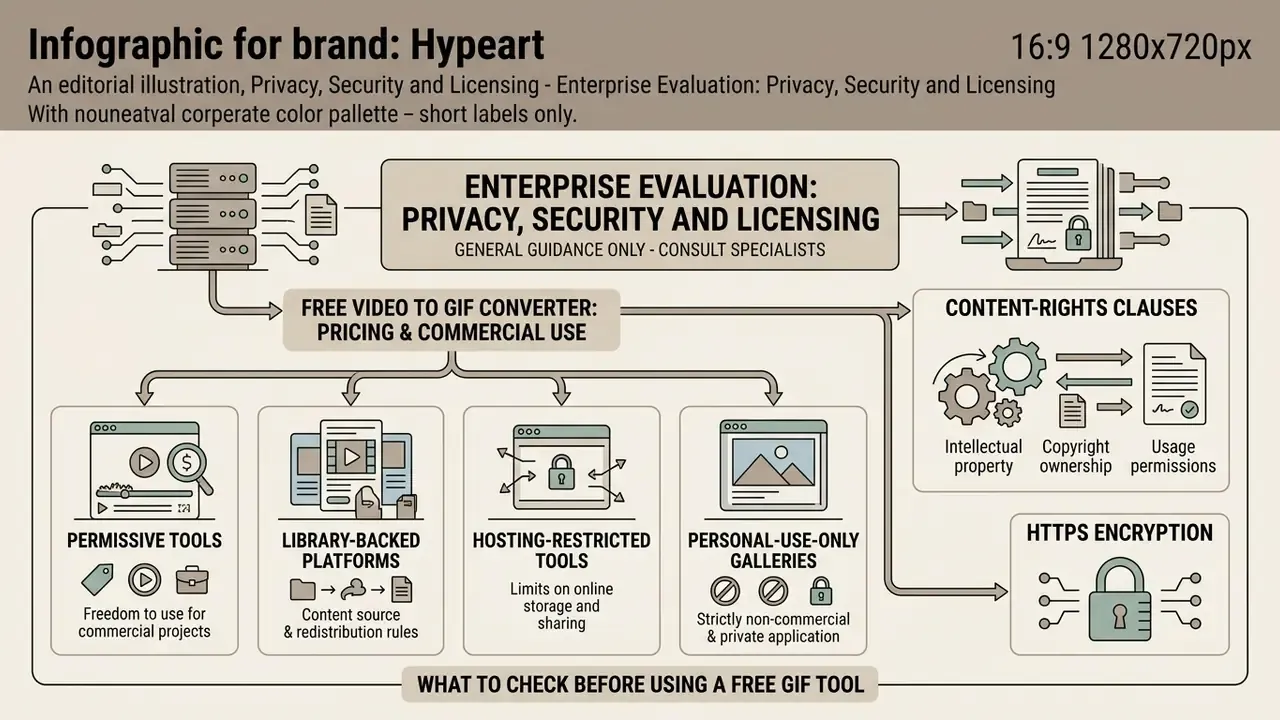
This section is general in nature and does not replace advice from an information-security specialist or legal adviser on data protection, copyright and licensing.
For a bank or a mature fintech, the governance question is not "which converter is prettiest?" but "who owns this tool, what data can reach it, and can we evidence that later?" One approved converter in the internal catalogue prevents a dozen unvetted ones in browser bookmarks.
Free Video to GIF Converter: Pricing and Commercial Use
Free online video-to-GIF converters run on freemium licensing: basic conversion costs nothing, while advanced features, high-resolution exports or batch processing sit behind a paid tier.
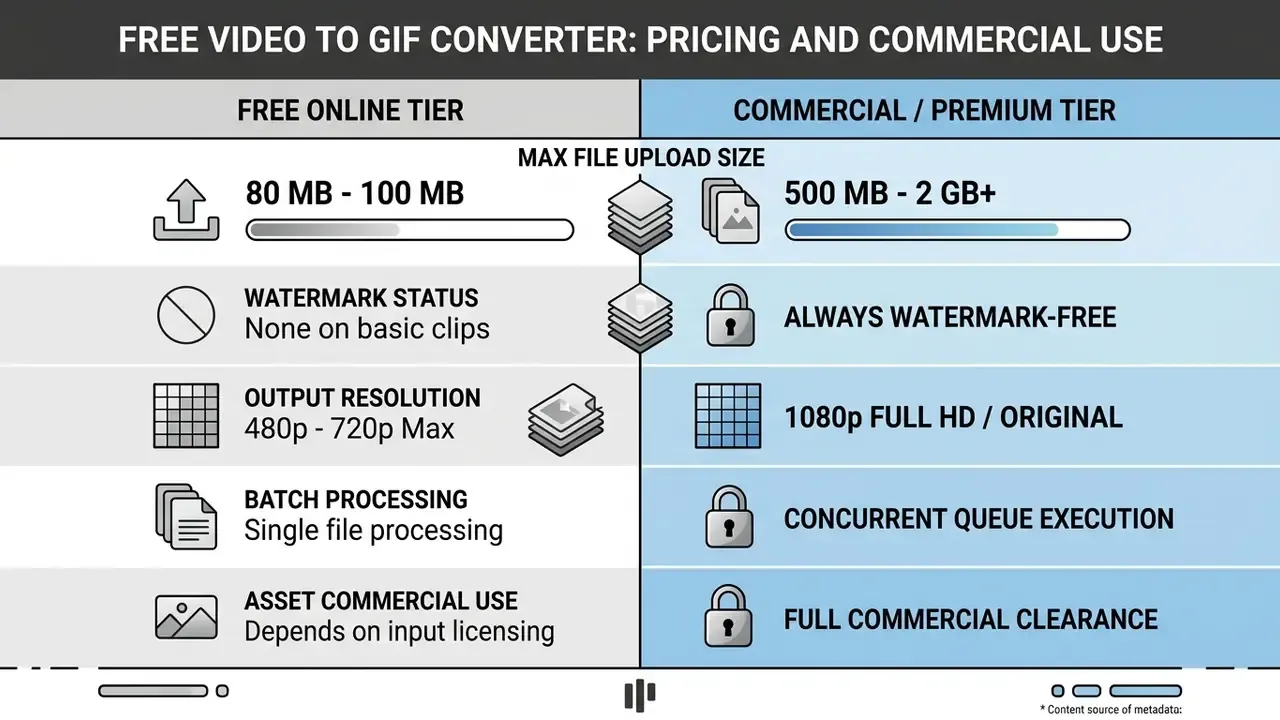
Using converted GIFs in commercial projects means verifying two things, not one: the converter's terms of service and the usage rights of the source media. You must hold rights to the underlying video clips before publishing anything derived from them. Enterprise licensing structures and tier breakdowns are documented in the AI Media Pricing Guides. Teams sourcing raw footage from free AI video generators should confirm that the generator's own output licence permits commercial redistribution before converting a single frame.
Licensing models diverge sharply in practice, and "free" never implies "unrestricted":
- Permissive tools grant commercial use of outputs with optional attribution and explicitly disclaim any rights over uploaded or generated files.
- Library-backed platforms prohibit copying, selling, licensing, renting or otherwise commercially exploiting hosted content unless the user already holds permission or the asset is public domain.
- Hosting-restricted tools allow commercial use of the created image but forbid redistribution on competing sites, hot-linking, resale as standalone media, or ownership claims over hosted content.
- Personal-use-only galleries restrict supplied GIFs to non-commercial contexts and bind the user to a third-party provider's terms.
- Content-rights clauses are the hidden risk. Some free services reserve a broad, royalty-free licence to reuse uploaded material for promotion or service improvement. Read the upload clause, not only the output clause, before processing brand footage.
What to Check Before Using a Free GIF Tool
Before adopting a free GIF conversion tool for business work, review five factors: HTTPS encryption, retention windows, server versus local browser processing, advertising data usage, and the licence grant.
- HTTPS Encryption Verify valid TLS certificates so assets cannot be intercepted in transit.
- Retention Limits Confirm servers delete uploaded media automatically within 1 to 24 hours. Published practice ranges from immediate post-conversion deletion to a one-hour or 24-hour window.
- Processing Architecture Prefer WebAssembly-based client-side tools for confidential footage, since the media never leaves the device.
- Data Privacy Terms Check that uploaded files are not used to train machine learning models or sold to third-party ad networks.
- Malware Risks Be cautious with untrusted web tools. A public warning from the FBI Denver Field Office (2025) flagged malicious file converters embedding executable payloads inside downloadable media files.
- Licensing Chain Document the commercial-use rights of AI-generated content and stock footage feeding the pipeline, because a converter's permissive terms do not launder an unlicensed source clip.
Privacy and Secure Video File Processing
Secure video file processing needs end-to-end TLS in transport, short server retention with automatic deletion, or client-side WebAssembly execution that never touches the cloud at all.
PRIVACY ALERT: Secure Media Processing
Academic work on cloud pipeline design lands in the same place from the architecture side:
«Secure cloud architecture assumes encryption in transit, processing inside trusted environments, and automatic deletion once the task completes».
Public-sector practice draws a harder boundary that regulated industries should notice: some agencies prohibit uploading incident or customer-recorded video to public third-party servers at all, treating the upload itself, not merely the storage, as the control failure. For upload errors or security configuration questions, see AI Media Support and Troubleshooting.
Where to Use GIFs Created from Video
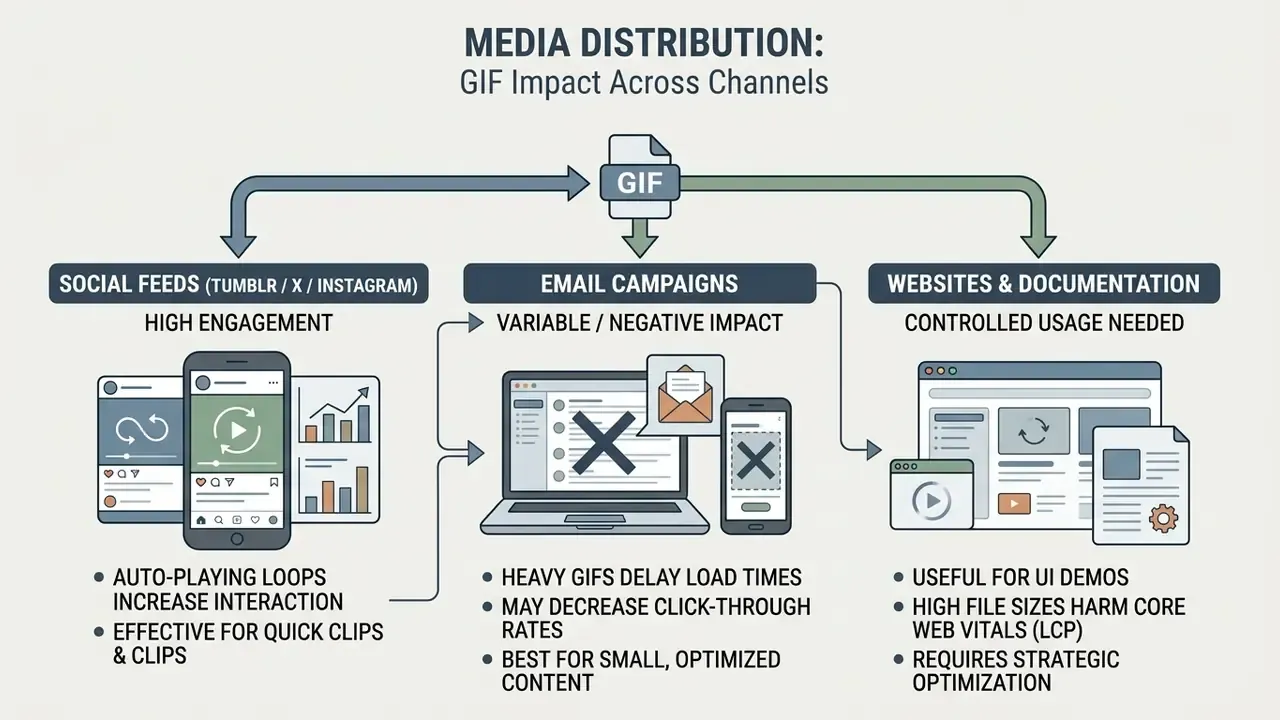
GIFs made from video clips work best in visual social feeds, customer support documentation, product feature demos, and sales decks, anywhere a silent auto-playing loop does the explaining.
Related Conversion Tools
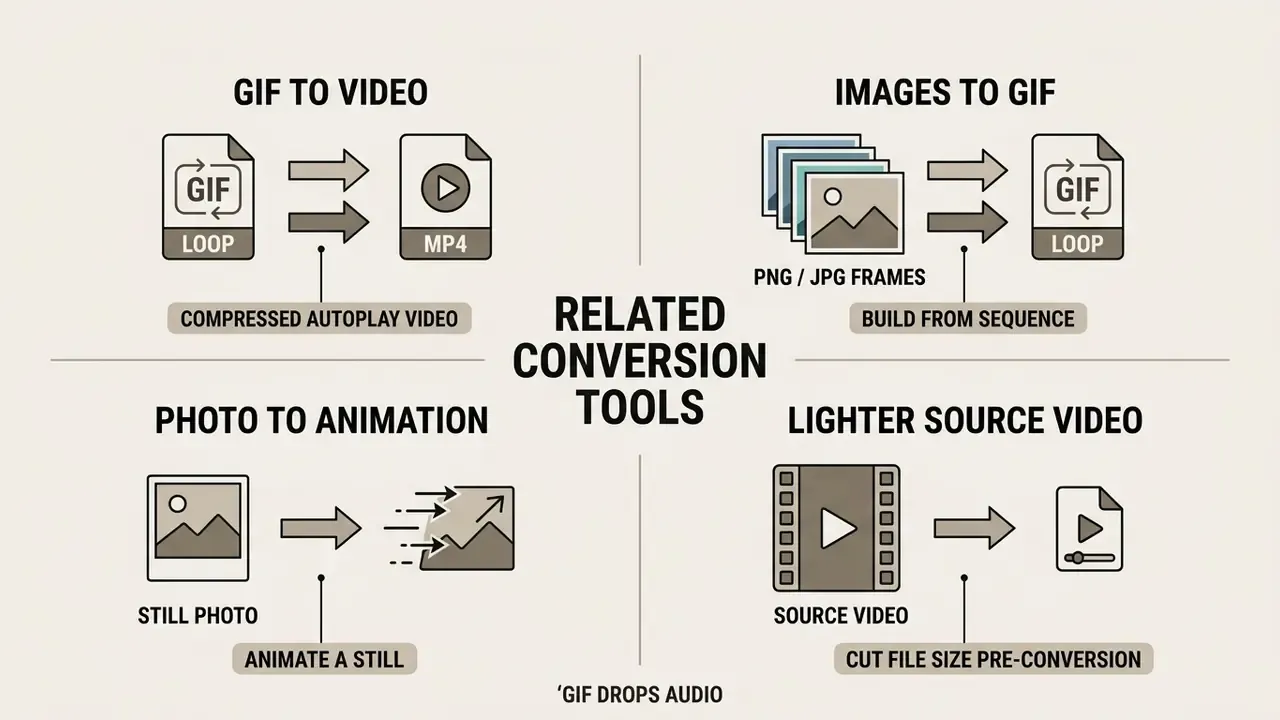
Complementary media conversion workflows:
- Need to turn a finished GIF back into a compressed, autoplay-friendly video? Use the GIF to MP4 Converter, the standard fix for GIFs that are too heavy for a landing page.
- Want to build an animated GIF from a sequence of static PNG or JPG frames instead of a video file? Open the Image to GIF Maker.
- Need to animate a single still photograph rather than convert existing footage? Review image-to-video tools before committing to a GIF pipeline.
- Need the source clip lighter before conversion? Run it through a video compressor to cut decode time and browser memory pressure.
- GIF drops the audio track entirely. If the finished piece needs sound, keep an MP4 master and score it with an ai sound generator or an ai song generator before publishing the video version alongside the loop.
Video to GIF FAQ
Can I Convert TikTok Video to GIF Online?
Yes. To convert TikTok video to GIF online, upload the MP4 source file, crop to a vertical 9:16 aspect ratio, trim the clip to under 10 seconds, then export the animated GIF. Vertical video specifications in TikTok's advertising technical documentation set a minimum resolution floor of 540×960 pixels, recommend a 1080×1920 canvas, and explicitly disallow watermarks, including TikTok's own, in uploaded creatives. So for commercial use, creators must remove on-screen watermarks and stay inside platform copyright policy. Practical workflow: pick one clear action, keep the 9:16 frame intact, protect on-screen captions from cropping, then test the silent loop at the size it will actually display. Several dedicated TikTok converters cap output length at 1 to 10 seconds. For legal questions about copyrighted media, see the AI Litigation and intellectual property compliance notes.
How Do You Make an Animated GIF From a Video?
Three steps, in this order. Upload or drop the clip into an online video converter, set the trim points, resolution, frame rate, palette and loop count, then convert and download the .gif file. For a first attempt, 10 FPS at 480 px width with 128 colors and a 3-second duration is a safe starting point. Preview the loop before saving; if the seam between the last and first frame jumps, move the end point by a few frames.
Is There a Way to Change Video to GIF Online in Spanish or Other Languages?
Yes. Most browser-based converters ship localized interfaces, which is why queries such as "convertir video a gif online" reach the same tooling. The controls are identical regardless of interface language: trim, resolution, frame rate, palette, loop count. If the interface language matters for an internal team, check the localization before you standardize on one tool, and confirm that the translated terms of service match the English original, since licence wording occasionally differs between versions.
What Is an Animated GIF?
An animated GIF is a raster image format governed by the GIF89a standard. It stores multiple images in sequence with timed frame delays, producing a looping animation with no audio track. CompuServe introduced the format in 1987 and updated it in 1989. It relies on 8-bit indexed color, so each frame is limited to 256 colors. Infinite looping is not part of the base GIF89a specification; it is enabled through the Netscape Application Extension block in the file header, where a loop count of 0 means "repeat forever". Unlike modern video formats, GIF has no audio channel, no temporal inter-frame compression and no hardware-accelerated decoding, which is exactly why photographic and gradient-heavy footage compresses far worse in GIF than in H.264 or VP9. Readers going the other direction, animating still frames rather than decomposing video, can compare image-to-video tools.
How Do I Make a GIF Loop Only Once?
Set the loop count to 1 before encoding. A loop count of 0 writes an infinite-repeat instruction into the Netscape Application Extension block, while any positive integer plays the animation that many times and then freezes on the final frame. Because of that freeze, design the last frame to work as a standalone static image carrying the brand, the message and the call to action.
What FPS and Duration Should I Choose for a Software Demo?
Use 10 FPS at 640 px width for UI walkthroughs and keep the clip under 30 seconds. Cursor movement and panel transitions read clearly at that rate. For anything longer, split the demo into two loops or drop to 5 FPS, which supports up to 60 seconds. Keep total frame count under 200 so platform-side downscaling does not blur interface text.
Can I Keep Transparency When Converting Video to GIF?
Yes, provided the source carries an alpha channel, for example ProRes 4444 in a MOV container or VP9 in WebM. The converter maps that alpha to a single transparent palette index, which keeps edges clean over solid backgrounds. Soft shadows, motion blur and partial opacity cannot survive the mapping, so flatten those clips against a chosen hex background colour instead.
Why Does My GIF Look Grainy or Banded?
Banding is a palette quantization artefact. Raise the palette toward 256 colors, enable dithering for gradients, or switch to a two-pass palette workflow that analyses the clip first and applies the generated palette during encoding. If the file gets too heavy after that, crop the frame and lower the frame rate before sacrificing colour depth; dimensions and FPS usually cost more bytes than the palette does.
What Should I Do Next?
Trim the source clip to the single most meaningful 2 to 5 seconds, pick 10 to 15 FPS and a 480 to 640 px width, set the loop count to match the destination, then run the enterprise security pre-flight check above before uploading anything that shows internal systems, customer data or unreleased products. If the destination allows a video tag, convert the result back with the GIF to MP4 Converter and ship the lighter file. Terminology, format definitions and related conversion concepts are indexed in the AI Media Glossary.