About this guide: written by the editorial team behind our AI media workflow library, which tests generative tools against real instructional tasks: lesson decks, worksheets, and visual assets. We document export rights, licensing, and privacy limits before recommending anything for classroom use.
Key takeaways in 60 seconds
An ai slide generator for teachers converts raw lesson topics, notes, uploaded documents, and video links into complete visual presentations. The technology handles layout, sequencing, and formatting, while you keep control of the instructional content. That division of labour matters more than any feature list.
What an AI slide generator for teachers can create
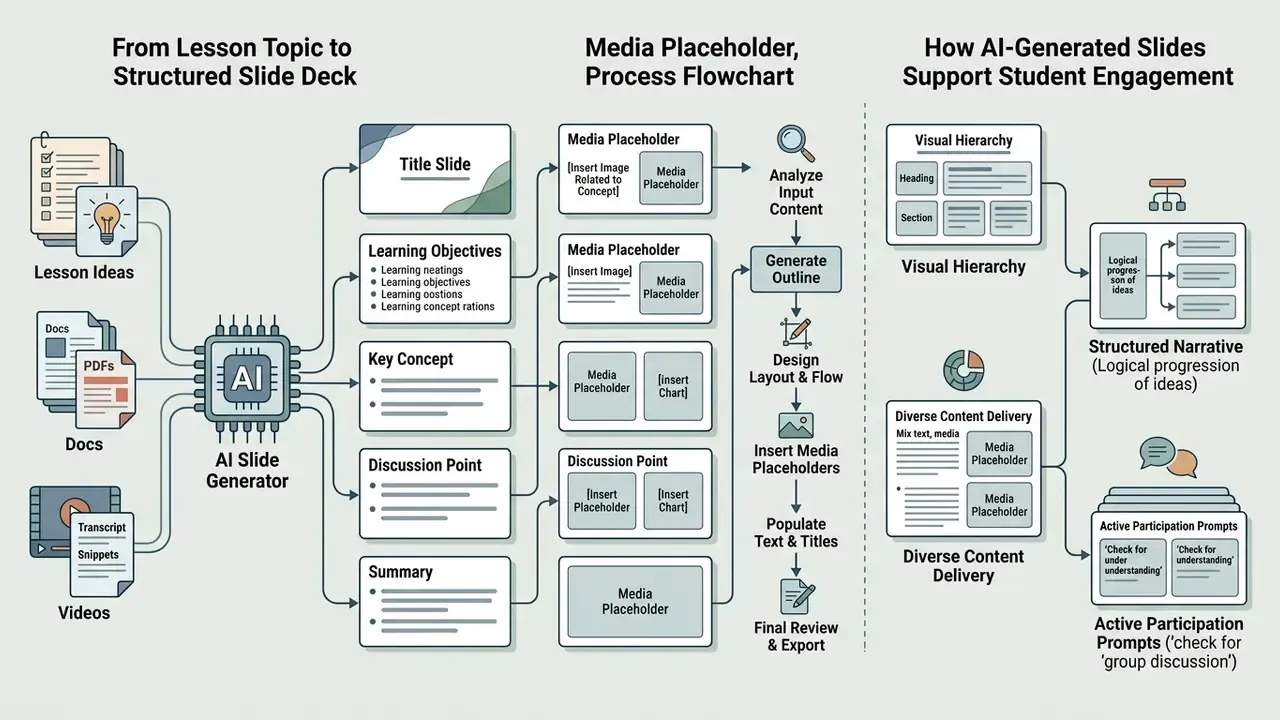
An ai slide generator for teachers converts unstructured lesson ideas into formatted, multi-slide decks with clear visual hierarchy and pedagogical structure. These platforms process text or multimedia inputs to generate lecture decks, discussion guides, interactive review slides, and flipped classroom materials in minutes.
In practice, teachers produce two dominant output types. The first is the structured lecture deck: title slide, learning objectives, direct instruction, worked examples, and summary. The second is the interactive lesson slide set: short prompts, polls, retrieval-practice checkpoints, and exit tickets designed for live classroom participation. Institutional AI-literacy toolkits follow exactly this pattern. Vanderbilt University Library's AI Literacy Toolkit distributes abridged lesson plans plus editable slides in PDF and PPTX covering AI & Ethics, Detecting AI, How AI Works, and Prompt Engineering, while classroom toolkits bundle lesson slides with a teacher's guide and a classroom agreement.
There is a third, quieter use case worth naming: the substitute-ready deck. A clean set of ten slides with full speaker notes lets a colleague teach your unit without guessing at your intent. Many teachers discover this benefit by accident, usually on a sick day.
From a lesson topic to a structured slide deck
An ai lesson presentation generator transforms a simple topic prompt or outline into a sequential presentation featuring introduction, core instruction, and summary slides. According to research from Saint Leo University's Center for Teaching and Learning (2024), tools like Gamma map text outlines directly into formatted presentations, letting educators save time during lesson preparation.
«Turn a text outline into beautifully formatted slides in seconds.»
An ai presentation generator for teachers organizes lesson concepts into logical segments, establishing title slides, main teaching points, visual summaries, and conclusion slides. By structuring raw text automatically, an ai slides generator for teachers frees instructors to focus on didactic accuracy rather than manual alignment of text boxes.
The underlying structure mirrors classic lesson-plan architecture. Northern College's Guide to Developing Lesson Plans (2026) specifies that a teaching outline should contain introduction, body, and conclusion, alongside main teaching points and instructional aids. That is the same skeleton an AI outline generator produces before layout. Thompson Rivers University's basic presentation outline goes further, recommending a title and preview, two to four main points, and explicit transitions, which gives teachers a reliable template to paste straight into a prompt.
How AI-generated slides support student engagement
Visually engaging presentation slides containing relevant generated images improve student focus when paired with a clear instructional narrative. A 2025 study in Humanities & Social Sciences Communications demonstrated that students taught with AI-generated visual aids showed significantly higher classroom engagement without increasing cognitive load.
«Students taught with AI-generated images in visual art education showed significantly higher classroom engagement; cognitive load did not increase.»
An ai slideshow generator for teachers helps hold student attention through visual variety, tight bullet points, and focused summary diagrams. Another 2025 study published in Educational Process: International Journal found that adding relevant AI visual pedagogy to literature lessons increased student emotional engagement by 22% and helped re-engage reluctant readers. A separate 2026 study of AI infographic slides reported that more than 80% of students agreed the visuals increased engagement, attention, and motivation in class.
Engagement gains are not automatic. The direction of the effect depends on how the output is used. A 2026 study of AI-generated instructional summaries found reduced viewing time when summaries replaced original lesson content instead of complementing it. AI visuals amplify teaching; they do not substitute for it. Student perception research points the same way:
Situation: A high school science department needed to convert static lecture notes into interactive visual summaries for a cell biology unit.
Action: Teachers used an ai slide maker for teachers to generate structured slide drafts, then added targeted discussion prompts and visual diagrams.
Result: Post-unit quiz performance improved across the three participating classes, with department leads reporting roughly a double-digit percentage gain in comprehension scores. Results were internally measured and not externally audited, so treat the figure as a departmental observation rather than a controlled finding.
- Topic or resource → 2. AI outline → 3. Slide creation → 4. Teacher review → 5. Export (PPTX/PDF).
Choose the right input: topic, lesson plan, document, or video
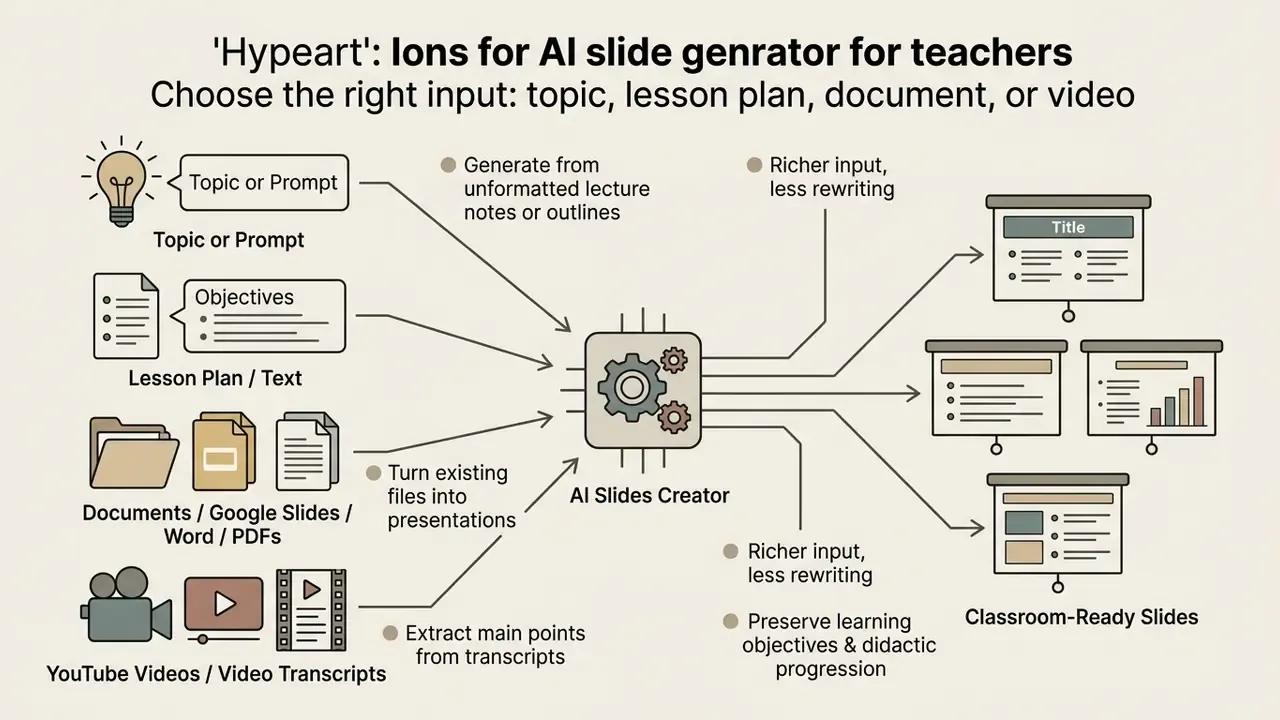
Educators can generate slides from several input formats: brief text prompts, full lesson plan documents, existing PDFs, Word files, and youtube videos. Matching the input source to the lesson goal keeps the resulting google slides or PowerPoint deck aligned with curriculum standards.
Current vendor documentation confirms four input modes inside a single workflow. Gamma accepts text prompts, outlines, uploaded Word and PDF files, URLs, and direct imports from Google Docs, Google Slides, and PowerPoint. SlidesPilot generates decks from PDFs, Word documents, pasted text, notes, web pages, and YouTube videos. MagicSlides for Google Slides converts text, PDF, DOCX, URL, and YouTube video into a deck that stays editable inside Google Slides. Brisk's AI Presentation Maker for Educators accepts an online article, video, or PDF and exports editable decks to Google Slides or Microsoft PowerPoint with one click.
A quick rule of thumb from our own testing: the richer the input, the less rewriting afterwards. A two-word topic gives you a generic deck. A full lesson plan with objectives and timings gives you something close to teachable.
Create slides from a topic, lesson plan, or text
Generating slides from a detailed lesson plan preserves didactic progression, including learning objectives, direct instruction, and exit tickets. As documented by the University of Liverpool in its Generative AI: Learning and Teaching Prompt Templates (2026), structured prompts that upload the source material in Word or PDF and specify slide count, audience, and key concepts produce a balanced structured slide flow, which lets teachers create presentations systematically.
An ai slides creator for teachers can ingest unformatted lecture notes or lesson outlines and pull out the core teaching points. Explicit instructions about topic scope, terminology level, and key takeaways keep the ai presentation creator for teachers on target.
«ChatGPT produced structurally functional lesson plans in seconds, but required refinement for differentiation, media integration, and realistic timing.»
A practical prompt skeleton, drawn from published lesson-to-deck guidance, looks like this: paste or upload objectives, standards, key concepts, activities, timings, materials, and assessment notes, then instruct the tool to map an opening hook, direct instruction, worked examples, guided practice, checks for understanding, and a recap. Teaching Channel's collection of AI lesson-planning prompts shows how compact this can be, for example "Give me a 5-slide presentation on…" followed by grade level and objective. Platforms built for K-12 planning extend the same input set with warm-ups, vocabulary lists, and exit tickets, and return speaker notes, discussion questions, standards alignment, and differentiation suggestions.
Turn documents, Google Slides, and YouTube videos into presentations
AI tools process uploaded Word files, PDFs, and video transcripts to extract main teaching points and rebuild them as slide decks. According to Kishwaukee College's Innovation Center for Teaching & Learning evaluation (July 2024), platforms like Microsoft Copilot combine text documents, web resources, and video notes to create slides with embedded review questions.
«Copilot combines PowerPoint presentations, text documents, web content, videos and questions into an interactive web presentation.»
When converting YouTube videos or lecture recordings, AI presentation generators extract the transcript, identify key thematic transitions, and build corresponding presentation slides. Teachers who also repurpose classroom footage may find our overview of YouTube video editors and our explainer on AI video generators useful when one lesson needs both a deck and a short video asset. If the clip has to live inside the deck itself, see our walkthrough on how to insert YouTube video into Canva presentation.
Transcript-based conversion has documented limits. MagicSlides' own guidance instructs users to check tables, footnotes, page references, scanned pages, transcript quality, and timestamps for errors after conversion. Scanned PDFs and auto-captioned videos are the two most common failure points. Notably, none of the official Google Slides help pages document converting an existing Slides deck directly into a new AI-generated deck. Gemini in Slides is documented for editing, rephrasing, summarizing, and image generation inside an existing presentation, not for wholesale reconstruction. If you are refining visual layouts in existing platforms, our guide on how to wrap text around an image in Google Slides covers manual slide customization.
How to choose an AI presentation maker for teachers
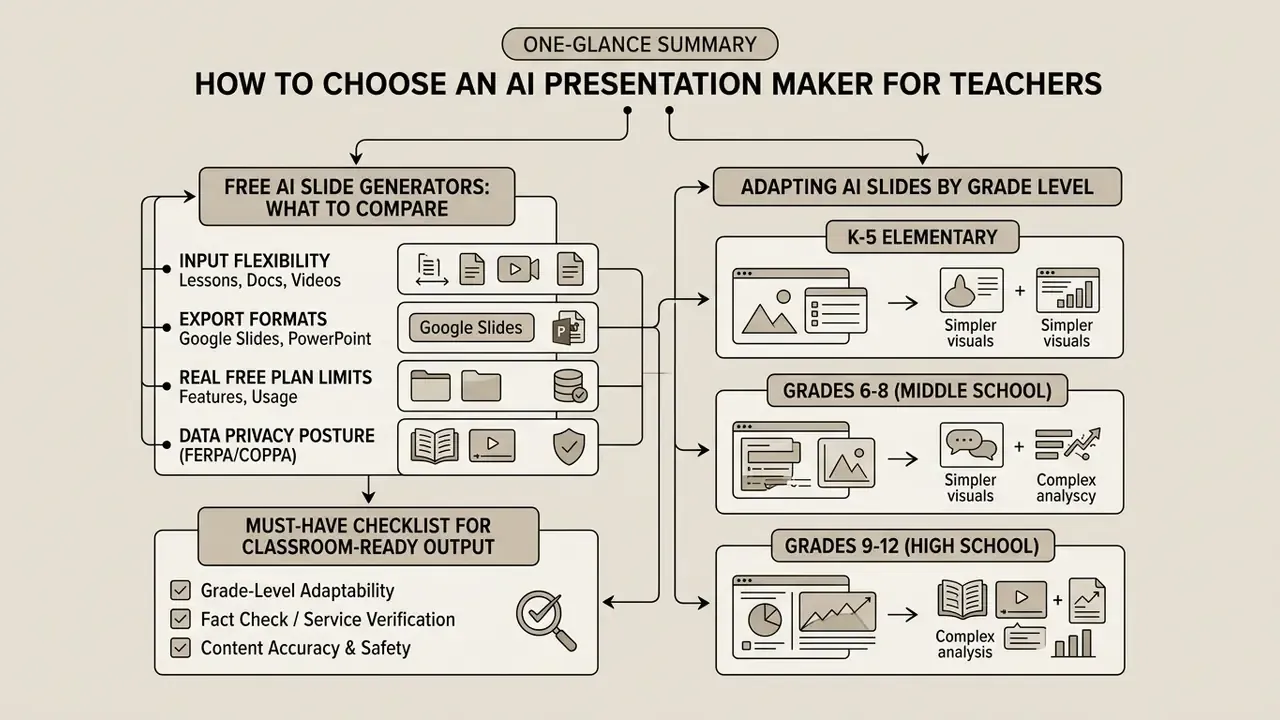
Selecting an ai presentation maker means weighing input flexibility, grade-level adaptation, export formats, data privacy posture, and the real limits of the free plan. Comparing those five criteria usually narrows the field to two or three candidates for your ai powerpoint maker for teachers shortlist.
Comparison of AI presentation generators for teachers (2026 data)
| Tool | Target grade / level | Key pedagogical edge | FERPA / COPPA status | Free tier limits | Native export |
|---|---|---|---|---|---|
| MagicSchool.ai | K-12 (higher ed limited) | 80+ specialized teacher tools, Student Rooms, standards/rubric alignment | ✅ SOC 2 certified; states it does not train on student or teacher data | Generous free tier | Google Slides, PPTX (via export) |
| Curipod | K-8 (elementary / middle) | Live interactive polls, word clouds, AI feedback; no student accounts needed | ✅ FERPA / COPPA / GDPR; student names hidden from peers | Free basic generation | PDF; editing inside web platform |
| Diffit | K-12 | Automatic Lexile-level text adaptation and differentiated reading material | ✅ COPPA / FERPA; Student Privacy Pledge signatory | Free core features | Google Slides, PPTX, PDF |
| SendSteps | High school / higher ed | Interactive live quizzes and real-time audience response | ⚠️ Verify district DPA before use | Limited free trial | Native PPTX |
| Monsha.ai | K-12, STEM focus | LaTeX math keyboard, Bloom's / DOK / Lexile controls, curriculum unit linking, 60+ languages | ⚠️ Check current terms and DPA | Free tier with AI generation and basic themes | PPTX, Google Slides, PDF |
| Canva Magic Design | K-12 / higher ed | Visual design depth, Magic Charts, Magic Write, Canva Code interactive widgets | ✅ Canva for Education: restricted default settings; states student content is not used to train AI features | Magic Design usable up to 10 times free; free for verified Education accounts | PPTX, PDF, web link |
| Plus AI | Higher ed / professional | Runs as an add-on directly inside Google Slides and PowerPoint | ⚠️ Built for general professionals; verify before K-12 use | 7-day trial | Native Google Slides, PPTX |
| Gamma | Higher ed / high school | Web-first documents, fluid card layouts, strong visual polish | ⚠️ General consumer privacy policy | 400 lifetime credits; watermarked exports | PPTX, PDF, PNG |
| SlidesAI | K-12 / higher ed | Notes-to-deck conversion inside Google Slides, PowerPoint, and web | ⚠️ Verify terms for student data | Limited monthly generations | Google Slides, PPTX, PDF |
| Slidesgo AI | K-12 / higher ed | Extensive teacher-oriented template library | ⚠️ Verify terms for student data | 3 presentations a month; one upload ≤25 MB (.pdf, .docx, .txt) | Editable PPTX |
If image quality decides your subject area, cross-check tools against our roundup of the best AI image generators before committing to a paid education plan.
Features teachers need for classroom-ready presentations
Essential features for an ai ppt maker for teachers include accessible slide layouts, readable typography, strong colour contrast, alt-text generation, and flexible export. Accessibility standards from UCLA (2026) mandate unique slide titles, logical reading order, readable sans-serif fonts, high colour contrast, and meaningful alt text for all images, charts, and diagrams. The University of Reading's accessibility guidance adds four requirements worth folding into your review routine: run the built-in accessibility checker, use accessible templates, write meaningful hyperlink text, avoid colour-only encoding of meaning, and preserve document-structure tags when saving as PDF. Where slides include video, captions or transcripts are required, and Texas Tech's accessible PowerPoint guidance sets minimum contrast at 4.5:1 for normal text and 3:1 for large text.
Content quality also depends on whether the tool is tuned for education or for business decks:
«A culturally responsive lesson-planning AI scored 36 culturally relevant elements versus 21 for standard GPT-4o, and 2.0 versus 1.3 on curriculum alignment.»
An ai slide generator free for teachers tool must also support fast editing and reliable export, otherwise you inherit a technical delay right before first period. Instructors also benefit from platforms that draft speaker notes and embed assessment checks automatically.
Must-have checklist for classroom-ready output: unique slide titles · logical reading order · sans-serif type at large sizes · 4.5:1 text contrast · alt text on every visual · captions or transcripts for embedded media · speaker notes · editable PPTX or Google Slides export · tagged, accessible PDF for distribution · documented privacy posture.
Free AI slide generator for teachers: what to compare
An ai slide generator for teachers free tier usually ships with usage limits: a cap on slide counts, watermarks, or restricted downloads. Evaluation data from Kishwaukee College ICTL (2024) indicates that Slidesgo, Gamma, and SlidesAI all offer initial free credits, but full PPTX export or unlimited generation typically requires a paid subscription.
«You can create up to five 14-slide presentations free (PDF/JPEG), but unlimited PPTX export costs about $24 per year.»
When evaluating an ai slides generator for teachers free plan, check whether exported files carry permanent watermarks or restrict editing rights. Knowing those constraints up front keeps budget and usage frequency in balance, and the same trade-offs show up across adjacent categories. See our comparison of free AI video generators for how credit caps and watermarks behave in practice.
Fact Check / Service Verification:
Adapting AI slides: K-12 versus higher education requirements
Instructional design needs differ sharply across tiers. The tool that wins in a fourth-grade classroom is rarely the right pick for a graduate seminar.
- K-5 elementary. Prioritize visual-heavy decks, gamified elements, high contrast, short five-to-eight-slide structures, and zero student logins. Curipod and MagicSchool.ai dominate here precisely because they avoid student account creation and apply age-appropriate content filters.
- Grades 6-8 (middle school). Combine interactive participation features with document conversion for unit planning. Curipod, SendSteps, and document-to-deck tools handle this band well; Diffit adds Lexile-level text adaptation for mixed-ability groups.
- Grades 9-12 (high school). The focus shifts to standards alignment, retrieval-practice checkpoints, embedded discussion prompts, and sustained COPPA/FERPA compliance. MagicSchool.ai and interactive quiz platforms are strongest.
- Community college. Document conversion, LMS integration, and the absence of under-13 restrictions widen the options; Plus AI and MagicSchool.ai both work.
- University and graduate level. FERPA still applies, but COPPA largely does not, because students are adults. The priorities become academic rigor, LMS integration (Canvas, Moodle, Blackboard), and document-to-deck workflows. Add-ons such as Plus AI, which runs natively inside Google Slides and PowerPoint, plus document-ingesting platforms that digest complex PDF research papers into structured lecture components, are the practical choice. Purpose-built K-12 platforms often feel constraining here, because their interface and content assumptions target school curricula.
How to create lesson presentations with AI step by step
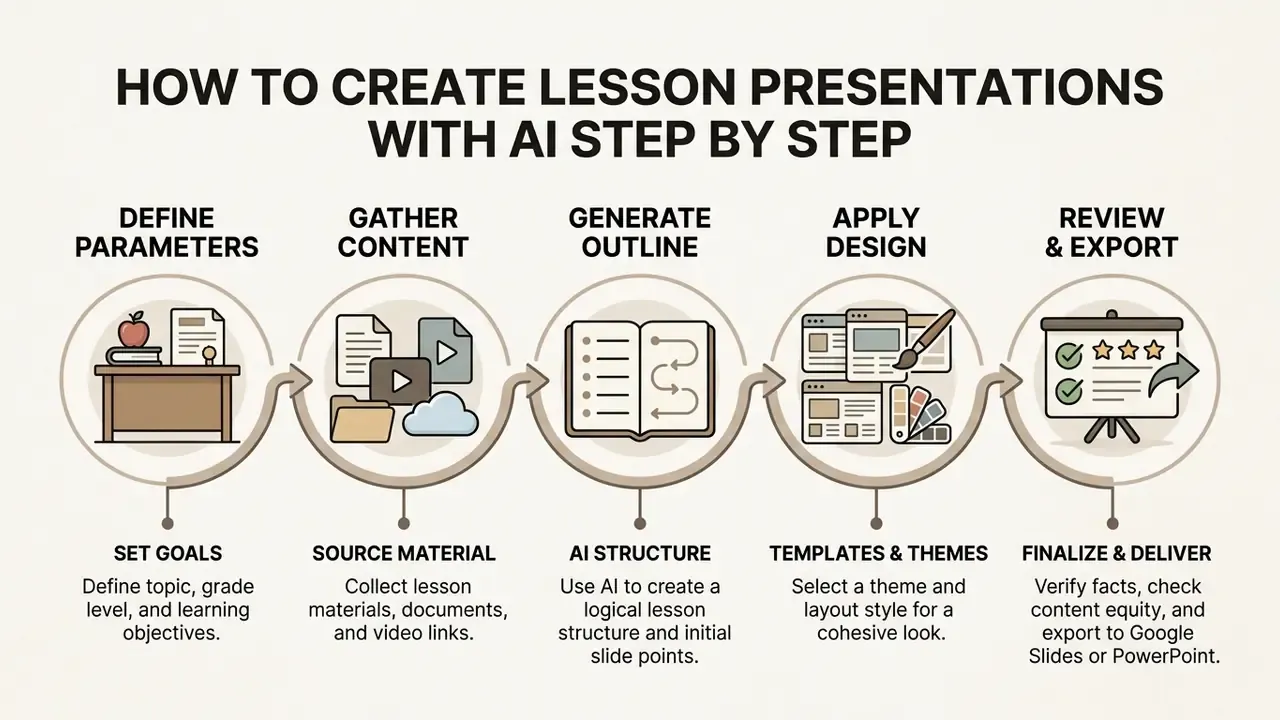
Creating lesson presentations with AI means defining baseline parameters, generating a text outline, applying presentation templates, reviewing content, and exporting the finished deck. A systematic ai create slides for teachers workflow protects accuracy and keeps the output professional.
Set the topic, grade level, and lesson goal
Explicit target parameters, such as subject, grade level, and measurable objectives, steer the model toward age-appropriate terminology and depth. Guidance from the Colorado Department of Education's vocabulary lesson template notes that user-friendly definitions should be short, easy to understand, and connected to words a child already knows. Vague objectives produce vague slides; concrete, measurable goals keep output aligned with state standards. Connecticut's language-objectives guidance pushes the other way for older learners, requiring essential vocabulary, grammatical structures, and alignment to higher-order thinking skills.
An ai for teachers to create slides platform leans on initial prompt constraints to set tone, vocabulary complexity, and slide count. Saying whether the lesson targets middle school or high school students helps the generator adjust sentence structure and cognitive load.
Generate an outline and presentation slides
Reviewing an AI-generated outline before triggering layout prevents structural errors and keeps slide content logically ordered. Presenton's documented seven-step technical workflow (2026) recommends validating the prompt, slide count, and uploaded files first, then generating and reviewing an outline before converting text into full presentation slides, choosing a template, submitting generation, reviewing output, exporting, and verifying the downloaded file.
«High-performing teacher groups iteratively refined prompts, integrating conceptual and pedagogical considerations, and verified AI content against external sources.»
An ai powerpoint generator for teachers builds individual slide layouts from the approved outline. This two-stage drafting lets educators verify topic sequence, add missing instructional steps, and balance content across the slide deck.
Outline discipline is where academic guidance is most consistent. MIT's PowerPoint Best Practices advises building an outline before slides, working in Outline View, and limiting each slide to one main idea with up to six bullets of about six words. A 2025 George Washington University slide-development guide asks for one main point per slide, with content spread out to reduce density. A 2021 peer-reviewed paper recommends one central objective per slide, broken down so any single slide can be explained in roughly a minute. The American College of Physicians' generic presentation outline adds a prioritization habit worth copying: label outline items A/B/C, then review the outline with a colleague before finalizing.
Review, refine, and theme AI-generated slides
Refining drafts through targeted prompts and one cohesive theme turns automated output into a classroom ready teaching tool. Teachers can inspect layouts, edit text density, and learn how to write AI prompts for images to generate relevant supporting graphics.
A consistent design template maintains visual harmony and prevents cognitive distraction during delivery. Reviewing speaker notes, factual claims, and image descriptions is what makes the final ai powerpoint generator for teachers free output defensible in front of a class, and in front of a department head.
- Define lesson parametersinput the topic, grade level, learning objectives, and desired slide count in one sentence that names both goal and audience.
- Gather source contentupload lesson plans, lecture notes, PDFs, DOCX files, or video links before prompting.
- Generate and review the outlinecheck the structure for didactic logic, prioritize sections, and fix sequence problems before layout generation.
- Apply a design themeselect a high-contrast, accessible presentation template with a two or three colour palette.
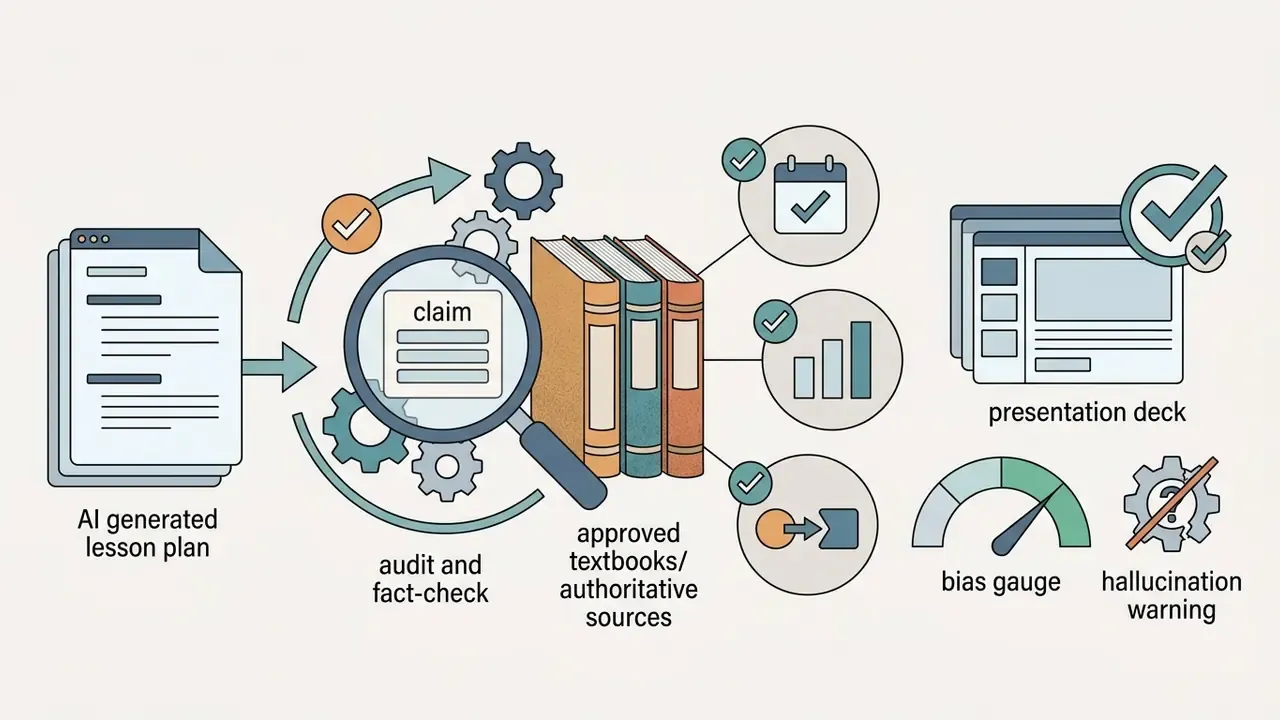
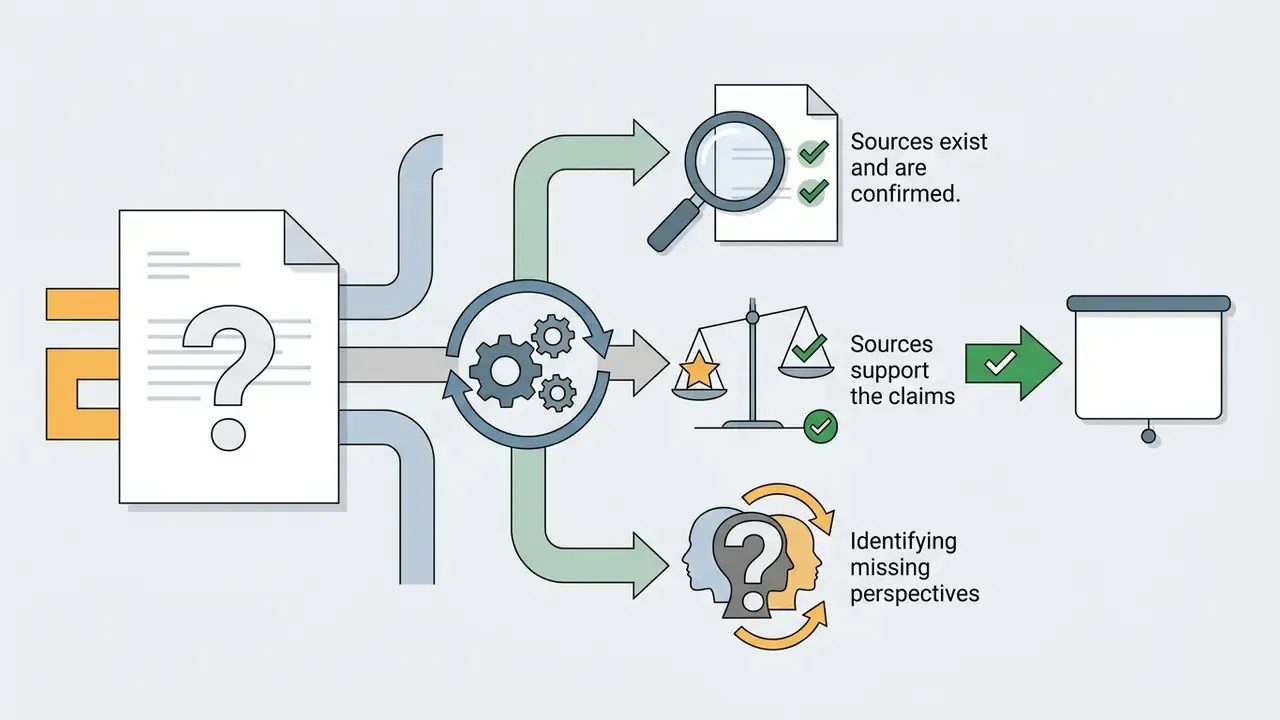
- Verify facts and equityaudit every generated number, name, date, claim, chart axis, and visual caption for accuracy and bias.
- Run the accessibility checkerconfirm unique slide titles, reading order, alt text, and contrast ratios.
- Export the final deckdownload as editable PPTX for continued editing, or tagged PDF for fixed-fidelity distribution.
- Verify the downloaded fileopen the export on the classroom device to confirm fonts, charts, and layout survived conversion.
A realistic time budget for a 12-slide unit deck: roughly 3 to 5 minutes of generation, 10 to 20 minutes of fact-checking and rewriting, and another 5 minutes on accessibility and export checks. Faster than building from scratch. Not instant.
Adapt AI presentations for grade level and classroom use
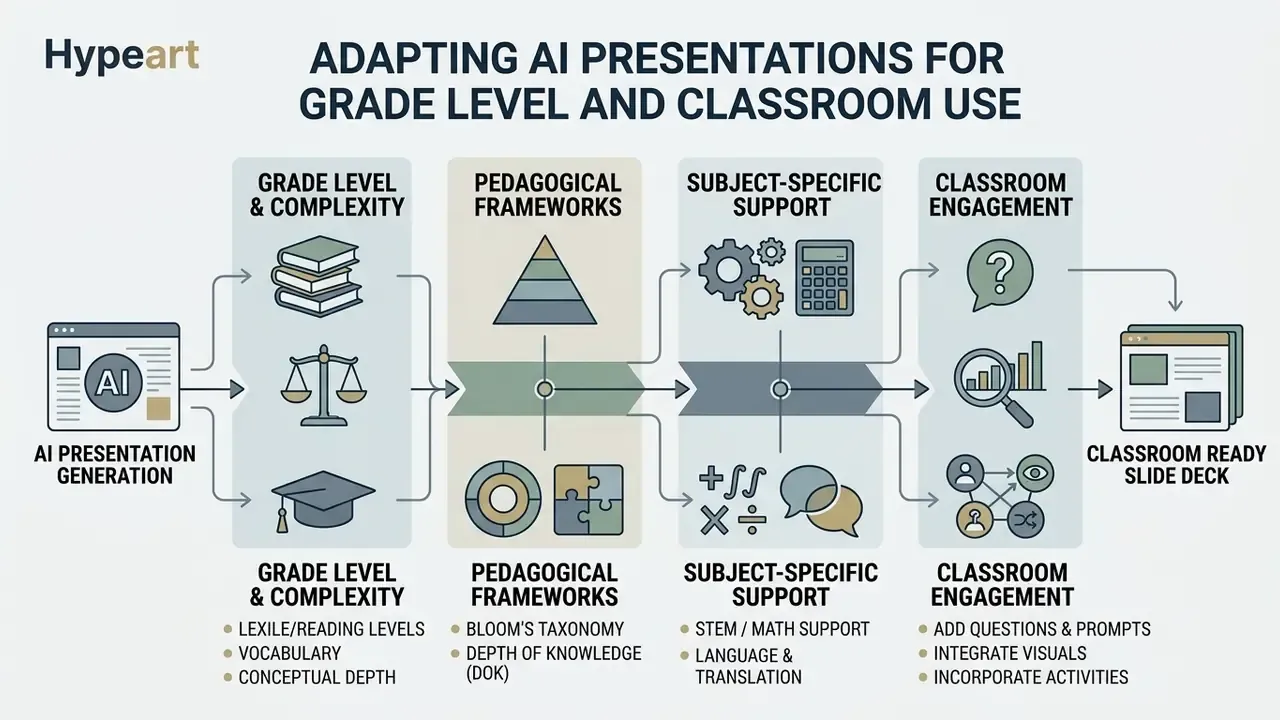
Adapting AI presentations for classroom use means tailoring vocabulary, conceptual depth, and interactive elements to the target grade level. Done properly, middle school and high school students stay engaged without cognitive overload. Washington OSPI's 2024 classroom AI guide frames the principle well: K-12 AI use should begin with human inquiry and end with human reflection, with scaffolding scaled up for younger learners and task complexity scaled up for older ones.
Adjust language, depth, and examples for different grade levels
An ai slideshow maker for teachers must adjust lexical density and sentence complexity between middle school and high school audiences. A 2026 study published in Frontiers in Education demonstrated that AI models alter structural complexity and clause load when explicitly directed to rewrite materials across specific reading levels, measuring lexical density, sentence length, clauses per sentence, academic vocabulary coverage, cohesion markers, and hedging markers. Microsoft Copilot's "Modify Reading Level" behaves the same way in production, rewriting content for a specified grade while preserving core concepts and adjusting vocabulary, sentence structure, and overall complexity, and generating age-appropriate glossary definitions on request.
«ChatGPT and Gemini produced lesson plans resembling human-written content, but with limited technology integration and only partially constructivist approaches.»
Middle school presentations need shorter definitions, concrete real-world examples, and visual support. High school decks benefit from academic terminology and analytical prompts. An ai powerpoint maker for teachers lets instructors adapt a single core topic across several grade bands in one sitting. Michigan Virtual's teacher guide, for instance, demonstrates adapting the same high-school text to 5th-, 8th-, and 10th-grade reading levels.
Build pedagogical frameworks into the prompt
To align AI-generated slides with state curriculum standards, prompts must name pedagogical frameworks rather than rely on vague grade labels:
- Bloom's Taxonomy differentiation.Instruct the AI to shift slide focus from Remembering / Understanding (defining core terms for middle school) to Analyzing / Evaluating (debating primary sources in high school). Tools such as Monsha expose Bloom's level as a direct setting rather than a prompt string.
- Lexile and reading-level constraints.Specify exact bands, for example "keep text complexity within 800L to 1000L for sixth-grade readers", to prevent overly academic jargon. Diffit automates this by regenerating the same passage across Lexile levels.
- Depth of Knowledge (DOK) levels.Direct the tool to place DOK Level 3 (Strategic Thinking) open-ended prompts on summary slides, and DOK Level 1-2 checks earlier in the deck.
- STEM and math support (LaTeX).For science and mathematics, use platforms that render native LaTeX equations and include a math keyboard, so formatted symbols do not distort on export. Monsha's LaTeX support is the feature high school math teachers cite most often; verify equation rendering after every PPTX export.
- Language and translation.Multilingual classrooms benefit from tools that translate the finished deck into 60+ (Monsha) or 100+ (Canva Magic Translate) languages while keeping layout intact.
Add questions, visuals, and activities to the slide deck
Embedding checking-for-understanding questions and generated images reinforces retention and invites participation. Research from The Learning Scientists provides ready-made slide sets for retrieval practice, elaboration, spaced practice, and interleaving, which maps onto a repeatable slide pattern: content, then a retrieval or practice prompt, then visual support.
«Copilot automatically creates quiz questions based on instructor materials and inserts them throughout the project.»
An ai slides maker for teachers can generate multiple-choice questions, discussion prompts, and exit tickets straight from the lesson content, and teachers can edit or delete any of them. Spread across the slide deck, these become active learning checkpoints rather than a lump of review at the end.
Beyond static slides, modern presentation tools enable active learning during the lecture itself. Canva Code lets teachers generate custom interactive widgets, including mini-games, calculators, and clickable timelines, from a simple text prompt with no coding required, while Magic Charts converts complex data into interactive charts. Platforms such as Curipod and SendSteps embed live audience participation directly into slide progression, showing real-time word clouds, polls, and quiz results anonymously on the classroom screen without student accounts.
Situation: A high school history teacher wanted more student discussion during a unit on historical trade routes.
Action: The teacher used an ai presentation maker for teachers to embed open-ended debate questions and map comparisons on key slides.
Result: Observed participation during lectures rose sharply across four class periods, from roughly two in five students contributing to about three in four. The tally came from the teacher rather than a validated instrument, so treat the shift as directional evidence.
Customize design, images, and slide content with AI
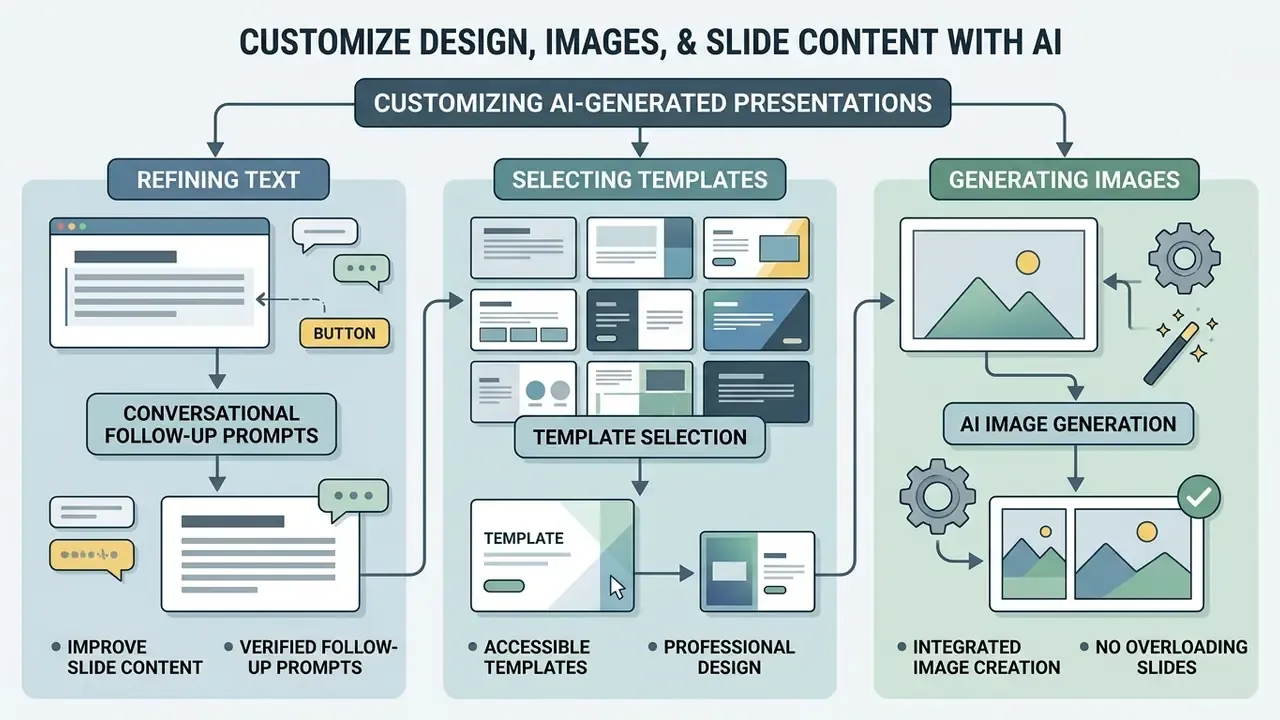
Customizing AI-generated presentations comes down to three moves: refining text through conversational follow-up prompts, selecting accessible presentation templates, and using ai image generation on purpose rather than by reflex. Visual hierarchy is what keeps slides clear, professional, and high quality.
Improve slide content with follow-up prompts
An ai presentation maker responds better to targeted commands than to full regeneration. Microsoft-style prompting guidance summarized for 2026 recommends that every editing prompt state goal, context, source, and expectations, while Google's Prompting Guide 101 advises splitting related tasks into separate prompts and setting explicit constraints such as character counts or number of options. Narrow instructions like "reduce text by 30%" or "add three discussion questions" reliably beat rebuilding the whole deck.
Verified slide-level follow-up prompts:
- "Tighten slide 3 to one takeaway and three bullets of six words each."
- "Cut the introduction in half and keep the learning objective wording unchanged."
- "Add data to slide 7 and cite the source in the speaker notes."
- "Reduce the text on slides 5 to 8 by 30% and replace the bullet points with a visual comparison chart."
- "Rewrite slide 4 as a comparison table with two columns."
- "Add two real-world examples to the speaker notes, appropriate for ninth grade."
- "Keep the current brand template and fonts; only change the wording."
Iterative prompts preserve the existing layout while polishing wording. An ai slide generator for teachers free tool can also adjust tone, expand a technical explanation, or convert a dense paragraph into a structured list on request.
Use templates and AI image generation without overloading slides
Clean presentation templates with a restricted two or three colour palette prevent visual clutter and keep attention on core concepts. Guidelines from Carnegie Mellon University (2025) recommend bold headings, deliberate font size, whitespace, bullets, and indentation to separate levels of importance, plus high colour contrast. Pair that with how to write prompts for AI art when you need focused instructional graphics rather than decoration.
Other institutional rules converge on the same minimalism. UMBC recommends a two-to-three colour palette with one consistent accent and high text-background contrast; Webster University advises a cohesive design style with one or two clear images per slide; Johns Hopkins' capstone guidance warns against ornate templates, too many fonts, and too many colours. Student feedback explains why this matters more when images come from a model instead of a designer:
Product-level controls now give teachers direct influence over generated visuals. Google Slides lets users generate images with Gemini, choose Square, Wide, or Tall ratios, apply a style, adapt visuals to slide content, and edit the prompt before insertion. PowerPoint Copilot accepts descriptions of slide type, colour palette, and image needs, then refines layout, formatting, or images conversationally. For template-heavy classroom design work, the Canva AI Generator remains the fastest route from a blank deck to an on-theme lesson set, and our AI Media Comparison Matrices and AI Media Benchmarks document how output quality differs between engines.
Export and share AI-generated presentations in Google Slides, PowerPoint, PDF
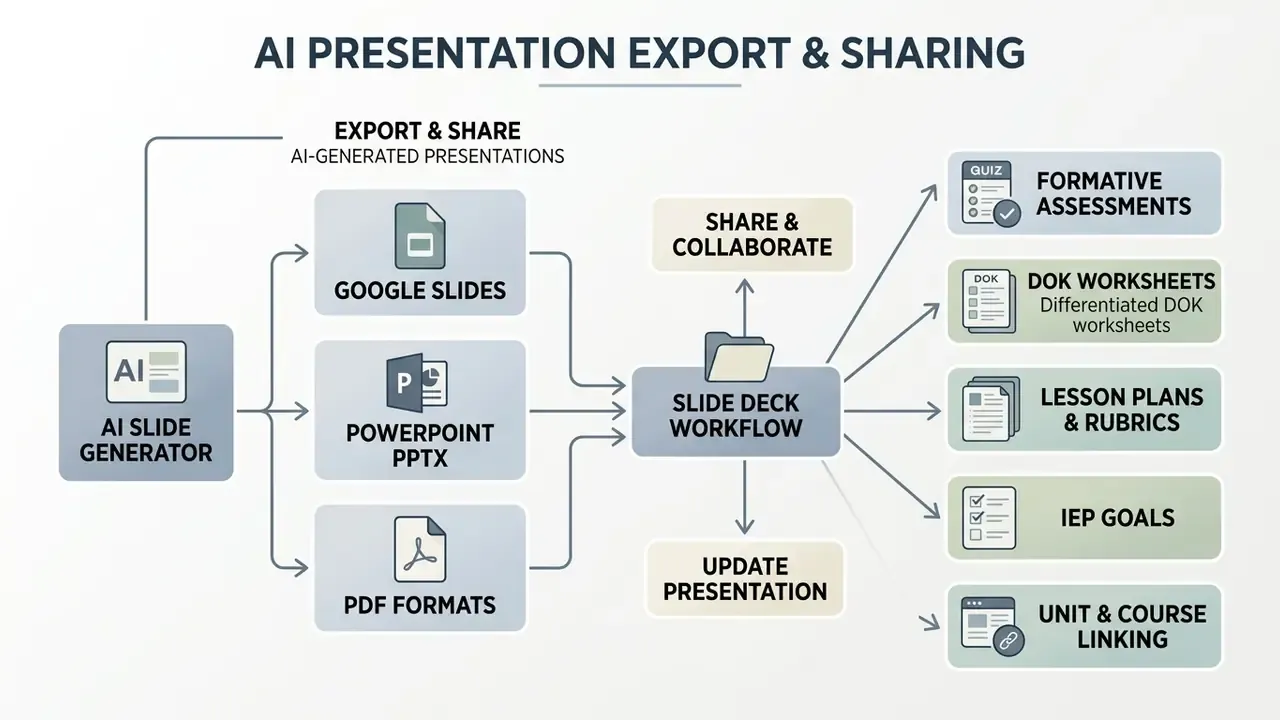
Modern presentation tools export AI-generated decks straight into google slides, powerpoint presentation files, or pptx pdf formats. Clean export is what guarantees editability and compatibility across classroom hardware, including that one aging projector cart.
Export to Google Slides and PowerPoint presentation formats
Native PPTX export preserves editable text frames and layout when the deck opens in PowerPoint or google slides. As documented by Presentations.AI (2026), PPTX gives maximum editability, with text, layouts, and fonts intact, whereas PDF offers fixed visual fidelity across devices but is read-only and not meant for element-level editing.
Google Slides is the most variable of the three targets. A PPTX file imported into Slides can substitute fonts and shift spacing, so charts and text boxes need a visual pass after conversion. Free-plan restrictions compound the problem:
«You can create up to five 15-slide presentations, but you cannot download them with a free account; PPTX export requires a paid subscription.»
An ai ppt maker for teachers should offer flexible export so educators can make final adjustments in their primary presentation app. Check font rendering and element placement after export, ideally on the machine that will actually project the deck. Across the category, PPTX, PDF, and PNG are the baseline export set; HTML/web, JPG, and MP4 appear less often, and batch export to several formats is typically a paid feature.
Extending the workflow: worksheets, quizzes, and IEP goals from your slides
Modern AI educational engines do not stop at slide generation. Once the deck is final, reuse its underlying text outline to build connected classroom assets inside the same platform. That reuse is where the widely quoted time savings actually come from. MagicSchool's own user surveys report that 94% of teachers on the platform gain seven or more hours a week and 77% say it has significantly improved their quality of life. Vendor-reported figures, not independently audited, so read them as marketing-adjacent.
- Formative assessments. Convert slide key takeaways into five-question exit tickets, multiple-choice quizzes, or comprehension-question sets aligned to the same objectives.
- Differentiated DOK worksheets. Generate simplified summary handouts for English-language learners and advanced extension tasks for gifted programs, keeping terminology consistent with the deck.
- Lesson plans, rubrics, and IEP goals. Export slide objectives into lesson-plan templates and grading rubrics aligned to district standards, then draft IEP-aligned goal language for review by the responsible team.
- Unit and course linking. Attach the deck to its parent unit or course so future revisions propagate across every connected resource instead of drifting out of alignment.
Data privacy and quality checks before using AI in the classroom
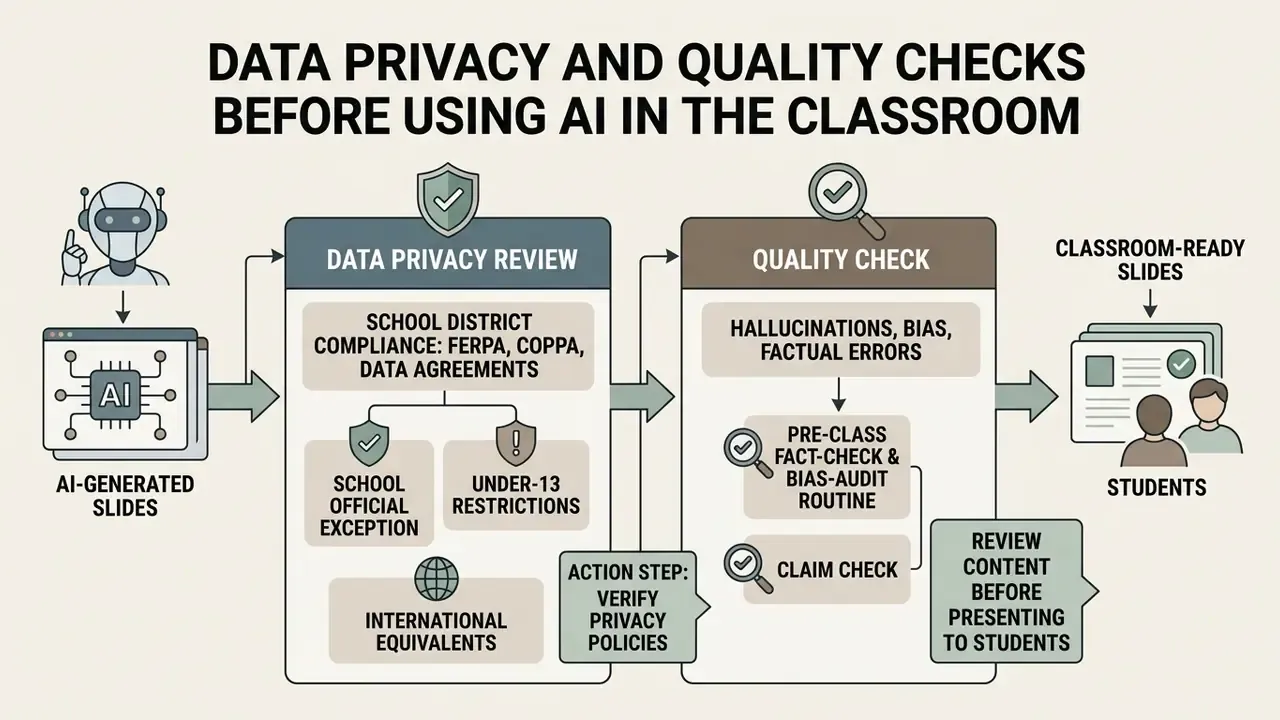
Before ai generated slides reach students, teachers need a data privacy review and a quality check for hallucinations, bias, and factual errors. Responsible use of artificial intelligence protects student privacy and instructional integrity at the same time.
Review AI-generated content before presenting it to students
Verify every number, historical date, scientific claim, and generated visual before presenting using ai materials in class. Guidelines from the U.S. Department of Education and Washington OSPI (2024) emphasize human-in-the-loop review, requiring educators to inspect outputs for accuracy, bias, and alignment with COPPA and FERPA standards. OSPI states plainly that staff and students should not input personal, sensitive, or confidential data into AI systems unless FERPA, COPPA, and CIPA requirements are met.
Keeping confidential student data out of public AI systems is the baseline for institutional compliance. A standing pre-class review routine, even a five-minute one, is what turns that principle into practice. Institutions that need stronger guarantees increasingly build their own layer:
«An institutionally managed AI interface provides enhanced privacy and security because the institution owns every component.»
The risks are documented from the teacher's side too:
School district compliance: FERPA, COPPA, and data processing agreements
Before any AI presentation builder enters a K-12 classroom, evaluate data compliance. Under FERPA (Family Educational Rights and Privacy Act), schools may not disclose personally identifiable information from education records without consent unless an exception applies. Under COPPA, operators collecting personal information from children under 13 need verifiable consent, and the FTC's Ed Tech policy limits a school's consent authority to data collected for a school-authorized educational purpose and nothing else. In practice, districts require a signed Data Processing Agreement (DPA) before approving a tool.
- School official exception. Tools such as MagicSchool.ai and Diffit operate within FERPA exceptions by avoiding collection of personally identifiable student information and by not training models on student inputs. MagicSchool states SOC 2 certification; Diffit is a Student Privacy Pledge signatory; Curipod requires no student accounts and hides student names from peers.
- Under-13 restrictions. General-purpose AI tools, native ChatGPT and unverified image generators among them, explicitly prohibit use by children under 13 in their terms of service. That rules them out for K-8 without significant workarounds. Use purpose-built platforms such as Curipod or Canva for Education that bypass student account creation.
- International equivalents. UK Department for Education guidance requires generative AI products used in schools to provide clear privacy notices, disclose what data is collected and shared, and refrain from using personal data for commercial training or fine-tuning without a lawful basis. OECD guidance asks jurisdictions to supply schools with clear data-protection guidance and pre-negotiated contracts, and EU educator guidance requires data minimization and protection of privacy data. Under GDPR, a DPIA may be required before deployment.
- Action step for teachers. Check your district's approved vendor list before introducing a new platform. It saves time and prevents compliance incidents. If a tool lacks SOC 2 certification or an active DPA, restrict it to teacher-facing lecture notes and never input student records.
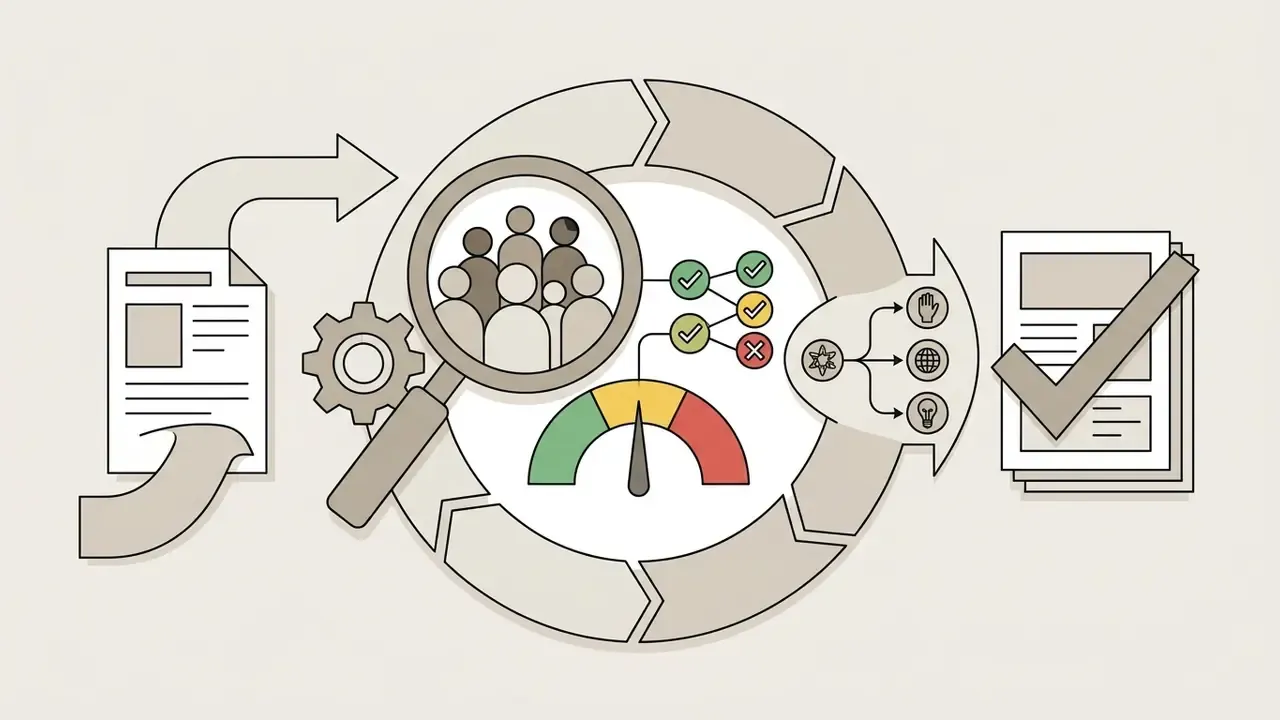
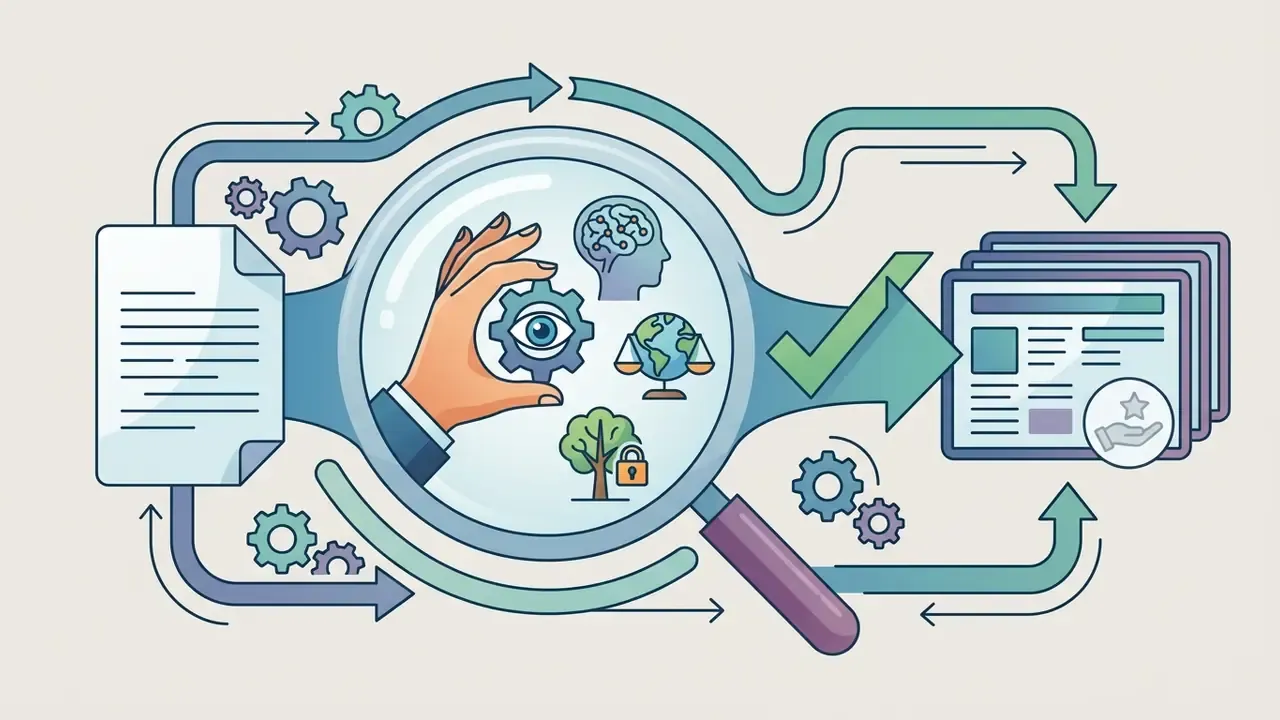
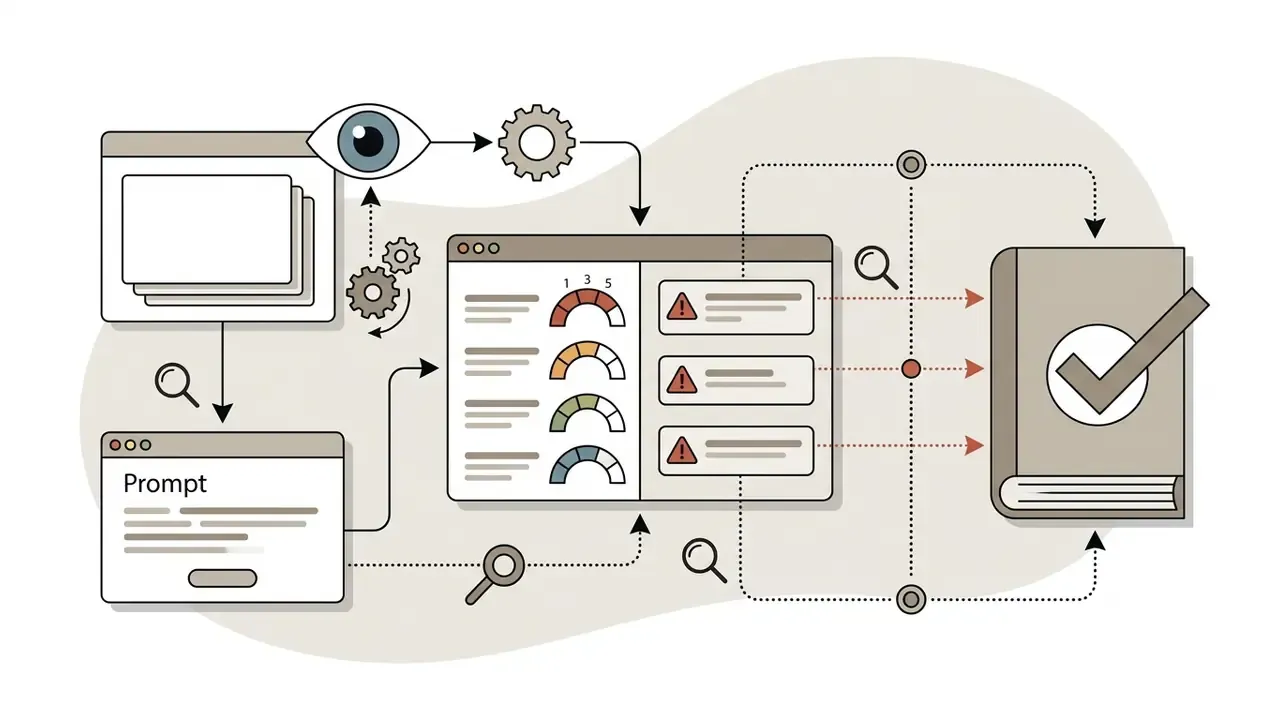
Pre-class fact-check and bias-audit routine
Run this five-minute audit on every AI-generated deck before class:
FAQ: copyright, accuracy, and classroom use
Who owns the copyright in AI-generated slides and images?
If you create an original design, you are generally its copyright holder, but ownership is subject to third-party rights whenever the deck includes stock media, template elements, or licensed fonts. Canva, for example, grants a license to use library photos, graphics, videos, fonts, and music inside your designs rather than transferring ownership. Purely machine-generated output may receive weaker protection in some jurisdictions, so check each platform's terms before reselling materials.
Can I use AI-generated lesson decks in a fee-paying or commercial school?
Usually yes on paid education plans, but free tiers often restrict commercial use, add watermarks, or limit redistribution. Verify licensing terms per tool; our AI Media Commercial-Use Hub explains how these clauses typically work across generative platforms.
Can I use an AI presentation maker entirely for free?
Yes, most platforms offer a free tier. Expect limits such as three decks per month, a fixed lifetime credit pool, watermarked exports, or download restrictions. Education-specific plans (Canva for Education, MagicSchool's free tier) are usually the most generous for teachers.
How accurate are AI-generated presentations?
AI is strong at structuring content and visuals but unreliable on nuanced or complex topics. Always verify facts, examples, and images before presenting; treat output as a first draft.
Will AI slides match my curriculum standards?
Only if you state the standard explicitly. Enter subject, grade level, standard codes, and objectives, and prefer tools that support standards or rubric alignment as a built-in field rather than a free-text prompt.
How much manual editing should I expect?
It depends on subject complexity. Straightforward topics often need minor wording edits; dense or controversial units require substantive rewriting, source verification, and image replacement.
Can AI make a presentation from a YouTube video?
Yes. Paste the link, set slide count and tone, and the tool works from the transcript and frames. Verify timestamps, caption quality, and any numbers pulled from the video, since auto-captions are a frequent source of errors.
Do AI presentation tools generate images and visuals?
Most do, via built-in generation, web image search, or your own uploads. Gemini in Slides and PowerPoint Copilot both generate images with ratio and style controls directly in the editor.
Can students use these tools themselves?
Only within district policy. Many general-purpose tools prohibit users under 13, and student-facing use typically requires an approved vendor agreement plus supervised, account-free environments.
Additional resources
Explore more creation guides in our main workflows library, estimate creation capacity with our interactive calculators, compare engines in our AI Media Comparison Matrices, and check measured output quality in our AI Media Benchmarks. Instructors and district technologists working with automated pipelines can reference our AI Media API Guides for integration details, or review the AI Media Commercial-Use Hub for licensing terms before publishing teacher-created materials beyond the classroom.