Last updated: editorial review of Canva Help Centre and YouTube Help documentation current as of 2026.
The Short Answer
You can insert a YouTube video into a Canva presentation in three ways: paste the video URL straight onto the slide canvas, use the YouTube app in the left sidebar Apps panel, or use the Embeds tool for precise URL handling. All three work on both free and paid Canva accounts. All three need a live internet connection during Present mode.
If you must present offline, or export the deck as a rendered MP4, skip embeds entirely. Upload a native .mp4 or .mov file through the Uploads tab instead. That single decision prevents most of the failures described further down this page.
On this page: embedding requirements, three insertion methods, the offline MP4 alternative, in-canvas trimming and playback controls, troubleshooting, slide design, audit-ready archiving, and a FAQ.
Can You Embed a YouTube Video in a Canva Presentation?
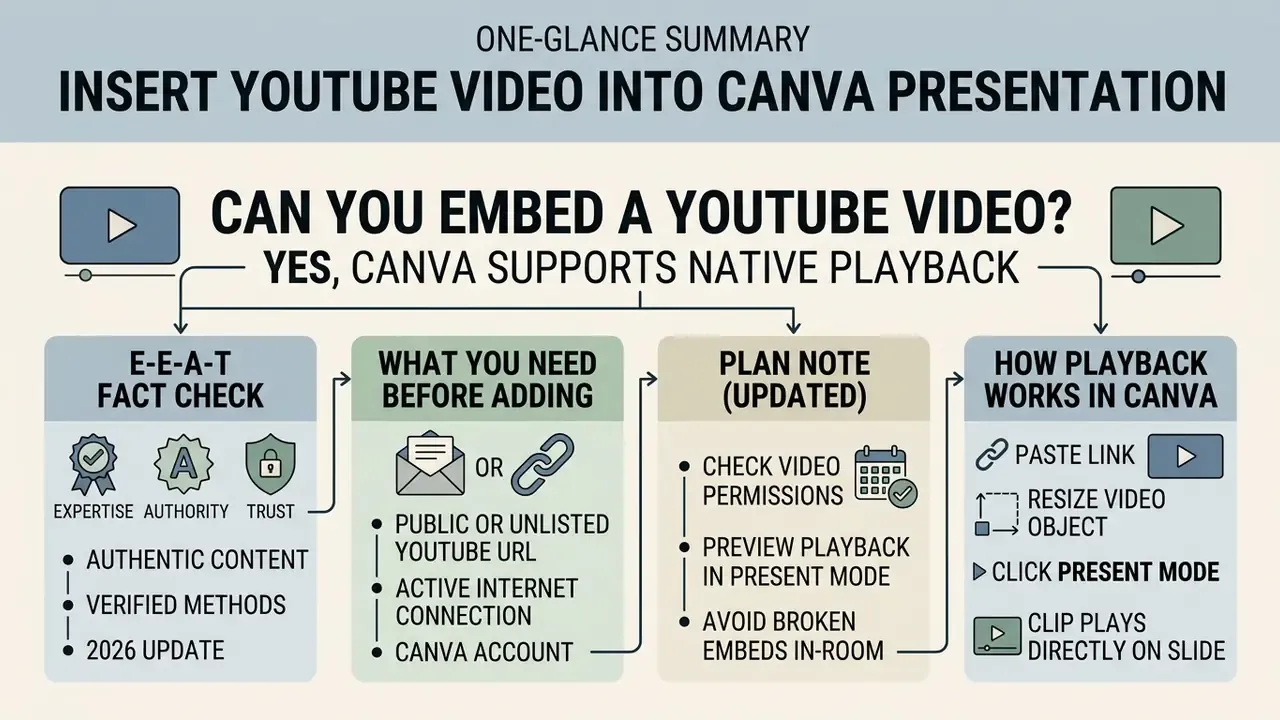
Yes. Canva supports native playback of public and unlisted YouTube clips directly inside your slides during present mode.
The feature keeps viewers inside the presentation layout, with no tab switching and no separate browser window. The embedded video behaves as an interactive player on the slide canvas. It keeps essential playback controls while your custom borders, headings, and surrounding slide elements stay intact.
What You Need Before Adding a YouTube Video
Two things, really: an open Canva design and a valid, public YouTube URL. The video must also allow third-party embedding in its YouTube account settings.
Private clips, or clips where the owner has switched embedding off, will not load inside Canva slides. No workaround exists on the Canva side. You can use either a free Canva account or a Canva Pro plan to add video content to your presentation slides. YouTube embedding itself is not a paid-tier feature, and the Embeds app is available on the free plan as well.
How Playback Works in Canva Present Mode
In Canva present mode, embedded YouTube clips play interactively inside the slide when clicked. An active internet connection is mandatory for real-time streaming during live delivery.
Offline presentation modes show the slide layout but cannot stream external YouTube content without live web access. Export the deck to PDF and the embedded player flattens into a static thumbnail image. That surprises people more often than it should.
«Embedded content, such as YouTube videos, will not function without an internet connection.»
«Embedded video requires an active internet connection; export to PDF or static formats converts the player into a still preview frame.» , Technical documentation on embedding YouTube in presentation platforms (2026)
Canva also offers an Autoplay presentation mode from the More menu, separate from the default Present full screen view. Autoplay advances slides automatically. It does not override the connectivity requirement for streamed YouTube frames.
Method 1: Paste a YouTube Video Link Directly into Canva
Pasting a copied YouTube URL straight onto an open slide canvas is the fastest insertion method. Canva detects valid media links and converts them into playable embedded video frames, usually within a second or two.
- Copy the YouTube URL.Open YouTube in your browser, click Share below the video, and copy the provided video link. (Screenshot placeholder: youtube-copy-link.png, alt="insert youtube video into canva presentation copy link step")
- Open the Canva slide.Select the slide inside your Canva presentation workspace where the video should appear. (Screenshot placeholder: canva-select-slide.png, alt="insert youtube video into canva presentation select slide step")
- Paste the link.Press
Ctrl+V(Windows) orCmd+V(Mac) directly on the canvas to trigger automatic media resolution. (Screenshot placeholder: canva-paste-link.png, alt="insert youtube video into canva presentation paste link step") - Adjust canvas placement.Drag the handles around the generated player frame to resize and align the video with your text layout. (Screenshot placeholder: canva-resize-player.png, alt="insert youtube video into canva presentation resize player step")
Pro tip for fast copying: you can grab a video URL three ways. Click Share below the YouTube video and choose Copy link, copy the address directly from your browser's address bar, or right-click any video thumbnail on YouTube and select Copy link address.
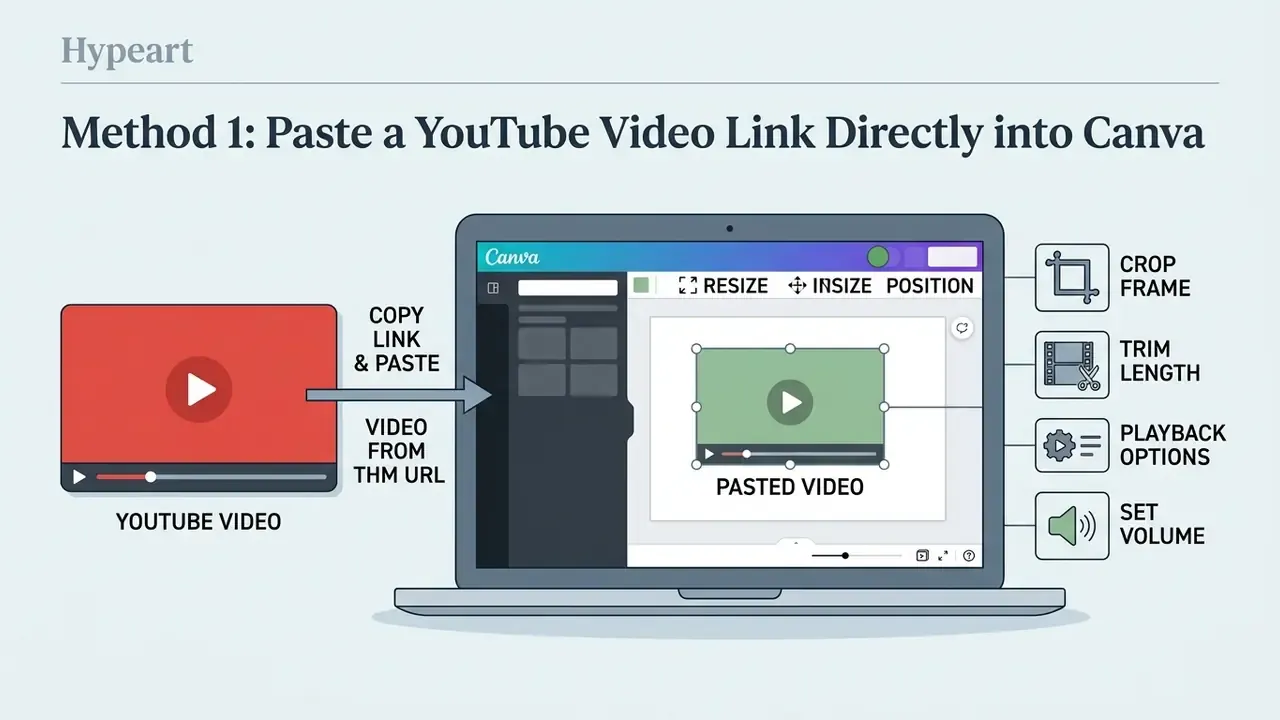
Copy the YouTube Link and Paste It on a Slide
Copy the standard video link or the short URL from your browser address bar or the YouTube share dialog. Return to your open Canva design space and press Cmd+V or Ctrl+V to paste the link onto your chosen presentation slide.
Canva will resolve the web address into an interactive video block. This direct link method bypasses embed codes entirely and puts the video player onto the canvas within seconds.
Watch the timestamp syntax when you want playback to start mid-clip. Short youtu.be/VIDEO_ID links take ?t=90, while standard youtube.com/watch?v= links take &t=90, because the query string already exists. Mixing the two separators is one of the most common reasons a "start at" link resolves incorrectly.
Resize and Position the Embedded Video
Click the inserted video block to activate its corner transform handles. Drag the corners outward or inward to resize the player while preserving the native 16:9 widescreen aspect ratio.
Keeping the player locked to a fixed ratio follows the same principle responsive web frameworks use: size the container first, then let the media fill it proportionally. Position the video block alongside your key takeaway bullets so the visual hierarchy stays obvious even from the back row of the room.
If you plan to re-cut the source footage before presenting, a dedicated YouTube video editor handles trimming and captioning more precisely than in-canvas tools. Working locally on Apple hardware? A video editor for mac workflow keeps the render closer to your export settings and avoids a second transcode.
How to Crop, Trim, and Adjust Video Playback in Canva
Once your video sits on the slide canvas, Canva gives you built-in controls for appearance and audio delivery:
- Crop the video frame.Click the player, then click Crop in the top toolbar. Drag the corner handles to remove unwanted margins or change the outer framing.
- Trim the clip length.For uploaded video files, double-click the clip and drag the timeline handles inward to shorten the start and end points, so only the relevant demonstration segment plays.
- Adjust playback options.Select the video and click Playback on the top menu bar. Toggle Auto-play in present mode or Loop continuously depending on your flow.
- Set audio volume.Click the Volume icon in the upper toolbar to change default loudness or mute background audio completely.
One caveat worth stating plainly: trimming and volume controls apply fully to natively uploaded files. Externally embedded YouTube frames keep YouTube's own player controls, so the practical equivalent of trimming is a timestamped start parameter in the URL.
Method 2: Add a YouTube Video with the YouTube App
The native YouTube app inside Canva lets you search for clips without leaving the presentation workspace. That integrated search bar workflow keeps asset discovery inside the left sidebar interface, which saves a surprising amount of tab juggling.
This workflow is documented by Canva directly: the YouTube app is listed in the Apps marketplace as an integration that "adds YouTube content straight inside Canva," and the Help Centre describes Apps as the standard path for inserting external media into a design. , Canva Apps Marketplace and Canva Help Centre (2026), canva.com/apps and canva.com/help/embed-media/
- Open the Apps menu.Inside your Canva design workspace, click the Apps icon on the left-hand sidebar.
- Locate the YouTube integration.Type
YouTubeinto the search bar and click the official YouTube app tile. - Connect the account if prompted.On first use, select Connect or Connect your account, sign in, and allow Canva access so the panel can return search results.
- Search or paste video keywords.Type your topic, keywords, or video URL into the internal search bar within the YouTube side panel.
- Add the video to the canvas.Click any video thumbnail from the search results to drop the interactive player frame onto your active slide.
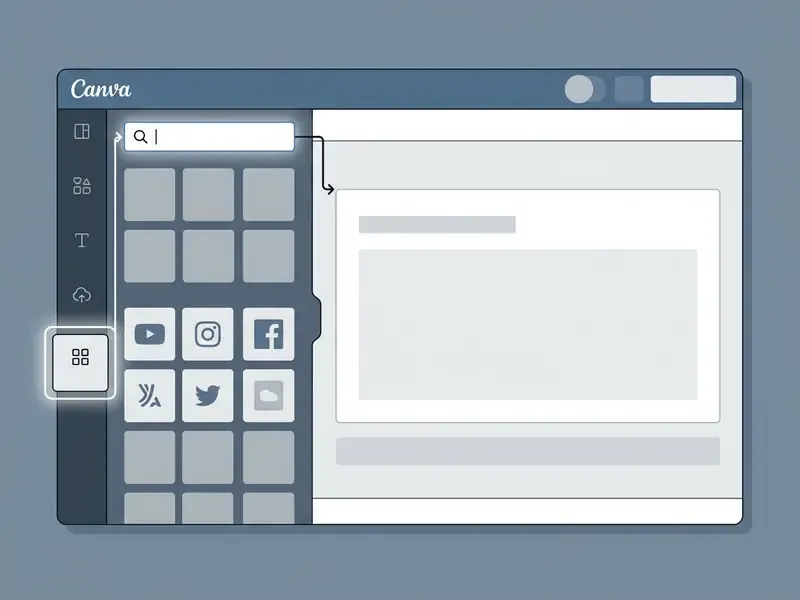
Open Apps and Search for YouTube
Open your presentation inside Canva and click Apps in the left sidebar menu. Type YouTube into the internal search bar to find the dedicated integration tool.
Click the YouTube app icon to launch the search interface in your side panel. If prompted on first use, confirm the connection so direct media insertion into your current project is enabled.
Search for a Video and Add It to the Design
Enter your keywords or topic into the YouTube app search bar inside Canva. Browse the generated thumbnails and pick the most relevant public clip for your slide deck.
Click a thumbnail from the results list to insert the media directly onto your active slide. You can then nudge the player frame into place using Canva's design snapping guides. One limitation to note: YouTube videos inserted this way arrive as free-floating elements. Per Canva's own documentation, they cannot be dropped inside a shaped frame element.
Method 3: Use Canva's Embed Feature for a YouTube Video
Canva's dedicated Embed feature is the steadier alternative for inserting external media links into presentation decks. It handles URLs precisely, which helps when standard canvas pasting is intercepted by a browser extension or a locked-down enterprise profile.
- Open the Apps panel.In the left sidebar of the Canva editor, click Apps.
- Search for Embeds.Type
Embedsinto the app search field and select the Embed tool. - Paste the clean URL.Enter your YouTube video link into the Paste the web link here input field.
- Add to design.Click Add to design. Canva generates a structured embedded video container on the active canvas.
- Verify playback.Double-click the generated thumbnail, or switch to Present mode, to confirm the player streams correctly.
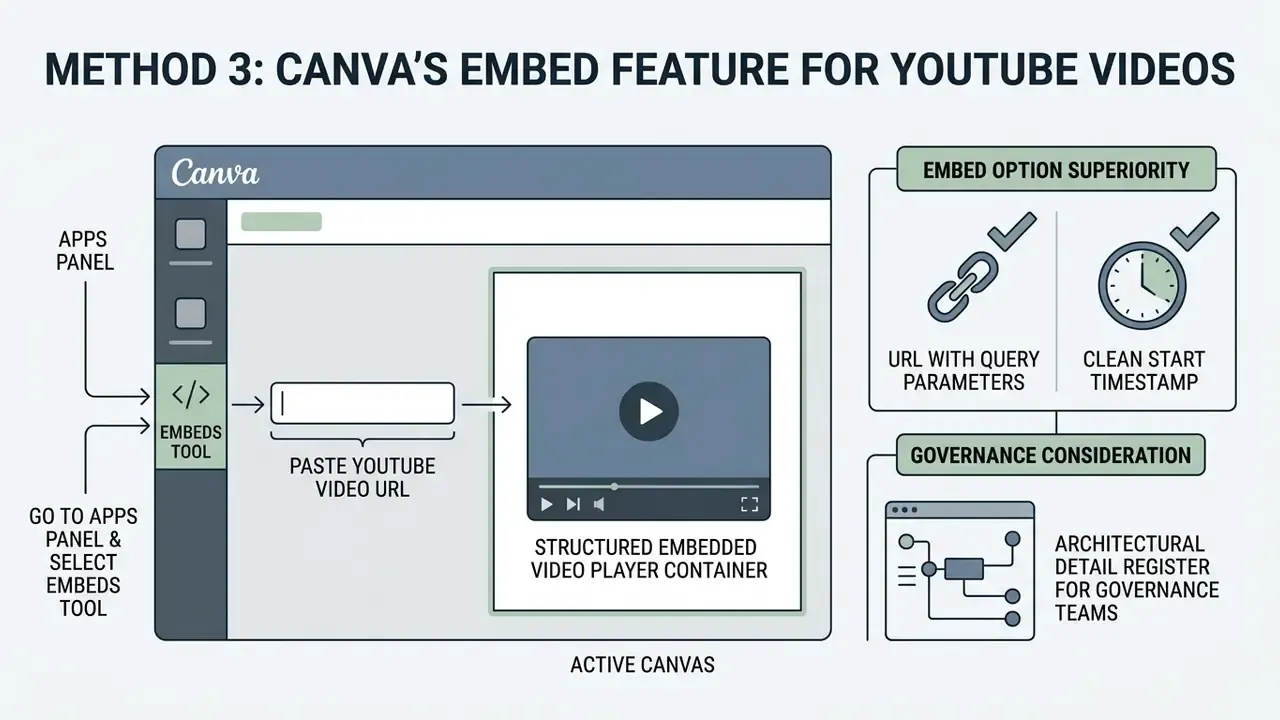
Add the Video URL Through the Embed Option
Go to the Apps panel in the left sidebar and select the Embeds tool. Paste your clean YouTube video link into the URL input field and click Add to design.
Canva generates a structured embedded video player container on the active canvas. The embed tool keeps container behaviour stable across multi-page decks, which matters when one deck carries five or six reference clips.
Canva's developer documentation notes an architectural detail that governance teams should register: an embed is stored only as a reference to the external source. If the source video is later removed from YouTube, the embed breaks. Teams maintaining reusable slide libraries or animated explainer assets should plan for that dependency rather than discover it mid-review.
When the Embed Option Is Better Than Pasting a Link
The Embed option wins when your link carries query parameters or a clean start timestamp. It also prevents accidental plain-text URL pastes across varied browser security configurations, the kind that silently leave a blue hyperlink on the slide instead of a player.
| Insertion Method | Primary Actions | Key Advantage | Best Use Case |
|---|---|---|---|
| Direct URL paste | Copy URL, then paste via keyboard on canvas | Fastest execution speed | Quick slide draft creation |
| YouTube app | Left sidebar, Apps, search keywords | In-app video discovery | Searching clips without opening new browser tabs |
| Embed feature | Apps, Embeds, paste structured URL | Higher link resolution accuracy | Precise links with start timestamps or tracking parameters |
| Native MP4 upload | Uploads, Upload files, drag to canvas | Works offline and survives MP4 export | Board reviews, audit evidence, venues without Wi-Fi |
Read the table as a decision, not a ranking. Drafting fast? Paste the link. Building a deck that a committee will reopen in six months? Upload the file.
For teams running a broader tool selection exercise, the AI Media Comparison breakdown gives operational context, and a side-by-side look at free video generation and editing tools helps decide whether a clip should be embedded, re-edited, or rebuilt from scratch.
Alternative Method: Upload an MP4 Video File for Offline Playback
If you present in venues with unreliable Wi-Fi, or intend to export your deck as a fully rendered MP4, an external YouTube link will not carry. You need a native video file uploaded into your Canva account.
- Open the Uploads panel.In the left sidebar of the Canva editor, click the Uploads tab.
- Select your video file.Click Upload files and choose an
.mp4or.movclip from local storage. - Place the video on the canvas.Once the progress bar completes, drag the uploaded video onto your slide.
- Trim and frame the clip.Double-click the placed clip to trim its length, then crop or resize the frame to fit your layout grid.
Supported formats and limits. Canva accepts MOV, GIF, MP4, MPEG, MKV, and WEBM uploads, with a maximum file size of 1 GB. Uploaded 4K footage is stored at 1080p, so plan your export resolution accordingly. For transparent-background clips, Canva advises uploading short sequences as GIFs. Apple Intermediate and ProRes 4444 are not supported. , Canva Help Centre (2026), canva.com/help/upload-formats-requirements/
Note: direct MP4 uploads consume your Canva account storage quota, but they guarantee playback during offline delivery. If a file exceeds the 1 GB ceiling or crawls during upload, run it through a video compressor before retrying instead of dropping resolution inside Canva.
Canva's own published workaround for the "static frame in exported video" problem is identical: download the source video, then upload it into the design rather than embedding the link.
Why an Embedded YouTube Video Does Not Work in Canva
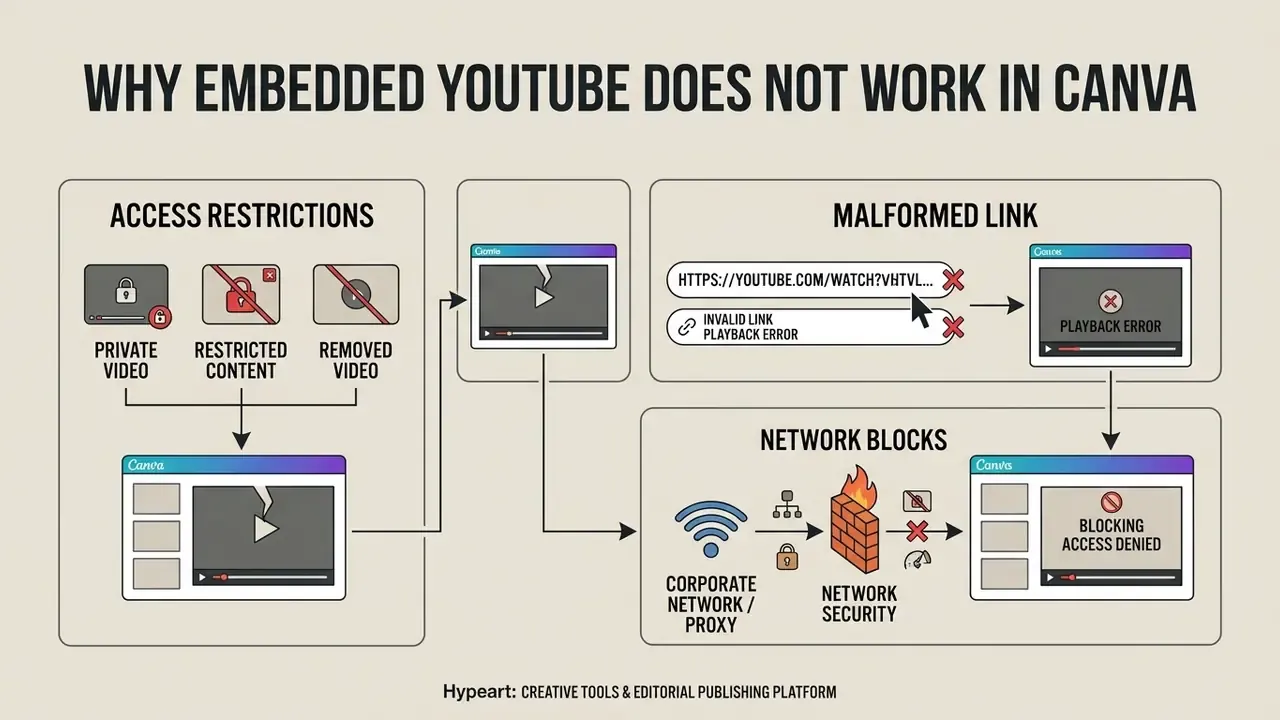
Embedded YouTube failures trace back to three causes: access restrictions, malformed links, or network security blocks. Diagnose the root cause early. It is worth doing before you spend an hour polishing slide layout.
Troubleshooting YouTube video embeds in Canva
- Step 1: Is the YouTube video set to Public or Unlisted?
- No: change the YouTube video setting to Public or Unlisted. Private clips will not load in Canva.
- Yes: proceed to Step 2.
- Step 2: Has the owner enabled "Allow Embedding" on YouTube?
- No: choose an alternative public clip. Canva cannot override YouTube embedding restrictions.
- Yes: proceed to Step 3.
- Step 3: Does the video play in Canva Present mode over active Wi-Fi?
- No: check firewall rules blocking
www.youtube.com, then test browser frame permissions. - Yes: proceed to Step 4.
- No: check firewall rules blocking
- Step 4: Will the deck be shown offline or exported as MP4?
- Yes: replace the embed with a native MP4 or MOV upload via the Uploads panel.
- No: embed setup is complete and functional.
The Video Is Private, Restricted, or Removed
Private videos cannot be authenticated inside Canva's embedded player iframe. If the creator marks a video private or deletes it from YouTube, the container in Canva throws a loading error.
Age-restricted clips fail in the same way, as do clips where the owner disabled embedding. According to official YouTube Help (2026) rules, age-restricted media cannot render in third-party external frames, and viewers get redirected back to YouTube instead.
«If the owner has disabled embedding, the video plays only on YouTube; neither Canva nor PowerPoint can bypass this restriction.»
The Link Does Not Create a Playable Video
A malformed URL, stuffed with tracking tags or broken by a line wrap, stops Canva's parser from identifying the video ID. Copy clean links from the YouTube Share dialog and the problem mostly disappears.
«The message "This content cannot be displayed in a frame" is frequently linked to browser security settings or corporate blocking of the youtube.com domain.»
Strip channel tracking codes from the link string before pasting it into the Embeds interface. Keep only the video ID and, where needed, the intended start-time parameter. When reviewing production costs or media processing budgets, teams often lean on specialized calculators to estimate bandwidth for hybrid sessions with remote attendees.
Corporate Network, Proxy, and Shadow-IT Constraints
In regulated environments the failure point is rarely the link. It is the perimeter. Restrictive proxy rules, iframe and CORS policies, and domain allow-lists routinely block outbound youtube.com frame requests from meeting-room displays, even when the same clip plays fine on a laptop over guest Wi-Fi.
Practical mitigations before a committee or board session:
- Test the deck on the exact display device and network segment you will use, not on a personal machine.
- Ask IT to confirm whether
www.youtube.comandyoutube-nocookie.comframe loading is permitted from the room subnet. - Keep a locally uploaded MP4 fallback of every critical clip in the same deck, parked on a hidden duplicate slide.
- Treat Unlisted links as semi-public. An unlisted URL is available to anyone holding it and is not access-controlled, so internal model demonstrations or customer data walkthroughs should never rely on unlisted YouTube hosting.
- Never upload sensitive internal footage under a personal Canva or personal Google account. Use the organisation's managed tenant, so ownership, retention, and offboarding stay governable.
Prepare the Video for a Clear Canva Presentation
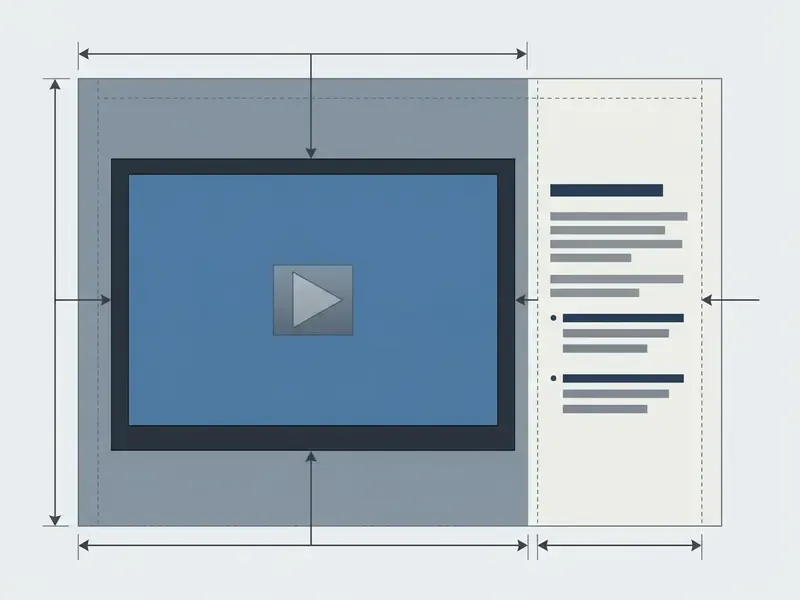
A well-structured deck needs deliberate integration between embedded media and the elements around it. Align video dimensions with the textual context and you cut cognitive load without losing clarity.
Choose Relevant Public YouTube Videos
Select high-quality public YouTube clips that carry your core narrative forward.
Avoid promotional or decorative clips that simply add load for executive decision-makers. Check that the source clip carries clean closed captions, since accessibility guidance for public display consistently treats captions, subtitles, or audio description as a baseline requirement rather than a bonus.
Rights matter as much as quality. For public display in training or marketing materials, reuse is permitted only where the licence or written permission explicitly allows it. Informal "fair use" assumptions do not cover a public showing to staff or clients. If you need footage you fully control, generate or re-edit assets with a video editor workflow instead of leaning on third-party clips.
Add Context and Keep the Video Easy to See
Give the embedded frame a prominent region of the slide grid. Small player, small attention.
Pair the video with three short bullets or a framing question on the adjacent margin to steer audience focus. Keep captions in the lower third of the frame, left-aligned when they run to two lines or more, and never overlapping the part of the frame that carries the evidence you are pointing at.
Consistency handles the rest. Hold the same grid, the same player size, and the same caption position on every video slide. Teams producing recurring training or channel-facing material usually standardise these assets alongside their other production tooling: a youtube intro maker for the opening beat, a reusable youtube outro template for the closing card, a youtube banner creator for channel headers, and a youtube pfp maker for avatar consistency. If you are rebuilding the opening sequence from scratch, the youtube intro workflow covers pacing and length. A photo editor rounds it out for thumbnail and cover frames, which keeps the deck and the channel visually aligned without spawning new brand variants.
Test the Presentation Before Sharing It
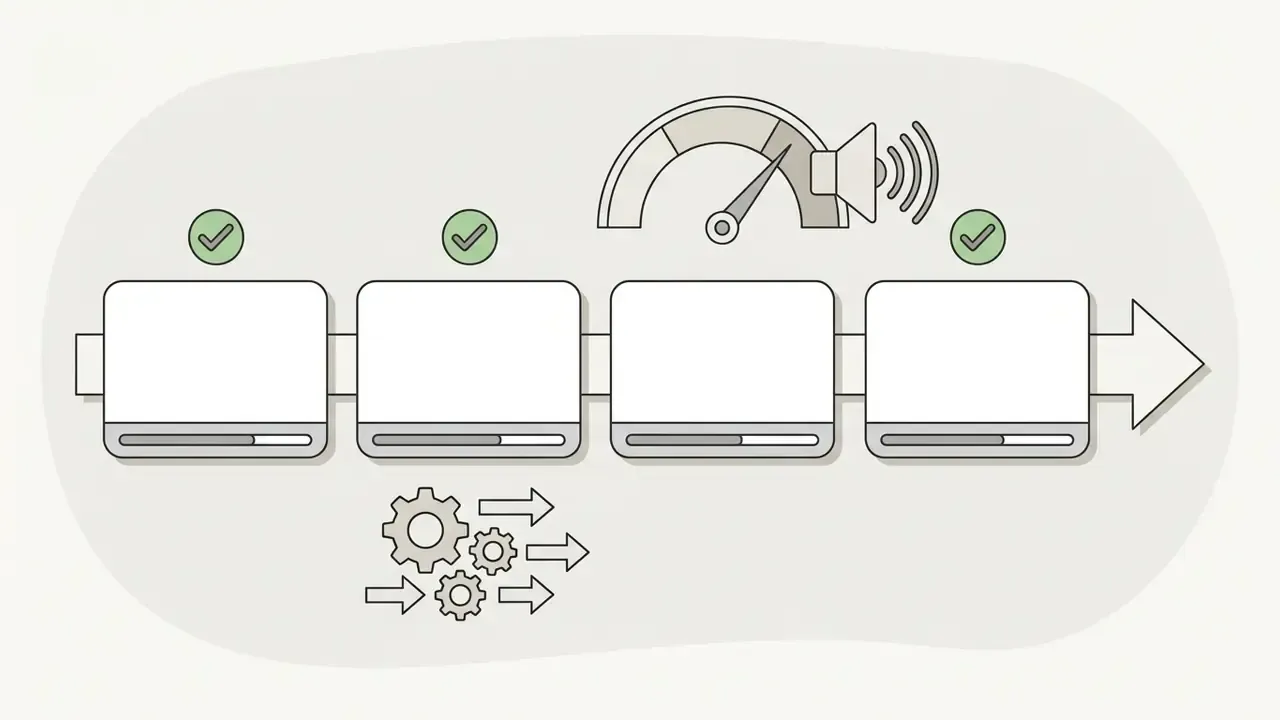
Test video playback inside Canva Present mode before live delivery. Every time. Verify audio levels and confirm that network firewalls are not blocking external streaming traffic.
In other words, do not over-engineer interactivity. A clean, well-framed, reliably streaming clip beats a heavily instrumented one.
Documented failure pattern (illustrative, based on commonly reported enterprise behaviour): a deck with three instructional YouTube clips across roughly twenty governance slides plays perfectly on the author's laptop, then dies in the room because proxy rules block external iframe video requests on the shared display. Resolution: either an authorised network access point or a pre-loaded MP4 fallback, decided before the session rather than during it.
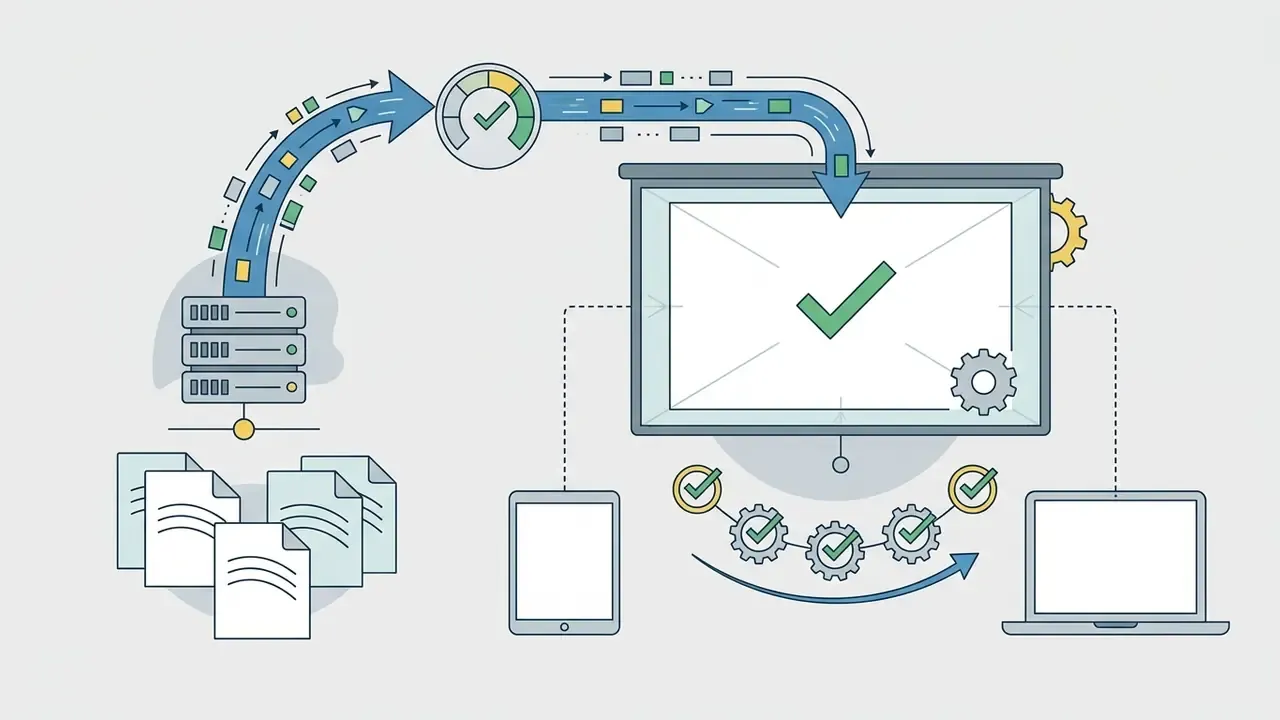
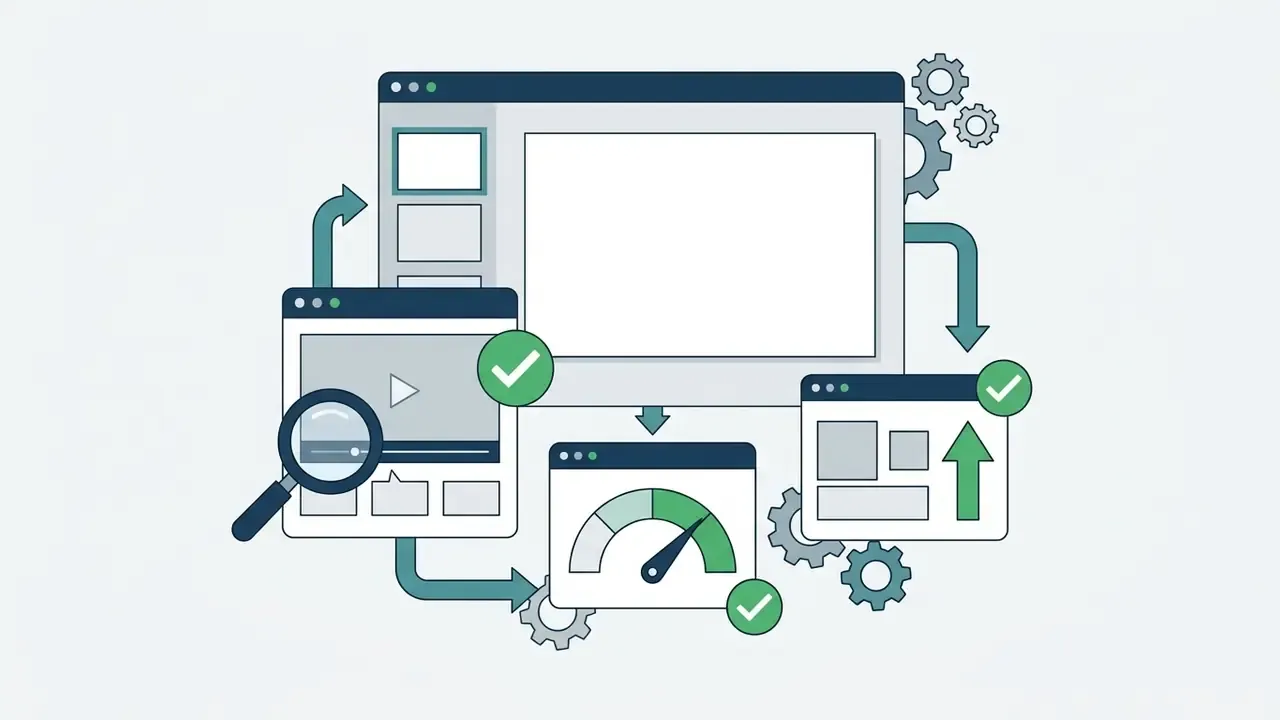
Pre-flight checklist:

Archiving Video Evidence for Audit and Reporting
FAQ About Adding YouTube Videos to Canva Presentations
Can You Add Multiple YouTube Videos to One Canva Presentation?
Yes. You can add multiple YouTube videos across different slides in a single Canva presentation. Each one works as an independent embedded player that streams separately in present mode. Official documentation publishes no hard per-deck limit, but avoid stacking several active players on one slide, since lower-spec presentation laptops lag noticeably.
Can You Embed an Entire YouTube Playlist in Canva?
No. Canva currently supports only individual YouTube video links. Paste a playlist URL and the editor will either resolve just the first video or return an invalid URL format error. To showcase several clips, embed each YouTube video on a separate slide, or upload one pre-edited compilation file through the Uploads panel.
Can You Embed YouTube Shorts in Canva?
Yes. YouTube Shorts can be inserted into Canva slides using the direct link paste or the Embed feature. Shorts keep their vertical 9:16 aspect ratio on the canvas. Adjust the slide text around the vertical frame to keep the design balanced, or resize the whole design if vertical video is the primary asset.
Will an Embedded YouTube Video Play After Downloading or Exporting?
No. Embedded YouTube videos will not play inside exported PDF, PPTX, or static image downloads created from Canva. PDF and image exports flatten the video block into a static preview. Export the deck as an MP4 and embedded YouTube links appear as static frames, so you must upload raw video files into Canva's Uploads panel if you need a fully rendered MP4 recording. For teams that need generated footage instead of third-party clips, free AI video generators produce native files that survive MP4 export.
Does Embedding a YouTube Video Require Canva Pro?
No. Both the direct-link paste and the Embeds app work on a free Canva account. The documented plan difference concerns Canva's own stock video library, which is included with Pro, Teams, Education, and Nonprofit plans.
Why Does My Video Play in the Editor but Not in Present Mode?
Almost always a network or frame-permission issue rather than a broken link. Check whether the presenting device sits behind a stricter proxy than your editing device, whether a browser extension blocks third-party frames, and whether the clip is age-restricted. For technical teams integrating automated media pipelines, our AI Media API Guides outline developer options for video asset processing. Organisations managing commercial licensing can review our AI Media Commercial-Use standards, while performance data sits in our AI Media Benchmarks and Review Proof documentation.
Appendix A: Editorial Corrections and Source Notes
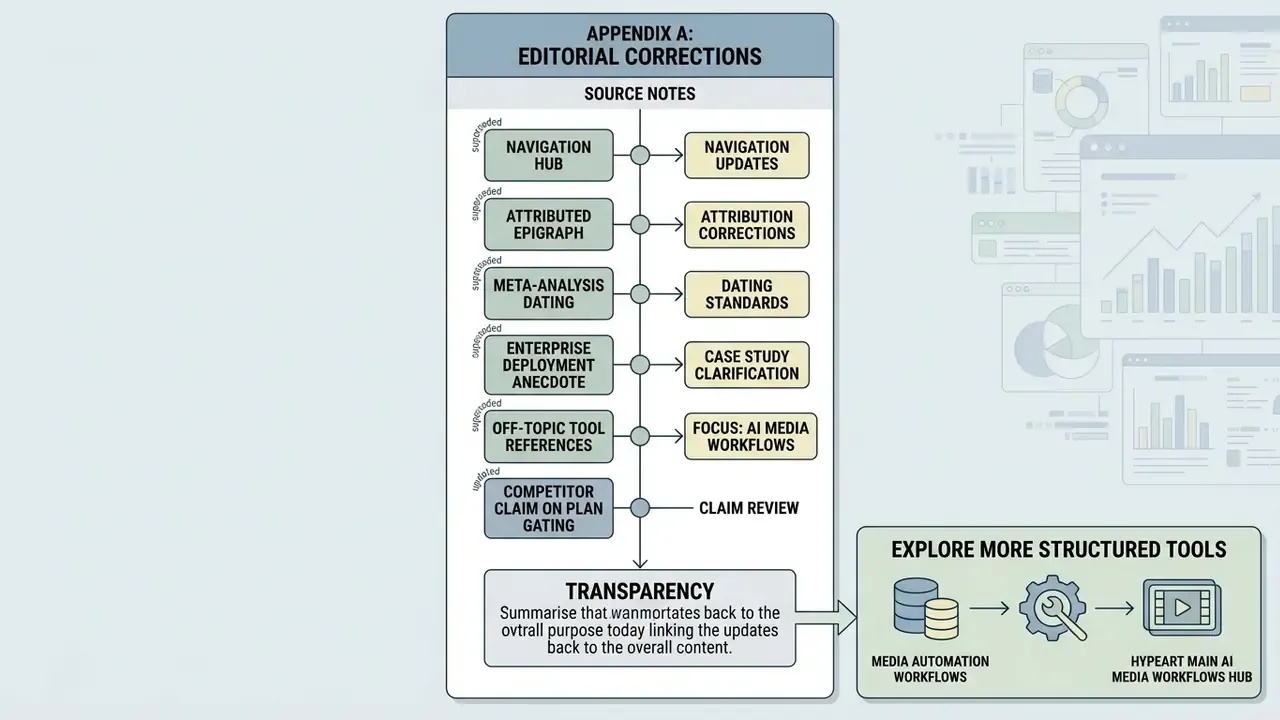
For transparency, the following statements from earlier revisions of this guide have been superseded:
- Attributed epigraph. The opening quotation was previously published with unclear author attribution. It now carries a neutral statement drawn from visual communication and presentation design guidance.
- Meta-analysis dating. The instructional animation effect size (d ≈ 0.35–0.40) was previously cited as a 2024 publication. The underlying meta-analysis covers studies conducted across earlier decades, and the publication year is not verified, so the year has been removed while the effect size is retained.
- Enterprise deployment anecdote. The proxy-blocking scenario was previously presented as a specific unnamed client deployment. It is retained as a documented, illustrative failure pattern rather than an attributable case study.
- Off-topic tool references. Earlier revisions included product anchors unrelated to slide-deck video embedding. These have been reformulated so every linked resource maps to an adjacent task in the same workflow.
- Competitor claim on plan gating. One widely republished guide states that the Embeds feature requires Canva Pro. Canva's help documentation does not support this, and the claim is noted here as incorrect.